Deprecated: Creation of dynamic property Yoast\WP\SEO\Presentations\Indexable_Term_Archive_Presentation::$robots is deprecated in /var/www/staging.beencrypted.com/site/web/app/plugins/wordpress-seo/src/presentations/abstract-presentation.php on line 64
Deprecated: Creation of dynamic property Yoast\WP\SEO\Surfaces\Values\Meta::$canonical is deprecated in /var/www/staging.beencrypted.com/site/web/app/plugins/wordpress-seo/src/surfaces/values/meta.php on line 202
Deprecated: Creation of dynamic property Yoast\WP\SEO\Surfaces\Values\Meta::$canonical is deprecated in /var/www/staging.beencrypted.com/site/web/app/plugins/wordpress-seo/src/surfaces/values/meta.php on line 202
Deprecated: Using null as an array offset is deprecated, use an empty string instead in /var/www/staging.beencrypted.com/site/web/wp/wp-includes/class-wp-block-type-registry.php on line 168
Deprecated: Using null as an array offset is deprecated, use an empty string instead in /var/www/staging.beencrypted.com/site/web/wp/wp-includes/class-wp-block-type-registry.php on line 168
Deprecated: Using null as an array offset is deprecated, use an empty string instead in /var/www/staging.beencrypted.com/site/web/wp/wp-includes/class-wp-block-type-registry.php on line 168
Deprecated: Using null as an array offset is deprecated, use an empty string instead in /var/www/staging.beencrypted.com/site/web/wp/wp-includes/class-wp-block-type-registry.php on line 168
Deprecated: Using null as an array offset is deprecated, use an empty string instead in /var/www/staging.beencrypted.com/site/web/wp/wp-includes/class-wp-block-type-registry.php on line 168
Deprecated: Using null as an array offset is deprecated, use an empty string instead in /var/www/staging.beencrypted.com/site/web/wp/wp-includes/class-wp-block-type-registry.php on line 168
Deprecated: Using null as an array offset is deprecated, use an empty string instead in /var/www/staging.beencrypted.com/site/web/wp/wp-includes/class-wp-block-type-registry.php on line 168
Deprecated: Using null as an array offset is deprecated, use an empty string instead in /var/www/staging.beencrypted.com/site/web/wp/wp-includes/class-wp-block-type-registry.php on line 168
Deprecated: Using null as an array offset is deprecated, use an empty string instead in /var/www/staging.beencrypted.com/site/web/wp/wp-includes/class-wp-block-type-registry.php on line 168
Deprecated: Using null as an array offset is deprecated, use an empty string instead in /var/www/staging.beencrypted.com/site/web/wp/wp-includes/class-wp-block-type-registry.php on line 168
Deprecated: Using null as an array offset is deprecated, use an empty string instead in /var/www/staging.beencrypted.com/site/web/wp/wp-includes/class-wp-block-type-registry.php on line 168
Deprecated: Using null as an array offset is deprecated, use an empty string instead in /var/www/staging.beencrypted.com/site/web/wp/wp-includes/class-wp-block-type-registry.php on line 168
Deprecated: Using null as an array offset is deprecated, use an empty string instead in /var/www/staging.beencrypted.com/site/web/wp/wp-includes/class-wp-block-type-registry.php on line 168
Deprecated: Using null as an array offset is deprecated, use an empty string instead in /var/www/staging.beencrypted.com/site/web/wp/wp-includes/class-wp-block-type-registry.php on line 168
Deprecated: Using null as an array offset is deprecated, use an empty string instead in /var/www/staging.beencrypted.com/site/web/wp/wp-includes/class-wp-block-type-registry.php on line 168
Deprecated: Using null as an array offset is deprecated, use an empty string instead in /var/www/staging.beencrypted.com/site/web/wp/wp-includes/class-wp-block-type-registry.php on line 168
Deprecated: Using null as an array offset is deprecated, use an empty string instead in /var/www/staging.beencrypted.com/site/web/wp/wp-includes/class-wp-block-type-registry.php on line 168
Deprecated: Using null as an array offset is deprecated, use an empty string instead in /var/www/staging.beencrypted.com/site/web/wp/wp-includes/class-wp-block-type-registry.php on line 168
Deprecated: Using null as an array offset is deprecated, use an empty string instead in /var/www/staging.beencrypted.com/site/web/wp/wp-includes/class-wp-block-type-registry.php on line 168
Deprecated: Using null as an array offset is deprecated, use an empty string instead in /var/www/staging.beencrypted.com/site/web/wp/wp-includes/class-wp-block-type-registry.php on line 168
Deprecated: Using null as an array offset is deprecated, use an empty string instead in /var/www/staging.beencrypted.com/site/web/wp/wp-includes/class-wp-block-type-registry.php on line 168
Deprecated: Using null as an array offset is deprecated, use an empty string instead in /var/www/staging.beencrypted.com/site/web/wp/wp-includes/class-wp-block-type-registry.php on line 168
Deprecated: Using null as an array offset is deprecated, use an empty string instead in /var/www/staging.beencrypted.com/site/web/wp/wp-includes/class-wp-block-type-registry.php on line 168
Deprecated: Using null as an array offset is deprecated, use an empty string instead in /var/www/staging.beencrypted.com/site/web/wp/wp-includes/class-wp-block-type-registry.php on line 168
Deprecated: Using null as an array offset is deprecated, use an empty string instead in /var/www/staging.beencrypted.com/site/web/wp/wp-includes/class-wp-block-type-registry.php on line 168
Deprecated: Using null as an array offset is deprecated, use an empty string instead in /var/www/staging.beencrypted.com/site/web/wp/wp-includes/class-wp-block-type-registry.php on line 168
Deprecated: Using null as an array offset is deprecated, use an empty string instead in /var/www/staging.beencrypted.com/site/web/wp/wp-includes/class-wp-block-type-registry.php on line 168
Deprecated: Using null as an array offset is deprecated, use an empty string instead in /var/www/staging.beencrypted.com/site/web/wp/wp-includes/class-wp-block-type-registry.php on line 168
Deprecated: Using null as an array offset is deprecated, use an empty string instead in /var/www/staging.beencrypted.com/site/web/wp/wp-includes/class-wp-block-type-registry.php on line 168
Deprecated: Using null as an array offset is deprecated, use an empty string instead in /var/www/staging.beencrypted.com/site/web/wp/wp-includes/class-wp-block-type-registry.php on line 168
Deprecated: Using null as an array offset is deprecated, use an empty string instead in /var/www/staging.beencrypted.com/site/web/wp/wp-includes/class-wp-block-type-registry.php on line 168
Deprecated: Using null as an array offset is deprecated, use an empty string instead in /var/www/staging.beencrypted.com/site/web/wp/wp-includes/class-wp-block-type-registry.php on line 168
Deprecated: Using null as an array offset is deprecated, use an empty string instead in /var/www/staging.beencrypted.com/site/web/wp/wp-includes/class-wp-block-type-registry.php on line 168
Deprecated: Using null as an array offset is deprecated, use an empty string instead in /var/www/staging.beencrypted.com/site/web/wp/wp-includes/class-wp-block-type-registry.php on line 168
Deprecated: Using null as an array offset is deprecated, use an empty string instead in /var/www/staging.beencrypted.com/site/web/wp/wp-includes/class-wp-block-type-registry.php on line 168
Deprecated: Using null as an array offset is deprecated, use an empty string instead in /var/www/staging.beencrypted.com/site/web/wp/wp-includes/class-wp-block-type-registry.php on line 168
Deprecated: Using null as an array offset is deprecated, use an empty string instead in /var/www/staging.beencrypted.com/site/web/wp/wp-includes/class-wp-block-type-registry.php on line 168
Deprecated: Using null as an array offset is deprecated, use an empty string instead in /var/www/staging.beencrypted.com/site/web/wp/wp-includes/class-wp-block-type-registry.php on line 168
Deprecated: Using null as an array offset is deprecated, use an empty string instead in /var/www/staging.beencrypted.com/site/web/wp/wp-includes/class-wp-block-type-registry.php on line 168
Deprecated: Using null as an array offset is deprecated, use an empty string instead in /var/www/staging.beencrypted.com/site/web/wp/wp-includes/class-wp-block-type-registry.php on line 168
Deprecated: Using null as an array offset is deprecated, use an empty string instead in /var/www/staging.beencrypted.com/site/web/wp/wp-includes/class-wp-block-type-registry.php on line 168
Deprecated: Using null as an array offset is deprecated, use an empty string instead in /var/www/staging.beencrypted.com/site/web/wp/wp-includes/class-wp-block-type-registry.php on line 168
Deprecated: Using null as an array offset is deprecated, use an empty string instead in /var/www/staging.beencrypted.com/site/web/wp/wp-includes/class-wp-block-type-registry.php on line 168
Deprecated: Using null as an array offset is deprecated, use an empty string instead in /var/www/staging.beencrypted.com/site/web/wp/wp-includes/class-wp-block-type-registry.php on line 168
Deprecated: Using null as an array offset is deprecated, use an empty string instead in /var/www/staging.beencrypted.com/site/web/wp/wp-includes/class-wp-block-type-registry.php on line 168
Deprecated: Using null as an array offset is deprecated, use an empty string instead in /var/www/staging.beencrypted.com/site/web/wp/wp-includes/class-wp-block-type-registry.php on line 168
Deprecated: Using null as an array offset is deprecated, use an empty string instead in /var/www/staging.beencrypted.com/site/web/wp/wp-includes/class-wp-block-type-registry.php on line 168
Deprecated: Using null as an array offset is deprecated, use an empty string instead in /var/www/staging.beencrypted.com/site/web/wp/wp-includes/class-wp-block-type-registry.php on line 168
Deprecated: Using null as an array offset is deprecated, use an empty string instead in /var/www/staging.beencrypted.com/site/web/wp/wp-includes/class-wp-block-type-registry.php on line 168
Deprecated: Using null as an array offset is deprecated, use an empty string instead in /var/www/staging.beencrypted.com/site/web/wp/wp-includes/class-wp-block-type-registry.php on line 168
Deprecated: Using null as an array offset is deprecated, use an empty string instead in /var/www/staging.beencrypted.com/site/web/wp/wp-includes/class-wp-block-type-registry.php on line 168
Deprecated: Using null as an array offset is deprecated, use an empty string instead in /var/www/staging.beencrypted.com/site/web/wp/wp-includes/class-wp-block-type-registry.php on line 168
Deprecated: Using null as an array offset is deprecated, use an empty string instead in /var/www/staging.beencrypted.com/site/web/wp/wp-includes/class-wp-block-type-registry.php on line 168
Deprecated: Using null as an array offset is deprecated, use an empty string instead in /var/www/staging.beencrypted.com/site/web/wp/wp-includes/class-wp-block-type-registry.php on line 168
Deprecated: Using null as an array offset is deprecated, use an empty string instead in /var/www/staging.beencrypted.com/site/web/wp/wp-includes/class-wp-block-type-registry.php on line 168
Deprecated: Using null as an array offset is deprecated, use an empty string instead in /var/www/staging.beencrypted.com/site/web/wp/wp-includes/class-wp-block-type-registry.php on line 168
Deprecated: Using null as an array offset is deprecated, use an empty string instead in /var/www/staging.beencrypted.com/site/web/wp/wp-includes/class-wp-block-type-registry.php on line 168
Deprecated: Using null as an array offset is deprecated, use an empty string instead in /var/www/staging.beencrypted.com/site/web/wp/wp-includes/class-wp-block-type-registry.php on line 168
Deprecated: Using null as an array offset is deprecated, use an empty string instead in /var/www/staging.beencrypted.com/site/web/wp/wp-includes/class-wp-block-type-registry.php on line 168
Deprecated: Using null as an array offset is deprecated, use an empty string instead in /var/www/staging.beencrypted.com/site/web/wp/wp-includes/class-wp-block-type-registry.php on line 168
Deprecated: Using null as an array offset is deprecated, use an empty string instead in /var/www/staging.beencrypted.com/site/web/wp/wp-includes/class-wp-block-type-registry.php on line 168
Deprecated: Using null as an array offset is deprecated, use an empty string instead in /var/www/staging.beencrypted.com/site/web/wp/wp-includes/class-wp-block-type-registry.php on line 168
Deprecated: Using null as an array offset is deprecated, use an empty string instead in /var/www/staging.beencrypted.com/site/web/wp/wp-includes/class-wp-block-type-registry.php on line 168
Deprecated: Using null as an array offset is deprecated, use an empty string instead in /var/www/staging.beencrypted.com/site/web/wp/wp-includes/class-wp-block-type-registry.php on line 168
Deprecated: Using null as an array offset is deprecated, use an empty string instead in /var/www/staging.beencrypted.com/site/web/wp/wp-includes/class-wp-block-type-registry.php on line 168
Deprecated: Using null as an array offset is deprecated, use an empty string instead in /var/www/staging.beencrypted.com/site/web/wp/wp-includes/class-wp-block-type-registry.php on line 168
Deprecated: Using null as an array offset is deprecated, use an empty string instead in /var/www/staging.beencrypted.com/site/web/wp/wp-includes/class-wp-block-type-registry.php on line 168
Deprecated: Using null as an array offset is deprecated, use an empty string instead in /var/www/staging.beencrypted.com/site/web/wp/wp-includes/class-wp-block-type-registry.php on line 168
Deprecated: Using null as an array offset is deprecated, use an empty string instead in /var/www/staging.beencrypted.com/site/web/wp/wp-includes/class-wp-block-type-registry.php on line 168
Deprecated: Using null as an array offset is deprecated, use an empty string instead in /var/www/staging.beencrypted.com/site/web/wp/wp-includes/class-wp-block-type-registry.php on line 168
Deprecated: Using null as an array offset is deprecated, use an empty string instead in /var/www/staging.beencrypted.com/site/web/wp/wp-includes/class-wp-block-type-registry.php on line 168
Deprecated: Using null as an array offset is deprecated, use an empty string instead in /var/www/staging.beencrypted.com/site/web/wp/wp-includes/class-wp-block-type-registry.php on line 168
Deprecated: Using null as an array offset is deprecated, use an empty string instead in /var/www/staging.beencrypted.com/site/web/wp/wp-includes/class-wp-block-type-registry.php on line 168
Deprecated: Using null as an array offset is deprecated, use an empty string instead in /var/www/staging.beencrypted.com/site/web/wp/wp-includes/class-wp-block-type-registry.php on line 168
Deprecated: Using null as an array offset is deprecated, use an empty string instead in /var/www/staging.beencrypted.com/site/web/wp/wp-includes/class-wp-block-type-registry.php on line 168
Deprecated: Using null as an array offset is deprecated, use an empty string instead in /var/www/staging.beencrypted.com/site/web/wp/wp-includes/class-wp-block-type-registry.php on line 168
Deprecated: Using null as an array offset is deprecated, use an empty string instead in /var/www/staging.beencrypted.com/site/web/wp/wp-includes/class-wp-block-type-registry.php on line 168
Deprecated: Using null as an array offset is deprecated, use an empty string instead in /var/www/staging.beencrypted.com/site/web/wp/wp-includes/class-wp-block-type-registry.php on line 168
Deprecated: Using null as an array offset is deprecated, use an empty string instead in /var/www/staging.beencrypted.com/site/web/wp/wp-includes/class-wp-block-type-registry.php on line 168
Deprecated: Using null as an array offset is deprecated, use an empty string instead in /var/www/staging.beencrypted.com/site/web/wp/wp-includes/class-wp-block-type-registry.php on line 168
Deprecated: Using null as an array offset is deprecated, use an empty string instead in /var/www/staging.beencrypted.com/site/web/wp/wp-includes/class-wp-block-type-registry.php on line 168
Deprecated: Using null as an array offset is deprecated, use an empty string instead in /var/www/staging.beencrypted.com/site/web/wp/wp-includes/class-wp-block-type-registry.php on line 168
Deprecated: Using null as an array offset is deprecated, use an empty string instead in /var/www/staging.beencrypted.com/site/web/wp/wp-includes/class-wp-block-type-registry.php on line 168
Deprecated: Using null as an array offset is deprecated, use an empty string instead in /var/www/staging.beencrypted.com/site/web/wp/wp-includes/class-wp-block-type-registry.php on line 168
Deprecated: Using null as an array offset is deprecated, use an empty string instead in /var/www/staging.beencrypted.com/site/web/wp/wp-includes/class-wp-block-type-registry.php on line 168
Deprecated: Using null as an array offset is deprecated, use an empty string instead in /var/www/staging.beencrypted.com/site/web/wp/wp-includes/class-wp-block-type-registry.php on line 168
Deprecated: Using null as an array offset is deprecated, use an empty string instead in /var/www/staging.beencrypted.com/site/web/wp/wp-includes/class-wp-block-type-registry.php on line 168
Deprecated: Using null as an array offset is deprecated, use an empty string instead in /var/www/staging.beencrypted.com/site/web/wp/wp-includes/class-wp-block-type-registry.php on line 168
Deprecated: Using null as an array offset is deprecated, use an empty string instead in /var/www/staging.beencrypted.com/site/web/wp/wp-includes/class-wp-block-type-registry.php on line 168
Deprecated: Using null as an array offset is deprecated, use an empty string instead in /var/www/staging.beencrypted.com/site/web/wp/wp-includes/class-wp-block-type-registry.php on line 168
Deprecated: Using null as an array offset is deprecated, use an empty string instead in /var/www/staging.beencrypted.com/site/web/wp/wp-includes/class-wp-block-type-registry.php on line 168
Deprecated: Using null as an array offset is deprecated, use an empty string instead in /var/www/staging.beencrypted.com/site/web/wp/wp-includes/class-wp-block-type-registry.php on line 168
Deprecated: Using null as an array offset is deprecated, use an empty string instead in /var/www/staging.beencrypted.com/site/web/wp/wp-includes/class-wp-block-type-registry.php on line 168
Deprecated: Using null as an array offset is deprecated, use an empty string instead in /var/www/staging.beencrypted.com/site/web/wp/wp-includes/class-wp-block-type-registry.php on line 168
Deprecated: Using null as an array offset is deprecated, use an empty string instead in /var/www/staging.beencrypted.com/site/web/wp/wp-includes/class-wp-block-type-registry.php on line 168
Deprecated: Using null as an array offset is deprecated, use an empty string instead in /var/www/staging.beencrypted.com/site/web/wp/wp-includes/class-wp-block-type-registry.php on line 168
Deprecated: Using null as an array offset is deprecated, use an empty string instead in /var/www/staging.beencrypted.com/site/web/wp/wp-includes/class-wp-block-type-registry.php on line 168
Deprecated: Using null as an array offset is deprecated, use an empty string instead in /var/www/staging.beencrypted.com/site/web/wp/wp-includes/class-wp-block-type-registry.php on line 168
Deprecated: Using null as an array offset is deprecated, use an empty string instead in /var/www/staging.beencrypted.com/site/web/wp/wp-includes/class-wp-block-type-registry.php on line 168
Deprecated: Using null as an array offset is deprecated, use an empty string instead in /var/www/staging.beencrypted.com/site/web/wp/wp-includes/class-wp-block-type-registry.php on line 168
Deprecated: Using null as an array offset is deprecated, use an empty string instead in /var/www/staging.beencrypted.com/site/web/wp/wp-includes/class-wp-block-type-registry.php on line 168
Deprecated: Using null as an array offset is deprecated, use an empty string instead in /var/www/staging.beencrypted.com/site/web/wp/wp-includes/class-wp-block-type-registry.php on line 168
Deprecated: Using null as an array offset is deprecated, use an empty string instead in /var/www/staging.beencrypted.com/site/web/wp/wp-includes/class-wp-block-type-registry.php on line 168
Deprecated: Using null as an array offset is deprecated, use an empty string instead in /var/www/staging.beencrypted.com/site/web/wp/wp-includes/class-wp-block-type-registry.php on line 168
Deprecated: Using null as an array offset is deprecated, use an empty string instead in /var/www/staging.beencrypted.com/site/web/wp/wp-includes/class-wp-block-type-registry.php on line 168
Deprecated: Using null as an array offset is deprecated, use an empty string instead in /var/www/staging.beencrypted.com/site/web/wp/wp-includes/class-wp-block-type-registry.php on line 168
Deprecated: Using null as an array offset is deprecated, use an empty string instead in /var/www/staging.beencrypted.com/site/web/wp/wp-includes/class-wp-block-type-registry.php on line 168
Deprecated: Using null as an array offset is deprecated, use an empty string instead in /var/www/staging.beencrypted.com/site/web/wp/wp-includes/class-wp-block-type-registry.php on line 168
Deprecated: Using null as an array offset is deprecated, use an empty string instead in /var/www/staging.beencrypted.com/site/web/wp/wp-includes/class-wp-block-type-registry.php on line 168
Deprecated: Using null as an array offset is deprecated, use an empty string instead in /var/www/staging.beencrypted.com/site/web/wp/wp-includes/class-wp-block-type-registry.php on line 168
Deprecated: Using null as an array offset is deprecated, use an empty string instead in /var/www/staging.beencrypted.com/site/web/wp/wp-includes/class-wp-block-type-registry.php on line 168
Deprecated: Using null as an array offset is deprecated, use an empty string instead in /var/www/staging.beencrypted.com/site/web/wp/wp-includes/class-wp-block-type-registry.php on line 168
Deprecated: Using null as an array offset is deprecated, use an empty string instead in /var/www/staging.beencrypted.com/site/web/wp/wp-includes/class-wp-block-type-registry.php on line 168
Deprecated: Using null as an array offset is deprecated, use an empty string instead in /var/www/staging.beencrypted.com/site/web/wp/wp-includes/class-wp-block-type-registry.php on line 168
Deprecated: Using null as an array offset is deprecated, use an empty string instead in /var/www/staging.beencrypted.com/site/web/wp/wp-includes/class-wp-block-type-registry.php on line 168
Deprecated: Using null as an array offset is deprecated, use an empty string instead in /var/www/staging.beencrypted.com/site/web/wp/wp-includes/class-wp-block-type-registry.php on line 168
Deprecated: Using null as an array offset is deprecated, use an empty string instead in /var/www/staging.beencrypted.com/site/web/wp/wp-includes/class-wp-block-type-registry.php on line 168
Deprecated: Using null as an array offset is deprecated, use an empty string instead in /var/www/staging.beencrypted.com/site/web/wp/wp-includes/class-wp-block-type-registry.php on line 168
Deprecated: Using null as an array offset is deprecated, use an empty string instead in /var/www/staging.beencrypted.com/site/web/wp/wp-includes/class-wp-block-type-registry.php on line 168
Deprecated: Using null as an array offset is deprecated, use an empty string instead in /var/www/staging.beencrypted.com/site/web/wp/wp-includes/class-wp-block-type-registry.php on line 168
Deprecated: Using null as an array offset is deprecated, use an empty string instead in /var/www/staging.beencrypted.com/site/web/wp/wp-includes/class-wp-block-type-registry.php on line 168
Deprecated: Using null as an array offset is deprecated, use an empty string instead in /var/www/staging.beencrypted.com/site/web/wp/wp-includes/class-wp-block-type-registry.php on line 168
Deprecated: Using null as an array offset is deprecated, use an empty string instead in /var/www/staging.beencrypted.com/site/web/wp/wp-includes/class-wp-block-type-registry.php on line 168
Deprecated: Using null as an array offset is deprecated, use an empty string instead in /var/www/staging.beencrypted.com/site/web/wp/wp-includes/class-wp-block-type-registry.php on line 168
Deprecated: Using null as an array offset is deprecated, use an empty string instead in /var/www/staging.beencrypted.com/site/web/wp/wp-includes/class-wp-block-type-registry.php on line 168
Deprecated: Using null as an array offset is deprecated, use an empty string instead in /var/www/staging.beencrypted.com/site/web/wp/wp-includes/class-wp-block-type-registry.php on line 168
Deprecated: Using null as an array offset is deprecated, use an empty string instead in /var/www/staging.beencrypted.com/site/web/wp/wp-includes/class-wp-block-type-registry.php on line 168
Deprecated: Using null as an array offset is deprecated, use an empty string instead in /var/www/staging.beencrypted.com/site/web/wp/wp-includes/class-wp-block-type-registry.php on line 168
Deprecated: Using null as an array offset is deprecated, use an empty string instead in /var/www/staging.beencrypted.com/site/web/wp/wp-includes/class-wp-block-type-registry.php on line 168
Deprecated: Using null as an array offset is deprecated, use an empty string instead in /var/www/staging.beencrypted.com/site/web/wp/wp-includes/class-wp-block-type-registry.php on line 168
Deprecated: Using null as an array offset is deprecated, use an empty string instead in /var/www/staging.beencrypted.com/site/web/wp/wp-includes/class-wp-block-type-registry.php on line 168
Deprecated: Using null as an array offset is deprecated, use an empty string instead in /var/www/staging.beencrypted.com/site/web/wp/wp-includes/class-wp-block-type-registry.php on line 168
Deprecated: Using null as an array offset is deprecated, use an empty string instead in /var/www/staging.beencrypted.com/site/web/wp/wp-includes/class-wp-block-type-registry.php on line 168
Deprecated: Using null as an array offset is deprecated, use an empty string instead in /var/www/staging.beencrypted.com/site/web/wp/wp-includes/class-wp-block-type-registry.php on line 168
Deprecated: Using null as an array offset is deprecated, use an empty string instead in /var/www/staging.beencrypted.com/site/web/wp/wp-includes/class-wp-block-type-registry.php on line 168
Deprecated: Using null as an array offset is deprecated, use an empty string instead in /var/www/staging.beencrypted.com/site/web/wp/wp-includes/class-wp-block-type-registry.php on line 168
Deprecated: Using null as an array offset is deprecated, use an empty string instead in /var/www/staging.beencrypted.com/site/web/wp/wp-includes/class-wp-block-type-registry.php on line 168
Deprecated: Using null as an array offset is deprecated, use an empty string instead in /var/www/staging.beencrypted.com/site/web/wp/wp-includes/class-wp-block-type-registry.php on line 168
Deprecated: Using null as an array offset is deprecated, use an empty string instead in /var/www/staging.beencrypted.com/site/web/wp/wp-includes/class-wp-block-type-registry.php on line 168
Deprecated: Using null as an array offset is deprecated, use an empty string instead in /var/www/staging.beencrypted.com/site/web/wp/wp-includes/class-wp-block-type-registry.php on line 168
Deprecated: Using null as an array offset is deprecated, use an empty string instead in /var/www/staging.beencrypted.com/site/web/wp/wp-includes/class-wp-block-type-registry.php on line 168
Deprecated: Using null as an array offset is deprecated, use an empty string instead in /var/www/staging.beencrypted.com/site/web/wp/wp-includes/class-wp-block-type-registry.php on line 168
Deprecated: Using null as an array offset is deprecated, use an empty string instead in /var/www/staging.beencrypted.com/site/web/wp/wp-includes/class-wp-block-type-registry.php on line 168
Deprecated: Using null as an array offset is deprecated, use an empty string instead in /var/www/staging.beencrypted.com/site/web/wp/wp-includes/class-wp-block-type-registry.php on line 168
Deprecated: Using null as an array offset is deprecated, use an empty string instead in /var/www/staging.beencrypted.com/site/web/wp/wp-includes/class-wp-block-type-registry.php on line 168
Deprecated: Using null as an array offset is deprecated, use an empty string instead in /var/www/staging.beencrypted.com/site/web/wp/wp-includes/class-wp-block-type-registry.php on line 168
Deprecated: Using null as an array offset is deprecated, use an empty string instead in /var/www/staging.beencrypted.com/site/web/wp/wp-includes/class-wp-block-type-registry.php on line 168
Deprecated: Using null as an array offset is deprecated, use an empty string instead in /var/www/staging.beencrypted.com/site/web/wp/wp-includes/class-wp-block-type-registry.php on line 168
Deprecated: Using null as an array offset is deprecated, use an empty string instead in /var/www/staging.beencrypted.com/site/web/wp/wp-includes/class-wp-block-type-registry.php on line 168
Deprecated: Using null as an array offset is deprecated, use an empty string instead in /var/www/staging.beencrypted.com/site/web/wp/wp-includes/class-wp-block-type-registry.php on line 168
Deprecated: Using null as an array offset is deprecated, use an empty string instead in /var/www/staging.beencrypted.com/site/web/wp/wp-includes/class-wp-block-type-registry.php on line 168
Deprecated: Using null as an array offset is deprecated, use an empty string instead in /var/www/staging.beencrypted.com/site/web/wp/wp-includes/class-wp-block-type-registry.php on line 168
Deprecated: Using null as an array offset is deprecated, use an empty string instead in /var/www/staging.beencrypted.com/site/web/wp/wp-includes/class-wp-block-type-registry.php on line 168
Deprecated: Using null as an array offset is deprecated, use an empty string instead in /var/www/staging.beencrypted.com/site/web/wp/wp-includes/class-wp-block-type-registry.php on line 168
Deprecated: Using null as an array offset is deprecated, use an empty string instead in /var/www/staging.beencrypted.com/site/web/wp/wp-includes/class-wp-block-type-registry.php on line 168
Deprecated: Using null as an array offset is deprecated, use an empty string instead in /var/www/staging.beencrypted.com/site/web/wp/wp-includes/class-wp-block-type-registry.php on line 168
Deprecated: Using null as an array offset is deprecated, use an empty string instead in /var/www/staging.beencrypted.com/site/web/wp/wp-includes/class-wp-block-type-registry.php on line 168
Deprecated: Using null as an array offset is deprecated, use an empty string instead in /var/www/staging.beencrypted.com/site/web/wp/wp-includes/class-wp-block-type-registry.php on line 168
Deprecated: Using null as an array offset is deprecated, use an empty string instead in /var/www/staging.beencrypted.com/site/web/wp/wp-includes/class-wp-block-type-registry.php on line 168
Deprecated: Using null as an array offset is deprecated, use an empty string instead in /var/www/staging.beencrypted.com/site/web/wp/wp-includes/class-wp-block-type-registry.php on line 168
Deprecated: Using null as an array offset is deprecated, use an empty string instead in /var/www/staging.beencrypted.com/site/web/wp/wp-includes/class-wp-block-type-registry.php on line 168
Deprecated: Using null as an array offset is deprecated, use an empty string instead in /var/www/staging.beencrypted.com/site/web/wp/wp-includes/class-wp-block-type-registry.php on line 168
Deprecated: Using null as an array offset is deprecated, use an empty string instead in /var/www/staging.beencrypted.com/site/web/wp/wp-includes/class-wp-block-type-registry.php on line 168
Deprecated: Using null as an array offset is deprecated, use an empty string instead in /var/www/staging.beencrypted.com/site/web/wp/wp-includes/class-wp-block-type-registry.php on line 168
Deprecated: Using null as an array offset is deprecated, use an empty string instead in /var/www/staging.beencrypted.com/site/web/wp/wp-includes/class-wp-block-type-registry.php on line 168
Deprecated: Using null as an array offset is deprecated, use an empty string instead in /var/www/staging.beencrypted.com/site/web/wp/wp-includes/class-wp-block-type-registry.php on line 168
Deprecated: Using null as an array offset is deprecated, use an empty string instead in /var/www/staging.beencrypted.com/site/web/wp/wp-includes/class-wp-block-type-registry.php on line 168
Deprecated: Using null as an array offset is deprecated, use an empty string instead in /var/www/staging.beencrypted.com/site/web/wp/wp-includes/class-wp-block-type-registry.php on line 168
Deprecated: Using null as an array offset is deprecated, use an empty string instead in /var/www/staging.beencrypted.com/site/web/wp/wp-includes/class-wp-block-type-registry.php on line 168
Deprecated: Using null as an array offset is deprecated, use an empty string instead in /var/www/staging.beencrypted.com/site/web/wp/wp-includes/class-wp-block-type-registry.php on line 168
Deprecated: Using null as an array offset is deprecated, use an empty string instead in /var/www/staging.beencrypted.com/site/web/wp/wp-includes/class-wp-block-type-registry.php on line 168
Deprecated: Using null as an array offset is deprecated, use an empty string instead in /var/www/staging.beencrypted.com/site/web/wp/wp-includes/class-wp-block-type-registry.php on line 168
Deprecated: Using null as an array offset is deprecated, use an empty string instead in /var/www/staging.beencrypted.com/site/web/wp/wp-includes/class-wp-block-type-registry.php on line 168
Deprecated: Using null as an array offset is deprecated, use an empty string instead in /var/www/staging.beencrypted.com/site/web/wp/wp-includes/class-wp-block-type-registry.php on line 168
Deprecated: Using null as an array offset is deprecated, use an empty string instead in /var/www/staging.beencrypted.com/site/web/wp/wp-includes/class-wp-block-type-registry.php on line 168
Deprecated: Using null as an array offset is deprecated, use an empty string instead in /var/www/staging.beencrypted.com/site/web/wp/wp-includes/class-wp-block-type-registry.php on line 168
Deprecated: Using null as an array offset is deprecated, use an empty string instead in /var/www/staging.beencrypted.com/site/web/wp/wp-includes/class-wp-block-type-registry.php on line 168
Deprecated: Using null as an array offset is deprecated, use an empty string instead in /var/www/staging.beencrypted.com/site/web/wp/wp-includes/class-wp-block-type-registry.php on line 168
Deprecated: Using null as an array offset is deprecated, use an empty string instead in /var/www/staging.beencrypted.com/site/web/wp/wp-includes/class-wp-block-type-registry.php on line 168
Deprecated: Using null as an array offset is deprecated, use an empty string instead in /var/www/staging.beencrypted.com/site/web/wp/wp-includes/class-wp-block-type-registry.php on line 168
Deprecated: Using null as an array offset is deprecated, use an empty string instead in /var/www/staging.beencrypted.com/site/web/wp/wp-includes/class-wp-block-type-registry.php on line 168
Deprecated: Using null as an array offset is deprecated, use an empty string instead in /var/www/staging.beencrypted.com/site/web/wp/wp-includes/class-wp-block-type-registry.php on line 168
Deprecated: Using null as an array offset is deprecated, use an empty string instead in /var/www/staging.beencrypted.com/site/web/wp/wp-includes/class-wp-block-type-registry.php on line 168
Deprecated: Using null as an array offset is deprecated, use an empty string instead in /var/www/staging.beencrypted.com/site/web/wp/wp-includes/class-wp-block-type-registry.php on line 168
Deprecated: Using null as an array offset is deprecated, use an empty string instead in /var/www/staging.beencrypted.com/site/web/wp/wp-includes/class-wp-block-type-registry.php on line 168
Deprecated: Using null as an array offset is deprecated, use an empty string instead in /var/www/staging.beencrypted.com/site/web/wp/wp-includes/class-wp-block-type-registry.php on line 168
Deprecated: Using null as an array offset is deprecated, use an empty string instead in /var/www/staging.beencrypted.com/site/web/wp/wp-includes/class-wp-block-type-registry.php on line 168
Deprecated: Using null as an array offset is deprecated, use an empty string instead in /var/www/staging.beencrypted.com/site/web/wp/wp-includes/class-wp-block-type-registry.php on line 168
Deprecated: Using null as an array offset is deprecated, use an empty string instead in /var/www/staging.beencrypted.com/site/web/wp/wp-includes/class-wp-block-type-registry.php on line 168
Deprecated: Using null as an array offset is deprecated, use an empty string instead in /var/www/staging.beencrypted.com/site/web/wp/wp-includes/class-wp-block-type-registry.php on line 168
Deprecated: Using null as an array offset is deprecated, use an empty string instead in /var/www/staging.beencrypted.com/site/web/wp/wp-includes/class-wp-block-type-registry.php on line 168
Deprecated: Using null as an array offset is deprecated, use an empty string instead in /var/www/staging.beencrypted.com/site/web/wp/wp-includes/class-wp-block-type-registry.php on line 168
Deprecated: Using null as an array offset is deprecated, use an empty string instead in /var/www/staging.beencrypted.com/site/web/wp/wp-includes/class-wp-block-type-registry.php on line 168
Deprecated: Using null as an array offset is deprecated, use an empty string instead in /var/www/staging.beencrypted.com/site/web/wp/wp-includes/class-wp-block-type-registry.php on line 168
Deprecated: Using null as an array offset is deprecated, use an empty string instead in /var/www/staging.beencrypted.com/site/web/wp/wp-includes/class-wp-block-type-registry.php on line 168
Deprecated: Using null as an array offset is deprecated, use an empty string instead in /var/www/staging.beencrypted.com/site/web/wp/wp-includes/class-wp-block-type-registry.php on line 168
Deprecated: Using null as an array offset is deprecated, use an empty string instead in /var/www/staging.beencrypted.com/site/web/wp/wp-includes/class-wp-block-type-registry.php on line 168
Deprecated: Using null as an array offset is deprecated, use an empty string instead in /var/www/staging.beencrypted.com/site/web/wp/wp-includes/class-wp-block-type-registry.php on line 168
Deprecated: Using null as an array offset is deprecated, use an empty string instead in /var/www/staging.beencrypted.com/site/web/wp/wp-includes/class-wp-block-type-registry.php on line 168
Deprecated: Using null as an array offset is deprecated, use an empty string instead in /var/www/staging.beencrypted.com/site/web/wp/wp-includes/class-wp-block-type-registry.php on line 168
Deprecated: Using null as an array offset is deprecated, use an empty string instead in /var/www/staging.beencrypted.com/site/web/wp/wp-includes/class-wp-block-type-registry.php on line 168
Deprecated: Using null as an array offset is deprecated, use an empty string instead in /var/www/staging.beencrypted.com/site/web/wp/wp-includes/class-wp-block-type-registry.php on line 168
Deprecated: Using null as an array offset is deprecated, use an empty string instead in /var/www/staging.beencrypted.com/site/web/wp/wp-includes/class-wp-block-type-registry.php on line 168
Deprecated: Using null as an array offset is deprecated, use an empty string instead in /var/www/staging.beencrypted.com/site/web/wp/wp-includes/class-wp-block-type-registry.php on line 168
Deprecated: Using null as an array offset is deprecated, use an empty string instead in /var/www/staging.beencrypted.com/site/web/wp/wp-includes/class-wp-block-type-registry.php on line 168
Deprecated: Using null as an array offset is deprecated, use an empty string instead in /var/www/staging.beencrypted.com/site/web/wp/wp-includes/class-wp-block-type-registry.php on line 168
Deprecated: Using null as an array offset is deprecated, use an empty string instead in /var/www/staging.beencrypted.com/site/web/wp/wp-includes/class-wp-block-type-registry.php on line 168
Deprecated: Using null as an array offset is deprecated, use an empty string instead in /var/www/staging.beencrypted.com/site/web/wp/wp-includes/class-wp-block-type-registry.php on line 168
Deprecated: Using null as an array offset is deprecated, use an empty string instead in /var/www/staging.beencrypted.com/site/web/wp/wp-includes/class-wp-block-type-registry.php on line 168
Deprecated: Using null as an array offset is deprecated, use an empty string instead in /var/www/staging.beencrypted.com/site/web/wp/wp-includes/class-wp-block-type-registry.php on line 168
Deprecated: Using null as an array offset is deprecated, use an empty string instead in /var/www/staging.beencrypted.com/site/web/wp/wp-includes/class-wp-block-type-registry.php on line 168
Deprecated: Using null as an array offset is deprecated, use an empty string instead in /var/www/staging.beencrypted.com/site/web/wp/wp-includes/class-wp-block-type-registry.php on line 168
Deprecated: Using null as an array offset is deprecated, use an empty string instead in /var/www/staging.beencrypted.com/site/web/wp/wp-includes/class-wp-block-type-registry.php on line 168
Deprecated: Using null as an array offset is deprecated, use an empty string instead in /var/www/staging.beencrypted.com/site/web/wp/wp-includes/class-wp-block-type-registry.php on line 168
Deprecated: Using null as an array offset is deprecated, use an empty string instead in /var/www/staging.beencrypted.com/site/web/wp/wp-includes/class-wp-block-type-registry.php on line 168
Deprecated: Using null as an array offset is deprecated, use an empty string instead in /var/www/staging.beencrypted.com/site/web/wp/wp-includes/class-wp-block-type-registry.php on line 168
Deprecated: Using null as an array offset is deprecated, use an empty string instead in /var/www/staging.beencrypted.com/site/web/wp/wp-includes/class-wp-block-type-registry.php on line 168
Deprecated: Using null as an array offset is deprecated, use an empty string instead in /var/www/staging.beencrypted.com/site/web/wp/wp-includes/class-wp-block-type-registry.php on line 168
Deprecated: Using null as an array offset is deprecated, use an empty string instead in /var/www/staging.beencrypted.com/site/web/wp/wp-includes/class-wp-block-type-registry.php on line 168
Deprecated: Using null as an array offset is deprecated, use an empty string instead in /var/www/staging.beencrypted.com/site/web/wp/wp-includes/class-wp-block-type-registry.php on line 168
Deprecated: Using null as an array offset is deprecated, use an empty string instead in /var/www/staging.beencrypted.com/site/web/wp/wp-includes/class-wp-block-type-registry.php on line 168
Deprecated: Using null as an array offset is deprecated, use an empty string instead in /var/www/staging.beencrypted.com/site/web/wp/wp-includes/class-wp-block-type-registry.php on line 168
Deprecated: Using null as an array offset is deprecated, use an empty string instead in /var/www/staging.beencrypted.com/site/web/wp/wp-includes/class-wp-block-type-registry.php on line 168
Deprecated: Using null as an array offset is deprecated, use an empty string instead in /var/www/staging.beencrypted.com/site/web/wp/wp-includes/class-wp-block-type-registry.php on line 168
Deprecated: Using null as an array offset is deprecated, use an empty string instead in /var/www/staging.beencrypted.com/site/web/wp/wp-includes/class-wp-block-type-registry.php on line 168
Deprecated: Using null as an array offset is deprecated, use an empty string instead in /var/www/staging.beencrypted.com/site/web/wp/wp-includes/class-wp-block-type-registry.php on line 168
Deprecated: Using null as an array offset is deprecated, use an empty string instead in /var/www/staging.beencrypted.com/site/web/wp/wp-includes/class-wp-block-type-registry.php on line 168
Deprecated: Using null as an array offset is deprecated, use an empty string instead in /var/www/staging.beencrypted.com/site/web/wp/wp-includes/class-wp-block-type-registry.php on line 168
Deprecated: Using null as an array offset is deprecated, use an empty string instead in /var/www/staging.beencrypted.com/site/web/wp/wp-includes/class-wp-block-type-registry.php on line 168
Deprecated: Using null as an array offset is deprecated, use an empty string instead in /var/www/staging.beencrypted.com/site/web/wp/wp-includes/class-wp-block-type-registry.php on line 168
Deprecated: Using null as an array offset is deprecated, use an empty string instead in /var/www/staging.beencrypted.com/site/web/wp/wp-includes/class-wp-block-type-registry.php on line 168
Deprecated: Using null as an array offset is deprecated, use an empty string instead in /var/www/staging.beencrypted.com/site/web/wp/wp-includes/class-wp-block-type-registry.php on line 168
Deprecated: Using null as an array offset is deprecated, use an empty string instead in /var/www/staging.beencrypted.com/site/web/wp/wp-includes/class-wp-block-type-registry.php on line 168
Deprecated: Using null as an array offset is deprecated, use an empty string instead in /var/www/staging.beencrypted.com/site/web/wp/wp-includes/class-wp-block-type-registry.php on line 168
Deprecated: Using null as an array offset is deprecated, use an empty string instead in /var/www/staging.beencrypted.com/site/web/wp/wp-includes/class-wp-block-type-registry.php on line 168
Deprecated: Using null as an array offset is deprecated, use an empty string instead in /var/www/staging.beencrypted.com/site/web/wp/wp-includes/class-wp-block-type-registry.php on line 168
Deprecated: Using null as an array offset is deprecated, use an empty string instead in /var/www/staging.beencrypted.com/site/web/wp/wp-includes/class-wp-block-type-registry.php on line 168
Deprecated: Using null as an array offset is deprecated, use an empty string instead in /var/www/staging.beencrypted.com/site/web/wp/wp-includes/class-wp-block-type-registry.php on line 168
Deprecated: Using null as an array offset is deprecated, use an empty string instead in /var/www/staging.beencrypted.com/site/web/wp/wp-includes/class-wp-block-type-registry.php on line 168
Deprecated: Using null as an array offset is deprecated, use an empty string instead in /var/www/staging.beencrypted.com/site/web/wp/wp-includes/class-wp-block-type-registry.php on line 168
Deprecated: Using null as an array offset is deprecated, use an empty string instead in /var/www/staging.beencrypted.com/site/web/wp/wp-includes/class-wp-block-type-registry.php on line 168
Deprecated: Using null as an array offset is deprecated, use an empty string instead in /var/www/staging.beencrypted.com/site/web/wp/wp-includes/class-wp-block-type-registry.php on line 168
Deprecated: Using null as an array offset is deprecated, use an empty string instead in /var/www/staging.beencrypted.com/site/web/wp/wp-includes/class-wp-block-type-registry.php on line 168
Deprecated: Using null as an array offset is deprecated, use an empty string instead in /var/www/staging.beencrypted.com/site/web/wp/wp-includes/class-wp-block-type-registry.php on line 168
Deprecated: Using null as an array offset is deprecated, use an empty string instead in /var/www/staging.beencrypted.com/site/web/wp/wp-includes/class-wp-block-type-registry.php on line 168
Deprecated: Using null as an array offset is deprecated, use an empty string instead in /var/www/staging.beencrypted.com/site/web/wp/wp-includes/class-wp-block-type-registry.php on line 168
Deprecated: Using null as an array offset is deprecated, use an empty string instead in /var/www/staging.beencrypted.com/site/web/wp/wp-includes/class-wp-block-type-registry.php on line 168
Deprecated: Using null as an array offset is deprecated, use an empty string instead in /var/www/staging.beencrypted.com/site/web/wp/wp-includes/class-wp-block-type-registry.php on line 168
Deprecated: Using null as an array offset is deprecated, use an empty string instead in /var/www/staging.beencrypted.com/site/web/wp/wp-includes/class-wp-block-type-registry.php on line 168
Deprecated: Using null as an array offset is deprecated, use an empty string instead in /var/www/staging.beencrypted.com/site/web/wp/wp-includes/class-wp-block-type-registry.php on line 168
Deprecated: Using null as an array offset is deprecated, use an empty string instead in /var/www/staging.beencrypted.com/site/web/wp/wp-includes/class-wp-block-type-registry.php on line 168
Deprecated: Using null as an array offset is deprecated, use an empty string instead in /var/www/staging.beencrypted.com/site/web/wp/wp-includes/class-wp-block-type-registry.php on line 168
Deprecated: Using null as an array offset is deprecated, use an empty string instead in /var/www/staging.beencrypted.com/site/web/wp/wp-includes/class-wp-block-type-registry.php on line 168
Deprecated: Using null as an array offset is deprecated, use an empty string instead in /var/www/staging.beencrypted.com/site/web/wp/wp-includes/class-wp-block-type-registry.php on line 168
Deprecated: Using null as an array offset is deprecated, use an empty string instead in /var/www/staging.beencrypted.com/site/web/wp/wp-includes/class-wp-block-type-registry.php on line 168
Deprecated: Using null as an array offset is deprecated, use an empty string instead in /var/www/staging.beencrypted.com/site/web/wp/wp-includes/class-wp-block-type-registry.php on line 168
Deprecated: Using null as an array offset is deprecated, use an empty string instead in /var/www/staging.beencrypted.com/site/web/wp/wp-includes/class-wp-block-type-registry.php on line 168
Deprecated: Using null as an array offset is deprecated, use an empty string instead in /var/www/staging.beencrypted.com/site/web/wp/wp-includes/class-wp-block-type-registry.php on line 168
Deprecated: Using null as an array offset is deprecated, use an empty string instead in /var/www/staging.beencrypted.com/site/web/wp/wp-includes/class-wp-block-type-registry.php on line 168
Deprecated: Using null as an array offset is deprecated, use an empty string instead in /var/www/staging.beencrypted.com/site/web/wp/wp-includes/class-wp-block-type-registry.php on line 168
Deprecated: Using null as an array offset is deprecated, use an empty string instead in /var/www/staging.beencrypted.com/site/web/wp/wp-includes/class-wp-block-type-registry.php on line 168
Deprecated: Using null as an array offset is deprecated, use an empty string instead in /var/www/staging.beencrypted.com/site/web/wp/wp-includes/class-wp-block-type-registry.php on line 168
Deprecated: Using null as an array offset is deprecated, use an empty string instead in /var/www/staging.beencrypted.com/site/web/wp/wp-includes/class-wp-block-type-registry.php on line 168
Deprecated: Using null as an array offset is deprecated, use an empty string instead in /var/www/staging.beencrypted.com/site/web/wp/wp-includes/class-wp-block-type-registry.php on line 168
Deprecated: Using null as an array offset is deprecated, use an empty string instead in /var/www/staging.beencrypted.com/site/web/wp/wp-includes/class-wp-block-type-registry.php on line 168
Deprecated: Using null as an array offset is deprecated, use an empty string instead in /var/www/staging.beencrypted.com/site/web/wp/wp-includes/class-wp-block-type-registry.php on line 168
Deprecated: Using null as an array offset is deprecated, use an empty string instead in /var/www/staging.beencrypted.com/site/web/wp/wp-includes/class-wp-block-type-registry.php on line 168
Deprecated: Using null as an array offset is deprecated, use an empty string instead in /var/www/staging.beencrypted.com/site/web/wp/wp-includes/class-wp-block-type-registry.php on line 168
Deprecated: Using null as an array offset is deprecated, use an empty string instead in /var/www/staging.beencrypted.com/site/web/wp/wp-includes/class-wp-block-type-registry.php on line 168
Deprecated: Using null as an array offset is deprecated, use an empty string instead in /var/www/staging.beencrypted.com/site/web/wp/wp-includes/class-wp-block-type-registry.php on line 168
Deprecated: Using null as an array offset is deprecated, use an empty string instead in /var/www/staging.beencrypted.com/site/web/wp/wp-includes/class-wp-block-type-registry.php on line 168
Deprecated: Using null as an array offset is deprecated, use an empty string instead in /var/www/staging.beencrypted.com/site/web/wp/wp-includes/class-wp-block-type-registry.php on line 168
Deprecated: Using null as an array offset is deprecated, use an empty string instead in /var/www/staging.beencrypted.com/site/web/wp/wp-includes/class-wp-block-type-registry.php on line 168
Deprecated: Using null as an array offset is deprecated, use an empty string instead in /var/www/staging.beencrypted.com/site/web/wp/wp-includes/class-wp-block-type-registry.php on line 168
Deprecated: Using null as an array offset is deprecated, use an empty string instead in /var/www/staging.beencrypted.com/site/web/wp/wp-includes/class-wp-block-type-registry.php on line 168
Deprecated: Using null as an array offset is deprecated, use an empty string instead in /var/www/staging.beencrypted.com/site/web/wp/wp-includes/class-wp-block-type-registry.php on line 168
Deprecated: Using null as an array offset is deprecated, use an empty string instead in /var/www/staging.beencrypted.com/site/web/wp/wp-includes/class-wp-block-type-registry.php on line 168
Deprecated: Using null as an array offset is deprecated, use an empty string instead in /var/www/staging.beencrypted.com/site/web/wp/wp-includes/class-wp-block-type-registry.php on line 168
Deprecated: Using null as an array offset is deprecated, use an empty string instead in /var/www/staging.beencrypted.com/site/web/wp/wp-includes/class-wp-block-type-registry.php on line 168
Deprecated: Using null as an array offset is deprecated, use an empty string instead in /var/www/staging.beencrypted.com/site/web/wp/wp-includes/class-wp-block-type-registry.php on line 168
Deprecated: Using null as an array offset is deprecated, use an empty string instead in /var/www/staging.beencrypted.com/site/web/wp/wp-includes/class-wp-block-type-registry.php on line 168
Deprecated: Using null as an array offset is deprecated, use an empty string instead in /var/www/staging.beencrypted.com/site/web/wp/wp-includes/class-wp-block-type-registry.php on line 168
Deprecated: Using null as an array offset is deprecated, use an empty string instead in /var/www/staging.beencrypted.com/site/web/wp/wp-includes/class-wp-block-type-registry.php on line 168
Deprecated: Using null as an array offset is deprecated, use an empty string instead in /var/www/staging.beencrypted.com/site/web/wp/wp-includes/class-wp-block-type-registry.php on line 168
Deprecated: Using null as an array offset is deprecated, use an empty string instead in /var/www/staging.beencrypted.com/site/web/wp/wp-includes/class-wp-block-type-registry.php on line 168
Deprecated: Using null as an array offset is deprecated, use an empty string instead in /var/www/staging.beencrypted.com/site/web/wp/wp-includes/class-wp-block-type-registry.php on line 168
Deprecated: Using null as an array offset is deprecated, use an empty string instead in /var/www/staging.beencrypted.com/site/web/wp/wp-includes/class-wp-block-type-registry.php on line 168
Deprecated: Using null as an array offset is deprecated, use an empty string instead in /var/www/staging.beencrypted.com/site/web/wp/wp-includes/class-wp-block-type-registry.php on line 168
Deprecated: Using null as an array offset is deprecated, use an empty string instead in /var/www/staging.beencrypted.com/site/web/wp/wp-includes/class-wp-block-type-registry.php on line 168
Deprecated: Using null as an array offset is deprecated, use an empty string instead in /var/www/staging.beencrypted.com/site/web/wp/wp-includes/class-wp-block-type-registry.php on line 168
Deprecated: Using null as an array offset is deprecated, use an empty string instead in /var/www/staging.beencrypted.com/site/web/wp/wp-includes/class-wp-block-type-registry.php on line 168
Deprecated: Using null as an array offset is deprecated, use an empty string instead in /var/www/staging.beencrypted.com/site/web/wp/wp-includes/class-wp-block-type-registry.php on line 168
Deprecated: Using null as an array offset is deprecated, use an empty string instead in /var/www/staging.beencrypted.com/site/web/wp/wp-includes/class-wp-block-type-registry.php on line 168
Deprecated: Using null as an array offset is deprecated, use an empty string instead in /var/www/staging.beencrypted.com/site/web/wp/wp-includes/class-wp-block-type-registry.php on line 168
Deprecated: Using null as an array offset is deprecated, use an empty string instead in /var/www/staging.beencrypted.com/site/web/wp/wp-includes/class-wp-block-type-registry.php on line 168
Deprecated: Using null as an array offset is deprecated, use an empty string instead in /var/www/staging.beencrypted.com/site/web/wp/wp-includes/class-wp-block-type-registry.php on line 168
Deprecated: Using null as an array offset is deprecated, use an empty string instead in /var/www/staging.beencrypted.com/site/web/wp/wp-includes/class-wp-block-type-registry.php on line 168
Deprecated: Using null as an array offset is deprecated, use an empty string instead in /var/www/staging.beencrypted.com/site/web/wp/wp-includes/class-wp-block-type-registry.php on line 168
Deprecated: Using null as an array offset is deprecated, use an empty string instead in /var/www/staging.beencrypted.com/site/web/wp/wp-includes/class-wp-block-type-registry.php on line 168
Deprecated: Using null as an array offset is deprecated, use an empty string instead in /var/www/staging.beencrypted.com/site/web/wp/wp-includes/class-wp-block-type-registry.php on line 168
Deprecated: Using null as an array offset is deprecated, use an empty string instead in /var/www/staging.beencrypted.com/site/web/wp/wp-includes/class-wp-block-type-registry.php on line 168
Deprecated: Using null as an array offset is deprecated, use an empty string instead in /var/www/staging.beencrypted.com/site/web/wp/wp-includes/class-wp-block-type-registry.php on line 168
Deprecated: Using null as an array offset is deprecated, use an empty string instead in /var/www/staging.beencrypted.com/site/web/wp/wp-includes/class-wp-block-type-registry.php on line 168
Deprecated: Using null as an array offset is deprecated, use an empty string instead in /var/www/staging.beencrypted.com/site/web/wp/wp-includes/class-wp-block-type-registry.php on line 168
Deprecated: Using null as an array offset is deprecated, use an empty string instead in /var/www/staging.beencrypted.com/site/web/wp/wp-includes/class-wp-block-type-registry.php on line 168
Deprecated: Using null as an array offset is deprecated, use an empty string instead in /var/www/staging.beencrypted.com/site/web/wp/wp-includes/class-wp-block-type-registry.php on line 168
Deprecated: Using null as an array offset is deprecated, use an empty string instead in /var/www/staging.beencrypted.com/site/web/wp/wp-includes/class-wp-block-type-registry.php on line 168
Deprecated: Using null as an array offset is deprecated, use an empty string instead in /var/www/staging.beencrypted.com/site/web/wp/wp-includes/class-wp-block-type-registry.php on line 168
Deprecated: Using null as an array offset is deprecated, use an empty string instead in /var/www/staging.beencrypted.com/site/web/wp/wp-includes/class-wp-block-type-registry.php on line 168
Deprecated: Using null as an array offset is deprecated, use an empty string instead in /var/www/staging.beencrypted.com/site/web/wp/wp-includes/class-wp-block-type-registry.php on line 168
Deprecated: Using null as an array offset is deprecated, use an empty string instead in /var/www/staging.beencrypted.com/site/web/wp/wp-includes/class-wp-block-type-registry.php on line 168
Deprecated: Using null as an array offset is deprecated, use an empty string instead in /var/www/staging.beencrypted.com/site/web/wp/wp-includes/class-wp-block-type-registry.php on line 168
Deprecated: Using null as an array offset is deprecated, use an empty string instead in /var/www/staging.beencrypted.com/site/web/wp/wp-includes/class-wp-block-type-registry.php on line 168
Deprecated: Using null as an array offset is deprecated, use an empty string instead in /var/www/staging.beencrypted.com/site/web/wp/wp-includes/class-wp-block-type-registry.php on line 168
Deprecated: Using null as an array offset is deprecated, use an empty string instead in /var/www/staging.beencrypted.com/site/web/wp/wp-includes/class-wp-block-type-registry.php on line 168
Deprecated: Using null as an array offset is deprecated, use an empty string instead in /var/www/staging.beencrypted.com/site/web/wp/wp-includes/class-wp-block-type-registry.php on line 168
Deprecated: Using null as an array offset is deprecated, use an empty string instead in /var/www/staging.beencrypted.com/site/web/wp/wp-includes/class-wp-block-type-registry.php on line 168
Deprecated: Using null as an array offset is deprecated, use an empty string instead in /var/www/staging.beencrypted.com/site/web/wp/wp-includes/class-wp-block-type-registry.php on line 168
Deprecated: Using null as an array offset is deprecated, use an empty string instead in /var/www/staging.beencrypted.com/site/web/wp/wp-includes/class-wp-block-type-registry.php on line 168
Deprecated: Using null as an array offset is deprecated, use an empty string instead in /var/www/staging.beencrypted.com/site/web/wp/wp-includes/class-wp-block-type-registry.php on line 168
Deprecated: Using null as an array offset is deprecated, use an empty string instead in /var/www/staging.beencrypted.com/site/web/wp/wp-includes/class-wp-block-type-registry.php on line 168
Deprecated: Using null as an array offset is deprecated, use an empty string instead in /var/www/staging.beencrypted.com/site/web/wp/wp-includes/class-wp-block-type-registry.php on line 168
Deprecated: Using null as an array offset is deprecated, use an empty string instead in /var/www/staging.beencrypted.com/site/web/wp/wp-includes/class-wp-block-type-registry.php on line 168
Deprecated: Using null as an array offset is deprecated, use an empty string instead in /var/www/staging.beencrypted.com/site/web/wp/wp-includes/class-wp-block-type-registry.php on line 168
Deprecated: Using null as an array offset is deprecated, use an empty string instead in /var/www/staging.beencrypted.com/site/web/wp/wp-includes/class-wp-block-type-registry.php on line 168
Deprecated: Using null as an array offset is deprecated, use an empty string instead in /var/www/staging.beencrypted.com/site/web/wp/wp-includes/class-wp-block-type-registry.php on line 168
Deprecated: Using null as an array offset is deprecated, use an empty string instead in /var/www/staging.beencrypted.com/site/web/wp/wp-includes/class-wp-block-type-registry.php on line 168
Deprecated: Using null as an array offset is deprecated, use an empty string instead in /var/www/staging.beencrypted.com/site/web/wp/wp-includes/class-wp-block-type-registry.php on line 168
Deprecated: Using null as an array offset is deprecated, use an empty string instead in /var/www/staging.beencrypted.com/site/web/wp/wp-includes/class-wp-block-type-registry.php on line 168
Deprecated: Using null as an array offset is deprecated, use an empty string instead in /var/www/staging.beencrypted.com/site/web/wp/wp-includes/class-wp-block-type-registry.php on line 168
Deprecated: Using null as an array offset is deprecated, use an empty string instead in /var/www/staging.beencrypted.com/site/web/wp/wp-includes/class-wp-block-type-registry.php on line 168
Deprecated: Using null as an array offset is deprecated, use an empty string instead in /var/www/staging.beencrypted.com/site/web/wp/wp-includes/class-wp-block-type-registry.php on line 168
Deprecated: Using null as an array offset is deprecated, use an empty string instead in /var/www/staging.beencrypted.com/site/web/wp/wp-includes/class-wp-block-type-registry.php on line 168
Deprecated: Using null as an array offset is deprecated, use an empty string instead in /var/www/staging.beencrypted.com/site/web/wp/wp-includes/class-wp-block-type-registry.php on line 168
Deprecated: Using null as an array offset is deprecated, use an empty string instead in /var/www/staging.beencrypted.com/site/web/wp/wp-includes/class-wp-block-type-registry.php on line 168
Deprecated: Using null as an array offset is deprecated, use an empty string instead in /var/www/staging.beencrypted.com/site/web/wp/wp-includes/class-wp-block-type-registry.php on line 168
Deprecated: Using null as an array offset is deprecated, use an empty string instead in /var/www/staging.beencrypted.com/site/web/wp/wp-includes/class-wp-block-type-registry.php on line 168
Deprecated: Using null as an array offset is deprecated, use an empty string instead in /var/www/staging.beencrypted.com/site/web/wp/wp-includes/class-wp-block-type-registry.php on line 168
Deprecated: Using null as an array offset is deprecated, use an empty string instead in /var/www/staging.beencrypted.com/site/web/wp/wp-includes/class-wp-block-type-registry.php on line 168
Deprecated: Using null as an array offset is deprecated, use an empty string instead in /var/www/staging.beencrypted.com/site/web/wp/wp-includes/class-wp-block-type-registry.php on line 168
Deprecated: Using null as an array offset is deprecated, use an empty string instead in /var/www/staging.beencrypted.com/site/web/wp/wp-includes/class-wp-block-type-registry.php on line 168
Deprecated: Using null as an array offset is deprecated, use an empty string instead in /var/www/staging.beencrypted.com/site/web/wp/wp-includes/class-wp-block-type-registry.php on line 168
Deprecated: Using null as an array offset is deprecated, use an empty string instead in /var/www/staging.beencrypted.com/site/web/wp/wp-includes/class-wp-block-type-registry.php on line 168
Deprecated: Using null as an array offset is deprecated, use an empty string instead in /var/www/staging.beencrypted.com/site/web/wp/wp-includes/class-wp-block-type-registry.php on line 168
Deprecated: Using null as an array offset is deprecated, use an empty string instead in /var/www/staging.beencrypted.com/site/web/wp/wp-includes/class-wp-block-type-registry.php on line 168
Deprecated: Using null as an array offset is deprecated, use an empty string instead in /var/www/staging.beencrypted.com/site/web/wp/wp-includes/class-wp-block-type-registry.php on line 168
Deprecated: Using null as an array offset is deprecated, use an empty string instead in /var/www/staging.beencrypted.com/site/web/wp/wp-includes/class-wp-block-type-registry.php on line 168
Deprecated: Using null as an array offset is deprecated, use an empty string instead in /var/www/staging.beencrypted.com/site/web/wp/wp-includes/class-wp-block-type-registry.php on line 168
Deprecated: Using null as an array offset is deprecated, use an empty string instead in /var/www/staging.beencrypted.com/site/web/wp/wp-includes/class-wp-block-type-registry.php on line 168
Deprecated: Using null as an array offset is deprecated, use an empty string instead in /var/www/staging.beencrypted.com/site/web/wp/wp-includes/class-wp-block-type-registry.php on line 168
Deprecated: Using null as an array offset is deprecated, use an empty string instead in /var/www/staging.beencrypted.com/site/web/wp/wp-includes/class-wp-block-type-registry.php on line 168
Deprecated: Using null as an array offset is deprecated, use an empty string instead in /var/www/staging.beencrypted.com/site/web/wp/wp-includes/class-wp-block-type-registry.php on line 168
Deprecated: Using null as an array offset is deprecated, use an empty string instead in /var/www/staging.beencrypted.com/site/web/wp/wp-includes/class-wp-block-type-registry.php on line 168
Deprecated: Using null as an array offset is deprecated, use an empty string instead in /var/www/staging.beencrypted.com/site/web/wp/wp-includes/class-wp-block-type-registry.php on line 168
Deprecated: Using null as an array offset is deprecated, use an empty string instead in /var/www/staging.beencrypted.com/site/web/wp/wp-includes/class-wp-block-type-registry.php on line 168
Deprecated: Using null as an array offset is deprecated, use an empty string instead in /var/www/staging.beencrypted.com/site/web/wp/wp-includes/class-wp-block-type-registry.php on line 168
Deprecated: Using null as an array offset is deprecated, use an empty string instead in /var/www/staging.beencrypted.com/site/web/wp/wp-includes/class-wp-block-type-registry.php on line 168
Deprecated: Using null as an array offset is deprecated, use an empty string instead in /var/www/staging.beencrypted.com/site/web/wp/wp-includes/class-wp-block-type-registry.php on line 168
Deprecated: Using null as an array offset is deprecated, use an empty string instead in /var/www/staging.beencrypted.com/site/web/wp/wp-includes/class-wp-block-type-registry.php on line 168
Deprecated: Using null as an array offset is deprecated, use an empty string instead in /var/www/staging.beencrypted.com/site/web/wp/wp-includes/class-wp-block-type-registry.php on line 168
Deprecated: Using null as an array offset is deprecated, use an empty string instead in /var/www/staging.beencrypted.com/site/web/wp/wp-includes/class-wp-block-type-registry.php on line 168
Deprecated: Using null as an array offset is deprecated, use an empty string instead in /var/www/staging.beencrypted.com/site/web/wp/wp-includes/class-wp-block-type-registry.php on line 168
Deprecated: Using null as an array offset is deprecated, use an empty string instead in /var/www/staging.beencrypted.com/site/web/wp/wp-includes/class-wp-block-type-registry.php on line 168
Deprecated: Using null as an array offset is deprecated, use an empty string instead in /var/www/staging.beencrypted.com/site/web/wp/wp-includes/class-wp-block-type-registry.php on line 168
Deprecated: Using null as an array offset is deprecated, use an empty string instead in /var/www/staging.beencrypted.com/site/web/wp/wp-includes/class-wp-block-type-registry.php on line 168
Deprecated: Using null as an array offset is deprecated, use an empty string instead in /var/www/staging.beencrypted.com/site/web/wp/wp-includes/class-wp-block-type-registry.php on line 168
Deprecated: Using null as an array offset is deprecated, use an empty string instead in /var/www/staging.beencrypted.com/site/web/wp/wp-includes/class-wp-block-type-registry.php on line 168
Deprecated: Using null as an array offset is deprecated, use an empty string instead in /var/www/staging.beencrypted.com/site/web/wp/wp-includes/class-wp-block-type-registry.php on line 168
Deprecated: Using null as an array offset is deprecated, use an empty string instead in /var/www/staging.beencrypted.com/site/web/wp/wp-includes/class-wp-block-type-registry.php on line 168
Deprecated: Using null as an array offset is deprecated, use an empty string instead in /var/www/staging.beencrypted.com/site/web/wp/wp-includes/class-wp-block-type-registry.php on line 168
Deprecated: Using null as an array offset is deprecated, use an empty string instead in /var/www/staging.beencrypted.com/site/web/wp/wp-includes/class-wp-block-type-registry.php on line 168
Deprecated: Using null as an array offset is deprecated, use an empty string instead in /var/www/staging.beencrypted.com/site/web/wp/wp-includes/class-wp-block-type-registry.php on line 168
Deprecated: Using null as an array offset is deprecated, use an empty string instead in /var/www/staging.beencrypted.com/site/web/wp/wp-includes/class-wp-block-type-registry.php on line 168
Deprecated: Using null as an array offset is deprecated, use an empty string instead in /var/www/staging.beencrypted.com/site/web/wp/wp-includes/class-wp-block-type-registry.php on line 168
Deprecated: Using null as an array offset is deprecated, use an empty string instead in /var/www/staging.beencrypted.com/site/web/wp/wp-includes/class-wp-block-type-registry.php on line 168
Deprecated: Using null as an array offset is deprecated, use an empty string instead in /var/www/staging.beencrypted.com/site/web/wp/wp-includes/class-wp-block-type-registry.php on line 168
Deprecated: Using null as an array offset is deprecated, use an empty string instead in /var/www/staging.beencrypted.com/site/web/wp/wp-includes/class-wp-block-type-registry.php on line 168
Deprecated: Using null as an array offset is deprecated, use an empty string instead in /var/www/staging.beencrypted.com/site/web/wp/wp-includes/class-wp-block-type-registry.php on line 168
Deprecated: Using null as an array offset is deprecated, use an empty string instead in /var/www/staging.beencrypted.com/site/web/wp/wp-includes/class-wp-block-type-registry.php on line 168
Deprecated: Using null as an array offset is deprecated, use an empty string instead in /var/www/staging.beencrypted.com/site/web/wp/wp-includes/class-wp-block-type-registry.php on line 168
Deprecated: Using null as an array offset is deprecated, use an empty string instead in /var/www/staging.beencrypted.com/site/web/wp/wp-includes/class-wp-block-type-registry.php on line 168
Deprecated: Using null as an array offset is deprecated, use an empty string instead in /var/www/staging.beencrypted.com/site/web/wp/wp-includes/class-wp-block-type-registry.php on line 168
Deprecated: Using null as an array offset is deprecated, use an empty string instead in /var/www/staging.beencrypted.com/site/web/wp/wp-includes/class-wp-block-type-registry.php on line 168
Deprecated: Using null as an array offset is deprecated, use an empty string instead in /var/www/staging.beencrypted.com/site/web/wp/wp-includes/class-wp-block-type-registry.php on line 168
Deprecated: Using null as an array offset is deprecated, use an empty string instead in /var/www/staging.beencrypted.com/site/web/wp/wp-includes/class-wp-block-type-registry.php on line 168
Deprecated: Using null as an array offset is deprecated, use an empty string instead in /var/www/staging.beencrypted.com/site/web/wp/wp-includes/class-wp-block-type-registry.php on line 168
Deprecated: Using null as an array offset is deprecated, use an empty string instead in /var/www/staging.beencrypted.com/site/web/wp/wp-includes/class-wp-block-type-registry.php on line 168
Deprecated: Using null as an array offset is deprecated, use an empty string instead in /var/www/staging.beencrypted.com/site/web/wp/wp-includes/class-wp-block-type-registry.php on line 168
Deprecated: Using null as an array offset is deprecated, use an empty string instead in /var/www/staging.beencrypted.com/site/web/wp/wp-includes/class-wp-block-type-registry.php on line 168
Deprecated: Using null as an array offset is deprecated, use an empty string instead in /var/www/staging.beencrypted.com/site/web/wp/wp-includes/class-wp-block-type-registry.php on line 168
Deprecated: Using null as an array offset is deprecated, use an empty string instead in /var/www/staging.beencrypted.com/site/web/wp/wp-includes/class-wp-block-type-registry.php on line 168
Deprecated: Using null as an array offset is deprecated, use an empty string instead in /var/www/staging.beencrypted.com/site/web/wp/wp-includes/class-wp-block-type-registry.php on line 168
Deprecated: Using null as an array offset is deprecated, use an empty string instead in /var/www/staging.beencrypted.com/site/web/wp/wp-includes/class-wp-block-type-registry.php on line 168
Deprecated: Using null as an array offset is deprecated, use an empty string instead in /var/www/staging.beencrypted.com/site/web/wp/wp-includes/class-wp-block-type-registry.php on line 168
Deprecated: Using null as an array offset is deprecated, use an empty string instead in /var/www/staging.beencrypted.com/site/web/wp/wp-includes/class-wp-block-type-registry.php on line 168
Deprecated: Using null as an array offset is deprecated, use an empty string instead in /var/www/staging.beencrypted.com/site/web/wp/wp-includes/class-wp-block-type-registry.php on line 168
Deprecated: Using null as an array offset is deprecated, use an empty string instead in /var/www/staging.beencrypted.com/site/web/wp/wp-includes/class-wp-block-type-registry.php on line 168
Deprecated: Using null as an array offset is deprecated, use an empty string instead in /var/www/staging.beencrypted.com/site/web/wp/wp-includes/class-wp-block-type-registry.php on line 168
Deprecated: Using null as an array offset is deprecated, use an empty string instead in /var/www/staging.beencrypted.com/site/web/wp/wp-includes/class-wp-block-type-registry.php on line 168
Deprecated: Using null as an array offset is deprecated, use an empty string instead in /var/www/staging.beencrypted.com/site/web/wp/wp-includes/class-wp-block-type-registry.php on line 168
Deprecated: Using null as an array offset is deprecated, use an empty string instead in /var/www/staging.beencrypted.com/site/web/wp/wp-includes/class-wp-block-type-registry.php on line 168
Deprecated: Using null as an array offset is deprecated, use an empty string instead in /var/www/staging.beencrypted.com/site/web/wp/wp-includes/class-wp-block-type-registry.php on line 168
Deprecated: Using null as an array offset is deprecated, use an empty string instead in /var/www/staging.beencrypted.com/site/web/wp/wp-includes/class-wp-block-type-registry.php on line 168
Deprecated: Using null as an array offset is deprecated, use an empty string instead in /var/www/staging.beencrypted.com/site/web/wp/wp-includes/class-wp-block-type-registry.php on line 168
Deprecated: Using null as an array offset is deprecated, use an empty string instead in /var/www/staging.beencrypted.com/site/web/wp/wp-includes/class-wp-block-type-registry.php on line 168
Deprecated: Using null as an array offset is deprecated, use an empty string instead in /var/www/staging.beencrypted.com/site/web/wp/wp-includes/class-wp-block-type-registry.php on line 168
Deprecated: Using null as an array offset is deprecated, use an empty string instead in /var/www/staging.beencrypted.com/site/web/wp/wp-includes/class-wp-block-type-registry.php on line 168
Deprecated: Using null as an array offset is deprecated, use an empty string instead in /var/www/staging.beencrypted.com/site/web/wp/wp-includes/class-wp-block-type-registry.php on line 168
Deprecated: Using null as an array offset is deprecated, use an empty string instead in /var/www/staging.beencrypted.com/site/web/wp/wp-includes/class-wp-block-type-registry.php on line 168
Deprecated: Using null as an array offset is deprecated, use an empty string instead in /var/www/staging.beencrypted.com/site/web/wp/wp-includes/class-wp-block-type-registry.php on line 168
Deprecated: Using null as an array offset is deprecated, use an empty string instead in /var/www/staging.beencrypted.com/site/web/wp/wp-includes/class-wp-block-type-registry.php on line 168
Deprecated: Using null as an array offset is deprecated, use an empty string instead in /var/www/staging.beencrypted.com/site/web/wp/wp-includes/class-wp-block-type-registry.php on line 168
Deprecated: Using null as an array offset is deprecated, use an empty string instead in /var/www/staging.beencrypted.com/site/web/wp/wp-includes/class-wp-block-type-registry.php on line 168
Deprecated: Using null as an array offset is deprecated, use an empty string instead in /var/www/staging.beencrypted.com/site/web/wp/wp-includes/class-wp-block-type-registry.php on line 168
Deprecated: Using null as an array offset is deprecated, use an empty string instead in /var/www/staging.beencrypted.com/site/web/wp/wp-includes/class-wp-block-type-registry.php on line 168
Deprecated: Using null as an array offset is deprecated, use an empty string instead in /var/www/staging.beencrypted.com/site/web/wp/wp-includes/class-wp-block-type-registry.php on line 168
Deprecated: Using null as an array offset is deprecated, use an empty string instead in /var/www/staging.beencrypted.com/site/web/wp/wp-includes/class-wp-block-type-registry.php on line 168
Deprecated: Using null as an array offset is deprecated, use an empty string instead in /var/www/staging.beencrypted.com/site/web/wp/wp-includes/class-wp-block-type-registry.php on line 168
Deprecated: Using null as an array offset is deprecated, use an empty string instead in /var/www/staging.beencrypted.com/site/web/wp/wp-includes/class-wp-block-type-registry.php on line 168
Deprecated: Using null as an array offset is deprecated, use an empty string instead in /var/www/staging.beencrypted.com/site/web/wp/wp-includes/class-wp-block-type-registry.php on line 168
Deprecated: Using null as an array offset is deprecated, use an empty string instead in /var/www/staging.beencrypted.com/site/web/wp/wp-includes/class-wp-block-type-registry.php on line 168
Deprecated: Using null as an array offset is deprecated, use an empty string instead in /var/www/staging.beencrypted.com/site/web/wp/wp-includes/class-wp-block-type-registry.php on line 168
Deprecated: Using null as an array offset is deprecated, use an empty string instead in /var/www/staging.beencrypted.com/site/web/wp/wp-includes/class-wp-block-type-registry.php on line 168
Deprecated: Using null as an array offset is deprecated, use an empty string instead in /var/www/staging.beencrypted.com/site/web/wp/wp-includes/class-wp-block-type-registry.php on line 168
Deprecated: Using null as an array offset is deprecated, use an empty string instead in /var/www/staging.beencrypted.com/site/web/wp/wp-includes/class-wp-block-type-registry.php on line 168
Deprecated: Using null as an array offset is deprecated, use an empty string instead in /var/www/staging.beencrypted.com/site/web/wp/wp-includes/class-wp-block-type-registry.php on line 168
Deprecated: Using null as an array offset is deprecated, use an empty string instead in /var/www/staging.beencrypted.com/site/web/wp/wp-includes/class-wp-block-type-registry.php on line 168
Deprecated: Using null as an array offset is deprecated, use an empty string instead in /var/www/staging.beencrypted.com/site/web/wp/wp-includes/class-wp-block-type-registry.php on line 168
Deprecated: Using null as an array offset is deprecated, use an empty string instead in /var/www/staging.beencrypted.com/site/web/wp/wp-includes/class-wp-block-type-registry.php on line 168
Deprecated: Using null as an array offset is deprecated, use an empty string instead in /var/www/staging.beencrypted.com/site/web/wp/wp-includes/class-wp-block-type-registry.php on line 168
Deprecated: Using null as an array offset is deprecated, use an empty string instead in /var/www/staging.beencrypted.com/site/web/wp/wp-includes/class-wp-block-type-registry.php on line 168
Deprecated: Using null as an array offset is deprecated, use an empty string instead in /var/www/staging.beencrypted.com/site/web/wp/wp-includes/class-wp-block-type-registry.php on line 168
Deprecated: Using null as an array offset is deprecated, use an empty string instead in /var/www/staging.beencrypted.com/site/web/wp/wp-includes/class-wp-block-type-registry.php on line 168
Deprecated: Using null as an array offset is deprecated, use an empty string instead in /var/www/staging.beencrypted.com/site/web/wp/wp-includes/class-wp-block-type-registry.php on line 168
Deprecated: Using null as an array offset is deprecated, use an empty string instead in /var/www/staging.beencrypted.com/site/web/wp/wp-includes/class-wp-block-type-registry.php on line 168
Deprecated: Using null as an array offset is deprecated, use an empty string instead in /var/www/staging.beencrypted.com/site/web/wp/wp-includes/class-wp-block-type-registry.php on line 168
Deprecated: Using null as an array offset is deprecated, use an empty string instead in /var/www/staging.beencrypted.com/site/web/wp/wp-includes/class-wp-block-type-registry.php on line 168
Deprecated: Using null as an array offset is deprecated, use an empty string instead in /var/www/staging.beencrypted.com/site/web/wp/wp-includes/class-wp-block-type-registry.php on line 168
Deprecated: Using null as an array offset is deprecated, use an empty string instead in /var/www/staging.beencrypted.com/site/web/wp/wp-includes/class-wp-block-type-registry.php on line 168
Deprecated: Using null as an array offset is deprecated, use an empty string instead in /var/www/staging.beencrypted.com/site/web/wp/wp-includes/class-wp-block-type-registry.php on line 168
Deprecated: Using null as an array offset is deprecated, use an empty string instead in /var/www/staging.beencrypted.com/site/web/wp/wp-includes/class-wp-block-type-registry.php on line 168
Deprecated: Using null as an array offset is deprecated, use an empty string instead in /var/www/staging.beencrypted.com/site/web/wp/wp-includes/class-wp-block-type-registry.php on line 168
Deprecated: Using null as an array offset is deprecated, use an empty string instead in /var/www/staging.beencrypted.com/site/web/wp/wp-includes/class-wp-block-type-registry.php on line 168
Deprecated: Using null as an array offset is deprecated, use an empty string instead in /var/www/staging.beencrypted.com/site/web/wp/wp-includes/class-wp-block-type-registry.php on line 168
Deprecated: Using null as an array offset is deprecated, use an empty string instead in /var/www/staging.beencrypted.com/site/web/wp/wp-includes/class-wp-block-type-registry.php on line 168
Deprecated: Using null as an array offset is deprecated, use an empty string instead in /var/www/staging.beencrypted.com/site/web/wp/wp-includes/class-wp-block-type-registry.php on line 168
Deprecated: Using null as an array offset is deprecated, use an empty string instead in /var/www/staging.beencrypted.com/site/web/wp/wp-includes/class-wp-block-type-registry.php on line 168
Deprecated: Using null as an array offset is deprecated, use an empty string instead in /var/www/staging.beencrypted.com/site/web/wp/wp-includes/class-wp-block-type-registry.php on line 168
Deprecated: Using null as an array offset is deprecated, use an empty string instead in /var/www/staging.beencrypted.com/site/web/wp/wp-includes/class-wp-block-type-registry.php on line 168
Deprecated: Using null as an array offset is deprecated, use an empty string instead in /var/www/staging.beencrypted.com/site/web/wp/wp-includes/class-wp-block-type-registry.php on line 168
Deprecated: Using null as an array offset is deprecated, use an empty string instead in /var/www/staging.beencrypted.com/site/web/wp/wp-includes/class-wp-block-type-registry.php on line 168
Deprecated: Using null as an array offset is deprecated, use an empty string instead in /var/www/staging.beencrypted.com/site/web/wp/wp-includes/class-wp-block-type-registry.php on line 168
Deprecated: Using null as an array offset is deprecated, use an empty string instead in /var/www/staging.beencrypted.com/site/web/wp/wp-includes/class-wp-block-type-registry.php on line 168
Deprecated: Using null as an array offset is deprecated, use an empty string instead in /var/www/staging.beencrypted.com/site/web/wp/wp-includes/class-wp-block-type-registry.php on line 168
Deprecated: Using null as an array offset is deprecated, use an empty string instead in /var/www/staging.beencrypted.com/site/web/wp/wp-includes/class-wp-block-type-registry.php on line 168
Deprecated: Using null as an array offset is deprecated, use an empty string instead in /var/www/staging.beencrypted.com/site/web/wp/wp-includes/class-wp-block-type-registry.php on line 168
Deprecated: Using null as an array offset is deprecated, use an empty string instead in /var/www/staging.beencrypted.com/site/web/wp/wp-includes/class-wp-block-type-registry.php on line 168
Deprecated: Using null as an array offset is deprecated, use an empty string instead in /var/www/staging.beencrypted.com/site/web/wp/wp-includes/class-wp-block-type-registry.php on line 168
Deprecated: Using null as an array offset is deprecated, use an empty string instead in /var/www/staging.beencrypted.com/site/web/wp/wp-includes/class-wp-block-type-registry.php on line 168
Deprecated: Using null as an array offset is deprecated, use an empty string instead in /var/www/staging.beencrypted.com/site/web/wp/wp-includes/class-wp-block-type-registry.php on line 168
Deprecated: Using null as an array offset is deprecated, use an empty string instead in /var/www/staging.beencrypted.com/site/web/wp/wp-includes/class-wp-block-type-registry.php on line 168
Deprecated: Using null as an array offset is deprecated, use an empty string instead in /var/www/staging.beencrypted.com/site/web/wp/wp-includes/class-wp-block-type-registry.php on line 168
Deprecated: Using null as an array offset is deprecated, use an empty string instead in /var/www/staging.beencrypted.com/site/web/wp/wp-includes/class-wp-block-type-registry.php on line 168
Deprecated: Using null as an array offset is deprecated, use an empty string instead in /var/www/staging.beencrypted.com/site/web/wp/wp-includes/class-wp-block-type-registry.php on line 168
Deprecated: Using null as an array offset is deprecated, use an empty string instead in /var/www/staging.beencrypted.com/site/web/wp/wp-includes/class-wp-block-type-registry.php on line 168
Deprecated: Using null as an array offset is deprecated, use an empty string instead in /var/www/staging.beencrypted.com/site/web/wp/wp-includes/class-wp-block-type-registry.php on line 168
Deprecated: Using null as an array offset is deprecated, use an empty string instead in /var/www/staging.beencrypted.com/site/web/wp/wp-includes/class-wp-block-type-registry.php on line 168
Deprecated: Using null as an array offset is deprecated, use an empty string instead in /var/www/staging.beencrypted.com/site/web/wp/wp-includes/class-wp-block-type-registry.php on line 168
Deprecated: Using null as an array offset is deprecated, use an empty string instead in /var/www/staging.beencrypted.com/site/web/wp/wp-includes/class-wp-block-type-registry.php on line 168
Deprecated: Using null as an array offset is deprecated, use an empty string instead in /var/www/staging.beencrypted.com/site/web/wp/wp-includes/class-wp-block-type-registry.php on line 168
Deprecated: Using null as an array offset is deprecated, use an empty string instead in /var/www/staging.beencrypted.com/site/web/wp/wp-includes/class-wp-block-type-registry.php on line 168
Deprecated: Using null as an array offset is deprecated, use an empty string instead in /var/www/staging.beencrypted.com/site/web/wp/wp-includes/class-wp-block-type-registry.php on line 168
Deprecated: Using null as an array offset is deprecated, use an empty string instead in /var/www/staging.beencrypted.com/site/web/wp/wp-includes/class-wp-block-type-registry.php on line 168
Deprecated: Using null as an array offset is deprecated, use an empty string instead in /var/www/staging.beencrypted.com/site/web/wp/wp-includes/class-wp-block-type-registry.php on line 168
Deprecated: Using null as an array offset is deprecated, use an empty string instead in /var/www/staging.beencrypted.com/site/web/wp/wp-includes/class-wp-block-type-registry.php on line 168
Deprecated: Using null as an array offset is deprecated, use an empty string instead in /var/www/staging.beencrypted.com/site/web/wp/wp-includes/class-wp-block-type-registry.php on line 168
Deprecated: Using null as an array offset is deprecated, use an empty string instead in /var/www/staging.beencrypted.com/site/web/wp/wp-includes/class-wp-block-type-registry.php on line 168
Deprecated: Using null as an array offset is deprecated, use an empty string instead in /var/www/staging.beencrypted.com/site/web/wp/wp-includes/class-wp-block-type-registry.php on line 168
Deprecated: Using null as an array offset is deprecated, use an empty string instead in /var/www/staging.beencrypted.com/site/web/wp/wp-includes/class-wp-block-type-registry.php on line 168
Deprecated: Using null as an array offset is deprecated, use an empty string instead in /var/www/staging.beencrypted.com/site/web/wp/wp-includes/class-wp-block-type-registry.php on line 168
Deprecated: Using null as an array offset is deprecated, use an empty string instead in /var/www/staging.beencrypted.com/site/web/wp/wp-includes/class-wp-block-type-registry.php on line 168
Deprecated: Using null as an array offset is deprecated, use an empty string instead in /var/www/staging.beencrypted.com/site/web/wp/wp-includes/class-wp-block-type-registry.php on line 168
Deprecated: Using null as an array offset is deprecated, use an empty string instead in /var/www/staging.beencrypted.com/site/web/wp/wp-includes/class-wp-block-type-registry.php on line 168
Deprecated: Using null as an array offset is deprecated, use an empty string instead in /var/www/staging.beencrypted.com/site/web/wp/wp-includes/class-wp-block-type-registry.php on line 168
Deprecated: Using null as an array offset is deprecated, use an empty string instead in /var/www/staging.beencrypted.com/site/web/wp/wp-includes/class-wp-block-type-registry.php on line 168
Deprecated: Using null as an array offset is deprecated, use an empty string instead in /var/www/staging.beencrypted.com/site/web/wp/wp-includes/class-wp-block-type-registry.php on line 168
Deprecated: Using null as an array offset is deprecated, use an empty string instead in /var/www/staging.beencrypted.com/site/web/wp/wp-includes/class-wp-block-type-registry.php on line 168
Deprecated: Using null as an array offset is deprecated, use an empty string instead in /var/www/staging.beencrypted.com/site/web/wp/wp-includes/class-wp-block-type-registry.php on line 168
Deprecated: Using null as an array offset is deprecated, use an empty string instead in /var/www/staging.beencrypted.com/site/web/wp/wp-includes/class-wp-block-type-registry.php on line 168
Deprecated: Using null as an array offset is deprecated, use an empty string instead in /var/www/staging.beencrypted.com/site/web/wp/wp-includes/class-wp-block-type-registry.php on line 168
Deprecated: Using null as an array offset is deprecated, use an empty string instead in /var/www/staging.beencrypted.com/site/web/wp/wp-includes/class-wp-block-type-registry.php on line 168
Deprecated: Using null as an array offset is deprecated, use an empty string instead in /var/www/staging.beencrypted.com/site/web/wp/wp-includes/class-wp-block-type-registry.php on line 168
Deprecated: Using null as an array offset is deprecated, use an empty string instead in /var/www/staging.beencrypted.com/site/web/wp/wp-includes/class-wp-block-type-registry.php on line 168
Deprecated: Using null as an array offset is deprecated, use an empty string instead in /var/www/staging.beencrypted.com/site/web/wp/wp-includes/class-wp-block-type-registry.php on line 168
Deprecated: Using null as an array offset is deprecated, use an empty string instead in /var/www/staging.beencrypted.com/site/web/wp/wp-includes/class-wp-block-type-registry.php on line 168
Deprecated: Using null as an array offset is deprecated, use an empty string instead in /var/www/staging.beencrypted.com/site/web/wp/wp-includes/class-wp-block-type-registry.php on line 168
Deprecated: Using null as an array offset is deprecated, use an empty string instead in /var/www/staging.beencrypted.com/site/web/wp/wp-includes/class-wp-block-type-registry.php on line 168
Deprecated: Using null as an array offset is deprecated, use an empty string instead in /var/www/staging.beencrypted.com/site/web/wp/wp-includes/class-wp-block-type-registry.php on line 168
Deprecated: Using null as an array offset is deprecated, use an empty string instead in /var/www/staging.beencrypted.com/site/web/wp/wp-includes/class-wp-block-type-registry.php on line 168
Deprecated: Using null as an array offset is deprecated, use an empty string instead in /var/www/staging.beencrypted.com/site/web/wp/wp-includes/class-wp-block-type-registry.php on line 168
Deprecated: Using null as an array offset is deprecated, use an empty string instead in /var/www/staging.beencrypted.com/site/web/wp/wp-includes/class-wp-block-type-registry.php on line 168
Deprecated: Using null as an array offset is deprecated, use an empty string instead in /var/www/staging.beencrypted.com/site/web/wp/wp-includes/class-wp-block-type-registry.php on line 168
Deprecated: Using null as an array offset is deprecated, use an empty string instead in /var/www/staging.beencrypted.com/site/web/wp/wp-includes/class-wp-block-type-registry.php on line 168
Deprecated: Using null as an array offset is deprecated, use an empty string instead in /var/www/staging.beencrypted.com/site/web/wp/wp-includes/class-wp-block-type-registry.php on line 168
Deprecated: Using null as an array offset is deprecated, use an empty string instead in /var/www/staging.beencrypted.com/site/web/wp/wp-includes/class-wp-block-type-registry.php on line 168
Deprecated: Using null as an array offset is deprecated, use an empty string instead in /var/www/staging.beencrypted.com/site/web/wp/wp-includes/class-wp-block-type-registry.php on line 168
Deprecated: Using null as an array offset is deprecated, use an empty string instead in /var/www/staging.beencrypted.com/site/web/wp/wp-includes/class-wp-block-type-registry.php on line 168
Deprecated: Using null as an array offset is deprecated, use an empty string instead in /var/www/staging.beencrypted.com/site/web/wp/wp-includes/class-wp-block-type-registry.php on line 168
Deprecated: Using null as an array offset is deprecated, use an empty string instead in /var/www/staging.beencrypted.com/site/web/wp/wp-includes/class-wp-block-type-registry.php on line 168
Deprecated: Using null as an array offset is deprecated, use an empty string instead in /var/www/staging.beencrypted.com/site/web/wp/wp-includes/class-wp-block-type-registry.php on line 168
Deprecated: Using null as an array offset is deprecated, use an empty string instead in /var/www/staging.beencrypted.com/site/web/wp/wp-includes/class-wp-block-type-registry.php on line 168
Deprecated: Using null as an array offset is deprecated, use an empty string instead in /var/www/staging.beencrypted.com/site/web/wp/wp-includes/class-wp-block-type-registry.php on line 168
Deprecated: Using null as an array offset is deprecated, use an empty string instead in /var/www/staging.beencrypted.com/site/web/wp/wp-includes/class-wp-block-type-registry.php on line 168
Deprecated: Using null as an array offset is deprecated, use an empty string instead in /var/www/staging.beencrypted.com/site/web/wp/wp-includes/class-wp-block-type-registry.php on line 168
Deprecated: Using null as an array offset is deprecated, use an empty string instead in /var/www/staging.beencrypted.com/site/web/wp/wp-includes/class-wp-block-type-registry.php on line 168
Deprecated: Using null as an array offset is deprecated, use an empty string instead in /var/www/staging.beencrypted.com/site/web/wp/wp-includes/class-wp-block-type-registry.php on line 168
Deprecated: Using null as an array offset is deprecated, use an empty string instead in /var/www/staging.beencrypted.com/site/web/wp/wp-includes/class-wp-block-type-registry.php on line 168
Deprecated: Using null as an array offset is deprecated, use an empty string instead in /var/www/staging.beencrypted.com/site/web/wp/wp-includes/class-wp-block-type-registry.php on line 168
Deprecated: Using null as an array offset is deprecated, use an empty string instead in /var/www/staging.beencrypted.com/site/web/wp/wp-includes/class-wp-block-type-registry.php on line 168
Deprecated: Using null as an array offset is deprecated, use an empty string instead in /var/www/staging.beencrypted.com/site/web/wp/wp-includes/class-wp-block-type-registry.php on line 168
Deprecated: Using null as an array offset is deprecated, use an empty string instead in /var/www/staging.beencrypted.com/site/web/wp/wp-includes/class-wp-block-type-registry.php on line 168
Deprecated: Using null as an array offset is deprecated, use an empty string instead in /var/www/staging.beencrypted.com/site/web/wp/wp-includes/class-wp-block-type-registry.php on line 168
Deprecated: Using null as an array offset is deprecated, use an empty string instead in /var/www/staging.beencrypted.com/site/web/wp/wp-includes/class-wp-block-type-registry.php on line 168
Deprecated: Using null as an array offset is deprecated, use an empty string instead in /var/www/staging.beencrypted.com/site/web/wp/wp-includes/class-wp-block-type-registry.php on line 168
Deprecated: Using null as an array offset is deprecated, use an empty string instead in /var/www/staging.beencrypted.com/site/web/wp/wp-includes/class-wp-block-type-registry.php on line 168
Deprecated: Using null as an array offset is deprecated, use an empty string instead in /var/www/staging.beencrypted.com/site/web/wp/wp-includes/class-wp-block-type-registry.php on line 168
Deprecated: Using null as an array offset is deprecated, use an empty string instead in /var/www/staging.beencrypted.com/site/web/wp/wp-includes/class-wp-block-type-registry.php on line 168
Deprecated: Using null as an array offset is deprecated, use an empty string instead in /var/www/staging.beencrypted.com/site/web/wp/wp-includes/class-wp-block-type-registry.php on line 168
Deprecated: Using null as an array offset is deprecated, use an empty string instead in /var/www/staging.beencrypted.com/site/web/wp/wp-includes/class-wp-block-type-registry.php on line 168
Deprecated: Using null as an array offset is deprecated, use an empty string instead in /var/www/staging.beencrypted.com/site/web/wp/wp-includes/class-wp-block-type-registry.php on line 168
Deprecated: Using null as an array offset is deprecated, use an empty string instead in /var/www/staging.beencrypted.com/site/web/wp/wp-includes/class-wp-block-type-registry.php on line 168
Deprecated: Using null as an array offset is deprecated, use an empty string instead in /var/www/staging.beencrypted.com/site/web/wp/wp-includes/class-wp-block-type-registry.php on line 168
Deprecated: Using null as an array offset is deprecated, use an empty string instead in /var/www/staging.beencrypted.com/site/web/wp/wp-includes/class-wp-block-type-registry.php on line 168
Deprecated: Using null as an array offset is deprecated, use an empty string instead in /var/www/staging.beencrypted.com/site/web/wp/wp-includes/class-wp-block-type-registry.php on line 168
Deprecated: Using null as an array offset is deprecated, use an empty string instead in /var/www/staging.beencrypted.com/site/web/wp/wp-includes/class-wp-block-type-registry.php on line 168
Deprecated: Using null as an array offset is deprecated, use an empty string instead in /var/www/staging.beencrypted.com/site/web/wp/wp-includes/class-wp-block-type-registry.php on line 168
Deprecated: Using null as an array offset is deprecated, use an empty string instead in /var/www/staging.beencrypted.com/site/web/wp/wp-includes/class-wp-block-type-registry.php on line 168
Deprecated: Using null as an array offset is deprecated, use an empty string instead in /var/www/staging.beencrypted.com/site/web/wp/wp-includes/class-wp-block-type-registry.php on line 168
Deprecated: Using null as an array offset is deprecated, use an empty string instead in /var/www/staging.beencrypted.com/site/web/wp/wp-includes/class-wp-block-type-registry.php on line 168
Deprecated: Using null as an array offset is deprecated, use an empty string instead in /var/www/staging.beencrypted.com/site/web/wp/wp-includes/class-wp-block-type-registry.php on line 168
Deprecated: Using null as an array offset is deprecated, use an empty string instead in /var/www/staging.beencrypted.com/site/web/wp/wp-includes/class-wp-block-type-registry.php on line 168
Deprecated: Using null as an array offset is deprecated, use an empty string instead in /var/www/staging.beencrypted.com/site/web/wp/wp-includes/class-wp-block-type-registry.php on line 168
Deprecated: Using null as an array offset is deprecated, use an empty string instead in /var/www/staging.beencrypted.com/site/web/wp/wp-includes/class-wp-block-type-registry.php on line 168
Deprecated: Using null as an array offset is deprecated, use an empty string instead in /var/www/staging.beencrypted.com/site/web/wp/wp-includes/class-wp-block-type-registry.php on line 168
Deprecated: Using null as an array offset is deprecated, use an empty string instead in /var/www/staging.beencrypted.com/site/web/wp/wp-includes/class-wp-block-type-registry.php on line 168
Deprecated: Using null as an array offset is deprecated, use an empty string instead in /var/www/staging.beencrypted.com/site/web/wp/wp-includes/class-wp-block-type-registry.php on line 168
Deprecated: Using null as an array offset is deprecated, use an empty string instead in /var/www/staging.beencrypted.com/site/web/wp/wp-includes/class-wp-block-type-registry.php on line 168
Deprecated: Using null as an array offset is deprecated, use an empty string instead in /var/www/staging.beencrypted.com/site/web/wp/wp-includes/class-wp-block-type-registry.php on line 168
Deprecated: Using null as an array offset is deprecated, use an empty string instead in /var/www/staging.beencrypted.com/site/web/wp/wp-includes/class-wp-block-type-registry.php on line 168
Deprecated: Using null as an array offset is deprecated, use an empty string instead in /var/www/staging.beencrypted.com/site/web/wp/wp-includes/class-wp-block-type-registry.php on line 168
Deprecated: Using null as an array offset is deprecated, use an empty string instead in /var/www/staging.beencrypted.com/site/web/wp/wp-includes/class-wp-block-type-registry.php on line 168
Deprecated: Using null as an array offset is deprecated, use an empty string instead in /var/www/staging.beencrypted.com/site/web/wp/wp-includes/class-wp-block-type-registry.php on line 168
Deprecated: Using null as an array offset is deprecated, use an empty string instead in /var/www/staging.beencrypted.com/site/web/wp/wp-includes/class-wp-block-type-registry.php on line 168
Deprecated: Using null as an array offset is deprecated, use an empty string instead in /var/www/staging.beencrypted.com/site/web/wp/wp-includes/class-wp-block-type-registry.php on line 168
Deprecated: Using null as an array offset is deprecated, use an empty string instead in /var/www/staging.beencrypted.com/site/web/wp/wp-includes/class-wp-block-type-registry.php on line 168
Deprecated: Using null as an array offset is deprecated, use an empty string instead in /var/www/staging.beencrypted.com/site/web/wp/wp-includes/class-wp-block-type-registry.php on line 168
Deprecated: Using null as an array offset is deprecated, use an empty string instead in /var/www/staging.beencrypted.com/site/web/wp/wp-includes/class-wp-block-type-registry.php on line 168
Deprecated: Using null as an array offset is deprecated, use an empty string instead in /var/www/staging.beencrypted.com/site/web/wp/wp-includes/class-wp-block-type-registry.php on line 168
Deprecated: Using null as an array offset is deprecated, use an empty string instead in /var/www/staging.beencrypted.com/site/web/wp/wp-includes/class-wp-block-type-registry.php on line 168
Deprecated: Using null as an array offset is deprecated, use an empty string instead in /var/www/staging.beencrypted.com/site/web/wp/wp-includes/class-wp-block-type-registry.php on line 168
Deprecated: Using null as an array offset is deprecated, use an empty string instead in /var/www/staging.beencrypted.com/site/web/wp/wp-includes/class-wp-block-type-registry.php on line 168
Deprecated: Using null as an array offset is deprecated, use an empty string instead in /var/www/staging.beencrypted.com/site/web/wp/wp-includes/class-wp-block-type-registry.php on line 168
Deprecated: Using null as an array offset is deprecated, use an empty string instead in /var/www/staging.beencrypted.com/site/web/wp/wp-includes/class-wp-block-type-registry.php on line 168
Deprecated: Using null as an array offset is deprecated, use an empty string instead in /var/www/staging.beencrypted.com/site/web/wp/wp-includes/class-wp-block-type-registry.php on line 168
Deprecated: Using null as an array offset is deprecated, use an empty string instead in /var/www/staging.beencrypted.com/site/web/wp/wp-includes/class-wp-block-type-registry.php on line 168
Deprecated: Using null as an array offset is deprecated, use an empty string instead in /var/www/staging.beencrypted.com/site/web/wp/wp-includes/class-wp-block-type-registry.php on line 168
Deprecated: Using null as an array offset is deprecated, use an empty string instead in /var/www/staging.beencrypted.com/site/web/wp/wp-includes/class-wp-block-type-registry.php on line 168
Deprecated: Using null as an array offset is deprecated, use an empty string instead in /var/www/staging.beencrypted.com/site/web/wp/wp-includes/class-wp-block-type-registry.php on line 168
Deprecated: Using null as an array offset is deprecated, use an empty string instead in /var/www/staging.beencrypted.com/site/web/wp/wp-includes/class-wp-block-type-registry.php on line 168
Deprecated: Using null as an array offset is deprecated, use an empty string instead in /var/www/staging.beencrypted.com/site/web/wp/wp-includes/class-wp-block-type-registry.php on line 168
Deprecated: Using null as an array offset is deprecated, use an empty string instead in /var/www/staging.beencrypted.com/site/web/wp/wp-includes/class-wp-block-type-registry.php on line 168
Deprecated: Using null as an array offset is deprecated, use an empty string instead in /var/www/staging.beencrypted.com/site/web/wp/wp-includes/class-wp-block-type-registry.php on line 168
Deprecated: Using null as an array offset is deprecated, use an empty string instead in /var/www/staging.beencrypted.com/site/web/wp/wp-includes/class-wp-block-type-registry.php on line 168
Deprecated: Using null as an array offset is deprecated, use an empty string instead in /var/www/staging.beencrypted.com/site/web/wp/wp-includes/class-wp-block-type-registry.php on line 168
Deprecated: Using null as an array offset is deprecated, use an empty string instead in /var/www/staging.beencrypted.com/site/web/wp/wp-includes/class-wp-block-type-registry.php on line 168
Deprecated: Using null as an array offset is deprecated, use an empty string instead in /var/www/staging.beencrypted.com/site/web/wp/wp-includes/class-wp-block-type-registry.php on line 168
Deprecated: Using null as an array offset is deprecated, use an empty string instead in /var/www/staging.beencrypted.com/site/web/wp/wp-includes/class-wp-block-type-registry.php on line 168
Deprecated: Using null as an array offset is deprecated, use an empty string instead in /var/www/staging.beencrypted.com/site/web/wp/wp-includes/class-wp-block-type-registry.php on line 168
Deprecated: Using null as an array offset is deprecated, use an empty string instead in /var/www/staging.beencrypted.com/site/web/wp/wp-includes/class-wp-block-type-registry.php on line 168
Deprecated: Using null as an array offset is deprecated, use an empty string instead in /var/www/staging.beencrypted.com/site/web/wp/wp-includes/class-wp-block-type-registry.php on line 168
Deprecated: Using null as an array offset is deprecated, use an empty string instead in /var/www/staging.beencrypted.com/site/web/wp/wp-includes/class-wp-block-type-registry.php on line 168
Deprecated: Using null as an array offset is deprecated, use an empty string instead in /var/www/staging.beencrypted.com/site/web/wp/wp-includes/class-wp-block-type-registry.php on line 168
Deprecated: Using null as an array offset is deprecated, use an empty string instead in /var/www/staging.beencrypted.com/site/web/wp/wp-includes/class-wp-block-type-registry.php on line 168
Deprecated: Using null as an array offset is deprecated, use an empty string instead in /var/www/staging.beencrypted.com/site/web/wp/wp-includes/class-wp-block-type-registry.php on line 168
Deprecated: Using null as an array offset is deprecated, use an empty string instead in /var/www/staging.beencrypted.com/site/web/wp/wp-includes/class-wp-block-type-registry.php on line 168
Deprecated: Using null as an array offset is deprecated, use an empty string instead in /var/www/staging.beencrypted.com/site/web/wp/wp-includes/class-wp-block-type-registry.php on line 168
Deprecated: Using null as an array offset is deprecated, use an empty string instead in /var/www/staging.beencrypted.com/site/web/wp/wp-includes/class-wp-block-type-registry.php on line 168
Deprecated: Using null as an array offset is deprecated, use an empty string instead in /var/www/staging.beencrypted.com/site/web/wp/wp-includes/class-wp-block-type-registry.php on line 168
Deprecated: Using null as an array offset is deprecated, use an empty string instead in /var/www/staging.beencrypted.com/site/web/wp/wp-includes/class-wp-block-type-registry.php on line 168
Deprecated: Using null as an array offset is deprecated, use an empty string instead in /var/www/staging.beencrypted.com/site/web/wp/wp-includes/class-wp-block-type-registry.php on line 168
Deprecated: Using null as an array offset is deprecated, use an empty string instead in /var/www/staging.beencrypted.com/site/web/wp/wp-includes/class-wp-block-type-registry.php on line 168
Deprecated: Using null as an array offset is deprecated, use an empty string instead in /var/www/staging.beencrypted.com/site/web/wp/wp-includes/class-wp-block-type-registry.php on line 168
Deprecated: Using null as an array offset is deprecated, use an empty string instead in /var/www/staging.beencrypted.com/site/web/wp/wp-includes/class-wp-block-type-registry.php on line 168
Deprecated: Using null as an array offset is deprecated, use an empty string instead in /var/www/staging.beencrypted.com/site/web/wp/wp-includes/class-wp-block-type-registry.php on line 168
Deprecated: Using null as an array offset is deprecated, use an empty string instead in /var/www/staging.beencrypted.com/site/web/wp/wp-includes/class-wp-block-type-registry.php on line 168
Deprecated: Using null as an array offset is deprecated, use an empty string instead in /var/www/staging.beencrypted.com/site/web/wp/wp-includes/class-wp-block-type-registry.php on line 168
Deprecated: Using null as an array offset is deprecated, use an empty string instead in /var/www/staging.beencrypted.com/site/web/wp/wp-includes/class-wp-block-type-registry.php on line 168
Deprecated: Using null as an array offset is deprecated, use an empty string instead in /var/www/staging.beencrypted.com/site/web/wp/wp-includes/class-wp-block-type-registry.php on line 168
Deprecated: Using null as an array offset is deprecated, use an empty string instead in /var/www/staging.beencrypted.com/site/web/wp/wp-includes/class-wp-block-type-registry.php on line 168
Deprecated: Using null as an array offset is deprecated, use an empty string instead in /var/www/staging.beencrypted.com/site/web/wp/wp-includes/class-wp-block-type-registry.php on line 168
Deprecated: Using null as an array offset is deprecated, use an empty string instead in /var/www/staging.beencrypted.com/site/web/wp/wp-includes/class-wp-block-type-registry.php on line 168
Deprecated: Using null as an array offset is deprecated, use an empty string instead in /var/www/staging.beencrypted.com/site/web/wp/wp-includes/class-wp-block-type-registry.php on line 168
Deprecated: Using null as an array offset is deprecated, use an empty string instead in /var/www/staging.beencrypted.com/site/web/wp/wp-includes/class-wp-block-type-registry.php on line 168
Deprecated: Using null as an array offset is deprecated, use an empty string instead in /var/www/staging.beencrypted.com/site/web/wp/wp-includes/class-wp-block-type-registry.php on line 168
Deprecated: Using null as an array offset is deprecated, use an empty string instead in /var/www/staging.beencrypted.com/site/web/wp/wp-includes/class-wp-block-type-registry.php on line 168
Deprecated: Using null as an array offset is deprecated, use an empty string instead in /var/www/staging.beencrypted.com/site/web/wp/wp-includes/class-wp-block-type-registry.php on line 168
Deprecated: Using null as an array offset is deprecated, use an empty string instead in /var/www/staging.beencrypted.com/site/web/wp/wp-includes/class-wp-block-type-registry.php on line 168
Deprecated: Using null as an array offset is deprecated, use an empty string instead in /var/www/staging.beencrypted.com/site/web/wp/wp-includes/class-wp-block-type-registry.php on line 168
Deprecated: Using null as an array offset is deprecated, use an empty string instead in /var/www/staging.beencrypted.com/site/web/wp/wp-includes/class-wp-block-type-registry.php on line 168
Deprecated: Using null as an array offset is deprecated, use an empty string instead in /var/www/staging.beencrypted.com/site/web/wp/wp-includes/class-wp-block-type-registry.php on line 168
Deprecated: Using null as an array offset is deprecated, use an empty string instead in /var/www/staging.beencrypted.com/site/web/wp/wp-includes/class-wp-block-type-registry.php on line 168
Deprecated: Using null as an array offset is deprecated, use an empty string instead in /var/www/staging.beencrypted.com/site/web/wp/wp-includes/class-wp-block-type-registry.php on line 168
Deprecated: Using null as an array offset is deprecated, use an empty string instead in /var/www/staging.beencrypted.com/site/web/wp/wp-includes/class-wp-block-type-registry.php on line 168
Deprecated: Using null as an array offset is deprecated, use an empty string instead in /var/www/staging.beencrypted.com/site/web/wp/wp-includes/class-wp-block-type-registry.php on line 168
Deprecated: Using null as an array offset is deprecated, use an empty string instead in /var/www/staging.beencrypted.com/site/web/wp/wp-includes/class-wp-block-type-registry.php on line 168
Deprecated: Using null as an array offset is deprecated, use an empty string instead in /var/www/staging.beencrypted.com/site/web/wp/wp-includes/class-wp-block-type-registry.php on line 168
Deprecated: Using null as an array offset is deprecated, use an empty string instead in /var/www/staging.beencrypted.com/site/web/wp/wp-includes/class-wp-block-type-registry.php on line 168
Deprecated: Using null as an array offset is deprecated, use an empty string instead in /var/www/staging.beencrypted.com/site/web/wp/wp-includes/class-wp-block-type-registry.php on line 168
Deprecated: Using null as an array offset is deprecated, use an empty string instead in /var/www/staging.beencrypted.com/site/web/wp/wp-includes/class-wp-block-type-registry.php on line 168
Deprecated: Using null as an array offset is deprecated, use an empty string instead in /var/www/staging.beencrypted.com/site/web/wp/wp-includes/class-wp-block-type-registry.php on line 168
Deprecated: Using null as an array offset is deprecated, use an empty string instead in /var/www/staging.beencrypted.com/site/web/wp/wp-includes/class-wp-block-type-registry.php on line 168
Deprecated: Using null as an array offset is deprecated, use an empty string instead in /var/www/staging.beencrypted.com/site/web/wp/wp-includes/class-wp-block-type-registry.php on line 168
Deprecated: Using null as an array offset is deprecated, use an empty string instead in /var/www/staging.beencrypted.com/site/web/wp/wp-includes/class-wp-block-type-registry.php on line 168
Deprecated: Using null as an array offset is deprecated, use an empty string instead in /var/www/staging.beencrypted.com/site/web/wp/wp-includes/class-wp-block-type-registry.php on line 168
Deprecated: Using null as an array offset is deprecated, use an empty string instead in /var/www/staging.beencrypted.com/site/web/wp/wp-includes/class-wp-block-type-registry.php on line 168
Deprecated: Using null as an array offset is deprecated, use an empty string instead in /var/www/staging.beencrypted.com/site/web/wp/wp-includes/class-wp-block-type-registry.php on line 168
Deprecated: Using null as an array offset is deprecated, use an empty string instead in /var/www/staging.beencrypted.com/site/web/wp/wp-includes/class-wp-block-type-registry.php on line 168
Deprecated: Using null as an array offset is deprecated, use an empty string instead in /var/www/staging.beencrypted.com/site/web/wp/wp-includes/class-wp-block-type-registry.php on line 168
Deprecated: Using null as an array offset is deprecated, use an empty string instead in /var/www/staging.beencrypted.com/site/web/wp/wp-includes/class-wp-block-type-registry.php on line 168
Deprecated: Using null as an array offset is deprecated, use an empty string instead in /var/www/staging.beencrypted.com/site/web/wp/wp-includes/class-wp-block-type-registry.php on line 168
Deprecated: Using null as an array offset is deprecated, use an empty string instead in /var/www/staging.beencrypted.com/site/web/wp/wp-includes/class-wp-block-type-registry.php on line 168
Deprecated: Using null as an array offset is deprecated, use an empty string instead in /var/www/staging.beencrypted.com/site/web/wp/wp-includes/class-wp-block-type-registry.php on line 168
Deprecated: Using null as an array offset is deprecated, use an empty string instead in /var/www/staging.beencrypted.com/site/web/wp/wp-includes/class-wp-block-type-registry.php on line 168
Deprecated: Using null as an array offset is deprecated, use an empty string instead in /var/www/staging.beencrypted.com/site/web/wp/wp-includes/class-wp-block-type-registry.php on line 168
Deprecated: Using null as an array offset is deprecated, use an empty string instead in /var/www/staging.beencrypted.com/site/web/wp/wp-includes/class-wp-block-type-registry.php on line 168
Deprecated: Using null as an array offset is deprecated, use an empty string instead in /var/www/staging.beencrypted.com/site/web/wp/wp-includes/class-wp-block-type-registry.php on line 168
Deprecated: Using null as an array offset is deprecated, use an empty string instead in /var/www/staging.beencrypted.com/site/web/wp/wp-includes/class-wp-block-type-registry.php on line 168
Deprecated: Using null as an array offset is deprecated, use an empty string instead in /var/www/staging.beencrypted.com/site/web/wp/wp-includes/class-wp-block-type-registry.php on line 168
Deprecated: Using null as an array offset is deprecated, use an empty string instead in /var/www/staging.beencrypted.com/site/web/wp/wp-includes/class-wp-block-type-registry.php on line 168
Deprecated: Using null as an array offset is deprecated, use an empty string instead in /var/www/staging.beencrypted.com/site/web/wp/wp-includes/class-wp-block-type-registry.php on line 168
Deprecated: Using null as an array offset is deprecated, use an empty string instead in /var/www/staging.beencrypted.com/site/web/wp/wp-includes/class-wp-block-type-registry.php on line 168
Deprecated: Using null as an array offset is deprecated, use an empty string instead in /var/www/staging.beencrypted.com/site/web/wp/wp-includes/class-wp-block-type-registry.php on line 168
Deprecated: Using null as an array offset is deprecated, use an empty string instead in /var/www/staging.beencrypted.com/site/web/wp/wp-includes/class-wp-block-type-registry.php on line 168
Deprecated: Using null as an array offset is deprecated, use an empty string instead in /var/www/staging.beencrypted.com/site/web/wp/wp-includes/class-wp-block-type-registry.php on line 168
Deprecated: Using null as an array offset is deprecated, use an empty string instead in /var/www/staging.beencrypted.com/site/web/wp/wp-includes/class-wp-block-type-registry.php on line 168
Deprecated: Using null as an array offset is deprecated, use an empty string instead in /var/www/staging.beencrypted.com/site/web/wp/wp-includes/class-wp-block-type-registry.php on line 168
Deprecated: Using null as an array offset is deprecated, use an empty string instead in /var/www/staging.beencrypted.com/site/web/wp/wp-includes/class-wp-block-type-registry.php on line 168
Deprecated: Using null as an array offset is deprecated, use an empty string instead in /var/www/staging.beencrypted.com/site/web/wp/wp-includes/class-wp-block-type-registry.php on line 168
Deprecated: Using null as an array offset is deprecated, use an empty string instead in /var/www/staging.beencrypted.com/site/web/wp/wp-includes/class-wp-block-type-registry.php on line 168
Deprecated: Using null as an array offset is deprecated, use an empty string instead in /var/www/staging.beencrypted.com/site/web/wp/wp-includes/class-wp-block-type-registry.php on line 168
Encryption is, so far, the best possible way of securing your emails. With encryption, your information gets coded to be inaccessible to third parties without the designated decryption key. But why is email encryption so important? Well, net neutrality has long ceased to exist, which means along with your web browsing and other internet activity, […]
The post How to Encrypt Your Emails on Gmail, Yahoo, Outlook, and G Suite appeared first on BeEncrypted.
]]>Deprecated: Using null as an array offset is deprecated, use an empty string instead in /var/www/staging.beencrypted.com/site/web/wp/wp-includes/class-wp-block-type-registry.php on line 168
Deprecated: Using null as an array offset is deprecated, use an empty string instead in /var/www/staging.beencrypted.com/site/web/wp/wp-includes/class-wp-block-type-registry.php on line 168
Deprecated: Using null as an array offset is deprecated, use an empty string instead in /var/www/staging.beencrypted.com/site/web/wp/wp-includes/class-wp-block-type-registry.php on line 168
Deprecated: Using null as an array offset is deprecated, use an empty string instead in /var/www/staging.beencrypted.com/site/web/wp/wp-includes/class-wp-block-type-registry.php on line 168
Deprecated: Using null as an array offset is deprecated, use an empty string instead in /var/www/staging.beencrypted.com/site/web/wp/wp-includes/class-wp-block-type-registry.php on line 168
Deprecated: Using null as an array offset is deprecated, use an empty string instead in /var/www/staging.beencrypted.com/site/web/wp/wp-includes/class-wp-block-type-registry.php on line 168
Deprecated: Using null as an array offset is deprecated, use an empty string instead in /var/www/staging.beencrypted.com/site/web/wp/wp-includes/class-wp-block-type-registry.php on line 168
Deprecated: Using null as an array offset is deprecated, use an empty string instead in /var/www/staging.beencrypted.com/site/web/wp/wp-includes/class-wp-block-type-registry.php on line 168
Deprecated: Using null as an array offset is deprecated, use an empty string instead in /var/www/staging.beencrypted.com/site/web/wp/wp-includes/class-wp-block-type-registry.php on line 168
Deprecated: Using null as an array offset is deprecated, use an empty string instead in /var/www/staging.beencrypted.com/site/web/wp/wp-includes/class-wp-block-type-registry.php on line 168
Deprecated: Using null as an array offset is deprecated, use an empty string instead in /var/www/staging.beencrypted.com/site/web/wp/wp-includes/class-wp-block-type-registry.php on line 168
Deprecated: Using null as an array offset is deprecated, use an empty string instead in /var/www/staging.beencrypted.com/site/web/wp/wp-includes/class-wp-block-type-registry.php on line 168
Deprecated: Using null as an array offset is deprecated, use an empty string instead in /var/www/staging.beencrypted.com/site/web/wp/wp-includes/class-wp-block-type-registry.php on line 168
Deprecated: Using null as an array offset is deprecated, use an empty string instead in /var/www/staging.beencrypted.com/site/web/wp/wp-includes/class-wp-block-type-registry.php on line 168
Deprecated: Using null as an array offset is deprecated, use an empty string instead in /var/www/staging.beencrypted.com/site/web/wp/wp-includes/class-wp-block-type-registry.php on line 168
Deprecated: Using null as an array offset is deprecated, use an empty string instead in /var/www/staging.beencrypted.com/site/web/wp/wp-includes/class-wp-block-type-registry.php on line 168
Deprecated: Using null as an array offset is deprecated, use an empty string instead in /var/www/staging.beencrypted.com/site/web/wp/wp-includes/class-wp-block-type-registry.php on line 168
Deprecated: Using null as an array offset is deprecated, use an empty string instead in /var/www/staging.beencrypted.com/site/web/wp/wp-includes/class-wp-block-type-registry.php on line 168
Deprecated: Using null as an array offset is deprecated, use an empty string instead in /var/www/staging.beencrypted.com/site/web/wp/wp-includes/class-wp-block-type-registry.php on line 168
Deprecated: Using null as an array offset is deprecated, use an empty string instead in /var/www/staging.beencrypted.com/site/web/wp/wp-includes/class-wp-block-type-registry.php on line 168
Deprecated: Using null as an array offset is deprecated, use an empty string instead in /var/www/staging.beencrypted.com/site/web/wp/wp-includes/class-wp-block-type-registry.php on line 168
Deprecated: Using null as an array offset is deprecated, use an empty string instead in /var/www/staging.beencrypted.com/site/web/wp/wp-includes/class-wp-block-type-registry.php on line 168
Deprecated: Using null as an array offset is deprecated, use an empty string instead in /var/www/staging.beencrypted.com/site/web/wp/wp-includes/class-wp-block-type-registry.php on line 168
Deprecated: Using null as an array offset is deprecated, use an empty string instead in /var/www/staging.beencrypted.com/site/web/wp/wp-includes/class-wp-block-type-registry.php on line 168
Deprecated: Using null as an array offset is deprecated, use an empty string instead in /var/www/staging.beencrypted.com/site/web/wp/wp-includes/class-wp-block-type-registry.php on line 168
Deprecated: Using null as an array offset is deprecated, use an empty string instead in /var/www/staging.beencrypted.com/site/web/wp/wp-includes/class-wp-block-type-registry.php on line 168
Deprecated: Using null as an array offset is deprecated, use an empty string instead in /var/www/staging.beencrypted.com/site/web/wp/wp-includes/class-wp-block-type-registry.php on line 168
Deprecated: Using null as an array offset is deprecated, use an empty string instead in /var/www/staging.beencrypted.com/site/web/wp/wp-includes/class-wp-block-type-registry.php on line 168
Deprecated: Using null as an array offset is deprecated, use an empty string instead in /var/www/staging.beencrypted.com/site/web/wp/wp-includes/class-wp-block-type-registry.php on line 168
Deprecated: Using null as an array offset is deprecated, use an empty string instead in /var/www/staging.beencrypted.com/site/web/wp/wp-includes/class-wp-block-type-registry.php on line 168
Deprecated: Using null as an array offset is deprecated, use an empty string instead in /var/www/staging.beencrypted.com/site/web/wp/wp-includes/class-wp-block-type-registry.php on line 168
Deprecated: Using null as an array offset is deprecated, use an empty string instead in /var/www/staging.beencrypted.com/site/web/wp/wp-includes/class-wp-block-type-registry.php on line 168
Deprecated: Using null as an array offset is deprecated, use an empty string instead in /var/www/staging.beencrypted.com/site/web/wp/wp-includes/class-wp-block-type-registry.php on line 168
Deprecated: Using null as an array offset is deprecated, use an empty string instead in /var/www/staging.beencrypted.com/site/web/wp/wp-includes/class-wp-block-type-registry.php on line 168
Deprecated: Using null as an array offset is deprecated, use an empty string instead in /var/www/staging.beencrypted.com/site/web/wp/wp-includes/class-wp-block-type-registry.php on line 168
Deprecated: Using null as an array offset is deprecated, use an empty string instead in /var/www/staging.beencrypted.com/site/web/wp/wp-includes/class-wp-block-type-registry.php on line 168
Deprecated: Using null as an array offset is deprecated, use an empty string instead in /var/www/staging.beencrypted.com/site/web/wp/wp-includes/class-wp-block-type-registry.php on line 168
Deprecated: Using null as an array offset is deprecated, use an empty string instead in /var/www/staging.beencrypted.com/site/web/wp/wp-includes/class-wp-block-type-registry.php on line 168
Deprecated: Using null as an array offset is deprecated, use an empty string instead in /var/www/staging.beencrypted.com/site/web/wp/wp-includes/class-wp-block-type-registry.php on line 168
Deprecated: Using null as an array offset is deprecated, use an empty string instead in /var/www/staging.beencrypted.com/site/web/wp/wp-includes/class-wp-block-type-registry.php on line 168
Deprecated: Using null as an array offset is deprecated, use an empty string instead in /var/www/staging.beencrypted.com/site/web/wp/wp-includes/class-wp-block-type-registry.php on line 168
Deprecated: Using null as an array offset is deprecated, use an empty string instead in /var/www/staging.beencrypted.com/site/web/wp/wp-includes/class-wp-block-type-registry.php on line 168
Deprecated: Using null as an array offset is deprecated, use an empty string instead in /var/www/staging.beencrypted.com/site/web/wp/wp-includes/class-wp-block-type-registry.php on line 168
Deprecated: Using null as an array offset is deprecated, use an empty string instead in /var/www/staging.beencrypted.com/site/web/wp/wp-includes/class-wp-block-type-registry.php on line 168
Deprecated: Using null as an array offset is deprecated, use an empty string instead in /var/www/staging.beencrypted.com/site/web/wp/wp-includes/class-wp-block-type-registry.php on line 168
Deprecated: Using null as an array offset is deprecated, use an empty string instead in /var/www/staging.beencrypted.com/site/web/wp/wp-includes/class-wp-block-type-registry.php on line 168
Deprecated: Using null as an array offset is deprecated, use an empty string instead in /var/www/staging.beencrypted.com/site/web/wp/wp-includes/class-wp-block-type-registry.php on line 168
Deprecated: Using null as an array offset is deprecated, use an empty string instead in /var/www/staging.beencrypted.com/site/web/wp/wp-includes/class-wp-block-type-registry.php on line 168
Deprecated: Using null as an array offset is deprecated, use an empty string instead in /var/www/staging.beencrypted.com/site/web/wp/wp-includes/class-wp-block-type-registry.php on line 168
Deprecated: Using null as an array offset is deprecated, use an empty string instead in /var/www/staging.beencrypted.com/site/web/wp/wp-includes/class-wp-block-type-registry.php on line 168
Deprecated: Using null as an array offset is deprecated, use an empty string instead in /var/www/staging.beencrypted.com/site/web/wp/wp-includes/class-wp-block-type-registry.php on line 168
Deprecated: Using null as an array offset is deprecated, use an empty string instead in /var/www/staging.beencrypted.com/site/web/wp/wp-includes/class-wp-block-type-registry.php on line 168
Deprecated: Using null as an array offset is deprecated, use an empty string instead in /var/www/staging.beencrypted.com/site/web/wp/wp-includes/class-wp-block-type-registry.php on line 168
Deprecated: Using null as an array offset is deprecated, use an empty string instead in /var/www/staging.beencrypted.com/site/web/wp/wp-includes/class-wp-block-type-registry.php on line 168
Deprecated: Using null as an array offset is deprecated, use an empty string instead in /var/www/staging.beencrypted.com/site/web/wp/wp-includes/class-wp-block-type-registry.php on line 168
Deprecated: Using null as an array offset is deprecated, use an empty string instead in /var/www/staging.beencrypted.com/site/web/wp/wp-includes/class-wp-block-type-registry.php on line 168
Deprecated: Using null as an array offset is deprecated, use an empty string instead in /var/www/staging.beencrypted.com/site/web/wp/wp-includes/class-wp-block-type-registry.php on line 168
Deprecated: Using null as an array offset is deprecated, use an empty string instead in /var/www/staging.beencrypted.com/site/web/wp/wp-includes/class-wp-block-type-registry.php on line 168
Deprecated: Using null as an array offset is deprecated, use an empty string instead in /var/www/staging.beencrypted.com/site/web/wp/wp-includes/class-wp-block-type-registry.php on line 168
Deprecated: Using null as an array offset is deprecated, use an empty string instead in /var/www/staging.beencrypted.com/site/web/wp/wp-includes/class-wp-block-type-registry.php on line 168
Deprecated: Using null as an array offset is deprecated, use an empty string instead in /var/www/staging.beencrypted.com/site/web/wp/wp-includes/class-wp-block-type-registry.php on line 168
Deprecated: Using null as an array offset is deprecated, use an empty string instead in /var/www/staging.beencrypted.com/site/web/wp/wp-includes/class-wp-block-type-registry.php on line 168
Deprecated: Using null as an array offset is deprecated, use an empty string instead in /var/www/staging.beencrypted.com/site/web/wp/wp-includes/class-wp-block-type-registry.php on line 168
Deprecated: Using null as an array offset is deprecated, use an empty string instead in /var/www/staging.beencrypted.com/site/web/wp/wp-includes/class-wp-block-type-registry.php on line 168
Deprecated: Using null as an array offset is deprecated, use an empty string instead in /var/www/staging.beencrypted.com/site/web/wp/wp-includes/class-wp-block-type-registry.php on line 168
Deprecated: Using null as an array offset is deprecated, use an empty string instead in /var/www/staging.beencrypted.com/site/web/wp/wp-includes/class-wp-block-type-registry.php on line 168
Deprecated: Using null as an array offset is deprecated, use an empty string instead in /var/www/staging.beencrypted.com/site/web/wp/wp-includes/class-wp-block-type-registry.php on line 168
Deprecated: Using null as an array offset is deprecated, use an empty string instead in /var/www/staging.beencrypted.com/site/web/wp/wp-includes/class-wp-block-type-registry.php on line 168
Deprecated: Using null as an array offset is deprecated, use an empty string instead in /var/www/staging.beencrypted.com/site/web/wp/wp-includes/class-wp-block-type-registry.php on line 168
Deprecated: Using null as an array offset is deprecated, use an empty string instead in /var/www/staging.beencrypted.com/site/web/wp/wp-includes/class-wp-block-type-registry.php on line 168
Deprecated: Using null as an array offset is deprecated, use an empty string instead in /var/www/staging.beencrypted.com/site/web/wp/wp-includes/class-wp-block-type-registry.php on line 168
Deprecated: Using null as an array offset is deprecated, use an empty string instead in /var/www/staging.beencrypted.com/site/web/wp/wp-includes/class-wp-block-type-registry.php on line 168
Deprecated: Using null as an array offset is deprecated, use an empty string instead in /var/www/staging.beencrypted.com/site/web/wp/wp-includes/class-wp-block-type-registry.php on line 168
Deprecated: Using null as an array offset is deprecated, use an empty string instead in /var/www/staging.beencrypted.com/site/web/wp/wp-includes/class-wp-block-type-registry.php on line 168
Deprecated: Using null as an array offset is deprecated, use an empty string instead in /var/www/staging.beencrypted.com/site/web/wp/wp-includes/class-wp-block-type-registry.php on line 168
Deprecated: Using null as an array offset is deprecated, use an empty string instead in /var/www/staging.beencrypted.com/site/web/wp/wp-includes/class-wp-block-type-registry.php on line 168
Deprecated: Using null as an array offset is deprecated, use an empty string instead in /var/www/staging.beencrypted.com/site/web/wp/wp-includes/class-wp-block-type-registry.php on line 168
Deprecated: Using null as an array offset is deprecated, use an empty string instead in /var/www/staging.beencrypted.com/site/web/wp/wp-includes/class-wp-block-type-registry.php on line 168
Deprecated: Using null as an array offset is deprecated, use an empty string instead in /var/www/staging.beencrypted.com/site/web/wp/wp-includes/class-wp-block-type-registry.php on line 168
Deprecated: Using null as an array offset is deprecated, use an empty string instead in /var/www/staging.beencrypted.com/site/web/wp/wp-includes/class-wp-block-type-registry.php on line 168
Deprecated: Using null as an array offset is deprecated, use an empty string instead in /var/www/staging.beencrypted.com/site/web/wp/wp-includes/class-wp-block-type-registry.php on line 168
Deprecated: Using null as an array offset is deprecated, use an empty string instead in /var/www/staging.beencrypted.com/site/web/wp/wp-includes/class-wp-block-type-registry.php on line 168
Deprecated: Using null as an array offset is deprecated, use an empty string instead in /var/www/staging.beencrypted.com/site/web/wp/wp-includes/class-wp-block-type-registry.php on line 168
Deprecated: Using null as an array offset is deprecated, use an empty string instead in /var/www/staging.beencrypted.com/site/web/wp/wp-includes/class-wp-block-type-registry.php on line 168
Deprecated: Using null as an array offset is deprecated, use an empty string instead in /var/www/staging.beencrypted.com/site/web/wp/wp-includes/class-wp-block-type-registry.php on line 168
Deprecated: Using null as an array offset is deprecated, use an empty string instead in /var/www/staging.beencrypted.com/site/web/wp/wp-includes/class-wp-block-type-registry.php on line 168
Deprecated: Using null as an array offset is deprecated, use an empty string instead in /var/www/staging.beencrypted.com/site/web/wp/wp-includes/class-wp-block-type-registry.php on line 168
Deprecated: Using null as an array offset is deprecated, use an empty string instead in /var/www/staging.beencrypted.com/site/web/wp/wp-includes/class-wp-block-type-registry.php on line 168
Deprecated: Using null as an array offset is deprecated, use an empty string instead in /var/www/staging.beencrypted.com/site/web/wp/wp-includes/class-wp-block-type-registry.php on line 168
Deprecated: Using null as an array offset is deprecated, use an empty string instead in /var/www/staging.beencrypted.com/site/web/wp/wp-includes/class-wp-block-type-registry.php on line 168
Deprecated: Using null as an array offset is deprecated, use an empty string instead in /var/www/staging.beencrypted.com/site/web/wp/wp-includes/class-wp-block-type-registry.php on line 168
Deprecated: Using null as an array offset is deprecated, use an empty string instead in /var/www/staging.beencrypted.com/site/web/wp/wp-includes/class-wp-block-type-registry.php on line 168
Deprecated: Using null as an array offset is deprecated, use an empty string instead in /var/www/staging.beencrypted.com/site/web/wp/wp-includes/class-wp-block-type-registry.php on line 168
Deprecated: Using null as an array offset is deprecated, use an empty string instead in /var/www/staging.beencrypted.com/site/web/wp/wp-includes/class-wp-block-type-registry.php on line 168
Deprecated: Using null as an array offset is deprecated, use an empty string instead in /var/www/staging.beencrypted.com/site/web/wp/wp-includes/class-wp-block-type-registry.php on line 168
Deprecated: Using null as an array offset is deprecated, use an empty string instead in /var/www/staging.beencrypted.com/site/web/wp/wp-includes/class-wp-block-type-registry.php on line 168
Deprecated: Using null as an array offset is deprecated, use an empty string instead in /var/www/staging.beencrypted.com/site/web/wp/wp-includes/class-wp-block-type-registry.php on line 168
Deprecated: Using null as an array offset is deprecated, use an empty string instead in /var/www/staging.beencrypted.com/site/web/wp/wp-includes/class-wp-block-type-registry.php on line 168
Deprecated: Using null as an array offset is deprecated, use an empty string instead in /var/www/staging.beencrypted.com/site/web/wp/wp-includes/class-wp-block-type-registry.php on line 168
Deprecated: Using null as an array offset is deprecated, use an empty string instead in /var/www/staging.beencrypted.com/site/web/wp/wp-includes/class-wp-block-type-registry.php on line 168
Deprecated: Using null as an array offset is deprecated, use an empty string instead in /var/www/staging.beencrypted.com/site/web/wp/wp-includes/class-wp-block-type-registry.php on line 168
Deprecated: Using null as an array offset is deprecated, use an empty string instead in /var/www/staging.beencrypted.com/site/web/wp/wp-includes/class-wp-block-type-registry.php on line 168
Deprecated: Using null as an array offset is deprecated, use an empty string instead in /var/www/staging.beencrypted.com/site/web/wp/wp-includes/class-wp-block-type-registry.php on line 168
Deprecated: Using null as an array offset is deprecated, use an empty string instead in /var/www/staging.beencrypted.com/site/web/wp/wp-includes/class-wp-block-type-registry.php on line 168
Deprecated: Using null as an array offset is deprecated, use an empty string instead in /var/www/staging.beencrypted.com/site/web/wp/wp-includes/class-wp-block-type-registry.php on line 168
Deprecated: Using null as an array offset is deprecated, use an empty string instead in /var/www/staging.beencrypted.com/site/web/wp/wp-includes/class-wp-block-type-registry.php on line 168
Deprecated: Using null as an array offset is deprecated, use an empty string instead in /var/www/staging.beencrypted.com/site/web/wp/wp-includes/class-wp-block-type-registry.php on line 168
Deprecated: Using null as an array offset is deprecated, use an empty string instead in /var/www/staging.beencrypted.com/site/web/wp/wp-includes/class-wp-block-type-registry.php on line 168
Deprecated: Using null as an array offset is deprecated, use an empty string instead in /var/www/staging.beencrypted.com/site/web/wp/wp-includes/class-wp-block-type-registry.php on line 168
Deprecated: Using null as an array offset is deprecated, use an empty string instead in /var/www/staging.beencrypted.com/site/web/wp/wp-includes/class-wp-block-type-registry.php on line 168
Deprecated: Using null as an array offset is deprecated, use an empty string instead in /var/www/staging.beencrypted.com/site/web/wp/wp-includes/class-wp-block-type-registry.php on line 168
Deprecated: Using null as an array offset is deprecated, use an empty string instead in /var/www/staging.beencrypted.com/site/web/wp/wp-includes/class-wp-block-type-registry.php on line 168
Deprecated: Using null as an array offset is deprecated, use an empty string instead in /var/www/staging.beencrypted.com/site/web/wp/wp-includes/class-wp-block-type-registry.php on line 168
Deprecated: Using null as an array offset is deprecated, use an empty string instead in /var/www/staging.beencrypted.com/site/web/wp/wp-includes/class-wp-block-type-registry.php on line 168
Deprecated: Using null as an array offset is deprecated, use an empty string instead in /var/www/staging.beencrypted.com/site/web/wp/wp-includes/class-wp-block-type-registry.php on line 168
Deprecated: Using null as an array offset is deprecated, use an empty string instead in /var/www/staging.beencrypted.com/site/web/wp/wp-includes/class-wp-block-type-registry.php on line 168
Deprecated: Using null as an array offset is deprecated, use an empty string instead in /var/www/staging.beencrypted.com/site/web/wp/wp-includes/class-wp-block-type-registry.php on line 168
Deprecated: Using null as an array offset is deprecated, use an empty string instead in /var/www/staging.beencrypted.com/site/web/wp/wp-includes/class-wp-block-type-registry.php on line 168
Deprecated: Using null as an array offset is deprecated, use an empty string instead in /var/www/staging.beencrypted.com/site/web/wp/wp-includes/class-wp-block-type-registry.php on line 168
Deprecated: Using null as an array offset is deprecated, use an empty string instead in /var/www/staging.beencrypted.com/site/web/wp/wp-includes/class-wp-block-type-registry.php on line 168
Deprecated: Using null as an array offset is deprecated, use an empty string instead in /var/www/staging.beencrypted.com/site/web/wp/wp-includes/class-wp-block-type-registry.php on line 168
Deprecated: Using null as an array offset is deprecated, use an empty string instead in /var/www/staging.beencrypted.com/site/web/wp/wp-includes/class-wp-block-type-registry.php on line 168
Deprecated: Using null as an array offset is deprecated, use an empty string instead in /var/www/staging.beencrypted.com/site/web/wp/wp-includes/class-wp-block-type-registry.php on line 168
Deprecated: Using null as an array offset is deprecated, use an empty string instead in /var/www/staging.beencrypted.com/site/web/wp/wp-includes/class-wp-block-type-registry.php on line 168
Deprecated: Using null as an array offset is deprecated, use an empty string instead in /var/www/staging.beencrypted.com/site/web/wp/wp-includes/class-wp-block-type-registry.php on line 168
Deprecated: Using null as an array offset is deprecated, use an empty string instead in /var/www/staging.beencrypted.com/site/web/wp/wp-includes/class-wp-block-type-registry.php on line 168
Deprecated: Using null as an array offset is deprecated, use an empty string instead in /var/www/staging.beencrypted.com/site/web/wp/wp-includes/class-wp-block-type-registry.php on line 168
Deprecated: Using null as an array offset is deprecated, use an empty string instead in /var/www/staging.beencrypted.com/site/web/wp/wp-includes/class-wp-block-type-registry.php on line 168
Deprecated: Using null as an array offset is deprecated, use an empty string instead in /var/www/staging.beencrypted.com/site/web/wp/wp-includes/class-wp-block-type-registry.php on line 168
Deprecated: Using null as an array offset is deprecated, use an empty string instead in /var/www/staging.beencrypted.com/site/web/wp/wp-includes/class-wp-block-type-registry.php on line 168
Deprecated: Using null as an array offset is deprecated, use an empty string instead in /var/www/staging.beencrypted.com/site/web/wp/wp-includes/class-wp-block-type-registry.php on line 168
Deprecated: Using null as an array offset is deprecated, use an empty string instead in /var/www/staging.beencrypted.com/site/web/wp/wp-includes/class-wp-block-type-registry.php on line 168
Deprecated: Using null as an array offset is deprecated, use an empty string instead in /var/www/staging.beencrypted.com/site/web/wp/wp-includes/class-wp-block-type-registry.php on line 168
Deprecated: Using null as an array offset is deprecated, use an empty string instead in /var/www/staging.beencrypted.com/site/web/wp/wp-includes/class-wp-block-type-registry.php on line 168
Deprecated: Using null as an array offset is deprecated, use an empty string instead in /var/www/staging.beencrypted.com/site/web/wp/wp-includes/class-wp-block-type-registry.php on line 168
Deprecated: Using null as an array offset is deprecated, use an empty string instead in /var/www/staging.beencrypted.com/site/web/wp/wp-includes/class-wp-block-type-registry.php on line 168
Deprecated: Using null as an array offset is deprecated, use an empty string instead in /var/www/staging.beencrypted.com/site/web/wp/wp-includes/class-wp-block-type-registry.php on line 168
Deprecated: Using null as an array offset is deprecated, use an empty string instead in /var/www/staging.beencrypted.com/site/web/wp/wp-includes/class-wp-block-type-registry.php on line 168
Deprecated: Using null as an array offset is deprecated, use an empty string instead in /var/www/staging.beencrypted.com/site/web/wp/wp-includes/class-wp-block-type-registry.php on line 168
Deprecated: Using null as an array offset is deprecated, use an empty string instead in /var/www/staging.beencrypted.com/site/web/wp/wp-includes/class-wp-block-type-registry.php on line 168
Deprecated: Using null as an array offset is deprecated, use an empty string instead in /var/www/staging.beencrypted.com/site/web/wp/wp-includes/class-wp-block-type-registry.php on line 168
Deprecated: Using null as an array offset is deprecated, use an empty string instead in /var/www/staging.beencrypted.com/site/web/wp/wp-includes/class-wp-block-type-registry.php on line 168
Deprecated: Using null as an array offset is deprecated, use an empty string instead in /var/www/staging.beencrypted.com/site/web/wp/wp-includes/class-wp-block-type-registry.php on line 168
Deprecated: Using null as an array offset is deprecated, use an empty string instead in /var/www/staging.beencrypted.com/site/web/wp/wp-includes/class-wp-block-type-registry.php on line 168
Deprecated: Using null as an array offset is deprecated, use an empty string instead in /var/www/staging.beencrypted.com/site/web/wp/wp-includes/class-wp-block-type-registry.php on line 168
Deprecated: Using null as an array offset is deprecated, use an empty string instead in /var/www/staging.beencrypted.com/site/web/wp/wp-includes/class-wp-block-type-registry.php on line 168
Deprecated: Using null as an array offset is deprecated, use an empty string instead in /var/www/staging.beencrypted.com/site/web/wp/wp-includes/class-wp-block-type-registry.php on line 168
Deprecated: Using null as an array offset is deprecated, use an empty string instead in /var/www/staging.beencrypted.com/site/web/wp/wp-includes/class-wp-block-type-registry.php on line 168
Deprecated: Using null as an array offset is deprecated, use an empty string instead in /var/www/staging.beencrypted.com/site/web/wp/wp-includes/class-wp-block-type-registry.php on line 168
Deprecated: Using null as an array offset is deprecated, use an empty string instead in /var/www/staging.beencrypted.com/site/web/wp/wp-includes/class-wp-block-type-registry.php on line 168
Deprecated: Using null as an array offset is deprecated, use an empty string instead in /var/www/staging.beencrypted.com/site/web/wp/wp-includes/class-wp-block-type-registry.php on line 168
Deprecated: Using null as an array offset is deprecated, use an empty string instead in /var/www/staging.beencrypted.com/site/web/wp/wp-includes/class-wp-block-type-registry.php on line 168
Deprecated: Using null as an array offset is deprecated, use an empty string instead in /var/www/staging.beencrypted.com/site/web/wp/wp-includes/class-wp-block-type-registry.php on line 168
Deprecated: Using null as an array offset is deprecated, use an empty string instead in /var/www/staging.beencrypted.com/site/web/wp/wp-includes/class-wp-block-type-registry.php on line 168
Deprecated: Using null as an array offset is deprecated, use an empty string instead in /var/www/staging.beencrypted.com/site/web/wp/wp-includes/class-wp-block-type-registry.php on line 168
Deprecated: Using null as an array offset is deprecated, use an empty string instead in /var/www/staging.beencrypted.com/site/web/wp/wp-includes/class-wp-block-type-registry.php on line 168
Deprecated: Using null as an array offset is deprecated, use an empty string instead in /var/www/staging.beencrypted.com/site/web/wp/wp-includes/class-wp-block-type-registry.php on line 168
Deprecated: Using null as an array offset is deprecated, use an empty string instead in /var/www/staging.beencrypted.com/site/web/wp/wp-includes/class-wp-block-type-registry.php on line 168
Deprecated: Using null as an array offset is deprecated, use an empty string instead in /var/www/staging.beencrypted.com/site/web/wp/wp-includes/class-wp-block-type-registry.php on line 168
Deprecated: Using null as an array offset is deprecated, use an empty string instead in /var/www/staging.beencrypted.com/site/web/wp/wp-includes/class-wp-block-type-registry.php on line 168
Deprecated: Using null as an array offset is deprecated, use an empty string instead in /var/www/staging.beencrypted.com/site/web/wp/wp-includes/class-wp-block-type-registry.php on line 168
Deprecated: Using null as an array offset is deprecated, use an empty string instead in /var/www/staging.beencrypted.com/site/web/wp/wp-includes/class-wp-block-type-registry.php on line 168
Deprecated: Using null as an array offset is deprecated, use an empty string instead in /var/www/staging.beencrypted.com/site/web/wp/wp-includes/class-wp-block-type-registry.php on line 168
Deprecated: Using null as an array offset is deprecated, use an empty string instead in /var/www/staging.beencrypted.com/site/web/wp/wp-includes/class-wp-block-type-registry.php on line 168
Deprecated: Using null as an array offset is deprecated, use an empty string instead in /var/www/staging.beencrypted.com/site/web/wp/wp-includes/class-wp-block-type-registry.php on line 168
Deprecated: Using null as an array offset is deprecated, use an empty string instead in /var/www/staging.beencrypted.com/site/web/wp/wp-includes/class-wp-block-type-registry.php on line 168
Deprecated: Using null as an array offset is deprecated, use an empty string instead in /var/www/staging.beencrypted.com/site/web/wp/wp-includes/class-wp-block-type-registry.php on line 168
Deprecated: Using null as an array offset is deprecated, use an empty string instead in /var/www/staging.beencrypted.com/site/web/wp/wp-includes/class-wp-block-type-registry.php on line 168
Deprecated: Using null as an array offset is deprecated, use an empty string instead in /var/www/staging.beencrypted.com/site/web/wp/wp-includes/class-wp-block-type-registry.php on line 168
Deprecated: Using null as an array offset is deprecated, use an empty string instead in /var/www/staging.beencrypted.com/site/web/wp/wp-includes/class-wp-block-type-registry.php on line 168
Deprecated: Using null as an array offset is deprecated, use an empty string instead in /var/www/staging.beencrypted.com/site/web/wp/wp-includes/class-wp-block-type-registry.php on line 168
Deprecated: Using null as an array offset is deprecated, use an empty string instead in /var/www/staging.beencrypted.com/site/web/wp/wp-includes/class-wp-block-type-registry.php on line 168
Deprecated: Using null as an array offset is deprecated, use an empty string instead in /var/www/staging.beencrypted.com/site/web/wp/wp-includes/class-wp-block-type-registry.php on line 168
Deprecated: Using null as an array offset is deprecated, use an empty string instead in /var/www/staging.beencrypted.com/site/web/wp/wp-includes/class-wp-block-type-registry.php on line 168
Deprecated: Using null as an array offset is deprecated, use an empty string instead in /var/www/staging.beencrypted.com/site/web/wp/wp-includes/class-wp-block-type-registry.php on line 168
Deprecated: Using null as an array offset is deprecated, use an empty string instead in /var/www/staging.beencrypted.com/site/web/wp/wp-includes/class-wp-block-type-registry.php on line 168
Deprecated: Using null as an array offset is deprecated, use an empty string instead in /var/www/staging.beencrypted.com/site/web/wp/wp-includes/class-wp-block-type-registry.php on line 168
Deprecated: Using null as an array offset is deprecated, use an empty string instead in /var/www/staging.beencrypted.com/site/web/wp/wp-includes/class-wp-block-type-registry.php on line 168
Deprecated: Using null as an array offset is deprecated, use an empty string instead in /var/www/staging.beencrypted.com/site/web/wp/wp-includes/class-wp-block-type-registry.php on line 168
Deprecated: Using null as an array offset is deprecated, use an empty string instead in /var/www/staging.beencrypted.com/site/web/wp/wp-includes/class-wp-block-type-registry.php on line 168
Deprecated: Using null as an array offset is deprecated, use an empty string instead in /var/www/staging.beencrypted.com/site/web/wp/wp-includes/class-wp-block-type-registry.php on line 168
Deprecated: Using null as an array offset is deprecated, use an empty string instead in /var/www/staging.beencrypted.com/site/web/wp/wp-includes/class-wp-block-type-registry.php on line 168
Deprecated: Using null as an array offset is deprecated, use an empty string instead in /var/www/staging.beencrypted.com/site/web/wp/wp-includes/class-wp-block-type-registry.php on line 168
Deprecated: Using null as an array offset is deprecated, use an empty string instead in /var/www/staging.beencrypted.com/site/web/wp/wp-includes/class-wp-block-type-registry.php on line 168
Deprecated: Using null as an array offset is deprecated, use an empty string instead in /var/www/staging.beencrypted.com/site/web/wp/wp-includes/class-wp-block-type-registry.php on line 168
Deprecated: Using null as an array offset is deprecated, use an empty string instead in /var/www/staging.beencrypted.com/site/web/wp/wp-includes/class-wp-block-type-registry.php on line 168
Deprecated: Using null as an array offset is deprecated, use an empty string instead in /var/www/staging.beencrypted.com/site/web/wp/wp-includes/class-wp-block-type-registry.php on line 168
Deprecated: Using null as an array offset is deprecated, use an empty string instead in /var/www/staging.beencrypted.com/site/web/wp/wp-includes/class-wp-block-type-registry.php on line 168
Deprecated: Using null as an array offset is deprecated, use an empty string instead in /var/www/staging.beencrypted.com/site/web/wp/wp-includes/class-wp-block-type-registry.php on line 168
Deprecated: Using null as an array offset is deprecated, use an empty string instead in /var/www/staging.beencrypted.com/site/web/wp/wp-includes/class-wp-block-type-registry.php on line 168
Deprecated: Using null as an array offset is deprecated, use an empty string instead in /var/www/staging.beencrypted.com/site/web/wp/wp-includes/class-wp-block-type-registry.php on line 168
Deprecated: Using null as an array offset is deprecated, use an empty string instead in /var/www/staging.beencrypted.com/site/web/wp/wp-includes/class-wp-block-type-registry.php on line 168
Deprecated: Using null as an array offset is deprecated, use an empty string instead in /var/www/staging.beencrypted.com/site/web/wp/wp-includes/class-wp-block-type-registry.php on line 168
Deprecated: Using null as an array offset is deprecated, use an empty string instead in /var/www/staging.beencrypted.com/site/web/wp/wp-includes/class-wp-block-type-registry.php on line 168
Deprecated: Using null as an array offset is deprecated, use an empty string instead in /var/www/staging.beencrypted.com/site/web/wp/wp-includes/class-wp-block-type-registry.php on line 168
Deprecated: Using null as an array offset is deprecated, use an empty string instead in /var/www/staging.beencrypted.com/site/web/wp/wp-includes/class-wp-block-type-registry.php on line 168
Deprecated: Using null as an array offset is deprecated, use an empty string instead in /var/www/staging.beencrypted.com/site/web/wp/wp-includes/class-wp-block-type-registry.php on line 168
Deprecated: Using null as an array offset is deprecated, use an empty string instead in /var/www/staging.beencrypted.com/site/web/wp/wp-includes/class-wp-block-type-registry.php on line 168
Deprecated: Using null as an array offset is deprecated, use an empty string instead in /var/www/staging.beencrypted.com/site/web/wp/wp-includes/class-wp-block-type-registry.php on line 168
Deprecated: Using null as an array offset is deprecated, use an empty string instead in /var/www/staging.beencrypted.com/site/web/wp/wp-includes/class-wp-block-type-registry.php on line 168
Deprecated: Using null as an array offset is deprecated, use an empty string instead in /var/www/staging.beencrypted.com/site/web/wp/wp-includes/class-wp-block-type-registry.php on line 168
Deprecated: Using null as an array offset is deprecated, use an empty string instead in /var/www/staging.beencrypted.com/site/web/wp/wp-includes/class-wp-block-type-registry.php on line 168
Deprecated: Using null as an array offset is deprecated, use an empty string instead in /var/www/staging.beencrypted.com/site/web/wp/wp-includes/class-wp-block-type-registry.php on line 168
Deprecated: Using null as an array offset is deprecated, use an empty string instead in /var/www/staging.beencrypted.com/site/web/wp/wp-includes/class-wp-block-type-registry.php on line 168
Deprecated: Using null as an array offset is deprecated, use an empty string instead in /var/www/staging.beencrypted.com/site/web/wp/wp-includes/class-wp-block-type-registry.php on line 168
Deprecated: Using null as an array offset is deprecated, use an empty string instead in /var/www/staging.beencrypted.com/site/web/wp/wp-includes/class-wp-block-type-registry.php on line 168
Deprecated: Using null as an array offset is deprecated, use an empty string instead in /var/www/staging.beencrypted.com/site/web/wp/wp-includes/class-wp-block-type-registry.php on line 168
Deprecated: Using null as an array offset is deprecated, use an empty string instead in /var/www/staging.beencrypted.com/site/web/wp/wp-includes/class-wp-block-type-registry.php on line 168
Deprecated: Using null as an array offset is deprecated, use an empty string instead in /var/www/staging.beencrypted.com/site/web/wp/wp-includes/class-wp-block-type-registry.php on line 168
Deprecated: Using null as an array offset is deprecated, use an empty string instead in /var/www/staging.beencrypted.com/site/web/wp/wp-includes/class-wp-block-type-registry.php on line 168
Deprecated: Using null as an array offset is deprecated, use an empty string instead in /var/www/staging.beencrypted.com/site/web/wp/wp-includes/class-wp-block-type-registry.php on line 168
Deprecated: Using null as an array offset is deprecated, use an empty string instead in /var/www/staging.beencrypted.com/site/web/wp/wp-includes/class-wp-block-type-registry.php on line 168
Deprecated: Using null as an array offset is deprecated, use an empty string instead in /var/www/staging.beencrypted.com/site/web/wp/wp-includes/class-wp-block-type-registry.php on line 168
Deprecated: Using null as an array offset is deprecated, use an empty string instead in /var/www/staging.beencrypted.com/site/web/wp/wp-includes/class-wp-block-type-registry.php on line 168
Deprecated: Using null as an array offset is deprecated, use an empty string instead in /var/www/staging.beencrypted.com/site/web/wp/wp-includes/class-wp-block-type-registry.php on line 168
Deprecated: Using null as an array offset is deprecated, use an empty string instead in /var/www/staging.beencrypted.com/site/web/wp/wp-includes/class-wp-block-type-registry.php on line 168
Deprecated: Using null as an array offset is deprecated, use an empty string instead in /var/www/staging.beencrypted.com/site/web/wp/wp-includes/class-wp-block-type-registry.php on line 168
Deprecated: Using null as an array offset is deprecated, use an empty string instead in /var/www/staging.beencrypted.com/site/web/wp/wp-includes/class-wp-block-type-registry.php on line 168
Deprecated: Using null as an array offset is deprecated, use an empty string instead in /var/www/staging.beencrypted.com/site/web/wp/wp-includes/class-wp-block-type-registry.php on line 168
Deprecated: Using null as an array offset is deprecated, use an empty string instead in /var/www/staging.beencrypted.com/site/web/wp/wp-includes/class-wp-block-type-registry.php on line 168
Deprecated: Using null as an array offset is deprecated, use an empty string instead in /var/www/staging.beencrypted.com/site/web/wp/wp-includes/class-wp-block-type-registry.php on line 168
Deprecated: Using null as an array offset is deprecated, use an empty string instead in /var/www/staging.beencrypted.com/site/web/wp/wp-includes/class-wp-block-type-registry.php on line 168
Deprecated: Using null as an array offset is deprecated, use an empty string instead in /var/www/staging.beencrypted.com/site/web/wp/wp-includes/class-wp-block-type-registry.php on line 168
Deprecated: Using null as an array offset is deprecated, use an empty string instead in /var/www/staging.beencrypted.com/site/web/wp/wp-includes/class-wp-block-type-registry.php on line 168
Deprecated: Using null as an array offset is deprecated, use an empty string instead in /var/www/staging.beencrypted.com/site/web/wp/wp-includes/class-wp-block-type-registry.php on line 168
Deprecated: Using null as an array offset is deprecated, use an empty string instead in /var/www/staging.beencrypted.com/site/web/wp/wp-includes/class-wp-block-type-registry.php on line 168
Deprecated: Using null as an array offset is deprecated, use an empty string instead in /var/www/staging.beencrypted.com/site/web/wp/wp-includes/class-wp-block-type-registry.php on line 168
Deprecated: Using null as an array offset is deprecated, use an empty string instead in /var/www/staging.beencrypted.com/site/web/wp/wp-includes/class-wp-block-type-registry.php on line 168
Deprecated: Using null as an array offset is deprecated, use an empty string instead in /var/www/staging.beencrypted.com/site/web/wp/wp-includes/class-wp-block-type-registry.php on line 168
Deprecated: Using null as an array offset is deprecated, use an empty string instead in /var/www/staging.beencrypted.com/site/web/wp/wp-includes/class-wp-block-type-registry.php on line 168
Deprecated: Using null as an array offset is deprecated, use an empty string instead in /var/www/staging.beencrypted.com/site/web/wp/wp-includes/class-wp-block-type-registry.php on line 168
Deprecated: Using null as an array offset is deprecated, use an empty string instead in /var/www/staging.beencrypted.com/site/web/wp/wp-includes/class-wp-block-type-registry.php on line 168
Deprecated: Using null as an array offset is deprecated, use an empty string instead in /var/www/staging.beencrypted.com/site/web/wp/wp-includes/class-wp-block-type-registry.php on line 168
Deprecated: Using null as an array offset is deprecated, use an empty string instead in /var/www/staging.beencrypted.com/site/web/wp/wp-includes/class-wp-block-type-registry.php on line 168
Deprecated: Using null as an array offset is deprecated, use an empty string instead in /var/www/staging.beencrypted.com/site/web/wp/wp-includes/class-wp-block-type-registry.php on line 168
Deprecated: Using null as an array offset is deprecated, use an empty string instead in /var/www/staging.beencrypted.com/site/web/wp/wp-includes/class-wp-block-type-registry.php on line 168
Deprecated: Using null as an array offset is deprecated, use an empty string instead in /var/www/staging.beencrypted.com/site/web/wp/wp-includes/class-wp-block-type-registry.php on line 168
Deprecated: Using null as an array offset is deprecated, use an empty string instead in /var/www/staging.beencrypted.com/site/web/wp/wp-includes/class-wp-block-type-registry.php on line 168
Deprecated: Using null as an array offset is deprecated, use an empty string instead in /var/www/staging.beencrypted.com/site/web/wp/wp-includes/class-wp-block-type-registry.php on line 168
Deprecated: Using null as an array offset is deprecated, use an empty string instead in /var/www/staging.beencrypted.com/site/web/wp/wp-includes/class-wp-block-type-registry.php on line 168
Deprecated: Using null as an array offset is deprecated, use an empty string instead in /var/www/staging.beencrypted.com/site/web/wp/wp-includes/class-wp-block-type-registry.php on line 168
Deprecated: Using null as an array offset is deprecated, use an empty string instead in /var/www/staging.beencrypted.com/site/web/wp/wp-includes/class-wp-block-type-registry.php on line 168
Deprecated: Using null as an array offset is deprecated, use an empty string instead in /var/www/staging.beencrypted.com/site/web/wp/wp-includes/class-wp-block-type-registry.php on line 168
Deprecated: Using null as an array offset is deprecated, use an empty string instead in /var/www/staging.beencrypted.com/site/web/wp/wp-includes/class-wp-block-type-registry.php on line 168
Deprecated: Using null as an array offset is deprecated, use an empty string instead in /var/www/staging.beencrypted.com/site/web/wp/wp-includes/class-wp-block-type-registry.php on line 168
Deprecated: Using null as an array offset is deprecated, use an empty string instead in /var/www/staging.beencrypted.com/site/web/wp/wp-includes/class-wp-block-type-registry.php on line 168
Deprecated: Using null as an array offset is deprecated, use an empty string instead in /var/www/staging.beencrypted.com/site/web/wp/wp-includes/class-wp-block-type-registry.php on line 168
Deprecated: Using null as an array offset is deprecated, use an empty string instead in /var/www/staging.beencrypted.com/site/web/wp/wp-includes/class-wp-block-type-registry.php on line 168
Deprecated: Using null as an array offset is deprecated, use an empty string instead in /var/www/staging.beencrypted.com/site/web/wp/wp-includes/class-wp-block-type-registry.php on line 168
Deprecated: Using null as an array offset is deprecated, use an empty string instead in /var/www/staging.beencrypted.com/site/web/wp/wp-includes/class-wp-block-type-registry.php on line 168
Deprecated: Using null as an array offset is deprecated, use an empty string instead in /var/www/staging.beencrypted.com/site/web/wp/wp-includes/class-wp-block-type-registry.php on line 168
Deprecated: Using null as an array offset is deprecated, use an empty string instead in /var/www/staging.beencrypted.com/site/web/wp/wp-includes/class-wp-block-type-registry.php on line 168
Deprecated: Using null as an array offset is deprecated, use an empty string instead in /var/www/staging.beencrypted.com/site/web/wp/wp-includes/class-wp-block-type-registry.php on line 168
Deprecated: Using null as an array offset is deprecated, use an empty string instead in /var/www/staging.beencrypted.com/site/web/wp/wp-includes/class-wp-block-type-registry.php on line 168
Deprecated: Using null as an array offset is deprecated, use an empty string instead in /var/www/staging.beencrypted.com/site/web/wp/wp-includes/class-wp-block-type-registry.php on line 168
Deprecated: Using null as an array offset is deprecated, use an empty string instead in /var/www/staging.beencrypted.com/site/web/wp/wp-includes/class-wp-block-type-registry.php on line 168
Deprecated: Using null as an array offset is deprecated, use an empty string instead in /var/www/staging.beencrypted.com/site/web/wp/wp-includes/class-wp-block-type-registry.php on line 168
Deprecated: Using null as an array offset is deprecated, use an empty string instead in /var/www/staging.beencrypted.com/site/web/wp/wp-includes/class-wp-block-type-registry.php on line 168
Deprecated: Using null as an array offset is deprecated, use an empty string instead in /var/www/staging.beencrypted.com/site/web/wp/wp-includes/class-wp-block-type-registry.php on line 168
Deprecated: Using null as an array offset is deprecated, use an empty string instead in /var/www/staging.beencrypted.com/site/web/wp/wp-includes/class-wp-block-type-registry.php on line 168
Deprecated: Using null as an array offset is deprecated, use an empty string instead in /var/www/staging.beencrypted.com/site/web/wp/wp-includes/class-wp-block-type-registry.php on line 168
Deprecated: Using null as an array offset is deprecated, use an empty string instead in /var/www/staging.beencrypted.com/site/web/wp/wp-includes/class-wp-block-type-registry.php on line 168
Deprecated: Using null as an array offset is deprecated, use an empty string instead in /var/www/staging.beencrypted.com/site/web/wp/wp-includes/class-wp-block-type-registry.php on line 168
Deprecated: Using null as an array offset is deprecated, use an empty string instead in /var/www/staging.beencrypted.com/site/web/wp/wp-includes/class-wp-block-type-registry.php on line 168
Deprecated: Using null as an array offset is deprecated, use an empty string instead in /var/www/staging.beencrypted.com/site/web/wp/wp-includes/class-wp-block-type-registry.php on line 168
Deprecated: Using null as an array offset is deprecated, use an empty string instead in /var/www/staging.beencrypted.com/site/web/wp/wp-includes/class-wp-block-type-registry.php on line 168
Deprecated: Using null as an array offset is deprecated, use an empty string instead in /var/www/staging.beencrypted.com/site/web/wp/wp-includes/class-wp-block-type-registry.php on line 168
Deprecated: Using null as an array offset is deprecated, use an empty string instead in /var/www/staging.beencrypted.com/site/web/wp/wp-includes/class-wp-block-type-registry.php on line 168
Deprecated: Using null as an array offset is deprecated, use an empty string instead in /var/www/staging.beencrypted.com/site/web/wp/wp-includes/class-wp-block-type-registry.php on line 168
Deprecated: Using null as an array offset is deprecated, use an empty string instead in /var/www/staging.beencrypted.com/site/web/wp/wp-includes/class-wp-block-type-registry.php on line 168
Deprecated: Using null as an array offset is deprecated, use an empty string instead in /var/www/staging.beencrypted.com/site/web/wp/wp-includes/class-wp-block-type-registry.php on line 168
Deprecated: Using null as an array offset is deprecated, use an empty string instead in /var/www/staging.beencrypted.com/site/web/wp/wp-includes/class-wp-block-type-registry.php on line 168
Deprecated: Using null as an array offset is deprecated, use an empty string instead in /var/www/staging.beencrypted.com/site/web/wp/wp-includes/class-wp-block-type-registry.php on line 168
Deprecated: Using null as an array offset is deprecated, use an empty string instead in /var/www/staging.beencrypted.com/site/web/wp/wp-includes/class-wp-block-type-registry.php on line 168
Deprecated: Using null as an array offset is deprecated, use an empty string instead in /var/www/staging.beencrypted.com/site/web/wp/wp-includes/class-wp-block-type-registry.php on line 168
Deprecated: Using null as an array offset is deprecated, use an empty string instead in /var/www/staging.beencrypted.com/site/web/wp/wp-includes/class-wp-block-type-registry.php on line 168
Deprecated: Using null as an array offset is deprecated, use an empty string instead in /var/www/staging.beencrypted.com/site/web/wp/wp-includes/class-wp-block-type-registry.php on line 168
Deprecated: Using null as an array offset is deprecated, use an empty string instead in /var/www/staging.beencrypted.com/site/web/wp/wp-includes/class-wp-block-type-registry.php on line 168
Deprecated: Using null as an array offset is deprecated, use an empty string instead in /var/www/staging.beencrypted.com/site/web/wp/wp-includes/class-wp-block-type-registry.php on line 168
Deprecated: Using null as an array offset is deprecated, use an empty string instead in /var/www/staging.beencrypted.com/site/web/wp/wp-includes/class-wp-block-type-registry.php on line 168
Deprecated: Using null as an array offset is deprecated, use an empty string instead in /var/www/staging.beencrypted.com/site/web/wp/wp-includes/class-wp-block-type-registry.php on line 168
Deprecated: Using null as an array offset is deprecated, use an empty string instead in /var/www/staging.beencrypted.com/site/web/wp/wp-includes/class-wp-block-type-registry.php on line 168
Deprecated: Using null as an array offset is deprecated, use an empty string instead in /var/www/staging.beencrypted.com/site/web/wp/wp-includes/class-wp-block-type-registry.php on line 168
Deprecated: Using null as an array offset is deprecated, use an empty string instead in /var/www/staging.beencrypted.com/site/web/wp/wp-includes/class-wp-block-type-registry.php on line 168
Deprecated: Using null as an array offset is deprecated, use an empty string instead in /var/www/staging.beencrypted.com/site/web/wp/wp-includes/class-wp-block-type-registry.php on line 168
Deprecated: Using null as an array offset is deprecated, use an empty string instead in /var/www/staging.beencrypted.com/site/web/wp/wp-includes/class-wp-block-type-registry.php on line 168
Deprecated: Using null as an array offset is deprecated, use an empty string instead in /var/www/staging.beencrypted.com/site/web/wp/wp-includes/class-wp-block-type-registry.php on line 168
Deprecated: Using null as an array offset is deprecated, use an empty string instead in /var/www/staging.beencrypted.com/site/web/wp/wp-includes/class-wp-block-type-registry.php on line 168
Deprecated: Using null as an array offset is deprecated, use an empty string instead in /var/www/staging.beencrypted.com/site/web/wp/wp-includes/class-wp-block-type-registry.php on line 168
Deprecated: Using null as an array offset is deprecated, use an empty string instead in /var/www/staging.beencrypted.com/site/web/wp/wp-includes/class-wp-block-type-registry.php on line 168
Deprecated: Using null as an array offset is deprecated, use an empty string instead in /var/www/staging.beencrypted.com/site/web/wp/wp-includes/class-wp-block-type-registry.php on line 168
Deprecated: Using null as an array offset is deprecated, use an empty string instead in /var/www/staging.beencrypted.com/site/web/wp/wp-includes/class-wp-block-type-registry.php on line 168
Deprecated: Using null as an array offset is deprecated, use an empty string instead in /var/www/staging.beencrypted.com/site/web/wp/wp-includes/class-wp-block-type-registry.php on line 168
Deprecated: Using null as an array offset is deprecated, use an empty string instead in /var/www/staging.beencrypted.com/site/web/wp/wp-includes/class-wp-block-type-registry.php on line 168
Deprecated: Using null as an array offset is deprecated, use an empty string instead in /var/www/staging.beencrypted.com/site/web/wp/wp-includes/class-wp-block-type-registry.php on line 168
Deprecated: Using null as an array offset is deprecated, use an empty string instead in /var/www/staging.beencrypted.com/site/web/wp/wp-includes/class-wp-block-type-registry.php on line 168
Deprecated: Using null as an array offset is deprecated, use an empty string instead in /var/www/staging.beencrypted.com/site/web/wp/wp-includes/class-wp-block-type-registry.php on line 168
Deprecated: Using null as an array offset is deprecated, use an empty string instead in /var/www/staging.beencrypted.com/site/web/wp/wp-includes/class-wp-block-type-registry.php on line 168
Deprecated: Using null as an array offset is deprecated, use an empty string instead in /var/www/staging.beencrypted.com/site/web/wp/wp-includes/class-wp-block-type-registry.php on line 168
Deprecated: Using null as an array offset is deprecated, use an empty string instead in /var/www/staging.beencrypted.com/site/web/wp/wp-includes/class-wp-block-type-registry.php on line 168
Deprecated: Using null as an array offset is deprecated, use an empty string instead in /var/www/staging.beencrypted.com/site/web/wp/wp-includes/class-wp-block-type-registry.php on line 168
Deprecated: Using null as an array offset is deprecated, use an empty string instead in /var/www/staging.beencrypted.com/site/web/wp/wp-includes/class-wp-block-type-registry.php on line 168
Deprecated: Using null as an array offset is deprecated, use an empty string instead in /var/www/staging.beencrypted.com/site/web/wp/wp-includes/class-wp-block-type-registry.php on line 168
Deprecated: Using null as an array offset is deprecated, use an empty string instead in /var/www/staging.beencrypted.com/site/web/wp/wp-includes/class-wp-block-type-registry.php on line 168
Deprecated: Using null as an array offset is deprecated, use an empty string instead in /var/www/staging.beencrypted.com/site/web/wp/wp-includes/class-wp-block-type-registry.php on line 168
Deprecated: Using null as an array offset is deprecated, use an empty string instead in /var/www/staging.beencrypted.com/site/web/wp/wp-includes/class-wp-block-type-registry.php on line 168
Deprecated: Using null as an array offset is deprecated, use an empty string instead in /var/www/staging.beencrypted.com/site/web/wp/wp-includes/class-wp-block-type-registry.php on line 168
Deprecated: Using null as an array offset is deprecated, use an empty string instead in /var/www/staging.beencrypted.com/site/web/wp/wp-includes/class-wp-block-type-registry.php on line 168
Deprecated: Using null as an array offset is deprecated, use an empty string instead in /var/www/staging.beencrypted.com/site/web/wp/wp-includes/class-wp-block-type-registry.php on line 168
Deprecated: Using null as an array offset is deprecated, use an empty string instead in /var/www/staging.beencrypted.com/site/web/wp/wp-includes/class-wp-block-type-registry.php on line 168
Deprecated: Using null as an array offset is deprecated, use an empty string instead in /var/www/staging.beencrypted.com/site/web/wp/wp-includes/class-wp-block-type-registry.php on line 168
Deprecated: Using null as an array offset is deprecated, use an empty string instead in /var/www/staging.beencrypted.com/site/web/wp/wp-includes/class-wp-block-type-registry.php on line 168
Deprecated: Using null as an array offset is deprecated, use an empty string instead in /var/www/staging.beencrypted.com/site/web/wp/wp-includes/class-wp-block-type-registry.php on line 168
Deprecated: Using null as an array offset is deprecated, use an empty string instead in /var/www/staging.beencrypted.com/site/web/wp/wp-includes/class-wp-block-type-registry.php on line 168
Deprecated: Using null as an array offset is deprecated, use an empty string instead in /var/www/staging.beencrypted.com/site/web/wp/wp-includes/class-wp-block-type-registry.php on line 168
Deprecated: Using null as an array offset is deprecated, use an empty string instead in /var/www/staging.beencrypted.com/site/web/wp/wp-includes/class-wp-block-type-registry.php on line 168
Deprecated: Using null as an array offset is deprecated, use an empty string instead in /var/www/staging.beencrypted.com/site/web/wp/wp-includes/class-wp-block-type-registry.php on line 168
Deprecated: Using null as an array offset is deprecated, use an empty string instead in /var/www/staging.beencrypted.com/site/web/wp/wp-includes/class-wp-block-type-registry.php on line 168
Deprecated: Using null as an array offset is deprecated, use an empty string instead in /var/www/staging.beencrypted.com/site/web/wp/wp-includes/class-wp-block-type-registry.php on line 168
Deprecated: Using null as an array offset is deprecated, use an empty string instead in /var/www/staging.beencrypted.com/site/web/wp/wp-includes/class-wp-block-type-registry.php on line 168
Deprecated: Using null as an array offset is deprecated, use an empty string instead in /var/www/staging.beencrypted.com/site/web/wp/wp-includes/class-wp-block-type-registry.php on line 168
Deprecated: Using null as an array offset is deprecated, use an empty string instead in /var/www/staging.beencrypted.com/site/web/wp/wp-includes/class-wp-block-type-registry.php on line 168
Deprecated: Using null as an array offset is deprecated, use an empty string instead in /var/www/staging.beencrypted.com/site/web/wp/wp-includes/class-wp-block-type-registry.php on line 168
Deprecated: Using null as an array offset is deprecated, use an empty string instead in /var/www/staging.beencrypted.com/site/web/wp/wp-includes/class-wp-block-type-registry.php on line 168
Deprecated: Using null as an array offset is deprecated, use an empty string instead in /var/www/staging.beencrypted.com/site/web/wp/wp-includes/class-wp-block-type-registry.php on line 168
Deprecated: Using null as an array offset is deprecated, use an empty string instead in /var/www/staging.beencrypted.com/site/web/wp/wp-includes/class-wp-block-type-registry.php on line 168
Deprecated: Using null as an array offset is deprecated, use an empty string instead in /var/www/staging.beencrypted.com/site/web/wp/wp-includes/class-wp-block-type-registry.php on line 168
Deprecated: Using null as an array offset is deprecated, use an empty string instead in /var/www/staging.beencrypted.com/site/web/wp/wp-includes/class-wp-block-type-registry.php on line 168
Deprecated: Using null as an array offset is deprecated, use an empty string instead in /var/www/staging.beencrypted.com/site/web/wp/wp-includes/class-wp-block-type-registry.php on line 168
Deprecated: Using null as an array offset is deprecated, use an empty string instead in /var/www/staging.beencrypted.com/site/web/wp/wp-includes/class-wp-block-type-registry.php on line 168
Deprecated: Using null as an array offset is deprecated, use an empty string instead in /var/www/staging.beencrypted.com/site/web/wp/wp-includes/class-wp-block-type-registry.php on line 168
Deprecated: Using null as an array offset is deprecated, use an empty string instead in /var/www/staging.beencrypted.com/site/web/wp/wp-includes/class-wp-block-type-registry.php on line 168
Deprecated: Using null as an array offset is deprecated, use an empty string instead in /var/www/staging.beencrypted.com/site/web/wp/wp-includes/class-wp-block-type-registry.php on line 168
Deprecated: Using null as an array offset is deprecated, use an empty string instead in /var/www/staging.beencrypted.com/site/web/wp/wp-includes/class-wp-block-type-registry.php on line 168
Deprecated: Using null as an array offset is deprecated, use an empty string instead in /var/www/staging.beencrypted.com/site/web/wp/wp-includes/class-wp-block-type-registry.php on line 168
Deprecated: Using null as an array offset is deprecated, use an empty string instead in /var/www/staging.beencrypted.com/site/web/wp/wp-includes/class-wp-block-type-registry.php on line 168
Deprecated: Using null as an array offset is deprecated, use an empty string instead in /var/www/staging.beencrypted.com/site/web/wp/wp-includes/class-wp-block-type-registry.php on line 168
Deprecated: Using null as an array offset is deprecated, use an empty string instead in /var/www/staging.beencrypted.com/site/web/wp/wp-includes/class-wp-block-type-registry.php on line 168
Deprecated: Using null as an array offset is deprecated, use an empty string instead in /var/www/staging.beencrypted.com/site/web/wp/wp-includes/class-wp-block-type-registry.php on line 168
Deprecated: Using null as an array offset is deprecated, use an empty string instead in /var/www/staging.beencrypted.com/site/web/wp/wp-includes/class-wp-block-type-registry.php on line 168
Deprecated: Using null as an array offset is deprecated, use an empty string instead in /var/www/staging.beencrypted.com/site/web/wp/wp-includes/class-wp-block-type-registry.php on line 168
Deprecated: Using null as an array offset is deprecated, use an empty string instead in /var/www/staging.beencrypted.com/site/web/wp/wp-includes/class-wp-block-type-registry.php on line 168
Deprecated: Using null as an array offset is deprecated, use an empty string instead in /var/www/staging.beencrypted.com/site/web/wp/wp-includes/class-wp-block-type-registry.php on line 168
Deprecated: Using null as an array offset is deprecated, use an empty string instead in /var/www/staging.beencrypted.com/site/web/wp/wp-includes/class-wp-block-type-registry.php on line 168
Deprecated: Using null as an array offset is deprecated, use an empty string instead in /var/www/staging.beencrypted.com/site/web/wp/wp-includes/class-wp-block-type-registry.php on line 168
Deprecated: Using null as an array offset is deprecated, use an empty string instead in /var/www/staging.beencrypted.com/site/web/wp/wp-includes/class-wp-block-type-registry.php on line 168
Deprecated: Using null as an array offset is deprecated, use an empty string instead in /var/www/staging.beencrypted.com/site/web/wp/wp-includes/class-wp-block-type-registry.php on line 168
Deprecated: Using null as an array offset is deprecated, use an empty string instead in /var/www/staging.beencrypted.com/site/web/wp/wp-includes/class-wp-block-type-registry.php on line 168
Deprecated: Using null as an array offset is deprecated, use an empty string instead in /var/www/staging.beencrypted.com/site/web/wp/wp-includes/class-wp-block-type-registry.php on line 168
Deprecated: Using null as an array offset is deprecated, use an empty string instead in /var/www/staging.beencrypted.com/site/web/wp/wp-includes/class-wp-block-type-registry.php on line 168
Deprecated: Using null as an array offset is deprecated, use an empty string instead in /var/www/staging.beencrypted.com/site/web/wp/wp-includes/class-wp-block-type-registry.php on line 168
Deprecated: Using null as an array offset is deprecated, use an empty string instead in /var/www/staging.beencrypted.com/site/web/wp/wp-includes/class-wp-block-type-registry.php on line 168
Deprecated: Using null as an array offset is deprecated, use an empty string instead in /var/www/staging.beencrypted.com/site/web/wp/wp-includes/class-wp-block-type-registry.php on line 168
Deprecated: Using null as an array offset is deprecated, use an empty string instead in /var/www/staging.beencrypted.com/site/web/wp/wp-includes/class-wp-block-type-registry.php on line 168
Deprecated: Using null as an array offset is deprecated, use an empty string instead in /var/www/staging.beencrypted.com/site/web/wp/wp-includes/class-wp-block-type-registry.php on line 168
Deprecated: Using null as an array offset is deprecated, use an empty string instead in /var/www/staging.beencrypted.com/site/web/wp/wp-includes/class-wp-block-type-registry.php on line 168
Deprecated: Using null as an array offset is deprecated, use an empty string instead in /var/www/staging.beencrypted.com/site/web/wp/wp-includes/class-wp-block-type-registry.php on line 168
Deprecated: Using null as an array offset is deprecated, use an empty string instead in /var/www/staging.beencrypted.com/site/web/wp/wp-includes/class-wp-block-type-registry.php on line 168
Deprecated: Using null as an array offset is deprecated, use an empty string instead in /var/www/staging.beencrypted.com/site/web/wp/wp-includes/class-wp-block-type-registry.php on line 168
Deprecated: Using null as an array offset is deprecated, use an empty string instead in /var/www/staging.beencrypted.com/site/web/wp/wp-includes/class-wp-block-type-registry.php on line 168
Deprecated: Using null as an array offset is deprecated, use an empty string instead in /var/www/staging.beencrypted.com/site/web/wp/wp-includes/class-wp-block-type-registry.php on line 168
Deprecated: Using null as an array offset is deprecated, use an empty string instead in /var/www/staging.beencrypted.com/site/web/wp/wp-includes/class-wp-block-type-registry.php on line 168
Deprecated: Using null as an array offset is deprecated, use an empty string instead in /var/www/staging.beencrypted.com/site/web/wp/wp-includes/class-wp-block-type-registry.php on line 168
Deprecated: Using null as an array offset is deprecated, use an empty string instead in /var/www/staging.beencrypted.com/site/web/wp/wp-includes/class-wp-block-type-registry.php on line 168
Deprecated: Using null as an array offset is deprecated, use an empty string instead in /var/www/staging.beencrypted.com/site/web/wp/wp-includes/class-wp-block-type-registry.php on line 168
Deprecated: Using null as an array offset is deprecated, use an empty string instead in /var/www/staging.beencrypted.com/site/web/wp/wp-includes/class-wp-block-type-registry.php on line 168
Deprecated: Using null as an array offset is deprecated, use an empty string instead in /var/www/staging.beencrypted.com/site/web/wp/wp-includes/class-wp-block-type-registry.php on line 168
Deprecated: Using null as an array offset is deprecated, use an empty string instead in /var/www/staging.beencrypted.com/site/web/wp/wp-includes/class-wp-block-type-registry.php on line 168
Deprecated: Using null as an array offset is deprecated, use an empty string instead in /var/www/staging.beencrypted.com/site/web/wp/wp-includes/class-wp-block-type-registry.php on line 168
Deprecated: Using null as an array offset is deprecated, use an empty string instead in /var/www/staging.beencrypted.com/site/web/wp/wp-includes/class-wp-block-type-registry.php on line 168
Deprecated: Using null as an array offset is deprecated, use an empty string instead in /var/www/staging.beencrypted.com/site/web/wp/wp-includes/class-wp-block-type-registry.php on line 168
Deprecated: Using null as an array offset is deprecated, use an empty string instead in /var/www/staging.beencrypted.com/site/web/wp/wp-includes/class-wp-block-type-registry.php on line 168
Deprecated: Using null as an array offset is deprecated, use an empty string instead in /var/www/staging.beencrypted.com/site/web/wp/wp-includes/class-wp-block-type-registry.php on line 168
Deprecated: Using null as an array offset is deprecated, use an empty string instead in /var/www/staging.beencrypted.com/site/web/wp/wp-includes/class-wp-block-type-registry.php on line 168
Deprecated: Using null as an array offset is deprecated, use an empty string instead in /var/www/staging.beencrypted.com/site/web/wp/wp-includes/class-wp-block-type-registry.php on line 168
Deprecated: Using null as an array offset is deprecated, use an empty string instead in /var/www/staging.beencrypted.com/site/web/wp/wp-includes/class-wp-block-type-registry.php on line 168
Deprecated: Using null as an array offset is deprecated, use an empty string instead in /var/www/staging.beencrypted.com/site/web/wp/wp-includes/class-wp-block-type-registry.php on line 168
Deprecated: Using null as an array offset is deprecated, use an empty string instead in /var/www/staging.beencrypted.com/site/web/wp/wp-includes/class-wp-block-type-registry.php on line 168
Deprecated: Using null as an array offset is deprecated, use an empty string instead in /var/www/staging.beencrypted.com/site/web/wp/wp-includes/class-wp-block-type-registry.php on line 168
Deprecated: Using null as an array offset is deprecated, use an empty string instead in /var/www/staging.beencrypted.com/site/web/wp/wp-includes/class-wp-block-type-registry.php on line 168
Deprecated: Using null as an array offset is deprecated, use an empty string instead in /var/www/staging.beencrypted.com/site/web/wp/wp-includes/class-wp-block-type-registry.php on line 168
Deprecated: Using null as an array offset is deprecated, use an empty string instead in /var/www/staging.beencrypted.com/site/web/wp/wp-includes/class-wp-block-type-registry.php on line 168
Deprecated: Using null as an array offset is deprecated, use an empty string instead in /var/www/staging.beencrypted.com/site/web/wp/wp-includes/class-wp-block-type-registry.php on line 168
Deprecated: Using null as an array offset is deprecated, use an empty string instead in /var/www/staging.beencrypted.com/site/web/wp/wp-includes/class-wp-block-type-registry.php on line 168
Deprecated: Using null as an array offset is deprecated, use an empty string instead in /var/www/staging.beencrypted.com/site/web/wp/wp-includes/class-wp-block-type-registry.php on line 168
Deprecated: Using null as an array offset is deprecated, use an empty string instead in /var/www/staging.beencrypted.com/site/web/wp/wp-includes/class-wp-block-type-registry.php on line 168
Deprecated: Using null as an array offset is deprecated, use an empty string instead in /var/www/staging.beencrypted.com/site/web/wp/wp-includes/class-wp-block-type-registry.php on line 168
Deprecated: Using null as an array offset is deprecated, use an empty string instead in /var/www/staging.beencrypted.com/site/web/wp/wp-includes/class-wp-block-type-registry.php on line 168
Deprecated: Using null as an array offset is deprecated, use an empty string instead in /var/www/staging.beencrypted.com/site/web/wp/wp-includes/class-wp-block-type-registry.php on line 168
Deprecated: Using null as an array offset is deprecated, use an empty string instead in /var/www/staging.beencrypted.com/site/web/wp/wp-includes/class-wp-block-type-registry.php on line 168
Deprecated: Using null as an array offset is deprecated, use an empty string instead in /var/www/staging.beencrypted.com/site/web/wp/wp-includes/class-wp-block-type-registry.php on line 168
Deprecated: Using null as an array offset is deprecated, use an empty string instead in /var/www/staging.beencrypted.com/site/web/wp/wp-includes/class-wp-block-type-registry.php on line 168
Deprecated: Using null as an array offset is deprecated, use an empty string instead in /var/www/staging.beencrypted.com/site/web/wp/wp-includes/class-wp-block-type-registry.php on line 168
Deprecated: Using null as an array offset is deprecated, use an empty string instead in /var/www/staging.beencrypted.com/site/web/wp/wp-includes/class-wp-block-type-registry.php on line 168
Deprecated: Using null as an array offset is deprecated, use an empty string instead in /var/www/staging.beencrypted.com/site/web/wp/wp-includes/class-wp-block-type-registry.php on line 168
Deprecated: Using null as an array offset is deprecated, use an empty string instead in /var/www/staging.beencrypted.com/site/web/wp/wp-includes/class-wp-block-type-registry.php on line 168
Deprecated: Using null as an array offset is deprecated, use an empty string instead in /var/www/staging.beencrypted.com/site/web/wp/wp-includes/class-wp-block-type-registry.php on line 168
Deprecated: Using null as an array offset is deprecated, use an empty string instead in /var/www/staging.beencrypted.com/site/web/wp/wp-includes/class-wp-block-type-registry.php on line 168
Deprecated: Using null as an array offset is deprecated, use an empty string instead in /var/www/staging.beencrypted.com/site/web/wp/wp-includes/class-wp-block-type-registry.php on line 168
Deprecated: Using null as an array offset is deprecated, use an empty string instead in /var/www/staging.beencrypted.com/site/web/wp/wp-includes/class-wp-block-type-registry.php on line 168
Deprecated: Using null as an array offset is deprecated, use an empty string instead in /var/www/staging.beencrypted.com/site/web/wp/wp-includes/class-wp-block-type-registry.php on line 168
Deprecated: Using null as an array offset is deprecated, use an empty string instead in /var/www/staging.beencrypted.com/site/web/wp/wp-includes/class-wp-block-type-registry.php on line 168
Deprecated: Using null as an array offset is deprecated, use an empty string instead in /var/www/staging.beencrypted.com/site/web/wp/wp-includes/class-wp-block-type-registry.php on line 168
Deprecated: Using null as an array offset is deprecated, use an empty string instead in /var/www/staging.beencrypted.com/site/web/wp/wp-includes/class-wp-block-type-registry.php on line 168
Deprecated: Using null as an array offset is deprecated, use an empty string instead in /var/www/staging.beencrypted.com/site/web/wp/wp-includes/class-wp-block-type-registry.php on line 168
Deprecated: Using null as an array offset is deprecated, use an empty string instead in /var/www/staging.beencrypted.com/site/web/wp/wp-includes/class-wp-block-type-registry.php on line 168
Deprecated: Using null as an array offset is deprecated, use an empty string instead in /var/www/staging.beencrypted.com/site/web/wp/wp-includes/class-wp-block-type-registry.php on line 168
Deprecated: Using null as an array offset is deprecated, use an empty string instead in /var/www/staging.beencrypted.com/site/web/wp/wp-includes/class-wp-block-type-registry.php on line 168
Deprecated: Using null as an array offset is deprecated, use an empty string instead in /var/www/staging.beencrypted.com/site/web/wp/wp-includes/class-wp-block-type-registry.php on line 168
Deprecated: Using null as an array offset is deprecated, use an empty string instead in /var/www/staging.beencrypted.com/site/web/wp/wp-includes/class-wp-block-type-registry.php on line 168
Deprecated: Using null as an array offset is deprecated, use an empty string instead in /var/www/staging.beencrypted.com/site/web/wp/wp-includes/class-wp-block-type-registry.php on line 168
Deprecated: Using null as an array offset is deprecated, use an empty string instead in /var/www/staging.beencrypted.com/site/web/wp/wp-includes/class-wp-block-type-registry.php on line 168
Deprecated: Using null as an array offset is deprecated, use an empty string instead in /var/www/staging.beencrypted.com/site/web/wp/wp-includes/class-wp-block-type-registry.php on line 168
Deprecated: Using null as an array offset is deprecated, use an empty string instead in /var/www/staging.beencrypted.com/site/web/wp/wp-includes/class-wp-block-type-registry.php on line 168
Deprecated: Using null as an array offset is deprecated, use an empty string instead in /var/www/staging.beencrypted.com/site/web/wp/wp-includes/class-wp-block-type-registry.php on line 168
Deprecated: Using null as an array offset is deprecated, use an empty string instead in /var/www/staging.beencrypted.com/site/web/wp/wp-includes/class-wp-block-type-registry.php on line 168
Deprecated: Using null as an array offset is deprecated, use an empty string instead in /var/www/staging.beencrypted.com/site/web/wp/wp-includes/class-wp-block-type-registry.php on line 168
Deprecated: Using null as an array offset is deprecated, use an empty string instead in /var/www/staging.beencrypted.com/site/web/wp/wp-includes/class-wp-block-type-registry.php on line 168
Deprecated: Using null as an array offset is deprecated, use an empty string instead in /var/www/staging.beencrypted.com/site/web/wp/wp-includes/class-wp-block-type-registry.php on line 168
Deprecated: Using null as an array offset is deprecated, use an empty string instead in /var/www/staging.beencrypted.com/site/web/wp/wp-includes/class-wp-block-type-registry.php on line 168
Deprecated: Using null as an array offset is deprecated, use an empty string instead in /var/www/staging.beencrypted.com/site/web/wp/wp-includes/class-wp-block-type-registry.php on line 168
Deprecated: Using null as an array offset is deprecated, use an empty string instead in /var/www/staging.beencrypted.com/site/web/wp/wp-includes/class-wp-block-type-registry.php on line 168
Deprecated: Using null as an array offset is deprecated, use an empty string instead in /var/www/staging.beencrypted.com/site/web/wp/wp-includes/class-wp-block-type-registry.php on line 168
Deprecated: Using null as an array offset is deprecated, use an empty string instead in /var/www/staging.beencrypted.com/site/web/wp/wp-includes/class-wp-block-type-registry.php on line 168
Deprecated: Using null as an array offset is deprecated, use an empty string instead in /var/www/staging.beencrypted.com/site/web/wp/wp-includes/class-wp-block-type-registry.php on line 168
Deprecated: Using null as an array offset is deprecated, use an empty string instead in /var/www/staging.beencrypted.com/site/web/wp/wp-includes/class-wp-block-type-registry.php on line 168
Deprecated: Using null as an array offset is deprecated, use an empty string instead in /var/www/staging.beencrypted.com/site/web/wp/wp-includes/class-wp-block-type-registry.php on line 168
Deprecated: Using null as an array offset is deprecated, use an empty string instead in /var/www/staging.beencrypted.com/site/web/wp/wp-includes/class-wp-block-type-registry.php on line 168
Deprecated: Using null as an array offset is deprecated, use an empty string instead in /var/www/staging.beencrypted.com/site/web/wp/wp-includes/class-wp-block-type-registry.php on line 168
Deprecated: Using null as an array offset is deprecated, use an empty string instead in /var/www/staging.beencrypted.com/site/web/wp/wp-includes/class-wp-block-type-registry.php on line 168
Deprecated: Using null as an array offset is deprecated, use an empty string instead in /var/www/staging.beencrypted.com/site/web/wp/wp-includes/class-wp-block-type-registry.php on line 168
Deprecated: Using null as an array offset is deprecated, use an empty string instead in /var/www/staging.beencrypted.com/site/web/wp/wp-includes/class-wp-block-type-registry.php on line 168
Deprecated: Using null as an array offset is deprecated, use an empty string instead in /var/www/staging.beencrypted.com/site/web/wp/wp-includes/class-wp-block-type-registry.php on line 168
Deprecated: Using null as an array offset is deprecated, use an empty string instead in /var/www/staging.beencrypted.com/site/web/wp/wp-includes/class-wp-block-type-registry.php on line 168
Deprecated: Using null as an array offset is deprecated, use an empty string instead in /var/www/staging.beencrypted.com/site/web/wp/wp-includes/class-wp-block-type-registry.php on line 168
Deprecated: Using null as an array offset is deprecated, use an empty string instead in /var/www/staging.beencrypted.com/site/web/wp/wp-includes/class-wp-block-type-registry.php on line 168
Deprecated: Using null as an array offset is deprecated, use an empty string instead in /var/www/staging.beencrypted.com/site/web/wp/wp-includes/class-wp-block-type-registry.php on line 168
Deprecated: Using null as an array offset is deprecated, use an empty string instead in /var/www/staging.beencrypted.com/site/web/wp/wp-includes/class-wp-block-type-registry.php on line 168
Deprecated: Using null as an array offset is deprecated, use an empty string instead in /var/www/staging.beencrypted.com/site/web/wp/wp-includes/class-wp-block-type-registry.php on line 168
Deprecated: Using null as an array offset is deprecated, use an empty string instead in /var/www/staging.beencrypted.com/site/web/wp/wp-includes/class-wp-block-type-registry.php on line 168
Deprecated: Using null as an array offset is deprecated, use an empty string instead in /var/www/staging.beencrypted.com/site/web/wp/wp-includes/class-wp-block-type-registry.php on line 168
Deprecated: Using null as an array offset is deprecated, use an empty string instead in /var/www/staging.beencrypted.com/site/web/wp/wp-includes/class-wp-block-type-registry.php on line 168
Deprecated: Using null as an array offset is deprecated, use an empty string instead in /var/www/staging.beencrypted.com/site/web/wp/wp-includes/class-wp-block-type-registry.php on line 168
Deprecated: Using null as an array offset is deprecated, use an empty string instead in /var/www/staging.beencrypted.com/site/web/wp/wp-includes/class-wp-block-type-registry.php on line 168
Deprecated: Using null as an array offset is deprecated, use an empty string instead in /var/www/staging.beencrypted.com/site/web/wp/wp-includes/class-wp-block-type-registry.php on line 168
Deprecated: Using null as an array offset is deprecated, use an empty string instead in /var/www/staging.beencrypted.com/site/web/wp/wp-includes/class-wp-block-type-registry.php on line 168
Deprecated: Using null as an array offset is deprecated, use an empty string instead in /var/www/staging.beencrypted.com/site/web/wp/wp-includes/class-wp-block-type-registry.php on line 168
Deprecated: Using null as an array offset is deprecated, use an empty string instead in /var/www/staging.beencrypted.com/site/web/wp/wp-includes/class-wp-block-type-registry.php on line 168
Deprecated: Using null as an array offset is deprecated, use an empty string instead in /var/www/staging.beencrypted.com/site/web/wp/wp-includes/class-wp-block-type-registry.php on line 168
Deprecated: Using null as an array offset is deprecated, use an empty string instead in /var/www/staging.beencrypted.com/site/web/wp/wp-includes/class-wp-block-type-registry.php on line 168
Deprecated: Using null as an array offset is deprecated, use an empty string instead in /var/www/staging.beencrypted.com/site/web/wp/wp-includes/class-wp-block-type-registry.php on line 168
Deprecated: Using null as an array offset is deprecated, use an empty string instead in /var/www/staging.beencrypted.com/site/web/wp/wp-includes/class-wp-block-type-registry.php on line 168
Deprecated: Using null as an array offset is deprecated, use an empty string instead in /var/www/staging.beencrypted.com/site/web/wp/wp-includes/class-wp-block-type-registry.php on line 168
Deprecated: Using null as an array offset is deprecated, use an empty string instead in /var/www/staging.beencrypted.com/site/web/wp/wp-includes/class-wp-block-type-registry.php on line 168
Deprecated: Using null as an array offset is deprecated, use an empty string instead in /var/www/staging.beencrypted.com/site/web/wp/wp-includes/class-wp-block-type-registry.php on line 168
Deprecated: Using null as an array offset is deprecated, use an empty string instead in /var/www/staging.beencrypted.com/site/web/wp/wp-includes/class-wp-block-type-registry.php on line 168
Deprecated: Using null as an array offset is deprecated, use an empty string instead in /var/www/staging.beencrypted.com/site/web/wp/wp-includes/class-wp-block-type-registry.php on line 168
Deprecated: Using null as an array offset is deprecated, use an empty string instead in /var/www/staging.beencrypted.com/site/web/wp/wp-includes/class-wp-block-type-registry.php on line 168
Deprecated: Using null as an array offset is deprecated, use an empty string instead in /var/www/staging.beencrypted.com/site/web/wp/wp-includes/class-wp-block-type-registry.php on line 168
Deprecated: Using null as an array offset is deprecated, use an empty string instead in /var/www/staging.beencrypted.com/site/web/wp/wp-includes/class-wp-block-type-registry.php on line 168
Deprecated: Using null as an array offset is deprecated, use an empty string instead in /var/www/staging.beencrypted.com/site/web/wp/wp-includes/class-wp-block-type-registry.php on line 168
Deprecated: Using null as an array offset is deprecated, use an empty string instead in /var/www/staging.beencrypted.com/site/web/wp/wp-includes/class-wp-block-type-registry.php on line 168
Deprecated: Using null as an array offset is deprecated, use an empty string instead in /var/www/staging.beencrypted.com/site/web/wp/wp-includes/class-wp-block-type-registry.php on line 168
Deprecated: Using null as an array offset is deprecated, use an empty string instead in /var/www/staging.beencrypted.com/site/web/wp/wp-includes/class-wp-block-type-registry.php on line 168
Deprecated: Using null as an array offset is deprecated, use an empty string instead in /var/www/staging.beencrypted.com/site/web/wp/wp-includes/class-wp-block-type-registry.php on line 168
Deprecated: Using null as an array offset is deprecated, use an empty string instead in /var/www/staging.beencrypted.com/site/web/wp/wp-includes/class-wp-block-type-registry.php on line 168
Deprecated: Using null as an array offset is deprecated, use an empty string instead in /var/www/staging.beencrypted.com/site/web/wp/wp-includes/class-wp-block-type-registry.php on line 168
Deprecated: Using null as an array offset is deprecated, use an empty string instead in /var/www/staging.beencrypted.com/site/web/wp/wp-includes/class-wp-block-type-registry.php on line 168
Deprecated: Using null as an array offset is deprecated, use an empty string instead in /var/www/staging.beencrypted.com/site/web/wp/wp-includes/class-wp-block-type-registry.php on line 168
Deprecated: Using null as an array offset is deprecated, use an empty string instead in /var/www/staging.beencrypted.com/site/web/wp/wp-includes/class-wp-block-type-registry.php on line 168
Deprecated: Using null as an array offset is deprecated, use an empty string instead in /var/www/staging.beencrypted.com/site/web/wp/wp-includes/class-wp-block-type-registry.php on line 168
Deprecated: Using null as an array offset is deprecated, use an empty string instead in /var/www/staging.beencrypted.com/site/web/wp/wp-includes/class-wp-block-type-registry.php on line 168
Deprecated: Using null as an array offset is deprecated, use an empty string instead in /var/www/staging.beencrypted.com/site/web/wp/wp-includes/class-wp-block-type-registry.php on line 168
Deprecated: Using null as an array offset is deprecated, use an empty string instead in /var/www/staging.beencrypted.com/site/web/wp/wp-includes/class-wp-block-type-registry.php on line 168
Deprecated: Using null as an array offset is deprecated, use an empty string instead in /var/www/staging.beencrypted.com/site/web/wp/wp-includes/class-wp-block-type-registry.php on line 168
Deprecated: Using null as an array offset is deprecated, use an empty string instead in /var/www/staging.beencrypted.com/site/web/wp/wp-includes/class-wp-block-type-registry.php on line 168
Deprecated: Using null as an array offset is deprecated, use an empty string instead in /var/www/staging.beencrypted.com/site/web/wp/wp-includes/class-wp-block-type-registry.php on line 168
Deprecated: Using null as an array offset is deprecated, use an empty string instead in /var/www/staging.beencrypted.com/site/web/wp/wp-includes/class-wp-block-type-registry.php on line 168
Deprecated: Using null as an array offset is deprecated, use an empty string instead in /var/www/staging.beencrypted.com/site/web/wp/wp-includes/class-wp-block-type-registry.php on line 168
Deprecated: Using null as an array offset is deprecated, use an empty string instead in /var/www/staging.beencrypted.com/site/web/wp/wp-includes/class-wp-block-type-registry.php on line 168
Deprecated: Using null as an array offset is deprecated, use an empty string instead in /var/www/staging.beencrypted.com/site/web/wp/wp-includes/class-wp-block-type-registry.php on line 168
Deprecated: Using null as an array offset is deprecated, use an empty string instead in /var/www/staging.beencrypted.com/site/web/wp/wp-includes/class-wp-block-type-registry.php on line 168
Deprecated: Using null as an array offset is deprecated, use an empty string instead in /var/www/staging.beencrypted.com/site/web/wp/wp-includes/class-wp-block-type-registry.php on line 168
Deprecated: Using null as an array offset is deprecated, use an empty string instead in /var/www/staging.beencrypted.com/site/web/wp/wp-includes/class-wp-block-type-registry.php on line 168
Deprecated: Using null as an array offset is deprecated, use an empty string instead in /var/www/staging.beencrypted.com/site/web/wp/wp-includes/class-wp-block-type-registry.php on line 168
Deprecated: Using null as an array offset is deprecated, use an empty string instead in /var/www/staging.beencrypted.com/site/web/wp/wp-includes/class-wp-block-type-registry.php on line 168
Deprecated: Using null as an array offset is deprecated, use an empty string instead in /var/www/staging.beencrypted.com/site/web/wp/wp-includes/class-wp-block-type-registry.php on line 168
Deprecated: Using null as an array offset is deprecated, use an empty string instead in /var/www/staging.beencrypted.com/site/web/wp/wp-includes/class-wp-block-type-registry.php on line 168
Deprecated: Using null as an array offset is deprecated, use an empty string instead in /var/www/staging.beencrypted.com/site/web/wp/wp-includes/class-wp-block-type-registry.php on line 168
Deprecated: Using null as an array offset is deprecated, use an empty string instead in /var/www/staging.beencrypted.com/site/web/wp/wp-includes/class-wp-block-type-registry.php on line 168
Deprecated: Using null as an array offset is deprecated, use an empty string instead in /var/www/staging.beencrypted.com/site/web/wp/wp-includes/class-wp-block-type-registry.php on line 168
Deprecated: Using null as an array offset is deprecated, use an empty string instead in /var/www/staging.beencrypted.com/site/web/wp/wp-includes/class-wp-block-type-registry.php on line 168
Deprecated: Using null as an array offset is deprecated, use an empty string instead in /var/www/staging.beencrypted.com/site/web/wp/wp-includes/class-wp-block-type-registry.php on line 168
Deprecated: Using null as an array offset is deprecated, use an empty string instead in /var/www/staging.beencrypted.com/site/web/wp/wp-includes/class-wp-block-type-registry.php on line 168
Deprecated: Using null as an array offset is deprecated, use an empty string instead in /var/www/staging.beencrypted.com/site/web/wp/wp-includes/class-wp-block-type-registry.php on line 168
Deprecated: Using null as an array offset is deprecated, use an empty string instead in /var/www/staging.beencrypted.com/site/web/wp/wp-includes/class-wp-block-type-registry.php on line 168
Deprecated: Using null as an array offset is deprecated, use an empty string instead in /var/www/staging.beencrypted.com/site/web/wp/wp-includes/class-wp-block-type-registry.php on line 168
Deprecated: Using null as an array offset is deprecated, use an empty string instead in /var/www/staging.beencrypted.com/site/web/wp/wp-includes/class-wp-block-type-registry.php on line 168
Deprecated: Using null as an array offset is deprecated, use an empty string instead in /var/www/staging.beencrypted.com/site/web/wp/wp-includes/class-wp-block-type-registry.php on line 168
Deprecated: Using null as an array offset is deprecated, use an empty string instead in /var/www/staging.beencrypted.com/site/web/wp/wp-includes/class-wp-block-type-registry.php on line 168
Deprecated: Using null as an array offset is deprecated, use an empty string instead in /var/www/staging.beencrypted.com/site/web/wp/wp-includes/class-wp-block-type-registry.php on line 168
Deprecated: Using null as an array offset is deprecated, use an empty string instead in /var/www/staging.beencrypted.com/site/web/wp/wp-includes/class-wp-block-type-registry.php on line 168
Deprecated: Using null as an array offset is deprecated, use an empty string instead in /var/www/staging.beencrypted.com/site/web/wp/wp-includes/class-wp-block-type-registry.php on line 168
Deprecated: Using null as an array offset is deprecated, use an empty string instead in /var/www/staging.beencrypted.com/site/web/wp/wp-includes/class-wp-block-type-registry.php on line 168
Deprecated: Using null as an array offset is deprecated, use an empty string instead in /var/www/staging.beencrypted.com/site/web/wp/wp-includes/class-wp-block-type-registry.php on line 168
Deprecated: Using null as an array offset is deprecated, use an empty string instead in /var/www/staging.beencrypted.com/site/web/wp/wp-includes/class-wp-block-type-registry.php on line 168
Deprecated: Using null as an array offset is deprecated, use an empty string instead in /var/www/staging.beencrypted.com/site/web/wp/wp-includes/class-wp-block-type-registry.php on line 168
Deprecated: Using null as an array offset is deprecated, use an empty string instead in /var/www/staging.beencrypted.com/site/web/wp/wp-includes/class-wp-block-type-registry.php on line 168
Deprecated: Using null as an array offset is deprecated, use an empty string instead in /var/www/staging.beencrypted.com/site/web/wp/wp-includes/class-wp-block-type-registry.php on line 168
Deprecated: Using null as an array offset is deprecated, use an empty string instead in /var/www/staging.beencrypted.com/site/web/wp/wp-includes/class-wp-block-type-registry.php on line 168
Deprecated: Using null as an array offset is deprecated, use an empty string instead in /var/www/staging.beencrypted.com/site/web/wp/wp-includes/class-wp-block-type-registry.php on line 168
Deprecated: Using null as an array offset is deprecated, use an empty string instead in /var/www/staging.beencrypted.com/site/web/wp/wp-includes/class-wp-block-type-registry.php on line 168
Deprecated: Using null as an array offset is deprecated, use an empty string instead in /var/www/staging.beencrypted.com/site/web/wp/wp-includes/class-wp-block-type-registry.php on line 168
Deprecated: Using null as an array offset is deprecated, use an empty string instead in /var/www/staging.beencrypted.com/site/web/wp/wp-includes/class-wp-block-type-registry.php on line 168
Deprecated: Using null as an array offset is deprecated, use an empty string instead in /var/www/staging.beencrypted.com/site/web/wp/wp-includes/class-wp-block-type-registry.php on line 168
Deprecated: Using null as an array offset is deprecated, use an empty string instead in /var/www/staging.beencrypted.com/site/web/wp/wp-includes/class-wp-block-type-registry.php on line 168
Deprecated: Using null as an array offset is deprecated, use an empty string instead in /var/www/staging.beencrypted.com/site/web/wp/wp-includes/class-wp-block-type-registry.php on line 168
Deprecated: Using null as an array offset is deprecated, use an empty string instead in /var/www/staging.beencrypted.com/site/web/wp/wp-includes/class-wp-block-type-registry.php on line 168
Deprecated: Using null as an array offset is deprecated, use an empty string instead in /var/www/staging.beencrypted.com/site/web/wp/wp-includes/class-wp-block-type-registry.php on line 168
Deprecated: Using null as an array offset is deprecated, use an empty string instead in /var/www/staging.beencrypted.com/site/web/wp/wp-includes/class-wp-block-type-registry.php on line 168
Deprecated: Using null as an array offset is deprecated, use an empty string instead in /var/www/staging.beencrypted.com/site/web/wp/wp-includes/class-wp-block-type-registry.php on line 168
Deprecated: Using null as an array offset is deprecated, use an empty string instead in /var/www/staging.beencrypted.com/site/web/wp/wp-includes/class-wp-block-type-registry.php on line 168
Deprecated: Using null as an array offset is deprecated, use an empty string instead in /var/www/staging.beencrypted.com/site/web/wp/wp-includes/class-wp-block-type-registry.php on line 168
Deprecated: Using null as an array offset is deprecated, use an empty string instead in /var/www/staging.beencrypted.com/site/web/wp/wp-includes/class-wp-block-type-registry.php on line 168
Deprecated: Using null as an array offset is deprecated, use an empty string instead in /var/www/staging.beencrypted.com/site/web/wp/wp-includes/class-wp-block-type-registry.php on line 168
Deprecated: Using null as an array offset is deprecated, use an empty string instead in /var/www/staging.beencrypted.com/site/web/wp/wp-includes/class-wp-block-type-registry.php on line 168
Deprecated: Using null as an array offset is deprecated, use an empty string instead in /var/www/staging.beencrypted.com/site/web/wp/wp-includes/class-wp-block-type-registry.php on line 168
Deprecated: Using null as an array offset is deprecated, use an empty string instead in /var/www/staging.beencrypted.com/site/web/wp/wp-includes/class-wp-block-type-registry.php on line 168
Deprecated: Using null as an array offset is deprecated, use an empty string instead in /var/www/staging.beencrypted.com/site/web/wp/wp-includes/class-wp-block-type-registry.php on line 168
Deprecated: Using null as an array offset is deprecated, use an empty string instead in /var/www/staging.beencrypted.com/site/web/wp/wp-includes/class-wp-block-type-registry.php on line 168
Deprecated: Using null as an array offset is deprecated, use an empty string instead in /var/www/staging.beencrypted.com/site/web/wp/wp-includes/class-wp-block-type-registry.php on line 168
Deprecated: Using null as an array offset is deprecated, use an empty string instead in /var/www/staging.beencrypted.com/site/web/wp/wp-includes/class-wp-block-type-registry.php on line 168
Deprecated: Using null as an array offset is deprecated, use an empty string instead in /var/www/staging.beencrypted.com/site/web/wp/wp-includes/class-wp-block-type-registry.php on line 168
Deprecated: Using null as an array offset is deprecated, use an empty string instead in /var/www/staging.beencrypted.com/site/web/wp/wp-includes/class-wp-block-type-registry.php on line 168
Deprecated: Using null as an array offset is deprecated, use an empty string instead in /var/www/staging.beencrypted.com/site/web/wp/wp-includes/class-wp-block-type-registry.php on line 168
Deprecated: Using null as an array offset is deprecated, use an empty string instead in /var/www/staging.beencrypted.com/site/web/wp/wp-includes/class-wp-block-type-registry.php on line 168
Deprecated: Using null as an array offset is deprecated, use an empty string instead in /var/www/staging.beencrypted.com/site/web/wp/wp-includes/class-wp-block-type-registry.php on line 168
Deprecated: Using null as an array offset is deprecated, use an empty string instead in /var/www/staging.beencrypted.com/site/web/wp/wp-includes/class-wp-block-type-registry.php on line 168
Deprecated: Using null as an array offset is deprecated, use an empty string instead in /var/www/staging.beencrypted.com/site/web/wp/wp-includes/class-wp-block-type-registry.php on line 168
Deprecated: Using null as an array offset is deprecated, use an empty string instead in /var/www/staging.beencrypted.com/site/web/wp/wp-includes/class-wp-block-type-registry.php on line 168
Deprecated: Using null as an array offset is deprecated, use an empty string instead in /var/www/staging.beencrypted.com/site/web/wp/wp-includes/class-wp-block-type-registry.php on line 168
Deprecated: Using null as an array offset is deprecated, use an empty string instead in /var/www/staging.beencrypted.com/site/web/wp/wp-includes/class-wp-block-type-registry.php on line 168
Deprecated: Using null as an array offset is deprecated, use an empty string instead in /var/www/staging.beencrypted.com/site/web/wp/wp-includes/class-wp-block-type-registry.php on line 168
Deprecated: Using null as an array offset is deprecated, use an empty string instead in /var/www/staging.beencrypted.com/site/web/wp/wp-includes/class-wp-block-type-registry.php on line 168
Deprecated: Using null as an array offset is deprecated, use an empty string instead in /var/www/staging.beencrypted.com/site/web/wp/wp-includes/class-wp-block-type-registry.php on line 168
Deprecated: Using null as an array offset is deprecated, use an empty string instead in /var/www/staging.beencrypted.com/site/web/wp/wp-includes/class-wp-block-type-registry.php on line 168
Deprecated: Using null as an array offset is deprecated, use an empty string instead in /var/www/staging.beencrypted.com/site/web/wp/wp-includes/class-wp-block-type-registry.php on line 168
Deprecated: Using null as an array offset is deprecated, use an empty string instead in /var/www/staging.beencrypted.com/site/web/wp/wp-includes/class-wp-block-type-registry.php on line 168
Deprecated: Using null as an array offset is deprecated, use an empty string instead in /var/www/staging.beencrypted.com/site/web/wp/wp-includes/class-wp-block-type-registry.php on line 168
Deprecated: Using null as an array offset is deprecated, use an empty string instead in /var/www/staging.beencrypted.com/site/web/wp/wp-includes/class-wp-block-type-registry.php on line 168
Deprecated: Using null as an array offset is deprecated, use an empty string instead in /var/www/staging.beencrypted.com/site/web/wp/wp-includes/class-wp-block-type-registry.php on line 168
Deprecated: Using null as an array offset is deprecated, use an empty string instead in /var/www/staging.beencrypted.com/site/web/wp/wp-includes/class-wp-block-type-registry.php on line 168
Deprecated: Using null as an array offset is deprecated, use an empty string instead in /var/www/staging.beencrypted.com/site/web/wp/wp-includes/class-wp-block-type-registry.php on line 168
Deprecated: Using null as an array offset is deprecated, use an empty string instead in /var/www/staging.beencrypted.com/site/web/wp/wp-includes/class-wp-block-type-registry.php on line 168
Deprecated: Using null as an array offset is deprecated, use an empty string instead in /var/www/staging.beencrypted.com/site/web/wp/wp-includes/class-wp-block-type-registry.php on line 168
Deprecated: Using null as an array offset is deprecated, use an empty string instead in /var/www/staging.beencrypted.com/site/web/wp/wp-includes/class-wp-block-type-registry.php on line 168
Deprecated: Using null as an array offset is deprecated, use an empty string instead in /var/www/staging.beencrypted.com/site/web/wp/wp-includes/class-wp-block-type-registry.php on line 168
Deprecated: Using null as an array offset is deprecated, use an empty string instead in /var/www/staging.beencrypted.com/site/web/wp/wp-includes/class-wp-block-type-registry.php on line 168
Deprecated: Using null as an array offset is deprecated, use an empty string instead in /var/www/staging.beencrypted.com/site/web/wp/wp-includes/class-wp-block-type-registry.php on line 168
Deprecated: Using null as an array offset is deprecated, use an empty string instead in /var/www/staging.beencrypted.com/site/web/wp/wp-includes/class-wp-block-type-registry.php on line 168
Deprecated: Using null as an array offset is deprecated, use an empty string instead in /var/www/staging.beencrypted.com/site/web/wp/wp-includes/class-wp-block-type-registry.php on line 168
Deprecated: Using null as an array offset is deprecated, use an empty string instead in /var/www/staging.beencrypted.com/site/web/wp/wp-includes/class-wp-block-type-registry.php on line 168
Deprecated: Using null as an array offset is deprecated, use an empty string instead in /var/www/staging.beencrypted.com/site/web/wp/wp-includes/class-wp-block-type-registry.php on line 168
Deprecated: Using null as an array offset is deprecated, use an empty string instead in /var/www/staging.beencrypted.com/site/web/wp/wp-includes/class-wp-block-type-registry.php on line 168
Deprecated: Using null as an array offset is deprecated, use an empty string instead in /var/www/staging.beencrypted.com/site/web/wp/wp-includes/class-wp-block-type-registry.php on line 168
Deprecated: Using null as an array offset is deprecated, use an empty string instead in /var/www/staging.beencrypted.com/site/web/wp/wp-includes/class-wp-block-type-registry.php on line 168
Deprecated: Using null as an array offset is deprecated, use an empty string instead in /var/www/staging.beencrypted.com/site/web/wp/wp-includes/class-wp-block-type-registry.php on line 168
Deprecated: Using null as an array offset is deprecated, use an empty string instead in /var/www/staging.beencrypted.com/site/web/wp/wp-includes/class-wp-block-type-registry.php on line 168
Deprecated: Using null as an array offset is deprecated, use an empty string instead in /var/www/staging.beencrypted.com/site/web/wp/wp-includes/class-wp-block-type-registry.php on line 168
Deprecated: Using null as an array offset is deprecated, use an empty string instead in /var/www/staging.beencrypted.com/site/web/wp/wp-includes/class-wp-block-type-registry.php on line 168
Deprecated: Using null as an array offset is deprecated, use an empty string instead in /var/www/staging.beencrypted.com/site/web/wp/wp-includes/class-wp-block-type-registry.php on line 168
Deprecated: Using null as an array offset is deprecated, use an empty string instead in /var/www/staging.beencrypted.com/site/web/wp/wp-includes/class-wp-block-type-registry.php on line 168
Deprecated: Using null as an array offset is deprecated, use an empty string instead in /var/www/staging.beencrypted.com/site/web/wp/wp-includes/class-wp-block-type-registry.php on line 168
Deprecated: Using null as an array offset is deprecated, use an empty string instead in /var/www/staging.beencrypted.com/site/web/wp/wp-includes/class-wp-block-type-registry.php on line 168
Deprecated: Using null as an array offset is deprecated, use an empty string instead in /var/www/staging.beencrypted.com/site/web/wp/wp-includes/class-wp-block-type-registry.php on line 168
Deprecated: Using null as an array offset is deprecated, use an empty string instead in /var/www/staging.beencrypted.com/site/web/wp/wp-includes/class-wp-block-type-registry.php on line 168
Deprecated: Using null as an array offset is deprecated, use an empty string instead in /var/www/staging.beencrypted.com/site/web/wp/wp-includes/class-wp-block-type-registry.php on line 168
Deprecated: Using null as an array offset is deprecated, use an empty string instead in /var/www/staging.beencrypted.com/site/web/wp/wp-includes/class-wp-block-type-registry.php on line 168
Deprecated: Using null as an array offset is deprecated, use an empty string instead in /var/www/staging.beencrypted.com/site/web/wp/wp-includes/class-wp-block-type-registry.php on line 168
Deprecated: Using null as an array offset is deprecated, use an empty string instead in /var/www/staging.beencrypted.com/site/web/wp/wp-includes/class-wp-block-type-registry.php on line 168
Deprecated: Using null as an array offset is deprecated, use an empty string instead in /var/www/staging.beencrypted.com/site/web/wp/wp-includes/class-wp-block-type-registry.php on line 168
Deprecated: Using null as an array offset is deprecated, use an empty string instead in /var/www/staging.beencrypted.com/site/web/wp/wp-includes/class-wp-block-type-registry.php on line 168
Deprecated: Using null as an array offset is deprecated, use an empty string instead in /var/www/staging.beencrypted.com/site/web/wp/wp-includes/class-wp-block-type-registry.php on line 168
Deprecated: Using null as an array offset is deprecated, use an empty string instead in /var/www/staging.beencrypted.com/site/web/wp/wp-includes/class-wp-block-type-registry.php on line 168
Deprecated: Using null as an array offset is deprecated, use an empty string instead in /var/www/staging.beencrypted.com/site/web/wp/wp-includes/class-wp-block-type-registry.php on line 168
Deprecated: Using null as an array offset is deprecated, use an empty string instead in /var/www/staging.beencrypted.com/site/web/wp/wp-includes/class-wp-block-type-registry.php on line 168
Deprecated: Using null as an array offset is deprecated, use an empty string instead in /var/www/staging.beencrypted.com/site/web/wp/wp-includes/class-wp-block-type-registry.php on line 168
Deprecated: Using null as an array offset is deprecated, use an empty string instead in /var/www/staging.beencrypted.com/site/web/wp/wp-includes/class-wp-block-type-registry.php on line 168
Deprecated: Using null as an array offset is deprecated, use an empty string instead in /var/www/staging.beencrypted.com/site/web/wp/wp-includes/class-wp-block-type-registry.php on line 168
Deprecated: Using null as an array offset is deprecated, use an empty string instead in /var/www/staging.beencrypted.com/site/web/wp/wp-includes/class-wp-block-type-registry.php on line 168
Deprecated: Using null as an array offset is deprecated, use an empty string instead in /var/www/staging.beencrypted.com/site/web/wp/wp-includes/class-wp-block-type-registry.php on line 168
Deprecated: Using null as an array offset is deprecated, use an empty string instead in /var/www/staging.beencrypted.com/site/web/wp/wp-includes/class-wp-block-type-registry.php on line 168
Deprecated: Using null as an array offset is deprecated, use an empty string instead in /var/www/staging.beencrypted.com/site/web/wp/wp-includes/class-wp-block-type-registry.php on line 168
Deprecated: Using null as an array offset is deprecated, use an empty string instead in /var/www/staging.beencrypted.com/site/web/wp/wp-includes/class-wp-block-type-registry.php on line 168
Deprecated: Using null as an array offset is deprecated, use an empty string instead in /var/www/staging.beencrypted.com/site/web/wp/wp-includes/class-wp-block-type-registry.php on line 168
Deprecated: Using null as an array offset is deprecated, use an empty string instead in /var/www/staging.beencrypted.com/site/web/wp/wp-includes/class-wp-block-type-registry.php on line 168
Deprecated: Using null as an array offset is deprecated, use an empty string instead in /var/www/staging.beencrypted.com/site/web/wp/wp-includes/class-wp-block-type-registry.php on line 168
Deprecated: Using null as an array offset is deprecated, use an empty string instead in /var/www/staging.beencrypted.com/site/web/wp/wp-includes/class-wp-block-type-registry.php on line 168
Deprecated: Using null as an array offset is deprecated, use an empty string instead in /var/www/staging.beencrypted.com/site/web/wp/wp-includes/class-wp-block-type-registry.php on line 168
Deprecated: Using null as an array offset is deprecated, use an empty string instead in /var/www/staging.beencrypted.com/site/web/wp/wp-includes/class-wp-block-type-registry.php on line 168
Deprecated: Using null as an array offset is deprecated, use an empty string instead in /var/www/staging.beencrypted.com/site/web/wp/wp-includes/class-wp-block-type-registry.php on line 168
Deprecated: Using null as an array offset is deprecated, use an empty string instead in /var/www/staging.beencrypted.com/site/web/wp/wp-includes/class-wp-block-type-registry.php on line 168
Deprecated: Using null as an array offset is deprecated, use an empty string instead in /var/www/staging.beencrypted.com/site/web/wp/wp-includes/class-wp-block-type-registry.php on line 168
Deprecated: Using null as an array offset is deprecated, use an empty string instead in /var/www/staging.beencrypted.com/site/web/wp/wp-includes/class-wp-block-type-registry.php on line 168
Deprecated: Using null as an array offset is deprecated, use an empty string instead in /var/www/staging.beencrypted.com/site/web/wp/wp-includes/class-wp-block-type-registry.php on line 168
Deprecated: Using null as an array offset is deprecated, use an empty string instead in /var/www/staging.beencrypted.com/site/web/wp/wp-includes/class-wp-block-type-registry.php on line 168
Deprecated: Using null as an array offset is deprecated, use an empty string instead in /var/www/staging.beencrypted.com/site/web/wp/wp-includes/class-wp-block-type-registry.php on line 168
Deprecated: Using null as an array offset is deprecated, use an empty string instead in /var/www/staging.beencrypted.com/site/web/wp/wp-includes/class-wp-block-type-registry.php on line 168
Deprecated: Using null as an array offset is deprecated, use an empty string instead in /var/www/staging.beencrypted.com/site/web/wp/wp-includes/class-wp-block-type-registry.php on line 168
Deprecated: Using null as an array offset is deprecated, use an empty string instead in /var/www/staging.beencrypted.com/site/web/wp/wp-includes/class-wp-block-type-registry.php on line 168
Deprecated: Using null as an array offset is deprecated, use an empty string instead in /var/www/staging.beencrypted.com/site/web/wp/wp-includes/class-wp-block-type-registry.php on line 168
Deprecated: Using null as an array offset is deprecated, use an empty string instead in /var/www/staging.beencrypted.com/site/web/wp/wp-includes/class-wp-block-type-registry.php on line 168
Deprecated: Using null as an array offset is deprecated, use an empty string instead in /var/www/staging.beencrypted.com/site/web/wp/wp-includes/class-wp-block-type-registry.php on line 168
Deprecated: Using null as an array offset is deprecated, use an empty string instead in /var/www/staging.beencrypted.com/site/web/wp/wp-includes/class-wp-block-type-registry.php on line 168
Deprecated: Using null as an array offset is deprecated, use an empty string instead in /var/www/staging.beencrypted.com/site/web/wp/wp-includes/class-wp-block-type-registry.php on line 168
Deprecated: Using null as an array offset is deprecated, use an empty string instead in /var/www/staging.beencrypted.com/site/web/wp/wp-includes/class-wp-block-type-registry.php on line 168
Deprecated: Using null as an array offset is deprecated, use an empty string instead in /var/www/staging.beencrypted.com/site/web/wp/wp-includes/class-wp-block-type-registry.php on line 168
Deprecated: Using null as an array offset is deprecated, use an empty string instead in /var/www/staging.beencrypted.com/site/web/wp/wp-includes/class-wp-block-type-registry.php on line 168
Deprecated: Using null as an array offset is deprecated, use an empty string instead in /var/www/staging.beencrypted.com/site/web/wp/wp-includes/class-wp-block-type-registry.php on line 168
Deprecated: Using null as an array offset is deprecated, use an empty string instead in /var/www/staging.beencrypted.com/site/web/wp/wp-includes/class-wp-block-type-registry.php on line 168
Deprecated: Using null as an array offset is deprecated, use an empty string instead in /var/www/staging.beencrypted.com/site/web/wp/wp-includes/class-wp-block-type-registry.php on line 168
Deprecated: Using null as an array offset is deprecated, use an empty string instead in /var/www/staging.beencrypted.com/site/web/wp/wp-includes/class-wp-block-type-registry.php on line 168
Deprecated: Using null as an array offset is deprecated, use an empty string instead in /var/www/staging.beencrypted.com/site/web/wp/wp-includes/class-wp-block-type-registry.php on line 168
Deprecated: Using null as an array offset is deprecated, use an empty string instead in /var/www/staging.beencrypted.com/site/web/wp/wp-includes/class-wp-block-type-registry.php on line 168
Deprecated: Using null as an array offset is deprecated, use an empty string instead in /var/www/staging.beencrypted.com/site/web/wp/wp-includes/class-wp-block-type-registry.php on line 168
Deprecated: Using null as an array offset is deprecated, use an empty string instead in /var/www/staging.beencrypted.com/site/web/wp/wp-includes/class-wp-block-type-registry.php on line 168
Deprecated: Using null as an array offset is deprecated, use an empty string instead in /var/www/staging.beencrypted.com/site/web/wp/wp-includes/class-wp-block-type-registry.php on line 168
Deprecated: Using null as an array offset is deprecated, use an empty string instead in /var/www/staging.beencrypted.com/site/web/wp/wp-includes/class-wp-block-type-registry.php on line 168
Deprecated: Using null as an array offset is deprecated, use an empty string instead in /var/www/staging.beencrypted.com/site/web/wp/wp-includes/class-wp-block-type-registry.php on line 168
Deprecated: Using null as an array offset is deprecated, use an empty string instead in /var/www/staging.beencrypted.com/site/web/wp/wp-includes/class-wp-block-type-registry.php on line 168
Deprecated: Using null as an array offset is deprecated, use an empty string instead in /var/www/staging.beencrypted.com/site/web/wp/wp-includes/class-wp-block-type-registry.php on line 168
Deprecated: Using null as an array offset is deprecated, use an empty string instead in /var/www/staging.beencrypted.com/site/web/wp/wp-includes/class-wp-block-type-registry.php on line 168
Deprecated: Using null as an array offset is deprecated, use an empty string instead in /var/www/staging.beencrypted.com/site/web/wp/wp-includes/class-wp-block-type-registry.php on line 168
Deprecated: Using null as an array offset is deprecated, use an empty string instead in /var/www/staging.beencrypted.com/site/web/wp/wp-includes/class-wp-block-type-registry.php on line 168
Deprecated: Using null as an array offset is deprecated, use an empty string instead in /var/www/staging.beencrypted.com/site/web/wp/wp-includes/class-wp-block-type-registry.php on line 168
Deprecated: Using null as an array offset is deprecated, use an empty string instead in /var/www/staging.beencrypted.com/site/web/wp/wp-includes/class-wp-block-type-registry.php on line 168
Deprecated: Using null as an array offset is deprecated, use an empty string instead in /var/www/staging.beencrypted.com/site/web/wp/wp-includes/class-wp-block-type-registry.php on line 168
Deprecated: Using null as an array offset is deprecated, use an empty string instead in /var/www/staging.beencrypted.com/site/web/wp/wp-includes/class-wp-block-type-registry.php on line 168
Deprecated: Using null as an array offset is deprecated, use an empty string instead in /var/www/staging.beencrypted.com/site/web/wp/wp-includes/class-wp-block-type-registry.php on line 168
Deprecated: Using null as an array offset is deprecated, use an empty string instead in /var/www/staging.beencrypted.com/site/web/wp/wp-includes/class-wp-block-type-registry.php on line 168
Deprecated: Using null as an array offset is deprecated, use an empty string instead in /var/www/staging.beencrypted.com/site/web/wp/wp-includes/class-wp-block-type-registry.php on line 168
Deprecated: Using null as an array offset is deprecated, use an empty string instead in /var/www/staging.beencrypted.com/site/web/wp/wp-includes/class-wp-block-type-registry.php on line 168
Deprecated: Using null as an array offset is deprecated, use an empty string instead in /var/www/staging.beencrypted.com/site/web/wp/wp-includes/class-wp-block-type-registry.php on line 168
Deprecated: Using null as an array offset is deprecated, use an empty string instead in /var/www/staging.beencrypted.com/site/web/wp/wp-includes/class-wp-block-type-registry.php on line 168
Deprecated: Using null as an array offset is deprecated, use an empty string instead in /var/www/staging.beencrypted.com/site/web/wp/wp-includes/class-wp-block-type-registry.php on line 168
Deprecated: Using null as an array offset is deprecated, use an empty string instead in /var/www/staging.beencrypted.com/site/web/wp/wp-includes/class-wp-block-type-registry.php on line 168
Deprecated: Using null as an array offset is deprecated, use an empty string instead in /var/www/staging.beencrypted.com/site/web/wp/wp-includes/class-wp-block-type-registry.php on line 168
Deprecated: Using null as an array offset is deprecated, use an empty string instead in /var/www/staging.beencrypted.com/site/web/wp/wp-includes/class-wp-block-type-registry.php on line 168
Deprecated: Using null as an array offset is deprecated, use an empty string instead in /var/www/staging.beencrypted.com/site/web/wp/wp-includes/class-wp-block-type-registry.php on line 168
Deprecated: Using null as an array offset is deprecated, use an empty string instead in /var/www/staging.beencrypted.com/site/web/wp/wp-includes/class-wp-block-type-registry.php on line 168
Deprecated: Using null as an array offset is deprecated, use an empty string instead in /var/www/staging.beencrypted.com/site/web/wp/wp-includes/class-wp-block-type-registry.php on line 168
Deprecated: Twig\Loader\FilesystemLoader::__construct(): Implicitly marking parameter $rootPath as nullable is deprecated, the explicit nullable type must be used instead in /var/www/staging.beencrypted.com/site/vendor/twig/twig/src/Loader/FilesystemLoader.php on line 37
Deprecated: Twig\Environment::createTemplate(): Implicitly marking parameter $name as nullable is deprecated, the explicit nullable type must be used instead in /var/www/staging.beencrypted.com/site/vendor/twig/twig/src/Environment.php on line 446
Deprecated: Twig\Node\Node::__construct(): Implicitly marking parameter $tag as nullable is deprecated, the explicit nullable type must be used instead in /var/www/staging.beencrypted.com/site/vendor/twig/twig/src/Node/Node.php on line 39
Deprecated: twig_template_from_string(): Implicitly marking parameter $name as nullable is deprecated, the explicit nullable type must be used instead in /var/www/staging.beencrypted.com/site/vendor/twig/twig/src/Extension/StringLoaderExtension.php on line 42
Deprecated: Twig\Parser::addImportedSymbol(): Implicitly marking parameter $node as nullable is deprecated, the explicit nullable type must be used instead in /var/www/staging.beencrypted.com/site/vendor/twig/twig/src/Parser.php on line 274
Deprecated: Twig\NodeVisitor\SafeAnalysisNodeVisitor::intersectSafe(): Implicitly marking parameter $a as nullable is deprecated, the explicit nullable type must be used instead in /var/www/staging.beencrypted.com/site/vendor/twig/twig/src/NodeVisitor/SafeAnalysisNodeVisitor.php on line 137
Deprecated: Twig\NodeVisitor\SafeAnalysisNodeVisitor::intersectSafe(): Implicitly marking parameter $b as nullable is deprecated, the explicit nullable type must be used instead in /var/www/staging.beencrypted.com/site/vendor/twig/twig/src/NodeVisitor/SafeAnalysisNodeVisitor.php on line 137
Deprecated: Twig\TokenStream::__construct(): Implicitly marking parameter $source as nullable is deprecated, the explicit nullable type must be used instead in /var/www/staging.beencrypted.com/site/vendor/twig/twig/src/TokenStream.php on line 28
Deprecated: Twig\TokenStream::expect(): Implicitly marking parameter $message as nullable is deprecated, the explicit nullable type must be used instead in /var/www/staging.beencrypted.com/site/vendor/twig/twig/src/TokenStream.php on line 71
Deprecated: Twig\Node\Expression\ArrayExpression::addElement(): Implicitly marking parameter $key as nullable is deprecated, the explicit nullable type must be used instead in /var/www/staging.beencrypted.com/site/vendor/twig/twig/src/Node/Expression/ArrayExpression.php on line 59
Deprecated: Twig\Template::displayBlock(): Implicitly marking parameter $templateContext as nullable is deprecated, the explicit nullable type must be used instead in /var/www/staging.beencrypted.com/site/vendor/twig/twig/src/Template.php on line 162
Deprecated: Twig\Node\PrintNode::__construct(): Implicitly marking parameter $tag as nullable is deprecated, the explicit nullable type must be used instead in /var/www/staging.beencrypted.com/site/vendor/twig/twig/src/Node/PrintNode.php on line 25
Deprecated: Twig\Node\Expression\FilterExpression::__construct(): Implicitly marking parameter $tag as nullable is deprecated, the explicit nullable type must be used instead in /var/www/staging.beencrypted.com/site/vendor/twig/twig/src/Node/Expression/FilterExpression.php on line 20
Deprecated: Twig\Node\IncludeNode::__construct(): Implicitly marking parameter $tag as nullable is deprecated, the explicit nullable type must be used instead in /var/www/staging.beencrypted.com/site/vendor/twig/twig/src/Node/IncludeNode.php on line 25
Deprecated: Twig\Node\IfNode::__construct(): Implicitly marking parameter $tag as nullable is deprecated, the explicit nullable type must be used instead in /var/www/staging.beencrypted.com/site/vendor/twig/twig/src/Node/IfNode.php on line 24
Deprecated: Twig\Node\ForNode::__construct(): Implicitly marking parameter $tag as nullable is deprecated, the explicit nullable type must be used instead in /var/www/staging.beencrypted.com/site/vendor/twig/twig/src/Node/ForNode.php on line 28
Deprecated: Twig\Node\ForLoopNode::__construct(): Implicitly marking parameter $tag as nullable is deprecated, the explicit nullable type must be used instead in /var/www/staging.beencrypted.com/site/vendor/twig/twig/src/Node/ForLoopNode.php on line 23
Well, net neutrality has long ceased to exist, which means along with your web browsing and other internet activity, your insecure emails are exposed for anyone to read. That means anyone with suitable means can snoop into your email content and use your private information let, it be pictures, bank account details, or business information, and use it to carry out cyberattacks such as:
- Identity theft
- Social engineering, such as whaling attacks
- Financial fraud
In many cases, a cybercriminal might also intercept this information and merely sell it over the dark web. Moreover, our statistics show the prevailing conditions of cybersecurity. Email encryption is the only way to ensure secure email communication.
Fortunately, there are several methods available for email encryption. However, before delving into that, it’s best to familiarize yourself with the various types of email encryption and proceed with whatever suits you.
How email encryption works
Encryption, in its simplest terms, entails obfuscating the information within a message to ensure that only individuals possessing a specific key can decipher it. This can be likened to the puzzles often encountered during your school days, where each letter of the alphabet was transformed into another letter, requiring decryption to unveil the final message.
However, computers have revolutionized encryption by introducing significantly intricate scrambling methods that render manual decryption virtually impossible. When an email is encrypted, its contents undergo a sophisticated scrambling process, ensuring that only the intended recipient possesses the necessary key to unravel the encoded information.
Email encryption employs a concept known as public key cryptography to ensure exclusive decryption by the intended receiver. Everyone possesses a unique set of cryptographic keys, serving as digital codes for encrypting and decrypting messages.
The public key, along with your name and email address, is securely stored on a critical server, accessible to anyone seeking it. Likewise, you can locate the public keys of others on critical servers to send them encrypted emails.
Encrypting an email transforms the message using the recipient’s public key, ensuring its confidentiality. The intricacies of this cryptographic technique make it impossible to decrypt the message using the public key. Consequently, the email can be decrypted with the recipient’s private key, which remains securely stored and confidential on their computer.
Be wary of encrypted email apps without S/MIME or PGP/MIME
Numerous apps and email services in the market make enticing claims about email encryption, yet they fall short by not utilizing S/MIME or PGP/MIME. While it’s true that these alternatives offer a quicker and simpler setup process, it’s crucial to recognize that they implement their encryption methods and might not prioritize stringent privacy standards. For instance, SafeGmail and Virtru exemplify such services, but we don’t recommend them.
So, you should proactively upload your public PGP key to a keyserver, although it is not obligatory. Another viable option at your disposal is to directly share the unencrypted text of your public key with the intended recipient(s) who will receive your encrypted emails. Email encryption offers a reliable solution for transmitting messages with sensitive content while providing a convenient way for others to share sensitive material with you. Utilized by journalists, it enables confidential communication with sources, ensuring the utmost privacy. In the corporate world, businesses rely on email encryption to safeguard trade secrets and classified documents during transmission. Furthermore, lawyers depend on this technology to maintain the security of sensitive client information and confidential case details.
Email security best practices
Most computer viruses originate from email attachments, rendering encryption ineffective against carelessness. Thus, it is crucial to diligently scrutinize all email attachments, particularly those from unfamiliar sources.
Microsoft Office documents often serve as common disguises for viruses. While specific email platforms such as Gmail automatically scan attachments, manual scanning is necessary for others.
Avoid interacting with links in emails from untrustworthy sources. It’s best to refrain from opening any suspicious emails altogether. Employing a spam blocker can significantly assist in sidestepping such threats.
Moreover, it is advisable to employ the blind carbon copy (Bcc) feature to prevent spammers from accessing the contact list. Conversely, when finding yourself included in an extensive list of CC’d email addresses, exercise caution before selecting the ‘reply all’ option, considering alternative communication methods. Therefore, it is crucial to establish a strong password for your email account. To ensure the strength of your password, make use of a password strength checker tool that provides an assessment of its robustness.
Types of Email Encryption
With the advancement in technology, hacking techniques are also getting advanced. Both these fields are growing parallel with each other. Hackers always find a way to break the most robust encryption protocols. But the following are some most robust encryption protocols that are impossible to breach.
1. S/MIME
S/MIME stands for Secure/Multipurpose Internet Mail Extensions. It is an email signing and encryption protocol. It is used to increase the security of emails significantly.
2. PGP/MIME
PGP/MIME is similar to S/MIME because this protocol also signs the attachments and messages. It also increases the security of emails.
3. TLS/SSL
TSL is an acronym for Transport Layer Security. It is also referred to as Secure Sockets Layer or SSL. TLS enhances privacy and stops unauthorized access to emails.
4. End-to-end encryption
As the name suggests, it is an encryption method in which only the sender and receiver can see the contents of the mail and no one in between. This method provides the best privacy and is used in almost every new service.
5. Web portal Encryption
Another encryption method is an email securely delivered to a receiver on a web portal. The receiver is notified when the email is received to log in to a web portal and read the email.
All these encryption methods have their Pros and Cons. We will use the best encryption method from above to encrypt Emails.
Why is it important to encrypt your email?
Encryption is the most effective method to safeguard your email communications. It makes your data undergo a process of encoding that renders it unreadable to unauthorized individuals without the corresponding decryption key.
Regrettably, net neutrality has become obsolete, exposing your vulnerable emails alongside your online browsing and other internet-related endeavors. Consequently, anyone with the necessary resources can intercept your email content, including personal photographs, sensitive banking particulars, or crucial business data.
This invasive access to your private information grants ill-intentioned individuals the means to execute cyberattacks like:
- Identity theft
- Social engineering, e.g., whaling attacks
- Financial fraud
Cybercriminals can often intercept your data and trade it on the dark web. So, email encryption remains the sole method to guarantee secure email communication.
How to Encrypt Email – Step by Step
While the leading email services, such as Google, Yahoo, and Outlook, don’t have encryption features as default, they allow you to tweak the settings as you wish. While it may seem complex, encrypting your email for Gmail, Outlook, or even Yahoo is simple and can be done through the following steps.
Encrypt Outlook with S/MIME

To encrypt emails in Outlook, you have to use S/MIME, which you can get access to through the following steps:
- Enter your login credentials into your OWA (Outlook Web App) client.
- Once you’ve signed in, click “Options” at the top right corner, and from the dropdown menu, select “See All options…”.
- Now select the “Settings” option in the left menu. Navigate to the “S/MIME” tab from the menu.
- Open the link “Download the S/MIME control.” It might redirect you to your browser and start the download or open a dialogue box with “Run” and “Save” options.
- Launch the file after the download is completed. Now install the program by following the on-screen instruction.
Once you have downloaded the required S/MIME encryption for Outlook, you can proceed with the following steps to encrypt your emails.
- Click on the “File” option in the top left corner of the screen and select “Option” at the bottom of the left panel.
- Select “Trust Center” from the left panel and click the “Trust Center settings…” button.
- Then select the “Email Security” option and click on the “Settings” button under the “Encrypted email” section.
- Afterward, click “Choose” under the “Certificate and Algorithms” section and choose S/MIME certificates.
With Outlook 265, you can send encrypted or unencrypted emails. To integrate encryption within your email, all you need to do is:
- Compose an email and click on the “Option” tab. Select “Encrypt” and choose S/MIME from the list of options
- The O16/19 users can encrypt their emails by selecting “Permissions” from the “Options” tab while composing an email.
Encrypt all messages in Outlook Email
Outlook allows you the diversity to even encrypt every email that you send, but you have to set that in your settings through the following steps manually:
- Click on the “File” option at the top left corner of the screen and select “Option.”
- Select “Trust Center” from the left panel and click the “Trust Center settings…” button.
- Then select the “Email Security” option.
- Under the “Encrypted email” section, checkmark the box associated with “Encrypt contents and attachments for outgoing messages” and save the changes made.
Implementing complete encryption for all your emails can help ensure your private information remains secure and private.
Encrypt Gmail with S/MIME

Gmail allows users to ensure email security by using S/MIME encryption to encrypt emails. You can integrate it through the following steps:
- First, you must sign in to your Google admin console.
- After that, click on the “Apps” button and go to “Google Workspace ->Gmail->user settings”.
- Under the “Organizations” section, select the organization or domain you will configure.
- Then scroll down in S/MIME settings and checkmark the box associated with “Enable S/MIME encryption for sending and receiving emails” and “Allow users to upload their certificates.”
- Save the changes made.
Next time while composing any emails, a lock icon will appear next to the recipient’s name. There could be 3 states of the lock icons. Either red, grey, or green.
- Red: indicates email is not secured.
- Grey: indicates emails are secured but with TLS.
- Green: indicates emails are secured with S/MIME.
The confidential mode in Gmail
Gmail has a confidential mode that allows sending secure emails. With the confidential mode, you can secure messages by setting an expiration date, revoking message access, and setting up a verification code by text to open emails. You can activate confidential mode through the following method:
- Open Gmail & compose a new email
- Turn on the Confidential mode


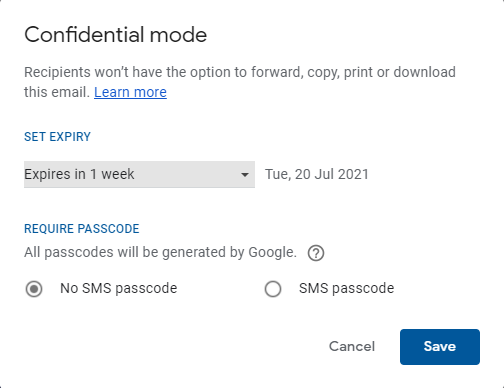
The confidential mode is optional security that Gmail offers. Messages in confidential mode don’t have the option to forward, copy, print, or download attachments.
S/MIME encryption for G Suite

To integrate encryption within emails, GSuite users have to go through the following method:
- Go to Google Admin console
- Go to Apps>G Suite>Gmail>User settings
- Select an organization on the left.
- Set Enable S/MIME encryption for sending and receiving emails at the bottom of the settings window.
You can also configure optional certificate settings. - Click the Save button
Your encryption settings will be updated within one hour
Applying encryption to email
- Create a new email.
- Add the recipient to the To field.
- A lock icon will appear to the right of the recipient’s email. Click this button and select the S/MIME settings.
By enabling S/MIME encryption within GSuite, you can ensure privacy for your corporate information exchange.
Encrypt Yahoo with S/MIME

Yahoo, by default, offers TLS encryption for your email. However, this does not protect you from compromised email servers, data breaches, or any other security breach issues.
Encrypting Yahoo mails with S/MIME is difficult because SSL protocols are pre-installed in Yahoo. In this case, you must install any third-party software and use Yahoo.
Best tools for encryption
Since encryption is recognized as a reliable method of ensuring data privacy and security, the market is brimming with various email encryption tools. Amidst this, choosing the best secure email providers can be a hassle, so we have compiled some of the best-known encryption tools for you.
| Provider | Features | Pricing |
|---|---|---|
| ProtonMail | It enables secure end-to-end encryption for your email and can password-protect messages to off-platform users. It also provides file storage and a calendar. | Free/$56.27 |
| Hushmail | It allows users to send encrypted emails and is compatible with Outlook, Apple Mail, and Android. It also allows users to use their domain name. | $5.99-$49.98 |
| StartMail | Ensures PGP encryption for emails and enables password-based encryption for external emails. It has a user-friendly UI and also provides disposable email addresses. | $59.95 |
| CounterMail | It provides users with secure OpenPGP encryption for their emails. It ensures end-to-end encryption and has a user-friendly interface. | $49 |
| Tutanota | Encrypts email through secure encryption. It is based on open-source code, making it reliable. | free/$1.17 |
| PreVeil | Provides secure encrypted email and file sharing. It works well with existing email accounts and is cross-platform compatible. | $30 |
| Private Mail | It encrypts emails through the PGP method and allows secure encrypted file sharing. | $8.95 |
Wait, isn’t my email already encrypted?
Do you recall a time in the past when Google adjusted Gmail, ensuring that it always utilizes a secure HTTPS connection? It employs the standard Transport Layer Security (TLS) to encrypt your communications. While this is a positive step, it merely represents the bare minimum.
At present, Google claims that it doesn’t actively read your emails. However, there is a potential risk of inadvertently granting mail-reading permissions to third-party applications. Moreover, Google does analyze your messages to some extent, enabling actions such as automatically adding airline flight notifications to your calendar. Additionally, the company has a policy outlining the circumstances under which it may disclose your emails to government entities, indicating that it can do so if legally compelled.
On the other hand, you must acquire a security certificate to fully utilize Apple Mail’s robust encryption and digital signature capabilities. Previously, numerous options were available for obtaining free certificates, but unfortunately, the availability has diminished over time.
Once you have installed this certificate in your keychain, your emails will be automatically digitally signed. Furthermore, if all the recipients of your message also possess certificates, you can click on the lock icon to send the message in an encrypted format.
Unfortunately, Apple has encountered a few hiccups in terms of encryption glitches. For example, in 2019, diligent researchers stumbled upon unencrypted duplicates of secure emails in Siri’s database, which is intended to enhance your experience. It’s safe to say that Siri shouldn’t be snooping around our encrypted emails.
The crucial aspect is that your email provider isn’t primarily focused on safeguarding your security and privacy. If you genuinely desire to shield your emails from prying eyes, you should turn to a third-party company that prioritizes security.
Do I have to change my email address for encryption?
Creating a brand-new email address has many benefits, such as the sense of liberation it brings. Also, with a new email address, you can rest assured that it has not been exposed on the Dark Web or harvested by data aggregators.
However, it’s worth noting that specific challenges come with this decision. Notifying all your contacts about the change and updating your online accounts to utilize the new address requires time and effort.
Some points to remember:
- Secure socket layer (SSL) encryption is indicated by ‘HTTPS’ at the beginning of a web address instead of ‘HTTP.’
- An email can be encrypted using a public key.
- Decrypting an email requires the use of a private key.
- Security certificates are necessary for PGP/MIME and S/MIME to work between senders and recipients.
- PGP allows sending encrypted emails without needing a digital signature in advance.
- Public Key Infrastructure (PKI) protects messages when they are sent.
- PKI involves the use of both private and public keys.
- Email encryption is essential to safeguard data at rest and in transit.
- Data in transit refers to emails being sent.
- Data in transit includes information stored in the cloud, files, or documents.
- STARTTLS can only function if a valid certificate is in the recipient’s email server.
- Some email services require third-party downloads to address compliance issues.
Conclusion
Encrypting your emails is a good practice because it provides an extra layer of security and online privacy. With your emails encrypted, you can communicate in peace without the fear of snooping or spying.
FAQs
Deprecated: Twig\Node\SetNode::__construct(): Implicitly marking parameter $tag as nullable is deprecated, the explicit nullable type must be used instead in /var/www/staging.beencrypted.com/site/vendor/twig/twig/src/Node/SetNode.php on line 24
The post How to Encrypt Your Emails on Gmail, Yahoo, Outlook, and G Suite appeared first on BeEncrypted.
]]>Deprecated: Using null as an array offset is deprecated, use an empty string instead in /var/www/staging.beencrypted.com/site/web/wp/wp-includes/class-wp-block-type-registry.php on line 168
Deprecated: Using null as an array offset is deprecated, use an empty string instead in /var/www/staging.beencrypted.com/site/web/wp/wp-includes/class-wp-block-type-registry.php on line 168
Deprecated: Using null as an array offset is deprecated, use an empty string instead in /var/www/staging.beencrypted.com/site/web/wp/wp-includes/class-wp-block-type-registry.php on line 168
Deprecated: Using null as an array offset is deprecated, use an empty string instead in /var/www/staging.beencrypted.com/site/web/wp/wp-includes/class-wp-block-type-registry.php on line 168
Deprecated: Using null as an array offset is deprecated, use an empty string instead in /var/www/staging.beencrypted.com/site/web/wp/wp-includes/class-wp-block-type-registry.php on line 168
Deprecated: Using null as an array offset is deprecated, use an empty string instead in /var/www/staging.beencrypted.com/site/web/wp/wp-includes/class-wp-block-type-registry.php on line 168
Deprecated: Using null as an array offset is deprecated, use an empty string instead in /var/www/staging.beencrypted.com/site/web/wp/wp-includes/class-wp-block-type-registry.php on line 168
Deprecated: Using null as an array offset is deprecated, use an empty string instead in /var/www/staging.beencrypted.com/site/web/wp/wp-includes/class-wp-block-type-registry.php on line 168
Deprecated: Using null as an array offset is deprecated, use an empty string instead in /var/www/staging.beencrypted.com/site/web/wp/wp-includes/class-wp-block-type-registry.php on line 168
Deprecated: Using null as an array offset is deprecated, use an empty string instead in /var/www/staging.beencrypted.com/site/web/wp/wp-includes/class-wp-block-type-registry.php on line 168
Deprecated: Using null as an array offset is deprecated, use an empty string instead in /var/www/staging.beencrypted.com/site/web/wp/wp-includes/class-wp-block-type-registry.php on line 168
Deprecated: Using null as an array offset is deprecated, use an empty string instead in /var/www/staging.beencrypted.com/site/web/wp/wp-includes/class-wp-block-type-registry.php on line 168
Deprecated: Using null as an array offset is deprecated, use an empty string instead in /var/www/staging.beencrypted.com/site/web/wp/wp-includes/class-wp-block-type-registry.php on line 168
Deprecated: Using null as an array offset is deprecated, use an empty string instead in /var/www/staging.beencrypted.com/site/web/wp/wp-includes/class-wp-block-type-registry.php on line 168
Deprecated: Using null as an array offset is deprecated, use an empty string instead in /var/www/staging.beencrypted.com/site/web/wp/wp-includes/class-wp-block-type-registry.php on line 168
Deprecated: Using null as an array offset is deprecated, use an empty string instead in /var/www/staging.beencrypted.com/site/web/wp/wp-includes/class-wp-block-type-registry.php on line 168
Deprecated: Using null as an array offset is deprecated, use an empty string instead in /var/www/staging.beencrypted.com/site/web/wp/wp-includes/class-wp-block-type-registry.php on line 168
Deprecated: Using null as an array offset is deprecated, use an empty string instead in /var/www/staging.beencrypted.com/site/web/wp/wp-includes/class-wp-block-type-registry.php on line 168
Deprecated: Using null as an array offset is deprecated, use an empty string instead in /var/www/staging.beencrypted.com/site/web/wp/wp-includes/class-wp-block-type-registry.php on line 168
Deprecated: Using null as an array offset is deprecated, use an empty string instead in /var/www/staging.beencrypted.com/site/web/wp/wp-includes/class-wp-block-type-registry.php on line 168
Deprecated: Using null as an array offset is deprecated, use an empty string instead in /var/www/staging.beencrypted.com/site/web/wp/wp-includes/class-wp-block-type-registry.php on line 168
Deprecated: Using null as an array offset is deprecated, use an empty string instead in /var/www/staging.beencrypted.com/site/web/wp/wp-includes/class-wp-block-type-registry.php on line 168
Deprecated: Using null as an array offset is deprecated, use an empty string instead in /var/www/staging.beencrypted.com/site/web/wp/wp-includes/class-wp-block-type-registry.php on line 168
Deprecated: Using null as an array offset is deprecated, use an empty string instead in /var/www/staging.beencrypted.com/site/web/wp/wp-includes/class-wp-block-type-registry.php on line 168
Deprecated: Using null as an array offset is deprecated, use an empty string instead in /var/www/staging.beencrypted.com/site/web/wp/wp-includes/class-wp-block-type-registry.php on line 168
Deprecated: Using null as an array offset is deprecated, use an empty string instead in /var/www/staging.beencrypted.com/site/web/wp/wp-includes/class-wp-block-type-registry.php on line 168
Deprecated: Using null as an array offset is deprecated, use an empty string instead in /var/www/staging.beencrypted.com/site/web/wp/wp-includes/class-wp-block-type-registry.php on line 168
Deprecated: Using null as an array offset is deprecated, use an empty string instead in /var/www/staging.beencrypted.com/site/web/wp/wp-includes/class-wp-block-type-registry.php on line 168
Deprecated: Using null as an array offset is deprecated, use an empty string instead in /var/www/staging.beencrypted.com/site/web/wp/wp-includes/class-wp-block-type-registry.php on line 168
Deprecated: Using null as an array offset is deprecated, use an empty string instead in /var/www/staging.beencrypted.com/site/web/wp/wp-includes/class-wp-block-type-registry.php on line 168
Deprecated: Using null as an array offset is deprecated, use an empty string instead in /var/www/staging.beencrypted.com/site/web/wp/wp-includes/class-wp-block-type-registry.php on line 168
Deprecated: Using null as an array offset is deprecated, use an empty string instead in /var/www/staging.beencrypted.com/site/web/wp/wp-includes/class-wp-block-type-registry.php on line 168
Deprecated: Using null as an array offset is deprecated, use an empty string instead in /var/www/staging.beencrypted.com/site/web/wp/wp-includes/class-wp-block-type-registry.php on line 168
Deprecated: Using null as an array offset is deprecated, use an empty string instead in /var/www/staging.beencrypted.com/site/web/wp/wp-includes/class-wp-block-type-registry.php on line 168
Deprecated: Using null as an array offset is deprecated, use an empty string instead in /var/www/staging.beencrypted.com/site/web/wp/wp-includes/class-wp-block-type-registry.php on line 168
Deprecated: Using null as an array offset is deprecated, use an empty string instead in /var/www/staging.beencrypted.com/site/web/wp/wp-includes/class-wp-block-type-registry.php on line 168
Deprecated: Using null as an array offset is deprecated, use an empty string instead in /var/www/staging.beencrypted.com/site/web/wp/wp-includes/class-wp-block-type-registry.php on line 168
Deprecated: Using null as an array offset is deprecated, use an empty string instead in /var/www/staging.beencrypted.com/site/web/wp/wp-includes/class-wp-block-type-registry.php on line 168
Deprecated: Using null as an array offset is deprecated, use an empty string instead in /var/www/staging.beencrypted.com/site/web/wp/wp-includes/class-wp-block-type-registry.php on line 168
Deprecated: Using null as an array offset is deprecated, use an empty string instead in /var/www/staging.beencrypted.com/site/web/wp/wp-includes/class-wp-block-type-registry.php on line 168
Deprecated: Using null as an array offset is deprecated, use an empty string instead in /var/www/staging.beencrypted.com/site/web/wp/wp-includes/class-wp-block-type-registry.php on line 168
Deprecated: Using null as an array offset is deprecated, use an empty string instead in /var/www/staging.beencrypted.com/site/web/wp/wp-includes/class-wp-block-type-registry.php on line 168
Deprecated: Using null as an array offset is deprecated, use an empty string instead in /var/www/staging.beencrypted.com/site/web/wp/wp-includes/class-wp-block-type-registry.php on line 168
Deprecated: Using null as an array offset is deprecated, use an empty string instead in /var/www/staging.beencrypted.com/site/web/wp/wp-includes/class-wp-block-type-registry.php on line 168
Deprecated: Using null as an array offset is deprecated, use an empty string instead in /var/www/staging.beencrypted.com/site/web/wp/wp-includes/class-wp-block-type-registry.php on line 168
Deprecated: Using null as an array offset is deprecated, use an empty string instead in /var/www/staging.beencrypted.com/site/web/wp/wp-includes/class-wp-block-type-registry.php on line 168
Deprecated: Using null as an array offset is deprecated, use an empty string instead in /var/www/staging.beencrypted.com/site/web/wp/wp-includes/class-wp-block-type-registry.php on line 168
Deprecated: Using null as an array offset is deprecated, use an empty string instead in /var/www/staging.beencrypted.com/site/web/wp/wp-includes/class-wp-block-type-registry.php on line 168
Deprecated: Using null as an array offset is deprecated, use an empty string instead in /var/www/staging.beencrypted.com/site/web/wp/wp-includes/class-wp-block-type-registry.php on line 168
Deprecated: Using null as an array offset is deprecated, use an empty string instead in /var/www/staging.beencrypted.com/site/web/wp/wp-includes/class-wp-block-type-registry.php on line 168
Deprecated: Using null as an array offset is deprecated, use an empty string instead in /var/www/staging.beencrypted.com/site/web/wp/wp-includes/class-wp-block-type-registry.php on line 168
Deprecated: Using null as an array offset is deprecated, use an empty string instead in /var/www/staging.beencrypted.com/site/web/wp/wp-includes/class-wp-block-type-registry.php on line 168
Deprecated: Using null as an array offset is deprecated, use an empty string instead in /var/www/staging.beencrypted.com/site/web/wp/wp-includes/class-wp-block-type-registry.php on line 168
Deprecated: Using null as an array offset is deprecated, use an empty string instead in /var/www/staging.beencrypted.com/site/web/wp/wp-includes/class-wp-block-type-registry.php on line 168
Deprecated: Using null as an array offset is deprecated, use an empty string instead in /var/www/staging.beencrypted.com/site/web/wp/wp-includes/class-wp-block-type-registry.php on line 168
Deprecated: Using null as an array offset is deprecated, use an empty string instead in /var/www/staging.beencrypted.com/site/web/wp/wp-includes/class-wp-block-type-registry.php on line 168
Deprecated: Using null as an array offset is deprecated, use an empty string instead in /var/www/staging.beencrypted.com/site/web/wp/wp-includes/class-wp-block-type-registry.php on line 168
Deprecated: Using null as an array offset is deprecated, use an empty string instead in /var/www/staging.beencrypted.com/site/web/wp/wp-includes/class-wp-block-type-registry.php on line 168
Deprecated: Using null as an array offset is deprecated, use an empty string instead in /var/www/staging.beencrypted.com/site/web/wp/wp-includes/class-wp-block-type-registry.php on line 168
Deprecated: Using null as an array offset is deprecated, use an empty string instead in /var/www/staging.beencrypted.com/site/web/wp/wp-includes/class-wp-block-type-registry.php on line 168
Deprecated: Using null as an array offset is deprecated, use an empty string instead in /var/www/staging.beencrypted.com/site/web/wp/wp-includes/class-wp-block-type-registry.php on line 168
Deprecated: Using null as an array offset is deprecated, use an empty string instead in /var/www/staging.beencrypted.com/site/web/wp/wp-includes/class-wp-block-type-registry.php on line 168
Deprecated: Using null as an array offset is deprecated, use an empty string instead in /var/www/staging.beencrypted.com/site/web/wp/wp-includes/class-wp-block-type-registry.php on line 168
Deprecated: Using null as an array offset is deprecated, use an empty string instead in /var/www/staging.beencrypted.com/site/web/wp/wp-includes/class-wp-block-type-registry.php on line 168
Deprecated: Using null as an array offset is deprecated, use an empty string instead in /var/www/staging.beencrypted.com/site/web/wp/wp-includes/class-wp-block-type-registry.php on line 168
Deprecated: Using null as an array offset is deprecated, use an empty string instead in /var/www/staging.beencrypted.com/site/web/wp/wp-includes/class-wp-block-type-registry.php on line 168
Deprecated: Using null as an array offset is deprecated, use an empty string instead in /var/www/staging.beencrypted.com/site/web/wp/wp-includes/class-wp-block-type-registry.php on line 168
Deprecated: Using null as an array offset is deprecated, use an empty string instead in /var/www/staging.beencrypted.com/site/web/wp/wp-includes/class-wp-block-type-registry.php on line 168
Deprecated: Using null as an array offset is deprecated, use an empty string instead in /var/www/staging.beencrypted.com/site/web/wp/wp-includes/class-wp-block-type-registry.php on line 168
Deprecated: Using null as an array offset is deprecated, use an empty string instead in /var/www/staging.beencrypted.com/site/web/wp/wp-includes/class-wp-block-type-registry.php on line 168
Deprecated: Using null as an array offset is deprecated, use an empty string instead in /var/www/staging.beencrypted.com/site/web/wp/wp-includes/class-wp-block-type-registry.php on line 168
Deprecated: Using null as an array offset is deprecated, use an empty string instead in /var/www/staging.beencrypted.com/site/web/wp/wp-includes/class-wp-block-type-registry.php on line 168
Deprecated: Using null as an array offset is deprecated, use an empty string instead in /var/www/staging.beencrypted.com/site/web/wp/wp-includes/class-wp-block-type-registry.php on line 168
Deprecated: Using null as an array offset is deprecated, use an empty string instead in /var/www/staging.beencrypted.com/site/web/wp/wp-includes/class-wp-block-type-registry.php on line 168
Deprecated: Using null as an array offset is deprecated, use an empty string instead in /var/www/staging.beencrypted.com/site/web/wp/wp-includes/class-wp-block-type-registry.php on line 168
Deprecated: Using null as an array offset is deprecated, use an empty string instead in /var/www/staging.beencrypted.com/site/web/wp/wp-includes/class-wp-block-type-registry.php on line 168
Deprecated: Using null as an array offset is deprecated, use an empty string instead in /var/www/staging.beencrypted.com/site/web/wp/wp-includes/class-wp-block-type-registry.php on line 168
Deprecated: Using null as an array offset is deprecated, use an empty string instead in /var/www/staging.beencrypted.com/site/web/wp/wp-includes/class-wp-block-type-registry.php on line 168
Deprecated: Using null as an array offset is deprecated, use an empty string instead in /var/www/staging.beencrypted.com/site/web/wp/wp-includes/class-wp-block-type-registry.php on line 168
Deprecated: Using null as an array offset is deprecated, use an empty string instead in /var/www/staging.beencrypted.com/site/web/wp/wp-includes/class-wp-block-type-registry.php on line 168
Deprecated: Using null as an array offset is deprecated, use an empty string instead in /var/www/staging.beencrypted.com/site/web/wp/wp-includes/class-wp-block-type-registry.php on line 168
Deprecated: Using null as an array offset is deprecated, use an empty string instead in /var/www/staging.beencrypted.com/site/web/wp/wp-includes/class-wp-block-type-registry.php on line 168
Deprecated: Using null as an array offset is deprecated, use an empty string instead in /var/www/staging.beencrypted.com/site/web/wp/wp-includes/class-wp-block-type-registry.php on line 168
Deprecated: Using null as an array offset is deprecated, use an empty string instead in /var/www/staging.beencrypted.com/site/web/wp/wp-includes/class-wp-block-type-registry.php on line 168
Deprecated: Using null as an array offset is deprecated, use an empty string instead in /var/www/staging.beencrypted.com/site/web/wp/wp-includes/class-wp-block-type-registry.php on line 168
Deprecated: Using null as an array offset is deprecated, use an empty string instead in /var/www/staging.beencrypted.com/site/web/wp/wp-includes/class-wp-block-type-registry.php on line 168
Deprecated: Using null as an array offset is deprecated, use an empty string instead in /var/www/staging.beencrypted.com/site/web/wp/wp-includes/class-wp-block-type-registry.php on line 168
Deprecated: Using null as an array offset is deprecated, use an empty string instead in /var/www/staging.beencrypted.com/site/web/wp/wp-includes/class-wp-block-type-registry.php on line 168
Deprecated: Using null as an array offset is deprecated, use an empty string instead in /var/www/staging.beencrypted.com/site/web/wp/wp-includes/class-wp-block-type-registry.php on line 168
Deprecated: Using null as an array offset is deprecated, use an empty string instead in /var/www/staging.beencrypted.com/site/web/wp/wp-includes/class-wp-block-type-registry.php on line 168
Deprecated: Using null as an array offset is deprecated, use an empty string instead in /var/www/staging.beencrypted.com/site/web/wp/wp-includes/class-wp-block-type-registry.php on line 168
Deprecated: Using null as an array offset is deprecated, use an empty string instead in /var/www/staging.beencrypted.com/site/web/wp/wp-includes/class-wp-block-type-registry.php on line 168
Deprecated: Using null as an array offset is deprecated, use an empty string instead in /var/www/staging.beencrypted.com/site/web/wp/wp-includes/class-wp-block-type-registry.php on line 168
Deprecated: Using null as an array offset is deprecated, use an empty string instead in /var/www/staging.beencrypted.com/site/web/wp/wp-includes/class-wp-block-type-registry.php on line 168
Deprecated: Using null as an array offset is deprecated, use an empty string instead in /var/www/staging.beencrypted.com/site/web/wp/wp-includes/class-wp-block-type-registry.php on line 168
Deprecated: Using null as an array offset is deprecated, use an empty string instead in /var/www/staging.beencrypted.com/site/web/wp/wp-includes/class-wp-block-type-registry.php on line 168
Deprecated: Using null as an array offset is deprecated, use an empty string instead in /var/www/staging.beencrypted.com/site/web/wp/wp-includes/class-wp-block-type-registry.php on line 168
Deprecated: Using null as an array offset is deprecated, use an empty string instead in /var/www/staging.beencrypted.com/site/web/wp/wp-includes/class-wp-block-type-registry.php on line 168
Deprecated: Using null as an array offset is deprecated, use an empty string instead in /var/www/staging.beencrypted.com/site/web/wp/wp-includes/class-wp-block-type-registry.php on line 168
Deprecated: Using null as an array offset is deprecated, use an empty string instead in /var/www/staging.beencrypted.com/site/web/wp/wp-includes/class-wp-block-type-registry.php on line 168
Deprecated: Using null as an array offset is deprecated, use an empty string instead in /var/www/staging.beencrypted.com/site/web/wp/wp-includes/class-wp-block-type-registry.php on line 168
Deprecated: Using null as an array offset is deprecated, use an empty string instead in /var/www/staging.beencrypted.com/site/web/wp/wp-includes/class-wp-block-type-registry.php on line 168
Deprecated: Using null as an array offset is deprecated, use an empty string instead in /var/www/staging.beencrypted.com/site/web/wp/wp-includes/class-wp-block-type-registry.php on line 168
Deprecated: Using null as an array offset is deprecated, use an empty string instead in /var/www/staging.beencrypted.com/site/web/wp/wp-includes/class-wp-block-type-registry.php on line 168
Deprecated: Using null as an array offset is deprecated, use an empty string instead in /var/www/staging.beencrypted.com/site/web/wp/wp-includes/class-wp-block-type-registry.php on line 168
Deprecated: Using null as an array offset is deprecated, use an empty string instead in /var/www/staging.beencrypted.com/site/web/wp/wp-includes/class-wp-block-type-registry.php on line 168
Deprecated: Using null as an array offset is deprecated, use an empty string instead in /var/www/staging.beencrypted.com/site/web/wp/wp-includes/class-wp-block-type-registry.php on line 168
Deprecated: Using null as an array offset is deprecated, use an empty string instead in /var/www/staging.beencrypted.com/site/web/wp/wp-includes/class-wp-block-type-registry.php on line 168
Deprecated: Using null as an array offset is deprecated, use an empty string instead in /var/www/staging.beencrypted.com/site/web/wp/wp-includes/class-wp-block-type-registry.php on line 168
Deprecated: Using null as an array offset is deprecated, use an empty string instead in /var/www/staging.beencrypted.com/site/web/wp/wp-includes/class-wp-block-type-registry.php on line 168
Deprecated: Using null as an array offset is deprecated, use an empty string instead in /var/www/staging.beencrypted.com/site/web/wp/wp-includes/class-wp-block-type-registry.php on line 168
Deprecated: Using null as an array offset is deprecated, use an empty string instead in /var/www/staging.beencrypted.com/site/web/wp/wp-includes/class-wp-block-type-registry.php on line 168
Deprecated: Using null as an array offset is deprecated, use an empty string instead in /var/www/staging.beencrypted.com/site/web/wp/wp-includes/class-wp-block-type-registry.php on line 168
Deprecated: Using null as an array offset is deprecated, use an empty string instead in /var/www/staging.beencrypted.com/site/web/wp/wp-includes/class-wp-block-type-registry.php on line 168
Deprecated: Using null as an array offset is deprecated, use an empty string instead in /var/www/staging.beencrypted.com/site/web/wp/wp-includes/class-wp-block-type-registry.php on line 168
Deprecated: Using null as an array offset is deprecated, use an empty string instead in /var/www/staging.beencrypted.com/site/web/wp/wp-includes/class-wp-block-type-registry.php on line 168
Deprecated: Using null as an array offset is deprecated, use an empty string instead in /var/www/staging.beencrypted.com/site/web/wp/wp-includes/class-wp-block-type-registry.php on line 168
Deprecated: Using null as an array offset is deprecated, use an empty string instead in /var/www/staging.beencrypted.com/site/web/wp/wp-includes/class-wp-block-type-registry.php on line 168
Deprecated: Using null as an array offset is deprecated, use an empty string instead in /var/www/staging.beencrypted.com/site/web/wp/wp-includes/class-wp-block-type-registry.php on line 168
Deprecated: Using null as an array offset is deprecated, use an empty string instead in /var/www/staging.beencrypted.com/site/web/wp/wp-includes/class-wp-block-type-registry.php on line 168
Deprecated: Using null as an array offset is deprecated, use an empty string instead in /var/www/staging.beencrypted.com/site/web/wp/wp-includes/class-wp-block-type-registry.php on line 168
Deprecated: Using null as an array offset is deprecated, use an empty string instead in /var/www/staging.beencrypted.com/site/web/wp/wp-includes/class-wp-block-type-registry.php on line 168
Deprecated: Using null as an array offset is deprecated, use an empty string instead in /var/www/staging.beencrypted.com/site/web/wp/wp-includes/class-wp-block-type-registry.php on line 168
Deprecated: Using null as an array offset is deprecated, use an empty string instead in /var/www/staging.beencrypted.com/site/web/wp/wp-includes/class-wp-block-type-registry.php on line 168
Deprecated: Using null as an array offset is deprecated, use an empty string instead in /var/www/staging.beencrypted.com/site/web/wp/wp-includes/class-wp-block-type-registry.php on line 168
Deprecated: Using null as an array offset is deprecated, use an empty string instead in /var/www/staging.beencrypted.com/site/web/wp/wp-includes/class-wp-block-type-registry.php on line 168
Deprecated: Using null as an array offset is deprecated, use an empty string instead in /var/www/staging.beencrypted.com/site/web/wp/wp-includes/class-wp-block-type-registry.php on line 168
Deprecated: Using null as an array offset is deprecated, use an empty string instead in /var/www/staging.beencrypted.com/site/web/wp/wp-includes/class-wp-block-type-registry.php on line 168
Deprecated: Using null as an array offset is deprecated, use an empty string instead in /var/www/staging.beencrypted.com/site/web/wp/wp-includes/class-wp-block-type-registry.php on line 168
Deprecated: Using null as an array offset is deprecated, use an empty string instead in /var/www/staging.beencrypted.com/site/web/wp/wp-includes/class-wp-block-type-registry.php on line 168
Deprecated: Using null as an array offset is deprecated, use an empty string instead in /var/www/staging.beencrypted.com/site/web/wp/wp-includes/class-wp-block-type-registry.php on line 168
Deprecated: Using null as an array offset is deprecated, use an empty string instead in /var/www/staging.beencrypted.com/site/web/wp/wp-includes/class-wp-block-type-registry.php on line 168
Deprecated: Using null as an array offset is deprecated, use an empty string instead in /var/www/staging.beencrypted.com/site/web/wp/wp-includes/class-wp-block-type-registry.php on line 168
Deprecated: Using null as an array offset is deprecated, use an empty string instead in /var/www/staging.beencrypted.com/site/web/wp/wp-includes/class-wp-block-type-registry.php on line 168
Deprecated: Using null as an array offset is deprecated, use an empty string instead in /var/www/staging.beencrypted.com/site/web/wp/wp-includes/class-wp-block-type-registry.php on line 168
Deprecated: Using null as an array offset is deprecated, use an empty string instead in /var/www/staging.beencrypted.com/site/web/wp/wp-includes/class-wp-block-type-registry.php on line 168
Deprecated: Using null as an array offset is deprecated, use an empty string instead in /var/www/staging.beencrypted.com/site/web/wp/wp-includes/class-wp-block-type-registry.php on line 168
Deprecated: Using null as an array offset is deprecated, use an empty string instead in /var/www/staging.beencrypted.com/site/web/wp/wp-includes/class-wp-block-type-registry.php on line 168
Deprecated: Using null as an array offset is deprecated, use an empty string instead in /var/www/staging.beencrypted.com/site/web/wp/wp-includes/class-wp-block-type-registry.php on line 168
Deprecated: Using null as an array offset is deprecated, use an empty string instead in /var/www/staging.beencrypted.com/site/web/wp/wp-includes/class-wp-block-type-registry.php on line 168
Deprecated: Using null as an array offset is deprecated, use an empty string instead in /var/www/staging.beencrypted.com/site/web/wp/wp-includes/class-wp-block-type-registry.php on line 168
Deprecated: Using null as an array offset is deprecated, use an empty string instead in /var/www/staging.beencrypted.com/site/web/wp/wp-includes/class-wp-block-type-registry.php on line 168
Deprecated: Using null as an array offset is deprecated, use an empty string instead in /var/www/staging.beencrypted.com/site/web/wp/wp-includes/class-wp-block-type-registry.php on line 168
Deprecated: Using null as an array offset is deprecated, use an empty string instead in /var/www/staging.beencrypted.com/site/web/wp/wp-includes/class-wp-block-type-registry.php on line 168
Deprecated: Using null as an array offset is deprecated, use an empty string instead in /var/www/staging.beencrypted.com/site/web/wp/wp-includes/class-wp-block-type-registry.php on line 168
Deprecated: Using null as an array offset is deprecated, use an empty string instead in /var/www/staging.beencrypted.com/site/web/wp/wp-includes/class-wp-block-type-registry.php on line 168
Deprecated: Using null as an array offset is deprecated, use an empty string instead in /var/www/staging.beencrypted.com/site/web/wp/wp-includes/class-wp-block-type-registry.php on line 168
Deprecated: Using null as an array offset is deprecated, use an empty string instead in /var/www/staging.beencrypted.com/site/web/wp/wp-includes/class-wp-block-type-registry.php on line 168
Deprecated: Using null as an array offset is deprecated, use an empty string instead in /var/www/staging.beencrypted.com/site/web/wp/wp-includes/class-wp-block-type-registry.php on line 168
Deprecated: Using null as an array offset is deprecated, use an empty string instead in /var/www/staging.beencrypted.com/site/web/wp/wp-includes/class-wp-block-type-registry.php on line 168
Deprecated: Using null as an array offset is deprecated, use an empty string instead in /var/www/staging.beencrypted.com/site/web/wp/wp-includes/class-wp-block-type-registry.php on line 168
Deprecated: Using null as an array offset is deprecated, use an empty string instead in /var/www/staging.beencrypted.com/site/web/wp/wp-includes/class-wp-block-type-registry.php on line 168
Deprecated: Using null as an array offset is deprecated, use an empty string instead in /var/www/staging.beencrypted.com/site/web/wp/wp-includes/class-wp-block-type-registry.php on line 168
Deprecated: Using null as an array offset is deprecated, use an empty string instead in /var/www/staging.beencrypted.com/site/web/wp/wp-includes/class-wp-block-type-registry.php on line 168
Deprecated: Using null as an array offset is deprecated, use an empty string instead in /var/www/staging.beencrypted.com/site/web/wp/wp-includes/class-wp-block-type-registry.php on line 168
Deprecated: Using null as an array offset is deprecated, use an empty string instead in /var/www/staging.beencrypted.com/site/web/wp/wp-includes/class-wp-block-type-registry.php on line 168
Deprecated: Using null as an array offset is deprecated, use an empty string instead in /var/www/staging.beencrypted.com/site/web/wp/wp-includes/class-wp-block-type-registry.php on line 168
Deprecated: Using null as an array offset is deprecated, use an empty string instead in /var/www/staging.beencrypted.com/site/web/wp/wp-includes/class-wp-block-type-registry.php on line 168
Deprecated: Using null as an array offset is deprecated, use an empty string instead in /var/www/staging.beencrypted.com/site/web/wp/wp-includes/class-wp-block-type-registry.php on line 168
Deprecated: Using null as an array offset is deprecated, use an empty string instead in /var/www/staging.beencrypted.com/site/web/wp/wp-includes/class-wp-block-type-registry.php on line 168
Deprecated: Using null as an array offset is deprecated, use an empty string instead in /var/www/staging.beencrypted.com/site/web/wp/wp-includes/class-wp-block-type-registry.php on line 168
Deprecated: Using null as an array offset is deprecated, use an empty string instead in /var/www/staging.beencrypted.com/site/web/wp/wp-includes/class-wp-block-type-registry.php on line 168
Deprecated: Using null as an array offset is deprecated, use an empty string instead in /var/www/staging.beencrypted.com/site/web/wp/wp-includes/class-wp-block-type-registry.php on line 168
Deprecated: Using null as an array offset is deprecated, use an empty string instead in /var/www/staging.beencrypted.com/site/web/wp/wp-includes/class-wp-block-type-registry.php on line 168
Deprecated: Using null as an array offset is deprecated, use an empty string instead in /var/www/staging.beencrypted.com/site/web/wp/wp-includes/class-wp-block-type-registry.php on line 168
Deprecated: Using null as an array offset is deprecated, use an empty string instead in /var/www/staging.beencrypted.com/site/web/wp/wp-includes/class-wp-block-type-registry.php on line 168
Deprecated: Using null as an array offset is deprecated, use an empty string instead in /var/www/staging.beencrypted.com/site/web/wp/wp-includes/class-wp-block-type-registry.php on line 168
Deprecated: Using null as an array offset is deprecated, use an empty string instead in /var/www/staging.beencrypted.com/site/web/wp/wp-includes/class-wp-block-type-registry.php on line 168
Deprecated: Using null as an array offset is deprecated, use an empty string instead in /var/www/staging.beencrypted.com/site/web/wp/wp-includes/class-wp-block-type-registry.php on line 168
Deprecated: Using null as an array offset is deprecated, use an empty string instead in /var/www/staging.beencrypted.com/site/web/wp/wp-includes/class-wp-block-type-registry.php on line 168
Deprecated: Using null as an array offset is deprecated, use an empty string instead in /var/www/staging.beencrypted.com/site/web/wp/wp-includes/class-wp-block-type-registry.php on line 168
Deprecated: Using null as an array offset is deprecated, use an empty string instead in /var/www/staging.beencrypted.com/site/web/wp/wp-includes/class-wp-block-type-registry.php on line 168
Deprecated: Using null as an array offset is deprecated, use an empty string instead in /var/www/staging.beencrypted.com/site/web/wp/wp-includes/class-wp-block-type-registry.php on line 168
Deprecated: Using null as an array offset is deprecated, use an empty string instead in /var/www/staging.beencrypted.com/site/web/wp/wp-includes/class-wp-block-type-registry.php on line 168
Deprecated: Using null as an array offset is deprecated, use an empty string instead in /var/www/staging.beencrypted.com/site/web/wp/wp-includes/class-wp-block-type-registry.php on line 168
Deprecated: Using null as an array offset is deprecated, use an empty string instead in /var/www/staging.beencrypted.com/site/web/wp/wp-includes/class-wp-block-type-registry.php on line 168
Deprecated: Using null as an array offset is deprecated, use an empty string instead in /var/www/staging.beencrypted.com/site/web/wp/wp-includes/class-wp-block-type-registry.php on line 168
Deprecated: Using null as an array offset is deprecated, use an empty string instead in /var/www/staging.beencrypted.com/site/web/wp/wp-includes/class-wp-block-type-registry.php on line 168
Deprecated: Using null as an array offset is deprecated, use an empty string instead in /var/www/staging.beencrypted.com/site/web/wp/wp-includes/class-wp-block-type-registry.php on line 168
Deprecated: Using null as an array offset is deprecated, use an empty string instead in /var/www/staging.beencrypted.com/site/web/wp/wp-includes/class-wp-block-type-registry.php on line 168
Deprecated: Using null as an array offset is deprecated, use an empty string instead in /var/www/staging.beencrypted.com/site/web/wp/wp-includes/class-wp-block-type-registry.php on line 168
Deprecated: Using null as an array offset is deprecated, use an empty string instead in /var/www/staging.beencrypted.com/site/web/wp/wp-includes/class-wp-block-type-registry.php on line 168
Deprecated: Using null as an array offset is deprecated, use an empty string instead in /var/www/staging.beencrypted.com/site/web/wp/wp-includes/class-wp-block-type-registry.php on line 168
Deprecated: Using null as an array offset is deprecated, use an empty string instead in /var/www/staging.beencrypted.com/site/web/wp/wp-includes/class-wp-block-type-registry.php on line 168
Deprecated: Using null as an array offset is deprecated, use an empty string instead in /var/www/staging.beencrypted.com/site/web/wp/wp-includes/class-wp-block-type-registry.php on line 168
Deprecated: Using null as an array offset is deprecated, use an empty string instead in /var/www/staging.beencrypted.com/site/web/wp/wp-includes/class-wp-block-type-registry.php on line 168
Deprecated: Using null as an array offset is deprecated, use an empty string instead in /var/www/staging.beencrypted.com/site/web/wp/wp-includes/class-wp-block-type-registry.php on line 168
Deprecated: Using null as an array offset is deprecated, use an empty string instead in /var/www/staging.beencrypted.com/site/web/wp/wp-includes/class-wp-block-type-registry.php on line 168
Deprecated: Using null as an array offset is deprecated, use an empty string instead in /var/www/staging.beencrypted.com/site/web/wp/wp-includes/class-wp-block-type-registry.php on line 168
Deprecated: Using null as an array offset is deprecated, use an empty string instead in /var/www/staging.beencrypted.com/site/web/wp/wp-includes/class-wp-block-type-registry.php on line 168
Deprecated: Using null as an array offset is deprecated, use an empty string instead in /var/www/staging.beencrypted.com/site/web/wp/wp-includes/class-wp-block-type-registry.php on line 168
Deprecated: Using null as an array offset is deprecated, use an empty string instead in /var/www/staging.beencrypted.com/site/web/wp/wp-includes/class-wp-block-type-registry.php on line 168
Deprecated: Using null as an array offset is deprecated, use an empty string instead in /var/www/staging.beencrypted.com/site/web/wp/wp-includes/class-wp-block-type-registry.php on line 168
Deprecated: Using null as an array offset is deprecated, use an empty string instead in /var/www/staging.beencrypted.com/site/web/wp/wp-includes/class-wp-block-type-registry.php on line 168
Deprecated: Using null as an array offset is deprecated, use an empty string instead in /var/www/staging.beencrypted.com/site/web/wp/wp-includes/class-wp-block-type-registry.php on line 168
Deprecated: Using null as an array offset is deprecated, use an empty string instead in /var/www/staging.beencrypted.com/site/web/wp/wp-includes/class-wp-block-type-registry.php on line 168
Deprecated: Using null as an array offset is deprecated, use an empty string instead in /var/www/staging.beencrypted.com/site/web/wp/wp-includes/class-wp-block-type-registry.php on line 168
Deprecated: Using null as an array offset is deprecated, use an empty string instead in /var/www/staging.beencrypted.com/site/web/wp/wp-includes/class-wp-block-type-registry.php on line 168
Deprecated: Using null as an array offset is deprecated, use an empty string instead in /var/www/staging.beencrypted.com/site/web/wp/wp-includes/class-wp-block-type-registry.php on line 168
Deprecated: Using null as an array offset is deprecated, use an empty string instead in /var/www/staging.beencrypted.com/site/web/wp/wp-includes/class-wp-block-type-registry.php on line 168
Deprecated: Using null as an array offset is deprecated, use an empty string instead in /var/www/staging.beencrypted.com/site/web/wp/wp-includes/class-wp-block-type-registry.php on line 168
Deprecated: Using null as an array offset is deprecated, use an empty string instead in /var/www/staging.beencrypted.com/site/web/wp/wp-includes/class-wp-block-type-registry.php on line 168
Deprecated: Using null as an array offset is deprecated, use an empty string instead in /var/www/staging.beencrypted.com/site/web/wp/wp-includes/class-wp-block-type-registry.php on line 168
Deprecated: Using null as an array offset is deprecated, use an empty string instead in /var/www/staging.beencrypted.com/site/web/wp/wp-includes/class-wp-block-type-registry.php on line 168
Deprecated: Using null as an array offset is deprecated, use an empty string instead in /var/www/staging.beencrypted.com/site/web/wp/wp-includes/class-wp-block-type-registry.php on line 168
Deprecated: Using null as an array offset is deprecated, use an empty string instead in /var/www/staging.beencrypted.com/site/web/wp/wp-includes/class-wp-block-type-registry.php on line 168
Deprecated: Using null as an array offset is deprecated, use an empty string instead in /var/www/staging.beencrypted.com/site/web/wp/wp-includes/class-wp-block-type-registry.php on line 168
Deprecated: Using null as an array offset is deprecated, use an empty string instead in /var/www/staging.beencrypted.com/site/web/wp/wp-includes/class-wp-block-type-registry.php on line 168
Deprecated: Using null as an array offset is deprecated, use an empty string instead in /var/www/staging.beencrypted.com/site/web/wp/wp-includes/class-wp-block-type-registry.php on line 168
Deprecated: Using null as an array offset is deprecated, use an empty string instead in /var/www/staging.beencrypted.com/site/web/wp/wp-includes/class-wp-block-type-registry.php on line 168
Deprecated: Using null as an array offset is deprecated, use an empty string instead in /var/www/staging.beencrypted.com/site/web/wp/wp-includes/class-wp-block-type-registry.php on line 168
Deprecated: Using null as an array offset is deprecated, use an empty string instead in /var/www/staging.beencrypted.com/site/web/wp/wp-includes/class-wp-block-type-registry.php on line 168
Deprecated: Using null as an array offset is deprecated, use an empty string instead in /var/www/staging.beencrypted.com/site/web/wp/wp-includes/class-wp-block-type-registry.php on line 168
Deprecated: Using null as an array offset is deprecated, use an empty string instead in /var/www/staging.beencrypted.com/site/web/wp/wp-includes/class-wp-block-type-registry.php on line 168
Deprecated: Using null as an array offset is deprecated, use an empty string instead in /var/www/staging.beencrypted.com/site/web/wp/wp-includes/class-wp-block-type-registry.php on line 168
Deprecated: Using null as an array offset is deprecated, use an empty string instead in /var/www/staging.beencrypted.com/site/web/wp/wp-includes/class-wp-block-type-registry.php on line 168
Deprecated: Using null as an array offset is deprecated, use an empty string instead in /var/www/staging.beencrypted.com/site/web/wp/wp-includes/class-wp-block-type-registry.php on line 168
Deprecated: Using null as an array offset is deprecated, use an empty string instead in /var/www/staging.beencrypted.com/site/web/wp/wp-includes/class-wp-block-type-registry.php on line 168
Deprecated: Using null as an array offset is deprecated, use an empty string instead in /var/www/staging.beencrypted.com/site/web/wp/wp-includes/class-wp-block-type-registry.php on line 168
Deprecated: Using null as an array offset is deprecated, use an empty string instead in /var/www/staging.beencrypted.com/site/web/wp/wp-includes/class-wp-block-type-registry.php on line 168
Deprecated: Using null as an array offset is deprecated, use an empty string instead in /var/www/staging.beencrypted.com/site/web/wp/wp-includes/class-wp-block-type-registry.php on line 168
Deprecated: Using null as an array offset is deprecated, use an empty string instead in /var/www/staging.beencrypted.com/site/web/wp/wp-includes/class-wp-block-type-registry.php on line 168
Deprecated: Using null as an array offset is deprecated, use an empty string instead in /var/www/staging.beencrypted.com/site/web/wp/wp-includes/class-wp-block-type-registry.php on line 168
Deprecated: Using null as an array offset is deprecated, use an empty string instead in /var/www/staging.beencrypted.com/site/web/wp/wp-includes/class-wp-block-type-registry.php on line 168
Deprecated: Using null as an array offset is deprecated, use an empty string instead in /var/www/staging.beencrypted.com/site/web/wp/wp-includes/class-wp-block-type-registry.php on line 168
Deprecated: Using null as an array offset is deprecated, use an empty string instead in /var/www/staging.beencrypted.com/site/web/wp/wp-includes/class-wp-block-type-registry.php on line 168
Deprecated: Using null as an array offset is deprecated, use an empty string instead in /var/www/staging.beencrypted.com/site/web/wp/wp-includes/class-wp-block-type-registry.php on line 168
Deprecated: Using null as an array offset is deprecated, use an empty string instead in /var/www/staging.beencrypted.com/site/web/wp/wp-includes/class-wp-block-type-registry.php on line 168
Deprecated: Using null as an array offset is deprecated, use an empty string instead in /var/www/staging.beencrypted.com/site/web/wp/wp-includes/class-wp-block-type-registry.php on line 168
Deprecated: Using null as an array offset is deprecated, use an empty string instead in /var/www/staging.beencrypted.com/site/web/wp/wp-includes/class-wp-block-type-registry.php on line 168
Deprecated: Using null as an array offset is deprecated, use an empty string instead in /var/www/staging.beencrypted.com/site/web/wp/wp-includes/class-wp-block-type-registry.php on line 168
Deprecated: Using null as an array offset is deprecated, use an empty string instead in /var/www/staging.beencrypted.com/site/web/wp/wp-includes/class-wp-block-type-registry.php on line 168
Deprecated: Using null as an array offset is deprecated, use an empty string instead in /var/www/staging.beencrypted.com/site/web/wp/wp-includes/class-wp-block-type-registry.php on line 168
Deprecated: Using null as an array offset is deprecated, use an empty string instead in /var/www/staging.beencrypted.com/site/web/wp/wp-includes/class-wp-block-type-registry.php on line 168
Deprecated: Using null as an array offset is deprecated, use an empty string instead in /var/www/staging.beencrypted.com/site/web/wp/wp-includes/class-wp-block-type-registry.php on line 168
Deprecated: Using null as an array offset is deprecated, use an empty string instead in /var/www/staging.beencrypted.com/site/web/wp/wp-includes/class-wp-block-type-registry.php on line 168
Deprecated: Using null as an array offset is deprecated, use an empty string instead in /var/www/staging.beencrypted.com/site/web/wp/wp-includes/class-wp-block-type-registry.php on line 168
Deprecated: Using null as an array offset is deprecated, use an empty string instead in /var/www/staging.beencrypted.com/site/web/wp/wp-includes/class-wp-block-type-registry.php on line 168
Deprecated: Using null as an array offset is deprecated, use an empty string instead in /var/www/staging.beencrypted.com/site/web/wp/wp-includes/class-wp-block-type-registry.php on line 168
Deprecated: Using null as an array offset is deprecated, use an empty string instead in /var/www/staging.beencrypted.com/site/web/wp/wp-includes/class-wp-block-type-registry.php on line 168
Deprecated: Using null as an array offset is deprecated, use an empty string instead in /var/www/staging.beencrypted.com/site/web/wp/wp-includes/class-wp-block-type-registry.php on line 168
Deprecated: Using null as an array offset is deprecated, use an empty string instead in /var/www/staging.beencrypted.com/site/web/wp/wp-includes/class-wp-block-type-registry.php on line 168
Deprecated: Using null as an array offset is deprecated, use an empty string instead in /var/www/staging.beencrypted.com/site/web/wp/wp-includes/class-wp-block-type-registry.php on line 168
Deprecated: Using null as an array offset is deprecated, use an empty string instead in /var/www/staging.beencrypted.com/site/web/wp/wp-includes/class-wp-block-type-registry.php on line 168
Deprecated: Using null as an array offset is deprecated, use an empty string instead in /var/www/staging.beencrypted.com/site/web/wp/wp-includes/class-wp-block-type-registry.php on line 168
Deprecated: Using null as an array offset is deprecated, use an empty string instead in /var/www/staging.beencrypted.com/site/web/wp/wp-includes/class-wp-block-type-registry.php on line 168
Deprecated: Using null as an array offset is deprecated, use an empty string instead in /var/www/staging.beencrypted.com/site/web/wp/wp-includes/class-wp-block-type-registry.php on line 168
Deprecated: Using null as an array offset is deprecated, use an empty string instead in /var/www/staging.beencrypted.com/site/web/wp/wp-includes/class-wp-block-type-registry.php on line 168
Deprecated: Using null as an array offset is deprecated, use an empty string instead in /var/www/staging.beencrypted.com/site/web/wp/wp-includes/class-wp-block-type-registry.php on line 168
Deprecated: Using null as an array offset is deprecated, use an empty string instead in /var/www/staging.beencrypted.com/site/web/wp/wp-includes/class-wp-block-type-registry.php on line 168
Deprecated: Using null as an array offset is deprecated, use an empty string instead in /var/www/staging.beencrypted.com/site/web/wp/wp-includes/class-wp-block-type-registry.php on line 168
Deprecated: Using null as an array offset is deprecated, use an empty string instead in /var/www/staging.beencrypted.com/site/web/wp/wp-includes/class-wp-block-type-registry.php on line 168
Deprecated: Using null as an array offset is deprecated, use an empty string instead in /var/www/staging.beencrypted.com/site/web/wp/wp-includes/class-wp-block-type-registry.php on line 168
Deprecated: Using null as an array offset is deprecated, use an empty string instead in /var/www/staging.beencrypted.com/site/web/wp/wp-includes/class-wp-block-type-registry.php on line 168
Deprecated: Using null as an array offset is deprecated, use an empty string instead in /var/www/staging.beencrypted.com/site/web/wp/wp-includes/class-wp-block-type-registry.php on line 168
Deprecated: Using null as an array offset is deprecated, use an empty string instead in /var/www/staging.beencrypted.com/site/web/wp/wp-includes/class-wp-block-type-registry.php on line 168
Deprecated: Using null as an array offset is deprecated, use an empty string instead in /var/www/staging.beencrypted.com/site/web/wp/wp-includes/class-wp-block-type-registry.php on line 168
Deprecated: Using null as an array offset is deprecated, use an empty string instead in /var/www/staging.beencrypted.com/site/web/wp/wp-includes/class-wp-block-type-registry.php on line 168
Deprecated: Using null as an array offset is deprecated, use an empty string instead in /var/www/staging.beencrypted.com/site/web/wp/wp-includes/class-wp-block-type-registry.php on line 168
Deprecated: Using null as an array offset is deprecated, use an empty string instead in /var/www/staging.beencrypted.com/site/web/wp/wp-includes/class-wp-block-type-registry.php on line 168
Deprecated: Using null as an array offset is deprecated, use an empty string instead in /var/www/staging.beencrypted.com/site/web/wp/wp-includes/class-wp-block-type-registry.php on line 168
Deprecated: Using null as an array offset is deprecated, use an empty string instead in /var/www/staging.beencrypted.com/site/web/wp/wp-includes/class-wp-block-type-registry.php on line 168
Deprecated: Using null as an array offset is deprecated, use an empty string instead in /var/www/staging.beencrypted.com/site/web/wp/wp-includes/class-wp-block-type-registry.php on line 168
Deprecated: Using null as an array offset is deprecated, use an empty string instead in /var/www/staging.beencrypted.com/site/web/wp/wp-includes/class-wp-block-type-registry.php on line 168
Deprecated: Using null as an array offset is deprecated, use an empty string instead in /var/www/staging.beencrypted.com/site/web/wp/wp-includes/class-wp-block-type-registry.php on line 168
Deprecated: Using null as an array offset is deprecated, use an empty string instead in /var/www/staging.beencrypted.com/site/web/wp/wp-includes/class-wp-block-type-registry.php on line 168
Deprecated: Using null as an array offset is deprecated, use an empty string instead in /var/www/staging.beencrypted.com/site/web/wp/wp-includes/class-wp-block-type-registry.php on line 168
Deprecated: Using null as an array offset is deprecated, use an empty string instead in /var/www/staging.beencrypted.com/site/web/wp/wp-includes/class-wp-block-type-registry.php on line 168
Deprecated: Using null as an array offset is deprecated, use an empty string instead in /var/www/staging.beencrypted.com/site/web/wp/wp-includes/class-wp-block-type-registry.php on line 168
Deprecated: Using null as an array offset is deprecated, use an empty string instead in /var/www/staging.beencrypted.com/site/web/wp/wp-includes/class-wp-block-type-registry.php on line 168
Deprecated: Using null as an array offset is deprecated, use an empty string instead in /var/www/staging.beencrypted.com/site/web/wp/wp-includes/class-wp-block-type-registry.php on line 168
Deprecated: Using null as an array offset is deprecated, use an empty string instead in /var/www/staging.beencrypted.com/site/web/wp/wp-includes/class-wp-block-type-registry.php on line 168
Deprecated: Using null as an array offset is deprecated, use an empty string instead in /var/www/staging.beencrypted.com/site/web/wp/wp-includes/class-wp-block-type-registry.php on line 168
Deprecated: Using null as an array offset is deprecated, use an empty string instead in /var/www/staging.beencrypted.com/site/web/wp/wp-includes/class-wp-block-type-registry.php on line 168
Deprecated: Using null as an array offset is deprecated, use an empty string instead in /var/www/staging.beencrypted.com/site/web/wp/wp-includes/class-wp-block-type-registry.php on line 168
Deprecated: Using null as an array offset is deprecated, use an empty string instead in /var/www/staging.beencrypted.com/site/web/wp/wp-includes/class-wp-block-type-registry.php on line 168
Deprecated: Using null as an array offset is deprecated, use an empty string instead in /var/www/staging.beencrypted.com/site/web/wp/wp-includes/class-wp-block-type-registry.php on line 168
Deprecated: Using null as an array offset is deprecated, use an empty string instead in /var/www/staging.beencrypted.com/site/web/wp/wp-includes/class-wp-block-type-registry.php on line 168
Deprecated: Using null as an array offset is deprecated, use an empty string instead in /var/www/staging.beencrypted.com/site/web/wp/wp-includes/class-wp-block-type-registry.php on line 168
Deprecated: Using null as an array offset is deprecated, use an empty string instead in /var/www/staging.beencrypted.com/site/web/wp/wp-includes/class-wp-block-type-registry.php on line 168
Deprecated: Using null as an array offset is deprecated, use an empty string instead in /var/www/staging.beencrypted.com/site/web/wp/wp-includes/class-wp-block-type-registry.php on line 168
Deprecated: Using null as an array offset is deprecated, use an empty string instead in /var/www/staging.beencrypted.com/site/web/wp/wp-includes/class-wp-block-type-registry.php on line 168
Deprecated: Using null as an array offset is deprecated, use an empty string instead in /var/www/staging.beencrypted.com/site/web/wp/wp-includes/class-wp-block-type-registry.php on line 168
Deprecated: Using null as an array offset is deprecated, use an empty string instead in /var/www/staging.beencrypted.com/site/web/wp/wp-includes/class-wp-block-type-registry.php on line 168
Deprecated: Using null as an array offset is deprecated, use an empty string instead in /var/www/staging.beencrypted.com/site/web/wp/wp-includes/class-wp-block-type-registry.php on line 168
Deprecated: Using null as an array offset is deprecated, use an empty string instead in /var/www/staging.beencrypted.com/site/web/wp/wp-includes/class-wp-block-type-registry.php on line 168
Deprecated: Using null as an array offset is deprecated, use an empty string instead in /var/www/staging.beencrypted.com/site/web/wp/wp-includes/class-wp-block-type-registry.php on line 168
Deprecated: Using null as an array offset is deprecated, use an empty string instead in /var/www/staging.beencrypted.com/site/web/wp/wp-includes/class-wp-block-type-registry.php on line 168
Deprecated: Using null as an array offset is deprecated, use an empty string instead in /var/www/staging.beencrypted.com/site/web/wp/wp-includes/class-wp-block-type-registry.php on line 168
Deprecated: Using null as an array offset is deprecated, use an empty string instead in /var/www/staging.beencrypted.com/site/web/wp/wp-includes/class-wp-block-type-registry.php on line 168
Deprecated: Using null as an array offset is deprecated, use an empty string instead in /var/www/staging.beencrypted.com/site/web/wp/wp-includes/class-wp-block-type-registry.php on line 168
Deprecated: Using null as an array offset is deprecated, use an empty string instead in /var/www/staging.beencrypted.com/site/web/wp/wp-includes/class-wp-block-type-registry.php on line 168
Deprecated: Using null as an array offset is deprecated, use an empty string instead in /var/www/staging.beencrypted.com/site/web/wp/wp-includes/class-wp-block-type-registry.php on line 168
Encrypt All types of Thumb, Flash, USB, and portable drives. An easy step-by-step guide to complete the process. Flash drives are cheap, convenient, and portable methods of storing important information. But their portability poses a significant risk; anyone can steal them, or you might even lose them. Therefore, to ensure that the data remains secure […]
The post How To Encrypt or Password Protected A Flash/Thumb Drives appeared first on BeEncrypted.
]]>Deprecated: Using null as an array offset is deprecated, use an empty string instead in /var/www/staging.beencrypted.com/site/web/wp/wp-includes/class-wp-block-type-registry.php on line 168
Deprecated: Using null as an array offset is deprecated, use an empty string instead in /var/www/staging.beencrypted.com/site/web/wp/wp-includes/class-wp-block-type-registry.php on line 168
Deprecated: Using null as an array offset is deprecated, use an empty string instead in /var/www/staging.beencrypted.com/site/web/wp/wp-includes/class-wp-block-type-registry.php on line 168
Deprecated: Using null as an array offset is deprecated, use an empty string instead in /var/www/staging.beencrypted.com/site/web/wp/wp-includes/class-wp-block-type-registry.php on line 168
Deprecated: Using null as an array offset is deprecated, use an empty string instead in /var/www/staging.beencrypted.com/site/web/wp/wp-includes/class-wp-block-type-registry.php on line 168
Deprecated: Using null as an array offset is deprecated, use an empty string instead in /var/www/staging.beencrypted.com/site/web/wp/wp-includes/class-wp-block-type-registry.php on line 168
Deprecated: Using null as an array offset is deprecated, use an empty string instead in /var/www/staging.beencrypted.com/site/web/wp/wp-includes/class-wp-block-type-registry.php on line 168
Deprecated: Using null as an array offset is deprecated, use an empty string instead in /var/www/staging.beencrypted.com/site/web/wp/wp-includes/class-wp-block-type-registry.php on line 168
Deprecated: Using null as an array offset is deprecated, use an empty string instead in /var/www/staging.beencrypted.com/site/web/wp/wp-includes/class-wp-block-type-registry.php on line 168
Deprecated: Using null as an array offset is deprecated, use an empty string instead in /var/www/staging.beencrypted.com/site/web/wp/wp-includes/class-wp-block-type-registry.php on line 168
Deprecated: Using null as an array offset is deprecated, use an empty string instead in /var/www/staging.beencrypted.com/site/web/wp/wp-includes/class-wp-block-type-registry.php on line 168
Deprecated: Using null as an array offset is deprecated, use an empty string instead in /var/www/staging.beencrypted.com/site/web/wp/wp-includes/class-wp-block-type-registry.php on line 168
Deprecated: Using null as an array offset is deprecated, use an empty string instead in /var/www/staging.beencrypted.com/site/web/wp/wp-includes/class-wp-block-type-registry.php on line 168
Deprecated: Using null as an array offset is deprecated, use an empty string instead in /var/www/staging.beencrypted.com/site/web/wp/wp-includes/class-wp-block-type-registry.php on line 168
Deprecated: Using null as an array offset is deprecated, use an empty string instead in /var/www/staging.beencrypted.com/site/web/wp/wp-includes/class-wp-block-type-registry.php on line 168
Deprecated: Using null as an array offset is deprecated, use an empty string instead in /var/www/staging.beencrypted.com/site/web/wp/wp-includes/class-wp-block-type-registry.php on line 168
Deprecated: Using null as an array offset is deprecated, use an empty string instead in /var/www/staging.beencrypted.com/site/web/wp/wp-includes/class-wp-block-type-registry.php on line 168
Deprecated: Using null as an array offset is deprecated, use an empty string instead in /var/www/staging.beencrypted.com/site/web/wp/wp-includes/class-wp-block-type-registry.php on line 168
Deprecated: Using null as an array offset is deprecated, use an empty string instead in /var/www/staging.beencrypted.com/site/web/wp/wp-includes/class-wp-block-type-registry.php on line 168
Deprecated: Using null as an array offset is deprecated, use an empty string instead in /var/www/staging.beencrypted.com/site/web/wp/wp-includes/class-wp-block-type-registry.php on line 168
Deprecated: Using null as an array offset is deprecated, use an empty string instead in /var/www/staging.beencrypted.com/site/web/wp/wp-includes/class-wp-block-type-registry.php on line 168
Deprecated: Using null as an array offset is deprecated, use an empty string instead in /var/www/staging.beencrypted.com/site/web/wp/wp-includes/class-wp-block-type-registry.php on line 168
Deprecated: Using null as an array offset is deprecated, use an empty string instead in /var/www/staging.beencrypted.com/site/web/wp/wp-includes/class-wp-block-type-registry.php on line 168
Deprecated: Using null as an array offset is deprecated, use an empty string instead in /var/www/staging.beencrypted.com/site/web/wp/wp-includes/class-wp-block-type-registry.php on line 168
Deprecated: Using null as an array offset is deprecated, use an empty string instead in /var/www/staging.beencrypted.com/site/web/wp/wp-includes/class-wp-block-type-registry.php on line 168
Deprecated: Using null as an array offset is deprecated, use an empty string instead in /var/www/staging.beencrypted.com/site/web/wp/wp-includes/class-wp-block-type-registry.php on line 168
Deprecated: Using null as an array offset is deprecated, use an empty string instead in /var/www/staging.beencrypted.com/site/web/wp/wp-includes/class-wp-block-type-registry.php on line 168
Deprecated: Using null as an array offset is deprecated, use an empty string instead in /var/www/staging.beencrypted.com/site/web/wp/wp-includes/class-wp-block-type-registry.php on line 168
Deprecated: Using null as an array offset is deprecated, use an empty string instead in /var/www/staging.beencrypted.com/site/web/wp/wp-includes/class-wp-block-type-registry.php on line 168
Deprecated: Using null as an array offset is deprecated, use an empty string instead in /var/www/staging.beencrypted.com/site/web/wp/wp-includes/class-wp-block-type-registry.php on line 168
Deprecated: Using null as an array offset is deprecated, use an empty string instead in /var/www/staging.beencrypted.com/site/web/wp/wp-includes/class-wp-block-type-registry.php on line 168
Deprecated: Using null as an array offset is deprecated, use an empty string instead in /var/www/staging.beencrypted.com/site/web/wp/wp-includes/class-wp-block-type-registry.php on line 168
Deprecated: Using null as an array offset is deprecated, use an empty string instead in /var/www/staging.beencrypted.com/site/web/wp/wp-includes/class-wp-block-type-registry.php on line 168
Deprecated: Using null as an array offset is deprecated, use an empty string instead in /var/www/staging.beencrypted.com/site/web/wp/wp-includes/class-wp-block-type-registry.php on line 168
Deprecated: Using null as an array offset is deprecated, use an empty string instead in /var/www/staging.beencrypted.com/site/web/wp/wp-includes/class-wp-block-type-registry.php on line 168
Deprecated: Using null as an array offset is deprecated, use an empty string instead in /var/www/staging.beencrypted.com/site/web/wp/wp-includes/class-wp-block-type-registry.php on line 168
Deprecated: Using null as an array offset is deprecated, use an empty string instead in /var/www/staging.beencrypted.com/site/web/wp/wp-includes/class-wp-block-type-registry.php on line 168
Deprecated: Using null as an array offset is deprecated, use an empty string instead in /var/www/staging.beencrypted.com/site/web/wp/wp-includes/class-wp-block-type-registry.php on line 168
Deprecated: Using null as an array offset is deprecated, use an empty string instead in /var/www/staging.beencrypted.com/site/web/wp/wp-includes/class-wp-block-type-registry.php on line 168
Deprecated: Using null as an array offset is deprecated, use an empty string instead in /var/www/staging.beencrypted.com/site/web/wp/wp-includes/class-wp-block-type-registry.php on line 168
Deprecated: Using null as an array offset is deprecated, use an empty string instead in /var/www/staging.beencrypted.com/site/web/wp/wp-includes/class-wp-block-type-registry.php on line 168
Deprecated: Using null as an array offset is deprecated, use an empty string instead in /var/www/staging.beencrypted.com/site/web/wp/wp-includes/class-wp-block-type-registry.php on line 168
Deprecated: Using null as an array offset is deprecated, use an empty string instead in /var/www/staging.beencrypted.com/site/web/wp/wp-includes/class-wp-block-type-registry.php on line 168
Deprecated: Using null as an array offset is deprecated, use an empty string instead in /var/www/staging.beencrypted.com/site/web/wp/wp-includes/class-wp-block-type-registry.php on line 168
Deprecated: Using null as an array offset is deprecated, use an empty string instead in /var/www/staging.beencrypted.com/site/web/wp/wp-includes/class-wp-block-type-registry.php on line 168
Deprecated: Using null as an array offset is deprecated, use an empty string instead in /var/www/staging.beencrypted.com/site/web/wp/wp-includes/class-wp-block-type-registry.php on line 168
Deprecated: Using null as an array offset is deprecated, use an empty string instead in /var/www/staging.beencrypted.com/site/web/wp/wp-includes/class-wp-block-type-registry.php on line 168
Deprecated: Using null as an array offset is deprecated, use an empty string instead in /var/www/staging.beencrypted.com/site/web/wp/wp-includes/class-wp-block-type-registry.php on line 168
Deprecated: Using null as an array offset is deprecated, use an empty string instead in /var/www/staging.beencrypted.com/site/web/wp/wp-includes/class-wp-block-type-registry.php on line 168
Deprecated: Using null as an array offset is deprecated, use an empty string instead in /var/www/staging.beencrypted.com/site/web/wp/wp-includes/class-wp-block-type-registry.php on line 168
Deprecated: Using null as an array offset is deprecated, use an empty string instead in /var/www/staging.beencrypted.com/site/web/wp/wp-includes/class-wp-block-type-registry.php on line 168
Deprecated: Using null as an array offset is deprecated, use an empty string instead in /var/www/staging.beencrypted.com/site/web/wp/wp-includes/class-wp-block-type-registry.php on line 168
Deprecated: Using null as an array offset is deprecated, use an empty string instead in /var/www/staging.beencrypted.com/site/web/wp/wp-includes/class-wp-block-type-registry.php on line 168
Deprecated: Using null as an array offset is deprecated, use an empty string instead in /var/www/staging.beencrypted.com/site/web/wp/wp-includes/class-wp-block-type-registry.php on line 168
Deprecated: Using null as an array offset is deprecated, use an empty string instead in /var/www/staging.beencrypted.com/site/web/wp/wp-includes/class-wp-block-type-registry.php on line 168
Deprecated: Using null as an array offset is deprecated, use an empty string instead in /var/www/staging.beencrypted.com/site/web/wp/wp-includes/class-wp-block-type-registry.php on line 168
Deprecated: Using null as an array offset is deprecated, use an empty string instead in /var/www/staging.beencrypted.com/site/web/wp/wp-includes/class-wp-block-type-registry.php on line 168
Deprecated: Using null as an array offset is deprecated, use an empty string instead in /var/www/staging.beencrypted.com/site/web/wp/wp-includes/class-wp-block-type-registry.php on line 168
Deprecated: Using null as an array offset is deprecated, use an empty string instead in /var/www/staging.beencrypted.com/site/web/wp/wp-includes/class-wp-block-type-registry.php on line 168
Deprecated: Using null as an array offset is deprecated, use an empty string instead in /var/www/staging.beencrypted.com/site/web/wp/wp-includes/class-wp-block-type-registry.php on line 168
Deprecated: Using null as an array offset is deprecated, use an empty string instead in /var/www/staging.beencrypted.com/site/web/wp/wp-includes/class-wp-block-type-registry.php on line 168
Deprecated: Using null as an array offset is deprecated, use an empty string instead in /var/www/staging.beencrypted.com/site/web/wp/wp-includes/class-wp-block-type-registry.php on line 168
Deprecated: Using null as an array offset is deprecated, use an empty string instead in /var/www/staging.beencrypted.com/site/web/wp/wp-includes/class-wp-block-type-registry.php on line 168
Deprecated: Using null as an array offset is deprecated, use an empty string instead in /var/www/staging.beencrypted.com/site/web/wp/wp-includes/class-wp-block-type-registry.php on line 168
Deprecated: Using null as an array offset is deprecated, use an empty string instead in /var/www/staging.beencrypted.com/site/web/wp/wp-includes/class-wp-block-type-registry.php on line 168
Deprecated: Using null as an array offset is deprecated, use an empty string instead in /var/www/staging.beencrypted.com/site/web/wp/wp-includes/class-wp-block-type-registry.php on line 168
Deprecated: Using null as an array offset is deprecated, use an empty string instead in /var/www/staging.beencrypted.com/site/web/wp/wp-includes/class-wp-block-type-registry.php on line 168
Deprecated: Using null as an array offset is deprecated, use an empty string instead in /var/www/staging.beencrypted.com/site/web/wp/wp-includes/class-wp-block-type-registry.php on line 168
Deprecated: Using null as an array offset is deprecated, use an empty string instead in /var/www/staging.beencrypted.com/site/web/wp/wp-includes/class-wp-block-type-registry.php on line 168
Deprecated: Using null as an array offset is deprecated, use an empty string instead in /var/www/staging.beencrypted.com/site/web/wp/wp-includes/class-wp-block-type-registry.php on line 168
Deprecated: Using null as an array offset is deprecated, use an empty string instead in /var/www/staging.beencrypted.com/site/web/wp/wp-includes/class-wp-block-type-registry.php on line 168
Deprecated: Using null as an array offset is deprecated, use an empty string instead in /var/www/staging.beencrypted.com/site/web/wp/wp-includes/class-wp-block-type-registry.php on line 168
Deprecated: Using null as an array offset is deprecated, use an empty string instead in /var/www/staging.beencrypted.com/site/web/wp/wp-includes/class-wp-block-type-registry.php on line 168
Deprecated: Using null as an array offset is deprecated, use an empty string instead in /var/www/staging.beencrypted.com/site/web/wp/wp-includes/class-wp-block-type-registry.php on line 168
Deprecated: Using null as an array offset is deprecated, use an empty string instead in /var/www/staging.beencrypted.com/site/web/wp/wp-includes/class-wp-block-type-registry.php on line 168
Deprecated: Using null as an array offset is deprecated, use an empty string instead in /var/www/staging.beencrypted.com/site/web/wp/wp-includes/class-wp-block-type-registry.php on line 168
Deprecated: Using null as an array offset is deprecated, use an empty string instead in /var/www/staging.beencrypted.com/site/web/wp/wp-includes/class-wp-block-type-registry.php on line 168
Deprecated: Using null as an array offset is deprecated, use an empty string instead in /var/www/staging.beencrypted.com/site/web/wp/wp-includes/class-wp-block-type-registry.php on line 168
Deprecated: Using null as an array offset is deprecated, use an empty string instead in /var/www/staging.beencrypted.com/site/web/wp/wp-includes/class-wp-block-type-registry.php on line 168
Deprecated: Using null as an array offset is deprecated, use an empty string instead in /var/www/staging.beencrypted.com/site/web/wp/wp-includes/class-wp-block-type-registry.php on line 168
Deprecated: Using null as an array offset is deprecated, use an empty string instead in /var/www/staging.beencrypted.com/site/web/wp/wp-includes/class-wp-block-type-registry.php on line 168
Deprecated: Using null as an array offset is deprecated, use an empty string instead in /var/www/staging.beencrypted.com/site/web/wp/wp-includes/class-wp-block-type-registry.php on line 168
Deprecated: Using null as an array offset is deprecated, use an empty string instead in /var/www/staging.beencrypted.com/site/web/wp/wp-includes/class-wp-block-type-registry.php on line 168
Deprecated: Using null as an array offset is deprecated, use an empty string instead in /var/www/staging.beencrypted.com/site/web/wp/wp-includes/class-wp-block-type-registry.php on line 168
Deprecated: Using null as an array offset is deprecated, use an empty string instead in /var/www/staging.beencrypted.com/site/web/wp/wp-includes/class-wp-block-type-registry.php on line 168
Deprecated: Using null as an array offset is deprecated, use an empty string instead in /var/www/staging.beencrypted.com/site/web/wp/wp-includes/class-wp-block-type-registry.php on line 168
Deprecated: Using null as an array offset is deprecated, use an empty string instead in /var/www/staging.beencrypted.com/site/web/wp/wp-includes/class-wp-block-type-registry.php on line 168
Deprecated: Using null as an array offset is deprecated, use an empty string instead in /var/www/staging.beencrypted.com/site/web/wp/wp-includes/class-wp-block-type-registry.php on line 168
Deprecated: Using null as an array offset is deprecated, use an empty string instead in /var/www/staging.beencrypted.com/site/web/wp/wp-includes/class-wp-block-type-registry.php on line 168
Deprecated: Using null as an array offset is deprecated, use an empty string instead in /var/www/staging.beencrypted.com/site/web/wp/wp-includes/class-wp-block-type-registry.php on line 168
Deprecated: Using null as an array offset is deprecated, use an empty string instead in /var/www/staging.beencrypted.com/site/web/wp/wp-includes/class-wp-block-type-registry.php on line 168
Deprecated: Using null as an array offset is deprecated, use an empty string instead in /var/www/staging.beencrypted.com/site/web/wp/wp-includes/class-wp-block-type-registry.php on line 168
Deprecated: Using null as an array offset is deprecated, use an empty string instead in /var/www/staging.beencrypted.com/site/web/wp/wp-includes/class-wp-block-type-registry.php on line 168
Deprecated: Using null as an array offset is deprecated, use an empty string instead in /var/www/staging.beencrypted.com/site/web/wp/wp-includes/class-wp-block-type-registry.php on line 168
Deprecated: Using null as an array offset is deprecated, use an empty string instead in /var/www/staging.beencrypted.com/site/web/wp/wp-includes/class-wp-block-type-registry.php on line 168
Deprecated: Using null as an array offset is deprecated, use an empty string instead in /var/www/staging.beencrypted.com/site/web/wp/wp-includes/class-wp-block-type-registry.php on line 168
Deprecated: Using null as an array offset is deprecated, use an empty string instead in /var/www/staging.beencrypted.com/site/web/wp/wp-includes/class-wp-block-type-registry.php on line 168
Deprecated: Using null as an array offset is deprecated, use an empty string instead in /var/www/staging.beencrypted.com/site/web/wp/wp-includes/class-wp-block-type-registry.php on line 168
Deprecated: Using null as an array offset is deprecated, use an empty string instead in /var/www/staging.beencrypted.com/site/web/wp/wp-includes/class-wp-block-type-registry.php on line 168
Deprecated: Using null as an array offset is deprecated, use an empty string instead in /var/www/staging.beencrypted.com/site/web/wp/wp-includes/class-wp-block-type-registry.php on line 168
Deprecated: Using null as an array offset is deprecated, use an empty string instead in /var/www/staging.beencrypted.com/site/web/wp/wp-includes/class-wp-block-type-registry.php on line 168
Deprecated: Using null as an array offset is deprecated, use an empty string instead in /var/www/staging.beencrypted.com/site/web/wp/wp-includes/class-wp-block-type-registry.php on line 168
Deprecated: Using null as an array offset is deprecated, use an empty string instead in /var/www/staging.beencrypted.com/site/web/wp/wp-includes/class-wp-block-type-registry.php on line 168
Deprecated: Using null as an array offset is deprecated, use an empty string instead in /var/www/staging.beencrypted.com/site/web/wp/wp-includes/class-wp-block-type-registry.php on line 168
Deprecated: Using null as an array offset is deprecated, use an empty string instead in /var/www/staging.beencrypted.com/site/web/wp/wp-includes/class-wp-block-type-registry.php on line 168
Deprecated: Using null as an array offset is deprecated, use an empty string instead in /var/www/staging.beencrypted.com/site/web/wp/wp-includes/class-wp-block-type-registry.php on line 168
Deprecated: Using null as an array offset is deprecated, use an empty string instead in /var/www/staging.beencrypted.com/site/web/wp/wp-includes/class-wp-block-type-registry.php on line 168
Deprecated: Using null as an array offset is deprecated, use an empty string instead in /var/www/staging.beencrypted.com/site/web/wp/wp-includes/class-wp-block-type-registry.php on line 168
Deprecated: Using null as an array offset is deprecated, use an empty string instead in /var/www/staging.beencrypted.com/site/web/wp/wp-includes/class-wp-block-type-registry.php on line 168
Deprecated: Using null as an array offset is deprecated, use an empty string instead in /var/www/staging.beencrypted.com/site/web/wp/wp-includes/class-wp-block-type-registry.php on line 168
Deprecated: Using null as an array offset is deprecated, use an empty string instead in /var/www/staging.beencrypted.com/site/web/wp/wp-includes/class-wp-block-type-registry.php on line 168
Deprecated: Using null as an array offset is deprecated, use an empty string instead in /var/www/staging.beencrypted.com/site/web/wp/wp-includes/class-wp-block-type-registry.php on line 168
Deprecated: Using null as an array offset is deprecated, use an empty string instead in /var/www/staging.beencrypted.com/site/web/wp/wp-includes/class-wp-block-type-registry.php on line 168
Deprecated: Using null as an array offset is deprecated, use an empty string instead in /var/www/staging.beencrypted.com/site/web/wp/wp-includes/class-wp-block-type-registry.php on line 168
Deprecated: Using null as an array offset is deprecated, use an empty string instead in /var/www/staging.beencrypted.com/site/web/wp/wp-includes/class-wp-block-type-registry.php on line 168
Deprecated: Using null as an array offset is deprecated, use an empty string instead in /var/www/staging.beencrypted.com/site/web/wp/wp-includes/class-wp-block-type-registry.php on line 168
Deprecated: Using null as an array offset is deprecated, use an empty string instead in /var/www/staging.beencrypted.com/site/web/wp/wp-includes/class-wp-block-type-registry.php on line 168
Deprecated: Using null as an array offset is deprecated, use an empty string instead in /var/www/staging.beencrypted.com/site/web/wp/wp-includes/class-wp-block-type-registry.php on line 168
Deprecated: Using null as an array offset is deprecated, use an empty string instead in /var/www/staging.beencrypted.com/site/web/wp/wp-includes/class-wp-block-type-registry.php on line 168
Deprecated: Using null as an array offset is deprecated, use an empty string instead in /var/www/staging.beencrypted.com/site/web/wp/wp-includes/class-wp-block-type-registry.php on line 168
Deprecated: Using null as an array offset is deprecated, use an empty string instead in /var/www/staging.beencrypted.com/site/web/wp/wp-includes/class-wp-block-type-registry.php on line 168
Deprecated: Using null as an array offset is deprecated, use an empty string instead in /var/www/staging.beencrypted.com/site/web/wp/wp-includes/class-wp-block-type-registry.php on line 168
Deprecated: Using null as an array offset is deprecated, use an empty string instead in /var/www/staging.beencrypted.com/site/web/wp/wp-includes/class-wp-block-type-registry.php on line 168
Deprecated: Using null as an array offset is deprecated, use an empty string instead in /var/www/staging.beencrypted.com/site/web/wp/wp-includes/class-wp-block-type-registry.php on line 168
Deprecated: Using null as an array offset is deprecated, use an empty string instead in /var/www/staging.beencrypted.com/site/web/wp/wp-includes/class-wp-block-type-registry.php on line 168
Deprecated: Using null as an array offset is deprecated, use an empty string instead in /var/www/staging.beencrypted.com/site/web/wp/wp-includes/class-wp-block-type-registry.php on line 168
Deprecated: Using null as an array offset is deprecated, use an empty string instead in /var/www/staging.beencrypted.com/site/web/wp/wp-includes/class-wp-block-type-registry.php on line 168
Deprecated: Using null as an array offset is deprecated, use an empty string instead in /var/www/staging.beencrypted.com/site/web/wp/wp-includes/class-wp-block-type-registry.php on line 168
Deprecated: Using null as an array offset is deprecated, use an empty string instead in /var/www/staging.beencrypted.com/site/web/wp/wp-includes/class-wp-block-type-registry.php on line 168
Deprecated: Using null as an array offset is deprecated, use an empty string instead in /var/www/staging.beencrypted.com/site/web/wp/wp-includes/class-wp-block-type-registry.php on line 168
Deprecated: Using null as an array offset is deprecated, use an empty string instead in /var/www/staging.beencrypted.com/site/web/wp/wp-includes/class-wp-block-type-registry.php on line 168
Deprecated: Using null as an array offset is deprecated, use an empty string instead in /var/www/staging.beencrypted.com/site/web/wp/wp-includes/class-wp-block-type-registry.php on line 168
Deprecated: Using null as an array offset is deprecated, use an empty string instead in /var/www/staging.beencrypted.com/site/web/wp/wp-includes/class-wp-block-type-registry.php on line 168
Deprecated: Using null as an array offset is deprecated, use an empty string instead in /var/www/staging.beencrypted.com/site/web/wp/wp-includes/class-wp-block-type-registry.php on line 168
Deprecated: Using null as an array offset is deprecated, use an empty string instead in /var/www/staging.beencrypted.com/site/web/wp/wp-includes/class-wp-block-type-registry.php on line 168
Deprecated: Using null as an array offset is deprecated, use an empty string instead in /var/www/staging.beencrypted.com/site/web/wp/wp-includes/class-wp-block-type-registry.php on line 168
Deprecated: Using null as an array offset is deprecated, use an empty string instead in /var/www/staging.beencrypted.com/site/web/wp/wp-includes/class-wp-block-type-registry.php on line 168
Deprecated: Using null as an array offset is deprecated, use an empty string instead in /var/www/staging.beencrypted.com/site/web/wp/wp-includes/class-wp-block-type-registry.php on line 168
Deprecated: Using null as an array offset is deprecated, use an empty string instead in /var/www/staging.beencrypted.com/site/web/wp/wp-includes/class-wp-block-type-registry.php on line 168
Deprecated: Using null as an array offset is deprecated, use an empty string instead in /var/www/staging.beencrypted.com/site/web/wp/wp-includes/class-wp-block-type-registry.php on line 168
Deprecated: Using null as an array offset is deprecated, use an empty string instead in /var/www/staging.beencrypted.com/site/web/wp/wp-includes/class-wp-block-type-registry.php on line 168
Deprecated: Using null as an array offset is deprecated, use an empty string instead in /var/www/staging.beencrypted.com/site/web/wp/wp-includes/class-wp-block-type-registry.php on line 168
Deprecated: Using null as an array offset is deprecated, use an empty string instead in /var/www/staging.beencrypted.com/site/web/wp/wp-includes/class-wp-block-type-registry.php on line 168
Deprecated: Using null as an array offset is deprecated, use an empty string instead in /var/www/staging.beencrypted.com/site/web/wp/wp-includes/class-wp-block-type-registry.php on line 168
Deprecated: Using null as an array offset is deprecated, use an empty string instead in /var/www/staging.beencrypted.com/site/web/wp/wp-includes/class-wp-block-type-registry.php on line 168
Deprecated: Using null as an array offset is deprecated, use an empty string instead in /var/www/staging.beencrypted.com/site/web/wp/wp-includes/class-wp-block-type-registry.php on line 168
Deprecated: Using null as an array offset is deprecated, use an empty string instead in /var/www/staging.beencrypted.com/site/web/wp/wp-includes/class-wp-block-type-registry.php on line 168
Deprecated: Using null as an array offset is deprecated, use an empty string instead in /var/www/staging.beencrypted.com/site/web/wp/wp-includes/class-wp-block-type-registry.php on line 168
Deprecated: Using null as an array offset is deprecated, use an empty string instead in /var/www/staging.beencrypted.com/site/web/wp/wp-includes/class-wp-block-type-registry.php on line 168
Deprecated: Using null as an array offset is deprecated, use an empty string instead in /var/www/staging.beencrypted.com/site/web/wp/wp-includes/class-wp-block-type-registry.php on line 168
Deprecated: Using null as an array offset is deprecated, use an empty string instead in /var/www/staging.beencrypted.com/site/web/wp/wp-includes/class-wp-block-type-registry.php on line 168
Deprecated: Using null as an array offset is deprecated, use an empty string instead in /var/www/staging.beencrypted.com/site/web/wp/wp-includes/class-wp-block-type-registry.php on line 168
Deprecated: Using null as an array offset is deprecated, use an empty string instead in /var/www/staging.beencrypted.com/site/web/wp/wp-includes/class-wp-block-type-registry.php on line 168
Deprecated: Using null as an array offset is deprecated, use an empty string instead in /var/www/staging.beencrypted.com/site/web/wp/wp-includes/class-wp-block-type-registry.php on line 168
Deprecated: Using null as an array offset is deprecated, use an empty string instead in /var/www/staging.beencrypted.com/site/web/wp/wp-includes/class-wp-block-type-registry.php on line 168
Deprecated: Using null as an array offset is deprecated, use an empty string instead in /var/www/staging.beencrypted.com/site/web/wp/wp-includes/class-wp-block-type-registry.php on line 168
Deprecated: Using null as an array offset is deprecated, use an empty string instead in /var/www/staging.beencrypted.com/site/web/wp/wp-includes/class-wp-block-type-registry.php on line 168
Deprecated: Using null as an array offset is deprecated, use an empty string instead in /var/www/staging.beencrypted.com/site/web/wp/wp-includes/class-wp-block-type-registry.php on line 168
Deprecated: Using null as an array offset is deprecated, use an empty string instead in /var/www/staging.beencrypted.com/site/web/wp/wp-includes/class-wp-block-type-registry.php on line 168
Deprecated: Using null as an array offset is deprecated, use an empty string instead in /var/www/staging.beencrypted.com/site/web/wp/wp-includes/class-wp-block-type-registry.php on line 168
Deprecated: Using null as an array offset is deprecated, use an empty string instead in /var/www/staging.beencrypted.com/site/web/wp/wp-includes/class-wp-block-type-registry.php on line 168
Deprecated: Using null as an array offset is deprecated, use an empty string instead in /var/www/staging.beencrypted.com/site/web/wp/wp-includes/class-wp-block-type-registry.php on line 168
Deprecated: Using null as an array offset is deprecated, use an empty string instead in /var/www/staging.beencrypted.com/site/web/wp/wp-includes/class-wp-block-type-registry.php on line 168
Deprecated: Using null as an array offset is deprecated, use an empty string instead in /var/www/staging.beencrypted.com/site/web/wp/wp-includes/class-wp-block-type-registry.php on line 168
Deprecated: Using null as an array offset is deprecated, use an empty string instead in /var/www/staging.beencrypted.com/site/web/wp/wp-includes/class-wp-block-type-registry.php on line 168
Deprecated: Using null as an array offset is deprecated, use an empty string instead in /var/www/staging.beencrypted.com/site/web/wp/wp-includes/class-wp-block-type-registry.php on line 168
Deprecated: Using null as an array offset is deprecated, use an empty string instead in /var/www/staging.beencrypted.com/site/web/wp/wp-includes/class-wp-block-type-registry.php on line 168
Deprecated: Using null as an array offset is deprecated, use an empty string instead in /var/www/staging.beencrypted.com/site/web/wp/wp-includes/class-wp-block-type-registry.php on line 168
Deprecated: Using null as an array offset is deprecated, use an empty string instead in /var/www/staging.beencrypted.com/site/web/wp/wp-includes/class-wp-block-type-registry.php on line 168
Deprecated: Using null as an array offset is deprecated, use an empty string instead in /var/www/staging.beencrypted.com/site/web/wp/wp-includes/class-wp-block-type-registry.php on line 168
Deprecated: Using null as an array offset is deprecated, use an empty string instead in /var/www/staging.beencrypted.com/site/web/wp/wp-includes/class-wp-block-type-registry.php on line 168
Deprecated: Using null as an array offset is deprecated, use an empty string instead in /var/www/staging.beencrypted.com/site/web/wp/wp-includes/class-wp-block-type-registry.php on line 168
Deprecated: Using null as an array offset is deprecated, use an empty string instead in /var/www/staging.beencrypted.com/site/web/wp/wp-includes/class-wp-block-type-registry.php on line 168
Deprecated: Using null as an array offset is deprecated, use an empty string instead in /var/www/staging.beencrypted.com/site/web/wp/wp-includes/class-wp-block-type-registry.php on line 168
Deprecated: Using null as an array offset is deprecated, use an empty string instead in /var/www/staging.beencrypted.com/site/web/wp/wp-includes/class-wp-block-type-registry.php on line 168
Deprecated: Using null as an array offset is deprecated, use an empty string instead in /var/www/staging.beencrypted.com/site/web/wp/wp-includes/class-wp-block-type-registry.php on line 168
Deprecated: Using null as an array offset is deprecated, use an empty string instead in /var/www/staging.beencrypted.com/site/web/wp/wp-includes/class-wp-block-type-registry.php on line 168
Deprecated: Using null as an array offset is deprecated, use an empty string instead in /var/www/staging.beencrypted.com/site/web/wp/wp-includes/class-wp-block-type-registry.php on line 168
Deprecated: Using null as an array offset is deprecated, use an empty string instead in /var/www/staging.beencrypted.com/site/web/wp/wp-includes/class-wp-block-type-registry.php on line 168
Deprecated: Using null as an array offset is deprecated, use an empty string instead in /var/www/staging.beencrypted.com/site/web/wp/wp-includes/class-wp-block-type-registry.php on line 168
Deprecated: Using null as an array offset is deprecated, use an empty string instead in /var/www/staging.beencrypted.com/site/web/wp/wp-includes/class-wp-block-type-registry.php on line 168
Deprecated: Using null as an array offset is deprecated, use an empty string instead in /var/www/staging.beencrypted.com/site/web/wp/wp-includes/class-wp-block-type-registry.php on line 168
Deprecated: Using null as an array offset is deprecated, use an empty string instead in /var/www/staging.beencrypted.com/site/web/wp/wp-includes/class-wp-block-type-registry.php on line 168
Deprecated: Using null as an array offset is deprecated, use an empty string instead in /var/www/staging.beencrypted.com/site/web/wp/wp-includes/class-wp-block-type-registry.php on line 168
Deprecated: Using null as an array offset is deprecated, use an empty string instead in /var/www/staging.beencrypted.com/site/web/wp/wp-includes/class-wp-block-type-registry.php on line 168
Deprecated: Using null as an array offset is deprecated, use an empty string instead in /var/www/staging.beencrypted.com/site/web/wp/wp-includes/class-wp-block-type-registry.php on line 168
Deprecated: Using null as an array offset is deprecated, use an empty string instead in /var/www/staging.beencrypted.com/site/web/wp/wp-includes/class-wp-block-type-registry.php on line 168
Deprecated: Using null as an array offset is deprecated, use an empty string instead in /var/www/staging.beencrypted.com/site/web/wp/wp-includes/class-wp-block-type-registry.php on line 168
Deprecated: Using null as an array offset is deprecated, use an empty string instead in /var/www/staging.beencrypted.com/site/web/wp/wp-includes/class-wp-block-type-registry.php on line 168
Deprecated: Using null as an array offset is deprecated, use an empty string instead in /var/www/staging.beencrypted.com/site/web/wp/wp-includes/class-wp-block-type-registry.php on line 168
Deprecated: Using null as an array offset is deprecated, use an empty string instead in /var/www/staging.beencrypted.com/site/web/wp/wp-includes/class-wp-block-type-registry.php on line 168
Deprecated: Using null as an array offset is deprecated, use an empty string instead in /var/www/staging.beencrypted.com/site/web/wp/wp-includes/class-wp-block-type-registry.php on line 168
Deprecated: Using null as an array offset is deprecated, use an empty string instead in /var/www/staging.beencrypted.com/site/web/wp/wp-includes/class-wp-block-type-registry.php on line 168
Deprecated: Using null as an array offset is deprecated, use an empty string instead in /var/www/staging.beencrypted.com/site/web/wp/wp-includes/class-wp-block-type-registry.php on line 168
Deprecated: Using null as an array offset is deprecated, use an empty string instead in /var/www/staging.beencrypted.com/site/web/wp/wp-includes/class-wp-block-type-registry.php on line 168
Deprecated: Using null as an array offset is deprecated, use an empty string instead in /var/www/staging.beencrypted.com/site/web/wp/wp-includes/class-wp-block-type-registry.php on line 168
Deprecated: Using null as an array offset is deprecated, use an empty string instead in /var/www/staging.beencrypted.com/site/web/wp/wp-includes/class-wp-block-type-registry.php on line 168
Deprecated: Using null as an array offset is deprecated, use an empty string instead in /var/www/staging.beencrypted.com/site/web/wp/wp-includes/class-wp-block-type-registry.php on line 168
Deprecated: Using null as an array offset is deprecated, use an empty string instead in /var/www/staging.beencrypted.com/site/web/wp/wp-includes/class-wp-block-type-registry.php on line 168
Deprecated: Using null as an array offset is deprecated, use an empty string instead in /var/www/staging.beencrypted.com/site/web/wp/wp-includes/class-wp-block-type-registry.php on line 168
Deprecated: Using null as an array offset is deprecated, use an empty string instead in /var/www/staging.beencrypted.com/site/web/wp/wp-includes/class-wp-block-type-registry.php on line 168
Deprecated: Using null as an array offset is deprecated, use an empty string instead in /var/www/staging.beencrypted.com/site/web/wp/wp-includes/class-wp-block-type-registry.php on line 168
Deprecated: Using null as an array offset is deprecated, use an empty string instead in /var/www/staging.beencrypted.com/site/web/wp/wp-includes/class-wp-block-type-registry.php on line 168
Deprecated: Using null as an array offset is deprecated, use an empty string instead in /var/www/staging.beencrypted.com/site/web/wp/wp-includes/class-wp-block-type-registry.php on line 168
Deprecated: Using null as an array offset is deprecated, use an empty string instead in /var/www/staging.beencrypted.com/site/web/wp/wp-includes/class-wp-block-type-registry.php on line 168
Deprecated: Using null as an array offset is deprecated, use an empty string instead in /var/www/staging.beencrypted.com/site/web/wp/wp-includes/class-wp-block-type-registry.php on line 168
Deprecated: Using null as an array offset is deprecated, use an empty string instead in /var/www/staging.beencrypted.com/site/web/wp/wp-includes/class-wp-block-type-registry.php on line 168
Deprecated: Using null as an array offset is deprecated, use an empty string instead in /var/www/staging.beencrypted.com/site/web/wp/wp-includes/class-wp-block-type-registry.php on line 168
Deprecated: Using null as an array offset is deprecated, use an empty string instead in /var/www/staging.beencrypted.com/site/web/wp/wp-includes/class-wp-block-type-registry.php on line 168
Deprecated: Using null as an array offset is deprecated, use an empty string instead in /var/www/staging.beencrypted.com/site/web/wp/wp-includes/class-wp-block-type-registry.php on line 168
Deprecated: Using null as an array offset is deprecated, use an empty string instead in /var/www/staging.beencrypted.com/site/web/wp/wp-includes/class-wp-block-type-registry.php on line 168
Deprecated: Using null as an array offset is deprecated, use an empty string instead in /var/www/staging.beencrypted.com/site/web/wp/wp-includes/class-wp-block-type-registry.php on line 168
Deprecated: Using null as an array offset is deprecated, use an empty string instead in /var/www/staging.beencrypted.com/site/web/wp/wp-includes/class-wp-block-type-registry.php on line 168
Deprecated: Using null as an array offset is deprecated, use an empty string instead in /var/www/staging.beencrypted.com/site/web/wp/wp-includes/class-wp-block-type-registry.php on line 168
Deprecated: Using null as an array offset is deprecated, use an empty string instead in /var/www/staging.beencrypted.com/site/web/wp/wp-includes/class-wp-block-type-registry.php on line 168
Deprecated: Using null as an array offset is deprecated, use an empty string instead in /var/www/staging.beencrypted.com/site/web/wp/wp-includes/class-wp-block-type-registry.php on line 168
Deprecated: Using null as an array offset is deprecated, use an empty string instead in /var/www/staging.beencrypted.com/site/web/wp/wp-includes/class-wp-block-type-registry.php on line 168
Deprecated: Using null as an array offset is deprecated, use an empty string instead in /var/www/staging.beencrypted.com/site/web/wp/wp-includes/class-wp-block-type-registry.php on line 168
Deprecated: Using null as an array offset is deprecated, use an empty string instead in /var/www/staging.beencrypted.com/site/web/wp/wp-includes/class-wp-block-type-registry.php on line 168
Deprecated: Using null as an array offset is deprecated, use an empty string instead in /var/www/staging.beencrypted.com/site/web/wp/wp-includes/class-wp-block-type-registry.php on line 168
Deprecated: Using null as an array offset is deprecated, use an empty string instead in /var/www/staging.beencrypted.com/site/web/wp/wp-includes/class-wp-block-type-registry.php on line 168
Deprecated: Using null as an array offset is deprecated, use an empty string instead in /var/www/staging.beencrypted.com/site/web/wp/wp-includes/class-wp-block-type-registry.php on line 168
Deprecated: Using null as an array offset is deprecated, use an empty string instead in /var/www/staging.beencrypted.com/site/web/wp/wp-includes/class-wp-block-type-registry.php on line 168
Deprecated: Using null as an array offset is deprecated, use an empty string instead in /var/www/staging.beencrypted.com/site/web/wp/wp-includes/class-wp-block-type-registry.php on line 168
Deprecated: Using null as an array offset is deprecated, use an empty string instead in /var/www/staging.beencrypted.com/site/web/wp/wp-includes/class-wp-block-type-registry.php on line 168
Deprecated: Using null as an array offset is deprecated, use an empty string instead in /var/www/staging.beencrypted.com/site/web/wp/wp-includes/class-wp-block-type-registry.php on line 168
Deprecated: Using null as an array offset is deprecated, use an empty string instead in /var/www/staging.beencrypted.com/site/web/wp/wp-includes/class-wp-block-type-registry.php on line 168
Deprecated: Using null as an array offset is deprecated, use an empty string instead in /var/www/staging.beencrypted.com/site/web/wp/wp-includes/class-wp-block-type-registry.php on line 168
Deprecated: Using null as an array offset is deprecated, use an empty string instead in /var/www/staging.beencrypted.com/site/web/wp/wp-includes/class-wp-block-type-registry.php on line 168
Deprecated: Using null as an array offset is deprecated, use an empty string instead in /var/www/staging.beencrypted.com/site/web/wp/wp-includes/class-wp-block-type-registry.php on line 168
Deprecated: Using null as an array offset is deprecated, use an empty string instead in /var/www/staging.beencrypted.com/site/web/wp/wp-includes/class-wp-block-type-registry.php on line 168
Deprecated: Using null as an array offset is deprecated, use an empty string instead in /var/www/staging.beencrypted.com/site/web/wp/wp-includes/class-wp-block-type-registry.php on line 168
Deprecated: Using null as an array offset is deprecated, use an empty string instead in /var/www/staging.beencrypted.com/site/web/wp/wp-includes/class-wp-block-type-registry.php on line 168
Deprecated: Using null as an array offset is deprecated, use an empty string instead in /var/www/staging.beencrypted.com/site/web/wp/wp-includes/class-wp-block-type-registry.php on line 168
Deprecated: Using null as an array offset is deprecated, use an empty string instead in /var/www/staging.beencrypted.com/site/web/wp/wp-includes/class-wp-block-type-registry.php on line 168
Deprecated: Using null as an array offset is deprecated, use an empty string instead in /var/www/staging.beencrypted.com/site/web/wp/wp-includes/class-wp-block-type-registry.php on line 168
Deprecated: Using null as an array offset is deprecated, use an empty string instead in /var/www/staging.beencrypted.com/site/web/wp/wp-includes/class-wp-block-type-registry.php on line 168
Deprecated: Using null as an array offset is deprecated, use an empty string instead in /var/www/staging.beencrypted.com/site/web/wp/wp-includes/class-wp-block-type-registry.php on line 168
Deprecated: Using null as an array offset is deprecated, use an empty string instead in /var/www/staging.beencrypted.com/site/web/wp/wp-includes/class-wp-block-type-registry.php on line 168
Deprecated: Using null as an array offset is deprecated, use an empty string instead in /var/www/staging.beencrypted.com/site/web/wp/wp-includes/class-wp-block-type-registry.php on line 168
Deprecated: Using null as an array offset is deprecated, use an empty string instead in /var/www/staging.beencrypted.com/site/web/wp/wp-includes/class-wp-block-type-registry.php on line 168
Deprecated: Using null as an array offset is deprecated, use an empty string instead in /var/www/staging.beencrypted.com/site/web/wp/wp-includes/class-wp-block-type-registry.php on line 168
Deprecated: Using null as an array offset is deprecated, use an empty string instead in /var/www/staging.beencrypted.com/site/web/wp/wp-includes/class-wp-block-type-registry.php on line 168
Deprecated: Using null as an array offset is deprecated, use an empty string instead in /var/www/staging.beencrypted.com/site/web/wp/wp-includes/class-wp-block-type-registry.php on line 168
Deprecated: Using null as an array offset is deprecated, use an empty string instead in /var/www/staging.beencrypted.com/site/web/wp/wp-includes/class-wp-block-type-registry.php on line 168
Deprecated: Using null as an array offset is deprecated, use an empty string instead in /var/www/staging.beencrypted.com/site/web/wp/wp-includes/class-wp-block-type-registry.php on line 168
Deprecated: Using null as an array offset is deprecated, use an empty string instead in /var/www/staging.beencrypted.com/site/web/wp/wp-includes/class-wp-block-type-registry.php on line 168
Deprecated: Using null as an array offset is deprecated, use an empty string instead in /var/www/staging.beencrypted.com/site/web/wp/wp-includes/class-wp-block-type-registry.php on line 168
Deprecated: Using null as an array offset is deprecated, use an empty string instead in /var/www/staging.beencrypted.com/site/web/wp/wp-includes/class-wp-block-type-registry.php on line 168
Deprecated: Using null as an array offset is deprecated, use an empty string instead in /var/www/staging.beencrypted.com/site/web/wp/wp-includes/class-wp-block-type-registry.php on line 168
Deprecated: Using null as an array offset is deprecated, use an empty string instead in /var/www/staging.beencrypted.com/site/web/wp/wp-includes/class-wp-block-type-registry.php on line 168
Deprecated: Using null as an array offset is deprecated, use an empty string instead in /var/www/staging.beencrypted.com/site/web/wp/wp-includes/class-wp-block-type-registry.php on line 168
Deprecated: Using null as an array offset is deprecated, use an empty string instead in /var/www/staging.beencrypted.com/site/web/wp/wp-includes/class-wp-block-type-registry.php on line 168
Deprecated: Using null as an array offset is deprecated, use an empty string instead in /var/www/staging.beencrypted.com/site/web/wp/wp-includes/class-wp-block-type-registry.php on line 168
Deprecated: Using null as an array offset is deprecated, use an empty string instead in /var/www/staging.beencrypted.com/site/web/wp/wp-includes/class-wp-block-type-registry.php on line 168
Deprecated: Using null as an array offset is deprecated, use an empty string instead in /var/www/staging.beencrypted.com/site/web/wp/wp-includes/class-wp-block-type-registry.php on line 168
Deprecated: Using null as an array offset is deprecated, use an empty string instead in /var/www/staging.beencrypted.com/site/web/wp/wp-includes/class-wp-block-type-registry.php on line 168
Deprecated: Using null as an array offset is deprecated, use an empty string instead in /var/www/staging.beencrypted.com/site/web/wp/wp-includes/class-wp-block-type-registry.php on line 168
Deprecated: Using null as an array offset is deprecated, use an empty string instead in /var/www/staging.beencrypted.com/site/web/wp/wp-includes/class-wp-block-type-registry.php on line 168
Deprecated: Using null as an array offset is deprecated, use an empty string instead in /var/www/staging.beencrypted.com/site/web/wp/wp-includes/class-wp-block-type-registry.php on line 168
Deprecated: Using null as an array offset is deprecated, use an empty string instead in /var/www/staging.beencrypted.com/site/web/wp/wp-includes/class-wp-block-type-registry.php on line 168
Deprecated: Using null as an array offset is deprecated, use an empty string instead in /var/www/staging.beencrypted.com/site/web/wp/wp-includes/class-wp-block-type-registry.php on line 168
Deprecated: Using null as an array offset is deprecated, use an empty string instead in /var/www/staging.beencrypted.com/site/web/wp/wp-includes/class-wp-block-type-registry.php on line 168
Deprecated: Using null as an array offset is deprecated, use an empty string instead in /var/www/staging.beencrypted.com/site/web/wp/wp-includes/class-wp-block-type-registry.php on line 168
Deprecated: Using null as an array offset is deprecated, use an empty string instead in /var/www/staging.beencrypted.com/site/web/wp/wp-includes/class-wp-block-type-registry.php on line 168
Deprecated: Using null as an array offset is deprecated, use an empty string instead in /var/www/staging.beencrypted.com/site/web/wp/wp-includes/class-wp-block-type-registry.php on line 168
Deprecated: Using null as an array offset is deprecated, use an empty string instead in /var/www/staging.beencrypted.com/site/web/wp/wp-includes/class-wp-block-type-registry.php on line 168
Deprecated: Using null as an array offset is deprecated, use an empty string instead in /var/www/staging.beencrypted.com/site/web/wp/wp-includes/class-wp-block-type-registry.php on line 168
Deprecated: Using null as an array offset is deprecated, use an empty string instead in /var/www/staging.beencrypted.com/site/web/wp/wp-includes/class-wp-block-type-registry.php on line 168
Deprecated: Using null as an array offset is deprecated, use an empty string instead in /var/www/staging.beencrypted.com/site/web/wp/wp-includes/class-wp-block-type-registry.php on line 168
Deprecated: Using null as an array offset is deprecated, use an empty string instead in /var/www/staging.beencrypted.com/site/web/wp/wp-includes/class-wp-block-type-registry.php on line 168
Deprecated: Using null as an array offset is deprecated, use an empty string instead in /var/www/staging.beencrypted.com/site/web/wp/wp-includes/class-wp-block-type-registry.php on line 168
Deprecated: Using null as an array offset is deprecated, use an empty string instead in /var/www/staging.beencrypted.com/site/web/wp/wp-includes/class-wp-block-type-registry.php on line 168
Deprecated: Using null as an array offset is deprecated, use an empty string instead in /var/www/staging.beencrypted.com/site/web/wp/wp-includes/class-wp-block-type-registry.php on line 168
Deprecated: Using null as an array offset is deprecated, use an empty string instead in /var/www/staging.beencrypted.com/site/web/wp/wp-includes/class-wp-block-type-registry.php on line 168
Deprecated: Using null as an array offset is deprecated, use an empty string instead in /var/www/staging.beencrypted.com/site/web/wp/wp-includes/class-wp-block-type-registry.php on line 168
Deprecated: Using null as an array offset is deprecated, use an empty string instead in /var/www/staging.beencrypted.com/site/web/wp/wp-includes/class-wp-block-type-registry.php on line 168
Deprecated: Using null as an array offset is deprecated, use an empty string instead in /var/www/staging.beencrypted.com/site/web/wp/wp-includes/class-wp-block-type-registry.php on line 168
Deprecated: Using null as an array offset is deprecated, use an empty string instead in /var/www/staging.beencrypted.com/site/web/wp/wp-includes/class-wp-block-type-registry.php on line 168
Deprecated: Using null as an array offset is deprecated, use an empty string instead in /var/www/staging.beencrypted.com/site/web/wp/wp-includes/class-wp-block-type-registry.php on line 168
Deprecated: Using null as an array offset is deprecated, use an empty string instead in /var/www/staging.beencrypted.com/site/web/wp/wp-includes/class-wp-block-type-registry.php on line 168
Deprecated: Using null as an array offset is deprecated, use an empty string instead in /var/www/staging.beencrypted.com/site/web/wp/wp-includes/class-wp-block-type-registry.php on line 168
Deprecated: Using null as an array offset is deprecated, use an empty string instead in /var/www/staging.beencrypted.com/site/web/wp/wp-includes/class-wp-block-type-registry.php on line 168
Deprecated: Using null as an array offset is deprecated, use an empty string instead in /var/www/staging.beencrypted.com/site/web/wp/wp-includes/class-wp-block-type-registry.php on line 168
Deprecated: Using null as an array offset is deprecated, use an empty string instead in /var/www/staging.beencrypted.com/site/web/wp/wp-includes/class-wp-block-type-registry.php on line 168
Deprecated: Using null as an array offset is deprecated, use an empty string instead in /var/www/staging.beencrypted.com/site/web/wp/wp-includes/class-wp-block-type-registry.php on line 168
Deprecated: Using null as an array offset is deprecated, use an empty string instead in /var/www/staging.beencrypted.com/site/web/wp/wp-includes/class-wp-block-type-registry.php on line 168
Deprecated: Using null as an array offset is deprecated, use an empty string instead in /var/www/staging.beencrypted.com/site/web/wp/wp-includes/class-wp-block-type-registry.php on line 168
Deprecated: Using null as an array offset is deprecated, use an empty string instead in /var/www/staging.beencrypted.com/site/web/wp/wp-includes/class-wp-block-type-registry.php on line 168
Deprecated: Using null as an array offset is deprecated, use an empty string instead in /var/www/staging.beencrypted.com/site/web/wp/wp-includes/class-wp-block-type-registry.php on line 168
Deprecated: Using null as an array offset is deprecated, use an empty string instead in /var/www/staging.beencrypted.com/site/web/wp/wp-includes/class-wp-block-type-registry.php on line 168
Deprecated: Using null as an array offset is deprecated, use an empty string instead in /var/www/staging.beencrypted.com/site/web/wp/wp-includes/class-wp-block-type-registry.php on line 168
Deprecated: Using null as an array offset is deprecated, use an empty string instead in /var/www/staging.beencrypted.com/site/web/wp/wp-includes/class-wp-block-type-registry.php on line 168
Deprecated: Using null as an array offset is deprecated, use an empty string instead in /var/www/staging.beencrypted.com/site/web/wp/wp-includes/class-wp-block-type-registry.php on line 168
Flash drives are cheap, convenient, and portable methods of storing important information. But their portability poses a significant risk; anyone can steal them, or you might even lose them. Therefore, to ensure that the data remains secure even in such dire circumstances, it is crucial to encrypt the flash drives and password-protect them.
But encrypting flash drives is somewhat complex, and the process varies depending upon operating systems. Therefore this guide provides a step-by-step method to encrypt flash drives securely.
Why do you need to Encrypt your Flash Drive?
You might want to encrypt your flash drive or thumb drive for a few reasons. One reason is that it can help protect your data if the drive is lost or stolen. If the data on the drive is encrypted, it will be much more difficult for someone to access it. Even if they can decrypt the data, it will still be gibberish unless they have the key.
Another reason to encrypt your flash drive is to protect your privacy. Suppose you store sensitive data on the drive, such as financial information or medical records. In that case, you will want to ensure it is adequately encrypted so no one can access it without your permission.
Finally, encryption can also help ensure that the data on your flash drive cannot be tampered with. If you store important documents or files on the drive, you will want to ensure they are safe from tampering or alteration. Encrypting the data on the drive will help prevent anyone from making changes to the files without your permission.
Step-by-Step Guide on Encrypting Flash Drive Using Different OS
Modern operating systems like Windows, macOS, and Linux use built-in tools for encrypting external flash drives. But if these built-in tools seem complex, you can use encryption software. Here are the detailed step-by-step guidelines for encrypting the USB drives in Windows, MacOS, Linux, and Ubuntu operating systems.
1. Windows 10 or 11 Using VeraCrypt

VeraCrypt is a free third-party data encryption tool that functions cross-platform and is based on TrueCrypt software. The encryption software can be used with Windows and Linux platforms and hides encrypted volumes through TwoFish, AES, and Serpent encryption.
Here are the steps for encrypting flash drives with VeraCrypt software:
- Download and install the Veracrypt software from its official site.
- Open the VeraCrypt app and connect your blank USB drive. Now, click on Create Volume.
- Choose Encrypt a non-system drive or partition.
- Tap in Standard VeraCrypt volume.
- Under the Volume Type, click Select Drive and search for your flash drive.
- If the flash drive is empty, create an encrypted volume and format it.
- From the next page, choose hashing and encryption algorithms. For better security and protection, select AES and SHA-512.
- Now, click on Next on the volume size window because you can’t change the flash drive size.
- Protect the flash drive by creating a strong password.
- Wait until the progress bar turns green, then click the format option.
- Confirm the formatting and wait for a few minutes till your device is encrypted.
That’s it. Your device is fully encrypted; no one can view your files and other stored data.
2. Windows 7 and Above Using BitLocker

Windows users can use the BitLocker software to maintain their USB drive security. It provides full disk encryption for internal and external drives. Here are the steps for encrypting the flash drives using BitLocker:
- Insert the drive and launch My Computer/This PC.
- Right-click on the drive and select the “Turn on BitLocker” option.
- Tap on Use a Password to unlock the drive.
- Type in the password in the textbox and then verify it.
- Save the recovery key in some secure location in your system. Make sure you don’t lose it because you’ll need it later.
- Now, click on the Next button to continue with the encryption process.
- Choose the option that says “Encrypt the entire device,” and then click on Next.
- If you’re a Windows 7 or 8 user, you can choose Compatible mode, while Windows 10 users can select New Encryption Mode and then click Next.
- This might take several minutes as the app will now encrypt the device.
- When finished, close the app, and your device is fully encrypted.
You can now relax as all your photos or other sensitive data within the USB is encrypted and hence out of the reach of a third party.
2. MacOS (All macOS)
MacOS users can password-protect their flash drives, which hardly takes a few minutes. Here are the steps that Mac users need to follow:
- Connect the USB drive and ensure it is empty. If not, then safely transfer your files to some secure location.
- Open Finder and look for Disk Utility.
- Search for your device from the left side of the menu and select it.
- Tap on the Erase tab. Now, select MacOS Extended and create a name for your flash drive.
- Select a strong password. You can use the best password managers if you can’t decide on a robust and complex password.
- Click on Continue, and that’s it.
Once the progress is complete, it means that the device is encrypted. You can now transfer the files into the drive and remain protected there.
Video: Encrypt A Flash Drive In Mac
Here is the link to YouTube Video Tutorial, How To encrypt a flash drive in macOS.
3. Linux
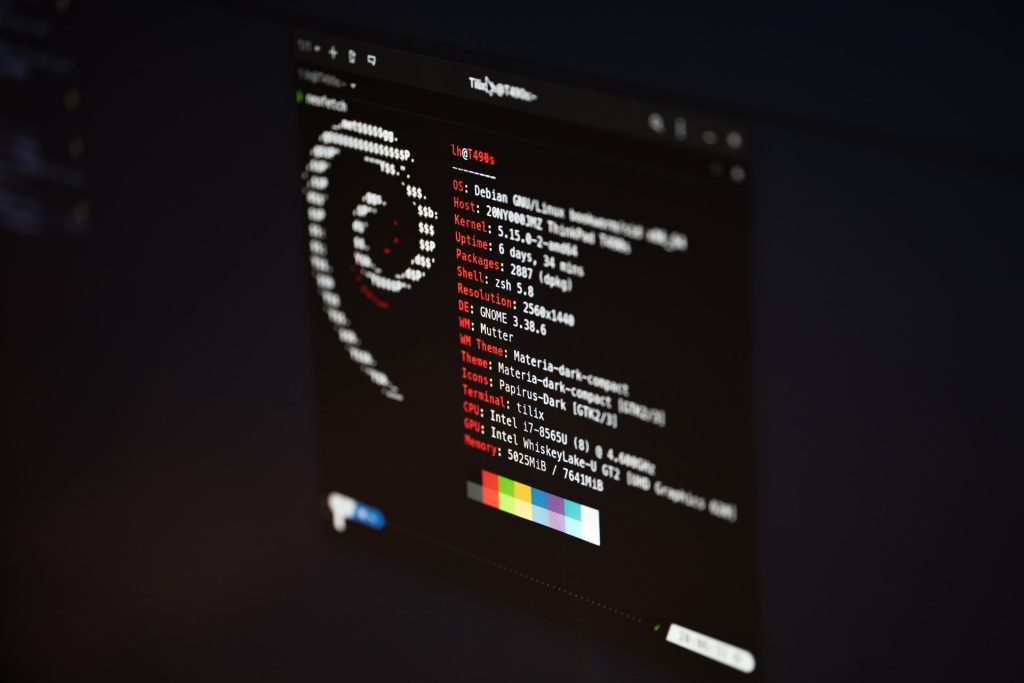
If you’re a Linux user, then use the VeraCrypt software for the drive encryption, and here are the simple steps for it:
- Create an encrypted file container as, in this way, you can store the regular and encrypted data.
- Split the flash drive into two parts. You now have an encrypted partition for all your essential files and the other partition for less important files.
- If you think the entire data is essential, encrypt the flash drive. You must use the encryption passphrase each time you use your flash drive.
- Create the hidden encrypted volume so you can store all the data you want to hide.
- Choose the encryption algorithm and specify the size of the hidden volume.
- Enter a strong passphrase.
- Click on the Next option and then on the Format button.
The information stored on your flash drive is now encrypted, and you won’t lose it now.
4. Ubuntu

Ubuntu is a Linux–based platform, and like other operating systems, users can use third-party tools like Disk Utility to encrypt the flash drive. Here are the steps to follow:
- Plug in the USB drive and copy all the data to some safe location.
- On the dashboard home, type Disk Utility.
- Find your flash drive and click on it.
- Tap on unmounting the volume and format the disk before encryption.
- Click on the Format drive option.
- It is your choice to encrypt the entire device or create a partition of the encrypted storage.
- Check the Encrypt underlying device option and create the device.
- Choose a new password and click on Create.
That’s a wrap-up. When you disconnect the USB and reconnect it again, it will ask for your password, which means that the encryption of your drive is complete.
Are there any risks Associated with Flash Drive Encryption?
Encryption offers numerous benefits to data privacy and security. But encrypting a flash drive comes with some issues that can put users’ data at risk. The most obvious reason is that USBs are easily stolen or lost. If there is no data backup, it means data loss and the information remains irreplaceable. If it has sensitive business data that has not been backed up, it can forever be lost, causing significant financial and reputational damages.
Moreover, the information can also be lost if the flash drive is ever corrupted or infected with malware. Apart from encryption risks, USB passwords are another significant issue. If the user has chosen a simple or easy-to-break password, attackers can access your crucial data despite encryption. Most users also find it difficult to remember complex passwords, so they write them down on a piece of paper. It is hazardous to note down passwords in such a way. If you can’t remember passwords, it is better to use password managers or recover them using the BitLocker recovery key.
Furthermore, if the password is lost, there’s no way to decrypt the data. Nevertheless, despite the possible risks, it is crucial to encrypt flash drive data and mitigate them through various means, such as backing up sensitive information.
Conclusion
Data security and privacy can be breached if the USB flash drives get compromised. Thus, in this digitalized age, it has become imperative to encrypt USB drives. One can secure their data on the hard drives by following some quick steps on various platforms.
The post How To Encrypt or Password Protected A Flash/Thumb Drives appeared first on BeEncrypted.
]]>Deprecated: Using null as an array offset is deprecated, use an empty string instead in /var/www/staging.beencrypted.com/site/web/wp/wp-includes/class-wp-block-type-registry.php on line 168
Deprecated: Using null as an array offset is deprecated, use an empty string instead in /var/www/staging.beencrypted.com/site/web/wp/wp-includes/class-wp-block-type-registry.php on line 168
Deprecated: Using null as an array offset is deprecated, use an empty string instead in /var/www/staging.beencrypted.com/site/web/wp/wp-includes/class-wp-block-type-registry.php on line 168
Deprecated: Using null as an array offset is deprecated, use an empty string instead in /var/www/staging.beencrypted.com/site/web/wp/wp-includes/class-wp-block-type-registry.php on line 168
Deprecated: Using null as an array offset is deprecated, use an empty string instead in /var/www/staging.beencrypted.com/site/web/wp/wp-includes/class-wp-block-type-registry.php on line 168
Deprecated: Using null as an array offset is deprecated, use an empty string instead in /var/www/staging.beencrypted.com/site/web/wp/wp-includes/class-wp-block-type-registry.php on line 168
Deprecated: Using null as an array offset is deprecated, use an empty string instead in /var/www/staging.beencrypted.com/site/web/wp/wp-includes/class-wp-block-type-registry.php on line 168
Deprecated: Using null as an array offset is deprecated, use an empty string instead in /var/www/staging.beencrypted.com/site/web/wp/wp-includes/class-wp-block-type-registry.php on line 168
Deprecated: Using null as an array offset is deprecated, use an empty string instead in /var/www/staging.beencrypted.com/site/web/wp/wp-includes/class-wp-block-type-registry.php on line 168
Deprecated: Using null as an array offset is deprecated, use an empty string instead in /var/www/staging.beencrypted.com/site/web/wp/wp-includes/class-wp-block-type-registry.php on line 168
Deprecated: Using null as an array offset is deprecated, use an empty string instead in /var/www/staging.beencrypted.com/site/web/wp/wp-includes/class-wp-block-type-registry.php on line 168
Deprecated: Using null as an array offset is deprecated, use an empty string instead in /var/www/staging.beencrypted.com/site/web/wp/wp-includes/class-wp-block-type-registry.php on line 168
Deprecated: Using null as an array offset is deprecated, use an empty string instead in /var/www/staging.beencrypted.com/site/web/wp/wp-includes/class-wp-block-type-registry.php on line 168
Deprecated: Using null as an array offset is deprecated, use an empty string instead in /var/www/staging.beencrypted.com/site/web/wp/wp-includes/class-wp-block-type-registry.php on line 168
Deprecated: Using null as an array offset is deprecated, use an empty string instead in /var/www/staging.beencrypted.com/site/web/wp/wp-includes/class-wp-block-type-registry.php on line 168
Deprecated: Using null as an array offset is deprecated, use an empty string instead in /var/www/staging.beencrypted.com/site/web/wp/wp-includes/class-wp-block-type-registry.php on line 168
Deprecated: Using null as an array offset is deprecated, use an empty string instead in /var/www/staging.beencrypted.com/site/web/wp/wp-includes/class-wp-block-type-registry.php on line 168
Deprecated: Using null as an array offset is deprecated, use an empty string instead in /var/www/staging.beencrypted.com/site/web/wp/wp-includes/class-wp-block-type-registry.php on line 168
Deprecated: Using null as an array offset is deprecated, use an empty string instead in /var/www/staging.beencrypted.com/site/web/wp/wp-includes/class-wp-block-type-registry.php on line 168
Deprecated: Using null as an array offset is deprecated, use an empty string instead in /var/www/staging.beencrypted.com/site/web/wp/wp-includes/class-wp-block-type-registry.php on line 168
Deprecated: Using null as an array offset is deprecated, use an empty string instead in /var/www/staging.beencrypted.com/site/web/wp/wp-includes/class-wp-block-type-registry.php on line 168
Deprecated: Using null as an array offset is deprecated, use an empty string instead in /var/www/staging.beencrypted.com/site/web/wp/wp-includes/class-wp-block-type-registry.php on line 168
Deprecated: Using null as an array offset is deprecated, use an empty string instead in /var/www/staging.beencrypted.com/site/web/wp/wp-includes/class-wp-block-type-registry.php on line 168
Deprecated: Using null as an array offset is deprecated, use an empty string instead in /var/www/staging.beencrypted.com/site/web/wp/wp-includes/class-wp-block-type-registry.php on line 168
Deprecated: Using null as an array offset is deprecated, use an empty string instead in /var/www/staging.beencrypted.com/site/web/wp/wp-includes/class-wp-block-type-registry.php on line 168
Deprecated: Using null as an array offset is deprecated, use an empty string instead in /var/www/staging.beencrypted.com/site/web/wp/wp-includes/class-wp-block-type-registry.php on line 168
Deprecated: Using null as an array offset is deprecated, use an empty string instead in /var/www/staging.beencrypted.com/site/web/wp/wp-includes/class-wp-block-type-registry.php on line 168
Deprecated: Using null as an array offset is deprecated, use an empty string instead in /var/www/staging.beencrypted.com/site/web/wp/wp-includes/class-wp-block-type-registry.php on line 168
Deprecated: Using null as an array offset is deprecated, use an empty string instead in /var/www/staging.beencrypted.com/site/web/wp/wp-includes/class-wp-block-type-registry.php on line 168
Deprecated: Using null as an array offset is deprecated, use an empty string instead in /var/www/staging.beencrypted.com/site/web/wp/wp-includes/class-wp-block-type-registry.php on line 168
Deprecated: Using null as an array offset is deprecated, use an empty string instead in /var/www/staging.beencrypted.com/site/web/wp/wp-includes/class-wp-block-type-registry.php on line 168
Deprecated: Using null as an array offset is deprecated, use an empty string instead in /var/www/staging.beencrypted.com/site/web/wp/wp-includes/class-wp-block-type-registry.php on line 168
Deprecated: Using null as an array offset is deprecated, use an empty string instead in /var/www/staging.beencrypted.com/site/web/wp/wp-includes/class-wp-block-type-registry.php on line 168
Deprecated: Using null as an array offset is deprecated, use an empty string instead in /var/www/staging.beencrypted.com/site/web/wp/wp-includes/class-wp-block-type-registry.php on line 168
Deprecated: Using null as an array offset is deprecated, use an empty string instead in /var/www/staging.beencrypted.com/site/web/wp/wp-includes/class-wp-block-type-registry.php on line 168
Deprecated: Using null as an array offset is deprecated, use an empty string instead in /var/www/staging.beencrypted.com/site/web/wp/wp-includes/class-wp-block-type-registry.php on line 168
Deprecated: Using null as an array offset is deprecated, use an empty string instead in /var/www/staging.beencrypted.com/site/web/wp/wp-includes/class-wp-block-type-registry.php on line 168
Deprecated: Using null as an array offset is deprecated, use an empty string instead in /var/www/staging.beencrypted.com/site/web/wp/wp-includes/class-wp-block-type-registry.php on line 168
Deprecated: Using null as an array offset is deprecated, use an empty string instead in /var/www/staging.beencrypted.com/site/web/wp/wp-includes/class-wp-block-type-registry.php on line 168
Deprecated: Using null as an array offset is deprecated, use an empty string instead in /var/www/staging.beencrypted.com/site/web/wp/wp-includes/class-wp-block-type-registry.php on line 168
Deprecated: Using null as an array offset is deprecated, use an empty string instead in /var/www/staging.beencrypted.com/site/web/wp/wp-includes/class-wp-block-type-registry.php on line 168
Deprecated: Using null as an array offset is deprecated, use an empty string instead in /var/www/staging.beencrypted.com/site/web/wp/wp-includes/class-wp-block-type-registry.php on line 168
Deprecated: Using null as an array offset is deprecated, use an empty string instead in /var/www/staging.beencrypted.com/site/web/wp/wp-includes/class-wp-block-type-registry.php on line 168
Deprecated: Using null as an array offset is deprecated, use an empty string instead in /var/www/staging.beencrypted.com/site/web/wp/wp-includes/class-wp-block-type-registry.php on line 168
Deprecated: Using null as an array offset is deprecated, use an empty string instead in /var/www/staging.beencrypted.com/site/web/wp/wp-includes/class-wp-block-type-registry.php on line 168
Deprecated: Using null as an array offset is deprecated, use an empty string instead in /var/www/staging.beencrypted.com/site/web/wp/wp-includes/class-wp-block-type-registry.php on line 168
Deprecated: Using null as an array offset is deprecated, use an empty string instead in /var/www/staging.beencrypted.com/site/web/wp/wp-includes/class-wp-block-type-registry.php on line 168
Deprecated: Using null as an array offset is deprecated, use an empty string instead in /var/www/staging.beencrypted.com/site/web/wp/wp-includes/class-wp-block-type-registry.php on line 168
Deprecated: Using null as an array offset is deprecated, use an empty string instead in /var/www/staging.beencrypted.com/site/web/wp/wp-includes/class-wp-block-type-registry.php on line 168
Deprecated: Using null as an array offset is deprecated, use an empty string instead in /var/www/staging.beencrypted.com/site/web/wp/wp-includes/class-wp-block-type-registry.php on line 168
Deprecated: Using null as an array offset is deprecated, use an empty string instead in /var/www/staging.beencrypted.com/site/web/wp/wp-includes/class-wp-block-type-registry.php on line 168
Deprecated: Using null as an array offset is deprecated, use an empty string instead in /var/www/staging.beencrypted.com/site/web/wp/wp-includes/class-wp-block-type-registry.php on line 168
Deprecated: Using null as an array offset is deprecated, use an empty string instead in /var/www/staging.beencrypted.com/site/web/wp/wp-includes/class-wp-block-type-registry.php on line 168
Deprecated: Using null as an array offset is deprecated, use an empty string instead in /var/www/staging.beencrypted.com/site/web/wp/wp-includes/class-wp-block-type-registry.php on line 168
Deprecated: Using null as an array offset is deprecated, use an empty string instead in /var/www/staging.beencrypted.com/site/web/wp/wp-includes/class-wp-block-type-registry.php on line 168
Deprecated: Using null as an array offset is deprecated, use an empty string instead in /var/www/staging.beencrypted.com/site/web/wp/wp-includes/class-wp-block-type-registry.php on line 168
Deprecated: Using null as an array offset is deprecated, use an empty string instead in /var/www/staging.beencrypted.com/site/web/wp/wp-includes/class-wp-block-type-registry.php on line 168
Deprecated: Using null as an array offset is deprecated, use an empty string instead in /var/www/staging.beencrypted.com/site/web/wp/wp-includes/class-wp-block-type-registry.php on line 168
Deprecated: Using null as an array offset is deprecated, use an empty string instead in /var/www/staging.beencrypted.com/site/web/wp/wp-includes/class-wp-block-type-registry.php on line 168
Deprecated: Using null as an array offset is deprecated, use an empty string instead in /var/www/staging.beencrypted.com/site/web/wp/wp-includes/class-wp-block-type-registry.php on line 168
Deprecated: Using null as an array offset is deprecated, use an empty string instead in /var/www/staging.beencrypted.com/site/web/wp/wp-includes/class-wp-block-type-registry.php on line 168
Deprecated: Using null as an array offset is deprecated, use an empty string instead in /var/www/staging.beencrypted.com/site/web/wp/wp-includes/class-wp-block-type-registry.php on line 168
Deprecated: Using null as an array offset is deprecated, use an empty string instead in /var/www/staging.beencrypted.com/site/web/wp/wp-includes/class-wp-block-type-registry.php on line 168
Deprecated: Using null as an array offset is deprecated, use an empty string instead in /var/www/staging.beencrypted.com/site/web/wp/wp-includes/class-wp-block-type-registry.php on line 168
Deprecated: Using null as an array offset is deprecated, use an empty string instead in /var/www/staging.beencrypted.com/site/web/wp/wp-includes/class-wp-block-type-registry.php on line 168
Deprecated: Using null as an array offset is deprecated, use an empty string instead in /var/www/staging.beencrypted.com/site/web/wp/wp-includes/class-wp-block-type-registry.php on line 168
Deprecated: Using null as an array offset is deprecated, use an empty string instead in /var/www/staging.beencrypted.com/site/web/wp/wp-includes/class-wp-block-type-registry.php on line 168
Deprecated: Using null as an array offset is deprecated, use an empty string instead in /var/www/staging.beencrypted.com/site/web/wp/wp-includes/class-wp-block-type-registry.php on line 168
Deprecated: Using null as an array offset is deprecated, use an empty string instead in /var/www/staging.beencrypted.com/site/web/wp/wp-includes/class-wp-block-type-registry.php on line 168
Deprecated: Using null as an array offset is deprecated, use an empty string instead in /var/www/staging.beencrypted.com/site/web/wp/wp-includes/class-wp-block-type-registry.php on line 168
Deprecated: Using null as an array offset is deprecated, use an empty string instead in /var/www/staging.beencrypted.com/site/web/wp/wp-includes/class-wp-block-type-registry.php on line 168
Deprecated: Using null as an array offset is deprecated, use an empty string instead in /var/www/staging.beencrypted.com/site/web/wp/wp-includes/class-wp-block-type-registry.php on line 168
Deprecated: Using null as an array offset is deprecated, use an empty string instead in /var/www/staging.beencrypted.com/site/web/wp/wp-includes/class-wp-block-type-registry.php on line 168
Deprecated: Using null as an array offset is deprecated, use an empty string instead in /var/www/staging.beencrypted.com/site/web/wp/wp-includes/class-wp-block-type-registry.php on line 168
Deprecated: Using null as an array offset is deprecated, use an empty string instead in /var/www/staging.beencrypted.com/site/web/wp/wp-includes/class-wp-block-type-registry.php on line 168
Deprecated: Using null as an array offset is deprecated, use an empty string instead in /var/www/staging.beencrypted.com/site/web/wp/wp-includes/class-wp-block-type-registry.php on line 168
Deprecated: Using null as an array offset is deprecated, use an empty string instead in /var/www/staging.beencrypted.com/site/web/wp/wp-includes/class-wp-block-type-registry.php on line 168
Deprecated: Using null as an array offset is deprecated, use an empty string instead in /var/www/staging.beencrypted.com/site/web/wp/wp-includes/class-wp-block-type-registry.php on line 168
Deprecated: Using null as an array offset is deprecated, use an empty string instead in /var/www/staging.beencrypted.com/site/web/wp/wp-includes/class-wp-block-type-registry.php on line 168
Deprecated: Using null as an array offset is deprecated, use an empty string instead in /var/www/staging.beencrypted.com/site/web/wp/wp-includes/class-wp-block-type-registry.php on line 168
Deprecated: Using null as an array offset is deprecated, use an empty string instead in /var/www/staging.beencrypted.com/site/web/wp/wp-includes/class-wp-block-type-registry.php on line 168
Deprecated: Using null as an array offset is deprecated, use an empty string instead in /var/www/staging.beencrypted.com/site/web/wp/wp-includes/class-wp-block-type-registry.php on line 168
Deprecated: Using null as an array offset is deprecated, use an empty string instead in /var/www/staging.beencrypted.com/site/web/wp/wp-includes/class-wp-block-type-registry.php on line 168
Deprecated: Using null as an array offset is deprecated, use an empty string instead in /var/www/staging.beencrypted.com/site/web/wp/wp-includes/class-wp-block-type-registry.php on line 168
Deprecated: Using null as an array offset is deprecated, use an empty string instead in /var/www/staging.beencrypted.com/site/web/wp/wp-includes/class-wp-block-type-registry.php on line 168
Deprecated: Using null as an array offset is deprecated, use an empty string instead in /var/www/staging.beencrypted.com/site/web/wp/wp-includes/class-wp-block-type-registry.php on line 168
Deprecated: Using null as an array offset is deprecated, use an empty string instead in /var/www/staging.beencrypted.com/site/web/wp/wp-includes/class-wp-block-type-registry.php on line 168
Deprecated: Using null as an array offset is deprecated, use an empty string instead in /var/www/staging.beencrypted.com/site/web/wp/wp-includes/class-wp-block-type-registry.php on line 168
Deprecated: Using null as an array offset is deprecated, use an empty string instead in /var/www/staging.beencrypted.com/site/web/wp/wp-includes/class-wp-block-type-registry.php on line 168
Deprecated: Using null as an array offset is deprecated, use an empty string instead in /var/www/staging.beencrypted.com/site/web/wp/wp-includes/class-wp-block-type-registry.php on line 168
Deprecated: Using null as an array offset is deprecated, use an empty string instead in /var/www/staging.beencrypted.com/site/web/wp/wp-includes/class-wp-block-type-registry.php on line 168
Deprecated: Using null as an array offset is deprecated, use an empty string instead in /var/www/staging.beencrypted.com/site/web/wp/wp-includes/class-wp-block-type-registry.php on line 168
Deprecated: Using null as an array offset is deprecated, use an empty string instead in /var/www/staging.beencrypted.com/site/web/wp/wp-includes/class-wp-block-type-registry.php on line 168
Deprecated: Using null as an array offset is deprecated, use an empty string instead in /var/www/staging.beencrypted.com/site/web/wp/wp-includes/class-wp-block-type-registry.php on line 168
Deprecated: Using null as an array offset is deprecated, use an empty string instead in /var/www/staging.beencrypted.com/site/web/wp/wp-includes/class-wp-block-type-registry.php on line 168
Deprecated: Using null as an array offset is deprecated, use an empty string instead in /var/www/staging.beencrypted.com/site/web/wp/wp-includes/class-wp-block-type-registry.php on line 168
Deprecated: Using null as an array offset is deprecated, use an empty string instead in /var/www/staging.beencrypted.com/site/web/wp/wp-includes/class-wp-block-type-registry.php on line 168
Deprecated: Using null as an array offset is deprecated, use an empty string instead in /var/www/staging.beencrypted.com/site/web/wp/wp-includes/class-wp-block-type-registry.php on line 168
Deprecated: Using null as an array offset is deprecated, use an empty string instead in /var/www/staging.beencrypted.com/site/web/wp/wp-includes/class-wp-block-type-registry.php on line 168
Deprecated: Using null as an array offset is deprecated, use an empty string instead in /var/www/staging.beencrypted.com/site/web/wp/wp-includes/class-wp-block-type-registry.php on line 168
Deprecated: Using null as an array offset is deprecated, use an empty string instead in /var/www/staging.beencrypted.com/site/web/wp/wp-includes/class-wp-block-type-registry.php on line 168
Deprecated: Using null as an array offset is deprecated, use an empty string instead in /var/www/staging.beencrypted.com/site/web/wp/wp-includes/class-wp-block-type-registry.php on line 168
Deprecated: Using null as an array offset is deprecated, use an empty string instead in /var/www/staging.beencrypted.com/site/web/wp/wp-includes/class-wp-block-type-registry.php on line 168
Deprecated: Using null as an array offset is deprecated, use an empty string instead in /var/www/staging.beencrypted.com/site/web/wp/wp-includes/class-wp-block-type-registry.php on line 168
Deprecated: Using null as an array offset is deprecated, use an empty string instead in /var/www/staging.beencrypted.com/site/web/wp/wp-includes/class-wp-block-type-registry.php on line 168
Deprecated: Using null as an array offset is deprecated, use an empty string instead in /var/www/staging.beencrypted.com/site/web/wp/wp-includes/class-wp-block-type-registry.php on line 168
Deprecated: Using null as an array offset is deprecated, use an empty string instead in /var/www/staging.beencrypted.com/site/web/wp/wp-includes/class-wp-block-type-registry.php on line 168
Deprecated: Using null as an array offset is deprecated, use an empty string instead in /var/www/staging.beencrypted.com/site/web/wp/wp-includes/class-wp-block-type-registry.php on line 168
Deprecated: Using null as an array offset is deprecated, use an empty string instead in /var/www/staging.beencrypted.com/site/web/wp/wp-includes/class-wp-block-type-registry.php on line 168
Deprecated: Using null as an array offset is deprecated, use an empty string instead in /var/www/staging.beencrypted.com/site/web/wp/wp-includes/class-wp-block-type-registry.php on line 168
Deprecated: Using null as an array offset is deprecated, use an empty string instead in /var/www/staging.beencrypted.com/site/web/wp/wp-includes/class-wp-block-type-registry.php on line 168
Deprecated: Using null as an array offset is deprecated, use an empty string instead in /var/www/staging.beencrypted.com/site/web/wp/wp-includes/class-wp-block-type-registry.php on line 168
Deprecated: Using null as an array offset is deprecated, use an empty string instead in /var/www/staging.beencrypted.com/site/web/wp/wp-includes/class-wp-block-type-registry.php on line 168
Deprecated: Using null as an array offset is deprecated, use an empty string instead in /var/www/staging.beencrypted.com/site/web/wp/wp-includes/class-wp-block-type-registry.php on line 168
Deprecated: Using null as an array offset is deprecated, use an empty string instead in /var/www/staging.beencrypted.com/site/web/wp/wp-includes/class-wp-block-type-registry.php on line 168
Deprecated: Using null as an array offset is deprecated, use an empty string instead in /var/www/staging.beencrypted.com/site/web/wp/wp-includes/class-wp-block-type-registry.php on line 168
Deprecated: Using null as an array offset is deprecated, use an empty string instead in /var/www/staging.beencrypted.com/site/web/wp/wp-includes/class-wp-block-type-registry.php on line 168
Deprecated: Using null as an array offset is deprecated, use an empty string instead in /var/www/staging.beencrypted.com/site/web/wp/wp-includes/class-wp-block-type-registry.php on line 168
Deprecated: Using null as an array offset is deprecated, use an empty string instead in /var/www/staging.beencrypted.com/site/web/wp/wp-includes/class-wp-block-type-registry.php on line 168
Deprecated: Using null as an array offset is deprecated, use an empty string instead in /var/www/staging.beencrypted.com/site/web/wp/wp-includes/class-wp-block-type-registry.php on line 168
Deprecated: Using null as an array offset is deprecated, use an empty string instead in /var/www/staging.beencrypted.com/site/web/wp/wp-includes/class-wp-block-type-registry.php on line 168
Deprecated: Using null as an array offset is deprecated, use an empty string instead in /var/www/staging.beencrypted.com/site/web/wp/wp-includes/class-wp-block-type-registry.php on line 168
Deprecated: Using null as an array offset is deprecated, use an empty string instead in /var/www/staging.beencrypted.com/site/web/wp/wp-includes/class-wp-block-type-registry.php on line 168
Deprecated: Using null as an array offset is deprecated, use an empty string instead in /var/www/staging.beencrypted.com/site/web/wp/wp-includes/class-wp-block-type-registry.php on line 168
Deprecated: Using null as an array offset is deprecated, use an empty string instead in /var/www/staging.beencrypted.com/site/web/wp/wp-includes/class-wp-block-type-registry.php on line 168
Deprecated: Using null as an array offset is deprecated, use an empty string instead in /var/www/staging.beencrypted.com/site/web/wp/wp-includes/class-wp-block-type-registry.php on line 168
Deprecated: Using null as an array offset is deprecated, use an empty string instead in /var/www/staging.beencrypted.com/site/web/wp/wp-includes/class-wp-block-type-registry.php on line 168
Deprecated: Using null as an array offset is deprecated, use an empty string instead in /var/www/staging.beencrypted.com/site/web/wp/wp-includes/class-wp-block-type-registry.php on line 168
Deprecated: Using null as an array offset is deprecated, use an empty string instead in /var/www/staging.beencrypted.com/site/web/wp/wp-includes/class-wp-block-type-registry.php on line 168
Deprecated: Using null as an array offset is deprecated, use an empty string instead in /var/www/staging.beencrypted.com/site/web/wp/wp-includes/class-wp-block-type-registry.php on line 168
Deprecated: Using null as an array offset is deprecated, use an empty string instead in /var/www/staging.beencrypted.com/site/web/wp/wp-includes/class-wp-block-type-registry.php on line 168
Deprecated: Using null as an array offset is deprecated, use an empty string instead in /var/www/staging.beencrypted.com/site/web/wp/wp-includes/class-wp-block-type-registry.php on line 168
Deprecated: Using null as an array offset is deprecated, use an empty string instead in /var/www/staging.beencrypted.com/site/web/wp/wp-includes/class-wp-block-type-registry.php on line 168
Deprecated: Using null as an array offset is deprecated, use an empty string instead in /var/www/staging.beencrypted.com/site/web/wp/wp-includes/class-wp-block-type-registry.php on line 168
Deprecated: Using null as an array offset is deprecated, use an empty string instead in /var/www/staging.beencrypted.com/site/web/wp/wp-includes/class-wp-block-type-registry.php on line 168
Deprecated: Using null as an array offset is deprecated, use an empty string instead in /var/www/staging.beencrypted.com/site/web/wp/wp-includes/class-wp-block-type-registry.php on line 168
Deprecated: Using null as an array offset is deprecated, use an empty string instead in /var/www/staging.beencrypted.com/site/web/wp/wp-includes/class-wp-block-type-registry.php on line 168
Deprecated: Using null as an array offset is deprecated, use an empty string instead in /var/www/staging.beencrypted.com/site/web/wp/wp-includes/class-wp-block-type-registry.php on line 168
Deprecated: Using null as an array offset is deprecated, use an empty string instead in /var/www/staging.beencrypted.com/site/web/wp/wp-includes/class-wp-block-type-registry.php on line 168
Deprecated: Using null as an array offset is deprecated, use an empty string instead in /var/www/staging.beencrypted.com/site/web/wp/wp-includes/class-wp-block-type-registry.php on line 168
Deprecated: Using null as an array offset is deprecated, use an empty string instead in /var/www/staging.beencrypted.com/site/web/wp/wp-includes/class-wp-block-type-registry.php on line 168
Deprecated: Using null as an array offset is deprecated, use an empty string instead in /var/www/staging.beencrypted.com/site/web/wp/wp-includes/class-wp-block-type-registry.php on line 168
Deprecated: Using null as an array offset is deprecated, use an empty string instead in /var/www/staging.beencrypted.com/site/web/wp/wp-includes/class-wp-block-type-registry.php on line 168
Deprecated: Using null as an array offset is deprecated, use an empty string instead in /var/www/staging.beencrypted.com/site/web/wp/wp-includes/class-wp-block-type-registry.php on line 168
Deprecated: Using null as an array offset is deprecated, use an empty string instead in /var/www/staging.beencrypted.com/site/web/wp/wp-includes/class-wp-block-type-registry.php on line 168
Deprecated: Using null as an array offset is deprecated, use an empty string instead in /var/www/staging.beencrypted.com/site/web/wp/wp-includes/class-wp-block-type-registry.php on line 168
Deprecated: Using null as an array offset is deprecated, use an empty string instead in /var/www/staging.beencrypted.com/site/web/wp/wp-includes/class-wp-block-type-registry.php on line 168
Deprecated: Using null as an array offset is deprecated, use an empty string instead in /var/www/staging.beencrypted.com/site/web/wp/wp-includes/class-wp-block-type-registry.php on line 168
Deprecated: Using null as an array offset is deprecated, use an empty string instead in /var/www/staging.beencrypted.com/site/web/wp/wp-includes/class-wp-block-type-registry.php on line 168
Deprecated: Using null as an array offset is deprecated, use an empty string instead in /var/www/staging.beencrypted.com/site/web/wp/wp-includes/class-wp-block-type-registry.php on line 168
Deprecated: Using null as an array offset is deprecated, use an empty string instead in /var/www/staging.beencrypted.com/site/web/wp/wp-includes/class-wp-block-type-registry.php on line 168
Deprecated: Using null as an array offset is deprecated, use an empty string instead in /var/www/staging.beencrypted.com/site/web/wp/wp-includes/class-wp-block-type-registry.php on line 168
Deprecated: Using null as an array offset is deprecated, use an empty string instead in /var/www/staging.beencrypted.com/site/web/wp/wp-includes/class-wp-block-type-registry.php on line 168
Deprecated: Using null as an array offset is deprecated, use an empty string instead in /var/www/staging.beencrypted.com/site/web/wp/wp-includes/class-wp-block-type-registry.php on line 168
Deprecated: Using null as an array offset is deprecated, use an empty string instead in /var/www/staging.beencrypted.com/site/web/wp/wp-includes/class-wp-block-type-registry.php on line 168
Deprecated: Using null as an array offset is deprecated, use an empty string instead in /var/www/staging.beencrypted.com/site/web/wp/wp-includes/class-wp-block-type-registry.php on line 168
Deprecated: Using null as an array offset is deprecated, use an empty string instead in /var/www/staging.beencrypted.com/site/web/wp/wp-includes/class-wp-block-type-registry.php on line 168
Deprecated: Using null as an array offset is deprecated, use an empty string instead in /var/www/staging.beencrypted.com/site/web/wp/wp-includes/class-wp-block-type-registry.php on line 168
Deprecated: Using null as an array offset is deprecated, use an empty string instead in /var/www/staging.beencrypted.com/site/web/wp/wp-includes/class-wp-block-type-registry.php on line 168
Deprecated: Using null as an array offset is deprecated, use an empty string instead in /var/www/staging.beencrypted.com/site/web/wp/wp-includes/class-wp-block-type-registry.php on line 168
Deprecated: Using null as an array offset is deprecated, use an empty string instead in /var/www/staging.beencrypted.com/site/web/wp/wp-includes/class-wp-block-type-registry.php on line 168
Deprecated: Using null as an array offset is deprecated, use an empty string instead in /var/www/staging.beencrypted.com/site/web/wp/wp-includes/class-wp-block-type-registry.php on line 168
Deprecated: Using null as an array offset is deprecated, use an empty string instead in /var/www/staging.beencrypted.com/site/web/wp/wp-includes/class-wp-block-type-registry.php on line 168
Deprecated: Using null as an array offset is deprecated, use an empty string instead in /var/www/staging.beencrypted.com/site/web/wp/wp-includes/class-wp-block-type-registry.php on line 168
Deprecated: Using null as an array offset is deprecated, use an empty string instead in /var/www/staging.beencrypted.com/site/web/wp/wp-includes/class-wp-block-type-registry.php on line 168
Deprecated: Using null as an array offset is deprecated, use an empty string instead in /var/www/staging.beencrypted.com/site/web/wp/wp-includes/class-wp-block-type-registry.php on line 168
Deprecated: Using null as an array offset is deprecated, use an empty string instead in /var/www/staging.beencrypted.com/site/web/wp/wp-includes/class-wp-block-type-registry.php on line 168
Deprecated: Using null as an array offset is deprecated, use an empty string instead in /var/www/staging.beencrypted.com/site/web/wp/wp-includes/class-wp-block-type-registry.php on line 168
Deprecated: Using null as an array offset is deprecated, use an empty string instead in /var/www/staging.beencrypted.com/site/web/wp/wp-includes/class-wp-block-type-registry.php on line 168
Deprecated: Using null as an array offset is deprecated, use an empty string instead in /var/www/staging.beencrypted.com/site/web/wp/wp-includes/class-wp-block-type-registry.php on line 168
Deprecated: Using null as an array offset is deprecated, use an empty string instead in /var/www/staging.beencrypted.com/site/web/wp/wp-includes/class-wp-block-type-registry.php on line 168
Deprecated: Using null as an array offset is deprecated, use an empty string instead in /var/www/staging.beencrypted.com/site/web/wp/wp-includes/class-wp-block-type-registry.php on line 168
Deprecated: Using null as an array offset is deprecated, use an empty string instead in /var/www/staging.beencrypted.com/site/web/wp/wp-includes/class-wp-block-type-registry.php on line 168
Deprecated: Using null as an array offset is deprecated, use an empty string instead in /var/www/staging.beencrypted.com/site/web/wp/wp-includes/class-wp-block-type-registry.php on line 168
Deprecated: Using null as an array offset is deprecated, use an empty string instead in /var/www/staging.beencrypted.com/site/web/wp/wp-includes/class-wp-block-type-registry.php on line 168
Deprecated: Using null as an array offset is deprecated, use an empty string instead in /var/www/staging.beencrypted.com/site/web/wp/wp-includes/class-wp-block-type-registry.php on line 168
Deprecated: Using null as an array offset is deprecated, use an empty string instead in /var/www/staging.beencrypted.com/site/web/wp/wp-includes/class-wp-block-type-registry.php on line 168
Deprecated: Using null as an array offset is deprecated, use an empty string instead in /var/www/staging.beencrypted.com/site/web/wp/wp-includes/class-wp-block-type-registry.php on line 168
Deprecated: Using null as an array offset is deprecated, use an empty string instead in /var/www/staging.beencrypted.com/site/web/wp/wp-includes/class-wp-block-type-registry.php on line 168
Deprecated: Using null as an array offset is deprecated, use an empty string instead in /var/www/staging.beencrypted.com/site/web/wp/wp-includes/class-wp-block-type-registry.php on line 168
Deprecated: Using null as an array offset is deprecated, use an empty string instead in /var/www/staging.beencrypted.com/site/web/wp/wp-includes/class-wp-block-type-registry.php on line 168
Deprecated: Using null as an array offset is deprecated, use an empty string instead in /var/www/staging.beencrypted.com/site/web/wp/wp-includes/class-wp-block-type-registry.php on line 168
Deprecated: Using null as an array offset is deprecated, use an empty string instead in /var/www/staging.beencrypted.com/site/web/wp/wp-includes/class-wp-block-type-registry.php on line 168
Deprecated: Using null as an array offset is deprecated, use an empty string instead in /var/www/staging.beencrypted.com/site/web/wp/wp-includes/class-wp-block-type-registry.php on line 168
Deprecated: Using null as an array offset is deprecated, use an empty string instead in /var/www/staging.beencrypted.com/site/web/wp/wp-includes/class-wp-block-type-registry.php on line 168
Deprecated: Using null as an array offset is deprecated, use an empty string instead in /var/www/staging.beencrypted.com/site/web/wp/wp-includes/class-wp-block-type-registry.php on line 168
Deprecated: Using null as an array offset is deprecated, use an empty string instead in /var/www/staging.beencrypted.com/site/web/wp/wp-includes/class-wp-block-type-registry.php on line 168
Deprecated: Using null as an array offset is deprecated, use an empty string instead in /var/www/staging.beencrypted.com/site/web/wp/wp-includes/class-wp-block-type-registry.php on line 168
Deprecated: Using null as an array offset is deprecated, use an empty string instead in /var/www/staging.beencrypted.com/site/web/wp/wp-includes/class-wp-block-type-registry.php on line 168
Deprecated: Using null as an array offset is deprecated, use an empty string instead in /var/www/staging.beencrypted.com/site/web/wp/wp-includes/class-wp-block-type-registry.php on line 168
Deprecated: Using null as an array offset is deprecated, use an empty string instead in /var/www/staging.beencrypted.com/site/web/wp/wp-includes/class-wp-block-type-registry.php on line 168
Deprecated: Using null as an array offset is deprecated, use an empty string instead in /var/www/staging.beencrypted.com/site/web/wp/wp-includes/class-wp-block-type-registry.php on line 168
Deprecated: Using null as an array offset is deprecated, use an empty string instead in /var/www/staging.beencrypted.com/site/web/wp/wp-includes/class-wp-block-type-registry.php on line 168
Deprecated: Using null as an array offset is deprecated, use an empty string instead in /var/www/staging.beencrypted.com/site/web/wp/wp-includes/class-wp-block-type-registry.php on line 168
Deprecated: Using null as an array offset is deprecated, use an empty string instead in /var/www/staging.beencrypted.com/site/web/wp/wp-includes/class-wp-block-type-registry.php on line 168
Deprecated: Using null as an array offset is deprecated, use an empty string instead in /var/www/staging.beencrypted.com/site/web/wp/wp-includes/class-wp-block-type-registry.php on line 168
Deprecated: Using null as an array offset is deprecated, use an empty string instead in /var/www/staging.beencrypted.com/site/web/wp/wp-includes/class-wp-block-type-registry.php on line 168
Deprecated: Using null as an array offset is deprecated, use an empty string instead in /var/www/staging.beencrypted.com/site/web/wp/wp-includes/class-wp-block-type-registry.php on line 168
Deprecated: Using null as an array offset is deprecated, use an empty string instead in /var/www/staging.beencrypted.com/site/web/wp/wp-includes/class-wp-block-type-registry.php on line 168
Deprecated: Using null as an array offset is deprecated, use an empty string instead in /var/www/staging.beencrypted.com/site/web/wp/wp-includes/class-wp-block-type-registry.php on line 168
Deprecated: Using null as an array offset is deprecated, use an empty string instead in /var/www/staging.beencrypted.com/site/web/wp/wp-includes/class-wp-block-type-registry.php on line 168
Deprecated: Using null as an array offset is deprecated, use an empty string instead in /var/www/staging.beencrypted.com/site/web/wp/wp-includes/class-wp-block-type-registry.php on line 168
Deprecated: Using null as an array offset is deprecated, use an empty string instead in /var/www/staging.beencrypted.com/site/web/wp/wp-includes/class-wp-block-type-registry.php on line 168
Deprecated: Using null as an array offset is deprecated, use an empty string instead in /var/www/staging.beencrypted.com/site/web/wp/wp-includes/class-wp-block-type-registry.php on line 168
Deprecated: Using null as an array offset is deprecated, use an empty string instead in /var/www/staging.beencrypted.com/site/web/wp/wp-includes/class-wp-block-type-registry.php on line 168
Deprecated: Using null as an array offset is deprecated, use an empty string instead in /var/www/staging.beencrypted.com/site/web/wp/wp-includes/class-wp-block-type-registry.php on line 168
Deprecated: Using null as an array offset is deprecated, use an empty string instead in /var/www/staging.beencrypted.com/site/web/wp/wp-includes/class-wp-block-type-registry.php on line 168
Deprecated: Using null as an array offset is deprecated, use an empty string instead in /var/www/staging.beencrypted.com/site/web/wp/wp-includes/class-wp-block-type-registry.php on line 168
Deprecated: Using null as an array offset is deprecated, use an empty string instead in /var/www/staging.beencrypted.com/site/web/wp/wp-includes/class-wp-block-type-registry.php on line 168
Encrypt your sensitive file and folder in macOS easily – quick steps to be encrypted Your Mac might be one of the most secure and personal devices you have, containing a ton of personal information. But are you content with the “Mac privacy and security” that Apple boasts about? Is it a risk you’re willing […]
The post 2 Best Ways To Encrypt Your Files And Folders In macOS appeared first on BeEncrypted.
]]>Deprecated: Using null as an array offset is deprecated, use an empty string instead in /var/www/staging.beencrypted.com/site/web/wp/wp-includes/class-wp-block-type-registry.php on line 168
Deprecated: Using null as an array offset is deprecated, use an empty string instead in /var/www/staging.beencrypted.com/site/web/wp/wp-includes/class-wp-block-type-registry.php on line 168
Deprecated: Using null as an array offset is deprecated, use an empty string instead in /var/www/staging.beencrypted.com/site/web/wp/wp-includes/class-wp-block-type-registry.php on line 168
Deprecated: Using null as an array offset is deprecated, use an empty string instead in /var/www/staging.beencrypted.com/site/web/wp/wp-includes/class-wp-block-type-registry.php on line 168
Deprecated: Using null as an array offset is deprecated, use an empty string instead in /var/www/staging.beencrypted.com/site/web/wp/wp-includes/class-wp-block-type-registry.php on line 168
Deprecated: Using null as an array offset is deprecated, use an empty string instead in /var/www/staging.beencrypted.com/site/web/wp/wp-includes/class-wp-block-type-registry.php on line 168
Deprecated: Using null as an array offset is deprecated, use an empty string instead in /var/www/staging.beencrypted.com/site/web/wp/wp-includes/class-wp-block-type-registry.php on line 168
Deprecated: Using null as an array offset is deprecated, use an empty string instead in /var/www/staging.beencrypted.com/site/web/wp/wp-includes/class-wp-block-type-registry.php on line 168
Deprecated: Using null as an array offset is deprecated, use an empty string instead in /var/www/staging.beencrypted.com/site/web/wp/wp-includes/class-wp-block-type-registry.php on line 168
Deprecated: Using null as an array offset is deprecated, use an empty string instead in /var/www/staging.beencrypted.com/site/web/wp/wp-includes/class-wp-block-type-registry.php on line 168
Deprecated: Using null as an array offset is deprecated, use an empty string instead in /var/www/staging.beencrypted.com/site/web/wp/wp-includes/class-wp-block-type-registry.php on line 168
Deprecated: Using null as an array offset is deprecated, use an empty string instead in /var/www/staging.beencrypted.com/site/web/wp/wp-includes/class-wp-block-type-registry.php on line 168
Deprecated: Using null as an array offset is deprecated, use an empty string instead in /var/www/staging.beencrypted.com/site/web/wp/wp-includes/class-wp-block-type-registry.php on line 168
Deprecated: Using null as an array offset is deprecated, use an empty string instead in /var/www/staging.beencrypted.com/site/web/wp/wp-includes/class-wp-block-type-registry.php on line 168
Deprecated: Using null as an array offset is deprecated, use an empty string instead in /var/www/staging.beencrypted.com/site/web/wp/wp-includes/class-wp-block-type-registry.php on line 168
Deprecated: Using null as an array offset is deprecated, use an empty string instead in /var/www/staging.beencrypted.com/site/web/wp/wp-includes/class-wp-block-type-registry.php on line 168
Deprecated: Using null as an array offset is deprecated, use an empty string instead in /var/www/staging.beencrypted.com/site/web/wp/wp-includes/class-wp-block-type-registry.php on line 168
Deprecated: Using null as an array offset is deprecated, use an empty string instead in /var/www/staging.beencrypted.com/site/web/wp/wp-includes/class-wp-block-type-registry.php on line 168
Deprecated: Using null as an array offset is deprecated, use an empty string instead in /var/www/staging.beencrypted.com/site/web/wp/wp-includes/class-wp-block-type-registry.php on line 168
Deprecated: Using null as an array offset is deprecated, use an empty string instead in /var/www/staging.beencrypted.com/site/web/wp/wp-includes/class-wp-block-type-registry.php on line 168
Deprecated: Using null as an array offset is deprecated, use an empty string instead in /var/www/staging.beencrypted.com/site/web/wp/wp-includes/class-wp-block-type-registry.php on line 168
Deprecated: Using null as an array offset is deprecated, use an empty string instead in /var/www/staging.beencrypted.com/site/web/wp/wp-includes/class-wp-block-type-registry.php on line 168
Deprecated: Using null as an array offset is deprecated, use an empty string instead in /var/www/staging.beencrypted.com/site/web/wp/wp-includes/class-wp-block-type-registry.php on line 168
Deprecated: Using null as an array offset is deprecated, use an empty string instead in /var/www/staging.beencrypted.com/site/web/wp/wp-includes/class-wp-block-type-registry.php on line 168
Deprecated: Using null as an array offset is deprecated, use an empty string instead in /var/www/staging.beencrypted.com/site/web/wp/wp-includes/class-wp-block-type-registry.php on line 168
Deprecated: Using null as an array offset is deprecated, use an empty string instead in /var/www/staging.beencrypted.com/site/web/wp/wp-includes/class-wp-block-type-registry.php on line 168
Deprecated: Using null as an array offset is deprecated, use an empty string instead in /var/www/staging.beencrypted.com/site/web/wp/wp-includes/class-wp-block-type-registry.php on line 168
Deprecated: Using null as an array offset is deprecated, use an empty string instead in /var/www/staging.beencrypted.com/site/web/wp/wp-includes/class-wp-block-type-registry.php on line 168
Deprecated: Using null as an array offset is deprecated, use an empty string instead in /var/www/staging.beencrypted.com/site/web/wp/wp-includes/class-wp-block-type-registry.php on line 168
Deprecated: Using null as an array offset is deprecated, use an empty string instead in /var/www/staging.beencrypted.com/site/web/wp/wp-includes/class-wp-block-type-registry.php on line 168
Deprecated: Using null as an array offset is deprecated, use an empty string instead in /var/www/staging.beencrypted.com/site/web/wp/wp-includes/class-wp-block-type-registry.php on line 168
Deprecated: Using null as an array offset is deprecated, use an empty string instead in /var/www/staging.beencrypted.com/site/web/wp/wp-includes/class-wp-block-type-registry.php on line 168
Deprecated: Using null as an array offset is deprecated, use an empty string instead in /var/www/staging.beencrypted.com/site/web/wp/wp-includes/class-wp-block-type-registry.php on line 168
Deprecated: Using null as an array offset is deprecated, use an empty string instead in /var/www/staging.beencrypted.com/site/web/wp/wp-includes/class-wp-block-type-registry.php on line 168
Deprecated: Using null as an array offset is deprecated, use an empty string instead in /var/www/staging.beencrypted.com/site/web/wp/wp-includes/class-wp-block-type-registry.php on line 168
Deprecated: Using null as an array offset is deprecated, use an empty string instead in /var/www/staging.beencrypted.com/site/web/wp/wp-includes/class-wp-block-type-registry.php on line 168
Deprecated: Using null as an array offset is deprecated, use an empty string instead in /var/www/staging.beencrypted.com/site/web/wp/wp-includes/class-wp-block-type-registry.php on line 168
Deprecated: Using null as an array offset is deprecated, use an empty string instead in /var/www/staging.beencrypted.com/site/web/wp/wp-includes/class-wp-block-type-registry.php on line 168
Deprecated: Using null as an array offset is deprecated, use an empty string instead in /var/www/staging.beencrypted.com/site/web/wp/wp-includes/class-wp-block-type-registry.php on line 168
Deprecated: Using null as an array offset is deprecated, use an empty string instead in /var/www/staging.beencrypted.com/site/web/wp/wp-includes/class-wp-block-type-registry.php on line 168
Deprecated: Using null as an array offset is deprecated, use an empty string instead in /var/www/staging.beencrypted.com/site/web/wp/wp-includes/class-wp-block-type-registry.php on line 168
Deprecated: Using null as an array offset is deprecated, use an empty string instead in /var/www/staging.beencrypted.com/site/web/wp/wp-includes/class-wp-block-type-registry.php on line 168
Deprecated: Using null as an array offset is deprecated, use an empty string instead in /var/www/staging.beencrypted.com/site/web/wp/wp-includes/class-wp-block-type-registry.php on line 168
Deprecated: Using null as an array offset is deprecated, use an empty string instead in /var/www/staging.beencrypted.com/site/web/wp/wp-includes/class-wp-block-type-registry.php on line 168
Deprecated: Using null as an array offset is deprecated, use an empty string instead in /var/www/staging.beencrypted.com/site/web/wp/wp-includes/class-wp-block-type-registry.php on line 168
Deprecated: Using null as an array offset is deprecated, use an empty string instead in /var/www/staging.beencrypted.com/site/web/wp/wp-includes/class-wp-block-type-registry.php on line 168
Deprecated: Using null as an array offset is deprecated, use an empty string instead in /var/www/staging.beencrypted.com/site/web/wp/wp-includes/class-wp-block-type-registry.php on line 168
Deprecated: Using null as an array offset is deprecated, use an empty string instead in /var/www/staging.beencrypted.com/site/web/wp/wp-includes/class-wp-block-type-registry.php on line 168
Deprecated: Using null as an array offset is deprecated, use an empty string instead in /var/www/staging.beencrypted.com/site/web/wp/wp-includes/class-wp-block-type-registry.php on line 168
Deprecated: Using null as an array offset is deprecated, use an empty string instead in /var/www/staging.beencrypted.com/site/web/wp/wp-includes/class-wp-block-type-registry.php on line 168
Deprecated: Using null as an array offset is deprecated, use an empty string instead in /var/www/staging.beencrypted.com/site/web/wp/wp-includes/class-wp-block-type-registry.php on line 168
Deprecated: Using null as an array offset is deprecated, use an empty string instead in /var/www/staging.beencrypted.com/site/web/wp/wp-includes/class-wp-block-type-registry.php on line 168
Deprecated: Using null as an array offset is deprecated, use an empty string instead in /var/www/staging.beencrypted.com/site/web/wp/wp-includes/class-wp-block-type-registry.php on line 168
Deprecated: Using null as an array offset is deprecated, use an empty string instead in /var/www/staging.beencrypted.com/site/web/wp/wp-includes/class-wp-block-type-registry.php on line 168
Deprecated: Using null as an array offset is deprecated, use an empty string instead in /var/www/staging.beencrypted.com/site/web/wp/wp-includes/class-wp-block-type-registry.php on line 168
Deprecated: Using null as an array offset is deprecated, use an empty string instead in /var/www/staging.beencrypted.com/site/web/wp/wp-includes/class-wp-block-type-registry.php on line 168
Deprecated: Using null as an array offset is deprecated, use an empty string instead in /var/www/staging.beencrypted.com/site/web/wp/wp-includes/class-wp-block-type-registry.php on line 168
Deprecated: Using null as an array offset is deprecated, use an empty string instead in /var/www/staging.beencrypted.com/site/web/wp/wp-includes/class-wp-block-type-registry.php on line 168
Deprecated: Using null as an array offset is deprecated, use an empty string instead in /var/www/staging.beencrypted.com/site/web/wp/wp-includes/class-wp-block-type-registry.php on line 168
Deprecated: Using null as an array offset is deprecated, use an empty string instead in /var/www/staging.beencrypted.com/site/web/wp/wp-includes/class-wp-block-type-registry.php on line 168
Deprecated: Using null as an array offset is deprecated, use an empty string instead in /var/www/staging.beencrypted.com/site/web/wp/wp-includes/class-wp-block-type-registry.php on line 168
Deprecated: Using null as an array offset is deprecated, use an empty string instead in /var/www/staging.beencrypted.com/site/web/wp/wp-includes/class-wp-block-type-registry.php on line 168
Deprecated: Using null as an array offset is deprecated, use an empty string instead in /var/www/staging.beencrypted.com/site/web/wp/wp-includes/class-wp-block-type-registry.php on line 168
Deprecated: Using null as an array offset is deprecated, use an empty string instead in /var/www/staging.beencrypted.com/site/web/wp/wp-includes/class-wp-block-type-registry.php on line 168
Deprecated: Using null as an array offset is deprecated, use an empty string instead in /var/www/staging.beencrypted.com/site/web/wp/wp-includes/class-wp-block-type-registry.php on line 168
Deprecated: Using null as an array offset is deprecated, use an empty string instead in /var/www/staging.beencrypted.com/site/web/wp/wp-includes/class-wp-block-type-registry.php on line 168
Deprecated: Using null as an array offset is deprecated, use an empty string instead in /var/www/staging.beencrypted.com/site/web/wp/wp-includes/class-wp-block-type-registry.php on line 168
Deprecated: Using null as an array offset is deprecated, use an empty string instead in /var/www/staging.beencrypted.com/site/web/wp/wp-includes/class-wp-block-type-registry.php on line 168
Deprecated: Using null as an array offset is deprecated, use an empty string instead in /var/www/staging.beencrypted.com/site/web/wp/wp-includes/class-wp-block-type-registry.php on line 168
Deprecated: Using null as an array offset is deprecated, use an empty string instead in /var/www/staging.beencrypted.com/site/web/wp/wp-includes/class-wp-block-type-registry.php on line 168
Deprecated: Using null as an array offset is deprecated, use an empty string instead in /var/www/staging.beencrypted.com/site/web/wp/wp-includes/class-wp-block-type-registry.php on line 168
Deprecated: Using null as an array offset is deprecated, use an empty string instead in /var/www/staging.beencrypted.com/site/web/wp/wp-includes/class-wp-block-type-registry.php on line 168
Deprecated: Using null as an array offset is deprecated, use an empty string instead in /var/www/staging.beencrypted.com/site/web/wp/wp-includes/class-wp-block-type-registry.php on line 168
Deprecated: Using null as an array offset is deprecated, use an empty string instead in /var/www/staging.beencrypted.com/site/web/wp/wp-includes/class-wp-block-type-registry.php on line 168
Deprecated: Using null as an array offset is deprecated, use an empty string instead in /var/www/staging.beencrypted.com/site/web/wp/wp-includes/class-wp-block-type-registry.php on line 168
Deprecated: Using null as an array offset is deprecated, use an empty string instead in /var/www/staging.beencrypted.com/site/web/wp/wp-includes/class-wp-block-type-registry.php on line 168
Deprecated: Using null as an array offset is deprecated, use an empty string instead in /var/www/staging.beencrypted.com/site/web/wp/wp-includes/class-wp-block-type-registry.php on line 168
Deprecated: Using null as an array offset is deprecated, use an empty string instead in /var/www/staging.beencrypted.com/site/web/wp/wp-includes/class-wp-block-type-registry.php on line 168
Deprecated: Using null as an array offset is deprecated, use an empty string instead in /var/www/staging.beencrypted.com/site/web/wp/wp-includes/class-wp-block-type-registry.php on line 168
Deprecated: Using null as an array offset is deprecated, use an empty string instead in /var/www/staging.beencrypted.com/site/web/wp/wp-includes/class-wp-block-type-registry.php on line 168
Deprecated: Using null as an array offset is deprecated, use an empty string instead in /var/www/staging.beencrypted.com/site/web/wp/wp-includes/class-wp-block-type-registry.php on line 168
Deprecated: Using null as an array offset is deprecated, use an empty string instead in /var/www/staging.beencrypted.com/site/web/wp/wp-includes/class-wp-block-type-registry.php on line 168
Deprecated: Using null as an array offset is deprecated, use an empty string instead in /var/www/staging.beencrypted.com/site/web/wp/wp-includes/class-wp-block-type-registry.php on line 168
Deprecated: Using null as an array offset is deprecated, use an empty string instead in /var/www/staging.beencrypted.com/site/web/wp/wp-includes/class-wp-block-type-registry.php on line 168
Deprecated: Using null as an array offset is deprecated, use an empty string instead in /var/www/staging.beencrypted.com/site/web/wp/wp-includes/class-wp-block-type-registry.php on line 168
Deprecated: Using null as an array offset is deprecated, use an empty string instead in /var/www/staging.beencrypted.com/site/web/wp/wp-includes/class-wp-block-type-registry.php on line 168
Deprecated: Using null as an array offset is deprecated, use an empty string instead in /var/www/staging.beencrypted.com/site/web/wp/wp-includes/class-wp-block-type-registry.php on line 168
Deprecated: Using null as an array offset is deprecated, use an empty string instead in /var/www/staging.beencrypted.com/site/web/wp/wp-includes/class-wp-block-type-registry.php on line 168
Deprecated: Using null as an array offset is deprecated, use an empty string instead in /var/www/staging.beencrypted.com/site/web/wp/wp-includes/class-wp-block-type-registry.php on line 168
Deprecated: Using null as an array offset is deprecated, use an empty string instead in /var/www/staging.beencrypted.com/site/web/wp/wp-includes/class-wp-block-type-registry.php on line 168
Deprecated: Using null as an array offset is deprecated, use an empty string instead in /var/www/staging.beencrypted.com/site/web/wp/wp-includes/class-wp-block-type-registry.php on line 168
Deprecated: Using null as an array offset is deprecated, use an empty string instead in /var/www/staging.beencrypted.com/site/web/wp/wp-includes/class-wp-block-type-registry.php on line 168
Deprecated: Using null as an array offset is deprecated, use an empty string instead in /var/www/staging.beencrypted.com/site/web/wp/wp-includes/class-wp-block-type-registry.php on line 168
Deprecated: Using null as an array offset is deprecated, use an empty string instead in /var/www/staging.beencrypted.com/site/web/wp/wp-includes/class-wp-block-type-registry.php on line 168
Deprecated: Using null as an array offset is deprecated, use an empty string instead in /var/www/staging.beencrypted.com/site/web/wp/wp-includes/class-wp-block-type-registry.php on line 168
Deprecated: Using null as an array offset is deprecated, use an empty string instead in /var/www/staging.beencrypted.com/site/web/wp/wp-includes/class-wp-block-type-registry.php on line 168
Deprecated: Using null as an array offset is deprecated, use an empty string instead in /var/www/staging.beencrypted.com/site/web/wp/wp-includes/class-wp-block-type-registry.php on line 168
Deprecated: Using null as an array offset is deprecated, use an empty string instead in /var/www/staging.beencrypted.com/site/web/wp/wp-includes/class-wp-block-type-registry.php on line 168
Deprecated: Using null as an array offset is deprecated, use an empty string instead in /var/www/staging.beencrypted.com/site/web/wp/wp-includes/class-wp-block-type-registry.php on line 168
Deprecated: Using null as an array offset is deprecated, use an empty string instead in /var/www/staging.beencrypted.com/site/web/wp/wp-includes/class-wp-block-type-registry.php on line 168
Deprecated: Using null as an array offset is deprecated, use an empty string instead in /var/www/staging.beencrypted.com/site/web/wp/wp-includes/class-wp-block-type-registry.php on line 168
Deprecated: Using null as an array offset is deprecated, use an empty string instead in /var/www/staging.beencrypted.com/site/web/wp/wp-includes/class-wp-block-type-registry.php on line 168
Deprecated: Using null as an array offset is deprecated, use an empty string instead in /var/www/staging.beencrypted.com/site/web/wp/wp-includes/class-wp-block-type-registry.php on line 168
Deprecated: Using null as an array offset is deprecated, use an empty string instead in /var/www/staging.beencrypted.com/site/web/wp/wp-includes/class-wp-block-type-registry.php on line 168
Deprecated: Using null as an array offset is deprecated, use an empty string instead in /var/www/staging.beencrypted.com/site/web/wp/wp-includes/class-wp-block-type-registry.php on line 168
Deprecated: Using null as an array offset is deprecated, use an empty string instead in /var/www/staging.beencrypted.com/site/web/wp/wp-includes/class-wp-block-type-registry.php on line 168
Deprecated: Using null as an array offset is deprecated, use an empty string instead in /var/www/staging.beencrypted.com/site/web/wp/wp-includes/class-wp-block-type-registry.php on line 168
Deprecated: Using null as an array offset is deprecated, use an empty string instead in /var/www/staging.beencrypted.com/site/web/wp/wp-includes/class-wp-block-type-registry.php on line 168
Deprecated: Using null as an array offset is deprecated, use an empty string instead in /var/www/staging.beencrypted.com/site/web/wp/wp-includes/class-wp-block-type-registry.php on line 168
Deprecated: Using null as an array offset is deprecated, use an empty string instead in /var/www/staging.beencrypted.com/site/web/wp/wp-includes/class-wp-block-type-registry.php on line 168
Deprecated: Using null as an array offset is deprecated, use an empty string instead in /var/www/staging.beencrypted.com/site/web/wp/wp-includes/class-wp-block-type-registry.php on line 168
Deprecated: Using null as an array offset is deprecated, use an empty string instead in /var/www/staging.beencrypted.com/site/web/wp/wp-includes/class-wp-block-type-registry.php on line 168
Deprecated: Using null as an array offset is deprecated, use an empty string instead in /var/www/staging.beencrypted.com/site/web/wp/wp-includes/class-wp-block-type-registry.php on line 168
Deprecated: Using null as an array offset is deprecated, use an empty string instead in /var/www/staging.beencrypted.com/site/web/wp/wp-includes/class-wp-block-type-registry.php on line 168
Deprecated: Using null as an array offset is deprecated, use an empty string instead in /var/www/staging.beencrypted.com/site/web/wp/wp-includes/class-wp-block-type-registry.php on line 168
Deprecated: Using null as an array offset is deprecated, use an empty string instead in /var/www/staging.beencrypted.com/site/web/wp/wp-includes/class-wp-block-type-registry.php on line 168
Deprecated: Using null as an array offset is deprecated, use an empty string instead in /var/www/staging.beencrypted.com/site/web/wp/wp-includes/class-wp-block-type-registry.php on line 168
Deprecated: Using null as an array offset is deprecated, use an empty string instead in /var/www/staging.beencrypted.com/site/web/wp/wp-includes/class-wp-block-type-registry.php on line 168
Deprecated: Using null as an array offset is deprecated, use an empty string instead in /var/www/staging.beencrypted.com/site/web/wp/wp-includes/class-wp-block-type-registry.php on line 168
Deprecated: Using null as an array offset is deprecated, use an empty string instead in /var/www/staging.beencrypted.com/site/web/wp/wp-includes/class-wp-block-type-registry.php on line 168
Deprecated: Using null as an array offset is deprecated, use an empty string instead in /var/www/staging.beencrypted.com/site/web/wp/wp-includes/class-wp-block-type-registry.php on line 168
Deprecated: Using null as an array offset is deprecated, use an empty string instead in /var/www/staging.beencrypted.com/site/web/wp/wp-includes/class-wp-block-type-registry.php on line 168
Deprecated: Using null as an array offset is deprecated, use an empty string instead in /var/www/staging.beencrypted.com/site/web/wp/wp-includes/class-wp-block-type-registry.php on line 168
Deprecated: Using null as an array offset is deprecated, use an empty string instead in /var/www/staging.beencrypted.com/site/web/wp/wp-includes/class-wp-block-type-registry.php on line 168
Deprecated: Using null as an array offset is deprecated, use an empty string instead in /var/www/staging.beencrypted.com/site/web/wp/wp-includes/class-wp-block-type-registry.php on line 168
Deprecated: Using null as an array offset is deprecated, use an empty string instead in /var/www/staging.beencrypted.com/site/web/wp/wp-includes/class-wp-block-type-registry.php on line 168
Deprecated: Using null as an array offset is deprecated, use an empty string instead in /var/www/staging.beencrypted.com/site/web/wp/wp-includes/class-wp-block-type-registry.php on line 168
Deprecated: Using null as an array offset is deprecated, use an empty string instead in /var/www/staging.beencrypted.com/site/web/wp/wp-includes/class-wp-block-type-registry.php on line 168
Deprecated: Using null as an array offset is deprecated, use an empty string instead in /var/www/staging.beencrypted.com/site/web/wp/wp-includes/class-wp-block-type-registry.php on line 168
Deprecated: Using null as an array offset is deprecated, use an empty string instead in /var/www/staging.beencrypted.com/site/web/wp/wp-includes/class-wp-block-type-registry.php on line 168
Deprecated: Using null as an array offset is deprecated, use an empty string instead in /var/www/staging.beencrypted.com/site/web/wp/wp-includes/class-wp-block-type-registry.php on line 168
Deprecated: Using null as an array offset is deprecated, use an empty string instead in /var/www/staging.beencrypted.com/site/web/wp/wp-includes/class-wp-block-type-registry.php on line 168
Deprecated: Using null as an array offset is deprecated, use an empty string instead in /var/www/staging.beencrypted.com/site/web/wp/wp-includes/class-wp-block-type-registry.php on line 168
Deprecated: Using null as an array offset is deprecated, use an empty string instead in /var/www/staging.beencrypted.com/site/web/wp/wp-includes/class-wp-block-type-registry.php on line 168
Deprecated: Using null as an array offset is deprecated, use an empty string instead in /var/www/staging.beencrypted.com/site/web/wp/wp-includes/class-wp-block-type-registry.php on line 168
Deprecated: Using null as an array offset is deprecated, use an empty string instead in /var/www/staging.beencrypted.com/site/web/wp/wp-includes/class-wp-block-type-registry.php on line 168
Deprecated: Using null as an array offset is deprecated, use an empty string instead in /var/www/staging.beencrypted.com/site/web/wp/wp-includes/class-wp-block-type-registry.php on line 168
Deprecated: Using null as an array offset is deprecated, use an empty string instead in /var/www/staging.beencrypted.com/site/web/wp/wp-includes/class-wp-block-type-registry.php on line 168
Deprecated: Using null as an array offset is deprecated, use an empty string instead in /var/www/staging.beencrypted.com/site/web/wp/wp-includes/class-wp-block-type-registry.php on line 168
Deprecated: Using null as an array offset is deprecated, use an empty string instead in /var/www/staging.beencrypted.com/site/web/wp/wp-includes/class-wp-block-type-registry.php on line 168
Deprecated: Using null as an array offset is deprecated, use an empty string instead in /var/www/staging.beencrypted.com/site/web/wp/wp-includes/class-wp-block-type-registry.php on line 168
Deprecated: Using null as an array offset is deprecated, use an empty string instead in /var/www/staging.beencrypted.com/site/web/wp/wp-includes/class-wp-block-type-registry.php on line 168
Deprecated: Using null as an array offset is deprecated, use an empty string instead in /var/www/staging.beencrypted.com/site/web/wp/wp-includes/class-wp-block-type-registry.php on line 168
Deprecated: Using null as an array offset is deprecated, use an empty string instead in /var/www/staging.beencrypted.com/site/web/wp/wp-includes/class-wp-block-type-registry.php on line 168
Deprecated: Using null as an array offset is deprecated, use an empty string instead in /var/www/staging.beencrypted.com/site/web/wp/wp-includes/class-wp-block-type-registry.php on line 168
Deprecated: Using null as an array offset is deprecated, use an empty string instead in /var/www/staging.beencrypted.com/site/web/wp/wp-includes/class-wp-block-type-registry.php on line 168
Deprecated: Using null as an array offset is deprecated, use an empty string instead in /var/www/staging.beencrypted.com/site/web/wp/wp-includes/class-wp-block-type-registry.php on line 168
Deprecated: Using null as an array offset is deprecated, use an empty string instead in /var/www/staging.beencrypted.com/site/web/wp/wp-includes/class-wp-block-type-registry.php on line 168
Deprecated: Using null as an array offset is deprecated, use an empty string instead in /var/www/staging.beencrypted.com/site/web/wp/wp-includes/class-wp-block-type-registry.php on line 168
Deprecated: Using null as an array offset is deprecated, use an empty string instead in /var/www/staging.beencrypted.com/site/web/wp/wp-includes/class-wp-block-type-registry.php on line 168
Deprecated: Using null as an array offset is deprecated, use an empty string instead in /var/www/staging.beencrypted.com/site/web/wp/wp-includes/class-wp-block-type-registry.php on line 168
Deprecated: Using null as an array offset is deprecated, use an empty string instead in /var/www/staging.beencrypted.com/site/web/wp/wp-includes/class-wp-block-type-registry.php on line 168
Deprecated: Using null as an array offset is deprecated, use an empty string instead in /var/www/staging.beencrypted.com/site/web/wp/wp-includes/class-wp-block-type-registry.php on line 168
Deprecated: Using null as an array offset is deprecated, use an empty string instead in /var/www/staging.beencrypted.com/site/web/wp/wp-includes/class-wp-block-type-registry.php on line 168
Deprecated: Using null as an array offset is deprecated, use an empty string instead in /var/www/staging.beencrypted.com/site/web/wp/wp-includes/class-wp-block-type-registry.php on line 168
Deprecated: Using null as an array offset is deprecated, use an empty string instead in /var/www/staging.beencrypted.com/site/web/wp/wp-includes/class-wp-block-type-registry.php on line 168
Deprecated: Using null as an array offset is deprecated, use an empty string instead in /var/www/staging.beencrypted.com/site/web/wp/wp-includes/class-wp-block-type-registry.php on line 168
Deprecated: Using null as an array offset is deprecated, use an empty string instead in /var/www/staging.beencrypted.com/site/web/wp/wp-includes/class-wp-block-type-registry.php on line 168
Deprecated: Using null as an array offset is deprecated, use an empty string instead in /var/www/staging.beencrypted.com/site/web/wp/wp-includes/class-wp-block-type-registry.php on line 168
Deprecated: Using null as an array offset is deprecated, use an empty string instead in /var/www/staging.beencrypted.com/site/web/wp/wp-includes/class-wp-block-type-registry.php on line 168
Deprecated: Using null as an array offset is deprecated, use an empty string instead in /var/www/staging.beencrypted.com/site/web/wp/wp-includes/class-wp-block-type-registry.php on line 168
Deprecated: Using null as an array offset is deprecated, use an empty string instead in /var/www/staging.beencrypted.com/site/web/wp/wp-includes/class-wp-block-type-registry.php on line 168
Deprecated: Using null as an array offset is deprecated, use an empty string instead in /var/www/staging.beencrypted.com/site/web/wp/wp-includes/class-wp-block-type-registry.php on line 168
Deprecated: Using null as an array offset is deprecated, use an empty string instead in /var/www/staging.beencrypted.com/site/web/wp/wp-includes/class-wp-block-type-registry.php on line 168
Deprecated: Using null as an array offset is deprecated, use an empty string instead in /var/www/staging.beencrypted.com/site/web/wp/wp-includes/class-wp-block-type-registry.php on line 168
Deprecated: Using null as an array offset is deprecated, use an empty string instead in /var/www/staging.beencrypted.com/site/web/wp/wp-includes/class-wp-block-type-registry.php on line 168
Deprecated: Using null as an array offset is deprecated, use an empty string instead in /var/www/staging.beencrypted.com/site/web/wp/wp-includes/class-wp-block-type-registry.php on line 168
Deprecated: Using null as an array offset is deprecated, use an empty string instead in /var/www/staging.beencrypted.com/site/web/wp/wp-includes/class-wp-block-type-registry.php on line 168
Deprecated: Using null as an array offset is deprecated, use an empty string instead in /var/www/staging.beencrypted.com/site/web/wp/wp-includes/class-wp-block-type-registry.php on line 168
Deprecated: Using null as an array offset is deprecated, use an empty string instead in /var/www/staging.beencrypted.com/site/web/wp/wp-includes/class-wp-block-type-registry.php on line 168
Deprecated: Using null as an array offset is deprecated, use an empty string instead in /var/www/staging.beencrypted.com/site/web/wp/wp-includes/class-wp-block-type-registry.php on line 168
Deprecated: Using null as an array offset is deprecated, use an empty string instead in /var/www/staging.beencrypted.com/site/web/wp/wp-includes/class-wp-block-type-registry.php on line 168
Deprecated: Using null as an array offset is deprecated, use an empty string instead in /var/www/staging.beencrypted.com/site/web/wp/wp-includes/class-wp-block-type-registry.php on line 168
Deprecated: Using null as an array offset is deprecated, use an empty string instead in /var/www/staging.beencrypted.com/site/web/wp/wp-includes/class-wp-block-type-registry.php on line 168
Deprecated: Using null as an array offset is deprecated, use an empty string instead in /var/www/staging.beencrypted.com/site/web/wp/wp-includes/class-wp-block-type-registry.php on line 168
Deprecated: Using null as an array offset is deprecated, use an empty string instead in /var/www/staging.beencrypted.com/site/web/wp/wp-includes/class-wp-block-type-registry.php on line 168
Deprecated: Using null as an array offset is deprecated, use an empty string instead in /var/www/staging.beencrypted.com/site/web/wp/wp-includes/class-wp-block-type-registry.php on line 168
Deprecated: Using null as an array offset is deprecated, use an empty string instead in /var/www/staging.beencrypted.com/site/web/wp/wp-includes/class-wp-block-type-registry.php on line 168
Deprecated: Using null as an array offset is deprecated, use an empty string instead in /var/www/staging.beencrypted.com/site/web/wp/wp-includes/class-wp-block-type-registry.php on line 168
Deprecated: Using null as an array offset is deprecated, use an empty string instead in /var/www/staging.beencrypted.com/site/web/wp/wp-includes/class-wp-block-type-registry.php on line 168
Deprecated: Using null as an array offset is deprecated, use an empty string instead in /var/www/staging.beencrypted.com/site/web/wp/wp-includes/class-wp-block-type-registry.php on line 168
Deprecated: Using null as an array offset is deprecated, use an empty string instead in /var/www/staging.beencrypted.com/site/web/wp/wp-includes/class-wp-block-type-registry.php on line 168
Deprecated: Using null as an array offset is deprecated, use an empty string instead in /var/www/staging.beencrypted.com/site/web/wp/wp-includes/class-wp-block-type-registry.php on line 168
Deprecated: Using null as an array offset is deprecated, use an empty string instead in /var/www/staging.beencrypted.com/site/web/wp/wp-includes/class-wp-block-type-registry.php on line 168
Deprecated: Using null as an array offset is deprecated, use an empty string instead in /var/www/staging.beencrypted.com/site/web/wp/wp-includes/class-wp-block-type-registry.php on line 168
Deprecated: Using null as an array offset is deprecated, use an empty string instead in /var/www/staging.beencrypted.com/site/web/wp/wp-includes/class-wp-block-type-registry.php on line 168
Deprecated: Using null as an array offset is deprecated, use an empty string instead in /var/www/staging.beencrypted.com/site/web/wp/wp-includes/class-wp-block-type-registry.php on line 168
Deprecated: Using null as an array offset is deprecated, use an empty string instead in /var/www/staging.beencrypted.com/site/web/wp/wp-includes/class-wp-block-type-registry.php on line 168
Deprecated: Using null as an array offset is deprecated, use an empty string instead in /var/www/staging.beencrypted.com/site/web/wp/wp-includes/class-wp-block-type-registry.php on line 168
Deprecated: Using null as an array offset is deprecated, use an empty string instead in /var/www/staging.beencrypted.com/site/web/wp/wp-includes/class-wp-block-type-registry.php on line 168
Deprecated: Using null as an array offset is deprecated, use an empty string instead in /var/www/staging.beencrypted.com/site/web/wp/wp-includes/class-wp-block-type-registry.php on line 168
Deprecated: Using null as an array offset is deprecated, use an empty string instead in /var/www/staging.beencrypted.com/site/web/wp/wp-includes/class-wp-block-type-registry.php on line 168
Deprecated: Using null as an array offset is deprecated, use an empty string instead in /var/www/staging.beencrypted.com/site/web/wp/wp-includes/class-wp-block-type-registry.php on line 168
Deprecated: Using null as an array offset is deprecated, use an empty string instead in /var/www/staging.beencrypted.com/site/web/wp/wp-includes/class-wp-block-type-registry.php on line 168
Deprecated: Using null as an array offset is deprecated, use an empty string instead in /var/www/staging.beencrypted.com/site/web/wp/wp-includes/class-wp-block-type-registry.php on line 168
Deprecated: Using null as an array offset is deprecated, use an empty string instead in /var/www/staging.beencrypted.com/site/web/wp/wp-includes/class-wp-block-type-registry.php on line 168
Deprecated: Using null as an array offset is deprecated, use an empty string instead in /var/www/staging.beencrypted.com/site/web/wp/wp-includes/class-wp-block-type-registry.php on line 168
Deprecated: Using null as an array offset is deprecated, use an empty string instead in /var/www/staging.beencrypted.com/site/web/wp/wp-includes/class-wp-block-type-registry.php on line 168
Deprecated: Using null as an array offset is deprecated, use an empty string instead in /var/www/staging.beencrypted.com/site/web/wp/wp-includes/class-wp-block-type-registry.php on line 168
Deprecated: Using null as an array offset is deprecated, use an empty string instead in /var/www/staging.beencrypted.com/site/web/wp/wp-includes/class-wp-block-type-registry.php on line 168
Deprecated: Using null as an array offset is deprecated, use an empty string instead in /var/www/staging.beencrypted.com/site/web/wp/wp-includes/class-wp-block-type-registry.php on line 168
Deprecated: Using null as an array offset is deprecated, use an empty string instead in /var/www/staging.beencrypted.com/site/web/wp/wp-includes/class-wp-block-type-registry.php on line 168
Deprecated: Using null as an array offset is deprecated, use an empty string instead in /var/www/staging.beencrypted.com/site/web/wp/wp-includes/class-wp-block-type-registry.php on line 168
Deprecated: Using null as an array offset is deprecated, use an empty string instead in /var/www/staging.beencrypted.com/site/web/wp/wp-includes/class-wp-block-type-registry.php on line 168
Deprecated: Using null as an array offset is deprecated, use an empty string instead in /var/www/staging.beencrypted.com/site/web/wp/wp-includes/class-wp-block-type-registry.php on line 168
Deprecated: Using null as an array offset is deprecated, use an empty string instead in /var/www/staging.beencrypted.com/site/web/wp/wp-includes/class-wp-block-type-registry.php on line 168
Deprecated: Using null as an array offset is deprecated, use an empty string instead in /var/www/staging.beencrypted.com/site/web/wp/wp-includes/class-wp-block-type-registry.php on line 168
Deprecated: Using null as an array offset is deprecated, use an empty string instead in /var/www/staging.beencrypted.com/site/web/wp/wp-includes/class-wp-block-type-registry.php on line 168
Deprecated: Using null as an array offset is deprecated, use an empty string instead in /var/www/staging.beencrypted.com/site/web/wp/wp-includes/class-wp-block-type-registry.php on line 168
Deprecated: Using null as an array offset is deprecated, use an empty string instead in /var/www/staging.beencrypted.com/site/web/wp/wp-includes/class-wp-block-type-registry.php on line 168
Your Mac might be one of the most secure and personal devices you have, containing a ton of personal information. But are you content with the “Mac privacy and security” that Apple boasts about? Is it a risk you’re willing to take with your personal information?
What is there to say that Mac security won’t fail and your data will remain secure? Well, you can either contemplate the risks involved or take matters seriously into your hands by encrypting your files on Mac. This article contains some of the best practices and tools you can opt for to encrypt files and folders on Mac, so if you’re interested in staying secure, read along.
Encrypt files and folders in macOS – 2 best ways
macOS is the most privacy-oriented operating system with dedicated privacy and encryption tools. In macOS, you don’t need third-party tools or software to encrypt files or folders. The two most popular ways you can encrypt files and folders in your Mac are as follows:
- Using Terminal
- Using Disk Utility
These two methods are the best-known ways to encrypt files and folders within your Mac. These versatile and user-friendly tools offer robust security to Mac users through secure encryption protocols.
1. Encryption Through Terminal
The terminal offers two types of encryption to your files and folders: the AES-CBE-128 bit encryption or the AES-CBE-256 bit encryption ciphers. AES encryption is the industry-standard encryption cipher and one of the most robust encryption ciphers currently available. Additionally, Terminal uses the SSL encryption protocol to encrypt your files.
In the following demonstration, I will use 256 bits to encrypt the file; you can choose its alternative.
Terminal Command:
openssl enc -aes-256-cbc -e -in {from path} -out {desire location}”
Explanation:
openssl enc {using OpenSSL encryption protocol}
-aes-256-cbc {Encryption level of 256 bit}
-e : {Encrypt}
-in: {file location path}
- Open >Terminal from Launchpad or applications
- Here is the code to encrypt
openssl enc -aes-256-cbc -e -in - In my case, I have created a text file named “information” on the desktop and put some information in it. It should look like this /Users/macbook/Desktop/information.rtf
- Add [-out /Users/macbook/Desktop/encrypted.txt ] in this; I declared the location where it should be saved, the name of the file, and the format of the file will be. Hit
Enter - Set the
password>It will not show anything when you are typing, so enter the password and confirm the password. - File is been created on our desktop by named “ecnrypted.txt”
- It will open with a chipper text format, you cannot be able to read it, it will look like this.




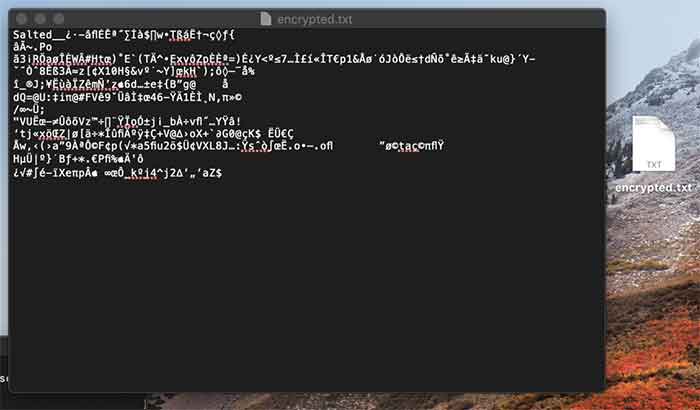
Here is my complete command after everything
openssl enc -aes-256-cbc -e -in /Users/macbook/Desktop/information.rtf -out /Users/macbook/Desktop/encrypted.txtDecrypt through Terminal
It’s effortless to decrypt the file and folder as long as you remember the password; otherwise, there is no way you can ever decrypt it. As mentioned above, the AES encryption cipher is the strongest cipher that is not vulnerable to brute-force attacks.
Breaking an AES encryption file is nearly impossible, so remember your password if you don’t want to lose your data forever. A supercomputer would take 1 billion years to decrypt the AES 128-bit file.
Along with your password, to decrypt your files on Mac, you will need to tweak the original code a bit, such as follow:
- Open> Terminal
- openssl enc -aes-256-cbc -d -in Just change -e to -d means “d=decrypt”
- Here is the complete command in my case
openssl enc -aes-256-cbc -d -in /Users/macbook/Desktop/encrypted.txt -out /Users/macbook/Desktop/decrypted.rtf - Enter your password and hit Enter
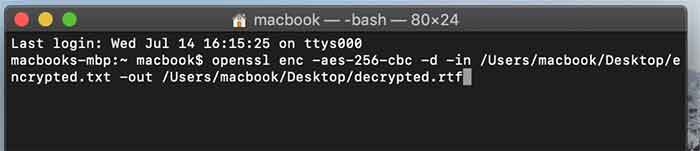

2. Encrypt File from Disk Utility
In the disk utility option, you may be unable to pick a particular file to encrypt. You need to make a folder, put everything in it, and then encrypt with AES 128-bit or AES 256-bit encryption ciphers. As mentioned above, both of these ciphers are impossible to decrypt. However, 128-bit is slightly faster to encrypt and decrypt.
- Open>Disk Utility
- >File>New Image>Image from Folder
- Select the folder, in my case, its “personal” folder on the Desktop, then Click on Choose
- Rename the document; I call it “encrypted,” then choose the encryption type you want to use from the bottom. I’m going with 256-bit AES encryption and hitting Save
- Next, you need to put your password to encrypt it
- It will take time to complete, depending on size of the file
- After compilation, your folder will look like this; it’s an image for your folder.
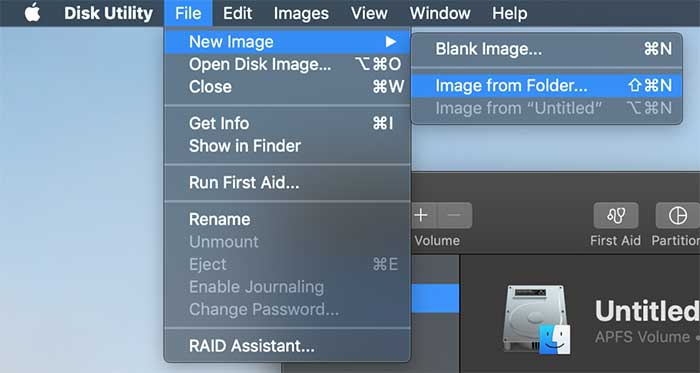

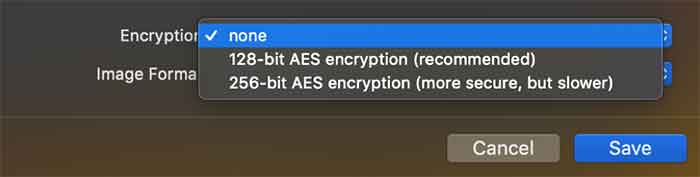


This is how you can Encrypt the whole folder In macOS using Disk Utility. Just put your password and decrypt the drive, the encrypted image will stay as it is, but it will create another folder on the same spot. You can download stuff from it and put it in others. But the encrypted image will contain the same thing you put in the first place.
Conclusion
Encrypting your files on Mac is a crucial step to attaining privacy and security. With hackers and data snoopers prowling to harm your data, it is best to maintain the utmost privacy and secrecy that you can achieve.
If you do everything correctly, your files and folders will be encrypted!
FAQs
The post 2 Best Ways To Encrypt Your Files And Folders In macOS appeared first on BeEncrypted.
]]>Deprecated: Using null as an array offset is deprecated, use an empty string instead in /var/www/staging.beencrypted.com/site/web/wp/wp-includes/class-wp-block-type-registry.php on line 168
Deprecated: Using null as an array offset is deprecated, use an empty string instead in /var/www/staging.beencrypted.com/site/web/wp/wp-includes/class-wp-block-type-registry.php on line 168
Deprecated: Using null as an array offset is deprecated, use an empty string instead in /var/www/staging.beencrypted.com/site/web/wp/wp-includes/class-wp-block-type-registry.php on line 168
Deprecated: Using null as an array offset is deprecated, use an empty string instead in /var/www/staging.beencrypted.com/site/web/wp/wp-includes/class-wp-block-type-registry.php on line 168
Deprecated: Using null as an array offset is deprecated, use an empty string instead in /var/www/staging.beencrypted.com/site/web/wp/wp-includes/class-wp-block-type-registry.php on line 168
Deprecated: Using null as an array offset is deprecated, use an empty string instead in /var/www/staging.beencrypted.com/site/web/wp/wp-includes/class-wp-block-type-registry.php on line 168
Deprecated: Using null as an array offset is deprecated, use an empty string instead in /var/www/staging.beencrypted.com/site/web/wp/wp-includes/class-wp-block-type-registry.php on line 168
Deprecated: Using null as an array offset is deprecated, use an empty string instead in /var/www/staging.beencrypted.com/site/web/wp/wp-includes/class-wp-block-type-registry.php on line 168
Deprecated: Using null as an array offset is deprecated, use an empty string instead in /var/www/staging.beencrypted.com/site/web/wp/wp-includes/class-wp-block-type-registry.php on line 168
Deprecated: Using null as an array offset is deprecated, use an empty string instead in /var/www/staging.beencrypted.com/site/web/wp/wp-includes/class-wp-block-type-registry.php on line 168
Deprecated: Using null as an array offset is deprecated, use an empty string instead in /var/www/staging.beencrypted.com/site/web/wp/wp-includes/class-wp-block-type-registry.php on line 168
Deprecated: Using null as an array offset is deprecated, use an empty string instead in /var/www/staging.beencrypted.com/site/web/wp/wp-includes/class-wp-block-type-registry.php on line 168
Deprecated: Using null as an array offset is deprecated, use an empty string instead in /var/www/staging.beencrypted.com/site/web/wp/wp-includes/class-wp-block-type-registry.php on line 168
Deprecated: Using null as an array offset is deprecated, use an empty string instead in /var/www/staging.beencrypted.com/site/web/wp/wp-includes/class-wp-block-type-registry.php on line 168
Deprecated: Using null as an array offset is deprecated, use an empty string instead in /var/www/staging.beencrypted.com/site/web/wp/wp-includes/class-wp-block-type-registry.php on line 168
Deprecated: Using null as an array offset is deprecated, use an empty string instead in /var/www/staging.beencrypted.com/site/web/wp/wp-includes/class-wp-block-type-registry.php on line 168
Deprecated: Using null as an array offset is deprecated, use an empty string instead in /var/www/staging.beencrypted.com/site/web/wp/wp-includes/class-wp-block-type-registry.php on line 168
Deprecated: Using null as an array offset is deprecated, use an empty string instead in /var/www/staging.beencrypted.com/site/web/wp/wp-includes/class-wp-block-type-registry.php on line 168
Deprecated: Using null as an array offset is deprecated, use an empty string instead in /var/www/staging.beencrypted.com/site/web/wp/wp-includes/class-wp-block-type-registry.php on line 168
Deprecated: Using null as an array offset is deprecated, use an empty string instead in /var/www/staging.beencrypted.com/site/web/wp/wp-includes/class-wp-block-type-registry.php on line 168
Deprecated: Using null as an array offset is deprecated, use an empty string instead in /var/www/staging.beencrypted.com/site/web/wp/wp-includes/class-wp-block-type-registry.php on line 168
Deprecated: Using null as an array offset is deprecated, use an empty string instead in /var/www/staging.beencrypted.com/site/web/wp/wp-includes/class-wp-block-type-registry.php on line 168
Deprecated: Using null as an array offset is deprecated, use an empty string instead in /var/www/staging.beencrypted.com/site/web/wp/wp-includes/class-wp-block-type-registry.php on line 168
Deprecated: Using null as an array offset is deprecated, use an empty string instead in /var/www/staging.beencrypted.com/site/web/wp/wp-includes/class-wp-block-type-registry.php on line 168
Deprecated: Using null as an array offset is deprecated, use an empty string instead in /var/www/staging.beencrypted.com/site/web/wp/wp-includes/class-wp-block-type-registry.php on line 168
Deprecated: Using null as an array offset is deprecated, use an empty string instead in /var/www/staging.beencrypted.com/site/web/wp/wp-includes/class-wp-block-type-registry.php on line 168
Deprecated: Using null as an array offset is deprecated, use an empty string instead in /var/www/staging.beencrypted.com/site/web/wp/wp-includes/class-wp-block-type-registry.php on line 168
Deprecated: Using null as an array offset is deprecated, use an empty string instead in /var/www/staging.beencrypted.com/site/web/wp/wp-includes/class-wp-block-type-registry.php on line 168
Deprecated: Using null as an array offset is deprecated, use an empty string instead in /var/www/staging.beencrypted.com/site/web/wp/wp-includes/class-wp-block-type-registry.php on line 168
Deprecated: Using null as an array offset is deprecated, use an empty string instead in /var/www/staging.beencrypted.com/site/web/wp/wp-includes/class-wp-block-type-registry.php on line 168
Deprecated: Using null as an array offset is deprecated, use an empty string instead in /var/www/staging.beencrypted.com/site/web/wp/wp-includes/class-wp-block-type-registry.php on line 168
Deprecated: Using null as an array offset is deprecated, use an empty string instead in /var/www/staging.beencrypted.com/site/web/wp/wp-includes/class-wp-block-type-registry.php on line 168
Deprecated: Using null as an array offset is deprecated, use an empty string instead in /var/www/staging.beencrypted.com/site/web/wp/wp-includes/class-wp-block-type-registry.php on line 168
Deprecated: Using null as an array offset is deprecated, use an empty string instead in /var/www/staging.beencrypted.com/site/web/wp/wp-includes/class-wp-block-type-registry.php on line 168
Deprecated: Using null as an array offset is deprecated, use an empty string instead in /var/www/staging.beencrypted.com/site/web/wp/wp-includes/class-wp-block-type-registry.php on line 168
Deprecated: Using null as an array offset is deprecated, use an empty string instead in /var/www/staging.beencrypted.com/site/web/wp/wp-includes/class-wp-block-type-registry.php on line 168
Deprecated: Using null as an array offset is deprecated, use an empty string instead in /var/www/staging.beencrypted.com/site/web/wp/wp-includes/class-wp-block-type-registry.php on line 168
Deprecated: Using null as an array offset is deprecated, use an empty string instead in /var/www/staging.beencrypted.com/site/web/wp/wp-includes/class-wp-block-type-registry.php on line 168
Deprecated: Using null as an array offset is deprecated, use an empty string instead in /var/www/staging.beencrypted.com/site/web/wp/wp-includes/class-wp-block-type-registry.php on line 168
Deprecated: Using null as an array offset is deprecated, use an empty string instead in /var/www/staging.beencrypted.com/site/web/wp/wp-includes/class-wp-block-type-registry.php on line 168
Deprecated: Using null as an array offset is deprecated, use an empty string instead in /var/www/staging.beencrypted.com/site/web/wp/wp-includes/class-wp-block-type-registry.php on line 168
Deprecated: Using null as an array offset is deprecated, use an empty string instead in /var/www/staging.beencrypted.com/site/web/wp/wp-includes/class-wp-block-type-registry.php on line 168
Deprecated: Using null as an array offset is deprecated, use an empty string instead in /var/www/staging.beencrypted.com/site/web/wp/wp-includes/class-wp-block-type-registry.php on line 168
Deprecated: Using null as an array offset is deprecated, use an empty string instead in /var/www/staging.beencrypted.com/site/web/wp/wp-includes/class-wp-block-type-registry.php on line 168
Deprecated: Using null as an array offset is deprecated, use an empty string instead in /var/www/staging.beencrypted.com/site/web/wp/wp-includes/class-wp-block-type-registry.php on line 168
Deprecated: Using null as an array offset is deprecated, use an empty string instead in /var/www/staging.beencrypted.com/site/web/wp/wp-includes/class-wp-block-type-registry.php on line 168
Deprecated: Using null as an array offset is deprecated, use an empty string instead in /var/www/staging.beencrypted.com/site/web/wp/wp-includes/class-wp-block-type-registry.php on line 168
Deprecated: Using null as an array offset is deprecated, use an empty string instead in /var/www/staging.beencrypted.com/site/web/wp/wp-includes/class-wp-block-type-registry.php on line 168
Deprecated: Using null as an array offset is deprecated, use an empty string instead in /var/www/staging.beencrypted.com/site/web/wp/wp-includes/class-wp-block-type-registry.php on line 168
Deprecated: Using null as an array offset is deprecated, use an empty string instead in /var/www/staging.beencrypted.com/site/web/wp/wp-includes/class-wp-block-type-registry.php on line 168
Deprecated: Using null as an array offset is deprecated, use an empty string instead in /var/www/staging.beencrypted.com/site/web/wp/wp-includes/class-wp-block-type-registry.php on line 168
Deprecated: Using null as an array offset is deprecated, use an empty string instead in /var/www/staging.beencrypted.com/site/web/wp/wp-includes/class-wp-block-type-registry.php on line 168
Deprecated: Using null as an array offset is deprecated, use an empty string instead in /var/www/staging.beencrypted.com/site/web/wp/wp-includes/class-wp-block-type-registry.php on line 168
Deprecated: Using null as an array offset is deprecated, use an empty string instead in /var/www/staging.beencrypted.com/site/web/wp/wp-includes/class-wp-block-type-registry.php on line 168
Deprecated: Using null as an array offset is deprecated, use an empty string instead in /var/www/staging.beencrypted.com/site/web/wp/wp-includes/class-wp-block-type-registry.php on line 168
Deprecated: Using null as an array offset is deprecated, use an empty string instead in /var/www/staging.beencrypted.com/site/web/wp/wp-includes/class-wp-block-type-registry.php on line 168
Deprecated: Using null as an array offset is deprecated, use an empty string instead in /var/www/staging.beencrypted.com/site/web/wp/wp-includes/class-wp-block-type-registry.php on line 168
Deprecated: Using null as an array offset is deprecated, use an empty string instead in /var/www/staging.beencrypted.com/site/web/wp/wp-includes/class-wp-block-type-registry.php on line 168
Deprecated: Using null as an array offset is deprecated, use an empty string instead in /var/www/staging.beencrypted.com/site/web/wp/wp-includes/class-wp-block-type-registry.php on line 168
Deprecated: Using null as an array offset is deprecated, use an empty string instead in /var/www/staging.beencrypted.com/site/web/wp/wp-includes/class-wp-block-type-registry.php on line 168
Deprecated: Using null as an array offset is deprecated, use an empty string instead in /var/www/staging.beencrypted.com/site/web/wp/wp-includes/class-wp-block-type-registry.php on line 168
Deprecated: Using null as an array offset is deprecated, use an empty string instead in /var/www/staging.beencrypted.com/site/web/wp/wp-includes/class-wp-block-type-registry.php on line 168
Deprecated: Using null as an array offset is deprecated, use an empty string instead in /var/www/staging.beencrypted.com/site/web/wp/wp-includes/class-wp-block-type-registry.php on line 168
Deprecated: Using null as an array offset is deprecated, use an empty string instead in /var/www/staging.beencrypted.com/site/web/wp/wp-includes/class-wp-block-type-registry.php on line 168
Deprecated: Using null as an array offset is deprecated, use an empty string instead in /var/www/staging.beencrypted.com/site/web/wp/wp-includes/class-wp-block-type-registry.php on line 168
Deprecated: Using null as an array offset is deprecated, use an empty string instead in /var/www/staging.beencrypted.com/site/web/wp/wp-includes/class-wp-block-type-registry.php on line 168
Deprecated: Using null as an array offset is deprecated, use an empty string instead in /var/www/staging.beencrypted.com/site/web/wp/wp-includes/class-wp-block-type-registry.php on line 168
Deprecated: Using null as an array offset is deprecated, use an empty string instead in /var/www/staging.beencrypted.com/site/web/wp/wp-includes/class-wp-block-type-registry.php on line 168
Deprecated: Using null as an array offset is deprecated, use an empty string instead in /var/www/staging.beencrypted.com/site/web/wp/wp-includes/class-wp-block-type-registry.php on line 168
Deprecated: Using null as an array offset is deprecated, use an empty string instead in /var/www/staging.beencrypted.com/site/web/wp/wp-includes/class-wp-block-type-registry.php on line 168
Deprecated: Using null as an array offset is deprecated, use an empty string instead in /var/www/staging.beencrypted.com/site/web/wp/wp-includes/class-wp-block-type-registry.php on line 168
Deprecated: Using null as an array offset is deprecated, use an empty string instead in /var/www/staging.beencrypted.com/site/web/wp/wp-includes/class-wp-block-type-registry.php on line 168
Deprecated: Using null as an array offset is deprecated, use an empty string instead in /var/www/staging.beencrypted.com/site/web/wp/wp-includes/class-wp-block-type-registry.php on line 168
Deprecated: Using null as an array offset is deprecated, use an empty string instead in /var/www/staging.beencrypted.com/site/web/wp/wp-includes/class-wp-block-type-registry.php on line 168
Deprecated: Using null as an array offset is deprecated, use an empty string instead in /var/www/staging.beencrypted.com/site/web/wp/wp-includes/class-wp-block-type-registry.php on line 168
Deprecated: Using null as an array offset is deprecated, use an empty string instead in /var/www/staging.beencrypted.com/site/web/wp/wp-includes/class-wp-block-type-registry.php on line 168
Deprecated: Using null as an array offset is deprecated, use an empty string instead in /var/www/staging.beencrypted.com/site/web/wp/wp-includes/class-wp-block-type-registry.php on line 168
Deprecated: Using null as an array offset is deprecated, use an empty string instead in /var/www/staging.beencrypted.com/site/web/wp/wp-includes/class-wp-block-type-registry.php on line 168
Deprecated: Using null as an array offset is deprecated, use an empty string instead in /var/www/staging.beencrypted.com/site/web/wp/wp-includes/class-wp-block-type-registry.php on line 168
Deprecated: Using null as an array offset is deprecated, use an empty string instead in /var/www/staging.beencrypted.com/site/web/wp/wp-includes/class-wp-block-type-registry.php on line 168
Deprecated: Using null as an array offset is deprecated, use an empty string instead in /var/www/staging.beencrypted.com/site/web/wp/wp-includes/class-wp-block-type-registry.php on line 168
Deprecated: Using null as an array offset is deprecated, use an empty string instead in /var/www/staging.beencrypted.com/site/web/wp/wp-includes/class-wp-block-type-registry.php on line 168
Deprecated: Using null as an array offset is deprecated, use an empty string instead in /var/www/staging.beencrypted.com/site/web/wp/wp-includes/class-wp-block-type-registry.php on line 168
Deprecated: Using null as an array offset is deprecated, use an empty string instead in /var/www/staging.beencrypted.com/site/web/wp/wp-includes/class-wp-block-type-registry.php on line 168
Deprecated: Using null as an array offset is deprecated, use an empty string instead in /var/www/staging.beencrypted.com/site/web/wp/wp-includes/class-wp-block-type-registry.php on line 168
Deprecated: Using null as an array offset is deprecated, use an empty string instead in /var/www/staging.beencrypted.com/site/web/wp/wp-includes/class-wp-block-type-registry.php on line 168
Deprecated: Using null as an array offset is deprecated, use an empty string instead in /var/www/staging.beencrypted.com/site/web/wp/wp-includes/class-wp-block-type-registry.php on line 168
Deprecated: Using null as an array offset is deprecated, use an empty string instead in /var/www/staging.beencrypted.com/site/web/wp/wp-includes/class-wp-block-type-registry.php on line 168
Deprecated: Using null as an array offset is deprecated, use an empty string instead in /var/www/staging.beencrypted.com/site/web/wp/wp-includes/class-wp-block-type-registry.php on line 168
Deprecated: Using null as an array offset is deprecated, use an empty string instead in /var/www/staging.beencrypted.com/site/web/wp/wp-includes/class-wp-block-type-registry.php on line 168
Deprecated: Using null as an array offset is deprecated, use an empty string instead in /var/www/staging.beencrypted.com/site/web/wp/wp-includes/class-wp-block-type-registry.php on line 168
Deprecated: Using null as an array offset is deprecated, use an empty string instead in /var/www/staging.beencrypted.com/site/web/wp/wp-includes/class-wp-block-type-registry.php on line 168
Deprecated: Using null as an array offset is deprecated, use an empty string instead in /var/www/staging.beencrypted.com/site/web/wp/wp-includes/class-wp-block-type-registry.php on line 168
Deprecated: Using null as an array offset is deprecated, use an empty string instead in /var/www/staging.beencrypted.com/site/web/wp/wp-includes/class-wp-block-type-registry.php on line 168
Deprecated: Using null as an array offset is deprecated, use an empty string instead in /var/www/staging.beencrypted.com/site/web/wp/wp-includes/class-wp-block-type-registry.php on line 168
Deprecated: Using null as an array offset is deprecated, use an empty string instead in /var/www/staging.beencrypted.com/site/web/wp/wp-includes/class-wp-block-type-registry.php on line 168
Deprecated: Using null as an array offset is deprecated, use an empty string instead in /var/www/staging.beencrypted.com/site/web/wp/wp-includes/class-wp-block-type-registry.php on line 168
Deprecated: Using null as an array offset is deprecated, use an empty string instead in /var/www/staging.beencrypted.com/site/web/wp/wp-includes/class-wp-block-type-registry.php on line 168
Deprecated: Using null as an array offset is deprecated, use an empty string instead in /var/www/staging.beencrypted.com/site/web/wp/wp-includes/class-wp-block-type-registry.php on line 168
Deprecated: Using null as an array offset is deprecated, use an empty string instead in /var/www/staging.beencrypted.com/site/web/wp/wp-includes/class-wp-block-type-registry.php on line 168
Deprecated: Using null as an array offset is deprecated, use an empty string instead in /var/www/staging.beencrypted.com/site/web/wp/wp-includes/class-wp-block-type-registry.php on line 168
Deprecated: Using null as an array offset is deprecated, use an empty string instead in /var/www/staging.beencrypted.com/site/web/wp/wp-includes/class-wp-block-type-registry.php on line 168
Deprecated: Using null as an array offset is deprecated, use an empty string instead in /var/www/staging.beencrypted.com/site/web/wp/wp-includes/class-wp-block-type-registry.php on line 168
Deprecated: Using null as an array offset is deprecated, use an empty string instead in /var/www/staging.beencrypted.com/site/web/wp/wp-includes/class-wp-block-type-registry.php on line 168
Deprecated: Using null as an array offset is deprecated, use an empty string instead in /var/www/staging.beencrypted.com/site/web/wp/wp-includes/class-wp-block-type-registry.php on line 168
Deprecated: Using null as an array offset is deprecated, use an empty string instead in /var/www/staging.beencrypted.com/site/web/wp/wp-includes/class-wp-block-type-registry.php on line 168
Deprecated: Using null as an array offset is deprecated, use an empty string instead in /var/www/staging.beencrypted.com/site/web/wp/wp-includes/class-wp-block-type-registry.php on line 168
Deprecated: Using null as an array offset is deprecated, use an empty string instead in /var/www/staging.beencrypted.com/site/web/wp/wp-includes/class-wp-block-type-registry.php on line 168
Deprecated: Using null as an array offset is deprecated, use an empty string instead in /var/www/staging.beencrypted.com/site/web/wp/wp-includes/class-wp-block-type-registry.php on line 168
Deprecated: Using null as an array offset is deprecated, use an empty string instead in /var/www/staging.beencrypted.com/site/web/wp/wp-includes/class-wp-block-type-registry.php on line 168
Deprecated: Using null as an array offset is deprecated, use an empty string instead in /var/www/staging.beencrypted.com/site/web/wp/wp-includes/class-wp-block-type-registry.php on line 168
Deprecated: Using null as an array offset is deprecated, use an empty string instead in /var/www/staging.beencrypted.com/site/web/wp/wp-includes/class-wp-block-type-registry.php on line 168
Deprecated: Using null as an array offset is deprecated, use an empty string instead in /var/www/staging.beencrypted.com/site/web/wp/wp-includes/class-wp-block-type-registry.php on line 168
Deprecated: Using null as an array offset is deprecated, use an empty string instead in /var/www/staging.beencrypted.com/site/web/wp/wp-includes/class-wp-block-type-registry.php on line 168
Deprecated: Using null as an array offset is deprecated, use an empty string instead in /var/www/staging.beencrypted.com/site/web/wp/wp-includes/class-wp-block-type-registry.php on line 168
Deprecated: Using null as an array offset is deprecated, use an empty string instead in /var/www/staging.beencrypted.com/site/web/wp/wp-includes/class-wp-block-type-registry.php on line 168
Deprecated: Using null as an array offset is deprecated, use an empty string instead in /var/www/staging.beencrypted.com/site/web/wp/wp-includes/class-wp-block-type-registry.php on line 168
Deprecated: Using null as an array offset is deprecated, use an empty string instead in /var/www/staging.beencrypted.com/site/web/wp/wp-includes/class-wp-block-type-registry.php on line 168
Deprecated: Using null as an array offset is deprecated, use an empty string instead in /var/www/staging.beencrypted.com/site/web/wp/wp-includes/class-wp-block-type-registry.php on line 168
Deprecated: Using null as an array offset is deprecated, use an empty string instead in /var/www/staging.beencrypted.com/site/web/wp/wp-includes/class-wp-block-type-registry.php on line 168
Deprecated: Using null as an array offset is deprecated, use an empty string instead in /var/www/staging.beencrypted.com/site/web/wp/wp-includes/class-wp-block-type-registry.php on line 168
Deprecated: Using null as an array offset is deprecated, use an empty string instead in /var/www/staging.beencrypted.com/site/web/wp/wp-includes/class-wp-block-type-registry.php on line 168
Deprecated: Using null as an array offset is deprecated, use an empty string instead in /var/www/staging.beencrypted.com/site/web/wp/wp-includes/class-wp-block-type-registry.php on line 168
Deprecated: Using null as an array offset is deprecated, use an empty string instead in /var/www/staging.beencrypted.com/site/web/wp/wp-includes/class-wp-block-type-registry.php on line 168
Deprecated: Using null as an array offset is deprecated, use an empty string instead in /var/www/staging.beencrypted.com/site/web/wp/wp-includes/class-wp-block-type-registry.php on line 168
Deprecated: Using null as an array offset is deprecated, use an empty string instead in /var/www/staging.beencrypted.com/site/web/wp/wp-includes/class-wp-block-type-registry.php on line 168
Deprecated: Using null as an array offset is deprecated, use an empty string instead in /var/www/staging.beencrypted.com/site/web/wp/wp-includes/class-wp-block-type-registry.php on line 168
Deprecated: Using null as an array offset is deprecated, use an empty string instead in /var/www/staging.beencrypted.com/site/web/wp/wp-includes/class-wp-block-type-registry.php on line 168
Deprecated: Using null as an array offset is deprecated, use an empty string instead in /var/www/staging.beencrypted.com/site/web/wp/wp-includes/class-wp-block-type-registry.php on line 168
Deprecated: Using null as an array offset is deprecated, use an empty string instead in /var/www/staging.beencrypted.com/site/web/wp/wp-includes/class-wp-block-type-registry.php on line 168
Deprecated: Using null as an array offset is deprecated, use an empty string instead in /var/www/staging.beencrypted.com/site/web/wp/wp-includes/class-wp-block-type-registry.php on line 168
Deprecated: Using null as an array offset is deprecated, use an empty string instead in /var/www/staging.beencrypted.com/site/web/wp/wp-includes/class-wp-block-type-registry.php on line 168
Deprecated: Using null as an array offset is deprecated, use an empty string instead in /var/www/staging.beencrypted.com/site/web/wp/wp-includes/class-wp-block-type-registry.php on line 168
Deprecated: Using null as an array offset is deprecated, use an empty string instead in /var/www/staging.beencrypted.com/site/web/wp/wp-includes/class-wp-block-type-registry.php on line 168
Deprecated: Using null as an array offset is deprecated, use an empty string instead in /var/www/staging.beencrypted.com/site/web/wp/wp-includes/class-wp-block-type-registry.php on line 168
Deprecated: Using null as an array offset is deprecated, use an empty string instead in /var/www/staging.beencrypted.com/site/web/wp/wp-includes/class-wp-block-type-registry.php on line 168
Deprecated: Using null as an array offset is deprecated, use an empty string instead in /var/www/staging.beencrypted.com/site/web/wp/wp-includes/class-wp-block-type-registry.php on line 168
Deprecated: Using null as an array offset is deprecated, use an empty string instead in /var/www/staging.beencrypted.com/site/web/wp/wp-includes/class-wp-block-type-registry.php on line 168
Deprecated: Using null as an array offset is deprecated, use an empty string instead in /var/www/staging.beencrypted.com/site/web/wp/wp-includes/class-wp-block-type-registry.php on line 168
Deprecated: Using null as an array offset is deprecated, use an empty string instead in /var/www/staging.beencrypted.com/site/web/wp/wp-includes/class-wp-block-type-registry.php on line 168
Deprecated: Using null as an array offset is deprecated, use an empty string instead in /var/www/staging.beencrypted.com/site/web/wp/wp-includes/class-wp-block-type-registry.php on line 168
Deprecated: Using null as an array offset is deprecated, use an empty string instead in /var/www/staging.beencrypted.com/site/web/wp/wp-includes/class-wp-block-type-registry.php on line 168
Deprecated: Using null as an array offset is deprecated, use an empty string instead in /var/www/staging.beencrypted.com/site/web/wp/wp-includes/class-wp-block-type-registry.php on line 168
Deprecated: Using null as an array offset is deprecated, use an empty string instead in /var/www/staging.beencrypted.com/site/web/wp/wp-includes/class-wp-block-type-registry.php on line 168
Deprecated: Using null as an array offset is deprecated, use an empty string instead in /var/www/staging.beencrypted.com/site/web/wp/wp-includes/class-wp-block-type-registry.php on line 168
Deprecated: Using null as an array offset is deprecated, use an empty string instead in /var/www/staging.beencrypted.com/site/web/wp/wp-includes/class-wp-block-type-registry.php on line 168
Deprecated: Using null as an array offset is deprecated, use an empty string instead in /var/www/staging.beencrypted.com/site/web/wp/wp-includes/class-wp-block-type-registry.php on line 168
Deprecated: Using null as an array offset is deprecated, use an empty string instead in /var/www/staging.beencrypted.com/site/web/wp/wp-includes/class-wp-block-type-registry.php on line 168
Deprecated: Using null as an array offset is deprecated, use an empty string instead in /var/www/staging.beencrypted.com/site/web/wp/wp-includes/class-wp-block-type-registry.php on line 168
Deprecated: Using null as an array offset is deprecated, use an empty string instead in /var/www/staging.beencrypted.com/site/web/wp/wp-includes/class-wp-block-type-registry.php on line 168
Deprecated: Using null as an array offset is deprecated, use an empty string instead in /var/www/staging.beencrypted.com/site/web/wp/wp-includes/class-wp-block-type-registry.php on line 168
Deprecated: Using null as an array offset is deprecated, use an empty string instead in /var/www/staging.beencrypted.com/site/web/wp/wp-includes/class-wp-block-type-registry.php on line 168
Deprecated: Using null as an array offset is deprecated, use an empty string instead in /var/www/staging.beencrypted.com/site/web/wp/wp-includes/class-wp-block-type-registry.php on line 168
Deprecated: Using null as an array offset is deprecated, use an empty string instead in /var/www/staging.beencrypted.com/site/web/wp/wp-includes/class-wp-block-type-registry.php on line 168
Deprecated: Using null as an array offset is deprecated, use an empty string instead in /var/www/staging.beencrypted.com/site/web/wp/wp-includes/class-wp-block-type-registry.php on line 168
Deprecated: Using null as an array offset is deprecated, use an empty string instead in /var/www/staging.beencrypted.com/site/web/wp/wp-includes/class-wp-block-type-registry.php on line 168
Deprecated: Using null as an array offset is deprecated, use an empty string instead in /var/www/staging.beencrypted.com/site/web/wp/wp-includes/class-wp-block-type-registry.php on line 168
Deprecated: Using null as an array offset is deprecated, use an empty string instead in /var/www/staging.beencrypted.com/site/web/wp/wp-includes/class-wp-block-type-registry.php on line 168
Deprecated: Using null as an array offset is deprecated, use an empty string instead in /var/www/staging.beencrypted.com/site/web/wp/wp-includes/class-wp-block-type-registry.php on line 168
Deprecated: Using null as an array offset is deprecated, use an empty string instead in /var/www/staging.beencrypted.com/site/web/wp/wp-includes/class-wp-block-type-registry.php on line 168
PDFs are the most common attachments in the email after docs. These lightweight, presentable documents are excellent for communication, research, information, statistics, or literary work. However, despite the easy flow of information they allow, PDFs can often be responsible for data leaks. Amidst this, since encryption is the best method of maintaining privacy and security, […]
The post How to encrypt PDF files on macOS and Windows – Complete Guide appeared first on BeEncrypted.
]]>Deprecated: Using null as an array offset is deprecated, use an empty string instead in /var/www/staging.beencrypted.com/site/web/wp/wp-includes/class-wp-block-type-registry.php on line 168
Deprecated: Using null as an array offset is deprecated, use an empty string instead in /var/www/staging.beencrypted.com/site/web/wp/wp-includes/class-wp-block-type-registry.php on line 168
Deprecated: Using null as an array offset is deprecated, use an empty string instead in /var/www/staging.beencrypted.com/site/web/wp/wp-includes/class-wp-block-type-registry.php on line 168
Deprecated: Using null as an array offset is deprecated, use an empty string instead in /var/www/staging.beencrypted.com/site/web/wp/wp-includes/class-wp-block-type-registry.php on line 168
Deprecated: Using null as an array offset is deprecated, use an empty string instead in /var/www/staging.beencrypted.com/site/web/wp/wp-includes/class-wp-block-type-registry.php on line 168
Deprecated: Using null as an array offset is deprecated, use an empty string instead in /var/www/staging.beencrypted.com/site/web/wp/wp-includes/class-wp-block-type-registry.php on line 168
Deprecated: Using null as an array offset is deprecated, use an empty string instead in /var/www/staging.beencrypted.com/site/web/wp/wp-includes/class-wp-block-type-registry.php on line 168
Deprecated: Using null as an array offset is deprecated, use an empty string instead in /var/www/staging.beencrypted.com/site/web/wp/wp-includes/class-wp-block-type-registry.php on line 168
Deprecated: Using null as an array offset is deprecated, use an empty string instead in /var/www/staging.beencrypted.com/site/web/wp/wp-includes/class-wp-block-type-registry.php on line 168
Deprecated: Using null as an array offset is deprecated, use an empty string instead in /var/www/staging.beencrypted.com/site/web/wp/wp-includes/class-wp-block-type-registry.php on line 168
Deprecated: Using null as an array offset is deprecated, use an empty string instead in /var/www/staging.beencrypted.com/site/web/wp/wp-includes/class-wp-block-type-registry.php on line 168
Deprecated: Using null as an array offset is deprecated, use an empty string instead in /var/www/staging.beencrypted.com/site/web/wp/wp-includes/class-wp-block-type-registry.php on line 168
Deprecated: Using null as an array offset is deprecated, use an empty string instead in /var/www/staging.beencrypted.com/site/web/wp/wp-includes/class-wp-block-type-registry.php on line 168
Deprecated: Using null as an array offset is deprecated, use an empty string instead in /var/www/staging.beencrypted.com/site/web/wp/wp-includes/class-wp-block-type-registry.php on line 168
Deprecated: Using null as an array offset is deprecated, use an empty string instead in /var/www/staging.beencrypted.com/site/web/wp/wp-includes/class-wp-block-type-registry.php on line 168
Deprecated: Using null as an array offset is deprecated, use an empty string instead in /var/www/staging.beencrypted.com/site/web/wp/wp-includes/class-wp-block-type-registry.php on line 168
Deprecated: Using null as an array offset is deprecated, use an empty string instead in /var/www/staging.beencrypted.com/site/web/wp/wp-includes/class-wp-block-type-registry.php on line 168
Deprecated: Using null as an array offset is deprecated, use an empty string instead in /var/www/staging.beencrypted.com/site/web/wp/wp-includes/class-wp-block-type-registry.php on line 168
Deprecated: Using null as an array offset is deprecated, use an empty string instead in /var/www/staging.beencrypted.com/site/web/wp/wp-includes/class-wp-block-type-registry.php on line 168
Deprecated: Using null as an array offset is deprecated, use an empty string instead in /var/www/staging.beencrypted.com/site/web/wp/wp-includes/class-wp-block-type-registry.php on line 168
Deprecated: Using null as an array offset is deprecated, use an empty string instead in /var/www/staging.beencrypted.com/site/web/wp/wp-includes/class-wp-block-type-registry.php on line 168
Deprecated: Using null as an array offset is deprecated, use an empty string instead in /var/www/staging.beencrypted.com/site/web/wp/wp-includes/class-wp-block-type-registry.php on line 168
Deprecated: Using null as an array offset is deprecated, use an empty string instead in /var/www/staging.beencrypted.com/site/web/wp/wp-includes/class-wp-block-type-registry.php on line 168
Deprecated: Using null as an array offset is deprecated, use an empty string instead in /var/www/staging.beencrypted.com/site/web/wp/wp-includes/class-wp-block-type-registry.php on line 168
Deprecated: Using null as an array offset is deprecated, use an empty string instead in /var/www/staging.beencrypted.com/site/web/wp/wp-includes/class-wp-block-type-registry.php on line 168
Deprecated: Using null as an array offset is deprecated, use an empty string instead in /var/www/staging.beencrypted.com/site/web/wp/wp-includes/class-wp-block-type-registry.php on line 168
Deprecated: Using null as an array offset is deprecated, use an empty string instead in /var/www/staging.beencrypted.com/site/web/wp/wp-includes/class-wp-block-type-registry.php on line 168
Deprecated: Using null as an array offset is deprecated, use an empty string instead in /var/www/staging.beencrypted.com/site/web/wp/wp-includes/class-wp-block-type-registry.php on line 168
Deprecated: Using null as an array offset is deprecated, use an empty string instead in /var/www/staging.beencrypted.com/site/web/wp/wp-includes/class-wp-block-type-registry.php on line 168
Deprecated: Using null as an array offset is deprecated, use an empty string instead in /var/www/staging.beencrypted.com/site/web/wp/wp-includes/class-wp-block-type-registry.php on line 168
Deprecated: Using null as an array offset is deprecated, use an empty string instead in /var/www/staging.beencrypted.com/site/web/wp/wp-includes/class-wp-block-type-registry.php on line 168
Deprecated: Using null as an array offset is deprecated, use an empty string instead in /var/www/staging.beencrypted.com/site/web/wp/wp-includes/class-wp-block-type-registry.php on line 168
Deprecated: Using null as an array offset is deprecated, use an empty string instead in /var/www/staging.beencrypted.com/site/web/wp/wp-includes/class-wp-block-type-registry.php on line 168
Deprecated: Using null as an array offset is deprecated, use an empty string instead in /var/www/staging.beencrypted.com/site/web/wp/wp-includes/class-wp-block-type-registry.php on line 168
Deprecated: Using null as an array offset is deprecated, use an empty string instead in /var/www/staging.beencrypted.com/site/web/wp/wp-includes/class-wp-block-type-registry.php on line 168
Deprecated: Using null as an array offset is deprecated, use an empty string instead in /var/www/staging.beencrypted.com/site/web/wp/wp-includes/class-wp-block-type-registry.php on line 168
Deprecated: Using null as an array offset is deprecated, use an empty string instead in /var/www/staging.beencrypted.com/site/web/wp/wp-includes/class-wp-block-type-registry.php on line 168
Deprecated: Using null as an array offset is deprecated, use an empty string instead in /var/www/staging.beencrypted.com/site/web/wp/wp-includes/class-wp-block-type-registry.php on line 168
Deprecated: Using null as an array offset is deprecated, use an empty string instead in /var/www/staging.beencrypted.com/site/web/wp/wp-includes/class-wp-block-type-registry.php on line 168
Deprecated: Using null as an array offset is deprecated, use an empty string instead in /var/www/staging.beencrypted.com/site/web/wp/wp-includes/class-wp-block-type-registry.php on line 168
Deprecated: Using null as an array offset is deprecated, use an empty string instead in /var/www/staging.beencrypted.com/site/web/wp/wp-includes/class-wp-block-type-registry.php on line 168
Deprecated: Using null as an array offset is deprecated, use an empty string instead in /var/www/staging.beencrypted.com/site/web/wp/wp-includes/class-wp-block-type-registry.php on line 168
Deprecated: Using null as an array offset is deprecated, use an empty string instead in /var/www/staging.beencrypted.com/site/web/wp/wp-includes/class-wp-block-type-registry.php on line 168
Deprecated: Using null as an array offset is deprecated, use an empty string instead in /var/www/staging.beencrypted.com/site/web/wp/wp-includes/class-wp-block-type-registry.php on line 168
Deprecated: Using null as an array offset is deprecated, use an empty string instead in /var/www/staging.beencrypted.com/site/web/wp/wp-includes/class-wp-block-type-registry.php on line 168
Deprecated: Using null as an array offset is deprecated, use an empty string instead in /var/www/staging.beencrypted.com/site/web/wp/wp-includes/class-wp-block-type-registry.php on line 168
Deprecated: Using null as an array offset is deprecated, use an empty string instead in /var/www/staging.beencrypted.com/site/web/wp/wp-includes/class-wp-block-type-registry.php on line 168
Deprecated: Using null as an array offset is deprecated, use an empty string instead in /var/www/staging.beencrypted.com/site/web/wp/wp-includes/class-wp-block-type-registry.php on line 168
Deprecated: Using null as an array offset is deprecated, use an empty string instead in /var/www/staging.beencrypted.com/site/web/wp/wp-includes/class-wp-block-type-registry.php on line 168
Deprecated: Using null as an array offset is deprecated, use an empty string instead in /var/www/staging.beencrypted.com/site/web/wp/wp-includes/class-wp-block-type-registry.php on line 168
Deprecated: Using null as an array offset is deprecated, use an empty string instead in /var/www/staging.beencrypted.com/site/web/wp/wp-includes/class-wp-block-type-registry.php on line 168
Deprecated: Using null as an array offset is deprecated, use an empty string instead in /var/www/staging.beencrypted.com/site/web/wp/wp-includes/class-wp-block-type-registry.php on line 168
Deprecated: Using null as an array offset is deprecated, use an empty string instead in /var/www/staging.beencrypted.com/site/web/wp/wp-includes/class-wp-block-type-registry.php on line 168
Deprecated: Using null as an array offset is deprecated, use an empty string instead in /var/www/staging.beencrypted.com/site/web/wp/wp-includes/class-wp-block-type-registry.php on line 168
Deprecated: Using null as an array offset is deprecated, use an empty string instead in /var/www/staging.beencrypted.com/site/web/wp/wp-includes/class-wp-block-type-registry.php on line 168
Deprecated: Using null as an array offset is deprecated, use an empty string instead in /var/www/staging.beencrypted.com/site/web/wp/wp-includes/class-wp-block-type-registry.php on line 168
Deprecated: Using null as an array offset is deprecated, use an empty string instead in /var/www/staging.beencrypted.com/site/web/wp/wp-includes/class-wp-block-type-registry.php on line 168
Deprecated: Using null as an array offset is deprecated, use an empty string instead in /var/www/staging.beencrypted.com/site/web/wp/wp-includes/class-wp-block-type-registry.php on line 168
Deprecated: Using null as an array offset is deprecated, use an empty string instead in /var/www/staging.beencrypted.com/site/web/wp/wp-includes/class-wp-block-type-registry.php on line 168
Deprecated: Using null as an array offset is deprecated, use an empty string instead in /var/www/staging.beencrypted.com/site/web/wp/wp-includes/class-wp-block-type-registry.php on line 168
Deprecated: Using null as an array offset is deprecated, use an empty string instead in /var/www/staging.beencrypted.com/site/web/wp/wp-includes/class-wp-block-type-registry.php on line 168
Deprecated: Using null as an array offset is deprecated, use an empty string instead in /var/www/staging.beencrypted.com/site/web/wp/wp-includes/class-wp-block-type-registry.php on line 168
Deprecated: Using null as an array offset is deprecated, use an empty string instead in /var/www/staging.beencrypted.com/site/web/wp/wp-includes/class-wp-block-type-registry.php on line 168
Deprecated: Using null as an array offset is deprecated, use an empty string instead in /var/www/staging.beencrypted.com/site/web/wp/wp-includes/class-wp-block-type-registry.php on line 168
Deprecated: Using null as an array offset is deprecated, use an empty string instead in /var/www/staging.beencrypted.com/site/web/wp/wp-includes/class-wp-block-type-registry.php on line 168
Deprecated: Using null as an array offset is deprecated, use an empty string instead in /var/www/staging.beencrypted.com/site/web/wp/wp-includes/class-wp-block-type-registry.php on line 168
Deprecated: Using null as an array offset is deprecated, use an empty string instead in /var/www/staging.beencrypted.com/site/web/wp/wp-includes/class-wp-block-type-registry.php on line 168
Deprecated: Using null as an array offset is deprecated, use an empty string instead in /var/www/staging.beencrypted.com/site/web/wp/wp-includes/class-wp-block-type-registry.php on line 168
Deprecated: Using null as an array offset is deprecated, use an empty string instead in /var/www/staging.beencrypted.com/site/web/wp/wp-includes/class-wp-block-type-registry.php on line 168
Deprecated: Using null as an array offset is deprecated, use an empty string instead in /var/www/staging.beencrypted.com/site/web/wp/wp-includes/class-wp-block-type-registry.php on line 168
Deprecated: Using null as an array offset is deprecated, use an empty string instead in /var/www/staging.beencrypted.com/site/web/wp/wp-includes/class-wp-block-type-registry.php on line 168
Deprecated: Using null as an array offset is deprecated, use an empty string instead in /var/www/staging.beencrypted.com/site/web/wp/wp-includes/class-wp-block-type-registry.php on line 168
Deprecated: Using null as an array offset is deprecated, use an empty string instead in /var/www/staging.beencrypted.com/site/web/wp/wp-includes/class-wp-block-type-registry.php on line 168
Deprecated: Using null as an array offset is deprecated, use an empty string instead in /var/www/staging.beencrypted.com/site/web/wp/wp-includes/class-wp-block-type-registry.php on line 168
Deprecated: Using null as an array offset is deprecated, use an empty string instead in /var/www/staging.beencrypted.com/site/web/wp/wp-includes/class-wp-block-type-registry.php on line 168
Deprecated: Using null as an array offset is deprecated, use an empty string instead in /var/www/staging.beencrypted.com/site/web/wp/wp-includes/class-wp-block-type-registry.php on line 168
Deprecated: Using null as an array offset is deprecated, use an empty string instead in /var/www/staging.beencrypted.com/site/web/wp/wp-includes/class-wp-block-type-registry.php on line 168
Deprecated: Using null as an array offset is deprecated, use an empty string instead in /var/www/staging.beencrypted.com/site/web/wp/wp-includes/class-wp-block-type-registry.php on line 168
Deprecated: Using null as an array offset is deprecated, use an empty string instead in /var/www/staging.beencrypted.com/site/web/wp/wp-includes/class-wp-block-type-registry.php on line 168
Deprecated: Using null as an array offset is deprecated, use an empty string instead in /var/www/staging.beencrypted.com/site/web/wp/wp-includes/class-wp-block-type-registry.php on line 168
Deprecated: Using null as an array offset is deprecated, use an empty string instead in /var/www/staging.beencrypted.com/site/web/wp/wp-includes/class-wp-block-type-registry.php on line 168
Deprecated: Using null as an array offset is deprecated, use an empty string instead in /var/www/staging.beencrypted.com/site/web/wp/wp-includes/class-wp-block-type-registry.php on line 168
Deprecated: Using null as an array offset is deprecated, use an empty string instead in /var/www/staging.beencrypted.com/site/web/wp/wp-includes/class-wp-block-type-registry.php on line 168
Deprecated: Using null as an array offset is deprecated, use an empty string instead in /var/www/staging.beencrypted.com/site/web/wp/wp-includes/class-wp-block-type-registry.php on line 168
Deprecated: Using null as an array offset is deprecated, use an empty string instead in /var/www/staging.beencrypted.com/site/web/wp/wp-includes/class-wp-block-type-registry.php on line 168
Deprecated: Using null as an array offset is deprecated, use an empty string instead in /var/www/staging.beencrypted.com/site/web/wp/wp-includes/class-wp-block-type-registry.php on line 168
Deprecated: Using null as an array offset is deprecated, use an empty string instead in /var/www/staging.beencrypted.com/site/web/wp/wp-includes/class-wp-block-type-registry.php on line 168
Deprecated: Using null as an array offset is deprecated, use an empty string instead in /var/www/staging.beencrypted.com/site/web/wp/wp-includes/class-wp-block-type-registry.php on line 168
Deprecated: Using null as an array offset is deprecated, use an empty string instead in /var/www/staging.beencrypted.com/site/web/wp/wp-includes/class-wp-block-type-registry.php on line 168
Deprecated: Using null as an array offset is deprecated, use an empty string instead in /var/www/staging.beencrypted.com/site/web/wp/wp-includes/class-wp-block-type-registry.php on line 168
Deprecated: Using null as an array offset is deprecated, use an empty string instead in /var/www/staging.beencrypted.com/site/web/wp/wp-includes/class-wp-block-type-registry.php on line 168
Deprecated: Using null as an array offset is deprecated, use an empty string instead in /var/www/staging.beencrypted.com/site/web/wp/wp-includes/class-wp-block-type-registry.php on line 168
Deprecated: Using null as an array offset is deprecated, use an empty string instead in /var/www/staging.beencrypted.com/site/web/wp/wp-includes/class-wp-block-type-registry.php on line 168
Deprecated: Using null as an array offset is deprecated, use an empty string instead in /var/www/staging.beencrypted.com/site/web/wp/wp-includes/class-wp-block-type-registry.php on line 168
Deprecated: Using null as an array offset is deprecated, use an empty string instead in /var/www/staging.beencrypted.com/site/web/wp/wp-includes/class-wp-block-type-registry.php on line 168
Deprecated: Using null as an array offset is deprecated, use an empty string instead in /var/www/staging.beencrypted.com/site/web/wp/wp-includes/class-wp-block-type-registry.php on line 168
Deprecated: Using null as an array offset is deprecated, use an empty string instead in /var/www/staging.beencrypted.com/site/web/wp/wp-includes/class-wp-block-type-registry.php on line 168
Deprecated: Using null as an array offset is deprecated, use an empty string instead in /var/www/staging.beencrypted.com/site/web/wp/wp-includes/class-wp-block-type-registry.php on line 168
Deprecated: Using null as an array offset is deprecated, use an empty string instead in /var/www/staging.beencrypted.com/site/web/wp/wp-includes/class-wp-block-type-registry.php on line 168
Deprecated: Using null as an array offset is deprecated, use an empty string instead in /var/www/staging.beencrypted.com/site/web/wp/wp-includes/class-wp-block-type-registry.php on line 168
Deprecated: Using null as an array offset is deprecated, use an empty string instead in /var/www/staging.beencrypted.com/site/web/wp/wp-includes/class-wp-block-type-registry.php on line 168
Deprecated: Using null as an array offset is deprecated, use an empty string instead in /var/www/staging.beencrypted.com/site/web/wp/wp-includes/class-wp-block-type-registry.php on line 168
Deprecated: Using null as an array offset is deprecated, use an empty string instead in /var/www/staging.beencrypted.com/site/web/wp/wp-includes/class-wp-block-type-registry.php on line 168
Deprecated: Using null as an array offset is deprecated, use an empty string instead in /var/www/staging.beencrypted.com/site/web/wp/wp-includes/class-wp-block-type-registry.php on line 168
Deprecated: Using null as an array offset is deprecated, use an empty string instead in /var/www/staging.beencrypted.com/site/web/wp/wp-includes/class-wp-block-type-registry.php on line 168
Deprecated: Using null as an array offset is deprecated, use an empty string instead in /var/www/staging.beencrypted.com/site/web/wp/wp-includes/class-wp-block-type-registry.php on line 168
Deprecated: Using null as an array offset is deprecated, use an empty string instead in /var/www/staging.beencrypted.com/site/web/wp/wp-includes/class-wp-block-type-registry.php on line 168
Deprecated: Using null as an array offset is deprecated, use an empty string instead in /var/www/staging.beencrypted.com/site/web/wp/wp-includes/class-wp-block-type-registry.php on line 168
Deprecated: Using null as an array offset is deprecated, use an empty string instead in /var/www/staging.beencrypted.com/site/web/wp/wp-includes/class-wp-block-type-registry.php on line 168
Deprecated: Using null as an array offset is deprecated, use an empty string instead in /var/www/staging.beencrypted.com/site/web/wp/wp-includes/class-wp-block-type-registry.php on line 168
Deprecated: Using null as an array offset is deprecated, use an empty string instead in /var/www/staging.beencrypted.com/site/web/wp/wp-includes/class-wp-block-type-registry.php on line 168
Deprecated: Using null as an array offset is deprecated, use an empty string instead in /var/www/staging.beencrypted.com/site/web/wp/wp-includes/class-wp-block-type-registry.php on line 168
Deprecated: Using null as an array offset is deprecated, use an empty string instead in /var/www/staging.beencrypted.com/site/web/wp/wp-includes/class-wp-block-type-registry.php on line 168
Deprecated: Using null as an array offset is deprecated, use an empty string instead in /var/www/staging.beencrypted.com/site/web/wp/wp-includes/class-wp-block-type-registry.php on line 168
Deprecated: Using null as an array offset is deprecated, use an empty string instead in /var/www/staging.beencrypted.com/site/web/wp/wp-includes/class-wp-block-type-registry.php on line 168
Deprecated: Using null as an array offset is deprecated, use an empty string instead in /var/www/staging.beencrypted.com/site/web/wp/wp-includes/class-wp-block-type-registry.php on line 168
Deprecated: Using null as an array offset is deprecated, use an empty string instead in /var/www/staging.beencrypted.com/site/web/wp/wp-includes/class-wp-block-type-registry.php on line 168
Deprecated: Using null as an array offset is deprecated, use an empty string instead in /var/www/staging.beencrypted.com/site/web/wp/wp-includes/class-wp-block-type-registry.php on line 168
Deprecated: Using null as an array offset is deprecated, use an empty string instead in /var/www/staging.beencrypted.com/site/web/wp/wp-includes/class-wp-block-type-registry.php on line 168
Deprecated: Using null as an array offset is deprecated, use an empty string instead in /var/www/staging.beencrypted.com/site/web/wp/wp-includes/class-wp-block-type-registry.php on line 168
Deprecated: Using null as an array offset is deprecated, use an empty string instead in /var/www/staging.beencrypted.com/site/web/wp/wp-includes/class-wp-block-type-registry.php on line 168
Deprecated: Using null as an array offset is deprecated, use an empty string instead in /var/www/staging.beencrypted.com/site/web/wp/wp-includes/class-wp-block-type-registry.php on line 168
Deprecated: Using null as an array offset is deprecated, use an empty string instead in /var/www/staging.beencrypted.com/site/web/wp/wp-includes/class-wp-block-type-registry.php on line 168
Deprecated: Using null as an array offset is deprecated, use an empty string instead in /var/www/staging.beencrypted.com/site/web/wp/wp-includes/class-wp-block-type-registry.php on line 168
Deprecated: Using null as an array offset is deprecated, use an empty string instead in /var/www/staging.beencrypted.com/site/web/wp/wp-includes/class-wp-block-type-registry.php on line 168
Deprecated: Using null as an array offset is deprecated, use an empty string instead in /var/www/staging.beencrypted.com/site/web/wp/wp-includes/class-wp-block-type-registry.php on line 168
Deprecated: Using null as an array offset is deprecated, use an empty string instead in /var/www/staging.beencrypted.com/site/web/wp/wp-includes/class-wp-block-type-registry.php on line 168
Deprecated: Using null as an array offset is deprecated, use an empty string instead in /var/www/staging.beencrypted.com/site/web/wp/wp-includes/class-wp-block-type-registry.php on line 168
Deprecated: Using null as an array offset is deprecated, use an empty string instead in /var/www/staging.beencrypted.com/site/web/wp/wp-includes/class-wp-block-type-registry.php on line 168
Deprecated: Using null as an array offset is deprecated, use an empty string instead in /var/www/staging.beencrypted.com/site/web/wp/wp-includes/class-wp-block-type-registry.php on line 168
Deprecated: Using null as an array offset is deprecated, use an empty string instead in /var/www/staging.beencrypted.com/site/web/wp/wp-includes/class-wp-block-type-registry.php on line 168
Deprecated: Using null as an array offset is deprecated, use an empty string instead in /var/www/staging.beencrypted.com/site/web/wp/wp-includes/class-wp-block-type-registry.php on line 168
Deprecated: Using null as an array offset is deprecated, use an empty string instead in /var/www/staging.beencrypted.com/site/web/wp/wp-includes/class-wp-block-type-registry.php on line 168
Deprecated: Using null as an array offset is deprecated, use an empty string instead in /var/www/staging.beencrypted.com/site/web/wp/wp-includes/class-wp-block-type-registry.php on line 168
Deprecated: Using null as an array offset is deprecated, use an empty string instead in /var/www/staging.beencrypted.com/site/web/wp/wp-includes/class-wp-block-type-registry.php on line 168
Deprecated: Using null as an array offset is deprecated, use an empty string instead in /var/www/staging.beencrypted.com/site/web/wp/wp-includes/class-wp-block-type-registry.php on line 168
Deprecated: Using null as an array offset is deprecated, use an empty string instead in /var/www/staging.beencrypted.com/site/web/wp/wp-includes/class-wp-block-type-registry.php on line 168
Deprecated: Using null as an array offset is deprecated, use an empty string instead in /var/www/staging.beencrypted.com/site/web/wp/wp-includes/class-wp-block-type-registry.php on line 168
Deprecated: Using null as an array offset is deprecated, use an empty string instead in /var/www/staging.beencrypted.com/site/web/wp/wp-includes/class-wp-block-type-registry.php on line 168
Deprecated: Using null as an array offset is deprecated, use an empty string instead in /var/www/staging.beencrypted.com/site/web/wp/wp-includes/class-wp-block-type-registry.php on line 168
Deprecated: Using null as an array offset is deprecated, use an empty string instead in /var/www/staging.beencrypted.com/site/web/wp/wp-includes/class-wp-block-type-registry.php on line 168
Deprecated: Using null as an array offset is deprecated, use an empty string instead in /var/www/staging.beencrypted.com/site/web/wp/wp-includes/class-wp-block-type-registry.php on line 168
Deprecated: Using null as an array offset is deprecated, use an empty string instead in /var/www/staging.beencrypted.com/site/web/wp/wp-includes/class-wp-block-type-registry.php on line 168
Deprecated: Using null as an array offset is deprecated, use an empty string instead in /var/www/staging.beencrypted.com/site/web/wp/wp-includes/class-wp-block-type-registry.php on line 168
Deprecated: Using null as an array offset is deprecated, use an empty string instead in /var/www/staging.beencrypted.com/site/web/wp/wp-includes/class-wp-block-type-registry.php on line 168
Deprecated: Using null as an array offset is deprecated, use an empty string instead in /var/www/staging.beencrypted.com/site/web/wp/wp-includes/class-wp-block-type-registry.php on line 168
Deprecated: Using null as an array offset is deprecated, use an empty string instead in /var/www/staging.beencrypted.com/site/web/wp/wp-includes/class-wp-block-type-registry.php on line 168
Deprecated: Using null as an array offset is deprecated, use an empty string instead in /var/www/staging.beencrypted.com/site/web/wp/wp-includes/class-wp-block-type-registry.php on line 168
Deprecated: Using null as an array offset is deprecated, use an empty string instead in /var/www/staging.beencrypted.com/site/web/wp/wp-includes/class-wp-block-type-registry.php on line 168
Deprecated: Using null as an array offset is deprecated, use an empty string instead in /var/www/staging.beencrypted.com/site/web/wp/wp-includes/class-wp-block-type-registry.php on line 168
Deprecated: Using null as an array offset is deprecated, use an empty string instead in /var/www/staging.beencrypted.com/site/web/wp/wp-includes/class-wp-block-type-registry.php on line 168
Deprecated: Using null as an array offset is deprecated, use an empty string instead in /var/www/staging.beencrypted.com/site/web/wp/wp-includes/class-wp-block-type-registry.php on line 168
Deprecated: Using null as an array offset is deprecated, use an empty string instead in /var/www/staging.beencrypted.com/site/web/wp/wp-includes/class-wp-block-type-registry.php on line 168
Deprecated: Using null as an array offset is deprecated, use an empty string instead in /var/www/staging.beencrypted.com/site/web/wp/wp-includes/class-wp-block-type-registry.php on line 168
Deprecated: Using null as an array offset is deprecated, use an empty string instead in /var/www/staging.beencrypted.com/site/web/wp/wp-includes/class-wp-block-type-registry.php on line 168
Deprecated: Using null as an array offset is deprecated, use an empty string instead in /var/www/staging.beencrypted.com/site/web/wp/wp-includes/class-wp-block-type-registry.php on line 168
Deprecated: Using null as an array offset is deprecated, use an empty string instead in /var/www/staging.beencrypted.com/site/web/wp/wp-includes/class-wp-block-type-registry.php on line 168
Deprecated: Using null as an array offset is deprecated, use an empty string instead in /var/www/staging.beencrypted.com/site/web/wp/wp-includes/class-wp-block-type-registry.php on line 168
Deprecated: Using null as an array offset is deprecated, use an empty string instead in /var/www/staging.beencrypted.com/site/web/wp/wp-includes/class-wp-block-type-registry.php on line 168
Deprecated: Using null as an array offset is deprecated, use an empty string instead in /var/www/staging.beencrypted.com/site/web/wp/wp-includes/class-wp-block-type-registry.php on line 168
Deprecated: Using null as an array offset is deprecated, use an empty string instead in /var/www/staging.beencrypted.com/site/web/wp/wp-includes/class-wp-block-type-registry.php on line 168
Amidst this, since encryption is the best method of maintaining privacy and security, precaution entails encrypting your PDF file while enclosing sensitive information.
Encrypting your PDF documents is somewhat easy, and various online tools are available. But do you want to upload your sensitive data on a website for any random stranger to store it? Even if it is for the “noble purpose” of encrypting it, what makes you sure the site owner won’t try to exploit it? After all, they don’t owe you to protect your data; you blindly trust them.
So, the best course of action is to take power into your hands and proceed with manual efforts, to prevent data loss.
How to choose the most robust password
Encrypting data means converting your data to an unreadable form called “chipper text format.” PDFs give you some sort of security for password protection, but they will not encrypt the file.
There are software and tools available online which can be used to unlock PDF files by performing “script guessing.” The technique involves using tools running many common passwords and combinations of words to open the PDF. However, you can prevent this by choosing a solid password.
You have two options now:
- You can use combinations of Upper and lower case characters with numeric numbers and geometrical alphabets.
- You can use online trusted tools and set it to 16 numbers to generate the most robust password. Like here
Once you get your password, let’s begin with steps to password-protected PDF.
How to Encrypt PDF Files On Mac
Time Needed 6 minutes.
Steps to make your PDF password protected.
- Open your PDF document and gou003eFile
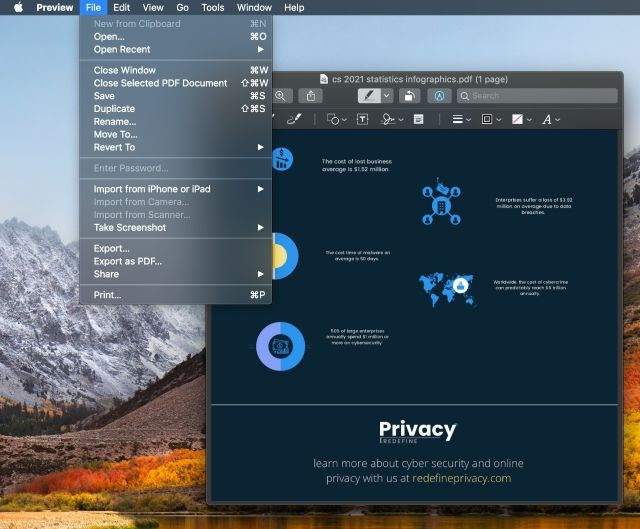
- Click on File and Go Fileu003eExport….
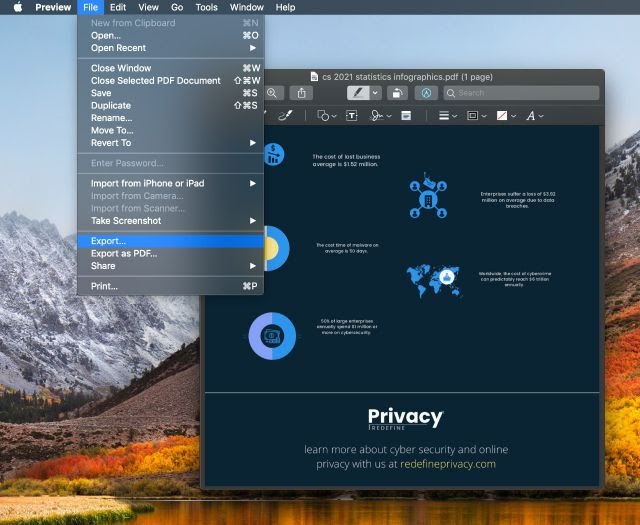
- Choose a location where you want to create a password-protected File, and you can see the checkbox “Encrypt.”
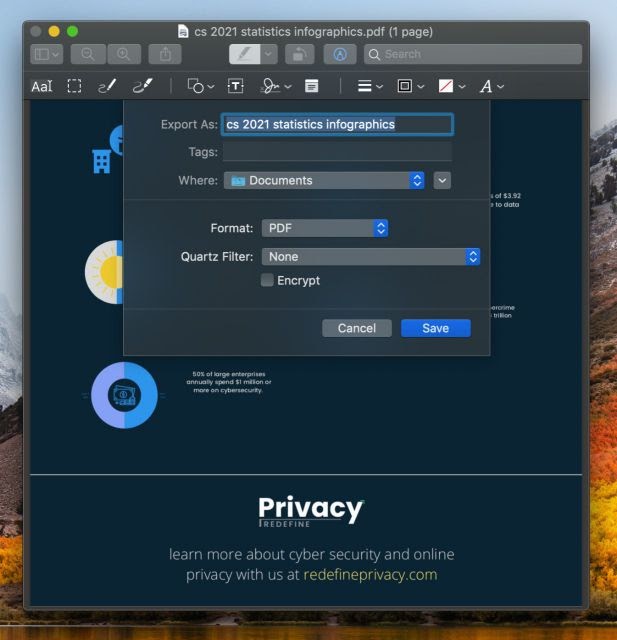
- Click on “Encrypt” and set a password; use the most robust password you have generated from the above method.
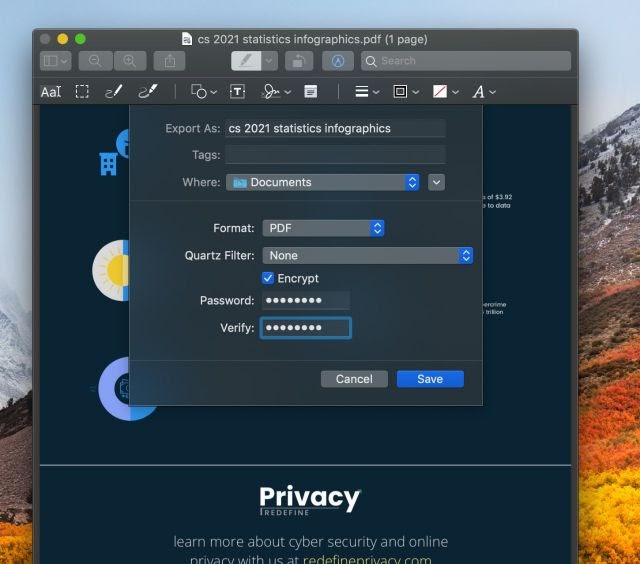
- Locate your Encrypted File, and There you have it.
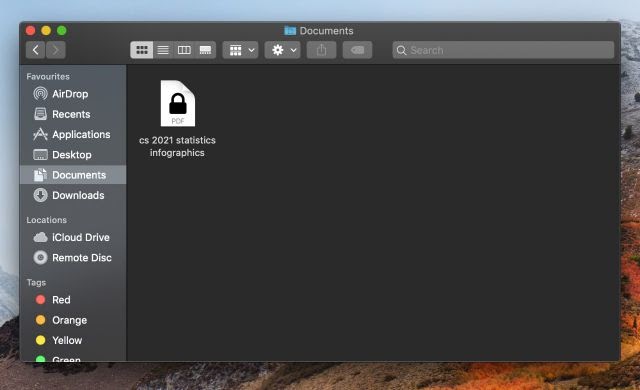
- Double-click on the document, and it will look like this.
- Enter your password and confirm if it’s working or not.
How to Encrypt PDF on Windows
In Windows, no built-in feature is available to encrypt PDF files, but you can use a third-party app, “Xodo,” to encrypt them. However, keep in mind while making it password-protected to use a secure and strongest password, as I have mentioned above.
- Open the Microsoft store and search “Xodo” or “pdf reader by Xodo”
- Install it, launch it, and click on that extensive “Open Document.”
- Now, after that, browse your file
- Now click on Save a copy, and choose Encrypted
- Now set a password and hit save
- The encryption is done, now double-click to open the pdf file
- Now enter your password to access your encrypted pdf file





How Secure is your PDF Encryption
Since your newly encrypted file contains sensitive information, checking your PDF’s security is crucial. You can do so by searching “unlock my PDF” and opening a couple of top sites that appear. Randomly pick any website and upload a password-protected PDF to check whether it will unlock. In my case, this was the result:
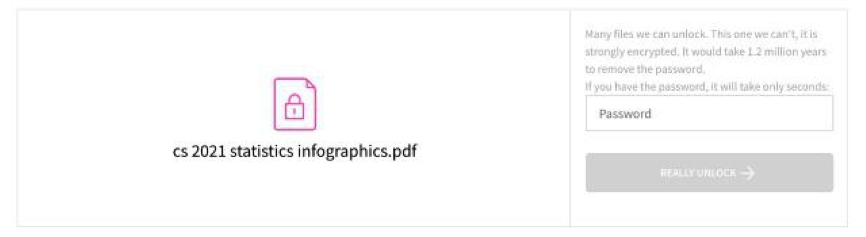
As you can see, it’s said, “It will take years to decrypt.” Usually, decoder software uses millions of combinations to guess the password, but if you use some most robust combinations of passwords mentioned above can skip the bot
Conclusion
The whole process will make your PDFs strong enough to send through email and decrypt from the other side with a password. But it’s not the actual encryption.
If you want to learn more about making it encrypted, here is the guide on encrypting files and folders.
FAQs
The post How to encrypt PDF files on macOS and Windows – Complete Guide appeared first on BeEncrypted.
]]>Deprecated: Using null as an array offset is deprecated, use an empty string instead in /var/www/staging.beencrypted.com/site/web/wp/wp-includes/class-wp-block-type-registry.php on line 168
Deprecated: Using null as an array offset is deprecated, use an empty string instead in /var/www/staging.beencrypted.com/site/web/wp/wp-includes/class-wp-block-type-registry.php on line 168
Deprecated: Using null as an array offset is deprecated, use an empty string instead in /var/www/staging.beencrypted.com/site/web/wp/wp-includes/class-wp-block-type-registry.php on line 168
Deprecated: Using null as an array offset is deprecated, use an empty string instead in /var/www/staging.beencrypted.com/site/web/wp/wp-includes/class-wp-block-type-registry.php on line 168
Deprecated: Using null as an array offset is deprecated, use an empty string instead in /var/www/staging.beencrypted.com/site/web/wp/wp-includes/class-wp-block-type-registry.php on line 168
Deprecated: Using null as an array offset is deprecated, use an empty string instead in /var/www/staging.beencrypted.com/site/web/wp/wp-includes/class-wp-block-type-registry.php on line 168
Deprecated: Using null as an array offset is deprecated, use an empty string instead in /var/www/staging.beencrypted.com/site/web/wp/wp-includes/class-wp-block-type-registry.php on line 168
Deprecated: Using null as an array offset is deprecated, use an empty string instead in /var/www/staging.beencrypted.com/site/web/wp/wp-includes/class-wp-block-type-registry.php on line 168
Deprecated: Using null as an array offset is deprecated, use an empty string instead in /var/www/staging.beencrypted.com/site/web/wp/wp-includes/class-wp-block-type-registry.php on line 168
Deprecated: Using null as an array offset is deprecated, use an empty string instead in /var/www/staging.beencrypted.com/site/web/wp/wp-includes/class-wp-block-type-registry.php on line 168
Deprecated: Using null as an array offset is deprecated, use an empty string instead in /var/www/staging.beencrypted.com/site/web/wp/wp-includes/class-wp-block-type-registry.php on line 168
Deprecated: Using null as an array offset is deprecated, use an empty string instead in /var/www/staging.beencrypted.com/site/web/wp/wp-includes/class-wp-block-type-registry.php on line 168
Deprecated: Using null as an array offset is deprecated, use an empty string instead in /var/www/staging.beencrypted.com/site/web/wp/wp-includes/class-wp-block-type-registry.php on line 168
Deprecated: Using null as an array offset is deprecated, use an empty string instead in /var/www/staging.beencrypted.com/site/web/wp/wp-includes/class-wp-block-type-registry.php on line 168
Deprecated: Using null as an array offset is deprecated, use an empty string instead in /var/www/staging.beencrypted.com/site/web/wp/wp-includes/class-wp-block-type-registry.php on line 168
Deprecated: Using null as an array offset is deprecated, use an empty string instead in /var/www/staging.beencrypted.com/site/web/wp/wp-includes/class-wp-block-type-registry.php on line 168
Deprecated: Using null as an array offset is deprecated, use an empty string instead in /var/www/staging.beencrypted.com/site/web/wp/wp-includes/class-wp-block-type-registry.php on line 168
Deprecated: Using null as an array offset is deprecated, use an empty string instead in /var/www/staging.beencrypted.com/site/web/wp/wp-includes/class-wp-block-type-registry.php on line 168
Deprecated: Using null as an array offset is deprecated, use an empty string instead in /var/www/staging.beencrypted.com/site/web/wp/wp-includes/class-wp-block-type-registry.php on line 168
Deprecated: Using null as an array offset is deprecated, use an empty string instead in /var/www/staging.beencrypted.com/site/web/wp/wp-includes/class-wp-block-type-registry.php on line 168
Deprecated: Using null as an array offset is deprecated, use an empty string instead in /var/www/staging.beencrypted.com/site/web/wp/wp-includes/class-wp-block-type-registry.php on line 168
Deprecated: Using null as an array offset is deprecated, use an empty string instead in /var/www/staging.beencrypted.com/site/web/wp/wp-includes/class-wp-block-type-registry.php on line 168
Deprecated: Using null as an array offset is deprecated, use an empty string instead in /var/www/staging.beencrypted.com/site/web/wp/wp-includes/class-wp-block-type-registry.php on line 168
Deprecated: Using null as an array offset is deprecated, use an empty string instead in /var/www/staging.beencrypted.com/site/web/wp/wp-includes/class-wp-block-type-registry.php on line 168
Deprecated: Using null as an array offset is deprecated, use an empty string instead in /var/www/staging.beencrypted.com/site/web/wp/wp-includes/class-wp-block-type-registry.php on line 168
Deprecated: Using null as an array offset is deprecated, use an empty string instead in /var/www/staging.beencrypted.com/site/web/wp/wp-includes/class-wp-block-type-registry.php on line 168
Deprecated: Using null as an array offset is deprecated, use an empty string instead in /var/www/staging.beencrypted.com/site/web/wp/wp-includes/class-wp-block-type-registry.php on line 168
Deprecated: Using null as an array offset is deprecated, use an empty string instead in /var/www/staging.beencrypted.com/site/web/wp/wp-includes/class-wp-block-type-registry.php on line 168
Deprecated: Using null as an array offset is deprecated, use an empty string instead in /var/www/staging.beencrypted.com/site/web/wp/wp-includes/class-wp-block-type-registry.php on line 168
Deprecated: Using null as an array offset is deprecated, use an empty string instead in /var/www/staging.beencrypted.com/site/web/wp/wp-includes/class-wp-block-type-registry.php on line 168
Deprecated: Using null as an array offset is deprecated, use an empty string instead in /var/www/staging.beencrypted.com/site/web/wp/wp-includes/class-wp-block-type-registry.php on line 168
Deprecated: Using null as an array offset is deprecated, use an empty string instead in /var/www/staging.beencrypted.com/site/web/wp/wp-includes/class-wp-block-type-registry.php on line 168
Deprecated: Using null as an array offset is deprecated, use an empty string instead in /var/www/staging.beencrypted.com/site/web/wp/wp-includes/class-wp-block-type-registry.php on line 168
Deprecated: Using null as an array offset is deprecated, use an empty string instead in /var/www/staging.beencrypted.com/site/web/wp/wp-includes/class-wp-block-type-registry.php on line 168
Deprecated: Using null as an array offset is deprecated, use an empty string instead in /var/www/staging.beencrypted.com/site/web/wp/wp-includes/class-wp-block-type-registry.php on line 168
Deprecated: Using null as an array offset is deprecated, use an empty string instead in /var/www/staging.beencrypted.com/site/web/wp/wp-includes/class-wp-block-type-registry.php on line 168
Deprecated: Using null as an array offset is deprecated, use an empty string instead in /var/www/staging.beencrypted.com/site/web/wp/wp-includes/class-wp-block-type-registry.php on line 168
Deprecated: Using null as an array offset is deprecated, use an empty string instead in /var/www/staging.beencrypted.com/site/web/wp/wp-includes/class-wp-block-type-registry.php on line 168
Deprecated: Using null as an array offset is deprecated, use an empty string instead in /var/www/staging.beencrypted.com/site/web/wp/wp-includes/class-wp-block-type-registry.php on line 168
Deprecated: Using null as an array offset is deprecated, use an empty string instead in /var/www/staging.beencrypted.com/site/web/wp/wp-includes/class-wp-block-type-registry.php on line 168
Deprecated: Using null as an array offset is deprecated, use an empty string instead in /var/www/staging.beencrypted.com/site/web/wp/wp-includes/class-wp-block-type-registry.php on line 168
Deprecated: Using null as an array offset is deprecated, use an empty string instead in /var/www/staging.beencrypted.com/site/web/wp/wp-includes/class-wp-block-type-registry.php on line 168
Deprecated: Using null as an array offset is deprecated, use an empty string instead in /var/www/staging.beencrypted.com/site/web/wp/wp-includes/class-wp-block-type-registry.php on line 168
Deprecated: Using null as an array offset is deprecated, use an empty string instead in /var/www/staging.beencrypted.com/site/web/wp/wp-includes/class-wp-block-type-registry.php on line 168
Deprecated: Using null as an array offset is deprecated, use an empty string instead in /var/www/staging.beencrypted.com/site/web/wp/wp-includes/class-wp-block-type-registry.php on line 168
Deprecated: Using null as an array offset is deprecated, use an empty string instead in /var/www/staging.beencrypted.com/site/web/wp/wp-includes/class-wp-block-type-registry.php on line 168
Deprecated: Using null as an array offset is deprecated, use an empty string instead in /var/www/staging.beencrypted.com/site/web/wp/wp-includes/class-wp-block-type-registry.php on line 168
Deprecated: Using null as an array offset is deprecated, use an empty string instead in /var/www/staging.beencrypted.com/site/web/wp/wp-includes/class-wp-block-type-registry.php on line 168
Deprecated: Using null as an array offset is deprecated, use an empty string instead in /var/www/staging.beencrypted.com/site/web/wp/wp-includes/class-wp-block-type-registry.php on line 168
Deprecated: Using null as an array offset is deprecated, use an empty string instead in /var/www/staging.beencrypted.com/site/web/wp/wp-includes/class-wp-block-type-registry.php on line 168
Deprecated: Using null as an array offset is deprecated, use an empty string instead in /var/www/staging.beencrypted.com/site/web/wp/wp-includes/class-wp-block-type-registry.php on line 168
Deprecated: Using null as an array offset is deprecated, use an empty string instead in /var/www/staging.beencrypted.com/site/web/wp/wp-includes/class-wp-block-type-registry.php on line 168
Deprecated: Using null as an array offset is deprecated, use an empty string instead in /var/www/staging.beencrypted.com/site/web/wp/wp-includes/class-wp-block-type-registry.php on line 168
Deprecated: Using null as an array offset is deprecated, use an empty string instead in /var/www/staging.beencrypted.com/site/web/wp/wp-includes/class-wp-block-type-registry.php on line 168
Deprecated: Using null as an array offset is deprecated, use an empty string instead in /var/www/staging.beencrypted.com/site/web/wp/wp-includes/class-wp-block-type-registry.php on line 168
Deprecated: Using null as an array offset is deprecated, use an empty string instead in /var/www/staging.beencrypted.com/site/web/wp/wp-includes/class-wp-block-type-registry.php on line 168
Deprecated: Using null as an array offset is deprecated, use an empty string instead in /var/www/staging.beencrypted.com/site/web/wp/wp-includes/class-wp-block-type-registry.php on line 168
Deprecated: Using null as an array offset is deprecated, use an empty string instead in /var/www/staging.beencrypted.com/site/web/wp/wp-includes/class-wp-block-type-registry.php on line 168
Deprecated: Using null as an array offset is deprecated, use an empty string instead in /var/www/staging.beencrypted.com/site/web/wp/wp-includes/class-wp-block-type-registry.php on line 168
Deprecated: Using null as an array offset is deprecated, use an empty string instead in /var/www/staging.beencrypted.com/site/web/wp/wp-includes/class-wp-block-type-registry.php on line 168
Deprecated: Using null as an array offset is deprecated, use an empty string instead in /var/www/staging.beencrypted.com/site/web/wp/wp-includes/class-wp-block-type-registry.php on line 168
Deprecated: Using null as an array offset is deprecated, use an empty string instead in /var/www/staging.beencrypted.com/site/web/wp/wp-includes/class-wp-block-type-registry.php on line 168
Deprecated: Using null as an array offset is deprecated, use an empty string instead in /var/www/staging.beencrypted.com/site/web/wp/wp-includes/class-wp-block-type-registry.php on line 168
Deprecated: Using null as an array offset is deprecated, use an empty string instead in /var/www/staging.beencrypted.com/site/web/wp/wp-includes/class-wp-block-type-registry.php on line 168
Deprecated: Using null as an array offset is deprecated, use an empty string instead in /var/www/staging.beencrypted.com/site/web/wp/wp-includes/class-wp-block-type-registry.php on line 168
Deprecated: Using null as an array offset is deprecated, use an empty string instead in /var/www/staging.beencrypted.com/site/web/wp/wp-includes/class-wp-block-type-registry.php on line 168
Deprecated: Using null as an array offset is deprecated, use an empty string instead in /var/www/staging.beencrypted.com/site/web/wp/wp-includes/class-wp-block-type-registry.php on line 168
Deprecated: Using null as an array offset is deprecated, use an empty string instead in /var/www/staging.beencrypted.com/site/web/wp/wp-includes/class-wp-block-type-registry.php on line 168
Deprecated: Using null as an array offset is deprecated, use an empty string instead in /var/www/staging.beencrypted.com/site/web/wp/wp-includes/class-wp-block-type-registry.php on line 168
Deprecated: Using null as an array offset is deprecated, use an empty string instead in /var/www/staging.beencrypted.com/site/web/wp/wp-includes/class-wp-block-type-registry.php on line 168
Deprecated: Using null as an array offset is deprecated, use an empty string instead in /var/www/staging.beencrypted.com/site/web/wp/wp-includes/class-wp-block-type-registry.php on line 168
Deprecated: Using null as an array offset is deprecated, use an empty string instead in /var/www/staging.beencrypted.com/site/web/wp/wp-includes/class-wp-block-type-registry.php on line 168
Deprecated: Using null as an array offset is deprecated, use an empty string instead in /var/www/staging.beencrypted.com/site/web/wp/wp-includes/class-wp-block-type-registry.php on line 168
Deprecated: Using null as an array offset is deprecated, use an empty string instead in /var/www/staging.beencrypted.com/site/web/wp/wp-includes/class-wp-block-type-registry.php on line 168
Deprecated: Using null as an array offset is deprecated, use an empty string instead in /var/www/staging.beencrypted.com/site/web/wp/wp-includes/class-wp-block-type-registry.php on line 168
Deprecated: Using null as an array offset is deprecated, use an empty string instead in /var/www/staging.beencrypted.com/site/web/wp/wp-includes/class-wp-block-type-registry.php on line 168
Deprecated: Using null as an array offset is deprecated, use an empty string instead in /var/www/staging.beencrypted.com/site/web/wp/wp-includes/class-wp-block-type-registry.php on line 168
Deprecated: Using null as an array offset is deprecated, use an empty string instead in /var/www/staging.beencrypted.com/site/web/wp/wp-includes/class-wp-block-type-registry.php on line 168
Deprecated: Using null as an array offset is deprecated, use an empty string instead in /var/www/staging.beencrypted.com/site/web/wp/wp-includes/class-wp-block-type-registry.php on line 168
Deprecated: Using null as an array offset is deprecated, use an empty string instead in /var/www/staging.beencrypted.com/site/web/wp/wp-includes/class-wp-block-type-registry.php on line 168
Deprecated: Using null as an array offset is deprecated, use an empty string instead in /var/www/staging.beencrypted.com/site/web/wp/wp-includes/class-wp-block-type-registry.php on line 168
Deprecated: Using null as an array offset is deprecated, use an empty string instead in /var/www/staging.beencrypted.com/site/web/wp/wp-includes/class-wp-block-type-registry.php on line 168
Deprecated: Using null as an array offset is deprecated, use an empty string instead in /var/www/staging.beencrypted.com/site/web/wp/wp-includes/class-wp-block-type-registry.php on line 168
Deprecated: Using null as an array offset is deprecated, use an empty string instead in /var/www/staging.beencrypted.com/site/web/wp/wp-includes/class-wp-block-type-registry.php on line 168
Deprecated: Using null as an array offset is deprecated, use an empty string instead in /var/www/staging.beencrypted.com/site/web/wp/wp-includes/class-wp-block-type-registry.php on line 168
Deprecated: Using null as an array offset is deprecated, use an empty string instead in /var/www/staging.beencrypted.com/site/web/wp/wp-includes/class-wp-block-type-registry.php on line 168
Deprecated: Using null as an array offset is deprecated, use an empty string instead in /var/www/staging.beencrypted.com/site/web/wp/wp-includes/class-wp-block-type-registry.php on line 168
Deprecated: Using null as an array offset is deprecated, use an empty string instead in /var/www/staging.beencrypted.com/site/web/wp/wp-includes/class-wp-block-type-registry.php on line 168
Deprecated: Using null as an array offset is deprecated, use an empty string instead in /var/www/staging.beencrypted.com/site/web/wp/wp-includes/class-wp-block-type-registry.php on line 168
Deprecated: Using null as an array offset is deprecated, use an empty string instead in /var/www/staging.beencrypted.com/site/web/wp/wp-includes/class-wp-block-type-registry.php on line 168
Deprecated: Using null as an array offset is deprecated, use an empty string instead in /var/www/staging.beencrypted.com/site/web/wp/wp-includes/class-wp-block-type-registry.php on line 168
Deprecated: Using null as an array offset is deprecated, use an empty string instead in /var/www/staging.beencrypted.com/site/web/wp/wp-includes/class-wp-block-type-registry.php on line 168
Deprecated: Using null as an array offset is deprecated, use an empty string instead in /var/www/staging.beencrypted.com/site/web/wp/wp-includes/class-wp-block-type-registry.php on line 168
Deprecated: Using null as an array offset is deprecated, use an empty string instead in /var/www/staging.beencrypted.com/site/web/wp/wp-includes/class-wp-block-type-registry.php on line 168
Deprecated: Using null as an array offset is deprecated, use an empty string instead in /var/www/staging.beencrypted.com/site/web/wp/wp-includes/class-wp-block-type-registry.php on line 168
Deprecated: Using null as an array offset is deprecated, use an empty string instead in /var/www/staging.beencrypted.com/site/web/wp/wp-includes/class-wp-block-type-registry.php on line 168
Deprecated: Using null as an array offset is deprecated, use an empty string instead in /var/www/staging.beencrypted.com/site/web/wp/wp-includes/class-wp-block-type-registry.php on line 168
Deprecated: Using null as an array offset is deprecated, use an empty string instead in /var/www/staging.beencrypted.com/site/web/wp/wp-includes/class-wp-block-type-registry.php on line 168
Deprecated: Using null as an array offset is deprecated, use an empty string instead in /var/www/staging.beencrypted.com/site/web/wp/wp-includes/class-wp-block-type-registry.php on line 168
Deprecated: Using null as an array offset is deprecated, use an empty string instead in /var/www/staging.beencrypted.com/site/web/wp/wp-includes/class-wp-block-type-registry.php on line 168
Deprecated: Using null as an array offset is deprecated, use an empty string instead in /var/www/staging.beencrypted.com/site/web/wp/wp-includes/class-wp-block-type-registry.php on line 168
Deprecated: Using null as an array offset is deprecated, use an empty string instead in /var/www/staging.beencrypted.com/site/web/wp/wp-includes/class-wp-block-type-registry.php on line 168
Deprecated: Using null as an array offset is deprecated, use an empty string instead in /var/www/staging.beencrypted.com/site/web/wp/wp-includes/class-wp-block-type-registry.php on line 168
Deprecated: Using null as an array offset is deprecated, use an empty string instead in /var/www/staging.beencrypted.com/site/web/wp/wp-includes/class-wp-block-type-registry.php on line 168
Deprecated: Using null as an array offset is deprecated, use an empty string instead in /var/www/staging.beencrypted.com/site/web/wp/wp-includes/class-wp-block-type-registry.php on line 168
Deprecated: Using null as an array offset is deprecated, use an empty string instead in /var/www/staging.beencrypted.com/site/web/wp/wp-includes/class-wp-block-type-registry.php on line 168
Deprecated: Using null as an array offset is deprecated, use an empty string instead in /var/www/staging.beencrypted.com/site/web/wp/wp-includes/class-wp-block-type-registry.php on line 168
Deprecated: Using null as an array offset is deprecated, use an empty string instead in /var/www/staging.beencrypted.com/site/web/wp/wp-includes/class-wp-block-type-registry.php on line 168
Deprecated: Using null as an array offset is deprecated, use an empty string instead in /var/www/staging.beencrypted.com/site/web/wp/wp-includes/class-wp-block-type-registry.php on line 168
Deprecated: Using null as an array offset is deprecated, use an empty string instead in /var/www/staging.beencrypted.com/site/web/wp/wp-includes/class-wp-block-type-registry.php on line 168
Deprecated: Using null as an array offset is deprecated, use an empty string instead in /var/www/staging.beencrypted.com/site/web/wp/wp-includes/class-wp-block-type-registry.php on line 168
Deprecated: Using null as an array offset is deprecated, use an empty string instead in /var/www/staging.beencrypted.com/site/web/wp/wp-includes/class-wp-block-type-registry.php on line 168
Deprecated: Using null as an array offset is deprecated, use an empty string instead in /var/www/staging.beencrypted.com/site/web/wp/wp-includes/class-wp-block-type-registry.php on line 168
Deprecated: Using null as an array offset is deprecated, use an empty string instead in /var/www/staging.beencrypted.com/site/web/wp/wp-includes/class-wp-block-type-registry.php on line 168
Deprecated: Using null as an array offset is deprecated, use an empty string instead in /var/www/staging.beencrypted.com/site/web/wp/wp-includes/class-wp-block-type-registry.php on line 168
Deprecated: Using null as an array offset is deprecated, use an empty string instead in /var/www/staging.beencrypted.com/site/web/wp/wp-includes/class-wp-block-type-registry.php on line 168
Deprecated: Using null as an array offset is deprecated, use an empty string instead in /var/www/staging.beencrypted.com/site/web/wp/wp-includes/class-wp-block-type-registry.php on line 168
Deprecated: Using null as an array offset is deprecated, use an empty string instead in /var/www/staging.beencrypted.com/site/web/wp/wp-includes/class-wp-block-type-registry.php on line 168
Deprecated: Using null as an array offset is deprecated, use an empty string instead in /var/www/staging.beencrypted.com/site/web/wp/wp-includes/class-wp-block-type-registry.php on line 168
Deprecated: Using null as an array offset is deprecated, use an empty string instead in /var/www/staging.beencrypted.com/site/web/wp/wp-includes/class-wp-block-type-registry.php on line 168
Deprecated: Using null as an array offset is deprecated, use an empty string instead in /var/www/staging.beencrypted.com/site/web/wp/wp-includes/class-wp-block-type-registry.php on line 168
Deprecated: Using null as an array offset is deprecated, use an empty string instead in /var/www/staging.beencrypted.com/site/web/wp/wp-includes/class-wp-block-type-registry.php on line 168
Deprecated: Using null as an array offset is deprecated, use an empty string instead in /var/www/staging.beencrypted.com/site/web/wp/wp-includes/class-wp-block-type-registry.php on line 168
Deprecated: Using null as an array offset is deprecated, use an empty string instead in /var/www/staging.beencrypted.com/site/web/wp/wp-includes/class-wp-block-type-registry.php on line 168
Deprecated: Using null as an array offset is deprecated, use an empty string instead in /var/www/staging.beencrypted.com/site/web/wp/wp-includes/class-wp-block-type-registry.php on line 168
Deprecated: Using null as an array offset is deprecated, use an empty string instead in /var/www/staging.beencrypted.com/site/web/wp/wp-includes/class-wp-block-type-registry.php on line 168
Deprecated: Using null as an array offset is deprecated, use an empty string instead in /var/www/staging.beencrypted.com/site/web/wp/wp-includes/class-wp-block-type-registry.php on line 168
Deprecated: Using null as an array offset is deprecated, use an empty string instead in /var/www/staging.beencrypted.com/site/web/wp/wp-includes/class-wp-block-type-registry.php on line 168
Deprecated: Using null as an array offset is deprecated, use an empty string instead in /var/www/staging.beencrypted.com/site/web/wp/wp-includes/class-wp-block-type-registry.php on line 168
Deprecated: Using null as an array offset is deprecated, use an empty string instead in /var/www/staging.beencrypted.com/site/web/wp/wp-includes/class-wp-block-type-registry.php on line 168
Deprecated: Using null as an array offset is deprecated, use an empty string instead in /var/www/staging.beencrypted.com/site/web/wp/wp-includes/class-wp-block-type-registry.php on line 168
Deprecated: Using null as an array offset is deprecated, use an empty string instead in /var/www/staging.beencrypted.com/site/web/wp/wp-includes/class-wp-block-type-registry.php on line 168
Deprecated: Using null as an array offset is deprecated, use an empty string instead in /var/www/staging.beencrypted.com/site/web/wp/wp-includes/class-wp-block-type-registry.php on line 168
Deprecated: Using null as an array offset is deprecated, use an empty string instead in /var/www/staging.beencrypted.com/site/web/wp/wp-includes/class-wp-block-type-registry.php on line 168
Deprecated: Using null as an array offset is deprecated, use an empty string instead in /var/www/staging.beencrypted.com/site/web/wp/wp-includes/class-wp-block-type-registry.php on line 168
Deprecated: Using null as an array offset is deprecated, use an empty string instead in /var/www/staging.beencrypted.com/site/web/wp/wp-includes/class-wp-block-type-registry.php on line 168
Deprecated: Using null as an array offset is deprecated, use an empty string instead in /var/www/staging.beencrypted.com/site/web/wp/wp-includes/class-wp-block-type-registry.php on line 168
Deprecated: Using null as an array offset is deprecated, use an empty string instead in /var/www/staging.beencrypted.com/site/web/wp/wp-includes/class-wp-block-type-registry.php on line 168
Deprecated: Using null as an array offset is deprecated, use an empty string instead in /var/www/staging.beencrypted.com/site/web/wp/wp-includes/class-wp-block-type-registry.php on line 168
Deprecated: Using null as an array offset is deprecated, use an empty string instead in /var/www/staging.beencrypted.com/site/web/wp/wp-includes/class-wp-block-type-registry.php on line 168
Deprecated: Using null as an array offset is deprecated, use an empty string instead in /var/www/staging.beencrypted.com/site/web/wp/wp-includes/class-wp-block-type-registry.php on line 168
Deprecated: Using null as an array offset is deprecated, use an empty string instead in /var/www/staging.beencrypted.com/site/web/wp/wp-includes/class-wp-block-type-registry.php on line 168
Deprecated: Using null as an array offset is deprecated, use an empty string instead in /var/www/staging.beencrypted.com/site/web/wp/wp-includes/class-wp-block-type-registry.php on line 168
Deprecated: Using null as an array offset is deprecated, use an empty string instead in /var/www/staging.beencrypted.com/site/web/wp/wp-includes/class-wp-block-type-registry.php on line 168
Deprecated: Using null as an array offset is deprecated, use an empty string instead in /var/www/staging.beencrypted.com/site/web/wp/wp-includes/class-wp-block-type-registry.php on line 168
Deprecated: Using null as an array offset is deprecated, use an empty string instead in /var/www/staging.beencrypted.com/site/web/wp/wp-includes/class-wp-block-type-registry.php on line 168
Deprecated: Using null as an array offset is deprecated, use an empty string instead in /var/www/staging.beencrypted.com/site/web/wp/wp-includes/class-wp-block-type-registry.php on line 168
Deprecated: Using null as an array offset is deprecated, use an empty string instead in /var/www/staging.beencrypted.com/site/web/wp/wp-includes/class-wp-block-type-registry.php on line 168
Deprecated: Using null as an array offset is deprecated, use an empty string instead in /var/www/staging.beencrypted.com/site/web/wp/wp-includes/class-wp-block-type-registry.php on line 168
Deprecated: Using null as an array offset is deprecated, use an empty string instead in /var/www/staging.beencrypted.com/site/web/wp/wp-includes/class-wp-block-type-registry.php on line 168
Deprecated: Using null as an array offset is deprecated, use an empty string instead in /var/www/staging.beencrypted.com/site/web/wp/wp-includes/class-wp-block-type-registry.php on line 168
Deprecated: Using null as an array offset is deprecated, use an empty string instead in /var/www/staging.beencrypted.com/site/web/wp/wp-includes/class-wp-block-type-registry.php on line 168
Deprecated: Using null as an array offset is deprecated, use an empty string instead in /var/www/staging.beencrypted.com/site/web/wp/wp-includes/class-wp-block-type-registry.php on line 168
Deprecated: Using null as an array offset is deprecated, use an empty string instead in /var/www/staging.beencrypted.com/site/web/wp/wp-includes/class-wp-block-type-registry.php on line 168
Deprecated: Using null as an array offset is deprecated, use an empty string instead in /var/www/staging.beencrypted.com/site/web/wp/wp-includes/class-wp-block-type-registry.php on line 168
Deprecated: Using null as an array offset is deprecated, use an empty string instead in /var/www/staging.beencrypted.com/site/web/wp/wp-includes/class-wp-block-type-registry.php on line 168
Deprecated: Using null as an array offset is deprecated, use an empty string instead in /var/www/staging.beencrypted.com/site/web/wp/wp-includes/class-wp-block-type-registry.php on line 168
Deprecated: Using null as an array offset is deprecated, use an empty string instead in /var/www/staging.beencrypted.com/site/web/wp/wp-includes/class-wp-block-type-registry.php on line 168
Deprecated: Using null as an array offset is deprecated, use an empty string instead in /var/www/staging.beencrypted.com/site/web/wp/wp-includes/class-wp-block-type-registry.php on line 168
Deprecated: Using null as an array offset is deprecated, use an empty string instead in /var/www/staging.beencrypted.com/site/web/wp/wp-includes/class-wp-block-type-registry.php on line 168
Deprecated: Using null as an array offset is deprecated, use an empty string instead in /var/www/staging.beencrypted.com/site/web/wp/wp-includes/class-wp-block-type-registry.php on line 168
Deprecated: Using null as an array offset is deprecated, use an empty string instead in /var/www/staging.beencrypted.com/site/web/wp/wp-includes/class-wp-block-type-registry.php on line 168
Deprecated: Using null as an array offset is deprecated, use an empty string instead in /var/www/staging.beencrypted.com/site/web/wp/wp-includes/class-wp-block-type-registry.php on line 168
Deprecated: Using null as an array offset is deprecated, use an empty string instead in /var/www/staging.beencrypted.com/site/web/wp/wp-includes/class-wp-block-type-registry.php on line 168
Deprecated: Using null as an array offset is deprecated, use an empty string instead in /var/www/staging.beencrypted.com/site/web/wp/wp-includes/class-wp-block-type-registry.php on line 168
Deprecated: Using null as an array offset is deprecated, use an empty string instead in /var/www/staging.beencrypted.com/site/web/wp/wp-includes/class-wp-block-type-registry.php on line 168
Deprecated: Using null as an array offset is deprecated, use an empty string instead in /var/www/staging.beencrypted.com/site/web/wp/wp-includes/class-wp-block-type-registry.php on line 168
Deprecated: Using null as an array offset is deprecated, use an empty string instead in /var/www/staging.beencrypted.com/site/web/wp/wp-includes/class-wp-block-type-registry.php on line 168
Deprecated: Using null as an array offset is deprecated, use an empty string instead in /var/www/staging.beencrypted.com/site/web/wp/wp-includes/class-wp-block-type-registry.php on line 168
Deprecated: Using null as an array offset is deprecated, use an empty string instead in /var/www/staging.beencrypted.com/site/web/wp/wp-includes/class-wp-block-type-registry.php on line 168
Deprecated: Using null as an array offset is deprecated, use an empty string instead in /var/www/staging.beencrypted.com/site/web/wp/wp-includes/class-wp-block-type-registry.php on line 168
Deprecated: Using null as an array offset is deprecated, use an empty string instead in /var/www/staging.beencrypted.com/site/web/wp/wp-includes/class-wp-block-type-registry.php on line 168
Deprecated: Using null as an array offset is deprecated, use an empty string instead in /var/www/staging.beencrypted.com/site/web/wp/wp-includes/class-wp-block-type-registry.php on line 168
Deprecated: Using null as an array offset is deprecated, use an empty string instead in /var/www/staging.beencrypted.com/site/web/wp/wp-includes/class-wp-block-type-registry.php on line 168
Deprecated: Using null as an array offset is deprecated, use an empty string instead in /var/www/staging.beencrypted.com/site/web/wp/wp-includes/class-wp-block-type-registry.php on line 168
Deprecated: Using null as an array offset is deprecated, use an empty string instead in /var/www/staging.beencrypted.com/site/web/wp/wp-includes/class-wp-block-type-registry.php on line 168
Deprecated: Using null as an array offset is deprecated, use an empty string instead in /var/www/staging.beencrypted.com/site/web/wp/wp-includes/class-wp-block-type-registry.php on line 168
Deprecated: Using null as an array offset is deprecated, use an empty string instead in /var/www/staging.beencrypted.com/site/web/wp/wp-includes/class-wp-block-type-registry.php on line 168
Deprecated: Using null as an array offset is deprecated, use an empty string instead in /var/www/staging.beencrypted.com/site/web/wp/wp-includes/class-wp-block-type-registry.php on line 168
Deprecated: Using null as an array offset is deprecated, use an empty string instead in /var/www/staging.beencrypted.com/site/web/wp/wp-includes/class-wp-block-type-registry.php on line 168
Deprecated: Using null as an array offset is deprecated, use an empty string instead in /var/www/staging.beencrypted.com/site/web/wp/wp-includes/class-wp-block-type-registry.php on line 168
Deprecated: Using null as an array offset is deprecated, use an empty string instead in /var/www/staging.beencrypted.com/site/web/wp/wp-includes/class-wp-block-type-registry.php on line 168
Deprecated: Using null as an array offset is deprecated, use an empty string instead in /var/www/staging.beencrypted.com/site/web/wp/wp-includes/class-wp-block-type-registry.php on line 168
Deprecated: Using null as an array offset is deprecated, use an empty string instead in /var/www/staging.beencrypted.com/site/web/wp/wp-includes/class-wp-block-type-registry.php on line 168
Deprecated: Using null as an array offset is deprecated, use an empty string instead in /var/www/staging.beencrypted.com/site/web/wp/wp-includes/class-wp-block-type-registry.php on line 168
Deprecated: Using null as an array offset is deprecated, use an empty string instead in /var/www/staging.beencrypted.com/site/web/wp/wp-includes/class-wp-block-type-registry.php on line 168
Deprecated: Using null as an array offset is deprecated, use an empty string instead in /var/www/staging.beencrypted.com/site/web/wp/wp-includes/class-wp-block-type-registry.php on line 168
Deprecated: Using null as an array offset is deprecated, use an empty string instead in /var/www/staging.beencrypted.com/site/web/wp/wp-includes/class-wp-block-type-registry.php on line 168
Deprecated: Using null as an array offset is deprecated, use an empty string instead in /var/www/staging.beencrypted.com/site/web/wp/wp-includes/class-wp-block-type-registry.php on line 168
Deprecated: Using null as an array offset is deprecated, use an empty string instead in /var/www/staging.beencrypted.com/site/web/wp/wp-includes/class-wp-block-type-registry.php on line 168
Deprecated: Using null as an array offset is deprecated, use an empty string instead in /var/www/staging.beencrypted.com/site/web/wp/wp-includes/class-wp-block-type-registry.php on line 168
Deprecated: Using null as an array offset is deprecated, use an empty string instead in /var/www/staging.beencrypted.com/site/web/wp/wp-includes/class-wp-block-type-registry.php on line 168
Deprecated: Using null as an array offset is deprecated, use an empty string instead in /var/www/staging.beencrypted.com/site/web/wp/wp-includes/class-wp-block-type-registry.php on line 168
Deprecated: Using null as an array offset is deprecated, use an empty string instead in /var/www/staging.beencrypted.com/site/web/wp/wp-includes/class-wp-block-type-registry.php on line 168
Deprecated: Using null as an array offset is deprecated, use an empty string instead in /var/www/staging.beencrypted.com/site/web/wp/wp-includes/class-wp-block-type-registry.php on line 168
Deprecated: Using null as an array offset is deprecated, use an empty string instead in /var/www/staging.beencrypted.com/site/web/wp/wp-includes/class-wp-block-type-registry.php on line 168
Deprecated: Using null as an array offset is deprecated, use an empty string instead in /var/www/staging.beencrypted.com/site/web/wp/wp-includes/class-wp-block-type-registry.php on line 168
Deprecated: Using null as an array offset is deprecated, use an empty string instead in /var/www/staging.beencrypted.com/site/web/wp/wp-includes/class-wp-block-type-registry.php on line 168
Deprecated: Using null as an array offset is deprecated, use an empty string instead in /var/www/staging.beencrypted.com/site/web/wp/wp-includes/class-wp-block-type-registry.php on line 168
Deprecated: Using null as an array offset is deprecated, use an empty string instead in /var/www/staging.beencrypted.com/site/web/wp/wp-includes/class-wp-block-type-registry.php on line 168
Deprecated: Using null as an array offset is deprecated, use an empty string instead in /var/www/staging.beencrypted.com/site/web/wp/wp-includes/class-wp-block-type-registry.php on line 168
Deprecated: Using null as an array offset is deprecated, use an empty string instead in /var/www/staging.beencrypted.com/site/web/wp/wp-includes/class-wp-block-type-registry.php on line 168
Deprecated: Using null as an array offset is deprecated, use an empty string instead in /var/www/staging.beencrypted.com/site/web/wp/wp-includes/class-wp-block-type-registry.php on line 168
Deprecated: Using null as an array offset is deprecated, use an empty string instead in /var/www/staging.beencrypted.com/site/web/wp/wp-includes/class-wp-block-type-registry.php on line 168
Deprecated: Using null as an array offset is deprecated, use an empty string instead in /var/www/staging.beencrypted.com/site/web/wp/wp-includes/class-wp-block-type-registry.php on line 168
Deprecated: Using null as an array offset is deprecated, use an empty string instead in /var/www/staging.beencrypted.com/site/web/wp/wp-includes/class-wp-block-type-registry.php on line 168
Deprecated: Using null as an array offset is deprecated, use an empty string instead in /var/www/staging.beencrypted.com/site/web/wp/wp-includes/class-wp-block-type-registry.php on line 168
Deprecated: Using null as an array offset is deprecated, use an empty string instead in /var/www/staging.beencrypted.com/site/web/wp/wp-includes/class-wp-block-type-registry.php on line 168
Deprecated: Using null as an array offset is deprecated, use an empty string instead in /var/www/staging.beencrypted.com/site/web/wp/wp-includes/class-wp-block-type-registry.php on line 168
Windows is admittedly popular and unexceptionally easy to use. However, you might also know it is one of the most vulnerable OS available. According to various reports, almost 83% of malware attacks Windows users, and a malware attack means facing data leaks and losing valuable information in case of no backups. Amidst this, encrypting your […]
The post How to Encrypt and Decrypt Files / Folder In Windows in 2024 appeared first on BeEncrypted.
]]>Deprecated: Using null as an array offset is deprecated, use an empty string instead in /var/www/staging.beencrypted.com/site/web/wp/wp-includes/class-wp-block-type-registry.php on line 168
Deprecated: Using null as an array offset is deprecated, use an empty string instead in /var/www/staging.beencrypted.com/site/web/wp/wp-includes/class-wp-block-type-registry.php on line 168
Deprecated: Using null as an array offset is deprecated, use an empty string instead in /var/www/staging.beencrypted.com/site/web/wp/wp-includes/class-wp-block-type-registry.php on line 168
Deprecated: Using null as an array offset is deprecated, use an empty string instead in /var/www/staging.beencrypted.com/site/web/wp/wp-includes/class-wp-block-type-registry.php on line 168
Deprecated: Using null as an array offset is deprecated, use an empty string instead in /var/www/staging.beencrypted.com/site/web/wp/wp-includes/class-wp-block-type-registry.php on line 168
Deprecated: Using null as an array offset is deprecated, use an empty string instead in /var/www/staging.beencrypted.com/site/web/wp/wp-includes/class-wp-block-type-registry.php on line 168
Deprecated: Using null as an array offset is deprecated, use an empty string instead in /var/www/staging.beencrypted.com/site/web/wp/wp-includes/class-wp-block-type-registry.php on line 168
Deprecated: Using null as an array offset is deprecated, use an empty string instead in /var/www/staging.beencrypted.com/site/web/wp/wp-includes/class-wp-block-type-registry.php on line 168
Deprecated: Using null as an array offset is deprecated, use an empty string instead in /var/www/staging.beencrypted.com/site/web/wp/wp-includes/class-wp-block-type-registry.php on line 168
Deprecated: Using null as an array offset is deprecated, use an empty string instead in /var/www/staging.beencrypted.com/site/web/wp/wp-includes/class-wp-block-type-registry.php on line 168
Deprecated: Using null as an array offset is deprecated, use an empty string instead in /var/www/staging.beencrypted.com/site/web/wp/wp-includes/class-wp-block-type-registry.php on line 168
Deprecated: Using null as an array offset is deprecated, use an empty string instead in /var/www/staging.beencrypted.com/site/web/wp/wp-includes/class-wp-block-type-registry.php on line 168
Deprecated: Using null as an array offset is deprecated, use an empty string instead in /var/www/staging.beencrypted.com/site/web/wp/wp-includes/class-wp-block-type-registry.php on line 168
Deprecated: Using null as an array offset is deprecated, use an empty string instead in /var/www/staging.beencrypted.com/site/web/wp/wp-includes/class-wp-block-type-registry.php on line 168
Deprecated: Using null as an array offset is deprecated, use an empty string instead in /var/www/staging.beencrypted.com/site/web/wp/wp-includes/class-wp-block-type-registry.php on line 168
Deprecated: Using null as an array offset is deprecated, use an empty string instead in /var/www/staging.beencrypted.com/site/web/wp/wp-includes/class-wp-block-type-registry.php on line 168
Deprecated: Using null as an array offset is deprecated, use an empty string instead in /var/www/staging.beencrypted.com/site/web/wp/wp-includes/class-wp-block-type-registry.php on line 168
Deprecated: Using null as an array offset is deprecated, use an empty string instead in /var/www/staging.beencrypted.com/site/web/wp/wp-includes/class-wp-block-type-registry.php on line 168
Deprecated: Using null as an array offset is deprecated, use an empty string instead in /var/www/staging.beencrypted.com/site/web/wp/wp-includes/class-wp-block-type-registry.php on line 168
Deprecated: Using null as an array offset is deprecated, use an empty string instead in /var/www/staging.beencrypted.com/site/web/wp/wp-includes/class-wp-block-type-registry.php on line 168
Deprecated: Using null as an array offset is deprecated, use an empty string instead in /var/www/staging.beencrypted.com/site/web/wp/wp-includes/class-wp-block-type-registry.php on line 168
Deprecated: Using null as an array offset is deprecated, use an empty string instead in /var/www/staging.beencrypted.com/site/web/wp/wp-includes/class-wp-block-type-registry.php on line 168
Deprecated: Using null as an array offset is deprecated, use an empty string instead in /var/www/staging.beencrypted.com/site/web/wp/wp-includes/class-wp-block-type-registry.php on line 168
Deprecated: Using null as an array offset is deprecated, use an empty string instead in /var/www/staging.beencrypted.com/site/web/wp/wp-includes/class-wp-block-type-registry.php on line 168
Deprecated: Using null as an array offset is deprecated, use an empty string instead in /var/www/staging.beencrypted.com/site/web/wp/wp-includes/class-wp-block-type-registry.php on line 168
Deprecated: Using null as an array offset is deprecated, use an empty string instead in /var/www/staging.beencrypted.com/site/web/wp/wp-includes/class-wp-block-type-registry.php on line 168
Deprecated: Using null as an array offset is deprecated, use an empty string instead in /var/www/staging.beencrypted.com/site/web/wp/wp-includes/class-wp-block-type-registry.php on line 168
Deprecated: Using null as an array offset is deprecated, use an empty string instead in /var/www/staging.beencrypted.com/site/web/wp/wp-includes/class-wp-block-type-registry.php on line 168
Deprecated: Using null as an array offset is deprecated, use an empty string instead in /var/www/staging.beencrypted.com/site/web/wp/wp-includes/class-wp-block-type-registry.php on line 168
Deprecated: Using null as an array offset is deprecated, use an empty string instead in /var/www/staging.beencrypted.com/site/web/wp/wp-includes/class-wp-block-type-registry.php on line 168
Deprecated: Using null as an array offset is deprecated, use an empty string instead in /var/www/staging.beencrypted.com/site/web/wp/wp-includes/class-wp-block-type-registry.php on line 168
Deprecated: Using null as an array offset is deprecated, use an empty string instead in /var/www/staging.beencrypted.com/site/web/wp/wp-includes/class-wp-block-type-registry.php on line 168
Deprecated: Using null as an array offset is deprecated, use an empty string instead in /var/www/staging.beencrypted.com/site/web/wp/wp-includes/class-wp-block-type-registry.php on line 168
Deprecated: Using null as an array offset is deprecated, use an empty string instead in /var/www/staging.beencrypted.com/site/web/wp/wp-includes/class-wp-block-type-registry.php on line 168
Deprecated: Using null as an array offset is deprecated, use an empty string instead in /var/www/staging.beencrypted.com/site/web/wp/wp-includes/class-wp-block-type-registry.php on line 168
Deprecated: Using null as an array offset is deprecated, use an empty string instead in /var/www/staging.beencrypted.com/site/web/wp/wp-includes/class-wp-block-type-registry.php on line 168
Deprecated: Using null as an array offset is deprecated, use an empty string instead in /var/www/staging.beencrypted.com/site/web/wp/wp-includes/class-wp-block-type-registry.php on line 168
Deprecated: Using null as an array offset is deprecated, use an empty string instead in /var/www/staging.beencrypted.com/site/web/wp/wp-includes/class-wp-block-type-registry.php on line 168
Deprecated: Using null as an array offset is deprecated, use an empty string instead in /var/www/staging.beencrypted.com/site/web/wp/wp-includes/class-wp-block-type-registry.php on line 168
Deprecated: Using null as an array offset is deprecated, use an empty string instead in /var/www/staging.beencrypted.com/site/web/wp/wp-includes/class-wp-block-type-registry.php on line 168
Deprecated: Using null as an array offset is deprecated, use an empty string instead in /var/www/staging.beencrypted.com/site/web/wp/wp-includes/class-wp-block-type-registry.php on line 168
Deprecated: Using null as an array offset is deprecated, use an empty string instead in /var/www/staging.beencrypted.com/site/web/wp/wp-includes/class-wp-block-type-registry.php on line 168
Deprecated: Using null as an array offset is deprecated, use an empty string instead in /var/www/staging.beencrypted.com/site/web/wp/wp-includes/class-wp-block-type-registry.php on line 168
Deprecated: Using null as an array offset is deprecated, use an empty string instead in /var/www/staging.beencrypted.com/site/web/wp/wp-includes/class-wp-block-type-registry.php on line 168
Deprecated: Using null as an array offset is deprecated, use an empty string instead in /var/www/staging.beencrypted.com/site/web/wp/wp-includes/class-wp-block-type-registry.php on line 168
Deprecated: Using null as an array offset is deprecated, use an empty string instead in /var/www/staging.beencrypted.com/site/web/wp/wp-includes/class-wp-block-type-registry.php on line 168
Deprecated: Using null as an array offset is deprecated, use an empty string instead in /var/www/staging.beencrypted.com/site/web/wp/wp-includes/class-wp-block-type-registry.php on line 168
Deprecated: Using null as an array offset is deprecated, use an empty string instead in /var/www/staging.beencrypted.com/site/web/wp/wp-includes/class-wp-block-type-registry.php on line 168
Deprecated: Using null as an array offset is deprecated, use an empty string instead in /var/www/staging.beencrypted.com/site/web/wp/wp-includes/class-wp-block-type-registry.php on line 168
Deprecated: Using null as an array offset is deprecated, use an empty string instead in /var/www/staging.beencrypted.com/site/web/wp/wp-includes/class-wp-block-type-registry.php on line 168
Deprecated: Using null as an array offset is deprecated, use an empty string instead in /var/www/staging.beencrypted.com/site/web/wp/wp-includes/class-wp-block-type-registry.php on line 168
Deprecated: Using null as an array offset is deprecated, use an empty string instead in /var/www/staging.beencrypted.com/site/web/wp/wp-includes/class-wp-block-type-registry.php on line 168
Deprecated: Using null as an array offset is deprecated, use an empty string instead in /var/www/staging.beencrypted.com/site/web/wp/wp-includes/class-wp-block-type-registry.php on line 168
Deprecated: Using null as an array offset is deprecated, use an empty string instead in /var/www/staging.beencrypted.com/site/web/wp/wp-includes/class-wp-block-type-registry.php on line 168
Deprecated: Using null as an array offset is deprecated, use an empty string instead in /var/www/staging.beencrypted.com/site/web/wp/wp-includes/class-wp-block-type-registry.php on line 168
Deprecated: Using null as an array offset is deprecated, use an empty string instead in /var/www/staging.beencrypted.com/site/web/wp/wp-includes/class-wp-block-type-registry.php on line 168
Deprecated: Using null as an array offset is deprecated, use an empty string instead in /var/www/staging.beencrypted.com/site/web/wp/wp-includes/class-wp-block-type-registry.php on line 168
Deprecated: Using null as an array offset is deprecated, use an empty string instead in /var/www/staging.beencrypted.com/site/web/wp/wp-includes/class-wp-block-type-registry.php on line 168
Deprecated: Using null as an array offset is deprecated, use an empty string instead in /var/www/staging.beencrypted.com/site/web/wp/wp-includes/class-wp-block-type-registry.php on line 168
Deprecated: Using null as an array offset is deprecated, use an empty string instead in /var/www/staging.beencrypted.com/site/web/wp/wp-includes/class-wp-block-type-registry.php on line 168
Deprecated: Using null as an array offset is deprecated, use an empty string instead in /var/www/staging.beencrypted.com/site/web/wp/wp-includes/class-wp-block-type-registry.php on line 168
Deprecated: Using null as an array offset is deprecated, use an empty string instead in /var/www/staging.beencrypted.com/site/web/wp/wp-includes/class-wp-block-type-registry.php on line 168
Deprecated: Using null as an array offset is deprecated, use an empty string instead in /var/www/staging.beencrypted.com/site/web/wp/wp-includes/class-wp-block-type-registry.php on line 168
Deprecated: Using null as an array offset is deprecated, use an empty string instead in /var/www/staging.beencrypted.com/site/web/wp/wp-includes/class-wp-block-type-registry.php on line 168
Deprecated: Using null as an array offset is deprecated, use an empty string instead in /var/www/staging.beencrypted.com/site/web/wp/wp-includes/class-wp-block-type-registry.php on line 168
Deprecated: Using null as an array offset is deprecated, use an empty string instead in /var/www/staging.beencrypted.com/site/web/wp/wp-includes/class-wp-block-type-registry.php on line 168
Deprecated: Using null as an array offset is deprecated, use an empty string instead in /var/www/staging.beencrypted.com/site/web/wp/wp-includes/class-wp-block-type-registry.php on line 168
Deprecated: Using null as an array offset is deprecated, use an empty string instead in /var/www/staging.beencrypted.com/site/web/wp/wp-includes/class-wp-block-type-registry.php on line 168
Deprecated: Using null as an array offset is deprecated, use an empty string instead in /var/www/staging.beencrypted.com/site/web/wp/wp-includes/class-wp-block-type-registry.php on line 168
Deprecated: Using null as an array offset is deprecated, use an empty string instead in /var/www/staging.beencrypted.com/site/web/wp/wp-includes/class-wp-block-type-registry.php on line 168
Deprecated: Using null as an array offset is deprecated, use an empty string instead in /var/www/staging.beencrypted.com/site/web/wp/wp-includes/class-wp-block-type-registry.php on line 168
Deprecated: Using null as an array offset is deprecated, use an empty string instead in /var/www/staging.beencrypted.com/site/web/wp/wp-includes/class-wp-block-type-registry.php on line 168
Deprecated: Using null as an array offset is deprecated, use an empty string instead in /var/www/staging.beencrypted.com/site/web/wp/wp-includes/class-wp-block-type-registry.php on line 168
Deprecated: Using null as an array offset is deprecated, use an empty string instead in /var/www/staging.beencrypted.com/site/web/wp/wp-includes/class-wp-block-type-registry.php on line 168
Deprecated: Using null as an array offset is deprecated, use an empty string instead in /var/www/staging.beencrypted.com/site/web/wp/wp-includes/class-wp-block-type-registry.php on line 168
Deprecated: Using null as an array offset is deprecated, use an empty string instead in /var/www/staging.beencrypted.com/site/web/wp/wp-includes/class-wp-block-type-registry.php on line 168
Deprecated: Using null as an array offset is deprecated, use an empty string instead in /var/www/staging.beencrypted.com/site/web/wp/wp-includes/class-wp-block-type-registry.php on line 168
Deprecated: Using null as an array offset is deprecated, use an empty string instead in /var/www/staging.beencrypted.com/site/web/wp/wp-includes/class-wp-block-type-registry.php on line 168
Deprecated: Using null as an array offset is deprecated, use an empty string instead in /var/www/staging.beencrypted.com/site/web/wp/wp-includes/class-wp-block-type-registry.php on line 168
Deprecated: Using null as an array offset is deprecated, use an empty string instead in /var/www/staging.beencrypted.com/site/web/wp/wp-includes/class-wp-block-type-registry.php on line 168
Deprecated: Using null as an array offset is deprecated, use an empty string instead in /var/www/staging.beencrypted.com/site/web/wp/wp-includes/class-wp-block-type-registry.php on line 168
Deprecated: Using null as an array offset is deprecated, use an empty string instead in /var/www/staging.beencrypted.com/site/web/wp/wp-includes/class-wp-block-type-registry.php on line 168
Deprecated: Using null as an array offset is deprecated, use an empty string instead in /var/www/staging.beencrypted.com/site/web/wp/wp-includes/class-wp-block-type-registry.php on line 168
Deprecated: Using null as an array offset is deprecated, use an empty string instead in /var/www/staging.beencrypted.com/site/web/wp/wp-includes/class-wp-block-type-registry.php on line 168
Deprecated: Using null as an array offset is deprecated, use an empty string instead in /var/www/staging.beencrypted.com/site/web/wp/wp-includes/class-wp-block-type-registry.php on line 168
Deprecated: Using null as an array offset is deprecated, use an empty string instead in /var/www/staging.beencrypted.com/site/web/wp/wp-includes/class-wp-block-type-registry.php on line 168
Deprecated: Using null as an array offset is deprecated, use an empty string instead in /var/www/staging.beencrypted.com/site/web/wp/wp-includes/class-wp-block-type-registry.php on line 168
Deprecated: Using null as an array offset is deprecated, use an empty string instead in /var/www/staging.beencrypted.com/site/web/wp/wp-includes/class-wp-block-type-registry.php on line 168
Deprecated: Using null as an array offset is deprecated, use an empty string instead in /var/www/staging.beencrypted.com/site/web/wp/wp-includes/class-wp-block-type-registry.php on line 168
Deprecated: Using null as an array offset is deprecated, use an empty string instead in /var/www/staging.beencrypted.com/site/web/wp/wp-includes/class-wp-block-type-registry.php on line 168
Deprecated: Using null as an array offset is deprecated, use an empty string instead in /var/www/staging.beencrypted.com/site/web/wp/wp-includes/class-wp-block-type-registry.php on line 168
Deprecated: Using null as an array offset is deprecated, use an empty string instead in /var/www/staging.beencrypted.com/site/web/wp/wp-includes/class-wp-block-type-registry.php on line 168
Deprecated: Using null as an array offset is deprecated, use an empty string instead in /var/www/staging.beencrypted.com/site/web/wp/wp-includes/class-wp-block-type-registry.php on line 168
Deprecated: Using null as an array offset is deprecated, use an empty string instead in /var/www/staging.beencrypted.com/site/web/wp/wp-includes/class-wp-block-type-registry.php on line 168
Deprecated: Using null as an array offset is deprecated, use an empty string instead in /var/www/staging.beencrypted.com/site/web/wp/wp-includes/class-wp-block-type-registry.php on line 168
Deprecated: Using null as an array offset is deprecated, use an empty string instead in /var/www/staging.beencrypted.com/site/web/wp/wp-includes/class-wp-block-type-registry.php on line 168
Deprecated: Using null as an array offset is deprecated, use an empty string instead in /var/www/staging.beencrypted.com/site/web/wp/wp-includes/class-wp-block-type-registry.php on line 168
Deprecated: Using null as an array offset is deprecated, use an empty string instead in /var/www/staging.beencrypted.com/site/web/wp/wp-includes/class-wp-block-type-registry.php on line 168
Deprecated: Using null as an array offset is deprecated, use an empty string instead in /var/www/staging.beencrypted.com/site/web/wp/wp-includes/class-wp-block-type-registry.php on line 168
Deprecated: Using null as an array offset is deprecated, use an empty string instead in /var/www/staging.beencrypted.com/site/web/wp/wp-includes/class-wp-block-type-registry.php on line 168
Deprecated: Using null as an array offset is deprecated, use an empty string instead in /var/www/staging.beencrypted.com/site/web/wp/wp-includes/class-wp-block-type-registry.php on line 168
Deprecated: Using null as an array offset is deprecated, use an empty string instead in /var/www/staging.beencrypted.com/site/web/wp/wp-includes/class-wp-block-type-registry.php on line 168
Deprecated: Using null as an array offset is deprecated, use an empty string instead in /var/www/staging.beencrypted.com/site/web/wp/wp-includes/class-wp-block-type-registry.php on line 168
Deprecated: Using null as an array offset is deprecated, use an empty string instead in /var/www/staging.beencrypted.com/site/web/wp/wp-includes/class-wp-block-type-registry.php on line 168
Deprecated: Using null as an array offset is deprecated, use an empty string instead in /var/www/staging.beencrypted.com/site/web/wp/wp-includes/class-wp-block-type-registry.php on line 168
Deprecated: Using null as an array offset is deprecated, use an empty string instead in /var/www/staging.beencrypted.com/site/web/wp/wp-includes/class-wp-block-type-registry.php on line 168
Deprecated: Using null as an array offset is deprecated, use an empty string instead in /var/www/staging.beencrypted.com/site/web/wp/wp-includes/class-wp-block-type-registry.php on line 168
Deprecated: Using null as an array offset is deprecated, use an empty string instead in /var/www/staging.beencrypted.com/site/web/wp/wp-includes/class-wp-block-type-registry.php on line 168
Deprecated: Using null as an array offset is deprecated, use an empty string instead in /var/www/staging.beencrypted.com/site/web/wp/wp-includes/class-wp-block-type-registry.php on line 168
Deprecated: Using null as an array offset is deprecated, use an empty string instead in /var/www/staging.beencrypted.com/site/web/wp/wp-includes/class-wp-block-type-registry.php on line 168
Deprecated: Using null as an array offset is deprecated, use an empty string instead in /var/www/staging.beencrypted.com/site/web/wp/wp-includes/class-wp-block-type-registry.php on line 168
Deprecated: Using null as an array offset is deprecated, use an empty string instead in /var/www/staging.beencrypted.com/site/web/wp/wp-includes/class-wp-block-type-registry.php on line 168
Deprecated: Using null as an array offset is deprecated, use an empty string instead in /var/www/staging.beencrypted.com/site/web/wp/wp-includes/class-wp-block-type-registry.php on line 168
Deprecated: Using null as an array offset is deprecated, use an empty string instead in /var/www/staging.beencrypted.com/site/web/wp/wp-includes/class-wp-block-type-registry.php on line 168
Deprecated: Using null as an array offset is deprecated, use an empty string instead in /var/www/staging.beencrypted.com/site/web/wp/wp-includes/class-wp-block-type-registry.php on line 168
Deprecated: Using null as an array offset is deprecated, use an empty string instead in /var/www/staging.beencrypted.com/site/web/wp/wp-includes/class-wp-block-type-registry.php on line 168
Deprecated: Using null as an array offset is deprecated, use an empty string instead in /var/www/staging.beencrypted.com/site/web/wp/wp-includes/class-wp-block-type-registry.php on line 168
Deprecated: Using null as an array offset is deprecated, use an empty string instead in /var/www/staging.beencrypted.com/site/web/wp/wp-includes/class-wp-block-type-registry.php on line 168
Deprecated: Using null as an array offset is deprecated, use an empty string instead in /var/www/staging.beencrypted.com/site/web/wp/wp-includes/class-wp-block-type-registry.php on line 168
Deprecated: Using null as an array offset is deprecated, use an empty string instead in /var/www/staging.beencrypted.com/site/web/wp/wp-includes/class-wp-block-type-registry.php on line 168
Deprecated: Using null as an array offset is deprecated, use an empty string instead in /var/www/staging.beencrypted.com/site/web/wp/wp-includes/class-wp-block-type-registry.php on line 168
Deprecated: Using null as an array offset is deprecated, use an empty string instead in /var/www/staging.beencrypted.com/site/web/wp/wp-includes/class-wp-block-type-registry.php on line 168
Deprecated: Using null as an array offset is deprecated, use an empty string instead in /var/www/staging.beencrypted.com/site/web/wp/wp-includes/class-wp-block-type-registry.php on line 168
Deprecated: Using null as an array offset is deprecated, use an empty string instead in /var/www/staging.beencrypted.com/site/web/wp/wp-includes/class-wp-block-type-registry.php on line 168
Deprecated: Using null as an array offset is deprecated, use an empty string instead in /var/www/staging.beencrypted.com/site/web/wp/wp-includes/class-wp-block-type-registry.php on line 168
Deprecated: Using null as an array offset is deprecated, use an empty string instead in /var/www/staging.beencrypted.com/site/web/wp/wp-includes/class-wp-block-type-registry.php on line 168
Deprecated: Using null as an array offset is deprecated, use an empty string instead in /var/www/staging.beencrypted.com/site/web/wp/wp-includes/class-wp-block-type-registry.php on line 168
Deprecated: Using null as an array offset is deprecated, use an empty string instead in /var/www/staging.beencrypted.com/site/web/wp/wp-includes/class-wp-block-type-registry.php on line 168
Deprecated: Using null as an array offset is deprecated, use an empty string instead in /var/www/staging.beencrypted.com/site/web/wp/wp-includes/class-wp-block-type-registry.php on line 168
Deprecated: Using null as an array offset is deprecated, use an empty string instead in /var/www/staging.beencrypted.com/site/web/wp/wp-includes/class-wp-block-type-registry.php on line 168
Deprecated: Using null as an array offset is deprecated, use an empty string instead in /var/www/staging.beencrypted.com/site/web/wp/wp-includes/class-wp-block-type-registry.php on line 168
Deprecated: Using null as an array offset is deprecated, use an empty string instead in /var/www/staging.beencrypted.com/site/web/wp/wp-includes/class-wp-block-type-registry.php on line 168
Deprecated: Using null as an array offset is deprecated, use an empty string instead in /var/www/staging.beencrypted.com/site/web/wp/wp-includes/class-wp-block-type-registry.php on line 168
Deprecated: Using null as an array offset is deprecated, use an empty string instead in /var/www/staging.beencrypted.com/site/web/wp/wp-includes/class-wp-block-type-registry.php on line 168
Deprecated: Using null as an array offset is deprecated, use an empty string instead in /var/www/staging.beencrypted.com/site/web/wp/wp-includes/class-wp-block-type-registry.php on line 168
Deprecated: Using null as an array offset is deprecated, use an empty string instead in /var/www/staging.beencrypted.com/site/web/wp/wp-includes/class-wp-block-type-registry.php on line 168
Deprecated: Using null as an array offset is deprecated, use an empty string instead in /var/www/staging.beencrypted.com/site/web/wp/wp-includes/class-wp-block-type-registry.php on line 168
Deprecated: Using null as an array offset is deprecated, use an empty string instead in /var/www/staging.beencrypted.com/site/web/wp/wp-includes/class-wp-block-type-registry.php on line 168
Deprecated: Using null as an array offset is deprecated, use an empty string instead in /var/www/staging.beencrypted.com/site/web/wp/wp-includes/class-wp-block-type-registry.php on line 168
Deprecated: Using null as an array offset is deprecated, use an empty string instead in /var/www/staging.beencrypted.com/site/web/wp/wp-includes/class-wp-block-type-registry.php on line 168
Deprecated: Using null as an array offset is deprecated, use an empty string instead in /var/www/staging.beencrypted.com/site/web/wp/wp-includes/class-wp-block-type-registry.php on line 168
Deprecated: Using null as an array offset is deprecated, use an empty string instead in /var/www/staging.beencrypted.com/site/web/wp/wp-includes/class-wp-block-type-registry.php on line 168
Deprecated: Using null as an array offset is deprecated, use an empty string instead in /var/www/staging.beencrypted.com/site/web/wp/wp-includes/class-wp-block-type-registry.php on line 168
Deprecated: Using null as an array offset is deprecated, use an empty string instead in /var/www/staging.beencrypted.com/site/web/wp/wp-includes/class-wp-block-type-registry.php on line 168
Deprecated: Using null as an array offset is deprecated, use an empty string instead in /var/www/staging.beencrypted.com/site/web/wp/wp-includes/class-wp-block-type-registry.php on line 168
Deprecated: Using null as an array offset is deprecated, use an empty string instead in /var/www/staging.beencrypted.com/site/web/wp/wp-includes/class-wp-block-type-registry.php on line 168
Deprecated: Using null as an array offset is deprecated, use an empty string instead in /var/www/staging.beencrypted.com/site/web/wp/wp-includes/class-wp-block-type-registry.php on line 168
Deprecated: Using null as an array offset is deprecated, use an empty string instead in /var/www/staging.beencrypted.com/site/web/wp/wp-includes/class-wp-block-type-registry.php on line 168
Deprecated: Using null as an array offset is deprecated, use an empty string instead in /var/www/staging.beencrypted.com/site/web/wp/wp-includes/class-wp-block-type-registry.php on line 168
Deprecated: Using null as an array offset is deprecated, use an empty string instead in /var/www/staging.beencrypted.com/site/web/wp/wp-includes/class-wp-block-type-registry.php on line 168
Deprecated: Using null as an array offset is deprecated, use an empty string instead in /var/www/staging.beencrypted.com/site/web/wp/wp-includes/class-wp-block-type-registry.php on line 168
Deprecated: Using null as an array offset is deprecated, use an empty string instead in /var/www/staging.beencrypted.com/site/web/wp/wp-includes/class-wp-block-type-registry.php on line 168
Deprecated: Using null as an array offset is deprecated, use an empty string instead in /var/www/staging.beencrypted.com/site/web/wp/wp-includes/class-wp-block-type-registry.php on line 168
Deprecated: Using null as an array offset is deprecated, use an empty string instead in /var/www/staging.beencrypted.com/site/web/wp/wp-includes/class-wp-block-type-registry.php on line 168
Deprecated: Using null as an array offset is deprecated, use an empty string instead in /var/www/staging.beencrypted.com/site/web/wp/wp-includes/class-wp-block-type-registry.php on line 168
Deprecated: Using null as an array offset is deprecated, use an empty string instead in /var/www/staging.beencrypted.com/site/web/wp/wp-includes/class-wp-block-type-registry.php on line 168
Deprecated: Using null as an array offset is deprecated, use an empty string instead in /var/www/staging.beencrypted.com/site/web/wp/wp-includes/class-wp-block-type-registry.php on line 168
Deprecated: Using null as an array offset is deprecated, use an empty string instead in /var/www/staging.beencrypted.com/site/web/wp/wp-includes/class-wp-block-type-registry.php on line 168
Deprecated: Using null as an array offset is deprecated, use an empty string instead in /var/www/staging.beencrypted.com/site/web/wp/wp-includes/class-wp-block-type-registry.php on line 168
Deprecated: Using null as an array offset is deprecated, use an empty string instead in /var/www/staging.beencrypted.com/site/web/wp/wp-includes/class-wp-block-type-registry.php on line 168
Deprecated: Using null as an array offset is deprecated, use an empty string instead in /var/www/staging.beencrypted.com/site/web/wp/wp-includes/class-wp-block-type-registry.php on line 168
Deprecated: Using null as an array offset is deprecated, use an empty string instead in /var/www/staging.beencrypted.com/site/web/wp/wp-includes/class-wp-block-type-registry.php on line 168
Deprecated: Using null as an array offset is deprecated, use an empty string instead in /var/www/staging.beencrypted.com/site/web/wp/wp-includes/class-wp-block-type-registry.php on line 168
Deprecated: Using null as an array offset is deprecated, use an empty string instead in /var/www/staging.beencrypted.com/site/web/wp/wp-includes/class-wp-block-type-registry.php on line 168
Deprecated: Using null as an array offset is deprecated, use an empty string instead in /var/www/staging.beencrypted.com/site/web/wp/wp-includes/class-wp-block-type-registry.php on line 168
Deprecated: Using null as an array offset is deprecated, use an empty string instead in /var/www/staging.beencrypted.com/site/web/wp/wp-includes/class-wp-block-type-registry.php on line 168
Deprecated: Using null as an array offset is deprecated, use an empty string instead in /var/www/staging.beencrypted.com/site/web/wp/wp-includes/class-wp-block-type-registry.php on line 168
Deprecated: Using null as an array offset is deprecated, use an empty string instead in /var/www/staging.beencrypted.com/site/web/wp/wp-includes/class-wp-block-type-registry.php on line 168
Deprecated: Using null as an array offset is deprecated, use an empty string instead in /var/www/staging.beencrypted.com/site/web/wp/wp-includes/class-wp-block-type-registry.php on line 168
Deprecated: Using null as an array offset is deprecated, use an empty string instead in /var/www/staging.beencrypted.com/site/web/wp/wp-includes/class-wp-block-type-registry.php on line 168
Deprecated: Using null as an array offset is deprecated, use an empty string instead in /var/www/staging.beencrypted.com/site/web/wp/wp-includes/class-wp-block-type-registry.php on line 168
Deprecated: Using null as an array offset is deprecated, use an empty string instead in /var/www/staging.beencrypted.com/site/web/wp/wp-includes/class-wp-block-type-registry.php on line 168
Deprecated: Using null as an array offset is deprecated, use an empty string instead in /var/www/staging.beencrypted.com/site/web/wp/wp-includes/class-wp-block-type-registry.php on line 168
Deprecated: Using null as an array offset is deprecated, use an empty string instead in /var/www/staging.beencrypted.com/site/web/wp/wp-includes/class-wp-block-type-registry.php on line 168
Deprecated: Using null as an array offset is deprecated, use an empty string instead in /var/www/staging.beencrypted.com/site/web/wp/wp-includes/class-wp-block-type-registry.php on line 168
Deprecated: Using null as an array offset is deprecated, use an empty string instead in /var/www/staging.beencrypted.com/site/web/wp/wp-includes/class-wp-block-type-registry.php on line 168
Deprecated: Using null as an array offset is deprecated, use an empty string instead in /var/www/staging.beencrypted.com/site/web/wp/wp-includes/class-wp-block-type-registry.php on line 168
Deprecated: Using null as an array offset is deprecated, use an empty string instead in /var/www/staging.beencrypted.com/site/web/wp/wp-includes/class-wp-block-type-registry.php on line 168
Deprecated: Using null as an array offset is deprecated, use an empty string instead in /var/www/staging.beencrypted.com/site/web/wp/wp-includes/class-wp-block-type-registry.php on line 168
Deprecated: Using null as an array offset is deprecated, use an empty string instead in /var/www/staging.beencrypted.com/site/web/wp/wp-includes/class-wp-block-type-registry.php on line 168
Deprecated: Using null as an array offset is deprecated, use an empty string instead in /var/www/staging.beencrypted.com/site/web/wp/wp-includes/class-wp-block-type-registry.php on line 168
Deprecated: Using null as an array offset is deprecated, use an empty string instead in /var/www/staging.beencrypted.com/site/web/wp/wp-includes/class-wp-block-type-registry.php on line 168
Deprecated: Using null as an array offset is deprecated, use an empty string instead in /var/www/staging.beencrypted.com/site/web/wp/wp-includes/class-wp-block-type-registry.php on line 168
Deprecated: Using null as an array offset is deprecated, use an empty string instead in /var/www/staging.beencrypted.com/site/web/wp/wp-includes/class-wp-block-type-registry.php on line 168
Deprecated: Using null as an array offset is deprecated, use an empty string instead in /var/www/staging.beencrypted.com/site/web/wp/wp-includes/class-wp-block-type-registry.php on line 168
Deprecated: Using null as an array offset is deprecated, use an empty string instead in /var/www/staging.beencrypted.com/site/web/wp/wp-includes/class-wp-block-type-registry.php on line 168
Deprecated: Using null as an array offset is deprecated, use an empty string instead in /var/www/staging.beencrypted.com/site/web/wp/wp-includes/class-wp-block-type-registry.php on line 168
Deprecated: Using null as an array offset is deprecated, use an empty string instead in /var/www/staging.beencrypted.com/site/web/wp/wp-includes/class-wp-block-type-registry.php on line 168
Deprecated: Using null as an array offset is deprecated, use an empty string instead in /var/www/staging.beencrypted.com/site/web/wp/wp-includes/class-wp-block-type-registry.php on line 168
Deprecated: Using null as an array offset is deprecated, use an empty string instead in /var/www/staging.beencrypted.com/site/web/wp/wp-includes/class-wp-block-type-registry.php on line 168
Deprecated: Using null as an array offset is deprecated, use an empty string instead in /var/www/staging.beencrypted.com/site/web/wp/wp-includes/class-wp-block-type-registry.php on line 168
Deprecated: Using null as an array offset is deprecated, use an empty string instead in /var/www/staging.beencrypted.com/site/web/wp/wp-includes/class-wp-block-type-registry.php on line 168
Deprecated: Using null as an array offset is deprecated, use an empty string instead in /var/www/staging.beencrypted.com/site/web/wp/wp-includes/class-wp-block-type-registry.php on line 168
Deprecated: Using null as an array offset is deprecated, use an empty string instead in /var/www/staging.beencrypted.com/site/web/wp/wp-includes/class-wp-block-type-registry.php on line 168
Deprecated: Using null as an array offset is deprecated, use an empty string instead in /var/www/staging.beencrypted.com/site/web/wp/wp-includes/class-wp-block-type-registry.php on line 168
Deprecated: Using null as an array offset is deprecated, use an empty string instead in /var/www/staging.beencrypted.com/site/web/wp/wp-includes/class-wp-block-type-registry.php on line 168
Deprecated: Using null as an array offset is deprecated, use an empty string instead in /var/www/staging.beencrypted.com/site/web/wp/wp-includes/class-wp-block-type-registry.php on line 168
Deprecated: Using null as an array offset is deprecated, use an empty string instead in /var/www/staging.beencrypted.com/site/web/wp/wp-includes/class-wp-block-type-registry.php on line 168
Deprecated: Using null as an array offset is deprecated, use an empty string instead in /var/www/staging.beencrypted.com/site/web/wp/wp-includes/class-wp-block-type-registry.php on line 168
Deprecated: Using null as an array offset is deprecated, use an empty string instead in /var/www/staging.beencrypted.com/site/web/wp/wp-includes/class-wp-block-type-registry.php on line 168
Deprecated: Using null as an array offset is deprecated, use an empty string instead in /var/www/staging.beencrypted.com/site/web/wp/wp-includes/class-wp-block-type-registry.php on line 168
Deprecated: Using null as an array offset is deprecated, use an empty string instead in /var/www/staging.beencrypted.com/site/web/wp/wp-includes/class-wp-block-type-registry.php on line 168
Deprecated: Using null as an array offset is deprecated, use an empty string instead in /var/www/staging.beencrypted.com/site/web/wp/wp-includes/class-wp-block-type-registry.php on line 168
Deprecated: Using null as an array offset is deprecated, use an empty string instead in /var/www/staging.beencrypted.com/site/web/wp/wp-includes/class-wp-block-type-registry.php on line 168
Deprecated: Using null as an array offset is deprecated, use an empty string instead in /var/www/staging.beencrypted.com/site/web/wp/wp-includes/class-wp-block-type-registry.php on line 168
Deprecated: Using null as an array offset is deprecated, use an empty string instead in /var/www/staging.beencrypted.com/site/web/wp/wp-includes/class-wp-block-type-registry.php on line 168
Deprecated: Using null as an array offset is deprecated, use an empty string instead in /var/www/staging.beencrypted.com/site/web/wp/wp-includes/class-wp-block-type-registry.php on line 168
Deprecated: Using null as an array offset is deprecated, use an empty string instead in /var/www/staging.beencrypted.com/site/web/wp/wp-includes/class-wp-block-type-registry.php on line 168
Deprecated: Using null as an array offset is deprecated, use an empty string instead in /var/www/staging.beencrypted.com/site/web/wp/wp-includes/class-wp-block-type-registry.php on line 168
Deprecated: Using null as an array offset is deprecated, use an empty string instead in /var/www/staging.beencrypted.com/site/web/wp/wp-includes/class-wp-block-type-registry.php on line 168
What is Data Encryption
In layman’s terms, data encryption converts information into an indecipherable form. Data encryption involves converting the files, folders, and sensitive data to ciphertext format to encrypt and using an encryption key to decrypt the file. These encryption keys can be 128-bit to 256-bit long, making ciphertext more complex and impossible to decrypt without a key.
Why do we need to Encrypt Files and Folders?
Files and folders contain personal data, pictures, documents, video files, and lots more things you always want to keep. But what if something happened with your laptop or system, and you would have to leave the computer to some tech guy? Would you leave your data along with it? Sometimes you have to leave the drive as well for diagnostics.
Even if it’s deleted, all your data can be recovered and used against you. Your identity can be stolen as well. Encrypting your files and folder before moving or keeping them is always recommended. Whether using a USB to transfer the files or attaching someone through email, you must encrypt it.
I hope you get the necessity of encrypting your data. Let’s move on to methods and processes you need to follow; it’s free and 100% safe. No! Third-party intervention is required.
Encryption methods in Windows 10
Windows thankfully offers built-in features which you use to encrypt files and folders. But in case you don’t want to rely on Windows features alone, there are several third-party apps that you can use for encryption.
- Windows 10 built-in encryption option EFS (not available in Windows 10 Home)
- Using BitLocker (comes with many Windows versions, except Home)
- Using a secure third-party application
Windows 10 built-in encryption Option
- Right-click on your file or folder and select the “Properties” option.
- Clicking on “Properties” will present the following box where you have to click “Advanced” at the lower right corner.
- Once you have landed on the “Advanced Attributes” window, scan through the options and carefully check the “Encrypt contents to secure data” option and then hit ok.
- Here you have a diversity of options. You can encrypt all folders and files or only encrypt a specific folder. It is better to choose the recommended option in the screenshot below since it offers more security. Once done with that hit ok.
- After that step, be patient for some time, and your file will be encrypted, as indicated by the large golden lock.
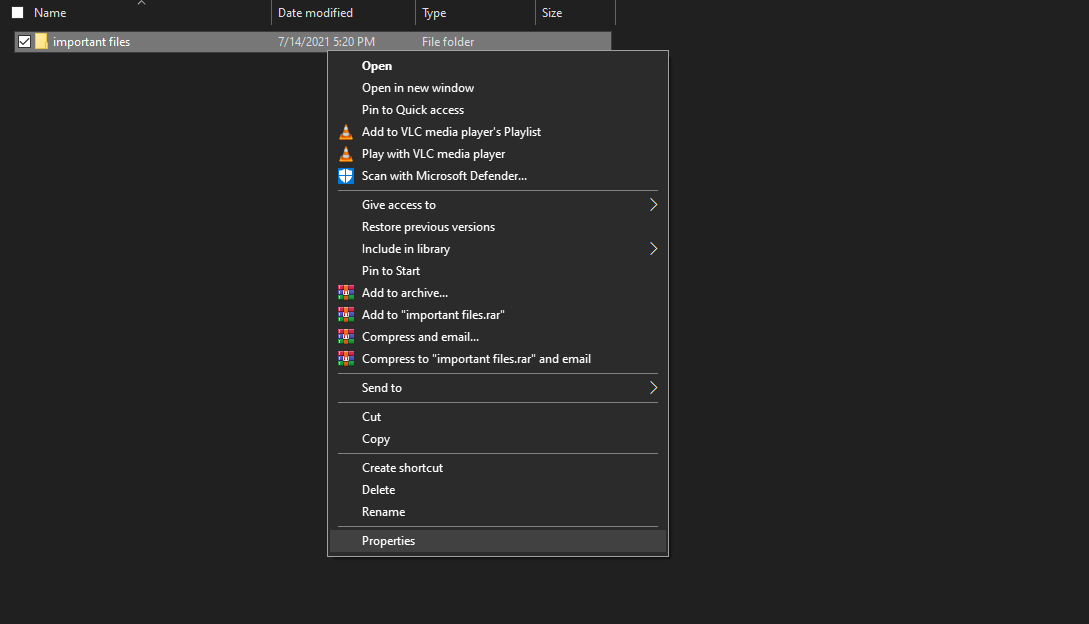
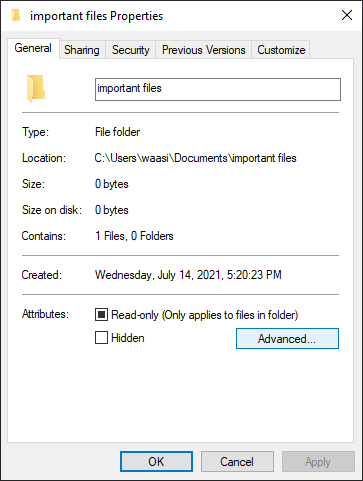
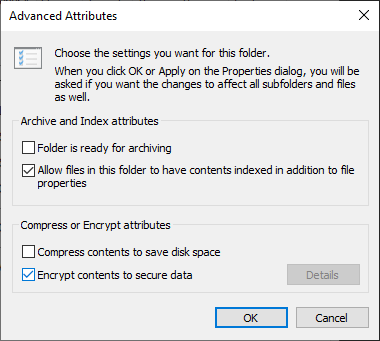

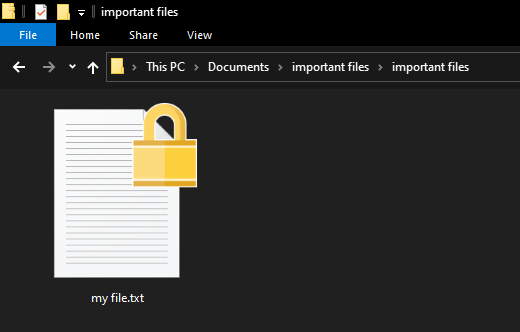
Backup your encryption certificate to a USB drive
Your encryption certificate contains your encryption key, and it is smart to back up your encryption certificate in a USB drive so you don’t lose it. Once your file encryption is completed, you will get a notification asking if you want to backup your encryption keys in a certificate. You can either click there as well to open it, or you can backup in the following way:
- Right click on your encrypted file or folder and click on properties
- Once you come across the following window click on the box labeled “Advanced”
- Once you get a pop-up window like the one below, click on the button labeled “Details”
- After that, click on the username and hit the backup keys
- Hit next
- Again hit next
- Not that is the important part, set a password on your certificate as well; this will help gain more security.
- Now hit browse, name the file, save it in a USB flash drive


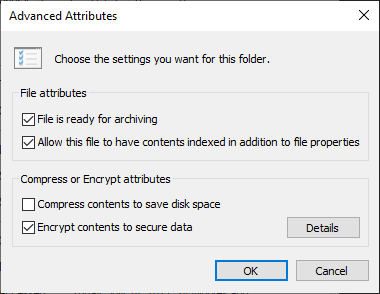

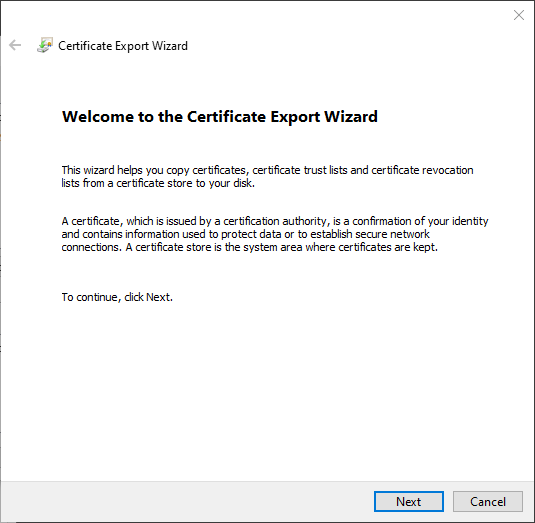
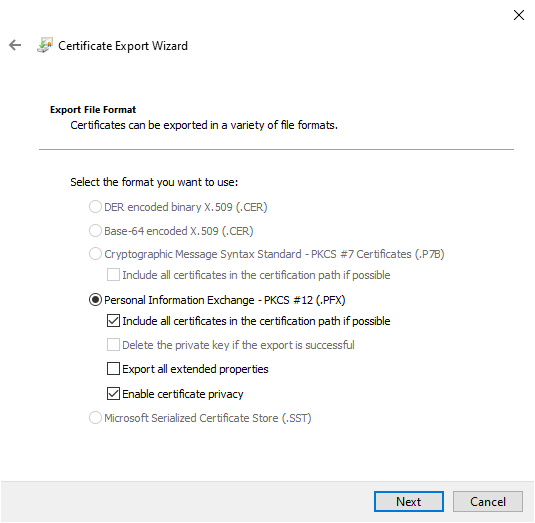


How to Decrypt the Files
Decrypting the file is almost the same process as encrypting, that is, through the following steps:
- Right-click, click on properties, and go to advanced
- Click Advanced, and uncheck the encrypt option.
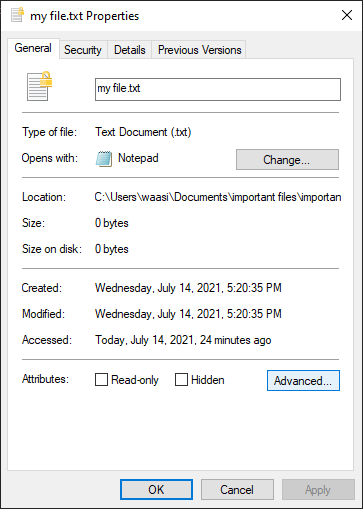

Accessing the encrypted files on your new computer
You might upgrade to a new computer at some point, and transferring encrypted adat might seem like a hassle. But remember that encryption certificate we exported in a flash drive? It will be of use to you now.
Since a new computer system is foreign to your encrypted files, you won’t be able to access them and will come across the following message even when you try.
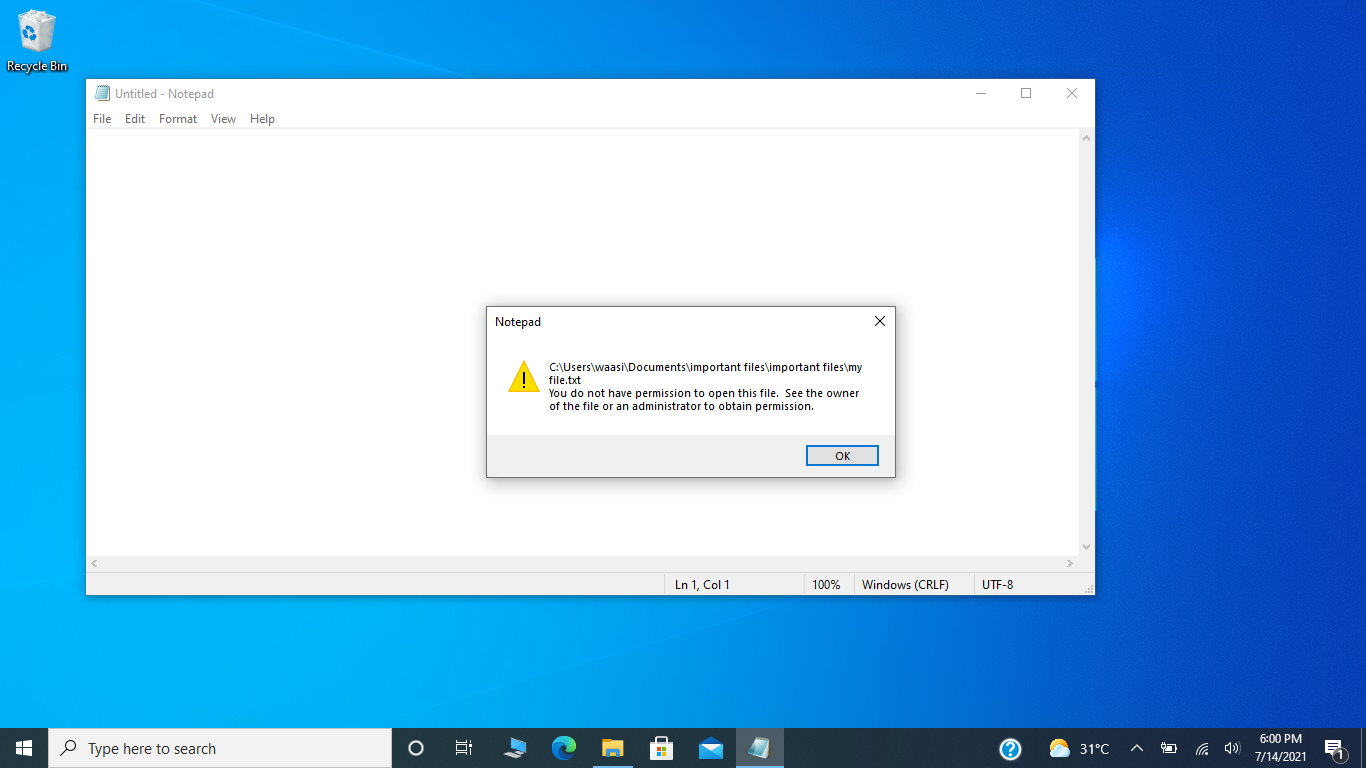
- Type the certificate in the Windows search bar, and open user certificates
- Now go to personal and right-click on certificates, hover over all tasks, and hit import
- Hit Next
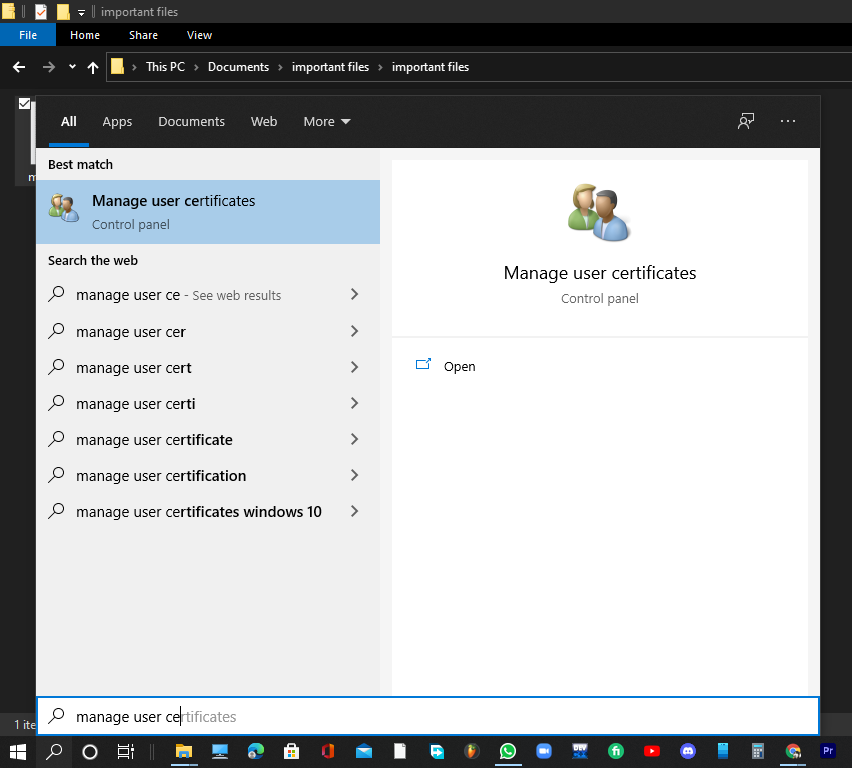
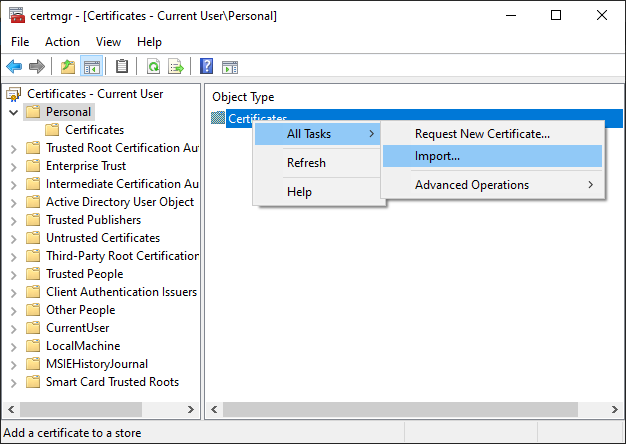
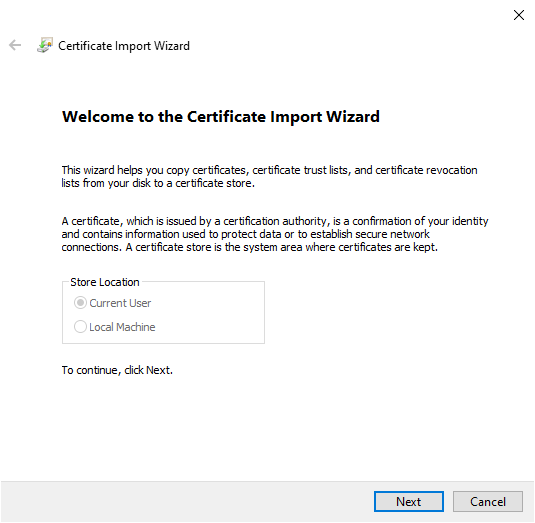
- Now locate your encryption certificate and open it, and you are done
- After this, you can access your encrypted files on your new computer.

Third-Party Encryption Software for Windows
There are several compatible encryption software for Windows that you can use to encrypt your files and folders. Some of the most reliable ones are as follows:
- CryptoExpert: It is a desktop software offering secure data vaults for data storage and backups for large files. It uses Blowfish, Cast, 3DES, and AES 256 encryption algorithms for encryption.
- VeraCrypt: Offer industry-standard AES encryption; this software adds encrypted passwords to your files. It is open-source and so far immune to brute-force attacks.
- DiskCryptor: An open-source software, it secures internal and external drives, system partitions, ISO images, and even USB flash drives. It is a full-disk encryption tool that provides encryption through AES, Twofish, and Serpent encryption algorithms.
- 7-Zip: This tool allows target file encryption instead of full-disk encryption. It is free and open-source and uses the secure AES-256-bit encryption algorithm.
- AxCrypt: An open-source file encryption tool that uses AES encryption to encrypt specific or group files. It allows auto-decryption after a particular period.
Although most of these third-party tools are somewhat reliable, it’s up to you to stray from this list and choose any other software. However, be sure to do your research before opting for any third-party tool.
Conclusion
Encryption is, so far, one of the most secure forms of storing your data. Since Windows is specifically known to be vulnerable to hack and malware attacks, it is best to ensure security and privacy through reliable encryption.
The post How to Encrypt and Decrypt Files / Folder In Windows in 2024 appeared first on BeEncrypted.
]]>Deprecated: Using null as an array offset is deprecated, use an empty string instead in /var/www/staging.beencrypted.com/site/web/wp/wp-includes/class-wp-block-type-registry.php on line 168
Deprecated: Using null as an array offset is deprecated, use an empty string instead in /var/www/staging.beencrypted.com/site/web/wp/wp-includes/class-wp-block-type-registry.php on line 168
Deprecated: Using null as an array offset is deprecated, use an empty string instead in /var/www/staging.beencrypted.com/site/web/wp/wp-includes/class-wp-block-type-registry.php on line 168
Deprecated: Using null as an array offset is deprecated, use an empty string instead in /var/www/staging.beencrypted.com/site/web/wp/wp-includes/class-wp-block-type-registry.php on line 168
Deprecated: Using null as an array offset is deprecated, use an empty string instead in /var/www/staging.beencrypted.com/site/web/wp/wp-includes/class-wp-block-type-registry.php on line 168
Deprecated: Using null as an array offset is deprecated, use an empty string instead in /var/www/staging.beencrypted.com/site/web/wp/wp-includes/class-wp-block-type-registry.php on line 168
Deprecated: Using null as an array offset is deprecated, use an empty string instead in /var/www/staging.beencrypted.com/site/web/wp/wp-includes/class-wp-block-type-registry.php on line 168
Deprecated: Using null as an array offset is deprecated, use an empty string instead in /var/www/staging.beencrypted.com/site/web/wp/wp-includes/class-wp-block-type-registry.php on line 168
Deprecated: Using null as an array offset is deprecated, use an empty string instead in /var/www/staging.beencrypted.com/site/web/wp/wp-includes/class-wp-block-type-registry.php on line 168
Deprecated: Using null as an array offset is deprecated, use an empty string instead in /var/www/staging.beencrypted.com/site/web/wp/wp-includes/class-wp-block-type-registry.php on line 168
Deprecated: Using null as an array offset is deprecated, use an empty string instead in /var/www/staging.beencrypted.com/site/web/wp/wp-includes/class-wp-block-type-registry.php on line 168
Deprecated: Using null as an array offset is deprecated, use an empty string instead in /var/www/staging.beencrypted.com/site/web/wp/wp-includes/class-wp-block-type-registry.php on line 168
Deprecated: Using null as an array offset is deprecated, use an empty string instead in /var/www/staging.beencrypted.com/site/web/wp/wp-includes/class-wp-block-type-registry.php on line 168
Deprecated: Using null as an array offset is deprecated, use an empty string instead in /var/www/staging.beencrypted.com/site/web/wp/wp-includes/class-wp-block-type-registry.php on line 168
Deprecated: Using null as an array offset is deprecated, use an empty string instead in /var/www/staging.beencrypted.com/site/web/wp/wp-includes/class-wp-block-type-registry.php on line 168
Deprecated: Using null as an array offset is deprecated, use an empty string instead in /var/www/staging.beencrypted.com/site/web/wp/wp-includes/class-wp-block-type-registry.php on line 168
Deprecated: Using null as an array offset is deprecated, use an empty string instead in /var/www/staging.beencrypted.com/site/web/wp/wp-includes/class-wp-block-type-registry.php on line 168
Deprecated: Using null as an array offset is deprecated, use an empty string instead in /var/www/staging.beencrypted.com/site/web/wp/wp-includes/class-wp-block-type-registry.php on line 168
Deprecated: Using null as an array offset is deprecated, use an empty string instead in /var/www/staging.beencrypted.com/site/web/wp/wp-includes/class-wp-block-type-registry.php on line 168
Deprecated: Using null as an array offset is deprecated, use an empty string instead in /var/www/staging.beencrypted.com/site/web/wp/wp-includes/class-wp-block-type-registry.php on line 168
Deprecated: Using null as an array offset is deprecated, use an empty string instead in /var/www/staging.beencrypted.com/site/web/wp/wp-includes/class-wp-block-type-registry.php on line 168
Deprecated: Using null as an array offset is deprecated, use an empty string instead in /var/www/staging.beencrypted.com/site/web/wp/wp-includes/class-wp-block-type-registry.php on line 168
Deprecated: Using null as an array offset is deprecated, use an empty string instead in /var/www/staging.beencrypted.com/site/web/wp/wp-includes/class-wp-block-type-registry.php on line 168
Deprecated: Using null as an array offset is deprecated, use an empty string instead in /var/www/staging.beencrypted.com/site/web/wp/wp-includes/class-wp-block-type-registry.php on line 168
Deprecated: Using null as an array offset is deprecated, use an empty string instead in /var/www/staging.beencrypted.com/site/web/wp/wp-includes/class-wp-block-type-registry.php on line 168
Deprecated: Using null as an array offset is deprecated, use an empty string instead in /var/www/staging.beencrypted.com/site/web/wp/wp-includes/class-wp-block-type-registry.php on line 168
Deprecated: Using null as an array offset is deprecated, use an empty string instead in /var/www/staging.beencrypted.com/site/web/wp/wp-includes/class-wp-block-type-registry.php on line 168
Deprecated: Using null as an array offset is deprecated, use an empty string instead in /var/www/staging.beencrypted.com/site/web/wp/wp-includes/class-wp-block-type-registry.php on line 168
Deprecated: Using null as an array offset is deprecated, use an empty string instead in /var/www/staging.beencrypted.com/site/web/wp/wp-includes/class-wp-block-type-registry.php on line 168
Deprecated: Using null as an array offset is deprecated, use an empty string instead in /var/www/staging.beencrypted.com/site/web/wp/wp-includes/class-wp-block-type-registry.php on line 168
Deprecated: Using null as an array offset is deprecated, use an empty string instead in /var/www/staging.beencrypted.com/site/web/wp/wp-includes/class-wp-block-type-registry.php on line 168
Deprecated: Using null as an array offset is deprecated, use an empty string instead in /var/www/staging.beencrypted.com/site/web/wp/wp-includes/class-wp-block-type-registry.php on line 168
Deprecated: Using null as an array offset is deprecated, use an empty string instead in /var/www/staging.beencrypted.com/site/web/wp/wp-includes/class-wp-block-type-registry.php on line 168
Deprecated: Using null as an array offset is deprecated, use an empty string instead in /var/www/staging.beencrypted.com/site/web/wp/wp-includes/class-wp-block-type-registry.php on line 168
Deprecated: Using null as an array offset is deprecated, use an empty string instead in /var/www/staging.beencrypted.com/site/web/wp/wp-includes/class-wp-block-type-registry.php on line 168
Deprecated: Using null as an array offset is deprecated, use an empty string instead in /var/www/staging.beencrypted.com/site/web/wp/wp-includes/class-wp-block-type-registry.php on line 168
Deprecated: Using null as an array offset is deprecated, use an empty string instead in /var/www/staging.beencrypted.com/site/web/wp/wp-includes/class-wp-block-type-registry.php on line 168
Deprecated: Using null as an array offset is deprecated, use an empty string instead in /var/www/staging.beencrypted.com/site/web/wp/wp-includes/class-wp-block-type-registry.php on line 168
Deprecated: Using null as an array offset is deprecated, use an empty string instead in /var/www/staging.beencrypted.com/site/web/wp/wp-includes/class-wp-block-type-registry.php on line 168
Deprecated: Using null as an array offset is deprecated, use an empty string instead in /var/www/staging.beencrypted.com/site/web/wp/wp-includes/class-wp-block-type-registry.php on line 168
Deprecated: Using null as an array offset is deprecated, use an empty string instead in /var/www/staging.beencrypted.com/site/web/wp/wp-includes/class-wp-block-type-registry.php on line 168
Deprecated: Using null as an array offset is deprecated, use an empty string instead in /var/www/staging.beencrypted.com/site/web/wp/wp-includes/class-wp-block-type-registry.php on line 168
Deprecated: Using null as an array offset is deprecated, use an empty string instead in /var/www/staging.beencrypted.com/site/web/wp/wp-includes/class-wp-block-type-registry.php on line 168
Deprecated: Using null as an array offset is deprecated, use an empty string instead in /var/www/staging.beencrypted.com/site/web/wp/wp-includes/class-wp-block-type-registry.php on line 168
Deprecated: Using null as an array offset is deprecated, use an empty string instead in /var/www/staging.beencrypted.com/site/web/wp/wp-includes/class-wp-block-type-registry.php on line 168
Deprecated: Using null as an array offset is deprecated, use an empty string instead in /var/www/staging.beencrypted.com/site/web/wp/wp-includes/class-wp-block-type-registry.php on line 168
Deprecated: Using null as an array offset is deprecated, use an empty string instead in /var/www/staging.beencrypted.com/site/web/wp/wp-includes/class-wp-block-type-registry.php on line 168
Deprecated: Using null as an array offset is deprecated, use an empty string instead in /var/www/staging.beencrypted.com/site/web/wp/wp-includes/class-wp-block-type-registry.php on line 168
Deprecated: Using null as an array offset is deprecated, use an empty string instead in /var/www/staging.beencrypted.com/site/web/wp/wp-includes/class-wp-block-type-registry.php on line 168
Deprecated: Using null as an array offset is deprecated, use an empty string instead in /var/www/staging.beencrypted.com/site/web/wp/wp-includes/class-wp-block-type-registry.php on line 168
Deprecated: Using null as an array offset is deprecated, use an empty string instead in /var/www/staging.beencrypted.com/site/web/wp/wp-includes/class-wp-block-type-registry.php on line 168
Deprecated: Using null as an array offset is deprecated, use an empty string instead in /var/www/staging.beencrypted.com/site/web/wp/wp-includes/class-wp-block-type-registry.php on line 168
Deprecated: Using null as an array offset is deprecated, use an empty string instead in /var/www/staging.beencrypted.com/site/web/wp/wp-includes/class-wp-block-type-registry.php on line 168
Deprecated: Using null as an array offset is deprecated, use an empty string instead in /var/www/staging.beencrypted.com/site/web/wp/wp-includes/class-wp-block-type-registry.php on line 168
Deprecated: Using null as an array offset is deprecated, use an empty string instead in /var/www/staging.beencrypted.com/site/web/wp/wp-includes/class-wp-block-type-registry.php on line 168
Deprecated: Using null as an array offset is deprecated, use an empty string instead in /var/www/staging.beencrypted.com/site/web/wp/wp-includes/class-wp-block-type-registry.php on line 168
Deprecated: Using null as an array offset is deprecated, use an empty string instead in /var/www/staging.beencrypted.com/site/web/wp/wp-includes/class-wp-block-type-registry.php on line 168
Deprecated: Using null as an array offset is deprecated, use an empty string instead in /var/www/staging.beencrypted.com/site/web/wp/wp-includes/class-wp-block-type-registry.php on line 168
Deprecated: Using null as an array offset is deprecated, use an empty string instead in /var/www/staging.beencrypted.com/site/web/wp/wp-includes/class-wp-block-type-registry.php on line 168
Deprecated: Using null as an array offset is deprecated, use an empty string instead in /var/www/staging.beencrypted.com/site/web/wp/wp-includes/class-wp-block-type-registry.php on line 168
Deprecated: Using null as an array offset is deprecated, use an empty string instead in /var/www/staging.beencrypted.com/site/web/wp/wp-includes/class-wp-block-type-registry.php on line 168
Deprecated: Using null as an array offset is deprecated, use an empty string instead in /var/www/staging.beencrypted.com/site/web/wp/wp-includes/class-wp-block-type-registry.php on line 168
Deprecated: Using null as an array offset is deprecated, use an empty string instead in /var/www/staging.beencrypted.com/site/web/wp/wp-includes/class-wp-block-type-registry.php on line 168
Deprecated: Using null as an array offset is deprecated, use an empty string instead in /var/www/staging.beencrypted.com/site/web/wp/wp-includes/class-wp-block-type-registry.php on line 168
Deprecated: Using null as an array offset is deprecated, use an empty string instead in /var/www/staging.beencrypted.com/site/web/wp/wp-includes/class-wp-block-type-registry.php on line 168
Deprecated: Using null as an array offset is deprecated, use an empty string instead in /var/www/staging.beencrypted.com/site/web/wp/wp-includes/class-wp-block-type-registry.php on line 168
Deprecated: Using null as an array offset is deprecated, use an empty string instead in /var/www/staging.beencrypted.com/site/web/wp/wp-includes/class-wp-block-type-registry.php on line 168
Deprecated: Using null as an array offset is deprecated, use an empty string instead in /var/www/staging.beencrypted.com/site/web/wp/wp-includes/class-wp-block-type-registry.php on line 168
Deprecated: Using null as an array offset is deprecated, use an empty string instead in /var/www/staging.beencrypted.com/site/web/wp/wp-includes/class-wp-block-type-registry.php on line 168
Deprecated: Using null as an array offset is deprecated, use an empty string instead in /var/www/staging.beencrypted.com/site/web/wp/wp-includes/class-wp-block-type-registry.php on line 168
Deprecated: Using null as an array offset is deprecated, use an empty string instead in /var/www/staging.beencrypted.com/site/web/wp/wp-includes/class-wp-block-type-registry.php on line 168
Deprecated: Using null as an array offset is deprecated, use an empty string instead in /var/www/staging.beencrypted.com/site/web/wp/wp-includes/class-wp-block-type-registry.php on line 168
Deprecated: Using null as an array offset is deprecated, use an empty string instead in /var/www/staging.beencrypted.com/site/web/wp/wp-includes/class-wp-block-type-registry.php on line 168
Deprecated: Using null as an array offset is deprecated, use an empty string instead in /var/www/staging.beencrypted.com/site/web/wp/wp-includes/class-wp-block-type-registry.php on line 168
Deprecated: Using null as an array offset is deprecated, use an empty string instead in /var/www/staging.beencrypted.com/site/web/wp/wp-includes/class-wp-block-type-registry.php on line 168
Deprecated: Using null as an array offset is deprecated, use an empty string instead in /var/www/staging.beencrypted.com/site/web/wp/wp-includes/class-wp-block-type-registry.php on line 168
Deprecated: Using null as an array offset is deprecated, use an empty string instead in /var/www/staging.beencrypted.com/site/web/wp/wp-includes/class-wp-block-type-registry.php on line 168
Deprecated: Using null as an array offset is deprecated, use an empty string instead in /var/www/staging.beencrypted.com/site/web/wp/wp-includes/class-wp-block-type-registry.php on line 168
Deprecated: Using null as an array offset is deprecated, use an empty string instead in /var/www/staging.beencrypted.com/site/web/wp/wp-includes/class-wp-block-type-registry.php on line 168
Deprecated: Using null as an array offset is deprecated, use an empty string instead in /var/www/staging.beencrypted.com/site/web/wp/wp-includes/class-wp-block-type-registry.php on line 168
Deprecated: Using null as an array offset is deprecated, use an empty string instead in /var/www/staging.beencrypted.com/site/web/wp/wp-includes/class-wp-block-type-registry.php on line 168
Deprecated: Using null as an array offset is deprecated, use an empty string instead in /var/www/staging.beencrypted.com/site/web/wp/wp-includes/class-wp-block-type-registry.php on line 168
Deprecated: Using null as an array offset is deprecated, use an empty string instead in /var/www/staging.beencrypted.com/site/web/wp/wp-includes/class-wp-block-type-registry.php on line 168
Deprecated: Using null as an array offset is deprecated, use an empty string instead in /var/www/staging.beencrypted.com/site/web/wp/wp-includes/class-wp-block-type-registry.php on line 168
Deprecated: Using null as an array offset is deprecated, use an empty string instead in /var/www/staging.beencrypted.com/site/web/wp/wp-includes/class-wp-block-type-registry.php on line 168
Deprecated: Using null as an array offset is deprecated, use an empty string instead in /var/www/staging.beencrypted.com/site/web/wp/wp-includes/class-wp-block-type-registry.php on line 168
Deprecated: Using null as an array offset is deprecated, use an empty string instead in /var/www/staging.beencrypted.com/site/web/wp/wp-includes/class-wp-block-type-registry.php on line 168
Deprecated: Using null as an array offset is deprecated, use an empty string instead in /var/www/staging.beencrypted.com/site/web/wp/wp-includes/class-wp-block-type-registry.php on line 168
Deprecated: Using null as an array offset is deprecated, use an empty string instead in /var/www/staging.beencrypted.com/site/web/wp/wp-includes/class-wp-block-type-registry.php on line 168
Deprecated: Using null as an array offset is deprecated, use an empty string instead in /var/www/staging.beencrypted.com/site/web/wp/wp-includes/class-wp-block-type-registry.php on line 168
Deprecated: Using null as an array offset is deprecated, use an empty string instead in /var/www/staging.beencrypted.com/site/web/wp/wp-includes/class-wp-block-type-registry.php on line 168
Deprecated: Using null as an array offset is deprecated, use an empty string instead in /var/www/staging.beencrypted.com/site/web/wp/wp-includes/class-wp-block-type-registry.php on line 168
Deprecated: Using null as an array offset is deprecated, use an empty string instead in /var/www/staging.beencrypted.com/site/web/wp/wp-includes/class-wp-block-type-registry.php on line 168
Deprecated: Using null as an array offset is deprecated, use an empty string instead in /var/www/staging.beencrypted.com/site/web/wp/wp-includes/class-wp-block-type-registry.php on line 168
Deprecated: Using null as an array offset is deprecated, use an empty string instead in /var/www/staging.beencrypted.com/site/web/wp/wp-includes/class-wp-block-type-registry.php on line 168
Deprecated: Using null as an array offset is deprecated, use an empty string instead in /var/www/staging.beencrypted.com/site/web/wp/wp-includes/class-wp-block-type-registry.php on line 168
Deprecated: Using null as an array offset is deprecated, use an empty string instead in /var/www/staging.beencrypted.com/site/web/wp/wp-includes/class-wp-block-type-registry.php on line 168
Deprecated: Using null as an array offset is deprecated, use an empty string instead in /var/www/staging.beencrypted.com/site/web/wp/wp-includes/class-wp-block-type-registry.php on line 168
Deprecated: Using null as an array offset is deprecated, use an empty string instead in /var/www/staging.beencrypted.com/site/web/wp/wp-includes/class-wp-block-type-registry.php on line 168
Deprecated: Using null as an array offset is deprecated, use an empty string instead in /var/www/staging.beencrypted.com/site/web/wp/wp-includes/class-wp-block-type-registry.php on line 168
Deprecated: Using null as an array offset is deprecated, use an empty string instead in /var/www/staging.beencrypted.com/site/web/wp/wp-includes/class-wp-block-type-registry.php on line 168
Deprecated: Using null as an array offset is deprecated, use an empty string instead in /var/www/staging.beencrypted.com/site/web/wp/wp-includes/class-wp-block-type-registry.php on line 168
Deprecated: Using null as an array offset is deprecated, use an empty string instead in /var/www/staging.beencrypted.com/site/web/wp/wp-includes/class-wp-block-type-registry.php on line 168
Deprecated: Using null as an array offset is deprecated, use an empty string instead in /var/www/staging.beencrypted.com/site/web/wp/wp-includes/class-wp-block-type-registry.php on line 168
Deprecated: Using null as an array offset is deprecated, use an empty string instead in /var/www/staging.beencrypted.com/site/web/wp/wp-includes/class-wp-block-type-registry.php on line 168
Deprecated: Using null as an array offset is deprecated, use an empty string instead in /var/www/staging.beencrypted.com/site/web/wp/wp-includes/class-wp-block-type-registry.php on line 168
Deprecated: Using null as an array offset is deprecated, use an empty string instead in /var/www/staging.beencrypted.com/site/web/wp/wp-includes/class-wp-block-type-registry.php on line 168
Deprecated: Using null as an array offset is deprecated, use an empty string instead in /var/www/staging.beencrypted.com/site/web/wp/wp-includes/class-wp-block-type-registry.php on line 168
Deprecated: Using null as an array offset is deprecated, use an empty string instead in /var/www/staging.beencrypted.com/site/web/wp/wp-includes/class-wp-block-type-registry.php on line 168
Deprecated: Using null as an array offset is deprecated, use an empty string instead in /var/www/staging.beencrypted.com/site/web/wp/wp-includes/class-wp-block-type-registry.php on line 168
Deprecated: Using null as an array offset is deprecated, use an empty string instead in /var/www/staging.beencrypted.com/site/web/wp/wp-includes/class-wp-block-type-registry.php on line 168
Deprecated: Using null as an array offset is deprecated, use an empty string instead in /var/www/staging.beencrypted.com/site/web/wp/wp-includes/class-wp-block-type-registry.php on line 168
Deprecated: Using null as an array offset is deprecated, use an empty string instead in /var/www/staging.beencrypted.com/site/web/wp/wp-includes/class-wp-block-type-registry.php on line 168
Deprecated: Using null as an array offset is deprecated, use an empty string instead in /var/www/staging.beencrypted.com/site/web/wp/wp-includes/class-wp-block-type-registry.php on line 168
Deprecated: Using null as an array offset is deprecated, use an empty string instead in /var/www/staging.beencrypted.com/site/web/wp/wp-includes/class-wp-block-type-registry.php on line 168
Deprecated: Using null as an array offset is deprecated, use an empty string instead in /var/www/staging.beencrypted.com/site/web/wp/wp-includes/class-wp-block-type-registry.php on line 168
Deprecated: Using null as an array offset is deprecated, use an empty string instead in /var/www/staging.beencrypted.com/site/web/wp/wp-includes/class-wp-block-type-registry.php on line 168
Deprecated: Using null as an array offset is deprecated, use an empty string instead in /var/www/staging.beencrypted.com/site/web/wp/wp-includes/class-wp-block-type-registry.php on line 168
Deprecated: Using null as an array offset is deprecated, use an empty string instead in /var/www/staging.beencrypted.com/site/web/wp/wp-includes/class-wp-block-type-registry.php on line 168
Deprecated: Using null as an array offset is deprecated, use an empty string instead in /var/www/staging.beencrypted.com/site/web/wp/wp-includes/class-wp-block-type-registry.php on line 168
Deprecated: Using null as an array offset is deprecated, use an empty string instead in /var/www/staging.beencrypted.com/site/web/wp/wp-includes/class-wp-block-type-registry.php on line 168
Deprecated: Using null as an array offset is deprecated, use an empty string instead in /var/www/staging.beencrypted.com/site/web/wp/wp-includes/class-wp-block-type-registry.php on line 168
Deprecated: Using null as an array offset is deprecated, use an empty string instead in /var/www/staging.beencrypted.com/site/web/wp/wp-includes/class-wp-block-type-registry.php on line 168
Deprecated: Using null as an array offset is deprecated, use an empty string instead in /var/www/staging.beencrypted.com/site/web/wp/wp-includes/class-wp-block-type-registry.php on line 168
Deprecated: Using null as an array offset is deprecated, use an empty string instead in /var/www/staging.beencrypted.com/site/web/wp/wp-includes/class-wp-block-type-registry.php on line 168
Deprecated: Using null as an array offset is deprecated, use an empty string instead in /var/www/staging.beencrypted.com/site/web/wp/wp-includes/class-wp-block-type-registry.php on line 168
Deprecated: Using null as an array offset is deprecated, use an empty string instead in /var/www/staging.beencrypted.com/site/web/wp/wp-includes/class-wp-block-type-registry.php on line 168
Deprecated: Using null as an array offset is deprecated, use an empty string instead in /var/www/staging.beencrypted.com/site/web/wp/wp-includes/class-wp-block-type-registry.php on line 168
Deprecated: Using null as an array offset is deprecated, use an empty string instead in /var/www/staging.beencrypted.com/site/web/wp/wp-includes/class-wp-block-type-registry.php on line 168
Deprecated: Using null as an array offset is deprecated, use an empty string instead in /var/www/staging.beencrypted.com/site/web/wp/wp-includes/class-wp-block-type-registry.php on line 168
Deprecated: Using null as an array offset is deprecated, use an empty string instead in /var/www/staging.beencrypted.com/site/web/wp/wp-includes/class-wp-block-type-registry.php on line 168
Deprecated: Using null as an array offset is deprecated, use an empty string instead in /var/www/staging.beencrypted.com/site/web/wp/wp-includes/class-wp-block-type-registry.php on line 168
Deprecated: Using null as an array offset is deprecated, use an empty string instead in /var/www/staging.beencrypted.com/site/web/wp/wp-includes/class-wp-block-type-registry.php on line 168
Deprecated: Using null as an array offset is deprecated, use an empty string instead in /var/www/staging.beencrypted.com/site/web/wp/wp-includes/class-wp-block-type-registry.php on line 168
Deprecated: Using null as an array offset is deprecated, use an empty string instead in /var/www/staging.beencrypted.com/site/web/wp/wp-includes/class-wp-block-type-registry.php on line 168
Deprecated: Using null as an array offset is deprecated, use an empty string instead in /var/www/staging.beencrypted.com/site/web/wp/wp-includes/class-wp-block-type-registry.php on line 168
Deprecated: Using null as an array offset is deprecated, use an empty string instead in /var/www/staging.beencrypted.com/site/web/wp/wp-includes/class-wp-block-type-registry.php on line 168
Deprecated: Using null as an array offset is deprecated, use an empty string instead in /var/www/staging.beencrypted.com/site/web/wp/wp-includes/class-wp-block-type-registry.php on line 168
Deprecated: Using null as an array offset is deprecated, use an empty string instead in /var/www/staging.beencrypted.com/site/web/wp/wp-includes/class-wp-block-type-registry.php on line 168
Deprecated: Using null as an array offset is deprecated, use an empty string instead in /var/www/staging.beencrypted.com/site/web/wp/wp-includes/class-wp-block-type-registry.php on line 168
Deprecated: Using null as an array offset is deprecated, use an empty string instead in /var/www/staging.beencrypted.com/site/web/wp/wp-includes/class-wp-block-type-registry.php on line 168
Deprecated: Using null as an array offset is deprecated, use an empty string instead in /var/www/staging.beencrypted.com/site/web/wp/wp-includes/class-wp-block-type-registry.php on line 168
Deprecated: Using null as an array offset is deprecated, use an empty string instead in /var/www/staging.beencrypted.com/site/web/wp/wp-includes/class-wp-block-type-registry.php on line 168
Deprecated: Using null as an array offset is deprecated, use an empty string instead in /var/www/staging.beencrypted.com/site/web/wp/wp-includes/class-wp-block-type-registry.php on line 168
Deprecated: Using null as an array offset is deprecated, use an empty string instead in /var/www/staging.beencrypted.com/site/web/wp/wp-includes/class-wp-block-type-registry.php on line 168
Deprecated: Using null as an array offset is deprecated, use an empty string instead in /var/www/staging.beencrypted.com/site/web/wp/wp-includes/class-wp-block-type-registry.php on line 168
Deprecated: Using null as an array offset is deprecated, use an empty string instead in /var/www/staging.beencrypted.com/site/web/wp/wp-includes/class-wp-block-type-registry.php on line 168
Deprecated: Using null as an array offset is deprecated, use an empty string instead in /var/www/staging.beencrypted.com/site/web/wp/wp-includes/class-wp-block-type-registry.php on line 168
Deprecated: Using null as an array offset is deprecated, use an empty string instead in /var/www/staging.beencrypted.com/site/web/wp/wp-includes/class-wp-block-type-registry.php on line 168
Deprecated: Using null as an array offset is deprecated, use an empty string instead in /var/www/staging.beencrypted.com/site/web/wp/wp-includes/class-wp-block-type-registry.php on line 168
Deprecated: Using null as an array offset is deprecated, use an empty string instead in /var/www/staging.beencrypted.com/site/web/wp/wp-includes/class-wp-block-type-registry.php on line 168
Deprecated: Using null as an array offset is deprecated, use an empty string instead in /var/www/staging.beencrypted.com/site/web/wp/wp-includes/class-wp-block-type-registry.php on line 168
Deprecated: Using null as an array offset is deprecated, use an empty string instead in /var/www/staging.beencrypted.com/site/web/wp/wp-includes/class-wp-block-type-registry.php on line 168
Deprecated: Using null as an array offset is deprecated, use an empty string instead in /var/www/staging.beencrypted.com/site/web/wp/wp-includes/class-wp-block-type-registry.php on line 168
Deprecated: Using null as an array offset is deprecated, use an empty string instead in /var/www/staging.beencrypted.com/site/web/wp/wp-includes/class-wp-block-type-registry.php on line 168
Deprecated: Using null as an array offset is deprecated, use an empty string instead in /var/www/staging.beencrypted.com/site/web/wp/wp-includes/class-wp-block-type-registry.php on line 168
Deprecated: Using null as an array offset is deprecated, use an empty string instead in /var/www/staging.beencrypted.com/site/web/wp/wp-includes/class-wp-block-type-registry.php on line 168
Deprecated: Using null as an array offset is deprecated, use an empty string instead in /var/www/staging.beencrypted.com/site/web/wp/wp-includes/class-wp-block-type-registry.php on line 168
Deprecated: Using null as an array offset is deprecated, use an empty string instead in /var/www/staging.beencrypted.com/site/web/wp/wp-includes/class-wp-block-type-registry.php on line 168
Deprecated: Using null as an array offset is deprecated, use an empty string instead in /var/www/staging.beencrypted.com/site/web/wp/wp-includes/class-wp-block-type-registry.php on line 168
Deprecated: Using null as an array offset is deprecated, use an empty string instead in /var/www/staging.beencrypted.com/site/web/wp/wp-includes/class-wp-block-type-registry.php on line 168
Deprecated: Using null as an array offset is deprecated, use an empty string instead in /var/www/staging.beencrypted.com/site/web/wp/wp-includes/class-wp-block-type-registry.php on line 168
Deprecated: Using null as an array offset is deprecated, use an empty string instead in /var/www/staging.beencrypted.com/site/web/wp/wp-includes/class-wp-block-type-registry.php on line 168
Deprecated: Using null as an array offset is deprecated, use an empty string instead in /var/www/staging.beencrypted.com/site/web/wp/wp-includes/class-wp-block-type-registry.php on line 168
Deprecated: Using null as an array offset is deprecated, use an empty string instead in /var/www/staging.beencrypted.com/site/web/wp/wp-includes/class-wp-block-type-registry.php on line 168
Deprecated: Using null as an array offset is deprecated, use an empty string instead in /var/www/staging.beencrypted.com/site/web/wp/wp-includes/class-wp-block-type-registry.php on line 168
Deprecated: Using null as an array offset is deprecated, use an empty string instead in /var/www/staging.beencrypted.com/site/web/wp/wp-includes/class-wp-block-type-registry.php on line 168
Deprecated: Using null as an array offset is deprecated, use an empty string instead in /var/www/staging.beencrypted.com/site/web/wp/wp-includes/class-wp-block-type-registry.php on line 168
Deprecated: Using null as an array offset is deprecated, use an empty string instead in /var/www/staging.beencrypted.com/site/web/wp/wp-includes/class-wp-block-type-registry.php on line 168
Deprecated: Using null as an array offset is deprecated, use an empty string instead in /var/www/staging.beencrypted.com/site/web/wp/wp-includes/class-wp-block-type-registry.php on line 168
Deprecated: Using null as an array offset is deprecated, use an empty string instead in /var/www/staging.beencrypted.com/site/web/wp/wp-includes/class-wp-block-type-registry.php on line 168
Deprecated: Using null as an array offset is deprecated, use an empty string instead in /var/www/staging.beencrypted.com/site/web/wp/wp-includes/class-wp-block-type-registry.php on line 168
Deprecated: Using null as an array offset is deprecated, use an empty string instead in /var/www/staging.beencrypted.com/site/web/wp/wp-includes/class-wp-block-type-registry.php on line 168
Deprecated: Using null as an array offset is deprecated, use an empty string instead in /var/www/staging.beencrypted.com/site/web/wp/wp-includes/class-wp-block-type-registry.php on line 168
Deprecated: Using null as an array offset is deprecated, use an empty string instead in /var/www/staging.beencrypted.com/site/web/wp/wp-includes/class-wp-block-type-registry.php on line 168
Deprecated: Using null as an array offset is deprecated, use an empty string instead in /var/www/staging.beencrypted.com/site/web/wp/wp-includes/class-wp-block-type-registry.php on line 168
Deprecated: Using null as an array offset is deprecated, use an empty string instead in /var/www/staging.beencrypted.com/site/web/wp/wp-includes/class-wp-block-type-registry.php on line 168
Deprecated: Using null as an array offset is deprecated, use an empty string instead in /var/www/staging.beencrypted.com/site/web/wp/wp-includes/class-wp-block-type-registry.php on line 168
Deprecated: Using null as an array offset is deprecated, use an empty string instead in /var/www/staging.beencrypted.com/site/web/wp/wp-includes/class-wp-block-type-registry.php on line 168
Deprecated: Using null as an array offset is deprecated, use an empty string instead in /var/www/staging.beencrypted.com/site/web/wp/wp-includes/class-wp-block-type-registry.php on line 168
Deprecated: Using null as an array offset is deprecated, use an empty string instead in /var/www/staging.beencrypted.com/site/web/wp/wp-includes/class-wp-block-type-registry.php on line 168
Deprecated: Using null as an array offset is deprecated, use an empty string instead in /var/www/staging.beencrypted.com/site/web/wp/wp-includes/class-wp-block-type-registry.php on line 168
Deprecated: Using null as an array offset is deprecated, use an empty string instead in /var/www/staging.beencrypted.com/site/web/wp/wp-includes/class-wp-block-type-registry.php on line 168
Deprecated: Using null as an array offset is deprecated, use an empty string instead in /var/www/staging.beencrypted.com/site/web/wp/wp-includes/class-wp-block-type-registry.php on line 168
Deprecated: Using null as an array offset is deprecated, use an empty string instead in /var/www/staging.beencrypted.com/site/web/wp/wp-includes/class-wp-block-type-registry.php on line 168
Deprecated: Using null as an array offset is deprecated, use an empty string instead in /var/www/staging.beencrypted.com/site/web/wp/wp-includes/class-wp-block-type-registry.php on line 168
Deprecated: Using null as an array offset is deprecated, use an empty string instead in /var/www/staging.beencrypted.com/site/web/wp/wp-includes/class-wp-block-type-registry.php on line 168
Deprecated: Using null as an array offset is deprecated, use an empty string instead in /var/www/staging.beencrypted.com/site/web/wp/wp-includes/class-wp-block-type-registry.php on line 168
Deprecated: Using null as an array offset is deprecated, use an empty string instead in /var/www/staging.beencrypted.com/site/web/wp/wp-includes/class-wp-block-type-registry.php on line 168
Deprecated: Using null as an array offset is deprecated, use an empty string instead in /var/www/staging.beencrypted.com/site/web/wp/wp-includes/class-wp-block-type-registry.php on line 168
Deprecated: Using null as an array offset is deprecated, use an empty string instead in /var/www/staging.beencrypted.com/site/web/wp/wp-includes/class-wp-block-type-registry.php on line 168
Deprecated: Using null as an array offset is deprecated, use an empty string instead in /var/www/staging.beencrypted.com/site/web/wp/wp-includes/class-wp-block-type-registry.php on line 168
Deprecated: Using null as an array offset is deprecated, use an empty string instead in /var/www/staging.beencrypted.com/site/web/wp/wp-includes/class-wp-block-type-registry.php on line 168
Deprecated: Using null as an array offset is deprecated, use an empty string instead in /var/www/staging.beencrypted.com/site/web/wp/wp-includes/class-wp-block-type-registry.php on line 168
Deprecated: Using null as an array offset is deprecated, use an empty string instead in /var/www/staging.beencrypted.com/site/web/wp/wp-includes/class-wp-block-type-registry.php on line 168
Deprecated: Using null as an array offset is deprecated, use an empty string instead in /var/www/staging.beencrypted.com/site/web/wp/wp-includes/class-wp-block-type-registry.php on line 168
Deprecated: Using null as an array offset is deprecated, use an empty string instead in /var/www/staging.beencrypted.com/site/web/wp/wp-includes/class-wp-block-type-registry.php on line 168
Deprecated: Using null as an array offset is deprecated, use an empty string instead in /var/www/staging.beencrypted.com/site/web/wp/wp-includes/class-wp-block-type-registry.php on line 168
Deprecated: Using null as an array offset is deprecated, use an empty string instead in /var/www/staging.beencrypted.com/site/web/wp/wp-includes/class-wp-block-type-registry.php on line 168
Deprecated: Using null as an array offset is deprecated, use an empty string instead in /var/www/staging.beencrypted.com/site/web/wp/wp-includes/class-wp-block-type-registry.php on line 168
Deprecated: Using null as an array offset is deprecated, use an empty string instead in /var/www/staging.beencrypted.com/site/web/wp/wp-includes/class-wp-block-type-registry.php on line 168
Deprecated: Using null as an array offset is deprecated, use an empty string instead in /var/www/staging.beencrypted.com/site/web/wp/wp-includes/class-wp-block-type-registry.php on line 168
Deprecated: Using null as an array offset is deprecated, use an empty string instead in /var/www/staging.beencrypted.com/site/web/wp/wp-includes/class-wp-block-type-registry.php on line 168
Deprecated: Using null as an array offset is deprecated, use an empty string instead in /var/www/staging.beencrypted.com/site/web/wp/wp-includes/class-wp-block-type-registry.php on line 168
Deprecated: Using null as an array offset is deprecated, use an empty string instead in /var/www/staging.beencrypted.com/site/web/wp/wp-includes/class-wp-block-type-registry.php on line 168
Deprecated: Using null as an array offset is deprecated, use an empty string instead in /var/www/staging.beencrypted.com/site/web/wp/wp-includes/class-wp-block-type-registry.php on line 168
Deprecated: Using null as an array offset is deprecated, use an empty string instead in /var/www/staging.beencrypted.com/site/web/wp/wp-includes/class-wp-block-type-registry.php on line 168
Deprecated: Using null as an array offset is deprecated, use an empty string instead in /var/www/staging.beencrypted.com/site/web/wp/wp-includes/class-wp-block-type-registry.php on line 168
Deprecated: Using null as an array offset is deprecated, use an empty string instead in /var/www/staging.beencrypted.com/site/web/wp/wp-includes/class-wp-block-type-registry.php on line 168
Deprecated: Using null as an array offset is deprecated, use an empty string instead in /var/www/staging.beencrypted.com/site/web/wp/wp-includes/class-wp-block-type-registry.php on line 168
Deprecated: Using null as an array offset is deprecated, use an empty string instead in /var/www/staging.beencrypted.com/site/web/wp/wp-includes/class-wp-block-type-registry.php on line 168
Deprecated: Using null as an array offset is deprecated, use an empty string instead in /var/www/staging.beencrypted.com/site/web/wp/wp-includes/class-wp-block-type-registry.php on line 168
Deprecated: Using null as an array offset is deprecated, use an empty string instead in /var/www/staging.beencrypted.com/site/web/wp/wp-includes/class-wp-block-type-registry.php on line 168
Deprecated: Using null as an array offset is deprecated, use an empty string instead in /var/www/staging.beencrypted.com/site/web/wp/wp-includes/class-wp-block-type-registry.php on line 168
Deprecated: Using null as an array offset is deprecated, use an empty string instead in /var/www/staging.beencrypted.com/site/web/wp/wp-includes/class-wp-block-type-registry.php on line 168
Deprecated: Using null as an array offset is deprecated, use an empty string instead in /var/www/staging.beencrypted.com/site/web/wp/wp-includes/class-wp-block-type-registry.php on line 168
Deprecated: Using null as an array offset is deprecated, use an empty string instead in /var/www/staging.beencrypted.com/site/web/wp/wp-includes/class-wp-block-type-registry.php on line 168
Deprecated: Using null as an array offset is deprecated, use an empty string instead in /var/www/staging.beencrypted.com/site/web/wp/wp-includes/class-wp-block-type-registry.php on line 168
Deprecated: Using null as an array offset is deprecated, use an empty string instead in /var/www/staging.beencrypted.com/site/web/wp/wp-includes/class-wp-block-type-registry.php on line 168
Deprecated: Using null as an array offset is deprecated, use an empty string instead in /var/www/staging.beencrypted.com/site/web/wp/wp-includes/class-wp-block-type-registry.php on line 168
Deprecated: Using null as an array offset is deprecated, use an empty string instead in /var/www/staging.beencrypted.com/site/web/wp/wp-includes/class-wp-block-type-registry.php on line 168
Deprecated: Using null as an array offset is deprecated, use an empty string instead in /var/www/staging.beencrypted.com/site/web/wp/wp-includes/class-wp-block-type-registry.php on line 168
Deprecated: Using null as an array offset is deprecated, use an empty string instead in /var/www/staging.beencrypted.com/site/web/wp/wp-includes/class-wp-block-type-registry.php on line 168
Deprecated: Using null as an array offset is deprecated, use an empty string instead in /var/www/staging.beencrypted.com/site/web/wp/wp-includes/class-wp-block-type-registry.php on line 168
Deprecated: Using null as an array offset is deprecated, use an empty string instead in /var/www/staging.beencrypted.com/site/web/wp/wp-includes/class-wp-block-type-registry.php on line 168
Deprecated: Using null as an array offset is deprecated, use an empty string instead in /var/www/staging.beencrypted.com/site/web/wp/wp-includes/class-wp-block-type-registry.php on line 168
Deprecated: Using null as an array offset is deprecated, use an empty string instead in /var/www/staging.beencrypted.com/site/web/wp/wp-includes/class-wp-block-type-registry.php on line 168
Deprecated: Using null as an array offset is deprecated, use an empty string instead in /var/www/staging.beencrypted.com/site/web/wp/wp-includes/class-wp-block-type-registry.php on line 168
Deprecated: Using null as an array offset is deprecated, use an empty string instead in /var/www/staging.beencrypted.com/site/web/wp/wp-includes/class-wp-block-type-registry.php on line 168
Deprecated: Using null as an array offset is deprecated, use an empty string instead in /var/www/staging.beencrypted.com/site/web/wp/wp-includes/class-wp-block-type-registry.php on line 168
Deprecated: Using null as an array offset is deprecated, use an empty string instead in /var/www/staging.beencrypted.com/site/web/wp/wp-includes/class-wp-block-type-registry.php on line 168
Deprecated: Using null as an array offset is deprecated, use an empty string instead in /var/www/staging.beencrypted.com/site/web/wp/wp-includes/class-wp-block-type-registry.php on line 168
Deprecated: Using null as an array offset is deprecated, use an empty string instead in /var/www/staging.beencrypted.com/site/web/wp/wp-includes/class-wp-block-type-registry.php on line 168
Deprecated: Using null as an array offset is deprecated, use an empty string instead in /var/www/staging.beencrypted.com/site/web/wp/wp-includes/class-wp-block-type-registry.php on line 168
Deprecated: Using null as an array offset is deprecated, use an empty string instead in /var/www/staging.beencrypted.com/site/web/wp/wp-includes/class-wp-block-type-registry.php on line 168
Deprecated: Using null as an array offset is deprecated, use an empty string instead in /var/www/staging.beencrypted.com/site/web/wp/wp-includes/class-wp-block-type-registry.php on line 168
Deprecated: Using null as an array offset is deprecated, use an empty string instead in /var/www/staging.beencrypted.com/site/web/wp/wp-includes/class-wp-block-type-registry.php on line 168
Deprecated: Using null as an array offset is deprecated, use an empty string instead in /var/www/staging.beencrypted.com/site/web/wp/wp-includes/class-wp-block-type-registry.php on line 168
Deprecated: Using null as an array offset is deprecated, use an empty string instead in /var/www/staging.beencrypted.com/site/web/wp/wp-includes/class-wp-block-type-registry.php on line 168
Deprecated: Using null as an array offset is deprecated, use an empty string instead in /var/www/staging.beencrypted.com/site/web/wp/wp-includes/class-wp-block-type-registry.php on line 168
Deprecated: Using null as an array offset is deprecated, use an empty string instead in /var/www/staging.beencrypted.com/site/web/wp/wp-includes/class-wp-block-type-registry.php on line 168
Deprecated: Using null as an array offset is deprecated, use an empty string instead in /var/www/staging.beencrypted.com/site/web/wp/wp-includes/class-wp-block-type-registry.php on line 168
Deprecated: Using null as an array offset is deprecated, use an empty string instead in /var/www/staging.beencrypted.com/site/web/wp/wp-includes/class-wp-block-type-registry.php on line 168
Deprecated: Using null as an array offset is deprecated, use an empty string instead in /var/www/staging.beencrypted.com/site/web/wp/wp-includes/class-wp-block-type-registry.php on line 168
Deprecated: Using null as an array offset is deprecated, use an empty string instead in /var/www/staging.beencrypted.com/site/web/wp/wp-includes/class-wp-block-type-registry.php on line 168
Deprecated: Using null as an array offset is deprecated, use an empty string instead in /var/www/staging.beencrypted.com/site/web/wp/wp-includes/class-wp-block-type-registry.php on line 168
Deprecated: Using null as an array offset is deprecated, use an empty string instead in /var/www/staging.beencrypted.com/site/web/wp/wp-includes/class-wp-block-type-registry.php on line 168
Deprecated: Using null as an array offset is deprecated, use an empty string instead in /var/www/staging.beencrypted.com/site/web/wp/wp-includes/class-wp-block-type-registry.php on line 168
Deprecated: Using null as an array offset is deprecated, use an empty string instead in /var/www/staging.beencrypted.com/site/web/wp/wp-includes/class-wp-block-type-registry.php on line 168
Deprecated: Using null as an array offset is deprecated, use an empty string instead in /var/www/staging.beencrypted.com/site/web/wp/wp-includes/class-wp-block-type-registry.php on line 168
Deprecated: Using null as an array offset is deprecated, use an empty string instead in /var/www/staging.beencrypted.com/site/web/wp/wp-includes/class-wp-block-type-registry.php on line 168
Deprecated: Using null as an array offset is deprecated, use an empty string instead in /var/www/staging.beencrypted.com/site/web/wp/wp-includes/class-wp-block-type-registry.php on line 168
Deprecated: Using null as an array offset is deprecated, use an empty string instead in /var/www/staging.beencrypted.com/site/web/wp/wp-includes/class-wp-block-type-registry.php on line 168
Deprecated: Using null as an array offset is deprecated, use an empty string instead in /var/www/staging.beencrypted.com/site/web/wp/wp-includes/class-wp-block-type-registry.php on line 168
Deprecated: Using null as an array offset is deprecated, use an empty string instead in /var/www/staging.beencrypted.com/site/web/wp/wp-includes/class-wp-block-type-registry.php on line 168
Deprecated: Using null as an array offset is deprecated, use an empty string instead in /var/www/staging.beencrypted.com/site/web/wp/wp-includes/class-wp-block-type-registry.php on line 168
Deprecated: Using null as an array offset is deprecated, use an empty string instead in /var/www/staging.beencrypted.com/site/web/wp/wp-includes/class-wp-block-type-registry.php on line 168
Deprecated: Using null as an array offset is deprecated, use an empty string instead in /var/www/staging.beencrypted.com/site/web/wp/wp-includes/class-wp-block-type-registry.php on line 168
Deprecated: Using null as an array offset is deprecated, use an empty string instead in /var/www/staging.beencrypted.com/site/web/wp/wp-includes/class-wp-block-type-registry.php on line 168
Deprecated: Using null as an array offset is deprecated, use an empty string instead in /var/www/staging.beencrypted.com/site/web/wp/wp-includes/class-wp-block-type-registry.php on line 168
Deprecated: Using null as an array offset is deprecated, use an empty string instead in /var/www/staging.beencrypted.com/site/web/wp/wp-includes/class-wp-block-type-registry.php on line 168
Deprecated: Using null as an array offset is deprecated, use an empty string instead in /var/www/staging.beencrypted.com/site/web/wp/wp-includes/class-wp-block-type-registry.php on line 168
Deprecated: Using null as an array offset is deprecated, use an empty string instead in /var/www/staging.beencrypted.com/site/web/wp/wp-includes/class-wp-block-type-registry.php on line 168
Deprecated: Using null as an array offset is deprecated, use an empty string instead in /var/www/staging.beencrypted.com/site/web/wp/wp-includes/class-wp-block-type-registry.php on line 168
Deprecated: Using null as an array offset is deprecated, use an empty string instead in /var/www/staging.beencrypted.com/site/web/wp/wp-includes/class-wp-block-type-registry.php on line 168
Deprecated: Using null as an array offset is deprecated, use an empty string instead in /var/www/staging.beencrypted.com/site/web/wp/wp-includes/class-wp-block-type-registry.php on line 168
Deprecated: Using null as an array offset is deprecated, use an empty string instead in /var/www/staging.beencrypted.com/site/web/wp/wp-includes/class-wp-block-type-registry.php on line 168
Deprecated: Using null as an array offset is deprecated, use an empty string instead in /var/www/staging.beencrypted.com/site/web/wp/wp-includes/class-wp-block-type-registry.php on line 168
Deprecated: Using null as an array offset is deprecated, use an empty string instead in /var/www/staging.beencrypted.com/site/web/wp/wp-includes/class-wp-block-type-registry.php on line 168
Deprecated: Using null as an array offset is deprecated, use an empty string instead in /var/www/staging.beencrypted.com/site/web/wp/wp-includes/class-wp-block-type-registry.php on line 168
Deprecated: Using null as an array offset is deprecated, use an empty string instead in /var/www/staging.beencrypted.com/site/web/wp/wp-includes/class-wp-block-type-registry.php on line 168
Deprecated: Using null as an array offset is deprecated, use an empty string instead in /var/www/staging.beencrypted.com/site/web/wp/wp-includes/class-wp-block-type-registry.php on line 168
Deprecated: Using null as an array offset is deprecated, use an empty string instead in /var/www/staging.beencrypted.com/site/web/wp/wp-includes/class-wp-block-type-registry.php on line 168
Deprecated: Using null as an array offset is deprecated, use an empty string instead in /var/www/staging.beencrypted.com/site/web/wp/wp-includes/class-wp-block-type-registry.php on line 168
Deprecated: Using null as an array offset is deprecated, use an empty string instead in /var/www/staging.beencrypted.com/site/web/wp/wp-includes/class-wp-block-type-registry.php on line 168
Deprecated: Using null as an array offset is deprecated, use an empty string instead in /var/www/staging.beencrypted.com/site/web/wp/wp-includes/class-wp-block-type-registry.php on line 168
Deprecated: Using null as an array offset is deprecated, use an empty string instead in /var/www/staging.beencrypted.com/site/web/wp/wp-includes/class-wp-block-type-registry.php on line 168
Deprecated: Using null as an array offset is deprecated, use an empty string instead in /var/www/staging.beencrypted.com/site/web/wp/wp-includes/class-wp-block-type-registry.php on line 168
Deprecated: Using null as an array offset is deprecated, use an empty string instead in /var/www/staging.beencrypted.com/site/web/wp/wp-includes/class-wp-block-type-registry.php on line 168
Deprecated: Using null as an array offset is deprecated, use an empty string instead in /var/www/staging.beencrypted.com/site/web/wp/wp-includes/class-wp-block-type-registry.php on line 168
Deprecated: Using null as an array offset is deprecated, use an empty string instead in /var/www/staging.beencrypted.com/site/web/wp/wp-includes/class-wp-block-type-registry.php on line 168
Deprecated: Using null as an array offset is deprecated, use an empty string instead in /var/www/staging.beencrypted.com/site/web/wp/wp-includes/class-wp-block-type-registry.php on line 168
Deprecated: Using null as an array offset is deprecated, use an empty string instead in /var/www/staging.beencrypted.com/site/web/wp/wp-includes/class-wp-block-type-registry.php on line 168
Deprecated: Using null as an array offset is deprecated, use an empty string instead in /var/www/staging.beencrypted.com/site/web/wp/wp-includes/class-wp-block-type-registry.php on line 168
Deprecated: Using null as an array offset is deprecated, use an empty string instead in /var/www/staging.beencrypted.com/site/web/wp/wp-includes/class-wp-block-type-registry.php on line 168
Deprecated: Using null as an array offset is deprecated, use an empty string instead in /var/www/staging.beencrypted.com/site/web/wp/wp-includes/class-wp-block-type-registry.php on line 168
Deprecated: Using null as an array offset is deprecated, use an empty string instead in /var/www/staging.beencrypted.com/site/web/wp/wp-includes/class-wp-block-type-registry.php on line 168
Deprecated: Using null as an array offset is deprecated, use an empty string instead in /var/www/staging.beencrypted.com/site/web/wp/wp-includes/class-wp-block-type-registry.php on line 168
Deprecated: Using null as an array offset is deprecated, use an empty string instead in /var/www/staging.beencrypted.com/site/web/wp/wp-includes/class-wp-block-type-registry.php on line 168
Deprecated: Using null as an array offset is deprecated, use an empty string instead in /var/www/staging.beencrypted.com/site/web/wp/wp-includes/class-wp-block-type-registry.php on line 168
Deprecated: Using null as an array offset is deprecated, use an empty string instead in /var/www/staging.beencrypted.com/site/web/wp/wp-includes/class-wp-block-type-registry.php on line 168
Deprecated: Using null as an array offset is deprecated, use an empty string instead in /var/www/staging.beencrypted.com/site/web/wp/wp-includes/class-wp-block-type-registry.php on line 168
Deprecated: Using null as an array offset is deprecated, use an empty string instead in /var/www/staging.beencrypted.com/site/web/wp/wp-includes/class-wp-block-type-registry.php on line 168
Deprecated: Using null as an array offset is deprecated, use an empty string instead in /var/www/staging.beencrypted.com/site/web/wp/wp-includes/class-wp-block-type-registry.php on line 168
Deprecated: Using null as an array offset is deprecated, use an empty string instead in /var/www/staging.beencrypted.com/site/web/wp/wp-includes/class-wp-block-type-registry.php on line 168
Deprecated: Using null as an array offset is deprecated, use an empty string instead in /var/www/staging.beencrypted.com/site/web/wp/wp-includes/class-wp-block-type-registry.php on line 168
Deprecated: Using null as an array offset is deprecated, use an empty string instead in /var/www/staging.beencrypted.com/site/web/wp/wp-includes/class-wp-block-type-registry.php on line 168
Deprecated: Using null as an array offset is deprecated, use an empty string instead in /var/www/staging.beencrypted.com/site/web/wp/wp-includes/class-wp-block-type-registry.php on line 168
Deprecated: Using null as an array offset is deprecated, use an empty string instead in /var/www/staging.beencrypted.com/site/web/wp/wp-includes/class-wp-block-type-registry.php on line 168
Deprecated: Using null as an array offset is deprecated, use an empty string instead in /var/www/staging.beencrypted.com/site/web/wp/wp-includes/class-wp-block-type-registry.php on line 168
Deprecated: Using null as an array offset is deprecated, use an empty string instead in /var/www/staging.beencrypted.com/site/web/wp/wp-includes/class-wp-block-type-registry.php on line 168
Deprecated: Using null as an array offset is deprecated, use an empty string instead in /var/www/staging.beencrypted.com/site/web/wp/wp-includes/class-wp-block-type-registry.php on line 168
Deprecated: Using null as an array offset is deprecated, use an empty string instead in /var/www/staging.beencrypted.com/site/web/wp/wp-includes/class-wp-block-type-registry.php on line 168
Deprecated: Using null as an array offset is deprecated, use an empty string instead in /var/www/staging.beencrypted.com/site/web/wp/wp-includes/class-wp-block-type-registry.php on line 168
Deprecated: Using null as an array offset is deprecated, use an empty string instead in /var/www/staging.beencrypted.com/site/web/wp/wp-includes/class-wp-block-type-registry.php on line 168
Deprecated: Using null as an array offset is deprecated, use an empty string instead in /var/www/staging.beencrypted.com/site/web/wp/wp-includes/class-wp-block-type-registry.php on line 168
Deprecated: Using null as an array offset is deprecated, use an empty string instead in /var/www/staging.beencrypted.com/site/web/wp/wp-includes/class-wp-block-type-registry.php on line 168
Deprecated: Using null as an array offset is deprecated, use an empty string instead in /var/www/staging.beencrypted.com/site/web/wp/wp-includes/class-wp-block-type-registry.php on line 168
Deprecated: Using null as an array offset is deprecated, use an empty string instead in /var/www/staging.beencrypted.com/site/web/wp/wp-includes/class-wp-block-type-registry.php on line 168
Deprecated: Using null as an array offset is deprecated, use an empty string instead in /var/www/staging.beencrypted.com/site/web/wp/wp-includes/class-wp-block-type-registry.php on line 168
Deprecated: Using null as an array offset is deprecated, use an empty string instead in /var/www/staging.beencrypted.com/site/web/wp/wp-includes/class-wp-block-type-registry.php on line 168
Deprecated: Using null as an array offset is deprecated, use an empty string instead in /var/www/staging.beencrypted.com/site/web/wp/wp-includes/class-wp-block-type-registry.php on line 168
Deprecated: Using null as an array offset is deprecated, use an empty string instead in /var/www/staging.beencrypted.com/site/web/wp/wp-includes/class-wp-block-type-registry.php on line 168
Deprecated: Using null as an array offset is deprecated, use an empty string instead in /var/www/staging.beencrypted.com/site/web/wp/wp-includes/class-wp-block-type-registry.php on line 168
Deprecated: Using null as an array offset is deprecated, use an empty string instead in /var/www/staging.beencrypted.com/site/web/wp/wp-includes/class-wp-block-type-registry.php on line 168
Deprecated: Using null as an array offset is deprecated, use an empty string instead in /var/www/staging.beencrypted.com/site/web/wp/wp-includes/class-wp-block-type-registry.php on line 168
Deprecated: Using null as an array offset is deprecated, use an empty string instead in /var/www/staging.beencrypted.com/site/web/wp/wp-includes/class-wp-block-type-registry.php on line 168
Deprecated: Using null as an array offset is deprecated, use an empty string instead in /var/www/staging.beencrypted.com/site/web/wp/wp-includes/class-wp-block-type-registry.php on line 168
Deprecated: Using null as an array offset is deprecated, use an empty string instead in /var/www/staging.beencrypted.com/site/web/wp/wp-includes/class-wp-block-type-registry.php on line 168
Deprecated: Using null as an array offset is deprecated, use an empty string instead in /var/www/staging.beencrypted.com/site/web/wp/wp-includes/class-wp-block-type-registry.php on line 168
Deprecated: Using null as an array offset is deprecated, use an empty string instead in /var/www/staging.beencrypted.com/site/web/wp/wp-includes/class-wp-block-type-registry.php on line 168
Deprecated: Using null as an array offset is deprecated, use an empty string instead in /var/www/staging.beencrypted.com/site/web/wp/wp-includes/class-wp-block-type-registry.php on line 168
Deprecated: Using null as an array offset is deprecated, use an empty string instead in /var/www/staging.beencrypted.com/site/web/wp/wp-includes/class-wp-block-type-registry.php on line 168
Deprecated: Using null as an array offset is deprecated, use an empty string instead in /var/www/staging.beencrypted.com/site/web/wp/wp-includes/class-wp-block-type-registry.php on line 168
Deprecated: Using null as an array offset is deprecated, use an empty string instead in /var/www/staging.beencrypted.com/site/web/wp/wp-includes/class-wp-block-type-registry.php on line 168
Deprecated: Using null as an array offset is deprecated, use an empty string instead in /var/www/staging.beencrypted.com/site/web/wp/wp-includes/class-wp-block-type-registry.php on line 168
Deprecated: Using null as an array offset is deprecated, use an empty string instead in /var/www/staging.beencrypted.com/site/web/wp/wp-includes/class-wp-block-type-registry.php on line 168
Deprecated: Using null as an array offset is deprecated, use an empty string instead in /var/www/staging.beencrypted.com/site/web/wp/wp-includes/class-wp-block-type-registry.php on line 168
Deprecated: Using null as an array offset is deprecated, use an empty string instead in /var/www/staging.beencrypted.com/site/web/wp/wp-includes/class-wp-block-type-registry.php on line 168
Deprecated: Using null as an array offset is deprecated, use an empty string instead in /var/www/staging.beencrypted.com/site/web/wp/wp-includes/class-wp-block-type-registry.php on line 168
Deprecated: Using null as an array offset is deprecated, use an empty string instead in /var/www/staging.beencrypted.com/site/web/wp/wp-includes/class-wp-block-type-registry.php on line 168
Deprecated: Using null as an array offset is deprecated, use an empty string instead in /var/www/staging.beencrypted.com/site/web/wp/wp-includes/class-wp-block-type-registry.php on line 168
Deprecated: Using null as an array offset is deprecated, use an empty string instead in /var/www/staging.beencrypted.com/site/web/wp/wp-includes/class-wp-block-type-registry.php on line 168
Deprecated: Using null as an array offset is deprecated, use an empty string instead in /var/www/staging.beencrypted.com/site/web/wp/wp-includes/class-wp-block-type-registry.php on line 168
Deprecated: Using null as an array offset is deprecated, use an empty string instead in /var/www/staging.beencrypted.com/site/web/wp/wp-includes/class-wp-block-type-registry.php on line 168
Deprecated: Using null as an array offset is deprecated, use an empty string instead in /var/www/staging.beencrypted.com/site/web/wp/wp-includes/class-wp-block-type-registry.php on line 168
Deprecated: Using null as an array offset is deprecated, use an empty string instead in /var/www/staging.beencrypted.com/site/web/wp/wp-includes/class-wp-block-type-registry.php on line 168
Deprecated: Using null as an array offset is deprecated, use an empty string instead in /var/www/staging.beencrypted.com/site/web/wp/wp-includes/class-wp-block-type-registry.php on line 168
Deprecated: Using null as an array offset is deprecated, use an empty string instead in /var/www/staging.beencrypted.com/site/web/wp/wp-includes/class-wp-block-type-registry.php on line 168
Deprecated: Using null as an array offset is deprecated, use an empty string instead in /var/www/staging.beencrypted.com/site/web/wp/wp-includes/class-wp-block-type-registry.php on line 168
Deprecated: Using null as an array offset is deprecated, use an empty string instead in /var/www/staging.beencrypted.com/site/web/wp/wp-includes/class-wp-block-type-registry.php on line 168
Deprecated: Using null as an array offset is deprecated, use an empty string instead in /var/www/staging.beencrypted.com/site/web/wp/wp-includes/class-wp-block-type-registry.php on line 168
Deprecated: Using null as an array offset is deprecated, use an empty string instead in /var/www/staging.beencrypted.com/site/web/wp/wp-includes/class-wp-block-type-registry.php on line 168
Deprecated: Using null as an array offset is deprecated, use an empty string instead in /var/www/staging.beencrypted.com/site/web/wp/wp-includes/class-wp-block-type-registry.php on line 168
Deprecated: Using null as an array offset is deprecated, use an empty string instead in /var/www/staging.beencrypted.com/site/web/wp/wp-includes/class-wp-block-type-registry.php on line 168
Deprecated: Using null as an array offset is deprecated, use an empty string instead in /var/www/staging.beencrypted.com/site/web/wp/wp-includes/class-wp-block-type-registry.php on line 168
Deprecated: Using null as an array offset is deprecated, use an empty string instead in /var/www/staging.beencrypted.com/site/web/wp/wp-includes/class-wp-block-type-registry.php on line 168
Deprecated: Using null as an array offset is deprecated, use an empty string instead in /var/www/staging.beencrypted.com/site/web/wp/wp-includes/class-wp-block-type-registry.php on line 168
Deprecated: Using null as an array offset is deprecated, use an empty string instead in /var/www/staging.beencrypted.com/site/web/wp/wp-includes/class-wp-block-type-registry.php on line 168
Deprecated: Using null as an array offset is deprecated, use an empty string instead in /var/www/staging.beencrypted.com/site/web/wp/wp-includes/class-wp-block-type-registry.php on line 168
Deprecated: Using null as an array offset is deprecated, use an empty string instead in /var/www/staging.beencrypted.com/site/web/wp/wp-includes/class-wp-block-type-registry.php on line 168
Deprecated: Using null as an array offset is deprecated, use an empty string instead in /var/www/staging.beencrypted.com/site/web/wp/wp-includes/class-wp-block-type-registry.php on line 168
Deprecated: Using null as an array offset is deprecated, use an empty string instead in /var/www/staging.beencrypted.com/site/web/wp/wp-includes/class-wp-block-type-registry.php on line 168
Deprecated: Using null as an array offset is deprecated, use an empty string instead in /var/www/staging.beencrypted.com/site/web/wp/wp-includes/class-wp-block-type-registry.php on line 168
Deprecated: Using null as an array offset is deprecated, use an empty string instead in /var/www/staging.beencrypted.com/site/web/wp/wp-includes/class-wp-block-type-registry.php on line 168
Deprecated: Using null as an array offset is deprecated, use an empty string instead in /var/www/staging.beencrypted.com/site/web/wp/wp-includes/class-wp-block-type-registry.php on line 168
Deprecated: Using null as an array offset is deprecated, use an empty string instead in /var/www/staging.beencrypted.com/site/web/wp/wp-includes/class-wp-block-type-registry.php on line 168
Deprecated: Using null as an array offset is deprecated, use an empty string instead in /var/www/staging.beencrypted.com/site/web/wp/wp-includes/class-wp-block-type-registry.php on line 168
Deprecated: Using null as an array offset is deprecated, use an empty string instead in /var/www/staging.beencrypted.com/site/web/wp/wp-includes/class-wp-block-type-registry.php on line 168
Deprecated: Using null as an array offset is deprecated, use an empty string instead in /var/www/staging.beencrypted.com/site/web/wp/wp-includes/class-wp-block-type-registry.php on line 168
Deprecated: Using null as an array offset is deprecated, use an empty string instead in /var/www/staging.beencrypted.com/site/web/wp/wp-includes/class-wp-block-type-registry.php on line 168
Deprecated: Using null as an array offset is deprecated, use an empty string instead in /var/www/staging.beencrypted.com/site/web/wp/wp-includes/class-wp-block-type-registry.php on line 168
Deprecated: Using null as an array offset is deprecated, use an empty string instead in /var/www/staging.beencrypted.com/site/web/wp/wp-includes/class-wp-block-type-registry.php on line 168
Deprecated: Using null as an array offset is deprecated, use an empty string instead in /var/www/staging.beencrypted.com/site/web/wp/wp-includes/class-wp-block-type-registry.php on line 168
Deprecated: Using null as an array offset is deprecated, use an empty string instead in /var/www/staging.beencrypted.com/site/web/wp/wp-includes/class-wp-block-type-registry.php on line 168
Deprecated: Using null as an array offset is deprecated, use an empty string instead in /var/www/staging.beencrypted.com/site/web/wp/wp-includes/class-wp-block-type-registry.php on line 168
Deprecated: Using null as an array offset is deprecated, use an empty string instead in /var/www/staging.beencrypted.com/site/web/wp/wp-includes/class-wp-block-type-registry.php on line 168
Deprecated: Using null as an array offset is deprecated, use an empty string instead in /var/www/staging.beencrypted.com/site/web/wp/wp-includes/class-wp-block-type-registry.php on line 168
Deprecated: Using null as an array offset is deprecated, use an empty string instead in /var/www/staging.beencrypted.com/site/web/wp/wp-includes/class-wp-block-type-registry.php on line 168
Deprecated: Using null as an array offset is deprecated, use an empty string instead in /var/www/staging.beencrypted.com/site/web/wp/wp-includes/class-wp-block-type-registry.php on line 168
Deprecated: Using null as an array offset is deprecated, use an empty string instead in /var/www/staging.beencrypted.com/site/web/wp/wp-includes/class-wp-block-type-registry.php on line 168
Deprecated: Using null as an array offset is deprecated, use an empty string instead in /var/www/staging.beencrypted.com/site/web/wp/wp-includes/class-wp-block-type-registry.php on line 168
Deprecated: Using null as an array offset is deprecated, use an empty string instead in /var/www/staging.beencrypted.com/site/web/wp/wp-includes/class-wp-block-type-registry.php on line 168
Deprecated: Using null as an array offset is deprecated, use an empty string instead in /var/www/staging.beencrypted.com/site/web/wp/wp-includes/class-wp-block-type-registry.php on line 168
Deprecated: Using null as an array offset is deprecated, use an empty string instead in /var/www/staging.beencrypted.com/site/web/wp/wp-includes/class-wp-block-type-registry.php on line 168
Deprecated: Using null as an array offset is deprecated, use an empty string instead in /var/www/staging.beencrypted.com/site/web/wp/wp-includes/class-wp-block-type-registry.php on line 168
Deprecated: Using null as an array offset is deprecated, use an empty string instead in /var/www/staging.beencrypted.com/site/web/wp/wp-includes/class-wp-block-type-registry.php on line 168
Deprecated: Using null as an array offset is deprecated, use an empty string instead in /var/www/staging.beencrypted.com/site/web/wp/wp-includes/class-wp-block-type-registry.php on line 168
Deprecated: Using null as an array offset is deprecated, use an empty string instead in /var/www/staging.beencrypted.com/site/web/wp/wp-includes/class-wp-block-type-registry.php on line 168
Deprecated: Using null as an array offset is deprecated, use an empty string instead in /var/www/staging.beencrypted.com/site/web/wp/wp-includes/class-wp-block-type-registry.php on line 168
Deprecated: Using null as an array offset is deprecated, use an empty string instead in /var/www/staging.beencrypted.com/site/web/wp/wp-includes/class-wp-block-type-registry.php on line 168
Deprecated: Using null as an array offset is deprecated, use an empty string instead in /var/www/staging.beencrypted.com/site/web/wp/wp-includes/class-wp-block-type-registry.php on line 168
Deprecated: Using null as an array offset is deprecated, use an empty string instead in /var/www/staging.beencrypted.com/site/web/wp/wp-includes/class-wp-block-type-registry.php on line 168
Deprecated: Using null as an array offset is deprecated, use an empty string instead in /var/www/staging.beencrypted.com/site/web/wp/wp-includes/class-wp-block-type-registry.php on line 168
Deprecated: Using null as an array offset is deprecated, use an empty string instead in /var/www/staging.beencrypted.com/site/web/wp/wp-includes/class-wp-block-type-registry.php on line 168
Deprecated: Using null as an array offset is deprecated, use an empty string instead in /var/www/staging.beencrypted.com/site/web/wp/wp-includes/class-wp-block-type-registry.php on line 168
Deprecated: Using null as an array offset is deprecated, use an empty string instead in /var/www/staging.beencrypted.com/site/web/wp/wp-includes/class-wp-block-type-registry.php on line 168
Deprecated: Using null as an array offset is deprecated, use an empty string instead in /var/www/staging.beencrypted.com/site/web/wp/wp-includes/class-wp-block-type-registry.php on line 168
Deprecated: Using null as an array offset is deprecated, use an empty string instead in /var/www/staging.beencrypted.com/site/web/wp/wp-includes/class-wp-block-type-registry.php on line 168
Deprecated: Using null as an array offset is deprecated, use an empty string instead in /var/www/staging.beencrypted.com/site/web/wp/wp-includes/class-wp-block-type-registry.php on line 168
Deprecated: Using null as an array offset is deprecated, use an empty string instead in /var/www/staging.beencrypted.com/site/web/wp/wp-includes/class-wp-block-type-registry.php on line 168
Deprecated: Using null as an array offset is deprecated, use an empty string instead in /var/www/staging.beencrypted.com/site/web/wp/wp-includes/class-wp-block-type-registry.php on line 168
Deprecated: Using null as an array offset is deprecated, use an empty string instead in /var/www/staging.beencrypted.com/site/web/wp/wp-includes/class-wp-block-type-registry.php on line 168
Deprecated: Using null as an array offset is deprecated, use an empty string instead in /var/www/staging.beencrypted.com/site/web/wp/wp-includes/class-wp-block-type-registry.php on line 168
Deprecated: Using null as an array offset is deprecated, use an empty string instead in /var/www/staging.beencrypted.com/site/web/wp/wp-includes/class-wp-block-type-registry.php on line 168
Deprecated: Using null as an array offset is deprecated, use an empty string instead in /var/www/staging.beencrypted.com/site/web/wp/wp-includes/class-wp-block-type-registry.php on line 168
Deprecated: Using null as an array offset is deprecated, use an empty string instead in /var/www/staging.beencrypted.com/site/web/wp/wp-includes/class-wp-block-type-registry.php on line 168
Deprecated: Using null as an array offset is deprecated, use an empty string instead in /var/www/staging.beencrypted.com/site/web/wp/wp-includes/class-wp-block-type-registry.php on line 168
Deprecated: Using null as an array offset is deprecated, use an empty string instead in /var/www/staging.beencrypted.com/site/web/wp/wp-includes/class-wp-block-type-registry.php on line 168
Deprecated: Using null as an array offset is deprecated, use an empty string instead in /var/www/staging.beencrypted.com/site/web/wp/wp-includes/class-wp-block-type-registry.php on line 168
Deprecated: Using null as an array offset is deprecated, use an empty string instead in /var/www/staging.beencrypted.com/site/web/wp/wp-includes/class-wp-block-type-registry.php on line 168
Deprecated: Using null as an array offset is deprecated, use an empty string instead in /var/www/staging.beencrypted.com/site/web/wp/wp-includes/class-wp-block-type-registry.php on line 168
Deprecated: Using null as an array offset is deprecated, use an empty string instead in /var/www/staging.beencrypted.com/site/web/wp/wp-includes/class-wp-block-type-registry.php on line 168
Deprecated: Using null as an array offset is deprecated, use an empty string instead in /var/www/staging.beencrypted.com/site/web/wp/wp-includes/class-wp-block-type-registry.php on line 168
Deprecated: Using null as an array offset is deprecated, use an empty string instead in /var/www/staging.beencrypted.com/site/web/wp/wp-includes/class-wp-block-type-registry.php on line 168
Deprecated: Using null as an array offset is deprecated, use an empty string instead in /var/www/staging.beencrypted.com/site/web/wp/wp-includes/class-wp-block-type-registry.php on line 168
Deprecated: Using null as an array offset is deprecated, use an empty string instead in /var/www/staging.beencrypted.com/site/web/wp/wp-includes/class-wp-block-type-registry.php on line 168
Deprecated: Using null as an array offset is deprecated, use an empty string instead in /var/www/staging.beencrypted.com/site/web/wp/wp-includes/class-wp-block-type-registry.php on line 168
Deprecated: Using null as an array offset is deprecated, use an empty string instead in /var/www/staging.beencrypted.com/site/web/wp/wp-includes/class-wp-block-type-registry.php on line 168
Deprecated: Using null as an array offset is deprecated, use an empty string instead in /var/www/staging.beencrypted.com/site/web/wp/wp-includes/class-wp-block-type-registry.php on line 168
Deprecated: Using null as an array offset is deprecated, use an empty string instead in /var/www/staging.beencrypted.com/site/web/wp/wp-includes/class-wp-block-type-registry.php on line 168
Deprecated: Using null as an array offset is deprecated, use an empty string instead in /var/www/staging.beencrypted.com/site/web/wp/wp-includes/class-wp-block-type-registry.php on line 168
Deprecated: Using null as an array offset is deprecated, use an empty string instead in /var/www/staging.beencrypted.com/site/web/wp/wp-includes/class-wp-block-type-registry.php on line 168
Deprecated: Using null as an array offset is deprecated, use an empty string instead in /var/www/staging.beencrypted.com/site/web/wp/wp-includes/class-wp-block-type-registry.php on line 168
Deprecated: Using null as an array offset is deprecated, use an empty string instead in /var/www/staging.beencrypted.com/site/web/wp/wp-includes/class-wp-block-type-registry.php on line 168
Deprecated: Using null as an array offset is deprecated, use an empty string instead in /var/www/staging.beencrypted.com/site/web/wp/wp-includes/class-wp-block-type-registry.php on line 168
Deprecated: Using null as an array offset is deprecated, use an empty string instead in /var/www/staging.beencrypted.com/site/web/wp/wp-includes/class-wp-block-type-registry.php on line 168
Deprecated: Using null as an array offset is deprecated, use an empty string instead in /var/www/staging.beencrypted.com/site/web/wp/wp-includes/class-wp-block-type-registry.php on line 168
Deprecated: Using null as an array offset is deprecated, use an empty string instead in /var/www/staging.beencrypted.com/site/web/wp/wp-includes/class-wp-block-type-registry.php on line 168
Deprecated: Using null as an array offset is deprecated, use an empty string instead in /var/www/staging.beencrypted.com/site/web/wp/wp-includes/class-wp-block-type-registry.php on line 168
Deprecated: Using null as an array offset is deprecated, use an empty string instead in /var/www/staging.beencrypted.com/site/web/wp/wp-includes/class-wp-block-type-registry.php on line 168
Deprecated: Using null as an array offset is deprecated, use an empty string instead in /var/www/staging.beencrypted.com/site/web/wp/wp-includes/class-wp-block-type-registry.php on line 168
Deprecated: Using null as an array offset is deprecated, use an empty string instead in /var/www/staging.beencrypted.com/site/web/wp/wp-includes/class-wp-block-type-registry.php on line 168
Deprecated: Using null as an array offset is deprecated, use an empty string instead in /var/www/staging.beencrypted.com/site/web/wp/wp-includes/class-wp-block-type-registry.php on line 168
Deprecated: Using null as an array offset is deprecated, use an empty string instead in /var/www/staging.beencrypted.com/site/web/wp/wp-includes/class-wp-block-type-registry.php on line 168
Deprecated: Using null as an array offset is deprecated, use an empty string instead in /var/www/staging.beencrypted.com/site/web/wp/wp-includes/class-wp-block-type-registry.php on line 168
Deprecated: Using null as an array offset is deprecated, use an empty string instead in /var/www/staging.beencrypted.com/site/web/wp/wp-includes/class-wp-block-type-registry.php on line 168
Deprecated: Using null as an array offset is deprecated, use an empty string instead in /var/www/staging.beencrypted.com/site/web/wp/wp-includes/class-wp-block-type-registry.php on line 168
Deprecated: Using null as an array offset is deprecated, use an empty string instead in /var/www/staging.beencrypted.com/site/web/wp/wp-includes/class-wp-block-type-registry.php on line 168
Deprecated: Using null as an array offset is deprecated, use an empty string instead in /var/www/staging.beencrypted.com/site/web/wp/wp-includes/class-wp-block-type-registry.php on line 168
Deprecated: Using null as an array offset is deprecated, use an empty string instead in /var/www/staging.beencrypted.com/site/web/wp/wp-includes/class-wp-block-type-registry.php on line 168
Deprecated: Using null as an array offset is deprecated, use an empty string instead in /var/www/staging.beencrypted.com/site/web/wp/wp-includes/class-wp-block-type-registry.php on line 168
Deprecated: Using null as an array offset is deprecated, use an empty string instead in /var/www/staging.beencrypted.com/site/web/wp/wp-includes/class-wp-block-type-registry.php on line 168
Deprecated: Using null as an array offset is deprecated, use an empty string instead in /var/www/staging.beencrypted.com/site/web/wp/wp-includes/class-wp-block-type-registry.php on line 168
Deprecated: Using null as an array offset is deprecated, use an empty string instead in /var/www/staging.beencrypted.com/site/web/wp/wp-includes/class-wp-block-type-registry.php on line 168
Deprecated: Using null as an array offset is deprecated, use an empty string instead in /var/www/staging.beencrypted.com/site/web/wp/wp-includes/class-wp-block-type-registry.php on line 168
Deprecated: Using null as an array offset is deprecated, use an empty string instead in /var/www/staging.beencrypted.com/site/web/wp/wp-includes/class-wp-block-type-registry.php on line 168
Deprecated: Using null as an array offset is deprecated, use an empty string instead in /var/www/staging.beencrypted.com/site/web/wp/wp-includes/class-wp-block-type-registry.php on line 168
Deprecated: Using null as an array offset is deprecated, use an empty string instead in /var/www/staging.beencrypted.com/site/web/wp/wp-includes/class-wp-block-type-registry.php on line 168
Deprecated: Using null as an array offset is deprecated, use an empty string instead in /var/www/staging.beencrypted.com/site/web/wp/wp-includes/class-wp-block-type-registry.php on line 168
Deprecated: Using null as an array offset is deprecated, use an empty string instead in /var/www/staging.beencrypted.com/site/web/wp/wp-includes/class-wp-block-type-registry.php on line 168
Deprecated: Using null as an array offset is deprecated, use an empty string instead in /var/www/staging.beencrypted.com/site/web/wp/wp-includes/class-wp-block-type-registry.php on line 168
Deprecated: Using null as an array offset is deprecated, use an empty string instead in /var/www/staging.beencrypted.com/site/web/wp/wp-includes/class-wp-block-type-registry.php on line 168
Deprecated: Using null as an array offset is deprecated, use an empty string instead in /var/www/staging.beencrypted.com/site/web/wp/wp-includes/class-wp-block-type-registry.php on line 168
Deprecated: Using null as an array offset is deprecated, use an empty string instead in /var/www/staging.beencrypted.com/site/web/wp/wp-includes/class-wp-block-type-registry.php on line 168
Deprecated: Using null as an array offset is deprecated, use an empty string instead in /var/www/staging.beencrypted.com/site/web/wp/wp-includes/class-wp-block-type-registry.php on line 168
Deprecated: Using null as an array offset is deprecated, use an empty string instead in /var/www/staging.beencrypted.com/site/web/wp/wp-includes/class-wp-block-type-registry.php on line 168
Deprecated: Using null as an array offset is deprecated, use an empty string instead in /var/www/staging.beencrypted.com/site/web/wp/wp-includes/class-wp-block-type-registry.php on line 168
Deprecated: Using null as an array offset is deprecated, use an empty string instead in /var/www/staging.beencrypted.com/site/web/wp/wp-includes/class-wp-block-type-registry.php on line 168
Deprecated: Using null as an array offset is deprecated, use an empty string instead in /var/www/staging.beencrypted.com/site/web/wp/wp-includes/class-wp-block-type-registry.php on line 168
Deprecated: Using null as an array offset is deprecated, use an empty string instead in /var/www/staging.beencrypted.com/site/web/wp/wp-includes/class-wp-block-type-registry.php on line 168
Deprecated: Using null as an array offset is deprecated, use an empty string instead in /var/www/staging.beencrypted.com/site/web/wp/wp-includes/class-wp-block-type-registry.php on line 168
Deprecated: Using null as an array offset is deprecated, use an empty string instead in /var/www/staging.beencrypted.com/site/web/wp/wp-includes/class-wp-block-type-registry.php on line 168
Deprecated: Using null as an array offset is deprecated, use an empty string instead in /var/www/staging.beencrypted.com/site/web/wp/wp-includes/class-wp-block-type-registry.php on line 168
Deprecated: Using null as an array offset is deprecated, use an empty string instead in /var/www/staging.beencrypted.com/site/web/wp/wp-includes/class-wp-block-type-registry.php on line 168
Deprecated: Using null as an array offset is deprecated, use an empty string instead in /var/www/staging.beencrypted.com/site/web/wp/wp-includes/class-wp-block-type-registry.php on line 168
Deprecated: Using null as an array offset is deprecated, use an empty string instead in /var/www/staging.beencrypted.com/site/web/wp/wp-includes/class-wp-block-type-registry.php on line 168
Deprecated: Using null as an array offset is deprecated, use an empty string instead in /var/www/staging.beencrypted.com/site/web/wp/wp-includes/class-wp-block-type-registry.php on line 168
Deprecated: Using null as an array offset is deprecated, use an empty string instead in /var/www/staging.beencrypted.com/site/web/wp/wp-includes/class-wp-block-type-registry.php on line 168
Deprecated: Using null as an array offset is deprecated, use an empty string instead in /var/www/staging.beencrypted.com/site/web/wp/wp-includes/class-wp-block-type-registry.php on line 168
Deprecated: Using null as an array offset is deprecated, use an empty string instead in /var/www/staging.beencrypted.com/site/web/wp/wp-includes/class-wp-block-type-registry.php on line 168
Deprecated: Using null as an array offset is deprecated, use an empty string instead in /var/www/staging.beencrypted.com/site/web/wp/wp-includes/class-wp-block-type-registry.php on line 168
Deprecated: Using null as an array offset is deprecated, use an empty string instead in /var/www/staging.beencrypted.com/site/web/wp/wp-includes/class-wp-block-type-registry.php on line 168
Deprecated: Using null as an array offset is deprecated, use an empty string instead in /var/www/staging.beencrypted.com/site/web/wp/wp-includes/class-wp-block-type-registry.php on line 168
Deprecated: Using null as an array offset is deprecated, use an empty string instead in /var/www/staging.beencrypted.com/site/web/wp/wp-includes/class-wp-block-type-registry.php on line 168
Deprecated: Using null as an array offset is deprecated, use an empty string instead in /var/www/staging.beencrypted.com/site/web/wp/wp-includes/class-wp-block-type-registry.php on line 168
Deprecated: Using null as an array offset is deprecated, use an empty string instead in /var/www/staging.beencrypted.com/site/web/wp/wp-includes/class-wp-block-type-registry.php on line 168
Deprecated: Using null as an array offset is deprecated, use an empty string instead in /var/www/staging.beencrypted.com/site/web/wp/wp-includes/class-wp-block-type-registry.php on line 168
Deprecated: Using null as an array offset is deprecated, use an empty string instead in /var/www/staging.beencrypted.com/site/web/wp/wp-includes/class-wp-block-type-registry.php on line 168
Deprecated: Using null as an array offset is deprecated, use an empty string instead in /var/www/staging.beencrypted.com/site/web/wp/wp-includes/class-wp-block-type-registry.php on line 168
Deprecated: Using null as an array offset is deprecated, use an empty string instead in /var/www/staging.beencrypted.com/site/web/wp/wp-includes/class-wp-block-type-registry.php on line 168
Deprecated: Using null as an array offset is deprecated, use an empty string instead in /var/www/staging.beencrypted.com/site/web/wp/wp-includes/class-wp-block-type-registry.php on line 168
Deprecated: Using null as an array offset is deprecated, use an empty string instead in /var/www/staging.beencrypted.com/site/web/wp/wp-includes/class-wp-block-type-registry.php on line 168
Deprecated: Using null as an array offset is deprecated, use an empty string instead in /var/www/staging.beencrypted.com/site/web/wp/wp-includes/class-wp-block-type-registry.php on line 168
Deprecated: Using null as an array offset is deprecated, use an empty string instead in /var/www/staging.beencrypted.com/site/web/wp/wp-includes/class-wp-block-type-registry.php on line 168
Deprecated: Using null as an array offset is deprecated, use an empty string instead in /var/www/staging.beencrypted.com/site/web/wp/wp-includes/class-wp-block-type-registry.php on line 168
Deprecated: Using null as an array offset is deprecated, use an empty string instead in /var/www/staging.beencrypted.com/site/web/wp/wp-includes/class-wp-block-type-registry.php on line 168
Deprecated: Using null as an array offset is deprecated, use an empty string instead in /var/www/staging.beencrypted.com/site/web/wp/wp-includes/class-wp-block-type-registry.php on line 168
Deprecated: Using null as an array offset is deprecated, use an empty string instead in /var/www/staging.beencrypted.com/site/web/wp/wp-includes/class-wp-block-type-registry.php on line 168
Deprecated: Using null as an array offset is deprecated, use an empty string instead in /var/www/staging.beencrypted.com/site/web/wp/wp-includes/class-wp-block-type-registry.php on line 168
Deprecated: Using null as an array offset is deprecated, use an empty string instead in /var/www/staging.beencrypted.com/site/web/wp/wp-includes/class-wp-block-type-registry.php on line 168
Deprecated: Using null as an array offset is deprecated, use an empty string instead in /var/www/staging.beencrypted.com/site/web/wp/wp-includes/class-wp-block-type-registry.php on line 168
Deprecated: Using null as an array offset is deprecated, use an empty string instead in /var/www/staging.beencrypted.com/site/web/wp/wp-includes/class-wp-block-type-registry.php on line 168
Deprecated: Using null as an array offset is deprecated, use an empty string instead in /var/www/staging.beencrypted.com/site/web/wp/wp-includes/class-wp-block-type-registry.php on line 168
Deprecated: Using null as an array offset is deprecated, use an empty string instead in /var/www/staging.beencrypted.com/site/web/wp/wp-includes/class-wp-block-type-registry.php on line 168
Deprecated: Using null as an array offset is deprecated, use an empty string instead in /var/www/staging.beencrypted.com/site/web/wp/wp-includes/class-wp-block-type-registry.php on line 168
Deprecated: Using null as an array offset is deprecated, use an empty string instead in /var/www/staging.beencrypted.com/site/web/wp/wp-includes/class-wp-block-type-registry.php on line 168
Deprecated: Using null as an array offset is deprecated, use an empty string instead in /var/www/staging.beencrypted.com/site/web/wp/wp-includes/class-wp-block-type-registry.php on line 168
Deprecated: Using null as an array offset is deprecated, use an empty string instead in /var/www/staging.beencrypted.com/site/web/wp/wp-includes/class-wp-block-type-registry.php on line 168
Deprecated: Using null as an array offset is deprecated, use an empty string instead in /var/www/staging.beencrypted.com/site/web/wp/wp-includes/class-wp-block-type-registry.php on line 168
Deprecated: Using null as an array offset is deprecated, use an empty string instead in /var/www/staging.beencrypted.com/site/web/wp/wp-includes/class-wp-block-type-registry.php on line 168
Deprecated: Using null as an array offset is deprecated, use an empty string instead in /var/www/staging.beencrypted.com/site/web/wp/wp-includes/class-wp-block-type-registry.php on line 168
Deprecated: Using null as an array offset is deprecated, use an empty string instead in /var/www/staging.beencrypted.com/site/web/wp/wp-includes/class-wp-block-type-registry.php on line 168
Deprecated: Using null as an array offset is deprecated, use an empty string instead in /var/www/staging.beencrypted.com/site/web/wp/wp-includes/class-wp-block-type-registry.php on line 168
Deprecated: Using null as an array offset is deprecated, use an empty string instead in /var/www/staging.beencrypted.com/site/web/wp/wp-includes/class-wp-block-type-registry.php on line 168
Deprecated: Using null as an array offset is deprecated, use an empty string instead in /var/www/staging.beencrypted.com/site/web/wp/wp-includes/class-wp-block-type-registry.php on line 168
Deprecated: Using null as an array offset is deprecated, use an empty string instead in /var/www/staging.beencrypted.com/site/web/wp/wp-includes/class-wp-block-type-registry.php on line 168
Deprecated: Using null as an array offset is deprecated, use an empty string instead in /var/www/staging.beencrypted.com/site/web/wp/wp-includes/class-wp-block-type-registry.php on line 168
Deprecated: Using null as an array offset is deprecated, use an empty string instead in /var/www/staging.beencrypted.com/site/web/wp/wp-includes/class-wp-block-type-registry.php on line 168
Deprecated: Using null as an array offset is deprecated, use an empty string instead in /var/www/staging.beencrypted.com/site/web/wp/wp-includes/class-wp-block-type-registry.php on line 168
Deprecated: Using null as an array offset is deprecated, use an empty string instead in /var/www/staging.beencrypted.com/site/web/wp/wp-includes/class-wp-block-type-registry.php on line 168
Deprecated: Using null as an array offset is deprecated, use an empty string instead in /var/www/staging.beencrypted.com/site/web/wp/wp-includes/class-wp-block-type-registry.php on line 168
Deprecated: Using null as an array offset is deprecated, use an empty string instead in /var/www/staging.beencrypted.com/site/web/wp/wp-includes/class-wp-block-type-registry.php on line 168
Deprecated: Using null as an array offset is deprecated, use an empty string instead in /var/www/staging.beencrypted.com/site/web/wp/wp-includes/class-wp-block-type-registry.php on line 168
Deprecated: Using null as an array offset is deprecated, use an empty string instead in /var/www/staging.beencrypted.com/site/web/wp/wp-includes/class-wp-block-type-registry.php on line 168
Deprecated: Using null as an array offset is deprecated, use an empty string instead in /var/www/staging.beencrypted.com/site/web/wp/wp-includes/class-wp-block-type-registry.php on line 168
Deprecated: Using null as an array offset is deprecated, use an empty string instead in /var/www/staging.beencrypted.com/site/web/wp/wp-includes/class-wp-block-type-registry.php on line 168
Deprecated: Using null as an array offset is deprecated, use an empty string instead in /var/www/staging.beencrypted.com/site/web/wp/wp-includes/class-wp-block-type-registry.php on line 168
Deprecated: Using null as an array offset is deprecated, use an empty string instead in /var/www/staging.beencrypted.com/site/web/wp/wp-includes/class-wp-block-type-registry.php on line 168
Deprecated: Using null as an array offset is deprecated, use an empty string instead in /var/www/staging.beencrypted.com/site/web/wp/wp-includes/class-wp-block-type-registry.php on line 168
Deprecated: Using null as an array offset is deprecated, use an empty string instead in /var/www/staging.beencrypted.com/site/web/wp/wp-includes/class-wp-block-type-registry.php on line 168
Deprecated: Using null as an array offset is deprecated, use an empty string instead in /var/www/staging.beencrypted.com/site/web/wp/wp-includes/class-wp-block-type-registry.php on line 168
Deprecated: Using null as an array offset is deprecated, use an empty string instead in /var/www/staging.beencrypted.com/site/web/wp/wp-includes/class-wp-block-type-registry.php on line 168
Deprecated: Using null as an array offset is deprecated, use an empty string instead in /var/www/staging.beencrypted.com/site/web/wp/wp-includes/class-wp-block-type-registry.php on line 168
Deprecated: Using null as an array offset is deprecated, use an empty string instead in /var/www/staging.beencrypted.com/site/web/wp/wp-includes/class-wp-block-type-registry.php on line 168
Deprecated: Using null as an array offset is deprecated, use an empty string instead in /var/www/staging.beencrypted.com/site/web/wp/wp-includes/class-wp-block-type-registry.php on line 168
Deprecated: Using null as an array offset is deprecated, use an empty string instead in /var/www/staging.beencrypted.com/site/web/wp/wp-includes/class-wp-block-type-registry.php on line 168
Deprecated: Using null as an array offset is deprecated, use an empty string instead in /var/www/staging.beencrypted.com/site/web/wp/wp-includes/class-wp-block-type-registry.php on line 168
Deprecated: Using null as an array offset is deprecated, use an empty string instead in /var/www/staging.beencrypted.com/site/web/wp/wp-includes/class-wp-block-type-registry.php on line 168
Deprecated: Using null as an array offset is deprecated, use an empty string instead in /var/www/staging.beencrypted.com/site/web/wp/wp-includes/class-wp-block-type-registry.php on line 168
Deprecated: Using null as an array offset is deprecated, use an empty string instead in /var/www/staging.beencrypted.com/site/web/wp/wp-includes/class-wp-block-type-registry.php on line 168
Deprecated: Using null as an array offset is deprecated, use an empty string instead in /var/www/staging.beencrypted.com/site/web/wp/wp-includes/class-wp-block-type-registry.php on line 168
Deprecated: Using null as an array offset is deprecated, use an empty string instead in /var/www/staging.beencrypted.com/site/web/wp/wp-includes/class-wp-block-type-registry.php on line 168
Deprecated: Using null as an array offset is deprecated, use an empty string instead in /var/www/staging.beencrypted.com/site/web/wp/wp-includes/class-wp-block-type-registry.php on line 168
Deprecated: Using null as an array offset is deprecated, use an empty string instead in /var/www/staging.beencrypted.com/site/web/wp/wp-includes/class-wp-block-type-registry.php on line 168
Deprecated: Using null as an array offset is deprecated, use an empty string instead in /var/www/staging.beencrypted.com/site/web/wp/wp-includes/class-wp-block-type-registry.php on line 168
Deprecated: Using null as an array offset is deprecated, use an empty string instead in /var/www/staging.beencrypted.com/site/web/wp/wp-includes/class-wp-block-type-registry.php on line 168
Deprecated: Using null as an array offset is deprecated, use an empty string instead in /var/www/staging.beencrypted.com/site/web/wp/wp-includes/class-wp-block-type-registry.php on line 168
Deprecated: Using null as an array offset is deprecated, use an empty string instead in /var/www/staging.beencrypted.com/site/web/wp/wp-includes/class-wp-block-type-registry.php on line 168
Deprecated: Using null as an array offset is deprecated, use an empty string instead in /var/www/staging.beencrypted.com/site/web/wp/wp-includes/class-wp-block-type-registry.php on line 168
Deprecated: Using null as an array offset is deprecated, use an empty string instead in /var/www/staging.beencrypted.com/site/web/wp/wp-includes/class-wp-block-type-registry.php on line 168
Deprecated: Using null as an array offset is deprecated, use an empty string instead in /var/www/staging.beencrypted.com/site/web/wp/wp-includes/class-wp-block-type-registry.php on line 168
Deprecated: Using null as an array offset is deprecated, use an empty string instead in /var/www/staging.beencrypted.com/site/web/wp/wp-includes/class-wp-block-type-registry.php on line 168
Deprecated: Using null as an array offset is deprecated, use an empty string instead in /var/www/staging.beencrypted.com/site/web/wp/wp-includes/class-wp-block-type-registry.php on line 168
Deprecated: Using null as an array offset is deprecated, use an empty string instead in /var/www/staging.beencrypted.com/site/web/wp/wp-includes/class-wp-block-type-registry.php on line 168
Deprecated: Using null as an array offset is deprecated, use an empty string instead in /var/www/staging.beencrypted.com/site/web/wp/wp-includes/class-wp-block-type-registry.php on line 168
Deprecated: Using null as an array offset is deprecated, use an empty string instead in /var/www/staging.beencrypted.com/site/web/wp/wp-includes/class-wp-block-type-registry.php on line 168
Deprecated: Using null as an array offset is deprecated, use an empty string instead in /var/www/staging.beencrypted.com/site/web/wp/wp-includes/class-wp-block-type-registry.php on line 168
Deprecated: Using null as an array offset is deprecated, use an empty string instead in /var/www/staging.beencrypted.com/site/web/wp/wp-includes/class-wp-block-type-registry.php on line 168
Deprecated: Using null as an array offset is deprecated, use an empty string instead in /var/www/staging.beencrypted.com/site/web/wp/wp-includes/class-wp-block-type-registry.php on line 168
Deprecated: Using null as an array offset is deprecated, use an empty string instead in /var/www/staging.beencrypted.com/site/web/wp/wp-includes/class-wp-block-type-registry.php on line 168
Deprecated: Using null as an array offset is deprecated, use an empty string instead in /var/www/staging.beencrypted.com/site/web/wp/wp-includes/class-wp-block-type-registry.php on line 168
Deprecated: Using null as an array offset is deprecated, use an empty string instead in /var/www/staging.beencrypted.com/site/web/wp/wp-includes/class-wp-block-type-registry.php on line 168
Deprecated: Using null as an array offset is deprecated, use an empty string instead in /var/www/staging.beencrypted.com/site/web/wp/wp-includes/class-wp-block-type-registry.php on line 168
Deprecated: Using null as an array offset is deprecated, use an empty string instead in /var/www/staging.beencrypted.com/site/web/wp/wp-includes/class-wp-block-type-registry.php on line 168
Deprecated: Using null as an array offset is deprecated, use an empty string instead in /var/www/staging.beencrypted.com/site/web/wp/wp-includes/class-wp-block-type-registry.php on line 168
Deprecated: Using null as an array offset is deprecated, use an empty string instead in /var/www/staging.beencrypted.com/site/web/wp/wp-includes/class-wp-block-type-registry.php on line 168
Deprecated: Using null as an array offset is deprecated, use an empty string instead in /var/www/staging.beencrypted.com/site/web/wp/wp-includes/class-wp-block-type-registry.php on line 168
Deprecated: Using null as an array offset is deprecated, use an empty string instead in /var/www/staging.beencrypted.com/site/web/wp/wp-includes/class-wp-block-type-registry.php on line 168
Deprecated: Using null as an array offset is deprecated, use an empty string instead in /var/www/staging.beencrypted.com/site/web/wp/wp-includes/class-wp-block-type-registry.php on line 168
Deprecated: Using null as an array offset is deprecated, use an empty string instead in /var/www/staging.beencrypted.com/site/web/wp/wp-includes/class-wp-block-type-registry.php on line 168
Deprecated: Using null as an array offset is deprecated, use an empty string instead in /var/www/staging.beencrypted.com/site/web/wp/wp-includes/class-wp-block-type-registry.php on line 168
Deprecated: Using null as an array offset is deprecated, use an empty string instead in /var/www/staging.beencrypted.com/site/web/wp/wp-includes/class-wp-block-type-registry.php on line 168
Deprecated: Using null as an array offset is deprecated, use an empty string instead in /var/www/staging.beencrypted.com/site/web/wp/wp-includes/class-wp-block-type-registry.php on line 168
Deprecated: Using null as an array offset is deprecated, use an empty string instead in /var/www/staging.beencrypted.com/site/web/wp/wp-includes/class-wp-block-type-registry.php on line 168
Deprecated: Using null as an array offset is deprecated, use an empty string instead in /var/www/staging.beencrypted.com/site/web/wp/wp-includes/class-wp-block-type-registry.php on line 168
Deprecated: Using null as an array offset is deprecated, use an empty string instead in /var/www/staging.beencrypted.com/site/web/wp/wp-includes/class-wp-block-type-registry.php on line 168
Deprecated: Using null as an array offset is deprecated, use an empty string instead in /var/www/staging.beencrypted.com/site/web/wp/wp-includes/class-wp-block-type-registry.php on line 168
Deprecated: Using null as an array offset is deprecated, use an empty string instead in /var/www/staging.beencrypted.com/site/web/wp/wp-includes/class-wp-block-type-registry.php on line 168
Deprecated: Using null as an array offset is deprecated, use an empty string instead in /var/www/staging.beencrypted.com/site/web/wp/wp-includes/class-wp-block-type-registry.php on line 168
Deprecated: Using null as an array offset is deprecated, use an empty string instead in /var/www/staging.beencrypted.com/site/web/wp/wp-includes/class-wp-block-type-registry.php on line 168
Deprecated: Using null as an array offset is deprecated, use an empty string instead in /var/www/staging.beencrypted.com/site/web/wp/wp-includes/class-wp-block-type-registry.php on line 168
Deprecated: Using null as an array offset is deprecated, use an empty string instead in /var/www/staging.beencrypted.com/site/web/wp/wp-includes/class-wp-block-type-registry.php on line 168
Deprecated: Using null as an array offset is deprecated, use an empty string instead in /var/www/staging.beencrypted.com/site/web/wp/wp-includes/class-wp-block-type-registry.php on line 168
Deprecated: Using null as an array offset is deprecated, use an empty string instead in /var/www/staging.beencrypted.com/site/web/wp/wp-includes/class-wp-block-type-registry.php on line 168
Deprecated: Using null as an array offset is deprecated, use an empty string instead in /var/www/staging.beencrypted.com/site/web/wp/wp-includes/class-wp-block-type-registry.php on line 168
Deprecated: Using null as an array offset is deprecated, use an empty string instead in /var/www/staging.beencrypted.com/site/web/wp/wp-includes/class-wp-block-type-registry.php on line 168
Deprecated: Using null as an array offset is deprecated, use an empty string instead in /var/www/staging.beencrypted.com/site/web/wp/wp-includes/class-wp-block-type-registry.php on line 168
Deprecated: Using null as an array offset is deprecated, use an empty string instead in /var/www/staging.beencrypted.com/site/web/wp/wp-includes/class-wp-block-type-registry.php on line 168
Deprecated: Using null as an array offset is deprecated, use an empty string instead in /var/www/staging.beencrypted.com/site/web/wp/wp-includes/class-wp-block-type-registry.php on line 168
Deprecated: Using null as an array offset is deprecated, use an empty string instead in /var/www/staging.beencrypted.com/site/web/wp/wp-includes/class-wp-block-type-registry.php on line 168
Deprecated: Using null as an array offset is deprecated, use an empty string instead in /var/www/staging.beencrypted.com/site/web/wp/wp-includes/class-wp-block-type-registry.php on line 168
Deprecated: Using null as an array offset is deprecated, use an empty string instead in /var/www/staging.beencrypted.com/site/web/wp/wp-includes/class-wp-block-type-registry.php on line 168
Torrenting allows unlimited file sharing and easy access to otherwise unreachable software, games, music, books, or other helpful content. However, although not illegal, torrenting is often frowned upon, and you might face ISP throttling or DMCA notices in the worst case. Since torrenting platforms work with a distributed file share protocol, you don’t download a […]
The post How To Encrypt uTorrent And BitTorrent Traffic – Best Easy Ways appeared first on BeEncrypted.
]]>Deprecated: Using null as an array offset is deprecated, use an empty string instead in /var/www/staging.beencrypted.com/site/web/wp/wp-includes/class-wp-block-type-registry.php on line 168
Deprecated: Using null as an array offset is deprecated, use an empty string instead in /var/www/staging.beencrypted.com/site/web/wp/wp-includes/class-wp-block-type-registry.php on line 168
Deprecated: Using null as an array offset is deprecated, use an empty string instead in /var/www/staging.beencrypted.com/site/web/wp/wp-includes/class-wp-block-type-registry.php on line 168
Deprecated: Using null as an array offset is deprecated, use an empty string instead in /var/www/staging.beencrypted.com/site/web/wp/wp-includes/class-wp-block-type-registry.php on line 168
Deprecated: Using null as an array offset is deprecated, use an empty string instead in /var/www/staging.beencrypted.com/site/web/wp/wp-includes/class-wp-block-type-registry.php on line 168
Deprecated: Using null as an array offset is deprecated, use an empty string instead in /var/www/staging.beencrypted.com/site/web/wp/wp-includes/class-wp-block-type-registry.php on line 168
Deprecated: Using null as an array offset is deprecated, use an empty string instead in /var/www/staging.beencrypted.com/site/web/wp/wp-includes/class-wp-block-type-registry.php on line 168
Deprecated: Using null as an array offset is deprecated, use an empty string instead in /var/www/staging.beencrypted.com/site/web/wp/wp-includes/class-wp-block-type-registry.php on line 168
Deprecated: Using null as an array offset is deprecated, use an empty string instead in /var/www/staging.beencrypted.com/site/web/wp/wp-includes/class-wp-block-type-registry.php on line 168
Deprecated: Using null as an array offset is deprecated, use an empty string instead in /var/www/staging.beencrypted.com/site/web/wp/wp-includes/class-wp-block-type-registry.php on line 168
Deprecated: Using null as an array offset is deprecated, use an empty string instead in /var/www/staging.beencrypted.com/site/web/wp/wp-includes/class-wp-block-type-registry.php on line 168
Deprecated: Using null as an array offset is deprecated, use an empty string instead in /var/www/staging.beencrypted.com/site/web/wp/wp-includes/class-wp-block-type-registry.php on line 168
Deprecated: Using null as an array offset is deprecated, use an empty string instead in /var/www/staging.beencrypted.com/site/web/wp/wp-includes/class-wp-block-type-registry.php on line 168
Deprecated: Using null as an array offset is deprecated, use an empty string instead in /var/www/staging.beencrypted.com/site/web/wp/wp-includes/class-wp-block-type-registry.php on line 168
Deprecated: Using null as an array offset is deprecated, use an empty string instead in /var/www/staging.beencrypted.com/site/web/wp/wp-includes/class-wp-block-type-registry.php on line 168
Deprecated: Using null as an array offset is deprecated, use an empty string instead in /var/www/staging.beencrypted.com/site/web/wp/wp-includes/class-wp-block-type-registry.php on line 168
Deprecated: Using null as an array offset is deprecated, use an empty string instead in /var/www/staging.beencrypted.com/site/web/wp/wp-includes/class-wp-block-type-registry.php on line 168
Deprecated: Using null as an array offset is deprecated, use an empty string instead in /var/www/staging.beencrypted.com/site/web/wp/wp-includes/class-wp-block-type-registry.php on line 168
Deprecated: Using null as an array offset is deprecated, use an empty string instead in /var/www/staging.beencrypted.com/site/web/wp/wp-includes/class-wp-block-type-registry.php on line 168
Deprecated: Using null as an array offset is deprecated, use an empty string instead in /var/www/staging.beencrypted.com/site/web/wp/wp-includes/class-wp-block-type-registry.php on line 168
Deprecated: Using null as an array offset is deprecated, use an empty string instead in /var/www/staging.beencrypted.com/site/web/wp/wp-includes/class-wp-block-type-registry.php on line 168
Deprecated: Using null as an array offset is deprecated, use an empty string instead in /var/www/staging.beencrypted.com/site/web/wp/wp-includes/class-wp-block-type-registry.php on line 168
Deprecated: Using null as an array offset is deprecated, use an empty string instead in /var/www/staging.beencrypted.com/site/web/wp/wp-includes/class-wp-block-type-registry.php on line 168
Deprecated: Using null as an array offset is deprecated, use an empty string instead in /var/www/staging.beencrypted.com/site/web/wp/wp-includes/class-wp-block-type-registry.php on line 168
Deprecated: Using null as an array offset is deprecated, use an empty string instead in /var/www/staging.beencrypted.com/site/web/wp/wp-includes/class-wp-block-type-registry.php on line 168
Deprecated: Using null as an array offset is deprecated, use an empty string instead in /var/www/staging.beencrypted.com/site/web/wp/wp-includes/class-wp-block-type-registry.php on line 168
Deprecated: Using null as an array offset is deprecated, use an empty string instead in /var/www/staging.beencrypted.com/site/web/wp/wp-includes/class-wp-block-type-registry.php on line 168
Deprecated: Using null as an array offset is deprecated, use an empty string instead in /var/www/staging.beencrypted.com/site/web/wp/wp-includes/class-wp-block-type-registry.php on line 168
Deprecated: Using null as an array offset is deprecated, use an empty string instead in /var/www/staging.beencrypted.com/site/web/wp/wp-includes/class-wp-block-type-registry.php on line 168
Deprecated: Using null as an array offset is deprecated, use an empty string instead in /var/www/staging.beencrypted.com/site/web/wp/wp-includes/class-wp-block-type-registry.php on line 168
Deprecated: Using null as an array offset is deprecated, use an empty string instead in /var/www/staging.beencrypted.com/site/web/wp/wp-includes/class-wp-block-type-registry.php on line 168
Deprecated: Using null as an array offset is deprecated, use an empty string instead in /var/www/staging.beencrypted.com/site/web/wp/wp-includes/class-wp-block-type-registry.php on line 168
Deprecated: Using null as an array offset is deprecated, use an empty string instead in /var/www/staging.beencrypted.com/site/web/wp/wp-includes/class-wp-block-type-registry.php on line 168
Deprecated: Using null as an array offset is deprecated, use an empty string instead in /var/www/staging.beencrypted.com/site/web/wp/wp-includes/class-wp-block-type-registry.php on line 168
Deprecated: Using null as an array offset is deprecated, use an empty string instead in /var/www/staging.beencrypted.com/site/web/wp/wp-includes/class-wp-block-type-registry.php on line 168
Deprecated: Using null as an array offset is deprecated, use an empty string instead in /var/www/staging.beencrypted.com/site/web/wp/wp-includes/class-wp-block-type-registry.php on line 168
Deprecated: Using null as an array offset is deprecated, use an empty string instead in /var/www/staging.beencrypted.com/site/web/wp/wp-includes/class-wp-block-type-registry.php on line 168
Deprecated: Using null as an array offset is deprecated, use an empty string instead in /var/www/staging.beencrypted.com/site/web/wp/wp-includes/class-wp-block-type-registry.php on line 168
Deprecated: Using null as an array offset is deprecated, use an empty string instead in /var/www/staging.beencrypted.com/site/web/wp/wp-includes/class-wp-block-type-registry.php on line 168
Deprecated: Using null as an array offset is deprecated, use an empty string instead in /var/www/staging.beencrypted.com/site/web/wp/wp-includes/class-wp-block-type-registry.php on line 168
Deprecated: Using null as an array offset is deprecated, use an empty string instead in /var/www/staging.beencrypted.com/site/web/wp/wp-includes/class-wp-block-type-registry.php on line 168
Deprecated: Using null as an array offset is deprecated, use an empty string instead in /var/www/staging.beencrypted.com/site/web/wp/wp-includes/class-wp-block-type-registry.php on line 168
Deprecated: Using null as an array offset is deprecated, use an empty string instead in /var/www/staging.beencrypted.com/site/web/wp/wp-includes/class-wp-block-type-registry.php on line 168
Deprecated: Using null as an array offset is deprecated, use an empty string instead in /var/www/staging.beencrypted.com/site/web/wp/wp-includes/class-wp-block-type-registry.php on line 168
Deprecated: Using null as an array offset is deprecated, use an empty string instead in /var/www/staging.beencrypted.com/site/web/wp/wp-includes/class-wp-block-type-registry.php on line 168
Deprecated: Using null as an array offset is deprecated, use an empty string instead in /var/www/staging.beencrypted.com/site/web/wp/wp-includes/class-wp-block-type-registry.php on line 168
Deprecated: Using null as an array offset is deprecated, use an empty string instead in /var/www/staging.beencrypted.com/site/web/wp/wp-includes/class-wp-block-type-registry.php on line 168
Deprecated: Using null as an array offset is deprecated, use an empty string instead in /var/www/staging.beencrypted.com/site/web/wp/wp-includes/class-wp-block-type-registry.php on line 168
Deprecated: Using null as an array offset is deprecated, use an empty string instead in /var/www/staging.beencrypted.com/site/web/wp/wp-includes/class-wp-block-type-registry.php on line 168
Deprecated: Using null as an array offset is deprecated, use an empty string instead in /var/www/staging.beencrypted.com/site/web/wp/wp-includes/class-wp-block-type-registry.php on line 168
Deprecated: Using null as an array offset is deprecated, use an empty string instead in /var/www/staging.beencrypted.com/site/web/wp/wp-includes/class-wp-block-type-registry.php on line 168
Deprecated: Using null as an array offset is deprecated, use an empty string instead in /var/www/staging.beencrypted.com/site/web/wp/wp-includes/class-wp-block-type-registry.php on line 168
Deprecated: Using null as an array offset is deprecated, use an empty string instead in /var/www/staging.beencrypted.com/site/web/wp/wp-includes/class-wp-block-type-registry.php on line 168
Deprecated: Using null as an array offset is deprecated, use an empty string instead in /var/www/staging.beencrypted.com/site/web/wp/wp-includes/class-wp-block-type-registry.php on line 168
Deprecated: Using null as an array offset is deprecated, use an empty string instead in /var/www/staging.beencrypted.com/site/web/wp/wp-includes/class-wp-block-type-registry.php on line 168
Deprecated: Using null as an array offset is deprecated, use an empty string instead in /var/www/staging.beencrypted.com/site/web/wp/wp-includes/class-wp-block-type-registry.php on line 168
Deprecated: Using null as an array offset is deprecated, use an empty string instead in /var/www/staging.beencrypted.com/site/web/wp/wp-includes/class-wp-block-type-registry.php on line 168
Deprecated: Using null as an array offset is deprecated, use an empty string instead in /var/www/staging.beencrypted.com/site/web/wp/wp-includes/class-wp-block-type-registry.php on line 168
Deprecated: Using null as an array offset is deprecated, use an empty string instead in /var/www/staging.beencrypted.com/site/web/wp/wp-includes/class-wp-block-type-registry.php on line 168
Deprecated: Using null as an array offset is deprecated, use an empty string instead in /var/www/staging.beencrypted.com/site/web/wp/wp-includes/class-wp-block-type-registry.php on line 168
Deprecated: Using null as an array offset is deprecated, use an empty string instead in /var/www/staging.beencrypted.com/site/web/wp/wp-includes/class-wp-block-type-registry.php on line 168
Deprecated: Using null as an array offset is deprecated, use an empty string instead in /var/www/staging.beencrypted.com/site/web/wp/wp-includes/class-wp-block-type-registry.php on line 168
Deprecated: Using null as an array offset is deprecated, use an empty string instead in /var/www/staging.beencrypted.com/site/web/wp/wp-includes/class-wp-block-type-registry.php on line 168
Deprecated: Using null as an array offset is deprecated, use an empty string instead in /var/www/staging.beencrypted.com/site/web/wp/wp-includes/class-wp-block-type-registry.php on line 168
Deprecated: Using null as an array offset is deprecated, use an empty string instead in /var/www/staging.beencrypted.com/site/web/wp/wp-includes/class-wp-block-type-registry.php on line 168
Deprecated: Using null as an array offset is deprecated, use an empty string instead in /var/www/staging.beencrypted.com/site/web/wp/wp-includes/class-wp-block-type-registry.php on line 168
Deprecated: Using null as an array offset is deprecated, use an empty string instead in /var/www/staging.beencrypted.com/site/web/wp/wp-includes/class-wp-block-type-registry.php on line 168
Deprecated: Using null as an array offset is deprecated, use an empty string instead in /var/www/staging.beencrypted.com/site/web/wp/wp-includes/class-wp-block-type-registry.php on line 168
Deprecated: Using null as an array offset is deprecated, use an empty string instead in /var/www/staging.beencrypted.com/site/web/wp/wp-includes/class-wp-block-type-registry.php on line 168
Deprecated: Using null as an array offset is deprecated, use an empty string instead in /var/www/staging.beencrypted.com/site/web/wp/wp-includes/class-wp-block-type-registry.php on line 168
Deprecated: Using null as an array offset is deprecated, use an empty string instead in /var/www/staging.beencrypted.com/site/web/wp/wp-includes/class-wp-block-type-registry.php on line 168
Deprecated: Using null as an array offset is deprecated, use an empty string instead in /var/www/staging.beencrypted.com/site/web/wp/wp-includes/class-wp-block-type-registry.php on line 168
Deprecated: Using null as an array offset is deprecated, use an empty string instead in /var/www/staging.beencrypted.com/site/web/wp/wp-includes/class-wp-block-type-registry.php on line 168
Deprecated: Using null as an array offset is deprecated, use an empty string instead in /var/www/staging.beencrypted.com/site/web/wp/wp-includes/class-wp-block-type-registry.php on line 168
Deprecated: Using null as an array offset is deprecated, use an empty string instead in /var/www/staging.beencrypted.com/site/web/wp/wp-includes/class-wp-block-type-registry.php on line 168
Deprecated: Using null as an array offset is deprecated, use an empty string instead in /var/www/staging.beencrypted.com/site/web/wp/wp-includes/class-wp-block-type-registry.php on line 168
Deprecated: Using null as an array offset is deprecated, use an empty string instead in /var/www/staging.beencrypted.com/site/web/wp/wp-includes/class-wp-block-type-registry.php on line 168
Deprecated: Using null as an array offset is deprecated, use an empty string instead in /var/www/staging.beencrypted.com/site/web/wp/wp-includes/class-wp-block-type-registry.php on line 168
Deprecated: Using null as an array offset is deprecated, use an empty string instead in /var/www/staging.beencrypted.com/site/web/wp/wp-includes/class-wp-block-type-registry.php on line 168
Deprecated: Using null as an array offset is deprecated, use an empty string instead in /var/www/staging.beencrypted.com/site/web/wp/wp-includes/class-wp-block-type-registry.php on line 168
Deprecated: Using null as an array offset is deprecated, use an empty string instead in /var/www/staging.beencrypted.com/site/web/wp/wp-includes/class-wp-block-type-registry.php on line 168
Deprecated: Using null as an array offset is deprecated, use an empty string instead in /var/www/staging.beencrypted.com/site/web/wp/wp-includes/class-wp-block-type-registry.php on line 168
Deprecated: Using null as an array offset is deprecated, use an empty string instead in /var/www/staging.beencrypted.com/site/web/wp/wp-includes/class-wp-block-type-registry.php on line 168
Deprecated: Using null as an array offset is deprecated, use an empty string instead in /var/www/staging.beencrypted.com/site/web/wp/wp-includes/class-wp-block-type-registry.php on line 168
Deprecated: Using null as an array offset is deprecated, use an empty string instead in /var/www/staging.beencrypted.com/site/web/wp/wp-includes/class-wp-block-type-registry.php on line 168
Deprecated: Using null as an array offset is deprecated, use an empty string instead in /var/www/staging.beencrypted.com/site/web/wp/wp-includes/class-wp-block-type-registry.php on line 168
Deprecated: Using null as an array offset is deprecated, use an empty string instead in /var/www/staging.beencrypted.com/site/web/wp/wp-includes/class-wp-block-type-registry.php on line 168
Deprecated: Using null as an array offset is deprecated, use an empty string instead in /var/www/staging.beencrypted.com/site/web/wp/wp-includes/class-wp-block-type-registry.php on line 168
Deprecated: Using null as an array offset is deprecated, use an empty string instead in /var/www/staging.beencrypted.com/site/web/wp/wp-includes/class-wp-block-type-registry.php on line 168
Deprecated: Using null as an array offset is deprecated, use an empty string instead in /var/www/staging.beencrypted.com/site/web/wp/wp-includes/class-wp-block-type-registry.php on line 168
Deprecated: Using null as an array offset is deprecated, use an empty string instead in /var/www/staging.beencrypted.com/site/web/wp/wp-includes/class-wp-block-type-registry.php on line 168
Deprecated: Using null as an array offset is deprecated, use an empty string instead in /var/www/staging.beencrypted.com/site/web/wp/wp-includes/class-wp-block-type-registry.php on line 168
Deprecated: Using null as an array offset is deprecated, use an empty string instead in /var/www/staging.beencrypted.com/site/web/wp/wp-includes/class-wp-block-type-registry.php on line 168
Deprecated: Using null as an array offset is deprecated, use an empty string instead in /var/www/staging.beencrypted.com/site/web/wp/wp-includes/class-wp-block-type-registry.php on line 168
Deprecated: Using null as an array offset is deprecated, use an empty string instead in /var/www/staging.beencrypted.com/site/web/wp/wp-includes/class-wp-block-type-registry.php on line 168
Deprecated: Using null as an array offset is deprecated, use an empty string instead in /var/www/staging.beencrypted.com/site/web/wp/wp-includes/class-wp-block-type-registry.php on line 168
Deprecated: Using null as an array offset is deprecated, use an empty string instead in /var/www/staging.beencrypted.com/site/web/wp/wp-includes/class-wp-block-type-registry.php on line 168
Deprecated: Using null as an array offset is deprecated, use an empty string instead in /var/www/staging.beencrypted.com/site/web/wp/wp-includes/class-wp-block-type-registry.php on line 168
Deprecated: Using null as an array offset is deprecated, use an empty string instead in /var/www/staging.beencrypted.com/site/web/wp/wp-includes/class-wp-block-type-registry.php on line 168
Deprecated: Using null as an array offset is deprecated, use an empty string instead in /var/www/staging.beencrypted.com/site/web/wp/wp-includes/class-wp-block-type-registry.php on line 168
Deprecated: Using null as an array offset is deprecated, use an empty string instead in /var/www/staging.beencrypted.com/site/web/wp/wp-includes/class-wp-block-type-registry.php on line 168
Deprecated: Using null as an array offset is deprecated, use an empty string instead in /var/www/staging.beencrypted.com/site/web/wp/wp-includes/class-wp-block-type-registry.php on line 168
Deprecated: Using null as an array offset is deprecated, use an empty string instead in /var/www/staging.beencrypted.com/site/web/wp/wp-includes/class-wp-block-type-registry.php on line 168
Deprecated: Using null as an array offset is deprecated, use an empty string instead in /var/www/staging.beencrypted.com/site/web/wp/wp-includes/class-wp-block-type-registry.php on line 168
Deprecated: Using null as an array offset is deprecated, use an empty string instead in /var/www/staging.beencrypted.com/site/web/wp/wp-includes/class-wp-block-type-registry.php on line 168
Deprecated: Using null as an array offset is deprecated, use an empty string instead in /var/www/staging.beencrypted.com/site/web/wp/wp-includes/class-wp-block-type-registry.php on line 168
Deprecated: Using null as an array offset is deprecated, use an empty string instead in /var/www/staging.beencrypted.com/site/web/wp/wp-includes/class-wp-block-type-registry.php on line 168
Deprecated: Using null as an array offset is deprecated, use an empty string instead in /var/www/staging.beencrypted.com/site/web/wp/wp-includes/class-wp-block-type-registry.php on line 168
Deprecated: Using null as an array offset is deprecated, use an empty string instead in /var/www/staging.beencrypted.com/site/web/wp/wp-includes/class-wp-block-type-registry.php on line 168
Deprecated: Using null as an array offset is deprecated, use an empty string instead in /var/www/staging.beencrypted.com/site/web/wp/wp-includes/class-wp-block-type-registry.php on line 168
Deprecated: Using null as an array offset is deprecated, use an empty string instead in /var/www/staging.beencrypted.com/site/web/wp/wp-includes/class-wp-block-type-registry.php on line 168
Deprecated: Using null as an array offset is deprecated, use an empty string instead in /var/www/staging.beencrypted.com/site/web/wp/wp-includes/class-wp-block-type-registry.php on line 168
Deprecated: Using null as an array offset is deprecated, use an empty string instead in /var/www/staging.beencrypted.com/site/web/wp/wp-includes/class-wp-block-type-registry.php on line 168
Deprecated: Using null as an array offset is deprecated, use an empty string instead in /var/www/staging.beencrypted.com/site/web/wp/wp-includes/class-wp-block-type-registry.php on line 168
Deprecated: Using null as an array offset is deprecated, use an empty string instead in /var/www/staging.beencrypted.com/site/web/wp/wp-includes/class-wp-block-type-registry.php on line 168
Deprecated: Using null as an array offset is deprecated, use an empty string instead in /var/www/staging.beencrypted.com/site/web/wp/wp-includes/class-wp-block-type-registry.php on line 168
Deprecated: Using null as an array offset is deprecated, use an empty string instead in /var/www/staging.beencrypted.com/site/web/wp/wp-includes/class-wp-block-type-registry.php on line 168
Deprecated: Using null as an array offset is deprecated, use an empty string instead in /var/www/staging.beencrypted.com/site/web/wp/wp-includes/class-wp-block-type-registry.php on line 168
Deprecated: Using null as an array offset is deprecated, use an empty string instead in /var/www/staging.beencrypted.com/site/web/wp/wp-includes/class-wp-block-type-registry.php on line 168
Deprecated: Using null as an array offset is deprecated, use an empty string instead in /var/www/staging.beencrypted.com/site/web/wp/wp-includes/class-wp-block-type-registry.php on line 168
Deprecated: Using null as an array offset is deprecated, use an empty string instead in /var/www/staging.beencrypted.com/site/web/wp/wp-includes/class-wp-block-type-registry.php on line 168
Deprecated: Using null as an array offset is deprecated, use an empty string instead in /var/www/staging.beencrypted.com/site/web/wp/wp-includes/class-wp-block-type-registry.php on line 168
Deprecated: Using null as an array offset is deprecated, use an empty string instead in /var/www/staging.beencrypted.com/site/web/wp/wp-includes/class-wp-block-type-registry.php on line 168
Deprecated: Using null as an array offset is deprecated, use an empty string instead in /var/www/staging.beencrypted.com/site/web/wp/wp-includes/class-wp-block-type-registry.php on line 168
Deprecated: Using null as an array offset is deprecated, use an empty string instead in /var/www/staging.beencrypted.com/site/web/wp/wp-includes/class-wp-block-type-registry.php on line 168
Deprecated: Using null as an array offset is deprecated, use an empty string instead in /var/www/staging.beencrypted.com/site/web/wp/wp-includes/class-wp-block-type-registry.php on line 168
Deprecated: Using null as an array offset is deprecated, use an empty string instead in /var/www/staging.beencrypted.com/site/web/wp/wp-includes/class-wp-block-type-registry.php on line 168
Deprecated: Using null as an array offset is deprecated, use an empty string instead in /var/www/staging.beencrypted.com/site/web/wp/wp-includes/class-wp-block-type-registry.php on line 168
Deprecated: Using null as an array offset is deprecated, use an empty string instead in /var/www/staging.beencrypted.com/site/web/wp/wp-includes/class-wp-block-type-registry.php on line 168
Deprecated: Using null as an array offset is deprecated, use an empty string instead in /var/www/staging.beencrypted.com/site/web/wp/wp-includes/class-wp-block-type-registry.php on line 168
Deprecated: Using null as an array offset is deprecated, use an empty string instead in /var/www/staging.beencrypted.com/site/web/wp/wp-includes/class-wp-block-type-registry.php on line 168
Deprecated: Using null as an array offset is deprecated, use an empty string instead in /var/www/staging.beencrypted.com/site/web/wp/wp-includes/class-wp-block-type-registry.php on line 168
Deprecated: Using null as an array offset is deprecated, use an empty string instead in /var/www/staging.beencrypted.com/site/web/wp/wp-includes/class-wp-block-type-registry.php on line 168
Deprecated: Using null as an array offset is deprecated, use an empty string instead in /var/www/staging.beencrypted.com/site/web/wp/wp-includes/class-wp-block-type-registry.php on line 168
Deprecated: Using null as an array offset is deprecated, use an empty string instead in /var/www/staging.beencrypted.com/site/web/wp/wp-includes/class-wp-block-type-registry.php on line 168
Deprecated: Using null as an array offset is deprecated, use an empty string instead in /var/www/staging.beencrypted.com/site/web/wp/wp-includes/class-wp-block-type-registry.php on line 168
Deprecated: Using null as an array offset is deprecated, use an empty string instead in /var/www/staging.beencrypted.com/site/web/wp/wp-includes/class-wp-block-type-registry.php on line 168
Deprecated: Using null as an array offset is deprecated, use an empty string instead in /var/www/staging.beencrypted.com/site/web/wp/wp-includes/class-wp-block-type-registry.php on line 168
Deprecated: Using null as an array offset is deprecated, use an empty string instead in /var/www/staging.beencrypted.com/site/web/wp/wp-includes/class-wp-block-type-registry.php on line 168
Deprecated: Using null as an array offset is deprecated, use an empty string instead in /var/www/staging.beencrypted.com/site/web/wp/wp-includes/class-wp-block-type-registry.php on line 168
Deprecated: Using null as an array offset is deprecated, use an empty string instead in /var/www/staging.beencrypted.com/site/web/wp/wp-includes/class-wp-block-type-registry.php on line 168
Deprecated: Using null as an array offset is deprecated, use an empty string instead in /var/www/staging.beencrypted.com/site/web/wp/wp-includes/class-wp-block-type-registry.php on line 168
Deprecated: Using null as an array offset is deprecated, use an empty string instead in /var/www/staging.beencrypted.com/site/web/wp/wp-includes/class-wp-block-type-registry.php on line 168
Deprecated: Using null as an array offset is deprecated, use an empty string instead in /var/www/staging.beencrypted.com/site/web/wp/wp-includes/class-wp-block-type-registry.php on line 168
Deprecated: Using null as an array offset is deprecated, use an empty string instead in /var/www/staging.beencrypted.com/site/web/wp/wp-includes/class-wp-block-type-registry.php on line 168
Deprecated: Using null as an array offset is deprecated, use an empty string instead in /var/www/staging.beencrypted.com/site/web/wp/wp-includes/class-wp-block-type-registry.php on line 168
Deprecated: Using null as an array offset is deprecated, use an empty string instead in /var/www/staging.beencrypted.com/site/web/wp/wp-includes/class-wp-block-type-registry.php on line 168
Deprecated: Using null as an array offset is deprecated, use an empty string instead in /var/www/staging.beencrypted.com/site/web/wp/wp-includes/class-wp-block-type-registry.php on line 168
Deprecated: Using null as an array offset is deprecated, use an empty string instead in /var/www/staging.beencrypted.com/site/web/wp/wp-includes/class-wp-block-type-registry.php on line 168
Deprecated: Using null as an array offset is deprecated, use an empty string instead in /var/www/staging.beencrypted.com/site/web/wp/wp-includes/class-wp-block-type-registry.php on line 168
Deprecated: Using null as an array offset is deprecated, use an empty string instead in /var/www/staging.beencrypted.com/site/web/wp/wp-includes/class-wp-block-type-registry.php on line 168
Deprecated: Using null as an array offset is deprecated, use an empty string instead in /var/www/staging.beencrypted.com/site/web/wp/wp-includes/class-wp-block-type-registry.php on line 168
Deprecated: Using null as an array offset is deprecated, use an empty string instead in /var/www/staging.beencrypted.com/site/web/wp/wp-includes/class-wp-block-type-registry.php on line 168
Deprecated: Using null as an array offset is deprecated, use an empty string instead in /var/www/staging.beencrypted.com/site/web/wp/wp-includes/class-wp-block-type-registry.php on line 168
Deprecated: Using null as an array offset is deprecated, use an empty string instead in /var/www/staging.beencrypted.com/site/web/wp/wp-includes/class-wp-block-type-registry.php on line 168
Deprecated: Using null as an array offset is deprecated, use an empty string instead in /var/www/staging.beencrypted.com/site/web/wp/wp-includes/class-wp-block-type-registry.php on line 168
Deprecated: Using null as an array offset is deprecated, use an empty string instead in /var/www/staging.beencrypted.com/site/web/wp/wp-includes/class-wp-block-type-registry.php on line 168
Deprecated: Using null as an array offset is deprecated, use an empty string instead in /var/www/staging.beencrypted.com/site/web/wp/wp-includes/class-wp-block-type-registry.php on line 168
Deprecated: Using null as an array offset is deprecated, use an empty string instead in /var/www/staging.beencrypted.com/site/web/wp/wp-includes/class-wp-block-type-registry.php on line 168
Deprecated: Using null as an array offset is deprecated, use an empty string instead in /var/www/staging.beencrypted.com/site/web/wp/wp-includes/class-wp-block-type-registry.php on line 168
Deprecated: Using null as an array offset is deprecated, use an empty string instead in /var/www/staging.beencrypted.com/site/web/wp/wp-includes/class-wp-block-type-registry.php on line 168
Deprecated: Using null as an array offset is deprecated, use an empty string instead in /var/www/staging.beencrypted.com/site/web/wp/wp-includes/class-wp-block-type-registry.php on line 168
Deprecated: Using null as an array offset is deprecated, use an empty string instead in /var/www/staging.beencrypted.com/site/web/wp/wp-includes/class-wp-block-type-registry.php on line 168
Deprecated: Using null as an array offset is deprecated, use an empty string instead in /var/www/staging.beencrypted.com/site/web/wp/wp-includes/class-wp-block-type-registry.php on line 168
Deprecated: Using null as an array offset is deprecated, use an empty string instead in /var/www/staging.beencrypted.com/site/web/wp/wp-includes/class-wp-block-type-registry.php on line 168
Deprecated: Using null as an array offset is deprecated, use an empty string instead in /var/www/staging.beencrypted.com/site/web/wp/wp-includes/class-wp-block-type-registry.php on line 168
Deprecated: Using null as an array offset is deprecated, use an empty string instead in /var/www/staging.beencrypted.com/site/web/wp/wp-includes/class-wp-block-type-registry.php on line 168
Deprecated: Using null as an array offset is deprecated, use an empty string instead in /var/www/staging.beencrypted.com/site/web/wp/wp-includes/class-wp-block-type-registry.php on line 168
Deprecated: Using null as an array offset is deprecated, use an empty string instead in /var/www/staging.beencrypted.com/site/web/wp/wp-includes/class-wp-block-type-registry.php on line 168
Deprecated: Using null as an array offset is deprecated, use an empty string instead in /var/www/staging.beencrypted.com/site/web/wp/wp-includes/class-wp-block-type-registry.php on line 168
Deprecated: Using null as an array offset is deprecated, use an empty string instead in /var/www/staging.beencrypted.com/site/web/wp/wp-includes/class-wp-block-type-registry.php on line 168
Deprecated: Using null as an array offset is deprecated, use an empty string instead in /var/www/staging.beencrypted.com/site/web/wp/wp-includes/class-wp-block-type-registry.php on line 168
Deprecated: Using null as an array offset is deprecated, use an empty string instead in /var/www/staging.beencrypted.com/site/web/wp/wp-includes/class-wp-block-type-registry.php on line 168
Deprecated: Using null as an array offset is deprecated, use an empty string instead in /var/www/staging.beencrypted.com/site/web/wp/wp-includes/class-wp-block-type-registry.php on line 168
Deprecated: Using null as an array offset is deprecated, use an empty string instead in /var/www/staging.beencrypted.com/site/web/wp/wp-includes/class-wp-block-type-registry.php on line 168
Deprecated: Using null as an array offset is deprecated, use an empty string instead in /var/www/staging.beencrypted.com/site/web/wp/wp-includes/class-wp-block-type-registry.php on line 168
Deprecated: Using null as an array offset is deprecated, use an empty string instead in /var/www/staging.beencrypted.com/site/web/wp/wp-includes/class-wp-block-type-registry.php on line 168
Deprecated: Using null as an array offset is deprecated, use an empty string instead in /var/www/staging.beencrypted.com/site/web/wp/wp-includes/class-wp-block-type-registry.php on line 168
Deprecated: Using null as an array offset is deprecated, use an empty string instead in /var/www/staging.beencrypted.com/site/web/wp/wp-includes/class-wp-block-type-registry.php on line 168
Deprecated: Using null as an array offset is deprecated, use an empty string instead in /var/www/staging.beencrypted.com/site/web/wp/wp-includes/class-wp-block-type-registry.php on line 168
Deprecated: Using null as an array offset is deprecated, use an empty string instead in /var/www/staging.beencrypted.com/site/web/wp/wp-includes/class-wp-block-type-registry.php on line 168
Deprecated: Using null as an array offset is deprecated, use an empty string instead in /var/www/staging.beencrypted.com/site/web/wp/wp-includes/class-wp-block-type-registry.php on line 168
Deprecated: Using null as an array offset is deprecated, use an empty string instead in /var/www/staging.beencrypted.com/site/web/wp/wp-includes/class-wp-block-type-registry.php on line 168
Deprecated: Using null as an array offset is deprecated, use an empty string instead in /var/www/staging.beencrypted.com/site/web/wp/wp-includes/class-wp-block-type-registry.php on line 168
Deprecated: Using null as an array offset is deprecated, use an empty string instead in /var/www/staging.beencrypted.com/site/web/wp/wp-includes/class-wp-block-type-registry.php on line 168
Deprecated: Using null as an array offset is deprecated, use an empty string instead in /var/www/staging.beencrypted.com/site/web/wp/wp-includes/class-wp-block-type-registry.php on line 168
Deprecated: Using null as an array offset is deprecated, use an empty string instead in /var/www/staging.beencrypted.com/site/web/wp/wp-includes/class-wp-block-type-registry.php on line 168
Deprecated: Using null as an array offset is deprecated, use an empty string instead in /var/www/staging.beencrypted.com/site/web/wp/wp-includes/class-wp-block-type-registry.php on line 168
Deprecated: Using null as an array offset is deprecated, use an empty string instead in /var/www/staging.beencrypted.com/site/web/wp/wp-includes/class-wp-block-type-registry.php on line 168
Deprecated: Using null as an array offset is deprecated, use an empty string instead in /var/www/staging.beencrypted.com/site/web/wp/wp-includes/class-wp-block-type-registry.php on line 168
Deprecated: Using null as an array offset is deprecated, use an empty string instead in /var/www/staging.beencrypted.com/site/web/wp/wp-includes/class-wp-block-type-registry.php on line 168
Deprecated: Using null as an array offset is deprecated, use an empty string instead in /var/www/staging.beencrypted.com/site/web/wp/wp-includes/class-wp-block-type-registry.php on line 168
Deprecated: Using null as an array offset is deprecated, use an empty string instead in /var/www/staging.beencrypted.com/site/web/wp/wp-includes/class-wp-block-type-registry.php on line 168
Deprecated: Using null as an array offset is deprecated, use an empty string instead in /var/www/staging.beencrypted.com/site/web/wp/wp-includes/class-wp-block-type-registry.php on line 168
Deprecated: Using null as an array offset is deprecated, use an empty string instead in /var/www/staging.beencrypted.com/site/web/wp/wp-includes/class-wp-block-type-registry.php on line 168
Deprecated: Using null as an array offset is deprecated, use an empty string instead in /var/www/staging.beencrypted.com/site/web/wp/wp-includes/class-wp-block-type-registry.php on line 168
Deprecated: Using null as an array offset is deprecated, use an empty string instead in /var/www/staging.beencrypted.com/site/web/wp/wp-includes/class-wp-block-type-registry.php on line 168
Deprecated: Using null as an array offset is deprecated, use an empty string instead in /var/www/staging.beencrypted.com/site/web/wp/wp-includes/class-wp-block-type-registry.php on line 168
Deprecated: Using null as an array offset is deprecated, use an empty string instead in /var/www/staging.beencrypted.com/site/web/wp/wp-includes/class-wp-block-type-registry.php on line 168
Deprecated: Using null as an array offset is deprecated, use an empty string instead in /var/www/staging.beencrypted.com/site/web/wp/wp-includes/class-wp-block-type-registry.php on line 168
Deprecated: Using null as an array offset is deprecated, use an empty string instead in /var/www/staging.beencrypted.com/site/web/wp/wp-includes/class-wp-block-type-registry.php on line 168
Deprecated: Using null as an array offset is deprecated, use an empty string instead in /var/www/staging.beencrypted.com/site/web/wp/wp-includes/class-wp-block-type-registry.php on line 168
Deprecated: Using null as an array offset is deprecated, use an empty string instead in /var/www/staging.beencrypted.com/site/web/wp/wp-includes/class-wp-block-type-registry.php on line 168
Deprecated: Using null as an array offset is deprecated, use an empty string instead in /var/www/staging.beencrypted.com/site/web/wp/wp-includes/class-wp-block-type-registry.php on line 168
Deprecated: Using null as an array offset is deprecated, use an empty string instead in /var/www/staging.beencrypted.com/site/web/wp/wp-includes/class-wp-block-type-registry.php on line 168
Deprecated: Using null as an array offset is deprecated, use an empty string instead in /var/www/staging.beencrypted.com/site/web/wp/wp-includes/class-wp-block-type-registry.php on line 168
Deprecated: Using null as an array offset is deprecated, use an empty string instead in /var/www/staging.beencrypted.com/site/web/wp/wp-includes/class-wp-block-type-registry.php on line 168
Deprecated: Using null as an array offset is deprecated, use an empty string instead in /var/www/staging.beencrypted.com/site/web/wp/wp-includes/class-wp-block-type-registry.php on line 168
Deprecated: Using null as an array offset is deprecated, use an empty string instead in /var/www/staging.beencrypted.com/site/web/wp/wp-includes/class-wp-block-type-registry.php on line 168
Deprecated: Using null as an array offset is deprecated, use an empty string instead in /var/www/staging.beencrypted.com/site/web/wp/wp-includes/class-wp-block-type-registry.php on line 168
Deprecated: Using null as an array offset is deprecated, use an empty string instead in /var/www/staging.beencrypted.com/site/web/wp/wp-includes/class-wp-block-type-registry.php on line 168
Deprecated: Using null as an array offset is deprecated, use an empty string instead in /var/www/staging.beencrypted.com/site/web/wp/wp-includes/class-wp-block-type-registry.php on line 168
Deprecated: Using null as an array offset is deprecated, use an empty string instead in /var/www/staging.beencrypted.com/site/web/wp/wp-includes/class-wp-block-type-registry.php on line 168
Deprecated: Using null as an array offset is deprecated, use an empty string instead in /var/www/staging.beencrypted.com/site/web/wp/wp-includes/class-wp-block-type-registry.php on line 168
Deprecated: Using null as an array offset is deprecated, use an empty string instead in /var/www/staging.beencrypted.com/site/web/wp/wp-includes/class-wp-block-type-registry.php on line 168
Deprecated: Using null as an array offset is deprecated, use an empty string instead in /var/www/staging.beencrypted.com/site/web/wp/wp-includes/class-wp-block-type-registry.php on line 168
Deprecated: Using null as an array offset is deprecated, use an empty string instead in /var/www/staging.beencrypted.com/site/web/wp/wp-includes/class-wp-block-type-registry.php on line 168
Deprecated: Using null as an array offset is deprecated, use an empty string instead in /var/www/staging.beencrypted.com/site/web/wp/wp-includes/class-wp-block-type-registry.php on line 168
Deprecated: Using null as an array offset is deprecated, use an empty string instead in /var/www/staging.beencrypted.com/site/web/wp/wp-includes/class-wp-block-type-registry.php on line 168
Deprecated: Using null as an array offset is deprecated, use an empty string instead in /var/www/staging.beencrypted.com/site/web/wp/wp-includes/class-wp-block-type-registry.php on line 168
Deprecated: Using null as an array offset is deprecated, use an empty string instead in /var/www/staging.beencrypted.com/site/web/wp/wp-includes/class-wp-block-type-registry.php on line 168
Deprecated: Using null as an array offset is deprecated, use an empty string instead in /var/www/staging.beencrypted.com/site/web/wp/wp-includes/class-wp-block-type-registry.php on line 168
Deprecated: Using null as an array offset is deprecated, use an empty string instead in /var/www/staging.beencrypted.com/site/web/wp/wp-includes/class-wp-block-type-registry.php on line 168
Deprecated: Using null as an array offset is deprecated, use an empty string instead in /var/www/staging.beencrypted.com/site/web/wp/wp-includes/class-wp-block-type-registry.php on line 168
Deprecated: Using null as an array offset is deprecated, use an empty string instead in /var/www/staging.beencrypted.com/site/web/wp/wp-includes/class-wp-block-type-registry.php on line 168
Deprecated: Using null as an array offset is deprecated, use an empty string instead in /var/www/staging.beencrypted.com/site/web/wp/wp-includes/class-wp-block-type-registry.php on line 168
Deprecated: Using null as an array offset is deprecated, use an empty string instead in /var/www/staging.beencrypted.com/site/web/wp/wp-includes/class-wp-block-type-registry.php on line 168
Deprecated: Using null as an array offset is deprecated, use an empty string instead in /var/www/staging.beencrypted.com/site/web/wp/wp-includes/class-wp-block-type-registry.php on line 168
Deprecated: Using null as an array offset is deprecated, use an empty string instead in /var/www/staging.beencrypted.com/site/web/wp/wp-includes/class-wp-block-type-registry.php on line 168
Deprecated: Using null as an array offset is deprecated, use an empty string instead in /var/www/staging.beencrypted.com/site/web/wp/wp-includes/class-wp-block-type-registry.php on line 168
Deprecated: Using null as an array offset is deprecated, use an empty string instead in /var/www/staging.beencrypted.com/site/web/wp/wp-includes/class-wp-block-type-registry.php on line 168
Deprecated: Using null as an array offset is deprecated, use an empty string instead in /var/www/staging.beencrypted.com/site/web/wp/wp-includes/class-wp-block-type-registry.php on line 168
Deprecated: Using null as an array offset is deprecated, use an empty string instead in /var/www/staging.beencrypted.com/site/web/wp/wp-includes/class-wp-block-type-registry.php on line 168
Deprecated: Using null as an array offset is deprecated, use an empty string instead in /var/www/staging.beencrypted.com/site/web/wp/wp-includes/class-wp-block-type-registry.php on line 168
Deprecated: Using null as an array offset is deprecated, use an empty string instead in /var/www/staging.beencrypted.com/site/web/wp/wp-includes/class-wp-block-type-registry.php on line 168
Deprecated: Using null as an array offset is deprecated, use an empty string instead in /var/www/staging.beencrypted.com/site/web/wp/wp-includes/class-wp-block-type-registry.php on line 168
Deprecated: Using null as an array offset is deprecated, use an empty string instead in /var/www/staging.beencrypted.com/site/web/wp/wp-includes/class-wp-block-type-registry.php on line 168
Deprecated: Using null as an array offset is deprecated, use an empty string instead in /var/www/staging.beencrypted.com/site/web/wp/wp-includes/class-wp-block-type-registry.php on line 168
Deprecated: Using null as an array offset is deprecated, use an empty string instead in /var/www/staging.beencrypted.com/site/web/wp/wp-includes/class-wp-block-type-registry.php on line 168
Deprecated: Using null as an array offset is deprecated, use an empty string instead in /var/www/staging.beencrypted.com/site/web/wp/wp-includes/class-wp-block-type-registry.php on line 168
Deprecated: Using null as an array offset is deprecated, use an empty string instead in /var/www/staging.beencrypted.com/site/web/wp/wp-includes/class-wp-block-type-registry.php on line 168
Deprecated: Using null as an array offset is deprecated, use an empty string instead in /var/www/staging.beencrypted.com/site/web/wp/wp-includes/class-wp-block-type-registry.php on line 168
Deprecated: Using null as an array offset is deprecated, use an empty string instead in /var/www/staging.beencrypted.com/site/web/wp/wp-includes/class-wp-block-type-registry.php on line 168
Deprecated: Using null as an array offset is deprecated, use an empty string instead in /var/www/staging.beencrypted.com/site/web/wp/wp-includes/class-wp-block-type-registry.php on line 168
Deprecated: Using null as an array offset is deprecated, use an empty string instead in /var/www/staging.beencrypted.com/site/web/wp/wp-includes/class-wp-block-type-registry.php on line 168
Deprecated: Using null as an array offset is deprecated, use an empty string instead in /var/www/staging.beencrypted.com/site/web/wp/wp-includes/class-wp-block-type-registry.php on line 168
Deprecated: Using null as an array offset is deprecated, use an empty string instead in /var/www/staging.beencrypted.com/site/web/wp/wp-includes/class-wp-block-type-registry.php on line 168
Deprecated: Using null as an array offset is deprecated, use an empty string instead in /var/www/staging.beencrypted.com/site/web/wp/wp-includes/class-wp-block-type-registry.php on line 168
Deprecated: Using null as an array offset is deprecated, use an empty string instead in /var/www/staging.beencrypted.com/site/web/wp/wp-includes/class-wp-block-type-registry.php on line 168
Deprecated: Using null as an array offset is deprecated, use an empty string instead in /var/www/staging.beencrypted.com/site/web/wp/wp-includes/class-wp-block-type-registry.php on line 168
Deprecated: Using null as an array offset is deprecated, use an empty string instead in /var/www/staging.beencrypted.com/site/web/wp/wp-includes/class-wp-block-type-registry.php on line 168
Deprecated: Using null as an array offset is deprecated, use an empty string instead in /var/www/staging.beencrypted.com/site/web/wp/wp-includes/class-wp-block-type-registry.php on line 168
Deprecated: Using null as an array offset is deprecated, use an empty string instead in /var/www/staging.beencrypted.com/site/web/wp/wp-includes/class-wp-block-type-registry.php on line 168
Deprecated: Using null as an array offset is deprecated, use an empty string instead in /var/www/staging.beencrypted.com/site/web/wp/wp-includes/class-wp-block-type-registry.php on line 168
Deprecated: Using null as an array offset is deprecated, use an empty string instead in /var/www/staging.beencrypted.com/site/web/wp/wp-includes/class-wp-block-type-registry.php on line 168
Deprecated: Using null as an array offset is deprecated, use an empty string instead in /var/www/staging.beencrypted.com/site/web/wp/wp-includes/class-wp-block-type-registry.php on line 168
Deprecated: Using null as an array offset is deprecated, use an empty string instead in /var/www/staging.beencrypted.com/site/web/wp/wp-includes/class-wp-block-type-registry.php on line 168
Deprecated: Using null as an array offset is deprecated, use an empty string instead in /var/www/staging.beencrypted.com/site/web/wp/wp-includes/class-wp-block-type-registry.php on line 168
Deprecated: Using null as an array offset is deprecated, use an empty string instead in /var/www/staging.beencrypted.com/site/web/wp/wp-includes/class-wp-block-type-registry.php on line 168
Deprecated: Using null as an array offset is deprecated, use an empty string instead in /var/www/staging.beencrypted.com/site/web/wp/wp-includes/class-wp-block-type-registry.php on line 168
Deprecated: Using null as an array offset is deprecated, use an empty string instead in /var/www/staging.beencrypted.com/site/web/wp/wp-includes/class-wp-block-type-registry.php on line 168
Deprecated: Using null as an array offset is deprecated, use an empty string instead in /var/www/staging.beencrypted.com/site/web/wp/wp-includes/class-wp-block-type-registry.php on line 168
Deprecated: Using null as an array offset is deprecated, use an empty string instead in /var/www/staging.beencrypted.com/site/web/wp/wp-includes/class-wp-block-type-registry.php on line 168
Deprecated: Using null as an array offset is deprecated, use an empty string instead in /var/www/staging.beencrypted.com/site/web/wp/wp-includes/class-wp-block-type-registry.php on line 168
Deprecated: Using null as an array offset is deprecated, use an empty string instead in /var/www/staging.beencrypted.com/site/web/wp/wp-includes/class-wp-block-type-registry.php on line 168
Deprecated: Using null as an array offset is deprecated, use an empty string instead in /var/www/staging.beencrypted.com/site/web/wp/wp-includes/class-wp-block-type-registry.php on line 168
Deprecated: Using null as an array offset is deprecated, use an empty string instead in /var/www/staging.beencrypted.com/site/web/wp/wp-includes/class-wp-block-type-registry.php on line 168
Deprecated: Using null as an array offset is deprecated, use an empty string instead in /var/www/staging.beencrypted.com/site/web/wp/wp-includes/class-wp-block-type-registry.php on line 168
Deprecated: Using null as an array offset is deprecated, use an empty string instead in /var/www/staging.beencrypted.com/site/web/wp/wp-includes/class-wp-block-type-registry.php on line 168
Deprecated: Using null as an array offset is deprecated, use an empty string instead in /var/www/staging.beencrypted.com/site/web/wp/wp-includes/class-wp-block-type-registry.php on line 168
Deprecated: Using null as an array offset is deprecated, use an empty string instead in /var/www/staging.beencrypted.com/site/web/wp/wp-includes/class-wp-block-type-registry.php on line 168
Deprecated: Using null as an array offset is deprecated, use an empty string instead in /var/www/staging.beencrypted.com/site/web/wp/wp-includes/class-wp-block-type-registry.php on line 168
Deprecated: Using null as an array offset is deprecated, use an empty string instead in /var/www/staging.beencrypted.com/site/web/wp/wp-includes/class-wp-block-type-registry.php on line 168
Deprecated: Using null as an array offset is deprecated, use an empty string instead in /var/www/staging.beencrypted.com/site/web/wp/wp-includes/class-wp-block-type-registry.php on line 168
Deprecated: Using null as an array offset is deprecated, use an empty string instead in /var/www/staging.beencrypted.com/site/web/wp/wp-includes/class-wp-block-type-registry.php on line 168
Deprecated: Using null as an array offset is deprecated, use an empty string instead in /var/www/staging.beencrypted.com/site/web/wp/wp-includes/class-wp-block-type-registry.php on line 168
Deprecated: Using null as an array offset is deprecated, use an empty string instead in /var/www/staging.beencrypted.com/site/web/wp/wp-includes/class-wp-block-type-registry.php on line 168
Deprecated: Using null as an array offset is deprecated, use an empty string instead in /var/www/staging.beencrypted.com/site/web/wp/wp-includes/class-wp-block-type-registry.php on line 168
Deprecated: Using null as an array offset is deprecated, use an empty string instead in /var/www/staging.beencrypted.com/site/web/wp/wp-includes/class-wp-block-type-registry.php on line 168
Deprecated: Using null as an array offset is deprecated, use an empty string instead in /var/www/staging.beencrypted.com/site/web/wp/wp-includes/class-wp-block-type-registry.php on line 168
Deprecated: Using null as an array offset is deprecated, use an empty string instead in /var/www/staging.beencrypted.com/site/web/wp/wp-includes/class-wp-block-type-registry.php on line 168
Deprecated: Using null as an array offset is deprecated, use an empty string instead in /var/www/staging.beencrypted.com/site/web/wp/wp-includes/class-wp-block-type-registry.php on line 168
Deprecated: Using null as an array offset is deprecated, use an empty string instead in /var/www/staging.beencrypted.com/site/web/wp/wp-includes/class-wp-block-type-registry.php on line 168
Deprecated: Using null as an array offset is deprecated, use an empty string instead in /var/www/staging.beencrypted.com/site/web/wp/wp-includes/class-wp-block-type-registry.php on line 168
Deprecated: Using null as an array offset is deprecated, use an empty string instead in /var/www/staging.beencrypted.com/site/web/wp/wp-includes/class-wp-block-type-registry.php on line 168
Deprecated: Using null as an array offset is deprecated, use an empty string instead in /var/www/staging.beencrypted.com/site/web/wp/wp-includes/class-wp-block-type-registry.php on line 168
Deprecated: Using null as an array offset is deprecated, use an empty string instead in /var/www/staging.beencrypted.com/site/web/wp/wp-includes/class-wp-block-type-registry.php on line 168
Deprecated: Using null as an array offset is deprecated, use an empty string instead in /var/www/staging.beencrypted.com/site/web/wp/wp-includes/class-wp-block-type-registry.php on line 168
Deprecated: Using null as an array offset is deprecated, use an empty string instead in /var/www/staging.beencrypted.com/site/web/wp/wp-includes/class-wp-block-type-registry.php on line 168
Deprecated: Using null as an array offset is deprecated, use an empty string instead in /var/www/staging.beencrypted.com/site/web/wp/wp-includes/class-wp-block-type-registry.php on line 168
Deprecated: Using null as an array offset is deprecated, use an empty string instead in /var/www/staging.beencrypted.com/site/web/wp/wp-includes/class-wp-block-type-registry.php on line 168
Deprecated: Using null as an array offset is deprecated, use an empty string instead in /var/www/staging.beencrypted.com/site/web/wp/wp-includes/class-wp-block-type-registry.php on line 168
Deprecated: Using null as an array offset is deprecated, use an empty string instead in /var/www/staging.beencrypted.com/site/web/wp/wp-includes/class-wp-block-type-registry.php on line 168
Deprecated: Using null as an array offset is deprecated, use an empty string instead in /var/www/staging.beencrypted.com/site/web/wp/wp-includes/class-wp-block-type-registry.php on line 168
Deprecated: Using null as an array offset is deprecated, use an empty string instead in /var/www/staging.beencrypted.com/site/web/wp/wp-includes/class-wp-block-type-registry.php on line 168
Deprecated: Using null as an array offset is deprecated, use an empty string instead in /var/www/staging.beencrypted.com/site/web/wp/wp-includes/class-wp-block-type-registry.php on line 168
Deprecated: Using null as an array offset is deprecated, use an empty string instead in /var/www/staging.beencrypted.com/site/web/wp/wp-includes/class-wp-block-type-registry.php on line 168
Deprecated: Using null as an array offset is deprecated, use an empty string instead in /var/www/staging.beencrypted.com/site/web/wp/wp-includes/class-wp-block-type-registry.php on line 168
Deprecated: Using null as an array offset is deprecated, use an empty string instead in /var/www/staging.beencrypted.com/site/web/wp/wp-includes/class-wp-block-type-registry.php on line 168
Deprecated: Using null as an array offset is deprecated, use an empty string instead in /var/www/staging.beencrypted.com/site/web/wp/wp-includes/class-wp-block-type-registry.php on line 168
Deprecated: Using null as an array offset is deprecated, use an empty string instead in /var/www/staging.beencrypted.com/site/web/wp/wp-includes/class-wp-block-type-registry.php on line 168
Deprecated: Using null as an array offset is deprecated, use an empty string instead in /var/www/staging.beencrypted.com/site/web/wp/wp-includes/class-wp-block-type-registry.php on line 168
Deprecated: Using null as an array offset is deprecated, use an empty string instead in /var/www/staging.beencrypted.com/site/web/wp/wp-includes/class-wp-block-type-registry.php on line 168
Deprecated: Using null as an array offset is deprecated, use an empty string instead in /var/www/staging.beencrypted.com/site/web/wp/wp-includes/class-wp-block-type-registry.php on line 168
Deprecated: Using null as an array offset is deprecated, use an empty string instead in /var/www/staging.beencrypted.com/site/web/wp/wp-includes/class-wp-block-type-registry.php on line 168
Deprecated: Using null as an array offset is deprecated, use an empty string instead in /var/www/staging.beencrypted.com/site/web/wp/wp-includes/class-wp-block-type-registry.php on line 168
Deprecated: Using null as an array offset is deprecated, use an empty string instead in /var/www/staging.beencrypted.com/site/web/wp/wp-includes/class-wp-block-type-registry.php on line 168
Deprecated: Using null as an array offset is deprecated, use an empty string instead in /var/www/staging.beencrypted.com/site/web/wp/wp-includes/class-wp-block-type-registry.php on line 168
Deprecated: Using null as an array offset is deprecated, use an empty string instead in /var/www/staging.beencrypted.com/site/web/wp/wp-includes/class-wp-block-type-registry.php on line 168
Deprecated: Using null as an array offset is deprecated, use an empty string instead in /var/www/staging.beencrypted.com/site/web/wp/wp-includes/class-wp-block-type-registry.php on line 168
Deprecated: Using null as an array offset is deprecated, use an empty string instead in /var/www/staging.beencrypted.com/site/web/wp/wp-includes/class-wp-block-type-registry.php on line 168
Deprecated: Using null as an array offset is deprecated, use an empty string instead in /var/www/staging.beencrypted.com/site/web/wp/wp-includes/class-wp-block-type-registry.php on line 168
Deprecated: Using null as an array offset is deprecated, use an empty string instead in /var/www/staging.beencrypted.com/site/web/wp/wp-includes/class-wp-block-type-registry.php on line 168
Deprecated: Using null as an array offset is deprecated, use an empty string instead in /var/www/staging.beencrypted.com/site/web/wp/wp-includes/class-wp-block-type-registry.php on line 168
Deprecated: Using null as an array offset is deprecated, use an empty string instead in /var/www/staging.beencrypted.com/site/web/wp/wp-includes/class-wp-block-type-registry.php on line 168
Deprecated: Using null as an array offset is deprecated, use an empty string instead in /var/www/staging.beencrypted.com/site/web/wp/wp-includes/class-wp-block-type-registry.php on line 168
Deprecated: Using null as an array offset is deprecated, use an empty string instead in /var/www/staging.beencrypted.com/site/web/wp/wp-includes/class-wp-block-type-registry.php on line 168
Deprecated: Using null as an array offset is deprecated, use an empty string instead in /var/www/staging.beencrypted.com/site/web/wp/wp-includes/class-wp-block-type-registry.php on line 168
Deprecated: Using null as an array offset is deprecated, use an empty string instead in /var/www/staging.beencrypted.com/site/web/wp/wp-includes/class-wp-block-type-registry.php on line 168
Deprecated: Using null as an array offset is deprecated, use an empty string instead in /var/www/staging.beencrypted.com/site/web/wp/wp-includes/class-wp-block-type-registry.php on line 168
Deprecated: Using null as an array offset is deprecated, use an empty string instead in /var/www/staging.beencrypted.com/site/web/wp/wp-includes/class-wp-block-type-registry.php on line 168
Deprecated: Using null as an array offset is deprecated, use an empty string instead in /var/www/staging.beencrypted.com/site/web/wp/wp-includes/class-wp-block-type-registry.php on line 168
Deprecated: Using null as an array offset is deprecated, use an empty string instead in /var/www/staging.beencrypted.com/site/web/wp/wp-includes/class-wp-block-type-registry.php on line 168
Deprecated: Using null as an array offset is deprecated, use an empty string instead in /var/www/staging.beencrypted.com/site/web/wp/wp-includes/class-wp-block-type-registry.php on line 168
Deprecated: Using null as an array offset is deprecated, use an empty string instead in /var/www/staging.beencrypted.com/site/web/wp/wp-includes/class-wp-block-type-registry.php on line 168
Deprecated: Using null as an array offset is deprecated, use an empty string instead in /var/www/staging.beencrypted.com/site/web/wp/wp-includes/class-wp-block-type-registry.php on line 168
Deprecated: Using null as an array offset is deprecated, use an empty string instead in /var/www/staging.beencrypted.com/site/web/wp/wp-includes/class-wp-block-type-registry.php on line 168
Deprecated: Using null as an array offset is deprecated, use an empty string instead in /var/www/staging.beencrypted.com/site/web/wp/wp-includes/class-wp-block-type-registry.php on line 168
Deprecated: Using null as an array offset is deprecated, use an empty string instead in /var/www/staging.beencrypted.com/site/web/wp/wp-includes/class-wp-block-type-registry.php on line 168
Deprecated: Using null as an array offset is deprecated, use an empty string instead in /var/www/staging.beencrypted.com/site/web/wp/wp-includes/class-wp-block-type-registry.php on line 168
Deprecated: Using null as an array offset is deprecated, use an empty string instead in /var/www/staging.beencrypted.com/site/web/wp/wp-includes/class-wp-block-type-registry.php on line 168
Deprecated: Using null as an array offset is deprecated, use an empty string instead in /var/www/staging.beencrypted.com/site/web/wp/wp-includes/class-wp-block-type-registry.php on line 168
Deprecated: Using null as an array offset is deprecated, use an empty string instead in /var/www/staging.beencrypted.com/site/web/wp/wp-includes/class-wp-block-type-registry.php on line 168
Deprecated: Using null as an array offset is deprecated, use an empty string instead in /var/www/staging.beencrypted.com/site/web/wp/wp-includes/class-wp-block-type-registry.php on line 168
Deprecated: Using null as an array offset is deprecated, use an empty string instead in /var/www/staging.beencrypted.com/site/web/wp/wp-includes/class-wp-block-type-registry.php on line 168
Deprecated: Using null as an array offset is deprecated, use an empty string instead in /var/www/staging.beencrypted.com/site/web/wp/wp-includes/class-wp-block-type-registry.php on line 168
Deprecated: Using null as an array offset is deprecated, use an empty string instead in /var/www/staging.beencrypted.com/site/web/wp/wp-includes/class-wp-block-type-registry.php on line 168
Deprecated: Using null as an array offset is deprecated, use an empty string instead in /var/www/staging.beencrypted.com/site/web/wp/wp-includes/class-wp-block-type-registry.php on line 168
Deprecated: Using null as an array offset is deprecated, use an empty string instead in /var/www/staging.beencrypted.com/site/web/wp/wp-includes/class-wp-block-type-registry.php on line 168
Deprecated: Using null as an array offset is deprecated, use an empty string instead in /var/www/staging.beencrypted.com/site/web/wp/wp-includes/class-wp-block-type-registry.php on line 168
Deprecated: Using null as an array offset is deprecated, use an empty string instead in /var/www/staging.beencrypted.com/site/web/wp/wp-includes/class-wp-block-type-registry.php on line 168
Deprecated: Using null as an array offset is deprecated, use an empty string instead in /var/www/staging.beencrypted.com/site/web/wp/wp-includes/class-wp-block-type-registry.php on line 168
Deprecated: Using null as an array offset is deprecated, use an empty string instead in /var/www/staging.beencrypted.com/site/web/wp/wp-includes/class-wp-block-type-registry.php on line 168
Deprecated: Using null as an array offset is deprecated, use an empty string instead in /var/www/staging.beencrypted.com/site/web/wp/wp-includes/class-wp-block-type-registry.php on line 168
Deprecated: Using null as an array offset is deprecated, use an empty string instead in /var/www/staging.beencrypted.com/site/web/wp/wp-includes/class-wp-block-type-registry.php on line 168
Deprecated: Using null as an array offset is deprecated, use an empty string instead in /var/www/staging.beencrypted.com/site/web/wp/wp-includes/class-wp-block-type-registry.php on line 168
Deprecated: Using null as an array offset is deprecated, use an empty string instead in /var/www/staging.beencrypted.com/site/web/wp/wp-includes/class-wp-block-type-registry.php on line 168
Deprecated: Using null as an array offset is deprecated, use an empty string instead in /var/www/staging.beencrypted.com/site/web/wp/wp-includes/class-wp-block-type-registry.php on line 168
Deprecated: Using null as an array offset is deprecated, use an empty string instead in /var/www/staging.beencrypted.com/site/web/wp/wp-includes/class-wp-block-type-registry.php on line 168
Deprecated: Using null as an array offset is deprecated, use an empty string instead in /var/www/staging.beencrypted.com/site/web/wp/wp-includes/class-wp-block-type-registry.php on line 168
Deprecated: Using null as an array offset is deprecated, use an empty string instead in /var/www/staging.beencrypted.com/site/web/wp/wp-includes/class-wp-block-type-registry.php on line 168
Deprecated: Using null as an array offset is deprecated, use an empty string instead in /var/www/staging.beencrypted.com/site/web/wp/wp-includes/class-wp-block-type-registry.php on line 168
Deprecated: Using null as an array offset is deprecated, use an empty string instead in /var/www/staging.beencrypted.com/site/web/wp/wp-includes/class-wp-block-type-registry.php on line 168
Deprecated: Using null as an array offset is deprecated, use an empty string instead in /var/www/staging.beencrypted.com/site/web/wp/wp-includes/class-wp-block-type-registry.php on line 168
Deprecated: Using null as an array offset is deprecated, use an empty string instead in /var/www/staging.beencrypted.com/site/web/wp/wp-includes/class-wp-block-type-registry.php on line 168
Deprecated: Using null as an array offset is deprecated, use an empty string instead in /var/www/staging.beencrypted.com/site/web/wp/wp-includes/class-wp-block-type-registry.php on line 168
Deprecated: Using null as an array offset is deprecated, use an empty string instead in /var/www/staging.beencrypted.com/site/web/wp/wp-includes/class-wp-block-type-registry.php on line 168
Deprecated: Using null as an array offset is deprecated, use an empty string instead in /var/www/staging.beencrypted.com/site/web/wp/wp-includes/class-wp-block-type-registry.php on line 168
Deprecated: Using null as an array offset is deprecated, use an empty string instead in /var/www/staging.beencrypted.com/site/web/wp/wp-includes/class-wp-block-type-registry.php on line 168
Deprecated: Using null as an array offset is deprecated, use an empty string instead in /var/www/staging.beencrypted.com/site/web/wp/wp-includes/class-wp-block-type-registry.php on line 168
Deprecated: Using null as an array offset is deprecated, use an empty string instead in /var/www/staging.beencrypted.com/site/web/wp/wp-includes/class-wp-block-type-registry.php on line 168
Deprecated: Using null as an array offset is deprecated, use an empty string instead in /var/www/staging.beencrypted.com/site/web/wp/wp-includes/class-wp-block-type-registry.php on line 168
Deprecated: Using null as an array offset is deprecated, use an empty string instead in /var/www/staging.beencrypted.com/site/web/wp/wp-includes/class-wp-block-type-registry.php on line 168
Deprecated: Using null as an array offset is deprecated, use an empty string instead in /var/www/staging.beencrypted.com/site/web/wp/wp-includes/class-wp-block-type-registry.php on line 168
Deprecated: Using null as an array offset is deprecated, use an empty string instead in /var/www/staging.beencrypted.com/site/web/wp/wp-includes/class-wp-block-type-registry.php on line 168
Deprecated: Using null as an array offset is deprecated, use an empty string instead in /var/www/staging.beencrypted.com/site/web/wp/wp-includes/class-wp-block-type-registry.php on line 168
Deprecated: Using null as an array offset is deprecated, use an empty string instead in /var/www/staging.beencrypted.com/site/web/wp/wp-includes/class-wp-block-type-registry.php on line 168
Deprecated: Using null as an array offset is deprecated, use an empty string instead in /var/www/staging.beencrypted.com/site/web/wp/wp-includes/class-wp-block-type-registry.php on line 168
Deprecated: Using null as an array offset is deprecated, use an empty string instead in /var/www/staging.beencrypted.com/site/web/wp/wp-includes/class-wp-block-type-registry.php on line 168
Deprecated: Using null as an array offset is deprecated, use an empty string instead in /var/www/staging.beencrypted.com/site/web/wp/wp-includes/class-wp-block-type-registry.php on line 168
Deprecated: Using null as an array offset is deprecated, use an empty string instead in /var/www/staging.beencrypted.com/site/web/wp/wp-includes/class-wp-block-type-registry.php on line 168
Deprecated: Using null as an array offset is deprecated, use an empty string instead in /var/www/staging.beencrypted.com/site/web/wp/wp-includes/class-wp-block-type-registry.php on line 168
Deprecated: Using null as an array offset is deprecated, use an empty string instead in /var/www/staging.beencrypted.com/site/web/wp/wp-includes/class-wp-block-type-registry.php on line 168
Deprecated: Using null as an array offset is deprecated, use an empty string instead in /var/www/staging.beencrypted.com/site/web/wp/wp-includes/class-wp-block-type-registry.php on line 168
Deprecated: Using null as an array offset is deprecated, use an empty string instead in /var/www/staging.beencrypted.com/site/web/wp/wp-includes/class-wp-block-type-registry.php on line 168
Deprecated: Using null as an array offset is deprecated, use an empty string instead in /var/www/staging.beencrypted.com/site/web/wp/wp-includes/class-wp-block-type-registry.php on line 168
Deprecated: Using null as an array offset is deprecated, use an empty string instead in /var/www/staging.beencrypted.com/site/web/wp/wp-includes/class-wp-block-type-registry.php on line 168
Deprecated: Using null as an array offset is deprecated, use an empty string instead in /var/www/staging.beencrypted.com/site/web/wp/wp-includes/class-wp-block-type-registry.php on line 168
Deprecated: Using null as an array offset is deprecated, use an empty string instead in /var/www/staging.beencrypted.com/site/web/wp/wp-includes/class-wp-block-type-registry.php on line 168
Deprecated: Using null as an array offset is deprecated, use an empty string instead in /var/www/staging.beencrypted.com/site/web/wp/wp-includes/class-wp-block-type-registry.php on line 168
Deprecated: Using null as an array offset is deprecated, use an empty string instead in /var/www/staging.beencrypted.com/site/web/wp/wp-includes/class-wp-block-type-registry.php on line 168
Deprecated: Using null as an array offset is deprecated, use an empty string instead in /var/www/staging.beencrypted.com/site/web/wp/wp-includes/class-wp-block-type-registry.php on line 168
Deprecated: Using null as an array offset is deprecated, use an empty string instead in /var/www/staging.beencrypted.com/site/web/wp/wp-includes/class-wp-block-type-registry.php on line 168
Deprecated: Using null as an array offset is deprecated, use an empty string instead in /var/www/staging.beencrypted.com/site/web/wp/wp-includes/class-wp-block-type-registry.php on line 168
Deprecated: Using null as an array offset is deprecated, use an empty string instead in /var/www/staging.beencrypted.com/site/web/wp/wp-includes/class-wp-block-type-registry.php on line 168
Deprecated: Using null as an array offset is deprecated, use an empty string instead in /var/www/staging.beencrypted.com/site/web/wp/wp-includes/class-wp-block-type-registry.php on line 168
Deprecated: Using null as an array offset is deprecated, use an empty string instead in /var/www/staging.beencrypted.com/site/web/wp/wp-includes/class-wp-block-type-registry.php on line 168
Deprecated: Using null as an array offset is deprecated, use an empty string instead in /var/www/staging.beencrypted.com/site/web/wp/wp-includes/class-wp-block-type-registry.php on line 168
Deprecated: Using null as an array offset is deprecated, use an empty string instead in /var/www/staging.beencrypted.com/site/web/wp/wp-includes/class-wp-block-type-registry.php on line 168
Deprecated: Using null as an array offset is deprecated, use an empty string instead in /var/www/staging.beencrypted.com/site/web/wp/wp-includes/class-wp-block-type-registry.php on line 168
Deprecated: Using null as an array offset is deprecated, use an empty string instead in /var/www/staging.beencrypted.com/site/web/wp/wp-includes/class-wp-block-type-registry.php on line 168
Deprecated: Using null as an array offset is deprecated, use an empty string instead in /var/www/staging.beencrypted.com/site/web/wp/wp-includes/class-wp-block-type-registry.php on line 168
Deprecated: Using null as an array offset is deprecated, use an empty string instead in /var/www/staging.beencrypted.com/site/web/wp/wp-includes/class-wp-block-type-registry.php on line 168
Deprecated: Using null as an array offset is deprecated, use an empty string instead in /var/www/staging.beencrypted.com/site/web/wp/wp-includes/class-wp-block-type-registry.php on line 168
Deprecated: Using null as an array offset is deprecated, use an empty string instead in /var/www/staging.beencrypted.com/site/web/wp/wp-includes/class-wp-block-type-registry.php on line 168
Deprecated: Using null as an array offset is deprecated, use an empty string instead in /var/www/staging.beencrypted.com/site/web/wp/wp-includes/class-wp-block-type-registry.php on line 168
Deprecated: Using null as an array offset is deprecated, use an empty string instead in /var/www/staging.beencrypted.com/site/web/wp/wp-includes/class-wp-block-type-registry.php on line 168
Deprecated: Using null as an array offset is deprecated, use an empty string instead in /var/www/staging.beencrypted.com/site/web/wp/wp-includes/class-wp-block-type-registry.php on line 168
Deprecated: Using null as an array offset is deprecated, use an empty string instead in /var/www/staging.beencrypted.com/site/web/wp/wp-includes/class-wp-block-type-registry.php on line 168
Deprecated: Using null as an array offset is deprecated, use an empty string instead in /var/www/staging.beencrypted.com/site/web/wp/wp-includes/class-wp-block-type-registry.php on line 168
Deprecated: Using null as an array offset is deprecated, use an empty string instead in /var/www/staging.beencrypted.com/site/web/wp/wp-includes/class-wp-block-type-registry.php on line 168
Deprecated: Using null as an array offset is deprecated, use an empty string instead in /var/www/staging.beencrypted.com/site/web/wp/wp-includes/class-wp-block-type-registry.php on line 168
Deprecated: Using null as an array offset is deprecated, use an empty string instead in /var/www/staging.beencrypted.com/site/web/wp/wp-includes/class-wp-block-type-registry.php on line 168
Deprecated: Using null as an array offset is deprecated, use an empty string instead in /var/www/staging.beencrypted.com/site/web/wp/wp-includes/class-wp-block-type-registry.php on line 168
Deprecated: Using null as an array offset is deprecated, use an empty string instead in /var/www/staging.beencrypted.com/site/web/wp/wp-includes/class-wp-block-type-registry.php on line 168
Deprecated: Using null as an array offset is deprecated, use an empty string instead in /var/www/staging.beencrypted.com/site/web/wp/wp-includes/class-wp-block-type-registry.php on line 168
Deprecated: Using null as an array offset is deprecated, use an empty string instead in /var/www/staging.beencrypted.com/site/web/wp/wp-includes/class-wp-block-type-registry.php on line 168
Deprecated: Using null as an array offset is deprecated, use an empty string instead in /var/www/staging.beencrypted.com/site/web/wp/wp-includes/class-wp-block-type-registry.php on line 168
Deprecated: Using null as an array offset is deprecated, use an empty string instead in /var/www/staging.beencrypted.com/site/web/wp/wp-includes/class-wp-block-type-registry.php on line 168
Deprecated: Using null as an array offset is deprecated, use an empty string instead in /var/www/staging.beencrypted.com/site/web/wp/wp-includes/class-wp-block-type-registry.php on line 168
Deprecated: Using null as an array offset is deprecated, use an empty string instead in /var/www/staging.beencrypted.com/site/web/wp/wp-includes/class-wp-block-type-registry.php on line 168
Deprecated: Using null as an array offset is deprecated, use an empty string instead in /var/www/staging.beencrypted.com/site/web/wp/wp-includes/class-wp-block-type-registry.php on line 168
Deprecated: Using null as an array offset is deprecated, use an empty string instead in /var/www/staging.beencrypted.com/site/web/wp/wp-includes/class-wp-block-type-registry.php on line 168
Deprecated: Using null as an array offset is deprecated, use an empty string instead in /var/www/staging.beencrypted.com/site/web/wp/wp-includes/class-wp-block-type-registry.php on line 168
Deprecated: Using null as an array offset is deprecated, use an empty string instead in /var/www/staging.beencrypted.com/site/web/wp/wp-includes/class-wp-block-type-registry.php on line 168
Deprecated: Using null as an array offset is deprecated, use an empty string instead in /var/www/staging.beencrypted.com/site/web/wp/wp-includes/class-wp-block-type-registry.php on line 168
Deprecated: Using null as an array offset is deprecated, use an empty string instead in /var/www/staging.beencrypted.com/site/web/wp/wp-includes/class-wp-block-type-registry.php on line 168
Deprecated: Using null as an array offset is deprecated, use an empty string instead in /var/www/staging.beencrypted.com/site/web/wp/wp-includes/class-wp-block-type-registry.php on line 168
Deprecated: Using null as an array offset is deprecated, use an empty string instead in /var/www/staging.beencrypted.com/site/web/wp/wp-includes/class-wp-block-type-registry.php on line 168
Deprecated: Using null as an array offset is deprecated, use an empty string instead in /var/www/staging.beencrypted.com/site/web/wp/wp-includes/class-wp-block-type-registry.php on line 168
Deprecated: Using null as an array offset is deprecated, use an empty string instead in /var/www/staging.beencrypted.com/site/web/wp/wp-includes/class-wp-block-type-registry.php on line 168
Deprecated: Using null as an array offset is deprecated, use an empty string instead in /var/www/staging.beencrypted.com/site/web/wp/wp-includes/class-wp-block-type-registry.php on line 168
Deprecated: Using null as an array offset is deprecated, use an empty string instead in /var/www/staging.beencrypted.com/site/web/wp/wp-includes/class-wp-block-type-registry.php on line 168
Deprecated: Using null as an array offset is deprecated, use an empty string instead in /var/www/staging.beencrypted.com/site/web/wp/wp-includes/class-wp-block-type-registry.php on line 168
Deprecated: Using null as an array offset is deprecated, use an empty string instead in /var/www/staging.beencrypted.com/site/web/wp/wp-includes/class-wp-block-type-registry.php on line 168
Deprecated: Using null as an array offset is deprecated, use an empty string instead in /var/www/staging.beencrypted.com/site/web/wp/wp-includes/class-wp-block-type-registry.php on line 168
Deprecated: Using null as an array offset is deprecated, use an empty string instead in /var/www/staging.beencrypted.com/site/web/wp/wp-includes/class-wp-block-type-registry.php on line 168
Deprecated: Using null as an array offset is deprecated, use an empty string instead in /var/www/staging.beencrypted.com/site/web/wp/wp-includes/class-wp-block-type-registry.php on line 168
Deprecated: Using null as an array offset is deprecated, use an empty string instead in /var/www/staging.beencrypted.com/site/web/wp/wp-includes/class-wp-block-type-registry.php on line 168
Deprecated: Using null as an array offset is deprecated, use an empty string instead in /var/www/staging.beencrypted.com/site/web/wp/wp-includes/class-wp-block-type-registry.php on line 168
Deprecated: Using null as an array offset is deprecated, use an empty string instead in /var/www/staging.beencrypted.com/site/web/wp/wp-includes/class-wp-block-type-registry.php on line 168
Deprecated: Using null as an array offset is deprecated, use an empty string instead in /var/www/staging.beencrypted.com/site/web/wp/wp-includes/class-wp-block-type-registry.php on line 168
Deprecated: Using null as an array offset is deprecated, use an empty string instead in /var/www/staging.beencrypted.com/site/web/wp/wp-includes/class-wp-block-type-registry.php on line 168
Deprecated: Using null as an array offset is deprecated, use an empty string instead in /var/www/staging.beencrypted.com/site/web/wp/wp-includes/class-wp-block-type-registry.php on line 168
Deprecated: Using null as an array offset is deprecated, use an empty string instead in /var/www/staging.beencrypted.com/site/web/wp/wp-includes/class-wp-block-type-registry.php on line 168
Deprecated: Using null as an array offset is deprecated, use an empty string instead in /var/www/staging.beencrypted.com/site/web/wp/wp-includes/class-wp-block-type-registry.php on line 168
Deprecated: Using null as an array offset is deprecated, use an empty string instead in /var/www/staging.beencrypted.com/site/web/wp/wp-includes/class-wp-block-type-registry.php on line 168
Deprecated: Using null as an array offset is deprecated, use an empty string instead in /var/www/staging.beencrypted.com/site/web/wp/wp-includes/class-wp-block-type-registry.php on line 168
Deprecated: Using null as an array offset is deprecated, use an empty string instead in /var/www/staging.beencrypted.com/site/web/wp/wp-includes/class-wp-block-type-registry.php on line 168
Deprecated: Using null as an array offset is deprecated, use an empty string instead in /var/www/staging.beencrypted.com/site/web/wp/wp-includes/class-wp-block-type-registry.php on line 168
Deprecated: Using null as an array offset is deprecated, use an empty string instead in /var/www/staging.beencrypted.com/site/web/wp/wp-includes/class-wp-block-type-registry.php on line 168
Deprecated: Using null as an array offset is deprecated, use an empty string instead in /var/www/staging.beencrypted.com/site/web/wp/wp-includes/class-wp-block-type-registry.php on line 168
Deprecated: Using null as an array offset is deprecated, use an empty string instead in /var/www/staging.beencrypted.com/site/web/wp/wp-includes/class-wp-block-type-registry.php on line 168
Deprecated: Using null as an array offset is deprecated, use an empty string instead in /var/www/staging.beencrypted.com/site/web/wp/wp-includes/class-wp-block-type-registry.php on line 168
Deprecated: Using null as an array offset is deprecated, use an empty string instead in /var/www/staging.beencrypted.com/site/web/wp/wp-includes/class-wp-block-type-registry.php on line 168
Deprecated: Using null as an array offset is deprecated, use an empty string instead in /var/www/staging.beencrypted.com/site/web/wp/wp-includes/class-wp-block-type-registry.php on line 168
Deprecated: Using null as an array offset is deprecated, use an empty string instead in /var/www/staging.beencrypted.com/site/web/wp/wp-includes/class-wp-block-type-registry.php on line 168
Deprecated: Using null as an array offset is deprecated, use an empty string instead in /var/www/staging.beencrypted.com/site/web/wp/wp-includes/class-wp-block-type-registry.php on line 168
Deprecated: Using null as an array offset is deprecated, use an empty string instead in /var/www/staging.beencrypted.com/site/web/wp/wp-includes/class-wp-block-type-registry.php on line 168
Deprecated: Using null as an array offset is deprecated, use an empty string instead in /var/www/staging.beencrypted.com/site/web/wp/wp-includes/class-wp-block-type-registry.php on line 168
Deprecated: Using null as an array offset is deprecated, use an empty string instead in /var/www/staging.beencrypted.com/site/web/wp/wp-includes/class-wp-block-type-registry.php on line 168
Deprecated: Using null as an array offset is deprecated, use an empty string instead in /var/www/staging.beencrypted.com/site/web/wp/wp-includes/class-wp-block-type-registry.php on line 168
Deprecated: Using null as an array offset is deprecated, use an empty string instead in /var/www/staging.beencrypted.com/site/web/wp/wp-includes/class-wp-block-type-registry.php on line 168
Deprecated: Using null as an array offset is deprecated, use an empty string instead in /var/www/staging.beencrypted.com/site/web/wp/wp-includes/class-wp-block-type-registry.php on line 168
Deprecated: Using null as an array offset is deprecated, use an empty string instead in /var/www/staging.beencrypted.com/site/web/wp/wp-includes/class-wp-block-type-registry.php on line 168
Deprecated: Using null as an array offset is deprecated, use an empty string instead in /var/www/staging.beencrypted.com/site/web/wp/wp-includes/class-wp-block-type-registry.php on line 168
Deprecated: Using null as an array offset is deprecated, use an empty string instead in /var/www/staging.beencrypted.com/site/web/wp/wp-includes/class-wp-block-type-registry.php on line 168
Deprecated: Using null as an array offset is deprecated, use an empty string instead in /var/www/staging.beencrypted.com/site/web/wp/wp-includes/class-wp-block-type-registry.php on line 168
Deprecated: Using null as an array offset is deprecated, use an empty string instead in /var/www/staging.beencrypted.com/site/web/wp/wp-includes/class-wp-block-type-registry.php on line 168
Deprecated: Using null as an array offset is deprecated, use an empty string instead in /var/www/staging.beencrypted.com/site/web/wp/wp-includes/class-wp-block-type-registry.php on line 168
Deprecated: Using null as an array offset is deprecated, use an empty string instead in /var/www/staging.beencrypted.com/site/web/wp/wp-includes/class-wp-block-type-registry.php on line 168
Deprecated: Using null as an array offset is deprecated, use an empty string instead in /var/www/staging.beencrypted.com/site/web/wp/wp-includes/class-wp-block-type-registry.php on line 168
Deprecated: Using null as an array offset is deprecated, use an empty string instead in /var/www/staging.beencrypted.com/site/web/wp/wp-includes/class-wp-block-type-registry.php on line 168
Deprecated: Using null as an array offset is deprecated, use an empty string instead in /var/www/staging.beencrypted.com/site/web/wp/wp-includes/class-wp-block-type-registry.php on line 168
Deprecated: Using null as an array offset is deprecated, use an empty string instead in /var/www/staging.beencrypted.com/site/web/wp/wp-includes/class-wp-block-type-registry.php on line 168
Deprecated: Using null as an array offset is deprecated, use an empty string instead in /var/www/staging.beencrypted.com/site/web/wp/wp-includes/class-wp-block-type-registry.php on line 168
Deprecated: Using null as an array offset is deprecated, use an empty string instead in /var/www/staging.beencrypted.com/site/web/wp/wp-includes/class-wp-block-type-registry.php on line 168
Deprecated: Using null as an array offset is deprecated, use an empty string instead in /var/www/staging.beencrypted.com/site/web/wp/wp-includes/class-wp-block-type-registry.php on line 168
Deprecated: Using null as an array offset is deprecated, use an empty string instead in /var/www/staging.beencrypted.com/site/web/wp/wp-includes/class-wp-block-type-registry.php on line 168
Deprecated: Using null as an array offset is deprecated, use an empty string instead in /var/www/staging.beencrypted.com/site/web/wp/wp-includes/class-wp-block-type-registry.php on line 168
Deprecated: Using null as an array offset is deprecated, use an empty string instead in /var/www/staging.beencrypted.com/site/web/wp/wp-includes/class-wp-block-type-registry.php on line 168
Deprecated: Using null as an array offset is deprecated, use an empty string instead in /var/www/staging.beencrypted.com/site/web/wp/wp-includes/class-wp-block-type-registry.php on line 168
Deprecated: Using null as an array offset is deprecated, use an empty string instead in /var/www/staging.beencrypted.com/site/web/wp/wp-includes/class-wp-block-type-registry.php on line 168
Deprecated: Using null as an array offset is deprecated, use an empty string instead in /var/www/staging.beencrypted.com/site/web/wp/wp-includes/class-wp-block-type-registry.php on line 168
Deprecated: Using null as an array offset is deprecated, use an empty string instead in /var/www/staging.beencrypted.com/site/web/wp/wp-includes/class-wp-block-type-registry.php on line 168
Deprecated: Using null as an array offset is deprecated, use an empty string instead in /var/www/staging.beencrypted.com/site/web/wp/wp-includes/class-wp-block-type-registry.php on line 168
Deprecated: Using null as an array offset is deprecated, use an empty string instead in /var/www/staging.beencrypted.com/site/web/wp/wp-includes/class-wp-block-type-registry.php on line 168
Deprecated: Using null as an array offset is deprecated, use an empty string instead in /var/www/staging.beencrypted.com/site/web/wp/wp-includes/class-wp-block-type-registry.php on line 168
Deprecated: Using null as an array offset is deprecated, use an empty string instead in /var/www/staging.beencrypted.com/site/web/wp/wp-includes/class-wp-block-type-registry.php on line 168
Deprecated: Using null as an array offset is deprecated, use an empty string instead in /var/www/staging.beencrypted.com/site/web/wp/wp-includes/class-wp-block-type-registry.php on line 168
Deprecated: Using null as an array offset is deprecated, use an empty string instead in /var/www/staging.beencrypted.com/site/web/wp/wp-includes/class-wp-block-type-registry.php on line 168
Deprecated: Using null as an array offset is deprecated, use an empty string instead in /var/www/staging.beencrypted.com/site/web/wp/wp-includes/class-wp-block-type-registry.php on line 168
Deprecated: Using null as an array offset is deprecated, use an empty string instead in /var/www/staging.beencrypted.com/site/web/wp/wp-includes/class-wp-block-type-registry.php on line 168
Deprecated: Using null as an array offset is deprecated, use an empty string instead in /var/www/staging.beencrypted.com/site/web/wp/wp-includes/class-wp-block-type-registry.php on line 168
Deprecated: Using null as an array offset is deprecated, use an empty string instead in /var/www/staging.beencrypted.com/site/web/wp/wp-includes/class-wp-block-type-registry.php on line 168
Deprecated: Using null as an array offset is deprecated, use an empty string instead in /var/www/staging.beencrypted.com/site/web/wp/wp-includes/class-wp-block-type-registry.php on line 168
Deprecated: Using null as an array offset is deprecated, use an empty string instead in /var/www/staging.beencrypted.com/site/web/wp/wp-includes/class-wp-block-type-registry.php on line 168
Deprecated: Using null as an array offset is deprecated, use an empty string instead in /var/www/staging.beencrypted.com/site/web/wp/wp-includes/class-wp-block-type-registry.php on line 168
Deprecated: Using null as an array offset is deprecated, use an empty string instead in /var/www/staging.beencrypted.com/site/web/wp/wp-includes/class-wp-block-type-registry.php on line 168
Deprecated: Using null as an array offset is deprecated, use an empty string instead in /var/www/staging.beencrypted.com/site/web/wp/wp-includes/class-wp-block-type-registry.php on line 168
Deprecated: Using null as an array offset is deprecated, use an empty string instead in /var/www/staging.beencrypted.com/site/web/wp/wp-includes/class-wp-block-type-registry.php on line 168
Deprecated: Using null as an array offset is deprecated, use an empty string instead in /var/www/staging.beencrypted.com/site/web/wp/wp-includes/class-wp-block-type-registry.php on line 168
Deprecated: Using null as an array offset is deprecated, use an empty string instead in /var/www/staging.beencrypted.com/site/web/wp/wp-includes/class-wp-block-type-registry.php on line 168
Deprecated: Using null as an array offset is deprecated, use an empty string instead in /var/www/staging.beencrypted.com/site/web/wp/wp-includes/class-wp-block-type-registry.php on line 168
Deprecated: Using null as an array offset is deprecated, use an empty string instead in /var/www/staging.beencrypted.com/site/web/wp/wp-includes/class-wp-block-type-registry.php on line 168
Deprecated: Using null as an array offset is deprecated, use an empty string instead in /var/www/staging.beencrypted.com/site/web/wp/wp-includes/class-wp-block-type-registry.php on line 168
Deprecated: Using null as an array offset is deprecated, use an empty string instead in /var/www/staging.beencrypted.com/site/web/wp/wp-includes/class-wp-block-type-registry.php on line 168
Deprecated: Using null as an array offset is deprecated, use an empty string instead in /var/www/staging.beencrypted.com/site/web/wp/wp-includes/class-wp-block-type-registry.php on line 168
Deprecated: Using null as an array offset is deprecated, use an empty string instead in /var/www/staging.beencrypted.com/site/web/wp/wp-includes/class-wp-block-type-registry.php on line 168
Deprecated: Using null as an array offset is deprecated, use an empty string instead in /var/www/staging.beencrypted.com/site/web/wp/wp-includes/class-wp-block-type-registry.php on line 168
Deprecated: Using null as an array offset is deprecated, use an empty string instead in /var/www/staging.beencrypted.com/site/web/wp/wp-includes/class-wp-block-type-registry.php on line 168
Deprecated: Using null as an array offset is deprecated, use an empty string instead in /var/www/staging.beencrypted.com/site/web/wp/wp-includes/class-wp-block-type-registry.php on line 168
Deprecated: Using null as an array offset is deprecated, use an empty string instead in /var/www/staging.beencrypted.com/site/web/wp/wp-includes/class-wp-block-type-registry.php on line 168
Deprecated: Using null as an array offset is deprecated, use an empty string instead in /var/www/staging.beencrypted.com/site/web/wp/wp-includes/class-wp-block-type-registry.php on line 168
Deprecated: Using null as an array offset is deprecated, use an empty string instead in /var/www/staging.beencrypted.com/site/web/wp/wp-includes/class-wp-block-type-registry.php on line 168
Deprecated: Using null as an array offset is deprecated, use an empty string instead in /var/www/staging.beencrypted.com/site/web/wp/wp-includes/class-wp-block-type-registry.php on line 168
Deprecated: Using null as an array offset is deprecated, use an empty string instead in /var/www/staging.beencrypted.com/site/web/wp/wp-includes/class-wp-block-type-registry.php on line 168
Deprecated: Using null as an array offset is deprecated, use an empty string instead in /var/www/staging.beencrypted.com/site/web/wp/wp-includes/class-wp-block-type-registry.php on line 168
Deprecated: Using null as an array offset is deprecated, use an empty string instead in /var/www/staging.beencrypted.com/site/web/wp/wp-includes/class-wp-block-type-registry.php on line 168
Deprecated: Using null as an array offset is deprecated, use an empty string instead in /var/www/staging.beencrypted.com/site/web/wp/wp-includes/class-wp-block-type-registry.php on line 168
Deprecated: Using null as an array offset is deprecated, use an empty string instead in /var/www/staging.beencrypted.com/site/web/wp/wp-includes/class-wp-block-type-registry.php on line 168
Deprecated: Using null as an array offset is deprecated, use an empty string instead in /var/www/staging.beencrypted.com/site/web/wp/wp-includes/class-wp-block-type-registry.php on line 168
Deprecated: Using null as an array offset is deprecated, use an empty string instead in /var/www/staging.beencrypted.com/site/web/wp/wp-includes/class-wp-block-type-registry.php on line 168
Deprecated: Using null as an array offset is deprecated, use an empty string instead in /var/www/staging.beencrypted.com/site/web/wp/wp-includes/class-wp-block-type-registry.php on line 168
Deprecated: Using null as an array offset is deprecated, use an empty string instead in /var/www/staging.beencrypted.com/site/web/wp/wp-includes/class-wp-block-type-registry.php on line 168
Deprecated: Using null as an array offset is deprecated, use an empty string instead in /var/www/staging.beencrypted.com/site/web/wp/wp-includes/class-wp-block-type-registry.php on line 168
Deprecated: Using null as an array offset is deprecated, use an empty string instead in /var/www/staging.beencrypted.com/site/web/wp/wp-includes/class-wp-block-type-registry.php on line 168
Deprecated: Using null as an array offset is deprecated, use an empty string instead in /var/www/staging.beencrypted.com/site/web/wp/wp-includes/class-wp-block-type-registry.php on line 168
Deprecated: Using null as an array offset is deprecated, use an empty string instead in /var/www/staging.beencrypted.com/site/web/wp/wp-includes/class-wp-block-type-registry.php on line 168
Deprecated: Using null as an array offset is deprecated, use an empty string instead in /var/www/staging.beencrypted.com/site/web/wp/wp-includes/class-wp-block-type-registry.php on line 168
Deprecated: Using null as an array offset is deprecated, use an empty string instead in /var/www/staging.beencrypted.com/site/web/wp/wp-includes/class-wp-block-type-registry.php on line 168
Deprecated: Using null as an array offset is deprecated, use an empty string instead in /var/www/staging.beencrypted.com/site/web/wp/wp-includes/class-wp-block-type-registry.php on line 168
Deprecated: Using null as an array offset is deprecated, use an empty string instead in /var/www/staging.beencrypted.com/site/web/wp/wp-includes/class-wp-block-type-registry.php on line 168
Deprecated: Using null as an array offset is deprecated, use an empty string instead in /var/www/staging.beencrypted.com/site/web/wp/wp-includes/class-wp-block-type-registry.php on line 168
Deprecated: Using null as an array offset is deprecated, use an empty string instead in /var/www/staging.beencrypted.com/site/web/wp/wp-includes/class-wp-block-type-registry.php on line 168
Deprecated: Using null as an array offset is deprecated, use an empty string instead in /var/www/staging.beencrypted.com/site/web/wp/wp-includes/class-wp-block-type-registry.php on line 168
Deprecated: Using null as an array offset is deprecated, use an empty string instead in /var/www/staging.beencrypted.com/site/web/wp/wp-includes/class-wp-block-type-registry.php on line 168
Deprecated: Using null as an array offset is deprecated, use an empty string instead in /var/www/staging.beencrypted.com/site/web/wp/wp-includes/class-wp-block-type-registry.php on line 168
Deprecated: Using null as an array offset is deprecated, use an empty string instead in /var/www/staging.beencrypted.com/site/web/wp/wp-includes/class-wp-block-type-registry.php on line 168
Deprecated: Using null as an array offset is deprecated, use an empty string instead in /var/www/staging.beencrypted.com/site/web/wp/wp-includes/class-wp-block-type-registry.php on line 168
Deprecated: Using null as an array offset is deprecated, use an empty string instead in /var/www/staging.beencrypted.com/site/web/wp/wp-includes/class-wp-block-type-registry.php on line 168
Deprecated: Using null as an array offset is deprecated, use an empty string instead in /var/www/staging.beencrypted.com/site/web/wp/wp-includes/class-wp-block-type-registry.php on line 168
Deprecated: Using null as an array offset is deprecated, use an empty string instead in /var/www/staging.beencrypted.com/site/web/wp/wp-includes/class-wp-block-type-registry.php on line 168
Deprecated: Using null as an array offset is deprecated, use an empty string instead in /var/www/staging.beencrypted.com/site/web/wp/wp-includes/class-wp-block-type-registry.php on line 168
Deprecated: Using null as an array offset is deprecated, use an empty string instead in /var/www/staging.beencrypted.com/site/web/wp/wp-includes/class-wp-block-type-registry.php on line 168
Deprecated: Using null as an array offset is deprecated, use an empty string instead in /var/www/staging.beencrypted.com/site/web/wp/wp-includes/class-wp-block-type-registry.php on line 168
Deprecated: Using null as an array offset is deprecated, use an empty string instead in /var/www/staging.beencrypted.com/site/web/wp/wp-includes/class-wp-block-type-registry.php on line 168
Deprecated: Using null as an array offset is deprecated, use an empty string instead in /var/www/staging.beencrypted.com/site/web/wp/wp-includes/class-wp-block-type-registry.php on line 168
Deprecated: Using null as an array offset is deprecated, use an empty string instead in /var/www/staging.beencrypted.com/site/web/wp/wp-includes/class-wp-block-type-registry.php on line 168
Deprecated: Using null as an array offset is deprecated, use an empty string instead in /var/www/staging.beencrypted.com/site/web/wp/wp-includes/class-wp-block-type-registry.php on line 168
Deprecated: Using null as an array offset is deprecated, use an empty string instead in /var/www/staging.beencrypted.com/site/web/wp/wp-includes/class-wp-block-type-registry.php on line 168
Deprecated: Using null as an array offset is deprecated, use an empty string instead in /var/www/staging.beencrypted.com/site/web/wp/wp-includes/class-wp-block-type-registry.php on line 168
Deprecated: Using null as an array offset is deprecated, use an empty string instead in /var/www/staging.beencrypted.com/site/web/wp/wp-includes/class-wp-block-type-registry.php on line 168
Deprecated: Using null as an array offset is deprecated, use an empty string instead in /var/www/staging.beencrypted.com/site/web/wp/wp-includes/class-wp-block-type-registry.php on line 168
Deprecated: Using null as an array offset is deprecated, use an empty string instead in /var/www/staging.beencrypted.com/site/web/wp/wp-includes/class-wp-block-type-registry.php on line 168
Deprecated: Using null as an array offset is deprecated, use an empty string instead in /var/www/staging.beencrypted.com/site/web/wp/wp-includes/class-wp-block-type-registry.php on line 168
Deprecated: Using null as an array offset is deprecated, use an empty string instead in /var/www/staging.beencrypted.com/site/web/wp/wp-includes/class-wp-block-type-registry.php on line 168
Deprecated: Using null as an array offset is deprecated, use an empty string instead in /var/www/staging.beencrypted.com/site/web/wp/wp-includes/class-wp-block-type-registry.php on line 168
Deprecated: Using null as an array offset is deprecated, use an empty string instead in /var/www/staging.beencrypted.com/site/web/wp/wp-includes/class-wp-block-type-registry.php on line 168
Deprecated: Using null as an array offset is deprecated, use an empty string instead in /var/www/staging.beencrypted.com/site/web/wp/wp-includes/class-wp-block-type-registry.php on line 168
Deprecated: Using null as an array offset is deprecated, use an empty string instead in /var/www/staging.beencrypted.com/site/web/wp/wp-includes/class-wp-block-type-registry.php on line 168
Deprecated: Using null as an array offset is deprecated, use an empty string instead in /var/www/staging.beencrypted.com/site/web/wp/wp-includes/class-wp-block-type-registry.php on line 168
Deprecated: Using null as an array offset is deprecated, use an empty string instead in /var/www/staging.beencrypted.com/site/web/wp/wp-includes/class-wp-block-type-registry.php on line 168
Deprecated: Using null as an array offset is deprecated, use an empty string instead in /var/www/staging.beencrypted.com/site/web/wp/wp-includes/class-wp-block-type-registry.php on line 168
Deprecated: Using null as an array offset is deprecated, use an empty string instead in /var/www/staging.beencrypted.com/site/web/wp/wp-includes/class-wp-block-type-registry.php on line 168
Deprecated: Using null as an array offset is deprecated, use an empty string instead in /var/www/staging.beencrypted.com/site/web/wp/wp-includes/class-wp-block-type-registry.php on line 168
Deprecated: Using null as an array offset is deprecated, use an empty string instead in /var/www/staging.beencrypted.com/site/web/wp/wp-includes/class-wp-block-type-registry.php on line 168
Deprecated: Using null as an array offset is deprecated, use an empty string instead in /var/www/staging.beencrypted.com/site/web/wp/wp-includes/class-wp-block-type-registry.php on line 168
Deprecated: Using null as an array offset is deprecated, use an empty string instead in /var/www/staging.beencrypted.com/site/web/wp/wp-includes/class-wp-block-type-registry.php on line 168
Deprecated: Using null as an array offset is deprecated, use an empty string instead in /var/www/staging.beencrypted.com/site/web/wp/wp-includes/class-wp-block-type-registry.php on line 168
Deprecated: Using null as an array offset is deprecated, use an empty string instead in /var/www/staging.beencrypted.com/site/web/wp/wp-includes/class-wp-block-type-registry.php on line 168
Deprecated: Using null as an array offset is deprecated, use an empty string instead in /var/www/staging.beencrypted.com/site/web/wp/wp-includes/class-wp-block-type-registry.php on line 168
Deprecated: Using null as an array offset is deprecated, use an empty string instead in /var/www/staging.beencrypted.com/site/web/wp/wp-includes/class-wp-block-type-registry.php on line 168
Deprecated: Using null as an array offset is deprecated, use an empty string instead in /var/www/staging.beencrypted.com/site/web/wp/wp-includes/class-wp-block-type-registry.php on line 168
Deprecated: Using null as an array offset is deprecated, use an empty string instead in /var/www/staging.beencrypted.com/site/web/wp/wp-includes/class-wp-block-type-registry.php on line 168
Deprecated: Using null as an array offset is deprecated, use an empty string instead in /var/www/staging.beencrypted.com/site/web/wp/wp-includes/class-wp-block-type-registry.php on line 168
Deprecated: Using null as an array offset is deprecated, use an empty string instead in /var/www/staging.beencrypted.com/site/web/wp/wp-includes/class-wp-block-type-registry.php on line 168
Deprecated: Using null as an array offset is deprecated, use an empty string instead in /var/www/staging.beencrypted.com/site/web/wp/wp-includes/class-wp-block-type-registry.php on line 168
Deprecated: Using null as an array offset is deprecated, use an empty string instead in /var/www/staging.beencrypted.com/site/web/wp/wp-includes/class-wp-block-type-registry.php on line 168
Deprecated: Using null as an array offset is deprecated, use an empty string instead in /var/www/staging.beencrypted.com/site/web/wp/wp-includes/class-wp-block-type-registry.php on line 168
Deprecated: Using null as an array offset is deprecated, use an empty string instead in /var/www/staging.beencrypted.com/site/web/wp/wp-includes/class-wp-block-type-registry.php on line 168
Deprecated: Using null as an array offset is deprecated, use an empty string instead in /var/www/staging.beencrypted.com/site/web/wp/wp-includes/class-wp-block-type-registry.php on line 168
Deprecated: Using null as an array offset is deprecated, use an empty string instead in /var/www/staging.beencrypted.com/site/web/wp/wp-includes/class-wp-block-type-registry.php on line 168
Deprecated: Using null as an array offset is deprecated, use an empty string instead in /var/www/staging.beencrypted.com/site/web/wp/wp-includes/class-wp-block-type-registry.php on line 168
Deprecated: Creation of dynamic property Timber\User::$name is deprecated in /var/www/staging.beencrypted.com/site/vendor/timber/timber/lib/User.php on line 118
Deprecated: Creation of dynamic property Timber\Post::$_edit_lock is deprecated in /var/www/staging.beencrypted.com/site/vendor/timber/timber/lib/Core.php on line 71
Deprecated: Creation of dynamic property Timber\Post::$_edit_last is deprecated in /var/www/staging.beencrypted.com/site/vendor/timber/timber/lib/Core.php on line 71
Deprecated: Creation of dynamic property Timber\Post::$_uag_page_assets is deprecated in /var/www/staging.beencrypted.com/site/vendor/timber/timber/lib/Core.php on line 71
Deprecated: Creation of dynamic property Timber\Post::$inline_featured_image is deprecated in /var/www/staging.beencrypted.com/site/vendor/timber/timber/lib/Core.php on line 71
Deprecated: Creation of dynamic property Timber\Post::$_yoast_wpseo_focuskeywords is deprecated in /var/www/staging.beencrypted.com/site/vendor/timber/timber/lib/Core.php on line 71
Deprecated: Creation of dynamic property Timber\Post::$_yoast_wpseo_keywordsynonyms is deprecated in /var/www/staging.beencrypted.com/site/vendor/timber/timber/lib/Core.php on line 71
Deprecated: Creation of dynamic property Timber\Post::$_yoast_wpseo_estimated-reading-time-minutes is deprecated in /var/www/staging.beencrypted.com/site/vendor/timber/timber/lib/Core.php on line 71
Deprecated: Creation of dynamic property Timber\Post::$_wp_old_date is deprecated in /var/www/staging.beencrypted.com/site/vendor/timber/timber/lib/Core.php on line 71
Deprecated: Creation of dynamic property Timber\Post::$_yoast_wpseo_title is deprecated in /var/www/staging.beencrypted.com/site/vendor/timber/timber/lib/Core.php on line 71
Deprecated: Creation of dynamic property Timber\Post::$_yoast_wpseo_metadesc is deprecated in /var/www/staging.beencrypted.com/site/vendor/timber/timber/lib/Core.php on line 71
Deprecated: Creation of dynamic property Timber\Post::$ilj_blacklistdefinition is deprecated in /var/www/staging.beencrypted.com/site/vendor/timber/timber/lib/Core.php on line 71
Deprecated: Creation of dynamic property Timber\Post::$ilj_linkdefinition is deprecated in /var/www/staging.beencrypted.com/site/vendor/timber/timber/lib/Core.php on line 71
Deprecated: Creation of dynamic property Timber\Post::$_yoast_wpseo_primary_category is deprecated in /var/www/staging.beencrypted.com/site/vendor/timber/timber/lib/Core.php on line 71
Deprecated: Creation of dynamic property Timber\Post::$_oembed_007e929a92eed28e16e5430a566ca477 is deprecated in /var/www/staging.beencrypted.com/site/vendor/timber/timber/lib/Core.php on line 71
Deprecated: Creation of dynamic property Timber\Post::$_oembed_681faf00de692045e1f0d6ad612cc676 is deprecated in /var/www/staging.beencrypted.com/site/vendor/timber/timber/lib/Core.php on line 71
Deprecated: Creation of dynamic property Timber\Post::$_oembed_c3da48ea402f3182f841ff98eb090b2e is deprecated in /var/www/staging.beencrypted.com/site/vendor/timber/timber/lib/Core.php on line 71
Deprecated: Creation of dynamic property Timber\Post::$_oembed_time_c3da48ea402f3182f841ff98eb090b2e is deprecated in /var/www/staging.beencrypted.com/site/vendor/timber/timber/lib/Core.php on line 71
Deprecated: Creation of dynamic property Timber\Post::$_oembed_1f12940994ca4f518231de42a89725f2 is deprecated in /var/www/staging.beencrypted.com/site/vendor/timber/timber/lib/Core.php on line 71
Deprecated: Creation of dynamic property Timber\Post::$_oembed_time_1f12940994ca4f518231de42a89725f2 is deprecated in /var/www/staging.beencrypted.com/site/vendor/timber/timber/lib/Core.php on line 71
Deprecated: Creation of dynamic property Timber\Post::$_oembed_20a96c8bab41f67122d6c911ab6047ab is deprecated in /var/www/staging.beencrypted.com/site/vendor/timber/timber/lib/Core.php on line 71
Deprecated: Creation of dynamic property Timber\Post::$_oembed_time_20a96c8bab41f67122d6c911ab6047ab is deprecated in /var/www/staging.beencrypted.com/site/vendor/timber/timber/lib/Core.php on line 71
Deprecated: Creation of dynamic property Timber\Post::$_oembed_a4cd79c21d17d7dc3edcb035e7103c6a is deprecated in /var/www/staging.beencrypted.com/site/vendor/timber/timber/lib/Core.php on line 71
Deprecated: Creation of dynamic property Timber\Post::$_oembed_9ced57270594b43f614c92356f1bcef5 is deprecated in /var/www/staging.beencrypted.com/site/vendor/timber/timber/lib/Core.php on line 71
Deprecated: Creation of dynamic property Timber\Post::$_oembed_85af562762d7a63a0278ba011385533e is deprecated in /var/www/staging.beencrypted.com/site/vendor/timber/timber/lib/Core.php on line 71
Deprecated: Creation of dynamic property Timber\Post::$_oembed_time_85af562762d7a63a0278ba011385533e is deprecated in /var/www/staging.beencrypted.com/site/vendor/timber/timber/lib/Core.php on line 71
Deprecated: Creation of dynamic property Timber\Post::$_yoast_wpseo_is_cornerstone is deprecated in /var/www/staging.beencrypted.com/site/vendor/timber/timber/lib/Core.php on line 71
Deprecated: Creation of dynamic property Timber\Post::$_yoast_wpseo_focuskw is deprecated in /var/www/staging.beencrypted.com/site/vendor/timber/timber/lib/Core.php on line 71
Deprecated: Creation of dynamic property Timber\Post::$_yoast_wpseo_linkdex is deprecated in /var/www/staging.beencrypted.com/site/vendor/timber/timber/lib/Core.php on line 71
Deprecated: Creation of dynamic property Timber\Post::$_oembed_b8a1bc7d7a595cbe91d6e799fd06f1ed is deprecated in /var/www/staging.beencrypted.com/site/vendor/timber/timber/lib/Core.php on line 71
Deprecated: Creation of dynamic property Timber\Post::$_oembed_time_b8a1bc7d7a595cbe91d6e799fd06f1ed is deprecated in /var/www/staging.beencrypted.com/site/vendor/timber/timber/lib/Core.php on line 71
Deprecated: Creation of dynamic property Timber\Post::$_oembed_83d3945370145387d15e227f4164f17d is deprecated in /var/www/staging.beencrypted.com/site/vendor/timber/timber/lib/Core.php on line 71
Deprecated: Creation of dynamic property Timber\Post::$_oembed_time_83d3945370145387d15e227f4164f17d is deprecated in /var/www/staging.beencrypted.com/site/vendor/timber/timber/lib/Core.php on line 71
Deprecated: Creation of dynamic property Timber\Post::$_oembed_2c9d6046fbbc93a5dad8c633234b7832 is deprecated in /var/www/staging.beencrypted.com/site/vendor/timber/timber/lib/Core.php on line 71
Deprecated: Creation of dynamic property Timber\Post::$_oembed_09b3ffc3497c22f4c55fa767981908dd is deprecated in /var/www/staging.beencrypted.com/site/vendor/timber/timber/lib/Core.php on line 71
Deprecated: Creation of dynamic property Timber\Post::$_oembed_944cd2a2c9a84f99ce02265e2efbfa93 is deprecated in /var/www/staging.beencrypted.com/site/vendor/timber/timber/lib/Core.php on line 71
Deprecated: Creation of dynamic property Timber\Post::$_oembed_3c599b5addc33e17d4f4c9956fca40b6 is deprecated in /var/www/staging.beencrypted.com/site/vendor/timber/timber/lib/Core.php on line 71
Deprecated: Creation of dynamic property Timber\Post::$_oembed_99c20ee5a7a6349f4743899447bba4d0 is deprecated in /var/www/staging.beencrypted.com/site/vendor/timber/timber/lib/Core.php on line 71
Deprecated: Creation of dynamic property Timber\Post::$_oembed_time_99c20ee5a7a6349f4743899447bba4d0 is deprecated in /var/www/staging.beencrypted.com/site/vendor/timber/timber/lib/Core.php on line 71
Deprecated: Creation of dynamic property Timber\Post::$_oembed_18d8f03ecc08d7a094d16cee9e82cbb7 is deprecated in /var/www/staging.beencrypted.com/site/vendor/timber/timber/lib/Core.php on line 71
Deprecated: Creation of dynamic property Timber\Post::$_oembed_time_18d8f03ecc08d7a094d16cee9e82cbb7 is deprecated in /var/www/staging.beencrypted.com/site/vendor/timber/timber/lib/Core.php on line 71
Deprecated: Creation of dynamic property Timber\Post::$_oembed_b915a215666f7b1abbe5103a03101f6a is deprecated in /var/www/staging.beencrypted.com/site/vendor/timber/timber/lib/Core.php on line 71
Deprecated: Creation of dynamic property Timber\Post::$_oembed_82dfa78ee0d97ee718a4e6148d919062 is deprecated in /var/www/staging.beencrypted.com/site/vendor/timber/timber/lib/Core.php on line 71
Deprecated: Creation of dynamic property Timber\Post::$_oembed_time_82dfa78ee0d97ee718a4e6148d919062 is deprecated in /var/www/staging.beencrypted.com/site/vendor/timber/timber/lib/Core.php on line 71
Deprecated: Creation of dynamic property Timber\Post::$_oembed_62045993500a6c33b7f762269694cb6e is deprecated in /var/www/staging.beencrypted.com/site/vendor/timber/timber/lib/Core.php on line 71
Deprecated: Creation of dynamic property Timber\Post::$_oembed_time_62045993500a6c33b7f762269694cb6e is deprecated in /var/www/staging.beencrypted.com/site/vendor/timber/timber/lib/Core.php on line 71
Deprecated: Creation of dynamic property Timber\Post::$_oembed_145757fede84f85158e75365fd707423 is deprecated in /var/www/staging.beencrypted.com/site/vendor/timber/timber/lib/Core.php on line 71
Deprecated: Creation of dynamic property Timber\Post::$_oembed_time_145757fede84f85158e75365fd707423 is deprecated in /var/www/staging.beencrypted.com/site/vendor/timber/timber/lib/Core.php on line 71
Deprecated: Creation of dynamic property Timber\Post::$_oembed_3984634a537e9659ac1b1a325ed0e101 is deprecated in /var/www/staging.beencrypted.com/site/vendor/timber/timber/lib/Core.php on line 71
Deprecated: Creation of dynamic property Timber\Post::$_oembed_b8eb11c62e55db7b6d34a0008fc1a4fd is deprecated in /var/www/staging.beencrypted.com/site/vendor/timber/timber/lib/Core.php on line 71
Deprecated: Creation of dynamic property Timber\Post::$_oembed_time_b8eb11c62e55db7b6d34a0008fc1a4fd is deprecated in /var/www/staging.beencrypted.com/site/vendor/timber/timber/lib/Core.php on line 71
Deprecated: Creation of dynamic property Timber\Post::$_oembed_fcecc177997bec515c32201cbce16aaf is deprecated in /var/www/staging.beencrypted.com/site/vendor/timber/timber/lib/Core.php on line 71
Deprecated: Creation of dynamic property Timber\Post::$_oembed_aaa9e5456e4b4ecb00004199a5c3e34b is deprecated in /var/www/staging.beencrypted.com/site/vendor/timber/timber/lib/Core.php on line 71
Deprecated: Creation of dynamic property Timber\Post::$_oembed_time_aaa9e5456e4b4ecb00004199a5c3e34b is deprecated in /var/www/staging.beencrypted.com/site/vendor/timber/timber/lib/Core.php on line 71
Deprecated: Creation of dynamic property Timber\Post::$_oembed_fb8e97df13b9bd58e4e85f2312bae2f6 is deprecated in /var/www/staging.beencrypted.com/site/vendor/timber/timber/lib/Core.php on line 71
Deprecated: Creation of dynamic property Timber\Post::$_oembed_time_fb8e97df13b9bd58e4e85f2312bae2f6 is deprecated in /var/www/staging.beencrypted.com/site/vendor/timber/timber/lib/Core.php on line 71
Deprecated: Creation of dynamic property Timber\Post::$_oembed_39ceace9013a1b596697c4114fc8e496 is deprecated in /var/www/staging.beencrypted.com/site/vendor/timber/timber/lib/Core.php on line 71
Deprecated: Creation of dynamic property Timber\Post::$_oembed_time_39ceace9013a1b596697c4114fc8e496 is deprecated in /var/www/staging.beencrypted.com/site/vendor/timber/timber/lib/Core.php on line 71
Deprecated: Creation of dynamic property Timber\Post::$_oembed_505d8ab84c1fae38e9e86e68dbb26b36 is deprecated in /var/www/staging.beencrypted.com/site/vendor/timber/timber/lib/Core.php on line 71
Deprecated: Creation of dynamic property Timber\Post::$_oembed_time_505d8ab84c1fae38e9e86e68dbb26b36 is deprecated in /var/www/staging.beencrypted.com/site/vendor/timber/timber/lib/Core.php on line 71
Deprecated: Creation of dynamic property Timber\Post::$_oembed_3dfb01f7af40517a8dfa6e1238893380 is deprecated in /var/www/staging.beencrypted.com/site/vendor/timber/timber/lib/Core.php on line 71
Deprecated: Creation of dynamic property Timber\Post::$_oembed_763761f0cddd2c08c82cf0977e702bf5 is deprecated in /var/www/staging.beencrypted.com/site/vendor/timber/timber/lib/Core.php on line 71
Deprecated: Creation of dynamic property Timber\Post::$_oembed_afa9b181c9b9f13536e21034327f1674 is deprecated in /var/www/staging.beencrypted.com/site/vendor/timber/timber/lib/Core.php on line 71
Deprecated: Creation of dynamic property Timber\Post::$_oembed_time_afa9b181c9b9f13536e21034327f1674 is deprecated in /var/www/staging.beencrypted.com/site/vendor/timber/timber/lib/Core.php on line 71
Deprecated: Creation of dynamic property Timber\Post::$_oembed_22159c7b6dd5543e040f2ca0d4598f9c is deprecated in /var/www/staging.beencrypted.com/site/vendor/timber/timber/lib/Core.php on line 71
Deprecated: Creation of dynamic property Timber\Post::$_oembed_time_22159c7b6dd5543e040f2ca0d4598f9c is deprecated in /var/www/staging.beencrypted.com/site/vendor/timber/timber/lib/Core.php on line 71
Deprecated: Creation of dynamic property Timber\Post::$_oembed_26e200c457816b8c768da9494a8471cd is deprecated in /var/www/staging.beencrypted.com/site/vendor/timber/timber/lib/Core.php on line 71
Deprecated: Creation of dynamic property Timber\Post::$_oembed_time_26e200c457816b8c768da9494a8471cd is deprecated in /var/www/staging.beencrypted.com/site/vendor/timber/timber/lib/Core.php on line 71
Deprecated: Creation of dynamic property Timber\Post::$_oembed_7139844e57f43dc117244f2b15ddf4ce is deprecated in /var/www/staging.beencrypted.com/site/vendor/timber/timber/lib/Core.php on line 71
Deprecated: Creation of dynamic property Timber\Post::$_oembed_time_7139844e57f43dc117244f2b15ddf4ce is deprecated in /var/www/staging.beencrypted.com/site/vendor/timber/timber/lib/Core.php on line 71
Deprecated: Creation of dynamic property Timber\Post::$_oembed_2ffa5de218467020acae594f018cb6fb is deprecated in /var/www/staging.beencrypted.com/site/vendor/timber/timber/lib/Core.php on line 71
Deprecated: Creation of dynamic property Timber\Post::$_oembed_time_2ffa5de218467020acae594f018cb6fb is deprecated in /var/www/staging.beencrypted.com/site/vendor/timber/timber/lib/Core.php on line 71
Deprecated: Creation of dynamic property Timber\Post::$_oembed_c02177b8de5d8548f5a966d4cd8c3d26 is deprecated in /var/www/staging.beencrypted.com/site/vendor/timber/timber/lib/Core.php on line 71
Deprecated: Creation of dynamic property Timber\Post::$_oembed_time_c02177b8de5d8548f5a966d4cd8c3d26 is deprecated in /var/www/staging.beencrypted.com/site/vendor/timber/timber/lib/Core.php on line 71
Deprecated: Creation of dynamic property Timber\Post::$rmp_vote_count is deprecated in /var/www/staging.beencrypted.com/site/vendor/timber/timber/lib/Core.php on line 71
Deprecated: Creation of dynamic property Timber\Post::$rmp_rating_val_sum is deprecated in /var/www/staging.beencrypted.com/site/vendor/timber/timber/lib/Core.php on line 71
Deprecated: Creation of dynamic property Timber\Post::$rmp_avg_rating is deprecated in /var/www/staging.beencrypted.com/site/vendor/timber/timber/lib/Core.php on line 71
Deprecated: Creation of dynamic property Timber\Post::$_eb_reusable_block_ids is deprecated in /var/www/staging.beencrypted.com/site/vendor/timber/timber/lib/Core.php on line 71
Deprecated: Creation of dynamic property Timber\Post::$xs_review_overview_settings is deprecated in /var/www/staging.beencrypted.com/site/vendor/timber/timber/lib/Core.php on line 71
Deprecated: Creation of dynamic property Timber\Post::$_yoast_wpseo_wordproof_timestamp is deprecated in /var/www/staging.beencrypted.com/site/vendor/timber/timber/lib/Core.php on line 71
Deprecated: Creation of dynamic property Timber\Post::$_yoast_wpseo_content_score is deprecated in /var/www/staging.beencrypted.com/site/vendor/timber/timber/lib/Core.php on line 71
Deprecated: Creation of dynamic property Timber\Post::$boxtitle is deprecated in /var/www/staging.beencrypted.com/site/vendor/timber/timber/lib/Core.php on line 71
Deprecated: Creation of dynamic property Timber\Post::$_boxtitle is deprecated in /var/www/staging.beencrypted.com/site/vendor/timber/timber/lib/Core.php on line 71
Deprecated: Creation of dynamic property Timber\Post::$affiliate_url is deprecated in /var/www/staging.beencrypted.com/site/vendor/timber/timber/lib/Core.php on line 71
Deprecated: Creation of dynamic property Timber\Post::$_affiliate_url is deprecated in /var/www/staging.beencrypted.com/site/vendor/timber/timber/lib/Core.php on line 71
Deprecated: Creation of dynamic property Timber\Post::$anchor_affi is deprecated in /var/www/staging.beencrypted.com/site/vendor/timber/timber/lib/Core.php on line 71
Deprecated: Creation of dynamic property Timber\Post::$_anchor_affi is deprecated in /var/www/staging.beencrypted.com/site/vendor/timber/timber/lib/Core.php on line 71
Deprecated: Creation of dynamic property Timber\Post::$pointers_list is deprecated in /var/www/staging.beencrypted.com/site/vendor/timber/timber/lib/Core.php on line 71
Deprecated: Creation of dynamic property Timber\Post::$_pointers_list is deprecated in /var/www/staging.beencrypted.com/site/vendor/timber/timber/lib/Core.php on line 71
Deprecated: Creation of dynamic property Timber\Post::$affiliate_message is deprecated in /var/www/staging.beencrypted.com/site/vendor/timber/timber/lib/Core.php on line 71
Deprecated: Creation of dynamic property Timber\Post::$_affiliate_message is deprecated in /var/www/staging.beencrypted.com/site/vendor/timber/timber/lib/Core.php on line 71
Deprecated: Creation of dynamic property Timber\Post::$banner is deprecated in /var/www/staging.beencrypted.com/site/vendor/timber/timber/lib/Core.php on line 71
Deprecated: Creation of dynamic property Timber\Post::$_banner is deprecated in /var/www/staging.beencrypted.com/site/vendor/timber/timber/lib/Core.php on line 71
Deprecated: Creation of dynamic property Timber\Post::$_prlipro-post-options is deprecated in /var/www/staging.beencrypted.com/site/vendor/timber/timber/lib/Core.php on line 71
Deprecated: Creation of dynamic property Timber\Post::$_thumbnail_id is deprecated in /var/www/staging.beencrypted.com/site/vendor/timber/timber/lib/Core.php on line 71
Deprecated: Creation of dynamic property Timber\Post::$number_of_votes is deprecated in /var/www/staging.beencrypted.com/site/vendor/timber/timber/lib/Core.php on line 71
Deprecated: Creation of dynamic property Timber\Post::$_number_of_votes is deprecated in /var/www/staging.beencrypted.com/site/vendor/timber/timber/lib/Core.php on line 71
Deprecated: Creation of dynamic property Timber\Post::$average_rating is deprecated in /var/www/staging.beencrypted.com/site/vendor/timber/timber/lib/Core.php on line 71
Deprecated: Creation of dynamic property Timber\Post::$_average_rating is deprecated in /var/www/staging.beencrypted.com/site/vendor/timber/timber/lib/Core.php on line 71
Deprecated: Creation of dynamic property Timber\Post::$affiliate_text is deprecated in /var/www/staging.beencrypted.com/site/vendor/timber/timber/lib/Core.php on line 71
Deprecated: Creation of dynamic property Timber\Post::$_affiliate_text is deprecated in /var/www/staging.beencrypted.com/site/vendor/timber/timber/lib/Core.php on line 71
Deprecated: Creation of dynamic property Timber\Post::$_yoast_indexnow_last_ping is deprecated in /var/www/staging.beencrypted.com/site/vendor/timber/timber/lib/Core.php on line 71
Deprecated: Creation of dynamic property Timber\Post::$tap_disable_autolinker is deprecated in /var/www/staging.beencrypted.com/site/vendor/timber/timber/lib/Core.php on line 71
Deprecated: Creation of dynamic property Timber\Post::$tap_autolink_inside_heading is deprecated in /var/www/staging.beencrypted.com/site/vendor/timber/timber/lib/Core.php on line 71
Deprecated: Creation of dynamic property Timber\Post::$tap_autolink_random_placement is deprecated in /var/www/staging.beencrypted.com/site/vendor/timber/timber/lib/Core.php on line 71
Deprecated: Creation of dynamic property Timber\Post::$tap_post_autolinker_limit is deprecated in /var/www/staging.beencrypted.com/site/vendor/timber/timber/lib/Core.php on line 71
Deprecated: Creation of dynamic property Timber\Post::$ldl_content is deprecated in /var/www/staging.beencrypted.com/site/vendor/timber/timber/lib/Core.php on line 71
Deprecated: Creation of dynamic property Timber\Post::$lrc_last_sections is deprecated in /var/www/staging.beencrypted.com/site/vendor/timber/timber/lib/Core.php on line 71
Deprecated: Creation of dynamic property Timber\Post::$yoast-structured-data-blocks-images-cache is deprecated in /var/www/staging.beencrypted.com/site/vendor/timber/timber/lib/Core.php on line 71
Deprecated: Creation of dynamic property Timber\Post::$post_date_gmt is deprecated in /var/www/staging.beencrypted.com/site/vendor/timber/timber/lib/Core.php on line 71
Deprecated: Creation of dynamic property Timber\Post::$comment_status is deprecated in /var/www/staging.beencrypted.com/site/vendor/timber/timber/lib/Core.php on line 71
Deprecated: Creation of dynamic property Timber\Post::$ping_status is deprecated in /var/www/staging.beencrypted.com/site/vendor/timber/timber/lib/Core.php on line 71
Deprecated: Creation of dynamic property Timber\Post::$post_password is deprecated in /var/www/staging.beencrypted.com/site/vendor/timber/timber/lib/Core.php on line 71
Deprecated: Creation of dynamic property Timber\Post::$post_name is deprecated in /var/www/staging.beencrypted.com/site/vendor/timber/timber/lib/Core.php on line 71
Deprecated: Creation of dynamic property Timber\Post::$to_ping is deprecated in /var/www/staging.beencrypted.com/site/vendor/timber/timber/lib/Core.php on line 71
Deprecated: Creation of dynamic property Timber\Post::$pinged is deprecated in /var/www/staging.beencrypted.com/site/vendor/timber/timber/lib/Core.php on line 71
Deprecated: Creation of dynamic property Timber\Post::$post_modified is deprecated in /var/www/staging.beencrypted.com/site/vendor/timber/timber/lib/Core.php on line 71
Deprecated: Creation of dynamic property Timber\Post::$post_modified_gmt is deprecated in /var/www/staging.beencrypted.com/site/vendor/timber/timber/lib/Core.php on line 71
Deprecated: Creation of dynamic property Timber\Post::$post_content_filtered is deprecated in /var/www/staging.beencrypted.com/site/vendor/timber/timber/lib/Core.php on line 71
Deprecated: Creation of dynamic property Timber\Post::$guid is deprecated in /var/www/staging.beencrypted.com/site/vendor/timber/timber/lib/Core.php on line 71
Deprecated: Creation of dynamic property Timber\Post::$menu_order is deprecated in /var/www/staging.beencrypted.com/site/vendor/timber/timber/lib/Core.php on line 71
Deprecated: Creation of dynamic property Timber\Post::$post_mime_type is deprecated in /var/www/staging.beencrypted.com/site/vendor/timber/timber/lib/Core.php on line 71
Deprecated: Creation of dynamic property Timber\Post::$comment_count is deprecated in /var/www/staging.beencrypted.com/site/vendor/timber/timber/lib/Core.php on line 71
Deprecated: Creation of dynamic property Timber\Post::$filter is deprecated in /var/www/staging.beencrypted.com/site/vendor/timber/timber/lib/Core.php on line 71
Deprecated: Creation of dynamic property Timber\Post::$status is deprecated in /var/www/staging.beencrypted.com/site/vendor/timber/timber/lib/Core.php on line 71
Deprecated: Creation of dynamic property Timber\Post::$_edit_lock is deprecated in /var/www/staging.beencrypted.com/site/vendor/timber/timber/lib/Core.php on line 71
Deprecated: Creation of dynamic property Timber\Post::$_edit_last is deprecated in /var/www/staging.beencrypted.com/site/vendor/timber/timber/lib/Core.php on line 71
Deprecated: Creation of dynamic property Timber\Post::$_wp_old_date is deprecated in /var/www/staging.beencrypted.com/site/vendor/timber/timber/lib/Core.php on line 71
Deprecated: Creation of dynamic property Timber\Post::$_yoast_wpseo_estimated-reading-time-minutes is deprecated in /var/www/staging.beencrypted.com/site/vendor/timber/timber/lib/Core.php on line 71
Deprecated: Creation of dynamic property Timber\Post::$_uag_page_assets is deprecated in /var/www/staging.beencrypted.com/site/vendor/timber/timber/lib/Core.php on line 71
Deprecated: Creation of dynamic property Timber\Post::$inline_featured_image is deprecated in /var/www/staging.beencrypted.com/site/vendor/timber/timber/lib/Core.php on line 71
Deprecated: Creation of dynamic property Timber\Post::$_yoast_wpseo_primary_category is deprecated in /var/www/staging.beencrypted.com/site/vendor/timber/timber/lib/Core.php on line 71
Deprecated: Creation of dynamic property Timber\Post::$_yoast_wpseo_metadesc is deprecated in /var/www/staging.beencrypted.com/site/vendor/timber/timber/lib/Core.php on line 71
Deprecated: Creation of dynamic property Timber\Post::$_yoast_wpseo_focuskeywords is deprecated in /var/www/staging.beencrypted.com/site/vendor/timber/timber/lib/Core.php on line 71
Deprecated: Creation of dynamic property Timber\Post::$_yoast_wpseo_keywordsynonyms is deprecated in /var/www/staging.beencrypted.com/site/vendor/timber/timber/lib/Core.php on line 71
Deprecated: Creation of dynamic property Timber\Post::$_yoast_wpseo_title is deprecated in /var/www/staging.beencrypted.com/site/vendor/timber/timber/lib/Core.php on line 71
Deprecated: Creation of dynamic property Timber\Post::$_uagb_toc_options is deprecated in /var/www/staging.beencrypted.com/site/vendor/timber/timber/lib/Core.php on line 71
Deprecated: Creation of dynamic property Timber\Post::$ilj_blacklistdefinition is deprecated in /var/www/staging.beencrypted.com/site/vendor/timber/timber/lib/Core.php on line 71
Deprecated: Creation of dynamic property Timber\Post::$ilj_linkdefinition is deprecated in /var/www/staging.beencrypted.com/site/vendor/timber/timber/lib/Core.php on line 71
Deprecated: Creation of dynamic property Timber\Post::$_yoast_wpseo_focuskw is deprecated in /var/www/staging.beencrypted.com/site/vendor/timber/timber/lib/Core.php on line 71
Deprecated: Creation of dynamic property Timber\Post::$_yoast_wpseo_linkdex is deprecated in /var/www/staging.beencrypted.com/site/vendor/timber/timber/lib/Core.php on line 71
Deprecated: Creation of dynamic property Timber\Post::$_oembed_b8a1bc7d7a595cbe91d6e799fd06f1ed is deprecated in /var/www/staging.beencrypted.com/site/vendor/timber/timber/lib/Core.php on line 71
Deprecated: Creation of dynamic property Timber\Post::$_oembed_time_b8a1bc7d7a595cbe91d6e799fd06f1ed is deprecated in /var/www/staging.beencrypted.com/site/vendor/timber/timber/lib/Core.php on line 71
Deprecated: Creation of dynamic property Timber\Post::$_oembed_83d3945370145387d15e227f4164f17d is deprecated in /var/www/staging.beencrypted.com/site/vendor/timber/timber/lib/Core.php on line 71
Deprecated: Creation of dynamic property Timber\Post::$_oembed_time_83d3945370145387d15e227f4164f17d is deprecated in /var/www/staging.beencrypted.com/site/vendor/timber/timber/lib/Core.php on line 71
Deprecated: Creation of dynamic property Timber\Post::$_oembed_2c9d6046fbbc93a5dad8c633234b7832 is deprecated in /var/www/staging.beencrypted.com/site/vendor/timber/timber/lib/Core.php on line 71
Deprecated: Creation of dynamic property Timber\Post::$_oembed_09b3ffc3497c22f4c55fa767981908dd is deprecated in /var/www/staging.beencrypted.com/site/vendor/timber/timber/lib/Core.php on line 71
Deprecated: Creation of dynamic property Timber\Post::$_oembed_c3da48ea402f3182f841ff98eb090b2e is deprecated in /var/www/staging.beencrypted.com/site/vendor/timber/timber/lib/Core.php on line 71
Deprecated: Creation of dynamic property Timber\Post::$_oembed_time_c3da48ea402f3182f841ff98eb090b2e is deprecated in /var/www/staging.beencrypted.com/site/vendor/timber/timber/lib/Core.php on line 71
Deprecated: Creation of dynamic property Timber\Post::$_oembed_1f12940994ca4f518231de42a89725f2 is deprecated in /var/www/staging.beencrypted.com/site/vendor/timber/timber/lib/Core.php on line 71
Deprecated: Creation of dynamic property Timber\Post::$_oembed_time_1f12940994ca4f518231de42a89725f2 is deprecated in /var/www/staging.beencrypted.com/site/vendor/timber/timber/lib/Core.php on line 71
Deprecated: Creation of dynamic property Timber\Post::$_oembed_20a96c8bab41f67122d6c911ab6047ab is deprecated in /var/www/staging.beencrypted.com/site/vendor/timber/timber/lib/Core.php on line 71
Deprecated: Creation of dynamic property Timber\Post::$_oembed_time_20a96c8bab41f67122d6c911ab6047ab is deprecated in /var/www/staging.beencrypted.com/site/vendor/timber/timber/lib/Core.php on line 71
Deprecated: Creation of dynamic property Timber\Post::$_oembed_85af562762d7a63a0278ba011385533e is deprecated in /var/www/staging.beencrypted.com/site/vendor/timber/timber/lib/Core.php on line 71
Deprecated: Creation of dynamic property Timber\Post::$_oembed_time_85af562762d7a63a0278ba011385533e is deprecated in /var/www/staging.beencrypted.com/site/vendor/timber/timber/lib/Core.php on line 71
Deprecated: Creation of dynamic property Timber\Post::$_oembed_944cd2a2c9a84f99ce02265e2efbfa93 is deprecated in /var/www/staging.beencrypted.com/site/vendor/timber/timber/lib/Core.php on line 71
Deprecated: Creation of dynamic property Timber\Post::$_oembed_3c599b5addc33e17d4f4c9956fca40b6 is deprecated in /var/www/staging.beencrypted.com/site/vendor/timber/timber/lib/Core.php on line 71
Deprecated: Creation of dynamic property Timber\Post::$_oembed_99c20ee5a7a6349f4743899447bba4d0 is deprecated in /var/www/staging.beencrypted.com/site/vendor/timber/timber/lib/Core.php on line 71
Deprecated: Creation of dynamic property Timber\Post::$_oembed_time_99c20ee5a7a6349f4743899447bba4d0 is deprecated in /var/www/staging.beencrypted.com/site/vendor/timber/timber/lib/Core.php on line 71
Deprecated: Creation of dynamic property Timber\Post::$_oembed_18d8f03ecc08d7a094d16cee9e82cbb7 is deprecated in /var/www/staging.beencrypted.com/site/vendor/timber/timber/lib/Core.php on line 71
Deprecated: Creation of dynamic property Timber\Post::$_oembed_time_18d8f03ecc08d7a094d16cee9e82cbb7 is deprecated in /var/www/staging.beencrypted.com/site/vendor/timber/timber/lib/Core.php on line 71
Deprecated: Creation of dynamic property Timber\Post::$_oembed_b915a215666f7b1abbe5103a03101f6a is deprecated in /var/www/staging.beencrypted.com/site/vendor/timber/timber/lib/Core.php on line 71
Deprecated: Creation of dynamic property Timber\Post::$_oembed_82dfa78ee0d97ee718a4e6148d919062 is deprecated in /var/www/staging.beencrypted.com/site/vendor/timber/timber/lib/Core.php on line 71
Deprecated: Creation of dynamic property Timber\Post::$_oembed_time_82dfa78ee0d97ee718a4e6148d919062 is deprecated in /var/www/staging.beencrypted.com/site/vendor/timber/timber/lib/Core.php on line 71
Deprecated: Creation of dynamic property Timber\Post::$_oembed_62045993500a6c33b7f762269694cb6e is deprecated in /var/www/staging.beencrypted.com/site/vendor/timber/timber/lib/Core.php on line 71
Deprecated: Creation of dynamic property Timber\Post::$_oembed_time_62045993500a6c33b7f762269694cb6e is deprecated in /var/www/staging.beencrypted.com/site/vendor/timber/timber/lib/Core.php on line 71
Deprecated: Creation of dynamic property Timber\Post::$_oembed_145757fede84f85158e75365fd707423 is deprecated in /var/www/staging.beencrypted.com/site/vendor/timber/timber/lib/Core.php on line 71
Deprecated: Creation of dynamic property Timber\Post::$_oembed_time_145757fede84f85158e75365fd707423 is deprecated in /var/www/staging.beencrypted.com/site/vendor/timber/timber/lib/Core.php on line 71
Deprecated: Creation of dynamic property Timber\Post::$_oembed_3984634a537e9659ac1b1a325ed0e101 is deprecated in /var/www/staging.beencrypted.com/site/vendor/timber/timber/lib/Core.php on line 71
Deprecated: Creation of dynamic property Timber\Post::$_oembed_b8eb11c62e55db7b6d34a0008fc1a4fd is deprecated in /var/www/staging.beencrypted.com/site/vendor/timber/timber/lib/Core.php on line 71
Deprecated: Creation of dynamic property Timber\Post::$_oembed_time_b8eb11c62e55db7b6d34a0008fc1a4fd is deprecated in /var/www/staging.beencrypted.com/site/vendor/timber/timber/lib/Core.php on line 71
Deprecated: Creation of dynamic property Timber\Post::$_oembed_fcecc177997bec515c32201cbce16aaf is deprecated in /var/www/staging.beencrypted.com/site/vendor/timber/timber/lib/Core.php on line 71
Deprecated: Creation of dynamic property Timber\Post::$_oembed_aaa9e5456e4b4ecb00004199a5c3e34b is deprecated in /var/www/staging.beencrypted.com/site/vendor/timber/timber/lib/Core.php on line 71
Deprecated: Creation of dynamic property Timber\Post::$_oembed_time_aaa9e5456e4b4ecb00004199a5c3e34b is deprecated in /var/www/staging.beencrypted.com/site/vendor/timber/timber/lib/Core.php on line 71
Deprecated: Creation of dynamic property Timber\Post::$_oembed_fb8e97df13b9bd58e4e85f2312bae2f6 is deprecated in /var/www/staging.beencrypted.com/site/vendor/timber/timber/lib/Core.php on line 71
Deprecated: Creation of dynamic property Timber\Post::$_oembed_time_fb8e97df13b9bd58e4e85f2312bae2f6 is deprecated in /var/www/staging.beencrypted.com/site/vendor/timber/timber/lib/Core.php on line 71
Deprecated: Creation of dynamic property Timber\Post::$_oembed_39ceace9013a1b596697c4114fc8e496 is deprecated in /var/www/staging.beencrypted.com/site/vendor/timber/timber/lib/Core.php on line 71
Deprecated: Creation of dynamic property Timber\Post::$_oembed_time_39ceace9013a1b596697c4114fc8e496 is deprecated in /var/www/staging.beencrypted.com/site/vendor/timber/timber/lib/Core.php on line 71
Deprecated: Creation of dynamic property Timber\Post::$_oembed_505d8ab84c1fae38e9e86e68dbb26b36 is deprecated in /var/www/staging.beencrypted.com/site/vendor/timber/timber/lib/Core.php on line 71
Deprecated: Creation of dynamic property Timber\Post::$_oembed_time_505d8ab84c1fae38e9e86e68dbb26b36 is deprecated in /var/www/staging.beencrypted.com/site/vendor/timber/timber/lib/Core.php on line 71
Deprecated: Creation of dynamic property Timber\Post::$_oembed_3dfb01f7af40517a8dfa6e1238893380 is deprecated in /var/www/staging.beencrypted.com/site/vendor/timber/timber/lib/Core.php on line 71
Deprecated: Creation of dynamic property Timber\Post::$_oembed_763761f0cddd2c08c82cf0977e702bf5 is deprecated in /var/www/staging.beencrypted.com/site/vendor/timber/timber/lib/Core.php on line 71
Deprecated: Creation of dynamic property Timber\Post::$_oembed_afa9b181c9b9f13536e21034327f1674 is deprecated in /var/www/staging.beencrypted.com/site/vendor/timber/timber/lib/Core.php on line 71
Deprecated: Creation of dynamic property Timber\Post::$_oembed_time_afa9b181c9b9f13536e21034327f1674 is deprecated in /var/www/staging.beencrypted.com/site/vendor/timber/timber/lib/Core.php on line 71
Deprecated: Creation of dynamic property Timber\Post::$_oembed_22159c7b6dd5543e040f2ca0d4598f9c is deprecated in /var/www/staging.beencrypted.com/site/vendor/timber/timber/lib/Core.php on line 71
Deprecated: Creation of dynamic property Timber\Post::$_oembed_time_22159c7b6dd5543e040f2ca0d4598f9c is deprecated in /var/www/staging.beencrypted.com/site/vendor/timber/timber/lib/Core.php on line 71
Deprecated: Creation of dynamic property Timber\Post::$_oembed_26e200c457816b8c768da9494a8471cd is deprecated in /var/www/staging.beencrypted.com/site/vendor/timber/timber/lib/Core.php on line 71
Deprecated: Creation of dynamic property Timber\Post::$_oembed_time_26e200c457816b8c768da9494a8471cd is deprecated in /var/www/staging.beencrypted.com/site/vendor/timber/timber/lib/Core.php on line 71
Deprecated: Creation of dynamic property Timber\Post::$_oembed_7139844e57f43dc117244f2b15ddf4ce is deprecated in /var/www/staging.beencrypted.com/site/vendor/timber/timber/lib/Core.php on line 71
Deprecated: Creation of dynamic property Timber\Post::$_oembed_time_7139844e57f43dc117244f2b15ddf4ce is deprecated in /var/www/staging.beencrypted.com/site/vendor/timber/timber/lib/Core.php on line 71
Deprecated: Creation of dynamic property Timber\Post::$_oembed_2ffa5de218467020acae594f018cb6fb is deprecated in /var/www/staging.beencrypted.com/site/vendor/timber/timber/lib/Core.php on line 71
Deprecated: Creation of dynamic property Timber\Post::$_oembed_time_2ffa5de218467020acae594f018cb6fb is deprecated in /var/www/staging.beencrypted.com/site/vendor/timber/timber/lib/Core.php on line 71
Deprecated: Creation of dynamic property Timber\Post::$_oembed_c02177b8de5d8548f5a966d4cd8c3d26 is deprecated in /var/www/staging.beencrypted.com/site/vendor/timber/timber/lib/Core.php on line 71
Deprecated: Creation of dynamic property Timber\Post::$_oembed_time_c02177b8de5d8548f5a966d4cd8c3d26 is deprecated in /var/www/staging.beencrypted.com/site/vendor/timber/timber/lib/Core.php on line 71
Deprecated: Creation of dynamic property Timber\Post::$xs_review_overview_settings is deprecated in /var/www/staging.beencrypted.com/site/vendor/timber/timber/lib/Core.php on line 71
Deprecated: Creation of dynamic property Timber\Post::$_yoast_wpseo_wordproof_timestamp is deprecated in /var/www/staging.beencrypted.com/site/vendor/timber/timber/lib/Core.php on line 71
Deprecated: Creation of dynamic property Timber\Post::$rmp_vote_count is deprecated in /var/www/staging.beencrypted.com/site/vendor/timber/timber/lib/Core.php on line 71
Deprecated: Creation of dynamic property Timber\Post::$rmp_rating_val_sum is deprecated in /var/www/staging.beencrypted.com/site/vendor/timber/timber/lib/Core.php on line 71
Deprecated: Creation of dynamic property Timber\Post::$rmp_avg_rating is deprecated in /var/www/staging.beencrypted.com/site/vendor/timber/timber/lib/Core.php on line 71
Deprecated: Creation of dynamic property Timber\Post::$_eb_reusable_block_ids is deprecated in /var/www/staging.beencrypted.com/site/vendor/timber/timber/lib/Core.php on line 71
Deprecated: Creation of dynamic property Timber\Post::$boxtitle is deprecated in /var/www/staging.beencrypted.com/site/vendor/timber/timber/lib/Core.php on line 71
Deprecated: Creation of dynamic property Timber\Post::$_boxtitle is deprecated in /var/www/staging.beencrypted.com/site/vendor/timber/timber/lib/Core.php on line 71
Deprecated: Creation of dynamic property Timber\Post::$affiliate_url is deprecated in /var/www/staging.beencrypted.com/site/vendor/timber/timber/lib/Core.php on line 71
Deprecated: Creation of dynamic property Timber\Post::$_affiliate_url is deprecated in /var/www/staging.beencrypted.com/site/vendor/timber/timber/lib/Core.php on line 71
Deprecated: Creation of dynamic property Timber\Post::$anchor_affi is deprecated in /var/www/staging.beencrypted.com/site/vendor/timber/timber/lib/Core.php on line 71
Deprecated: Creation of dynamic property Timber\Post::$_anchor_affi is deprecated in /var/www/staging.beencrypted.com/site/vendor/timber/timber/lib/Core.php on line 71
Deprecated: Creation of dynamic property Timber\Post::$pointers_list is deprecated in /var/www/staging.beencrypted.com/site/vendor/timber/timber/lib/Core.php on line 71
Deprecated: Creation of dynamic property Timber\Post::$_pointers_list is deprecated in /var/www/staging.beencrypted.com/site/vendor/timber/timber/lib/Core.php on line 71
Deprecated: Creation of dynamic property Timber\Post::$affiliate_message is deprecated in /var/www/staging.beencrypted.com/site/vendor/timber/timber/lib/Core.php on line 71
Deprecated: Creation of dynamic property Timber\Post::$_affiliate_message is deprecated in /var/www/staging.beencrypted.com/site/vendor/timber/timber/lib/Core.php on line 71
Deprecated: Creation of dynamic property Timber\Post::$banner is deprecated in /var/www/staging.beencrypted.com/site/vendor/timber/timber/lib/Core.php on line 71
Deprecated: Creation of dynamic property Timber\Post::$_banner is deprecated in /var/www/staging.beencrypted.com/site/vendor/timber/timber/lib/Core.php on line 71
Deprecated: Creation of dynamic property Timber\Post::$_prlipro-post-options is deprecated in /var/www/staging.beencrypted.com/site/vendor/timber/timber/lib/Core.php on line 71
Deprecated: Creation of dynamic property Timber\Post::$_thumbnail_id is deprecated in /var/www/staging.beencrypted.com/site/vendor/timber/timber/lib/Core.php on line 71
Deprecated: Creation of dynamic property Timber\Post::$number_of_votes is deprecated in /var/www/staging.beencrypted.com/site/vendor/timber/timber/lib/Core.php on line 71
Deprecated: Creation of dynamic property Timber\Post::$_number_of_votes is deprecated in /var/www/staging.beencrypted.com/site/vendor/timber/timber/lib/Core.php on line 71
Deprecated: Creation of dynamic property Timber\Post::$average_rating is deprecated in /var/www/staging.beencrypted.com/site/vendor/timber/timber/lib/Core.php on line 71
Deprecated: Creation of dynamic property Timber\Post::$_average_rating is deprecated in /var/www/staging.beencrypted.com/site/vendor/timber/timber/lib/Core.php on line 71
Deprecated: Creation of dynamic property Timber\Post::$affiliate_text is deprecated in /var/www/staging.beencrypted.com/site/vendor/timber/timber/lib/Core.php on line 71
Deprecated: Creation of dynamic property Timber\Post::$_affiliate_text is deprecated in /var/www/staging.beencrypted.com/site/vendor/timber/timber/lib/Core.php on line 71
Deprecated: Creation of dynamic property Timber\Post::$ldl_content is deprecated in /var/www/staging.beencrypted.com/site/vendor/timber/timber/lib/Core.php on line 71
Deprecated: Creation of dynamic property Timber\Post::$lrc_last_sections is deprecated in /var/www/staging.beencrypted.com/site/vendor/timber/timber/lib/Core.php on line 71
Deprecated: Creation of dynamic property Timber\Post::$_yoast_indexnow_last_ping is deprecated in /var/www/staging.beencrypted.com/site/vendor/timber/timber/lib/Core.php on line 71
Deprecated: Creation of dynamic property Timber\Post::$tap_disable_autolinker is deprecated in /var/www/staging.beencrypted.com/site/vendor/timber/timber/lib/Core.php on line 71
Deprecated: Creation of dynamic property Timber\Post::$tap_autolink_inside_heading is deprecated in /var/www/staging.beencrypted.com/site/vendor/timber/timber/lib/Core.php on line 71
Deprecated: Creation of dynamic property Timber\Post::$tap_autolink_random_placement is deprecated in /var/www/staging.beencrypted.com/site/vendor/timber/timber/lib/Core.php on line 71
Deprecated: Creation of dynamic property Timber\Post::$tap_post_autolinker_limit is deprecated in /var/www/staging.beencrypted.com/site/vendor/timber/timber/lib/Core.php on line 71
Deprecated: Creation of dynamic property Timber\Post::$_yoast_wpseo_content_score is deprecated in /var/www/staging.beencrypted.com/site/vendor/timber/timber/lib/Core.php on line 71
Deprecated: Creation of dynamic property Timber\Post::$post_date_gmt is deprecated in /var/www/staging.beencrypted.com/site/vendor/timber/timber/lib/Core.php on line 71
Deprecated: Creation of dynamic property Timber\Post::$comment_status is deprecated in /var/www/staging.beencrypted.com/site/vendor/timber/timber/lib/Core.php on line 71
Deprecated: Creation of dynamic property Timber\Post::$ping_status is deprecated in /var/www/staging.beencrypted.com/site/vendor/timber/timber/lib/Core.php on line 71
Deprecated: Creation of dynamic property Timber\Post::$post_password is deprecated in /var/www/staging.beencrypted.com/site/vendor/timber/timber/lib/Core.php on line 71
Deprecated: Creation of dynamic property Timber\Post::$post_name is deprecated in /var/www/staging.beencrypted.com/site/vendor/timber/timber/lib/Core.php on line 71
Deprecated: Creation of dynamic property Timber\Post::$to_ping is deprecated in /var/www/staging.beencrypted.com/site/vendor/timber/timber/lib/Core.php on line 71
Deprecated: Creation of dynamic property Timber\Post::$pinged is deprecated in /var/www/staging.beencrypted.com/site/vendor/timber/timber/lib/Core.php on line 71
Deprecated: Creation of dynamic property Timber\Post::$post_modified is deprecated in /var/www/staging.beencrypted.com/site/vendor/timber/timber/lib/Core.php on line 71
Deprecated: Creation of dynamic property Timber\Post::$post_modified_gmt is deprecated in /var/www/staging.beencrypted.com/site/vendor/timber/timber/lib/Core.php on line 71
Deprecated: Creation of dynamic property Timber\Post::$post_content_filtered is deprecated in /var/www/staging.beencrypted.com/site/vendor/timber/timber/lib/Core.php on line 71
Deprecated: Creation of dynamic property Timber\Post::$guid is deprecated in /var/www/staging.beencrypted.com/site/vendor/timber/timber/lib/Core.php on line 71
Deprecated: Creation of dynamic property Timber\Post::$menu_order is deprecated in /var/www/staging.beencrypted.com/site/vendor/timber/timber/lib/Core.php on line 71
Deprecated: Creation of dynamic property Timber\Post::$post_mime_type is deprecated in /var/www/staging.beencrypted.com/site/vendor/timber/timber/lib/Core.php on line 71
Deprecated: Creation of dynamic property Timber\Post::$comment_count is deprecated in /var/www/staging.beencrypted.com/site/vendor/timber/timber/lib/Core.php on line 71
Deprecated: Creation of dynamic property Timber\Post::$filter is deprecated in /var/www/staging.beencrypted.com/site/vendor/timber/timber/lib/Core.php on line 71
Deprecated: Creation of dynamic property Timber\Post::$status is deprecated in /var/www/staging.beencrypted.com/site/vendor/timber/timber/lib/Core.php on line 71
Deprecated: Creation of dynamic property Timber\Post::$_edit_lock is deprecated in /var/www/staging.beencrypted.com/site/vendor/timber/timber/lib/Core.php on line 71
Deprecated: Creation of dynamic property Timber\Post::$_edit_last is deprecated in /var/www/staging.beencrypted.com/site/vendor/timber/timber/lib/Core.php on line 71
Deprecated: Creation of dynamic property Timber\Post::$_yoast_wpseo_content_score is deprecated in /var/www/staging.beencrypted.com/site/vendor/timber/timber/lib/Core.php on line 71
Deprecated: Creation of dynamic property Timber\Post::$_wp_old_date is deprecated in /var/www/staging.beencrypted.com/site/vendor/timber/timber/lib/Core.php on line 71
Deprecated: Creation of dynamic property Timber\Post::$_yoast_wpseo_estimated-reading-time-minutes is deprecated in /var/www/staging.beencrypted.com/site/vendor/timber/timber/lib/Core.php on line 71
Deprecated: Creation of dynamic property Timber\Post::$_uag_page_assets is deprecated in /var/www/staging.beencrypted.com/site/vendor/timber/timber/lib/Core.php on line 71
Deprecated: Creation of dynamic property Timber\Post::$inline_featured_image is deprecated in /var/www/staging.beencrypted.com/site/vendor/timber/timber/lib/Core.php on line 71
Deprecated: Creation of dynamic property Timber\Post::$_yoast_wpseo_primary_category is deprecated in /var/www/staging.beencrypted.com/site/vendor/timber/timber/lib/Core.php on line 71
Deprecated: Creation of dynamic property Timber\Post::$_yoast_wpseo_metadesc is deprecated in /var/www/staging.beencrypted.com/site/vendor/timber/timber/lib/Core.php on line 71
Deprecated: Creation of dynamic property Timber\Post::$_yoast_wpseo_focuskeywords is deprecated in /var/www/staging.beencrypted.com/site/vendor/timber/timber/lib/Core.php on line 71
Deprecated: Creation of dynamic property Timber\Post::$_yoast_wpseo_keywordsynonyms is deprecated in /var/www/staging.beencrypted.com/site/vendor/timber/timber/lib/Core.php on line 71
Deprecated: Creation of dynamic property Timber\Post::$_wp_old_slug is deprecated in /var/www/staging.beencrypted.com/site/vendor/timber/timber/lib/Core.php on line 71
Deprecated: Creation of dynamic property Timber\Post::$_yoast_post_redirect_info is deprecated in /var/www/staging.beencrypted.com/site/vendor/timber/timber/lib/Core.php on line 71
Deprecated: Creation of dynamic property Timber\Post::$_yoast_wpseo_title is deprecated in /var/www/staging.beencrypted.com/site/vendor/timber/timber/lib/Core.php on line 71
Deprecated: Creation of dynamic property Timber\Post::$yoast-structured-data-blocks-images-cache is deprecated in /var/www/staging.beencrypted.com/site/vendor/timber/timber/lib/Core.php on line 71
Deprecated: Creation of dynamic property Timber\Post::$_eb_reusable_block_ids is deprecated in /var/www/staging.beencrypted.com/site/vendor/timber/timber/lib/Core.php on line 71
Deprecated: Creation of dynamic property Timber\Post::$xs_review_overview_settings is deprecated in /var/www/staging.beencrypted.com/site/vendor/timber/timber/lib/Core.php on line 71
Deprecated: Creation of dynamic property Timber\Post::$ilj_blacklistdefinition is deprecated in /var/www/staging.beencrypted.com/site/vendor/timber/timber/lib/Core.php on line 71
Deprecated: Creation of dynamic property Timber\Post::$ilj_linkdefinition is deprecated in /var/www/staging.beencrypted.com/site/vendor/timber/timber/lib/Core.php on line 71
Deprecated: Creation of dynamic property Timber\Post::$_yoast_wpseo_wordproof_timestamp is deprecated in /var/www/staging.beencrypted.com/site/vendor/timber/timber/lib/Core.php on line 71
Deprecated: Creation of dynamic property Timber\Post::$rmp_vote_count is deprecated in /var/www/staging.beencrypted.com/site/vendor/timber/timber/lib/Core.php on line 71
Deprecated: Creation of dynamic property Timber\Post::$rmp_rating_val_sum is deprecated in /var/www/staging.beencrypted.com/site/vendor/timber/timber/lib/Core.php on line 71
Deprecated: Creation of dynamic property Timber\Post::$rmp_avg_rating is deprecated in /var/www/staging.beencrypted.com/site/vendor/timber/timber/lib/Core.php on line 71
Deprecated: Creation of dynamic property Timber\Post::$boxtitle is deprecated in /var/www/staging.beencrypted.com/site/vendor/timber/timber/lib/Core.php on line 71
Deprecated: Creation of dynamic property Timber\Post::$_boxtitle is deprecated in /var/www/staging.beencrypted.com/site/vendor/timber/timber/lib/Core.php on line 71
Deprecated: Creation of dynamic property Timber\Post::$affiliate_url is deprecated in /var/www/staging.beencrypted.com/site/vendor/timber/timber/lib/Core.php on line 71
Deprecated: Creation of dynamic property Timber\Post::$_affiliate_url is deprecated in /var/www/staging.beencrypted.com/site/vendor/timber/timber/lib/Core.php on line 71
Deprecated: Creation of dynamic property Timber\Post::$anchor_affi is deprecated in /var/www/staging.beencrypted.com/site/vendor/timber/timber/lib/Core.php on line 71
Deprecated: Creation of dynamic property Timber\Post::$_anchor_affi is deprecated in /var/www/staging.beencrypted.com/site/vendor/timber/timber/lib/Core.php on line 71
Deprecated: Creation of dynamic property Timber\Post::$pointers_list is deprecated in /var/www/staging.beencrypted.com/site/vendor/timber/timber/lib/Core.php on line 71
Deprecated: Creation of dynamic property Timber\Post::$_pointers_list is deprecated in /var/www/staging.beencrypted.com/site/vendor/timber/timber/lib/Core.php on line 71
Deprecated: Creation of dynamic property Timber\Post::$affiliate_message is deprecated in /var/www/staging.beencrypted.com/site/vendor/timber/timber/lib/Core.php on line 71
Deprecated: Creation of dynamic property Timber\Post::$_affiliate_message is deprecated in /var/www/staging.beencrypted.com/site/vendor/timber/timber/lib/Core.php on line 71
Deprecated: Creation of dynamic property Timber\Post::$banner is deprecated in /var/www/staging.beencrypted.com/site/vendor/timber/timber/lib/Core.php on line 71
Deprecated: Creation of dynamic property Timber\Post::$_banner is deprecated in /var/www/staging.beencrypted.com/site/vendor/timber/timber/lib/Core.php on line 71
Deprecated: Creation of dynamic property Timber\Post::$_prlipro-post-options is deprecated in /var/www/staging.beencrypted.com/site/vendor/timber/timber/lib/Core.php on line 71
Deprecated: Creation of dynamic property Timber\Post::$_yoast_wpseo_focuskw is deprecated in /var/www/staging.beencrypted.com/site/vendor/timber/timber/lib/Core.php on line 71
Deprecated: Creation of dynamic property Timber\Post::$_yoast_wpseo_linkdex is deprecated in /var/www/staging.beencrypted.com/site/vendor/timber/timber/lib/Core.php on line 71
Deprecated: Creation of dynamic property Timber\Post::$_thumbnail_id is deprecated in /var/www/staging.beencrypted.com/site/vendor/timber/timber/lib/Core.php on line 71
Deprecated: Creation of dynamic property Timber\Post::$number_of_votes is deprecated in /var/www/staging.beencrypted.com/site/vendor/timber/timber/lib/Core.php on line 71
Deprecated: Creation of dynamic property Timber\Post::$_number_of_votes is deprecated in /var/www/staging.beencrypted.com/site/vendor/timber/timber/lib/Core.php on line 71
Deprecated: Creation of dynamic property Timber\Post::$average_rating is deprecated in /var/www/staging.beencrypted.com/site/vendor/timber/timber/lib/Core.php on line 71
Deprecated: Creation of dynamic property Timber\Post::$_average_rating is deprecated in /var/www/staging.beencrypted.com/site/vendor/timber/timber/lib/Core.php on line 71
Deprecated: Creation of dynamic property Timber\Post::$affiliate_text is deprecated in /var/www/staging.beencrypted.com/site/vendor/timber/timber/lib/Core.php on line 71
Deprecated: Creation of dynamic property Timber\Post::$_affiliate_text is deprecated in /var/www/staging.beencrypted.com/site/vendor/timber/timber/lib/Core.php on line 71
Deprecated: Creation of dynamic property Timber\Post::$_yoast_indexnow_last_ping is deprecated in /var/www/staging.beencrypted.com/site/vendor/timber/timber/lib/Core.php on line 71
Deprecated: Creation of dynamic property Timber\Post::$ldl_content is deprecated in /var/www/staging.beencrypted.com/site/vendor/timber/timber/lib/Core.php on line 71
Deprecated: Creation of dynamic property Timber\Post::$lrc_last_sections is deprecated in /var/www/staging.beencrypted.com/site/vendor/timber/timber/lib/Core.php on line 71
Deprecated: Creation of dynamic property Timber\Post::$tap_disable_autolinker is deprecated in /var/www/staging.beencrypted.com/site/vendor/timber/timber/lib/Core.php on line 71
Deprecated: Creation of dynamic property Timber\Post::$tap_autolink_inside_heading is deprecated in /var/www/staging.beencrypted.com/site/vendor/timber/timber/lib/Core.php on line 71
Deprecated: Creation of dynamic property Timber\Post::$tap_autolink_random_placement is deprecated in /var/www/staging.beencrypted.com/site/vendor/timber/timber/lib/Core.php on line 71
Deprecated: Creation of dynamic property Timber\Post::$tap_post_autolinker_limit is deprecated in /var/www/staging.beencrypted.com/site/vendor/timber/timber/lib/Core.php on line 71
Deprecated: Creation of dynamic property Timber\Post::$post_date_gmt is deprecated in /var/www/staging.beencrypted.com/site/vendor/timber/timber/lib/Core.php on line 71
Deprecated: Creation of dynamic property Timber\Post::$comment_status is deprecated in /var/www/staging.beencrypted.com/site/vendor/timber/timber/lib/Core.php on line 71
Deprecated: Creation of dynamic property Timber\Post::$ping_status is deprecated in /var/www/staging.beencrypted.com/site/vendor/timber/timber/lib/Core.php on line 71
Deprecated: Creation of dynamic property Timber\Post::$post_password is deprecated in /var/www/staging.beencrypted.com/site/vendor/timber/timber/lib/Core.php on line 71
Deprecated: Creation of dynamic property Timber\Post::$post_name is deprecated in /var/www/staging.beencrypted.com/site/vendor/timber/timber/lib/Core.php on line 71
Deprecated: Creation of dynamic property Timber\Post::$to_ping is deprecated in /var/www/staging.beencrypted.com/site/vendor/timber/timber/lib/Core.php on line 71
Deprecated: Creation of dynamic property Timber\Post::$pinged is deprecated in /var/www/staging.beencrypted.com/site/vendor/timber/timber/lib/Core.php on line 71
Deprecated: Creation of dynamic property Timber\Post::$post_modified is deprecated in /var/www/staging.beencrypted.com/site/vendor/timber/timber/lib/Core.php on line 71
Deprecated: Creation of dynamic property Timber\Post::$post_modified_gmt is deprecated in /var/www/staging.beencrypted.com/site/vendor/timber/timber/lib/Core.php on line 71
Deprecated: Creation of dynamic property Timber\Post::$post_content_filtered is deprecated in /var/www/staging.beencrypted.com/site/vendor/timber/timber/lib/Core.php on line 71
Deprecated: Creation of dynamic property Timber\Post::$guid is deprecated in /var/www/staging.beencrypted.com/site/vendor/timber/timber/lib/Core.php on line 71
Deprecated: Creation of dynamic property Timber\Post::$menu_order is deprecated in /var/www/staging.beencrypted.com/site/vendor/timber/timber/lib/Core.php on line 71
Deprecated: Creation of dynamic property Timber\Post::$post_mime_type is deprecated in /var/www/staging.beencrypted.com/site/vendor/timber/timber/lib/Core.php on line 71
Deprecated: Creation of dynamic property Timber\Post::$comment_count is deprecated in /var/www/staging.beencrypted.com/site/vendor/timber/timber/lib/Core.php on line 71
Deprecated: Creation of dynamic property Timber\Post::$filter is deprecated in /var/www/staging.beencrypted.com/site/vendor/timber/timber/lib/Core.php on line 71
Deprecated: Creation of dynamic property Timber\Post::$status is deprecated in /var/www/staging.beencrypted.com/site/vendor/timber/timber/lib/Core.php on line 71
Deprecated: Creation of dynamic property Timber\Post::$inline_featured_image is deprecated in /var/www/staging.beencrypted.com/site/vendor/timber/timber/lib/Core.php on line 71
Deprecated: Creation of dynamic property Timber\Post::$_edit_lock is deprecated in /var/www/staging.beencrypted.com/site/vendor/timber/timber/lib/Core.php on line 71
Deprecated: Creation of dynamic property Timber\Post::$_edit_last is deprecated in /var/www/staging.beencrypted.com/site/vendor/timber/timber/lib/Core.php on line 71
Deprecated: Creation of dynamic property Timber\Post::$_yoast_wpseo_primary_category is deprecated in /var/www/staging.beencrypted.com/site/vendor/timber/timber/lib/Core.php on line 71
Deprecated: Creation of dynamic property Timber\Post::$_yoast_wpseo_content_score is deprecated in /var/www/staging.beencrypted.com/site/vendor/timber/timber/lib/Core.php on line 71
Deprecated: Creation of dynamic property Timber\Post::$_yoast_wpseo_focuskeywords is deprecated in /var/www/staging.beencrypted.com/site/vendor/timber/timber/lib/Core.php on line 71
Deprecated: Creation of dynamic property Timber\Post::$_yoast_wpseo_keywordsynonyms is deprecated in /var/www/staging.beencrypted.com/site/vendor/timber/timber/lib/Core.php on line 71
Deprecated: Creation of dynamic property Timber\Post::$_yoast_wpseo_estimated-reading-time-minutes is deprecated in /var/www/staging.beencrypted.com/site/vendor/timber/timber/lib/Core.php on line 71
Deprecated: Creation of dynamic property Timber\Post::$_yoast_wpseo_focuskw is deprecated in /var/www/staging.beencrypted.com/site/vendor/timber/timber/lib/Core.php on line 71
Deprecated: Creation of dynamic property Timber\Post::$_yoast_wpseo_title is deprecated in /var/www/staging.beencrypted.com/site/vendor/timber/timber/lib/Core.php on line 71
Deprecated: Creation of dynamic property Timber\Post::$_yoast_wpseo_metadesc is deprecated in /var/www/staging.beencrypted.com/site/vendor/timber/timber/lib/Core.php on line 71
Deprecated: Creation of dynamic property Timber\Post::$_yoast_wpseo_linkdex is deprecated in /var/www/staging.beencrypted.com/site/vendor/timber/timber/lib/Core.php on line 71
Deprecated: Creation of dynamic property Timber\Post::$_wp_old_date is deprecated in /var/www/staging.beencrypted.com/site/vendor/timber/timber/lib/Core.php on line 71
Deprecated: Creation of dynamic property Timber\Post::$ilj_blacklistdefinition is deprecated in /var/www/staging.beencrypted.com/site/vendor/timber/timber/lib/Core.php on line 71
Deprecated: Creation of dynamic property Timber\Post::$ilj_linkdefinition is deprecated in /var/www/staging.beencrypted.com/site/vendor/timber/timber/lib/Core.php on line 71
Deprecated: Creation of dynamic property Timber\Post::$_oembed_007e929a92eed28e16e5430a566ca477 is deprecated in /var/www/staging.beencrypted.com/site/vendor/timber/timber/lib/Core.php on line 71
Deprecated: Creation of dynamic property Timber\Post::$_oembed_681faf00de692045e1f0d6ad612cc676 is deprecated in /var/www/staging.beencrypted.com/site/vendor/timber/timber/lib/Core.php on line 71
Deprecated: Creation of dynamic property Timber\Post::$_oembed_c3da48ea402f3182f841ff98eb090b2e is deprecated in /var/www/staging.beencrypted.com/site/vendor/timber/timber/lib/Core.php on line 71
Deprecated: Creation of dynamic property Timber\Post::$_oembed_time_c3da48ea402f3182f841ff98eb090b2e is deprecated in /var/www/staging.beencrypted.com/site/vendor/timber/timber/lib/Core.php on line 71
Deprecated: Creation of dynamic property Timber\Post::$_oembed_1f12940994ca4f518231de42a89725f2 is deprecated in /var/www/staging.beencrypted.com/site/vendor/timber/timber/lib/Core.php on line 71
Deprecated: Creation of dynamic property Timber\Post::$_oembed_time_1f12940994ca4f518231de42a89725f2 is deprecated in /var/www/staging.beencrypted.com/site/vendor/timber/timber/lib/Core.php on line 71
Deprecated: Creation of dynamic property Timber\Post::$_oembed_20a96c8bab41f67122d6c911ab6047ab is deprecated in /var/www/staging.beencrypted.com/site/vendor/timber/timber/lib/Core.php on line 71
Deprecated: Creation of dynamic property Timber\Post::$_oembed_time_20a96c8bab41f67122d6c911ab6047ab is deprecated in /var/www/staging.beencrypted.com/site/vendor/timber/timber/lib/Core.php on line 71
Deprecated: Creation of dynamic property Timber\Post::$_oembed_a4cd79c21d17d7dc3edcb035e7103c6a is deprecated in /var/www/staging.beencrypted.com/site/vendor/timber/timber/lib/Core.php on line 71
Deprecated: Creation of dynamic property Timber\Post::$_oembed_9ced57270594b43f614c92356f1bcef5 is deprecated in /var/www/staging.beencrypted.com/site/vendor/timber/timber/lib/Core.php on line 71
Deprecated: Creation of dynamic property Timber\Post::$_oembed_85af562762d7a63a0278ba011385533e is deprecated in /var/www/staging.beencrypted.com/site/vendor/timber/timber/lib/Core.php on line 71
Deprecated: Creation of dynamic property Timber\Post::$_oembed_time_85af562762d7a63a0278ba011385533e is deprecated in /var/www/staging.beencrypted.com/site/vendor/timber/timber/lib/Core.php on line 71
Deprecated: Creation of dynamic property Timber\Post::$_uag_page_assets is deprecated in /var/www/staging.beencrypted.com/site/vendor/timber/timber/lib/Core.php on line 71
Deprecated: Creation of dynamic property Timber\Post::$yoast-structured-data-blocks-images-cache is deprecated in /var/www/staging.beencrypted.com/site/vendor/timber/timber/lib/Core.php on line 71
Deprecated: Creation of dynamic property Timber\Post::$rmp_vote_count is deprecated in /var/www/staging.beencrypted.com/site/vendor/timber/timber/lib/Core.php on line 71
Deprecated: Creation of dynamic property Timber\Post::$rmp_rating_val_sum is deprecated in /var/www/staging.beencrypted.com/site/vendor/timber/timber/lib/Core.php on line 71
Deprecated: Creation of dynamic property Timber\Post::$rmp_avg_rating is deprecated in /var/www/staging.beencrypted.com/site/vendor/timber/timber/lib/Core.php on line 71
Deprecated: Creation of dynamic property Timber\Post::$_eb_reusable_block_ids is deprecated in /var/www/staging.beencrypted.com/site/vendor/timber/timber/lib/Core.php on line 71
Deprecated: Creation of dynamic property Timber\Post::$xs_review_overview_settings is deprecated in /var/www/staging.beencrypted.com/site/vendor/timber/timber/lib/Core.php on line 71
Deprecated: Creation of dynamic property Timber\Post::$_yoast_wpseo_wordproof_timestamp is deprecated in /var/www/staging.beencrypted.com/site/vendor/timber/timber/lib/Core.php on line 71
Deprecated: Creation of dynamic property Timber\Post::$affiliate_url is deprecated in /var/www/staging.beencrypted.com/site/vendor/timber/timber/lib/Core.php on line 71
Deprecated: Creation of dynamic property Timber\Post::$_affiliate_url is deprecated in /var/www/staging.beencrypted.com/site/vendor/timber/timber/lib/Core.php on line 71
Deprecated: Creation of dynamic property Timber\Post::$anchor_affi is deprecated in /var/www/staging.beencrypted.com/site/vendor/timber/timber/lib/Core.php on line 71
Deprecated: Creation of dynamic property Timber\Post::$_anchor_affi is deprecated in /var/www/staging.beencrypted.com/site/vendor/timber/timber/lib/Core.php on line 71
Deprecated: Creation of dynamic property Timber\Post::$pointers_list is deprecated in /var/www/staging.beencrypted.com/site/vendor/timber/timber/lib/Core.php on line 71
Deprecated: Creation of dynamic property Timber\Post::$_pointers_list is deprecated in /var/www/staging.beencrypted.com/site/vendor/timber/timber/lib/Core.php on line 71
Deprecated: Creation of dynamic property Timber\Post::$affiliate_message is deprecated in /var/www/staging.beencrypted.com/site/vendor/timber/timber/lib/Core.php on line 71
Deprecated: Creation of dynamic property Timber\Post::$_affiliate_message is deprecated in /var/www/staging.beencrypted.com/site/vendor/timber/timber/lib/Core.php on line 71
Deprecated: Creation of dynamic property Timber\Post::$banner is deprecated in /var/www/staging.beencrypted.com/site/vendor/timber/timber/lib/Core.php on line 71
Deprecated: Creation of dynamic property Timber\Post::$_banner is deprecated in /var/www/staging.beencrypted.com/site/vendor/timber/timber/lib/Core.php on line 71
Deprecated: Creation of dynamic property Timber\Post::$boxtitle is deprecated in /var/www/staging.beencrypted.com/site/vendor/timber/timber/lib/Core.php on line 71
Deprecated: Creation of dynamic property Timber\Post::$_boxtitle is deprecated in /var/www/staging.beencrypted.com/site/vendor/timber/timber/lib/Core.php on line 71
Deprecated: Creation of dynamic property Timber\Post::$_prlipro-post-options is deprecated in /var/www/staging.beencrypted.com/site/vendor/timber/timber/lib/Core.php on line 71
Deprecated: Creation of dynamic property Timber\Post::$_thumbnail_id is deprecated in /var/www/staging.beencrypted.com/site/vendor/timber/timber/lib/Core.php on line 71
Deprecated: Creation of dynamic property Timber\Post::$number_of_votes is deprecated in /var/www/staging.beencrypted.com/site/vendor/timber/timber/lib/Core.php on line 71
Deprecated: Creation of dynamic property Timber\Post::$_number_of_votes is deprecated in /var/www/staging.beencrypted.com/site/vendor/timber/timber/lib/Core.php on line 71
Deprecated: Creation of dynamic property Timber\Post::$average_rating is deprecated in /var/www/staging.beencrypted.com/site/vendor/timber/timber/lib/Core.php on line 71
Deprecated: Creation of dynamic property Timber\Post::$_average_rating is deprecated in /var/www/staging.beencrypted.com/site/vendor/timber/timber/lib/Core.php on line 71
Deprecated: Creation of dynamic property Timber\Post::$affiliate_text is deprecated in /var/www/staging.beencrypted.com/site/vendor/timber/timber/lib/Core.php on line 71
Deprecated: Creation of dynamic property Timber\Post::$_affiliate_text is deprecated in /var/www/staging.beencrypted.com/site/vendor/timber/timber/lib/Core.php on line 71
Deprecated: Creation of dynamic property Timber\Post::$ldl_content is deprecated in /var/www/staging.beencrypted.com/site/vendor/timber/timber/lib/Core.php on line 71
Deprecated: Creation of dynamic property Timber\Post::$lrc_last_sections is deprecated in /var/www/staging.beencrypted.com/site/vendor/timber/timber/lib/Core.php on line 71
Deprecated: Creation of dynamic property Timber\Post::$_yoast_indexnow_last_ping is deprecated in /var/www/staging.beencrypted.com/site/vendor/timber/timber/lib/Core.php on line 71
Deprecated: Creation of dynamic property Timber\Post::$tap_disable_autolinker is deprecated in /var/www/staging.beencrypted.com/site/vendor/timber/timber/lib/Core.php on line 71
Deprecated: Creation of dynamic property Timber\Post::$tap_autolink_inside_heading is deprecated in /var/www/staging.beencrypted.com/site/vendor/timber/timber/lib/Core.php on line 71
Deprecated: Creation of dynamic property Timber\Post::$tap_autolink_random_placement is deprecated in /var/www/staging.beencrypted.com/site/vendor/timber/timber/lib/Core.php on line 71
Deprecated: Creation of dynamic property Timber\Post::$tap_post_autolinker_limit is deprecated in /var/www/staging.beencrypted.com/site/vendor/timber/timber/lib/Core.php on line 71
Deprecated: Creation of dynamic property Timber\Post::$post_date_gmt is deprecated in /var/www/staging.beencrypted.com/site/vendor/timber/timber/lib/Core.php on line 71
Deprecated: Creation of dynamic property Timber\Post::$comment_status is deprecated in /var/www/staging.beencrypted.com/site/vendor/timber/timber/lib/Core.php on line 71
Deprecated: Creation of dynamic property Timber\Post::$ping_status is deprecated in /var/www/staging.beencrypted.com/site/vendor/timber/timber/lib/Core.php on line 71
Deprecated: Creation of dynamic property Timber\Post::$post_password is deprecated in /var/www/staging.beencrypted.com/site/vendor/timber/timber/lib/Core.php on line 71
Deprecated: Creation of dynamic property Timber\Post::$post_name is deprecated in /var/www/staging.beencrypted.com/site/vendor/timber/timber/lib/Core.php on line 71
Deprecated: Creation of dynamic property Timber\Post::$to_ping is deprecated in /var/www/staging.beencrypted.com/site/vendor/timber/timber/lib/Core.php on line 71
Deprecated: Creation of dynamic property Timber\Post::$pinged is deprecated in /var/www/staging.beencrypted.com/site/vendor/timber/timber/lib/Core.php on line 71
Deprecated: Creation of dynamic property Timber\Post::$post_modified is deprecated in /var/www/staging.beencrypted.com/site/vendor/timber/timber/lib/Core.php on line 71
Deprecated: Creation of dynamic property Timber\Post::$post_modified_gmt is deprecated in /var/www/staging.beencrypted.com/site/vendor/timber/timber/lib/Core.php on line 71
Deprecated: Creation of dynamic property Timber\Post::$post_content_filtered is deprecated in /var/www/staging.beencrypted.com/site/vendor/timber/timber/lib/Core.php on line 71
Deprecated: Creation of dynamic property Timber\Post::$guid is deprecated in /var/www/staging.beencrypted.com/site/vendor/timber/timber/lib/Core.php on line 71
Deprecated: Creation of dynamic property Timber\Post::$menu_order is deprecated in /var/www/staging.beencrypted.com/site/vendor/timber/timber/lib/Core.php on line 71
Deprecated: Creation of dynamic property Timber\Post::$post_mime_type is deprecated in /var/www/staging.beencrypted.com/site/vendor/timber/timber/lib/Core.php on line 71
Deprecated: Creation of dynamic property Timber\Post::$comment_count is deprecated in /var/www/staging.beencrypted.com/site/vendor/timber/timber/lib/Core.php on line 71
Deprecated: Creation of dynamic property Timber\Post::$filter is deprecated in /var/www/staging.beencrypted.com/site/vendor/timber/timber/lib/Core.php on line 71
Deprecated: Creation of dynamic property Timber\Post::$status is deprecated in /var/www/staging.beencrypted.com/site/vendor/timber/timber/lib/Core.php on line 71
Deprecated: Creation of dynamic property Timber\Post::$_edit_lock is deprecated in /var/www/staging.beencrypted.com/site/vendor/timber/timber/lib/Core.php on line 71
Deprecated: Creation of dynamic property Timber\Post::$_edit_last is deprecated in /var/www/staging.beencrypted.com/site/vendor/timber/timber/lib/Core.php on line 71
Deprecated: Creation of dynamic property Timber\Post::$_yoast_wpseo_content_score is deprecated in /var/www/staging.beencrypted.com/site/vendor/timber/timber/lib/Core.php on line 71
Deprecated: Creation of dynamic property Timber\Post::$_wp_old_date is deprecated in /var/www/staging.beencrypted.com/site/vendor/timber/timber/lib/Core.php on line 71
Deprecated: Creation of dynamic property Timber\Post::$_yoast_wpseo_estimated-reading-time-minutes is deprecated in /var/www/staging.beencrypted.com/site/vendor/timber/timber/lib/Core.php on line 71
Deprecated: Creation of dynamic property Timber\Post::$inline_featured_image is deprecated in /var/www/staging.beencrypted.com/site/vendor/timber/timber/lib/Core.php on line 71
Deprecated: Creation of dynamic property Timber\Post::$_yoast_wpseo_primary_category is deprecated in /var/www/staging.beencrypted.com/site/vendor/timber/timber/lib/Core.php on line 71
Deprecated: Creation of dynamic property Timber\Post::$_yoast_wpseo_focuskeywords is deprecated in /var/www/staging.beencrypted.com/site/vendor/timber/timber/lib/Core.php on line 71
Deprecated: Creation of dynamic property Timber\Post::$_yoast_wpseo_keywordsynonyms is deprecated in /var/www/staging.beencrypted.com/site/vendor/timber/timber/lib/Core.php on line 71
Deprecated: Creation of dynamic property Timber\Post::$_wp_old_slug is deprecated in /var/www/staging.beencrypted.com/site/vendor/timber/timber/lib/Core.php on line 71
Deprecated: Creation of dynamic property Timber\Post::$_yoast_post_redirect_info is deprecated in /var/www/staging.beencrypted.com/site/vendor/timber/timber/lib/Core.php on line 71
Deprecated: Creation of dynamic property Timber\Post::$_yoast_wpseo_title is deprecated in /var/www/staging.beencrypted.com/site/vendor/timber/timber/lib/Core.php on line 71
Deprecated: Creation of dynamic property Timber\Post::$_yoast_wpseo_metadesc is deprecated in /var/www/staging.beencrypted.com/site/vendor/timber/timber/lib/Core.php on line 71
Deprecated: Creation of dynamic property Timber\Post::$ilj_blacklistdefinition is deprecated in /var/www/staging.beencrypted.com/site/vendor/timber/timber/lib/Core.php on line 71
Deprecated: Creation of dynamic property Timber\Post::$ilj_linkdefinition is deprecated in /var/www/staging.beencrypted.com/site/vendor/timber/timber/lib/Core.php on line 71
Deprecated: Creation of dynamic property Timber\Post::$_uag_page_assets is deprecated in /var/www/staging.beencrypted.com/site/vendor/timber/timber/lib/Core.php on line 71
Deprecated: Creation of dynamic property Timber\Post::$_oembed_007e929a92eed28e16e5430a566ca477 is deprecated in /var/www/staging.beencrypted.com/site/vendor/timber/timber/lib/Core.php on line 71
Deprecated: Creation of dynamic property Timber\Post::$_oembed_681faf00de692045e1f0d6ad612cc676 is deprecated in /var/www/staging.beencrypted.com/site/vendor/timber/timber/lib/Core.php on line 71
Deprecated: Creation of dynamic property Timber\Post::$_oembed_c3da48ea402f3182f841ff98eb090b2e is deprecated in /var/www/staging.beencrypted.com/site/vendor/timber/timber/lib/Core.php on line 71
Deprecated: Creation of dynamic property Timber\Post::$_oembed_time_c3da48ea402f3182f841ff98eb090b2e is deprecated in /var/www/staging.beencrypted.com/site/vendor/timber/timber/lib/Core.php on line 71
Deprecated: Creation of dynamic property Timber\Post::$_oembed_1f12940994ca4f518231de42a89725f2 is deprecated in /var/www/staging.beencrypted.com/site/vendor/timber/timber/lib/Core.php on line 71
Deprecated: Creation of dynamic property Timber\Post::$_oembed_time_1f12940994ca4f518231de42a89725f2 is deprecated in /var/www/staging.beencrypted.com/site/vendor/timber/timber/lib/Core.php on line 71
Deprecated: Creation of dynamic property Timber\Post::$_oembed_20a96c8bab41f67122d6c911ab6047ab is deprecated in /var/www/staging.beencrypted.com/site/vendor/timber/timber/lib/Core.php on line 71
Deprecated: Creation of dynamic property Timber\Post::$_oembed_time_20a96c8bab41f67122d6c911ab6047ab is deprecated in /var/www/staging.beencrypted.com/site/vendor/timber/timber/lib/Core.php on line 71
Deprecated: Creation of dynamic property Timber\Post::$_oembed_a4cd79c21d17d7dc3edcb035e7103c6a is deprecated in /var/www/staging.beencrypted.com/site/vendor/timber/timber/lib/Core.php on line 71
Deprecated: Creation of dynamic property Timber\Post::$_oembed_9ced57270594b43f614c92356f1bcef5 is deprecated in /var/www/staging.beencrypted.com/site/vendor/timber/timber/lib/Core.php on line 71
Deprecated: Creation of dynamic property Timber\Post::$_oembed_85af562762d7a63a0278ba011385533e is deprecated in /var/www/staging.beencrypted.com/site/vendor/timber/timber/lib/Core.php on line 71
Deprecated: Creation of dynamic property Timber\Post::$_oembed_time_85af562762d7a63a0278ba011385533e is deprecated in /var/www/staging.beencrypted.com/site/vendor/timber/timber/lib/Core.php on line 71
Deprecated: Creation of dynamic property Timber\Post::$rmp_vote_count is deprecated in /var/www/staging.beencrypted.com/site/vendor/timber/timber/lib/Core.php on line 71
Deprecated: Creation of dynamic property Timber\Post::$rmp_rating_val_sum is deprecated in /var/www/staging.beencrypted.com/site/vendor/timber/timber/lib/Core.php on line 71
Deprecated: Creation of dynamic property Timber\Post::$rmp_avg_rating is deprecated in /var/www/staging.beencrypted.com/site/vendor/timber/timber/lib/Core.php on line 71
Deprecated: Creation of dynamic property Timber\Post::$_eb_reusable_block_ids is deprecated in /var/www/staging.beencrypted.com/site/vendor/timber/timber/lib/Core.php on line 71
Deprecated: Creation of dynamic property Timber\Post::$xs_review_overview_settings is deprecated in /var/www/staging.beencrypted.com/site/vendor/timber/timber/lib/Core.php on line 71
Deprecated: Creation of dynamic property Timber\Post::$_yoast_wpseo_wordproof_timestamp is deprecated in /var/www/staging.beencrypted.com/site/vendor/timber/timber/lib/Core.php on line 71
Deprecated: Creation of dynamic property Timber\Post::$boxtitle is deprecated in /var/www/staging.beencrypted.com/site/vendor/timber/timber/lib/Core.php on line 71
Deprecated: Creation of dynamic property Timber\Post::$_boxtitle is deprecated in /var/www/staging.beencrypted.com/site/vendor/timber/timber/lib/Core.php on line 71
Deprecated: Creation of dynamic property Timber\Post::$affiliate_url is deprecated in /var/www/staging.beencrypted.com/site/vendor/timber/timber/lib/Core.php on line 71
Deprecated: Creation of dynamic property Timber\Post::$_affiliate_url is deprecated in /var/www/staging.beencrypted.com/site/vendor/timber/timber/lib/Core.php on line 71
Deprecated: Creation of dynamic property Timber\Post::$anchor_affi is deprecated in /var/www/staging.beencrypted.com/site/vendor/timber/timber/lib/Core.php on line 71
Deprecated: Creation of dynamic property Timber\Post::$_anchor_affi is deprecated in /var/www/staging.beencrypted.com/site/vendor/timber/timber/lib/Core.php on line 71
Deprecated: Creation of dynamic property Timber\Post::$pointers_list is deprecated in /var/www/staging.beencrypted.com/site/vendor/timber/timber/lib/Core.php on line 71
Deprecated: Creation of dynamic property Timber\Post::$_pointers_list is deprecated in /var/www/staging.beencrypted.com/site/vendor/timber/timber/lib/Core.php on line 71
Deprecated: Creation of dynamic property Timber\Post::$affiliate_message is deprecated in /var/www/staging.beencrypted.com/site/vendor/timber/timber/lib/Core.php on line 71
Deprecated: Creation of dynamic property Timber\Post::$_affiliate_message is deprecated in /var/www/staging.beencrypted.com/site/vendor/timber/timber/lib/Core.php on line 71
Deprecated: Creation of dynamic property Timber\Post::$banner is deprecated in /var/www/staging.beencrypted.com/site/vendor/timber/timber/lib/Core.php on line 71
Deprecated: Creation of dynamic property Timber\Post::$_banner is deprecated in /var/www/staging.beencrypted.com/site/vendor/timber/timber/lib/Core.php on line 71
Deprecated: Creation of dynamic property Timber\Post::$_thumbnail_id is deprecated in /var/www/staging.beencrypted.com/site/vendor/timber/timber/lib/Core.php on line 71
Deprecated: Creation of dynamic property Timber\Post::$_prlipro-post-options is deprecated in /var/www/staging.beencrypted.com/site/vendor/timber/timber/lib/Core.php on line 71
Deprecated: Creation of dynamic property Timber\Post::$number_of_votes is deprecated in /var/www/staging.beencrypted.com/site/vendor/timber/timber/lib/Core.php on line 71
Deprecated: Creation of dynamic property Timber\Post::$_number_of_votes is deprecated in /var/www/staging.beencrypted.com/site/vendor/timber/timber/lib/Core.php on line 71
Deprecated: Creation of dynamic property Timber\Post::$average_rating is deprecated in /var/www/staging.beencrypted.com/site/vendor/timber/timber/lib/Core.php on line 71
Deprecated: Creation of dynamic property Timber\Post::$_average_rating is deprecated in /var/www/staging.beencrypted.com/site/vendor/timber/timber/lib/Core.php on line 71
Deprecated: Creation of dynamic property Timber\Post::$affiliate_text is deprecated in /var/www/staging.beencrypted.com/site/vendor/timber/timber/lib/Core.php on line 71
Deprecated: Creation of dynamic property Timber\Post::$_affiliate_text is deprecated in /var/www/staging.beencrypted.com/site/vendor/timber/timber/lib/Core.php on line 71
Deprecated: Creation of dynamic property Timber\Post::$_yoast_wpseo_focuskw is deprecated in /var/www/staging.beencrypted.com/site/vendor/timber/timber/lib/Core.php on line 71
Deprecated: Creation of dynamic property Timber\Post::$_yoast_wpseo_linkdex is deprecated in /var/www/staging.beencrypted.com/site/vendor/timber/timber/lib/Core.php on line 71
Deprecated: Creation of dynamic property Timber\Post::$ldl_content is deprecated in /var/www/staging.beencrypted.com/site/vendor/timber/timber/lib/Core.php on line 71
Deprecated: Creation of dynamic property Timber\Post::$lrc_last_sections is deprecated in /var/www/staging.beencrypted.com/site/vendor/timber/timber/lib/Core.php on line 71
Deprecated: Creation of dynamic property Timber\Post::$_yoast_indexnow_last_ping is deprecated in /var/www/staging.beencrypted.com/site/vendor/timber/timber/lib/Core.php on line 71
Deprecated: Creation of dynamic property Timber\Post::$tap_disable_autolinker is deprecated in /var/www/staging.beencrypted.com/site/vendor/timber/timber/lib/Core.php on line 71
Deprecated: Creation of dynamic property Timber\Post::$tap_autolink_inside_heading is deprecated in /var/www/staging.beencrypted.com/site/vendor/timber/timber/lib/Core.php on line 71
Deprecated: Creation of dynamic property Timber\Post::$tap_autolink_random_placement is deprecated in /var/www/staging.beencrypted.com/site/vendor/timber/timber/lib/Core.php on line 71
Deprecated: Creation of dynamic property Timber\Post::$tap_post_autolinker_limit is deprecated in /var/www/staging.beencrypted.com/site/vendor/timber/timber/lib/Core.php on line 71
Deprecated: Creation of dynamic property Timber\Post::$post_date_gmt is deprecated in /var/www/staging.beencrypted.com/site/vendor/timber/timber/lib/Core.php on line 71
Deprecated: Creation of dynamic property Timber\Post::$comment_status is deprecated in /var/www/staging.beencrypted.com/site/vendor/timber/timber/lib/Core.php on line 71
Deprecated: Creation of dynamic property Timber\Post::$ping_status is deprecated in /var/www/staging.beencrypted.com/site/vendor/timber/timber/lib/Core.php on line 71
Deprecated: Creation of dynamic property Timber\Post::$post_password is deprecated in /var/www/staging.beencrypted.com/site/vendor/timber/timber/lib/Core.php on line 71
Deprecated: Creation of dynamic property Timber\Post::$post_name is deprecated in /var/www/staging.beencrypted.com/site/vendor/timber/timber/lib/Core.php on line 71
Deprecated: Creation of dynamic property Timber\Post::$to_ping is deprecated in /var/www/staging.beencrypted.com/site/vendor/timber/timber/lib/Core.php on line 71
Deprecated: Creation of dynamic property Timber\Post::$pinged is deprecated in /var/www/staging.beencrypted.com/site/vendor/timber/timber/lib/Core.php on line 71
Deprecated: Creation of dynamic property Timber\Post::$post_modified is deprecated in /var/www/staging.beencrypted.com/site/vendor/timber/timber/lib/Core.php on line 71
Deprecated: Creation of dynamic property Timber\Post::$post_modified_gmt is deprecated in /var/www/staging.beencrypted.com/site/vendor/timber/timber/lib/Core.php on line 71
Deprecated: Creation of dynamic property Timber\Post::$post_content_filtered is deprecated in /var/www/staging.beencrypted.com/site/vendor/timber/timber/lib/Core.php on line 71
Deprecated: Creation of dynamic property Timber\Post::$guid is deprecated in /var/www/staging.beencrypted.com/site/vendor/timber/timber/lib/Core.php on line 71
Deprecated: Creation of dynamic property Timber\Post::$menu_order is deprecated in /var/www/staging.beencrypted.com/site/vendor/timber/timber/lib/Core.php on line 71
Deprecated: Creation of dynamic property Timber\Post::$post_mime_type is deprecated in /var/www/staging.beencrypted.com/site/vendor/timber/timber/lib/Core.php on line 71
Deprecated: Creation of dynamic property Timber\Post::$comment_count is deprecated in /var/www/staging.beencrypted.com/site/vendor/timber/timber/lib/Core.php on line 71
Deprecated: Creation of dynamic property Timber\Post::$filter is deprecated in /var/www/staging.beencrypted.com/site/vendor/timber/timber/lib/Core.php on line 71
Deprecated: Creation of dynamic property Timber\Post::$status is deprecated in /var/www/staging.beencrypted.com/site/vendor/timber/timber/lib/Core.php on line 71
Deprecated: Creation of dynamic property Timber\Post::$_edit_lock is deprecated in /var/www/staging.beencrypted.com/site/vendor/timber/timber/lib/Core.php on line 71
Deprecated: Creation of dynamic property Timber\Post::$_edit_last is deprecated in /var/www/staging.beencrypted.com/site/vendor/timber/timber/lib/Core.php on line 71
Deprecated: Creation of dynamic property Timber\Post::$_uag_page_assets is deprecated in /var/www/staging.beencrypted.com/site/vendor/timber/timber/lib/Core.php on line 71
Deprecated: Creation of dynamic property Timber\Post::$_wp_old_date is deprecated in /var/www/staging.beencrypted.com/site/vendor/timber/timber/lib/Core.php on line 71
Deprecated: Creation of dynamic property Timber\Post::$_yoast_wpseo_estimated-reading-time-minutes is deprecated in /var/www/staging.beencrypted.com/site/vendor/timber/timber/lib/Core.php on line 71
Deprecated: Creation of dynamic property Timber\Post::$inline_featured_image is deprecated in /var/www/staging.beencrypted.com/site/vendor/timber/timber/lib/Core.php on line 71
Deprecated: Creation of dynamic property Timber\Post::$_yoast_wpseo_primary_category is deprecated in /var/www/staging.beencrypted.com/site/vendor/timber/timber/lib/Core.php on line 71
Deprecated: Creation of dynamic property Timber\Post::$_yoast_wpseo_focuskeywords is deprecated in /var/www/staging.beencrypted.com/site/vendor/timber/timber/lib/Core.php on line 71
Deprecated: Creation of dynamic property Timber\Post::$_yoast_wpseo_keywordsynonyms is deprecated in /var/www/staging.beencrypted.com/site/vendor/timber/timber/lib/Core.php on line 71
Deprecated: Creation of dynamic property Timber\Post::$_yoast_wpseo_title is deprecated in /var/www/staging.beencrypted.com/site/vendor/timber/timber/lib/Core.php on line 71
Deprecated: Creation of dynamic property Timber\Post::$_yoast_wpseo_metadesc is deprecated in /var/www/staging.beencrypted.com/site/vendor/timber/timber/lib/Core.php on line 71
Deprecated: Creation of dynamic property Timber\Post::$ilj_blacklistdefinition is deprecated in /var/www/staging.beencrypted.com/site/vendor/timber/timber/lib/Core.php on line 71
Deprecated: Creation of dynamic property Timber\Post::$ilj_linkdefinition is deprecated in /var/www/staging.beencrypted.com/site/vendor/timber/timber/lib/Core.php on line 71
Deprecated: Creation of dynamic property Timber\Post::$_oembed_007e929a92eed28e16e5430a566ca477 is deprecated in /var/www/staging.beencrypted.com/site/vendor/timber/timber/lib/Core.php on line 71
Deprecated: Creation of dynamic property Timber\Post::$_oembed_681faf00de692045e1f0d6ad612cc676 is deprecated in /var/www/staging.beencrypted.com/site/vendor/timber/timber/lib/Core.php on line 71
Deprecated: Creation of dynamic property Timber\Post::$_oembed_c3da48ea402f3182f841ff98eb090b2e is deprecated in /var/www/staging.beencrypted.com/site/vendor/timber/timber/lib/Core.php on line 71
Deprecated: Creation of dynamic property Timber\Post::$_oembed_time_c3da48ea402f3182f841ff98eb090b2e is deprecated in /var/www/staging.beencrypted.com/site/vendor/timber/timber/lib/Core.php on line 71
Deprecated: Creation of dynamic property Timber\Post::$_oembed_1f12940994ca4f518231de42a89725f2 is deprecated in /var/www/staging.beencrypted.com/site/vendor/timber/timber/lib/Core.php on line 71
Deprecated: Creation of dynamic property Timber\Post::$_oembed_time_1f12940994ca4f518231de42a89725f2 is deprecated in /var/www/staging.beencrypted.com/site/vendor/timber/timber/lib/Core.php on line 71
Deprecated: Creation of dynamic property Timber\Post::$_oembed_20a96c8bab41f67122d6c911ab6047ab is deprecated in /var/www/staging.beencrypted.com/site/vendor/timber/timber/lib/Core.php on line 71
Deprecated: Creation of dynamic property Timber\Post::$_oembed_time_20a96c8bab41f67122d6c911ab6047ab is deprecated in /var/www/staging.beencrypted.com/site/vendor/timber/timber/lib/Core.php on line 71
Deprecated: Creation of dynamic property Timber\Post::$_oembed_a4cd79c21d17d7dc3edcb035e7103c6a is deprecated in /var/www/staging.beencrypted.com/site/vendor/timber/timber/lib/Core.php on line 71
Deprecated: Creation of dynamic property Timber\Post::$_oembed_9ced57270594b43f614c92356f1bcef5 is deprecated in /var/www/staging.beencrypted.com/site/vendor/timber/timber/lib/Core.php on line 71
Deprecated: Creation of dynamic property Timber\Post::$_oembed_85af562762d7a63a0278ba011385533e is deprecated in /var/www/staging.beencrypted.com/site/vendor/timber/timber/lib/Core.php on line 71
Deprecated: Creation of dynamic property Timber\Post::$_oembed_time_85af562762d7a63a0278ba011385533e is deprecated in /var/www/staging.beencrypted.com/site/vendor/timber/timber/lib/Core.php on line 71
Deprecated: Creation of dynamic property Timber\Post::$_yoast_wpseo_is_cornerstone is deprecated in /var/www/staging.beencrypted.com/site/vendor/timber/timber/lib/Core.php on line 71
Deprecated: Creation of dynamic property Timber\Post::$rmp_vote_count is deprecated in /var/www/staging.beencrypted.com/site/vendor/timber/timber/lib/Core.php on line 71
Deprecated: Creation of dynamic property Timber\Post::$rmp_rating_val_sum is deprecated in /var/www/staging.beencrypted.com/site/vendor/timber/timber/lib/Core.php on line 71
Deprecated: Creation of dynamic property Timber\Post::$rmp_avg_rating is deprecated in /var/www/staging.beencrypted.com/site/vendor/timber/timber/lib/Core.php on line 71
Deprecated: Creation of dynamic property Timber\Post::$_eb_reusable_block_ids is deprecated in /var/www/staging.beencrypted.com/site/vendor/timber/timber/lib/Core.php on line 71
Deprecated: Creation of dynamic property Timber\Post::$xs_review_overview_settings is deprecated in /var/www/staging.beencrypted.com/site/vendor/timber/timber/lib/Core.php on line 71
Deprecated: Creation of dynamic property Timber\Post::$_yoast_wpseo_wordproof_timestamp is deprecated in /var/www/staging.beencrypted.com/site/vendor/timber/timber/lib/Core.php on line 71
Deprecated: Creation of dynamic property Timber\Post::$_generateblocks_dynamic_css_version is deprecated in /var/www/staging.beencrypted.com/site/vendor/timber/timber/lib/Core.php on line 71
Deprecated: Creation of dynamic property Timber\Post::$boxtitle is deprecated in /var/www/staging.beencrypted.com/site/vendor/timber/timber/lib/Core.php on line 71
Deprecated: Creation of dynamic property Timber\Post::$_boxtitle is deprecated in /var/www/staging.beencrypted.com/site/vendor/timber/timber/lib/Core.php on line 71
Deprecated: Creation of dynamic property Timber\Post::$affiliate_url is deprecated in /var/www/staging.beencrypted.com/site/vendor/timber/timber/lib/Core.php on line 71
Deprecated: Creation of dynamic property Timber\Post::$_affiliate_url is deprecated in /var/www/staging.beencrypted.com/site/vendor/timber/timber/lib/Core.php on line 71
Deprecated: Creation of dynamic property Timber\Post::$anchor_affi is deprecated in /var/www/staging.beencrypted.com/site/vendor/timber/timber/lib/Core.php on line 71
Deprecated: Creation of dynamic property Timber\Post::$_anchor_affi is deprecated in /var/www/staging.beencrypted.com/site/vendor/timber/timber/lib/Core.php on line 71
Deprecated: Creation of dynamic property Timber\Post::$pointers_list is deprecated in /var/www/staging.beencrypted.com/site/vendor/timber/timber/lib/Core.php on line 71
Deprecated: Creation of dynamic property Timber\Post::$_pointers_list is deprecated in /var/www/staging.beencrypted.com/site/vendor/timber/timber/lib/Core.php on line 71
Deprecated: Creation of dynamic property Timber\Post::$affiliate_message is deprecated in /var/www/staging.beencrypted.com/site/vendor/timber/timber/lib/Core.php on line 71
Deprecated: Creation of dynamic property Timber\Post::$_affiliate_message is deprecated in /var/www/staging.beencrypted.com/site/vendor/timber/timber/lib/Core.php on line 71
Deprecated: Creation of dynamic property Timber\Post::$banner is deprecated in /var/www/staging.beencrypted.com/site/vendor/timber/timber/lib/Core.php on line 71
Deprecated: Creation of dynamic property Timber\Post::$_banner is deprecated in /var/www/staging.beencrypted.com/site/vendor/timber/timber/lib/Core.php on line 71
Deprecated: Creation of dynamic property Timber\Post::$_yoast_wpseo_content_score is deprecated in /var/www/staging.beencrypted.com/site/vendor/timber/timber/lib/Core.php on line 71
Deprecated: Creation of dynamic property Timber\Post::$_prlipro-post-options is deprecated in /var/www/staging.beencrypted.com/site/vendor/timber/timber/lib/Core.php on line 71
Deprecated: Creation of dynamic property Timber\Post::$_yoast_wpseo_focuskw is deprecated in /var/www/staging.beencrypted.com/site/vendor/timber/timber/lib/Core.php on line 71
Deprecated: Creation of dynamic property Timber\Post::$_yoast_wpseo_linkdex is deprecated in /var/www/staging.beencrypted.com/site/vendor/timber/timber/lib/Core.php on line 71
Deprecated: Creation of dynamic property Timber\Post::$_thumbnail_id is deprecated in /var/www/staging.beencrypted.com/site/vendor/timber/timber/lib/Core.php on line 71
Deprecated: Creation of dynamic property Timber\Post::$number_of_votes is deprecated in /var/www/staging.beencrypted.com/site/vendor/timber/timber/lib/Core.php on line 71
Deprecated: Creation of dynamic property Timber\Post::$_number_of_votes is deprecated in /var/www/staging.beencrypted.com/site/vendor/timber/timber/lib/Core.php on line 71
Deprecated: Creation of dynamic property Timber\Post::$average_rating is deprecated in /var/www/staging.beencrypted.com/site/vendor/timber/timber/lib/Core.php on line 71
Deprecated: Creation of dynamic property Timber\Post::$_average_rating is deprecated in /var/www/staging.beencrypted.com/site/vendor/timber/timber/lib/Core.php on line 71
Deprecated: Creation of dynamic property Timber\Post::$affiliate_text is deprecated in /var/www/staging.beencrypted.com/site/vendor/timber/timber/lib/Core.php on line 71
Deprecated: Creation of dynamic property Timber\Post::$_affiliate_text is deprecated in /var/www/staging.beencrypted.com/site/vendor/timber/timber/lib/Core.php on line 71
Deprecated: Creation of dynamic property Timber\Post::$ldl_content is deprecated in /var/www/staging.beencrypted.com/site/vendor/timber/timber/lib/Core.php on line 71
Deprecated: Creation of dynamic property Timber\Post::$lrc_last_sections is deprecated in /var/www/staging.beencrypted.com/site/vendor/timber/timber/lib/Core.php on line 71
Deprecated: Creation of dynamic property Timber\Post::$yoast-structured-data-blocks-images-cache is deprecated in /var/www/staging.beencrypted.com/site/vendor/timber/timber/lib/Core.php on line 71
Deprecated: Creation of dynamic property Timber\Post::$_yoast_indexnow_last_ping is deprecated in /var/www/staging.beencrypted.com/site/vendor/timber/timber/lib/Core.php on line 71
Deprecated: Creation of dynamic property Timber\Post::$tap_disable_autolinker is deprecated in /var/www/staging.beencrypted.com/site/vendor/timber/timber/lib/Core.php on line 71
Deprecated: Creation of dynamic property Timber\Post::$tap_autolink_inside_heading is deprecated in /var/www/staging.beencrypted.com/site/vendor/timber/timber/lib/Core.php on line 71
Deprecated: Creation of dynamic property Timber\Post::$tap_autolink_random_placement is deprecated in /var/www/staging.beencrypted.com/site/vendor/timber/timber/lib/Core.php on line 71
Deprecated: Creation of dynamic property Timber\Post::$tap_post_autolinker_limit is deprecated in /var/www/staging.beencrypted.com/site/vendor/timber/timber/lib/Core.php on line 71
Deprecated: Creation of dynamic property Timber\Post::$post_date_gmt is deprecated in /var/www/staging.beencrypted.com/site/vendor/timber/timber/lib/Core.php on line 71
Deprecated: Creation of dynamic property Timber\Post::$comment_status is deprecated in /var/www/staging.beencrypted.com/site/vendor/timber/timber/lib/Core.php on line 71
Deprecated: Creation of dynamic property Timber\Post::$ping_status is deprecated in /var/www/staging.beencrypted.com/site/vendor/timber/timber/lib/Core.php on line 71
Deprecated: Creation of dynamic property Timber\Post::$post_password is deprecated in /var/www/staging.beencrypted.com/site/vendor/timber/timber/lib/Core.php on line 71
Deprecated: Creation of dynamic property Timber\Post::$post_name is deprecated in /var/www/staging.beencrypted.com/site/vendor/timber/timber/lib/Core.php on line 71
Deprecated: Creation of dynamic property Timber\Post::$to_ping is deprecated in /var/www/staging.beencrypted.com/site/vendor/timber/timber/lib/Core.php on line 71
Deprecated: Creation of dynamic property Timber\Post::$pinged is deprecated in /var/www/staging.beencrypted.com/site/vendor/timber/timber/lib/Core.php on line 71
Deprecated: Creation of dynamic property Timber\Post::$post_modified is deprecated in /var/www/staging.beencrypted.com/site/vendor/timber/timber/lib/Core.php on line 71
Deprecated: Creation of dynamic property Timber\Post::$post_modified_gmt is deprecated in /var/www/staging.beencrypted.com/site/vendor/timber/timber/lib/Core.php on line 71
Deprecated: Creation of dynamic property Timber\Post::$post_content_filtered is deprecated in /var/www/staging.beencrypted.com/site/vendor/timber/timber/lib/Core.php on line 71
Deprecated: Creation of dynamic property Timber\Post::$guid is deprecated in /var/www/staging.beencrypted.com/site/vendor/timber/timber/lib/Core.php on line 71
Deprecated: Creation of dynamic property Timber\Post::$menu_order is deprecated in /var/www/staging.beencrypted.com/site/vendor/timber/timber/lib/Core.php on line 71
Deprecated: Creation of dynamic property Timber\Post::$post_mime_type is deprecated in /var/www/staging.beencrypted.com/site/vendor/timber/timber/lib/Core.php on line 71
Deprecated: Creation of dynamic property Timber\Post::$comment_count is deprecated in /var/www/staging.beencrypted.com/site/vendor/timber/timber/lib/Core.php on line 71
Deprecated: Creation of dynamic property Timber\Post::$filter is deprecated in /var/www/staging.beencrypted.com/site/vendor/timber/timber/lib/Core.php on line 71
Deprecated: Creation of dynamic property Timber\Post::$status is deprecated in /var/www/staging.beencrypted.com/site/vendor/timber/timber/lib/Core.php on line 71
Deprecated: Creation of dynamic property Timber\Post::$inline_featured_image is deprecated in /var/www/staging.beencrypted.com/site/vendor/timber/timber/lib/Core.php on line 71
Deprecated: Creation of dynamic property Timber\Post::$_edit_lock is deprecated in /var/www/staging.beencrypted.com/site/vendor/timber/timber/lib/Core.php on line 71
Deprecated: Creation of dynamic property Timber\Post::$_edit_last is deprecated in /var/www/staging.beencrypted.com/site/vendor/timber/timber/lib/Core.php on line 71
Deprecated: Creation of dynamic property Timber\Post::$_yoast_wpseo_primary_category is deprecated in /var/www/staging.beencrypted.com/site/vendor/timber/timber/lib/Core.php on line 71
Deprecated: Creation of dynamic property Timber\Post::$_yoast_wpseo_content_score is deprecated in /var/www/staging.beencrypted.com/site/vendor/timber/timber/lib/Core.php on line 71
Deprecated: Creation of dynamic property Timber\Post::$_yoast_wpseo_focuskeywords is deprecated in /var/www/staging.beencrypted.com/site/vendor/timber/timber/lib/Core.php on line 71
Deprecated: Creation of dynamic property Timber\Post::$_yoast_wpseo_keywordsynonyms is deprecated in /var/www/staging.beencrypted.com/site/vendor/timber/timber/lib/Core.php on line 71
Deprecated: Creation of dynamic property Timber\Post::$_yoast_wpseo_estimated-reading-time-minutes is deprecated in /var/www/staging.beencrypted.com/site/vendor/timber/timber/lib/Core.php on line 71
Deprecated: Creation of dynamic property Timber\Post::$_yoast_wpseo_metadesc is deprecated in /var/www/staging.beencrypted.com/site/vendor/timber/timber/lib/Core.php on line 71
Deprecated: Creation of dynamic property Timber\Post::$_wp_old_date is deprecated in /var/www/staging.beencrypted.com/site/vendor/timber/timber/lib/Core.php on line 71
Deprecated: Creation of dynamic property Timber\Post::$ilj_blacklistdefinition is deprecated in /var/www/staging.beencrypted.com/site/vendor/timber/timber/lib/Core.php on line 71
Deprecated: Creation of dynamic property Timber\Post::$ilj_linkdefinition is deprecated in /var/www/staging.beencrypted.com/site/vendor/timber/timber/lib/Core.php on line 71
Deprecated: Creation of dynamic property Timber\Post::$_yoast_wpseo_focuskw is deprecated in /var/www/staging.beencrypted.com/site/vendor/timber/timber/lib/Core.php on line 71
Deprecated: Creation of dynamic property Timber\Post::$_yoast_wpseo_linkdex is deprecated in /var/www/staging.beencrypted.com/site/vendor/timber/timber/lib/Core.php on line 71
Deprecated: Creation of dynamic property Timber\Post::$_oembed_007e929a92eed28e16e5430a566ca477 is deprecated in /var/www/staging.beencrypted.com/site/vendor/timber/timber/lib/Core.php on line 71
Deprecated: Creation of dynamic property Timber\Post::$_oembed_681faf00de692045e1f0d6ad612cc676 is deprecated in /var/www/staging.beencrypted.com/site/vendor/timber/timber/lib/Core.php on line 71
Deprecated: Creation of dynamic property Timber\Post::$_oembed_c3da48ea402f3182f841ff98eb090b2e is deprecated in /var/www/staging.beencrypted.com/site/vendor/timber/timber/lib/Core.php on line 71
Deprecated: Creation of dynamic property Timber\Post::$_oembed_time_c3da48ea402f3182f841ff98eb090b2e is deprecated in /var/www/staging.beencrypted.com/site/vendor/timber/timber/lib/Core.php on line 71
Deprecated: Creation of dynamic property Timber\Post::$_oembed_1f12940994ca4f518231de42a89725f2 is deprecated in /var/www/staging.beencrypted.com/site/vendor/timber/timber/lib/Core.php on line 71
Deprecated: Creation of dynamic property Timber\Post::$_oembed_time_1f12940994ca4f518231de42a89725f2 is deprecated in /var/www/staging.beencrypted.com/site/vendor/timber/timber/lib/Core.php on line 71
Deprecated: Creation of dynamic property Timber\Post::$_oembed_20a96c8bab41f67122d6c911ab6047ab is deprecated in /var/www/staging.beencrypted.com/site/vendor/timber/timber/lib/Core.php on line 71
Deprecated: Creation of dynamic property Timber\Post::$_oembed_time_20a96c8bab41f67122d6c911ab6047ab is deprecated in /var/www/staging.beencrypted.com/site/vendor/timber/timber/lib/Core.php on line 71
Deprecated: Creation of dynamic property Timber\Post::$_oembed_a4cd79c21d17d7dc3edcb035e7103c6a is deprecated in /var/www/staging.beencrypted.com/site/vendor/timber/timber/lib/Core.php on line 71
Deprecated: Creation of dynamic property Timber\Post::$_oembed_9ced57270594b43f614c92356f1bcef5 is deprecated in /var/www/staging.beencrypted.com/site/vendor/timber/timber/lib/Core.php on line 71
Deprecated: Creation of dynamic property Timber\Post::$_oembed_85af562762d7a63a0278ba011385533e is deprecated in /var/www/staging.beencrypted.com/site/vendor/timber/timber/lib/Core.php on line 71
Deprecated: Creation of dynamic property Timber\Post::$_oembed_time_85af562762d7a63a0278ba011385533e is deprecated in /var/www/staging.beencrypted.com/site/vendor/timber/timber/lib/Core.php on line 71
Deprecated: Creation of dynamic property Timber\Post::$_wp_old_slug is deprecated in /var/www/staging.beencrypted.com/site/vendor/timber/timber/lib/Core.php on line 71
Deprecated: Creation of dynamic property Timber\Post::$_yoast_post_redirect_info is deprecated in /var/www/staging.beencrypted.com/site/vendor/timber/timber/lib/Core.php on line 71
Deprecated: Creation of dynamic property Timber\Post::$_uag_page_assets is deprecated in /var/www/staging.beencrypted.com/site/vendor/timber/timber/lib/Core.php on line 71
Deprecated: Creation of dynamic property Timber\Post::$_eb_reusable_block_ids is deprecated in /var/www/staging.beencrypted.com/site/vendor/timber/timber/lib/Core.php on line 71
Deprecated: Creation of dynamic property Timber\Post::$xs_review_overview_settings is deprecated in /var/www/staging.beencrypted.com/site/vendor/timber/timber/lib/Core.php on line 71
Deprecated: Creation of dynamic property Timber\Post::$_yoast_wpseo_wordproof_timestamp is deprecated in /var/www/staging.beencrypted.com/site/vendor/timber/timber/lib/Core.php on line 71
Deprecated: Creation of dynamic property Timber\Post::$rmp_vote_count is deprecated in /var/www/staging.beencrypted.com/site/vendor/timber/timber/lib/Core.php on line 71
Deprecated: Creation of dynamic property Timber\Post::$rmp_rating_val_sum is deprecated in /var/www/staging.beencrypted.com/site/vendor/timber/timber/lib/Core.php on line 71
Deprecated: Creation of dynamic property Timber\Post::$rmp_avg_rating is deprecated in /var/www/staging.beencrypted.com/site/vendor/timber/timber/lib/Core.php on line 71
Deprecated: Creation of dynamic property Timber\Post::$boxtitle is deprecated in /var/www/staging.beencrypted.com/site/vendor/timber/timber/lib/Core.php on line 71
Deprecated: Creation of dynamic property Timber\Post::$_boxtitle is deprecated in /var/www/staging.beencrypted.com/site/vendor/timber/timber/lib/Core.php on line 71
Deprecated: Creation of dynamic property Timber\Post::$affiliate_url is deprecated in /var/www/staging.beencrypted.com/site/vendor/timber/timber/lib/Core.php on line 71
Deprecated: Creation of dynamic property Timber\Post::$_affiliate_url is deprecated in /var/www/staging.beencrypted.com/site/vendor/timber/timber/lib/Core.php on line 71
Deprecated: Creation of dynamic property Timber\Post::$anchor_affi is deprecated in /var/www/staging.beencrypted.com/site/vendor/timber/timber/lib/Core.php on line 71
Deprecated: Creation of dynamic property Timber\Post::$_anchor_affi is deprecated in /var/www/staging.beencrypted.com/site/vendor/timber/timber/lib/Core.php on line 71
Deprecated: Creation of dynamic property Timber\Post::$pointers_list is deprecated in /var/www/staging.beencrypted.com/site/vendor/timber/timber/lib/Core.php on line 71
Deprecated: Creation of dynamic property Timber\Post::$_pointers_list is deprecated in /var/www/staging.beencrypted.com/site/vendor/timber/timber/lib/Core.php on line 71
Deprecated: Creation of dynamic property Timber\Post::$affiliate_message is deprecated in /var/www/staging.beencrypted.com/site/vendor/timber/timber/lib/Core.php on line 71
Deprecated: Creation of dynamic property Timber\Post::$_affiliate_message is deprecated in /var/www/staging.beencrypted.com/site/vendor/timber/timber/lib/Core.php on line 71
Deprecated: Creation of dynamic property Timber\Post::$banner is deprecated in /var/www/staging.beencrypted.com/site/vendor/timber/timber/lib/Core.php on line 71
Deprecated: Creation of dynamic property Timber\Post::$_banner is deprecated in /var/www/staging.beencrypted.com/site/vendor/timber/timber/lib/Core.php on line 71
Deprecated: Creation of dynamic property Timber\Post::$_prlipro-post-options is deprecated in /var/www/staging.beencrypted.com/site/vendor/timber/timber/lib/Core.php on line 71
Deprecated: Creation of dynamic property Timber\Post::$_thumbnail_id is deprecated in /var/www/staging.beencrypted.com/site/vendor/timber/timber/lib/Core.php on line 71
Deprecated: Creation of dynamic property Timber\Post::$number_of_votes is deprecated in /var/www/staging.beencrypted.com/site/vendor/timber/timber/lib/Core.php on line 71
Deprecated: Creation of dynamic property Timber\Post::$_number_of_votes is deprecated in /var/www/staging.beencrypted.com/site/vendor/timber/timber/lib/Core.php on line 71
Deprecated: Creation of dynamic property Timber\Post::$average_rating is deprecated in /var/www/staging.beencrypted.com/site/vendor/timber/timber/lib/Core.php on line 71
Deprecated: Creation of dynamic property Timber\Post::$_average_rating is deprecated in /var/www/staging.beencrypted.com/site/vendor/timber/timber/lib/Core.php on line 71
Deprecated: Creation of dynamic property Timber\Post::$affiliate_text is deprecated in /var/www/staging.beencrypted.com/site/vendor/timber/timber/lib/Core.php on line 71
Deprecated: Creation of dynamic property Timber\Post::$_affiliate_text is deprecated in /var/www/staging.beencrypted.com/site/vendor/timber/timber/lib/Core.php on line 71
Deprecated: Creation of dynamic property Timber\Post::$ldl_content is deprecated in /var/www/staging.beencrypted.com/site/vendor/timber/timber/lib/Core.php on line 71
Deprecated: Creation of dynamic property Timber\Post::$lrc_last_sections is deprecated in /var/www/staging.beencrypted.com/site/vendor/timber/timber/lib/Core.php on line 71
Deprecated: Creation of dynamic property Timber\Post::$_yoast_indexnow_last_ping is deprecated in /var/www/staging.beencrypted.com/site/vendor/timber/timber/lib/Core.php on line 71
Deprecated: Creation of dynamic property Timber\Post::$tap_disable_autolinker is deprecated in /var/www/staging.beencrypted.com/site/vendor/timber/timber/lib/Core.php on line 71
Deprecated: Creation of dynamic property Timber\Post::$tap_autolink_inside_heading is deprecated in /var/www/staging.beencrypted.com/site/vendor/timber/timber/lib/Core.php on line 71
Deprecated: Creation of dynamic property Timber\Post::$tap_autolink_random_placement is deprecated in /var/www/staging.beencrypted.com/site/vendor/timber/timber/lib/Core.php on line 71
Deprecated: Creation of dynamic property Timber\Post::$tap_post_autolinker_limit is deprecated in /var/www/staging.beencrypted.com/site/vendor/timber/timber/lib/Core.php on line 71
Deprecated: Creation of dynamic property Timber\Post::$post_date_gmt is deprecated in /var/www/staging.beencrypted.com/site/vendor/timber/timber/lib/Core.php on line 71
Deprecated: Creation of dynamic property Timber\Post::$comment_status is deprecated in /var/www/staging.beencrypted.com/site/vendor/timber/timber/lib/Core.php on line 71
Deprecated: Creation of dynamic property Timber\Post::$ping_status is deprecated in /var/www/staging.beencrypted.com/site/vendor/timber/timber/lib/Core.php on line 71
Deprecated: Creation of dynamic property Timber\Post::$post_password is deprecated in /var/www/staging.beencrypted.com/site/vendor/timber/timber/lib/Core.php on line 71
Deprecated: Creation of dynamic property Timber\Post::$post_name is deprecated in /var/www/staging.beencrypted.com/site/vendor/timber/timber/lib/Core.php on line 71
Deprecated: Creation of dynamic property Timber\Post::$to_ping is deprecated in /var/www/staging.beencrypted.com/site/vendor/timber/timber/lib/Core.php on line 71
Deprecated: Creation of dynamic property Timber\Post::$pinged is deprecated in /var/www/staging.beencrypted.com/site/vendor/timber/timber/lib/Core.php on line 71
Deprecated: Creation of dynamic property Timber\Post::$post_modified is deprecated in /var/www/staging.beencrypted.com/site/vendor/timber/timber/lib/Core.php on line 71
Deprecated: Creation of dynamic property Timber\Post::$post_modified_gmt is deprecated in /var/www/staging.beencrypted.com/site/vendor/timber/timber/lib/Core.php on line 71
Deprecated: Creation of dynamic property Timber\Post::$post_content_filtered is deprecated in /var/www/staging.beencrypted.com/site/vendor/timber/timber/lib/Core.php on line 71
Deprecated: Creation of dynamic property Timber\Post::$guid is deprecated in /var/www/staging.beencrypted.com/site/vendor/timber/timber/lib/Core.php on line 71
Deprecated: Creation of dynamic property Timber\Post::$menu_order is deprecated in /var/www/staging.beencrypted.com/site/vendor/timber/timber/lib/Core.php on line 71
Deprecated: Creation of dynamic property Timber\Post::$post_mime_type is deprecated in /var/www/staging.beencrypted.com/site/vendor/timber/timber/lib/Core.php on line 71
Deprecated: Creation of dynamic property Timber\Post::$comment_count is deprecated in /var/www/staging.beencrypted.com/site/vendor/timber/timber/lib/Core.php on line 71
Deprecated: Creation of dynamic property Timber\Post::$filter is deprecated in /var/www/staging.beencrypted.com/site/vendor/timber/timber/lib/Core.php on line 71
Deprecated: Creation of dynamic property Timber\Post::$status is deprecated in /var/www/staging.beencrypted.com/site/vendor/timber/timber/lib/Core.php on line 71
Deprecated: Creation of dynamic property Timber\Post::$_edit_lock is deprecated in /var/www/staging.beencrypted.com/site/vendor/timber/timber/lib/Core.php on line 71
Deprecated: Creation of dynamic property Timber\Post::$_edit_last is deprecated in /var/www/staging.beencrypted.com/site/vendor/timber/timber/lib/Core.php on line 71
Deprecated: Creation of dynamic property Timber\Post::$_wp_old_date is deprecated in /var/www/staging.beencrypted.com/site/vendor/timber/timber/lib/Core.php on line 71
Deprecated: Creation of dynamic property Timber\Post::$xs_review_overview_settings is deprecated in /var/www/staging.beencrypted.com/site/vendor/timber/timber/lib/Core.php on line 71
Deprecated: Creation of dynamic property Timber\Post::$ilj_blacklistdefinition is deprecated in /var/www/staging.beencrypted.com/site/vendor/timber/timber/lib/Core.php on line 71
Deprecated: Creation of dynamic property Timber\Post::$ilj_linkdefinition is deprecated in /var/www/staging.beencrypted.com/site/vendor/timber/timber/lib/Core.php on line 71
Deprecated: Creation of dynamic property Timber\Post::$_oembed_b8a1bc7d7a595cbe91d6e799fd06f1ed is deprecated in /var/www/staging.beencrypted.com/site/vendor/timber/timber/lib/Core.php on line 71
Deprecated: Creation of dynamic property Timber\Post::$_oembed_time_b8a1bc7d7a595cbe91d6e799fd06f1ed is deprecated in /var/www/staging.beencrypted.com/site/vendor/timber/timber/lib/Core.php on line 71
Deprecated: Creation of dynamic property Timber\Post::$_oembed_83d3945370145387d15e227f4164f17d is deprecated in /var/www/staging.beencrypted.com/site/vendor/timber/timber/lib/Core.php on line 71
Deprecated: Creation of dynamic property Timber\Post::$_oembed_time_83d3945370145387d15e227f4164f17d is deprecated in /var/www/staging.beencrypted.com/site/vendor/timber/timber/lib/Core.php on line 71
Deprecated: Creation of dynamic property Timber\Post::$_oembed_2c9d6046fbbc93a5dad8c633234b7832 is deprecated in /var/www/staging.beencrypted.com/site/vendor/timber/timber/lib/Core.php on line 71
Deprecated: Creation of dynamic property Timber\Post::$_oembed_09b3ffc3497c22f4c55fa767981908dd is deprecated in /var/www/staging.beencrypted.com/site/vendor/timber/timber/lib/Core.php on line 71
Deprecated: Creation of dynamic property Timber\Post::$_oembed_85af562762d7a63a0278ba011385533e is deprecated in /var/www/staging.beencrypted.com/site/vendor/timber/timber/lib/Core.php on line 71
Deprecated: Creation of dynamic property Timber\Post::$_oembed_time_85af562762d7a63a0278ba011385533e is deprecated in /var/www/staging.beencrypted.com/site/vendor/timber/timber/lib/Core.php on line 71
Deprecated: Creation of dynamic property Timber\Post::$_oembed_944cd2a2c9a84f99ce02265e2efbfa93 is deprecated in /var/www/staging.beencrypted.com/site/vendor/timber/timber/lib/Core.php on line 71
Deprecated: Creation of dynamic property Timber\Post::$_oembed_3c599b5addc33e17d4f4c9956fca40b6 is deprecated in /var/www/staging.beencrypted.com/site/vendor/timber/timber/lib/Core.php on line 71
Deprecated: Creation of dynamic property Timber\Post::$_oembed_99c20ee5a7a6349f4743899447bba4d0 is deprecated in /var/www/staging.beencrypted.com/site/vendor/timber/timber/lib/Core.php on line 71
Deprecated: Creation of dynamic property Timber\Post::$_oembed_time_99c20ee5a7a6349f4743899447bba4d0 is deprecated in /var/www/staging.beencrypted.com/site/vendor/timber/timber/lib/Core.php on line 71
Deprecated: Creation of dynamic property Timber\Post::$_oembed_18d8f03ecc08d7a094d16cee9e82cbb7 is deprecated in /var/www/staging.beencrypted.com/site/vendor/timber/timber/lib/Core.php on line 71
Deprecated: Creation of dynamic property Timber\Post::$_oembed_time_18d8f03ecc08d7a094d16cee9e82cbb7 is deprecated in /var/www/staging.beencrypted.com/site/vendor/timber/timber/lib/Core.php on line 71
Deprecated: Creation of dynamic property Timber\Post::$_oembed_b915a215666f7b1abbe5103a03101f6a is deprecated in /var/www/staging.beencrypted.com/site/vendor/timber/timber/lib/Core.php on line 71
Deprecated: Creation of dynamic property Timber\Post::$_oembed_82dfa78ee0d97ee718a4e6148d919062 is deprecated in /var/www/staging.beencrypted.com/site/vendor/timber/timber/lib/Core.php on line 71
Deprecated: Creation of dynamic property Timber\Post::$_oembed_time_82dfa78ee0d97ee718a4e6148d919062 is deprecated in /var/www/staging.beencrypted.com/site/vendor/timber/timber/lib/Core.php on line 71
Deprecated: Creation of dynamic property Timber\Post::$_oembed_62045993500a6c33b7f762269694cb6e is deprecated in /var/www/staging.beencrypted.com/site/vendor/timber/timber/lib/Core.php on line 71
Deprecated: Creation of dynamic property Timber\Post::$_oembed_time_62045993500a6c33b7f762269694cb6e is deprecated in /var/www/staging.beencrypted.com/site/vendor/timber/timber/lib/Core.php on line 71
Deprecated: Creation of dynamic property Timber\Post::$_oembed_145757fede84f85158e75365fd707423 is deprecated in /var/www/staging.beencrypted.com/site/vendor/timber/timber/lib/Core.php on line 71
Deprecated: Creation of dynamic property Timber\Post::$_oembed_time_145757fede84f85158e75365fd707423 is deprecated in /var/www/staging.beencrypted.com/site/vendor/timber/timber/lib/Core.php on line 71
Deprecated: Creation of dynamic property Timber\Post::$_oembed_3984634a537e9659ac1b1a325ed0e101 is deprecated in /var/www/staging.beencrypted.com/site/vendor/timber/timber/lib/Core.php on line 71
Deprecated: Creation of dynamic property Timber\Post::$_oembed_b8eb11c62e55db7b6d34a0008fc1a4fd is deprecated in /var/www/staging.beencrypted.com/site/vendor/timber/timber/lib/Core.php on line 71
Deprecated: Creation of dynamic property Timber\Post::$_oembed_time_b8eb11c62e55db7b6d34a0008fc1a4fd is deprecated in /var/www/staging.beencrypted.com/site/vendor/timber/timber/lib/Core.php on line 71
Deprecated: Creation of dynamic property Timber\Post::$_oembed_fcecc177997bec515c32201cbce16aaf is deprecated in /var/www/staging.beencrypted.com/site/vendor/timber/timber/lib/Core.php on line 71
Deprecated: Creation of dynamic property Timber\Post::$_oembed_aaa9e5456e4b4ecb00004199a5c3e34b is deprecated in /var/www/staging.beencrypted.com/site/vendor/timber/timber/lib/Core.php on line 71
Deprecated: Creation of dynamic property Timber\Post::$_oembed_time_aaa9e5456e4b4ecb00004199a5c3e34b is deprecated in /var/www/staging.beencrypted.com/site/vendor/timber/timber/lib/Core.php on line 71
Deprecated: Creation of dynamic property Timber\Post::$_oembed_fb8e97df13b9bd58e4e85f2312bae2f6 is deprecated in /var/www/staging.beencrypted.com/site/vendor/timber/timber/lib/Core.php on line 71
Deprecated: Creation of dynamic property Timber\Post::$_oembed_time_fb8e97df13b9bd58e4e85f2312bae2f6 is deprecated in /var/www/staging.beencrypted.com/site/vendor/timber/timber/lib/Core.php on line 71
Deprecated: Creation of dynamic property Timber\Post::$_oembed_39ceace9013a1b596697c4114fc8e496 is deprecated in /var/www/staging.beencrypted.com/site/vendor/timber/timber/lib/Core.php on line 71
Deprecated: Creation of dynamic property Timber\Post::$_oembed_time_39ceace9013a1b596697c4114fc8e496 is deprecated in /var/www/staging.beencrypted.com/site/vendor/timber/timber/lib/Core.php on line 71
Deprecated: Creation of dynamic property Timber\Post::$_oembed_505d8ab84c1fae38e9e86e68dbb26b36 is deprecated in /var/www/staging.beencrypted.com/site/vendor/timber/timber/lib/Core.php on line 71
Deprecated: Creation of dynamic property Timber\Post::$_oembed_time_505d8ab84c1fae38e9e86e68dbb26b36 is deprecated in /var/www/staging.beencrypted.com/site/vendor/timber/timber/lib/Core.php on line 71
Deprecated: Creation of dynamic property Timber\Post::$_oembed_3dfb01f7af40517a8dfa6e1238893380 is deprecated in /var/www/staging.beencrypted.com/site/vendor/timber/timber/lib/Core.php on line 71
Deprecated: Creation of dynamic property Timber\Post::$_oembed_763761f0cddd2c08c82cf0977e702bf5 is deprecated in /var/www/staging.beencrypted.com/site/vendor/timber/timber/lib/Core.php on line 71
Deprecated: Creation of dynamic property Timber\Post::$_oembed_afa9b181c9b9f13536e21034327f1674 is deprecated in /var/www/staging.beencrypted.com/site/vendor/timber/timber/lib/Core.php on line 71
Deprecated: Creation of dynamic property Timber\Post::$_oembed_time_afa9b181c9b9f13536e21034327f1674 is deprecated in /var/www/staging.beencrypted.com/site/vendor/timber/timber/lib/Core.php on line 71
Deprecated: Creation of dynamic property Timber\Post::$_oembed_22159c7b6dd5543e040f2ca0d4598f9c is deprecated in /var/www/staging.beencrypted.com/site/vendor/timber/timber/lib/Core.php on line 71
Deprecated: Creation of dynamic property Timber\Post::$_oembed_time_22159c7b6dd5543e040f2ca0d4598f9c is deprecated in /var/www/staging.beencrypted.com/site/vendor/timber/timber/lib/Core.php on line 71
Deprecated: Creation of dynamic property Timber\Post::$_oembed_26e200c457816b8c768da9494a8471cd is deprecated in /var/www/staging.beencrypted.com/site/vendor/timber/timber/lib/Core.php on line 71
Deprecated: Creation of dynamic property Timber\Post::$_oembed_time_26e200c457816b8c768da9494a8471cd is deprecated in /var/www/staging.beencrypted.com/site/vendor/timber/timber/lib/Core.php on line 71
Deprecated: Creation of dynamic property Timber\Post::$_oembed_7139844e57f43dc117244f2b15ddf4ce is deprecated in /var/www/staging.beencrypted.com/site/vendor/timber/timber/lib/Core.php on line 71
Deprecated: Creation of dynamic property Timber\Post::$_oembed_time_7139844e57f43dc117244f2b15ddf4ce is deprecated in /var/www/staging.beencrypted.com/site/vendor/timber/timber/lib/Core.php on line 71
Deprecated: Creation of dynamic property Timber\Post::$_oembed_2ffa5de218467020acae594f018cb6fb is deprecated in /var/www/staging.beencrypted.com/site/vendor/timber/timber/lib/Core.php on line 71
Deprecated: Creation of dynamic property Timber\Post::$_oembed_time_2ffa5de218467020acae594f018cb6fb is deprecated in /var/www/staging.beencrypted.com/site/vendor/timber/timber/lib/Core.php on line 71
Deprecated: Creation of dynamic property Timber\Post::$_oembed_c02177b8de5d8548f5a966d4cd8c3d26 is deprecated in /var/www/staging.beencrypted.com/site/vendor/timber/timber/lib/Core.php on line 71
Deprecated: Creation of dynamic property Timber\Post::$_oembed_time_c02177b8de5d8548f5a966d4cd8c3d26 is deprecated in /var/www/staging.beencrypted.com/site/vendor/timber/timber/lib/Core.php on line 71
Deprecated: Creation of dynamic property Timber\Post::$_yoast_wpseo_primary_category is deprecated in /var/www/staging.beencrypted.com/site/vendor/timber/timber/lib/Core.php on line 71
Deprecated: Creation of dynamic property Timber\Post::$_yoast_wpseo_content_score is deprecated in /var/www/staging.beencrypted.com/site/vendor/timber/timber/lib/Core.php on line 71
Deprecated: Creation of dynamic property Timber\Post::$_yoast_wpseo_focuskeywords is deprecated in /var/www/staging.beencrypted.com/site/vendor/timber/timber/lib/Core.php on line 71
Deprecated: Creation of dynamic property Timber\Post::$_yoast_wpseo_keywordsynonyms is deprecated in /var/www/staging.beencrypted.com/site/vendor/timber/timber/lib/Core.php on line 71
Deprecated: Creation of dynamic property Timber\Post::$_yoast_wpseo_estimated-reading-time-minutes is deprecated in /var/www/staging.beencrypted.com/site/vendor/timber/timber/lib/Core.php on line 71
Deprecated: Creation of dynamic property Timber\Post::$yoast-structured-data-blocks-images-cache is deprecated in /var/www/staging.beencrypted.com/site/vendor/timber/timber/lib/Core.php on line 71
Deprecated: Creation of dynamic property Timber\Post::$_wp_old_slug is deprecated in /var/www/staging.beencrypted.com/site/vendor/timber/timber/lib/Core.php on line 71
Deprecated: Creation of dynamic property Timber\Post::$_yoast_post_redirect_info is deprecated in /var/www/staging.beencrypted.com/site/vendor/timber/timber/lib/Core.php on line 71
Deprecated: Creation of dynamic property Timber\Post::$_yoast_wpseo_wordproof_timestamp is deprecated in /var/www/staging.beencrypted.com/site/vendor/timber/timber/lib/Core.php on line 71
Deprecated: Creation of dynamic property Timber\Post::$rmp_vote_count is deprecated in /var/www/staging.beencrypted.com/site/vendor/timber/timber/lib/Core.php on line 71
Deprecated: Creation of dynamic property Timber\Post::$rmp_rating_val_sum is deprecated in /var/www/staging.beencrypted.com/site/vendor/timber/timber/lib/Core.php on line 71
Deprecated: Creation of dynamic property Timber\Post::$rmp_avg_rating is deprecated in /var/www/staging.beencrypted.com/site/vendor/timber/timber/lib/Core.php on line 71
Deprecated: Creation of dynamic property Timber\Post::$_eb_reusable_block_ids is deprecated in /var/www/staging.beencrypted.com/site/vendor/timber/timber/lib/Core.php on line 71
Deprecated: Creation of dynamic property Timber\Post::$boxtitle is deprecated in /var/www/staging.beencrypted.com/site/vendor/timber/timber/lib/Core.php on line 71
Deprecated: Creation of dynamic property Timber\Post::$_boxtitle is deprecated in /var/www/staging.beencrypted.com/site/vendor/timber/timber/lib/Core.php on line 71
Deprecated: Creation of dynamic property Timber\Post::$affiliate_url is deprecated in /var/www/staging.beencrypted.com/site/vendor/timber/timber/lib/Core.php on line 71
Deprecated: Creation of dynamic property Timber\Post::$_affiliate_url is deprecated in /var/www/staging.beencrypted.com/site/vendor/timber/timber/lib/Core.php on line 71
Deprecated: Creation of dynamic property Timber\Post::$anchor_affi is deprecated in /var/www/staging.beencrypted.com/site/vendor/timber/timber/lib/Core.php on line 71
Deprecated: Creation of dynamic property Timber\Post::$_anchor_affi is deprecated in /var/www/staging.beencrypted.com/site/vendor/timber/timber/lib/Core.php on line 71
Deprecated: Creation of dynamic property Timber\Post::$pointers_list is deprecated in /var/www/staging.beencrypted.com/site/vendor/timber/timber/lib/Core.php on line 71
Deprecated: Creation of dynamic property Timber\Post::$_pointers_list is deprecated in /var/www/staging.beencrypted.com/site/vendor/timber/timber/lib/Core.php on line 71
Deprecated: Creation of dynamic property Timber\Post::$affiliate_message is deprecated in /var/www/staging.beencrypted.com/site/vendor/timber/timber/lib/Core.php on line 71
Deprecated: Creation of dynamic property Timber\Post::$_affiliate_message is deprecated in /var/www/staging.beencrypted.com/site/vendor/timber/timber/lib/Core.php on line 71
Deprecated: Creation of dynamic property Timber\Post::$banner is deprecated in /var/www/staging.beencrypted.com/site/vendor/timber/timber/lib/Core.php on line 71
Deprecated: Creation of dynamic property Timber\Post::$_banner is deprecated in /var/www/staging.beencrypted.com/site/vendor/timber/timber/lib/Core.php on line 71
Deprecated: Creation of dynamic property Timber\Post::$_prlipro-post-options is deprecated in /var/www/staging.beencrypted.com/site/vendor/timber/timber/lib/Core.php on line 71
Deprecated: Creation of dynamic property Timber\Post::$_yoast_wpseo_focuskw is deprecated in /var/www/staging.beencrypted.com/site/vendor/timber/timber/lib/Core.php on line 71
Deprecated: Creation of dynamic property Timber\Post::$_yoast_wpseo_linkdex is deprecated in /var/www/staging.beencrypted.com/site/vendor/timber/timber/lib/Core.php on line 71
Deprecated: Creation of dynamic property Timber\Post::$_thumbnail_id is deprecated in /var/www/staging.beencrypted.com/site/vendor/timber/timber/lib/Core.php on line 71
Deprecated: Creation of dynamic property Timber\Post::$number_of_votes is deprecated in /var/www/staging.beencrypted.com/site/vendor/timber/timber/lib/Core.php on line 71
Deprecated: Creation of dynamic property Timber\Post::$_number_of_votes is deprecated in /var/www/staging.beencrypted.com/site/vendor/timber/timber/lib/Core.php on line 71
Deprecated: Creation of dynamic property Timber\Post::$average_rating is deprecated in /var/www/staging.beencrypted.com/site/vendor/timber/timber/lib/Core.php on line 71
Deprecated: Creation of dynamic property Timber\Post::$_average_rating is deprecated in /var/www/staging.beencrypted.com/site/vendor/timber/timber/lib/Core.php on line 71
Deprecated: Creation of dynamic property Timber\Post::$affiliate_text is deprecated in /var/www/staging.beencrypted.com/site/vendor/timber/timber/lib/Core.php on line 71
Deprecated: Creation of dynamic property Timber\Post::$_affiliate_text is deprecated in /var/www/staging.beencrypted.com/site/vendor/timber/timber/lib/Core.php on line 71
Deprecated: Creation of dynamic property Timber\Post::$_yoast_wpseo_metadesc is deprecated in /var/www/staging.beencrypted.com/site/vendor/timber/timber/lib/Core.php on line 71
Deprecated: Creation of dynamic property Timber\Post::$ldl_content is deprecated in /var/www/staging.beencrypted.com/site/vendor/timber/timber/lib/Core.php on line 71
Deprecated: Creation of dynamic property Timber\Post::$lrc_last_sections is deprecated in /var/www/staging.beencrypted.com/site/vendor/timber/timber/lib/Core.php on line 71
Deprecated: Creation of dynamic property Timber\Post::$_yoast_indexnow_last_ping is deprecated in /var/www/staging.beencrypted.com/site/vendor/timber/timber/lib/Core.php on line 71
Deprecated: Creation of dynamic property Timber\Post::$tap_disable_autolinker is deprecated in /var/www/staging.beencrypted.com/site/vendor/timber/timber/lib/Core.php on line 71
Deprecated: Creation of dynamic property Timber\Post::$tap_autolink_inside_heading is deprecated in /var/www/staging.beencrypted.com/site/vendor/timber/timber/lib/Core.php on line 71
Deprecated: Creation of dynamic property Timber\Post::$tap_autolink_random_placement is deprecated in /var/www/staging.beencrypted.com/site/vendor/timber/timber/lib/Core.php on line 71
Deprecated: Creation of dynamic property Timber\Post::$tap_post_autolinker_limit is deprecated in /var/www/staging.beencrypted.com/site/vendor/timber/timber/lib/Core.php on line 71
Deprecated: Creation of dynamic property Timber\Post::$post_date_gmt is deprecated in /var/www/staging.beencrypted.com/site/vendor/timber/timber/lib/Core.php on line 71
Deprecated: Creation of dynamic property Timber\Post::$comment_status is deprecated in /var/www/staging.beencrypted.com/site/vendor/timber/timber/lib/Core.php on line 71
Deprecated: Creation of dynamic property Timber\Post::$ping_status is deprecated in /var/www/staging.beencrypted.com/site/vendor/timber/timber/lib/Core.php on line 71
Deprecated: Creation of dynamic property Timber\Post::$post_password is deprecated in /var/www/staging.beencrypted.com/site/vendor/timber/timber/lib/Core.php on line 71
Deprecated: Creation of dynamic property Timber\Post::$post_name is deprecated in /var/www/staging.beencrypted.com/site/vendor/timber/timber/lib/Core.php on line 71
Deprecated: Creation of dynamic property Timber\Post::$to_ping is deprecated in /var/www/staging.beencrypted.com/site/vendor/timber/timber/lib/Core.php on line 71
Deprecated: Creation of dynamic property Timber\Post::$pinged is deprecated in /var/www/staging.beencrypted.com/site/vendor/timber/timber/lib/Core.php on line 71
Deprecated: Creation of dynamic property Timber\Post::$post_modified is deprecated in /var/www/staging.beencrypted.com/site/vendor/timber/timber/lib/Core.php on line 71
Deprecated: Creation of dynamic property Timber\Post::$post_modified_gmt is deprecated in /var/www/staging.beencrypted.com/site/vendor/timber/timber/lib/Core.php on line 71
Deprecated: Creation of dynamic property Timber\Post::$post_content_filtered is deprecated in /var/www/staging.beencrypted.com/site/vendor/timber/timber/lib/Core.php on line 71
Deprecated: Creation of dynamic property Timber\Post::$guid is deprecated in /var/www/staging.beencrypted.com/site/vendor/timber/timber/lib/Core.php on line 71
Deprecated: Creation of dynamic property Timber\Post::$menu_order is deprecated in /var/www/staging.beencrypted.com/site/vendor/timber/timber/lib/Core.php on line 71
Deprecated: Creation of dynamic property Timber\Post::$post_mime_type is deprecated in /var/www/staging.beencrypted.com/site/vendor/timber/timber/lib/Core.php on line 71
Deprecated: Creation of dynamic property Timber\Post::$comment_count is deprecated in /var/www/staging.beencrypted.com/site/vendor/timber/timber/lib/Core.php on line 71
Deprecated: Creation of dynamic property Timber\Post::$filter is deprecated in /var/www/staging.beencrypted.com/site/vendor/timber/timber/lib/Core.php on line 71
Deprecated: Creation of dynamic property Timber\Post::$status is deprecated in /var/www/staging.beencrypted.com/site/vendor/timber/timber/lib/Core.php on line 71
Deprecated: Creation of dynamic property Timber\Post::$_edit_lock is deprecated in /var/www/staging.beencrypted.com/site/vendor/timber/timber/lib/Core.php on line 71
Deprecated: Creation of dynamic property Timber\Post::$_edit_last is deprecated in /var/www/staging.beencrypted.com/site/vendor/timber/timber/lib/Core.php on line 71
Deprecated: Creation of dynamic property Timber\Post::$_yoast_wpseo_content_score is deprecated in /var/www/staging.beencrypted.com/site/vendor/timber/timber/lib/Core.php on line 71
Deprecated: Creation of dynamic property Timber\Post::$_yoast_wpseo_estimated-reading-time-minutes is deprecated in /var/www/staging.beencrypted.com/site/vendor/timber/timber/lib/Core.php on line 71
Deprecated: Creation of dynamic property Timber\Post::$inline_featured_image is deprecated in /var/www/staging.beencrypted.com/site/vendor/timber/timber/lib/Core.php on line 71
Deprecated: Creation of dynamic property Timber\Post::$_wp_old_date is deprecated in /var/www/staging.beencrypted.com/site/vendor/timber/timber/lib/Core.php on line 71
Deprecated: Creation of dynamic property Timber\Post::$_yoast_wpseo_primary_category is deprecated in /var/www/staging.beencrypted.com/site/vendor/timber/timber/lib/Core.php on line 71
Deprecated: Creation of dynamic property Timber\Post::$_yoast_wpseo_title is deprecated in /var/www/staging.beencrypted.com/site/vendor/timber/timber/lib/Core.php on line 71
Deprecated: Creation of dynamic property Timber\Post::$_yoast_wpseo_metadesc is deprecated in /var/www/staging.beencrypted.com/site/vendor/timber/timber/lib/Core.php on line 71
Deprecated: Creation of dynamic property Timber\Post::$_yoast_wpseo_focuskeywords is deprecated in /var/www/staging.beencrypted.com/site/vendor/timber/timber/lib/Core.php on line 71
Deprecated: Creation of dynamic property Timber\Post::$_yoast_wpseo_keywordsynonyms is deprecated in /var/www/staging.beencrypted.com/site/vendor/timber/timber/lib/Core.php on line 71
Deprecated: Creation of dynamic property Timber\Post::$_yoast_wpseo_is_cornerstone is deprecated in /var/www/staging.beencrypted.com/site/vendor/timber/timber/lib/Core.php on line 71
Deprecated: Creation of dynamic property Timber\Post::$ilj_blacklistdefinition is deprecated in /var/www/staging.beencrypted.com/site/vendor/timber/timber/lib/Core.php on line 71
Deprecated: Creation of dynamic property Timber\Post::$ilj_linkdefinition is deprecated in /var/www/staging.beencrypted.com/site/vendor/timber/timber/lib/Core.php on line 71
Deprecated: Creation of dynamic property Timber\Post::$_yoast_wpseo_focuskw is deprecated in /var/www/staging.beencrypted.com/site/vendor/timber/timber/lib/Core.php on line 71
Deprecated: Creation of dynamic property Timber\Post::$_yoast_wpseo_linkdex is deprecated in /var/www/staging.beencrypted.com/site/vendor/timber/timber/lib/Core.php on line 71
Deprecated: Creation of dynamic property Timber\Post::$_oembed_007e929a92eed28e16e5430a566ca477 is deprecated in /var/www/staging.beencrypted.com/site/vendor/timber/timber/lib/Core.php on line 71
Deprecated: Creation of dynamic property Timber\Post::$_oembed_681faf00de692045e1f0d6ad612cc676 is deprecated in /var/www/staging.beencrypted.com/site/vendor/timber/timber/lib/Core.php on line 71
Deprecated: Creation of dynamic property Timber\Post::$_oembed_c3da48ea402f3182f841ff98eb090b2e is deprecated in /var/www/staging.beencrypted.com/site/vendor/timber/timber/lib/Core.php on line 71
Deprecated: Creation of dynamic property Timber\Post::$_oembed_time_c3da48ea402f3182f841ff98eb090b2e is deprecated in /var/www/staging.beencrypted.com/site/vendor/timber/timber/lib/Core.php on line 71
Deprecated: Creation of dynamic property Timber\Post::$_oembed_1f12940994ca4f518231de42a89725f2 is deprecated in /var/www/staging.beencrypted.com/site/vendor/timber/timber/lib/Core.php on line 71
Deprecated: Creation of dynamic property Timber\Post::$_oembed_time_1f12940994ca4f518231de42a89725f2 is deprecated in /var/www/staging.beencrypted.com/site/vendor/timber/timber/lib/Core.php on line 71
Deprecated: Creation of dynamic property Timber\Post::$_oembed_20a96c8bab41f67122d6c911ab6047ab is deprecated in /var/www/staging.beencrypted.com/site/vendor/timber/timber/lib/Core.php on line 71
Deprecated: Creation of dynamic property Timber\Post::$_oembed_time_20a96c8bab41f67122d6c911ab6047ab is deprecated in /var/www/staging.beencrypted.com/site/vendor/timber/timber/lib/Core.php on line 71
Deprecated: Creation of dynamic property Timber\Post::$_oembed_a4cd79c21d17d7dc3edcb035e7103c6a is deprecated in /var/www/staging.beencrypted.com/site/vendor/timber/timber/lib/Core.php on line 71
Deprecated: Creation of dynamic property Timber\Post::$_oembed_9ced57270594b43f614c92356f1bcef5 is deprecated in /var/www/staging.beencrypted.com/site/vendor/timber/timber/lib/Core.php on line 71
Deprecated: Creation of dynamic property Timber\Post::$_oembed_85af562762d7a63a0278ba011385533e is deprecated in /var/www/staging.beencrypted.com/site/vendor/timber/timber/lib/Core.php on line 71
Deprecated: Creation of dynamic property Timber\Post::$_oembed_time_85af562762d7a63a0278ba011385533e is deprecated in /var/www/staging.beencrypted.com/site/vendor/timber/timber/lib/Core.php on line 71
Deprecated: Creation of dynamic property Timber\Post::$_uag_page_assets is deprecated in /var/www/staging.beencrypted.com/site/vendor/timber/timber/lib/Core.php on line 71
Deprecated: Creation of dynamic property Timber\Post::$_oembed_b8a1bc7d7a595cbe91d6e799fd06f1ed is deprecated in /var/www/staging.beencrypted.com/site/vendor/timber/timber/lib/Core.php on line 71
Deprecated: Creation of dynamic property Timber\Post::$_oembed_time_b8a1bc7d7a595cbe91d6e799fd06f1ed is deprecated in /var/www/staging.beencrypted.com/site/vendor/timber/timber/lib/Core.php on line 71
Deprecated: Creation of dynamic property Timber\Post::$_oembed_83d3945370145387d15e227f4164f17d is deprecated in /var/www/staging.beencrypted.com/site/vendor/timber/timber/lib/Core.php on line 71
Deprecated: Creation of dynamic property Timber\Post::$_oembed_time_83d3945370145387d15e227f4164f17d is deprecated in /var/www/staging.beencrypted.com/site/vendor/timber/timber/lib/Core.php on line 71
Deprecated: Creation of dynamic property Timber\Post::$_oembed_2c9d6046fbbc93a5dad8c633234b7832 is deprecated in /var/www/staging.beencrypted.com/site/vendor/timber/timber/lib/Core.php on line 71
Deprecated: Creation of dynamic property Timber\Post::$_oembed_09b3ffc3497c22f4c55fa767981908dd is deprecated in /var/www/staging.beencrypted.com/site/vendor/timber/timber/lib/Core.php on line 71
Deprecated: Creation of dynamic property Timber\Post::$_oembed_944cd2a2c9a84f99ce02265e2efbfa93 is deprecated in /var/www/staging.beencrypted.com/site/vendor/timber/timber/lib/Core.php on line 71
Deprecated: Creation of dynamic property Timber\Post::$_oembed_3c599b5addc33e17d4f4c9956fca40b6 is deprecated in /var/www/staging.beencrypted.com/site/vendor/timber/timber/lib/Core.php on line 71
Deprecated: Creation of dynamic property Timber\Post::$_oembed_99c20ee5a7a6349f4743899447bba4d0 is deprecated in /var/www/staging.beencrypted.com/site/vendor/timber/timber/lib/Core.php on line 71
Deprecated: Creation of dynamic property Timber\Post::$_oembed_time_99c20ee5a7a6349f4743899447bba4d0 is deprecated in /var/www/staging.beencrypted.com/site/vendor/timber/timber/lib/Core.php on line 71
Deprecated: Creation of dynamic property Timber\Post::$_oembed_18d8f03ecc08d7a094d16cee9e82cbb7 is deprecated in /var/www/staging.beencrypted.com/site/vendor/timber/timber/lib/Core.php on line 71
Deprecated: Creation of dynamic property Timber\Post::$_oembed_time_18d8f03ecc08d7a094d16cee9e82cbb7 is deprecated in /var/www/staging.beencrypted.com/site/vendor/timber/timber/lib/Core.php on line 71
Deprecated: Creation of dynamic property Timber\Post::$_oembed_b915a215666f7b1abbe5103a03101f6a is deprecated in /var/www/staging.beencrypted.com/site/vendor/timber/timber/lib/Core.php on line 71
Deprecated: Creation of dynamic property Timber\Post::$_oembed_82dfa78ee0d97ee718a4e6148d919062 is deprecated in /var/www/staging.beencrypted.com/site/vendor/timber/timber/lib/Core.php on line 71
Deprecated: Creation of dynamic property Timber\Post::$_oembed_time_82dfa78ee0d97ee718a4e6148d919062 is deprecated in /var/www/staging.beencrypted.com/site/vendor/timber/timber/lib/Core.php on line 71
Deprecated: Creation of dynamic property Timber\Post::$_oembed_62045993500a6c33b7f762269694cb6e is deprecated in /var/www/staging.beencrypted.com/site/vendor/timber/timber/lib/Core.php on line 71
Deprecated: Creation of dynamic property Timber\Post::$_oembed_time_62045993500a6c33b7f762269694cb6e is deprecated in /var/www/staging.beencrypted.com/site/vendor/timber/timber/lib/Core.php on line 71
Deprecated: Creation of dynamic property Timber\Post::$_oembed_145757fede84f85158e75365fd707423 is deprecated in /var/www/staging.beencrypted.com/site/vendor/timber/timber/lib/Core.php on line 71
Deprecated: Creation of dynamic property Timber\Post::$_oembed_time_145757fede84f85158e75365fd707423 is deprecated in /var/www/staging.beencrypted.com/site/vendor/timber/timber/lib/Core.php on line 71
Deprecated: Creation of dynamic property Timber\Post::$_oembed_3984634a537e9659ac1b1a325ed0e101 is deprecated in /var/www/staging.beencrypted.com/site/vendor/timber/timber/lib/Core.php on line 71
Deprecated: Creation of dynamic property Timber\Post::$_oembed_b8eb11c62e55db7b6d34a0008fc1a4fd is deprecated in /var/www/staging.beencrypted.com/site/vendor/timber/timber/lib/Core.php on line 71
Deprecated: Creation of dynamic property Timber\Post::$_oembed_time_b8eb11c62e55db7b6d34a0008fc1a4fd is deprecated in /var/www/staging.beencrypted.com/site/vendor/timber/timber/lib/Core.php on line 71
Deprecated: Creation of dynamic property Timber\Post::$_oembed_fcecc177997bec515c32201cbce16aaf is deprecated in /var/www/staging.beencrypted.com/site/vendor/timber/timber/lib/Core.php on line 71
Deprecated: Creation of dynamic property Timber\Post::$_oembed_aaa9e5456e4b4ecb00004199a5c3e34b is deprecated in /var/www/staging.beencrypted.com/site/vendor/timber/timber/lib/Core.php on line 71
Deprecated: Creation of dynamic property Timber\Post::$_oembed_time_aaa9e5456e4b4ecb00004199a5c3e34b is deprecated in /var/www/staging.beencrypted.com/site/vendor/timber/timber/lib/Core.php on line 71
Deprecated: Creation of dynamic property Timber\Post::$_oembed_fb8e97df13b9bd58e4e85f2312bae2f6 is deprecated in /var/www/staging.beencrypted.com/site/vendor/timber/timber/lib/Core.php on line 71
Deprecated: Creation of dynamic property Timber\Post::$_oembed_time_fb8e97df13b9bd58e4e85f2312bae2f6 is deprecated in /var/www/staging.beencrypted.com/site/vendor/timber/timber/lib/Core.php on line 71
Deprecated: Creation of dynamic property Timber\Post::$_oembed_39ceace9013a1b596697c4114fc8e496 is deprecated in /var/www/staging.beencrypted.com/site/vendor/timber/timber/lib/Core.php on line 71
Deprecated: Creation of dynamic property Timber\Post::$_oembed_time_39ceace9013a1b596697c4114fc8e496 is deprecated in /var/www/staging.beencrypted.com/site/vendor/timber/timber/lib/Core.php on line 71
Deprecated: Creation of dynamic property Timber\Post::$_oembed_505d8ab84c1fae38e9e86e68dbb26b36 is deprecated in /var/www/staging.beencrypted.com/site/vendor/timber/timber/lib/Core.php on line 71
Deprecated: Creation of dynamic property Timber\Post::$_oembed_time_505d8ab84c1fae38e9e86e68dbb26b36 is deprecated in /var/www/staging.beencrypted.com/site/vendor/timber/timber/lib/Core.php on line 71
Deprecated: Creation of dynamic property Timber\Post::$_oembed_3dfb01f7af40517a8dfa6e1238893380 is deprecated in /var/www/staging.beencrypted.com/site/vendor/timber/timber/lib/Core.php on line 71
Deprecated: Creation of dynamic property Timber\Post::$_oembed_763761f0cddd2c08c82cf0977e702bf5 is deprecated in /var/www/staging.beencrypted.com/site/vendor/timber/timber/lib/Core.php on line 71
Deprecated: Creation of dynamic property Timber\Post::$_oembed_afa9b181c9b9f13536e21034327f1674 is deprecated in /var/www/staging.beencrypted.com/site/vendor/timber/timber/lib/Core.php on line 71
Deprecated: Creation of dynamic property Timber\Post::$_oembed_time_afa9b181c9b9f13536e21034327f1674 is deprecated in /var/www/staging.beencrypted.com/site/vendor/timber/timber/lib/Core.php on line 71
Deprecated: Creation of dynamic property Timber\Post::$_oembed_22159c7b6dd5543e040f2ca0d4598f9c is deprecated in /var/www/staging.beencrypted.com/site/vendor/timber/timber/lib/Core.php on line 71
Deprecated: Creation of dynamic property Timber\Post::$_oembed_time_22159c7b6dd5543e040f2ca0d4598f9c is deprecated in /var/www/staging.beencrypted.com/site/vendor/timber/timber/lib/Core.php on line 71
Deprecated: Creation of dynamic property Timber\Post::$_oembed_26e200c457816b8c768da9494a8471cd is deprecated in /var/www/staging.beencrypted.com/site/vendor/timber/timber/lib/Core.php on line 71
Deprecated: Creation of dynamic property Timber\Post::$_oembed_time_26e200c457816b8c768da9494a8471cd is deprecated in /var/www/staging.beencrypted.com/site/vendor/timber/timber/lib/Core.php on line 71
Deprecated: Creation of dynamic property Timber\Post::$_oembed_7139844e57f43dc117244f2b15ddf4ce is deprecated in /var/www/staging.beencrypted.com/site/vendor/timber/timber/lib/Core.php on line 71
Deprecated: Creation of dynamic property Timber\Post::$_oembed_time_7139844e57f43dc117244f2b15ddf4ce is deprecated in /var/www/staging.beencrypted.com/site/vendor/timber/timber/lib/Core.php on line 71
Deprecated: Creation of dynamic property Timber\Post::$_oembed_2ffa5de218467020acae594f018cb6fb is deprecated in /var/www/staging.beencrypted.com/site/vendor/timber/timber/lib/Core.php on line 71
Deprecated: Creation of dynamic property Timber\Post::$_oembed_time_2ffa5de218467020acae594f018cb6fb is deprecated in /var/www/staging.beencrypted.com/site/vendor/timber/timber/lib/Core.php on line 71
Deprecated: Creation of dynamic property Timber\Post::$_oembed_c02177b8de5d8548f5a966d4cd8c3d26 is deprecated in /var/www/staging.beencrypted.com/site/vendor/timber/timber/lib/Core.php on line 71
Deprecated: Creation of dynamic property Timber\Post::$_oembed_time_c02177b8de5d8548f5a966d4cd8c3d26 is deprecated in /var/www/staging.beencrypted.com/site/vendor/timber/timber/lib/Core.php on line 71
Deprecated: Creation of dynamic property Timber\Post::$xs_review_overview_settings is deprecated in /var/www/staging.beencrypted.com/site/vendor/timber/timber/lib/Core.php on line 71
Deprecated: Creation of dynamic property Timber\Post::$_yoast_wpseo_wordproof_timestamp is deprecated in /var/www/staging.beencrypted.com/site/vendor/timber/timber/lib/Core.php on line 71
Deprecated: Creation of dynamic property Timber\Post::$rmp_vote_count is deprecated in /var/www/staging.beencrypted.com/site/vendor/timber/timber/lib/Core.php on line 71
Deprecated: Creation of dynamic property Timber\Post::$rmp_rating_val_sum is deprecated in /var/www/staging.beencrypted.com/site/vendor/timber/timber/lib/Core.php on line 71
Deprecated: Creation of dynamic property Timber\Post::$rmp_avg_rating is deprecated in /var/www/staging.beencrypted.com/site/vendor/timber/timber/lib/Core.php on line 71
Deprecated: Creation of dynamic property Timber\Post::$_eb_reusable_block_ids is deprecated in /var/www/staging.beencrypted.com/site/vendor/timber/timber/lib/Core.php on line 71
Deprecated: Creation of dynamic property Timber\Post::$_generateblocks_dynamic_css_version is deprecated in /var/www/staging.beencrypted.com/site/vendor/timber/timber/lib/Core.php on line 71
Deprecated: Creation of dynamic property Timber\Post::$boxtitle is deprecated in /var/www/staging.beencrypted.com/site/vendor/timber/timber/lib/Core.php on line 71
Deprecated: Creation of dynamic property Timber\Post::$_boxtitle is deprecated in /var/www/staging.beencrypted.com/site/vendor/timber/timber/lib/Core.php on line 71
Deprecated: Creation of dynamic property Timber\Post::$affiliate_url is deprecated in /var/www/staging.beencrypted.com/site/vendor/timber/timber/lib/Core.php on line 71
Deprecated: Creation of dynamic property Timber\Post::$_affiliate_url is deprecated in /var/www/staging.beencrypted.com/site/vendor/timber/timber/lib/Core.php on line 71
Deprecated: Creation of dynamic property Timber\Post::$anchor_affi is deprecated in /var/www/staging.beencrypted.com/site/vendor/timber/timber/lib/Core.php on line 71
Deprecated: Creation of dynamic property Timber\Post::$_anchor_affi is deprecated in /var/www/staging.beencrypted.com/site/vendor/timber/timber/lib/Core.php on line 71
Deprecated: Creation of dynamic property Timber\Post::$pointers_list is deprecated in /var/www/staging.beencrypted.com/site/vendor/timber/timber/lib/Core.php on line 71
Deprecated: Creation of dynamic property Timber\Post::$_pointers_list is deprecated in /var/www/staging.beencrypted.com/site/vendor/timber/timber/lib/Core.php on line 71
Deprecated: Creation of dynamic property Timber\Post::$affiliate_message is deprecated in /var/www/staging.beencrypted.com/site/vendor/timber/timber/lib/Core.php on line 71
Deprecated: Creation of dynamic property Timber\Post::$_affiliate_message is deprecated in /var/www/staging.beencrypted.com/site/vendor/timber/timber/lib/Core.php on line 71
Deprecated: Creation of dynamic property Timber\Post::$banner is deprecated in /var/www/staging.beencrypted.com/site/vendor/timber/timber/lib/Core.php on line 71
Deprecated: Creation of dynamic property Timber\Post::$_banner is deprecated in /var/www/staging.beencrypted.com/site/vendor/timber/timber/lib/Core.php on line 71
Deprecated: Creation of dynamic property Timber\Post::$_prlipro-post-options is deprecated in /var/www/staging.beencrypted.com/site/vendor/timber/timber/lib/Core.php on line 71
Deprecated: Creation of dynamic property Timber\Post::$_thumbnail_id is deprecated in /var/www/staging.beencrypted.com/site/vendor/timber/timber/lib/Core.php on line 71
Deprecated: Creation of dynamic property Timber\Post::$number_of_votes is deprecated in /var/www/staging.beencrypted.com/site/vendor/timber/timber/lib/Core.php on line 71
Deprecated: Creation of dynamic property Timber\Post::$_number_of_votes is deprecated in /var/www/staging.beencrypted.com/site/vendor/timber/timber/lib/Core.php on line 71
Deprecated: Creation of dynamic property Timber\Post::$average_rating is deprecated in /var/www/staging.beencrypted.com/site/vendor/timber/timber/lib/Core.php on line 71
Deprecated: Creation of dynamic property Timber\Post::$_average_rating is deprecated in /var/www/staging.beencrypted.com/site/vendor/timber/timber/lib/Core.php on line 71
Deprecated: Creation of dynamic property Timber\Post::$affiliate_text is deprecated in /var/www/staging.beencrypted.com/site/vendor/timber/timber/lib/Core.php on line 71
Deprecated: Creation of dynamic property Timber\Post::$_affiliate_text is deprecated in /var/www/staging.beencrypted.com/site/vendor/timber/timber/lib/Core.php on line 71
Deprecated: Creation of dynamic property Timber\Post::$ldl_content is deprecated in /var/www/staging.beencrypted.com/site/vendor/timber/timber/lib/Core.php on line 71
Deprecated: Creation of dynamic property Timber\Post::$lrc_last_sections is deprecated in /var/www/staging.beencrypted.com/site/vendor/timber/timber/lib/Core.php on line 71
Deprecated: Creation of dynamic property Timber\Post::$yoast-structured-data-blocks-images-cache is deprecated in /var/www/staging.beencrypted.com/site/vendor/timber/timber/lib/Core.php on line 71
Deprecated: Creation of dynamic property Timber\Post::$_yoast_indexnow_last_ping is deprecated in /var/www/staging.beencrypted.com/site/vendor/timber/timber/lib/Core.php on line 71
Deprecated: Creation of dynamic property Timber\Post::$tap_disable_autolinker is deprecated in /var/www/staging.beencrypted.com/site/vendor/timber/timber/lib/Core.php on line 71
Deprecated: Creation of dynamic property Timber\Post::$tap_autolink_inside_heading is deprecated in /var/www/staging.beencrypted.com/site/vendor/timber/timber/lib/Core.php on line 71
Deprecated: Creation of dynamic property Timber\Post::$tap_autolink_random_placement is deprecated in /var/www/staging.beencrypted.com/site/vendor/timber/timber/lib/Core.php on line 71
Deprecated: Creation of dynamic property Timber\Post::$tap_post_autolinker_limit is deprecated in /var/www/staging.beencrypted.com/site/vendor/timber/timber/lib/Core.php on line 71
Deprecated: Creation of dynamic property Timber\Post::$post_date_gmt is deprecated in /var/www/staging.beencrypted.com/site/vendor/timber/timber/lib/Core.php on line 71
Deprecated: Creation of dynamic property Timber\Post::$comment_status is deprecated in /var/www/staging.beencrypted.com/site/vendor/timber/timber/lib/Core.php on line 71
Deprecated: Creation of dynamic property Timber\Post::$ping_status is deprecated in /var/www/staging.beencrypted.com/site/vendor/timber/timber/lib/Core.php on line 71
Deprecated: Creation of dynamic property Timber\Post::$post_password is deprecated in /var/www/staging.beencrypted.com/site/vendor/timber/timber/lib/Core.php on line 71
Deprecated: Creation of dynamic property Timber\Post::$post_name is deprecated in /var/www/staging.beencrypted.com/site/vendor/timber/timber/lib/Core.php on line 71
Deprecated: Creation of dynamic property Timber\Post::$to_ping is deprecated in /var/www/staging.beencrypted.com/site/vendor/timber/timber/lib/Core.php on line 71
Deprecated: Creation of dynamic property Timber\Post::$pinged is deprecated in /var/www/staging.beencrypted.com/site/vendor/timber/timber/lib/Core.php on line 71
Deprecated: Creation of dynamic property Timber\Post::$post_modified is deprecated in /var/www/staging.beencrypted.com/site/vendor/timber/timber/lib/Core.php on line 71
Deprecated: Creation of dynamic property Timber\Post::$post_modified_gmt is deprecated in /var/www/staging.beencrypted.com/site/vendor/timber/timber/lib/Core.php on line 71
Deprecated: Creation of dynamic property Timber\Post::$post_content_filtered is deprecated in /var/www/staging.beencrypted.com/site/vendor/timber/timber/lib/Core.php on line 71
Deprecated: Creation of dynamic property Timber\Post::$guid is deprecated in /var/www/staging.beencrypted.com/site/vendor/timber/timber/lib/Core.php on line 71
Deprecated: Creation of dynamic property Timber\Post::$menu_order is deprecated in /var/www/staging.beencrypted.com/site/vendor/timber/timber/lib/Core.php on line 71
Deprecated: Creation of dynamic property Timber\Post::$post_mime_type is deprecated in /var/www/staging.beencrypted.com/site/vendor/timber/timber/lib/Core.php on line 71
Deprecated: Creation of dynamic property Timber\Post::$comment_count is deprecated in /var/www/staging.beencrypted.com/site/vendor/timber/timber/lib/Core.php on line 71
Deprecated: Creation of dynamic property Timber\Post::$filter is deprecated in /var/www/staging.beencrypted.com/site/vendor/timber/timber/lib/Core.php on line 71
Deprecated: Creation of dynamic property Timber\Post::$status is deprecated in /var/www/staging.beencrypted.com/site/vendor/timber/timber/lib/Core.php on line 71
Deprecated: Creation of dynamic property Timber\Post::$_edit_lock is deprecated in /var/www/staging.beencrypted.com/site/vendor/timber/timber/lib/Core.php on line 71
Deprecated: Creation of dynamic property Timber\Post::$_edit_last is deprecated in /var/www/staging.beencrypted.com/site/vendor/timber/timber/lib/Core.php on line 71
Deprecated: Creation of dynamic property Timber\Post::$_yoast_wpseo_content_score is deprecated in /var/www/staging.beencrypted.com/site/vendor/timber/timber/lib/Core.php on line 71
Deprecated: Creation of dynamic property Timber\Post::$_wp_old_slug is deprecated in /var/www/staging.beencrypted.com/site/vendor/timber/timber/lib/Core.php on line 71
Deprecated: Creation of dynamic property Timber\Post::$_uag_page_assets is deprecated in /var/www/staging.beencrypted.com/site/vendor/timber/timber/lib/Core.php on line 71
Deprecated: Creation of dynamic property Timber\Post::$inline_featured_image is deprecated in /var/www/staging.beencrypted.com/site/vendor/timber/timber/lib/Core.php on line 71
Deprecated: Creation of dynamic property Timber\Post::$_yoast_wpseo_primary_category is deprecated in /var/www/staging.beencrypted.com/site/vendor/timber/timber/lib/Core.php on line 71
Deprecated: Creation of dynamic property Timber\Post::$_yoast_wpseo_focuskeywords is deprecated in /var/www/staging.beencrypted.com/site/vendor/timber/timber/lib/Core.php on line 71
Deprecated: Creation of dynamic property Timber\Post::$_yoast_wpseo_keywordsynonyms is deprecated in /var/www/staging.beencrypted.com/site/vendor/timber/timber/lib/Core.php on line 71
Deprecated: Creation of dynamic property Timber\Post::$_yoast_wpseo_estimated-reading-time-minutes is deprecated in /var/www/staging.beencrypted.com/site/vendor/timber/timber/lib/Core.php on line 71
Deprecated: Creation of dynamic property Timber\Post::$_yoast_wpseo_title is deprecated in /var/www/staging.beencrypted.com/site/vendor/timber/timber/lib/Core.php on line 71
Deprecated: Creation of dynamic property Timber\Post::$_yoast_wpseo_metadesc is deprecated in /var/www/staging.beencrypted.com/site/vendor/timber/timber/lib/Core.php on line 71
Deprecated: Creation of dynamic property Timber\Post::$_wp_old_date is deprecated in /var/www/staging.beencrypted.com/site/vendor/timber/timber/lib/Core.php on line 71
Deprecated: Creation of dynamic property Timber\Post::$ilj_blacklistdefinition is deprecated in /var/www/staging.beencrypted.com/site/vendor/timber/timber/lib/Core.php on line 71
Deprecated: Creation of dynamic property Timber\Post::$ilj_linkdefinition is deprecated in /var/www/staging.beencrypted.com/site/vendor/timber/timber/lib/Core.php on line 71
Deprecated: Creation of dynamic property Timber\Post::$_oembed_007e929a92eed28e16e5430a566ca477 is deprecated in /var/www/staging.beencrypted.com/site/vendor/timber/timber/lib/Core.php on line 71
Deprecated: Creation of dynamic property Timber\Post::$_oembed_681faf00de692045e1f0d6ad612cc676 is deprecated in /var/www/staging.beencrypted.com/site/vendor/timber/timber/lib/Core.php on line 71
Deprecated: Creation of dynamic property Timber\Post::$_oembed_c3da48ea402f3182f841ff98eb090b2e is deprecated in /var/www/staging.beencrypted.com/site/vendor/timber/timber/lib/Core.php on line 71
Deprecated: Creation of dynamic property Timber\Post::$_oembed_time_c3da48ea402f3182f841ff98eb090b2e is deprecated in /var/www/staging.beencrypted.com/site/vendor/timber/timber/lib/Core.php on line 71
Deprecated: Creation of dynamic property Timber\Post::$_oembed_1f12940994ca4f518231de42a89725f2 is deprecated in /var/www/staging.beencrypted.com/site/vendor/timber/timber/lib/Core.php on line 71
Deprecated: Creation of dynamic property Timber\Post::$_oembed_time_1f12940994ca4f518231de42a89725f2 is deprecated in /var/www/staging.beencrypted.com/site/vendor/timber/timber/lib/Core.php on line 71
Deprecated: Creation of dynamic property Timber\Post::$_oembed_20a96c8bab41f67122d6c911ab6047ab is deprecated in /var/www/staging.beencrypted.com/site/vendor/timber/timber/lib/Core.php on line 71
Deprecated: Creation of dynamic property Timber\Post::$_oembed_time_20a96c8bab41f67122d6c911ab6047ab is deprecated in /var/www/staging.beencrypted.com/site/vendor/timber/timber/lib/Core.php on line 71
Deprecated: Creation of dynamic property Timber\Post::$_oembed_a4cd79c21d17d7dc3edcb035e7103c6a is deprecated in /var/www/staging.beencrypted.com/site/vendor/timber/timber/lib/Core.php on line 71
Deprecated: Creation of dynamic property Timber\Post::$_oembed_9ced57270594b43f614c92356f1bcef5 is deprecated in /var/www/staging.beencrypted.com/site/vendor/timber/timber/lib/Core.php on line 71
Deprecated: Creation of dynamic property Timber\Post::$_oembed_85af562762d7a63a0278ba011385533e is deprecated in /var/www/staging.beencrypted.com/site/vendor/timber/timber/lib/Core.php on line 71
Deprecated: Creation of dynamic property Timber\Post::$_oembed_time_85af562762d7a63a0278ba011385533e is deprecated in /var/www/staging.beencrypted.com/site/vendor/timber/timber/lib/Core.php on line 71
Deprecated: Creation of dynamic property Timber\Post::$_generateblocks_dynamic_css_version is deprecated in /var/www/staging.beencrypted.com/site/vendor/timber/timber/lib/Core.php on line 71
Deprecated: Creation of dynamic property Timber\Post::$_yoast_wpseo_focuskw is deprecated in /var/www/staging.beencrypted.com/site/vendor/timber/timber/lib/Core.php on line 71
Deprecated: Creation of dynamic property Timber\Post::$_yoast_wpseo_linkdex is deprecated in /var/www/staging.beencrypted.com/site/vendor/timber/timber/lib/Core.php on line 71
Deprecated: Creation of dynamic property Timber\Post::$_oembed_b8a1bc7d7a595cbe91d6e799fd06f1ed is deprecated in /var/www/staging.beencrypted.com/site/vendor/timber/timber/lib/Core.php on line 71
Deprecated: Creation of dynamic property Timber\Post::$_oembed_time_b8a1bc7d7a595cbe91d6e799fd06f1ed is deprecated in /var/www/staging.beencrypted.com/site/vendor/timber/timber/lib/Core.php on line 71
Deprecated: Creation of dynamic property Timber\Post::$_oembed_83d3945370145387d15e227f4164f17d is deprecated in /var/www/staging.beencrypted.com/site/vendor/timber/timber/lib/Core.php on line 71
Deprecated: Creation of dynamic property Timber\Post::$_oembed_time_83d3945370145387d15e227f4164f17d is deprecated in /var/www/staging.beencrypted.com/site/vendor/timber/timber/lib/Core.php on line 71
Deprecated: Creation of dynamic property Timber\Post::$_oembed_2c9d6046fbbc93a5dad8c633234b7832 is deprecated in /var/www/staging.beencrypted.com/site/vendor/timber/timber/lib/Core.php on line 71
Deprecated: Creation of dynamic property Timber\Post::$_oembed_09b3ffc3497c22f4c55fa767981908dd is deprecated in /var/www/staging.beencrypted.com/site/vendor/timber/timber/lib/Core.php on line 71
Deprecated: Creation of dynamic property Timber\Post::$_oembed_944cd2a2c9a84f99ce02265e2efbfa93 is deprecated in /var/www/staging.beencrypted.com/site/vendor/timber/timber/lib/Core.php on line 71
Deprecated: Creation of dynamic property Timber\Post::$_oembed_3c599b5addc33e17d4f4c9956fca40b6 is deprecated in /var/www/staging.beencrypted.com/site/vendor/timber/timber/lib/Core.php on line 71
Deprecated: Creation of dynamic property Timber\Post::$_oembed_99c20ee5a7a6349f4743899447bba4d0 is deprecated in /var/www/staging.beencrypted.com/site/vendor/timber/timber/lib/Core.php on line 71
Deprecated: Creation of dynamic property Timber\Post::$_oembed_time_99c20ee5a7a6349f4743899447bba4d0 is deprecated in /var/www/staging.beencrypted.com/site/vendor/timber/timber/lib/Core.php on line 71
Deprecated: Creation of dynamic property Timber\Post::$_oembed_18d8f03ecc08d7a094d16cee9e82cbb7 is deprecated in /var/www/staging.beencrypted.com/site/vendor/timber/timber/lib/Core.php on line 71
Deprecated: Creation of dynamic property Timber\Post::$_oembed_time_18d8f03ecc08d7a094d16cee9e82cbb7 is deprecated in /var/www/staging.beencrypted.com/site/vendor/timber/timber/lib/Core.php on line 71
Deprecated: Creation of dynamic property Timber\Post::$_oembed_b915a215666f7b1abbe5103a03101f6a is deprecated in /var/www/staging.beencrypted.com/site/vendor/timber/timber/lib/Core.php on line 71
Deprecated: Creation of dynamic property Timber\Post::$_oembed_82dfa78ee0d97ee718a4e6148d919062 is deprecated in /var/www/staging.beencrypted.com/site/vendor/timber/timber/lib/Core.php on line 71
Deprecated: Creation of dynamic property Timber\Post::$_oembed_time_82dfa78ee0d97ee718a4e6148d919062 is deprecated in /var/www/staging.beencrypted.com/site/vendor/timber/timber/lib/Core.php on line 71
Deprecated: Creation of dynamic property Timber\Post::$_oembed_62045993500a6c33b7f762269694cb6e is deprecated in /var/www/staging.beencrypted.com/site/vendor/timber/timber/lib/Core.php on line 71
Deprecated: Creation of dynamic property Timber\Post::$_oembed_time_62045993500a6c33b7f762269694cb6e is deprecated in /var/www/staging.beencrypted.com/site/vendor/timber/timber/lib/Core.php on line 71
Deprecated: Creation of dynamic property Timber\Post::$_oembed_145757fede84f85158e75365fd707423 is deprecated in /var/www/staging.beencrypted.com/site/vendor/timber/timber/lib/Core.php on line 71
Deprecated: Creation of dynamic property Timber\Post::$_oembed_time_145757fede84f85158e75365fd707423 is deprecated in /var/www/staging.beencrypted.com/site/vendor/timber/timber/lib/Core.php on line 71
Deprecated: Creation of dynamic property Timber\Post::$_oembed_3984634a537e9659ac1b1a325ed0e101 is deprecated in /var/www/staging.beencrypted.com/site/vendor/timber/timber/lib/Core.php on line 71
Deprecated: Creation of dynamic property Timber\Post::$_oembed_b8eb11c62e55db7b6d34a0008fc1a4fd is deprecated in /var/www/staging.beencrypted.com/site/vendor/timber/timber/lib/Core.php on line 71
Deprecated: Creation of dynamic property Timber\Post::$_oembed_time_b8eb11c62e55db7b6d34a0008fc1a4fd is deprecated in /var/www/staging.beencrypted.com/site/vendor/timber/timber/lib/Core.php on line 71
Deprecated: Creation of dynamic property Timber\Post::$_oembed_fcecc177997bec515c32201cbce16aaf is deprecated in /var/www/staging.beencrypted.com/site/vendor/timber/timber/lib/Core.php on line 71
Deprecated: Creation of dynamic property Timber\Post::$_oembed_aaa9e5456e4b4ecb00004199a5c3e34b is deprecated in /var/www/staging.beencrypted.com/site/vendor/timber/timber/lib/Core.php on line 71
Deprecated: Creation of dynamic property Timber\Post::$_oembed_time_aaa9e5456e4b4ecb00004199a5c3e34b is deprecated in /var/www/staging.beencrypted.com/site/vendor/timber/timber/lib/Core.php on line 71
Deprecated: Creation of dynamic property Timber\Post::$_oembed_fb8e97df13b9bd58e4e85f2312bae2f6 is deprecated in /var/www/staging.beencrypted.com/site/vendor/timber/timber/lib/Core.php on line 71
Deprecated: Creation of dynamic property Timber\Post::$_oembed_time_fb8e97df13b9bd58e4e85f2312bae2f6 is deprecated in /var/www/staging.beencrypted.com/site/vendor/timber/timber/lib/Core.php on line 71
Deprecated: Creation of dynamic property Timber\Post::$_oembed_39ceace9013a1b596697c4114fc8e496 is deprecated in /var/www/staging.beencrypted.com/site/vendor/timber/timber/lib/Core.php on line 71
Deprecated: Creation of dynamic property Timber\Post::$_oembed_time_39ceace9013a1b596697c4114fc8e496 is deprecated in /var/www/staging.beencrypted.com/site/vendor/timber/timber/lib/Core.php on line 71
Deprecated: Creation of dynamic property Timber\Post::$_oembed_505d8ab84c1fae38e9e86e68dbb26b36 is deprecated in /var/www/staging.beencrypted.com/site/vendor/timber/timber/lib/Core.php on line 71
Deprecated: Creation of dynamic property Timber\Post::$_oembed_time_505d8ab84c1fae38e9e86e68dbb26b36 is deprecated in /var/www/staging.beencrypted.com/site/vendor/timber/timber/lib/Core.php on line 71
Deprecated: Creation of dynamic property Timber\Post::$_oembed_3dfb01f7af40517a8dfa6e1238893380 is deprecated in /var/www/staging.beencrypted.com/site/vendor/timber/timber/lib/Core.php on line 71
Deprecated: Creation of dynamic property Timber\Post::$_oembed_763761f0cddd2c08c82cf0977e702bf5 is deprecated in /var/www/staging.beencrypted.com/site/vendor/timber/timber/lib/Core.php on line 71
Deprecated: Creation of dynamic property Timber\Post::$_oembed_afa9b181c9b9f13536e21034327f1674 is deprecated in /var/www/staging.beencrypted.com/site/vendor/timber/timber/lib/Core.php on line 71
Deprecated: Creation of dynamic property Timber\Post::$_oembed_time_afa9b181c9b9f13536e21034327f1674 is deprecated in /var/www/staging.beencrypted.com/site/vendor/timber/timber/lib/Core.php on line 71
Deprecated: Creation of dynamic property Timber\Post::$_oembed_22159c7b6dd5543e040f2ca0d4598f9c is deprecated in /var/www/staging.beencrypted.com/site/vendor/timber/timber/lib/Core.php on line 71
Deprecated: Creation of dynamic property Timber\Post::$_oembed_time_22159c7b6dd5543e040f2ca0d4598f9c is deprecated in /var/www/staging.beencrypted.com/site/vendor/timber/timber/lib/Core.php on line 71
Deprecated: Creation of dynamic property Timber\Post::$_oembed_26e200c457816b8c768da9494a8471cd is deprecated in /var/www/staging.beencrypted.com/site/vendor/timber/timber/lib/Core.php on line 71
Deprecated: Creation of dynamic property Timber\Post::$_oembed_time_26e200c457816b8c768da9494a8471cd is deprecated in /var/www/staging.beencrypted.com/site/vendor/timber/timber/lib/Core.php on line 71
Deprecated: Creation of dynamic property Timber\Post::$_oembed_7139844e57f43dc117244f2b15ddf4ce is deprecated in /var/www/staging.beencrypted.com/site/vendor/timber/timber/lib/Core.php on line 71
Deprecated: Creation of dynamic property Timber\Post::$_oembed_time_7139844e57f43dc117244f2b15ddf4ce is deprecated in /var/www/staging.beencrypted.com/site/vendor/timber/timber/lib/Core.php on line 71
Deprecated: Creation of dynamic property Timber\Post::$_oembed_2ffa5de218467020acae594f018cb6fb is deprecated in /var/www/staging.beencrypted.com/site/vendor/timber/timber/lib/Core.php on line 71
Deprecated: Creation of dynamic property Timber\Post::$_oembed_time_2ffa5de218467020acae594f018cb6fb is deprecated in /var/www/staging.beencrypted.com/site/vendor/timber/timber/lib/Core.php on line 71
Deprecated: Creation of dynamic property Timber\Post::$_oembed_c02177b8de5d8548f5a966d4cd8c3d26 is deprecated in /var/www/staging.beencrypted.com/site/vendor/timber/timber/lib/Core.php on line 71
Deprecated: Creation of dynamic property Timber\Post::$_oembed_time_c02177b8de5d8548f5a966d4cd8c3d26 is deprecated in /var/www/staging.beencrypted.com/site/vendor/timber/timber/lib/Core.php on line 71
Deprecated: Creation of dynamic property Timber\Post::$rmp_vote_count is deprecated in /var/www/staging.beencrypted.com/site/vendor/timber/timber/lib/Core.php on line 71
Deprecated: Creation of dynamic property Timber\Post::$rmp_rating_val_sum is deprecated in /var/www/staging.beencrypted.com/site/vendor/timber/timber/lib/Core.php on line 71
Deprecated: Creation of dynamic property Timber\Post::$rmp_avg_rating is deprecated in /var/www/staging.beencrypted.com/site/vendor/timber/timber/lib/Core.php on line 71
Deprecated: Creation of dynamic property Timber\Post::$_eb_reusable_block_ids is deprecated in /var/www/staging.beencrypted.com/site/vendor/timber/timber/lib/Core.php on line 71
Deprecated: Creation of dynamic property Timber\Post::$xs_review_overview_settings is deprecated in /var/www/staging.beencrypted.com/site/vendor/timber/timber/lib/Core.php on line 71
Deprecated: Creation of dynamic property Timber\Post::$_yoast_wpseo_wordproof_timestamp is deprecated in /var/www/staging.beencrypted.com/site/vendor/timber/timber/lib/Core.php on line 71
Deprecated: Creation of dynamic property Timber\Post::$boxtitle is deprecated in /var/www/staging.beencrypted.com/site/vendor/timber/timber/lib/Core.php on line 71
Deprecated: Creation of dynamic property Timber\Post::$_boxtitle is deprecated in /var/www/staging.beencrypted.com/site/vendor/timber/timber/lib/Core.php on line 71
Deprecated: Creation of dynamic property Timber\Post::$affiliate_url is deprecated in /var/www/staging.beencrypted.com/site/vendor/timber/timber/lib/Core.php on line 71
Deprecated: Creation of dynamic property Timber\Post::$_affiliate_url is deprecated in /var/www/staging.beencrypted.com/site/vendor/timber/timber/lib/Core.php on line 71
Deprecated: Creation of dynamic property Timber\Post::$anchor_affi is deprecated in /var/www/staging.beencrypted.com/site/vendor/timber/timber/lib/Core.php on line 71
Deprecated: Creation of dynamic property Timber\Post::$_anchor_affi is deprecated in /var/www/staging.beencrypted.com/site/vendor/timber/timber/lib/Core.php on line 71
Deprecated: Creation of dynamic property Timber\Post::$pointers_list is deprecated in /var/www/staging.beencrypted.com/site/vendor/timber/timber/lib/Core.php on line 71
Deprecated: Creation of dynamic property Timber\Post::$_pointers_list is deprecated in /var/www/staging.beencrypted.com/site/vendor/timber/timber/lib/Core.php on line 71
Deprecated: Creation of dynamic property Timber\Post::$affiliate_message is deprecated in /var/www/staging.beencrypted.com/site/vendor/timber/timber/lib/Core.php on line 71
Deprecated: Creation of dynamic property Timber\Post::$_affiliate_message is deprecated in /var/www/staging.beencrypted.com/site/vendor/timber/timber/lib/Core.php on line 71
Deprecated: Creation of dynamic property Timber\Post::$banner is deprecated in /var/www/staging.beencrypted.com/site/vendor/timber/timber/lib/Core.php on line 71
Deprecated: Creation of dynamic property Timber\Post::$_banner is deprecated in /var/www/staging.beencrypted.com/site/vendor/timber/timber/lib/Core.php on line 71
Deprecated: Creation of dynamic property Timber\Post::$_prlipro-post-options is deprecated in /var/www/staging.beencrypted.com/site/vendor/timber/timber/lib/Core.php on line 71
Deprecated: Creation of dynamic property Timber\Post::$_thumbnail_id is deprecated in /var/www/staging.beencrypted.com/site/vendor/timber/timber/lib/Core.php on line 71
Deprecated: Creation of dynamic property Timber\Post::$number_of_votes is deprecated in /var/www/staging.beencrypted.com/site/vendor/timber/timber/lib/Core.php on line 71
Deprecated: Creation of dynamic property Timber\Post::$_number_of_votes is deprecated in /var/www/staging.beencrypted.com/site/vendor/timber/timber/lib/Core.php on line 71
Deprecated: Creation of dynamic property Timber\Post::$average_rating is deprecated in /var/www/staging.beencrypted.com/site/vendor/timber/timber/lib/Core.php on line 71
Deprecated: Creation of dynamic property Timber\Post::$_average_rating is deprecated in /var/www/staging.beencrypted.com/site/vendor/timber/timber/lib/Core.php on line 71
Deprecated: Creation of dynamic property Timber\Post::$affiliate_text is deprecated in /var/www/staging.beencrypted.com/site/vendor/timber/timber/lib/Core.php on line 71
Deprecated: Creation of dynamic property Timber\Post::$_affiliate_text is deprecated in /var/www/staging.beencrypted.com/site/vendor/timber/timber/lib/Core.php on line 71
Deprecated: Creation of dynamic property Timber\Post::$yoast-structured-data-blocks-images-cache is deprecated in /var/www/staging.beencrypted.com/site/vendor/timber/timber/lib/Core.php on line 71
Deprecated: Creation of dynamic property Timber\Post::$ldl_content is deprecated in /var/www/staging.beencrypted.com/site/vendor/timber/timber/lib/Core.php on line 71
Deprecated: Creation of dynamic property Timber\Post::$lrc_last_sections is deprecated in /var/www/staging.beencrypted.com/site/vendor/timber/timber/lib/Core.php on line 71
Deprecated: Creation of dynamic property Timber\Post::$_yoast_indexnow_last_ping is deprecated in /var/www/staging.beencrypted.com/site/vendor/timber/timber/lib/Core.php on line 71
Deprecated: Creation of dynamic property Timber\Post::$tap_disable_autolinker is deprecated in /var/www/staging.beencrypted.com/site/vendor/timber/timber/lib/Core.php on line 71
Deprecated: Creation of dynamic property Timber\Post::$tap_autolink_inside_heading is deprecated in /var/www/staging.beencrypted.com/site/vendor/timber/timber/lib/Core.php on line 71
Deprecated: Creation of dynamic property Timber\Post::$tap_autolink_random_placement is deprecated in /var/www/staging.beencrypted.com/site/vendor/timber/timber/lib/Core.php on line 71
Deprecated: Creation of dynamic property Timber\Post::$tap_post_autolinker_limit is deprecated in /var/www/staging.beencrypted.com/site/vendor/timber/timber/lib/Core.php on line 71
Deprecated: Creation of dynamic property Timber\Post::$post_date_gmt is deprecated in /var/www/staging.beencrypted.com/site/vendor/timber/timber/lib/Core.php on line 71
Deprecated: Creation of dynamic property Timber\Post::$comment_status is deprecated in /var/www/staging.beencrypted.com/site/vendor/timber/timber/lib/Core.php on line 71
Deprecated: Creation of dynamic property Timber\Post::$ping_status is deprecated in /var/www/staging.beencrypted.com/site/vendor/timber/timber/lib/Core.php on line 71
Deprecated: Creation of dynamic property Timber\Post::$post_password is deprecated in /var/www/staging.beencrypted.com/site/vendor/timber/timber/lib/Core.php on line 71
Deprecated: Creation of dynamic property Timber\Post::$post_name is deprecated in /var/www/staging.beencrypted.com/site/vendor/timber/timber/lib/Core.php on line 71
Deprecated: Creation of dynamic property Timber\Post::$to_ping is deprecated in /var/www/staging.beencrypted.com/site/vendor/timber/timber/lib/Core.php on line 71
Deprecated: Creation of dynamic property Timber\Post::$pinged is deprecated in /var/www/staging.beencrypted.com/site/vendor/timber/timber/lib/Core.php on line 71
Deprecated: Creation of dynamic property Timber\Post::$post_modified is deprecated in /var/www/staging.beencrypted.com/site/vendor/timber/timber/lib/Core.php on line 71
Deprecated: Creation of dynamic property Timber\Post::$post_modified_gmt is deprecated in /var/www/staging.beencrypted.com/site/vendor/timber/timber/lib/Core.php on line 71
Deprecated: Creation of dynamic property Timber\Post::$post_content_filtered is deprecated in /var/www/staging.beencrypted.com/site/vendor/timber/timber/lib/Core.php on line 71
Deprecated: Creation of dynamic property Timber\Post::$guid is deprecated in /var/www/staging.beencrypted.com/site/vendor/timber/timber/lib/Core.php on line 71
Deprecated: Creation of dynamic property Timber\Post::$menu_order is deprecated in /var/www/staging.beencrypted.com/site/vendor/timber/timber/lib/Core.php on line 71
Deprecated: Creation of dynamic property Timber\Post::$post_mime_type is deprecated in /var/www/staging.beencrypted.com/site/vendor/timber/timber/lib/Core.php on line 71
Deprecated: Creation of dynamic property Timber\Post::$comment_count is deprecated in /var/www/staging.beencrypted.com/site/vendor/timber/timber/lib/Core.php on line 71
Deprecated: Creation of dynamic property Timber\Post::$filter is deprecated in /var/www/staging.beencrypted.com/site/vendor/timber/timber/lib/Core.php on line 71
Deprecated: Creation of dynamic property Timber\Post::$status is deprecated in /var/www/staging.beencrypted.com/site/vendor/timber/timber/lib/Core.php on line 71
Deprecated: Creation of dynamic property Timber\Post::$_menu_item_type is deprecated in /var/www/staging.beencrypted.com/site/vendor/timber/timber/lib/Core.php on line 71
Deprecated: Creation of dynamic property Timber\Post::$_menu_item_menu_item_parent is deprecated in /var/www/staging.beencrypted.com/site/vendor/timber/timber/lib/Core.php on line 71
Deprecated: Creation of dynamic property Timber\Post::$_menu_item_object_id is deprecated in /var/www/staging.beencrypted.com/site/vendor/timber/timber/lib/Core.php on line 71
Deprecated: Creation of dynamic property Timber\Post::$_menu_item_object is deprecated in /var/www/staging.beencrypted.com/site/vendor/timber/timber/lib/Core.php on line 71
Deprecated: Creation of dynamic property Timber\Post::$_menu_item_target is deprecated in /var/www/staging.beencrypted.com/site/vendor/timber/timber/lib/Core.php on line 71
Deprecated: Creation of dynamic property Timber\Post::$_menu_item_classes is deprecated in /var/www/staging.beencrypted.com/site/vendor/timber/timber/lib/Core.php on line 71
Deprecated: Creation of dynamic property Timber\Post::$_menu_item_xfn is deprecated in /var/www/staging.beencrypted.com/site/vendor/timber/timber/lib/Core.php on line 71
Deprecated: Creation of dynamic property Timber\Post::$_menu_item_url is deprecated in /var/www/staging.beencrypted.com/site/vendor/timber/timber/lib/Core.php on line 71
Deprecated: Creation of dynamic property Timber\Post::$post_date_gmt is deprecated in /var/www/staging.beencrypted.com/site/vendor/timber/timber/lib/Core.php on line 71
Deprecated: Creation of dynamic property Timber\Post::$comment_status is deprecated in /var/www/staging.beencrypted.com/site/vendor/timber/timber/lib/Core.php on line 71
Deprecated: Creation of dynamic property Timber\Post::$ping_status is deprecated in /var/www/staging.beencrypted.com/site/vendor/timber/timber/lib/Core.php on line 71
Deprecated: Creation of dynamic property Timber\Post::$post_password is deprecated in /var/www/staging.beencrypted.com/site/vendor/timber/timber/lib/Core.php on line 71
Deprecated: Creation of dynamic property Timber\Post::$post_name is deprecated in /var/www/staging.beencrypted.com/site/vendor/timber/timber/lib/Core.php on line 71
Deprecated: Creation of dynamic property Timber\Post::$to_ping is deprecated in /var/www/staging.beencrypted.com/site/vendor/timber/timber/lib/Core.php on line 71
Deprecated: Creation of dynamic property Timber\Post::$pinged is deprecated in /var/www/staging.beencrypted.com/site/vendor/timber/timber/lib/Core.php on line 71
Deprecated: Creation of dynamic property Timber\Post::$post_modified is deprecated in /var/www/staging.beencrypted.com/site/vendor/timber/timber/lib/Core.php on line 71
Deprecated: Creation of dynamic property Timber\Post::$post_modified_gmt is deprecated in /var/www/staging.beencrypted.com/site/vendor/timber/timber/lib/Core.php on line 71
Deprecated: Creation of dynamic property Timber\Post::$post_content_filtered is deprecated in /var/www/staging.beencrypted.com/site/vendor/timber/timber/lib/Core.php on line 71
Deprecated: Creation of dynamic property Timber\Post::$guid is deprecated in /var/www/staging.beencrypted.com/site/vendor/timber/timber/lib/Core.php on line 71
Deprecated: Creation of dynamic property Timber\Post::$menu_order is deprecated in /var/www/staging.beencrypted.com/site/vendor/timber/timber/lib/Core.php on line 71
Deprecated: Creation of dynamic property Timber\Post::$post_mime_type is deprecated in /var/www/staging.beencrypted.com/site/vendor/timber/timber/lib/Core.php on line 71
Deprecated: Creation of dynamic property Timber\Post::$comment_count is deprecated in /var/www/staging.beencrypted.com/site/vendor/timber/timber/lib/Core.php on line 71
Deprecated: Creation of dynamic property Timber\Post::$filter is deprecated in /var/www/staging.beencrypted.com/site/vendor/timber/timber/lib/Core.php on line 71
Deprecated: Creation of dynamic property Timber\Post::$db_id is deprecated in /var/www/staging.beencrypted.com/site/vendor/timber/timber/lib/Core.php on line 71
Deprecated: Creation of dynamic property Timber\Post::$menu_item_parent is deprecated in /var/www/staging.beencrypted.com/site/vendor/timber/timber/lib/Core.php on line 71
Deprecated: Creation of dynamic property Timber\Post::$object_id is deprecated in /var/www/staging.beencrypted.com/site/vendor/timber/timber/lib/Core.php on line 71
Deprecated: Creation of dynamic property Timber\Post::$object is deprecated in /var/www/staging.beencrypted.com/site/vendor/timber/timber/lib/Core.php on line 71
Deprecated: Creation of dynamic property Timber\Post::$type_label is deprecated in /var/www/staging.beencrypted.com/site/vendor/timber/timber/lib/Core.php on line 71
Deprecated: Creation of dynamic property Timber\Post::$url is deprecated in /var/www/staging.beencrypted.com/site/vendor/timber/timber/lib/Core.php on line 71
Deprecated: Creation of dynamic property Timber\Post::$target is deprecated in /var/www/staging.beencrypted.com/site/vendor/timber/timber/lib/Core.php on line 71
Deprecated: Creation of dynamic property Timber\Post::$attr_title is deprecated in /var/www/staging.beencrypted.com/site/vendor/timber/timber/lib/Core.php on line 71
Deprecated: Creation of dynamic property Timber\Post::$description is deprecated in /var/www/staging.beencrypted.com/site/vendor/timber/timber/lib/Core.php on line 71
Deprecated: Creation of dynamic property Timber\Post::$classes is deprecated in /var/www/staging.beencrypted.com/site/vendor/timber/timber/lib/Core.php on line 71
Deprecated: Creation of dynamic property Timber\Post::$xfn is deprecated in /var/www/staging.beencrypted.com/site/vendor/timber/timber/lib/Core.php on line 71
Deprecated: Creation of dynamic property Timber\Post::$current is deprecated in /var/www/staging.beencrypted.com/site/vendor/timber/timber/lib/Core.php on line 71
Deprecated: Creation of dynamic property Timber\Post::$current_item_ancestor is deprecated in /var/www/staging.beencrypted.com/site/vendor/timber/timber/lib/Core.php on line 71
Deprecated: Creation of dynamic property Timber\Post::$current_item_parent is deprecated in /var/www/staging.beencrypted.com/site/vendor/timber/timber/lib/Core.php on line 71
Deprecated: Creation of dynamic property Timber\Post::$__title is deprecated in /var/www/staging.beencrypted.com/site/vendor/timber/timber/lib/Core.php on line 71
Deprecated: Creation of dynamic property Timber\Post::$status is deprecated in /var/www/staging.beencrypted.com/site/vendor/timber/timber/lib/Core.php on line 71
Deprecated: Creation of dynamic property Timber\MenuItem::$ImageClass is deprecated in /var/www/staging.beencrypted.com/site/vendor/timber/timber/lib/Core.php on line 71
Deprecated: Creation of dynamic property Timber\MenuItem::$TermClass is deprecated in /var/www/staging.beencrypted.com/site/vendor/timber/timber/lib/Core.php on line 71
Deprecated: Creation of dynamic property Timber\MenuItem::$custom is deprecated in /var/www/staging.beencrypted.com/site/vendor/timber/timber/lib/Core.php on line 71
Deprecated: Creation of dynamic property Timber\MenuItem::$___content is deprecated in /var/www/staging.beencrypted.com/site/vendor/timber/timber/lib/Core.php on line 71
Deprecated: Creation of dynamic property Timber\MenuItem::$_permalink is deprecated in /var/www/staging.beencrypted.com/site/vendor/timber/timber/lib/Core.php on line 71
Deprecated: Creation of dynamic property Timber\MenuItem::$_next is deprecated in /var/www/staging.beencrypted.com/site/vendor/timber/timber/lib/Core.php on line 71
Deprecated: Creation of dynamic property Timber\MenuItem::$_prev is deprecated in /var/www/staging.beencrypted.com/site/vendor/timber/timber/lib/Core.php on line 71
Deprecated: Creation of dynamic property Timber\MenuItem::$_css_class is deprecated in /var/www/staging.beencrypted.com/site/vendor/timber/timber/lib/Core.php on line 71
Deprecated: Creation of dynamic property Timber\MenuItem::$post_author is deprecated in /var/www/staging.beencrypted.com/site/vendor/timber/timber/lib/Core.php on line 71
Deprecated: Creation of dynamic property Timber\MenuItem::$post_content is deprecated in /var/www/staging.beencrypted.com/site/vendor/timber/timber/lib/Core.php on line 71
Deprecated: Creation of dynamic property Timber\MenuItem::$post_date is deprecated in /var/www/staging.beencrypted.com/site/vendor/timber/timber/lib/Core.php on line 71
Deprecated: Creation of dynamic property Timber\MenuItem::$post_excerpt is deprecated in /var/www/staging.beencrypted.com/site/vendor/timber/timber/lib/Core.php on line 71
Deprecated: Creation of dynamic property Timber\MenuItem::$post_parent is deprecated in /var/www/staging.beencrypted.com/site/vendor/timber/timber/lib/Core.php on line 71
Deprecated: Creation of dynamic property Timber\MenuItem::$post_status is deprecated in /var/www/staging.beencrypted.com/site/vendor/timber/timber/lib/Core.php on line 71
Deprecated: Creation of dynamic property Timber\MenuItem::$post_title is deprecated in /var/www/staging.beencrypted.com/site/vendor/timber/timber/lib/Core.php on line 71
Deprecated: Creation of dynamic property Timber\MenuItem::$post_type is deprecated in /var/www/staging.beencrypted.com/site/vendor/timber/timber/lib/Core.php on line 71
Deprecated: Creation of dynamic property Timber\MenuItem::$__type is deprecated in /var/www/staging.beencrypted.com/site/vendor/timber/timber/lib/Core.php on line 71
Deprecated: Creation of dynamic property Timber\MenuItem::$_menu_item_type is deprecated in /var/www/staging.beencrypted.com/site/vendor/timber/timber/lib/Core.php on line 71
Deprecated: Creation of dynamic property Timber\MenuItem::$_menu_item_menu_item_parent is deprecated in /var/www/staging.beencrypted.com/site/vendor/timber/timber/lib/Core.php on line 71
Deprecated: Creation of dynamic property Timber\MenuItem::$_menu_item_object is deprecated in /var/www/staging.beencrypted.com/site/vendor/timber/timber/lib/Core.php on line 71
Deprecated: Creation of dynamic property Timber\MenuItem::$_menu_item_target is deprecated in /var/www/staging.beencrypted.com/site/vendor/timber/timber/lib/Core.php on line 71
Deprecated: Creation of dynamic property Timber\MenuItem::$_menu_item_classes is deprecated in /var/www/staging.beencrypted.com/site/vendor/timber/timber/lib/Core.php on line 71
Deprecated: Creation of dynamic property Timber\MenuItem::$_menu_item_xfn is deprecated in /var/www/staging.beencrypted.com/site/vendor/timber/timber/lib/Core.php on line 71
Deprecated: Creation of dynamic property Timber\MenuItem::$post_date_gmt is deprecated in /var/www/staging.beencrypted.com/site/vendor/timber/timber/lib/Core.php on line 71
Deprecated: Creation of dynamic property Timber\MenuItem::$comment_status is deprecated in /var/www/staging.beencrypted.com/site/vendor/timber/timber/lib/Core.php on line 71
Deprecated: Creation of dynamic property Timber\MenuItem::$ping_status is deprecated in /var/www/staging.beencrypted.com/site/vendor/timber/timber/lib/Core.php on line 71
Deprecated: Creation of dynamic property Timber\MenuItem::$post_password is deprecated in /var/www/staging.beencrypted.com/site/vendor/timber/timber/lib/Core.php on line 71
Deprecated: Creation of dynamic property Timber\MenuItem::$to_ping is deprecated in /var/www/staging.beencrypted.com/site/vendor/timber/timber/lib/Core.php on line 71
Deprecated: Creation of dynamic property Timber\MenuItem::$pinged is deprecated in /var/www/staging.beencrypted.com/site/vendor/timber/timber/lib/Core.php on line 71
Deprecated: Creation of dynamic property Timber\MenuItem::$post_modified is deprecated in /var/www/staging.beencrypted.com/site/vendor/timber/timber/lib/Core.php on line 71
Deprecated: Creation of dynamic property Timber\MenuItem::$post_modified_gmt is deprecated in /var/www/staging.beencrypted.com/site/vendor/timber/timber/lib/Core.php on line 71
Deprecated: Creation of dynamic property Timber\MenuItem::$post_content_filtered is deprecated in /var/www/staging.beencrypted.com/site/vendor/timber/timber/lib/Core.php on line 71
Deprecated: Creation of dynamic property Timber\MenuItem::$guid is deprecated in /var/www/staging.beencrypted.com/site/vendor/timber/timber/lib/Core.php on line 71
Deprecated: Creation of dynamic property Timber\MenuItem::$menu_order is deprecated in /var/www/staging.beencrypted.com/site/vendor/timber/timber/lib/Core.php on line 71
Deprecated: Creation of dynamic property Timber\MenuItem::$post_mime_type is deprecated in /var/www/staging.beencrypted.com/site/vendor/timber/timber/lib/Core.php on line 71
Deprecated: Creation of dynamic property Timber\MenuItem::$comment_count is deprecated in /var/www/staging.beencrypted.com/site/vendor/timber/timber/lib/Core.php on line 71
Deprecated: Creation of dynamic property Timber\MenuItem::$filter is deprecated in /var/www/staging.beencrypted.com/site/vendor/timber/timber/lib/Core.php on line 71
Deprecated: Creation of dynamic property Timber\MenuItem::$db_id is deprecated in /var/www/staging.beencrypted.com/site/vendor/timber/timber/lib/Core.php on line 71
Deprecated: Creation of dynamic property Timber\MenuItem::$menu_item_parent is deprecated in /var/www/staging.beencrypted.com/site/vendor/timber/timber/lib/Core.php on line 71
Deprecated: Creation of dynamic property Timber\MenuItem::$object_id is deprecated in /var/www/staging.beencrypted.com/site/vendor/timber/timber/lib/Core.php on line 71
Deprecated: Creation of dynamic property Timber\MenuItem::$object is deprecated in /var/www/staging.beencrypted.com/site/vendor/timber/timber/lib/Core.php on line 71
Deprecated: Creation of dynamic property Timber\MenuItem::$type_label is deprecated in /var/www/staging.beencrypted.com/site/vendor/timber/timber/lib/Core.php on line 71
Deprecated: Creation of dynamic property Timber\MenuItem::$target is deprecated in /var/www/staging.beencrypted.com/site/vendor/timber/timber/lib/Core.php on line 71
Deprecated: Creation of dynamic property Timber\MenuItem::$attr_title is deprecated in /var/www/staging.beencrypted.com/site/vendor/timber/timber/lib/Core.php on line 71
Deprecated: Creation of dynamic property Timber\MenuItem::$description is deprecated in /var/www/staging.beencrypted.com/site/vendor/timber/timber/lib/Core.php on line 71
Deprecated: Creation of dynamic property Timber\MenuItem::$xfn is deprecated in /var/www/staging.beencrypted.com/site/vendor/timber/timber/lib/Core.php on line 71
Deprecated: Creation of dynamic property Timber\MenuItem::$__title is deprecated in /var/www/staging.beencrypted.com/site/vendor/timber/timber/lib/Core.php on line 71
Deprecated: Creation of dynamic property Timber\MenuItem::$status is deprecated in /var/www/staging.beencrypted.com/site/vendor/timber/timber/lib/Core.php on line 71
Deprecated: Creation of dynamic property Timber\MenuItem::$name is deprecated in /var/www/staging.beencrypted.com/site/vendor/timber/timber/lib/MenuItem.php on line 92
Deprecated: Creation of dynamic property Timber\Post::$_menu_item_type is deprecated in /var/www/staging.beencrypted.com/site/vendor/timber/timber/lib/Core.php on line 71
Deprecated: Creation of dynamic property Timber\Post::$_menu_item_menu_item_parent is deprecated in /var/www/staging.beencrypted.com/site/vendor/timber/timber/lib/Core.php on line 71
Deprecated: Creation of dynamic property Timber\Post::$_menu_item_object_id is deprecated in /var/www/staging.beencrypted.com/site/vendor/timber/timber/lib/Core.php on line 71
Deprecated: Creation of dynamic property Timber\Post::$_menu_item_object is deprecated in /var/www/staging.beencrypted.com/site/vendor/timber/timber/lib/Core.php on line 71
Deprecated: Creation of dynamic property Timber\Post::$_menu_item_target is deprecated in /var/www/staging.beencrypted.com/site/vendor/timber/timber/lib/Core.php on line 71
Deprecated: Creation of dynamic property Timber\Post::$_menu_item_classes is deprecated in /var/www/staging.beencrypted.com/site/vendor/timber/timber/lib/Core.php on line 71
Deprecated: Creation of dynamic property Timber\Post::$_menu_item_xfn is deprecated in /var/www/staging.beencrypted.com/site/vendor/timber/timber/lib/Core.php on line 71
Deprecated: Creation of dynamic property Timber\Post::$_menu_item_url is deprecated in /var/www/staging.beencrypted.com/site/vendor/timber/timber/lib/Core.php on line 71
Deprecated: Creation of dynamic property Timber\Post::$post_date_gmt is deprecated in /var/www/staging.beencrypted.com/site/vendor/timber/timber/lib/Core.php on line 71
Deprecated: Creation of dynamic property Timber\Post::$comment_status is deprecated in /var/www/staging.beencrypted.com/site/vendor/timber/timber/lib/Core.php on line 71
Deprecated: Creation of dynamic property Timber\Post::$ping_status is deprecated in /var/www/staging.beencrypted.com/site/vendor/timber/timber/lib/Core.php on line 71
Deprecated: Creation of dynamic property Timber\Post::$post_password is deprecated in /var/www/staging.beencrypted.com/site/vendor/timber/timber/lib/Core.php on line 71
Deprecated: Creation of dynamic property Timber\Post::$post_name is deprecated in /var/www/staging.beencrypted.com/site/vendor/timber/timber/lib/Core.php on line 71
Deprecated: Creation of dynamic property Timber\Post::$to_ping is deprecated in /var/www/staging.beencrypted.com/site/vendor/timber/timber/lib/Core.php on line 71
Deprecated: Creation of dynamic property Timber\Post::$pinged is deprecated in /var/www/staging.beencrypted.com/site/vendor/timber/timber/lib/Core.php on line 71
Deprecated: Creation of dynamic property Timber\Post::$post_modified is deprecated in /var/www/staging.beencrypted.com/site/vendor/timber/timber/lib/Core.php on line 71
Deprecated: Creation of dynamic property Timber\Post::$post_modified_gmt is deprecated in /var/www/staging.beencrypted.com/site/vendor/timber/timber/lib/Core.php on line 71
Deprecated: Creation of dynamic property Timber\Post::$post_content_filtered is deprecated in /var/www/staging.beencrypted.com/site/vendor/timber/timber/lib/Core.php on line 71
Deprecated: Creation of dynamic property Timber\Post::$guid is deprecated in /var/www/staging.beencrypted.com/site/vendor/timber/timber/lib/Core.php on line 71
Deprecated: Creation of dynamic property Timber\Post::$menu_order is deprecated in /var/www/staging.beencrypted.com/site/vendor/timber/timber/lib/Core.php on line 71
Deprecated: Creation of dynamic property Timber\Post::$post_mime_type is deprecated in /var/www/staging.beencrypted.com/site/vendor/timber/timber/lib/Core.php on line 71
Deprecated: Creation of dynamic property Timber\Post::$comment_count is deprecated in /var/www/staging.beencrypted.com/site/vendor/timber/timber/lib/Core.php on line 71
Deprecated: Creation of dynamic property Timber\Post::$filter is deprecated in /var/www/staging.beencrypted.com/site/vendor/timber/timber/lib/Core.php on line 71
Deprecated: Creation of dynamic property Timber\Post::$db_id is deprecated in /var/www/staging.beencrypted.com/site/vendor/timber/timber/lib/Core.php on line 71
Deprecated: Creation of dynamic property Timber\Post::$menu_item_parent is deprecated in /var/www/staging.beencrypted.com/site/vendor/timber/timber/lib/Core.php on line 71
Deprecated: Creation of dynamic property Timber\Post::$object_id is deprecated in /var/www/staging.beencrypted.com/site/vendor/timber/timber/lib/Core.php on line 71
Deprecated: Creation of dynamic property Timber\Post::$object is deprecated in /var/www/staging.beencrypted.com/site/vendor/timber/timber/lib/Core.php on line 71
Deprecated: Creation of dynamic property Timber\Post::$type_label is deprecated in /var/www/staging.beencrypted.com/site/vendor/timber/timber/lib/Core.php on line 71
Deprecated: Creation of dynamic property Timber\Post::$url is deprecated in /var/www/staging.beencrypted.com/site/vendor/timber/timber/lib/Core.php on line 71
Deprecated: Creation of dynamic property Timber\Post::$target is deprecated in /var/www/staging.beencrypted.com/site/vendor/timber/timber/lib/Core.php on line 71
Deprecated: Creation of dynamic property Timber\Post::$attr_title is deprecated in /var/www/staging.beencrypted.com/site/vendor/timber/timber/lib/Core.php on line 71
Deprecated: Creation of dynamic property Timber\Post::$description is deprecated in /var/www/staging.beencrypted.com/site/vendor/timber/timber/lib/Core.php on line 71
Deprecated: Creation of dynamic property Timber\Post::$classes is deprecated in /var/www/staging.beencrypted.com/site/vendor/timber/timber/lib/Core.php on line 71
Deprecated: Creation of dynamic property Timber\Post::$xfn is deprecated in /var/www/staging.beencrypted.com/site/vendor/timber/timber/lib/Core.php on line 71
Deprecated: Creation of dynamic property Timber\Post::$current is deprecated in /var/www/staging.beencrypted.com/site/vendor/timber/timber/lib/Core.php on line 71
Deprecated: Creation of dynamic property Timber\Post::$current_item_ancestor is deprecated in /var/www/staging.beencrypted.com/site/vendor/timber/timber/lib/Core.php on line 71
Deprecated: Creation of dynamic property Timber\Post::$current_item_parent is deprecated in /var/www/staging.beencrypted.com/site/vendor/timber/timber/lib/Core.php on line 71
Deprecated: Creation of dynamic property Timber\Post::$__title is deprecated in /var/www/staging.beencrypted.com/site/vendor/timber/timber/lib/Core.php on line 71
Deprecated: Creation of dynamic property Timber\Post::$status is deprecated in /var/www/staging.beencrypted.com/site/vendor/timber/timber/lib/Core.php on line 71
Deprecated: Creation of dynamic property Timber\MenuItem::$ImageClass is deprecated in /var/www/staging.beencrypted.com/site/vendor/timber/timber/lib/Core.php on line 71
Deprecated: Creation of dynamic property Timber\MenuItem::$TermClass is deprecated in /var/www/staging.beencrypted.com/site/vendor/timber/timber/lib/Core.php on line 71
Deprecated: Creation of dynamic property Timber\MenuItem::$custom is deprecated in /var/www/staging.beencrypted.com/site/vendor/timber/timber/lib/Core.php on line 71
Deprecated: Creation of dynamic property Timber\MenuItem::$___content is deprecated in /var/www/staging.beencrypted.com/site/vendor/timber/timber/lib/Core.php on line 71
Deprecated: Creation of dynamic property Timber\MenuItem::$_permalink is deprecated in /var/www/staging.beencrypted.com/site/vendor/timber/timber/lib/Core.php on line 71
Deprecated: Creation of dynamic property Timber\MenuItem::$_next is deprecated in /var/www/staging.beencrypted.com/site/vendor/timber/timber/lib/Core.php on line 71
Deprecated: Creation of dynamic property Timber\MenuItem::$_prev is deprecated in /var/www/staging.beencrypted.com/site/vendor/timber/timber/lib/Core.php on line 71
Deprecated: Creation of dynamic property Timber\MenuItem::$_css_class is deprecated in /var/www/staging.beencrypted.com/site/vendor/timber/timber/lib/Core.php on line 71
Deprecated: Creation of dynamic property Timber\MenuItem::$post_author is deprecated in /var/www/staging.beencrypted.com/site/vendor/timber/timber/lib/Core.php on line 71
Deprecated: Creation of dynamic property Timber\MenuItem::$post_content is deprecated in /var/www/staging.beencrypted.com/site/vendor/timber/timber/lib/Core.php on line 71
Deprecated: Creation of dynamic property Timber\MenuItem::$post_date is deprecated in /var/www/staging.beencrypted.com/site/vendor/timber/timber/lib/Core.php on line 71
Deprecated: Creation of dynamic property Timber\MenuItem::$post_excerpt is deprecated in /var/www/staging.beencrypted.com/site/vendor/timber/timber/lib/Core.php on line 71
Deprecated: Creation of dynamic property Timber\MenuItem::$post_parent is deprecated in /var/www/staging.beencrypted.com/site/vendor/timber/timber/lib/Core.php on line 71
Deprecated: Creation of dynamic property Timber\MenuItem::$post_status is deprecated in /var/www/staging.beencrypted.com/site/vendor/timber/timber/lib/Core.php on line 71
Deprecated: Creation of dynamic property Timber\MenuItem::$post_title is deprecated in /var/www/staging.beencrypted.com/site/vendor/timber/timber/lib/Core.php on line 71
Deprecated: Creation of dynamic property Timber\MenuItem::$post_type is deprecated in /var/www/staging.beencrypted.com/site/vendor/timber/timber/lib/Core.php on line 71
Deprecated: Creation of dynamic property Timber\MenuItem::$__type is deprecated in /var/www/staging.beencrypted.com/site/vendor/timber/timber/lib/Core.php on line 71
Deprecated: Creation of dynamic property Timber\MenuItem::$_menu_item_type is deprecated in /var/www/staging.beencrypted.com/site/vendor/timber/timber/lib/Core.php on line 71
Deprecated: Creation of dynamic property Timber\MenuItem::$_menu_item_menu_item_parent is deprecated in /var/www/staging.beencrypted.com/site/vendor/timber/timber/lib/Core.php on line 71
Deprecated: Creation of dynamic property Timber\MenuItem::$_menu_item_object is deprecated in /var/www/staging.beencrypted.com/site/vendor/timber/timber/lib/Core.php on line 71
Deprecated: Creation of dynamic property Timber\MenuItem::$_menu_item_target is deprecated in /var/www/staging.beencrypted.com/site/vendor/timber/timber/lib/Core.php on line 71
Deprecated: Creation of dynamic property Timber\MenuItem::$_menu_item_classes is deprecated in /var/www/staging.beencrypted.com/site/vendor/timber/timber/lib/Core.php on line 71
Deprecated: Creation of dynamic property Timber\MenuItem::$_menu_item_xfn is deprecated in /var/www/staging.beencrypted.com/site/vendor/timber/timber/lib/Core.php on line 71
Deprecated: Creation of dynamic property Timber\MenuItem::$post_date_gmt is deprecated in /var/www/staging.beencrypted.com/site/vendor/timber/timber/lib/Core.php on line 71
Deprecated: Creation of dynamic property Timber\MenuItem::$comment_status is deprecated in /var/www/staging.beencrypted.com/site/vendor/timber/timber/lib/Core.php on line 71
Deprecated: Creation of dynamic property Timber\MenuItem::$ping_status is deprecated in /var/www/staging.beencrypted.com/site/vendor/timber/timber/lib/Core.php on line 71
Deprecated: Creation of dynamic property Timber\MenuItem::$post_password is deprecated in /var/www/staging.beencrypted.com/site/vendor/timber/timber/lib/Core.php on line 71
Deprecated: Creation of dynamic property Timber\MenuItem::$to_ping is deprecated in /var/www/staging.beencrypted.com/site/vendor/timber/timber/lib/Core.php on line 71
Deprecated: Creation of dynamic property Timber\MenuItem::$pinged is deprecated in /var/www/staging.beencrypted.com/site/vendor/timber/timber/lib/Core.php on line 71
Deprecated: Creation of dynamic property Timber\MenuItem::$post_modified is deprecated in /var/www/staging.beencrypted.com/site/vendor/timber/timber/lib/Core.php on line 71
Deprecated: Creation of dynamic property Timber\MenuItem::$post_modified_gmt is deprecated in /var/www/staging.beencrypted.com/site/vendor/timber/timber/lib/Core.php on line 71
Deprecated: Creation of dynamic property Timber\MenuItem::$post_content_filtered is deprecated in /var/www/staging.beencrypted.com/site/vendor/timber/timber/lib/Core.php on line 71
Deprecated: Creation of dynamic property Timber\MenuItem::$guid is deprecated in /var/www/staging.beencrypted.com/site/vendor/timber/timber/lib/Core.php on line 71
Deprecated: Creation of dynamic property Timber\MenuItem::$menu_order is deprecated in /var/www/staging.beencrypted.com/site/vendor/timber/timber/lib/Core.php on line 71
Deprecated: Creation of dynamic property Timber\MenuItem::$post_mime_type is deprecated in /var/www/staging.beencrypted.com/site/vendor/timber/timber/lib/Core.php on line 71
Deprecated: Creation of dynamic property Timber\MenuItem::$comment_count is deprecated in /var/www/staging.beencrypted.com/site/vendor/timber/timber/lib/Core.php on line 71
Deprecated: Creation of dynamic property Timber\MenuItem::$filter is deprecated in /var/www/staging.beencrypted.com/site/vendor/timber/timber/lib/Core.php on line 71
Deprecated: Creation of dynamic property Timber\MenuItem::$db_id is deprecated in /var/www/staging.beencrypted.com/site/vendor/timber/timber/lib/Core.php on line 71
Deprecated: Creation of dynamic property Timber\MenuItem::$menu_item_parent is deprecated in /var/www/staging.beencrypted.com/site/vendor/timber/timber/lib/Core.php on line 71
Deprecated: Creation of dynamic property Timber\MenuItem::$object_id is deprecated in /var/www/staging.beencrypted.com/site/vendor/timber/timber/lib/Core.php on line 71
Deprecated: Creation of dynamic property Timber\MenuItem::$object is deprecated in /var/www/staging.beencrypted.com/site/vendor/timber/timber/lib/Core.php on line 71
Deprecated: Creation of dynamic property Timber\MenuItem::$type_label is deprecated in /var/www/staging.beencrypted.com/site/vendor/timber/timber/lib/Core.php on line 71
Deprecated: Creation of dynamic property Timber\MenuItem::$target is deprecated in /var/www/staging.beencrypted.com/site/vendor/timber/timber/lib/Core.php on line 71
Deprecated: Creation of dynamic property Timber\MenuItem::$attr_title is deprecated in /var/www/staging.beencrypted.com/site/vendor/timber/timber/lib/Core.php on line 71
Deprecated: Creation of dynamic property Timber\MenuItem::$description is deprecated in /var/www/staging.beencrypted.com/site/vendor/timber/timber/lib/Core.php on line 71
Deprecated: Creation of dynamic property Timber\MenuItem::$xfn is deprecated in /var/www/staging.beencrypted.com/site/vendor/timber/timber/lib/Core.php on line 71
Deprecated: Creation of dynamic property Timber\MenuItem::$__title is deprecated in /var/www/staging.beencrypted.com/site/vendor/timber/timber/lib/Core.php on line 71
Deprecated: Creation of dynamic property Timber\MenuItem::$status is deprecated in /var/www/staging.beencrypted.com/site/vendor/timber/timber/lib/Core.php on line 71
Deprecated: Creation of dynamic property Timber\MenuItem::$name is deprecated in /var/www/staging.beencrypted.com/site/vendor/timber/timber/lib/MenuItem.php on line 92
Deprecated: Creation of dynamic property Timber\Post::$_menu_item_type is deprecated in /var/www/staging.beencrypted.com/site/vendor/timber/timber/lib/Core.php on line 71
Deprecated: Creation of dynamic property Timber\Post::$_menu_item_menu_item_parent is deprecated in /var/www/staging.beencrypted.com/site/vendor/timber/timber/lib/Core.php on line 71
Deprecated: Creation of dynamic property Timber\Post::$_menu_item_object_id is deprecated in /var/www/staging.beencrypted.com/site/vendor/timber/timber/lib/Core.php on line 71
Deprecated: Creation of dynamic property Timber\Post::$_menu_item_object is deprecated in /var/www/staging.beencrypted.com/site/vendor/timber/timber/lib/Core.php on line 71
Deprecated: Creation of dynamic property Timber\Post::$_menu_item_target is deprecated in /var/www/staging.beencrypted.com/site/vendor/timber/timber/lib/Core.php on line 71
Deprecated: Creation of dynamic property Timber\Post::$_menu_item_classes is deprecated in /var/www/staging.beencrypted.com/site/vendor/timber/timber/lib/Core.php on line 71
Deprecated: Creation of dynamic property Timber\Post::$_menu_item_xfn is deprecated in /var/www/staging.beencrypted.com/site/vendor/timber/timber/lib/Core.php on line 71
Deprecated: Creation of dynamic property Timber\Post::$_menu_item_url is deprecated in /var/www/staging.beencrypted.com/site/vendor/timber/timber/lib/Core.php on line 71
Deprecated: Creation of dynamic property Timber\Post::$post_date_gmt is deprecated in /var/www/staging.beencrypted.com/site/vendor/timber/timber/lib/Core.php on line 71
Deprecated: Creation of dynamic property Timber\Post::$comment_status is deprecated in /var/www/staging.beencrypted.com/site/vendor/timber/timber/lib/Core.php on line 71
Deprecated: Creation of dynamic property Timber\Post::$ping_status is deprecated in /var/www/staging.beencrypted.com/site/vendor/timber/timber/lib/Core.php on line 71
Deprecated: Creation of dynamic property Timber\Post::$post_password is deprecated in /var/www/staging.beencrypted.com/site/vendor/timber/timber/lib/Core.php on line 71
Deprecated: Creation of dynamic property Timber\Post::$post_name is deprecated in /var/www/staging.beencrypted.com/site/vendor/timber/timber/lib/Core.php on line 71
Deprecated: Creation of dynamic property Timber\Post::$to_ping is deprecated in /var/www/staging.beencrypted.com/site/vendor/timber/timber/lib/Core.php on line 71
Deprecated: Creation of dynamic property Timber\Post::$pinged is deprecated in /var/www/staging.beencrypted.com/site/vendor/timber/timber/lib/Core.php on line 71
Deprecated: Creation of dynamic property Timber\Post::$post_modified is deprecated in /var/www/staging.beencrypted.com/site/vendor/timber/timber/lib/Core.php on line 71
Deprecated: Creation of dynamic property Timber\Post::$post_modified_gmt is deprecated in /var/www/staging.beencrypted.com/site/vendor/timber/timber/lib/Core.php on line 71
Deprecated: Creation of dynamic property Timber\Post::$post_content_filtered is deprecated in /var/www/staging.beencrypted.com/site/vendor/timber/timber/lib/Core.php on line 71
Deprecated: Creation of dynamic property Timber\Post::$guid is deprecated in /var/www/staging.beencrypted.com/site/vendor/timber/timber/lib/Core.php on line 71
Deprecated: Creation of dynamic property Timber\Post::$menu_order is deprecated in /var/www/staging.beencrypted.com/site/vendor/timber/timber/lib/Core.php on line 71
Deprecated: Creation of dynamic property Timber\Post::$post_mime_type is deprecated in /var/www/staging.beencrypted.com/site/vendor/timber/timber/lib/Core.php on line 71
Deprecated: Creation of dynamic property Timber\Post::$comment_count is deprecated in /var/www/staging.beencrypted.com/site/vendor/timber/timber/lib/Core.php on line 71
Deprecated: Creation of dynamic property Timber\Post::$filter is deprecated in /var/www/staging.beencrypted.com/site/vendor/timber/timber/lib/Core.php on line 71
Deprecated: Creation of dynamic property Timber\Post::$db_id is deprecated in /var/www/staging.beencrypted.com/site/vendor/timber/timber/lib/Core.php on line 71
Deprecated: Creation of dynamic property Timber\Post::$menu_item_parent is deprecated in /var/www/staging.beencrypted.com/site/vendor/timber/timber/lib/Core.php on line 71
Deprecated: Creation of dynamic property Timber\Post::$object_id is deprecated in /var/www/staging.beencrypted.com/site/vendor/timber/timber/lib/Core.php on line 71
Deprecated: Creation of dynamic property Timber\Post::$object is deprecated in /var/www/staging.beencrypted.com/site/vendor/timber/timber/lib/Core.php on line 71
Deprecated: Creation of dynamic property Timber\Post::$type_label is deprecated in /var/www/staging.beencrypted.com/site/vendor/timber/timber/lib/Core.php on line 71
Deprecated: Creation of dynamic property Timber\Post::$url is deprecated in /var/www/staging.beencrypted.com/site/vendor/timber/timber/lib/Core.php on line 71
Deprecated: Creation of dynamic property Timber\Post::$target is deprecated in /var/www/staging.beencrypted.com/site/vendor/timber/timber/lib/Core.php on line 71
Deprecated: Creation of dynamic property Timber\Post::$attr_title is deprecated in /var/www/staging.beencrypted.com/site/vendor/timber/timber/lib/Core.php on line 71
Deprecated: Creation of dynamic property Timber\Post::$description is deprecated in /var/www/staging.beencrypted.com/site/vendor/timber/timber/lib/Core.php on line 71
Deprecated: Creation of dynamic property Timber\Post::$classes is deprecated in /var/www/staging.beencrypted.com/site/vendor/timber/timber/lib/Core.php on line 71
Deprecated: Creation of dynamic property Timber\Post::$xfn is deprecated in /var/www/staging.beencrypted.com/site/vendor/timber/timber/lib/Core.php on line 71
Deprecated: Creation of dynamic property Timber\Post::$current is deprecated in /var/www/staging.beencrypted.com/site/vendor/timber/timber/lib/Core.php on line 71
Deprecated: Creation of dynamic property Timber\Post::$current_item_ancestor is deprecated in /var/www/staging.beencrypted.com/site/vendor/timber/timber/lib/Core.php on line 71
Deprecated: Creation of dynamic property Timber\Post::$current_item_parent is deprecated in /var/www/staging.beencrypted.com/site/vendor/timber/timber/lib/Core.php on line 71
Deprecated: Creation of dynamic property Timber\Post::$__title is deprecated in /var/www/staging.beencrypted.com/site/vendor/timber/timber/lib/Core.php on line 71
Deprecated: Creation of dynamic property Timber\Post::$status is deprecated in /var/www/staging.beencrypted.com/site/vendor/timber/timber/lib/Core.php on line 71
Deprecated: Creation of dynamic property Timber\MenuItem::$ImageClass is deprecated in /var/www/staging.beencrypted.com/site/vendor/timber/timber/lib/Core.php on line 71
Deprecated: Creation of dynamic property Timber\MenuItem::$TermClass is deprecated in /var/www/staging.beencrypted.com/site/vendor/timber/timber/lib/Core.php on line 71
Deprecated: Creation of dynamic property Timber\MenuItem::$custom is deprecated in /var/www/staging.beencrypted.com/site/vendor/timber/timber/lib/Core.php on line 71
Deprecated: Creation of dynamic property Timber\MenuItem::$___content is deprecated in /var/www/staging.beencrypted.com/site/vendor/timber/timber/lib/Core.php on line 71
Deprecated: Creation of dynamic property Timber\MenuItem::$_permalink is deprecated in /var/www/staging.beencrypted.com/site/vendor/timber/timber/lib/Core.php on line 71
Deprecated: Creation of dynamic property Timber\MenuItem::$_next is deprecated in /var/www/staging.beencrypted.com/site/vendor/timber/timber/lib/Core.php on line 71
Deprecated: Creation of dynamic property Timber\MenuItem::$_prev is deprecated in /var/www/staging.beencrypted.com/site/vendor/timber/timber/lib/Core.php on line 71
Deprecated: Creation of dynamic property Timber\MenuItem::$_css_class is deprecated in /var/www/staging.beencrypted.com/site/vendor/timber/timber/lib/Core.php on line 71
Deprecated: Creation of dynamic property Timber\MenuItem::$post_author is deprecated in /var/www/staging.beencrypted.com/site/vendor/timber/timber/lib/Core.php on line 71
Deprecated: Creation of dynamic property Timber\MenuItem::$post_content is deprecated in /var/www/staging.beencrypted.com/site/vendor/timber/timber/lib/Core.php on line 71
Deprecated: Creation of dynamic property Timber\MenuItem::$post_date is deprecated in /var/www/staging.beencrypted.com/site/vendor/timber/timber/lib/Core.php on line 71
Deprecated: Creation of dynamic property Timber\MenuItem::$post_excerpt is deprecated in /var/www/staging.beencrypted.com/site/vendor/timber/timber/lib/Core.php on line 71
Deprecated: Creation of dynamic property Timber\MenuItem::$post_parent is deprecated in /var/www/staging.beencrypted.com/site/vendor/timber/timber/lib/Core.php on line 71
Deprecated: Creation of dynamic property Timber\MenuItem::$post_status is deprecated in /var/www/staging.beencrypted.com/site/vendor/timber/timber/lib/Core.php on line 71
Deprecated: Creation of dynamic property Timber\MenuItem::$post_title is deprecated in /var/www/staging.beencrypted.com/site/vendor/timber/timber/lib/Core.php on line 71
Deprecated: Creation of dynamic property Timber\MenuItem::$post_type is deprecated in /var/www/staging.beencrypted.com/site/vendor/timber/timber/lib/Core.php on line 71
Deprecated: Creation of dynamic property Timber\MenuItem::$__type is deprecated in /var/www/staging.beencrypted.com/site/vendor/timber/timber/lib/Core.php on line 71
Deprecated: Creation of dynamic property Timber\MenuItem::$_menu_item_type is deprecated in /var/www/staging.beencrypted.com/site/vendor/timber/timber/lib/Core.php on line 71
Deprecated: Creation of dynamic property Timber\MenuItem::$_menu_item_menu_item_parent is deprecated in /var/www/staging.beencrypted.com/site/vendor/timber/timber/lib/Core.php on line 71
Deprecated: Creation of dynamic property Timber\MenuItem::$_menu_item_object is deprecated in /var/www/staging.beencrypted.com/site/vendor/timber/timber/lib/Core.php on line 71
Deprecated: Creation of dynamic property Timber\MenuItem::$_menu_item_target is deprecated in /var/www/staging.beencrypted.com/site/vendor/timber/timber/lib/Core.php on line 71
Deprecated: Creation of dynamic property Timber\MenuItem::$_menu_item_classes is deprecated in /var/www/staging.beencrypted.com/site/vendor/timber/timber/lib/Core.php on line 71
Deprecated: Creation of dynamic property Timber\MenuItem::$_menu_item_xfn is deprecated in /var/www/staging.beencrypted.com/site/vendor/timber/timber/lib/Core.php on line 71
Deprecated: Creation of dynamic property Timber\MenuItem::$post_date_gmt is deprecated in /var/www/staging.beencrypted.com/site/vendor/timber/timber/lib/Core.php on line 71
Deprecated: Creation of dynamic property Timber\MenuItem::$comment_status is deprecated in /var/www/staging.beencrypted.com/site/vendor/timber/timber/lib/Core.php on line 71
Deprecated: Creation of dynamic property Timber\MenuItem::$ping_status is deprecated in /var/www/staging.beencrypted.com/site/vendor/timber/timber/lib/Core.php on line 71
Deprecated: Creation of dynamic property Timber\MenuItem::$post_password is deprecated in /var/www/staging.beencrypted.com/site/vendor/timber/timber/lib/Core.php on line 71
Deprecated: Creation of dynamic property Timber\MenuItem::$to_ping is deprecated in /var/www/staging.beencrypted.com/site/vendor/timber/timber/lib/Core.php on line 71
Deprecated: Creation of dynamic property Timber\MenuItem::$pinged is deprecated in /var/www/staging.beencrypted.com/site/vendor/timber/timber/lib/Core.php on line 71
Deprecated: Creation of dynamic property Timber\MenuItem::$post_modified is deprecated in /var/www/staging.beencrypted.com/site/vendor/timber/timber/lib/Core.php on line 71
Deprecated: Creation of dynamic property Timber\MenuItem::$post_modified_gmt is deprecated in /var/www/staging.beencrypted.com/site/vendor/timber/timber/lib/Core.php on line 71
Deprecated: Creation of dynamic property Timber\MenuItem::$post_content_filtered is deprecated in /var/www/staging.beencrypted.com/site/vendor/timber/timber/lib/Core.php on line 71
Deprecated: Creation of dynamic property Timber\MenuItem::$guid is deprecated in /var/www/staging.beencrypted.com/site/vendor/timber/timber/lib/Core.php on line 71
Deprecated: Creation of dynamic property Timber\MenuItem::$menu_order is deprecated in /var/www/staging.beencrypted.com/site/vendor/timber/timber/lib/Core.php on line 71
Deprecated: Creation of dynamic property Timber\MenuItem::$post_mime_type is deprecated in /var/www/staging.beencrypted.com/site/vendor/timber/timber/lib/Core.php on line 71
Deprecated: Creation of dynamic property Timber\MenuItem::$comment_count is deprecated in /var/www/staging.beencrypted.com/site/vendor/timber/timber/lib/Core.php on line 71
Deprecated: Creation of dynamic property Timber\MenuItem::$filter is deprecated in /var/www/staging.beencrypted.com/site/vendor/timber/timber/lib/Core.php on line 71
Deprecated: Creation of dynamic property Timber\MenuItem::$db_id is deprecated in /var/www/staging.beencrypted.com/site/vendor/timber/timber/lib/Core.php on line 71
Deprecated: Creation of dynamic property Timber\MenuItem::$menu_item_parent is deprecated in /var/www/staging.beencrypted.com/site/vendor/timber/timber/lib/Core.php on line 71
Deprecated: Creation of dynamic property Timber\MenuItem::$object_id is deprecated in /var/www/staging.beencrypted.com/site/vendor/timber/timber/lib/Core.php on line 71
Deprecated: Creation of dynamic property Timber\MenuItem::$object is deprecated in /var/www/staging.beencrypted.com/site/vendor/timber/timber/lib/Core.php on line 71
Deprecated: Creation of dynamic property Timber\MenuItem::$type_label is deprecated in /var/www/staging.beencrypted.com/site/vendor/timber/timber/lib/Core.php on line 71
Deprecated: Creation of dynamic property Timber\MenuItem::$target is deprecated in /var/www/staging.beencrypted.com/site/vendor/timber/timber/lib/Core.php on line 71
Deprecated: Creation of dynamic property Timber\MenuItem::$attr_title is deprecated in /var/www/staging.beencrypted.com/site/vendor/timber/timber/lib/Core.php on line 71
Deprecated: Creation of dynamic property Timber\MenuItem::$description is deprecated in /var/www/staging.beencrypted.com/site/vendor/timber/timber/lib/Core.php on line 71
Deprecated: Creation of dynamic property Timber\MenuItem::$xfn is deprecated in /var/www/staging.beencrypted.com/site/vendor/timber/timber/lib/Core.php on line 71
Deprecated: Creation of dynamic property Timber\MenuItem::$__title is deprecated in /var/www/staging.beencrypted.com/site/vendor/timber/timber/lib/Core.php on line 71
Deprecated: Creation of dynamic property Timber\MenuItem::$status is deprecated in /var/www/staging.beencrypted.com/site/vendor/timber/timber/lib/Core.php on line 71
Deprecated: Creation of dynamic property Timber\MenuItem::$name is deprecated in /var/www/staging.beencrypted.com/site/vendor/timber/timber/lib/MenuItem.php on line 92
Deprecated: Creation of dynamic property Timber\Post::$_menu_item_type is deprecated in /var/www/staging.beencrypted.com/site/vendor/timber/timber/lib/Core.php on line 71
Deprecated: Creation of dynamic property Timber\Post::$_menu_item_menu_item_parent is deprecated in /var/www/staging.beencrypted.com/site/vendor/timber/timber/lib/Core.php on line 71
Deprecated: Creation of dynamic property Timber\Post::$_menu_item_object_id is deprecated in /var/www/staging.beencrypted.com/site/vendor/timber/timber/lib/Core.php on line 71
Deprecated: Creation of dynamic property Timber\Post::$_menu_item_object is deprecated in /var/www/staging.beencrypted.com/site/vendor/timber/timber/lib/Core.php on line 71
Deprecated: Creation of dynamic property Timber\Post::$_menu_item_target is deprecated in /var/www/staging.beencrypted.com/site/vendor/timber/timber/lib/Core.php on line 71
Deprecated: Creation of dynamic property Timber\Post::$_menu_item_classes is deprecated in /var/www/staging.beencrypted.com/site/vendor/timber/timber/lib/Core.php on line 71
Deprecated: Creation of dynamic property Timber\Post::$_menu_item_xfn is deprecated in /var/www/staging.beencrypted.com/site/vendor/timber/timber/lib/Core.php on line 71
Deprecated: Creation of dynamic property Timber\Post::$_menu_item_url is deprecated in /var/www/staging.beencrypted.com/site/vendor/timber/timber/lib/Core.php on line 71
Deprecated: Creation of dynamic property Timber\Post::$post_date_gmt is deprecated in /var/www/staging.beencrypted.com/site/vendor/timber/timber/lib/Core.php on line 71
Deprecated: Creation of dynamic property Timber\Post::$comment_status is deprecated in /var/www/staging.beencrypted.com/site/vendor/timber/timber/lib/Core.php on line 71
Deprecated: Creation of dynamic property Timber\Post::$ping_status is deprecated in /var/www/staging.beencrypted.com/site/vendor/timber/timber/lib/Core.php on line 71
Deprecated: Creation of dynamic property Timber\Post::$post_password is deprecated in /var/www/staging.beencrypted.com/site/vendor/timber/timber/lib/Core.php on line 71
Deprecated: Creation of dynamic property Timber\Post::$post_name is deprecated in /var/www/staging.beencrypted.com/site/vendor/timber/timber/lib/Core.php on line 71
Deprecated: Creation of dynamic property Timber\Post::$to_ping is deprecated in /var/www/staging.beencrypted.com/site/vendor/timber/timber/lib/Core.php on line 71
Deprecated: Creation of dynamic property Timber\Post::$pinged is deprecated in /var/www/staging.beencrypted.com/site/vendor/timber/timber/lib/Core.php on line 71
Deprecated: Creation of dynamic property Timber\Post::$post_modified is deprecated in /var/www/staging.beencrypted.com/site/vendor/timber/timber/lib/Core.php on line 71
Deprecated: Creation of dynamic property Timber\Post::$post_modified_gmt is deprecated in /var/www/staging.beencrypted.com/site/vendor/timber/timber/lib/Core.php on line 71
Deprecated: Creation of dynamic property Timber\Post::$post_content_filtered is deprecated in /var/www/staging.beencrypted.com/site/vendor/timber/timber/lib/Core.php on line 71
Deprecated: Creation of dynamic property Timber\Post::$guid is deprecated in /var/www/staging.beencrypted.com/site/vendor/timber/timber/lib/Core.php on line 71
Deprecated: Creation of dynamic property Timber\Post::$menu_order is deprecated in /var/www/staging.beencrypted.com/site/vendor/timber/timber/lib/Core.php on line 71
Deprecated: Creation of dynamic property Timber\Post::$post_mime_type is deprecated in /var/www/staging.beencrypted.com/site/vendor/timber/timber/lib/Core.php on line 71
Deprecated: Creation of dynamic property Timber\Post::$comment_count is deprecated in /var/www/staging.beencrypted.com/site/vendor/timber/timber/lib/Core.php on line 71
Deprecated: Creation of dynamic property Timber\Post::$filter is deprecated in /var/www/staging.beencrypted.com/site/vendor/timber/timber/lib/Core.php on line 71
Deprecated: Creation of dynamic property Timber\Post::$db_id is deprecated in /var/www/staging.beencrypted.com/site/vendor/timber/timber/lib/Core.php on line 71
Deprecated: Creation of dynamic property Timber\Post::$menu_item_parent is deprecated in /var/www/staging.beencrypted.com/site/vendor/timber/timber/lib/Core.php on line 71
Deprecated: Creation of dynamic property Timber\Post::$object_id is deprecated in /var/www/staging.beencrypted.com/site/vendor/timber/timber/lib/Core.php on line 71
Deprecated: Creation of dynamic property Timber\Post::$object is deprecated in /var/www/staging.beencrypted.com/site/vendor/timber/timber/lib/Core.php on line 71
Deprecated: Creation of dynamic property Timber\Post::$type_label is deprecated in /var/www/staging.beencrypted.com/site/vendor/timber/timber/lib/Core.php on line 71
Deprecated: Creation of dynamic property Timber\Post::$url is deprecated in /var/www/staging.beencrypted.com/site/vendor/timber/timber/lib/Core.php on line 71
Deprecated: Creation of dynamic property Timber\Post::$target is deprecated in /var/www/staging.beencrypted.com/site/vendor/timber/timber/lib/Core.php on line 71
Deprecated: Creation of dynamic property Timber\Post::$attr_title is deprecated in /var/www/staging.beencrypted.com/site/vendor/timber/timber/lib/Core.php on line 71
Deprecated: Creation of dynamic property Timber\Post::$description is deprecated in /var/www/staging.beencrypted.com/site/vendor/timber/timber/lib/Core.php on line 71
Deprecated: Creation of dynamic property Timber\Post::$classes is deprecated in /var/www/staging.beencrypted.com/site/vendor/timber/timber/lib/Core.php on line 71
Deprecated: Creation of dynamic property Timber\Post::$xfn is deprecated in /var/www/staging.beencrypted.com/site/vendor/timber/timber/lib/Core.php on line 71
Deprecated: Creation of dynamic property Timber\Post::$current is deprecated in /var/www/staging.beencrypted.com/site/vendor/timber/timber/lib/Core.php on line 71
Deprecated: Creation of dynamic property Timber\Post::$current_item_ancestor is deprecated in /var/www/staging.beencrypted.com/site/vendor/timber/timber/lib/Core.php on line 71
Deprecated: Creation of dynamic property Timber\Post::$current_item_parent is deprecated in /var/www/staging.beencrypted.com/site/vendor/timber/timber/lib/Core.php on line 71
Deprecated: Creation of dynamic property Timber\Post::$__title is deprecated in /var/www/staging.beencrypted.com/site/vendor/timber/timber/lib/Core.php on line 71
Deprecated: Creation of dynamic property Timber\Post::$status is deprecated in /var/www/staging.beencrypted.com/site/vendor/timber/timber/lib/Core.php on line 71
Deprecated: Creation of dynamic property Timber\MenuItem::$ImageClass is deprecated in /var/www/staging.beencrypted.com/site/vendor/timber/timber/lib/Core.php on line 71
Deprecated: Creation of dynamic property Timber\MenuItem::$TermClass is deprecated in /var/www/staging.beencrypted.com/site/vendor/timber/timber/lib/Core.php on line 71
Deprecated: Creation of dynamic property Timber\MenuItem::$custom is deprecated in /var/www/staging.beencrypted.com/site/vendor/timber/timber/lib/Core.php on line 71
Deprecated: Creation of dynamic property Timber\MenuItem::$___content is deprecated in /var/www/staging.beencrypted.com/site/vendor/timber/timber/lib/Core.php on line 71
Deprecated: Creation of dynamic property Timber\MenuItem::$_permalink is deprecated in /var/www/staging.beencrypted.com/site/vendor/timber/timber/lib/Core.php on line 71
Deprecated: Creation of dynamic property Timber\MenuItem::$_next is deprecated in /var/www/staging.beencrypted.com/site/vendor/timber/timber/lib/Core.php on line 71
Deprecated: Creation of dynamic property Timber\MenuItem::$_prev is deprecated in /var/www/staging.beencrypted.com/site/vendor/timber/timber/lib/Core.php on line 71
Deprecated: Creation of dynamic property Timber\MenuItem::$_css_class is deprecated in /var/www/staging.beencrypted.com/site/vendor/timber/timber/lib/Core.php on line 71
Deprecated: Creation of dynamic property Timber\MenuItem::$post_author is deprecated in /var/www/staging.beencrypted.com/site/vendor/timber/timber/lib/Core.php on line 71
Deprecated: Creation of dynamic property Timber\MenuItem::$post_content is deprecated in /var/www/staging.beencrypted.com/site/vendor/timber/timber/lib/Core.php on line 71
Deprecated: Creation of dynamic property Timber\MenuItem::$post_date is deprecated in /var/www/staging.beencrypted.com/site/vendor/timber/timber/lib/Core.php on line 71
Deprecated: Creation of dynamic property Timber\MenuItem::$post_excerpt is deprecated in /var/www/staging.beencrypted.com/site/vendor/timber/timber/lib/Core.php on line 71
Deprecated: Creation of dynamic property Timber\MenuItem::$post_parent is deprecated in /var/www/staging.beencrypted.com/site/vendor/timber/timber/lib/Core.php on line 71
Deprecated: Creation of dynamic property Timber\MenuItem::$post_status is deprecated in /var/www/staging.beencrypted.com/site/vendor/timber/timber/lib/Core.php on line 71
Deprecated: Creation of dynamic property Timber\MenuItem::$post_title is deprecated in /var/www/staging.beencrypted.com/site/vendor/timber/timber/lib/Core.php on line 71
Deprecated: Creation of dynamic property Timber\MenuItem::$post_type is deprecated in /var/www/staging.beencrypted.com/site/vendor/timber/timber/lib/Core.php on line 71
Deprecated: Creation of dynamic property Timber\MenuItem::$__type is deprecated in /var/www/staging.beencrypted.com/site/vendor/timber/timber/lib/Core.php on line 71
Deprecated: Creation of dynamic property Timber\MenuItem::$_menu_item_type is deprecated in /var/www/staging.beencrypted.com/site/vendor/timber/timber/lib/Core.php on line 71
Deprecated: Creation of dynamic property Timber\MenuItem::$_menu_item_menu_item_parent is deprecated in /var/www/staging.beencrypted.com/site/vendor/timber/timber/lib/Core.php on line 71
Deprecated: Creation of dynamic property Timber\MenuItem::$_menu_item_object is deprecated in /var/www/staging.beencrypted.com/site/vendor/timber/timber/lib/Core.php on line 71
Deprecated: Creation of dynamic property Timber\MenuItem::$_menu_item_target is deprecated in /var/www/staging.beencrypted.com/site/vendor/timber/timber/lib/Core.php on line 71
Deprecated: Creation of dynamic property Timber\MenuItem::$_menu_item_classes is deprecated in /var/www/staging.beencrypted.com/site/vendor/timber/timber/lib/Core.php on line 71
Deprecated: Creation of dynamic property Timber\MenuItem::$_menu_item_xfn is deprecated in /var/www/staging.beencrypted.com/site/vendor/timber/timber/lib/Core.php on line 71
Deprecated: Creation of dynamic property Timber\MenuItem::$post_date_gmt is deprecated in /var/www/staging.beencrypted.com/site/vendor/timber/timber/lib/Core.php on line 71
Deprecated: Creation of dynamic property Timber\MenuItem::$comment_status is deprecated in /var/www/staging.beencrypted.com/site/vendor/timber/timber/lib/Core.php on line 71
Deprecated: Creation of dynamic property Timber\MenuItem::$ping_status is deprecated in /var/www/staging.beencrypted.com/site/vendor/timber/timber/lib/Core.php on line 71
Deprecated: Creation of dynamic property Timber\MenuItem::$post_password is deprecated in /var/www/staging.beencrypted.com/site/vendor/timber/timber/lib/Core.php on line 71
Deprecated: Creation of dynamic property Timber\MenuItem::$to_ping is deprecated in /var/www/staging.beencrypted.com/site/vendor/timber/timber/lib/Core.php on line 71
Deprecated: Creation of dynamic property Timber\MenuItem::$pinged is deprecated in /var/www/staging.beencrypted.com/site/vendor/timber/timber/lib/Core.php on line 71
Deprecated: Creation of dynamic property Timber\MenuItem::$post_modified is deprecated in /var/www/staging.beencrypted.com/site/vendor/timber/timber/lib/Core.php on line 71
Deprecated: Creation of dynamic property Timber\MenuItem::$post_modified_gmt is deprecated in /var/www/staging.beencrypted.com/site/vendor/timber/timber/lib/Core.php on line 71
Deprecated: Creation of dynamic property Timber\MenuItem::$post_content_filtered is deprecated in /var/www/staging.beencrypted.com/site/vendor/timber/timber/lib/Core.php on line 71
Deprecated: Creation of dynamic property Timber\MenuItem::$guid is deprecated in /var/www/staging.beencrypted.com/site/vendor/timber/timber/lib/Core.php on line 71
Deprecated: Creation of dynamic property Timber\MenuItem::$menu_order is deprecated in /var/www/staging.beencrypted.com/site/vendor/timber/timber/lib/Core.php on line 71
Deprecated: Creation of dynamic property Timber\MenuItem::$post_mime_type is deprecated in /var/www/staging.beencrypted.com/site/vendor/timber/timber/lib/Core.php on line 71
Deprecated: Creation of dynamic property Timber\MenuItem::$comment_count is deprecated in /var/www/staging.beencrypted.com/site/vendor/timber/timber/lib/Core.php on line 71
Deprecated: Creation of dynamic property Timber\MenuItem::$filter is deprecated in /var/www/staging.beencrypted.com/site/vendor/timber/timber/lib/Core.php on line 71
Deprecated: Creation of dynamic property Timber\MenuItem::$db_id is deprecated in /var/www/staging.beencrypted.com/site/vendor/timber/timber/lib/Core.php on line 71
Deprecated: Creation of dynamic property Timber\MenuItem::$menu_item_parent is deprecated in /var/www/staging.beencrypted.com/site/vendor/timber/timber/lib/Core.php on line 71
Deprecated: Creation of dynamic property Timber\MenuItem::$object_id is deprecated in /var/www/staging.beencrypted.com/site/vendor/timber/timber/lib/Core.php on line 71
Deprecated: Creation of dynamic property Timber\MenuItem::$object is deprecated in /var/www/staging.beencrypted.com/site/vendor/timber/timber/lib/Core.php on line 71
Deprecated: Creation of dynamic property Timber\MenuItem::$type_label is deprecated in /var/www/staging.beencrypted.com/site/vendor/timber/timber/lib/Core.php on line 71
Deprecated: Creation of dynamic property Timber\MenuItem::$target is deprecated in /var/www/staging.beencrypted.com/site/vendor/timber/timber/lib/Core.php on line 71
Deprecated: Creation of dynamic property Timber\MenuItem::$attr_title is deprecated in /var/www/staging.beencrypted.com/site/vendor/timber/timber/lib/Core.php on line 71
Deprecated: Creation of dynamic property Timber\MenuItem::$description is deprecated in /var/www/staging.beencrypted.com/site/vendor/timber/timber/lib/Core.php on line 71
Deprecated: Creation of dynamic property Timber\MenuItem::$xfn is deprecated in /var/www/staging.beencrypted.com/site/vendor/timber/timber/lib/Core.php on line 71
Deprecated: Creation of dynamic property Timber\MenuItem::$__title is deprecated in /var/www/staging.beencrypted.com/site/vendor/timber/timber/lib/Core.php on line 71
Deprecated: Creation of dynamic property Timber\MenuItem::$status is deprecated in /var/www/staging.beencrypted.com/site/vendor/timber/timber/lib/Core.php on line 71
Deprecated: Creation of dynamic property Timber\MenuItem::$name is deprecated in /var/www/staging.beencrypted.com/site/vendor/timber/timber/lib/MenuItem.php on line 92
Deprecated: Creation of dynamic property Timber\Post::$_menu_item_type is deprecated in /var/www/staging.beencrypted.com/site/vendor/timber/timber/lib/Core.php on line 71
Deprecated: Creation of dynamic property Timber\Post::$_menu_item_menu_item_parent is deprecated in /var/www/staging.beencrypted.com/site/vendor/timber/timber/lib/Core.php on line 71
Deprecated: Creation of dynamic property Timber\Post::$_menu_item_object_id is deprecated in /var/www/staging.beencrypted.com/site/vendor/timber/timber/lib/Core.php on line 71
Deprecated: Creation of dynamic property Timber\Post::$_menu_item_object is deprecated in /var/www/staging.beencrypted.com/site/vendor/timber/timber/lib/Core.php on line 71
Deprecated: Creation of dynamic property Timber\Post::$_menu_item_target is deprecated in /var/www/staging.beencrypted.com/site/vendor/timber/timber/lib/Core.php on line 71
Deprecated: Creation of dynamic property Timber\Post::$_menu_item_classes is deprecated in /var/www/staging.beencrypted.com/site/vendor/timber/timber/lib/Core.php on line 71
Deprecated: Creation of dynamic property Timber\Post::$_menu_item_xfn is deprecated in /var/www/staging.beencrypted.com/site/vendor/timber/timber/lib/Core.php on line 71
Deprecated: Creation of dynamic property Timber\Post::$_menu_item_url is deprecated in /var/www/staging.beencrypted.com/site/vendor/timber/timber/lib/Core.php on line 71
Deprecated: Creation of dynamic property Timber\Post::$post_date_gmt is deprecated in /var/www/staging.beencrypted.com/site/vendor/timber/timber/lib/Core.php on line 71
Deprecated: Creation of dynamic property Timber\Post::$comment_status is deprecated in /var/www/staging.beencrypted.com/site/vendor/timber/timber/lib/Core.php on line 71
Deprecated: Creation of dynamic property Timber\Post::$ping_status is deprecated in /var/www/staging.beencrypted.com/site/vendor/timber/timber/lib/Core.php on line 71
Deprecated: Creation of dynamic property Timber\Post::$post_password is deprecated in /var/www/staging.beencrypted.com/site/vendor/timber/timber/lib/Core.php on line 71
Deprecated: Creation of dynamic property Timber\Post::$post_name is deprecated in /var/www/staging.beencrypted.com/site/vendor/timber/timber/lib/Core.php on line 71
Deprecated: Creation of dynamic property Timber\Post::$to_ping is deprecated in /var/www/staging.beencrypted.com/site/vendor/timber/timber/lib/Core.php on line 71
Deprecated: Creation of dynamic property Timber\Post::$pinged is deprecated in /var/www/staging.beencrypted.com/site/vendor/timber/timber/lib/Core.php on line 71
Deprecated: Creation of dynamic property Timber\Post::$post_modified is deprecated in /var/www/staging.beencrypted.com/site/vendor/timber/timber/lib/Core.php on line 71
Deprecated: Creation of dynamic property Timber\Post::$post_modified_gmt is deprecated in /var/www/staging.beencrypted.com/site/vendor/timber/timber/lib/Core.php on line 71
Deprecated: Creation of dynamic property Timber\Post::$post_content_filtered is deprecated in /var/www/staging.beencrypted.com/site/vendor/timber/timber/lib/Core.php on line 71
Deprecated: Creation of dynamic property Timber\Post::$guid is deprecated in /var/www/staging.beencrypted.com/site/vendor/timber/timber/lib/Core.php on line 71
Deprecated: Creation of dynamic property Timber\Post::$menu_order is deprecated in /var/www/staging.beencrypted.com/site/vendor/timber/timber/lib/Core.php on line 71
Deprecated: Creation of dynamic property Timber\Post::$post_mime_type is deprecated in /var/www/staging.beencrypted.com/site/vendor/timber/timber/lib/Core.php on line 71
Deprecated: Creation of dynamic property Timber\Post::$comment_count is deprecated in /var/www/staging.beencrypted.com/site/vendor/timber/timber/lib/Core.php on line 71
Deprecated: Creation of dynamic property Timber\Post::$filter is deprecated in /var/www/staging.beencrypted.com/site/vendor/timber/timber/lib/Core.php on line 71
Deprecated: Creation of dynamic property Timber\Post::$db_id is deprecated in /var/www/staging.beencrypted.com/site/vendor/timber/timber/lib/Core.php on line 71
Deprecated: Creation of dynamic property Timber\Post::$menu_item_parent is deprecated in /var/www/staging.beencrypted.com/site/vendor/timber/timber/lib/Core.php on line 71
Deprecated: Creation of dynamic property Timber\Post::$object_id is deprecated in /var/www/staging.beencrypted.com/site/vendor/timber/timber/lib/Core.php on line 71
Deprecated: Creation of dynamic property Timber\Post::$object is deprecated in /var/www/staging.beencrypted.com/site/vendor/timber/timber/lib/Core.php on line 71
Deprecated: Creation of dynamic property Timber\Post::$type_label is deprecated in /var/www/staging.beencrypted.com/site/vendor/timber/timber/lib/Core.php on line 71
Deprecated: Creation of dynamic property Timber\Post::$url is deprecated in /var/www/staging.beencrypted.com/site/vendor/timber/timber/lib/Core.php on line 71
Deprecated: Creation of dynamic property Timber\Post::$target is deprecated in /var/www/staging.beencrypted.com/site/vendor/timber/timber/lib/Core.php on line 71
Deprecated: Creation of dynamic property Timber\Post::$attr_title is deprecated in /var/www/staging.beencrypted.com/site/vendor/timber/timber/lib/Core.php on line 71
Deprecated: Creation of dynamic property Timber\Post::$description is deprecated in /var/www/staging.beencrypted.com/site/vendor/timber/timber/lib/Core.php on line 71
Deprecated: Creation of dynamic property Timber\Post::$classes is deprecated in /var/www/staging.beencrypted.com/site/vendor/timber/timber/lib/Core.php on line 71
Deprecated: Creation of dynamic property Timber\Post::$xfn is deprecated in /var/www/staging.beencrypted.com/site/vendor/timber/timber/lib/Core.php on line 71
Deprecated: Creation of dynamic property Timber\Post::$current is deprecated in /var/www/staging.beencrypted.com/site/vendor/timber/timber/lib/Core.php on line 71
Deprecated: Creation of dynamic property Timber\Post::$current_item_ancestor is deprecated in /var/www/staging.beencrypted.com/site/vendor/timber/timber/lib/Core.php on line 71
Deprecated: Creation of dynamic property Timber\Post::$current_item_parent is deprecated in /var/www/staging.beencrypted.com/site/vendor/timber/timber/lib/Core.php on line 71
Deprecated: Creation of dynamic property Timber\Post::$__title is deprecated in /var/www/staging.beencrypted.com/site/vendor/timber/timber/lib/Core.php on line 71
Deprecated: Creation of dynamic property Timber\Post::$status is deprecated in /var/www/staging.beencrypted.com/site/vendor/timber/timber/lib/Core.php on line 71
Deprecated: Creation of dynamic property Timber\MenuItem::$ImageClass is deprecated in /var/www/staging.beencrypted.com/site/vendor/timber/timber/lib/Core.php on line 71
Deprecated: Creation of dynamic property Timber\MenuItem::$TermClass is deprecated in /var/www/staging.beencrypted.com/site/vendor/timber/timber/lib/Core.php on line 71
Deprecated: Creation of dynamic property Timber\MenuItem::$custom is deprecated in /var/www/staging.beencrypted.com/site/vendor/timber/timber/lib/Core.php on line 71
Deprecated: Creation of dynamic property Timber\MenuItem::$___content is deprecated in /var/www/staging.beencrypted.com/site/vendor/timber/timber/lib/Core.php on line 71
Deprecated: Creation of dynamic property Timber\MenuItem::$_permalink is deprecated in /var/www/staging.beencrypted.com/site/vendor/timber/timber/lib/Core.php on line 71
Deprecated: Creation of dynamic property Timber\MenuItem::$_next is deprecated in /var/www/staging.beencrypted.com/site/vendor/timber/timber/lib/Core.php on line 71
Deprecated: Creation of dynamic property Timber\MenuItem::$_prev is deprecated in /var/www/staging.beencrypted.com/site/vendor/timber/timber/lib/Core.php on line 71
Deprecated: Creation of dynamic property Timber\MenuItem::$_css_class is deprecated in /var/www/staging.beencrypted.com/site/vendor/timber/timber/lib/Core.php on line 71
Deprecated: Creation of dynamic property Timber\MenuItem::$post_author is deprecated in /var/www/staging.beencrypted.com/site/vendor/timber/timber/lib/Core.php on line 71
Deprecated: Creation of dynamic property Timber\MenuItem::$post_content is deprecated in /var/www/staging.beencrypted.com/site/vendor/timber/timber/lib/Core.php on line 71
Deprecated: Creation of dynamic property Timber\MenuItem::$post_date is deprecated in /var/www/staging.beencrypted.com/site/vendor/timber/timber/lib/Core.php on line 71
Deprecated: Creation of dynamic property Timber\MenuItem::$post_excerpt is deprecated in /var/www/staging.beencrypted.com/site/vendor/timber/timber/lib/Core.php on line 71
Deprecated: Creation of dynamic property Timber\MenuItem::$post_parent is deprecated in /var/www/staging.beencrypted.com/site/vendor/timber/timber/lib/Core.php on line 71
Deprecated: Creation of dynamic property Timber\MenuItem::$post_status is deprecated in /var/www/staging.beencrypted.com/site/vendor/timber/timber/lib/Core.php on line 71
Deprecated: Creation of dynamic property Timber\MenuItem::$post_title is deprecated in /var/www/staging.beencrypted.com/site/vendor/timber/timber/lib/Core.php on line 71
Deprecated: Creation of dynamic property Timber\MenuItem::$post_type is deprecated in /var/www/staging.beencrypted.com/site/vendor/timber/timber/lib/Core.php on line 71
Deprecated: Creation of dynamic property Timber\MenuItem::$__type is deprecated in /var/www/staging.beencrypted.com/site/vendor/timber/timber/lib/Core.php on line 71
Deprecated: Creation of dynamic property Timber\MenuItem::$_menu_item_type is deprecated in /var/www/staging.beencrypted.com/site/vendor/timber/timber/lib/Core.php on line 71
Deprecated: Creation of dynamic property Timber\MenuItem::$_menu_item_menu_item_parent is deprecated in /var/www/staging.beencrypted.com/site/vendor/timber/timber/lib/Core.php on line 71
Deprecated: Creation of dynamic property Timber\MenuItem::$_menu_item_object is deprecated in /var/www/staging.beencrypted.com/site/vendor/timber/timber/lib/Core.php on line 71
Deprecated: Creation of dynamic property Timber\MenuItem::$_menu_item_target is deprecated in /var/www/staging.beencrypted.com/site/vendor/timber/timber/lib/Core.php on line 71
Deprecated: Creation of dynamic property Timber\MenuItem::$_menu_item_classes is deprecated in /var/www/staging.beencrypted.com/site/vendor/timber/timber/lib/Core.php on line 71
Deprecated: Creation of dynamic property Timber\MenuItem::$_menu_item_xfn is deprecated in /var/www/staging.beencrypted.com/site/vendor/timber/timber/lib/Core.php on line 71
Deprecated: Creation of dynamic property Timber\MenuItem::$post_date_gmt is deprecated in /var/www/staging.beencrypted.com/site/vendor/timber/timber/lib/Core.php on line 71
Deprecated: Creation of dynamic property Timber\MenuItem::$comment_status is deprecated in /var/www/staging.beencrypted.com/site/vendor/timber/timber/lib/Core.php on line 71
Deprecated: Creation of dynamic property Timber\MenuItem::$ping_status is deprecated in /var/www/staging.beencrypted.com/site/vendor/timber/timber/lib/Core.php on line 71
Deprecated: Creation of dynamic property Timber\MenuItem::$post_password is deprecated in /var/www/staging.beencrypted.com/site/vendor/timber/timber/lib/Core.php on line 71
Deprecated: Creation of dynamic property Timber\MenuItem::$to_ping is deprecated in /var/www/staging.beencrypted.com/site/vendor/timber/timber/lib/Core.php on line 71
Deprecated: Creation of dynamic property Timber\MenuItem::$pinged is deprecated in /var/www/staging.beencrypted.com/site/vendor/timber/timber/lib/Core.php on line 71
Deprecated: Creation of dynamic property Timber\MenuItem::$post_modified is deprecated in /var/www/staging.beencrypted.com/site/vendor/timber/timber/lib/Core.php on line 71
Deprecated: Creation of dynamic property Timber\MenuItem::$post_modified_gmt is deprecated in /var/www/staging.beencrypted.com/site/vendor/timber/timber/lib/Core.php on line 71
Deprecated: Creation of dynamic property Timber\MenuItem::$post_content_filtered is deprecated in /var/www/staging.beencrypted.com/site/vendor/timber/timber/lib/Core.php on line 71
Deprecated: Creation of dynamic property Timber\MenuItem::$guid is deprecated in /var/www/staging.beencrypted.com/site/vendor/timber/timber/lib/Core.php on line 71
Deprecated: Creation of dynamic property Timber\MenuItem::$menu_order is deprecated in /var/www/staging.beencrypted.com/site/vendor/timber/timber/lib/Core.php on line 71
Deprecated: Creation of dynamic property Timber\MenuItem::$post_mime_type is deprecated in /var/www/staging.beencrypted.com/site/vendor/timber/timber/lib/Core.php on line 71
Deprecated: Creation of dynamic property Timber\MenuItem::$comment_count is deprecated in /var/www/staging.beencrypted.com/site/vendor/timber/timber/lib/Core.php on line 71
Deprecated: Creation of dynamic property Timber\MenuItem::$filter is deprecated in /var/www/staging.beencrypted.com/site/vendor/timber/timber/lib/Core.php on line 71
Deprecated: Creation of dynamic property Timber\MenuItem::$db_id is deprecated in /var/www/staging.beencrypted.com/site/vendor/timber/timber/lib/Core.php on line 71
Deprecated: Creation of dynamic property Timber\MenuItem::$menu_item_parent is deprecated in /var/www/staging.beencrypted.com/site/vendor/timber/timber/lib/Core.php on line 71
Deprecated: Creation of dynamic property Timber\MenuItem::$object_id is deprecated in /var/www/staging.beencrypted.com/site/vendor/timber/timber/lib/Core.php on line 71
Deprecated: Creation of dynamic property Timber\MenuItem::$object is deprecated in /var/www/staging.beencrypted.com/site/vendor/timber/timber/lib/Core.php on line 71
Deprecated: Creation of dynamic property Timber\MenuItem::$type_label is deprecated in /var/www/staging.beencrypted.com/site/vendor/timber/timber/lib/Core.php on line 71
Deprecated: Creation of dynamic property Timber\MenuItem::$target is deprecated in /var/www/staging.beencrypted.com/site/vendor/timber/timber/lib/Core.php on line 71
Deprecated: Creation of dynamic property Timber\MenuItem::$attr_title is deprecated in /var/www/staging.beencrypted.com/site/vendor/timber/timber/lib/Core.php on line 71
Deprecated: Creation of dynamic property Timber\MenuItem::$description is deprecated in /var/www/staging.beencrypted.com/site/vendor/timber/timber/lib/Core.php on line 71
Deprecated: Creation of dynamic property Timber\MenuItem::$xfn is deprecated in /var/www/staging.beencrypted.com/site/vendor/timber/timber/lib/Core.php on line 71
Deprecated: Creation of dynamic property Timber\MenuItem::$__title is deprecated in /var/www/staging.beencrypted.com/site/vendor/timber/timber/lib/Core.php on line 71
Deprecated: Creation of dynamic property Timber\MenuItem::$status is deprecated in /var/www/staging.beencrypted.com/site/vendor/timber/timber/lib/Core.php on line 71
Deprecated: Creation of dynamic property Timber\MenuItem::$name is deprecated in /var/www/staging.beencrypted.com/site/vendor/timber/timber/lib/MenuItem.php on line 92
Deprecated: Creation of dynamic property Timber\Post::$_menu_item_type is deprecated in /var/www/staging.beencrypted.com/site/vendor/timber/timber/lib/Core.php on line 71
Deprecated: Creation of dynamic property Timber\Post::$_menu_item_menu_item_parent is deprecated in /var/www/staging.beencrypted.com/site/vendor/timber/timber/lib/Core.php on line 71
Deprecated: Creation of dynamic property Timber\Post::$_menu_item_object_id is deprecated in /var/www/staging.beencrypted.com/site/vendor/timber/timber/lib/Core.php on line 71
Deprecated: Creation of dynamic property Timber\Post::$_menu_item_object is deprecated in /var/www/staging.beencrypted.com/site/vendor/timber/timber/lib/Core.php on line 71
Deprecated: Creation of dynamic property Timber\Post::$_menu_item_target is deprecated in /var/www/staging.beencrypted.com/site/vendor/timber/timber/lib/Core.php on line 71
Deprecated: Creation of dynamic property Timber\Post::$_menu_item_classes is deprecated in /var/www/staging.beencrypted.com/site/vendor/timber/timber/lib/Core.php on line 71
Deprecated: Creation of dynamic property Timber\Post::$_menu_item_xfn is deprecated in /var/www/staging.beencrypted.com/site/vendor/timber/timber/lib/Core.php on line 71
Deprecated: Creation of dynamic property Timber\Post::$_menu_item_url is deprecated in /var/www/staging.beencrypted.com/site/vendor/timber/timber/lib/Core.php on line 71
Deprecated: Creation of dynamic property Timber\Post::$post_date_gmt is deprecated in /var/www/staging.beencrypted.com/site/vendor/timber/timber/lib/Core.php on line 71
Deprecated: Creation of dynamic property Timber\Post::$comment_status is deprecated in /var/www/staging.beencrypted.com/site/vendor/timber/timber/lib/Core.php on line 71
Deprecated: Creation of dynamic property Timber\Post::$ping_status is deprecated in /var/www/staging.beencrypted.com/site/vendor/timber/timber/lib/Core.php on line 71
Deprecated: Creation of dynamic property Timber\Post::$post_password is deprecated in /var/www/staging.beencrypted.com/site/vendor/timber/timber/lib/Core.php on line 71
Deprecated: Creation of dynamic property Timber\Post::$post_name is deprecated in /var/www/staging.beencrypted.com/site/vendor/timber/timber/lib/Core.php on line 71
Deprecated: Creation of dynamic property Timber\Post::$to_ping is deprecated in /var/www/staging.beencrypted.com/site/vendor/timber/timber/lib/Core.php on line 71
Deprecated: Creation of dynamic property Timber\Post::$pinged is deprecated in /var/www/staging.beencrypted.com/site/vendor/timber/timber/lib/Core.php on line 71
Deprecated: Creation of dynamic property Timber\Post::$post_modified is deprecated in /var/www/staging.beencrypted.com/site/vendor/timber/timber/lib/Core.php on line 71
Deprecated: Creation of dynamic property Timber\Post::$post_modified_gmt is deprecated in /var/www/staging.beencrypted.com/site/vendor/timber/timber/lib/Core.php on line 71
Deprecated: Creation of dynamic property Timber\Post::$post_content_filtered is deprecated in /var/www/staging.beencrypted.com/site/vendor/timber/timber/lib/Core.php on line 71
Deprecated: Creation of dynamic property Timber\Post::$guid is deprecated in /var/www/staging.beencrypted.com/site/vendor/timber/timber/lib/Core.php on line 71
Deprecated: Creation of dynamic property Timber\Post::$menu_order is deprecated in /var/www/staging.beencrypted.com/site/vendor/timber/timber/lib/Core.php on line 71
Deprecated: Creation of dynamic property Timber\Post::$post_mime_type is deprecated in /var/www/staging.beencrypted.com/site/vendor/timber/timber/lib/Core.php on line 71
Deprecated: Creation of dynamic property Timber\Post::$comment_count is deprecated in /var/www/staging.beencrypted.com/site/vendor/timber/timber/lib/Core.php on line 71
Deprecated: Creation of dynamic property Timber\Post::$filter is deprecated in /var/www/staging.beencrypted.com/site/vendor/timber/timber/lib/Core.php on line 71
Deprecated: Creation of dynamic property Timber\Post::$db_id is deprecated in /var/www/staging.beencrypted.com/site/vendor/timber/timber/lib/Core.php on line 71
Deprecated: Creation of dynamic property Timber\Post::$menu_item_parent is deprecated in /var/www/staging.beencrypted.com/site/vendor/timber/timber/lib/Core.php on line 71
Deprecated: Creation of dynamic property Timber\Post::$object_id is deprecated in /var/www/staging.beencrypted.com/site/vendor/timber/timber/lib/Core.php on line 71
Deprecated: Creation of dynamic property Timber\Post::$object is deprecated in /var/www/staging.beencrypted.com/site/vendor/timber/timber/lib/Core.php on line 71
Deprecated: Creation of dynamic property Timber\Post::$type_label is deprecated in /var/www/staging.beencrypted.com/site/vendor/timber/timber/lib/Core.php on line 71
Deprecated: Creation of dynamic property Timber\Post::$url is deprecated in /var/www/staging.beencrypted.com/site/vendor/timber/timber/lib/Core.php on line 71
Deprecated: Creation of dynamic property Timber\Post::$target is deprecated in /var/www/staging.beencrypted.com/site/vendor/timber/timber/lib/Core.php on line 71
Deprecated: Creation of dynamic property Timber\Post::$attr_title is deprecated in /var/www/staging.beencrypted.com/site/vendor/timber/timber/lib/Core.php on line 71
Deprecated: Creation of dynamic property Timber\Post::$description is deprecated in /var/www/staging.beencrypted.com/site/vendor/timber/timber/lib/Core.php on line 71
Deprecated: Creation of dynamic property Timber\Post::$classes is deprecated in /var/www/staging.beencrypted.com/site/vendor/timber/timber/lib/Core.php on line 71
Deprecated: Creation of dynamic property Timber\Post::$xfn is deprecated in /var/www/staging.beencrypted.com/site/vendor/timber/timber/lib/Core.php on line 71
Deprecated: Creation of dynamic property Timber\Post::$current is deprecated in /var/www/staging.beencrypted.com/site/vendor/timber/timber/lib/Core.php on line 71
Deprecated: Creation of dynamic property Timber\Post::$current_item_ancestor is deprecated in /var/www/staging.beencrypted.com/site/vendor/timber/timber/lib/Core.php on line 71
Deprecated: Creation of dynamic property Timber\Post::$current_item_parent is deprecated in /var/www/staging.beencrypted.com/site/vendor/timber/timber/lib/Core.php on line 71
Deprecated: Creation of dynamic property Timber\Post::$__title is deprecated in /var/www/staging.beencrypted.com/site/vendor/timber/timber/lib/Core.php on line 71
Deprecated: Creation of dynamic property Timber\Post::$status is deprecated in /var/www/staging.beencrypted.com/site/vendor/timber/timber/lib/Core.php on line 71
Deprecated: Creation of dynamic property Timber\MenuItem::$ImageClass is deprecated in /var/www/staging.beencrypted.com/site/vendor/timber/timber/lib/Core.php on line 71
Deprecated: Creation of dynamic property Timber\MenuItem::$TermClass is deprecated in /var/www/staging.beencrypted.com/site/vendor/timber/timber/lib/Core.php on line 71
Deprecated: Creation of dynamic property Timber\MenuItem::$custom is deprecated in /var/www/staging.beencrypted.com/site/vendor/timber/timber/lib/Core.php on line 71
Deprecated: Creation of dynamic property Timber\MenuItem::$___content is deprecated in /var/www/staging.beencrypted.com/site/vendor/timber/timber/lib/Core.php on line 71
Deprecated: Creation of dynamic property Timber\MenuItem::$_permalink is deprecated in /var/www/staging.beencrypted.com/site/vendor/timber/timber/lib/Core.php on line 71
Deprecated: Creation of dynamic property Timber\MenuItem::$_next is deprecated in /var/www/staging.beencrypted.com/site/vendor/timber/timber/lib/Core.php on line 71
Deprecated: Creation of dynamic property Timber\MenuItem::$_prev is deprecated in /var/www/staging.beencrypted.com/site/vendor/timber/timber/lib/Core.php on line 71
Deprecated: Creation of dynamic property Timber\MenuItem::$_css_class is deprecated in /var/www/staging.beencrypted.com/site/vendor/timber/timber/lib/Core.php on line 71
Deprecated: Creation of dynamic property Timber\MenuItem::$post_author is deprecated in /var/www/staging.beencrypted.com/site/vendor/timber/timber/lib/Core.php on line 71
Deprecated: Creation of dynamic property Timber\MenuItem::$post_content is deprecated in /var/www/staging.beencrypted.com/site/vendor/timber/timber/lib/Core.php on line 71
Deprecated: Creation of dynamic property Timber\MenuItem::$post_date is deprecated in /var/www/staging.beencrypted.com/site/vendor/timber/timber/lib/Core.php on line 71
Deprecated: Creation of dynamic property Timber\MenuItem::$post_excerpt is deprecated in /var/www/staging.beencrypted.com/site/vendor/timber/timber/lib/Core.php on line 71
Deprecated: Creation of dynamic property Timber\MenuItem::$post_parent is deprecated in /var/www/staging.beencrypted.com/site/vendor/timber/timber/lib/Core.php on line 71
Deprecated: Creation of dynamic property Timber\MenuItem::$post_status is deprecated in /var/www/staging.beencrypted.com/site/vendor/timber/timber/lib/Core.php on line 71
Deprecated: Creation of dynamic property Timber\MenuItem::$post_title is deprecated in /var/www/staging.beencrypted.com/site/vendor/timber/timber/lib/Core.php on line 71
Deprecated: Creation of dynamic property Timber\MenuItem::$post_type is deprecated in /var/www/staging.beencrypted.com/site/vendor/timber/timber/lib/Core.php on line 71
Deprecated: Creation of dynamic property Timber\MenuItem::$__type is deprecated in /var/www/staging.beencrypted.com/site/vendor/timber/timber/lib/Core.php on line 71
Deprecated: Creation of dynamic property Timber\MenuItem::$_menu_item_type is deprecated in /var/www/staging.beencrypted.com/site/vendor/timber/timber/lib/Core.php on line 71
Deprecated: Creation of dynamic property Timber\MenuItem::$_menu_item_menu_item_parent is deprecated in /var/www/staging.beencrypted.com/site/vendor/timber/timber/lib/Core.php on line 71
Deprecated: Creation of dynamic property Timber\MenuItem::$_menu_item_object is deprecated in /var/www/staging.beencrypted.com/site/vendor/timber/timber/lib/Core.php on line 71
Deprecated: Creation of dynamic property Timber\MenuItem::$_menu_item_target is deprecated in /var/www/staging.beencrypted.com/site/vendor/timber/timber/lib/Core.php on line 71
Deprecated: Creation of dynamic property Timber\MenuItem::$_menu_item_classes is deprecated in /var/www/staging.beencrypted.com/site/vendor/timber/timber/lib/Core.php on line 71
Deprecated: Creation of dynamic property Timber\MenuItem::$_menu_item_xfn is deprecated in /var/www/staging.beencrypted.com/site/vendor/timber/timber/lib/Core.php on line 71
Deprecated: Creation of dynamic property Timber\MenuItem::$post_date_gmt is deprecated in /var/www/staging.beencrypted.com/site/vendor/timber/timber/lib/Core.php on line 71
Deprecated: Creation of dynamic property Timber\MenuItem::$comment_status is deprecated in /var/www/staging.beencrypted.com/site/vendor/timber/timber/lib/Core.php on line 71
Deprecated: Creation of dynamic property Timber\MenuItem::$ping_status is deprecated in /var/www/staging.beencrypted.com/site/vendor/timber/timber/lib/Core.php on line 71
Deprecated: Creation of dynamic property Timber\MenuItem::$post_password is deprecated in /var/www/staging.beencrypted.com/site/vendor/timber/timber/lib/Core.php on line 71
Deprecated: Creation of dynamic property Timber\MenuItem::$to_ping is deprecated in /var/www/staging.beencrypted.com/site/vendor/timber/timber/lib/Core.php on line 71
Deprecated: Creation of dynamic property Timber\MenuItem::$pinged is deprecated in /var/www/staging.beencrypted.com/site/vendor/timber/timber/lib/Core.php on line 71
Deprecated: Creation of dynamic property Timber\MenuItem::$post_modified is deprecated in /var/www/staging.beencrypted.com/site/vendor/timber/timber/lib/Core.php on line 71
Deprecated: Creation of dynamic property Timber\MenuItem::$post_modified_gmt is deprecated in /var/www/staging.beencrypted.com/site/vendor/timber/timber/lib/Core.php on line 71
Deprecated: Creation of dynamic property Timber\MenuItem::$post_content_filtered is deprecated in /var/www/staging.beencrypted.com/site/vendor/timber/timber/lib/Core.php on line 71
Deprecated: Creation of dynamic property Timber\MenuItem::$guid is deprecated in /var/www/staging.beencrypted.com/site/vendor/timber/timber/lib/Core.php on line 71
Deprecated: Creation of dynamic property Timber\MenuItem::$menu_order is deprecated in /var/www/staging.beencrypted.com/site/vendor/timber/timber/lib/Core.php on line 71
Deprecated: Creation of dynamic property Timber\MenuItem::$post_mime_type is deprecated in /var/www/staging.beencrypted.com/site/vendor/timber/timber/lib/Core.php on line 71
Deprecated: Creation of dynamic property Timber\MenuItem::$comment_count is deprecated in /var/www/staging.beencrypted.com/site/vendor/timber/timber/lib/Core.php on line 71
Deprecated: Creation of dynamic property Timber\MenuItem::$filter is deprecated in /var/www/staging.beencrypted.com/site/vendor/timber/timber/lib/Core.php on line 71
Deprecated: Creation of dynamic property Timber\MenuItem::$db_id is deprecated in /var/www/staging.beencrypted.com/site/vendor/timber/timber/lib/Core.php on line 71
Deprecated: Creation of dynamic property Timber\MenuItem::$menu_item_parent is deprecated in /var/www/staging.beencrypted.com/site/vendor/timber/timber/lib/Core.php on line 71
Deprecated: Creation of dynamic property Timber\MenuItem::$object_id is deprecated in /var/www/staging.beencrypted.com/site/vendor/timber/timber/lib/Core.php on line 71
Deprecated: Creation of dynamic property Timber\MenuItem::$object is deprecated in /var/www/staging.beencrypted.com/site/vendor/timber/timber/lib/Core.php on line 71
Deprecated: Creation of dynamic property Timber\MenuItem::$type_label is deprecated in /var/www/staging.beencrypted.com/site/vendor/timber/timber/lib/Core.php on line 71
Deprecated: Creation of dynamic property Timber\MenuItem::$target is deprecated in /var/www/staging.beencrypted.com/site/vendor/timber/timber/lib/Core.php on line 71
Deprecated: Creation of dynamic property Timber\MenuItem::$attr_title is deprecated in /var/www/staging.beencrypted.com/site/vendor/timber/timber/lib/Core.php on line 71
Deprecated: Creation of dynamic property Timber\MenuItem::$description is deprecated in /var/www/staging.beencrypted.com/site/vendor/timber/timber/lib/Core.php on line 71
Deprecated: Creation of dynamic property Timber\MenuItem::$xfn is deprecated in /var/www/staging.beencrypted.com/site/vendor/timber/timber/lib/Core.php on line 71
Deprecated: Creation of dynamic property Timber\MenuItem::$__title is deprecated in /var/www/staging.beencrypted.com/site/vendor/timber/timber/lib/Core.php on line 71
Deprecated: Creation of dynamic property Timber\MenuItem::$status is deprecated in /var/www/staging.beencrypted.com/site/vendor/timber/timber/lib/Core.php on line 71
Deprecated: Creation of dynamic property Timber\MenuItem::$name is deprecated in /var/www/staging.beencrypted.com/site/vendor/timber/timber/lib/MenuItem.php on line 92
Deprecated: Creation of dynamic property Timber\Post::$_menu_item_type is deprecated in /var/www/staging.beencrypted.com/site/vendor/timber/timber/lib/Core.php on line 71
Deprecated: Creation of dynamic property Timber\Post::$_menu_item_menu_item_parent is deprecated in /var/www/staging.beencrypted.com/site/vendor/timber/timber/lib/Core.php on line 71
Deprecated: Creation of dynamic property Timber\Post::$_menu_item_object_id is deprecated in /var/www/staging.beencrypted.com/site/vendor/timber/timber/lib/Core.php on line 71
Deprecated: Creation of dynamic property Timber\Post::$_menu_item_object is deprecated in /var/www/staging.beencrypted.com/site/vendor/timber/timber/lib/Core.php on line 71
Deprecated: Creation of dynamic property Timber\Post::$_menu_item_target is deprecated in /var/www/staging.beencrypted.com/site/vendor/timber/timber/lib/Core.php on line 71
Deprecated: Creation of dynamic property Timber\Post::$_menu_item_classes is deprecated in /var/www/staging.beencrypted.com/site/vendor/timber/timber/lib/Core.php on line 71
Deprecated: Creation of dynamic property Timber\Post::$_menu_item_xfn is deprecated in /var/www/staging.beencrypted.com/site/vendor/timber/timber/lib/Core.php on line 71
Deprecated: Creation of dynamic property Timber\Post::$_menu_item_url is deprecated in /var/www/staging.beencrypted.com/site/vendor/timber/timber/lib/Core.php on line 71
Deprecated: Creation of dynamic property Timber\Post::$post_date_gmt is deprecated in /var/www/staging.beencrypted.com/site/vendor/timber/timber/lib/Core.php on line 71
Deprecated: Creation of dynamic property Timber\Post::$comment_status is deprecated in /var/www/staging.beencrypted.com/site/vendor/timber/timber/lib/Core.php on line 71
Deprecated: Creation of dynamic property Timber\Post::$ping_status is deprecated in /var/www/staging.beencrypted.com/site/vendor/timber/timber/lib/Core.php on line 71
Deprecated: Creation of dynamic property Timber\Post::$post_password is deprecated in /var/www/staging.beencrypted.com/site/vendor/timber/timber/lib/Core.php on line 71
Deprecated: Creation of dynamic property Timber\Post::$post_name is deprecated in /var/www/staging.beencrypted.com/site/vendor/timber/timber/lib/Core.php on line 71
Deprecated: Creation of dynamic property Timber\Post::$to_ping is deprecated in /var/www/staging.beencrypted.com/site/vendor/timber/timber/lib/Core.php on line 71
Deprecated: Creation of dynamic property Timber\Post::$pinged is deprecated in /var/www/staging.beencrypted.com/site/vendor/timber/timber/lib/Core.php on line 71
Deprecated: Creation of dynamic property Timber\Post::$post_modified is deprecated in /var/www/staging.beencrypted.com/site/vendor/timber/timber/lib/Core.php on line 71
Deprecated: Creation of dynamic property Timber\Post::$post_modified_gmt is deprecated in /var/www/staging.beencrypted.com/site/vendor/timber/timber/lib/Core.php on line 71
Deprecated: Creation of dynamic property Timber\Post::$post_content_filtered is deprecated in /var/www/staging.beencrypted.com/site/vendor/timber/timber/lib/Core.php on line 71
Deprecated: Creation of dynamic property Timber\Post::$guid is deprecated in /var/www/staging.beencrypted.com/site/vendor/timber/timber/lib/Core.php on line 71
Deprecated: Creation of dynamic property Timber\Post::$menu_order is deprecated in /var/www/staging.beencrypted.com/site/vendor/timber/timber/lib/Core.php on line 71
Deprecated: Creation of dynamic property Timber\Post::$post_mime_type is deprecated in /var/www/staging.beencrypted.com/site/vendor/timber/timber/lib/Core.php on line 71
Deprecated: Creation of dynamic property Timber\Post::$comment_count is deprecated in /var/www/staging.beencrypted.com/site/vendor/timber/timber/lib/Core.php on line 71
Deprecated: Creation of dynamic property Timber\Post::$filter is deprecated in /var/www/staging.beencrypted.com/site/vendor/timber/timber/lib/Core.php on line 71
Deprecated: Creation of dynamic property Timber\Post::$db_id is deprecated in /var/www/staging.beencrypted.com/site/vendor/timber/timber/lib/Core.php on line 71
Deprecated: Creation of dynamic property Timber\Post::$menu_item_parent is deprecated in /var/www/staging.beencrypted.com/site/vendor/timber/timber/lib/Core.php on line 71
Deprecated: Creation of dynamic property Timber\Post::$object_id is deprecated in /var/www/staging.beencrypted.com/site/vendor/timber/timber/lib/Core.php on line 71
Deprecated: Creation of dynamic property Timber\Post::$object is deprecated in /var/www/staging.beencrypted.com/site/vendor/timber/timber/lib/Core.php on line 71
Deprecated: Creation of dynamic property Timber\Post::$type_label is deprecated in /var/www/staging.beencrypted.com/site/vendor/timber/timber/lib/Core.php on line 71
Deprecated: Creation of dynamic property Timber\Post::$url is deprecated in /var/www/staging.beencrypted.com/site/vendor/timber/timber/lib/Core.php on line 71
Deprecated: Creation of dynamic property Timber\Post::$target is deprecated in /var/www/staging.beencrypted.com/site/vendor/timber/timber/lib/Core.php on line 71
Deprecated: Creation of dynamic property Timber\Post::$attr_title is deprecated in /var/www/staging.beencrypted.com/site/vendor/timber/timber/lib/Core.php on line 71
Deprecated: Creation of dynamic property Timber\Post::$description is deprecated in /var/www/staging.beencrypted.com/site/vendor/timber/timber/lib/Core.php on line 71
Deprecated: Creation of dynamic property Timber\Post::$classes is deprecated in /var/www/staging.beencrypted.com/site/vendor/timber/timber/lib/Core.php on line 71
Deprecated: Creation of dynamic property Timber\Post::$xfn is deprecated in /var/www/staging.beencrypted.com/site/vendor/timber/timber/lib/Core.php on line 71
Deprecated: Creation of dynamic property Timber\Post::$current is deprecated in /var/www/staging.beencrypted.com/site/vendor/timber/timber/lib/Core.php on line 71
Deprecated: Creation of dynamic property Timber\Post::$current_item_ancestor is deprecated in /var/www/staging.beencrypted.com/site/vendor/timber/timber/lib/Core.php on line 71
Deprecated: Creation of dynamic property Timber\Post::$current_item_parent is deprecated in /var/www/staging.beencrypted.com/site/vendor/timber/timber/lib/Core.php on line 71
Deprecated: Creation of dynamic property Timber\Post::$__title is deprecated in /var/www/staging.beencrypted.com/site/vendor/timber/timber/lib/Core.php on line 71
Deprecated: Creation of dynamic property Timber\Post::$status is deprecated in /var/www/staging.beencrypted.com/site/vendor/timber/timber/lib/Core.php on line 71
Deprecated: Creation of dynamic property Timber\MenuItem::$ImageClass is deprecated in /var/www/staging.beencrypted.com/site/vendor/timber/timber/lib/Core.php on line 71
Deprecated: Creation of dynamic property Timber\MenuItem::$TermClass is deprecated in /var/www/staging.beencrypted.com/site/vendor/timber/timber/lib/Core.php on line 71
Deprecated: Creation of dynamic property Timber\MenuItem::$custom is deprecated in /var/www/staging.beencrypted.com/site/vendor/timber/timber/lib/Core.php on line 71
Deprecated: Creation of dynamic property Timber\MenuItem::$___content is deprecated in /var/www/staging.beencrypted.com/site/vendor/timber/timber/lib/Core.php on line 71
Deprecated: Creation of dynamic property Timber\MenuItem::$_permalink is deprecated in /var/www/staging.beencrypted.com/site/vendor/timber/timber/lib/Core.php on line 71
Deprecated: Creation of dynamic property Timber\MenuItem::$_next is deprecated in /var/www/staging.beencrypted.com/site/vendor/timber/timber/lib/Core.php on line 71
Deprecated: Creation of dynamic property Timber\MenuItem::$_prev is deprecated in /var/www/staging.beencrypted.com/site/vendor/timber/timber/lib/Core.php on line 71
Deprecated: Creation of dynamic property Timber\MenuItem::$_css_class is deprecated in /var/www/staging.beencrypted.com/site/vendor/timber/timber/lib/Core.php on line 71
Deprecated: Creation of dynamic property Timber\MenuItem::$post_author is deprecated in /var/www/staging.beencrypted.com/site/vendor/timber/timber/lib/Core.php on line 71
Deprecated: Creation of dynamic property Timber\MenuItem::$post_content is deprecated in /var/www/staging.beencrypted.com/site/vendor/timber/timber/lib/Core.php on line 71
Deprecated: Creation of dynamic property Timber\MenuItem::$post_date is deprecated in /var/www/staging.beencrypted.com/site/vendor/timber/timber/lib/Core.php on line 71
Deprecated: Creation of dynamic property Timber\MenuItem::$post_excerpt is deprecated in /var/www/staging.beencrypted.com/site/vendor/timber/timber/lib/Core.php on line 71
Deprecated: Creation of dynamic property Timber\MenuItem::$post_parent is deprecated in /var/www/staging.beencrypted.com/site/vendor/timber/timber/lib/Core.php on line 71
Deprecated: Creation of dynamic property Timber\MenuItem::$post_status is deprecated in /var/www/staging.beencrypted.com/site/vendor/timber/timber/lib/Core.php on line 71
Deprecated: Creation of dynamic property Timber\MenuItem::$post_title is deprecated in /var/www/staging.beencrypted.com/site/vendor/timber/timber/lib/Core.php on line 71
Deprecated: Creation of dynamic property Timber\MenuItem::$post_type is deprecated in /var/www/staging.beencrypted.com/site/vendor/timber/timber/lib/Core.php on line 71
Deprecated: Creation of dynamic property Timber\MenuItem::$__type is deprecated in /var/www/staging.beencrypted.com/site/vendor/timber/timber/lib/Core.php on line 71
Deprecated: Creation of dynamic property Timber\MenuItem::$_menu_item_type is deprecated in /var/www/staging.beencrypted.com/site/vendor/timber/timber/lib/Core.php on line 71
Deprecated: Creation of dynamic property Timber\MenuItem::$_menu_item_menu_item_parent is deprecated in /var/www/staging.beencrypted.com/site/vendor/timber/timber/lib/Core.php on line 71
Deprecated: Creation of dynamic property Timber\MenuItem::$_menu_item_object is deprecated in /var/www/staging.beencrypted.com/site/vendor/timber/timber/lib/Core.php on line 71
Deprecated: Creation of dynamic property Timber\MenuItem::$_menu_item_target is deprecated in /var/www/staging.beencrypted.com/site/vendor/timber/timber/lib/Core.php on line 71
Deprecated: Creation of dynamic property Timber\MenuItem::$_menu_item_classes is deprecated in /var/www/staging.beencrypted.com/site/vendor/timber/timber/lib/Core.php on line 71
Deprecated: Creation of dynamic property Timber\MenuItem::$_menu_item_xfn is deprecated in /var/www/staging.beencrypted.com/site/vendor/timber/timber/lib/Core.php on line 71
Deprecated: Creation of dynamic property Timber\MenuItem::$post_date_gmt is deprecated in /var/www/staging.beencrypted.com/site/vendor/timber/timber/lib/Core.php on line 71
Deprecated: Creation of dynamic property Timber\MenuItem::$comment_status is deprecated in /var/www/staging.beencrypted.com/site/vendor/timber/timber/lib/Core.php on line 71
Deprecated: Creation of dynamic property Timber\MenuItem::$ping_status is deprecated in /var/www/staging.beencrypted.com/site/vendor/timber/timber/lib/Core.php on line 71
Deprecated: Creation of dynamic property Timber\MenuItem::$post_password is deprecated in /var/www/staging.beencrypted.com/site/vendor/timber/timber/lib/Core.php on line 71
Deprecated: Creation of dynamic property Timber\MenuItem::$to_ping is deprecated in /var/www/staging.beencrypted.com/site/vendor/timber/timber/lib/Core.php on line 71
Deprecated: Creation of dynamic property Timber\MenuItem::$pinged is deprecated in /var/www/staging.beencrypted.com/site/vendor/timber/timber/lib/Core.php on line 71
Deprecated: Creation of dynamic property Timber\MenuItem::$post_modified is deprecated in /var/www/staging.beencrypted.com/site/vendor/timber/timber/lib/Core.php on line 71
Deprecated: Creation of dynamic property Timber\MenuItem::$post_modified_gmt is deprecated in /var/www/staging.beencrypted.com/site/vendor/timber/timber/lib/Core.php on line 71
Deprecated: Creation of dynamic property Timber\MenuItem::$post_content_filtered is deprecated in /var/www/staging.beencrypted.com/site/vendor/timber/timber/lib/Core.php on line 71
Deprecated: Creation of dynamic property Timber\MenuItem::$guid is deprecated in /var/www/staging.beencrypted.com/site/vendor/timber/timber/lib/Core.php on line 71
Deprecated: Creation of dynamic property Timber\MenuItem::$menu_order is deprecated in /var/www/staging.beencrypted.com/site/vendor/timber/timber/lib/Core.php on line 71
Deprecated: Creation of dynamic property Timber\MenuItem::$post_mime_type is deprecated in /var/www/staging.beencrypted.com/site/vendor/timber/timber/lib/Core.php on line 71
Deprecated: Creation of dynamic property Timber\MenuItem::$comment_count is deprecated in /var/www/staging.beencrypted.com/site/vendor/timber/timber/lib/Core.php on line 71
Deprecated: Creation of dynamic property Timber\MenuItem::$filter is deprecated in /var/www/staging.beencrypted.com/site/vendor/timber/timber/lib/Core.php on line 71
Deprecated: Creation of dynamic property Timber\MenuItem::$db_id is deprecated in /var/www/staging.beencrypted.com/site/vendor/timber/timber/lib/Core.php on line 71
Deprecated: Creation of dynamic property Timber\MenuItem::$menu_item_parent is deprecated in /var/www/staging.beencrypted.com/site/vendor/timber/timber/lib/Core.php on line 71
Deprecated: Creation of dynamic property Timber\MenuItem::$object_id is deprecated in /var/www/staging.beencrypted.com/site/vendor/timber/timber/lib/Core.php on line 71
Deprecated: Creation of dynamic property Timber\MenuItem::$object is deprecated in /var/www/staging.beencrypted.com/site/vendor/timber/timber/lib/Core.php on line 71
Deprecated: Creation of dynamic property Timber\MenuItem::$type_label is deprecated in /var/www/staging.beencrypted.com/site/vendor/timber/timber/lib/Core.php on line 71
Deprecated: Creation of dynamic property Timber\MenuItem::$target is deprecated in /var/www/staging.beencrypted.com/site/vendor/timber/timber/lib/Core.php on line 71
Deprecated: Creation of dynamic property Timber\MenuItem::$attr_title is deprecated in /var/www/staging.beencrypted.com/site/vendor/timber/timber/lib/Core.php on line 71
Deprecated: Creation of dynamic property Timber\MenuItem::$description is deprecated in /var/www/staging.beencrypted.com/site/vendor/timber/timber/lib/Core.php on line 71
Deprecated: Creation of dynamic property Timber\MenuItem::$xfn is deprecated in /var/www/staging.beencrypted.com/site/vendor/timber/timber/lib/Core.php on line 71
Deprecated: Creation of dynamic property Timber\MenuItem::$__title is deprecated in /var/www/staging.beencrypted.com/site/vendor/timber/timber/lib/Core.php on line 71
Deprecated: Creation of dynamic property Timber\MenuItem::$status is deprecated in /var/www/staging.beencrypted.com/site/vendor/timber/timber/lib/Core.php on line 71
Deprecated: Creation of dynamic property Timber\MenuItem::$name is deprecated in /var/www/staging.beencrypted.com/site/vendor/timber/timber/lib/MenuItem.php on line 92
Deprecated: Creation of dynamic property Timber\Post::$_menu_item_type is deprecated in /var/www/staging.beencrypted.com/site/vendor/timber/timber/lib/Core.php on line 71
Deprecated: Creation of dynamic property Timber\Post::$_menu_item_menu_item_parent is deprecated in /var/www/staging.beencrypted.com/site/vendor/timber/timber/lib/Core.php on line 71
Deprecated: Creation of dynamic property Timber\Post::$_menu_item_object_id is deprecated in /var/www/staging.beencrypted.com/site/vendor/timber/timber/lib/Core.php on line 71
Deprecated: Creation of dynamic property Timber\Post::$_menu_item_object is deprecated in /var/www/staging.beencrypted.com/site/vendor/timber/timber/lib/Core.php on line 71
Deprecated: Creation of dynamic property Timber\Post::$_menu_item_target is deprecated in /var/www/staging.beencrypted.com/site/vendor/timber/timber/lib/Core.php on line 71
Deprecated: Creation of dynamic property Timber\Post::$_menu_item_classes is deprecated in /var/www/staging.beencrypted.com/site/vendor/timber/timber/lib/Core.php on line 71
Deprecated: Creation of dynamic property Timber\Post::$_menu_item_xfn is deprecated in /var/www/staging.beencrypted.com/site/vendor/timber/timber/lib/Core.php on line 71
Deprecated: Creation of dynamic property Timber\Post::$_menu_item_url is deprecated in /var/www/staging.beencrypted.com/site/vendor/timber/timber/lib/Core.php on line 71
Deprecated: Creation of dynamic property Timber\Post::$post_date_gmt is deprecated in /var/www/staging.beencrypted.com/site/vendor/timber/timber/lib/Core.php on line 71
Deprecated: Creation of dynamic property Timber\Post::$comment_status is deprecated in /var/www/staging.beencrypted.com/site/vendor/timber/timber/lib/Core.php on line 71
Deprecated: Creation of dynamic property Timber\Post::$ping_status is deprecated in /var/www/staging.beencrypted.com/site/vendor/timber/timber/lib/Core.php on line 71
Deprecated: Creation of dynamic property Timber\Post::$post_password is deprecated in /var/www/staging.beencrypted.com/site/vendor/timber/timber/lib/Core.php on line 71
Deprecated: Creation of dynamic property Timber\Post::$post_name is deprecated in /var/www/staging.beencrypted.com/site/vendor/timber/timber/lib/Core.php on line 71
Deprecated: Creation of dynamic property Timber\Post::$to_ping is deprecated in /var/www/staging.beencrypted.com/site/vendor/timber/timber/lib/Core.php on line 71
Deprecated: Creation of dynamic property Timber\Post::$pinged is deprecated in /var/www/staging.beencrypted.com/site/vendor/timber/timber/lib/Core.php on line 71
Deprecated: Creation of dynamic property Timber\Post::$post_modified is deprecated in /var/www/staging.beencrypted.com/site/vendor/timber/timber/lib/Core.php on line 71
Deprecated: Creation of dynamic property Timber\Post::$post_modified_gmt is deprecated in /var/www/staging.beencrypted.com/site/vendor/timber/timber/lib/Core.php on line 71
Deprecated: Creation of dynamic property Timber\Post::$post_content_filtered is deprecated in /var/www/staging.beencrypted.com/site/vendor/timber/timber/lib/Core.php on line 71
Deprecated: Creation of dynamic property Timber\Post::$guid is deprecated in /var/www/staging.beencrypted.com/site/vendor/timber/timber/lib/Core.php on line 71
Deprecated: Creation of dynamic property Timber\Post::$menu_order is deprecated in /var/www/staging.beencrypted.com/site/vendor/timber/timber/lib/Core.php on line 71
Deprecated: Creation of dynamic property Timber\Post::$post_mime_type is deprecated in /var/www/staging.beencrypted.com/site/vendor/timber/timber/lib/Core.php on line 71
Deprecated: Creation of dynamic property Timber\Post::$comment_count is deprecated in /var/www/staging.beencrypted.com/site/vendor/timber/timber/lib/Core.php on line 71
Deprecated: Creation of dynamic property Timber\Post::$filter is deprecated in /var/www/staging.beencrypted.com/site/vendor/timber/timber/lib/Core.php on line 71
Deprecated: Creation of dynamic property Timber\Post::$db_id is deprecated in /var/www/staging.beencrypted.com/site/vendor/timber/timber/lib/Core.php on line 71
Deprecated: Creation of dynamic property Timber\Post::$menu_item_parent is deprecated in /var/www/staging.beencrypted.com/site/vendor/timber/timber/lib/Core.php on line 71
Deprecated: Creation of dynamic property Timber\Post::$object_id is deprecated in /var/www/staging.beencrypted.com/site/vendor/timber/timber/lib/Core.php on line 71
Deprecated: Creation of dynamic property Timber\Post::$object is deprecated in /var/www/staging.beencrypted.com/site/vendor/timber/timber/lib/Core.php on line 71
Deprecated: Creation of dynamic property Timber\Post::$type_label is deprecated in /var/www/staging.beencrypted.com/site/vendor/timber/timber/lib/Core.php on line 71
Deprecated: Creation of dynamic property Timber\Post::$url is deprecated in /var/www/staging.beencrypted.com/site/vendor/timber/timber/lib/Core.php on line 71
Deprecated: Creation of dynamic property Timber\Post::$target is deprecated in /var/www/staging.beencrypted.com/site/vendor/timber/timber/lib/Core.php on line 71
Deprecated: Creation of dynamic property Timber\Post::$attr_title is deprecated in /var/www/staging.beencrypted.com/site/vendor/timber/timber/lib/Core.php on line 71
Deprecated: Creation of dynamic property Timber\Post::$description is deprecated in /var/www/staging.beencrypted.com/site/vendor/timber/timber/lib/Core.php on line 71
Deprecated: Creation of dynamic property Timber\Post::$classes is deprecated in /var/www/staging.beencrypted.com/site/vendor/timber/timber/lib/Core.php on line 71
Deprecated: Creation of dynamic property Timber\Post::$xfn is deprecated in /var/www/staging.beencrypted.com/site/vendor/timber/timber/lib/Core.php on line 71
Deprecated: Creation of dynamic property Timber\Post::$current is deprecated in /var/www/staging.beencrypted.com/site/vendor/timber/timber/lib/Core.php on line 71
Deprecated: Creation of dynamic property Timber\Post::$current_item_ancestor is deprecated in /var/www/staging.beencrypted.com/site/vendor/timber/timber/lib/Core.php on line 71
Deprecated: Creation of dynamic property Timber\Post::$current_item_parent is deprecated in /var/www/staging.beencrypted.com/site/vendor/timber/timber/lib/Core.php on line 71
Deprecated: Creation of dynamic property Timber\Post::$__title is deprecated in /var/www/staging.beencrypted.com/site/vendor/timber/timber/lib/Core.php on line 71
Deprecated: Creation of dynamic property Timber\Post::$status is deprecated in /var/www/staging.beencrypted.com/site/vendor/timber/timber/lib/Core.php on line 71
Deprecated: Creation of dynamic property Timber\MenuItem::$ImageClass is deprecated in /var/www/staging.beencrypted.com/site/vendor/timber/timber/lib/Core.php on line 71
Deprecated: Creation of dynamic property Timber\MenuItem::$TermClass is deprecated in /var/www/staging.beencrypted.com/site/vendor/timber/timber/lib/Core.php on line 71
Deprecated: Creation of dynamic property Timber\MenuItem::$custom is deprecated in /var/www/staging.beencrypted.com/site/vendor/timber/timber/lib/Core.php on line 71
Deprecated: Creation of dynamic property Timber\MenuItem::$___content is deprecated in /var/www/staging.beencrypted.com/site/vendor/timber/timber/lib/Core.php on line 71
Deprecated: Creation of dynamic property Timber\MenuItem::$_permalink is deprecated in /var/www/staging.beencrypted.com/site/vendor/timber/timber/lib/Core.php on line 71
Deprecated: Creation of dynamic property Timber\MenuItem::$_next is deprecated in /var/www/staging.beencrypted.com/site/vendor/timber/timber/lib/Core.php on line 71
Deprecated: Creation of dynamic property Timber\MenuItem::$_prev is deprecated in /var/www/staging.beencrypted.com/site/vendor/timber/timber/lib/Core.php on line 71
Deprecated: Creation of dynamic property Timber\MenuItem::$_css_class is deprecated in /var/www/staging.beencrypted.com/site/vendor/timber/timber/lib/Core.php on line 71
Deprecated: Creation of dynamic property Timber\MenuItem::$post_author is deprecated in /var/www/staging.beencrypted.com/site/vendor/timber/timber/lib/Core.php on line 71
Deprecated: Creation of dynamic property Timber\MenuItem::$post_content is deprecated in /var/www/staging.beencrypted.com/site/vendor/timber/timber/lib/Core.php on line 71
Deprecated: Creation of dynamic property Timber\MenuItem::$post_date is deprecated in /var/www/staging.beencrypted.com/site/vendor/timber/timber/lib/Core.php on line 71
Deprecated: Creation of dynamic property Timber\MenuItem::$post_excerpt is deprecated in /var/www/staging.beencrypted.com/site/vendor/timber/timber/lib/Core.php on line 71
Deprecated: Creation of dynamic property Timber\MenuItem::$post_parent is deprecated in /var/www/staging.beencrypted.com/site/vendor/timber/timber/lib/Core.php on line 71
Deprecated: Creation of dynamic property Timber\MenuItem::$post_status is deprecated in /var/www/staging.beencrypted.com/site/vendor/timber/timber/lib/Core.php on line 71
Deprecated: Creation of dynamic property Timber\MenuItem::$post_title is deprecated in /var/www/staging.beencrypted.com/site/vendor/timber/timber/lib/Core.php on line 71
Deprecated: Creation of dynamic property Timber\MenuItem::$post_type is deprecated in /var/www/staging.beencrypted.com/site/vendor/timber/timber/lib/Core.php on line 71
Deprecated: Creation of dynamic property Timber\MenuItem::$__type is deprecated in /var/www/staging.beencrypted.com/site/vendor/timber/timber/lib/Core.php on line 71
Deprecated: Creation of dynamic property Timber\MenuItem::$_menu_item_type is deprecated in /var/www/staging.beencrypted.com/site/vendor/timber/timber/lib/Core.php on line 71
Deprecated: Creation of dynamic property Timber\MenuItem::$_menu_item_menu_item_parent is deprecated in /var/www/staging.beencrypted.com/site/vendor/timber/timber/lib/Core.php on line 71
Deprecated: Creation of dynamic property Timber\MenuItem::$_menu_item_object is deprecated in /var/www/staging.beencrypted.com/site/vendor/timber/timber/lib/Core.php on line 71
Deprecated: Creation of dynamic property Timber\MenuItem::$_menu_item_target is deprecated in /var/www/staging.beencrypted.com/site/vendor/timber/timber/lib/Core.php on line 71
Deprecated: Creation of dynamic property Timber\MenuItem::$_menu_item_classes is deprecated in /var/www/staging.beencrypted.com/site/vendor/timber/timber/lib/Core.php on line 71
Deprecated: Creation of dynamic property Timber\MenuItem::$_menu_item_xfn is deprecated in /var/www/staging.beencrypted.com/site/vendor/timber/timber/lib/Core.php on line 71
Deprecated: Creation of dynamic property Timber\MenuItem::$post_date_gmt is deprecated in /var/www/staging.beencrypted.com/site/vendor/timber/timber/lib/Core.php on line 71
Deprecated: Creation of dynamic property Timber\MenuItem::$comment_status is deprecated in /var/www/staging.beencrypted.com/site/vendor/timber/timber/lib/Core.php on line 71
Deprecated: Creation of dynamic property Timber\MenuItem::$ping_status is deprecated in /var/www/staging.beencrypted.com/site/vendor/timber/timber/lib/Core.php on line 71
Deprecated: Creation of dynamic property Timber\MenuItem::$post_password is deprecated in /var/www/staging.beencrypted.com/site/vendor/timber/timber/lib/Core.php on line 71
Deprecated: Creation of dynamic property Timber\MenuItem::$to_ping is deprecated in /var/www/staging.beencrypted.com/site/vendor/timber/timber/lib/Core.php on line 71
Deprecated: Creation of dynamic property Timber\MenuItem::$pinged is deprecated in /var/www/staging.beencrypted.com/site/vendor/timber/timber/lib/Core.php on line 71
Deprecated: Creation of dynamic property Timber\MenuItem::$post_modified is deprecated in /var/www/staging.beencrypted.com/site/vendor/timber/timber/lib/Core.php on line 71
Deprecated: Creation of dynamic property Timber\MenuItem::$post_modified_gmt is deprecated in /var/www/staging.beencrypted.com/site/vendor/timber/timber/lib/Core.php on line 71
Deprecated: Creation of dynamic property Timber\MenuItem::$post_content_filtered is deprecated in /var/www/staging.beencrypted.com/site/vendor/timber/timber/lib/Core.php on line 71
Deprecated: Creation of dynamic property Timber\MenuItem::$guid is deprecated in /var/www/staging.beencrypted.com/site/vendor/timber/timber/lib/Core.php on line 71
Deprecated: Creation of dynamic property Timber\MenuItem::$menu_order is deprecated in /var/www/staging.beencrypted.com/site/vendor/timber/timber/lib/Core.php on line 71
Deprecated: Creation of dynamic property Timber\MenuItem::$post_mime_type is deprecated in /var/www/staging.beencrypted.com/site/vendor/timber/timber/lib/Core.php on line 71
Deprecated: Creation of dynamic property Timber\MenuItem::$comment_count is deprecated in /var/www/staging.beencrypted.com/site/vendor/timber/timber/lib/Core.php on line 71
Deprecated: Creation of dynamic property Timber\MenuItem::$filter is deprecated in /var/www/staging.beencrypted.com/site/vendor/timber/timber/lib/Core.php on line 71
Deprecated: Creation of dynamic property Timber\MenuItem::$db_id is deprecated in /var/www/staging.beencrypted.com/site/vendor/timber/timber/lib/Core.php on line 71
Deprecated: Creation of dynamic property Timber\MenuItem::$menu_item_parent is deprecated in /var/www/staging.beencrypted.com/site/vendor/timber/timber/lib/Core.php on line 71
Deprecated: Creation of dynamic property Timber\MenuItem::$object_id is deprecated in /var/www/staging.beencrypted.com/site/vendor/timber/timber/lib/Core.php on line 71
Deprecated: Creation of dynamic property Timber\MenuItem::$object is deprecated in /var/www/staging.beencrypted.com/site/vendor/timber/timber/lib/Core.php on line 71
Deprecated: Creation of dynamic property Timber\MenuItem::$type_label is deprecated in /var/www/staging.beencrypted.com/site/vendor/timber/timber/lib/Core.php on line 71
Deprecated: Creation of dynamic property Timber\MenuItem::$target is deprecated in /var/www/staging.beencrypted.com/site/vendor/timber/timber/lib/Core.php on line 71
Deprecated: Creation of dynamic property Timber\MenuItem::$attr_title is deprecated in /var/www/staging.beencrypted.com/site/vendor/timber/timber/lib/Core.php on line 71
Deprecated: Creation of dynamic property Timber\MenuItem::$description is deprecated in /var/www/staging.beencrypted.com/site/vendor/timber/timber/lib/Core.php on line 71
Deprecated: Creation of dynamic property Timber\MenuItem::$xfn is deprecated in /var/www/staging.beencrypted.com/site/vendor/timber/timber/lib/Core.php on line 71
Deprecated: Creation of dynamic property Timber\MenuItem::$__title is deprecated in /var/www/staging.beencrypted.com/site/vendor/timber/timber/lib/Core.php on line 71
Deprecated: Creation of dynamic property Timber\MenuItem::$status is deprecated in /var/www/staging.beencrypted.com/site/vendor/timber/timber/lib/Core.php on line 71
Deprecated: Creation of dynamic property Timber\MenuItem::$name is deprecated in /var/www/staging.beencrypted.com/site/vendor/timber/timber/lib/MenuItem.php on line 92
Deprecated: Creation of dynamic property Timber\Post::$_menu_item_type is deprecated in /var/www/staging.beencrypted.com/site/vendor/timber/timber/lib/Core.php on line 71
Deprecated: Creation of dynamic property Timber\Post::$_menu_item_menu_item_parent is deprecated in /var/www/staging.beencrypted.com/site/vendor/timber/timber/lib/Core.php on line 71
Deprecated: Creation of dynamic property Timber\Post::$_menu_item_object_id is deprecated in /var/www/staging.beencrypted.com/site/vendor/timber/timber/lib/Core.php on line 71
Deprecated: Creation of dynamic property Timber\Post::$_menu_item_object is deprecated in /var/www/staging.beencrypted.com/site/vendor/timber/timber/lib/Core.php on line 71
Deprecated: Creation of dynamic property Timber\Post::$_menu_item_target is deprecated in /var/www/staging.beencrypted.com/site/vendor/timber/timber/lib/Core.php on line 71
Deprecated: Creation of dynamic property Timber\Post::$_menu_item_classes is deprecated in /var/www/staging.beencrypted.com/site/vendor/timber/timber/lib/Core.php on line 71
Deprecated: Creation of dynamic property Timber\Post::$_menu_item_xfn is deprecated in /var/www/staging.beencrypted.com/site/vendor/timber/timber/lib/Core.php on line 71
Deprecated: Creation of dynamic property Timber\Post::$_menu_item_url is deprecated in /var/www/staging.beencrypted.com/site/vendor/timber/timber/lib/Core.php on line 71
Deprecated: Creation of dynamic property Timber\Post::$post_date_gmt is deprecated in /var/www/staging.beencrypted.com/site/vendor/timber/timber/lib/Core.php on line 71
Deprecated: Creation of dynamic property Timber\Post::$comment_status is deprecated in /var/www/staging.beencrypted.com/site/vendor/timber/timber/lib/Core.php on line 71
Deprecated: Creation of dynamic property Timber\Post::$ping_status is deprecated in /var/www/staging.beencrypted.com/site/vendor/timber/timber/lib/Core.php on line 71
Deprecated: Creation of dynamic property Timber\Post::$post_password is deprecated in /var/www/staging.beencrypted.com/site/vendor/timber/timber/lib/Core.php on line 71
Deprecated: Creation of dynamic property Timber\Post::$post_name is deprecated in /var/www/staging.beencrypted.com/site/vendor/timber/timber/lib/Core.php on line 71
Deprecated: Creation of dynamic property Timber\Post::$to_ping is deprecated in /var/www/staging.beencrypted.com/site/vendor/timber/timber/lib/Core.php on line 71
Deprecated: Creation of dynamic property Timber\Post::$pinged is deprecated in /var/www/staging.beencrypted.com/site/vendor/timber/timber/lib/Core.php on line 71
Deprecated: Creation of dynamic property Timber\Post::$post_modified is deprecated in /var/www/staging.beencrypted.com/site/vendor/timber/timber/lib/Core.php on line 71
Deprecated: Creation of dynamic property Timber\Post::$post_modified_gmt is deprecated in /var/www/staging.beencrypted.com/site/vendor/timber/timber/lib/Core.php on line 71
Deprecated: Creation of dynamic property Timber\Post::$post_content_filtered is deprecated in /var/www/staging.beencrypted.com/site/vendor/timber/timber/lib/Core.php on line 71
Deprecated: Creation of dynamic property Timber\Post::$guid is deprecated in /var/www/staging.beencrypted.com/site/vendor/timber/timber/lib/Core.php on line 71
Deprecated: Creation of dynamic property Timber\Post::$menu_order is deprecated in /var/www/staging.beencrypted.com/site/vendor/timber/timber/lib/Core.php on line 71
Deprecated: Creation of dynamic property Timber\Post::$post_mime_type is deprecated in /var/www/staging.beencrypted.com/site/vendor/timber/timber/lib/Core.php on line 71
Deprecated: Creation of dynamic property Timber\Post::$comment_count is deprecated in /var/www/staging.beencrypted.com/site/vendor/timber/timber/lib/Core.php on line 71
Deprecated: Creation of dynamic property Timber\Post::$filter is deprecated in /var/www/staging.beencrypted.com/site/vendor/timber/timber/lib/Core.php on line 71
Deprecated: Creation of dynamic property Timber\Post::$db_id is deprecated in /var/www/staging.beencrypted.com/site/vendor/timber/timber/lib/Core.php on line 71
Deprecated: Creation of dynamic property Timber\Post::$menu_item_parent is deprecated in /var/www/staging.beencrypted.com/site/vendor/timber/timber/lib/Core.php on line 71
Deprecated: Creation of dynamic property Timber\Post::$object_id is deprecated in /var/www/staging.beencrypted.com/site/vendor/timber/timber/lib/Core.php on line 71
Deprecated: Creation of dynamic property Timber\Post::$object is deprecated in /var/www/staging.beencrypted.com/site/vendor/timber/timber/lib/Core.php on line 71
Deprecated: Creation of dynamic property Timber\Post::$type_label is deprecated in /var/www/staging.beencrypted.com/site/vendor/timber/timber/lib/Core.php on line 71
Deprecated: Creation of dynamic property Timber\Post::$url is deprecated in /var/www/staging.beencrypted.com/site/vendor/timber/timber/lib/Core.php on line 71
Deprecated: Creation of dynamic property Timber\Post::$target is deprecated in /var/www/staging.beencrypted.com/site/vendor/timber/timber/lib/Core.php on line 71
Deprecated: Creation of dynamic property Timber\Post::$attr_title is deprecated in /var/www/staging.beencrypted.com/site/vendor/timber/timber/lib/Core.php on line 71
Deprecated: Creation of dynamic property Timber\Post::$description is deprecated in /var/www/staging.beencrypted.com/site/vendor/timber/timber/lib/Core.php on line 71
Deprecated: Creation of dynamic property Timber\Post::$classes is deprecated in /var/www/staging.beencrypted.com/site/vendor/timber/timber/lib/Core.php on line 71
Deprecated: Creation of dynamic property Timber\Post::$xfn is deprecated in /var/www/staging.beencrypted.com/site/vendor/timber/timber/lib/Core.php on line 71
Deprecated: Creation of dynamic property Timber\Post::$current is deprecated in /var/www/staging.beencrypted.com/site/vendor/timber/timber/lib/Core.php on line 71
Deprecated: Creation of dynamic property Timber\Post::$current_item_ancestor is deprecated in /var/www/staging.beencrypted.com/site/vendor/timber/timber/lib/Core.php on line 71
Deprecated: Creation of dynamic property Timber\Post::$current_item_parent is deprecated in /var/www/staging.beencrypted.com/site/vendor/timber/timber/lib/Core.php on line 71
Deprecated: Creation of dynamic property Timber\Post::$__title is deprecated in /var/www/staging.beencrypted.com/site/vendor/timber/timber/lib/Core.php on line 71
Deprecated: Creation of dynamic property Timber\Post::$status is deprecated in /var/www/staging.beencrypted.com/site/vendor/timber/timber/lib/Core.php on line 71
Deprecated: Creation of dynamic property Timber\MenuItem::$ImageClass is deprecated in /var/www/staging.beencrypted.com/site/vendor/timber/timber/lib/Core.php on line 71
Deprecated: Creation of dynamic property Timber\MenuItem::$TermClass is deprecated in /var/www/staging.beencrypted.com/site/vendor/timber/timber/lib/Core.php on line 71
Deprecated: Creation of dynamic property Timber\MenuItem::$custom is deprecated in /var/www/staging.beencrypted.com/site/vendor/timber/timber/lib/Core.php on line 71
Deprecated: Creation of dynamic property Timber\MenuItem::$___content is deprecated in /var/www/staging.beencrypted.com/site/vendor/timber/timber/lib/Core.php on line 71
Deprecated: Creation of dynamic property Timber\MenuItem::$_permalink is deprecated in /var/www/staging.beencrypted.com/site/vendor/timber/timber/lib/Core.php on line 71
Deprecated: Creation of dynamic property Timber\MenuItem::$_next is deprecated in /var/www/staging.beencrypted.com/site/vendor/timber/timber/lib/Core.php on line 71
Deprecated: Creation of dynamic property Timber\MenuItem::$_prev is deprecated in /var/www/staging.beencrypted.com/site/vendor/timber/timber/lib/Core.php on line 71
Deprecated: Creation of dynamic property Timber\MenuItem::$_css_class is deprecated in /var/www/staging.beencrypted.com/site/vendor/timber/timber/lib/Core.php on line 71
Deprecated: Creation of dynamic property Timber\MenuItem::$post_author is deprecated in /var/www/staging.beencrypted.com/site/vendor/timber/timber/lib/Core.php on line 71
Deprecated: Creation of dynamic property Timber\MenuItem::$post_content is deprecated in /var/www/staging.beencrypted.com/site/vendor/timber/timber/lib/Core.php on line 71
Deprecated: Creation of dynamic property Timber\MenuItem::$post_date is deprecated in /var/www/staging.beencrypted.com/site/vendor/timber/timber/lib/Core.php on line 71
Deprecated: Creation of dynamic property Timber\MenuItem::$post_excerpt is deprecated in /var/www/staging.beencrypted.com/site/vendor/timber/timber/lib/Core.php on line 71
Deprecated: Creation of dynamic property Timber\MenuItem::$post_parent is deprecated in /var/www/staging.beencrypted.com/site/vendor/timber/timber/lib/Core.php on line 71
Deprecated: Creation of dynamic property Timber\MenuItem::$post_status is deprecated in /var/www/staging.beencrypted.com/site/vendor/timber/timber/lib/Core.php on line 71
Deprecated: Creation of dynamic property Timber\MenuItem::$post_title is deprecated in /var/www/staging.beencrypted.com/site/vendor/timber/timber/lib/Core.php on line 71
Deprecated: Creation of dynamic property Timber\MenuItem::$post_type is deprecated in /var/www/staging.beencrypted.com/site/vendor/timber/timber/lib/Core.php on line 71
Deprecated: Creation of dynamic property Timber\MenuItem::$__type is deprecated in /var/www/staging.beencrypted.com/site/vendor/timber/timber/lib/Core.php on line 71
Deprecated: Creation of dynamic property Timber\MenuItem::$_menu_item_type is deprecated in /var/www/staging.beencrypted.com/site/vendor/timber/timber/lib/Core.php on line 71
Deprecated: Creation of dynamic property Timber\MenuItem::$_menu_item_menu_item_parent is deprecated in /var/www/staging.beencrypted.com/site/vendor/timber/timber/lib/Core.php on line 71
Deprecated: Creation of dynamic property Timber\MenuItem::$_menu_item_object is deprecated in /var/www/staging.beencrypted.com/site/vendor/timber/timber/lib/Core.php on line 71
Deprecated: Creation of dynamic property Timber\MenuItem::$_menu_item_target is deprecated in /var/www/staging.beencrypted.com/site/vendor/timber/timber/lib/Core.php on line 71
Deprecated: Creation of dynamic property Timber\MenuItem::$_menu_item_classes is deprecated in /var/www/staging.beencrypted.com/site/vendor/timber/timber/lib/Core.php on line 71
Deprecated: Creation of dynamic property Timber\MenuItem::$_menu_item_xfn is deprecated in /var/www/staging.beencrypted.com/site/vendor/timber/timber/lib/Core.php on line 71
Deprecated: Creation of dynamic property Timber\MenuItem::$post_date_gmt is deprecated in /var/www/staging.beencrypted.com/site/vendor/timber/timber/lib/Core.php on line 71
Deprecated: Creation of dynamic property Timber\MenuItem::$comment_status is deprecated in /var/www/staging.beencrypted.com/site/vendor/timber/timber/lib/Core.php on line 71
Deprecated: Creation of dynamic property Timber\MenuItem::$ping_status is deprecated in /var/www/staging.beencrypted.com/site/vendor/timber/timber/lib/Core.php on line 71
Deprecated: Creation of dynamic property Timber\MenuItem::$post_password is deprecated in /var/www/staging.beencrypted.com/site/vendor/timber/timber/lib/Core.php on line 71
Deprecated: Creation of dynamic property Timber\MenuItem::$to_ping is deprecated in /var/www/staging.beencrypted.com/site/vendor/timber/timber/lib/Core.php on line 71
Deprecated: Creation of dynamic property Timber\MenuItem::$pinged is deprecated in /var/www/staging.beencrypted.com/site/vendor/timber/timber/lib/Core.php on line 71
Deprecated: Creation of dynamic property Timber\MenuItem::$post_modified is deprecated in /var/www/staging.beencrypted.com/site/vendor/timber/timber/lib/Core.php on line 71
Deprecated: Creation of dynamic property Timber\MenuItem::$post_modified_gmt is deprecated in /var/www/staging.beencrypted.com/site/vendor/timber/timber/lib/Core.php on line 71
Deprecated: Creation of dynamic property Timber\MenuItem::$post_content_filtered is deprecated in /var/www/staging.beencrypted.com/site/vendor/timber/timber/lib/Core.php on line 71
Deprecated: Creation of dynamic property Timber\MenuItem::$guid is deprecated in /var/www/staging.beencrypted.com/site/vendor/timber/timber/lib/Core.php on line 71
Deprecated: Creation of dynamic property Timber\MenuItem::$menu_order is deprecated in /var/www/staging.beencrypted.com/site/vendor/timber/timber/lib/Core.php on line 71
Deprecated: Creation of dynamic property Timber\MenuItem::$post_mime_type is deprecated in /var/www/staging.beencrypted.com/site/vendor/timber/timber/lib/Core.php on line 71
Deprecated: Creation of dynamic property Timber\MenuItem::$comment_count is deprecated in /var/www/staging.beencrypted.com/site/vendor/timber/timber/lib/Core.php on line 71
Deprecated: Creation of dynamic property Timber\MenuItem::$filter is deprecated in /var/www/staging.beencrypted.com/site/vendor/timber/timber/lib/Core.php on line 71
Deprecated: Creation of dynamic property Timber\MenuItem::$db_id is deprecated in /var/www/staging.beencrypted.com/site/vendor/timber/timber/lib/Core.php on line 71
Deprecated: Creation of dynamic property Timber\MenuItem::$menu_item_parent is deprecated in /var/www/staging.beencrypted.com/site/vendor/timber/timber/lib/Core.php on line 71
Deprecated: Creation of dynamic property Timber\MenuItem::$object_id is deprecated in /var/www/staging.beencrypted.com/site/vendor/timber/timber/lib/Core.php on line 71
Deprecated: Creation of dynamic property Timber\MenuItem::$object is deprecated in /var/www/staging.beencrypted.com/site/vendor/timber/timber/lib/Core.php on line 71
Deprecated: Creation of dynamic property Timber\MenuItem::$type_label is deprecated in /var/www/staging.beencrypted.com/site/vendor/timber/timber/lib/Core.php on line 71
Deprecated: Creation of dynamic property Timber\MenuItem::$target is deprecated in /var/www/staging.beencrypted.com/site/vendor/timber/timber/lib/Core.php on line 71
Deprecated: Creation of dynamic property Timber\MenuItem::$attr_title is deprecated in /var/www/staging.beencrypted.com/site/vendor/timber/timber/lib/Core.php on line 71
Deprecated: Creation of dynamic property Timber\MenuItem::$description is deprecated in /var/www/staging.beencrypted.com/site/vendor/timber/timber/lib/Core.php on line 71
Deprecated: Creation of dynamic property Timber\MenuItem::$xfn is deprecated in /var/www/staging.beencrypted.com/site/vendor/timber/timber/lib/Core.php on line 71
Deprecated: Creation of dynamic property Timber\MenuItem::$__title is deprecated in /var/www/staging.beencrypted.com/site/vendor/timber/timber/lib/Core.php on line 71
Deprecated: Creation of dynamic property Timber\MenuItem::$status is deprecated in /var/www/staging.beencrypted.com/site/vendor/timber/timber/lib/Core.php on line 71
Deprecated: Creation of dynamic property Timber\MenuItem::$name is deprecated in /var/www/staging.beencrypted.com/site/vendor/timber/timber/lib/MenuItem.php on line 92
Deprecated: Creation of dynamic property Timber\Post::$_menu_item_type is deprecated in /var/www/staging.beencrypted.com/site/vendor/timber/timber/lib/Core.php on line 71
Deprecated: Creation of dynamic property Timber\Post::$_menu_item_menu_item_parent is deprecated in /var/www/staging.beencrypted.com/site/vendor/timber/timber/lib/Core.php on line 71
Deprecated: Creation of dynamic property Timber\Post::$_menu_item_object_id is deprecated in /var/www/staging.beencrypted.com/site/vendor/timber/timber/lib/Core.php on line 71
Deprecated: Creation of dynamic property Timber\Post::$_menu_item_object is deprecated in /var/www/staging.beencrypted.com/site/vendor/timber/timber/lib/Core.php on line 71
Deprecated: Creation of dynamic property Timber\Post::$_menu_item_target is deprecated in /var/www/staging.beencrypted.com/site/vendor/timber/timber/lib/Core.php on line 71
Deprecated: Creation of dynamic property Timber\Post::$_menu_item_classes is deprecated in /var/www/staging.beencrypted.com/site/vendor/timber/timber/lib/Core.php on line 71
Deprecated: Creation of dynamic property Timber\Post::$_menu_item_xfn is deprecated in /var/www/staging.beencrypted.com/site/vendor/timber/timber/lib/Core.php on line 71
Deprecated: Creation of dynamic property Timber\Post::$_menu_item_url is deprecated in /var/www/staging.beencrypted.com/site/vendor/timber/timber/lib/Core.php on line 71
Deprecated: Creation of dynamic property Timber\Post::$post_date_gmt is deprecated in /var/www/staging.beencrypted.com/site/vendor/timber/timber/lib/Core.php on line 71
Deprecated: Creation of dynamic property Timber\Post::$comment_status is deprecated in /var/www/staging.beencrypted.com/site/vendor/timber/timber/lib/Core.php on line 71
Deprecated: Creation of dynamic property Timber\Post::$ping_status is deprecated in /var/www/staging.beencrypted.com/site/vendor/timber/timber/lib/Core.php on line 71
Deprecated: Creation of dynamic property Timber\Post::$post_password is deprecated in /var/www/staging.beencrypted.com/site/vendor/timber/timber/lib/Core.php on line 71
Deprecated: Creation of dynamic property Timber\Post::$post_name is deprecated in /var/www/staging.beencrypted.com/site/vendor/timber/timber/lib/Core.php on line 71
Deprecated: Creation of dynamic property Timber\Post::$to_ping is deprecated in /var/www/staging.beencrypted.com/site/vendor/timber/timber/lib/Core.php on line 71
Deprecated: Creation of dynamic property Timber\Post::$pinged is deprecated in /var/www/staging.beencrypted.com/site/vendor/timber/timber/lib/Core.php on line 71
Deprecated: Creation of dynamic property Timber\Post::$post_modified is deprecated in /var/www/staging.beencrypted.com/site/vendor/timber/timber/lib/Core.php on line 71
Deprecated: Creation of dynamic property Timber\Post::$post_modified_gmt is deprecated in /var/www/staging.beencrypted.com/site/vendor/timber/timber/lib/Core.php on line 71
Deprecated: Creation of dynamic property Timber\Post::$post_content_filtered is deprecated in /var/www/staging.beencrypted.com/site/vendor/timber/timber/lib/Core.php on line 71
Deprecated: Creation of dynamic property Timber\Post::$guid is deprecated in /var/www/staging.beencrypted.com/site/vendor/timber/timber/lib/Core.php on line 71
Deprecated: Creation of dynamic property Timber\Post::$menu_order is deprecated in /var/www/staging.beencrypted.com/site/vendor/timber/timber/lib/Core.php on line 71
Deprecated: Creation of dynamic property Timber\Post::$post_mime_type is deprecated in /var/www/staging.beencrypted.com/site/vendor/timber/timber/lib/Core.php on line 71
Deprecated: Creation of dynamic property Timber\Post::$comment_count is deprecated in /var/www/staging.beencrypted.com/site/vendor/timber/timber/lib/Core.php on line 71
Deprecated: Creation of dynamic property Timber\Post::$filter is deprecated in /var/www/staging.beencrypted.com/site/vendor/timber/timber/lib/Core.php on line 71
Deprecated: Creation of dynamic property Timber\Post::$db_id is deprecated in /var/www/staging.beencrypted.com/site/vendor/timber/timber/lib/Core.php on line 71
Deprecated: Creation of dynamic property Timber\Post::$menu_item_parent is deprecated in /var/www/staging.beencrypted.com/site/vendor/timber/timber/lib/Core.php on line 71
Deprecated: Creation of dynamic property Timber\Post::$object_id is deprecated in /var/www/staging.beencrypted.com/site/vendor/timber/timber/lib/Core.php on line 71
Deprecated: Creation of dynamic property Timber\Post::$object is deprecated in /var/www/staging.beencrypted.com/site/vendor/timber/timber/lib/Core.php on line 71
Deprecated: Creation of dynamic property Timber\Post::$type_label is deprecated in /var/www/staging.beencrypted.com/site/vendor/timber/timber/lib/Core.php on line 71
Deprecated: Creation of dynamic property Timber\Post::$url is deprecated in /var/www/staging.beencrypted.com/site/vendor/timber/timber/lib/Core.php on line 71
Deprecated: Creation of dynamic property Timber\Post::$target is deprecated in /var/www/staging.beencrypted.com/site/vendor/timber/timber/lib/Core.php on line 71
Deprecated: Creation of dynamic property Timber\Post::$attr_title is deprecated in /var/www/staging.beencrypted.com/site/vendor/timber/timber/lib/Core.php on line 71
Deprecated: Creation of dynamic property Timber\Post::$description is deprecated in /var/www/staging.beencrypted.com/site/vendor/timber/timber/lib/Core.php on line 71
Deprecated: Creation of dynamic property Timber\Post::$classes is deprecated in /var/www/staging.beencrypted.com/site/vendor/timber/timber/lib/Core.php on line 71
Deprecated: Creation of dynamic property Timber\Post::$xfn is deprecated in /var/www/staging.beencrypted.com/site/vendor/timber/timber/lib/Core.php on line 71
Deprecated: Creation of dynamic property Timber\Post::$current is deprecated in /var/www/staging.beencrypted.com/site/vendor/timber/timber/lib/Core.php on line 71
Deprecated: Creation of dynamic property Timber\Post::$current_item_ancestor is deprecated in /var/www/staging.beencrypted.com/site/vendor/timber/timber/lib/Core.php on line 71
Deprecated: Creation of dynamic property Timber\Post::$current_item_parent is deprecated in /var/www/staging.beencrypted.com/site/vendor/timber/timber/lib/Core.php on line 71
Deprecated: Creation of dynamic property Timber\Post::$__title is deprecated in /var/www/staging.beencrypted.com/site/vendor/timber/timber/lib/Core.php on line 71
Deprecated: Creation of dynamic property Timber\Post::$status is deprecated in /var/www/staging.beencrypted.com/site/vendor/timber/timber/lib/Core.php on line 71
Deprecated: Creation of dynamic property Timber\MenuItem::$ImageClass is deprecated in /var/www/staging.beencrypted.com/site/vendor/timber/timber/lib/Core.php on line 71
Deprecated: Creation of dynamic property Timber\MenuItem::$TermClass is deprecated in /var/www/staging.beencrypted.com/site/vendor/timber/timber/lib/Core.php on line 71
Deprecated: Creation of dynamic property Timber\MenuItem::$custom is deprecated in /var/www/staging.beencrypted.com/site/vendor/timber/timber/lib/Core.php on line 71
Deprecated: Creation of dynamic property Timber\MenuItem::$___content is deprecated in /var/www/staging.beencrypted.com/site/vendor/timber/timber/lib/Core.php on line 71
Deprecated: Creation of dynamic property Timber\MenuItem::$_permalink is deprecated in /var/www/staging.beencrypted.com/site/vendor/timber/timber/lib/Core.php on line 71
Deprecated: Creation of dynamic property Timber\MenuItem::$_next is deprecated in /var/www/staging.beencrypted.com/site/vendor/timber/timber/lib/Core.php on line 71
Deprecated: Creation of dynamic property Timber\MenuItem::$_prev is deprecated in /var/www/staging.beencrypted.com/site/vendor/timber/timber/lib/Core.php on line 71
Deprecated: Creation of dynamic property Timber\MenuItem::$_css_class is deprecated in /var/www/staging.beencrypted.com/site/vendor/timber/timber/lib/Core.php on line 71
Deprecated: Creation of dynamic property Timber\MenuItem::$post_author is deprecated in /var/www/staging.beencrypted.com/site/vendor/timber/timber/lib/Core.php on line 71
Deprecated: Creation of dynamic property Timber\MenuItem::$post_content is deprecated in /var/www/staging.beencrypted.com/site/vendor/timber/timber/lib/Core.php on line 71
Deprecated: Creation of dynamic property Timber\MenuItem::$post_date is deprecated in /var/www/staging.beencrypted.com/site/vendor/timber/timber/lib/Core.php on line 71
Deprecated: Creation of dynamic property Timber\MenuItem::$post_excerpt is deprecated in /var/www/staging.beencrypted.com/site/vendor/timber/timber/lib/Core.php on line 71
Deprecated: Creation of dynamic property Timber\MenuItem::$post_parent is deprecated in /var/www/staging.beencrypted.com/site/vendor/timber/timber/lib/Core.php on line 71
Deprecated: Creation of dynamic property Timber\MenuItem::$post_status is deprecated in /var/www/staging.beencrypted.com/site/vendor/timber/timber/lib/Core.php on line 71
Deprecated: Creation of dynamic property Timber\MenuItem::$post_title is deprecated in /var/www/staging.beencrypted.com/site/vendor/timber/timber/lib/Core.php on line 71
Deprecated: Creation of dynamic property Timber\MenuItem::$post_type is deprecated in /var/www/staging.beencrypted.com/site/vendor/timber/timber/lib/Core.php on line 71
Deprecated: Creation of dynamic property Timber\MenuItem::$__type is deprecated in /var/www/staging.beencrypted.com/site/vendor/timber/timber/lib/Core.php on line 71
Deprecated: Creation of dynamic property Timber\MenuItem::$_menu_item_type is deprecated in /var/www/staging.beencrypted.com/site/vendor/timber/timber/lib/Core.php on line 71
Deprecated: Creation of dynamic property Timber\MenuItem::$_menu_item_menu_item_parent is deprecated in /var/www/staging.beencrypted.com/site/vendor/timber/timber/lib/Core.php on line 71
Deprecated: Creation of dynamic property Timber\MenuItem::$_menu_item_object is deprecated in /var/www/staging.beencrypted.com/site/vendor/timber/timber/lib/Core.php on line 71
Deprecated: Creation of dynamic property Timber\MenuItem::$_menu_item_target is deprecated in /var/www/staging.beencrypted.com/site/vendor/timber/timber/lib/Core.php on line 71
Deprecated: Creation of dynamic property Timber\MenuItem::$_menu_item_classes is deprecated in /var/www/staging.beencrypted.com/site/vendor/timber/timber/lib/Core.php on line 71
Deprecated: Creation of dynamic property Timber\MenuItem::$_menu_item_xfn is deprecated in /var/www/staging.beencrypted.com/site/vendor/timber/timber/lib/Core.php on line 71
Deprecated: Creation of dynamic property Timber\MenuItem::$post_date_gmt is deprecated in /var/www/staging.beencrypted.com/site/vendor/timber/timber/lib/Core.php on line 71
Deprecated: Creation of dynamic property Timber\MenuItem::$comment_status is deprecated in /var/www/staging.beencrypted.com/site/vendor/timber/timber/lib/Core.php on line 71
Deprecated: Creation of dynamic property Timber\MenuItem::$ping_status is deprecated in /var/www/staging.beencrypted.com/site/vendor/timber/timber/lib/Core.php on line 71
Deprecated: Creation of dynamic property Timber\MenuItem::$post_password is deprecated in /var/www/staging.beencrypted.com/site/vendor/timber/timber/lib/Core.php on line 71
Deprecated: Creation of dynamic property Timber\MenuItem::$to_ping is deprecated in /var/www/staging.beencrypted.com/site/vendor/timber/timber/lib/Core.php on line 71
Deprecated: Creation of dynamic property Timber\MenuItem::$pinged is deprecated in /var/www/staging.beencrypted.com/site/vendor/timber/timber/lib/Core.php on line 71
Deprecated: Creation of dynamic property Timber\MenuItem::$post_modified is deprecated in /var/www/staging.beencrypted.com/site/vendor/timber/timber/lib/Core.php on line 71
Deprecated: Creation of dynamic property Timber\MenuItem::$post_modified_gmt is deprecated in /var/www/staging.beencrypted.com/site/vendor/timber/timber/lib/Core.php on line 71
Deprecated: Creation of dynamic property Timber\MenuItem::$post_content_filtered is deprecated in /var/www/staging.beencrypted.com/site/vendor/timber/timber/lib/Core.php on line 71
Deprecated: Creation of dynamic property Timber\MenuItem::$guid is deprecated in /var/www/staging.beencrypted.com/site/vendor/timber/timber/lib/Core.php on line 71
Deprecated: Creation of dynamic property Timber\MenuItem::$menu_order is deprecated in /var/www/staging.beencrypted.com/site/vendor/timber/timber/lib/Core.php on line 71
Deprecated: Creation of dynamic property Timber\MenuItem::$post_mime_type is deprecated in /var/www/staging.beencrypted.com/site/vendor/timber/timber/lib/Core.php on line 71
Deprecated: Creation of dynamic property Timber\MenuItem::$comment_count is deprecated in /var/www/staging.beencrypted.com/site/vendor/timber/timber/lib/Core.php on line 71
Deprecated: Creation of dynamic property Timber\MenuItem::$filter is deprecated in /var/www/staging.beencrypted.com/site/vendor/timber/timber/lib/Core.php on line 71
Deprecated: Creation of dynamic property Timber\MenuItem::$db_id is deprecated in /var/www/staging.beencrypted.com/site/vendor/timber/timber/lib/Core.php on line 71
Deprecated: Creation of dynamic property Timber\MenuItem::$menu_item_parent is deprecated in /var/www/staging.beencrypted.com/site/vendor/timber/timber/lib/Core.php on line 71
Deprecated: Creation of dynamic property Timber\MenuItem::$object_id is deprecated in /var/www/staging.beencrypted.com/site/vendor/timber/timber/lib/Core.php on line 71
Deprecated: Creation of dynamic property Timber\MenuItem::$object is deprecated in /var/www/staging.beencrypted.com/site/vendor/timber/timber/lib/Core.php on line 71
Deprecated: Creation of dynamic property Timber\MenuItem::$type_label is deprecated in /var/www/staging.beencrypted.com/site/vendor/timber/timber/lib/Core.php on line 71
Deprecated: Creation of dynamic property Timber\MenuItem::$target is deprecated in /var/www/staging.beencrypted.com/site/vendor/timber/timber/lib/Core.php on line 71
Deprecated: Creation of dynamic property Timber\MenuItem::$attr_title is deprecated in /var/www/staging.beencrypted.com/site/vendor/timber/timber/lib/Core.php on line 71
Deprecated: Creation of dynamic property Timber\MenuItem::$description is deprecated in /var/www/staging.beencrypted.com/site/vendor/timber/timber/lib/Core.php on line 71
Deprecated: Creation of dynamic property Timber\MenuItem::$xfn is deprecated in /var/www/staging.beencrypted.com/site/vendor/timber/timber/lib/Core.php on line 71
Deprecated: Creation of dynamic property Timber\MenuItem::$__title is deprecated in /var/www/staging.beencrypted.com/site/vendor/timber/timber/lib/Core.php on line 71
Deprecated: Creation of dynamic property Timber\MenuItem::$status is deprecated in /var/www/staging.beencrypted.com/site/vendor/timber/timber/lib/Core.php on line 71
Deprecated: Creation of dynamic property Timber\MenuItem::$name is deprecated in /var/www/staging.beencrypted.com/site/vendor/timber/timber/lib/MenuItem.php on line 92
Deprecated: Creation of dynamic property Timber\Post::$_menu_item_type is deprecated in /var/www/staging.beencrypted.com/site/vendor/timber/timber/lib/Core.php on line 71
Deprecated: Creation of dynamic property Timber\Post::$_menu_item_menu_item_parent is deprecated in /var/www/staging.beencrypted.com/site/vendor/timber/timber/lib/Core.php on line 71
Deprecated: Creation of dynamic property Timber\Post::$_menu_item_object_id is deprecated in /var/www/staging.beencrypted.com/site/vendor/timber/timber/lib/Core.php on line 71
Deprecated: Creation of dynamic property Timber\Post::$_menu_item_object is deprecated in /var/www/staging.beencrypted.com/site/vendor/timber/timber/lib/Core.php on line 71
Deprecated: Creation of dynamic property Timber\Post::$_menu_item_target is deprecated in /var/www/staging.beencrypted.com/site/vendor/timber/timber/lib/Core.php on line 71
Deprecated: Creation of dynamic property Timber\Post::$_menu_item_classes is deprecated in /var/www/staging.beencrypted.com/site/vendor/timber/timber/lib/Core.php on line 71
Deprecated: Creation of dynamic property Timber\Post::$_menu_item_xfn is deprecated in /var/www/staging.beencrypted.com/site/vendor/timber/timber/lib/Core.php on line 71
Deprecated: Creation of dynamic property Timber\Post::$_menu_item_url is deprecated in /var/www/staging.beencrypted.com/site/vendor/timber/timber/lib/Core.php on line 71
Deprecated: Creation of dynamic property Timber\Post::$post_date_gmt is deprecated in /var/www/staging.beencrypted.com/site/vendor/timber/timber/lib/Core.php on line 71
Deprecated: Creation of dynamic property Timber\Post::$comment_status is deprecated in /var/www/staging.beencrypted.com/site/vendor/timber/timber/lib/Core.php on line 71
Deprecated: Creation of dynamic property Timber\Post::$ping_status is deprecated in /var/www/staging.beencrypted.com/site/vendor/timber/timber/lib/Core.php on line 71
Deprecated: Creation of dynamic property Timber\Post::$post_password is deprecated in /var/www/staging.beencrypted.com/site/vendor/timber/timber/lib/Core.php on line 71
Deprecated: Creation of dynamic property Timber\Post::$post_name is deprecated in /var/www/staging.beencrypted.com/site/vendor/timber/timber/lib/Core.php on line 71
Deprecated: Creation of dynamic property Timber\Post::$to_ping is deprecated in /var/www/staging.beencrypted.com/site/vendor/timber/timber/lib/Core.php on line 71
Deprecated: Creation of dynamic property Timber\Post::$pinged is deprecated in /var/www/staging.beencrypted.com/site/vendor/timber/timber/lib/Core.php on line 71
Deprecated: Creation of dynamic property Timber\Post::$post_modified is deprecated in /var/www/staging.beencrypted.com/site/vendor/timber/timber/lib/Core.php on line 71
Deprecated: Creation of dynamic property Timber\Post::$post_modified_gmt is deprecated in /var/www/staging.beencrypted.com/site/vendor/timber/timber/lib/Core.php on line 71
Deprecated: Creation of dynamic property Timber\Post::$post_content_filtered is deprecated in /var/www/staging.beencrypted.com/site/vendor/timber/timber/lib/Core.php on line 71
Deprecated: Creation of dynamic property Timber\Post::$guid is deprecated in /var/www/staging.beencrypted.com/site/vendor/timber/timber/lib/Core.php on line 71
Deprecated: Creation of dynamic property Timber\Post::$menu_order is deprecated in /var/www/staging.beencrypted.com/site/vendor/timber/timber/lib/Core.php on line 71
Deprecated: Creation of dynamic property Timber\Post::$post_mime_type is deprecated in /var/www/staging.beencrypted.com/site/vendor/timber/timber/lib/Core.php on line 71
Deprecated: Creation of dynamic property Timber\Post::$comment_count is deprecated in /var/www/staging.beencrypted.com/site/vendor/timber/timber/lib/Core.php on line 71
Deprecated: Creation of dynamic property Timber\Post::$filter is deprecated in /var/www/staging.beencrypted.com/site/vendor/timber/timber/lib/Core.php on line 71
Deprecated: Creation of dynamic property Timber\Post::$db_id is deprecated in /var/www/staging.beencrypted.com/site/vendor/timber/timber/lib/Core.php on line 71
Deprecated: Creation of dynamic property Timber\Post::$menu_item_parent is deprecated in /var/www/staging.beencrypted.com/site/vendor/timber/timber/lib/Core.php on line 71
Deprecated: Creation of dynamic property Timber\Post::$object_id is deprecated in /var/www/staging.beencrypted.com/site/vendor/timber/timber/lib/Core.php on line 71
Deprecated: Creation of dynamic property Timber\Post::$object is deprecated in /var/www/staging.beencrypted.com/site/vendor/timber/timber/lib/Core.php on line 71
Deprecated: Creation of dynamic property Timber\Post::$type_label is deprecated in /var/www/staging.beencrypted.com/site/vendor/timber/timber/lib/Core.php on line 71
Deprecated: Creation of dynamic property Timber\Post::$url is deprecated in /var/www/staging.beencrypted.com/site/vendor/timber/timber/lib/Core.php on line 71
Deprecated: Creation of dynamic property Timber\Post::$target is deprecated in /var/www/staging.beencrypted.com/site/vendor/timber/timber/lib/Core.php on line 71
Deprecated: Creation of dynamic property Timber\Post::$attr_title is deprecated in /var/www/staging.beencrypted.com/site/vendor/timber/timber/lib/Core.php on line 71
Deprecated: Creation of dynamic property Timber\Post::$description is deprecated in /var/www/staging.beencrypted.com/site/vendor/timber/timber/lib/Core.php on line 71
Deprecated: Creation of dynamic property Timber\Post::$classes is deprecated in /var/www/staging.beencrypted.com/site/vendor/timber/timber/lib/Core.php on line 71
Deprecated: Creation of dynamic property Timber\Post::$xfn is deprecated in /var/www/staging.beencrypted.com/site/vendor/timber/timber/lib/Core.php on line 71
Deprecated: Creation of dynamic property Timber\Post::$current is deprecated in /var/www/staging.beencrypted.com/site/vendor/timber/timber/lib/Core.php on line 71
Deprecated: Creation of dynamic property Timber\Post::$current_item_ancestor is deprecated in /var/www/staging.beencrypted.com/site/vendor/timber/timber/lib/Core.php on line 71
Deprecated: Creation of dynamic property Timber\Post::$current_item_parent is deprecated in /var/www/staging.beencrypted.com/site/vendor/timber/timber/lib/Core.php on line 71
Deprecated: Creation of dynamic property Timber\Post::$__title is deprecated in /var/www/staging.beencrypted.com/site/vendor/timber/timber/lib/Core.php on line 71
Deprecated: Creation of dynamic property Timber\Post::$status is deprecated in /var/www/staging.beencrypted.com/site/vendor/timber/timber/lib/Core.php on line 71
Deprecated: Creation of dynamic property Timber\MenuItem::$ImageClass is deprecated in /var/www/staging.beencrypted.com/site/vendor/timber/timber/lib/Core.php on line 71
Deprecated: Creation of dynamic property Timber\MenuItem::$TermClass is deprecated in /var/www/staging.beencrypted.com/site/vendor/timber/timber/lib/Core.php on line 71
Deprecated: Creation of dynamic property Timber\MenuItem::$custom is deprecated in /var/www/staging.beencrypted.com/site/vendor/timber/timber/lib/Core.php on line 71
Deprecated: Creation of dynamic property Timber\MenuItem::$___content is deprecated in /var/www/staging.beencrypted.com/site/vendor/timber/timber/lib/Core.php on line 71
Deprecated: Creation of dynamic property Timber\MenuItem::$_permalink is deprecated in /var/www/staging.beencrypted.com/site/vendor/timber/timber/lib/Core.php on line 71
Deprecated: Creation of dynamic property Timber\MenuItem::$_next is deprecated in /var/www/staging.beencrypted.com/site/vendor/timber/timber/lib/Core.php on line 71
Deprecated: Creation of dynamic property Timber\MenuItem::$_prev is deprecated in /var/www/staging.beencrypted.com/site/vendor/timber/timber/lib/Core.php on line 71
Deprecated: Creation of dynamic property Timber\MenuItem::$_css_class is deprecated in /var/www/staging.beencrypted.com/site/vendor/timber/timber/lib/Core.php on line 71
Deprecated: Creation of dynamic property Timber\MenuItem::$post_author is deprecated in /var/www/staging.beencrypted.com/site/vendor/timber/timber/lib/Core.php on line 71
Deprecated: Creation of dynamic property Timber\MenuItem::$post_content is deprecated in /var/www/staging.beencrypted.com/site/vendor/timber/timber/lib/Core.php on line 71
Deprecated: Creation of dynamic property Timber\MenuItem::$post_date is deprecated in /var/www/staging.beencrypted.com/site/vendor/timber/timber/lib/Core.php on line 71
Deprecated: Creation of dynamic property Timber\MenuItem::$post_excerpt is deprecated in /var/www/staging.beencrypted.com/site/vendor/timber/timber/lib/Core.php on line 71
Deprecated: Creation of dynamic property Timber\MenuItem::$post_parent is deprecated in /var/www/staging.beencrypted.com/site/vendor/timber/timber/lib/Core.php on line 71
Deprecated: Creation of dynamic property Timber\MenuItem::$post_status is deprecated in /var/www/staging.beencrypted.com/site/vendor/timber/timber/lib/Core.php on line 71
Deprecated: Creation of dynamic property Timber\MenuItem::$post_title is deprecated in /var/www/staging.beencrypted.com/site/vendor/timber/timber/lib/Core.php on line 71
Deprecated: Creation of dynamic property Timber\MenuItem::$post_type is deprecated in /var/www/staging.beencrypted.com/site/vendor/timber/timber/lib/Core.php on line 71
Deprecated: Creation of dynamic property Timber\MenuItem::$__type is deprecated in /var/www/staging.beencrypted.com/site/vendor/timber/timber/lib/Core.php on line 71
Deprecated: Creation of dynamic property Timber\MenuItem::$_menu_item_type is deprecated in /var/www/staging.beencrypted.com/site/vendor/timber/timber/lib/Core.php on line 71
Deprecated: Creation of dynamic property Timber\MenuItem::$_menu_item_menu_item_parent is deprecated in /var/www/staging.beencrypted.com/site/vendor/timber/timber/lib/Core.php on line 71
Deprecated: Creation of dynamic property Timber\MenuItem::$_menu_item_object is deprecated in /var/www/staging.beencrypted.com/site/vendor/timber/timber/lib/Core.php on line 71
Deprecated: Creation of dynamic property Timber\MenuItem::$_menu_item_target is deprecated in /var/www/staging.beencrypted.com/site/vendor/timber/timber/lib/Core.php on line 71
Deprecated: Creation of dynamic property Timber\MenuItem::$_menu_item_classes is deprecated in /var/www/staging.beencrypted.com/site/vendor/timber/timber/lib/Core.php on line 71
Deprecated: Creation of dynamic property Timber\MenuItem::$_menu_item_xfn is deprecated in /var/www/staging.beencrypted.com/site/vendor/timber/timber/lib/Core.php on line 71
Deprecated: Creation of dynamic property Timber\MenuItem::$post_date_gmt is deprecated in /var/www/staging.beencrypted.com/site/vendor/timber/timber/lib/Core.php on line 71
Deprecated: Creation of dynamic property Timber\MenuItem::$comment_status is deprecated in /var/www/staging.beencrypted.com/site/vendor/timber/timber/lib/Core.php on line 71
Deprecated: Creation of dynamic property Timber\MenuItem::$ping_status is deprecated in /var/www/staging.beencrypted.com/site/vendor/timber/timber/lib/Core.php on line 71
Deprecated: Creation of dynamic property Timber\MenuItem::$post_password is deprecated in /var/www/staging.beencrypted.com/site/vendor/timber/timber/lib/Core.php on line 71
Deprecated: Creation of dynamic property Timber\MenuItem::$to_ping is deprecated in /var/www/staging.beencrypted.com/site/vendor/timber/timber/lib/Core.php on line 71
Deprecated: Creation of dynamic property Timber\MenuItem::$pinged is deprecated in /var/www/staging.beencrypted.com/site/vendor/timber/timber/lib/Core.php on line 71
Deprecated: Creation of dynamic property Timber\MenuItem::$post_modified is deprecated in /var/www/staging.beencrypted.com/site/vendor/timber/timber/lib/Core.php on line 71
Deprecated: Creation of dynamic property Timber\MenuItem::$post_modified_gmt is deprecated in /var/www/staging.beencrypted.com/site/vendor/timber/timber/lib/Core.php on line 71
Deprecated: Creation of dynamic property Timber\MenuItem::$post_content_filtered is deprecated in /var/www/staging.beencrypted.com/site/vendor/timber/timber/lib/Core.php on line 71
Deprecated: Creation of dynamic property Timber\MenuItem::$guid is deprecated in /var/www/staging.beencrypted.com/site/vendor/timber/timber/lib/Core.php on line 71
Deprecated: Creation of dynamic property Timber\MenuItem::$menu_order is deprecated in /var/www/staging.beencrypted.com/site/vendor/timber/timber/lib/Core.php on line 71
Deprecated: Creation of dynamic property Timber\MenuItem::$post_mime_type is deprecated in /var/www/staging.beencrypted.com/site/vendor/timber/timber/lib/Core.php on line 71
Deprecated: Creation of dynamic property Timber\MenuItem::$comment_count is deprecated in /var/www/staging.beencrypted.com/site/vendor/timber/timber/lib/Core.php on line 71
Deprecated: Creation of dynamic property Timber\MenuItem::$filter is deprecated in /var/www/staging.beencrypted.com/site/vendor/timber/timber/lib/Core.php on line 71
Deprecated: Creation of dynamic property Timber\MenuItem::$db_id is deprecated in /var/www/staging.beencrypted.com/site/vendor/timber/timber/lib/Core.php on line 71
Deprecated: Creation of dynamic property Timber\MenuItem::$menu_item_parent is deprecated in /var/www/staging.beencrypted.com/site/vendor/timber/timber/lib/Core.php on line 71
Deprecated: Creation of dynamic property Timber\MenuItem::$object_id is deprecated in /var/www/staging.beencrypted.com/site/vendor/timber/timber/lib/Core.php on line 71
Deprecated: Creation of dynamic property Timber\MenuItem::$object is deprecated in /var/www/staging.beencrypted.com/site/vendor/timber/timber/lib/Core.php on line 71
Deprecated: Creation of dynamic property Timber\MenuItem::$type_label is deprecated in /var/www/staging.beencrypted.com/site/vendor/timber/timber/lib/Core.php on line 71
Deprecated: Creation of dynamic property Timber\MenuItem::$target is deprecated in /var/www/staging.beencrypted.com/site/vendor/timber/timber/lib/Core.php on line 71
Deprecated: Creation of dynamic property Timber\MenuItem::$attr_title is deprecated in /var/www/staging.beencrypted.com/site/vendor/timber/timber/lib/Core.php on line 71
Deprecated: Creation of dynamic property Timber\MenuItem::$description is deprecated in /var/www/staging.beencrypted.com/site/vendor/timber/timber/lib/Core.php on line 71
Deprecated: Creation of dynamic property Timber\MenuItem::$xfn is deprecated in /var/www/staging.beencrypted.com/site/vendor/timber/timber/lib/Core.php on line 71
Deprecated: Creation of dynamic property Timber\MenuItem::$__title is deprecated in /var/www/staging.beencrypted.com/site/vendor/timber/timber/lib/Core.php on line 71
Deprecated: Creation of dynamic property Timber\MenuItem::$status is deprecated in /var/www/staging.beencrypted.com/site/vendor/timber/timber/lib/Core.php on line 71
Deprecated: Creation of dynamic property Timber\MenuItem::$name is deprecated in /var/www/staging.beencrypted.com/site/vendor/timber/timber/lib/MenuItem.php on line 92
Deprecated: Creation of dynamic property Timber\Post::$_menu_item_type is deprecated in /var/www/staging.beencrypted.com/site/vendor/timber/timber/lib/Core.php on line 71
Deprecated: Creation of dynamic property Timber\Post::$_menu_item_menu_item_parent is deprecated in /var/www/staging.beencrypted.com/site/vendor/timber/timber/lib/Core.php on line 71
Deprecated: Creation of dynamic property Timber\Post::$_menu_item_object_id is deprecated in /var/www/staging.beencrypted.com/site/vendor/timber/timber/lib/Core.php on line 71
Deprecated: Creation of dynamic property Timber\Post::$_menu_item_object is deprecated in /var/www/staging.beencrypted.com/site/vendor/timber/timber/lib/Core.php on line 71
Deprecated: Creation of dynamic property Timber\Post::$_menu_item_target is deprecated in /var/www/staging.beencrypted.com/site/vendor/timber/timber/lib/Core.php on line 71
Deprecated: Creation of dynamic property Timber\Post::$_menu_item_classes is deprecated in /var/www/staging.beencrypted.com/site/vendor/timber/timber/lib/Core.php on line 71
Deprecated: Creation of dynamic property Timber\Post::$_menu_item_xfn is deprecated in /var/www/staging.beencrypted.com/site/vendor/timber/timber/lib/Core.php on line 71
Deprecated: Creation of dynamic property Timber\Post::$_menu_item_url is deprecated in /var/www/staging.beencrypted.com/site/vendor/timber/timber/lib/Core.php on line 71
Deprecated: Creation of dynamic property Timber\Post::$post_date_gmt is deprecated in /var/www/staging.beencrypted.com/site/vendor/timber/timber/lib/Core.php on line 71
Deprecated: Creation of dynamic property Timber\Post::$comment_status is deprecated in /var/www/staging.beencrypted.com/site/vendor/timber/timber/lib/Core.php on line 71
Deprecated: Creation of dynamic property Timber\Post::$ping_status is deprecated in /var/www/staging.beencrypted.com/site/vendor/timber/timber/lib/Core.php on line 71
Deprecated: Creation of dynamic property Timber\Post::$post_password is deprecated in /var/www/staging.beencrypted.com/site/vendor/timber/timber/lib/Core.php on line 71
Deprecated: Creation of dynamic property Timber\Post::$post_name is deprecated in /var/www/staging.beencrypted.com/site/vendor/timber/timber/lib/Core.php on line 71
Deprecated: Creation of dynamic property Timber\Post::$to_ping is deprecated in /var/www/staging.beencrypted.com/site/vendor/timber/timber/lib/Core.php on line 71
Deprecated: Creation of dynamic property Timber\Post::$pinged is deprecated in /var/www/staging.beencrypted.com/site/vendor/timber/timber/lib/Core.php on line 71
Deprecated: Creation of dynamic property Timber\Post::$post_modified is deprecated in /var/www/staging.beencrypted.com/site/vendor/timber/timber/lib/Core.php on line 71
Deprecated: Creation of dynamic property Timber\Post::$post_modified_gmt is deprecated in /var/www/staging.beencrypted.com/site/vendor/timber/timber/lib/Core.php on line 71
Deprecated: Creation of dynamic property Timber\Post::$post_content_filtered is deprecated in /var/www/staging.beencrypted.com/site/vendor/timber/timber/lib/Core.php on line 71
Deprecated: Creation of dynamic property Timber\Post::$guid is deprecated in /var/www/staging.beencrypted.com/site/vendor/timber/timber/lib/Core.php on line 71
Deprecated: Creation of dynamic property Timber\Post::$menu_order is deprecated in /var/www/staging.beencrypted.com/site/vendor/timber/timber/lib/Core.php on line 71
Deprecated: Creation of dynamic property Timber\Post::$post_mime_type is deprecated in /var/www/staging.beencrypted.com/site/vendor/timber/timber/lib/Core.php on line 71
Deprecated: Creation of dynamic property Timber\Post::$comment_count is deprecated in /var/www/staging.beencrypted.com/site/vendor/timber/timber/lib/Core.php on line 71
Deprecated: Creation of dynamic property Timber\Post::$filter is deprecated in /var/www/staging.beencrypted.com/site/vendor/timber/timber/lib/Core.php on line 71
Deprecated: Creation of dynamic property Timber\Post::$db_id is deprecated in /var/www/staging.beencrypted.com/site/vendor/timber/timber/lib/Core.php on line 71
Deprecated: Creation of dynamic property Timber\Post::$menu_item_parent is deprecated in /var/www/staging.beencrypted.com/site/vendor/timber/timber/lib/Core.php on line 71
Deprecated: Creation of dynamic property Timber\Post::$object_id is deprecated in /var/www/staging.beencrypted.com/site/vendor/timber/timber/lib/Core.php on line 71
Deprecated: Creation of dynamic property Timber\Post::$object is deprecated in /var/www/staging.beencrypted.com/site/vendor/timber/timber/lib/Core.php on line 71
Deprecated: Creation of dynamic property Timber\Post::$type_label is deprecated in /var/www/staging.beencrypted.com/site/vendor/timber/timber/lib/Core.php on line 71
Deprecated: Creation of dynamic property Timber\Post::$url is deprecated in /var/www/staging.beencrypted.com/site/vendor/timber/timber/lib/Core.php on line 71
Deprecated: Creation of dynamic property Timber\Post::$target is deprecated in /var/www/staging.beencrypted.com/site/vendor/timber/timber/lib/Core.php on line 71
Deprecated: Creation of dynamic property Timber\Post::$attr_title is deprecated in /var/www/staging.beencrypted.com/site/vendor/timber/timber/lib/Core.php on line 71
Deprecated: Creation of dynamic property Timber\Post::$description is deprecated in /var/www/staging.beencrypted.com/site/vendor/timber/timber/lib/Core.php on line 71
Deprecated: Creation of dynamic property Timber\Post::$classes is deprecated in /var/www/staging.beencrypted.com/site/vendor/timber/timber/lib/Core.php on line 71
Deprecated: Creation of dynamic property Timber\Post::$xfn is deprecated in /var/www/staging.beencrypted.com/site/vendor/timber/timber/lib/Core.php on line 71
Deprecated: Creation of dynamic property Timber\Post::$current is deprecated in /var/www/staging.beencrypted.com/site/vendor/timber/timber/lib/Core.php on line 71
Deprecated: Creation of dynamic property Timber\Post::$current_item_ancestor is deprecated in /var/www/staging.beencrypted.com/site/vendor/timber/timber/lib/Core.php on line 71
Deprecated: Creation of dynamic property Timber\Post::$current_item_parent is deprecated in /var/www/staging.beencrypted.com/site/vendor/timber/timber/lib/Core.php on line 71
Deprecated: Creation of dynamic property Timber\Post::$__title is deprecated in /var/www/staging.beencrypted.com/site/vendor/timber/timber/lib/Core.php on line 71
Deprecated: Creation of dynamic property Timber\Post::$status is deprecated in /var/www/staging.beencrypted.com/site/vendor/timber/timber/lib/Core.php on line 71
Deprecated: Creation of dynamic property Timber\MenuItem::$ImageClass is deprecated in /var/www/staging.beencrypted.com/site/vendor/timber/timber/lib/Core.php on line 71
Deprecated: Creation of dynamic property Timber\MenuItem::$TermClass is deprecated in /var/www/staging.beencrypted.com/site/vendor/timber/timber/lib/Core.php on line 71
Deprecated: Creation of dynamic property Timber\MenuItem::$custom is deprecated in /var/www/staging.beencrypted.com/site/vendor/timber/timber/lib/Core.php on line 71
Deprecated: Creation of dynamic property Timber\MenuItem::$___content is deprecated in /var/www/staging.beencrypted.com/site/vendor/timber/timber/lib/Core.php on line 71
Deprecated: Creation of dynamic property Timber\MenuItem::$_permalink is deprecated in /var/www/staging.beencrypted.com/site/vendor/timber/timber/lib/Core.php on line 71
Deprecated: Creation of dynamic property Timber\MenuItem::$_next is deprecated in /var/www/staging.beencrypted.com/site/vendor/timber/timber/lib/Core.php on line 71
Deprecated: Creation of dynamic property Timber\MenuItem::$_prev is deprecated in /var/www/staging.beencrypted.com/site/vendor/timber/timber/lib/Core.php on line 71
Deprecated: Creation of dynamic property Timber\MenuItem::$_css_class is deprecated in /var/www/staging.beencrypted.com/site/vendor/timber/timber/lib/Core.php on line 71
Deprecated: Creation of dynamic property Timber\MenuItem::$post_author is deprecated in /var/www/staging.beencrypted.com/site/vendor/timber/timber/lib/Core.php on line 71
Deprecated: Creation of dynamic property Timber\MenuItem::$post_content is deprecated in /var/www/staging.beencrypted.com/site/vendor/timber/timber/lib/Core.php on line 71
Deprecated: Creation of dynamic property Timber\MenuItem::$post_date is deprecated in /var/www/staging.beencrypted.com/site/vendor/timber/timber/lib/Core.php on line 71
Deprecated: Creation of dynamic property Timber\MenuItem::$post_excerpt is deprecated in /var/www/staging.beencrypted.com/site/vendor/timber/timber/lib/Core.php on line 71
Deprecated: Creation of dynamic property Timber\MenuItem::$post_parent is deprecated in /var/www/staging.beencrypted.com/site/vendor/timber/timber/lib/Core.php on line 71
Deprecated: Creation of dynamic property Timber\MenuItem::$post_status is deprecated in /var/www/staging.beencrypted.com/site/vendor/timber/timber/lib/Core.php on line 71
Deprecated: Creation of dynamic property Timber\MenuItem::$post_title is deprecated in /var/www/staging.beencrypted.com/site/vendor/timber/timber/lib/Core.php on line 71
Deprecated: Creation of dynamic property Timber\MenuItem::$post_type is deprecated in /var/www/staging.beencrypted.com/site/vendor/timber/timber/lib/Core.php on line 71
Deprecated: Creation of dynamic property Timber\MenuItem::$__type is deprecated in /var/www/staging.beencrypted.com/site/vendor/timber/timber/lib/Core.php on line 71
Deprecated: Creation of dynamic property Timber\MenuItem::$_menu_item_type is deprecated in /var/www/staging.beencrypted.com/site/vendor/timber/timber/lib/Core.php on line 71
Deprecated: Creation of dynamic property Timber\MenuItem::$_menu_item_menu_item_parent is deprecated in /var/www/staging.beencrypted.com/site/vendor/timber/timber/lib/Core.php on line 71
Deprecated: Creation of dynamic property Timber\MenuItem::$_menu_item_object is deprecated in /var/www/staging.beencrypted.com/site/vendor/timber/timber/lib/Core.php on line 71
Deprecated: Creation of dynamic property Timber\MenuItem::$_menu_item_target is deprecated in /var/www/staging.beencrypted.com/site/vendor/timber/timber/lib/Core.php on line 71
Deprecated: Creation of dynamic property Timber\MenuItem::$_menu_item_classes is deprecated in /var/www/staging.beencrypted.com/site/vendor/timber/timber/lib/Core.php on line 71
Deprecated: Creation of dynamic property Timber\MenuItem::$_menu_item_xfn is deprecated in /var/www/staging.beencrypted.com/site/vendor/timber/timber/lib/Core.php on line 71
Deprecated: Creation of dynamic property Timber\MenuItem::$post_date_gmt is deprecated in /var/www/staging.beencrypted.com/site/vendor/timber/timber/lib/Core.php on line 71
Deprecated: Creation of dynamic property Timber\MenuItem::$comment_status is deprecated in /var/www/staging.beencrypted.com/site/vendor/timber/timber/lib/Core.php on line 71
Deprecated: Creation of dynamic property Timber\MenuItem::$ping_status is deprecated in /var/www/staging.beencrypted.com/site/vendor/timber/timber/lib/Core.php on line 71
Deprecated: Creation of dynamic property Timber\MenuItem::$post_password is deprecated in /var/www/staging.beencrypted.com/site/vendor/timber/timber/lib/Core.php on line 71
Deprecated: Creation of dynamic property Timber\MenuItem::$to_ping is deprecated in /var/www/staging.beencrypted.com/site/vendor/timber/timber/lib/Core.php on line 71
Deprecated: Creation of dynamic property Timber\MenuItem::$pinged is deprecated in /var/www/staging.beencrypted.com/site/vendor/timber/timber/lib/Core.php on line 71
Deprecated: Creation of dynamic property Timber\MenuItem::$post_modified is deprecated in /var/www/staging.beencrypted.com/site/vendor/timber/timber/lib/Core.php on line 71
Deprecated: Creation of dynamic property Timber\MenuItem::$post_modified_gmt is deprecated in /var/www/staging.beencrypted.com/site/vendor/timber/timber/lib/Core.php on line 71
Deprecated: Creation of dynamic property Timber\MenuItem::$post_content_filtered is deprecated in /var/www/staging.beencrypted.com/site/vendor/timber/timber/lib/Core.php on line 71
Deprecated: Creation of dynamic property Timber\MenuItem::$guid is deprecated in /var/www/staging.beencrypted.com/site/vendor/timber/timber/lib/Core.php on line 71
Deprecated: Creation of dynamic property Timber\MenuItem::$menu_order is deprecated in /var/www/staging.beencrypted.com/site/vendor/timber/timber/lib/Core.php on line 71
Deprecated: Creation of dynamic property Timber\MenuItem::$post_mime_type is deprecated in /var/www/staging.beencrypted.com/site/vendor/timber/timber/lib/Core.php on line 71
Deprecated: Creation of dynamic property Timber\MenuItem::$comment_count is deprecated in /var/www/staging.beencrypted.com/site/vendor/timber/timber/lib/Core.php on line 71
Deprecated: Creation of dynamic property Timber\MenuItem::$filter is deprecated in /var/www/staging.beencrypted.com/site/vendor/timber/timber/lib/Core.php on line 71
Deprecated: Creation of dynamic property Timber\MenuItem::$db_id is deprecated in /var/www/staging.beencrypted.com/site/vendor/timber/timber/lib/Core.php on line 71
Deprecated: Creation of dynamic property Timber\MenuItem::$menu_item_parent is deprecated in /var/www/staging.beencrypted.com/site/vendor/timber/timber/lib/Core.php on line 71
Deprecated: Creation of dynamic property Timber\MenuItem::$object_id is deprecated in /var/www/staging.beencrypted.com/site/vendor/timber/timber/lib/Core.php on line 71
Deprecated: Creation of dynamic property Timber\MenuItem::$object is deprecated in /var/www/staging.beencrypted.com/site/vendor/timber/timber/lib/Core.php on line 71
Deprecated: Creation of dynamic property Timber\MenuItem::$type_label is deprecated in /var/www/staging.beencrypted.com/site/vendor/timber/timber/lib/Core.php on line 71
Deprecated: Creation of dynamic property Timber\MenuItem::$target is deprecated in /var/www/staging.beencrypted.com/site/vendor/timber/timber/lib/Core.php on line 71
Deprecated: Creation of dynamic property Timber\MenuItem::$attr_title is deprecated in /var/www/staging.beencrypted.com/site/vendor/timber/timber/lib/Core.php on line 71
Deprecated: Creation of dynamic property Timber\MenuItem::$description is deprecated in /var/www/staging.beencrypted.com/site/vendor/timber/timber/lib/Core.php on line 71
Deprecated: Creation of dynamic property Timber\MenuItem::$xfn is deprecated in /var/www/staging.beencrypted.com/site/vendor/timber/timber/lib/Core.php on line 71
Deprecated: Creation of dynamic property Timber\MenuItem::$__title is deprecated in /var/www/staging.beencrypted.com/site/vendor/timber/timber/lib/Core.php on line 71
Deprecated: Creation of dynamic property Timber\MenuItem::$status is deprecated in /var/www/staging.beencrypted.com/site/vendor/timber/timber/lib/Core.php on line 71
Deprecated: Creation of dynamic property Timber\MenuItem::$name is deprecated in /var/www/staging.beencrypted.com/site/vendor/timber/timber/lib/MenuItem.php on line 92
Deprecated: Creation of dynamic property Timber\Post::$_menu_item_type is deprecated in /var/www/staging.beencrypted.com/site/vendor/timber/timber/lib/Core.php on line 71
Deprecated: Creation of dynamic property Timber\Post::$_menu_item_menu_item_parent is deprecated in /var/www/staging.beencrypted.com/site/vendor/timber/timber/lib/Core.php on line 71
Deprecated: Creation of dynamic property Timber\Post::$_menu_item_object_id is deprecated in /var/www/staging.beencrypted.com/site/vendor/timber/timber/lib/Core.php on line 71
Deprecated: Creation of dynamic property Timber\Post::$_menu_item_object is deprecated in /var/www/staging.beencrypted.com/site/vendor/timber/timber/lib/Core.php on line 71
Deprecated: Creation of dynamic property Timber\Post::$_menu_item_target is deprecated in /var/www/staging.beencrypted.com/site/vendor/timber/timber/lib/Core.php on line 71
Deprecated: Creation of dynamic property Timber\Post::$_menu_item_classes is deprecated in /var/www/staging.beencrypted.com/site/vendor/timber/timber/lib/Core.php on line 71
Deprecated: Creation of dynamic property Timber\Post::$_menu_item_xfn is deprecated in /var/www/staging.beencrypted.com/site/vendor/timber/timber/lib/Core.php on line 71
Deprecated: Creation of dynamic property Timber\Post::$_menu_item_url is deprecated in /var/www/staging.beencrypted.com/site/vendor/timber/timber/lib/Core.php on line 71
Deprecated: Creation of dynamic property Timber\Post::$post_date_gmt is deprecated in /var/www/staging.beencrypted.com/site/vendor/timber/timber/lib/Core.php on line 71
Deprecated: Creation of dynamic property Timber\Post::$comment_status is deprecated in /var/www/staging.beencrypted.com/site/vendor/timber/timber/lib/Core.php on line 71
Deprecated: Creation of dynamic property Timber\Post::$ping_status is deprecated in /var/www/staging.beencrypted.com/site/vendor/timber/timber/lib/Core.php on line 71
Deprecated: Creation of dynamic property Timber\Post::$post_password is deprecated in /var/www/staging.beencrypted.com/site/vendor/timber/timber/lib/Core.php on line 71
Deprecated: Creation of dynamic property Timber\Post::$post_name is deprecated in /var/www/staging.beencrypted.com/site/vendor/timber/timber/lib/Core.php on line 71
Deprecated: Creation of dynamic property Timber\Post::$to_ping is deprecated in /var/www/staging.beencrypted.com/site/vendor/timber/timber/lib/Core.php on line 71
Deprecated: Creation of dynamic property Timber\Post::$pinged is deprecated in /var/www/staging.beencrypted.com/site/vendor/timber/timber/lib/Core.php on line 71
Deprecated: Creation of dynamic property Timber\Post::$post_modified is deprecated in /var/www/staging.beencrypted.com/site/vendor/timber/timber/lib/Core.php on line 71
Deprecated: Creation of dynamic property Timber\Post::$post_modified_gmt is deprecated in /var/www/staging.beencrypted.com/site/vendor/timber/timber/lib/Core.php on line 71
Deprecated: Creation of dynamic property Timber\Post::$post_content_filtered is deprecated in /var/www/staging.beencrypted.com/site/vendor/timber/timber/lib/Core.php on line 71
Deprecated: Creation of dynamic property Timber\Post::$guid is deprecated in /var/www/staging.beencrypted.com/site/vendor/timber/timber/lib/Core.php on line 71
Deprecated: Creation of dynamic property Timber\Post::$menu_order is deprecated in /var/www/staging.beencrypted.com/site/vendor/timber/timber/lib/Core.php on line 71
Deprecated: Creation of dynamic property Timber\Post::$post_mime_type is deprecated in /var/www/staging.beencrypted.com/site/vendor/timber/timber/lib/Core.php on line 71
Deprecated: Creation of dynamic property Timber\Post::$comment_count is deprecated in /var/www/staging.beencrypted.com/site/vendor/timber/timber/lib/Core.php on line 71
Deprecated: Creation of dynamic property Timber\Post::$filter is deprecated in /var/www/staging.beencrypted.com/site/vendor/timber/timber/lib/Core.php on line 71
Deprecated: Creation of dynamic property Timber\Post::$db_id is deprecated in /var/www/staging.beencrypted.com/site/vendor/timber/timber/lib/Core.php on line 71
Deprecated: Creation of dynamic property Timber\Post::$menu_item_parent is deprecated in /var/www/staging.beencrypted.com/site/vendor/timber/timber/lib/Core.php on line 71
Deprecated: Creation of dynamic property Timber\Post::$object_id is deprecated in /var/www/staging.beencrypted.com/site/vendor/timber/timber/lib/Core.php on line 71
Deprecated: Creation of dynamic property Timber\Post::$object is deprecated in /var/www/staging.beencrypted.com/site/vendor/timber/timber/lib/Core.php on line 71
Deprecated: Creation of dynamic property Timber\Post::$type_label is deprecated in /var/www/staging.beencrypted.com/site/vendor/timber/timber/lib/Core.php on line 71
Deprecated: Creation of dynamic property Timber\Post::$url is deprecated in /var/www/staging.beencrypted.com/site/vendor/timber/timber/lib/Core.php on line 71
Deprecated: Creation of dynamic property Timber\Post::$target is deprecated in /var/www/staging.beencrypted.com/site/vendor/timber/timber/lib/Core.php on line 71
Deprecated: Creation of dynamic property Timber\Post::$attr_title is deprecated in /var/www/staging.beencrypted.com/site/vendor/timber/timber/lib/Core.php on line 71
Deprecated: Creation of dynamic property Timber\Post::$description is deprecated in /var/www/staging.beencrypted.com/site/vendor/timber/timber/lib/Core.php on line 71
Deprecated: Creation of dynamic property Timber\Post::$classes is deprecated in /var/www/staging.beencrypted.com/site/vendor/timber/timber/lib/Core.php on line 71
Deprecated: Creation of dynamic property Timber\Post::$xfn is deprecated in /var/www/staging.beencrypted.com/site/vendor/timber/timber/lib/Core.php on line 71
Deprecated: Creation of dynamic property Timber\Post::$current is deprecated in /var/www/staging.beencrypted.com/site/vendor/timber/timber/lib/Core.php on line 71
Deprecated: Creation of dynamic property Timber\Post::$current_item_ancestor is deprecated in /var/www/staging.beencrypted.com/site/vendor/timber/timber/lib/Core.php on line 71
Deprecated: Creation of dynamic property Timber\Post::$current_item_parent is deprecated in /var/www/staging.beencrypted.com/site/vendor/timber/timber/lib/Core.php on line 71
Deprecated: Creation of dynamic property Timber\Post::$__title is deprecated in /var/www/staging.beencrypted.com/site/vendor/timber/timber/lib/Core.php on line 71
Deprecated: Creation of dynamic property Timber\Post::$status is deprecated in /var/www/staging.beencrypted.com/site/vendor/timber/timber/lib/Core.php on line 71
Deprecated: Creation of dynamic property Timber\MenuItem::$ImageClass is deprecated in /var/www/staging.beencrypted.com/site/vendor/timber/timber/lib/Core.php on line 71
Deprecated: Creation of dynamic property Timber\MenuItem::$TermClass is deprecated in /var/www/staging.beencrypted.com/site/vendor/timber/timber/lib/Core.php on line 71
Deprecated: Creation of dynamic property Timber\MenuItem::$custom is deprecated in /var/www/staging.beencrypted.com/site/vendor/timber/timber/lib/Core.php on line 71
Deprecated: Creation of dynamic property Timber\MenuItem::$___content is deprecated in /var/www/staging.beencrypted.com/site/vendor/timber/timber/lib/Core.php on line 71
Deprecated: Creation of dynamic property Timber\MenuItem::$_permalink is deprecated in /var/www/staging.beencrypted.com/site/vendor/timber/timber/lib/Core.php on line 71
Deprecated: Creation of dynamic property Timber\MenuItem::$_next is deprecated in /var/www/staging.beencrypted.com/site/vendor/timber/timber/lib/Core.php on line 71
Deprecated: Creation of dynamic property Timber\MenuItem::$_prev is deprecated in /var/www/staging.beencrypted.com/site/vendor/timber/timber/lib/Core.php on line 71
Deprecated: Creation of dynamic property Timber\MenuItem::$_css_class is deprecated in /var/www/staging.beencrypted.com/site/vendor/timber/timber/lib/Core.php on line 71
Deprecated: Creation of dynamic property Timber\MenuItem::$post_author is deprecated in /var/www/staging.beencrypted.com/site/vendor/timber/timber/lib/Core.php on line 71
Deprecated: Creation of dynamic property Timber\MenuItem::$post_content is deprecated in /var/www/staging.beencrypted.com/site/vendor/timber/timber/lib/Core.php on line 71
Deprecated: Creation of dynamic property Timber\MenuItem::$post_date is deprecated in /var/www/staging.beencrypted.com/site/vendor/timber/timber/lib/Core.php on line 71
Deprecated: Creation of dynamic property Timber\MenuItem::$post_excerpt is deprecated in /var/www/staging.beencrypted.com/site/vendor/timber/timber/lib/Core.php on line 71
Deprecated: Creation of dynamic property Timber\MenuItem::$post_parent is deprecated in /var/www/staging.beencrypted.com/site/vendor/timber/timber/lib/Core.php on line 71
Deprecated: Creation of dynamic property Timber\MenuItem::$post_status is deprecated in /var/www/staging.beencrypted.com/site/vendor/timber/timber/lib/Core.php on line 71
Deprecated: Creation of dynamic property Timber\MenuItem::$post_title is deprecated in /var/www/staging.beencrypted.com/site/vendor/timber/timber/lib/Core.php on line 71
Deprecated: Creation of dynamic property Timber\MenuItem::$post_type is deprecated in /var/www/staging.beencrypted.com/site/vendor/timber/timber/lib/Core.php on line 71
Deprecated: Creation of dynamic property Timber\MenuItem::$__type is deprecated in /var/www/staging.beencrypted.com/site/vendor/timber/timber/lib/Core.php on line 71
Deprecated: Creation of dynamic property Timber\MenuItem::$_menu_item_type is deprecated in /var/www/staging.beencrypted.com/site/vendor/timber/timber/lib/Core.php on line 71
Deprecated: Creation of dynamic property Timber\MenuItem::$_menu_item_menu_item_parent is deprecated in /var/www/staging.beencrypted.com/site/vendor/timber/timber/lib/Core.php on line 71
Deprecated: Creation of dynamic property Timber\MenuItem::$_menu_item_object is deprecated in /var/www/staging.beencrypted.com/site/vendor/timber/timber/lib/Core.php on line 71
Deprecated: Creation of dynamic property Timber\MenuItem::$_menu_item_target is deprecated in /var/www/staging.beencrypted.com/site/vendor/timber/timber/lib/Core.php on line 71
Deprecated: Creation of dynamic property Timber\MenuItem::$_menu_item_classes is deprecated in /var/www/staging.beencrypted.com/site/vendor/timber/timber/lib/Core.php on line 71
Deprecated: Creation of dynamic property Timber\MenuItem::$_menu_item_xfn is deprecated in /var/www/staging.beencrypted.com/site/vendor/timber/timber/lib/Core.php on line 71
Deprecated: Creation of dynamic property Timber\MenuItem::$post_date_gmt is deprecated in /var/www/staging.beencrypted.com/site/vendor/timber/timber/lib/Core.php on line 71
Deprecated: Creation of dynamic property Timber\MenuItem::$comment_status is deprecated in /var/www/staging.beencrypted.com/site/vendor/timber/timber/lib/Core.php on line 71
Deprecated: Creation of dynamic property Timber\MenuItem::$ping_status is deprecated in /var/www/staging.beencrypted.com/site/vendor/timber/timber/lib/Core.php on line 71
Deprecated: Creation of dynamic property Timber\MenuItem::$post_password is deprecated in /var/www/staging.beencrypted.com/site/vendor/timber/timber/lib/Core.php on line 71
Deprecated: Creation of dynamic property Timber\MenuItem::$to_ping is deprecated in /var/www/staging.beencrypted.com/site/vendor/timber/timber/lib/Core.php on line 71
Deprecated: Creation of dynamic property Timber\MenuItem::$pinged is deprecated in /var/www/staging.beencrypted.com/site/vendor/timber/timber/lib/Core.php on line 71
Deprecated: Creation of dynamic property Timber\MenuItem::$post_modified is deprecated in /var/www/staging.beencrypted.com/site/vendor/timber/timber/lib/Core.php on line 71
Deprecated: Creation of dynamic property Timber\MenuItem::$post_modified_gmt is deprecated in /var/www/staging.beencrypted.com/site/vendor/timber/timber/lib/Core.php on line 71
Deprecated: Creation of dynamic property Timber\MenuItem::$post_content_filtered is deprecated in /var/www/staging.beencrypted.com/site/vendor/timber/timber/lib/Core.php on line 71
Deprecated: Creation of dynamic property Timber\MenuItem::$guid is deprecated in /var/www/staging.beencrypted.com/site/vendor/timber/timber/lib/Core.php on line 71
Deprecated: Creation of dynamic property Timber\MenuItem::$menu_order is deprecated in /var/www/staging.beencrypted.com/site/vendor/timber/timber/lib/Core.php on line 71
Deprecated: Creation of dynamic property Timber\MenuItem::$post_mime_type is deprecated in /var/www/staging.beencrypted.com/site/vendor/timber/timber/lib/Core.php on line 71
Deprecated: Creation of dynamic property Timber\MenuItem::$comment_count is deprecated in /var/www/staging.beencrypted.com/site/vendor/timber/timber/lib/Core.php on line 71
Deprecated: Creation of dynamic property Timber\MenuItem::$filter is deprecated in /var/www/staging.beencrypted.com/site/vendor/timber/timber/lib/Core.php on line 71
Deprecated: Creation of dynamic property Timber\MenuItem::$db_id is deprecated in /var/www/staging.beencrypted.com/site/vendor/timber/timber/lib/Core.php on line 71
Deprecated: Creation of dynamic property Timber\MenuItem::$menu_item_parent is deprecated in /var/www/staging.beencrypted.com/site/vendor/timber/timber/lib/Core.php on line 71
Deprecated: Creation of dynamic property Timber\MenuItem::$object_id is deprecated in /var/www/staging.beencrypted.com/site/vendor/timber/timber/lib/Core.php on line 71
Deprecated: Creation of dynamic property Timber\MenuItem::$object is deprecated in /var/www/staging.beencrypted.com/site/vendor/timber/timber/lib/Core.php on line 71
Deprecated: Creation of dynamic property Timber\MenuItem::$type_label is deprecated in /var/www/staging.beencrypted.com/site/vendor/timber/timber/lib/Core.php on line 71
Deprecated: Creation of dynamic property Timber\MenuItem::$target is deprecated in /var/www/staging.beencrypted.com/site/vendor/timber/timber/lib/Core.php on line 71
Deprecated: Creation of dynamic property Timber\MenuItem::$attr_title is deprecated in /var/www/staging.beencrypted.com/site/vendor/timber/timber/lib/Core.php on line 71
Deprecated: Creation of dynamic property Timber\MenuItem::$description is deprecated in /var/www/staging.beencrypted.com/site/vendor/timber/timber/lib/Core.php on line 71
Deprecated: Creation of dynamic property Timber\MenuItem::$xfn is deprecated in /var/www/staging.beencrypted.com/site/vendor/timber/timber/lib/Core.php on line 71
Deprecated: Creation of dynamic property Timber\MenuItem::$__title is deprecated in /var/www/staging.beencrypted.com/site/vendor/timber/timber/lib/Core.php on line 71
Deprecated: Creation of dynamic property Timber\MenuItem::$status is deprecated in /var/www/staging.beencrypted.com/site/vendor/timber/timber/lib/Core.php on line 71
Deprecated: Creation of dynamic property Timber\MenuItem::$name is deprecated in /var/www/staging.beencrypted.com/site/vendor/timber/timber/lib/MenuItem.php on line 92
Deprecated: Creation of dynamic property Timber\Post::$_menu_item_type is deprecated in /var/www/staging.beencrypted.com/site/vendor/timber/timber/lib/Core.php on line 71
Deprecated: Creation of dynamic property Timber\Post::$_menu_item_menu_item_parent is deprecated in /var/www/staging.beencrypted.com/site/vendor/timber/timber/lib/Core.php on line 71
Deprecated: Creation of dynamic property Timber\Post::$_menu_item_object_id is deprecated in /var/www/staging.beencrypted.com/site/vendor/timber/timber/lib/Core.php on line 71
Deprecated: Creation of dynamic property Timber\Post::$_menu_item_object is deprecated in /var/www/staging.beencrypted.com/site/vendor/timber/timber/lib/Core.php on line 71
Deprecated: Creation of dynamic property Timber\Post::$_menu_item_target is deprecated in /var/www/staging.beencrypted.com/site/vendor/timber/timber/lib/Core.php on line 71
Deprecated: Creation of dynamic property Timber\Post::$_menu_item_classes is deprecated in /var/www/staging.beencrypted.com/site/vendor/timber/timber/lib/Core.php on line 71
Deprecated: Creation of dynamic property Timber\Post::$_menu_item_xfn is deprecated in /var/www/staging.beencrypted.com/site/vendor/timber/timber/lib/Core.php on line 71
Deprecated: Creation of dynamic property Timber\Post::$_menu_item_url is deprecated in /var/www/staging.beencrypted.com/site/vendor/timber/timber/lib/Core.php on line 71
Deprecated: Creation of dynamic property Timber\Post::$post_date_gmt is deprecated in /var/www/staging.beencrypted.com/site/vendor/timber/timber/lib/Core.php on line 71
Deprecated: Creation of dynamic property Timber\Post::$comment_status is deprecated in /var/www/staging.beencrypted.com/site/vendor/timber/timber/lib/Core.php on line 71
Deprecated: Creation of dynamic property Timber\Post::$ping_status is deprecated in /var/www/staging.beencrypted.com/site/vendor/timber/timber/lib/Core.php on line 71
Deprecated: Creation of dynamic property Timber\Post::$post_password is deprecated in /var/www/staging.beencrypted.com/site/vendor/timber/timber/lib/Core.php on line 71
Deprecated: Creation of dynamic property Timber\Post::$post_name is deprecated in /var/www/staging.beencrypted.com/site/vendor/timber/timber/lib/Core.php on line 71
Deprecated: Creation of dynamic property Timber\Post::$to_ping is deprecated in /var/www/staging.beencrypted.com/site/vendor/timber/timber/lib/Core.php on line 71
Deprecated: Creation of dynamic property Timber\Post::$pinged is deprecated in /var/www/staging.beencrypted.com/site/vendor/timber/timber/lib/Core.php on line 71
Deprecated: Creation of dynamic property Timber\Post::$post_modified is deprecated in /var/www/staging.beencrypted.com/site/vendor/timber/timber/lib/Core.php on line 71
Deprecated: Creation of dynamic property Timber\Post::$post_modified_gmt is deprecated in /var/www/staging.beencrypted.com/site/vendor/timber/timber/lib/Core.php on line 71
Deprecated: Creation of dynamic property Timber\Post::$post_content_filtered is deprecated in /var/www/staging.beencrypted.com/site/vendor/timber/timber/lib/Core.php on line 71
Deprecated: Creation of dynamic property Timber\Post::$guid is deprecated in /var/www/staging.beencrypted.com/site/vendor/timber/timber/lib/Core.php on line 71
Deprecated: Creation of dynamic property Timber\Post::$menu_order is deprecated in /var/www/staging.beencrypted.com/site/vendor/timber/timber/lib/Core.php on line 71
Deprecated: Creation of dynamic property Timber\Post::$post_mime_type is deprecated in /var/www/staging.beencrypted.com/site/vendor/timber/timber/lib/Core.php on line 71
Deprecated: Creation of dynamic property Timber\Post::$comment_count is deprecated in /var/www/staging.beencrypted.com/site/vendor/timber/timber/lib/Core.php on line 71
Deprecated: Creation of dynamic property Timber\Post::$filter is deprecated in /var/www/staging.beencrypted.com/site/vendor/timber/timber/lib/Core.php on line 71
Deprecated: Creation of dynamic property Timber\Post::$db_id is deprecated in /var/www/staging.beencrypted.com/site/vendor/timber/timber/lib/Core.php on line 71
Deprecated: Creation of dynamic property Timber\Post::$menu_item_parent is deprecated in /var/www/staging.beencrypted.com/site/vendor/timber/timber/lib/Core.php on line 71
Deprecated: Creation of dynamic property Timber\Post::$object_id is deprecated in /var/www/staging.beencrypted.com/site/vendor/timber/timber/lib/Core.php on line 71
Deprecated: Creation of dynamic property Timber\Post::$object is deprecated in /var/www/staging.beencrypted.com/site/vendor/timber/timber/lib/Core.php on line 71
Deprecated: Creation of dynamic property Timber\Post::$type_label is deprecated in /var/www/staging.beencrypted.com/site/vendor/timber/timber/lib/Core.php on line 71
Deprecated: Creation of dynamic property Timber\Post::$url is deprecated in /var/www/staging.beencrypted.com/site/vendor/timber/timber/lib/Core.php on line 71
Deprecated: Creation of dynamic property Timber\Post::$target is deprecated in /var/www/staging.beencrypted.com/site/vendor/timber/timber/lib/Core.php on line 71
Deprecated: Creation of dynamic property Timber\Post::$attr_title is deprecated in /var/www/staging.beencrypted.com/site/vendor/timber/timber/lib/Core.php on line 71
Deprecated: Creation of dynamic property Timber\Post::$description is deprecated in /var/www/staging.beencrypted.com/site/vendor/timber/timber/lib/Core.php on line 71
Deprecated: Creation of dynamic property Timber\Post::$classes is deprecated in /var/www/staging.beencrypted.com/site/vendor/timber/timber/lib/Core.php on line 71
Deprecated: Creation of dynamic property Timber\Post::$xfn is deprecated in /var/www/staging.beencrypted.com/site/vendor/timber/timber/lib/Core.php on line 71
Deprecated: Creation of dynamic property Timber\Post::$current is deprecated in /var/www/staging.beencrypted.com/site/vendor/timber/timber/lib/Core.php on line 71
Deprecated: Creation of dynamic property Timber\Post::$current_item_ancestor is deprecated in /var/www/staging.beencrypted.com/site/vendor/timber/timber/lib/Core.php on line 71
Deprecated: Creation of dynamic property Timber\Post::$current_item_parent is deprecated in /var/www/staging.beencrypted.com/site/vendor/timber/timber/lib/Core.php on line 71
Deprecated: Creation of dynamic property Timber\Post::$__title is deprecated in /var/www/staging.beencrypted.com/site/vendor/timber/timber/lib/Core.php on line 71
Deprecated: Creation of dynamic property Timber\Post::$status is deprecated in /var/www/staging.beencrypted.com/site/vendor/timber/timber/lib/Core.php on line 71
Deprecated: Creation of dynamic property Timber\MenuItem::$ImageClass is deprecated in /var/www/staging.beencrypted.com/site/vendor/timber/timber/lib/Core.php on line 71
Deprecated: Creation of dynamic property Timber\MenuItem::$TermClass is deprecated in /var/www/staging.beencrypted.com/site/vendor/timber/timber/lib/Core.php on line 71
Deprecated: Creation of dynamic property Timber\MenuItem::$custom is deprecated in /var/www/staging.beencrypted.com/site/vendor/timber/timber/lib/Core.php on line 71
Deprecated: Creation of dynamic property Timber\MenuItem::$___content is deprecated in /var/www/staging.beencrypted.com/site/vendor/timber/timber/lib/Core.php on line 71
Deprecated: Creation of dynamic property Timber\MenuItem::$_permalink is deprecated in /var/www/staging.beencrypted.com/site/vendor/timber/timber/lib/Core.php on line 71
Deprecated: Creation of dynamic property Timber\MenuItem::$_next is deprecated in /var/www/staging.beencrypted.com/site/vendor/timber/timber/lib/Core.php on line 71
Deprecated: Creation of dynamic property Timber\MenuItem::$_prev is deprecated in /var/www/staging.beencrypted.com/site/vendor/timber/timber/lib/Core.php on line 71
Deprecated: Creation of dynamic property Timber\MenuItem::$_css_class is deprecated in /var/www/staging.beencrypted.com/site/vendor/timber/timber/lib/Core.php on line 71
Deprecated: Creation of dynamic property Timber\MenuItem::$post_author is deprecated in /var/www/staging.beencrypted.com/site/vendor/timber/timber/lib/Core.php on line 71
Deprecated: Creation of dynamic property Timber\MenuItem::$post_content is deprecated in /var/www/staging.beencrypted.com/site/vendor/timber/timber/lib/Core.php on line 71
Deprecated: Creation of dynamic property Timber\MenuItem::$post_date is deprecated in /var/www/staging.beencrypted.com/site/vendor/timber/timber/lib/Core.php on line 71
Deprecated: Creation of dynamic property Timber\MenuItem::$post_excerpt is deprecated in /var/www/staging.beencrypted.com/site/vendor/timber/timber/lib/Core.php on line 71
Deprecated: Creation of dynamic property Timber\MenuItem::$post_parent is deprecated in /var/www/staging.beencrypted.com/site/vendor/timber/timber/lib/Core.php on line 71
Deprecated: Creation of dynamic property Timber\MenuItem::$post_status is deprecated in /var/www/staging.beencrypted.com/site/vendor/timber/timber/lib/Core.php on line 71
Deprecated: Creation of dynamic property Timber\MenuItem::$post_title is deprecated in /var/www/staging.beencrypted.com/site/vendor/timber/timber/lib/Core.php on line 71
Deprecated: Creation of dynamic property Timber\MenuItem::$post_type is deprecated in /var/www/staging.beencrypted.com/site/vendor/timber/timber/lib/Core.php on line 71
Deprecated: Creation of dynamic property Timber\MenuItem::$__type is deprecated in /var/www/staging.beencrypted.com/site/vendor/timber/timber/lib/Core.php on line 71
Deprecated: Creation of dynamic property Timber\MenuItem::$_menu_item_type is deprecated in /var/www/staging.beencrypted.com/site/vendor/timber/timber/lib/Core.php on line 71
Deprecated: Creation of dynamic property Timber\MenuItem::$_menu_item_menu_item_parent is deprecated in /var/www/staging.beencrypted.com/site/vendor/timber/timber/lib/Core.php on line 71
Deprecated: Creation of dynamic property Timber\MenuItem::$_menu_item_object is deprecated in /var/www/staging.beencrypted.com/site/vendor/timber/timber/lib/Core.php on line 71
Deprecated: Creation of dynamic property Timber\MenuItem::$_menu_item_target is deprecated in /var/www/staging.beencrypted.com/site/vendor/timber/timber/lib/Core.php on line 71
Deprecated: Creation of dynamic property Timber\MenuItem::$_menu_item_classes is deprecated in /var/www/staging.beencrypted.com/site/vendor/timber/timber/lib/Core.php on line 71
Deprecated: Creation of dynamic property Timber\MenuItem::$_menu_item_xfn is deprecated in /var/www/staging.beencrypted.com/site/vendor/timber/timber/lib/Core.php on line 71
Deprecated: Creation of dynamic property Timber\MenuItem::$post_date_gmt is deprecated in /var/www/staging.beencrypted.com/site/vendor/timber/timber/lib/Core.php on line 71
Deprecated: Creation of dynamic property Timber\MenuItem::$comment_status is deprecated in /var/www/staging.beencrypted.com/site/vendor/timber/timber/lib/Core.php on line 71
Deprecated: Creation of dynamic property Timber\MenuItem::$ping_status is deprecated in /var/www/staging.beencrypted.com/site/vendor/timber/timber/lib/Core.php on line 71
Deprecated: Creation of dynamic property Timber\MenuItem::$post_password is deprecated in /var/www/staging.beencrypted.com/site/vendor/timber/timber/lib/Core.php on line 71
Deprecated: Creation of dynamic property Timber\MenuItem::$to_ping is deprecated in /var/www/staging.beencrypted.com/site/vendor/timber/timber/lib/Core.php on line 71
Deprecated: Creation of dynamic property Timber\MenuItem::$pinged is deprecated in /var/www/staging.beencrypted.com/site/vendor/timber/timber/lib/Core.php on line 71
Deprecated: Creation of dynamic property Timber\MenuItem::$post_modified is deprecated in /var/www/staging.beencrypted.com/site/vendor/timber/timber/lib/Core.php on line 71
Deprecated: Creation of dynamic property Timber\MenuItem::$post_modified_gmt is deprecated in /var/www/staging.beencrypted.com/site/vendor/timber/timber/lib/Core.php on line 71
Deprecated: Creation of dynamic property Timber\MenuItem::$post_content_filtered is deprecated in /var/www/staging.beencrypted.com/site/vendor/timber/timber/lib/Core.php on line 71
Deprecated: Creation of dynamic property Timber\MenuItem::$guid is deprecated in /var/www/staging.beencrypted.com/site/vendor/timber/timber/lib/Core.php on line 71
Deprecated: Creation of dynamic property Timber\MenuItem::$menu_order is deprecated in /var/www/staging.beencrypted.com/site/vendor/timber/timber/lib/Core.php on line 71
Deprecated: Creation of dynamic property Timber\MenuItem::$post_mime_type is deprecated in /var/www/staging.beencrypted.com/site/vendor/timber/timber/lib/Core.php on line 71
Deprecated: Creation of dynamic property Timber\MenuItem::$comment_count is deprecated in /var/www/staging.beencrypted.com/site/vendor/timber/timber/lib/Core.php on line 71
Deprecated: Creation of dynamic property Timber\MenuItem::$filter is deprecated in /var/www/staging.beencrypted.com/site/vendor/timber/timber/lib/Core.php on line 71
Deprecated: Creation of dynamic property Timber\MenuItem::$db_id is deprecated in /var/www/staging.beencrypted.com/site/vendor/timber/timber/lib/Core.php on line 71
Deprecated: Creation of dynamic property Timber\MenuItem::$menu_item_parent is deprecated in /var/www/staging.beencrypted.com/site/vendor/timber/timber/lib/Core.php on line 71
Deprecated: Creation of dynamic property Timber\MenuItem::$object_id is deprecated in /var/www/staging.beencrypted.com/site/vendor/timber/timber/lib/Core.php on line 71
Deprecated: Creation of dynamic property Timber\MenuItem::$object is deprecated in /var/www/staging.beencrypted.com/site/vendor/timber/timber/lib/Core.php on line 71
Deprecated: Creation of dynamic property Timber\MenuItem::$type_label is deprecated in /var/www/staging.beencrypted.com/site/vendor/timber/timber/lib/Core.php on line 71
Deprecated: Creation of dynamic property Timber\MenuItem::$target is deprecated in /var/www/staging.beencrypted.com/site/vendor/timber/timber/lib/Core.php on line 71
Deprecated: Creation of dynamic property Timber\MenuItem::$attr_title is deprecated in /var/www/staging.beencrypted.com/site/vendor/timber/timber/lib/Core.php on line 71
Deprecated: Creation of dynamic property Timber\MenuItem::$description is deprecated in /var/www/staging.beencrypted.com/site/vendor/timber/timber/lib/Core.php on line 71
Deprecated: Creation of dynamic property Timber\MenuItem::$xfn is deprecated in /var/www/staging.beencrypted.com/site/vendor/timber/timber/lib/Core.php on line 71
Deprecated: Creation of dynamic property Timber\MenuItem::$__title is deprecated in /var/www/staging.beencrypted.com/site/vendor/timber/timber/lib/Core.php on line 71
Deprecated: Creation of dynamic property Timber\MenuItem::$status is deprecated in /var/www/staging.beencrypted.com/site/vendor/timber/timber/lib/Core.php on line 71
Deprecated: Creation of dynamic property Timber\MenuItem::$name is deprecated in /var/www/staging.beencrypted.com/site/vendor/timber/timber/lib/MenuItem.php on line 92
Deprecated: Creation of dynamic property Timber\Post::$_menu_item_type is deprecated in /var/www/staging.beencrypted.com/site/vendor/timber/timber/lib/Core.php on line 71
Deprecated: Creation of dynamic property Timber\Post::$_menu_item_menu_item_parent is deprecated in /var/www/staging.beencrypted.com/site/vendor/timber/timber/lib/Core.php on line 71
Deprecated: Creation of dynamic property Timber\Post::$_menu_item_object_id is deprecated in /var/www/staging.beencrypted.com/site/vendor/timber/timber/lib/Core.php on line 71
Deprecated: Creation of dynamic property Timber\Post::$_menu_item_object is deprecated in /var/www/staging.beencrypted.com/site/vendor/timber/timber/lib/Core.php on line 71
Deprecated: Creation of dynamic property Timber\Post::$_menu_item_target is deprecated in /var/www/staging.beencrypted.com/site/vendor/timber/timber/lib/Core.php on line 71
Deprecated: Creation of dynamic property Timber\Post::$_menu_item_classes is deprecated in /var/www/staging.beencrypted.com/site/vendor/timber/timber/lib/Core.php on line 71
Deprecated: Creation of dynamic property Timber\Post::$_menu_item_xfn is deprecated in /var/www/staging.beencrypted.com/site/vendor/timber/timber/lib/Core.php on line 71
Deprecated: Creation of dynamic property Timber\Post::$_menu_item_url is deprecated in /var/www/staging.beencrypted.com/site/vendor/timber/timber/lib/Core.php on line 71
Deprecated: Creation of dynamic property Timber\Post::$post_date_gmt is deprecated in /var/www/staging.beencrypted.com/site/vendor/timber/timber/lib/Core.php on line 71
Deprecated: Creation of dynamic property Timber\Post::$comment_status is deprecated in /var/www/staging.beencrypted.com/site/vendor/timber/timber/lib/Core.php on line 71
Deprecated: Creation of dynamic property Timber\Post::$ping_status is deprecated in /var/www/staging.beencrypted.com/site/vendor/timber/timber/lib/Core.php on line 71
Deprecated: Creation of dynamic property Timber\Post::$post_password is deprecated in /var/www/staging.beencrypted.com/site/vendor/timber/timber/lib/Core.php on line 71
Deprecated: Creation of dynamic property Timber\Post::$post_name is deprecated in /var/www/staging.beencrypted.com/site/vendor/timber/timber/lib/Core.php on line 71
Deprecated: Creation of dynamic property Timber\Post::$to_ping is deprecated in /var/www/staging.beencrypted.com/site/vendor/timber/timber/lib/Core.php on line 71
Deprecated: Creation of dynamic property Timber\Post::$pinged is deprecated in /var/www/staging.beencrypted.com/site/vendor/timber/timber/lib/Core.php on line 71
Deprecated: Creation of dynamic property Timber\Post::$post_modified is deprecated in /var/www/staging.beencrypted.com/site/vendor/timber/timber/lib/Core.php on line 71
Deprecated: Creation of dynamic property Timber\Post::$post_modified_gmt is deprecated in /var/www/staging.beencrypted.com/site/vendor/timber/timber/lib/Core.php on line 71
Deprecated: Creation of dynamic property Timber\Post::$post_content_filtered is deprecated in /var/www/staging.beencrypted.com/site/vendor/timber/timber/lib/Core.php on line 71
Deprecated: Creation of dynamic property Timber\Post::$guid is deprecated in /var/www/staging.beencrypted.com/site/vendor/timber/timber/lib/Core.php on line 71
Deprecated: Creation of dynamic property Timber\Post::$menu_order is deprecated in /var/www/staging.beencrypted.com/site/vendor/timber/timber/lib/Core.php on line 71
Deprecated: Creation of dynamic property Timber\Post::$post_mime_type is deprecated in /var/www/staging.beencrypted.com/site/vendor/timber/timber/lib/Core.php on line 71
Deprecated: Creation of dynamic property Timber\Post::$comment_count is deprecated in /var/www/staging.beencrypted.com/site/vendor/timber/timber/lib/Core.php on line 71
Deprecated: Creation of dynamic property Timber\Post::$filter is deprecated in /var/www/staging.beencrypted.com/site/vendor/timber/timber/lib/Core.php on line 71
Deprecated: Creation of dynamic property Timber\Post::$db_id is deprecated in /var/www/staging.beencrypted.com/site/vendor/timber/timber/lib/Core.php on line 71
Deprecated: Creation of dynamic property Timber\Post::$menu_item_parent is deprecated in /var/www/staging.beencrypted.com/site/vendor/timber/timber/lib/Core.php on line 71
Deprecated: Creation of dynamic property Timber\Post::$object_id is deprecated in /var/www/staging.beencrypted.com/site/vendor/timber/timber/lib/Core.php on line 71
Deprecated: Creation of dynamic property Timber\Post::$object is deprecated in /var/www/staging.beencrypted.com/site/vendor/timber/timber/lib/Core.php on line 71
Deprecated: Creation of dynamic property Timber\Post::$type_label is deprecated in /var/www/staging.beencrypted.com/site/vendor/timber/timber/lib/Core.php on line 71
Deprecated: Creation of dynamic property Timber\Post::$url is deprecated in /var/www/staging.beencrypted.com/site/vendor/timber/timber/lib/Core.php on line 71
Deprecated: Creation of dynamic property Timber\Post::$target is deprecated in /var/www/staging.beencrypted.com/site/vendor/timber/timber/lib/Core.php on line 71
Deprecated: Creation of dynamic property Timber\Post::$attr_title is deprecated in /var/www/staging.beencrypted.com/site/vendor/timber/timber/lib/Core.php on line 71
Deprecated: Creation of dynamic property Timber\Post::$description is deprecated in /var/www/staging.beencrypted.com/site/vendor/timber/timber/lib/Core.php on line 71
Deprecated: Creation of dynamic property Timber\Post::$classes is deprecated in /var/www/staging.beencrypted.com/site/vendor/timber/timber/lib/Core.php on line 71
Deprecated: Creation of dynamic property Timber\Post::$xfn is deprecated in /var/www/staging.beencrypted.com/site/vendor/timber/timber/lib/Core.php on line 71
Deprecated: Creation of dynamic property Timber\Post::$current is deprecated in /var/www/staging.beencrypted.com/site/vendor/timber/timber/lib/Core.php on line 71
Deprecated: Creation of dynamic property Timber\Post::$current_item_ancestor is deprecated in /var/www/staging.beencrypted.com/site/vendor/timber/timber/lib/Core.php on line 71
Deprecated: Creation of dynamic property Timber\Post::$current_item_parent is deprecated in /var/www/staging.beencrypted.com/site/vendor/timber/timber/lib/Core.php on line 71
Deprecated: Creation of dynamic property Timber\Post::$__title is deprecated in /var/www/staging.beencrypted.com/site/vendor/timber/timber/lib/Core.php on line 71
Deprecated: Creation of dynamic property Timber\Post::$status is deprecated in /var/www/staging.beencrypted.com/site/vendor/timber/timber/lib/Core.php on line 71
Deprecated: Creation of dynamic property Timber\MenuItem::$ImageClass is deprecated in /var/www/staging.beencrypted.com/site/vendor/timber/timber/lib/Core.php on line 71
Deprecated: Creation of dynamic property Timber\MenuItem::$TermClass is deprecated in /var/www/staging.beencrypted.com/site/vendor/timber/timber/lib/Core.php on line 71
Deprecated: Creation of dynamic property Timber\MenuItem::$custom is deprecated in /var/www/staging.beencrypted.com/site/vendor/timber/timber/lib/Core.php on line 71
Deprecated: Creation of dynamic property Timber\MenuItem::$___content is deprecated in /var/www/staging.beencrypted.com/site/vendor/timber/timber/lib/Core.php on line 71
Deprecated: Creation of dynamic property Timber\MenuItem::$_permalink is deprecated in /var/www/staging.beencrypted.com/site/vendor/timber/timber/lib/Core.php on line 71
Deprecated: Creation of dynamic property Timber\MenuItem::$_next is deprecated in /var/www/staging.beencrypted.com/site/vendor/timber/timber/lib/Core.php on line 71
Deprecated: Creation of dynamic property Timber\MenuItem::$_prev is deprecated in /var/www/staging.beencrypted.com/site/vendor/timber/timber/lib/Core.php on line 71
Deprecated: Creation of dynamic property Timber\MenuItem::$_css_class is deprecated in /var/www/staging.beencrypted.com/site/vendor/timber/timber/lib/Core.php on line 71
Deprecated: Creation of dynamic property Timber\MenuItem::$post_author is deprecated in /var/www/staging.beencrypted.com/site/vendor/timber/timber/lib/Core.php on line 71
Deprecated: Creation of dynamic property Timber\MenuItem::$post_content is deprecated in /var/www/staging.beencrypted.com/site/vendor/timber/timber/lib/Core.php on line 71
Deprecated: Creation of dynamic property Timber\MenuItem::$post_date is deprecated in /var/www/staging.beencrypted.com/site/vendor/timber/timber/lib/Core.php on line 71
Deprecated: Creation of dynamic property Timber\MenuItem::$post_excerpt is deprecated in /var/www/staging.beencrypted.com/site/vendor/timber/timber/lib/Core.php on line 71
Deprecated: Creation of dynamic property Timber\MenuItem::$post_parent is deprecated in /var/www/staging.beencrypted.com/site/vendor/timber/timber/lib/Core.php on line 71
Deprecated: Creation of dynamic property Timber\MenuItem::$post_status is deprecated in /var/www/staging.beencrypted.com/site/vendor/timber/timber/lib/Core.php on line 71
Deprecated: Creation of dynamic property Timber\MenuItem::$post_title is deprecated in /var/www/staging.beencrypted.com/site/vendor/timber/timber/lib/Core.php on line 71
Deprecated: Creation of dynamic property Timber\MenuItem::$post_type is deprecated in /var/www/staging.beencrypted.com/site/vendor/timber/timber/lib/Core.php on line 71
Deprecated: Creation of dynamic property Timber\MenuItem::$__type is deprecated in /var/www/staging.beencrypted.com/site/vendor/timber/timber/lib/Core.php on line 71
Deprecated: Creation of dynamic property Timber\MenuItem::$_menu_item_type is deprecated in /var/www/staging.beencrypted.com/site/vendor/timber/timber/lib/Core.php on line 71
Deprecated: Creation of dynamic property Timber\MenuItem::$_menu_item_menu_item_parent is deprecated in /var/www/staging.beencrypted.com/site/vendor/timber/timber/lib/Core.php on line 71
Deprecated: Creation of dynamic property Timber\MenuItem::$_menu_item_object is deprecated in /var/www/staging.beencrypted.com/site/vendor/timber/timber/lib/Core.php on line 71
Deprecated: Creation of dynamic property Timber\MenuItem::$_menu_item_target is deprecated in /var/www/staging.beencrypted.com/site/vendor/timber/timber/lib/Core.php on line 71
Deprecated: Creation of dynamic property Timber\MenuItem::$_menu_item_classes is deprecated in /var/www/staging.beencrypted.com/site/vendor/timber/timber/lib/Core.php on line 71
Deprecated: Creation of dynamic property Timber\MenuItem::$_menu_item_xfn is deprecated in /var/www/staging.beencrypted.com/site/vendor/timber/timber/lib/Core.php on line 71
Deprecated: Creation of dynamic property Timber\MenuItem::$post_date_gmt is deprecated in /var/www/staging.beencrypted.com/site/vendor/timber/timber/lib/Core.php on line 71
Deprecated: Creation of dynamic property Timber\MenuItem::$comment_status is deprecated in /var/www/staging.beencrypted.com/site/vendor/timber/timber/lib/Core.php on line 71
Deprecated: Creation of dynamic property Timber\MenuItem::$ping_status is deprecated in /var/www/staging.beencrypted.com/site/vendor/timber/timber/lib/Core.php on line 71
Deprecated: Creation of dynamic property Timber\MenuItem::$post_password is deprecated in /var/www/staging.beencrypted.com/site/vendor/timber/timber/lib/Core.php on line 71
Deprecated: Creation of dynamic property Timber\MenuItem::$to_ping is deprecated in /var/www/staging.beencrypted.com/site/vendor/timber/timber/lib/Core.php on line 71
Deprecated: Creation of dynamic property Timber\MenuItem::$pinged is deprecated in /var/www/staging.beencrypted.com/site/vendor/timber/timber/lib/Core.php on line 71
Deprecated: Creation of dynamic property Timber\MenuItem::$post_modified is deprecated in /var/www/staging.beencrypted.com/site/vendor/timber/timber/lib/Core.php on line 71
Deprecated: Creation of dynamic property Timber\MenuItem::$post_modified_gmt is deprecated in /var/www/staging.beencrypted.com/site/vendor/timber/timber/lib/Core.php on line 71
Deprecated: Creation of dynamic property Timber\MenuItem::$post_content_filtered is deprecated in /var/www/staging.beencrypted.com/site/vendor/timber/timber/lib/Core.php on line 71
Deprecated: Creation of dynamic property Timber\MenuItem::$guid is deprecated in /var/www/staging.beencrypted.com/site/vendor/timber/timber/lib/Core.php on line 71
Deprecated: Creation of dynamic property Timber\MenuItem::$menu_order is deprecated in /var/www/staging.beencrypted.com/site/vendor/timber/timber/lib/Core.php on line 71
Deprecated: Creation of dynamic property Timber\MenuItem::$post_mime_type is deprecated in /var/www/staging.beencrypted.com/site/vendor/timber/timber/lib/Core.php on line 71
Deprecated: Creation of dynamic property Timber\MenuItem::$comment_count is deprecated in /var/www/staging.beencrypted.com/site/vendor/timber/timber/lib/Core.php on line 71
Deprecated: Creation of dynamic property Timber\MenuItem::$filter is deprecated in /var/www/staging.beencrypted.com/site/vendor/timber/timber/lib/Core.php on line 71
Deprecated: Creation of dynamic property Timber\MenuItem::$db_id is deprecated in /var/www/staging.beencrypted.com/site/vendor/timber/timber/lib/Core.php on line 71
Deprecated: Creation of dynamic property Timber\MenuItem::$menu_item_parent is deprecated in /var/www/staging.beencrypted.com/site/vendor/timber/timber/lib/Core.php on line 71
Deprecated: Creation of dynamic property Timber\MenuItem::$object_id is deprecated in /var/www/staging.beencrypted.com/site/vendor/timber/timber/lib/Core.php on line 71
Deprecated: Creation of dynamic property Timber\MenuItem::$object is deprecated in /var/www/staging.beencrypted.com/site/vendor/timber/timber/lib/Core.php on line 71
Deprecated: Creation of dynamic property Timber\MenuItem::$type_label is deprecated in /var/www/staging.beencrypted.com/site/vendor/timber/timber/lib/Core.php on line 71
Deprecated: Creation of dynamic property Timber\MenuItem::$target is deprecated in /var/www/staging.beencrypted.com/site/vendor/timber/timber/lib/Core.php on line 71
Deprecated: Creation of dynamic property Timber\MenuItem::$attr_title is deprecated in /var/www/staging.beencrypted.com/site/vendor/timber/timber/lib/Core.php on line 71
Deprecated: Creation of dynamic property Timber\MenuItem::$description is deprecated in /var/www/staging.beencrypted.com/site/vendor/timber/timber/lib/Core.php on line 71
Deprecated: Creation of dynamic property Timber\MenuItem::$xfn is deprecated in /var/www/staging.beencrypted.com/site/vendor/timber/timber/lib/Core.php on line 71
Deprecated: Creation of dynamic property Timber\MenuItem::$__title is deprecated in /var/www/staging.beencrypted.com/site/vendor/timber/timber/lib/Core.php on line 71
Deprecated: Creation of dynamic property Timber\MenuItem::$status is deprecated in /var/www/staging.beencrypted.com/site/vendor/timber/timber/lib/Core.php on line 71
Deprecated: Creation of dynamic property Timber\MenuItem::$name is deprecated in /var/www/staging.beencrypted.com/site/vendor/timber/timber/lib/MenuItem.php on line 92
Deprecated: Creation of dynamic property Timber\Post::$_menu_item_type is deprecated in /var/www/staging.beencrypted.com/site/vendor/timber/timber/lib/Core.php on line 71
Deprecated: Creation of dynamic property Timber\Post::$_menu_item_menu_item_parent is deprecated in /var/www/staging.beencrypted.com/site/vendor/timber/timber/lib/Core.php on line 71
Deprecated: Creation of dynamic property Timber\Post::$_menu_item_object_id is deprecated in /var/www/staging.beencrypted.com/site/vendor/timber/timber/lib/Core.php on line 71
Deprecated: Creation of dynamic property Timber\Post::$_menu_item_object is deprecated in /var/www/staging.beencrypted.com/site/vendor/timber/timber/lib/Core.php on line 71
Deprecated: Creation of dynamic property Timber\Post::$_menu_item_target is deprecated in /var/www/staging.beencrypted.com/site/vendor/timber/timber/lib/Core.php on line 71
Deprecated: Creation of dynamic property Timber\Post::$_menu_item_classes is deprecated in /var/www/staging.beencrypted.com/site/vendor/timber/timber/lib/Core.php on line 71
Deprecated: Creation of dynamic property Timber\Post::$_menu_item_xfn is deprecated in /var/www/staging.beencrypted.com/site/vendor/timber/timber/lib/Core.php on line 71
Deprecated: Creation of dynamic property Timber\Post::$_menu_item_url is deprecated in /var/www/staging.beencrypted.com/site/vendor/timber/timber/lib/Core.php on line 71
Deprecated: Creation of dynamic property Timber\Post::$post_date_gmt is deprecated in /var/www/staging.beencrypted.com/site/vendor/timber/timber/lib/Core.php on line 71
Deprecated: Creation of dynamic property Timber\Post::$comment_status is deprecated in /var/www/staging.beencrypted.com/site/vendor/timber/timber/lib/Core.php on line 71
Deprecated: Creation of dynamic property Timber\Post::$ping_status is deprecated in /var/www/staging.beencrypted.com/site/vendor/timber/timber/lib/Core.php on line 71
Deprecated: Creation of dynamic property Timber\Post::$post_password is deprecated in /var/www/staging.beencrypted.com/site/vendor/timber/timber/lib/Core.php on line 71
Deprecated: Creation of dynamic property Timber\Post::$post_name is deprecated in /var/www/staging.beencrypted.com/site/vendor/timber/timber/lib/Core.php on line 71
Deprecated: Creation of dynamic property Timber\Post::$to_ping is deprecated in /var/www/staging.beencrypted.com/site/vendor/timber/timber/lib/Core.php on line 71
Deprecated: Creation of dynamic property Timber\Post::$pinged is deprecated in /var/www/staging.beencrypted.com/site/vendor/timber/timber/lib/Core.php on line 71
Deprecated: Creation of dynamic property Timber\Post::$post_modified is deprecated in /var/www/staging.beencrypted.com/site/vendor/timber/timber/lib/Core.php on line 71
Deprecated: Creation of dynamic property Timber\Post::$post_modified_gmt is deprecated in /var/www/staging.beencrypted.com/site/vendor/timber/timber/lib/Core.php on line 71
Deprecated: Creation of dynamic property Timber\Post::$post_content_filtered is deprecated in /var/www/staging.beencrypted.com/site/vendor/timber/timber/lib/Core.php on line 71
Deprecated: Creation of dynamic property Timber\Post::$guid is deprecated in /var/www/staging.beencrypted.com/site/vendor/timber/timber/lib/Core.php on line 71
Deprecated: Creation of dynamic property Timber\Post::$menu_order is deprecated in /var/www/staging.beencrypted.com/site/vendor/timber/timber/lib/Core.php on line 71
Deprecated: Creation of dynamic property Timber\Post::$post_mime_type is deprecated in /var/www/staging.beencrypted.com/site/vendor/timber/timber/lib/Core.php on line 71
Deprecated: Creation of dynamic property Timber\Post::$comment_count is deprecated in /var/www/staging.beencrypted.com/site/vendor/timber/timber/lib/Core.php on line 71
Deprecated: Creation of dynamic property Timber\Post::$filter is deprecated in /var/www/staging.beencrypted.com/site/vendor/timber/timber/lib/Core.php on line 71
Deprecated: Creation of dynamic property Timber\Post::$db_id is deprecated in /var/www/staging.beencrypted.com/site/vendor/timber/timber/lib/Core.php on line 71
Deprecated: Creation of dynamic property Timber\Post::$menu_item_parent is deprecated in /var/www/staging.beencrypted.com/site/vendor/timber/timber/lib/Core.php on line 71
Deprecated: Creation of dynamic property Timber\Post::$object_id is deprecated in /var/www/staging.beencrypted.com/site/vendor/timber/timber/lib/Core.php on line 71
Deprecated: Creation of dynamic property Timber\Post::$object is deprecated in /var/www/staging.beencrypted.com/site/vendor/timber/timber/lib/Core.php on line 71
Deprecated: Creation of dynamic property Timber\Post::$type_label is deprecated in /var/www/staging.beencrypted.com/site/vendor/timber/timber/lib/Core.php on line 71
Deprecated: Creation of dynamic property Timber\Post::$url is deprecated in /var/www/staging.beencrypted.com/site/vendor/timber/timber/lib/Core.php on line 71
Deprecated: Creation of dynamic property Timber\Post::$target is deprecated in /var/www/staging.beencrypted.com/site/vendor/timber/timber/lib/Core.php on line 71
Deprecated: Creation of dynamic property Timber\Post::$attr_title is deprecated in /var/www/staging.beencrypted.com/site/vendor/timber/timber/lib/Core.php on line 71
Deprecated: Creation of dynamic property Timber\Post::$description is deprecated in /var/www/staging.beencrypted.com/site/vendor/timber/timber/lib/Core.php on line 71
Deprecated: Creation of dynamic property Timber\Post::$classes is deprecated in /var/www/staging.beencrypted.com/site/vendor/timber/timber/lib/Core.php on line 71
Deprecated: Creation of dynamic property Timber\Post::$xfn is deprecated in /var/www/staging.beencrypted.com/site/vendor/timber/timber/lib/Core.php on line 71
Deprecated: Creation of dynamic property Timber\Post::$current is deprecated in /var/www/staging.beencrypted.com/site/vendor/timber/timber/lib/Core.php on line 71
Deprecated: Creation of dynamic property Timber\Post::$current_item_ancestor is deprecated in /var/www/staging.beencrypted.com/site/vendor/timber/timber/lib/Core.php on line 71
Deprecated: Creation of dynamic property Timber\Post::$current_item_parent is deprecated in /var/www/staging.beencrypted.com/site/vendor/timber/timber/lib/Core.php on line 71
Deprecated: Creation of dynamic property Timber\Post::$__title is deprecated in /var/www/staging.beencrypted.com/site/vendor/timber/timber/lib/Core.php on line 71
Deprecated: Creation of dynamic property Timber\Post::$status is deprecated in /var/www/staging.beencrypted.com/site/vendor/timber/timber/lib/Core.php on line 71
Deprecated: Creation of dynamic property Timber\MenuItem::$ImageClass is deprecated in /var/www/staging.beencrypted.com/site/vendor/timber/timber/lib/Core.php on line 71
Deprecated: Creation of dynamic property Timber\MenuItem::$TermClass is deprecated in /var/www/staging.beencrypted.com/site/vendor/timber/timber/lib/Core.php on line 71
Deprecated: Creation of dynamic property Timber\MenuItem::$custom is deprecated in /var/www/staging.beencrypted.com/site/vendor/timber/timber/lib/Core.php on line 71
Deprecated: Creation of dynamic property Timber\MenuItem::$___content is deprecated in /var/www/staging.beencrypted.com/site/vendor/timber/timber/lib/Core.php on line 71
Deprecated: Creation of dynamic property Timber\MenuItem::$_permalink is deprecated in /var/www/staging.beencrypted.com/site/vendor/timber/timber/lib/Core.php on line 71
Deprecated: Creation of dynamic property Timber\MenuItem::$_next is deprecated in /var/www/staging.beencrypted.com/site/vendor/timber/timber/lib/Core.php on line 71
Deprecated: Creation of dynamic property Timber\MenuItem::$_prev is deprecated in /var/www/staging.beencrypted.com/site/vendor/timber/timber/lib/Core.php on line 71
Deprecated: Creation of dynamic property Timber\MenuItem::$_css_class is deprecated in /var/www/staging.beencrypted.com/site/vendor/timber/timber/lib/Core.php on line 71
Deprecated: Creation of dynamic property Timber\MenuItem::$post_author is deprecated in /var/www/staging.beencrypted.com/site/vendor/timber/timber/lib/Core.php on line 71
Deprecated: Creation of dynamic property Timber\MenuItem::$post_content is deprecated in /var/www/staging.beencrypted.com/site/vendor/timber/timber/lib/Core.php on line 71
Deprecated: Creation of dynamic property Timber\MenuItem::$post_date is deprecated in /var/www/staging.beencrypted.com/site/vendor/timber/timber/lib/Core.php on line 71
Deprecated: Creation of dynamic property Timber\MenuItem::$post_excerpt is deprecated in /var/www/staging.beencrypted.com/site/vendor/timber/timber/lib/Core.php on line 71
Deprecated: Creation of dynamic property Timber\MenuItem::$post_parent is deprecated in /var/www/staging.beencrypted.com/site/vendor/timber/timber/lib/Core.php on line 71
Deprecated: Creation of dynamic property Timber\MenuItem::$post_status is deprecated in /var/www/staging.beencrypted.com/site/vendor/timber/timber/lib/Core.php on line 71
Deprecated: Creation of dynamic property Timber\MenuItem::$post_title is deprecated in /var/www/staging.beencrypted.com/site/vendor/timber/timber/lib/Core.php on line 71
Deprecated: Creation of dynamic property Timber\MenuItem::$post_type is deprecated in /var/www/staging.beencrypted.com/site/vendor/timber/timber/lib/Core.php on line 71
Deprecated: Creation of dynamic property Timber\MenuItem::$__type is deprecated in /var/www/staging.beencrypted.com/site/vendor/timber/timber/lib/Core.php on line 71
Deprecated: Creation of dynamic property Timber\MenuItem::$_menu_item_type is deprecated in /var/www/staging.beencrypted.com/site/vendor/timber/timber/lib/Core.php on line 71
Deprecated: Creation of dynamic property Timber\MenuItem::$_menu_item_menu_item_parent is deprecated in /var/www/staging.beencrypted.com/site/vendor/timber/timber/lib/Core.php on line 71
Deprecated: Creation of dynamic property Timber\MenuItem::$_menu_item_object is deprecated in /var/www/staging.beencrypted.com/site/vendor/timber/timber/lib/Core.php on line 71
Deprecated: Creation of dynamic property Timber\MenuItem::$_menu_item_target is deprecated in /var/www/staging.beencrypted.com/site/vendor/timber/timber/lib/Core.php on line 71
Deprecated: Creation of dynamic property Timber\MenuItem::$_menu_item_classes is deprecated in /var/www/staging.beencrypted.com/site/vendor/timber/timber/lib/Core.php on line 71
Deprecated: Creation of dynamic property Timber\MenuItem::$_menu_item_xfn is deprecated in /var/www/staging.beencrypted.com/site/vendor/timber/timber/lib/Core.php on line 71
Deprecated: Creation of dynamic property Timber\MenuItem::$post_date_gmt is deprecated in /var/www/staging.beencrypted.com/site/vendor/timber/timber/lib/Core.php on line 71
Deprecated: Creation of dynamic property Timber\MenuItem::$comment_status is deprecated in /var/www/staging.beencrypted.com/site/vendor/timber/timber/lib/Core.php on line 71
Deprecated: Creation of dynamic property Timber\MenuItem::$ping_status is deprecated in /var/www/staging.beencrypted.com/site/vendor/timber/timber/lib/Core.php on line 71
Deprecated: Creation of dynamic property Timber\MenuItem::$post_password is deprecated in /var/www/staging.beencrypted.com/site/vendor/timber/timber/lib/Core.php on line 71
Deprecated: Creation of dynamic property Timber\MenuItem::$to_ping is deprecated in /var/www/staging.beencrypted.com/site/vendor/timber/timber/lib/Core.php on line 71
Deprecated: Creation of dynamic property Timber\MenuItem::$pinged is deprecated in /var/www/staging.beencrypted.com/site/vendor/timber/timber/lib/Core.php on line 71
Deprecated: Creation of dynamic property Timber\MenuItem::$post_modified is deprecated in /var/www/staging.beencrypted.com/site/vendor/timber/timber/lib/Core.php on line 71
Deprecated: Creation of dynamic property Timber\MenuItem::$post_modified_gmt is deprecated in /var/www/staging.beencrypted.com/site/vendor/timber/timber/lib/Core.php on line 71
Deprecated: Creation of dynamic property Timber\MenuItem::$post_content_filtered is deprecated in /var/www/staging.beencrypted.com/site/vendor/timber/timber/lib/Core.php on line 71
Deprecated: Creation of dynamic property Timber\MenuItem::$guid is deprecated in /var/www/staging.beencrypted.com/site/vendor/timber/timber/lib/Core.php on line 71
Deprecated: Creation of dynamic property Timber\MenuItem::$menu_order is deprecated in /var/www/staging.beencrypted.com/site/vendor/timber/timber/lib/Core.php on line 71
Deprecated: Creation of dynamic property Timber\MenuItem::$post_mime_type is deprecated in /var/www/staging.beencrypted.com/site/vendor/timber/timber/lib/Core.php on line 71
Deprecated: Creation of dynamic property Timber\MenuItem::$comment_count is deprecated in /var/www/staging.beencrypted.com/site/vendor/timber/timber/lib/Core.php on line 71
Deprecated: Creation of dynamic property Timber\MenuItem::$filter is deprecated in /var/www/staging.beencrypted.com/site/vendor/timber/timber/lib/Core.php on line 71
Deprecated: Creation of dynamic property Timber\MenuItem::$db_id is deprecated in /var/www/staging.beencrypted.com/site/vendor/timber/timber/lib/Core.php on line 71
Deprecated: Creation of dynamic property Timber\MenuItem::$menu_item_parent is deprecated in /var/www/staging.beencrypted.com/site/vendor/timber/timber/lib/Core.php on line 71
Deprecated: Creation of dynamic property Timber\MenuItem::$object_id is deprecated in /var/www/staging.beencrypted.com/site/vendor/timber/timber/lib/Core.php on line 71
Deprecated: Creation of dynamic property Timber\MenuItem::$object is deprecated in /var/www/staging.beencrypted.com/site/vendor/timber/timber/lib/Core.php on line 71
Deprecated: Creation of dynamic property Timber\MenuItem::$type_label is deprecated in /var/www/staging.beencrypted.com/site/vendor/timber/timber/lib/Core.php on line 71
Deprecated: Creation of dynamic property Timber\MenuItem::$target is deprecated in /var/www/staging.beencrypted.com/site/vendor/timber/timber/lib/Core.php on line 71
Deprecated: Creation of dynamic property Timber\MenuItem::$attr_title is deprecated in /var/www/staging.beencrypted.com/site/vendor/timber/timber/lib/Core.php on line 71
Deprecated: Creation of dynamic property Timber\MenuItem::$description is deprecated in /var/www/staging.beencrypted.com/site/vendor/timber/timber/lib/Core.php on line 71
Deprecated: Creation of dynamic property Timber\MenuItem::$xfn is deprecated in /var/www/staging.beencrypted.com/site/vendor/timber/timber/lib/Core.php on line 71
Deprecated: Creation of dynamic property Timber\MenuItem::$__title is deprecated in /var/www/staging.beencrypted.com/site/vendor/timber/timber/lib/Core.php on line 71
Deprecated: Creation of dynamic property Timber\MenuItem::$status is deprecated in /var/www/staging.beencrypted.com/site/vendor/timber/timber/lib/Core.php on line 71
Deprecated: Creation of dynamic property Timber\MenuItem::$name is deprecated in /var/www/staging.beencrypted.com/site/vendor/timber/timber/lib/MenuItem.php on line 92
Deprecated: Creation of dynamic property Timber\Post::$_menu_item_type is deprecated in /var/www/staging.beencrypted.com/site/vendor/timber/timber/lib/Core.php on line 71
Deprecated: Creation of dynamic property Timber\Post::$_menu_item_menu_item_parent is deprecated in /var/www/staging.beencrypted.com/site/vendor/timber/timber/lib/Core.php on line 71
Deprecated: Creation of dynamic property Timber\Post::$_menu_item_object_id is deprecated in /var/www/staging.beencrypted.com/site/vendor/timber/timber/lib/Core.php on line 71
Deprecated: Creation of dynamic property Timber\Post::$_menu_item_object is deprecated in /var/www/staging.beencrypted.com/site/vendor/timber/timber/lib/Core.php on line 71
Deprecated: Creation of dynamic property Timber\Post::$_menu_item_target is deprecated in /var/www/staging.beencrypted.com/site/vendor/timber/timber/lib/Core.php on line 71
Deprecated: Creation of dynamic property Timber\Post::$_menu_item_classes is deprecated in /var/www/staging.beencrypted.com/site/vendor/timber/timber/lib/Core.php on line 71
Deprecated: Creation of dynamic property Timber\Post::$_menu_item_xfn is deprecated in /var/www/staging.beencrypted.com/site/vendor/timber/timber/lib/Core.php on line 71
Deprecated: Creation of dynamic property Timber\Post::$_menu_item_url is deprecated in /var/www/staging.beencrypted.com/site/vendor/timber/timber/lib/Core.php on line 71
Deprecated: Creation of dynamic property Timber\Post::$post_date_gmt is deprecated in /var/www/staging.beencrypted.com/site/vendor/timber/timber/lib/Core.php on line 71
Deprecated: Creation of dynamic property Timber\Post::$comment_status is deprecated in /var/www/staging.beencrypted.com/site/vendor/timber/timber/lib/Core.php on line 71
Deprecated: Creation of dynamic property Timber\Post::$ping_status is deprecated in /var/www/staging.beencrypted.com/site/vendor/timber/timber/lib/Core.php on line 71
Deprecated: Creation of dynamic property Timber\Post::$post_password is deprecated in /var/www/staging.beencrypted.com/site/vendor/timber/timber/lib/Core.php on line 71
Deprecated: Creation of dynamic property Timber\Post::$post_name is deprecated in /var/www/staging.beencrypted.com/site/vendor/timber/timber/lib/Core.php on line 71
Deprecated: Creation of dynamic property Timber\Post::$to_ping is deprecated in /var/www/staging.beencrypted.com/site/vendor/timber/timber/lib/Core.php on line 71
Deprecated: Creation of dynamic property Timber\Post::$pinged is deprecated in /var/www/staging.beencrypted.com/site/vendor/timber/timber/lib/Core.php on line 71
Deprecated: Creation of dynamic property Timber\Post::$post_modified is deprecated in /var/www/staging.beencrypted.com/site/vendor/timber/timber/lib/Core.php on line 71
Deprecated: Creation of dynamic property Timber\Post::$post_modified_gmt is deprecated in /var/www/staging.beencrypted.com/site/vendor/timber/timber/lib/Core.php on line 71
Deprecated: Creation of dynamic property Timber\Post::$post_content_filtered is deprecated in /var/www/staging.beencrypted.com/site/vendor/timber/timber/lib/Core.php on line 71
Deprecated: Creation of dynamic property Timber\Post::$guid is deprecated in /var/www/staging.beencrypted.com/site/vendor/timber/timber/lib/Core.php on line 71
Deprecated: Creation of dynamic property Timber\Post::$menu_order is deprecated in /var/www/staging.beencrypted.com/site/vendor/timber/timber/lib/Core.php on line 71
Deprecated: Creation of dynamic property Timber\Post::$post_mime_type is deprecated in /var/www/staging.beencrypted.com/site/vendor/timber/timber/lib/Core.php on line 71
Deprecated: Creation of dynamic property Timber\Post::$comment_count is deprecated in /var/www/staging.beencrypted.com/site/vendor/timber/timber/lib/Core.php on line 71
Deprecated: Creation of dynamic property Timber\Post::$filter is deprecated in /var/www/staging.beencrypted.com/site/vendor/timber/timber/lib/Core.php on line 71
Deprecated: Creation of dynamic property Timber\Post::$db_id is deprecated in /var/www/staging.beencrypted.com/site/vendor/timber/timber/lib/Core.php on line 71
Deprecated: Creation of dynamic property Timber\Post::$menu_item_parent is deprecated in /var/www/staging.beencrypted.com/site/vendor/timber/timber/lib/Core.php on line 71
Deprecated: Creation of dynamic property Timber\Post::$object_id is deprecated in /var/www/staging.beencrypted.com/site/vendor/timber/timber/lib/Core.php on line 71
Deprecated: Creation of dynamic property Timber\Post::$object is deprecated in /var/www/staging.beencrypted.com/site/vendor/timber/timber/lib/Core.php on line 71
Deprecated: Creation of dynamic property Timber\Post::$type_label is deprecated in /var/www/staging.beencrypted.com/site/vendor/timber/timber/lib/Core.php on line 71
Deprecated: Creation of dynamic property Timber\Post::$url is deprecated in /var/www/staging.beencrypted.com/site/vendor/timber/timber/lib/Core.php on line 71
Deprecated: Creation of dynamic property Timber\Post::$target is deprecated in /var/www/staging.beencrypted.com/site/vendor/timber/timber/lib/Core.php on line 71
Deprecated: Creation of dynamic property Timber\Post::$attr_title is deprecated in /var/www/staging.beencrypted.com/site/vendor/timber/timber/lib/Core.php on line 71
Deprecated: Creation of dynamic property Timber\Post::$description is deprecated in /var/www/staging.beencrypted.com/site/vendor/timber/timber/lib/Core.php on line 71
Deprecated: Creation of dynamic property Timber\Post::$classes is deprecated in /var/www/staging.beencrypted.com/site/vendor/timber/timber/lib/Core.php on line 71
Deprecated: Creation of dynamic property Timber\Post::$xfn is deprecated in /var/www/staging.beencrypted.com/site/vendor/timber/timber/lib/Core.php on line 71
Deprecated: Creation of dynamic property Timber\Post::$current is deprecated in /var/www/staging.beencrypted.com/site/vendor/timber/timber/lib/Core.php on line 71
Deprecated: Creation of dynamic property Timber\Post::$current_item_ancestor is deprecated in /var/www/staging.beencrypted.com/site/vendor/timber/timber/lib/Core.php on line 71
Deprecated: Creation of dynamic property Timber\Post::$current_item_parent is deprecated in /var/www/staging.beencrypted.com/site/vendor/timber/timber/lib/Core.php on line 71
Deprecated: Creation of dynamic property Timber\Post::$__title is deprecated in /var/www/staging.beencrypted.com/site/vendor/timber/timber/lib/Core.php on line 71
Deprecated: Creation of dynamic property Timber\Post::$status is deprecated in /var/www/staging.beencrypted.com/site/vendor/timber/timber/lib/Core.php on line 71
Deprecated: Creation of dynamic property Timber\MenuItem::$ImageClass is deprecated in /var/www/staging.beencrypted.com/site/vendor/timber/timber/lib/Core.php on line 71
Deprecated: Creation of dynamic property Timber\MenuItem::$TermClass is deprecated in /var/www/staging.beencrypted.com/site/vendor/timber/timber/lib/Core.php on line 71
Deprecated: Creation of dynamic property Timber\MenuItem::$custom is deprecated in /var/www/staging.beencrypted.com/site/vendor/timber/timber/lib/Core.php on line 71
Deprecated: Creation of dynamic property Timber\MenuItem::$___content is deprecated in /var/www/staging.beencrypted.com/site/vendor/timber/timber/lib/Core.php on line 71
Deprecated: Creation of dynamic property Timber\MenuItem::$_permalink is deprecated in /var/www/staging.beencrypted.com/site/vendor/timber/timber/lib/Core.php on line 71
Deprecated: Creation of dynamic property Timber\MenuItem::$_next is deprecated in /var/www/staging.beencrypted.com/site/vendor/timber/timber/lib/Core.php on line 71
Deprecated: Creation of dynamic property Timber\MenuItem::$_prev is deprecated in /var/www/staging.beencrypted.com/site/vendor/timber/timber/lib/Core.php on line 71
Deprecated: Creation of dynamic property Timber\MenuItem::$_css_class is deprecated in /var/www/staging.beencrypted.com/site/vendor/timber/timber/lib/Core.php on line 71
Deprecated: Creation of dynamic property Timber\MenuItem::$post_author is deprecated in /var/www/staging.beencrypted.com/site/vendor/timber/timber/lib/Core.php on line 71
Deprecated: Creation of dynamic property Timber\MenuItem::$post_content is deprecated in /var/www/staging.beencrypted.com/site/vendor/timber/timber/lib/Core.php on line 71
Deprecated: Creation of dynamic property Timber\MenuItem::$post_date is deprecated in /var/www/staging.beencrypted.com/site/vendor/timber/timber/lib/Core.php on line 71
Deprecated: Creation of dynamic property Timber\MenuItem::$post_excerpt is deprecated in /var/www/staging.beencrypted.com/site/vendor/timber/timber/lib/Core.php on line 71
Deprecated: Creation of dynamic property Timber\MenuItem::$post_parent is deprecated in /var/www/staging.beencrypted.com/site/vendor/timber/timber/lib/Core.php on line 71
Deprecated: Creation of dynamic property Timber\MenuItem::$post_status is deprecated in /var/www/staging.beencrypted.com/site/vendor/timber/timber/lib/Core.php on line 71
Deprecated: Creation of dynamic property Timber\MenuItem::$post_title is deprecated in /var/www/staging.beencrypted.com/site/vendor/timber/timber/lib/Core.php on line 71
Deprecated: Creation of dynamic property Timber\MenuItem::$post_type is deprecated in /var/www/staging.beencrypted.com/site/vendor/timber/timber/lib/Core.php on line 71
Deprecated: Creation of dynamic property Timber\MenuItem::$__type is deprecated in /var/www/staging.beencrypted.com/site/vendor/timber/timber/lib/Core.php on line 71
Deprecated: Creation of dynamic property Timber\MenuItem::$_menu_item_type is deprecated in /var/www/staging.beencrypted.com/site/vendor/timber/timber/lib/Core.php on line 71
Deprecated: Creation of dynamic property Timber\MenuItem::$_menu_item_menu_item_parent is deprecated in /var/www/staging.beencrypted.com/site/vendor/timber/timber/lib/Core.php on line 71
Deprecated: Creation of dynamic property Timber\MenuItem::$_menu_item_object is deprecated in /var/www/staging.beencrypted.com/site/vendor/timber/timber/lib/Core.php on line 71
Deprecated: Creation of dynamic property Timber\MenuItem::$_menu_item_target is deprecated in /var/www/staging.beencrypted.com/site/vendor/timber/timber/lib/Core.php on line 71
Deprecated: Creation of dynamic property Timber\MenuItem::$_menu_item_classes is deprecated in /var/www/staging.beencrypted.com/site/vendor/timber/timber/lib/Core.php on line 71
Deprecated: Creation of dynamic property Timber\MenuItem::$_menu_item_xfn is deprecated in /var/www/staging.beencrypted.com/site/vendor/timber/timber/lib/Core.php on line 71
Deprecated: Creation of dynamic property Timber\MenuItem::$post_date_gmt is deprecated in /var/www/staging.beencrypted.com/site/vendor/timber/timber/lib/Core.php on line 71
Deprecated: Creation of dynamic property Timber\MenuItem::$comment_status is deprecated in /var/www/staging.beencrypted.com/site/vendor/timber/timber/lib/Core.php on line 71
Deprecated: Creation of dynamic property Timber\MenuItem::$ping_status is deprecated in /var/www/staging.beencrypted.com/site/vendor/timber/timber/lib/Core.php on line 71
Deprecated: Creation of dynamic property Timber\MenuItem::$post_password is deprecated in /var/www/staging.beencrypted.com/site/vendor/timber/timber/lib/Core.php on line 71
Deprecated: Creation of dynamic property Timber\MenuItem::$to_ping is deprecated in /var/www/staging.beencrypted.com/site/vendor/timber/timber/lib/Core.php on line 71
Deprecated: Creation of dynamic property Timber\MenuItem::$pinged is deprecated in /var/www/staging.beencrypted.com/site/vendor/timber/timber/lib/Core.php on line 71
Deprecated: Creation of dynamic property Timber\MenuItem::$post_modified is deprecated in /var/www/staging.beencrypted.com/site/vendor/timber/timber/lib/Core.php on line 71
Deprecated: Creation of dynamic property Timber\MenuItem::$post_modified_gmt is deprecated in /var/www/staging.beencrypted.com/site/vendor/timber/timber/lib/Core.php on line 71
Deprecated: Creation of dynamic property Timber\MenuItem::$post_content_filtered is deprecated in /var/www/staging.beencrypted.com/site/vendor/timber/timber/lib/Core.php on line 71
Deprecated: Creation of dynamic property Timber\MenuItem::$guid is deprecated in /var/www/staging.beencrypted.com/site/vendor/timber/timber/lib/Core.php on line 71
Deprecated: Creation of dynamic property Timber\MenuItem::$menu_order is deprecated in /var/www/staging.beencrypted.com/site/vendor/timber/timber/lib/Core.php on line 71
Deprecated: Creation of dynamic property Timber\MenuItem::$post_mime_type is deprecated in /var/www/staging.beencrypted.com/site/vendor/timber/timber/lib/Core.php on line 71
Deprecated: Creation of dynamic property Timber\MenuItem::$comment_count is deprecated in /var/www/staging.beencrypted.com/site/vendor/timber/timber/lib/Core.php on line 71
Deprecated: Creation of dynamic property Timber\MenuItem::$filter is deprecated in /var/www/staging.beencrypted.com/site/vendor/timber/timber/lib/Core.php on line 71
Deprecated: Creation of dynamic property Timber\MenuItem::$db_id is deprecated in /var/www/staging.beencrypted.com/site/vendor/timber/timber/lib/Core.php on line 71
Deprecated: Creation of dynamic property Timber\MenuItem::$menu_item_parent is deprecated in /var/www/staging.beencrypted.com/site/vendor/timber/timber/lib/Core.php on line 71
Deprecated: Creation of dynamic property Timber\MenuItem::$object_id is deprecated in /var/www/staging.beencrypted.com/site/vendor/timber/timber/lib/Core.php on line 71
Deprecated: Creation of dynamic property Timber\MenuItem::$object is deprecated in /var/www/staging.beencrypted.com/site/vendor/timber/timber/lib/Core.php on line 71
Deprecated: Creation of dynamic property Timber\MenuItem::$type_label is deprecated in /var/www/staging.beencrypted.com/site/vendor/timber/timber/lib/Core.php on line 71
Deprecated: Creation of dynamic property Timber\MenuItem::$target is deprecated in /var/www/staging.beencrypted.com/site/vendor/timber/timber/lib/Core.php on line 71
Deprecated: Creation of dynamic property Timber\MenuItem::$attr_title is deprecated in /var/www/staging.beencrypted.com/site/vendor/timber/timber/lib/Core.php on line 71
Deprecated: Creation of dynamic property Timber\MenuItem::$description is deprecated in /var/www/staging.beencrypted.com/site/vendor/timber/timber/lib/Core.php on line 71
Deprecated: Creation of dynamic property Timber\MenuItem::$xfn is deprecated in /var/www/staging.beencrypted.com/site/vendor/timber/timber/lib/Core.php on line 71
Deprecated: Creation of dynamic property Timber\MenuItem::$__title is deprecated in /var/www/staging.beencrypted.com/site/vendor/timber/timber/lib/Core.php on line 71
Deprecated: Creation of dynamic property Timber\MenuItem::$status is deprecated in /var/www/staging.beencrypted.com/site/vendor/timber/timber/lib/Core.php on line 71
Deprecated: Creation of dynamic property Timber\MenuItem::$name is deprecated in /var/www/staging.beencrypted.com/site/vendor/timber/timber/lib/MenuItem.php on line 92
Deprecated: Creation of dynamic property Timber\Post::$_menu_item_type is deprecated in /var/www/staging.beencrypted.com/site/vendor/timber/timber/lib/Core.php on line 71
Deprecated: Creation of dynamic property Timber\Post::$_menu_item_menu_item_parent is deprecated in /var/www/staging.beencrypted.com/site/vendor/timber/timber/lib/Core.php on line 71
Deprecated: Creation of dynamic property Timber\Post::$_menu_item_object_id is deprecated in /var/www/staging.beencrypted.com/site/vendor/timber/timber/lib/Core.php on line 71
Deprecated: Creation of dynamic property Timber\Post::$_menu_item_object is deprecated in /var/www/staging.beencrypted.com/site/vendor/timber/timber/lib/Core.php on line 71
Deprecated: Creation of dynamic property Timber\Post::$_menu_item_target is deprecated in /var/www/staging.beencrypted.com/site/vendor/timber/timber/lib/Core.php on line 71
Deprecated: Creation of dynamic property Timber\Post::$_menu_item_classes is deprecated in /var/www/staging.beencrypted.com/site/vendor/timber/timber/lib/Core.php on line 71
Deprecated: Creation of dynamic property Timber\Post::$_menu_item_xfn is deprecated in /var/www/staging.beencrypted.com/site/vendor/timber/timber/lib/Core.php on line 71
Deprecated: Creation of dynamic property Timber\Post::$_menu_item_url is deprecated in /var/www/staging.beencrypted.com/site/vendor/timber/timber/lib/Core.php on line 71
Deprecated: Creation of dynamic property Timber\Post::$post_date_gmt is deprecated in /var/www/staging.beencrypted.com/site/vendor/timber/timber/lib/Core.php on line 71
Deprecated: Creation of dynamic property Timber\Post::$comment_status is deprecated in /var/www/staging.beencrypted.com/site/vendor/timber/timber/lib/Core.php on line 71
Deprecated: Creation of dynamic property Timber\Post::$ping_status is deprecated in /var/www/staging.beencrypted.com/site/vendor/timber/timber/lib/Core.php on line 71
Deprecated: Creation of dynamic property Timber\Post::$post_password is deprecated in /var/www/staging.beencrypted.com/site/vendor/timber/timber/lib/Core.php on line 71
Deprecated: Creation of dynamic property Timber\Post::$post_name is deprecated in /var/www/staging.beencrypted.com/site/vendor/timber/timber/lib/Core.php on line 71
Deprecated: Creation of dynamic property Timber\Post::$to_ping is deprecated in /var/www/staging.beencrypted.com/site/vendor/timber/timber/lib/Core.php on line 71
Deprecated: Creation of dynamic property Timber\Post::$pinged is deprecated in /var/www/staging.beencrypted.com/site/vendor/timber/timber/lib/Core.php on line 71
Deprecated: Creation of dynamic property Timber\Post::$post_modified is deprecated in /var/www/staging.beencrypted.com/site/vendor/timber/timber/lib/Core.php on line 71
Deprecated: Creation of dynamic property Timber\Post::$post_modified_gmt is deprecated in /var/www/staging.beencrypted.com/site/vendor/timber/timber/lib/Core.php on line 71
Deprecated: Creation of dynamic property Timber\Post::$post_content_filtered is deprecated in /var/www/staging.beencrypted.com/site/vendor/timber/timber/lib/Core.php on line 71
Deprecated: Creation of dynamic property Timber\Post::$guid is deprecated in /var/www/staging.beencrypted.com/site/vendor/timber/timber/lib/Core.php on line 71
Deprecated: Creation of dynamic property Timber\Post::$menu_order is deprecated in /var/www/staging.beencrypted.com/site/vendor/timber/timber/lib/Core.php on line 71
Deprecated: Creation of dynamic property Timber\Post::$post_mime_type is deprecated in /var/www/staging.beencrypted.com/site/vendor/timber/timber/lib/Core.php on line 71
Deprecated: Creation of dynamic property Timber\Post::$comment_count is deprecated in /var/www/staging.beencrypted.com/site/vendor/timber/timber/lib/Core.php on line 71
Deprecated: Creation of dynamic property Timber\Post::$filter is deprecated in /var/www/staging.beencrypted.com/site/vendor/timber/timber/lib/Core.php on line 71
Deprecated: Creation of dynamic property Timber\Post::$db_id is deprecated in /var/www/staging.beencrypted.com/site/vendor/timber/timber/lib/Core.php on line 71
Deprecated: Creation of dynamic property Timber\Post::$menu_item_parent is deprecated in /var/www/staging.beencrypted.com/site/vendor/timber/timber/lib/Core.php on line 71
Deprecated: Creation of dynamic property Timber\Post::$object_id is deprecated in /var/www/staging.beencrypted.com/site/vendor/timber/timber/lib/Core.php on line 71
Deprecated: Creation of dynamic property Timber\Post::$object is deprecated in /var/www/staging.beencrypted.com/site/vendor/timber/timber/lib/Core.php on line 71
Deprecated: Creation of dynamic property Timber\Post::$type_label is deprecated in /var/www/staging.beencrypted.com/site/vendor/timber/timber/lib/Core.php on line 71
Deprecated: Creation of dynamic property Timber\Post::$url is deprecated in /var/www/staging.beencrypted.com/site/vendor/timber/timber/lib/Core.php on line 71
Deprecated: Creation of dynamic property Timber\Post::$target is deprecated in /var/www/staging.beencrypted.com/site/vendor/timber/timber/lib/Core.php on line 71
Deprecated: Creation of dynamic property Timber\Post::$attr_title is deprecated in /var/www/staging.beencrypted.com/site/vendor/timber/timber/lib/Core.php on line 71
Deprecated: Creation of dynamic property Timber\Post::$description is deprecated in /var/www/staging.beencrypted.com/site/vendor/timber/timber/lib/Core.php on line 71
Deprecated: Creation of dynamic property Timber\Post::$classes is deprecated in /var/www/staging.beencrypted.com/site/vendor/timber/timber/lib/Core.php on line 71
Deprecated: Creation of dynamic property Timber\Post::$xfn is deprecated in /var/www/staging.beencrypted.com/site/vendor/timber/timber/lib/Core.php on line 71
Deprecated: Creation of dynamic property Timber\Post::$current is deprecated in /var/www/staging.beencrypted.com/site/vendor/timber/timber/lib/Core.php on line 71
Deprecated: Creation of dynamic property Timber\Post::$current_item_ancestor is deprecated in /var/www/staging.beencrypted.com/site/vendor/timber/timber/lib/Core.php on line 71
Deprecated: Creation of dynamic property Timber\Post::$current_item_parent is deprecated in /var/www/staging.beencrypted.com/site/vendor/timber/timber/lib/Core.php on line 71
Deprecated: Creation of dynamic property Timber\Post::$__title is deprecated in /var/www/staging.beencrypted.com/site/vendor/timber/timber/lib/Core.php on line 71
Deprecated: Creation of dynamic property Timber\Post::$status is deprecated in /var/www/staging.beencrypted.com/site/vendor/timber/timber/lib/Core.php on line 71
Deprecated: Creation of dynamic property Timber\MenuItem::$ImageClass is deprecated in /var/www/staging.beencrypted.com/site/vendor/timber/timber/lib/Core.php on line 71
Deprecated: Creation of dynamic property Timber\MenuItem::$TermClass is deprecated in /var/www/staging.beencrypted.com/site/vendor/timber/timber/lib/Core.php on line 71
Deprecated: Creation of dynamic property Timber\MenuItem::$custom is deprecated in /var/www/staging.beencrypted.com/site/vendor/timber/timber/lib/Core.php on line 71
Deprecated: Creation of dynamic property Timber\MenuItem::$___content is deprecated in /var/www/staging.beencrypted.com/site/vendor/timber/timber/lib/Core.php on line 71
Deprecated: Creation of dynamic property Timber\MenuItem::$_permalink is deprecated in /var/www/staging.beencrypted.com/site/vendor/timber/timber/lib/Core.php on line 71
Deprecated: Creation of dynamic property Timber\MenuItem::$_next is deprecated in /var/www/staging.beencrypted.com/site/vendor/timber/timber/lib/Core.php on line 71
Deprecated: Creation of dynamic property Timber\MenuItem::$_prev is deprecated in /var/www/staging.beencrypted.com/site/vendor/timber/timber/lib/Core.php on line 71
Deprecated: Creation of dynamic property Timber\MenuItem::$_css_class is deprecated in /var/www/staging.beencrypted.com/site/vendor/timber/timber/lib/Core.php on line 71
Deprecated: Creation of dynamic property Timber\MenuItem::$post_author is deprecated in /var/www/staging.beencrypted.com/site/vendor/timber/timber/lib/Core.php on line 71
Deprecated: Creation of dynamic property Timber\MenuItem::$post_content is deprecated in /var/www/staging.beencrypted.com/site/vendor/timber/timber/lib/Core.php on line 71
Deprecated: Creation of dynamic property Timber\MenuItem::$post_date is deprecated in /var/www/staging.beencrypted.com/site/vendor/timber/timber/lib/Core.php on line 71
Deprecated: Creation of dynamic property Timber\MenuItem::$post_excerpt is deprecated in /var/www/staging.beencrypted.com/site/vendor/timber/timber/lib/Core.php on line 71
Deprecated: Creation of dynamic property Timber\MenuItem::$post_parent is deprecated in /var/www/staging.beencrypted.com/site/vendor/timber/timber/lib/Core.php on line 71
Deprecated: Creation of dynamic property Timber\MenuItem::$post_status is deprecated in /var/www/staging.beencrypted.com/site/vendor/timber/timber/lib/Core.php on line 71
Deprecated: Creation of dynamic property Timber\MenuItem::$post_title is deprecated in /var/www/staging.beencrypted.com/site/vendor/timber/timber/lib/Core.php on line 71
Deprecated: Creation of dynamic property Timber\MenuItem::$post_type is deprecated in /var/www/staging.beencrypted.com/site/vendor/timber/timber/lib/Core.php on line 71
Deprecated: Creation of dynamic property Timber\MenuItem::$__type is deprecated in /var/www/staging.beencrypted.com/site/vendor/timber/timber/lib/Core.php on line 71
Deprecated: Creation of dynamic property Timber\MenuItem::$_menu_item_type is deprecated in /var/www/staging.beencrypted.com/site/vendor/timber/timber/lib/Core.php on line 71
Deprecated: Creation of dynamic property Timber\MenuItem::$_menu_item_menu_item_parent is deprecated in /var/www/staging.beencrypted.com/site/vendor/timber/timber/lib/Core.php on line 71
Deprecated: Creation of dynamic property Timber\MenuItem::$_menu_item_object is deprecated in /var/www/staging.beencrypted.com/site/vendor/timber/timber/lib/Core.php on line 71
Deprecated: Creation of dynamic property Timber\MenuItem::$_menu_item_target is deprecated in /var/www/staging.beencrypted.com/site/vendor/timber/timber/lib/Core.php on line 71
Deprecated: Creation of dynamic property Timber\MenuItem::$_menu_item_classes is deprecated in /var/www/staging.beencrypted.com/site/vendor/timber/timber/lib/Core.php on line 71
Deprecated: Creation of dynamic property Timber\MenuItem::$_menu_item_xfn is deprecated in /var/www/staging.beencrypted.com/site/vendor/timber/timber/lib/Core.php on line 71
Deprecated: Creation of dynamic property Timber\MenuItem::$post_date_gmt is deprecated in /var/www/staging.beencrypted.com/site/vendor/timber/timber/lib/Core.php on line 71
Deprecated: Creation of dynamic property Timber\MenuItem::$comment_status is deprecated in /var/www/staging.beencrypted.com/site/vendor/timber/timber/lib/Core.php on line 71
Deprecated: Creation of dynamic property Timber\MenuItem::$ping_status is deprecated in /var/www/staging.beencrypted.com/site/vendor/timber/timber/lib/Core.php on line 71
Deprecated: Creation of dynamic property Timber\MenuItem::$post_password is deprecated in /var/www/staging.beencrypted.com/site/vendor/timber/timber/lib/Core.php on line 71
Deprecated: Creation of dynamic property Timber\MenuItem::$to_ping is deprecated in /var/www/staging.beencrypted.com/site/vendor/timber/timber/lib/Core.php on line 71
Deprecated: Creation of dynamic property Timber\MenuItem::$pinged is deprecated in /var/www/staging.beencrypted.com/site/vendor/timber/timber/lib/Core.php on line 71
Deprecated: Creation of dynamic property Timber\MenuItem::$post_modified is deprecated in /var/www/staging.beencrypted.com/site/vendor/timber/timber/lib/Core.php on line 71
Deprecated: Creation of dynamic property Timber\MenuItem::$post_modified_gmt is deprecated in /var/www/staging.beencrypted.com/site/vendor/timber/timber/lib/Core.php on line 71
Deprecated: Creation of dynamic property Timber\MenuItem::$post_content_filtered is deprecated in /var/www/staging.beencrypted.com/site/vendor/timber/timber/lib/Core.php on line 71
Deprecated: Creation of dynamic property Timber\MenuItem::$guid is deprecated in /var/www/staging.beencrypted.com/site/vendor/timber/timber/lib/Core.php on line 71
Deprecated: Creation of dynamic property Timber\MenuItem::$menu_order is deprecated in /var/www/staging.beencrypted.com/site/vendor/timber/timber/lib/Core.php on line 71
Deprecated: Creation of dynamic property Timber\MenuItem::$post_mime_type is deprecated in /var/www/staging.beencrypted.com/site/vendor/timber/timber/lib/Core.php on line 71
Deprecated: Creation of dynamic property Timber\MenuItem::$comment_count is deprecated in /var/www/staging.beencrypted.com/site/vendor/timber/timber/lib/Core.php on line 71
Deprecated: Creation of dynamic property Timber\MenuItem::$filter is deprecated in /var/www/staging.beencrypted.com/site/vendor/timber/timber/lib/Core.php on line 71
Deprecated: Creation of dynamic property Timber\MenuItem::$db_id is deprecated in /var/www/staging.beencrypted.com/site/vendor/timber/timber/lib/Core.php on line 71
Deprecated: Creation of dynamic property Timber\MenuItem::$menu_item_parent is deprecated in /var/www/staging.beencrypted.com/site/vendor/timber/timber/lib/Core.php on line 71
Deprecated: Creation of dynamic property Timber\MenuItem::$object_id is deprecated in /var/www/staging.beencrypted.com/site/vendor/timber/timber/lib/Core.php on line 71
Deprecated: Creation of dynamic property Timber\MenuItem::$object is deprecated in /var/www/staging.beencrypted.com/site/vendor/timber/timber/lib/Core.php on line 71
Deprecated: Creation of dynamic property Timber\MenuItem::$type_label is deprecated in /var/www/staging.beencrypted.com/site/vendor/timber/timber/lib/Core.php on line 71
Deprecated: Creation of dynamic property Timber\MenuItem::$target is deprecated in /var/www/staging.beencrypted.com/site/vendor/timber/timber/lib/Core.php on line 71
Deprecated: Creation of dynamic property Timber\MenuItem::$attr_title is deprecated in /var/www/staging.beencrypted.com/site/vendor/timber/timber/lib/Core.php on line 71
Deprecated: Creation of dynamic property Timber\MenuItem::$description is deprecated in /var/www/staging.beencrypted.com/site/vendor/timber/timber/lib/Core.php on line 71
Deprecated: Creation of dynamic property Timber\MenuItem::$xfn is deprecated in /var/www/staging.beencrypted.com/site/vendor/timber/timber/lib/Core.php on line 71
Deprecated: Creation of dynamic property Timber\MenuItem::$__title is deprecated in /var/www/staging.beencrypted.com/site/vendor/timber/timber/lib/Core.php on line 71
Deprecated: Creation of dynamic property Timber\MenuItem::$status is deprecated in /var/www/staging.beencrypted.com/site/vendor/timber/timber/lib/Core.php on line 71
Deprecated: Creation of dynamic property Timber\MenuItem::$name is deprecated in /var/www/staging.beencrypted.com/site/vendor/timber/timber/lib/MenuItem.php on line 92
Deprecated: Creation of dynamic property Timber\Post::$_menu_item_type is deprecated in /var/www/staging.beencrypted.com/site/vendor/timber/timber/lib/Core.php on line 71
Deprecated: Creation of dynamic property Timber\Post::$_menu_item_menu_item_parent is deprecated in /var/www/staging.beencrypted.com/site/vendor/timber/timber/lib/Core.php on line 71
Deprecated: Creation of dynamic property Timber\Post::$_menu_item_object_id is deprecated in /var/www/staging.beencrypted.com/site/vendor/timber/timber/lib/Core.php on line 71
Deprecated: Creation of dynamic property Timber\Post::$_menu_item_object is deprecated in /var/www/staging.beencrypted.com/site/vendor/timber/timber/lib/Core.php on line 71
Deprecated: Creation of dynamic property Timber\Post::$_menu_item_target is deprecated in /var/www/staging.beencrypted.com/site/vendor/timber/timber/lib/Core.php on line 71
Deprecated: Creation of dynamic property Timber\Post::$_menu_item_classes is deprecated in /var/www/staging.beencrypted.com/site/vendor/timber/timber/lib/Core.php on line 71
Deprecated: Creation of dynamic property Timber\Post::$_menu_item_xfn is deprecated in /var/www/staging.beencrypted.com/site/vendor/timber/timber/lib/Core.php on line 71
Deprecated: Creation of dynamic property Timber\Post::$_menu_item_url is deprecated in /var/www/staging.beencrypted.com/site/vendor/timber/timber/lib/Core.php on line 71
Deprecated: Creation of dynamic property Timber\Post::$post_date_gmt is deprecated in /var/www/staging.beencrypted.com/site/vendor/timber/timber/lib/Core.php on line 71
Deprecated: Creation of dynamic property Timber\Post::$comment_status is deprecated in /var/www/staging.beencrypted.com/site/vendor/timber/timber/lib/Core.php on line 71
Deprecated: Creation of dynamic property Timber\Post::$ping_status is deprecated in /var/www/staging.beencrypted.com/site/vendor/timber/timber/lib/Core.php on line 71
Deprecated: Creation of dynamic property Timber\Post::$post_password is deprecated in /var/www/staging.beencrypted.com/site/vendor/timber/timber/lib/Core.php on line 71
Deprecated: Creation of dynamic property Timber\Post::$post_name is deprecated in /var/www/staging.beencrypted.com/site/vendor/timber/timber/lib/Core.php on line 71
Deprecated: Creation of dynamic property Timber\Post::$to_ping is deprecated in /var/www/staging.beencrypted.com/site/vendor/timber/timber/lib/Core.php on line 71
Deprecated: Creation of dynamic property Timber\Post::$pinged is deprecated in /var/www/staging.beencrypted.com/site/vendor/timber/timber/lib/Core.php on line 71
Deprecated: Creation of dynamic property Timber\Post::$post_modified is deprecated in /var/www/staging.beencrypted.com/site/vendor/timber/timber/lib/Core.php on line 71
Deprecated: Creation of dynamic property Timber\Post::$post_modified_gmt is deprecated in /var/www/staging.beencrypted.com/site/vendor/timber/timber/lib/Core.php on line 71
Deprecated: Creation of dynamic property Timber\Post::$post_content_filtered is deprecated in /var/www/staging.beencrypted.com/site/vendor/timber/timber/lib/Core.php on line 71
Deprecated: Creation of dynamic property Timber\Post::$guid is deprecated in /var/www/staging.beencrypted.com/site/vendor/timber/timber/lib/Core.php on line 71
Deprecated: Creation of dynamic property Timber\Post::$menu_order is deprecated in /var/www/staging.beencrypted.com/site/vendor/timber/timber/lib/Core.php on line 71
Deprecated: Creation of dynamic property Timber\Post::$post_mime_type is deprecated in /var/www/staging.beencrypted.com/site/vendor/timber/timber/lib/Core.php on line 71
Deprecated: Creation of dynamic property Timber\Post::$comment_count is deprecated in /var/www/staging.beencrypted.com/site/vendor/timber/timber/lib/Core.php on line 71
Deprecated: Creation of dynamic property Timber\Post::$filter is deprecated in /var/www/staging.beencrypted.com/site/vendor/timber/timber/lib/Core.php on line 71
Deprecated: Creation of dynamic property Timber\Post::$db_id is deprecated in /var/www/staging.beencrypted.com/site/vendor/timber/timber/lib/Core.php on line 71
Deprecated: Creation of dynamic property Timber\Post::$menu_item_parent is deprecated in /var/www/staging.beencrypted.com/site/vendor/timber/timber/lib/Core.php on line 71
Deprecated: Creation of dynamic property Timber\Post::$object_id is deprecated in /var/www/staging.beencrypted.com/site/vendor/timber/timber/lib/Core.php on line 71
Deprecated: Creation of dynamic property Timber\Post::$object is deprecated in /var/www/staging.beencrypted.com/site/vendor/timber/timber/lib/Core.php on line 71
Deprecated: Creation of dynamic property Timber\Post::$type_label is deprecated in /var/www/staging.beencrypted.com/site/vendor/timber/timber/lib/Core.php on line 71
Deprecated: Creation of dynamic property Timber\Post::$url is deprecated in /var/www/staging.beencrypted.com/site/vendor/timber/timber/lib/Core.php on line 71
Deprecated: Creation of dynamic property Timber\Post::$target is deprecated in /var/www/staging.beencrypted.com/site/vendor/timber/timber/lib/Core.php on line 71
Deprecated: Creation of dynamic property Timber\Post::$attr_title is deprecated in /var/www/staging.beencrypted.com/site/vendor/timber/timber/lib/Core.php on line 71
Deprecated: Creation of dynamic property Timber\Post::$description is deprecated in /var/www/staging.beencrypted.com/site/vendor/timber/timber/lib/Core.php on line 71
Deprecated: Creation of dynamic property Timber\Post::$classes is deprecated in /var/www/staging.beencrypted.com/site/vendor/timber/timber/lib/Core.php on line 71
Deprecated: Creation of dynamic property Timber\Post::$xfn is deprecated in /var/www/staging.beencrypted.com/site/vendor/timber/timber/lib/Core.php on line 71
Deprecated: Creation of dynamic property Timber\Post::$current is deprecated in /var/www/staging.beencrypted.com/site/vendor/timber/timber/lib/Core.php on line 71
Deprecated: Creation of dynamic property Timber\Post::$current_item_ancestor is deprecated in /var/www/staging.beencrypted.com/site/vendor/timber/timber/lib/Core.php on line 71
Deprecated: Creation of dynamic property Timber\Post::$current_item_parent is deprecated in /var/www/staging.beencrypted.com/site/vendor/timber/timber/lib/Core.php on line 71
Deprecated: Creation of dynamic property Timber\Post::$__title is deprecated in /var/www/staging.beencrypted.com/site/vendor/timber/timber/lib/Core.php on line 71
Deprecated: Creation of dynamic property Timber\Post::$status is deprecated in /var/www/staging.beencrypted.com/site/vendor/timber/timber/lib/Core.php on line 71
Deprecated: Creation of dynamic property Timber\MenuItem::$ImageClass is deprecated in /var/www/staging.beencrypted.com/site/vendor/timber/timber/lib/Core.php on line 71
Deprecated: Creation of dynamic property Timber\MenuItem::$TermClass is deprecated in /var/www/staging.beencrypted.com/site/vendor/timber/timber/lib/Core.php on line 71
Deprecated: Creation of dynamic property Timber\MenuItem::$custom is deprecated in /var/www/staging.beencrypted.com/site/vendor/timber/timber/lib/Core.php on line 71
Deprecated: Creation of dynamic property Timber\MenuItem::$___content is deprecated in /var/www/staging.beencrypted.com/site/vendor/timber/timber/lib/Core.php on line 71
Deprecated: Creation of dynamic property Timber\MenuItem::$_permalink is deprecated in /var/www/staging.beencrypted.com/site/vendor/timber/timber/lib/Core.php on line 71
Deprecated: Creation of dynamic property Timber\MenuItem::$_next is deprecated in /var/www/staging.beencrypted.com/site/vendor/timber/timber/lib/Core.php on line 71
Deprecated: Creation of dynamic property Timber\MenuItem::$_prev is deprecated in /var/www/staging.beencrypted.com/site/vendor/timber/timber/lib/Core.php on line 71
Deprecated: Creation of dynamic property Timber\MenuItem::$_css_class is deprecated in /var/www/staging.beencrypted.com/site/vendor/timber/timber/lib/Core.php on line 71
Deprecated: Creation of dynamic property Timber\MenuItem::$post_author is deprecated in /var/www/staging.beencrypted.com/site/vendor/timber/timber/lib/Core.php on line 71
Deprecated: Creation of dynamic property Timber\MenuItem::$post_content is deprecated in /var/www/staging.beencrypted.com/site/vendor/timber/timber/lib/Core.php on line 71
Deprecated: Creation of dynamic property Timber\MenuItem::$post_date is deprecated in /var/www/staging.beencrypted.com/site/vendor/timber/timber/lib/Core.php on line 71
Deprecated: Creation of dynamic property Timber\MenuItem::$post_excerpt is deprecated in /var/www/staging.beencrypted.com/site/vendor/timber/timber/lib/Core.php on line 71
Deprecated: Creation of dynamic property Timber\MenuItem::$post_parent is deprecated in /var/www/staging.beencrypted.com/site/vendor/timber/timber/lib/Core.php on line 71
Deprecated: Creation of dynamic property Timber\MenuItem::$post_status is deprecated in /var/www/staging.beencrypted.com/site/vendor/timber/timber/lib/Core.php on line 71
Deprecated: Creation of dynamic property Timber\MenuItem::$post_title is deprecated in /var/www/staging.beencrypted.com/site/vendor/timber/timber/lib/Core.php on line 71
Deprecated: Creation of dynamic property Timber\MenuItem::$post_type is deprecated in /var/www/staging.beencrypted.com/site/vendor/timber/timber/lib/Core.php on line 71
Deprecated: Creation of dynamic property Timber\MenuItem::$__type is deprecated in /var/www/staging.beencrypted.com/site/vendor/timber/timber/lib/Core.php on line 71
Deprecated: Creation of dynamic property Timber\MenuItem::$_menu_item_type is deprecated in /var/www/staging.beencrypted.com/site/vendor/timber/timber/lib/Core.php on line 71
Deprecated: Creation of dynamic property Timber\MenuItem::$_menu_item_menu_item_parent is deprecated in /var/www/staging.beencrypted.com/site/vendor/timber/timber/lib/Core.php on line 71
Deprecated: Creation of dynamic property Timber\MenuItem::$_menu_item_object is deprecated in /var/www/staging.beencrypted.com/site/vendor/timber/timber/lib/Core.php on line 71
Deprecated: Creation of dynamic property Timber\MenuItem::$_menu_item_target is deprecated in /var/www/staging.beencrypted.com/site/vendor/timber/timber/lib/Core.php on line 71
Deprecated: Creation of dynamic property Timber\MenuItem::$_menu_item_classes is deprecated in /var/www/staging.beencrypted.com/site/vendor/timber/timber/lib/Core.php on line 71
Deprecated: Creation of dynamic property Timber\MenuItem::$_menu_item_xfn is deprecated in /var/www/staging.beencrypted.com/site/vendor/timber/timber/lib/Core.php on line 71
Deprecated: Creation of dynamic property Timber\MenuItem::$post_date_gmt is deprecated in /var/www/staging.beencrypted.com/site/vendor/timber/timber/lib/Core.php on line 71
Deprecated: Creation of dynamic property Timber\MenuItem::$comment_status is deprecated in /var/www/staging.beencrypted.com/site/vendor/timber/timber/lib/Core.php on line 71
Deprecated: Creation of dynamic property Timber\MenuItem::$ping_status is deprecated in /var/www/staging.beencrypted.com/site/vendor/timber/timber/lib/Core.php on line 71
Deprecated: Creation of dynamic property Timber\MenuItem::$post_password is deprecated in /var/www/staging.beencrypted.com/site/vendor/timber/timber/lib/Core.php on line 71
Deprecated: Creation of dynamic property Timber\MenuItem::$to_ping is deprecated in /var/www/staging.beencrypted.com/site/vendor/timber/timber/lib/Core.php on line 71
Deprecated: Creation of dynamic property Timber\MenuItem::$pinged is deprecated in /var/www/staging.beencrypted.com/site/vendor/timber/timber/lib/Core.php on line 71
Deprecated: Creation of dynamic property Timber\MenuItem::$post_modified is deprecated in /var/www/staging.beencrypted.com/site/vendor/timber/timber/lib/Core.php on line 71
Deprecated: Creation of dynamic property Timber\MenuItem::$post_modified_gmt is deprecated in /var/www/staging.beencrypted.com/site/vendor/timber/timber/lib/Core.php on line 71
Deprecated: Creation of dynamic property Timber\MenuItem::$post_content_filtered is deprecated in /var/www/staging.beencrypted.com/site/vendor/timber/timber/lib/Core.php on line 71
Deprecated: Creation of dynamic property Timber\MenuItem::$guid is deprecated in /var/www/staging.beencrypted.com/site/vendor/timber/timber/lib/Core.php on line 71
Deprecated: Creation of dynamic property Timber\MenuItem::$menu_order is deprecated in /var/www/staging.beencrypted.com/site/vendor/timber/timber/lib/Core.php on line 71
Deprecated: Creation of dynamic property Timber\MenuItem::$post_mime_type is deprecated in /var/www/staging.beencrypted.com/site/vendor/timber/timber/lib/Core.php on line 71
Deprecated: Creation of dynamic property Timber\MenuItem::$comment_count is deprecated in /var/www/staging.beencrypted.com/site/vendor/timber/timber/lib/Core.php on line 71
Deprecated: Creation of dynamic property Timber\MenuItem::$filter is deprecated in /var/www/staging.beencrypted.com/site/vendor/timber/timber/lib/Core.php on line 71
Deprecated: Creation of dynamic property Timber\MenuItem::$db_id is deprecated in /var/www/staging.beencrypted.com/site/vendor/timber/timber/lib/Core.php on line 71
Deprecated: Creation of dynamic property Timber\MenuItem::$menu_item_parent is deprecated in /var/www/staging.beencrypted.com/site/vendor/timber/timber/lib/Core.php on line 71
Deprecated: Creation of dynamic property Timber\MenuItem::$object_id is deprecated in /var/www/staging.beencrypted.com/site/vendor/timber/timber/lib/Core.php on line 71
Deprecated: Creation of dynamic property Timber\MenuItem::$object is deprecated in /var/www/staging.beencrypted.com/site/vendor/timber/timber/lib/Core.php on line 71
Deprecated: Creation of dynamic property Timber\MenuItem::$type_label is deprecated in /var/www/staging.beencrypted.com/site/vendor/timber/timber/lib/Core.php on line 71
Deprecated: Creation of dynamic property Timber\MenuItem::$target is deprecated in /var/www/staging.beencrypted.com/site/vendor/timber/timber/lib/Core.php on line 71
Deprecated: Creation of dynamic property Timber\MenuItem::$attr_title is deprecated in /var/www/staging.beencrypted.com/site/vendor/timber/timber/lib/Core.php on line 71
Deprecated: Creation of dynamic property Timber\MenuItem::$description is deprecated in /var/www/staging.beencrypted.com/site/vendor/timber/timber/lib/Core.php on line 71
Deprecated: Creation of dynamic property Timber\MenuItem::$xfn is deprecated in /var/www/staging.beencrypted.com/site/vendor/timber/timber/lib/Core.php on line 71
Deprecated: Creation of dynamic property Timber\MenuItem::$__title is deprecated in /var/www/staging.beencrypted.com/site/vendor/timber/timber/lib/Core.php on line 71
Deprecated: Creation of dynamic property Timber\MenuItem::$status is deprecated in /var/www/staging.beencrypted.com/site/vendor/timber/timber/lib/Core.php on line 71
Deprecated: Creation of dynamic property Timber\MenuItem::$name is deprecated in /var/www/staging.beencrypted.com/site/vendor/timber/timber/lib/MenuItem.php on line 92
Deprecated: Creation of dynamic property Timber\Post::$_menu_item_type is deprecated in /var/www/staging.beencrypted.com/site/vendor/timber/timber/lib/Core.php on line 71
Deprecated: Creation of dynamic property Timber\Post::$_menu_item_menu_item_parent is deprecated in /var/www/staging.beencrypted.com/site/vendor/timber/timber/lib/Core.php on line 71
Deprecated: Creation of dynamic property Timber\Post::$_menu_item_object_id is deprecated in /var/www/staging.beencrypted.com/site/vendor/timber/timber/lib/Core.php on line 71
Deprecated: Creation of dynamic property Timber\Post::$_menu_item_object is deprecated in /var/www/staging.beencrypted.com/site/vendor/timber/timber/lib/Core.php on line 71
Deprecated: Creation of dynamic property Timber\Post::$_menu_item_target is deprecated in /var/www/staging.beencrypted.com/site/vendor/timber/timber/lib/Core.php on line 71
Deprecated: Creation of dynamic property Timber\Post::$_menu_item_classes is deprecated in /var/www/staging.beencrypted.com/site/vendor/timber/timber/lib/Core.php on line 71
Deprecated: Creation of dynamic property Timber\Post::$_menu_item_xfn is deprecated in /var/www/staging.beencrypted.com/site/vendor/timber/timber/lib/Core.php on line 71
Deprecated: Creation of dynamic property Timber\Post::$_menu_item_url is deprecated in /var/www/staging.beencrypted.com/site/vendor/timber/timber/lib/Core.php on line 71
Deprecated: Creation of dynamic property Timber\Post::$post_date_gmt is deprecated in /var/www/staging.beencrypted.com/site/vendor/timber/timber/lib/Core.php on line 71
Deprecated: Creation of dynamic property Timber\Post::$comment_status is deprecated in /var/www/staging.beencrypted.com/site/vendor/timber/timber/lib/Core.php on line 71
Deprecated: Creation of dynamic property Timber\Post::$ping_status is deprecated in /var/www/staging.beencrypted.com/site/vendor/timber/timber/lib/Core.php on line 71
Deprecated: Creation of dynamic property Timber\Post::$post_password is deprecated in /var/www/staging.beencrypted.com/site/vendor/timber/timber/lib/Core.php on line 71
Deprecated: Creation of dynamic property Timber\Post::$post_name is deprecated in /var/www/staging.beencrypted.com/site/vendor/timber/timber/lib/Core.php on line 71
Deprecated: Creation of dynamic property Timber\Post::$to_ping is deprecated in /var/www/staging.beencrypted.com/site/vendor/timber/timber/lib/Core.php on line 71
Deprecated: Creation of dynamic property Timber\Post::$pinged is deprecated in /var/www/staging.beencrypted.com/site/vendor/timber/timber/lib/Core.php on line 71
Deprecated: Creation of dynamic property Timber\Post::$post_modified is deprecated in /var/www/staging.beencrypted.com/site/vendor/timber/timber/lib/Core.php on line 71
Deprecated: Creation of dynamic property Timber\Post::$post_modified_gmt is deprecated in /var/www/staging.beencrypted.com/site/vendor/timber/timber/lib/Core.php on line 71
Deprecated: Creation of dynamic property Timber\Post::$post_content_filtered is deprecated in /var/www/staging.beencrypted.com/site/vendor/timber/timber/lib/Core.php on line 71
Deprecated: Creation of dynamic property Timber\Post::$guid is deprecated in /var/www/staging.beencrypted.com/site/vendor/timber/timber/lib/Core.php on line 71
Deprecated: Creation of dynamic property Timber\Post::$menu_order is deprecated in /var/www/staging.beencrypted.com/site/vendor/timber/timber/lib/Core.php on line 71
Deprecated: Creation of dynamic property Timber\Post::$post_mime_type is deprecated in /var/www/staging.beencrypted.com/site/vendor/timber/timber/lib/Core.php on line 71
Deprecated: Creation of dynamic property Timber\Post::$comment_count is deprecated in /var/www/staging.beencrypted.com/site/vendor/timber/timber/lib/Core.php on line 71
Deprecated: Creation of dynamic property Timber\Post::$filter is deprecated in /var/www/staging.beencrypted.com/site/vendor/timber/timber/lib/Core.php on line 71
Deprecated: Creation of dynamic property Timber\Post::$db_id is deprecated in /var/www/staging.beencrypted.com/site/vendor/timber/timber/lib/Core.php on line 71
Deprecated: Creation of dynamic property Timber\Post::$menu_item_parent is deprecated in /var/www/staging.beencrypted.com/site/vendor/timber/timber/lib/Core.php on line 71
Deprecated: Creation of dynamic property Timber\Post::$object_id is deprecated in /var/www/staging.beencrypted.com/site/vendor/timber/timber/lib/Core.php on line 71
Deprecated: Creation of dynamic property Timber\Post::$object is deprecated in /var/www/staging.beencrypted.com/site/vendor/timber/timber/lib/Core.php on line 71
Deprecated: Creation of dynamic property Timber\Post::$type_label is deprecated in /var/www/staging.beencrypted.com/site/vendor/timber/timber/lib/Core.php on line 71
Deprecated: Creation of dynamic property Timber\Post::$url is deprecated in /var/www/staging.beencrypted.com/site/vendor/timber/timber/lib/Core.php on line 71
Deprecated: Creation of dynamic property Timber\Post::$target is deprecated in /var/www/staging.beencrypted.com/site/vendor/timber/timber/lib/Core.php on line 71
Deprecated: Creation of dynamic property Timber\Post::$attr_title is deprecated in /var/www/staging.beencrypted.com/site/vendor/timber/timber/lib/Core.php on line 71
Deprecated: Creation of dynamic property Timber\Post::$description is deprecated in /var/www/staging.beencrypted.com/site/vendor/timber/timber/lib/Core.php on line 71
Deprecated: Creation of dynamic property Timber\Post::$classes is deprecated in /var/www/staging.beencrypted.com/site/vendor/timber/timber/lib/Core.php on line 71
Deprecated: Creation of dynamic property Timber\Post::$xfn is deprecated in /var/www/staging.beencrypted.com/site/vendor/timber/timber/lib/Core.php on line 71
Deprecated: Creation of dynamic property Timber\Post::$current is deprecated in /var/www/staging.beencrypted.com/site/vendor/timber/timber/lib/Core.php on line 71
Deprecated: Creation of dynamic property Timber\Post::$current_item_ancestor is deprecated in /var/www/staging.beencrypted.com/site/vendor/timber/timber/lib/Core.php on line 71
Deprecated: Creation of dynamic property Timber\Post::$current_item_parent is deprecated in /var/www/staging.beencrypted.com/site/vendor/timber/timber/lib/Core.php on line 71
Deprecated: Creation of dynamic property Timber\Post::$__title is deprecated in /var/www/staging.beencrypted.com/site/vendor/timber/timber/lib/Core.php on line 71
Deprecated: Creation of dynamic property Timber\Post::$status is deprecated in /var/www/staging.beencrypted.com/site/vendor/timber/timber/lib/Core.php on line 71
Deprecated: Creation of dynamic property Timber\MenuItem::$ImageClass is deprecated in /var/www/staging.beencrypted.com/site/vendor/timber/timber/lib/Core.php on line 71
Deprecated: Creation of dynamic property Timber\MenuItem::$TermClass is deprecated in /var/www/staging.beencrypted.com/site/vendor/timber/timber/lib/Core.php on line 71
Deprecated: Creation of dynamic property Timber\MenuItem::$custom is deprecated in /var/www/staging.beencrypted.com/site/vendor/timber/timber/lib/Core.php on line 71
Deprecated: Creation of dynamic property Timber\MenuItem::$___content is deprecated in /var/www/staging.beencrypted.com/site/vendor/timber/timber/lib/Core.php on line 71
Deprecated: Creation of dynamic property Timber\MenuItem::$_permalink is deprecated in /var/www/staging.beencrypted.com/site/vendor/timber/timber/lib/Core.php on line 71
Deprecated: Creation of dynamic property Timber\MenuItem::$_next is deprecated in /var/www/staging.beencrypted.com/site/vendor/timber/timber/lib/Core.php on line 71
Deprecated: Creation of dynamic property Timber\MenuItem::$_prev is deprecated in /var/www/staging.beencrypted.com/site/vendor/timber/timber/lib/Core.php on line 71
Deprecated: Creation of dynamic property Timber\MenuItem::$_css_class is deprecated in /var/www/staging.beencrypted.com/site/vendor/timber/timber/lib/Core.php on line 71
Deprecated: Creation of dynamic property Timber\MenuItem::$post_author is deprecated in /var/www/staging.beencrypted.com/site/vendor/timber/timber/lib/Core.php on line 71
Deprecated: Creation of dynamic property Timber\MenuItem::$post_content is deprecated in /var/www/staging.beencrypted.com/site/vendor/timber/timber/lib/Core.php on line 71
Deprecated: Creation of dynamic property Timber\MenuItem::$post_date is deprecated in /var/www/staging.beencrypted.com/site/vendor/timber/timber/lib/Core.php on line 71
Deprecated: Creation of dynamic property Timber\MenuItem::$post_excerpt is deprecated in /var/www/staging.beencrypted.com/site/vendor/timber/timber/lib/Core.php on line 71
Deprecated: Creation of dynamic property Timber\MenuItem::$post_parent is deprecated in /var/www/staging.beencrypted.com/site/vendor/timber/timber/lib/Core.php on line 71
Deprecated: Creation of dynamic property Timber\MenuItem::$post_status is deprecated in /var/www/staging.beencrypted.com/site/vendor/timber/timber/lib/Core.php on line 71
Deprecated: Creation of dynamic property Timber\MenuItem::$post_title is deprecated in /var/www/staging.beencrypted.com/site/vendor/timber/timber/lib/Core.php on line 71
Deprecated: Creation of dynamic property Timber\MenuItem::$post_type is deprecated in /var/www/staging.beencrypted.com/site/vendor/timber/timber/lib/Core.php on line 71
Deprecated: Creation of dynamic property Timber\MenuItem::$__type is deprecated in /var/www/staging.beencrypted.com/site/vendor/timber/timber/lib/Core.php on line 71
Deprecated: Creation of dynamic property Timber\MenuItem::$_menu_item_type is deprecated in /var/www/staging.beencrypted.com/site/vendor/timber/timber/lib/Core.php on line 71
Deprecated: Creation of dynamic property Timber\MenuItem::$_menu_item_menu_item_parent is deprecated in /var/www/staging.beencrypted.com/site/vendor/timber/timber/lib/Core.php on line 71
Deprecated: Creation of dynamic property Timber\MenuItem::$_menu_item_object is deprecated in /var/www/staging.beencrypted.com/site/vendor/timber/timber/lib/Core.php on line 71
Deprecated: Creation of dynamic property Timber\MenuItem::$_menu_item_target is deprecated in /var/www/staging.beencrypted.com/site/vendor/timber/timber/lib/Core.php on line 71
Deprecated: Creation of dynamic property Timber\MenuItem::$_menu_item_classes is deprecated in /var/www/staging.beencrypted.com/site/vendor/timber/timber/lib/Core.php on line 71
Deprecated: Creation of dynamic property Timber\MenuItem::$_menu_item_xfn is deprecated in /var/www/staging.beencrypted.com/site/vendor/timber/timber/lib/Core.php on line 71
Deprecated: Creation of dynamic property Timber\MenuItem::$post_date_gmt is deprecated in /var/www/staging.beencrypted.com/site/vendor/timber/timber/lib/Core.php on line 71
Deprecated: Creation of dynamic property Timber\MenuItem::$comment_status is deprecated in /var/www/staging.beencrypted.com/site/vendor/timber/timber/lib/Core.php on line 71
Deprecated: Creation of dynamic property Timber\MenuItem::$ping_status is deprecated in /var/www/staging.beencrypted.com/site/vendor/timber/timber/lib/Core.php on line 71
Deprecated: Creation of dynamic property Timber\MenuItem::$post_password is deprecated in /var/www/staging.beencrypted.com/site/vendor/timber/timber/lib/Core.php on line 71
Deprecated: Creation of dynamic property Timber\MenuItem::$to_ping is deprecated in /var/www/staging.beencrypted.com/site/vendor/timber/timber/lib/Core.php on line 71
Deprecated: Creation of dynamic property Timber\MenuItem::$pinged is deprecated in /var/www/staging.beencrypted.com/site/vendor/timber/timber/lib/Core.php on line 71
Deprecated: Creation of dynamic property Timber\MenuItem::$post_modified is deprecated in /var/www/staging.beencrypted.com/site/vendor/timber/timber/lib/Core.php on line 71
Deprecated: Creation of dynamic property Timber\MenuItem::$post_modified_gmt is deprecated in /var/www/staging.beencrypted.com/site/vendor/timber/timber/lib/Core.php on line 71
Deprecated: Creation of dynamic property Timber\MenuItem::$post_content_filtered is deprecated in /var/www/staging.beencrypted.com/site/vendor/timber/timber/lib/Core.php on line 71
Deprecated: Creation of dynamic property Timber\MenuItem::$guid is deprecated in /var/www/staging.beencrypted.com/site/vendor/timber/timber/lib/Core.php on line 71
Deprecated: Creation of dynamic property Timber\MenuItem::$menu_order is deprecated in /var/www/staging.beencrypted.com/site/vendor/timber/timber/lib/Core.php on line 71
Deprecated: Creation of dynamic property Timber\MenuItem::$post_mime_type is deprecated in /var/www/staging.beencrypted.com/site/vendor/timber/timber/lib/Core.php on line 71
Deprecated: Creation of dynamic property Timber\MenuItem::$comment_count is deprecated in /var/www/staging.beencrypted.com/site/vendor/timber/timber/lib/Core.php on line 71
Deprecated: Creation of dynamic property Timber\MenuItem::$filter is deprecated in /var/www/staging.beencrypted.com/site/vendor/timber/timber/lib/Core.php on line 71
Deprecated: Creation of dynamic property Timber\MenuItem::$db_id is deprecated in /var/www/staging.beencrypted.com/site/vendor/timber/timber/lib/Core.php on line 71
Deprecated: Creation of dynamic property Timber\MenuItem::$menu_item_parent is deprecated in /var/www/staging.beencrypted.com/site/vendor/timber/timber/lib/Core.php on line 71
Deprecated: Creation of dynamic property Timber\MenuItem::$object_id is deprecated in /var/www/staging.beencrypted.com/site/vendor/timber/timber/lib/Core.php on line 71
Deprecated: Creation of dynamic property Timber\MenuItem::$object is deprecated in /var/www/staging.beencrypted.com/site/vendor/timber/timber/lib/Core.php on line 71
Deprecated: Creation of dynamic property Timber\MenuItem::$type_label is deprecated in /var/www/staging.beencrypted.com/site/vendor/timber/timber/lib/Core.php on line 71
Deprecated: Creation of dynamic property Timber\MenuItem::$target is deprecated in /var/www/staging.beencrypted.com/site/vendor/timber/timber/lib/Core.php on line 71
Deprecated: Creation of dynamic property Timber\MenuItem::$attr_title is deprecated in /var/www/staging.beencrypted.com/site/vendor/timber/timber/lib/Core.php on line 71
Deprecated: Creation of dynamic property Timber\MenuItem::$description is deprecated in /var/www/staging.beencrypted.com/site/vendor/timber/timber/lib/Core.php on line 71
Deprecated: Creation of dynamic property Timber\MenuItem::$xfn is deprecated in /var/www/staging.beencrypted.com/site/vendor/timber/timber/lib/Core.php on line 71
Deprecated: Creation of dynamic property Timber\MenuItem::$__title is deprecated in /var/www/staging.beencrypted.com/site/vendor/timber/timber/lib/Core.php on line 71
Deprecated: Creation of dynamic property Timber\MenuItem::$status is deprecated in /var/www/staging.beencrypted.com/site/vendor/timber/timber/lib/Core.php on line 71
Deprecated: Creation of dynamic property Timber\MenuItem::$name is deprecated in /var/www/staging.beencrypted.com/site/vendor/timber/timber/lib/MenuItem.php on line 92
Deprecated: Creation of dynamic property Timber\Post::$_menu_item_type is deprecated in /var/www/staging.beencrypted.com/site/vendor/timber/timber/lib/Core.php on line 71
Deprecated: Creation of dynamic property Timber\Post::$_menu_item_menu_item_parent is deprecated in /var/www/staging.beencrypted.com/site/vendor/timber/timber/lib/Core.php on line 71
Deprecated: Creation of dynamic property Timber\Post::$_menu_item_object_id is deprecated in /var/www/staging.beencrypted.com/site/vendor/timber/timber/lib/Core.php on line 71
Deprecated: Creation of dynamic property Timber\Post::$_menu_item_object is deprecated in /var/www/staging.beencrypted.com/site/vendor/timber/timber/lib/Core.php on line 71
Deprecated: Creation of dynamic property Timber\Post::$_menu_item_target is deprecated in /var/www/staging.beencrypted.com/site/vendor/timber/timber/lib/Core.php on line 71
Deprecated: Creation of dynamic property Timber\Post::$_menu_item_classes is deprecated in /var/www/staging.beencrypted.com/site/vendor/timber/timber/lib/Core.php on line 71
Deprecated: Creation of dynamic property Timber\Post::$_menu_item_xfn is deprecated in /var/www/staging.beencrypted.com/site/vendor/timber/timber/lib/Core.php on line 71
Deprecated: Creation of dynamic property Timber\Post::$_menu_item_url is deprecated in /var/www/staging.beencrypted.com/site/vendor/timber/timber/lib/Core.php on line 71
Deprecated: Creation of dynamic property Timber\Post::$post_date_gmt is deprecated in /var/www/staging.beencrypted.com/site/vendor/timber/timber/lib/Core.php on line 71
Deprecated: Creation of dynamic property Timber\Post::$comment_status is deprecated in /var/www/staging.beencrypted.com/site/vendor/timber/timber/lib/Core.php on line 71
Deprecated: Creation of dynamic property Timber\Post::$ping_status is deprecated in /var/www/staging.beencrypted.com/site/vendor/timber/timber/lib/Core.php on line 71
Deprecated: Creation of dynamic property Timber\Post::$post_password is deprecated in /var/www/staging.beencrypted.com/site/vendor/timber/timber/lib/Core.php on line 71
Deprecated: Creation of dynamic property Timber\Post::$post_name is deprecated in /var/www/staging.beencrypted.com/site/vendor/timber/timber/lib/Core.php on line 71
Deprecated: Creation of dynamic property Timber\Post::$to_ping is deprecated in /var/www/staging.beencrypted.com/site/vendor/timber/timber/lib/Core.php on line 71
Deprecated: Creation of dynamic property Timber\Post::$pinged is deprecated in /var/www/staging.beencrypted.com/site/vendor/timber/timber/lib/Core.php on line 71
Deprecated: Creation of dynamic property Timber\Post::$post_modified is deprecated in /var/www/staging.beencrypted.com/site/vendor/timber/timber/lib/Core.php on line 71
Deprecated: Creation of dynamic property Timber\Post::$post_modified_gmt is deprecated in /var/www/staging.beencrypted.com/site/vendor/timber/timber/lib/Core.php on line 71
Deprecated: Creation of dynamic property Timber\Post::$post_content_filtered is deprecated in /var/www/staging.beencrypted.com/site/vendor/timber/timber/lib/Core.php on line 71
Deprecated: Creation of dynamic property Timber\Post::$guid is deprecated in /var/www/staging.beencrypted.com/site/vendor/timber/timber/lib/Core.php on line 71
Deprecated: Creation of dynamic property Timber\Post::$menu_order is deprecated in /var/www/staging.beencrypted.com/site/vendor/timber/timber/lib/Core.php on line 71
Deprecated: Creation of dynamic property Timber\Post::$post_mime_type is deprecated in /var/www/staging.beencrypted.com/site/vendor/timber/timber/lib/Core.php on line 71
Deprecated: Creation of dynamic property Timber\Post::$comment_count is deprecated in /var/www/staging.beencrypted.com/site/vendor/timber/timber/lib/Core.php on line 71
Deprecated: Creation of dynamic property Timber\Post::$filter is deprecated in /var/www/staging.beencrypted.com/site/vendor/timber/timber/lib/Core.php on line 71
Deprecated: Creation of dynamic property Timber\Post::$db_id is deprecated in /var/www/staging.beencrypted.com/site/vendor/timber/timber/lib/Core.php on line 71
Deprecated: Creation of dynamic property Timber\Post::$menu_item_parent is deprecated in /var/www/staging.beencrypted.com/site/vendor/timber/timber/lib/Core.php on line 71
Deprecated: Creation of dynamic property Timber\Post::$object_id is deprecated in /var/www/staging.beencrypted.com/site/vendor/timber/timber/lib/Core.php on line 71
Deprecated: Creation of dynamic property Timber\Post::$object is deprecated in /var/www/staging.beencrypted.com/site/vendor/timber/timber/lib/Core.php on line 71
Deprecated: Creation of dynamic property Timber\Post::$type_label is deprecated in /var/www/staging.beencrypted.com/site/vendor/timber/timber/lib/Core.php on line 71
Deprecated: Creation of dynamic property Timber\Post::$url is deprecated in /var/www/staging.beencrypted.com/site/vendor/timber/timber/lib/Core.php on line 71
Deprecated: Creation of dynamic property Timber\Post::$target is deprecated in /var/www/staging.beencrypted.com/site/vendor/timber/timber/lib/Core.php on line 71
Deprecated: Creation of dynamic property Timber\Post::$attr_title is deprecated in /var/www/staging.beencrypted.com/site/vendor/timber/timber/lib/Core.php on line 71
Deprecated: Creation of dynamic property Timber\Post::$description is deprecated in /var/www/staging.beencrypted.com/site/vendor/timber/timber/lib/Core.php on line 71
Deprecated: Creation of dynamic property Timber\Post::$classes is deprecated in /var/www/staging.beencrypted.com/site/vendor/timber/timber/lib/Core.php on line 71
Deprecated: Creation of dynamic property Timber\Post::$xfn is deprecated in /var/www/staging.beencrypted.com/site/vendor/timber/timber/lib/Core.php on line 71
Deprecated: Creation of dynamic property Timber\Post::$current is deprecated in /var/www/staging.beencrypted.com/site/vendor/timber/timber/lib/Core.php on line 71
Deprecated: Creation of dynamic property Timber\Post::$current_item_ancestor is deprecated in /var/www/staging.beencrypted.com/site/vendor/timber/timber/lib/Core.php on line 71
Deprecated: Creation of dynamic property Timber\Post::$current_item_parent is deprecated in /var/www/staging.beencrypted.com/site/vendor/timber/timber/lib/Core.php on line 71
Deprecated: Creation of dynamic property Timber\Post::$__title is deprecated in /var/www/staging.beencrypted.com/site/vendor/timber/timber/lib/Core.php on line 71
Deprecated: Creation of dynamic property Timber\Post::$status is deprecated in /var/www/staging.beencrypted.com/site/vendor/timber/timber/lib/Core.php on line 71
Deprecated: Creation of dynamic property Timber\MenuItem::$ImageClass is deprecated in /var/www/staging.beencrypted.com/site/vendor/timber/timber/lib/Core.php on line 71
Deprecated: Creation of dynamic property Timber\MenuItem::$TermClass is deprecated in /var/www/staging.beencrypted.com/site/vendor/timber/timber/lib/Core.php on line 71
Deprecated: Creation of dynamic property Timber\MenuItem::$custom is deprecated in /var/www/staging.beencrypted.com/site/vendor/timber/timber/lib/Core.php on line 71
Deprecated: Creation of dynamic property Timber\MenuItem::$___content is deprecated in /var/www/staging.beencrypted.com/site/vendor/timber/timber/lib/Core.php on line 71
Deprecated: Creation of dynamic property Timber\MenuItem::$_permalink is deprecated in /var/www/staging.beencrypted.com/site/vendor/timber/timber/lib/Core.php on line 71
Deprecated: Creation of dynamic property Timber\MenuItem::$_next is deprecated in /var/www/staging.beencrypted.com/site/vendor/timber/timber/lib/Core.php on line 71
Deprecated: Creation of dynamic property Timber\MenuItem::$_prev is deprecated in /var/www/staging.beencrypted.com/site/vendor/timber/timber/lib/Core.php on line 71
Deprecated: Creation of dynamic property Timber\MenuItem::$_css_class is deprecated in /var/www/staging.beencrypted.com/site/vendor/timber/timber/lib/Core.php on line 71
Deprecated: Creation of dynamic property Timber\MenuItem::$post_author is deprecated in /var/www/staging.beencrypted.com/site/vendor/timber/timber/lib/Core.php on line 71
Deprecated: Creation of dynamic property Timber\MenuItem::$post_content is deprecated in /var/www/staging.beencrypted.com/site/vendor/timber/timber/lib/Core.php on line 71
Deprecated: Creation of dynamic property Timber\MenuItem::$post_date is deprecated in /var/www/staging.beencrypted.com/site/vendor/timber/timber/lib/Core.php on line 71
Deprecated: Creation of dynamic property Timber\MenuItem::$post_excerpt is deprecated in /var/www/staging.beencrypted.com/site/vendor/timber/timber/lib/Core.php on line 71
Deprecated: Creation of dynamic property Timber\MenuItem::$post_parent is deprecated in /var/www/staging.beencrypted.com/site/vendor/timber/timber/lib/Core.php on line 71
Deprecated: Creation of dynamic property Timber\MenuItem::$post_status is deprecated in /var/www/staging.beencrypted.com/site/vendor/timber/timber/lib/Core.php on line 71
Deprecated: Creation of dynamic property Timber\MenuItem::$post_title is deprecated in /var/www/staging.beencrypted.com/site/vendor/timber/timber/lib/Core.php on line 71
Deprecated: Creation of dynamic property Timber\MenuItem::$post_type is deprecated in /var/www/staging.beencrypted.com/site/vendor/timber/timber/lib/Core.php on line 71
Deprecated: Creation of dynamic property Timber\MenuItem::$__type is deprecated in /var/www/staging.beencrypted.com/site/vendor/timber/timber/lib/Core.php on line 71
Deprecated: Creation of dynamic property Timber\MenuItem::$_menu_item_type is deprecated in /var/www/staging.beencrypted.com/site/vendor/timber/timber/lib/Core.php on line 71
Deprecated: Creation of dynamic property Timber\MenuItem::$_menu_item_menu_item_parent is deprecated in /var/www/staging.beencrypted.com/site/vendor/timber/timber/lib/Core.php on line 71
Deprecated: Creation of dynamic property Timber\MenuItem::$_menu_item_object is deprecated in /var/www/staging.beencrypted.com/site/vendor/timber/timber/lib/Core.php on line 71
Deprecated: Creation of dynamic property Timber\MenuItem::$_menu_item_target is deprecated in /var/www/staging.beencrypted.com/site/vendor/timber/timber/lib/Core.php on line 71
Deprecated: Creation of dynamic property Timber\MenuItem::$_menu_item_classes is deprecated in /var/www/staging.beencrypted.com/site/vendor/timber/timber/lib/Core.php on line 71
Deprecated: Creation of dynamic property Timber\MenuItem::$_menu_item_xfn is deprecated in /var/www/staging.beencrypted.com/site/vendor/timber/timber/lib/Core.php on line 71
Deprecated: Creation of dynamic property Timber\MenuItem::$post_date_gmt is deprecated in /var/www/staging.beencrypted.com/site/vendor/timber/timber/lib/Core.php on line 71
Deprecated: Creation of dynamic property Timber\MenuItem::$comment_status is deprecated in /var/www/staging.beencrypted.com/site/vendor/timber/timber/lib/Core.php on line 71
Deprecated: Creation of dynamic property Timber\MenuItem::$ping_status is deprecated in /var/www/staging.beencrypted.com/site/vendor/timber/timber/lib/Core.php on line 71
Deprecated: Creation of dynamic property Timber\MenuItem::$post_password is deprecated in /var/www/staging.beencrypted.com/site/vendor/timber/timber/lib/Core.php on line 71
Deprecated: Creation of dynamic property Timber\MenuItem::$to_ping is deprecated in /var/www/staging.beencrypted.com/site/vendor/timber/timber/lib/Core.php on line 71
Deprecated: Creation of dynamic property Timber\MenuItem::$pinged is deprecated in /var/www/staging.beencrypted.com/site/vendor/timber/timber/lib/Core.php on line 71
Deprecated: Creation of dynamic property Timber\MenuItem::$post_modified is deprecated in /var/www/staging.beencrypted.com/site/vendor/timber/timber/lib/Core.php on line 71
Deprecated: Creation of dynamic property Timber\MenuItem::$post_modified_gmt is deprecated in /var/www/staging.beencrypted.com/site/vendor/timber/timber/lib/Core.php on line 71
Deprecated: Creation of dynamic property Timber\MenuItem::$post_content_filtered is deprecated in /var/www/staging.beencrypted.com/site/vendor/timber/timber/lib/Core.php on line 71
Deprecated: Creation of dynamic property Timber\MenuItem::$guid is deprecated in /var/www/staging.beencrypted.com/site/vendor/timber/timber/lib/Core.php on line 71
Deprecated: Creation of dynamic property Timber\MenuItem::$menu_order is deprecated in /var/www/staging.beencrypted.com/site/vendor/timber/timber/lib/Core.php on line 71
Deprecated: Creation of dynamic property Timber\MenuItem::$post_mime_type is deprecated in /var/www/staging.beencrypted.com/site/vendor/timber/timber/lib/Core.php on line 71
Deprecated: Creation of dynamic property Timber\MenuItem::$comment_count is deprecated in /var/www/staging.beencrypted.com/site/vendor/timber/timber/lib/Core.php on line 71
Deprecated: Creation of dynamic property Timber\MenuItem::$filter is deprecated in /var/www/staging.beencrypted.com/site/vendor/timber/timber/lib/Core.php on line 71
Deprecated: Creation of dynamic property Timber\MenuItem::$db_id is deprecated in /var/www/staging.beencrypted.com/site/vendor/timber/timber/lib/Core.php on line 71
Deprecated: Creation of dynamic property Timber\MenuItem::$menu_item_parent is deprecated in /var/www/staging.beencrypted.com/site/vendor/timber/timber/lib/Core.php on line 71
Deprecated: Creation of dynamic property Timber\MenuItem::$object_id is deprecated in /var/www/staging.beencrypted.com/site/vendor/timber/timber/lib/Core.php on line 71
Deprecated: Creation of dynamic property Timber\MenuItem::$object is deprecated in /var/www/staging.beencrypted.com/site/vendor/timber/timber/lib/Core.php on line 71
Deprecated: Creation of dynamic property Timber\MenuItem::$type_label is deprecated in /var/www/staging.beencrypted.com/site/vendor/timber/timber/lib/Core.php on line 71
Deprecated: Creation of dynamic property Timber\MenuItem::$target is deprecated in /var/www/staging.beencrypted.com/site/vendor/timber/timber/lib/Core.php on line 71
Deprecated: Creation of dynamic property Timber\MenuItem::$attr_title is deprecated in /var/www/staging.beencrypted.com/site/vendor/timber/timber/lib/Core.php on line 71
Deprecated: Creation of dynamic property Timber\MenuItem::$description is deprecated in /var/www/staging.beencrypted.com/site/vendor/timber/timber/lib/Core.php on line 71
Deprecated: Creation of dynamic property Timber\MenuItem::$xfn is deprecated in /var/www/staging.beencrypted.com/site/vendor/timber/timber/lib/Core.php on line 71
Deprecated: Creation of dynamic property Timber\MenuItem::$__title is deprecated in /var/www/staging.beencrypted.com/site/vendor/timber/timber/lib/Core.php on line 71
Deprecated: Creation of dynamic property Timber\MenuItem::$status is deprecated in /var/www/staging.beencrypted.com/site/vendor/timber/timber/lib/Core.php on line 71
Deprecated: Creation of dynamic property Timber\MenuItem::$name is deprecated in /var/www/staging.beencrypted.com/site/vendor/timber/timber/lib/MenuItem.php on line 92
Deprecated: Creation of dynamic property Timber\Post::$_menu_item_type is deprecated in /var/www/staging.beencrypted.com/site/vendor/timber/timber/lib/Core.php on line 71
Deprecated: Creation of dynamic property Timber\Post::$_menu_item_menu_item_parent is deprecated in /var/www/staging.beencrypted.com/site/vendor/timber/timber/lib/Core.php on line 71
Deprecated: Creation of dynamic property Timber\Post::$_menu_item_object_id is deprecated in /var/www/staging.beencrypted.com/site/vendor/timber/timber/lib/Core.php on line 71
Deprecated: Creation of dynamic property Timber\Post::$_menu_item_object is deprecated in /var/www/staging.beencrypted.com/site/vendor/timber/timber/lib/Core.php on line 71
Deprecated: Creation of dynamic property Timber\Post::$_menu_item_target is deprecated in /var/www/staging.beencrypted.com/site/vendor/timber/timber/lib/Core.php on line 71
Deprecated: Creation of dynamic property Timber\Post::$_menu_item_classes is deprecated in /var/www/staging.beencrypted.com/site/vendor/timber/timber/lib/Core.php on line 71
Deprecated: Creation of dynamic property Timber\Post::$_menu_item_xfn is deprecated in /var/www/staging.beencrypted.com/site/vendor/timber/timber/lib/Core.php on line 71
Deprecated: Creation of dynamic property Timber\Post::$_menu_item_url is deprecated in /var/www/staging.beencrypted.com/site/vendor/timber/timber/lib/Core.php on line 71
Deprecated: Creation of dynamic property Timber\Post::$post_date_gmt is deprecated in /var/www/staging.beencrypted.com/site/vendor/timber/timber/lib/Core.php on line 71
Deprecated: Creation of dynamic property Timber\Post::$comment_status is deprecated in /var/www/staging.beencrypted.com/site/vendor/timber/timber/lib/Core.php on line 71
Deprecated: Creation of dynamic property Timber\Post::$ping_status is deprecated in /var/www/staging.beencrypted.com/site/vendor/timber/timber/lib/Core.php on line 71
Deprecated: Creation of dynamic property Timber\Post::$post_password is deprecated in /var/www/staging.beencrypted.com/site/vendor/timber/timber/lib/Core.php on line 71
Deprecated: Creation of dynamic property Timber\Post::$post_name is deprecated in /var/www/staging.beencrypted.com/site/vendor/timber/timber/lib/Core.php on line 71
Deprecated: Creation of dynamic property Timber\Post::$to_ping is deprecated in /var/www/staging.beencrypted.com/site/vendor/timber/timber/lib/Core.php on line 71
Deprecated: Creation of dynamic property Timber\Post::$pinged is deprecated in /var/www/staging.beencrypted.com/site/vendor/timber/timber/lib/Core.php on line 71
Deprecated: Creation of dynamic property Timber\Post::$post_modified is deprecated in /var/www/staging.beencrypted.com/site/vendor/timber/timber/lib/Core.php on line 71
Deprecated: Creation of dynamic property Timber\Post::$post_modified_gmt is deprecated in /var/www/staging.beencrypted.com/site/vendor/timber/timber/lib/Core.php on line 71
Deprecated: Creation of dynamic property Timber\Post::$post_content_filtered is deprecated in /var/www/staging.beencrypted.com/site/vendor/timber/timber/lib/Core.php on line 71
Deprecated: Creation of dynamic property Timber\Post::$guid is deprecated in /var/www/staging.beencrypted.com/site/vendor/timber/timber/lib/Core.php on line 71
Deprecated: Creation of dynamic property Timber\Post::$menu_order is deprecated in /var/www/staging.beencrypted.com/site/vendor/timber/timber/lib/Core.php on line 71
Deprecated: Creation of dynamic property Timber\Post::$post_mime_type is deprecated in /var/www/staging.beencrypted.com/site/vendor/timber/timber/lib/Core.php on line 71
Deprecated: Creation of dynamic property Timber\Post::$comment_count is deprecated in /var/www/staging.beencrypted.com/site/vendor/timber/timber/lib/Core.php on line 71
Deprecated: Creation of dynamic property Timber\Post::$filter is deprecated in /var/www/staging.beencrypted.com/site/vendor/timber/timber/lib/Core.php on line 71
Deprecated: Creation of dynamic property Timber\Post::$db_id is deprecated in /var/www/staging.beencrypted.com/site/vendor/timber/timber/lib/Core.php on line 71
Deprecated: Creation of dynamic property Timber\Post::$menu_item_parent is deprecated in /var/www/staging.beencrypted.com/site/vendor/timber/timber/lib/Core.php on line 71
Deprecated: Creation of dynamic property Timber\Post::$object_id is deprecated in /var/www/staging.beencrypted.com/site/vendor/timber/timber/lib/Core.php on line 71
Deprecated: Creation of dynamic property Timber\Post::$object is deprecated in /var/www/staging.beencrypted.com/site/vendor/timber/timber/lib/Core.php on line 71
Deprecated: Creation of dynamic property Timber\Post::$type_label is deprecated in /var/www/staging.beencrypted.com/site/vendor/timber/timber/lib/Core.php on line 71
Deprecated: Creation of dynamic property Timber\Post::$url is deprecated in /var/www/staging.beencrypted.com/site/vendor/timber/timber/lib/Core.php on line 71
Deprecated: Creation of dynamic property Timber\Post::$target is deprecated in /var/www/staging.beencrypted.com/site/vendor/timber/timber/lib/Core.php on line 71
Deprecated: Creation of dynamic property Timber\Post::$attr_title is deprecated in /var/www/staging.beencrypted.com/site/vendor/timber/timber/lib/Core.php on line 71
Deprecated: Creation of dynamic property Timber\Post::$description is deprecated in /var/www/staging.beencrypted.com/site/vendor/timber/timber/lib/Core.php on line 71
Deprecated: Creation of dynamic property Timber\Post::$classes is deprecated in /var/www/staging.beencrypted.com/site/vendor/timber/timber/lib/Core.php on line 71
Deprecated: Creation of dynamic property Timber\Post::$xfn is deprecated in /var/www/staging.beencrypted.com/site/vendor/timber/timber/lib/Core.php on line 71
Deprecated: Creation of dynamic property Timber\Post::$current is deprecated in /var/www/staging.beencrypted.com/site/vendor/timber/timber/lib/Core.php on line 71
Deprecated: Creation of dynamic property Timber\Post::$current_item_ancestor is deprecated in /var/www/staging.beencrypted.com/site/vendor/timber/timber/lib/Core.php on line 71
Deprecated: Creation of dynamic property Timber\Post::$current_item_parent is deprecated in /var/www/staging.beencrypted.com/site/vendor/timber/timber/lib/Core.php on line 71
Deprecated: Creation of dynamic property Timber\Post::$__title is deprecated in /var/www/staging.beencrypted.com/site/vendor/timber/timber/lib/Core.php on line 71
Deprecated: Creation of dynamic property Timber\Post::$status is deprecated in /var/www/staging.beencrypted.com/site/vendor/timber/timber/lib/Core.php on line 71
Deprecated: Creation of dynamic property Timber\MenuItem::$ImageClass is deprecated in /var/www/staging.beencrypted.com/site/vendor/timber/timber/lib/Core.php on line 71
Deprecated: Creation of dynamic property Timber\MenuItem::$TermClass is deprecated in /var/www/staging.beencrypted.com/site/vendor/timber/timber/lib/Core.php on line 71
Deprecated: Creation of dynamic property Timber\MenuItem::$custom is deprecated in /var/www/staging.beencrypted.com/site/vendor/timber/timber/lib/Core.php on line 71
Deprecated: Creation of dynamic property Timber\MenuItem::$___content is deprecated in /var/www/staging.beencrypted.com/site/vendor/timber/timber/lib/Core.php on line 71
Deprecated: Creation of dynamic property Timber\MenuItem::$_permalink is deprecated in /var/www/staging.beencrypted.com/site/vendor/timber/timber/lib/Core.php on line 71
Deprecated: Creation of dynamic property Timber\MenuItem::$_next is deprecated in /var/www/staging.beencrypted.com/site/vendor/timber/timber/lib/Core.php on line 71
Deprecated: Creation of dynamic property Timber\MenuItem::$_prev is deprecated in /var/www/staging.beencrypted.com/site/vendor/timber/timber/lib/Core.php on line 71
Deprecated: Creation of dynamic property Timber\MenuItem::$_css_class is deprecated in /var/www/staging.beencrypted.com/site/vendor/timber/timber/lib/Core.php on line 71
Deprecated: Creation of dynamic property Timber\MenuItem::$post_author is deprecated in /var/www/staging.beencrypted.com/site/vendor/timber/timber/lib/Core.php on line 71
Deprecated: Creation of dynamic property Timber\MenuItem::$post_content is deprecated in /var/www/staging.beencrypted.com/site/vendor/timber/timber/lib/Core.php on line 71
Deprecated: Creation of dynamic property Timber\MenuItem::$post_date is deprecated in /var/www/staging.beencrypted.com/site/vendor/timber/timber/lib/Core.php on line 71
Deprecated: Creation of dynamic property Timber\MenuItem::$post_excerpt is deprecated in /var/www/staging.beencrypted.com/site/vendor/timber/timber/lib/Core.php on line 71
Deprecated: Creation of dynamic property Timber\MenuItem::$post_parent is deprecated in /var/www/staging.beencrypted.com/site/vendor/timber/timber/lib/Core.php on line 71
Deprecated: Creation of dynamic property Timber\MenuItem::$post_status is deprecated in /var/www/staging.beencrypted.com/site/vendor/timber/timber/lib/Core.php on line 71
Deprecated: Creation of dynamic property Timber\MenuItem::$post_title is deprecated in /var/www/staging.beencrypted.com/site/vendor/timber/timber/lib/Core.php on line 71
Deprecated: Creation of dynamic property Timber\MenuItem::$post_type is deprecated in /var/www/staging.beencrypted.com/site/vendor/timber/timber/lib/Core.php on line 71
Deprecated: Creation of dynamic property Timber\MenuItem::$__type is deprecated in /var/www/staging.beencrypted.com/site/vendor/timber/timber/lib/Core.php on line 71
Deprecated: Creation of dynamic property Timber\MenuItem::$_menu_item_type is deprecated in /var/www/staging.beencrypted.com/site/vendor/timber/timber/lib/Core.php on line 71
Deprecated: Creation of dynamic property Timber\MenuItem::$_menu_item_menu_item_parent is deprecated in /var/www/staging.beencrypted.com/site/vendor/timber/timber/lib/Core.php on line 71
Deprecated: Creation of dynamic property Timber\MenuItem::$_menu_item_object is deprecated in /var/www/staging.beencrypted.com/site/vendor/timber/timber/lib/Core.php on line 71
Deprecated: Creation of dynamic property Timber\MenuItem::$_menu_item_target is deprecated in /var/www/staging.beencrypted.com/site/vendor/timber/timber/lib/Core.php on line 71
Deprecated: Creation of dynamic property Timber\MenuItem::$_menu_item_classes is deprecated in /var/www/staging.beencrypted.com/site/vendor/timber/timber/lib/Core.php on line 71
Deprecated: Creation of dynamic property Timber\MenuItem::$_menu_item_xfn is deprecated in /var/www/staging.beencrypted.com/site/vendor/timber/timber/lib/Core.php on line 71
Deprecated: Creation of dynamic property Timber\MenuItem::$post_date_gmt is deprecated in /var/www/staging.beencrypted.com/site/vendor/timber/timber/lib/Core.php on line 71
Deprecated: Creation of dynamic property Timber\MenuItem::$comment_status is deprecated in /var/www/staging.beencrypted.com/site/vendor/timber/timber/lib/Core.php on line 71
Deprecated: Creation of dynamic property Timber\MenuItem::$ping_status is deprecated in /var/www/staging.beencrypted.com/site/vendor/timber/timber/lib/Core.php on line 71
Deprecated: Creation of dynamic property Timber\MenuItem::$post_password is deprecated in /var/www/staging.beencrypted.com/site/vendor/timber/timber/lib/Core.php on line 71
Deprecated: Creation of dynamic property Timber\MenuItem::$to_ping is deprecated in /var/www/staging.beencrypted.com/site/vendor/timber/timber/lib/Core.php on line 71
Deprecated: Creation of dynamic property Timber\MenuItem::$pinged is deprecated in /var/www/staging.beencrypted.com/site/vendor/timber/timber/lib/Core.php on line 71
Deprecated: Creation of dynamic property Timber\MenuItem::$post_modified is deprecated in /var/www/staging.beencrypted.com/site/vendor/timber/timber/lib/Core.php on line 71
Deprecated: Creation of dynamic property Timber\MenuItem::$post_modified_gmt is deprecated in /var/www/staging.beencrypted.com/site/vendor/timber/timber/lib/Core.php on line 71
Deprecated: Creation of dynamic property Timber\MenuItem::$post_content_filtered is deprecated in /var/www/staging.beencrypted.com/site/vendor/timber/timber/lib/Core.php on line 71
Deprecated: Creation of dynamic property Timber\MenuItem::$guid is deprecated in /var/www/staging.beencrypted.com/site/vendor/timber/timber/lib/Core.php on line 71
Deprecated: Creation of dynamic property Timber\MenuItem::$menu_order is deprecated in /var/www/staging.beencrypted.com/site/vendor/timber/timber/lib/Core.php on line 71
Deprecated: Creation of dynamic property Timber\MenuItem::$post_mime_type is deprecated in /var/www/staging.beencrypted.com/site/vendor/timber/timber/lib/Core.php on line 71
Deprecated: Creation of dynamic property Timber\MenuItem::$comment_count is deprecated in /var/www/staging.beencrypted.com/site/vendor/timber/timber/lib/Core.php on line 71
Deprecated: Creation of dynamic property Timber\MenuItem::$filter is deprecated in /var/www/staging.beencrypted.com/site/vendor/timber/timber/lib/Core.php on line 71
Deprecated: Creation of dynamic property Timber\MenuItem::$db_id is deprecated in /var/www/staging.beencrypted.com/site/vendor/timber/timber/lib/Core.php on line 71
Deprecated: Creation of dynamic property Timber\MenuItem::$menu_item_parent is deprecated in /var/www/staging.beencrypted.com/site/vendor/timber/timber/lib/Core.php on line 71
Deprecated: Creation of dynamic property Timber\MenuItem::$object_id is deprecated in /var/www/staging.beencrypted.com/site/vendor/timber/timber/lib/Core.php on line 71
Deprecated: Creation of dynamic property Timber\MenuItem::$object is deprecated in /var/www/staging.beencrypted.com/site/vendor/timber/timber/lib/Core.php on line 71
Deprecated: Creation of dynamic property Timber\MenuItem::$type_label is deprecated in /var/www/staging.beencrypted.com/site/vendor/timber/timber/lib/Core.php on line 71
Deprecated: Creation of dynamic property Timber\MenuItem::$target is deprecated in /var/www/staging.beencrypted.com/site/vendor/timber/timber/lib/Core.php on line 71
Deprecated: Creation of dynamic property Timber\MenuItem::$attr_title is deprecated in /var/www/staging.beencrypted.com/site/vendor/timber/timber/lib/Core.php on line 71
Deprecated: Creation of dynamic property Timber\MenuItem::$description is deprecated in /var/www/staging.beencrypted.com/site/vendor/timber/timber/lib/Core.php on line 71
Deprecated: Creation of dynamic property Timber\MenuItem::$xfn is deprecated in /var/www/staging.beencrypted.com/site/vendor/timber/timber/lib/Core.php on line 71
Deprecated: Creation of dynamic property Timber\MenuItem::$__title is deprecated in /var/www/staging.beencrypted.com/site/vendor/timber/timber/lib/Core.php on line 71
Deprecated: Creation of dynamic property Timber\MenuItem::$status is deprecated in /var/www/staging.beencrypted.com/site/vendor/timber/timber/lib/Core.php on line 71
Deprecated: Creation of dynamic property Timber\MenuItem::$name is deprecated in /var/www/staging.beencrypted.com/site/vendor/timber/timber/lib/MenuItem.php on line 92
Deprecated: Creation of dynamic property Timber\Post::$_menu_item_type is deprecated in /var/www/staging.beencrypted.com/site/vendor/timber/timber/lib/Core.php on line 71
Deprecated: Creation of dynamic property Timber\Post::$_menu_item_menu_item_parent is deprecated in /var/www/staging.beencrypted.com/site/vendor/timber/timber/lib/Core.php on line 71
Deprecated: Creation of dynamic property Timber\Post::$_menu_item_object_id is deprecated in /var/www/staging.beencrypted.com/site/vendor/timber/timber/lib/Core.php on line 71
Deprecated: Creation of dynamic property Timber\Post::$_menu_item_object is deprecated in /var/www/staging.beencrypted.com/site/vendor/timber/timber/lib/Core.php on line 71
Deprecated: Creation of dynamic property Timber\Post::$_menu_item_target is deprecated in /var/www/staging.beencrypted.com/site/vendor/timber/timber/lib/Core.php on line 71
Deprecated: Creation of dynamic property Timber\Post::$_menu_item_classes is deprecated in /var/www/staging.beencrypted.com/site/vendor/timber/timber/lib/Core.php on line 71
Deprecated: Creation of dynamic property Timber\Post::$_menu_item_xfn is deprecated in /var/www/staging.beencrypted.com/site/vendor/timber/timber/lib/Core.php on line 71
Deprecated: Creation of dynamic property Timber\Post::$_menu_item_url is deprecated in /var/www/staging.beencrypted.com/site/vendor/timber/timber/lib/Core.php on line 71
Deprecated: Creation of dynamic property Timber\Post::$post_date_gmt is deprecated in /var/www/staging.beencrypted.com/site/vendor/timber/timber/lib/Core.php on line 71
Deprecated: Creation of dynamic property Timber\Post::$comment_status is deprecated in /var/www/staging.beencrypted.com/site/vendor/timber/timber/lib/Core.php on line 71
Deprecated: Creation of dynamic property Timber\Post::$ping_status is deprecated in /var/www/staging.beencrypted.com/site/vendor/timber/timber/lib/Core.php on line 71
Deprecated: Creation of dynamic property Timber\Post::$post_password is deprecated in /var/www/staging.beencrypted.com/site/vendor/timber/timber/lib/Core.php on line 71
Deprecated: Creation of dynamic property Timber\Post::$post_name is deprecated in /var/www/staging.beencrypted.com/site/vendor/timber/timber/lib/Core.php on line 71
Deprecated: Creation of dynamic property Timber\Post::$to_ping is deprecated in /var/www/staging.beencrypted.com/site/vendor/timber/timber/lib/Core.php on line 71
Deprecated: Creation of dynamic property Timber\Post::$pinged is deprecated in /var/www/staging.beencrypted.com/site/vendor/timber/timber/lib/Core.php on line 71
Deprecated: Creation of dynamic property Timber\Post::$post_modified is deprecated in /var/www/staging.beencrypted.com/site/vendor/timber/timber/lib/Core.php on line 71
Deprecated: Creation of dynamic property Timber\Post::$post_modified_gmt is deprecated in /var/www/staging.beencrypted.com/site/vendor/timber/timber/lib/Core.php on line 71
Deprecated: Creation of dynamic property Timber\Post::$post_content_filtered is deprecated in /var/www/staging.beencrypted.com/site/vendor/timber/timber/lib/Core.php on line 71
Deprecated: Creation of dynamic property Timber\Post::$guid is deprecated in /var/www/staging.beencrypted.com/site/vendor/timber/timber/lib/Core.php on line 71
Deprecated: Creation of dynamic property Timber\Post::$menu_order is deprecated in /var/www/staging.beencrypted.com/site/vendor/timber/timber/lib/Core.php on line 71
Deprecated: Creation of dynamic property Timber\Post::$post_mime_type is deprecated in /var/www/staging.beencrypted.com/site/vendor/timber/timber/lib/Core.php on line 71
Deprecated: Creation of dynamic property Timber\Post::$comment_count is deprecated in /var/www/staging.beencrypted.com/site/vendor/timber/timber/lib/Core.php on line 71
Deprecated: Creation of dynamic property Timber\Post::$filter is deprecated in /var/www/staging.beencrypted.com/site/vendor/timber/timber/lib/Core.php on line 71
Deprecated: Creation of dynamic property Timber\Post::$db_id is deprecated in /var/www/staging.beencrypted.com/site/vendor/timber/timber/lib/Core.php on line 71
Deprecated: Creation of dynamic property Timber\Post::$menu_item_parent is deprecated in /var/www/staging.beencrypted.com/site/vendor/timber/timber/lib/Core.php on line 71
Deprecated: Creation of dynamic property Timber\Post::$object_id is deprecated in /var/www/staging.beencrypted.com/site/vendor/timber/timber/lib/Core.php on line 71
Deprecated: Creation of dynamic property Timber\Post::$object is deprecated in /var/www/staging.beencrypted.com/site/vendor/timber/timber/lib/Core.php on line 71
Deprecated: Creation of dynamic property Timber\Post::$type_label is deprecated in /var/www/staging.beencrypted.com/site/vendor/timber/timber/lib/Core.php on line 71
Deprecated: Creation of dynamic property Timber\Post::$url is deprecated in /var/www/staging.beencrypted.com/site/vendor/timber/timber/lib/Core.php on line 71
Deprecated: Creation of dynamic property Timber\Post::$target is deprecated in /var/www/staging.beencrypted.com/site/vendor/timber/timber/lib/Core.php on line 71
Deprecated: Creation of dynamic property Timber\Post::$attr_title is deprecated in /var/www/staging.beencrypted.com/site/vendor/timber/timber/lib/Core.php on line 71
Deprecated: Creation of dynamic property Timber\Post::$description is deprecated in /var/www/staging.beencrypted.com/site/vendor/timber/timber/lib/Core.php on line 71
Deprecated: Creation of dynamic property Timber\Post::$classes is deprecated in /var/www/staging.beencrypted.com/site/vendor/timber/timber/lib/Core.php on line 71
Deprecated: Creation of dynamic property Timber\Post::$xfn is deprecated in /var/www/staging.beencrypted.com/site/vendor/timber/timber/lib/Core.php on line 71
Deprecated: Creation of dynamic property Timber\Post::$current is deprecated in /var/www/staging.beencrypted.com/site/vendor/timber/timber/lib/Core.php on line 71
Deprecated: Creation of dynamic property Timber\Post::$current_item_ancestor is deprecated in /var/www/staging.beencrypted.com/site/vendor/timber/timber/lib/Core.php on line 71
Deprecated: Creation of dynamic property Timber\Post::$current_item_parent is deprecated in /var/www/staging.beencrypted.com/site/vendor/timber/timber/lib/Core.php on line 71
Deprecated: Creation of dynamic property Timber\Post::$__title is deprecated in /var/www/staging.beencrypted.com/site/vendor/timber/timber/lib/Core.php on line 71
Deprecated: Creation of dynamic property Timber\Post::$status is deprecated in /var/www/staging.beencrypted.com/site/vendor/timber/timber/lib/Core.php on line 71
Deprecated: Creation of dynamic property Timber\MenuItem::$ImageClass is deprecated in /var/www/staging.beencrypted.com/site/vendor/timber/timber/lib/Core.php on line 71
Deprecated: Creation of dynamic property Timber\MenuItem::$TermClass is deprecated in /var/www/staging.beencrypted.com/site/vendor/timber/timber/lib/Core.php on line 71
Deprecated: Creation of dynamic property Timber\MenuItem::$custom is deprecated in /var/www/staging.beencrypted.com/site/vendor/timber/timber/lib/Core.php on line 71
Deprecated: Creation of dynamic property Timber\MenuItem::$___content is deprecated in /var/www/staging.beencrypted.com/site/vendor/timber/timber/lib/Core.php on line 71
Deprecated: Creation of dynamic property Timber\MenuItem::$_permalink is deprecated in /var/www/staging.beencrypted.com/site/vendor/timber/timber/lib/Core.php on line 71
Deprecated: Creation of dynamic property Timber\MenuItem::$_next is deprecated in /var/www/staging.beencrypted.com/site/vendor/timber/timber/lib/Core.php on line 71
Deprecated: Creation of dynamic property Timber\MenuItem::$_prev is deprecated in /var/www/staging.beencrypted.com/site/vendor/timber/timber/lib/Core.php on line 71
Deprecated: Creation of dynamic property Timber\MenuItem::$_css_class is deprecated in /var/www/staging.beencrypted.com/site/vendor/timber/timber/lib/Core.php on line 71
Deprecated: Creation of dynamic property Timber\MenuItem::$post_author is deprecated in /var/www/staging.beencrypted.com/site/vendor/timber/timber/lib/Core.php on line 71
Deprecated: Creation of dynamic property Timber\MenuItem::$post_content is deprecated in /var/www/staging.beencrypted.com/site/vendor/timber/timber/lib/Core.php on line 71
Deprecated: Creation of dynamic property Timber\MenuItem::$post_date is deprecated in /var/www/staging.beencrypted.com/site/vendor/timber/timber/lib/Core.php on line 71
Deprecated: Creation of dynamic property Timber\MenuItem::$post_excerpt is deprecated in /var/www/staging.beencrypted.com/site/vendor/timber/timber/lib/Core.php on line 71
Deprecated: Creation of dynamic property Timber\MenuItem::$post_parent is deprecated in /var/www/staging.beencrypted.com/site/vendor/timber/timber/lib/Core.php on line 71
Deprecated: Creation of dynamic property Timber\MenuItem::$post_status is deprecated in /var/www/staging.beencrypted.com/site/vendor/timber/timber/lib/Core.php on line 71
Deprecated: Creation of dynamic property Timber\MenuItem::$post_title is deprecated in /var/www/staging.beencrypted.com/site/vendor/timber/timber/lib/Core.php on line 71
Deprecated: Creation of dynamic property Timber\MenuItem::$post_type is deprecated in /var/www/staging.beencrypted.com/site/vendor/timber/timber/lib/Core.php on line 71
Deprecated: Creation of dynamic property Timber\MenuItem::$__type is deprecated in /var/www/staging.beencrypted.com/site/vendor/timber/timber/lib/Core.php on line 71
Deprecated: Creation of dynamic property Timber\MenuItem::$_menu_item_type is deprecated in /var/www/staging.beencrypted.com/site/vendor/timber/timber/lib/Core.php on line 71
Deprecated: Creation of dynamic property Timber\MenuItem::$_menu_item_menu_item_parent is deprecated in /var/www/staging.beencrypted.com/site/vendor/timber/timber/lib/Core.php on line 71
Deprecated: Creation of dynamic property Timber\MenuItem::$_menu_item_object is deprecated in /var/www/staging.beencrypted.com/site/vendor/timber/timber/lib/Core.php on line 71
Deprecated: Creation of dynamic property Timber\MenuItem::$_menu_item_target is deprecated in /var/www/staging.beencrypted.com/site/vendor/timber/timber/lib/Core.php on line 71
Deprecated: Creation of dynamic property Timber\MenuItem::$_menu_item_classes is deprecated in /var/www/staging.beencrypted.com/site/vendor/timber/timber/lib/Core.php on line 71
Deprecated: Creation of dynamic property Timber\MenuItem::$_menu_item_xfn is deprecated in /var/www/staging.beencrypted.com/site/vendor/timber/timber/lib/Core.php on line 71
Deprecated: Creation of dynamic property Timber\MenuItem::$post_date_gmt is deprecated in /var/www/staging.beencrypted.com/site/vendor/timber/timber/lib/Core.php on line 71
Deprecated: Creation of dynamic property Timber\MenuItem::$comment_status is deprecated in /var/www/staging.beencrypted.com/site/vendor/timber/timber/lib/Core.php on line 71
Deprecated: Creation of dynamic property Timber\MenuItem::$ping_status is deprecated in /var/www/staging.beencrypted.com/site/vendor/timber/timber/lib/Core.php on line 71
Deprecated: Creation of dynamic property Timber\MenuItem::$post_password is deprecated in /var/www/staging.beencrypted.com/site/vendor/timber/timber/lib/Core.php on line 71
Deprecated: Creation of dynamic property Timber\MenuItem::$to_ping is deprecated in /var/www/staging.beencrypted.com/site/vendor/timber/timber/lib/Core.php on line 71
Deprecated: Creation of dynamic property Timber\MenuItem::$pinged is deprecated in /var/www/staging.beencrypted.com/site/vendor/timber/timber/lib/Core.php on line 71
Deprecated: Creation of dynamic property Timber\MenuItem::$post_modified is deprecated in /var/www/staging.beencrypted.com/site/vendor/timber/timber/lib/Core.php on line 71
Deprecated: Creation of dynamic property Timber\MenuItem::$post_modified_gmt is deprecated in /var/www/staging.beencrypted.com/site/vendor/timber/timber/lib/Core.php on line 71
Deprecated: Creation of dynamic property Timber\MenuItem::$post_content_filtered is deprecated in /var/www/staging.beencrypted.com/site/vendor/timber/timber/lib/Core.php on line 71
Deprecated: Creation of dynamic property Timber\MenuItem::$guid is deprecated in /var/www/staging.beencrypted.com/site/vendor/timber/timber/lib/Core.php on line 71
Deprecated: Creation of dynamic property Timber\MenuItem::$menu_order is deprecated in /var/www/staging.beencrypted.com/site/vendor/timber/timber/lib/Core.php on line 71
Deprecated: Creation of dynamic property Timber\MenuItem::$post_mime_type is deprecated in /var/www/staging.beencrypted.com/site/vendor/timber/timber/lib/Core.php on line 71
Deprecated: Creation of dynamic property Timber\MenuItem::$comment_count is deprecated in /var/www/staging.beencrypted.com/site/vendor/timber/timber/lib/Core.php on line 71
Deprecated: Creation of dynamic property Timber\MenuItem::$filter is deprecated in /var/www/staging.beencrypted.com/site/vendor/timber/timber/lib/Core.php on line 71
Deprecated: Creation of dynamic property Timber\MenuItem::$db_id is deprecated in /var/www/staging.beencrypted.com/site/vendor/timber/timber/lib/Core.php on line 71
Deprecated: Creation of dynamic property Timber\MenuItem::$menu_item_parent is deprecated in /var/www/staging.beencrypted.com/site/vendor/timber/timber/lib/Core.php on line 71
Deprecated: Creation of dynamic property Timber\MenuItem::$object_id is deprecated in /var/www/staging.beencrypted.com/site/vendor/timber/timber/lib/Core.php on line 71
Deprecated: Creation of dynamic property Timber\MenuItem::$object is deprecated in /var/www/staging.beencrypted.com/site/vendor/timber/timber/lib/Core.php on line 71
Deprecated: Creation of dynamic property Timber\MenuItem::$type_label is deprecated in /var/www/staging.beencrypted.com/site/vendor/timber/timber/lib/Core.php on line 71
Deprecated: Creation of dynamic property Timber\MenuItem::$target is deprecated in /var/www/staging.beencrypted.com/site/vendor/timber/timber/lib/Core.php on line 71
Deprecated: Creation of dynamic property Timber\MenuItem::$attr_title is deprecated in /var/www/staging.beencrypted.com/site/vendor/timber/timber/lib/Core.php on line 71
Deprecated: Creation of dynamic property Timber\MenuItem::$description is deprecated in /var/www/staging.beencrypted.com/site/vendor/timber/timber/lib/Core.php on line 71
Deprecated: Creation of dynamic property Timber\MenuItem::$xfn is deprecated in /var/www/staging.beencrypted.com/site/vendor/timber/timber/lib/Core.php on line 71
Deprecated: Creation of dynamic property Timber\MenuItem::$__title is deprecated in /var/www/staging.beencrypted.com/site/vendor/timber/timber/lib/Core.php on line 71
Deprecated: Creation of dynamic property Timber\MenuItem::$status is deprecated in /var/www/staging.beencrypted.com/site/vendor/timber/timber/lib/Core.php on line 71
Deprecated: Creation of dynamic property Timber\MenuItem::$name is deprecated in /var/www/staging.beencrypted.com/site/vendor/timber/timber/lib/MenuItem.php on line 92
Deprecated: Creation of dynamic property Timber\Post::$_menu_item_type is deprecated in /var/www/staging.beencrypted.com/site/vendor/timber/timber/lib/Core.php on line 71
Deprecated: Creation of dynamic property Timber\Post::$_menu_item_menu_item_parent is deprecated in /var/www/staging.beencrypted.com/site/vendor/timber/timber/lib/Core.php on line 71
Deprecated: Creation of dynamic property Timber\Post::$_menu_item_object_id is deprecated in /var/www/staging.beencrypted.com/site/vendor/timber/timber/lib/Core.php on line 71
Deprecated: Creation of dynamic property Timber\Post::$_menu_item_object is deprecated in /var/www/staging.beencrypted.com/site/vendor/timber/timber/lib/Core.php on line 71
Deprecated: Creation of dynamic property Timber\Post::$_menu_item_target is deprecated in /var/www/staging.beencrypted.com/site/vendor/timber/timber/lib/Core.php on line 71
Deprecated: Creation of dynamic property Timber\Post::$_menu_item_classes is deprecated in /var/www/staging.beencrypted.com/site/vendor/timber/timber/lib/Core.php on line 71
Deprecated: Creation of dynamic property Timber\Post::$_menu_item_xfn is deprecated in /var/www/staging.beencrypted.com/site/vendor/timber/timber/lib/Core.php on line 71
Deprecated: Creation of dynamic property Timber\Post::$_menu_item_url is deprecated in /var/www/staging.beencrypted.com/site/vendor/timber/timber/lib/Core.php on line 71
Deprecated: Creation of dynamic property Timber\Post::$post_date_gmt is deprecated in /var/www/staging.beencrypted.com/site/vendor/timber/timber/lib/Core.php on line 71
Deprecated: Creation of dynamic property Timber\Post::$comment_status is deprecated in /var/www/staging.beencrypted.com/site/vendor/timber/timber/lib/Core.php on line 71
Deprecated: Creation of dynamic property Timber\Post::$ping_status is deprecated in /var/www/staging.beencrypted.com/site/vendor/timber/timber/lib/Core.php on line 71
Deprecated: Creation of dynamic property Timber\Post::$post_password is deprecated in /var/www/staging.beencrypted.com/site/vendor/timber/timber/lib/Core.php on line 71
Deprecated: Creation of dynamic property Timber\Post::$post_name is deprecated in /var/www/staging.beencrypted.com/site/vendor/timber/timber/lib/Core.php on line 71
Deprecated: Creation of dynamic property Timber\Post::$to_ping is deprecated in /var/www/staging.beencrypted.com/site/vendor/timber/timber/lib/Core.php on line 71
Deprecated: Creation of dynamic property Timber\Post::$pinged is deprecated in /var/www/staging.beencrypted.com/site/vendor/timber/timber/lib/Core.php on line 71
Deprecated: Creation of dynamic property Timber\Post::$post_modified is deprecated in /var/www/staging.beencrypted.com/site/vendor/timber/timber/lib/Core.php on line 71
Deprecated: Creation of dynamic property Timber\Post::$post_modified_gmt is deprecated in /var/www/staging.beencrypted.com/site/vendor/timber/timber/lib/Core.php on line 71
Deprecated: Creation of dynamic property Timber\Post::$post_content_filtered is deprecated in /var/www/staging.beencrypted.com/site/vendor/timber/timber/lib/Core.php on line 71
Deprecated: Creation of dynamic property Timber\Post::$guid is deprecated in /var/www/staging.beencrypted.com/site/vendor/timber/timber/lib/Core.php on line 71
Deprecated: Creation of dynamic property Timber\Post::$menu_order is deprecated in /var/www/staging.beencrypted.com/site/vendor/timber/timber/lib/Core.php on line 71
Deprecated: Creation of dynamic property Timber\Post::$post_mime_type is deprecated in /var/www/staging.beencrypted.com/site/vendor/timber/timber/lib/Core.php on line 71
Deprecated: Creation of dynamic property Timber\Post::$comment_count is deprecated in /var/www/staging.beencrypted.com/site/vendor/timber/timber/lib/Core.php on line 71
Deprecated: Creation of dynamic property Timber\Post::$filter is deprecated in /var/www/staging.beencrypted.com/site/vendor/timber/timber/lib/Core.php on line 71
Deprecated: Creation of dynamic property Timber\Post::$db_id is deprecated in /var/www/staging.beencrypted.com/site/vendor/timber/timber/lib/Core.php on line 71
Deprecated: Creation of dynamic property Timber\Post::$menu_item_parent is deprecated in /var/www/staging.beencrypted.com/site/vendor/timber/timber/lib/Core.php on line 71
Deprecated: Creation of dynamic property Timber\Post::$object_id is deprecated in /var/www/staging.beencrypted.com/site/vendor/timber/timber/lib/Core.php on line 71
Deprecated: Creation of dynamic property Timber\Post::$object is deprecated in /var/www/staging.beencrypted.com/site/vendor/timber/timber/lib/Core.php on line 71
Deprecated: Creation of dynamic property Timber\Post::$type_label is deprecated in /var/www/staging.beencrypted.com/site/vendor/timber/timber/lib/Core.php on line 71
Deprecated: Creation of dynamic property Timber\Post::$url is deprecated in /var/www/staging.beencrypted.com/site/vendor/timber/timber/lib/Core.php on line 71
Deprecated: Creation of dynamic property Timber\Post::$target is deprecated in /var/www/staging.beencrypted.com/site/vendor/timber/timber/lib/Core.php on line 71
Deprecated: Creation of dynamic property Timber\Post::$attr_title is deprecated in /var/www/staging.beencrypted.com/site/vendor/timber/timber/lib/Core.php on line 71
Deprecated: Creation of dynamic property Timber\Post::$description is deprecated in /var/www/staging.beencrypted.com/site/vendor/timber/timber/lib/Core.php on line 71
Deprecated: Creation of dynamic property Timber\Post::$classes is deprecated in /var/www/staging.beencrypted.com/site/vendor/timber/timber/lib/Core.php on line 71
Deprecated: Creation of dynamic property Timber\Post::$xfn is deprecated in /var/www/staging.beencrypted.com/site/vendor/timber/timber/lib/Core.php on line 71
Deprecated: Creation of dynamic property Timber\Post::$current is deprecated in /var/www/staging.beencrypted.com/site/vendor/timber/timber/lib/Core.php on line 71
Deprecated: Creation of dynamic property Timber\Post::$current_item_ancestor is deprecated in /var/www/staging.beencrypted.com/site/vendor/timber/timber/lib/Core.php on line 71
Deprecated: Creation of dynamic property Timber\Post::$current_item_parent is deprecated in /var/www/staging.beencrypted.com/site/vendor/timber/timber/lib/Core.php on line 71
Deprecated: Creation of dynamic property Timber\Post::$__title is deprecated in /var/www/staging.beencrypted.com/site/vendor/timber/timber/lib/Core.php on line 71
Deprecated: Creation of dynamic property Timber\Post::$status is deprecated in /var/www/staging.beencrypted.com/site/vendor/timber/timber/lib/Core.php on line 71
Deprecated: Creation of dynamic property Timber\MenuItem::$ImageClass is deprecated in /var/www/staging.beencrypted.com/site/vendor/timber/timber/lib/Core.php on line 71
Deprecated: Creation of dynamic property Timber\MenuItem::$TermClass is deprecated in /var/www/staging.beencrypted.com/site/vendor/timber/timber/lib/Core.php on line 71
Deprecated: Creation of dynamic property Timber\MenuItem::$custom is deprecated in /var/www/staging.beencrypted.com/site/vendor/timber/timber/lib/Core.php on line 71
Deprecated: Creation of dynamic property Timber\MenuItem::$___content is deprecated in /var/www/staging.beencrypted.com/site/vendor/timber/timber/lib/Core.php on line 71
Deprecated: Creation of dynamic property Timber\MenuItem::$_permalink is deprecated in /var/www/staging.beencrypted.com/site/vendor/timber/timber/lib/Core.php on line 71
Deprecated: Creation of dynamic property Timber\MenuItem::$_next is deprecated in /var/www/staging.beencrypted.com/site/vendor/timber/timber/lib/Core.php on line 71
Deprecated: Creation of dynamic property Timber\MenuItem::$_prev is deprecated in /var/www/staging.beencrypted.com/site/vendor/timber/timber/lib/Core.php on line 71
Deprecated: Creation of dynamic property Timber\MenuItem::$_css_class is deprecated in /var/www/staging.beencrypted.com/site/vendor/timber/timber/lib/Core.php on line 71
Deprecated: Creation of dynamic property Timber\MenuItem::$post_author is deprecated in /var/www/staging.beencrypted.com/site/vendor/timber/timber/lib/Core.php on line 71
Deprecated: Creation of dynamic property Timber\MenuItem::$post_content is deprecated in /var/www/staging.beencrypted.com/site/vendor/timber/timber/lib/Core.php on line 71
Deprecated: Creation of dynamic property Timber\MenuItem::$post_date is deprecated in /var/www/staging.beencrypted.com/site/vendor/timber/timber/lib/Core.php on line 71
Deprecated: Creation of dynamic property Timber\MenuItem::$post_excerpt is deprecated in /var/www/staging.beencrypted.com/site/vendor/timber/timber/lib/Core.php on line 71
Deprecated: Creation of dynamic property Timber\MenuItem::$post_parent is deprecated in /var/www/staging.beencrypted.com/site/vendor/timber/timber/lib/Core.php on line 71
Deprecated: Creation of dynamic property Timber\MenuItem::$post_status is deprecated in /var/www/staging.beencrypted.com/site/vendor/timber/timber/lib/Core.php on line 71
Deprecated: Creation of dynamic property Timber\MenuItem::$post_title is deprecated in /var/www/staging.beencrypted.com/site/vendor/timber/timber/lib/Core.php on line 71
Deprecated: Creation of dynamic property Timber\MenuItem::$post_type is deprecated in /var/www/staging.beencrypted.com/site/vendor/timber/timber/lib/Core.php on line 71
Deprecated: Creation of dynamic property Timber\MenuItem::$__type is deprecated in /var/www/staging.beencrypted.com/site/vendor/timber/timber/lib/Core.php on line 71
Deprecated: Creation of dynamic property Timber\MenuItem::$_menu_item_type is deprecated in /var/www/staging.beencrypted.com/site/vendor/timber/timber/lib/Core.php on line 71
Deprecated: Creation of dynamic property Timber\MenuItem::$_menu_item_menu_item_parent is deprecated in /var/www/staging.beencrypted.com/site/vendor/timber/timber/lib/Core.php on line 71
Deprecated: Creation of dynamic property Timber\MenuItem::$_menu_item_object is deprecated in /var/www/staging.beencrypted.com/site/vendor/timber/timber/lib/Core.php on line 71
Deprecated: Creation of dynamic property Timber\MenuItem::$_menu_item_target is deprecated in /var/www/staging.beencrypted.com/site/vendor/timber/timber/lib/Core.php on line 71
Deprecated: Creation of dynamic property Timber\MenuItem::$_menu_item_classes is deprecated in /var/www/staging.beencrypted.com/site/vendor/timber/timber/lib/Core.php on line 71
Deprecated: Creation of dynamic property Timber\MenuItem::$_menu_item_xfn is deprecated in /var/www/staging.beencrypted.com/site/vendor/timber/timber/lib/Core.php on line 71
Deprecated: Creation of dynamic property Timber\MenuItem::$post_date_gmt is deprecated in /var/www/staging.beencrypted.com/site/vendor/timber/timber/lib/Core.php on line 71
Deprecated: Creation of dynamic property Timber\MenuItem::$comment_status is deprecated in /var/www/staging.beencrypted.com/site/vendor/timber/timber/lib/Core.php on line 71
Deprecated: Creation of dynamic property Timber\MenuItem::$ping_status is deprecated in /var/www/staging.beencrypted.com/site/vendor/timber/timber/lib/Core.php on line 71
Deprecated: Creation of dynamic property Timber\MenuItem::$post_password is deprecated in /var/www/staging.beencrypted.com/site/vendor/timber/timber/lib/Core.php on line 71
Deprecated: Creation of dynamic property Timber\MenuItem::$to_ping is deprecated in /var/www/staging.beencrypted.com/site/vendor/timber/timber/lib/Core.php on line 71
Deprecated: Creation of dynamic property Timber\MenuItem::$pinged is deprecated in /var/www/staging.beencrypted.com/site/vendor/timber/timber/lib/Core.php on line 71
Deprecated: Creation of dynamic property Timber\MenuItem::$post_modified is deprecated in /var/www/staging.beencrypted.com/site/vendor/timber/timber/lib/Core.php on line 71
Deprecated: Creation of dynamic property Timber\MenuItem::$post_modified_gmt is deprecated in /var/www/staging.beencrypted.com/site/vendor/timber/timber/lib/Core.php on line 71
Deprecated: Creation of dynamic property Timber\MenuItem::$post_content_filtered is deprecated in /var/www/staging.beencrypted.com/site/vendor/timber/timber/lib/Core.php on line 71
Deprecated: Creation of dynamic property Timber\MenuItem::$guid is deprecated in /var/www/staging.beencrypted.com/site/vendor/timber/timber/lib/Core.php on line 71
Deprecated: Creation of dynamic property Timber\MenuItem::$menu_order is deprecated in /var/www/staging.beencrypted.com/site/vendor/timber/timber/lib/Core.php on line 71
Deprecated: Creation of dynamic property Timber\MenuItem::$post_mime_type is deprecated in /var/www/staging.beencrypted.com/site/vendor/timber/timber/lib/Core.php on line 71
Deprecated: Creation of dynamic property Timber\MenuItem::$comment_count is deprecated in /var/www/staging.beencrypted.com/site/vendor/timber/timber/lib/Core.php on line 71
Deprecated: Creation of dynamic property Timber\MenuItem::$filter is deprecated in /var/www/staging.beencrypted.com/site/vendor/timber/timber/lib/Core.php on line 71
Deprecated: Creation of dynamic property Timber\MenuItem::$db_id is deprecated in /var/www/staging.beencrypted.com/site/vendor/timber/timber/lib/Core.php on line 71
Deprecated: Creation of dynamic property Timber\MenuItem::$menu_item_parent is deprecated in /var/www/staging.beencrypted.com/site/vendor/timber/timber/lib/Core.php on line 71
Deprecated: Creation of dynamic property Timber\MenuItem::$object_id is deprecated in /var/www/staging.beencrypted.com/site/vendor/timber/timber/lib/Core.php on line 71
Deprecated: Creation of dynamic property Timber\MenuItem::$object is deprecated in /var/www/staging.beencrypted.com/site/vendor/timber/timber/lib/Core.php on line 71
Deprecated: Creation of dynamic property Timber\MenuItem::$type_label is deprecated in /var/www/staging.beencrypted.com/site/vendor/timber/timber/lib/Core.php on line 71
Deprecated: Creation of dynamic property Timber\MenuItem::$target is deprecated in /var/www/staging.beencrypted.com/site/vendor/timber/timber/lib/Core.php on line 71
Deprecated: Creation of dynamic property Timber\MenuItem::$attr_title is deprecated in /var/www/staging.beencrypted.com/site/vendor/timber/timber/lib/Core.php on line 71
Deprecated: Creation of dynamic property Timber\MenuItem::$description is deprecated in /var/www/staging.beencrypted.com/site/vendor/timber/timber/lib/Core.php on line 71
Deprecated: Creation of dynamic property Timber\MenuItem::$xfn is deprecated in /var/www/staging.beencrypted.com/site/vendor/timber/timber/lib/Core.php on line 71
Deprecated: Creation of dynamic property Timber\MenuItem::$__title is deprecated in /var/www/staging.beencrypted.com/site/vendor/timber/timber/lib/Core.php on line 71
Deprecated: Creation of dynamic property Timber\MenuItem::$status is deprecated in /var/www/staging.beencrypted.com/site/vendor/timber/timber/lib/Core.php on line 71
Deprecated: Creation of dynamic property Timber\MenuItem::$name is deprecated in /var/www/staging.beencrypted.com/site/vendor/timber/timber/lib/MenuItem.php on line 92
Deprecated: Creation of dynamic property Timber\Post::$_menu_item_type is deprecated in /var/www/staging.beencrypted.com/site/vendor/timber/timber/lib/Core.php on line 71
Deprecated: Creation of dynamic property Timber\Post::$_menu_item_menu_item_parent is deprecated in /var/www/staging.beencrypted.com/site/vendor/timber/timber/lib/Core.php on line 71
Deprecated: Creation of dynamic property Timber\Post::$_menu_item_object_id is deprecated in /var/www/staging.beencrypted.com/site/vendor/timber/timber/lib/Core.php on line 71
Deprecated: Creation of dynamic property Timber\Post::$_menu_item_object is deprecated in /var/www/staging.beencrypted.com/site/vendor/timber/timber/lib/Core.php on line 71
Deprecated: Creation of dynamic property Timber\Post::$_menu_item_target is deprecated in /var/www/staging.beencrypted.com/site/vendor/timber/timber/lib/Core.php on line 71
Deprecated: Creation of dynamic property Timber\Post::$_menu_item_classes is deprecated in /var/www/staging.beencrypted.com/site/vendor/timber/timber/lib/Core.php on line 71
Deprecated: Creation of dynamic property Timber\Post::$_menu_item_xfn is deprecated in /var/www/staging.beencrypted.com/site/vendor/timber/timber/lib/Core.php on line 71
Deprecated: Creation of dynamic property Timber\Post::$_menu_item_url is deprecated in /var/www/staging.beencrypted.com/site/vendor/timber/timber/lib/Core.php on line 71
Deprecated: Creation of dynamic property Timber\Post::$post_date_gmt is deprecated in /var/www/staging.beencrypted.com/site/vendor/timber/timber/lib/Core.php on line 71
Deprecated: Creation of dynamic property Timber\Post::$comment_status is deprecated in /var/www/staging.beencrypted.com/site/vendor/timber/timber/lib/Core.php on line 71
Deprecated: Creation of dynamic property Timber\Post::$ping_status is deprecated in /var/www/staging.beencrypted.com/site/vendor/timber/timber/lib/Core.php on line 71
Deprecated: Creation of dynamic property Timber\Post::$post_password is deprecated in /var/www/staging.beencrypted.com/site/vendor/timber/timber/lib/Core.php on line 71
Deprecated: Creation of dynamic property Timber\Post::$post_name is deprecated in /var/www/staging.beencrypted.com/site/vendor/timber/timber/lib/Core.php on line 71
Deprecated: Creation of dynamic property Timber\Post::$to_ping is deprecated in /var/www/staging.beencrypted.com/site/vendor/timber/timber/lib/Core.php on line 71
Deprecated: Creation of dynamic property Timber\Post::$pinged is deprecated in /var/www/staging.beencrypted.com/site/vendor/timber/timber/lib/Core.php on line 71
Deprecated: Creation of dynamic property Timber\Post::$post_modified is deprecated in /var/www/staging.beencrypted.com/site/vendor/timber/timber/lib/Core.php on line 71
Deprecated: Creation of dynamic property Timber\Post::$post_modified_gmt is deprecated in /var/www/staging.beencrypted.com/site/vendor/timber/timber/lib/Core.php on line 71
Deprecated: Creation of dynamic property Timber\Post::$post_content_filtered is deprecated in /var/www/staging.beencrypted.com/site/vendor/timber/timber/lib/Core.php on line 71
Deprecated: Creation of dynamic property Timber\Post::$guid is deprecated in /var/www/staging.beencrypted.com/site/vendor/timber/timber/lib/Core.php on line 71
Deprecated: Creation of dynamic property Timber\Post::$menu_order is deprecated in /var/www/staging.beencrypted.com/site/vendor/timber/timber/lib/Core.php on line 71
Deprecated: Creation of dynamic property Timber\Post::$post_mime_type is deprecated in /var/www/staging.beencrypted.com/site/vendor/timber/timber/lib/Core.php on line 71
Deprecated: Creation of dynamic property Timber\Post::$comment_count is deprecated in /var/www/staging.beencrypted.com/site/vendor/timber/timber/lib/Core.php on line 71
Deprecated: Creation of dynamic property Timber\Post::$filter is deprecated in /var/www/staging.beencrypted.com/site/vendor/timber/timber/lib/Core.php on line 71
Deprecated: Creation of dynamic property Timber\Post::$db_id is deprecated in /var/www/staging.beencrypted.com/site/vendor/timber/timber/lib/Core.php on line 71
Deprecated: Creation of dynamic property Timber\Post::$menu_item_parent is deprecated in /var/www/staging.beencrypted.com/site/vendor/timber/timber/lib/Core.php on line 71
Deprecated: Creation of dynamic property Timber\Post::$object_id is deprecated in /var/www/staging.beencrypted.com/site/vendor/timber/timber/lib/Core.php on line 71
Deprecated: Creation of dynamic property Timber\Post::$object is deprecated in /var/www/staging.beencrypted.com/site/vendor/timber/timber/lib/Core.php on line 71
Deprecated: Creation of dynamic property Timber\Post::$type_label is deprecated in /var/www/staging.beencrypted.com/site/vendor/timber/timber/lib/Core.php on line 71
Deprecated: Creation of dynamic property Timber\Post::$url is deprecated in /var/www/staging.beencrypted.com/site/vendor/timber/timber/lib/Core.php on line 71
Deprecated: Creation of dynamic property Timber\Post::$target is deprecated in /var/www/staging.beencrypted.com/site/vendor/timber/timber/lib/Core.php on line 71
Deprecated: Creation of dynamic property Timber\Post::$attr_title is deprecated in /var/www/staging.beencrypted.com/site/vendor/timber/timber/lib/Core.php on line 71
Deprecated: Creation of dynamic property Timber\Post::$description is deprecated in /var/www/staging.beencrypted.com/site/vendor/timber/timber/lib/Core.php on line 71
Deprecated: Creation of dynamic property Timber\Post::$classes is deprecated in /var/www/staging.beencrypted.com/site/vendor/timber/timber/lib/Core.php on line 71
Deprecated: Creation of dynamic property Timber\Post::$xfn is deprecated in /var/www/staging.beencrypted.com/site/vendor/timber/timber/lib/Core.php on line 71
Deprecated: Creation of dynamic property Timber\Post::$current is deprecated in /var/www/staging.beencrypted.com/site/vendor/timber/timber/lib/Core.php on line 71
Deprecated: Creation of dynamic property Timber\Post::$current_item_ancestor is deprecated in /var/www/staging.beencrypted.com/site/vendor/timber/timber/lib/Core.php on line 71
Deprecated: Creation of dynamic property Timber\Post::$current_item_parent is deprecated in /var/www/staging.beencrypted.com/site/vendor/timber/timber/lib/Core.php on line 71
Deprecated: Creation of dynamic property Timber\Post::$__title is deprecated in /var/www/staging.beencrypted.com/site/vendor/timber/timber/lib/Core.php on line 71
Deprecated: Creation of dynamic property Timber\Post::$status is deprecated in /var/www/staging.beencrypted.com/site/vendor/timber/timber/lib/Core.php on line 71
Deprecated: Creation of dynamic property Timber\MenuItem::$ImageClass is deprecated in /var/www/staging.beencrypted.com/site/vendor/timber/timber/lib/Core.php on line 71
Deprecated: Creation of dynamic property Timber\MenuItem::$TermClass is deprecated in /var/www/staging.beencrypted.com/site/vendor/timber/timber/lib/Core.php on line 71
Deprecated: Creation of dynamic property Timber\MenuItem::$custom is deprecated in /var/www/staging.beencrypted.com/site/vendor/timber/timber/lib/Core.php on line 71
Deprecated: Creation of dynamic property Timber\MenuItem::$___content is deprecated in /var/www/staging.beencrypted.com/site/vendor/timber/timber/lib/Core.php on line 71
Deprecated: Creation of dynamic property Timber\MenuItem::$_permalink is deprecated in /var/www/staging.beencrypted.com/site/vendor/timber/timber/lib/Core.php on line 71
Deprecated: Creation of dynamic property Timber\MenuItem::$_next is deprecated in /var/www/staging.beencrypted.com/site/vendor/timber/timber/lib/Core.php on line 71
Deprecated: Creation of dynamic property Timber\MenuItem::$_prev is deprecated in /var/www/staging.beencrypted.com/site/vendor/timber/timber/lib/Core.php on line 71
Deprecated: Creation of dynamic property Timber\MenuItem::$_css_class is deprecated in /var/www/staging.beencrypted.com/site/vendor/timber/timber/lib/Core.php on line 71
Deprecated: Creation of dynamic property Timber\MenuItem::$post_author is deprecated in /var/www/staging.beencrypted.com/site/vendor/timber/timber/lib/Core.php on line 71
Deprecated: Creation of dynamic property Timber\MenuItem::$post_content is deprecated in /var/www/staging.beencrypted.com/site/vendor/timber/timber/lib/Core.php on line 71
Deprecated: Creation of dynamic property Timber\MenuItem::$post_date is deprecated in /var/www/staging.beencrypted.com/site/vendor/timber/timber/lib/Core.php on line 71
Deprecated: Creation of dynamic property Timber\MenuItem::$post_excerpt is deprecated in /var/www/staging.beencrypted.com/site/vendor/timber/timber/lib/Core.php on line 71
Deprecated: Creation of dynamic property Timber\MenuItem::$post_parent is deprecated in /var/www/staging.beencrypted.com/site/vendor/timber/timber/lib/Core.php on line 71
Deprecated: Creation of dynamic property Timber\MenuItem::$post_status is deprecated in /var/www/staging.beencrypted.com/site/vendor/timber/timber/lib/Core.php on line 71
Deprecated: Creation of dynamic property Timber\MenuItem::$post_title is deprecated in /var/www/staging.beencrypted.com/site/vendor/timber/timber/lib/Core.php on line 71
Deprecated: Creation of dynamic property Timber\MenuItem::$post_type is deprecated in /var/www/staging.beencrypted.com/site/vendor/timber/timber/lib/Core.php on line 71
Deprecated: Creation of dynamic property Timber\MenuItem::$__type is deprecated in /var/www/staging.beencrypted.com/site/vendor/timber/timber/lib/Core.php on line 71
Deprecated: Creation of dynamic property Timber\MenuItem::$_menu_item_type is deprecated in /var/www/staging.beencrypted.com/site/vendor/timber/timber/lib/Core.php on line 71
Deprecated: Creation of dynamic property Timber\MenuItem::$_menu_item_menu_item_parent is deprecated in /var/www/staging.beencrypted.com/site/vendor/timber/timber/lib/Core.php on line 71
Deprecated: Creation of dynamic property Timber\MenuItem::$_menu_item_object is deprecated in /var/www/staging.beencrypted.com/site/vendor/timber/timber/lib/Core.php on line 71
Deprecated: Creation of dynamic property Timber\MenuItem::$_menu_item_target is deprecated in /var/www/staging.beencrypted.com/site/vendor/timber/timber/lib/Core.php on line 71
Deprecated: Creation of dynamic property Timber\MenuItem::$_menu_item_classes is deprecated in /var/www/staging.beencrypted.com/site/vendor/timber/timber/lib/Core.php on line 71
Deprecated: Creation of dynamic property Timber\MenuItem::$_menu_item_xfn is deprecated in /var/www/staging.beencrypted.com/site/vendor/timber/timber/lib/Core.php on line 71
Deprecated: Creation of dynamic property Timber\MenuItem::$post_date_gmt is deprecated in /var/www/staging.beencrypted.com/site/vendor/timber/timber/lib/Core.php on line 71
Deprecated: Creation of dynamic property Timber\MenuItem::$comment_status is deprecated in /var/www/staging.beencrypted.com/site/vendor/timber/timber/lib/Core.php on line 71
Deprecated: Creation of dynamic property Timber\MenuItem::$ping_status is deprecated in /var/www/staging.beencrypted.com/site/vendor/timber/timber/lib/Core.php on line 71
Deprecated: Creation of dynamic property Timber\MenuItem::$post_password is deprecated in /var/www/staging.beencrypted.com/site/vendor/timber/timber/lib/Core.php on line 71
Deprecated: Creation of dynamic property Timber\MenuItem::$to_ping is deprecated in /var/www/staging.beencrypted.com/site/vendor/timber/timber/lib/Core.php on line 71
Deprecated: Creation of dynamic property Timber\MenuItem::$pinged is deprecated in /var/www/staging.beencrypted.com/site/vendor/timber/timber/lib/Core.php on line 71
Deprecated: Creation of dynamic property Timber\MenuItem::$post_modified is deprecated in /var/www/staging.beencrypted.com/site/vendor/timber/timber/lib/Core.php on line 71
Deprecated: Creation of dynamic property Timber\MenuItem::$post_modified_gmt is deprecated in /var/www/staging.beencrypted.com/site/vendor/timber/timber/lib/Core.php on line 71
Deprecated: Creation of dynamic property Timber\MenuItem::$post_content_filtered is deprecated in /var/www/staging.beencrypted.com/site/vendor/timber/timber/lib/Core.php on line 71
Deprecated: Creation of dynamic property Timber\MenuItem::$guid is deprecated in /var/www/staging.beencrypted.com/site/vendor/timber/timber/lib/Core.php on line 71
Deprecated: Creation of dynamic property Timber\MenuItem::$menu_order is deprecated in /var/www/staging.beencrypted.com/site/vendor/timber/timber/lib/Core.php on line 71
Deprecated: Creation of dynamic property Timber\MenuItem::$post_mime_type is deprecated in /var/www/staging.beencrypted.com/site/vendor/timber/timber/lib/Core.php on line 71
Deprecated: Creation of dynamic property Timber\MenuItem::$comment_count is deprecated in /var/www/staging.beencrypted.com/site/vendor/timber/timber/lib/Core.php on line 71
Deprecated: Creation of dynamic property Timber\MenuItem::$filter is deprecated in /var/www/staging.beencrypted.com/site/vendor/timber/timber/lib/Core.php on line 71
Deprecated: Creation of dynamic property Timber\MenuItem::$db_id is deprecated in /var/www/staging.beencrypted.com/site/vendor/timber/timber/lib/Core.php on line 71
Deprecated: Creation of dynamic property Timber\MenuItem::$menu_item_parent is deprecated in /var/www/staging.beencrypted.com/site/vendor/timber/timber/lib/Core.php on line 71
Deprecated: Creation of dynamic property Timber\MenuItem::$object_id is deprecated in /var/www/staging.beencrypted.com/site/vendor/timber/timber/lib/Core.php on line 71
Deprecated: Creation of dynamic property Timber\MenuItem::$object is deprecated in /var/www/staging.beencrypted.com/site/vendor/timber/timber/lib/Core.php on line 71
Deprecated: Creation of dynamic property Timber\MenuItem::$type_label is deprecated in /var/www/staging.beencrypted.com/site/vendor/timber/timber/lib/Core.php on line 71
Deprecated: Creation of dynamic property Timber\MenuItem::$target is deprecated in /var/www/staging.beencrypted.com/site/vendor/timber/timber/lib/Core.php on line 71
Deprecated: Creation of dynamic property Timber\MenuItem::$attr_title is deprecated in /var/www/staging.beencrypted.com/site/vendor/timber/timber/lib/Core.php on line 71
Deprecated: Creation of dynamic property Timber\MenuItem::$description is deprecated in /var/www/staging.beencrypted.com/site/vendor/timber/timber/lib/Core.php on line 71
Deprecated: Creation of dynamic property Timber\MenuItem::$xfn is deprecated in /var/www/staging.beencrypted.com/site/vendor/timber/timber/lib/Core.php on line 71
Deprecated: Creation of dynamic property Timber\MenuItem::$__title is deprecated in /var/www/staging.beencrypted.com/site/vendor/timber/timber/lib/Core.php on line 71
Deprecated: Creation of dynamic property Timber\MenuItem::$status is deprecated in /var/www/staging.beencrypted.com/site/vendor/timber/timber/lib/Core.php on line 71
Deprecated: Creation of dynamic property Timber\MenuItem::$name is deprecated in /var/www/staging.beencrypted.com/site/vendor/timber/timber/lib/MenuItem.php on line 92
Deprecated: Creation of dynamic property Timber\Post::$_menu_item_type is deprecated in /var/www/staging.beencrypted.com/site/vendor/timber/timber/lib/Core.php on line 71
Deprecated: Creation of dynamic property Timber\Post::$_menu_item_menu_item_parent is deprecated in /var/www/staging.beencrypted.com/site/vendor/timber/timber/lib/Core.php on line 71
Deprecated: Creation of dynamic property Timber\Post::$_menu_item_object_id is deprecated in /var/www/staging.beencrypted.com/site/vendor/timber/timber/lib/Core.php on line 71
Deprecated: Creation of dynamic property Timber\Post::$_menu_item_object is deprecated in /var/www/staging.beencrypted.com/site/vendor/timber/timber/lib/Core.php on line 71
Deprecated: Creation of dynamic property Timber\Post::$_menu_item_target is deprecated in /var/www/staging.beencrypted.com/site/vendor/timber/timber/lib/Core.php on line 71
Deprecated: Creation of dynamic property Timber\Post::$_menu_item_classes is deprecated in /var/www/staging.beencrypted.com/site/vendor/timber/timber/lib/Core.php on line 71
Deprecated: Creation of dynamic property Timber\Post::$_menu_item_xfn is deprecated in /var/www/staging.beencrypted.com/site/vendor/timber/timber/lib/Core.php on line 71
Deprecated: Creation of dynamic property Timber\Post::$_menu_item_url is deprecated in /var/www/staging.beencrypted.com/site/vendor/timber/timber/lib/Core.php on line 71
Deprecated: Creation of dynamic property Timber\Post::$post_date_gmt is deprecated in /var/www/staging.beencrypted.com/site/vendor/timber/timber/lib/Core.php on line 71
Deprecated: Creation of dynamic property Timber\Post::$comment_status is deprecated in /var/www/staging.beencrypted.com/site/vendor/timber/timber/lib/Core.php on line 71
Deprecated: Creation of dynamic property Timber\Post::$ping_status is deprecated in /var/www/staging.beencrypted.com/site/vendor/timber/timber/lib/Core.php on line 71
Deprecated: Creation of dynamic property Timber\Post::$post_password is deprecated in /var/www/staging.beencrypted.com/site/vendor/timber/timber/lib/Core.php on line 71
Deprecated: Creation of dynamic property Timber\Post::$post_name is deprecated in /var/www/staging.beencrypted.com/site/vendor/timber/timber/lib/Core.php on line 71
Deprecated: Creation of dynamic property Timber\Post::$to_ping is deprecated in /var/www/staging.beencrypted.com/site/vendor/timber/timber/lib/Core.php on line 71
Deprecated: Creation of dynamic property Timber\Post::$pinged is deprecated in /var/www/staging.beencrypted.com/site/vendor/timber/timber/lib/Core.php on line 71
Deprecated: Creation of dynamic property Timber\Post::$post_modified is deprecated in /var/www/staging.beencrypted.com/site/vendor/timber/timber/lib/Core.php on line 71
Deprecated: Creation of dynamic property Timber\Post::$post_modified_gmt is deprecated in /var/www/staging.beencrypted.com/site/vendor/timber/timber/lib/Core.php on line 71
Deprecated: Creation of dynamic property Timber\Post::$post_content_filtered is deprecated in /var/www/staging.beencrypted.com/site/vendor/timber/timber/lib/Core.php on line 71
Deprecated: Creation of dynamic property Timber\Post::$guid is deprecated in /var/www/staging.beencrypted.com/site/vendor/timber/timber/lib/Core.php on line 71
Deprecated: Creation of dynamic property Timber\Post::$menu_order is deprecated in /var/www/staging.beencrypted.com/site/vendor/timber/timber/lib/Core.php on line 71
Deprecated: Creation of dynamic property Timber\Post::$post_mime_type is deprecated in /var/www/staging.beencrypted.com/site/vendor/timber/timber/lib/Core.php on line 71
Deprecated: Creation of dynamic property Timber\Post::$comment_count is deprecated in /var/www/staging.beencrypted.com/site/vendor/timber/timber/lib/Core.php on line 71
Deprecated: Creation of dynamic property Timber\Post::$filter is deprecated in /var/www/staging.beencrypted.com/site/vendor/timber/timber/lib/Core.php on line 71
Deprecated: Creation of dynamic property Timber\Post::$db_id is deprecated in /var/www/staging.beencrypted.com/site/vendor/timber/timber/lib/Core.php on line 71
Deprecated: Creation of dynamic property Timber\Post::$menu_item_parent is deprecated in /var/www/staging.beencrypted.com/site/vendor/timber/timber/lib/Core.php on line 71
Deprecated: Creation of dynamic property Timber\Post::$object_id is deprecated in /var/www/staging.beencrypted.com/site/vendor/timber/timber/lib/Core.php on line 71
Deprecated: Creation of dynamic property Timber\Post::$object is deprecated in /var/www/staging.beencrypted.com/site/vendor/timber/timber/lib/Core.php on line 71
Deprecated: Creation of dynamic property Timber\Post::$type_label is deprecated in /var/www/staging.beencrypted.com/site/vendor/timber/timber/lib/Core.php on line 71
Deprecated: Creation of dynamic property Timber\Post::$url is deprecated in /var/www/staging.beencrypted.com/site/vendor/timber/timber/lib/Core.php on line 71
Deprecated: Creation of dynamic property Timber\Post::$target is deprecated in /var/www/staging.beencrypted.com/site/vendor/timber/timber/lib/Core.php on line 71
Deprecated: Creation of dynamic property Timber\Post::$attr_title is deprecated in /var/www/staging.beencrypted.com/site/vendor/timber/timber/lib/Core.php on line 71
Deprecated: Creation of dynamic property Timber\Post::$description is deprecated in /var/www/staging.beencrypted.com/site/vendor/timber/timber/lib/Core.php on line 71
Deprecated: Creation of dynamic property Timber\Post::$classes is deprecated in /var/www/staging.beencrypted.com/site/vendor/timber/timber/lib/Core.php on line 71
Deprecated: Creation of dynamic property Timber\Post::$xfn is deprecated in /var/www/staging.beencrypted.com/site/vendor/timber/timber/lib/Core.php on line 71
Deprecated: Creation of dynamic property Timber\Post::$current is deprecated in /var/www/staging.beencrypted.com/site/vendor/timber/timber/lib/Core.php on line 71
Deprecated: Creation of dynamic property Timber\Post::$current_item_ancestor is deprecated in /var/www/staging.beencrypted.com/site/vendor/timber/timber/lib/Core.php on line 71
Deprecated: Creation of dynamic property Timber\Post::$current_item_parent is deprecated in /var/www/staging.beencrypted.com/site/vendor/timber/timber/lib/Core.php on line 71
Deprecated: Creation of dynamic property Timber\Post::$__title is deprecated in /var/www/staging.beencrypted.com/site/vendor/timber/timber/lib/Core.php on line 71
Deprecated: Creation of dynamic property Timber\Post::$status is deprecated in /var/www/staging.beencrypted.com/site/vendor/timber/timber/lib/Core.php on line 71
Deprecated: Creation of dynamic property Timber\MenuItem::$ImageClass is deprecated in /var/www/staging.beencrypted.com/site/vendor/timber/timber/lib/Core.php on line 71
Deprecated: Creation of dynamic property Timber\MenuItem::$TermClass is deprecated in /var/www/staging.beencrypted.com/site/vendor/timber/timber/lib/Core.php on line 71
Deprecated: Creation of dynamic property Timber\MenuItem::$custom is deprecated in /var/www/staging.beencrypted.com/site/vendor/timber/timber/lib/Core.php on line 71
Deprecated: Creation of dynamic property Timber\MenuItem::$___content is deprecated in /var/www/staging.beencrypted.com/site/vendor/timber/timber/lib/Core.php on line 71
Deprecated: Creation of dynamic property Timber\MenuItem::$_permalink is deprecated in /var/www/staging.beencrypted.com/site/vendor/timber/timber/lib/Core.php on line 71
Deprecated: Creation of dynamic property Timber\MenuItem::$_next is deprecated in /var/www/staging.beencrypted.com/site/vendor/timber/timber/lib/Core.php on line 71
Deprecated: Creation of dynamic property Timber\MenuItem::$_prev is deprecated in /var/www/staging.beencrypted.com/site/vendor/timber/timber/lib/Core.php on line 71
Deprecated: Creation of dynamic property Timber\MenuItem::$_css_class is deprecated in /var/www/staging.beencrypted.com/site/vendor/timber/timber/lib/Core.php on line 71
Deprecated: Creation of dynamic property Timber\MenuItem::$post_author is deprecated in /var/www/staging.beencrypted.com/site/vendor/timber/timber/lib/Core.php on line 71
Deprecated: Creation of dynamic property Timber\MenuItem::$post_content is deprecated in /var/www/staging.beencrypted.com/site/vendor/timber/timber/lib/Core.php on line 71
Deprecated: Creation of dynamic property Timber\MenuItem::$post_date is deprecated in /var/www/staging.beencrypted.com/site/vendor/timber/timber/lib/Core.php on line 71
Deprecated: Creation of dynamic property Timber\MenuItem::$post_excerpt is deprecated in /var/www/staging.beencrypted.com/site/vendor/timber/timber/lib/Core.php on line 71
Deprecated: Creation of dynamic property Timber\MenuItem::$post_parent is deprecated in /var/www/staging.beencrypted.com/site/vendor/timber/timber/lib/Core.php on line 71
Deprecated: Creation of dynamic property Timber\MenuItem::$post_status is deprecated in /var/www/staging.beencrypted.com/site/vendor/timber/timber/lib/Core.php on line 71
Deprecated: Creation of dynamic property Timber\MenuItem::$post_title is deprecated in /var/www/staging.beencrypted.com/site/vendor/timber/timber/lib/Core.php on line 71
Deprecated: Creation of dynamic property Timber\MenuItem::$post_type is deprecated in /var/www/staging.beencrypted.com/site/vendor/timber/timber/lib/Core.php on line 71
Deprecated: Creation of dynamic property Timber\MenuItem::$__type is deprecated in /var/www/staging.beencrypted.com/site/vendor/timber/timber/lib/Core.php on line 71
Deprecated: Creation of dynamic property Timber\MenuItem::$_menu_item_type is deprecated in /var/www/staging.beencrypted.com/site/vendor/timber/timber/lib/Core.php on line 71
Deprecated: Creation of dynamic property Timber\MenuItem::$_menu_item_menu_item_parent is deprecated in /var/www/staging.beencrypted.com/site/vendor/timber/timber/lib/Core.php on line 71
Deprecated: Creation of dynamic property Timber\MenuItem::$_menu_item_object is deprecated in /var/www/staging.beencrypted.com/site/vendor/timber/timber/lib/Core.php on line 71
Deprecated: Creation of dynamic property Timber\MenuItem::$_menu_item_target is deprecated in /var/www/staging.beencrypted.com/site/vendor/timber/timber/lib/Core.php on line 71
Deprecated: Creation of dynamic property Timber\MenuItem::$_menu_item_classes is deprecated in /var/www/staging.beencrypted.com/site/vendor/timber/timber/lib/Core.php on line 71
Deprecated: Creation of dynamic property Timber\MenuItem::$_menu_item_xfn is deprecated in /var/www/staging.beencrypted.com/site/vendor/timber/timber/lib/Core.php on line 71
Deprecated: Creation of dynamic property Timber\MenuItem::$post_date_gmt is deprecated in /var/www/staging.beencrypted.com/site/vendor/timber/timber/lib/Core.php on line 71
Deprecated: Creation of dynamic property Timber\MenuItem::$comment_status is deprecated in /var/www/staging.beencrypted.com/site/vendor/timber/timber/lib/Core.php on line 71
Deprecated: Creation of dynamic property Timber\MenuItem::$ping_status is deprecated in /var/www/staging.beencrypted.com/site/vendor/timber/timber/lib/Core.php on line 71
Deprecated: Creation of dynamic property Timber\MenuItem::$post_password is deprecated in /var/www/staging.beencrypted.com/site/vendor/timber/timber/lib/Core.php on line 71
Deprecated: Creation of dynamic property Timber\MenuItem::$to_ping is deprecated in /var/www/staging.beencrypted.com/site/vendor/timber/timber/lib/Core.php on line 71
Deprecated: Creation of dynamic property Timber\MenuItem::$pinged is deprecated in /var/www/staging.beencrypted.com/site/vendor/timber/timber/lib/Core.php on line 71
Deprecated: Creation of dynamic property Timber\MenuItem::$post_modified is deprecated in /var/www/staging.beencrypted.com/site/vendor/timber/timber/lib/Core.php on line 71
Deprecated: Creation of dynamic property Timber\MenuItem::$post_modified_gmt is deprecated in /var/www/staging.beencrypted.com/site/vendor/timber/timber/lib/Core.php on line 71
Deprecated: Creation of dynamic property Timber\MenuItem::$post_content_filtered is deprecated in /var/www/staging.beencrypted.com/site/vendor/timber/timber/lib/Core.php on line 71
Deprecated: Creation of dynamic property Timber\MenuItem::$guid is deprecated in /var/www/staging.beencrypted.com/site/vendor/timber/timber/lib/Core.php on line 71
Deprecated: Creation of dynamic property Timber\MenuItem::$menu_order is deprecated in /var/www/staging.beencrypted.com/site/vendor/timber/timber/lib/Core.php on line 71
Deprecated: Creation of dynamic property Timber\MenuItem::$post_mime_type is deprecated in /var/www/staging.beencrypted.com/site/vendor/timber/timber/lib/Core.php on line 71
Deprecated: Creation of dynamic property Timber\MenuItem::$comment_count is deprecated in /var/www/staging.beencrypted.com/site/vendor/timber/timber/lib/Core.php on line 71
Deprecated: Creation of dynamic property Timber\MenuItem::$filter is deprecated in /var/www/staging.beencrypted.com/site/vendor/timber/timber/lib/Core.php on line 71
Deprecated: Creation of dynamic property Timber\MenuItem::$db_id is deprecated in /var/www/staging.beencrypted.com/site/vendor/timber/timber/lib/Core.php on line 71
Deprecated: Creation of dynamic property Timber\MenuItem::$menu_item_parent is deprecated in /var/www/staging.beencrypted.com/site/vendor/timber/timber/lib/Core.php on line 71
Deprecated: Creation of dynamic property Timber\MenuItem::$object_id is deprecated in /var/www/staging.beencrypted.com/site/vendor/timber/timber/lib/Core.php on line 71
Deprecated: Creation of dynamic property Timber\MenuItem::$object is deprecated in /var/www/staging.beencrypted.com/site/vendor/timber/timber/lib/Core.php on line 71
Deprecated: Creation of dynamic property Timber\MenuItem::$type_label is deprecated in /var/www/staging.beencrypted.com/site/vendor/timber/timber/lib/Core.php on line 71
Deprecated: Creation of dynamic property Timber\MenuItem::$target is deprecated in /var/www/staging.beencrypted.com/site/vendor/timber/timber/lib/Core.php on line 71
Deprecated: Creation of dynamic property Timber\MenuItem::$attr_title is deprecated in /var/www/staging.beencrypted.com/site/vendor/timber/timber/lib/Core.php on line 71
Deprecated: Creation of dynamic property Timber\MenuItem::$description is deprecated in /var/www/staging.beencrypted.com/site/vendor/timber/timber/lib/Core.php on line 71
Deprecated: Creation of dynamic property Timber\MenuItem::$xfn is deprecated in /var/www/staging.beencrypted.com/site/vendor/timber/timber/lib/Core.php on line 71
Deprecated: Creation of dynamic property Timber\MenuItem::$__title is deprecated in /var/www/staging.beencrypted.com/site/vendor/timber/timber/lib/Core.php on line 71
Deprecated: Creation of dynamic property Timber\MenuItem::$status is deprecated in /var/www/staging.beencrypted.com/site/vendor/timber/timber/lib/Core.php on line 71
Deprecated: Creation of dynamic property Timber\MenuItem::$name is deprecated in /var/www/staging.beencrypted.com/site/vendor/timber/timber/lib/MenuItem.php on line 92
Deprecated: Creation of dynamic property Timber\Post::$_menu_item_type is deprecated in /var/www/staging.beencrypted.com/site/vendor/timber/timber/lib/Core.php on line 71
Deprecated: Creation of dynamic property Timber\Post::$_menu_item_menu_item_parent is deprecated in /var/www/staging.beencrypted.com/site/vendor/timber/timber/lib/Core.php on line 71
Deprecated: Creation of dynamic property Timber\Post::$_menu_item_object_id is deprecated in /var/www/staging.beencrypted.com/site/vendor/timber/timber/lib/Core.php on line 71
Deprecated: Creation of dynamic property Timber\Post::$_menu_item_object is deprecated in /var/www/staging.beencrypted.com/site/vendor/timber/timber/lib/Core.php on line 71
Deprecated: Creation of dynamic property Timber\Post::$_menu_item_target is deprecated in /var/www/staging.beencrypted.com/site/vendor/timber/timber/lib/Core.php on line 71
Deprecated: Creation of dynamic property Timber\Post::$_menu_item_classes is deprecated in /var/www/staging.beencrypted.com/site/vendor/timber/timber/lib/Core.php on line 71
Deprecated: Creation of dynamic property Timber\Post::$_menu_item_xfn is deprecated in /var/www/staging.beencrypted.com/site/vendor/timber/timber/lib/Core.php on line 71
Deprecated: Creation of dynamic property Timber\Post::$_menu_item_url is deprecated in /var/www/staging.beencrypted.com/site/vendor/timber/timber/lib/Core.php on line 71
Deprecated: Creation of dynamic property Timber\Post::$post_date_gmt is deprecated in /var/www/staging.beencrypted.com/site/vendor/timber/timber/lib/Core.php on line 71
Deprecated: Creation of dynamic property Timber\Post::$comment_status is deprecated in /var/www/staging.beencrypted.com/site/vendor/timber/timber/lib/Core.php on line 71
Deprecated: Creation of dynamic property Timber\Post::$ping_status is deprecated in /var/www/staging.beencrypted.com/site/vendor/timber/timber/lib/Core.php on line 71
Deprecated: Creation of dynamic property Timber\Post::$post_password is deprecated in /var/www/staging.beencrypted.com/site/vendor/timber/timber/lib/Core.php on line 71
Deprecated: Creation of dynamic property Timber\Post::$post_name is deprecated in /var/www/staging.beencrypted.com/site/vendor/timber/timber/lib/Core.php on line 71
Deprecated: Creation of dynamic property Timber\Post::$to_ping is deprecated in /var/www/staging.beencrypted.com/site/vendor/timber/timber/lib/Core.php on line 71
Deprecated: Creation of dynamic property Timber\Post::$pinged is deprecated in /var/www/staging.beencrypted.com/site/vendor/timber/timber/lib/Core.php on line 71
Deprecated: Creation of dynamic property Timber\Post::$post_modified is deprecated in /var/www/staging.beencrypted.com/site/vendor/timber/timber/lib/Core.php on line 71
Deprecated: Creation of dynamic property Timber\Post::$post_modified_gmt is deprecated in /var/www/staging.beencrypted.com/site/vendor/timber/timber/lib/Core.php on line 71
Deprecated: Creation of dynamic property Timber\Post::$post_content_filtered is deprecated in /var/www/staging.beencrypted.com/site/vendor/timber/timber/lib/Core.php on line 71
Deprecated: Creation of dynamic property Timber\Post::$guid is deprecated in /var/www/staging.beencrypted.com/site/vendor/timber/timber/lib/Core.php on line 71
Deprecated: Creation of dynamic property Timber\Post::$menu_order is deprecated in /var/www/staging.beencrypted.com/site/vendor/timber/timber/lib/Core.php on line 71
Deprecated: Creation of dynamic property Timber\Post::$post_mime_type is deprecated in /var/www/staging.beencrypted.com/site/vendor/timber/timber/lib/Core.php on line 71
Deprecated: Creation of dynamic property Timber\Post::$comment_count is deprecated in /var/www/staging.beencrypted.com/site/vendor/timber/timber/lib/Core.php on line 71
Deprecated: Creation of dynamic property Timber\Post::$filter is deprecated in /var/www/staging.beencrypted.com/site/vendor/timber/timber/lib/Core.php on line 71
Deprecated: Creation of dynamic property Timber\Post::$db_id is deprecated in /var/www/staging.beencrypted.com/site/vendor/timber/timber/lib/Core.php on line 71
Deprecated: Creation of dynamic property Timber\Post::$menu_item_parent is deprecated in /var/www/staging.beencrypted.com/site/vendor/timber/timber/lib/Core.php on line 71
Deprecated: Creation of dynamic property Timber\Post::$object_id is deprecated in /var/www/staging.beencrypted.com/site/vendor/timber/timber/lib/Core.php on line 71
Deprecated: Creation of dynamic property Timber\Post::$object is deprecated in /var/www/staging.beencrypted.com/site/vendor/timber/timber/lib/Core.php on line 71
Deprecated: Creation of dynamic property Timber\Post::$type_label is deprecated in /var/www/staging.beencrypted.com/site/vendor/timber/timber/lib/Core.php on line 71
Deprecated: Creation of dynamic property Timber\Post::$url is deprecated in /var/www/staging.beencrypted.com/site/vendor/timber/timber/lib/Core.php on line 71
Deprecated: Creation of dynamic property Timber\Post::$target is deprecated in /var/www/staging.beencrypted.com/site/vendor/timber/timber/lib/Core.php on line 71
Deprecated: Creation of dynamic property Timber\Post::$attr_title is deprecated in /var/www/staging.beencrypted.com/site/vendor/timber/timber/lib/Core.php on line 71
Deprecated: Creation of dynamic property Timber\Post::$description is deprecated in /var/www/staging.beencrypted.com/site/vendor/timber/timber/lib/Core.php on line 71
Deprecated: Creation of dynamic property Timber\Post::$classes is deprecated in /var/www/staging.beencrypted.com/site/vendor/timber/timber/lib/Core.php on line 71
Deprecated: Creation of dynamic property Timber\Post::$xfn is deprecated in /var/www/staging.beencrypted.com/site/vendor/timber/timber/lib/Core.php on line 71
Deprecated: Creation of dynamic property Timber\Post::$current is deprecated in /var/www/staging.beencrypted.com/site/vendor/timber/timber/lib/Core.php on line 71
Deprecated: Creation of dynamic property Timber\Post::$current_item_ancestor is deprecated in /var/www/staging.beencrypted.com/site/vendor/timber/timber/lib/Core.php on line 71
Deprecated: Creation of dynamic property Timber\Post::$current_item_parent is deprecated in /var/www/staging.beencrypted.com/site/vendor/timber/timber/lib/Core.php on line 71
Deprecated: Creation of dynamic property Timber\Post::$__title is deprecated in /var/www/staging.beencrypted.com/site/vendor/timber/timber/lib/Core.php on line 71
Deprecated: Creation of dynamic property Timber\Post::$status is deprecated in /var/www/staging.beencrypted.com/site/vendor/timber/timber/lib/Core.php on line 71
Deprecated: Creation of dynamic property Timber\MenuItem::$ImageClass is deprecated in /var/www/staging.beencrypted.com/site/vendor/timber/timber/lib/Core.php on line 71
Deprecated: Creation of dynamic property Timber\MenuItem::$TermClass is deprecated in /var/www/staging.beencrypted.com/site/vendor/timber/timber/lib/Core.php on line 71
Deprecated: Creation of dynamic property Timber\MenuItem::$custom is deprecated in /var/www/staging.beencrypted.com/site/vendor/timber/timber/lib/Core.php on line 71
Deprecated: Creation of dynamic property Timber\MenuItem::$___content is deprecated in /var/www/staging.beencrypted.com/site/vendor/timber/timber/lib/Core.php on line 71
Deprecated: Creation of dynamic property Timber\MenuItem::$_permalink is deprecated in /var/www/staging.beencrypted.com/site/vendor/timber/timber/lib/Core.php on line 71
Deprecated: Creation of dynamic property Timber\MenuItem::$_next is deprecated in /var/www/staging.beencrypted.com/site/vendor/timber/timber/lib/Core.php on line 71
Deprecated: Creation of dynamic property Timber\MenuItem::$_prev is deprecated in /var/www/staging.beencrypted.com/site/vendor/timber/timber/lib/Core.php on line 71
Deprecated: Creation of dynamic property Timber\MenuItem::$_css_class is deprecated in /var/www/staging.beencrypted.com/site/vendor/timber/timber/lib/Core.php on line 71
Deprecated: Creation of dynamic property Timber\MenuItem::$post_author is deprecated in /var/www/staging.beencrypted.com/site/vendor/timber/timber/lib/Core.php on line 71
Deprecated: Creation of dynamic property Timber\MenuItem::$post_content is deprecated in /var/www/staging.beencrypted.com/site/vendor/timber/timber/lib/Core.php on line 71
Deprecated: Creation of dynamic property Timber\MenuItem::$post_date is deprecated in /var/www/staging.beencrypted.com/site/vendor/timber/timber/lib/Core.php on line 71
Deprecated: Creation of dynamic property Timber\MenuItem::$post_excerpt is deprecated in /var/www/staging.beencrypted.com/site/vendor/timber/timber/lib/Core.php on line 71
Deprecated: Creation of dynamic property Timber\MenuItem::$post_parent is deprecated in /var/www/staging.beencrypted.com/site/vendor/timber/timber/lib/Core.php on line 71
Deprecated: Creation of dynamic property Timber\MenuItem::$post_status is deprecated in /var/www/staging.beencrypted.com/site/vendor/timber/timber/lib/Core.php on line 71
Deprecated: Creation of dynamic property Timber\MenuItem::$post_title is deprecated in /var/www/staging.beencrypted.com/site/vendor/timber/timber/lib/Core.php on line 71
Deprecated: Creation of dynamic property Timber\MenuItem::$post_type is deprecated in /var/www/staging.beencrypted.com/site/vendor/timber/timber/lib/Core.php on line 71
Deprecated: Creation of dynamic property Timber\MenuItem::$__type is deprecated in /var/www/staging.beencrypted.com/site/vendor/timber/timber/lib/Core.php on line 71
Deprecated: Creation of dynamic property Timber\MenuItem::$_menu_item_type is deprecated in /var/www/staging.beencrypted.com/site/vendor/timber/timber/lib/Core.php on line 71
Deprecated: Creation of dynamic property Timber\MenuItem::$_menu_item_menu_item_parent is deprecated in /var/www/staging.beencrypted.com/site/vendor/timber/timber/lib/Core.php on line 71
Deprecated: Creation of dynamic property Timber\MenuItem::$_menu_item_object is deprecated in /var/www/staging.beencrypted.com/site/vendor/timber/timber/lib/Core.php on line 71
Deprecated: Creation of dynamic property Timber\MenuItem::$_menu_item_target is deprecated in /var/www/staging.beencrypted.com/site/vendor/timber/timber/lib/Core.php on line 71
Deprecated: Creation of dynamic property Timber\MenuItem::$_menu_item_classes is deprecated in /var/www/staging.beencrypted.com/site/vendor/timber/timber/lib/Core.php on line 71
Deprecated: Creation of dynamic property Timber\MenuItem::$_menu_item_xfn is deprecated in /var/www/staging.beencrypted.com/site/vendor/timber/timber/lib/Core.php on line 71
Deprecated: Creation of dynamic property Timber\MenuItem::$post_date_gmt is deprecated in /var/www/staging.beencrypted.com/site/vendor/timber/timber/lib/Core.php on line 71
Deprecated: Creation of dynamic property Timber\MenuItem::$comment_status is deprecated in /var/www/staging.beencrypted.com/site/vendor/timber/timber/lib/Core.php on line 71
Deprecated: Creation of dynamic property Timber\MenuItem::$ping_status is deprecated in /var/www/staging.beencrypted.com/site/vendor/timber/timber/lib/Core.php on line 71
Deprecated: Creation of dynamic property Timber\MenuItem::$post_password is deprecated in /var/www/staging.beencrypted.com/site/vendor/timber/timber/lib/Core.php on line 71
Deprecated: Creation of dynamic property Timber\MenuItem::$to_ping is deprecated in /var/www/staging.beencrypted.com/site/vendor/timber/timber/lib/Core.php on line 71
Deprecated: Creation of dynamic property Timber\MenuItem::$pinged is deprecated in /var/www/staging.beencrypted.com/site/vendor/timber/timber/lib/Core.php on line 71
Deprecated: Creation of dynamic property Timber\MenuItem::$post_modified is deprecated in /var/www/staging.beencrypted.com/site/vendor/timber/timber/lib/Core.php on line 71
Deprecated: Creation of dynamic property Timber\MenuItem::$post_modified_gmt is deprecated in /var/www/staging.beencrypted.com/site/vendor/timber/timber/lib/Core.php on line 71
Deprecated: Creation of dynamic property Timber\MenuItem::$post_content_filtered is deprecated in /var/www/staging.beencrypted.com/site/vendor/timber/timber/lib/Core.php on line 71
Deprecated: Creation of dynamic property Timber\MenuItem::$guid is deprecated in /var/www/staging.beencrypted.com/site/vendor/timber/timber/lib/Core.php on line 71
Deprecated: Creation of dynamic property Timber\MenuItem::$menu_order is deprecated in /var/www/staging.beencrypted.com/site/vendor/timber/timber/lib/Core.php on line 71
Deprecated: Creation of dynamic property Timber\MenuItem::$post_mime_type is deprecated in /var/www/staging.beencrypted.com/site/vendor/timber/timber/lib/Core.php on line 71
Deprecated: Creation of dynamic property Timber\MenuItem::$comment_count is deprecated in /var/www/staging.beencrypted.com/site/vendor/timber/timber/lib/Core.php on line 71
Deprecated: Creation of dynamic property Timber\MenuItem::$filter is deprecated in /var/www/staging.beencrypted.com/site/vendor/timber/timber/lib/Core.php on line 71
Deprecated: Creation of dynamic property Timber\MenuItem::$db_id is deprecated in /var/www/staging.beencrypted.com/site/vendor/timber/timber/lib/Core.php on line 71
Deprecated: Creation of dynamic property Timber\MenuItem::$menu_item_parent is deprecated in /var/www/staging.beencrypted.com/site/vendor/timber/timber/lib/Core.php on line 71
Deprecated: Creation of dynamic property Timber\MenuItem::$object_id is deprecated in /var/www/staging.beencrypted.com/site/vendor/timber/timber/lib/Core.php on line 71
Deprecated: Creation of dynamic property Timber\MenuItem::$object is deprecated in /var/www/staging.beencrypted.com/site/vendor/timber/timber/lib/Core.php on line 71
Deprecated: Creation of dynamic property Timber\MenuItem::$type_label is deprecated in /var/www/staging.beencrypted.com/site/vendor/timber/timber/lib/Core.php on line 71
Deprecated: Creation of dynamic property Timber\MenuItem::$target is deprecated in /var/www/staging.beencrypted.com/site/vendor/timber/timber/lib/Core.php on line 71
Deprecated: Creation of dynamic property Timber\MenuItem::$attr_title is deprecated in /var/www/staging.beencrypted.com/site/vendor/timber/timber/lib/Core.php on line 71
Deprecated: Creation of dynamic property Timber\MenuItem::$description is deprecated in /var/www/staging.beencrypted.com/site/vendor/timber/timber/lib/Core.php on line 71
Deprecated: Creation of dynamic property Timber\MenuItem::$xfn is deprecated in /var/www/staging.beencrypted.com/site/vendor/timber/timber/lib/Core.php on line 71
Deprecated: Creation of dynamic property Timber\MenuItem::$__title is deprecated in /var/www/staging.beencrypted.com/site/vendor/timber/timber/lib/Core.php on line 71
Deprecated: Creation of dynamic property Timber\MenuItem::$status is deprecated in /var/www/staging.beencrypted.com/site/vendor/timber/timber/lib/Core.php on line 71
Deprecated: Creation of dynamic property Timber\MenuItem::$name is deprecated in /var/www/staging.beencrypted.com/site/vendor/timber/timber/lib/MenuItem.php on line 92
Deprecated: Creation of dynamic property Timber\Post::$_menu_item_type is deprecated in /var/www/staging.beencrypted.com/site/vendor/timber/timber/lib/Core.php on line 71
Deprecated: Creation of dynamic property Timber\Post::$_menu_item_menu_item_parent is deprecated in /var/www/staging.beencrypted.com/site/vendor/timber/timber/lib/Core.php on line 71
Deprecated: Creation of dynamic property Timber\Post::$_menu_item_object_id is deprecated in /var/www/staging.beencrypted.com/site/vendor/timber/timber/lib/Core.php on line 71
Deprecated: Creation of dynamic property Timber\Post::$_menu_item_object is deprecated in /var/www/staging.beencrypted.com/site/vendor/timber/timber/lib/Core.php on line 71
Deprecated: Creation of dynamic property Timber\Post::$_menu_item_target is deprecated in /var/www/staging.beencrypted.com/site/vendor/timber/timber/lib/Core.php on line 71
Deprecated: Creation of dynamic property Timber\Post::$_menu_item_classes is deprecated in /var/www/staging.beencrypted.com/site/vendor/timber/timber/lib/Core.php on line 71
Deprecated: Creation of dynamic property Timber\Post::$_menu_item_xfn is deprecated in /var/www/staging.beencrypted.com/site/vendor/timber/timber/lib/Core.php on line 71
Deprecated: Creation of dynamic property Timber\Post::$_menu_item_url is deprecated in /var/www/staging.beencrypted.com/site/vendor/timber/timber/lib/Core.php on line 71
Deprecated: Creation of dynamic property Timber\Post::$post_date_gmt is deprecated in /var/www/staging.beencrypted.com/site/vendor/timber/timber/lib/Core.php on line 71
Deprecated: Creation of dynamic property Timber\Post::$comment_status is deprecated in /var/www/staging.beencrypted.com/site/vendor/timber/timber/lib/Core.php on line 71
Deprecated: Creation of dynamic property Timber\Post::$ping_status is deprecated in /var/www/staging.beencrypted.com/site/vendor/timber/timber/lib/Core.php on line 71
Deprecated: Creation of dynamic property Timber\Post::$post_password is deprecated in /var/www/staging.beencrypted.com/site/vendor/timber/timber/lib/Core.php on line 71
Deprecated: Creation of dynamic property Timber\Post::$post_name is deprecated in /var/www/staging.beencrypted.com/site/vendor/timber/timber/lib/Core.php on line 71
Deprecated: Creation of dynamic property Timber\Post::$to_ping is deprecated in /var/www/staging.beencrypted.com/site/vendor/timber/timber/lib/Core.php on line 71
Deprecated: Creation of dynamic property Timber\Post::$pinged is deprecated in /var/www/staging.beencrypted.com/site/vendor/timber/timber/lib/Core.php on line 71
Deprecated: Creation of dynamic property Timber\Post::$post_modified is deprecated in /var/www/staging.beencrypted.com/site/vendor/timber/timber/lib/Core.php on line 71
Deprecated: Creation of dynamic property Timber\Post::$post_modified_gmt is deprecated in /var/www/staging.beencrypted.com/site/vendor/timber/timber/lib/Core.php on line 71
Deprecated: Creation of dynamic property Timber\Post::$post_content_filtered is deprecated in /var/www/staging.beencrypted.com/site/vendor/timber/timber/lib/Core.php on line 71
Deprecated: Creation of dynamic property Timber\Post::$guid is deprecated in /var/www/staging.beencrypted.com/site/vendor/timber/timber/lib/Core.php on line 71
Deprecated: Creation of dynamic property Timber\Post::$menu_order is deprecated in /var/www/staging.beencrypted.com/site/vendor/timber/timber/lib/Core.php on line 71
Deprecated: Creation of dynamic property Timber\Post::$post_mime_type is deprecated in /var/www/staging.beencrypted.com/site/vendor/timber/timber/lib/Core.php on line 71
Deprecated: Creation of dynamic property Timber\Post::$comment_count is deprecated in /var/www/staging.beencrypted.com/site/vendor/timber/timber/lib/Core.php on line 71
Deprecated: Creation of dynamic property Timber\Post::$filter is deprecated in /var/www/staging.beencrypted.com/site/vendor/timber/timber/lib/Core.php on line 71
Deprecated: Creation of dynamic property Timber\Post::$db_id is deprecated in /var/www/staging.beencrypted.com/site/vendor/timber/timber/lib/Core.php on line 71
Deprecated: Creation of dynamic property Timber\Post::$menu_item_parent is deprecated in /var/www/staging.beencrypted.com/site/vendor/timber/timber/lib/Core.php on line 71
Deprecated: Creation of dynamic property Timber\Post::$object_id is deprecated in /var/www/staging.beencrypted.com/site/vendor/timber/timber/lib/Core.php on line 71
Deprecated: Creation of dynamic property Timber\Post::$object is deprecated in /var/www/staging.beencrypted.com/site/vendor/timber/timber/lib/Core.php on line 71
Deprecated: Creation of dynamic property Timber\Post::$type_label is deprecated in /var/www/staging.beencrypted.com/site/vendor/timber/timber/lib/Core.php on line 71
Deprecated: Creation of dynamic property Timber\Post::$url is deprecated in /var/www/staging.beencrypted.com/site/vendor/timber/timber/lib/Core.php on line 71
Deprecated: Creation of dynamic property Timber\Post::$target is deprecated in /var/www/staging.beencrypted.com/site/vendor/timber/timber/lib/Core.php on line 71
Deprecated: Creation of dynamic property Timber\Post::$attr_title is deprecated in /var/www/staging.beencrypted.com/site/vendor/timber/timber/lib/Core.php on line 71
Deprecated: Creation of dynamic property Timber\Post::$description is deprecated in /var/www/staging.beencrypted.com/site/vendor/timber/timber/lib/Core.php on line 71
Deprecated: Creation of dynamic property Timber\Post::$classes is deprecated in /var/www/staging.beencrypted.com/site/vendor/timber/timber/lib/Core.php on line 71
Deprecated: Creation of dynamic property Timber\Post::$xfn is deprecated in /var/www/staging.beencrypted.com/site/vendor/timber/timber/lib/Core.php on line 71
Deprecated: Creation of dynamic property Timber\Post::$current is deprecated in /var/www/staging.beencrypted.com/site/vendor/timber/timber/lib/Core.php on line 71
Deprecated: Creation of dynamic property Timber\Post::$current_item_ancestor is deprecated in /var/www/staging.beencrypted.com/site/vendor/timber/timber/lib/Core.php on line 71
Deprecated: Creation of dynamic property Timber\Post::$current_item_parent is deprecated in /var/www/staging.beencrypted.com/site/vendor/timber/timber/lib/Core.php on line 71
Deprecated: Creation of dynamic property Timber\Post::$__title is deprecated in /var/www/staging.beencrypted.com/site/vendor/timber/timber/lib/Core.php on line 71
Deprecated: Creation of dynamic property Timber\Post::$status is deprecated in /var/www/staging.beencrypted.com/site/vendor/timber/timber/lib/Core.php on line 71
Deprecated: Creation of dynamic property Timber\MenuItem::$ImageClass is deprecated in /var/www/staging.beencrypted.com/site/vendor/timber/timber/lib/Core.php on line 71
Deprecated: Creation of dynamic property Timber\MenuItem::$TermClass is deprecated in /var/www/staging.beencrypted.com/site/vendor/timber/timber/lib/Core.php on line 71
Deprecated: Creation of dynamic property Timber\MenuItem::$custom is deprecated in /var/www/staging.beencrypted.com/site/vendor/timber/timber/lib/Core.php on line 71
Deprecated: Creation of dynamic property Timber\MenuItem::$___content is deprecated in /var/www/staging.beencrypted.com/site/vendor/timber/timber/lib/Core.php on line 71
Deprecated: Creation of dynamic property Timber\MenuItem::$_permalink is deprecated in /var/www/staging.beencrypted.com/site/vendor/timber/timber/lib/Core.php on line 71
Deprecated: Creation of dynamic property Timber\MenuItem::$_next is deprecated in /var/www/staging.beencrypted.com/site/vendor/timber/timber/lib/Core.php on line 71
Deprecated: Creation of dynamic property Timber\MenuItem::$_prev is deprecated in /var/www/staging.beencrypted.com/site/vendor/timber/timber/lib/Core.php on line 71
Deprecated: Creation of dynamic property Timber\MenuItem::$_css_class is deprecated in /var/www/staging.beencrypted.com/site/vendor/timber/timber/lib/Core.php on line 71
Deprecated: Creation of dynamic property Timber\MenuItem::$post_author is deprecated in /var/www/staging.beencrypted.com/site/vendor/timber/timber/lib/Core.php on line 71
Deprecated: Creation of dynamic property Timber\MenuItem::$post_content is deprecated in /var/www/staging.beencrypted.com/site/vendor/timber/timber/lib/Core.php on line 71
Deprecated: Creation of dynamic property Timber\MenuItem::$post_date is deprecated in /var/www/staging.beencrypted.com/site/vendor/timber/timber/lib/Core.php on line 71
Deprecated: Creation of dynamic property Timber\MenuItem::$post_excerpt is deprecated in /var/www/staging.beencrypted.com/site/vendor/timber/timber/lib/Core.php on line 71
Deprecated: Creation of dynamic property Timber\MenuItem::$post_parent is deprecated in /var/www/staging.beencrypted.com/site/vendor/timber/timber/lib/Core.php on line 71
Deprecated: Creation of dynamic property Timber\MenuItem::$post_status is deprecated in /var/www/staging.beencrypted.com/site/vendor/timber/timber/lib/Core.php on line 71
Deprecated: Creation of dynamic property Timber\MenuItem::$post_title is deprecated in /var/www/staging.beencrypted.com/site/vendor/timber/timber/lib/Core.php on line 71
Deprecated: Creation of dynamic property Timber\MenuItem::$post_type is deprecated in /var/www/staging.beencrypted.com/site/vendor/timber/timber/lib/Core.php on line 71
Deprecated: Creation of dynamic property Timber\MenuItem::$__type is deprecated in /var/www/staging.beencrypted.com/site/vendor/timber/timber/lib/Core.php on line 71
Deprecated: Creation of dynamic property Timber\MenuItem::$_menu_item_type is deprecated in /var/www/staging.beencrypted.com/site/vendor/timber/timber/lib/Core.php on line 71
Deprecated: Creation of dynamic property Timber\MenuItem::$_menu_item_menu_item_parent is deprecated in /var/www/staging.beencrypted.com/site/vendor/timber/timber/lib/Core.php on line 71
Deprecated: Creation of dynamic property Timber\MenuItem::$_menu_item_object is deprecated in /var/www/staging.beencrypted.com/site/vendor/timber/timber/lib/Core.php on line 71
Deprecated: Creation of dynamic property Timber\MenuItem::$_menu_item_target is deprecated in /var/www/staging.beencrypted.com/site/vendor/timber/timber/lib/Core.php on line 71
Deprecated: Creation of dynamic property Timber\MenuItem::$_menu_item_classes is deprecated in /var/www/staging.beencrypted.com/site/vendor/timber/timber/lib/Core.php on line 71
Deprecated: Creation of dynamic property Timber\MenuItem::$_menu_item_xfn is deprecated in /var/www/staging.beencrypted.com/site/vendor/timber/timber/lib/Core.php on line 71
Deprecated: Creation of dynamic property Timber\MenuItem::$post_date_gmt is deprecated in /var/www/staging.beencrypted.com/site/vendor/timber/timber/lib/Core.php on line 71
Deprecated: Creation of dynamic property Timber\MenuItem::$comment_status is deprecated in /var/www/staging.beencrypted.com/site/vendor/timber/timber/lib/Core.php on line 71
Deprecated: Creation of dynamic property Timber\MenuItem::$ping_status is deprecated in /var/www/staging.beencrypted.com/site/vendor/timber/timber/lib/Core.php on line 71
Deprecated: Creation of dynamic property Timber\MenuItem::$post_password is deprecated in /var/www/staging.beencrypted.com/site/vendor/timber/timber/lib/Core.php on line 71
Deprecated: Creation of dynamic property Timber\MenuItem::$to_ping is deprecated in /var/www/staging.beencrypted.com/site/vendor/timber/timber/lib/Core.php on line 71
Deprecated: Creation of dynamic property Timber\MenuItem::$pinged is deprecated in /var/www/staging.beencrypted.com/site/vendor/timber/timber/lib/Core.php on line 71
Deprecated: Creation of dynamic property Timber\MenuItem::$post_modified is deprecated in /var/www/staging.beencrypted.com/site/vendor/timber/timber/lib/Core.php on line 71
Deprecated: Creation of dynamic property Timber\MenuItem::$post_modified_gmt is deprecated in /var/www/staging.beencrypted.com/site/vendor/timber/timber/lib/Core.php on line 71
Deprecated: Creation of dynamic property Timber\MenuItem::$post_content_filtered is deprecated in /var/www/staging.beencrypted.com/site/vendor/timber/timber/lib/Core.php on line 71
Deprecated: Creation of dynamic property Timber\MenuItem::$guid is deprecated in /var/www/staging.beencrypted.com/site/vendor/timber/timber/lib/Core.php on line 71
Deprecated: Creation of dynamic property Timber\MenuItem::$menu_order is deprecated in /var/www/staging.beencrypted.com/site/vendor/timber/timber/lib/Core.php on line 71
Deprecated: Creation of dynamic property Timber\MenuItem::$post_mime_type is deprecated in /var/www/staging.beencrypted.com/site/vendor/timber/timber/lib/Core.php on line 71
Deprecated: Creation of dynamic property Timber\MenuItem::$comment_count is deprecated in /var/www/staging.beencrypted.com/site/vendor/timber/timber/lib/Core.php on line 71
Deprecated: Creation of dynamic property Timber\MenuItem::$filter is deprecated in /var/www/staging.beencrypted.com/site/vendor/timber/timber/lib/Core.php on line 71
Deprecated: Creation of dynamic property Timber\MenuItem::$db_id is deprecated in /var/www/staging.beencrypted.com/site/vendor/timber/timber/lib/Core.php on line 71
Deprecated: Creation of dynamic property Timber\MenuItem::$menu_item_parent is deprecated in /var/www/staging.beencrypted.com/site/vendor/timber/timber/lib/Core.php on line 71
Deprecated: Creation of dynamic property Timber\MenuItem::$object_id is deprecated in /var/www/staging.beencrypted.com/site/vendor/timber/timber/lib/Core.php on line 71
Deprecated: Creation of dynamic property Timber\MenuItem::$object is deprecated in /var/www/staging.beencrypted.com/site/vendor/timber/timber/lib/Core.php on line 71
Deprecated: Creation of dynamic property Timber\MenuItem::$type_label is deprecated in /var/www/staging.beencrypted.com/site/vendor/timber/timber/lib/Core.php on line 71
Deprecated: Creation of dynamic property Timber\MenuItem::$target is deprecated in /var/www/staging.beencrypted.com/site/vendor/timber/timber/lib/Core.php on line 71
Deprecated: Creation of dynamic property Timber\MenuItem::$attr_title is deprecated in /var/www/staging.beencrypted.com/site/vendor/timber/timber/lib/Core.php on line 71
Deprecated: Creation of dynamic property Timber\MenuItem::$description is deprecated in /var/www/staging.beencrypted.com/site/vendor/timber/timber/lib/Core.php on line 71
Deprecated: Creation of dynamic property Timber\MenuItem::$xfn is deprecated in /var/www/staging.beencrypted.com/site/vendor/timber/timber/lib/Core.php on line 71
Deprecated: Creation of dynamic property Timber\MenuItem::$__title is deprecated in /var/www/staging.beencrypted.com/site/vendor/timber/timber/lib/Core.php on line 71
Deprecated: Creation of dynamic property Timber\MenuItem::$status is deprecated in /var/www/staging.beencrypted.com/site/vendor/timber/timber/lib/Core.php on line 71
Deprecated: Creation of dynamic property Timber\MenuItem::$name is deprecated in /var/www/staging.beencrypted.com/site/vendor/timber/timber/lib/MenuItem.php on line 92
Deprecated: Creation of dynamic property Timber\Post::$_menu_item_type is deprecated in /var/www/staging.beencrypted.com/site/vendor/timber/timber/lib/Core.php on line 71
Deprecated: Creation of dynamic property Timber\Post::$_menu_item_menu_item_parent is deprecated in /var/www/staging.beencrypted.com/site/vendor/timber/timber/lib/Core.php on line 71
Deprecated: Creation of dynamic property Timber\Post::$_menu_item_object_id is deprecated in /var/www/staging.beencrypted.com/site/vendor/timber/timber/lib/Core.php on line 71
Deprecated: Creation of dynamic property Timber\Post::$_menu_item_object is deprecated in /var/www/staging.beencrypted.com/site/vendor/timber/timber/lib/Core.php on line 71
Deprecated: Creation of dynamic property Timber\Post::$_menu_item_target is deprecated in /var/www/staging.beencrypted.com/site/vendor/timber/timber/lib/Core.php on line 71
Deprecated: Creation of dynamic property Timber\Post::$_menu_item_classes is deprecated in /var/www/staging.beencrypted.com/site/vendor/timber/timber/lib/Core.php on line 71
Deprecated: Creation of dynamic property Timber\Post::$_menu_item_xfn is deprecated in /var/www/staging.beencrypted.com/site/vendor/timber/timber/lib/Core.php on line 71
Deprecated: Creation of dynamic property Timber\Post::$_menu_item_url is deprecated in /var/www/staging.beencrypted.com/site/vendor/timber/timber/lib/Core.php on line 71
Deprecated: Creation of dynamic property Timber\Post::$post_date_gmt is deprecated in /var/www/staging.beencrypted.com/site/vendor/timber/timber/lib/Core.php on line 71
Deprecated: Creation of dynamic property Timber\Post::$comment_status is deprecated in /var/www/staging.beencrypted.com/site/vendor/timber/timber/lib/Core.php on line 71
Deprecated: Creation of dynamic property Timber\Post::$ping_status is deprecated in /var/www/staging.beencrypted.com/site/vendor/timber/timber/lib/Core.php on line 71
Deprecated: Creation of dynamic property Timber\Post::$post_password is deprecated in /var/www/staging.beencrypted.com/site/vendor/timber/timber/lib/Core.php on line 71
Deprecated: Creation of dynamic property Timber\Post::$post_name is deprecated in /var/www/staging.beencrypted.com/site/vendor/timber/timber/lib/Core.php on line 71
Deprecated: Creation of dynamic property Timber\Post::$to_ping is deprecated in /var/www/staging.beencrypted.com/site/vendor/timber/timber/lib/Core.php on line 71
Deprecated: Creation of dynamic property Timber\Post::$pinged is deprecated in /var/www/staging.beencrypted.com/site/vendor/timber/timber/lib/Core.php on line 71
Deprecated: Creation of dynamic property Timber\Post::$post_modified is deprecated in /var/www/staging.beencrypted.com/site/vendor/timber/timber/lib/Core.php on line 71
Deprecated: Creation of dynamic property Timber\Post::$post_modified_gmt is deprecated in /var/www/staging.beencrypted.com/site/vendor/timber/timber/lib/Core.php on line 71
Deprecated: Creation of dynamic property Timber\Post::$post_content_filtered is deprecated in /var/www/staging.beencrypted.com/site/vendor/timber/timber/lib/Core.php on line 71
Deprecated: Creation of dynamic property Timber\Post::$guid is deprecated in /var/www/staging.beencrypted.com/site/vendor/timber/timber/lib/Core.php on line 71
Deprecated: Creation of dynamic property Timber\Post::$menu_order is deprecated in /var/www/staging.beencrypted.com/site/vendor/timber/timber/lib/Core.php on line 71
Deprecated: Creation of dynamic property Timber\Post::$post_mime_type is deprecated in /var/www/staging.beencrypted.com/site/vendor/timber/timber/lib/Core.php on line 71
Deprecated: Creation of dynamic property Timber\Post::$comment_count is deprecated in /var/www/staging.beencrypted.com/site/vendor/timber/timber/lib/Core.php on line 71
Deprecated: Creation of dynamic property Timber\Post::$filter is deprecated in /var/www/staging.beencrypted.com/site/vendor/timber/timber/lib/Core.php on line 71
Deprecated: Creation of dynamic property Timber\Post::$db_id is deprecated in /var/www/staging.beencrypted.com/site/vendor/timber/timber/lib/Core.php on line 71
Deprecated: Creation of dynamic property Timber\Post::$menu_item_parent is deprecated in /var/www/staging.beencrypted.com/site/vendor/timber/timber/lib/Core.php on line 71
Deprecated: Creation of dynamic property Timber\Post::$object_id is deprecated in /var/www/staging.beencrypted.com/site/vendor/timber/timber/lib/Core.php on line 71
Deprecated: Creation of dynamic property Timber\Post::$object is deprecated in /var/www/staging.beencrypted.com/site/vendor/timber/timber/lib/Core.php on line 71
Deprecated: Creation of dynamic property Timber\Post::$type_label is deprecated in /var/www/staging.beencrypted.com/site/vendor/timber/timber/lib/Core.php on line 71
Deprecated: Creation of dynamic property Timber\Post::$url is deprecated in /var/www/staging.beencrypted.com/site/vendor/timber/timber/lib/Core.php on line 71
Deprecated: Creation of dynamic property Timber\Post::$target is deprecated in /var/www/staging.beencrypted.com/site/vendor/timber/timber/lib/Core.php on line 71
Deprecated: Creation of dynamic property Timber\Post::$attr_title is deprecated in /var/www/staging.beencrypted.com/site/vendor/timber/timber/lib/Core.php on line 71
Deprecated: Creation of dynamic property Timber\Post::$description is deprecated in /var/www/staging.beencrypted.com/site/vendor/timber/timber/lib/Core.php on line 71
Deprecated: Creation of dynamic property Timber\Post::$classes is deprecated in /var/www/staging.beencrypted.com/site/vendor/timber/timber/lib/Core.php on line 71
Deprecated: Creation of dynamic property Timber\Post::$xfn is deprecated in /var/www/staging.beencrypted.com/site/vendor/timber/timber/lib/Core.php on line 71
Deprecated: Creation of dynamic property Timber\Post::$current is deprecated in /var/www/staging.beencrypted.com/site/vendor/timber/timber/lib/Core.php on line 71
Deprecated: Creation of dynamic property Timber\Post::$current_item_ancestor is deprecated in /var/www/staging.beencrypted.com/site/vendor/timber/timber/lib/Core.php on line 71
Deprecated: Creation of dynamic property Timber\Post::$current_item_parent is deprecated in /var/www/staging.beencrypted.com/site/vendor/timber/timber/lib/Core.php on line 71
Deprecated: Creation of dynamic property Timber\Post::$__title is deprecated in /var/www/staging.beencrypted.com/site/vendor/timber/timber/lib/Core.php on line 71
Deprecated: Creation of dynamic property Timber\Post::$status is deprecated in /var/www/staging.beencrypted.com/site/vendor/timber/timber/lib/Core.php on line 71
Deprecated: Creation of dynamic property Timber\MenuItem::$ImageClass is deprecated in /var/www/staging.beencrypted.com/site/vendor/timber/timber/lib/Core.php on line 71
Deprecated: Creation of dynamic property Timber\MenuItem::$TermClass is deprecated in /var/www/staging.beencrypted.com/site/vendor/timber/timber/lib/Core.php on line 71
Deprecated: Creation of dynamic property Timber\MenuItem::$custom is deprecated in /var/www/staging.beencrypted.com/site/vendor/timber/timber/lib/Core.php on line 71
Deprecated: Creation of dynamic property Timber\MenuItem::$___content is deprecated in /var/www/staging.beencrypted.com/site/vendor/timber/timber/lib/Core.php on line 71
Deprecated: Creation of dynamic property Timber\MenuItem::$_permalink is deprecated in /var/www/staging.beencrypted.com/site/vendor/timber/timber/lib/Core.php on line 71
Deprecated: Creation of dynamic property Timber\MenuItem::$_next is deprecated in /var/www/staging.beencrypted.com/site/vendor/timber/timber/lib/Core.php on line 71
Deprecated: Creation of dynamic property Timber\MenuItem::$_prev is deprecated in /var/www/staging.beencrypted.com/site/vendor/timber/timber/lib/Core.php on line 71
Deprecated: Creation of dynamic property Timber\MenuItem::$_css_class is deprecated in /var/www/staging.beencrypted.com/site/vendor/timber/timber/lib/Core.php on line 71
Deprecated: Creation of dynamic property Timber\MenuItem::$post_author is deprecated in /var/www/staging.beencrypted.com/site/vendor/timber/timber/lib/Core.php on line 71
Deprecated: Creation of dynamic property Timber\MenuItem::$post_content is deprecated in /var/www/staging.beencrypted.com/site/vendor/timber/timber/lib/Core.php on line 71
Deprecated: Creation of dynamic property Timber\MenuItem::$post_date is deprecated in /var/www/staging.beencrypted.com/site/vendor/timber/timber/lib/Core.php on line 71
Deprecated: Creation of dynamic property Timber\MenuItem::$post_excerpt is deprecated in /var/www/staging.beencrypted.com/site/vendor/timber/timber/lib/Core.php on line 71
Deprecated: Creation of dynamic property Timber\MenuItem::$post_parent is deprecated in /var/www/staging.beencrypted.com/site/vendor/timber/timber/lib/Core.php on line 71
Deprecated: Creation of dynamic property Timber\MenuItem::$post_status is deprecated in /var/www/staging.beencrypted.com/site/vendor/timber/timber/lib/Core.php on line 71
Deprecated: Creation of dynamic property Timber\MenuItem::$post_title is deprecated in /var/www/staging.beencrypted.com/site/vendor/timber/timber/lib/Core.php on line 71
Deprecated: Creation of dynamic property Timber\MenuItem::$post_type is deprecated in /var/www/staging.beencrypted.com/site/vendor/timber/timber/lib/Core.php on line 71
Deprecated: Creation of dynamic property Timber\MenuItem::$__type is deprecated in /var/www/staging.beencrypted.com/site/vendor/timber/timber/lib/Core.php on line 71
Deprecated: Creation of dynamic property Timber\MenuItem::$_menu_item_type is deprecated in /var/www/staging.beencrypted.com/site/vendor/timber/timber/lib/Core.php on line 71
Deprecated: Creation of dynamic property Timber\MenuItem::$_menu_item_menu_item_parent is deprecated in /var/www/staging.beencrypted.com/site/vendor/timber/timber/lib/Core.php on line 71
Deprecated: Creation of dynamic property Timber\MenuItem::$_menu_item_object is deprecated in /var/www/staging.beencrypted.com/site/vendor/timber/timber/lib/Core.php on line 71
Deprecated: Creation of dynamic property Timber\MenuItem::$_menu_item_target is deprecated in /var/www/staging.beencrypted.com/site/vendor/timber/timber/lib/Core.php on line 71
Deprecated: Creation of dynamic property Timber\MenuItem::$_menu_item_classes is deprecated in /var/www/staging.beencrypted.com/site/vendor/timber/timber/lib/Core.php on line 71
Deprecated: Creation of dynamic property Timber\MenuItem::$_menu_item_xfn is deprecated in /var/www/staging.beencrypted.com/site/vendor/timber/timber/lib/Core.php on line 71
Deprecated: Creation of dynamic property Timber\MenuItem::$post_date_gmt is deprecated in /var/www/staging.beencrypted.com/site/vendor/timber/timber/lib/Core.php on line 71
Deprecated: Creation of dynamic property Timber\MenuItem::$comment_status is deprecated in /var/www/staging.beencrypted.com/site/vendor/timber/timber/lib/Core.php on line 71
Deprecated: Creation of dynamic property Timber\MenuItem::$ping_status is deprecated in /var/www/staging.beencrypted.com/site/vendor/timber/timber/lib/Core.php on line 71
Deprecated: Creation of dynamic property Timber\MenuItem::$post_password is deprecated in /var/www/staging.beencrypted.com/site/vendor/timber/timber/lib/Core.php on line 71
Deprecated: Creation of dynamic property Timber\MenuItem::$to_ping is deprecated in /var/www/staging.beencrypted.com/site/vendor/timber/timber/lib/Core.php on line 71
Deprecated: Creation of dynamic property Timber\MenuItem::$pinged is deprecated in /var/www/staging.beencrypted.com/site/vendor/timber/timber/lib/Core.php on line 71
Deprecated: Creation of dynamic property Timber\MenuItem::$post_modified is deprecated in /var/www/staging.beencrypted.com/site/vendor/timber/timber/lib/Core.php on line 71
Deprecated: Creation of dynamic property Timber\MenuItem::$post_modified_gmt is deprecated in /var/www/staging.beencrypted.com/site/vendor/timber/timber/lib/Core.php on line 71
Deprecated: Creation of dynamic property Timber\MenuItem::$post_content_filtered is deprecated in /var/www/staging.beencrypted.com/site/vendor/timber/timber/lib/Core.php on line 71
Deprecated: Creation of dynamic property Timber\MenuItem::$guid is deprecated in /var/www/staging.beencrypted.com/site/vendor/timber/timber/lib/Core.php on line 71
Deprecated: Creation of dynamic property Timber\MenuItem::$menu_order is deprecated in /var/www/staging.beencrypted.com/site/vendor/timber/timber/lib/Core.php on line 71
Deprecated: Creation of dynamic property Timber\MenuItem::$post_mime_type is deprecated in /var/www/staging.beencrypted.com/site/vendor/timber/timber/lib/Core.php on line 71
Deprecated: Creation of dynamic property Timber\MenuItem::$comment_count is deprecated in /var/www/staging.beencrypted.com/site/vendor/timber/timber/lib/Core.php on line 71
Deprecated: Creation of dynamic property Timber\MenuItem::$filter is deprecated in /var/www/staging.beencrypted.com/site/vendor/timber/timber/lib/Core.php on line 71
Deprecated: Creation of dynamic property Timber\MenuItem::$db_id is deprecated in /var/www/staging.beencrypted.com/site/vendor/timber/timber/lib/Core.php on line 71
Deprecated: Creation of dynamic property Timber\MenuItem::$menu_item_parent is deprecated in /var/www/staging.beencrypted.com/site/vendor/timber/timber/lib/Core.php on line 71
Deprecated: Creation of dynamic property Timber\MenuItem::$object_id is deprecated in /var/www/staging.beencrypted.com/site/vendor/timber/timber/lib/Core.php on line 71
Deprecated: Creation of dynamic property Timber\MenuItem::$object is deprecated in /var/www/staging.beencrypted.com/site/vendor/timber/timber/lib/Core.php on line 71
Deprecated: Creation of dynamic property Timber\MenuItem::$type_label is deprecated in /var/www/staging.beencrypted.com/site/vendor/timber/timber/lib/Core.php on line 71
Deprecated: Creation of dynamic property Timber\MenuItem::$target is deprecated in /var/www/staging.beencrypted.com/site/vendor/timber/timber/lib/Core.php on line 71
Deprecated: Creation of dynamic property Timber\MenuItem::$attr_title is deprecated in /var/www/staging.beencrypted.com/site/vendor/timber/timber/lib/Core.php on line 71
Deprecated: Creation of dynamic property Timber\MenuItem::$description is deprecated in /var/www/staging.beencrypted.com/site/vendor/timber/timber/lib/Core.php on line 71
Deprecated: Creation of dynamic property Timber\MenuItem::$xfn is deprecated in /var/www/staging.beencrypted.com/site/vendor/timber/timber/lib/Core.php on line 71
Deprecated: Creation of dynamic property Timber\MenuItem::$__title is deprecated in /var/www/staging.beencrypted.com/site/vendor/timber/timber/lib/Core.php on line 71
Deprecated: Creation of dynamic property Timber\MenuItem::$status is deprecated in /var/www/staging.beencrypted.com/site/vendor/timber/timber/lib/Core.php on line 71
Deprecated: Creation of dynamic property Timber\MenuItem::$name is deprecated in /var/www/staging.beencrypted.com/site/vendor/timber/timber/lib/MenuItem.php on line 92
Deprecated: Creation of dynamic property Timber\Post::$_menu_item_type is deprecated in /var/www/staging.beencrypted.com/site/vendor/timber/timber/lib/Core.php on line 71
Deprecated: Creation of dynamic property Timber\Post::$_menu_item_menu_item_parent is deprecated in /var/www/staging.beencrypted.com/site/vendor/timber/timber/lib/Core.php on line 71
Deprecated: Creation of dynamic property Timber\Post::$_menu_item_object_id is deprecated in /var/www/staging.beencrypted.com/site/vendor/timber/timber/lib/Core.php on line 71
Deprecated: Creation of dynamic property Timber\Post::$_menu_item_object is deprecated in /var/www/staging.beencrypted.com/site/vendor/timber/timber/lib/Core.php on line 71
Deprecated: Creation of dynamic property Timber\Post::$_menu_item_target is deprecated in /var/www/staging.beencrypted.com/site/vendor/timber/timber/lib/Core.php on line 71
Deprecated: Creation of dynamic property Timber\Post::$_menu_item_classes is deprecated in /var/www/staging.beencrypted.com/site/vendor/timber/timber/lib/Core.php on line 71
Deprecated: Creation of dynamic property Timber\Post::$_menu_item_xfn is deprecated in /var/www/staging.beencrypted.com/site/vendor/timber/timber/lib/Core.php on line 71
Deprecated: Creation of dynamic property Timber\Post::$_menu_item_url is deprecated in /var/www/staging.beencrypted.com/site/vendor/timber/timber/lib/Core.php on line 71
Deprecated: Creation of dynamic property Timber\Post::$post_date_gmt is deprecated in /var/www/staging.beencrypted.com/site/vendor/timber/timber/lib/Core.php on line 71
Deprecated: Creation of dynamic property Timber\Post::$comment_status is deprecated in /var/www/staging.beencrypted.com/site/vendor/timber/timber/lib/Core.php on line 71
Deprecated: Creation of dynamic property Timber\Post::$ping_status is deprecated in /var/www/staging.beencrypted.com/site/vendor/timber/timber/lib/Core.php on line 71
Deprecated: Creation of dynamic property Timber\Post::$post_password is deprecated in /var/www/staging.beencrypted.com/site/vendor/timber/timber/lib/Core.php on line 71
Deprecated: Creation of dynamic property Timber\Post::$post_name is deprecated in /var/www/staging.beencrypted.com/site/vendor/timber/timber/lib/Core.php on line 71
Deprecated: Creation of dynamic property Timber\Post::$to_ping is deprecated in /var/www/staging.beencrypted.com/site/vendor/timber/timber/lib/Core.php on line 71
Deprecated: Creation of dynamic property Timber\Post::$pinged is deprecated in /var/www/staging.beencrypted.com/site/vendor/timber/timber/lib/Core.php on line 71
Deprecated: Creation of dynamic property Timber\Post::$post_modified is deprecated in /var/www/staging.beencrypted.com/site/vendor/timber/timber/lib/Core.php on line 71
Deprecated: Creation of dynamic property Timber\Post::$post_modified_gmt is deprecated in /var/www/staging.beencrypted.com/site/vendor/timber/timber/lib/Core.php on line 71
Deprecated: Creation of dynamic property Timber\Post::$post_content_filtered is deprecated in /var/www/staging.beencrypted.com/site/vendor/timber/timber/lib/Core.php on line 71
Deprecated: Creation of dynamic property Timber\Post::$guid is deprecated in /var/www/staging.beencrypted.com/site/vendor/timber/timber/lib/Core.php on line 71
Deprecated: Creation of dynamic property Timber\Post::$menu_order is deprecated in /var/www/staging.beencrypted.com/site/vendor/timber/timber/lib/Core.php on line 71
Deprecated: Creation of dynamic property Timber\Post::$post_mime_type is deprecated in /var/www/staging.beencrypted.com/site/vendor/timber/timber/lib/Core.php on line 71
Deprecated: Creation of dynamic property Timber\Post::$comment_count is deprecated in /var/www/staging.beencrypted.com/site/vendor/timber/timber/lib/Core.php on line 71
Deprecated: Creation of dynamic property Timber\Post::$filter is deprecated in /var/www/staging.beencrypted.com/site/vendor/timber/timber/lib/Core.php on line 71
Deprecated: Creation of dynamic property Timber\Post::$db_id is deprecated in /var/www/staging.beencrypted.com/site/vendor/timber/timber/lib/Core.php on line 71
Deprecated: Creation of dynamic property Timber\Post::$menu_item_parent is deprecated in /var/www/staging.beencrypted.com/site/vendor/timber/timber/lib/Core.php on line 71
Deprecated: Creation of dynamic property Timber\Post::$object_id is deprecated in /var/www/staging.beencrypted.com/site/vendor/timber/timber/lib/Core.php on line 71
Deprecated: Creation of dynamic property Timber\Post::$object is deprecated in /var/www/staging.beencrypted.com/site/vendor/timber/timber/lib/Core.php on line 71
Deprecated: Creation of dynamic property Timber\Post::$type_label is deprecated in /var/www/staging.beencrypted.com/site/vendor/timber/timber/lib/Core.php on line 71
Deprecated: Creation of dynamic property Timber\Post::$url is deprecated in /var/www/staging.beencrypted.com/site/vendor/timber/timber/lib/Core.php on line 71
Deprecated: Creation of dynamic property Timber\Post::$target is deprecated in /var/www/staging.beencrypted.com/site/vendor/timber/timber/lib/Core.php on line 71
Deprecated: Creation of dynamic property Timber\Post::$attr_title is deprecated in /var/www/staging.beencrypted.com/site/vendor/timber/timber/lib/Core.php on line 71
Deprecated: Creation of dynamic property Timber\Post::$description is deprecated in /var/www/staging.beencrypted.com/site/vendor/timber/timber/lib/Core.php on line 71
Deprecated: Creation of dynamic property Timber\Post::$classes is deprecated in /var/www/staging.beencrypted.com/site/vendor/timber/timber/lib/Core.php on line 71
Deprecated: Creation of dynamic property Timber\Post::$xfn is deprecated in /var/www/staging.beencrypted.com/site/vendor/timber/timber/lib/Core.php on line 71
Deprecated: Creation of dynamic property Timber\Post::$current is deprecated in /var/www/staging.beencrypted.com/site/vendor/timber/timber/lib/Core.php on line 71
Deprecated: Creation of dynamic property Timber\Post::$current_item_ancestor is deprecated in /var/www/staging.beencrypted.com/site/vendor/timber/timber/lib/Core.php on line 71
Deprecated: Creation of dynamic property Timber\Post::$current_item_parent is deprecated in /var/www/staging.beencrypted.com/site/vendor/timber/timber/lib/Core.php on line 71
Deprecated: Creation of dynamic property Timber\Post::$__title is deprecated in /var/www/staging.beencrypted.com/site/vendor/timber/timber/lib/Core.php on line 71
Deprecated: Creation of dynamic property Timber\Post::$status is deprecated in /var/www/staging.beencrypted.com/site/vendor/timber/timber/lib/Core.php on line 71
Deprecated: Creation of dynamic property Timber\MenuItem::$ImageClass is deprecated in /var/www/staging.beencrypted.com/site/vendor/timber/timber/lib/Core.php on line 71
Deprecated: Creation of dynamic property Timber\MenuItem::$TermClass is deprecated in /var/www/staging.beencrypted.com/site/vendor/timber/timber/lib/Core.php on line 71
Deprecated: Creation of dynamic property Timber\MenuItem::$custom is deprecated in /var/www/staging.beencrypted.com/site/vendor/timber/timber/lib/Core.php on line 71
Deprecated: Creation of dynamic property Timber\MenuItem::$___content is deprecated in /var/www/staging.beencrypted.com/site/vendor/timber/timber/lib/Core.php on line 71
Deprecated: Creation of dynamic property Timber\MenuItem::$_permalink is deprecated in /var/www/staging.beencrypted.com/site/vendor/timber/timber/lib/Core.php on line 71
Deprecated: Creation of dynamic property Timber\MenuItem::$_next is deprecated in /var/www/staging.beencrypted.com/site/vendor/timber/timber/lib/Core.php on line 71
Deprecated: Creation of dynamic property Timber\MenuItem::$_prev is deprecated in /var/www/staging.beencrypted.com/site/vendor/timber/timber/lib/Core.php on line 71
Deprecated: Creation of dynamic property Timber\MenuItem::$_css_class is deprecated in /var/www/staging.beencrypted.com/site/vendor/timber/timber/lib/Core.php on line 71
Deprecated: Creation of dynamic property Timber\MenuItem::$post_author is deprecated in /var/www/staging.beencrypted.com/site/vendor/timber/timber/lib/Core.php on line 71
Deprecated: Creation of dynamic property Timber\MenuItem::$post_content is deprecated in /var/www/staging.beencrypted.com/site/vendor/timber/timber/lib/Core.php on line 71
Deprecated: Creation of dynamic property Timber\MenuItem::$post_date is deprecated in /var/www/staging.beencrypted.com/site/vendor/timber/timber/lib/Core.php on line 71
Deprecated: Creation of dynamic property Timber\MenuItem::$post_excerpt is deprecated in /var/www/staging.beencrypted.com/site/vendor/timber/timber/lib/Core.php on line 71
Deprecated: Creation of dynamic property Timber\MenuItem::$post_parent is deprecated in /var/www/staging.beencrypted.com/site/vendor/timber/timber/lib/Core.php on line 71
Deprecated: Creation of dynamic property Timber\MenuItem::$post_status is deprecated in /var/www/staging.beencrypted.com/site/vendor/timber/timber/lib/Core.php on line 71
Deprecated: Creation of dynamic property Timber\MenuItem::$post_title is deprecated in /var/www/staging.beencrypted.com/site/vendor/timber/timber/lib/Core.php on line 71
Deprecated: Creation of dynamic property Timber\MenuItem::$post_type is deprecated in /var/www/staging.beencrypted.com/site/vendor/timber/timber/lib/Core.php on line 71
Deprecated: Creation of dynamic property Timber\MenuItem::$__type is deprecated in /var/www/staging.beencrypted.com/site/vendor/timber/timber/lib/Core.php on line 71
Deprecated: Creation of dynamic property Timber\MenuItem::$_menu_item_type is deprecated in /var/www/staging.beencrypted.com/site/vendor/timber/timber/lib/Core.php on line 71
Deprecated: Creation of dynamic property Timber\MenuItem::$_menu_item_menu_item_parent is deprecated in /var/www/staging.beencrypted.com/site/vendor/timber/timber/lib/Core.php on line 71
Deprecated: Creation of dynamic property Timber\MenuItem::$_menu_item_object is deprecated in /var/www/staging.beencrypted.com/site/vendor/timber/timber/lib/Core.php on line 71
Deprecated: Creation of dynamic property Timber\MenuItem::$_menu_item_target is deprecated in /var/www/staging.beencrypted.com/site/vendor/timber/timber/lib/Core.php on line 71
Deprecated: Creation of dynamic property Timber\MenuItem::$_menu_item_classes is deprecated in /var/www/staging.beencrypted.com/site/vendor/timber/timber/lib/Core.php on line 71
Deprecated: Creation of dynamic property Timber\MenuItem::$_menu_item_xfn is deprecated in /var/www/staging.beencrypted.com/site/vendor/timber/timber/lib/Core.php on line 71
Deprecated: Creation of dynamic property Timber\MenuItem::$post_date_gmt is deprecated in /var/www/staging.beencrypted.com/site/vendor/timber/timber/lib/Core.php on line 71
Deprecated: Creation of dynamic property Timber\MenuItem::$comment_status is deprecated in /var/www/staging.beencrypted.com/site/vendor/timber/timber/lib/Core.php on line 71
Deprecated: Creation of dynamic property Timber\MenuItem::$ping_status is deprecated in /var/www/staging.beencrypted.com/site/vendor/timber/timber/lib/Core.php on line 71
Deprecated: Creation of dynamic property Timber\MenuItem::$post_password is deprecated in /var/www/staging.beencrypted.com/site/vendor/timber/timber/lib/Core.php on line 71
Deprecated: Creation of dynamic property Timber\MenuItem::$to_ping is deprecated in /var/www/staging.beencrypted.com/site/vendor/timber/timber/lib/Core.php on line 71
Deprecated: Creation of dynamic property Timber\MenuItem::$pinged is deprecated in /var/www/staging.beencrypted.com/site/vendor/timber/timber/lib/Core.php on line 71
Deprecated: Creation of dynamic property Timber\MenuItem::$post_modified is deprecated in /var/www/staging.beencrypted.com/site/vendor/timber/timber/lib/Core.php on line 71
Deprecated: Creation of dynamic property Timber\MenuItem::$post_modified_gmt is deprecated in /var/www/staging.beencrypted.com/site/vendor/timber/timber/lib/Core.php on line 71
Deprecated: Creation of dynamic property Timber\MenuItem::$post_content_filtered is deprecated in /var/www/staging.beencrypted.com/site/vendor/timber/timber/lib/Core.php on line 71
Deprecated: Creation of dynamic property Timber\MenuItem::$guid is deprecated in /var/www/staging.beencrypted.com/site/vendor/timber/timber/lib/Core.php on line 71
Deprecated: Creation of dynamic property Timber\MenuItem::$menu_order is deprecated in /var/www/staging.beencrypted.com/site/vendor/timber/timber/lib/Core.php on line 71
Deprecated: Creation of dynamic property Timber\MenuItem::$post_mime_type is deprecated in /var/www/staging.beencrypted.com/site/vendor/timber/timber/lib/Core.php on line 71
Deprecated: Creation of dynamic property Timber\MenuItem::$comment_count is deprecated in /var/www/staging.beencrypted.com/site/vendor/timber/timber/lib/Core.php on line 71
Deprecated: Creation of dynamic property Timber\MenuItem::$filter is deprecated in /var/www/staging.beencrypted.com/site/vendor/timber/timber/lib/Core.php on line 71
Deprecated: Creation of dynamic property Timber\MenuItem::$db_id is deprecated in /var/www/staging.beencrypted.com/site/vendor/timber/timber/lib/Core.php on line 71
Deprecated: Creation of dynamic property Timber\MenuItem::$menu_item_parent is deprecated in /var/www/staging.beencrypted.com/site/vendor/timber/timber/lib/Core.php on line 71
Deprecated: Creation of dynamic property Timber\MenuItem::$object_id is deprecated in /var/www/staging.beencrypted.com/site/vendor/timber/timber/lib/Core.php on line 71
Deprecated: Creation of dynamic property Timber\MenuItem::$object is deprecated in /var/www/staging.beencrypted.com/site/vendor/timber/timber/lib/Core.php on line 71
Deprecated: Creation of dynamic property Timber\MenuItem::$type_label is deprecated in /var/www/staging.beencrypted.com/site/vendor/timber/timber/lib/Core.php on line 71
Deprecated: Creation of dynamic property Timber\MenuItem::$target is deprecated in /var/www/staging.beencrypted.com/site/vendor/timber/timber/lib/Core.php on line 71
Deprecated: Creation of dynamic property Timber\MenuItem::$attr_title is deprecated in /var/www/staging.beencrypted.com/site/vendor/timber/timber/lib/Core.php on line 71
Deprecated: Creation of dynamic property Timber\MenuItem::$description is deprecated in /var/www/staging.beencrypted.com/site/vendor/timber/timber/lib/Core.php on line 71
Deprecated: Creation of dynamic property Timber\MenuItem::$xfn is deprecated in /var/www/staging.beencrypted.com/site/vendor/timber/timber/lib/Core.php on line 71
Deprecated: Creation of dynamic property Timber\MenuItem::$__title is deprecated in /var/www/staging.beencrypted.com/site/vendor/timber/timber/lib/Core.php on line 71
Deprecated: Creation of dynamic property Timber\MenuItem::$status is deprecated in /var/www/staging.beencrypted.com/site/vendor/timber/timber/lib/Core.php on line 71
Deprecated: Creation of dynamic property Timber\MenuItem::$name is deprecated in /var/www/staging.beencrypted.com/site/vendor/timber/timber/lib/MenuItem.php on line 92
Deprecated: Creation of dynamic property Timber\Post::$_menu_item_type is deprecated in /var/www/staging.beencrypted.com/site/vendor/timber/timber/lib/Core.php on line 71
Deprecated: Creation of dynamic property Timber\Post::$_menu_item_menu_item_parent is deprecated in /var/www/staging.beencrypted.com/site/vendor/timber/timber/lib/Core.php on line 71
Deprecated: Creation of dynamic property Timber\Post::$_menu_item_object_id is deprecated in /var/www/staging.beencrypted.com/site/vendor/timber/timber/lib/Core.php on line 71
Deprecated: Creation of dynamic property Timber\Post::$_menu_item_object is deprecated in /var/www/staging.beencrypted.com/site/vendor/timber/timber/lib/Core.php on line 71
Deprecated: Creation of dynamic property Timber\Post::$_menu_item_target is deprecated in /var/www/staging.beencrypted.com/site/vendor/timber/timber/lib/Core.php on line 71
Deprecated: Creation of dynamic property Timber\Post::$_menu_item_classes is deprecated in /var/www/staging.beencrypted.com/site/vendor/timber/timber/lib/Core.php on line 71
Deprecated: Creation of dynamic property Timber\Post::$_menu_item_xfn is deprecated in /var/www/staging.beencrypted.com/site/vendor/timber/timber/lib/Core.php on line 71
Deprecated: Creation of dynamic property Timber\Post::$_menu_item_url is deprecated in /var/www/staging.beencrypted.com/site/vendor/timber/timber/lib/Core.php on line 71
Deprecated: Creation of dynamic property Timber\Post::$post_date_gmt is deprecated in /var/www/staging.beencrypted.com/site/vendor/timber/timber/lib/Core.php on line 71
Deprecated: Creation of dynamic property Timber\Post::$comment_status is deprecated in /var/www/staging.beencrypted.com/site/vendor/timber/timber/lib/Core.php on line 71
Deprecated: Creation of dynamic property Timber\Post::$ping_status is deprecated in /var/www/staging.beencrypted.com/site/vendor/timber/timber/lib/Core.php on line 71
Deprecated: Creation of dynamic property Timber\Post::$post_password is deprecated in /var/www/staging.beencrypted.com/site/vendor/timber/timber/lib/Core.php on line 71
Deprecated: Creation of dynamic property Timber\Post::$post_name is deprecated in /var/www/staging.beencrypted.com/site/vendor/timber/timber/lib/Core.php on line 71
Deprecated: Creation of dynamic property Timber\Post::$to_ping is deprecated in /var/www/staging.beencrypted.com/site/vendor/timber/timber/lib/Core.php on line 71
Deprecated: Creation of dynamic property Timber\Post::$pinged is deprecated in /var/www/staging.beencrypted.com/site/vendor/timber/timber/lib/Core.php on line 71
Deprecated: Creation of dynamic property Timber\Post::$post_modified is deprecated in /var/www/staging.beencrypted.com/site/vendor/timber/timber/lib/Core.php on line 71
Deprecated: Creation of dynamic property Timber\Post::$post_modified_gmt is deprecated in /var/www/staging.beencrypted.com/site/vendor/timber/timber/lib/Core.php on line 71
Deprecated: Creation of dynamic property Timber\Post::$post_content_filtered is deprecated in /var/www/staging.beencrypted.com/site/vendor/timber/timber/lib/Core.php on line 71
Deprecated: Creation of dynamic property Timber\Post::$guid is deprecated in /var/www/staging.beencrypted.com/site/vendor/timber/timber/lib/Core.php on line 71
Deprecated: Creation of dynamic property Timber\Post::$menu_order is deprecated in /var/www/staging.beencrypted.com/site/vendor/timber/timber/lib/Core.php on line 71
Deprecated: Creation of dynamic property Timber\Post::$post_mime_type is deprecated in /var/www/staging.beencrypted.com/site/vendor/timber/timber/lib/Core.php on line 71
Deprecated: Creation of dynamic property Timber\Post::$comment_count is deprecated in /var/www/staging.beencrypted.com/site/vendor/timber/timber/lib/Core.php on line 71
Deprecated: Creation of dynamic property Timber\Post::$filter is deprecated in /var/www/staging.beencrypted.com/site/vendor/timber/timber/lib/Core.php on line 71
Deprecated: Creation of dynamic property Timber\Post::$db_id is deprecated in /var/www/staging.beencrypted.com/site/vendor/timber/timber/lib/Core.php on line 71
Deprecated: Creation of dynamic property Timber\Post::$menu_item_parent is deprecated in /var/www/staging.beencrypted.com/site/vendor/timber/timber/lib/Core.php on line 71
Deprecated: Creation of dynamic property Timber\Post::$object_id is deprecated in /var/www/staging.beencrypted.com/site/vendor/timber/timber/lib/Core.php on line 71
Deprecated: Creation of dynamic property Timber\Post::$object is deprecated in /var/www/staging.beencrypted.com/site/vendor/timber/timber/lib/Core.php on line 71
Deprecated: Creation of dynamic property Timber\Post::$type_label is deprecated in /var/www/staging.beencrypted.com/site/vendor/timber/timber/lib/Core.php on line 71
Deprecated: Creation of dynamic property Timber\Post::$url is deprecated in /var/www/staging.beencrypted.com/site/vendor/timber/timber/lib/Core.php on line 71
Deprecated: Creation of dynamic property Timber\Post::$target is deprecated in /var/www/staging.beencrypted.com/site/vendor/timber/timber/lib/Core.php on line 71
Deprecated: Creation of dynamic property Timber\Post::$attr_title is deprecated in /var/www/staging.beencrypted.com/site/vendor/timber/timber/lib/Core.php on line 71
Deprecated: Creation of dynamic property Timber\Post::$description is deprecated in /var/www/staging.beencrypted.com/site/vendor/timber/timber/lib/Core.php on line 71
Deprecated: Creation of dynamic property Timber\Post::$classes is deprecated in /var/www/staging.beencrypted.com/site/vendor/timber/timber/lib/Core.php on line 71
Deprecated: Creation of dynamic property Timber\Post::$xfn is deprecated in /var/www/staging.beencrypted.com/site/vendor/timber/timber/lib/Core.php on line 71
Deprecated: Creation of dynamic property Timber\Post::$current is deprecated in /var/www/staging.beencrypted.com/site/vendor/timber/timber/lib/Core.php on line 71
Deprecated: Creation of dynamic property Timber\Post::$current_item_ancestor is deprecated in /var/www/staging.beencrypted.com/site/vendor/timber/timber/lib/Core.php on line 71
Deprecated: Creation of dynamic property Timber\Post::$current_item_parent is deprecated in /var/www/staging.beencrypted.com/site/vendor/timber/timber/lib/Core.php on line 71
Deprecated: Creation of dynamic property Timber\Post::$__title is deprecated in /var/www/staging.beencrypted.com/site/vendor/timber/timber/lib/Core.php on line 71
Deprecated: Creation of dynamic property Timber\Post::$status is deprecated in /var/www/staging.beencrypted.com/site/vendor/timber/timber/lib/Core.php on line 71
Deprecated: Creation of dynamic property Timber\MenuItem::$ImageClass is deprecated in /var/www/staging.beencrypted.com/site/vendor/timber/timber/lib/Core.php on line 71
Deprecated: Creation of dynamic property Timber\MenuItem::$TermClass is deprecated in /var/www/staging.beencrypted.com/site/vendor/timber/timber/lib/Core.php on line 71
Deprecated: Creation of dynamic property Timber\MenuItem::$custom is deprecated in /var/www/staging.beencrypted.com/site/vendor/timber/timber/lib/Core.php on line 71
Deprecated: Creation of dynamic property Timber\MenuItem::$___content is deprecated in /var/www/staging.beencrypted.com/site/vendor/timber/timber/lib/Core.php on line 71
Deprecated: Creation of dynamic property Timber\MenuItem::$_permalink is deprecated in /var/www/staging.beencrypted.com/site/vendor/timber/timber/lib/Core.php on line 71
Deprecated: Creation of dynamic property Timber\MenuItem::$_next is deprecated in /var/www/staging.beencrypted.com/site/vendor/timber/timber/lib/Core.php on line 71
Deprecated: Creation of dynamic property Timber\MenuItem::$_prev is deprecated in /var/www/staging.beencrypted.com/site/vendor/timber/timber/lib/Core.php on line 71
Deprecated: Creation of dynamic property Timber\MenuItem::$_css_class is deprecated in /var/www/staging.beencrypted.com/site/vendor/timber/timber/lib/Core.php on line 71
Deprecated: Creation of dynamic property Timber\MenuItem::$post_author is deprecated in /var/www/staging.beencrypted.com/site/vendor/timber/timber/lib/Core.php on line 71
Deprecated: Creation of dynamic property Timber\MenuItem::$post_content is deprecated in /var/www/staging.beencrypted.com/site/vendor/timber/timber/lib/Core.php on line 71
Deprecated: Creation of dynamic property Timber\MenuItem::$post_date is deprecated in /var/www/staging.beencrypted.com/site/vendor/timber/timber/lib/Core.php on line 71
Deprecated: Creation of dynamic property Timber\MenuItem::$post_excerpt is deprecated in /var/www/staging.beencrypted.com/site/vendor/timber/timber/lib/Core.php on line 71
Deprecated: Creation of dynamic property Timber\MenuItem::$post_parent is deprecated in /var/www/staging.beencrypted.com/site/vendor/timber/timber/lib/Core.php on line 71
Deprecated: Creation of dynamic property Timber\MenuItem::$post_status is deprecated in /var/www/staging.beencrypted.com/site/vendor/timber/timber/lib/Core.php on line 71
Deprecated: Creation of dynamic property Timber\MenuItem::$post_title is deprecated in /var/www/staging.beencrypted.com/site/vendor/timber/timber/lib/Core.php on line 71
Deprecated: Creation of dynamic property Timber\MenuItem::$post_type is deprecated in /var/www/staging.beencrypted.com/site/vendor/timber/timber/lib/Core.php on line 71
Deprecated: Creation of dynamic property Timber\MenuItem::$__type is deprecated in /var/www/staging.beencrypted.com/site/vendor/timber/timber/lib/Core.php on line 71
Deprecated: Creation of dynamic property Timber\MenuItem::$_menu_item_type is deprecated in /var/www/staging.beencrypted.com/site/vendor/timber/timber/lib/Core.php on line 71
Deprecated: Creation of dynamic property Timber\MenuItem::$_menu_item_menu_item_parent is deprecated in /var/www/staging.beencrypted.com/site/vendor/timber/timber/lib/Core.php on line 71
Deprecated: Creation of dynamic property Timber\MenuItem::$_menu_item_object is deprecated in /var/www/staging.beencrypted.com/site/vendor/timber/timber/lib/Core.php on line 71
Deprecated: Creation of dynamic property Timber\MenuItem::$_menu_item_target is deprecated in /var/www/staging.beencrypted.com/site/vendor/timber/timber/lib/Core.php on line 71
Deprecated: Creation of dynamic property Timber\MenuItem::$_menu_item_classes is deprecated in /var/www/staging.beencrypted.com/site/vendor/timber/timber/lib/Core.php on line 71
Deprecated: Creation of dynamic property Timber\MenuItem::$_menu_item_xfn is deprecated in /var/www/staging.beencrypted.com/site/vendor/timber/timber/lib/Core.php on line 71
Deprecated: Creation of dynamic property Timber\MenuItem::$post_date_gmt is deprecated in /var/www/staging.beencrypted.com/site/vendor/timber/timber/lib/Core.php on line 71
Deprecated: Creation of dynamic property Timber\MenuItem::$comment_status is deprecated in /var/www/staging.beencrypted.com/site/vendor/timber/timber/lib/Core.php on line 71
Deprecated: Creation of dynamic property Timber\MenuItem::$ping_status is deprecated in /var/www/staging.beencrypted.com/site/vendor/timber/timber/lib/Core.php on line 71
Deprecated: Creation of dynamic property Timber\MenuItem::$post_password is deprecated in /var/www/staging.beencrypted.com/site/vendor/timber/timber/lib/Core.php on line 71
Deprecated: Creation of dynamic property Timber\MenuItem::$to_ping is deprecated in /var/www/staging.beencrypted.com/site/vendor/timber/timber/lib/Core.php on line 71
Deprecated: Creation of dynamic property Timber\MenuItem::$pinged is deprecated in /var/www/staging.beencrypted.com/site/vendor/timber/timber/lib/Core.php on line 71
Deprecated: Creation of dynamic property Timber\MenuItem::$post_modified is deprecated in /var/www/staging.beencrypted.com/site/vendor/timber/timber/lib/Core.php on line 71
Deprecated: Creation of dynamic property Timber\MenuItem::$post_modified_gmt is deprecated in /var/www/staging.beencrypted.com/site/vendor/timber/timber/lib/Core.php on line 71
Deprecated: Creation of dynamic property Timber\MenuItem::$post_content_filtered is deprecated in /var/www/staging.beencrypted.com/site/vendor/timber/timber/lib/Core.php on line 71
Deprecated: Creation of dynamic property Timber\MenuItem::$guid is deprecated in /var/www/staging.beencrypted.com/site/vendor/timber/timber/lib/Core.php on line 71
Deprecated: Creation of dynamic property Timber\MenuItem::$menu_order is deprecated in /var/www/staging.beencrypted.com/site/vendor/timber/timber/lib/Core.php on line 71
Deprecated: Creation of dynamic property Timber\MenuItem::$post_mime_type is deprecated in /var/www/staging.beencrypted.com/site/vendor/timber/timber/lib/Core.php on line 71
Deprecated: Creation of dynamic property Timber\MenuItem::$comment_count is deprecated in /var/www/staging.beencrypted.com/site/vendor/timber/timber/lib/Core.php on line 71
Deprecated: Creation of dynamic property Timber\MenuItem::$filter is deprecated in /var/www/staging.beencrypted.com/site/vendor/timber/timber/lib/Core.php on line 71
Deprecated: Creation of dynamic property Timber\MenuItem::$db_id is deprecated in /var/www/staging.beencrypted.com/site/vendor/timber/timber/lib/Core.php on line 71
Deprecated: Creation of dynamic property Timber\MenuItem::$menu_item_parent is deprecated in /var/www/staging.beencrypted.com/site/vendor/timber/timber/lib/Core.php on line 71
Deprecated: Creation of dynamic property Timber\MenuItem::$object_id is deprecated in /var/www/staging.beencrypted.com/site/vendor/timber/timber/lib/Core.php on line 71
Deprecated: Creation of dynamic property Timber\MenuItem::$object is deprecated in /var/www/staging.beencrypted.com/site/vendor/timber/timber/lib/Core.php on line 71
Deprecated: Creation of dynamic property Timber\MenuItem::$type_label is deprecated in /var/www/staging.beencrypted.com/site/vendor/timber/timber/lib/Core.php on line 71
Deprecated: Creation of dynamic property Timber\MenuItem::$target is deprecated in /var/www/staging.beencrypted.com/site/vendor/timber/timber/lib/Core.php on line 71
Deprecated: Creation of dynamic property Timber\MenuItem::$attr_title is deprecated in /var/www/staging.beencrypted.com/site/vendor/timber/timber/lib/Core.php on line 71
Deprecated: Creation of dynamic property Timber\MenuItem::$description is deprecated in /var/www/staging.beencrypted.com/site/vendor/timber/timber/lib/Core.php on line 71
Deprecated: Creation of dynamic property Timber\MenuItem::$xfn is deprecated in /var/www/staging.beencrypted.com/site/vendor/timber/timber/lib/Core.php on line 71
Deprecated: Creation of dynamic property Timber\MenuItem::$__title is deprecated in /var/www/staging.beencrypted.com/site/vendor/timber/timber/lib/Core.php on line 71
Deprecated: Creation of dynamic property Timber\MenuItem::$status is deprecated in /var/www/staging.beencrypted.com/site/vendor/timber/timber/lib/Core.php on line 71
Deprecated: Creation of dynamic property Timber\MenuItem::$name is deprecated in /var/www/staging.beencrypted.com/site/vendor/timber/timber/lib/MenuItem.php on line 92
Deprecated: Creation of dynamic property Timber\Menu::$slug is deprecated in /var/www/staging.beencrypted.com/site/vendor/timber/timber/lib/Core.php on line 71
Deprecated: Creation of dynamic property Timber\Menu::$term_group is deprecated in /var/www/staging.beencrypted.com/site/vendor/timber/timber/lib/Core.php on line 71
Deprecated: Creation of dynamic property Timber\Menu::$term_taxonomy_id is deprecated in /var/www/staging.beencrypted.com/site/vendor/timber/timber/lib/Core.php on line 71
Deprecated: Creation of dynamic property Timber\Menu::$parent is deprecated in /var/www/staging.beencrypted.com/site/vendor/timber/timber/lib/Core.php on line 71
Deprecated: Creation of dynamic property Timber\Menu::$count is deprecated in /var/www/staging.beencrypted.com/site/vendor/timber/timber/lib/Core.php on line 71
Deprecated: Creation of dynamic property Timber\Menu::$filter is deprecated in /var/www/staging.beencrypted.com/site/vendor/timber/timber/lib/Core.php on line 71
Deprecated: Creation of dynamic property Timber\Post::$_menu_item_type is deprecated in /var/www/staging.beencrypted.com/site/vendor/timber/timber/lib/Core.php on line 71
Deprecated: Creation of dynamic property Timber\Post::$_menu_item_menu_item_parent is deprecated in /var/www/staging.beencrypted.com/site/vendor/timber/timber/lib/Core.php on line 71
Deprecated: Creation of dynamic property Timber\Post::$_menu_item_object_id is deprecated in /var/www/staging.beencrypted.com/site/vendor/timber/timber/lib/Core.php on line 71
Deprecated: Creation of dynamic property Timber\Post::$_menu_item_object is deprecated in /var/www/staging.beencrypted.com/site/vendor/timber/timber/lib/Core.php on line 71
Deprecated: Creation of dynamic property Timber\Post::$_menu_item_target is deprecated in /var/www/staging.beencrypted.com/site/vendor/timber/timber/lib/Core.php on line 71
Deprecated: Creation of dynamic property Timber\Post::$_menu_item_classes is deprecated in /var/www/staging.beencrypted.com/site/vendor/timber/timber/lib/Core.php on line 71
Deprecated: Creation of dynamic property Timber\Post::$_menu_item_xfn is deprecated in /var/www/staging.beencrypted.com/site/vendor/timber/timber/lib/Core.php on line 71
Deprecated: Creation of dynamic property Timber\Post::$_menu_item_url is deprecated in /var/www/staging.beencrypted.com/site/vendor/timber/timber/lib/Core.php on line 71
Deprecated: Creation of dynamic property Timber\Post::$post_date_gmt is deprecated in /var/www/staging.beencrypted.com/site/vendor/timber/timber/lib/Core.php on line 71
Deprecated: Creation of dynamic property Timber\Post::$comment_status is deprecated in /var/www/staging.beencrypted.com/site/vendor/timber/timber/lib/Core.php on line 71
Deprecated: Creation of dynamic property Timber\Post::$ping_status is deprecated in /var/www/staging.beencrypted.com/site/vendor/timber/timber/lib/Core.php on line 71
Deprecated: Creation of dynamic property Timber\Post::$post_password is deprecated in /var/www/staging.beencrypted.com/site/vendor/timber/timber/lib/Core.php on line 71
Deprecated: Creation of dynamic property Timber\Post::$post_name is deprecated in /var/www/staging.beencrypted.com/site/vendor/timber/timber/lib/Core.php on line 71
Deprecated: Creation of dynamic property Timber\Post::$to_ping is deprecated in /var/www/staging.beencrypted.com/site/vendor/timber/timber/lib/Core.php on line 71
Deprecated: Creation of dynamic property Timber\Post::$pinged is deprecated in /var/www/staging.beencrypted.com/site/vendor/timber/timber/lib/Core.php on line 71
Deprecated: Creation of dynamic property Timber\Post::$post_modified is deprecated in /var/www/staging.beencrypted.com/site/vendor/timber/timber/lib/Core.php on line 71
Deprecated: Creation of dynamic property Timber\Post::$post_modified_gmt is deprecated in /var/www/staging.beencrypted.com/site/vendor/timber/timber/lib/Core.php on line 71
Deprecated: Creation of dynamic property Timber\Post::$post_content_filtered is deprecated in /var/www/staging.beencrypted.com/site/vendor/timber/timber/lib/Core.php on line 71
Deprecated: Creation of dynamic property Timber\Post::$guid is deprecated in /var/www/staging.beencrypted.com/site/vendor/timber/timber/lib/Core.php on line 71
Deprecated: Creation of dynamic property Timber\Post::$menu_order is deprecated in /var/www/staging.beencrypted.com/site/vendor/timber/timber/lib/Core.php on line 71
Deprecated: Creation of dynamic property Timber\Post::$post_mime_type is deprecated in /var/www/staging.beencrypted.com/site/vendor/timber/timber/lib/Core.php on line 71
Deprecated: Creation of dynamic property Timber\Post::$comment_count is deprecated in /var/www/staging.beencrypted.com/site/vendor/timber/timber/lib/Core.php on line 71
Deprecated: Creation of dynamic property Timber\Post::$filter is deprecated in /var/www/staging.beencrypted.com/site/vendor/timber/timber/lib/Core.php on line 71
Deprecated: Creation of dynamic property Timber\Post::$db_id is deprecated in /var/www/staging.beencrypted.com/site/vendor/timber/timber/lib/Core.php on line 71
Deprecated: Creation of dynamic property Timber\Post::$menu_item_parent is deprecated in /var/www/staging.beencrypted.com/site/vendor/timber/timber/lib/Core.php on line 71
Deprecated: Creation of dynamic property Timber\Post::$object_id is deprecated in /var/www/staging.beencrypted.com/site/vendor/timber/timber/lib/Core.php on line 71
Deprecated: Creation of dynamic property Timber\Post::$object is deprecated in /var/www/staging.beencrypted.com/site/vendor/timber/timber/lib/Core.php on line 71
Deprecated: Creation of dynamic property Timber\Post::$type_label is deprecated in /var/www/staging.beencrypted.com/site/vendor/timber/timber/lib/Core.php on line 71
Deprecated: Creation of dynamic property Timber\Post::$url is deprecated in /var/www/staging.beencrypted.com/site/vendor/timber/timber/lib/Core.php on line 71
Deprecated: Creation of dynamic property Timber\Post::$target is deprecated in /var/www/staging.beencrypted.com/site/vendor/timber/timber/lib/Core.php on line 71
Deprecated: Creation of dynamic property Timber\Post::$attr_title is deprecated in /var/www/staging.beencrypted.com/site/vendor/timber/timber/lib/Core.php on line 71
Deprecated: Creation of dynamic property Timber\Post::$description is deprecated in /var/www/staging.beencrypted.com/site/vendor/timber/timber/lib/Core.php on line 71
Deprecated: Creation of dynamic property Timber\Post::$classes is deprecated in /var/www/staging.beencrypted.com/site/vendor/timber/timber/lib/Core.php on line 71
Deprecated: Creation of dynamic property Timber\Post::$xfn is deprecated in /var/www/staging.beencrypted.com/site/vendor/timber/timber/lib/Core.php on line 71
Deprecated: Creation of dynamic property Timber\Post::$current is deprecated in /var/www/staging.beencrypted.com/site/vendor/timber/timber/lib/Core.php on line 71
Deprecated: Creation of dynamic property Timber\Post::$current_item_ancestor is deprecated in /var/www/staging.beencrypted.com/site/vendor/timber/timber/lib/Core.php on line 71
Deprecated: Creation of dynamic property Timber\Post::$current_item_parent is deprecated in /var/www/staging.beencrypted.com/site/vendor/timber/timber/lib/Core.php on line 71
Deprecated: Creation of dynamic property Timber\Post::$__title is deprecated in /var/www/staging.beencrypted.com/site/vendor/timber/timber/lib/Core.php on line 71
Deprecated: Creation of dynamic property Timber\Post::$status is deprecated in /var/www/staging.beencrypted.com/site/vendor/timber/timber/lib/Core.php on line 71
Deprecated: Creation of dynamic property Timber\MenuItem::$ImageClass is deprecated in /var/www/staging.beencrypted.com/site/vendor/timber/timber/lib/Core.php on line 71
Deprecated: Creation of dynamic property Timber\MenuItem::$TermClass is deprecated in /var/www/staging.beencrypted.com/site/vendor/timber/timber/lib/Core.php on line 71
Deprecated: Creation of dynamic property Timber\MenuItem::$custom is deprecated in /var/www/staging.beencrypted.com/site/vendor/timber/timber/lib/Core.php on line 71
Deprecated: Creation of dynamic property Timber\MenuItem::$___content is deprecated in /var/www/staging.beencrypted.com/site/vendor/timber/timber/lib/Core.php on line 71
Deprecated: Creation of dynamic property Timber\MenuItem::$_permalink is deprecated in /var/www/staging.beencrypted.com/site/vendor/timber/timber/lib/Core.php on line 71
Deprecated: Creation of dynamic property Timber\MenuItem::$_next is deprecated in /var/www/staging.beencrypted.com/site/vendor/timber/timber/lib/Core.php on line 71
Deprecated: Creation of dynamic property Timber\MenuItem::$_prev is deprecated in /var/www/staging.beencrypted.com/site/vendor/timber/timber/lib/Core.php on line 71
Deprecated: Creation of dynamic property Timber\MenuItem::$_css_class is deprecated in /var/www/staging.beencrypted.com/site/vendor/timber/timber/lib/Core.php on line 71
Deprecated: Creation of dynamic property Timber\MenuItem::$post_author is deprecated in /var/www/staging.beencrypted.com/site/vendor/timber/timber/lib/Core.php on line 71
Deprecated: Creation of dynamic property Timber\MenuItem::$post_content is deprecated in /var/www/staging.beencrypted.com/site/vendor/timber/timber/lib/Core.php on line 71
Deprecated: Creation of dynamic property Timber\MenuItem::$post_date is deprecated in /var/www/staging.beencrypted.com/site/vendor/timber/timber/lib/Core.php on line 71
Deprecated: Creation of dynamic property Timber\MenuItem::$post_excerpt is deprecated in /var/www/staging.beencrypted.com/site/vendor/timber/timber/lib/Core.php on line 71
Deprecated: Creation of dynamic property Timber\MenuItem::$post_parent is deprecated in /var/www/staging.beencrypted.com/site/vendor/timber/timber/lib/Core.php on line 71
Deprecated: Creation of dynamic property Timber\MenuItem::$post_status is deprecated in /var/www/staging.beencrypted.com/site/vendor/timber/timber/lib/Core.php on line 71
Deprecated: Creation of dynamic property Timber\MenuItem::$post_title is deprecated in /var/www/staging.beencrypted.com/site/vendor/timber/timber/lib/Core.php on line 71
Deprecated: Creation of dynamic property Timber\MenuItem::$post_type is deprecated in /var/www/staging.beencrypted.com/site/vendor/timber/timber/lib/Core.php on line 71
Deprecated: Creation of dynamic property Timber\MenuItem::$__type is deprecated in /var/www/staging.beencrypted.com/site/vendor/timber/timber/lib/Core.php on line 71
Deprecated: Creation of dynamic property Timber\MenuItem::$_menu_item_type is deprecated in /var/www/staging.beencrypted.com/site/vendor/timber/timber/lib/Core.php on line 71
Deprecated: Creation of dynamic property Timber\MenuItem::$_menu_item_menu_item_parent is deprecated in /var/www/staging.beencrypted.com/site/vendor/timber/timber/lib/Core.php on line 71
Deprecated: Creation of dynamic property Timber\MenuItem::$_menu_item_object is deprecated in /var/www/staging.beencrypted.com/site/vendor/timber/timber/lib/Core.php on line 71
Deprecated: Creation of dynamic property Timber\MenuItem::$_menu_item_target is deprecated in /var/www/staging.beencrypted.com/site/vendor/timber/timber/lib/Core.php on line 71
Deprecated: Creation of dynamic property Timber\MenuItem::$_menu_item_classes is deprecated in /var/www/staging.beencrypted.com/site/vendor/timber/timber/lib/Core.php on line 71
Deprecated: Creation of dynamic property Timber\MenuItem::$_menu_item_xfn is deprecated in /var/www/staging.beencrypted.com/site/vendor/timber/timber/lib/Core.php on line 71
Deprecated: Creation of dynamic property Timber\MenuItem::$post_date_gmt is deprecated in /var/www/staging.beencrypted.com/site/vendor/timber/timber/lib/Core.php on line 71
Deprecated: Creation of dynamic property Timber\MenuItem::$comment_status is deprecated in /var/www/staging.beencrypted.com/site/vendor/timber/timber/lib/Core.php on line 71
Deprecated: Creation of dynamic property Timber\MenuItem::$ping_status is deprecated in /var/www/staging.beencrypted.com/site/vendor/timber/timber/lib/Core.php on line 71
Deprecated: Creation of dynamic property Timber\MenuItem::$post_password is deprecated in /var/www/staging.beencrypted.com/site/vendor/timber/timber/lib/Core.php on line 71
Deprecated: Creation of dynamic property Timber\MenuItem::$to_ping is deprecated in /var/www/staging.beencrypted.com/site/vendor/timber/timber/lib/Core.php on line 71
Deprecated: Creation of dynamic property Timber\MenuItem::$pinged is deprecated in /var/www/staging.beencrypted.com/site/vendor/timber/timber/lib/Core.php on line 71
Deprecated: Creation of dynamic property Timber\MenuItem::$post_modified is deprecated in /var/www/staging.beencrypted.com/site/vendor/timber/timber/lib/Core.php on line 71
Deprecated: Creation of dynamic property Timber\MenuItem::$post_modified_gmt is deprecated in /var/www/staging.beencrypted.com/site/vendor/timber/timber/lib/Core.php on line 71
Deprecated: Creation of dynamic property Timber\MenuItem::$post_content_filtered is deprecated in /var/www/staging.beencrypted.com/site/vendor/timber/timber/lib/Core.php on line 71
Deprecated: Creation of dynamic property Timber\MenuItem::$guid is deprecated in /var/www/staging.beencrypted.com/site/vendor/timber/timber/lib/Core.php on line 71
Deprecated: Creation of dynamic property Timber\MenuItem::$menu_order is deprecated in /var/www/staging.beencrypted.com/site/vendor/timber/timber/lib/Core.php on line 71
Deprecated: Creation of dynamic property Timber\MenuItem::$post_mime_type is deprecated in /var/www/staging.beencrypted.com/site/vendor/timber/timber/lib/Core.php on line 71
Deprecated: Creation of dynamic property Timber\MenuItem::$comment_count is deprecated in /var/www/staging.beencrypted.com/site/vendor/timber/timber/lib/Core.php on line 71
Deprecated: Creation of dynamic property Timber\MenuItem::$filter is deprecated in /var/www/staging.beencrypted.com/site/vendor/timber/timber/lib/Core.php on line 71
Deprecated: Creation of dynamic property Timber\MenuItem::$db_id is deprecated in /var/www/staging.beencrypted.com/site/vendor/timber/timber/lib/Core.php on line 71
Deprecated: Creation of dynamic property Timber\MenuItem::$menu_item_parent is deprecated in /var/www/staging.beencrypted.com/site/vendor/timber/timber/lib/Core.php on line 71
Deprecated: Creation of dynamic property Timber\MenuItem::$object_id is deprecated in /var/www/staging.beencrypted.com/site/vendor/timber/timber/lib/Core.php on line 71
Deprecated: Creation of dynamic property Timber\MenuItem::$object is deprecated in /var/www/staging.beencrypted.com/site/vendor/timber/timber/lib/Core.php on line 71
Deprecated: Creation of dynamic property Timber\MenuItem::$type_label is deprecated in /var/www/staging.beencrypted.com/site/vendor/timber/timber/lib/Core.php on line 71
Deprecated: Creation of dynamic property Timber\MenuItem::$target is deprecated in /var/www/staging.beencrypted.com/site/vendor/timber/timber/lib/Core.php on line 71
Deprecated: Creation of dynamic property Timber\MenuItem::$attr_title is deprecated in /var/www/staging.beencrypted.com/site/vendor/timber/timber/lib/Core.php on line 71
Deprecated: Creation of dynamic property Timber\MenuItem::$description is deprecated in /var/www/staging.beencrypted.com/site/vendor/timber/timber/lib/Core.php on line 71
Deprecated: Creation of dynamic property Timber\MenuItem::$xfn is deprecated in /var/www/staging.beencrypted.com/site/vendor/timber/timber/lib/Core.php on line 71
Deprecated: Creation of dynamic property Timber\MenuItem::$__title is deprecated in /var/www/staging.beencrypted.com/site/vendor/timber/timber/lib/Core.php on line 71
Deprecated: Creation of dynamic property Timber\MenuItem::$status is deprecated in /var/www/staging.beencrypted.com/site/vendor/timber/timber/lib/Core.php on line 71
Deprecated: Creation of dynamic property Timber\MenuItem::$name is deprecated in /var/www/staging.beencrypted.com/site/vendor/timber/timber/lib/MenuItem.php on line 92
Deprecated: Creation of dynamic property Timber\Post::$_menu_item_type is deprecated in /var/www/staging.beencrypted.com/site/vendor/timber/timber/lib/Core.php on line 71
Deprecated: Creation of dynamic property Timber\Post::$_menu_item_menu_item_parent is deprecated in /var/www/staging.beencrypted.com/site/vendor/timber/timber/lib/Core.php on line 71
Deprecated: Creation of dynamic property Timber\Post::$_menu_item_object_id is deprecated in /var/www/staging.beencrypted.com/site/vendor/timber/timber/lib/Core.php on line 71
Deprecated: Creation of dynamic property Timber\Post::$_menu_item_object is deprecated in /var/www/staging.beencrypted.com/site/vendor/timber/timber/lib/Core.php on line 71
Deprecated: Creation of dynamic property Timber\Post::$_menu_item_target is deprecated in /var/www/staging.beencrypted.com/site/vendor/timber/timber/lib/Core.php on line 71
Deprecated: Creation of dynamic property Timber\Post::$_menu_item_classes is deprecated in /var/www/staging.beencrypted.com/site/vendor/timber/timber/lib/Core.php on line 71
Deprecated: Creation of dynamic property Timber\Post::$_menu_item_xfn is deprecated in /var/www/staging.beencrypted.com/site/vendor/timber/timber/lib/Core.php on line 71
Deprecated: Creation of dynamic property Timber\Post::$_menu_item_url is deprecated in /var/www/staging.beencrypted.com/site/vendor/timber/timber/lib/Core.php on line 71
Deprecated: Creation of dynamic property Timber\Post::$post_date_gmt is deprecated in /var/www/staging.beencrypted.com/site/vendor/timber/timber/lib/Core.php on line 71
Deprecated: Creation of dynamic property Timber\Post::$comment_status is deprecated in /var/www/staging.beencrypted.com/site/vendor/timber/timber/lib/Core.php on line 71
Deprecated: Creation of dynamic property Timber\Post::$ping_status is deprecated in /var/www/staging.beencrypted.com/site/vendor/timber/timber/lib/Core.php on line 71
Deprecated: Creation of dynamic property Timber\Post::$post_password is deprecated in /var/www/staging.beencrypted.com/site/vendor/timber/timber/lib/Core.php on line 71
Deprecated: Creation of dynamic property Timber\Post::$post_name is deprecated in /var/www/staging.beencrypted.com/site/vendor/timber/timber/lib/Core.php on line 71
Deprecated: Creation of dynamic property Timber\Post::$to_ping is deprecated in /var/www/staging.beencrypted.com/site/vendor/timber/timber/lib/Core.php on line 71
Deprecated: Creation of dynamic property Timber\Post::$pinged is deprecated in /var/www/staging.beencrypted.com/site/vendor/timber/timber/lib/Core.php on line 71
Deprecated: Creation of dynamic property Timber\Post::$post_modified is deprecated in /var/www/staging.beencrypted.com/site/vendor/timber/timber/lib/Core.php on line 71
Deprecated: Creation of dynamic property Timber\Post::$post_modified_gmt is deprecated in /var/www/staging.beencrypted.com/site/vendor/timber/timber/lib/Core.php on line 71
Deprecated: Creation of dynamic property Timber\Post::$post_content_filtered is deprecated in /var/www/staging.beencrypted.com/site/vendor/timber/timber/lib/Core.php on line 71
Deprecated: Creation of dynamic property Timber\Post::$guid is deprecated in /var/www/staging.beencrypted.com/site/vendor/timber/timber/lib/Core.php on line 71
Deprecated: Creation of dynamic property Timber\Post::$menu_order is deprecated in /var/www/staging.beencrypted.com/site/vendor/timber/timber/lib/Core.php on line 71
Deprecated: Creation of dynamic property Timber\Post::$post_mime_type is deprecated in /var/www/staging.beencrypted.com/site/vendor/timber/timber/lib/Core.php on line 71
Deprecated: Creation of dynamic property Timber\Post::$comment_count is deprecated in /var/www/staging.beencrypted.com/site/vendor/timber/timber/lib/Core.php on line 71
Deprecated: Creation of dynamic property Timber\Post::$filter is deprecated in /var/www/staging.beencrypted.com/site/vendor/timber/timber/lib/Core.php on line 71
Deprecated: Creation of dynamic property Timber\Post::$db_id is deprecated in /var/www/staging.beencrypted.com/site/vendor/timber/timber/lib/Core.php on line 71
Deprecated: Creation of dynamic property Timber\Post::$menu_item_parent is deprecated in /var/www/staging.beencrypted.com/site/vendor/timber/timber/lib/Core.php on line 71
Deprecated: Creation of dynamic property Timber\Post::$object_id is deprecated in /var/www/staging.beencrypted.com/site/vendor/timber/timber/lib/Core.php on line 71
Deprecated: Creation of dynamic property Timber\Post::$object is deprecated in /var/www/staging.beencrypted.com/site/vendor/timber/timber/lib/Core.php on line 71
Deprecated: Creation of dynamic property Timber\Post::$type_label is deprecated in /var/www/staging.beencrypted.com/site/vendor/timber/timber/lib/Core.php on line 71
Deprecated: Creation of dynamic property Timber\Post::$url is deprecated in /var/www/staging.beencrypted.com/site/vendor/timber/timber/lib/Core.php on line 71
Deprecated: Creation of dynamic property Timber\Post::$target is deprecated in /var/www/staging.beencrypted.com/site/vendor/timber/timber/lib/Core.php on line 71
Deprecated: Creation of dynamic property Timber\Post::$attr_title is deprecated in /var/www/staging.beencrypted.com/site/vendor/timber/timber/lib/Core.php on line 71
Deprecated: Creation of dynamic property Timber\Post::$description is deprecated in /var/www/staging.beencrypted.com/site/vendor/timber/timber/lib/Core.php on line 71
Deprecated: Creation of dynamic property Timber\Post::$classes is deprecated in /var/www/staging.beencrypted.com/site/vendor/timber/timber/lib/Core.php on line 71
Deprecated: Creation of dynamic property Timber\Post::$xfn is deprecated in /var/www/staging.beencrypted.com/site/vendor/timber/timber/lib/Core.php on line 71
Deprecated: Creation of dynamic property Timber\Post::$current is deprecated in /var/www/staging.beencrypted.com/site/vendor/timber/timber/lib/Core.php on line 71
Deprecated: Creation of dynamic property Timber\Post::$current_item_ancestor is deprecated in /var/www/staging.beencrypted.com/site/vendor/timber/timber/lib/Core.php on line 71
Deprecated: Creation of dynamic property Timber\Post::$current_item_parent is deprecated in /var/www/staging.beencrypted.com/site/vendor/timber/timber/lib/Core.php on line 71
Deprecated: Creation of dynamic property Timber\Post::$__title is deprecated in /var/www/staging.beencrypted.com/site/vendor/timber/timber/lib/Core.php on line 71
Deprecated: Creation of dynamic property Timber\Post::$status is deprecated in /var/www/staging.beencrypted.com/site/vendor/timber/timber/lib/Core.php on line 71
Deprecated: Creation of dynamic property Timber\MenuItem::$ImageClass is deprecated in /var/www/staging.beencrypted.com/site/vendor/timber/timber/lib/Core.php on line 71
Deprecated: Creation of dynamic property Timber\MenuItem::$TermClass is deprecated in /var/www/staging.beencrypted.com/site/vendor/timber/timber/lib/Core.php on line 71
Deprecated: Creation of dynamic property Timber\MenuItem::$custom is deprecated in /var/www/staging.beencrypted.com/site/vendor/timber/timber/lib/Core.php on line 71
Deprecated: Creation of dynamic property Timber\MenuItem::$___content is deprecated in /var/www/staging.beencrypted.com/site/vendor/timber/timber/lib/Core.php on line 71
Deprecated: Creation of dynamic property Timber\MenuItem::$_permalink is deprecated in /var/www/staging.beencrypted.com/site/vendor/timber/timber/lib/Core.php on line 71
Deprecated: Creation of dynamic property Timber\MenuItem::$_next is deprecated in /var/www/staging.beencrypted.com/site/vendor/timber/timber/lib/Core.php on line 71
Deprecated: Creation of dynamic property Timber\MenuItem::$_prev is deprecated in /var/www/staging.beencrypted.com/site/vendor/timber/timber/lib/Core.php on line 71
Deprecated: Creation of dynamic property Timber\MenuItem::$_css_class is deprecated in /var/www/staging.beencrypted.com/site/vendor/timber/timber/lib/Core.php on line 71
Deprecated: Creation of dynamic property Timber\MenuItem::$post_author is deprecated in /var/www/staging.beencrypted.com/site/vendor/timber/timber/lib/Core.php on line 71
Deprecated: Creation of dynamic property Timber\MenuItem::$post_content is deprecated in /var/www/staging.beencrypted.com/site/vendor/timber/timber/lib/Core.php on line 71
Deprecated: Creation of dynamic property Timber\MenuItem::$post_date is deprecated in /var/www/staging.beencrypted.com/site/vendor/timber/timber/lib/Core.php on line 71
Deprecated: Creation of dynamic property Timber\MenuItem::$post_excerpt is deprecated in /var/www/staging.beencrypted.com/site/vendor/timber/timber/lib/Core.php on line 71
Deprecated: Creation of dynamic property Timber\MenuItem::$post_parent is deprecated in /var/www/staging.beencrypted.com/site/vendor/timber/timber/lib/Core.php on line 71
Deprecated: Creation of dynamic property Timber\MenuItem::$post_status is deprecated in /var/www/staging.beencrypted.com/site/vendor/timber/timber/lib/Core.php on line 71
Deprecated: Creation of dynamic property Timber\MenuItem::$post_title is deprecated in /var/www/staging.beencrypted.com/site/vendor/timber/timber/lib/Core.php on line 71
Deprecated: Creation of dynamic property Timber\MenuItem::$post_type is deprecated in /var/www/staging.beencrypted.com/site/vendor/timber/timber/lib/Core.php on line 71
Deprecated: Creation of dynamic property Timber\MenuItem::$__type is deprecated in /var/www/staging.beencrypted.com/site/vendor/timber/timber/lib/Core.php on line 71
Deprecated: Creation of dynamic property Timber\MenuItem::$_menu_item_type is deprecated in /var/www/staging.beencrypted.com/site/vendor/timber/timber/lib/Core.php on line 71
Deprecated: Creation of dynamic property Timber\MenuItem::$_menu_item_menu_item_parent is deprecated in /var/www/staging.beencrypted.com/site/vendor/timber/timber/lib/Core.php on line 71
Deprecated: Creation of dynamic property Timber\MenuItem::$_menu_item_object is deprecated in /var/www/staging.beencrypted.com/site/vendor/timber/timber/lib/Core.php on line 71
Deprecated: Creation of dynamic property Timber\MenuItem::$_menu_item_target is deprecated in /var/www/staging.beencrypted.com/site/vendor/timber/timber/lib/Core.php on line 71
Deprecated: Creation of dynamic property Timber\MenuItem::$_menu_item_classes is deprecated in /var/www/staging.beencrypted.com/site/vendor/timber/timber/lib/Core.php on line 71
Deprecated: Creation of dynamic property Timber\MenuItem::$_menu_item_xfn is deprecated in /var/www/staging.beencrypted.com/site/vendor/timber/timber/lib/Core.php on line 71
Deprecated: Creation of dynamic property Timber\MenuItem::$post_date_gmt is deprecated in /var/www/staging.beencrypted.com/site/vendor/timber/timber/lib/Core.php on line 71
Deprecated: Creation of dynamic property Timber\MenuItem::$comment_status is deprecated in /var/www/staging.beencrypted.com/site/vendor/timber/timber/lib/Core.php on line 71
Deprecated: Creation of dynamic property Timber\MenuItem::$ping_status is deprecated in /var/www/staging.beencrypted.com/site/vendor/timber/timber/lib/Core.php on line 71
Deprecated: Creation of dynamic property Timber\MenuItem::$post_password is deprecated in /var/www/staging.beencrypted.com/site/vendor/timber/timber/lib/Core.php on line 71
Deprecated: Creation of dynamic property Timber\MenuItem::$to_ping is deprecated in /var/www/staging.beencrypted.com/site/vendor/timber/timber/lib/Core.php on line 71
Deprecated: Creation of dynamic property Timber\MenuItem::$pinged is deprecated in /var/www/staging.beencrypted.com/site/vendor/timber/timber/lib/Core.php on line 71
Deprecated: Creation of dynamic property Timber\MenuItem::$post_modified is deprecated in /var/www/staging.beencrypted.com/site/vendor/timber/timber/lib/Core.php on line 71
Deprecated: Creation of dynamic property Timber\MenuItem::$post_modified_gmt is deprecated in /var/www/staging.beencrypted.com/site/vendor/timber/timber/lib/Core.php on line 71
Deprecated: Creation of dynamic property Timber\MenuItem::$post_content_filtered is deprecated in /var/www/staging.beencrypted.com/site/vendor/timber/timber/lib/Core.php on line 71
Deprecated: Creation of dynamic property Timber\MenuItem::$guid is deprecated in /var/www/staging.beencrypted.com/site/vendor/timber/timber/lib/Core.php on line 71
Deprecated: Creation of dynamic property Timber\MenuItem::$menu_order is deprecated in /var/www/staging.beencrypted.com/site/vendor/timber/timber/lib/Core.php on line 71
Deprecated: Creation of dynamic property Timber\MenuItem::$post_mime_type is deprecated in /var/www/staging.beencrypted.com/site/vendor/timber/timber/lib/Core.php on line 71
Deprecated: Creation of dynamic property Timber\MenuItem::$comment_count is deprecated in /var/www/staging.beencrypted.com/site/vendor/timber/timber/lib/Core.php on line 71
Deprecated: Creation of dynamic property Timber\MenuItem::$filter is deprecated in /var/www/staging.beencrypted.com/site/vendor/timber/timber/lib/Core.php on line 71
Deprecated: Creation of dynamic property Timber\MenuItem::$db_id is deprecated in /var/www/staging.beencrypted.com/site/vendor/timber/timber/lib/Core.php on line 71
Deprecated: Creation of dynamic property Timber\MenuItem::$menu_item_parent is deprecated in /var/www/staging.beencrypted.com/site/vendor/timber/timber/lib/Core.php on line 71
Deprecated: Creation of dynamic property Timber\MenuItem::$object_id is deprecated in /var/www/staging.beencrypted.com/site/vendor/timber/timber/lib/Core.php on line 71
Deprecated: Creation of dynamic property Timber\MenuItem::$object is deprecated in /var/www/staging.beencrypted.com/site/vendor/timber/timber/lib/Core.php on line 71
Deprecated: Creation of dynamic property Timber\MenuItem::$type_label is deprecated in /var/www/staging.beencrypted.com/site/vendor/timber/timber/lib/Core.php on line 71
Deprecated: Creation of dynamic property Timber\MenuItem::$target is deprecated in /var/www/staging.beencrypted.com/site/vendor/timber/timber/lib/Core.php on line 71
Deprecated: Creation of dynamic property Timber\MenuItem::$attr_title is deprecated in /var/www/staging.beencrypted.com/site/vendor/timber/timber/lib/Core.php on line 71
Deprecated: Creation of dynamic property Timber\MenuItem::$description is deprecated in /var/www/staging.beencrypted.com/site/vendor/timber/timber/lib/Core.php on line 71
Deprecated: Creation of dynamic property Timber\MenuItem::$xfn is deprecated in /var/www/staging.beencrypted.com/site/vendor/timber/timber/lib/Core.php on line 71
Deprecated: Creation of dynamic property Timber\MenuItem::$__title is deprecated in /var/www/staging.beencrypted.com/site/vendor/timber/timber/lib/Core.php on line 71
Deprecated: Creation of dynamic property Timber\MenuItem::$status is deprecated in /var/www/staging.beencrypted.com/site/vendor/timber/timber/lib/Core.php on line 71
Deprecated: Creation of dynamic property Timber\MenuItem::$name is deprecated in /var/www/staging.beencrypted.com/site/vendor/timber/timber/lib/MenuItem.php on line 92
Deprecated: Creation of dynamic property Timber\Post::$_menu_item_type is deprecated in /var/www/staging.beencrypted.com/site/vendor/timber/timber/lib/Core.php on line 71
Deprecated: Creation of dynamic property Timber\Post::$_menu_item_menu_item_parent is deprecated in /var/www/staging.beencrypted.com/site/vendor/timber/timber/lib/Core.php on line 71
Deprecated: Creation of dynamic property Timber\Post::$_menu_item_object_id is deprecated in /var/www/staging.beencrypted.com/site/vendor/timber/timber/lib/Core.php on line 71
Deprecated: Creation of dynamic property Timber\Post::$_menu_item_object is deprecated in /var/www/staging.beencrypted.com/site/vendor/timber/timber/lib/Core.php on line 71
Deprecated: Creation of dynamic property Timber\Post::$_menu_item_target is deprecated in /var/www/staging.beencrypted.com/site/vendor/timber/timber/lib/Core.php on line 71
Deprecated: Creation of dynamic property Timber\Post::$_menu_item_classes is deprecated in /var/www/staging.beencrypted.com/site/vendor/timber/timber/lib/Core.php on line 71
Deprecated: Creation of dynamic property Timber\Post::$_menu_item_xfn is deprecated in /var/www/staging.beencrypted.com/site/vendor/timber/timber/lib/Core.php on line 71
Deprecated: Creation of dynamic property Timber\Post::$_menu_item_url is deprecated in /var/www/staging.beencrypted.com/site/vendor/timber/timber/lib/Core.php on line 71
Deprecated: Creation of dynamic property Timber\Post::$post_date_gmt is deprecated in /var/www/staging.beencrypted.com/site/vendor/timber/timber/lib/Core.php on line 71
Deprecated: Creation of dynamic property Timber\Post::$comment_status is deprecated in /var/www/staging.beencrypted.com/site/vendor/timber/timber/lib/Core.php on line 71
Deprecated: Creation of dynamic property Timber\Post::$ping_status is deprecated in /var/www/staging.beencrypted.com/site/vendor/timber/timber/lib/Core.php on line 71
Deprecated: Creation of dynamic property Timber\Post::$post_password is deprecated in /var/www/staging.beencrypted.com/site/vendor/timber/timber/lib/Core.php on line 71
Deprecated: Creation of dynamic property Timber\Post::$post_name is deprecated in /var/www/staging.beencrypted.com/site/vendor/timber/timber/lib/Core.php on line 71
Deprecated: Creation of dynamic property Timber\Post::$to_ping is deprecated in /var/www/staging.beencrypted.com/site/vendor/timber/timber/lib/Core.php on line 71
Deprecated: Creation of dynamic property Timber\Post::$pinged is deprecated in /var/www/staging.beencrypted.com/site/vendor/timber/timber/lib/Core.php on line 71
Deprecated: Creation of dynamic property Timber\Post::$post_modified is deprecated in /var/www/staging.beencrypted.com/site/vendor/timber/timber/lib/Core.php on line 71
Deprecated: Creation of dynamic property Timber\Post::$post_modified_gmt is deprecated in /var/www/staging.beencrypted.com/site/vendor/timber/timber/lib/Core.php on line 71
Deprecated: Creation of dynamic property Timber\Post::$post_content_filtered is deprecated in /var/www/staging.beencrypted.com/site/vendor/timber/timber/lib/Core.php on line 71
Deprecated: Creation of dynamic property Timber\Post::$guid is deprecated in /var/www/staging.beencrypted.com/site/vendor/timber/timber/lib/Core.php on line 71
Deprecated: Creation of dynamic property Timber\Post::$menu_order is deprecated in /var/www/staging.beencrypted.com/site/vendor/timber/timber/lib/Core.php on line 71
Deprecated: Creation of dynamic property Timber\Post::$post_mime_type is deprecated in /var/www/staging.beencrypted.com/site/vendor/timber/timber/lib/Core.php on line 71
Deprecated: Creation of dynamic property Timber\Post::$comment_count is deprecated in /var/www/staging.beencrypted.com/site/vendor/timber/timber/lib/Core.php on line 71
Deprecated: Creation of dynamic property Timber\Post::$filter is deprecated in /var/www/staging.beencrypted.com/site/vendor/timber/timber/lib/Core.php on line 71
Deprecated: Creation of dynamic property Timber\Post::$db_id is deprecated in /var/www/staging.beencrypted.com/site/vendor/timber/timber/lib/Core.php on line 71
Deprecated: Creation of dynamic property Timber\Post::$menu_item_parent is deprecated in /var/www/staging.beencrypted.com/site/vendor/timber/timber/lib/Core.php on line 71
Deprecated: Creation of dynamic property Timber\Post::$object_id is deprecated in /var/www/staging.beencrypted.com/site/vendor/timber/timber/lib/Core.php on line 71
Deprecated: Creation of dynamic property Timber\Post::$object is deprecated in /var/www/staging.beencrypted.com/site/vendor/timber/timber/lib/Core.php on line 71
Deprecated: Creation of dynamic property Timber\Post::$type_label is deprecated in /var/www/staging.beencrypted.com/site/vendor/timber/timber/lib/Core.php on line 71
Deprecated: Creation of dynamic property Timber\Post::$url is deprecated in /var/www/staging.beencrypted.com/site/vendor/timber/timber/lib/Core.php on line 71
Deprecated: Creation of dynamic property Timber\Post::$target is deprecated in /var/www/staging.beencrypted.com/site/vendor/timber/timber/lib/Core.php on line 71
Deprecated: Creation of dynamic property Timber\Post::$attr_title is deprecated in /var/www/staging.beencrypted.com/site/vendor/timber/timber/lib/Core.php on line 71
Deprecated: Creation of dynamic property Timber\Post::$description is deprecated in /var/www/staging.beencrypted.com/site/vendor/timber/timber/lib/Core.php on line 71
Deprecated: Creation of dynamic property Timber\Post::$classes is deprecated in /var/www/staging.beencrypted.com/site/vendor/timber/timber/lib/Core.php on line 71
Deprecated: Creation of dynamic property Timber\Post::$xfn is deprecated in /var/www/staging.beencrypted.com/site/vendor/timber/timber/lib/Core.php on line 71
Deprecated: Creation of dynamic property Timber\Post::$current is deprecated in /var/www/staging.beencrypted.com/site/vendor/timber/timber/lib/Core.php on line 71
Deprecated: Creation of dynamic property Timber\Post::$current_item_ancestor is deprecated in /var/www/staging.beencrypted.com/site/vendor/timber/timber/lib/Core.php on line 71
Deprecated: Creation of dynamic property Timber\Post::$current_item_parent is deprecated in /var/www/staging.beencrypted.com/site/vendor/timber/timber/lib/Core.php on line 71
Deprecated: Creation of dynamic property Timber\Post::$__title is deprecated in /var/www/staging.beencrypted.com/site/vendor/timber/timber/lib/Core.php on line 71
Deprecated: Creation of dynamic property Timber\Post::$status is deprecated in /var/www/staging.beencrypted.com/site/vendor/timber/timber/lib/Core.php on line 71
Deprecated: Creation of dynamic property Timber\MenuItem::$ImageClass is deprecated in /var/www/staging.beencrypted.com/site/vendor/timber/timber/lib/Core.php on line 71
Deprecated: Creation of dynamic property Timber\MenuItem::$TermClass is deprecated in /var/www/staging.beencrypted.com/site/vendor/timber/timber/lib/Core.php on line 71
Deprecated: Creation of dynamic property Timber\MenuItem::$custom is deprecated in /var/www/staging.beencrypted.com/site/vendor/timber/timber/lib/Core.php on line 71
Deprecated: Creation of dynamic property Timber\MenuItem::$___content is deprecated in /var/www/staging.beencrypted.com/site/vendor/timber/timber/lib/Core.php on line 71
Deprecated: Creation of dynamic property Timber\MenuItem::$_permalink is deprecated in /var/www/staging.beencrypted.com/site/vendor/timber/timber/lib/Core.php on line 71
Deprecated: Creation of dynamic property Timber\MenuItem::$_next is deprecated in /var/www/staging.beencrypted.com/site/vendor/timber/timber/lib/Core.php on line 71
Deprecated: Creation of dynamic property Timber\MenuItem::$_prev is deprecated in /var/www/staging.beencrypted.com/site/vendor/timber/timber/lib/Core.php on line 71
Deprecated: Creation of dynamic property Timber\MenuItem::$_css_class is deprecated in /var/www/staging.beencrypted.com/site/vendor/timber/timber/lib/Core.php on line 71
Deprecated: Creation of dynamic property Timber\MenuItem::$post_author is deprecated in /var/www/staging.beencrypted.com/site/vendor/timber/timber/lib/Core.php on line 71
Deprecated: Creation of dynamic property Timber\MenuItem::$post_content is deprecated in /var/www/staging.beencrypted.com/site/vendor/timber/timber/lib/Core.php on line 71
Deprecated: Creation of dynamic property Timber\MenuItem::$post_date is deprecated in /var/www/staging.beencrypted.com/site/vendor/timber/timber/lib/Core.php on line 71
Deprecated: Creation of dynamic property Timber\MenuItem::$post_excerpt is deprecated in /var/www/staging.beencrypted.com/site/vendor/timber/timber/lib/Core.php on line 71
Deprecated: Creation of dynamic property Timber\MenuItem::$post_parent is deprecated in /var/www/staging.beencrypted.com/site/vendor/timber/timber/lib/Core.php on line 71
Deprecated: Creation of dynamic property Timber\MenuItem::$post_status is deprecated in /var/www/staging.beencrypted.com/site/vendor/timber/timber/lib/Core.php on line 71
Deprecated: Creation of dynamic property Timber\MenuItem::$post_title is deprecated in /var/www/staging.beencrypted.com/site/vendor/timber/timber/lib/Core.php on line 71
Deprecated: Creation of dynamic property Timber\MenuItem::$post_type is deprecated in /var/www/staging.beencrypted.com/site/vendor/timber/timber/lib/Core.php on line 71
Deprecated: Creation of dynamic property Timber\MenuItem::$__type is deprecated in /var/www/staging.beencrypted.com/site/vendor/timber/timber/lib/Core.php on line 71
Deprecated: Creation of dynamic property Timber\MenuItem::$_menu_item_type is deprecated in /var/www/staging.beencrypted.com/site/vendor/timber/timber/lib/Core.php on line 71
Deprecated: Creation of dynamic property Timber\MenuItem::$_menu_item_menu_item_parent is deprecated in /var/www/staging.beencrypted.com/site/vendor/timber/timber/lib/Core.php on line 71
Deprecated: Creation of dynamic property Timber\MenuItem::$_menu_item_object is deprecated in /var/www/staging.beencrypted.com/site/vendor/timber/timber/lib/Core.php on line 71
Deprecated: Creation of dynamic property Timber\MenuItem::$_menu_item_target is deprecated in /var/www/staging.beencrypted.com/site/vendor/timber/timber/lib/Core.php on line 71
Deprecated: Creation of dynamic property Timber\MenuItem::$_menu_item_classes is deprecated in /var/www/staging.beencrypted.com/site/vendor/timber/timber/lib/Core.php on line 71
Deprecated: Creation of dynamic property Timber\MenuItem::$_menu_item_xfn is deprecated in /var/www/staging.beencrypted.com/site/vendor/timber/timber/lib/Core.php on line 71
Deprecated: Creation of dynamic property Timber\MenuItem::$post_date_gmt is deprecated in /var/www/staging.beencrypted.com/site/vendor/timber/timber/lib/Core.php on line 71
Deprecated: Creation of dynamic property Timber\MenuItem::$comment_status is deprecated in /var/www/staging.beencrypted.com/site/vendor/timber/timber/lib/Core.php on line 71
Deprecated: Creation of dynamic property Timber\MenuItem::$ping_status is deprecated in /var/www/staging.beencrypted.com/site/vendor/timber/timber/lib/Core.php on line 71
Deprecated: Creation of dynamic property Timber\MenuItem::$post_password is deprecated in /var/www/staging.beencrypted.com/site/vendor/timber/timber/lib/Core.php on line 71
Deprecated: Creation of dynamic property Timber\MenuItem::$to_ping is deprecated in /var/www/staging.beencrypted.com/site/vendor/timber/timber/lib/Core.php on line 71
Deprecated: Creation of dynamic property Timber\MenuItem::$pinged is deprecated in /var/www/staging.beencrypted.com/site/vendor/timber/timber/lib/Core.php on line 71
Deprecated: Creation of dynamic property Timber\MenuItem::$post_modified is deprecated in /var/www/staging.beencrypted.com/site/vendor/timber/timber/lib/Core.php on line 71
Deprecated: Creation of dynamic property Timber\MenuItem::$post_modified_gmt is deprecated in /var/www/staging.beencrypted.com/site/vendor/timber/timber/lib/Core.php on line 71
Deprecated: Creation of dynamic property Timber\MenuItem::$post_content_filtered is deprecated in /var/www/staging.beencrypted.com/site/vendor/timber/timber/lib/Core.php on line 71
Deprecated: Creation of dynamic property Timber\MenuItem::$guid is deprecated in /var/www/staging.beencrypted.com/site/vendor/timber/timber/lib/Core.php on line 71
Deprecated: Creation of dynamic property Timber\MenuItem::$menu_order is deprecated in /var/www/staging.beencrypted.com/site/vendor/timber/timber/lib/Core.php on line 71
Deprecated: Creation of dynamic property Timber\MenuItem::$post_mime_type is deprecated in /var/www/staging.beencrypted.com/site/vendor/timber/timber/lib/Core.php on line 71
Deprecated: Creation of dynamic property Timber\MenuItem::$comment_count is deprecated in /var/www/staging.beencrypted.com/site/vendor/timber/timber/lib/Core.php on line 71
Deprecated: Creation of dynamic property Timber\MenuItem::$filter is deprecated in /var/www/staging.beencrypted.com/site/vendor/timber/timber/lib/Core.php on line 71
Deprecated: Creation of dynamic property Timber\MenuItem::$db_id is deprecated in /var/www/staging.beencrypted.com/site/vendor/timber/timber/lib/Core.php on line 71
Deprecated: Creation of dynamic property Timber\MenuItem::$menu_item_parent is deprecated in /var/www/staging.beencrypted.com/site/vendor/timber/timber/lib/Core.php on line 71
Deprecated: Creation of dynamic property Timber\MenuItem::$object_id is deprecated in /var/www/staging.beencrypted.com/site/vendor/timber/timber/lib/Core.php on line 71
Deprecated: Creation of dynamic property Timber\MenuItem::$object is deprecated in /var/www/staging.beencrypted.com/site/vendor/timber/timber/lib/Core.php on line 71
Deprecated: Creation of dynamic property Timber\MenuItem::$type_label is deprecated in /var/www/staging.beencrypted.com/site/vendor/timber/timber/lib/Core.php on line 71
Deprecated: Creation of dynamic property Timber\MenuItem::$target is deprecated in /var/www/staging.beencrypted.com/site/vendor/timber/timber/lib/Core.php on line 71
Deprecated: Creation of dynamic property Timber\MenuItem::$attr_title is deprecated in /var/www/staging.beencrypted.com/site/vendor/timber/timber/lib/Core.php on line 71
Deprecated: Creation of dynamic property Timber\MenuItem::$description is deprecated in /var/www/staging.beencrypted.com/site/vendor/timber/timber/lib/Core.php on line 71
Deprecated: Creation of dynamic property Timber\MenuItem::$xfn is deprecated in /var/www/staging.beencrypted.com/site/vendor/timber/timber/lib/Core.php on line 71
Deprecated: Creation of dynamic property Timber\MenuItem::$__title is deprecated in /var/www/staging.beencrypted.com/site/vendor/timber/timber/lib/Core.php on line 71
Deprecated: Creation of dynamic property Timber\MenuItem::$status is deprecated in /var/www/staging.beencrypted.com/site/vendor/timber/timber/lib/Core.php on line 71
Deprecated: Creation of dynamic property Timber\MenuItem::$name is deprecated in /var/www/staging.beencrypted.com/site/vendor/timber/timber/lib/MenuItem.php on line 92
Deprecated: Creation of dynamic property Timber\Post::$_menu_item_type is deprecated in /var/www/staging.beencrypted.com/site/vendor/timber/timber/lib/Core.php on line 71
Deprecated: Creation of dynamic property Timber\Post::$_menu_item_menu_item_parent is deprecated in /var/www/staging.beencrypted.com/site/vendor/timber/timber/lib/Core.php on line 71
Deprecated: Creation of dynamic property Timber\Post::$_menu_item_object_id is deprecated in /var/www/staging.beencrypted.com/site/vendor/timber/timber/lib/Core.php on line 71
Deprecated: Creation of dynamic property Timber\Post::$_menu_item_object is deprecated in /var/www/staging.beencrypted.com/site/vendor/timber/timber/lib/Core.php on line 71
Deprecated: Creation of dynamic property Timber\Post::$_menu_item_target is deprecated in /var/www/staging.beencrypted.com/site/vendor/timber/timber/lib/Core.php on line 71
Deprecated: Creation of dynamic property Timber\Post::$_menu_item_classes is deprecated in /var/www/staging.beencrypted.com/site/vendor/timber/timber/lib/Core.php on line 71
Deprecated: Creation of dynamic property Timber\Post::$_menu_item_xfn is deprecated in /var/www/staging.beencrypted.com/site/vendor/timber/timber/lib/Core.php on line 71
Deprecated: Creation of dynamic property Timber\Post::$_menu_item_url is deprecated in /var/www/staging.beencrypted.com/site/vendor/timber/timber/lib/Core.php on line 71
Deprecated: Creation of dynamic property Timber\Post::$post_date_gmt is deprecated in /var/www/staging.beencrypted.com/site/vendor/timber/timber/lib/Core.php on line 71
Deprecated: Creation of dynamic property Timber\Post::$comment_status is deprecated in /var/www/staging.beencrypted.com/site/vendor/timber/timber/lib/Core.php on line 71
Deprecated: Creation of dynamic property Timber\Post::$ping_status is deprecated in /var/www/staging.beencrypted.com/site/vendor/timber/timber/lib/Core.php on line 71
Deprecated: Creation of dynamic property Timber\Post::$post_password is deprecated in /var/www/staging.beencrypted.com/site/vendor/timber/timber/lib/Core.php on line 71
Deprecated: Creation of dynamic property Timber\Post::$post_name is deprecated in /var/www/staging.beencrypted.com/site/vendor/timber/timber/lib/Core.php on line 71
Deprecated: Creation of dynamic property Timber\Post::$to_ping is deprecated in /var/www/staging.beencrypted.com/site/vendor/timber/timber/lib/Core.php on line 71
Deprecated: Creation of dynamic property Timber\Post::$pinged is deprecated in /var/www/staging.beencrypted.com/site/vendor/timber/timber/lib/Core.php on line 71
Deprecated: Creation of dynamic property Timber\Post::$post_modified is deprecated in /var/www/staging.beencrypted.com/site/vendor/timber/timber/lib/Core.php on line 71
Deprecated: Creation of dynamic property Timber\Post::$post_modified_gmt is deprecated in /var/www/staging.beencrypted.com/site/vendor/timber/timber/lib/Core.php on line 71
Deprecated: Creation of dynamic property Timber\Post::$post_content_filtered is deprecated in /var/www/staging.beencrypted.com/site/vendor/timber/timber/lib/Core.php on line 71
Deprecated: Creation of dynamic property Timber\Post::$guid is deprecated in /var/www/staging.beencrypted.com/site/vendor/timber/timber/lib/Core.php on line 71
Deprecated: Creation of dynamic property Timber\Post::$menu_order is deprecated in /var/www/staging.beencrypted.com/site/vendor/timber/timber/lib/Core.php on line 71
Deprecated: Creation of dynamic property Timber\Post::$post_mime_type is deprecated in /var/www/staging.beencrypted.com/site/vendor/timber/timber/lib/Core.php on line 71
Deprecated: Creation of dynamic property Timber\Post::$comment_count is deprecated in /var/www/staging.beencrypted.com/site/vendor/timber/timber/lib/Core.php on line 71
Deprecated: Creation of dynamic property Timber\Post::$filter is deprecated in /var/www/staging.beencrypted.com/site/vendor/timber/timber/lib/Core.php on line 71
Deprecated: Creation of dynamic property Timber\Post::$db_id is deprecated in /var/www/staging.beencrypted.com/site/vendor/timber/timber/lib/Core.php on line 71
Deprecated: Creation of dynamic property Timber\Post::$menu_item_parent is deprecated in /var/www/staging.beencrypted.com/site/vendor/timber/timber/lib/Core.php on line 71
Deprecated: Creation of dynamic property Timber\Post::$object_id is deprecated in /var/www/staging.beencrypted.com/site/vendor/timber/timber/lib/Core.php on line 71
Deprecated: Creation of dynamic property Timber\Post::$object is deprecated in /var/www/staging.beencrypted.com/site/vendor/timber/timber/lib/Core.php on line 71
Deprecated: Creation of dynamic property Timber\Post::$type_label is deprecated in /var/www/staging.beencrypted.com/site/vendor/timber/timber/lib/Core.php on line 71
Deprecated: Creation of dynamic property Timber\Post::$url is deprecated in /var/www/staging.beencrypted.com/site/vendor/timber/timber/lib/Core.php on line 71
Deprecated: Creation of dynamic property Timber\Post::$target is deprecated in /var/www/staging.beencrypted.com/site/vendor/timber/timber/lib/Core.php on line 71
Deprecated: Creation of dynamic property Timber\Post::$attr_title is deprecated in /var/www/staging.beencrypted.com/site/vendor/timber/timber/lib/Core.php on line 71
Deprecated: Creation of dynamic property Timber\Post::$description is deprecated in /var/www/staging.beencrypted.com/site/vendor/timber/timber/lib/Core.php on line 71
Deprecated: Creation of dynamic property Timber\Post::$classes is deprecated in /var/www/staging.beencrypted.com/site/vendor/timber/timber/lib/Core.php on line 71
Deprecated: Creation of dynamic property Timber\Post::$xfn is deprecated in /var/www/staging.beencrypted.com/site/vendor/timber/timber/lib/Core.php on line 71
Deprecated: Creation of dynamic property Timber\Post::$current is deprecated in /var/www/staging.beencrypted.com/site/vendor/timber/timber/lib/Core.php on line 71
Deprecated: Creation of dynamic property Timber\Post::$current_item_ancestor is deprecated in /var/www/staging.beencrypted.com/site/vendor/timber/timber/lib/Core.php on line 71
Deprecated: Creation of dynamic property Timber\Post::$current_item_parent is deprecated in /var/www/staging.beencrypted.com/site/vendor/timber/timber/lib/Core.php on line 71
Deprecated: Creation of dynamic property Timber\Post::$__title is deprecated in /var/www/staging.beencrypted.com/site/vendor/timber/timber/lib/Core.php on line 71
Deprecated: Creation of dynamic property Timber\Post::$status is deprecated in /var/www/staging.beencrypted.com/site/vendor/timber/timber/lib/Core.php on line 71
Deprecated: Creation of dynamic property Timber\MenuItem::$ImageClass is deprecated in /var/www/staging.beencrypted.com/site/vendor/timber/timber/lib/Core.php on line 71
Deprecated: Creation of dynamic property Timber\MenuItem::$TermClass is deprecated in /var/www/staging.beencrypted.com/site/vendor/timber/timber/lib/Core.php on line 71
Deprecated: Creation of dynamic property Timber\MenuItem::$custom is deprecated in /var/www/staging.beencrypted.com/site/vendor/timber/timber/lib/Core.php on line 71
Deprecated: Creation of dynamic property Timber\MenuItem::$___content is deprecated in /var/www/staging.beencrypted.com/site/vendor/timber/timber/lib/Core.php on line 71
Deprecated: Creation of dynamic property Timber\MenuItem::$_permalink is deprecated in /var/www/staging.beencrypted.com/site/vendor/timber/timber/lib/Core.php on line 71
Deprecated: Creation of dynamic property Timber\MenuItem::$_next is deprecated in /var/www/staging.beencrypted.com/site/vendor/timber/timber/lib/Core.php on line 71
Deprecated: Creation of dynamic property Timber\MenuItem::$_prev is deprecated in /var/www/staging.beencrypted.com/site/vendor/timber/timber/lib/Core.php on line 71
Deprecated: Creation of dynamic property Timber\MenuItem::$_css_class is deprecated in /var/www/staging.beencrypted.com/site/vendor/timber/timber/lib/Core.php on line 71
Deprecated: Creation of dynamic property Timber\MenuItem::$post_author is deprecated in /var/www/staging.beencrypted.com/site/vendor/timber/timber/lib/Core.php on line 71
Deprecated: Creation of dynamic property Timber\MenuItem::$post_content is deprecated in /var/www/staging.beencrypted.com/site/vendor/timber/timber/lib/Core.php on line 71
Deprecated: Creation of dynamic property Timber\MenuItem::$post_date is deprecated in /var/www/staging.beencrypted.com/site/vendor/timber/timber/lib/Core.php on line 71
Deprecated: Creation of dynamic property Timber\MenuItem::$post_excerpt is deprecated in /var/www/staging.beencrypted.com/site/vendor/timber/timber/lib/Core.php on line 71
Deprecated: Creation of dynamic property Timber\MenuItem::$post_parent is deprecated in /var/www/staging.beencrypted.com/site/vendor/timber/timber/lib/Core.php on line 71
Deprecated: Creation of dynamic property Timber\MenuItem::$post_status is deprecated in /var/www/staging.beencrypted.com/site/vendor/timber/timber/lib/Core.php on line 71
Deprecated: Creation of dynamic property Timber\MenuItem::$post_title is deprecated in /var/www/staging.beencrypted.com/site/vendor/timber/timber/lib/Core.php on line 71
Deprecated: Creation of dynamic property Timber\MenuItem::$post_type is deprecated in /var/www/staging.beencrypted.com/site/vendor/timber/timber/lib/Core.php on line 71
Deprecated: Creation of dynamic property Timber\MenuItem::$__type is deprecated in /var/www/staging.beencrypted.com/site/vendor/timber/timber/lib/Core.php on line 71
Deprecated: Creation of dynamic property Timber\MenuItem::$_menu_item_type is deprecated in /var/www/staging.beencrypted.com/site/vendor/timber/timber/lib/Core.php on line 71
Deprecated: Creation of dynamic property Timber\MenuItem::$_menu_item_menu_item_parent is deprecated in /var/www/staging.beencrypted.com/site/vendor/timber/timber/lib/Core.php on line 71
Deprecated: Creation of dynamic property Timber\MenuItem::$_menu_item_object is deprecated in /var/www/staging.beencrypted.com/site/vendor/timber/timber/lib/Core.php on line 71
Deprecated: Creation of dynamic property Timber\MenuItem::$_menu_item_target is deprecated in /var/www/staging.beencrypted.com/site/vendor/timber/timber/lib/Core.php on line 71
Deprecated: Creation of dynamic property Timber\MenuItem::$_menu_item_classes is deprecated in /var/www/staging.beencrypted.com/site/vendor/timber/timber/lib/Core.php on line 71
Deprecated: Creation of dynamic property Timber\MenuItem::$_menu_item_xfn is deprecated in /var/www/staging.beencrypted.com/site/vendor/timber/timber/lib/Core.php on line 71
Deprecated: Creation of dynamic property Timber\MenuItem::$post_date_gmt is deprecated in /var/www/staging.beencrypted.com/site/vendor/timber/timber/lib/Core.php on line 71
Deprecated: Creation of dynamic property Timber\MenuItem::$comment_status is deprecated in /var/www/staging.beencrypted.com/site/vendor/timber/timber/lib/Core.php on line 71
Deprecated: Creation of dynamic property Timber\MenuItem::$ping_status is deprecated in /var/www/staging.beencrypted.com/site/vendor/timber/timber/lib/Core.php on line 71
Deprecated: Creation of dynamic property Timber\MenuItem::$post_password is deprecated in /var/www/staging.beencrypted.com/site/vendor/timber/timber/lib/Core.php on line 71
Deprecated: Creation of dynamic property Timber\MenuItem::$to_ping is deprecated in /var/www/staging.beencrypted.com/site/vendor/timber/timber/lib/Core.php on line 71
Deprecated: Creation of dynamic property Timber\MenuItem::$pinged is deprecated in /var/www/staging.beencrypted.com/site/vendor/timber/timber/lib/Core.php on line 71
Deprecated: Creation of dynamic property Timber\MenuItem::$post_modified is deprecated in /var/www/staging.beencrypted.com/site/vendor/timber/timber/lib/Core.php on line 71
Deprecated: Creation of dynamic property Timber\MenuItem::$post_modified_gmt is deprecated in /var/www/staging.beencrypted.com/site/vendor/timber/timber/lib/Core.php on line 71
Deprecated: Creation of dynamic property Timber\MenuItem::$post_content_filtered is deprecated in /var/www/staging.beencrypted.com/site/vendor/timber/timber/lib/Core.php on line 71
Deprecated: Creation of dynamic property Timber\MenuItem::$guid is deprecated in /var/www/staging.beencrypted.com/site/vendor/timber/timber/lib/Core.php on line 71
Deprecated: Creation of dynamic property Timber\MenuItem::$menu_order is deprecated in /var/www/staging.beencrypted.com/site/vendor/timber/timber/lib/Core.php on line 71
Deprecated: Creation of dynamic property Timber\MenuItem::$post_mime_type is deprecated in /var/www/staging.beencrypted.com/site/vendor/timber/timber/lib/Core.php on line 71
Deprecated: Creation of dynamic property Timber\MenuItem::$comment_count is deprecated in /var/www/staging.beencrypted.com/site/vendor/timber/timber/lib/Core.php on line 71
Deprecated: Creation of dynamic property Timber\MenuItem::$filter is deprecated in /var/www/staging.beencrypted.com/site/vendor/timber/timber/lib/Core.php on line 71
Deprecated: Creation of dynamic property Timber\MenuItem::$db_id is deprecated in /var/www/staging.beencrypted.com/site/vendor/timber/timber/lib/Core.php on line 71
Deprecated: Creation of dynamic property Timber\MenuItem::$menu_item_parent is deprecated in /var/www/staging.beencrypted.com/site/vendor/timber/timber/lib/Core.php on line 71
Deprecated: Creation of dynamic property Timber\MenuItem::$object_id is deprecated in /var/www/staging.beencrypted.com/site/vendor/timber/timber/lib/Core.php on line 71
Deprecated: Creation of dynamic property Timber\MenuItem::$object is deprecated in /var/www/staging.beencrypted.com/site/vendor/timber/timber/lib/Core.php on line 71
Deprecated: Creation of dynamic property Timber\MenuItem::$type_label is deprecated in /var/www/staging.beencrypted.com/site/vendor/timber/timber/lib/Core.php on line 71
Deprecated: Creation of dynamic property Timber\MenuItem::$target is deprecated in /var/www/staging.beencrypted.com/site/vendor/timber/timber/lib/Core.php on line 71
Deprecated: Creation of dynamic property Timber\MenuItem::$attr_title is deprecated in /var/www/staging.beencrypted.com/site/vendor/timber/timber/lib/Core.php on line 71
Deprecated: Creation of dynamic property Timber\MenuItem::$description is deprecated in /var/www/staging.beencrypted.com/site/vendor/timber/timber/lib/Core.php on line 71
Deprecated: Creation of dynamic property Timber\MenuItem::$xfn is deprecated in /var/www/staging.beencrypted.com/site/vendor/timber/timber/lib/Core.php on line 71
Deprecated: Creation of dynamic property Timber\MenuItem::$__title is deprecated in /var/www/staging.beencrypted.com/site/vendor/timber/timber/lib/Core.php on line 71
Deprecated: Creation of dynamic property Timber\MenuItem::$status is deprecated in /var/www/staging.beencrypted.com/site/vendor/timber/timber/lib/Core.php on line 71
Deprecated: Creation of dynamic property Timber\MenuItem::$name is deprecated in /var/www/staging.beencrypted.com/site/vendor/timber/timber/lib/MenuItem.php on line 92
Deprecated: Creation of dynamic property Timber\Menu::$slug is deprecated in /var/www/staging.beencrypted.com/site/vendor/timber/timber/lib/Core.php on line 71
Deprecated: Creation of dynamic property Timber\Menu::$term_group is deprecated in /var/www/staging.beencrypted.com/site/vendor/timber/timber/lib/Core.php on line 71
Deprecated: Creation of dynamic property Timber\Menu::$term_taxonomy_id is deprecated in /var/www/staging.beencrypted.com/site/vendor/timber/timber/lib/Core.php on line 71
Deprecated: Creation of dynamic property Timber\Menu::$parent is deprecated in /var/www/staging.beencrypted.com/site/vendor/timber/timber/lib/Core.php on line 71
Deprecated: Creation of dynamic property Timber\Menu::$count is deprecated in /var/www/staging.beencrypted.com/site/vendor/timber/timber/lib/Core.php on line 71
Deprecated: Creation of dynamic property Timber\Menu::$filter is deprecated in /var/www/staging.beencrypted.com/site/vendor/timber/timber/lib/Core.php on line 71
Deprecated: Creation of dynamic property Timber\Post::$_menu_item_type is deprecated in /var/www/staging.beencrypted.com/site/vendor/timber/timber/lib/Core.php on line 71
Deprecated: Creation of dynamic property Timber\Post::$_menu_item_menu_item_parent is deprecated in /var/www/staging.beencrypted.com/site/vendor/timber/timber/lib/Core.php on line 71
Deprecated: Creation of dynamic property Timber\Post::$_menu_item_object_id is deprecated in /var/www/staging.beencrypted.com/site/vendor/timber/timber/lib/Core.php on line 71
Deprecated: Creation of dynamic property Timber\Post::$_menu_item_object is deprecated in /var/www/staging.beencrypted.com/site/vendor/timber/timber/lib/Core.php on line 71
Deprecated: Creation of dynamic property Timber\Post::$_menu_item_target is deprecated in /var/www/staging.beencrypted.com/site/vendor/timber/timber/lib/Core.php on line 71
Deprecated: Creation of dynamic property Timber\Post::$_menu_item_classes is deprecated in /var/www/staging.beencrypted.com/site/vendor/timber/timber/lib/Core.php on line 71
Deprecated: Creation of dynamic property Timber\Post::$_menu_item_xfn is deprecated in /var/www/staging.beencrypted.com/site/vendor/timber/timber/lib/Core.php on line 71
Deprecated: Creation of dynamic property Timber\Post::$_menu_item_url is deprecated in /var/www/staging.beencrypted.com/site/vendor/timber/timber/lib/Core.php on line 71
Deprecated: Creation of dynamic property Timber\Post::$post_date_gmt is deprecated in /var/www/staging.beencrypted.com/site/vendor/timber/timber/lib/Core.php on line 71
Deprecated: Creation of dynamic property Timber\Post::$comment_status is deprecated in /var/www/staging.beencrypted.com/site/vendor/timber/timber/lib/Core.php on line 71
Deprecated: Creation of dynamic property Timber\Post::$ping_status is deprecated in /var/www/staging.beencrypted.com/site/vendor/timber/timber/lib/Core.php on line 71
Deprecated: Creation of dynamic property Timber\Post::$post_password is deprecated in /var/www/staging.beencrypted.com/site/vendor/timber/timber/lib/Core.php on line 71
Deprecated: Creation of dynamic property Timber\Post::$post_name is deprecated in /var/www/staging.beencrypted.com/site/vendor/timber/timber/lib/Core.php on line 71
Deprecated: Creation of dynamic property Timber\Post::$to_ping is deprecated in /var/www/staging.beencrypted.com/site/vendor/timber/timber/lib/Core.php on line 71
Deprecated: Creation of dynamic property Timber\Post::$pinged is deprecated in /var/www/staging.beencrypted.com/site/vendor/timber/timber/lib/Core.php on line 71
Deprecated: Creation of dynamic property Timber\Post::$post_modified is deprecated in /var/www/staging.beencrypted.com/site/vendor/timber/timber/lib/Core.php on line 71
Deprecated: Creation of dynamic property Timber\Post::$post_modified_gmt is deprecated in /var/www/staging.beencrypted.com/site/vendor/timber/timber/lib/Core.php on line 71
Deprecated: Creation of dynamic property Timber\Post::$post_content_filtered is deprecated in /var/www/staging.beencrypted.com/site/vendor/timber/timber/lib/Core.php on line 71
Deprecated: Creation of dynamic property Timber\Post::$guid is deprecated in /var/www/staging.beencrypted.com/site/vendor/timber/timber/lib/Core.php on line 71
Deprecated: Creation of dynamic property Timber\Post::$menu_order is deprecated in /var/www/staging.beencrypted.com/site/vendor/timber/timber/lib/Core.php on line 71
Deprecated: Creation of dynamic property Timber\Post::$post_mime_type is deprecated in /var/www/staging.beencrypted.com/site/vendor/timber/timber/lib/Core.php on line 71
Deprecated: Creation of dynamic property Timber\Post::$comment_count is deprecated in /var/www/staging.beencrypted.com/site/vendor/timber/timber/lib/Core.php on line 71
Deprecated: Creation of dynamic property Timber\Post::$filter is deprecated in /var/www/staging.beencrypted.com/site/vendor/timber/timber/lib/Core.php on line 71
Deprecated: Creation of dynamic property Timber\Post::$db_id is deprecated in /var/www/staging.beencrypted.com/site/vendor/timber/timber/lib/Core.php on line 71
Deprecated: Creation of dynamic property Timber\Post::$menu_item_parent is deprecated in /var/www/staging.beencrypted.com/site/vendor/timber/timber/lib/Core.php on line 71
Deprecated: Creation of dynamic property Timber\Post::$object_id is deprecated in /var/www/staging.beencrypted.com/site/vendor/timber/timber/lib/Core.php on line 71
Deprecated: Creation of dynamic property Timber\Post::$object is deprecated in /var/www/staging.beencrypted.com/site/vendor/timber/timber/lib/Core.php on line 71
Deprecated: Creation of dynamic property Timber\Post::$type_label is deprecated in /var/www/staging.beencrypted.com/site/vendor/timber/timber/lib/Core.php on line 71
Deprecated: Creation of dynamic property Timber\Post::$url is deprecated in /var/www/staging.beencrypted.com/site/vendor/timber/timber/lib/Core.php on line 71
Deprecated: Creation of dynamic property Timber\Post::$target is deprecated in /var/www/staging.beencrypted.com/site/vendor/timber/timber/lib/Core.php on line 71
Deprecated: Creation of dynamic property Timber\Post::$attr_title is deprecated in /var/www/staging.beencrypted.com/site/vendor/timber/timber/lib/Core.php on line 71
Deprecated: Creation of dynamic property Timber\Post::$description is deprecated in /var/www/staging.beencrypted.com/site/vendor/timber/timber/lib/Core.php on line 71
Deprecated: Creation of dynamic property Timber\Post::$classes is deprecated in /var/www/staging.beencrypted.com/site/vendor/timber/timber/lib/Core.php on line 71
Deprecated: Creation of dynamic property Timber\Post::$xfn is deprecated in /var/www/staging.beencrypted.com/site/vendor/timber/timber/lib/Core.php on line 71
Deprecated: Creation of dynamic property Timber\Post::$current is deprecated in /var/www/staging.beencrypted.com/site/vendor/timber/timber/lib/Core.php on line 71
Deprecated: Creation of dynamic property Timber\Post::$current_item_ancestor is deprecated in /var/www/staging.beencrypted.com/site/vendor/timber/timber/lib/Core.php on line 71
Deprecated: Creation of dynamic property Timber\Post::$current_item_parent is deprecated in /var/www/staging.beencrypted.com/site/vendor/timber/timber/lib/Core.php on line 71
Deprecated: Creation of dynamic property Timber\Post::$__title is deprecated in /var/www/staging.beencrypted.com/site/vendor/timber/timber/lib/Core.php on line 71
Deprecated: Creation of dynamic property Timber\Post::$status is deprecated in /var/www/staging.beencrypted.com/site/vendor/timber/timber/lib/Core.php on line 71
Deprecated: Creation of dynamic property Timber\MenuItem::$ImageClass is deprecated in /var/www/staging.beencrypted.com/site/vendor/timber/timber/lib/Core.php on line 71
Deprecated: Creation of dynamic property Timber\MenuItem::$TermClass is deprecated in /var/www/staging.beencrypted.com/site/vendor/timber/timber/lib/Core.php on line 71
Deprecated: Creation of dynamic property Timber\MenuItem::$custom is deprecated in /var/www/staging.beencrypted.com/site/vendor/timber/timber/lib/Core.php on line 71
Deprecated: Creation of dynamic property Timber\MenuItem::$___content is deprecated in /var/www/staging.beencrypted.com/site/vendor/timber/timber/lib/Core.php on line 71
Deprecated: Creation of dynamic property Timber\MenuItem::$_permalink is deprecated in /var/www/staging.beencrypted.com/site/vendor/timber/timber/lib/Core.php on line 71
Deprecated: Creation of dynamic property Timber\MenuItem::$_next is deprecated in /var/www/staging.beencrypted.com/site/vendor/timber/timber/lib/Core.php on line 71
Deprecated: Creation of dynamic property Timber\MenuItem::$_prev is deprecated in /var/www/staging.beencrypted.com/site/vendor/timber/timber/lib/Core.php on line 71
Deprecated: Creation of dynamic property Timber\MenuItem::$_css_class is deprecated in /var/www/staging.beencrypted.com/site/vendor/timber/timber/lib/Core.php on line 71
Deprecated: Creation of dynamic property Timber\MenuItem::$post_author is deprecated in /var/www/staging.beencrypted.com/site/vendor/timber/timber/lib/Core.php on line 71
Deprecated: Creation of dynamic property Timber\MenuItem::$post_content is deprecated in /var/www/staging.beencrypted.com/site/vendor/timber/timber/lib/Core.php on line 71
Deprecated: Creation of dynamic property Timber\MenuItem::$post_date is deprecated in /var/www/staging.beencrypted.com/site/vendor/timber/timber/lib/Core.php on line 71
Deprecated: Creation of dynamic property Timber\MenuItem::$post_excerpt is deprecated in /var/www/staging.beencrypted.com/site/vendor/timber/timber/lib/Core.php on line 71
Deprecated: Creation of dynamic property Timber\MenuItem::$post_parent is deprecated in /var/www/staging.beencrypted.com/site/vendor/timber/timber/lib/Core.php on line 71
Deprecated: Creation of dynamic property Timber\MenuItem::$post_status is deprecated in /var/www/staging.beencrypted.com/site/vendor/timber/timber/lib/Core.php on line 71
Deprecated: Creation of dynamic property Timber\MenuItem::$post_title is deprecated in /var/www/staging.beencrypted.com/site/vendor/timber/timber/lib/Core.php on line 71
Deprecated: Creation of dynamic property Timber\MenuItem::$post_type is deprecated in /var/www/staging.beencrypted.com/site/vendor/timber/timber/lib/Core.php on line 71
Deprecated: Creation of dynamic property Timber\MenuItem::$__type is deprecated in /var/www/staging.beencrypted.com/site/vendor/timber/timber/lib/Core.php on line 71
Deprecated: Creation of dynamic property Timber\MenuItem::$_menu_item_type is deprecated in /var/www/staging.beencrypted.com/site/vendor/timber/timber/lib/Core.php on line 71
Deprecated: Creation of dynamic property Timber\MenuItem::$_menu_item_menu_item_parent is deprecated in /var/www/staging.beencrypted.com/site/vendor/timber/timber/lib/Core.php on line 71
Deprecated: Creation of dynamic property Timber\MenuItem::$_menu_item_object is deprecated in /var/www/staging.beencrypted.com/site/vendor/timber/timber/lib/Core.php on line 71
Deprecated: Creation of dynamic property Timber\MenuItem::$_menu_item_target is deprecated in /var/www/staging.beencrypted.com/site/vendor/timber/timber/lib/Core.php on line 71
Deprecated: Creation of dynamic property Timber\MenuItem::$_menu_item_classes is deprecated in /var/www/staging.beencrypted.com/site/vendor/timber/timber/lib/Core.php on line 71
Deprecated: Creation of dynamic property Timber\MenuItem::$_menu_item_xfn is deprecated in /var/www/staging.beencrypted.com/site/vendor/timber/timber/lib/Core.php on line 71
Deprecated: Creation of dynamic property Timber\MenuItem::$post_date_gmt is deprecated in /var/www/staging.beencrypted.com/site/vendor/timber/timber/lib/Core.php on line 71
Deprecated: Creation of dynamic property Timber\MenuItem::$comment_status is deprecated in /var/www/staging.beencrypted.com/site/vendor/timber/timber/lib/Core.php on line 71
Deprecated: Creation of dynamic property Timber\MenuItem::$ping_status is deprecated in /var/www/staging.beencrypted.com/site/vendor/timber/timber/lib/Core.php on line 71
Deprecated: Creation of dynamic property Timber\MenuItem::$post_password is deprecated in /var/www/staging.beencrypted.com/site/vendor/timber/timber/lib/Core.php on line 71
Deprecated: Creation of dynamic property Timber\MenuItem::$to_ping is deprecated in /var/www/staging.beencrypted.com/site/vendor/timber/timber/lib/Core.php on line 71
Deprecated: Creation of dynamic property Timber\MenuItem::$pinged is deprecated in /var/www/staging.beencrypted.com/site/vendor/timber/timber/lib/Core.php on line 71
Deprecated: Creation of dynamic property Timber\MenuItem::$post_modified is deprecated in /var/www/staging.beencrypted.com/site/vendor/timber/timber/lib/Core.php on line 71
Deprecated: Creation of dynamic property Timber\MenuItem::$post_modified_gmt is deprecated in /var/www/staging.beencrypted.com/site/vendor/timber/timber/lib/Core.php on line 71
Deprecated: Creation of dynamic property Timber\MenuItem::$post_content_filtered is deprecated in /var/www/staging.beencrypted.com/site/vendor/timber/timber/lib/Core.php on line 71
Deprecated: Creation of dynamic property Timber\MenuItem::$guid is deprecated in /var/www/staging.beencrypted.com/site/vendor/timber/timber/lib/Core.php on line 71
Deprecated: Creation of dynamic property Timber\MenuItem::$menu_order is deprecated in /var/www/staging.beencrypted.com/site/vendor/timber/timber/lib/Core.php on line 71
Deprecated: Creation of dynamic property Timber\MenuItem::$post_mime_type is deprecated in /var/www/staging.beencrypted.com/site/vendor/timber/timber/lib/Core.php on line 71
Deprecated: Creation of dynamic property Timber\MenuItem::$comment_count is deprecated in /var/www/staging.beencrypted.com/site/vendor/timber/timber/lib/Core.php on line 71
Deprecated: Creation of dynamic property Timber\MenuItem::$filter is deprecated in /var/www/staging.beencrypted.com/site/vendor/timber/timber/lib/Core.php on line 71
Deprecated: Creation of dynamic property Timber\MenuItem::$db_id is deprecated in /var/www/staging.beencrypted.com/site/vendor/timber/timber/lib/Core.php on line 71
Deprecated: Creation of dynamic property Timber\MenuItem::$menu_item_parent is deprecated in /var/www/staging.beencrypted.com/site/vendor/timber/timber/lib/Core.php on line 71
Deprecated: Creation of dynamic property Timber\MenuItem::$object_id is deprecated in /var/www/staging.beencrypted.com/site/vendor/timber/timber/lib/Core.php on line 71
Deprecated: Creation of dynamic property Timber\MenuItem::$object is deprecated in /var/www/staging.beencrypted.com/site/vendor/timber/timber/lib/Core.php on line 71
Deprecated: Creation of dynamic property Timber\MenuItem::$type_label is deprecated in /var/www/staging.beencrypted.com/site/vendor/timber/timber/lib/Core.php on line 71
Deprecated: Creation of dynamic property Timber\MenuItem::$target is deprecated in /var/www/staging.beencrypted.com/site/vendor/timber/timber/lib/Core.php on line 71
Deprecated: Creation of dynamic property Timber\MenuItem::$attr_title is deprecated in /var/www/staging.beencrypted.com/site/vendor/timber/timber/lib/Core.php on line 71
Deprecated: Creation of dynamic property Timber\MenuItem::$description is deprecated in /var/www/staging.beencrypted.com/site/vendor/timber/timber/lib/Core.php on line 71
Deprecated: Creation of dynamic property Timber\MenuItem::$xfn is deprecated in /var/www/staging.beencrypted.com/site/vendor/timber/timber/lib/Core.php on line 71
Deprecated: Creation of dynamic property Timber\MenuItem::$__title is deprecated in /var/www/staging.beencrypted.com/site/vendor/timber/timber/lib/Core.php on line 71
Deprecated: Creation of dynamic property Timber\MenuItem::$status is deprecated in /var/www/staging.beencrypted.com/site/vendor/timber/timber/lib/Core.php on line 71
Deprecated: Creation of dynamic property Timber\MenuItem::$name is deprecated in /var/www/staging.beencrypted.com/site/vendor/timber/timber/lib/MenuItem.php on line 92
Deprecated: Creation of dynamic property Timber\Post::$_menu_item_type is deprecated in /var/www/staging.beencrypted.com/site/vendor/timber/timber/lib/Core.php on line 71
Deprecated: Creation of dynamic property Timber\Post::$_menu_item_menu_item_parent is deprecated in /var/www/staging.beencrypted.com/site/vendor/timber/timber/lib/Core.php on line 71
Deprecated: Creation of dynamic property Timber\Post::$_menu_item_object_id is deprecated in /var/www/staging.beencrypted.com/site/vendor/timber/timber/lib/Core.php on line 71
Deprecated: Creation of dynamic property Timber\Post::$_menu_item_object is deprecated in /var/www/staging.beencrypted.com/site/vendor/timber/timber/lib/Core.php on line 71
Deprecated: Creation of dynamic property Timber\Post::$_menu_item_target is deprecated in /var/www/staging.beencrypted.com/site/vendor/timber/timber/lib/Core.php on line 71
Deprecated: Creation of dynamic property Timber\Post::$_menu_item_classes is deprecated in /var/www/staging.beencrypted.com/site/vendor/timber/timber/lib/Core.php on line 71
Deprecated: Creation of dynamic property Timber\Post::$_menu_item_xfn is deprecated in /var/www/staging.beencrypted.com/site/vendor/timber/timber/lib/Core.php on line 71
Deprecated: Creation of dynamic property Timber\Post::$_menu_item_url is deprecated in /var/www/staging.beencrypted.com/site/vendor/timber/timber/lib/Core.php on line 71
Deprecated: Creation of dynamic property Timber\Post::$post_date_gmt is deprecated in /var/www/staging.beencrypted.com/site/vendor/timber/timber/lib/Core.php on line 71
Deprecated: Creation of dynamic property Timber\Post::$comment_status is deprecated in /var/www/staging.beencrypted.com/site/vendor/timber/timber/lib/Core.php on line 71
Deprecated: Creation of dynamic property Timber\Post::$ping_status is deprecated in /var/www/staging.beencrypted.com/site/vendor/timber/timber/lib/Core.php on line 71
Deprecated: Creation of dynamic property Timber\Post::$post_password is deprecated in /var/www/staging.beencrypted.com/site/vendor/timber/timber/lib/Core.php on line 71
Deprecated: Creation of dynamic property Timber\Post::$post_name is deprecated in /var/www/staging.beencrypted.com/site/vendor/timber/timber/lib/Core.php on line 71
Deprecated: Creation of dynamic property Timber\Post::$to_ping is deprecated in /var/www/staging.beencrypted.com/site/vendor/timber/timber/lib/Core.php on line 71
Deprecated: Creation of dynamic property Timber\Post::$pinged is deprecated in /var/www/staging.beencrypted.com/site/vendor/timber/timber/lib/Core.php on line 71
Deprecated: Creation of dynamic property Timber\Post::$post_modified is deprecated in /var/www/staging.beencrypted.com/site/vendor/timber/timber/lib/Core.php on line 71
Deprecated: Creation of dynamic property Timber\Post::$post_modified_gmt is deprecated in /var/www/staging.beencrypted.com/site/vendor/timber/timber/lib/Core.php on line 71
Deprecated: Creation of dynamic property Timber\Post::$post_content_filtered is deprecated in /var/www/staging.beencrypted.com/site/vendor/timber/timber/lib/Core.php on line 71
Deprecated: Creation of dynamic property Timber\Post::$guid is deprecated in /var/www/staging.beencrypted.com/site/vendor/timber/timber/lib/Core.php on line 71
Deprecated: Creation of dynamic property Timber\Post::$menu_order is deprecated in /var/www/staging.beencrypted.com/site/vendor/timber/timber/lib/Core.php on line 71
Deprecated: Creation of dynamic property Timber\Post::$post_mime_type is deprecated in /var/www/staging.beencrypted.com/site/vendor/timber/timber/lib/Core.php on line 71
Deprecated: Creation of dynamic property Timber\Post::$comment_count is deprecated in /var/www/staging.beencrypted.com/site/vendor/timber/timber/lib/Core.php on line 71
Deprecated: Creation of dynamic property Timber\Post::$filter is deprecated in /var/www/staging.beencrypted.com/site/vendor/timber/timber/lib/Core.php on line 71
Deprecated: Creation of dynamic property Timber\Post::$db_id is deprecated in /var/www/staging.beencrypted.com/site/vendor/timber/timber/lib/Core.php on line 71
Deprecated: Creation of dynamic property Timber\Post::$menu_item_parent is deprecated in /var/www/staging.beencrypted.com/site/vendor/timber/timber/lib/Core.php on line 71
Deprecated: Creation of dynamic property Timber\Post::$object_id is deprecated in /var/www/staging.beencrypted.com/site/vendor/timber/timber/lib/Core.php on line 71
Deprecated: Creation of dynamic property Timber\Post::$object is deprecated in /var/www/staging.beencrypted.com/site/vendor/timber/timber/lib/Core.php on line 71
Deprecated: Creation of dynamic property Timber\Post::$type_label is deprecated in /var/www/staging.beencrypted.com/site/vendor/timber/timber/lib/Core.php on line 71
Deprecated: Creation of dynamic property Timber\Post::$url is deprecated in /var/www/staging.beencrypted.com/site/vendor/timber/timber/lib/Core.php on line 71
Deprecated: Creation of dynamic property Timber\Post::$target is deprecated in /var/www/staging.beencrypted.com/site/vendor/timber/timber/lib/Core.php on line 71
Deprecated: Creation of dynamic property Timber\Post::$attr_title is deprecated in /var/www/staging.beencrypted.com/site/vendor/timber/timber/lib/Core.php on line 71
Deprecated: Creation of dynamic property Timber\Post::$description is deprecated in /var/www/staging.beencrypted.com/site/vendor/timber/timber/lib/Core.php on line 71
Deprecated: Creation of dynamic property Timber\Post::$classes is deprecated in /var/www/staging.beencrypted.com/site/vendor/timber/timber/lib/Core.php on line 71
Deprecated: Creation of dynamic property Timber\Post::$xfn is deprecated in /var/www/staging.beencrypted.com/site/vendor/timber/timber/lib/Core.php on line 71
Deprecated: Creation of dynamic property Timber\Post::$current is deprecated in /var/www/staging.beencrypted.com/site/vendor/timber/timber/lib/Core.php on line 71
Deprecated: Creation of dynamic property Timber\Post::$current_item_ancestor is deprecated in /var/www/staging.beencrypted.com/site/vendor/timber/timber/lib/Core.php on line 71
Deprecated: Creation of dynamic property Timber\Post::$current_item_parent is deprecated in /var/www/staging.beencrypted.com/site/vendor/timber/timber/lib/Core.php on line 71
Deprecated: Creation of dynamic property Timber\Post::$__title is deprecated in /var/www/staging.beencrypted.com/site/vendor/timber/timber/lib/Core.php on line 71
Deprecated: Creation of dynamic property Timber\Post::$status is deprecated in /var/www/staging.beencrypted.com/site/vendor/timber/timber/lib/Core.php on line 71
Deprecated: Creation of dynamic property Timber\MenuItem::$ImageClass is deprecated in /var/www/staging.beencrypted.com/site/vendor/timber/timber/lib/Core.php on line 71
Deprecated: Creation of dynamic property Timber\MenuItem::$TermClass is deprecated in /var/www/staging.beencrypted.com/site/vendor/timber/timber/lib/Core.php on line 71
Deprecated: Creation of dynamic property Timber\MenuItem::$custom is deprecated in /var/www/staging.beencrypted.com/site/vendor/timber/timber/lib/Core.php on line 71
Deprecated: Creation of dynamic property Timber\MenuItem::$___content is deprecated in /var/www/staging.beencrypted.com/site/vendor/timber/timber/lib/Core.php on line 71
Deprecated: Creation of dynamic property Timber\MenuItem::$_permalink is deprecated in /var/www/staging.beencrypted.com/site/vendor/timber/timber/lib/Core.php on line 71
Deprecated: Creation of dynamic property Timber\MenuItem::$_next is deprecated in /var/www/staging.beencrypted.com/site/vendor/timber/timber/lib/Core.php on line 71
Deprecated: Creation of dynamic property Timber\MenuItem::$_prev is deprecated in /var/www/staging.beencrypted.com/site/vendor/timber/timber/lib/Core.php on line 71
Deprecated: Creation of dynamic property Timber\MenuItem::$_css_class is deprecated in /var/www/staging.beencrypted.com/site/vendor/timber/timber/lib/Core.php on line 71
Deprecated: Creation of dynamic property Timber\MenuItem::$post_author is deprecated in /var/www/staging.beencrypted.com/site/vendor/timber/timber/lib/Core.php on line 71
Deprecated: Creation of dynamic property Timber\MenuItem::$post_content is deprecated in /var/www/staging.beencrypted.com/site/vendor/timber/timber/lib/Core.php on line 71
Deprecated: Creation of dynamic property Timber\MenuItem::$post_date is deprecated in /var/www/staging.beencrypted.com/site/vendor/timber/timber/lib/Core.php on line 71
Deprecated: Creation of dynamic property Timber\MenuItem::$post_excerpt is deprecated in /var/www/staging.beencrypted.com/site/vendor/timber/timber/lib/Core.php on line 71
Deprecated: Creation of dynamic property Timber\MenuItem::$post_parent is deprecated in /var/www/staging.beencrypted.com/site/vendor/timber/timber/lib/Core.php on line 71
Deprecated: Creation of dynamic property Timber\MenuItem::$post_status is deprecated in /var/www/staging.beencrypted.com/site/vendor/timber/timber/lib/Core.php on line 71
Deprecated: Creation of dynamic property Timber\MenuItem::$post_title is deprecated in /var/www/staging.beencrypted.com/site/vendor/timber/timber/lib/Core.php on line 71
Deprecated: Creation of dynamic property Timber\MenuItem::$post_type is deprecated in /var/www/staging.beencrypted.com/site/vendor/timber/timber/lib/Core.php on line 71
Deprecated: Creation of dynamic property Timber\MenuItem::$__type is deprecated in /var/www/staging.beencrypted.com/site/vendor/timber/timber/lib/Core.php on line 71
Deprecated: Creation of dynamic property Timber\MenuItem::$_menu_item_type is deprecated in /var/www/staging.beencrypted.com/site/vendor/timber/timber/lib/Core.php on line 71
Deprecated: Creation of dynamic property Timber\MenuItem::$_menu_item_menu_item_parent is deprecated in /var/www/staging.beencrypted.com/site/vendor/timber/timber/lib/Core.php on line 71
Deprecated: Creation of dynamic property Timber\MenuItem::$_menu_item_object is deprecated in /var/www/staging.beencrypted.com/site/vendor/timber/timber/lib/Core.php on line 71
Deprecated: Creation of dynamic property Timber\MenuItem::$_menu_item_target is deprecated in /var/www/staging.beencrypted.com/site/vendor/timber/timber/lib/Core.php on line 71
Deprecated: Creation of dynamic property Timber\MenuItem::$_menu_item_classes is deprecated in /var/www/staging.beencrypted.com/site/vendor/timber/timber/lib/Core.php on line 71
Deprecated: Creation of dynamic property Timber\MenuItem::$_menu_item_xfn is deprecated in /var/www/staging.beencrypted.com/site/vendor/timber/timber/lib/Core.php on line 71
Deprecated: Creation of dynamic property Timber\MenuItem::$post_date_gmt is deprecated in /var/www/staging.beencrypted.com/site/vendor/timber/timber/lib/Core.php on line 71
Deprecated: Creation of dynamic property Timber\MenuItem::$comment_status is deprecated in /var/www/staging.beencrypted.com/site/vendor/timber/timber/lib/Core.php on line 71
Deprecated: Creation of dynamic property Timber\MenuItem::$ping_status is deprecated in /var/www/staging.beencrypted.com/site/vendor/timber/timber/lib/Core.php on line 71
Deprecated: Creation of dynamic property Timber\MenuItem::$post_password is deprecated in /var/www/staging.beencrypted.com/site/vendor/timber/timber/lib/Core.php on line 71
Deprecated: Creation of dynamic property Timber\MenuItem::$to_ping is deprecated in /var/www/staging.beencrypted.com/site/vendor/timber/timber/lib/Core.php on line 71
Deprecated: Creation of dynamic property Timber\MenuItem::$pinged is deprecated in /var/www/staging.beencrypted.com/site/vendor/timber/timber/lib/Core.php on line 71
Deprecated: Creation of dynamic property Timber\MenuItem::$post_modified is deprecated in /var/www/staging.beencrypted.com/site/vendor/timber/timber/lib/Core.php on line 71
Deprecated: Creation of dynamic property Timber\MenuItem::$post_modified_gmt is deprecated in /var/www/staging.beencrypted.com/site/vendor/timber/timber/lib/Core.php on line 71
Deprecated: Creation of dynamic property Timber\MenuItem::$post_content_filtered is deprecated in /var/www/staging.beencrypted.com/site/vendor/timber/timber/lib/Core.php on line 71
Deprecated: Creation of dynamic property Timber\MenuItem::$guid is deprecated in /var/www/staging.beencrypted.com/site/vendor/timber/timber/lib/Core.php on line 71
Deprecated: Creation of dynamic property Timber\MenuItem::$menu_order is deprecated in /var/www/staging.beencrypted.com/site/vendor/timber/timber/lib/Core.php on line 71
Deprecated: Creation of dynamic property Timber\MenuItem::$post_mime_type is deprecated in /var/www/staging.beencrypted.com/site/vendor/timber/timber/lib/Core.php on line 71
Deprecated: Creation of dynamic property Timber\MenuItem::$comment_count is deprecated in /var/www/staging.beencrypted.com/site/vendor/timber/timber/lib/Core.php on line 71
Deprecated: Creation of dynamic property Timber\MenuItem::$filter is deprecated in /var/www/staging.beencrypted.com/site/vendor/timber/timber/lib/Core.php on line 71
Deprecated: Creation of dynamic property Timber\MenuItem::$db_id is deprecated in /var/www/staging.beencrypted.com/site/vendor/timber/timber/lib/Core.php on line 71
Deprecated: Creation of dynamic property Timber\MenuItem::$menu_item_parent is deprecated in /var/www/staging.beencrypted.com/site/vendor/timber/timber/lib/Core.php on line 71
Deprecated: Creation of dynamic property Timber\MenuItem::$object_id is deprecated in /var/www/staging.beencrypted.com/site/vendor/timber/timber/lib/Core.php on line 71
Deprecated: Creation of dynamic property Timber\MenuItem::$object is deprecated in /var/www/staging.beencrypted.com/site/vendor/timber/timber/lib/Core.php on line 71
Deprecated: Creation of dynamic property Timber\MenuItem::$type_label is deprecated in /var/www/staging.beencrypted.com/site/vendor/timber/timber/lib/Core.php on line 71
Deprecated: Creation of dynamic property Timber\MenuItem::$target is deprecated in /var/www/staging.beencrypted.com/site/vendor/timber/timber/lib/Core.php on line 71
Deprecated: Creation of dynamic property Timber\MenuItem::$attr_title is deprecated in /var/www/staging.beencrypted.com/site/vendor/timber/timber/lib/Core.php on line 71
Deprecated: Creation of dynamic property Timber\MenuItem::$description is deprecated in /var/www/staging.beencrypted.com/site/vendor/timber/timber/lib/Core.php on line 71
Deprecated: Creation of dynamic property Timber\MenuItem::$xfn is deprecated in /var/www/staging.beencrypted.com/site/vendor/timber/timber/lib/Core.php on line 71
Deprecated: Creation of dynamic property Timber\MenuItem::$__title is deprecated in /var/www/staging.beencrypted.com/site/vendor/timber/timber/lib/Core.php on line 71
Deprecated: Creation of dynamic property Timber\MenuItem::$status is deprecated in /var/www/staging.beencrypted.com/site/vendor/timber/timber/lib/Core.php on line 71
Deprecated: Creation of dynamic property Timber\MenuItem::$name is deprecated in /var/www/staging.beencrypted.com/site/vendor/timber/timber/lib/MenuItem.php on line 92
Deprecated: Creation of dynamic property Timber\Post::$_menu_item_type is deprecated in /var/www/staging.beencrypted.com/site/vendor/timber/timber/lib/Core.php on line 71
Deprecated: Creation of dynamic property Timber\Post::$_menu_item_menu_item_parent is deprecated in /var/www/staging.beencrypted.com/site/vendor/timber/timber/lib/Core.php on line 71
Deprecated: Creation of dynamic property Timber\Post::$_menu_item_object_id is deprecated in /var/www/staging.beencrypted.com/site/vendor/timber/timber/lib/Core.php on line 71
Deprecated: Creation of dynamic property Timber\Post::$_menu_item_object is deprecated in /var/www/staging.beencrypted.com/site/vendor/timber/timber/lib/Core.php on line 71
Deprecated: Creation of dynamic property Timber\Post::$_menu_item_target is deprecated in /var/www/staging.beencrypted.com/site/vendor/timber/timber/lib/Core.php on line 71
Deprecated: Creation of dynamic property Timber\Post::$_menu_item_classes is deprecated in /var/www/staging.beencrypted.com/site/vendor/timber/timber/lib/Core.php on line 71
Deprecated: Creation of dynamic property Timber\Post::$_menu_item_xfn is deprecated in /var/www/staging.beencrypted.com/site/vendor/timber/timber/lib/Core.php on line 71
Deprecated: Creation of dynamic property Timber\Post::$_menu_item_url is deprecated in /var/www/staging.beencrypted.com/site/vendor/timber/timber/lib/Core.php on line 71
Deprecated: Creation of dynamic property Timber\Post::$post_date_gmt is deprecated in /var/www/staging.beencrypted.com/site/vendor/timber/timber/lib/Core.php on line 71
Deprecated: Creation of dynamic property Timber\Post::$comment_status is deprecated in /var/www/staging.beencrypted.com/site/vendor/timber/timber/lib/Core.php on line 71
Deprecated: Creation of dynamic property Timber\Post::$ping_status is deprecated in /var/www/staging.beencrypted.com/site/vendor/timber/timber/lib/Core.php on line 71
Deprecated: Creation of dynamic property Timber\Post::$post_password is deprecated in /var/www/staging.beencrypted.com/site/vendor/timber/timber/lib/Core.php on line 71
Deprecated: Creation of dynamic property Timber\Post::$post_name is deprecated in /var/www/staging.beencrypted.com/site/vendor/timber/timber/lib/Core.php on line 71
Deprecated: Creation of dynamic property Timber\Post::$to_ping is deprecated in /var/www/staging.beencrypted.com/site/vendor/timber/timber/lib/Core.php on line 71
Deprecated: Creation of dynamic property Timber\Post::$pinged is deprecated in /var/www/staging.beencrypted.com/site/vendor/timber/timber/lib/Core.php on line 71
Deprecated: Creation of dynamic property Timber\Post::$post_modified is deprecated in /var/www/staging.beencrypted.com/site/vendor/timber/timber/lib/Core.php on line 71
Deprecated: Creation of dynamic property Timber\Post::$post_modified_gmt is deprecated in /var/www/staging.beencrypted.com/site/vendor/timber/timber/lib/Core.php on line 71
Deprecated: Creation of dynamic property Timber\Post::$post_content_filtered is deprecated in /var/www/staging.beencrypted.com/site/vendor/timber/timber/lib/Core.php on line 71
Deprecated: Creation of dynamic property Timber\Post::$guid is deprecated in /var/www/staging.beencrypted.com/site/vendor/timber/timber/lib/Core.php on line 71
Deprecated: Creation of dynamic property Timber\Post::$menu_order is deprecated in /var/www/staging.beencrypted.com/site/vendor/timber/timber/lib/Core.php on line 71
Deprecated: Creation of dynamic property Timber\Post::$post_mime_type is deprecated in /var/www/staging.beencrypted.com/site/vendor/timber/timber/lib/Core.php on line 71
Deprecated: Creation of dynamic property Timber\Post::$comment_count is deprecated in /var/www/staging.beencrypted.com/site/vendor/timber/timber/lib/Core.php on line 71
Deprecated: Creation of dynamic property Timber\Post::$filter is deprecated in /var/www/staging.beencrypted.com/site/vendor/timber/timber/lib/Core.php on line 71
Deprecated: Creation of dynamic property Timber\Post::$db_id is deprecated in /var/www/staging.beencrypted.com/site/vendor/timber/timber/lib/Core.php on line 71
Deprecated: Creation of dynamic property Timber\Post::$menu_item_parent is deprecated in /var/www/staging.beencrypted.com/site/vendor/timber/timber/lib/Core.php on line 71
Deprecated: Creation of dynamic property Timber\Post::$object_id is deprecated in /var/www/staging.beencrypted.com/site/vendor/timber/timber/lib/Core.php on line 71
Deprecated: Creation of dynamic property Timber\Post::$object is deprecated in /var/www/staging.beencrypted.com/site/vendor/timber/timber/lib/Core.php on line 71
Deprecated: Creation of dynamic property Timber\Post::$type_label is deprecated in /var/www/staging.beencrypted.com/site/vendor/timber/timber/lib/Core.php on line 71
Deprecated: Creation of dynamic property Timber\Post::$url is deprecated in /var/www/staging.beencrypted.com/site/vendor/timber/timber/lib/Core.php on line 71
Deprecated: Creation of dynamic property Timber\Post::$target is deprecated in /var/www/staging.beencrypted.com/site/vendor/timber/timber/lib/Core.php on line 71
Deprecated: Creation of dynamic property Timber\Post::$attr_title is deprecated in /var/www/staging.beencrypted.com/site/vendor/timber/timber/lib/Core.php on line 71
Deprecated: Creation of dynamic property Timber\Post::$description is deprecated in /var/www/staging.beencrypted.com/site/vendor/timber/timber/lib/Core.php on line 71
Deprecated: Creation of dynamic property Timber\Post::$classes is deprecated in /var/www/staging.beencrypted.com/site/vendor/timber/timber/lib/Core.php on line 71
Deprecated: Creation of dynamic property Timber\Post::$xfn is deprecated in /var/www/staging.beencrypted.com/site/vendor/timber/timber/lib/Core.php on line 71
Deprecated: Creation of dynamic property Timber\Post::$current is deprecated in /var/www/staging.beencrypted.com/site/vendor/timber/timber/lib/Core.php on line 71
Deprecated: Creation of dynamic property Timber\Post::$current_item_ancestor is deprecated in /var/www/staging.beencrypted.com/site/vendor/timber/timber/lib/Core.php on line 71
Deprecated: Creation of dynamic property Timber\Post::$current_item_parent is deprecated in /var/www/staging.beencrypted.com/site/vendor/timber/timber/lib/Core.php on line 71
Deprecated: Creation of dynamic property Timber\Post::$__title is deprecated in /var/www/staging.beencrypted.com/site/vendor/timber/timber/lib/Core.php on line 71
Deprecated: Creation of dynamic property Timber\Post::$status is deprecated in /var/www/staging.beencrypted.com/site/vendor/timber/timber/lib/Core.php on line 71
Deprecated: Creation of dynamic property Timber\MenuItem::$ImageClass is deprecated in /var/www/staging.beencrypted.com/site/vendor/timber/timber/lib/Core.php on line 71
Deprecated: Creation of dynamic property Timber\MenuItem::$TermClass is deprecated in /var/www/staging.beencrypted.com/site/vendor/timber/timber/lib/Core.php on line 71
Deprecated: Creation of dynamic property Timber\MenuItem::$custom is deprecated in /var/www/staging.beencrypted.com/site/vendor/timber/timber/lib/Core.php on line 71
Deprecated: Creation of dynamic property Timber\MenuItem::$___content is deprecated in /var/www/staging.beencrypted.com/site/vendor/timber/timber/lib/Core.php on line 71
Deprecated: Creation of dynamic property Timber\MenuItem::$_permalink is deprecated in /var/www/staging.beencrypted.com/site/vendor/timber/timber/lib/Core.php on line 71
Deprecated: Creation of dynamic property Timber\MenuItem::$_next is deprecated in /var/www/staging.beencrypted.com/site/vendor/timber/timber/lib/Core.php on line 71
Deprecated: Creation of dynamic property Timber\MenuItem::$_prev is deprecated in /var/www/staging.beencrypted.com/site/vendor/timber/timber/lib/Core.php on line 71
Deprecated: Creation of dynamic property Timber\MenuItem::$_css_class is deprecated in /var/www/staging.beencrypted.com/site/vendor/timber/timber/lib/Core.php on line 71
Deprecated: Creation of dynamic property Timber\MenuItem::$post_author is deprecated in /var/www/staging.beencrypted.com/site/vendor/timber/timber/lib/Core.php on line 71
Deprecated: Creation of dynamic property Timber\MenuItem::$post_content is deprecated in /var/www/staging.beencrypted.com/site/vendor/timber/timber/lib/Core.php on line 71
Deprecated: Creation of dynamic property Timber\MenuItem::$post_date is deprecated in /var/www/staging.beencrypted.com/site/vendor/timber/timber/lib/Core.php on line 71
Deprecated: Creation of dynamic property Timber\MenuItem::$post_excerpt is deprecated in /var/www/staging.beencrypted.com/site/vendor/timber/timber/lib/Core.php on line 71
Deprecated: Creation of dynamic property Timber\MenuItem::$post_parent is deprecated in /var/www/staging.beencrypted.com/site/vendor/timber/timber/lib/Core.php on line 71
Deprecated: Creation of dynamic property Timber\MenuItem::$post_status is deprecated in /var/www/staging.beencrypted.com/site/vendor/timber/timber/lib/Core.php on line 71
Deprecated: Creation of dynamic property Timber\MenuItem::$post_title is deprecated in /var/www/staging.beencrypted.com/site/vendor/timber/timber/lib/Core.php on line 71
Deprecated: Creation of dynamic property Timber\MenuItem::$post_type is deprecated in /var/www/staging.beencrypted.com/site/vendor/timber/timber/lib/Core.php on line 71
Deprecated: Creation of dynamic property Timber\MenuItem::$__type is deprecated in /var/www/staging.beencrypted.com/site/vendor/timber/timber/lib/Core.php on line 71
Deprecated: Creation of dynamic property Timber\MenuItem::$_menu_item_type is deprecated in /var/www/staging.beencrypted.com/site/vendor/timber/timber/lib/Core.php on line 71
Deprecated: Creation of dynamic property Timber\MenuItem::$_menu_item_menu_item_parent is deprecated in /var/www/staging.beencrypted.com/site/vendor/timber/timber/lib/Core.php on line 71
Deprecated: Creation of dynamic property Timber\MenuItem::$_menu_item_object is deprecated in /var/www/staging.beencrypted.com/site/vendor/timber/timber/lib/Core.php on line 71
Deprecated: Creation of dynamic property Timber\MenuItem::$_menu_item_target is deprecated in /var/www/staging.beencrypted.com/site/vendor/timber/timber/lib/Core.php on line 71
Deprecated: Creation of dynamic property Timber\MenuItem::$_menu_item_classes is deprecated in /var/www/staging.beencrypted.com/site/vendor/timber/timber/lib/Core.php on line 71
Deprecated: Creation of dynamic property Timber\MenuItem::$_menu_item_xfn is deprecated in /var/www/staging.beencrypted.com/site/vendor/timber/timber/lib/Core.php on line 71
Deprecated: Creation of dynamic property Timber\MenuItem::$post_date_gmt is deprecated in /var/www/staging.beencrypted.com/site/vendor/timber/timber/lib/Core.php on line 71
Deprecated: Creation of dynamic property Timber\MenuItem::$comment_status is deprecated in /var/www/staging.beencrypted.com/site/vendor/timber/timber/lib/Core.php on line 71
Deprecated: Creation of dynamic property Timber\MenuItem::$ping_status is deprecated in /var/www/staging.beencrypted.com/site/vendor/timber/timber/lib/Core.php on line 71
Deprecated: Creation of dynamic property Timber\MenuItem::$post_password is deprecated in /var/www/staging.beencrypted.com/site/vendor/timber/timber/lib/Core.php on line 71
Deprecated: Creation of dynamic property Timber\MenuItem::$to_ping is deprecated in /var/www/staging.beencrypted.com/site/vendor/timber/timber/lib/Core.php on line 71
Deprecated: Creation of dynamic property Timber\MenuItem::$pinged is deprecated in /var/www/staging.beencrypted.com/site/vendor/timber/timber/lib/Core.php on line 71
Deprecated: Creation of dynamic property Timber\MenuItem::$post_modified is deprecated in /var/www/staging.beencrypted.com/site/vendor/timber/timber/lib/Core.php on line 71
Deprecated: Creation of dynamic property Timber\MenuItem::$post_modified_gmt is deprecated in /var/www/staging.beencrypted.com/site/vendor/timber/timber/lib/Core.php on line 71
Deprecated: Creation of dynamic property Timber\MenuItem::$post_content_filtered is deprecated in /var/www/staging.beencrypted.com/site/vendor/timber/timber/lib/Core.php on line 71
Deprecated: Creation of dynamic property Timber\MenuItem::$guid is deprecated in /var/www/staging.beencrypted.com/site/vendor/timber/timber/lib/Core.php on line 71
Deprecated: Creation of dynamic property Timber\MenuItem::$menu_order is deprecated in /var/www/staging.beencrypted.com/site/vendor/timber/timber/lib/Core.php on line 71
Deprecated: Creation of dynamic property Timber\MenuItem::$post_mime_type is deprecated in /var/www/staging.beencrypted.com/site/vendor/timber/timber/lib/Core.php on line 71
Deprecated: Creation of dynamic property Timber\MenuItem::$comment_count is deprecated in /var/www/staging.beencrypted.com/site/vendor/timber/timber/lib/Core.php on line 71
Deprecated: Creation of dynamic property Timber\MenuItem::$filter is deprecated in /var/www/staging.beencrypted.com/site/vendor/timber/timber/lib/Core.php on line 71
Deprecated: Creation of dynamic property Timber\MenuItem::$db_id is deprecated in /var/www/staging.beencrypted.com/site/vendor/timber/timber/lib/Core.php on line 71
Deprecated: Creation of dynamic property Timber\MenuItem::$menu_item_parent is deprecated in /var/www/staging.beencrypted.com/site/vendor/timber/timber/lib/Core.php on line 71
Deprecated: Creation of dynamic property Timber\MenuItem::$object_id is deprecated in /var/www/staging.beencrypted.com/site/vendor/timber/timber/lib/Core.php on line 71
Deprecated: Creation of dynamic property Timber\MenuItem::$object is deprecated in /var/www/staging.beencrypted.com/site/vendor/timber/timber/lib/Core.php on line 71
Deprecated: Creation of dynamic property Timber\MenuItem::$type_label is deprecated in /var/www/staging.beencrypted.com/site/vendor/timber/timber/lib/Core.php on line 71
Deprecated: Creation of dynamic property Timber\MenuItem::$target is deprecated in /var/www/staging.beencrypted.com/site/vendor/timber/timber/lib/Core.php on line 71
Deprecated: Creation of dynamic property Timber\MenuItem::$attr_title is deprecated in /var/www/staging.beencrypted.com/site/vendor/timber/timber/lib/Core.php on line 71
Deprecated: Creation of dynamic property Timber\MenuItem::$description is deprecated in /var/www/staging.beencrypted.com/site/vendor/timber/timber/lib/Core.php on line 71
Deprecated: Creation of dynamic property Timber\MenuItem::$xfn is deprecated in /var/www/staging.beencrypted.com/site/vendor/timber/timber/lib/Core.php on line 71
Deprecated: Creation of dynamic property Timber\MenuItem::$__title is deprecated in /var/www/staging.beencrypted.com/site/vendor/timber/timber/lib/Core.php on line 71
Deprecated: Creation of dynamic property Timber\MenuItem::$status is deprecated in /var/www/staging.beencrypted.com/site/vendor/timber/timber/lib/Core.php on line 71
Deprecated: Creation of dynamic property Timber\MenuItem::$name is deprecated in /var/www/staging.beencrypted.com/site/vendor/timber/timber/lib/MenuItem.php on line 92
Deprecated: Creation of dynamic property Timber\Post::$_menu_item_type is deprecated in /var/www/staging.beencrypted.com/site/vendor/timber/timber/lib/Core.php on line 71
Deprecated: Creation of dynamic property Timber\Post::$_menu_item_menu_item_parent is deprecated in /var/www/staging.beencrypted.com/site/vendor/timber/timber/lib/Core.php on line 71
Deprecated: Creation of dynamic property Timber\Post::$_menu_item_object_id is deprecated in /var/www/staging.beencrypted.com/site/vendor/timber/timber/lib/Core.php on line 71
Deprecated: Creation of dynamic property Timber\Post::$_menu_item_object is deprecated in /var/www/staging.beencrypted.com/site/vendor/timber/timber/lib/Core.php on line 71
Deprecated: Creation of dynamic property Timber\Post::$_menu_item_target is deprecated in /var/www/staging.beencrypted.com/site/vendor/timber/timber/lib/Core.php on line 71
Deprecated: Creation of dynamic property Timber\Post::$_menu_item_classes is deprecated in /var/www/staging.beencrypted.com/site/vendor/timber/timber/lib/Core.php on line 71
Deprecated: Creation of dynamic property Timber\Post::$_menu_item_xfn is deprecated in /var/www/staging.beencrypted.com/site/vendor/timber/timber/lib/Core.php on line 71
Deprecated: Creation of dynamic property Timber\Post::$_menu_item_url is deprecated in /var/www/staging.beencrypted.com/site/vendor/timber/timber/lib/Core.php on line 71
Deprecated: Creation of dynamic property Timber\Post::$_wp_old_date is deprecated in /var/www/staging.beencrypted.com/site/vendor/timber/timber/lib/Core.php on line 71
Deprecated: Creation of dynamic property Timber\Post::$post_date_gmt is deprecated in /var/www/staging.beencrypted.com/site/vendor/timber/timber/lib/Core.php on line 71
Deprecated: Creation of dynamic property Timber\Post::$comment_status is deprecated in /var/www/staging.beencrypted.com/site/vendor/timber/timber/lib/Core.php on line 71
Deprecated: Creation of dynamic property Timber\Post::$ping_status is deprecated in /var/www/staging.beencrypted.com/site/vendor/timber/timber/lib/Core.php on line 71
Deprecated: Creation of dynamic property Timber\Post::$post_password is deprecated in /var/www/staging.beencrypted.com/site/vendor/timber/timber/lib/Core.php on line 71
Deprecated: Creation of dynamic property Timber\Post::$post_name is deprecated in /var/www/staging.beencrypted.com/site/vendor/timber/timber/lib/Core.php on line 71
Deprecated: Creation of dynamic property Timber\Post::$to_ping is deprecated in /var/www/staging.beencrypted.com/site/vendor/timber/timber/lib/Core.php on line 71
Deprecated: Creation of dynamic property Timber\Post::$pinged is deprecated in /var/www/staging.beencrypted.com/site/vendor/timber/timber/lib/Core.php on line 71
Deprecated: Creation of dynamic property Timber\Post::$post_modified is deprecated in /var/www/staging.beencrypted.com/site/vendor/timber/timber/lib/Core.php on line 71
Deprecated: Creation of dynamic property Timber\Post::$post_modified_gmt is deprecated in /var/www/staging.beencrypted.com/site/vendor/timber/timber/lib/Core.php on line 71
Deprecated: Creation of dynamic property Timber\Post::$post_content_filtered is deprecated in /var/www/staging.beencrypted.com/site/vendor/timber/timber/lib/Core.php on line 71
Deprecated: Creation of dynamic property Timber\Post::$guid is deprecated in /var/www/staging.beencrypted.com/site/vendor/timber/timber/lib/Core.php on line 71
Deprecated: Creation of dynamic property Timber\Post::$menu_order is deprecated in /var/www/staging.beencrypted.com/site/vendor/timber/timber/lib/Core.php on line 71
Deprecated: Creation of dynamic property Timber\Post::$post_mime_type is deprecated in /var/www/staging.beencrypted.com/site/vendor/timber/timber/lib/Core.php on line 71
Deprecated: Creation of dynamic property Timber\Post::$comment_count is deprecated in /var/www/staging.beencrypted.com/site/vendor/timber/timber/lib/Core.php on line 71
Deprecated: Creation of dynamic property Timber\Post::$filter is deprecated in /var/www/staging.beencrypted.com/site/vendor/timber/timber/lib/Core.php on line 71
Deprecated: Creation of dynamic property Timber\Post::$db_id is deprecated in /var/www/staging.beencrypted.com/site/vendor/timber/timber/lib/Core.php on line 71
Deprecated: Creation of dynamic property Timber\Post::$menu_item_parent is deprecated in /var/www/staging.beencrypted.com/site/vendor/timber/timber/lib/Core.php on line 71
Deprecated: Creation of dynamic property Timber\Post::$object_id is deprecated in /var/www/staging.beencrypted.com/site/vendor/timber/timber/lib/Core.php on line 71
Deprecated: Creation of dynamic property Timber\Post::$object is deprecated in /var/www/staging.beencrypted.com/site/vendor/timber/timber/lib/Core.php on line 71
Deprecated: Creation of dynamic property Timber\Post::$type_label is deprecated in /var/www/staging.beencrypted.com/site/vendor/timber/timber/lib/Core.php on line 71
Deprecated: Creation of dynamic property Timber\Post::$url is deprecated in /var/www/staging.beencrypted.com/site/vendor/timber/timber/lib/Core.php on line 71
Deprecated: Creation of dynamic property Timber\Post::$target is deprecated in /var/www/staging.beencrypted.com/site/vendor/timber/timber/lib/Core.php on line 71
Deprecated: Creation of dynamic property Timber\Post::$attr_title is deprecated in /var/www/staging.beencrypted.com/site/vendor/timber/timber/lib/Core.php on line 71
Deprecated: Creation of dynamic property Timber\Post::$description is deprecated in /var/www/staging.beencrypted.com/site/vendor/timber/timber/lib/Core.php on line 71
Deprecated: Creation of dynamic property Timber\Post::$classes is deprecated in /var/www/staging.beencrypted.com/site/vendor/timber/timber/lib/Core.php on line 71
Deprecated: Creation of dynamic property Timber\Post::$xfn is deprecated in /var/www/staging.beencrypted.com/site/vendor/timber/timber/lib/Core.php on line 71
Deprecated: Creation of dynamic property Timber\Post::$current is deprecated in /var/www/staging.beencrypted.com/site/vendor/timber/timber/lib/Core.php on line 71
Deprecated: Creation of dynamic property Timber\Post::$current_item_ancestor is deprecated in /var/www/staging.beencrypted.com/site/vendor/timber/timber/lib/Core.php on line 71
Deprecated: Creation of dynamic property Timber\Post::$current_item_parent is deprecated in /var/www/staging.beencrypted.com/site/vendor/timber/timber/lib/Core.php on line 71
Deprecated: Creation of dynamic property Timber\Post::$__title is deprecated in /var/www/staging.beencrypted.com/site/vendor/timber/timber/lib/Core.php on line 71
Deprecated: Creation of dynamic property Timber\Post::$status is deprecated in /var/www/staging.beencrypted.com/site/vendor/timber/timber/lib/Core.php on line 71
Deprecated: Creation of dynamic property Timber\MenuItem::$ImageClass is deprecated in /var/www/staging.beencrypted.com/site/vendor/timber/timber/lib/Core.php on line 71
Deprecated: Creation of dynamic property Timber\MenuItem::$TermClass is deprecated in /var/www/staging.beencrypted.com/site/vendor/timber/timber/lib/Core.php on line 71
Deprecated: Creation of dynamic property Timber\MenuItem::$custom is deprecated in /var/www/staging.beencrypted.com/site/vendor/timber/timber/lib/Core.php on line 71
Deprecated: Creation of dynamic property Timber\MenuItem::$___content is deprecated in /var/www/staging.beencrypted.com/site/vendor/timber/timber/lib/Core.php on line 71
Deprecated: Creation of dynamic property Timber\MenuItem::$_permalink is deprecated in /var/www/staging.beencrypted.com/site/vendor/timber/timber/lib/Core.php on line 71
Deprecated: Creation of dynamic property Timber\MenuItem::$_next is deprecated in /var/www/staging.beencrypted.com/site/vendor/timber/timber/lib/Core.php on line 71
Deprecated: Creation of dynamic property Timber\MenuItem::$_prev is deprecated in /var/www/staging.beencrypted.com/site/vendor/timber/timber/lib/Core.php on line 71
Deprecated: Creation of dynamic property Timber\MenuItem::$_css_class is deprecated in /var/www/staging.beencrypted.com/site/vendor/timber/timber/lib/Core.php on line 71
Deprecated: Creation of dynamic property Timber\MenuItem::$post_author is deprecated in /var/www/staging.beencrypted.com/site/vendor/timber/timber/lib/Core.php on line 71
Deprecated: Creation of dynamic property Timber\MenuItem::$post_content is deprecated in /var/www/staging.beencrypted.com/site/vendor/timber/timber/lib/Core.php on line 71
Deprecated: Creation of dynamic property Timber\MenuItem::$post_date is deprecated in /var/www/staging.beencrypted.com/site/vendor/timber/timber/lib/Core.php on line 71
Deprecated: Creation of dynamic property Timber\MenuItem::$post_excerpt is deprecated in /var/www/staging.beencrypted.com/site/vendor/timber/timber/lib/Core.php on line 71
Deprecated: Creation of dynamic property Timber\MenuItem::$post_parent is deprecated in /var/www/staging.beencrypted.com/site/vendor/timber/timber/lib/Core.php on line 71
Deprecated: Creation of dynamic property Timber\MenuItem::$post_status is deprecated in /var/www/staging.beencrypted.com/site/vendor/timber/timber/lib/Core.php on line 71
Deprecated: Creation of dynamic property Timber\MenuItem::$post_title is deprecated in /var/www/staging.beencrypted.com/site/vendor/timber/timber/lib/Core.php on line 71
Deprecated: Creation of dynamic property Timber\MenuItem::$post_type is deprecated in /var/www/staging.beencrypted.com/site/vendor/timber/timber/lib/Core.php on line 71
Deprecated: Creation of dynamic property Timber\MenuItem::$__type is deprecated in /var/www/staging.beencrypted.com/site/vendor/timber/timber/lib/Core.php on line 71
Deprecated: Creation of dynamic property Timber\MenuItem::$_menu_item_type is deprecated in /var/www/staging.beencrypted.com/site/vendor/timber/timber/lib/Core.php on line 71
Deprecated: Creation of dynamic property Timber\MenuItem::$_menu_item_menu_item_parent is deprecated in /var/www/staging.beencrypted.com/site/vendor/timber/timber/lib/Core.php on line 71
Deprecated: Creation of dynamic property Timber\MenuItem::$_menu_item_object is deprecated in /var/www/staging.beencrypted.com/site/vendor/timber/timber/lib/Core.php on line 71
Deprecated: Creation of dynamic property Timber\MenuItem::$_menu_item_target is deprecated in /var/www/staging.beencrypted.com/site/vendor/timber/timber/lib/Core.php on line 71
Deprecated: Creation of dynamic property Timber\MenuItem::$_menu_item_classes is deprecated in /var/www/staging.beencrypted.com/site/vendor/timber/timber/lib/Core.php on line 71
Deprecated: Creation of dynamic property Timber\MenuItem::$_menu_item_xfn is deprecated in /var/www/staging.beencrypted.com/site/vendor/timber/timber/lib/Core.php on line 71
Deprecated: Creation of dynamic property Timber\MenuItem::$_wp_old_date is deprecated in /var/www/staging.beencrypted.com/site/vendor/timber/timber/lib/Core.php on line 71
Deprecated: Creation of dynamic property Timber\MenuItem::$post_date_gmt is deprecated in /var/www/staging.beencrypted.com/site/vendor/timber/timber/lib/Core.php on line 71
Deprecated: Creation of dynamic property Timber\MenuItem::$comment_status is deprecated in /var/www/staging.beencrypted.com/site/vendor/timber/timber/lib/Core.php on line 71
Deprecated: Creation of dynamic property Timber\MenuItem::$ping_status is deprecated in /var/www/staging.beencrypted.com/site/vendor/timber/timber/lib/Core.php on line 71
Deprecated: Creation of dynamic property Timber\MenuItem::$post_password is deprecated in /var/www/staging.beencrypted.com/site/vendor/timber/timber/lib/Core.php on line 71
Deprecated: Creation of dynamic property Timber\MenuItem::$to_ping is deprecated in /var/www/staging.beencrypted.com/site/vendor/timber/timber/lib/Core.php on line 71
Deprecated: Creation of dynamic property Timber\MenuItem::$pinged is deprecated in /var/www/staging.beencrypted.com/site/vendor/timber/timber/lib/Core.php on line 71
Deprecated: Creation of dynamic property Timber\MenuItem::$post_modified is deprecated in /var/www/staging.beencrypted.com/site/vendor/timber/timber/lib/Core.php on line 71
Deprecated: Creation of dynamic property Timber\MenuItem::$post_modified_gmt is deprecated in /var/www/staging.beencrypted.com/site/vendor/timber/timber/lib/Core.php on line 71
Deprecated: Creation of dynamic property Timber\MenuItem::$post_content_filtered is deprecated in /var/www/staging.beencrypted.com/site/vendor/timber/timber/lib/Core.php on line 71
Deprecated: Creation of dynamic property Timber\MenuItem::$guid is deprecated in /var/www/staging.beencrypted.com/site/vendor/timber/timber/lib/Core.php on line 71
Deprecated: Creation of dynamic property Timber\MenuItem::$menu_order is deprecated in /var/www/staging.beencrypted.com/site/vendor/timber/timber/lib/Core.php on line 71
Deprecated: Creation of dynamic property Timber\MenuItem::$post_mime_type is deprecated in /var/www/staging.beencrypted.com/site/vendor/timber/timber/lib/Core.php on line 71
Deprecated: Creation of dynamic property Timber\MenuItem::$comment_count is deprecated in /var/www/staging.beencrypted.com/site/vendor/timber/timber/lib/Core.php on line 71
Deprecated: Creation of dynamic property Timber\MenuItem::$filter is deprecated in /var/www/staging.beencrypted.com/site/vendor/timber/timber/lib/Core.php on line 71
Deprecated: Creation of dynamic property Timber\MenuItem::$db_id is deprecated in /var/www/staging.beencrypted.com/site/vendor/timber/timber/lib/Core.php on line 71
Deprecated: Creation of dynamic property Timber\MenuItem::$menu_item_parent is deprecated in /var/www/staging.beencrypted.com/site/vendor/timber/timber/lib/Core.php on line 71
Deprecated: Creation of dynamic property Timber\MenuItem::$object_id is deprecated in /var/www/staging.beencrypted.com/site/vendor/timber/timber/lib/Core.php on line 71
Deprecated: Creation of dynamic property Timber\MenuItem::$object is deprecated in /var/www/staging.beencrypted.com/site/vendor/timber/timber/lib/Core.php on line 71
Deprecated: Creation of dynamic property Timber\MenuItem::$type_label is deprecated in /var/www/staging.beencrypted.com/site/vendor/timber/timber/lib/Core.php on line 71
Deprecated: Creation of dynamic property Timber\MenuItem::$target is deprecated in /var/www/staging.beencrypted.com/site/vendor/timber/timber/lib/Core.php on line 71
Deprecated: Creation of dynamic property Timber\MenuItem::$attr_title is deprecated in /var/www/staging.beencrypted.com/site/vendor/timber/timber/lib/Core.php on line 71
Deprecated: Creation of dynamic property Timber\MenuItem::$description is deprecated in /var/www/staging.beencrypted.com/site/vendor/timber/timber/lib/Core.php on line 71
Deprecated: Creation of dynamic property Timber\MenuItem::$xfn is deprecated in /var/www/staging.beencrypted.com/site/vendor/timber/timber/lib/Core.php on line 71
Deprecated: Creation of dynamic property Timber\MenuItem::$__title is deprecated in /var/www/staging.beencrypted.com/site/vendor/timber/timber/lib/Core.php on line 71
Deprecated: Creation of dynamic property Timber\MenuItem::$status is deprecated in /var/www/staging.beencrypted.com/site/vendor/timber/timber/lib/Core.php on line 71
Deprecated: Creation of dynamic property Timber\MenuItem::$name is deprecated in /var/www/staging.beencrypted.com/site/vendor/timber/timber/lib/MenuItem.php on line 92
Deprecated: Creation of dynamic property Timber\Menu::$slug is deprecated in /var/www/staging.beencrypted.com/site/vendor/timber/timber/lib/Core.php on line 71
Deprecated: Creation of dynamic property Timber\Menu::$term_group is deprecated in /var/www/staging.beencrypted.com/site/vendor/timber/timber/lib/Core.php on line 71
Deprecated: Creation of dynamic property Timber\Menu::$term_taxonomy_id is deprecated in /var/www/staging.beencrypted.com/site/vendor/timber/timber/lib/Core.php on line 71
Deprecated: Creation of dynamic property Timber\Menu::$parent is deprecated in /var/www/staging.beencrypted.com/site/vendor/timber/timber/lib/Core.php on line 71
Deprecated: Creation of dynamic property Timber\Menu::$count is deprecated in /var/www/staging.beencrypted.com/site/vendor/timber/timber/lib/Core.php on line 71
Deprecated: Creation of dynamic property Timber\Menu::$filter is deprecated in /var/www/staging.beencrypted.com/site/vendor/timber/timber/lib/Core.php on line 71
Torrenting allows unlimited file sharing and easy access to otherwise unreachable software, games, music, books, or other helpful content. However, although not illegal, torrenting is often frowned upon, and you might face ISP throttling or DMCA notices in the worst case.
Since torrenting platforms work with a distributed file share protocol, you don’t download a file from several sources instead of converting the downloading activity into a swarm. Everyone from the swarm of file-sharers using the same tracker shares the torrent you are downloading by sending you a piece of that file. Therefore, everyone in the swarm knows your downloading activity and can track your internet connection.
A solution to these privacy issues is to encrypt your BitTorrent or uTorrent platform, ensuring privacy and security. Some popular ways to encrypt your BitTorrent and Utorrent traffic are as follows:
- VPN+ Virtual Machine (Recommended).
- P2P Client Encryption.
- Using Proxy.
Encrypting your torrent would stop anyone from knowing your download since your traffic will be concealed. With encryption, you can quickly mitigate issues like ISP throttling. With that said, here is how you can encrypt your BitTorrent and uTorrent traffic:
1. Use a VPN with a Virtual Machine
A VPN helps achieve secure torrenting. It protects your privacy by encrypting your traffic, enclosing it within encrypted packets, and carrying it within an encrypted tunnel. Moreover, it ensures anonymity by hiding your IP address and changing your location through its many servers. To encrypt your BitTorrent and uTorrent traffic through a VPN, follow the following steps:
- Download the best VPN For Torrenting.
- After installing, run it and go to settings.
- Make sure to enable the killswitch or Network lock.
- Make sure that leak protection is on.
- Use a secure VPN protocol like OpenVPN or IKEv2.
- Now select a server and connect to the VPN.
- Now enjoy secure torrenting.
However, privacy and security with torrenting often go a bit beyond just ISP throttling and tracking. With torrenting sites being mere file-sharing platforms, there is no certainty that the file you are downloading is not laden with malware.
You can protect your device from malicious attacks through a Virtual Machine, a sandbox isolated from your main PC while using the same hardware. VMs have virtual hardware mapped on the device’s actual hardware. Virtual machines can be set up using a hypervisor, software for managing virtual machines.
Any activity within the VM stays within it, whether it be downloads or malware infections. With torrents, the network traffic would originate from the VM to the internet, not from your local machine and Network, ultimately masking torrent file download locations.
However, VM is not the only solution to attaining security from malware or filtering VPN traffic. You can also use a VPN offering built-in malware and a split tunneling feature.
2. P2P Client Built-in Encryption
You can rely on the built-in encryption within torrent clients if you don’t want to use a VPN to encrypt your torrent traffic. A few most popular torrenting clients offer built-in encryption.
However, before opting for this built-in encryption, beware that it doesn’t hide your IP address and ensures no anonymity.
So merely encrypting your traffic might conceal it from ISPs or anyone spying, but it won’t stop them from tracking it. With that said, here is how you can set up encryption on some popular torrenting clients:
uTorrent/BitTorrent Encryption
Download and then launch open your torrent client application. Once done with that, then follow these steps:
- Go to “Options,” and from there, open “Preferences” and then “BitTorrent.”
- After that, go to “Protocol Encryption” and choose between “Enabled” and “Forced.”
Enabled enables you to get more connections but doesn’t provide much security from traffic shapers. Since encryption is somewhat of a trial and experiment, you can choose “Enabled” first. If it doesn’t increase your speed, you can switch to “forced.”
3. Once done, choose “Allow legacy incoming connections.”
By clicking on this option, you will allow unencrypted clients to connect to you; however, this compatibility leaves you vulnerable. So be careful with it. You can try clicking on it and see if it increases speed. In case it doesn’t, you can better leave it unticked. Once done with this, your BitTorrent traffic is encrypted.
Vuse/Azureus BitTorrent Traffic encryption
Within the Azureus client, you can encrypt your BitTorrent traffic through the following steps:
- Go to “Tools” and click on “Options,” then “Connections,” and then finally on “Transport Encryption.”
- Here check the “Require encrypted transport” box.
- From the dropdown option, choose the RC4 in “minimum encryption.”
While choosing RC4, remember that it uses more CPU time than standard encryption or no encryption, but it is secure.
4. If you want compatibility with non-encryption clients, choose the box labeled ‘Allow unencrypted outgoing connections if the encrypted connection attempt fails.’ But remember that this option makes detecting BitTorrent traffic easier for your ISP. You can tick this box if you want increased speeds.
5. Tick the “Allow non-encrypted incoming connections” box as the final step.
By carefully following these steps, you can have your torrent traffic encrypted.
BitComet torrent traffic encryption
The steps for encrypting traffic with BitComet are plain and simple. All you have to do is:
- Open “Options” and click on “Preferences,” then “Advanced,” and then finally on “Connections.”
- Once done with that, go to “Protocol Encryption,” where you can either choose “auto-detect” or “always.” The auto-detect option allows more connections, but it is not very secure.
With that, your torrenting traffic is encrypted within BitComet.
QBitTorrent traffic encryption
Although QBittorrent provides relatively weak encryption, it is better than going online unprotected. You can enable encryption in QBittorrent in the following way:
- Go to “Tools” and click on “Options.”
- From here, click on “BitTorrent” and then click on “Encryption Mode.”
- Within the “Encryption mode,” click on “Allow Encryption.”
Apart from encryption, QBittorrent also allows you to maintain anonymity while torrenting. To enable that, follow these steps:
4. Go to “Tools” and click on “Options.”
5. Select “BitTorrent and “enable anonymous mode.”
Although entirely optional, this setting serves as an additional privacy measure despite having a VPN connection.
Deluge Encryption Settings
To implement encryption provided by Deluge, you can follow the given steps:
- Open Deluge on your computer.
- Navigate to Edit and then open Preferences.
- Choose Network and then view the Encryption segment.
Here you will find different combinations
4. To get “Enabled,” use these values “Inbound > Enabled,” “Outbound > Enabled,” and “Level > Either.”
5. To get “Forced,” use these values Inbound > Forced, Outbound > Forced, Level > Full Stream.
No matter what option you are choosing, whether it be “Enabled” or “Forced,” ensure that you have enabled “Encrypt Entire Stream.”
Tixati Encryption Settings
Tixati also offers built-in encryption for your torrent client, and you can enable it through the following steps:
- Run Tixati on your device.
- Navigate to Settings and then open Network.
- Click on “Connections” on the left side of the screen.
- To choose “Optional” encryption, click “Encrypted preferred” for Outgoing and Incoming Peer Encryption.
- If you want to select “Forced” encryption, click “Encrypted Only” for Outgoing and Incoming Peer Encryption.
Since Tixati is a versatile platform and allows users to control its P2P downloads, it gives the same leverage as traffic encryption.
3. Torrent Proxy Encryption
Setting up a proxy with a uTorrent client is somewhat simple to achieve. You can install the proxy through the following steps:
- Launch the uTorrent app on your desktop and click “Options” on the top-left corner of the app’s main screen.
- From there, scroll down to “Preferences.”
- Within “preferences,” go to the “connection” tab from the left-hand side of the window.
- Over here, within the “proxy server” dropdown, choose “Socks5” proxy and then put in your server address.
Your server address depends on the proxy server you are using. Some servers would require you to choose the proxy server through the proxy server pickup tool present on the company website.
If you set up the proxy through the server pickup tool, then launch the tool and navigate to “Advanced Option.” From these options, click “Select Server Type” and select “P2P”.
Once done, click “Select Security Protocol” and choose the HTTP or Socks5 proxy.
After choosing the proxy server, open the uTorrent main app screen, which should be at Connection Tab in step one. If you use a Socks5 proxy, type “1080” in “Port Type.” For HTTP proxy, type “80”. Once done with that, you have to go through enabling/disabling the following options:
- Disable all the connections unsupported by the proxy
- Disable features that might leak identifying information
- Disable all the local DNS lookups
- Enable the “use proxy for P2P connections” and “Use proxy for hostnames” lookups
- Check the Authentication option
If you implement a proxy through a VPN client, log in to your accounts with dedicated credentials besides the Authentication option and click OK.
Why is it important to encrypt torrent data
The two crucial reasons you should encrypt torrent data are your internet connection speed and privacy, as explained below.
Speed: Many programs on the internet promise to encrypt your internet connection by changing the route of your data. These applications use secure servers and conceal your P2P file transfer from your internet Service Provider (ISP), making them viable for circumventing ISP throttling. Therefore, if your ISP blocks or throttles P2P traffic, encryption can reverse the throttling and enhance the speed of downloading torrent files. Moreover, some torrent encryption-based programs can undo all throttling methods, enabling a speedy online connection. Privacy: Torrent encryption is the most effective method of masking your online activity. Encrypting your traffic masks your IP address, so your ISP and other third parties cannot see your online activity.
How to check the privacy of my Torrent Connection
Once you have gone through the pains of configuring and privatizing your torrent connection, it is best to test the torrent connection first instead of starting with torrenting. For that:
- Open up “CheckMyTorrentIP” and click on “Generate Torrent Tab.”
- Save the resulting torrent file within your computer and load it in uTorrent.
- Click on the torrent to open the information panel at the bottom of the screen.
- From the information panel, click on the “Trackers” Tab.
The tracker’s tab contains information from the tracker, including your IP address. If your proxy or VPN is working correctly, the IP address shown by the tracker should be of your proxy service or the VPN provider instead of your ISP-provided IP address.
Torrent App Settings that Ensure Privacy
Torrent offers various “convenience” features for a premium torrenting experience, such as UTP and DHT. However, the UTP feature enables “self-throttling” in real, while the DHT feature allows easy tracking of your torrent activity by peers. To get past these issues, you can fiddle with your settings:
- DHT Settings: You can turn on your DHT and local peer discovery. It will hide you from P2P monitoring organizations targeting DHT through honeypots for tracking.
- UTP Settings: Theoretically, the “Micro Transport Protocol” optimizes your torrent bandwidth for better system performance. However, in practice, it slows down your download speeds. You can turn off this feature unless your web browsing is slow.
These settings help ensure that the overlooked privacy breaching features remain in check and ensure anonymity while torrenting.
Can your ISP see all your torrent traffic?
Your ISP can view most of your online activity, but they cannot see BitTorrent traffic unless you use an outdated torrent client without encryption. However, this does not mean you are entirely secure because your ISP can track your usage patterns, like excessive bandwidth, simultaneous upload streams, or many TCP connections, to determine if you are downloading torrents.
Furthermore, your ISP will not see the content you browse using HTTPS-encrypted torrent sites. Still, they can see the torrent websites you visit because DNS queries are in a readable format as they are usually not encrypted. They can also examine your HTTPS traffic by looking at your data traffic’s timing, size, and destination to identify your online activity. Finally, suppose torrenting is illegal in your country. In that case, your ISP may pay torrent monitoring agencies to inform them if one of their IP addresses you are using appears among their peers on a torrent. They can do this to ensure you do not violate their terms of service or break the law.
Torrent client encryption vs. VPN encryption
Most torrent clients include built-in encryption that is very easy to use. Typically, you must navigate to Tools > Options > BitTorrent and enable encryption or turn on the ‘you are required encrypted peers’ option.
BitTorrent encryption is not as strong as VPN encryption because it usually uses encryption keys ranging from 60 to 80 bits, whereas VPN encryption keys vary between 128 and 256. Also, some torrent clients do not encrypt all your data packets but only their headers, making it easy for your ISP to monitor your torrent traffic. Moreover, there are allegations of ISPs using the Sandvine app to block and intercept BitTorrent traffic, making torrent encryption unreliable. You can combine torrent encryption with VPN encryption to enhance online safety and anonymity. However, combining Tor with VPN will result in slower speeds because your traffic data will be routed through additional nodes.
Conclusion
Achieving complete online anonymity and privacy is hard, specifically with net neutrality dead and monitoring internet traffic becoming a norm. However, privacy and security are fundamental rights, and we should try our best to attain them.
With torrenting, it is crucial to maintain safety and security to get past monitoring and tracking due to the unfair practice of ISP throttling. Hopefully, the techniques mentioned in the article will help you achieve the security you seek.
FAQs
The post How To Encrypt uTorrent And BitTorrent Traffic – Best Easy Ways appeared first on BeEncrypted.
]]>Deprecated: Using null as an array offset is deprecated, use an empty string instead in /var/www/staging.beencrypted.com/site/web/wp/wp-includes/class-wp-block-type-registry.php on line 168
Deprecated: Using null as an array offset is deprecated, use an empty string instead in /var/www/staging.beencrypted.com/site/web/wp/wp-includes/class-wp-block-type-registry.php on line 168
Deprecated: Using null as an array offset is deprecated, use an empty string instead in /var/www/staging.beencrypted.com/site/web/wp/wp-includes/class-wp-block-type-registry.php on line 168
Deprecated: Using null as an array offset is deprecated, use an empty string instead in /var/www/staging.beencrypted.com/site/web/wp/wp-includes/class-wp-block-type-registry.php on line 168
Deprecated: Using null as an array offset is deprecated, use an empty string instead in /var/www/staging.beencrypted.com/site/web/wp/wp-includes/class-wp-block-type-registry.php on line 168
Deprecated: Using null as an array offset is deprecated, use an empty string instead in /var/www/staging.beencrypted.com/site/web/wp/wp-includes/class-wp-block-type-registry.php on line 168
Deprecated: Using null as an array offset is deprecated, use an empty string instead in /var/www/staging.beencrypted.com/site/web/wp/wp-includes/class-wp-block-type-registry.php on line 168
Deprecated: Using null as an array offset is deprecated, use an empty string instead in /var/www/staging.beencrypted.com/site/web/wp/wp-includes/class-wp-block-type-registry.php on line 168
Deprecated: Using null as an array offset is deprecated, use an empty string instead in /var/www/staging.beencrypted.com/site/web/wp/wp-includes/class-wp-block-type-registry.php on line 168
Deprecated: Using null as an array offset is deprecated, use an empty string instead in /var/www/staging.beencrypted.com/site/web/wp/wp-includes/class-wp-block-type-registry.php on line 168
Deprecated: Using null as an array offset is deprecated, use an empty string instead in /var/www/staging.beencrypted.com/site/web/wp/wp-includes/class-wp-block-type-registry.php on line 168
Deprecated: Using null as an array offset is deprecated, use an empty string instead in /var/www/staging.beencrypted.com/site/web/wp/wp-includes/class-wp-block-type-registry.php on line 168
Deprecated: Using null as an array offset is deprecated, use an empty string instead in /var/www/staging.beencrypted.com/site/web/wp/wp-includes/class-wp-block-type-registry.php on line 168
Deprecated: Using null as an array offset is deprecated, use an empty string instead in /var/www/staging.beencrypted.com/site/web/wp/wp-includes/class-wp-block-type-registry.php on line 168
Deprecated: Using null as an array offset is deprecated, use an empty string instead in /var/www/staging.beencrypted.com/site/web/wp/wp-includes/class-wp-block-type-registry.php on line 168
Deprecated: Using null as an array offset is deprecated, use an empty string instead in /var/www/staging.beencrypted.com/site/web/wp/wp-includes/class-wp-block-type-registry.php on line 168
Deprecated: Using null as an array offset is deprecated, use an empty string instead in /var/www/staging.beencrypted.com/site/web/wp/wp-includes/class-wp-block-type-registry.php on line 168
Deprecated: Using null as an array offset is deprecated, use an empty string instead in /var/www/staging.beencrypted.com/site/web/wp/wp-includes/class-wp-block-type-registry.php on line 168
Deprecated: Using null as an array offset is deprecated, use an empty string instead in /var/www/staging.beencrypted.com/site/web/wp/wp-includes/class-wp-block-type-registry.php on line 168
Deprecated: Using null as an array offset is deprecated, use an empty string instead in /var/www/staging.beencrypted.com/site/web/wp/wp-includes/class-wp-block-type-registry.php on line 168
Deprecated: Using null as an array offset is deprecated, use an empty string instead in /var/www/staging.beencrypted.com/site/web/wp/wp-includes/class-wp-block-type-registry.php on line 168
Deprecated: Using null as an array offset is deprecated, use an empty string instead in /var/www/staging.beencrypted.com/site/web/wp/wp-includes/class-wp-block-type-registry.php on line 168
Deprecated: Using null as an array offset is deprecated, use an empty string instead in /var/www/staging.beencrypted.com/site/web/wp/wp-includes/class-wp-block-type-registry.php on line 168
Deprecated: Using null as an array offset is deprecated, use an empty string instead in /var/www/staging.beencrypted.com/site/web/wp/wp-includes/class-wp-block-type-registry.php on line 168
Deprecated: Using null as an array offset is deprecated, use an empty string instead in /var/www/staging.beencrypted.com/site/web/wp/wp-includes/class-wp-block-type-registry.php on line 168
Deprecated: Using null as an array offset is deprecated, use an empty string instead in /var/www/staging.beencrypted.com/site/web/wp/wp-includes/class-wp-block-type-registry.php on line 168
Deprecated: Using null as an array offset is deprecated, use an empty string instead in /var/www/staging.beencrypted.com/site/web/wp/wp-includes/class-wp-block-type-registry.php on line 168
Deprecated: Using null as an array offset is deprecated, use an empty string instead in /var/www/staging.beencrypted.com/site/web/wp/wp-includes/class-wp-block-type-registry.php on line 168
Deprecated: Using null as an array offset is deprecated, use an empty string instead in /var/www/staging.beencrypted.com/site/web/wp/wp-includes/class-wp-block-type-registry.php on line 168
Deprecated: Using null as an array offset is deprecated, use an empty string instead in /var/www/staging.beencrypted.com/site/web/wp/wp-includes/class-wp-block-type-registry.php on line 168
Deprecated: Using null as an array offset is deprecated, use an empty string instead in /var/www/staging.beencrypted.com/site/web/wp/wp-includes/class-wp-block-type-registry.php on line 168
Deprecated: Using null as an array offset is deprecated, use an empty string instead in /var/www/staging.beencrypted.com/site/web/wp/wp-includes/class-wp-block-type-registry.php on line 168
Deprecated: Using null as an array offset is deprecated, use an empty string instead in /var/www/staging.beencrypted.com/site/web/wp/wp-includes/class-wp-block-type-registry.php on line 168
Deprecated: Using null as an array offset is deprecated, use an empty string instead in /var/www/staging.beencrypted.com/site/web/wp/wp-includes/class-wp-block-type-registry.php on line 168
Deprecated: Using null as an array offset is deprecated, use an empty string instead in /var/www/staging.beencrypted.com/site/web/wp/wp-includes/class-wp-block-type-registry.php on line 168
Deprecated: Using null as an array offset is deprecated, use an empty string instead in /var/www/staging.beencrypted.com/site/web/wp/wp-includes/class-wp-block-type-registry.php on line 168
Deprecated: Using null as an array offset is deprecated, use an empty string instead in /var/www/staging.beencrypted.com/site/web/wp/wp-includes/class-wp-block-type-registry.php on line 168
Deprecated: Using null as an array offset is deprecated, use an empty string instead in /var/www/staging.beencrypted.com/site/web/wp/wp-includes/class-wp-block-type-registry.php on line 168
Deprecated: Using null as an array offset is deprecated, use an empty string instead in /var/www/staging.beencrypted.com/site/web/wp/wp-includes/class-wp-block-type-registry.php on line 168
Deprecated: Using null as an array offset is deprecated, use an empty string instead in /var/www/staging.beencrypted.com/site/web/wp/wp-includes/class-wp-block-type-registry.php on line 168
Deprecated: Using null as an array offset is deprecated, use an empty string instead in /var/www/staging.beencrypted.com/site/web/wp/wp-includes/class-wp-block-type-registry.php on line 168
Deprecated: Using null as an array offset is deprecated, use an empty string instead in /var/www/staging.beencrypted.com/site/web/wp/wp-includes/class-wp-block-type-registry.php on line 168
Deprecated: Using null as an array offset is deprecated, use an empty string instead in /var/www/staging.beencrypted.com/site/web/wp/wp-includes/class-wp-block-type-registry.php on line 168
Deprecated: Using null as an array offset is deprecated, use an empty string instead in /var/www/staging.beencrypted.com/site/web/wp/wp-includes/class-wp-block-type-registry.php on line 168
Deprecated: Using null as an array offset is deprecated, use an empty string instead in /var/www/staging.beencrypted.com/site/web/wp/wp-includes/class-wp-block-type-registry.php on line 168
Deprecated: Using null as an array offset is deprecated, use an empty string instead in /var/www/staging.beencrypted.com/site/web/wp/wp-includes/class-wp-block-type-registry.php on line 168
Deprecated: Using null as an array offset is deprecated, use an empty string instead in /var/www/staging.beencrypted.com/site/web/wp/wp-includes/class-wp-block-type-registry.php on line 168
Deprecated: Using null as an array offset is deprecated, use an empty string instead in /var/www/staging.beencrypted.com/site/web/wp/wp-includes/class-wp-block-type-registry.php on line 168
Deprecated: Using null as an array offset is deprecated, use an empty string instead in /var/www/staging.beencrypted.com/site/web/wp/wp-includes/class-wp-block-type-registry.php on line 168
Deprecated: Using null as an array offset is deprecated, use an empty string instead in /var/www/staging.beencrypted.com/site/web/wp/wp-includes/class-wp-block-type-registry.php on line 168
Deprecated: Using null as an array offset is deprecated, use an empty string instead in /var/www/staging.beencrypted.com/site/web/wp/wp-includes/class-wp-block-type-registry.php on line 168
Deprecated: Using null as an array offset is deprecated, use an empty string instead in /var/www/staging.beencrypted.com/site/web/wp/wp-includes/class-wp-block-type-registry.php on line 168
Deprecated: Using null as an array offset is deprecated, use an empty string instead in /var/www/staging.beencrypted.com/site/web/wp/wp-includes/class-wp-block-type-registry.php on line 168
Deprecated: Using null as an array offset is deprecated, use an empty string instead in /var/www/staging.beencrypted.com/site/web/wp/wp-includes/class-wp-block-type-registry.php on line 168
Deprecated: Using null as an array offset is deprecated, use an empty string instead in /var/www/staging.beencrypted.com/site/web/wp/wp-includes/class-wp-block-type-registry.php on line 168
Deprecated: Using null as an array offset is deprecated, use an empty string instead in /var/www/staging.beencrypted.com/site/web/wp/wp-includes/class-wp-block-type-registry.php on line 168
Deprecated: Using null as an array offset is deprecated, use an empty string instead in /var/www/staging.beencrypted.com/site/web/wp/wp-includes/class-wp-block-type-registry.php on line 168
Deprecated: Using null as an array offset is deprecated, use an empty string instead in /var/www/staging.beencrypted.com/site/web/wp/wp-includes/class-wp-block-type-registry.php on line 168
Deprecated: Using null as an array offset is deprecated, use an empty string instead in /var/www/staging.beencrypted.com/site/web/wp/wp-includes/class-wp-block-type-registry.php on line 168
Deprecated: Using null as an array offset is deprecated, use an empty string instead in /var/www/staging.beencrypted.com/site/web/wp/wp-includes/class-wp-block-type-registry.php on line 168
Deprecated: Using null as an array offset is deprecated, use an empty string instead in /var/www/staging.beencrypted.com/site/web/wp/wp-includes/class-wp-block-type-registry.php on line 168
Deprecated: Using null as an array offset is deprecated, use an empty string instead in /var/www/staging.beencrypted.com/site/web/wp/wp-includes/class-wp-block-type-registry.php on line 168
Deprecated: Using null as an array offset is deprecated, use an empty string instead in /var/www/staging.beencrypted.com/site/web/wp/wp-includes/class-wp-block-type-registry.php on line 168
Deprecated: Using null as an array offset is deprecated, use an empty string instead in /var/www/staging.beencrypted.com/site/web/wp/wp-includes/class-wp-block-type-registry.php on line 168
Deprecated: Using null as an array offset is deprecated, use an empty string instead in /var/www/staging.beencrypted.com/site/web/wp/wp-includes/class-wp-block-type-registry.php on line 168
Deprecated: Using null as an array offset is deprecated, use an empty string instead in /var/www/staging.beencrypted.com/site/web/wp/wp-includes/class-wp-block-type-registry.php on line 168
Deprecated: Using null as an array offset is deprecated, use an empty string instead in /var/www/staging.beencrypted.com/site/web/wp/wp-includes/class-wp-block-type-registry.php on line 168
Deprecated: Using null as an array offset is deprecated, use an empty string instead in /var/www/staging.beencrypted.com/site/web/wp/wp-includes/class-wp-block-type-registry.php on line 168
Deprecated: Using null as an array offset is deprecated, use an empty string instead in /var/www/staging.beencrypted.com/site/web/wp/wp-includes/class-wp-block-type-registry.php on line 168
Deprecated: Using null as an array offset is deprecated, use an empty string instead in /var/www/staging.beencrypted.com/site/web/wp/wp-includes/class-wp-block-type-registry.php on line 168
Deprecated: Using null as an array offset is deprecated, use an empty string instead in /var/www/staging.beencrypted.com/site/web/wp/wp-includes/class-wp-block-type-registry.php on line 168
Deprecated: Using null as an array offset is deprecated, use an empty string instead in /var/www/staging.beencrypted.com/site/web/wp/wp-includes/class-wp-block-type-registry.php on line 168
Deprecated: Using null as an array offset is deprecated, use an empty string instead in /var/www/staging.beencrypted.com/site/web/wp/wp-includes/class-wp-block-type-registry.php on line 168
Deprecated: Using null as an array offset is deprecated, use an empty string instead in /var/www/staging.beencrypted.com/site/web/wp/wp-includes/class-wp-block-type-registry.php on line 168
Deprecated: Using null as an array offset is deprecated, use an empty string instead in /var/www/staging.beencrypted.com/site/web/wp/wp-includes/class-wp-block-type-registry.php on line 168
Deprecated: Using null as an array offset is deprecated, use an empty string instead in /var/www/staging.beencrypted.com/site/web/wp/wp-includes/class-wp-block-type-registry.php on line 168
Deprecated: Using null as an array offset is deprecated, use an empty string instead in /var/www/staging.beencrypted.com/site/web/wp/wp-includes/class-wp-block-type-registry.php on line 168
Deprecated: Using null as an array offset is deprecated, use an empty string instead in /var/www/staging.beencrypted.com/site/web/wp/wp-includes/class-wp-block-type-registry.php on line 168
Deprecated: Using null as an array offset is deprecated, use an empty string instead in /var/www/staging.beencrypted.com/site/web/wp/wp-includes/class-wp-block-type-registry.php on line 168
Deprecated: Using null as an array offset is deprecated, use an empty string instead in /var/www/staging.beencrypted.com/site/web/wp/wp-includes/class-wp-block-type-registry.php on line 168
Deprecated: Using null as an array offset is deprecated, use an empty string instead in /var/www/staging.beencrypted.com/site/web/wp/wp-includes/class-wp-block-type-registry.php on line 168
Deprecated: Using null as an array offset is deprecated, use an empty string instead in /var/www/staging.beencrypted.com/site/web/wp/wp-includes/class-wp-block-type-registry.php on line 168
Deprecated: Using null as an array offset is deprecated, use an empty string instead in /var/www/staging.beencrypted.com/site/web/wp/wp-includes/class-wp-block-type-registry.php on line 168
Deprecated: Using null as an array offset is deprecated, use an empty string instead in /var/www/staging.beencrypted.com/site/web/wp/wp-includes/class-wp-block-type-registry.php on line 168
Deprecated: Using null as an array offset is deprecated, use an empty string instead in /var/www/staging.beencrypted.com/site/web/wp/wp-includes/class-wp-block-type-registry.php on line 168
Deprecated: Using null as an array offset is deprecated, use an empty string instead in /var/www/staging.beencrypted.com/site/web/wp/wp-includes/class-wp-block-type-registry.php on line 168
Deprecated: Using null as an array offset is deprecated, use an empty string instead in /var/www/staging.beencrypted.com/site/web/wp/wp-includes/class-wp-block-type-registry.php on line 168
Deprecated: Using null as an array offset is deprecated, use an empty string instead in /var/www/staging.beencrypted.com/site/web/wp/wp-includes/class-wp-block-type-registry.php on line 168
Deprecated: Using null as an array offset is deprecated, use an empty string instead in /var/www/staging.beencrypted.com/site/web/wp/wp-includes/class-wp-block-type-registry.php on line 168
Deprecated: Using null as an array offset is deprecated, use an empty string instead in /var/www/staging.beencrypted.com/site/web/wp/wp-includes/class-wp-block-type-registry.php on line 168
Deprecated: Using null as an array offset is deprecated, use an empty string instead in /var/www/staging.beencrypted.com/site/web/wp/wp-includes/class-wp-block-type-registry.php on line 168
Deprecated: Using null as an array offset is deprecated, use an empty string instead in /var/www/staging.beencrypted.com/site/web/wp/wp-includes/class-wp-block-type-registry.php on line 168
Deprecated: Using null as an array offset is deprecated, use an empty string instead in /var/www/staging.beencrypted.com/site/web/wp/wp-includes/class-wp-block-type-registry.php on line 168
Deprecated: Using null as an array offset is deprecated, use an empty string instead in /var/www/staging.beencrypted.com/site/web/wp/wp-includes/class-wp-block-type-registry.php on line 168
Deprecated: Using null as an array offset is deprecated, use an empty string instead in /var/www/staging.beencrypted.com/site/web/wp/wp-includes/class-wp-block-type-registry.php on line 168
Deprecated: Using null as an array offset is deprecated, use an empty string instead in /var/www/staging.beencrypted.com/site/web/wp/wp-includes/class-wp-block-type-registry.php on line 168
Deprecated: Using null as an array offset is deprecated, use an empty string instead in /var/www/staging.beencrypted.com/site/web/wp/wp-includes/class-wp-block-type-registry.php on line 168
Deprecated: Using null as an array offset is deprecated, use an empty string instead in /var/www/staging.beencrypted.com/site/web/wp/wp-includes/class-wp-block-type-registry.php on line 168
Deprecated: Using null as an array offset is deprecated, use an empty string instead in /var/www/staging.beencrypted.com/site/web/wp/wp-includes/class-wp-block-type-registry.php on line 168
Deprecated: Using null as an array offset is deprecated, use an empty string instead in /var/www/staging.beencrypted.com/site/web/wp/wp-includes/class-wp-block-type-registry.php on line 168
Deprecated: Using null as an array offset is deprecated, use an empty string instead in /var/www/staging.beencrypted.com/site/web/wp/wp-includes/class-wp-block-type-registry.php on line 168
Deprecated: Using null as an array offset is deprecated, use an empty string instead in /var/www/staging.beencrypted.com/site/web/wp/wp-includes/class-wp-block-type-registry.php on line 168
Deprecated: Using null as an array offset is deprecated, use an empty string instead in /var/www/staging.beencrypted.com/site/web/wp/wp-includes/class-wp-block-type-registry.php on line 168
Deprecated: Using null as an array offset is deprecated, use an empty string instead in /var/www/staging.beencrypted.com/site/web/wp/wp-includes/class-wp-block-type-registry.php on line 168
Deprecated: Using null as an array offset is deprecated, use an empty string instead in /var/www/staging.beencrypted.com/site/web/wp/wp-includes/class-wp-block-type-registry.php on line 168
Deprecated: Using null as an array offset is deprecated, use an empty string instead in /var/www/staging.beencrypted.com/site/web/wp/wp-includes/class-wp-block-type-registry.php on line 168
Deprecated: Using null as an array offset is deprecated, use an empty string instead in /var/www/staging.beencrypted.com/site/web/wp/wp-includes/class-wp-block-type-registry.php on line 168
Deprecated: Using null as an array offset is deprecated, use an empty string instead in /var/www/staging.beencrypted.com/site/web/wp/wp-includes/class-wp-block-type-registry.php on line 168
Deprecated: Using null as an array offset is deprecated, use an empty string instead in /var/www/staging.beencrypted.com/site/web/wp/wp-includes/class-wp-block-type-registry.php on line 168
Deprecated: Using null as an array offset is deprecated, use an empty string instead in /var/www/staging.beencrypted.com/site/web/wp/wp-includes/class-wp-block-type-registry.php on line 168
Deprecated: Using null as an array offset is deprecated, use an empty string instead in /var/www/staging.beencrypted.com/site/web/wp/wp-includes/class-wp-block-type-registry.php on line 168
Deprecated: Using null as an array offset is deprecated, use an empty string instead in /var/www/staging.beencrypted.com/site/web/wp/wp-includes/class-wp-block-type-registry.php on line 168
Deprecated: Using null as an array offset is deprecated, use an empty string instead in /var/www/staging.beencrypted.com/site/web/wp/wp-includes/class-wp-block-type-registry.php on line 168
Deprecated: Using null as an array offset is deprecated, use an empty string instead in /var/www/staging.beencrypted.com/site/web/wp/wp-includes/class-wp-block-type-registry.php on line 168
Deprecated: Using null as an array offset is deprecated, use an empty string instead in /var/www/staging.beencrypted.com/site/web/wp/wp-includes/class-wp-block-type-registry.php on line 168
Deprecated: Using null as an array offset is deprecated, use an empty string instead in /var/www/staging.beencrypted.com/site/web/wp/wp-includes/class-wp-block-type-registry.php on line 168
Deprecated: Using null as an array offset is deprecated, use an empty string instead in /var/www/staging.beencrypted.com/site/web/wp/wp-includes/class-wp-block-type-registry.php on line 168
Deprecated: Using null as an array offset is deprecated, use an empty string instead in /var/www/staging.beencrypted.com/site/web/wp/wp-includes/class-wp-block-type-registry.php on line 168
Deprecated: Using null as an array offset is deprecated, use an empty string instead in /var/www/staging.beencrypted.com/site/web/wp/wp-includes/class-wp-block-type-registry.php on line 168
Deprecated: Using null as an array offset is deprecated, use an empty string instead in /var/www/staging.beencrypted.com/site/web/wp/wp-includes/class-wp-block-type-registry.php on line 168
Deprecated: Using null as an array offset is deprecated, use an empty string instead in /var/www/staging.beencrypted.com/site/web/wp/wp-includes/class-wp-block-type-registry.php on line 168
Deprecated: Using null as an array offset is deprecated, use an empty string instead in /var/www/staging.beencrypted.com/site/web/wp/wp-includes/class-wp-block-type-registry.php on line 168
Deprecated: Using null as an array offset is deprecated, use an empty string instead in /var/www/staging.beencrypted.com/site/web/wp/wp-includes/class-wp-block-type-registry.php on line 168
Deprecated: Using null as an array offset is deprecated, use an empty string instead in /var/www/staging.beencrypted.com/site/web/wp/wp-includes/class-wp-block-type-registry.php on line 168
Deprecated: Using null as an array offset is deprecated, use an empty string instead in /var/www/staging.beencrypted.com/site/web/wp/wp-includes/class-wp-block-type-registry.php on line 168
Deprecated: Using null as an array offset is deprecated, use an empty string instead in /var/www/staging.beencrypted.com/site/web/wp/wp-includes/class-wp-block-type-registry.php on line 168
Deprecated: Using null as an array offset is deprecated, use an empty string instead in /var/www/staging.beencrypted.com/site/web/wp/wp-includes/class-wp-block-type-registry.php on line 168
Deprecated: Using null as an array offset is deprecated, use an empty string instead in /var/www/staging.beencrypted.com/site/web/wp/wp-includes/class-wp-block-type-registry.php on line 168
Deprecated: Using null as an array offset is deprecated, use an empty string instead in /var/www/staging.beencrypted.com/site/web/wp/wp-includes/class-wp-block-type-registry.php on line 168
Deprecated: Using null as an array offset is deprecated, use an empty string instead in /var/www/staging.beencrypted.com/site/web/wp/wp-includes/class-wp-block-type-registry.php on line 168
Deprecated: Using null as an array offset is deprecated, use an empty string instead in /var/www/staging.beencrypted.com/site/web/wp/wp-includes/class-wp-block-type-registry.php on line 168
Deprecated: Using null as an array offset is deprecated, use an empty string instead in /var/www/staging.beencrypted.com/site/web/wp/wp-includes/class-wp-block-type-registry.php on line 168
Deprecated: Using null as an array offset is deprecated, use an empty string instead in /var/www/staging.beencrypted.com/site/web/wp/wp-includes/class-wp-block-type-registry.php on line 168
Deprecated: Using null as an array offset is deprecated, use an empty string instead in /var/www/staging.beencrypted.com/site/web/wp/wp-includes/class-wp-block-type-registry.php on line 168
Deprecated: Using null as an array offset is deprecated, use an empty string instead in /var/www/staging.beencrypted.com/site/web/wp/wp-includes/class-wp-block-type-registry.php on line 168
Deprecated: Using null as an array offset is deprecated, use an empty string instead in /var/www/staging.beencrypted.com/site/web/wp/wp-includes/class-wp-block-type-registry.php on line 168
Deprecated: Using null as an array offset is deprecated, use an empty string instead in /var/www/staging.beencrypted.com/site/web/wp/wp-includes/class-wp-block-type-registry.php on line 168
Deprecated: Using null as an array offset is deprecated, use an empty string instead in /var/www/staging.beencrypted.com/site/web/wp/wp-includes/class-wp-block-type-registry.php on line 168
Deprecated: Using null as an array offset is deprecated, use an empty string instead in /var/www/staging.beencrypted.com/site/web/wp/wp-includes/class-wp-block-type-registry.php on line 168
Deprecated: Using null as an array offset is deprecated, use an empty string instead in /var/www/staging.beencrypted.com/site/web/wp/wp-includes/class-wp-block-type-registry.php on line 168
Deprecated: Using null as an array offset is deprecated, use an empty string instead in /var/www/staging.beencrypted.com/site/web/wp/wp-includes/class-wp-block-type-registry.php on line 168
Deprecated: Using null as an array offset is deprecated, use an empty string instead in /var/www/staging.beencrypted.com/site/web/wp/wp-includes/class-wp-block-type-registry.php on line 168
Deprecated: Using null as an array offset is deprecated, use an empty string instead in /var/www/staging.beencrypted.com/site/web/wp/wp-includes/class-wp-block-type-registry.php on line 168
Deprecated: Using null as an array offset is deprecated, use an empty string instead in /var/www/staging.beencrypted.com/site/web/wp/wp-includes/class-wp-block-type-registry.php on line 168
Deprecated: Using null as an array offset is deprecated, use an empty string instead in /var/www/staging.beencrypted.com/site/web/wp/wp-includes/class-wp-block-type-registry.php on line 168
Deprecated: Using null as an array offset is deprecated, use an empty string instead in /var/www/staging.beencrypted.com/site/web/wp/wp-includes/class-wp-block-type-registry.php on line 168
Deprecated: Using null as an array offset is deprecated, use an empty string instead in /var/www/staging.beencrypted.com/site/web/wp/wp-includes/class-wp-block-type-registry.php on line 168
Deprecated: Using null as an array offset is deprecated, use an empty string instead in /var/www/staging.beencrypted.com/site/web/wp/wp-includes/class-wp-block-type-registry.php on line 168
Deprecated: Using null as an array offset is deprecated, use an empty string instead in /var/www/staging.beencrypted.com/site/web/wp/wp-includes/class-wp-block-type-registry.php on line 168
Deprecated: Using null as an array offset is deprecated, use an empty string instead in /var/www/staging.beencrypted.com/site/web/wp/wp-includes/class-wp-block-type-registry.php on line 168
Deprecated: Using null as an array offset is deprecated, use an empty string instead in /var/www/staging.beencrypted.com/site/web/wp/wp-includes/class-wp-block-type-registry.php on line 168
Deprecated: Using null as an array offset is deprecated, use an empty string instead in /var/www/staging.beencrypted.com/site/web/wp/wp-includes/class-wp-block-type-registry.php on line 168
Deprecated: Using null as an array offset is deprecated, use an empty string instead in /var/www/staging.beencrypted.com/site/web/wp/wp-includes/class-wp-block-type-registry.php on line 168
Deprecated: Using null as an array offset is deprecated, use an empty string instead in /var/www/staging.beencrypted.com/site/web/wp/wp-includes/class-wp-block-type-registry.php on line 168
Deprecated: Using null as an array offset is deprecated, use an empty string instead in /var/www/staging.beencrypted.com/site/web/wp/wp-includes/class-wp-block-type-registry.php on line 168
Deprecated: Using null as an array offset is deprecated, use an empty string instead in /var/www/staging.beencrypted.com/site/web/wp/wp-includes/class-wp-block-type-registry.php on line 168
Deprecated: Using null as an array offset is deprecated, use an empty string instead in /var/www/staging.beencrypted.com/site/web/wp/wp-includes/class-wp-block-type-registry.php on line 168
Deprecated: Using null as an array offset is deprecated, use an empty string instead in /var/www/staging.beencrypted.com/site/web/wp/wp-includes/class-wp-block-type-registry.php on line 168
Deprecated: Using null as an array offset is deprecated, use an empty string instead in /var/www/staging.beencrypted.com/site/web/wp/wp-includes/class-wp-block-type-registry.php on line 168
Deprecated: Using null as an array offset is deprecated, use an empty string instead in /var/www/staging.beencrypted.com/site/web/wp/wp-includes/class-wp-block-type-registry.php on line 168
Deprecated: Using null as an array offset is deprecated, use an empty string instead in /var/www/staging.beencrypted.com/site/web/wp/wp-includes/class-wp-block-type-registry.php on line 168
Deprecated: Using null as an array offset is deprecated, use an empty string instead in /var/www/staging.beencrypted.com/site/web/wp/wp-includes/class-wp-block-type-registry.php on line 168
Deprecated: Using null as an array offset is deprecated, use an empty string instead in /var/www/staging.beencrypted.com/site/web/wp/wp-includes/class-wp-block-type-registry.php on line 168
Deprecated: Using null as an array offset is deprecated, use an empty string instead in /var/www/staging.beencrypted.com/site/web/wp/wp-includes/class-wp-block-type-registry.php on line 168
Deprecated: Using null as an array offset is deprecated, use an empty string instead in /var/www/staging.beencrypted.com/site/web/wp/wp-includes/class-wp-block-type-registry.php on line 168
Deprecated: Using null as an array offset is deprecated, use an empty string instead in /var/www/staging.beencrypted.com/site/web/wp/wp-includes/class-wp-block-type-registry.php on line 168
Deprecated: Using null as an array offset is deprecated, use an empty string instead in /var/www/staging.beencrypted.com/site/web/wp/wp-includes/class-wp-block-type-registry.php on line 168
Deprecated: Using null as an array offset is deprecated, use an empty string instead in /var/www/staging.beencrypted.com/site/web/wp/wp-includes/class-wp-block-type-registry.php on line 168
Deprecated: Using null as an array offset is deprecated, use an empty string instead in /var/www/staging.beencrypted.com/site/web/wp/wp-includes/class-wp-block-type-registry.php on line 168
Deprecated: Using null as an array offset is deprecated, use an empty string instead in /var/www/staging.beencrypted.com/site/web/wp/wp-includes/class-wp-block-type-registry.php on line 168
Deprecated: Using null as an array offset is deprecated, use an empty string instead in /var/www/staging.beencrypted.com/site/web/wp/wp-includes/class-wp-block-type-registry.php on line 168
Deprecated: Using null as an array offset is deprecated, use an empty string instead in /var/www/staging.beencrypted.com/site/web/wp/wp-includes/class-wp-block-type-registry.php on line 168
Deprecated: Using null as an array offset is deprecated, use an empty string instead in /var/www/staging.beencrypted.com/site/web/wp/wp-includes/class-wp-block-type-registry.php on line 168
Deprecated: Using null as an array offset is deprecated, use an empty string instead in /var/www/staging.beencrypted.com/site/web/wp/wp-includes/class-wp-block-type-registry.php on line 168
Deprecated: Using null as an array offset is deprecated, use an empty string instead in /var/www/staging.beencrypted.com/site/web/wp/wp-includes/class-wp-block-type-registry.php on line 168
Deprecated: Using null as an array offset is deprecated, use an empty string instead in /var/www/staging.beencrypted.com/site/web/wp/wp-includes/class-wp-block-type-registry.php on line 168
Deprecated: Using null as an array offset is deprecated, use an empty string instead in /var/www/staging.beencrypted.com/site/web/wp/wp-includes/class-wp-block-type-registry.php on line 168
Deprecated: Using null as an array offset is deprecated, use an empty string instead in /var/www/staging.beencrypted.com/site/web/wp/wp-includes/class-wp-block-type-registry.php on line 168
Deprecated: Using null as an array offset is deprecated, use an empty string instead in /var/www/staging.beencrypted.com/site/web/wp/wp-includes/class-wp-block-type-registry.php on line 168
Deprecated: Using null as an array offset is deprecated, use an empty string instead in /var/www/staging.beencrypted.com/site/web/wp/wp-includes/class-wp-block-type-registry.php on line 168
Deprecated: Using null as an array offset is deprecated, use an empty string instead in /var/www/staging.beencrypted.com/site/web/wp/wp-includes/class-wp-block-type-registry.php on line 168
Deprecated: Using null as an array offset is deprecated, use an empty string instead in /var/www/staging.beencrypted.com/site/web/wp/wp-includes/class-wp-block-type-registry.php on line 168
Deprecated: Using null as an array offset is deprecated, use an empty string instead in /var/www/staging.beencrypted.com/site/web/wp/wp-includes/class-wp-block-type-registry.php on line 168
Deprecated: Using null as an array offset is deprecated, use an empty string instead in /var/www/staging.beencrypted.com/site/web/wp/wp-includes/class-wp-block-type-registry.php on line 168
Deprecated: Using null as an array offset is deprecated, use an empty string instead in /var/www/staging.beencrypted.com/site/web/wp/wp-includes/class-wp-block-type-registry.php on line 168
Deprecated: Using null as an array offset is deprecated, use an empty string instead in /var/www/staging.beencrypted.com/site/web/wp/wp-includes/class-wp-block-type-registry.php on line 168
Deprecated: Using null as an array offset is deprecated, use an empty string instead in /var/www/staging.beencrypted.com/site/web/wp/wp-includes/class-wp-block-type-registry.php on line 168
Deprecated: Using null as an array offset is deprecated, use an empty string instead in /var/www/staging.beencrypted.com/site/web/wp/wp-includes/class-wp-block-type-registry.php on line 168
Deprecated: Using null as an array offset is deprecated, use an empty string instead in /var/www/staging.beencrypted.com/site/web/wp/wp-includes/class-wp-block-type-registry.php on line 168
Deprecated: Using null as an array offset is deprecated, use an empty string instead in /var/www/staging.beencrypted.com/site/web/wp/wp-includes/class-wp-block-type-registry.php on line 168
Deprecated: Using null as an array offset is deprecated, use an empty string instead in /var/www/staging.beencrypted.com/site/web/wp/wp-includes/class-wp-block-type-registry.php on line 168
Deprecated: Using null as an array offset is deprecated, use an empty string instead in /var/www/staging.beencrypted.com/site/web/wp/wp-includes/class-wp-block-type-registry.php on line 168
Deprecated: Using null as an array offset is deprecated, use an empty string instead in /var/www/staging.beencrypted.com/site/web/wp/wp-includes/class-wp-block-type-registry.php on line 168
Deprecated: Using null as an array offset is deprecated, use an empty string instead in /var/www/staging.beencrypted.com/site/web/wp/wp-includes/class-wp-block-type-registry.php on line 168
Deprecated: Using null as an array offset is deprecated, use an empty string instead in /var/www/staging.beencrypted.com/site/web/wp/wp-includes/class-wp-block-type-registry.php on line 168
Deprecated: Using null as an array offset is deprecated, use an empty string instead in /var/www/staging.beencrypted.com/site/web/wp/wp-includes/class-wp-block-type-registry.php on line 168
Deprecated: Using null as an array offset is deprecated, use an empty string instead in /var/www/staging.beencrypted.com/site/web/wp/wp-includes/class-wp-block-type-registry.php on line 168
Deprecated: Using null as an array offset is deprecated, use an empty string instead in /var/www/staging.beencrypted.com/site/web/wp/wp-includes/class-wp-block-type-registry.php on line 168
Deprecated: Using null as an array offset is deprecated, use an empty string instead in /var/www/staging.beencrypted.com/site/web/wp/wp-includes/class-wp-block-type-registry.php on line 168
Deprecated: Using null as an array offset is deprecated, use an empty string instead in /var/www/staging.beencrypted.com/site/web/wp/wp-includes/class-wp-block-type-registry.php on line 168
Deprecated: Using null as an array offset is deprecated, use an empty string instead in /var/www/staging.beencrypted.com/site/web/wp/wp-includes/class-wp-block-type-registry.php on line 168
Deprecated: Using null as an array offset is deprecated, use an empty string instead in /var/www/staging.beencrypted.com/site/web/wp/wp-includes/class-wp-block-type-registry.php on line 168
Deprecated: Using null as an array offset is deprecated, use an empty string instead in /var/www/staging.beencrypted.com/site/web/wp/wp-includes/class-wp-block-type-registry.php on line 168
Deprecated: Using null as an array offset is deprecated, use an empty string instead in /var/www/staging.beencrypted.com/site/web/wp/wp-includes/class-wp-block-type-registry.php on line 168
Deprecated: Using null as an array offset is deprecated, use an empty string instead in /var/www/staging.beencrypted.com/site/web/wp/wp-includes/class-wp-block-type-registry.php on line 168
Deprecated: Using null as an array offset is deprecated, use an empty string instead in /var/www/staging.beencrypted.com/site/web/wp/wp-includes/class-wp-block-type-registry.php on line 168
Deprecated: Using null as an array offset is deprecated, use an empty string instead in /var/www/staging.beencrypted.com/site/web/wp/wp-includes/class-wp-block-type-registry.php on line 168
Deprecated: Using null as an array offset is deprecated, use an empty string instead in /var/www/staging.beencrypted.com/site/web/wp/wp-includes/class-wp-block-type-registry.php on line 168
Deprecated: Using null as an array offset is deprecated, use an empty string instead in /var/www/staging.beencrypted.com/site/web/wp/wp-includes/class-wp-block-type-registry.php on line 168
Deprecated: Using null as an array offset is deprecated, use an empty string instead in /var/www/staging.beencrypted.com/site/web/wp/wp-includes/class-wp-block-type-registry.php on line 168
Deprecated: Using null as an array offset is deprecated, use an empty string instead in /var/www/staging.beencrypted.com/site/web/wp/wp-includes/class-wp-block-type-registry.php on line 168
Deprecated: Using null as an array offset is deprecated, use an empty string instead in /var/www/staging.beencrypted.com/site/web/wp/wp-includes/class-wp-block-type-registry.php on line 168
Deprecated: Using null as an array offset is deprecated, use an empty string instead in /var/www/staging.beencrypted.com/site/web/wp/wp-includes/class-wp-block-type-registry.php on line 168
Deprecated: Using null as an array offset is deprecated, use an empty string instead in /var/www/staging.beencrypted.com/site/web/wp/wp-includes/class-wp-block-type-registry.php on line 168
Deprecated: Using null as an array offset is deprecated, use an empty string instead in /var/www/staging.beencrypted.com/site/web/wp/wp-includes/class-wp-block-type-registry.php on line 168
Deprecated: Using null as an array offset is deprecated, use an empty string instead in /var/www/staging.beencrypted.com/site/web/wp/wp-includes/class-wp-block-type-registry.php on line 168
Deprecated: Using null as an array offset is deprecated, use an empty string instead in /var/www/staging.beencrypted.com/site/web/wp/wp-includes/class-wp-block-type-registry.php on line 168
Deprecated: Using null as an array offset is deprecated, use an empty string instead in /var/www/staging.beencrypted.com/site/web/wp/wp-includes/class-wp-block-type-registry.php on line 168
Deprecated: Using null as an array offset is deprecated, use an empty string instead in /var/www/staging.beencrypted.com/site/web/wp/wp-includes/class-wp-block-type-registry.php on line 168
Deprecated: Using null as an array offset is deprecated, use an empty string instead in /var/www/staging.beencrypted.com/site/web/wp/wp-includes/class-wp-block-type-registry.php on line 168
Deprecated: Using null as an array offset is deprecated, use an empty string instead in /var/www/staging.beencrypted.com/site/web/wp/wp-includes/class-wp-block-type-registry.php on line 168
Deprecated: Using null as an array offset is deprecated, use an empty string instead in /var/www/staging.beencrypted.com/site/web/wp/wp-includes/class-wp-block-type-registry.php on line 168
Deprecated: Using null as an array offset is deprecated, use an empty string instead in /var/www/staging.beencrypted.com/site/web/wp/wp-includes/class-wp-block-type-registry.php on line 168
Deprecated: Using null as an array offset is deprecated, use an empty string instead in /var/www/staging.beencrypted.com/site/web/wp/wp-includes/class-wp-block-type-registry.php on line 168
Deprecated: Using null as an array offset is deprecated, use an empty string instead in /var/www/staging.beencrypted.com/site/web/wp/wp-includes/class-wp-block-type-registry.php on line 168
Deprecated: Using null as an array offset is deprecated, use an empty string instead in /var/www/staging.beencrypted.com/site/web/wp/wp-includes/class-wp-block-type-registry.php on line 168
Deprecated: Using null as an array offset is deprecated, use an empty string instead in /var/www/staging.beencrypted.com/site/web/wp/wp-includes/class-wp-block-type-registry.php on line 168
Deprecated: Using null as an array offset is deprecated, use an empty string instead in /var/www/staging.beencrypted.com/site/web/wp/wp-includes/class-wp-block-type-registry.php on line 168
Deprecated: Using null as an array offset is deprecated, use an empty string instead in /var/www/staging.beencrypted.com/site/web/wp/wp-includes/class-wp-block-type-registry.php on line 168
Deprecated: Using null as an array offset is deprecated, use an empty string instead in /var/www/staging.beencrypted.com/site/web/wp/wp-includes/class-wp-block-type-registry.php on line 168
Deprecated: Using null as an array offset is deprecated, use an empty string instead in /var/www/staging.beencrypted.com/site/web/wp/wp-includes/class-wp-block-type-registry.php on line 168
Deprecated: Using null as an array offset is deprecated, use an empty string instead in /var/www/staging.beencrypted.com/site/web/wp/wp-includes/class-wp-block-type-registry.php on line 168
Deprecated: Using null as an array offset is deprecated, use an empty string instead in /var/www/staging.beencrypted.com/site/web/wp/wp-includes/class-wp-block-type-registry.php on line 168
Deprecated: Using null as an array offset is deprecated, use an empty string instead in /var/www/staging.beencrypted.com/site/web/wp/wp-includes/class-wp-block-type-registry.php on line 168
Deprecated: Using null as an array offset is deprecated, use an empty string instead in /var/www/staging.beencrypted.com/site/web/wp/wp-includes/class-wp-block-type-registry.php on line 168
Deprecated: Using null as an array offset is deprecated, use an empty string instead in /var/www/staging.beencrypted.com/site/web/wp/wp-includes/class-wp-block-type-registry.php on line 168
Deprecated: Using null as an array offset is deprecated, use an empty string instead in /var/www/staging.beencrypted.com/site/web/wp/wp-includes/class-wp-block-type-registry.php on line 168
As Wireless network (Wi-Fi) has changed our lives and how we use the internet for good, it is easier for everyone in a home to connect their devices like laptops, mobiles, and tablets to the internet without any hassle and mess of cables. When did we depend on the huge mess of cables necessary to […]
The post How To Encrypt Your Wireless (Wi-Fi) Home Network appeared first on BeEncrypted.
]]>Deprecated: Using null as an array offset is deprecated, use an empty string instead in /var/www/staging.beencrypted.com/site/web/wp/wp-includes/class-wp-block-type-registry.php on line 168
Deprecated: Using null as an array offset is deprecated, use an empty string instead in /var/www/staging.beencrypted.com/site/web/wp/wp-includes/class-wp-block-type-registry.php on line 168
Deprecated: Using null as an array offset is deprecated, use an empty string instead in /var/www/staging.beencrypted.com/site/web/wp/wp-includes/class-wp-block-type-registry.php on line 168
Deprecated: Using null as an array offset is deprecated, use an empty string instead in /var/www/staging.beencrypted.com/site/web/wp/wp-includes/class-wp-block-type-registry.php on line 168
Deprecated: Using null as an array offset is deprecated, use an empty string instead in /var/www/staging.beencrypted.com/site/web/wp/wp-includes/class-wp-block-type-registry.php on line 168
Deprecated: Using null as an array offset is deprecated, use an empty string instead in /var/www/staging.beencrypted.com/site/web/wp/wp-includes/class-wp-block-type-registry.php on line 168
Deprecated: Using null as an array offset is deprecated, use an empty string instead in /var/www/staging.beencrypted.com/site/web/wp/wp-includes/class-wp-block-type-registry.php on line 168
Deprecated: Using null as an array offset is deprecated, use an empty string instead in /var/www/staging.beencrypted.com/site/web/wp/wp-includes/class-wp-block-type-registry.php on line 168
Deprecated: Using null as an array offset is deprecated, use an empty string instead in /var/www/staging.beencrypted.com/site/web/wp/wp-includes/class-wp-block-type-registry.php on line 168
Deprecated: Using null as an array offset is deprecated, use an empty string instead in /var/www/staging.beencrypted.com/site/web/wp/wp-includes/class-wp-block-type-registry.php on line 168
Deprecated: Using null as an array offset is deprecated, use an empty string instead in /var/www/staging.beencrypted.com/site/web/wp/wp-includes/class-wp-block-type-registry.php on line 168
Deprecated: Using null as an array offset is deprecated, use an empty string instead in /var/www/staging.beencrypted.com/site/web/wp/wp-includes/class-wp-block-type-registry.php on line 168
Deprecated: Using null as an array offset is deprecated, use an empty string instead in /var/www/staging.beencrypted.com/site/web/wp/wp-includes/class-wp-block-type-registry.php on line 168
Deprecated: Using null as an array offset is deprecated, use an empty string instead in /var/www/staging.beencrypted.com/site/web/wp/wp-includes/class-wp-block-type-registry.php on line 168
Deprecated: Using null as an array offset is deprecated, use an empty string instead in /var/www/staging.beencrypted.com/site/web/wp/wp-includes/class-wp-block-type-registry.php on line 168
Deprecated: Using null as an array offset is deprecated, use an empty string instead in /var/www/staging.beencrypted.com/site/web/wp/wp-includes/class-wp-block-type-registry.php on line 168
Deprecated: Using null as an array offset is deprecated, use an empty string instead in /var/www/staging.beencrypted.com/site/web/wp/wp-includes/class-wp-block-type-registry.php on line 168
Deprecated: Using null as an array offset is deprecated, use an empty string instead in /var/www/staging.beencrypted.com/site/web/wp/wp-includes/class-wp-block-type-registry.php on line 168
Deprecated: Using null as an array offset is deprecated, use an empty string instead in /var/www/staging.beencrypted.com/site/web/wp/wp-includes/class-wp-block-type-registry.php on line 168
Deprecated: Using null as an array offset is deprecated, use an empty string instead in /var/www/staging.beencrypted.com/site/web/wp/wp-includes/class-wp-block-type-registry.php on line 168
Deprecated: Using null as an array offset is deprecated, use an empty string instead in /var/www/staging.beencrypted.com/site/web/wp/wp-includes/class-wp-block-type-registry.php on line 168
Deprecated: Using null as an array offset is deprecated, use an empty string instead in /var/www/staging.beencrypted.com/site/web/wp/wp-includes/class-wp-block-type-registry.php on line 168
Deprecated: Using null as an array offset is deprecated, use an empty string instead in /var/www/staging.beencrypted.com/site/web/wp/wp-includes/class-wp-block-type-registry.php on line 168
Deprecated: Using null as an array offset is deprecated, use an empty string instead in /var/www/staging.beencrypted.com/site/web/wp/wp-includes/class-wp-block-type-registry.php on line 168
Deprecated: Using null as an array offset is deprecated, use an empty string instead in /var/www/staging.beencrypted.com/site/web/wp/wp-includes/class-wp-block-type-registry.php on line 168
Deprecated: Using null as an array offset is deprecated, use an empty string instead in /var/www/staging.beencrypted.com/site/web/wp/wp-includes/class-wp-block-type-registry.php on line 168
Deprecated: Using null as an array offset is deprecated, use an empty string instead in /var/www/staging.beencrypted.com/site/web/wp/wp-includes/class-wp-block-type-registry.php on line 168
Deprecated: Using null as an array offset is deprecated, use an empty string instead in /var/www/staging.beencrypted.com/site/web/wp/wp-includes/class-wp-block-type-registry.php on line 168
Deprecated: Using null as an array offset is deprecated, use an empty string instead in /var/www/staging.beencrypted.com/site/web/wp/wp-includes/class-wp-block-type-registry.php on line 168
Deprecated: Using null as an array offset is deprecated, use an empty string instead in /var/www/staging.beencrypted.com/site/web/wp/wp-includes/class-wp-block-type-registry.php on line 168
Deprecated: Using null as an array offset is deprecated, use an empty string instead in /var/www/staging.beencrypted.com/site/web/wp/wp-includes/class-wp-block-type-registry.php on line 168
Deprecated: Using null as an array offset is deprecated, use an empty string instead in /var/www/staging.beencrypted.com/site/web/wp/wp-includes/class-wp-block-type-registry.php on line 168
Deprecated: Using null as an array offset is deprecated, use an empty string instead in /var/www/staging.beencrypted.com/site/web/wp/wp-includes/class-wp-block-type-registry.php on line 168
Deprecated: Using null as an array offset is deprecated, use an empty string instead in /var/www/staging.beencrypted.com/site/web/wp/wp-includes/class-wp-block-type-registry.php on line 168
Deprecated: Using null as an array offset is deprecated, use an empty string instead in /var/www/staging.beencrypted.com/site/web/wp/wp-includes/class-wp-block-type-registry.php on line 168
Deprecated: Using null as an array offset is deprecated, use an empty string instead in /var/www/staging.beencrypted.com/site/web/wp/wp-includes/class-wp-block-type-registry.php on line 168
Deprecated: Using null as an array offset is deprecated, use an empty string instead in /var/www/staging.beencrypted.com/site/web/wp/wp-includes/class-wp-block-type-registry.php on line 168
Deprecated: Using null as an array offset is deprecated, use an empty string instead in /var/www/staging.beencrypted.com/site/web/wp/wp-includes/class-wp-block-type-registry.php on line 168
Deprecated: Using null as an array offset is deprecated, use an empty string instead in /var/www/staging.beencrypted.com/site/web/wp/wp-includes/class-wp-block-type-registry.php on line 168
Deprecated: Using null as an array offset is deprecated, use an empty string instead in /var/www/staging.beencrypted.com/site/web/wp/wp-includes/class-wp-block-type-registry.php on line 168
Deprecated: Using null as an array offset is deprecated, use an empty string instead in /var/www/staging.beencrypted.com/site/web/wp/wp-includes/class-wp-block-type-registry.php on line 168
Deprecated: Using null as an array offset is deprecated, use an empty string instead in /var/www/staging.beencrypted.com/site/web/wp/wp-includes/class-wp-block-type-registry.php on line 168
Deprecated: Using null as an array offset is deprecated, use an empty string instead in /var/www/staging.beencrypted.com/site/web/wp/wp-includes/class-wp-block-type-registry.php on line 168
Deprecated: Using null as an array offset is deprecated, use an empty string instead in /var/www/staging.beencrypted.com/site/web/wp/wp-includes/class-wp-block-type-registry.php on line 168
Deprecated: Using null as an array offset is deprecated, use an empty string instead in /var/www/staging.beencrypted.com/site/web/wp/wp-includes/class-wp-block-type-registry.php on line 168
Deprecated: Using null as an array offset is deprecated, use an empty string instead in /var/www/staging.beencrypted.com/site/web/wp/wp-includes/class-wp-block-type-registry.php on line 168
Deprecated: Using null as an array offset is deprecated, use an empty string instead in /var/www/staging.beencrypted.com/site/web/wp/wp-includes/class-wp-block-type-registry.php on line 168
Deprecated: Using null as an array offset is deprecated, use an empty string instead in /var/www/staging.beencrypted.com/site/web/wp/wp-includes/class-wp-block-type-registry.php on line 168
Deprecated: Using null as an array offset is deprecated, use an empty string instead in /var/www/staging.beencrypted.com/site/web/wp/wp-includes/class-wp-block-type-registry.php on line 168
Deprecated: Using null as an array offset is deprecated, use an empty string instead in /var/www/staging.beencrypted.com/site/web/wp/wp-includes/class-wp-block-type-registry.php on line 168
Deprecated: Using null as an array offset is deprecated, use an empty string instead in /var/www/staging.beencrypted.com/site/web/wp/wp-includes/class-wp-block-type-registry.php on line 168
Deprecated: Using null as an array offset is deprecated, use an empty string instead in /var/www/staging.beencrypted.com/site/web/wp/wp-includes/class-wp-block-type-registry.php on line 168
Deprecated: Using null as an array offset is deprecated, use an empty string instead in /var/www/staging.beencrypted.com/site/web/wp/wp-includes/class-wp-block-type-registry.php on line 168
Deprecated: Using null as an array offset is deprecated, use an empty string instead in /var/www/staging.beencrypted.com/site/web/wp/wp-includes/class-wp-block-type-registry.php on line 168
Deprecated: Using null as an array offset is deprecated, use an empty string instead in /var/www/staging.beencrypted.com/site/web/wp/wp-includes/class-wp-block-type-registry.php on line 168
Deprecated: Using null as an array offset is deprecated, use an empty string instead in /var/www/staging.beencrypted.com/site/web/wp/wp-includes/class-wp-block-type-registry.php on line 168
Deprecated: Using null as an array offset is deprecated, use an empty string instead in /var/www/staging.beencrypted.com/site/web/wp/wp-includes/class-wp-block-type-registry.php on line 168
Deprecated: Using null as an array offset is deprecated, use an empty string instead in /var/www/staging.beencrypted.com/site/web/wp/wp-includes/class-wp-block-type-registry.php on line 168
Deprecated: Using null as an array offset is deprecated, use an empty string instead in /var/www/staging.beencrypted.com/site/web/wp/wp-includes/class-wp-block-type-registry.php on line 168
Deprecated: Using null as an array offset is deprecated, use an empty string instead in /var/www/staging.beencrypted.com/site/web/wp/wp-includes/class-wp-block-type-registry.php on line 168
Deprecated: Using null as an array offset is deprecated, use an empty string instead in /var/www/staging.beencrypted.com/site/web/wp/wp-includes/class-wp-block-type-registry.php on line 168
Deprecated: Using null as an array offset is deprecated, use an empty string instead in /var/www/staging.beencrypted.com/site/web/wp/wp-includes/class-wp-block-type-registry.php on line 168
Deprecated: Using null as an array offset is deprecated, use an empty string instead in /var/www/staging.beencrypted.com/site/web/wp/wp-includes/class-wp-block-type-registry.php on line 168
Deprecated: Using null as an array offset is deprecated, use an empty string instead in /var/www/staging.beencrypted.com/site/web/wp/wp-includes/class-wp-block-type-registry.php on line 168
Deprecated: Using null as an array offset is deprecated, use an empty string instead in /var/www/staging.beencrypted.com/site/web/wp/wp-includes/class-wp-block-type-registry.php on line 168
Deprecated: Using null as an array offset is deprecated, use an empty string instead in /var/www/staging.beencrypted.com/site/web/wp/wp-includes/class-wp-block-type-registry.php on line 168
Deprecated: Using null as an array offset is deprecated, use an empty string instead in /var/www/staging.beencrypted.com/site/web/wp/wp-includes/class-wp-block-type-registry.php on line 168
Deprecated: Using null as an array offset is deprecated, use an empty string instead in /var/www/staging.beencrypted.com/site/web/wp/wp-includes/class-wp-block-type-registry.php on line 168
Deprecated: Using null as an array offset is deprecated, use an empty string instead in /var/www/staging.beencrypted.com/site/web/wp/wp-includes/class-wp-block-type-registry.php on line 168
Deprecated: Using null as an array offset is deprecated, use an empty string instead in /var/www/staging.beencrypted.com/site/web/wp/wp-includes/class-wp-block-type-registry.php on line 168
Deprecated: Using null as an array offset is deprecated, use an empty string instead in /var/www/staging.beencrypted.com/site/web/wp/wp-includes/class-wp-block-type-registry.php on line 168
Deprecated: Using null as an array offset is deprecated, use an empty string instead in /var/www/staging.beencrypted.com/site/web/wp/wp-includes/class-wp-block-type-registry.php on line 168
Deprecated: Using null as an array offset is deprecated, use an empty string instead in /var/www/staging.beencrypted.com/site/web/wp/wp-includes/class-wp-block-type-registry.php on line 168
Deprecated: Using null as an array offset is deprecated, use an empty string instead in /var/www/staging.beencrypted.com/site/web/wp/wp-includes/class-wp-block-type-registry.php on line 168
Deprecated: Using null as an array offset is deprecated, use an empty string instead in /var/www/staging.beencrypted.com/site/web/wp/wp-includes/class-wp-block-type-registry.php on line 168
Deprecated: Using null as an array offset is deprecated, use an empty string instead in /var/www/staging.beencrypted.com/site/web/wp/wp-includes/class-wp-block-type-registry.php on line 168
Deprecated: Using null as an array offset is deprecated, use an empty string instead in /var/www/staging.beencrypted.com/site/web/wp/wp-includes/class-wp-block-type-registry.php on line 168
Deprecated: Using null as an array offset is deprecated, use an empty string instead in /var/www/staging.beencrypted.com/site/web/wp/wp-includes/class-wp-block-type-registry.php on line 168
Deprecated: Using null as an array offset is deprecated, use an empty string instead in /var/www/staging.beencrypted.com/site/web/wp/wp-includes/class-wp-block-type-registry.php on line 168
Deprecated: Using null as an array offset is deprecated, use an empty string instead in /var/www/staging.beencrypted.com/site/web/wp/wp-includes/class-wp-block-type-registry.php on line 168
Deprecated: Using null as an array offset is deprecated, use an empty string instead in /var/www/staging.beencrypted.com/site/web/wp/wp-includes/class-wp-block-type-registry.php on line 168
Deprecated: Using null as an array offset is deprecated, use an empty string instead in /var/www/staging.beencrypted.com/site/web/wp/wp-includes/class-wp-block-type-registry.php on line 168
Deprecated: Using null as an array offset is deprecated, use an empty string instead in /var/www/staging.beencrypted.com/site/web/wp/wp-includes/class-wp-block-type-registry.php on line 168
Deprecated: Using null as an array offset is deprecated, use an empty string instead in /var/www/staging.beencrypted.com/site/web/wp/wp-includes/class-wp-block-type-registry.php on line 168
Deprecated: Using null as an array offset is deprecated, use an empty string instead in /var/www/staging.beencrypted.com/site/web/wp/wp-includes/class-wp-block-type-registry.php on line 168
Deprecated: Using null as an array offset is deprecated, use an empty string instead in /var/www/staging.beencrypted.com/site/web/wp/wp-includes/class-wp-block-type-registry.php on line 168
Deprecated: Using null as an array offset is deprecated, use an empty string instead in /var/www/staging.beencrypted.com/site/web/wp/wp-includes/class-wp-block-type-registry.php on line 168
Deprecated: Using null as an array offset is deprecated, use an empty string instead in /var/www/staging.beencrypted.com/site/web/wp/wp-includes/class-wp-block-type-registry.php on line 168
Deprecated: Using null as an array offset is deprecated, use an empty string instead in /var/www/staging.beencrypted.com/site/web/wp/wp-includes/class-wp-block-type-registry.php on line 168
Deprecated: Using null as an array offset is deprecated, use an empty string instead in /var/www/staging.beencrypted.com/site/web/wp/wp-includes/class-wp-block-type-registry.php on line 168
Deprecated: Using null as an array offset is deprecated, use an empty string instead in /var/www/staging.beencrypted.com/site/web/wp/wp-includes/class-wp-block-type-registry.php on line 168
Deprecated: Using null as an array offset is deprecated, use an empty string instead in /var/www/staging.beencrypted.com/site/web/wp/wp-includes/class-wp-block-type-registry.php on line 168
Deprecated: Using null as an array offset is deprecated, use an empty string instead in /var/www/staging.beencrypted.com/site/web/wp/wp-includes/class-wp-block-type-registry.php on line 168
Deprecated: Using null as an array offset is deprecated, use an empty string instead in /var/www/staging.beencrypted.com/site/web/wp/wp-includes/class-wp-block-type-registry.php on line 168
Deprecated: Using null as an array offset is deprecated, use an empty string instead in /var/www/staging.beencrypted.com/site/web/wp/wp-includes/class-wp-block-type-registry.php on line 168
Deprecated: Using null as an array offset is deprecated, use an empty string instead in /var/www/staging.beencrypted.com/site/web/wp/wp-includes/class-wp-block-type-registry.php on line 168
Deprecated: Using null as an array offset is deprecated, use an empty string instead in /var/www/staging.beencrypted.com/site/web/wp/wp-includes/class-wp-block-type-registry.php on line 168
Deprecated: Using null as an array offset is deprecated, use an empty string instead in /var/www/staging.beencrypted.com/site/web/wp/wp-includes/class-wp-block-type-registry.php on line 168
Deprecated: Using null as an array offset is deprecated, use an empty string instead in /var/www/staging.beencrypted.com/site/web/wp/wp-includes/class-wp-block-type-registry.php on line 168
Deprecated: Using null as an array offset is deprecated, use an empty string instead in /var/www/staging.beencrypted.com/site/web/wp/wp-includes/class-wp-block-type-registry.php on line 168
Deprecated: Using null as an array offset is deprecated, use an empty string instead in /var/www/staging.beencrypted.com/site/web/wp/wp-includes/class-wp-block-type-registry.php on line 168
Deprecated: Using null as an array offset is deprecated, use an empty string instead in /var/www/staging.beencrypted.com/site/web/wp/wp-includes/class-wp-block-type-registry.php on line 168
Deprecated: Using null as an array offset is deprecated, use an empty string instead in /var/www/staging.beencrypted.com/site/web/wp/wp-includes/class-wp-block-type-registry.php on line 168
Deprecated: Using null as an array offset is deprecated, use an empty string instead in /var/www/staging.beencrypted.com/site/web/wp/wp-includes/class-wp-block-type-registry.php on line 168
Deprecated: Using null as an array offset is deprecated, use an empty string instead in /var/www/staging.beencrypted.com/site/web/wp/wp-includes/class-wp-block-type-registry.php on line 168
Deprecated: Using null as an array offset is deprecated, use an empty string instead in /var/www/staging.beencrypted.com/site/web/wp/wp-includes/class-wp-block-type-registry.php on line 168
Deprecated: Using null as an array offset is deprecated, use an empty string instead in /var/www/staging.beencrypted.com/site/web/wp/wp-includes/class-wp-block-type-registry.php on line 168
Deprecated: Using null as an array offset is deprecated, use an empty string instead in /var/www/staging.beencrypted.com/site/web/wp/wp-includes/class-wp-block-type-registry.php on line 168
Deprecated: Using null as an array offset is deprecated, use an empty string instead in /var/www/staging.beencrypted.com/site/web/wp/wp-includes/class-wp-block-type-registry.php on line 168
Deprecated: Using null as an array offset is deprecated, use an empty string instead in /var/www/staging.beencrypted.com/site/web/wp/wp-includes/class-wp-block-type-registry.php on line 168
Deprecated: Using null as an array offset is deprecated, use an empty string instead in /var/www/staging.beencrypted.com/site/web/wp/wp-includes/class-wp-block-type-registry.php on line 168
Deprecated: Using null as an array offset is deprecated, use an empty string instead in /var/www/staging.beencrypted.com/site/web/wp/wp-includes/class-wp-block-type-registry.php on line 168
Deprecated: Using null as an array offset is deprecated, use an empty string instead in /var/www/staging.beencrypted.com/site/web/wp/wp-includes/class-wp-block-type-registry.php on line 168
Deprecated: Using null as an array offset is deprecated, use an empty string instead in /var/www/staging.beencrypted.com/site/web/wp/wp-includes/class-wp-block-type-registry.php on line 168
Deprecated: Using null as an array offset is deprecated, use an empty string instead in /var/www/staging.beencrypted.com/site/web/wp/wp-includes/class-wp-block-type-registry.php on line 168
Deprecated: Using null as an array offset is deprecated, use an empty string instead in /var/www/staging.beencrypted.com/site/web/wp/wp-includes/class-wp-block-type-registry.php on line 168
Deprecated: Using null as an array offset is deprecated, use an empty string instead in /var/www/staging.beencrypted.com/site/web/wp/wp-includes/class-wp-block-type-registry.php on line 168
Deprecated: Using null as an array offset is deprecated, use an empty string instead in /var/www/staging.beencrypted.com/site/web/wp/wp-includes/class-wp-block-type-registry.php on line 168
Deprecated: Using null as an array offset is deprecated, use an empty string instead in /var/www/staging.beencrypted.com/site/web/wp/wp-includes/class-wp-block-type-registry.php on line 168
Deprecated: Using null as an array offset is deprecated, use an empty string instead in /var/www/staging.beencrypted.com/site/web/wp/wp-includes/class-wp-block-type-registry.php on line 168
Deprecated: Using null as an array offset is deprecated, use an empty string instead in /var/www/staging.beencrypted.com/site/web/wp/wp-includes/class-wp-block-type-registry.php on line 168
Deprecated: Using null as an array offset is deprecated, use an empty string instead in /var/www/staging.beencrypted.com/site/web/wp/wp-includes/class-wp-block-type-registry.php on line 168
Deprecated: Using null as an array offset is deprecated, use an empty string instead in /var/www/staging.beencrypted.com/site/web/wp/wp-includes/class-wp-block-type-registry.php on line 168
Deprecated: Using null as an array offset is deprecated, use an empty string instead in /var/www/staging.beencrypted.com/site/web/wp/wp-includes/class-wp-block-type-registry.php on line 168
Deprecated: Using null as an array offset is deprecated, use an empty string instead in /var/www/staging.beencrypted.com/site/web/wp/wp-includes/class-wp-block-type-registry.php on line 168
Deprecated: Using null as an array offset is deprecated, use an empty string instead in /var/www/staging.beencrypted.com/site/web/wp/wp-includes/class-wp-block-type-registry.php on line 168
Deprecated: Using null as an array offset is deprecated, use an empty string instead in /var/www/staging.beencrypted.com/site/web/wp/wp-includes/class-wp-block-type-registry.php on line 168
Deprecated: Using null as an array offset is deprecated, use an empty string instead in /var/www/staging.beencrypted.com/site/web/wp/wp-includes/class-wp-block-type-registry.php on line 168
Deprecated: Using null as an array offset is deprecated, use an empty string instead in /var/www/staging.beencrypted.com/site/web/wp/wp-includes/class-wp-block-type-registry.php on line 168
Deprecated: Using null as an array offset is deprecated, use an empty string instead in /var/www/staging.beencrypted.com/site/web/wp/wp-includes/class-wp-block-type-registry.php on line 168
Deprecated: Using null as an array offset is deprecated, use an empty string instead in /var/www/staging.beencrypted.com/site/web/wp/wp-includes/class-wp-block-type-registry.php on line 168
Deprecated: Using null as an array offset is deprecated, use an empty string instead in /var/www/staging.beencrypted.com/site/web/wp/wp-includes/class-wp-block-type-registry.php on line 168
Deprecated: Using null as an array offset is deprecated, use an empty string instead in /var/www/staging.beencrypted.com/site/web/wp/wp-includes/class-wp-block-type-registry.php on line 168
Deprecated: Using null as an array offset is deprecated, use an empty string instead in /var/www/staging.beencrypted.com/site/web/wp/wp-includes/class-wp-block-type-registry.php on line 168
Deprecated: Using null as an array offset is deprecated, use an empty string instead in /var/www/staging.beencrypted.com/site/web/wp/wp-includes/class-wp-block-type-registry.php on line 168
Deprecated: Using null as an array offset is deprecated, use an empty string instead in /var/www/staging.beencrypted.com/site/web/wp/wp-includes/class-wp-block-type-registry.php on line 168
Deprecated: Using null as an array offset is deprecated, use an empty string instead in /var/www/staging.beencrypted.com/site/web/wp/wp-includes/class-wp-block-type-registry.php on line 168
Deprecated: Using null as an array offset is deprecated, use an empty string instead in /var/www/staging.beencrypted.com/site/web/wp/wp-includes/class-wp-block-type-registry.php on line 168
Deprecated: Using null as an array offset is deprecated, use an empty string instead in /var/www/staging.beencrypted.com/site/web/wp/wp-includes/class-wp-block-type-registry.php on line 168
Deprecated: Using null as an array offset is deprecated, use an empty string instead in /var/www/staging.beencrypted.com/site/web/wp/wp-includes/class-wp-block-type-registry.php on line 168
Deprecated: Using null as an array offset is deprecated, use an empty string instead in /var/www/staging.beencrypted.com/site/web/wp/wp-includes/class-wp-block-type-registry.php on line 168
Deprecated: Using null as an array offset is deprecated, use an empty string instead in /var/www/staging.beencrypted.com/site/web/wp/wp-includes/class-wp-block-type-registry.php on line 168
Deprecated: Using null as an array offset is deprecated, use an empty string instead in /var/www/staging.beencrypted.com/site/web/wp/wp-includes/class-wp-block-type-registry.php on line 168
Deprecated: Using null as an array offset is deprecated, use an empty string instead in /var/www/staging.beencrypted.com/site/web/wp/wp-includes/class-wp-block-type-registry.php on line 168
Deprecated: Using null as an array offset is deprecated, use an empty string instead in /var/www/staging.beencrypted.com/site/web/wp/wp-includes/class-wp-block-type-registry.php on line 168
Deprecated: Using null as an array offset is deprecated, use an empty string instead in /var/www/staging.beencrypted.com/site/web/wp/wp-includes/class-wp-block-type-registry.php on line 168
Deprecated: Using null as an array offset is deprecated, use an empty string instead in /var/www/staging.beencrypted.com/site/web/wp/wp-includes/class-wp-block-type-registry.php on line 168
Deprecated: Using null as an array offset is deprecated, use an empty string instead in /var/www/staging.beencrypted.com/site/web/wp/wp-includes/class-wp-block-type-registry.php on line 168
Deprecated: Using null as an array offset is deprecated, use an empty string instead in /var/www/staging.beencrypted.com/site/web/wp/wp-includes/class-wp-block-type-registry.php on line 168
Deprecated: Using null as an array offset is deprecated, use an empty string instead in /var/www/staging.beencrypted.com/site/web/wp/wp-includes/class-wp-block-type-registry.php on line 168
Deprecated: Using null as an array offset is deprecated, use an empty string instead in /var/www/staging.beencrypted.com/site/web/wp/wp-includes/class-wp-block-type-registry.php on line 168
Deprecated: Using null as an array offset is deprecated, use an empty string instead in /var/www/staging.beencrypted.com/site/web/wp/wp-includes/class-wp-block-type-registry.php on line 168
Deprecated: Using null as an array offset is deprecated, use an empty string instead in /var/www/staging.beencrypted.com/site/web/wp/wp-includes/class-wp-block-type-registry.php on line 168
Deprecated: Using null as an array offset is deprecated, use an empty string instead in /var/www/staging.beencrypted.com/site/web/wp/wp-includes/class-wp-block-type-registry.php on line 168
Deprecated: Using null as an array offset is deprecated, use an empty string instead in /var/www/staging.beencrypted.com/site/web/wp/wp-includes/class-wp-block-type-registry.php on line 168
Deprecated: Using null as an array offset is deprecated, use an empty string instead in /var/www/staging.beencrypted.com/site/web/wp/wp-includes/class-wp-block-type-registry.php on line 168
Deprecated: Using null as an array offset is deprecated, use an empty string instead in /var/www/staging.beencrypted.com/site/web/wp/wp-includes/class-wp-block-type-registry.php on line 168
Deprecated: Using null as an array offset is deprecated, use an empty string instead in /var/www/staging.beencrypted.com/site/web/wp/wp-includes/class-wp-block-type-registry.php on line 168
Deprecated: Using null as an array offset is deprecated, use an empty string instead in /var/www/staging.beencrypted.com/site/web/wp/wp-includes/class-wp-block-type-registry.php on line 168
Deprecated: Using null as an array offset is deprecated, use an empty string instead in /var/www/staging.beencrypted.com/site/web/wp/wp-includes/class-wp-block-type-registry.php on line 168
Deprecated: Using null as an array offset is deprecated, use an empty string instead in /var/www/staging.beencrypted.com/site/web/wp/wp-includes/class-wp-block-type-registry.php on line 168
Deprecated: Using null as an array offset is deprecated, use an empty string instead in /var/www/staging.beencrypted.com/site/web/wp/wp-includes/class-wp-block-type-registry.php on line 168
Deprecated: Using null as an array offset is deprecated, use an empty string instead in /var/www/staging.beencrypted.com/site/web/wp/wp-includes/class-wp-block-type-registry.php on line 168
Deprecated: Using null as an array offset is deprecated, use an empty string instead in /var/www/staging.beencrypted.com/site/web/wp/wp-includes/class-wp-block-type-registry.php on line 168
Deprecated: Using null as an array offset is deprecated, use an empty string instead in /var/www/staging.beencrypted.com/site/web/wp/wp-includes/class-wp-block-type-registry.php on line 168
Deprecated: Using null as an array offset is deprecated, use an empty string instead in /var/www/staging.beencrypted.com/site/web/wp/wp-includes/class-wp-block-type-registry.php on line 168
Deprecated: Using null as an array offset is deprecated, use an empty string instead in /var/www/staging.beencrypted.com/site/web/wp/wp-includes/class-wp-block-type-registry.php on line 168
Deprecated: Using null as an array offset is deprecated, use an empty string instead in /var/www/staging.beencrypted.com/site/web/wp/wp-includes/class-wp-block-type-registry.php on line 168
Deprecated: Using null as an array offset is deprecated, use an empty string instead in /var/www/staging.beencrypted.com/site/web/wp/wp-includes/class-wp-block-type-registry.php on line 168
Deprecated: Using null as an array offset is deprecated, use an empty string instead in /var/www/staging.beencrypted.com/site/web/wp/wp-includes/class-wp-block-type-registry.php on line 168
Deprecated: Using null as an array offset is deprecated, use an empty string instead in /var/www/staging.beencrypted.com/site/web/wp/wp-includes/class-wp-block-type-registry.php on line 168
Deprecated: Using null as an array offset is deprecated, use an empty string instead in /var/www/staging.beencrypted.com/site/web/wp/wp-includes/class-wp-block-type-registry.php on line 168
Deprecated: Using null as an array offset is deprecated, use an empty string instead in /var/www/staging.beencrypted.com/site/web/wp/wp-includes/class-wp-block-type-registry.php on line 168
Deprecated: Using null as an array offset is deprecated, use an empty string instead in /var/www/staging.beencrypted.com/site/web/wp/wp-includes/class-wp-block-type-registry.php on line 168
Deprecated: Using null as an array offset is deprecated, use an empty string instead in /var/www/staging.beencrypted.com/site/web/wp/wp-includes/class-wp-block-type-registry.php on line 168
Deprecated: Using null as an array offset is deprecated, use an empty string instead in /var/www/staging.beencrypted.com/site/web/wp/wp-includes/class-wp-block-type-registry.php on line 168
Deprecated: Using null as an array offset is deprecated, use an empty string instead in /var/www/staging.beencrypted.com/site/web/wp/wp-includes/class-wp-block-type-registry.php on line 168
Deprecated: Using null as an array offset is deprecated, use an empty string instead in /var/www/staging.beencrypted.com/site/web/wp/wp-includes/class-wp-block-type-registry.php on line 168
Deprecated: Using null as an array offset is deprecated, use an empty string instead in /var/www/staging.beencrypted.com/site/web/wp/wp-includes/class-wp-block-type-registry.php on line 168
Deprecated: Using null as an array offset is deprecated, use an empty string instead in /var/www/staging.beencrypted.com/site/web/wp/wp-includes/class-wp-block-type-registry.php on line 168
Deprecated: Using null as an array offset is deprecated, use an empty string instead in /var/www/staging.beencrypted.com/site/web/wp/wp-includes/class-wp-block-type-registry.php on line 168
Deprecated: Using null as an array offset is deprecated, use an empty string instead in /var/www/staging.beencrypted.com/site/web/wp/wp-includes/class-wp-block-type-registry.php on line 168
Deprecated: Using null as an array offset is deprecated, use an empty string instead in /var/www/staging.beencrypted.com/site/web/wp/wp-includes/class-wp-block-type-registry.php on line 168
Deprecated: Using null as an array offset is deprecated, use an empty string instead in /var/www/staging.beencrypted.com/site/web/wp/wp-includes/class-wp-block-type-registry.php on line 168
Deprecated: Using null as an array offset is deprecated, use an empty string instead in /var/www/staging.beencrypted.com/site/web/wp/wp-includes/class-wp-block-type-registry.php on line 168
Deprecated: Using null as an array offset is deprecated, use an empty string instead in /var/www/staging.beencrypted.com/site/web/wp/wp-includes/class-wp-block-type-registry.php on line 168
Deprecated: Using null as an array offset is deprecated, use an empty string instead in /var/www/staging.beencrypted.com/site/web/wp/wp-includes/class-wp-block-type-registry.php on line 168
Deprecated: Using null as an array offset is deprecated, use an empty string instead in /var/www/staging.beencrypted.com/site/web/wp/wp-includes/class-wp-block-type-registry.php on line 168
Deprecated: Using null as an array offset is deprecated, use an empty string instead in /var/www/staging.beencrypted.com/site/web/wp/wp-includes/class-wp-block-type-registry.php on line 168
Deprecated: Using null as an array offset is deprecated, use an empty string instead in /var/www/staging.beencrypted.com/site/web/wp/wp-includes/class-wp-block-type-registry.php on line 168
Deprecated: Using null as an array offset is deprecated, use an empty string instead in /var/www/staging.beencrypted.com/site/web/wp/wp-includes/class-wp-block-type-registry.php on line 168
Deprecated: Using null as an array offset is deprecated, use an empty string instead in /var/www/staging.beencrypted.com/site/web/wp/wp-includes/class-wp-block-type-registry.php on line 168
Deprecated: Using null as an array offset is deprecated, use an empty string instead in /var/www/staging.beencrypted.com/site/web/wp/wp-includes/class-wp-block-type-registry.php on line 168
Deprecated: Using null as an array offset is deprecated, use an empty string instead in /var/www/staging.beencrypted.com/site/web/wp/wp-includes/class-wp-block-type-registry.php on line 168
Deprecated: Using null as an array offset is deprecated, use an empty string instead in /var/www/staging.beencrypted.com/site/web/wp/wp-includes/class-wp-block-type-registry.php on line 168
Deprecated: Using null as an array offset is deprecated, use an empty string instead in /var/www/staging.beencrypted.com/site/web/wp/wp-includes/class-wp-block-type-registry.php on line 168
Deprecated: Using null as an array offset is deprecated, use an empty string instead in /var/www/staging.beencrypted.com/site/web/wp/wp-includes/class-wp-block-type-registry.php on line 168
Deprecated: Using null as an array offset is deprecated, use an empty string instead in /var/www/staging.beencrypted.com/site/web/wp/wp-includes/class-wp-block-type-registry.php on line 168
Deprecated: Using null as an array offset is deprecated, use an empty string instead in /var/www/staging.beencrypted.com/site/web/wp/wp-includes/class-wp-block-type-registry.php on line 168
Deprecated: Using null as an array offset is deprecated, use an empty string instead in /var/www/staging.beencrypted.com/site/web/wp/wp-includes/class-wp-block-type-registry.php on line 168
Deprecated: Using null as an array offset is deprecated, use an empty string instead in /var/www/staging.beencrypted.com/site/web/wp/wp-includes/class-wp-block-type-registry.php on line 168
Deprecated: Using null as an array offset is deprecated, use an empty string instead in /var/www/staging.beencrypted.com/site/web/wp/wp-includes/class-wp-block-type-registry.php on line 168
Deprecated: Using null as an array offset is deprecated, use an empty string instead in /var/www/staging.beencrypted.com/site/web/wp/wp-includes/class-wp-block-type-registry.php on line 168
Deprecated: Using null as an array offset is deprecated, use an empty string instead in /var/www/staging.beencrypted.com/site/web/wp/wp-includes/class-wp-block-type-registry.php on line 168
Deprecated: Using null as an array offset is deprecated, use an empty string instead in /var/www/staging.beencrypted.com/site/web/wp/wp-includes/class-wp-block-type-registry.php on line 168
Deprecated: Using null as an array offset is deprecated, use an empty string instead in /var/www/staging.beencrypted.com/site/web/wp/wp-includes/class-wp-block-type-registry.php on line 168
Deprecated: Using null as an array offset is deprecated, use an empty string instead in /var/www/staging.beencrypted.com/site/web/wp/wp-includes/class-wp-block-type-registry.php on line 168
Deprecated: Using null as an array offset is deprecated, use an empty string instead in /var/www/staging.beencrypted.com/site/web/wp/wp-includes/class-wp-block-type-registry.php on line 168
Deprecated: Using null as an array offset is deprecated, use an empty string instead in /var/www/staging.beencrypted.com/site/web/wp/wp-includes/class-wp-block-type-registry.php on line 168
Deprecated: Using null as an array offset is deprecated, use an empty string instead in /var/www/staging.beencrypted.com/site/web/wp/wp-includes/class-wp-block-type-registry.php on line 168
Deprecated: Using null as an array offset is deprecated, use an empty string instead in /var/www/staging.beencrypted.com/site/web/wp/wp-includes/class-wp-block-type-registry.php on line 168
Deprecated: Using null as an array offset is deprecated, use an empty string instead in /var/www/staging.beencrypted.com/site/web/wp/wp-includes/class-wp-block-type-registry.php on line 168
Deprecated: Using null as an array offset is deprecated, use an empty string instead in /var/www/staging.beencrypted.com/site/web/wp/wp-includes/class-wp-block-type-registry.php on line 168
Deprecated: Using null as an array offset is deprecated, use an empty string instead in /var/www/staging.beencrypted.com/site/web/wp/wp-includes/class-wp-block-type-registry.php on line 168
Deprecated: Using null as an array offset is deprecated, use an empty string instead in /var/www/staging.beencrypted.com/site/web/wp/wp-includes/class-wp-block-type-registry.php on line 168
Deprecated: Using null as an array offset is deprecated, use an empty string instead in /var/www/staging.beencrypted.com/site/web/wp/wp-includes/class-wp-block-type-registry.php on line 168
Deprecated: Using null as an array offset is deprecated, use an empty string instead in /var/www/staging.beencrypted.com/site/web/wp/wp-includes/class-wp-block-type-registry.php on line 168
Deprecated: Using null as an array offset is deprecated, use an empty string instead in /var/www/staging.beencrypted.com/site/web/wp/wp-includes/class-wp-block-type-registry.php on line 168
Deprecated: Using null as an array offset is deprecated, use an empty string instead in /var/www/staging.beencrypted.com/site/web/wp/wp-includes/class-wp-block-type-registry.php on line 168
Deprecated: Using null as an array offset is deprecated, use an empty string instead in /var/www/staging.beencrypted.com/site/web/wp/wp-includes/class-wp-block-type-registry.php on line 168
Deprecated: Using null as an array offset is deprecated, use an empty string instead in /var/www/staging.beencrypted.com/site/web/wp/wp-includes/class-wp-block-type-registry.php on line 168
Deprecated: Using null as an array offset is deprecated, use an empty string instead in /var/www/staging.beencrypted.com/site/web/wp/wp-includes/class-wp-block-type-registry.php on line 168
Deprecated: Using null as an array offset is deprecated, use an empty string instead in /var/www/staging.beencrypted.com/site/web/wp/wp-includes/class-wp-block-type-registry.php on line 168
Deprecated: Using null as an array offset is deprecated, use an empty string instead in /var/www/staging.beencrypted.com/site/web/wp/wp-includes/class-wp-block-type-registry.php on line 168
Deprecated: Using null as an array offset is deprecated, use an empty string instead in /var/www/staging.beencrypted.com/site/web/wp/wp-includes/class-wp-block-type-registry.php on line 168
Deprecated: Using null as an array offset is deprecated, use an empty string instead in /var/www/staging.beencrypted.com/site/web/wp/wp-includes/class-wp-block-type-registry.php on line 168
Deprecated: Using null as an array offset is deprecated, use an empty string instead in /var/www/staging.beencrypted.com/site/web/wp/wp-includes/class-wp-block-type-registry.php on line 168
Deprecated: Using null as an array offset is deprecated, use an empty string instead in /var/www/staging.beencrypted.com/site/web/wp/wp-includes/class-wp-block-type-registry.php on line 168
Deprecated: Using null as an array offset is deprecated, use an empty string instead in /var/www/staging.beencrypted.com/site/web/wp/wp-includes/class-wp-block-type-registry.php on line 168
Deprecated: Using null as an array offset is deprecated, use an empty string instead in /var/www/staging.beencrypted.com/site/web/wp/wp-includes/class-wp-block-type-registry.php on line 168
Deprecated: Using null as an array offset is deprecated, use an empty string instead in /var/www/staging.beencrypted.com/site/web/wp/wp-includes/class-wp-block-type-registry.php on line 168
Deprecated: Using null as an array offset is deprecated, use an empty string instead in /var/www/staging.beencrypted.com/site/web/wp/wp-includes/class-wp-block-type-registry.php on line 168
Deprecated: Using null as an array offset is deprecated, use an empty string instead in /var/www/staging.beencrypted.com/site/web/wp/wp-includes/class-wp-block-type-registry.php on line 168
Deprecated: Using null as an array offset is deprecated, use an empty string instead in /var/www/staging.beencrypted.com/site/web/wp/wp-includes/class-wp-block-type-registry.php on line 168
Deprecated: Using null as an array offset is deprecated, use an empty string instead in /var/www/staging.beencrypted.com/site/web/wp/wp-includes/class-wp-block-type-registry.php on line 168
Deprecated: Using null as an array offset is deprecated, use an empty string instead in /var/www/staging.beencrypted.com/site/web/wp/wp-includes/class-wp-block-type-registry.php on line 168
Deprecated: Using null as an array offset is deprecated, use an empty string instead in /var/www/staging.beencrypted.com/site/web/wp/wp-includes/class-wp-block-type-registry.php on line 168
Deprecated: Using null as an array offset is deprecated, use an empty string instead in /var/www/staging.beencrypted.com/site/web/wp/wp-includes/class-wp-block-type-registry.php on line 168
When did we depend on the huge mess of cables necessary to provide us with an internet connection by connecting us to the source PC so that we could receive the connection?
What is A Secured Wifi Network
At that time-stealing or interfering with the internet connection was almost impossible, but with the advantage, there are some disadvantages attached to it.
Wireless Internet Network (Wi-Fi) is speedy, fast, and convenient, but on the other hand, it is also straightforward to steal the bandwidth and hack devices connected to it. If your Wi-Fi network is not secured, anyone within the wireless signal range can use it by clicking on it.
For network encryption, it is necessary to understand why we need it.
- It can increase your internet bill when you have to pay per byte used.
- It reduces your connection speed as more users connect to one Wifi network.
- It can be dangerous for all the devices connecting to the network, as any cybercriminal can easily hack the devices and misuse sensitive information.
However, you do not need to worry. There is a way out of it. You can always secure your wireless internet network by following the steps and ensuring network encryption.
8 Steps to Secure Your Wireless Home Network
You can minimize the dangers of getting hacked by hackers, spammers, or other cybercriminals by making your (wireless) Home Network a secure and encrypted network connection that any of such evils can’t access.
1. Wifi Router Setting
To encrypt the network (Wi-Fi), you must first know how to change your Wifi router’s settings. Using a laptop or computer system, open the web browser (even without an internet connection) and type “192.168.1.1” in the address bar, then enter the correct username and password for the router.
If you do not know, see your router’s manual or google your router’s manual online by typing your router’s model; for instance, we will demonstrate the Linksys router settings in this article. You can refer to your router setting by reading the manual.
2. Set A Strong Password
The router comes with a default password, usually an eight-digit numerical password that is very easy to think of. Once you log into your router, the next step is to set a strong password that is hard or nearly impossible to guess by anyone trying to access your wireless network.
You need to change it for network encryption, and you can do it by clicking the ‘’Administration’’ tab on your router’s settings page.
3. Change the SSID Name
Now that you have set a strong password, you need to change the wireless network name (SSID name of your Wi-Fi) that, by default, represents the brand name of your modem manufacturer. It lets other people know which connection you are using. When they try to steal the Wi-Fi and by knowing that guessing a password becomes easier as most brands have a default set of passwords; so to change that, goes to the ‘’Wireless’’ tab of your router’s setting page and then change the SSID name and save the settings for network encryption.
4. Activate Network Encryption
You must encrypt the network to prevent people from stealing your Wi-Fi connection. There are different options for Wi-Fi network encryption, for instance, WEP, WPA (WPA-Personal), and WPA2 (Wi-Fi Protected Access version 2), that are compatible with various hardware. WEP is the least secure, but it is compatible with older hardware devices, and the network encryption security level is not too strong hence can be cracked easily, but WPA2 is the most secure and encrypted network. Still, it is only compatible with the new hardware manufactured after 2006.
4. Setup MAC Filter
All the wireless devices you own have their specific MAC addresses (Media Access Control), similar to all the PCs connected to the Internet with a unique IP address. To enhance and boost your wireless connection security and network encryption, you can add the MAC address of each device connected to the Wi-Fi so only the authorized device can access the wireless connection.
Before you do this, you need to do a little homework to collect and make a list of all the MAC addresses of all the devices you want to add as authorized devices to your router’s settings page. Moreover, then follow these steps. Now you have all the MAC addresses, it is time to add them, and this can be done by clicking the ‘’Wireless’’ tab of our router’s setting page, then clicking again and going to the ‘’Wireless network access’’ tab and adding all the addresses and then save settings.
5. Restrict The Wi-fi Signal Range
If your wireless router has a high range, and high range is not necessary as you live in a small space. Then this range is better for other people than you, but you can decrease the signal range of your Wifi router by going to the ‘’Wireless’’ tab and clicking on ‘’Advanced Wireless Settings’’. Try reducing the range to your needs.
6. Update Firmware
It is critical to keep an eye on your router’s firmware; if it is outdated, quickly update it for a performance boost by getting all the latest technical updates to ensure strong network encryption.
7. Connected Secured Network
Now that you have done with almost the best security wireless settings possible, you need to activate these settings on your computer and other connected devices.
Connect each device to the Wi-Fi and save them with “automatically connect” to this Wi-Fi option, so you do not need to enter all the usernames and passwords every time you log into the network. Now that you have successfully secured your Home (Wireless) Network and no one can crack these security settings, you can enjoy your Wi-Fi connection without any worries.
8. Check who is connected to your Wi-Fi
Even after all these security measures, if you think someone is still stealing your Wifi, there are a lot of software and apps you can download to check who is using your Wifi network, thanks to technology which makes our life easier.
Conclusion
The worst thing people do nowadays is ignore the security steps for their internet connection and devices. This, in turn, takes them to the worse security hazards like hacking, spamming, and cyber data theft.
So be a smart internet user and be encrypted, so all the snoopers have nothing to look for except a coded and encrypted network. You can follow our ultimate encryption guide for more encryption.
The post How To Encrypt Your Wireless (Wi-Fi) Home Network appeared first on BeEncrypted.
]]>Deprecated: Using null as an array offset is deprecated, use an empty string instead in /var/www/staging.beencrypted.com/site/web/wp/wp-includes/class-wp-block-type-registry.php on line 168
Deprecated: Using null as an array offset is deprecated, use an empty string instead in /var/www/staging.beencrypted.com/site/web/wp/wp-includes/class-wp-block-type-registry.php on line 168
Deprecated: Using null as an array offset is deprecated, use an empty string instead in /var/www/staging.beencrypted.com/site/web/wp/wp-includes/class-wp-block-type-registry.php on line 168
Deprecated: Using null as an array offset is deprecated, use an empty string instead in /var/www/staging.beencrypted.com/site/web/wp/wp-includes/class-wp-block-type-registry.php on line 168
Deprecated: Using null as an array offset is deprecated, use an empty string instead in /var/www/staging.beencrypted.com/site/web/wp/wp-includes/class-wp-block-type-registry.php on line 168
Deprecated: Using null as an array offset is deprecated, use an empty string instead in /var/www/staging.beencrypted.com/site/web/wp/wp-includes/class-wp-block-type-registry.php on line 168
Deprecated: Using null as an array offset is deprecated, use an empty string instead in /var/www/staging.beencrypted.com/site/web/wp/wp-includes/class-wp-block-type-registry.php on line 168
Deprecated: Using null as an array offset is deprecated, use an empty string instead in /var/www/staging.beencrypted.com/site/web/wp/wp-includes/class-wp-block-type-registry.php on line 168
Deprecated: Using null as an array offset is deprecated, use an empty string instead in /var/www/staging.beencrypted.com/site/web/wp/wp-includes/class-wp-block-type-registry.php on line 168
Deprecated: Using null as an array offset is deprecated, use an empty string instead in /var/www/staging.beencrypted.com/site/web/wp/wp-includes/class-wp-block-type-registry.php on line 168
Deprecated: Using null as an array offset is deprecated, use an empty string instead in /var/www/staging.beencrypted.com/site/web/wp/wp-includes/class-wp-block-type-registry.php on line 168
Deprecated: Using null as an array offset is deprecated, use an empty string instead in /var/www/staging.beencrypted.com/site/web/wp/wp-includes/class-wp-block-type-registry.php on line 168
Deprecated: Using null as an array offset is deprecated, use an empty string instead in /var/www/staging.beencrypted.com/site/web/wp/wp-includes/class-wp-block-type-registry.php on line 168
Deprecated: Using null as an array offset is deprecated, use an empty string instead in /var/www/staging.beencrypted.com/site/web/wp/wp-includes/class-wp-block-type-registry.php on line 168
Deprecated: Using null as an array offset is deprecated, use an empty string instead in /var/www/staging.beencrypted.com/site/web/wp/wp-includes/class-wp-block-type-registry.php on line 168
Deprecated: Using null as an array offset is deprecated, use an empty string instead in /var/www/staging.beencrypted.com/site/web/wp/wp-includes/class-wp-block-type-registry.php on line 168
Deprecated: Using null as an array offset is deprecated, use an empty string instead in /var/www/staging.beencrypted.com/site/web/wp/wp-includes/class-wp-block-type-registry.php on line 168
Deprecated: Using null as an array offset is deprecated, use an empty string instead in /var/www/staging.beencrypted.com/site/web/wp/wp-includes/class-wp-block-type-registry.php on line 168
Deprecated: Using null as an array offset is deprecated, use an empty string instead in /var/www/staging.beencrypted.com/site/web/wp/wp-includes/class-wp-block-type-registry.php on line 168
Deprecated: Using null as an array offset is deprecated, use an empty string instead in /var/www/staging.beencrypted.com/site/web/wp/wp-includes/class-wp-block-type-registry.php on line 168
Deprecated: Using null as an array offset is deprecated, use an empty string instead in /var/www/staging.beencrypted.com/site/web/wp/wp-includes/class-wp-block-type-registry.php on line 168
Deprecated: Using null as an array offset is deprecated, use an empty string instead in /var/www/staging.beencrypted.com/site/web/wp/wp-includes/class-wp-block-type-registry.php on line 168
Deprecated: Using null as an array offset is deprecated, use an empty string instead in /var/www/staging.beencrypted.com/site/web/wp/wp-includes/class-wp-block-type-registry.php on line 168
Deprecated: Using null as an array offset is deprecated, use an empty string instead in /var/www/staging.beencrypted.com/site/web/wp/wp-includes/class-wp-block-type-registry.php on line 168
Deprecated: Using null as an array offset is deprecated, use an empty string instead in /var/www/staging.beencrypted.com/site/web/wp/wp-includes/class-wp-block-type-registry.php on line 168
Deprecated: Using null as an array offset is deprecated, use an empty string instead in /var/www/staging.beencrypted.com/site/web/wp/wp-includes/class-wp-block-type-registry.php on line 168
Deprecated: Using null as an array offset is deprecated, use an empty string instead in /var/www/staging.beencrypted.com/site/web/wp/wp-includes/class-wp-block-type-registry.php on line 168
Deprecated: Using null as an array offset is deprecated, use an empty string instead in /var/www/staging.beencrypted.com/site/web/wp/wp-includes/class-wp-block-type-registry.php on line 168
Deprecated: Using null as an array offset is deprecated, use an empty string instead in /var/www/staging.beencrypted.com/site/web/wp/wp-includes/class-wp-block-type-registry.php on line 168
Deprecated: Using null as an array offset is deprecated, use an empty string instead in /var/www/staging.beencrypted.com/site/web/wp/wp-includes/class-wp-block-type-registry.php on line 168
Deprecated: Using null as an array offset is deprecated, use an empty string instead in /var/www/staging.beencrypted.com/site/web/wp/wp-includes/class-wp-block-type-registry.php on line 168
Deprecated: Using null as an array offset is deprecated, use an empty string instead in /var/www/staging.beencrypted.com/site/web/wp/wp-includes/class-wp-block-type-registry.php on line 168
Deprecated: Using null as an array offset is deprecated, use an empty string instead in /var/www/staging.beencrypted.com/site/web/wp/wp-includes/class-wp-block-type-registry.php on line 168
Deprecated: Using null as an array offset is deprecated, use an empty string instead in /var/www/staging.beencrypted.com/site/web/wp/wp-includes/class-wp-block-type-registry.php on line 168
Deprecated: Using null as an array offset is deprecated, use an empty string instead in /var/www/staging.beencrypted.com/site/web/wp/wp-includes/class-wp-block-type-registry.php on line 168
Deprecated: Using null as an array offset is deprecated, use an empty string instead in /var/www/staging.beencrypted.com/site/web/wp/wp-includes/class-wp-block-type-registry.php on line 168
Deprecated: Using null as an array offset is deprecated, use an empty string instead in /var/www/staging.beencrypted.com/site/web/wp/wp-includes/class-wp-block-type-registry.php on line 168
Deprecated: Using null as an array offset is deprecated, use an empty string instead in /var/www/staging.beencrypted.com/site/web/wp/wp-includes/class-wp-block-type-registry.php on line 168
Deprecated: Using null as an array offset is deprecated, use an empty string instead in /var/www/staging.beencrypted.com/site/web/wp/wp-includes/class-wp-block-type-registry.php on line 168
Deprecated: Using null as an array offset is deprecated, use an empty string instead in /var/www/staging.beencrypted.com/site/web/wp/wp-includes/class-wp-block-type-registry.php on line 168
Deprecated: Using null as an array offset is deprecated, use an empty string instead in /var/www/staging.beencrypted.com/site/web/wp/wp-includes/class-wp-block-type-registry.php on line 168
Deprecated: Using null as an array offset is deprecated, use an empty string instead in /var/www/staging.beencrypted.com/site/web/wp/wp-includes/class-wp-block-type-registry.php on line 168
Deprecated: Using null as an array offset is deprecated, use an empty string instead in /var/www/staging.beencrypted.com/site/web/wp/wp-includes/class-wp-block-type-registry.php on line 168
Deprecated: Using null as an array offset is deprecated, use an empty string instead in /var/www/staging.beencrypted.com/site/web/wp/wp-includes/class-wp-block-type-registry.php on line 168
Deprecated: Using null as an array offset is deprecated, use an empty string instead in /var/www/staging.beencrypted.com/site/web/wp/wp-includes/class-wp-block-type-registry.php on line 168
Deprecated: Using null as an array offset is deprecated, use an empty string instead in /var/www/staging.beencrypted.com/site/web/wp/wp-includes/class-wp-block-type-registry.php on line 168
Deprecated: Using null as an array offset is deprecated, use an empty string instead in /var/www/staging.beencrypted.com/site/web/wp/wp-includes/class-wp-block-type-registry.php on line 168
Deprecated: Using null as an array offset is deprecated, use an empty string instead in /var/www/staging.beencrypted.com/site/web/wp/wp-includes/class-wp-block-type-registry.php on line 168
Deprecated: Using null as an array offset is deprecated, use an empty string instead in /var/www/staging.beencrypted.com/site/web/wp/wp-includes/class-wp-block-type-registry.php on line 168
Deprecated: Using null as an array offset is deprecated, use an empty string instead in /var/www/staging.beencrypted.com/site/web/wp/wp-includes/class-wp-block-type-registry.php on line 168
Deprecated: Using null as an array offset is deprecated, use an empty string instead in /var/www/staging.beencrypted.com/site/web/wp/wp-includes/class-wp-block-type-registry.php on line 168
Deprecated: Using null as an array offset is deprecated, use an empty string instead in /var/www/staging.beencrypted.com/site/web/wp/wp-includes/class-wp-block-type-registry.php on line 168
Deprecated: Using null as an array offset is deprecated, use an empty string instead in /var/www/staging.beencrypted.com/site/web/wp/wp-includes/class-wp-block-type-registry.php on line 168
Deprecated: Using null as an array offset is deprecated, use an empty string instead in /var/www/staging.beencrypted.com/site/web/wp/wp-includes/class-wp-block-type-registry.php on line 168
Deprecated: Using null as an array offset is deprecated, use an empty string instead in /var/www/staging.beencrypted.com/site/web/wp/wp-includes/class-wp-block-type-registry.php on line 168
Deprecated: Using null as an array offset is deprecated, use an empty string instead in /var/www/staging.beencrypted.com/site/web/wp/wp-includes/class-wp-block-type-registry.php on line 168
Deprecated: Using null as an array offset is deprecated, use an empty string instead in /var/www/staging.beencrypted.com/site/web/wp/wp-includes/class-wp-block-type-registry.php on line 168
Deprecated: Using null as an array offset is deprecated, use an empty string instead in /var/www/staging.beencrypted.com/site/web/wp/wp-includes/class-wp-block-type-registry.php on line 168
Deprecated: Using null as an array offset is deprecated, use an empty string instead in /var/www/staging.beencrypted.com/site/web/wp/wp-includes/class-wp-block-type-registry.php on line 168
Deprecated: Using null as an array offset is deprecated, use an empty string instead in /var/www/staging.beencrypted.com/site/web/wp/wp-includes/class-wp-block-type-registry.php on line 168
Deprecated: Using null as an array offset is deprecated, use an empty string instead in /var/www/staging.beencrypted.com/site/web/wp/wp-includes/class-wp-block-type-registry.php on line 168
Deprecated: Using null as an array offset is deprecated, use an empty string instead in /var/www/staging.beencrypted.com/site/web/wp/wp-includes/class-wp-block-type-registry.php on line 168
Deprecated: Using null as an array offset is deprecated, use an empty string instead in /var/www/staging.beencrypted.com/site/web/wp/wp-includes/class-wp-block-type-registry.php on line 168
Deprecated: Using null as an array offset is deprecated, use an empty string instead in /var/www/staging.beencrypted.com/site/web/wp/wp-includes/class-wp-block-type-registry.php on line 168
Deprecated: Using null as an array offset is deprecated, use an empty string instead in /var/www/staging.beencrypted.com/site/web/wp/wp-includes/class-wp-block-type-registry.php on line 168
Deprecated: Using null as an array offset is deprecated, use an empty string instead in /var/www/staging.beencrypted.com/site/web/wp/wp-includes/class-wp-block-type-registry.php on line 168
Deprecated: Using null as an array offset is deprecated, use an empty string instead in /var/www/staging.beencrypted.com/site/web/wp/wp-includes/class-wp-block-type-registry.php on line 168
Deprecated: Using null as an array offset is deprecated, use an empty string instead in /var/www/staging.beencrypted.com/site/web/wp/wp-includes/class-wp-block-type-registry.php on line 168
Deprecated: Using null as an array offset is deprecated, use an empty string instead in /var/www/staging.beencrypted.com/site/web/wp/wp-includes/class-wp-block-type-registry.php on line 168
Deprecated: Using null as an array offset is deprecated, use an empty string instead in /var/www/staging.beencrypted.com/site/web/wp/wp-includes/class-wp-block-type-registry.php on line 168
Deprecated: Using null as an array offset is deprecated, use an empty string instead in /var/www/staging.beencrypted.com/site/web/wp/wp-includes/class-wp-block-type-registry.php on line 168
Deprecated: Using null as an array offset is deprecated, use an empty string instead in /var/www/staging.beencrypted.com/site/web/wp/wp-includes/class-wp-block-type-registry.php on line 168
Deprecated: Using null as an array offset is deprecated, use an empty string instead in /var/www/staging.beencrypted.com/site/web/wp/wp-includes/class-wp-block-type-registry.php on line 168
Deprecated: Using null as an array offset is deprecated, use an empty string instead in /var/www/staging.beencrypted.com/site/web/wp/wp-includes/class-wp-block-type-registry.php on line 168
Deprecated: Using null as an array offset is deprecated, use an empty string instead in /var/www/staging.beencrypted.com/site/web/wp/wp-includes/class-wp-block-type-registry.php on line 168
Deprecated: Using null as an array offset is deprecated, use an empty string instead in /var/www/staging.beencrypted.com/site/web/wp/wp-includes/class-wp-block-type-registry.php on line 168
Deprecated: Using null as an array offset is deprecated, use an empty string instead in /var/www/staging.beencrypted.com/site/web/wp/wp-includes/class-wp-block-type-registry.php on line 168
Deprecated: Using null as an array offset is deprecated, use an empty string instead in /var/www/staging.beencrypted.com/site/web/wp/wp-includes/class-wp-block-type-registry.php on line 168
Deprecated: Using null as an array offset is deprecated, use an empty string instead in /var/www/staging.beencrypted.com/site/web/wp/wp-includes/class-wp-block-type-registry.php on line 168
Deprecated: Using null as an array offset is deprecated, use an empty string instead in /var/www/staging.beencrypted.com/site/web/wp/wp-includes/class-wp-block-type-registry.php on line 168
Deprecated: Using null as an array offset is deprecated, use an empty string instead in /var/www/staging.beencrypted.com/site/web/wp/wp-includes/class-wp-block-type-registry.php on line 168
Deprecated: Using null as an array offset is deprecated, use an empty string instead in /var/www/staging.beencrypted.com/site/web/wp/wp-includes/class-wp-block-type-registry.php on line 168
Deprecated: Using null as an array offset is deprecated, use an empty string instead in /var/www/staging.beencrypted.com/site/web/wp/wp-includes/class-wp-block-type-registry.php on line 168
Deprecated: Using null as an array offset is deprecated, use an empty string instead in /var/www/staging.beencrypted.com/site/web/wp/wp-includes/class-wp-block-type-registry.php on line 168
Deprecated: Using null as an array offset is deprecated, use an empty string instead in /var/www/staging.beencrypted.com/site/web/wp/wp-includes/class-wp-block-type-registry.php on line 168
Deprecated: Using null as an array offset is deprecated, use an empty string instead in /var/www/staging.beencrypted.com/site/web/wp/wp-includes/class-wp-block-type-registry.php on line 168
Deprecated: Using null as an array offset is deprecated, use an empty string instead in /var/www/staging.beencrypted.com/site/web/wp/wp-includes/class-wp-block-type-registry.php on line 168
Deprecated: Using null as an array offset is deprecated, use an empty string instead in /var/www/staging.beencrypted.com/site/web/wp/wp-includes/class-wp-block-type-registry.php on line 168
Deprecated: Using null as an array offset is deprecated, use an empty string instead in /var/www/staging.beencrypted.com/site/web/wp/wp-includes/class-wp-block-type-registry.php on line 168
Deprecated: Using null as an array offset is deprecated, use an empty string instead in /var/www/staging.beencrypted.com/site/web/wp/wp-includes/class-wp-block-type-registry.php on line 168
Deprecated: Using null as an array offset is deprecated, use an empty string instead in /var/www/staging.beencrypted.com/site/web/wp/wp-includes/class-wp-block-type-registry.php on line 168
Deprecated: Using null as an array offset is deprecated, use an empty string instead in /var/www/staging.beencrypted.com/site/web/wp/wp-includes/class-wp-block-type-registry.php on line 168
Deprecated: Using null as an array offset is deprecated, use an empty string instead in /var/www/staging.beencrypted.com/site/web/wp/wp-includes/class-wp-block-type-registry.php on line 168
Deprecated: Using null as an array offset is deprecated, use an empty string instead in /var/www/staging.beencrypted.com/site/web/wp/wp-includes/class-wp-block-type-registry.php on line 168
Deprecated: Using null as an array offset is deprecated, use an empty string instead in /var/www/staging.beencrypted.com/site/web/wp/wp-includes/class-wp-block-type-registry.php on line 168
Deprecated: Using null as an array offset is deprecated, use an empty string instead in /var/www/staging.beencrypted.com/site/web/wp/wp-includes/class-wp-block-type-registry.php on line 168
Deprecated: Using null as an array offset is deprecated, use an empty string instead in /var/www/staging.beencrypted.com/site/web/wp/wp-includes/class-wp-block-type-registry.php on line 168
Deprecated: Using null as an array offset is deprecated, use an empty string instead in /var/www/staging.beencrypted.com/site/web/wp/wp-includes/class-wp-block-type-registry.php on line 168
Deprecated: Using null as an array offset is deprecated, use an empty string instead in /var/www/staging.beencrypted.com/site/web/wp/wp-includes/class-wp-block-type-registry.php on line 168
Deprecated: Using null as an array offset is deprecated, use an empty string instead in /var/www/staging.beencrypted.com/site/web/wp/wp-includes/class-wp-block-type-registry.php on line 168
Deprecated: Using null as an array offset is deprecated, use an empty string instead in /var/www/staging.beencrypted.com/site/web/wp/wp-includes/class-wp-block-type-registry.php on line 168
Deprecated: Using null as an array offset is deprecated, use an empty string instead in /var/www/staging.beencrypted.com/site/web/wp/wp-includes/class-wp-block-type-registry.php on line 168
Deprecated: Using null as an array offset is deprecated, use an empty string instead in /var/www/staging.beencrypted.com/site/web/wp/wp-includes/class-wp-block-type-registry.php on line 168
Deprecated: Using null as an array offset is deprecated, use an empty string instead in /var/www/staging.beencrypted.com/site/web/wp/wp-includes/class-wp-block-type-registry.php on line 168
Deprecated: Using null as an array offset is deprecated, use an empty string instead in /var/www/staging.beencrypted.com/site/web/wp/wp-includes/class-wp-block-type-registry.php on line 168
Deprecated: Using null as an array offset is deprecated, use an empty string instead in /var/www/staging.beencrypted.com/site/web/wp/wp-includes/class-wp-block-type-registry.php on line 168
Deprecated: Using null as an array offset is deprecated, use an empty string instead in /var/www/staging.beencrypted.com/site/web/wp/wp-includes/class-wp-block-type-registry.php on line 168
Deprecated: Using null as an array offset is deprecated, use an empty string instead in /var/www/staging.beencrypted.com/site/web/wp/wp-includes/class-wp-block-type-registry.php on line 168
Deprecated: Using null as an array offset is deprecated, use an empty string instead in /var/www/staging.beencrypted.com/site/web/wp/wp-includes/class-wp-block-type-registry.php on line 168
Deprecated: Using null as an array offset is deprecated, use an empty string instead in /var/www/staging.beencrypted.com/site/web/wp/wp-includes/class-wp-block-type-registry.php on line 168
Deprecated: Using null as an array offset is deprecated, use an empty string instead in /var/www/staging.beencrypted.com/site/web/wp/wp-includes/class-wp-block-type-registry.php on line 168
Deprecated: Using null as an array offset is deprecated, use an empty string instead in /var/www/staging.beencrypted.com/site/web/wp/wp-includes/class-wp-block-type-registry.php on line 168
Deprecated: Using null as an array offset is deprecated, use an empty string instead in /var/www/staging.beencrypted.com/site/web/wp/wp-includes/class-wp-block-type-registry.php on line 168
Deprecated: Using null as an array offset is deprecated, use an empty string instead in /var/www/staging.beencrypted.com/site/web/wp/wp-includes/class-wp-block-type-registry.php on line 168
Deprecated: Using null as an array offset is deprecated, use an empty string instead in /var/www/staging.beencrypted.com/site/web/wp/wp-includes/class-wp-block-type-registry.php on line 168
Deprecated: Using null as an array offset is deprecated, use an empty string instead in /var/www/staging.beencrypted.com/site/web/wp/wp-includes/class-wp-block-type-registry.php on line 168
Deprecated: Using null as an array offset is deprecated, use an empty string instead in /var/www/staging.beencrypted.com/site/web/wp/wp-includes/class-wp-block-type-registry.php on line 168
Deprecated: Using null as an array offset is deprecated, use an empty string instead in /var/www/staging.beencrypted.com/site/web/wp/wp-includes/class-wp-block-type-registry.php on line 168
Deprecated: Using null as an array offset is deprecated, use an empty string instead in /var/www/staging.beencrypted.com/site/web/wp/wp-includes/class-wp-block-type-registry.php on line 168
Deprecated: Using null as an array offset is deprecated, use an empty string instead in /var/www/staging.beencrypted.com/site/web/wp/wp-includes/class-wp-block-type-registry.php on line 168
Deprecated: Using null as an array offset is deprecated, use an empty string instead in /var/www/staging.beencrypted.com/site/web/wp/wp-includes/class-wp-block-type-registry.php on line 168
Deprecated: Using null as an array offset is deprecated, use an empty string instead in /var/www/staging.beencrypted.com/site/web/wp/wp-includes/class-wp-block-type-registry.php on line 168
Deprecated: Using null as an array offset is deprecated, use an empty string instead in /var/www/staging.beencrypted.com/site/web/wp/wp-includes/class-wp-block-type-registry.php on line 168
Deprecated: Using null as an array offset is deprecated, use an empty string instead in /var/www/staging.beencrypted.com/site/web/wp/wp-includes/class-wp-block-type-registry.php on line 168
Deprecated: Using null as an array offset is deprecated, use an empty string instead in /var/www/staging.beencrypted.com/site/web/wp/wp-includes/class-wp-block-type-registry.php on line 168
Deprecated: Using null as an array offset is deprecated, use an empty string instead in /var/www/staging.beencrypted.com/site/web/wp/wp-includes/class-wp-block-type-registry.php on line 168
Deprecated: Using null as an array offset is deprecated, use an empty string instead in /var/www/staging.beencrypted.com/site/web/wp/wp-includes/class-wp-block-type-registry.php on line 168
Deprecated: Using null as an array offset is deprecated, use an empty string instead in /var/www/staging.beencrypted.com/site/web/wp/wp-includes/class-wp-block-type-registry.php on line 168
Deprecated: Using null as an array offset is deprecated, use an empty string instead in /var/www/staging.beencrypted.com/site/web/wp/wp-includes/class-wp-block-type-registry.php on line 168
Deprecated: Using null as an array offset is deprecated, use an empty string instead in /var/www/staging.beencrypted.com/site/web/wp/wp-includes/class-wp-block-type-registry.php on line 168
Deprecated: Using null as an array offset is deprecated, use an empty string instead in /var/www/staging.beencrypted.com/site/web/wp/wp-includes/class-wp-block-type-registry.php on line 168
Deprecated: Using null as an array offset is deprecated, use an empty string instead in /var/www/staging.beencrypted.com/site/web/wp/wp-includes/class-wp-block-type-registry.php on line 168
Deprecated: Using null as an array offset is deprecated, use an empty string instead in /var/www/staging.beencrypted.com/site/web/wp/wp-includes/class-wp-block-type-registry.php on line 168
Deprecated: Using null as an array offset is deprecated, use an empty string instead in /var/www/staging.beencrypted.com/site/web/wp/wp-includes/class-wp-block-type-registry.php on line 168
Deprecated: Using null as an array offset is deprecated, use an empty string instead in /var/www/staging.beencrypted.com/site/web/wp/wp-includes/class-wp-block-type-registry.php on line 168
Deprecated: Using null as an array offset is deprecated, use an empty string instead in /var/www/staging.beencrypted.com/site/web/wp/wp-includes/class-wp-block-type-registry.php on line 168
Deprecated: Using null as an array offset is deprecated, use an empty string instead in /var/www/staging.beencrypted.com/site/web/wp/wp-includes/class-wp-block-type-registry.php on line 168
Deprecated: Using null as an array offset is deprecated, use an empty string instead in /var/www/staging.beencrypted.com/site/web/wp/wp-includes/class-wp-block-type-registry.php on line 168
Deprecated: Using null as an array offset is deprecated, use an empty string instead in /var/www/staging.beencrypted.com/site/web/wp/wp-includes/class-wp-block-type-registry.php on line 168
Deprecated: Using null as an array offset is deprecated, use an empty string instead in /var/www/staging.beencrypted.com/site/web/wp/wp-includes/class-wp-block-type-registry.php on line 168
Deprecated: Using null as an array offset is deprecated, use an empty string instead in /var/www/staging.beencrypted.com/site/web/wp/wp-includes/class-wp-block-type-registry.php on line 168
Deprecated: Using null as an array offset is deprecated, use an empty string instead in /var/www/staging.beencrypted.com/site/web/wp/wp-includes/class-wp-block-type-registry.php on line 168
Deprecated: Using null as an array offset is deprecated, use an empty string instead in /var/www/staging.beencrypted.com/site/web/wp/wp-includes/class-wp-block-type-registry.php on line 168
Deprecated: Using null as an array offset is deprecated, use an empty string instead in /var/www/staging.beencrypted.com/site/web/wp/wp-includes/class-wp-block-type-registry.php on line 168
Deprecated: Using null as an array offset is deprecated, use an empty string instead in /var/www/staging.beencrypted.com/site/web/wp/wp-includes/class-wp-block-type-registry.php on line 168
Deprecated: Using null as an array offset is deprecated, use an empty string instead in /var/www/staging.beencrypted.com/site/web/wp/wp-includes/class-wp-block-type-registry.php on line 168
Deprecated: Using null as an array offset is deprecated, use an empty string instead in /var/www/staging.beencrypted.com/site/web/wp/wp-includes/class-wp-block-type-registry.php on line 168
Deprecated: Using null as an array offset is deprecated, use an empty string instead in /var/www/staging.beencrypted.com/site/web/wp/wp-includes/class-wp-block-type-registry.php on line 168
Deprecated: Using null as an array offset is deprecated, use an empty string instead in /var/www/staging.beencrypted.com/site/web/wp/wp-includes/class-wp-block-type-registry.php on line 168
Deprecated: Using null as an array offset is deprecated, use an empty string instead in /var/www/staging.beencrypted.com/site/web/wp/wp-includes/class-wp-block-type-registry.php on line 168
Deprecated: Using null as an array offset is deprecated, use an empty string instead in /var/www/staging.beencrypted.com/site/web/wp/wp-includes/class-wp-block-type-registry.php on line 168
Deprecated: Using null as an array offset is deprecated, use an empty string instead in /var/www/staging.beencrypted.com/site/web/wp/wp-includes/class-wp-block-type-registry.php on line 168
Deprecated: Using null as an array offset is deprecated, use an empty string instead in /var/www/staging.beencrypted.com/site/web/wp/wp-includes/class-wp-block-type-registry.php on line 168
Deprecated: Using null as an array offset is deprecated, use an empty string instead in /var/www/staging.beencrypted.com/site/web/wp/wp-includes/class-wp-block-type-registry.php on line 168
Deprecated: Using null as an array offset is deprecated, use an empty string instead in /var/www/staging.beencrypted.com/site/web/wp/wp-includes/class-wp-block-type-registry.php on line 168
Deprecated: Using null as an array offset is deprecated, use an empty string instead in /var/www/staging.beencrypted.com/site/web/wp/wp-includes/class-wp-block-type-registry.php on line 168
Deprecated: Using null as an array offset is deprecated, use an empty string instead in /var/www/staging.beencrypted.com/site/web/wp/wp-includes/class-wp-block-type-registry.php on line 168
Deprecated: Using null as an array offset is deprecated, use an empty string instead in /var/www/staging.beencrypted.com/site/web/wp/wp-includes/class-wp-block-type-registry.php on line 168
Deprecated: Using null as an array offset is deprecated, use an empty string instead in /var/www/staging.beencrypted.com/site/web/wp/wp-includes/class-wp-block-type-registry.php on line 168
Deprecated: Using null as an array offset is deprecated, use an empty string instead in /var/www/staging.beencrypted.com/site/web/wp/wp-includes/class-wp-block-type-registry.php on line 168
Deprecated: Using null as an array offset is deprecated, use an empty string instead in /var/www/staging.beencrypted.com/site/web/wp/wp-includes/class-wp-block-type-registry.php on line 168
Deprecated: Using null as an array offset is deprecated, use an empty string instead in /var/www/staging.beencrypted.com/site/web/wp/wp-includes/class-wp-block-type-registry.php on line 168
Deprecated: Using null as an array offset is deprecated, use an empty string instead in /var/www/staging.beencrypted.com/site/web/wp/wp-includes/class-wp-block-type-registry.php on line 168
Deprecated: Using null as an array offset is deprecated, use an empty string instead in /var/www/staging.beencrypted.com/site/web/wp/wp-includes/class-wp-block-type-registry.php on line 168
Deprecated: Using null as an array offset is deprecated, use an empty string instead in /var/www/staging.beencrypted.com/site/web/wp/wp-includes/class-wp-block-type-registry.php on line 168
Deprecated: Using null as an array offset is deprecated, use an empty string instead in /var/www/staging.beencrypted.com/site/web/wp/wp-includes/class-wp-block-type-registry.php on line 168
Deprecated: Using null as an array offset is deprecated, use an empty string instead in /var/www/staging.beencrypted.com/site/web/wp/wp-includes/class-wp-block-type-registry.php on line 168
Deprecated: Using null as an array offset is deprecated, use an empty string instead in /var/www/staging.beencrypted.com/site/web/wp/wp-includes/class-wp-block-type-registry.php on line 168
Deprecated: Using null as an array offset is deprecated, use an empty string instead in /var/www/staging.beencrypted.com/site/web/wp/wp-includes/class-wp-block-type-registry.php on line 168
Deprecated: Using null as an array offset is deprecated, use an empty string instead in /var/www/staging.beencrypted.com/site/web/wp/wp-includes/class-wp-block-type-registry.php on line 168
Deprecated: Using null as an array offset is deprecated, use an empty string instead in /var/www/staging.beencrypted.com/site/web/wp/wp-includes/class-wp-block-type-registry.php on line 168
Deprecated: Using null as an array offset is deprecated, use an empty string instead in /var/www/staging.beencrypted.com/site/web/wp/wp-includes/class-wp-block-type-registry.php on line 168
Deprecated: Using null as an array offset is deprecated, use an empty string instead in /var/www/staging.beencrypted.com/site/web/wp/wp-includes/class-wp-block-type-registry.php on line 168
Deprecated: Using null as an array offset is deprecated, use an empty string instead in /var/www/staging.beencrypted.com/site/web/wp/wp-includes/class-wp-block-type-registry.php on line 168
Deprecated: Using null as an array offset is deprecated, use an empty string instead in /var/www/staging.beencrypted.com/site/web/wp/wp-includes/class-wp-block-type-registry.php on line 168
Deprecated: Using null as an array offset is deprecated, use an empty string instead in /var/www/staging.beencrypted.com/site/web/wp/wp-includes/class-wp-block-type-registry.php on line 168
Deprecated: Using null as an array offset is deprecated, use an empty string instead in /var/www/staging.beencrypted.com/site/web/wp/wp-includes/class-wp-block-type-registry.php on line 168
Deprecated: Using null as an array offset is deprecated, use an empty string instead in /var/www/staging.beencrypted.com/site/web/wp/wp-includes/class-wp-block-type-registry.php on line 168
Deprecated: Using null as an array offset is deprecated, use an empty string instead in /var/www/staging.beencrypted.com/site/web/wp/wp-includes/class-wp-block-type-registry.php on line 168
Deprecated: Using null as an array offset is deprecated, use an empty string instead in /var/www/staging.beencrypted.com/site/web/wp/wp-includes/class-wp-block-type-registry.php on line 168
Deprecated: Using null as an array offset is deprecated, use an empty string instead in /var/www/staging.beencrypted.com/site/web/wp/wp-includes/class-wp-block-type-registry.php on line 168
Whether for personal, business, or both, if you use Gmail for electronic communication, it’s essential to understand how the service works, how it fails to secure your data, and what steps you can take to get the privacy you need. Ready to venture out? Google’s Approach to Message Security Let’s assume you ought to deliver […]
The post Everything You Need to Know about Gmail Encryption appeared first on BeEncrypted.
]]>Deprecated: Using null as an array offset is deprecated, use an empty string instead in /var/www/staging.beencrypted.com/site/web/wp/wp-includes/class-wp-block-type-registry.php on line 168
Deprecated: Using null as an array offset is deprecated, use an empty string instead in /var/www/staging.beencrypted.com/site/web/wp/wp-includes/class-wp-block-type-registry.php on line 168
Deprecated: Using null as an array offset is deprecated, use an empty string instead in /var/www/staging.beencrypted.com/site/web/wp/wp-includes/class-wp-block-type-registry.php on line 168
Deprecated: Using null as an array offset is deprecated, use an empty string instead in /var/www/staging.beencrypted.com/site/web/wp/wp-includes/class-wp-block-type-registry.php on line 168
Deprecated: Using null as an array offset is deprecated, use an empty string instead in /var/www/staging.beencrypted.com/site/web/wp/wp-includes/class-wp-block-type-registry.php on line 168
Deprecated: Using null as an array offset is deprecated, use an empty string instead in /var/www/staging.beencrypted.com/site/web/wp/wp-includes/class-wp-block-type-registry.php on line 168
Deprecated: Using null as an array offset is deprecated, use an empty string instead in /var/www/staging.beencrypted.com/site/web/wp/wp-includes/class-wp-block-type-registry.php on line 168
Deprecated: Using null as an array offset is deprecated, use an empty string instead in /var/www/staging.beencrypted.com/site/web/wp/wp-includes/class-wp-block-type-registry.php on line 168
Deprecated: Using null as an array offset is deprecated, use an empty string instead in /var/www/staging.beencrypted.com/site/web/wp/wp-includes/class-wp-block-type-registry.php on line 168
Deprecated: Using null as an array offset is deprecated, use an empty string instead in /var/www/staging.beencrypted.com/site/web/wp/wp-includes/class-wp-block-type-registry.php on line 168
Deprecated: Using null as an array offset is deprecated, use an empty string instead in /var/www/staging.beencrypted.com/site/web/wp/wp-includes/class-wp-block-type-registry.php on line 168
Deprecated: Using null as an array offset is deprecated, use an empty string instead in /var/www/staging.beencrypted.com/site/web/wp/wp-includes/class-wp-block-type-registry.php on line 168
Deprecated: Using null as an array offset is deprecated, use an empty string instead in /var/www/staging.beencrypted.com/site/web/wp/wp-includes/class-wp-block-type-registry.php on line 168
Deprecated: Using null as an array offset is deprecated, use an empty string instead in /var/www/staging.beencrypted.com/site/web/wp/wp-includes/class-wp-block-type-registry.php on line 168
Deprecated: Using null as an array offset is deprecated, use an empty string instead in /var/www/staging.beencrypted.com/site/web/wp/wp-includes/class-wp-block-type-registry.php on line 168
Deprecated: Using null as an array offset is deprecated, use an empty string instead in /var/www/staging.beencrypted.com/site/web/wp/wp-includes/class-wp-block-type-registry.php on line 168
Deprecated: Using null as an array offset is deprecated, use an empty string instead in /var/www/staging.beencrypted.com/site/web/wp/wp-includes/class-wp-block-type-registry.php on line 168
Deprecated: Using null as an array offset is deprecated, use an empty string instead in /var/www/staging.beencrypted.com/site/web/wp/wp-includes/class-wp-block-type-registry.php on line 168
Deprecated: Using null as an array offset is deprecated, use an empty string instead in /var/www/staging.beencrypted.com/site/web/wp/wp-includes/class-wp-block-type-registry.php on line 168
Deprecated: Using null as an array offset is deprecated, use an empty string instead in /var/www/staging.beencrypted.com/site/web/wp/wp-includes/class-wp-block-type-registry.php on line 168
Deprecated: Using null as an array offset is deprecated, use an empty string instead in /var/www/staging.beencrypted.com/site/web/wp/wp-includes/class-wp-block-type-registry.php on line 168
Deprecated: Using null as an array offset is deprecated, use an empty string instead in /var/www/staging.beencrypted.com/site/web/wp/wp-includes/class-wp-block-type-registry.php on line 168
Deprecated: Using null as an array offset is deprecated, use an empty string instead in /var/www/staging.beencrypted.com/site/web/wp/wp-includes/class-wp-block-type-registry.php on line 168
Deprecated: Using null as an array offset is deprecated, use an empty string instead in /var/www/staging.beencrypted.com/site/web/wp/wp-includes/class-wp-block-type-registry.php on line 168
Deprecated: Using null as an array offset is deprecated, use an empty string instead in /var/www/staging.beencrypted.com/site/web/wp/wp-includes/class-wp-block-type-registry.php on line 168
Deprecated: Using null as an array offset is deprecated, use an empty string instead in /var/www/staging.beencrypted.com/site/web/wp/wp-includes/class-wp-block-type-registry.php on line 168
Deprecated: Using null as an array offset is deprecated, use an empty string instead in /var/www/staging.beencrypted.com/site/web/wp/wp-includes/class-wp-block-type-registry.php on line 168
Deprecated: Using null as an array offset is deprecated, use an empty string instead in /var/www/staging.beencrypted.com/site/web/wp/wp-includes/class-wp-block-type-registry.php on line 168
Deprecated: Using null as an array offset is deprecated, use an empty string instead in /var/www/staging.beencrypted.com/site/web/wp/wp-includes/class-wp-block-type-registry.php on line 168
Deprecated: Using null as an array offset is deprecated, use an empty string instead in /var/www/staging.beencrypted.com/site/web/wp/wp-includes/class-wp-block-type-registry.php on line 168
Deprecated: Using null as an array offset is deprecated, use an empty string instead in /var/www/staging.beencrypted.com/site/web/wp/wp-includes/class-wp-block-type-registry.php on line 168
Deprecated: Using null as an array offset is deprecated, use an empty string instead in /var/www/staging.beencrypted.com/site/web/wp/wp-includes/class-wp-block-type-registry.php on line 168
Deprecated: Using null as an array offset is deprecated, use an empty string instead in /var/www/staging.beencrypted.com/site/web/wp/wp-includes/class-wp-block-type-registry.php on line 168
Deprecated: Using null as an array offset is deprecated, use an empty string instead in /var/www/staging.beencrypted.com/site/web/wp/wp-includes/class-wp-block-type-registry.php on line 168
Deprecated: Using null as an array offset is deprecated, use an empty string instead in /var/www/staging.beencrypted.com/site/web/wp/wp-includes/class-wp-block-type-registry.php on line 168
Deprecated: Using null as an array offset is deprecated, use an empty string instead in /var/www/staging.beencrypted.com/site/web/wp/wp-includes/class-wp-block-type-registry.php on line 168
Deprecated: Using null as an array offset is deprecated, use an empty string instead in /var/www/staging.beencrypted.com/site/web/wp/wp-includes/class-wp-block-type-registry.php on line 168
Deprecated: Using null as an array offset is deprecated, use an empty string instead in /var/www/staging.beencrypted.com/site/web/wp/wp-includes/class-wp-block-type-registry.php on line 168
Deprecated: Using null as an array offset is deprecated, use an empty string instead in /var/www/staging.beencrypted.com/site/web/wp/wp-includes/class-wp-block-type-registry.php on line 168
Deprecated: Using null as an array offset is deprecated, use an empty string instead in /var/www/staging.beencrypted.com/site/web/wp/wp-includes/class-wp-block-type-registry.php on line 168
Deprecated: Using null as an array offset is deprecated, use an empty string instead in /var/www/staging.beencrypted.com/site/web/wp/wp-includes/class-wp-block-type-registry.php on line 168
Deprecated: Using null as an array offset is deprecated, use an empty string instead in /var/www/staging.beencrypted.com/site/web/wp/wp-includes/class-wp-block-type-registry.php on line 168
Deprecated: Using null as an array offset is deprecated, use an empty string instead in /var/www/staging.beencrypted.com/site/web/wp/wp-includes/class-wp-block-type-registry.php on line 168
Deprecated: Using null as an array offset is deprecated, use an empty string instead in /var/www/staging.beencrypted.com/site/web/wp/wp-includes/class-wp-block-type-registry.php on line 168
Deprecated: Using null as an array offset is deprecated, use an empty string instead in /var/www/staging.beencrypted.com/site/web/wp/wp-includes/class-wp-block-type-registry.php on line 168
Deprecated: Using null as an array offset is deprecated, use an empty string instead in /var/www/staging.beencrypted.com/site/web/wp/wp-includes/class-wp-block-type-registry.php on line 168
Deprecated: Using null as an array offset is deprecated, use an empty string instead in /var/www/staging.beencrypted.com/site/web/wp/wp-includes/class-wp-block-type-registry.php on line 168
Deprecated: Using null as an array offset is deprecated, use an empty string instead in /var/www/staging.beencrypted.com/site/web/wp/wp-includes/class-wp-block-type-registry.php on line 168
Deprecated: Using null as an array offset is deprecated, use an empty string instead in /var/www/staging.beencrypted.com/site/web/wp/wp-includes/class-wp-block-type-registry.php on line 168
Deprecated: Using null as an array offset is deprecated, use an empty string instead in /var/www/staging.beencrypted.com/site/web/wp/wp-includes/class-wp-block-type-registry.php on line 168
Deprecated: Using null as an array offset is deprecated, use an empty string instead in /var/www/staging.beencrypted.com/site/web/wp/wp-includes/class-wp-block-type-registry.php on line 168
Deprecated: Using null as an array offset is deprecated, use an empty string instead in /var/www/staging.beencrypted.com/site/web/wp/wp-includes/class-wp-block-type-registry.php on line 168
Deprecated: Using null as an array offset is deprecated, use an empty string instead in /var/www/staging.beencrypted.com/site/web/wp/wp-includes/class-wp-block-type-registry.php on line 168
Deprecated: Using null as an array offset is deprecated, use an empty string instead in /var/www/staging.beencrypted.com/site/web/wp/wp-includes/class-wp-block-type-registry.php on line 168
Deprecated: Using null as an array offset is deprecated, use an empty string instead in /var/www/staging.beencrypted.com/site/web/wp/wp-includes/class-wp-block-type-registry.php on line 168
Deprecated: Using null as an array offset is deprecated, use an empty string instead in /var/www/staging.beencrypted.com/site/web/wp/wp-includes/class-wp-block-type-registry.php on line 168
Deprecated: Using null as an array offset is deprecated, use an empty string instead in /var/www/staging.beencrypted.com/site/web/wp/wp-includes/class-wp-block-type-registry.php on line 168
Deprecated: Using null as an array offset is deprecated, use an empty string instead in /var/www/staging.beencrypted.com/site/web/wp/wp-includes/class-wp-block-type-registry.php on line 168
Deprecated: Using null as an array offset is deprecated, use an empty string instead in /var/www/staging.beencrypted.com/site/web/wp/wp-includes/class-wp-block-type-registry.php on line 168
Deprecated: Using null as an array offset is deprecated, use an empty string instead in /var/www/staging.beencrypted.com/site/web/wp/wp-includes/class-wp-block-type-registry.php on line 168
Deprecated: Using null as an array offset is deprecated, use an empty string instead in /var/www/staging.beencrypted.com/site/web/wp/wp-includes/class-wp-block-type-registry.php on line 168
Deprecated: Using null as an array offset is deprecated, use an empty string instead in /var/www/staging.beencrypted.com/site/web/wp/wp-includes/class-wp-block-type-registry.php on line 168
Deprecated: Using null as an array offset is deprecated, use an empty string instead in /var/www/staging.beencrypted.com/site/web/wp/wp-includes/class-wp-block-type-registry.php on line 168
Deprecated: Using null as an array offset is deprecated, use an empty string instead in /var/www/staging.beencrypted.com/site/web/wp/wp-includes/class-wp-block-type-registry.php on line 168
Deprecated: Using null as an array offset is deprecated, use an empty string instead in /var/www/staging.beencrypted.com/site/web/wp/wp-includes/class-wp-block-type-registry.php on line 168
Deprecated: Using null as an array offset is deprecated, use an empty string instead in /var/www/staging.beencrypted.com/site/web/wp/wp-includes/class-wp-block-type-registry.php on line 168
Deprecated: Using null as an array offset is deprecated, use an empty string instead in /var/www/staging.beencrypted.com/site/web/wp/wp-includes/class-wp-block-type-registry.php on line 168
Deprecated: Using null as an array offset is deprecated, use an empty string instead in /var/www/staging.beencrypted.com/site/web/wp/wp-includes/class-wp-block-type-registry.php on line 168
Deprecated: Using null as an array offset is deprecated, use an empty string instead in /var/www/staging.beencrypted.com/site/web/wp/wp-includes/class-wp-block-type-registry.php on line 168
Deprecated: Using null as an array offset is deprecated, use an empty string instead in /var/www/staging.beencrypted.com/site/web/wp/wp-includes/class-wp-block-type-registry.php on line 168
Deprecated: Using null as an array offset is deprecated, use an empty string instead in /var/www/staging.beencrypted.com/site/web/wp/wp-includes/class-wp-block-type-registry.php on line 168
Deprecated: Using null as an array offset is deprecated, use an empty string instead in /var/www/staging.beencrypted.com/site/web/wp/wp-includes/class-wp-block-type-registry.php on line 168
Deprecated: Using null as an array offset is deprecated, use an empty string instead in /var/www/staging.beencrypted.com/site/web/wp/wp-includes/class-wp-block-type-registry.php on line 168
Deprecated: Using null as an array offset is deprecated, use an empty string instead in /var/www/staging.beencrypted.com/site/web/wp/wp-includes/class-wp-block-type-registry.php on line 168
Deprecated: Using null as an array offset is deprecated, use an empty string instead in /var/www/staging.beencrypted.com/site/web/wp/wp-includes/class-wp-block-type-registry.php on line 168
Deprecated: Using null as an array offset is deprecated, use an empty string instead in /var/www/staging.beencrypted.com/site/web/wp/wp-includes/class-wp-block-type-registry.php on line 168
Deprecated: Using null as an array offset is deprecated, use an empty string instead in /var/www/staging.beencrypted.com/site/web/wp/wp-includes/class-wp-block-type-registry.php on line 168
Deprecated: Using null as an array offset is deprecated, use an empty string instead in /var/www/staging.beencrypted.com/site/web/wp/wp-includes/class-wp-block-type-registry.php on line 168
Deprecated: Using null as an array offset is deprecated, use an empty string instead in /var/www/staging.beencrypted.com/site/web/wp/wp-includes/class-wp-block-type-registry.php on line 168
Deprecated: Using null as an array offset is deprecated, use an empty string instead in /var/www/staging.beencrypted.com/site/web/wp/wp-includes/class-wp-block-type-registry.php on line 168
Deprecated: Using null as an array offset is deprecated, use an empty string instead in /var/www/staging.beencrypted.com/site/web/wp/wp-includes/class-wp-block-type-registry.php on line 168
Deprecated: Using null as an array offset is deprecated, use an empty string instead in /var/www/staging.beencrypted.com/site/web/wp/wp-includes/class-wp-block-type-registry.php on line 168
Deprecated: Using null as an array offset is deprecated, use an empty string instead in /var/www/staging.beencrypted.com/site/web/wp/wp-includes/class-wp-block-type-registry.php on line 168
Deprecated: Using null as an array offset is deprecated, use an empty string instead in /var/www/staging.beencrypted.com/site/web/wp/wp-includes/class-wp-block-type-registry.php on line 168
Deprecated: Using null as an array offset is deprecated, use an empty string instead in /var/www/staging.beencrypted.com/site/web/wp/wp-includes/class-wp-block-type-registry.php on line 168
Deprecated: Using null as an array offset is deprecated, use an empty string instead in /var/www/staging.beencrypted.com/site/web/wp/wp-includes/class-wp-block-type-registry.php on line 168
Deprecated: Using null as an array offset is deprecated, use an empty string instead in /var/www/staging.beencrypted.com/site/web/wp/wp-includes/class-wp-block-type-registry.php on line 168
Deprecated: Using null as an array offset is deprecated, use an empty string instead in /var/www/staging.beencrypted.com/site/web/wp/wp-includes/class-wp-block-type-registry.php on line 168
Deprecated: Using null as an array offset is deprecated, use an empty string instead in /var/www/staging.beencrypted.com/site/web/wp/wp-includes/class-wp-block-type-registry.php on line 168
Deprecated: Using null as an array offset is deprecated, use an empty string instead in /var/www/staging.beencrypted.com/site/web/wp/wp-includes/class-wp-block-type-registry.php on line 168
Deprecated: Using null as an array offset is deprecated, use an empty string instead in /var/www/staging.beencrypted.com/site/web/wp/wp-includes/class-wp-block-type-registry.php on line 168
Deprecated: Using null as an array offset is deprecated, use an empty string instead in /var/www/staging.beencrypted.com/site/web/wp/wp-includes/class-wp-block-type-registry.php on line 168
Deprecated: Using null as an array offset is deprecated, use an empty string instead in /var/www/staging.beencrypted.com/site/web/wp/wp-includes/class-wp-block-type-registry.php on line 168
Deprecated: Using null as an array offset is deprecated, use an empty string instead in /var/www/staging.beencrypted.com/site/web/wp/wp-includes/class-wp-block-type-registry.php on line 168
Deprecated: Using null as an array offset is deprecated, use an empty string instead in /var/www/staging.beencrypted.com/site/web/wp/wp-includes/class-wp-block-type-registry.php on line 168
Deprecated: Using null as an array offset is deprecated, use an empty string instead in /var/www/staging.beencrypted.com/site/web/wp/wp-includes/class-wp-block-type-registry.php on line 168
Deprecated: Using null as an array offset is deprecated, use an empty string instead in /var/www/staging.beencrypted.com/site/web/wp/wp-includes/class-wp-block-type-registry.php on line 168
Deprecated: Using null as an array offset is deprecated, use an empty string instead in /var/www/staging.beencrypted.com/site/web/wp/wp-includes/class-wp-block-type-registry.php on line 168
Deprecated: Using null as an array offset is deprecated, use an empty string instead in /var/www/staging.beencrypted.com/site/web/wp/wp-includes/class-wp-block-type-registry.php on line 168
Deprecated: Using null as an array offset is deprecated, use an empty string instead in /var/www/staging.beencrypted.com/site/web/wp/wp-includes/class-wp-block-type-registry.php on line 168
Deprecated: Using null as an array offset is deprecated, use an empty string instead in /var/www/staging.beencrypted.com/site/web/wp/wp-includes/class-wp-block-type-registry.php on line 168
Deprecated: Using null as an array offset is deprecated, use an empty string instead in /var/www/staging.beencrypted.com/site/web/wp/wp-includes/class-wp-block-type-registry.php on line 168
Deprecated: Using null as an array offset is deprecated, use an empty string instead in /var/www/staging.beencrypted.com/site/web/wp/wp-includes/class-wp-block-type-registry.php on line 168
Deprecated: Using null as an array offset is deprecated, use an empty string instead in /var/www/staging.beencrypted.com/site/web/wp/wp-includes/class-wp-block-type-registry.php on line 168
Deprecated: Using null as an array offset is deprecated, use an empty string instead in /var/www/staging.beencrypted.com/site/web/wp/wp-includes/class-wp-block-type-registry.php on line 168
Deprecated: Using null as an array offset is deprecated, use an empty string instead in /var/www/staging.beencrypted.com/site/web/wp/wp-includes/class-wp-block-type-registry.php on line 168
Deprecated: Using null as an array offset is deprecated, use an empty string instead in /var/www/staging.beencrypted.com/site/web/wp/wp-includes/class-wp-block-type-registry.php on line 168
Deprecated: Using null as an array offset is deprecated, use an empty string instead in /var/www/staging.beencrypted.com/site/web/wp/wp-includes/class-wp-block-type-registry.php on line 168
Deprecated: Using null as an array offset is deprecated, use an empty string instead in /var/www/staging.beencrypted.com/site/web/wp/wp-includes/class-wp-block-type-registry.php on line 168
Deprecated: Using null as an array offset is deprecated, use an empty string instead in /var/www/staging.beencrypted.com/site/web/wp/wp-includes/class-wp-block-type-registry.php on line 168
Deprecated: Using null as an array offset is deprecated, use an empty string instead in /var/www/staging.beencrypted.com/site/web/wp/wp-includes/class-wp-block-type-registry.php on line 168
Deprecated: Using null as an array offset is deprecated, use an empty string instead in /var/www/staging.beencrypted.com/site/web/wp/wp-includes/class-wp-block-type-registry.php on line 168
Deprecated: Using null as an array offset is deprecated, use an empty string instead in /var/www/staging.beencrypted.com/site/web/wp/wp-includes/class-wp-block-type-registry.php on line 168
Deprecated: Using null as an array offset is deprecated, use an empty string instead in /var/www/staging.beencrypted.com/site/web/wp/wp-includes/class-wp-block-type-registry.php on line 168
Deprecated: Using null as an array offset is deprecated, use an empty string instead in /var/www/staging.beencrypted.com/site/web/wp/wp-includes/class-wp-block-type-registry.php on line 168
Deprecated: Using null as an array offset is deprecated, use an empty string instead in /var/www/staging.beencrypted.com/site/web/wp/wp-includes/class-wp-block-type-registry.php on line 168
Deprecated: Using null as an array offset is deprecated, use an empty string instead in /var/www/staging.beencrypted.com/site/web/wp/wp-includes/class-wp-block-type-registry.php on line 168
Deprecated: Using null as an array offset is deprecated, use an empty string instead in /var/www/staging.beencrypted.com/site/web/wp/wp-includes/class-wp-block-type-registry.php on line 168
Deprecated: Using null as an array offset is deprecated, use an empty string instead in /var/www/staging.beencrypted.com/site/web/wp/wp-includes/class-wp-block-type-registry.php on line 168
Deprecated: Using null as an array offset is deprecated, use an empty string instead in /var/www/staging.beencrypted.com/site/web/wp/wp-includes/class-wp-block-type-registry.php on line 168
Deprecated: Using null as an array offset is deprecated, use an empty string instead in /var/www/staging.beencrypted.com/site/web/wp/wp-includes/class-wp-block-type-registry.php on line 168
Deprecated: Using null as an array offset is deprecated, use an empty string instead in /var/www/staging.beencrypted.com/site/web/wp/wp-includes/class-wp-block-type-registry.php on line 168
Deprecated: Using null as an array offset is deprecated, use an empty string instead in /var/www/staging.beencrypted.com/site/web/wp/wp-includes/class-wp-block-type-registry.php on line 168
Deprecated: Using null as an array offset is deprecated, use an empty string instead in /var/www/staging.beencrypted.com/site/web/wp/wp-includes/class-wp-block-type-registry.php on line 168
Deprecated: Using null as an array offset is deprecated, use an empty string instead in /var/www/staging.beencrypted.com/site/web/wp/wp-includes/class-wp-block-type-registry.php on line 168
Deprecated: Using null as an array offset is deprecated, use an empty string instead in /var/www/staging.beencrypted.com/site/web/wp/wp-includes/class-wp-block-type-registry.php on line 168
Deprecated: Using null as an array offset is deprecated, use an empty string instead in /var/www/staging.beencrypted.com/site/web/wp/wp-includes/class-wp-block-type-registry.php on line 168
Deprecated: Using null as an array offset is deprecated, use an empty string instead in /var/www/staging.beencrypted.com/site/web/wp/wp-includes/class-wp-block-type-registry.php on line 168
Deprecated: Using null as an array offset is deprecated, use an empty string instead in /var/www/staging.beencrypted.com/site/web/wp/wp-includes/class-wp-block-type-registry.php on line 168
Deprecated: Using null as an array offset is deprecated, use an empty string instead in /var/www/staging.beencrypted.com/site/web/wp/wp-includes/class-wp-block-type-registry.php on line 168
Deprecated: Using null as an array offset is deprecated, use an empty string instead in /var/www/staging.beencrypted.com/site/web/wp/wp-includes/class-wp-block-type-registry.php on line 168
Deprecated: Using null as an array offset is deprecated, use an empty string instead in /var/www/staging.beencrypted.com/site/web/wp/wp-includes/class-wp-block-type-registry.php on line 168
Deprecated: Using null as an array offset is deprecated, use an empty string instead in /var/www/staging.beencrypted.com/site/web/wp/wp-includes/class-wp-block-type-registry.php on line 168
Deprecated: Using null as an array offset is deprecated, use an empty string instead in /var/www/staging.beencrypted.com/site/web/wp/wp-includes/class-wp-block-type-registry.php on line 168
Deprecated: Using null as an array offset is deprecated, use an empty string instead in /var/www/staging.beencrypted.com/site/web/wp/wp-includes/class-wp-block-type-registry.php on line 168
Deprecated: Using null as an array offset is deprecated, use an empty string instead in /var/www/staging.beencrypted.com/site/web/wp/wp-includes/class-wp-block-type-registry.php on line 168
Deprecated: Using null as an array offset is deprecated, use an empty string instead in /var/www/staging.beencrypted.com/site/web/wp/wp-includes/class-wp-block-type-registry.php on line 168
Deprecated: Using null as an array offset is deprecated, use an empty string instead in /var/www/staging.beencrypted.com/site/web/wp/wp-includes/class-wp-block-type-registry.php on line 168
Deprecated: Using null as an array offset is deprecated, use an empty string instead in /var/www/staging.beencrypted.com/site/web/wp/wp-includes/class-wp-block-type-registry.php on line 168
Deprecated: Using null as an array offset is deprecated, use an empty string instead in /var/www/staging.beencrypted.com/site/web/wp/wp-includes/class-wp-block-type-registry.php on line 168
Deprecated: Using null as an array offset is deprecated, use an empty string instead in /var/www/staging.beencrypted.com/site/web/wp/wp-includes/class-wp-block-type-registry.php on line 168
Deprecated: Using null as an array offset is deprecated, use an empty string instead in /var/www/staging.beencrypted.com/site/web/wp/wp-includes/class-wp-block-type-registry.php on line 168
Deprecated: Using null as an array offset is deprecated, use an empty string instead in /var/www/staging.beencrypted.com/site/web/wp/wp-includes/class-wp-block-type-registry.php on line 168
Deprecated: Using null as an array offset is deprecated, use an empty string instead in /var/www/staging.beencrypted.com/site/web/wp/wp-includes/class-wp-block-type-registry.php on line 168
Deprecated: Using null as an array offset is deprecated, use an empty string instead in /var/www/staging.beencrypted.com/site/web/wp/wp-includes/class-wp-block-type-registry.php on line 168
Deprecated: Using null as an array offset is deprecated, use an empty string instead in /var/www/staging.beencrypted.com/site/web/wp/wp-includes/class-wp-block-type-registry.php on line 168
Deprecated: Using null as an array offset is deprecated, use an empty string instead in /var/www/staging.beencrypted.com/site/web/wp/wp-includes/class-wp-block-type-registry.php on line 168
Deprecated: Using null as an array offset is deprecated, use an empty string instead in /var/www/staging.beencrypted.com/site/web/wp/wp-includes/class-wp-block-type-registry.php on line 168
Deprecated: Using null as an array offset is deprecated, use an empty string instead in /var/www/staging.beencrypted.com/site/web/wp/wp-includes/class-wp-block-type-registry.php on line 168
Deprecated: Using null as an array offset is deprecated, use an empty string instead in /var/www/staging.beencrypted.com/site/web/wp/wp-includes/class-wp-block-type-registry.php on line 168
Deprecated: Using null as an array offset is deprecated, use an empty string instead in /var/www/staging.beencrypted.com/site/web/wp/wp-includes/class-wp-block-type-registry.php on line 168
Deprecated: Using null as an array offset is deprecated, use an empty string instead in /var/www/staging.beencrypted.com/site/web/wp/wp-includes/class-wp-block-type-registry.php on line 168
Deprecated: Using null as an array offset is deprecated, use an empty string instead in /var/www/staging.beencrypted.com/site/web/wp/wp-includes/class-wp-block-type-registry.php on line 168
Deprecated: Using null as an array offset is deprecated, use an empty string instead in /var/www/staging.beencrypted.com/site/web/wp/wp-includes/class-wp-block-type-registry.php on line 168
Deprecated: Using null as an array offset is deprecated, use an empty string instead in /var/www/staging.beencrypted.com/site/web/wp/wp-includes/class-wp-block-type-registry.php on line 168
Deprecated: Using null as an array offset is deprecated, use an empty string instead in /var/www/staging.beencrypted.com/site/web/wp/wp-includes/class-wp-block-type-registry.php on line 168
Deprecated: Using null as an array offset is deprecated, use an empty string instead in /var/www/staging.beencrypted.com/site/web/wp/wp-includes/class-wp-block-type-registry.php on line 168
Deprecated: Using null as an array offset is deprecated, use an empty string instead in /var/www/staging.beencrypted.com/site/web/wp/wp-includes/class-wp-block-type-registry.php on line 168
Deprecated: Using null as an array offset is deprecated, use an empty string instead in /var/www/staging.beencrypted.com/site/web/wp/wp-includes/class-wp-block-type-registry.php on line 168
Deprecated: Using null as an array offset is deprecated, use an empty string instead in /var/www/staging.beencrypted.com/site/web/wp/wp-includes/class-wp-block-type-registry.php on line 168
Deprecated: Using null as an array offset is deprecated, use an empty string instead in /var/www/staging.beencrypted.com/site/web/wp/wp-includes/class-wp-block-type-registry.php on line 168
Deprecated: Using null as an array offset is deprecated, use an empty string instead in /var/www/staging.beencrypted.com/site/web/wp/wp-includes/class-wp-block-type-registry.php on line 168
Deprecated: Using null as an array offset is deprecated, use an empty string instead in /var/www/staging.beencrypted.com/site/web/wp/wp-includes/class-wp-block-type-registry.php on line 168
Deprecated: Using null as an array offset is deprecated, use an empty string instead in /var/www/staging.beencrypted.com/site/web/wp/wp-includes/class-wp-block-type-registry.php on line 168
Deprecated: Using null as an array offset is deprecated, use an empty string instead in /var/www/staging.beencrypted.com/site/web/wp/wp-includes/class-wp-block-type-registry.php on line 168
Deprecated: Using null as an array offset is deprecated, use an empty string instead in /var/www/staging.beencrypted.com/site/web/wp/wp-includes/class-wp-block-type-registry.php on line 168
Deprecated: Using null as an array offset is deprecated, use an empty string instead in /var/www/staging.beencrypted.com/site/web/wp/wp-includes/class-wp-block-type-registry.php on line 168
Deprecated: Using null as an array offset is deprecated, use an empty string instead in /var/www/staging.beencrypted.com/site/web/wp/wp-includes/class-wp-block-type-registry.php on line 168
Deprecated: Using null as an array offset is deprecated, use an empty string instead in /var/www/staging.beencrypted.com/site/web/wp/wp-includes/class-wp-block-type-registry.php on line 168
Deprecated: Using null as an array offset is deprecated, use an empty string instead in /var/www/staging.beencrypted.com/site/web/wp/wp-includes/class-wp-block-type-registry.php on line 168
Deprecated: Using null as an array offset is deprecated, use an empty string instead in /var/www/staging.beencrypted.com/site/web/wp/wp-includes/class-wp-block-type-registry.php on line 168
Deprecated: Using null as an array offset is deprecated, use an empty string instead in /var/www/staging.beencrypted.com/site/web/wp/wp-includes/class-wp-block-type-registry.php on line 168
Deprecated: Using null as an array offset is deprecated, use an empty string instead in /var/www/staging.beencrypted.com/site/web/wp/wp-includes/class-wp-block-type-registry.php on line 168
Deprecated: Using null as an array offset is deprecated, use an empty string instead in /var/www/staging.beencrypted.com/site/web/wp/wp-includes/class-wp-block-type-registry.php on line 168
Deprecated: Using null as an array offset is deprecated, use an empty string instead in /var/www/staging.beencrypted.com/site/web/wp/wp-includes/class-wp-block-type-registry.php on line 168
Deprecated: Using null as an array offset is deprecated, use an empty string instead in /var/www/staging.beencrypted.com/site/web/wp/wp-includes/class-wp-block-type-registry.php on line 168
Deprecated: Using null as an array offset is deprecated, use an empty string instead in /var/www/staging.beencrypted.com/site/web/wp/wp-includes/class-wp-block-type-registry.php on line 168
Deprecated: Using null as an array offset is deprecated, use an empty string instead in /var/www/staging.beencrypted.com/site/web/wp/wp-includes/class-wp-block-type-registry.php on line 168
Deprecated: Using null as an array offset is deprecated, use an empty string instead in /var/www/staging.beencrypted.com/site/web/wp/wp-includes/class-wp-block-type-registry.php on line 168
Deprecated: Using null as an array offset is deprecated, use an empty string instead in /var/www/staging.beencrypted.com/site/web/wp/wp-includes/class-wp-block-type-registry.php on line 168
Deprecated: Using null as an array offset is deprecated, use an empty string instead in /var/www/staging.beencrypted.com/site/web/wp/wp-includes/class-wp-block-type-registry.php on line 168
Deprecated: Using null as an array offset is deprecated, use an empty string instead in /var/www/staging.beencrypted.com/site/web/wp/wp-includes/class-wp-block-type-registry.php on line 168
Ready to venture out?
Google’s Approach to Message Security
Let’s assume you ought to deliver a Gmail newsletter. Given the numerous programs available, finding the best solution for creating your newsletter is difficult. Due to providing several templates and offering a simple design editor, we recommend VerticalResponse as the finest option for creating your newsletter. You must now protect these messages. Here’s where we come to the very beginning of our story.
TLS, or Transport Layer Security, is Google’s standard Gmail encryption mechanism. All messages you send via Gmail will be encrypted if the person you’re sending the email to uses an email server that supports TLS, which most major email providers do.
This means that it will be complicated for anyone to see the message while on the way from point A to point B. However, this doesn’t guarantee that the message will remain private or only be available to the recipient when it reaches the destination mail server.
Google, for example, has access to messages associated with your account, allowing it to analyze your email for potential spam and identity theft attacks and advanced services like Smart Reply, which suggests responses based on email content. Google also analyzed ad-targeting messages but stopped doing so in 2017. And if you prefer not to have these smart suggestion features, you can always turn them off in your account, although this won’t directly affect focus.
When and how does this additional level of protection called Gmail Encryption apply? If the person you’re communicating with uses an e-mail server that doesn’t support TLS, the messages won’t be encrypted. Administrators with paid Google Workspace accounts can allow just TLS encryption for sending and receiving messages. However, this has drawbacks, such as outgoing messages being returned or certain incoming messages never reaching your inbox.
Option That’s Regarded as Upper Edge
S/MIME (Secure Multipurpose Internet Mail Extensions), which Gmail supports, is a more robust encryption algorithm. They are available only for paid Google Workspace Suite accounts. However, for people with enterprise-level workspace settings, S/MIME allows email to be encrypted with company-specific keys so that the subscriber remains safeguarded throughout delivery and communications can only be decoded by the intended receiver.
S/MIME, like TLS, operates only if the sender and receiver use a service that supports it and only if both parties have shared keys, allowing for effective encryption configuration. Like TLS, it does nothing to keep a message safe when it reaches its actual destination server (and so again, in Gmail, Google itself will be able to analyze messages in its usual automated way). Finally, the workspace administrator must enable S/MIME before launching.
End-To-End Encryption
Google has been talking about adding end-to-end encryption to Gmail since 2014, but there hasn’t been much done (and maybe never, according to some analyses). The only way to gain this level of security in Gmail is to trust a third-party service like FlowCrypt, available as a desktop plugin for Chrome or Firefox and an Android email client. The iOS app is also available as a pre-launch test.
FlowCrypt adds a unique “Encrypt and Send” button to your inbox interface, allowing you to send encrypted messages using the PGP standard (Pretty Good Privacy – yes, it’s called that). Your recipient must have FlowCrypt or another PGP system installed and their personal PGP key to decrypt and view your messages. You can also use an application or extension to encrypt the message with a password, which you must give to the recipient.
So, yes – it’s not that simple, and implementing third-party plugins isn’t ideal, but it can do the job. And it’s free, up to a certain point – you’ll have to pay € 5 per month for a premium membership to unlock the entire set of functions and eliminate all restrictions from the service. Business plans are also available with prices that vary depending on the total number of users involved.
And What About the Confidential Way Gmail Works?
Well, don’t put too much stock in it. The “Confidential” mode is Google’s added feature to Gmail as part of its 2018 redesign service. The concept is that you can prevent someone from copying, forwarding, retrieving, or printing whatever you send them and specify an expiration date after which your message would no longer be accessible. You can also create a password, sent by e-mail or SMS, which is needed to open the message.
All this looks pretty good on the surface, but the problem is that there isn’t much use for absolute security. Messages are still not encrypted from end to end, which means that Google and other email services can still view and store them.
Nor does the slogan “don’t upload, copy, print, and download” mean much, as anyone can always take a screenshot of the message if they wish. Google said this feature has less to do with that level of security and simply discourages people from accidentally sharing sensitive information where they shouldn’t.
The same goes for message expiration dates and an ‘expired’ message still exists in your Gmail “Sent” folder. The “Confidential” mode, in general, has the potential to be effective for what it is, but it lacks encryption and high-level privacy. Some experts have even said this method could create a false sense of security and discourage users from finding more severe solutions.
So, What Are the Other Options?
It’s advisable to go outside of Gmail for a separate email program like ProtonMail if you want end-to-end source encryption and the highest level of privacy. It’s one of the best privacy and security apps on Android, and with good reason: it prioritizes privacy in a way that no other form of Gmail encryption can match. To begin, ProtonMail employs an open-source end-to-end encryption technology that ensures that no one other than the intended receiver, including ProtonMail employees, can view your messages.
Furthermore, you aren’t required to enter personal information to use the app. The company does not save any IP addresses or other information that could be used to link your identity to your account. Their servers are also located in Switzerland, not less secure than famous underground bunkers below the Swiss Alps, which have their obvious security advantages.
The following is how it works: ProtonMail creates a personalized email address based on your domain when you sign up. You may then send secure messages using this address in the app that ProtonMail created for iOS, Android, or web interface.
Encryption happens automatically when you email someone with a ProtonMail address. If you’re emailing someone who doesn’t utilize ProtonMail, you can send it unencrypted, just like any other email, or you can use the button to create a password and trace that the recipient will need to decode and read your message.
ProtonMail doesn’t charge anything at its most basic level, providing you with one ProtonMail account, 500MB of storage, and up to 150 messages daily. You can get more storage space, more messages per day, and access to advanced features such as mail filters, an autoresponder system, and support for custom domains, starting at € 48 per year.
Of course, it’s not sophisticated Gmail encryption, but you can import your Gmail messages, configure Gmail to route them to ProtonMail, or simply use ProtonMail as a Gmail add-on when you require the most security. This is a great option when privacy is a priority, and you don’t want to take risks.
The post Everything You Need to Know about Gmail Encryption appeared first on BeEncrypted.
]]>Deprecated: Using null as an array offset is deprecated, use an empty string instead in /var/www/staging.beencrypted.com/site/web/wp/wp-includes/class-wp-block-type-registry.php on line 168
Deprecated: Using null as an array offset is deprecated, use an empty string instead in /var/www/staging.beencrypted.com/site/web/wp/wp-includes/class-wp-block-type-registry.php on line 168
Deprecated: Using null as an array offset is deprecated, use an empty string instead in /var/www/staging.beencrypted.com/site/web/wp/wp-includes/class-wp-block-type-registry.php on line 168
Deprecated: Using null as an array offset is deprecated, use an empty string instead in /var/www/staging.beencrypted.com/site/web/wp/wp-includes/class-wp-block-type-registry.php on line 168
Deprecated: Using null as an array offset is deprecated, use an empty string instead in /var/www/staging.beencrypted.com/site/web/wp/wp-includes/class-wp-block-type-registry.php on line 168
Deprecated: Using null as an array offset is deprecated, use an empty string instead in /var/www/staging.beencrypted.com/site/web/wp/wp-includes/class-wp-block-type-registry.php on line 168
Deprecated: Using null as an array offset is deprecated, use an empty string instead in /var/www/staging.beencrypted.com/site/web/wp/wp-includes/class-wp-block-type-registry.php on line 168
Deprecated: Using null as an array offset is deprecated, use an empty string instead in /var/www/staging.beencrypted.com/site/web/wp/wp-includes/class-wp-block-type-registry.php on line 168
Deprecated: Using null as an array offset is deprecated, use an empty string instead in /var/www/staging.beencrypted.com/site/web/wp/wp-includes/class-wp-block-type-registry.php on line 168
Deprecated: Using null as an array offset is deprecated, use an empty string instead in /var/www/staging.beencrypted.com/site/web/wp/wp-includes/class-wp-block-type-registry.php on line 168
Deprecated: Using null as an array offset is deprecated, use an empty string instead in /var/www/staging.beencrypted.com/site/web/wp/wp-includes/class-wp-block-type-registry.php on line 168
Deprecated: Using null as an array offset is deprecated, use an empty string instead in /var/www/staging.beencrypted.com/site/web/wp/wp-includes/class-wp-block-type-registry.php on line 168
Deprecated: Using null as an array offset is deprecated, use an empty string instead in /var/www/staging.beencrypted.com/site/web/wp/wp-includes/class-wp-block-type-registry.php on line 168
Deprecated: Using null as an array offset is deprecated, use an empty string instead in /var/www/staging.beencrypted.com/site/web/wp/wp-includes/class-wp-block-type-registry.php on line 168
Deprecated: Using null as an array offset is deprecated, use an empty string instead in /var/www/staging.beencrypted.com/site/web/wp/wp-includes/class-wp-block-type-registry.php on line 168
Deprecated: Using null as an array offset is deprecated, use an empty string instead in /var/www/staging.beencrypted.com/site/web/wp/wp-includes/class-wp-block-type-registry.php on line 168
Deprecated: Using null as an array offset is deprecated, use an empty string instead in /var/www/staging.beencrypted.com/site/web/wp/wp-includes/class-wp-block-type-registry.php on line 168
Deprecated: Using null as an array offset is deprecated, use an empty string instead in /var/www/staging.beencrypted.com/site/web/wp/wp-includes/class-wp-block-type-registry.php on line 168
Deprecated: Using null as an array offset is deprecated, use an empty string instead in /var/www/staging.beencrypted.com/site/web/wp/wp-includes/class-wp-block-type-registry.php on line 168
Deprecated: Using null as an array offset is deprecated, use an empty string instead in /var/www/staging.beencrypted.com/site/web/wp/wp-includes/class-wp-block-type-registry.php on line 168
Deprecated: Using null as an array offset is deprecated, use an empty string instead in /var/www/staging.beencrypted.com/site/web/wp/wp-includes/class-wp-block-type-registry.php on line 168
Deprecated: Using null as an array offset is deprecated, use an empty string instead in /var/www/staging.beencrypted.com/site/web/wp/wp-includes/class-wp-block-type-registry.php on line 168
Deprecated: Using null as an array offset is deprecated, use an empty string instead in /var/www/staging.beencrypted.com/site/web/wp/wp-includes/class-wp-block-type-registry.php on line 168
Deprecated: Using null as an array offset is deprecated, use an empty string instead in /var/www/staging.beencrypted.com/site/web/wp/wp-includes/class-wp-block-type-registry.php on line 168
Deprecated: Using null as an array offset is deprecated, use an empty string instead in /var/www/staging.beencrypted.com/site/web/wp/wp-includes/class-wp-block-type-registry.php on line 168
Deprecated: Using null as an array offset is deprecated, use an empty string instead in /var/www/staging.beencrypted.com/site/web/wp/wp-includes/class-wp-block-type-registry.php on line 168
Deprecated: Using null as an array offset is deprecated, use an empty string instead in /var/www/staging.beencrypted.com/site/web/wp/wp-includes/class-wp-block-type-registry.php on line 168
Deprecated: Using null as an array offset is deprecated, use an empty string instead in /var/www/staging.beencrypted.com/site/web/wp/wp-includes/class-wp-block-type-registry.php on line 168
Deprecated: Using null as an array offset is deprecated, use an empty string instead in /var/www/staging.beencrypted.com/site/web/wp/wp-includes/class-wp-block-type-registry.php on line 168
Deprecated: Using null as an array offset is deprecated, use an empty string instead in /var/www/staging.beencrypted.com/site/web/wp/wp-includes/class-wp-block-type-registry.php on line 168
Deprecated: Using null as an array offset is deprecated, use an empty string instead in /var/www/staging.beencrypted.com/site/web/wp/wp-includes/class-wp-block-type-registry.php on line 168
Deprecated: Using null as an array offset is deprecated, use an empty string instead in /var/www/staging.beencrypted.com/site/web/wp/wp-includes/class-wp-block-type-registry.php on line 168
Deprecated: Using null as an array offset is deprecated, use an empty string instead in /var/www/staging.beencrypted.com/site/web/wp/wp-includes/class-wp-block-type-registry.php on line 168
Deprecated: Using null as an array offset is deprecated, use an empty string instead in /var/www/staging.beencrypted.com/site/web/wp/wp-includes/class-wp-block-type-registry.php on line 168
Deprecated: Using null as an array offset is deprecated, use an empty string instead in /var/www/staging.beencrypted.com/site/web/wp/wp-includes/class-wp-block-type-registry.php on line 168
Deprecated: Using null as an array offset is deprecated, use an empty string instead in /var/www/staging.beencrypted.com/site/web/wp/wp-includes/class-wp-block-type-registry.php on line 168
Deprecated: Using null as an array offset is deprecated, use an empty string instead in /var/www/staging.beencrypted.com/site/web/wp/wp-includes/class-wp-block-type-registry.php on line 168
Deprecated: Using null as an array offset is deprecated, use an empty string instead in /var/www/staging.beencrypted.com/site/web/wp/wp-includes/class-wp-block-type-registry.php on line 168
Deprecated: Using null as an array offset is deprecated, use an empty string instead in /var/www/staging.beencrypted.com/site/web/wp/wp-includes/class-wp-block-type-registry.php on line 168
Deprecated: Using null as an array offset is deprecated, use an empty string instead in /var/www/staging.beencrypted.com/site/web/wp/wp-includes/class-wp-block-type-registry.php on line 168
Deprecated: Using null as an array offset is deprecated, use an empty string instead in /var/www/staging.beencrypted.com/site/web/wp/wp-includes/class-wp-block-type-registry.php on line 168
Deprecated: Using null as an array offset is deprecated, use an empty string instead in /var/www/staging.beencrypted.com/site/web/wp/wp-includes/class-wp-block-type-registry.php on line 168
Deprecated: Using null as an array offset is deprecated, use an empty string instead in /var/www/staging.beencrypted.com/site/web/wp/wp-includes/class-wp-block-type-registry.php on line 168
Deprecated: Using null as an array offset is deprecated, use an empty string instead in /var/www/staging.beencrypted.com/site/web/wp/wp-includes/class-wp-block-type-registry.php on line 168
Deprecated: Using null as an array offset is deprecated, use an empty string instead in /var/www/staging.beencrypted.com/site/web/wp/wp-includes/class-wp-block-type-registry.php on line 168
Deprecated: Using null as an array offset is deprecated, use an empty string instead in /var/www/staging.beencrypted.com/site/web/wp/wp-includes/class-wp-block-type-registry.php on line 168
Deprecated: Using null as an array offset is deprecated, use an empty string instead in /var/www/staging.beencrypted.com/site/web/wp/wp-includes/class-wp-block-type-registry.php on line 168
Deprecated: Using null as an array offset is deprecated, use an empty string instead in /var/www/staging.beencrypted.com/site/web/wp/wp-includes/class-wp-block-type-registry.php on line 168
Deprecated: Using null as an array offset is deprecated, use an empty string instead in /var/www/staging.beencrypted.com/site/web/wp/wp-includes/class-wp-block-type-registry.php on line 168
Deprecated: Using null as an array offset is deprecated, use an empty string instead in /var/www/staging.beencrypted.com/site/web/wp/wp-includes/class-wp-block-type-registry.php on line 168
Deprecated: Using null as an array offset is deprecated, use an empty string instead in /var/www/staging.beencrypted.com/site/web/wp/wp-includes/class-wp-block-type-registry.php on line 168
Deprecated: Using null as an array offset is deprecated, use an empty string instead in /var/www/staging.beencrypted.com/site/web/wp/wp-includes/class-wp-block-type-registry.php on line 168
Deprecated: Using null as an array offset is deprecated, use an empty string instead in /var/www/staging.beencrypted.com/site/web/wp/wp-includes/class-wp-block-type-registry.php on line 168
Deprecated: Using null as an array offset is deprecated, use an empty string instead in /var/www/staging.beencrypted.com/site/web/wp/wp-includes/class-wp-block-type-registry.php on line 168
Deprecated: Using null as an array offset is deprecated, use an empty string instead in /var/www/staging.beencrypted.com/site/web/wp/wp-includes/class-wp-block-type-registry.php on line 168
Deprecated: Using null as an array offset is deprecated, use an empty string instead in /var/www/staging.beencrypted.com/site/web/wp/wp-includes/class-wp-block-type-registry.php on line 168
Deprecated: Using null as an array offset is deprecated, use an empty string instead in /var/www/staging.beencrypted.com/site/web/wp/wp-includes/class-wp-block-type-registry.php on line 168
Deprecated: Using null as an array offset is deprecated, use an empty string instead in /var/www/staging.beencrypted.com/site/web/wp/wp-includes/class-wp-block-type-registry.php on line 168
Deprecated: Using null as an array offset is deprecated, use an empty string instead in /var/www/staging.beencrypted.com/site/web/wp/wp-includes/class-wp-block-type-registry.php on line 168
Deprecated: Using null as an array offset is deprecated, use an empty string instead in /var/www/staging.beencrypted.com/site/web/wp/wp-includes/class-wp-block-type-registry.php on line 168
Deprecated: Using null as an array offset is deprecated, use an empty string instead in /var/www/staging.beencrypted.com/site/web/wp/wp-includes/class-wp-block-type-registry.php on line 168
Deprecated: Using null as an array offset is deprecated, use an empty string instead in /var/www/staging.beencrypted.com/site/web/wp/wp-includes/class-wp-block-type-registry.php on line 168
Deprecated: Using null as an array offset is deprecated, use an empty string instead in /var/www/staging.beencrypted.com/site/web/wp/wp-includes/class-wp-block-type-registry.php on line 168
Deprecated: Using null as an array offset is deprecated, use an empty string instead in /var/www/staging.beencrypted.com/site/web/wp/wp-includes/class-wp-block-type-registry.php on line 168
Deprecated: Using null as an array offset is deprecated, use an empty string instead in /var/www/staging.beencrypted.com/site/web/wp/wp-includes/class-wp-block-type-registry.php on line 168
Deprecated: Using null as an array offset is deprecated, use an empty string instead in /var/www/staging.beencrypted.com/site/web/wp/wp-includes/class-wp-block-type-registry.php on line 168
Deprecated: Using null as an array offset is deprecated, use an empty string instead in /var/www/staging.beencrypted.com/site/web/wp/wp-includes/class-wp-block-type-registry.php on line 168
Deprecated: Using null as an array offset is deprecated, use an empty string instead in /var/www/staging.beencrypted.com/site/web/wp/wp-includes/class-wp-block-type-registry.php on line 168
Deprecated: Using null as an array offset is deprecated, use an empty string instead in /var/www/staging.beencrypted.com/site/web/wp/wp-includes/class-wp-block-type-registry.php on line 168
Deprecated: Using null as an array offset is deprecated, use an empty string instead in /var/www/staging.beencrypted.com/site/web/wp/wp-includes/class-wp-block-type-registry.php on line 168
Deprecated: Using null as an array offset is deprecated, use an empty string instead in /var/www/staging.beencrypted.com/site/web/wp/wp-includes/class-wp-block-type-registry.php on line 168
Deprecated: Using null as an array offset is deprecated, use an empty string instead in /var/www/staging.beencrypted.com/site/web/wp/wp-includes/class-wp-block-type-registry.php on line 168
Deprecated: Using null as an array offset is deprecated, use an empty string instead in /var/www/staging.beencrypted.com/site/web/wp/wp-includes/class-wp-block-type-registry.php on line 168
Deprecated: Using null as an array offset is deprecated, use an empty string instead in /var/www/staging.beencrypted.com/site/web/wp/wp-includes/class-wp-block-type-registry.php on line 168
Deprecated: Using null as an array offset is deprecated, use an empty string instead in /var/www/staging.beencrypted.com/site/web/wp/wp-includes/class-wp-block-type-registry.php on line 168
Deprecated: Using null as an array offset is deprecated, use an empty string instead in /var/www/staging.beencrypted.com/site/web/wp/wp-includes/class-wp-block-type-registry.php on line 168
Deprecated: Using null as an array offset is deprecated, use an empty string instead in /var/www/staging.beencrypted.com/site/web/wp/wp-includes/class-wp-block-type-registry.php on line 168
Deprecated: Using null as an array offset is deprecated, use an empty string instead in /var/www/staging.beencrypted.com/site/web/wp/wp-includes/class-wp-block-type-registry.php on line 168
Deprecated: Using null as an array offset is deprecated, use an empty string instead in /var/www/staging.beencrypted.com/site/web/wp/wp-includes/class-wp-block-type-registry.php on line 168
Deprecated: Using null as an array offset is deprecated, use an empty string instead in /var/www/staging.beencrypted.com/site/web/wp/wp-includes/class-wp-block-type-registry.php on line 168
Deprecated: Using null as an array offset is deprecated, use an empty string instead in /var/www/staging.beencrypted.com/site/web/wp/wp-includes/class-wp-block-type-registry.php on line 168
Deprecated: Using null as an array offset is deprecated, use an empty string instead in /var/www/staging.beencrypted.com/site/web/wp/wp-includes/class-wp-block-type-registry.php on line 168
Deprecated: Using null as an array offset is deprecated, use an empty string instead in /var/www/staging.beencrypted.com/site/web/wp/wp-includes/class-wp-block-type-registry.php on line 168
Deprecated: Using null as an array offset is deprecated, use an empty string instead in /var/www/staging.beencrypted.com/site/web/wp/wp-includes/class-wp-block-type-registry.php on line 168
Deprecated: Using null as an array offset is deprecated, use an empty string instead in /var/www/staging.beencrypted.com/site/web/wp/wp-includes/class-wp-block-type-registry.php on line 168
Deprecated: Using null as an array offset is deprecated, use an empty string instead in /var/www/staging.beencrypted.com/site/web/wp/wp-includes/class-wp-block-type-registry.php on line 168
Deprecated: Using null as an array offset is deprecated, use an empty string instead in /var/www/staging.beencrypted.com/site/web/wp/wp-includes/class-wp-block-type-registry.php on line 168
Deprecated: Using null as an array offset is deprecated, use an empty string instead in /var/www/staging.beencrypted.com/site/web/wp/wp-includes/class-wp-block-type-registry.php on line 168
Deprecated: Using null as an array offset is deprecated, use an empty string instead in /var/www/staging.beencrypted.com/site/web/wp/wp-includes/class-wp-block-type-registry.php on line 168
Deprecated: Using null as an array offset is deprecated, use an empty string instead in /var/www/staging.beencrypted.com/site/web/wp/wp-includes/class-wp-block-type-registry.php on line 168
Deprecated: Using null as an array offset is deprecated, use an empty string instead in /var/www/staging.beencrypted.com/site/web/wp/wp-includes/class-wp-block-type-registry.php on line 168
Deprecated: Using null as an array offset is deprecated, use an empty string instead in /var/www/staging.beencrypted.com/site/web/wp/wp-includes/class-wp-block-type-registry.php on line 168
Deprecated: Using null as an array offset is deprecated, use an empty string instead in /var/www/staging.beencrypted.com/site/web/wp/wp-includes/class-wp-block-type-registry.php on line 168
Deprecated: Using null as an array offset is deprecated, use an empty string instead in /var/www/staging.beencrypted.com/site/web/wp/wp-includes/class-wp-block-type-registry.php on line 168
Deprecated: Using null as an array offset is deprecated, use an empty string instead in /var/www/staging.beencrypted.com/site/web/wp/wp-includes/class-wp-block-type-registry.php on line 168
Deprecated: Using null as an array offset is deprecated, use an empty string instead in /var/www/staging.beencrypted.com/site/web/wp/wp-includes/class-wp-block-type-registry.php on line 168
Deprecated: Using null as an array offset is deprecated, use an empty string instead in /var/www/staging.beencrypted.com/site/web/wp/wp-includes/class-wp-block-type-registry.php on line 168
Deprecated: Using null as an array offset is deprecated, use an empty string instead in /var/www/staging.beencrypted.com/site/web/wp/wp-includes/class-wp-block-type-registry.php on line 168
Deprecated: Using null as an array offset is deprecated, use an empty string instead in /var/www/staging.beencrypted.com/site/web/wp/wp-includes/class-wp-block-type-registry.php on line 168
Deprecated: Using null as an array offset is deprecated, use an empty string instead in /var/www/staging.beencrypted.com/site/web/wp/wp-includes/class-wp-block-type-registry.php on line 168
Deprecated: Using null as an array offset is deprecated, use an empty string instead in /var/www/staging.beencrypted.com/site/web/wp/wp-includes/class-wp-block-type-registry.php on line 168
Deprecated: Using null as an array offset is deprecated, use an empty string instead in /var/www/staging.beencrypted.com/site/web/wp/wp-includes/class-wp-block-type-registry.php on line 168
Deprecated: Using null as an array offset is deprecated, use an empty string instead in /var/www/staging.beencrypted.com/site/web/wp/wp-includes/class-wp-block-type-registry.php on line 168
Deprecated: Using null as an array offset is deprecated, use an empty string instead in /var/www/staging.beencrypted.com/site/web/wp/wp-includes/class-wp-block-type-registry.php on line 168
Deprecated: Using null as an array offset is deprecated, use an empty string instead in /var/www/staging.beencrypted.com/site/web/wp/wp-includes/class-wp-block-type-registry.php on line 168
Deprecated: Using null as an array offset is deprecated, use an empty string instead in /var/www/staging.beencrypted.com/site/web/wp/wp-includes/class-wp-block-type-registry.php on line 168
Deprecated: Using null as an array offset is deprecated, use an empty string instead in /var/www/staging.beencrypted.com/site/web/wp/wp-includes/class-wp-block-type-registry.php on line 168
Deprecated: Using null as an array offset is deprecated, use an empty string instead in /var/www/staging.beencrypted.com/site/web/wp/wp-includes/class-wp-block-type-registry.php on line 168
Deprecated: Using null as an array offset is deprecated, use an empty string instead in /var/www/staging.beencrypted.com/site/web/wp/wp-includes/class-wp-block-type-registry.php on line 168
Deprecated: Using null as an array offset is deprecated, use an empty string instead in /var/www/staging.beencrypted.com/site/web/wp/wp-includes/class-wp-block-type-registry.php on line 168
Deprecated: Using null as an array offset is deprecated, use an empty string instead in /var/www/staging.beencrypted.com/site/web/wp/wp-includes/class-wp-block-type-registry.php on line 168
Deprecated: Using null as an array offset is deprecated, use an empty string instead in /var/www/staging.beencrypted.com/site/web/wp/wp-includes/class-wp-block-type-registry.php on line 168
Deprecated: Using null as an array offset is deprecated, use an empty string instead in /var/www/staging.beencrypted.com/site/web/wp/wp-includes/class-wp-block-type-registry.php on line 168
Deprecated: Using null as an array offset is deprecated, use an empty string instead in /var/www/staging.beencrypted.com/site/web/wp/wp-includes/class-wp-block-type-registry.php on line 168
Deprecated: Using null as an array offset is deprecated, use an empty string instead in /var/www/staging.beencrypted.com/site/web/wp/wp-includes/class-wp-block-type-registry.php on line 168
Deprecated: Using null as an array offset is deprecated, use an empty string instead in /var/www/staging.beencrypted.com/site/web/wp/wp-includes/class-wp-block-type-registry.php on line 168
Deprecated: Using null as an array offset is deprecated, use an empty string instead in /var/www/staging.beencrypted.com/site/web/wp/wp-includes/class-wp-block-type-registry.php on line 168
Deprecated: Using null as an array offset is deprecated, use an empty string instead in /var/www/staging.beencrypted.com/site/web/wp/wp-includes/class-wp-block-type-registry.php on line 168
Deprecated: Using null as an array offset is deprecated, use an empty string instead in /var/www/staging.beencrypted.com/site/web/wp/wp-includes/class-wp-block-type-registry.php on line 168
Deprecated: Using null as an array offset is deprecated, use an empty string instead in /var/www/staging.beencrypted.com/site/web/wp/wp-includes/class-wp-block-type-registry.php on line 168
Deprecated: Using null as an array offset is deprecated, use an empty string instead in /var/www/staging.beencrypted.com/site/web/wp/wp-includes/class-wp-block-type-registry.php on line 168
Deprecated: Using null as an array offset is deprecated, use an empty string instead in /var/www/staging.beencrypted.com/site/web/wp/wp-includes/class-wp-block-type-registry.php on line 168
Deprecated: Using null as an array offset is deprecated, use an empty string instead in /var/www/staging.beencrypted.com/site/web/wp/wp-includes/class-wp-block-type-registry.php on line 168
Deprecated: Using null as an array offset is deprecated, use an empty string instead in /var/www/staging.beencrypted.com/site/web/wp/wp-includes/class-wp-block-type-registry.php on line 168
Deprecated: Using null as an array offset is deprecated, use an empty string instead in /var/www/staging.beencrypted.com/site/web/wp/wp-includes/class-wp-block-type-registry.php on line 168
Deprecated: Using null as an array offset is deprecated, use an empty string instead in /var/www/staging.beencrypted.com/site/web/wp/wp-includes/class-wp-block-type-registry.php on line 168
Deprecated: Using null as an array offset is deprecated, use an empty string instead in /var/www/staging.beencrypted.com/site/web/wp/wp-includes/class-wp-block-type-registry.php on line 168
Deprecated: Using null as an array offset is deprecated, use an empty string instead in /var/www/staging.beencrypted.com/site/web/wp/wp-includes/class-wp-block-type-registry.php on line 168
Deprecated: Using null as an array offset is deprecated, use an empty string instead in /var/www/staging.beencrypted.com/site/web/wp/wp-includes/class-wp-block-type-registry.php on line 168
Deprecated: Using null as an array offset is deprecated, use an empty string instead in /var/www/staging.beencrypted.com/site/web/wp/wp-includes/class-wp-block-type-registry.php on line 168
Deprecated: Using null as an array offset is deprecated, use an empty string instead in /var/www/staging.beencrypted.com/site/web/wp/wp-includes/class-wp-block-type-registry.php on line 168
Deprecated: Using null as an array offset is deprecated, use an empty string instead in /var/www/staging.beencrypted.com/site/web/wp/wp-includes/class-wp-block-type-registry.php on line 168
Deprecated: Using null as an array offset is deprecated, use an empty string instead in /var/www/staging.beencrypted.com/site/web/wp/wp-includes/class-wp-block-type-registry.php on line 168
Deprecated: Using null as an array offset is deprecated, use an empty string instead in /var/www/staging.beencrypted.com/site/web/wp/wp-includes/class-wp-block-type-registry.php on line 168
Deprecated: Using null as an array offset is deprecated, use an empty string instead in /var/www/staging.beencrypted.com/site/web/wp/wp-includes/class-wp-block-type-registry.php on line 168
Deprecated: Using null as an array offset is deprecated, use an empty string instead in /var/www/staging.beencrypted.com/site/web/wp/wp-includes/class-wp-block-type-registry.php on line 168
Deprecated: Using null as an array offset is deprecated, use an empty string instead in /var/www/staging.beencrypted.com/site/web/wp/wp-includes/class-wp-block-type-registry.php on line 168
Deprecated: Using null as an array offset is deprecated, use an empty string instead in /var/www/staging.beencrypted.com/site/web/wp/wp-includes/class-wp-block-type-registry.php on line 168
Deprecated: Using null as an array offset is deprecated, use an empty string instead in /var/www/staging.beencrypted.com/site/web/wp/wp-includes/class-wp-block-type-registry.php on line 168
Deprecated: Using null as an array offset is deprecated, use an empty string instead in /var/www/staging.beencrypted.com/site/web/wp/wp-includes/class-wp-block-type-registry.php on line 168
Deprecated: Using null as an array offset is deprecated, use an empty string instead in /var/www/staging.beencrypted.com/site/web/wp/wp-includes/class-wp-block-type-registry.php on line 168
Deprecated: Using null as an array offset is deprecated, use an empty string instead in /var/www/staging.beencrypted.com/site/web/wp/wp-includes/class-wp-block-type-registry.php on line 168
Deprecated: Using null as an array offset is deprecated, use an empty string instead in /var/www/staging.beencrypted.com/site/web/wp/wp-includes/class-wp-block-type-registry.php on line 168
Deprecated: Using null as an array offset is deprecated, use an empty string instead in /var/www/staging.beencrypted.com/site/web/wp/wp-includes/class-wp-block-type-registry.php on line 168
Deprecated: Using null as an array offset is deprecated, use an empty string instead in /var/www/staging.beencrypted.com/site/web/wp/wp-includes/class-wp-block-type-registry.php on line 168
Deprecated: Using null as an array offset is deprecated, use an empty string instead in /var/www/staging.beencrypted.com/site/web/wp/wp-includes/class-wp-block-type-registry.php on line 168
Deprecated: Using null as an array offset is deprecated, use an empty string instead in /var/www/staging.beencrypted.com/site/web/wp/wp-includes/class-wp-block-type-registry.php on line 168
Deprecated: Using null as an array offset is deprecated, use an empty string instead in /var/www/staging.beencrypted.com/site/web/wp/wp-includes/class-wp-block-type-registry.php on line 168
Deprecated: Using null as an array offset is deprecated, use an empty string instead in /var/www/staging.beencrypted.com/site/web/wp/wp-includes/class-wp-block-type-registry.php on line 168
Deprecated: Using null as an array offset is deprecated, use an empty string instead in /var/www/staging.beencrypted.com/site/web/wp/wp-includes/class-wp-block-type-registry.php on line 168
Deprecated: Using null as an array offset is deprecated, use an empty string instead in /var/www/staging.beencrypted.com/site/web/wp/wp-includes/class-wp-block-type-registry.php on line 168
Deprecated: Using null as an array offset is deprecated, use an empty string instead in /var/www/staging.beencrypted.com/site/web/wp/wp-includes/class-wp-block-type-registry.php on line 168
Deprecated: Using null as an array offset is deprecated, use an empty string instead in /var/www/staging.beencrypted.com/site/web/wp/wp-includes/class-wp-block-type-registry.php on line 168
Deprecated: Using null as an array offset is deprecated, use an empty string instead in /var/www/staging.beencrypted.com/site/web/wp/wp-includes/class-wp-block-type-registry.php on line 168
Deprecated: Using null as an array offset is deprecated, use an empty string instead in /var/www/staging.beencrypted.com/site/web/wp/wp-includes/class-wp-block-type-registry.php on line 168
Deprecated: Using null as an array offset is deprecated, use an empty string instead in /var/www/staging.beencrypted.com/site/web/wp/wp-includes/class-wp-block-type-registry.php on line 168
Deprecated: Using null as an array offset is deprecated, use an empty string instead in /var/www/staging.beencrypted.com/site/web/wp/wp-includes/class-wp-block-type-registry.php on line 168
Deprecated: Using null as an array offset is deprecated, use an empty string instead in /var/www/staging.beencrypted.com/site/web/wp/wp-includes/class-wp-block-type-registry.php on line 168
Deprecated: Using null as an array offset is deprecated, use an empty string instead in /var/www/staging.beencrypted.com/site/web/wp/wp-includes/class-wp-block-type-registry.php on line 168
Deprecated: Using null as an array offset is deprecated, use an empty string instead in /var/www/staging.beencrypted.com/site/web/wp/wp-includes/class-wp-block-type-registry.php on line 168
Deprecated: Using null as an array offset is deprecated, use an empty string instead in /var/www/staging.beencrypted.com/site/web/wp/wp-includes/class-wp-block-type-registry.php on line 168
Deprecated: Using null as an array offset is deprecated, use an empty string instead in /var/www/staging.beencrypted.com/site/web/wp/wp-includes/class-wp-block-type-registry.php on line 168
Deprecated: Using null as an array offset is deprecated, use an empty string instead in /var/www/staging.beencrypted.com/site/web/wp/wp-includes/class-wp-block-type-registry.php on line 168
Deprecated: Using null as an array offset is deprecated, use an empty string instead in /var/www/staging.beencrypted.com/site/web/wp/wp-includes/class-wp-block-type-registry.php on line 168
Deprecated: Using null as an array offset is deprecated, use an empty string instead in /var/www/staging.beencrypted.com/site/web/wp/wp-includes/class-wp-block-type-registry.php on line 168
Deprecated: Using null as an array offset is deprecated, use an empty string instead in /var/www/staging.beencrypted.com/site/web/wp/wp-includes/class-wp-block-type-registry.php on line 168
Deprecated: Using null as an array offset is deprecated, use an empty string instead in /var/www/staging.beencrypted.com/site/web/wp/wp-includes/class-wp-block-type-registry.php on line 168
Deprecated: Using null as an array offset is deprecated, use an empty string instead in /var/www/staging.beencrypted.com/site/web/wp/wp-includes/class-wp-block-type-registry.php on line 168
Deprecated: Using null as an array offset is deprecated, use an empty string instead in /var/www/staging.beencrypted.com/site/web/wp/wp-includes/class-wp-block-type-registry.php on line 168
Deprecated: Using null as an array offset is deprecated, use an empty string instead in /var/www/staging.beencrypted.com/site/web/wp/wp-includes/class-wp-block-type-registry.php on line 168
Deprecated: Using null as an array offset is deprecated, use an empty string instead in /var/www/staging.beencrypted.com/site/web/wp/wp-includes/class-wp-block-type-registry.php on line 168
Deprecated: Using null as an array offset is deprecated, use an empty string instead in /var/www/staging.beencrypted.com/site/web/wp/wp-includes/class-wp-block-type-registry.php on line 168
Deprecated: Using null as an array offset is deprecated, use an empty string instead in /var/www/staging.beencrypted.com/site/web/wp/wp-includes/class-wp-block-type-registry.php on line 168
Deprecated: Using null as an array offset is deprecated, use an empty string instead in /var/www/staging.beencrypted.com/site/web/wp/wp-includes/class-wp-block-type-registry.php on line 168
Deprecated: Using null as an array offset is deprecated, use an empty string instead in /var/www/staging.beencrypted.com/site/web/wp/wp-includes/class-wp-block-type-registry.php on line 168
Deprecated: Using null as an array offset is deprecated, use an empty string instead in /var/www/staging.beencrypted.com/site/web/wp/wp-includes/class-wp-block-type-registry.php on line 168
Deprecated: Using null as an array offset is deprecated, use an empty string instead in /var/www/staging.beencrypted.com/site/web/wp/wp-includes/class-wp-block-type-registry.php on line 168
Deprecated: Using null as an array offset is deprecated, use an empty string instead in /var/www/staging.beencrypted.com/site/web/wp/wp-includes/class-wp-block-type-registry.php on line 168
Deprecated: Using null as an array offset is deprecated, use an empty string instead in /var/www/staging.beencrypted.com/site/web/wp/wp-includes/class-wp-block-type-registry.php on line 168
Deprecated: Using null as an array offset is deprecated, use an empty string instead in /var/www/staging.beencrypted.com/site/web/wp/wp-includes/class-wp-block-type-registry.php on line 168
Deprecated: Using null as an array offset is deprecated, use an empty string instead in /var/www/staging.beencrypted.com/site/web/wp/wp-includes/class-wp-block-type-registry.php on line 168
Deprecated: Using null as an array offset is deprecated, use an empty string instead in /var/www/staging.beencrypted.com/site/web/wp/wp-includes/class-wp-block-type-registry.php on line 168
Deprecated: Using null as an array offset is deprecated, use an empty string instead in /var/www/staging.beencrypted.com/site/web/wp/wp-includes/class-wp-block-type-registry.php on line 168
Deprecated: Using null as an array offset is deprecated, use an empty string instead in /var/www/staging.beencrypted.com/site/web/wp/wp-includes/class-wp-block-type-registry.php on line 168
Deprecated: Using null as an array offset is deprecated, use an empty string instead in /var/www/staging.beencrypted.com/site/web/wp/wp-includes/class-wp-block-type-registry.php on line 168
Deprecated: Using null as an array offset is deprecated, use an empty string instead in /var/www/staging.beencrypted.com/site/web/wp/wp-includes/class-wp-block-type-registry.php on line 168
Deprecated: Using null as an array offset is deprecated, use an empty string instead in /var/www/staging.beencrypted.com/site/web/wp/wp-includes/class-wp-block-type-registry.php on line 168
Deprecated: Using null as an array offset is deprecated, use an empty string instead in /var/www/staging.beencrypted.com/site/web/wp/wp-includes/class-wp-block-type-registry.php on line 168
Deprecated: Using null as an array offset is deprecated, use an empty string instead in /var/www/staging.beencrypted.com/site/web/wp/wp-includes/class-wp-block-type-registry.php on line 168
Deprecated: Using null as an array offset is deprecated, use an empty string instead in /var/www/staging.beencrypted.com/site/web/wp/wp-includes/class-wp-block-type-registry.php on line 168
Deprecated: Using null as an array offset is deprecated, use an empty string instead in /var/www/staging.beencrypted.com/site/web/wp/wp-includes/class-wp-block-type-registry.php on line 168
Deprecated: Using null as an array offset is deprecated, use an empty string instead in /var/www/staging.beencrypted.com/site/web/wp/wp-includes/class-wp-block-type-registry.php on line 168
Deprecated: Using null as an array offset is deprecated, use an empty string instead in /var/www/staging.beencrypted.com/site/web/wp/wp-includes/class-wp-block-type-registry.php on line 168
Deprecated: Using null as an array offset is deprecated, use an empty string instead in /var/www/staging.beencrypted.com/site/web/wp/wp-includes/class-wp-block-type-registry.php on line 168
Deprecated: Using null as an array offset is deprecated, use an empty string instead in /var/www/staging.beencrypted.com/site/web/wp/wp-includes/class-wp-block-type-registry.php on line 168
Deprecated: Using null as an array offset is deprecated, use an empty string instead in /var/www/staging.beencrypted.com/site/web/wp/wp-includes/class-wp-block-type-registry.php on line 168
Deprecated: Using null as an array offset is deprecated, use an empty string instead in /var/www/staging.beencrypted.com/site/web/wp/wp-includes/class-wp-block-type-registry.php on line 168
Deprecated: Using null as an array offset is deprecated, use an empty string instead in /var/www/staging.beencrypted.com/site/web/wp/wp-includes/class-wp-block-type-registry.php on line 168
Deprecated: Using null as an array offset is deprecated, use an empty string instead in /var/www/staging.beencrypted.com/site/web/wp/wp-includes/class-wp-block-type-registry.php on line 168
Deprecated: Using null as an array offset is deprecated, use an empty string instead in /var/www/staging.beencrypted.com/site/web/wp/wp-includes/class-wp-block-type-registry.php on line 168
Deprecated: Using null as an array offset is deprecated, use an empty string instead in /var/www/staging.beencrypted.com/site/web/wp/wp-includes/class-wp-block-type-registry.php on line 168
Deprecated: Using null as an array offset is deprecated, use an empty string instead in /var/www/staging.beencrypted.com/site/web/wp/wp-includes/class-wp-block-type-registry.php on line 168
Deprecated: Using null as an array offset is deprecated, use an empty string instead in /var/www/staging.beencrypted.com/site/web/wp/wp-includes/class-wp-block-type-registry.php on line 168
Deprecated: Using null as an array offset is deprecated, use an empty string instead in /var/www/staging.beencrypted.com/site/web/wp/wp-includes/class-wp-block-type-registry.php on line 168
Deprecated: Using null as an array offset is deprecated, use an empty string instead in /var/www/staging.beencrypted.com/site/web/wp/wp-includes/class-wp-block-type-registry.php on line 168
Deprecated: Using null as an array offset is deprecated, use an empty string instead in /var/www/staging.beencrypted.com/site/web/wp/wp-includes/class-wp-block-type-registry.php on line 168
Deprecated: Using null as an array offset is deprecated, use an empty string instead in /var/www/staging.beencrypted.com/site/web/wp/wp-includes/class-wp-block-type-registry.php on line 168
Deprecated: Using null as an array offset is deprecated, use an empty string instead in /var/www/staging.beencrypted.com/site/web/wp/wp-includes/class-wp-block-type-registry.php on line 168
Deprecated: Using null as an array offset is deprecated, use an empty string instead in /var/www/staging.beencrypted.com/site/web/wp/wp-includes/class-wp-block-type-registry.php on line 168
Deprecated: Using null as an array offset is deprecated, use an empty string instead in /var/www/staging.beencrypted.com/site/web/wp/wp-includes/class-wp-block-type-registry.php on line 168
Deprecated: Using null as an array offset is deprecated, use an empty string instead in /var/www/staging.beencrypted.com/site/web/wp/wp-includes/class-wp-block-type-registry.php on line 168
Deprecated: Using null as an array offset is deprecated, use an empty string instead in /var/www/staging.beencrypted.com/site/web/wp/wp-includes/class-wp-block-type-registry.php on line 168
Deprecated: Using null as an array offset is deprecated, use an empty string instead in /var/www/staging.beencrypted.com/site/web/wp/wp-includes/class-wp-block-type-registry.php on line 168
Deprecated: Using null as an array offset is deprecated, use an empty string instead in /var/www/staging.beencrypted.com/site/web/wp/wp-includes/class-wp-block-type-registry.php on line 168
Deprecated: Using null as an array offset is deprecated, use an empty string instead in /var/www/staging.beencrypted.com/site/web/wp/wp-includes/class-wp-block-type-registry.php on line 168
Deprecated: Using null as an array offset is deprecated, use an empty string instead in /var/www/staging.beencrypted.com/site/web/wp/wp-includes/class-wp-block-type-registry.php on line 168
Deprecated: Using null as an array offset is deprecated, use an empty string instead in /var/www/staging.beencrypted.com/site/web/wp/wp-includes/class-wp-block-type-registry.php on line 168
Deprecated: Using null as an array offset is deprecated, use an empty string instead in /var/www/staging.beencrypted.com/site/web/wp/wp-includes/class-wp-block-type-registry.php on line 168
Deprecated: Using null as an array offset is deprecated, use an empty string instead in /var/www/staging.beencrypted.com/site/web/wp/wp-includes/class-wp-block-type-registry.php on line 168
Deprecated: Using null as an array offset is deprecated, use an empty string instead in /var/www/staging.beencrypted.com/site/web/wp/wp-includes/class-wp-block-type-registry.php on line 168
Deprecated: Using null as an array offset is deprecated, use an empty string instead in /var/www/staging.beencrypted.com/site/web/wp/wp-includes/class-wp-block-type-registry.php on line 168
Deprecated: Using null as an array offset is deprecated, use an empty string instead in /var/www/staging.beencrypted.com/site/web/wp/wp-includes/class-wp-block-type-registry.php on line 168
Deprecated: Using null as an array offset is deprecated, use an empty string instead in /var/www/staging.beencrypted.com/site/web/wp/wp-includes/class-wp-block-type-registry.php on line 168
Deprecated: Using null as an array offset is deprecated, use an empty string instead in /var/www/staging.beencrypted.com/site/web/wp/wp-includes/class-wp-block-type-registry.php on line 168
Deprecated: Using null as an array offset is deprecated, use an empty string instead in /var/www/staging.beencrypted.com/site/web/wp/wp-includes/class-wp-block-type-registry.php on line 168
Deprecated: Using null as an array offset is deprecated, use an empty string instead in /var/www/staging.beencrypted.com/site/web/wp/wp-includes/class-wp-block-type-registry.php on line 168
Deprecated: Using null as an array offset is deprecated, use an empty string instead in /var/www/staging.beencrypted.com/site/web/wp/wp-includes/class-wp-block-type-registry.php on line 168
Deprecated: Using null as an array offset is deprecated, use an empty string instead in /var/www/staging.beencrypted.com/site/web/wp/wp-includes/class-wp-block-type-registry.php on line 168
Deprecated: Using null as an array offset is deprecated, use an empty string instead in /var/www/staging.beencrypted.com/site/web/wp/wp-includes/class-wp-block-type-registry.php on line 168
Deprecated: Using null as an array offset is deprecated, use an empty string instead in /var/www/staging.beencrypted.com/site/web/wp/wp-includes/class-wp-block-type-registry.php on line 168
Deprecated: Using null as an array offset is deprecated, use an empty string instead in /var/www/staging.beencrypted.com/site/web/wp/wp-includes/class-wp-block-type-registry.php on line 168
Deprecated: Using null as an array offset is deprecated, use an empty string instead in /var/www/staging.beencrypted.com/site/web/wp/wp-includes/class-wp-block-type-registry.php on line 168
Deprecated: Using null as an array offset is deprecated, use an empty string instead in /var/www/staging.beencrypted.com/site/web/wp/wp-includes/class-wp-block-type-registry.php on line 168
Deprecated: Using null as an array offset is deprecated, use an empty string instead in /var/www/staging.beencrypted.com/site/web/wp/wp-includes/class-wp-block-type-registry.php on line 168
Deprecated: Using null as an array offset is deprecated, use an empty string instead in /var/www/staging.beencrypted.com/site/web/wp/wp-includes/class-wp-block-type-registry.php on line 168
Deprecated: Using null as an array offset is deprecated, use an empty string instead in /var/www/staging.beencrypted.com/site/web/wp/wp-includes/class-wp-block-type-registry.php on line 168
Deprecated: Using null as an array offset is deprecated, use an empty string instead in /var/www/staging.beencrypted.com/site/web/wp/wp-includes/class-wp-block-type-registry.php on line 168
Deprecated: Using null as an array offset is deprecated, use an empty string instead in /var/www/staging.beencrypted.com/site/web/wp/wp-includes/class-wp-block-type-registry.php on line 168
Deprecated: Using null as an array offset is deprecated, use an empty string instead in /var/www/staging.beencrypted.com/site/web/wp/wp-includes/class-wp-block-type-registry.php on line 168
Deprecated: Using null as an array offset is deprecated, use an empty string instead in /var/www/staging.beencrypted.com/site/web/wp/wp-includes/class-wp-block-type-registry.php on line 168
Deprecated: Using null as an array offset is deprecated, use an empty string instead in /var/www/staging.beencrypted.com/site/web/wp/wp-includes/class-wp-block-type-registry.php on line 168
Deprecated: Using null as an array offset is deprecated, use an empty string instead in /var/www/staging.beencrypted.com/site/web/wp/wp-includes/class-wp-block-type-registry.php on line 168
Deprecated: Using null as an array offset is deprecated, use an empty string instead in /var/www/staging.beencrypted.com/site/web/wp/wp-includes/class-wp-block-type-registry.php on line 168
Deprecated: Using null as an array offset is deprecated, use an empty string instead in /var/www/staging.beencrypted.com/site/web/wp/wp-includes/class-wp-block-type-registry.php on line 168
Deprecated: Using null as an array offset is deprecated, use an empty string instead in /var/www/staging.beencrypted.com/site/web/wp/wp-includes/class-wp-block-type-registry.php on line 168
Deprecated: Using null as an array offset is deprecated, use an empty string instead in /var/www/staging.beencrypted.com/site/web/wp/wp-includes/class-wp-block-type-registry.php on line 168
Deprecated: Using null as an array offset is deprecated, use an empty string instead in /var/www/staging.beencrypted.com/site/web/wp/wp-includes/class-wp-block-type-registry.php on line 168
Deprecated: Using null as an array offset is deprecated, use an empty string instead in /var/www/staging.beencrypted.com/site/web/wp/wp-includes/class-wp-block-type-registry.php on line 168
Deprecated: Using null as an array offset is deprecated, use an empty string instead in /var/www/staging.beencrypted.com/site/web/wp/wp-includes/class-wp-block-type-registry.php on line 168
Deprecated: Using null as an array offset is deprecated, use an empty string instead in /var/www/staging.beencrypted.com/site/web/wp/wp-includes/class-wp-block-type-registry.php on line 168
Deprecated: Using null as an array offset is deprecated, use an empty string instead in /var/www/staging.beencrypted.com/site/web/wp/wp-includes/class-wp-block-type-registry.php on line 168
Deprecated: Using null as an array offset is deprecated, use an empty string instead in /var/www/staging.beencrypted.com/site/web/wp/wp-includes/class-wp-block-type-registry.php on line 168
Deprecated: Using null as an array offset is deprecated, use an empty string instead in /var/www/staging.beencrypted.com/site/web/wp/wp-includes/class-wp-block-type-registry.php on line 168
Deprecated: Using null as an array offset is deprecated, use an empty string instead in /var/www/staging.beencrypted.com/site/web/wp/wp-includes/class-wp-block-type-registry.php on line 168
Deprecated: Using null as an array offset is deprecated, use an empty string instead in /var/www/staging.beencrypted.com/site/web/wp/wp-includes/class-wp-block-type-registry.php on line 168
Deprecated: Using null as an array offset is deprecated, use an empty string instead in /var/www/staging.beencrypted.com/site/web/wp/wp-includes/class-wp-block-type-registry.php on line 168
Deprecated: Using null as an array offset is deprecated, use an empty string instead in /var/www/staging.beencrypted.com/site/web/wp/wp-includes/class-wp-block-type-registry.php on line 168
Deprecated: Using null as an array offset is deprecated, use an empty string instead in /var/www/staging.beencrypted.com/site/web/wp/wp-includes/class-wp-block-type-registry.php on line 168
Deprecated: Using null as an array offset is deprecated, use an empty string instead in /var/www/staging.beencrypted.com/site/web/wp/wp-includes/class-wp-block-type-registry.php on line 168
Deprecated: Using null as an array offset is deprecated, use an empty string instead in /var/www/staging.beencrypted.com/site/web/wp/wp-includes/class-wp-block-type-registry.php on line 168
Deprecated: Using null as an array offset is deprecated, use an empty string instead in /var/www/staging.beencrypted.com/site/web/wp/wp-includes/class-wp-block-type-registry.php on line 168
Deprecated: Using null as an array offset is deprecated, use an empty string instead in /var/www/staging.beencrypted.com/site/web/wp/wp-includes/class-wp-block-type-registry.php on line 168
Deprecated: Using null as an array offset is deprecated, use an empty string instead in /var/www/staging.beencrypted.com/site/web/wp/wp-includes/class-wp-block-type-registry.php on line 168
Deprecated: Using null as an array offset is deprecated, use an empty string instead in /var/www/staging.beencrypted.com/site/web/wp/wp-includes/class-wp-block-type-registry.php on line 168
Deprecated: Using null as an array offset is deprecated, use an empty string instead in /var/www/staging.beencrypted.com/site/web/wp/wp-includes/class-wp-block-type-registry.php on line 168
Deprecated: Using null as an array offset is deprecated, use an empty string instead in /var/www/staging.beencrypted.com/site/web/wp/wp-includes/class-wp-block-type-registry.php on line 168
Deprecated: Using null as an array offset is deprecated, use an empty string instead in /var/www/staging.beencrypted.com/site/web/wp/wp-includes/class-wp-block-type-registry.php on line 168
Deprecated: Using null as an array offset is deprecated, use an empty string instead in /var/www/staging.beencrypted.com/site/web/wp/wp-includes/class-wp-block-type-registry.php on line 168
Deprecated: Using null as an array offset is deprecated, use an empty string instead in /var/www/staging.beencrypted.com/site/web/wp/wp-includes/class-wp-block-type-registry.php on line 168
Deprecated: Using null as an array offset is deprecated, use an empty string instead in /var/www/staging.beencrypted.com/site/web/wp/wp-includes/class-wp-block-type-registry.php on line 168
Deprecated: Using null as an array offset is deprecated, use an empty string instead in /var/www/staging.beencrypted.com/site/web/wp/wp-includes/class-wp-block-type-registry.php on line 168
Deprecated: Using null as an array offset is deprecated, use an empty string instead in /var/www/staging.beencrypted.com/site/web/wp/wp-includes/class-wp-block-type-registry.php on line 168
Deprecated: Using null as an array offset is deprecated, use an empty string instead in /var/www/staging.beencrypted.com/site/web/wp/wp-includes/class-wp-block-type-registry.php on line 168
Deprecated: Using null as an array offset is deprecated, use an empty string instead in /var/www/staging.beencrypted.com/site/web/wp/wp-includes/class-wp-block-type-registry.php on line 168
Deprecated: Using null as an array offset is deprecated, use an empty string instead in /var/www/staging.beencrypted.com/site/web/wp/wp-includes/class-wp-block-type-registry.php on line 168
Deprecated: Using null as an array offset is deprecated, use an empty string instead in /var/www/staging.beencrypted.com/site/web/wp/wp-includes/class-wp-block-type-registry.php on line 168
Deprecated: Using null as an array offset is deprecated, use an empty string instead in /var/www/staging.beencrypted.com/site/web/wp/wp-includes/class-wp-block-type-registry.php on line 168
Deprecated: Using null as an array offset is deprecated, use an empty string instead in /var/www/staging.beencrypted.com/site/web/wp/wp-includes/class-wp-block-type-registry.php on line 168
Deprecated: Using null as an array offset is deprecated, use an empty string instead in /var/www/staging.beencrypted.com/site/web/wp/wp-includes/class-wp-block-type-registry.php on line 168
Deprecated: Using null as an array offset is deprecated, use an empty string instead in /var/www/staging.beencrypted.com/site/web/wp/wp-includes/class-wp-block-type-registry.php on line 168
Deprecated: Using null as an array offset is deprecated, use an empty string instead in /var/www/staging.beencrypted.com/site/web/wp/wp-includes/class-wp-block-type-registry.php on line 168
Deprecated: Using null as an array offset is deprecated, use an empty string instead in /var/www/staging.beencrypted.com/site/web/wp/wp-includes/class-wp-block-type-registry.php on line 168
Deprecated: Using null as an array offset is deprecated, use an empty string instead in /var/www/staging.beencrypted.com/site/web/wp/wp-includes/class-wp-block-type-registry.php on line 168
Deprecated: Using null as an array offset is deprecated, use an empty string instead in /var/www/staging.beencrypted.com/site/web/wp/wp-includes/class-wp-block-type-registry.php on line 168
Deprecated: Using null as an array offset is deprecated, use an empty string instead in /var/www/staging.beencrypted.com/site/web/wp/wp-includes/class-wp-block-type-registry.php on line 168
Deprecated: Using null as an array offset is deprecated, use an empty string instead in /var/www/staging.beencrypted.com/site/web/wp/wp-includes/class-wp-block-type-registry.php on line 168
Deprecated: Using null as an array offset is deprecated, use an empty string instead in /var/www/staging.beencrypted.com/site/web/wp/wp-includes/class-wp-block-type-registry.php on line 168
Deprecated: Using null as an array offset is deprecated, use an empty string instead in /var/www/staging.beencrypted.com/site/web/wp/wp-includes/class-wp-block-type-registry.php on line 168
Deprecated: Using null as an array offset is deprecated, use an empty string instead in /var/www/staging.beencrypted.com/site/web/wp/wp-includes/class-wp-block-type-registry.php on line 168
Deprecated: Using null as an array offset is deprecated, use an empty string instead in /var/www/staging.beencrypted.com/site/web/wp/wp-includes/class-wp-block-type-registry.php on line 168
Deprecated: Using null as an array offset is deprecated, use an empty string instead in /var/www/staging.beencrypted.com/site/web/wp/wp-includes/class-wp-block-type-registry.php on line 168
Deprecated: Using null as an array offset is deprecated, use an empty string instead in /var/www/staging.beencrypted.com/site/web/wp/wp-includes/class-wp-block-type-registry.php on line 168
Deprecated: Using null as an array offset is deprecated, use an empty string instead in /var/www/staging.beencrypted.com/site/web/wp/wp-includes/class-wp-block-type-registry.php on line 168
Deprecated: Using null as an array offset is deprecated, use an empty string instead in /var/www/staging.beencrypted.com/site/web/wp/wp-includes/class-wp-block-type-registry.php on line 168
Deprecated: Using null as an array offset is deprecated, use an empty string instead in /var/www/staging.beencrypted.com/site/web/wp/wp-includes/class-wp-block-type-registry.php on line 168
Deprecated: Using null as an array offset is deprecated, use an empty string instead in /var/www/staging.beencrypted.com/site/web/wp/wp-includes/class-wp-block-type-registry.php on line 168
Deprecated: Using null as an array offset is deprecated, use an empty string instead in /var/www/staging.beencrypted.com/site/web/wp/wp-includes/class-wp-block-type-registry.php on line 168
Deprecated: Using null as an array offset is deprecated, use an empty string instead in /var/www/staging.beencrypted.com/site/web/wp/wp-includes/class-wp-block-type-registry.php on line 168
Deprecated: Using null as an array offset is deprecated, use an empty string instead in /var/www/staging.beencrypted.com/site/web/wp/wp-includes/class-wp-block-type-registry.php on line 168
Deprecated: Using null as an array offset is deprecated, use an empty string instead in /var/www/staging.beencrypted.com/site/web/wp/wp-includes/class-wp-block-type-registry.php on line 168
Deprecated: Using null as an array offset is deprecated, use an empty string instead in /var/www/staging.beencrypted.com/site/web/wp/wp-includes/class-wp-block-type-registry.php on line 168
Deprecated: Using null as an array offset is deprecated, use an empty string instead in /var/www/staging.beencrypted.com/site/web/wp/wp-includes/class-wp-block-type-registry.php on line 168
Deprecated: Using null as an array offset is deprecated, use an empty string instead in /var/www/staging.beencrypted.com/site/web/wp/wp-includes/class-wp-block-type-registry.php on line 168
Deprecated: Using null as an array offset is deprecated, use an empty string instead in /var/www/staging.beencrypted.com/site/web/wp/wp-includes/class-wp-block-type-registry.php on line 168
Deprecated: Using null as an array offset is deprecated, use an empty string instead in /var/www/staging.beencrypted.com/site/web/wp/wp-includes/class-wp-block-type-registry.php on line 168
Deprecated: Using null as an array offset is deprecated, use an empty string instead in /var/www/staging.beencrypted.com/site/web/wp/wp-includes/class-wp-block-type-registry.php on line 168
Deprecated: Using null as an array offset is deprecated, use an empty string instead in /var/www/staging.beencrypted.com/site/web/wp/wp-includes/class-wp-block-type-registry.php on line 168
Deprecated: Using null as an array offset is deprecated, use an empty string instead in /var/www/staging.beencrypted.com/site/web/wp/wp-includes/class-wp-block-type-registry.php on line 168
Deprecated: Using null as an array offset is deprecated, use an empty string instead in /var/www/staging.beencrypted.com/site/web/wp/wp-includes/class-wp-block-type-registry.php on line 168
Deprecated: Using null as an array offset is deprecated, use an empty string instead in /var/www/staging.beencrypted.com/site/web/wp/wp-includes/class-wp-block-type-registry.php on line 168
Deprecated: Using null as an array offset is deprecated, use an empty string instead in /var/www/staging.beencrypted.com/site/web/wp/wp-includes/class-wp-block-type-registry.php on line 168
Deprecated: Using null as an array offset is deprecated, use an empty string instead in /var/www/staging.beencrypted.com/site/web/wp/wp-includes/class-wp-block-type-registry.php on line 168
Deprecated: Using null as an array offset is deprecated, use an empty string instead in /var/www/staging.beencrypted.com/site/web/wp/wp-includes/class-wp-block-type-registry.php on line 168
Deprecated: Using null as an array offset is deprecated, use an empty string instead in /var/www/staging.beencrypted.com/site/web/wp/wp-includes/class-wp-block-type-registry.php on line 168
Deprecated: Using null as an array offset is deprecated, use an empty string instead in /var/www/staging.beencrypted.com/site/web/wp/wp-includes/class-wp-block-type-registry.php on line 168
Deprecated: Using null as an array offset is deprecated, use an empty string instead in /var/www/staging.beencrypted.com/site/web/wp/wp-includes/class-wp-block-type-registry.php on line 168
Deprecated: Using null as an array offset is deprecated, use an empty string instead in /var/www/staging.beencrypted.com/site/web/wp/wp-includes/class-wp-block-type-registry.php on line 168
Deprecated: Using null as an array offset is deprecated, use an empty string instead in /var/www/staging.beencrypted.com/site/web/wp/wp-includes/class-wp-block-type-registry.php on line 168
Deprecated: Using null as an array offset is deprecated, use an empty string instead in /var/www/staging.beencrypted.com/site/web/wp/wp-includes/class-wp-block-type-registry.php on line 168
Deprecated: Using null as an array offset is deprecated, use an empty string instead in /var/www/staging.beencrypted.com/site/web/wp/wp-includes/class-wp-block-type-registry.php on line 168
Deprecated: Using null as an array offset is deprecated, use an empty string instead in /var/www/staging.beencrypted.com/site/web/wp/wp-includes/class-wp-block-type-registry.php on line 168
Deprecated: Using null as an array offset is deprecated, use an empty string instead in /var/www/staging.beencrypted.com/site/web/wp/wp-includes/class-wp-block-type-registry.php on line 168
Deprecated: Using null as an array offset is deprecated, use an empty string instead in /var/www/staging.beencrypted.com/site/web/wp/wp-includes/class-wp-block-type-registry.php on line 168
Deprecated: Using null as an array offset is deprecated, use an empty string instead in /var/www/staging.beencrypted.com/site/web/wp/wp-includes/class-wp-block-type-registry.php on line 168
Deprecated: Using null as an array offset is deprecated, use an empty string instead in /var/www/staging.beencrypted.com/site/web/wp/wp-includes/class-wp-block-type-registry.php on line 168
Deprecated: Using null as an array offset is deprecated, use an empty string instead in /var/www/staging.beencrypted.com/site/web/wp/wp-includes/class-wp-block-type-registry.php on line 168
Deprecated: Using null as an array offset is deprecated, use an empty string instead in /var/www/staging.beencrypted.com/site/web/wp/wp-includes/class-wp-block-type-registry.php on line 168
Deprecated: Using null as an array offset is deprecated, use an empty string instead in /var/www/staging.beencrypted.com/site/web/wp/wp-includes/class-wp-block-type-registry.php on line 168
Deprecated: Using null as an array offset is deprecated, use an empty string instead in /var/www/staging.beencrypted.com/site/web/wp/wp-includes/class-wp-block-type-registry.php on line 168
Deprecated: Using null as an array offset is deprecated, use an empty string instead in /var/www/staging.beencrypted.com/site/web/wp/wp-includes/class-wp-block-type-registry.php on line 168
Deprecated: Using null as an array offset is deprecated, use an empty string instead in /var/www/staging.beencrypted.com/site/web/wp/wp-includes/class-wp-block-type-registry.php on line 168
Deprecated: Using null as an array offset is deprecated, use an empty string instead in /var/www/staging.beencrypted.com/site/web/wp/wp-includes/class-wp-block-type-registry.php on line 168
Deprecated: Using null as an array offset is deprecated, use an empty string instead in /var/www/staging.beencrypted.com/site/web/wp/wp-includes/class-wp-block-type-registry.php on line 168
Deprecated: Using null as an array offset is deprecated, use an empty string instead in /var/www/staging.beencrypted.com/site/web/wp/wp-includes/class-wp-block-type-registry.php on line 168
Deprecated: Using null as an array offset is deprecated, use an empty string instead in /var/www/staging.beencrypted.com/site/web/wp/wp-includes/class-wp-block-type-registry.php on line 168
Deprecated: Using null as an array offset is deprecated, use an empty string instead in /var/www/staging.beencrypted.com/site/web/wp/wp-includes/class-wp-block-type-registry.php on line 168
Deprecated: Using null as an array offset is deprecated, use an empty string instead in /var/www/staging.beencrypted.com/site/web/wp/wp-includes/class-wp-block-type-registry.php on line 168
Deprecated: Using null as an array offset is deprecated, use an empty string instead in /var/www/staging.beencrypted.com/site/web/wp/wp-includes/class-wp-block-type-registry.php on line 168
Deprecated: Using null as an array offset is deprecated, use an empty string instead in /var/www/staging.beencrypted.com/site/web/wp/wp-includes/class-wp-block-type-registry.php on line 168
Deprecated: Using null as an array offset is deprecated, use an empty string instead in /var/www/staging.beencrypted.com/site/web/wp/wp-includes/class-wp-block-type-registry.php on line 168
Deprecated: Using null as an array offset is deprecated, use an empty string instead in /var/www/staging.beencrypted.com/site/web/wp/wp-includes/class-wp-block-type-registry.php on line 168
Deprecated: Using null as an array offset is deprecated, use an empty string instead in /var/www/staging.beencrypted.com/site/web/wp/wp-includes/class-wp-block-type-registry.php on line 168
Deprecated: Using null as an array offset is deprecated, use an empty string instead in /var/www/staging.beencrypted.com/site/web/wp/wp-includes/class-wp-block-type-registry.php on line 168
Deprecated: Using null as an array offset is deprecated, use an empty string instead in /var/www/staging.beencrypted.com/site/web/wp/wp-includes/class-wp-block-type-registry.php on line 168
Deprecated: Using null as an array offset is deprecated, use an empty string instead in /var/www/staging.beencrypted.com/site/web/wp/wp-includes/class-wp-block-type-registry.php on line 168
Deprecated: Using null as an array offset is deprecated, use an empty string instead in /var/www/staging.beencrypted.com/site/web/wp/wp-includes/class-wp-block-type-registry.php on line 168
Deprecated: Using null as an array offset is deprecated, use an empty string instead in /var/www/staging.beencrypted.com/site/web/wp/wp-includes/class-wp-block-type-registry.php on line 168
Deprecated: Using null as an array offset is deprecated, use an empty string instead in /var/www/staging.beencrypted.com/site/web/wp/wp-includes/class-wp-block-type-registry.php on line 168
Deprecated: Using null as an array offset is deprecated, use an empty string instead in /var/www/staging.beencrypted.com/site/web/wp/wp-includes/class-wp-block-type-registry.php on line 168
Deprecated: Using null as an array offset is deprecated, use an empty string instead in /var/www/staging.beencrypted.com/site/web/wp/wp-includes/class-wp-block-type-registry.php on line 168
Deprecated: Using null as an array offset is deprecated, use an empty string instead in /var/www/staging.beencrypted.com/site/web/wp/wp-includes/class-wp-block-type-registry.php on line 168
Deprecated: Using null as an array offset is deprecated, use an empty string instead in /var/www/staging.beencrypted.com/site/web/wp/wp-includes/class-wp-block-type-registry.php on line 168
Deprecated: Using null as an array offset is deprecated, use an empty string instead in /var/www/staging.beencrypted.com/site/web/wp/wp-includes/class-wp-block-type-registry.php on line 168
Deprecated: Using null as an array offset is deprecated, use an empty string instead in /var/www/staging.beencrypted.com/site/web/wp/wp-includes/class-wp-block-type-registry.php on line 168
Deprecated: Using null as an array offset is deprecated, use an empty string instead in /var/www/staging.beencrypted.com/site/web/wp/wp-includes/class-wp-block-type-registry.php on line 168
Deprecated: Using null as an array offset is deprecated, use an empty string instead in /var/www/staging.beencrypted.com/site/web/wp/wp-includes/class-wp-block-type-registry.php on line 168
Deprecated: Using null as an array offset is deprecated, use an empty string instead in /var/www/staging.beencrypted.com/site/web/wp/wp-includes/class-wp-block-type-registry.php on line 168
Deprecated: Using null as an array offset is deprecated, use an empty string instead in /var/www/staging.beencrypted.com/site/web/wp/wp-includes/class-wp-block-type-registry.php on line 168
Deprecated: Using null as an array offset is deprecated, use an empty string instead in /var/www/staging.beencrypted.com/site/web/wp/wp-includes/class-wp-block-type-registry.php on line 168
Deprecated: Using null as an array offset is deprecated, use an empty string instead in /var/www/staging.beencrypted.com/site/web/wp/wp-includes/class-wp-block-type-registry.php on line 168
Deprecated: Using null as an array offset is deprecated, use an empty string instead in /var/www/staging.beencrypted.com/site/web/wp/wp-includes/class-wp-block-type-registry.php on line 168
Deprecated: Using null as an array offset is deprecated, use an empty string instead in /var/www/staging.beencrypted.com/site/web/wp/wp-includes/class-wp-block-type-registry.php on line 168
Deprecated: Using null as an array offset is deprecated, use an empty string instead in /var/www/staging.beencrypted.com/site/web/wp/wp-includes/class-wp-block-type-registry.php on line 168
Deprecated: Using null as an array offset is deprecated, use an empty string instead in /var/www/staging.beencrypted.com/site/web/wp/wp-includes/class-wp-block-type-registry.php on line 168
Deprecated: Using null as an array offset is deprecated, use an empty string instead in /var/www/staging.beencrypted.com/site/web/wp/wp-includes/class-wp-block-type-registry.php on line 168
Deprecated: Using null as an array offset is deprecated, use an empty string instead in /var/www/staging.beencrypted.com/site/web/wp/wp-includes/class-wp-block-type-registry.php on line 168
Deprecated: Using null as an array offset is deprecated, use an empty string instead in /var/www/staging.beencrypted.com/site/web/wp/wp-includes/class-wp-block-type-registry.php on line 168
Deprecated: Using null as an array offset is deprecated, use an empty string instead in /var/www/staging.beencrypted.com/site/web/wp/wp-includes/class-wp-block-type-registry.php on line 168
Deprecated: Using null as an array offset is deprecated, use an empty string instead in /var/www/staging.beencrypted.com/site/web/wp/wp-includes/class-wp-block-type-registry.php on line 168
Deprecated: Using null as an array offset is deprecated, use an empty string instead in /var/www/staging.beencrypted.com/site/web/wp/wp-includes/class-wp-block-type-registry.php on line 168
Deprecated: Using null as an array offset is deprecated, use an empty string instead in /var/www/staging.beencrypted.com/site/web/wp/wp-includes/class-wp-block-type-registry.php on line 168
Deprecated: Using null as an array offset is deprecated, use an empty string instead in /var/www/staging.beencrypted.com/site/web/wp/wp-includes/class-wp-block-type-registry.php on line 168
Deprecated: Using null as an array offset is deprecated, use an empty string instead in /var/www/staging.beencrypted.com/site/web/wp/wp-includes/class-wp-block-type-registry.php on line 168
Deprecated: Using null as an array offset is deprecated, use an empty string instead in /var/www/staging.beencrypted.com/site/web/wp/wp-includes/class-wp-block-type-registry.php on line 168
Deprecated: Using null as an array offset is deprecated, use an empty string instead in /var/www/staging.beencrypted.com/site/web/wp/wp-includes/class-wp-block-type-registry.php on line 168
Deprecated: Using null as an array offset is deprecated, use an empty string instead in /var/www/staging.beencrypted.com/site/web/wp/wp-includes/class-wp-block-type-registry.php on line 168
Deprecated: Using null as an array offset is deprecated, use an empty string instead in /var/www/staging.beencrypted.com/site/web/wp/wp-includes/class-wp-block-type-registry.php on line 168
Deprecated: Using null as an array offset is deprecated, use an empty string instead in /var/www/staging.beencrypted.com/site/web/wp/wp-includes/class-wp-block-type-registry.php on line 168
Deprecated: Using null as an array offset is deprecated, use an empty string instead in /var/www/staging.beencrypted.com/site/web/wp/wp-includes/class-wp-block-type-registry.php on line 168
Deprecated: Using null as an array offset is deprecated, use an empty string instead in /var/www/staging.beencrypted.com/site/web/wp/wp-includes/class-wp-block-type-registry.php on line 168
Deprecated: Using null as an array offset is deprecated, use an empty string instead in /var/www/staging.beencrypted.com/site/web/wp/wp-includes/class-wp-block-type-registry.php on line 168
Deprecated: Using null as an array offset is deprecated, use an empty string instead in /var/www/staging.beencrypted.com/site/web/wp/wp-includes/class-wp-block-type-registry.php on line 168
Deprecated: Using null as an array offset is deprecated, use an empty string instead in /var/www/staging.beencrypted.com/site/web/wp/wp-includes/class-wp-block-type-registry.php on line 168
Deprecated: Using null as an array offset is deprecated, use an empty string instead in /var/www/staging.beencrypted.com/site/web/wp/wp-includes/class-wp-block-type-registry.php on line 168
Deprecated: Using null as an array offset is deprecated, use an empty string instead in /var/www/staging.beencrypted.com/site/web/wp/wp-includes/class-wp-block-type-registry.php on line 168
Deprecated: Using null as an array offset is deprecated, use an empty string instead in /var/www/staging.beencrypted.com/site/web/wp/wp-includes/class-wp-block-type-registry.php on line 168
Deprecated: Using null as an array offset is deprecated, use an empty string instead in /var/www/staging.beencrypted.com/site/web/wp/wp-includes/class-wp-block-type-registry.php on line 168
Deprecated: Using null as an array offset is deprecated, use an empty string instead in /var/www/staging.beencrypted.com/site/web/wp/wp-includes/class-wp-block-type-registry.php on line 168
Deprecated: Using null as an array offset is deprecated, use an empty string instead in /var/www/staging.beencrypted.com/site/web/wp/wp-includes/class-wp-block-type-registry.php on line 168
Deprecated: Using null as an array offset is deprecated, use an empty string instead in /var/www/staging.beencrypted.com/site/web/wp/wp-includes/class-wp-block-type-registry.php on line 168
Deprecated: Using null as an array offset is deprecated, use an empty string instead in /var/www/staging.beencrypted.com/site/web/wp/wp-includes/class-wp-block-type-registry.php on line 168
Deprecated: Using null as an array offset is deprecated, use an empty string instead in /var/www/staging.beencrypted.com/site/web/wp/wp-includes/class-wp-block-type-registry.php on line 168
Deprecated: Using null as an array offset is deprecated, use an empty string instead in /var/www/staging.beencrypted.com/site/web/wp/wp-includes/class-wp-block-type-registry.php on line 168
Deprecated: Using null as an array offset is deprecated, use an empty string instead in /var/www/staging.beencrypted.com/site/web/wp/wp-includes/class-wp-block-type-registry.php on line 168
Deprecated: Using null as an array offset is deprecated, use an empty string instead in /var/www/staging.beencrypted.com/site/web/wp/wp-includes/class-wp-block-type-registry.php on line 168
Deprecated: Using null as an array offset is deprecated, use an empty string instead in /var/www/staging.beencrypted.com/site/web/wp/wp-includes/class-wp-block-type-registry.php on line 168
Deprecated: Using null as an array offset is deprecated, use an empty string instead in /var/www/staging.beencrypted.com/site/web/wp/wp-includes/class-wp-block-type-registry.php on line 168
Deprecated: Using null as an array offset is deprecated, use an empty string instead in /var/www/staging.beencrypted.com/site/web/wp/wp-includes/class-wp-block-type-registry.php on line 168
Deprecated: Using null as an array offset is deprecated, use an empty string instead in /var/www/staging.beencrypted.com/site/web/wp/wp-includes/class-wp-block-type-registry.php on line 168
Deprecated: Using null as an array offset is deprecated, use an empty string instead in /var/www/staging.beencrypted.com/site/web/wp/wp-includes/class-wp-block-type-registry.php on line 168
Deprecated: Using null as an array offset is deprecated, use an empty string instead in /var/www/staging.beencrypted.com/site/web/wp/wp-includes/class-wp-block-type-registry.php on line 168
Deprecated: Using null as an array offset is deprecated, use an empty string instead in /var/www/staging.beencrypted.com/site/web/wp/wp-includes/class-wp-block-type-registry.php on line 168
Deprecated: Using null as an array offset is deprecated, use an empty string instead in /var/www/staging.beencrypted.com/site/web/wp/wp-includes/class-wp-block-type-registry.php on line 168
Deprecated: Using null as an array offset is deprecated, use an empty string instead in /var/www/staging.beencrypted.com/site/web/wp/wp-includes/class-wp-block-type-registry.php on line 168
Deprecated: Using null as an array offset is deprecated, use an empty string instead in /var/www/staging.beencrypted.com/site/web/wp/wp-includes/class-wp-block-type-registry.php on line 168
Deprecated: Using null as an array offset is deprecated, use an empty string instead in /var/www/staging.beencrypted.com/site/web/wp/wp-includes/class-wp-block-type-registry.php on line 168
Deprecated: Using null as an array offset is deprecated, use an empty string instead in /var/www/staging.beencrypted.com/site/web/wp/wp-includes/class-wp-block-type-registry.php on line 168
Deprecated: Using null as an array offset is deprecated, use an empty string instead in /var/www/staging.beencrypted.com/site/web/wp/wp-includes/class-wp-block-type-registry.php on line 168
Deprecated: Using null as an array offset is deprecated, use an empty string instead in /var/www/staging.beencrypted.com/site/web/wp/wp-includes/class-wp-block-type-registry.php on line 168
Deprecated: Using null as an array offset is deprecated, use an empty string instead in /var/www/staging.beencrypted.com/site/web/wp/wp-includes/class-wp-block-type-registry.php on line 168
Deprecated: Using null as an array offset is deprecated, use an empty string instead in /var/www/staging.beencrypted.com/site/web/wp/wp-includes/class-wp-block-type-registry.php on line 168
Deprecated: Using null as an array offset is deprecated, use an empty string instead in /var/www/staging.beencrypted.com/site/web/wp/wp-includes/class-wp-block-type-registry.php on line 168
Deprecated: Using null as an array offset is deprecated, use an empty string instead in /var/www/staging.beencrypted.com/site/web/wp/wp-includes/class-wp-block-type-registry.php on line 168
Deprecated: Using null as an array offset is deprecated, use an empty string instead in /var/www/staging.beencrypted.com/site/web/wp/wp-includes/class-wp-block-type-registry.php on line 168
Deprecated: Using null as an array offset is deprecated, use an empty string instead in /var/www/staging.beencrypted.com/site/web/wp/wp-includes/class-wp-block-type-registry.php on line 168
Deprecated: Using null as an array offset is deprecated, use an empty string instead in /var/www/staging.beencrypted.com/site/web/wp/wp-includes/class-wp-block-type-registry.php on line 168
Deprecated: Using null as an array offset is deprecated, use an empty string instead in /var/www/staging.beencrypted.com/site/web/wp/wp-includes/class-wp-block-type-registry.php on line 168
Deprecated: Using null as an array offset is deprecated, use an empty string instead in /var/www/staging.beencrypted.com/site/web/wp/wp-includes/class-wp-block-type-registry.php on line 168
Deprecated: Using null as an array offset is deprecated, use an empty string instead in /var/www/staging.beencrypted.com/site/web/wp/wp-includes/class-wp-block-type-registry.php on line 168
Deprecated: Using null as an array offset is deprecated, use an empty string instead in /var/www/staging.beencrypted.com/site/web/wp/wp-includes/class-wp-block-type-registry.php on line 168
Deprecated: Using null as an array offset is deprecated, use an empty string instead in /var/www/staging.beencrypted.com/site/web/wp/wp-includes/class-wp-block-type-registry.php on line 168
Deprecated: Using null as an array offset is deprecated, use an empty string instead in /var/www/staging.beencrypted.com/site/web/wp/wp-includes/class-wp-block-type-registry.php on line 168
Deprecated: Using null as an array offset is deprecated, use an empty string instead in /var/www/staging.beencrypted.com/site/web/wp/wp-includes/class-wp-block-type-registry.php on line 168
Deprecated: Using null as an array offset is deprecated, use an empty string instead in /var/www/staging.beencrypted.com/site/web/wp/wp-includes/class-wp-block-type-registry.php on line 168
Deprecated: Using null as an array offset is deprecated, use an empty string instead in /var/www/staging.beencrypted.com/site/web/wp/wp-includes/class-wp-block-type-registry.php on line 168
Deprecated: Using null as an array offset is deprecated, use an empty string instead in /var/www/staging.beencrypted.com/site/web/wp/wp-includes/class-wp-block-type-registry.php on line 168
Deprecated: Using null as an array offset is deprecated, use an empty string instead in /var/www/staging.beencrypted.com/site/web/wp/wp-includes/class-wp-block-type-registry.php on line 168
Deprecated: Using null as an array offset is deprecated, use an empty string instead in /var/www/staging.beencrypted.com/site/web/wp/wp-includes/class-wp-block-type-registry.php on line 168
Deprecated: Using null as an array offset is deprecated, use an empty string instead in /var/www/staging.beencrypted.com/site/web/wp/wp-includes/class-wp-block-type-registry.php on line 168
Deprecated: Using null as an array offset is deprecated, use an empty string instead in /var/www/staging.beencrypted.com/site/web/wp/wp-includes/class-wp-block-type-registry.php on line 168
Deprecated: Using null as an array offset is deprecated, use an empty string instead in /var/www/staging.beencrypted.com/site/web/wp/wp-includes/class-wp-block-type-registry.php on line 168
Deprecated: Using null as an array offset is deprecated, use an empty string instead in /var/www/staging.beencrypted.com/site/web/wp/wp-includes/class-wp-block-type-registry.php on line 168
Deprecated: Using null as an array offset is deprecated, use an empty string instead in /var/www/staging.beencrypted.com/site/web/wp/wp-includes/class-wp-block-type-registry.php on line 168
Deprecated: Using null as an array offset is deprecated, use an empty string instead in /var/www/staging.beencrypted.com/site/web/wp/wp-includes/class-wp-block-type-registry.php on line 168
Deprecated: Using null as an array offset is deprecated, use an empty string instead in /var/www/staging.beencrypted.com/site/web/wp/wp-includes/class-wp-block-type-registry.php on line 168
Deprecated: Using null as an array offset is deprecated, use an empty string instead in /var/www/staging.beencrypted.com/site/web/wp/wp-includes/class-wp-block-type-registry.php on line 168
Deprecated: Using null as an array offset is deprecated, use an empty string instead in /var/www/staging.beencrypted.com/site/web/wp/wp-includes/class-wp-block-type-registry.php on line 168
Deprecated: Using null as an array offset is deprecated, use an empty string instead in /var/www/staging.beencrypted.com/site/web/wp/wp-includes/class-wp-block-type-registry.php on line 168
Deprecated: Using null as an array offset is deprecated, use an empty string instead in /var/www/staging.beencrypted.com/site/web/wp/wp-includes/class-wp-block-type-registry.php on line 168
Deprecated: Using null as an array offset is deprecated, use an empty string instead in /var/www/staging.beencrypted.com/site/web/wp/wp-includes/class-wp-block-type-registry.php on line 168
Deprecated: Using null as an array offset is deprecated, use an empty string instead in /var/www/staging.beencrypted.com/site/web/wp/wp-includes/class-wp-block-type-registry.php on line 168
Deprecated: Using null as an array offset is deprecated, use an empty string instead in /var/www/staging.beencrypted.com/site/web/wp/wp-includes/class-wp-block-type-registry.php on line 168
Deprecated: Using null as an array offset is deprecated, use an empty string instead in /var/www/staging.beencrypted.com/site/web/wp/wp-includes/class-wp-block-type-registry.php on line 168
Deprecated: Using null as an array offset is deprecated, use an empty string instead in /var/www/staging.beencrypted.com/site/web/wp/wp-includes/class-wp-block-type-registry.php on line 168
Deprecated: Using null as an array offset is deprecated, use an empty string instead in /var/www/staging.beencrypted.com/site/web/wp/wp-includes/class-wp-block-type-registry.php on line 168
Deprecated: Using null as an array offset is deprecated, use an empty string instead in /var/www/staging.beencrypted.com/site/web/wp/wp-includes/class-wp-block-type-registry.php on line 168
Deprecated: Using null as an array offset is deprecated, use an empty string instead in /var/www/staging.beencrypted.com/site/web/wp/wp-includes/class-wp-block-type-registry.php on line 168
Deprecated: Using null as an array offset is deprecated, use an empty string instead in /var/www/staging.beencrypted.com/site/web/wp/wp-includes/class-wp-block-type-registry.php on line 168
Deprecated: Using null as an array offset is deprecated, use an empty string instead in /var/www/staging.beencrypted.com/site/web/wp/wp-includes/class-wp-block-type-registry.php on line 168
Deprecated: Using null as an array offset is deprecated, use an empty string instead in /var/www/staging.beencrypted.com/site/web/wp/wp-includes/class-wp-block-type-registry.php on line 168
Deprecated: Using null as an array offset is deprecated, use an empty string instead in /var/www/staging.beencrypted.com/site/web/wp/wp-includes/class-wp-block-type-registry.php on line 168
Deprecated: Using null as an array offset is deprecated, use an empty string instead in /var/www/staging.beencrypted.com/site/web/wp/wp-includes/class-wp-block-type-registry.php on line 168
Deprecated: Using null as an array offset is deprecated, use an empty string instead in /var/www/staging.beencrypted.com/site/web/wp/wp-includes/class-wp-block-type-registry.php on line 168
Deprecated: Using null as an array offset is deprecated, use an empty string instead in /var/www/staging.beencrypted.com/site/web/wp/wp-includes/class-wp-block-type-registry.php on line 168
Deprecated: Using null as an array offset is deprecated, use an empty string instead in /var/www/staging.beencrypted.com/site/web/wp/wp-includes/class-wp-block-type-registry.php on line 168
Deprecated: Using null as an array offset is deprecated, use an empty string instead in /var/www/staging.beencrypted.com/site/web/wp/wp-includes/class-wp-block-type-registry.php on line 168
Deprecated: Using null as an array offset is deprecated, use an empty string instead in /var/www/staging.beencrypted.com/site/web/wp/wp-includes/class-wp-block-type-registry.php on line 168
Deprecated: Using null as an array offset is deprecated, use an empty string instead in /var/www/staging.beencrypted.com/site/web/wp/wp-includes/class-wp-block-type-registry.php on line 168
Deprecated: Using null as an array offset is deprecated, use an empty string instead in /var/www/staging.beencrypted.com/site/web/wp/wp-includes/class-wp-block-type-registry.php on line 168
Deprecated: Using null as an array offset is deprecated, use an empty string instead in /var/www/staging.beencrypted.com/site/web/wp/wp-includes/class-wp-block-type-registry.php on line 168
Deprecated: Using null as an array offset is deprecated, use an empty string instead in /var/www/staging.beencrypted.com/site/web/wp/wp-includes/class-wp-block-type-registry.php on line 168
Deprecated: Using null as an array offset is deprecated, use an empty string instead in /var/www/staging.beencrypted.com/site/web/wp/wp-includes/class-wp-block-type-registry.php on line 168
Deprecated: Using null as an array offset is deprecated, use an empty string instead in /var/www/staging.beencrypted.com/site/web/wp/wp-includes/class-wp-block-type-registry.php on line 168
Deprecated: Using null as an array offset is deprecated, use an empty string instead in /var/www/staging.beencrypted.com/site/web/wp/wp-includes/class-wp-block-type-registry.php on line 168
Deprecated: Using null as an array offset is deprecated, use an empty string instead in /var/www/staging.beencrypted.com/site/web/wp/wp-includes/class-wp-block-type-registry.php on line 168
Deprecated: Using null as an array offset is deprecated, use an empty string instead in /var/www/staging.beencrypted.com/site/web/wp/wp-includes/class-wp-block-type-registry.php on line 168
Deprecated: Using null as an array offset is deprecated, use an empty string instead in /var/www/staging.beencrypted.com/site/web/wp/wp-includes/class-wp-block-type-registry.php on line 168
Deprecated: Using null as an array offset is deprecated, use an empty string instead in /var/www/staging.beencrypted.com/site/web/wp/wp-includes/class-wp-block-type-registry.php on line 168
Deprecated: Using null as an array offset is deprecated, use an empty string instead in /var/www/staging.beencrypted.com/site/web/wp/wp-includes/class-wp-block-type-registry.php on line 168
Deprecated: Using null as an array offset is deprecated, use an empty string instead in /var/www/staging.beencrypted.com/site/web/wp/wp-includes/class-wp-block-type-registry.php on line 168
Deprecated: Using null as an array offset is deprecated, use an empty string instead in /var/www/staging.beencrypted.com/site/web/wp/wp-includes/class-wp-block-type-registry.php on line 168
Deprecated: Using null as an array offset is deprecated, use an empty string instead in /var/www/staging.beencrypted.com/site/web/wp/wp-includes/class-wp-block-type-registry.php on line 168
Deprecated: Using null as an array offset is deprecated, use an empty string instead in /var/www/staging.beencrypted.com/site/web/wp/wp-includes/class-wp-block-type-registry.php on line 168
Deprecated: Using null as an array offset is deprecated, use an empty string instead in /var/www/staging.beencrypted.com/site/web/wp/wp-includes/class-wp-block-type-registry.php on line 168
Deprecated: Using null as an array offset is deprecated, use an empty string instead in /var/www/staging.beencrypted.com/site/web/wp/wp-includes/class-wp-block-type-registry.php on line 168
Deprecated: Using null as an array offset is deprecated, use an empty string instead in /var/www/staging.beencrypted.com/site/web/wp/wp-includes/class-wp-block-type-registry.php on line 168
Deprecated: Using null as an array offset is deprecated, use an empty string instead in /var/www/staging.beencrypted.com/site/web/wp/wp-includes/class-wp-block-type-registry.php on line 168
Deprecated: Using null as an array offset is deprecated, use an empty string instead in /var/www/staging.beencrypted.com/site/web/wp/wp-includes/class-wp-block-type-registry.php on line 168
Deprecated: Using null as an array offset is deprecated, use an empty string instead in /var/www/staging.beencrypted.com/site/web/wp/wp-includes/class-wp-block-type-registry.php on line 168
Deprecated: Using null as an array offset is deprecated, use an empty string instead in /var/www/staging.beencrypted.com/site/web/wp/wp-includes/class-wp-block-type-registry.php on line 168
Deprecated: Using null as an array offset is deprecated, use an empty string instead in /var/www/staging.beencrypted.com/site/web/wp/wp-includes/class-wp-block-type-registry.php on line 168
Deprecated: Using null as an array offset is deprecated, use an empty string instead in /var/www/staging.beencrypted.com/site/web/wp/wp-includes/class-wp-block-type-registry.php on line 168
Deprecated: Using null as an array offset is deprecated, use an empty string instead in /var/www/staging.beencrypted.com/site/web/wp/wp-includes/class-wp-block-type-registry.php on line 168
Deprecated: Using null as an array offset is deprecated, use an empty string instead in /var/www/staging.beencrypted.com/site/web/wp/wp-includes/class-wp-block-type-registry.php on line 168
Deprecated: Using null as an array offset is deprecated, use an empty string instead in /var/www/staging.beencrypted.com/site/web/wp/wp-includes/class-wp-block-type-registry.php on line 168
Deprecated: Using null as an array offset is deprecated, use an empty string instead in /var/www/staging.beencrypted.com/site/web/wp/wp-includes/class-wp-block-type-registry.php on line 168
Deprecated: Using null as an array offset is deprecated, use an empty string instead in /var/www/staging.beencrypted.com/site/web/wp/wp-includes/class-wp-block-type-registry.php on line 168
Deprecated: Using null as an array offset is deprecated, use an empty string instead in /var/www/staging.beencrypted.com/site/web/wp/wp-includes/class-wp-block-type-registry.php on line 168
Deprecated: Using null as an array offset is deprecated, use an empty string instead in /var/www/staging.beencrypted.com/site/web/wp/wp-includes/class-wp-block-type-registry.php on line 168
Deprecated: Using null as an array offset is deprecated, use an empty string instead in /var/www/staging.beencrypted.com/site/web/wp/wp-includes/class-wp-block-type-registry.php on line 168
Deprecated: Using null as an array offset is deprecated, use an empty string instead in /var/www/staging.beencrypted.com/site/web/wp/wp-includes/class-wp-block-type-registry.php on line 168
Deprecated: Using null as an array offset is deprecated, use an empty string instead in /var/www/staging.beencrypted.com/site/web/wp/wp-includes/class-wp-block-type-registry.php on line 168
Deprecated: Using null as an array offset is deprecated, use an empty string instead in /var/www/staging.beencrypted.com/site/web/wp/wp-includes/class-wp-block-type-registry.php on line 168
Deprecated: Using null as an array offset is deprecated, use an empty string instead in /var/www/staging.beencrypted.com/site/web/wp/wp-includes/class-wp-block-type-registry.php on line 168
Deprecated: Using null as an array offset is deprecated, use an empty string instead in /var/www/staging.beencrypted.com/site/web/wp/wp-includes/class-wp-block-type-registry.php on line 168
Deprecated: Using null as an array offset is deprecated, use an empty string instead in /var/www/staging.beencrypted.com/site/web/wp/wp-includes/class-wp-block-type-registry.php on line 168
Deprecated: Using null as an array offset is deprecated, use an empty string instead in /var/www/staging.beencrypted.com/site/web/wp/wp-includes/class-wp-block-type-registry.php on line 168
Deprecated: Using null as an array offset is deprecated, use an empty string instead in /var/www/staging.beencrypted.com/site/web/wp/wp-includes/class-wp-block-type-registry.php on line 168
Deprecated: Using null as an array offset is deprecated, use an empty string instead in /var/www/staging.beencrypted.com/site/web/wp/wp-includes/class-wp-block-type-registry.php on line 168
Deprecated: Using null as an array offset is deprecated, use an empty string instead in /var/www/staging.beencrypted.com/site/web/wp/wp-includes/class-wp-block-type-registry.php on line 168
Deprecated: Using null as an array offset is deprecated, use an empty string instead in /var/www/staging.beencrypted.com/site/web/wp/wp-includes/class-wp-block-type-registry.php on line 168
Deprecated: Using null as an array offset is deprecated, use an empty string instead in /var/www/staging.beencrypted.com/site/web/wp/wp-includes/class-wp-block-type-registry.php on line 168
Deprecated: Using null as an array offset is deprecated, use an empty string instead in /var/www/staging.beencrypted.com/site/web/wp/wp-includes/class-wp-block-type-registry.php on line 168
Deprecated: Using null as an array offset is deprecated, use an empty string instead in /var/www/staging.beencrypted.com/site/web/wp/wp-includes/class-wp-block-type-registry.php on line 168
Deprecated: Using null as an array offset is deprecated, use an empty string instead in /var/www/staging.beencrypted.com/site/web/wp/wp-includes/class-wp-block-type-registry.php on line 168
Deprecated: Using null as an array offset is deprecated, use an empty string instead in /var/www/staging.beencrypted.com/site/web/wp/wp-includes/class-wp-block-type-registry.php on line 168
Deprecated: Using null as an array offset is deprecated, use an empty string instead in /var/www/staging.beencrypted.com/site/web/wp/wp-includes/class-wp-block-type-registry.php on line 168
Deprecated: Using null as an array offset is deprecated, use an empty string instead in /var/www/staging.beencrypted.com/site/web/wp/wp-includes/class-wp-block-type-registry.php on line 168
Deprecated: Using null as an array offset is deprecated, use an empty string instead in /var/www/staging.beencrypted.com/site/web/wp/wp-includes/class-wp-block-type-registry.php on line 168
Deprecated: Using null as an array offset is deprecated, use an empty string instead in /var/www/staging.beencrypted.com/site/web/wp/wp-includes/class-wp-block-type-registry.php on line 168
Deprecated: Using null as an array offset is deprecated, use an empty string instead in /var/www/staging.beencrypted.com/site/web/wp/wp-includes/class-wp-block-type-registry.php on line 168
Deprecated: Using null as an array offset is deprecated, use an empty string instead in /var/www/staging.beencrypted.com/site/web/wp/wp-includes/class-wp-block-type-registry.php on line 168
Deprecated: Using null as an array offset is deprecated, use an empty string instead in /var/www/staging.beencrypted.com/site/web/wp/wp-includes/class-wp-block-type-registry.php on line 168
Deprecated: Using null as an array offset is deprecated, use an empty string instead in /var/www/staging.beencrypted.com/site/web/wp/wp-includes/class-wp-block-type-registry.php on line 168
Deprecated: Using null as an array offset is deprecated, use an empty string instead in /var/www/staging.beencrypted.com/site/web/wp/wp-includes/class-wp-block-type-registry.php on line 168
Deprecated: Using null as an array offset is deprecated, use an empty string instead in /var/www/staging.beencrypted.com/site/web/wp/wp-includes/class-wp-block-type-registry.php on line 168
Deprecated: Using null as an array offset is deprecated, use an empty string instead in /var/www/staging.beencrypted.com/site/web/wp/wp-includes/class-wp-block-type-registry.php on line 168
Deprecated: Using null as an array offset is deprecated, use an empty string instead in /var/www/staging.beencrypted.com/site/web/wp/wp-includes/class-wp-block-type-registry.php on line 168
Deprecated: Using null as an array offset is deprecated, use an empty string instead in /var/www/staging.beencrypted.com/site/web/wp/wp-includes/class-wp-block-type-registry.php on line 168
Deprecated: Using null as an array offset is deprecated, use an empty string instead in /var/www/staging.beencrypted.com/site/web/wp/wp-includes/class-wp-block-type-registry.php on line 168
Deprecated: Using null as an array offset is deprecated, use an empty string instead in /var/www/staging.beencrypted.com/site/web/wp/wp-includes/class-wp-block-type-registry.php on line 168
Deprecated: Using null as an array offset is deprecated, use an empty string instead in /var/www/staging.beencrypted.com/site/web/wp/wp-includes/class-wp-block-type-registry.php on line 168
Deprecated: Using null as an array offset is deprecated, use an empty string instead in /var/www/staging.beencrypted.com/site/web/wp/wp-includes/class-wp-block-type-registry.php on line 168
Deprecated: Using null as an array offset is deprecated, use an empty string instead in /var/www/staging.beencrypted.com/site/web/wp/wp-includes/class-wp-block-type-registry.php on line 168
Deprecated: Using null as an array offset is deprecated, use an empty string instead in /var/www/staging.beencrypted.com/site/web/wp/wp-includes/class-wp-block-type-registry.php on line 168
Deprecated: Using null as an array offset is deprecated, use an empty string instead in /var/www/staging.beencrypted.com/site/web/wp/wp-includes/class-wp-block-type-registry.php on line 168
Deprecated: Using null as an array offset is deprecated, use an empty string instead in /var/www/staging.beencrypted.com/site/web/wp/wp-includes/class-wp-block-type-registry.php on line 168
Deprecated: Using null as an array offset is deprecated, use an empty string instead in /var/www/staging.beencrypted.com/site/web/wp/wp-includes/class-wp-block-type-registry.php on line 168
Deprecated: Using null as an array offset is deprecated, use an empty string instead in /var/www/staging.beencrypted.com/site/web/wp/wp-includes/class-wp-block-type-registry.php on line 168
Deprecated: Using null as an array offset is deprecated, use an empty string instead in /var/www/staging.beencrypted.com/site/web/wp/wp-includes/class-wp-block-type-registry.php on line 168
Deprecated: Using null as an array offset is deprecated, use an empty string instead in /var/www/staging.beencrypted.com/site/web/wp/wp-includes/class-wp-block-type-registry.php on line 168
Deprecated: Using null as an array offset is deprecated, use an empty string instead in /var/www/staging.beencrypted.com/site/web/wp/wp-includes/class-wp-block-type-registry.php on line 168
Deprecated: Using null as an array offset is deprecated, use an empty string instead in /var/www/staging.beencrypted.com/site/web/wp/wp-includes/class-wp-block-type-registry.php on line 168
Deprecated: Using null as an array offset is deprecated, use an empty string instead in /var/www/staging.beencrypted.com/site/web/wp/wp-includes/class-wp-block-type-registry.php on line 168
Deprecated: Using null as an array offset is deprecated, use an empty string instead in /var/www/staging.beencrypted.com/site/web/wp/wp-includes/class-wp-block-type-registry.php on line 168
Deprecated: Using null as an array offset is deprecated, use an empty string instead in /var/www/staging.beencrypted.com/site/web/wp/wp-includes/class-wp-block-type-registry.php on line 168
Deprecated: Using null as an array offset is deprecated, use an empty string instead in /var/www/staging.beencrypted.com/site/web/wp/wp-includes/class-wp-block-type-registry.php on line 168
Deprecated: Using null as an array offset is deprecated, use an empty string instead in /var/www/staging.beencrypted.com/site/web/wp/wp-includes/class-wp-block-type-registry.php on line 168
Deprecated: Using null as an array offset is deprecated, use an empty string instead in /var/www/staging.beencrypted.com/site/web/wp/wp-includes/class-wp-block-type-registry.php on line 168
Deprecated: Using null as an array offset is deprecated, use an empty string instead in /var/www/staging.beencrypted.com/site/web/wp/wp-includes/class-wp-block-type-registry.php on line 168
Deprecated: Using null as an array offset is deprecated, use an empty string instead in /var/www/staging.beencrypted.com/site/web/wp/wp-includes/class-wp-block-type-registry.php on line 168
Deprecated: Using null as an array offset is deprecated, use an empty string instead in /var/www/staging.beencrypted.com/site/web/wp/wp-includes/class-wp-block-type-registry.php on line 168
Deprecated: Using null as an array offset is deprecated, use an empty string instead in /var/www/staging.beencrypted.com/site/web/wp/wp-includes/class-wp-block-type-registry.php on line 168
Deprecated: Using null as an array offset is deprecated, use an empty string instead in /var/www/staging.beencrypted.com/site/web/wp/wp-includes/class-wp-block-type-registry.php on line 168
Deprecated: Using null as an array offset is deprecated, use an empty string instead in /var/www/staging.beencrypted.com/site/web/wp/wp-includes/class-wp-block-type-registry.php on line 168
Deprecated: Using null as an array offset is deprecated, use an empty string instead in /var/www/staging.beencrypted.com/site/web/wp/wp-includes/class-wp-block-type-registry.php on line 168
Deprecated: Using null as an array offset is deprecated, use an empty string instead in /var/www/staging.beencrypted.com/site/web/wp/wp-includes/class-wp-block-type-registry.php on line 168
Deprecated: Using null as an array offset is deprecated, use an empty string instead in /var/www/staging.beencrypted.com/site/web/wp/wp-includes/class-wp-block-type-registry.php on line 168
Deprecated: Using null as an array offset is deprecated, use an empty string instead in /var/www/staging.beencrypted.com/site/web/wp/wp-includes/class-wp-block-type-registry.php on line 168
Deprecated: Using null as an array offset is deprecated, use an empty string instead in /var/www/staging.beencrypted.com/site/web/wp/wp-includes/class-wp-block-type-registry.php on line 168
Deprecated: Using null as an array offset is deprecated, use an empty string instead in /var/www/staging.beencrypted.com/site/web/wp/wp-includes/class-wp-block-type-registry.php on line 168
Deprecated: Using null as an array offset is deprecated, use an empty string instead in /var/www/staging.beencrypted.com/site/web/wp/wp-includes/class-wp-block-type-registry.php on line 168
Deprecated: Using null as an array offset is deprecated, use an empty string instead in /var/www/staging.beencrypted.com/site/web/wp/wp-includes/class-wp-block-type-registry.php on line 168
Deprecated: Using null as an array offset is deprecated, use an empty string instead in /var/www/staging.beencrypted.com/site/web/wp/wp-includes/class-wp-block-type-registry.php on line 168
Deprecated: Using null as an array offset is deprecated, use an empty string instead in /var/www/staging.beencrypted.com/site/web/wp/wp-includes/class-wp-block-type-registry.php on line 168
Deprecated: Using null as an array offset is deprecated, use an empty string instead in /var/www/staging.beencrypted.com/site/web/wp/wp-includes/class-wp-block-type-registry.php on line 168
Deprecated: Using null as an array offset is deprecated, use an empty string instead in /var/www/staging.beencrypted.com/site/web/wp/wp-includes/class-wp-block-type-registry.php on line 168
Deprecated: Using null as an array offset is deprecated, use an empty string instead in /var/www/staging.beencrypted.com/site/web/wp/wp-includes/class-wp-block-type-registry.php on line 168
Deprecated: Using null as an array offset is deprecated, use an empty string instead in /var/www/staging.beencrypted.com/site/web/wp/wp-includes/class-wp-block-type-registry.php on line 168
Deprecated: Using null as an array offset is deprecated, use an empty string instead in /var/www/staging.beencrypted.com/site/web/wp/wp-includes/class-wp-block-type-registry.php on line 168
Deprecated: Using null as an array offset is deprecated, use an empty string instead in /var/www/staging.beencrypted.com/site/web/wp/wp-includes/class-wp-block-type-registry.php on line 168
Deprecated: Using null as an array offset is deprecated, use an empty string instead in /var/www/staging.beencrypted.com/site/web/wp/wp-includes/class-wp-block-type-registry.php on line 168
Deprecated: Using null as an array offset is deprecated, use an empty string instead in /var/www/staging.beencrypted.com/site/web/wp/wp-includes/class-wp-block-type-registry.php on line 168
Deprecated: Using null as an array offset is deprecated, use an empty string instead in /var/www/staging.beencrypted.com/site/web/wp/wp-includes/class-wp-block-type-registry.php on line 168
Deprecated: Using null as an array offset is deprecated, use an empty string instead in /var/www/staging.beencrypted.com/site/web/wp/wp-includes/class-wp-block-type-registry.php on line 168
Deprecated: Using null as an array offset is deprecated, use an empty string instead in /var/www/staging.beencrypted.com/site/web/wp/wp-includes/class-wp-block-type-registry.php on line 168
Deprecated: Using null as an array offset is deprecated, use an empty string instead in /var/www/staging.beencrypted.com/site/web/wp/wp-includes/class-wp-block-type-registry.php on line 168
Deprecated: Using null as an array offset is deprecated, use an empty string instead in /var/www/staging.beencrypted.com/site/web/wp/wp-includes/class-wp-block-type-registry.php on line 168
Deprecated: Using null as an array offset is deprecated, use an empty string instead in /var/www/staging.beencrypted.com/site/web/wp/wp-includes/class-wp-block-type-registry.php on line 168
Deprecated: Using null as an array offset is deprecated, use an empty string instead in /var/www/staging.beencrypted.com/site/web/wp/wp-includes/class-wp-block-type-registry.php on line 168
Deprecated: Using null as an array offset is deprecated, use an empty string instead in /var/www/staging.beencrypted.com/site/web/wp/wp-includes/class-wp-block-type-registry.php on line 168
Deprecated: Using null as an array offset is deprecated, use an empty string instead in /var/www/staging.beencrypted.com/site/web/wp/wp-includes/class-wp-block-type-registry.php on line 168
Deprecated: Using null as an array offset is deprecated, use an empty string instead in /var/www/staging.beencrypted.com/site/web/wp/wp-includes/class-wp-block-type-registry.php on line 168
Deprecated: Using null as an array offset is deprecated, use an empty string instead in /var/www/staging.beencrypted.com/site/web/wp/wp-includes/class-wp-block-type-registry.php on line 168
Deprecated: Using null as an array offset is deprecated, use an empty string instead in /var/www/staging.beencrypted.com/site/web/wp/wp-includes/class-wp-block-type-registry.php on line 168
Deprecated: Using null as an array offset is deprecated, use an empty string instead in /var/www/staging.beencrypted.com/site/web/wp/wp-includes/class-wp-block-type-registry.php on line 168
Deprecated: Using null as an array offset is deprecated, use an empty string instead in /var/www/staging.beencrypted.com/site/web/wp/wp-includes/class-wp-block-type-registry.php on line 168
Deprecated: Using null as an array offset is deprecated, use an empty string instead in /var/www/staging.beencrypted.com/site/web/wp/wp-includes/class-wp-block-type-registry.php on line 168
Deprecated: Using null as an array offset is deprecated, use an empty string instead in /var/www/staging.beencrypted.com/site/web/wp/wp-includes/class-wp-block-type-registry.php on line 168
Deprecated: Using null as an array offset is deprecated, use an empty string instead in /var/www/staging.beencrypted.com/site/web/wp/wp-includes/class-wp-block-type-registry.php on line 168
Deprecated: Using null as an array offset is deprecated, use an empty string instead in /var/www/staging.beencrypted.com/site/web/wp/wp-includes/class-wp-block-type-registry.php on line 168
Deprecated: Using null as an array offset is deprecated, use an empty string instead in /var/www/staging.beencrypted.com/site/web/wp/wp-includes/class-wp-block-type-registry.php on line 168
Deprecated: Using null as an array offset is deprecated, use an empty string instead in /var/www/staging.beencrypted.com/site/web/wp/wp-includes/class-wp-block-type-registry.php on line 168
Deprecated: Using null as an array offset is deprecated, use an empty string instead in /var/www/staging.beencrypted.com/site/web/wp/wp-includes/class-wp-block-type-registry.php on line 168
Deprecated: Using null as an array offset is deprecated, use an empty string instead in /var/www/staging.beencrypted.com/site/web/wp/wp-includes/class-wp-block-type-registry.php on line 168
Deprecated: Using null as an array offset is deprecated, use an empty string instead in /var/www/staging.beencrypted.com/site/web/wp/wp-includes/class-wp-block-type-registry.php on line 168
Deprecated: Using null as an array offset is deprecated, use an empty string instead in /var/www/staging.beencrypted.com/site/web/wp/wp-includes/class-wp-block-type-registry.php on line 168
Deprecated: Using null as an array offset is deprecated, use an empty string instead in /var/www/staging.beencrypted.com/site/web/wp/wp-includes/class-wp-block-type-registry.php on line 168
Deprecated: Using null as an array offset is deprecated, use an empty string instead in /var/www/staging.beencrypted.com/site/web/wp/wp-includes/class-wp-block-type-registry.php on line 168
Deprecated: Using null as an array offset is deprecated, use an empty string instead in /var/www/staging.beencrypted.com/site/web/wp/wp-includes/class-wp-block-type-registry.php on line 168
Deprecated: Using null as an array offset is deprecated, use an empty string instead in /var/www/staging.beencrypted.com/site/web/wp/wp-includes/class-wp-block-type-registry.php on line 168
Deprecated: Using null as an array offset is deprecated, use an empty string instead in /var/www/staging.beencrypted.com/site/web/wp/wp-includes/class-wp-block-type-registry.php on line 168
Deprecated: Using null as an array offset is deprecated, use an empty string instead in /var/www/staging.beencrypted.com/site/web/wp/wp-includes/class-wp-block-type-registry.php on line 168
Deprecated: Using null as an array offset is deprecated, use an empty string instead in /var/www/staging.beencrypted.com/site/web/wp/wp-includes/class-wp-block-type-registry.php on line 168
Deprecated: Using null as an array offset is deprecated, use an empty string instead in /var/www/staging.beencrypted.com/site/web/wp/wp-includes/class-wp-block-type-registry.php on line 168
Deprecated: Using null as an array offset is deprecated, use an empty string instead in /var/www/staging.beencrypted.com/site/web/wp/wp-includes/class-wp-block-type-registry.php on line 168
Deprecated: Using null as an array offset is deprecated, use an empty string instead in /var/www/staging.beencrypted.com/site/web/wp/wp-includes/class-wp-block-type-registry.php on line 168
Deprecated: Using null as an array offset is deprecated, use an empty string instead in /var/www/staging.beencrypted.com/site/web/wp/wp-includes/class-wp-block-type-registry.php on line 168
Deprecated: Using null as an array offset is deprecated, use an empty string instead in /var/www/staging.beencrypted.com/site/web/wp/wp-includes/class-wp-block-type-registry.php on line 168
Deprecated: Using null as an array offset is deprecated, use an empty string instead in /var/www/staging.beencrypted.com/site/web/wp/wp-includes/class-wp-block-type-registry.php on line 168
Deprecated: Using null as an array offset is deprecated, use an empty string instead in /var/www/staging.beencrypted.com/site/web/wp/wp-includes/class-wp-block-type-registry.php on line 168
Deprecated: Using null as an array offset is deprecated, use an empty string instead in /var/www/staging.beencrypted.com/site/web/wp/wp-includes/class-wp-block-type-registry.php on line 168
Deprecated: Using null as an array offset is deprecated, use an empty string instead in /var/www/staging.beencrypted.com/site/web/wp/wp-includes/class-wp-block-type-registry.php on line 168
Deprecated: Using null as an array offset is deprecated, use an empty string instead in /var/www/staging.beencrypted.com/site/web/wp/wp-includes/class-wp-block-type-registry.php on line 168
Deprecated: Using null as an array offset is deprecated, use an empty string instead in /var/www/staging.beencrypted.com/site/web/wp/wp-includes/class-wp-block-type-registry.php on line 168
Deprecated: Using null as an array offset is deprecated, use an empty string instead in /var/www/staging.beencrypted.com/site/web/wp/wp-includes/class-wp-block-type-registry.php on line 168
Deprecated: Using null as an array offset is deprecated, use an empty string instead in /var/www/staging.beencrypted.com/site/web/wp/wp-includes/class-wp-block-type-registry.php on line 168
Deprecated: Using null as an array offset is deprecated, use an empty string instead in /var/www/staging.beencrypted.com/site/web/wp/wp-includes/class-wp-block-type-registry.php on line 168
Deprecated: Using null as an array offset is deprecated, use an empty string instead in /var/www/staging.beencrypted.com/site/web/wp/wp-includes/class-wp-block-type-registry.php on line 168
Deprecated: Using null as an array offset is deprecated, use an empty string instead in /var/www/staging.beencrypted.com/site/web/wp/wp-includes/class-wp-block-type-registry.php on line 168
Deprecated: Using null as an array offset is deprecated, use an empty string instead in /var/www/staging.beencrypted.com/site/web/wp/wp-includes/class-wp-block-type-registry.php on line 168
Deprecated: Using null as an array offset is deprecated, use an empty string instead in /var/www/staging.beencrypted.com/site/web/wp/wp-includes/class-wp-block-type-registry.php on line 168
Deprecated: Using null as an array offset is deprecated, use an empty string instead in /var/www/staging.beencrypted.com/site/web/wp/wp-includes/class-wp-block-type-registry.php on line 168
Deprecated: Using null as an array offset is deprecated, use an empty string instead in /var/www/staging.beencrypted.com/site/web/wp/wp-includes/class-wp-block-type-registry.php on line 168
Deprecated: Using null as an array offset is deprecated, use an empty string instead in /var/www/staging.beencrypted.com/site/web/wp/wp-includes/class-wp-block-type-registry.php on line 168
Deprecated: Using null as an array offset is deprecated, use an empty string instead in /var/www/staging.beencrypted.com/site/web/wp/wp-includes/class-wp-block-type-registry.php on line 168
Deprecated: Using null as an array offset is deprecated, use an empty string instead in /var/www/staging.beencrypted.com/site/web/wp/wp-includes/class-wp-block-type-registry.php on line 168
Deprecated: Using null as an array offset is deprecated, use an empty string instead in /var/www/staging.beencrypted.com/site/web/wp/wp-includes/class-wp-block-type-registry.php on line 168
Deprecated: Using null as an array offset is deprecated, use an empty string instead in /var/www/staging.beencrypted.com/site/web/wp/wp-includes/class-wp-block-type-registry.php on line 168
Deprecated: Using null as an array offset is deprecated, use an empty string instead in /var/www/staging.beencrypted.com/site/web/wp/wp-includes/class-wp-block-type-registry.php on line 168
Deprecated: Using null as an array offset is deprecated, use an empty string instead in /var/www/staging.beencrypted.com/site/web/wp/wp-includes/class-wp-block-type-registry.php on line 168
Deprecated: Using null as an array offset is deprecated, use an empty string instead in /var/www/staging.beencrypted.com/site/web/wp/wp-includes/class-wp-block-type-registry.php on line 168
Deprecated: Using null as an array offset is deprecated, use an empty string instead in /var/www/staging.beencrypted.com/site/web/wp/wp-includes/class-wp-block-type-registry.php on line 168
Deprecated: Using null as an array offset is deprecated, use an empty string instead in /var/www/staging.beencrypted.com/site/web/wp/wp-includes/class-wp-block-type-registry.php on line 168
Deprecated: Using null as an array offset is deprecated, use an empty string instead in /var/www/staging.beencrypted.com/site/web/wp/wp-includes/class-wp-block-type-registry.php on line 168
Deprecated: Using null as an array offset is deprecated, use an empty string instead in /var/www/staging.beencrypted.com/site/web/wp/wp-includes/class-wp-block-type-registry.php on line 168
Deprecated: Using null as an array offset is deprecated, use an empty string instead in /var/www/staging.beencrypted.com/site/web/wp/wp-includes/class-wp-block-type-registry.php on line 168
Deprecated: Using null as an array offset is deprecated, use an empty string instead in /var/www/staging.beencrypted.com/site/web/wp/wp-includes/class-wp-block-type-registry.php on line 168
Deprecated: Using null as an array offset is deprecated, use an empty string instead in /var/www/staging.beencrypted.com/site/web/wp/wp-includes/class-wp-block-type-registry.php on line 168
Deprecated: Using null as an array offset is deprecated, use an empty string instead in /var/www/staging.beencrypted.com/site/web/wp/wp-includes/class-wp-block-type-registry.php on line 168
Deprecated: Using null as an array offset is deprecated, use an empty string instead in /var/www/staging.beencrypted.com/site/web/wp/wp-includes/class-wp-block-type-registry.php on line 168
Deprecated: Using null as an array offset is deprecated, use an empty string instead in /var/www/staging.beencrypted.com/site/web/wp/wp-includes/class-wp-block-type-registry.php on line 168
Deprecated: Using null as an array offset is deprecated, use an empty string instead in /var/www/staging.beencrypted.com/site/web/wp/wp-includes/class-wp-block-type-registry.php on line 168
Deprecated: Using null as an array offset is deprecated, use an empty string instead in /var/www/staging.beencrypted.com/site/web/wp/wp-includes/class-wp-block-type-registry.php on line 168
Deprecated: Using null as an array offset is deprecated, use an empty string instead in /var/www/staging.beencrypted.com/site/web/wp/wp-includes/class-wp-block-type-registry.php on line 168
Deprecated: Using null as an array offset is deprecated, use an empty string instead in /var/www/staging.beencrypted.com/site/web/wp/wp-includes/class-wp-block-type-registry.php on line 168
Deprecated: Using null as an array offset is deprecated, use an empty string instead in /var/www/staging.beencrypted.com/site/web/wp/wp-includes/class-wp-block-type-registry.php on line 168
Deprecated: Using null as an array offset is deprecated, use an empty string instead in /var/www/staging.beencrypted.com/site/web/wp/wp-includes/class-wp-block-type-registry.php on line 168
Deprecated: Using null as an array offset is deprecated, use an empty string instead in /var/www/staging.beencrypted.com/site/web/wp/wp-includes/class-wp-block-type-registry.php on line 168
Deprecated: Using null as an array offset is deprecated, use an empty string instead in /var/www/staging.beencrypted.com/site/web/wp/wp-includes/class-wp-block-type-registry.php on line 168
Deprecated: Using null as an array offset is deprecated, use an empty string instead in /var/www/staging.beencrypted.com/site/web/wp/wp-includes/class-wp-block-type-registry.php on line 168
Deprecated: Using null as an array offset is deprecated, use an empty string instead in /var/www/staging.beencrypted.com/site/web/wp/wp-includes/class-wp-block-type-registry.php on line 168
Deprecated: Using null as an array offset is deprecated, use an empty string instead in /var/www/staging.beencrypted.com/site/web/wp/wp-includes/class-wp-block-type-registry.php on line 168
Deprecated: Using null as an array offset is deprecated, use an empty string instead in /var/www/staging.beencrypted.com/site/web/wp/wp-includes/class-wp-block-type-registry.php on line 168
Deprecated: Using null as an array offset is deprecated, use an empty string instead in /var/www/staging.beencrypted.com/site/web/wp/wp-includes/class-wp-block-type-registry.php on line 168
Deprecated: Using null as an array offset is deprecated, use an empty string instead in /var/www/staging.beencrypted.com/site/web/wp/wp-includes/class-wp-block-type-registry.php on line 168
Deprecated: Using null as an array offset is deprecated, use an empty string instead in /var/www/staging.beencrypted.com/site/web/wp/wp-includes/class-wp-block-type-registry.php on line 168
Deprecated: Using null as an array offset is deprecated, use an empty string instead in /var/www/staging.beencrypted.com/site/web/wp/wp-includes/class-wp-block-type-registry.php on line 168
Deprecated: Using null as an array offset is deprecated, use an empty string instead in /var/www/staging.beencrypted.com/site/web/wp/wp-includes/class-wp-block-type-registry.php on line 168
Deprecated: Using null as an array offset is deprecated, use an empty string instead in /var/www/staging.beencrypted.com/site/web/wp/wp-includes/class-wp-block-type-registry.php on line 168
Deprecated: Using null as an array offset is deprecated, use an empty string instead in /var/www/staging.beencrypted.com/site/web/wp/wp-includes/class-wp-block-type-registry.php on line 168
Deprecated: Using null as an array offset is deprecated, use an empty string instead in /var/www/staging.beencrypted.com/site/web/wp/wp-includes/class-wp-block-type-registry.php on line 168
Deprecated: Using null as an array offset is deprecated, use an empty string instead in /var/www/staging.beencrypted.com/site/web/wp/wp-includes/class-wp-block-type-registry.php on line 168
Deprecated: Using null as an array offset is deprecated, use an empty string instead in /var/www/staging.beencrypted.com/site/web/wp/wp-includes/class-wp-block-type-registry.php on line 168
Deprecated: Using null as an array offset is deprecated, use an empty string instead in /var/www/staging.beencrypted.com/site/web/wp/wp-includes/class-wp-block-type-registry.php on line 168
Deprecated: Using null as an array offset is deprecated, use an empty string instead in /var/www/staging.beencrypted.com/site/web/wp/wp-includes/class-wp-block-type-registry.php on line 168
Deprecated: Using null as an array offset is deprecated, use an empty string instead in /var/www/staging.beencrypted.com/site/web/wp/wp-includes/class-wp-block-type-registry.php on line 168
Deprecated: Using null as an array offset is deprecated, use an empty string instead in /var/www/staging.beencrypted.com/site/web/wp/wp-includes/class-wp-block-type-registry.php on line 168
Deprecated: Using null as an array offset is deprecated, use an empty string instead in /var/www/staging.beencrypted.com/site/web/wp/wp-includes/class-wp-block-type-registry.php on line 168
Deprecated: Using null as an array offset is deprecated, use an empty string instead in /var/www/staging.beencrypted.com/site/web/wp/wp-includes/class-wp-block-type-registry.php on line 168
Deprecated: Using null as an array offset is deprecated, use an empty string instead in /var/www/staging.beencrypted.com/site/web/wp/wp-includes/class-wp-block-type-registry.php on line 168
Deprecated: Using null as an array offset is deprecated, use an empty string instead in /var/www/staging.beencrypted.com/site/web/wp/wp-includes/class-wp-block-type-registry.php on line 168
Deprecated: Using null as an array offset is deprecated, use an empty string instead in /var/www/staging.beencrypted.com/site/web/wp/wp-includes/class-wp-block-type-registry.php on line 168
Deprecated: Using null as an array offset is deprecated, use an empty string instead in /var/www/staging.beencrypted.com/site/web/wp/wp-includes/class-wp-block-type-registry.php on line 168
Deprecated: Using null as an array offset is deprecated, use an empty string instead in /var/www/staging.beencrypted.com/site/web/wp/wp-includes/class-wp-block-type-registry.php on line 168
Deprecated: Using null as an array offset is deprecated, use an empty string instead in /var/www/staging.beencrypted.com/site/web/wp/wp-includes/class-wp-block-type-registry.php on line 168
Deprecated: Using null as an array offset is deprecated, use an empty string instead in /var/www/staging.beencrypted.com/site/web/wp/wp-includes/class-wp-block-type-registry.php on line 168
Deprecated: Using null as an array offset is deprecated, use an empty string instead in /var/www/staging.beencrypted.com/site/web/wp/wp-includes/class-wp-block-type-registry.php on line 168
Deprecated: Using null as an array offset is deprecated, use an empty string instead in /var/www/staging.beencrypted.com/site/web/wp/wp-includes/class-wp-block-type-registry.php on line 168
Deprecated: Using null as an array offset is deprecated, use an empty string instead in /var/www/staging.beencrypted.com/site/web/wp/wp-includes/class-wp-block-type-registry.php on line 168
Deprecated: Using null as an array offset is deprecated, use an empty string instead in /var/www/staging.beencrypted.com/site/web/wp/wp-includes/class-wp-block-type-registry.php on line 168
Deprecated: Using null as an array offset is deprecated, use an empty string instead in /var/www/staging.beencrypted.com/site/web/wp/wp-includes/class-wp-block-type-registry.php on line 168
Deprecated: Using null as an array offset is deprecated, use an empty string instead in /var/www/staging.beencrypted.com/site/web/wp/wp-includes/class-wp-block-type-registry.php on line 168
Deprecated: Using null as an array offset is deprecated, use an empty string instead in /var/www/staging.beencrypted.com/site/web/wp/wp-includes/class-wp-block-type-registry.php on line 168
Deprecated: Using null as an array offset is deprecated, use an empty string instead in /var/www/staging.beencrypted.com/site/web/wp/wp-includes/class-wp-block-type-registry.php on line 168
Deprecated: Using null as an array offset is deprecated, use an empty string instead in /var/www/staging.beencrypted.com/site/web/wp/wp-includes/class-wp-block-type-registry.php on line 168
Deprecated: Using null as an array offset is deprecated, use an empty string instead in /var/www/staging.beencrypted.com/site/web/wp/wp-includes/class-wp-block-type-registry.php on line 168
Deprecated: Using null as an array offset is deprecated, use an empty string instead in /var/www/staging.beencrypted.com/site/web/wp/wp-includes/class-wp-block-type-registry.php on line 168
Deprecated: Using null as an array offset is deprecated, use an empty string instead in /var/www/staging.beencrypted.com/site/web/wp/wp-includes/class-wp-block-type-registry.php on line 168
Deprecated: Using null as an array offset is deprecated, use an empty string instead in /var/www/staging.beencrypted.com/site/web/wp/wp-includes/class-wp-block-type-registry.php on line 168
Deprecated: Using null as an array offset is deprecated, use an empty string instead in /var/www/staging.beencrypted.com/site/web/wp/wp-includes/class-wp-block-type-registry.php on line 168
Deprecated: Using null as an array offset is deprecated, use an empty string instead in /var/www/staging.beencrypted.com/site/web/wp/wp-includes/class-wp-block-type-registry.php on line 168
Deprecated: Using null as an array offset is deprecated, use an empty string instead in /var/www/staging.beencrypted.com/site/web/wp/wp-includes/class-wp-block-type-registry.php on line 168
Deprecated: Using null as an array offset is deprecated, use an empty string instead in /var/www/staging.beencrypted.com/site/web/wp/wp-includes/class-wp-block-type-registry.php on line 168
Deprecated: Using null as an array offset is deprecated, use an empty string instead in /var/www/staging.beencrypted.com/site/web/wp/wp-includes/class-wp-block-type-registry.php on line 168
Deprecated: Using null as an array offset is deprecated, use an empty string instead in /var/www/staging.beencrypted.com/site/web/wp/wp-includes/class-wp-block-type-registry.php on line 168
Deprecated: Using null as an array offset is deprecated, use an empty string instead in /var/www/staging.beencrypted.com/site/web/wp/wp-includes/class-wp-block-type-registry.php on line 168
Deprecated: Using null as an array offset is deprecated, use an empty string instead in /var/www/staging.beencrypted.com/site/web/wp/wp-includes/class-wp-block-type-registry.php on line 168
Deprecated: Using null as an array offset is deprecated, use an empty string instead in /var/www/staging.beencrypted.com/site/web/wp/wp-includes/class-wp-block-type-registry.php on line 168
Deprecated: Using null as an array offset is deprecated, use an empty string instead in /var/www/staging.beencrypted.com/site/web/wp/wp-includes/class-wp-block-type-registry.php on line 168
Deprecated: Using null as an array offset is deprecated, use an empty string instead in /var/www/staging.beencrypted.com/site/web/wp/wp-includes/class-wp-block-type-registry.php on line 168
Deprecated: Using null as an array offset is deprecated, use an empty string instead in /var/www/staging.beencrypted.com/site/web/wp/wp-includes/class-wp-block-type-registry.php on line 168
Deprecated: Using null as an array offset is deprecated, use an empty string instead in /var/www/staging.beencrypted.com/site/web/wp/wp-includes/class-wp-block-type-registry.php on line 168
Deprecated: Using null as an array offset is deprecated, use an empty string instead in /var/www/staging.beencrypted.com/site/web/wp/wp-includes/class-wp-block-type-registry.php on line 168
Deprecated: Using null as an array offset is deprecated, use an empty string instead in /var/www/staging.beencrypted.com/site/web/wp/wp-includes/class-wp-block-type-registry.php on line 168
Deprecated: Using null as an array offset is deprecated, use an empty string instead in /var/www/staging.beencrypted.com/site/web/wp/wp-includes/class-wp-block-type-registry.php on line 168
Deprecated: Using null as an array offset is deprecated, use an empty string instead in /var/www/staging.beencrypted.com/site/web/wp/wp-includes/class-wp-block-type-registry.php on line 168
Deprecated: Using null as an array offset is deprecated, use an empty string instead in /var/www/staging.beencrypted.com/site/web/wp/wp-includes/class-wp-block-type-registry.php on line 168
Deprecated: Using null as an array offset is deprecated, use an empty string instead in /var/www/staging.beencrypted.com/site/web/wp/wp-includes/class-wp-block-type-registry.php on line 168
Deprecated: Using null as an array offset is deprecated, use an empty string instead in /var/www/staging.beencrypted.com/site/web/wp/wp-includes/class-wp-block-type-registry.php on line 168
Deprecated: Using null as an array offset is deprecated, use an empty string instead in /var/www/staging.beencrypted.com/site/web/wp/wp-includes/class-wp-block-type-registry.php on line 168
Deprecated: Using null as an array offset is deprecated, use an empty string instead in /var/www/staging.beencrypted.com/site/web/wp/wp-includes/class-wp-block-type-registry.php on line 168
Deprecated: Using null as an array offset is deprecated, use an empty string instead in /var/www/staging.beencrypted.com/site/web/wp/wp-includes/class-wp-block-type-registry.php on line 168
Deprecated: Using null as an array offset is deprecated, use an empty string instead in /var/www/staging.beencrypted.com/site/web/wp/wp-includes/class-wp-block-type-registry.php on line 168
Deprecated: Using null as an array offset is deprecated, use an empty string instead in /var/www/staging.beencrypted.com/site/web/wp/wp-includes/class-wp-block-type-registry.php on line 168
Deprecated: Using null as an array offset is deprecated, use an empty string instead in /var/www/staging.beencrypted.com/site/web/wp/wp-includes/class-wp-block-type-registry.php on line 168
Deprecated: Using null as an array offset is deprecated, use an empty string instead in /var/www/staging.beencrypted.com/site/web/wp/wp-includes/class-wp-block-type-registry.php on line 168
Deprecated: Using null as an array offset is deprecated, use an empty string instead in /var/www/staging.beencrypted.com/site/web/wp/wp-includes/class-wp-block-type-registry.php on line 168
Deprecated: Using null as an array offset is deprecated, use an empty string instead in /var/www/staging.beencrypted.com/site/web/wp/wp-includes/class-wp-block-type-registry.php on line 168
Deprecated: Using null as an array offset is deprecated, use an empty string instead in /var/www/staging.beencrypted.com/site/web/wp/wp-includes/class-wp-block-type-registry.php on line 168
Deprecated: Using null as an array offset is deprecated, use an empty string instead in /var/www/staging.beencrypted.com/site/web/wp/wp-includes/class-wp-block-type-registry.php on line 168
Deprecated: Using null as an array offset is deprecated, use an empty string instead in /var/www/staging.beencrypted.com/site/web/wp/wp-includes/class-wp-block-type-registry.php on line 168
Deprecated: Using null as an array offset is deprecated, use an empty string instead in /var/www/staging.beencrypted.com/site/web/wp/wp-includes/class-wp-block-type-registry.php on line 168
Deprecated: Using null as an array offset is deprecated, use an empty string instead in /var/www/staging.beencrypted.com/site/web/wp/wp-includes/class-wp-block-type-registry.php on line 168
Deprecated: Using null as an array offset is deprecated, use an empty string instead in /var/www/staging.beencrypted.com/site/web/wp/wp-includes/class-wp-block-type-registry.php on line 168
Deprecated: Using null as an array offset is deprecated, use an empty string instead in /var/www/staging.beencrypted.com/site/web/wp/wp-includes/class-wp-block-type-registry.php on line 168
Deprecated: Using null as an array offset is deprecated, use an empty string instead in /var/www/staging.beencrypted.com/site/web/wp/wp-includes/class-wp-block-type-registry.php on line 168
Deprecated: Using null as an array offset is deprecated, use an empty string instead in /var/www/staging.beencrypted.com/site/web/wp/wp-includes/class-wp-block-type-registry.php on line 168
Deprecated: Using null as an array offset is deprecated, use an empty string instead in /var/www/staging.beencrypted.com/site/web/wp/wp-includes/class-wp-block-type-registry.php on line 168
Deprecated: Using null as an array offset is deprecated, use an empty string instead in /var/www/staging.beencrypted.com/site/web/wp/wp-includes/class-wp-block-type-registry.php on line 168
Deprecated: Using null as an array offset is deprecated, use an empty string instead in /var/www/staging.beencrypted.com/site/web/wp/wp-includes/class-wp-block-type-registry.php on line 168
Deprecated: Using null as an array offset is deprecated, use an empty string instead in /var/www/staging.beencrypted.com/site/web/wp/wp-includes/class-wp-block-type-registry.php on line 168
Deprecated: Using null as an array offset is deprecated, use an empty string instead in /var/www/staging.beencrypted.com/site/web/wp/wp-includes/class-wp-block-type-registry.php on line 168
Deprecated: Using null as an array offset is deprecated, use an empty string instead in /var/www/staging.beencrypted.com/site/web/wp/wp-includes/class-wp-block-type-registry.php on line 168
Deprecated: Using null as an array offset is deprecated, use an empty string instead in /var/www/staging.beencrypted.com/site/web/wp/wp-includes/class-wp-block-type-registry.php on line 168
Deprecated: Using null as an array offset is deprecated, use an empty string instead in /var/www/staging.beencrypted.com/site/web/wp/wp-includes/class-wp-block-type-registry.php on line 168
Deprecated: Using null as an array offset is deprecated, use an empty string instead in /var/www/staging.beencrypted.com/site/web/wp/wp-includes/class-wp-block-type-registry.php on line 168
Deprecated: Using null as an array offset is deprecated, use an empty string instead in /var/www/staging.beencrypted.com/site/web/wp/wp-includes/class-wp-block-type-registry.php on line 168
Deprecated: Using null as an array offset is deprecated, use an empty string instead in /var/www/staging.beencrypted.com/site/web/wp/wp-includes/class-wp-block-type-registry.php on line 168
Deprecated: Using null as an array offset is deprecated, use an empty string instead in /var/www/staging.beencrypted.com/site/web/wp/wp-includes/class-wp-block-type-registry.php on line 168
Deprecated: Using null as an array offset is deprecated, use an empty string instead in /var/www/staging.beencrypted.com/site/web/wp/wp-includes/class-wp-block-type-registry.php on line 168
Deprecated: Using null as an array offset is deprecated, use an empty string instead in /var/www/staging.beencrypted.com/site/web/wp/wp-includes/class-wp-block-type-registry.php on line 168
Deprecated: Using null as an array offset is deprecated, use an empty string instead in /var/www/staging.beencrypted.com/site/web/wp/wp-includes/class-wp-block-type-registry.php on line 168
Deprecated: Using null as an array offset is deprecated, use an empty string instead in /var/www/staging.beencrypted.com/site/web/wp/wp-includes/class-wp-block-type-registry.php on line 168
Deprecated: Using null as an array offset is deprecated, use an empty string instead in /var/www/staging.beencrypted.com/site/web/wp/wp-includes/class-wp-block-type-registry.php on line 168
Deprecated: Using null as an array offset is deprecated, use an empty string instead in /var/www/staging.beencrypted.com/site/web/wp/wp-includes/class-wp-block-type-registry.php on line 168
Deprecated: Using null as an array offset is deprecated, use an empty string instead in /var/www/staging.beencrypted.com/site/web/wp/wp-includes/class-wp-block-type-registry.php on line 168
Deprecated: Using null as an array offset is deprecated, use an empty string instead in /var/www/staging.beencrypted.com/site/web/wp/wp-includes/class-wp-block-type-registry.php on line 168
Deprecated: Using null as an array offset is deprecated, use an empty string instead in /var/www/staging.beencrypted.com/site/web/wp/wp-includes/class-wp-block-type-registry.php on line 168
Deprecated: Using null as an array offset is deprecated, use an empty string instead in /var/www/staging.beencrypted.com/site/web/wp/wp-includes/class-wp-block-type-registry.php on line 168
Deprecated: Using null as an array offset is deprecated, use an empty string instead in /var/www/staging.beencrypted.com/site/web/wp/wp-includes/class-wp-block-type-registry.php on line 168
Deprecated: Using null as an array offset is deprecated, use an empty string instead in /var/www/staging.beencrypted.com/site/web/wp/wp-includes/class-wp-block-type-registry.php on line 168
Deprecated: Using null as an array offset is deprecated, use an empty string instead in /var/www/staging.beencrypted.com/site/web/wp/wp-includes/class-wp-block-type-registry.php on line 168
Deprecated: Using null as an array offset is deprecated, use an empty string instead in /var/www/staging.beencrypted.com/site/web/wp/wp-includes/class-wp-block-type-registry.php on line 168
Deprecated: Using null as an array offset is deprecated, use an empty string instead in /var/www/staging.beencrypted.com/site/web/wp/wp-includes/class-wp-block-type-registry.php on line 168
Deprecated: Using null as an array offset is deprecated, use an empty string instead in /var/www/staging.beencrypted.com/site/web/wp/wp-includes/class-wp-block-type-registry.php on line 168
Deprecated: Using null as an array offset is deprecated, use an empty string instead in /var/www/staging.beencrypted.com/site/web/wp/wp-includes/class-wp-block-type-registry.php on line 168
Deprecated: Using null as an array offset is deprecated, use an empty string instead in /var/www/staging.beencrypted.com/site/web/wp/wp-includes/class-wp-block-type-registry.php on line 168
Deprecated: Using null as an array offset is deprecated, use an empty string instead in /var/www/staging.beencrypted.com/site/web/wp/wp-includes/class-wp-block-type-registry.php on line 168
Deprecated: Using null as an array offset is deprecated, use an empty string instead in /var/www/staging.beencrypted.com/site/web/wp/wp-includes/class-wp-block-type-registry.php on line 168
Deprecated: Using null as an array offset is deprecated, use an empty string instead in /var/www/staging.beencrypted.com/site/web/wp/wp-includes/class-wp-block-type-registry.php on line 168
Deprecated: Using null as an array offset is deprecated, use an empty string instead in /var/www/staging.beencrypted.com/site/web/wp/wp-includes/class-wp-block-type-registry.php on line 168
Deprecated: Using null as an array offset is deprecated, use an empty string instead in /var/www/staging.beencrypted.com/site/web/wp/wp-includes/class-wp-block-type-registry.php on line 168
Deprecated: Using null as an array offset is deprecated, use an empty string instead in /var/www/staging.beencrypted.com/site/web/wp/wp-includes/class-wp-block-type-registry.php on line 168
Deprecated: Using null as an array offset is deprecated, use an empty string instead in /var/www/staging.beencrypted.com/site/web/wp/wp-includes/class-wp-block-type-registry.php on line 168
The internet is a beautiful tool for connecting with other people across the globe and experiencing unimaginable things from where you live. However, it can be dangerous if you don’t take the proper precautions with your network connection and traffic encryption. Learn about some ways to protect yourself when browsing online. This article will discuss […]
The post 10 best tricks to encrypt network connection easily in 2024 appeared first on BeEncrypted.
]]>Deprecated: Using null as an array offset is deprecated, use an empty string instead in /var/www/staging.beencrypted.com/site/web/wp/wp-includes/class-wp-block-type-registry.php on line 168
Deprecated: Using null as an array offset is deprecated, use an empty string instead in /var/www/staging.beencrypted.com/site/web/wp/wp-includes/class-wp-block-type-registry.php on line 168
Deprecated: Using null as an array offset is deprecated, use an empty string instead in /var/www/staging.beencrypted.com/site/web/wp/wp-includes/class-wp-block-type-registry.php on line 168
Deprecated: Using null as an array offset is deprecated, use an empty string instead in /var/www/staging.beencrypted.com/site/web/wp/wp-includes/class-wp-block-type-registry.php on line 168
Deprecated: Using null as an array offset is deprecated, use an empty string instead in /var/www/staging.beencrypted.com/site/web/wp/wp-includes/class-wp-block-type-registry.php on line 168
Deprecated: Using null as an array offset is deprecated, use an empty string instead in /var/www/staging.beencrypted.com/site/web/wp/wp-includes/class-wp-block-type-registry.php on line 168
Deprecated: Using null as an array offset is deprecated, use an empty string instead in /var/www/staging.beencrypted.com/site/web/wp/wp-includes/class-wp-block-type-registry.php on line 168
Deprecated: Using null as an array offset is deprecated, use an empty string instead in /var/www/staging.beencrypted.com/site/web/wp/wp-includes/class-wp-block-type-registry.php on line 168
Deprecated: Using null as an array offset is deprecated, use an empty string instead in /var/www/staging.beencrypted.com/site/web/wp/wp-includes/class-wp-block-type-registry.php on line 168
Deprecated: Using null as an array offset is deprecated, use an empty string instead in /var/www/staging.beencrypted.com/site/web/wp/wp-includes/class-wp-block-type-registry.php on line 168
Deprecated: Using null as an array offset is deprecated, use an empty string instead in /var/www/staging.beencrypted.com/site/web/wp/wp-includes/class-wp-block-type-registry.php on line 168
Deprecated: Using null as an array offset is deprecated, use an empty string instead in /var/www/staging.beencrypted.com/site/web/wp/wp-includes/class-wp-block-type-registry.php on line 168
Deprecated: Using null as an array offset is deprecated, use an empty string instead in /var/www/staging.beencrypted.com/site/web/wp/wp-includes/class-wp-block-type-registry.php on line 168
Deprecated: Using null as an array offset is deprecated, use an empty string instead in /var/www/staging.beencrypted.com/site/web/wp/wp-includes/class-wp-block-type-registry.php on line 168
Deprecated: Using null as an array offset is deprecated, use an empty string instead in /var/www/staging.beencrypted.com/site/web/wp/wp-includes/class-wp-block-type-registry.php on line 168
Deprecated: Using null as an array offset is deprecated, use an empty string instead in /var/www/staging.beencrypted.com/site/web/wp/wp-includes/class-wp-block-type-registry.php on line 168
Deprecated: Using null as an array offset is deprecated, use an empty string instead in /var/www/staging.beencrypted.com/site/web/wp/wp-includes/class-wp-block-type-registry.php on line 168
Deprecated: Using null as an array offset is deprecated, use an empty string instead in /var/www/staging.beencrypted.com/site/web/wp/wp-includes/class-wp-block-type-registry.php on line 168
Deprecated: Using null as an array offset is deprecated, use an empty string instead in /var/www/staging.beencrypted.com/site/web/wp/wp-includes/class-wp-block-type-registry.php on line 168
Deprecated: Using null as an array offset is deprecated, use an empty string instead in /var/www/staging.beencrypted.com/site/web/wp/wp-includes/class-wp-block-type-registry.php on line 168
Deprecated: Using null as an array offset is deprecated, use an empty string instead in /var/www/staging.beencrypted.com/site/web/wp/wp-includes/class-wp-block-type-registry.php on line 168
Deprecated: Using null as an array offset is deprecated, use an empty string instead in /var/www/staging.beencrypted.com/site/web/wp/wp-includes/class-wp-block-type-registry.php on line 168
Deprecated: Using null as an array offset is deprecated, use an empty string instead in /var/www/staging.beencrypted.com/site/web/wp/wp-includes/class-wp-block-type-registry.php on line 168
Deprecated: Using null as an array offset is deprecated, use an empty string instead in /var/www/staging.beencrypted.com/site/web/wp/wp-includes/class-wp-block-type-registry.php on line 168
Deprecated: Using null as an array offset is deprecated, use an empty string instead in /var/www/staging.beencrypted.com/site/web/wp/wp-includes/class-wp-block-type-registry.php on line 168
Deprecated: Using null as an array offset is deprecated, use an empty string instead in /var/www/staging.beencrypted.com/site/web/wp/wp-includes/class-wp-block-type-registry.php on line 168
Deprecated: Using null as an array offset is deprecated, use an empty string instead in /var/www/staging.beencrypted.com/site/web/wp/wp-includes/class-wp-block-type-registry.php on line 168
Deprecated: Using null as an array offset is deprecated, use an empty string instead in /var/www/staging.beencrypted.com/site/web/wp/wp-includes/class-wp-block-type-registry.php on line 168
Deprecated: Using null as an array offset is deprecated, use an empty string instead in /var/www/staging.beencrypted.com/site/web/wp/wp-includes/class-wp-block-type-registry.php on line 168
Deprecated: Using null as an array offset is deprecated, use an empty string instead in /var/www/staging.beencrypted.com/site/web/wp/wp-includes/class-wp-block-type-registry.php on line 168
Deprecated: Using null as an array offset is deprecated, use an empty string instead in /var/www/staging.beencrypted.com/site/web/wp/wp-includes/class-wp-block-type-registry.php on line 168
Deprecated: Using null as an array offset is deprecated, use an empty string instead in /var/www/staging.beencrypted.com/site/web/wp/wp-includes/class-wp-block-type-registry.php on line 168
Deprecated: Using null as an array offset is deprecated, use an empty string instead in /var/www/staging.beencrypted.com/site/web/wp/wp-includes/class-wp-block-type-registry.php on line 168
Deprecated: Using null as an array offset is deprecated, use an empty string instead in /var/www/staging.beencrypted.com/site/web/wp/wp-includes/class-wp-block-type-registry.php on line 168
Deprecated: Using null as an array offset is deprecated, use an empty string instead in /var/www/staging.beencrypted.com/site/web/wp/wp-includes/class-wp-block-type-registry.php on line 168
Deprecated: Using null as an array offset is deprecated, use an empty string instead in /var/www/staging.beencrypted.com/site/web/wp/wp-includes/class-wp-block-type-registry.php on line 168
Deprecated: Using null as an array offset is deprecated, use an empty string instead in /var/www/staging.beencrypted.com/site/web/wp/wp-includes/class-wp-block-type-registry.php on line 168
Deprecated: Using null as an array offset is deprecated, use an empty string instead in /var/www/staging.beencrypted.com/site/web/wp/wp-includes/class-wp-block-type-registry.php on line 168
Deprecated: Using null as an array offset is deprecated, use an empty string instead in /var/www/staging.beencrypted.com/site/web/wp/wp-includes/class-wp-block-type-registry.php on line 168
Deprecated: Using null as an array offset is deprecated, use an empty string instead in /var/www/staging.beencrypted.com/site/web/wp/wp-includes/class-wp-block-type-registry.php on line 168
Deprecated: Using null as an array offset is deprecated, use an empty string instead in /var/www/staging.beencrypted.com/site/web/wp/wp-includes/class-wp-block-type-registry.php on line 168
Deprecated: Using null as an array offset is deprecated, use an empty string instead in /var/www/staging.beencrypted.com/site/web/wp/wp-includes/class-wp-block-type-registry.php on line 168
Deprecated: Using null as an array offset is deprecated, use an empty string instead in /var/www/staging.beencrypted.com/site/web/wp/wp-includes/class-wp-block-type-registry.php on line 168
Deprecated: Using null as an array offset is deprecated, use an empty string instead in /var/www/staging.beencrypted.com/site/web/wp/wp-includes/class-wp-block-type-registry.php on line 168
Deprecated: Using null as an array offset is deprecated, use an empty string instead in /var/www/staging.beencrypted.com/site/web/wp/wp-includes/class-wp-block-type-registry.php on line 168
Deprecated: Using null as an array offset is deprecated, use an empty string instead in /var/www/staging.beencrypted.com/site/web/wp/wp-includes/class-wp-block-type-registry.php on line 168
Deprecated: Using null as an array offset is deprecated, use an empty string instead in /var/www/staging.beencrypted.com/site/web/wp/wp-includes/class-wp-block-type-registry.php on line 168
Deprecated: Using null as an array offset is deprecated, use an empty string instead in /var/www/staging.beencrypted.com/site/web/wp/wp-includes/class-wp-block-type-registry.php on line 168
Deprecated: Using null as an array offset is deprecated, use an empty string instead in /var/www/staging.beencrypted.com/site/web/wp/wp-includes/class-wp-block-type-registry.php on line 168
Deprecated: Using null as an array offset is deprecated, use an empty string instead in /var/www/staging.beencrypted.com/site/web/wp/wp-includes/class-wp-block-type-registry.php on line 168
Deprecated: Using null as an array offset is deprecated, use an empty string instead in /var/www/staging.beencrypted.com/site/web/wp/wp-includes/class-wp-block-type-registry.php on line 168
Deprecated: Using null as an array offset is deprecated, use an empty string instead in /var/www/staging.beencrypted.com/site/web/wp/wp-includes/class-wp-block-type-registry.php on line 168
Deprecated: Using null as an array offset is deprecated, use an empty string instead in /var/www/staging.beencrypted.com/site/web/wp/wp-includes/class-wp-block-type-registry.php on line 168
Deprecated: Using null as an array offset is deprecated, use an empty string instead in /var/www/staging.beencrypted.com/site/web/wp/wp-includes/class-wp-block-type-registry.php on line 168
Deprecated: Using null as an array offset is deprecated, use an empty string instead in /var/www/staging.beencrypted.com/site/web/wp/wp-includes/class-wp-block-type-registry.php on line 168
Deprecated: Using null as an array offset is deprecated, use an empty string instead in /var/www/staging.beencrypted.com/site/web/wp/wp-includes/class-wp-block-type-registry.php on line 168
Deprecated: Using null as an array offset is deprecated, use an empty string instead in /var/www/staging.beencrypted.com/site/web/wp/wp-includes/class-wp-block-type-registry.php on line 168
Deprecated: Using null as an array offset is deprecated, use an empty string instead in /var/www/staging.beencrypted.com/site/web/wp/wp-includes/class-wp-block-type-registry.php on line 168
Deprecated: Using null as an array offset is deprecated, use an empty string instead in /var/www/staging.beencrypted.com/site/web/wp/wp-includes/class-wp-block-type-registry.php on line 168
Deprecated: Using null as an array offset is deprecated, use an empty string instead in /var/www/staging.beencrypted.com/site/web/wp/wp-includes/class-wp-block-type-registry.php on line 168
Deprecated: Using null as an array offset is deprecated, use an empty string instead in /var/www/staging.beencrypted.com/site/web/wp/wp-includes/class-wp-block-type-registry.php on line 168
Deprecated: Using null as an array offset is deprecated, use an empty string instead in /var/www/staging.beencrypted.com/site/web/wp/wp-includes/class-wp-block-type-registry.php on line 168
Deprecated: Using null as an array offset is deprecated, use an empty string instead in /var/www/staging.beencrypted.com/site/web/wp/wp-includes/class-wp-block-type-registry.php on line 168
Deprecated: Using null as an array offset is deprecated, use an empty string instead in /var/www/staging.beencrypted.com/site/web/wp/wp-includes/class-wp-block-type-registry.php on line 168
Deprecated: Using null as an array offset is deprecated, use an empty string instead in /var/www/staging.beencrypted.com/site/web/wp/wp-includes/class-wp-block-type-registry.php on line 168
Deprecated: Using null as an array offset is deprecated, use an empty string instead in /var/www/staging.beencrypted.com/site/web/wp/wp-includes/class-wp-block-type-registry.php on line 168
Deprecated: Using null as an array offset is deprecated, use an empty string instead in /var/www/staging.beencrypted.com/site/web/wp/wp-includes/class-wp-block-type-registry.php on line 168
Deprecated: Using null as an array offset is deprecated, use an empty string instead in /var/www/staging.beencrypted.com/site/web/wp/wp-includes/class-wp-block-type-registry.php on line 168
Deprecated: Using null as an array offset is deprecated, use an empty string instead in /var/www/staging.beencrypted.com/site/web/wp/wp-includes/class-wp-block-type-registry.php on line 168
Deprecated: Using null as an array offset is deprecated, use an empty string instead in /var/www/staging.beencrypted.com/site/web/wp/wp-includes/class-wp-block-type-registry.php on line 168
Deprecated: Using null as an array offset is deprecated, use an empty string instead in /var/www/staging.beencrypted.com/site/web/wp/wp-includes/class-wp-block-type-registry.php on line 168
Deprecated: Using null as an array offset is deprecated, use an empty string instead in /var/www/staging.beencrypted.com/site/web/wp/wp-includes/class-wp-block-type-registry.php on line 168
Deprecated: Using null as an array offset is deprecated, use an empty string instead in /var/www/staging.beencrypted.com/site/web/wp/wp-includes/class-wp-block-type-registry.php on line 168
Deprecated: Using null as an array offset is deprecated, use an empty string instead in /var/www/staging.beencrypted.com/site/web/wp/wp-includes/class-wp-block-type-registry.php on line 168
Deprecated: Using null as an array offset is deprecated, use an empty string instead in /var/www/staging.beencrypted.com/site/web/wp/wp-includes/class-wp-block-type-registry.php on line 168
Deprecated: Using null as an array offset is deprecated, use an empty string instead in /var/www/staging.beencrypted.com/site/web/wp/wp-includes/class-wp-block-type-registry.php on line 168
Deprecated: Using null as an array offset is deprecated, use an empty string instead in /var/www/staging.beencrypted.com/site/web/wp/wp-includes/class-wp-block-type-registry.php on line 168
Deprecated: Using null as an array offset is deprecated, use an empty string instead in /var/www/staging.beencrypted.com/site/web/wp/wp-includes/class-wp-block-type-registry.php on line 168
Deprecated: Using null as an array offset is deprecated, use an empty string instead in /var/www/staging.beencrypted.com/site/web/wp/wp-includes/class-wp-block-type-registry.php on line 168
Deprecated: Using null as an array offset is deprecated, use an empty string instead in /var/www/staging.beencrypted.com/site/web/wp/wp-includes/class-wp-block-type-registry.php on line 168
Deprecated: Using null as an array offset is deprecated, use an empty string instead in /var/www/staging.beencrypted.com/site/web/wp/wp-includes/class-wp-block-type-registry.php on line 168
Deprecated: Using null as an array offset is deprecated, use an empty string instead in /var/www/staging.beencrypted.com/site/web/wp/wp-includes/class-wp-block-type-registry.php on line 168
Deprecated: Using null as an array offset is deprecated, use an empty string instead in /var/www/staging.beencrypted.com/site/web/wp/wp-includes/class-wp-block-type-registry.php on line 168
Deprecated: Using null as an array offset is deprecated, use an empty string instead in /var/www/staging.beencrypted.com/site/web/wp/wp-includes/class-wp-block-type-registry.php on line 168
Deprecated: Using null as an array offset is deprecated, use an empty string instead in /var/www/staging.beencrypted.com/site/web/wp/wp-includes/class-wp-block-type-registry.php on line 168
Deprecated: Using null as an array offset is deprecated, use an empty string instead in /var/www/staging.beencrypted.com/site/web/wp/wp-includes/class-wp-block-type-registry.php on line 168
Deprecated: Using null as an array offset is deprecated, use an empty string instead in /var/www/staging.beencrypted.com/site/web/wp/wp-includes/class-wp-block-type-registry.php on line 168
Deprecated: Using null as an array offset is deprecated, use an empty string instead in /var/www/staging.beencrypted.com/site/web/wp/wp-includes/class-wp-block-type-registry.php on line 168
Deprecated: Using null as an array offset is deprecated, use an empty string instead in /var/www/staging.beencrypted.com/site/web/wp/wp-includes/class-wp-block-type-registry.php on line 168
Deprecated: Using null as an array offset is deprecated, use an empty string instead in /var/www/staging.beencrypted.com/site/web/wp/wp-includes/class-wp-block-type-registry.php on line 168
Deprecated: Using null as an array offset is deprecated, use an empty string instead in /var/www/staging.beencrypted.com/site/web/wp/wp-includes/class-wp-block-type-registry.php on line 168
Deprecated: Using null as an array offset is deprecated, use an empty string instead in /var/www/staging.beencrypted.com/site/web/wp/wp-includes/class-wp-block-type-registry.php on line 168
Deprecated: Using null as an array offset is deprecated, use an empty string instead in /var/www/staging.beencrypted.com/site/web/wp/wp-includes/class-wp-block-type-registry.php on line 168
Deprecated: Using null as an array offset is deprecated, use an empty string instead in /var/www/staging.beencrypted.com/site/web/wp/wp-includes/class-wp-block-type-registry.php on line 168
Deprecated: Using null as an array offset is deprecated, use an empty string instead in /var/www/staging.beencrypted.com/site/web/wp/wp-includes/class-wp-block-type-registry.php on line 168
Deprecated: Using null as an array offset is deprecated, use an empty string instead in /var/www/staging.beencrypted.com/site/web/wp/wp-includes/class-wp-block-type-registry.php on line 168
Deprecated: Using null as an array offset is deprecated, use an empty string instead in /var/www/staging.beencrypted.com/site/web/wp/wp-includes/class-wp-block-type-registry.php on line 168
Deprecated: Using null as an array offset is deprecated, use an empty string instead in /var/www/staging.beencrypted.com/site/web/wp/wp-includes/class-wp-block-type-registry.php on line 168
Deprecated: Using null as an array offset is deprecated, use an empty string instead in /var/www/staging.beencrypted.com/site/web/wp/wp-includes/class-wp-block-type-registry.php on line 168
Deprecated: Using null as an array offset is deprecated, use an empty string instead in /var/www/staging.beencrypted.com/site/web/wp/wp-includes/class-wp-block-type-registry.php on line 168
Deprecated: Using null as an array offset is deprecated, use an empty string instead in /var/www/staging.beencrypted.com/site/web/wp/wp-includes/class-wp-block-type-registry.php on line 168
Deprecated: Using null as an array offset is deprecated, use an empty string instead in /var/www/staging.beencrypted.com/site/web/wp/wp-includes/class-wp-block-type-registry.php on line 168
Deprecated: Using null as an array offset is deprecated, use an empty string instead in /var/www/staging.beencrypted.com/site/web/wp/wp-includes/class-wp-block-type-registry.php on line 168
Deprecated: Using null as an array offset is deprecated, use an empty string instead in /var/www/staging.beencrypted.com/site/web/wp/wp-includes/class-wp-block-type-registry.php on line 168
Deprecated: Using null as an array offset is deprecated, use an empty string instead in /var/www/staging.beencrypted.com/site/web/wp/wp-includes/class-wp-block-type-registry.php on line 168
Deprecated: Using null as an array offset is deprecated, use an empty string instead in /var/www/staging.beencrypted.com/site/web/wp/wp-includes/class-wp-block-type-registry.php on line 168
Deprecated: Using null as an array offset is deprecated, use an empty string instead in /var/www/staging.beencrypted.com/site/web/wp/wp-includes/class-wp-block-type-registry.php on line 168
Deprecated: Using null as an array offset is deprecated, use an empty string instead in /var/www/staging.beencrypted.com/site/web/wp/wp-includes/class-wp-block-type-registry.php on line 168
Deprecated: Using null as an array offset is deprecated, use an empty string instead in /var/www/staging.beencrypted.com/site/web/wp/wp-includes/class-wp-block-type-registry.php on line 168
Deprecated: Using null as an array offset is deprecated, use an empty string instead in /var/www/staging.beencrypted.com/site/web/wp/wp-includes/class-wp-block-type-registry.php on line 168
Deprecated: Using null as an array offset is deprecated, use an empty string instead in /var/www/staging.beencrypted.com/site/web/wp/wp-includes/class-wp-block-type-registry.php on line 168
Deprecated: Using null as an array offset is deprecated, use an empty string instead in /var/www/staging.beencrypted.com/site/web/wp/wp-includes/class-wp-block-type-registry.php on line 168
Deprecated: Using null as an array offset is deprecated, use an empty string instead in /var/www/staging.beencrypted.com/site/web/wp/wp-includes/class-wp-block-type-registry.php on line 168
Deprecated: Using null as an array offset is deprecated, use an empty string instead in /var/www/staging.beencrypted.com/site/web/wp/wp-includes/class-wp-block-type-registry.php on line 168
Deprecated: Using null as an array offset is deprecated, use an empty string instead in /var/www/staging.beencrypted.com/site/web/wp/wp-includes/class-wp-block-type-registry.php on line 168
Deprecated: Using null as an array offset is deprecated, use an empty string instead in /var/www/staging.beencrypted.com/site/web/wp/wp-includes/class-wp-block-type-registry.php on line 168
Deprecated: Using null as an array offset is deprecated, use an empty string instead in /var/www/staging.beencrypted.com/site/web/wp/wp-includes/class-wp-block-type-registry.php on line 168
Deprecated: Using null as an array offset is deprecated, use an empty string instead in /var/www/staging.beencrypted.com/site/web/wp/wp-includes/class-wp-block-type-registry.php on line 168
Deprecated: Using null as an array offset is deprecated, use an empty string instead in /var/www/staging.beencrypted.com/site/web/wp/wp-includes/class-wp-block-type-registry.php on line 168
Deprecated: Using null as an array offset is deprecated, use an empty string instead in /var/www/staging.beencrypted.com/site/web/wp/wp-includes/class-wp-block-type-registry.php on line 168
Deprecated: Using null as an array offset is deprecated, use an empty string instead in /var/www/staging.beencrypted.com/site/web/wp/wp-includes/class-wp-block-type-registry.php on line 168
Deprecated: Using null as an array offset is deprecated, use an empty string instead in /var/www/staging.beencrypted.com/site/web/wp/wp-includes/class-wp-block-type-registry.php on line 168
Deprecated: Using null as an array offset is deprecated, use an empty string instead in /var/www/staging.beencrypted.com/site/web/wp/wp-includes/class-wp-block-type-registry.php on line 168
Deprecated: Using null as an array offset is deprecated, use an empty string instead in /var/www/staging.beencrypted.com/site/web/wp/wp-includes/class-wp-block-type-registry.php on line 168
Deprecated: Using null as an array offset is deprecated, use an empty string instead in /var/www/staging.beencrypted.com/site/web/wp/wp-includes/class-wp-block-type-registry.php on line 168
Deprecated: Using null as an array offset is deprecated, use an empty string instead in /var/www/staging.beencrypted.com/site/web/wp/wp-includes/class-wp-block-type-registry.php on line 168
Deprecated: Using null as an array offset is deprecated, use an empty string instead in /var/www/staging.beencrypted.com/site/web/wp/wp-includes/class-wp-block-type-registry.php on line 168
Deprecated: Using null as an array offset is deprecated, use an empty string instead in /var/www/staging.beencrypted.com/site/web/wp/wp-includes/class-wp-block-type-registry.php on line 168
Deprecated: Using null as an array offset is deprecated, use an empty string instead in /var/www/staging.beencrypted.com/site/web/wp/wp-includes/class-wp-block-type-registry.php on line 168
Deprecated: Using null as an array offset is deprecated, use an empty string instead in /var/www/staging.beencrypted.com/site/web/wp/wp-includes/class-wp-block-type-registry.php on line 168
Deprecated: Using null as an array offset is deprecated, use an empty string instead in /var/www/staging.beencrypted.com/site/web/wp/wp-includes/class-wp-block-type-registry.php on line 168
Deprecated: Using null as an array offset is deprecated, use an empty string instead in /var/www/staging.beencrypted.com/site/web/wp/wp-includes/class-wp-block-type-registry.php on line 168
Deprecated: Using null as an array offset is deprecated, use an empty string instead in /var/www/staging.beencrypted.com/site/web/wp/wp-includes/class-wp-block-type-registry.php on line 168
Deprecated: Using null as an array offset is deprecated, use an empty string instead in /var/www/staging.beencrypted.com/site/web/wp/wp-includes/class-wp-block-type-registry.php on line 168
Deprecated: Using null as an array offset is deprecated, use an empty string instead in /var/www/staging.beencrypted.com/site/web/wp/wp-includes/class-wp-block-type-registry.php on line 168
Deprecated: Using null as an array offset is deprecated, use an empty string instead in /var/www/staging.beencrypted.com/site/web/wp/wp-includes/class-wp-block-type-registry.php on line 168
Deprecated: Using null as an array offset is deprecated, use an empty string instead in /var/www/staging.beencrypted.com/site/web/wp/wp-includes/class-wp-block-type-registry.php on line 168
Deprecated: Using null as an array offset is deprecated, use an empty string instead in /var/www/staging.beencrypted.com/site/web/wp/wp-includes/class-wp-block-type-registry.php on line 168
Deprecated: Using null as an array offset is deprecated, use an empty string instead in /var/www/staging.beencrypted.com/site/web/wp/wp-includes/class-wp-block-type-registry.php on line 168
Deprecated: Using null as an array offset is deprecated, use an empty string instead in /var/www/staging.beencrypted.com/site/web/wp/wp-includes/class-wp-block-type-registry.php on line 168
Deprecated: Using null as an array offset is deprecated, use an empty string instead in /var/www/staging.beencrypted.com/site/web/wp/wp-includes/class-wp-block-type-registry.php on line 168
Deprecated: Using null as an array offset is deprecated, use an empty string instead in /var/www/staging.beencrypted.com/site/web/wp/wp-includes/class-wp-block-type-registry.php on line 168
Deprecated: Using null as an array offset is deprecated, use an empty string instead in /var/www/staging.beencrypted.com/site/web/wp/wp-includes/class-wp-block-type-registry.php on line 168
Deprecated: Using null as an array offset is deprecated, use an empty string instead in /var/www/staging.beencrypted.com/site/web/wp/wp-includes/class-wp-block-type-registry.php on line 168
Deprecated: Using null as an array offset is deprecated, use an empty string instead in /var/www/staging.beencrypted.com/site/web/wp/wp-includes/class-wp-block-type-registry.php on line 168
Deprecated: Using null as an array offset is deprecated, use an empty string instead in /var/www/staging.beencrypted.com/site/web/wp/wp-includes/class-wp-block-type-registry.php on line 168
Deprecated: Using null as an array offset is deprecated, use an empty string instead in /var/www/staging.beencrypted.com/site/web/wp/wp-includes/class-wp-block-type-registry.php on line 168
Deprecated: Using null as an array offset is deprecated, use an empty string instead in /var/www/staging.beencrypted.com/site/web/wp/wp-includes/class-wp-block-type-registry.php on line 168
Deprecated: Using null as an array offset is deprecated, use an empty string instead in /var/www/staging.beencrypted.com/site/web/wp/wp-includes/class-wp-block-type-registry.php on line 168
Deprecated: Using null as an array offset is deprecated, use an empty string instead in /var/www/staging.beencrypted.com/site/web/wp/wp-includes/class-wp-block-type-registry.php on line 168
Deprecated: Using null as an array offset is deprecated, use an empty string instead in /var/www/staging.beencrypted.com/site/web/wp/wp-includes/class-wp-block-type-registry.php on line 168
Deprecated: Using null as an array offset is deprecated, use an empty string instead in /var/www/staging.beencrypted.com/site/web/wp/wp-includes/class-wp-block-type-registry.php on line 168
Deprecated: Using null as an array offset is deprecated, use an empty string instead in /var/www/staging.beencrypted.com/site/web/wp/wp-includes/class-wp-block-type-registry.php on line 168
Deprecated: Using null as an array offset is deprecated, use an empty string instead in /var/www/staging.beencrypted.com/site/web/wp/wp-includes/class-wp-block-type-registry.php on line 168
Deprecated: Using null as an array offset is deprecated, use an empty string instead in /var/www/staging.beencrypted.com/site/web/wp/wp-includes/class-wp-block-type-registry.php on line 168
Deprecated: Using null as an array offset is deprecated, use an empty string instead in /var/www/staging.beencrypted.com/site/web/wp/wp-includes/class-wp-block-type-registry.php on line 168
Deprecated: Using null as an array offset is deprecated, use an empty string instead in /var/www/staging.beencrypted.com/site/web/wp/wp-includes/class-wp-block-type-registry.php on line 168
Deprecated: Using null as an array offset is deprecated, use an empty string instead in /var/www/staging.beencrypted.com/site/web/wp/wp-includes/class-wp-block-type-registry.php on line 168
Deprecated: Using null as an array offset is deprecated, use an empty string instead in /var/www/staging.beencrypted.com/site/web/wp/wp-includes/class-wp-block-type-registry.php on line 168
Deprecated: Using null as an array offset is deprecated, use an empty string instead in /var/www/staging.beencrypted.com/site/web/wp/wp-includes/class-wp-block-type-registry.php on line 168
Deprecated: Using null as an array offset is deprecated, use an empty string instead in /var/www/staging.beencrypted.com/site/web/wp/wp-includes/class-wp-block-type-registry.php on line 168
Deprecated: Using null as an array offset is deprecated, use an empty string instead in /var/www/staging.beencrypted.com/site/web/wp/wp-includes/class-wp-block-type-registry.php on line 168
Deprecated: Using null as an array offset is deprecated, use an empty string instead in /var/www/staging.beencrypted.com/site/web/wp/wp-includes/class-wp-block-type-registry.php on line 168
Deprecated: Using null as an array offset is deprecated, use an empty string instead in /var/www/staging.beencrypted.com/site/web/wp/wp-includes/class-wp-block-type-registry.php on line 168
Deprecated: Using null as an array offset is deprecated, use an empty string instead in /var/www/staging.beencrypted.com/site/web/wp/wp-includes/class-wp-block-type-registry.php on line 168
Deprecated: Using null as an array offset is deprecated, use an empty string instead in /var/www/staging.beencrypted.com/site/web/wp/wp-includes/class-wp-block-type-registry.php on line 168
Deprecated: Using null as an array offset is deprecated, use an empty string instead in /var/www/staging.beencrypted.com/site/web/wp/wp-includes/class-wp-block-type-registry.php on line 168
Deprecated: Using null as an array offset is deprecated, use an empty string instead in /var/www/staging.beencrypted.com/site/web/wp/wp-includes/class-wp-block-type-registry.php on line 168
Deprecated: Using null as an array offset is deprecated, use an empty string instead in /var/www/staging.beencrypted.com/site/web/wp/wp-includes/class-wp-block-type-registry.php on line 168
Deprecated: Using null as an array offset is deprecated, use an empty string instead in /var/www/staging.beencrypted.com/site/web/wp/wp-includes/class-wp-block-type-registry.php on line 168
Deprecated: Using null as an array offset is deprecated, use an empty string instead in /var/www/staging.beencrypted.com/site/web/wp/wp-includes/class-wp-block-type-registry.php on line 168
Deprecated: Using null as an array offset is deprecated, use an empty string instead in /var/www/staging.beencrypted.com/site/web/wp/wp-includes/class-wp-block-type-registry.php on line 168
Deprecated: Using null as an array offset is deprecated, use an empty string instead in /var/www/staging.beencrypted.com/site/web/wp/wp-includes/class-wp-block-type-registry.php on line 168
Deprecated: Using null as an array offset is deprecated, use an empty string instead in /var/www/staging.beencrypted.com/site/web/wp/wp-includes/class-wp-block-type-registry.php on line 168
Deprecated: Using null as an array offset is deprecated, use an empty string instead in /var/www/staging.beencrypted.com/site/web/wp/wp-includes/class-wp-block-type-registry.php on line 168
Deprecated: Using null as an array offset is deprecated, use an empty string instead in /var/www/staging.beencrypted.com/site/web/wp/wp-includes/class-wp-block-type-registry.php on line 168
Deprecated: Using null as an array offset is deprecated, use an empty string instead in /var/www/staging.beencrypted.com/site/web/wp/wp-includes/class-wp-block-type-registry.php on line 168
Deprecated: Using null as an array offset is deprecated, use an empty string instead in /var/www/staging.beencrypted.com/site/web/wp/wp-includes/class-wp-block-type-registry.php on line 168
Deprecated: Using null as an array offset is deprecated, use an empty string instead in /var/www/staging.beencrypted.com/site/web/wp/wp-includes/class-wp-block-type-registry.php on line 168
Deprecated: Using null as an array offset is deprecated, use an empty string instead in /var/www/staging.beencrypted.com/site/web/wp/wp-includes/class-wp-block-type-registry.php on line 168
Deprecated: Using null as an array offset is deprecated, use an empty string instead in /var/www/staging.beencrypted.com/site/web/wp/wp-includes/class-wp-block-type-registry.php on line 168
Deprecated: Using null as an array offset is deprecated, use an empty string instead in /var/www/staging.beencrypted.com/site/web/wp/wp-includes/class-wp-block-type-registry.php on line 168
Deprecated: Using null as an array offset is deprecated, use an empty string instead in /var/www/staging.beencrypted.com/site/web/wp/wp-includes/class-wp-block-type-registry.php on line 168
Deprecated: Using null as an array offset is deprecated, use an empty string instead in /var/www/staging.beencrypted.com/site/web/wp/wp-includes/class-wp-block-type-registry.php on line 168
Deprecated: Using null as an array offset is deprecated, use an empty string instead in /var/www/staging.beencrypted.com/site/web/wp/wp-includes/class-wp-block-type-registry.php on line 168
Deprecated: Using null as an array offset is deprecated, use an empty string instead in /var/www/staging.beencrypted.com/site/web/wp/wp-includes/class-wp-block-type-registry.php on line 168
Deprecated: Using null as an array offset is deprecated, use an empty string instead in /var/www/staging.beencrypted.com/site/web/wp/wp-includes/class-wp-block-type-registry.php on line 168
Deprecated: Using null as an array offset is deprecated, use an empty string instead in /var/www/staging.beencrypted.com/site/web/wp/wp-includes/class-wp-block-type-registry.php on line 168
Deprecated: Using null as an array offset is deprecated, use an empty string instead in /var/www/staging.beencrypted.com/site/web/wp/wp-includes/class-wp-block-type-registry.php on line 168
Deprecated: Using null as an array offset is deprecated, use an empty string instead in /var/www/staging.beencrypted.com/site/web/wp/wp-includes/class-wp-block-type-registry.php on line 168
Deprecated: Using null as an array offset is deprecated, use an empty string instead in /var/www/staging.beencrypted.com/site/web/wp/wp-includes/class-wp-block-type-registry.php on line 168
Deprecated: Using null as an array offset is deprecated, use an empty string instead in /var/www/staging.beencrypted.com/site/web/wp/wp-includes/class-wp-block-type-registry.php on line 168
Deprecated: Using null as an array offset is deprecated, use an empty string instead in /var/www/staging.beencrypted.com/site/web/wp/wp-includes/class-wp-block-type-registry.php on line 168
Deprecated: Using null as an array offset is deprecated, use an empty string instead in /var/www/staging.beencrypted.com/site/web/wp/wp-includes/class-wp-block-type-registry.php on line 168
Deprecated: Using null as an array offset is deprecated, use an empty string instead in /var/www/staging.beencrypted.com/site/web/wp/wp-includes/class-wp-block-type-registry.php on line 168
Deprecated: Using null as an array offset is deprecated, use an empty string instead in /var/www/staging.beencrypted.com/site/web/wp/wp-includes/class-wp-block-type-registry.php on line 168
Deprecated: Using null as an array offset is deprecated, use an empty string instead in /var/www/staging.beencrypted.com/site/web/wp/wp-includes/class-wp-block-type-registry.php on line 168
Deprecated: Using null as an array offset is deprecated, use an empty string instead in /var/www/staging.beencrypted.com/site/web/wp/wp-includes/class-wp-block-type-registry.php on line 168
Deprecated: Using null as an array offset is deprecated, use an empty string instead in /var/www/staging.beencrypted.com/site/web/wp/wp-includes/class-wp-block-type-registry.php on line 168
Deprecated: Using null as an array offset is deprecated, use an empty string instead in /var/www/staging.beencrypted.com/site/web/wp/wp-includes/class-wp-block-type-registry.php on line 168
Deprecated: Using null as an array offset is deprecated, use an empty string instead in /var/www/staging.beencrypted.com/site/web/wp/wp-includes/class-wp-block-type-registry.php on line 168
Deprecated: Using null as an array offset is deprecated, use an empty string instead in /var/www/staging.beencrypted.com/site/web/wp/wp-includes/class-wp-block-type-registry.php on line 168
Deprecated: Using null as an array offset is deprecated, use an empty string instead in /var/www/staging.beencrypted.com/site/web/wp/wp-includes/class-wp-block-type-registry.php on line 168
Deprecated: Using null as an array offset is deprecated, use an empty string instead in /var/www/staging.beencrypted.com/site/web/wp/wp-includes/class-wp-block-type-registry.php on line 168
Deprecated: Using null as an array offset is deprecated, use an empty string instead in /var/www/staging.beencrypted.com/site/web/wp/wp-includes/class-wp-block-type-registry.php on line 168
Deprecated: Using null as an array offset is deprecated, use an empty string instead in /var/www/staging.beencrypted.com/site/web/wp/wp-includes/class-wp-block-type-registry.php on line 168
Deprecated: Using null as an array offset is deprecated, use an empty string instead in /var/www/staging.beencrypted.com/site/web/wp/wp-includes/class-wp-block-type-registry.php on line 168
Deprecated: Using null as an array offset is deprecated, use an empty string instead in /var/www/staging.beencrypted.com/site/web/wp/wp-includes/class-wp-block-type-registry.php on line 168
Deprecated: Using null as an array offset is deprecated, use an empty string instead in /var/www/staging.beencrypted.com/site/web/wp/wp-includes/class-wp-block-type-registry.php on line 168
Deprecated: Using null as an array offset is deprecated, use an empty string instead in /var/www/staging.beencrypted.com/site/web/wp/wp-includes/class-wp-block-type-registry.php on line 168
Deprecated: Using null as an array offset is deprecated, use an empty string instead in /var/www/staging.beencrypted.com/site/web/wp/wp-includes/class-wp-block-type-registry.php on line 168
Deprecated: Using null as an array offset is deprecated, use an empty string instead in /var/www/staging.beencrypted.com/site/web/wp/wp-includes/class-wp-block-type-registry.php on line 168
Deprecated: Using null as an array offset is deprecated, use an empty string instead in /var/www/staging.beencrypted.com/site/web/wp/wp-includes/class-wp-block-type-registry.php on line 168
Deprecated: Using null as an array offset is deprecated, use an empty string instead in /var/www/staging.beencrypted.com/site/web/wp/wp-includes/class-wp-block-type-registry.php on line 168
Deprecated: Using null as an array offset is deprecated, use an empty string instead in /var/www/staging.beencrypted.com/site/web/wp/wp-includes/class-wp-block-type-registry.php on line 168
Deprecated: Using null as an array offset is deprecated, use an empty string instead in /var/www/staging.beencrypted.com/site/web/wp/wp-includes/class-wp-block-type-registry.php on line 168
Deprecated: Using null as an array offset is deprecated, use an empty string instead in /var/www/staging.beencrypted.com/site/web/wp/wp-includes/class-wp-block-type-registry.php on line 168
Deprecated: Using null as an array offset is deprecated, use an empty string instead in /var/www/staging.beencrypted.com/site/web/wp/wp-includes/class-wp-block-type-registry.php on line 168
Deprecated: Using null as an array offset is deprecated, use an empty string instead in /var/www/staging.beencrypted.com/site/web/wp/wp-includes/class-wp-block-type-registry.php on line 168
Deprecated: Using null as an array offset is deprecated, use an empty string instead in /var/www/staging.beencrypted.com/site/web/wp/wp-includes/class-wp-block-type-registry.php on line 168
Deprecated: Using null as an array offset is deprecated, use an empty string instead in /var/www/staging.beencrypted.com/site/web/wp/wp-includes/class-wp-block-type-registry.php on line 168
Deprecated: Using null as an array offset is deprecated, use an empty string instead in /var/www/staging.beencrypted.com/site/web/wp/wp-includes/class-wp-block-type-registry.php on line 168
Deprecated: Using null as an array offset is deprecated, use an empty string instead in /var/www/staging.beencrypted.com/site/web/wp/wp-includes/class-wp-block-type-registry.php on line 168
Deprecated: Using null as an array offset is deprecated, use an empty string instead in /var/www/staging.beencrypted.com/site/web/wp/wp-includes/class-wp-block-type-registry.php on line 168
Deprecated: Using null as an array offset is deprecated, use an empty string instead in /var/www/staging.beencrypted.com/site/web/wp/wp-includes/class-wp-block-type-registry.php on line 168
Deprecated: Using null as an array offset is deprecated, use an empty string instead in /var/www/staging.beencrypted.com/site/web/wp/wp-includes/class-wp-block-type-registry.php on line 168
Deprecated: Using null as an array offset is deprecated, use an empty string instead in /var/www/staging.beencrypted.com/site/web/wp/wp-includes/class-wp-block-type-registry.php on line 168
Deprecated: Using null as an array offset is deprecated, use an empty string instead in /var/www/staging.beencrypted.com/site/web/wp/wp-includes/class-wp-block-type-registry.php on line 168
Deprecated: Using null as an array offset is deprecated, use an empty string instead in /var/www/staging.beencrypted.com/site/web/wp/wp-includes/class-wp-block-type-registry.php on line 168
Deprecated: Using null as an array offset is deprecated, use an empty string instead in /var/www/staging.beencrypted.com/site/web/wp/wp-includes/class-wp-block-type-registry.php on line 168
Deprecated: Using null as an array offset is deprecated, use an empty string instead in /var/www/staging.beencrypted.com/site/web/wp/wp-includes/class-wp-block-type-registry.php on line 168
Deprecated: Using null as an array offset is deprecated, use an empty string instead in /var/www/staging.beencrypted.com/site/web/wp/wp-includes/class-wp-block-type-registry.php on line 168
Deprecated: Using null as an array offset is deprecated, use an empty string instead in /var/www/staging.beencrypted.com/site/web/wp/wp-includes/class-wp-block-type-registry.php on line 168
Deprecated: Using null as an array offset is deprecated, use an empty string instead in /var/www/staging.beencrypted.com/site/web/wp/wp-includes/class-wp-block-type-registry.php on line 168
Deprecated: Using null as an array offset is deprecated, use an empty string instead in /var/www/staging.beencrypted.com/site/web/wp/wp-includes/class-wp-block-type-registry.php on line 168
Deprecated: Using null as an array offset is deprecated, use an empty string instead in /var/www/staging.beencrypted.com/site/web/wp/wp-includes/class-wp-block-type-registry.php on line 168
Deprecated: Using null as an array offset is deprecated, use an empty string instead in /var/www/staging.beencrypted.com/site/web/wp/wp-includes/class-wp-block-type-registry.php on line 168
Deprecated: Using null as an array offset is deprecated, use an empty string instead in /var/www/staging.beencrypted.com/site/web/wp/wp-includes/class-wp-block-type-registry.php on line 168
Deprecated: Using null as an array offset is deprecated, use an empty string instead in /var/www/staging.beencrypted.com/site/web/wp/wp-includes/class-wp-block-type-registry.php on line 168
Deprecated: Using null as an array offset is deprecated, use an empty string instead in /var/www/staging.beencrypted.com/site/web/wp/wp-includes/class-wp-block-type-registry.php on line 168
Deprecated: Using null as an array offset is deprecated, use an empty string instead in /var/www/staging.beencrypted.com/site/web/wp/wp-includes/class-wp-block-type-registry.php on line 168
Deprecated: Using null as an array offset is deprecated, use an empty string instead in /var/www/staging.beencrypted.com/site/web/wp/wp-includes/class-wp-block-type-registry.php on line 168
Deprecated: Using null as an array offset is deprecated, use an empty string instead in /var/www/staging.beencrypted.com/site/web/wp/wp-includes/class-wp-block-type-registry.php on line 168
Deprecated: Using null as an array offset is deprecated, use an empty string instead in /var/www/staging.beencrypted.com/site/web/wp/wp-includes/class-wp-block-type-registry.php on line 168
Deprecated: Using null as an array offset is deprecated, use an empty string instead in /var/www/staging.beencrypted.com/site/web/wp/wp-includes/class-wp-block-type-registry.php on line 168
Deprecated: Using null as an array offset is deprecated, use an empty string instead in /var/www/staging.beencrypted.com/site/web/wp/wp-includes/class-wp-block-type-registry.php on line 168
Deprecated: Using null as an array offset is deprecated, use an empty string instead in /var/www/staging.beencrypted.com/site/web/wp/wp-includes/class-wp-block-type-registry.php on line 168
Deprecated: Using null as an array offset is deprecated, use an empty string instead in /var/www/staging.beencrypted.com/site/web/wp/wp-includes/class-wp-block-type-registry.php on line 168
Deprecated: Using null as an array offset is deprecated, use an empty string instead in /var/www/staging.beencrypted.com/site/web/wp/wp-includes/class-wp-block-type-registry.php on line 168
Deprecated: Using null as an array offset is deprecated, use an empty string instead in /var/www/staging.beencrypted.com/site/web/wp/wp-includes/class-wp-block-type-registry.php on line 168
Deprecated: Using null as an array offset is deprecated, use an empty string instead in /var/www/staging.beencrypted.com/site/web/wp/wp-includes/class-wp-block-type-registry.php on line 168
Deprecated: Using null as an array offset is deprecated, use an empty string instead in /var/www/staging.beencrypted.com/site/web/wp/wp-includes/class-wp-block-type-registry.php on line 168
Deprecated: Using null as an array offset is deprecated, use an empty string instead in /var/www/staging.beencrypted.com/site/web/wp/wp-includes/class-wp-block-type-registry.php on line 168
Deprecated: Using null as an array offset is deprecated, use an empty string instead in /var/www/staging.beencrypted.com/site/web/wp/wp-includes/class-wp-block-type-registry.php on line 168
Deprecated: Using null as an array offset is deprecated, use an empty string instead in /var/www/staging.beencrypted.com/site/web/wp/wp-includes/class-wp-block-type-registry.php on line 168
Deprecated: Using null as an array offset is deprecated, use an empty string instead in /var/www/staging.beencrypted.com/site/web/wp/wp-includes/class-wp-block-type-registry.php on line 168
Deprecated: Using null as an array offset is deprecated, use an empty string instead in /var/www/staging.beencrypted.com/site/web/wp/wp-includes/class-wp-block-type-registry.php on line 168
Deprecated: Using null as an array offset is deprecated, use an empty string instead in /var/www/staging.beencrypted.com/site/web/wp/wp-includes/class-wp-block-type-registry.php on line 168
Deprecated: Using null as an array offset is deprecated, use an empty string instead in /var/www/staging.beencrypted.com/site/web/wp/wp-includes/class-wp-block-type-registry.php on line 168
Deprecated: Using null as an array offset is deprecated, use an empty string instead in /var/www/staging.beencrypted.com/site/web/wp/wp-includes/class-wp-block-type-registry.php on line 168
Deprecated: Using null as an array offset is deprecated, use an empty string instead in /var/www/staging.beencrypted.com/site/web/wp/wp-includes/class-wp-block-type-registry.php on line 168
Deprecated: Using null as an array offset is deprecated, use an empty string instead in /var/www/staging.beencrypted.com/site/web/wp/wp-includes/class-wp-block-type-registry.php on line 168
Deprecated: Using null as an array offset is deprecated, use an empty string instead in /var/www/staging.beencrypted.com/site/web/wp/wp-includes/class-wp-block-type-registry.php on line 168
Deprecated: Using null as an array offset is deprecated, use an empty string instead in /var/www/staging.beencrypted.com/site/web/wp/wp-includes/class-wp-block-type-registry.php on line 168
Deprecated: Using null as an array offset is deprecated, use an empty string instead in /var/www/staging.beencrypted.com/site/web/wp/wp-includes/class-wp-block-type-registry.php on line 168
Deprecated: Using null as an array offset is deprecated, use an empty string instead in /var/www/staging.beencrypted.com/site/web/wp/wp-includes/class-wp-block-type-registry.php on line 168
Deprecated: Using null as an array offset is deprecated, use an empty string instead in /var/www/staging.beencrypted.com/site/web/wp/wp-includes/class-wp-block-type-registry.php on line 168
Deprecated: Using null as an array offset is deprecated, use an empty string instead in /var/www/staging.beencrypted.com/site/web/wp/wp-includes/class-wp-block-type-registry.php on line 168
Deprecated: Using null as an array offset is deprecated, use an empty string instead in /var/www/staging.beencrypted.com/site/web/wp/wp-includes/class-wp-block-type-registry.php on line 168
Deprecated: Using null as an array offset is deprecated, use an empty string instead in /var/www/staging.beencrypted.com/site/web/wp/wp-includes/class-wp-block-type-registry.php on line 168
Deprecated: Using null as an array offset is deprecated, use an empty string instead in /var/www/staging.beencrypted.com/site/web/wp/wp-includes/class-wp-block-type-registry.php on line 168
Deprecated: Using null as an array offset is deprecated, use an empty string instead in /var/www/staging.beencrypted.com/site/web/wp/wp-includes/class-wp-block-type-registry.php on line 168
Deprecated: Using null as an array offset is deprecated, use an empty string instead in /var/www/staging.beencrypted.com/site/web/wp/wp-includes/class-wp-block-type-registry.php on line 168
Deprecated: Using null as an array offset is deprecated, use an empty string instead in /var/www/staging.beencrypted.com/site/web/wp/wp-includes/class-wp-block-type-registry.php on line 168
Deprecated: Using null as an array offset is deprecated, use an empty string instead in /var/www/staging.beencrypted.com/site/web/wp/wp-includes/class-wp-block-type-registry.php on line 168
Deprecated: Using null as an array offset is deprecated, use an empty string instead in /var/www/staging.beencrypted.com/site/web/wp/wp-includes/class-wp-block-type-registry.php on line 168
Deprecated: Using null as an array offset is deprecated, use an empty string instead in /var/www/staging.beencrypted.com/site/web/wp/wp-includes/class-wp-block-type-registry.php on line 168
Deprecated: Using null as an array offset is deprecated, use an empty string instead in /var/www/staging.beencrypted.com/site/web/wp/wp-includes/class-wp-block-type-registry.php on line 168
Deprecated: Using null as an array offset is deprecated, use an empty string instead in /var/www/staging.beencrypted.com/site/web/wp/wp-includes/class-wp-block-type-registry.php on line 168
Deprecated: Using null as an array offset is deprecated, use an empty string instead in /var/www/staging.beencrypted.com/site/web/wp/wp-includes/class-wp-block-type-registry.php on line 168
Deprecated: Using null as an array offset is deprecated, use an empty string instead in /var/www/staging.beencrypted.com/site/web/wp/wp-includes/class-wp-block-type-registry.php on line 168
Deprecated: Using null as an array offset is deprecated, use an empty string instead in /var/www/staging.beencrypted.com/site/web/wp/wp-includes/class-wp-block-type-registry.php on line 168
Deprecated: Using null as an array offset is deprecated, use an empty string instead in /var/www/staging.beencrypted.com/site/web/wp/wp-includes/class-wp-block-type-registry.php on line 168
Deprecated: Using null as an array offset is deprecated, use an empty string instead in /var/www/staging.beencrypted.com/site/web/wp/wp-includes/class-wp-block-type-registry.php on line 168
Deprecated: Using null as an array offset is deprecated, use an empty string instead in /var/www/staging.beencrypted.com/site/web/wp/wp-includes/class-wp-block-type-registry.php on line 168
Deprecated: Using null as an array offset is deprecated, use an empty string instead in /var/www/staging.beencrypted.com/site/web/wp/wp-includes/class-wp-block-type-registry.php on line 168
Deprecated: Using null as an array offset is deprecated, use an empty string instead in /var/www/staging.beencrypted.com/site/web/wp/wp-includes/class-wp-block-type-registry.php on line 168
Deprecated: Using null as an array offset is deprecated, use an empty string instead in /var/www/staging.beencrypted.com/site/web/wp/wp-includes/class-wp-block-type-registry.php on line 168
Deprecated: Using null as an array offset is deprecated, use an empty string instead in /var/www/staging.beencrypted.com/site/web/wp/wp-includes/class-wp-block-type-registry.php on line 168
Deprecated: Using null as an array offset is deprecated, use an empty string instead in /var/www/staging.beencrypted.com/site/web/wp/wp-includes/class-wp-block-type-registry.php on line 168
Deprecated: Using null as an array offset is deprecated, use an empty string instead in /var/www/staging.beencrypted.com/site/web/wp/wp-includes/class-wp-block-type-registry.php on line 168
Deprecated: Using null as an array offset is deprecated, use an empty string instead in /var/www/staging.beencrypted.com/site/web/wp/wp-includes/class-wp-block-type-registry.php on line 168
Deprecated: Using null as an array offset is deprecated, use an empty string instead in /var/www/staging.beencrypted.com/site/web/wp/wp-includes/class-wp-block-type-registry.php on line 168
Deprecated: Using null as an array offset is deprecated, use an empty string instead in /var/www/staging.beencrypted.com/site/web/wp/wp-includes/class-wp-block-type-registry.php on line 168
Deprecated: Using null as an array offset is deprecated, use an empty string instead in /var/www/staging.beencrypted.com/site/web/wp/wp-includes/class-wp-block-type-registry.php on line 168
Deprecated: Using null as an array offset is deprecated, use an empty string instead in /var/www/staging.beencrypted.com/site/web/wp/wp-includes/class-wp-block-type-registry.php on line 168
Deprecated: Using null as an array offset is deprecated, use an empty string instead in /var/www/staging.beencrypted.com/site/web/wp/wp-includes/class-wp-block-type-registry.php on line 168
Deprecated: Using null as an array offset is deprecated, use an empty string instead in /var/www/staging.beencrypted.com/site/web/wp/wp-includes/class-wp-block-type-registry.php on line 168
Deprecated: Using null as an array offset is deprecated, use an empty string instead in /var/www/staging.beencrypted.com/site/web/wp/wp-includes/class-wp-block-type-registry.php on line 168
Deprecated: Using null as an array offset is deprecated, use an empty string instead in /var/www/staging.beencrypted.com/site/web/wp/wp-includes/class-wp-block-type-registry.php on line 168
Deprecated: Using null as an array offset is deprecated, use an empty string instead in /var/www/staging.beencrypted.com/site/web/wp/wp-includes/class-wp-block-type-registry.php on line 168
Deprecated: Using null as an array offset is deprecated, use an empty string instead in /var/www/staging.beencrypted.com/site/web/wp/wp-includes/class-wp-block-type-registry.php on line 168
Deprecated: Using null as an array offset is deprecated, use an empty string instead in /var/www/staging.beencrypted.com/site/web/wp/wp-includes/class-wp-block-type-registry.php on line 168
Deprecated: Using null as an array offset is deprecated, use an empty string instead in /var/www/staging.beencrypted.com/site/web/wp/wp-includes/class-wp-block-type-registry.php on line 168
Deprecated: Using null as an array offset is deprecated, use an empty string instead in /var/www/staging.beencrypted.com/site/web/wp/wp-includes/class-wp-block-type-registry.php on line 168
Deprecated: Using null as an array offset is deprecated, use an empty string instead in /var/www/staging.beencrypted.com/site/web/wp/wp-includes/class-wp-block-type-registry.php on line 168
Deprecated: Using null as an array offset is deprecated, use an empty string instead in /var/www/staging.beencrypted.com/site/web/wp/wp-includes/class-wp-block-type-registry.php on line 168
Deprecated: Using null as an array offset is deprecated, use an empty string instead in /var/www/staging.beencrypted.com/site/web/wp/wp-includes/class-wp-block-type-registry.php on line 168
Deprecated: Using null as an array offset is deprecated, use an empty string instead in /var/www/staging.beencrypted.com/site/web/wp/wp-includes/class-wp-block-type-registry.php on line 168
Deprecated: Using null as an array offset is deprecated, use an empty string instead in /var/www/staging.beencrypted.com/site/web/wp/wp-includes/class-wp-block-type-registry.php on line 168
Deprecated: Using null as an array offset is deprecated, use an empty string instead in /var/www/staging.beencrypted.com/site/web/wp/wp-includes/class-wp-block-type-registry.php on line 168
Deprecated: Using null as an array offset is deprecated, use an empty string instead in /var/www/staging.beencrypted.com/site/web/wp/wp-includes/class-wp-block-type-registry.php on line 168
Deprecated: Using null as an array offset is deprecated, use an empty string instead in /var/www/staging.beencrypted.com/site/web/wp/wp-includes/class-wp-block-type-registry.php on line 168
Deprecated: Using null as an array offset is deprecated, use an empty string instead in /var/www/staging.beencrypted.com/site/web/wp/wp-includes/class-wp-block-type-registry.php on line 168
Deprecated: Using null as an array offset is deprecated, use an empty string instead in /var/www/staging.beencrypted.com/site/web/wp/wp-includes/class-wp-block-type-registry.php on line 168
Deprecated: Using null as an array offset is deprecated, use an empty string instead in /var/www/staging.beencrypted.com/site/web/wp/wp-includes/class-wp-block-type-registry.php on line 168
Deprecated: Using null as an array offset is deprecated, use an empty string instead in /var/www/staging.beencrypted.com/site/web/wp/wp-includes/class-wp-block-type-registry.php on line 168
Deprecated: Using null as an array offset is deprecated, use an empty string instead in /var/www/staging.beencrypted.com/site/web/wp/wp-includes/class-wp-block-type-registry.php on line 168
Deprecated: Using null as an array offset is deprecated, use an empty string instead in /var/www/staging.beencrypted.com/site/web/wp/wp-includes/class-wp-block-type-registry.php on line 168
Deprecated: Using null as an array offset is deprecated, use an empty string instead in /var/www/staging.beencrypted.com/site/web/wp/wp-includes/class-wp-block-type-registry.php on line 168
Deprecated: Using null as an array offset is deprecated, use an empty string instead in /var/www/staging.beencrypted.com/site/web/wp/wp-includes/class-wp-block-type-registry.php on line 168
Deprecated: Using null as an array offset is deprecated, use an empty string instead in /var/www/staging.beencrypted.com/site/web/wp/wp-includes/class-wp-block-type-registry.php on line 168
Deprecated: Using null as an array offset is deprecated, use an empty string instead in /var/www/staging.beencrypted.com/site/web/wp/wp-includes/class-wp-block-type-registry.php on line 168
Deprecated: Using null as an array offset is deprecated, use an empty string instead in /var/www/staging.beencrypted.com/site/web/wp/wp-includes/class-wp-block-type-registry.php on line 168
Deprecated: Using null as an array offset is deprecated, use an empty string instead in /var/www/staging.beencrypted.com/site/web/wp/wp-includes/class-wp-block-type-registry.php on line 168
Deprecated: Using null as an array offset is deprecated, use an empty string instead in /var/www/staging.beencrypted.com/site/web/wp/wp-includes/class-wp-block-type-registry.php on line 168
Deprecated: Using null as an array offset is deprecated, use an empty string instead in /var/www/staging.beencrypted.com/site/web/wp/wp-includes/class-wp-block-type-registry.php on line 168
Deprecated: Using null as an array offset is deprecated, use an empty string instead in /var/www/staging.beencrypted.com/site/web/wp/wp-includes/class-wp-block-type-registry.php on line 168
Deprecated: Using null as an array offset is deprecated, use an empty string instead in /var/www/staging.beencrypted.com/site/web/wp/wp-includes/class-wp-block-type-registry.php on line 168
Deprecated: Using null as an array offset is deprecated, use an empty string instead in /var/www/staging.beencrypted.com/site/web/wp/wp-includes/class-wp-block-type-registry.php on line 168
Deprecated: Using null as an array offset is deprecated, use an empty string instead in /var/www/staging.beencrypted.com/site/web/wp/wp-includes/class-wp-block-type-registry.php on line 168
Deprecated: Using null as an array offset is deprecated, use an empty string instead in /var/www/staging.beencrypted.com/site/web/wp/wp-includes/class-wp-block-type-registry.php on line 168
Deprecated: Using null as an array offset is deprecated, use an empty string instead in /var/www/staging.beencrypted.com/site/web/wp/wp-includes/class-wp-block-type-registry.php on line 168
Deprecated: Using null as an array offset is deprecated, use an empty string instead in /var/www/staging.beencrypted.com/site/web/wp/wp-includes/class-wp-block-type-registry.php on line 168
Deprecated: Using null as an array offset is deprecated, use an empty string instead in /var/www/staging.beencrypted.com/site/web/wp/wp-includes/class-wp-block-type-registry.php on line 168
Deprecated: Using null as an array offset is deprecated, use an empty string instead in /var/www/staging.beencrypted.com/site/web/wp/wp-includes/class-wp-block-type-registry.php on line 168
Deprecated: Using null as an array offset is deprecated, use an empty string instead in /var/www/staging.beencrypted.com/site/web/wp/wp-includes/class-wp-block-type-registry.php on line 168
Deprecated: Using null as an array offset is deprecated, use an empty string instead in /var/www/staging.beencrypted.com/site/web/wp/wp-includes/class-wp-block-type-registry.php on line 168
Deprecated: Using null as an array offset is deprecated, use an empty string instead in /var/www/staging.beencrypted.com/site/web/wp/wp-includes/class-wp-block-type-registry.php on line 168
Deprecated: Using null as an array offset is deprecated, use an empty string instead in /var/www/staging.beencrypted.com/site/web/wp/wp-includes/class-wp-block-type-registry.php on line 168
Deprecated: Using null as an array offset is deprecated, use an empty string instead in /var/www/staging.beencrypted.com/site/web/wp/wp-includes/class-wp-block-type-registry.php on line 168
Deprecated: Using null as an array offset is deprecated, use an empty string instead in /var/www/staging.beencrypted.com/site/web/wp/wp-includes/class-wp-block-type-registry.php on line 168
Deprecated: Using null as an array offset is deprecated, use an empty string instead in /var/www/staging.beencrypted.com/site/web/wp/wp-includes/class-wp-block-type-registry.php on line 168
Deprecated: Using null as an array offset is deprecated, use an empty string instead in /var/www/staging.beencrypted.com/site/web/wp/wp-includes/class-wp-block-type-registry.php on line 168
Deprecated: Using null as an array offset is deprecated, use an empty string instead in /var/www/staging.beencrypted.com/site/web/wp/wp-includes/class-wp-block-type-registry.php on line 168
Deprecated: Using null as an array offset is deprecated, use an empty string instead in /var/www/staging.beencrypted.com/site/web/wp/wp-includes/class-wp-block-type-registry.php on line 168
Deprecated: Using null as an array offset is deprecated, use an empty string instead in /var/www/staging.beencrypted.com/site/web/wp/wp-includes/class-wp-block-type-registry.php on line 168
Deprecated: Using null as an array offset is deprecated, use an empty string instead in /var/www/staging.beencrypted.com/site/web/wp/wp-includes/class-wp-block-type-registry.php on line 168
Deprecated: Using null as an array offset is deprecated, use an empty string instead in /var/www/staging.beencrypted.com/site/web/wp/wp-includes/class-wp-block-type-registry.php on line 168
Deprecated: Using null as an array offset is deprecated, use an empty string instead in /var/www/staging.beencrypted.com/site/web/wp/wp-includes/class-wp-block-type-registry.php on line 168
Deprecated: Using null as an array offset is deprecated, use an empty string instead in /var/www/staging.beencrypted.com/site/web/wp/wp-includes/class-wp-block-type-registry.php on line 168
Deprecated: Using null as an array offset is deprecated, use an empty string instead in /var/www/staging.beencrypted.com/site/web/wp/wp-includes/class-wp-block-type-registry.php on line 168
Deprecated: Using null as an array offset is deprecated, use an empty string instead in /var/www/staging.beencrypted.com/site/web/wp/wp-includes/class-wp-block-type-registry.php on line 168
Deprecated: Using null as an array offset is deprecated, use an empty string instead in /var/www/staging.beencrypted.com/site/web/wp/wp-includes/class-wp-block-type-registry.php on line 168
Deprecated: Using null as an array offset is deprecated, use an empty string instead in /var/www/staging.beencrypted.com/site/web/wp/wp-includes/class-wp-block-type-registry.php on line 168
Deprecated: Using null as an array offset is deprecated, use an empty string instead in /var/www/staging.beencrypted.com/site/web/wp/wp-includes/class-wp-block-type-registry.php on line 168
Deprecated: Using null as an array offset is deprecated, use an empty string instead in /var/www/staging.beencrypted.com/site/web/wp/wp-includes/class-wp-block-type-registry.php on line 168
Deprecated: Using null as an array offset is deprecated, use an empty string instead in /var/www/staging.beencrypted.com/site/web/wp/wp-includes/class-wp-block-type-registry.php on line 168
Deprecated: Using null as an array offset is deprecated, use an empty string instead in /var/www/staging.beencrypted.com/site/web/wp/wp-includes/class-wp-block-type-registry.php on line 168
Deprecated: Using null as an array offset is deprecated, use an empty string instead in /var/www/staging.beencrypted.com/site/web/wp/wp-includes/class-wp-block-type-registry.php on line 168
Deprecated: Using null as an array offset is deprecated, use an empty string instead in /var/www/staging.beencrypted.com/site/web/wp/wp-includes/class-wp-block-type-registry.php on line 168
Deprecated: Using null as an array offset is deprecated, use an empty string instead in /var/www/staging.beencrypted.com/site/web/wp/wp-includes/class-wp-block-type-registry.php on line 168
Deprecated: Using null as an array offset is deprecated, use an empty string instead in /var/www/staging.beencrypted.com/site/web/wp/wp-includes/class-wp-block-type-registry.php on line 168
Deprecated: Using null as an array offset is deprecated, use an empty string instead in /var/www/staging.beencrypted.com/site/web/wp/wp-includes/class-wp-block-type-registry.php on line 168
Deprecated: Using null as an array offset is deprecated, use an empty string instead in /var/www/staging.beencrypted.com/site/web/wp/wp-includes/class-wp-block-type-registry.php on line 168
Deprecated: Using null as an array offset is deprecated, use an empty string instead in /var/www/staging.beencrypted.com/site/web/wp/wp-includes/class-wp-block-type-registry.php on line 168
Deprecated: Using null as an array offset is deprecated, use an empty string instead in /var/www/staging.beencrypted.com/site/web/wp/wp-includes/class-wp-block-type-registry.php on line 168
Deprecated: Using null as an array offset is deprecated, use an empty string instead in /var/www/staging.beencrypted.com/site/web/wp/wp-includes/class-wp-block-type-registry.php on line 168
Deprecated: Using null as an array offset is deprecated, use an empty string instead in /var/www/staging.beencrypted.com/site/web/wp/wp-includes/class-wp-block-type-registry.php on line 168
Deprecated: Using null as an array offset is deprecated, use an empty string instead in /var/www/staging.beencrypted.com/site/web/wp/wp-includes/class-wp-block-type-registry.php on line 168
Deprecated: Using null as an array offset is deprecated, use an empty string instead in /var/www/staging.beencrypted.com/site/web/wp/wp-includes/class-wp-block-type-registry.php on line 168
Deprecated: Using null as an array offset is deprecated, use an empty string instead in /var/www/staging.beencrypted.com/site/web/wp/wp-includes/class-wp-block-type-registry.php on line 168
Deprecated: Using null as an array offset is deprecated, use an empty string instead in /var/www/staging.beencrypted.com/site/web/wp/wp-includes/class-wp-block-type-registry.php on line 168
Deprecated: Using null as an array offset is deprecated, use an empty string instead in /var/www/staging.beencrypted.com/site/web/wp/wp-includes/class-wp-block-type-registry.php on line 168
Deprecated: Using null as an array offset is deprecated, use an empty string instead in /var/www/staging.beencrypted.com/site/web/wp/wp-includes/class-wp-block-type-registry.php on line 168
Deprecated: Using null as an array offset is deprecated, use an empty string instead in /var/www/staging.beencrypted.com/site/web/wp/wp-includes/class-wp-block-type-registry.php on line 168
Deprecated: Using null as an array offset is deprecated, use an empty string instead in /var/www/staging.beencrypted.com/site/web/wp/wp-includes/class-wp-block-type-registry.php on line 168
Deprecated: Using null as an array offset is deprecated, use an empty string instead in /var/www/staging.beencrypted.com/site/web/wp/wp-includes/class-wp-block-type-registry.php on line 168
Deprecated: Using null as an array offset is deprecated, use an empty string instead in /var/www/staging.beencrypted.com/site/web/wp/wp-includes/class-wp-block-type-registry.php on line 168
Deprecated: Using null as an array offset is deprecated, use an empty string instead in /var/www/staging.beencrypted.com/site/web/wp/wp-includes/class-wp-block-type-registry.php on line 168
Deprecated: Using null as an array offset is deprecated, use an empty string instead in /var/www/staging.beencrypted.com/site/web/wp/wp-includes/class-wp-block-type-registry.php on line 168
Deprecated: Using null as an array offset is deprecated, use an empty string instead in /var/www/staging.beencrypted.com/site/web/wp/wp-includes/class-wp-block-type-registry.php on line 168
Deprecated: Using null as an array offset is deprecated, use an empty string instead in /var/www/staging.beencrypted.com/site/web/wp/wp-includes/class-wp-block-type-registry.php on line 168
Deprecated: Using null as an array offset is deprecated, use an empty string instead in /var/www/staging.beencrypted.com/site/web/wp/wp-includes/class-wp-block-type-registry.php on line 168
Deprecated: Using null as an array offset is deprecated, use an empty string instead in /var/www/staging.beencrypted.com/site/web/wp/wp-includes/class-wp-block-type-registry.php on line 168
Deprecated: Using null as an array offset is deprecated, use an empty string instead in /var/www/staging.beencrypted.com/site/web/wp/wp-includes/class-wp-block-type-registry.php on line 168
Deprecated: Using null as an array offset is deprecated, use an empty string instead in /var/www/staging.beencrypted.com/site/web/wp/wp-includes/class-wp-block-type-registry.php on line 168
Deprecated: Using null as an array offset is deprecated, use an empty string instead in /var/www/staging.beencrypted.com/site/web/wp/wp-includes/class-wp-block-type-registry.php on line 168
Deprecated: Using null as an array offset is deprecated, use an empty string instead in /var/www/staging.beencrypted.com/site/web/wp/wp-includes/class-wp-block-type-registry.php on line 168
Deprecated: Using null as an array offset is deprecated, use an empty string instead in /var/www/staging.beencrypted.com/site/web/wp/wp-includes/class-wp-block-type-registry.php on line 168
Deprecated: Using null as an array offset is deprecated, use an empty string instead in /var/www/staging.beencrypted.com/site/web/wp/wp-includes/class-wp-block-type-registry.php on line 168
Deprecated: Using null as an array offset is deprecated, use an empty string instead in /var/www/staging.beencrypted.com/site/web/wp/wp-includes/class-wp-block-type-registry.php on line 168
Deprecated: Using null as an array offset is deprecated, use an empty string instead in /var/www/staging.beencrypted.com/site/web/wp/wp-includes/class-wp-block-type-registry.php on line 168
Deprecated: Using null as an array offset is deprecated, use an empty string instead in /var/www/staging.beencrypted.com/site/web/wp/wp-includes/class-wp-block-type-registry.php on line 168
Deprecated: Using null as an array offset is deprecated, use an empty string instead in /var/www/staging.beencrypted.com/site/web/wp/wp-includes/class-wp-block-type-registry.php on line 168
Deprecated: Using null as an array offset is deprecated, use an empty string instead in /var/www/staging.beencrypted.com/site/web/wp/wp-includes/class-wp-block-type-registry.php on line 168
Deprecated: Using null as an array offset is deprecated, use an empty string instead in /var/www/staging.beencrypted.com/site/web/wp/wp-includes/class-wp-block-type-registry.php on line 168
Deprecated: Using null as an array offset is deprecated, use an empty string instead in /var/www/staging.beencrypted.com/site/web/wp/wp-includes/class-wp-block-type-registry.php on line 168
Deprecated: Using null as an array offset is deprecated, use an empty string instead in /var/www/staging.beencrypted.com/site/web/wp/wp-includes/class-wp-block-type-registry.php on line 168
Deprecated: Using null as an array offset is deprecated, use an empty string instead in /var/www/staging.beencrypted.com/site/web/wp/wp-includes/class-wp-block-type-registry.php on line 168
Deprecated: Using null as an array offset is deprecated, use an empty string instead in /var/www/staging.beencrypted.com/site/web/wp/wp-includes/class-wp-block-type-registry.php on line 168
Deprecated: Using null as an array offset is deprecated, use an empty string instead in /var/www/staging.beencrypted.com/site/web/wp/wp-includes/class-wp-block-type-registry.php on line 168
Deprecated: Using null as an array offset is deprecated, use an empty string instead in /var/www/staging.beencrypted.com/site/web/wp/wp-includes/class-wp-block-type-registry.php on line 168
Deprecated: Using null as an array offset is deprecated, use an empty string instead in /var/www/staging.beencrypted.com/site/web/wp/wp-includes/class-wp-block-type-registry.php on line 168
Deprecated: Using null as an array offset is deprecated, use an empty string instead in /var/www/staging.beencrypted.com/site/web/wp/wp-includes/class-wp-block-type-registry.php on line 168
Deprecated: Using null as an array offset is deprecated, use an empty string instead in /var/www/staging.beencrypted.com/site/web/wp/wp-includes/class-wp-block-type-registry.php on line 168
Deprecated: Using null as an array offset is deprecated, use an empty string instead in /var/www/staging.beencrypted.com/site/web/wp/wp-includes/class-wp-block-type-registry.php on line 168
Deprecated: Using null as an array offset is deprecated, use an empty string instead in /var/www/staging.beencrypted.com/site/web/wp/wp-includes/class-wp-block-type-registry.php on line 168
Deprecated: Using null as an array offset is deprecated, use an empty string instead in /var/www/staging.beencrypted.com/site/web/wp/wp-includes/class-wp-block-type-registry.php on line 168
Deprecated: Using null as an array offset is deprecated, use an empty string instead in /var/www/staging.beencrypted.com/site/web/wp/wp-includes/class-wp-block-type-registry.php on line 168
Deprecated: Using null as an array offset is deprecated, use an empty string instead in /var/www/staging.beencrypted.com/site/web/wp/wp-includes/class-wp-block-type-registry.php on line 168
Deprecated: Using null as an array offset is deprecated, use an empty string instead in /var/www/staging.beencrypted.com/site/web/wp/wp-includes/class-wp-block-type-registry.php on line 168
Deprecated: Using null as an array offset is deprecated, use an empty string instead in /var/www/staging.beencrypted.com/site/web/wp/wp-includes/class-wp-block-type-registry.php on line 168
Deprecated: Using null as an array offset is deprecated, use an empty string instead in /var/www/staging.beencrypted.com/site/web/wp/wp-includes/class-wp-block-type-registry.php on line 168
Deprecated: Using null as an array offset is deprecated, use an empty string instead in /var/www/staging.beencrypted.com/site/web/wp/wp-includes/class-wp-block-type-registry.php on line 168
Deprecated: Using null as an array offset is deprecated, use an empty string instead in /var/www/staging.beencrypted.com/site/web/wp/wp-includes/class-wp-block-type-registry.php on line 168
Deprecated: Using null as an array offset is deprecated, use an empty string instead in /var/www/staging.beencrypted.com/site/web/wp/wp-includes/class-wp-block-type-registry.php on line 168
Deprecated: Using null as an array offset is deprecated, use an empty string instead in /var/www/staging.beencrypted.com/site/web/wp/wp-includes/class-wp-block-type-registry.php on line 168
Deprecated: Using null as an array offset is deprecated, use an empty string instead in /var/www/staging.beencrypted.com/site/web/wp/wp-includes/class-wp-block-type-registry.php on line 168
Deprecated: Using null as an array offset is deprecated, use an empty string instead in /var/www/staging.beencrypted.com/site/web/wp/wp-includes/class-wp-block-type-registry.php on line 168
Deprecated: Using null as an array offset is deprecated, use an empty string instead in /var/www/staging.beencrypted.com/site/web/wp/wp-includes/class-wp-block-type-registry.php on line 168
Deprecated: Using null as an array offset is deprecated, use an empty string instead in /var/www/staging.beencrypted.com/site/web/wp/wp-includes/class-wp-block-type-registry.php on line 168
Deprecated: Using null as an array offset is deprecated, use an empty string instead in /var/www/staging.beencrypted.com/site/web/wp/wp-includes/class-wp-block-type-registry.php on line 168
Deprecated: Using null as an array offset is deprecated, use an empty string instead in /var/www/staging.beencrypted.com/site/web/wp/wp-includes/class-wp-block-type-registry.php on line 168
Deprecated: Using null as an array offset is deprecated, use an empty string instead in /var/www/staging.beencrypted.com/site/web/wp/wp-includes/class-wp-block-type-registry.php on line 168
Deprecated: Using null as an array offset is deprecated, use an empty string instead in /var/www/staging.beencrypted.com/site/web/wp/wp-includes/class-wp-block-type-registry.php on line 168
Deprecated: Using null as an array offset is deprecated, use an empty string instead in /var/www/staging.beencrypted.com/site/web/wp/wp-includes/class-wp-block-type-registry.php on line 168
Deprecated: Using null as an array offset is deprecated, use an empty string instead in /var/www/staging.beencrypted.com/site/web/wp/wp-includes/class-wp-block-type-registry.php on line 168
Deprecated: Using null as an array offset is deprecated, use an empty string instead in /var/www/staging.beencrypted.com/site/web/wp/wp-includes/class-wp-block-type-registry.php on line 168
Deprecated: Using null as an array offset is deprecated, use an empty string instead in /var/www/staging.beencrypted.com/site/web/wp/wp-includes/class-wp-block-type-registry.php on line 168
Deprecated: Using null as an array offset is deprecated, use an empty string instead in /var/www/staging.beencrypted.com/site/web/wp/wp-includes/class-wp-block-type-registry.php on line 168
Deprecated: Using null as an array offset is deprecated, use an empty string instead in /var/www/staging.beencrypted.com/site/web/wp/wp-includes/class-wp-block-type-registry.php on line 168
Deprecated: Using null as an array offset is deprecated, use an empty string instead in /var/www/staging.beencrypted.com/site/web/wp/wp-includes/class-wp-block-type-registry.php on line 168
Deprecated: Using null as an array offset is deprecated, use an empty string instead in /var/www/staging.beencrypted.com/site/web/wp/wp-includes/class-wp-block-type-registry.php on line 168
Deprecated: Using null as an array offset is deprecated, use an empty string instead in /var/www/staging.beencrypted.com/site/web/wp/wp-includes/class-wp-block-type-registry.php on line 168
Deprecated: Using null as an array offset is deprecated, use an empty string instead in /var/www/staging.beencrypted.com/site/web/wp/wp-includes/class-wp-block-type-registry.php on line 168
Deprecated: Using null as an array offset is deprecated, use an empty string instead in /var/www/staging.beencrypted.com/site/web/wp/wp-includes/class-wp-block-type-registry.php on line 168
Deprecated: Using null as an array offset is deprecated, use an empty string instead in /var/www/staging.beencrypted.com/site/web/wp/wp-includes/class-wp-block-type-registry.php on line 168
Deprecated: Using null as an array offset is deprecated, use an empty string instead in /var/www/staging.beencrypted.com/site/web/wp/wp-includes/class-wp-block-type-registry.php on line 168
Deprecated: Using null as an array offset is deprecated, use an empty string instead in /var/www/staging.beencrypted.com/site/web/wp/wp-includes/class-wp-block-type-registry.php on line 168
Deprecated: Using null as an array offset is deprecated, use an empty string instead in /var/www/staging.beencrypted.com/site/web/wp/wp-includes/class-wp-block-type-registry.php on line 168
Deprecated: Using null as an array offset is deprecated, use an empty string instead in /var/www/staging.beencrypted.com/site/web/wp/wp-includes/class-wp-block-type-registry.php on line 168
Deprecated: Using null as an array offset is deprecated, use an empty string instead in /var/www/staging.beencrypted.com/site/web/wp/wp-includes/class-wp-block-type-registry.php on line 168
Deprecated: Using null as an array offset is deprecated, use an empty string instead in /var/www/staging.beencrypted.com/site/web/wp/wp-includes/class-wp-block-type-registry.php on line 168
Deprecated: Using null as an array offset is deprecated, use an empty string instead in /var/www/staging.beencrypted.com/site/web/wp/wp-includes/class-wp-block-type-registry.php on line 168
Deprecated: Using null as an array offset is deprecated, use an empty string instead in /var/www/staging.beencrypted.com/site/web/wp/wp-includes/class-wp-block-type-registry.php on line 168
Deprecated: Using null as an array offset is deprecated, use an empty string instead in /var/www/staging.beencrypted.com/site/web/wp/wp-includes/class-wp-block-type-registry.php on line 168
Deprecated: Using null as an array offset is deprecated, use an empty string instead in /var/www/staging.beencrypted.com/site/web/wp/wp-includes/class-wp-block-type-registry.php on line 168
Deprecated: Using null as an array offset is deprecated, use an empty string instead in /var/www/staging.beencrypted.com/site/web/wp/wp-includes/class-wp-block-type-registry.php on line 168
Deprecated: Using null as an array offset is deprecated, use an empty string instead in /var/www/staging.beencrypted.com/site/web/wp/wp-includes/class-wp-block-type-registry.php on line 168
Deprecated: Using null as an array offset is deprecated, use an empty string instead in /var/www/staging.beencrypted.com/site/web/wp/wp-includes/class-wp-block-type-registry.php on line 168
Deprecated: Using null as an array offset is deprecated, use an empty string instead in /var/www/staging.beencrypted.com/site/web/wp/wp-includes/class-wp-block-type-registry.php on line 168
Deprecated: Using null as an array offset is deprecated, use an empty string instead in /var/www/staging.beencrypted.com/site/web/wp/wp-includes/class-wp-block-type-registry.php on line 168
Deprecated: Using null as an array offset is deprecated, use an empty string instead in /var/www/staging.beencrypted.com/site/web/wp/wp-includes/class-wp-block-type-registry.php on line 168
Deprecated: Using null as an array offset is deprecated, use an empty string instead in /var/www/staging.beencrypted.com/site/web/wp/wp-includes/class-wp-block-type-registry.php on line 168
Deprecated: Using null as an array offset is deprecated, use an empty string instead in /var/www/staging.beencrypted.com/site/web/wp/wp-includes/class-wp-block-type-registry.php on line 168
Deprecated: Using null as an array offset is deprecated, use an empty string instead in /var/www/staging.beencrypted.com/site/web/wp/wp-includes/class-wp-block-type-registry.php on line 168
Deprecated: Using null as an array offset is deprecated, use an empty string instead in /var/www/staging.beencrypted.com/site/web/wp/wp-includes/class-wp-block-type-registry.php on line 168
Deprecated: Using null as an array offset is deprecated, use an empty string instead in /var/www/staging.beencrypted.com/site/web/wp/wp-includes/class-wp-block-type-registry.php on line 168
Deprecated: Using null as an array offset is deprecated, use an empty string instead in /var/www/staging.beencrypted.com/site/web/wp/wp-includes/class-wp-block-type-registry.php on line 168
Deprecated: Using null as an array offset is deprecated, use an empty string instead in /var/www/staging.beencrypted.com/site/web/wp/wp-includes/class-wp-block-type-registry.php on line 168
Deprecated: Using null as an array offset is deprecated, use an empty string instead in /var/www/staging.beencrypted.com/site/web/wp/wp-includes/class-wp-block-type-registry.php on line 168
Deprecated: Using null as an array offset is deprecated, use an empty string instead in /var/www/staging.beencrypted.com/site/web/wp/wp-includes/class-wp-block-type-registry.php on line 168
Deprecated: Using null as an array offset is deprecated, use an empty string instead in /var/www/staging.beencrypted.com/site/web/wp/wp-includes/class-wp-block-type-registry.php on line 168
Deprecated: Using null as an array offset is deprecated, use an empty string instead in /var/www/staging.beencrypted.com/site/web/wp/wp-includes/class-wp-block-type-registry.php on line 168
Deprecated: Using null as an array offset is deprecated, use an empty string instead in /var/www/staging.beencrypted.com/site/web/wp/wp-includes/class-wp-block-type-registry.php on line 168
Deprecated: Using null as an array offset is deprecated, use an empty string instead in /var/www/staging.beencrypted.com/site/web/wp/wp-includes/class-wp-block-type-registry.php on line 168
Deprecated: Using null as an array offset is deprecated, use an empty string instead in /var/www/staging.beencrypted.com/site/web/wp/wp-includes/class-wp-block-type-registry.php on line 168
Deprecated: Using null as an array offset is deprecated, use an empty string instead in /var/www/staging.beencrypted.com/site/web/wp/wp-includes/class-wp-block-type-registry.php on line 168
Deprecated: Using null as an array offset is deprecated, use an empty string instead in /var/www/staging.beencrypted.com/site/web/wp/wp-includes/class-wp-block-type-registry.php on line 168
Deprecated: Using null as an array offset is deprecated, use an empty string instead in /var/www/staging.beencrypted.com/site/web/wp/wp-includes/class-wp-block-type-registry.php on line 168
Deprecated: Using null as an array offset is deprecated, use an empty string instead in /var/www/staging.beencrypted.com/site/web/wp/wp-includes/class-wp-block-type-registry.php on line 168
Deprecated: Using null as an array offset is deprecated, use an empty string instead in /var/www/staging.beencrypted.com/site/web/wp/wp-includes/class-wp-block-type-registry.php on line 168
Deprecated: Using null as an array offset is deprecated, use an empty string instead in /var/www/staging.beencrypted.com/site/web/wp/wp-includes/class-wp-block-type-registry.php on line 168
Deprecated: Using null as an array offset is deprecated, use an empty string instead in /var/www/staging.beencrypted.com/site/web/wp/wp-includes/class-wp-block-type-registry.php on line 168
Deprecated: Using null as an array offset is deprecated, use an empty string instead in /var/www/staging.beencrypted.com/site/web/wp/wp-includes/class-wp-block-type-registry.php on line 168
Deprecated: Using null as an array offset is deprecated, use an empty string instead in /var/www/staging.beencrypted.com/site/web/wp/wp-includes/class-wp-block-type-registry.php on line 168
Deprecated: Using null as an array offset is deprecated, use an empty string instead in /var/www/staging.beencrypted.com/site/web/wp/wp-includes/class-wp-block-type-registry.php on line 168
Deprecated: Using null as an array offset is deprecated, use an empty string instead in /var/www/staging.beencrypted.com/site/web/wp/wp-includes/class-wp-block-type-registry.php on line 168
Deprecated: Using null as an array offset is deprecated, use an empty string instead in /var/www/staging.beencrypted.com/site/web/wp/wp-includes/class-wp-block-type-registry.php on line 168
Deprecated: Using null as an array offset is deprecated, use an empty string instead in /var/www/staging.beencrypted.com/site/web/wp/wp-includes/class-wp-block-type-registry.php on line 168
Deprecated: Using null as an array offset is deprecated, use an empty string instead in /var/www/staging.beencrypted.com/site/web/wp/wp-includes/class-wp-block-type-registry.php on line 168
Deprecated: Using null as an array offset is deprecated, use an empty string instead in /var/www/staging.beencrypted.com/site/web/wp/wp-includes/class-wp-block-type-registry.php on line 168
Deprecated: Using null as an array offset is deprecated, use an empty string instead in /var/www/staging.beencrypted.com/site/web/wp/wp-includes/class-wp-block-type-registry.php on line 168
Deprecated: Using null as an array offset is deprecated, use an empty string instead in /var/www/staging.beencrypted.com/site/web/wp/wp-includes/class-wp-block-type-registry.php on line 168
Deprecated: Using null as an array offset is deprecated, use an empty string instead in /var/www/staging.beencrypted.com/site/web/wp/wp-includes/class-wp-block-type-registry.php on line 168
Deprecated: Using null as an array offset is deprecated, use an empty string instead in /var/www/staging.beencrypted.com/site/web/wp/wp-includes/class-wp-block-type-registry.php on line 168
Deprecated: Using null as an array offset is deprecated, use an empty string instead in /var/www/staging.beencrypted.com/site/web/wp/wp-includes/class-wp-block-type-registry.php on line 168
Deprecated: Using null as an array offset is deprecated, use an empty string instead in /var/www/staging.beencrypted.com/site/web/wp/wp-includes/class-wp-block-type-registry.php on line 168
Deprecated: Using null as an array offset is deprecated, use an empty string instead in /var/www/staging.beencrypted.com/site/web/wp/wp-includes/class-wp-block-type-registry.php on line 168
Deprecated: Using null as an array offset is deprecated, use an empty string instead in /var/www/staging.beencrypted.com/site/web/wp/wp-includes/class-wp-block-type-registry.php on line 168
Deprecated: Using null as an array offset is deprecated, use an empty string instead in /var/www/staging.beencrypted.com/site/web/wp/wp-includes/class-wp-block-type-registry.php on line 168
Deprecated: Using null as an array offset is deprecated, use an empty string instead in /var/www/staging.beencrypted.com/site/web/wp/wp-includes/class-wp-block-type-registry.php on line 168
Deprecated: Using null as an array offset is deprecated, use an empty string instead in /var/www/staging.beencrypted.com/site/web/wp/wp-includes/class-wp-block-type-registry.php on line 168
Deprecated: Using null as an array offset is deprecated, use an empty string instead in /var/www/staging.beencrypted.com/site/web/wp/wp-includes/class-wp-block-type-registry.php on line 168
Deprecated: Using null as an array offset is deprecated, use an empty string instead in /var/www/staging.beencrypted.com/site/web/wp/wp-includes/class-wp-block-type-registry.php on line 168
Deprecated: Using null as an array offset is deprecated, use an empty string instead in /var/www/staging.beencrypted.com/site/web/wp/wp-includes/class-wp-block-type-registry.php on line 168
Deprecated: Using null as an array offset is deprecated, use an empty string instead in /var/www/staging.beencrypted.com/site/web/wp/wp-includes/class-wp-block-type-registry.php on line 168
Deprecated: Using null as an array offset is deprecated, use an empty string instead in /var/www/staging.beencrypted.com/site/web/wp/wp-includes/class-wp-block-type-registry.php on line 168
Deprecated: Using null as an array offset is deprecated, use an empty string instead in /var/www/staging.beencrypted.com/site/web/wp/wp-includes/class-wp-block-type-registry.php on line 168
Deprecated: Using null as an array offset is deprecated, use an empty string instead in /var/www/staging.beencrypted.com/site/web/wp/wp-includes/class-wp-block-type-registry.php on line 168
Deprecated: Using null as an array offset is deprecated, use an empty string instead in /var/www/staging.beencrypted.com/site/web/wp/wp-includes/class-wp-block-type-registry.php on line 168
Deprecated: Using null as an array offset is deprecated, use an empty string instead in /var/www/staging.beencrypted.com/site/web/wp/wp-includes/class-wp-block-type-registry.php on line 168
Deprecated: Using null as an array offset is deprecated, use an empty string instead in /var/www/staging.beencrypted.com/site/web/wp/wp-includes/class-wp-block-type-registry.php on line 168
Deprecated: Using null as an array offset is deprecated, use an empty string instead in /var/www/staging.beencrypted.com/site/web/wp/wp-includes/class-wp-block-type-registry.php on line 168
Deprecated: Using null as an array offset is deprecated, use an empty string instead in /var/www/staging.beencrypted.com/site/web/wp/wp-includes/class-wp-block-type-registry.php on line 168
Deprecated: Using null as an array offset is deprecated, use an empty string instead in /var/www/staging.beencrypted.com/site/web/wp/wp-includes/class-wp-block-type-registry.php on line 168
Deprecated: Using null as an array offset is deprecated, use an empty string instead in /var/www/staging.beencrypted.com/site/web/wp/wp-includes/class-wp-block-type-registry.php on line 168
Deprecated: Using null as an array offset is deprecated, use an empty string instead in /var/www/staging.beencrypted.com/site/web/wp/wp-includes/class-wp-block-type-registry.php on line 168
Deprecated: Using null as an array offset is deprecated, use an empty string instead in /var/www/staging.beencrypted.com/site/web/wp/wp-includes/class-wp-block-type-registry.php on line 168
Deprecated: Using null as an array offset is deprecated, use an empty string instead in /var/www/staging.beencrypted.com/site/web/wp/wp-includes/class-wp-block-type-registry.php on line 168
Deprecated: Using null as an array offset is deprecated, use an empty string instead in /var/www/staging.beencrypted.com/site/web/wp/wp-includes/class-wp-block-type-registry.php on line 168
Deprecated: Using null as an array offset is deprecated, use an empty string instead in /var/www/staging.beencrypted.com/site/web/wp/wp-includes/class-wp-block-type-registry.php on line 168
Deprecated: Using null as an array offset is deprecated, use an empty string instead in /var/www/staging.beencrypted.com/site/web/wp/wp-includes/class-wp-block-type-registry.php on line 168
Deprecated: Using null as an array offset is deprecated, use an empty string instead in /var/www/staging.beencrypted.com/site/web/wp/wp-includes/class-wp-block-type-registry.php on line 168
Deprecated: Using null as an array offset is deprecated, use an empty string instead in /var/www/staging.beencrypted.com/site/web/wp/wp-includes/class-wp-block-type-registry.php on line 168
Deprecated: Using null as an array offset is deprecated, use an empty string instead in /var/www/staging.beencrypted.com/site/web/wp/wp-includes/class-wp-block-type-registry.php on line 168
Deprecated: Using null as an array offset is deprecated, use an empty string instead in /var/www/staging.beencrypted.com/site/web/wp/wp-includes/class-wp-block-type-registry.php on line 168
Deprecated: Using null as an array offset is deprecated, use an empty string instead in /var/www/staging.beencrypted.com/site/web/wp/wp-includes/class-wp-block-type-registry.php on line 168
Deprecated: Using null as an array offset is deprecated, use an empty string instead in /var/www/staging.beencrypted.com/site/web/wp/wp-includes/class-wp-block-type-registry.php on line 168
Deprecated: Using null as an array offset is deprecated, use an empty string instead in /var/www/staging.beencrypted.com/site/web/wp/wp-includes/class-wp-block-type-registry.php on line 168
Deprecated: Using null as an array offset is deprecated, use an empty string instead in /var/www/staging.beencrypted.com/site/web/wp/wp-includes/class-wp-block-type-registry.php on line 168
Deprecated: Using null as an array offset is deprecated, use an empty string instead in /var/www/staging.beencrypted.com/site/web/wp/wp-includes/class-wp-block-type-registry.php on line 168
Deprecated: Using null as an array offset is deprecated, use an empty string instead in /var/www/staging.beencrypted.com/site/web/wp/wp-includes/class-wp-block-type-registry.php on line 168
Deprecated: Using null as an array offset is deprecated, use an empty string instead in /var/www/staging.beencrypted.com/site/web/wp/wp-includes/class-wp-block-type-registry.php on line 168
Deprecated: Using null as an array offset is deprecated, use an empty string instead in /var/www/staging.beencrypted.com/site/web/wp/wp-includes/class-wp-block-type-registry.php on line 168
Deprecated: Using null as an array offset is deprecated, use an empty string instead in /var/www/staging.beencrypted.com/site/web/wp/wp-includes/class-wp-block-type-registry.php on line 168
Deprecated: Using null as an array offset is deprecated, use an empty string instead in /var/www/staging.beencrypted.com/site/web/wp/wp-includes/class-wp-block-type-registry.php on line 168
Deprecated: Using null as an array offset is deprecated, use an empty string instead in /var/www/staging.beencrypted.com/site/web/wp/wp-includes/class-wp-block-type-registry.php on line 168
Deprecated: Using null as an array offset is deprecated, use an empty string instead in /var/www/staging.beencrypted.com/site/web/wp/wp-includes/class-wp-block-type-registry.php on line 168
Deprecated: Using null as an array offset is deprecated, use an empty string instead in /var/www/staging.beencrypted.com/site/web/wp/wp-includes/class-wp-block-type-registry.php on line 168
Deprecated: Using null as an array offset is deprecated, use an empty string instead in /var/www/staging.beencrypted.com/site/web/wp/wp-includes/class-wp-block-type-registry.php on line 168
Deprecated: Using null as an array offset is deprecated, use an empty string instead in /var/www/staging.beencrypted.com/site/web/wp/wp-includes/class-wp-block-type-registry.php on line 168
Deprecated: Using null as an array offset is deprecated, use an empty string instead in /var/www/staging.beencrypted.com/site/web/wp/wp-includes/class-wp-block-type-registry.php on line 168
Deprecated: Using null as an array offset is deprecated, use an empty string instead in /var/www/staging.beencrypted.com/site/web/wp/wp-includes/class-wp-block-type-registry.php on line 168
Deprecated: Using null as an array offset is deprecated, use an empty string instead in /var/www/staging.beencrypted.com/site/web/wp/wp-includes/class-wp-block-type-registry.php on line 168
Deprecated: Using null as an array offset is deprecated, use an empty string instead in /var/www/staging.beencrypted.com/site/web/wp/wp-includes/class-wp-block-type-registry.php on line 168
Deprecated: Using null as an array offset is deprecated, use an empty string instead in /var/www/staging.beencrypted.com/site/web/wp/wp-includes/class-wp-block-type-registry.php on line 168
Deprecated: Using null as an array offset is deprecated, use an empty string instead in /var/www/staging.beencrypted.com/site/web/wp/wp-includes/class-wp-block-type-registry.php on line 168
Deprecated: Using null as an array offset is deprecated, use an empty string instead in /var/www/staging.beencrypted.com/site/web/wp/wp-includes/class-wp-block-type-registry.php on line 168
Deprecated: Using null as an array offset is deprecated, use an empty string instead in /var/www/staging.beencrypted.com/site/web/wp/wp-includes/class-wp-block-type-registry.php on line 168
Deprecated: Using null as an array offset is deprecated, use an empty string instead in /var/www/staging.beencrypted.com/site/web/wp/wp-includes/class-wp-block-type-registry.php on line 168
Deprecated: Using null as an array offset is deprecated, use an empty string instead in /var/www/staging.beencrypted.com/site/web/wp/wp-includes/class-wp-block-type-registry.php on line 168
Deprecated: Using null as an array offset is deprecated, use an empty string instead in /var/www/staging.beencrypted.com/site/web/wp/wp-includes/class-wp-block-type-registry.php on line 168
Deprecated: Using null as an array offset is deprecated, use an empty string instead in /var/www/staging.beencrypted.com/site/web/wp/wp-includes/class-wp-block-type-registry.php on line 168
Deprecated: Using null as an array offset is deprecated, use an empty string instead in /var/www/staging.beencrypted.com/site/web/wp/wp-includes/class-wp-block-type-registry.php on line 168
Deprecated: Using null as an array offset is deprecated, use an empty string instead in /var/www/staging.beencrypted.com/site/web/wp/wp-includes/class-wp-block-type-registry.php on line 168
Deprecated: Using null as an array offset is deprecated, use an empty string instead in /var/www/staging.beencrypted.com/site/web/wp/wp-includes/class-wp-block-type-registry.php on line 168
Deprecated: Using null as an array offset is deprecated, use an empty string instead in /var/www/staging.beencrypted.com/site/web/wp/wp-includes/class-wp-block-type-registry.php on line 168
Deprecated: Using null as an array offset is deprecated, use an empty string instead in /var/www/staging.beencrypted.com/site/web/wp/wp-includes/class-wp-block-type-registry.php on line 168
Deprecated: Using null as an array offset is deprecated, use an empty string instead in /var/www/staging.beencrypted.com/site/web/wp/wp-includes/class-wp-block-type-registry.php on line 168
Deprecated: Using null as an array offset is deprecated, use an empty string instead in /var/www/staging.beencrypted.com/site/web/wp/wp-includes/class-wp-block-type-registry.php on line 168
Deprecated: Using null as an array offset is deprecated, use an empty string instead in /var/www/staging.beencrypted.com/site/web/wp/wp-includes/class-wp-block-type-registry.php on line 168
Deprecated: Using null as an array offset is deprecated, use an empty string instead in /var/www/staging.beencrypted.com/site/web/wp/wp-includes/class-wp-block-type-registry.php on line 168
Deprecated: Using null as an array offset is deprecated, use an empty string instead in /var/www/staging.beencrypted.com/site/web/wp/wp-includes/class-wp-block-type-registry.php on line 168
Deprecated: Using null as an array offset is deprecated, use an empty string instead in /var/www/staging.beencrypted.com/site/web/wp/wp-includes/class-wp-block-type-registry.php on line 168
Deprecated: Using null as an array offset is deprecated, use an empty string instead in /var/www/staging.beencrypted.com/site/web/wp/wp-includes/class-wp-block-type-registry.php on line 168
Deprecated: Using null as an array offset is deprecated, use an empty string instead in /var/www/staging.beencrypted.com/site/web/wp/wp-includes/class-wp-block-type-registry.php on line 168
Deprecated: Using null as an array offset is deprecated, use an empty string instead in /var/www/staging.beencrypted.com/site/web/wp/wp-includes/class-wp-block-type-registry.php on line 168
Deprecated: Using null as an array offset is deprecated, use an empty string instead in /var/www/staging.beencrypted.com/site/web/wp/wp-includes/class-wp-block-type-registry.php on line 168
Deprecated: Using null as an array offset is deprecated, use an empty string instead in /var/www/staging.beencrypted.com/site/web/wp/wp-includes/class-wp-block-type-registry.php on line 168
Deprecated: Using null as an array offset is deprecated, use an empty string instead in /var/www/staging.beencrypted.com/site/web/wp/wp-includes/class-wp-block-type-registry.php on line 168
Deprecated: Using null as an array offset is deprecated, use an empty string instead in /var/www/staging.beencrypted.com/site/web/wp/wp-includes/class-wp-block-type-registry.php on line 168
Deprecated: Using null as an array offset is deprecated, use an empty string instead in /var/www/staging.beencrypted.com/site/web/wp/wp-includes/class-wp-block-type-registry.php on line 168
Deprecated: Using null as an array offset is deprecated, use an empty string instead in /var/www/staging.beencrypted.com/site/web/wp/wp-includes/class-wp-block-type-registry.php on line 168
Deprecated: Using null as an array offset is deprecated, use an empty string instead in /var/www/staging.beencrypted.com/site/web/wp/wp-includes/class-wp-block-type-registry.php on line 168
Deprecated: Using null as an array offset is deprecated, use an empty string instead in /var/www/staging.beencrypted.com/site/web/wp/wp-includes/class-wp-block-type-registry.php on line 168
Deprecated: Using null as an array offset is deprecated, use an empty string instead in /var/www/staging.beencrypted.com/site/web/wp/wp-includes/class-wp-block-type-registry.php on line 168
Deprecated: Using null as an array offset is deprecated, use an empty string instead in /var/www/staging.beencrypted.com/site/web/wp/wp-includes/class-wp-block-type-registry.php on line 168
Deprecated: Using null as an array offset is deprecated, use an empty string instead in /var/www/staging.beencrypted.com/site/web/wp/wp-includes/class-wp-block-type-registry.php on line 168
Deprecated: Using null as an array offset is deprecated, use an empty string instead in /var/www/staging.beencrypted.com/site/web/wp/wp-includes/class-wp-block-type-registry.php on line 168
Deprecated: Using null as an array offset is deprecated, use an empty string instead in /var/www/staging.beencrypted.com/site/web/wp/wp-includes/class-wp-block-type-registry.php on line 168
Deprecated: Using null as an array offset is deprecated, use an empty string instead in /var/www/staging.beencrypted.com/site/web/wp/wp-includes/class-wp-block-type-registry.php on line 168
Deprecated: Using null as an array offset is deprecated, use an empty string instead in /var/www/staging.beencrypted.com/site/web/wp/wp-includes/class-wp-block-type-registry.php on line 168
Deprecated: Using null as an array offset is deprecated, use an empty string instead in /var/www/staging.beencrypted.com/site/web/wp/wp-includes/class-wp-block-type-registry.php on line 168
Deprecated: Using null as an array offset is deprecated, use an empty string instead in /var/www/staging.beencrypted.com/site/web/wp/wp-includes/class-wp-block-type-registry.php on line 168
Deprecated: Using null as an array offset is deprecated, use an empty string instead in /var/www/staging.beencrypted.com/site/web/wp/wp-includes/class-wp-block-type-registry.php on line 168
Deprecated: Using null as an array offset is deprecated, use an empty string instead in /var/www/staging.beencrypted.com/site/web/wp/wp-includes/class-wp-block-type-registry.php on line 168
Deprecated: Using null as an array offset is deprecated, use an empty string instead in /var/www/staging.beencrypted.com/site/web/wp/wp-includes/class-wp-block-type-registry.php on line 168
Deprecated: Using null as an array offset is deprecated, use an empty string instead in /var/www/staging.beencrypted.com/site/web/wp/wp-includes/class-wp-block-type-registry.php on line 168
Deprecated: Using null as an array offset is deprecated, use an empty string instead in /var/www/staging.beencrypted.com/site/web/wp/wp-includes/class-wp-block-type-registry.php on line 168
Deprecated: Using null as an array offset is deprecated, use an empty string instead in /var/www/staging.beencrypted.com/site/web/wp/wp-includes/class-wp-block-type-registry.php on line 168
Deprecated: Using null as an array offset is deprecated, use an empty string instead in /var/www/staging.beencrypted.com/site/web/wp/wp-includes/class-wp-block-type-registry.php on line 168
Deprecated: Using null as an array offset is deprecated, use an empty string instead in /var/www/staging.beencrypted.com/site/web/wp/wp-includes/class-wp-block-type-registry.php on line 168
Deprecated: Using null as an array offset is deprecated, use an empty string instead in /var/www/staging.beencrypted.com/site/web/wp/wp-includes/class-wp-block-type-registry.php on line 168
Deprecated: Using null as an array offset is deprecated, use an empty string instead in /var/www/staging.beencrypted.com/site/web/wp/wp-includes/class-wp-block-type-registry.php on line 168
Deprecated: Using null as an array offset is deprecated, use an empty string instead in /var/www/staging.beencrypted.com/site/web/wp/wp-includes/class-wp-block-type-registry.php on line 168
Deprecated: Using null as an array offset is deprecated, use an empty string instead in /var/www/staging.beencrypted.com/site/web/wp/wp-includes/class-wp-block-type-registry.php on line 168
Deprecated: Using null as an array offset is deprecated, use an empty string instead in /var/www/staging.beencrypted.com/site/web/wp/wp-includes/class-wp-block-type-registry.php on line 168
Deprecated: Using null as an array offset is deprecated, use an empty string instead in /var/www/staging.beencrypted.com/site/web/wp/wp-includes/class-wp-block-type-registry.php on line 168
Deprecated: Using null as an array offset is deprecated, use an empty string instead in /var/www/staging.beencrypted.com/site/web/wp/wp-includes/class-wp-block-type-registry.php on line 168
Deprecated: Using null as an array offset is deprecated, use an empty string instead in /var/www/staging.beencrypted.com/site/web/wp/wp-includes/class-wp-block-type-registry.php on line 168
Deprecated: Using null as an array offset is deprecated, use an empty string instead in /var/www/staging.beencrypted.com/site/web/wp/wp-includes/class-wp-block-type-registry.php on line 168
Deprecated: Using null as an array offset is deprecated, use an empty string instead in /var/www/staging.beencrypted.com/site/web/wp/wp-includes/class-wp-block-type-registry.php on line 168
Deprecated: Using null as an array offset is deprecated, use an empty string instead in /var/www/staging.beencrypted.com/site/web/wp/wp-includes/class-wp-block-type-registry.php on line 168
Deprecated: Using null as an array offset is deprecated, use an empty string instead in /var/www/staging.beencrypted.com/site/web/wp/wp-includes/class-wp-block-type-registry.php on line 168
Deprecated: Using null as an array offset is deprecated, use an empty string instead in /var/www/staging.beencrypted.com/site/web/wp/wp-includes/class-wp-block-type-registry.php on line 168
Deprecated: Using null as an array offset is deprecated, use an empty string instead in /var/www/staging.beencrypted.com/site/web/wp/wp-includes/class-wp-block-type-registry.php on line 168
Deprecated: Using null as an array offset is deprecated, use an empty string instead in /var/www/staging.beencrypted.com/site/web/wp/wp-includes/class-wp-block-type-registry.php on line 168
Deprecated: Using null as an array offset is deprecated, use an empty string instead in /var/www/staging.beencrypted.com/site/web/wp/wp-includes/class-wp-block-type-registry.php on line 168
Deprecated: Using null as an array offset is deprecated, use an empty string instead in /var/www/staging.beencrypted.com/site/web/wp/wp-includes/class-wp-block-type-registry.php on line 168
Deprecated: Using null as an array offset is deprecated, use an empty string instead in /var/www/staging.beencrypted.com/site/web/wp/wp-includes/class-wp-block-type-registry.php on line 168
Deprecated: Using null as an array offset is deprecated, use an empty string instead in /var/www/staging.beencrypted.com/site/web/wp/wp-includes/class-wp-block-type-registry.php on line 168
Deprecated: Using null as an array offset is deprecated, use an empty string instead in /var/www/staging.beencrypted.com/site/web/wp/wp-includes/class-wp-block-type-registry.php on line 168
Deprecated: Using null as an array offset is deprecated, use an empty string instead in /var/www/staging.beencrypted.com/site/web/wp/wp-includes/class-wp-block-type-registry.php on line 168
Deprecated: Using null as an array offset is deprecated, use an empty string instead in /var/www/staging.beencrypted.com/site/web/wp/wp-includes/class-wp-block-type-registry.php on line 168
Deprecated: Using null as an array offset is deprecated, use an empty string instead in /var/www/staging.beencrypted.com/site/web/wp/wp-includes/class-wp-block-type-registry.php on line 168
Deprecated: Using null as an array offset is deprecated, use an empty string instead in /var/www/staging.beencrypted.com/site/web/wp/wp-includes/class-wp-block-type-registry.php on line 168
Deprecated: Using null as an array offset is deprecated, use an empty string instead in /var/www/staging.beencrypted.com/site/web/wp/wp-includes/class-wp-block-type-registry.php on line 168
Deprecated: Using null as an array offset is deprecated, use an empty string instead in /var/www/staging.beencrypted.com/site/web/wp/wp-includes/class-wp-block-type-registry.php on line 168
Deprecated: Using null as an array offset is deprecated, use an empty string instead in /var/www/staging.beencrypted.com/site/web/wp/wp-includes/class-wp-block-type-registry.php on line 168
Deprecated: Using null as an array offset is deprecated, use an empty string instead in /var/www/staging.beencrypted.com/site/web/wp/wp-includes/class-wp-block-type-registry.php on line 168
Deprecated: Using null as an array offset is deprecated, use an empty string instead in /var/www/staging.beencrypted.com/site/web/wp/wp-includes/class-wp-block-type-registry.php on line 168
Deprecated: Using null as an array offset is deprecated, use an empty string instead in /var/www/staging.beencrypted.com/site/web/wp/wp-includes/class-wp-block-type-registry.php on line 168
Deprecated: Using null as an array offset is deprecated, use an empty string instead in /var/www/staging.beencrypted.com/site/web/wp/wp-includes/class-wp-block-type-registry.php on line 168
Deprecated: Using null as an array offset is deprecated, use an empty string instead in /var/www/staging.beencrypted.com/site/web/wp/wp-includes/class-wp-block-type-registry.php on line 168
Deprecated: Using null as an array offset is deprecated, use an empty string instead in /var/www/staging.beencrypted.com/site/web/wp/wp-includes/class-wp-block-type-registry.php on line 168
Deprecated: Using null as an array offset is deprecated, use an empty string instead in /var/www/staging.beencrypted.com/site/web/wp/wp-includes/class-wp-block-type-registry.php on line 168
Deprecated: Using null as an array offset is deprecated, use an empty string instead in /var/www/staging.beencrypted.com/site/web/wp/wp-includes/class-wp-block-type-registry.php on line 168
Deprecated: Using null as an array offset is deprecated, use an empty string instead in /var/www/staging.beencrypted.com/site/web/wp/wp-includes/class-wp-block-type-registry.php on line 168
Deprecated: Using null as an array offset is deprecated, use an empty string instead in /var/www/staging.beencrypted.com/site/web/wp/wp-includes/class-wp-block-type-registry.php on line 168
Deprecated: Using null as an array offset is deprecated, use an empty string instead in /var/www/staging.beencrypted.com/site/web/wp/wp-includes/class-wp-block-type-registry.php on line 168
Deprecated: Using null as an array offset is deprecated, use an empty string instead in /var/www/staging.beencrypted.com/site/web/wp/wp-includes/class-wp-block-type-registry.php on line 168
Deprecated: Using null as an array offset is deprecated, use an empty string instead in /var/www/staging.beencrypted.com/site/web/wp/wp-includes/class-wp-block-type-registry.php on line 168
Deprecated: Using null as an array offset is deprecated, use an empty string instead in /var/www/staging.beencrypted.com/site/web/wp/wp-includes/class-wp-block-type-registry.php on line 168
Deprecated: Using null as an array offset is deprecated, use an empty string instead in /var/www/staging.beencrypted.com/site/web/wp/wp-includes/class-wp-block-type-registry.php on line 168
Deprecated: Using null as an array offset is deprecated, use an empty string instead in /var/www/staging.beencrypted.com/site/web/wp/wp-includes/class-wp-block-type-registry.php on line 168
Deprecated: Using null as an array offset is deprecated, use an empty string instead in /var/www/staging.beencrypted.com/site/web/wp/wp-includes/class-wp-block-type-registry.php on line 168
Deprecated: Using null as an array offset is deprecated, use an empty string instead in /var/www/staging.beencrypted.com/site/web/wp/wp-includes/class-wp-block-type-registry.php on line 168
Deprecated: Using null as an array offset is deprecated, use an empty string instead in /var/www/staging.beencrypted.com/site/web/wp/wp-includes/class-wp-block-type-registry.php on line 168
Deprecated: Using null as an array offset is deprecated, use an empty string instead in /var/www/staging.beencrypted.com/site/web/wp/wp-includes/class-wp-block-type-registry.php on line 168
Deprecated: Using null as an array offset is deprecated, use an empty string instead in /var/www/staging.beencrypted.com/site/web/wp/wp-includes/class-wp-block-type-registry.php on line 168
Deprecated: Using null as an array offset is deprecated, use an empty string instead in /var/www/staging.beencrypted.com/site/web/wp/wp-includes/class-wp-block-type-registry.php on line 168
Deprecated: Using null as an array offset is deprecated, use an empty string instead in /var/www/staging.beencrypted.com/site/web/wp/wp-includes/class-wp-block-type-registry.php on line 168
Deprecated: Using null as an array offset is deprecated, use an empty string instead in /var/www/staging.beencrypted.com/site/web/wp/wp-includes/class-wp-block-type-registry.php on line 168
Deprecated: Using null as an array offset is deprecated, use an empty string instead in /var/www/staging.beencrypted.com/site/web/wp/wp-includes/class-wp-block-type-registry.php on line 168
Deprecated: Using null as an array offset is deprecated, use an empty string instead in /var/www/staging.beencrypted.com/site/web/wp/wp-includes/class-wp-block-type-registry.php on line 168
Deprecated: Using null as an array offset is deprecated, use an empty string instead in /var/www/staging.beencrypted.com/site/web/wp/wp-includes/class-wp-block-type-registry.php on line 168
Deprecated: Using null as an array offset is deprecated, use an empty string instead in /var/www/staging.beencrypted.com/site/web/wp/wp-includes/class-wp-block-type-registry.php on line 168
Deprecated: Using null as an array offset is deprecated, use an empty string instead in /var/www/staging.beencrypted.com/site/web/wp/wp-includes/class-wp-block-type-registry.php on line 168
Deprecated: Using null as an array offset is deprecated, use an empty string instead in /var/www/staging.beencrypted.com/site/web/wp/wp-includes/class-wp-block-type-registry.php on line 168
Deprecated: Using null as an array offset is deprecated, use an empty string instead in /var/www/staging.beencrypted.com/site/web/wp/wp-includes/class-wp-block-type-registry.php on line 168
Deprecated: Using null as an array offset is deprecated, use an empty string instead in /var/www/staging.beencrypted.com/site/web/wp/wp-includes/class-wp-block-type-registry.php on line 168
Deprecated: Using null as an array offset is deprecated, use an empty string instead in /var/www/staging.beencrypted.com/site/web/wp/wp-includes/class-wp-block-type-registry.php on line 168
Deprecated: Using null as an array offset is deprecated, use an empty string instead in /var/www/staging.beencrypted.com/site/web/wp/wp-includes/class-wp-block-type-registry.php on line 168
Deprecated: Using null as an array offset is deprecated, use an empty string instead in /var/www/staging.beencrypted.com/site/web/wp/wp-includes/class-wp-block-type-registry.php on line 168
Deprecated: Using null as an array offset is deprecated, use an empty string instead in /var/www/staging.beencrypted.com/site/web/wp/wp-includes/class-wp-block-type-registry.php on line 168
Deprecated: Using null as an array offset is deprecated, use an empty string instead in /var/www/staging.beencrypted.com/site/web/wp/wp-includes/class-wp-block-type-registry.php on line 168
Deprecated: Using null as an array offset is deprecated, use an empty string instead in /var/www/staging.beencrypted.com/site/web/wp/wp-includes/class-wp-block-type-registry.php on line 168
Deprecated: Using null as an array offset is deprecated, use an empty string instead in /var/www/staging.beencrypted.com/site/web/wp/wp-includes/class-wp-block-type-registry.php on line 168
Deprecated: Using null as an array offset is deprecated, use an empty string instead in /var/www/staging.beencrypted.com/site/web/wp/wp-includes/class-wp-block-type-registry.php on line 168
Deprecated: Using null as an array offset is deprecated, use an empty string instead in /var/www/staging.beencrypted.com/site/web/wp/wp-includes/class-wp-block-type-registry.php on line 168
Deprecated: Using null as an array offset is deprecated, use an empty string instead in /var/www/staging.beencrypted.com/site/web/wp/wp-includes/class-wp-block-type-registry.php on line 168
Deprecated: Using null as an array offset is deprecated, use an empty string instead in /var/www/staging.beencrypted.com/site/web/wp/wp-includes/class-wp-block-type-registry.php on line 168
Deprecated: Using null as an array offset is deprecated, use an empty string instead in /var/www/staging.beencrypted.com/site/web/wp/wp-includes/class-wp-block-type-registry.php on line 168
Deprecated: Using null as an array offset is deprecated, use an empty string instead in /var/www/staging.beencrypted.com/site/web/wp/wp-includes/class-wp-block-type-registry.php on line 168
Deprecated: Using null as an array offset is deprecated, use an empty string instead in /var/www/staging.beencrypted.com/site/web/wp/wp-includes/class-wp-block-type-registry.php on line 168
Deprecated: Using null as an array offset is deprecated, use an empty string instead in /var/www/staging.beencrypted.com/site/web/wp/wp-includes/class-wp-block-type-registry.php on line 168
Deprecated: Using null as an array offset is deprecated, use an empty string instead in /var/www/staging.beencrypted.com/site/web/wp/wp-includes/class-wp-block-type-registry.php on line 168
Deprecated: Using null as an array offset is deprecated, use an empty string instead in /var/www/staging.beencrypted.com/site/web/wp/wp-includes/class-wp-block-type-registry.php on line 168
Deprecated: Using null as an array offset is deprecated, use an empty string instead in /var/www/staging.beencrypted.com/site/web/wp/wp-includes/class-wp-block-type-registry.php on line 168
Deprecated: Using null as an array offset is deprecated, use an empty string instead in /var/www/staging.beencrypted.com/site/web/wp/wp-includes/class-wp-block-type-registry.php on line 168
Deprecated: Using null as an array offset is deprecated, use an empty string instead in /var/www/staging.beencrypted.com/site/web/wp/wp-includes/class-wp-block-type-registry.php on line 168
Deprecated: Using null as an array offset is deprecated, use an empty string instead in /var/www/staging.beencrypted.com/site/web/wp/wp-includes/class-wp-block-type-registry.php on line 168
Deprecated: Using null as an array offset is deprecated, use an empty string instead in /var/www/staging.beencrypted.com/site/web/wp/wp-includes/class-wp-block-type-registry.php on line 168
Deprecated: Using null as an array offset is deprecated, use an empty string instead in /var/www/staging.beencrypted.com/site/web/wp/wp-includes/class-wp-block-type-registry.php on line 168
Deprecated: Using null as an array offset is deprecated, use an empty string instead in /var/www/staging.beencrypted.com/site/web/wp/wp-includes/class-wp-block-type-registry.php on line 168
Deprecated: Using null as an array offset is deprecated, use an empty string instead in /var/www/staging.beencrypted.com/site/web/wp/wp-includes/class-wp-block-type-registry.php on line 168
Deprecated: Using null as an array offset is deprecated, use an empty string instead in /var/www/staging.beencrypted.com/site/web/wp/wp-includes/class-wp-block-type-registry.php on line 168
Deprecated: Using null as an array offset is deprecated, use an empty string instead in /var/www/staging.beencrypted.com/site/web/wp/wp-includes/class-wp-block-type-registry.php on line 168
Deprecated: Using null as an array offset is deprecated, use an empty string instead in /var/www/staging.beencrypted.com/site/web/wp/wp-includes/class-wp-block-type-registry.php on line 168
Deprecated: Using null as an array offset is deprecated, use an empty string instead in /var/www/staging.beencrypted.com/site/web/wp/wp-includes/class-wp-block-type-registry.php on line 168
Deprecated: Using null as an array offset is deprecated, use an empty string instead in /var/www/staging.beencrypted.com/site/web/wp/wp-includes/class-wp-block-type-registry.php on line 168
Deprecated: Using null as an array offset is deprecated, use an empty string instead in /var/www/staging.beencrypted.com/site/web/wp/wp-includes/class-wp-block-type-registry.php on line 168
Deprecated: Using null as an array offset is deprecated, use an empty string instead in /var/www/staging.beencrypted.com/site/web/wp/wp-includes/class-wp-block-type-registry.php on line 168
Deprecated: Using null as an array offset is deprecated, use an empty string instead in /var/www/staging.beencrypted.com/site/web/wp/wp-includes/class-wp-block-type-registry.php on line 168
Deprecated: Using null as an array offset is deprecated, use an empty string instead in /var/www/staging.beencrypted.com/site/web/wp/wp-includes/class-wp-block-type-registry.php on line 168
Deprecated: Using null as an array offset is deprecated, use an empty string instead in /var/www/staging.beencrypted.com/site/web/wp/wp-includes/class-wp-block-type-registry.php on line 168
Deprecated: Using null as an array offset is deprecated, use an empty string instead in /var/www/staging.beencrypted.com/site/web/wp/wp-includes/class-wp-block-type-registry.php on line 168
Deprecated: Using null as an array offset is deprecated, use an empty string instead in /var/www/staging.beencrypted.com/site/web/wp/wp-includes/class-wp-block-type-registry.php on line 168
Deprecated: Using null as an array offset is deprecated, use an empty string instead in /var/www/staging.beencrypted.com/site/web/wp/wp-includes/class-wp-block-type-registry.php on line 168
Deprecated: Using null as an array offset is deprecated, use an empty string instead in /var/www/staging.beencrypted.com/site/web/wp/wp-includes/class-wp-block-type-registry.php on line 168
Deprecated: Using null as an array offset is deprecated, use an empty string instead in /var/www/staging.beencrypted.com/site/web/wp/wp-includes/class-wp-block-type-registry.php on line 168
Deprecated: Using null as an array offset is deprecated, use an empty string instead in /var/www/staging.beencrypted.com/site/web/wp/wp-includes/class-wp-block-type-registry.php on line 168
Deprecated: Using null as an array offset is deprecated, use an empty string instead in /var/www/staging.beencrypted.com/site/web/wp/wp-includes/class-wp-block-type-registry.php on line 168
Deprecated: Using null as an array offset is deprecated, use an empty string instead in /var/www/staging.beencrypted.com/site/web/wp/wp-includes/class-wp-block-type-registry.php on line 168
Deprecated: Using null as an array offset is deprecated, use an empty string instead in /var/www/staging.beencrypted.com/site/web/wp/wp-includes/class-wp-block-type-registry.php on line 168
Deprecated: Using null as an array offset is deprecated, use an empty string instead in /var/www/staging.beencrypted.com/site/web/wp/wp-includes/class-wp-block-type-registry.php on line 168
Deprecated: Using null as an array offset is deprecated, use an empty string instead in /var/www/staging.beencrypted.com/site/web/wp/wp-includes/class-wp-block-type-registry.php on line 168
Deprecated: Using null as an array offset is deprecated, use an empty string instead in /var/www/staging.beencrypted.com/site/web/wp/wp-includes/class-wp-block-type-registry.php on line 168
Deprecated: Using null as an array offset is deprecated, use an empty string instead in /var/www/staging.beencrypted.com/site/web/wp/wp-includes/class-wp-block-type-registry.php on line 168
Deprecated: Using null as an array offset is deprecated, use an empty string instead in /var/www/staging.beencrypted.com/site/web/wp/wp-includes/class-wp-block-type-registry.php on line 168
Deprecated: Using null as an array offset is deprecated, use an empty string instead in /var/www/staging.beencrypted.com/site/web/wp/wp-includes/class-wp-block-type-registry.php on line 168
Deprecated: Using null as an array offset is deprecated, use an empty string instead in /var/www/staging.beencrypted.com/site/web/wp/wp-includes/class-wp-block-type-registry.php on line 168
Deprecated: Using null as an array offset is deprecated, use an empty string instead in /var/www/staging.beencrypted.com/site/web/wp/wp-includes/class-wp-block-type-registry.php on line 168
Deprecated: Using null as an array offset is deprecated, use an empty string instead in /var/www/staging.beencrypted.com/site/web/wp/wp-includes/class-wp-block-type-registry.php on line 168
Deprecated: Using null as an array offset is deprecated, use an empty string instead in /var/www/staging.beencrypted.com/site/web/wp/wp-includes/class-wp-block-type-registry.php on line 168
Deprecated: Using null as an array offset is deprecated, use an empty string instead in /var/www/staging.beencrypted.com/site/web/wp/wp-includes/class-wp-block-type-registry.php on line 168
Deprecated: Using null as an array offset is deprecated, use an empty string instead in /var/www/staging.beencrypted.com/site/web/wp/wp-includes/class-wp-block-type-registry.php on line 168
Deprecated: Using null as an array offset is deprecated, use an empty string instead in /var/www/staging.beencrypted.com/site/web/wp/wp-includes/class-wp-block-type-registry.php on line 168
Deprecated: Using null as an array offset is deprecated, use an empty string instead in /var/www/staging.beencrypted.com/site/web/wp/wp-includes/class-wp-block-type-registry.php on line 168
Deprecated: Using null as an array offset is deprecated, use an empty string instead in /var/www/staging.beencrypted.com/site/web/wp/wp-includes/class-wp-block-type-registry.php on line 168
Deprecated: Using null as an array offset is deprecated, use an empty string instead in /var/www/staging.beencrypted.com/site/web/wp/wp-includes/class-wp-block-type-registry.php on line 168
Deprecated: Using null as an array offset is deprecated, use an empty string instead in /var/www/staging.beencrypted.com/site/web/wp/wp-includes/class-wp-block-type-registry.php on line 168
Deprecated: Using null as an array offset is deprecated, use an empty string instead in /var/www/staging.beencrypted.com/site/web/wp/wp-includes/class-wp-block-type-registry.php on line 168
Deprecated: Using null as an array offset is deprecated, use an empty string instead in /var/www/staging.beencrypted.com/site/web/wp/wp-includes/class-wp-block-type-registry.php on line 168
Deprecated: Using null as an array offset is deprecated, use an empty string instead in /var/www/staging.beencrypted.com/site/web/wp/wp-includes/class-wp-block-type-registry.php on line 168
Deprecated: Using null as an array offset is deprecated, use an empty string instead in /var/www/staging.beencrypted.com/site/web/wp/wp-includes/class-wp-block-type-registry.php on line 168
Deprecated: Using null as an array offset is deprecated, use an empty string instead in /var/www/staging.beencrypted.com/site/web/wp/wp-includes/class-wp-block-type-registry.php on line 168
Deprecated: Using null as an array offset is deprecated, use an empty string instead in /var/www/staging.beencrypted.com/site/web/wp/wp-includes/class-wp-block-type-registry.php on line 168
Deprecated: Using null as an array offset is deprecated, use an empty string instead in /var/www/staging.beencrypted.com/site/web/wp/wp-includes/class-wp-block-type-registry.php on line 168
Deprecated: Using null as an array offset is deprecated, use an empty string instead in /var/www/staging.beencrypted.com/site/web/wp/wp-includes/class-wp-block-type-registry.php on line 168
Deprecated: Using null as an array offset is deprecated, use an empty string instead in /var/www/staging.beencrypted.com/site/web/wp/wp-includes/class-wp-block-type-registry.php on line 168
Deprecated: Using null as an array offset is deprecated, use an empty string instead in /var/www/staging.beencrypted.com/site/web/wp/wp-includes/class-wp-block-type-registry.php on line 168
Deprecated: Using null as an array offset is deprecated, use an empty string instead in /var/www/staging.beencrypted.com/site/web/wp/wp-includes/class-wp-block-type-registry.php on line 168
Deprecated: Using null as an array offset is deprecated, use an empty string instead in /var/www/staging.beencrypted.com/site/web/wp/wp-includes/class-wp-block-type-registry.php on line 168
Deprecated: Using null as an array offset is deprecated, use an empty string instead in /var/www/staging.beencrypted.com/site/web/wp/wp-includes/class-wp-block-type-registry.php on line 168
Deprecated: Using null as an array offset is deprecated, use an empty string instead in /var/www/staging.beencrypted.com/site/web/wp/wp-includes/class-wp-block-type-registry.php on line 168
Deprecated: Using null as an array offset is deprecated, use an empty string instead in /var/www/staging.beencrypted.com/site/web/wp/wp-includes/class-wp-block-type-registry.php on line 168
Deprecated: Using null as an array offset is deprecated, use an empty string instead in /var/www/staging.beencrypted.com/site/web/wp/wp-includes/class-wp-block-type-registry.php on line 168
Deprecated: Using null as an array offset is deprecated, use an empty string instead in /var/www/staging.beencrypted.com/site/web/wp/wp-includes/class-wp-block-type-registry.php on line 168
Deprecated: Using null as an array offset is deprecated, use an empty string instead in /var/www/staging.beencrypted.com/site/web/wp/wp-includes/class-wp-block-type-registry.php on line 168
Deprecated: Using null as an array offset is deprecated, use an empty string instead in /var/www/staging.beencrypted.com/site/web/wp/wp-includes/class-wp-block-type-registry.php on line 168
Deprecated: Using null as an array offset is deprecated, use an empty string instead in /var/www/staging.beencrypted.com/site/web/wp/wp-includes/class-wp-block-type-registry.php on line 168
Deprecated: Using null as an array offset is deprecated, use an empty string instead in /var/www/staging.beencrypted.com/site/web/wp/wp-includes/class-wp-block-type-registry.php on line 168
Deprecated: Using null as an array offset is deprecated, use an empty string instead in /var/www/staging.beencrypted.com/site/web/wp/wp-includes/class-wp-block-type-registry.php on line 168
Deprecated: Using null as an array offset is deprecated, use an empty string instead in /var/www/staging.beencrypted.com/site/web/wp/wp-includes/class-wp-block-type-registry.php on line 168
Deprecated: Using null as an array offset is deprecated, use an empty string instead in /var/www/staging.beencrypted.com/site/web/wp/wp-includes/class-wp-block-type-registry.php on line 168
Deprecated: Using null as an array offset is deprecated, use an empty string instead in /var/www/staging.beencrypted.com/site/web/wp/wp-includes/class-wp-block-type-registry.php on line 168
Deprecated: Using null as an array offset is deprecated, use an empty string instead in /var/www/staging.beencrypted.com/site/web/wp/wp-includes/class-wp-block-type-registry.php on line 168
Deprecated: Using null as an array offset is deprecated, use an empty string instead in /var/www/staging.beencrypted.com/site/web/wp/wp-includes/class-wp-block-type-registry.php on line 168
Deprecated: Using null as an array offset is deprecated, use an empty string instead in /var/www/staging.beencrypted.com/site/web/wp/wp-includes/class-wp-block-type-registry.php on line 168
Deprecated: Using null as an array offset is deprecated, use an empty string instead in /var/www/staging.beencrypted.com/site/web/wp/wp-includes/class-wp-block-type-registry.php on line 168
Deprecated: Using null as an array offset is deprecated, use an empty string instead in /var/www/staging.beencrypted.com/site/web/wp/wp-includes/class-wp-block-type-registry.php on line 168
Deprecated: Using null as an array offset is deprecated, use an empty string instead in /var/www/staging.beencrypted.com/site/web/wp/wp-includes/class-wp-block-type-registry.php on line 168
Deprecated: Using null as an array offset is deprecated, use an empty string instead in /var/www/staging.beencrypted.com/site/web/wp/wp-includes/class-wp-block-type-registry.php on line 168
Deprecated: Using null as an array offset is deprecated, use an empty string instead in /var/www/staging.beencrypted.com/site/web/wp/wp-includes/class-wp-block-type-registry.php on line 168
Deprecated: Using null as an array offset is deprecated, use an empty string instead in /var/www/staging.beencrypted.com/site/web/wp/wp-includes/class-wp-block-type-registry.php on line 168
Deprecated: Using null as an array offset is deprecated, use an empty string instead in /var/www/staging.beencrypted.com/site/web/wp/wp-includes/class-wp-block-type-registry.php on line 168
Deprecated: Using null as an array offset is deprecated, use an empty string instead in /var/www/staging.beencrypted.com/site/web/wp/wp-includes/class-wp-block-type-registry.php on line 168
Deprecated: Using null as an array offset is deprecated, use an empty string instead in /var/www/staging.beencrypted.com/site/web/wp/wp-includes/class-wp-block-type-registry.php on line 168
Deprecated: Using null as an array offset is deprecated, use an empty string instead in /var/www/staging.beencrypted.com/site/web/wp/wp-includes/class-wp-block-type-registry.php on line 168
Deprecated: Using null as an array offset is deprecated, use an empty string instead in /var/www/staging.beencrypted.com/site/web/wp/wp-includes/class-wp-block-type-registry.php on line 168
Deprecated: Using null as an array offset is deprecated, use an empty string instead in /var/www/staging.beencrypted.com/site/web/wp/wp-includes/class-wp-block-type-registry.php on line 168
Deprecated: Using null as an array offset is deprecated, use an empty string instead in /var/www/staging.beencrypted.com/site/web/wp/wp-includes/class-wp-block-type-registry.php on line 168
Deprecated: Using null as an array offset is deprecated, use an empty string instead in /var/www/staging.beencrypted.com/site/web/wp/wp-includes/class-wp-block-type-registry.php on line 168
Deprecated: Using null as an array offset is deprecated, use an empty string instead in /var/www/staging.beencrypted.com/site/web/wp/wp-includes/class-wp-block-type-registry.php on line 168
Deprecated: Using null as an array offset is deprecated, use an empty string instead in /var/www/staging.beencrypted.com/site/web/wp/wp-includes/class-wp-block-type-registry.php on line 168
Deprecated: Using null as an array offset is deprecated, use an empty string instead in /var/www/staging.beencrypted.com/site/web/wp/wp-includes/class-wp-block-type-registry.php on line 168
Deprecated: Using null as an array offset is deprecated, use an empty string instead in /var/www/staging.beencrypted.com/site/web/wp/wp-includes/class-wp-block-type-registry.php on line 168
Deprecated: Using null as an array offset is deprecated, use an empty string instead in /var/www/staging.beencrypted.com/site/web/wp/wp-includes/class-wp-block-type-registry.php on line 168
Deprecated: Using null as an array offset is deprecated, use an empty string instead in /var/www/staging.beencrypted.com/site/web/wp/wp-includes/class-wp-block-type-registry.php on line 168
Deprecated: Using null as an array offset is deprecated, use an empty string instead in /var/www/staging.beencrypted.com/site/web/wp/wp-includes/class-wp-block-type-registry.php on line 168
Deprecated: Using null as an array offset is deprecated, use an empty string instead in /var/www/staging.beencrypted.com/site/web/wp/wp-includes/class-wp-block-type-registry.php on line 168
Deprecated: Using null as an array offset is deprecated, use an empty string instead in /var/www/staging.beencrypted.com/site/web/wp/wp-includes/class-wp-block-type-registry.php on line 168
Deprecated: Using null as an array offset is deprecated, use an empty string instead in /var/www/staging.beencrypted.com/site/web/wp/wp-includes/class-wp-block-type-registry.php on line 168
The internet is a beautiful tool for connecting with other people across the globe and experiencing unimaginable things from where you live. However, it can be dangerous if you don’t take the proper precautions with your network connection and traffic encryption. Learn about some ways to protect yourself when browsing online.
This article will discuss encrypting your internet network connection and encrypting your web traffic. Many tools available today provide these services without compromising speed or functionality. But which one is the right tool to use? Let’s find out.
What is encryption?
Encryption is the transformation of your data through encoding techniques. By employing encryption, you establish a robust defense mechanism against unauthorized individuals attempting to gain access to your internet traffic.
When you encrypt and transmit a data packet to its intended recipient, you guarantee that only you and the designated receiver can decipher and comprehend its contents. This ensures the security and privacy of your communication.
Types of encryptions
There are three common types of encryptions.
- Triple Data Encryption Standard (TDES) – Employs the original DES cipher algorithm thrice on each data block. While this process is notably slower than a single DES, it offers enhanced security measures, making it a reliable choice.
- Advanced Encryption Standard (AES) – Also referred to as Rijndael. It is the best encryption method and is extensively used in the United States as the standard encryption type. AES utilizes the principles of symmetric key encryption that contain a single secret key for both encrypting and decrypting shared information.
- Rivest-Shamir-Adleman (RSA) – RSA implements one-way asymmetric encryption, where a significantly sizeable key length, potentially reaching up to 2048 bits, contributes to the formidable challenge of deciphering data encrypted using RSA.
How does it work
To provide maximum security and privacy, encrypt your incoming and outgoing internet traffic using the above encryption methods. Encryption enables the encrypted tunnel between your device and the internet; all outdated data would travel inside the tunnel using a 128-bit or 256-bit encryption protocol.
Furthermore, it’s recommended to use IP-changing software like VPN. It encrypts the entire internet connection to mask your IP and relocate your location.
This is why you can encrypt your activities without using any other tools.
10 best tools to Encrypt Network connection
There are several ways and tricks which you can use to encrypt the whole internet network traffic. But as mentioned above, a trusted VPN service would secure all the connections and provide the best encryption.
1. Using a VPN – Encrypts all internet connection

Using a VPN is the best way to encrypt your internet connection. It uses end-to-end encryption to secure your internet traffic and ensures anonymity over the web. A VPN routes your network traffic via an encrypted tunnel. A VPN encodes the packets before sending the data in the tunnel so only you, the client, and the VPN server you’re connected to can read it.
A VPN also replaces your IP address with the one provided by the VPN server. By hiding your IP address and sending your online traffic through a remote server in another location. A VPN protects against unsecured WiFi connections, hackers, advertisers, and anyone wanting to intercept sensitive information.
But keep in mind that not all VPNs offer quality performance. Please avoid using any free VPN provider because of their vulnerabilities. Free VPNs lack advanced security features and don’t use the latest encryption standard. Moreover, they don’t follow a no-log policy, which is the most demanding and crucial feature.
2. Wifi Encryption – Encrypts routers connection

WiFi is a fast and convenient way to connect to the internet world. But it poses a threat to your privacy and security. If your WiFi is not secured, it can slow connection speed because more users connect to a single WiFi network. Also, it can increase your monthly internet bill, and threat actors can exploit the connection to access your sensitive data.
An unsecured WiFi connection can spread malware, phishing emails, and other cybercrimes. To protect against such dangers, one should first set up a solid and secure password to their WiFi network. The next step is encrypting the connection. WiFi encryption involves various methods, such as:
It’s best to use VPN encryption with a router to encrypt the entire Internet connection quickly.
- WPA
- WEB
- WPA2 (WiFi Protected Access Version 2).
WPA2 is the most secure version of WiFi encryption among all these methods. In contrast, WEP is the least secure because it is the primary form of network encryption and is outdated.
Below are the steps for encrypting the wireless network:
- On your router’s configuration page, open the wireless security settings.
- Choose the type of security you want. Remember, if you’re using an old device, you will have to use the outdated WEP security, but if you use modern devices, you can go with WPA2.
- Once you have chosen the security type, access the network by entering a passphrase.
- Ensure the passphrase is secure and something that threat actors can’t crack.
With these steps, you can safely encrypt your internet connection and browse the web.
Here are the following ways you can encrypt your browser:
3. HTTPS – For encrypted web pages

The Hypertext transfer protocol secure (HTTPS) is a secure version of HTTP. It is the primary protocol to transfer data between a browser and a website. HTTPS enhances the security of data. It is when users send sensitive data like signing into their email service or bank account.
HTTPS uses TLS/SSL protocol to encrypt communication. It prevents websites from leaking sensitive information and being visible to snooping eyes. The information sent over using the regular HTTP is broken into data packets and can be sniffed using free software. This makes all communication that takes place over HTTP accessible to anyone.
In contrast, with HTTPS, the traffic is encrypted so that even if packets are intercepted, they appear as illogical characters. So, make sure you always use websites with the HTTPS version.
4. Use Secure Web Browsers – anonymous browsing

Tech giants such as Google and Microsoft Edge betray users by collecting user data and making them vulnerable to privacy threats. Thus, using private web browsers has grown in demand. Privacy web browsers have privacy and security-focused features that prevent tracking and selling their data to third-party users.
At Redefine Privacy, after thorough research, I finally developed the seven secure web browsers I recommend others to use. These browsers use HTTPS everywhere extension. It works by tweaking the HTTPS protocol and encrypting websites that run on insecure HTTP protocol.
But, this is also a fact that these browsers don’t provide actual data encryption. There is no military-grade encryption with them. The only way to gain ultimate security is to use these private web browsers with a compatible VPN provider. A VPN protects data through encryption. Moreover, it ensures a secure web browsing experience by protecting you from cyber-attacks.
5. Use Private Search Engines – for private searching

Google is the most popular search engine, but it works as a data collection tool. Also, it doesn’t encrypt the data. Using Google means anyone on your network can track and record whatever you do online. This includes your ISPs, government surveillance agencies, and hackers.
One should start using private search engines to maintain online privacy and anonymity. These search engines offer many benefits to users. They do not just prevent online tracking and data monetizing but ensure extra data protection and security. They use site-to-site encryption to secure user searches and other related data.
Private search engines use local encryption and provide more privacy protection. When the search terms are transmitted to the servers, they are encrypted, and here, they are decrypted and sent through private search engines.
But these search engines don’t guarantee complete anonymity while using the internet. It’s because they belong to different jurisdictions where internet privacy laws vary. The laws raise questions about their ability to provide maximum privacy on the web.
Making certain efforts like configuring the browser privacy settings, disabling cookies, and using a VPN can make you more private over the internet. Using a VPN along with a private search engine is a great idea to boost their online privacy.
6. Use Encrypted DNS – not reliable

Upon entering a domain name into the web browser, the browser asks for the nearest DNS server for the IP address associated with that domain name. The DNS server responds with the IP address for the browser to use.
All these requests are sent over the network in plain text. Anyone spying on the web can intercept queries and redirect users to a different destination. Moreover, the simple text DNS queries are encrypted, but the threat actor knows the destination, providing them with valuable information.
Thus, to prevent it, start using encrypted DNS. It is a new approach that aims to improve user privacy. Firefox browser already uses it by default, and Google has also turned it on.
The encrypted DNS offers two options for encryption. One is the Hypertext transfer protocol secure, called DNS over HTTPS, and the other is Transport Layer Security, also known as DNS over TLS.
DNS over HTTPS focuses on user privacy, while DNS over TLS emphasizes security and controls, network operators. Using the first approach, i.eDNS over HTTPS, is a better option to operate from a user perspective.
7. Use Tor Browser – for encrypted browsing

Using the Tor browser is another solution to encrypt your traffic. It is a free and open-source network designed by the US Navy for private communication. It allows users to stay anonymous and fight against anyone who spies on their network.
The Tor browser masks your IP address, so your online identity remains hidden. Like VPNs, when you connect to the Tor browser, your ISP will only see that you’re connected to a Tor network and won’t know your destination.
It hops the internet data from node to node, making it impossible for anyone to trace you back. The hopping occurs between three nodes. The guard or the entry node hides the data or request that the user enters. From here, the data goes into the middle layer. The data from the first layer gets stripped off and passes to the final or exit node. The data request proceeds to its destination from the exit node and is no longer hidden.
Since the request is not encrypted, anyone’s spies can track your online activities. It is a significant drawback of using a Tor browser. But using a VPN along with Tor provides a solution for this problem.
When you use a VPN with Tor, the data remains secure even after it goes to its final destination. A VPN encrypts the data and protects all spying eyes.
In the past, the FBI targeted specific Tor users and cracked into their security protocols. Also, the Tor browser has other drawbacks, such as slow speed. When the data goes through different nodes, it reduces the speed. Thus, a VPN over the Tor browser ensures maximum privacy and enjoys fast connection speed.
8. Private Emails – for encrypted emailing

Encrypted email services are like encrypted messaging apps. They provide email clients with an extra layer of anonymity and safety on the web.
Different email providers like ProtonMail offer different types of protection, from temporary email addresses to burner emails that get deleted after being read.
Using encrypted email services means that anyone other than the intended recipient can’t intercept your email messages because they are unreadable. Email encryption depends on a Public Key Infrastructure (PKI) or a combination of public and private keys. Those sending emails and wanting to encrypt it would use the public key. At the same time, the intended recipient will use the private key to decrypt those messages.
This way, you can prevent snooping from invading your email and breaching your privacy.
9. Privacy Extensions

There are several browser privacy extensions available out there. Users can use it to enhance their security and privacy while they browse the internet.
As the name indicates, the privacy extensions allow you to increase your privacy and control your internet experience by blocking unwanted ads and deleting third-party scripts that might send your data to a third party without your knowledge.
The privacy extensions like HTTPS Everywhere force websites to use more secure HTTPS-encrypted versions to protect their internet connection.
But be cautious with these privacy extensions. Since they are in bulk, many are vulnerable and pose risks to your online privacy. Download them from reliable sources and do check their privacy policies too.
Simply put, you can’t rely entirely on these extensions because they are extra tools you can use for your overall security. Thus, a better option is using privacy extensions and a VPN, Tor, or other end-to-end encryption apps.
10. Use Encrypted Messaging Apps

By using encrypted messaging apps, users can protect their business and interpersonal communication. Various applications like Signal, WhatsApp, Wire, and Telegram use end-to-end encryption that safeguards data from all prying eyes. It is the highest encryption standard in messenger apps and ensures that anyone except for the intended person cannot read whatever messages are being sent.
In end-to-end encryption, messages at both ends of the communications undergo encryption. The user should have a locally stored key to decrypt the messages. Such messages can not be saved on the servers. In this way, the messaging apps fail to protect your messages and prevent the intrusion of hackers.
Another aspect of these encryption apps is using them on multiple platforms. It allows users to send messages across mobile and desktop platforms and delete messages from either.
But, unfortunately, end-to-end encryption isn’t foolproof. Loopholes within the encrypted apps are being exploited. For example, in 2020, a security firm announced that it could bypass Signal’s end-to-end encryption. Moreover, after updating its privacy policy in January 2021, WhatsApp has been accused of collecting and sharing user data with Facebook and has failed to keep it safe.
How to Encrypt the Internet without a VPN
There are other valuable methods other than a VPN that encrypts network connection. These include using:
- Tor browser
- Privacy web browsers
- Private search engines
- Encrypted email and messaging services
- Encrypted DNS
These methods ensure that your internet is encrypted but don’t guarantee 100% encryption because each has flaws. Thus, you must use a VPN for maximum encryption or use any of the methods mentioned above of internet encryption along with a VPN.
Is My internet traffic Encrypted?
There are several easy ways for you to check if your internet traffic is encrypted or not. You can run IP, DNS, and IPv6 leak tests to know if your VPN encrypts your data. Besides this, do check if your VPN is dropping your VPN connection. Most top-brand service providers have a kill switch feature that conceals your IP address even when the VPN connection drops. Also, scan your data packets using Wireshark software to see if your VPN provider encrypts the data packets in transit.
Why should you encrypt your internet traffic?
In an era where information holds immense value, it becomes crucial to safeguard your data by encrypting your web traffic. Numerous individuals and organizations are keenly interested in accessing this valuable resource.
- Websites – Many websites meticulously track your online activities, constructing a detailed behavior profile. This collected data may be later sold to third parties or, even worse, exploited to manipulate your decision-making process.
- Hackers – If you unknowingly grant access to a cybercriminal within your network, they can potentially access all your sensitive details. This includes crucial credentials related to your banking, social media, and other vital aspects of your life, making them susceptible to theft.
- Internet Service Provider (ISP) – Without encrypting your online traffic, your ISP can inspect your data. As all your information travels through their network, employing encryption would render it unreadable to them. The encryption of most Virtual Private Networks (VPNs) can counteract any attempts by your ISP to throttle your internet bandwidth.
- Government – Surveillance is a reality nowadays. Despite the General Data Protection Regulation (GDPR) enforced by the EU, which asserts the right to personal data protection, numerous governments still engage in surveillance activities on their citizens.
Recognizing these risks allows you to take appropriate measures to encrypt your web traffic to safeguard your personal information from unauthorized access and maintain greater privacy and security.
Encryption doesn’t protect you from malware or careless browsing
Encryption protects you from:
- Snooping
- Ad brokers
- ISP surveillance
- Hackers
Encryption doesn’t protect you from the following:
- Phishing scams
- Visiting malicious websites
- Downloading malware-infected files and attachments
- Careless use of your credentials
Encryption won’t protect you from irresponsible browsing habits. You are not immune to online threats. One of the most common cyberattacks is called the MITM (man-in-the-middle). During a Man-in-the-Middle (MITM) attack, cybercriminals communicate with multiple parties, manipulating and intercepting the exchanged information.
Deceiving these parties into believing they are communicating directly enables the attacker to control, modify, and eavesdrop on the flow of information. This compromised communication channel can even be encrypted, further complicating detection and prevention.
Recognizing that even the most robust encryption solution may not provide complete protection is essential. Regardless of encryption, there are still risks, such as malware, viruses, and phishing attacks. Engaging with malicious links, opening suspicious attachments or files in emails, and disregarding browser warnings have no correlation with encryption alone and must be addressed separately.
Does Tor encrypt your network traffic?
The Tor browser is a valuable resource for preserving your privacy, although many users overlook a crucial aspect: Tor does not encrypt all your internet traffic. Instead, its encryption applies solely within the confines of the browser’s network.
The decryption of your data occurs at the exit node. Once your data exits this node, it becomes clear-text and vulnerable to monitoring by government agencies or cybercriminals who may inspect the node. However, if you are determined to enhance the security of your internet traffic through Tor, employing a VPN over Tor is a good option. It is important to note that this approach may significantly impact your internet speed, resulting in slower connectivity.
How to Encrypt your home WiFi Network
You can encrypt your home WiFi network by configuring your router’s settings. Select WPA2 (WiFi Protected Access Version 2 in the security type of your router setting page and enter a strong passphrase that is uncrackable.
Conclusion
Encrypting the network connection prevents ISPs, hackers, and other snooping eyes from viewing your sensitive data. Thus, if you value your data and information, consider encrypting your internet connection and bolstering your security. You can encrypt your data through several freeways, such as encrypted messaging apps, a Tor browser, or private search engines. But still, using a reliable VPN provider is the most reliable method for data encryption.
FAQs
The post 10 best tricks to encrypt network connection easily in 2024 appeared first on BeEncrypted.
]]>Deprecated: Using null as an array offset is deprecated, use an empty string instead in /var/www/staging.beencrypted.com/site/web/wp/wp-includes/class-wp-block-type-registry.php on line 168
Deprecated: Using null as an array offset is deprecated, use an empty string instead in /var/www/staging.beencrypted.com/site/web/wp/wp-includes/class-wp-block-type-registry.php on line 168
Deprecated: Using null as an array offset is deprecated, use an empty string instead in /var/www/staging.beencrypted.com/site/web/wp/wp-includes/class-wp-block-type-registry.php on line 168
Deprecated: Using null as an array offset is deprecated, use an empty string instead in /var/www/staging.beencrypted.com/site/web/wp/wp-includes/class-wp-block-type-registry.php on line 168
Deprecated: Using null as an array offset is deprecated, use an empty string instead in /var/www/staging.beencrypted.com/site/web/wp/wp-includes/class-wp-block-type-registry.php on line 168
Deprecated: Using null as an array offset is deprecated, use an empty string instead in /var/www/staging.beencrypted.com/site/web/wp/wp-includes/class-wp-block-type-registry.php on line 168
Deprecated: Using null as an array offset is deprecated, use an empty string instead in /var/www/staging.beencrypted.com/site/web/wp/wp-includes/class-wp-block-type-registry.php on line 168
Deprecated: Using null as an array offset is deprecated, use an empty string instead in /var/www/staging.beencrypted.com/site/web/wp/wp-includes/class-wp-block-type-registry.php on line 168
Deprecated: Using null as an array offset is deprecated, use an empty string instead in /var/www/staging.beencrypted.com/site/web/wp/wp-includes/class-wp-block-type-registry.php on line 168
Deprecated: Using null as an array offset is deprecated, use an empty string instead in /var/www/staging.beencrypted.com/site/web/wp/wp-includes/class-wp-block-type-registry.php on line 168
Deprecated: Using null as an array offset is deprecated, use an empty string instead in /var/www/staging.beencrypted.com/site/web/wp/wp-includes/class-wp-block-type-registry.php on line 168
Deprecated: Using null as an array offset is deprecated, use an empty string instead in /var/www/staging.beencrypted.com/site/web/wp/wp-includes/class-wp-block-type-registry.php on line 168
Deprecated: Using null as an array offset is deprecated, use an empty string instead in /var/www/staging.beencrypted.com/site/web/wp/wp-includes/class-wp-block-type-registry.php on line 168
Deprecated: Using null as an array offset is deprecated, use an empty string instead in /var/www/staging.beencrypted.com/site/web/wp/wp-includes/class-wp-block-type-registry.php on line 168
Deprecated: Using null as an array offset is deprecated, use an empty string instead in /var/www/staging.beencrypted.com/site/web/wp/wp-includes/class-wp-block-type-registry.php on line 168
Deprecated: Using null as an array offset is deprecated, use an empty string instead in /var/www/staging.beencrypted.com/site/web/wp/wp-includes/class-wp-block-type-registry.php on line 168
Deprecated: Using null as an array offset is deprecated, use an empty string instead in /var/www/staging.beencrypted.com/site/web/wp/wp-includes/class-wp-block-type-registry.php on line 168
Deprecated: Using null as an array offset is deprecated, use an empty string instead in /var/www/staging.beencrypted.com/site/web/wp/wp-includes/class-wp-block-type-registry.php on line 168
Deprecated: Using null as an array offset is deprecated, use an empty string instead in /var/www/staging.beencrypted.com/site/web/wp/wp-includes/class-wp-block-type-registry.php on line 168
Deprecated: Using null as an array offset is deprecated, use an empty string instead in /var/www/staging.beencrypted.com/site/web/wp/wp-includes/class-wp-block-type-registry.php on line 168
Deprecated: Using null as an array offset is deprecated, use an empty string instead in /var/www/staging.beencrypted.com/site/web/wp/wp-includes/class-wp-block-type-registry.php on line 168
Deprecated: Using null as an array offset is deprecated, use an empty string instead in /var/www/staging.beencrypted.com/site/web/wp/wp-includes/class-wp-block-type-registry.php on line 168
Deprecated: Using null as an array offset is deprecated, use an empty string instead in /var/www/staging.beencrypted.com/site/web/wp/wp-includes/class-wp-block-type-registry.php on line 168
Deprecated: Using null as an array offset is deprecated, use an empty string instead in /var/www/staging.beencrypted.com/site/web/wp/wp-includes/class-wp-block-type-registry.php on line 168
Deprecated: Using null as an array offset is deprecated, use an empty string instead in /var/www/staging.beencrypted.com/site/web/wp/wp-includes/class-wp-block-type-registry.php on line 168
Deprecated: Using null as an array offset is deprecated, use an empty string instead in /var/www/staging.beencrypted.com/site/web/wp/wp-includes/class-wp-block-type-registry.php on line 168
Deprecated: Using null as an array offset is deprecated, use an empty string instead in /var/www/staging.beencrypted.com/site/web/wp/wp-includes/class-wp-block-type-registry.php on line 168
Deprecated: Using null as an array offset is deprecated, use an empty string instead in /var/www/staging.beencrypted.com/site/web/wp/wp-includes/class-wp-block-type-registry.php on line 168
Deprecated: Using null as an array offset is deprecated, use an empty string instead in /var/www/staging.beencrypted.com/site/web/wp/wp-includes/class-wp-block-type-registry.php on line 168
Deprecated: Using null as an array offset is deprecated, use an empty string instead in /var/www/staging.beencrypted.com/site/web/wp/wp-includes/class-wp-block-type-registry.php on line 168
Deprecated: Using null as an array offset is deprecated, use an empty string instead in /var/www/staging.beencrypted.com/site/web/wp/wp-includes/class-wp-block-type-registry.php on line 168
Deprecated: Using null as an array offset is deprecated, use an empty string instead in /var/www/staging.beencrypted.com/site/web/wp/wp-includes/class-wp-block-type-registry.php on line 168
Deprecated: Using null as an array offset is deprecated, use an empty string instead in /var/www/staging.beencrypted.com/site/web/wp/wp-includes/class-wp-block-type-registry.php on line 168
Deprecated: Using null as an array offset is deprecated, use an empty string instead in /var/www/staging.beencrypted.com/site/web/wp/wp-includes/class-wp-block-type-registry.php on line 168
Deprecated: Using null as an array offset is deprecated, use an empty string instead in /var/www/staging.beencrypted.com/site/web/wp/wp-includes/class-wp-block-type-registry.php on line 168
Deprecated: Using null as an array offset is deprecated, use an empty string instead in /var/www/staging.beencrypted.com/site/web/wp/wp-includes/class-wp-block-type-registry.php on line 168
Deprecated: Using null as an array offset is deprecated, use an empty string instead in /var/www/staging.beencrypted.com/site/web/wp/wp-includes/class-wp-block-type-registry.php on line 168
Deprecated: Using null as an array offset is deprecated, use an empty string instead in /var/www/staging.beencrypted.com/site/web/wp/wp-includes/class-wp-block-type-registry.php on line 168
Deprecated: Using null as an array offset is deprecated, use an empty string instead in /var/www/staging.beencrypted.com/site/web/wp/wp-includes/class-wp-block-type-registry.php on line 168
Deprecated: Using null as an array offset is deprecated, use an empty string instead in /var/www/staging.beencrypted.com/site/web/wp/wp-includes/class-wp-block-type-registry.php on line 168
Deprecated: Using null as an array offset is deprecated, use an empty string instead in /var/www/staging.beencrypted.com/site/web/wp/wp-includes/class-wp-block-type-registry.php on line 168
Deprecated: Using null as an array offset is deprecated, use an empty string instead in /var/www/staging.beencrypted.com/site/web/wp/wp-includes/class-wp-block-type-registry.php on line 168
Deprecated: Using null as an array offset is deprecated, use an empty string instead in /var/www/staging.beencrypted.com/site/web/wp/wp-includes/class-wp-block-type-registry.php on line 168
Deprecated: Using null as an array offset is deprecated, use an empty string instead in /var/www/staging.beencrypted.com/site/web/wp/wp-includes/class-wp-block-type-registry.php on line 168
Deprecated: Using null as an array offset is deprecated, use an empty string instead in /var/www/staging.beencrypted.com/site/web/wp/wp-includes/class-wp-block-type-registry.php on line 168
Deprecated: Using null as an array offset is deprecated, use an empty string instead in /var/www/staging.beencrypted.com/site/web/wp/wp-includes/class-wp-block-type-registry.php on line 168
Deprecated: Using null as an array offset is deprecated, use an empty string instead in /var/www/staging.beencrypted.com/site/web/wp/wp-includes/class-wp-block-type-registry.php on line 168
Deprecated: Using null as an array offset is deprecated, use an empty string instead in /var/www/staging.beencrypted.com/site/web/wp/wp-includes/class-wp-block-type-registry.php on line 168
Deprecated: Using null as an array offset is deprecated, use an empty string instead in /var/www/staging.beencrypted.com/site/web/wp/wp-includes/class-wp-block-type-registry.php on line 168
Deprecated: Using null as an array offset is deprecated, use an empty string instead in /var/www/staging.beencrypted.com/site/web/wp/wp-includes/class-wp-block-type-registry.php on line 168
Deprecated: Using null as an array offset is deprecated, use an empty string instead in /var/www/staging.beencrypted.com/site/web/wp/wp-includes/class-wp-block-type-registry.php on line 168
Deprecated: Using null as an array offset is deprecated, use an empty string instead in /var/www/staging.beencrypted.com/site/web/wp/wp-includes/class-wp-block-type-registry.php on line 168
Deprecated: Using null as an array offset is deprecated, use an empty string instead in /var/www/staging.beencrypted.com/site/web/wp/wp-includes/class-wp-block-type-registry.php on line 168
Deprecated: Using null as an array offset is deprecated, use an empty string instead in /var/www/staging.beencrypted.com/site/web/wp/wp-includes/class-wp-block-type-registry.php on line 168
Deprecated: Using null as an array offset is deprecated, use an empty string instead in /var/www/staging.beencrypted.com/site/web/wp/wp-includes/class-wp-block-type-registry.php on line 168
Deprecated: Using null as an array offset is deprecated, use an empty string instead in /var/www/staging.beencrypted.com/site/web/wp/wp-includes/class-wp-block-type-registry.php on line 168
Deprecated: Using null as an array offset is deprecated, use an empty string instead in /var/www/staging.beencrypted.com/site/web/wp/wp-includes/class-wp-block-type-registry.php on line 168
Deprecated: Using null as an array offset is deprecated, use an empty string instead in /var/www/staging.beencrypted.com/site/web/wp/wp-includes/class-wp-block-type-registry.php on line 168
Deprecated: Using null as an array offset is deprecated, use an empty string instead in /var/www/staging.beencrypted.com/site/web/wp/wp-includes/class-wp-block-type-registry.php on line 168
Deprecated: Using null as an array offset is deprecated, use an empty string instead in /var/www/staging.beencrypted.com/site/web/wp/wp-includes/class-wp-block-type-registry.php on line 168
Deprecated: Using null as an array offset is deprecated, use an empty string instead in /var/www/staging.beencrypted.com/site/web/wp/wp-includes/class-wp-block-type-registry.php on line 168
Deprecated: Using null as an array offset is deprecated, use an empty string instead in /var/www/staging.beencrypted.com/site/web/wp/wp-includes/class-wp-block-type-registry.php on line 168
Deprecated: Using null as an array offset is deprecated, use an empty string instead in /var/www/staging.beencrypted.com/site/web/wp/wp-includes/class-wp-block-type-registry.php on line 168
Deprecated: Using null as an array offset is deprecated, use an empty string instead in /var/www/staging.beencrypted.com/site/web/wp/wp-includes/class-wp-block-type-registry.php on line 168
Deprecated: Using null as an array offset is deprecated, use an empty string instead in /var/www/staging.beencrypted.com/site/web/wp/wp-includes/class-wp-block-type-registry.php on line 168
Deprecated: Using null as an array offset is deprecated, use an empty string instead in /var/www/staging.beencrypted.com/site/web/wp/wp-includes/class-wp-block-type-registry.php on line 168
Deprecated: Using null as an array offset is deprecated, use an empty string instead in /var/www/staging.beencrypted.com/site/web/wp/wp-includes/class-wp-block-type-registry.php on line 168
Deprecated: Using null as an array offset is deprecated, use an empty string instead in /var/www/staging.beencrypted.com/site/web/wp/wp-includes/class-wp-block-type-registry.php on line 168
Deprecated: Using null as an array offset is deprecated, use an empty string instead in /var/www/staging.beencrypted.com/site/web/wp/wp-includes/class-wp-block-type-registry.php on line 168
Deprecated: Using null as an array offset is deprecated, use an empty string instead in /var/www/staging.beencrypted.com/site/web/wp/wp-includes/class-wp-block-type-registry.php on line 168
Deprecated: Using null as an array offset is deprecated, use an empty string instead in /var/www/staging.beencrypted.com/site/web/wp/wp-includes/class-wp-block-type-registry.php on line 168
Deprecated: Using null as an array offset is deprecated, use an empty string instead in /var/www/staging.beencrypted.com/site/web/wp/wp-includes/class-wp-block-type-registry.php on line 168
Deprecated: Using null as an array offset is deprecated, use an empty string instead in /var/www/staging.beencrypted.com/site/web/wp/wp-includes/class-wp-block-type-registry.php on line 168
Deprecated: Using null as an array offset is deprecated, use an empty string instead in /var/www/staging.beencrypted.com/site/web/wp/wp-includes/class-wp-block-type-registry.php on line 168
Deprecated: Using null as an array offset is deprecated, use an empty string instead in /var/www/staging.beencrypted.com/site/web/wp/wp-includes/class-wp-block-type-registry.php on line 168
Deprecated: Using null as an array offset is deprecated, use an empty string instead in /var/www/staging.beencrypted.com/site/web/wp/wp-includes/class-wp-block-type-registry.php on line 168
Deprecated: Using null as an array offset is deprecated, use an empty string instead in /var/www/staging.beencrypted.com/site/web/wp/wp-includes/class-wp-block-type-registry.php on line 168
Deprecated: Using null as an array offset is deprecated, use an empty string instead in /var/www/staging.beencrypted.com/site/web/wp/wp-includes/class-wp-block-type-registry.php on line 168
Deprecated: Using null as an array offset is deprecated, use an empty string instead in /var/www/staging.beencrypted.com/site/web/wp/wp-includes/class-wp-block-type-registry.php on line 168
Deprecated: Using null as an array offset is deprecated, use an empty string instead in /var/www/staging.beencrypted.com/site/web/wp/wp-includes/class-wp-block-type-registry.php on line 168
Deprecated: Using null as an array offset is deprecated, use an empty string instead in /var/www/staging.beencrypted.com/site/web/wp/wp-includes/class-wp-block-type-registry.php on line 168
Deprecated: Using null as an array offset is deprecated, use an empty string instead in /var/www/staging.beencrypted.com/site/web/wp/wp-includes/class-wp-block-type-registry.php on line 168
Deprecated: Using null as an array offset is deprecated, use an empty string instead in /var/www/staging.beencrypted.com/site/web/wp/wp-includes/class-wp-block-type-registry.php on line 168
Deprecated: Using null as an array offset is deprecated, use an empty string instead in /var/www/staging.beencrypted.com/site/web/wp/wp-includes/class-wp-block-type-registry.php on line 168
Deprecated: Using null as an array offset is deprecated, use an empty string instead in /var/www/staging.beencrypted.com/site/web/wp/wp-includes/class-wp-block-type-registry.php on line 168
Deprecated: Using null as an array offset is deprecated, use an empty string instead in /var/www/staging.beencrypted.com/site/web/wp/wp-includes/class-wp-block-type-registry.php on line 168
Deprecated: Using null as an array offset is deprecated, use an empty string instead in /var/www/staging.beencrypted.com/site/web/wp/wp-includes/class-wp-block-type-registry.php on line 168
Deprecated: Using null as an array offset is deprecated, use an empty string instead in /var/www/staging.beencrypted.com/site/web/wp/wp-includes/class-wp-block-type-registry.php on line 168
Deprecated: Using null as an array offset is deprecated, use an empty string instead in /var/www/staging.beencrypted.com/site/web/wp/wp-includes/class-wp-block-type-registry.php on line 168
Deprecated: Using null as an array offset is deprecated, use an empty string instead in /var/www/staging.beencrypted.com/site/web/wp/wp-includes/class-wp-block-type-registry.php on line 168
Deprecated: Using null as an array offset is deprecated, use an empty string instead in /var/www/staging.beencrypted.com/site/web/wp/wp-includes/class-wp-block-type-registry.php on line 168
Deprecated: Using null as an array offset is deprecated, use an empty string instead in /var/www/staging.beencrypted.com/site/web/wp/wp-includes/class-wp-block-type-registry.php on line 168
Deprecated: Using null as an array offset is deprecated, use an empty string instead in /var/www/staging.beencrypted.com/site/web/wp/wp-includes/class-wp-block-type-registry.php on line 168
Deprecated: Using null as an array offset is deprecated, use an empty string instead in /var/www/staging.beencrypted.com/site/web/wp/wp-includes/class-wp-block-type-registry.php on line 168
Deprecated: Using null as an array offset is deprecated, use an empty string instead in /var/www/staging.beencrypted.com/site/web/wp/wp-includes/class-wp-block-type-registry.php on line 168
Deprecated: Using null as an array offset is deprecated, use an empty string instead in /var/www/staging.beencrypted.com/site/web/wp/wp-includes/class-wp-block-type-registry.php on line 168
Deprecated: Using null as an array offset is deprecated, use an empty string instead in /var/www/staging.beencrypted.com/site/web/wp/wp-includes/class-wp-block-type-registry.php on line 168
Deprecated: Using null as an array offset is deprecated, use an empty string instead in /var/www/staging.beencrypted.com/site/web/wp/wp-includes/class-wp-block-type-registry.php on line 168
Deprecated: Using null as an array offset is deprecated, use an empty string instead in /var/www/staging.beencrypted.com/site/web/wp/wp-includes/class-wp-block-type-registry.php on line 168
Deprecated: Using null as an array offset is deprecated, use an empty string instead in /var/www/staging.beencrypted.com/site/web/wp/wp-includes/class-wp-block-type-registry.php on line 168
Deprecated: Using null as an array offset is deprecated, use an empty string instead in /var/www/staging.beencrypted.com/site/web/wp/wp-includes/class-wp-block-type-registry.php on line 168
Deprecated: Using null as an array offset is deprecated, use an empty string instead in /var/www/staging.beencrypted.com/site/web/wp/wp-includes/class-wp-block-type-registry.php on line 168
Deprecated: Using null as an array offset is deprecated, use an empty string instead in /var/www/staging.beencrypted.com/site/web/wp/wp-includes/class-wp-block-type-registry.php on line 168
Deprecated: Using null as an array offset is deprecated, use an empty string instead in /var/www/staging.beencrypted.com/site/web/wp/wp-includes/class-wp-block-type-registry.php on line 168
Deprecated: Using null as an array offset is deprecated, use an empty string instead in /var/www/staging.beencrypted.com/site/web/wp/wp-includes/class-wp-block-type-registry.php on line 168
Deprecated: Using null as an array offset is deprecated, use an empty string instead in /var/www/staging.beencrypted.com/site/web/wp/wp-includes/class-wp-block-type-registry.php on line 168
Deprecated: Using null as an array offset is deprecated, use an empty string instead in /var/www/staging.beencrypted.com/site/web/wp/wp-includes/class-wp-block-type-registry.php on line 168
Deprecated: Using null as an array offset is deprecated, use an empty string instead in /var/www/staging.beencrypted.com/site/web/wp/wp-includes/class-wp-block-type-registry.php on line 168
Deprecated: Using null as an array offset is deprecated, use an empty string instead in /var/www/staging.beencrypted.com/site/web/wp/wp-includes/class-wp-block-type-registry.php on line 168
Deprecated: Using null as an array offset is deprecated, use an empty string instead in /var/www/staging.beencrypted.com/site/web/wp/wp-includes/class-wp-block-type-registry.php on line 168
Deprecated: Using null as an array offset is deprecated, use an empty string instead in /var/www/staging.beencrypted.com/site/web/wp/wp-includes/class-wp-block-type-registry.php on line 168
Deprecated: Using null as an array offset is deprecated, use an empty string instead in /var/www/staging.beencrypted.com/site/web/wp/wp-includes/class-wp-block-type-registry.php on line 168
Deprecated: Using null as an array offset is deprecated, use an empty string instead in /var/www/staging.beencrypted.com/site/web/wp/wp-includes/class-wp-block-type-registry.php on line 168
Deprecated: Using null as an array offset is deprecated, use an empty string instead in /var/www/staging.beencrypted.com/site/web/wp/wp-includes/class-wp-block-type-registry.php on line 168
Deprecated: Using null as an array offset is deprecated, use an empty string instead in /var/www/staging.beencrypted.com/site/web/wp/wp-includes/class-wp-block-type-registry.php on line 168
Deprecated: Using null as an array offset is deprecated, use an empty string instead in /var/www/staging.beencrypted.com/site/web/wp/wp-includes/class-wp-block-type-registry.php on line 168
Deprecated: Using null as an array offset is deprecated, use an empty string instead in /var/www/staging.beencrypted.com/site/web/wp/wp-includes/class-wp-block-type-registry.php on line 168
Deprecated: Using null as an array offset is deprecated, use an empty string instead in /var/www/staging.beencrypted.com/site/web/wp/wp-includes/class-wp-block-type-registry.php on line 168
Deprecated: Using null as an array offset is deprecated, use an empty string instead in /var/www/staging.beencrypted.com/site/web/wp/wp-includes/class-wp-block-type-registry.php on line 168
Deprecated: Using null as an array offset is deprecated, use an empty string instead in /var/www/staging.beencrypted.com/site/web/wp/wp-includes/class-wp-block-type-registry.php on line 168
Deprecated: Using null as an array offset is deprecated, use an empty string instead in /var/www/staging.beencrypted.com/site/web/wp/wp-includes/class-wp-block-type-registry.php on line 168
Deprecated: Using null as an array offset is deprecated, use an empty string instead in /var/www/staging.beencrypted.com/site/web/wp/wp-includes/class-wp-block-type-registry.php on line 168
Deprecated: Using null as an array offset is deprecated, use an empty string instead in /var/www/staging.beencrypted.com/site/web/wp/wp-includes/class-wp-block-type-registry.php on line 168
Deprecated: Using null as an array offset is deprecated, use an empty string instead in /var/www/staging.beencrypted.com/site/web/wp/wp-includes/class-wp-block-type-registry.php on line 168
Deprecated: Using null as an array offset is deprecated, use an empty string instead in /var/www/staging.beencrypted.com/site/web/wp/wp-includes/class-wp-block-type-registry.php on line 168
Deprecated: Using null as an array offset is deprecated, use an empty string instead in /var/www/staging.beencrypted.com/site/web/wp/wp-includes/class-wp-block-type-registry.php on line 168
Deprecated: Using null as an array offset is deprecated, use an empty string instead in /var/www/staging.beencrypted.com/site/web/wp/wp-includes/class-wp-block-type-registry.php on line 168
Deprecated: Using null as an array offset is deprecated, use an empty string instead in /var/www/staging.beencrypted.com/site/web/wp/wp-includes/class-wp-block-type-registry.php on line 168
Deprecated: Using null as an array offset is deprecated, use an empty string instead in /var/www/staging.beencrypted.com/site/web/wp/wp-includes/class-wp-block-type-registry.php on line 168
Deprecated: Using null as an array offset is deprecated, use an empty string instead in /var/www/staging.beencrypted.com/site/web/wp/wp-includes/class-wp-block-type-registry.php on line 168
Deprecated: Using null as an array offset is deprecated, use an empty string instead in /var/www/staging.beencrypted.com/site/web/wp/wp-includes/class-wp-block-type-registry.php on line 168
Deprecated: Using null as an array offset is deprecated, use an empty string instead in /var/www/staging.beencrypted.com/site/web/wp/wp-includes/class-wp-block-type-registry.php on line 168
Deprecated: Using null as an array offset is deprecated, use an empty string instead in /var/www/staging.beencrypted.com/site/web/wp/wp-includes/class-wp-block-type-registry.php on line 168
Deprecated: Using null as an array offset is deprecated, use an empty string instead in /var/www/staging.beencrypted.com/site/web/wp/wp-includes/class-wp-block-type-registry.php on line 168
Deprecated: Using null as an array offset is deprecated, use an empty string instead in /var/www/staging.beencrypted.com/site/web/wp/wp-includes/class-wp-block-type-registry.php on line 168
Deprecated: Using null as an array offset is deprecated, use an empty string instead in /var/www/staging.beencrypted.com/site/web/wp/wp-includes/class-wp-block-type-registry.php on line 168
Deprecated: Using null as an array offset is deprecated, use an empty string instead in /var/www/staging.beencrypted.com/site/web/wp/wp-includes/class-wp-block-type-registry.php on line 168
Deprecated: Using null as an array offset is deprecated, use an empty string instead in /var/www/staging.beencrypted.com/site/web/wp/wp-includes/class-wp-block-type-registry.php on line 168
Deprecated: Using null as an array offset is deprecated, use an empty string instead in /var/www/staging.beencrypted.com/site/web/wp/wp-includes/class-wp-block-type-registry.php on line 168
Deprecated: Using null as an array offset is deprecated, use an empty string instead in /var/www/staging.beencrypted.com/site/web/wp/wp-includes/class-wp-block-type-registry.php on line 168
Deprecated: Using null as an array offset is deprecated, use an empty string instead in /var/www/staging.beencrypted.com/site/web/wp/wp-includes/class-wp-block-type-registry.php on line 168
Deprecated: Using null as an array offset is deprecated, use an empty string instead in /var/www/staging.beencrypted.com/site/web/wp/wp-includes/class-wp-block-type-registry.php on line 168
Deprecated: Using null as an array offset is deprecated, use an empty string instead in /var/www/staging.beencrypted.com/site/web/wp/wp-includes/class-wp-block-type-registry.php on line 168
Deprecated: Using null as an array offset is deprecated, use an empty string instead in /var/www/staging.beencrypted.com/site/web/wp/wp-includes/class-wp-block-type-registry.php on line 168
Deprecated: Using null as an array offset is deprecated, use an empty string instead in /var/www/staging.beencrypted.com/site/web/wp/wp-includes/class-wp-block-type-registry.php on line 168
Deprecated: Using null as an array offset is deprecated, use an empty string instead in /var/www/staging.beencrypted.com/site/web/wp/wp-includes/class-wp-block-type-registry.php on line 168
Deprecated: Using null as an array offset is deprecated, use an empty string instead in /var/www/staging.beencrypted.com/site/web/wp/wp-includes/class-wp-block-type-registry.php on line 168
Deprecated: Using null as an array offset is deprecated, use an empty string instead in /var/www/staging.beencrypted.com/site/web/wp/wp-includes/class-wp-block-type-registry.php on line 168
Deprecated: Using null as an array offset is deprecated, use an empty string instead in /var/www/staging.beencrypted.com/site/web/wp/wp-includes/class-wp-block-type-registry.php on line 168
Deprecated: Using null as an array offset is deprecated, use an empty string instead in /var/www/staging.beencrypted.com/site/web/wp/wp-includes/class-wp-block-type-registry.php on line 168
Deprecated: Using null as an array offset is deprecated, use an empty string instead in /var/www/staging.beencrypted.com/site/web/wp/wp-includes/class-wp-block-type-registry.php on line 168
Deprecated: Using null as an array offset is deprecated, use an empty string instead in /var/www/staging.beencrypted.com/site/web/wp/wp-includes/class-wp-block-type-registry.php on line 168
Deprecated: Using null as an array offset is deprecated, use an empty string instead in /var/www/staging.beencrypted.com/site/web/wp/wp-includes/class-wp-block-type-registry.php on line 168
Deprecated: Using null as an array offset is deprecated, use an empty string instead in /var/www/staging.beencrypted.com/site/web/wp/wp-includes/class-wp-block-type-registry.php on line 168
Deprecated: Using null as an array offset is deprecated, use an empty string instead in /var/www/staging.beencrypted.com/site/web/wp/wp-includes/class-wp-block-type-registry.php on line 168
Deprecated: Using null as an array offset is deprecated, use an empty string instead in /var/www/staging.beencrypted.com/site/web/wp/wp-includes/class-wp-block-type-registry.php on line 168
Deprecated: Using null as an array offset is deprecated, use an empty string instead in /var/www/staging.beencrypted.com/site/web/wp/wp-includes/class-wp-block-type-registry.php on line 168
Deprecated: Using null as an array offset is deprecated, use an empty string instead in /var/www/staging.beencrypted.com/site/web/wp/wp-includes/class-wp-block-type-registry.php on line 168
Deprecated: Using null as an array offset is deprecated, use an empty string instead in /var/www/staging.beencrypted.com/site/web/wp/wp-includes/class-wp-block-type-registry.php on line 168
Deprecated: Using null as an array offset is deprecated, use an empty string instead in /var/www/staging.beencrypted.com/site/web/wp/wp-includes/class-wp-block-type-registry.php on line 168
Deprecated: Using null as an array offset is deprecated, use an empty string instead in /var/www/staging.beencrypted.com/site/web/wp/wp-includes/class-wp-block-type-registry.php on line 168
Deprecated: Using null as an array offset is deprecated, use an empty string instead in /var/www/staging.beencrypted.com/site/web/wp/wp-includes/class-wp-block-type-registry.php on line 168
Deprecated: Using null as an array offset is deprecated, use an empty string instead in /var/www/staging.beencrypted.com/site/web/wp/wp-includes/class-wp-block-type-registry.php on line 168
Deprecated: Using null as an array offset is deprecated, use an empty string instead in /var/www/staging.beencrypted.com/site/web/wp/wp-includes/class-wp-block-type-registry.php on line 168
Deprecated: Using null as an array offset is deprecated, use an empty string instead in /var/www/staging.beencrypted.com/site/web/wp/wp-includes/class-wp-block-type-registry.php on line 168
Deprecated: Using null as an array offset is deprecated, use an empty string instead in /var/www/staging.beencrypted.com/site/web/wp/wp-includes/class-wp-block-type-registry.php on line 168
Deprecated: Using null as an array offset is deprecated, use an empty string instead in /var/www/staging.beencrypted.com/site/web/wp/wp-includes/class-wp-block-type-registry.php on line 168
Deprecated: Using null as an array offset is deprecated, use an empty string instead in /var/www/staging.beencrypted.com/site/web/wp/wp-includes/class-wp-block-type-registry.php on line 168
Deprecated: Using null as an array offset is deprecated, use an empty string instead in /var/www/staging.beencrypted.com/site/web/wp/wp-includes/class-wp-block-type-registry.php on line 168
Deprecated: Using null as an array offset is deprecated, use an empty string instead in /var/www/staging.beencrypted.com/site/web/wp/wp-includes/class-wp-block-type-registry.php on line 168
Deprecated: Using null as an array offset is deprecated, use an empty string instead in /var/www/staging.beencrypted.com/site/web/wp/wp-includes/class-wp-block-type-registry.php on line 168
Deprecated: Using null as an array offset is deprecated, use an empty string instead in /var/www/staging.beencrypted.com/site/web/wp/wp-includes/class-wp-block-type-registry.php on line 168
Deprecated: Using null as an array offset is deprecated, use an empty string instead in /var/www/staging.beencrypted.com/site/web/wp/wp-includes/class-wp-block-type-registry.php on line 168
Deprecated: Using null as an array offset is deprecated, use an empty string instead in /var/www/staging.beencrypted.com/site/web/wp/wp-includes/class-wp-block-type-registry.php on line 168
Deprecated: Using null as an array offset is deprecated, use an empty string instead in /var/www/staging.beencrypted.com/site/web/wp/wp-includes/class-wp-block-type-registry.php on line 168
Deprecated: Using null as an array offset is deprecated, use an empty string instead in /var/www/staging.beencrypted.com/site/web/wp/wp-includes/class-wp-block-type-registry.php on line 168
Deprecated: Using null as an array offset is deprecated, use an empty string instead in /var/www/staging.beencrypted.com/site/web/wp/wp-includes/class-wp-block-type-registry.php on line 168
Deprecated: Using null as an array offset is deprecated, use an empty string instead in /var/www/staging.beencrypted.com/site/web/wp/wp-includes/class-wp-block-type-registry.php on line 168
Deprecated: Using null as an array offset is deprecated, use an empty string instead in /var/www/staging.beencrypted.com/site/web/wp/wp-includes/class-wp-block-type-registry.php on line 168
Deprecated: Using null as an array offset is deprecated, use an empty string instead in /var/www/staging.beencrypted.com/site/web/wp/wp-includes/class-wp-block-type-registry.php on line 168
Deprecated: Using null as an array offset is deprecated, use an empty string instead in /var/www/staging.beencrypted.com/site/web/wp/wp-includes/class-wp-block-type-registry.php on line 168
Deprecated: Using null as an array offset is deprecated, use an empty string instead in /var/www/staging.beencrypted.com/site/web/wp/wp-includes/class-wp-block-type-registry.php on line 168
Deprecated: Using null as an array offset is deprecated, use an empty string instead in /var/www/staging.beencrypted.com/site/web/wp/wp-includes/class-wp-block-type-registry.php on line 168
Deprecated: Using null as an array offset is deprecated, use an empty string instead in /var/www/staging.beencrypted.com/site/web/wp/wp-includes/class-wp-block-type-registry.php on line 168
Deprecated: Using null as an array offset is deprecated, use an empty string instead in /var/www/staging.beencrypted.com/site/web/wp/wp-includes/class-wp-block-type-registry.php on line 168
Deprecated: Using null as an array offset is deprecated, use an empty string instead in /var/www/staging.beencrypted.com/site/web/wp/wp-includes/class-wp-block-type-registry.php on line 168
Deprecated: Using null as an array offset is deprecated, use an empty string instead in /var/www/staging.beencrypted.com/site/web/wp/wp-includes/class-wp-block-type-registry.php on line 168
Deprecated: Using null as an array offset is deprecated, use an empty string instead in /var/www/staging.beencrypted.com/site/web/wp/wp-includes/class-wp-block-type-registry.php on line 168
Deprecated: Using null as an array offset is deprecated, use an empty string instead in /var/www/staging.beencrypted.com/site/web/wp/wp-includes/class-wp-block-type-registry.php on line 168
Deprecated: Using null as an array offset is deprecated, use an empty string instead in /var/www/staging.beencrypted.com/site/web/wp/wp-includes/class-wp-block-type-registry.php on line 168
Deprecated: Using null as an array offset is deprecated, use an empty string instead in /var/www/staging.beencrypted.com/site/web/wp/wp-includes/class-wp-block-type-registry.php on line 168
Deprecated: Using null as an array offset is deprecated, use an empty string instead in /var/www/staging.beencrypted.com/site/web/wp/wp-includes/class-wp-block-type-registry.php on line 168
Deprecated: Using null as an array offset is deprecated, use an empty string instead in /var/www/staging.beencrypted.com/site/web/wp/wp-includes/class-wp-block-type-registry.php on line 168
Deprecated: Using null as an array offset is deprecated, use an empty string instead in /var/www/staging.beencrypted.com/site/web/wp/wp-includes/class-wp-block-type-registry.php on line 168
Deprecated: Using null as an array offset is deprecated, use an empty string instead in /var/www/staging.beencrypted.com/site/web/wp/wp-includes/class-wp-block-type-registry.php on line 168
Deprecated: Using null as an array offset is deprecated, use an empty string instead in /var/www/staging.beencrypted.com/site/web/wp/wp-includes/class-wp-block-type-registry.php on line 168
Deprecated: Using null as an array offset is deprecated, use an empty string instead in /var/www/staging.beencrypted.com/site/web/wp/wp-includes/class-wp-block-type-registry.php on line 168
Deprecated: Using null as an array offset is deprecated, use an empty string instead in /var/www/staging.beencrypted.com/site/web/wp/wp-includes/class-wp-block-type-registry.php on line 168
Deprecated: Using null as an array offset is deprecated, use an empty string instead in /var/www/staging.beencrypted.com/site/web/wp/wp-includes/class-wp-block-type-registry.php on line 168
Deprecated: Using null as an array offset is deprecated, use an empty string instead in /var/www/staging.beencrypted.com/site/web/wp/wp-includes/class-wp-block-type-registry.php on line 168
Deprecated: Using null as an array offset is deprecated, use an empty string instead in /var/www/staging.beencrypted.com/site/web/wp/wp-includes/class-wp-block-type-registry.php on line 168
Deprecated: Using null as an array offset is deprecated, use an empty string instead in /var/www/staging.beencrypted.com/site/web/wp/wp-includes/class-wp-block-type-registry.php on line 168
Deprecated: Using null as an array offset is deprecated, use an empty string instead in /var/www/staging.beencrypted.com/site/web/wp/wp-includes/class-wp-block-type-registry.php on line 168
Deprecated: Using null as an array offset is deprecated, use an empty string instead in /var/www/staging.beencrypted.com/site/web/wp/wp-includes/class-wp-block-type-registry.php on line 168
Deprecated: Using null as an array offset is deprecated, use an empty string instead in /var/www/staging.beencrypted.com/site/web/wp/wp-includes/class-wp-block-type-registry.php on line 168
Deprecated: Using null as an array offset is deprecated, use an empty string instead in /var/www/staging.beencrypted.com/site/web/wp/wp-includes/class-wp-block-type-registry.php on line 168
Deprecated: Using null as an array offset is deprecated, use an empty string instead in /var/www/staging.beencrypted.com/site/web/wp/wp-includes/class-wp-block-type-registry.php on line 168
Deprecated: Using null as an array offset is deprecated, use an empty string instead in /var/www/staging.beencrypted.com/site/web/wp/wp-includes/class-wp-block-type-registry.php on line 168
Deprecated: Using null as an array offset is deprecated, use an empty string instead in /var/www/staging.beencrypted.com/site/web/wp/wp-includes/class-wp-block-type-registry.php on line 168
Deprecated: Using null as an array offset is deprecated, use an empty string instead in /var/www/staging.beencrypted.com/site/web/wp/wp-includes/class-wp-block-type-registry.php on line 168
Deprecated: Using null as an array offset is deprecated, use an empty string instead in /var/www/staging.beencrypted.com/site/web/wp/wp-includes/class-wp-block-type-registry.php on line 168
Deprecated: Using null as an array offset is deprecated, use an empty string instead in /var/www/staging.beencrypted.com/site/web/wp/wp-includes/class-wp-block-type-registry.php on line 168
Deprecated: Using null as an array offset is deprecated, use an empty string instead in /var/www/staging.beencrypted.com/site/web/wp/wp-includes/class-wp-block-type-registry.php on line 168
Deprecated: Using null as an array offset is deprecated, use an empty string instead in /var/www/staging.beencrypted.com/site/web/wp/wp-includes/class-wp-block-type-registry.php on line 168
Deprecated: Using null as an array offset is deprecated, use an empty string instead in /var/www/staging.beencrypted.com/site/web/wp/wp-includes/class-wp-block-type-registry.php on line 168
Deprecated: Using null as an array offset is deprecated, use an empty string instead in /var/www/staging.beencrypted.com/site/web/wp/wp-includes/class-wp-block-type-registry.php on line 168
Deprecated: Using null as an array offset is deprecated, use an empty string instead in /var/www/staging.beencrypted.com/site/web/wp/wp-includes/class-wp-block-type-registry.php on line 168
Deprecated: Using null as an array offset is deprecated, use an empty string instead in /var/www/staging.beencrypted.com/site/web/wp/wp-includes/class-wp-block-type-registry.php on line 168
Deprecated: Using null as an array offset is deprecated, use an empty string instead in /var/www/staging.beencrypted.com/site/web/wp/wp-includes/class-wp-block-type-registry.php on line 168
Deprecated: Using null as an array offset is deprecated, use an empty string instead in /var/www/staging.beencrypted.com/site/web/wp/wp-includes/class-wp-block-type-registry.php on line 168
Deprecated: Using null as an array offset is deprecated, use an empty string instead in /var/www/staging.beencrypted.com/site/web/wp/wp-includes/class-wp-block-type-registry.php on line 168
Deprecated: Using null as an array offset is deprecated, use an empty string instead in /var/www/staging.beencrypted.com/site/web/wp/wp-includes/class-wp-block-type-registry.php on line 168
Deprecated: Using null as an array offset is deprecated, use an empty string instead in /var/www/staging.beencrypted.com/site/web/wp/wp-includes/class-wp-block-type-registry.php on line 168
Deprecated: Using null as an array offset is deprecated, use an empty string instead in /var/www/staging.beencrypted.com/site/web/wp/wp-includes/class-wp-block-type-registry.php on line 168
Deprecated: Using null as an array offset is deprecated, use an empty string instead in /var/www/staging.beencrypted.com/site/web/wp/wp-includes/class-wp-block-type-registry.php on line 168
Deprecated: Using null as an array offset is deprecated, use an empty string instead in /var/www/staging.beencrypted.com/site/web/wp/wp-includes/class-wp-block-type-registry.php on line 168
Deprecated: Using null as an array offset is deprecated, use an empty string instead in /var/www/staging.beencrypted.com/site/web/wp/wp-includes/class-wp-block-type-registry.php on line 168
Deprecated: Using null as an array offset is deprecated, use an empty string instead in /var/www/staging.beencrypted.com/site/web/wp/wp-includes/class-wp-block-type-registry.php on line 168
Deprecated: Using null as an array offset is deprecated, use an empty string instead in /var/www/staging.beencrypted.com/site/web/wp/wp-includes/class-wp-block-type-registry.php on line 168
Deprecated: Using null as an array offset is deprecated, use an empty string instead in /var/www/staging.beencrypted.com/site/web/wp/wp-includes/class-wp-block-type-registry.php on line 168
Deprecated: Using null as an array offset is deprecated, use an empty string instead in /var/www/staging.beencrypted.com/site/web/wp/wp-includes/class-wp-block-type-registry.php on line 168
Deprecated: Using null as an array offset is deprecated, use an empty string instead in /var/www/staging.beencrypted.com/site/web/wp/wp-includes/class-wp-block-type-registry.php on line 168
Deprecated: Using null as an array offset is deprecated, use an empty string instead in /var/www/staging.beencrypted.com/site/web/wp/wp-includes/class-wp-block-type-registry.php on line 168
Deprecated: Using null as an array offset is deprecated, use an empty string instead in /var/www/staging.beencrypted.com/site/web/wp/wp-includes/class-wp-block-type-registry.php on line 168
Deprecated: Using null as an array offset is deprecated, use an empty string instead in /var/www/staging.beencrypted.com/site/web/wp/wp-includes/class-wp-block-type-registry.php on line 168
Deprecated: Using null as an array offset is deprecated, use an empty string instead in /var/www/staging.beencrypted.com/site/web/wp/wp-includes/class-wp-block-type-registry.php on line 168
Deprecated: Using null as an array offset is deprecated, use an empty string instead in /var/www/staging.beencrypted.com/site/web/wp/wp-includes/class-wp-block-type-registry.php on line 168
Deprecated: Using null as an array offset is deprecated, use an empty string instead in /var/www/staging.beencrypted.com/site/web/wp/wp-includes/class-wp-block-type-registry.php on line 168
Deprecated: Using null as an array offset is deprecated, use an empty string instead in /var/www/staging.beencrypted.com/site/web/wp/wp-includes/class-wp-block-type-registry.php on line 168
Deprecated: Using null as an array offset is deprecated, use an empty string instead in /var/www/staging.beencrypted.com/site/web/wp/wp-includes/class-wp-block-type-registry.php on line 168
Deprecated: Using null as an array offset is deprecated, use an empty string instead in /var/www/staging.beencrypted.com/site/web/wp/wp-includes/class-wp-block-type-registry.php on line 168
Deprecated: Using null as an array offset is deprecated, use an empty string instead in /var/www/staging.beencrypted.com/site/web/wp/wp-includes/class-wp-block-type-registry.php on line 168
Deprecated: Using null as an array offset is deprecated, use an empty string instead in /var/www/staging.beencrypted.com/site/web/wp/wp-includes/class-wp-block-type-registry.php on line 168
Deprecated: Using null as an array offset is deprecated, use an empty string instead in /var/www/staging.beencrypted.com/site/web/wp/wp-includes/class-wp-block-type-registry.php on line 168
Deprecated: Using null as an array offset is deprecated, use an empty string instead in /var/www/staging.beencrypted.com/site/web/wp/wp-includes/class-wp-block-type-registry.php on line 168
Deprecated: Using null as an array offset is deprecated, use an empty string instead in /var/www/staging.beencrypted.com/site/web/wp/wp-includes/class-wp-block-type-registry.php on line 168
Deprecated: Using null as an array offset is deprecated, use an empty string instead in /var/www/staging.beencrypted.com/site/web/wp/wp-includes/class-wp-block-type-registry.php on line 168
Deprecated: Using null as an array offset is deprecated, use an empty string instead in /var/www/staging.beencrypted.com/site/web/wp/wp-includes/class-wp-block-type-registry.php on line 168
Deprecated: Using null as an array offset is deprecated, use an empty string instead in /var/www/staging.beencrypted.com/site/web/wp/wp-includes/class-wp-block-type-registry.php on line 168
Deprecated: Using null as an array offset is deprecated, use an empty string instead in /var/www/staging.beencrypted.com/site/web/wp/wp-includes/class-wp-block-type-registry.php on line 168
Deprecated: Using null as an array offset is deprecated, use an empty string instead in /var/www/staging.beencrypted.com/site/web/wp/wp-includes/class-wp-block-type-registry.php on line 168
Deprecated: Using null as an array offset is deprecated, use an empty string instead in /var/www/staging.beencrypted.com/site/web/wp/wp-includes/class-wp-block-type-registry.php on line 168
Deprecated: Using null as an array offset is deprecated, use an empty string instead in /var/www/staging.beencrypted.com/site/web/wp/wp-includes/class-wp-block-type-registry.php on line 168
Deprecated: Using null as an array offset is deprecated, use an empty string instead in /var/www/staging.beencrypted.com/site/web/wp/wp-includes/class-wp-block-type-registry.php on line 168
Deprecated: Using null as an array offset is deprecated, use an empty string instead in /var/www/staging.beencrypted.com/site/web/wp/wp-includes/class-wp-block-type-registry.php on line 168
Deprecated: Using null as an array offset is deprecated, use an empty string instead in /var/www/staging.beencrypted.com/site/web/wp/wp-includes/class-wp-block-type-registry.php on line 168
Deprecated: Using null as an array offset is deprecated, use an empty string instead in /var/www/staging.beencrypted.com/site/web/wp/wp-includes/class-wp-block-type-registry.php on line 168
Deprecated: Using null as an array offset is deprecated, use an empty string instead in /var/www/staging.beencrypted.com/site/web/wp/wp-includes/class-wp-block-type-registry.php on line 168
Deprecated: Using null as an array offset is deprecated, use an empty string instead in /var/www/staging.beencrypted.com/site/web/wp/wp-includes/class-wp-block-type-registry.php on line 168
Deprecated: Using null as an array offset is deprecated, use an empty string instead in /var/www/staging.beencrypted.com/site/web/wp/wp-includes/class-wp-block-type-registry.php on line 168
Deprecated: Using null as an array offset is deprecated, use an empty string instead in /var/www/staging.beencrypted.com/site/web/wp/wp-includes/class-wp-block-type-registry.php on line 168
Deprecated: Using null as an array offset is deprecated, use an empty string instead in /var/www/staging.beencrypted.com/site/web/wp/wp-includes/class-wp-block-type-registry.php on line 168
Deprecated: Using null as an array offset is deprecated, use an empty string instead in /var/www/staging.beencrypted.com/site/web/wp/wp-includes/class-wp-block-type-registry.php on line 168
Deprecated: Using null as an array offset is deprecated, use an empty string instead in /var/www/staging.beencrypted.com/site/web/wp/wp-includes/class-wp-block-type-registry.php on line 168
Deprecated: Using null as an array offset is deprecated, use an empty string instead in /var/www/staging.beencrypted.com/site/web/wp/wp-includes/class-wp-block-type-registry.php on line 168
Deprecated: Using null as an array offset is deprecated, use an empty string instead in /var/www/staging.beencrypted.com/site/web/wp/wp-includes/class-wp-block-type-registry.php on line 168
Deprecated: Using null as an array offset is deprecated, use an empty string instead in /var/www/staging.beencrypted.com/site/web/wp/wp-includes/class-wp-block-type-registry.php on line 168
Deprecated: Using null as an array offset is deprecated, use an empty string instead in /var/www/staging.beencrypted.com/site/web/wp/wp-includes/class-wp-block-type-registry.php on line 168
Deprecated: Using null as an array offset is deprecated, use an empty string instead in /var/www/staging.beencrypted.com/site/web/wp/wp-includes/class-wp-block-type-registry.php on line 168
Deprecated: Using null as an array offset is deprecated, use an empty string instead in /var/www/staging.beencrypted.com/site/web/wp/wp-includes/class-wp-block-type-registry.php on line 168
Deprecated: Using null as an array offset is deprecated, use an empty string instead in /var/www/staging.beencrypted.com/site/web/wp/wp-includes/class-wp-block-type-registry.php on line 168
Deprecated: Using null as an array offset is deprecated, use an empty string instead in /var/www/staging.beencrypted.com/site/web/wp/wp-includes/class-wp-block-type-registry.php on line 168
Deprecated: Using null as an array offset is deprecated, use an empty string instead in /var/www/staging.beencrypted.com/site/web/wp/wp-includes/class-wp-block-type-registry.php on line 168
Deprecated: Using null as an array offset is deprecated, use an empty string instead in /var/www/staging.beencrypted.com/site/web/wp/wp-includes/class-wp-block-type-registry.php on line 168
Deprecated: Using null as an array offset is deprecated, use an empty string instead in /var/www/staging.beencrypted.com/site/web/wp/wp-includes/class-wp-block-type-registry.php on line 168
Deprecated: Using null as an array offset is deprecated, use an empty string instead in /var/www/staging.beencrypted.com/site/web/wp/wp-includes/class-wp-block-type-registry.php on line 168
Deprecated: Using null as an array offset is deprecated, use an empty string instead in /var/www/staging.beencrypted.com/site/web/wp/wp-includes/class-wp-block-type-registry.php on line 168
Deprecated: Using null as an array offset is deprecated, use an empty string instead in /var/www/staging.beencrypted.com/site/web/wp/wp-includes/class-wp-block-type-registry.php on line 168
Deprecated: Using null as an array offset is deprecated, use an empty string instead in /var/www/staging.beencrypted.com/site/web/wp/wp-includes/class-wp-block-type-registry.php on line 168
Deprecated: Using null as an array offset is deprecated, use an empty string instead in /var/www/staging.beencrypted.com/site/web/wp/wp-includes/class-wp-block-type-registry.php on line 168
Deprecated: Using null as an array offset is deprecated, use an empty string instead in /var/www/staging.beencrypted.com/site/web/wp/wp-includes/class-wp-block-type-registry.php on line 168
Deprecated: Using null as an array offset is deprecated, use an empty string instead in /var/www/staging.beencrypted.com/site/web/wp/wp-includes/class-wp-block-type-registry.php on line 168
Deprecated: Using null as an array offset is deprecated, use an empty string instead in /var/www/staging.beencrypted.com/site/web/wp/wp-includes/class-wp-block-type-registry.php on line 168
Deprecated: Using null as an array offset is deprecated, use an empty string instead in /var/www/staging.beencrypted.com/site/web/wp/wp-includes/class-wp-block-type-registry.php on line 168
Deprecated: Using null as an array offset is deprecated, use an empty string instead in /var/www/staging.beencrypted.com/site/web/wp/wp-includes/class-wp-block-type-registry.php on line 168
Deprecated: Using null as an array offset is deprecated, use an empty string instead in /var/www/staging.beencrypted.com/site/web/wp/wp-includes/class-wp-block-type-registry.php on line 168
Deprecated: Using null as an array offset is deprecated, use an empty string instead in /var/www/staging.beencrypted.com/site/web/wp/wp-includes/class-wp-block-type-registry.php on line 168
Deprecated: Using null as an array offset is deprecated, use an empty string instead in /var/www/staging.beencrypted.com/site/web/wp/wp-includes/class-wp-block-type-registry.php on line 168
Deprecated: Using null as an array offset is deprecated, use an empty string instead in /var/www/staging.beencrypted.com/site/web/wp/wp-includes/class-wp-block-type-registry.php on line 168
Deprecated: Using null as an array offset is deprecated, use an empty string instead in /var/www/staging.beencrypted.com/site/web/wp/wp-includes/class-wp-block-type-registry.php on line 168
Deprecated: Using null as an array offset is deprecated, use an empty string instead in /var/www/staging.beencrypted.com/site/web/wp/wp-includes/class-wp-block-type-registry.php on line 168
Deprecated: Using null as an array offset is deprecated, use an empty string instead in /var/www/staging.beencrypted.com/site/web/wp/wp-includes/class-wp-block-type-registry.php on line 168
Deprecated: Using null as an array offset is deprecated, use an empty string instead in /var/www/staging.beencrypted.com/site/web/wp/wp-includes/class-wp-block-type-registry.php on line 168
Deprecated: Using null as an array offset is deprecated, use an empty string instead in /var/www/staging.beencrypted.com/site/web/wp/wp-includes/class-wp-block-type-registry.php on line 168
Deprecated: Using null as an array offset is deprecated, use an empty string instead in /var/www/staging.beencrypted.com/site/web/wp/wp-includes/class-wp-block-type-registry.php on line 168
Deprecated: Using null as an array offset is deprecated, use an empty string instead in /var/www/staging.beencrypted.com/site/web/wp/wp-includes/class-wp-block-type-registry.php on line 168
Deprecated: Using null as an array offset is deprecated, use an empty string instead in /var/www/staging.beencrypted.com/site/web/wp/wp-includes/class-wp-block-type-registry.php on line 168
Deprecated: Using null as an array offset is deprecated, use an empty string instead in /var/www/staging.beencrypted.com/site/web/wp/wp-includes/class-wp-block-type-registry.php on line 168
Deprecated: Using null as an array offset is deprecated, use an empty string instead in /var/www/staging.beencrypted.com/site/web/wp/wp-includes/class-wp-block-type-registry.php on line 168
Deprecated: Using null as an array offset is deprecated, use an empty string instead in /var/www/staging.beencrypted.com/site/web/wp/wp-includes/class-wp-block-type-registry.php on line 168
Deprecated: Using null as an array offset is deprecated, use an empty string instead in /var/www/staging.beencrypted.com/site/web/wp/wp-includes/class-wp-block-type-registry.php on line 168
Deprecated: Using null as an array offset is deprecated, use an empty string instead in /var/www/staging.beencrypted.com/site/web/wp/wp-includes/class-wp-block-type-registry.php on line 168
Deprecated: Using null as an array offset is deprecated, use an empty string instead in /var/www/staging.beencrypted.com/site/web/wp/wp-includes/class-wp-block-type-registry.php on line 168
Deprecated: Using null as an array offset is deprecated, use an empty string instead in /var/www/staging.beencrypted.com/site/web/wp/wp-includes/class-wp-block-type-registry.php on line 168
Deprecated: Using null as an array offset is deprecated, use an empty string instead in /var/www/staging.beencrypted.com/site/web/wp/wp-includes/class-wp-block-type-registry.php on line 168
Deprecated: Using null as an array offset is deprecated, use an empty string instead in /var/www/staging.beencrypted.com/site/web/wp/wp-includes/class-wp-block-type-registry.php on line 168
Deprecated: Using null as an array offset is deprecated, use an empty string instead in /var/www/staging.beencrypted.com/site/web/wp/wp-includes/class-wp-block-type-registry.php on line 168
Deprecated: Using null as an array offset is deprecated, use an empty string instead in /var/www/staging.beencrypted.com/site/web/wp/wp-includes/class-wp-block-type-registry.php on line 168
Deprecated: Using null as an array offset is deprecated, use an empty string instead in /var/www/staging.beencrypted.com/site/web/wp/wp-includes/class-wp-block-type-registry.php on line 168
Deprecated: Using null as an array offset is deprecated, use an empty string instead in /var/www/staging.beencrypted.com/site/web/wp/wp-includes/class-wp-block-type-registry.php on line 168
Deprecated: Using null as an array offset is deprecated, use an empty string instead in /var/www/staging.beencrypted.com/site/web/wp/wp-includes/class-wp-block-type-registry.php on line 168
Deprecated: Using null as an array offset is deprecated, use an empty string instead in /var/www/staging.beencrypted.com/site/web/wp/wp-includes/class-wp-block-type-registry.php on line 168
Deprecated: Using null as an array offset is deprecated, use an empty string instead in /var/www/staging.beencrypted.com/site/web/wp/wp-includes/class-wp-block-type-registry.php on line 168
Deprecated: Using null as an array offset is deprecated, use an empty string instead in /var/www/staging.beencrypted.com/site/web/wp/wp-includes/class-wp-block-type-registry.php on line 168
Deprecated: Using null as an array offset is deprecated, use an empty string instead in /var/www/staging.beencrypted.com/site/web/wp/wp-includes/class-wp-block-type-registry.php on line 168
Deprecated: Using null as an array offset is deprecated, use an empty string instead in /var/www/staging.beencrypted.com/site/web/wp/wp-includes/class-wp-block-type-registry.php on line 168
Deprecated: Using null as an array offset is deprecated, use an empty string instead in /var/www/staging.beencrypted.com/site/web/wp/wp-includes/class-wp-block-type-registry.php on line 168
Deprecated: Using null as an array offset is deprecated, use an empty string instead in /var/www/staging.beencrypted.com/site/web/wp/wp-includes/class-wp-block-type-registry.php on line 168
Deprecated: Using null as an array offset is deprecated, use an empty string instead in /var/www/staging.beencrypted.com/site/web/wp/wp-includes/class-wp-block-type-registry.php on line 168
Deprecated: Using null as an array offset is deprecated, use an empty string instead in /var/www/staging.beencrypted.com/site/web/wp/wp-includes/class-wp-block-type-registry.php on line 168
Deprecated: Using null as an array offset is deprecated, use an empty string instead in /var/www/staging.beencrypted.com/site/web/wp/wp-includes/class-wp-block-type-registry.php on line 168
Deprecated: Using null as an array offset is deprecated, use an empty string instead in /var/www/staging.beencrypted.com/site/web/wp/wp-includes/class-wp-block-type-registry.php on line 168
Deprecated: Using null as an array offset is deprecated, use an empty string instead in /var/www/staging.beencrypted.com/site/web/wp/wp-includes/class-wp-block-type-registry.php on line 168
Deprecated: Using null as an array offset is deprecated, use an empty string instead in /var/www/staging.beencrypted.com/site/web/wp/wp-includes/class-wp-block-type-registry.php on line 168
Deprecated: Using null as an array offset is deprecated, use an empty string instead in /var/www/staging.beencrypted.com/site/web/wp/wp-includes/class-wp-block-type-registry.php on line 168
Deprecated: Using null as an array offset is deprecated, use an empty string instead in /var/www/staging.beencrypted.com/site/web/wp/wp-includes/class-wp-block-type-registry.php on line 168
Deprecated: Using null as an array offset is deprecated, use an empty string instead in /var/www/staging.beencrypted.com/site/web/wp/wp-includes/class-wp-block-type-registry.php on line 168
Deprecated: Using null as an array offset is deprecated, use an empty string instead in /var/www/staging.beencrypted.com/site/web/wp/wp-includes/class-wp-block-type-registry.php on line 168
Deprecated: Using null as an array offset is deprecated, use an empty string instead in /var/www/staging.beencrypted.com/site/web/wp/wp-includes/class-wp-block-type-registry.php on line 168
Deprecated: Using null as an array offset is deprecated, use an empty string instead in /var/www/staging.beencrypted.com/site/web/wp/wp-includes/class-wp-block-type-registry.php on line 168
Deprecated: Using null as an array offset is deprecated, use an empty string instead in /var/www/staging.beencrypted.com/site/web/wp/wp-includes/class-wp-block-type-registry.php on line 168
Deprecated: Using null as an array offset is deprecated, use an empty string instead in /var/www/staging.beencrypted.com/site/web/wp/wp-includes/class-wp-block-type-registry.php on line 168
Deprecated: Using null as an array offset is deprecated, use an empty string instead in /var/www/staging.beencrypted.com/site/web/wp/wp-includes/class-wp-block-type-registry.php on line 168
Deprecated: Using null as an array offset is deprecated, use an empty string instead in /var/www/staging.beencrypted.com/site/web/wp/wp-includes/class-wp-block-type-registry.php on line 168
Deprecated: Using null as an array offset is deprecated, use an empty string instead in /var/www/staging.beencrypted.com/site/web/wp/wp-includes/class-wp-block-type-registry.php on line 168
Deprecated: Using null as an array offset is deprecated, use an empty string instead in /var/www/staging.beencrypted.com/site/web/wp/wp-includes/class-wp-block-type-registry.php on line 168
Deprecated: Using null as an array offset is deprecated, use an empty string instead in /var/www/staging.beencrypted.com/site/web/wp/wp-includes/class-wp-block-type-registry.php on line 168
Deprecated: Using null as an array offset is deprecated, use an empty string instead in /var/www/staging.beencrypted.com/site/web/wp/wp-includes/class-wp-block-type-registry.php on line 168
Deprecated: Using null as an array offset is deprecated, use an empty string instead in /var/www/staging.beencrypted.com/site/web/wp/wp-includes/class-wp-block-type-registry.php on line 168
Deprecated: Using null as an array offset is deprecated, use an empty string instead in /var/www/staging.beencrypted.com/site/web/wp/wp-includes/class-wp-block-type-registry.php on line 168
Deprecated: Using null as an array offset is deprecated, use an empty string instead in /var/www/staging.beencrypted.com/site/web/wp/wp-includes/class-wp-block-type-registry.php on line 168
Deprecated: Using null as an array offset is deprecated, use an empty string instead in /var/www/staging.beencrypted.com/site/web/wp/wp-includes/class-wp-block-type-registry.php on line 168
Deprecated: Using null as an array offset is deprecated, use an empty string instead in /var/www/staging.beencrypted.com/site/web/wp/wp-includes/class-wp-block-type-registry.php on line 168
Deprecated: Using null as an array offset is deprecated, use an empty string instead in /var/www/staging.beencrypted.com/site/web/wp/wp-includes/class-wp-block-type-registry.php on line 168
Deprecated: Using null as an array offset is deprecated, use an empty string instead in /var/www/staging.beencrypted.com/site/web/wp/wp-includes/class-wp-block-type-registry.php on line 168
Deprecated: Using null as an array offset is deprecated, use an empty string instead in /var/www/staging.beencrypted.com/site/web/wp/wp-includes/class-wp-block-type-registry.php on line 168
Deprecated: Using null as an array offset is deprecated, use an empty string instead in /var/www/staging.beencrypted.com/site/web/wp/wp-includes/class-wp-block-type-registry.php on line 168
Deprecated: Using null as an array offset is deprecated, use an empty string instead in /var/www/staging.beencrypted.com/site/web/wp/wp-includes/class-wp-block-type-registry.php on line 168
Deprecated: Using null as an array offset is deprecated, use an empty string instead in /var/www/staging.beencrypted.com/site/web/wp/wp-includes/class-wp-block-type-registry.php on line 168
Deprecated: Using null as an array offset is deprecated, use an empty string instead in /var/www/staging.beencrypted.com/site/web/wp/wp-includes/class-wp-block-type-registry.php on line 168
Deprecated: Using null as an array offset is deprecated, use an empty string instead in /var/www/staging.beencrypted.com/site/web/wp/wp-includes/class-wp-block-type-registry.php on line 168
Deprecated: Using null as an array offset is deprecated, use an empty string instead in /var/www/staging.beencrypted.com/site/web/wp/wp-includes/class-wp-block-type-registry.php on line 168
Deprecated: Using null as an array offset is deprecated, use an empty string instead in /var/www/staging.beencrypted.com/site/web/wp/wp-includes/class-wp-block-type-registry.php on line 168
Deprecated: Using null as an array offset is deprecated, use an empty string instead in /var/www/staging.beencrypted.com/site/web/wp/wp-includes/class-wp-block-type-registry.php on line 168
Deprecated: Using null as an array offset is deprecated, use an empty string instead in /var/www/staging.beencrypted.com/site/web/wp/wp-includes/class-wp-block-type-registry.php on line 168
Deprecated: Using null as an array offset is deprecated, use an empty string instead in /var/www/staging.beencrypted.com/site/web/wp/wp-includes/class-wp-block-type-registry.php on line 168
Deprecated: Using null as an array offset is deprecated, use an empty string instead in /var/www/staging.beencrypted.com/site/web/wp/wp-includes/class-wp-block-type-registry.php on line 168
Deprecated: Using null as an array offset is deprecated, use an empty string instead in /var/www/staging.beencrypted.com/site/web/wp/wp-includes/class-wp-block-type-registry.php on line 168
Deprecated: Using null as an array offset is deprecated, use an empty string instead in /var/www/staging.beencrypted.com/site/web/wp/wp-includes/class-wp-block-type-registry.php on line 168
Deprecated: Using null as an array offset is deprecated, use an empty string instead in /var/www/staging.beencrypted.com/site/web/wp/wp-includes/class-wp-block-type-registry.php on line 168
Deprecated: Using null as an array offset is deprecated, use an empty string instead in /var/www/staging.beencrypted.com/site/web/wp/wp-includes/class-wp-block-type-registry.php on line 168
Deprecated: Using null as an array offset is deprecated, use an empty string instead in /var/www/staging.beencrypted.com/site/web/wp/wp-includes/class-wp-block-type-registry.php on line 168
Deprecated: Using null as an array offset is deprecated, use an empty string instead in /var/www/staging.beencrypted.com/site/web/wp/wp-includes/class-wp-block-type-registry.php on line 168
Deprecated: Using null as an array offset is deprecated, use an empty string instead in /var/www/staging.beencrypted.com/site/web/wp/wp-includes/class-wp-block-type-registry.php on line 168
Deprecated: Using null as an array offset is deprecated, use an empty string instead in /var/www/staging.beencrypted.com/site/web/wp/wp-includes/class-wp-block-type-registry.php on line 168
Deprecated: Using null as an array offset is deprecated, use an empty string instead in /var/www/staging.beencrypted.com/site/web/wp/wp-includes/class-wp-block-type-registry.php on line 168
Deprecated: Using null as an array offset is deprecated, use an empty string instead in /var/www/staging.beencrypted.com/site/web/wp/wp-includes/class-wp-block-type-registry.php on line 168
Deprecated: Using null as an array offset is deprecated, use an empty string instead in /var/www/staging.beencrypted.com/site/web/wp/wp-includes/class-wp-block-type-registry.php on line 168
Deprecated: Using null as an array offset is deprecated, use an empty string instead in /var/www/staging.beencrypted.com/site/web/wp/wp-includes/class-wp-block-type-registry.php on line 168
Deprecated: Using null as an array offset is deprecated, use an empty string instead in /var/www/staging.beencrypted.com/site/web/wp/wp-includes/class-wp-block-type-registry.php on line 168
Deprecated: Using null as an array offset is deprecated, use an empty string instead in /var/www/staging.beencrypted.com/site/web/wp/wp-includes/class-wp-block-type-registry.php on line 168
Deprecated: Using null as an array offset is deprecated, use an empty string instead in /var/www/staging.beencrypted.com/site/web/wp/wp-includes/class-wp-block-type-registry.php on line 168
Deprecated: Using null as an array offset is deprecated, use an empty string instead in /var/www/staging.beencrypted.com/site/web/wp/wp-includes/class-wp-block-type-registry.php on line 168
Deprecated: Using null as an array offset is deprecated, use an empty string instead in /var/www/staging.beencrypted.com/site/web/wp/wp-includes/class-wp-block-type-registry.php on line 168
Deprecated: Using null as an array offset is deprecated, use an empty string instead in /var/www/staging.beencrypted.com/site/web/wp/wp-includes/class-wp-block-type-registry.php on line 168
Deprecated: Using null as an array offset is deprecated, use an empty string instead in /var/www/staging.beencrypted.com/site/web/wp/wp-includes/class-wp-block-type-registry.php on line 168
Deprecated: Using null as an array offset is deprecated, use an empty string instead in /var/www/staging.beencrypted.com/site/web/wp/wp-includes/class-wp-block-type-registry.php on line 168
Deprecated: Using null as an array offset is deprecated, use an empty string instead in /var/www/staging.beencrypted.com/site/web/wp/wp-includes/class-wp-block-type-registry.php on line 168
Deprecated: Using null as an array offset is deprecated, use an empty string instead in /var/www/staging.beencrypted.com/site/web/wp/wp-includes/class-wp-block-type-registry.php on line 168
Deprecated: Using null as an array offset is deprecated, use an empty string instead in /var/www/staging.beencrypted.com/site/web/wp/wp-includes/class-wp-block-type-registry.php on line 168
Deprecated: Using null as an array offset is deprecated, use an empty string instead in /var/www/staging.beencrypted.com/site/web/wp/wp-includes/class-wp-block-type-registry.php on line 168
Deprecated: Using null as an array offset is deprecated, use an empty string instead in /var/www/staging.beencrypted.com/site/web/wp/wp-includes/class-wp-block-type-registry.php on line 168
Deprecated: Using null as an array offset is deprecated, use an empty string instead in /var/www/staging.beencrypted.com/site/web/wp/wp-includes/class-wp-block-type-registry.php on line 168
Deprecated: Using null as an array offset is deprecated, use an empty string instead in /var/www/staging.beencrypted.com/site/web/wp/wp-includes/class-wp-block-type-registry.php on line 168
Deprecated: Using null as an array offset is deprecated, use an empty string instead in /var/www/staging.beencrypted.com/site/web/wp/wp-includes/class-wp-block-type-registry.php on line 168
Deprecated: Using null as an array offset is deprecated, use an empty string instead in /var/www/staging.beencrypted.com/site/web/wp/wp-includes/class-wp-block-type-registry.php on line 168
Deprecated: Using null as an array offset is deprecated, use an empty string instead in /var/www/staging.beencrypted.com/site/web/wp/wp-includes/class-wp-block-type-registry.php on line 168
Deprecated: Using null as an array offset is deprecated, use an empty string instead in /var/www/staging.beencrypted.com/site/web/wp/wp-includes/class-wp-block-type-registry.php on line 168
Deprecated: Using null as an array offset is deprecated, use an empty string instead in /var/www/staging.beencrypted.com/site/web/wp/wp-includes/class-wp-block-type-registry.php on line 168
Deprecated: Using null as an array offset is deprecated, use an empty string instead in /var/www/staging.beencrypted.com/site/web/wp/wp-includes/class-wp-block-type-registry.php on line 168
Deprecated: Using null as an array offset is deprecated, use an empty string instead in /var/www/staging.beencrypted.com/site/web/wp/wp-includes/class-wp-block-type-registry.php on line 168
Deprecated: Using null as an array offset is deprecated, use an empty string instead in /var/www/staging.beencrypted.com/site/web/wp/wp-includes/class-wp-block-type-registry.php on line 168
Deprecated: Using null as an array offset is deprecated, use an empty string instead in /var/www/staging.beencrypted.com/site/web/wp/wp-includes/class-wp-block-type-registry.php on line 168
Deprecated: Using null as an array offset is deprecated, use an empty string instead in /var/www/staging.beencrypted.com/site/web/wp/wp-includes/class-wp-block-type-registry.php on line 168
Deprecated: Using null as an array offset is deprecated, use an empty string instead in /var/www/staging.beencrypted.com/site/web/wp/wp-includes/class-wp-block-type-registry.php on line 168
Deprecated: Using null as an array offset is deprecated, use an empty string instead in /var/www/staging.beencrypted.com/site/web/wp/wp-includes/class-wp-block-type-registry.php on line 168
Deprecated: Using null as an array offset is deprecated, use an empty string instead in /var/www/staging.beencrypted.com/site/web/wp/wp-includes/class-wp-block-type-registry.php on line 168
Deprecated: Using null as an array offset is deprecated, use an empty string instead in /var/www/staging.beencrypted.com/site/web/wp/wp-includes/class-wp-block-type-registry.php on line 168
Deprecated: Using null as an array offset is deprecated, use an empty string instead in /var/www/staging.beencrypted.com/site/web/wp/wp-includes/class-wp-block-type-registry.php on line 168
Deprecated: Using null as an array offset is deprecated, use an empty string instead in /var/www/staging.beencrypted.com/site/web/wp/wp-includes/class-wp-block-type-registry.php on line 168
Deprecated: Using null as an array offset is deprecated, use an empty string instead in /var/www/staging.beencrypted.com/site/web/wp/wp-includes/class-wp-block-type-registry.php on line 168
Deprecated: Using null as an array offset is deprecated, use an empty string instead in /var/www/staging.beencrypted.com/site/web/wp/wp-includes/class-wp-block-type-registry.php on line 168
Deprecated: Using null as an array offset is deprecated, use an empty string instead in /var/www/staging.beencrypted.com/site/web/wp/wp-includes/class-wp-block-type-registry.php on line 168
Deprecated: Using null as an array offset is deprecated, use an empty string instead in /var/www/staging.beencrypted.com/site/web/wp/wp-includes/class-wp-block-type-registry.php on line 168
Deprecated: Using null as an array offset is deprecated, use an empty string instead in /var/www/staging.beencrypted.com/site/web/wp/wp-includes/class-wp-block-type-registry.php on line 168
Deprecated: Using null as an array offset is deprecated, use an empty string instead in /var/www/staging.beencrypted.com/site/web/wp/wp-includes/class-wp-block-type-registry.php on line 168
Deprecated: Using null as an array offset is deprecated, use an empty string instead in /var/www/staging.beencrypted.com/site/web/wp/wp-includes/class-wp-block-type-registry.php on line 168
Deprecated: Using null as an array offset is deprecated, use an empty string instead in /var/www/staging.beencrypted.com/site/web/wp/wp-includes/class-wp-block-type-registry.php on line 168
Deprecated: Using null as an array offset is deprecated, use an empty string instead in /var/www/staging.beencrypted.com/site/web/wp/wp-includes/class-wp-block-type-registry.php on line 168
Deprecated: Using null as an array offset is deprecated, use an empty string instead in /var/www/staging.beencrypted.com/site/web/wp/wp-includes/class-wp-block-type-registry.php on line 168
Deprecated: Using null as an array offset is deprecated, use an empty string instead in /var/www/staging.beencrypted.com/site/web/wp/wp-includes/class-wp-block-type-registry.php on line 168
Deprecated: Using null as an array offset is deprecated, use an empty string instead in /var/www/staging.beencrypted.com/site/web/wp/wp-includes/class-wp-block-type-registry.php on line 168
Deprecated: Using null as an array offset is deprecated, use an empty string instead in /var/www/staging.beencrypted.com/site/web/wp/wp-includes/class-wp-block-type-registry.php on line 168
Deprecated: Using null as an array offset is deprecated, use an empty string instead in /var/www/staging.beencrypted.com/site/web/wp/wp-includes/class-wp-block-type-registry.php on line 168
Deprecated: Using null as an array offset is deprecated, use an empty string instead in /var/www/staging.beencrypted.com/site/web/wp/wp-includes/class-wp-block-type-registry.php on line 168
Deprecated: Using null as an array offset is deprecated, use an empty string instead in /var/www/staging.beencrypted.com/site/web/wp/wp-includes/class-wp-block-type-registry.php on line 168
Deprecated: Using null as an array offset is deprecated, use an empty string instead in /var/www/staging.beencrypted.com/site/web/wp/wp-includes/class-wp-block-type-registry.php on line 168
Deprecated: Using null as an array offset is deprecated, use an empty string instead in /var/www/staging.beencrypted.com/site/web/wp/wp-includes/class-wp-block-type-registry.php on line 168
Deprecated: Using null as an array offset is deprecated, use an empty string instead in /var/www/staging.beencrypted.com/site/web/wp/wp-includes/class-wp-block-type-registry.php on line 168
Deprecated: Using null as an array offset is deprecated, use an empty string instead in /var/www/staging.beencrypted.com/site/web/wp/wp-includes/class-wp-block-type-registry.php on line 168
Deprecated: Using null as an array offset is deprecated, use an empty string instead in /var/www/staging.beencrypted.com/site/web/wp/wp-includes/class-wp-block-type-registry.php on line 168
Deprecated: Using null as an array offset is deprecated, use an empty string instead in /var/www/staging.beencrypted.com/site/web/wp/wp-includes/class-wp-block-type-registry.php on line 168
Deprecated: Using null as an array offset is deprecated, use an empty string instead in /var/www/staging.beencrypted.com/site/web/wp/wp-includes/class-wp-block-type-registry.php on line 168
Deprecated: Using null as an array offset is deprecated, use an empty string instead in /var/www/staging.beencrypted.com/site/web/wp/wp-includes/class-wp-block-type-registry.php on line 168
Deprecated: Using null as an array offset is deprecated, use an empty string instead in /var/www/staging.beencrypted.com/site/web/wp/wp-includes/class-wp-block-type-registry.php on line 168
Deprecated: Using null as an array offset is deprecated, use an empty string instead in /var/www/staging.beencrypted.com/site/web/wp/wp-includes/class-wp-block-type-registry.php on line 168
Deprecated: Using null as an array offset is deprecated, use an empty string instead in /var/www/staging.beencrypted.com/site/web/wp/wp-includes/class-wp-block-type-registry.php on line 168
Deprecated: Using null as an array offset is deprecated, use an empty string instead in /var/www/staging.beencrypted.com/site/web/wp/wp-includes/class-wp-block-type-registry.php on line 168
Deprecated: Using null as an array offset is deprecated, use an empty string instead in /var/www/staging.beencrypted.com/site/web/wp/wp-includes/class-wp-block-type-registry.php on line 168
Deprecated: Using null as an array offset is deprecated, use an empty string instead in /var/www/staging.beencrypted.com/site/web/wp/wp-includes/class-wp-block-type-registry.php on line 168
Deprecated: Using null as an array offset is deprecated, use an empty string instead in /var/www/staging.beencrypted.com/site/web/wp/wp-includes/class-wp-block-type-registry.php on line 168
Deprecated: Using null as an array offset is deprecated, use an empty string instead in /var/www/staging.beencrypted.com/site/web/wp/wp-includes/class-wp-block-type-registry.php on line 168
Deprecated: Using null as an array offset is deprecated, use an empty string instead in /var/www/staging.beencrypted.com/site/web/wp/wp-includes/class-wp-block-type-registry.php on line 168
Deprecated: Using null as an array offset is deprecated, use an empty string instead in /var/www/staging.beencrypted.com/site/web/wp/wp-includes/class-wp-block-type-registry.php on line 168
Deprecated: Using null as an array offset is deprecated, use an empty string instead in /var/www/staging.beencrypted.com/site/web/wp/wp-includes/class-wp-block-type-registry.php on line 168
Deprecated: Using null as an array offset is deprecated, use an empty string instead in /var/www/staging.beencrypted.com/site/web/wp/wp-includes/class-wp-block-type-registry.php on line 168
Deprecated: Using null as an array offset is deprecated, use an empty string instead in /var/www/staging.beencrypted.com/site/web/wp/wp-includes/class-wp-block-type-registry.php on line 168
Deprecated: Using null as an array offset is deprecated, use an empty string instead in /var/www/staging.beencrypted.com/site/web/wp/wp-includes/class-wp-block-type-registry.php on line 168
Deprecated: Using null as an array offset is deprecated, use an empty string instead in /var/www/staging.beencrypted.com/site/web/wp/wp-includes/class-wp-block-type-registry.php on line 168
Deprecated: Using null as an array offset is deprecated, use an empty string instead in /var/www/staging.beencrypted.com/site/web/wp/wp-includes/class-wp-block-type-registry.php on line 168
Deprecated: Using null as an array offset is deprecated, use an empty string instead in /var/www/staging.beencrypted.com/site/web/wp/wp-includes/class-wp-block-type-registry.php on line 168
Deprecated: Using null as an array offset is deprecated, use an empty string instead in /var/www/staging.beencrypted.com/site/web/wp/wp-includes/class-wp-block-type-registry.php on line 168
Deprecated: Using null as an array offset is deprecated, use an empty string instead in /var/www/staging.beencrypted.com/site/web/wp/wp-includes/class-wp-block-type-registry.php on line 168
Deprecated: Using null as an array offset is deprecated, use an empty string instead in /var/www/staging.beencrypted.com/site/web/wp/wp-includes/class-wp-block-type-registry.php on line 168
Deprecated: Using null as an array offset is deprecated, use an empty string instead in /var/www/staging.beencrypted.com/site/web/wp/wp-includes/class-wp-block-type-registry.php on line 168
Deprecated: Using null as an array offset is deprecated, use an empty string instead in /var/www/staging.beencrypted.com/site/web/wp/wp-includes/class-wp-block-type-registry.php on line 168
Deprecated: Using null as an array offset is deprecated, use an empty string instead in /var/www/staging.beencrypted.com/site/web/wp/wp-includes/class-wp-block-type-registry.php on line 168
Deprecated: Using null as an array offset is deprecated, use an empty string instead in /var/www/staging.beencrypted.com/site/web/wp/wp-includes/class-wp-block-type-registry.php on line 168
Deprecated: Using null as an array offset is deprecated, use an empty string instead in /var/www/staging.beencrypted.com/site/web/wp/wp-includes/class-wp-block-type-registry.php on line 168
Deprecated: Using null as an array offset is deprecated, use an empty string instead in /var/www/staging.beencrypted.com/site/web/wp/wp-includes/class-wp-block-type-registry.php on line 168
Deprecated: Using null as an array offset is deprecated, use an empty string instead in /var/www/staging.beencrypted.com/site/web/wp/wp-includes/class-wp-block-type-registry.php on line 168
Deprecated: Using null as an array offset is deprecated, use an empty string instead in /var/www/staging.beencrypted.com/site/web/wp/wp-includes/class-wp-block-type-registry.php on line 168
Deprecated: Using null as an array offset is deprecated, use an empty string instead in /var/www/staging.beencrypted.com/site/web/wp/wp-includes/class-wp-block-type-registry.php on line 168
Deprecated: Using null as an array offset is deprecated, use an empty string instead in /var/www/staging.beencrypted.com/site/web/wp/wp-includes/class-wp-block-type-registry.php on line 168
Deprecated: Using null as an array offset is deprecated, use an empty string instead in /var/www/staging.beencrypted.com/site/web/wp/wp-includes/class-wp-block-type-registry.php on line 168
Deprecated: Using null as an array offset is deprecated, use an empty string instead in /var/www/staging.beencrypted.com/site/web/wp/wp-includes/class-wp-block-type-registry.php on line 168
Deprecated: Using null as an array offset is deprecated, use an empty string instead in /var/www/staging.beencrypted.com/site/web/wp/wp-includes/class-wp-block-type-registry.php on line 168
Deprecated: Using null as an array offset is deprecated, use an empty string instead in /var/www/staging.beencrypted.com/site/web/wp/wp-includes/class-wp-block-type-registry.php on line 168
Deprecated: Using null as an array offset is deprecated, use an empty string instead in /var/www/staging.beencrypted.com/site/web/wp/wp-includes/class-wp-block-type-registry.php on line 168
Deprecated: Using null as an array offset is deprecated, use an empty string instead in /var/www/staging.beencrypted.com/site/web/wp/wp-includes/class-wp-block-type-registry.php on line 168
Deprecated: Using null as an array offset is deprecated, use an empty string instead in /var/www/staging.beencrypted.com/site/web/wp/wp-includes/class-wp-block-type-registry.php on line 168
Deprecated: Using null as an array offset is deprecated, use an empty string instead in /var/www/staging.beencrypted.com/site/web/wp/wp-includes/class-wp-block-type-registry.php on line 168
Deprecated: Using null as an array offset is deprecated, use an empty string instead in /var/www/staging.beencrypted.com/site/web/wp/wp-includes/class-wp-block-type-registry.php on line 168
Deprecated: Using null as an array offset is deprecated, use an empty string instead in /var/www/staging.beencrypted.com/site/web/wp/wp-includes/class-wp-block-type-registry.php on line 168
Deprecated: Using null as an array offset is deprecated, use an empty string instead in /var/www/staging.beencrypted.com/site/web/wp/wp-includes/class-wp-block-type-registry.php on line 168
Deprecated: Using null as an array offset is deprecated, use an empty string instead in /var/www/staging.beencrypted.com/site/web/wp/wp-includes/class-wp-block-type-registry.php on line 168
Deprecated: Using null as an array offset is deprecated, use an empty string instead in /var/www/staging.beencrypted.com/site/web/wp/wp-includes/class-wp-block-type-registry.php on line 168
Deprecated: Using null as an array offset is deprecated, use an empty string instead in /var/www/staging.beencrypted.com/site/web/wp/wp-includes/class-wp-block-type-registry.php on line 168
Deprecated: Using null as an array offset is deprecated, use an empty string instead in /var/www/staging.beencrypted.com/site/web/wp/wp-includes/class-wp-block-type-registry.php on line 168
Deprecated: Using null as an array offset is deprecated, use an empty string instead in /var/www/staging.beencrypted.com/site/web/wp/wp-includes/class-wp-block-type-registry.php on line 168
Deprecated: Using null as an array offset is deprecated, use an empty string instead in /var/www/staging.beencrypted.com/site/web/wp/wp-includes/class-wp-block-type-registry.php on line 168
Deprecated: Using null as an array offset is deprecated, use an empty string instead in /var/www/staging.beencrypted.com/site/web/wp/wp-includes/class-wp-block-type-registry.php on line 168
Deprecated: Using null as an array offset is deprecated, use an empty string instead in /var/www/staging.beencrypted.com/site/web/wp/wp-includes/class-wp-block-type-registry.php on line 168
Deprecated: Using null as an array offset is deprecated, use an empty string instead in /var/www/staging.beencrypted.com/site/web/wp/wp-includes/class-wp-block-type-registry.php on line 168
Deprecated: Using null as an array offset is deprecated, use an empty string instead in /var/www/staging.beencrypted.com/site/web/wp/wp-includes/class-wp-block-type-registry.php on line 168
Deprecated: Using null as an array offset is deprecated, use an empty string instead in /var/www/staging.beencrypted.com/site/web/wp/wp-includes/class-wp-block-type-registry.php on line 168
Deprecated: Using null as an array offset is deprecated, use an empty string instead in /var/www/staging.beencrypted.com/site/web/wp/wp-includes/class-wp-block-type-registry.php on line 168
Deprecated: Using null as an array offset is deprecated, use an empty string instead in /var/www/staging.beencrypted.com/site/web/wp/wp-includes/class-wp-block-type-registry.php on line 168
Deprecated: Using null as an array offset is deprecated, use an empty string instead in /var/www/staging.beencrypted.com/site/web/wp/wp-includes/class-wp-block-type-registry.php on line 168
Deprecated: Using null as an array offset is deprecated, use an empty string instead in /var/www/staging.beencrypted.com/site/web/wp/wp-includes/class-wp-block-type-registry.php on line 168
Deprecated: Using null as an array offset is deprecated, use an empty string instead in /var/www/staging.beencrypted.com/site/web/wp/wp-includes/class-wp-block-type-registry.php on line 168
Deprecated: Using null as an array offset is deprecated, use an empty string instead in /var/www/staging.beencrypted.com/site/web/wp/wp-includes/class-wp-block-type-registry.php on line 168
Apple markets iPhones as “walled gardens,”; a metaphor highlighting the security these devices offer. However, recent incidents and researchers have somewhat dented this image, proving how crucial it is to encrypt your iPhone. For example, in September last year, iPhone devices were subjected to the Israeli malware “Pegasus,” which exploited iPhones and other Apple devices […]
The post 15 Encryption Apps For iPhone That Encrypt The Entire Phone in 2024 appeared first on BeEncrypted.
]]>Deprecated: Using null as an array offset is deprecated, use an empty string instead in /var/www/staging.beencrypted.com/site/web/wp/wp-includes/class-wp-block-type-registry.php on line 168
Deprecated: Using null as an array offset is deprecated, use an empty string instead in /var/www/staging.beencrypted.com/site/web/wp/wp-includes/class-wp-block-type-registry.php on line 168
Deprecated: Using null as an array offset is deprecated, use an empty string instead in /var/www/staging.beencrypted.com/site/web/wp/wp-includes/class-wp-block-type-registry.php on line 168
Deprecated: Using null as an array offset is deprecated, use an empty string instead in /var/www/staging.beencrypted.com/site/web/wp/wp-includes/class-wp-block-type-registry.php on line 168
Deprecated: Using null as an array offset is deprecated, use an empty string instead in /var/www/staging.beencrypted.com/site/web/wp/wp-includes/class-wp-block-type-registry.php on line 168
Deprecated: Using null as an array offset is deprecated, use an empty string instead in /var/www/staging.beencrypted.com/site/web/wp/wp-includes/class-wp-block-type-registry.php on line 168
Deprecated: Using null as an array offset is deprecated, use an empty string instead in /var/www/staging.beencrypted.com/site/web/wp/wp-includes/class-wp-block-type-registry.php on line 168
Deprecated: Using null as an array offset is deprecated, use an empty string instead in /var/www/staging.beencrypted.com/site/web/wp/wp-includes/class-wp-block-type-registry.php on line 168
Deprecated: Using null as an array offset is deprecated, use an empty string instead in /var/www/staging.beencrypted.com/site/web/wp/wp-includes/class-wp-block-type-registry.php on line 168
Deprecated: Using null as an array offset is deprecated, use an empty string instead in /var/www/staging.beencrypted.com/site/web/wp/wp-includes/class-wp-block-type-registry.php on line 168
Deprecated: Using null as an array offset is deprecated, use an empty string instead in /var/www/staging.beencrypted.com/site/web/wp/wp-includes/class-wp-block-type-registry.php on line 168
Deprecated: Using null as an array offset is deprecated, use an empty string instead in /var/www/staging.beencrypted.com/site/web/wp/wp-includes/class-wp-block-type-registry.php on line 168
Deprecated: Using null as an array offset is deprecated, use an empty string instead in /var/www/staging.beencrypted.com/site/web/wp/wp-includes/class-wp-block-type-registry.php on line 168
Deprecated: Using null as an array offset is deprecated, use an empty string instead in /var/www/staging.beencrypted.com/site/web/wp/wp-includes/class-wp-block-type-registry.php on line 168
Deprecated: Using null as an array offset is deprecated, use an empty string instead in /var/www/staging.beencrypted.com/site/web/wp/wp-includes/class-wp-block-type-registry.php on line 168
Deprecated: Using null as an array offset is deprecated, use an empty string instead in /var/www/staging.beencrypted.com/site/web/wp/wp-includes/class-wp-block-type-registry.php on line 168
Deprecated: Using null as an array offset is deprecated, use an empty string instead in /var/www/staging.beencrypted.com/site/web/wp/wp-includes/class-wp-block-type-registry.php on line 168
Deprecated: Using null as an array offset is deprecated, use an empty string instead in /var/www/staging.beencrypted.com/site/web/wp/wp-includes/class-wp-block-type-registry.php on line 168
Deprecated: Using null as an array offset is deprecated, use an empty string instead in /var/www/staging.beencrypted.com/site/web/wp/wp-includes/class-wp-block-type-registry.php on line 168
Deprecated: Using null as an array offset is deprecated, use an empty string instead in /var/www/staging.beencrypted.com/site/web/wp/wp-includes/class-wp-block-type-registry.php on line 168
Deprecated: Using null as an array offset is deprecated, use an empty string instead in /var/www/staging.beencrypted.com/site/web/wp/wp-includes/class-wp-block-type-registry.php on line 168
Deprecated: Using null as an array offset is deprecated, use an empty string instead in /var/www/staging.beencrypted.com/site/web/wp/wp-includes/class-wp-block-type-registry.php on line 168
Deprecated: Using null as an array offset is deprecated, use an empty string instead in /var/www/staging.beencrypted.com/site/web/wp/wp-includes/class-wp-block-type-registry.php on line 168
Deprecated: Using null as an array offset is deprecated, use an empty string instead in /var/www/staging.beencrypted.com/site/web/wp/wp-includes/class-wp-block-type-registry.php on line 168
Deprecated: Using null as an array offset is deprecated, use an empty string instead in /var/www/staging.beencrypted.com/site/web/wp/wp-includes/class-wp-block-type-registry.php on line 168
Deprecated: Using null as an array offset is deprecated, use an empty string instead in /var/www/staging.beencrypted.com/site/web/wp/wp-includes/class-wp-block-type-registry.php on line 168
Deprecated: Using null as an array offset is deprecated, use an empty string instead in /var/www/staging.beencrypted.com/site/web/wp/wp-includes/class-wp-block-type-registry.php on line 168
Deprecated: Using null as an array offset is deprecated, use an empty string instead in /var/www/staging.beencrypted.com/site/web/wp/wp-includes/class-wp-block-type-registry.php on line 168
Deprecated: Using null as an array offset is deprecated, use an empty string instead in /var/www/staging.beencrypted.com/site/web/wp/wp-includes/class-wp-block-type-registry.php on line 168
Deprecated: Using null as an array offset is deprecated, use an empty string instead in /var/www/staging.beencrypted.com/site/web/wp/wp-includes/class-wp-block-type-registry.php on line 168
Deprecated: Using null as an array offset is deprecated, use an empty string instead in /var/www/staging.beencrypted.com/site/web/wp/wp-includes/class-wp-block-type-registry.php on line 168
Deprecated: Using null as an array offset is deprecated, use an empty string instead in /var/www/staging.beencrypted.com/site/web/wp/wp-includes/class-wp-block-type-registry.php on line 168
Deprecated: Using null as an array offset is deprecated, use an empty string instead in /var/www/staging.beencrypted.com/site/web/wp/wp-includes/class-wp-block-type-registry.php on line 168
Deprecated: Using null as an array offset is deprecated, use an empty string instead in /var/www/staging.beencrypted.com/site/web/wp/wp-includes/class-wp-block-type-registry.php on line 168
Deprecated: Using null as an array offset is deprecated, use an empty string instead in /var/www/staging.beencrypted.com/site/web/wp/wp-includes/class-wp-block-type-registry.php on line 168
Deprecated: Using null as an array offset is deprecated, use an empty string instead in /var/www/staging.beencrypted.com/site/web/wp/wp-includes/class-wp-block-type-registry.php on line 168
Deprecated: Using null as an array offset is deprecated, use an empty string instead in /var/www/staging.beencrypted.com/site/web/wp/wp-includes/class-wp-block-type-registry.php on line 168
Deprecated: Using null as an array offset is deprecated, use an empty string instead in /var/www/staging.beencrypted.com/site/web/wp/wp-includes/class-wp-block-type-registry.php on line 168
Deprecated: Using null as an array offset is deprecated, use an empty string instead in /var/www/staging.beencrypted.com/site/web/wp/wp-includes/class-wp-block-type-registry.php on line 168
Deprecated: Using null as an array offset is deprecated, use an empty string instead in /var/www/staging.beencrypted.com/site/web/wp/wp-includes/class-wp-block-type-registry.php on line 168
Deprecated: Using null as an array offset is deprecated, use an empty string instead in /var/www/staging.beencrypted.com/site/web/wp/wp-includes/class-wp-block-type-registry.php on line 168
Deprecated: Using null as an array offset is deprecated, use an empty string instead in /var/www/staging.beencrypted.com/site/web/wp/wp-includes/class-wp-block-type-registry.php on line 168
Deprecated: Using null as an array offset is deprecated, use an empty string instead in /var/www/staging.beencrypted.com/site/web/wp/wp-includes/class-wp-block-type-registry.php on line 168
Deprecated: Using null as an array offset is deprecated, use an empty string instead in /var/www/staging.beencrypted.com/site/web/wp/wp-includes/class-wp-block-type-registry.php on line 168
Deprecated: Using null as an array offset is deprecated, use an empty string instead in /var/www/staging.beencrypted.com/site/web/wp/wp-includes/class-wp-block-type-registry.php on line 168
Deprecated: Using null as an array offset is deprecated, use an empty string instead in /var/www/staging.beencrypted.com/site/web/wp/wp-includes/class-wp-block-type-registry.php on line 168
Deprecated: Using null as an array offset is deprecated, use an empty string instead in /var/www/staging.beencrypted.com/site/web/wp/wp-includes/class-wp-block-type-registry.php on line 168
Deprecated: Using null as an array offset is deprecated, use an empty string instead in /var/www/staging.beencrypted.com/site/web/wp/wp-includes/class-wp-block-type-registry.php on line 168
Deprecated: Using null as an array offset is deprecated, use an empty string instead in /var/www/staging.beencrypted.com/site/web/wp/wp-includes/class-wp-block-type-registry.php on line 168
Deprecated: Using null as an array offset is deprecated, use an empty string instead in /var/www/staging.beencrypted.com/site/web/wp/wp-includes/class-wp-block-type-registry.php on line 168
Deprecated: Using null as an array offset is deprecated, use an empty string instead in /var/www/staging.beencrypted.com/site/web/wp/wp-includes/class-wp-block-type-registry.php on line 168
Deprecated: Using null as an array offset is deprecated, use an empty string instead in /var/www/staging.beencrypted.com/site/web/wp/wp-includes/class-wp-block-type-registry.php on line 168
Deprecated: Using null as an array offset is deprecated, use an empty string instead in /var/www/staging.beencrypted.com/site/web/wp/wp-includes/class-wp-block-type-registry.php on line 168
Deprecated: Using null as an array offset is deprecated, use an empty string instead in /var/www/staging.beencrypted.com/site/web/wp/wp-includes/class-wp-block-type-registry.php on line 168
Deprecated: Using null as an array offset is deprecated, use an empty string instead in /var/www/staging.beencrypted.com/site/web/wp/wp-includes/class-wp-block-type-registry.php on line 168
Deprecated: Using null as an array offset is deprecated, use an empty string instead in /var/www/staging.beencrypted.com/site/web/wp/wp-includes/class-wp-block-type-registry.php on line 168
Deprecated: Using null as an array offset is deprecated, use an empty string instead in /var/www/staging.beencrypted.com/site/web/wp/wp-includes/class-wp-block-type-registry.php on line 168
Deprecated: Using null as an array offset is deprecated, use an empty string instead in /var/www/staging.beencrypted.com/site/web/wp/wp-includes/class-wp-block-type-registry.php on line 168
Deprecated: Using null as an array offset is deprecated, use an empty string instead in /var/www/staging.beencrypted.com/site/web/wp/wp-includes/class-wp-block-type-registry.php on line 168
Deprecated: Using null as an array offset is deprecated, use an empty string instead in /var/www/staging.beencrypted.com/site/web/wp/wp-includes/class-wp-block-type-registry.php on line 168
Deprecated: Using null as an array offset is deprecated, use an empty string instead in /var/www/staging.beencrypted.com/site/web/wp/wp-includes/class-wp-block-type-registry.php on line 168
Deprecated: Using null as an array offset is deprecated, use an empty string instead in /var/www/staging.beencrypted.com/site/web/wp/wp-includes/class-wp-block-type-registry.php on line 168
Deprecated: Using null as an array offset is deprecated, use an empty string instead in /var/www/staging.beencrypted.com/site/web/wp/wp-includes/class-wp-block-type-registry.php on line 168
Deprecated: Using null as an array offset is deprecated, use an empty string instead in /var/www/staging.beencrypted.com/site/web/wp/wp-includes/class-wp-block-type-registry.php on line 168
Deprecated: Using null as an array offset is deprecated, use an empty string instead in /var/www/staging.beencrypted.com/site/web/wp/wp-includes/class-wp-block-type-registry.php on line 168
Deprecated: Using null as an array offset is deprecated, use an empty string instead in /var/www/staging.beencrypted.com/site/web/wp/wp-includes/class-wp-block-type-registry.php on line 168
Deprecated: Using null as an array offset is deprecated, use an empty string instead in /var/www/staging.beencrypted.com/site/web/wp/wp-includes/class-wp-block-type-registry.php on line 168
Deprecated: Using null as an array offset is deprecated, use an empty string instead in /var/www/staging.beencrypted.com/site/web/wp/wp-includes/class-wp-block-type-registry.php on line 168
Deprecated: Using null as an array offset is deprecated, use an empty string instead in /var/www/staging.beencrypted.com/site/web/wp/wp-includes/class-wp-block-type-registry.php on line 168
Deprecated: Using null as an array offset is deprecated, use an empty string instead in /var/www/staging.beencrypted.com/site/web/wp/wp-includes/class-wp-block-type-registry.php on line 168
Deprecated: Using null as an array offset is deprecated, use an empty string instead in /var/www/staging.beencrypted.com/site/web/wp/wp-includes/class-wp-block-type-registry.php on line 168
Deprecated: Using null as an array offset is deprecated, use an empty string instead in /var/www/staging.beencrypted.com/site/web/wp/wp-includes/class-wp-block-type-registry.php on line 168
Deprecated: Using null as an array offset is deprecated, use an empty string instead in /var/www/staging.beencrypted.com/site/web/wp/wp-includes/class-wp-block-type-registry.php on line 168
Deprecated: Using null as an array offset is deprecated, use an empty string instead in /var/www/staging.beencrypted.com/site/web/wp/wp-includes/class-wp-block-type-registry.php on line 168
Deprecated: Using null as an array offset is deprecated, use an empty string instead in /var/www/staging.beencrypted.com/site/web/wp/wp-includes/class-wp-block-type-registry.php on line 168
Deprecated: Using null as an array offset is deprecated, use an empty string instead in /var/www/staging.beencrypted.com/site/web/wp/wp-includes/class-wp-block-type-registry.php on line 168
Deprecated: Using null as an array offset is deprecated, use an empty string instead in /var/www/staging.beencrypted.com/site/web/wp/wp-includes/class-wp-block-type-registry.php on line 168
Deprecated: Using null as an array offset is deprecated, use an empty string instead in /var/www/staging.beencrypted.com/site/web/wp/wp-includes/class-wp-block-type-registry.php on line 168
Deprecated: Using null as an array offset is deprecated, use an empty string instead in /var/www/staging.beencrypted.com/site/web/wp/wp-includes/class-wp-block-type-registry.php on line 168
Deprecated: Using null as an array offset is deprecated, use an empty string instead in /var/www/staging.beencrypted.com/site/web/wp/wp-includes/class-wp-block-type-registry.php on line 168
Deprecated: Using null as an array offset is deprecated, use an empty string instead in /var/www/staging.beencrypted.com/site/web/wp/wp-includes/class-wp-block-type-registry.php on line 168
Deprecated: Using null as an array offset is deprecated, use an empty string instead in /var/www/staging.beencrypted.com/site/web/wp/wp-includes/class-wp-block-type-registry.php on line 168
Deprecated: Using null as an array offset is deprecated, use an empty string instead in /var/www/staging.beencrypted.com/site/web/wp/wp-includes/class-wp-block-type-registry.php on line 168
Deprecated: Using null as an array offset is deprecated, use an empty string instead in /var/www/staging.beencrypted.com/site/web/wp/wp-includes/class-wp-block-type-registry.php on line 168
Deprecated: Using null as an array offset is deprecated, use an empty string instead in /var/www/staging.beencrypted.com/site/web/wp/wp-includes/class-wp-block-type-registry.php on line 168
Deprecated: Using null as an array offset is deprecated, use an empty string instead in /var/www/staging.beencrypted.com/site/web/wp/wp-includes/class-wp-block-type-registry.php on line 168
Deprecated: Using null as an array offset is deprecated, use an empty string instead in /var/www/staging.beencrypted.com/site/web/wp/wp-includes/class-wp-block-type-registry.php on line 168
Deprecated: Using null as an array offset is deprecated, use an empty string instead in /var/www/staging.beencrypted.com/site/web/wp/wp-includes/class-wp-block-type-registry.php on line 168
Deprecated: Using null as an array offset is deprecated, use an empty string instead in /var/www/staging.beencrypted.com/site/web/wp/wp-includes/class-wp-block-type-registry.php on line 168
Deprecated: Using null as an array offset is deprecated, use an empty string instead in /var/www/staging.beencrypted.com/site/web/wp/wp-includes/class-wp-block-type-registry.php on line 168
Deprecated: Using null as an array offset is deprecated, use an empty string instead in /var/www/staging.beencrypted.com/site/web/wp/wp-includes/class-wp-block-type-registry.php on line 168
Deprecated: Using null as an array offset is deprecated, use an empty string instead in /var/www/staging.beencrypted.com/site/web/wp/wp-includes/class-wp-block-type-registry.php on line 168
Deprecated: Using null as an array offset is deprecated, use an empty string instead in /var/www/staging.beencrypted.com/site/web/wp/wp-includes/class-wp-block-type-registry.php on line 168
Deprecated: Using null as an array offset is deprecated, use an empty string instead in /var/www/staging.beencrypted.com/site/web/wp/wp-includes/class-wp-block-type-registry.php on line 168
Deprecated: Using null as an array offset is deprecated, use an empty string instead in /var/www/staging.beencrypted.com/site/web/wp/wp-includes/class-wp-block-type-registry.php on line 168
Deprecated: Using null as an array offset is deprecated, use an empty string instead in /var/www/staging.beencrypted.com/site/web/wp/wp-includes/class-wp-block-type-registry.php on line 168
Deprecated: Using null as an array offset is deprecated, use an empty string instead in /var/www/staging.beencrypted.com/site/web/wp/wp-includes/class-wp-block-type-registry.php on line 168
Deprecated: Using null as an array offset is deprecated, use an empty string instead in /var/www/staging.beencrypted.com/site/web/wp/wp-includes/class-wp-block-type-registry.php on line 168
Deprecated: Using null as an array offset is deprecated, use an empty string instead in /var/www/staging.beencrypted.com/site/web/wp/wp-includes/class-wp-block-type-registry.php on line 168
Deprecated: Using null as an array offset is deprecated, use an empty string instead in /var/www/staging.beencrypted.com/site/web/wp/wp-includes/class-wp-block-type-registry.php on line 168
Deprecated: Using null as an array offset is deprecated, use an empty string instead in /var/www/staging.beencrypted.com/site/web/wp/wp-includes/class-wp-block-type-registry.php on line 168
Deprecated: Using null as an array offset is deprecated, use an empty string instead in /var/www/staging.beencrypted.com/site/web/wp/wp-includes/class-wp-block-type-registry.php on line 168
Deprecated: Using null as an array offset is deprecated, use an empty string instead in /var/www/staging.beencrypted.com/site/web/wp/wp-includes/class-wp-block-type-registry.php on line 168
Deprecated: Using null as an array offset is deprecated, use an empty string instead in /var/www/staging.beencrypted.com/site/web/wp/wp-includes/class-wp-block-type-registry.php on line 168
Deprecated: Using null as an array offset is deprecated, use an empty string instead in /var/www/staging.beencrypted.com/site/web/wp/wp-includes/class-wp-block-type-registry.php on line 168
Deprecated: Using null as an array offset is deprecated, use an empty string instead in /var/www/staging.beencrypted.com/site/web/wp/wp-includes/class-wp-block-type-registry.php on line 168
Deprecated: Using null as an array offset is deprecated, use an empty string instead in /var/www/staging.beencrypted.com/site/web/wp/wp-includes/class-wp-block-type-registry.php on line 168
Deprecated: Using null as an array offset is deprecated, use an empty string instead in /var/www/staging.beencrypted.com/site/web/wp/wp-includes/class-wp-block-type-registry.php on line 168
Deprecated: Using null as an array offset is deprecated, use an empty string instead in /var/www/staging.beencrypted.com/site/web/wp/wp-includes/class-wp-block-type-registry.php on line 168
Deprecated: Using null as an array offset is deprecated, use an empty string instead in /var/www/staging.beencrypted.com/site/web/wp/wp-includes/class-wp-block-type-registry.php on line 168
Deprecated: Using null as an array offset is deprecated, use an empty string instead in /var/www/staging.beencrypted.com/site/web/wp/wp-includes/class-wp-block-type-registry.php on line 168
Deprecated: Using null as an array offset is deprecated, use an empty string instead in /var/www/staging.beencrypted.com/site/web/wp/wp-includes/class-wp-block-type-registry.php on line 168
Deprecated: Using null as an array offset is deprecated, use an empty string instead in /var/www/staging.beencrypted.com/site/web/wp/wp-includes/class-wp-block-type-registry.php on line 168
Deprecated: Using null as an array offset is deprecated, use an empty string instead in /var/www/staging.beencrypted.com/site/web/wp/wp-includes/class-wp-block-type-registry.php on line 168
Deprecated: Using null as an array offset is deprecated, use an empty string instead in /var/www/staging.beencrypted.com/site/web/wp/wp-includes/class-wp-block-type-registry.php on line 168
Deprecated: Using null as an array offset is deprecated, use an empty string instead in /var/www/staging.beencrypted.com/site/web/wp/wp-includes/class-wp-block-type-registry.php on line 168
Deprecated: Using null as an array offset is deprecated, use an empty string instead in /var/www/staging.beencrypted.com/site/web/wp/wp-includes/class-wp-block-type-registry.php on line 168
Deprecated: Using null as an array offset is deprecated, use an empty string instead in /var/www/staging.beencrypted.com/site/web/wp/wp-includes/class-wp-block-type-registry.php on line 168
Deprecated: Using null as an array offset is deprecated, use an empty string instead in /var/www/staging.beencrypted.com/site/web/wp/wp-includes/class-wp-block-type-registry.php on line 168
Deprecated: Using null as an array offset is deprecated, use an empty string instead in /var/www/staging.beencrypted.com/site/web/wp/wp-includes/class-wp-block-type-registry.php on line 168
Deprecated: Using null as an array offset is deprecated, use an empty string instead in /var/www/staging.beencrypted.com/site/web/wp/wp-includes/class-wp-block-type-registry.php on line 168
Deprecated: Using null as an array offset is deprecated, use an empty string instead in /var/www/staging.beencrypted.com/site/web/wp/wp-includes/class-wp-block-type-registry.php on line 168
Deprecated: Using null as an array offset is deprecated, use an empty string instead in /var/www/staging.beencrypted.com/site/web/wp/wp-includes/class-wp-block-type-registry.php on line 168
Deprecated: Using null as an array offset is deprecated, use an empty string instead in /var/www/staging.beencrypted.com/site/web/wp/wp-includes/class-wp-block-type-registry.php on line 168
Deprecated: Using null as an array offset is deprecated, use an empty string instead in /var/www/staging.beencrypted.com/site/web/wp/wp-includes/class-wp-block-type-registry.php on line 168
Deprecated: Using null as an array offset is deprecated, use an empty string instead in /var/www/staging.beencrypted.com/site/web/wp/wp-includes/class-wp-block-type-registry.php on line 168
Deprecated: Using null as an array offset is deprecated, use an empty string instead in /var/www/staging.beencrypted.com/site/web/wp/wp-includes/class-wp-block-type-registry.php on line 168
Deprecated: Using null as an array offset is deprecated, use an empty string instead in /var/www/staging.beencrypted.com/site/web/wp/wp-includes/class-wp-block-type-registry.php on line 168
Deprecated: Using null as an array offset is deprecated, use an empty string instead in /var/www/staging.beencrypted.com/site/web/wp/wp-includes/class-wp-block-type-registry.php on line 168
Deprecated: Using null as an array offset is deprecated, use an empty string instead in /var/www/staging.beencrypted.com/site/web/wp/wp-includes/class-wp-block-type-registry.php on line 168
Deprecated: Using null as an array offset is deprecated, use an empty string instead in /var/www/staging.beencrypted.com/site/web/wp/wp-includes/class-wp-block-type-registry.php on line 168
Deprecated: Using null as an array offset is deprecated, use an empty string instead in /var/www/staging.beencrypted.com/site/web/wp/wp-includes/class-wp-block-type-registry.php on line 168
Deprecated: Using null as an array offset is deprecated, use an empty string instead in /var/www/staging.beencrypted.com/site/web/wp/wp-includes/class-wp-block-type-registry.php on line 168
Deprecated: Using null as an array offset is deprecated, use an empty string instead in /var/www/staging.beencrypted.com/site/web/wp/wp-includes/class-wp-block-type-registry.php on line 168
Deprecated: Using null as an array offset is deprecated, use an empty string instead in /var/www/staging.beencrypted.com/site/web/wp/wp-includes/class-wp-block-type-registry.php on line 168
Deprecated: Using null as an array offset is deprecated, use an empty string instead in /var/www/staging.beencrypted.com/site/web/wp/wp-includes/class-wp-block-type-registry.php on line 168
Deprecated: Using null as an array offset is deprecated, use an empty string instead in /var/www/staging.beencrypted.com/site/web/wp/wp-includes/class-wp-block-type-registry.php on line 168
Deprecated: Using null as an array offset is deprecated, use an empty string instead in /var/www/staging.beencrypted.com/site/web/wp/wp-includes/class-wp-block-type-registry.php on line 168
Deprecated: Using null as an array offset is deprecated, use an empty string instead in /var/www/staging.beencrypted.com/site/web/wp/wp-includes/class-wp-block-type-registry.php on line 168
Deprecated: Using null as an array offset is deprecated, use an empty string instead in /var/www/staging.beencrypted.com/site/web/wp/wp-includes/class-wp-block-type-registry.php on line 168
Deprecated: Using null as an array offset is deprecated, use an empty string instead in /var/www/staging.beencrypted.com/site/web/wp/wp-includes/class-wp-block-type-registry.php on line 168
Deprecated: Using null as an array offset is deprecated, use an empty string instead in /var/www/staging.beencrypted.com/site/web/wp/wp-includes/class-wp-block-type-registry.php on line 168
Deprecated: Using null as an array offset is deprecated, use an empty string instead in /var/www/staging.beencrypted.com/site/web/wp/wp-includes/class-wp-block-type-registry.php on line 168
Deprecated: Using null as an array offset is deprecated, use an empty string instead in /var/www/staging.beencrypted.com/site/web/wp/wp-includes/class-wp-block-type-registry.php on line 168
Deprecated: Using null as an array offset is deprecated, use an empty string instead in /var/www/staging.beencrypted.com/site/web/wp/wp-includes/class-wp-block-type-registry.php on line 168
Deprecated: Using null as an array offset is deprecated, use an empty string instead in /var/www/staging.beencrypted.com/site/web/wp/wp-includes/class-wp-block-type-registry.php on line 168
Deprecated: Using null as an array offset is deprecated, use an empty string instead in /var/www/staging.beencrypted.com/site/web/wp/wp-includes/class-wp-block-type-registry.php on line 168
Deprecated: Using null as an array offset is deprecated, use an empty string instead in /var/www/staging.beencrypted.com/site/web/wp/wp-includes/class-wp-block-type-registry.php on line 168
Deprecated: Using null as an array offset is deprecated, use an empty string instead in /var/www/staging.beencrypted.com/site/web/wp/wp-includes/class-wp-block-type-registry.php on line 168
Deprecated: Using null as an array offset is deprecated, use an empty string instead in /var/www/staging.beencrypted.com/site/web/wp/wp-includes/class-wp-block-type-registry.php on line 168
Deprecated: Using null as an array offset is deprecated, use an empty string instead in /var/www/staging.beencrypted.com/site/web/wp/wp-includes/class-wp-block-type-registry.php on line 168
Deprecated: Using null as an array offset is deprecated, use an empty string instead in /var/www/staging.beencrypted.com/site/web/wp/wp-includes/class-wp-block-type-registry.php on line 168
Deprecated: Using null as an array offset is deprecated, use an empty string instead in /var/www/staging.beencrypted.com/site/web/wp/wp-includes/class-wp-block-type-registry.php on line 168
Deprecated: Using null as an array offset is deprecated, use an empty string instead in /var/www/staging.beencrypted.com/site/web/wp/wp-includes/class-wp-block-type-registry.php on line 168
Deprecated: Using null as an array offset is deprecated, use an empty string instead in /var/www/staging.beencrypted.com/site/web/wp/wp-includes/class-wp-block-type-registry.php on line 168
Deprecated: Using null as an array offset is deprecated, use an empty string instead in /var/www/staging.beencrypted.com/site/web/wp/wp-includes/class-wp-block-type-registry.php on line 168
Deprecated: Using null as an array offset is deprecated, use an empty string instead in /var/www/staging.beencrypted.com/site/web/wp/wp-includes/class-wp-block-type-registry.php on line 168
Deprecated: Using null as an array offset is deprecated, use an empty string instead in /var/www/staging.beencrypted.com/site/web/wp/wp-includes/class-wp-block-type-registry.php on line 168
Deprecated: Using null as an array offset is deprecated, use an empty string instead in /var/www/staging.beencrypted.com/site/web/wp/wp-includes/class-wp-block-type-registry.php on line 168
Deprecated: Using null as an array offset is deprecated, use an empty string instead in /var/www/staging.beencrypted.com/site/web/wp/wp-includes/class-wp-block-type-registry.php on line 168
Deprecated: Using null as an array offset is deprecated, use an empty string instead in /var/www/staging.beencrypted.com/site/web/wp/wp-includes/class-wp-block-type-registry.php on line 168
Deprecated: Using null as an array offset is deprecated, use an empty string instead in /var/www/staging.beencrypted.com/site/web/wp/wp-includes/class-wp-block-type-registry.php on line 168
Deprecated: Using null as an array offset is deprecated, use an empty string instead in /var/www/staging.beencrypted.com/site/web/wp/wp-includes/class-wp-block-type-registry.php on line 168
Deprecated: Using null as an array offset is deprecated, use an empty string instead in /var/www/staging.beencrypted.com/site/web/wp/wp-includes/class-wp-block-type-registry.php on line 168
Deprecated: Using null as an array offset is deprecated, use an empty string instead in /var/www/staging.beencrypted.com/site/web/wp/wp-includes/class-wp-block-type-registry.php on line 168
Deprecated: Using null as an array offset is deprecated, use an empty string instead in /var/www/staging.beencrypted.com/site/web/wp/wp-includes/class-wp-block-type-registry.php on line 168
Deprecated: Using null as an array offset is deprecated, use an empty string instead in /var/www/staging.beencrypted.com/site/web/wp/wp-includes/class-wp-block-type-registry.php on line 168
Deprecated: Using null as an array offset is deprecated, use an empty string instead in /var/www/staging.beencrypted.com/site/web/wp/wp-includes/class-wp-block-type-registry.php on line 168
Deprecated: Using null as an array offset is deprecated, use an empty string instead in /var/www/staging.beencrypted.com/site/web/wp/wp-includes/class-wp-block-type-registry.php on line 168
Deprecated: Using null as an array offset is deprecated, use an empty string instead in /var/www/staging.beencrypted.com/site/web/wp/wp-includes/class-wp-block-type-registry.php on line 168
Deprecated: Using null as an array offset is deprecated, use an empty string instead in /var/www/staging.beencrypted.com/site/web/wp/wp-includes/class-wp-block-type-registry.php on line 168
Deprecated: Using null as an array offset is deprecated, use an empty string instead in /var/www/staging.beencrypted.com/site/web/wp/wp-includes/class-wp-block-type-registry.php on line 168
Deprecated: Using null as an array offset is deprecated, use an empty string instead in /var/www/staging.beencrypted.com/site/web/wp/wp-includes/class-wp-block-type-registry.php on line 168
Deprecated: Using null as an array offset is deprecated, use an empty string instead in /var/www/staging.beencrypted.com/site/web/wp/wp-includes/class-wp-block-type-registry.php on line 168
Deprecated: Using null as an array offset is deprecated, use an empty string instead in /var/www/staging.beencrypted.com/site/web/wp/wp-includes/class-wp-block-type-registry.php on line 168
Deprecated: Using null as an array offset is deprecated, use an empty string instead in /var/www/staging.beencrypted.com/site/web/wp/wp-includes/class-wp-block-type-registry.php on line 168
Deprecated: Using null as an array offset is deprecated, use an empty string instead in /var/www/staging.beencrypted.com/site/web/wp/wp-includes/class-wp-block-type-registry.php on line 168
Deprecated: Using null as an array offset is deprecated, use an empty string instead in /var/www/staging.beencrypted.com/site/web/wp/wp-includes/class-wp-block-type-registry.php on line 168
Deprecated: Using null as an array offset is deprecated, use an empty string instead in /var/www/staging.beencrypted.com/site/web/wp/wp-includes/class-wp-block-type-registry.php on line 168
Deprecated: Using null as an array offset is deprecated, use an empty string instead in /var/www/staging.beencrypted.com/site/web/wp/wp-includes/class-wp-block-type-registry.php on line 168
Deprecated: Using null as an array offset is deprecated, use an empty string instead in /var/www/staging.beencrypted.com/site/web/wp/wp-includes/class-wp-block-type-registry.php on line 168
Deprecated: Using null as an array offset is deprecated, use an empty string instead in /var/www/staging.beencrypted.com/site/web/wp/wp-includes/class-wp-block-type-registry.php on line 168
Deprecated: Using null as an array offset is deprecated, use an empty string instead in /var/www/staging.beencrypted.com/site/web/wp/wp-includes/class-wp-block-type-registry.php on line 168
Deprecated: Using null as an array offset is deprecated, use an empty string instead in /var/www/staging.beencrypted.com/site/web/wp/wp-includes/class-wp-block-type-registry.php on line 168
Deprecated: Using null as an array offset is deprecated, use an empty string instead in /var/www/staging.beencrypted.com/site/web/wp/wp-includes/class-wp-block-type-registry.php on line 168
Deprecated: Using null as an array offset is deprecated, use an empty string instead in /var/www/staging.beencrypted.com/site/web/wp/wp-includes/class-wp-block-type-registry.php on line 168
Deprecated: Using null as an array offset is deprecated, use an empty string instead in /var/www/staging.beencrypted.com/site/web/wp/wp-includes/class-wp-block-type-registry.php on line 168
Deprecated: Using null as an array offset is deprecated, use an empty string instead in /var/www/staging.beencrypted.com/site/web/wp/wp-includes/class-wp-block-type-registry.php on line 168
Deprecated: Using null as an array offset is deprecated, use an empty string instead in /var/www/staging.beencrypted.com/site/web/wp/wp-includes/class-wp-block-type-registry.php on line 168
Deprecated: Using null as an array offset is deprecated, use an empty string instead in /var/www/staging.beencrypted.com/site/web/wp/wp-includes/class-wp-block-type-registry.php on line 168
Deprecated: Using null as an array offset is deprecated, use an empty string instead in /var/www/staging.beencrypted.com/site/web/wp/wp-includes/class-wp-block-type-registry.php on line 168
Deprecated: Using null as an array offset is deprecated, use an empty string instead in /var/www/staging.beencrypted.com/site/web/wp/wp-includes/class-wp-block-type-registry.php on line 168
Deprecated: Using null as an array offset is deprecated, use an empty string instead in /var/www/staging.beencrypted.com/site/web/wp/wp-includes/class-wp-block-type-registry.php on line 168
Deprecated: Using null as an array offset is deprecated, use an empty string instead in /var/www/staging.beencrypted.com/site/web/wp/wp-includes/class-wp-block-type-registry.php on line 168
Deprecated: Using null as an array offset is deprecated, use an empty string instead in /var/www/staging.beencrypted.com/site/web/wp/wp-includes/class-wp-block-type-registry.php on line 168
Deprecated: Using null as an array offset is deprecated, use an empty string instead in /var/www/staging.beencrypted.com/site/web/wp/wp-includes/class-wp-block-type-registry.php on line 168
Deprecated: Using null as an array offset is deprecated, use an empty string instead in /var/www/staging.beencrypted.com/site/web/wp/wp-includes/class-wp-block-type-registry.php on line 168
Deprecated: Using null as an array offset is deprecated, use an empty string instead in /var/www/staging.beencrypted.com/site/web/wp/wp-includes/class-wp-block-type-registry.php on line 168
Deprecated: Using null as an array offset is deprecated, use an empty string instead in /var/www/staging.beencrypted.com/site/web/wp/wp-includes/class-wp-block-type-registry.php on line 168
Deprecated: Using null as an array offset is deprecated, use an empty string instead in /var/www/staging.beencrypted.com/site/web/wp/wp-includes/class-wp-block-type-registry.php on line 168
Deprecated: Using null as an array offset is deprecated, use an empty string instead in /var/www/staging.beencrypted.com/site/web/wp/wp-includes/class-wp-block-type-registry.php on line 168
Deprecated: Using null as an array offset is deprecated, use an empty string instead in /var/www/staging.beencrypted.com/site/web/wp/wp-includes/class-wp-block-type-registry.php on line 168
Deprecated: Using null as an array offset is deprecated, use an empty string instead in /var/www/staging.beencrypted.com/site/web/wp/wp-includes/class-wp-block-type-registry.php on line 168
Deprecated: Using null as an array offset is deprecated, use an empty string instead in /var/www/staging.beencrypted.com/site/web/wp/wp-includes/class-wp-block-type-registry.php on line 168
Deprecated: Using null as an array offset is deprecated, use an empty string instead in /var/www/staging.beencrypted.com/site/web/wp/wp-includes/class-wp-block-type-registry.php on line 168
Deprecated: Using null as an array offset is deprecated, use an empty string instead in /var/www/staging.beencrypted.com/site/web/wp/wp-includes/class-wp-block-type-registry.php on line 168
Deprecated: Using null as an array offset is deprecated, use an empty string instead in /var/www/staging.beencrypted.com/site/web/wp/wp-includes/class-wp-block-type-registry.php on line 168
Deprecated: Using null as an array offset is deprecated, use an empty string instead in /var/www/staging.beencrypted.com/site/web/wp/wp-includes/class-wp-block-type-registry.php on line 168
Deprecated: Using null as an array offset is deprecated, use an empty string instead in /var/www/staging.beencrypted.com/site/web/wp/wp-includes/class-wp-block-type-registry.php on line 168
Deprecated: Using null as an array offset is deprecated, use an empty string instead in /var/www/staging.beencrypted.com/site/web/wp/wp-includes/class-wp-block-type-registry.php on line 168
Deprecated: Using null as an array offset is deprecated, use an empty string instead in /var/www/staging.beencrypted.com/site/web/wp/wp-includes/class-wp-block-type-registry.php on line 168
Deprecated: Using null as an array offset is deprecated, use an empty string instead in /var/www/staging.beencrypted.com/site/web/wp/wp-includes/class-wp-block-type-registry.php on line 168
Deprecated: Using null as an array offset is deprecated, use an empty string instead in /var/www/staging.beencrypted.com/site/web/wp/wp-includes/class-wp-block-type-registry.php on line 168
Deprecated: Using null as an array offset is deprecated, use an empty string instead in /var/www/staging.beencrypted.com/site/web/wp/wp-includes/class-wp-block-type-registry.php on line 168
Deprecated: Using null as an array offset is deprecated, use an empty string instead in /var/www/staging.beencrypted.com/site/web/wp/wp-includes/class-wp-block-type-registry.php on line 168
Deprecated: Using null as an array offset is deprecated, use an empty string instead in /var/www/staging.beencrypted.com/site/web/wp/wp-includes/class-wp-block-type-registry.php on line 168
Deprecated: Using null as an array offset is deprecated, use an empty string instead in /var/www/staging.beencrypted.com/site/web/wp/wp-includes/class-wp-block-type-registry.php on line 168
Deprecated: Using null as an array offset is deprecated, use an empty string instead in /var/www/staging.beencrypted.com/site/web/wp/wp-includes/class-wp-block-type-registry.php on line 168
Deprecated: Using null as an array offset is deprecated, use an empty string instead in /var/www/staging.beencrypted.com/site/web/wp/wp-includes/class-wp-block-type-registry.php on line 168
Deprecated: Using null as an array offset is deprecated, use an empty string instead in /var/www/staging.beencrypted.com/site/web/wp/wp-includes/class-wp-block-type-registry.php on line 168
Deprecated: Using null as an array offset is deprecated, use an empty string instead in /var/www/staging.beencrypted.com/site/web/wp/wp-includes/class-wp-block-type-registry.php on line 168
Deprecated: Using null as an array offset is deprecated, use an empty string instead in /var/www/staging.beencrypted.com/site/web/wp/wp-includes/class-wp-block-type-registry.php on line 168
Deprecated: Using null as an array offset is deprecated, use an empty string instead in /var/www/staging.beencrypted.com/site/web/wp/wp-includes/class-wp-block-type-registry.php on line 168
Deprecated: Using null as an array offset is deprecated, use an empty string instead in /var/www/staging.beencrypted.com/site/web/wp/wp-includes/class-wp-block-type-registry.php on line 168
Deprecated: Using null as an array offset is deprecated, use an empty string instead in /var/www/staging.beencrypted.com/site/web/wp/wp-includes/class-wp-block-type-registry.php on line 168
Deprecated: Using null as an array offset is deprecated, use an empty string instead in /var/www/staging.beencrypted.com/site/web/wp/wp-includes/class-wp-block-type-registry.php on line 168
Deprecated: Using null as an array offset is deprecated, use an empty string instead in /var/www/staging.beencrypted.com/site/web/wp/wp-includes/class-wp-block-type-registry.php on line 168
Deprecated: Using null as an array offset is deprecated, use an empty string instead in /var/www/staging.beencrypted.com/site/web/wp/wp-includes/class-wp-block-type-registry.php on line 168
Deprecated: Using null as an array offset is deprecated, use an empty string instead in /var/www/staging.beencrypted.com/site/web/wp/wp-includes/class-wp-block-type-registry.php on line 168
Deprecated: Using null as an array offset is deprecated, use an empty string instead in /var/www/staging.beencrypted.com/site/web/wp/wp-includes/class-wp-block-type-registry.php on line 168
Deprecated: Using null as an array offset is deprecated, use an empty string instead in /var/www/staging.beencrypted.com/site/web/wp/wp-includes/class-wp-block-type-registry.php on line 168
Deprecated: Using null as an array offset is deprecated, use an empty string instead in /var/www/staging.beencrypted.com/site/web/wp/wp-includes/class-wp-block-type-registry.php on line 168
Deprecated: Using null as an array offset is deprecated, use an empty string instead in /var/www/staging.beencrypted.com/site/web/wp/wp-includes/class-wp-block-type-registry.php on line 168
Deprecated: Using null as an array offset is deprecated, use an empty string instead in /var/www/staging.beencrypted.com/site/web/wp/wp-includes/class-wp-block-type-registry.php on line 168
Deprecated: Using null as an array offset is deprecated, use an empty string instead in /var/www/staging.beencrypted.com/site/web/wp/wp-includes/class-wp-block-type-registry.php on line 168
Deprecated: Using null as an array offset is deprecated, use an empty string instead in /var/www/staging.beencrypted.com/site/web/wp/wp-includes/class-wp-block-type-registry.php on line 168
Deprecated: Using null as an array offset is deprecated, use an empty string instead in /var/www/staging.beencrypted.com/site/web/wp/wp-includes/class-wp-block-type-registry.php on line 168
Deprecated: Using null as an array offset is deprecated, use an empty string instead in /var/www/staging.beencrypted.com/site/web/wp/wp-includes/class-wp-block-type-registry.php on line 168
Deprecated: Using null as an array offset is deprecated, use an empty string instead in /var/www/staging.beencrypted.com/site/web/wp/wp-includes/class-wp-block-type-registry.php on line 168
Deprecated: Using null as an array offset is deprecated, use an empty string instead in /var/www/staging.beencrypted.com/site/web/wp/wp-includes/class-wp-block-type-registry.php on line 168
Deprecated: Using null as an array offset is deprecated, use an empty string instead in /var/www/staging.beencrypted.com/site/web/wp/wp-includes/class-wp-block-type-registry.php on line 168
Deprecated: Using null as an array offset is deprecated, use an empty string instead in /var/www/staging.beencrypted.com/site/web/wp/wp-includes/class-wp-block-type-registry.php on line 168
Deprecated: Using null as an array offset is deprecated, use an empty string instead in /var/www/staging.beencrypted.com/site/web/wp/wp-includes/class-wp-block-type-registry.php on line 168
Deprecated: Using null as an array offset is deprecated, use an empty string instead in /var/www/staging.beencrypted.com/site/web/wp/wp-includes/class-wp-block-type-registry.php on line 168
Deprecated: Using null as an array offset is deprecated, use an empty string instead in /var/www/staging.beencrypted.com/site/web/wp/wp-includes/class-wp-block-type-registry.php on line 168
Deprecated: Using null as an array offset is deprecated, use an empty string instead in /var/www/staging.beencrypted.com/site/web/wp/wp-includes/class-wp-block-type-registry.php on line 168
Deprecated: Using null as an array offset is deprecated, use an empty string instead in /var/www/staging.beencrypted.com/site/web/wp/wp-includes/class-wp-block-type-registry.php on line 168
Deprecated: Using null as an array offset is deprecated, use an empty string instead in /var/www/staging.beencrypted.com/site/web/wp/wp-includes/class-wp-block-type-registry.php on line 168
Deprecated: Using null as an array offset is deprecated, use an empty string instead in /var/www/staging.beencrypted.com/site/web/wp/wp-includes/class-wp-block-type-registry.php on line 168
Deprecated: Using null as an array offset is deprecated, use an empty string instead in /var/www/staging.beencrypted.com/site/web/wp/wp-includes/class-wp-block-type-registry.php on line 168
Deprecated: Using null as an array offset is deprecated, use an empty string instead in /var/www/staging.beencrypted.com/site/web/wp/wp-includes/class-wp-block-type-registry.php on line 168
Deprecated: Using null as an array offset is deprecated, use an empty string instead in /var/www/staging.beencrypted.com/site/web/wp/wp-includes/class-wp-block-type-registry.php on line 168
Deprecated: Using null as an array offset is deprecated, use an empty string instead in /var/www/staging.beencrypted.com/site/web/wp/wp-includes/class-wp-block-type-registry.php on line 168
Deprecated: Using null as an array offset is deprecated, use an empty string instead in /var/www/staging.beencrypted.com/site/web/wp/wp-includes/class-wp-block-type-registry.php on line 168
Deprecated: Using null as an array offset is deprecated, use an empty string instead in /var/www/staging.beencrypted.com/site/web/wp/wp-includes/class-wp-block-type-registry.php on line 168
Deprecated: Using null as an array offset is deprecated, use an empty string instead in /var/www/staging.beencrypted.com/site/web/wp/wp-includes/class-wp-block-type-registry.php on line 168
Deprecated: Using null as an array offset is deprecated, use an empty string instead in /var/www/staging.beencrypted.com/site/web/wp/wp-includes/class-wp-block-type-registry.php on line 168
Deprecated: Using null as an array offset is deprecated, use an empty string instead in /var/www/staging.beencrypted.com/site/web/wp/wp-includes/class-wp-block-type-registry.php on line 168
Deprecated: Using null as an array offset is deprecated, use an empty string instead in /var/www/staging.beencrypted.com/site/web/wp/wp-includes/class-wp-block-type-registry.php on line 168
Deprecated: Using null as an array offset is deprecated, use an empty string instead in /var/www/staging.beencrypted.com/site/web/wp/wp-includes/class-wp-block-type-registry.php on line 168
Deprecated: Using null as an array offset is deprecated, use an empty string instead in /var/www/staging.beencrypted.com/site/web/wp/wp-includes/class-wp-block-type-registry.php on line 168
Deprecated: Using null as an array offset is deprecated, use an empty string instead in /var/www/staging.beencrypted.com/site/web/wp/wp-includes/class-wp-block-type-registry.php on line 168
Deprecated: Using null as an array offset is deprecated, use an empty string instead in /var/www/staging.beencrypted.com/site/web/wp/wp-includes/class-wp-block-type-registry.php on line 168
Deprecated: Using null as an array offset is deprecated, use an empty string instead in /var/www/staging.beencrypted.com/site/web/wp/wp-includes/class-wp-block-type-registry.php on line 168
Deprecated: Using null as an array offset is deprecated, use an empty string instead in /var/www/staging.beencrypted.com/site/web/wp/wp-includes/class-wp-block-type-registry.php on line 168
Deprecated: Using null as an array offset is deprecated, use an empty string instead in /var/www/staging.beencrypted.com/site/web/wp/wp-includes/class-wp-block-type-registry.php on line 168
Deprecated: Using null as an array offset is deprecated, use an empty string instead in /var/www/staging.beencrypted.com/site/web/wp/wp-includes/class-wp-block-type-registry.php on line 168
Deprecated: Using null as an array offset is deprecated, use an empty string instead in /var/www/staging.beencrypted.com/site/web/wp/wp-includes/class-wp-block-type-registry.php on line 168
Deprecated: Using null as an array offset is deprecated, use an empty string instead in /var/www/staging.beencrypted.com/site/web/wp/wp-includes/class-wp-block-type-registry.php on line 168
Deprecated: Using null as an array offset is deprecated, use an empty string instead in /var/www/staging.beencrypted.com/site/web/wp/wp-includes/class-wp-block-type-registry.php on line 168
Deprecated: Using null as an array offset is deprecated, use an empty string instead in /var/www/staging.beencrypted.com/site/web/wp/wp-includes/class-wp-block-type-registry.php on line 168
Deprecated: Using null as an array offset is deprecated, use an empty string instead in /var/www/staging.beencrypted.com/site/web/wp/wp-includes/class-wp-block-type-registry.php on line 168
Deprecated: Using null as an array offset is deprecated, use an empty string instead in /var/www/staging.beencrypted.com/site/web/wp/wp-includes/class-wp-block-type-registry.php on line 168
Deprecated: Using null as an array offset is deprecated, use an empty string instead in /var/www/staging.beencrypted.com/site/web/wp/wp-includes/class-wp-block-type-registry.php on line 168
Deprecated: Using null as an array offset is deprecated, use an empty string instead in /var/www/staging.beencrypted.com/site/web/wp/wp-includes/class-wp-block-type-registry.php on line 168
Deprecated: Using null as an array offset is deprecated, use an empty string instead in /var/www/staging.beencrypted.com/site/web/wp/wp-includes/class-wp-block-type-registry.php on line 168
Deprecated: Using null as an array offset is deprecated, use an empty string instead in /var/www/staging.beencrypted.com/site/web/wp/wp-includes/class-wp-block-type-registry.php on line 168
Deprecated: Using null as an array offset is deprecated, use an empty string instead in /var/www/staging.beencrypted.com/site/web/wp/wp-includes/class-wp-block-type-registry.php on line 168
Deprecated: Using null as an array offset is deprecated, use an empty string instead in /var/www/staging.beencrypted.com/site/web/wp/wp-includes/class-wp-block-type-registry.php on line 168
Deprecated: Using null as an array offset is deprecated, use an empty string instead in /var/www/staging.beencrypted.com/site/web/wp/wp-includes/class-wp-block-type-registry.php on line 168
Deprecated: Using null as an array offset is deprecated, use an empty string instead in /var/www/staging.beencrypted.com/site/web/wp/wp-includes/class-wp-block-type-registry.php on line 168
Deprecated: Using null as an array offset is deprecated, use an empty string instead in /var/www/staging.beencrypted.com/site/web/wp/wp-includes/class-wp-block-type-registry.php on line 168
Deprecated: Using null as an array offset is deprecated, use an empty string instead in /var/www/staging.beencrypted.com/site/web/wp/wp-includes/class-wp-block-type-registry.php on line 168
Deprecated: Using null as an array offset is deprecated, use an empty string instead in /var/www/staging.beencrypted.com/site/web/wp/wp-includes/class-wp-block-type-registry.php on line 168
Deprecated: Using null as an array offset is deprecated, use an empty string instead in /var/www/staging.beencrypted.com/site/web/wp/wp-includes/class-wp-block-type-registry.php on line 168
Deprecated: Using null as an array offset is deprecated, use an empty string instead in /var/www/staging.beencrypted.com/site/web/wp/wp-includes/class-wp-block-type-registry.php on line 168
Deprecated: Using null as an array offset is deprecated, use an empty string instead in /var/www/staging.beencrypted.com/site/web/wp/wp-includes/class-wp-block-type-registry.php on line 168
Deprecated: Using null as an array offset is deprecated, use an empty string instead in /var/www/staging.beencrypted.com/site/web/wp/wp-includes/class-wp-block-type-registry.php on line 168
Deprecated: Using null as an array offset is deprecated, use an empty string instead in /var/www/staging.beencrypted.com/site/web/wp/wp-includes/class-wp-block-type-registry.php on line 168
Deprecated: Using null as an array offset is deprecated, use an empty string instead in /var/www/staging.beencrypted.com/site/web/wp/wp-includes/class-wp-block-type-registry.php on line 168
Deprecated: Using null as an array offset is deprecated, use an empty string instead in /var/www/staging.beencrypted.com/site/web/wp/wp-includes/class-wp-block-type-registry.php on line 168
Deprecated: Using null as an array offset is deprecated, use an empty string instead in /var/www/staging.beencrypted.com/site/web/wp/wp-includes/class-wp-block-type-registry.php on line 168
Deprecated: Using null as an array offset is deprecated, use an empty string instead in /var/www/staging.beencrypted.com/site/web/wp/wp-includes/class-wp-block-type-registry.php on line 168
Deprecated: Using null as an array offset is deprecated, use an empty string instead in /var/www/staging.beencrypted.com/site/web/wp/wp-includes/class-wp-block-type-registry.php on line 168
Deprecated: Using null as an array offset is deprecated, use an empty string instead in /var/www/staging.beencrypted.com/site/web/wp/wp-includes/class-wp-block-type-registry.php on line 168
Deprecated: Using null as an array offset is deprecated, use an empty string instead in /var/www/staging.beencrypted.com/site/web/wp/wp-includes/class-wp-block-type-registry.php on line 168
Deprecated: Using null as an array offset is deprecated, use an empty string instead in /var/www/staging.beencrypted.com/site/web/wp/wp-includes/class-wp-block-type-registry.php on line 168
Deprecated: Using null as an array offset is deprecated, use an empty string instead in /var/www/staging.beencrypted.com/site/web/wp/wp-includes/class-wp-block-type-registry.php on line 168
Deprecated: Using null as an array offset is deprecated, use an empty string instead in /var/www/staging.beencrypted.com/site/web/wp/wp-includes/class-wp-block-type-registry.php on line 168
Deprecated: Using null as an array offset is deprecated, use an empty string instead in /var/www/staging.beencrypted.com/site/web/wp/wp-includes/class-wp-block-type-registry.php on line 168
Deprecated: Using null as an array offset is deprecated, use an empty string instead in /var/www/staging.beencrypted.com/site/web/wp/wp-includes/class-wp-block-type-registry.php on line 168
Deprecated: Using null as an array offset is deprecated, use an empty string instead in /var/www/staging.beencrypted.com/site/web/wp/wp-includes/class-wp-block-type-registry.php on line 168
Deprecated: Using null as an array offset is deprecated, use an empty string instead in /var/www/staging.beencrypted.com/site/web/wp/wp-includes/class-wp-block-type-registry.php on line 168
Deprecated: Using null as an array offset is deprecated, use an empty string instead in /var/www/staging.beencrypted.com/site/web/wp/wp-includes/class-wp-block-type-registry.php on line 168
Deprecated: Using null as an array offset is deprecated, use an empty string instead in /var/www/staging.beencrypted.com/site/web/wp/wp-includes/class-wp-block-type-registry.php on line 168
Deprecated: Using null as an array offset is deprecated, use an empty string instead in /var/www/staging.beencrypted.com/site/web/wp/wp-includes/class-wp-block-type-registry.php on line 168
Deprecated: Using null as an array offset is deprecated, use an empty string instead in /var/www/staging.beencrypted.com/site/web/wp/wp-includes/class-wp-block-type-registry.php on line 168
Deprecated: Using null as an array offset is deprecated, use an empty string instead in /var/www/staging.beencrypted.com/site/web/wp/wp-includes/class-wp-block-type-registry.php on line 168
Deprecated: Using null as an array offset is deprecated, use an empty string instead in /var/www/staging.beencrypted.com/site/web/wp/wp-includes/class-wp-block-type-registry.php on line 168
Deprecated: Using null as an array offset is deprecated, use an empty string instead in /var/www/staging.beencrypted.com/site/web/wp/wp-includes/class-wp-block-type-registry.php on line 168
Deprecated: Using null as an array offset is deprecated, use an empty string instead in /var/www/staging.beencrypted.com/site/web/wp/wp-includes/class-wp-block-type-registry.php on line 168
Deprecated: Using null as an array offset is deprecated, use an empty string instead in /var/www/staging.beencrypted.com/site/web/wp/wp-includes/class-wp-block-type-registry.php on line 168
Deprecated: Using null as an array offset is deprecated, use an empty string instead in /var/www/staging.beencrypted.com/site/web/wp/wp-includes/class-wp-block-type-registry.php on line 168
Deprecated: Using null as an array offset is deprecated, use an empty string instead in /var/www/staging.beencrypted.com/site/web/wp/wp-includes/class-wp-block-type-registry.php on line 168
Deprecated: Using null as an array offset is deprecated, use an empty string instead in /var/www/staging.beencrypted.com/site/web/wp/wp-includes/class-wp-block-type-registry.php on line 168
Deprecated: Using null as an array offset is deprecated, use an empty string instead in /var/www/staging.beencrypted.com/site/web/wp/wp-includes/class-wp-block-type-registry.php on line 168
Deprecated: Using null as an array offset is deprecated, use an empty string instead in /var/www/staging.beencrypted.com/site/web/wp/wp-includes/class-wp-block-type-registry.php on line 168
Deprecated: Using null as an array offset is deprecated, use an empty string instead in /var/www/staging.beencrypted.com/site/web/wp/wp-includes/class-wp-block-type-registry.php on line 168
Deprecated: Using null as an array offset is deprecated, use an empty string instead in /var/www/staging.beencrypted.com/site/web/wp/wp-includes/class-wp-block-type-registry.php on line 168
Deprecated: Using null as an array offset is deprecated, use an empty string instead in /var/www/staging.beencrypted.com/site/web/wp/wp-includes/class-wp-block-type-registry.php on line 168
Deprecated: Using null as an array offset is deprecated, use an empty string instead in /var/www/staging.beencrypted.com/site/web/wp/wp-includes/class-wp-block-type-registry.php on line 168
Deprecated: Using null as an array offset is deprecated, use an empty string instead in /var/www/staging.beencrypted.com/site/web/wp/wp-includes/class-wp-block-type-registry.php on line 168
Deprecated: Using null as an array offset is deprecated, use an empty string instead in /var/www/staging.beencrypted.com/site/web/wp/wp-includes/class-wp-block-type-registry.php on line 168
Deprecated: Using null as an array offset is deprecated, use an empty string instead in /var/www/staging.beencrypted.com/site/web/wp/wp-includes/class-wp-block-type-registry.php on line 168
Deprecated: Using null as an array offset is deprecated, use an empty string instead in /var/www/staging.beencrypted.com/site/web/wp/wp-includes/class-wp-block-type-registry.php on line 168
Deprecated: Using null as an array offset is deprecated, use an empty string instead in /var/www/staging.beencrypted.com/site/web/wp/wp-includes/class-wp-block-type-registry.php on line 168
Deprecated: Using null as an array offset is deprecated, use an empty string instead in /var/www/staging.beencrypted.com/site/web/wp/wp-includes/class-wp-block-type-registry.php on line 168
Deprecated: Using null as an array offset is deprecated, use an empty string instead in /var/www/staging.beencrypted.com/site/web/wp/wp-includes/class-wp-block-type-registry.php on line 168
Deprecated: Using null as an array offset is deprecated, use an empty string instead in /var/www/staging.beencrypted.com/site/web/wp/wp-includes/class-wp-block-type-registry.php on line 168
Deprecated: Using null as an array offset is deprecated, use an empty string instead in /var/www/staging.beencrypted.com/site/web/wp/wp-includes/class-wp-block-type-registry.php on line 168
Deprecated: Using null as an array offset is deprecated, use an empty string instead in /var/www/staging.beencrypted.com/site/web/wp/wp-includes/class-wp-block-type-registry.php on line 168
Deprecated: Using null as an array offset is deprecated, use an empty string instead in /var/www/staging.beencrypted.com/site/web/wp/wp-includes/class-wp-block-type-registry.php on line 168
Deprecated: Using null as an array offset is deprecated, use an empty string instead in /var/www/staging.beencrypted.com/site/web/wp/wp-includes/class-wp-block-type-registry.php on line 168
Deprecated: Using null as an array offset is deprecated, use an empty string instead in /var/www/staging.beencrypted.com/site/web/wp/wp-includes/class-wp-block-type-registry.php on line 168
Deprecated: Using null as an array offset is deprecated, use an empty string instead in /var/www/staging.beencrypted.com/site/web/wp/wp-includes/class-wp-block-type-registry.php on line 168
Deprecated: Using null as an array offset is deprecated, use an empty string instead in /var/www/staging.beencrypted.com/site/web/wp/wp-includes/class-wp-block-type-registry.php on line 168
Deprecated: Using null as an array offset is deprecated, use an empty string instead in /var/www/staging.beencrypted.com/site/web/wp/wp-includes/class-wp-block-type-registry.php on line 168
Deprecated: Using null as an array offset is deprecated, use an empty string instead in /var/www/staging.beencrypted.com/site/web/wp/wp-includes/class-wp-block-type-registry.php on line 168
Deprecated: Using null as an array offset is deprecated, use an empty string instead in /var/www/staging.beencrypted.com/site/web/wp/wp-includes/class-wp-block-type-registry.php on line 168
Deprecated: Using null as an array offset is deprecated, use an empty string instead in /var/www/staging.beencrypted.com/site/web/wp/wp-includes/class-wp-block-type-registry.php on line 168
Deprecated: Using null as an array offset is deprecated, use an empty string instead in /var/www/staging.beencrypted.com/site/web/wp/wp-includes/class-wp-block-type-registry.php on line 168
Deprecated: Using null as an array offset is deprecated, use an empty string instead in /var/www/staging.beencrypted.com/site/web/wp/wp-includes/class-wp-block-type-registry.php on line 168
Deprecated: Using null as an array offset is deprecated, use an empty string instead in /var/www/staging.beencrypted.com/site/web/wp/wp-includes/class-wp-block-type-registry.php on line 168
Deprecated: Using null as an array offset is deprecated, use an empty string instead in /var/www/staging.beencrypted.com/site/web/wp/wp-includes/class-wp-block-type-registry.php on line 168
Deprecated: Using null as an array offset is deprecated, use an empty string instead in /var/www/staging.beencrypted.com/site/web/wp/wp-includes/class-wp-block-type-registry.php on line 168
Deprecated: Using null as an array offset is deprecated, use an empty string instead in /var/www/staging.beencrypted.com/site/web/wp/wp-includes/class-wp-block-type-registry.php on line 168
Deprecated: Using null as an array offset is deprecated, use an empty string instead in /var/www/staging.beencrypted.com/site/web/wp/wp-includes/class-wp-block-type-registry.php on line 168
Deprecated: Using null as an array offset is deprecated, use an empty string instead in /var/www/staging.beencrypted.com/site/web/wp/wp-includes/class-wp-block-type-registry.php on line 168
Deprecated: Using null as an array offset is deprecated, use an empty string instead in /var/www/staging.beencrypted.com/site/web/wp/wp-includes/class-wp-block-type-registry.php on line 168
Deprecated: Using null as an array offset is deprecated, use an empty string instead in /var/www/staging.beencrypted.com/site/web/wp/wp-includes/class-wp-block-type-registry.php on line 168
Deprecated: Using null as an array offset is deprecated, use an empty string instead in /var/www/staging.beencrypted.com/site/web/wp/wp-includes/class-wp-block-type-registry.php on line 168
Deprecated: Using null as an array offset is deprecated, use an empty string instead in /var/www/staging.beencrypted.com/site/web/wp/wp-includes/class-wp-block-type-registry.php on line 168
Deprecated: Using null as an array offset is deprecated, use an empty string instead in /var/www/staging.beencrypted.com/site/web/wp/wp-includes/class-wp-block-type-registry.php on line 168
Deprecated: Using null as an array offset is deprecated, use an empty string instead in /var/www/staging.beencrypted.com/site/web/wp/wp-includes/class-wp-block-type-registry.php on line 168
Deprecated: Using null as an array offset is deprecated, use an empty string instead in /var/www/staging.beencrypted.com/site/web/wp/wp-includes/class-wp-block-type-registry.php on line 168
Deprecated: Using null as an array offset is deprecated, use an empty string instead in /var/www/staging.beencrypted.com/site/web/wp/wp-includes/class-wp-block-type-registry.php on line 168
Deprecated: Using null as an array offset is deprecated, use an empty string instead in /var/www/staging.beencrypted.com/site/web/wp/wp-includes/class-wp-block-type-registry.php on line 168
Deprecated: Using null as an array offset is deprecated, use an empty string instead in /var/www/staging.beencrypted.com/site/web/wp/wp-includes/class-wp-block-type-registry.php on line 168
Deprecated: Using null as an array offset is deprecated, use an empty string instead in /var/www/staging.beencrypted.com/site/web/wp/wp-includes/class-wp-block-type-registry.php on line 168
Deprecated: Using null as an array offset is deprecated, use an empty string instead in /var/www/staging.beencrypted.com/site/web/wp/wp-includes/class-wp-block-type-registry.php on line 168
Deprecated: Using null as an array offset is deprecated, use an empty string instead in /var/www/staging.beencrypted.com/site/web/wp/wp-includes/class-wp-block-type-registry.php on line 168
Deprecated: Using null as an array offset is deprecated, use an empty string instead in /var/www/staging.beencrypted.com/site/web/wp/wp-includes/class-wp-block-type-registry.php on line 168
Deprecated: Using null as an array offset is deprecated, use an empty string instead in /var/www/staging.beencrypted.com/site/web/wp/wp-includes/class-wp-block-type-registry.php on line 168
Deprecated: Using null as an array offset is deprecated, use an empty string instead in /var/www/staging.beencrypted.com/site/web/wp/wp-includes/class-wp-block-type-registry.php on line 168
Deprecated: Using null as an array offset is deprecated, use an empty string instead in /var/www/staging.beencrypted.com/site/web/wp/wp-includes/class-wp-block-type-registry.php on line 168
Deprecated: Using null as an array offset is deprecated, use an empty string instead in /var/www/staging.beencrypted.com/site/web/wp/wp-includes/class-wp-block-type-registry.php on line 168
Deprecated: Using null as an array offset is deprecated, use an empty string instead in /var/www/staging.beencrypted.com/site/web/wp/wp-includes/class-wp-block-type-registry.php on line 168
Deprecated: Using null as an array offset is deprecated, use an empty string instead in /var/www/staging.beencrypted.com/site/web/wp/wp-includes/class-wp-block-type-registry.php on line 168
Deprecated: Using null as an array offset is deprecated, use an empty string instead in /var/www/staging.beencrypted.com/site/web/wp/wp-includes/class-wp-block-type-registry.php on line 168
Deprecated: Using null as an array offset is deprecated, use an empty string instead in /var/www/staging.beencrypted.com/site/web/wp/wp-includes/class-wp-block-type-registry.php on line 168
Deprecated: Using null as an array offset is deprecated, use an empty string instead in /var/www/staging.beencrypted.com/site/web/wp/wp-includes/class-wp-block-type-registry.php on line 168
Deprecated: Using null as an array offset is deprecated, use an empty string instead in /var/www/staging.beencrypted.com/site/web/wp/wp-includes/class-wp-block-type-registry.php on line 168
Deprecated: Using null as an array offset is deprecated, use an empty string instead in /var/www/staging.beencrypted.com/site/web/wp/wp-includes/class-wp-block-type-registry.php on line 168
Deprecated: Using null as an array offset is deprecated, use an empty string instead in /var/www/staging.beencrypted.com/site/web/wp/wp-includes/class-wp-block-type-registry.php on line 168
Deprecated: Using null as an array offset is deprecated, use an empty string instead in /var/www/staging.beencrypted.com/site/web/wp/wp-includes/class-wp-block-type-registry.php on line 168
Deprecated: Using null as an array offset is deprecated, use an empty string instead in /var/www/staging.beencrypted.com/site/web/wp/wp-includes/class-wp-block-type-registry.php on line 168
Deprecated: Using null as an array offset is deprecated, use an empty string instead in /var/www/staging.beencrypted.com/site/web/wp/wp-includes/class-wp-block-type-registry.php on line 168
Deprecated: Using null as an array offset is deprecated, use an empty string instead in /var/www/staging.beencrypted.com/site/web/wp/wp-includes/class-wp-block-type-registry.php on line 168
Deprecated: Using null as an array offset is deprecated, use an empty string instead in /var/www/staging.beencrypted.com/site/web/wp/wp-includes/class-wp-block-type-registry.php on line 168
Deprecated: Using null as an array offset is deprecated, use an empty string instead in /var/www/staging.beencrypted.com/site/web/wp/wp-includes/class-wp-block-type-registry.php on line 168
Deprecated: Using null as an array offset is deprecated, use an empty string instead in /var/www/staging.beencrypted.com/site/web/wp/wp-includes/class-wp-block-type-registry.php on line 168
Deprecated: Using null as an array offset is deprecated, use an empty string instead in /var/www/staging.beencrypted.com/site/web/wp/wp-includes/class-wp-block-type-registry.php on line 168
Deprecated: Using null as an array offset is deprecated, use an empty string instead in /var/www/staging.beencrypted.com/site/web/wp/wp-includes/class-wp-block-type-registry.php on line 168
Deprecated: Using null as an array offset is deprecated, use an empty string instead in /var/www/staging.beencrypted.com/site/web/wp/wp-includes/class-wp-block-type-registry.php on line 168
Deprecated: Using null as an array offset is deprecated, use an empty string instead in /var/www/staging.beencrypted.com/site/web/wp/wp-includes/class-wp-block-type-registry.php on line 168
Deprecated: Using null as an array offset is deprecated, use an empty string instead in /var/www/staging.beencrypted.com/site/web/wp/wp-includes/class-wp-block-type-registry.php on line 168
Deprecated: Using null as an array offset is deprecated, use an empty string instead in /var/www/staging.beencrypted.com/site/web/wp/wp-includes/class-wp-block-type-registry.php on line 168
Deprecated: Using null as an array offset is deprecated, use an empty string instead in /var/www/staging.beencrypted.com/site/web/wp/wp-includes/class-wp-block-type-registry.php on line 168
Deprecated: Using null as an array offset is deprecated, use an empty string instead in /var/www/staging.beencrypted.com/site/web/wp/wp-includes/class-wp-block-type-registry.php on line 168
Deprecated: Using null as an array offset is deprecated, use an empty string instead in /var/www/staging.beencrypted.com/site/web/wp/wp-includes/class-wp-block-type-registry.php on line 168
Deprecated: Using null as an array offset is deprecated, use an empty string instead in /var/www/staging.beencrypted.com/site/web/wp/wp-includes/class-wp-block-type-registry.php on line 168
Deprecated: Using null as an array offset is deprecated, use an empty string instead in /var/www/staging.beencrypted.com/site/web/wp/wp-includes/class-wp-block-type-registry.php on line 168
Deprecated: Using null as an array offset is deprecated, use an empty string instead in /var/www/staging.beencrypted.com/site/web/wp/wp-includes/class-wp-block-type-registry.php on line 168
Deprecated: Using null as an array offset is deprecated, use an empty string instead in /var/www/staging.beencrypted.com/site/web/wp/wp-includes/class-wp-block-type-registry.php on line 168
Deprecated: Using null as an array offset is deprecated, use an empty string instead in /var/www/staging.beencrypted.com/site/web/wp/wp-includes/class-wp-block-type-registry.php on line 168
Deprecated: Using null as an array offset is deprecated, use an empty string instead in /var/www/staging.beencrypted.com/site/web/wp/wp-includes/class-wp-block-type-registry.php on line 168
Deprecated: Using null as an array offset is deprecated, use an empty string instead in /var/www/staging.beencrypted.com/site/web/wp/wp-includes/class-wp-block-type-registry.php on line 168
Deprecated: Using null as an array offset is deprecated, use an empty string instead in /var/www/staging.beencrypted.com/site/web/wp/wp-includes/class-wp-block-type-registry.php on line 168
Deprecated: Using null as an array offset is deprecated, use an empty string instead in /var/www/staging.beencrypted.com/site/web/wp/wp-includes/class-wp-block-type-registry.php on line 168
Deprecated: Using null as an array offset is deprecated, use an empty string instead in /var/www/staging.beencrypted.com/site/web/wp/wp-includes/class-wp-block-type-registry.php on line 168
Deprecated: Using null as an array offset is deprecated, use an empty string instead in /var/www/staging.beencrypted.com/site/web/wp/wp-includes/class-wp-block-type-registry.php on line 168
Deprecated: Using null as an array offset is deprecated, use an empty string instead in /var/www/staging.beencrypted.com/site/web/wp/wp-includes/class-wp-block-type-registry.php on line 168
Deprecated: Using null as an array offset is deprecated, use an empty string instead in /var/www/staging.beencrypted.com/site/web/wp/wp-includes/class-wp-block-type-registry.php on line 168
Deprecated: Using null as an array offset is deprecated, use an empty string instead in /var/www/staging.beencrypted.com/site/web/wp/wp-includes/class-wp-block-type-registry.php on line 168
Deprecated: Using null as an array offset is deprecated, use an empty string instead in /var/www/staging.beencrypted.com/site/web/wp/wp-includes/class-wp-block-type-registry.php on line 168
Deprecated: Using null as an array offset is deprecated, use an empty string instead in /var/www/staging.beencrypted.com/site/web/wp/wp-includes/class-wp-block-type-registry.php on line 168
Deprecated: Using null as an array offset is deprecated, use an empty string instead in /var/www/staging.beencrypted.com/site/web/wp/wp-includes/class-wp-block-type-registry.php on line 168
Deprecated: Using null as an array offset is deprecated, use an empty string instead in /var/www/staging.beencrypted.com/site/web/wp/wp-includes/class-wp-block-type-registry.php on line 168
Deprecated: Using null as an array offset is deprecated, use an empty string instead in /var/www/staging.beencrypted.com/site/web/wp/wp-includes/class-wp-block-type-registry.php on line 168
Deprecated: Using null as an array offset is deprecated, use an empty string instead in /var/www/staging.beencrypted.com/site/web/wp/wp-includes/class-wp-block-type-registry.php on line 168
Deprecated: Using null as an array offset is deprecated, use an empty string instead in /var/www/staging.beencrypted.com/site/web/wp/wp-includes/class-wp-block-type-registry.php on line 168
Deprecated: Using null as an array offset is deprecated, use an empty string instead in /var/www/staging.beencrypted.com/site/web/wp/wp-includes/class-wp-block-type-registry.php on line 168
Deprecated: Using null as an array offset is deprecated, use an empty string instead in /var/www/staging.beencrypted.com/site/web/wp/wp-includes/class-wp-block-type-registry.php on line 168
Deprecated: Using null as an array offset is deprecated, use an empty string instead in /var/www/staging.beencrypted.com/site/web/wp/wp-includes/class-wp-block-type-registry.php on line 168
Deprecated: Using null as an array offset is deprecated, use an empty string instead in /var/www/staging.beencrypted.com/site/web/wp/wp-includes/class-wp-block-type-registry.php on line 168
Deprecated: Using null as an array offset is deprecated, use an empty string instead in /var/www/staging.beencrypted.com/site/web/wp/wp-includes/class-wp-block-type-registry.php on line 168
Deprecated: Using null as an array offset is deprecated, use an empty string instead in /var/www/staging.beencrypted.com/site/web/wp/wp-includes/class-wp-block-type-registry.php on line 168
Deprecated: Using null as an array offset is deprecated, use an empty string instead in /var/www/staging.beencrypted.com/site/web/wp/wp-includes/class-wp-block-type-registry.php on line 168
Deprecated: Using null as an array offset is deprecated, use an empty string instead in /var/www/staging.beencrypted.com/site/web/wp/wp-includes/class-wp-block-type-registry.php on line 168
Deprecated: Using null as an array offset is deprecated, use an empty string instead in /var/www/staging.beencrypted.com/site/web/wp/wp-includes/class-wp-block-type-registry.php on line 168
Deprecated: Using null as an array offset is deprecated, use an empty string instead in /var/www/staging.beencrypted.com/site/web/wp/wp-includes/class-wp-block-type-registry.php on line 168
Deprecated: Using null as an array offset is deprecated, use an empty string instead in /var/www/staging.beencrypted.com/site/web/wp/wp-includes/class-wp-block-type-registry.php on line 168
Deprecated: Using null as an array offset is deprecated, use an empty string instead in /var/www/staging.beencrypted.com/site/web/wp/wp-includes/class-wp-block-type-registry.php on line 168
Deprecated: Using null as an array offset is deprecated, use an empty string instead in /var/www/staging.beencrypted.com/site/web/wp/wp-includes/class-wp-block-type-registry.php on line 168
Deprecated: Using null as an array offset is deprecated, use an empty string instead in /var/www/staging.beencrypted.com/site/web/wp/wp-includes/class-wp-block-type-registry.php on line 168
Deprecated: Using null as an array offset is deprecated, use an empty string instead in /var/www/staging.beencrypted.com/site/web/wp/wp-includes/class-wp-block-type-registry.php on line 168
Deprecated: Using null as an array offset is deprecated, use an empty string instead in /var/www/staging.beencrypted.com/site/web/wp/wp-includes/class-wp-block-type-registry.php on line 168
Deprecated: Using null as an array offset is deprecated, use an empty string instead in /var/www/staging.beencrypted.com/site/web/wp/wp-includes/class-wp-block-type-registry.php on line 168
Deprecated: Using null as an array offset is deprecated, use an empty string instead in /var/www/staging.beencrypted.com/site/web/wp/wp-includes/class-wp-block-type-registry.php on line 168
Deprecated: Using null as an array offset is deprecated, use an empty string instead in /var/www/staging.beencrypted.com/site/web/wp/wp-includes/class-wp-block-type-registry.php on line 168
Deprecated: Using null as an array offset is deprecated, use an empty string instead in /var/www/staging.beencrypted.com/site/web/wp/wp-includes/class-wp-block-type-registry.php on line 168
Deprecated: Using null as an array offset is deprecated, use an empty string instead in /var/www/staging.beencrypted.com/site/web/wp/wp-includes/class-wp-block-type-registry.php on line 168
Deprecated: Using null as an array offset is deprecated, use an empty string instead in /var/www/staging.beencrypted.com/site/web/wp/wp-includes/class-wp-block-type-registry.php on line 168
Deprecated: Using null as an array offset is deprecated, use an empty string instead in /var/www/staging.beencrypted.com/site/web/wp/wp-includes/class-wp-block-type-registry.php on line 168
Deprecated: Using null as an array offset is deprecated, use an empty string instead in /var/www/staging.beencrypted.com/site/web/wp/wp-includes/class-wp-block-type-registry.php on line 168
Deprecated: Using null as an array offset is deprecated, use an empty string instead in /var/www/staging.beencrypted.com/site/web/wp/wp-includes/class-wp-block-type-registry.php on line 168
Deprecated: Using null as an array offset is deprecated, use an empty string instead in /var/www/staging.beencrypted.com/site/web/wp/wp-includes/class-wp-block-type-registry.php on line 168
Deprecated: Using null as an array offset is deprecated, use an empty string instead in /var/www/staging.beencrypted.com/site/web/wp/wp-includes/class-wp-block-type-registry.php on line 168
Deprecated: Using null as an array offset is deprecated, use an empty string instead in /var/www/staging.beencrypted.com/site/web/wp/wp-includes/class-wp-block-type-registry.php on line 168
Deprecated: Using null as an array offset is deprecated, use an empty string instead in /var/www/staging.beencrypted.com/site/web/wp/wp-includes/class-wp-block-type-registry.php on line 168
Deprecated: Using null as an array offset is deprecated, use an empty string instead in /var/www/staging.beencrypted.com/site/web/wp/wp-includes/class-wp-block-type-registry.php on line 168
Deprecated: Using null as an array offset is deprecated, use an empty string instead in /var/www/staging.beencrypted.com/site/web/wp/wp-includes/class-wp-block-type-registry.php on line 168
Deprecated: Using null as an array offset is deprecated, use an empty string instead in /var/www/staging.beencrypted.com/site/web/wp/wp-includes/class-wp-block-type-registry.php on line 168
Deprecated: Using null as an array offset is deprecated, use an empty string instead in /var/www/staging.beencrypted.com/site/web/wp/wp-includes/class-wp-block-type-registry.php on line 168
Deprecated: Using null as an array offset is deprecated, use an empty string instead in /var/www/staging.beencrypted.com/site/web/wp/wp-includes/class-wp-block-type-registry.php on line 168
Deprecated: Using null as an array offset is deprecated, use an empty string instead in /var/www/staging.beencrypted.com/site/web/wp/wp-includes/class-wp-block-type-registry.php on line 168
Deprecated: Using null as an array offset is deprecated, use an empty string instead in /var/www/staging.beencrypted.com/site/web/wp/wp-includes/class-wp-block-type-registry.php on line 168
Deprecated: Using null as an array offset is deprecated, use an empty string instead in /var/www/staging.beencrypted.com/site/web/wp/wp-includes/class-wp-block-type-registry.php on line 168
Deprecated: Using null as an array offset is deprecated, use an empty string instead in /var/www/staging.beencrypted.com/site/web/wp/wp-includes/class-wp-block-type-registry.php on line 168
Deprecated: Using null as an array offset is deprecated, use an empty string instead in /var/www/staging.beencrypted.com/site/web/wp/wp-includes/class-wp-block-type-registry.php on line 168
Deprecated: Using null as an array offset is deprecated, use an empty string instead in /var/www/staging.beencrypted.com/site/web/wp/wp-includes/class-wp-block-type-registry.php on line 168
Deprecated: Using null as an array offset is deprecated, use an empty string instead in /var/www/staging.beencrypted.com/site/web/wp/wp-includes/class-wp-block-type-registry.php on line 168
Deprecated: Using null as an array offset is deprecated, use an empty string instead in /var/www/staging.beencrypted.com/site/web/wp/wp-includes/class-wp-block-type-registry.php on line 168
Deprecated: Using null as an array offset is deprecated, use an empty string instead in /var/www/staging.beencrypted.com/site/web/wp/wp-includes/class-wp-block-type-registry.php on line 168
Deprecated: Using null as an array offset is deprecated, use an empty string instead in /var/www/staging.beencrypted.com/site/web/wp/wp-includes/class-wp-block-type-registry.php on line 168
Deprecated: Using null as an array offset is deprecated, use an empty string instead in /var/www/staging.beencrypted.com/site/web/wp/wp-includes/class-wp-block-type-registry.php on line 168
Deprecated: Using null as an array offset is deprecated, use an empty string instead in /var/www/staging.beencrypted.com/site/web/wp/wp-includes/class-wp-block-type-registry.php on line 168
Deprecated: Using null as an array offset is deprecated, use an empty string instead in /var/www/staging.beencrypted.com/site/web/wp/wp-includes/class-wp-block-type-registry.php on line 168
Deprecated: Using null as an array offset is deprecated, use an empty string instead in /var/www/staging.beencrypted.com/site/web/wp/wp-includes/class-wp-block-type-registry.php on line 168
Deprecated: Using null as an array offset is deprecated, use an empty string instead in /var/www/staging.beencrypted.com/site/web/wp/wp-includes/class-wp-block-type-registry.php on line 168
Deprecated: Using null as an array offset is deprecated, use an empty string instead in /var/www/staging.beencrypted.com/site/web/wp/wp-includes/class-wp-block-type-registry.php on line 168
Deprecated: Using null as an array offset is deprecated, use an empty string instead in /var/www/staging.beencrypted.com/site/web/wp/wp-includes/class-wp-block-type-registry.php on line 168
Deprecated: Using null as an array offset is deprecated, use an empty string instead in /var/www/staging.beencrypted.com/site/web/wp/wp-includes/class-wp-block-type-registry.php on line 168
Deprecated: Using null as an array offset is deprecated, use an empty string instead in /var/www/staging.beencrypted.com/site/web/wp/wp-includes/class-wp-block-type-registry.php on line 168
Deprecated: Using null as an array offset is deprecated, use an empty string instead in /var/www/staging.beencrypted.com/site/web/wp/wp-includes/class-wp-block-type-registry.php on line 168
Deprecated: Using null as an array offset is deprecated, use an empty string instead in /var/www/staging.beencrypted.com/site/web/wp/wp-includes/class-wp-block-type-registry.php on line 168
Deprecated: Using null as an array offset is deprecated, use an empty string instead in /var/www/staging.beencrypted.com/site/web/wp/wp-includes/class-wp-block-type-registry.php on line 168
Deprecated: Using null as an array offset is deprecated, use an empty string instead in /var/www/staging.beencrypted.com/site/web/wp/wp-includes/class-wp-block-type-registry.php on line 168
Deprecated: Using null as an array offset is deprecated, use an empty string instead in /var/www/staging.beencrypted.com/site/web/wp/wp-includes/class-wp-block-type-registry.php on line 168
Deprecated: Using null as an array offset is deprecated, use an empty string instead in /var/www/staging.beencrypted.com/site/web/wp/wp-includes/class-wp-block-type-registry.php on line 168
Deprecated: Using null as an array offset is deprecated, use an empty string instead in /var/www/staging.beencrypted.com/site/web/wp/wp-includes/class-wp-block-type-registry.php on line 168
Deprecated: Using null as an array offset is deprecated, use an empty string instead in /var/www/staging.beencrypted.com/site/web/wp/wp-includes/class-wp-block-type-registry.php on line 168
Deprecated: Using null as an array offset is deprecated, use an empty string instead in /var/www/staging.beencrypted.com/site/web/wp/wp-includes/class-wp-block-type-registry.php on line 168
Deprecated: Using null as an array offset is deprecated, use an empty string instead in /var/www/staging.beencrypted.com/site/web/wp/wp-includes/class-wp-block-type-registry.php on line 168
Deprecated: Using null as an array offset is deprecated, use an empty string instead in /var/www/staging.beencrypted.com/site/web/wp/wp-includes/class-wp-block-type-registry.php on line 168
Deprecated: Using null as an array offset is deprecated, use an empty string instead in /var/www/staging.beencrypted.com/site/web/wp/wp-includes/class-wp-block-type-registry.php on line 168
Deprecated: Using null as an array offset is deprecated, use an empty string instead in /var/www/staging.beencrypted.com/site/web/wp/wp-includes/class-wp-block-type-registry.php on line 168
Deprecated: Using null as an array offset is deprecated, use an empty string instead in /var/www/staging.beencrypted.com/site/web/wp/wp-includes/class-wp-block-type-registry.php on line 168
Deprecated: Using null as an array offset is deprecated, use an empty string instead in /var/www/staging.beencrypted.com/site/web/wp/wp-includes/class-wp-block-type-registry.php on line 168
Deprecated: Using null as an array offset is deprecated, use an empty string instead in /var/www/staging.beencrypted.com/site/web/wp/wp-includes/class-wp-block-type-registry.php on line 168
Deprecated: Using null as an array offset is deprecated, use an empty string instead in /var/www/staging.beencrypted.com/site/web/wp/wp-includes/class-wp-block-type-registry.php on line 168
Deprecated: Using null as an array offset is deprecated, use an empty string instead in /var/www/staging.beencrypted.com/site/web/wp/wp-includes/class-wp-block-type-registry.php on line 168
Deprecated: Using null as an array offset is deprecated, use an empty string instead in /var/www/staging.beencrypted.com/site/web/wp/wp-includes/class-wp-block-type-registry.php on line 168

Internet
- NordVPN
- Surfshark VPN
- CyberGhost Pro

Calls & Messages
- Telegram
- Signal

File & Folder
- Folders lock
- Sookasa
- Iknox

- ProtonVPN
- Hushmail
- StratMail

Password
- 1Password
- Keeper
- NordPass
Apple markets iPhones as “walled gardens,”; a metaphor highlighting the security these devices offer. However, recent incidents and researchers have somewhat dented this image, proving how crucial it is to encrypt your iPhone. For example, in September last year, iPhone devices were subjected to the Israeli malware “Pegasus,” which exploited iPhones and other Apple devices via a “zero-click exploit.”
However, encrypting only your iPhone is not enough. While it may prove helpful against spyware, malicious applications, or trojans, there is always the online surveillance that every user going online needs to worry about. In other words, it is also downright crucial to encrypt calls, messages, and other forms of communication to help bypass online surveillance and data collection issues.
Fortunately, various fool-proof methods exist to encrypt your data, such as using a VPN or end-to-end encrypted apps for calls and messages that don’t log your data. But since choosing the best method can be tricky, this article explores your options.
Best Encryption Apps for iPhone
It is a common misconception that device encryption is enough to prevent hackers from compromising their online security. Though this method is relatively safe, you still need to look for other reliable ways to guarantee the highest level of protection.
There are several ways to encrypt your iPhone besides using device encryption. Below is the breakdown of all these different methods.
1. Internet Encryption Apps
The personal data on the iPhones are encrypted by default. An encrypted iPhone means that your passwords and other sensitive information remain safe and out of the reach of hackers, even if your phone is lost or stolen. But what about the data that’s all over the internet? Thus, iPhone users need to encrypt the data everywhere, including the entire internet.
Using the best private browsers is a way to encrypt the internet traffic on the iPhone. They use on-site encryption to prevent online tracking, block cookies, and browser fingerprinting attempts to ensure an anonymous browsing experience on the web. Similarly, using the best private search engines to help keep your searches private is crucial.
However, there’s a loophole. Private search engines and browsers may hide your IP address, but ISPs can still track you. They use partial on-site HTTPS encryption that won’t wholly encrypt the data and makes you vulnerable to online spying and tracking.
Using a reliable VPN provider is the best solution to get maximum anonymity and encrypt the entire data traffic. The best to encrypt internet traffic includes:
NordVPN App
It uses AES 256-bit encryption, a 4096-bit RSA key, and an SHA-512 authenticating key for data encryption. In addition, the VPN follows a verified no-log policy meaning it won’t log nor share your data with anyone.
Surfshark
It uses strong encryption and a range of security-boosting features like a kill switch, 2FA, and multi-hop to protect the data from all snooping eyes.
CyberGhost
It utilizes top-notch AES-256-bit encryption and follows a no-log policy to safeguard internet traffic. Besides this, users can also benefit from its core security features like a kill switch and dedicated IP address feature.
Make sure to use the best and most Compatible VPN apps for iPhone to enjoy the highest level of digital privacy.
- Anonymous Browsing
- Encrypt Internet Traffic
- Hide IP Address
- Geo-blocking
- No ISP Tracking
- Fastest Internet Speed
2. Encryption Apps for Calls and Messages
Using the best-encrypted apps for calls and messages also helps iPhone users to increase their privacy. These apps use end-to-end encryption and other security-centric features, making it difficult for prying eyes to spoof your calls and messages.
Here’s an overview of the best encryption apps for the iPhone to protect your data:
It uses end-to-end encryption and AES-256-bit encryption, and HMAC-SHA256 key for authentication. It has also used Signal protocol since 2014 to ensure complete safety while using the app.
Telegram
It uses MTProto encryption, allowing iPhone users to enable two-step verification and Self-Destruct Timer, enhancing device security.
Signal
It is open-source software and uses a combination of Curve22519, AES-256-bit, and HMAC-SHA256 encryption protocols to strengthen data security
As each app has its vulnerability, use them with a reliable VPN to help ensure ultimate data privacy and security.
- Encrypted Calls
- Encrypted Messages
- Encrypted backup
3. Use Encrypted Email Apps
Email providers, like mainstream browsers and search engines, might be shocked that they can risk your digital security and privacy on the iPhone. They can track and record sensitive information like your IP address, email contents, location, and other identifiable information. In addition, they also contain vulnerabilities that can leak your data to the government or other malicious actors.
Using the best-encrypted email providers can prevent this issue. These email providers use P2P and E2E encryption and offer a range of features that encrypt the data and ensure that your online communication remains private. The most popular encrypted email apps are as follows:
ProtonMail
All the emails are end-to-end encrypted and use PGP and zero-access encryption; a third party cannot intercept and view the emails.
HushMail
It uses OpenPGP and SSL/TLS encryption to secure emails from all prying eyes. Also, it provides a fantastic two-step verification feature that enhances your email experience.
StartMail
It uses PGP encryption, supports SMTP and IMAP, and ensures your email security isn’t compromised.
If you want to know more about the best private email providers, read this guide.
- Send Encrypted Emails
- Temporary Emails
4. Encryption apps for files and folders
iPhone users can also encrypt their data by encrypting the files and folders. This is important because if malware or hackers get into your phone, this would be the first thing they would compromise. Therefore, it is crucial to encrypt it and boost device security.
To encrypt the entire iPhone’s data, the steps are as follows:
- Go to device Settings
- Now click on General Tab
- Scroll down to the option Touch ID and passwords
- Turn on Simple passcodes and Set a passcode
- Turn your phone screen off and then on it to see if everything is working fine.
However, as the above steps encrypt the device, you must use a dedicated app to encrypt your files and folder.
There are various free and paid apps on the iOS store for iPhone users. Here’s a quick overview of the best three encryption apps for securing files and folders:
Folder Lock
It is a perfect data security app that password-protects your files, images, videos, documents, contacts, wallet cards, audio recordings, and notes on your iPhone. Also, it manages Wi-Fi as you transfer files between the iPhone and PC.
Sookasa
It is one of the best iPhone encryption apps with state-of-the-art encryption to protect your files on cloud services. Besides this, it also enables HIPPA and FERPA compliance for various cloud services, guaranteeing that it makes no compromise on users’ security.
IKnox
It is a paid iPhone encryption app that stores credentials, documents, files, and photos and encrypts them with double and triple AES encryption using random 256-bit keys. In addition, it uses a double password mechanism to guarantee maximum data security.
You can also find more encryption apps for iPhone. But the apps mentioned above are recommended after various tests, so you should consider them.
- Encrypted Folders
- Encrypted Files
- Encrypted Attachments
5. Credential Encryption Apps
Password security issues have become more significant than ever before. It’s never easy for users to remember several passwords for their online account, which also goes for iPhone users. However, iPhone users can always use the best password managers to store their credentials securely.
Some of the best password managers for iPhones are as below:
1Password
It uses end-to-end encryption and deploys a zero-knowledge policy that guarantees that all your passwords, documents, files, and other sensitive databases remain secure. You can download the 1Password app from the App Store or use it by installing the browser extension.
Keeper
It is a free password manager for iOS that securely stores passwords, folders, notes, and payment info. Also, it relies on strong encryption and various essential to advanced features to ensure top-notch online security.
NordPass
Another great password manager that offers a dedicated app for iOS. Users can download it for free and store and generate unlimited passwords. Besides this, it also allows for storing notes, payment info, and other personal data.
Read the detailed reviews to understand how password managers can add value to your user experience.
- To Encrypt Your Passwords
- Manage Your Passwords
- Strong Password Generator
Conclusion
To maintain online security and privacy, it’s mandatory to encrypt your iPhones. Besides using encrypted messaging apps that only encrypt calls and messages, ensure to encrypt the entire internet traffic. The article above shares different ways to encrypt the internet traffic on the iPhone. However, the best way is to use the best VPN for the iPhone because it offers complete encryption on the device and over the internet.
FAQs
The post 15 Encryption Apps For iPhone That Encrypt The Entire Phone in 2024 appeared first on BeEncrypted.
]]>