Deprecated: Creation of dynamic property Yoast\WP\SEO\Presentations\Indexable_Term_Archive_Presentation::$robots is deprecated in /var/www/staging.beencrypted.com/site/web/app/plugins/wordpress-seo/src/presentations/abstract-presentation.php on line 64
Deprecated: Creation of dynamic property Yoast\WP\SEO\Surfaces\Values\Meta::$canonical is deprecated in /var/www/staging.beencrypted.com/site/web/app/plugins/wordpress-seo/src/surfaces/values/meta.php on line 202
Deprecated: Creation of dynamic property Yoast\WP\SEO\Surfaces\Values\Meta::$canonical is deprecated in /var/www/staging.beencrypted.com/site/web/app/plugins/wordpress-seo/src/surfaces/values/meta.php on line 202
Deprecated: Using null as an array offset is deprecated, use an empty string instead in /var/www/staging.beencrypted.com/site/web/wp/wp-includes/class-wp-block-type-registry.php on line 168
Deprecated: Using null as an array offset is deprecated, use an empty string instead in /var/www/staging.beencrypted.com/site/web/wp/wp-includes/class-wp-block-type-registry.php on line 168
Deprecated: Using null as an array offset is deprecated, use an empty string instead in /var/www/staging.beencrypted.com/site/web/wp/wp-includes/class-wp-block-type-registry.php on line 168
Deprecated: Using null as an array offset is deprecated, use an empty string instead in /var/www/staging.beencrypted.com/site/web/wp/wp-includes/class-wp-block-type-registry.php on line 168
Deprecated: Using null as an array offset is deprecated, use an empty string instead in /var/www/staging.beencrypted.com/site/web/wp/wp-includes/class-wp-block-type-registry.php on line 168
Deprecated: Using null as an array offset is deprecated, use an empty string instead in /var/www/staging.beencrypted.com/site/web/wp/wp-includes/class-wp-block-type-registry.php on line 168
Deprecated: Using null as an array offset is deprecated, use an empty string instead in /var/www/staging.beencrypted.com/site/web/wp/wp-includes/class-wp-block-type-registry.php on line 168
Deprecated: Using null as an array offset is deprecated, use an empty string instead in /var/www/staging.beencrypted.com/site/web/wp/wp-includes/class-wp-block-type-registry.php on line 168
Deprecated: Using null as an array offset is deprecated, use an empty string instead in /var/www/staging.beencrypted.com/site/web/wp/wp-includes/class-wp-block-type-registry.php on line 168
Deprecated: Using null as an array offset is deprecated, use an empty string instead in /var/www/staging.beencrypted.com/site/web/wp/wp-includes/class-wp-block-type-registry.php on line 168
Deprecated: Using null as an array offset is deprecated, use an empty string instead in /var/www/staging.beencrypted.com/site/web/wp/wp-includes/class-wp-block-type-registry.php on line 168
Deprecated: Using null as an array offset is deprecated, use an empty string instead in /var/www/staging.beencrypted.com/site/web/wp/wp-includes/class-wp-block-type-registry.php on line 168
Deprecated: Using null as an array offset is deprecated, use an empty string instead in /var/www/staging.beencrypted.com/site/web/wp/wp-includes/class-wp-block-type-registry.php on line 168
Deprecated: Using null as an array offset is deprecated, use an empty string instead in /var/www/staging.beencrypted.com/site/web/wp/wp-includes/class-wp-block-type-registry.php on line 168
Deprecated: Using null as an array offset is deprecated, use an empty string instead in /var/www/staging.beencrypted.com/site/web/wp/wp-includes/class-wp-block-type-registry.php on line 168
Deprecated: Using null as an array offset is deprecated, use an empty string instead in /var/www/staging.beencrypted.com/site/web/wp/wp-includes/class-wp-block-type-registry.php on line 168
Deprecated: Using null as an array offset is deprecated, use an empty string instead in /var/www/staging.beencrypted.com/site/web/wp/wp-includes/class-wp-block-type-registry.php on line 168
Deprecated: Using null as an array offset is deprecated, use an empty string instead in /var/www/staging.beencrypted.com/site/web/wp/wp-includes/class-wp-block-type-registry.php on line 168
Deprecated: Using null as an array offset is deprecated, use an empty string instead in /var/www/staging.beencrypted.com/site/web/wp/wp-includes/class-wp-block-type-registry.php on line 168
Deprecated: Using null as an array offset is deprecated, use an empty string instead in /var/www/staging.beencrypted.com/site/web/wp/wp-includes/class-wp-block-type-registry.php on line 168
Deprecated: Using null as an array offset is deprecated, use an empty string instead in /var/www/staging.beencrypted.com/site/web/wp/wp-includes/class-wp-block-type-registry.php on line 168
Deprecated: Using null as an array offset is deprecated, use an empty string instead in /var/www/staging.beencrypted.com/site/web/wp/wp-includes/class-wp-block-type-registry.php on line 168
Deprecated: Using null as an array offset is deprecated, use an empty string instead in /var/www/staging.beencrypted.com/site/web/wp/wp-includes/class-wp-block-type-registry.php on line 168
Deprecated: Using null as an array offset is deprecated, use an empty string instead in /var/www/staging.beencrypted.com/site/web/wp/wp-includes/class-wp-block-type-registry.php on line 168
Deprecated: Using null as an array offset is deprecated, use an empty string instead in /var/www/staging.beencrypted.com/site/web/wp/wp-includes/class-wp-block-type-registry.php on line 168
Deprecated: Using null as an array offset is deprecated, use an empty string instead in /var/www/staging.beencrypted.com/site/web/wp/wp-includes/class-wp-block-type-registry.php on line 168
Deprecated: Using null as an array offset is deprecated, use an empty string instead in /var/www/staging.beencrypted.com/site/web/wp/wp-includes/class-wp-block-type-registry.php on line 168
Deprecated: Using null as an array offset is deprecated, use an empty string instead in /var/www/staging.beencrypted.com/site/web/wp/wp-includes/class-wp-block-type-registry.php on line 168
Deprecated: Using null as an array offset is deprecated, use an empty string instead in /var/www/staging.beencrypted.com/site/web/wp/wp-includes/class-wp-block-type-registry.php on line 168
Deprecated: Using null as an array offset is deprecated, use an empty string instead in /var/www/staging.beencrypted.com/site/web/wp/wp-includes/class-wp-block-type-registry.php on line 168
Deprecated: Using null as an array offset is deprecated, use an empty string instead in /var/www/staging.beencrypted.com/site/web/wp/wp-includes/class-wp-block-type-registry.php on line 168
Deprecated: Using null as an array offset is deprecated, use an empty string instead in /var/www/staging.beencrypted.com/site/web/wp/wp-includes/class-wp-block-type-registry.php on line 168
Deprecated: Using null as an array offset is deprecated, use an empty string instead in /var/www/staging.beencrypted.com/site/web/wp/wp-includes/class-wp-block-type-registry.php on line 168
Deprecated: Using null as an array offset is deprecated, use an empty string instead in /var/www/staging.beencrypted.com/site/web/wp/wp-includes/class-wp-block-type-registry.php on line 168
Deprecated: Using null as an array offset is deprecated, use an empty string instead in /var/www/staging.beencrypted.com/site/web/wp/wp-includes/class-wp-block-type-registry.php on line 168
Deprecated: Using null as an array offset is deprecated, use an empty string instead in /var/www/staging.beencrypted.com/site/web/wp/wp-includes/class-wp-block-type-registry.php on line 168
Deprecated: Using null as an array offset is deprecated, use an empty string instead in /var/www/staging.beencrypted.com/site/web/wp/wp-includes/class-wp-block-type-registry.php on line 168
Deprecated: Using null as an array offset is deprecated, use an empty string instead in /var/www/staging.beencrypted.com/site/web/wp/wp-includes/class-wp-block-type-registry.php on line 168
Deprecated: Using null as an array offset is deprecated, use an empty string instead in /var/www/staging.beencrypted.com/site/web/wp/wp-includes/class-wp-block-type-registry.php on line 168
Deprecated: Using null as an array offset is deprecated, use an empty string instead in /var/www/staging.beencrypted.com/site/web/wp/wp-includes/class-wp-block-type-registry.php on line 168
Deprecated: Using null as an array offset is deprecated, use an empty string instead in /var/www/staging.beencrypted.com/site/web/wp/wp-includes/class-wp-block-type-registry.php on line 168
Deprecated: Using null as an array offset is deprecated, use an empty string instead in /var/www/staging.beencrypted.com/site/web/wp/wp-includes/class-wp-block-type-registry.php on line 168
Deprecated: Using null as an array offset is deprecated, use an empty string instead in /var/www/staging.beencrypted.com/site/web/wp/wp-includes/class-wp-block-type-registry.php on line 168
Deprecated: Using null as an array offset is deprecated, use an empty string instead in /var/www/staging.beencrypted.com/site/web/wp/wp-includes/class-wp-block-type-registry.php on line 168
Deprecated: Using null as an array offset is deprecated, use an empty string instead in /var/www/staging.beencrypted.com/site/web/wp/wp-includes/class-wp-block-type-registry.php on line 168
Deprecated: Using null as an array offset is deprecated, use an empty string instead in /var/www/staging.beencrypted.com/site/web/wp/wp-includes/class-wp-block-type-registry.php on line 168
Deprecated: Using null as an array offset is deprecated, use an empty string instead in /var/www/staging.beencrypted.com/site/web/wp/wp-includes/class-wp-block-type-registry.php on line 168
Deprecated: Using null as an array offset is deprecated, use an empty string instead in /var/www/staging.beencrypted.com/site/web/wp/wp-includes/class-wp-block-type-registry.php on line 168
Deprecated: Using null as an array offset is deprecated, use an empty string instead in /var/www/staging.beencrypted.com/site/web/wp/wp-includes/class-wp-block-type-registry.php on line 168
Deprecated: Using null as an array offset is deprecated, use an empty string instead in /var/www/staging.beencrypted.com/site/web/wp/wp-includes/class-wp-block-type-registry.php on line 168
Deprecated: Using null as an array offset is deprecated, use an empty string instead in /var/www/staging.beencrypted.com/site/web/wp/wp-includes/class-wp-block-type-registry.php on line 168
Deprecated: Using null as an array offset is deprecated, use an empty string instead in /var/www/staging.beencrypted.com/site/web/wp/wp-includes/class-wp-block-type-registry.php on line 168
Deprecated: Using null as an array offset is deprecated, use an empty string instead in /var/www/staging.beencrypted.com/site/web/wp/wp-includes/class-wp-block-type-registry.php on line 168
Deprecated: Using null as an array offset is deprecated, use an empty string instead in /var/www/staging.beencrypted.com/site/web/wp/wp-includes/class-wp-block-type-registry.php on line 168
Deprecated: Using null as an array offset is deprecated, use an empty string instead in /var/www/staging.beencrypted.com/site/web/wp/wp-includes/class-wp-block-type-registry.php on line 168
Deprecated: Using null as an array offset is deprecated, use an empty string instead in /var/www/staging.beencrypted.com/site/web/wp/wp-includes/class-wp-block-type-registry.php on line 168
Deprecated: Using null as an array offset is deprecated, use an empty string instead in /var/www/staging.beencrypted.com/site/web/wp/wp-includes/class-wp-block-type-registry.php on line 168
Deprecated: Using null as an array offset is deprecated, use an empty string instead in /var/www/staging.beencrypted.com/site/web/wp/wp-includes/class-wp-block-type-registry.php on line 168
Deprecated: Using null as an array offset is deprecated, use an empty string instead in /var/www/staging.beencrypted.com/site/web/wp/wp-includes/class-wp-block-type-registry.php on line 168
Deprecated: Using null as an array offset is deprecated, use an empty string instead in /var/www/staging.beencrypted.com/site/web/wp/wp-includes/class-wp-block-type-registry.php on line 168
Deprecated: Using null as an array offset is deprecated, use an empty string instead in /var/www/staging.beencrypted.com/site/web/wp/wp-includes/class-wp-block-type-registry.php on line 168
Deprecated: Using null as an array offset is deprecated, use an empty string instead in /var/www/staging.beencrypted.com/site/web/wp/wp-includes/class-wp-block-type-registry.php on line 168
Deprecated: Using null as an array offset is deprecated, use an empty string instead in /var/www/staging.beencrypted.com/site/web/wp/wp-includes/class-wp-block-type-registry.php on line 168
Deprecated: Using null as an array offset is deprecated, use an empty string instead in /var/www/staging.beencrypted.com/site/web/wp/wp-includes/class-wp-block-type-registry.php on line 168
Deprecated: Using null as an array offset is deprecated, use an empty string instead in /var/www/staging.beencrypted.com/site/web/wp/wp-includes/class-wp-block-type-registry.php on line 168
Deprecated: Using null as an array offset is deprecated, use an empty string instead in /var/www/staging.beencrypted.com/site/web/wp/wp-includes/class-wp-block-type-registry.php on line 168
Deprecated: Using null as an array offset is deprecated, use an empty string instead in /var/www/staging.beencrypted.com/site/web/wp/wp-includes/class-wp-block-type-registry.php on line 168
Deprecated: Using null as an array offset is deprecated, use an empty string instead in /var/www/staging.beencrypted.com/site/web/wp/wp-includes/class-wp-block-type-registry.php on line 168
Deprecated: Using null as an array offset is deprecated, use an empty string instead in /var/www/staging.beencrypted.com/site/web/wp/wp-includes/class-wp-block-type-registry.php on line 168
Deprecated: Using null as an array offset is deprecated, use an empty string instead in /var/www/staging.beencrypted.com/site/web/wp/wp-includes/class-wp-block-type-registry.php on line 168
Deprecated: Using null as an array offset is deprecated, use an empty string instead in /var/www/staging.beencrypted.com/site/web/wp/wp-includes/class-wp-block-type-registry.php on line 168
Deprecated: Using null as an array offset is deprecated, use an empty string instead in /var/www/staging.beencrypted.com/site/web/wp/wp-includes/class-wp-block-type-registry.php on line 168
Deprecated: Using null as an array offset is deprecated, use an empty string instead in /var/www/staging.beencrypted.com/site/web/wp/wp-includes/class-wp-block-type-registry.php on line 168
Deprecated: Using null as an array offset is deprecated, use an empty string instead in /var/www/staging.beencrypted.com/site/web/wp/wp-includes/class-wp-block-type-registry.php on line 168
Deprecated: Using null as an array offset is deprecated, use an empty string instead in /var/www/staging.beencrypted.com/site/web/wp/wp-includes/class-wp-block-type-registry.php on line 168
Deprecated: Using null as an array offset is deprecated, use an empty string instead in /var/www/staging.beencrypted.com/site/web/wp/wp-includes/class-wp-block-type-registry.php on line 168
Deprecated: Using null as an array offset is deprecated, use an empty string instead in /var/www/staging.beencrypted.com/site/web/wp/wp-includes/class-wp-block-type-registry.php on line 168
Deprecated: Using null as an array offset is deprecated, use an empty string instead in /var/www/staging.beencrypted.com/site/web/wp/wp-includes/class-wp-block-type-registry.php on line 168
Deprecated: Using null as an array offset is deprecated, use an empty string instead in /var/www/staging.beencrypted.com/site/web/wp/wp-includes/class-wp-block-type-registry.php on line 168
Deprecated: Using null as an array offset is deprecated, use an empty string instead in /var/www/staging.beencrypted.com/site/web/wp/wp-includes/class-wp-block-type-registry.php on line 168
Deprecated: Using null as an array offset is deprecated, use an empty string instead in /var/www/staging.beencrypted.com/site/web/wp/wp-includes/class-wp-block-type-registry.php on line 168
Deprecated: Using null as an array offset is deprecated, use an empty string instead in /var/www/staging.beencrypted.com/site/web/wp/wp-includes/class-wp-block-type-registry.php on line 168
Deprecated: Using null as an array offset is deprecated, use an empty string instead in /var/www/staging.beencrypted.com/site/web/wp/wp-includes/class-wp-block-type-registry.php on line 168
Deprecated: Using null as an array offset is deprecated, use an empty string instead in /var/www/staging.beencrypted.com/site/web/wp/wp-includes/class-wp-block-type-registry.php on line 168
Deprecated: Using null as an array offset is deprecated, use an empty string instead in /var/www/staging.beencrypted.com/site/web/wp/wp-includes/class-wp-block-type-registry.php on line 168
Deprecated: Using null as an array offset is deprecated, use an empty string instead in /var/www/staging.beencrypted.com/site/web/wp/wp-includes/class-wp-block-type-registry.php on line 168
Deprecated: Using null as an array offset is deprecated, use an empty string instead in /var/www/staging.beencrypted.com/site/web/wp/wp-includes/class-wp-block-type-registry.php on line 168
Deprecated: Using null as an array offset is deprecated, use an empty string instead in /var/www/staging.beencrypted.com/site/web/wp/wp-includes/class-wp-block-type-registry.php on line 168
Deprecated: Using null as an array offset is deprecated, use an empty string instead in /var/www/staging.beencrypted.com/site/web/wp/wp-includes/class-wp-block-type-registry.php on line 168
Deprecated: Using null as an array offset is deprecated, use an empty string instead in /var/www/staging.beencrypted.com/site/web/wp/wp-includes/class-wp-block-type-registry.php on line 168
Deprecated: Using null as an array offset is deprecated, use an empty string instead in /var/www/staging.beencrypted.com/site/web/wp/wp-includes/class-wp-block-type-registry.php on line 168
Deprecated: Using null as an array offset is deprecated, use an empty string instead in /var/www/staging.beencrypted.com/site/web/wp/wp-includes/class-wp-block-type-registry.php on line 168
Deprecated: Using null as an array offset is deprecated, use an empty string instead in /var/www/staging.beencrypted.com/site/web/wp/wp-includes/class-wp-block-type-registry.php on line 168
Deprecated: Using null as an array offset is deprecated, use an empty string instead in /var/www/staging.beencrypted.com/site/web/wp/wp-includes/class-wp-block-type-registry.php on line 168
Deprecated: Using null as an array offset is deprecated, use an empty string instead in /var/www/staging.beencrypted.com/site/web/wp/wp-includes/class-wp-block-type-registry.php on line 168
Deprecated: Using null as an array offset is deprecated, use an empty string instead in /var/www/staging.beencrypted.com/site/web/wp/wp-includes/class-wp-block-type-registry.php on line 168
Deprecated: Using null as an array offset is deprecated, use an empty string instead in /var/www/staging.beencrypted.com/site/web/wp/wp-includes/class-wp-block-type-registry.php on line 168
Deprecated: Using null as an array offset is deprecated, use an empty string instead in /var/www/staging.beencrypted.com/site/web/wp/wp-includes/class-wp-block-type-registry.php on line 168
Deprecated: Using null as an array offset is deprecated, use an empty string instead in /var/www/staging.beencrypted.com/site/web/wp/wp-includes/class-wp-block-type-registry.php on line 168
Deprecated: Using null as an array offset is deprecated, use an empty string instead in /var/www/staging.beencrypted.com/site/web/wp/wp-includes/class-wp-block-type-registry.php on line 168
Deprecated: Using null as an array offset is deprecated, use an empty string instead in /var/www/staging.beencrypted.com/site/web/wp/wp-includes/class-wp-block-type-registry.php on line 168
Deprecated: Using null as an array offset is deprecated, use an empty string instead in /var/www/staging.beencrypted.com/site/web/wp/wp-includes/class-wp-block-type-registry.php on line 168
Deprecated: Using null as an array offset is deprecated, use an empty string instead in /var/www/staging.beencrypted.com/site/web/wp/wp-includes/class-wp-block-type-registry.php on line 168
Deprecated: Using null as an array offset is deprecated, use an empty string instead in /var/www/staging.beencrypted.com/site/web/wp/wp-includes/class-wp-block-type-registry.php on line 168
Deprecated: Using null as an array offset is deprecated, use an empty string instead in /var/www/staging.beencrypted.com/site/web/wp/wp-includes/class-wp-block-type-registry.php on line 168
Deprecated: Using null as an array offset is deprecated, use an empty string instead in /var/www/staging.beencrypted.com/site/web/wp/wp-includes/class-wp-block-type-registry.php on line 168
Deprecated: Using null as an array offset is deprecated, use an empty string instead in /var/www/staging.beencrypted.com/site/web/wp/wp-includes/class-wp-block-type-registry.php on line 168
Deprecated: Using null as an array offset is deprecated, use an empty string instead in /var/www/staging.beencrypted.com/site/web/wp/wp-includes/class-wp-block-type-registry.php on line 168
Deprecated: Using null as an array offset is deprecated, use an empty string instead in /var/www/staging.beencrypted.com/site/web/wp/wp-includes/class-wp-block-type-registry.php on line 168
Deprecated: Using null as an array offset is deprecated, use an empty string instead in /var/www/staging.beencrypted.com/site/web/wp/wp-includes/class-wp-block-type-registry.php on line 168
Deprecated: Using null as an array offset is deprecated, use an empty string instead in /var/www/staging.beencrypted.com/site/web/wp/wp-includes/class-wp-block-type-registry.php on line 168
Deprecated: Using null as an array offset is deprecated, use an empty string instead in /var/www/staging.beencrypted.com/site/web/wp/wp-includes/class-wp-block-type-registry.php on line 168
Deprecated: Using null as an array offset is deprecated, use an empty string instead in /var/www/staging.beencrypted.com/site/web/wp/wp-includes/class-wp-block-type-registry.php on line 168
Deprecated: Using null as an array offset is deprecated, use an empty string instead in /var/www/staging.beencrypted.com/site/web/wp/wp-includes/class-wp-block-type-registry.php on line 168
Deprecated: Using null as an array offset is deprecated, use an empty string instead in /var/www/staging.beencrypted.com/site/web/wp/wp-includes/class-wp-block-type-registry.php on line 168
Deprecated: Using null as an array offset is deprecated, use an empty string instead in /var/www/staging.beencrypted.com/site/web/wp/wp-includes/class-wp-block-type-registry.php on line 168
Deprecated: Using null as an array offset is deprecated, use an empty string instead in /var/www/staging.beencrypted.com/site/web/wp/wp-includes/class-wp-block-type-registry.php on line 168
Deprecated: Using null as an array offset is deprecated, use an empty string instead in /var/www/staging.beencrypted.com/site/web/wp/wp-includes/class-wp-block-type-registry.php on line 168
Deprecated: Using null as an array offset is deprecated, use an empty string instead in /var/www/staging.beencrypted.com/site/web/wp/wp-includes/class-wp-block-type-registry.php on line 168
Deprecated: Using null as an array offset is deprecated, use an empty string instead in /var/www/staging.beencrypted.com/site/web/wp/wp-includes/class-wp-block-type-registry.php on line 168
Deprecated: Using null as an array offset is deprecated, use an empty string instead in /var/www/staging.beencrypted.com/site/web/wp/wp-includes/class-wp-block-type-registry.php on line 168
Deprecated: Using null as an array offset is deprecated, use an empty string instead in /var/www/staging.beencrypted.com/site/web/wp/wp-includes/class-wp-block-type-registry.php on line 168
Deprecated: Using null as an array offset is deprecated, use an empty string instead in /var/www/staging.beencrypted.com/site/web/wp/wp-includes/class-wp-block-type-registry.php on line 168
Deprecated: Using null as an array offset is deprecated, use an empty string instead in /var/www/staging.beencrypted.com/site/web/wp/wp-includes/class-wp-block-type-registry.php on line 168
Deprecated: Using null as an array offset is deprecated, use an empty string instead in /var/www/staging.beencrypted.com/site/web/wp/wp-includes/class-wp-block-type-registry.php on line 168
Deprecated: Using null as an array offset is deprecated, use an empty string instead in /var/www/staging.beencrypted.com/site/web/wp/wp-includes/class-wp-block-type-registry.php on line 168
Deprecated: Using null as an array offset is deprecated, use an empty string instead in /var/www/staging.beencrypted.com/site/web/wp/wp-includes/class-wp-block-type-registry.php on line 168
Deprecated: Using null as an array offset is deprecated, use an empty string instead in /var/www/staging.beencrypted.com/site/web/wp/wp-includes/class-wp-block-type-registry.php on line 168
Deprecated: Using null as an array offset is deprecated, use an empty string instead in /var/www/staging.beencrypted.com/site/web/wp/wp-includes/class-wp-block-type-registry.php on line 168
Deprecated: Using null as an array offset is deprecated, use an empty string instead in /var/www/staging.beencrypted.com/site/web/wp/wp-includes/class-wp-block-type-registry.php on line 168
Deprecated: Using null as an array offset is deprecated, use an empty string instead in /var/www/staging.beencrypted.com/site/web/wp/wp-includes/class-wp-block-type-registry.php on line 168
Deprecated: Using null as an array offset is deprecated, use an empty string instead in /var/www/staging.beencrypted.com/site/web/wp/wp-includes/class-wp-block-type-registry.php on line 168
Deprecated: Using null as an array offset is deprecated, use an empty string instead in /var/www/staging.beencrypted.com/site/web/wp/wp-includes/class-wp-block-type-registry.php on line 168
Deprecated: Using null as an array offset is deprecated, use an empty string instead in /var/www/staging.beencrypted.com/site/web/wp/wp-includes/class-wp-block-type-registry.php on line 168
Deprecated: Using null as an array offset is deprecated, use an empty string instead in /var/www/staging.beencrypted.com/site/web/wp/wp-includes/class-wp-block-type-registry.php on line 168
Deprecated: Using null as an array offset is deprecated, use an empty string instead in /var/www/staging.beencrypted.com/site/web/wp/wp-includes/class-wp-block-type-registry.php on line 168
Deprecated: Using null as an array offset is deprecated, use an empty string instead in /var/www/staging.beencrypted.com/site/web/wp/wp-includes/class-wp-block-type-registry.php on line 168
Deprecated: Using null as an array offset is deprecated, use an empty string instead in /var/www/staging.beencrypted.com/site/web/wp/wp-includes/class-wp-block-type-registry.php on line 168
Deprecated: Using null as an array offset is deprecated, use an empty string instead in /var/www/staging.beencrypted.com/site/web/wp/wp-includes/class-wp-block-type-registry.php on line 168
Deprecated: Using null as an array offset is deprecated, use an empty string instead in /var/www/staging.beencrypted.com/site/web/wp/wp-includes/class-wp-block-type-registry.php on line 168
Deprecated: Using null as an array offset is deprecated, use an empty string instead in /var/www/staging.beencrypted.com/site/web/wp/wp-includes/class-wp-block-type-registry.php on line 168
Deprecated: Using null as an array offset is deprecated, use an empty string instead in /var/www/staging.beencrypted.com/site/web/wp/wp-includes/class-wp-block-type-registry.php on line 168
Deprecated: Using null as an array offset is deprecated, use an empty string instead in /var/www/staging.beencrypted.com/site/web/wp/wp-includes/class-wp-block-type-registry.php on line 168
Deprecated: Using null as an array offset is deprecated, use an empty string instead in /var/www/staging.beencrypted.com/site/web/wp/wp-includes/class-wp-block-type-registry.php on line 168
Deprecated: Using null as an array offset is deprecated, use an empty string instead in /var/www/staging.beencrypted.com/site/web/wp/wp-includes/class-wp-block-type-registry.php on line 168
Deprecated: Using null as an array offset is deprecated, use an empty string instead in /var/www/staging.beencrypted.com/site/web/wp/wp-includes/class-wp-block-type-registry.php on line 168
Deprecated: Using null as an array offset is deprecated, use an empty string instead in /var/www/staging.beencrypted.com/site/web/wp/wp-includes/class-wp-block-type-registry.php on line 168
Deprecated: Using null as an array offset is deprecated, use an empty string instead in /var/www/staging.beencrypted.com/site/web/wp/wp-includes/class-wp-block-type-registry.php on line 168
Deprecated: Using null as an array offset is deprecated, use an empty string instead in /var/www/staging.beencrypted.com/site/web/wp/wp-includes/class-wp-block-type-registry.php on line 168
Deprecated: Using null as an array offset is deprecated, use an empty string instead in /var/www/staging.beencrypted.com/site/web/wp/wp-includes/class-wp-block-type-registry.php on line 168
Deprecated: Using null as an array offset is deprecated, use an empty string instead in /var/www/staging.beencrypted.com/site/web/wp/wp-includes/class-wp-block-type-registry.php on line 168
Deprecated: Using null as an array offset is deprecated, use an empty string instead in /var/www/staging.beencrypted.com/site/web/wp/wp-includes/class-wp-block-type-registry.php on line 168
Deprecated: Using null as an array offset is deprecated, use an empty string instead in /var/www/staging.beencrypted.com/site/web/wp/wp-includes/class-wp-block-type-registry.php on line 168
Deprecated: Using null as an array offset is deprecated, use an empty string instead in /var/www/staging.beencrypted.com/site/web/wp/wp-includes/class-wp-block-type-registry.php on line 168
Deprecated: Using null as an array offset is deprecated, use an empty string instead in /var/www/staging.beencrypted.com/site/web/wp/wp-includes/class-wp-block-type-registry.php on line 168
Deprecated: Using null as an array offset is deprecated, use an empty string instead in /var/www/staging.beencrypted.com/site/web/wp/wp-includes/class-wp-block-type-registry.php on line 168
Deprecated: Using null as an array offset is deprecated, use an empty string instead in /var/www/staging.beencrypted.com/site/web/wp/wp-includes/class-wp-block-type-registry.php on line 168
Deprecated: Using null as an array offset is deprecated, use an empty string instead in /var/www/staging.beencrypted.com/site/web/wp/wp-includes/class-wp-block-type-registry.php on line 168
Deprecated: Using null as an array offset is deprecated, use an empty string instead in /var/www/staging.beencrypted.com/site/web/wp/wp-includes/class-wp-block-type-registry.php on line 168
Deprecated: Using null as an array offset is deprecated, use an empty string instead in /var/www/staging.beencrypted.com/site/web/wp/wp-includes/class-wp-block-type-registry.php on line 168
Deprecated: Using null as an array offset is deprecated, use an empty string instead in /var/www/staging.beencrypted.com/site/web/wp/wp-includes/class-wp-block-type-registry.php on line 168
Deprecated: Using null as an array offset is deprecated, use an empty string instead in /var/www/staging.beencrypted.com/site/web/wp/wp-includes/class-wp-block-type-registry.php on line 168
Deprecated: Using null as an array offset is deprecated, use an empty string instead in /var/www/staging.beencrypted.com/site/web/wp/wp-includes/class-wp-block-type-registry.php on line 168
Deprecated: Using null as an array offset is deprecated, use an empty string instead in /var/www/staging.beencrypted.com/site/web/wp/wp-includes/class-wp-block-type-registry.php on line 168
Deprecated: Using null as an array offset is deprecated, use an empty string instead in /var/www/staging.beencrypted.com/site/web/wp/wp-includes/class-wp-block-type-registry.php on line 168
Deprecated: Using null as an array offset is deprecated, use an empty string instead in /var/www/staging.beencrypted.com/site/web/wp/wp-includes/class-wp-block-type-registry.php on line 168
Deprecated: Using null as an array offset is deprecated, use an empty string instead in /var/www/staging.beencrypted.com/site/web/wp/wp-includes/class-wp-block-type-registry.php on line 168
Deprecated: Using null as an array offset is deprecated, use an empty string instead in /var/www/staging.beencrypted.com/site/web/wp/wp-includes/class-wp-block-type-registry.php on line 168
Deprecated: Using null as an array offset is deprecated, use an empty string instead in /var/www/staging.beencrypted.com/site/web/wp/wp-includes/class-wp-block-type-registry.php on line 168
Deprecated: Using null as an array offset is deprecated, use an empty string instead in /var/www/staging.beencrypted.com/site/web/wp/wp-includes/class-wp-block-type-registry.php on line 168
Deprecated: Using null as an array offset is deprecated, use an empty string instead in /var/www/staging.beencrypted.com/site/web/wp/wp-includes/class-wp-block-type-registry.php on line 168
Deprecated: Using null as an array offset is deprecated, use an empty string instead in /var/www/staging.beencrypted.com/site/web/wp/wp-includes/class-wp-block-type-registry.php on line 168
Deprecated: Using null as an array offset is deprecated, use an empty string instead in /var/www/staging.beencrypted.com/site/web/wp/wp-includes/class-wp-block-type-registry.php on line 168
Deprecated: Using null as an array offset is deprecated, use an empty string instead in /var/www/staging.beencrypted.com/site/web/wp/wp-includes/class-wp-block-type-registry.php on line 168
Deprecated: Using null as an array offset is deprecated, use an empty string instead in /var/www/staging.beencrypted.com/site/web/wp/wp-includes/class-wp-block-type-registry.php on line 168
Deprecated: Using null as an array offset is deprecated, use an empty string instead in /var/www/staging.beencrypted.com/site/web/wp/wp-includes/class-wp-block-type-registry.php on line 168
Deprecated: Using null as an array offset is deprecated, use an empty string instead in /var/www/staging.beencrypted.com/site/web/wp/wp-includes/class-wp-block-type-registry.php on line 168
Deprecated: Using null as an array offset is deprecated, use an empty string instead in /var/www/staging.beencrypted.com/site/web/wp/wp-includes/class-wp-block-type-registry.php on line 168
Deprecated: Using null as an array offset is deprecated, use an empty string instead in /var/www/staging.beencrypted.com/site/web/wp/wp-includes/class-wp-block-type-registry.php on line 168
Deprecated: Using null as an array offset is deprecated, use an empty string instead in /var/www/staging.beencrypted.com/site/web/wp/wp-includes/class-wp-block-type-registry.php on line 168
Deprecated: Using null as an array offset is deprecated, use an empty string instead in /var/www/staging.beencrypted.com/site/web/wp/wp-includes/class-wp-block-type-registry.php on line 168
Deprecated: Using null as an array offset is deprecated, use an empty string instead in /var/www/staging.beencrypted.com/site/web/wp/wp-includes/class-wp-block-type-registry.php on line 168
Deprecated: Using null as an array offset is deprecated, use an empty string instead in /var/www/staging.beencrypted.com/site/web/wp/wp-includes/class-wp-block-type-registry.php on line 168
Deprecated: Using null as an array offset is deprecated, use an empty string instead in /var/www/staging.beencrypted.com/site/web/wp/wp-includes/class-wp-block-type-registry.php on line 168
Deprecated: Using null as an array offset is deprecated, use an empty string instead in /var/www/staging.beencrypted.com/site/web/wp/wp-includes/class-wp-block-type-registry.php on line 168
Deprecated: Using null as an array offset is deprecated, use an empty string instead in /var/www/staging.beencrypted.com/site/web/wp/wp-includes/class-wp-block-type-registry.php on line 168
Deprecated: Using null as an array offset is deprecated, use an empty string instead in /var/www/staging.beencrypted.com/site/web/wp/wp-includes/class-wp-block-type-registry.php on line 168
Deprecated: Using null as an array offset is deprecated, use an empty string instead in /var/www/staging.beencrypted.com/site/web/wp/wp-includes/class-wp-block-type-registry.php on line 168
Deprecated: Using null as an array offset is deprecated, use an empty string instead in /var/www/staging.beencrypted.com/site/web/wp/wp-includes/class-wp-block-type-registry.php on line 168
Deprecated: Using null as an array offset is deprecated, use an empty string instead in /var/www/staging.beencrypted.com/site/web/wp/wp-includes/class-wp-block-type-registry.php on line 168
Deprecated: Using null as an array offset is deprecated, use an empty string instead in /var/www/staging.beencrypted.com/site/web/wp/wp-includes/class-wp-block-type-registry.php on line 168
Deprecated: Using null as an array offset is deprecated, use an empty string instead in /var/www/staging.beencrypted.com/site/web/wp/wp-includes/class-wp-block-type-registry.php on line 168
Deprecated: Using null as an array offset is deprecated, use an empty string instead in /var/www/staging.beencrypted.com/site/web/wp/wp-includes/class-wp-block-type-registry.php on line 168
Deprecated: Using null as an array offset is deprecated, use an empty string instead in /var/www/staging.beencrypted.com/site/web/wp/wp-includes/class-wp-block-type-registry.php on line 168
Deprecated: Using null as an array offset is deprecated, use an empty string instead in /var/www/staging.beencrypted.com/site/web/wp/wp-includes/class-wp-block-type-registry.php on line 168
Deprecated: Using null as an array offset is deprecated, use an empty string instead in /var/www/staging.beencrypted.com/site/web/wp/wp-includes/class-wp-block-type-registry.php on line 168
Deprecated: Using null as an array offset is deprecated, use an empty string instead in /var/www/staging.beencrypted.com/site/web/wp/wp-includes/class-wp-block-type-registry.php on line 168
Deprecated: Using null as an array offset is deprecated, use an empty string instead in /var/www/staging.beencrypted.com/site/web/wp/wp-includes/class-wp-block-type-registry.php on line 168
Deprecated: Using null as an array offset is deprecated, use an empty string instead in /var/www/staging.beencrypted.com/site/web/wp/wp-includes/class-wp-block-type-registry.php on line 168
Deprecated: Using null as an array offset is deprecated, use an empty string instead in /var/www/staging.beencrypted.com/site/web/wp/wp-includes/class-wp-block-type-registry.php on line 168
Deprecated: Using null as an array offset is deprecated, use an empty string instead in /var/www/staging.beencrypted.com/site/web/wp/wp-includes/class-wp-block-type-registry.php on line 168
Deprecated: Using null as an array offset is deprecated, use an empty string instead in /var/www/staging.beencrypted.com/site/web/wp/wp-includes/class-wp-block-type-registry.php on line 168
Deprecated: Using null as an array offset is deprecated, use an empty string instead in /var/www/staging.beencrypted.com/site/web/wp/wp-includes/class-wp-block-type-registry.php on line 168
Deprecated: Using null as an array offset is deprecated, use an empty string instead in /var/www/staging.beencrypted.com/site/web/wp/wp-includes/class-wp-block-type-registry.php on line 168
Deprecated: Using null as an array offset is deprecated, use an empty string instead in /var/www/staging.beencrypted.com/site/web/wp/wp-includes/class-wp-block-type-registry.php on line 168
Deprecated: Using null as an array offset is deprecated, use an empty string instead in /var/www/staging.beencrypted.com/site/web/wp/wp-includes/class-wp-block-type-registry.php on line 168
Deprecated: Using null as an array offset is deprecated, use an empty string instead in /var/www/staging.beencrypted.com/site/web/wp/wp-includes/class-wp-block-type-registry.php on line 168
Deprecated: Using null as an array offset is deprecated, use an empty string instead in /var/www/staging.beencrypted.com/site/web/wp/wp-includes/class-wp-block-type-registry.php on line 168
Deprecated: Using null as an array offset is deprecated, use an empty string instead in /var/www/staging.beencrypted.com/site/web/wp/wp-includes/class-wp-block-type-registry.php on line 168
Deprecated: Using null as an array offset is deprecated, use an empty string instead in /var/www/staging.beencrypted.com/site/web/wp/wp-includes/class-wp-block-type-registry.php on line 168
Deprecated: Using null as an array offset is deprecated, use an empty string instead in /var/www/staging.beencrypted.com/site/web/wp/wp-includes/class-wp-block-type-registry.php on line 168
Deprecated: Using null as an array offset is deprecated, use an empty string instead in /var/www/staging.beencrypted.com/site/web/wp/wp-includes/class-wp-block-type-registry.php on line 168
Deprecated: Using null as an array offset is deprecated, use an empty string instead in /var/www/staging.beencrypted.com/site/web/wp/wp-includes/class-wp-block-type-registry.php on line 168
Deprecated: Using null as an array offset is deprecated, use an empty string instead in /var/www/staging.beencrypted.com/site/web/wp/wp-includes/class-wp-block-type-registry.php on line 168
Deprecated: Using null as an array offset is deprecated, use an empty string instead in /var/www/staging.beencrypted.com/site/web/wp/wp-includes/class-wp-block-type-registry.php on line 168
Deprecated: Using null as an array offset is deprecated, use an empty string instead in /var/www/staging.beencrypted.com/site/web/wp/wp-includes/class-wp-block-type-registry.php on line 168
Deprecated: Using null as an array offset is deprecated, use an empty string instead in /var/www/staging.beencrypted.com/site/web/wp/wp-includes/class-wp-block-type-registry.php on line 168
Deprecated: Using null as an array offset is deprecated, use an empty string instead in /var/www/staging.beencrypted.com/site/web/wp/wp-includes/class-wp-block-type-registry.php on line 168
Deprecated: Using null as an array offset is deprecated, use an empty string instead in /var/www/staging.beencrypted.com/site/web/wp/wp-includes/class-wp-block-type-registry.php on line 168
Deprecated: Using null as an array offset is deprecated, use an empty string instead in /var/www/staging.beencrypted.com/site/web/wp/wp-includes/class-wp-block-type-registry.php on line 168
Deprecated: Using null as an array offset is deprecated, use an empty string instead in /var/www/staging.beencrypted.com/site/web/wp/wp-includes/class-wp-block-type-registry.php on line 168
Deprecated: Using null as an array offset is deprecated, use an empty string instead in /var/www/staging.beencrypted.com/site/web/wp/wp-includes/class-wp-block-type-registry.php on line 168
Deprecated: Using null as an array offset is deprecated, use an empty string instead in /var/www/staging.beencrypted.com/site/web/wp/wp-includes/class-wp-block-type-registry.php on line 168
Deprecated: Using null as an array offset is deprecated, use an empty string instead in /var/www/staging.beencrypted.com/site/web/wp/wp-includes/class-wp-block-type-registry.php on line 168
Deprecated: Using null as an array offset is deprecated, use an empty string instead in /var/www/staging.beencrypted.com/site/web/wp/wp-includes/class-wp-block-type-registry.php on line 168
Deprecated: Using null as an array offset is deprecated, use an empty string instead in /var/www/staging.beencrypted.com/site/web/wp/wp-includes/class-wp-block-type-registry.php on line 168
Deprecated: Using null as an array offset is deprecated, use an empty string instead in /var/www/staging.beencrypted.com/site/web/wp/wp-includes/class-wp-block-type-registry.php on line 168
Deprecated: Using null as an array offset is deprecated, use an empty string instead in /var/www/staging.beencrypted.com/site/web/wp/wp-includes/class-wp-block-type-registry.php on line 168
Deprecated: Using null as an array offset is deprecated, use an empty string instead in /var/www/staging.beencrypted.com/site/web/wp/wp-includes/class-wp-block-type-registry.php on line 168
Deprecated: Using null as an array offset is deprecated, use an empty string instead in /var/www/staging.beencrypted.com/site/web/wp/wp-includes/class-wp-block-type-registry.php on line 168
Deprecated: Using null as an array offset is deprecated, use an empty string instead in /var/www/staging.beencrypted.com/site/web/wp/wp-includes/class-wp-block-type-registry.php on line 168
Deprecated: Using null as an array offset is deprecated, use an empty string instead in /var/www/staging.beencrypted.com/site/web/wp/wp-includes/class-wp-block-type-registry.php on line 168
Deprecated: Using null as an array offset is deprecated, use an empty string instead in /var/www/staging.beencrypted.com/site/web/wp/wp-includes/class-wp-block-type-registry.php on line 168
Deprecated: Using null as an array offset is deprecated, use an empty string instead in /var/www/staging.beencrypted.com/site/web/wp/wp-includes/class-wp-block-type-registry.php on line 168
Deprecated: Using null as an array offset is deprecated, use an empty string instead in /var/www/staging.beencrypted.com/site/web/wp/wp-includes/class-wp-block-type-registry.php on line 168
Deprecated: Using null as an array offset is deprecated, use an empty string instead in /var/www/staging.beencrypted.com/site/web/wp/wp-includes/class-wp-block-type-registry.php on line 168
Deprecated: Using null as an array offset is deprecated, use an empty string instead in /var/www/staging.beencrypted.com/site/web/wp/wp-includes/class-wp-block-type-registry.php on line 168
Deprecated: Using null as an array offset is deprecated, use an empty string instead in /var/www/staging.beencrypted.com/site/web/wp/wp-includes/class-wp-block-type-registry.php on line 168
Deprecated: Using null as an array offset is deprecated, use an empty string instead in /var/www/staging.beencrypted.com/site/web/wp/wp-includes/class-wp-block-type-registry.php on line 168
Deprecated: Using null as an array offset is deprecated, use an empty string instead in /var/www/staging.beencrypted.com/site/web/wp/wp-includes/class-wp-block-type-registry.php on line 168
Deprecated: Using null as an array offset is deprecated, use an empty string instead in /var/www/staging.beencrypted.com/site/web/wp/wp-includes/class-wp-block-type-registry.php on line 168
Deprecated: Using null as an array offset is deprecated, use an empty string instead in /var/www/staging.beencrypted.com/site/web/wp/wp-includes/class-wp-block-type-registry.php on line 168
Deprecated: Using null as an array offset is deprecated, use an empty string instead in /var/www/staging.beencrypted.com/site/web/wp/wp-includes/class-wp-block-type-registry.php on line 168
Deprecated: Using null as an array offset is deprecated, use an empty string instead in /var/www/staging.beencrypted.com/site/web/wp/wp-includes/class-wp-block-type-registry.php on line 168
Deprecated: Using null as an array offset is deprecated, use an empty string instead in /var/www/staging.beencrypted.com/site/web/wp/wp-includes/class-wp-block-type-registry.php on line 168
Deprecated: Using null as an array offset is deprecated, use an empty string instead in /var/www/staging.beencrypted.com/site/web/wp/wp-includes/class-wp-block-type-registry.php on line 168
Deprecated: Using null as an array offset is deprecated, use an empty string instead in /var/www/staging.beencrypted.com/site/web/wp/wp-includes/class-wp-block-type-registry.php on line 168
Deprecated: Using null as an array offset is deprecated, use an empty string instead in /var/www/staging.beencrypted.com/site/web/wp/wp-includes/class-wp-block-type-registry.php on line 168
Deprecated: Using null as an array offset is deprecated, use an empty string instead in /var/www/staging.beencrypted.com/site/web/wp/wp-includes/class-wp-block-type-registry.php on line 168
Deprecated: Using null as an array offset is deprecated, use an empty string instead in /var/www/staging.beencrypted.com/site/web/wp/wp-includes/class-wp-block-type-registry.php on line 168
Deprecated: Using null as an array offset is deprecated, use an empty string instead in /var/www/staging.beencrypted.com/site/web/wp/wp-includes/class-wp-block-type-registry.php on line 168
Deprecated: Using null as an array offset is deprecated, use an empty string instead in /var/www/staging.beencrypted.com/site/web/wp/wp-includes/class-wp-block-type-registry.php on line 168
Deprecated: Using null as an array offset is deprecated, use an empty string instead in /var/www/staging.beencrypted.com/site/web/wp/wp-includes/class-wp-block-type-registry.php on line 168
Deprecated: Using null as an array offset is deprecated, use an empty string instead in /var/www/staging.beencrypted.com/site/web/wp/wp-includes/class-wp-block-type-registry.php on line 168
Deprecated: Using null as an array offset is deprecated, use an empty string instead in /var/www/staging.beencrypted.com/site/web/wp/wp-includes/class-wp-block-type-registry.php on line 168
Deprecated: Using null as an array offset is deprecated, use an empty string instead in /var/www/staging.beencrypted.com/site/web/wp/wp-includes/class-wp-block-type-registry.php on line 168
Deprecated: Using null as an array offset is deprecated, use an empty string instead in /var/www/staging.beencrypted.com/site/web/wp/wp-includes/class-wp-block-type-registry.php on line 168
Deprecated: Using null as an array offset is deprecated, use an empty string instead in /var/www/staging.beencrypted.com/site/web/wp/wp-includes/class-wp-block-type-registry.php on line 168
Deprecated: Using null as an array offset is deprecated, use an empty string instead in /var/www/staging.beencrypted.com/site/web/wp/wp-includes/class-wp-block-type-registry.php on line 168
Deprecated: Using null as an array offset is deprecated, use an empty string instead in /var/www/staging.beencrypted.com/site/web/wp/wp-includes/class-wp-block-type-registry.php on line 168
Deprecated: Using null as an array offset is deprecated, use an empty string instead in /var/www/staging.beencrypted.com/site/web/wp/wp-includes/class-wp-block-type-registry.php on line 168
Deprecated: Using null as an array offset is deprecated, use an empty string instead in /var/www/staging.beencrypted.com/site/web/wp/wp-includes/class-wp-block-type-registry.php on line 168
Deprecated: Using null as an array offset is deprecated, use an empty string instead in /var/www/staging.beencrypted.com/site/web/wp/wp-includes/class-wp-block-type-registry.php on line 168
Deprecated: Using null as an array offset is deprecated, use an empty string instead in /var/www/staging.beencrypted.com/site/web/wp/wp-includes/class-wp-block-type-registry.php on line 168
Deprecated: Using null as an array offset is deprecated, use an empty string instead in /var/www/staging.beencrypted.com/site/web/wp/wp-includes/class-wp-block-type-registry.php on line 168
Deprecated: Using null as an array offset is deprecated, use an empty string instead in /var/www/staging.beencrypted.com/site/web/wp/wp-includes/class-wp-block-type-registry.php on line 168
Deprecated: Using null as an array offset is deprecated, use an empty string instead in /var/www/staging.beencrypted.com/site/web/wp/wp-includes/class-wp-block-type-registry.php on line 168
Deprecated: Using null as an array offset is deprecated, use an empty string instead in /var/www/staging.beencrypted.com/site/web/wp/wp-includes/class-wp-block-type-registry.php on line 168
Deprecated: Using null as an array offset is deprecated, use an empty string instead in /var/www/staging.beencrypted.com/site/web/wp/wp-includes/class-wp-block-type-registry.php on line 168
Deprecated: Using null as an array offset is deprecated, use an empty string instead in /var/www/staging.beencrypted.com/site/web/wp/wp-includes/class-wp-block-type-registry.php on line 168
Deprecated: Using null as an array offset is deprecated, use an empty string instead in /var/www/staging.beencrypted.com/site/web/wp/wp-includes/class-wp-block-type-registry.php on line 168
Deprecated: Using null as an array offset is deprecated, use an empty string instead in /var/www/staging.beencrypted.com/site/web/wp/wp-includes/class-wp-block-type-registry.php on line 168
Deprecated: Using null as an array offset is deprecated, use an empty string instead in /var/www/staging.beencrypted.com/site/web/wp/wp-includes/class-wp-block-type-registry.php on line 168
Deprecated: Using null as an array offset is deprecated, use an empty string instead in /var/www/staging.beencrypted.com/site/web/wp/wp-includes/class-wp-block-type-registry.php on line 168
Deprecated: Using null as an array offset is deprecated, use an empty string instead in /var/www/staging.beencrypted.com/site/web/wp/wp-includes/class-wp-block-type-registry.php on line 168
Deprecated: Using null as an array offset is deprecated, use an empty string instead in /var/www/staging.beencrypted.com/site/web/wp/wp-includes/class-wp-block-type-registry.php on line 168
Deprecated: Using null as an array offset is deprecated, use an empty string instead in /var/www/staging.beencrypted.com/site/web/wp/wp-includes/class-wp-block-type-registry.php on line 168
Deprecated: Using null as an array offset is deprecated, use an empty string instead in /var/www/staging.beencrypted.com/site/web/wp/wp-includes/class-wp-block-type-registry.php on line 168
Deprecated: Using null as an array offset is deprecated, use an empty string instead in /var/www/staging.beencrypted.com/site/web/wp/wp-includes/class-wp-block-type-registry.php on line 168
Deprecated: Using null as an array offset is deprecated, use an empty string instead in /var/www/staging.beencrypted.com/site/web/wp/wp-includes/class-wp-block-type-registry.php on line 168
Deprecated: Using null as an array offset is deprecated, use an empty string instead in /var/www/staging.beencrypted.com/site/web/wp/wp-includes/class-wp-block-type-registry.php on line 168
Deprecated: Using null as an array offset is deprecated, use an empty string instead in /var/www/staging.beencrypted.com/site/web/wp/wp-includes/class-wp-block-type-registry.php on line 168
Deprecated: Using null as an array offset is deprecated, use an empty string instead in /var/www/staging.beencrypted.com/site/web/wp/wp-includes/class-wp-block-type-registry.php on line 168
Deprecated: Using null as an array offset is deprecated, use an empty string instead in /var/www/staging.beencrypted.com/site/web/wp/wp-includes/class-wp-block-type-registry.php on line 168
Deprecated: Using null as an array offset is deprecated, use an empty string instead in /var/www/staging.beencrypted.com/site/web/wp/wp-includes/class-wp-block-type-registry.php on line 168
Deprecated: Using null as an array offset is deprecated, use an empty string instead in /var/www/staging.beencrypted.com/site/web/wp/wp-includes/class-wp-block-type-registry.php on line 168
Deprecated: Using null as an array offset is deprecated, use an empty string instead in /var/www/staging.beencrypted.com/site/web/wp/wp-includes/class-wp-block-type-registry.php on line 168
Deprecated: Using null as an array offset is deprecated, use an empty string instead in /var/www/staging.beencrypted.com/site/web/wp/wp-includes/class-wp-block-type-registry.php on line 168
Deprecated: Using null as an array offset is deprecated, use an empty string instead in /var/www/staging.beencrypted.com/site/web/wp/wp-includes/class-wp-block-type-registry.php on line 168
Deprecated: Using null as an array offset is deprecated, use an empty string instead in /var/www/staging.beencrypted.com/site/web/wp/wp-includes/class-wp-block-type-registry.php on line 168
Deprecated: Using null as an array offset is deprecated, use an empty string instead in /var/www/staging.beencrypted.com/site/web/wp/wp-includes/class-wp-block-type-registry.php on line 168
Deprecated: Using null as an array offset is deprecated, use an empty string instead in /var/www/staging.beencrypted.com/site/web/wp/wp-includes/class-wp-block-type-registry.php on line 168
Deprecated: Using null as an array offset is deprecated, use an empty string instead in /var/www/staging.beencrypted.com/site/web/wp/wp-includes/class-wp-block-type-registry.php on line 168
Deprecated: Using null as an array offset is deprecated, use an empty string instead in /var/www/staging.beencrypted.com/site/web/wp/wp-includes/class-wp-block-type-registry.php on line 168
Deprecated: Using null as an array offset is deprecated, use an empty string instead in /var/www/staging.beencrypted.com/site/web/wp/wp-includes/class-wp-block-type-registry.php on line 168
Deprecated: Using null as an array offset is deprecated, use an empty string instead in /var/www/staging.beencrypted.com/site/web/wp/wp-includes/class-wp-block-type-registry.php on line 168
Deprecated: Using null as an array offset is deprecated, use an empty string instead in /var/www/staging.beencrypted.com/site/web/wp/wp-includes/class-wp-block-type-registry.php on line 168
Deprecated: Using null as an array offset is deprecated, use an empty string instead in /var/www/staging.beencrypted.com/site/web/wp/wp-includes/class-wp-block-type-registry.php on line 168
Deprecated: Using null as an array offset is deprecated, use an empty string instead in /var/www/staging.beencrypted.com/site/web/wp/wp-includes/class-wp-block-type-registry.php on line 168
Deprecated: Using null as an array offset is deprecated, use an empty string instead in /var/www/staging.beencrypted.com/site/web/wp/wp-includes/class-wp-block-type-registry.php on line 168
Deprecated: Using null as an array offset is deprecated, use an empty string instead in /var/www/staging.beencrypted.com/site/web/wp/wp-includes/class-wp-block-type-registry.php on line 168
Deprecated: Using null as an array offset is deprecated, use an empty string instead in /var/www/staging.beencrypted.com/site/web/wp/wp-includes/class-wp-block-type-registry.php on line 168
Deprecated: Using null as an array offset is deprecated, use an empty string instead in /var/www/staging.beencrypted.com/site/web/wp/wp-includes/class-wp-block-type-registry.php on line 168
Deprecated: Using null as an array offset is deprecated, use an empty string instead in /var/www/staging.beencrypted.com/site/web/wp/wp-includes/class-wp-block-type-registry.php on line 168
Deprecated: Using null as an array offset is deprecated, use an empty string instead in /var/www/staging.beencrypted.com/site/web/wp/wp-includes/class-wp-block-type-registry.php on line 168
Deprecated: Using null as an array offset is deprecated, use an empty string instead in /var/www/staging.beencrypted.com/site/web/wp/wp-includes/class-wp-block-type-registry.php on line 168
Deprecated: Using null as an array offset is deprecated, use an empty string instead in /var/www/staging.beencrypted.com/site/web/wp/wp-includes/class-wp-block-type-registry.php on line 168
Deprecated: Using null as an array offset is deprecated, use an empty string instead in /var/www/staging.beencrypted.com/site/web/wp/wp-includes/class-wp-block-type-registry.php on line 168
Deprecated: Using null as an array offset is deprecated, use an empty string instead in /var/www/staging.beencrypted.com/site/web/wp/wp-includes/class-wp-block-type-registry.php on line 168
Deprecated: Using null as an array offset is deprecated, use an empty string instead in /var/www/staging.beencrypted.com/site/web/wp/wp-includes/class-wp-block-type-registry.php on line 168
Deprecated: Using null as an array offset is deprecated, use an empty string instead in /var/www/staging.beencrypted.com/site/web/wp/wp-includes/class-wp-block-type-registry.php on line 168
Deprecated: Using null as an array offset is deprecated, use an empty string instead in /var/www/staging.beencrypted.com/site/web/wp/wp-includes/class-wp-block-type-registry.php on line 168
Deprecated: Using null as an array offset is deprecated, use an empty string instead in /var/www/staging.beencrypted.com/site/web/wp/wp-includes/class-wp-block-type-registry.php on line 168
Deprecated: Using null as an array offset is deprecated, use an empty string instead in /var/www/staging.beencrypted.com/site/web/wp/wp-includes/class-wp-block-type-registry.php on line 168
Deprecated: Using null as an array offset is deprecated, use an empty string instead in /var/www/staging.beencrypted.com/site/web/wp/wp-includes/class-wp-block-type-registry.php on line 168
Deprecated: Using null as an array offset is deprecated, use an empty string instead in /var/www/staging.beencrypted.com/site/web/wp/wp-includes/class-wp-block-type-registry.php on line 168
Deprecated: Using null as an array offset is deprecated, use an empty string instead in /var/www/staging.beencrypted.com/site/web/wp/wp-includes/class-wp-block-type-registry.php on line 168
Deprecated: Using null as an array offset is deprecated, use an empty string instead in /var/www/staging.beencrypted.com/site/web/wp/wp-includes/class-wp-block-type-registry.php on line 168
Deprecated: Using null as an array offset is deprecated, use an empty string instead in /var/www/staging.beencrypted.com/site/web/wp/wp-includes/class-wp-block-type-registry.php on line 168
Deprecated: Using null as an array offset is deprecated, use an empty string instead in /var/www/staging.beencrypted.com/site/web/wp/wp-includes/class-wp-block-type-registry.php on line 168
Deprecated: Using null as an array offset is deprecated, use an empty string instead in /var/www/staging.beencrypted.com/site/web/wp/wp-includes/class-wp-block-type-registry.php on line 168
Deprecated: Using null as an array offset is deprecated, use an empty string instead in /var/www/staging.beencrypted.com/site/web/wp/wp-includes/class-wp-block-type-registry.php on line 168
Deprecated: Using null as an array offset is deprecated, use an empty string instead in /var/www/staging.beencrypted.com/site/web/wp/wp-includes/class-wp-block-type-registry.php on line 168
Deprecated: Using null as an array offset is deprecated, use an empty string instead in /var/www/staging.beencrypted.com/site/web/wp/wp-includes/class-wp-block-type-registry.php on line 168
Deprecated: Using null as an array offset is deprecated, use an empty string instead in /var/www/staging.beencrypted.com/site/web/wp/wp-includes/class-wp-block-type-registry.php on line 168
Deprecated: Using null as an array offset is deprecated, use an empty string instead in /var/www/staging.beencrypted.com/site/web/wp/wp-includes/class-wp-block-type-registry.php on line 168
Deprecated: Using null as an array offset is deprecated, use an empty string instead in /var/www/staging.beencrypted.com/site/web/wp/wp-includes/class-wp-block-type-registry.php on line 168
Deprecated: Using null as an array offset is deprecated, use an empty string instead in /var/www/staging.beencrypted.com/site/web/wp/wp-includes/class-wp-block-type-registry.php on line 168
Deprecated: Using null as an array offset is deprecated, use an empty string instead in /var/www/staging.beencrypted.com/site/web/wp/wp-includes/class-wp-block-type-registry.php on line 168
Deprecated: Using null as an array offset is deprecated, use an empty string instead in /var/www/staging.beencrypted.com/site/web/wp/wp-includes/class-wp-block-type-registry.php on line 168
Deprecated: Using null as an array offset is deprecated, use an empty string instead in /var/www/staging.beencrypted.com/site/web/wp/wp-includes/class-wp-block-type-registry.php on line 168
Deprecated: Using null as an array offset is deprecated, use an empty string instead in /var/www/staging.beencrypted.com/site/web/wp/wp-includes/class-wp-block-type-registry.php on line 168
Deprecated: Using null as an array offset is deprecated, use an empty string instead in /var/www/staging.beencrypted.com/site/web/wp/wp-includes/class-wp-block-type-registry.php on line 168
Deprecated: Using null as an array offset is deprecated, use an empty string instead in /var/www/staging.beencrypted.com/site/web/wp/wp-includes/class-wp-block-type-registry.php on line 168
Deprecated: Using null as an array offset is deprecated, use an empty string instead in /var/www/staging.beencrypted.com/site/web/wp/wp-includes/class-wp-block-type-registry.php on line 168
Deprecated: Using null as an array offset is deprecated, use an empty string instead in /var/www/staging.beencrypted.com/site/web/wp/wp-includes/class-wp-block-type-registry.php on line 168
Deprecated: Using null as an array offset is deprecated, use an empty string instead in /var/www/staging.beencrypted.com/site/web/wp/wp-includes/class-wp-block-type-registry.php on line 168
Deprecated: Using null as an array offset is deprecated, use an empty string instead in /var/www/staging.beencrypted.com/site/web/wp/wp-includes/class-wp-block-type-registry.php on line 168
Deprecated: Using null as an array offset is deprecated, use an empty string instead in /var/www/staging.beencrypted.com/site/web/wp/wp-includes/class-wp-block-type-registry.php on line 168
Deprecated: Using null as an array offset is deprecated, use an empty string instead in /var/www/staging.beencrypted.com/site/web/wp/wp-includes/class-wp-block-type-registry.php on line 168
Deprecated: Using null as an array offset is deprecated, use an empty string instead in /var/www/staging.beencrypted.com/site/web/wp/wp-includes/class-wp-block-type-registry.php on line 168
Deprecated: Using null as an array offset is deprecated, use an empty string instead in /var/www/staging.beencrypted.com/site/web/wp/wp-includes/class-wp-block-type-registry.php on line 168
Deprecated: Using null as an array offset is deprecated, use an empty string instead in /var/www/staging.beencrypted.com/site/web/wp/wp-includes/class-wp-block-type-registry.php on line 168
Deprecated: Using null as an array offset is deprecated, use an empty string instead in /var/www/staging.beencrypted.com/site/web/wp/wp-includes/class-wp-block-type-registry.php on line 168
Deprecated: Using null as an array offset is deprecated, use an empty string instead in /var/www/staging.beencrypted.com/site/web/wp/wp-includes/class-wp-block-type-registry.php on line 168
Deprecated: Using null as an array offset is deprecated, use an empty string instead in /var/www/staging.beencrypted.com/site/web/wp/wp-includes/class-wp-block-type-registry.php on line 168
Deprecated: Using null as an array offset is deprecated, use an empty string instead in /var/www/staging.beencrypted.com/site/web/wp/wp-includes/class-wp-block-type-registry.php on line 168
Deprecated: Using null as an array offset is deprecated, use an empty string instead in /var/www/staging.beencrypted.com/site/web/wp/wp-includes/class-wp-block-type-registry.php on line 168
Deprecated: Using null as an array offset is deprecated, use an empty string instead in /var/www/staging.beencrypted.com/site/web/wp/wp-includes/class-wp-block-type-registry.php on line 168
Deprecated: Using null as an array offset is deprecated, use an empty string instead in /var/www/staging.beencrypted.com/site/web/wp/wp-includes/class-wp-block-type-registry.php on line 168
Deprecated: Using null as an array offset is deprecated, use an empty string instead in /var/www/staging.beencrypted.com/site/web/wp/wp-includes/class-wp-block-type-registry.php on line 168
Deprecated: Using null as an array offset is deprecated, use an empty string instead in /var/www/staging.beencrypted.com/site/web/wp/wp-includes/class-wp-block-type-registry.php on line 168
Deprecated: Using null as an array offset is deprecated, use an empty string instead in /var/www/staging.beencrypted.com/site/web/wp/wp-includes/class-wp-block-type-registry.php on line 168
Deprecated: Using null as an array offset is deprecated, use an empty string instead in /var/www/staging.beencrypted.com/site/web/wp/wp-includes/class-wp-block-type-registry.php on line 168
Deprecated: Using null as an array offset is deprecated, use an empty string instead in /var/www/staging.beencrypted.com/site/web/wp/wp-includes/class-wp-block-type-registry.php on line 168
Deprecated: Using null as an array offset is deprecated, use an empty string instead in /var/www/staging.beencrypted.com/site/web/wp/wp-includes/class-wp-block-type-registry.php on line 168
Deprecated: Using null as an array offset is deprecated, use an empty string instead in /var/www/staging.beencrypted.com/site/web/wp/wp-includes/class-wp-block-type-registry.php on line 168
Deprecated: Using null as an array offset is deprecated, use an empty string instead in /var/www/staging.beencrypted.com/site/web/wp/wp-includes/class-wp-block-type-registry.php on line 168
Deprecated: Using null as an array offset is deprecated, use an empty string instead in /var/www/staging.beencrypted.com/site/web/wp/wp-includes/class-wp-block-type-registry.php on line 168
Deprecated: Using null as an array offset is deprecated, use an empty string instead in /var/www/staging.beencrypted.com/site/web/wp/wp-includes/class-wp-block-type-registry.php on line 168
Deprecated: Using null as an array offset is deprecated, use an empty string instead in /var/www/staging.beencrypted.com/site/web/wp/wp-includes/class-wp-block-type-registry.php on line 168
Deprecated: Using null as an array offset is deprecated, use an empty string instead in /var/www/staging.beencrypted.com/site/web/wp/wp-includes/class-wp-block-type-registry.php on line 168
Deprecated: Using null as an array offset is deprecated, use an empty string instead in /var/www/staging.beencrypted.com/site/web/wp/wp-includes/class-wp-block-type-registry.php on line 168
Deprecated: Using null as an array offset is deprecated, use an empty string instead in /var/www/staging.beencrypted.com/site/web/wp/wp-includes/class-wp-block-type-registry.php on line 168
Deprecated: Using null as an array offset is deprecated, use an empty string instead in /var/www/staging.beencrypted.com/site/web/wp/wp-includes/class-wp-block-type-registry.php on line 168
Deprecated: Using null as an array offset is deprecated, use an empty string instead in /var/www/staging.beencrypted.com/site/web/wp/wp-includes/class-wp-block-type-registry.php on line 168
Deprecated: Using null as an array offset is deprecated, use an empty string instead in /var/www/staging.beencrypted.com/site/web/wp/wp-includes/class-wp-block-type-registry.php on line 168
Deprecated: Using null as an array offset is deprecated, use an empty string instead in /var/www/staging.beencrypted.com/site/web/wp/wp-includes/class-wp-block-type-registry.php on line 168
Deprecated: Using null as an array offset is deprecated, use an empty string instead in /var/www/staging.beencrypted.com/site/web/wp/wp-includes/class-wp-block-type-registry.php on line 168
Deprecated: Using null as an array offset is deprecated, use an empty string instead in /var/www/staging.beencrypted.com/site/web/wp/wp-includes/class-wp-block-type-registry.php on line 168
Deprecated: Using null as an array offset is deprecated, use an empty string instead in /var/www/staging.beencrypted.com/site/web/wp/wp-includes/class-wp-block-type-registry.php on line 168
Deprecated: Using null as an array offset is deprecated, use an empty string instead in /var/www/staging.beencrypted.com/site/web/wp/wp-includes/class-wp-block-type-registry.php on line 168
Deprecated: Using null as an array offset is deprecated, use an empty string instead in /var/www/staging.beencrypted.com/site/web/wp/wp-includes/class-wp-block-type-registry.php on line 168
Deprecated: Using null as an array offset is deprecated, use an empty string instead in /var/www/staging.beencrypted.com/site/web/wp/wp-includes/class-wp-block-type-registry.php on line 168
Deprecated: Using null as an array offset is deprecated, use an empty string instead in /var/www/staging.beencrypted.com/site/web/wp/wp-includes/class-wp-block-type-registry.php on line 168
Deprecated: Using null as an array offset is deprecated, use an empty string instead in /var/www/staging.beencrypted.com/site/web/wp/wp-includes/class-wp-block-type-registry.php on line 168
Deprecated: Using null as an array offset is deprecated, use an empty string instead in /var/www/staging.beencrypted.com/site/web/wp/wp-includes/class-wp-block-type-registry.php on line 168
Deprecated: Using null as an array offset is deprecated, use an empty string instead in /var/www/staging.beencrypted.com/site/web/wp/wp-includes/class-wp-block-type-registry.php on line 168
Deprecated: Using null as an array offset is deprecated, use an empty string instead in /var/www/staging.beencrypted.com/site/web/wp/wp-includes/class-wp-block-type-registry.php on line 168
Deprecated: Using null as an array offset is deprecated, use an empty string instead in /var/www/staging.beencrypted.com/site/web/wp/wp-includes/class-wp-block-type-registry.php on line 168
Deprecated: Using null as an array offset is deprecated, use an empty string instead in /var/www/staging.beencrypted.com/site/web/wp/wp-includes/class-wp-block-type-registry.php on line 168
Deprecated: Using null as an array offset is deprecated, use an empty string instead in /var/www/staging.beencrypted.com/site/web/wp/wp-includes/class-wp-block-type-registry.php on line 168
Deprecated: Using null as an array offset is deprecated, use an empty string instead in /var/www/staging.beencrypted.com/site/web/wp/wp-includes/class-wp-block-type-registry.php on line 168
Deprecated: Using null as an array offset is deprecated, use an empty string instead in /var/www/staging.beencrypted.com/site/web/wp/wp-includes/class-wp-block-type-registry.php on line 168
Deprecated: Using null as an array offset is deprecated, use an empty string instead in /var/www/staging.beencrypted.com/site/web/wp/wp-includes/class-wp-block-type-registry.php on line 168
Deprecated: Using null as an array offset is deprecated, use an empty string instead in /var/www/staging.beencrypted.com/site/web/wp/wp-includes/class-wp-block-type-registry.php on line 168
Deprecated: Using null as an array offset is deprecated, use an empty string instead in /var/www/staging.beencrypted.com/site/web/wp/wp-includes/class-wp-block-type-registry.php on line 168
Deprecated: Using null as an array offset is deprecated, use an empty string instead in /var/www/staging.beencrypted.com/site/web/wp/wp-includes/class-wp-block-type-registry.php on line 168
Deprecated: Using null as an array offset is deprecated, use an empty string instead in /var/www/staging.beencrypted.com/site/web/wp/wp-includes/class-wp-block-type-registry.php on line 168
Deprecated: Using null as an array offset is deprecated, use an empty string instead in /var/www/staging.beencrypted.com/site/web/wp/wp-includes/class-wp-block-type-registry.php on line 168
Deprecated: Using null as an array offset is deprecated, use an empty string instead in /var/www/staging.beencrypted.com/site/web/wp/wp-includes/class-wp-block-type-registry.php on line 168
Deprecated: Using null as an array offset is deprecated, use an empty string instead in /var/www/staging.beencrypted.com/site/web/wp/wp-includes/class-wp-block-type-registry.php on line 168
Deprecated: Using null as an array offset is deprecated, use an empty string instead in /var/www/staging.beencrypted.com/site/web/wp/wp-includes/class-wp-block-type-registry.php on line 168
Deprecated: Using null as an array offset is deprecated, use an empty string instead in /var/www/staging.beencrypted.com/site/web/wp/wp-includes/class-wp-block-type-registry.php on line 168
Deprecated: Using null as an array offset is deprecated, use an empty string instead in /var/www/staging.beencrypted.com/site/web/wp/wp-includes/class-wp-block-type-registry.php on line 168
Deprecated: Using null as an array offset is deprecated, use an empty string instead in /var/www/staging.beencrypted.com/site/web/wp/wp-includes/class-wp-block-type-registry.php on line 168
Deprecated: Using null as an array offset is deprecated, use an empty string instead in /var/www/staging.beencrypted.com/site/web/wp/wp-includes/class-wp-block-type-registry.php on line 168
Deprecated: Using null as an array offset is deprecated, use an empty string instead in /var/www/staging.beencrypted.com/site/web/wp/wp-includes/class-wp-block-type-registry.php on line 168
Deprecated: Using null as an array offset is deprecated, use an empty string instead in /var/www/staging.beencrypted.com/site/web/wp/wp-includes/class-wp-block-type-registry.php on line 168
Deprecated: Using null as an array offset is deprecated, use an empty string instead in /var/www/staging.beencrypted.com/site/web/wp/wp-includes/class-wp-block-type-registry.php on line 168
Deprecated: Using null as an array offset is deprecated, use an empty string instead in /var/www/staging.beencrypted.com/site/web/wp/wp-includes/class-wp-block-type-registry.php on line 168
Deprecated: Using null as an array offset is deprecated, use an empty string instead in /var/www/staging.beencrypted.com/site/web/wp/wp-includes/class-wp-block-type-registry.php on line 168
Deprecated: Using null as an array offset is deprecated, use an empty string instead in /var/www/staging.beencrypted.com/site/web/wp/wp-includes/class-wp-block-type-registry.php on line 168
Deprecated: Using null as an array offset is deprecated, use an empty string instead in /var/www/staging.beencrypted.com/site/web/wp/wp-includes/class-wp-block-type-registry.php on line 168
Deprecated: Using null as an array offset is deprecated, use an empty string instead in /var/www/staging.beencrypted.com/site/web/wp/wp-includes/class-wp-block-type-registry.php on line 168
Deprecated: Using null as an array offset is deprecated, use an empty string instead in /var/www/staging.beencrypted.com/site/web/wp/wp-includes/class-wp-block-type-registry.php on line 168
Deprecated: Using null as an array offset is deprecated, use an empty string instead in /var/www/staging.beencrypted.com/site/web/wp/wp-includes/class-wp-block-type-registry.php on line 168
Deprecated: Using null as an array offset is deprecated, use an empty string instead in /var/www/staging.beencrypted.com/site/web/wp/wp-includes/class-wp-block-type-registry.php on line 168
Deprecated: Using null as an array offset is deprecated, use an empty string instead in /var/www/staging.beencrypted.com/site/web/wp/wp-includes/class-wp-block-type-registry.php on line 168
Deprecated: Using null as an array offset is deprecated, use an empty string instead in /var/www/staging.beencrypted.com/site/web/wp/wp-includes/class-wp-block-type-registry.php on line 168
Deprecated: Using null as an array offset is deprecated, use an empty string instead in /var/www/staging.beencrypted.com/site/web/wp/wp-includes/class-wp-block-type-registry.php on line 168
Deprecated: Using null as an array offset is deprecated, use an empty string instead in /var/www/staging.beencrypted.com/site/web/wp/wp-includes/class-wp-block-type-registry.php on line 168
Deprecated: Using null as an array offset is deprecated, use an empty string instead in /var/www/staging.beencrypted.com/site/web/wp/wp-includes/class-wp-block-type-registry.php on line 168
Deprecated: Using null as an array offset is deprecated, use an empty string instead in /var/www/staging.beencrypted.com/site/web/wp/wp-includes/class-wp-block-type-registry.php on line 168
Deprecated: Using null as an array offset is deprecated, use an empty string instead in /var/www/staging.beencrypted.com/site/web/wp/wp-includes/class-wp-block-type-registry.php on line 168
Deprecated: Using null as an array offset is deprecated, use an empty string instead in /var/www/staging.beencrypted.com/site/web/wp/wp-includes/class-wp-block-type-registry.php on line 168
Deprecated: Using null as an array offset is deprecated, use an empty string instead in /var/www/staging.beencrypted.com/site/web/wp/wp-includes/class-wp-block-type-registry.php on line 168
Deprecated: Using null as an array offset is deprecated, use an empty string instead in /var/www/staging.beencrypted.com/site/web/wp/wp-includes/class-wp-block-type-registry.php on line 168
Deprecated: Using null as an array offset is deprecated, use an empty string instead in /var/www/staging.beencrypted.com/site/web/wp/wp-includes/class-wp-block-type-registry.php on line 168
Deprecated: Using null as an array offset is deprecated, use an empty string instead in /var/www/staging.beencrypted.com/site/web/wp/wp-includes/class-wp-block-type-registry.php on line 168
Deprecated: Using null as an array offset is deprecated, use an empty string instead in /var/www/staging.beencrypted.com/site/web/wp/wp-includes/class-wp-block-type-registry.php on line 168
Deprecated: Using null as an array offset is deprecated, use an empty string instead in /var/www/staging.beencrypted.com/site/web/wp/wp-includes/class-wp-block-type-registry.php on line 168
Deprecated: Using null as an array offset is deprecated, use an empty string instead in /var/www/staging.beencrypted.com/site/web/wp/wp-includes/class-wp-block-type-registry.php on line 168
Deprecated: Using null as an array offset is deprecated, use an empty string instead in /var/www/staging.beencrypted.com/site/web/wp/wp-includes/class-wp-block-type-registry.php on line 168
Deprecated: Using null as an array offset is deprecated, use an empty string instead in /var/www/staging.beencrypted.com/site/web/wp/wp-includes/class-wp-block-type-registry.php on line 168
Deprecated: Using null as an array offset is deprecated, use an empty string instead in /var/www/staging.beencrypted.com/site/web/wp/wp-includes/class-wp-block-type-registry.php on line 168
Deprecated: Using null as an array offset is deprecated, use an empty string instead in /var/www/staging.beencrypted.com/site/web/wp/wp-includes/class-wp-block-type-registry.php on line 168
Deprecated: Using null as an array offset is deprecated, use an empty string instead in /var/www/staging.beencrypted.com/site/web/wp/wp-includes/class-wp-block-type-registry.php on line 168
Deprecated: Using null as an array offset is deprecated, use an empty string instead in /var/www/staging.beencrypted.com/site/web/wp/wp-includes/class-wp-block-type-registry.php on line 168
Deprecated: Using null as an array offset is deprecated, use an empty string instead in /var/www/staging.beencrypted.com/site/web/wp/wp-includes/class-wp-block-type-registry.php on line 168
Deprecated: Using null as an array offset is deprecated, use an empty string instead in /var/www/staging.beencrypted.com/site/web/wp/wp-includes/class-wp-block-type-registry.php on line 168
Deprecated: Using null as an array offset is deprecated, use an empty string instead in /var/www/staging.beencrypted.com/site/web/wp/wp-includes/class-wp-block-type-registry.php on line 168
Deprecated: Using null as an array offset is deprecated, use an empty string instead in /var/www/staging.beencrypted.com/site/web/wp/wp-includes/class-wp-block-type-registry.php on line 168
Deprecated: Using null as an array offset is deprecated, use an empty string instead in /var/www/staging.beencrypted.com/site/web/wp/wp-includes/class-wp-block-type-registry.php on line 168
Deprecated: Using null as an array offset is deprecated, use an empty string instead in /var/www/staging.beencrypted.com/site/web/wp/wp-includes/class-wp-block-type-registry.php on line 168
Deprecated: Using null as an array offset is deprecated, use an empty string instead in /var/www/staging.beencrypted.com/site/web/wp/wp-includes/class-wp-block-type-registry.php on line 168
Deprecated: Using null as an array offset is deprecated, use an empty string instead in /var/www/staging.beencrypted.com/site/web/wp/wp-includes/class-wp-block-type-registry.php on line 168
Deprecated: Using null as an array offset is deprecated, use an empty string instead in /var/www/staging.beencrypted.com/site/web/wp/wp-includes/class-wp-block-type-registry.php on line 168
Deprecated: Using null as an array offset is deprecated, use an empty string instead in /var/www/staging.beencrypted.com/site/web/wp/wp-includes/class-wp-block-type-registry.php on line 168
Deprecated: Using null as an array offset is deprecated, use an empty string instead in /var/www/staging.beencrypted.com/site/web/wp/wp-includes/class-wp-block-type-registry.php on line 168
Deprecated: Using null as an array offset is deprecated, use an empty string instead in /var/www/staging.beencrypted.com/site/web/wp/wp-includes/class-wp-block-type-registry.php on line 168
Deprecated: Using null as an array offset is deprecated, use an empty string instead in /var/www/staging.beencrypted.com/site/web/wp/wp-includes/class-wp-block-type-registry.php on line 168
Deprecated: Using null as an array offset is deprecated, use an empty string instead in /var/www/staging.beencrypted.com/site/web/wp/wp-includes/class-wp-block-type-registry.php on line 168
Deprecated: Using null as an array offset is deprecated, use an empty string instead in /var/www/staging.beencrypted.com/site/web/wp/wp-includes/class-wp-block-type-registry.php on line 168
Deprecated: Using null as an array offset is deprecated, use an empty string instead in /var/www/staging.beencrypted.com/site/web/wp/wp-includes/class-wp-block-type-registry.php on line 168
Deprecated: Using null as an array offset is deprecated, use an empty string instead in /var/www/staging.beencrypted.com/site/web/wp/wp-includes/class-wp-block-type-registry.php on line 168
Deprecated: Using null as an array offset is deprecated, use an empty string instead in /var/www/staging.beencrypted.com/site/web/wp/wp-includes/class-wp-block-type-registry.php on line 168
Deprecated: Using null as an array offset is deprecated, use an empty string instead in /var/www/staging.beencrypted.com/site/web/wp/wp-includes/class-wp-block-type-registry.php on line 168
Deprecated: Using null as an array offset is deprecated, use an empty string instead in /var/www/staging.beencrypted.com/site/web/wp/wp-includes/class-wp-block-type-registry.php on line 168
Deprecated: Using null as an array offset is deprecated, use an empty string instead in /var/www/staging.beencrypted.com/site/web/wp/wp-includes/class-wp-block-type-registry.php on line 168
Deprecated: Using null as an array offset is deprecated, use an empty string instead in /var/www/staging.beencrypted.com/site/web/wp/wp-includes/class-wp-block-type-registry.php on line 168
Deprecated: Using null as an array offset is deprecated, use an empty string instead in /var/www/staging.beencrypted.com/site/web/wp/wp-includes/class-wp-block-type-registry.php on line 168
Deprecated: Using null as an array offset is deprecated, use an empty string instead in /var/www/staging.beencrypted.com/site/web/wp/wp-includes/class-wp-block-type-registry.php on line 168
Deprecated: Using null as an array offset is deprecated, use an empty string instead in /var/www/staging.beencrypted.com/site/web/wp/wp-includes/class-wp-block-type-registry.php on line 168
Deprecated: Using null as an array offset is deprecated, use an empty string instead in /var/www/staging.beencrypted.com/site/web/wp/wp-includes/class-wp-block-type-registry.php on line 168
Deprecated: Using null as an array offset is deprecated, use an empty string instead in /var/www/staging.beencrypted.com/site/web/wp/wp-includes/class-wp-block-type-registry.php on line 168
Deprecated: Using null as an array offset is deprecated, use an empty string instead in /var/www/staging.beencrypted.com/site/web/wp/wp-includes/class-wp-block-type-registry.php on line 168
Deprecated: Using null as an array offset is deprecated, use an empty string instead in /var/www/staging.beencrypted.com/site/web/wp/wp-includes/class-wp-block-type-registry.php on line 168
Deprecated: Using null as an array offset is deprecated, use an empty string instead in /var/www/staging.beencrypted.com/site/web/wp/wp-includes/class-wp-block-type-registry.php on line 168
Deprecated: Using null as an array offset is deprecated, use an empty string instead in /var/www/staging.beencrypted.com/site/web/wp/wp-includes/class-wp-block-type-registry.php on line 168
Deprecated: Using null as an array offset is deprecated, use an empty string instead in /var/www/staging.beencrypted.com/site/web/wp/wp-includes/class-wp-block-type-registry.php on line 168
Deprecated: Using null as an array offset is deprecated, use an empty string instead in /var/www/staging.beencrypted.com/site/web/wp/wp-includes/class-wp-block-type-registry.php on line 168
Deprecated: Using null as an array offset is deprecated, use an empty string instead in /var/www/staging.beencrypted.com/site/web/wp/wp-includes/class-wp-block-type-registry.php on line 168
Deprecated: Using null as an array offset is deprecated, use an empty string instead in /var/www/staging.beencrypted.com/site/web/wp/wp-includes/class-wp-block-type-registry.php on line 168
Deprecated: Using null as an array offset is deprecated, use an empty string instead in /var/www/staging.beencrypted.com/site/web/wp/wp-includes/class-wp-block-type-registry.php on line 168
Deprecated: Using null as an array offset is deprecated, use an empty string instead in /var/www/staging.beencrypted.com/site/web/wp/wp-includes/class-wp-block-type-registry.php on line 168
Deprecated: Using null as an array offset is deprecated, use an empty string instead in /var/www/staging.beencrypted.com/site/web/wp/wp-includes/class-wp-block-type-registry.php on line 168
Deprecated: Using null as an array offset is deprecated, use an empty string instead in /var/www/staging.beencrypted.com/site/web/wp/wp-includes/class-wp-block-type-registry.php on line 168
Deprecated: Using null as an array offset is deprecated, use an empty string instead in /var/www/staging.beencrypted.com/site/web/wp/wp-includes/class-wp-block-type-registry.php on line 168
Deprecated: Using null as an array offset is deprecated, use an empty string instead in /var/www/staging.beencrypted.com/site/web/wp/wp-includes/class-wp-block-type-registry.php on line 168
Deprecated: Using null as an array offset is deprecated, use an empty string instead in /var/www/staging.beencrypted.com/site/web/wp/wp-includes/class-wp-block-type-registry.php on line 168
Deprecated: Using null as an array offset is deprecated, use an empty string instead in /var/www/staging.beencrypted.com/site/web/wp/wp-includes/class-wp-block-type-registry.php on line 168
Deprecated: Using null as an array offset is deprecated, use an empty string instead in /var/www/staging.beencrypted.com/site/web/wp/wp-includes/class-wp-block-type-registry.php on line 168
Deprecated: Using null as an array offset is deprecated, use an empty string instead in /var/www/staging.beencrypted.com/site/web/wp/wp-includes/class-wp-block-type-registry.php on line 168
Deprecated: Using null as an array offset is deprecated, use an empty string instead in /var/www/staging.beencrypted.com/site/web/wp/wp-includes/class-wp-block-type-registry.php on line 168
Deprecated: Using null as an array offset is deprecated, use an empty string instead in /var/www/staging.beencrypted.com/site/web/wp/wp-includes/class-wp-block-type-registry.php on line 168
Deprecated: Using null as an array offset is deprecated, use an empty string instead in /var/www/staging.beencrypted.com/site/web/wp/wp-includes/class-wp-block-type-registry.php on line 168
Deprecated: Using null as an array offset is deprecated, use an empty string instead in /var/www/staging.beencrypted.com/site/web/wp/wp-includes/class-wp-block-type-registry.php on line 168
Deprecated: Using null as an array offset is deprecated, use an empty string instead in /var/www/staging.beencrypted.com/site/web/wp/wp-includes/class-wp-block-type-registry.php on line 168
Deprecated: Using null as an array offset is deprecated, use an empty string instead in /var/www/staging.beencrypted.com/site/web/wp/wp-includes/class-wp-block-type-registry.php on line 168
Deprecated: Using null as an array offset is deprecated, use an empty string instead in /var/www/staging.beencrypted.com/site/web/wp/wp-includes/class-wp-block-type-registry.php on line 168
Deprecated: Using null as an array offset is deprecated, use an empty string instead in /var/www/staging.beencrypted.com/site/web/wp/wp-includes/class-wp-block-type-registry.php on line 168
Deprecated: Using null as an array offset is deprecated, use an empty string instead in /var/www/staging.beencrypted.com/site/web/wp/wp-includes/class-wp-block-type-registry.php on line 168
Deprecated: Using null as an array offset is deprecated, use an empty string instead in /var/www/staging.beencrypted.com/site/web/wp/wp-includes/class-wp-block-type-registry.php on line 168
Deprecated: Using null as an array offset is deprecated, use an empty string instead in /var/www/staging.beencrypted.com/site/web/wp/wp-includes/class-wp-block-type-registry.php on line 168
Deprecated: Using null as an array offset is deprecated, use an empty string instead in /var/www/staging.beencrypted.com/site/web/wp/wp-includes/class-wp-block-type-registry.php on line 168
Deprecated: Using null as an array offset is deprecated, use an empty string instead in /var/www/staging.beencrypted.com/site/web/wp/wp-includes/class-wp-block-type-registry.php on line 168
Deprecated: Using null as an array offset is deprecated, use an empty string instead in /var/www/staging.beencrypted.com/site/web/wp/wp-includes/class-wp-block-type-registry.php on line 168
Deprecated: Using null as an array offset is deprecated, use an empty string instead in /var/www/staging.beencrypted.com/site/web/wp/wp-includes/class-wp-block-type-registry.php on line 168
Deprecated: Using null as an array offset is deprecated, use an empty string instead in /var/www/staging.beencrypted.com/site/web/wp/wp-includes/class-wp-block-type-registry.php on line 168
Deprecated: Using null as an array offset is deprecated, use an empty string instead in /var/www/staging.beencrypted.com/site/web/wp/wp-includes/class-wp-block-type-registry.php on line 168
Deprecated: Using null as an array offset is deprecated, use an empty string instead in /var/www/staging.beencrypted.com/site/web/wp/wp-includes/class-wp-block-type-registry.php on line 168
Deprecated: Using null as an array offset is deprecated, use an empty string instead in /var/www/staging.beencrypted.com/site/web/wp/wp-includes/class-wp-block-type-registry.php on line 168
Deprecated: Using null as an array offset is deprecated, use an empty string instead in /var/www/staging.beencrypted.com/site/web/wp/wp-includes/class-wp-block-type-registry.php on line 168
Deprecated: Using null as an array offset is deprecated, use an empty string instead in /var/www/staging.beencrypted.com/site/web/wp/wp-includes/class-wp-block-type-registry.php on line 168
Deprecated: Using null as an array offset is deprecated, use an empty string instead in /var/www/staging.beencrypted.com/site/web/wp/wp-includes/class-wp-block-type-registry.php on line 168
Deprecated: Using null as an array offset is deprecated, use an empty string instead in /var/www/staging.beencrypted.com/site/web/wp/wp-includes/class-wp-block-type-registry.php on line 168
Deprecated: Using null as an array offset is deprecated, use an empty string instead in /var/www/staging.beencrypted.com/site/web/wp/wp-includes/class-wp-block-type-registry.php on line 168
Deprecated: Using null as an array offset is deprecated, use an empty string instead in /var/www/staging.beencrypted.com/site/web/wp/wp-includes/class-wp-block-type-registry.php on line 168
Deprecated: Using null as an array offset is deprecated, use an empty string instead in /var/www/staging.beencrypted.com/site/web/wp/wp-includes/class-wp-block-type-registry.php on line 168
Deprecated: Using null as an array offset is deprecated, use an empty string instead in /var/www/staging.beencrypted.com/site/web/wp/wp-includes/class-wp-block-type-registry.php on line 168
Deprecated: Using null as an array offset is deprecated, use an empty string instead in /var/www/staging.beencrypted.com/site/web/wp/wp-includes/class-wp-block-type-registry.php on line 168
Deprecated: Using null as an array offset is deprecated, use an empty string instead in /var/www/staging.beencrypted.com/site/web/wp/wp-includes/class-wp-block-type-registry.php on line 168
Deprecated: Using null as an array offset is deprecated, use an empty string instead in /var/www/staging.beencrypted.com/site/web/wp/wp-includes/class-wp-block-type-registry.php on line 168
Deprecated: Using null as an array offset is deprecated, use an empty string instead in /var/www/staging.beencrypted.com/site/web/wp/wp-includes/class-wp-block-type-registry.php on line 168
Deprecated: Using null as an array offset is deprecated, use an empty string instead in /var/www/staging.beencrypted.com/site/web/wp/wp-includes/class-wp-block-type-registry.php on line 168
Deprecated: Using null as an array offset is deprecated, use an empty string instead in /var/www/staging.beencrypted.com/site/web/wp/wp-includes/class-wp-block-type-registry.php on line 168
Deprecated: Using null as an array offset is deprecated, use an empty string instead in /var/www/staging.beencrypted.com/site/web/wp/wp-includes/class-wp-block-type-registry.php on line 168
Deprecated: Using null as an array offset is deprecated, use an empty string instead in /var/www/staging.beencrypted.com/site/web/wp/wp-includes/class-wp-block-type-registry.php on line 168
Deprecated: Using null as an array offset is deprecated, use an empty string instead in /var/www/staging.beencrypted.com/site/web/wp/wp-includes/class-wp-block-type-registry.php on line 168
Deprecated: Using null as an array offset is deprecated, use an empty string instead in /var/www/staging.beencrypted.com/site/web/wp/wp-includes/class-wp-block-type-registry.php on line 168
Deprecated: Using null as an array offset is deprecated, use an empty string instead in /var/www/staging.beencrypted.com/site/web/wp/wp-includes/class-wp-block-type-registry.php on line 168
Deprecated: Using null as an array offset is deprecated, use an empty string instead in /var/www/staging.beencrypted.com/site/web/wp/wp-includes/class-wp-block-type-registry.php on line 168
Deprecated: Using null as an array offset is deprecated, use an empty string instead in /var/www/staging.beencrypted.com/site/web/wp/wp-includes/class-wp-block-type-registry.php on line 168
Deprecated: Using null as an array offset is deprecated, use an empty string instead in /var/www/staging.beencrypted.com/site/web/wp/wp-includes/class-wp-block-type-registry.php on line 168
Deprecated: Using null as an array offset is deprecated, use an empty string instead in /var/www/staging.beencrypted.com/site/web/wp/wp-includes/class-wp-block-type-registry.php on line 168
Deprecated: Using null as an array offset is deprecated, use an empty string instead in /var/www/staging.beencrypted.com/site/web/wp/wp-includes/class-wp-block-type-registry.php on line 168
Deprecated: Using null as an array offset is deprecated, use an empty string instead in /var/www/staging.beencrypted.com/site/web/wp/wp-includes/class-wp-block-type-registry.php on line 168
Deprecated: Using null as an array offset is deprecated, use an empty string instead in /var/www/staging.beencrypted.com/site/web/wp/wp-includes/class-wp-block-type-registry.php on line 168
Deprecated: Using null as an array offset is deprecated, use an empty string instead in /var/www/staging.beencrypted.com/site/web/wp/wp-includes/class-wp-block-type-registry.php on line 168
Deprecated: Using null as an array offset is deprecated, use an empty string instead in /var/www/staging.beencrypted.com/site/web/wp/wp-includes/class-wp-block-type-registry.php on line 168
Deprecated: Using null as an array offset is deprecated, use an empty string instead in /var/www/staging.beencrypted.com/site/web/wp/wp-includes/class-wp-block-type-registry.php on line 168
Deprecated: Using null as an array offset is deprecated, use an empty string instead in /var/www/staging.beencrypted.com/site/web/wp/wp-includes/class-wp-block-type-registry.php on line 168
Deprecated: Using null as an array offset is deprecated, use an empty string instead in /var/www/staging.beencrypted.com/site/web/wp/wp-includes/class-wp-block-type-registry.php on line 168
Deprecated: Using null as an array offset is deprecated, use an empty string instead in /var/www/staging.beencrypted.com/site/web/wp/wp-includes/class-wp-block-type-registry.php on line 168
Deprecated: Using null as an array offset is deprecated, use an empty string instead in /var/www/staging.beencrypted.com/site/web/wp/wp-includes/class-wp-block-type-registry.php on line 168
Deprecated: Using null as an array offset is deprecated, use an empty string instead in /var/www/staging.beencrypted.com/site/web/wp/wp-includes/class-wp-block-type-registry.php on line 168
Deprecated: Using null as an array offset is deprecated, use an empty string instead in /var/www/staging.beencrypted.com/site/web/wp/wp-includes/class-wp-block-type-registry.php on line 168
Deprecated: Using null as an array offset is deprecated, use an empty string instead in /var/www/staging.beencrypted.com/site/web/wp/wp-includes/class-wp-block-type-registry.php on line 168
Deprecated: Using null as an array offset is deprecated, use an empty string instead in /var/www/staging.beencrypted.com/site/web/wp/wp-includes/class-wp-block-type-registry.php on line 168
Deprecated: Using null as an array offset is deprecated, use an empty string instead in /var/www/staging.beencrypted.com/site/web/wp/wp-includes/class-wp-block-type-registry.php on line 168
Deprecated: Using null as an array offset is deprecated, use an empty string instead in /var/www/staging.beencrypted.com/site/web/wp/wp-includes/class-wp-block-type-registry.php on line 168
Deprecated: Using null as an array offset is deprecated, use an empty string instead in /var/www/staging.beencrypted.com/site/web/wp/wp-includes/class-wp-block-type-registry.php on line 168
Deprecated: Using null as an array offset is deprecated, use an empty string instead in /var/www/staging.beencrypted.com/site/web/wp/wp-includes/class-wp-block-type-registry.php on line 168
Deprecated: Using null as an array offset is deprecated, use an empty string instead in /var/www/staging.beencrypted.com/site/web/wp/wp-includes/class-wp-block-type-registry.php on line 168
Deprecated: Using null as an array offset is deprecated, use an empty string instead in /var/www/staging.beencrypted.com/site/web/wp/wp-includes/class-wp-block-type-registry.php on line 168
Deprecated: Using null as an array offset is deprecated, use an empty string instead in /var/www/staging.beencrypted.com/site/web/wp/wp-includes/class-wp-block-type-registry.php on line 168
Deprecated: Using null as an array offset is deprecated, use an empty string instead in /var/www/staging.beencrypted.com/site/web/wp/wp-includes/class-wp-block-type-registry.php on line 168
Deprecated: Using null as an array offset is deprecated, use an empty string instead in /var/www/staging.beencrypted.com/site/web/wp/wp-includes/class-wp-block-type-registry.php on line 168
Deprecated: Using null as an array offset is deprecated, use an empty string instead in /var/www/staging.beencrypted.com/site/web/wp/wp-includes/class-wp-block-type-registry.php on line 168
Deprecated: Using null as an array offset is deprecated, use an empty string instead in /var/www/staging.beencrypted.com/site/web/wp/wp-includes/class-wp-block-type-registry.php on line 168
Deprecated: Using null as an array offset is deprecated, use an empty string instead in /var/www/staging.beencrypted.com/site/web/wp/wp-includes/class-wp-block-type-registry.php on line 168
Deprecated: Using null as an array offset is deprecated, use an empty string instead in /var/www/staging.beencrypted.com/site/web/wp/wp-includes/class-wp-block-type-registry.php on line 168
Deprecated: Using null as an array offset is deprecated, use an empty string instead in /var/www/staging.beencrypted.com/site/web/wp/wp-includes/class-wp-block-type-registry.php on line 168
Deprecated: Using null as an array offset is deprecated, use an empty string instead in /var/www/staging.beencrypted.com/site/web/wp/wp-includes/class-wp-block-type-registry.php on line 168
Deprecated: Using null as an array offset is deprecated, use an empty string instead in /var/www/staging.beencrypted.com/site/web/wp/wp-includes/class-wp-block-type-registry.php on line 168
Deprecated: Using null as an array offset is deprecated, use an empty string instead in /var/www/staging.beencrypted.com/site/web/wp/wp-includes/class-wp-block-type-registry.php on line 168
Deprecated: Using null as an array offset is deprecated, use an empty string instead in /var/www/staging.beencrypted.com/site/web/wp/wp-includes/class-wp-block-type-registry.php on line 168
Deprecated: Using null as an array offset is deprecated, use an empty string instead in /var/www/staging.beencrypted.com/site/web/wp/wp-includes/class-wp-block-type-registry.php on line 168
Deprecated: Using null as an array offset is deprecated, use an empty string instead in /var/www/staging.beencrypted.com/site/web/wp/wp-includes/class-wp-block-type-registry.php on line 168
Deprecated: Using null as an array offset is deprecated, use an empty string instead in /var/www/staging.beencrypted.com/site/web/wp/wp-includes/class-wp-block-type-registry.php on line 168
Deprecated: Using null as an array offset is deprecated, use an empty string instead in /var/www/staging.beencrypted.com/site/web/wp/wp-includes/class-wp-block-type-registry.php on line 168
Deprecated: Using null as an array offset is deprecated, use an empty string instead in /var/www/staging.beencrypted.com/site/web/wp/wp-includes/class-wp-block-type-registry.php on line 168
Deprecated: Using null as an array offset is deprecated, use an empty string instead in /var/www/staging.beencrypted.com/site/web/wp/wp-includes/class-wp-block-type-registry.php on line 168
Deprecated: Using null as an array offset is deprecated, use an empty string instead in /var/www/staging.beencrypted.com/site/web/wp/wp-includes/class-wp-block-type-registry.php on line 168
Deprecated: Using null as an array offset is deprecated, use an empty string instead in /var/www/staging.beencrypted.com/site/web/wp/wp-includes/class-wp-block-type-registry.php on line 168
Deprecated: Using null as an array offset is deprecated, use an empty string instead in /var/www/staging.beencrypted.com/site/web/wp/wp-includes/class-wp-block-type-registry.php on line 168
Deprecated: Using null as an array offset is deprecated, use an empty string instead in /var/www/staging.beencrypted.com/site/web/wp/wp-includes/class-wp-block-type-registry.php on line 168
Deprecated: Using null as an array offset is deprecated, use an empty string instead in /var/www/staging.beencrypted.com/site/web/wp/wp-includes/class-wp-block-type-registry.php on line 168
Deprecated: Using null as an array offset is deprecated, use an empty string instead in /var/www/staging.beencrypted.com/site/web/wp/wp-includes/class-wp-block-type-registry.php on line 168
Deprecated: Using null as an array offset is deprecated, use an empty string instead in /var/www/staging.beencrypted.com/site/web/wp/wp-includes/class-wp-block-type-registry.php on line 168
Deprecated: Using null as an array offset is deprecated, use an empty string instead in /var/www/staging.beencrypted.com/site/web/wp/wp-includes/class-wp-block-type-registry.php on line 168
Deprecated: Using null as an array offset is deprecated, use an empty string instead in /var/www/staging.beencrypted.com/site/web/wp/wp-includes/class-wp-block-type-registry.php on line 168
Deprecated: Using null as an array offset is deprecated, use an empty string instead in /var/www/staging.beencrypted.com/site/web/wp/wp-includes/class-wp-block-type-registry.php on line 168
Deprecated: Using null as an array offset is deprecated, use an empty string instead in /var/www/staging.beencrypted.com/site/web/wp/wp-includes/class-wp-block-type-registry.php on line 168
Deprecated: Using null as an array offset is deprecated, use an empty string instead in /var/www/staging.beencrypted.com/site/web/wp/wp-includes/class-wp-block-type-registry.php on line 168
Deprecated: Using null as an array offset is deprecated, use an empty string instead in /var/www/staging.beencrypted.com/site/web/wp/wp-includes/class-wp-block-type-registry.php on line 168
Deprecated: Using null as an array offset is deprecated, use an empty string instead in /var/www/staging.beencrypted.com/site/web/wp/wp-includes/class-wp-block-type-registry.php on line 168
Deprecated: Using null as an array offset is deprecated, use an empty string instead in /var/www/staging.beencrypted.com/site/web/wp/wp-includes/class-wp-block-type-registry.php on line 168
Deprecated: Using null as an array offset is deprecated, use an empty string instead in /var/www/staging.beencrypted.com/site/web/wp/wp-includes/class-wp-block-type-registry.php on line 168
Deprecated: Using null as an array offset is deprecated, use an empty string instead in /var/www/staging.beencrypted.com/site/web/wp/wp-includes/class-wp-block-type-registry.php on line 168
Deprecated: Using null as an array offset is deprecated, use an empty string instead in /var/www/staging.beencrypted.com/site/web/wp/wp-includes/class-wp-block-type-registry.php on line 168
Deprecated: Using null as an array offset is deprecated, use an empty string instead in /var/www/staging.beencrypted.com/site/web/wp/wp-includes/class-wp-block-type-registry.php on line 168
Deprecated: Using null as an array offset is deprecated, use an empty string instead in /var/www/staging.beencrypted.com/site/web/wp/wp-includes/class-wp-block-type-registry.php on line 168
Deprecated: Using null as an array offset is deprecated, use an empty string instead in /var/www/staging.beencrypted.com/site/web/wp/wp-includes/class-wp-block-type-registry.php on line 168
Deprecated: Using null as an array offset is deprecated, use an empty string instead in /var/www/staging.beencrypted.com/site/web/wp/wp-includes/class-wp-block-type-registry.php on line 168
Deprecated: Using null as an array offset is deprecated, use an empty string instead in /var/www/staging.beencrypted.com/site/web/wp/wp-includes/class-wp-block-type-registry.php on line 168
Deprecated: Using null as an array offset is deprecated, use an empty string instead in /var/www/staging.beencrypted.com/site/web/wp/wp-includes/class-wp-block-type-registry.php on line 168
Deprecated: Using null as an array offset is deprecated, use an empty string instead in /var/www/staging.beencrypted.com/site/web/wp/wp-includes/class-wp-block-type-registry.php on line 168
Deprecated: Using null as an array offset is deprecated, use an empty string instead in /var/www/staging.beencrypted.com/site/web/wp/wp-includes/class-wp-block-type-registry.php on line 168
Deprecated: Using null as an array offset is deprecated, use an empty string instead in /var/www/staging.beencrypted.com/site/web/wp/wp-includes/class-wp-block-type-registry.php on line 168
Deprecated: Using null as an array offset is deprecated, use an empty string instead in /var/www/staging.beencrypted.com/site/web/wp/wp-includes/class-wp-block-type-registry.php on line 168
Deprecated: Using null as an array offset is deprecated, use an empty string instead in /var/www/staging.beencrypted.com/site/web/wp/wp-includes/class-wp-block-type-registry.php on line 168
Deprecated: Using null as an array offset is deprecated, use an empty string instead in /var/www/staging.beencrypted.com/site/web/wp/wp-includes/class-wp-block-type-registry.php on line 168
Deprecated: Using null as an array offset is deprecated, use an empty string instead in /var/www/staging.beencrypted.com/site/web/wp/wp-includes/class-wp-block-type-registry.php on line 168
Deprecated: Using null as an array offset is deprecated, use an empty string instead in /var/www/staging.beencrypted.com/site/web/wp/wp-includes/class-wp-block-type-registry.php on line 168
Deprecated: Using null as an array offset is deprecated, use an empty string instead in /var/www/staging.beencrypted.com/site/web/wp/wp-includes/class-wp-block-type-registry.php on line 168
Deprecated: Using null as an array offset is deprecated, use an empty string instead in /var/www/staging.beencrypted.com/site/web/wp/wp-includes/class-wp-block-type-registry.php on line 168
Deprecated: Using null as an array offset is deprecated, use an empty string instead in /var/www/staging.beencrypted.com/site/web/wp/wp-includes/class-wp-block-type-registry.php on line 168
Deprecated: Using null as an array offset is deprecated, use an empty string instead in /var/www/staging.beencrypted.com/site/web/wp/wp-includes/class-wp-block-type-registry.php on line 168
Deprecated: Using null as an array offset is deprecated, use an empty string instead in /var/www/staging.beencrypted.com/site/web/wp/wp-includes/class-wp-block-type-registry.php on line 168
Deprecated: Using null as an array offset is deprecated, use an empty string instead in /var/www/staging.beencrypted.com/site/web/wp/wp-includes/class-wp-block-type-registry.php on line 168
Deprecated: Using null as an array offset is deprecated, use an empty string instead in /var/www/staging.beencrypted.com/site/web/wp/wp-includes/class-wp-block-type-registry.php on line 168
Deprecated: Using null as an array offset is deprecated, use an empty string instead in /var/www/staging.beencrypted.com/site/web/wp/wp-includes/class-wp-block-type-registry.php on line 168
Deprecated: Using null as an array offset is deprecated, use an empty string instead in /var/www/staging.beencrypted.com/site/web/wp/wp-includes/class-wp-block-type-registry.php on line 168
Deprecated: Using null as an array offset is deprecated, use an empty string instead in /var/www/staging.beencrypted.com/site/web/wp/wp-includes/class-wp-block-type-registry.php on line 168
Deprecated: Using null as an array offset is deprecated, use an empty string instead in /var/www/staging.beencrypted.com/site/web/wp/wp-includes/class-wp-block-type-registry.php on line 168
Deprecated: Using null as an array offset is deprecated, use an empty string instead in /var/www/staging.beencrypted.com/site/web/wp/wp-includes/class-wp-block-type-registry.php on line 168
Deprecated: Using null as an array offset is deprecated, use an empty string instead in /var/www/staging.beencrypted.com/site/web/wp/wp-includes/class-wp-block-type-registry.php on line 168
Deprecated: Using null as an array offset is deprecated, use an empty string instead in /var/www/staging.beencrypted.com/site/web/wp/wp-includes/class-wp-block-type-registry.php on line 168
Deprecated: Using null as an array offset is deprecated, use an empty string instead in /var/www/staging.beencrypted.com/site/web/wp/wp-includes/class-wp-block-type-registry.php on line 168
Deprecated: Using null as an array offset is deprecated, use an empty string instead in /var/www/staging.beencrypted.com/site/web/wp/wp-includes/class-wp-block-type-registry.php on line 168
Deprecated: Using null as an array offset is deprecated, use an empty string instead in /var/www/staging.beencrypted.com/site/web/wp/wp-includes/class-wp-block-type-registry.php on line 168
Deprecated: Using null as an array offset is deprecated, use an empty string instead in /var/www/staging.beencrypted.com/site/web/wp/wp-includes/class-wp-block-type-registry.php on line 168
Deprecated: Using null as an array offset is deprecated, use an empty string instead in /var/www/staging.beencrypted.com/site/web/wp/wp-includes/class-wp-block-type-registry.php on line 168
Deprecated: Using null as an array offset is deprecated, use an empty string instead in /var/www/staging.beencrypted.com/site/web/wp/wp-includes/class-wp-block-type-registry.php on line 168
Deprecated: Using null as an array offset is deprecated, use an empty string instead in /var/www/staging.beencrypted.com/site/web/wp/wp-includes/class-wp-block-type-registry.php on line 168
Deprecated: Using null as an array offset is deprecated, use an empty string instead in /var/www/staging.beencrypted.com/site/web/wp/wp-includes/class-wp-block-type-registry.php on line 168
Deprecated: Using null as an array offset is deprecated, use an empty string instead in /var/www/staging.beencrypted.com/site/web/wp/wp-includes/class-wp-block-type-registry.php on line 168
Deprecated: Using null as an array offset is deprecated, use an empty string instead in /var/www/staging.beencrypted.com/site/web/wp/wp-includes/class-wp-block-type-registry.php on line 168
Deprecated: Using null as an array offset is deprecated, use an empty string instead in /var/www/staging.beencrypted.com/site/web/wp/wp-includes/class-wp-block-type-registry.php on line 168
Deprecated: Using null as an array offset is deprecated, use an empty string instead in /var/www/staging.beencrypted.com/site/web/wp/wp-includes/class-wp-block-type-registry.php on line 168
Deprecated: Using null as an array offset is deprecated, use an empty string instead in /var/www/staging.beencrypted.com/site/web/wp/wp-includes/class-wp-block-type-registry.php on line 168
Deprecated: Using null as an array offset is deprecated, use an empty string instead in /var/www/staging.beencrypted.com/site/web/wp/wp-includes/class-wp-block-type-registry.php on line 168
Deprecated: Using null as an array offset is deprecated, use an empty string instead in /var/www/staging.beencrypted.com/site/web/wp/wp-includes/class-wp-block-type-registry.php on line 168
Deprecated: Using null as an array offset is deprecated, use an empty string instead in /var/www/staging.beencrypted.com/site/web/wp/wp-includes/class-wp-block-type-registry.php on line 168
Deprecated: Using null as an array offset is deprecated, use an empty string instead in /var/www/staging.beencrypted.com/site/web/wp/wp-includes/class-wp-block-type-registry.php on line 168
Deprecated: Using null as an array offset is deprecated, use an empty string instead in /var/www/staging.beencrypted.com/site/web/wp/wp-includes/class-wp-block-type-registry.php on line 168
Deprecated: Using null as an array offset is deprecated, use an empty string instead in /var/www/staging.beencrypted.com/site/web/wp/wp-includes/class-wp-block-type-registry.php on line 168
Deprecated: Using null as an array offset is deprecated, use an empty string instead in /var/www/staging.beencrypted.com/site/web/wp/wp-includes/class-wp-block-type-registry.php on line 168
Deprecated: Using null as an array offset is deprecated, use an empty string instead in /var/www/staging.beencrypted.com/site/web/wp/wp-includes/class-wp-block-type-registry.php on line 168
Deprecated: Using null as an array offset is deprecated, use an empty string instead in /var/www/staging.beencrypted.com/site/web/wp/wp-includes/class-wp-block-type-registry.php on line 168
Deprecated: Using null as an array offset is deprecated, use an empty string instead in /var/www/staging.beencrypted.com/site/web/wp/wp-includes/class-wp-block-type-registry.php on line 168
Deprecated: Using null as an array offset is deprecated, use an empty string instead in /var/www/staging.beencrypted.com/site/web/wp/wp-includes/class-wp-block-type-registry.php on line 168
Deprecated: Using null as an array offset is deprecated, use an empty string instead in /var/www/staging.beencrypted.com/site/web/wp/wp-includes/class-wp-block-type-registry.php on line 168
Deprecated: Using null as an array offset is deprecated, use an empty string instead in /var/www/staging.beencrypted.com/site/web/wp/wp-includes/class-wp-block-type-registry.php on line 168
Deprecated: Using null as an array offset is deprecated, use an empty string instead in /var/www/staging.beencrypted.com/site/web/wp/wp-includes/class-wp-block-type-registry.php on line 168
Deprecated: Using null as an array offset is deprecated, use an empty string instead in /var/www/staging.beencrypted.com/site/web/wp/wp-includes/class-wp-block-type-registry.php on line 168
Deprecated: Using null as an array offset is deprecated, use an empty string instead in /var/www/staging.beencrypted.com/site/web/wp/wp-includes/class-wp-block-type-registry.php on line 168
Deprecated: Using null as an array offset is deprecated, use an empty string instead in /var/www/staging.beencrypted.com/site/web/wp/wp-includes/class-wp-block-type-registry.php on line 168
Deprecated: Using null as an array offset is deprecated, use an empty string instead in /var/www/staging.beencrypted.com/site/web/wp/wp-includes/class-wp-block-type-registry.php on line 168
Deprecated: Using null as an array offset is deprecated, use an empty string instead in /var/www/staging.beencrypted.com/site/web/wp/wp-includes/class-wp-block-type-registry.php on line 168
Deprecated: Using null as an array offset is deprecated, use an empty string instead in /var/www/staging.beencrypted.com/site/web/wp/wp-includes/class-wp-block-type-registry.php on line 168
Deprecated: Using null as an array offset is deprecated, use an empty string instead in /var/www/staging.beencrypted.com/site/web/wp/wp-includes/class-wp-block-type-registry.php on line 168
Deprecated: Using null as an array offset is deprecated, use an empty string instead in /var/www/staging.beencrypted.com/site/web/wp/wp-includes/class-wp-block-type-registry.php on line 168
Deprecated: Using null as an array offset is deprecated, use an empty string instead in /var/www/staging.beencrypted.com/site/web/wp/wp-includes/class-wp-block-type-registry.php on line 168
Deprecated: Using null as an array offset is deprecated, use an empty string instead in /var/www/staging.beencrypted.com/site/web/wp/wp-includes/class-wp-block-type-registry.php on line 168
Deprecated: Using null as an array offset is deprecated, use an empty string instead in /var/www/staging.beencrypted.com/site/web/wp/wp-includes/class-wp-block-type-registry.php on line 168
Deprecated: Using null as an array offset is deprecated, use an empty string instead in /var/www/staging.beencrypted.com/site/web/wp/wp-includes/class-wp-block-type-registry.php on line 168
Deprecated: Using null as an array offset is deprecated, use an empty string instead in /var/www/staging.beencrypted.com/site/web/wp/wp-includes/class-wp-block-type-registry.php on line 168
Deprecated: Using null as an array offset is deprecated, use an empty string instead in /var/www/staging.beencrypted.com/site/web/wp/wp-includes/class-wp-block-type-registry.php on line 168
Deprecated: Using null as an array offset is deprecated, use an empty string instead in /var/www/staging.beencrypted.com/site/web/wp/wp-includes/class-wp-block-type-registry.php on line 168
Deprecated: Using null as an array offset is deprecated, use an empty string instead in /var/www/staging.beencrypted.com/site/web/wp/wp-includes/class-wp-block-type-registry.php on line 168
Deprecated: Using null as an array offset is deprecated, use an empty string instead in /var/www/staging.beencrypted.com/site/web/wp/wp-includes/class-wp-block-type-registry.php on line 168
Deprecated: Using null as an array offset is deprecated, use an empty string instead in /var/www/staging.beencrypted.com/site/web/wp/wp-includes/class-wp-block-type-registry.php on line 168
Deprecated: Using null as an array offset is deprecated, use an empty string instead in /var/www/staging.beencrypted.com/site/web/wp/wp-includes/class-wp-block-type-registry.php on line 168
Deprecated: Using null as an array offset is deprecated, use an empty string instead in /var/www/staging.beencrypted.com/site/web/wp/wp-includes/class-wp-block-type-registry.php on line 168
Deprecated: Using null as an array offset is deprecated, use an empty string instead in /var/www/staging.beencrypted.com/site/web/wp/wp-includes/class-wp-block-type-registry.php on line 168
Deprecated: Using null as an array offset is deprecated, use an empty string instead in /var/www/staging.beencrypted.com/site/web/wp/wp-includes/class-wp-block-type-registry.php on line 168
Deprecated: Using null as an array offset is deprecated, use an empty string instead in /var/www/staging.beencrypted.com/site/web/wp/wp-includes/class-wp-block-type-registry.php on line 168
Deprecated: Using null as an array offset is deprecated, use an empty string instead in /var/www/staging.beencrypted.com/site/web/wp/wp-includes/class-wp-block-type-registry.php on line 168
Deprecated: Using null as an array offset is deprecated, use an empty string instead in /var/www/staging.beencrypted.com/site/web/wp/wp-includes/class-wp-block-type-registry.php on line 168
Deprecated: Using null as an array offset is deprecated, use an empty string instead in /var/www/staging.beencrypted.com/site/web/wp/wp-includes/class-wp-block-type-registry.php on line 168
Deprecated: Using null as an array offset is deprecated, use an empty string instead in /var/www/staging.beencrypted.com/site/web/wp/wp-includes/class-wp-block-type-registry.php on line 168
Deprecated: Using null as an array offset is deprecated, use an empty string instead in /var/www/staging.beencrypted.com/site/web/wp/wp-includes/class-wp-block-type-registry.php on line 168
Deprecated: Using null as an array offset is deprecated, use an empty string instead in /var/www/staging.beencrypted.com/site/web/wp/wp-includes/class-wp-block-type-registry.php on line 168
Deprecated: Using null as an array offset is deprecated, use an empty string instead in /var/www/staging.beencrypted.com/site/web/wp/wp-includes/class-wp-block-type-registry.php on line 168
Deprecated: Using null as an array offset is deprecated, use an empty string instead in /var/www/staging.beencrypted.com/site/web/wp/wp-includes/class-wp-block-type-registry.php on line 168
Deprecated: Using null as an array offset is deprecated, use an empty string instead in /var/www/staging.beencrypted.com/site/web/wp/wp-includes/class-wp-block-type-registry.php on line 168
Deprecated: Using null as an array offset is deprecated, use an empty string instead in /var/www/staging.beencrypted.com/site/web/wp/wp-includes/class-wp-block-type-registry.php on line 168
Deprecated: Using null as an array offset is deprecated, use an empty string instead in /var/www/staging.beencrypted.com/site/web/wp/wp-includes/class-wp-block-type-registry.php on line 168
Deprecated: Using null as an array offset is deprecated, use an empty string instead in /var/www/staging.beencrypted.com/site/web/wp/wp-includes/class-wp-block-type-registry.php on line 168
Deprecated: Using null as an array offset is deprecated, use an empty string instead in /var/www/staging.beencrypted.com/site/web/wp/wp-includes/class-wp-block-type-registry.php on line 168
Deprecated: Using null as an array offset is deprecated, use an empty string instead in /var/www/staging.beencrypted.com/site/web/wp/wp-includes/class-wp-block-type-registry.php on line 168
Deprecated: Using null as an array offset is deprecated, use an empty string instead in /var/www/staging.beencrypted.com/site/web/wp/wp-includes/class-wp-block-type-registry.php on line 168
Deprecated: Using null as an array offset is deprecated, use an empty string instead in /var/www/staging.beencrypted.com/site/web/wp/wp-includes/class-wp-block-type-registry.php on line 168
Deprecated: Using null as an array offset is deprecated, use an empty string instead in /var/www/staging.beencrypted.com/site/web/wp/wp-includes/class-wp-block-type-registry.php on line 168
Deprecated: Using null as an array offset is deprecated, use an empty string instead in /var/www/staging.beencrypted.com/site/web/wp/wp-includes/class-wp-block-type-registry.php on line 168
Deprecated: Using null as an array offset is deprecated, use an empty string instead in /var/www/staging.beencrypted.com/site/web/wp/wp-includes/class-wp-block-type-registry.php on line 168
Deprecated: Using null as an array offset is deprecated, use an empty string instead in /var/www/staging.beencrypted.com/site/web/wp/wp-includes/class-wp-block-type-registry.php on line 168
Deprecated: Using null as an array offset is deprecated, use an empty string instead in /var/www/staging.beencrypted.com/site/web/wp/wp-includes/class-wp-block-type-registry.php on line 168
Deprecated: Using null as an array offset is deprecated, use an empty string instead in /var/www/staging.beencrypted.com/site/web/wp/wp-includes/class-wp-block-type-registry.php on line 168
Deprecated: Using null as an array offset is deprecated, use an empty string instead in /var/www/staging.beencrypted.com/site/web/wp/wp-includes/class-wp-block-type-registry.php on line 168
Deprecated: Using null as an array offset is deprecated, use an empty string instead in /var/www/staging.beencrypted.com/site/web/wp/wp-includes/class-wp-block-type-registry.php on line 168
Deprecated: Using null as an array offset is deprecated, use an empty string instead in /var/www/staging.beencrypted.com/site/web/wp/wp-includes/class-wp-block-type-registry.php on line 168
Deprecated: Using null as an array offset is deprecated, use an empty string instead in /var/www/staging.beencrypted.com/site/web/wp/wp-includes/class-wp-block-type-registry.php on line 168
Deprecated: Using null as an array offset is deprecated, use an empty string instead in /var/www/staging.beencrypted.com/site/web/wp/wp-includes/class-wp-block-type-registry.php on line 168
Deprecated: Using null as an array offset is deprecated, use an empty string instead in /var/www/staging.beencrypted.com/site/web/wp/wp-includes/class-wp-block-type-registry.php on line 168
Deprecated: Using null as an array offset is deprecated, use an empty string instead in /var/www/staging.beencrypted.com/site/web/wp/wp-includes/class-wp-block-type-registry.php on line 168
Deprecated: Using null as an array offset is deprecated, use an empty string instead in /var/www/staging.beencrypted.com/site/web/wp/wp-includes/class-wp-block-type-registry.php on line 168
Deprecated: Using null as an array offset is deprecated, use an empty string instead in /var/www/staging.beencrypted.com/site/web/wp/wp-includes/class-wp-block-type-registry.php on line 168
Deprecated: Using null as an array offset is deprecated, use an empty string instead in /var/www/staging.beencrypted.com/site/web/wp/wp-includes/class-wp-block-type-registry.php on line 168
Deprecated: Using null as an array offset is deprecated, use an empty string instead in /var/www/staging.beencrypted.com/site/web/wp/wp-includes/class-wp-block-type-registry.php on line 168
Deprecated: Using null as an array offset is deprecated, use an empty string instead in /var/www/staging.beencrypted.com/site/web/wp/wp-includes/class-wp-block-type-registry.php on line 168
Deprecated: Using null as an array offset is deprecated, use an empty string instead in /var/www/staging.beencrypted.com/site/web/wp/wp-includes/class-wp-block-type-registry.php on line 168
LastPass ranks among the best password manager, stuffed with a range of features worth using. It is relatively safe to use as it deploys the industry’s highest encryption standard and is also SOC 2 Type 2 compliant, which means you can trust them with your data. The password manager includes many features that cover basic […]
The post LastPass Review: How Safe And Trustworthy It Is To Use In 2024? appeared first on BeEncrypted.
]]>Deprecated: Using null as an array offset is deprecated, use an empty string instead in /var/www/staging.beencrypted.com/site/web/wp/wp-includes/class-wp-block-type-registry.php on line 168
Deprecated: Using null as an array offset is deprecated, use an empty string instead in /var/www/staging.beencrypted.com/site/web/wp/wp-includes/class-wp-block-type-registry.php on line 168
Deprecated: Using null as an array offset is deprecated, use an empty string instead in /var/www/staging.beencrypted.com/site/web/wp/wp-includes/class-wp-block-type-registry.php on line 168
Deprecated: Using null as an array offset is deprecated, use an empty string instead in /var/www/staging.beencrypted.com/site/web/wp/wp-includes/class-wp-block-type-registry.php on line 168
Deprecated: Using null as an array offset is deprecated, use an empty string instead in /var/www/staging.beencrypted.com/site/web/wp/wp-includes/class-wp-block-type-registry.php on line 168
Deprecated: Using null as an array offset is deprecated, use an empty string instead in /var/www/staging.beencrypted.com/site/web/wp/wp-includes/class-wp-block-type-registry.php on line 168
Deprecated: Using null as an array offset is deprecated, use an empty string instead in /var/www/staging.beencrypted.com/site/web/wp/wp-includes/class-wp-block-type-registry.php on line 168
Deprecated: Using null as an array offset is deprecated, use an empty string instead in /var/www/staging.beencrypted.com/site/web/wp/wp-includes/class-wp-block-type-registry.php on line 168
Deprecated: Using null as an array offset is deprecated, use an empty string instead in /var/www/staging.beencrypted.com/site/web/wp/wp-includes/class-wp-block-type-registry.php on line 168
Deprecated: Using null as an array offset is deprecated, use an empty string instead in /var/www/staging.beencrypted.com/site/web/wp/wp-includes/class-wp-block-type-registry.php on line 168
Deprecated: Using null as an array offset is deprecated, use an empty string instead in /var/www/staging.beencrypted.com/site/web/wp/wp-includes/class-wp-block-type-registry.php on line 168
Deprecated: Using null as an array offset is deprecated, use an empty string instead in /var/www/staging.beencrypted.com/site/web/wp/wp-includes/class-wp-block-type-registry.php on line 168
Deprecated: Using null as an array offset is deprecated, use an empty string instead in /var/www/staging.beencrypted.com/site/web/wp/wp-includes/class-wp-block-type-registry.php on line 168
Deprecated: Using null as an array offset is deprecated, use an empty string instead in /var/www/staging.beencrypted.com/site/web/wp/wp-includes/class-wp-block-type-registry.php on line 168
Deprecated: Using null as an array offset is deprecated, use an empty string instead in /var/www/staging.beencrypted.com/site/web/wp/wp-includes/class-wp-block-type-registry.php on line 168
Deprecated: Using null as an array offset is deprecated, use an empty string instead in /var/www/staging.beencrypted.com/site/web/wp/wp-includes/class-wp-block-type-registry.php on line 168
Deprecated: Using null as an array offset is deprecated, use an empty string instead in /var/www/staging.beencrypted.com/site/web/wp/wp-includes/class-wp-block-type-registry.php on line 168
Deprecated: Using null as an array offset is deprecated, use an empty string instead in /var/www/staging.beencrypted.com/site/web/wp/wp-includes/class-wp-block-type-registry.php on line 168
Deprecated: Using null as an array offset is deprecated, use an empty string instead in /var/www/staging.beencrypted.com/site/web/wp/wp-includes/class-wp-block-type-registry.php on line 168
Deprecated: Using null as an array offset is deprecated, use an empty string instead in /var/www/staging.beencrypted.com/site/web/wp/wp-includes/class-wp-block-type-registry.php on line 168
Deprecated: Using null as an array offset is deprecated, use an empty string instead in /var/www/staging.beencrypted.com/site/web/wp/wp-includes/class-wp-block-type-registry.php on line 168
Deprecated: Using null as an array offset is deprecated, use an empty string instead in /var/www/staging.beencrypted.com/site/web/wp/wp-includes/class-wp-block-type-registry.php on line 168
Deprecated: Using null as an array offset is deprecated, use an empty string instead in /var/www/staging.beencrypted.com/site/web/wp/wp-includes/class-wp-block-type-registry.php on line 168
Deprecated: Using null as an array offset is deprecated, use an empty string instead in /var/www/staging.beencrypted.com/site/web/wp/wp-includes/class-wp-block-type-registry.php on line 168
Deprecated: Using null as an array offset is deprecated, use an empty string instead in /var/www/staging.beencrypted.com/site/web/wp/wp-includes/class-wp-block-type-registry.php on line 168
Deprecated: Using null as an array offset is deprecated, use an empty string instead in /var/www/staging.beencrypted.com/site/web/wp/wp-includes/class-wp-block-type-registry.php on line 168
Deprecated: Using null as an array offset is deprecated, use an empty string instead in /var/www/staging.beencrypted.com/site/web/wp/wp-includes/class-wp-block-type-registry.php on line 168
Deprecated: Using null as an array offset is deprecated, use an empty string instead in /var/www/staging.beencrypted.com/site/web/wp/wp-includes/class-wp-block-type-registry.php on line 168
Deprecated: Using null as an array offset is deprecated, use an empty string instead in /var/www/staging.beencrypted.com/site/web/wp/wp-includes/class-wp-block-type-registry.php on line 168
Deprecated: Using null as an array offset is deprecated, use an empty string instead in /var/www/staging.beencrypted.com/site/web/wp/wp-includes/class-wp-block-type-registry.php on line 168
Deprecated: Using null as an array offset is deprecated, use an empty string instead in /var/www/staging.beencrypted.com/site/web/wp/wp-includes/class-wp-block-type-registry.php on line 168
Deprecated: Using null as an array offset is deprecated, use an empty string instead in /var/www/staging.beencrypted.com/site/web/wp/wp-includes/class-wp-block-type-registry.php on line 168
Deprecated: Using null as an array offset is deprecated, use an empty string instead in /var/www/staging.beencrypted.com/site/web/wp/wp-includes/class-wp-block-type-registry.php on line 168
Deprecated: Using null as an array offset is deprecated, use an empty string instead in /var/www/staging.beencrypted.com/site/web/wp/wp-includes/class-wp-block-type-registry.php on line 168
Deprecated: Using null as an array offset is deprecated, use an empty string instead in /var/www/staging.beencrypted.com/site/web/wp/wp-includes/class-wp-block-type-registry.php on line 168
Deprecated: Using null as an array offset is deprecated, use an empty string instead in /var/www/staging.beencrypted.com/site/web/wp/wp-includes/class-wp-block-type-registry.php on line 168
Deprecated: Using null as an array offset is deprecated, use an empty string instead in /var/www/staging.beencrypted.com/site/web/wp/wp-includes/class-wp-block-type-registry.php on line 168
Deprecated: Using null as an array offset is deprecated, use an empty string instead in /var/www/staging.beencrypted.com/site/web/wp/wp-includes/class-wp-block-type-registry.php on line 168
Deprecated: Using null as an array offset is deprecated, use an empty string instead in /var/www/staging.beencrypted.com/site/web/wp/wp-includes/class-wp-block-type-registry.php on line 168
Deprecated: Using null as an array offset is deprecated, use an empty string instead in /var/www/staging.beencrypted.com/site/web/wp/wp-includes/class-wp-block-type-registry.php on line 168
Deprecated: Using null as an array offset is deprecated, use an empty string instead in /var/www/staging.beencrypted.com/site/web/wp/wp-includes/class-wp-block-type-registry.php on line 168
Deprecated: Using null as an array offset is deprecated, use an empty string instead in /var/www/staging.beencrypted.com/site/web/wp/wp-includes/class-wp-block-type-registry.php on line 168
Deprecated: Using null as an array offset is deprecated, use an empty string instead in /var/www/staging.beencrypted.com/site/web/wp/wp-includes/class-wp-block-type-registry.php on line 168
Deprecated: Using null as an array offset is deprecated, use an empty string instead in /var/www/staging.beencrypted.com/site/web/wp/wp-includes/class-wp-block-type-registry.php on line 168
Deprecated: Using null as an array offset is deprecated, use an empty string instead in /var/www/staging.beencrypted.com/site/web/wp/wp-includes/class-wp-block-type-registry.php on line 168
Deprecated: Using null as an array offset is deprecated, use an empty string instead in /var/www/staging.beencrypted.com/site/web/wp/wp-includes/class-wp-block-type-registry.php on line 168
Deprecated: Using null as an array offset is deprecated, use an empty string instead in /var/www/staging.beencrypted.com/site/web/wp/wp-includes/class-wp-block-type-registry.php on line 168
Deprecated: Using null as an array offset is deprecated, use an empty string instead in /var/www/staging.beencrypted.com/site/web/wp/wp-includes/class-wp-block-type-registry.php on line 168
Deprecated: Using null as an array offset is deprecated, use an empty string instead in /var/www/staging.beencrypted.com/site/web/wp/wp-includes/class-wp-block-type-registry.php on line 168
Deprecated: Using null as an array offset is deprecated, use an empty string instead in /var/www/staging.beencrypted.com/site/web/wp/wp-includes/class-wp-block-type-registry.php on line 168
Deprecated: Using null as an array offset is deprecated, use an empty string instead in /var/www/staging.beencrypted.com/site/web/wp/wp-includes/class-wp-block-type-registry.php on line 168
Deprecated: Using null as an array offset is deprecated, use an empty string instead in /var/www/staging.beencrypted.com/site/web/wp/wp-includes/class-wp-block-type-registry.php on line 168
Deprecated: Using null as an array offset is deprecated, use an empty string instead in /var/www/staging.beencrypted.com/site/web/wp/wp-includes/class-wp-block-type-registry.php on line 168
Deprecated: Using null as an array offset is deprecated, use an empty string instead in /var/www/staging.beencrypted.com/site/web/wp/wp-includes/class-wp-block-type-registry.php on line 168
Deprecated: Using null as an array offset is deprecated, use an empty string instead in /var/www/staging.beencrypted.com/site/web/wp/wp-includes/class-wp-block-type-registry.php on line 168
Deprecated: Using null as an array offset is deprecated, use an empty string instead in /var/www/staging.beencrypted.com/site/web/wp/wp-includes/class-wp-block-type-registry.php on line 168
Deprecated: Using null as an array offset is deprecated, use an empty string instead in /var/www/staging.beencrypted.com/site/web/wp/wp-includes/class-wp-block-type-registry.php on line 168
Deprecated: Using null as an array offset is deprecated, use an empty string instead in /var/www/staging.beencrypted.com/site/web/wp/wp-includes/class-wp-block-type-registry.php on line 168
Deprecated: Using null as an array offset is deprecated, use an empty string instead in /var/www/staging.beencrypted.com/site/web/wp/wp-includes/class-wp-block-type-registry.php on line 168
Deprecated: Using null as an array offset is deprecated, use an empty string instead in /var/www/staging.beencrypted.com/site/web/wp/wp-includes/class-wp-block-type-registry.php on line 168
Deprecated: Using null as an array offset is deprecated, use an empty string instead in /var/www/staging.beencrypted.com/site/web/wp/wp-includes/class-wp-block-type-registry.php on line 168
Deprecated: Using null as an array offset is deprecated, use an empty string instead in /var/www/staging.beencrypted.com/site/web/wp/wp-includes/class-wp-block-type-registry.php on line 168
Deprecated: Using null as an array offset is deprecated, use an empty string instead in /var/www/staging.beencrypted.com/site/web/wp/wp-includes/class-wp-block-type-registry.php on line 168
Deprecated: Using null as an array offset is deprecated, use an empty string instead in /var/www/staging.beencrypted.com/site/web/wp/wp-includes/class-wp-block-type-registry.php on line 168
Deprecated: Using null as an array offset is deprecated, use an empty string instead in /var/www/staging.beencrypted.com/site/web/wp/wp-includes/class-wp-block-type-registry.php on line 168
Deprecated: Using null as an array offset is deprecated, use an empty string instead in /var/www/staging.beencrypted.com/site/web/wp/wp-includes/class-wp-block-type-registry.php on line 168
Deprecated: Using null as an array offset is deprecated, use an empty string instead in /var/www/staging.beencrypted.com/site/web/wp/wp-includes/class-wp-block-type-registry.php on line 168
Deprecated: Using null as an array offset is deprecated, use an empty string instead in /var/www/staging.beencrypted.com/site/web/wp/wp-includes/class-wp-block-type-registry.php on line 168
Deprecated: Using null as an array offset is deprecated, use an empty string instead in /var/www/staging.beencrypted.com/site/web/wp/wp-includes/class-wp-block-type-registry.php on line 168
Deprecated: Using null as an array offset is deprecated, use an empty string instead in /var/www/staging.beencrypted.com/site/web/wp/wp-includes/class-wp-block-type-registry.php on line 168
Deprecated: Using null as an array offset is deprecated, use an empty string instead in /var/www/staging.beencrypted.com/site/web/wp/wp-includes/class-wp-block-type-registry.php on line 168
Deprecated: Using null as an array offset is deprecated, use an empty string instead in /var/www/staging.beencrypted.com/site/web/wp/wp-includes/class-wp-block-type-registry.php on line 168
Deprecated: Using null as an array offset is deprecated, use an empty string instead in /var/www/staging.beencrypted.com/site/web/wp/wp-includes/class-wp-block-type-registry.php on line 168
Deprecated: Using null as an array offset is deprecated, use an empty string instead in /var/www/staging.beencrypted.com/site/web/wp/wp-includes/class-wp-block-type-registry.php on line 168
Deprecated: Using null as an array offset is deprecated, use an empty string instead in /var/www/staging.beencrypted.com/site/web/wp/wp-includes/class-wp-block-type-registry.php on line 168
Deprecated: Using null as an array offset is deprecated, use an empty string instead in /var/www/staging.beencrypted.com/site/web/wp/wp-includes/class-wp-block-type-registry.php on line 168
Deprecated: Using null as an array offset is deprecated, use an empty string instead in /var/www/staging.beencrypted.com/site/web/wp/wp-includes/class-wp-block-type-registry.php on line 168
Deprecated: Using null as an array offset is deprecated, use an empty string instead in /var/www/staging.beencrypted.com/site/web/wp/wp-includes/class-wp-block-type-registry.php on line 168
Deprecated: Using null as an array offset is deprecated, use an empty string instead in /var/www/staging.beencrypted.com/site/web/wp/wp-includes/class-wp-block-type-registry.php on line 168
Deprecated: Using null as an array offset is deprecated, use an empty string instead in /var/www/staging.beencrypted.com/site/web/wp/wp-includes/class-wp-block-type-registry.php on line 168
Deprecated: Using null as an array offset is deprecated, use an empty string instead in /var/www/staging.beencrypted.com/site/web/wp/wp-includes/class-wp-block-type-registry.php on line 168
Deprecated: Using null as an array offset is deprecated, use an empty string instead in /var/www/staging.beencrypted.com/site/web/wp/wp-includes/class-wp-block-type-registry.php on line 168
Deprecated: Using null as an array offset is deprecated, use an empty string instead in /var/www/staging.beencrypted.com/site/web/wp/wp-includes/class-wp-block-type-registry.php on line 168
Deprecated: Using null as an array offset is deprecated, use an empty string instead in /var/www/staging.beencrypted.com/site/web/wp/wp-includes/class-wp-block-type-registry.php on line 168
Deprecated: Using null as an array offset is deprecated, use an empty string instead in /var/www/staging.beencrypted.com/site/web/wp/wp-includes/class-wp-block-type-registry.php on line 168
Deprecated: Using null as an array offset is deprecated, use an empty string instead in /var/www/staging.beencrypted.com/site/web/wp/wp-includes/class-wp-block-type-registry.php on line 168
Deprecated: Using null as an array offset is deprecated, use an empty string instead in /var/www/staging.beencrypted.com/site/web/wp/wp-includes/class-wp-block-type-registry.php on line 168
Deprecated: Using null as an array offset is deprecated, use an empty string instead in /var/www/staging.beencrypted.com/site/web/wp/wp-includes/class-wp-block-type-registry.php on line 168
Deprecated: Using null as an array offset is deprecated, use an empty string instead in /var/www/staging.beencrypted.com/site/web/wp/wp-includes/class-wp-block-type-registry.php on line 168
Deprecated: Using null as an array offset is deprecated, use an empty string instead in /var/www/staging.beencrypted.com/site/web/wp/wp-includes/class-wp-block-type-registry.php on line 168
Deprecated: Using null as an array offset is deprecated, use an empty string instead in /var/www/staging.beencrypted.com/site/web/wp/wp-includes/class-wp-block-type-registry.php on line 168
Deprecated: Using null as an array offset is deprecated, use an empty string instead in /var/www/staging.beencrypted.com/site/web/wp/wp-includes/class-wp-block-type-registry.php on line 168
Deprecated: Using null as an array offset is deprecated, use an empty string instead in /var/www/staging.beencrypted.com/site/web/wp/wp-includes/class-wp-block-type-registry.php on line 168
Deprecated: Using null as an array offset is deprecated, use an empty string instead in /var/www/staging.beencrypted.com/site/web/wp/wp-includes/class-wp-block-type-registry.php on line 168
Deprecated: Using null as an array offset is deprecated, use an empty string instead in /var/www/staging.beencrypted.com/site/web/wp/wp-includes/class-wp-block-type-registry.php on line 168
Deprecated: Using null as an array offset is deprecated, use an empty string instead in /var/www/staging.beencrypted.com/site/web/wp/wp-includes/class-wp-block-type-registry.php on line 168
Deprecated: Using null as an array offset is deprecated, use an empty string instead in /var/www/staging.beencrypted.com/site/web/wp/wp-includes/class-wp-block-type-registry.php on line 168
Deprecated: Using null as an array offset is deprecated, use an empty string instead in /var/www/staging.beencrypted.com/site/web/wp/wp-includes/class-wp-block-type-registry.php on line 168
Deprecated: Using null as an array offset is deprecated, use an empty string instead in /var/www/staging.beencrypted.com/site/web/wp/wp-includes/class-wp-block-type-registry.php on line 168
Deprecated: Using null as an array offset is deprecated, use an empty string instead in /var/www/staging.beencrypted.com/site/web/wp/wp-includes/class-wp-block-type-registry.php on line 168
Deprecated: Using null as an array offset is deprecated, use an empty string instead in /var/www/staging.beencrypted.com/site/web/wp/wp-includes/class-wp-block-type-registry.php on line 168
Deprecated: Using null as an array offset is deprecated, use an empty string instead in /var/www/staging.beencrypted.com/site/web/wp/wp-includes/class-wp-block-type-registry.php on line 168
Deprecated: Using null as an array offset is deprecated, use an empty string instead in /var/www/staging.beencrypted.com/site/web/wp/wp-includes/class-wp-block-type-registry.php on line 168
Deprecated: Using null as an array offset is deprecated, use an empty string instead in /var/www/staging.beencrypted.com/site/web/wp/wp-includes/class-wp-block-type-registry.php on line 168
Deprecated: Using null as an array offset is deprecated, use an empty string instead in /var/www/staging.beencrypted.com/site/web/wp/wp-includes/class-wp-block-type-registry.php on line 168
Deprecated: Using null as an array offset is deprecated, use an empty string instead in /var/www/staging.beencrypted.com/site/web/wp/wp-includes/class-wp-block-type-registry.php on line 168
Deprecated: Using null as an array offset is deprecated, use an empty string instead in /var/www/staging.beencrypted.com/site/web/wp/wp-includes/class-wp-block-type-registry.php on line 168
Deprecated: Using null as an array offset is deprecated, use an empty string instead in /var/www/staging.beencrypted.com/site/web/wp/wp-includes/class-wp-block-type-registry.php on line 168
Deprecated: Using null as an array offset is deprecated, use an empty string instead in /var/www/staging.beencrypted.com/site/web/wp/wp-includes/class-wp-block-type-registry.php on line 168
Deprecated: Using null as an array offset is deprecated, use an empty string instead in /var/www/staging.beencrypted.com/site/web/wp/wp-includes/class-wp-block-type-registry.php on line 168
Deprecated: Using null as an array offset is deprecated, use an empty string instead in /var/www/staging.beencrypted.com/site/web/wp/wp-includes/class-wp-block-type-registry.php on line 168
Deprecated: Using null as an array offset is deprecated, use an empty string instead in /var/www/staging.beencrypted.com/site/web/wp/wp-includes/class-wp-block-type-registry.php on line 168
Deprecated: Using null as an array offset is deprecated, use an empty string instead in /var/www/staging.beencrypted.com/site/web/wp/wp-includes/class-wp-block-type-registry.php on line 168
Deprecated: Using null as an array offset is deprecated, use an empty string instead in /var/www/staging.beencrypted.com/site/web/wp/wp-includes/class-wp-block-type-registry.php on line 168
Deprecated: Using null as an array offset is deprecated, use an empty string instead in /var/www/staging.beencrypted.com/site/web/wp/wp-includes/class-wp-block-type-registry.php on line 168
Deprecated: Using null as an array offset is deprecated, use an empty string instead in /var/www/staging.beencrypted.com/site/web/wp/wp-includes/class-wp-block-type-registry.php on line 168
Deprecated: Using null as an array offset is deprecated, use an empty string instead in /var/www/staging.beencrypted.com/site/web/wp/wp-includes/class-wp-block-type-registry.php on line 168
Deprecated: Using null as an array offset is deprecated, use an empty string instead in /var/www/staging.beencrypted.com/site/web/wp/wp-includes/class-wp-block-type-registry.php on line 168
Deprecated: Using null as an array offset is deprecated, use an empty string instead in /var/www/staging.beencrypted.com/site/web/wp/wp-includes/class-wp-block-type-registry.php on line 168
Deprecated: Using null as an array offset is deprecated, use an empty string instead in /var/www/staging.beencrypted.com/site/web/wp/wp-includes/class-wp-block-type-registry.php on line 168
Deprecated: Using null as an array offset is deprecated, use an empty string instead in /var/www/staging.beencrypted.com/site/web/wp/wp-includes/class-wp-block-type-registry.php on line 168
Deprecated: Using null as an array offset is deprecated, use an empty string instead in /var/www/staging.beencrypted.com/site/web/wp/wp-includes/class-wp-block-type-registry.php on line 168
Deprecated: Using null as an array offset is deprecated, use an empty string instead in /var/www/staging.beencrypted.com/site/web/wp/wp-includes/class-wp-block-type-registry.php on line 168
Deprecated: Using null as an array offset is deprecated, use an empty string instead in /var/www/staging.beencrypted.com/site/web/wp/wp-includes/class-wp-block-type-registry.php on line 168
Deprecated: Using null as an array offset is deprecated, use an empty string instead in /var/www/staging.beencrypted.com/site/web/wp/wp-includes/class-wp-block-type-registry.php on line 168
Deprecated: Using null as an array offset is deprecated, use an empty string instead in /var/www/staging.beencrypted.com/site/web/wp/wp-includes/class-wp-block-type-registry.php on line 168
Deprecated: Using null as an array offset is deprecated, use an empty string instead in /var/www/staging.beencrypted.com/site/web/wp/wp-includes/class-wp-block-type-registry.php on line 168
Deprecated: Using null as an array offset is deprecated, use an empty string instead in /var/www/staging.beencrypted.com/site/web/wp/wp-includes/class-wp-block-type-registry.php on line 168
Deprecated: Using null as an array offset is deprecated, use an empty string instead in /var/www/staging.beencrypted.com/site/web/wp/wp-includes/class-wp-block-type-registry.php on line 168
Deprecated: Using null as an array offset is deprecated, use an empty string instead in /var/www/staging.beencrypted.com/site/web/wp/wp-includes/class-wp-block-type-registry.php on line 168
Deprecated: Using null as an array offset is deprecated, use an empty string instead in /var/www/staging.beencrypted.com/site/web/wp/wp-includes/class-wp-block-type-registry.php on line 168
Deprecated: Using null as an array offset is deprecated, use an empty string instead in /var/www/staging.beencrypted.com/site/web/wp/wp-includes/class-wp-block-type-registry.php on line 168
Deprecated: Using null as an array offset is deprecated, use an empty string instead in /var/www/staging.beencrypted.com/site/web/wp/wp-includes/class-wp-block-type-registry.php on line 168
Deprecated: Using null as an array offset is deprecated, use an empty string instead in /var/www/staging.beencrypted.com/site/web/wp/wp-includes/class-wp-block-type-registry.php on line 168
Deprecated: Using null as an array offset is deprecated, use an empty string instead in /var/www/staging.beencrypted.com/site/web/wp/wp-includes/class-wp-block-type-registry.php on line 168
Deprecated: Using null as an array offset is deprecated, use an empty string instead in /var/www/staging.beencrypted.com/site/web/wp/wp-includes/class-wp-block-type-registry.php on line 168
Deprecated: Using null as an array offset is deprecated, use an empty string instead in /var/www/staging.beencrypted.com/site/web/wp/wp-includes/class-wp-block-type-registry.php on line 168
Deprecated: Using null as an array offset is deprecated, use an empty string instead in /var/www/staging.beencrypted.com/site/web/wp/wp-includes/class-wp-block-type-registry.php on line 168
Deprecated: Using null as an array offset is deprecated, use an empty string instead in /var/www/staging.beencrypted.com/site/web/wp/wp-includes/class-wp-block-type-registry.php on line 168
Deprecated: Using null as an array offset is deprecated, use an empty string instead in /var/www/staging.beencrypted.com/site/web/wp/wp-includes/class-wp-block-type-registry.php on line 168
Deprecated: Using null as an array offset is deprecated, use an empty string instead in /var/www/staging.beencrypted.com/site/web/wp/wp-includes/class-wp-block-type-registry.php on line 168
Deprecated: Using null as an array offset is deprecated, use an empty string instead in /var/www/staging.beencrypted.com/site/web/wp/wp-includes/class-wp-block-type-registry.php on line 168
Deprecated: Using null as an array offset is deprecated, use an empty string instead in /var/www/staging.beencrypted.com/site/web/wp/wp-includes/class-wp-block-type-registry.php on line 168
Deprecated: Using null as an array offset is deprecated, use an empty string instead in /var/www/staging.beencrypted.com/site/web/wp/wp-includes/class-wp-block-type-registry.php on line 168
Deprecated: Using null as an array offset is deprecated, use an empty string instead in /var/www/staging.beencrypted.com/site/web/wp/wp-includes/class-wp-block-type-registry.php on line 168
Deprecated: Using null as an array offset is deprecated, use an empty string instead in /var/www/staging.beencrypted.com/site/web/wp/wp-includes/class-wp-block-type-registry.php on line 168
Deprecated: Using null as an array offset is deprecated, use an empty string instead in /var/www/staging.beencrypted.com/site/web/wp/wp-includes/class-wp-block-type-registry.php on line 168
Deprecated: Using null as an array offset is deprecated, use an empty string instead in /var/www/staging.beencrypted.com/site/web/wp/wp-includes/class-wp-block-type-registry.php on line 168
Deprecated: Using null as an array offset is deprecated, use an empty string instead in /var/www/staging.beencrypted.com/site/web/wp/wp-includes/class-wp-block-type-registry.php on line 168
Deprecated: Using null as an array offset is deprecated, use an empty string instead in /var/www/staging.beencrypted.com/site/web/wp/wp-includes/class-wp-block-type-registry.php on line 168
Deprecated: Using null as an array offset is deprecated, use an empty string instead in /var/www/staging.beencrypted.com/site/web/wp/wp-includes/class-wp-block-type-registry.php on line 168
Deprecated: Using null as an array offset is deprecated, use an empty string instead in /var/www/staging.beencrypted.com/site/web/wp/wp-includes/class-wp-block-type-registry.php on line 168
Deprecated: Using null as an array offset is deprecated, use an empty string instead in /var/www/staging.beencrypted.com/site/web/wp/wp-includes/class-wp-block-type-registry.php on line 168
Deprecated: Using null as an array offset is deprecated, use an empty string instead in /var/www/staging.beencrypted.com/site/web/wp/wp-includes/class-wp-block-type-registry.php on line 168
Deprecated: Using null as an array offset is deprecated, use an empty string instead in /var/www/staging.beencrypted.com/site/web/wp/wp-includes/class-wp-block-type-registry.php on line 168
Deprecated: Using null as an array offset is deprecated, use an empty string instead in /var/www/staging.beencrypted.com/site/web/wp/wp-includes/class-wp-block-type-registry.php on line 168
Deprecated: Using null as an array offset is deprecated, use an empty string instead in /var/www/staging.beencrypted.com/site/web/wp/wp-includes/class-wp-block-type-registry.php on line 168
Deprecated: Using null as an array offset is deprecated, use an empty string instead in /var/www/staging.beencrypted.com/site/web/wp/wp-includes/class-wp-block-type-registry.php on line 168
Deprecated: Using null as an array offset is deprecated, use an empty string instead in /var/www/staging.beencrypted.com/site/web/wp/wp-includes/class-wp-block-type-registry.php on line 168
Deprecated: Using null as an array offset is deprecated, use an empty string instead in /var/www/staging.beencrypted.com/site/web/wp/wp-includes/class-wp-block-type-registry.php on line 168
Deprecated: Using null as an array offset is deprecated, use an empty string instead in /var/www/staging.beencrypted.com/site/web/wp/wp-includes/class-wp-block-type-registry.php on line 168
Deprecated: Using null as an array offset is deprecated, use an empty string instead in /var/www/staging.beencrypted.com/site/web/wp/wp-includes/class-wp-block-type-registry.php on line 168
Deprecated: Using null as an array offset is deprecated, use an empty string instead in /var/www/staging.beencrypted.com/site/web/wp/wp-includes/class-wp-block-type-registry.php on line 168
Deprecated: Using null as an array offset is deprecated, use an empty string instead in /var/www/staging.beencrypted.com/site/web/wp/wp-includes/class-wp-block-type-registry.php on line 168
Deprecated: Using null as an array offset is deprecated, use an empty string instead in /var/www/staging.beencrypted.com/site/web/wp/wp-includes/class-wp-block-type-registry.php on line 168
Deprecated: Using null as an array offset is deprecated, use an empty string instead in /var/www/staging.beencrypted.com/site/web/wp/wp-includes/class-wp-block-type-registry.php on line 168
Deprecated: Using null as an array offset is deprecated, use an empty string instead in /var/www/staging.beencrypted.com/site/web/wp/wp-includes/class-wp-block-type-registry.php on line 168
Deprecated: Using null as an array offset is deprecated, use an empty string instead in /var/www/staging.beencrypted.com/site/web/wp/wp-includes/class-wp-block-type-registry.php on line 168
Deprecated: Using null as an array offset is deprecated, use an empty string instead in /var/www/staging.beencrypted.com/site/web/wp/wp-includes/class-wp-block-type-registry.php on line 168
Deprecated: Using null as an array offset is deprecated, use an empty string instead in /var/www/staging.beencrypted.com/site/web/wp/wp-includes/class-wp-block-type-registry.php on line 168
Deprecated: Using null as an array offset is deprecated, use an empty string instead in /var/www/staging.beencrypted.com/site/web/wp/wp-includes/class-wp-block-type-registry.php on line 168
Deprecated: Using null as an array offset is deprecated, use an empty string instead in /var/www/staging.beencrypted.com/site/web/wp/wp-includes/class-wp-block-type-registry.php on line 168
Deprecated: Using null as an array offset is deprecated, use an empty string instead in /var/www/staging.beencrypted.com/site/web/wp/wp-includes/class-wp-block-type-registry.php on line 168
Deprecated: Using null as an array offset is deprecated, use an empty string instead in /var/www/staging.beencrypted.com/site/web/wp/wp-includes/class-wp-block-type-registry.php on line 168
Deprecated: Using null as an array offset is deprecated, use an empty string instead in /var/www/staging.beencrypted.com/site/web/wp/wp-includes/class-wp-block-type-registry.php on line 168
Deprecated: Using null as an array offset is deprecated, use an empty string instead in /var/www/staging.beencrypted.com/site/web/wp/wp-includes/class-wp-block-type-registry.php on line 168
Deprecated: Using null as an array offset is deprecated, use an empty string instead in /var/www/staging.beencrypted.com/site/web/wp/wp-includes/class-wp-block-type-registry.php on line 168
Deprecated: Using null as an array offset is deprecated, use an empty string instead in /var/www/staging.beencrypted.com/site/web/wp/wp-includes/class-wp-block-type-registry.php on line 168
Deprecated: Using null as an array offset is deprecated, use an empty string instead in /var/www/staging.beencrypted.com/site/web/wp/wp-includes/class-wp-block-type-registry.php on line 168
Deprecated: Using null as an array offset is deprecated, use an empty string instead in /var/www/staging.beencrypted.com/site/web/wp/wp-includes/class-wp-block-type-registry.php on line 168
Deprecated: Using null as an array offset is deprecated, use an empty string instead in /var/www/staging.beencrypted.com/site/web/wp/wp-includes/class-wp-block-type-registry.php on line 168
Deprecated: Using null as an array offset is deprecated, use an empty string instead in /var/www/staging.beencrypted.com/site/web/wp/wp-includes/class-wp-block-type-registry.php on line 168
Deprecated: Using null as an array offset is deprecated, use an empty string instead in /var/www/staging.beencrypted.com/site/web/wp/wp-includes/class-wp-block-type-registry.php on line 168
Deprecated: Using null as an array offset is deprecated, use an empty string instead in /var/www/staging.beencrypted.com/site/web/wp/wp-includes/class-wp-block-type-registry.php on line 168
Deprecated: Using null as an array offset is deprecated, use an empty string instead in /var/www/staging.beencrypted.com/site/web/wp/wp-includes/class-wp-block-type-registry.php on line 168
Deprecated: Using null as an array offset is deprecated, use an empty string instead in /var/www/staging.beencrypted.com/site/web/wp/wp-includes/class-wp-block-type-registry.php on line 168
Deprecated: Using null as an array offset is deprecated, use an empty string instead in /var/www/staging.beencrypted.com/site/web/wp/wp-includes/class-wp-block-type-registry.php on line 168
Deprecated: Using null as an array offset is deprecated, use an empty string instead in /var/www/staging.beencrypted.com/site/web/wp/wp-includes/class-wp-block-type-registry.php on line 168
Deprecated: Using null as an array offset is deprecated, use an empty string instead in /var/www/staging.beencrypted.com/site/web/wp/wp-includes/class-wp-block-type-registry.php on line 168
Deprecated: Using null as an array offset is deprecated, use an empty string instead in /var/www/staging.beencrypted.com/site/web/wp/wp-includes/class-wp-block-type-registry.php on line 168
Deprecated: Using null as an array offset is deprecated, use an empty string instead in /var/www/staging.beencrypted.com/site/web/wp/wp-includes/class-wp-block-type-registry.php on line 168
Deprecated: Using null as an array offset is deprecated, use an empty string instead in /var/www/staging.beencrypted.com/site/web/wp/wp-includes/class-wp-block-type-registry.php on line 168
Deprecated: Using null as an array offset is deprecated, use an empty string instead in /var/www/staging.beencrypted.com/site/web/wp/wp-includes/class-wp-block-type-registry.php on line 168
Deprecated: Using null as an array offset is deprecated, use an empty string instead in /var/www/staging.beencrypted.com/site/web/wp/wp-includes/class-wp-block-type-registry.php on line 168
Deprecated: Using null as an array offset is deprecated, use an empty string instead in /var/www/staging.beencrypted.com/site/web/wp/wp-includes/class-wp-block-type-registry.php on line 168
Deprecated: Using null as an array offset is deprecated, use an empty string instead in /var/www/staging.beencrypted.com/site/web/wp/wp-includes/class-wp-block-type-registry.php on line 168
Deprecated: Using null as an array offset is deprecated, use an empty string instead in /var/www/staging.beencrypted.com/site/web/wp/wp-includes/class-wp-block-type-registry.php on line 168
Deprecated: Using null as an array offset is deprecated, use an empty string instead in /var/www/staging.beencrypted.com/site/web/wp/wp-includes/class-wp-block-type-registry.php on line 168
Deprecated: Using null as an array offset is deprecated, use an empty string instead in /var/www/staging.beencrypted.com/site/web/wp/wp-includes/class-wp-block-type-registry.php on line 168
Deprecated: Using null as an array offset is deprecated, use an empty string instead in /var/www/staging.beencrypted.com/site/web/wp/wp-includes/class-wp-block-type-registry.php on line 168
Deprecated: Using null as an array offset is deprecated, use an empty string instead in /var/www/staging.beencrypted.com/site/web/wp/wp-includes/class-wp-block-type-registry.php on line 168
Deprecated: Using null as an array offset is deprecated, use an empty string instead in /var/www/staging.beencrypted.com/site/web/wp/wp-includes/class-wp-block-type-registry.php on line 168
Deprecated: Using null as an array offset is deprecated, use an empty string instead in /var/www/staging.beencrypted.com/site/web/wp/wp-includes/class-wp-block-type-registry.php on line 168
Deprecated: Using null as an array offset is deprecated, use an empty string instead in /var/www/staging.beencrypted.com/site/web/wp/wp-includes/class-wp-block-type-registry.php on line 168
Deprecated: Using null as an array offset is deprecated, use an empty string instead in /var/www/staging.beencrypted.com/site/web/wp/wp-includes/class-wp-block-type-registry.php on line 168
Deprecated: Using null as an array offset is deprecated, use an empty string instead in /var/www/staging.beencrypted.com/site/web/wp/wp-includes/class-wp-block-type-registry.php on line 168
Deprecated: Using null as an array offset is deprecated, use an empty string instead in /var/www/staging.beencrypted.com/site/web/wp/wp-includes/class-wp-block-type-registry.php on line 168
Deprecated: Using null as an array offset is deprecated, use an empty string instead in /var/www/staging.beencrypted.com/site/web/wp/wp-includes/class-wp-block-type-registry.php on line 168
Deprecated: Using null as an array offset is deprecated, use an empty string instead in /var/www/staging.beencrypted.com/site/web/wp/wp-includes/class-wp-block-type-registry.php on line 168
Deprecated: Using null as an array offset is deprecated, use an empty string instead in /var/www/staging.beencrypted.com/site/web/wp/wp-includes/class-wp-block-type-registry.php on line 168
Deprecated: Using null as an array offset is deprecated, use an empty string instead in /var/www/staging.beencrypted.com/site/web/wp/wp-includes/class-wp-block-type-registry.php on line 168
Deprecated: Using null as an array offset is deprecated, use an empty string instead in /var/www/staging.beencrypted.com/site/web/wp/wp-includes/class-wp-block-type-registry.php on line 168
Deprecated: Using null as an array offset is deprecated, use an empty string instead in /var/www/staging.beencrypted.com/site/web/wp/wp-includes/class-wp-block-type-registry.php on line 168
Deprecated: Using null as an array offset is deprecated, use an empty string instead in /var/www/staging.beencrypted.com/site/web/wp/wp-includes/class-wp-block-type-registry.php on line 168
Deprecated: Using null as an array offset is deprecated, use an empty string instead in /var/www/staging.beencrypted.com/site/web/wp/wp-includes/class-wp-block-type-registry.php on line 168
Deprecated: Using null as an array offset is deprecated, use an empty string instead in /var/www/staging.beencrypted.com/site/web/wp/wp-includes/class-wp-block-type-registry.php on line 168
Deprecated: Using null as an array offset is deprecated, use an empty string instead in /var/www/staging.beencrypted.com/site/web/wp/wp-includes/class-wp-block-type-registry.php on line 168
Deprecated: Using null as an array offset is deprecated, use an empty string instead in /var/www/staging.beencrypted.com/site/web/wp/wp-includes/class-wp-block-type-registry.php on line 168
Deprecated: Using null as an array offset is deprecated, use an empty string instead in /var/www/staging.beencrypted.com/site/web/wp/wp-includes/class-wp-block-type-registry.php on line 168
Deprecated: Using null as an array offset is deprecated, use an empty string instead in /var/www/staging.beencrypted.com/site/web/wp/wp-includes/class-wp-block-type-registry.php on line 168
Deprecated: Using null as an array offset is deprecated, use an empty string instead in /var/www/staging.beencrypted.com/site/web/wp/wp-includes/class-wp-block-type-registry.php on line 168
Deprecated: Using null as an array offset is deprecated, use an empty string instead in /var/www/staging.beencrypted.com/site/web/wp/wp-includes/class-wp-block-type-registry.php on line 168
Deprecated: Using null as an array offset is deprecated, use an empty string instead in /var/www/staging.beencrypted.com/site/web/wp/wp-includes/class-wp-block-type-registry.php on line 168
Deprecated: Using null as an array offset is deprecated, use an empty string instead in /var/www/staging.beencrypted.com/site/web/wp/wp-includes/class-wp-block-type-registry.php on line 168
Deprecated: Using null as an array offset is deprecated, use an empty string instead in /var/www/staging.beencrypted.com/site/web/wp/wp-includes/class-wp-block-type-registry.php on line 168
Deprecated: Using null as an array offset is deprecated, use an empty string instead in /var/www/staging.beencrypted.com/site/web/wp/wp-includes/class-wp-block-type-registry.php on line 168
Deprecated: Using null as an array offset is deprecated, use an empty string instead in /var/www/staging.beencrypted.com/site/web/wp/wp-includes/class-wp-block-type-registry.php on line 168
Deprecated: Using null as an array offset is deprecated, use an empty string instead in /var/www/staging.beencrypted.com/site/web/wp/wp-includes/class-wp-block-type-registry.php on line 168
Deprecated: Using null as an array offset is deprecated, use an empty string instead in /var/www/staging.beencrypted.com/site/web/wp/wp-includes/class-wp-block-type-registry.php on line 168
Deprecated: Using null as an array offset is deprecated, use an empty string instead in /var/www/staging.beencrypted.com/site/web/wp/wp-includes/class-wp-block-type-registry.php on line 168
Deprecated: Using null as an array offset is deprecated, use an empty string instead in /var/www/staging.beencrypted.com/site/web/wp/wp-includes/class-wp-block-type-registry.php on line 168
Deprecated: Using null as an array offset is deprecated, use an empty string instead in /var/www/staging.beencrypted.com/site/web/wp/wp-includes/class-wp-block-type-registry.php on line 168
Deprecated: Using null as an array offset is deprecated, use an empty string instead in /var/www/staging.beencrypted.com/site/web/wp/wp-includes/class-wp-block-type-registry.php on line 168
Deprecated: Using null as an array offset is deprecated, use an empty string instead in /var/www/staging.beencrypted.com/site/web/wp/wp-includes/class-wp-block-type-registry.php on line 168
Deprecated: Using null as an array offset is deprecated, use an empty string instead in /var/www/staging.beencrypted.com/site/web/wp/wp-includes/class-wp-block-type-registry.php on line 168
Deprecated: Using null as an array offset is deprecated, use an empty string instead in /var/www/staging.beencrypted.com/site/web/wp/wp-includes/class-wp-block-type-registry.php on line 168
Deprecated: Using null as an array offset is deprecated, use an empty string instead in /var/www/staging.beencrypted.com/site/web/wp/wp-includes/class-wp-block-type-registry.php on line 168
Deprecated: Using null as an array offset is deprecated, use an empty string instead in /var/www/staging.beencrypted.com/site/web/wp/wp-includes/class-wp-block-type-registry.php on line 168
Deprecated: Using null as an array offset is deprecated, use an empty string instead in /var/www/staging.beencrypted.com/site/web/wp/wp-includes/class-wp-block-type-registry.php on line 168
Deprecated: Using null as an array offset is deprecated, use an empty string instead in /var/www/staging.beencrypted.com/site/web/wp/wp-includes/class-wp-block-type-registry.php on line 168
Deprecated: Using null as an array offset is deprecated, use an empty string instead in /var/www/staging.beencrypted.com/site/web/wp/wp-includes/class-wp-block-type-registry.php on line 168
Deprecated: Using null as an array offset is deprecated, use an empty string instead in /var/www/staging.beencrypted.com/site/web/wp/wp-includes/class-wp-block-type-registry.php on line 168
Deprecated: Using null as an array offset is deprecated, use an empty string instead in /var/www/staging.beencrypted.com/site/web/wp/wp-includes/class-wp-block-type-registry.php on line 168
Deprecated: Using null as an array offset is deprecated, use an empty string instead in /var/www/staging.beencrypted.com/site/web/wp/wp-includes/class-wp-block-type-registry.php on line 168
Deprecated: Using null as an array offset is deprecated, use an empty string instead in /var/www/staging.beencrypted.com/site/web/wp/wp-includes/class-wp-block-type-registry.php on line 168
Deprecated: Using null as an array offset is deprecated, use an empty string instead in /var/www/staging.beencrypted.com/site/web/wp/wp-includes/class-wp-block-type-registry.php on line 168
Deprecated: Using null as an array offset is deprecated, use an empty string instead in /var/www/staging.beencrypted.com/site/web/wp/wp-includes/class-wp-block-type-registry.php on line 168
Deprecated: Using null as an array offset is deprecated, use an empty string instead in /var/www/staging.beencrypted.com/site/web/wp/wp-includes/class-wp-block-type-registry.php on line 168
Deprecated: Using null as an array offset is deprecated, use an empty string instead in /var/www/staging.beencrypted.com/site/web/wp/wp-includes/class-wp-block-type-registry.php on line 168
Deprecated: Using null as an array offset is deprecated, use an empty string instead in /var/www/staging.beencrypted.com/site/web/wp/wp-includes/class-wp-block-type-registry.php on line 168
Deprecated: Using null as an array offset is deprecated, use an empty string instead in /var/www/staging.beencrypted.com/site/web/wp/wp-includes/class-wp-block-type-registry.php on line 168
Deprecated: Using null as an array offset is deprecated, use an empty string instead in /var/www/staging.beencrypted.com/site/web/wp/wp-includes/class-wp-block-type-registry.php on line 168
Deprecated: Using null as an array offset is deprecated, use an empty string instead in /var/www/staging.beencrypted.com/site/web/wp/wp-includes/class-wp-block-type-registry.php on line 168
Deprecated: Using null as an array offset is deprecated, use an empty string instead in /var/www/staging.beencrypted.com/site/web/wp/wp-includes/class-wp-block-type-registry.php on line 168
Deprecated: Using null as an array offset is deprecated, use an empty string instead in /var/www/staging.beencrypted.com/site/web/wp/wp-includes/class-wp-block-type-registry.php on line 168
Deprecated: Using null as an array offset is deprecated, use an empty string instead in /var/www/staging.beencrypted.com/site/web/wp/wp-includes/class-wp-block-type-registry.php on line 168
Deprecated: Using null as an array offset is deprecated, use an empty string instead in /var/www/staging.beencrypted.com/site/web/wp/wp-includes/class-wp-block-type-registry.php on line 168
Deprecated: Using null as an array offset is deprecated, use an empty string instead in /var/www/staging.beencrypted.com/site/web/wp/wp-includes/class-wp-block-type-registry.php on line 168
Deprecated: Using null as an array offset is deprecated, use an empty string instead in /var/www/staging.beencrypted.com/site/web/wp/wp-includes/class-wp-block-type-registry.php on line 168
Deprecated: Using null as an array offset is deprecated, use an empty string instead in /var/www/staging.beencrypted.com/site/web/wp/wp-includes/class-wp-block-type-registry.php on line 168
Deprecated: Using null as an array offset is deprecated, use an empty string instead in /var/www/staging.beencrypted.com/site/web/wp/wp-includes/class-wp-block-type-registry.php on line 168
Deprecated: Using null as an array offset is deprecated, use an empty string instead in /var/www/staging.beencrypted.com/site/web/wp/wp-includes/class-wp-block-type-registry.php on line 168
Deprecated: Using null as an array offset is deprecated, use an empty string instead in /var/www/staging.beencrypted.com/site/web/wp/wp-includes/class-wp-block-type-registry.php on line 168
Deprecated: Using null as an array offset is deprecated, use an empty string instead in /var/www/staging.beencrypted.com/site/web/wp/wp-includes/class-wp-block-type-registry.php on line 168
Deprecated: Using null as an array offset is deprecated, use an empty string instead in /var/www/staging.beencrypted.com/site/web/wp/wp-includes/class-wp-block-type-registry.php on line 168
Deprecated: Using null as an array offset is deprecated, use an empty string instead in /var/www/staging.beencrypted.com/site/web/wp/wp-includes/class-wp-block-type-registry.php on line 168
Deprecated: Using null as an array offset is deprecated, use an empty string instead in /var/www/staging.beencrypted.com/site/web/wp/wp-includes/class-wp-block-type-registry.php on line 168
Deprecated: Using null as an array offset is deprecated, use an empty string instead in /var/www/staging.beencrypted.com/site/web/wp/wp-includes/class-wp-block-type-registry.php on line 168
Deprecated: Using null as an array offset is deprecated, use an empty string instead in /var/www/staging.beencrypted.com/site/web/wp/wp-includes/class-wp-block-type-registry.php on line 168
Deprecated: Using null as an array offset is deprecated, use an empty string instead in /var/www/staging.beencrypted.com/site/web/wp/wp-includes/class-wp-block-type-registry.php on line 168
Deprecated: Using null as an array offset is deprecated, use an empty string instead in /var/www/staging.beencrypted.com/site/web/wp/wp-includes/class-wp-block-type-registry.php on line 168
Deprecated: Using null as an array offset is deprecated, use an empty string instead in /var/www/staging.beencrypted.com/site/web/wp/wp-includes/class-wp-block-type-registry.php on line 168
Deprecated: Using null as an array offset is deprecated, use an empty string instead in /var/www/staging.beencrypted.com/site/web/wp/wp-includes/class-wp-block-type-registry.php on line 168
Deprecated: Using null as an array offset is deprecated, use an empty string instead in /var/www/staging.beencrypted.com/site/web/wp/wp-includes/class-wp-block-type-registry.php on line 168
Deprecated: Using null as an array offset is deprecated, use an empty string instead in /var/www/staging.beencrypted.com/site/web/wp/wp-includes/class-wp-block-type-registry.php on line 168
Deprecated: Using null as an array offset is deprecated, use an empty string instead in /var/www/staging.beencrypted.com/site/web/wp/wp-includes/class-wp-block-type-registry.php on line 168
Deprecated: Using null as an array offset is deprecated, use an empty string instead in /var/www/staging.beencrypted.com/site/web/wp/wp-includes/class-wp-block-type-registry.php on line 168
Deprecated: Using null as an array offset is deprecated, use an empty string instead in /var/www/staging.beencrypted.com/site/web/wp/wp-includes/class-wp-block-type-registry.php on line 168
Deprecated: Using null as an array offset is deprecated, use an empty string instead in /var/www/staging.beencrypted.com/site/web/wp/wp-includes/class-wp-block-type-registry.php on line 168
Deprecated: Using null as an array offset is deprecated, use an empty string instead in /var/www/staging.beencrypted.com/site/web/wp/wp-includes/class-wp-block-type-registry.php on line 168
Deprecated: Using null as an array offset is deprecated, use an empty string instead in /var/www/staging.beencrypted.com/site/web/wp/wp-includes/class-wp-block-type-registry.php on line 168
Deprecated: Using null as an array offset is deprecated, use an empty string instead in /var/www/staging.beencrypted.com/site/web/wp/wp-includes/class-wp-block-type-registry.php on line 168
Deprecated: Using null as an array offset is deprecated, use an empty string instead in /var/www/staging.beencrypted.com/site/web/wp/wp-includes/class-wp-block-type-registry.php on line 168
Deprecated: Using null as an array offset is deprecated, use an empty string instead in /var/www/staging.beencrypted.com/site/web/wp/wp-includes/class-wp-block-type-registry.php on line 168
Deprecated: Using null as an array offset is deprecated, use an empty string instead in /var/www/staging.beencrypted.com/site/web/wp/wp-includes/class-wp-block-type-registry.php on line 168
Deprecated: Using null as an array offset is deprecated, use an empty string instead in /var/www/staging.beencrypted.com/site/web/wp/wp-includes/class-wp-block-type-registry.php on line 168
Deprecated: Using null as an array offset is deprecated, use an empty string instead in /var/www/staging.beencrypted.com/site/web/wp/wp-includes/class-wp-block-type-registry.php on line 168
Deprecated: Using null as an array offset is deprecated, use an empty string instead in /var/www/staging.beencrypted.com/site/web/wp/wp-includes/class-wp-block-type-registry.php on line 168
Deprecated: Using null as an array offset is deprecated, use an empty string instead in /var/www/staging.beencrypted.com/site/web/wp/wp-includes/class-wp-block-type-registry.php on line 168
Deprecated: Using null as an array offset is deprecated, use an empty string instead in /var/www/staging.beencrypted.com/site/web/wp/wp-includes/class-wp-block-type-registry.php on line 168
Deprecated: Using null as an array offset is deprecated, use an empty string instead in /var/www/staging.beencrypted.com/site/web/wp/wp-includes/class-wp-block-type-registry.php on line 168
Deprecated: Using null as an array offset is deprecated, use an empty string instead in /var/www/staging.beencrypted.com/site/web/wp/wp-includes/class-wp-block-type-registry.php on line 168
Deprecated: Using null as an array offset is deprecated, use an empty string instead in /var/www/staging.beencrypted.com/site/web/wp/wp-includes/class-wp-block-type-registry.php on line 168
Deprecated: Using null as an array offset is deprecated, use an empty string instead in /var/www/staging.beencrypted.com/site/web/wp/wp-includes/class-wp-block-type-registry.php on line 168
Deprecated: Using null as an array offset is deprecated, use an empty string instead in /var/www/staging.beencrypted.com/site/web/wp/wp-includes/class-wp-block-type-registry.php on line 168
Deprecated: Using null as an array offset is deprecated, use an empty string instead in /var/www/staging.beencrypted.com/site/web/wp/wp-includes/class-wp-block-type-registry.php on line 168
Deprecated: Using null as an array offset is deprecated, use an empty string instead in /var/www/staging.beencrypted.com/site/web/wp/wp-includes/class-wp-block-type-registry.php on line 168
Deprecated: Using null as an array offset is deprecated, use an empty string instead in /var/www/staging.beencrypted.com/site/web/wp/wp-includes/class-wp-block-type-registry.php on line 168
Deprecated: Using null as an array offset is deprecated, use an empty string instead in /var/www/staging.beencrypted.com/site/web/wp/wp-includes/class-wp-block-type-registry.php on line 168
Deprecated: Using null as an array offset is deprecated, use an empty string instead in /var/www/staging.beencrypted.com/site/web/wp/wp-includes/class-wp-block-type-registry.php on line 168
Deprecated: Using null as an array offset is deprecated, use an empty string instead in /var/www/staging.beencrypted.com/site/web/wp/wp-includes/class-wp-block-type-registry.php on line 168
Deprecated: Using null as an array offset is deprecated, use an empty string instead in /var/www/staging.beencrypted.com/site/web/wp/wp-includes/class-wp-block-type-registry.php on line 168
Deprecated: Using null as an array offset is deprecated, use an empty string instead in /var/www/staging.beencrypted.com/site/web/wp/wp-includes/class-wp-block-type-registry.php on line 168
Deprecated: Using null as an array offset is deprecated, use an empty string instead in /var/www/staging.beencrypted.com/site/web/wp/wp-includes/class-wp-block-type-registry.php on line 168
Deprecated: Using null as an array offset is deprecated, use an empty string instead in /var/www/staging.beencrypted.com/site/web/wp/wp-includes/class-wp-block-type-registry.php on line 168
Deprecated: Using null as an array offset is deprecated, use an empty string instead in /var/www/staging.beencrypted.com/site/web/wp/wp-includes/class-wp-block-type-registry.php on line 168
Deprecated: Using null as an array offset is deprecated, use an empty string instead in /var/www/staging.beencrypted.com/site/web/wp/wp-includes/class-wp-block-type-registry.php on line 168
Deprecated: Using null as an array offset is deprecated, use an empty string instead in /var/www/staging.beencrypted.com/site/web/wp/wp-includes/class-wp-block-type-registry.php on line 168
Deprecated: Using null as an array offset is deprecated, use an empty string instead in /var/www/staging.beencrypted.com/site/web/wp/wp-includes/class-wp-block-type-registry.php on line 168
Deprecated: Using null as an array offset is deprecated, use an empty string instead in /var/www/staging.beencrypted.com/site/web/wp/wp-includes/class-wp-block-type-registry.php on line 168
Deprecated: Using null as an array offset is deprecated, use an empty string instead in /var/www/staging.beencrypted.com/site/web/wp/wp-includes/class-wp-block-type-registry.php on line 168
Deprecated: Using null as an array offset is deprecated, use an empty string instead in /var/www/staging.beencrypted.com/site/web/wp/wp-includes/class-wp-block-type-registry.php on line 168
Deprecated: Using null as an array offset is deprecated, use an empty string instead in /var/www/staging.beencrypted.com/site/web/wp/wp-includes/class-wp-block-type-registry.php on line 168
Deprecated: Using null as an array offset is deprecated, use an empty string instead in /var/www/staging.beencrypted.com/site/web/wp/wp-includes/class-wp-block-type-registry.php on line 168
Deprecated: Using null as an array offset is deprecated, use an empty string instead in /var/www/staging.beencrypted.com/site/web/wp/wp-includes/class-wp-block-type-registry.php on line 168
Deprecated: Using null as an array offset is deprecated, use an empty string instead in /var/www/staging.beencrypted.com/site/web/wp/wp-includes/class-wp-block-type-registry.php on line 168
Deprecated: Using null as an array offset is deprecated, use an empty string instead in /var/www/staging.beencrypted.com/site/web/wp/wp-includes/class-wp-block-type-registry.php on line 168
Deprecated: Using null as an array offset is deprecated, use an empty string instead in /var/www/staging.beencrypted.com/site/web/wp/wp-includes/class-wp-block-type-registry.php on line 168
Deprecated: Using null as an array offset is deprecated, use an empty string instead in /var/www/staging.beencrypted.com/site/web/wp/wp-includes/class-wp-block-type-registry.php on line 168
Deprecated: Using null as an array offset is deprecated, use an empty string instead in /var/www/staging.beencrypted.com/site/web/wp/wp-includes/class-wp-block-type-registry.php on line 168
Deprecated: Using null as an array offset is deprecated, use an empty string instead in /var/www/staging.beencrypted.com/site/web/wp/wp-includes/class-wp-block-type-registry.php on line 168
Deprecated: Using null as an array offset is deprecated, use an empty string instead in /var/www/staging.beencrypted.com/site/web/wp/wp-includes/class-wp-block-type-registry.php on line 168
Deprecated: Using null as an array offset is deprecated, use an empty string instead in /var/www/staging.beencrypted.com/site/web/wp/wp-includes/class-wp-block-type-registry.php on line 168
Deprecated: Using null as an array offset is deprecated, use an empty string instead in /var/www/staging.beencrypted.com/site/web/wp/wp-includes/class-wp-block-type-registry.php on line 168
Deprecated: Using null as an array offset is deprecated, use an empty string instead in /var/www/staging.beencrypted.com/site/web/wp/wp-includes/class-wp-block-type-registry.php on line 168
Deprecated: Using null as an array offset is deprecated, use an empty string instead in /var/www/staging.beencrypted.com/site/web/wp/wp-includes/class-wp-block-type-registry.php on line 168
Deprecated: Using null as an array offset is deprecated, use an empty string instead in /var/www/staging.beencrypted.com/site/web/wp/wp-includes/class-wp-block-type-registry.php on line 168
Deprecated: Using null as an array offset is deprecated, use an empty string instead in /var/www/staging.beencrypted.com/site/web/wp/wp-includes/class-wp-block-type-registry.php on line 168
Deprecated: Using null as an array offset is deprecated, use an empty string instead in /var/www/staging.beencrypted.com/site/web/wp/wp-includes/class-wp-block-type-registry.php on line 168
Deprecated: Using null as an array offset is deprecated, use an empty string instead in /var/www/staging.beencrypted.com/site/web/wp/wp-includes/class-wp-block-type-registry.php on line 168
Deprecated: Using null as an array offset is deprecated, use an empty string instead in /var/www/staging.beencrypted.com/site/web/wp/wp-includes/class-wp-block-type-registry.php on line 168
Deprecated: Using null as an array offset is deprecated, use an empty string instead in /var/www/staging.beencrypted.com/site/web/wp/wp-includes/class-wp-block-type-registry.php on line 168
Deprecated: Using null as an array offset is deprecated, use an empty string instead in /var/www/staging.beencrypted.com/site/web/wp/wp-includes/class-wp-block-type-registry.php on line 168
Deprecated: Using null as an array offset is deprecated, use an empty string instead in /var/www/staging.beencrypted.com/site/web/wp/wp-includes/class-wp-block-type-registry.php on line 168
Deprecated: Using null as an array offset is deprecated, use an empty string instead in /var/www/staging.beencrypted.com/site/web/wp/wp-includes/class-wp-block-type-registry.php on line 168
Deprecated: Using null as an array offset is deprecated, use an empty string instead in /var/www/staging.beencrypted.com/site/web/wp/wp-includes/class-wp-block-type-registry.php on line 168
Deprecated: Using null as an array offset is deprecated, use an empty string instead in /var/www/staging.beencrypted.com/site/web/wp/wp-includes/class-wp-block-type-registry.php on line 168
Deprecated: Using null as an array offset is deprecated, use an empty string instead in /var/www/staging.beencrypted.com/site/web/wp/wp-includes/class-wp-block-type-registry.php on line 168
Deprecated: Using null as an array offset is deprecated, use an empty string instead in /var/www/staging.beencrypted.com/site/web/wp/wp-includes/class-wp-block-type-registry.php on line 168
Deprecated: Using null as an array offset is deprecated, use an empty string instead in /var/www/staging.beencrypted.com/site/web/wp/wp-includes/class-wp-block-type-registry.php on line 168
Deprecated: Using null as an array offset is deprecated, use an empty string instead in /var/www/staging.beencrypted.com/site/web/wp/wp-includes/class-wp-block-type-registry.php on line 168
Deprecated: Using null as an array offset is deprecated, use an empty string instead in /var/www/staging.beencrypted.com/site/web/wp/wp-includes/class-wp-block-type-registry.php on line 168
Deprecated: Using null as an array offset is deprecated, use an empty string instead in /var/www/staging.beencrypted.com/site/web/wp/wp-includes/class-wp-block-type-registry.php on line 168
Deprecated: Using null as an array offset is deprecated, use an empty string instead in /var/www/staging.beencrypted.com/site/web/wp/wp-includes/class-wp-block-type-registry.php on line 168
Deprecated: Using null as an array offset is deprecated, use an empty string instead in /var/www/staging.beencrypted.com/site/web/wp/wp-includes/class-wp-block-type-registry.php on line 168
Deprecated: Using null as an array offset is deprecated, use an empty string instead in /var/www/staging.beencrypted.com/site/web/wp/wp-includes/class-wp-block-type-registry.php on line 168
Deprecated: Using null as an array offset is deprecated, use an empty string instead in /var/www/staging.beencrypted.com/site/web/wp/wp-includes/class-wp-block-type-registry.php on line 168
Deprecated: Using null as an array offset is deprecated, use an empty string instead in /var/www/staging.beencrypted.com/site/web/wp/wp-includes/class-wp-block-type-registry.php on line 168
Deprecated: Using null as an array offset is deprecated, use an empty string instead in /var/www/staging.beencrypted.com/site/web/wp/wp-includes/class-wp-block-type-registry.php on line 168
Deprecated: Using null as an array offset is deprecated, use an empty string instead in /var/www/staging.beencrypted.com/site/web/wp/wp-includes/class-wp-block-type-registry.php on line 168
Deprecated: Using null as an array offset is deprecated, use an empty string instead in /var/www/staging.beencrypted.com/site/web/wp/wp-includes/class-wp-block-type-registry.php on line 168
Deprecated: Using null as an array offset is deprecated, use an empty string instead in /var/www/staging.beencrypted.com/site/web/wp/wp-includes/class-wp-block-type-registry.php on line 168
Deprecated: Using null as an array offset is deprecated, use an empty string instead in /var/www/staging.beencrypted.com/site/web/wp/wp-includes/class-wp-block-type-registry.php on line 168
Deprecated: Using null as an array offset is deprecated, use an empty string instead in /var/www/staging.beencrypted.com/site/web/wp/wp-includes/class-wp-block-type-registry.php on line 168
Deprecated: Using null as an array offset is deprecated, use an empty string instead in /var/www/staging.beencrypted.com/site/web/wp/wp-includes/class-wp-block-type-registry.php on line 168
Deprecated: Using null as an array offset is deprecated, use an empty string instead in /var/www/staging.beencrypted.com/site/web/wp/wp-includes/class-wp-block-type-registry.php on line 168
Deprecated: Using null as an array offset is deprecated, use an empty string instead in /var/www/staging.beencrypted.com/site/web/wp/wp-includes/class-wp-block-type-registry.php on line 168
Deprecated: Using null as an array offset is deprecated, use an empty string instead in /var/www/staging.beencrypted.com/site/web/wp/wp-includes/class-wp-block-type-registry.php on line 168
Deprecated: Using null as an array offset is deprecated, use an empty string instead in /var/www/staging.beencrypted.com/site/web/wp/wp-includes/class-wp-block-type-registry.php on line 168
Deprecated: Using null as an array offset is deprecated, use an empty string instead in /var/www/staging.beencrypted.com/site/web/wp/wp-includes/class-wp-block-type-registry.php on line 168
Deprecated: Using null as an array offset is deprecated, use an empty string instead in /var/www/staging.beencrypted.com/site/web/wp/wp-includes/class-wp-block-type-registry.php on line 168
Deprecated: Using null as an array offset is deprecated, use an empty string instead in /var/www/staging.beencrypted.com/site/web/wp/wp-includes/class-wp-block-type-registry.php on line 168
Deprecated: Using null as an array offset is deprecated, use an empty string instead in /var/www/staging.beencrypted.com/site/web/wp/wp-includes/class-wp-block-type-registry.php on line 168
Deprecated: Using null as an array offset is deprecated, use an empty string instead in /var/www/staging.beencrypted.com/site/web/wp/wp-includes/class-wp-block-type-registry.php on line 168
Deprecated: Using null as an array offset is deprecated, use an empty string instead in /var/www/staging.beencrypted.com/site/web/wp/wp-includes/class-wp-block-type-registry.php on line 168
Deprecated: Using null as an array offset is deprecated, use an empty string instead in /var/www/staging.beencrypted.com/site/web/wp/wp-includes/class-wp-block-type-registry.php on line 168
Deprecated: Using null as an array offset is deprecated, use an empty string instead in /var/www/staging.beencrypted.com/site/web/wp/wp-includes/class-wp-block-type-registry.php on line 168
Deprecated: Using null as an array offset is deprecated, use an empty string instead in /var/www/staging.beencrypted.com/site/web/wp/wp-includes/class-wp-block-type-registry.php on line 168
Deprecated: Using null as an array offset is deprecated, use an empty string instead in /var/www/staging.beencrypted.com/site/web/wp/wp-includes/class-wp-block-type-registry.php on line 168
Deprecated: Using null as an array offset is deprecated, use an empty string instead in /var/www/staging.beencrypted.com/site/web/wp/wp-includes/class-wp-block-type-registry.php on line 168
Deprecated: Using null as an array offset is deprecated, use an empty string instead in /var/www/staging.beencrypted.com/site/web/wp/wp-includes/class-wp-block-type-registry.php on line 168
Deprecated: Using null as an array offset is deprecated, use an empty string instead in /var/www/staging.beencrypted.com/site/web/wp/wp-includes/class-wp-block-type-registry.php on line 168
Deprecated: Using null as an array offset is deprecated, use an empty string instead in /var/www/staging.beencrypted.com/site/web/wp/wp-includes/class-wp-block-type-registry.php on line 168
Deprecated: Using null as an array offset is deprecated, use an empty string instead in /var/www/staging.beencrypted.com/site/web/wp/wp-includes/class-wp-block-type-registry.php on line 168
Deprecated: Using null as an array offset is deprecated, use an empty string instead in /var/www/staging.beencrypted.com/site/web/wp/wp-includes/class-wp-block-type-registry.php on line 168
Deprecated: Using null as an array offset is deprecated, use an empty string instead in /var/www/staging.beencrypted.com/site/web/wp/wp-includes/class-wp-block-type-registry.php on line 168
Deprecated: Using null as an array offset is deprecated, use an empty string instead in /var/www/staging.beencrypted.com/site/web/wp/wp-includes/class-wp-block-type-registry.php on line 168
Deprecated: Using null as an array offset is deprecated, use an empty string instead in /var/www/staging.beencrypted.com/site/web/wp/wp-includes/class-wp-block-type-registry.php on line 168
Deprecated: Using null as an array offset is deprecated, use an empty string instead in /var/www/staging.beencrypted.com/site/web/wp/wp-includes/class-wp-block-type-registry.php on line 168
Deprecated: Using null as an array offset is deprecated, use an empty string instead in /var/www/staging.beencrypted.com/site/web/wp/wp-includes/class-wp-block-type-registry.php on line 168
Deprecated: Using null as an array offset is deprecated, use an empty string instead in /var/www/staging.beencrypted.com/site/web/wp/wp-includes/class-wp-block-type-registry.php on line 168
Deprecated: Using null as an array offset is deprecated, use an empty string instead in /var/www/staging.beencrypted.com/site/web/wp/wp-includes/class-wp-block-type-registry.php on line 168
Deprecated: Using null as an array offset is deprecated, use an empty string instead in /var/www/staging.beencrypted.com/site/web/wp/wp-includes/class-wp-block-type-registry.php on line 168
Deprecated: Using null as an array offset is deprecated, use an empty string instead in /var/www/staging.beencrypted.com/site/web/wp/wp-includes/class-wp-block-type-registry.php on line 168
Deprecated: Using null as an array offset is deprecated, use an empty string instead in /var/www/staging.beencrypted.com/site/web/wp/wp-includes/class-wp-block-type-registry.php on line 168
Deprecated: Using null as an array offset is deprecated, use an empty string instead in /var/www/staging.beencrypted.com/site/web/wp/wp-includes/class-wp-block-type-registry.php on line 168
Deprecated: Using null as an array offset is deprecated, use an empty string instead in /var/www/staging.beencrypted.com/site/web/wp/wp-includes/class-wp-block-type-registry.php on line 168
Deprecated: Using null as an array offset is deprecated, use an empty string instead in /var/www/staging.beencrypted.com/site/web/wp/wp-includes/class-wp-block-type-registry.php on line 168
Deprecated: Using null as an array offset is deprecated, use an empty string instead in /var/www/staging.beencrypted.com/site/web/wp/wp-includes/class-wp-block-type-registry.php on line 168
Deprecated: Using null as an array offset is deprecated, use an empty string instead in /var/www/staging.beencrypted.com/site/web/wp/wp-includes/class-wp-block-type-registry.php on line 168
Deprecated: Using null as an array offset is deprecated, use an empty string instead in /var/www/staging.beencrypted.com/site/web/wp/wp-includes/class-wp-block-type-registry.php on line 168
Deprecated: Using null as an array offset is deprecated, use an empty string instead in /var/www/staging.beencrypted.com/site/web/wp/wp-includes/class-wp-block-type-registry.php on line 168
Deprecated: Using null as an array offset is deprecated, use an empty string instead in /var/www/staging.beencrypted.com/site/web/wp/wp-includes/class-wp-block-type-registry.php on line 168
Deprecated: Using null as an array offset is deprecated, use an empty string instead in /var/www/staging.beencrypted.com/site/web/wp/wp-includes/class-wp-block-type-registry.php on line 168
Deprecated: Using null as an array offset is deprecated, use an empty string instead in /var/www/staging.beencrypted.com/site/web/wp/wp-includes/class-wp-block-type-registry.php on line 168
Deprecated: Using null as an array offset is deprecated, use an empty string instead in /var/www/staging.beencrypted.com/site/web/wp/wp-includes/class-wp-block-type-registry.php on line 168
Deprecated: Using null as an array offset is deprecated, use an empty string instead in /var/www/staging.beencrypted.com/site/web/wp/wp-includes/class-wp-block-type-registry.php on line 168
Deprecated: Using null as an array offset is deprecated, use an empty string instead in /var/www/staging.beencrypted.com/site/web/wp/wp-includes/class-wp-block-type-registry.php on line 168
Deprecated: Using null as an array offset is deprecated, use an empty string instead in /var/www/staging.beencrypted.com/site/web/wp/wp-includes/class-wp-block-type-registry.php on line 168
Deprecated: Using null as an array offset is deprecated, use an empty string instead in /var/www/staging.beencrypted.com/site/web/wp/wp-includes/class-wp-block-type-registry.php on line 168
Deprecated: Using null as an array offset is deprecated, use an empty string instead in /var/www/staging.beencrypted.com/site/web/wp/wp-includes/class-wp-block-type-registry.php on line 168
Deprecated: Using null as an array offset is deprecated, use an empty string instead in /var/www/staging.beencrypted.com/site/web/wp/wp-includes/class-wp-block-type-registry.php on line 168
Deprecated: Using null as an array offset is deprecated, use an empty string instead in /var/www/staging.beencrypted.com/site/web/wp/wp-includes/class-wp-block-type-registry.php on line 168
Deprecated: Using null as an array offset is deprecated, use an empty string instead in /var/www/staging.beencrypted.com/site/web/wp/wp-includes/class-wp-block-type-registry.php on line 168
Deprecated: Using null as an array offset is deprecated, use an empty string instead in /var/www/staging.beencrypted.com/site/web/wp/wp-includes/class-wp-block-type-registry.php on line 168
Deprecated: Using null as an array offset is deprecated, use an empty string instead in /var/www/staging.beencrypted.com/site/web/wp/wp-includes/class-wp-block-type-registry.php on line 168
Deprecated: Using null as an array offset is deprecated, use an empty string instead in /var/www/staging.beencrypted.com/site/web/wp/wp-includes/class-wp-block-type-registry.php on line 168
Deprecated: Using null as an array offset is deprecated, use an empty string instead in /var/www/staging.beencrypted.com/site/web/wp/wp-includes/class-wp-block-type-registry.php on line 168
Deprecated: Using null as an array offset is deprecated, use an empty string instead in /var/www/staging.beencrypted.com/site/web/wp/wp-includes/class-wp-block-type-registry.php on line 168
Deprecated: Using null as an array offset is deprecated, use an empty string instead in /var/www/staging.beencrypted.com/site/web/wp/wp-includes/class-wp-block-type-registry.php on line 168
Deprecated: Using null as an array offset is deprecated, use an empty string instead in /var/www/staging.beencrypted.com/site/web/wp/wp-includes/class-wp-block-type-registry.php on line 168
Deprecated: Using null as an array offset is deprecated, use an empty string instead in /var/www/staging.beencrypted.com/site/web/wp/wp-includes/class-wp-block-type-registry.php on line 168
Deprecated: Using null as an array offset is deprecated, use an empty string instead in /var/www/staging.beencrypted.com/site/web/wp/wp-includes/class-wp-block-type-registry.php on line 168
Deprecated: Using null as an array offset is deprecated, use an empty string instead in /var/www/staging.beencrypted.com/site/web/wp/wp-includes/class-wp-block-type-registry.php on line 168
Deprecated: Using null as an array offset is deprecated, use an empty string instead in /var/www/staging.beencrypted.com/site/web/wp/wp-includes/class-wp-block-type-registry.php on line 168
Deprecated: Using null as an array offset is deprecated, use an empty string instead in /var/www/staging.beencrypted.com/site/web/wp/wp-includes/class-wp-block-type-registry.php on line 168
Deprecated: Using null as an array offset is deprecated, use an empty string instead in /var/www/staging.beencrypted.com/site/web/wp/wp-includes/class-wp-block-type-registry.php on line 168
Deprecated: Using null as an array offset is deprecated, use an empty string instead in /var/www/staging.beencrypted.com/site/web/wp/wp-includes/class-wp-block-type-registry.php on line 168
Deprecated: Using null as an array offset is deprecated, use an empty string instead in /var/www/staging.beencrypted.com/site/web/wp/wp-includes/class-wp-block-type-registry.php on line 168
Deprecated: Using null as an array offset is deprecated, use an empty string instead in /var/www/staging.beencrypted.com/site/web/wp/wp-includes/class-wp-block-type-registry.php on line 168
Deprecated: Using null as an array offset is deprecated, use an empty string instead in /var/www/staging.beencrypted.com/site/web/wp/wp-includes/class-wp-block-type-registry.php on line 168
Deprecated: Using null as an array offset is deprecated, use an empty string instead in /var/www/staging.beencrypted.com/site/web/wp/wp-includes/class-wp-block-type-registry.php on line 168
Deprecated: Using null as an array offset is deprecated, use an empty string instead in /var/www/staging.beencrypted.com/site/web/wp/wp-includes/class-wp-block-type-registry.php on line 168
Deprecated: Using null as an array offset is deprecated, use an empty string instead in /var/www/staging.beencrypted.com/site/web/wp/wp-includes/class-wp-block-type-registry.php on line 168
Deprecated: Using null as an array offset is deprecated, use an empty string instead in /var/www/staging.beencrypted.com/site/web/wp/wp-includes/class-wp-block-type-registry.php on line 168
Deprecated: Using null as an array offset is deprecated, use an empty string instead in /var/www/staging.beencrypted.com/site/web/wp/wp-includes/class-wp-block-type-registry.php on line 168
Deprecated: Using null as an array offset is deprecated, use an empty string instead in /var/www/staging.beencrypted.com/site/web/wp/wp-includes/class-wp-block-type-registry.php on line 168
Deprecated: Using null as an array offset is deprecated, use an empty string instead in /var/www/staging.beencrypted.com/site/web/wp/wp-includes/class-wp-block-type-registry.php on line 168
Deprecated: Using null as an array offset is deprecated, use an empty string instead in /var/www/staging.beencrypted.com/site/web/wp/wp-includes/class-wp-block-type-registry.php on line 168
Deprecated: Using null as an array offset is deprecated, use an empty string instead in /var/www/staging.beencrypted.com/site/web/wp/wp-includes/class-wp-block-type-registry.php on line 168
Deprecated: Using null as an array offset is deprecated, use an empty string instead in /var/www/staging.beencrypted.com/site/web/wp/wp-includes/class-wp-block-type-registry.php on line 168
Deprecated: Using null as an array offset is deprecated, use an empty string instead in /var/www/staging.beencrypted.com/site/web/wp/wp-includes/class-wp-block-type-registry.php on line 168
Deprecated: Using null as an array offset is deprecated, use an empty string instead in /var/www/staging.beencrypted.com/site/web/wp/wp-includes/class-wp-block-type-registry.php on line 168
Deprecated: Using null as an array offset is deprecated, use an empty string instead in /var/www/staging.beencrypted.com/site/web/wp/wp-includes/class-wp-block-type-registry.php on line 168
Deprecated: Using null as an array offset is deprecated, use an empty string instead in /var/www/staging.beencrypted.com/site/web/wp/wp-includes/class-wp-block-type-registry.php on line 168
Deprecated: Using null as an array offset is deprecated, use an empty string instead in /var/www/staging.beencrypted.com/site/web/wp/wp-includes/class-wp-block-type-registry.php on line 168
Deprecated: Using null as an array offset is deprecated, use an empty string instead in /var/www/staging.beencrypted.com/site/web/wp/wp-includes/class-wp-block-type-registry.php on line 168
Deprecated: Using null as an array offset is deprecated, use an empty string instead in /var/www/staging.beencrypted.com/site/web/wp/wp-includes/class-wp-block-type-registry.php on line 168
Deprecated: Using null as an array offset is deprecated, use an empty string instead in /var/www/staging.beencrypted.com/site/web/wp/wp-includes/class-wp-block-type-registry.php on line 168
Deprecated: Using null as an array offset is deprecated, use an empty string instead in /var/www/staging.beencrypted.com/site/web/wp/wp-includes/class-wp-block-type-registry.php on line 168
Deprecated: Using null as an array offset is deprecated, use an empty string instead in /var/www/staging.beencrypted.com/site/web/wp/wp-includes/class-wp-block-type-registry.php on line 168
Deprecated: Using null as an array offset is deprecated, use an empty string instead in /var/www/staging.beencrypted.com/site/web/wp/wp-includes/class-wp-block-type-registry.php on line 168
Deprecated: Using null as an array offset is deprecated, use an empty string instead in /var/www/staging.beencrypted.com/site/web/wp/wp-includes/class-wp-block-type-registry.php on line 168
Deprecated: Using null as an array offset is deprecated, use an empty string instead in /var/www/staging.beencrypted.com/site/web/wp/wp-includes/class-wp-block-type-registry.php on line 168
Deprecated: Using null as an array offset is deprecated, use an empty string instead in /var/www/staging.beencrypted.com/site/web/wp/wp-includes/class-wp-block-type-registry.php on line 168
Deprecated: Using null as an array offset is deprecated, use an empty string instead in /var/www/staging.beencrypted.com/site/web/wp/wp-includes/class-wp-block-type-registry.php on line 168
Deprecated: Using null as an array offset is deprecated, use an empty string instead in /var/www/staging.beencrypted.com/site/web/wp/wp-includes/class-wp-block-type-registry.php on line 168
Deprecated: Using null as an array offset is deprecated, use an empty string instead in /var/www/staging.beencrypted.com/site/web/wp/wp-includes/class-wp-block-type-registry.php on line 168
Deprecated: Using null as an array offset is deprecated, use an empty string instead in /var/www/staging.beencrypted.com/site/web/wp/wp-includes/class-wp-block-type-registry.php on line 168
Deprecated: Using null as an array offset is deprecated, use an empty string instead in /var/www/staging.beencrypted.com/site/web/wp/wp-includes/class-wp-block-type-registry.php on line 168
Deprecated: Using null as an array offset is deprecated, use an empty string instead in /var/www/staging.beencrypted.com/site/web/wp/wp-includes/class-wp-block-type-registry.php on line 168
Deprecated: Using null as an array offset is deprecated, use an empty string instead in /var/www/staging.beencrypted.com/site/web/wp/wp-includes/class-wp-block-type-registry.php on line 168
Deprecated: Using null as an array offset is deprecated, use an empty string instead in /var/www/staging.beencrypted.com/site/web/wp/wp-includes/class-wp-block-type-registry.php on line 168
Deprecated: Using null as an array offset is deprecated, use an empty string instead in /var/www/staging.beencrypted.com/site/web/wp/wp-includes/class-wp-block-type-registry.php on line 168
Deprecated: Using null as an array offset is deprecated, use an empty string instead in /var/www/staging.beencrypted.com/site/web/wp/wp-includes/class-wp-block-type-registry.php on line 168
Deprecated: Using null as an array offset is deprecated, use an empty string instead in /var/www/staging.beencrypted.com/site/web/wp/wp-includes/class-wp-block-type-registry.php on line 168
Deprecated: Using null as an array offset is deprecated, use an empty string instead in /var/www/staging.beencrypted.com/site/web/wp/wp-includes/class-wp-block-type-registry.php on line 168
Deprecated: Using null as an array offset is deprecated, use an empty string instead in /var/www/staging.beencrypted.com/site/web/wp/wp-includes/class-wp-block-type-registry.php on line 168
Deprecated: Using null as an array offset is deprecated, use an empty string instead in /var/www/staging.beencrypted.com/site/web/wp/wp-includes/class-wp-block-type-registry.php on line 168
Deprecated: Using null as an array offset is deprecated, use an empty string instead in /var/www/staging.beencrypted.com/site/web/wp/wp-includes/class-wp-block-type-registry.php on line 168
Deprecated: Using null as an array offset is deprecated, use an empty string instead in /var/www/staging.beencrypted.com/site/web/wp/wp-includes/class-wp-block-type-registry.php on line 168
Deprecated: Using null as an array offset is deprecated, use an empty string instead in /var/www/staging.beencrypted.com/site/web/wp/wp-includes/class-wp-block-type-registry.php on line 168
Deprecated: Using null as an array offset is deprecated, use an empty string instead in /var/www/staging.beencrypted.com/site/web/wp/wp-includes/class-wp-block-type-registry.php on line 168
Deprecated: Using null as an array offset is deprecated, use an empty string instead in /var/www/staging.beencrypted.com/site/web/wp/wp-includes/class-wp-block-type-registry.php on line 168
Deprecated: Using null as an array offset is deprecated, use an empty string instead in /var/www/staging.beencrypted.com/site/web/wp/wp-includes/class-wp-block-type-registry.php on line 168
Deprecated: Using null as an array offset is deprecated, use an empty string instead in /var/www/staging.beencrypted.com/site/web/wp/wp-includes/class-wp-block-type-registry.php on line 168
Deprecated: Using null as an array offset is deprecated, use an empty string instead in /var/www/staging.beencrypted.com/site/web/wp/wp-includes/class-wp-block-type-registry.php on line 168
Deprecated: Using null as an array offset is deprecated, use an empty string instead in /var/www/staging.beencrypted.com/site/web/wp/wp-includes/class-wp-block-type-registry.php on line 168
Deprecated: Using null as an array offset is deprecated, use an empty string instead in /var/www/staging.beencrypted.com/site/web/wp/wp-includes/class-wp-block-type-registry.php on line 168
Deprecated: Using null as an array offset is deprecated, use an empty string instead in /var/www/staging.beencrypted.com/site/web/wp/wp-includes/class-wp-block-type-registry.php on line 168
Deprecated: Using null as an array offset is deprecated, use an empty string instead in /var/www/staging.beencrypted.com/site/web/wp/wp-includes/class-wp-block-type-registry.php on line 168
Deprecated: Using null as an array offset is deprecated, use an empty string instead in /var/www/staging.beencrypted.com/site/web/wp/wp-includes/class-wp-block-type-registry.php on line 168
Deprecated: Using null as an array offset is deprecated, use an empty string instead in /var/www/staging.beencrypted.com/site/web/wp/wp-includes/class-wp-block-type-registry.php on line 168
Deprecated: Using null as an array offset is deprecated, use an empty string instead in /var/www/staging.beencrypted.com/site/web/wp/wp-includes/class-wp-block-type-registry.php on line 168
Deprecated: Using null as an array offset is deprecated, use an empty string instead in /var/www/staging.beencrypted.com/site/web/wp/wp-includes/class-wp-block-type-registry.php on line 168
Deprecated: Using null as an array offset is deprecated, use an empty string instead in /var/www/staging.beencrypted.com/site/web/wp/wp-includes/class-wp-block-type-registry.php on line 168
Deprecated: Using null as an array offset is deprecated, use an empty string instead in /var/www/staging.beencrypted.com/site/web/wp/wp-includes/class-wp-block-type-registry.php on line 168
Deprecated: Using null as an array offset is deprecated, use an empty string instead in /var/www/staging.beencrypted.com/site/web/wp/wp-includes/class-wp-block-type-registry.php on line 168
Deprecated: Using null as an array offset is deprecated, use an empty string instead in /var/www/staging.beencrypted.com/site/web/wp/wp-includes/class-wp-block-type-registry.php on line 168
Deprecated: Using null as an array offset is deprecated, use an empty string instead in /var/www/staging.beencrypted.com/site/web/wp/wp-includes/class-wp-block-type-registry.php on line 168
Deprecated: Using null as an array offset is deprecated, use an empty string instead in /var/www/staging.beencrypted.com/site/web/wp/wp-includes/class-wp-block-type-registry.php on line 168
Deprecated: Using null as an array offset is deprecated, use an empty string instead in /var/www/staging.beencrypted.com/site/web/wp/wp-includes/class-wp-block-type-registry.php on line 168
Deprecated: Using null as an array offset is deprecated, use an empty string instead in /var/www/staging.beencrypted.com/site/web/wp/wp-includes/class-wp-block-type-registry.php on line 168
Deprecated: Using null as an array offset is deprecated, use an empty string instead in /var/www/staging.beencrypted.com/site/web/wp/wp-includes/class-wp-block-type-registry.php on line 168
Deprecated: Using null as an array offset is deprecated, use an empty string instead in /var/www/staging.beencrypted.com/site/web/wp/wp-includes/class-wp-block-type-registry.php on line 168
Deprecated: Using null as an array offset is deprecated, use an empty string instead in /var/www/staging.beencrypted.com/site/web/wp/wp-includes/class-wp-block-type-registry.php on line 168
Deprecated: Using null as an array offset is deprecated, use an empty string instead in /var/www/staging.beencrypted.com/site/web/wp/wp-includes/class-wp-block-type-registry.php on line 168
Deprecated: Using null as an array offset is deprecated, use an empty string instead in /var/www/staging.beencrypted.com/site/web/wp/wp-includes/class-wp-block-type-registry.php on line 168
Deprecated: Using null as an array offset is deprecated, use an empty string instead in /var/www/staging.beencrypted.com/site/web/wp/wp-includes/class-wp-block-type-registry.php on line 168
Deprecated: Using null as an array offset is deprecated, use an empty string instead in /var/www/staging.beencrypted.com/site/web/wp/wp-includes/class-wp-block-type-registry.php on line 168
Deprecated: Using null as an array offset is deprecated, use an empty string instead in /var/www/staging.beencrypted.com/site/web/wp/wp-includes/class-wp-block-type-registry.php on line 168
Deprecated: Using null as an array offset is deprecated, use an empty string instead in /var/www/staging.beencrypted.com/site/web/wp/wp-includes/class-wp-block-type-registry.php on line 168
Deprecated: Using null as an array offset is deprecated, use an empty string instead in /var/www/staging.beencrypted.com/site/web/wp/wp-includes/class-wp-block-type-registry.php on line 168
Deprecated: Using null as an array offset is deprecated, use an empty string instead in /var/www/staging.beencrypted.com/site/web/wp/wp-includes/class-wp-block-type-registry.php on line 168
Deprecated: Using null as an array offset is deprecated, use an empty string instead in /var/www/staging.beencrypted.com/site/web/wp/wp-includes/class-wp-block-type-registry.php on line 168
Deprecated: Using null as an array offset is deprecated, use an empty string instead in /var/www/staging.beencrypted.com/site/web/wp/wp-includes/class-wp-block-type-registry.php on line 168
Deprecated: Using null as an array offset is deprecated, use an empty string instead in /var/www/staging.beencrypted.com/site/web/wp/wp-includes/class-wp-block-type-registry.php on line 168
Deprecated: Using null as an array offset is deprecated, use an empty string instead in /var/www/staging.beencrypted.com/site/web/wp/wp-includes/class-wp-block-type-registry.php on line 168
Deprecated: Using null as an array offset is deprecated, use an empty string instead in /var/www/staging.beencrypted.com/site/web/wp/wp-includes/class-wp-block-type-registry.php on line 168
Deprecated: Using null as an array offset is deprecated, use an empty string instead in /var/www/staging.beencrypted.com/site/web/wp/wp-includes/class-wp-block-type-registry.php on line 168
Deprecated: Using null as an array offset is deprecated, use an empty string instead in /var/www/staging.beencrypted.com/site/web/wp/wp-includes/class-wp-block-type-registry.php on line 168
Deprecated: Using null as an array offset is deprecated, use an empty string instead in /var/www/staging.beencrypted.com/site/web/wp/wp-includes/class-wp-block-type-registry.php on line 168
Deprecated: Using null as an array offset is deprecated, use an empty string instead in /var/www/staging.beencrypted.com/site/web/wp/wp-includes/class-wp-block-type-registry.php on line 168
Deprecated: Using null as an array offset is deprecated, use an empty string instead in /var/www/staging.beencrypted.com/site/web/wp/wp-includes/class-wp-block-type-registry.php on line 168
Deprecated: Using null as an array offset is deprecated, use an empty string instead in /var/www/staging.beencrypted.com/site/web/wp/wp-includes/class-wp-block-type-registry.php on line 168
Deprecated: Using null as an array offset is deprecated, use an empty string instead in /var/www/staging.beencrypted.com/site/web/wp/wp-includes/class-wp-block-type-registry.php on line 168
Deprecated: Using null as an array offset is deprecated, use an empty string instead in /var/www/staging.beencrypted.com/site/web/wp/wp-includes/class-wp-block-type-registry.php on line 168
Deprecated: Using null as an array offset is deprecated, use an empty string instead in /var/www/staging.beencrypted.com/site/web/wp/wp-includes/class-wp-block-type-registry.php on line 168
Deprecated: Using null as an array offset is deprecated, use an empty string instead in /var/www/staging.beencrypted.com/site/web/wp/wp-includes/class-wp-block-type-registry.php on line 168
Deprecated: Using null as an array offset is deprecated, use an empty string instead in /var/www/staging.beencrypted.com/site/web/wp/wp-includes/class-wp-block-type-registry.php on line 168
Deprecated: Using null as an array offset is deprecated, use an empty string instead in /var/www/staging.beencrypted.com/site/web/wp/wp-includes/class-wp-block-type-registry.php on line 168
Deprecated: Using null as an array offset is deprecated, use an empty string instead in /var/www/staging.beencrypted.com/site/web/wp/wp-includes/class-wp-block-type-registry.php on line 168
Deprecated: Using null as an array offset is deprecated, use an empty string instead in /var/www/staging.beencrypted.com/site/web/wp/wp-includes/class-wp-block-type-registry.php on line 168
Deprecated: Using null as an array offset is deprecated, use an empty string instead in /var/www/staging.beencrypted.com/site/web/wp/wp-includes/class-wp-block-type-registry.php on line 168
Deprecated: Using null as an array offset is deprecated, use an empty string instead in /var/www/staging.beencrypted.com/site/web/wp/wp-includes/class-wp-block-type-registry.php on line 168
Deprecated: Using null as an array offset is deprecated, use an empty string instead in /var/www/staging.beencrypted.com/site/web/wp/wp-includes/class-wp-block-type-registry.php on line 168
Deprecated: Using null as an array offset is deprecated, use an empty string instead in /var/www/staging.beencrypted.com/site/web/wp/wp-includes/class-wp-block-type-registry.php on line 168
Deprecated: Using null as an array offset is deprecated, use an empty string instead in /var/www/staging.beencrypted.com/site/web/wp/wp-includes/class-wp-block-type-registry.php on line 168
Deprecated: Using null as an array offset is deprecated, use an empty string instead in /var/www/staging.beencrypted.com/site/web/wp/wp-includes/class-wp-block-type-registry.php on line 168
Deprecated: Using null as an array offset is deprecated, use an empty string instead in /var/www/staging.beencrypted.com/site/web/wp/wp-includes/class-wp-block-type-registry.php on line 168
Deprecated: Using null as an array offset is deprecated, use an empty string instead in /var/www/staging.beencrypted.com/site/web/wp/wp-includes/class-wp-block-type-registry.php on line 168
Deprecated: Using null as an array offset is deprecated, use an empty string instead in /var/www/staging.beencrypted.com/site/web/wp/wp-includes/class-wp-block-type-registry.php on line 168
Deprecated: Using null as an array offset is deprecated, use an empty string instead in /var/www/staging.beencrypted.com/site/web/wp/wp-includes/class-wp-block-type-registry.php on line 168
Deprecated: Using null as an array offset is deprecated, use an empty string instead in /var/www/staging.beencrypted.com/site/web/wp/wp-includes/class-wp-block-type-registry.php on line 168
Deprecated: Using null as an array offset is deprecated, use an empty string instead in /var/www/staging.beencrypted.com/site/web/wp/wp-includes/class-wp-block-type-registry.php on line 168
Deprecated: Using null as an array offset is deprecated, use an empty string instead in /var/www/staging.beencrypted.com/site/web/wp/wp-includes/class-wp-block-type-registry.php on line 168
Deprecated: Using null as an array offset is deprecated, use an empty string instead in /var/www/staging.beencrypted.com/site/web/wp/wp-includes/class-wp-block-type-registry.php on line 168
Deprecated: Using null as an array offset is deprecated, use an empty string instead in /var/www/staging.beencrypted.com/site/web/wp/wp-includes/class-wp-block-type-registry.php on line 168
Deprecated: Using null as an array offset is deprecated, use an empty string instead in /var/www/staging.beencrypted.com/site/web/wp/wp-includes/class-wp-block-type-registry.php on line 168
Deprecated: Using null as an array offset is deprecated, use an empty string instead in /var/www/staging.beencrypted.com/site/web/wp/wp-includes/class-wp-block-type-registry.php on line 168
Deprecated: Using null as an array offset is deprecated, use an empty string instead in /var/www/staging.beencrypted.com/site/web/wp/wp-includes/class-wp-block-type-registry.php on line 168
Deprecated: Using null as an array offset is deprecated, use an empty string instead in /var/www/staging.beencrypted.com/site/web/wp/wp-includes/class-wp-block-type-registry.php on line 168
Deprecated: Using null as an array offset is deprecated, use an empty string instead in /var/www/staging.beencrypted.com/site/web/wp/wp-includes/class-wp-block-type-registry.php on line 168
Deprecated: Using null as an array offset is deprecated, use an empty string instead in /var/www/staging.beencrypted.com/site/web/wp/wp-includes/class-wp-block-type-registry.php on line 168
Deprecated: Using null as an array offset is deprecated, use an empty string instead in /var/www/staging.beencrypted.com/site/web/wp/wp-includes/class-wp-block-type-registry.php on line 168
Deprecated: Using null as an array offset is deprecated, use an empty string instead in /var/www/staging.beencrypted.com/site/web/wp/wp-includes/class-wp-block-type-registry.php on line 168
Deprecated: Using null as an array offset is deprecated, use an empty string instead in /var/www/staging.beencrypted.com/site/web/wp/wp-includes/class-wp-block-type-registry.php on line 168
Deprecated: Using null as an array offset is deprecated, use an empty string instead in /var/www/staging.beencrypted.com/site/web/wp/wp-includes/class-wp-block-type-registry.php on line 168
Deprecated: Using null as an array offset is deprecated, use an empty string instead in /var/www/staging.beencrypted.com/site/web/wp/wp-includes/class-wp-block-type-registry.php on line 168
Deprecated: Using null as an array offset is deprecated, use an empty string instead in /var/www/staging.beencrypted.com/site/web/wp/wp-includes/class-wp-block-type-registry.php on line 168
Deprecated: Using null as an array offset is deprecated, use an empty string instead in /var/www/staging.beencrypted.com/site/web/wp/wp-includes/class-wp-block-type-registry.php on line 168
Deprecated: Using null as an array offset is deprecated, use an empty string instead in /var/www/staging.beencrypted.com/site/web/wp/wp-includes/class-wp-block-type-registry.php on line 168
Deprecated: Using null as an array offset is deprecated, use an empty string instead in /var/www/staging.beencrypted.com/site/web/wp/wp-includes/class-wp-block-type-registry.php on line 168
Deprecated: Using null as an array offset is deprecated, use an empty string instead in /var/www/staging.beencrypted.com/site/web/wp/wp-includes/class-wp-block-type-registry.php on line 168
Deprecated: Using null as an array offset is deprecated, use an empty string instead in /var/www/staging.beencrypted.com/site/web/wp/wp-includes/class-wp-block-type-registry.php on line 168
Deprecated: Using null as an array offset is deprecated, use an empty string instead in /var/www/staging.beencrypted.com/site/web/wp/wp-includes/class-wp-block-type-registry.php on line 168
Deprecated: Using null as an array offset is deprecated, use an empty string instead in /var/www/staging.beencrypted.com/site/web/wp/wp-includes/class-wp-block-type-registry.php on line 168
Deprecated: Using null as an array offset is deprecated, use an empty string instead in /var/www/staging.beencrypted.com/site/web/wp/wp-includes/class-wp-block-type-registry.php on line 168
Deprecated: Using null as an array offset is deprecated, use an empty string instead in /var/www/staging.beencrypted.com/site/web/wp/wp-includes/class-wp-block-type-registry.php on line 168
Deprecated: Using null as an array offset is deprecated, use an empty string instead in /var/www/staging.beencrypted.com/site/web/wp/wp-includes/class-wp-block-type-registry.php on line 168
Deprecated: Using null as an array offset is deprecated, use an empty string instead in /var/www/staging.beencrypted.com/site/web/wp/wp-includes/class-wp-block-type-registry.php on line 168
Deprecated: Using null as an array offset is deprecated, use an empty string instead in /var/www/staging.beencrypted.com/site/web/wp/wp-includes/class-wp-block-type-registry.php on line 168
Deprecated: Using null as an array offset is deprecated, use an empty string instead in /var/www/staging.beencrypted.com/site/web/wp/wp-includes/class-wp-block-type-registry.php on line 168
Deprecated: Using null as an array offset is deprecated, use an empty string instead in /var/www/staging.beencrypted.com/site/web/wp/wp-includes/class-wp-block-type-registry.php on line 168
Deprecated: Using null as an array offset is deprecated, use an empty string instead in /var/www/staging.beencrypted.com/site/web/wp/wp-includes/class-wp-block-type-registry.php on line 168
Deprecated: Using null as an array offset is deprecated, use an empty string instead in /var/www/staging.beencrypted.com/site/web/wp/wp-includes/class-wp-block-type-registry.php on line 168
Deprecated: Using null as an array offset is deprecated, use an empty string instead in /var/www/staging.beencrypted.com/site/web/wp/wp-includes/class-wp-block-type-registry.php on line 168
Deprecated: Using null as an array offset is deprecated, use an empty string instead in /var/www/staging.beencrypted.com/site/web/wp/wp-includes/class-wp-block-type-registry.php on line 168
Deprecated: Using null as an array offset is deprecated, use an empty string instead in /var/www/staging.beencrypted.com/site/web/wp/wp-includes/class-wp-block-type-registry.php on line 168
Deprecated: Using null as an array offset is deprecated, use an empty string instead in /var/www/staging.beencrypted.com/site/web/wp/wp-includes/class-wp-block-type-registry.php on line 168
Deprecated: Using null as an array offset is deprecated, use an empty string instead in /var/www/staging.beencrypted.com/site/web/wp/wp-includes/class-wp-block-type-registry.php on line 168
Deprecated: Using null as an array offset is deprecated, use an empty string instead in /var/www/staging.beencrypted.com/site/web/wp/wp-includes/class-wp-block-type-registry.php on line 168
Deprecated: Using null as an array offset is deprecated, use an empty string instead in /var/www/staging.beencrypted.com/site/web/wp/wp-includes/class-wp-block-type-registry.php on line 168
Deprecated: Using null as an array offset is deprecated, use an empty string instead in /var/www/staging.beencrypted.com/site/web/wp/wp-includes/class-wp-block-type-registry.php on line 168
Deprecated: Using null as an array offset is deprecated, use an empty string instead in /var/www/staging.beencrypted.com/site/web/wp/wp-includes/class-wp-block-type-registry.php on line 168
Deprecated: Using null as an array offset is deprecated, use an empty string instead in /var/www/staging.beencrypted.com/site/web/wp/wp-includes/class-wp-block-type-registry.php on line 168
Deprecated: Using null as an array offset is deprecated, use an empty string instead in /var/www/staging.beencrypted.com/site/web/wp/wp-includes/class-wp-block-type-registry.php on line 168
Deprecated: Using null as an array offset is deprecated, use an empty string instead in /var/www/staging.beencrypted.com/site/web/wp/wp-includes/class-wp-block-type-registry.php on line 168
Deprecated: Using null as an array offset is deprecated, use an empty string instead in /var/www/staging.beencrypted.com/site/web/wp/wp-includes/class-wp-block-type-registry.php on line 168
Deprecated: Using null as an array offset is deprecated, use an empty string instead in /var/www/staging.beencrypted.com/site/web/wp/wp-includes/class-wp-block-type-registry.php on line 168
Deprecated: Using null as an array offset is deprecated, use an empty string instead in /var/www/staging.beencrypted.com/site/web/wp/wp-includes/class-wp-block-type-registry.php on line 168
Deprecated: Using null as an array offset is deprecated, use an empty string instead in /var/www/staging.beencrypted.com/site/web/wp/wp-includes/class-wp-block-type-registry.php on line 168
Deprecated: Using null as an array offset is deprecated, use an empty string instead in /var/www/staging.beencrypted.com/site/web/wp/wp-includes/class-wp-block-type-registry.php on line 168
Deprecated: Using null as an array offset is deprecated, use an empty string instead in /var/www/staging.beencrypted.com/site/web/wp/wp-includes/class-wp-block-type-registry.php on line 168
Deprecated: Using null as an array offset is deprecated, use an empty string instead in /var/www/staging.beencrypted.com/site/web/wp/wp-includes/class-wp-block-type-registry.php on line 168
Deprecated: Using null as an array offset is deprecated, use an empty string instead in /var/www/staging.beencrypted.com/site/web/wp/wp-includes/class-wp-block-type-registry.php on line 168
Deprecated: Using null as an array offset is deprecated, use an empty string instead in /var/www/staging.beencrypted.com/site/web/wp/wp-includes/class-wp-block-type-registry.php on line 168
Deprecated: Using null as an array offset is deprecated, use an empty string instead in /var/www/staging.beencrypted.com/site/web/wp/wp-includes/class-wp-block-type-registry.php on line 168
Deprecated: Using null as an array offset is deprecated, use an empty string instead in /var/www/staging.beencrypted.com/site/web/wp/wp-includes/class-wp-block-type-registry.php on line 168
Deprecated: Using null as an array offset is deprecated, use an empty string instead in /var/www/staging.beencrypted.com/site/web/wp/wp-includes/class-wp-block-type-registry.php on line 168
Deprecated: Using null as an array offset is deprecated, use an empty string instead in /var/www/staging.beencrypted.com/site/web/wp/wp-includes/class-wp-block-type-registry.php on line 168
Deprecated: Using null as an array offset is deprecated, use an empty string instead in /var/www/staging.beencrypted.com/site/web/wp/wp-includes/class-wp-block-type-registry.php on line 168
Deprecated: Using null as an array offset is deprecated, use an empty string instead in /var/www/staging.beencrypted.com/site/web/wp/wp-includes/class-wp-block-type-registry.php on line 168
Deprecated: Using null as an array offset is deprecated, use an empty string instead in /var/www/staging.beencrypted.com/site/web/wp/wp-includes/class-wp-block-type-registry.php on line 168
Deprecated: Using null as an array offset is deprecated, use an empty string instead in /var/www/staging.beencrypted.com/site/web/wp/wp-includes/class-wp-block-type-registry.php on line 168
Deprecated: Using null as an array offset is deprecated, use an empty string instead in /var/www/staging.beencrypted.com/site/web/wp/wp-includes/class-wp-block-type-registry.php on line 168
Deprecated: Using null as an array offset is deprecated, use an empty string instead in /var/www/staging.beencrypted.com/site/web/wp/wp-includes/class-wp-block-type-registry.php on line 168
Deprecated: Using null as an array offset is deprecated, use an empty string instead in /var/www/staging.beencrypted.com/site/web/wp/wp-includes/class-wp-block-type-registry.php on line 168
Deprecated: Using null as an array offset is deprecated, use an empty string instead in /var/www/staging.beencrypted.com/site/web/wp/wp-includes/class-wp-block-type-registry.php on line 168
Deprecated: Using null as an array offset is deprecated, use an empty string instead in /var/www/staging.beencrypted.com/site/web/wp/wp-includes/class-wp-block-type-registry.php on line 168
Deprecated: Using null as an array offset is deprecated, use an empty string instead in /var/www/staging.beencrypted.com/site/web/wp/wp-includes/class-wp-block-type-registry.php on line 168
Deprecated: Using null as an array offset is deprecated, use an empty string instead in /var/www/staging.beencrypted.com/site/web/wp/wp-includes/class-wp-block-type-registry.php on line 168
Deprecated: Using null as an array offset is deprecated, use an empty string instead in /var/www/staging.beencrypted.com/site/web/wp/wp-includes/class-wp-block-type-registry.php on line 168
Deprecated: Using null as an array offset is deprecated, use an empty string instead in /var/www/staging.beencrypted.com/site/web/wp/wp-includes/class-wp-block-type-registry.php on line 168
Deprecated: Using null as an array offset is deprecated, use an empty string instead in /var/www/staging.beencrypted.com/site/web/wp/wp-includes/class-wp-block-type-registry.php on line 168
Deprecated: Using null as an array offset is deprecated, use an empty string instead in /var/www/staging.beencrypted.com/site/web/wp/wp-includes/class-wp-block-type-registry.php on line 168
Deprecated: Using null as an array offset is deprecated, use an empty string instead in /var/www/staging.beencrypted.com/site/web/wp/wp-includes/class-wp-block-type-registry.php on line 168
Deprecated: Using null as an array offset is deprecated, use an empty string instead in /var/www/staging.beencrypted.com/site/web/wp/wp-includes/class-wp-block-type-registry.php on line 168
Deprecated: Using null as an array offset is deprecated, use an empty string instead in /var/www/staging.beencrypted.com/site/web/wp/wp-includes/class-wp-block-type-registry.php on line 168
Deprecated: Using null as an array offset is deprecated, use an empty string instead in /var/www/staging.beencrypted.com/site/web/wp/wp-includes/class-wp-block-type-registry.php on line 168
Deprecated: Using null as an array offset is deprecated, use an empty string instead in /var/www/staging.beencrypted.com/site/web/wp/wp-includes/class-wp-block-type-registry.php on line 168
Deprecated: Using null as an array offset is deprecated, use an empty string instead in /var/www/staging.beencrypted.com/site/web/wp/wp-includes/class-wp-block-type-registry.php on line 168
Deprecated: Using null as an array offset is deprecated, use an empty string instead in /var/www/staging.beencrypted.com/site/web/wp/wp-includes/class-wp-block-type-registry.php on line 168
Deprecated: Using null as an array offset is deprecated, use an empty string instead in /var/www/staging.beencrypted.com/site/web/wp/wp-includes/class-wp-block-type-registry.php on line 168
Deprecated: Using null as an array offset is deprecated, use an empty string instead in /var/www/staging.beencrypted.com/site/web/wp/wp-includes/class-wp-block-type-registry.php on line 168
Deprecated: Using null as an array offset is deprecated, use an empty string instead in /var/www/staging.beencrypted.com/site/web/wp/wp-includes/class-wp-block-type-registry.php on line 168
Deprecated: Using null as an array offset is deprecated, use an empty string instead in /var/www/staging.beencrypted.com/site/web/wp/wp-includes/class-wp-block-type-registry.php on line 168
Deprecated: Using null as an array offset is deprecated, use an empty string instead in /var/www/staging.beencrypted.com/site/web/wp/wp-includes/class-wp-block-type-registry.php on line 168
Deprecated: Using null as an array offset is deprecated, use an empty string instead in /var/www/staging.beencrypted.com/site/web/wp/wp-includes/class-wp-block-type-registry.php on line 168
Deprecated: Using null as an array offset is deprecated, use an empty string instead in /var/www/staging.beencrypted.com/site/web/wp/wp-includes/class-wp-block-type-registry.php on line 168
Deprecated: Using null as an array offset is deprecated, use an empty string instead in /var/www/staging.beencrypted.com/site/web/wp/wp-includes/class-wp-block-type-registry.php on line 168
Deprecated: Using null as an array offset is deprecated, use an empty string instead in /var/www/staging.beencrypted.com/site/web/wp/wp-includes/class-wp-block-type-registry.php on line 168
Deprecated: Using null as an array offset is deprecated, use an empty string instead in /var/www/staging.beencrypted.com/site/web/wp/wp-includes/class-wp-block-type-registry.php on line 168
Deprecated: Using null as an array offset is deprecated, use an empty string instead in /var/www/staging.beencrypted.com/site/web/wp/wp-includes/class-wp-block-type-registry.php on line 168
Deprecated: Using null as an array offset is deprecated, use an empty string instead in /var/www/staging.beencrypted.com/site/web/wp/wp-includes/class-wp-block-type-registry.php on line 168
Deprecated: Using null as an array offset is deprecated, use an empty string instead in /var/www/staging.beencrypted.com/site/web/wp/wp-includes/class-wp-block-type-registry.php on line 168
Deprecated: Using null as an array offset is deprecated, use an empty string instead in /var/www/staging.beencrypted.com/site/web/wp/wp-includes/class-wp-block-type-registry.php on line 168
Deprecated: Using null as an array offset is deprecated, use an empty string instead in /var/www/staging.beencrypted.com/site/web/wp/wp-includes/class-wp-block-type-registry.php on line 168
Deprecated: Using null as an array offset is deprecated, use an empty string instead in /var/www/staging.beencrypted.com/site/web/wp/wp-includes/class-wp-block-type-registry.php on line 168
Deprecated: Using null as an array offset is deprecated, use an empty string instead in /var/www/staging.beencrypted.com/site/web/wp/wp-includes/class-wp-block-type-registry.php on line 168
Deprecated: Using null as an array offset is deprecated, use an empty string instead in /var/www/staging.beencrypted.com/site/web/wp/wp-includes/class-wp-block-type-registry.php on line 168
Deprecated: Using null as an array offset is deprecated, use an empty string instead in /var/www/staging.beencrypted.com/site/web/wp/wp-includes/class-wp-block-type-registry.php on line 168
Deprecated: Using null as an array offset is deprecated, use an empty string instead in /var/www/staging.beencrypted.com/site/web/wp/wp-includes/class-wp-block-type-registry.php on line 168
Deprecated: Using null as an array offset is deprecated, use an empty string instead in /var/www/staging.beencrypted.com/site/web/wp/wp-includes/class-wp-block-type-registry.php on line 168
Deprecated: Using null as an array offset is deprecated, use an empty string instead in /var/www/staging.beencrypted.com/site/web/wp/wp-includes/class-wp-block-type-registry.php on line 168
Deprecated: Using null as an array offset is deprecated, use an empty string instead in /var/www/staging.beencrypted.com/site/web/wp/wp-includes/class-wp-block-type-registry.php on line 168
Deprecated: Using null as an array offset is deprecated, use an empty string instead in /var/www/staging.beencrypted.com/site/web/wp/wp-includes/class-wp-block-type-registry.php on line 168
Deprecated: Using null as an array offset is deprecated, use an empty string instead in /var/www/staging.beencrypted.com/site/web/wp/wp-includes/class-wp-block-type-registry.php on line 168
Deprecated: Using null as an array offset is deprecated, use an empty string instead in /var/www/staging.beencrypted.com/site/web/wp/wp-includes/class-wp-block-type-registry.php on line 168
Deprecated: Using null as an array offset is deprecated, use an empty string instead in /var/www/staging.beencrypted.com/site/web/wp/wp-includes/class-wp-block-type-registry.php on line 168
Deprecated: Using null as an array offset is deprecated, use an empty string instead in /var/www/staging.beencrypted.com/site/web/wp/wp-includes/class-wp-block-type-registry.php on line 168
Deprecated: Using null as an array offset is deprecated, use an empty string instead in /var/www/staging.beencrypted.com/site/web/wp/wp-includes/class-wp-block-type-registry.php on line 168
Deprecated: Using null as an array offset is deprecated, use an empty string instead in /var/www/staging.beencrypted.com/site/web/wp/wp-includes/class-wp-block-type-registry.php on line 168
Deprecated: Using null as an array offset is deprecated, use an empty string instead in /var/www/staging.beencrypted.com/site/web/wp/wp-includes/class-wp-block-type-registry.php on line 168
Deprecated: Using null as an array offset is deprecated, use an empty string instead in /var/www/staging.beencrypted.com/site/web/wp/wp-includes/class-wp-block-type-registry.php on line 168
Deprecated: Using null as an array offset is deprecated, use an empty string instead in /var/www/staging.beencrypted.com/site/web/wp/wp-includes/class-wp-block-type-registry.php on line 168
Deprecated: Using null as an array offset is deprecated, use an empty string instead in /var/www/staging.beencrypted.com/site/web/wp/wp-includes/class-wp-block-type-registry.php on line 168
Deprecated: Using null as an array offset is deprecated, use an empty string instead in /var/www/staging.beencrypted.com/site/web/wp/wp-includes/class-wp-block-type-registry.php on line 168
Deprecated: Using null as an array offset is deprecated, use an empty string instead in /var/www/staging.beencrypted.com/site/web/wp/wp-includes/class-wp-block-type-registry.php on line 168
Deprecated: Using null as an array offset is deprecated, use an empty string instead in /var/www/staging.beencrypted.com/site/web/wp/wp-includes/class-wp-block-type-registry.php on line 168
Deprecated: Using null as an array offset is deprecated, use an empty string instead in /var/www/staging.beencrypted.com/site/web/wp/wp-includes/class-wp-block-type-registry.php on line 168
Deprecated: Using null as an array offset is deprecated, use an empty string instead in /var/www/staging.beencrypted.com/site/web/wp/wp-includes/class-wp-block-type-registry.php on line 168
Deprecated: Using null as an array offset is deprecated, use an empty string instead in /var/www/staging.beencrypted.com/site/web/wp/wp-includes/class-wp-block-type-registry.php on line 168
Deprecated: Using null as an array offset is deprecated, use an empty string instead in /var/www/staging.beencrypted.com/site/web/wp/wp-includes/class-wp-block-type-registry.php on line 168
Deprecated: Using null as an array offset is deprecated, use an empty string instead in /var/www/staging.beencrypted.com/site/web/wp/wp-includes/class-wp-block-type-registry.php on line 168
Deprecated: Using null as an array offset is deprecated, use an empty string instead in /var/www/staging.beencrypted.com/site/web/wp/wp-includes/class-wp-block-type-registry.php on line 168
Deprecated: Using null as an array offset is deprecated, use an empty string instead in /var/www/staging.beencrypted.com/site/web/wp/wp-includes/class-wp-block-type-registry.php on line 168
Deprecated: Using null as an array offset is deprecated, use an empty string instead in /var/www/staging.beencrypted.com/site/web/wp/wp-includes/class-wp-block-type-registry.php on line 168
Deprecated: Using null as an array offset is deprecated, use an empty string instead in /var/www/staging.beencrypted.com/site/web/wp/wp-includes/class-wp-block-type-registry.php on line 168
Deprecated: Using null as an array offset is deprecated, use an empty string instead in /var/www/staging.beencrypted.com/site/web/wp/wp-includes/class-wp-block-type-registry.php on line 168
Deprecated: Using null as an array offset is deprecated, use an empty string instead in /var/www/staging.beencrypted.com/site/web/wp/wp-includes/class-wp-block-type-registry.php on line 168
Deprecated: Using null as an array offset is deprecated, use an empty string instead in /var/www/staging.beencrypted.com/site/web/wp/wp-includes/class-wp-block-type-registry.php on line 168
Deprecated: Using null as an array offset is deprecated, use an empty string instead in /var/www/staging.beencrypted.com/site/web/wp/wp-includes/class-wp-block-type-registry.php on line 168
Deprecated: Using null as an array offset is deprecated, use an empty string instead in /var/www/staging.beencrypted.com/site/web/wp/wp-includes/class-wp-block-type-registry.php on line 168
Deprecated: Using null as an array offset is deprecated, use an empty string instead in /var/www/staging.beencrypted.com/site/web/wp/wp-includes/class-wp-block-type-registry.php on line 168
Deprecated: Using null as an array offset is deprecated, use an empty string instead in /var/www/staging.beencrypted.com/site/web/wp/wp-includes/class-wp-block-type-registry.php on line 168
Deprecated: Using null as an array offset is deprecated, use an empty string instead in /var/www/staging.beencrypted.com/site/web/wp/wp-includes/class-wp-block-type-registry.php on line 168
Deprecated: Using null as an array offset is deprecated, use an empty string instead in /var/www/staging.beencrypted.com/site/web/wp/wp-includes/class-wp-block-type-registry.php on line 168
Deprecated: Using null as an array offset is deprecated, use an empty string instead in /var/www/staging.beencrypted.com/site/web/wp/wp-includes/class-wp-block-type-registry.php on line 168
Deprecated: Using null as an array offset is deprecated, use an empty string instead in /var/www/staging.beencrypted.com/site/web/wp/wp-includes/class-wp-block-type-registry.php on line 168
Deprecated: Using null as an array offset is deprecated, use an empty string instead in /var/www/staging.beencrypted.com/site/web/wp/wp-includes/class-wp-block-type-registry.php on line 168
Deprecated: Using null as an array offset is deprecated, use an empty string instead in /var/www/staging.beencrypted.com/site/web/wp/wp-includes/class-wp-block-type-registry.php on line 168
Deprecated: Using null as an array offset is deprecated, use an empty string instead in /var/www/staging.beencrypted.com/site/web/wp/wp-includes/class-wp-block-type-registry.php on line 168
Deprecated: Using null as an array offset is deprecated, use an empty string instead in /var/www/staging.beencrypted.com/site/web/wp/wp-includes/class-wp-block-type-registry.php on line 168
Deprecated: Using null as an array offset is deprecated, use an empty string instead in /var/www/staging.beencrypted.com/site/web/wp/wp-includes/class-wp-block-type-registry.php on line 168
Deprecated: Using null as an array offset is deprecated, use an empty string instead in /var/www/staging.beencrypted.com/site/web/wp/wp-includes/class-wp-block-type-registry.php on line 168
Deprecated: Using null as an array offset is deprecated, use an empty string instead in /var/www/staging.beencrypted.com/site/web/wp/wp-includes/class-wp-block-type-registry.php on line 168
Deprecated: Using null as an array offset is deprecated, use an empty string instead in /var/www/staging.beencrypted.com/site/web/wp/wp-includes/class-wp-block-type-registry.php on line 168
Deprecated: Using null as an array offset is deprecated, use an empty string instead in /var/www/staging.beencrypted.com/site/web/wp/wp-includes/class-wp-block-type-registry.php on line 168
Deprecated: Using null as an array offset is deprecated, use an empty string instead in /var/www/staging.beencrypted.com/site/web/wp/wp-includes/class-wp-block-type-registry.php on line 168
Deprecated: Using null as an array offset is deprecated, use an empty string instead in /var/www/staging.beencrypted.com/site/web/wp/wp-includes/class-wp-block-type-registry.php on line 168
Deprecated: Using null as an array offset is deprecated, use an empty string instead in /var/www/staging.beencrypted.com/site/web/wp/wp-includes/class-wp-block-type-registry.php on line 168
Deprecated: Using null as an array offset is deprecated, use an empty string instead in /var/www/staging.beencrypted.com/site/web/wp/wp-includes/class-wp-block-type-registry.php on line 168
Deprecated: Using null as an array offset is deprecated, use an empty string instead in /var/www/staging.beencrypted.com/site/web/wp/wp-includes/class-wp-block-type-registry.php on line 168
Deprecated: Using null as an array offset is deprecated, use an empty string instead in /var/www/staging.beencrypted.com/site/web/wp/wp-includes/class-wp-block-type-registry.php on line 168
Deprecated: Using null as an array offset is deprecated, use an empty string instead in /var/www/staging.beencrypted.com/site/web/wp/wp-includes/class-wp-block-type-registry.php on line 168
Deprecated: Using null as an array offset is deprecated, use an empty string instead in /var/www/staging.beencrypted.com/site/web/wp/wp-includes/class-wp-block-type-registry.php on line 168
Deprecated: Using null as an array offset is deprecated, use an empty string instead in /var/www/staging.beencrypted.com/site/web/wp/wp-includes/class-wp-block-type-registry.php on line 168
Deprecated: Using null as an array offset is deprecated, use an empty string instead in /var/www/staging.beencrypted.com/site/web/wp/wp-includes/class-wp-block-type-registry.php on line 168
Deprecated: Using null as an array offset is deprecated, use an empty string instead in /var/www/staging.beencrypted.com/site/web/wp/wp-includes/class-wp-block-type-registry.php on line 168
Deprecated: Using null as an array offset is deprecated, use an empty string instead in /var/www/staging.beencrypted.com/site/web/wp/wp-includes/class-wp-block-type-registry.php on line 168
Deprecated: Using null as an array offset is deprecated, use an empty string instead in /var/www/staging.beencrypted.com/site/web/wp/wp-includes/class-wp-block-type-registry.php on line 168
Deprecated: Using null as an array offset is deprecated, use an empty string instead in /var/www/staging.beencrypted.com/site/web/wp/wp-includes/class-wp-block-type-registry.php on line 168
Deprecated: Using null as an array offset is deprecated, use an empty string instead in /var/www/staging.beencrypted.com/site/web/wp/wp-includes/class-wp-block-type-registry.php on line 168
Deprecated: Using null as an array offset is deprecated, use an empty string instead in /var/www/staging.beencrypted.com/site/web/wp/wp-includes/class-wp-block-type-registry.php on line 168
Deprecated: Using null as an array offset is deprecated, use an empty string instead in /var/www/staging.beencrypted.com/site/web/wp/wp-includes/class-wp-block-type-registry.php on line 168
Deprecated: Twig\Node\Expression\FilterExpression::__construct(): Implicitly marking parameter $tag as nullable is deprecated, the explicit nullable type must be used instead in /var/www/staging.beencrypted.com/site/vendor/twig/twig/src/Node/Expression/FilterExpression.php on line 20
Deprecated: Creation of dynamic property Timber\User::$name is deprecated in /var/www/staging.beencrypted.com/site/vendor/timber/timber/lib/User.php on line 118
Deprecated: Creation of dynamic property Timber\Post::$_edit_lock is deprecated in /var/www/staging.beencrypted.com/site/vendor/timber/timber/lib/Core.php on line 71
Deprecated: Creation of dynamic property Timber\Post::$_generateblocks_dynamic_css_version is deprecated in /var/www/staging.beencrypted.com/site/vendor/timber/timber/lib/Core.php on line 71
Deprecated: Creation of dynamic property Timber\Post::$_eb_reusable_block_ids is deprecated in /var/www/staging.beencrypted.com/site/vendor/timber/timber/lib/Core.php on line 71
Deprecated: Creation of dynamic property Timber\Post::$_edit_last is deprecated in /var/www/staging.beencrypted.com/site/vendor/timber/timber/lib/Core.php on line 71
Deprecated: Creation of dynamic property Timber\Post::$xs_review_overview_settings is deprecated in /var/www/staging.beencrypted.com/site/vendor/timber/timber/lib/Core.php on line 71
Deprecated: Creation of dynamic property Timber\Post::$_yoast_wpseo_content_score is deprecated in /var/www/staging.beencrypted.com/site/vendor/timber/timber/lib/Core.php on line 71
Deprecated: Creation of dynamic property Timber\Post::$_yoast_wpseo_focuskeywords is deprecated in /var/www/staging.beencrypted.com/site/vendor/timber/timber/lib/Core.php on line 71
Deprecated: Creation of dynamic property Timber\Post::$_yoast_wpseo_keywordsynonyms is deprecated in /var/www/staging.beencrypted.com/site/vendor/timber/timber/lib/Core.php on line 71
Deprecated: Creation of dynamic property Timber\Post::$_yoast_wpseo_estimated-reading-time-minutes is deprecated in /var/www/staging.beencrypted.com/site/vendor/timber/timber/lib/Core.php on line 71
Deprecated: Creation of dynamic property Timber\Post::$_thumbnail_id is deprecated in /var/www/staging.beencrypted.com/site/vendor/timber/timber/lib/Core.php on line 71
Deprecated: Creation of dynamic property Timber\Post::$_yoast_wpseo_primary_category is deprecated in /var/www/staging.beencrypted.com/site/vendor/timber/timber/lib/Core.php on line 71
Deprecated: Creation of dynamic property Timber\Post::$_yoast_wpseo_focuskw is deprecated in /var/www/staging.beencrypted.com/site/vendor/timber/timber/lib/Core.php on line 71
Deprecated: Creation of dynamic property Timber\Post::$_yoast_wpseo_metadesc is deprecated in /var/www/staging.beencrypted.com/site/vendor/timber/timber/lib/Core.php on line 71
Deprecated: Creation of dynamic property Timber\Post::$_yoast_wpseo_linkdex is deprecated in /var/www/staging.beencrypted.com/site/vendor/timber/timber/lib/Core.php on line 71
Deprecated: Creation of dynamic property Timber\Post::$rmp_vote_count is deprecated in /var/www/staging.beencrypted.com/site/vendor/timber/timber/lib/Core.php on line 71
Deprecated: Creation of dynamic property Timber\Post::$rmp_rating_val_sum is deprecated in /var/www/staging.beencrypted.com/site/vendor/timber/timber/lib/Core.php on line 71
Deprecated: Creation of dynamic property Timber\Post::$rmp_avg_rating is deprecated in /var/www/staging.beencrypted.com/site/vendor/timber/timber/lib/Core.php on line 71
Deprecated: Creation of dynamic property Timber\Post::$_wp_old_date is deprecated in /var/www/staging.beencrypted.com/site/vendor/timber/timber/lib/Core.php on line 71
Deprecated: Creation of dynamic property Timber\Post::$ilj_blacklistdefinition is deprecated in /var/www/staging.beencrypted.com/site/vendor/timber/timber/lib/Core.php on line 71
Deprecated: Creation of dynamic property Timber\Post::$ilj_linkdefinition is deprecated in /var/www/staging.beencrypted.com/site/vendor/timber/timber/lib/Core.php on line 71
Deprecated: Creation of dynamic property Timber\Post::$_yoast_wpseo_title is deprecated in /var/www/staging.beencrypted.com/site/vendor/timber/timber/lib/Core.php on line 71
Deprecated: Creation of dynamic property Timber\Post::$_yoast_wpseo_wordproof_timestamp is deprecated in /var/www/staging.beencrypted.com/site/vendor/timber/timber/lib/Core.php on line 71
Deprecated: Creation of dynamic property Timber\Post::$boxtitle is deprecated in /var/www/staging.beencrypted.com/site/vendor/timber/timber/lib/Core.php on line 71
Deprecated: Creation of dynamic property Timber\Post::$_boxtitle is deprecated in /var/www/staging.beencrypted.com/site/vendor/timber/timber/lib/Core.php on line 71
Deprecated: Creation of dynamic property Timber\Post::$affiliate_url is deprecated in /var/www/staging.beencrypted.com/site/vendor/timber/timber/lib/Core.php on line 71
Deprecated: Creation of dynamic property Timber\Post::$_affiliate_url is deprecated in /var/www/staging.beencrypted.com/site/vendor/timber/timber/lib/Core.php on line 71
Deprecated: Creation of dynamic property Timber\Post::$anchor_affi is deprecated in /var/www/staging.beencrypted.com/site/vendor/timber/timber/lib/Core.php on line 71
Deprecated: Creation of dynamic property Timber\Post::$_anchor_affi is deprecated in /var/www/staging.beencrypted.com/site/vendor/timber/timber/lib/Core.php on line 71
Deprecated: Creation of dynamic property Timber\Post::$pointers_list is deprecated in /var/www/staging.beencrypted.com/site/vendor/timber/timber/lib/Core.php on line 71
Deprecated: Creation of dynamic property Timber\Post::$_pointers_list is deprecated in /var/www/staging.beencrypted.com/site/vendor/timber/timber/lib/Core.php on line 71
Deprecated: Creation of dynamic property Timber\Post::$affiliate_message is deprecated in /var/www/staging.beencrypted.com/site/vendor/timber/timber/lib/Core.php on line 71
Deprecated: Creation of dynamic property Timber\Post::$_affiliate_message is deprecated in /var/www/staging.beencrypted.com/site/vendor/timber/timber/lib/Core.php on line 71
Deprecated: Creation of dynamic property Timber\Post::$banner is deprecated in /var/www/staging.beencrypted.com/site/vendor/timber/timber/lib/Core.php on line 71
Deprecated: Creation of dynamic property Timber\Post::$_banner is deprecated in /var/www/staging.beencrypted.com/site/vendor/timber/timber/lib/Core.php on line 71
Deprecated: Creation of dynamic property Timber\Post::$_prlipro-post-options is deprecated in /var/www/staging.beencrypted.com/site/vendor/timber/timber/lib/Core.php on line 71
Deprecated: Creation of dynamic property Timber\Post::$yoast-structured-data-blocks-images-cache is deprecated in /var/www/staging.beencrypted.com/site/vendor/timber/timber/lib/Core.php on line 71
Deprecated: Creation of dynamic property Timber\Post::$number_of_votes is deprecated in /var/www/staging.beencrypted.com/site/vendor/timber/timber/lib/Core.php on line 71
Deprecated: Creation of dynamic property Timber\Post::$_number_of_votes is deprecated in /var/www/staging.beencrypted.com/site/vendor/timber/timber/lib/Core.php on line 71
Deprecated: Creation of dynamic property Timber\Post::$average_rating is deprecated in /var/www/staging.beencrypted.com/site/vendor/timber/timber/lib/Core.php on line 71
Deprecated: Creation of dynamic property Timber\Post::$_average_rating is deprecated in /var/www/staging.beencrypted.com/site/vendor/timber/timber/lib/Core.php on line 71
Deprecated: Creation of dynamic property Timber\Post::$affiliate_text is deprecated in /var/www/staging.beencrypted.com/site/vendor/timber/timber/lib/Core.php on line 71
Deprecated: Creation of dynamic property Timber\Post::$_affiliate_text is deprecated in /var/www/staging.beencrypted.com/site/vendor/timber/timber/lib/Core.php on line 71
Deprecated: Creation of dynamic property Timber\Post::$ldl_content is deprecated in /var/www/staging.beencrypted.com/site/vendor/timber/timber/lib/Core.php on line 71
Deprecated: Creation of dynamic property Timber\Post::$lrc_last_sections is deprecated in /var/www/staging.beencrypted.com/site/vendor/timber/timber/lib/Core.php on line 71
Deprecated: Creation of dynamic property Timber\Post::$_yoast_indexnow_last_ping is deprecated in /var/www/staging.beencrypted.com/site/vendor/timber/timber/lib/Core.php on line 71
Deprecated: Creation of dynamic property Timber\Post::$tap_disable_autolinker is deprecated in /var/www/staging.beencrypted.com/site/vendor/timber/timber/lib/Core.php on line 71
Deprecated: Creation of dynamic property Timber\Post::$tap_autolink_inside_heading is deprecated in /var/www/staging.beencrypted.com/site/vendor/timber/timber/lib/Core.php on line 71
Deprecated: Creation of dynamic property Timber\Post::$tap_autolink_random_placement is deprecated in /var/www/staging.beencrypted.com/site/vendor/timber/timber/lib/Core.php on line 71
Deprecated: Creation of dynamic property Timber\Post::$tap_post_autolinker_limit is deprecated in /var/www/staging.beencrypted.com/site/vendor/timber/timber/lib/Core.php on line 71
Deprecated: Creation of dynamic property Timber\Post::$post_date_gmt is deprecated in /var/www/staging.beencrypted.com/site/vendor/timber/timber/lib/Core.php on line 71
Deprecated: Creation of dynamic property Timber\Post::$comment_status is deprecated in /var/www/staging.beencrypted.com/site/vendor/timber/timber/lib/Core.php on line 71
Deprecated: Creation of dynamic property Timber\Post::$ping_status is deprecated in /var/www/staging.beencrypted.com/site/vendor/timber/timber/lib/Core.php on line 71
Deprecated: Creation of dynamic property Timber\Post::$post_password is deprecated in /var/www/staging.beencrypted.com/site/vendor/timber/timber/lib/Core.php on line 71
Deprecated: Creation of dynamic property Timber\Post::$post_name is deprecated in /var/www/staging.beencrypted.com/site/vendor/timber/timber/lib/Core.php on line 71
Deprecated: Creation of dynamic property Timber\Post::$to_ping is deprecated in /var/www/staging.beencrypted.com/site/vendor/timber/timber/lib/Core.php on line 71
Deprecated: Creation of dynamic property Timber\Post::$pinged is deprecated in /var/www/staging.beencrypted.com/site/vendor/timber/timber/lib/Core.php on line 71
Deprecated: Creation of dynamic property Timber\Post::$post_modified is deprecated in /var/www/staging.beencrypted.com/site/vendor/timber/timber/lib/Core.php on line 71
Deprecated: Creation of dynamic property Timber\Post::$post_modified_gmt is deprecated in /var/www/staging.beencrypted.com/site/vendor/timber/timber/lib/Core.php on line 71
Deprecated: Creation of dynamic property Timber\Post::$post_content_filtered is deprecated in /var/www/staging.beencrypted.com/site/vendor/timber/timber/lib/Core.php on line 71
Deprecated: Creation of dynamic property Timber\Post::$guid is deprecated in /var/www/staging.beencrypted.com/site/vendor/timber/timber/lib/Core.php on line 71
Deprecated: Creation of dynamic property Timber\Post::$menu_order is deprecated in /var/www/staging.beencrypted.com/site/vendor/timber/timber/lib/Core.php on line 71
Deprecated: Creation of dynamic property Timber\Post::$post_mime_type is deprecated in /var/www/staging.beencrypted.com/site/vendor/timber/timber/lib/Core.php on line 71
Deprecated: Creation of dynamic property Timber\Post::$comment_count is deprecated in /var/www/staging.beencrypted.com/site/vendor/timber/timber/lib/Core.php on line 71
Deprecated: Creation of dynamic property Timber\Post::$filter is deprecated in /var/www/staging.beencrypted.com/site/vendor/timber/timber/lib/Core.php on line 71
Deprecated: Creation of dynamic property Timber\Post::$status is deprecated in /var/www/staging.beencrypted.com/site/vendor/timber/timber/lib/Core.php on line 71
Deprecated: Creation of dynamic property Timber\Post::$_edit_lock is deprecated in /var/www/staging.beencrypted.com/site/vendor/timber/timber/lib/Core.php on line 71
Deprecated: Creation of dynamic property Timber\Post::$_generateblocks_dynamic_css_version is deprecated in /var/www/staging.beencrypted.com/site/vendor/timber/timber/lib/Core.php on line 71
Deprecated: Creation of dynamic property Timber\Post::$_eb_reusable_block_ids is deprecated in /var/www/staging.beencrypted.com/site/vendor/timber/timber/lib/Core.php on line 71
Deprecated: Creation of dynamic property Timber\Post::$_edit_last is deprecated in /var/www/staging.beencrypted.com/site/vendor/timber/timber/lib/Core.php on line 71
Deprecated: Creation of dynamic property Timber\Post::$xs_review_overview_settings is deprecated in /var/www/staging.beencrypted.com/site/vendor/timber/timber/lib/Core.php on line 71
Deprecated: Creation of dynamic property Timber\Post::$_yoast_wpseo_content_score is deprecated in /var/www/staging.beencrypted.com/site/vendor/timber/timber/lib/Core.php on line 71
Deprecated: Creation of dynamic property Timber\Post::$_yoast_wpseo_focuskeywords is deprecated in /var/www/staging.beencrypted.com/site/vendor/timber/timber/lib/Core.php on line 71
Deprecated: Creation of dynamic property Timber\Post::$_yoast_wpseo_keywordsynonyms is deprecated in /var/www/staging.beencrypted.com/site/vendor/timber/timber/lib/Core.php on line 71
Deprecated: Creation of dynamic property Timber\Post::$_yoast_wpseo_estimated-reading-time-minutes is deprecated in /var/www/staging.beencrypted.com/site/vendor/timber/timber/lib/Core.php on line 71
Deprecated: Creation of dynamic property Timber\Post::$_yoast_wpseo_focuskw is deprecated in /var/www/staging.beencrypted.com/site/vendor/timber/timber/lib/Core.php on line 71
Deprecated: Creation of dynamic property Timber\Post::$_yoast_wpseo_linkdex is deprecated in /var/www/staging.beencrypted.com/site/vendor/timber/timber/lib/Core.php on line 71
Deprecated: Creation of dynamic property Timber\Post::$_yoast_wpseo_primary_category is deprecated in /var/www/staging.beencrypted.com/site/vendor/timber/timber/lib/Core.php on line 71
Deprecated: Creation of dynamic property Timber\Post::$_thumbnail_id is deprecated in /var/www/staging.beencrypted.com/site/vendor/timber/timber/lib/Core.php on line 71
Deprecated: Creation of dynamic property Timber\Post::$_yoast_wpseo_metadesc is deprecated in /var/www/staging.beencrypted.com/site/vendor/timber/timber/lib/Core.php on line 71
Deprecated: Creation of dynamic property Timber\Post::$rmp_vote_count is deprecated in /var/www/staging.beencrypted.com/site/vendor/timber/timber/lib/Core.php on line 71
Deprecated: Creation of dynamic property Timber\Post::$rmp_rating_val_sum is deprecated in /var/www/staging.beencrypted.com/site/vendor/timber/timber/lib/Core.php on line 71
Deprecated: Creation of dynamic property Timber\Post::$rmp_avg_rating is deprecated in /var/www/staging.beencrypted.com/site/vendor/timber/timber/lib/Core.php on line 71
Deprecated: Creation of dynamic property Timber\Post::$_wp_old_date is deprecated in /var/www/staging.beencrypted.com/site/vendor/timber/timber/lib/Core.php on line 71
Deprecated: Creation of dynamic property Timber\Post::$ilj_blacklistdefinition is deprecated in /var/www/staging.beencrypted.com/site/vendor/timber/timber/lib/Core.php on line 71
Deprecated: Creation of dynamic property Timber\Post::$ilj_linkdefinition is deprecated in /var/www/staging.beencrypted.com/site/vendor/timber/timber/lib/Core.php on line 71
Deprecated: Creation of dynamic property Timber\Post::$_yoast_wpseo_title is deprecated in /var/www/staging.beencrypted.com/site/vendor/timber/timber/lib/Core.php on line 71
Deprecated: Creation of dynamic property Timber\Post::$_yoast_wpseo_wordproof_timestamp is deprecated in /var/www/staging.beencrypted.com/site/vendor/timber/timber/lib/Core.php on line 71
Deprecated: Creation of dynamic property Timber\Post::$boxtitle is deprecated in /var/www/staging.beencrypted.com/site/vendor/timber/timber/lib/Core.php on line 71
Deprecated: Creation of dynamic property Timber\Post::$_boxtitle is deprecated in /var/www/staging.beencrypted.com/site/vendor/timber/timber/lib/Core.php on line 71
Deprecated: Creation of dynamic property Timber\Post::$affiliate_url is deprecated in /var/www/staging.beencrypted.com/site/vendor/timber/timber/lib/Core.php on line 71
Deprecated: Creation of dynamic property Timber\Post::$_affiliate_url is deprecated in /var/www/staging.beencrypted.com/site/vendor/timber/timber/lib/Core.php on line 71
Deprecated: Creation of dynamic property Timber\Post::$anchor_affi is deprecated in /var/www/staging.beencrypted.com/site/vendor/timber/timber/lib/Core.php on line 71
Deprecated: Creation of dynamic property Timber\Post::$_anchor_affi is deprecated in /var/www/staging.beencrypted.com/site/vendor/timber/timber/lib/Core.php on line 71
Deprecated: Creation of dynamic property Timber\Post::$pointers_list is deprecated in /var/www/staging.beencrypted.com/site/vendor/timber/timber/lib/Core.php on line 71
Deprecated: Creation of dynamic property Timber\Post::$_pointers_list is deprecated in /var/www/staging.beencrypted.com/site/vendor/timber/timber/lib/Core.php on line 71
Deprecated: Creation of dynamic property Timber\Post::$affiliate_message is deprecated in /var/www/staging.beencrypted.com/site/vendor/timber/timber/lib/Core.php on line 71
Deprecated: Creation of dynamic property Timber\Post::$_affiliate_message is deprecated in /var/www/staging.beencrypted.com/site/vendor/timber/timber/lib/Core.php on line 71
Deprecated: Creation of dynamic property Timber\Post::$banner is deprecated in /var/www/staging.beencrypted.com/site/vendor/timber/timber/lib/Core.php on line 71
Deprecated: Creation of dynamic property Timber\Post::$_banner is deprecated in /var/www/staging.beencrypted.com/site/vendor/timber/timber/lib/Core.php on line 71
Deprecated: Creation of dynamic property Timber\Post::$_prlipro-post-options is deprecated in /var/www/staging.beencrypted.com/site/vendor/timber/timber/lib/Core.php on line 71
Deprecated: Creation of dynamic property Timber\Post::$yoast-structured-data-blocks-images-cache is deprecated in /var/www/staging.beencrypted.com/site/vendor/timber/timber/lib/Core.php on line 71
Deprecated: Creation of dynamic property Timber\Post::$number_of_votes is deprecated in /var/www/staging.beencrypted.com/site/vendor/timber/timber/lib/Core.php on line 71
Deprecated: Creation of dynamic property Timber\Post::$_number_of_votes is deprecated in /var/www/staging.beencrypted.com/site/vendor/timber/timber/lib/Core.php on line 71
Deprecated: Creation of dynamic property Timber\Post::$average_rating is deprecated in /var/www/staging.beencrypted.com/site/vendor/timber/timber/lib/Core.php on line 71
Deprecated: Creation of dynamic property Timber\Post::$_average_rating is deprecated in /var/www/staging.beencrypted.com/site/vendor/timber/timber/lib/Core.php on line 71
Deprecated: Creation of dynamic property Timber\Post::$affiliate_text is deprecated in /var/www/staging.beencrypted.com/site/vendor/timber/timber/lib/Core.php on line 71
Deprecated: Creation of dynamic property Timber\Post::$_affiliate_text is deprecated in /var/www/staging.beencrypted.com/site/vendor/timber/timber/lib/Core.php on line 71
Deprecated: Creation of dynamic property Timber\Post::$ldl_content is deprecated in /var/www/staging.beencrypted.com/site/vendor/timber/timber/lib/Core.php on line 71
Deprecated: Creation of dynamic property Timber\Post::$lrc_last_sections is deprecated in /var/www/staging.beencrypted.com/site/vendor/timber/timber/lib/Core.php on line 71
Deprecated: Creation of dynamic property Timber\Post::$_yoast_indexnow_last_ping is deprecated in /var/www/staging.beencrypted.com/site/vendor/timber/timber/lib/Core.php on line 71
Deprecated: Creation of dynamic property Timber\Post::$tap_disable_autolinker is deprecated in /var/www/staging.beencrypted.com/site/vendor/timber/timber/lib/Core.php on line 71
Deprecated: Creation of dynamic property Timber\Post::$tap_autolink_inside_heading is deprecated in /var/www/staging.beencrypted.com/site/vendor/timber/timber/lib/Core.php on line 71
Deprecated: Creation of dynamic property Timber\Post::$tap_autolink_random_placement is deprecated in /var/www/staging.beencrypted.com/site/vendor/timber/timber/lib/Core.php on line 71
Deprecated: Creation of dynamic property Timber\Post::$tap_post_autolinker_limit is deprecated in /var/www/staging.beencrypted.com/site/vendor/timber/timber/lib/Core.php on line 71
Deprecated: Creation of dynamic property Timber\Post::$post_date_gmt is deprecated in /var/www/staging.beencrypted.com/site/vendor/timber/timber/lib/Core.php on line 71
Deprecated: Creation of dynamic property Timber\Post::$comment_status is deprecated in /var/www/staging.beencrypted.com/site/vendor/timber/timber/lib/Core.php on line 71
Deprecated: Creation of dynamic property Timber\Post::$ping_status is deprecated in /var/www/staging.beencrypted.com/site/vendor/timber/timber/lib/Core.php on line 71
Deprecated: Creation of dynamic property Timber\Post::$post_password is deprecated in /var/www/staging.beencrypted.com/site/vendor/timber/timber/lib/Core.php on line 71
Deprecated: Creation of dynamic property Timber\Post::$post_name is deprecated in /var/www/staging.beencrypted.com/site/vendor/timber/timber/lib/Core.php on line 71
Deprecated: Creation of dynamic property Timber\Post::$to_ping is deprecated in /var/www/staging.beencrypted.com/site/vendor/timber/timber/lib/Core.php on line 71
Deprecated: Creation of dynamic property Timber\Post::$pinged is deprecated in /var/www/staging.beencrypted.com/site/vendor/timber/timber/lib/Core.php on line 71
Deprecated: Creation of dynamic property Timber\Post::$post_modified is deprecated in /var/www/staging.beencrypted.com/site/vendor/timber/timber/lib/Core.php on line 71
Deprecated: Creation of dynamic property Timber\Post::$post_modified_gmt is deprecated in /var/www/staging.beencrypted.com/site/vendor/timber/timber/lib/Core.php on line 71
Deprecated: Creation of dynamic property Timber\Post::$post_content_filtered is deprecated in /var/www/staging.beencrypted.com/site/vendor/timber/timber/lib/Core.php on line 71
Deprecated: Creation of dynamic property Timber\Post::$guid is deprecated in /var/www/staging.beencrypted.com/site/vendor/timber/timber/lib/Core.php on line 71
Deprecated: Creation of dynamic property Timber\Post::$menu_order is deprecated in /var/www/staging.beencrypted.com/site/vendor/timber/timber/lib/Core.php on line 71
Deprecated: Creation of dynamic property Timber\Post::$post_mime_type is deprecated in /var/www/staging.beencrypted.com/site/vendor/timber/timber/lib/Core.php on line 71
Deprecated: Creation of dynamic property Timber\Post::$comment_count is deprecated in /var/www/staging.beencrypted.com/site/vendor/timber/timber/lib/Core.php on line 71
Deprecated: Creation of dynamic property Timber\Post::$filter is deprecated in /var/www/staging.beencrypted.com/site/vendor/timber/timber/lib/Core.php on line 71
Deprecated: Creation of dynamic property Timber\Post::$status is deprecated in /var/www/staging.beencrypted.com/site/vendor/timber/timber/lib/Core.php on line 71
Deprecated: Creation of dynamic property Timber\Post::$_edit_lock is deprecated in /var/www/staging.beencrypted.com/site/vendor/timber/timber/lib/Core.php on line 71
Deprecated: Creation of dynamic property Timber\Post::$_edit_last is deprecated in /var/www/staging.beencrypted.com/site/vendor/timber/timber/lib/Core.php on line 71
Deprecated: Creation of dynamic property Timber\Post::$xs_review_overview_settings is deprecated in /var/www/staging.beencrypted.com/site/vendor/timber/timber/lib/Core.php on line 71
Deprecated: Creation of dynamic property Timber\Post::$_yoast_wpseo_primary_category is deprecated in /var/www/staging.beencrypted.com/site/vendor/timber/timber/lib/Core.php on line 71
Deprecated: Creation of dynamic property Timber\Post::$_yoast_wpseo_focuskeywords is deprecated in /var/www/staging.beencrypted.com/site/vendor/timber/timber/lib/Core.php on line 71
Deprecated: Creation of dynamic property Timber\Post::$_yoast_wpseo_keywordsynonyms is deprecated in /var/www/staging.beencrypted.com/site/vendor/timber/timber/lib/Core.php on line 71
Deprecated: Creation of dynamic property Timber\Post::$_yoast_wpseo_estimated-reading-time-minutes is deprecated in /var/www/staging.beencrypted.com/site/vendor/timber/timber/lib/Core.php on line 71
Deprecated: Creation of dynamic property Timber\Post::$_eb_reusable_block_ids is deprecated in /var/www/staging.beencrypted.com/site/vendor/timber/timber/lib/Core.php on line 71
Deprecated: Creation of dynamic property Timber\Post::$_generateblocks_dynamic_css_version is deprecated in /var/www/staging.beencrypted.com/site/vendor/timber/timber/lib/Core.php on line 71
Deprecated: Creation of dynamic property Timber\Post::$_yoast_wpseo_focuskw is deprecated in /var/www/staging.beencrypted.com/site/vendor/timber/timber/lib/Core.php on line 71
Deprecated: Creation of dynamic property Timber\Post::$_yoast_wpseo_metadesc is deprecated in /var/www/staging.beencrypted.com/site/vendor/timber/timber/lib/Core.php on line 71
Deprecated: Creation of dynamic property Timber\Post::$_yoast_wpseo_linkdex is deprecated in /var/www/staging.beencrypted.com/site/vendor/timber/timber/lib/Core.php on line 71
Deprecated: Creation of dynamic property Timber\Post::$rmp_vote_count is deprecated in /var/www/staging.beencrypted.com/site/vendor/timber/timber/lib/Core.php on line 71
Deprecated: Creation of dynamic property Timber\Post::$rmp_rating_val_sum is deprecated in /var/www/staging.beencrypted.com/site/vendor/timber/timber/lib/Core.php on line 71
Deprecated: Creation of dynamic property Timber\Post::$rmp_avg_rating is deprecated in /var/www/staging.beencrypted.com/site/vendor/timber/timber/lib/Core.php on line 71
Deprecated: Creation of dynamic property Timber\Post::$ilj_blacklistdefinition is deprecated in /var/www/staging.beencrypted.com/site/vendor/timber/timber/lib/Core.php on line 71
Deprecated: Creation of dynamic property Timber\Post::$ilj_linkdefinition is deprecated in /var/www/staging.beencrypted.com/site/vendor/timber/timber/lib/Core.php on line 71
Deprecated: Creation of dynamic property Timber\Post::$_yoast_wpseo_title is deprecated in /var/www/staging.beencrypted.com/site/vendor/timber/timber/lib/Core.php on line 71
Deprecated: Creation of dynamic property Timber\Post::$_yoast_wpseo_wordproof_timestamp is deprecated in /var/www/staging.beencrypted.com/site/vendor/timber/timber/lib/Core.php on line 71
Deprecated: Creation of dynamic property Timber\Post::$_thumbnail_id is deprecated in /var/www/staging.beencrypted.com/site/vendor/timber/timber/lib/Core.php on line 71
Deprecated: Creation of dynamic property Timber\Post::$boxtitle is deprecated in /var/www/staging.beencrypted.com/site/vendor/timber/timber/lib/Core.php on line 71
Deprecated: Creation of dynamic property Timber\Post::$_boxtitle is deprecated in /var/www/staging.beencrypted.com/site/vendor/timber/timber/lib/Core.php on line 71
Deprecated: Creation of dynamic property Timber\Post::$affiliate_url is deprecated in /var/www/staging.beencrypted.com/site/vendor/timber/timber/lib/Core.php on line 71
Deprecated: Creation of dynamic property Timber\Post::$_affiliate_url is deprecated in /var/www/staging.beencrypted.com/site/vendor/timber/timber/lib/Core.php on line 71
Deprecated: Creation of dynamic property Timber\Post::$anchor_affi is deprecated in /var/www/staging.beencrypted.com/site/vendor/timber/timber/lib/Core.php on line 71
Deprecated: Creation of dynamic property Timber\Post::$_anchor_affi is deprecated in /var/www/staging.beencrypted.com/site/vendor/timber/timber/lib/Core.php on line 71
Deprecated: Creation of dynamic property Timber\Post::$pointers_list is deprecated in /var/www/staging.beencrypted.com/site/vendor/timber/timber/lib/Core.php on line 71
Deprecated: Creation of dynamic property Timber\Post::$_pointers_list is deprecated in /var/www/staging.beencrypted.com/site/vendor/timber/timber/lib/Core.php on line 71
Deprecated: Creation of dynamic property Timber\Post::$affiliate_message is deprecated in /var/www/staging.beencrypted.com/site/vendor/timber/timber/lib/Core.php on line 71
Deprecated: Creation of dynamic property Timber\Post::$_affiliate_message is deprecated in /var/www/staging.beencrypted.com/site/vendor/timber/timber/lib/Core.php on line 71
Deprecated: Creation of dynamic property Timber\Post::$banner is deprecated in /var/www/staging.beencrypted.com/site/vendor/timber/timber/lib/Core.php on line 71
Deprecated: Creation of dynamic property Timber\Post::$_banner is deprecated in /var/www/staging.beencrypted.com/site/vendor/timber/timber/lib/Core.php on line 71
Deprecated: Creation of dynamic property Timber\Post::$_prlipro-post-options is deprecated in /var/www/staging.beencrypted.com/site/vendor/timber/timber/lib/Core.php on line 71
Deprecated: Creation of dynamic property Timber\Post::$_yoast_wpseo_content_score is deprecated in /var/www/staging.beencrypted.com/site/vendor/timber/timber/lib/Core.php on line 71
Deprecated: Creation of dynamic property Timber\Post::$yoast-structured-data-blocks-images-cache is deprecated in /var/www/staging.beencrypted.com/site/vendor/timber/timber/lib/Core.php on line 71
Deprecated: Creation of dynamic property Timber\Post::$number_of_votes is deprecated in /var/www/staging.beencrypted.com/site/vendor/timber/timber/lib/Core.php on line 71
Deprecated: Creation of dynamic property Timber\Post::$_number_of_votes is deprecated in /var/www/staging.beencrypted.com/site/vendor/timber/timber/lib/Core.php on line 71
Deprecated: Creation of dynamic property Timber\Post::$average_rating is deprecated in /var/www/staging.beencrypted.com/site/vendor/timber/timber/lib/Core.php on line 71
Deprecated: Creation of dynamic property Timber\Post::$_average_rating is deprecated in /var/www/staging.beencrypted.com/site/vendor/timber/timber/lib/Core.php on line 71
Deprecated: Creation of dynamic property Timber\Post::$affiliate_text is deprecated in /var/www/staging.beencrypted.com/site/vendor/timber/timber/lib/Core.php on line 71
Deprecated: Creation of dynamic property Timber\Post::$_affiliate_text is deprecated in /var/www/staging.beencrypted.com/site/vendor/timber/timber/lib/Core.php on line 71
Deprecated: Creation of dynamic property Timber\Post::$ldl_content is deprecated in /var/www/staging.beencrypted.com/site/vendor/timber/timber/lib/Core.php on line 71
Deprecated: Creation of dynamic property Timber\Post::$lrc_last_sections is deprecated in /var/www/staging.beencrypted.com/site/vendor/timber/timber/lib/Core.php on line 71
Deprecated: Creation of dynamic property Timber\Post::$_yoast_indexnow_last_ping is deprecated in /var/www/staging.beencrypted.com/site/vendor/timber/timber/lib/Core.php on line 71
Deprecated: Creation of dynamic property Timber\Post::$tap_disable_autolinker is deprecated in /var/www/staging.beencrypted.com/site/vendor/timber/timber/lib/Core.php on line 71
Deprecated: Creation of dynamic property Timber\Post::$tap_autolink_inside_heading is deprecated in /var/www/staging.beencrypted.com/site/vendor/timber/timber/lib/Core.php on line 71
Deprecated: Creation of dynamic property Timber\Post::$tap_autolink_random_placement is deprecated in /var/www/staging.beencrypted.com/site/vendor/timber/timber/lib/Core.php on line 71
Deprecated: Creation of dynamic property Timber\Post::$tap_post_autolinker_limit is deprecated in /var/www/staging.beencrypted.com/site/vendor/timber/timber/lib/Core.php on line 71
Deprecated: Creation of dynamic property Timber\Post::$post_date_gmt is deprecated in /var/www/staging.beencrypted.com/site/vendor/timber/timber/lib/Core.php on line 71
Deprecated: Creation of dynamic property Timber\Post::$comment_status is deprecated in /var/www/staging.beencrypted.com/site/vendor/timber/timber/lib/Core.php on line 71
Deprecated: Creation of dynamic property Timber\Post::$ping_status is deprecated in /var/www/staging.beencrypted.com/site/vendor/timber/timber/lib/Core.php on line 71
Deprecated: Creation of dynamic property Timber\Post::$post_password is deprecated in /var/www/staging.beencrypted.com/site/vendor/timber/timber/lib/Core.php on line 71
Deprecated: Creation of dynamic property Timber\Post::$post_name is deprecated in /var/www/staging.beencrypted.com/site/vendor/timber/timber/lib/Core.php on line 71
Deprecated: Creation of dynamic property Timber\Post::$to_ping is deprecated in /var/www/staging.beencrypted.com/site/vendor/timber/timber/lib/Core.php on line 71
Deprecated: Creation of dynamic property Timber\Post::$pinged is deprecated in /var/www/staging.beencrypted.com/site/vendor/timber/timber/lib/Core.php on line 71
Deprecated: Creation of dynamic property Timber\Post::$post_modified is deprecated in /var/www/staging.beencrypted.com/site/vendor/timber/timber/lib/Core.php on line 71
Deprecated: Creation of dynamic property Timber\Post::$post_modified_gmt is deprecated in /var/www/staging.beencrypted.com/site/vendor/timber/timber/lib/Core.php on line 71
Deprecated: Creation of dynamic property Timber\Post::$post_content_filtered is deprecated in /var/www/staging.beencrypted.com/site/vendor/timber/timber/lib/Core.php on line 71
Deprecated: Creation of dynamic property Timber\Post::$guid is deprecated in /var/www/staging.beencrypted.com/site/vendor/timber/timber/lib/Core.php on line 71
Deprecated: Creation of dynamic property Timber\Post::$menu_order is deprecated in /var/www/staging.beencrypted.com/site/vendor/timber/timber/lib/Core.php on line 71
Deprecated: Creation of dynamic property Timber\Post::$post_mime_type is deprecated in /var/www/staging.beencrypted.com/site/vendor/timber/timber/lib/Core.php on line 71
Deprecated: Creation of dynamic property Timber\Post::$comment_count is deprecated in /var/www/staging.beencrypted.com/site/vendor/timber/timber/lib/Core.php on line 71
Deprecated: Creation of dynamic property Timber\Post::$filter is deprecated in /var/www/staging.beencrypted.com/site/vendor/timber/timber/lib/Core.php on line 71
Deprecated: Creation of dynamic property Timber\Post::$status is deprecated in /var/www/staging.beencrypted.com/site/vendor/timber/timber/lib/Core.php on line 71
Deprecated: Creation of dynamic property Timber\Post::$_edit_lock is deprecated in /var/www/staging.beencrypted.com/site/vendor/timber/timber/lib/Core.php on line 71
Deprecated: Creation of dynamic property Timber\Post::$_generateblocks_dynamic_css_version is deprecated in /var/www/staging.beencrypted.com/site/vendor/timber/timber/lib/Core.php on line 71
Deprecated: Creation of dynamic property Timber\Post::$_eb_reusable_block_ids is deprecated in /var/www/staging.beencrypted.com/site/vendor/timber/timber/lib/Core.php on line 71
Deprecated: Creation of dynamic property Timber\Post::$_edit_last is deprecated in /var/www/staging.beencrypted.com/site/vendor/timber/timber/lib/Core.php on line 71
Deprecated: Creation of dynamic property Timber\Post::$xs_review_overview_settings is deprecated in /var/www/staging.beencrypted.com/site/vendor/timber/timber/lib/Core.php on line 71
Deprecated: Creation of dynamic property Timber\Post::$_yoast_wpseo_content_score is deprecated in /var/www/staging.beencrypted.com/site/vendor/timber/timber/lib/Core.php on line 71
Deprecated: Creation of dynamic property Timber\Post::$_yoast_wpseo_focuskeywords is deprecated in /var/www/staging.beencrypted.com/site/vendor/timber/timber/lib/Core.php on line 71
Deprecated: Creation of dynamic property Timber\Post::$_yoast_wpseo_keywordsynonyms is deprecated in /var/www/staging.beencrypted.com/site/vendor/timber/timber/lib/Core.php on line 71
Deprecated: Creation of dynamic property Timber\Post::$_yoast_wpseo_estimated-reading-time-minutes is deprecated in /var/www/staging.beencrypted.com/site/vendor/timber/timber/lib/Core.php on line 71
Deprecated: Creation of dynamic property Timber\Post::$_yoast_wpseo_primary_category is deprecated in /var/www/staging.beencrypted.com/site/vendor/timber/timber/lib/Core.php on line 71
Deprecated: Creation of dynamic property Timber\Post::$_thumbnail_id is deprecated in /var/www/staging.beencrypted.com/site/vendor/timber/timber/lib/Core.php on line 71
Deprecated: Creation of dynamic property Timber\Post::$_yoast_wpseo_focuskw is deprecated in /var/www/staging.beencrypted.com/site/vendor/timber/timber/lib/Core.php on line 71
Deprecated: Creation of dynamic property Timber\Post::$_yoast_wpseo_metadesc is deprecated in /var/www/staging.beencrypted.com/site/vendor/timber/timber/lib/Core.php on line 71
Deprecated: Creation of dynamic property Timber\Post::$_yoast_wpseo_linkdex is deprecated in /var/www/staging.beencrypted.com/site/vendor/timber/timber/lib/Core.php on line 71
Deprecated: Creation of dynamic property Timber\Post::$rmp_vote_count is deprecated in /var/www/staging.beencrypted.com/site/vendor/timber/timber/lib/Core.php on line 71
Deprecated: Creation of dynamic property Timber\Post::$rmp_rating_val_sum is deprecated in /var/www/staging.beencrypted.com/site/vendor/timber/timber/lib/Core.php on line 71
Deprecated: Creation of dynamic property Timber\Post::$rmp_avg_rating is deprecated in /var/www/staging.beencrypted.com/site/vendor/timber/timber/lib/Core.php on line 71
Deprecated: Creation of dynamic property Timber\Post::$ilj_blacklistdefinition is deprecated in /var/www/staging.beencrypted.com/site/vendor/timber/timber/lib/Core.php on line 71
Deprecated: Creation of dynamic property Timber\Post::$ilj_linkdefinition is deprecated in /var/www/staging.beencrypted.com/site/vendor/timber/timber/lib/Core.php on line 71
Deprecated: Creation of dynamic property Timber\Post::$_yoast_wpseo_title is deprecated in /var/www/staging.beencrypted.com/site/vendor/timber/timber/lib/Core.php on line 71
Deprecated: Creation of dynamic property Timber\Post::$_yoast_wpseo_wordproof_timestamp is deprecated in /var/www/staging.beencrypted.com/site/vendor/timber/timber/lib/Core.php on line 71
Deprecated: Creation of dynamic property Timber\Post::$boxtitle is deprecated in /var/www/staging.beencrypted.com/site/vendor/timber/timber/lib/Core.php on line 71
Deprecated: Creation of dynamic property Timber\Post::$_boxtitle is deprecated in /var/www/staging.beencrypted.com/site/vendor/timber/timber/lib/Core.php on line 71
Deprecated: Creation of dynamic property Timber\Post::$affiliate_url is deprecated in /var/www/staging.beencrypted.com/site/vendor/timber/timber/lib/Core.php on line 71
Deprecated: Creation of dynamic property Timber\Post::$_affiliate_url is deprecated in /var/www/staging.beencrypted.com/site/vendor/timber/timber/lib/Core.php on line 71
Deprecated: Creation of dynamic property Timber\Post::$anchor_affi is deprecated in /var/www/staging.beencrypted.com/site/vendor/timber/timber/lib/Core.php on line 71
Deprecated: Creation of dynamic property Timber\Post::$_anchor_affi is deprecated in /var/www/staging.beencrypted.com/site/vendor/timber/timber/lib/Core.php on line 71
Deprecated: Creation of dynamic property Timber\Post::$pointers_list is deprecated in /var/www/staging.beencrypted.com/site/vendor/timber/timber/lib/Core.php on line 71
Deprecated: Creation of dynamic property Timber\Post::$_pointers_list is deprecated in /var/www/staging.beencrypted.com/site/vendor/timber/timber/lib/Core.php on line 71
Deprecated: Creation of dynamic property Timber\Post::$affiliate_message is deprecated in /var/www/staging.beencrypted.com/site/vendor/timber/timber/lib/Core.php on line 71
Deprecated: Creation of dynamic property Timber\Post::$_affiliate_message is deprecated in /var/www/staging.beencrypted.com/site/vendor/timber/timber/lib/Core.php on line 71
Deprecated: Creation of dynamic property Timber\Post::$banner is deprecated in /var/www/staging.beencrypted.com/site/vendor/timber/timber/lib/Core.php on line 71
Deprecated: Creation of dynamic property Timber\Post::$_banner is deprecated in /var/www/staging.beencrypted.com/site/vendor/timber/timber/lib/Core.php on line 71
Deprecated: Creation of dynamic property Timber\Post::$_prlipro-post-options is deprecated in /var/www/staging.beencrypted.com/site/vendor/timber/timber/lib/Core.php on line 71
Deprecated: Creation of dynamic property Timber\Post::$yoast-structured-data-blocks-images-cache is deprecated in /var/www/staging.beencrypted.com/site/vendor/timber/timber/lib/Core.php on line 71
Deprecated: Creation of dynamic property Timber\Post::$number_of_votes is deprecated in /var/www/staging.beencrypted.com/site/vendor/timber/timber/lib/Core.php on line 71
Deprecated: Creation of dynamic property Timber\Post::$_number_of_votes is deprecated in /var/www/staging.beencrypted.com/site/vendor/timber/timber/lib/Core.php on line 71
Deprecated: Creation of dynamic property Timber\Post::$average_rating is deprecated in /var/www/staging.beencrypted.com/site/vendor/timber/timber/lib/Core.php on line 71
Deprecated: Creation of dynamic property Timber\Post::$_average_rating is deprecated in /var/www/staging.beencrypted.com/site/vendor/timber/timber/lib/Core.php on line 71
Deprecated: Creation of dynamic property Timber\Post::$affiliate_text is deprecated in /var/www/staging.beencrypted.com/site/vendor/timber/timber/lib/Core.php on line 71
Deprecated: Creation of dynamic property Timber\Post::$_affiliate_text is deprecated in /var/www/staging.beencrypted.com/site/vendor/timber/timber/lib/Core.php on line 71
Deprecated: Creation of dynamic property Timber\Post::$ldl_content is deprecated in /var/www/staging.beencrypted.com/site/vendor/timber/timber/lib/Core.php on line 71
Deprecated: Creation of dynamic property Timber\Post::$lrc_last_sections is deprecated in /var/www/staging.beencrypted.com/site/vendor/timber/timber/lib/Core.php on line 71
Deprecated: Creation of dynamic property Timber\Post::$_yoast_indexnow_last_ping is deprecated in /var/www/staging.beencrypted.com/site/vendor/timber/timber/lib/Core.php on line 71
Deprecated: Creation of dynamic property Timber\Post::$tap_disable_autolinker is deprecated in /var/www/staging.beencrypted.com/site/vendor/timber/timber/lib/Core.php on line 71
Deprecated: Creation of dynamic property Timber\Post::$tap_autolink_inside_heading is deprecated in /var/www/staging.beencrypted.com/site/vendor/timber/timber/lib/Core.php on line 71
Deprecated: Creation of dynamic property Timber\Post::$tap_autolink_random_placement is deprecated in /var/www/staging.beencrypted.com/site/vendor/timber/timber/lib/Core.php on line 71
Deprecated: Creation of dynamic property Timber\Post::$tap_post_autolinker_limit is deprecated in /var/www/staging.beencrypted.com/site/vendor/timber/timber/lib/Core.php on line 71
Deprecated: Creation of dynamic property Timber\Post::$post_date_gmt is deprecated in /var/www/staging.beencrypted.com/site/vendor/timber/timber/lib/Core.php on line 71
Deprecated: Creation of dynamic property Timber\Post::$comment_status is deprecated in /var/www/staging.beencrypted.com/site/vendor/timber/timber/lib/Core.php on line 71
Deprecated: Creation of dynamic property Timber\Post::$ping_status is deprecated in /var/www/staging.beencrypted.com/site/vendor/timber/timber/lib/Core.php on line 71
Deprecated: Creation of dynamic property Timber\Post::$post_password is deprecated in /var/www/staging.beencrypted.com/site/vendor/timber/timber/lib/Core.php on line 71
Deprecated: Creation of dynamic property Timber\Post::$post_name is deprecated in /var/www/staging.beencrypted.com/site/vendor/timber/timber/lib/Core.php on line 71
Deprecated: Creation of dynamic property Timber\Post::$to_ping is deprecated in /var/www/staging.beencrypted.com/site/vendor/timber/timber/lib/Core.php on line 71
Deprecated: Creation of dynamic property Timber\Post::$pinged is deprecated in /var/www/staging.beencrypted.com/site/vendor/timber/timber/lib/Core.php on line 71
Deprecated: Creation of dynamic property Timber\Post::$post_modified is deprecated in /var/www/staging.beencrypted.com/site/vendor/timber/timber/lib/Core.php on line 71
Deprecated: Creation of dynamic property Timber\Post::$post_modified_gmt is deprecated in /var/www/staging.beencrypted.com/site/vendor/timber/timber/lib/Core.php on line 71
Deprecated: Creation of dynamic property Timber\Post::$post_content_filtered is deprecated in /var/www/staging.beencrypted.com/site/vendor/timber/timber/lib/Core.php on line 71
Deprecated: Creation of dynamic property Timber\Post::$guid is deprecated in /var/www/staging.beencrypted.com/site/vendor/timber/timber/lib/Core.php on line 71
Deprecated: Creation of dynamic property Timber\Post::$menu_order is deprecated in /var/www/staging.beencrypted.com/site/vendor/timber/timber/lib/Core.php on line 71
Deprecated: Creation of dynamic property Timber\Post::$post_mime_type is deprecated in /var/www/staging.beencrypted.com/site/vendor/timber/timber/lib/Core.php on line 71
Deprecated: Creation of dynamic property Timber\Post::$comment_count is deprecated in /var/www/staging.beencrypted.com/site/vendor/timber/timber/lib/Core.php on line 71
Deprecated: Creation of dynamic property Timber\Post::$filter is deprecated in /var/www/staging.beencrypted.com/site/vendor/timber/timber/lib/Core.php on line 71
Deprecated: Creation of dynamic property Timber\Post::$status is deprecated in /var/www/staging.beencrypted.com/site/vendor/timber/timber/lib/Core.php on line 71
Deprecated: Creation of dynamic property Timber\Post::$_edit_lock is deprecated in /var/www/staging.beencrypted.com/site/vendor/timber/timber/lib/Core.php on line 71
Deprecated: Creation of dynamic property Timber\Post::$_edit_last is deprecated in /var/www/staging.beencrypted.com/site/vendor/timber/timber/lib/Core.php on line 71
Deprecated: Creation of dynamic property Timber\Post::$xs_review_overview_settings is deprecated in /var/www/staging.beencrypted.com/site/vendor/timber/timber/lib/Core.php on line 71
Deprecated: Creation of dynamic property Timber\Post::$_yoast_wpseo_primary_category is deprecated in /var/www/staging.beencrypted.com/site/vendor/timber/timber/lib/Core.php on line 71
Deprecated: Creation of dynamic property Timber\Post::$_yoast_wpseo_focuskeywords is deprecated in /var/www/staging.beencrypted.com/site/vendor/timber/timber/lib/Core.php on line 71
Deprecated: Creation of dynamic property Timber\Post::$_yoast_wpseo_keywordsynonyms is deprecated in /var/www/staging.beencrypted.com/site/vendor/timber/timber/lib/Core.php on line 71
Deprecated: Creation of dynamic property Timber\Post::$_yoast_wpseo_estimated-reading-time-minutes is deprecated in /var/www/staging.beencrypted.com/site/vendor/timber/timber/lib/Core.php on line 71
Deprecated: Creation of dynamic property Timber\Post::$_generateblocks_dynamic_css_version is deprecated in /var/www/staging.beencrypted.com/site/vendor/timber/timber/lib/Core.php on line 71
Deprecated: Creation of dynamic property Timber\Post::$_eb_reusable_block_ids is deprecated in /var/www/staging.beencrypted.com/site/vendor/timber/timber/lib/Core.php on line 71
Deprecated: Creation of dynamic property Timber\Post::$_yoast_wpseo_content_score is deprecated in /var/www/staging.beencrypted.com/site/vendor/timber/timber/lib/Core.php on line 71
Deprecated: Creation of dynamic property Timber\Post::$_thumbnail_id is deprecated in /var/www/staging.beencrypted.com/site/vendor/timber/timber/lib/Core.php on line 71
Deprecated: Creation of dynamic property Timber\Post::$_yoast_wpseo_focuskw is deprecated in /var/www/staging.beencrypted.com/site/vendor/timber/timber/lib/Core.php on line 71
Deprecated: Creation of dynamic property Timber\Post::$_yoast_wpseo_metadesc is deprecated in /var/www/staging.beencrypted.com/site/vendor/timber/timber/lib/Core.php on line 71
Deprecated: Creation of dynamic property Timber\Post::$_yoast_wpseo_linkdex is deprecated in /var/www/staging.beencrypted.com/site/vendor/timber/timber/lib/Core.php on line 71
Deprecated: Creation of dynamic property Timber\Post::$rmp_vote_count is deprecated in /var/www/staging.beencrypted.com/site/vendor/timber/timber/lib/Core.php on line 71
Deprecated: Creation of dynamic property Timber\Post::$rmp_rating_val_sum is deprecated in /var/www/staging.beencrypted.com/site/vendor/timber/timber/lib/Core.php on line 71
Deprecated: Creation of dynamic property Timber\Post::$rmp_avg_rating is deprecated in /var/www/staging.beencrypted.com/site/vendor/timber/timber/lib/Core.php on line 71
Deprecated: Creation of dynamic property Timber\Post::$ilj_blacklistdefinition is deprecated in /var/www/staging.beencrypted.com/site/vendor/timber/timber/lib/Core.php on line 71
Deprecated: Creation of dynamic property Timber\Post::$ilj_linkdefinition is deprecated in /var/www/staging.beencrypted.com/site/vendor/timber/timber/lib/Core.php on line 71
Deprecated: Creation of dynamic property Timber\Post::$_yoast_wpseo_title is deprecated in /var/www/staging.beencrypted.com/site/vendor/timber/timber/lib/Core.php on line 71
Deprecated: Creation of dynamic property Timber\Post::$_yoast_wpseo_wordproof_timestamp is deprecated in /var/www/staging.beencrypted.com/site/vendor/timber/timber/lib/Core.php on line 71
Deprecated: Creation of dynamic property Timber\Post::$boxtitle is deprecated in /var/www/staging.beencrypted.com/site/vendor/timber/timber/lib/Core.php on line 71
Deprecated: Creation of dynamic property Timber\Post::$_boxtitle is deprecated in /var/www/staging.beencrypted.com/site/vendor/timber/timber/lib/Core.php on line 71
Deprecated: Creation of dynamic property Timber\Post::$affiliate_url is deprecated in /var/www/staging.beencrypted.com/site/vendor/timber/timber/lib/Core.php on line 71
Deprecated: Creation of dynamic property Timber\Post::$_affiliate_url is deprecated in /var/www/staging.beencrypted.com/site/vendor/timber/timber/lib/Core.php on line 71
Deprecated: Creation of dynamic property Timber\Post::$anchor_affi is deprecated in /var/www/staging.beencrypted.com/site/vendor/timber/timber/lib/Core.php on line 71
Deprecated: Creation of dynamic property Timber\Post::$_anchor_affi is deprecated in /var/www/staging.beencrypted.com/site/vendor/timber/timber/lib/Core.php on line 71
Deprecated: Creation of dynamic property Timber\Post::$pointers_list is deprecated in /var/www/staging.beencrypted.com/site/vendor/timber/timber/lib/Core.php on line 71
Deprecated: Creation of dynamic property Timber\Post::$_pointers_list is deprecated in /var/www/staging.beencrypted.com/site/vendor/timber/timber/lib/Core.php on line 71
Deprecated: Creation of dynamic property Timber\Post::$affiliate_message is deprecated in /var/www/staging.beencrypted.com/site/vendor/timber/timber/lib/Core.php on line 71
Deprecated: Creation of dynamic property Timber\Post::$_affiliate_message is deprecated in /var/www/staging.beencrypted.com/site/vendor/timber/timber/lib/Core.php on line 71
Deprecated: Creation of dynamic property Timber\Post::$banner is deprecated in /var/www/staging.beencrypted.com/site/vendor/timber/timber/lib/Core.php on line 71
Deprecated: Creation of dynamic property Timber\Post::$_banner is deprecated in /var/www/staging.beencrypted.com/site/vendor/timber/timber/lib/Core.php on line 71
Deprecated: Creation of dynamic property Timber\Post::$_prlipro-post-options is deprecated in /var/www/staging.beencrypted.com/site/vendor/timber/timber/lib/Core.php on line 71
Deprecated: Creation of dynamic property Timber\Post::$yoast-structured-data-blocks-images-cache is deprecated in /var/www/staging.beencrypted.com/site/vendor/timber/timber/lib/Core.php on line 71
Deprecated: Creation of dynamic property Timber\Post::$number_of_votes is deprecated in /var/www/staging.beencrypted.com/site/vendor/timber/timber/lib/Core.php on line 71
Deprecated: Creation of dynamic property Timber\Post::$_number_of_votes is deprecated in /var/www/staging.beencrypted.com/site/vendor/timber/timber/lib/Core.php on line 71
Deprecated: Creation of dynamic property Timber\Post::$average_rating is deprecated in /var/www/staging.beencrypted.com/site/vendor/timber/timber/lib/Core.php on line 71
Deprecated: Creation of dynamic property Timber\Post::$_average_rating is deprecated in /var/www/staging.beencrypted.com/site/vendor/timber/timber/lib/Core.php on line 71
Deprecated: Creation of dynamic property Timber\Post::$affiliate_text is deprecated in /var/www/staging.beencrypted.com/site/vendor/timber/timber/lib/Core.php on line 71
Deprecated: Creation of dynamic property Timber\Post::$_affiliate_text is deprecated in /var/www/staging.beencrypted.com/site/vendor/timber/timber/lib/Core.php on line 71
Deprecated: Creation of dynamic property Timber\Post::$ldl_content is deprecated in /var/www/staging.beencrypted.com/site/vendor/timber/timber/lib/Core.php on line 71
Deprecated: Creation of dynamic property Timber\Post::$lrc_last_sections is deprecated in /var/www/staging.beencrypted.com/site/vendor/timber/timber/lib/Core.php on line 71
Deprecated: Creation of dynamic property Timber\Post::$_yoast_indexnow_last_ping is deprecated in /var/www/staging.beencrypted.com/site/vendor/timber/timber/lib/Core.php on line 71
Deprecated: Creation of dynamic property Timber\Post::$tap_disable_autolinker is deprecated in /var/www/staging.beencrypted.com/site/vendor/timber/timber/lib/Core.php on line 71
Deprecated: Creation of dynamic property Timber\Post::$tap_autolink_inside_heading is deprecated in /var/www/staging.beencrypted.com/site/vendor/timber/timber/lib/Core.php on line 71
Deprecated: Creation of dynamic property Timber\Post::$tap_autolink_random_placement is deprecated in /var/www/staging.beencrypted.com/site/vendor/timber/timber/lib/Core.php on line 71
Deprecated: Creation of dynamic property Timber\Post::$tap_post_autolinker_limit is deprecated in /var/www/staging.beencrypted.com/site/vendor/timber/timber/lib/Core.php on line 71
Deprecated: Creation of dynamic property Timber\Post::$post_date_gmt is deprecated in /var/www/staging.beencrypted.com/site/vendor/timber/timber/lib/Core.php on line 71
Deprecated: Creation of dynamic property Timber\Post::$comment_status is deprecated in /var/www/staging.beencrypted.com/site/vendor/timber/timber/lib/Core.php on line 71
Deprecated: Creation of dynamic property Timber\Post::$ping_status is deprecated in /var/www/staging.beencrypted.com/site/vendor/timber/timber/lib/Core.php on line 71
Deprecated: Creation of dynamic property Timber\Post::$post_password is deprecated in /var/www/staging.beencrypted.com/site/vendor/timber/timber/lib/Core.php on line 71
Deprecated: Creation of dynamic property Timber\Post::$post_name is deprecated in /var/www/staging.beencrypted.com/site/vendor/timber/timber/lib/Core.php on line 71
Deprecated: Creation of dynamic property Timber\Post::$to_ping is deprecated in /var/www/staging.beencrypted.com/site/vendor/timber/timber/lib/Core.php on line 71
Deprecated: Creation of dynamic property Timber\Post::$pinged is deprecated in /var/www/staging.beencrypted.com/site/vendor/timber/timber/lib/Core.php on line 71
Deprecated: Creation of dynamic property Timber\Post::$post_modified is deprecated in /var/www/staging.beencrypted.com/site/vendor/timber/timber/lib/Core.php on line 71
Deprecated: Creation of dynamic property Timber\Post::$post_modified_gmt is deprecated in /var/www/staging.beencrypted.com/site/vendor/timber/timber/lib/Core.php on line 71
Deprecated: Creation of dynamic property Timber\Post::$post_content_filtered is deprecated in /var/www/staging.beencrypted.com/site/vendor/timber/timber/lib/Core.php on line 71
Deprecated: Creation of dynamic property Timber\Post::$guid is deprecated in /var/www/staging.beencrypted.com/site/vendor/timber/timber/lib/Core.php on line 71
Deprecated: Creation of dynamic property Timber\Post::$menu_order is deprecated in /var/www/staging.beencrypted.com/site/vendor/timber/timber/lib/Core.php on line 71
Deprecated: Creation of dynamic property Timber\Post::$post_mime_type is deprecated in /var/www/staging.beencrypted.com/site/vendor/timber/timber/lib/Core.php on line 71
Deprecated: Creation of dynamic property Timber\Post::$comment_count is deprecated in /var/www/staging.beencrypted.com/site/vendor/timber/timber/lib/Core.php on line 71
Deprecated: Creation of dynamic property Timber\Post::$filter is deprecated in /var/www/staging.beencrypted.com/site/vendor/timber/timber/lib/Core.php on line 71
Deprecated: Creation of dynamic property Timber\Post::$status is deprecated in /var/www/staging.beencrypted.com/site/vendor/timber/timber/lib/Core.php on line 71
Deprecated: Creation of dynamic property Timber\Post::$_edit_lock is deprecated in /var/www/staging.beencrypted.com/site/vendor/timber/timber/lib/Core.php on line 71
Deprecated: Creation of dynamic property Timber\Post::$_generateblocks_dynamic_css_version is deprecated in /var/www/staging.beencrypted.com/site/vendor/timber/timber/lib/Core.php on line 71
Deprecated: Creation of dynamic property Timber\Post::$_eb_reusable_block_ids is deprecated in /var/www/staging.beencrypted.com/site/vendor/timber/timber/lib/Core.php on line 71
Deprecated: Creation of dynamic property Timber\Post::$_edit_last is deprecated in /var/www/staging.beencrypted.com/site/vendor/timber/timber/lib/Core.php on line 71
Deprecated: Creation of dynamic property Timber\Post::$xs_review_overview_settings is deprecated in /var/www/staging.beencrypted.com/site/vendor/timber/timber/lib/Core.php on line 71
Deprecated: Creation of dynamic property Timber\Post::$_yoast_wpseo_content_score is deprecated in /var/www/staging.beencrypted.com/site/vendor/timber/timber/lib/Core.php on line 71
Deprecated: Creation of dynamic property Timber\Post::$_yoast_wpseo_focuskeywords is deprecated in /var/www/staging.beencrypted.com/site/vendor/timber/timber/lib/Core.php on line 71
Deprecated: Creation of dynamic property Timber\Post::$_yoast_wpseo_keywordsynonyms is deprecated in /var/www/staging.beencrypted.com/site/vendor/timber/timber/lib/Core.php on line 71
Deprecated: Creation of dynamic property Timber\Post::$_yoast_wpseo_estimated-reading-time-minutes is deprecated in /var/www/staging.beencrypted.com/site/vendor/timber/timber/lib/Core.php on line 71
Deprecated: Creation of dynamic property Timber\Post::$_yoast_wpseo_focuskw is deprecated in /var/www/staging.beencrypted.com/site/vendor/timber/timber/lib/Core.php on line 71
Deprecated: Creation of dynamic property Timber\Post::$_yoast_wpseo_metadesc is deprecated in /var/www/staging.beencrypted.com/site/vendor/timber/timber/lib/Core.php on line 71
Deprecated: Creation of dynamic property Timber\Post::$_yoast_wpseo_linkdex is deprecated in /var/www/staging.beencrypted.com/site/vendor/timber/timber/lib/Core.php on line 71
Deprecated: Creation of dynamic property Timber\Post::$_thumbnail_id is deprecated in /var/www/staging.beencrypted.com/site/vendor/timber/timber/lib/Core.php on line 71
Deprecated: Creation of dynamic property Timber\Post::$rmp_vote_count is deprecated in /var/www/staging.beencrypted.com/site/vendor/timber/timber/lib/Core.php on line 71
Deprecated: Creation of dynamic property Timber\Post::$rmp_rating_val_sum is deprecated in /var/www/staging.beencrypted.com/site/vendor/timber/timber/lib/Core.php on line 71
Deprecated: Creation of dynamic property Timber\Post::$rmp_avg_rating is deprecated in /var/www/staging.beencrypted.com/site/vendor/timber/timber/lib/Core.php on line 71
Deprecated: Creation of dynamic property Timber\Post::$ilj_blacklistdefinition is deprecated in /var/www/staging.beencrypted.com/site/vendor/timber/timber/lib/Core.php on line 71
Deprecated: Creation of dynamic property Timber\Post::$ilj_linkdefinition is deprecated in /var/www/staging.beencrypted.com/site/vendor/timber/timber/lib/Core.php on line 71
Deprecated: Creation of dynamic property Timber\Post::$_yoast_wpseo_primary_category is deprecated in /var/www/staging.beencrypted.com/site/vendor/timber/timber/lib/Core.php on line 71
Deprecated: Creation of dynamic property Timber\Post::$_yoast_wpseo_title is deprecated in /var/www/staging.beencrypted.com/site/vendor/timber/timber/lib/Core.php on line 71
Deprecated: Creation of dynamic property Timber\Post::$_yoast_wpseo_wordproof_timestamp is deprecated in /var/www/staging.beencrypted.com/site/vendor/timber/timber/lib/Core.php on line 71
Deprecated: Creation of dynamic property Timber\Post::$_wp_old_slug is deprecated in /var/www/staging.beencrypted.com/site/vendor/timber/timber/lib/Core.php on line 71
Deprecated: Creation of dynamic property Timber\Post::$_yoast_post_redirect_info is deprecated in /var/www/staging.beencrypted.com/site/vendor/timber/timber/lib/Core.php on line 71
Deprecated: Creation of dynamic property Timber\Post::$boxtitle is deprecated in /var/www/staging.beencrypted.com/site/vendor/timber/timber/lib/Core.php on line 71
Deprecated: Creation of dynamic property Timber\Post::$_boxtitle is deprecated in /var/www/staging.beencrypted.com/site/vendor/timber/timber/lib/Core.php on line 71
Deprecated: Creation of dynamic property Timber\Post::$affiliate_url is deprecated in /var/www/staging.beencrypted.com/site/vendor/timber/timber/lib/Core.php on line 71
Deprecated: Creation of dynamic property Timber\Post::$_affiliate_url is deprecated in /var/www/staging.beencrypted.com/site/vendor/timber/timber/lib/Core.php on line 71
Deprecated: Creation of dynamic property Timber\Post::$anchor_affi is deprecated in /var/www/staging.beencrypted.com/site/vendor/timber/timber/lib/Core.php on line 71
Deprecated: Creation of dynamic property Timber\Post::$_anchor_affi is deprecated in /var/www/staging.beencrypted.com/site/vendor/timber/timber/lib/Core.php on line 71
Deprecated: Creation of dynamic property Timber\Post::$pointers_list is deprecated in /var/www/staging.beencrypted.com/site/vendor/timber/timber/lib/Core.php on line 71
Deprecated: Creation of dynamic property Timber\Post::$_pointers_list is deprecated in /var/www/staging.beencrypted.com/site/vendor/timber/timber/lib/Core.php on line 71
Deprecated: Creation of dynamic property Timber\Post::$affiliate_message is deprecated in /var/www/staging.beencrypted.com/site/vendor/timber/timber/lib/Core.php on line 71
Deprecated: Creation of dynamic property Timber\Post::$_affiliate_message is deprecated in /var/www/staging.beencrypted.com/site/vendor/timber/timber/lib/Core.php on line 71
Deprecated: Creation of dynamic property Timber\Post::$banner is deprecated in /var/www/staging.beencrypted.com/site/vendor/timber/timber/lib/Core.php on line 71
Deprecated: Creation of dynamic property Timber\Post::$_banner is deprecated in /var/www/staging.beencrypted.com/site/vendor/timber/timber/lib/Core.php on line 71
Deprecated: Creation of dynamic property Timber\Post::$_prlipro-post-options is deprecated in /var/www/staging.beencrypted.com/site/vendor/timber/timber/lib/Core.php on line 71
Deprecated: Creation of dynamic property Timber\Post::$yoast-structured-data-blocks-images-cache is deprecated in /var/www/staging.beencrypted.com/site/vendor/timber/timber/lib/Core.php on line 71
Deprecated: Creation of dynamic property Timber\Post::$number_of_votes is deprecated in /var/www/staging.beencrypted.com/site/vendor/timber/timber/lib/Core.php on line 71
Deprecated: Creation of dynamic property Timber\Post::$_number_of_votes is deprecated in /var/www/staging.beencrypted.com/site/vendor/timber/timber/lib/Core.php on line 71
Deprecated: Creation of dynamic property Timber\Post::$average_rating is deprecated in /var/www/staging.beencrypted.com/site/vendor/timber/timber/lib/Core.php on line 71
Deprecated: Creation of dynamic property Timber\Post::$_average_rating is deprecated in /var/www/staging.beencrypted.com/site/vendor/timber/timber/lib/Core.php on line 71
Deprecated: Creation of dynamic property Timber\Post::$affiliate_text is deprecated in /var/www/staging.beencrypted.com/site/vendor/timber/timber/lib/Core.php on line 71
Deprecated: Creation of dynamic property Timber\Post::$_affiliate_text is deprecated in /var/www/staging.beencrypted.com/site/vendor/timber/timber/lib/Core.php on line 71
Deprecated: Creation of dynamic property Timber\Post::$ldl_content is deprecated in /var/www/staging.beencrypted.com/site/vendor/timber/timber/lib/Core.php on line 71
Deprecated: Creation of dynamic property Timber\Post::$lrc_last_sections is deprecated in /var/www/staging.beencrypted.com/site/vendor/timber/timber/lib/Core.php on line 71
Deprecated: Creation of dynamic property Timber\Post::$post_date_gmt is deprecated in /var/www/staging.beencrypted.com/site/vendor/timber/timber/lib/Core.php on line 71
Deprecated: Creation of dynamic property Timber\Post::$comment_status is deprecated in /var/www/staging.beencrypted.com/site/vendor/timber/timber/lib/Core.php on line 71
Deprecated: Creation of dynamic property Timber\Post::$ping_status is deprecated in /var/www/staging.beencrypted.com/site/vendor/timber/timber/lib/Core.php on line 71
Deprecated: Creation of dynamic property Timber\Post::$post_password is deprecated in /var/www/staging.beencrypted.com/site/vendor/timber/timber/lib/Core.php on line 71
Deprecated: Creation of dynamic property Timber\Post::$post_name is deprecated in /var/www/staging.beencrypted.com/site/vendor/timber/timber/lib/Core.php on line 71
Deprecated: Creation of dynamic property Timber\Post::$to_ping is deprecated in /var/www/staging.beencrypted.com/site/vendor/timber/timber/lib/Core.php on line 71
Deprecated: Creation of dynamic property Timber\Post::$pinged is deprecated in /var/www/staging.beencrypted.com/site/vendor/timber/timber/lib/Core.php on line 71
Deprecated: Creation of dynamic property Timber\Post::$post_modified is deprecated in /var/www/staging.beencrypted.com/site/vendor/timber/timber/lib/Core.php on line 71
Deprecated: Creation of dynamic property Timber\Post::$post_modified_gmt is deprecated in /var/www/staging.beencrypted.com/site/vendor/timber/timber/lib/Core.php on line 71
Deprecated: Creation of dynamic property Timber\Post::$post_content_filtered is deprecated in /var/www/staging.beencrypted.com/site/vendor/timber/timber/lib/Core.php on line 71
Deprecated: Creation of dynamic property Timber\Post::$guid is deprecated in /var/www/staging.beencrypted.com/site/vendor/timber/timber/lib/Core.php on line 71
Deprecated: Creation of dynamic property Timber\Post::$menu_order is deprecated in /var/www/staging.beencrypted.com/site/vendor/timber/timber/lib/Core.php on line 71
Deprecated: Creation of dynamic property Timber\Post::$post_mime_type is deprecated in /var/www/staging.beencrypted.com/site/vendor/timber/timber/lib/Core.php on line 71
Deprecated: Creation of dynamic property Timber\Post::$comment_count is deprecated in /var/www/staging.beencrypted.com/site/vendor/timber/timber/lib/Core.php on line 71
Deprecated: Creation of dynamic property Timber\Post::$filter is deprecated in /var/www/staging.beencrypted.com/site/vendor/timber/timber/lib/Core.php on line 71
Deprecated: Creation of dynamic property Timber\Post::$status is deprecated in /var/www/staging.beencrypted.com/site/vendor/timber/timber/lib/Core.php on line 71
Deprecated: Creation of dynamic property Timber\Post::$_edit_lock is deprecated in /var/www/staging.beencrypted.com/site/vendor/timber/timber/lib/Core.php on line 71
Deprecated: Creation of dynamic property Timber\Post::$_generateblocks_dynamic_css_version is deprecated in /var/www/staging.beencrypted.com/site/vendor/timber/timber/lib/Core.php on line 71
Deprecated: Creation of dynamic property Timber\Post::$_eb_reusable_block_ids is deprecated in /var/www/staging.beencrypted.com/site/vendor/timber/timber/lib/Core.php on line 71
Deprecated: Creation of dynamic property Timber\Post::$_edit_last is deprecated in /var/www/staging.beencrypted.com/site/vendor/timber/timber/lib/Core.php on line 71
Deprecated: Creation of dynamic property Timber\Post::$xs_review_overview_settings is deprecated in /var/www/staging.beencrypted.com/site/vendor/timber/timber/lib/Core.php on line 71
Deprecated: Creation of dynamic property Timber\Post::$_yoast_wpseo_content_score is deprecated in /var/www/staging.beencrypted.com/site/vendor/timber/timber/lib/Core.php on line 71
Deprecated: Creation of dynamic property Timber\Post::$_yoast_wpseo_focuskeywords is deprecated in /var/www/staging.beencrypted.com/site/vendor/timber/timber/lib/Core.php on line 71
Deprecated: Creation of dynamic property Timber\Post::$_yoast_wpseo_keywordsynonyms is deprecated in /var/www/staging.beencrypted.com/site/vendor/timber/timber/lib/Core.php on line 71
Deprecated: Creation of dynamic property Timber\Post::$_yoast_wpseo_estimated-reading-time-minutes is deprecated in /var/www/staging.beencrypted.com/site/vendor/timber/timber/lib/Core.php on line 71
Deprecated: Creation of dynamic property Timber\Post::$_yoast_wpseo_focuskw is deprecated in /var/www/staging.beencrypted.com/site/vendor/timber/timber/lib/Core.php on line 71
Deprecated: Creation of dynamic property Timber\Post::$_yoast_wpseo_metadesc is deprecated in /var/www/staging.beencrypted.com/site/vendor/timber/timber/lib/Core.php on line 71
Deprecated: Creation of dynamic property Timber\Post::$_yoast_wpseo_linkdex is deprecated in /var/www/staging.beencrypted.com/site/vendor/timber/timber/lib/Core.php on line 71
Deprecated: Creation of dynamic property Timber\Post::$_thumbnail_id is deprecated in /var/www/staging.beencrypted.com/site/vendor/timber/timber/lib/Core.php on line 71
Deprecated: Creation of dynamic property Timber\Post::$rmp_vote_count is deprecated in /var/www/staging.beencrypted.com/site/vendor/timber/timber/lib/Core.php on line 71
Deprecated: Creation of dynamic property Timber\Post::$rmp_rating_val_sum is deprecated in /var/www/staging.beencrypted.com/site/vendor/timber/timber/lib/Core.php on line 71
Deprecated: Creation of dynamic property Timber\Post::$rmp_avg_rating is deprecated in /var/www/staging.beencrypted.com/site/vendor/timber/timber/lib/Core.php on line 71
Deprecated: Creation of dynamic property Timber\Post::$ilj_blacklistdefinition is deprecated in /var/www/staging.beencrypted.com/site/vendor/timber/timber/lib/Core.php on line 71
Deprecated: Creation of dynamic property Timber\Post::$ilj_linkdefinition is deprecated in /var/www/staging.beencrypted.com/site/vendor/timber/timber/lib/Core.php on line 71
Deprecated: Creation of dynamic property Timber\Post::$_yoast_wpseo_primary_category is deprecated in /var/www/staging.beencrypted.com/site/vendor/timber/timber/lib/Core.php on line 71
Deprecated: Creation of dynamic property Timber\Post::$_yoast_wpseo_title is deprecated in /var/www/staging.beencrypted.com/site/vendor/timber/timber/lib/Core.php on line 71
Deprecated: Creation of dynamic property Timber\Post::$_yoast_wpseo_wordproof_timestamp is deprecated in /var/www/staging.beencrypted.com/site/vendor/timber/timber/lib/Core.php on line 71
Deprecated: Creation of dynamic property Timber\Post::$boxtitle is deprecated in /var/www/staging.beencrypted.com/site/vendor/timber/timber/lib/Core.php on line 71
Deprecated: Creation of dynamic property Timber\Post::$_boxtitle is deprecated in /var/www/staging.beencrypted.com/site/vendor/timber/timber/lib/Core.php on line 71
Deprecated: Creation of dynamic property Timber\Post::$affiliate_url is deprecated in /var/www/staging.beencrypted.com/site/vendor/timber/timber/lib/Core.php on line 71
Deprecated: Creation of dynamic property Timber\Post::$_affiliate_url is deprecated in /var/www/staging.beencrypted.com/site/vendor/timber/timber/lib/Core.php on line 71
Deprecated: Creation of dynamic property Timber\Post::$anchor_affi is deprecated in /var/www/staging.beencrypted.com/site/vendor/timber/timber/lib/Core.php on line 71
Deprecated: Creation of dynamic property Timber\Post::$_anchor_affi is deprecated in /var/www/staging.beencrypted.com/site/vendor/timber/timber/lib/Core.php on line 71
Deprecated: Creation of dynamic property Timber\Post::$pointers_list is deprecated in /var/www/staging.beencrypted.com/site/vendor/timber/timber/lib/Core.php on line 71
Deprecated: Creation of dynamic property Timber\Post::$_pointers_list is deprecated in /var/www/staging.beencrypted.com/site/vendor/timber/timber/lib/Core.php on line 71
Deprecated: Creation of dynamic property Timber\Post::$affiliate_message is deprecated in /var/www/staging.beencrypted.com/site/vendor/timber/timber/lib/Core.php on line 71
Deprecated: Creation of dynamic property Timber\Post::$_affiliate_message is deprecated in /var/www/staging.beencrypted.com/site/vendor/timber/timber/lib/Core.php on line 71
Deprecated: Creation of dynamic property Timber\Post::$banner is deprecated in /var/www/staging.beencrypted.com/site/vendor/timber/timber/lib/Core.php on line 71
Deprecated: Creation of dynamic property Timber\Post::$_banner is deprecated in /var/www/staging.beencrypted.com/site/vendor/timber/timber/lib/Core.php on line 71
Deprecated: Creation of dynamic property Timber\Post::$_prlipro-post-options is deprecated in /var/www/staging.beencrypted.com/site/vendor/timber/timber/lib/Core.php on line 71
Deprecated: Creation of dynamic property Timber\Post::$yoast-structured-data-blocks-images-cache is deprecated in /var/www/staging.beencrypted.com/site/vendor/timber/timber/lib/Core.php on line 71
Deprecated: Creation of dynamic property Timber\Post::$number_of_votes is deprecated in /var/www/staging.beencrypted.com/site/vendor/timber/timber/lib/Core.php on line 71
Deprecated: Creation of dynamic property Timber\Post::$_number_of_votes is deprecated in /var/www/staging.beencrypted.com/site/vendor/timber/timber/lib/Core.php on line 71
Deprecated: Creation of dynamic property Timber\Post::$average_rating is deprecated in /var/www/staging.beencrypted.com/site/vendor/timber/timber/lib/Core.php on line 71
Deprecated: Creation of dynamic property Timber\Post::$_average_rating is deprecated in /var/www/staging.beencrypted.com/site/vendor/timber/timber/lib/Core.php on line 71
Deprecated: Creation of dynamic property Timber\Post::$affiliate_text is deprecated in /var/www/staging.beencrypted.com/site/vendor/timber/timber/lib/Core.php on line 71
Deprecated: Creation of dynamic property Timber\Post::$_affiliate_text is deprecated in /var/www/staging.beencrypted.com/site/vendor/timber/timber/lib/Core.php on line 71
Deprecated: Creation of dynamic property Timber\Post::$ldl_content is deprecated in /var/www/staging.beencrypted.com/site/vendor/timber/timber/lib/Core.php on line 71
Deprecated: Creation of dynamic property Timber\Post::$lrc_last_sections is deprecated in /var/www/staging.beencrypted.com/site/vendor/timber/timber/lib/Core.php on line 71
Deprecated: Creation of dynamic property Timber\Post::$_yoast_indexnow_last_ping is deprecated in /var/www/staging.beencrypted.com/site/vendor/timber/timber/lib/Core.php on line 71
Deprecated: Creation of dynamic property Timber\Post::$tap_disable_autolinker is deprecated in /var/www/staging.beencrypted.com/site/vendor/timber/timber/lib/Core.php on line 71
Deprecated: Creation of dynamic property Timber\Post::$tap_autolink_inside_heading is deprecated in /var/www/staging.beencrypted.com/site/vendor/timber/timber/lib/Core.php on line 71
Deprecated: Creation of dynamic property Timber\Post::$tap_autolink_random_placement is deprecated in /var/www/staging.beencrypted.com/site/vendor/timber/timber/lib/Core.php on line 71
Deprecated: Creation of dynamic property Timber\Post::$tap_post_autolinker_limit is deprecated in /var/www/staging.beencrypted.com/site/vendor/timber/timber/lib/Core.php on line 71
Deprecated: Creation of dynamic property Timber\Post::$post_date_gmt is deprecated in /var/www/staging.beencrypted.com/site/vendor/timber/timber/lib/Core.php on line 71
Deprecated: Creation of dynamic property Timber\Post::$comment_status is deprecated in /var/www/staging.beencrypted.com/site/vendor/timber/timber/lib/Core.php on line 71
Deprecated: Creation of dynamic property Timber\Post::$ping_status is deprecated in /var/www/staging.beencrypted.com/site/vendor/timber/timber/lib/Core.php on line 71
Deprecated: Creation of dynamic property Timber\Post::$post_password is deprecated in /var/www/staging.beencrypted.com/site/vendor/timber/timber/lib/Core.php on line 71
Deprecated: Creation of dynamic property Timber\Post::$post_name is deprecated in /var/www/staging.beencrypted.com/site/vendor/timber/timber/lib/Core.php on line 71
Deprecated: Creation of dynamic property Timber\Post::$to_ping is deprecated in /var/www/staging.beencrypted.com/site/vendor/timber/timber/lib/Core.php on line 71
Deprecated: Creation of dynamic property Timber\Post::$pinged is deprecated in /var/www/staging.beencrypted.com/site/vendor/timber/timber/lib/Core.php on line 71
Deprecated: Creation of dynamic property Timber\Post::$post_modified is deprecated in /var/www/staging.beencrypted.com/site/vendor/timber/timber/lib/Core.php on line 71
Deprecated: Creation of dynamic property Timber\Post::$post_modified_gmt is deprecated in /var/www/staging.beencrypted.com/site/vendor/timber/timber/lib/Core.php on line 71
Deprecated: Creation of dynamic property Timber\Post::$post_content_filtered is deprecated in /var/www/staging.beencrypted.com/site/vendor/timber/timber/lib/Core.php on line 71
Deprecated: Creation of dynamic property Timber\Post::$guid is deprecated in /var/www/staging.beencrypted.com/site/vendor/timber/timber/lib/Core.php on line 71
Deprecated: Creation of dynamic property Timber\Post::$menu_order is deprecated in /var/www/staging.beencrypted.com/site/vendor/timber/timber/lib/Core.php on line 71
Deprecated: Creation of dynamic property Timber\Post::$post_mime_type is deprecated in /var/www/staging.beencrypted.com/site/vendor/timber/timber/lib/Core.php on line 71
Deprecated: Creation of dynamic property Timber\Post::$comment_count is deprecated in /var/www/staging.beencrypted.com/site/vendor/timber/timber/lib/Core.php on line 71
Deprecated: Creation of dynamic property Timber\Post::$filter is deprecated in /var/www/staging.beencrypted.com/site/vendor/timber/timber/lib/Core.php on line 71
Deprecated: Creation of dynamic property Timber\Post::$status is deprecated in /var/www/staging.beencrypted.com/site/vendor/timber/timber/lib/Core.php on line 71
Deprecated: Creation of dynamic property Timber\Post::$_edit_lock is deprecated in /var/www/staging.beencrypted.com/site/vendor/timber/timber/lib/Core.php on line 71
Deprecated: Creation of dynamic property Timber\Post::$_edit_last is deprecated in /var/www/staging.beencrypted.com/site/vendor/timber/timber/lib/Core.php on line 71
Deprecated: Creation of dynamic property Timber\Post::$xs_review_overview_settings is deprecated in /var/www/staging.beencrypted.com/site/vendor/timber/timber/lib/Core.php on line 71
Deprecated: Creation of dynamic property Timber\Post::$_yoast_wpseo_focuskeywords is deprecated in /var/www/staging.beencrypted.com/site/vendor/timber/timber/lib/Core.php on line 71
Deprecated: Creation of dynamic property Timber\Post::$_yoast_wpseo_keywordsynonyms is deprecated in /var/www/staging.beencrypted.com/site/vendor/timber/timber/lib/Core.php on line 71
Deprecated: Creation of dynamic property Timber\Post::$_yoast_wpseo_estimated-reading-time-minutes is deprecated in /var/www/staging.beencrypted.com/site/vendor/timber/timber/lib/Core.php on line 71
Deprecated: Creation of dynamic property Timber\Post::$_generateblocks_dynamic_css_version is deprecated in /var/www/staging.beencrypted.com/site/vendor/timber/timber/lib/Core.php on line 71
Deprecated: Creation of dynamic property Timber\Post::$_eb_reusable_block_ids is deprecated in /var/www/staging.beencrypted.com/site/vendor/timber/timber/lib/Core.php on line 71
Deprecated: Creation of dynamic property Timber\Post::$_yoast_wpseo_primary_category is deprecated in /var/www/staging.beencrypted.com/site/vendor/timber/timber/lib/Core.php on line 71
Deprecated: Creation of dynamic property Timber\Post::$_yoast_wpseo_content_score is deprecated in /var/www/staging.beencrypted.com/site/vendor/timber/timber/lib/Core.php on line 71
Deprecated: Creation of dynamic property Timber\Post::$ilj_blacklistdefinition is deprecated in /var/www/staging.beencrypted.com/site/vendor/timber/timber/lib/Core.php on line 71
Deprecated: Creation of dynamic property Timber\Post::$ilj_linkdefinition is deprecated in /var/www/staging.beencrypted.com/site/vendor/timber/timber/lib/Core.php on line 71
Deprecated: Creation of dynamic property Timber\Post::$_yoast_wpseo_wordproof_timestamp is deprecated in /var/www/staging.beencrypted.com/site/vendor/timber/timber/lib/Core.php on line 71
Deprecated: Creation of dynamic property Timber\Post::$_thumbnail_id is deprecated in /var/www/staging.beencrypted.com/site/vendor/timber/timber/lib/Core.php on line 71
Deprecated: Creation of dynamic property Timber\Post::$_yoast_wpseo_focuskw is deprecated in /var/www/staging.beencrypted.com/site/vendor/timber/timber/lib/Core.php on line 71
Deprecated: Creation of dynamic property Timber\Post::$_yoast_wpseo_title is deprecated in /var/www/staging.beencrypted.com/site/vendor/timber/timber/lib/Core.php on line 71
Deprecated: Creation of dynamic property Timber\Post::$_yoast_wpseo_linkdex is deprecated in /var/www/staging.beencrypted.com/site/vendor/timber/timber/lib/Core.php on line 71
Deprecated: Creation of dynamic property Timber\Post::$rmp_vote_count is deprecated in /var/www/staging.beencrypted.com/site/vendor/timber/timber/lib/Core.php on line 71
Deprecated: Creation of dynamic property Timber\Post::$rmp_rating_val_sum is deprecated in /var/www/staging.beencrypted.com/site/vendor/timber/timber/lib/Core.php on line 71
Deprecated: Creation of dynamic property Timber\Post::$rmp_avg_rating is deprecated in /var/www/staging.beencrypted.com/site/vendor/timber/timber/lib/Core.php on line 71
Deprecated: Creation of dynamic property Timber\Post::$boxtitle is deprecated in /var/www/staging.beencrypted.com/site/vendor/timber/timber/lib/Core.php on line 71
Deprecated: Creation of dynamic property Timber\Post::$_boxtitle is deprecated in /var/www/staging.beencrypted.com/site/vendor/timber/timber/lib/Core.php on line 71
Deprecated: Creation of dynamic property Timber\Post::$affiliate_url is deprecated in /var/www/staging.beencrypted.com/site/vendor/timber/timber/lib/Core.php on line 71
Deprecated: Creation of dynamic property Timber\Post::$_affiliate_url is deprecated in /var/www/staging.beencrypted.com/site/vendor/timber/timber/lib/Core.php on line 71
Deprecated: Creation of dynamic property Timber\Post::$anchor_affi is deprecated in /var/www/staging.beencrypted.com/site/vendor/timber/timber/lib/Core.php on line 71
Deprecated: Creation of dynamic property Timber\Post::$_anchor_affi is deprecated in /var/www/staging.beencrypted.com/site/vendor/timber/timber/lib/Core.php on line 71
Deprecated: Creation of dynamic property Timber\Post::$pointers_list is deprecated in /var/www/staging.beencrypted.com/site/vendor/timber/timber/lib/Core.php on line 71
Deprecated: Creation of dynamic property Timber\Post::$_pointers_list is deprecated in /var/www/staging.beencrypted.com/site/vendor/timber/timber/lib/Core.php on line 71
Deprecated: Creation of dynamic property Timber\Post::$affiliate_message is deprecated in /var/www/staging.beencrypted.com/site/vendor/timber/timber/lib/Core.php on line 71
Deprecated: Creation of dynamic property Timber\Post::$_affiliate_message is deprecated in /var/www/staging.beencrypted.com/site/vendor/timber/timber/lib/Core.php on line 71
Deprecated: Creation of dynamic property Timber\Post::$banner is deprecated in /var/www/staging.beencrypted.com/site/vendor/timber/timber/lib/Core.php on line 71
Deprecated: Creation of dynamic property Timber\Post::$_banner is deprecated in /var/www/staging.beencrypted.com/site/vendor/timber/timber/lib/Core.php on line 71
Deprecated: Creation of dynamic property Timber\Post::$_prlipro-post-options is deprecated in /var/www/staging.beencrypted.com/site/vendor/timber/timber/lib/Core.php on line 71
Deprecated: Creation of dynamic property Timber\Post::$yoast-structured-data-blocks-images-cache is deprecated in /var/www/staging.beencrypted.com/site/vendor/timber/timber/lib/Core.php on line 71
Deprecated: Creation of dynamic property Timber\Post::$_yoast_wpseo_metadesc is deprecated in /var/www/staging.beencrypted.com/site/vendor/timber/timber/lib/Core.php on line 71
Deprecated: Creation of dynamic property Timber\Post::$number_of_votes is deprecated in /var/www/staging.beencrypted.com/site/vendor/timber/timber/lib/Core.php on line 71
Deprecated: Creation of dynamic property Timber\Post::$_number_of_votes is deprecated in /var/www/staging.beencrypted.com/site/vendor/timber/timber/lib/Core.php on line 71
Deprecated: Creation of dynamic property Timber\Post::$average_rating is deprecated in /var/www/staging.beencrypted.com/site/vendor/timber/timber/lib/Core.php on line 71
Deprecated: Creation of dynamic property Timber\Post::$_average_rating is deprecated in /var/www/staging.beencrypted.com/site/vendor/timber/timber/lib/Core.php on line 71
Deprecated: Creation of dynamic property Timber\Post::$affiliate_text is deprecated in /var/www/staging.beencrypted.com/site/vendor/timber/timber/lib/Core.php on line 71
Deprecated: Creation of dynamic property Timber\Post::$_affiliate_text is deprecated in /var/www/staging.beencrypted.com/site/vendor/timber/timber/lib/Core.php on line 71
Deprecated: Creation of dynamic property Timber\Post::$ldl_content is deprecated in /var/www/staging.beencrypted.com/site/vendor/timber/timber/lib/Core.php on line 71
Deprecated: Creation of dynamic property Timber\Post::$lrc_last_sections is deprecated in /var/www/staging.beencrypted.com/site/vendor/timber/timber/lib/Core.php on line 71
Deprecated: Creation of dynamic property Timber\Post::$_yoast_indexnow_last_ping is deprecated in /var/www/staging.beencrypted.com/site/vendor/timber/timber/lib/Core.php on line 71
Deprecated: Creation of dynamic property Timber\Post::$tap_disable_autolinker is deprecated in /var/www/staging.beencrypted.com/site/vendor/timber/timber/lib/Core.php on line 71
Deprecated: Creation of dynamic property Timber\Post::$tap_autolink_inside_heading is deprecated in /var/www/staging.beencrypted.com/site/vendor/timber/timber/lib/Core.php on line 71
Deprecated: Creation of dynamic property Timber\Post::$tap_autolink_random_placement is deprecated in /var/www/staging.beencrypted.com/site/vendor/timber/timber/lib/Core.php on line 71
Deprecated: Creation of dynamic property Timber\Post::$tap_post_autolinker_limit is deprecated in /var/www/staging.beencrypted.com/site/vendor/timber/timber/lib/Core.php on line 71
Deprecated: Creation of dynamic property Timber\Post::$post_date_gmt is deprecated in /var/www/staging.beencrypted.com/site/vendor/timber/timber/lib/Core.php on line 71
Deprecated: Creation of dynamic property Timber\Post::$comment_status is deprecated in /var/www/staging.beencrypted.com/site/vendor/timber/timber/lib/Core.php on line 71
Deprecated: Creation of dynamic property Timber\Post::$ping_status is deprecated in /var/www/staging.beencrypted.com/site/vendor/timber/timber/lib/Core.php on line 71
Deprecated: Creation of dynamic property Timber\Post::$post_password is deprecated in /var/www/staging.beencrypted.com/site/vendor/timber/timber/lib/Core.php on line 71
Deprecated: Creation of dynamic property Timber\Post::$post_name is deprecated in /var/www/staging.beencrypted.com/site/vendor/timber/timber/lib/Core.php on line 71
Deprecated: Creation of dynamic property Timber\Post::$to_ping is deprecated in /var/www/staging.beencrypted.com/site/vendor/timber/timber/lib/Core.php on line 71
Deprecated: Creation of dynamic property Timber\Post::$pinged is deprecated in /var/www/staging.beencrypted.com/site/vendor/timber/timber/lib/Core.php on line 71
Deprecated: Creation of dynamic property Timber\Post::$post_modified is deprecated in /var/www/staging.beencrypted.com/site/vendor/timber/timber/lib/Core.php on line 71
Deprecated: Creation of dynamic property Timber\Post::$post_modified_gmt is deprecated in /var/www/staging.beencrypted.com/site/vendor/timber/timber/lib/Core.php on line 71
Deprecated: Creation of dynamic property Timber\Post::$post_content_filtered is deprecated in /var/www/staging.beencrypted.com/site/vendor/timber/timber/lib/Core.php on line 71
Deprecated: Creation of dynamic property Timber\Post::$guid is deprecated in /var/www/staging.beencrypted.com/site/vendor/timber/timber/lib/Core.php on line 71
Deprecated: Creation of dynamic property Timber\Post::$menu_order is deprecated in /var/www/staging.beencrypted.com/site/vendor/timber/timber/lib/Core.php on line 71
Deprecated: Creation of dynamic property Timber\Post::$post_mime_type is deprecated in /var/www/staging.beencrypted.com/site/vendor/timber/timber/lib/Core.php on line 71
Deprecated: Creation of dynamic property Timber\Post::$comment_count is deprecated in /var/www/staging.beencrypted.com/site/vendor/timber/timber/lib/Core.php on line 71
Deprecated: Creation of dynamic property Timber\Post::$filter is deprecated in /var/www/staging.beencrypted.com/site/vendor/timber/timber/lib/Core.php on line 71
Deprecated: Creation of dynamic property Timber\Post::$status is deprecated in /var/www/staging.beencrypted.com/site/vendor/timber/timber/lib/Core.php on line 71
Deprecated: Creation of dynamic property Timber\Post::$_edit_lock is deprecated in /var/www/staging.beencrypted.com/site/vendor/timber/timber/lib/Core.php on line 71
Deprecated: Creation of dynamic property Timber\Post::$_eb_reusable_block_ids is deprecated in /var/www/staging.beencrypted.com/site/vendor/timber/timber/lib/Core.php on line 71
Deprecated: Creation of dynamic property Timber\Post::$_generateblocks_dynamic_css_version is deprecated in /var/www/staging.beencrypted.com/site/vendor/timber/timber/lib/Core.php on line 71
Deprecated: Creation of dynamic property Timber\Post::$_edit_last is deprecated in /var/www/staging.beencrypted.com/site/vendor/timber/timber/lib/Core.php on line 71
Deprecated: Creation of dynamic property Timber\Post::$xs_review_overview_settings is deprecated in /var/www/staging.beencrypted.com/site/vendor/timber/timber/lib/Core.php on line 71
Deprecated: Creation of dynamic property Timber\Post::$_yoast_wpseo_focuskeywords is deprecated in /var/www/staging.beencrypted.com/site/vendor/timber/timber/lib/Core.php on line 71
Deprecated: Creation of dynamic property Timber\Post::$_yoast_wpseo_keywordsynonyms is deprecated in /var/www/staging.beencrypted.com/site/vendor/timber/timber/lib/Core.php on line 71
Deprecated: Creation of dynamic property Timber\Post::$_yoast_wpseo_estimated-reading-time-minutes is deprecated in /var/www/staging.beencrypted.com/site/vendor/timber/timber/lib/Core.php on line 71
Deprecated: Creation of dynamic property Timber\Post::$_yoast_wpseo_primary_category is deprecated in /var/www/staging.beencrypted.com/site/vendor/timber/timber/lib/Core.php on line 71
Deprecated: Creation of dynamic property Timber\Post::$rmp_vote_count is deprecated in /var/www/staging.beencrypted.com/site/vendor/timber/timber/lib/Core.php on line 71
Deprecated: Creation of dynamic property Timber\Post::$rmp_rating_val_sum is deprecated in /var/www/staging.beencrypted.com/site/vendor/timber/timber/lib/Core.php on line 71
Deprecated: Creation of dynamic property Timber\Post::$rmp_avg_rating is deprecated in /var/www/staging.beencrypted.com/site/vendor/timber/timber/lib/Core.php on line 71
Deprecated: Creation of dynamic property Timber\Post::$ilj_blacklistdefinition is deprecated in /var/www/staging.beencrypted.com/site/vendor/timber/timber/lib/Core.php on line 71
Deprecated: Creation of dynamic property Timber\Post::$ilj_linkdefinition is deprecated in /var/www/staging.beencrypted.com/site/vendor/timber/timber/lib/Core.php on line 71
Deprecated: Creation of dynamic property Timber\Post::$_yoast_wpseo_focuskw is deprecated in /var/www/staging.beencrypted.com/site/vendor/timber/timber/lib/Core.php on line 71
Deprecated: Creation of dynamic property Timber\Post::$_yoast_wpseo_title is deprecated in /var/www/staging.beencrypted.com/site/vendor/timber/timber/lib/Core.php on line 71
Deprecated: Creation of dynamic property Timber\Post::$_yoast_wpseo_metadesc is deprecated in /var/www/staging.beencrypted.com/site/vendor/timber/timber/lib/Core.php on line 71
Deprecated: Creation of dynamic property Timber\Post::$_yoast_wpseo_linkdex is deprecated in /var/www/staging.beencrypted.com/site/vendor/timber/timber/lib/Core.php on line 71
Deprecated: Creation of dynamic property Timber\Post::$_yoast_wpseo_wordproof_timestamp is deprecated in /var/www/staging.beencrypted.com/site/vendor/timber/timber/lib/Core.php on line 71
Deprecated: Creation of dynamic property Timber\Post::$_thumbnail_id is deprecated in /var/www/staging.beencrypted.com/site/vendor/timber/timber/lib/Core.php on line 71
Deprecated: Creation of dynamic property Timber\Post::$boxtitle is deprecated in /var/www/staging.beencrypted.com/site/vendor/timber/timber/lib/Core.php on line 71
Deprecated: Creation of dynamic property Timber\Post::$_boxtitle is deprecated in /var/www/staging.beencrypted.com/site/vendor/timber/timber/lib/Core.php on line 71
Deprecated: Creation of dynamic property Timber\Post::$affiliate_url is deprecated in /var/www/staging.beencrypted.com/site/vendor/timber/timber/lib/Core.php on line 71
Deprecated: Creation of dynamic property Timber\Post::$_affiliate_url is deprecated in /var/www/staging.beencrypted.com/site/vendor/timber/timber/lib/Core.php on line 71
Deprecated: Creation of dynamic property Timber\Post::$anchor_affi is deprecated in /var/www/staging.beencrypted.com/site/vendor/timber/timber/lib/Core.php on line 71
Deprecated: Creation of dynamic property Timber\Post::$_anchor_affi is deprecated in /var/www/staging.beencrypted.com/site/vendor/timber/timber/lib/Core.php on line 71
Deprecated: Creation of dynamic property Timber\Post::$pointers_list is deprecated in /var/www/staging.beencrypted.com/site/vendor/timber/timber/lib/Core.php on line 71
Deprecated: Creation of dynamic property Timber\Post::$_pointers_list is deprecated in /var/www/staging.beencrypted.com/site/vendor/timber/timber/lib/Core.php on line 71
Deprecated: Creation of dynamic property Timber\Post::$affiliate_message is deprecated in /var/www/staging.beencrypted.com/site/vendor/timber/timber/lib/Core.php on line 71
Deprecated: Creation of dynamic property Timber\Post::$_affiliate_message is deprecated in /var/www/staging.beencrypted.com/site/vendor/timber/timber/lib/Core.php on line 71
Deprecated: Creation of dynamic property Timber\Post::$banner is deprecated in /var/www/staging.beencrypted.com/site/vendor/timber/timber/lib/Core.php on line 71
Deprecated: Creation of dynamic property Timber\Post::$_banner is deprecated in /var/www/staging.beencrypted.com/site/vendor/timber/timber/lib/Core.php on line 71
Deprecated: Creation of dynamic property Timber\Post::$_prlipro-post-options is deprecated in /var/www/staging.beencrypted.com/site/vendor/timber/timber/lib/Core.php on line 71
Deprecated: Creation of dynamic property Timber\Post::$_yoast_wpseo_content_score is deprecated in /var/www/staging.beencrypted.com/site/vendor/timber/timber/lib/Core.php on line 71
Deprecated: Creation of dynamic property Timber\Post::$yoast-structured-data-blocks-images-cache is deprecated in /var/www/staging.beencrypted.com/site/vendor/timber/timber/lib/Core.php on line 71
Deprecated: Creation of dynamic property Timber\Post::$number_of_votes is deprecated in /var/www/staging.beencrypted.com/site/vendor/timber/timber/lib/Core.php on line 71
Deprecated: Creation of dynamic property Timber\Post::$_number_of_votes is deprecated in /var/www/staging.beencrypted.com/site/vendor/timber/timber/lib/Core.php on line 71
Deprecated: Creation of dynamic property Timber\Post::$average_rating is deprecated in /var/www/staging.beencrypted.com/site/vendor/timber/timber/lib/Core.php on line 71
Deprecated: Creation of dynamic property Timber\Post::$_average_rating is deprecated in /var/www/staging.beencrypted.com/site/vendor/timber/timber/lib/Core.php on line 71
Deprecated: Creation of dynamic property Timber\Post::$affiliate_text is deprecated in /var/www/staging.beencrypted.com/site/vendor/timber/timber/lib/Core.php on line 71
Deprecated: Creation of dynamic property Timber\Post::$_affiliate_text is deprecated in /var/www/staging.beencrypted.com/site/vendor/timber/timber/lib/Core.php on line 71
Deprecated: Creation of dynamic property Timber\Post::$ldl_content is deprecated in /var/www/staging.beencrypted.com/site/vendor/timber/timber/lib/Core.php on line 71
Deprecated: Creation of dynamic property Timber\Post::$lrc_last_sections is deprecated in /var/www/staging.beencrypted.com/site/vendor/timber/timber/lib/Core.php on line 71
Deprecated: Creation of dynamic property Timber\Post::$_yoast_indexnow_last_ping is deprecated in /var/www/staging.beencrypted.com/site/vendor/timber/timber/lib/Core.php on line 71
Deprecated: Creation of dynamic property Timber\Post::$tap_disable_autolinker is deprecated in /var/www/staging.beencrypted.com/site/vendor/timber/timber/lib/Core.php on line 71
Deprecated: Creation of dynamic property Timber\Post::$tap_autolink_inside_heading is deprecated in /var/www/staging.beencrypted.com/site/vendor/timber/timber/lib/Core.php on line 71
Deprecated: Creation of dynamic property Timber\Post::$tap_autolink_random_placement is deprecated in /var/www/staging.beencrypted.com/site/vendor/timber/timber/lib/Core.php on line 71
Deprecated: Creation of dynamic property Timber\Post::$tap_post_autolinker_limit is deprecated in /var/www/staging.beencrypted.com/site/vendor/timber/timber/lib/Core.php on line 71
Deprecated: Creation of dynamic property Timber\Post::$post_date_gmt is deprecated in /var/www/staging.beencrypted.com/site/vendor/timber/timber/lib/Core.php on line 71
Deprecated: Creation of dynamic property Timber\Post::$comment_status is deprecated in /var/www/staging.beencrypted.com/site/vendor/timber/timber/lib/Core.php on line 71
Deprecated: Creation of dynamic property Timber\Post::$ping_status is deprecated in /var/www/staging.beencrypted.com/site/vendor/timber/timber/lib/Core.php on line 71
Deprecated: Creation of dynamic property Timber\Post::$post_password is deprecated in /var/www/staging.beencrypted.com/site/vendor/timber/timber/lib/Core.php on line 71
Deprecated: Creation of dynamic property Timber\Post::$post_name is deprecated in /var/www/staging.beencrypted.com/site/vendor/timber/timber/lib/Core.php on line 71
Deprecated: Creation of dynamic property Timber\Post::$to_ping is deprecated in /var/www/staging.beencrypted.com/site/vendor/timber/timber/lib/Core.php on line 71
Deprecated: Creation of dynamic property Timber\Post::$pinged is deprecated in /var/www/staging.beencrypted.com/site/vendor/timber/timber/lib/Core.php on line 71
Deprecated: Creation of dynamic property Timber\Post::$post_modified is deprecated in /var/www/staging.beencrypted.com/site/vendor/timber/timber/lib/Core.php on line 71
Deprecated: Creation of dynamic property Timber\Post::$post_modified_gmt is deprecated in /var/www/staging.beencrypted.com/site/vendor/timber/timber/lib/Core.php on line 71
Deprecated: Creation of dynamic property Timber\Post::$post_content_filtered is deprecated in /var/www/staging.beencrypted.com/site/vendor/timber/timber/lib/Core.php on line 71
Deprecated: Creation of dynamic property Timber\Post::$guid is deprecated in /var/www/staging.beencrypted.com/site/vendor/timber/timber/lib/Core.php on line 71
Deprecated: Creation of dynamic property Timber\Post::$menu_order is deprecated in /var/www/staging.beencrypted.com/site/vendor/timber/timber/lib/Core.php on line 71
Deprecated: Creation of dynamic property Timber\Post::$post_mime_type is deprecated in /var/www/staging.beencrypted.com/site/vendor/timber/timber/lib/Core.php on line 71
Deprecated: Creation of dynamic property Timber\Post::$comment_count is deprecated in /var/www/staging.beencrypted.com/site/vendor/timber/timber/lib/Core.php on line 71
Deprecated: Creation of dynamic property Timber\Post::$filter is deprecated in /var/www/staging.beencrypted.com/site/vendor/timber/timber/lib/Core.php on line 71
Deprecated: Creation of dynamic property Timber\Post::$status is deprecated in /var/www/staging.beencrypted.com/site/vendor/timber/timber/lib/Core.php on line 71
Deprecated: Creation of dynamic property Timber\Post::$_edit_lock is deprecated in /var/www/staging.beencrypted.com/site/vendor/timber/timber/lib/Core.php on line 71
Deprecated: Creation of dynamic property Timber\Post::$_eb_reusable_block_ids is deprecated in /var/www/staging.beencrypted.com/site/vendor/timber/timber/lib/Core.php on line 71
Deprecated: Creation of dynamic property Timber\Post::$_edit_last is deprecated in /var/www/staging.beencrypted.com/site/vendor/timber/timber/lib/Core.php on line 71
Deprecated: Creation of dynamic property Timber\Post::$xs_review_overview_settings is deprecated in /var/www/staging.beencrypted.com/site/vendor/timber/timber/lib/Core.php on line 71
Deprecated: Creation of dynamic property Timber\Post::$ilj_blacklistdefinition is deprecated in /var/www/staging.beencrypted.com/site/vendor/timber/timber/lib/Core.php on line 71
Deprecated: Creation of dynamic property Timber\Post::$ilj_linkdefinition is deprecated in /var/www/staging.beencrypted.com/site/vendor/timber/timber/lib/Core.php on line 71
Deprecated: Creation of dynamic property Timber\Post::$_yoast_wpseo_content_score is deprecated in /var/www/staging.beencrypted.com/site/vendor/timber/timber/lib/Core.php on line 71
Deprecated: Creation of dynamic property Timber\Post::$_yoast_wpseo_focuskeywords is deprecated in /var/www/staging.beencrypted.com/site/vendor/timber/timber/lib/Core.php on line 71
Deprecated: Creation of dynamic property Timber\Post::$_yoast_wpseo_keywordsynonyms is deprecated in /var/www/staging.beencrypted.com/site/vendor/timber/timber/lib/Core.php on line 71
Deprecated: Creation of dynamic property Timber\Post::$_yoast_wpseo_estimated-reading-time-minutes is deprecated in /var/www/staging.beencrypted.com/site/vendor/timber/timber/lib/Core.php on line 71
Deprecated: Creation of dynamic property Timber\Post::$_yoast_wpseo_wordproof_timestamp is deprecated in /var/www/staging.beencrypted.com/site/vendor/timber/timber/lib/Core.php on line 71
Deprecated: Creation of dynamic property Timber\Post::$rmp_vote_count is deprecated in /var/www/staging.beencrypted.com/site/vendor/timber/timber/lib/Core.php on line 71
Deprecated: Creation of dynamic property Timber\Post::$rmp_rating_val_sum is deprecated in /var/www/staging.beencrypted.com/site/vendor/timber/timber/lib/Core.php on line 71
Deprecated: Creation of dynamic property Timber\Post::$rmp_avg_rating is deprecated in /var/www/staging.beencrypted.com/site/vendor/timber/timber/lib/Core.php on line 71
Deprecated: Creation of dynamic property Timber\Post::$_thumbnail_id is deprecated in /var/www/staging.beencrypted.com/site/vendor/timber/timber/lib/Core.php on line 71
Deprecated: Creation of dynamic property Timber\Post::$_generateblocks_dynamic_css_version is deprecated in /var/www/staging.beencrypted.com/site/vendor/timber/timber/lib/Core.php on line 71
Deprecated: Creation of dynamic property Timber\Post::$_yoast_wpseo_primary_category is deprecated in /var/www/staging.beencrypted.com/site/vendor/timber/timber/lib/Core.php on line 71
Deprecated: Creation of dynamic property Timber\Post::$_yoast_wpseo_focuskw is deprecated in /var/www/staging.beencrypted.com/site/vendor/timber/timber/lib/Core.php on line 71
Deprecated: Creation of dynamic property Timber\Post::$_yoast_wpseo_title is deprecated in /var/www/staging.beencrypted.com/site/vendor/timber/timber/lib/Core.php on line 71
Deprecated: Creation of dynamic property Timber\Post::$_yoast_wpseo_metadesc is deprecated in /var/www/staging.beencrypted.com/site/vendor/timber/timber/lib/Core.php on line 71
Deprecated: Creation of dynamic property Timber\Post::$_yoast_wpseo_linkdex is deprecated in /var/www/staging.beencrypted.com/site/vendor/timber/timber/lib/Core.php on line 71
Deprecated: Creation of dynamic property Timber\Post::$boxtitle is deprecated in /var/www/staging.beencrypted.com/site/vendor/timber/timber/lib/Core.php on line 71
Deprecated: Creation of dynamic property Timber\Post::$_boxtitle is deprecated in /var/www/staging.beencrypted.com/site/vendor/timber/timber/lib/Core.php on line 71
Deprecated: Creation of dynamic property Timber\Post::$affiliate_url is deprecated in /var/www/staging.beencrypted.com/site/vendor/timber/timber/lib/Core.php on line 71
Deprecated: Creation of dynamic property Timber\Post::$_affiliate_url is deprecated in /var/www/staging.beencrypted.com/site/vendor/timber/timber/lib/Core.php on line 71
Deprecated: Creation of dynamic property Timber\Post::$anchor_affi is deprecated in /var/www/staging.beencrypted.com/site/vendor/timber/timber/lib/Core.php on line 71
Deprecated: Creation of dynamic property Timber\Post::$_anchor_affi is deprecated in /var/www/staging.beencrypted.com/site/vendor/timber/timber/lib/Core.php on line 71
Deprecated: Creation of dynamic property Timber\Post::$pointers_list is deprecated in /var/www/staging.beencrypted.com/site/vendor/timber/timber/lib/Core.php on line 71
Deprecated: Creation of dynamic property Timber\Post::$_pointers_list is deprecated in /var/www/staging.beencrypted.com/site/vendor/timber/timber/lib/Core.php on line 71
Deprecated: Creation of dynamic property Timber\Post::$affiliate_message is deprecated in /var/www/staging.beencrypted.com/site/vendor/timber/timber/lib/Core.php on line 71
Deprecated: Creation of dynamic property Timber\Post::$_affiliate_message is deprecated in /var/www/staging.beencrypted.com/site/vendor/timber/timber/lib/Core.php on line 71
Deprecated: Creation of dynamic property Timber\Post::$banner is deprecated in /var/www/staging.beencrypted.com/site/vendor/timber/timber/lib/Core.php on line 71
Deprecated: Creation of dynamic property Timber\Post::$_banner is deprecated in /var/www/staging.beencrypted.com/site/vendor/timber/timber/lib/Core.php on line 71
Deprecated: Creation of dynamic property Timber\Post::$_prlipro-post-options is deprecated in /var/www/staging.beencrypted.com/site/vendor/timber/timber/lib/Core.php on line 71
Deprecated: Creation of dynamic property Timber\Post::$yoast-structured-data-blocks-images-cache is deprecated in /var/www/staging.beencrypted.com/site/vendor/timber/timber/lib/Core.php on line 71
Deprecated: Creation of dynamic property Timber\Post::$number_of_votes is deprecated in /var/www/staging.beencrypted.com/site/vendor/timber/timber/lib/Core.php on line 71
Deprecated: Creation of dynamic property Timber\Post::$_number_of_votes is deprecated in /var/www/staging.beencrypted.com/site/vendor/timber/timber/lib/Core.php on line 71
Deprecated: Creation of dynamic property Timber\Post::$average_rating is deprecated in /var/www/staging.beencrypted.com/site/vendor/timber/timber/lib/Core.php on line 71
Deprecated: Creation of dynamic property Timber\Post::$_average_rating is deprecated in /var/www/staging.beencrypted.com/site/vendor/timber/timber/lib/Core.php on line 71
Deprecated: Creation of dynamic property Timber\Post::$affiliate_text is deprecated in /var/www/staging.beencrypted.com/site/vendor/timber/timber/lib/Core.php on line 71
Deprecated: Creation of dynamic property Timber\Post::$_affiliate_text is deprecated in /var/www/staging.beencrypted.com/site/vendor/timber/timber/lib/Core.php on line 71
Deprecated: Creation of dynamic property Timber\Post::$ldl_content is deprecated in /var/www/staging.beencrypted.com/site/vendor/timber/timber/lib/Core.php on line 71
Deprecated: Creation of dynamic property Timber\Post::$lrc_last_sections is deprecated in /var/www/staging.beencrypted.com/site/vendor/timber/timber/lib/Core.php on line 71
Deprecated: Creation of dynamic property Timber\Post::$_yoast_indexnow_last_ping is deprecated in /var/www/staging.beencrypted.com/site/vendor/timber/timber/lib/Core.php on line 71
Deprecated: Creation of dynamic property Timber\Post::$tap_disable_autolinker is deprecated in /var/www/staging.beencrypted.com/site/vendor/timber/timber/lib/Core.php on line 71
Deprecated: Creation of dynamic property Timber\Post::$tap_autolink_inside_heading is deprecated in /var/www/staging.beencrypted.com/site/vendor/timber/timber/lib/Core.php on line 71
Deprecated: Creation of dynamic property Timber\Post::$tap_autolink_random_placement is deprecated in /var/www/staging.beencrypted.com/site/vendor/timber/timber/lib/Core.php on line 71
Deprecated: Creation of dynamic property Timber\Post::$tap_post_autolinker_limit is deprecated in /var/www/staging.beencrypted.com/site/vendor/timber/timber/lib/Core.php on line 71
Deprecated: Creation of dynamic property Timber\Post::$post_date_gmt is deprecated in /var/www/staging.beencrypted.com/site/vendor/timber/timber/lib/Core.php on line 71
Deprecated: Creation of dynamic property Timber\Post::$comment_status is deprecated in /var/www/staging.beencrypted.com/site/vendor/timber/timber/lib/Core.php on line 71
Deprecated: Creation of dynamic property Timber\Post::$ping_status is deprecated in /var/www/staging.beencrypted.com/site/vendor/timber/timber/lib/Core.php on line 71
Deprecated: Creation of dynamic property Timber\Post::$post_password is deprecated in /var/www/staging.beencrypted.com/site/vendor/timber/timber/lib/Core.php on line 71
Deprecated: Creation of dynamic property Timber\Post::$post_name is deprecated in /var/www/staging.beencrypted.com/site/vendor/timber/timber/lib/Core.php on line 71
Deprecated: Creation of dynamic property Timber\Post::$to_ping is deprecated in /var/www/staging.beencrypted.com/site/vendor/timber/timber/lib/Core.php on line 71
Deprecated: Creation of dynamic property Timber\Post::$pinged is deprecated in /var/www/staging.beencrypted.com/site/vendor/timber/timber/lib/Core.php on line 71
Deprecated: Creation of dynamic property Timber\Post::$post_modified is deprecated in /var/www/staging.beencrypted.com/site/vendor/timber/timber/lib/Core.php on line 71
Deprecated: Creation of dynamic property Timber\Post::$post_modified_gmt is deprecated in /var/www/staging.beencrypted.com/site/vendor/timber/timber/lib/Core.php on line 71
Deprecated: Creation of dynamic property Timber\Post::$post_content_filtered is deprecated in /var/www/staging.beencrypted.com/site/vendor/timber/timber/lib/Core.php on line 71
Deprecated: Creation of dynamic property Timber\Post::$guid is deprecated in /var/www/staging.beencrypted.com/site/vendor/timber/timber/lib/Core.php on line 71
Deprecated: Creation of dynamic property Timber\Post::$menu_order is deprecated in /var/www/staging.beencrypted.com/site/vendor/timber/timber/lib/Core.php on line 71
Deprecated: Creation of dynamic property Timber\Post::$post_mime_type is deprecated in /var/www/staging.beencrypted.com/site/vendor/timber/timber/lib/Core.php on line 71
Deprecated: Creation of dynamic property Timber\Post::$comment_count is deprecated in /var/www/staging.beencrypted.com/site/vendor/timber/timber/lib/Core.php on line 71
Deprecated: Creation of dynamic property Timber\Post::$filter is deprecated in /var/www/staging.beencrypted.com/site/vendor/timber/timber/lib/Core.php on line 71
Deprecated: Creation of dynamic property Timber\Post::$status is deprecated in /var/www/staging.beencrypted.com/site/vendor/timber/timber/lib/Core.php on line 71
Deprecated: Creation of dynamic property Timber\Post::$_menu_item_type is deprecated in /var/www/staging.beencrypted.com/site/vendor/timber/timber/lib/Core.php on line 71
Deprecated: Creation of dynamic property Timber\Post::$_menu_item_menu_item_parent is deprecated in /var/www/staging.beencrypted.com/site/vendor/timber/timber/lib/Core.php on line 71
Deprecated: Creation of dynamic property Timber\Post::$_menu_item_object_id is deprecated in /var/www/staging.beencrypted.com/site/vendor/timber/timber/lib/Core.php on line 71
Deprecated: Creation of dynamic property Timber\Post::$_menu_item_object is deprecated in /var/www/staging.beencrypted.com/site/vendor/timber/timber/lib/Core.php on line 71
Deprecated: Creation of dynamic property Timber\Post::$_menu_item_target is deprecated in /var/www/staging.beencrypted.com/site/vendor/timber/timber/lib/Core.php on line 71
Deprecated: Creation of dynamic property Timber\Post::$_menu_item_classes is deprecated in /var/www/staging.beencrypted.com/site/vendor/timber/timber/lib/Core.php on line 71
Deprecated: Creation of dynamic property Timber\Post::$_menu_item_xfn is deprecated in /var/www/staging.beencrypted.com/site/vendor/timber/timber/lib/Core.php on line 71
Deprecated: Creation of dynamic property Timber\Post::$_menu_item_url is deprecated in /var/www/staging.beencrypted.com/site/vendor/timber/timber/lib/Core.php on line 71
Deprecated: Creation of dynamic property Timber\Post::$post_date_gmt is deprecated in /var/www/staging.beencrypted.com/site/vendor/timber/timber/lib/Core.php on line 71
Deprecated: Creation of dynamic property Timber\Post::$comment_status is deprecated in /var/www/staging.beencrypted.com/site/vendor/timber/timber/lib/Core.php on line 71
Deprecated: Creation of dynamic property Timber\Post::$ping_status is deprecated in /var/www/staging.beencrypted.com/site/vendor/timber/timber/lib/Core.php on line 71
Deprecated: Creation of dynamic property Timber\Post::$post_password is deprecated in /var/www/staging.beencrypted.com/site/vendor/timber/timber/lib/Core.php on line 71
Deprecated: Creation of dynamic property Timber\Post::$post_name is deprecated in /var/www/staging.beencrypted.com/site/vendor/timber/timber/lib/Core.php on line 71
Deprecated: Creation of dynamic property Timber\Post::$to_ping is deprecated in /var/www/staging.beencrypted.com/site/vendor/timber/timber/lib/Core.php on line 71
Deprecated: Creation of dynamic property Timber\Post::$pinged is deprecated in /var/www/staging.beencrypted.com/site/vendor/timber/timber/lib/Core.php on line 71
Deprecated: Creation of dynamic property Timber\Post::$post_modified is deprecated in /var/www/staging.beencrypted.com/site/vendor/timber/timber/lib/Core.php on line 71
Deprecated: Creation of dynamic property Timber\Post::$post_modified_gmt is deprecated in /var/www/staging.beencrypted.com/site/vendor/timber/timber/lib/Core.php on line 71
Deprecated: Creation of dynamic property Timber\Post::$post_content_filtered is deprecated in /var/www/staging.beencrypted.com/site/vendor/timber/timber/lib/Core.php on line 71
Deprecated: Creation of dynamic property Timber\Post::$guid is deprecated in /var/www/staging.beencrypted.com/site/vendor/timber/timber/lib/Core.php on line 71
Deprecated: Creation of dynamic property Timber\Post::$menu_order is deprecated in /var/www/staging.beencrypted.com/site/vendor/timber/timber/lib/Core.php on line 71
Deprecated: Creation of dynamic property Timber\Post::$post_mime_type is deprecated in /var/www/staging.beencrypted.com/site/vendor/timber/timber/lib/Core.php on line 71
Deprecated: Creation of dynamic property Timber\Post::$comment_count is deprecated in /var/www/staging.beencrypted.com/site/vendor/timber/timber/lib/Core.php on line 71
Deprecated: Creation of dynamic property Timber\Post::$filter is deprecated in /var/www/staging.beencrypted.com/site/vendor/timber/timber/lib/Core.php on line 71
Deprecated: Creation of dynamic property Timber\Post::$db_id is deprecated in /var/www/staging.beencrypted.com/site/vendor/timber/timber/lib/Core.php on line 71
Deprecated: Creation of dynamic property Timber\Post::$menu_item_parent is deprecated in /var/www/staging.beencrypted.com/site/vendor/timber/timber/lib/Core.php on line 71
Deprecated: Creation of dynamic property Timber\Post::$object_id is deprecated in /var/www/staging.beencrypted.com/site/vendor/timber/timber/lib/Core.php on line 71
Deprecated: Creation of dynamic property Timber\Post::$object is deprecated in /var/www/staging.beencrypted.com/site/vendor/timber/timber/lib/Core.php on line 71
Deprecated: Creation of dynamic property Timber\Post::$type_label is deprecated in /var/www/staging.beencrypted.com/site/vendor/timber/timber/lib/Core.php on line 71
Deprecated: Creation of dynamic property Timber\Post::$url is deprecated in /var/www/staging.beencrypted.com/site/vendor/timber/timber/lib/Core.php on line 71
Deprecated: Creation of dynamic property Timber\Post::$target is deprecated in /var/www/staging.beencrypted.com/site/vendor/timber/timber/lib/Core.php on line 71
Deprecated: Creation of dynamic property Timber\Post::$attr_title is deprecated in /var/www/staging.beencrypted.com/site/vendor/timber/timber/lib/Core.php on line 71
Deprecated: Creation of dynamic property Timber\Post::$description is deprecated in /var/www/staging.beencrypted.com/site/vendor/timber/timber/lib/Core.php on line 71
Deprecated: Creation of dynamic property Timber\Post::$classes is deprecated in /var/www/staging.beencrypted.com/site/vendor/timber/timber/lib/Core.php on line 71
Deprecated: Creation of dynamic property Timber\Post::$xfn is deprecated in /var/www/staging.beencrypted.com/site/vendor/timber/timber/lib/Core.php on line 71
Deprecated: Creation of dynamic property Timber\Post::$current is deprecated in /var/www/staging.beencrypted.com/site/vendor/timber/timber/lib/Core.php on line 71
Deprecated: Creation of dynamic property Timber\Post::$current_item_ancestor is deprecated in /var/www/staging.beencrypted.com/site/vendor/timber/timber/lib/Core.php on line 71
Deprecated: Creation of dynamic property Timber\Post::$current_item_parent is deprecated in /var/www/staging.beencrypted.com/site/vendor/timber/timber/lib/Core.php on line 71
Deprecated: Creation of dynamic property Timber\Post::$__title is deprecated in /var/www/staging.beencrypted.com/site/vendor/timber/timber/lib/Core.php on line 71
Deprecated: Creation of dynamic property Timber\Post::$status is deprecated in /var/www/staging.beencrypted.com/site/vendor/timber/timber/lib/Core.php on line 71
Deprecated: Creation of dynamic property Timber\MenuItem::$ImageClass is deprecated in /var/www/staging.beencrypted.com/site/vendor/timber/timber/lib/Core.php on line 71
Deprecated: Creation of dynamic property Timber\MenuItem::$TermClass is deprecated in /var/www/staging.beencrypted.com/site/vendor/timber/timber/lib/Core.php on line 71
Deprecated: Creation of dynamic property Timber\MenuItem::$custom is deprecated in /var/www/staging.beencrypted.com/site/vendor/timber/timber/lib/Core.php on line 71
Deprecated: Creation of dynamic property Timber\MenuItem::$___content is deprecated in /var/www/staging.beencrypted.com/site/vendor/timber/timber/lib/Core.php on line 71
Deprecated: Creation of dynamic property Timber\MenuItem::$_permalink is deprecated in /var/www/staging.beencrypted.com/site/vendor/timber/timber/lib/Core.php on line 71
Deprecated: Creation of dynamic property Timber\MenuItem::$_next is deprecated in /var/www/staging.beencrypted.com/site/vendor/timber/timber/lib/Core.php on line 71
Deprecated: Creation of dynamic property Timber\MenuItem::$_prev is deprecated in /var/www/staging.beencrypted.com/site/vendor/timber/timber/lib/Core.php on line 71
Deprecated: Creation of dynamic property Timber\MenuItem::$_css_class is deprecated in /var/www/staging.beencrypted.com/site/vendor/timber/timber/lib/Core.php on line 71
Deprecated: Creation of dynamic property Timber\MenuItem::$post_author is deprecated in /var/www/staging.beencrypted.com/site/vendor/timber/timber/lib/Core.php on line 71
Deprecated: Creation of dynamic property Timber\MenuItem::$post_content is deprecated in /var/www/staging.beencrypted.com/site/vendor/timber/timber/lib/Core.php on line 71
Deprecated: Creation of dynamic property Timber\MenuItem::$post_date is deprecated in /var/www/staging.beencrypted.com/site/vendor/timber/timber/lib/Core.php on line 71
Deprecated: Creation of dynamic property Timber\MenuItem::$post_excerpt is deprecated in /var/www/staging.beencrypted.com/site/vendor/timber/timber/lib/Core.php on line 71
Deprecated: Creation of dynamic property Timber\MenuItem::$post_parent is deprecated in /var/www/staging.beencrypted.com/site/vendor/timber/timber/lib/Core.php on line 71
Deprecated: Creation of dynamic property Timber\MenuItem::$post_status is deprecated in /var/www/staging.beencrypted.com/site/vendor/timber/timber/lib/Core.php on line 71
Deprecated: Creation of dynamic property Timber\MenuItem::$post_title is deprecated in /var/www/staging.beencrypted.com/site/vendor/timber/timber/lib/Core.php on line 71
Deprecated: Creation of dynamic property Timber\MenuItem::$post_type is deprecated in /var/www/staging.beencrypted.com/site/vendor/timber/timber/lib/Core.php on line 71
Deprecated: Creation of dynamic property Timber\MenuItem::$__type is deprecated in /var/www/staging.beencrypted.com/site/vendor/timber/timber/lib/Core.php on line 71
Deprecated: Creation of dynamic property Timber\MenuItem::$_menu_item_type is deprecated in /var/www/staging.beencrypted.com/site/vendor/timber/timber/lib/Core.php on line 71
Deprecated: Creation of dynamic property Timber\MenuItem::$_menu_item_menu_item_parent is deprecated in /var/www/staging.beencrypted.com/site/vendor/timber/timber/lib/Core.php on line 71
Deprecated: Creation of dynamic property Timber\MenuItem::$_menu_item_object is deprecated in /var/www/staging.beencrypted.com/site/vendor/timber/timber/lib/Core.php on line 71
Deprecated: Creation of dynamic property Timber\MenuItem::$_menu_item_target is deprecated in /var/www/staging.beencrypted.com/site/vendor/timber/timber/lib/Core.php on line 71
Deprecated: Creation of dynamic property Timber\MenuItem::$_menu_item_classes is deprecated in /var/www/staging.beencrypted.com/site/vendor/timber/timber/lib/Core.php on line 71
Deprecated: Creation of dynamic property Timber\MenuItem::$_menu_item_xfn is deprecated in /var/www/staging.beencrypted.com/site/vendor/timber/timber/lib/Core.php on line 71
Deprecated: Creation of dynamic property Timber\MenuItem::$post_date_gmt is deprecated in /var/www/staging.beencrypted.com/site/vendor/timber/timber/lib/Core.php on line 71
Deprecated: Creation of dynamic property Timber\MenuItem::$comment_status is deprecated in /var/www/staging.beencrypted.com/site/vendor/timber/timber/lib/Core.php on line 71
Deprecated: Creation of dynamic property Timber\MenuItem::$ping_status is deprecated in /var/www/staging.beencrypted.com/site/vendor/timber/timber/lib/Core.php on line 71
Deprecated: Creation of dynamic property Timber\MenuItem::$post_password is deprecated in /var/www/staging.beencrypted.com/site/vendor/timber/timber/lib/Core.php on line 71
Deprecated: Creation of dynamic property Timber\MenuItem::$to_ping is deprecated in /var/www/staging.beencrypted.com/site/vendor/timber/timber/lib/Core.php on line 71
Deprecated: Creation of dynamic property Timber\MenuItem::$pinged is deprecated in /var/www/staging.beencrypted.com/site/vendor/timber/timber/lib/Core.php on line 71
Deprecated: Creation of dynamic property Timber\MenuItem::$post_modified is deprecated in /var/www/staging.beencrypted.com/site/vendor/timber/timber/lib/Core.php on line 71
Deprecated: Creation of dynamic property Timber\MenuItem::$post_modified_gmt is deprecated in /var/www/staging.beencrypted.com/site/vendor/timber/timber/lib/Core.php on line 71
Deprecated: Creation of dynamic property Timber\MenuItem::$post_content_filtered is deprecated in /var/www/staging.beencrypted.com/site/vendor/timber/timber/lib/Core.php on line 71
Deprecated: Creation of dynamic property Timber\MenuItem::$guid is deprecated in /var/www/staging.beencrypted.com/site/vendor/timber/timber/lib/Core.php on line 71
Deprecated: Creation of dynamic property Timber\MenuItem::$menu_order is deprecated in /var/www/staging.beencrypted.com/site/vendor/timber/timber/lib/Core.php on line 71
Deprecated: Creation of dynamic property Timber\MenuItem::$post_mime_type is deprecated in /var/www/staging.beencrypted.com/site/vendor/timber/timber/lib/Core.php on line 71
Deprecated: Creation of dynamic property Timber\MenuItem::$comment_count is deprecated in /var/www/staging.beencrypted.com/site/vendor/timber/timber/lib/Core.php on line 71
Deprecated: Creation of dynamic property Timber\MenuItem::$filter is deprecated in /var/www/staging.beencrypted.com/site/vendor/timber/timber/lib/Core.php on line 71
Deprecated: Creation of dynamic property Timber\MenuItem::$db_id is deprecated in /var/www/staging.beencrypted.com/site/vendor/timber/timber/lib/Core.php on line 71
Deprecated: Creation of dynamic property Timber\MenuItem::$menu_item_parent is deprecated in /var/www/staging.beencrypted.com/site/vendor/timber/timber/lib/Core.php on line 71
Deprecated: Creation of dynamic property Timber\MenuItem::$object_id is deprecated in /var/www/staging.beencrypted.com/site/vendor/timber/timber/lib/Core.php on line 71
Deprecated: Creation of dynamic property Timber\MenuItem::$object is deprecated in /var/www/staging.beencrypted.com/site/vendor/timber/timber/lib/Core.php on line 71
Deprecated: Creation of dynamic property Timber\MenuItem::$type_label is deprecated in /var/www/staging.beencrypted.com/site/vendor/timber/timber/lib/Core.php on line 71
Deprecated: Creation of dynamic property Timber\MenuItem::$target is deprecated in /var/www/staging.beencrypted.com/site/vendor/timber/timber/lib/Core.php on line 71
Deprecated: Creation of dynamic property Timber\MenuItem::$attr_title is deprecated in /var/www/staging.beencrypted.com/site/vendor/timber/timber/lib/Core.php on line 71
Deprecated: Creation of dynamic property Timber\MenuItem::$description is deprecated in /var/www/staging.beencrypted.com/site/vendor/timber/timber/lib/Core.php on line 71
Deprecated: Creation of dynamic property Timber\MenuItem::$xfn is deprecated in /var/www/staging.beencrypted.com/site/vendor/timber/timber/lib/Core.php on line 71
Deprecated: Creation of dynamic property Timber\MenuItem::$__title is deprecated in /var/www/staging.beencrypted.com/site/vendor/timber/timber/lib/Core.php on line 71
Deprecated: Creation of dynamic property Timber\MenuItem::$status is deprecated in /var/www/staging.beencrypted.com/site/vendor/timber/timber/lib/Core.php on line 71
Deprecated: Creation of dynamic property Timber\MenuItem::$name is deprecated in /var/www/staging.beencrypted.com/site/vendor/timber/timber/lib/MenuItem.php on line 92
Deprecated: Creation of dynamic property Timber\Post::$_menu_item_type is deprecated in /var/www/staging.beencrypted.com/site/vendor/timber/timber/lib/Core.php on line 71
Deprecated: Creation of dynamic property Timber\Post::$_menu_item_menu_item_parent is deprecated in /var/www/staging.beencrypted.com/site/vendor/timber/timber/lib/Core.php on line 71
Deprecated: Creation of dynamic property Timber\Post::$_menu_item_object_id is deprecated in /var/www/staging.beencrypted.com/site/vendor/timber/timber/lib/Core.php on line 71
Deprecated: Creation of dynamic property Timber\Post::$_menu_item_object is deprecated in /var/www/staging.beencrypted.com/site/vendor/timber/timber/lib/Core.php on line 71
Deprecated: Creation of dynamic property Timber\Post::$_menu_item_target is deprecated in /var/www/staging.beencrypted.com/site/vendor/timber/timber/lib/Core.php on line 71
Deprecated: Creation of dynamic property Timber\Post::$_menu_item_classes is deprecated in /var/www/staging.beencrypted.com/site/vendor/timber/timber/lib/Core.php on line 71
Deprecated: Creation of dynamic property Timber\Post::$_menu_item_xfn is deprecated in /var/www/staging.beencrypted.com/site/vendor/timber/timber/lib/Core.php on line 71
Deprecated: Creation of dynamic property Timber\Post::$_menu_item_url is deprecated in /var/www/staging.beencrypted.com/site/vendor/timber/timber/lib/Core.php on line 71
Deprecated: Creation of dynamic property Timber\Post::$post_date_gmt is deprecated in /var/www/staging.beencrypted.com/site/vendor/timber/timber/lib/Core.php on line 71
Deprecated: Creation of dynamic property Timber\Post::$comment_status is deprecated in /var/www/staging.beencrypted.com/site/vendor/timber/timber/lib/Core.php on line 71
Deprecated: Creation of dynamic property Timber\Post::$ping_status is deprecated in /var/www/staging.beencrypted.com/site/vendor/timber/timber/lib/Core.php on line 71
Deprecated: Creation of dynamic property Timber\Post::$post_password is deprecated in /var/www/staging.beencrypted.com/site/vendor/timber/timber/lib/Core.php on line 71
Deprecated: Creation of dynamic property Timber\Post::$post_name is deprecated in /var/www/staging.beencrypted.com/site/vendor/timber/timber/lib/Core.php on line 71
Deprecated: Creation of dynamic property Timber\Post::$to_ping is deprecated in /var/www/staging.beencrypted.com/site/vendor/timber/timber/lib/Core.php on line 71
Deprecated: Creation of dynamic property Timber\Post::$pinged is deprecated in /var/www/staging.beencrypted.com/site/vendor/timber/timber/lib/Core.php on line 71
Deprecated: Creation of dynamic property Timber\Post::$post_modified is deprecated in /var/www/staging.beencrypted.com/site/vendor/timber/timber/lib/Core.php on line 71
Deprecated: Creation of dynamic property Timber\Post::$post_modified_gmt is deprecated in /var/www/staging.beencrypted.com/site/vendor/timber/timber/lib/Core.php on line 71
Deprecated: Creation of dynamic property Timber\Post::$post_content_filtered is deprecated in /var/www/staging.beencrypted.com/site/vendor/timber/timber/lib/Core.php on line 71
Deprecated: Creation of dynamic property Timber\Post::$guid is deprecated in /var/www/staging.beencrypted.com/site/vendor/timber/timber/lib/Core.php on line 71
Deprecated: Creation of dynamic property Timber\Post::$menu_order is deprecated in /var/www/staging.beencrypted.com/site/vendor/timber/timber/lib/Core.php on line 71
Deprecated: Creation of dynamic property Timber\Post::$post_mime_type is deprecated in /var/www/staging.beencrypted.com/site/vendor/timber/timber/lib/Core.php on line 71
Deprecated: Creation of dynamic property Timber\Post::$comment_count is deprecated in /var/www/staging.beencrypted.com/site/vendor/timber/timber/lib/Core.php on line 71
Deprecated: Creation of dynamic property Timber\Post::$filter is deprecated in /var/www/staging.beencrypted.com/site/vendor/timber/timber/lib/Core.php on line 71
Deprecated: Creation of dynamic property Timber\Post::$db_id is deprecated in /var/www/staging.beencrypted.com/site/vendor/timber/timber/lib/Core.php on line 71
Deprecated: Creation of dynamic property Timber\Post::$menu_item_parent is deprecated in /var/www/staging.beencrypted.com/site/vendor/timber/timber/lib/Core.php on line 71
Deprecated: Creation of dynamic property Timber\Post::$object_id is deprecated in /var/www/staging.beencrypted.com/site/vendor/timber/timber/lib/Core.php on line 71
Deprecated: Creation of dynamic property Timber\Post::$object is deprecated in /var/www/staging.beencrypted.com/site/vendor/timber/timber/lib/Core.php on line 71
Deprecated: Creation of dynamic property Timber\Post::$type_label is deprecated in /var/www/staging.beencrypted.com/site/vendor/timber/timber/lib/Core.php on line 71
Deprecated: Creation of dynamic property Timber\Post::$url is deprecated in /var/www/staging.beencrypted.com/site/vendor/timber/timber/lib/Core.php on line 71
Deprecated: Creation of dynamic property Timber\Post::$target is deprecated in /var/www/staging.beencrypted.com/site/vendor/timber/timber/lib/Core.php on line 71
Deprecated: Creation of dynamic property Timber\Post::$attr_title is deprecated in /var/www/staging.beencrypted.com/site/vendor/timber/timber/lib/Core.php on line 71
Deprecated: Creation of dynamic property Timber\Post::$description is deprecated in /var/www/staging.beencrypted.com/site/vendor/timber/timber/lib/Core.php on line 71
Deprecated: Creation of dynamic property Timber\Post::$classes is deprecated in /var/www/staging.beencrypted.com/site/vendor/timber/timber/lib/Core.php on line 71
Deprecated: Creation of dynamic property Timber\Post::$xfn is deprecated in /var/www/staging.beencrypted.com/site/vendor/timber/timber/lib/Core.php on line 71
Deprecated: Creation of dynamic property Timber\Post::$current is deprecated in /var/www/staging.beencrypted.com/site/vendor/timber/timber/lib/Core.php on line 71
Deprecated: Creation of dynamic property Timber\Post::$current_item_ancestor is deprecated in /var/www/staging.beencrypted.com/site/vendor/timber/timber/lib/Core.php on line 71
Deprecated: Creation of dynamic property Timber\Post::$current_item_parent is deprecated in /var/www/staging.beencrypted.com/site/vendor/timber/timber/lib/Core.php on line 71
Deprecated: Creation of dynamic property Timber\Post::$__title is deprecated in /var/www/staging.beencrypted.com/site/vendor/timber/timber/lib/Core.php on line 71
Deprecated: Creation of dynamic property Timber\Post::$status is deprecated in /var/www/staging.beencrypted.com/site/vendor/timber/timber/lib/Core.php on line 71
Deprecated: Creation of dynamic property Timber\MenuItem::$ImageClass is deprecated in /var/www/staging.beencrypted.com/site/vendor/timber/timber/lib/Core.php on line 71
Deprecated: Creation of dynamic property Timber\MenuItem::$TermClass is deprecated in /var/www/staging.beencrypted.com/site/vendor/timber/timber/lib/Core.php on line 71
Deprecated: Creation of dynamic property Timber\MenuItem::$custom is deprecated in /var/www/staging.beencrypted.com/site/vendor/timber/timber/lib/Core.php on line 71
Deprecated: Creation of dynamic property Timber\MenuItem::$___content is deprecated in /var/www/staging.beencrypted.com/site/vendor/timber/timber/lib/Core.php on line 71
Deprecated: Creation of dynamic property Timber\MenuItem::$_permalink is deprecated in /var/www/staging.beencrypted.com/site/vendor/timber/timber/lib/Core.php on line 71
Deprecated: Creation of dynamic property Timber\MenuItem::$_next is deprecated in /var/www/staging.beencrypted.com/site/vendor/timber/timber/lib/Core.php on line 71
Deprecated: Creation of dynamic property Timber\MenuItem::$_prev is deprecated in /var/www/staging.beencrypted.com/site/vendor/timber/timber/lib/Core.php on line 71
Deprecated: Creation of dynamic property Timber\MenuItem::$_css_class is deprecated in /var/www/staging.beencrypted.com/site/vendor/timber/timber/lib/Core.php on line 71
Deprecated: Creation of dynamic property Timber\MenuItem::$post_author is deprecated in /var/www/staging.beencrypted.com/site/vendor/timber/timber/lib/Core.php on line 71
Deprecated: Creation of dynamic property Timber\MenuItem::$post_content is deprecated in /var/www/staging.beencrypted.com/site/vendor/timber/timber/lib/Core.php on line 71
Deprecated: Creation of dynamic property Timber\MenuItem::$post_date is deprecated in /var/www/staging.beencrypted.com/site/vendor/timber/timber/lib/Core.php on line 71
Deprecated: Creation of dynamic property Timber\MenuItem::$post_excerpt is deprecated in /var/www/staging.beencrypted.com/site/vendor/timber/timber/lib/Core.php on line 71
Deprecated: Creation of dynamic property Timber\MenuItem::$post_parent is deprecated in /var/www/staging.beencrypted.com/site/vendor/timber/timber/lib/Core.php on line 71
Deprecated: Creation of dynamic property Timber\MenuItem::$post_status is deprecated in /var/www/staging.beencrypted.com/site/vendor/timber/timber/lib/Core.php on line 71
Deprecated: Creation of dynamic property Timber\MenuItem::$post_title is deprecated in /var/www/staging.beencrypted.com/site/vendor/timber/timber/lib/Core.php on line 71
Deprecated: Creation of dynamic property Timber\MenuItem::$post_type is deprecated in /var/www/staging.beencrypted.com/site/vendor/timber/timber/lib/Core.php on line 71
Deprecated: Creation of dynamic property Timber\MenuItem::$__type is deprecated in /var/www/staging.beencrypted.com/site/vendor/timber/timber/lib/Core.php on line 71
Deprecated: Creation of dynamic property Timber\MenuItem::$_menu_item_type is deprecated in /var/www/staging.beencrypted.com/site/vendor/timber/timber/lib/Core.php on line 71
Deprecated: Creation of dynamic property Timber\MenuItem::$_menu_item_menu_item_parent is deprecated in /var/www/staging.beencrypted.com/site/vendor/timber/timber/lib/Core.php on line 71
Deprecated: Creation of dynamic property Timber\MenuItem::$_menu_item_object is deprecated in /var/www/staging.beencrypted.com/site/vendor/timber/timber/lib/Core.php on line 71
Deprecated: Creation of dynamic property Timber\MenuItem::$_menu_item_target is deprecated in /var/www/staging.beencrypted.com/site/vendor/timber/timber/lib/Core.php on line 71
Deprecated: Creation of dynamic property Timber\MenuItem::$_menu_item_classes is deprecated in /var/www/staging.beencrypted.com/site/vendor/timber/timber/lib/Core.php on line 71
Deprecated: Creation of dynamic property Timber\MenuItem::$_menu_item_xfn is deprecated in /var/www/staging.beencrypted.com/site/vendor/timber/timber/lib/Core.php on line 71
Deprecated: Creation of dynamic property Timber\MenuItem::$post_date_gmt is deprecated in /var/www/staging.beencrypted.com/site/vendor/timber/timber/lib/Core.php on line 71
Deprecated: Creation of dynamic property Timber\MenuItem::$comment_status is deprecated in /var/www/staging.beencrypted.com/site/vendor/timber/timber/lib/Core.php on line 71
Deprecated: Creation of dynamic property Timber\MenuItem::$ping_status is deprecated in /var/www/staging.beencrypted.com/site/vendor/timber/timber/lib/Core.php on line 71
Deprecated: Creation of dynamic property Timber\MenuItem::$post_password is deprecated in /var/www/staging.beencrypted.com/site/vendor/timber/timber/lib/Core.php on line 71
Deprecated: Creation of dynamic property Timber\MenuItem::$to_ping is deprecated in /var/www/staging.beencrypted.com/site/vendor/timber/timber/lib/Core.php on line 71
Deprecated: Creation of dynamic property Timber\MenuItem::$pinged is deprecated in /var/www/staging.beencrypted.com/site/vendor/timber/timber/lib/Core.php on line 71
Deprecated: Creation of dynamic property Timber\MenuItem::$post_modified is deprecated in /var/www/staging.beencrypted.com/site/vendor/timber/timber/lib/Core.php on line 71
Deprecated: Creation of dynamic property Timber\MenuItem::$post_modified_gmt is deprecated in /var/www/staging.beencrypted.com/site/vendor/timber/timber/lib/Core.php on line 71
Deprecated: Creation of dynamic property Timber\MenuItem::$post_content_filtered is deprecated in /var/www/staging.beencrypted.com/site/vendor/timber/timber/lib/Core.php on line 71
Deprecated: Creation of dynamic property Timber\MenuItem::$guid is deprecated in /var/www/staging.beencrypted.com/site/vendor/timber/timber/lib/Core.php on line 71
Deprecated: Creation of dynamic property Timber\MenuItem::$menu_order is deprecated in /var/www/staging.beencrypted.com/site/vendor/timber/timber/lib/Core.php on line 71
Deprecated: Creation of dynamic property Timber\MenuItem::$post_mime_type is deprecated in /var/www/staging.beencrypted.com/site/vendor/timber/timber/lib/Core.php on line 71
Deprecated: Creation of dynamic property Timber\MenuItem::$comment_count is deprecated in /var/www/staging.beencrypted.com/site/vendor/timber/timber/lib/Core.php on line 71
Deprecated: Creation of dynamic property Timber\MenuItem::$filter is deprecated in /var/www/staging.beencrypted.com/site/vendor/timber/timber/lib/Core.php on line 71
Deprecated: Creation of dynamic property Timber\MenuItem::$db_id is deprecated in /var/www/staging.beencrypted.com/site/vendor/timber/timber/lib/Core.php on line 71
Deprecated: Creation of dynamic property Timber\MenuItem::$menu_item_parent is deprecated in /var/www/staging.beencrypted.com/site/vendor/timber/timber/lib/Core.php on line 71
Deprecated: Creation of dynamic property Timber\MenuItem::$object_id is deprecated in /var/www/staging.beencrypted.com/site/vendor/timber/timber/lib/Core.php on line 71
Deprecated: Creation of dynamic property Timber\MenuItem::$object is deprecated in /var/www/staging.beencrypted.com/site/vendor/timber/timber/lib/Core.php on line 71
Deprecated: Creation of dynamic property Timber\MenuItem::$type_label is deprecated in /var/www/staging.beencrypted.com/site/vendor/timber/timber/lib/Core.php on line 71
Deprecated: Creation of dynamic property Timber\MenuItem::$target is deprecated in /var/www/staging.beencrypted.com/site/vendor/timber/timber/lib/Core.php on line 71
Deprecated: Creation of dynamic property Timber\MenuItem::$attr_title is deprecated in /var/www/staging.beencrypted.com/site/vendor/timber/timber/lib/Core.php on line 71
Deprecated: Creation of dynamic property Timber\MenuItem::$description is deprecated in /var/www/staging.beencrypted.com/site/vendor/timber/timber/lib/Core.php on line 71
Deprecated: Creation of dynamic property Timber\MenuItem::$xfn is deprecated in /var/www/staging.beencrypted.com/site/vendor/timber/timber/lib/Core.php on line 71
Deprecated: Creation of dynamic property Timber\MenuItem::$__title is deprecated in /var/www/staging.beencrypted.com/site/vendor/timber/timber/lib/Core.php on line 71
Deprecated: Creation of dynamic property Timber\MenuItem::$status is deprecated in /var/www/staging.beencrypted.com/site/vendor/timber/timber/lib/Core.php on line 71
Deprecated: Creation of dynamic property Timber\MenuItem::$name is deprecated in /var/www/staging.beencrypted.com/site/vendor/timber/timber/lib/MenuItem.php on line 92
Deprecated: Creation of dynamic property Timber\Post::$_menu_item_type is deprecated in /var/www/staging.beencrypted.com/site/vendor/timber/timber/lib/Core.php on line 71
Deprecated: Creation of dynamic property Timber\Post::$_menu_item_menu_item_parent is deprecated in /var/www/staging.beencrypted.com/site/vendor/timber/timber/lib/Core.php on line 71
Deprecated: Creation of dynamic property Timber\Post::$_menu_item_object_id is deprecated in /var/www/staging.beencrypted.com/site/vendor/timber/timber/lib/Core.php on line 71
Deprecated: Creation of dynamic property Timber\Post::$_menu_item_object is deprecated in /var/www/staging.beencrypted.com/site/vendor/timber/timber/lib/Core.php on line 71
Deprecated: Creation of dynamic property Timber\Post::$_menu_item_target is deprecated in /var/www/staging.beencrypted.com/site/vendor/timber/timber/lib/Core.php on line 71
Deprecated: Creation of dynamic property Timber\Post::$_menu_item_classes is deprecated in /var/www/staging.beencrypted.com/site/vendor/timber/timber/lib/Core.php on line 71
Deprecated: Creation of dynamic property Timber\Post::$_menu_item_xfn is deprecated in /var/www/staging.beencrypted.com/site/vendor/timber/timber/lib/Core.php on line 71
Deprecated: Creation of dynamic property Timber\Post::$_menu_item_url is deprecated in /var/www/staging.beencrypted.com/site/vendor/timber/timber/lib/Core.php on line 71
Deprecated: Creation of dynamic property Timber\Post::$post_date_gmt is deprecated in /var/www/staging.beencrypted.com/site/vendor/timber/timber/lib/Core.php on line 71
Deprecated: Creation of dynamic property Timber\Post::$comment_status is deprecated in /var/www/staging.beencrypted.com/site/vendor/timber/timber/lib/Core.php on line 71
Deprecated: Creation of dynamic property Timber\Post::$ping_status is deprecated in /var/www/staging.beencrypted.com/site/vendor/timber/timber/lib/Core.php on line 71
Deprecated: Creation of dynamic property Timber\Post::$post_password is deprecated in /var/www/staging.beencrypted.com/site/vendor/timber/timber/lib/Core.php on line 71
Deprecated: Creation of dynamic property Timber\Post::$post_name is deprecated in /var/www/staging.beencrypted.com/site/vendor/timber/timber/lib/Core.php on line 71
Deprecated: Creation of dynamic property Timber\Post::$to_ping is deprecated in /var/www/staging.beencrypted.com/site/vendor/timber/timber/lib/Core.php on line 71
Deprecated: Creation of dynamic property Timber\Post::$pinged is deprecated in /var/www/staging.beencrypted.com/site/vendor/timber/timber/lib/Core.php on line 71
Deprecated: Creation of dynamic property Timber\Post::$post_modified is deprecated in /var/www/staging.beencrypted.com/site/vendor/timber/timber/lib/Core.php on line 71
Deprecated: Creation of dynamic property Timber\Post::$post_modified_gmt is deprecated in /var/www/staging.beencrypted.com/site/vendor/timber/timber/lib/Core.php on line 71
Deprecated: Creation of dynamic property Timber\Post::$post_content_filtered is deprecated in /var/www/staging.beencrypted.com/site/vendor/timber/timber/lib/Core.php on line 71
Deprecated: Creation of dynamic property Timber\Post::$guid is deprecated in /var/www/staging.beencrypted.com/site/vendor/timber/timber/lib/Core.php on line 71
Deprecated: Creation of dynamic property Timber\Post::$menu_order is deprecated in /var/www/staging.beencrypted.com/site/vendor/timber/timber/lib/Core.php on line 71
Deprecated: Creation of dynamic property Timber\Post::$post_mime_type is deprecated in /var/www/staging.beencrypted.com/site/vendor/timber/timber/lib/Core.php on line 71
Deprecated: Creation of dynamic property Timber\Post::$comment_count is deprecated in /var/www/staging.beencrypted.com/site/vendor/timber/timber/lib/Core.php on line 71
Deprecated: Creation of dynamic property Timber\Post::$filter is deprecated in /var/www/staging.beencrypted.com/site/vendor/timber/timber/lib/Core.php on line 71
Deprecated: Creation of dynamic property Timber\Post::$db_id is deprecated in /var/www/staging.beencrypted.com/site/vendor/timber/timber/lib/Core.php on line 71
Deprecated: Creation of dynamic property Timber\Post::$menu_item_parent is deprecated in /var/www/staging.beencrypted.com/site/vendor/timber/timber/lib/Core.php on line 71
Deprecated: Creation of dynamic property Timber\Post::$object_id is deprecated in /var/www/staging.beencrypted.com/site/vendor/timber/timber/lib/Core.php on line 71
Deprecated: Creation of dynamic property Timber\Post::$object is deprecated in /var/www/staging.beencrypted.com/site/vendor/timber/timber/lib/Core.php on line 71
Deprecated: Creation of dynamic property Timber\Post::$type_label is deprecated in /var/www/staging.beencrypted.com/site/vendor/timber/timber/lib/Core.php on line 71
Deprecated: Creation of dynamic property Timber\Post::$url is deprecated in /var/www/staging.beencrypted.com/site/vendor/timber/timber/lib/Core.php on line 71
Deprecated: Creation of dynamic property Timber\Post::$target is deprecated in /var/www/staging.beencrypted.com/site/vendor/timber/timber/lib/Core.php on line 71
Deprecated: Creation of dynamic property Timber\Post::$attr_title is deprecated in /var/www/staging.beencrypted.com/site/vendor/timber/timber/lib/Core.php on line 71
Deprecated: Creation of dynamic property Timber\Post::$description is deprecated in /var/www/staging.beencrypted.com/site/vendor/timber/timber/lib/Core.php on line 71
Deprecated: Creation of dynamic property Timber\Post::$classes is deprecated in /var/www/staging.beencrypted.com/site/vendor/timber/timber/lib/Core.php on line 71
Deprecated: Creation of dynamic property Timber\Post::$xfn is deprecated in /var/www/staging.beencrypted.com/site/vendor/timber/timber/lib/Core.php on line 71
Deprecated: Creation of dynamic property Timber\Post::$current is deprecated in /var/www/staging.beencrypted.com/site/vendor/timber/timber/lib/Core.php on line 71
Deprecated: Creation of dynamic property Timber\Post::$current_item_ancestor is deprecated in /var/www/staging.beencrypted.com/site/vendor/timber/timber/lib/Core.php on line 71
Deprecated: Creation of dynamic property Timber\Post::$current_item_parent is deprecated in /var/www/staging.beencrypted.com/site/vendor/timber/timber/lib/Core.php on line 71
Deprecated: Creation of dynamic property Timber\Post::$__title is deprecated in /var/www/staging.beencrypted.com/site/vendor/timber/timber/lib/Core.php on line 71
Deprecated: Creation of dynamic property Timber\Post::$status is deprecated in /var/www/staging.beencrypted.com/site/vendor/timber/timber/lib/Core.php on line 71
Deprecated: Creation of dynamic property Timber\MenuItem::$ImageClass is deprecated in /var/www/staging.beencrypted.com/site/vendor/timber/timber/lib/Core.php on line 71
Deprecated: Creation of dynamic property Timber\MenuItem::$TermClass is deprecated in /var/www/staging.beencrypted.com/site/vendor/timber/timber/lib/Core.php on line 71
Deprecated: Creation of dynamic property Timber\MenuItem::$custom is deprecated in /var/www/staging.beencrypted.com/site/vendor/timber/timber/lib/Core.php on line 71
Deprecated: Creation of dynamic property Timber\MenuItem::$___content is deprecated in /var/www/staging.beencrypted.com/site/vendor/timber/timber/lib/Core.php on line 71
Deprecated: Creation of dynamic property Timber\MenuItem::$_permalink is deprecated in /var/www/staging.beencrypted.com/site/vendor/timber/timber/lib/Core.php on line 71
Deprecated: Creation of dynamic property Timber\MenuItem::$_next is deprecated in /var/www/staging.beencrypted.com/site/vendor/timber/timber/lib/Core.php on line 71
Deprecated: Creation of dynamic property Timber\MenuItem::$_prev is deprecated in /var/www/staging.beencrypted.com/site/vendor/timber/timber/lib/Core.php on line 71
Deprecated: Creation of dynamic property Timber\MenuItem::$_css_class is deprecated in /var/www/staging.beencrypted.com/site/vendor/timber/timber/lib/Core.php on line 71
Deprecated: Creation of dynamic property Timber\MenuItem::$post_author is deprecated in /var/www/staging.beencrypted.com/site/vendor/timber/timber/lib/Core.php on line 71
Deprecated: Creation of dynamic property Timber\MenuItem::$post_content is deprecated in /var/www/staging.beencrypted.com/site/vendor/timber/timber/lib/Core.php on line 71
Deprecated: Creation of dynamic property Timber\MenuItem::$post_date is deprecated in /var/www/staging.beencrypted.com/site/vendor/timber/timber/lib/Core.php on line 71
Deprecated: Creation of dynamic property Timber\MenuItem::$post_excerpt is deprecated in /var/www/staging.beencrypted.com/site/vendor/timber/timber/lib/Core.php on line 71
Deprecated: Creation of dynamic property Timber\MenuItem::$post_parent is deprecated in /var/www/staging.beencrypted.com/site/vendor/timber/timber/lib/Core.php on line 71
Deprecated: Creation of dynamic property Timber\MenuItem::$post_status is deprecated in /var/www/staging.beencrypted.com/site/vendor/timber/timber/lib/Core.php on line 71
Deprecated: Creation of dynamic property Timber\MenuItem::$post_title is deprecated in /var/www/staging.beencrypted.com/site/vendor/timber/timber/lib/Core.php on line 71
Deprecated: Creation of dynamic property Timber\MenuItem::$post_type is deprecated in /var/www/staging.beencrypted.com/site/vendor/timber/timber/lib/Core.php on line 71
Deprecated: Creation of dynamic property Timber\MenuItem::$__type is deprecated in /var/www/staging.beencrypted.com/site/vendor/timber/timber/lib/Core.php on line 71
Deprecated: Creation of dynamic property Timber\MenuItem::$_menu_item_type is deprecated in /var/www/staging.beencrypted.com/site/vendor/timber/timber/lib/Core.php on line 71
Deprecated: Creation of dynamic property Timber\MenuItem::$_menu_item_menu_item_parent is deprecated in /var/www/staging.beencrypted.com/site/vendor/timber/timber/lib/Core.php on line 71
Deprecated: Creation of dynamic property Timber\MenuItem::$_menu_item_object is deprecated in /var/www/staging.beencrypted.com/site/vendor/timber/timber/lib/Core.php on line 71
Deprecated: Creation of dynamic property Timber\MenuItem::$_menu_item_target is deprecated in /var/www/staging.beencrypted.com/site/vendor/timber/timber/lib/Core.php on line 71
Deprecated: Creation of dynamic property Timber\MenuItem::$_menu_item_classes is deprecated in /var/www/staging.beencrypted.com/site/vendor/timber/timber/lib/Core.php on line 71
Deprecated: Creation of dynamic property Timber\MenuItem::$_menu_item_xfn is deprecated in /var/www/staging.beencrypted.com/site/vendor/timber/timber/lib/Core.php on line 71
Deprecated: Creation of dynamic property Timber\MenuItem::$post_date_gmt is deprecated in /var/www/staging.beencrypted.com/site/vendor/timber/timber/lib/Core.php on line 71
Deprecated: Creation of dynamic property Timber\MenuItem::$comment_status is deprecated in /var/www/staging.beencrypted.com/site/vendor/timber/timber/lib/Core.php on line 71
Deprecated: Creation of dynamic property Timber\MenuItem::$ping_status is deprecated in /var/www/staging.beencrypted.com/site/vendor/timber/timber/lib/Core.php on line 71
Deprecated: Creation of dynamic property Timber\MenuItem::$post_password is deprecated in /var/www/staging.beencrypted.com/site/vendor/timber/timber/lib/Core.php on line 71
Deprecated: Creation of dynamic property Timber\MenuItem::$to_ping is deprecated in /var/www/staging.beencrypted.com/site/vendor/timber/timber/lib/Core.php on line 71
Deprecated: Creation of dynamic property Timber\MenuItem::$pinged is deprecated in /var/www/staging.beencrypted.com/site/vendor/timber/timber/lib/Core.php on line 71
Deprecated: Creation of dynamic property Timber\MenuItem::$post_modified is deprecated in /var/www/staging.beencrypted.com/site/vendor/timber/timber/lib/Core.php on line 71
Deprecated: Creation of dynamic property Timber\MenuItem::$post_modified_gmt is deprecated in /var/www/staging.beencrypted.com/site/vendor/timber/timber/lib/Core.php on line 71
Deprecated: Creation of dynamic property Timber\MenuItem::$post_content_filtered is deprecated in /var/www/staging.beencrypted.com/site/vendor/timber/timber/lib/Core.php on line 71
Deprecated: Creation of dynamic property Timber\MenuItem::$guid is deprecated in /var/www/staging.beencrypted.com/site/vendor/timber/timber/lib/Core.php on line 71
Deprecated: Creation of dynamic property Timber\MenuItem::$menu_order is deprecated in /var/www/staging.beencrypted.com/site/vendor/timber/timber/lib/Core.php on line 71
Deprecated: Creation of dynamic property Timber\MenuItem::$post_mime_type is deprecated in /var/www/staging.beencrypted.com/site/vendor/timber/timber/lib/Core.php on line 71
Deprecated: Creation of dynamic property Timber\MenuItem::$comment_count is deprecated in /var/www/staging.beencrypted.com/site/vendor/timber/timber/lib/Core.php on line 71
Deprecated: Creation of dynamic property Timber\MenuItem::$filter is deprecated in /var/www/staging.beencrypted.com/site/vendor/timber/timber/lib/Core.php on line 71
Deprecated: Creation of dynamic property Timber\MenuItem::$db_id is deprecated in /var/www/staging.beencrypted.com/site/vendor/timber/timber/lib/Core.php on line 71
Deprecated: Creation of dynamic property Timber\MenuItem::$menu_item_parent is deprecated in /var/www/staging.beencrypted.com/site/vendor/timber/timber/lib/Core.php on line 71
Deprecated: Creation of dynamic property Timber\MenuItem::$object_id is deprecated in /var/www/staging.beencrypted.com/site/vendor/timber/timber/lib/Core.php on line 71
Deprecated: Creation of dynamic property Timber\MenuItem::$object is deprecated in /var/www/staging.beencrypted.com/site/vendor/timber/timber/lib/Core.php on line 71
Deprecated: Creation of dynamic property Timber\MenuItem::$type_label is deprecated in /var/www/staging.beencrypted.com/site/vendor/timber/timber/lib/Core.php on line 71
Deprecated: Creation of dynamic property Timber\MenuItem::$target is deprecated in /var/www/staging.beencrypted.com/site/vendor/timber/timber/lib/Core.php on line 71
Deprecated: Creation of dynamic property Timber\MenuItem::$attr_title is deprecated in /var/www/staging.beencrypted.com/site/vendor/timber/timber/lib/Core.php on line 71
Deprecated: Creation of dynamic property Timber\MenuItem::$description is deprecated in /var/www/staging.beencrypted.com/site/vendor/timber/timber/lib/Core.php on line 71
Deprecated: Creation of dynamic property Timber\MenuItem::$xfn is deprecated in /var/www/staging.beencrypted.com/site/vendor/timber/timber/lib/Core.php on line 71
Deprecated: Creation of dynamic property Timber\MenuItem::$__title is deprecated in /var/www/staging.beencrypted.com/site/vendor/timber/timber/lib/Core.php on line 71
Deprecated: Creation of dynamic property Timber\MenuItem::$status is deprecated in /var/www/staging.beencrypted.com/site/vendor/timber/timber/lib/Core.php on line 71
Deprecated: Creation of dynamic property Timber\MenuItem::$name is deprecated in /var/www/staging.beencrypted.com/site/vendor/timber/timber/lib/MenuItem.php on line 92
Deprecated: Creation of dynamic property Timber\Post::$_menu_item_type is deprecated in /var/www/staging.beencrypted.com/site/vendor/timber/timber/lib/Core.php on line 71
Deprecated: Creation of dynamic property Timber\Post::$_menu_item_menu_item_parent is deprecated in /var/www/staging.beencrypted.com/site/vendor/timber/timber/lib/Core.php on line 71
Deprecated: Creation of dynamic property Timber\Post::$_menu_item_object_id is deprecated in /var/www/staging.beencrypted.com/site/vendor/timber/timber/lib/Core.php on line 71
Deprecated: Creation of dynamic property Timber\Post::$_menu_item_object is deprecated in /var/www/staging.beencrypted.com/site/vendor/timber/timber/lib/Core.php on line 71
Deprecated: Creation of dynamic property Timber\Post::$_menu_item_target is deprecated in /var/www/staging.beencrypted.com/site/vendor/timber/timber/lib/Core.php on line 71
Deprecated: Creation of dynamic property Timber\Post::$_menu_item_classes is deprecated in /var/www/staging.beencrypted.com/site/vendor/timber/timber/lib/Core.php on line 71
Deprecated: Creation of dynamic property Timber\Post::$_menu_item_xfn is deprecated in /var/www/staging.beencrypted.com/site/vendor/timber/timber/lib/Core.php on line 71
Deprecated: Creation of dynamic property Timber\Post::$_menu_item_url is deprecated in /var/www/staging.beencrypted.com/site/vendor/timber/timber/lib/Core.php on line 71
Deprecated: Creation of dynamic property Timber\Post::$post_date_gmt is deprecated in /var/www/staging.beencrypted.com/site/vendor/timber/timber/lib/Core.php on line 71
Deprecated: Creation of dynamic property Timber\Post::$comment_status is deprecated in /var/www/staging.beencrypted.com/site/vendor/timber/timber/lib/Core.php on line 71
Deprecated: Creation of dynamic property Timber\Post::$ping_status is deprecated in /var/www/staging.beencrypted.com/site/vendor/timber/timber/lib/Core.php on line 71
Deprecated: Creation of dynamic property Timber\Post::$post_password is deprecated in /var/www/staging.beencrypted.com/site/vendor/timber/timber/lib/Core.php on line 71
Deprecated: Creation of dynamic property Timber\Post::$post_name is deprecated in /var/www/staging.beencrypted.com/site/vendor/timber/timber/lib/Core.php on line 71
Deprecated: Creation of dynamic property Timber\Post::$to_ping is deprecated in /var/www/staging.beencrypted.com/site/vendor/timber/timber/lib/Core.php on line 71
Deprecated: Creation of dynamic property Timber\Post::$pinged is deprecated in /var/www/staging.beencrypted.com/site/vendor/timber/timber/lib/Core.php on line 71
Deprecated: Creation of dynamic property Timber\Post::$post_modified is deprecated in /var/www/staging.beencrypted.com/site/vendor/timber/timber/lib/Core.php on line 71
Deprecated: Creation of dynamic property Timber\Post::$post_modified_gmt is deprecated in /var/www/staging.beencrypted.com/site/vendor/timber/timber/lib/Core.php on line 71
Deprecated: Creation of dynamic property Timber\Post::$post_content_filtered is deprecated in /var/www/staging.beencrypted.com/site/vendor/timber/timber/lib/Core.php on line 71
Deprecated: Creation of dynamic property Timber\Post::$guid is deprecated in /var/www/staging.beencrypted.com/site/vendor/timber/timber/lib/Core.php on line 71
Deprecated: Creation of dynamic property Timber\Post::$menu_order is deprecated in /var/www/staging.beencrypted.com/site/vendor/timber/timber/lib/Core.php on line 71
Deprecated: Creation of dynamic property Timber\Post::$post_mime_type is deprecated in /var/www/staging.beencrypted.com/site/vendor/timber/timber/lib/Core.php on line 71
Deprecated: Creation of dynamic property Timber\Post::$comment_count is deprecated in /var/www/staging.beencrypted.com/site/vendor/timber/timber/lib/Core.php on line 71
Deprecated: Creation of dynamic property Timber\Post::$filter is deprecated in /var/www/staging.beencrypted.com/site/vendor/timber/timber/lib/Core.php on line 71
Deprecated: Creation of dynamic property Timber\Post::$db_id is deprecated in /var/www/staging.beencrypted.com/site/vendor/timber/timber/lib/Core.php on line 71
Deprecated: Creation of dynamic property Timber\Post::$menu_item_parent is deprecated in /var/www/staging.beencrypted.com/site/vendor/timber/timber/lib/Core.php on line 71
Deprecated: Creation of dynamic property Timber\Post::$object_id is deprecated in /var/www/staging.beencrypted.com/site/vendor/timber/timber/lib/Core.php on line 71
Deprecated: Creation of dynamic property Timber\Post::$object is deprecated in /var/www/staging.beencrypted.com/site/vendor/timber/timber/lib/Core.php on line 71
Deprecated: Creation of dynamic property Timber\Post::$type_label is deprecated in /var/www/staging.beencrypted.com/site/vendor/timber/timber/lib/Core.php on line 71
Deprecated: Creation of dynamic property Timber\Post::$url is deprecated in /var/www/staging.beencrypted.com/site/vendor/timber/timber/lib/Core.php on line 71
Deprecated: Creation of dynamic property Timber\Post::$target is deprecated in /var/www/staging.beencrypted.com/site/vendor/timber/timber/lib/Core.php on line 71
Deprecated: Creation of dynamic property Timber\Post::$attr_title is deprecated in /var/www/staging.beencrypted.com/site/vendor/timber/timber/lib/Core.php on line 71
Deprecated: Creation of dynamic property Timber\Post::$description is deprecated in /var/www/staging.beencrypted.com/site/vendor/timber/timber/lib/Core.php on line 71
Deprecated: Creation of dynamic property Timber\Post::$classes is deprecated in /var/www/staging.beencrypted.com/site/vendor/timber/timber/lib/Core.php on line 71
Deprecated: Creation of dynamic property Timber\Post::$xfn is deprecated in /var/www/staging.beencrypted.com/site/vendor/timber/timber/lib/Core.php on line 71
Deprecated: Creation of dynamic property Timber\Post::$current is deprecated in /var/www/staging.beencrypted.com/site/vendor/timber/timber/lib/Core.php on line 71
Deprecated: Creation of dynamic property Timber\Post::$current_item_ancestor is deprecated in /var/www/staging.beencrypted.com/site/vendor/timber/timber/lib/Core.php on line 71
Deprecated: Creation of dynamic property Timber\Post::$current_item_parent is deprecated in /var/www/staging.beencrypted.com/site/vendor/timber/timber/lib/Core.php on line 71
Deprecated: Creation of dynamic property Timber\Post::$__title is deprecated in /var/www/staging.beencrypted.com/site/vendor/timber/timber/lib/Core.php on line 71
Deprecated: Creation of dynamic property Timber\Post::$status is deprecated in /var/www/staging.beencrypted.com/site/vendor/timber/timber/lib/Core.php on line 71
Deprecated: Creation of dynamic property Timber\MenuItem::$ImageClass is deprecated in /var/www/staging.beencrypted.com/site/vendor/timber/timber/lib/Core.php on line 71
Deprecated: Creation of dynamic property Timber\MenuItem::$TermClass is deprecated in /var/www/staging.beencrypted.com/site/vendor/timber/timber/lib/Core.php on line 71
Deprecated: Creation of dynamic property Timber\MenuItem::$custom is deprecated in /var/www/staging.beencrypted.com/site/vendor/timber/timber/lib/Core.php on line 71
Deprecated: Creation of dynamic property Timber\MenuItem::$___content is deprecated in /var/www/staging.beencrypted.com/site/vendor/timber/timber/lib/Core.php on line 71
Deprecated: Creation of dynamic property Timber\MenuItem::$_permalink is deprecated in /var/www/staging.beencrypted.com/site/vendor/timber/timber/lib/Core.php on line 71
Deprecated: Creation of dynamic property Timber\MenuItem::$_next is deprecated in /var/www/staging.beencrypted.com/site/vendor/timber/timber/lib/Core.php on line 71
Deprecated: Creation of dynamic property Timber\MenuItem::$_prev is deprecated in /var/www/staging.beencrypted.com/site/vendor/timber/timber/lib/Core.php on line 71
Deprecated: Creation of dynamic property Timber\MenuItem::$_css_class is deprecated in /var/www/staging.beencrypted.com/site/vendor/timber/timber/lib/Core.php on line 71
Deprecated: Creation of dynamic property Timber\MenuItem::$post_author is deprecated in /var/www/staging.beencrypted.com/site/vendor/timber/timber/lib/Core.php on line 71
Deprecated: Creation of dynamic property Timber\MenuItem::$post_content is deprecated in /var/www/staging.beencrypted.com/site/vendor/timber/timber/lib/Core.php on line 71
Deprecated: Creation of dynamic property Timber\MenuItem::$post_date is deprecated in /var/www/staging.beencrypted.com/site/vendor/timber/timber/lib/Core.php on line 71
Deprecated: Creation of dynamic property Timber\MenuItem::$post_excerpt is deprecated in /var/www/staging.beencrypted.com/site/vendor/timber/timber/lib/Core.php on line 71
Deprecated: Creation of dynamic property Timber\MenuItem::$post_parent is deprecated in /var/www/staging.beencrypted.com/site/vendor/timber/timber/lib/Core.php on line 71
Deprecated: Creation of dynamic property Timber\MenuItem::$post_status is deprecated in /var/www/staging.beencrypted.com/site/vendor/timber/timber/lib/Core.php on line 71
Deprecated: Creation of dynamic property Timber\MenuItem::$post_title is deprecated in /var/www/staging.beencrypted.com/site/vendor/timber/timber/lib/Core.php on line 71
Deprecated: Creation of dynamic property Timber\MenuItem::$post_type is deprecated in /var/www/staging.beencrypted.com/site/vendor/timber/timber/lib/Core.php on line 71
Deprecated: Creation of dynamic property Timber\MenuItem::$__type is deprecated in /var/www/staging.beencrypted.com/site/vendor/timber/timber/lib/Core.php on line 71
Deprecated: Creation of dynamic property Timber\MenuItem::$_menu_item_type is deprecated in /var/www/staging.beencrypted.com/site/vendor/timber/timber/lib/Core.php on line 71
Deprecated: Creation of dynamic property Timber\MenuItem::$_menu_item_menu_item_parent is deprecated in /var/www/staging.beencrypted.com/site/vendor/timber/timber/lib/Core.php on line 71
Deprecated: Creation of dynamic property Timber\MenuItem::$_menu_item_object is deprecated in /var/www/staging.beencrypted.com/site/vendor/timber/timber/lib/Core.php on line 71
Deprecated: Creation of dynamic property Timber\MenuItem::$_menu_item_target is deprecated in /var/www/staging.beencrypted.com/site/vendor/timber/timber/lib/Core.php on line 71
Deprecated: Creation of dynamic property Timber\MenuItem::$_menu_item_classes is deprecated in /var/www/staging.beencrypted.com/site/vendor/timber/timber/lib/Core.php on line 71
Deprecated: Creation of dynamic property Timber\MenuItem::$_menu_item_xfn is deprecated in /var/www/staging.beencrypted.com/site/vendor/timber/timber/lib/Core.php on line 71
Deprecated: Creation of dynamic property Timber\MenuItem::$post_date_gmt is deprecated in /var/www/staging.beencrypted.com/site/vendor/timber/timber/lib/Core.php on line 71
Deprecated: Creation of dynamic property Timber\MenuItem::$comment_status is deprecated in /var/www/staging.beencrypted.com/site/vendor/timber/timber/lib/Core.php on line 71
Deprecated: Creation of dynamic property Timber\MenuItem::$ping_status is deprecated in /var/www/staging.beencrypted.com/site/vendor/timber/timber/lib/Core.php on line 71
Deprecated: Creation of dynamic property Timber\MenuItem::$post_password is deprecated in /var/www/staging.beencrypted.com/site/vendor/timber/timber/lib/Core.php on line 71
Deprecated: Creation of dynamic property Timber\MenuItem::$to_ping is deprecated in /var/www/staging.beencrypted.com/site/vendor/timber/timber/lib/Core.php on line 71
Deprecated: Creation of dynamic property Timber\MenuItem::$pinged is deprecated in /var/www/staging.beencrypted.com/site/vendor/timber/timber/lib/Core.php on line 71
Deprecated: Creation of dynamic property Timber\MenuItem::$post_modified is deprecated in /var/www/staging.beencrypted.com/site/vendor/timber/timber/lib/Core.php on line 71
Deprecated: Creation of dynamic property Timber\MenuItem::$post_modified_gmt is deprecated in /var/www/staging.beencrypted.com/site/vendor/timber/timber/lib/Core.php on line 71
Deprecated: Creation of dynamic property Timber\MenuItem::$post_content_filtered is deprecated in /var/www/staging.beencrypted.com/site/vendor/timber/timber/lib/Core.php on line 71
Deprecated: Creation of dynamic property Timber\MenuItem::$guid is deprecated in /var/www/staging.beencrypted.com/site/vendor/timber/timber/lib/Core.php on line 71
Deprecated: Creation of dynamic property Timber\MenuItem::$menu_order is deprecated in /var/www/staging.beencrypted.com/site/vendor/timber/timber/lib/Core.php on line 71
Deprecated: Creation of dynamic property Timber\MenuItem::$post_mime_type is deprecated in /var/www/staging.beencrypted.com/site/vendor/timber/timber/lib/Core.php on line 71
Deprecated: Creation of dynamic property Timber\MenuItem::$comment_count is deprecated in /var/www/staging.beencrypted.com/site/vendor/timber/timber/lib/Core.php on line 71
Deprecated: Creation of dynamic property Timber\MenuItem::$filter is deprecated in /var/www/staging.beencrypted.com/site/vendor/timber/timber/lib/Core.php on line 71
Deprecated: Creation of dynamic property Timber\MenuItem::$db_id is deprecated in /var/www/staging.beencrypted.com/site/vendor/timber/timber/lib/Core.php on line 71
Deprecated: Creation of dynamic property Timber\MenuItem::$menu_item_parent is deprecated in /var/www/staging.beencrypted.com/site/vendor/timber/timber/lib/Core.php on line 71
Deprecated: Creation of dynamic property Timber\MenuItem::$object_id is deprecated in /var/www/staging.beencrypted.com/site/vendor/timber/timber/lib/Core.php on line 71
Deprecated: Creation of dynamic property Timber\MenuItem::$object is deprecated in /var/www/staging.beencrypted.com/site/vendor/timber/timber/lib/Core.php on line 71
Deprecated: Creation of dynamic property Timber\MenuItem::$type_label is deprecated in /var/www/staging.beencrypted.com/site/vendor/timber/timber/lib/Core.php on line 71
Deprecated: Creation of dynamic property Timber\MenuItem::$target is deprecated in /var/www/staging.beencrypted.com/site/vendor/timber/timber/lib/Core.php on line 71
Deprecated: Creation of dynamic property Timber\MenuItem::$attr_title is deprecated in /var/www/staging.beencrypted.com/site/vendor/timber/timber/lib/Core.php on line 71
Deprecated: Creation of dynamic property Timber\MenuItem::$description is deprecated in /var/www/staging.beencrypted.com/site/vendor/timber/timber/lib/Core.php on line 71
Deprecated: Creation of dynamic property Timber\MenuItem::$xfn is deprecated in /var/www/staging.beencrypted.com/site/vendor/timber/timber/lib/Core.php on line 71
Deprecated: Creation of dynamic property Timber\MenuItem::$__title is deprecated in /var/www/staging.beencrypted.com/site/vendor/timber/timber/lib/Core.php on line 71
Deprecated: Creation of dynamic property Timber\MenuItem::$status is deprecated in /var/www/staging.beencrypted.com/site/vendor/timber/timber/lib/Core.php on line 71
Deprecated: Creation of dynamic property Timber\MenuItem::$name is deprecated in /var/www/staging.beencrypted.com/site/vendor/timber/timber/lib/MenuItem.php on line 92
Deprecated: Creation of dynamic property Timber\Post::$_menu_item_type is deprecated in /var/www/staging.beencrypted.com/site/vendor/timber/timber/lib/Core.php on line 71
Deprecated: Creation of dynamic property Timber\Post::$_menu_item_menu_item_parent is deprecated in /var/www/staging.beencrypted.com/site/vendor/timber/timber/lib/Core.php on line 71
Deprecated: Creation of dynamic property Timber\Post::$_menu_item_object_id is deprecated in /var/www/staging.beencrypted.com/site/vendor/timber/timber/lib/Core.php on line 71
Deprecated: Creation of dynamic property Timber\Post::$_menu_item_object is deprecated in /var/www/staging.beencrypted.com/site/vendor/timber/timber/lib/Core.php on line 71
Deprecated: Creation of dynamic property Timber\Post::$_menu_item_target is deprecated in /var/www/staging.beencrypted.com/site/vendor/timber/timber/lib/Core.php on line 71
Deprecated: Creation of dynamic property Timber\Post::$_menu_item_classes is deprecated in /var/www/staging.beencrypted.com/site/vendor/timber/timber/lib/Core.php on line 71
Deprecated: Creation of dynamic property Timber\Post::$_menu_item_xfn is deprecated in /var/www/staging.beencrypted.com/site/vendor/timber/timber/lib/Core.php on line 71
Deprecated: Creation of dynamic property Timber\Post::$_menu_item_url is deprecated in /var/www/staging.beencrypted.com/site/vendor/timber/timber/lib/Core.php on line 71
Deprecated: Creation of dynamic property Timber\Post::$post_date_gmt is deprecated in /var/www/staging.beencrypted.com/site/vendor/timber/timber/lib/Core.php on line 71
Deprecated: Creation of dynamic property Timber\Post::$comment_status is deprecated in /var/www/staging.beencrypted.com/site/vendor/timber/timber/lib/Core.php on line 71
Deprecated: Creation of dynamic property Timber\Post::$ping_status is deprecated in /var/www/staging.beencrypted.com/site/vendor/timber/timber/lib/Core.php on line 71
Deprecated: Creation of dynamic property Timber\Post::$post_password is deprecated in /var/www/staging.beencrypted.com/site/vendor/timber/timber/lib/Core.php on line 71
Deprecated: Creation of dynamic property Timber\Post::$post_name is deprecated in /var/www/staging.beencrypted.com/site/vendor/timber/timber/lib/Core.php on line 71
Deprecated: Creation of dynamic property Timber\Post::$to_ping is deprecated in /var/www/staging.beencrypted.com/site/vendor/timber/timber/lib/Core.php on line 71
Deprecated: Creation of dynamic property Timber\Post::$pinged is deprecated in /var/www/staging.beencrypted.com/site/vendor/timber/timber/lib/Core.php on line 71
Deprecated: Creation of dynamic property Timber\Post::$post_modified is deprecated in /var/www/staging.beencrypted.com/site/vendor/timber/timber/lib/Core.php on line 71
Deprecated: Creation of dynamic property Timber\Post::$post_modified_gmt is deprecated in /var/www/staging.beencrypted.com/site/vendor/timber/timber/lib/Core.php on line 71
Deprecated: Creation of dynamic property Timber\Post::$post_content_filtered is deprecated in /var/www/staging.beencrypted.com/site/vendor/timber/timber/lib/Core.php on line 71
Deprecated: Creation of dynamic property Timber\Post::$guid is deprecated in /var/www/staging.beencrypted.com/site/vendor/timber/timber/lib/Core.php on line 71
Deprecated: Creation of dynamic property Timber\Post::$menu_order is deprecated in /var/www/staging.beencrypted.com/site/vendor/timber/timber/lib/Core.php on line 71
Deprecated: Creation of dynamic property Timber\Post::$post_mime_type is deprecated in /var/www/staging.beencrypted.com/site/vendor/timber/timber/lib/Core.php on line 71
Deprecated: Creation of dynamic property Timber\Post::$comment_count is deprecated in /var/www/staging.beencrypted.com/site/vendor/timber/timber/lib/Core.php on line 71
Deprecated: Creation of dynamic property Timber\Post::$filter is deprecated in /var/www/staging.beencrypted.com/site/vendor/timber/timber/lib/Core.php on line 71
Deprecated: Creation of dynamic property Timber\Post::$db_id is deprecated in /var/www/staging.beencrypted.com/site/vendor/timber/timber/lib/Core.php on line 71
Deprecated: Creation of dynamic property Timber\Post::$menu_item_parent is deprecated in /var/www/staging.beencrypted.com/site/vendor/timber/timber/lib/Core.php on line 71
Deprecated: Creation of dynamic property Timber\Post::$object_id is deprecated in /var/www/staging.beencrypted.com/site/vendor/timber/timber/lib/Core.php on line 71
Deprecated: Creation of dynamic property Timber\Post::$object is deprecated in /var/www/staging.beencrypted.com/site/vendor/timber/timber/lib/Core.php on line 71
Deprecated: Creation of dynamic property Timber\Post::$type_label is deprecated in /var/www/staging.beencrypted.com/site/vendor/timber/timber/lib/Core.php on line 71
Deprecated: Creation of dynamic property Timber\Post::$url is deprecated in /var/www/staging.beencrypted.com/site/vendor/timber/timber/lib/Core.php on line 71
Deprecated: Creation of dynamic property Timber\Post::$target is deprecated in /var/www/staging.beencrypted.com/site/vendor/timber/timber/lib/Core.php on line 71
Deprecated: Creation of dynamic property Timber\Post::$attr_title is deprecated in /var/www/staging.beencrypted.com/site/vendor/timber/timber/lib/Core.php on line 71
Deprecated: Creation of dynamic property Timber\Post::$description is deprecated in /var/www/staging.beencrypted.com/site/vendor/timber/timber/lib/Core.php on line 71
Deprecated: Creation of dynamic property Timber\Post::$classes is deprecated in /var/www/staging.beencrypted.com/site/vendor/timber/timber/lib/Core.php on line 71
Deprecated: Creation of dynamic property Timber\Post::$xfn is deprecated in /var/www/staging.beencrypted.com/site/vendor/timber/timber/lib/Core.php on line 71
Deprecated: Creation of dynamic property Timber\Post::$current is deprecated in /var/www/staging.beencrypted.com/site/vendor/timber/timber/lib/Core.php on line 71
Deprecated: Creation of dynamic property Timber\Post::$current_item_ancestor is deprecated in /var/www/staging.beencrypted.com/site/vendor/timber/timber/lib/Core.php on line 71
Deprecated: Creation of dynamic property Timber\Post::$current_item_parent is deprecated in /var/www/staging.beencrypted.com/site/vendor/timber/timber/lib/Core.php on line 71
Deprecated: Creation of dynamic property Timber\Post::$__title is deprecated in /var/www/staging.beencrypted.com/site/vendor/timber/timber/lib/Core.php on line 71
Deprecated: Creation of dynamic property Timber\Post::$status is deprecated in /var/www/staging.beencrypted.com/site/vendor/timber/timber/lib/Core.php on line 71
Deprecated: Creation of dynamic property Timber\MenuItem::$ImageClass is deprecated in /var/www/staging.beencrypted.com/site/vendor/timber/timber/lib/Core.php on line 71
Deprecated: Creation of dynamic property Timber\MenuItem::$TermClass is deprecated in /var/www/staging.beencrypted.com/site/vendor/timber/timber/lib/Core.php on line 71
Deprecated: Creation of dynamic property Timber\MenuItem::$custom is deprecated in /var/www/staging.beencrypted.com/site/vendor/timber/timber/lib/Core.php on line 71
Deprecated: Creation of dynamic property Timber\MenuItem::$___content is deprecated in /var/www/staging.beencrypted.com/site/vendor/timber/timber/lib/Core.php on line 71
Deprecated: Creation of dynamic property Timber\MenuItem::$_permalink is deprecated in /var/www/staging.beencrypted.com/site/vendor/timber/timber/lib/Core.php on line 71
Deprecated: Creation of dynamic property Timber\MenuItem::$_next is deprecated in /var/www/staging.beencrypted.com/site/vendor/timber/timber/lib/Core.php on line 71
Deprecated: Creation of dynamic property Timber\MenuItem::$_prev is deprecated in /var/www/staging.beencrypted.com/site/vendor/timber/timber/lib/Core.php on line 71
Deprecated: Creation of dynamic property Timber\MenuItem::$_css_class is deprecated in /var/www/staging.beencrypted.com/site/vendor/timber/timber/lib/Core.php on line 71
Deprecated: Creation of dynamic property Timber\MenuItem::$post_author is deprecated in /var/www/staging.beencrypted.com/site/vendor/timber/timber/lib/Core.php on line 71
Deprecated: Creation of dynamic property Timber\MenuItem::$post_content is deprecated in /var/www/staging.beencrypted.com/site/vendor/timber/timber/lib/Core.php on line 71
Deprecated: Creation of dynamic property Timber\MenuItem::$post_date is deprecated in /var/www/staging.beencrypted.com/site/vendor/timber/timber/lib/Core.php on line 71
Deprecated: Creation of dynamic property Timber\MenuItem::$post_excerpt is deprecated in /var/www/staging.beencrypted.com/site/vendor/timber/timber/lib/Core.php on line 71
Deprecated: Creation of dynamic property Timber\MenuItem::$post_parent is deprecated in /var/www/staging.beencrypted.com/site/vendor/timber/timber/lib/Core.php on line 71
Deprecated: Creation of dynamic property Timber\MenuItem::$post_status is deprecated in /var/www/staging.beencrypted.com/site/vendor/timber/timber/lib/Core.php on line 71
Deprecated: Creation of dynamic property Timber\MenuItem::$post_title is deprecated in /var/www/staging.beencrypted.com/site/vendor/timber/timber/lib/Core.php on line 71
Deprecated: Creation of dynamic property Timber\MenuItem::$post_type is deprecated in /var/www/staging.beencrypted.com/site/vendor/timber/timber/lib/Core.php on line 71
Deprecated: Creation of dynamic property Timber\MenuItem::$__type is deprecated in /var/www/staging.beencrypted.com/site/vendor/timber/timber/lib/Core.php on line 71
Deprecated: Creation of dynamic property Timber\MenuItem::$_menu_item_type is deprecated in /var/www/staging.beencrypted.com/site/vendor/timber/timber/lib/Core.php on line 71
Deprecated: Creation of dynamic property Timber\MenuItem::$_menu_item_menu_item_parent is deprecated in /var/www/staging.beencrypted.com/site/vendor/timber/timber/lib/Core.php on line 71
Deprecated: Creation of dynamic property Timber\MenuItem::$_menu_item_object is deprecated in /var/www/staging.beencrypted.com/site/vendor/timber/timber/lib/Core.php on line 71
Deprecated: Creation of dynamic property Timber\MenuItem::$_menu_item_target is deprecated in /var/www/staging.beencrypted.com/site/vendor/timber/timber/lib/Core.php on line 71
Deprecated: Creation of dynamic property Timber\MenuItem::$_menu_item_classes is deprecated in /var/www/staging.beencrypted.com/site/vendor/timber/timber/lib/Core.php on line 71
Deprecated: Creation of dynamic property Timber\MenuItem::$_menu_item_xfn is deprecated in /var/www/staging.beencrypted.com/site/vendor/timber/timber/lib/Core.php on line 71
Deprecated: Creation of dynamic property Timber\MenuItem::$post_date_gmt is deprecated in /var/www/staging.beencrypted.com/site/vendor/timber/timber/lib/Core.php on line 71
Deprecated: Creation of dynamic property Timber\MenuItem::$comment_status is deprecated in /var/www/staging.beencrypted.com/site/vendor/timber/timber/lib/Core.php on line 71
Deprecated: Creation of dynamic property Timber\MenuItem::$ping_status is deprecated in /var/www/staging.beencrypted.com/site/vendor/timber/timber/lib/Core.php on line 71
Deprecated: Creation of dynamic property Timber\MenuItem::$post_password is deprecated in /var/www/staging.beencrypted.com/site/vendor/timber/timber/lib/Core.php on line 71
Deprecated: Creation of dynamic property Timber\MenuItem::$to_ping is deprecated in /var/www/staging.beencrypted.com/site/vendor/timber/timber/lib/Core.php on line 71
Deprecated: Creation of dynamic property Timber\MenuItem::$pinged is deprecated in /var/www/staging.beencrypted.com/site/vendor/timber/timber/lib/Core.php on line 71
Deprecated: Creation of dynamic property Timber\MenuItem::$post_modified is deprecated in /var/www/staging.beencrypted.com/site/vendor/timber/timber/lib/Core.php on line 71
Deprecated: Creation of dynamic property Timber\MenuItem::$post_modified_gmt is deprecated in /var/www/staging.beencrypted.com/site/vendor/timber/timber/lib/Core.php on line 71
Deprecated: Creation of dynamic property Timber\MenuItem::$post_content_filtered is deprecated in /var/www/staging.beencrypted.com/site/vendor/timber/timber/lib/Core.php on line 71
Deprecated: Creation of dynamic property Timber\MenuItem::$guid is deprecated in /var/www/staging.beencrypted.com/site/vendor/timber/timber/lib/Core.php on line 71
Deprecated: Creation of dynamic property Timber\MenuItem::$menu_order is deprecated in /var/www/staging.beencrypted.com/site/vendor/timber/timber/lib/Core.php on line 71
Deprecated: Creation of dynamic property Timber\MenuItem::$post_mime_type is deprecated in /var/www/staging.beencrypted.com/site/vendor/timber/timber/lib/Core.php on line 71
Deprecated: Creation of dynamic property Timber\MenuItem::$comment_count is deprecated in /var/www/staging.beencrypted.com/site/vendor/timber/timber/lib/Core.php on line 71
Deprecated: Creation of dynamic property Timber\MenuItem::$filter is deprecated in /var/www/staging.beencrypted.com/site/vendor/timber/timber/lib/Core.php on line 71
Deprecated: Creation of dynamic property Timber\MenuItem::$db_id is deprecated in /var/www/staging.beencrypted.com/site/vendor/timber/timber/lib/Core.php on line 71
Deprecated: Creation of dynamic property Timber\MenuItem::$menu_item_parent is deprecated in /var/www/staging.beencrypted.com/site/vendor/timber/timber/lib/Core.php on line 71
Deprecated: Creation of dynamic property Timber\MenuItem::$object_id is deprecated in /var/www/staging.beencrypted.com/site/vendor/timber/timber/lib/Core.php on line 71
Deprecated: Creation of dynamic property Timber\MenuItem::$object is deprecated in /var/www/staging.beencrypted.com/site/vendor/timber/timber/lib/Core.php on line 71
Deprecated: Creation of dynamic property Timber\MenuItem::$type_label is deprecated in /var/www/staging.beencrypted.com/site/vendor/timber/timber/lib/Core.php on line 71
Deprecated: Creation of dynamic property Timber\MenuItem::$target is deprecated in /var/www/staging.beencrypted.com/site/vendor/timber/timber/lib/Core.php on line 71
Deprecated: Creation of dynamic property Timber\MenuItem::$attr_title is deprecated in /var/www/staging.beencrypted.com/site/vendor/timber/timber/lib/Core.php on line 71
Deprecated: Creation of dynamic property Timber\MenuItem::$description is deprecated in /var/www/staging.beencrypted.com/site/vendor/timber/timber/lib/Core.php on line 71
Deprecated: Creation of dynamic property Timber\MenuItem::$xfn is deprecated in /var/www/staging.beencrypted.com/site/vendor/timber/timber/lib/Core.php on line 71
Deprecated: Creation of dynamic property Timber\MenuItem::$__title is deprecated in /var/www/staging.beencrypted.com/site/vendor/timber/timber/lib/Core.php on line 71
Deprecated: Creation of dynamic property Timber\MenuItem::$status is deprecated in /var/www/staging.beencrypted.com/site/vendor/timber/timber/lib/Core.php on line 71
Deprecated: Creation of dynamic property Timber\MenuItem::$name is deprecated in /var/www/staging.beencrypted.com/site/vendor/timber/timber/lib/MenuItem.php on line 92
Deprecated: Creation of dynamic property Timber\Post::$_menu_item_type is deprecated in /var/www/staging.beencrypted.com/site/vendor/timber/timber/lib/Core.php on line 71
Deprecated: Creation of dynamic property Timber\Post::$_menu_item_menu_item_parent is deprecated in /var/www/staging.beencrypted.com/site/vendor/timber/timber/lib/Core.php on line 71
Deprecated: Creation of dynamic property Timber\Post::$_menu_item_object_id is deprecated in /var/www/staging.beencrypted.com/site/vendor/timber/timber/lib/Core.php on line 71
Deprecated: Creation of dynamic property Timber\Post::$_menu_item_object is deprecated in /var/www/staging.beencrypted.com/site/vendor/timber/timber/lib/Core.php on line 71
Deprecated: Creation of dynamic property Timber\Post::$_menu_item_target is deprecated in /var/www/staging.beencrypted.com/site/vendor/timber/timber/lib/Core.php on line 71
Deprecated: Creation of dynamic property Timber\Post::$_menu_item_classes is deprecated in /var/www/staging.beencrypted.com/site/vendor/timber/timber/lib/Core.php on line 71
Deprecated: Creation of dynamic property Timber\Post::$_menu_item_xfn is deprecated in /var/www/staging.beencrypted.com/site/vendor/timber/timber/lib/Core.php on line 71
Deprecated: Creation of dynamic property Timber\Post::$_menu_item_url is deprecated in /var/www/staging.beencrypted.com/site/vendor/timber/timber/lib/Core.php on line 71
Deprecated: Creation of dynamic property Timber\Post::$post_date_gmt is deprecated in /var/www/staging.beencrypted.com/site/vendor/timber/timber/lib/Core.php on line 71
Deprecated: Creation of dynamic property Timber\Post::$comment_status is deprecated in /var/www/staging.beencrypted.com/site/vendor/timber/timber/lib/Core.php on line 71
Deprecated: Creation of dynamic property Timber\Post::$ping_status is deprecated in /var/www/staging.beencrypted.com/site/vendor/timber/timber/lib/Core.php on line 71
Deprecated: Creation of dynamic property Timber\Post::$post_password is deprecated in /var/www/staging.beencrypted.com/site/vendor/timber/timber/lib/Core.php on line 71
Deprecated: Creation of dynamic property Timber\Post::$post_name is deprecated in /var/www/staging.beencrypted.com/site/vendor/timber/timber/lib/Core.php on line 71
Deprecated: Creation of dynamic property Timber\Post::$to_ping is deprecated in /var/www/staging.beencrypted.com/site/vendor/timber/timber/lib/Core.php on line 71
Deprecated: Creation of dynamic property Timber\Post::$pinged is deprecated in /var/www/staging.beencrypted.com/site/vendor/timber/timber/lib/Core.php on line 71
Deprecated: Creation of dynamic property Timber\Post::$post_modified is deprecated in /var/www/staging.beencrypted.com/site/vendor/timber/timber/lib/Core.php on line 71
Deprecated: Creation of dynamic property Timber\Post::$post_modified_gmt is deprecated in /var/www/staging.beencrypted.com/site/vendor/timber/timber/lib/Core.php on line 71
Deprecated: Creation of dynamic property Timber\Post::$post_content_filtered is deprecated in /var/www/staging.beencrypted.com/site/vendor/timber/timber/lib/Core.php on line 71
Deprecated: Creation of dynamic property Timber\Post::$guid is deprecated in /var/www/staging.beencrypted.com/site/vendor/timber/timber/lib/Core.php on line 71
Deprecated: Creation of dynamic property Timber\Post::$menu_order is deprecated in /var/www/staging.beencrypted.com/site/vendor/timber/timber/lib/Core.php on line 71
Deprecated: Creation of dynamic property Timber\Post::$post_mime_type is deprecated in /var/www/staging.beencrypted.com/site/vendor/timber/timber/lib/Core.php on line 71
Deprecated: Creation of dynamic property Timber\Post::$comment_count is deprecated in /var/www/staging.beencrypted.com/site/vendor/timber/timber/lib/Core.php on line 71
Deprecated: Creation of dynamic property Timber\Post::$filter is deprecated in /var/www/staging.beencrypted.com/site/vendor/timber/timber/lib/Core.php on line 71
Deprecated: Creation of dynamic property Timber\Post::$db_id is deprecated in /var/www/staging.beencrypted.com/site/vendor/timber/timber/lib/Core.php on line 71
Deprecated: Creation of dynamic property Timber\Post::$menu_item_parent is deprecated in /var/www/staging.beencrypted.com/site/vendor/timber/timber/lib/Core.php on line 71
Deprecated: Creation of dynamic property Timber\Post::$object_id is deprecated in /var/www/staging.beencrypted.com/site/vendor/timber/timber/lib/Core.php on line 71
Deprecated: Creation of dynamic property Timber\Post::$object is deprecated in /var/www/staging.beencrypted.com/site/vendor/timber/timber/lib/Core.php on line 71
Deprecated: Creation of dynamic property Timber\Post::$type_label is deprecated in /var/www/staging.beencrypted.com/site/vendor/timber/timber/lib/Core.php on line 71
Deprecated: Creation of dynamic property Timber\Post::$url is deprecated in /var/www/staging.beencrypted.com/site/vendor/timber/timber/lib/Core.php on line 71
Deprecated: Creation of dynamic property Timber\Post::$target is deprecated in /var/www/staging.beencrypted.com/site/vendor/timber/timber/lib/Core.php on line 71
Deprecated: Creation of dynamic property Timber\Post::$attr_title is deprecated in /var/www/staging.beencrypted.com/site/vendor/timber/timber/lib/Core.php on line 71
Deprecated: Creation of dynamic property Timber\Post::$description is deprecated in /var/www/staging.beencrypted.com/site/vendor/timber/timber/lib/Core.php on line 71
Deprecated: Creation of dynamic property Timber\Post::$classes is deprecated in /var/www/staging.beencrypted.com/site/vendor/timber/timber/lib/Core.php on line 71
Deprecated: Creation of dynamic property Timber\Post::$xfn is deprecated in /var/www/staging.beencrypted.com/site/vendor/timber/timber/lib/Core.php on line 71
Deprecated: Creation of dynamic property Timber\Post::$current is deprecated in /var/www/staging.beencrypted.com/site/vendor/timber/timber/lib/Core.php on line 71
Deprecated: Creation of dynamic property Timber\Post::$current_item_ancestor is deprecated in /var/www/staging.beencrypted.com/site/vendor/timber/timber/lib/Core.php on line 71
Deprecated: Creation of dynamic property Timber\Post::$current_item_parent is deprecated in /var/www/staging.beencrypted.com/site/vendor/timber/timber/lib/Core.php on line 71
Deprecated: Creation of dynamic property Timber\Post::$__title is deprecated in /var/www/staging.beencrypted.com/site/vendor/timber/timber/lib/Core.php on line 71
Deprecated: Creation of dynamic property Timber\Post::$status is deprecated in /var/www/staging.beencrypted.com/site/vendor/timber/timber/lib/Core.php on line 71
Deprecated: Creation of dynamic property Timber\MenuItem::$ImageClass is deprecated in /var/www/staging.beencrypted.com/site/vendor/timber/timber/lib/Core.php on line 71
Deprecated: Creation of dynamic property Timber\MenuItem::$TermClass is deprecated in /var/www/staging.beencrypted.com/site/vendor/timber/timber/lib/Core.php on line 71
Deprecated: Creation of dynamic property Timber\MenuItem::$custom is deprecated in /var/www/staging.beencrypted.com/site/vendor/timber/timber/lib/Core.php on line 71
Deprecated: Creation of dynamic property Timber\MenuItem::$___content is deprecated in /var/www/staging.beencrypted.com/site/vendor/timber/timber/lib/Core.php on line 71
Deprecated: Creation of dynamic property Timber\MenuItem::$_permalink is deprecated in /var/www/staging.beencrypted.com/site/vendor/timber/timber/lib/Core.php on line 71
Deprecated: Creation of dynamic property Timber\MenuItem::$_next is deprecated in /var/www/staging.beencrypted.com/site/vendor/timber/timber/lib/Core.php on line 71
Deprecated: Creation of dynamic property Timber\MenuItem::$_prev is deprecated in /var/www/staging.beencrypted.com/site/vendor/timber/timber/lib/Core.php on line 71
Deprecated: Creation of dynamic property Timber\MenuItem::$_css_class is deprecated in /var/www/staging.beencrypted.com/site/vendor/timber/timber/lib/Core.php on line 71
Deprecated: Creation of dynamic property Timber\MenuItem::$post_author is deprecated in /var/www/staging.beencrypted.com/site/vendor/timber/timber/lib/Core.php on line 71
Deprecated: Creation of dynamic property Timber\MenuItem::$post_content is deprecated in /var/www/staging.beencrypted.com/site/vendor/timber/timber/lib/Core.php on line 71
Deprecated: Creation of dynamic property Timber\MenuItem::$post_date is deprecated in /var/www/staging.beencrypted.com/site/vendor/timber/timber/lib/Core.php on line 71
Deprecated: Creation of dynamic property Timber\MenuItem::$post_excerpt is deprecated in /var/www/staging.beencrypted.com/site/vendor/timber/timber/lib/Core.php on line 71
Deprecated: Creation of dynamic property Timber\MenuItem::$post_parent is deprecated in /var/www/staging.beencrypted.com/site/vendor/timber/timber/lib/Core.php on line 71
Deprecated: Creation of dynamic property Timber\MenuItem::$post_status is deprecated in /var/www/staging.beencrypted.com/site/vendor/timber/timber/lib/Core.php on line 71
Deprecated: Creation of dynamic property Timber\MenuItem::$post_title is deprecated in /var/www/staging.beencrypted.com/site/vendor/timber/timber/lib/Core.php on line 71
Deprecated: Creation of dynamic property Timber\MenuItem::$post_type is deprecated in /var/www/staging.beencrypted.com/site/vendor/timber/timber/lib/Core.php on line 71
Deprecated: Creation of dynamic property Timber\MenuItem::$__type is deprecated in /var/www/staging.beencrypted.com/site/vendor/timber/timber/lib/Core.php on line 71
Deprecated: Creation of dynamic property Timber\MenuItem::$_menu_item_type is deprecated in /var/www/staging.beencrypted.com/site/vendor/timber/timber/lib/Core.php on line 71
Deprecated: Creation of dynamic property Timber\MenuItem::$_menu_item_menu_item_parent is deprecated in /var/www/staging.beencrypted.com/site/vendor/timber/timber/lib/Core.php on line 71
Deprecated: Creation of dynamic property Timber\MenuItem::$_menu_item_object is deprecated in /var/www/staging.beencrypted.com/site/vendor/timber/timber/lib/Core.php on line 71
Deprecated: Creation of dynamic property Timber\MenuItem::$_menu_item_target is deprecated in /var/www/staging.beencrypted.com/site/vendor/timber/timber/lib/Core.php on line 71
Deprecated: Creation of dynamic property Timber\MenuItem::$_menu_item_classes is deprecated in /var/www/staging.beencrypted.com/site/vendor/timber/timber/lib/Core.php on line 71
Deprecated: Creation of dynamic property Timber\MenuItem::$_menu_item_xfn is deprecated in /var/www/staging.beencrypted.com/site/vendor/timber/timber/lib/Core.php on line 71
Deprecated: Creation of dynamic property Timber\MenuItem::$post_date_gmt is deprecated in /var/www/staging.beencrypted.com/site/vendor/timber/timber/lib/Core.php on line 71
Deprecated: Creation of dynamic property Timber\MenuItem::$comment_status is deprecated in /var/www/staging.beencrypted.com/site/vendor/timber/timber/lib/Core.php on line 71
Deprecated: Creation of dynamic property Timber\MenuItem::$ping_status is deprecated in /var/www/staging.beencrypted.com/site/vendor/timber/timber/lib/Core.php on line 71
Deprecated: Creation of dynamic property Timber\MenuItem::$post_password is deprecated in /var/www/staging.beencrypted.com/site/vendor/timber/timber/lib/Core.php on line 71
Deprecated: Creation of dynamic property Timber\MenuItem::$to_ping is deprecated in /var/www/staging.beencrypted.com/site/vendor/timber/timber/lib/Core.php on line 71
Deprecated: Creation of dynamic property Timber\MenuItem::$pinged is deprecated in /var/www/staging.beencrypted.com/site/vendor/timber/timber/lib/Core.php on line 71
Deprecated: Creation of dynamic property Timber\MenuItem::$post_modified is deprecated in /var/www/staging.beencrypted.com/site/vendor/timber/timber/lib/Core.php on line 71
Deprecated: Creation of dynamic property Timber\MenuItem::$post_modified_gmt is deprecated in /var/www/staging.beencrypted.com/site/vendor/timber/timber/lib/Core.php on line 71
Deprecated: Creation of dynamic property Timber\MenuItem::$post_content_filtered is deprecated in /var/www/staging.beencrypted.com/site/vendor/timber/timber/lib/Core.php on line 71
Deprecated: Creation of dynamic property Timber\MenuItem::$guid is deprecated in /var/www/staging.beencrypted.com/site/vendor/timber/timber/lib/Core.php on line 71
Deprecated: Creation of dynamic property Timber\MenuItem::$menu_order is deprecated in /var/www/staging.beencrypted.com/site/vendor/timber/timber/lib/Core.php on line 71
Deprecated: Creation of dynamic property Timber\MenuItem::$post_mime_type is deprecated in /var/www/staging.beencrypted.com/site/vendor/timber/timber/lib/Core.php on line 71
Deprecated: Creation of dynamic property Timber\MenuItem::$comment_count is deprecated in /var/www/staging.beencrypted.com/site/vendor/timber/timber/lib/Core.php on line 71
Deprecated: Creation of dynamic property Timber\MenuItem::$filter is deprecated in /var/www/staging.beencrypted.com/site/vendor/timber/timber/lib/Core.php on line 71
Deprecated: Creation of dynamic property Timber\MenuItem::$db_id is deprecated in /var/www/staging.beencrypted.com/site/vendor/timber/timber/lib/Core.php on line 71
Deprecated: Creation of dynamic property Timber\MenuItem::$menu_item_parent is deprecated in /var/www/staging.beencrypted.com/site/vendor/timber/timber/lib/Core.php on line 71
Deprecated: Creation of dynamic property Timber\MenuItem::$object_id is deprecated in /var/www/staging.beencrypted.com/site/vendor/timber/timber/lib/Core.php on line 71
Deprecated: Creation of dynamic property Timber\MenuItem::$object is deprecated in /var/www/staging.beencrypted.com/site/vendor/timber/timber/lib/Core.php on line 71
Deprecated: Creation of dynamic property Timber\MenuItem::$type_label is deprecated in /var/www/staging.beencrypted.com/site/vendor/timber/timber/lib/Core.php on line 71
Deprecated: Creation of dynamic property Timber\MenuItem::$target is deprecated in /var/www/staging.beencrypted.com/site/vendor/timber/timber/lib/Core.php on line 71
Deprecated: Creation of dynamic property Timber\MenuItem::$attr_title is deprecated in /var/www/staging.beencrypted.com/site/vendor/timber/timber/lib/Core.php on line 71
Deprecated: Creation of dynamic property Timber\MenuItem::$description is deprecated in /var/www/staging.beencrypted.com/site/vendor/timber/timber/lib/Core.php on line 71
Deprecated: Creation of dynamic property Timber\MenuItem::$xfn is deprecated in /var/www/staging.beencrypted.com/site/vendor/timber/timber/lib/Core.php on line 71
Deprecated: Creation of dynamic property Timber\MenuItem::$__title is deprecated in /var/www/staging.beencrypted.com/site/vendor/timber/timber/lib/Core.php on line 71
Deprecated: Creation of dynamic property Timber\MenuItem::$status is deprecated in /var/www/staging.beencrypted.com/site/vendor/timber/timber/lib/Core.php on line 71
Deprecated: Creation of dynamic property Timber\MenuItem::$name is deprecated in /var/www/staging.beencrypted.com/site/vendor/timber/timber/lib/MenuItem.php on line 92
Deprecated: Creation of dynamic property Timber\Post::$_menu_item_type is deprecated in /var/www/staging.beencrypted.com/site/vendor/timber/timber/lib/Core.php on line 71
Deprecated: Creation of dynamic property Timber\Post::$_menu_item_menu_item_parent is deprecated in /var/www/staging.beencrypted.com/site/vendor/timber/timber/lib/Core.php on line 71
Deprecated: Creation of dynamic property Timber\Post::$_menu_item_object_id is deprecated in /var/www/staging.beencrypted.com/site/vendor/timber/timber/lib/Core.php on line 71
Deprecated: Creation of dynamic property Timber\Post::$_menu_item_object is deprecated in /var/www/staging.beencrypted.com/site/vendor/timber/timber/lib/Core.php on line 71
Deprecated: Creation of dynamic property Timber\Post::$_menu_item_target is deprecated in /var/www/staging.beencrypted.com/site/vendor/timber/timber/lib/Core.php on line 71
Deprecated: Creation of dynamic property Timber\Post::$_menu_item_classes is deprecated in /var/www/staging.beencrypted.com/site/vendor/timber/timber/lib/Core.php on line 71
Deprecated: Creation of dynamic property Timber\Post::$_menu_item_xfn is deprecated in /var/www/staging.beencrypted.com/site/vendor/timber/timber/lib/Core.php on line 71
Deprecated: Creation of dynamic property Timber\Post::$_menu_item_url is deprecated in /var/www/staging.beencrypted.com/site/vendor/timber/timber/lib/Core.php on line 71
Deprecated: Creation of dynamic property Timber\Post::$post_date_gmt is deprecated in /var/www/staging.beencrypted.com/site/vendor/timber/timber/lib/Core.php on line 71
Deprecated: Creation of dynamic property Timber\Post::$comment_status is deprecated in /var/www/staging.beencrypted.com/site/vendor/timber/timber/lib/Core.php on line 71
Deprecated: Creation of dynamic property Timber\Post::$ping_status is deprecated in /var/www/staging.beencrypted.com/site/vendor/timber/timber/lib/Core.php on line 71
Deprecated: Creation of dynamic property Timber\Post::$post_password is deprecated in /var/www/staging.beencrypted.com/site/vendor/timber/timber/lib/Core.php on line 71
Deprecated: Creation of dynamic property Timber\Post::$post_name is deprecated in /var/www/staging.beencrypted.com/site/vendor/timber/timber/lib/Core.php on line 71
Deprecated: Creation of dynamic property Timber\Post::$to_ping is deprecated in /var/www/staging.beencrypted.com/site/vendor/timber/timber/lib/Core.php on line 71
Deprecated: Creation of dynamic property Timber\Post::$pinged is deprecated in /var/www/staging.beencrypted.com/site/vendor/timber/timber/lib/Core.php on line 71
Deprecated: Creation of dynamic property Timber\Post::$post_modified is deprecated in /var/www/staging.beencrypted.com/site/vendor/timber/timber/lib/Core.php on line 71
Deprecated: Creation of dynamic property Timber\Post::$post_modified_gmt is deprecated in /var/www/staging.beencrypted.com/site/vendor/timber/timber/lib/Core.php on line 71
Deprecated: Creation of dynamic property Timber\Post::$post_content_filtered is deprecated in /var/www/staging.beencrypted.com/site/vendor/timber/timber/lib/Core.php on line 71
Deprecated: Creation of dynamic property Timber\Post::$guid is deprecated in /var/www/staging.beencrypted.com/site/vendor/timber/timber/lib/Core.php on line 71
Deprecated: Creation of dynamic property Timber\Post::$menu_order is deprecated in /var/www/staging.beencrypted.com/site/vendor/timber/timber/lib/Core.php on line 71
Deprecated: Creation of dynamic property Timber\Post::$post_mime_type is deprecated in /var/www/staging.beencrypted.com/site/vendor/timber/timber/lib/Core.php on line 71
Deprecated: Creation of dynamic property Timber\Post::$comment_count is deprecated in /var/www/staging.beencrypted.com/site/vendor/timber/timber/lib/Core.php on line 71
Deprecated: Creation of dynamic property Timber\Post::$filter is deprecated in /var/www/staging.beencrypted.com/site/vendor/timber/timber/lib/Core.php on line 71
Deprecated: Creation of dynamic property Timber\Post::$db_id is deprecated in /var/www/staging.beencrypted.com/site/vendor/timber/timber/lib/Core.php on line 71
Deprecated: Creation of dynamic property Timber\Post::$menu_item_parent is deprecated in /var/www/staging.beencrypted.com/site/vendor/timber/timber/lib/Core.php on line 71
Deprecated: Creation of dynamic property Timber\Post::$object_id is deprecated in /var/www/staging.beencrypted.com/site/vendor/timber/timber/lib/Core.php on line 71
Deprecated: Creation of dynamic property Timber\Post::$object is deprecated in /var/www/staging.beencrypted.com/site/vendor/timber/timber/lib/Core.php on line 71
Deprecated: Creation of dynamic property Timber\Post::$type_label is deprecated in /var/www/staging.beencrypted.com/site/vendor/timber/timber/lib/Core.php on line 71
Deprecated: Creation of dynamic property Timber\Post::$url is deprecated in /var/www/staging.beencrypted.com/site/vendor/timber/timber/lib/Core.php on line 71
Deprecated: Creation of dynamic property Timber\Post::$target is deprecated in /var/www/staging.beencrypted.com/site/vendor/timber/timber/lib/Core.php on line 71
Deprecated: Creation of dynamic property Timber\Post::$attr_title is deprecated in /var/www/staging.beencrypted.com/site/vendor/timber/timber/lib/Core.php on line 71
Deprecated: Creation of dynamic property Timber\Post::$description is deprecated in /var/www/staging.beencrypted.com/site/vendor/timber/timber/lib/Core.php on line 71
Deprecated: Creation of dynamic property Timber\Post::$classes is deprecated in /var/www/staging.beencrypted.com/site/vendor/timber/timber/lib/Core.php on line 71
Deprecated: Creation of dynamic property Timber\Post::$xfn is deprecated in /var/www/staging.beencrypted.com/site/vendor/timber/timber/lib/Core.php on line 71
Deprecated: Creation of dynamic property Timber\Post::$current is deprecated in /var/www/staging.beencrypted.com/site/vendor/timber/timber/lib/Core.php on line 71
Deprecated: Creation of dynamic property Timber\Post::$current_item_ancestor is deprecated in /var/www/staging.beencrypted.com/site/vendor/timber/timber/lib/Core.php on line 71
Deprecated: Creation of dynamic property Timber\Post::$current_item_parent is deprecated in /var/www/staging.beencrypted.com/site/vendor/timber/timber/lib/Core.php on line 71
Deprecated: Creation of dynamic property Timber\Post::$__title is deprecated in /var/www/staging.beencrypted.com/site/vendor/timber/timber/lib/Core.php on line 71
Deprecated: Creation of dynamic property Timber\Post::$status is deprecated in /var/www/staging.beencrypted.com/site/vendor/timber/timber/lib/Core.php on line 71
Deprecated: Creation of dynamic property Timber\MenuItem::$ImageClass is deprecated in /var/www/staging.beencrypted.com/site/vendor/timber/timber/lib/Core.php on line 71
Deprecated: Creation of dynamic property Timber\MenuItem::$TermClass is deprecated in /var/www/staging.beencrypted.com/site/vendor/timber/timber/lib/Core.php on line 71
Deprecated: Creation of dynamic property Timber\MenuItem::$custom is deprecated in /var/www/staging.beencrypted.com/site/vendor/timber/timber/lib/Core.php on line 71
Deprecated: Creation of dynamic property Timber\MenuItem::$___content is deprecated in /var/www/staging.beencrypted.com/site/vendor/timber/timber/lib/Core.php on line 71
Deprecated: Creation of dynamic property Timber\MenuItem::$_permalink is deprecated in /var/www/staging.beencrypted.com/site/vendor/timber/timber/lib/Core.php on line 71
Deprecated: Creation of dynamic property Timber\MenuItem::$_next is deprecated in /var/www/staging.beencrypted.com/site/vendor/timber/timber/lib/Core.php on line 71
Deprecated: Creation of dynamic property Timber\MenuItem::$_prev is deprecated in /var/www/staging.beencrypted.com/site/vendor/timber/timber/lib/Core.php on line 71
Deprecated: Creation of dynamic property Timber\MenuItem::$_css_class is deprecated in /var/www/staging.beencrypted.com/site/vendor/timber/timber/lib/Core.php on line 71
Deprecated: Creation of dynamic property Timber\MenuItem::$post_author is deprecated in /var/www/staging.beencrypted.com/site/vendor/timber/timber/lib/Core.php on line 71
Deprecated: Creation of dynamic property Timber\MenuItem::$post_content is deprecated in /var/www/staging.beencrypted.com/site/vendor/timber/timber/lib/Core.php on line 71
Deprecated: Creation of dynamic property Timber\MenuItem::$post_date is deprecated in /var/www/staging.beencrypted.com/site/vendor/timber/timber/lib/Core.php on line 71
Deprecated: Creation of dynamic property Timber\MenuItem::$post_excerpt is deprecated in /var/www/staging.beencrypted.com/site/vendor/timber/timber/lib/Core.php on line 71
Deprecated: Creation of dynamic property Timber\MenuItem::$post_parent is deprecated in /var/www/staging.beencrypted.com/site/vendor/timber/timber/lib/Core.php on line 71
Deprecated: Creation of dynamic property Timber\MenuItem::$post_status is deprecated in /var/www/staging.beencrypted.com/site/vendor/timber/timber/lib/Core.php on line 71
Deprecated: Creation of dynamic property Timber\MenuItem::$post_title is deprecated in /var/www/staging.beencrypted.com/site/vendor/timber/timber/lib/Core.php on line 71
Deprecated: Creation of dynamic property Timber\MenuItem::$post_type is deprecated in /var/www/staging.beencrypted.com/site/vendor/timber/timber/lib/Core.php on line 71
Deprecated: Creation of dynamic property Timber\MenuItem::$__type is deprecated in /var/www/staging.beencrypted.com/site/vendor/timber/timber/lib/Core.php on line 71
Deprecated: Creation of dynamic property Timber\MenuItem::$_menu_item_type is deprecated in /var/www/staging.beencrypted.com/site/vendor/timber/timber/lib/Core.php on line 71
Deprecated: Creation of dynamic property Timber\MenuItem::$_menu_item_menu_item_parent is deprecated in /var/www/staging.beencrypted.com/site/vendor/timber/timber/lib/Core.php on line 71
Deprecated: Creation of dynamic property Timber\MenuItem::$_menu_item_object is deprecated in /var/www/staging.beencrypted.com/site/vendor/timber/timber/lib/Core.php on line 71
Deprecated: Creation of dynamic property Timber\MenuItem::$_menu_item_target is deprecated in /var/www/staging.beencrypted.com/site/vendor/timber/timber/lib/Core.php on line 71
Deprecated: Creation of dynamic property Timber\MenuItem::$_menu_item_classes is deprecated in /var/www/staging.beencrypted.com/site/vendor/timber/timber/lib/Core.php on line 71
Deprecated: Creation of dynamic property Timber\MenuItem::$_menu_item_xfn is deprecated in /var/www/staging.beencrypted.com/site/vendor/timber/timber/lib/Core.php on line 71
Deprecated: Creation of dynamic property Timber\MenuItem::$post_date_gmt is deprecated in /var/www/staging.beencrypted.com/site/vendor/timber/timber/lib/Core.php on line 71
Deprecated: Creation of dynamic property Timber\MenuItem::$comment_status is deprecated in /var/www/staging.beencrypted.com/site/vendor/timber/timber/lib/Core.php on line 71
Deprecated: Creation of dynamic property Timber\MenuItem::$ping_status is deprecated in /var/www/staging.beencrypted.com/site/vendor/timber/timber/lib/Core.php on line 71
Deprecated: Creation of dynamic property Timber\MenuItem::$post_password is deprecated in /var/www/staging.beencrypted.com/site/vendor/timber/timber/lib/Core.php on line 71
Deprecated: Creation of dynamic property Timber\MenuItem::$to_ping is deprecated in /var/www/staging.beencrypted.com/site/vendor/timber/timber/lib/Core.php on line 71
Deprecated: Creation of dynamic property Timber\MenuItem::$pinged is deprecated in /var/www/staging.beencrypted.com/site/vendor/timber/timber/lib/Core.php on line 71
Deprecated: Creation of dynamic property Timber\MenuItem::$post_modified is deprecated in /var/www/staging.beencrypted.com/site/vendor/timber/timber/lib/Core.php on line 71
Deprecated: Creation of dynamic property Timber\MenuItem::$post_modified_gmt is deprecated in /var/www/staging.beencrypted.com/site/vendor/timber/timber/lib/Core.php on line 71
Deprecated: Creation of dynamic property Timber\MenuItem::$post_content_filtered is deprecated in /var/www/staging.beencrypted.com/site/vendor/timber/timber/lib/Core.php on line 71
Deprecated: Creation of dynamic property Timber\MenuItem::$guid is deprecated in /var/www/staging.beencrypted.com/site/vendor/timber/timber/lib/Core.php on line 71
Deprecated: Creation of dynamic property Timber\MenuItem::$menu_order is deprecated in /var/www/staging.beencrypted.com/site/vendor/timber/timber/lib/Core.php on line 71
Deprecated: Creation of dynamic property Timber\MenuItem::$post_mime_type is deprecated in /var/www/staging.beencrypted.com/site/vendor/timber/timber/lib/Core.php on line 71
Deprecated: Creation of dynamic property Timber\MenuItem::$comment_count is deprecated in /var/www/staging.beencrypted.com/site/vendor/timber/timber/lib/Core.php on line 71
Deprecated: Creation of dynamic property Timber\MenuItem::$filter is deprecated in /var/www/staging.beencrypted.com/site/vendor/timber/timber/lib/Core.php on line 71
Deprecated: Creation of dynamic property Timber\MenuItem::$db_id is deprecated in /var/www/staging.beencrypted.com/site/vendor/timber/timber/lib/Core.php on line 71
Deprecated: Creation of dynamic property Timber\MenuItem::$menu_item_parent is deprecated in /var/www/staging.beencrypted.com/site/vendor/timber/timber/lib/Core.php on line 71
Deprecated: Creation of dynamic property Timber\MenuItem::$object_id is deprecated in /var/www/staging.beencrypted.com/site/vendor/timber/timber/lib/Core.php on line 71
Deprecated: Creation of dynamic property Timber\MenuItem::$object is deprecated in /var/www/staging.beencrypted.com/site/vendor/timber/timber/lib/Core.php on line 71
Deprecated: Creation of dynamic property Timber\MenuItem::$type_label is deprecated in /var/www/staging.beencrypted.com/site/vendor/timber/timber/lib/Core.php on line 71
Deprecated: Creation of dynamic property Timber\MenuItem::$target is deprecated in /var/www/staging.beencrypted.com/site/vendor/timber/timber/lib/Core.php on line 71
Deprecated: Creation of dynamic property Timber\MenuItem::$attr_title is deprecated in /var/www/staging.beencrypted.com/site/vendor/timber/timber/lib/Core.php on line 71
Deprecated: Creation of dynamic property Timber\MenuItem::$description is deprecated in /var/www/staging.beencrypted.com/site/vendor/timber/timber/lib/Core.php on line 71
Deprecated: Creation of dynamic property Timber\MenuItem::$xfn is deprecated in /var/www/staging.beencrypted.com/site/vendor/timber/timber/lib/Core.php on line 71
Deprecated: Creation of dynamic property Timber\MenuItem::$__title is deprecated in /var/www/staging.beencrypted.com/site/vendor/timber/timber/lib/Core.php on line 71
Deprecated: Creation of dynamic property Timber\MenuItem::$status is deprecated in /var/www/staging.beencrypted.com/site/vendor/timber/timber/lib/Core.php on line 71
Deprecated: Creation of dynamic property Timber\MenuItem::$name is deprecated in /var/www/staging.beencrypted.com/site/vendor/timber/timber/lib/MenuItem.php on line 92
Deprecated: Creation of dynamic property Timber\Post::$_menu_item_type is deprecated in /var/www/staging.beencrypted.com/site/vendor/timber/timber/lib/Core.php on line 71
Deprecated: Creation of dynamic property Timber\Post::$_menu_item_menu_item_parent is deprecated in /var/www/staging.beencrypted.com/site/vendor/timber/timber/lib/Core.php on line 71
Deprecated: Creation of dynamic property Timber\Post::$_menu_item_object_id is deprecated in /var/www/staging.beencrypted.com/site/vendor/timber/timber/lib/Core.php on line 71
Deprecated: Creation of dynamic property Timber\Post::$_menu_item_object is deprecated in /var/www/staging.beencrypted.com/site/vendor/timber/timber/lib/Core.php on line 71
Deprecated: Creation of dynamic property Timber\Post::$_menu_item_target is deprecated in /var/www/staging.beencrypted.com/site/vendor/timber/timber/lib/Core.php on line 71
Deprecated: Creation of dynamic property Timber\Post::$_menu_item_classes is deprecated in /var/www/staging.beencrypted.com/site/vendor/timber/timber/lib/Core.php on line 71
Deprecated: Creation of dynamic property Timber\Post::$_menu_item_xfn is deprecated in /var/www/staging.beencrypted.com/site/vendor/timber/timber/lib/Core.php on line 71
Deprecated: Creation of dynamic property Timber\Post::$_menu_item_url is deprecated in /var/www/staging.beencrypted.com/site/vendor/timber/timber/lib/Core.php on line 71
Deprecated: Creation of dynamic property Timber\Post::$post_date_gmt is deprecated in /var/www/staging.beencrypted.com/site/vendor/timber/timber/lib/Core.php on line 71
Deprecated: Creation of dynamic property Timber\Post::$comment_status is deprecated in /var/www/staging.beencrypted.com/site/vendor/timber/timber/lib/Core.php on line 71
Deprecated: Creation of dynamic property Timber\Post::$ping_status is deprecated in /var/www/staging.beencrypted.com/site/vendor/timber/timber/lib/Core.php on line 71
Deprecated: Creation of dynamic property Timber\Post::$post_password is deprecated in /var/www/staging.beencrypted.com/site/vendor/timber/timber/lib/Core.php on line 71
Deprecated: Creation of dynamic property Timber\Post::$post_name is deprecated in /var/www/staging.beencrypted.com/site/vendor/timber/timber/lib/Core.php on line 71
Deprecated: Creation of dynamic property Timber\Post::$to_ping is deprecated in /var/www/staging.beencrypted.com/site/vendor/timber/timber/lib/Core.php on line 71
Deprecated: Creation of dynamic property Timber\Post::$pinged is deprecated in /var/www/staging.beencrypted.com/site/vendor/timber/timber/lib/Core.php on line 71
Deprecated: Creation of dynamic property Timber\Post::$post_modified is deprecated in /var/www/staging.beencrypted.com/site/vendor/timber/timber/lib/Core.php on line 71
Deprecated: Creation of dynamic property Timber\Post::$post_modified_gmt is deprecated in /var/www/staging.beencrypted.com/site/vendor/timber/timber/lib/Core.php on line 71
Deprecated: Creation of dynamic property Timber\Post::$post_content_filtered is deprecated in /var/www/staging.beencrypted.com/site/vendor/timber/timber/lib/Core.php on line 71
Deprecated: Creation of dynamic property Timber\Post::$guid is deprecated in /var/www/staging.beencrypted.com/site/vendor/timber/timber/lib/Core.php on line 71
Deprecated: Creation of dynamic property Timber\Post::$menu_order is deprecated in /var/www/staging.beencrypted.com/site/vendor/timber/timber/lib/Core.php on line 71
Deprecated: Creation of dynamic property Timber\Post::$post_mime_type is deprecated in /var/www/staging.beencrypted.com/site/vendor/timber/timber/lib/Core.php on line 71
Deprecated: Creation of dynamic property Timber\Post::$comment_count is deprecated in /var/www/staging.beencrypted.com/site/vendor/timber/timber/lib/Core.php on line 71
Deprecated: Creation of dynamic property Timber\Post::$filter is deprecated in /var/www/staging.beencrypted.com/site/vendor/timber/timber/lib/Core.php on line 71
Deprecated: Creation of dynamic property Timber\Post::$db_id is deprecated in /var/www/staging.beencrypted.com/site/vendor/timber/timber/lib/Core.php on line 71
Deprecated: Creation of dynamic property Timber\Post::$menu_item_parent is deprecated in /var/www/staging.beencrypted.com/site/vendor/timber/timber/lib/Core.php on line 71
Deprecated: Creation of dynamic property Timber\Post::$object_id is deprecated in /var/www/staging.beencrypted.com/site/vendor/timber/timber/lib/Core.php on line 71
Deprecated: Creation of dynamic property Timber\Post::$object is deprecated in /var/www/staging.beencrypted.com/site/vendor/timber/timber/lib/Core.php on line 71
Deprecated: Creation of dynamic property Timber\Post::$type_label is deprecated in /var/www/staging.beencrypted.com/site/vendor/timber/timber/lib/Core.php on line 71
Deprecated: Creation of dynamic property Timber\Post::$url is deprecated in /var/www/staging.beencrypted.com/site/vendor/timber/timber/lib/Core.php on line 71
Deprecated: Creation of dynamic property Timber\Post::$target is deprecated in /var/www/staging.beencrypted.com/site/vendor/timber/timber/lib/Core.php on line 71
Deprecated: Creation of dynamic property Timber\Post::$attr_title is deprecated in /var/www/staging.beencrypted.com/site/vendor/timber/timber/lib/Core.php on line 71
Deprecated: Creation of dynamic property Timber\Post::$description is deprecated in /var/www/staging.beencrypted.com/site/vendor/timber/timber/lib/Core.php on line 71
Deprecated: Creation of dynamic property Timber\Post::$classes is deprecated in /var/www/staging.beencrypted.com/site/vendor/timber/timber/lib/Core.php on line 71
Deprecated: Creation of dynamic property Timber\Post::$xfn is deprecated in /var/www/staging.beencrypted.com/site/vendor/timber/timber/lib/Core.php on line 71
Deprecated: Creation of dynamic property Timber\Post::$current is deprecated in /var/www/staging.beencrypted.com/site/vendor/timber/timber/lib/Core.php on line 71
Deprecated: Creation of dynamic property Timber\Post::$current_item_ancestor is deprecated in /var/www/staging.beencrypted.com/site/vendor/timber/timber/lib/Core.php on line 71
Deprecated: Creation of dynamic property Timber\Post::$current_item_parent is deprecated in /var/www/staging.beencrypted.com/site/vendor/timber/timber/lib/Core.php on line 71
Deprecated: Creation of dynamic property Timber\Post::$__title is deprecated in /var/www/staging.beencrypted.com/site/vendor/timber/timber/lib/Core.php on line 71
Deprecated: Creation of dynamic property Timber\Post::$status is deprecated in /var/www/staging.beencrypted.com/site/vendor/timber/timber/lib/Core.php on line 71
Deprecated: Creation of dynamic property Timber\MenuItem::$ImageClass is deprecated in /var/www/staging.beencrypted.com/site/vendor/timber/timber/lib/Core.php on line 71
Deprecated: Creation of dynamic property Timber\MenuItem::$TermClass is deprecated in /var/www/staging.beencrypted.com/site/vendor/timber/timber/lib/Core.php on line 71
Deprecated: Creation of dynamic property Timber\MenuItem::$custom is deprecated in /var/www/staging.beencrypted.com/site/vendor/timber/timber/lib/Core.php on line 71
Deprecated: Creation of dynamic property Timber\MenuItem::$___content is deprecated in /var/www/staging.beencrypted.com/site/vendor/timber/timber/lib/Core.php on line 71
Deprecated: Creation of dynamic property Timber\MenuItem::$_permalink is deprecated in /var/www/staging.beencrypted.com/site/vendor/timber/timber/lib/Core.php on line 71
Deprecated: Creation of dynamic property Timber\MenuItem::$_next is deprecated in /var/www/staging.beencrypted.com/site/vendor/timber/timber/lib/Core.php on line 71
Deprecated: Creation of dynamic property Timber\MenuItem::$_prev is deprecated in /var/www/staging.beencrypted.com/site/vendor/timber/timber/lib/Core.php on line 71
Deprecated: Creation of dynamic property Timber\MenuItem::$_css_class is deprecated in /var/www/staging.beencrypted.com/site/vendor/timber/timber/lib/Core.php on line 71
Deprecated: Creation of dynamic property Timber\MenuItem::$post_author is deprecated in /var/www/staging.beencrypted.com/site/vendor/timber/timber/lib/Core.php on line 71
Deprecated: Creation of dynamic property Timber\MenuItem::$post_content is deprecated in /var/www/staging.beencrypted.com/site/vendor/timber/timber/lib/Core.php on line 71
Deprecated: Creation of dynamic property Timber\MenuItem::$post_date is deprecated in /var/www/staging.beencrypted.com/site/vendor/timber/timber/lib/Core.php on line 71
Deprecated: Creation of dynamic property Timber\MenuItem::$post_excerpt is deprecated in /var/www/staging.beencrypted.com/site/vendor/timber/timber/lib/Core.php on line 71
Deprecated: Creation of dynamic property Timber\MenuItem::$post_parent is deprecated in /var/www/staging.beencrypted.com/site/vendor/timber/timber/lib/Core.php on line 71
Deprecated: Creation of dynamic property Timber\MenuItem::$post_status is deprecated in /var/www/staging.beencrypted.com/site/vendor/timber/timber/lib/Core.php on line 71
Deprecated: Creation of dynamic property Timber\MenuItem::$post_title is deprecated in /var/www/staging.beencrypted.com/site/vendor/timber/timber/lib/Core.php on line 71
Deprecated: Creation of dynamic property Timber\MenuItem::$post_type is deprecated in /var/www/staging.beencrypted.com/site/vendor/timber/timber/lib/Core.php on line 71
Deprecated: Creation of dynamic property Timber\MenuItem::$__type is deprecated in /var/www/staging.beencrypted.com/site/vendor/timber/timber/lib/Core.php on line 71
Deprecated: Creation of dynamic property Timber\MenuItem::$_menu_item_type is deprecated in /var/www/staging.beencrypted.com/site/vendor/timber/timber/lib/Core.php on line 71
Deprecated: Creation of dynamic property Timber\MenuItem::$_menu_item_menu_item_parent is deprecated in /var/www/staging.beencrypted.com/site/vendor/timber/timber/lib/Core.php on line 71
Deprecated: Creation of dynamic property Timber\MenuItem::$_menu_item_object is deprecated in /var/www/staging.beencrypted.com/site/vendor/timber/timber/lib/Core.php on line 71
Deprecated: Creation of dynamic property Timber\MenuItem::$_menu_item_target is deprecated in /var/www/staging.beencrypted.com/site/vendor/timber/timber/lib/Core.php on line 71
Deprecated: Creation of dynamic property Timber\MenuItem::$_menu_item_classes is deprecated in /var/www/staging.beencrypted.com/site/vendor/timber/timber/lib/Core.php on line 71
Deprecated: Creation of dynamic property Timber\MenuItem::$_menu_item_xfn is deprecated in /var/www/staging.beencrypted.com/site/vendor/timber/timber/lib/Core.php on line 71
Deprecated: Creation of dynamic property Timber\MenuItem::$post_date_gmt is deprecated in /var/www/staging.beencrypted.com/site/vendor/timber/timber/lib/Core.php on line 71
Deprecated: Creation of dynamic property Timber\MenuItem::$comment_status is deprecated in /var/www/staging.beencrypted.com/site/vendor/timber/timber/lib/Core.php on line 71
Deprecated: Creation of dynamic property Timber\MenuItem::$ping_status is deprecated in /var/www/staging.beencrypted.com/site/vendor/timber/timber/lib/Core.php on line 71
Deprecated: Creation of dynamic property Timber\MenuItem::$post_password is deprecated in /var/www/staging.beencrypted.com/site/vendor/timber/timber/lib/Core.php on line 71
Deprecated: Creation of dynamic property Timber\MenuItem::$to_ping is deprecated in /var/www/staging.beencrypted.com/site/vendor/timber/timber/lib/Core.php on line 71
Deprecated: Creation of dynamic property Timber\MenuItem::$pinged is deprecated in /var/www/staging.beencrypted.com/site/vendor/timber/timber/lib/Core.php on line 71
Deprecated: Creation of dynamic property Timber\MenuItem::$post_modified is deprecated in /var/www/staging.beencrypted.com/site/vendor/timber/timber/lib/Core.php on line 71
Deprecated: Creation of dynamic property Timber\MenuItem::$post_modified_gmt is deprecated in /var/www/staging.beencrypted.com/site/vendor/timber/timber/lib/Core.php on line 71
Deprecated: Creation of dynamic property Timber\MenuItem::$post_content_filtered is deprecated in /var/www/staging.beencrypted.com/site/vendor/timber/timber/lib/Core.php on line 71
Deprecated: Creation of dynamic property Timber\MenuItem::$guid is deprecated in /var/www/staging.beencrypted.com/site/vendor/timber/timber/lib/Core.php on line 71
Deprecated: Creation of dynamic property Timber\MenuItem::$menu_order is deprecated in /var/www/staging.beencrypted.com/site/vendor/timber/timber/lib/Core.php on line 71
Deprecated: Creation of dynamic property Timber\MenuItem::$post_mime_type is deprecated in /var/www/staging.beencrypted.com/site/vendor/timber/timber/lib/Core.php on line 71
Deprecated: Creation of dynamic property Timber\MenuItem::$comment_count is deprecated in /var/www/staging.beencrypted.com/site/vendor/timber/timber/lib/Core.php on line 71
Deprecated: Creation of dynamic property Timber\MenuItem::$filter is deprecated in /var/www/staging.beencrypted.com/site/vendor/timber/timber/lib/Core.php on line 71
Deprecated: Creation of dynamic property Timber\MenuItem::$db_id is deprecated in /var/www/staging.beencrypted.com/site/vendor/timber/timber/lib/Core.php on line 71
Deprecated: Creation of dynamic property Timber\MenuItem::$menu_item_parent is deprecated in /var/www/staging.beencrypted.com/site/vendor/timber/timber/lib/Core.php on line 71
Deprecated: Creation of dynamic property Timber\MenuItem::$object_id is deprecated in /var/www/staging.beencrypted.com/site/vendor/timber/timber/lib/Core.php on line 71
Deprecated: Creation of dynamic property Timber\MenuItem::$object is deprecated in /var/www/staging.beencrypted.com/site/vendor/timber/timber/lib/Core.php on line 71
Deprecated: Creation of dynamic property Timber\MenuItem::$type_label is deprecated in /var/www/staging.beencrypted.com/site/vendor/timber/timber/lib/Core.php on line 71
Deprecated: Creation of dynamic property Timber\MenuItem::$target is deprecated in /var/www/staging.beencrypted.com/site/vendor/timber/timber/lib/Core.php on line 71
Deprecated: Creation of dynamic property Timber\MenuItem::$attr_title is deprecated in /var/www/staging.beencrypted.com/site/vendor/timber/timber/lib/Core.php on line 71
Deprecated: Creation of dynamic property Timber\MenuItem::$description is deprecated in /var/www/staging.beencrypted.com/site/vendor/timber/timber/lib/Core.php on line 71
Deprecated: Creation of dynamic property Timber\MenuItem::$xfn is deprecated in /var/www/staging.beencrypted.com/site/vendor/timber/timber/lib/Core.php on line 71
Deprecated: Creation of dynamic property Timber\MenuItem::$__title is deprecated in /var/www/staging.beencrypted.com/site/vendor/timber/timber/lib/Core.php on line 71
Deprecated: Creation of dynamic property Timber\MenuItem::$status is deprecated in /var/www/staging.beencrypted.com/site/vendor/timber/timber/lib/Core.php on line 71
Deprecated: Creation of dynamic property Timber\MenuItem::$name is deprecated in /var/www/staging.beencrypted.com/site/vendor/timber/timber/lib/MenuItem.php on line 92
Deprecated: Creation of dynamic property Timber\Post::$_menu_item_type is deprecated in /var/www/staging.beencrypted.com/site/vendor/timber/timber/lib/Core.php on line 71
Deprecated: Creation of dynamic property Timber\Post::$_menu_item_menu_item_parent is deprecated in /var/www/staging.beencrypted.com/site/vendor/timber/timber/lib/Core.php on line 71
Deprecated: Creation of dynamic property Timber\Post::$_menu_item_object_id is deprecated in /var/www/staging.beencrypted.com/site/vendor/timber/timber/lib/Core.php on line 71
Deprecated: Creation of dynamic property Timber\Post::$_menu_item_object is deprecated in /var/www/staging.beencrypted.com/site/vendor/timber/timber/lib/Core.php on line 71
Deprecated: Creation of dynamic property Timber\Post::$_menu_item_target is deprecated in /var/www/staging.beencrypted.com/site/vendor/timber/timber/lib/Core.php on line 71
Deprecated: Creation of dynamic property Timber\Post::$_menu_item_classes is deprecated in /var/www/staging.beencrypted.com/site/vendor/timber/timber/lib/Core.php on line 71
Deprecated: Creation of dynamic property Timber\Post::$_menu_item_xfn is deprecated in /var/www/staging.beencrypted.com/site/vendor/timber/timber/lib/Core.php on line 71
Deprecated: Creation of dynamic property Timber\Post::$_menu_item_url is deprecated in /var/www/staging.beencrypted.com/site/vendor/timber/timber/lib/Core.php on line 71
Deprecated: Creation of dynamic property Timber\Post::$post_date_gmt is deprecated in /var/www/staging.beencrypted.com/site/vendor/timber/timber/lib/Core.php on line 71
Deprecated: Creation of dynamic property Timber\Post::$comment_status is deprecated in /var/www/staging.beencrypted.com/site/vendor/timber/timber/lib/Core.php on line 71
Deprecated: Creation of dynamic property Timber\Post::$ping_status is deprecated in /var/www/staging.beencrypted.com/site/vendor/timber/timber/lib/Core.php on line 71
Deprecated: Creation of dynamic property Timber\Post::$post_password is deprecated in /var/www/staging.beencrypted.com/site/vendor/timber/timber/lib/Core.php on line 71
Deprecated: Creation of dynamic property Timber\Post::$post_name is deprecated in /var/www/staging.beencrypted.com/site/vendor/timber/timber/lib/Core.php on line 71
Deprecated: Creation of dynamic property Timber\Post::$to_ping is deprecated in /var/www/staging.beencrypted.com/site/vendor/timber/timber/lib/Core.php on line 71
Deprecated: Creation of dynamic property Timber\Post::$pinged is deprecated in /var/www/staging.beencrypted.com/site/vendor/timber/timber/lib/Core.php on line 71
Deprecated: Creation of dynamic property Timber\Post::$post_modified is deprecated in /var/www/staging.beencrypted.com/site/vendor/timber/timber/lib/Core.php on line 71
Deprecated: Creation of dynamic property Timber\Post::$post_modified_gmt is deprecated in /var/www/staging.beencrypted.com/site/vendor/timber/timber/lib/Core.php on line 71
Deprecated: Creation of dynamic property Timber\Post::$post_content_filtered is deprecated in /var/www/staging.beencrypted.com/site/vendor/timber/timber/lib/Core.php on line 71
Deprecated: Creation of dynamic property Timber\Post::$guid is deprecated in /var/www/staging.beencrypted.com/site/vendor/timber/timber/lib/Core.php on line 71
Deprecated: Creation of dynamic property Timber\Post::$menu_order is deprecated in /var/www/staging.beencrypted.com/site/vendor/timber/timber/lib/Core.php on line 71
Deprecated: Creation of dynamic property Timber\Post::$post_mime_type is deprecated in /var/www/staging.beencrypted.com/site/vendor/timber/timber/lib/Core.php on line 71
Deprecated: Creation of dynamic property Timber\Post::$comment_count is deprecated in /var/www/staging.beencrypted.com/site/vendor/timber/timber/lib/Core.php on line 71
Deprecated: Creation of dynamic property Timber\Post::$filter is deprecated in /var/www/staging.beencrypted.com/site/vendor/timber/timber/lib/Core.php on line 71
Deprecated: Creation of dynamic property Timber\Post::$db_id is deprecated in /var/www/staging.beencrypted.com/site/vendor/timber/timber/lib/Core.php on line 71
Deprecated: Creation of dynamic property Timber\Post::$menu_item_parent is deprecated in /var/www/staging.beencrypted.com/site/vendor/timber/timber/lib/Core.php on line 71
Deprecated: Creation of dynamic property Timber\Post::$object_id is deprecated in /var/www/staging.beencrypted.com/site/vendor/timber/timber/lib/Core.php on line 71
Deprecated: Creation of dynamic property Timber\Post::$object is deprecated in /var/www/staging.beencrypted.com/site/vendor/timber/timber/lib/Core.php on line 71
Deprecated: Creation of dynamic property Timber\Post::$type_label is deprecated in /var/www/staging.beencrypted.com/site/vendor/timber/timber/lib/Core.php on line 71
Deprecated: Creation of dynamic property Timber\Post::$url is deprecated in /var/www/staging.beencrypted.com/site/vendor/timber/timber/lib/Core.php on line 71
Deprecated: Creation of dynamic property Timber\Post::$target is deprecated in /var/www/staging.beencrypted.com/site/vendor/timber/timber/lib/Core.php on line 71
Deprecated: Creation of dynamic property Timber\Post::$attr_title is deprecated in /var/www/staging.beencrypted.com/site/vendor/timber/timber/lib/Core.php on line 71
Deprecated: Creation of dynamic property Timber\Post::$description is deprecated in /var/www/staging.beencrypted.com/site/vendor/timber/timber/lib/Core.php on line 71
Deprecated: Creation of dynamic property Timber\Post::$classes is deprecated in /var/www/staging.beencrypted.com/site/vendor/timber/timber/lib/Core.php on line 71
Deprecated: Creation of dynamic property Timber\Post::$xfn is deprecated in /var/www/staging.beencrypted.com/site/vendor/timber/timber/lib/Core.php on line 71
Deprecated: Creation of dynamic property Timber\Post::$current is deprecated in /var/www/staging.beencrypted.com/site/vendor/timber/timber/lib/Core.php on line 71
Deprecated: Creation of dynamic property Timber\Post::$current_item_ancestor is deprecated in /var/www/staging.beencrypted.com/site/vendor/timber/timber/lib/Core.php on line 71
Deprecated: Creation of dynamic property Timber\Post::$current_item_parent is deprecated in /var/www/staging.beencrypted.com/site/vendor/timber/timber/lib/Core.php on line 71
Deprecated: Creation of dynamic property Timber\Post::$__title is deprecated in /var/www/staging.beencrypted.com/site/vendor/timber/timber/lib/Core.php on line 71
Deprecated: Creation of dynamic property Timber\Post::$status is deprecated in /var/www/staging.beencrypted.com/site/vendor/timber/timber/lib/Core.php on line 71
Deprecated: Creation of dynamic property Timber\MenuItem::$ImageClass is deprecated in /var/www/staging.beencrypted.com/site/vendor/timber/timber/lib/Core.php on line 71
Deprecated: Creation of dynamic property Timber\MenuItem::$TermClass is deprecated in /var/www/staging.beencrypted.com/site/vendor/timber/timber/lib/Core.php on line 71
Deprecated: Creation of dynamic property Timber\MenuItem::$custom is deprecated in /var/www/staging.beencrypted.com/site/vendor/timber/timber/lib/Core.php on line 71
Deprecated: Creation of dynamic property Timber\MenuItem::$___content is deprecated in /var/www/staging.beencrypted.com/site/vendor/timber/timber/lib/Core.php on line 71
Deprecated: Creation of dynamic property Timber\MenuItem::$_permalink is deprecated in /var/www/staging.beencrypted.com/site/vendor/timber/timber/lib/Core.php on line 71
Deprecated: Creation of dynamic property Timber\MenuItem::$_next is deprecated in /var/www/staging.beencrypted.com/site/vendor/timber/timber/lib/Core.php on line 71
Deprecated: Creation of dynamic property Timber\MenuItem::$_prev is deprecated in /var/www/staging.beencrypted.com/site/vendor/timber/timber/lib/Core.php on line 71
Deprecated: Creation of dynamic property Timber\MenuItem::$_css_class is deprecated in /var/www/staging.beencrypted.com/site/vendor/timber/timber/lib/Core.php on line 71
Deprecated: Creation of dynamic property Timber\MenuItem::$post_author is deprecated in /var/www/staging.beencrypted.com/site/vendor/timber/timber/lib/Core.php on line 71
Deprecated: Creation of dynamic property Timber\MenuItem::$post_content is deprecated in /var/www/staging.beencrypted.com/site/vendor/timber/timber/lib/Core.php on line 71
Deprecated: Creation of dynamic property Timber\MenuItem::$post_date is deprecated in /var/www/staging.beencrypted.com/site/vendor/timber/timber/lib/Core.php on line 71
Deprecated: Creation of dynamic property Timber\MenuItem::$post_excerpt is deprecated in /var/www/staging.beencrypted.com/site/vendor/timber/timber/lib/Core.php on line 71
Deprecated: Creation of dynamic property Timber\MenuItem::$post_parent is deprecated in /var/www/staging.beencrypted.com/site/vendor/timber/timber/lib/Core.php on line 71
Deprecated: Creation of dynamic property Timber\MenuItem::$post_status is deprecated in /var/www/staging.beencrypted.com/site/vendor/timber/timber/lib/Core.php on line 71
Deprecated: Creation of dynamic property Timber\MenuItem::$post_title is deprecated in /var/www/staging.beencrypted.com/site/vendor/timber/timber/lib/Core.php on line 71
Deprecated: Creation of dynamic property Timber\MenuItem::$post_type is deprecated in /var/www/staging.beencrypted.com/site/vendor/timber/timber/lib/Core.php on line 71
Deprecated: Creation of dynamic property Timber\MenuItem::$__type is deprecated in /var/www/staging.beencrypted.com/site/vendor/timber/timber/lib/Core.php on line 71
Deprecated: Creation of dynamic property Timber\MenuItem::$_menu_item_type is deprecated in /var/www/staging.beencrypted.com/site/vendor/timber/timber/lib/Core.php on line 71
Deprecated: Creation of dynamic property Timber\MenuItem::$_menu_item_menu_item_parent is deprecated in /var/www/staging.beencrypted.com/site/vendor/timber/timber/lib/Core.php on line 71
Deprecated: Creation of dynamic property Timber\MenuItem::$_menu_item_object is deprecated in /var/www/staging.beencrypted.com/site/vendor/timber/timber/lib/Core.php on line 71
Deprecated: Creation of dynamic property Timber\MenuItem::$_menu_item_target is deprecated in /var/www/staging.beencrypted.com/site/vendor/timber/timber/lib/Core.php on line 71
Deprecated: Creation of dynamic property Timber\MenuItem::$_menu_item_classes is deprecated in /var/www/staging.beencrypted.com/site/vendor/timber/timber/lib/Core.php on line 71
Deprecated: Creation of dynamic property Timber\MenuItem::$_menu_item_xfn is deprecated in /var/www/staging.beencrypted.com/site/vendor/timber/timber/lib/Core.php on line 71
Deprecated: Creation of dynamic property Timber\MenuItem::$post_date_gmt is deprecated in /var/www/staging.beencrypted.com/site/vendor/timber/timber/lib/Core.php on line 71
Deprecated: Creation of dynamic property Timber\MenuItem::$comment_status is deprecated in /var/www/staging.beencrypted.com/site/vendor/timber/timber/lib/Core.php on line 71
Deprecated: Creation of dynamic property Timber\MenuItem::$ping_status is deprecated in /var/www/staging.beencrypted.com/site/vendor/timber/timber/lib/Core.php on line 71
Deprecated: Creation of dynamic property Timber\MenuItem::$post_password is deprecated in /var/www/staging.beencrypted.com/site/vendor/timber/timber/lib/Core.php on line 71
Deprecated: Creation of dynamic property Timber\MenuItem::$to_ping is deprecated in /var/www/staging.beencrypted.com/site/vendor/timber/timber/lib/Core.php on line 71
Deprecated: Creation of dynamic property Timber\MenuItem::$pinged is deprecated in /var/www/staging.beencrypted.com/site/vendor/timber/timber/lib/Core.php on line 71
Deprecated: Creation of dynamic property Timber\MenuItem::$post_modified is deprecated in /var/www/staging.beencrypted.com/site/vendor/timber/timber/lib/Core.php on line 71
Deprecated: Creation of dynamic property Timber\MenuItem::$post_modified_gmt is deprecated in /var/www/staging.beencrypted.com/site/vendor/timber/timber/lib/Core.php on line 71
Deprecated: Creation of dynamic property Timber\MenuItem::$post_content_filtered is deprecated in /var/www/staging.beencrypted.com/site/vendor/timber/timber/lib/Core.php on line 71
Deprecated: Creation of dynamic property Timber\MenuItem::$guid is deprecated in /var/www/staging.beencrypted.com/site/vendor/timber/timber/lib/Core.php on line 71
Deprecated: Creation of dynamic property Timber\MenuItem::$menu_order is deprecated in /var/www/staging.beencrypted.com/site/vendor/timber/timber/lib/Core.php on line 71
Deprecated: Creation of dynamic property Timber\MenuItem::$post_mime_type is deprecated in /var/www/staging.beencrypted.com/site/vendor/timber/timber/lib/Core.php on line 71
Deprecated: Creation of dynamic property Timber\MenuItem::$comment_count is deprecated in /var/www/staging.beencrypted.com/site/vendor/timber/timber/lib/Core.php on line 71
Deprecated: Creation of dynamic property Timber\MenuItem::$filter is deprecated in /var/www/staging.beencrypted.com/site/vendor/timber/timber/lib/Core.php on line 71
Deprecated: Creation of dynamic property Timber\MenuItem::$db_id is deprecated in /var/www/staging.beencrypted.com/site/vendor/timber/timber/lib/Core.php on line 71
Deprecated: Creation of dynamic property Timber\MenuItem::$menu_item_parent is deprecated in /var/www/staging.beencrypted.com/site/vendor/timber/timber/lib/Core.php on line 71
Deprecated: Creation of dynamic property Timber\MenuItem::$object_id is deprecated in /var/www/staging.beencrypted.com/site/vendor/timber/timber/lib/Core.php on line 71
Deprecated: Creation of dynamic property Timber\MenuItem::$object is deprecated in /var/www/staging.beencrypted.com/site/vendor/timber/timber/lib/Core.php on line 71
Deprecated: Creation of dynamic property Timber\MenuItem::$type_label is deprecated in /var/www/staging.beencrypted.com/site/vendor/timber/timber/lib/Core.php on line 71
Deprecated: Creation of dynamic property Timber\MenuItem::$target is deprecated in /var/www/staging.beencrypted.com/site/vendor/timber/timber/lib/Core.php on line 71
Deprecated: Creation of dynamic property Timber\MenuItem::$attr_title is deprecated in /var/www/staging.beencrypted.com/site/vendor/timber/timber/lib/Core.php on line 71
Deprecated: Creation of dynamic property Timber\MenuItem::$description is deprecated in /var/www/staging.beencrypted.com/site/vendor/timber/timber/lib/Core.php on line 71
Deprecated: Creation of dynamic property Timber\MenuItem::$xfn is deprecated in /var/www/staging.beencrypted.com/site/vendor/timber/timber/lib/Core.php on line 71
Deprecated: Creation of dynamic property Timber\MenuItem::$__title is deprecated in /var/www/staging.beencrypted.com/site/vendor/timber/timber/lib/Core.php on line 71
Deprecated: Creation of dynamic property Timber\MenuItem::$status is deprecated in /var/www/staging.beencrypted.com/site/vendor/timber/timber/lib/Core.php on line 71
Deprecated: Creation of dynamic property Timber\MenuItem::$name is deprecated in /var/www/staging.beencrypted.com/site/vendor/timber/timber/lib/MenuItem.php on line 92
Deprecated: Creation of dynamic property Timber\Post::$_menu_item_type is deprecated in /var/www/staging.beencrypted.com/site/vendor/timber/timber/lib/Core.php on line 71
Deprecated: Creation of dynamic property Timber\Post::$_menu_item_menu_item_parent is deprecated in /var/www/staging.beencrypted.com/site/vendor/timber/timber/lib/Core.php on line 71
Deprecated: Creation of dynamic property Timber\Post::$_menu_item_object_id is deprecated in /var/www/staging.beencrypted.com/site/vendor/timber/timber/lib/Core.php on line 71
Deprecated: Creation of dynamic property Timber\Post::$_menu_item_object is deprecated in /var/www/staging.beencrypted.com/site/vendor/timber/timber/lib/Core.php on line 71
Deprecated: Creation of dynamic property Timber\Post::$_menu_item_target is deprecated in /var/www/staging.beencrypted.com/site/vendor/timber/timber/lib/Core.php on line 71
Deprecated: Creation of dynamic property Timber\Post::$_menu_item_classes is deprecated in /var/www/staging.beencrypted.com/site/vendor/timber/timber/lib/Core.php on line 71
Deprecated: Creation of dynamic property Timber\Post::$_menu_item_xfn is deprecated in /var/www/staging.beencrypted.com/site/vendor/timber/timber/lib/Core.php on line 71
Deprecated: Creation of dynamic property Timber\Post::$_menu_item_url is deprecated in /var/www/staging.beencrypted.com/site/vendor/timber/timber/lib/Core.php on line 71
Deprecated: Creation of dynamic property Timber\Post::$post_date_gmt is deprecated in /var/www/staging.beencrypted.com/site/vendor/timber/timber/lib/Core.php on line 71
Deprecated: Creation of dynamic property Timber\Post::$comment_status is deprecated in /var/www/staging.beencrypted.com/site/vendor/timber/timber/lib/Core.php on line 71
Deprecated: Creation of dynamic property Timber\Post::$ping_status is deprecated in /var/www/staging.beencrypted.com/site/vendor/timber/timber/lib/Core.php on line 71
Deprecated: Creation of dynamic property Timber\Post::$post_password is deprecated in /var/www/staging.beencrypted.com/site/vendor/timber/timber/lib/Core.php on line 71
Deprecated: Creation of dynamic property Timber\Post::$post_name is deprecated in /var/www/staging.beencrypted.com/site/vendor/timber/timber/lib/Core.php on line 71
Deprecated: Creation of dynamic property Timber\Post::$to_ping is deprecated in /var/www/staging.beencrypted.com/site/vendor/timber/timber/lib/Core.php on line 71
Deprecated: Creation of dynamic property Timber\Post::$pinged is deprecated in /var/www/staging.beencrypted.com/site/vendor/timber/timber/lib/Core.php on line 71
Deprecated: Creation of dynamic property Timber\Post::$post_modified is deprecated in /var/www/staging.beencrypted.com/site/vendor/timber/timber/lib/Core.php on line 71
Deprecated: Creation of dynamic property Timber\Post::$post_modified_gmt is deprecated in /var/www/staging.beencrypted.com/site/vendor/timber/timber/lib/Core.php on line 71
Deprecated: Creation of dynamic property Timber\Post::$post_content_filtered is deprecated in /var/www/staging.beencrypted.com/site/vendor/timber/timber/lib/Core.php on line 71
Deprecated: Creation of dynamic property Timber\Post::$guid is deprecated in /var/www/staging.beencrypted.com/site/vendor/timber/timber/lib/Core.php on line 71
Deprecated: Creation of dynamic property Timber\Post::$menu_order is deprecated in /var/www/staging.beencrypted.com/site/vendor/timber/timber/lib/Core.php on line 71
Deprecated: Creation of dynamic property Timber\Post::$post_mime_type is deprecated in /var/www/staging.beencrypted.com/site/vendor/timber/timber/lib/Core.php on line 71
Deprecated: Creation of dynamic property Timber\Post::$comment_count is deprecated in /var/www/staging.beencrypted.com/site/vendor/timber/timber/lib/Core.php on line 71
Deprecated: Creation of dynamic property Timber\Post::$filter is deprecated in /var/www/staging.beencrypted.com/site/vendor/timber/timber/lib/Core.php on line 71
Deprecated: Creation of dynamic property Timber\Post::$db_id is deprecated in /var/www/staging.beencrypted.com/site/vendor/timber/timber/lib/Core.php on line 71
Deprecated: Creation of dynamic property Timber\Post::$menu_item_parent is deprecated in /var/www/staging.beencrypted.com/site/vendor/timber/timber/lib/Core.php on line 71
Deprecated: Creation of dynamic property Timber\Post::$object_id is deprecated in /var/www/staging.beencrypted.com/site/vendor/timber/timber/lib/Core.php on line 71
Deprecated: Creation of dynamic property Timber\Post::$object is deprecated in /var/www/staging.beencrypted.com/site/vendor/timber/timber/lib/Core.php on line 71
Deprecated: Creation of dynamic property Timber\Post::$type_label is deprecated in /var/www/staging.beencrypted.com/site/vendor/timber/timber/lib/Core.php on line 71
Deprecated: Creation of dynamic property Timber\Post::$url is deprecated in /var/www/staging.beencrypted.com/site/vendor/timber/timber/lib/Core.php on line 71
Deprecated: Creation of dynamic property Timber\Post::$target is deprecated in /var/www/staging.beencrypted.com/site/vendor/timber/timber/lib/Core.php on line 71
Deprecated: Creation of dynamic property Timber\Post::$attr_title is deprecated in /var/www/staging.beencrypted.com/site/vendor/timber/timber/lib/Core.php on line 71
Deprecated: Creation of dynamic property Timber\Post::$description is deprecated in /var/www/staging.beencrypted.com/site/vendor/timber/timber/lib/Core.php on line 71
Deprecated: Creation of dynamic property Timber\Post::$classes is deprecated in /var/www/staging.beencrypted.com/site/vendor/timber/timber/lib/Core.php on line 71
Deprecated: Creation of dynamic property Timber\Post::$xfn is deprecated in /var/www/staging.beencrypted.com/site/vendor/timber/timber/lib/Core.php on line 71
Deprecated: Creation of dynamic property Timber\Post::$current is deprecated in /var/www/staging.beencrypted.com/site/vendor/timber/timber/lib/Core.php on line 71
Deprecated: Creation of dynamic property Timber\Post::$current_item_ancestor is deprecated in /var/www/staging.beencrypted.com/site/vendor/timber/timber/lib/Core.php on line 71
Deprecated: Creation of dynamic property Timber\Post::$current_item_parent is deprecated in /var/www/staging.beencrypted.com/site/vendor/timber/timber/lib/Core.php on line 71
Deprecated: Creation of dynamic property Timber\Post::$__title is deprecated in /var/www/staging.beencrypted.com/site/vendor/timber/timber/lib/Core.php on line 71
Deprecated: Creation of dynamic property Timber\Post::$status is deprecated in /var/www/staging.beencrypted.com/site/vendor/timber/timber/lib/Core.php on line 71
Deprecated: Creation of dynamic property Timber\MenuItem::$ImageClass is deprecated in /var/www/staging.beencrypted.com/site/vendor/timber/timber/lib/Core.php on line 71
Deprecated: Creation of dynamic property Timber\MenuItem::$TermClass is deprecated in /var/www/staging.beencrypted.com/site/vendor/timber/timber/lib/Core.php on line 71
Deprecated: Creation of dynamic property Timber\MenuItem::$custom is deprecated in /var/www/staging.beencrypted.com/site/vendor/timber/timber/lib/Core.php on line 71
Deprecated: Creation of dynamic property Timber\MenuItem::$___content is deprecated in /var/www/staging.beencrypted.com/site/vendor/timber/timber/lib/Core.php on line 71
Deprecated: Creation of dynamic property Timber\MenuItem::$_permalink is deprecated in /var/www/staging.beencrypted.com/site/vendor/timber/timber/lib/Core.php on line 71
Deprecated: Creation of dynamic property Timber\MenuItem::$_next is deprecated in /var/www/staging.beencrypted.com/site/vendor/timber/timber/lib/Core.php on line 71
Deprecated: Creation of dynamic property Timber\MenuItem::$_prev is deprecated in /var/www/staging.beencrypted.com/site/vendor/timber/timber/lib/Core.php on line 71
Deprecated: Creation of dynamic property Timber\MenuItem::$_css_class is deprecated in /var/www/staging.beencrypted.com/site/vendor/timber/timber/lib/Core.php on line 71
Deprecated: Creation of dynamic property Timber\MenuItem::$post_author is deprecated in /var/www/staging.beencrypted.com/site/vendor/timber/timber/lib/Core.php on line 71
Deprecated: Creation of dynamic property Timber\MenuItem::$post_content is deprecated in /var/www/staging.beencrypted.com/site/vendor/timber/timber/lib/Core.php on line 71
Deprecated: Creation of dynamic property Timber\MenuItem::$post_date is deprecated in /var/www/staging.beencrypted.com/site/vendor/timber/timber/lib/Core.php on line 71
Deprecated: Creation of dynamic property Timber\MenuItem::$post_excerpt is deprecated in /var/www/staging.beencrypted.com/site/vendor/timber/timber/lib/Core.php on line 71
Deprecated: Creation of dynamic property Timber\MenuItem::$post_parent is deprecated in /var/www/staging.beencrypted.com/site/vendor/timber/timber/lib/Core.php on line 71
Deprecated: Creation of dynamic property Timber\MenuItem::$post_status is deprecated in /var/www/staging.beencrypted.com/site/vendor/timber/timber/lib/Core.php on line 71
Deprecated: Creation of dynamic property Timber\MenuItem::$post_title is deprecated in /var/www/staging.beencrypted.com/site/vendor/timber/timber/lib/Core.php on line 71
Deprecated: Creation of dynamic property Timber\MenuItem::$post_type is deprecated in /var/www/staging.beencrypted.com/site/vendor/timber/timber/lib/Core.php on line 71
Deprecated: Creation of dynamic property Timber\MenuItem::$__type is deprecated in /var/www/staging.beencrypted.com/site/vendor/timber/timber/lib/Core.php on line 71
Deprecated: Creation of dynamic property Timber\MenuItem::$_menu_item_type is deprecated in /var/www/staging.beencrypted.com/site/vendor/timber/timber/lib/Core.php on line 71
Deprecated: Creation of dynamic property Timber\MenuItem::$_menu_item_menu_item_parent is deprecated in /var/www/staging.beencrypted.com/site/vendor/timber/timber/lib/Core.php on line 71
Deprecated: Creation of dynamic property Timber\MenuItem::$_menu_item_object is deprecated in /var/www/staging.beencrypted.com/site/vendor/timber/timber/lib/Core.php on line 71
Deprecated: Creation of dynamic property Timber\MenuItem::$_menu_item_target is deprecated in /var/www/staging.beencrypted.com/site/vendor/timber/timber/lib/Core.php on line 71
Deprecated: Creation of dynamic property Timber\MenuItem::$_menu_item_classes is deprecated in /var/www/staging.beencrypted.com/site/vendor/timber/timber/lib/Core.php on line 71
Deprecated: Creation of dynamic property Timber\MenuItem::$_menu_item_xfn is deprecated in /var/www/staging.beencrypted.com/site/vendor/timber/timber/lib/Core.php on line 71
Deprecated: Creation of dynamic property Timber\MenuItem::$post_date_gmt is deprecated in /var/www/staging.beencrypted.com/site/vendor/timber/timber/lib/Core.php on line 71
Deprecated: Creation of dynamic property Timber\MenuItem::$comment_status is deprecated in /var/www/staging.beencrypted.com/site/vendor/timber/timber/lib/Core.php on line 71
Deprecated: Creation of dynamic property Timber\MenuItem::$ping_status is deprecated in /var/www/staging.beencrypted.com/site/vendor/timber/timber/lib/Core.php on line 71
Deprecated: Creation of dynamic property Timber\MenuItem::$post_password is deprecated in /var/www/staging.beencrypted.com/site/vendor/timber/timber/lib/Core.php on line 71
Deprecated: Creation of dynamic property Timber\MenuItem::$to_ping is deprecated in /var/www/staging.beencrypted.com/site/vendor/timber/timber/lib/Core.php on line 71
Deprecated: Creation of dynamic property Timber\MenuItem::$pinged is deprecated in /var/www/staging.beencrypted.com/site/vendor/timber/timber/lib/Core.php on line 71
Deprecated: Creation of dynamic property Timber\MenuItem::$post_modified is deprecated in /var/www/staging.beencrypted.com/site/vendor/timber/timber/lib/Core.php on line 71
Deprecated: Creation of dynamic property Timber\MenuItem::$post_modified_gmt is deprecated in /var/www/staging.beencrypted.com/site/vendor/timber/timber/lib/Core.php on line 71
Deprecated: Creation of dynamic property Timber\MenuItem::$post_content_filtered is deprecated in /var/www/staging.beencrypted.com/site/vendor/timber/timber/lib/Core.php on line 71
Deprecated: Creation of dynamic property Timber\MenuItem::$guid is deprecated in /var/www/staging.beencrypted.com/site/vendor/timber/timber/lib/Core.php on line 71
Deprecated: Creation of dynamic property Timber\MenuItem::$menu_order is deprecated in /var/www/staging.beencrypted.com/site/vendor/timber/timber/lib/Core.php on line 71
Deprecated: Creation of dynamic property Timber\MenuItem::$post_mime_type is deprecated in /var/www/staging.beencrypted.com/site/vendor/timber/timber/lib/Core.php on line 71
Deprecated: Creation of dynamic property Timber\MenuItem::$comment_count is deprecated in /var/www/staging.beencrypted.com/site/vendor/timber/timber/lib/Core.php on line 71
Deprecated: Creation of dynamic property Timber\MenuItem::$filter is deprecated in /var/www/staging.beencrypted.com/site/vendor/timber/timber/lib/Core.php on line 71
Deprecated: Creation of dynamic property Timber\MenuItem::$db_id is deprecated in /var/www/staging.beencrypted.com/site/vendor/timber/timber/lib/Core.php on line 71
Deprecated: Creation of dynamic property Timber\MenuItem::$menu_item_parent is deprecated in /var/www/staging.beencrypted.com/site/vendor/timber/timber/lib/Core.php on line 71
Deprecated: Creation of dynamic property Timber\MenuItem::$object_id is deprecated in /var/www/staging.beencrypted.com/site/vendor/timber/timber/lib/Core.php on line 71
Deprecated: Creation of dynamic property Timber\MenuItem::$object is deprecated in /var/www/staging.beencrypted.com/site/vendor/timber/timber/lib/Core.php on line 71
Deprecated: Creation of dynamic property Timber\MenuItem::$type_label is deprecated in /var/www/staging.beencrypted.com/site/vendor/timber/timber/lib/Core.php on line 71
Deprecated: Creation of dynamic property Timber\MenuItem::$target is deprecated in /var/www/staging.beencrypted.com/site/vendor/timber/timber/lib/Core.php on line 71
Deprecated: Creation of dynamic property Timber\MenuItem::$attr_title is deprecated in /var/www/staging.beencrypted.com/site/vendor/timber/timber/lib/Core.php on line 71
Deprecated: Creation of dynamic property Timber\MenuItem::$description is deprecated in /var/www/staging.beencrypted.com/site/vendor/timber/timber/lib/Core.php on line 71
Deprecated: Creation of dynamic property Timber\MenuItem::$xfn is deprecated in /var/www/staging.beencrypted.com/site/vendor/timber/timber/lib/Core.php on line 71
Deprecated: Creation of dynamic property Timber\MenuItem::$__title is deprecated in /var/www/staging.beencrypted.com/site/vendor/timber/timber/lib/Core.php on line 71
Deprecated: Creation of dynamic property Timber\MenuItem::$status is deprecated in /var/www/staging.beencrypted.com/site/vendor/timber/timber/lib/Core.php on line 71
Deprecated: Creation of dynamic property Timber\MenuItem::$name is deprecated in /var/www/staging.beencrypted.com/site/vendor/timber/timber/lib/MenuItem.php on line 92
Deprecated: Creation of dynamic property Timber\Post::$_menu_item_type is deprecated in /var/www/staging.beencrypted.com/site/vendor/timber/timber/lib/Core.php on line 71
Deprecated: Creation of dynamic property Timber\Post::$_menu_item_menu_item_parent is deprecated in /var/www/staging.beencrypted.com/site/vendor/timber/timber/lib/Core.php on line 71
Deprecated: Creation of dynamic property Timber\Post::$_menu_item_object_id is deprecated in /var/www/staging.beencrypted.com/site/vendor/timber/timber/lib/Core.php on line 71
Deprecated: Creation of dynamic property Timber\Post::$_menu_item_object is deprecated in /var/www/staging.beencrypted.com/site/vendor/timber/timber/lib/Core.php on line 71
Deprecated: Creation of dynamic property Timber\Post::$_menu_item_target is deprecated in /var/www/staging.beencrypted.com/site/vendor/timber/timber/lib/Core.php on line 71
Deprecated: Creation of dynamic property Timber\Post::$_menu_item_classes is deprecated in /var/www/staging.beencrypted.com/site/vendor/timber/timber/lib/Core.php on line 71
Deprecated: Creation of dynamic property Timber\Post::$_menu_item_xfn is deprecated in /var/www/staging.beencrypted.com/site/vendor/timber/timber/lib/Core.php on line 71
Deprecated: Creation of dynamic property Timber\Post::$_menu_item_url is deprecated in /var/www/staging.beencrypted.com/site/vendor/timber/timber/lib/Core.php on line 71
Deprecated: Creation of dynamic property Timber\Post::$post_date_gmt is deprecated in /var/www/staging.beencrypted.com/site/vendor/timber/timber/lib/Core.php on line 71
Deprecated: Creation of dynamic property Timber\Post::$comment_status is deprecated in /var/www/staging.beencrypted.com/site/vendor/timber/timber/lib/Core.php on line 71
Deprecated: Creation of dynamic property Timber\Post::$ping_status is deprecated in /var/www/staging.beencrypted.com/site/vendor/timber/timber/lib/Core.php on line 71
Deprecated: Creation of dynamic property Timber\Post::$post_password is deprecated in /var/www/staging.beencrypted.com/site/vendor/timber/timber/lib/Core.php on line 71
Deprecated: Creation of dynamic property Timber\Post::$post_name is deprecated in /var/www/staging.beencrypted.com/site/vendor/timber/timber/lib/Core.php on line 71
Deprecated: Creation of dynamic property Timber\Post::$to_ping is deprecated in /var/www/staging.beencrypted.com/site/vendor/timber/timber/lib/Core.php on line 71
Deprecated: Creation of dynamic property Timber\Post::$pinged is deprecated in /var/www/staging.beencrypted.com/site/vendor/timber/timber/lib/Core.php on line 71
Deprecated: Creation of dynamic property Timber\Post::$post_modified is deprecated in /var/www/staging.beencrypted.com/site/vendor/timber/timber/lib/Core.php on line 71
Deprecated: Creation of dynamic property Timber\Post::$post_modified_gmt is deprecated in /var/www/staging.beencrypted.com/site/vendor/timber/timber/lib/Core.php on line 71
Deprecated: Creation of dynamic property Timber\Post::$post_content_filtered is deprecated in /var/www/staging.beencrypted.com/site/vendor/timber/timber/lib/Core.php on line 71
Deprecated: Creation of dynamic property Timber\Post::$guid is deprecated in /var/www/staging.beencrypted.com/site/vendor/timber/timber/lib/Core.php on line 71
Deprecated: Creation of dynamic property Timber\Post::$menu_order is deprecated in /var/www/staging.beencrypted.com/site/vendor/timber/timber/lib/Core.php on line 71
Deprecated: Creation of dynamic property Timber\Post::$post_mime_type is deprecated in /var/www/staging.beencrypted.com/site/vendor/timber/timber/lib/Core.php on line 71
Deprecated: Creation of dynamic property Timber\Post::$comment_count is deprecated in /var/www/staging.beencrypted.com/site/vendor/timber/timber/lib/Core.php on line 71
Deprecated: Creation of dynamic property Timber\Post::$filter is deprecated in /var/www/staging.beencrypted.com/site/vendor/timber/timber/lib/Core.php on line 71
Deprecated: Creation of dynamic property Timber\Post::$db_id is deprecated in /var/www/staging.beencrypted.com/site/vendor/timber/timber/lib/Core.php on line 71
Deprecated: Creation of dynamic property Timber\Post::$menu_item_parent is deprecated in /var/www/staging.beencrypted.com/site/vendor/timber/timber/lib/Core.php on line 71
Deprecated: Creation of dynamic property Timber\Post::$object_id is deprecated in /var/www/staging.beencrypted.com/site/vendor/timber/timber/lib/Core.php on line 71
Deprecated: Creation of dynamic property Timber\Post::$object is deprecated in /var/www/staging.beencrypted.com/site/vendor/timber/timber/lib/Core.php on line 71
Deprecated: Creation of dynamic property Timber\Post::$type_label is deprecated in /var/www/staging.beencrypted.com/site/vendor/timber/timber/lib/Core.php on line 71
Deprecated: Creation of dynamic property Timber\Post::$url is deprecated in /var/www/staging.beencrypted.com/site/vendor/timber/timber/lib/Core.php on line 71
Deprecated: Creation of dynamic property Timber\Post::$target is deprecated in /var/www/staging.beencrypted.com/site/vendor/timber/timber/lib/Core.php on line 71
Deprecated: Creation of dynamic property Timber\Post::$attr_title is deprecated in /var/www/staging.beencrypted.com/site/vendor/timber/timber/lib/Core.php on line 71
Deprecated: Creation of dynamic property Timber\Post::$description is deprecated in /var/www/staging.beencrypted.com/site/vendor/timber/timber/lib/Core.php on line 71
Deprecated: Creation of dynamic property Timber\Post::$classes is deprecated in /var/www/staging.beencrypted.com/site/vendor/timber/timber/lib/Core.php on line 71
Deprecated: Creation of dynamic property Timber\Post::$xfn is deprecated in /var/www/staging.beencrypted.com/site/vendor/timber/timber/lib/Core.php on line 71
Deprecated: Creation of dynamic property Timber\Post::$current is deprecated in /var/www/staging.beencrypted.com/site/vendor/timber/timber/lib/Core.php on line 71
Deprecated: Creation of dynamic property Timber\Post::$current_item_ancestor is deprecated in /var/www/staging.beencrypted.com/site/vendor/timber/timber/lib/Core.php on line 71
Deprecated: Creation of dynamic property Timber\Post::$current_item_parent is deprecated in /var/www/staging.beencrypted.com/site/vendor/timber/timber/lib/Core.php on line 71
Deprecated: Creation of dynamic property Timber\Post::$__title is deprecated in /var/www/staging.beencrypted.com/site/vendor/timber/timber/lib/Core.php on line 71
Deprecated: Creation of dynamic property Timber\Post::$status is deprecated in /var/www/staging.beencrypted.com/site/vendor/timber/timber/lib/Core.php on line 71
Deprecated: Creation of dynamic property Timber\MenuItem::$ImageClass is deprecated in /var/www/staging.beencrypted.com/site/vendor/timber/timber/lib/Core.php on line 71
Deprecated: Creation of dynamic property Timber\MenuItem::$TermClass is deprecated in /var/www/staging.beencrypted.com/site/vendor/timber/timber/lib/Core.php on line 71
Deprecated: Creation of dynamic property Timber\MenuItem::$custom is deprecated in /var/www/staging.beencrypted.com/site/vendor/timber/timber/lib/Core.php on line 71
Deprecated: Creation of dynamic property Timber\MenuItem::$___content is deprecated in /var/www/staging.beencrypted.com/site/vendor/timber/timber/lib/Core.php on line 71
Deprecated: Creation of dynamic property Timber\MenuItem::$_permalink is deprecated in /var/www/staging.beencrypted.com/site/vendor/timber/timber/lib/Core.php on line 71
Deprecated: Creation of dynamic property Timber\MenuItem::$_next is deprecated in /var/www/staging.beencrypted.com/site/vendor/timber/timber/lib/Core.php on line 71
Deprecated: Creation of dynamic property Timber\MenuItem::$_prev is deprecated in /var/www/staging.beencrypted.com/site/vendor/timber/timber/lib/Core.php on line 71
Deprecated: Creation of dynamic property Timber\MenuItem::$_css_class is deprecated in /var/www/staging.beencrypted.com/site/vendor/timber/timber/lib/Core.php on line 71
Deprecated: Creation of dynamic property Timber\MenuItem::$post_author is deprecated in /var/www/staging.beencrypted.com/site/vendor/timber/timber/lib/Core.php on line 71
Deprecated: Creation of dynamic property Timber\MenuItem::$post_content is deprecated in /var/www/staging.beencrypted.com/site/vendor/timber/timber/lib/Core.php on line 71
Deprecated: Creation of dynamic property Timber\MenuItem::$post_date is deprecated in /var/www/staging.beencrypted.com/site/vendor/timber/timber/lib/Core.php on line 71
Deprecated: Creation of dynamic property Timber\MenuItem::$post_excerpt is deprecated in /var/www/staging.beencrypted.com/site/vendor/timber/timber/lib/Core.php on line 71
Deprecated: Creation of dynamic property Timber\MenuItem::$post_parent is deprecated in /var/www/staging.beencrypted.com/site/vendor/timber/timber/lib/Core.php on line 71
Deprecated: Creation of dynamic property Timber\MenuItem::$post_status is deprecated in /var/www/staging.beencrypted.com/site/vendor/timber/timber/lib/Core.php on line 71
Deprecated: Creation of dynamic property Timber\MenuItem::$post_title is deprecated in /var/www/staging.beencrypted.com/site/vendor/timber/timber/lib/Core.php on line 71
Deprecated: Creation of dynamic property Timber\MenuItem::$post_type is deprecated in /var/www/staging.beencrypted.com/site/vendor/timber/timber/lib/Core.php on line 71
Deprecated: Creation of dynamic property Timber\MenuItem::$__type is deprecated in /var/www/staging.beencrypted.com/site/vendor/timber/timber/lib/Core.php on line 71
Deprecated: Creation of dynamic property Timber\MenuItem::$_menu_item_type is deprecated in /var/www/staging.beencrypted.com/site/vendor/timber/timber/lib/Core.php on line 71
Deprecated: Creation of dynamic property Timber\MenuItem::$_menu_item_menu_item_parent is deprecated in /var/www/staging.beencrypted.com/site/vendor/timber/timber/lib/Core.php on line 71
Deprecated: Creation of dynamic property Timber\MenuItem::$_menu_item_object is deprecated in /var/www/staging.beencrypted.com/site/vendor/timber/timber/lib/Core.php on line 71
Deprecated: Creation of dynamic property Timber\MenuItem::$_menu_item_target is deprecated in /var/www/staging.beencrypted.com/site/vendor/timber/timber/lib/Core.php on line 71
Deprecated: Creation of dynamic property Timber\MenuItem::$_menu_item_classes is deprecated in /var/www/staging.beencrypted.com/site/vendor/timber/timber/lib/Core.php on line 71
Deprecated: Creation of dynamic property Timber\MenuItem::$_menu_item_xfn is deprecated in /var/www/staging.beencrypted.com/site/vendor/timber/timber/lib/Core.php on line 71
Deprecated: Creation of dynamic property Timber\MenuItem::$post_date_gmt is deprecated in /var/www/staging.beencrypted.com/site/vendor/timber/timber/lib/Core.php on line 71
Deprecated: Creation of dynamic property Timber\MenuItem::$comment_status is deprecated in /var/www/staging.beencrypted.com/site/vendor/timber/timber/lib/Core.php on line 71
Deprecated: Creation of dynamic property Timber\MenuItem::$ping_status is deprecated in /var/www/staging.beencrypted.com/site/vendor/timber/timber/lib/Core.php on line 71
Deprecated: Creation of dynamic property Timber\MenuItem::$post_password is deprecated in /var/www/staging.beencrypted.com/site/vendor/timber/timber/lib/Core.php on line 71
Deprecated: Creation of dynamic property Timber\MenuItem::$to_ping is deprecated in /var/www/staging.beencrypted.com/site/vendor/timber/timber/lib/Core.php on line 71
Deprecated: Creation of dynamic property Timber\MenuItem::$pinged is deprecated in /var/www/staging.beencrypted.com/site/vendor/timber/timber/lib/Core.php on line 71
Deprecated: Creation of dynamic property Timber\MenuItem::$post_modified is deprecated in /var/www/staging.beencrypted.com/site/vendor/timber/timber/lib/Core.php on line 71
Deprecated: Creation of dynamic property Timber\MenuItem::$post_modified_gmt is deprecated in /var/www/staging.beencrypted.com/site/vendor/timber/timber/lib/Core.php on line 71
Deprecated: Creation of dynamic property Timber\MenuItem::$post_content_filtered is deprecated in /var/www/staging.beencrypted.com/site/vendor/timber/timber/lib/Core.php on line 71
Deprecated: Creation of dynamic property Timber\MenuItem::$guid is deprecated in /var/www/staging.beencrypted.com/site/vendor/timber/timber/lib/Core.php on line 71
Deprecated: Creation of dynamic property Timber\MenuItem::$menu_order is deprecated in /var/www/staging.beencrypted.com/site/vendor/timber/timber/lib/Core.php on line 71
Deprecated: Creation of dynamic property Timber\MenuItem::$post_mime_type is deprecated in /var/www/staging.beencrypted.com/site/vendor/timber/timber/lib/Core.php on line 71
Deprecated: Creation of dynamic property Timber\MenuItem::$comment_count is deprecated in /var/www/staging.beencrypted.com/site/vendor/timber/timber/lib/Core.php on line 71
Deprecated: Creation of dynamic property Timber\MenuItem::$filter is deprecated in /var/www/staging.beencrypted.com/site/vendor/timber/timber/lib/Core.php on line 71
Deprecated: Creation of dynamic property Timber\MenuItem::$db_id is deprecated in /var/www/staging.beencrypted.com/site/vendor/timber/timber/lib/Core.php on line 71
Deprecated: Creation of dynamic property Timber\MenuItem::$menu_item_parent is deprecated in /var/www/staging.beencrypted.com/site/vendor/timber/timber/lib/Core.php on line 71
Deprecated: Creation of dynamic property Timber\MenuItem::$object_id is deprecated in /var/www/staging.beencrypted.com/site/vendor/timber/timber/lib/Core.php on line 71
Deprecated: Creation of dynamic property Timber\MenuItem::$object is deprecated in /var/www/staging.beencrypted.com/site/vendor/timber/timber/lib/Core.php on line 71
Deprecated: Creation of dynamic property Timber\MenuItem::$type_label is deprecated in /var/www/staging.beencrypted.com/site/vendor/timber/timber/lib/Core.php on line 71
Deprecated: Creation of dynamic property Timber\MenuItem::$target is deprecated in /var/www/staging.beencrypted.com/site/vendor/timber/timber/lib/Core.php on line 71
Deprecated: Creation of dynamic property Timber\MenuItem::$attr_title is deprecated in /var/www/staging.beencrypted.com/site/vendor/timber/timber/lib/Core.php on line 71
Deprecated: Creation of dynamic property Timber\MenuItem::$description is deprecated in /var/www/staging.beencrypted.com/site/vendor/timber/timber/lib/Core.php on line 71
Deprecated: Creation of dynamic property Timber\MenuItem::$xfn is deprecated in /var/www/staging.beencrypted.com/site/vendor/timber/timber/lib/Core.php on line 71
Deprecated: Creation of dynamic property Timber\MenuItem::$__title is deprecated in /var/www/staging.beencrypted.com/site/vendor/timber/timber/lib/Core.php on line 71
Deprecated: Creation of dynamic property Timber\MenuItem::$status is deprecated in /var/www/staging.beencrypted.com/site/vendor/timber/timber/lib/Core.php on line 71
Deprecated: Creation of dynamic property Timber\MenuItem::$name is deprecated in /var/www/staging.beencrypted.com/site/vendor/timber/timber/lib/MenuItem.php on line 92
Deprecated: Creation of dynamic property Timber\Post::$_menu_item_type is deprecated in /var/www/staging.beencrypted.com/site/vendor/timber/timber/lib/Core.php on line 71
Deprecated: Creation of dynamic property Timber\Post::$_menu_item_menu_item_parent is deprecated in /var/www/staging.beencrypted.com/site/vendor/timber/timber/lib/Core.php on line 71
Deprecated: Creation of dynamic property Timber\Post::$_menu_item_object_id is deprecated in /var/www/staging.beencrypted.com/site/vendor/timber/timber/lib/Core.php on line 71
Deprecated: Creation of dynamic property Timber\Post::$_menu_item_object is deprecated in /var/www/staging.beencrypted.com/site/vendor/timber/timber/lib/Core.php on line 71
Deprecated: Creation of dynamic property Timber\Post::$_menu_item_target is deprecated in /var/www/staging.beencrypted.com/site/vendor/timber/timber/lib/Core.php on line 71
Deprecated: Creation of dynamic property Timber\Post::$_menu_item_classes is deprecated in /var/www/staging.beencrypted.com/site/vendor/timber/timber/lib/Core.php on line 71
Deprecated: Creation of dynamic property Timber\Post::$_menu_item_xfn is deprecated in /var/www/staging.beencrypted.com/site/vendor/timber/timber/lib/Core.php on line 71
Deprecated: Creation of dynamic property Timber\Post::$_menu_item_url is deprecated in /var/www/staging.beencrypted.com/site/vendor/timber/timber/lib/Core.php on line 71
Deprecated: Creation of dynamic property Timber\Post::$post_date_gmt is deprecated in /var/www/staging.beencrypted.com/site/vendor/timber/timber/lib/Core.php on line 71
Deprecated: Creation of dynamic property Timber\Post::$comment_status is deprecated in /var/www/staging.beencrypted.com/site/vendor/timber/timber/lib/Core.php on line 71
Deprecated: Creation of dynamic property Timber\Post::$ping_status is deprecated in /var/www/staging.beencrypted.com/site/vendor/timber/timber/lib/Core.php on line 71
Deprecated: Creation of dynamic property Timber\Post::$post_password is deprecated in /var/www/staging.beencrypted.com/site/vendor/timber/timber/lib/Core.php on line 71
Deprecated: Creation of dynamic property Timber\Post::$post_name is deprecated in /var/www/staging.beencrypted.com/site/vendor/timber/timber/lib/Core.php on line 71
Deprecated: Creation of dynamic property Timber\Post::$to_ping is deprecated in /var/www/staging.beencrypted.com/site/vendor/timber/timber/lib/Core.php on line 71
Deprecated: Creation of dynamic property Timber\Post::$pinged is deprecated in /var/www/staging.beencrypted.com/site/vendor/timber/timber/lib/Core.php on line 71
Deprecated: Creation of dynamic property Timber\Post::$post_modified is deprecated in /var/www/staging.beencrypted.com/site/vendor/timber/timber/lib/Core.php on line 71
Deprecated: Creation of dynamic property Timber\Post::$post_modified_gmt is deprecated in /var/www/staging.beencrypted.com/site/vendor/timber/timber/lib/Core.php on line 71
Deprecated: Creation of dynamic property Timber\Post::$post_content_filtered is deprecated in /var/www/staging.beencrypted.com/site/vendor/timber/timber/lib/Core.php on line 71
Deprecated: Creation of dynamic property Timber\Post::$guid is deprecated in /var/www/staging.beencrypted.com/site/vendor/timber/timber/lib/Core.php on line 71
Deprecated: Creation of dynamic property Timber\Post::$menu_order is deprecated in /var/www/staging.beencrypted.com/site/vendor/timber/timber/lib/Core.php on line 71
Deprecated: Creation of dynamic property Timber\Post::$post_mime_type is deprecated in /var/www/staging.beencrypted.com/site/vendor/timber/timber/lib/Core.php on line 71
Deprecated: Creation of dynamic property Timber\Post::$comment_count is deprecated in /var/www/staging.beencrypted.com/site/vendor/timber/timber/lib/Core.php on line 71
Deprecated: Creation of dynamic property Timber\Post::$filter is deprecated in /var/www/staging.beencrypted.com/site/vendor/timber/timber/lib/Core.php on line 71
Deprecated: Creation of dynamic property Timber\Post::$db_id is deprecated in /var/www/staging.beencrypted.com/site/vendor/timber/timber/lib/Core.php on line 71
Deprecated: Creation of dynamic property Timber\Post::$menu_item_parent is deprecated in /var/www/staging.beencrypted.com/site/vendor/timber/timber/lib/Core.php on line 71
Deprecated: Creation of dynamic property Timber\Post::$object_id is deprecated in /var/www/staging.beencrypted.com/site/vendor/timber/timber/lib/Core.php on line 71
Deprecated: Creation of dynamic property Timber\Post::$object is deprecated in /var/www/staging.beencrypted.com/site/vendor/timber/timber/lib/Core.php on line 71
Deprecated: Creation of dynamic property Timber\Post::$type_label is deprecated in /var/www/staging.beencrypted.com/site/vendor/timber/timber/lib/Core.php on line 71
Deprecated: Creation of dynamic property Timber\Post::$url is deprecated in /var/www/staging.beencrypted.com/site/vendor/timber/timber/lib/Core.php on line 71
Deprecated: Creation of dynamic property Timber\Post::$target is deprecated in /var/www/staging.beencrypted.com/site/vendor/timber/timber/lib/Core.php on line 71
Deprecated: Creation of dynamic property Timber\Post::$attr_title is deprecated in /var/www/staging.beencrypted.com/site/vendor/timber/timber/lib/Core.php on line 71
Deprecated: Creation of dynamic property Timber\Post::$description is deprecated in /var/www/staging.beencrypted.com/site/vendor/timber/timber/lib/Core.php on line 71
Deprecated: Creation of dynamic property Timber\Post::$classes is deprecated in /var/www/staging.beencrypted.com/site/vendor/timber/timber/lib/Core.php on line 71
Deprecated: Creation of dynamic property Timber\Post::$xfn is deprecated in /var/www/staging.beencrypted.com/site/vendor/timber/timber/lib/Core.php on line 71
Deprecated: Creation of dynamic property Timber\Post::$current is deprecated in /var/www/staging.beencrypted.com/site/vendor/timber/timber/lib/Core.php on line 71
Deprecated: Creation of dynamic property Timber\Post::$current_item_ancestor is deprecated in /var/www/staging.beencrypted.com/site/vendor/timber/timber/lib/Core.php on line 71
Deprecated: Creation of dynamic property Timber\Post::$current_item_parent is deprecated in /var/www/staging.beencrypted.com/site/vendor/timber/timber/lib/Core.php on line 71
Deprecated: Creation of dynamic property Timber\Post::$__title is deprecated in /var/www/staging.beencrypted.com/site/vendor/timber/timber/lib/Core.php on line 71
Deprecated: Creation of dynamic property Timber\Post::$status is deprecated in /var/www/staging.beencrypted.com/site/vendor/timber/timber/lib/Core.php on line 71
Deprecated: Creation of dynamic property Timber\MenuItem::$ImageClass is deprecated in /var/www/staging.beencrypted.com/site/vendor/timber/timber/lib/Core.php on line 71
Deprecated: Creation of dynamic property Timber\MenuItem::$TermClass is deprecated in /var/www/staging.beencrypted.com/site/vendor/timber/timber/lib/Core.php on line 71
Deprecated: Creation of dynamic property Timber\MenuItem::$custom is deprecated in /var/www/staging.beencrypted.com/site/vendor/timber/timber/lib/Core.php on line 71
Deprecated: Creation of dynamic property Timber\MenuItem::$___content is deprecated in /var/www/staging.beencrypted.com/site/vendor/timber/timber/lib/Core.php on line 71
Deprecated: Creation of dynamic property Timber\MenuItem::$_permalink is deprecated in /var/www/staging.beencrypted.com/site/vendor/timber/timber/lib/Core.php on line 71
Deprecated: Creation of dynamic property Timber\MenuItem::$_next is deprecated in /var/www/staging.beencrypted.com/site/vendor/timber/timber/lib/Core.php on line 71
Deprecated: Creation of dynamic property Timber\MenuItem::$_prev is deprecated in /var/www/staging.beencrypted.com/site/vendor/timber/timber/lib/Core.php on line 71
Deprecated: Creation of dynamic property Timber\MenuItem::$_css_class is deprecated in /var/www/staging.beencrypted.com/site/vendor/timber/timber/lib/Core.php on line 71
Deprecated: Creation of dynamic property Timber\MenuItem::$post_author is deprecated in /var/www/staging.beencrypted.com/site/vendor/timber/timber/lib/Core.php on line 71
Deprecated: Creation of dynamic property Timber\MenuItem::$post_content is deprecated in /var/www/staging.beencrypted.com/site/vendor/timber/timber/lib/Core.php on line 71
Deprecated: Creation of dynamic property Timber\MenuItem::$post_date is deprecated in /var/www/staging.beencrypted.com/site/vendor/timber/timber/lib/Core.php on line 71
Deprecated: Creation of dynamic property Timber\MenuItem::$post_excerpt is deprecated in /var/www/staging.beencrypted.com/site/vendor/timber/timber/lib/Core.php on line 71
Deprecated: Creation of dynamic property Timber\MenuItem::$post_parent is deprecated in /var/www/staging.beencrypted.com/site/vendor/timber/timber/lib/Core.php on line 71
Deprecated: Creation of dynamic property Timber\MenuItem::$post_status is deprecated in /var/www/staging.beencrypted.com/site/vendor/timber/timber/lib/Core.php on line 71
Deprecated: Creation of dynamic property Timber\MenuItem::$post_title is deprecated in /var/www/staging.beencrypted.com/site/vendor/timber/timber/lib/Core.php on line 71
Deprecated: Creation of dynamic property Timber\MenuItem::$post_type is deprecated in /var/www/staging.beencrypted.com/site/vendor/timber/timber/lib/Core.php on line 71
Deprecated: Creation of dynamic property Timber\MenuItem::$__type is deprecated in /var/www/staging.beencrypted.com/site/vendor/timber/timber/lib/Core.php on line 71
Deprecated: Creation of dynamic property Timber\MenuItem::$_menu_item_type is deprecated in /var/www/staging.beencrypted.com/site/vendor/timber/timber/lib/Core.php on line 71
Deprecated: Creation of dynamic property Timber\MenuItem::$_menu_item_menu_item_parent is deprecated in /var/www/staging.beencrypted.com/site/vendor/timber/timber/lib/Core.php on line 71
Deprecated: Creation of dynamic property Timber\MenuItem::$_menu_item_object is deprecated in /var/www/staging.beencrypted.com/site/vendor/timber/timber/lib/Core.php on line 71
Deprecated: Creation of dynamic property Timber\MenuItem::$_menu_item_target is deprecated in /var/www/staging.beencrypted.com/site/vendor/timber/timber/lib/Core.php on line 71
Deprecated: Creation of dynamic property Timber\MenuItem::$_menu_item_classes is deprecated in /var/www/staging.beencrypted.com/site/vendor/timber/timber/lib/Core.php on line 71
Deprecated: Creation of dynamic property Timber\MenuItem::$_menu_item_xfn is deprecated in /var/www/staging.beencrypted.com/site/vendor/timber/timber/lib/Core.php on line 71
Deprecated: Creation of dynamic property Timber\MenuItem::$post_date_gmt is deprecated in /var/www/staging.beencrypted.com/site/vendor/timber/timber/lib/Core.php on line 71
Deprecated: Creation of dynamic property Timber\MenuItem::$comment_status is deprecated in /var/www/staging.beencrypted.com/site/vendor/timber/timber/lib/Core.php on line 71
Deprecated: Creation of dynamic property Timber\MenuItem::$ping_status is deprecated in /var/www/staging.beencrypted.com/site/vendor/timber/timber/lib/Core.php on line 71
Deprecated: Creation of dynamic property Timber\MenuItem::$post_password is deprecated in /var/www/staging.beencrypted.com/site/vendor/timber/timber/lib/Core.php on line 71
Deprecated: Creation of dynamic property Timber\MenuItem::$to_ping is deprecated in /var/www/staging.beencrypted.com/site/vendor/timber/timber/lib/Core.php on line 71
Deprecated: Creation of dynamic property Timber\MenuItem::$pinged is deprecated in /var/www/staging.beencrypted.com/site/vendor/timber/timber/lib/Core.php on line 71
Deprecated: Creation of dynamic property Timber\MenuItem::$post_modified is deprecated in /var/www/staging.beencrypted.com/site/vendor/timber/timber/lib/Core.php on line 71
Deprecated: Creation of dynamic property Timber\MenuItem::$post_modified_gmt is deprecated in /var/www/staging.beencrypted.com/site/vendor/timber/timber/lib/Core.php on line 71
Deprecated: Creation of dynamic property Timber\MenuItem::$post_content_filtered is deprecated in /var/www/staging.beencrypted.com/site/vendor/timber/timber/lib/Core.php on line 71
Deprecated: Creation of dynamic property Timber\MenuItem::$guid is deprecated in /var/www/staging.beencrypted.com/site/vendor/timber/timber/lib/Core.php on line 71
Deprecated: Creation of dynamic property Timber\MenuItem::$menu_order is deprecated in /var/www/staging.beencrypted.com/site/vendor/timber/timber/lib/Core.php on line 71
Deprecated: Creation of dynamic property Timber\MenuItem::$post_mime_type is deprecated in /var/www/staging.beencrypted.com/site/vendor/timber/timber/lib/Core.php on line 71
Deprecated: Creation of dynamic property Timber\MenuItem::$comment_count is deprecated in /var/www/staging.beencrypted.com/site/vendor/timber/timber/lib/Core.php on line 71
Deprecated: Creation of dynamic property Timber\MenuItem::$filter is deprecated in /var/www/staging.beencrypted.com/site/vendor/timber/timber/lib/Core.php on line 71
Deprecated: Creation of dynamic property Timber\MenuItem::$db_id is deprecated in /var/www/staging.beencrypted.com/site/vendor/timber/timber/lib/Core.php on line 71
Deprecated: Creation of dynamic property Timber\MenuItem::$menu_item_parent is deprecated in /var/www/staging.beencrypted.com/site/vendor/timber/timber/lib/Core.php on line 71
Deprecated: Creation of dynamic property Timber\MenuItem::$object_id is deprecated in /var/www/staging.beencrypted.com/site/vendor/timber/timber/lib/Core.php on line 71
Deprecated: Creation of dynamic property Timber\MenuItem::$object is deprecated in /var/www/staging.beencrypted.com/site/vendor/timber/timber/lib/Core.php on line 71
Deprecated: Creation of dynamic property Timber\MenuItem::$type_label is deprecated in /var/www/staging.beencrypted.com/site/vendor/timber/timber/lib/Core.php on line 71
Deprecated: Creation of dynamic property Timber\MenuItem::$target is deprecated in /var/www/staging.beencrypted.com/site/vendor/timber/timber/lib/Core.php on line 71
Deprecated: Creation of dynamic property Timber\MenuItem::$attr_title is deprecated in /var/www/staging.beencrypted.com/site/vendor/timber/timber/lib/Core.php on line 71
Deprecated: Creation of dynamic property Timber\MenuItem::$description is deprecated in /var/www/staging.beencrypted.com/site/vendor/timber/timber/lib/Core.php on line 71
Deprecated: Creation of dynamic property Timber\MenuItem::$xfn is deprecated in /var/www/staging.beencrypted.com/site/vendor/timber/timber/lib/Core.php on line 71
Deprecated: Creation of dynamic property Timber\MenuItem::$__title is deprecated in /var/www/staging.beencrypted.com/site/vendor/timber/timber/lib/Core.php on line 71
Deprecated: Creation of dynamic property Timber\MenuItem::$status is deprecated in /var/www/staging.beencrypted.com/site/vendor/timber/timber/lib/Core.php on line 71
Deprecated: Creation of dynamic property Timber\MenuItem::$name is deprecated in /var/www/staging.beencrypted.com/site/vendor/timber/timber/lib/MenuItem.php on line 92
Deprecated: Creation of dynamic property Timber\Post::$_menu_item_type is deprecated in /var/www/staging.beencrypted.com/site/vendor/timber/timber/lib/Core.php on line 71
Deprecated: Creation of dynamic property Timber\Post::$_menu_item_menu_item_parent is deprecated in /var/www/staging.beencrypted.com/site/vendor/timber/timber/lib/Core.php on line 71
Deprecated: Creation of dynamic property Timber\Post::$_menu_item_object_id is deprecated in /var/www/staging.beencrypted.com/site/vendor/timber/timber/lib/Core.php on line 71
Deprecated: Creation of dynamic property Timber\Post::$_menu_item_object is deprecated in /var/www/staging.beencrypted.com/site/vendor/timber/timber/lib/Core.php on line 71
Deprecated: Creation of dynamic property Timber\Post::$_menu_item_target is deprecated in /var/www/staging.beencrypted.com/site/vendor/timber/timber/lib/Core.php on line 71
Deprecated: Creation of dynamic property Timber\Post::$_menu_item_classes is deprecated in /var/www/staging.beencrypted.com/site/vendor/timber/timber/lib/Core.php on line 71
Deprecated: Creation of dynamic property Timber\Post::$_menu_item_xfn is deprecated in /var/www/staging.beencrypted.com/site/vendor/timber/timber/lib/Core.php on line 71
Deprecated: Creation of dynamic property Timber\Post::$_menu_item_url is deprecated in /var/www/staging.beencrypted.com/site/vendor/timber/timber/lib/Core.php on line 71
Deprecated: Creation of dynamic property Timber\Post::$post_date_gmt is deprecated in /var/www/staging.beencrypted.com/site/vendor/timber/timber/lib/Core.php on line 71
Deprecated: Creation of dynamic property Timber\Post::$comment_status is deprecated in /var/www/staging.beencrypted.com/site/vendor/timber/timber/lib/Core.php on line 71
Deprecated: Creation of dynamic property Timber\Post::$ping_status is deprecated in /var/www/staging.beencrypted.com/site/vendor/timber/timber/lib/Core.php on line 71
Deprecated: Creation of dynamic property Timber\Post::$post_password is deprecated in /var/www/staging.beencrypted.com/site/vendor/timber/timber/lib/Core.php on line 71
Deprecated: Creation of dynamic property Timber\Post::$post_name is deprecated in /var/www/staging.beencrypted.com/site/vendor/timber/timber/lib/Core.php on line 71
Deprecated: Creation of dynamic property Timber\Post::$to_ping is deprecated in /var/www/staging.beencrypted.com/site/vendor/timber/timber/lib/Core.php on line 71
Deprecated: Creation of dynamic property Timber\Post::$pinged is deprecated in /var/www/staging.beencrypted.com/site/vendor/timber/timber/lib/Core.php on line 71
Deprecated: Creation of dynamic property Timber\Post::$post_modified is deprecated in /var/www/staging.beencrypted.com/site/vendor/timber/timber/lib/Core.php on line 71
Deprecated: Creation of dynamic property Timber\Post::$post_modified_gmt is deprecated in /var/www/staging.beencrypted.com/site/vendor/timber/timber/lib/Core.php on line 71
Deprecated: Creation of dynamic property Timber\Post::$post_content_filtered is deprecated in /var/www/staging.beencrypted.com/site/vendor/timber/timber/lib/Core.php on line 71
Deprecated: Creation of dynamic property Timber\Post::$guid is deprecated in /var/www/staging.beencrypted.com/site/vendor/timber/timber/lib/Core.php on line 71
Deprecated: Creation of dynamic property Timber\Post::$menu_order is deprecated in /var/www/staging.beencrypted.com/site/vendor/timber/timber/lib/Core.php on line 71
Deprecated: Creation of dynamic property Timber\Post::$post_mime_type is deprecated in /var/www/staging.beencrypted.com/site/vendor/timber/timber/lib/Core.php on line 71
Deprecated: Creation of dynamic property Timber\Post::$comment_count is deprecated in /var/www/staging.beencrypted.com/site/vendor/timber/timber/lib/Core.php on line 71
Deprecated: Creation of dynamic property Timber\Post::$filter is deprecated in /var/www/staging.beencrypted.com/site/vendor/timber/timber/lib/Core.php on line 71
Deprecated: Creation of dynamic property Timber\Post::$db_id is deprecated in /var/www/staging.beencrypted.com/site/vendor/timber/timber/lib/Core.php on line 71
Deprecated: Creation of dynamic property Timber\Post::$menu_item_parent is deprecated in /var/www/staging.beencrypted.com/site/vendor/timber/timber/lib/Core.php on line 71
Deprecated: Creation of dynamic property Timber\Post::$object_id is deprecated in /var/www/staging.beencrypted.com/site/vendor/timber/timber/lib/Core.php on line 71
Deprecated: Creation of dynamic property Timber\Post::$object is deprecated in /var/www/staging.beencrypted.com/site/vendor/timber/timber/lib/Core.php on line 71
Deprecated: Creation of dynamic property Timber\Post::$type_label is deprecated in /var/www/staging.beencrypted.com/site/vendor/timber/timber/lib/Core.php on line 71
Deprecated: Creation of dynamic property Timber\Post::$url is deprecated in /var/www/staging.beencrypted.com/site/vendor/timber/timber/lib/Core.php on line 71
Deprecated: Creation of dynamic property Timber\Post::$target is deprecated in /var/www/staging.beencrypted.com/site/vendor/timber/timber/lib/Core.php on line 71
Deprecated: Creation of dynamic property Timber\Post::$attr_title is deprecated in /var/www/staging.beencrypted.com/site/vendor/timber/timber/lib/Core.php on line 71
Deprecated: Creation of dynamic property Timber\Post::$description is deprecated in /var/www/staging.beencrypted.com/site/vendor/timber/timber/lib/Core.php on line 71
Deprecated: Creation of dynamic property Timber\Post::$classes is deprecated in /var/www/staging.beencrypted.com/site/vendor/timber/timber/lib/Core.php on line 71
Deprecated: Creation of dynamic property Timber\Post::$xfn is deprecated in /var/www/staging.beencrypted.com/site/vendor/timber/timber/lib/Core.php on line 71
Deprecated: Creation of dynamic property Timber\Post::$current is deprecated in /var/www/staging.beencrypted.com/site/vendor/timber/timber/lib/Core.php on line 71
Deprecated: Creation of dynamic property Timber\Post::$current_item_ancestor is deprecated in /var/www/staging.beencrypted.com/site/vendor/timber/timber/lib/Core.php on line 71
Deprecated: Creation of dynamic property Timber\Post::$current_item_parent is deprecated in /var/www/staging.beencrypted.com/site/vendor/timber/timber/lib/Core.php on line 71
Deprecated: Creation of dynamic property Timber\Post::$__title is deprecated in /var/www/staging.beencrypted.com/site/vendor/timber/timber/lib/Core.php on line 71
Deprecated: Creation of dynamic property Timber\Post::$status is deprecated in /var/www/staging.beencrypted.com/site/vendor/timber/timber/lib/Core.php on line 71
Deprecated: Creation of dynamic property Timber\MenuItem::$ImageClass is deprecated in /var/www/staging.beencrypted.com/site/vendor/timber/timber/lib/Core.php on line 71
Deprecated: Creation of dynamic property Timber\MenuItem::$TermClass is deprecated in /var/www/staging.beencrypted.com/site/vendor/timber/timber/lib/Core.php on line 71
Deprecated: Creation of dynamic property Timber\MenuItem::$custom is deprecated in /var/www/staging.beencrypted.com/site/vendor/timber/timber/lib/Core.php on line 71
Deprecated: Creation of dynamic property Timber\MenuItem::$___content is deprecated in /var/www/staging.beencrypted.com/site/vendor/timber/timber/lib/Core.php on line 71
Deprecated: Creation of dynamic property Timber\MenuItem::$_permalink is deprecated in /var/www/staging.beencrypted.com/site/vendor/timber/timber/lib/Core.php on line 71
Deprecated: Creation of dynamic property Timber\MenuItem::$_next is deprecated in /var/www/staging.beencrypted.com/site/vendor/timber/timber/lib/Core.php on line 71
Deprecated: Creation of dynamic property Timber\MenuItem::$_prev is deprecated in /var/www/staging.beencrypted.com/site/vendor/timber/timber/lib/Core.php on line 71
Deprecated: Creation of dynamic property Timber\MenuItem::$_css_class is deprecated in /var/www/staging.beencrypted.com/site/vendor/timber/timber/lib/Core.php on line 71
Deprecated: Creation of dynamic property Timber\MenuItem::$post_author is deprecated in /var/www/staging.beencrypted.com/site/vendor/timber/timber/lib/Core.php on line 71
Deprecated: Creation of dynamic property Timber\MenuItem::$post_content is deprecated in /var/www/staging.beencrypted.com/site/vendor/timber/timber/lib/Core.php on line 71
Deprecated: Creation of dynamic property Timber\MenuItem::$post_date is deprecated in /var/www/staging.beencrypted.com/site/vendor/timber/timber/lib/Core.php on line 71
Deprecated: Creation of dynamic property Timber\MenuItem::$post_excerpt is deprecated in /var/www/staging.beencrypted.com/site/vendor/timber/timber/lib/Core.php on line 71
Deprecated: Creation of dynamic property Timber\MenuItem::$post_parent is deprecated in /var/www/staging.beencrypted.com/site/vendor/timber/timber/lib/Core.php on line 71
Deprecated: Creation of dynamic property Timber\MenuItem::$post_status is deprecated in /var/www/staging.beencrypted.com/site/vendor/timber/timber/lib/Core.php on line 71
Deprecated: Creation of dynamic property Timber\MenuItem::$post_title is deprecated in /var/www/staging.beencrypted.com/site/vendor/timber/timber/lib/Core.php on line 71
Deprecated: Creation of dynamic property Timber\MenuItem::$post_type is deprecated in /var/www/staging.beencrypted.com/site/vendor/timber/timber/lib/Core.php on line 71
Deprecated: Creation of dynamic property Timber\MenuItem::$__type is deprecated in /var/www/staging.beencrypted.com/site/vendor/timber/timber/lib/Core.php on line 71
Deprecated: Creation of dynamic property Timber\MenuItem::$_menu_item_type is deprecated in /var/www/staging.beencrypted.com/site/vendor/timber/timber/lib/Core.php on line 71
Deprecated: Creation of dynamic property Timber\MenuItem::$_menu_item_menu_item_parent is deprecated in /var/www/staging.beencrypted.com/site/vendor/timber/timber/lib/Core.php on line 71
Deprecated: Creation of dynamic property Timber\MenuItem::$_menu_item_object is deprecated in /var/www/staging.beencrypted.com/site/vendor/timber/timber/lib/Core.php on line 71
Deprecated: Creation of dynamic property Timber\MenuItem::$_menu_item_target is deprecated in /var/www/staging.beencrypted.com/site/vendor/timber/timber/lib/Core.php on line 71
Deprecated: Creation of dynamic property Timber\MenuItem::$_menu_item_classes is deprecated in /var/www/staging.beencrypted.com/site/vendor/timber/timber/lib/Core.php on line 71
Deprecated: Creation of dynamic property Timber\MenuItem::$_menu_item_xfn is deprecated in /var/www/staging.beencrypted.com/site/vendor/timber/timber/lib/Core.php on line 71
Deprecated: Creation of dynamic property Timber\MenuItem::$post_date_gmt is deprecated in /var/www/staging.beencrypted.com/site/vendor/timber/timber/lib/Core.php on line 71
Deprecated: Creation of dynamic property Timber\MenuItem::$comment_status is deprecated in /var/www/staging.beencrypted.com/site/vendor/timber/timber/lib/Core.php on line 71
Deprecated: Creation of dynamic property Timber\MenuItem::$ping_status is deprecated in /var/www/staging.beencrypted.com/site/vendor/timber/timber/lib/Core.php on line 71
Deprecated: Creation of dynamic property Timber\MenuItem::$post_password is deprecated in /var/www/staging.beencrypted.com/site/vendor/timber/timber/lib/Core.php on line 71
Deprecated: Creation of dynamic property Timber\MenuItem::$to_ping is deprecated in /var/www/staging.beencrypted.com/site/vendor/timber/timber/lib/Core.php on line 71
Deprecated: Creation of dynamic property Timber\MenuItem::$pinged is deprecated in /var/www/staging.beencrypted.com/site/vendor/timber/timber/lib/Core.php on line 71
Deprecated: Creation of dynamic property Timber\MenuItem::$post_modified is deprecated in /var/www/staging.beencrypted.com/site/vendor/timber/timber/lib/Core.php on line 71
Deprecated: Creation of dynamic property Timber\MenuItem::$post_modified_gmt is deprecated in /var/www/staging.beencrypted.com/site/vendor/timber/timber/lib/Core.php on line 71
Deprecated: Creation of dynamic property Timber\MenuItem::$post_content_filtered is deprecated in /var/www/staging.beencrypted.com/site/vendor/timber/timber/lib/Core.php on line 71
Deprecated: Creation of dynamic property Timber\MenuItem::$guid is deprecated in /var/www/staging.beencrypted.com/site/vendor/timber/timber/lib/Core.php on line 71
Deprecated: Creation of dynamic property Timber\MenuItem::$menu_order is deprecated in /var/www/staging.beencrypted.com/site/vendor/timber/timber/lib/Core.php on line 71
Deprecated: Creation of dynamic property Timber\MenuItem::$post_mime_type is deprecated in /var/www/staging.beencrypted.com/site/vendor/timber/timber/lib/Core.php on line 71
Deprecated: Creation of dynamic property Timber\MenuItem::$comment_count is deprecated in /var/www/staging.beencrypted.com/site/vendor/timber/timber/lib/Core.php on line 71
Deprecated: Creation of dynamic property Timber\MenuItem::$filter is deprecated in /var/www/staging.beencrypted.com/site/vendor/timber/timber/lib/Core.php on line 71
Deprecated: Creation of dynamic property Timber\MenuItem::$db_id is deprecated in /var/www/staging.beencrypted.com/site/vendor/timber/timber/lib/Core.php on line 71
Deprecated: Creation of dynamic property Timber\MenuItem::$menu_item_parent is deprecated in /var/www/staging.beencrypted.com/site/vendor/timber/timber/lib/Core.php on line 71
Deprecated: Creation of dynamic property Timber\MenuItem::$object_id is deprecated in /var/www/staging.beencrypted.com/site/vendor/timber/timber/lib/Core.php on line 71
Deprecated: Creation of dynamic property Timber\MenuItem::$object is deprecated in /var/www/staging.beencrypted.com/site/vendor/timber/timber/lib/Core.php on line 71
Deprecated: Creation of dynamic property Timber\MenuItem::$type_label is deprecated in /var/www/staging.beencrypted.com/site/vendor/timber/timber/lib/Core.php on line 71
Deprecated: Creation of dynamic property Timber\MenuItem::$target is deprecated in /var/www/staging.beencrypted.com/site/vendor/timber/timber/lib/Core.php on line 71
Deprecated: Creation of dynamic property Timber\MenuItem::$attr_title is deprecated in /var/www/staging.beencrypted.com/site/vendor/timber/timber/lib/Core.php on line 71
Deprecated: Creation of dynamic property Timber\MenuItem::$description is deprecated in /var/www/staging.beencrypted.com/site/vendor/timber/timber/lib/Core.php on line 71
Deprecated: Creation of dynamic property Timber\MenuItem::$xfn is deprecated in /var/www/staging.beencrypted.com/site/vendor/timber/timber/lib/Core.php on line 71
Deprecated: Creation of dynamic property Timber\MenuItem::$__title is deprecated in /var/www/staging.beencrypted.com/site/vendor/timber/timber/lib/Core.php on line 71
Deprecated: Creation of dynamic property Timber\MenuItem::$status is deprecated in /var/www/staging.beencrypted.com/site/vendor/timber/timber/lib/Core.php on line 71
Deprecated: Creation of dynamic property Timber\MenuItem::$name is deprecated in /var/www/staging.beencrypted.com/site/vendor/timber/timber/lib/MenuItem.php on line 92
Deprecated: Creation of dynamic property Timber\Post::$_menu_item_type is deprecated in /var/www/staging.beencrypted.com/site/vendor/timber/timber/lib/Core.php on line 71
Deprecated: Creation of dynamic property Timber\Post::$_menu_item_menu_item_parent is deprecated in /var/www/staging.beencrypted.com/site/vendor/timber/timber/lib/Core.php on line 71
Deprecated: Creation of dynamic property Timber\Post::$_menu_item_object_id is deprecated in /var/www/staging.beencrypted.com/site/vendor/timber/timber/lib/Core.php on line 71
Deprecated: Creation of dynamic property Timber\Post::$_menu_item_object is deprecated in /var/www/staging.beencrypted.com/site/vendor/timber/timber/lib/Core.php on line 71
Deprecated: Creation of dynamic property Timber\Post::$_menu_item_target is deprecated in /var/www/staging.beencrypted.com/site/vendor/timber/timber/lib/Core.php on line 71
Deprecated: Creation of dynamic property Timber\Post::$_menu_item_classes is deprecated in /var/www/staging.beencrypted.com/site/vendor/timber/timber/lib/Core.php on line 71
Deprecated: Creation of dynamic property Timber\Post::$_menu_item_xfn is deprecated in /var/www/staging.beencrypted.com/site/vendor/timber/timber/lib/Core.php on line 71
Deprecated: Creation of dynamic property Timber\Post::$_menu_item_url is deprecated in /var/www/staging.beencrypted.com/site/vendor/timber/timber/lib/Core.php on line 71
Deprecated: Creation of dynamic property Timber\Post::$post_date_gmt is deprecated in /var/www/staging.beencrypted.com/site/vendor/timber/timber/lib/Core.php on line 71
Deprecated: Creation of dynamic property Timber\Post::$comment_status is deprecated in /var/www/staging.beencrypted.com/site/vendor/timber/timber/lib/Core.php on line 71
Deprecated: Creation of dynamic property Timber\Post::$ping_status is deprecated in /var/www/staging.beencrypted.com/site/vendor/timber/timber/lib/Core.php on line 71
Deprecated: Creation of dynamic property Timber\Post::$post_password is deprecated in /var/www/staging.beencrypted.com/site/vendor/timber/timber/lib/Core.php on line 71
Deprecated: Creation of dynamic property Timber\Post::$post_name is deprecated in /var/www/staging.beencrypted.com/site/vendor/timber/timber/lib/Core.php on line 71
Deprecated: Creation of dynamic property Timber\Post::$to_ping is deprecated in /var/www/staging.beencrypted.com/site/vendor/timber/timber/lib/Core.php on line 71
Deprecated: Creation of dynamic property Timber\Post::$pinged is deprecated in /var/www/staging.beencrypted.com/site/vendor/timber/timber/lib/Core.php on line 71
Deprecated: Creation of dynamic property Timber\Post::$post_modified is deprecated in /var/www/staging.beencrypted.com/site/vendor/timber/timber/lib/Core.php on line 71
Deprecated: Creation of dynamic property Timber\Post::$post_modified_gmt is deprecated in /var/www/staging.beencrypted.com/site/vendor/timber/timber/lib/Core.php on line 71
Deprecated: Creation of dynamic property Timber\Post::$post_content_filtered is deprecated in /var/www/staging.beencrypted.com/site/vendor/timber/timber/lib/Core.php on line 71
Deprecated: Creation of dynamic property Timber\Post::$guid is deprecated in /var/www/staging.beencrypted.com/site/vendor/timber/timber/lib/Core.php on line 71
Deprecated: Creation of dynamic property Timber\Post::$menu_order is deprecated in /var/www/staging.beencrypted.com/site/vendor/timber/timber/lib/Core.php on line 71
Deprecated: Creation of dynamic property Timber\Post::$post_mime_type is deprecated in /var/www/staging.beencrypted.com/site/vendor/timber/timber/lib/Core.php on line 71
Deprecated: Creation of dynamic property Timber\Post::$comment_count is deprecated in /var/www/staging.beencrypted.com/site/vendor/timber/timber/lib/Core.php on line 71
Deprecated: Creation of dynamic property Timber\Post::$filter is deprecated in /var/www/staging.beencrypted.com/site/vendor/timber/timber/lib/Core.php on line 71
Deprecated: Creation of dynamic property Timber\Post::$db_id is deprecated in /var/www/staging.beencrypted.com/site/vendor/timber/timber/lib/Core.php on line 71
Deprecated: Creation of dynamic property Timber\Post::$menu_item_parent is deprecated in /var/www/staging.beencrypted.com/site/vendor/timber/timber/lib/Core.php on line 71
Deprecated: Creation of dynamic property Timber\Post::$object_id is deprecated in /var/www/staging.beencrypted.com/site/vendor/timber/timber/lib/Core.php on line 71
Deprecated: Creation of dynamic property Timber\Post::$object is deprecated in /var/www/staging.beencrypted.com/site/vendor/timber/timber/lib/Core.php on line 71
Deprecated: Creation of dynamic property Timber\Post::$type_label is deprecated in /var/www/staging.beencrypted.com/site/vendor/timber/timber/lib/Core.php on line 71
Deprecated: Creation of dynamic property Timber\Post::$url is deprecated in /var/www/staging.beencrypted.com/site/vendor/timber/timber/lib/Core.php on line 71
Deprecated: Creation of dynamic property Timber\Post::$target is deprecated in /var/www/staging.beencrypted.com/site/vendor/timber/timber/lib/Core.php on line 71
Deprecated: Creation of dynamic property Timber\Post::$attr_title is deprecated in /var/www/staging.beencrypted.com/site/vendor/timber/timber/lib/Core.php on line 71
Deprecated: Creation of dynamic property Timber\Post::$description is deprecated in /var/www/staging.beencrypted.com/site/vendor/timber/timber/lib/Core.php on line 71
Deprecated: Creation of dynamic property Timber\Post::$classes is deprecated in /var/www/staging.beencrypted.com/site/vendor/timber/timber/lib/Core.php on line 71
Deprecated: Creation of dynamic property Timber\Post::$xfn is deprecated in /var/www/staging.beencrypted.com/site/vendor/timber/timber/lib/Core.php on line 71
Deprecated: Creation of dynamic property Timber\Post::$current is deprecated in /var/www/staging.beencrypted.com/site/vendor/timber/timber/lib/Core.php on line 71
Deprecated: Creation of dynamic property Timber\Post::$current_item_ancestor is deprecated in /var/www/staging.beencrypted.com/site/vendor/timber/timber/lib/Core.php on line 71
Deprecated: Creation of dynamic property Timber\Post::$current_item_parent is deprecated in /var/www/staging.beencrypted.com/site/vendor/timber/timber/lib/Core.php on line 71
Deprecated: Creation of dynamic property Timber\Post::$__title is deprecated in /var/www/staging.beencrypted.com/site/vendor/timber/timber/lib/Core.php on line 71
Deprecated: Creation of dynamic property Timber\Post::$status is deprecated in /var/www/staging.beencrypted.com/site/vendor/timber/timber/lib/Core.php on line 71
Deprecated: Creation of dynamic property Timber\MenuItem::$ImageClass is deprecated in /var/www/staging.beencrypted.com/site/vendor/timber/timber/lib/Core.php on line 71
Deprecated: Creation of dynamic property Timber\MenuItem::$TermClass is deprecated in /var/www/staging.beencrypted.com/site/vendor/timber/timber/lib/Core.php on line 71
Deprecated: Creation of dynamic property Timber\MenuItem::$custom is deprecated in /var/www/staging.beencrypted.com/site/vendor/timber/timber/lib/Core.php on line 71
Deprecated: Creation of dynamic property Timber\MenuItem::$___content is deprecated in /var/www/staging.beencrypted.com/site/vendor/timber/timber/lib/Core.php on line 71
Deprecated: Creation of dynamic property Timber\MenuItem::$_permalink is deprecated in /var/www/staging.beencrypted.com/site/vendor/timber/timber/lib/Core.php on line 71
Deprecated: Creation of dynamic property Timber\MenuItem::$_next is deprecated in /var/www/staging.beencrypted.com/site/vendor/timber/timber/lib/Core.php on line 71
Deprecated: Creation of dynamic property Timber\MenuItem::$_prev is deprecated in /var/www/staging.beencrypted.com/site/vendor/timber/timber/lib/Core.php on line 71
Deprecated: Creation of dynamic property Timber\MenuItem::$_css_class is deprecated in /var/www/staging.beencrypted.com/site/vendor/timber/timber/lib/Core.php on line 71
Deprecated: Creation of dynamic property Timber\MenuItem::$post_author is deprecated in /var/www/staging.beencrypted.com/site/vendor/timber/timber/lib/Core.php on line 71
Deprecated: Creation of dynamic property Timber\MenuItem::$post_content is deprecated in /var/www/staging.beencrypted.com/site/vendor/timber/timber/lib/Core.php on line 71
Deprecated: Creation of dynamic property Timber\MenuItem::$post_date is deprecated in /var/www/staging.beencrypted.com/site/vendor/timber/timber/lib/Core.php on line 71
Deprecated: Creation of dynamic property Timber\MenuItem::$post_excerpt is deprecated in /var/www/staging.beencrypted.com/site/vendor/timber/timber/lib/Core.php on line 71
Deprecated: Creation of dynamic property Timber\MenuItem::$post_parent is deprecated in /var/www/staging.beencrypted.com/site/vendor/timber/timber/lib/Core.php on line 71
Deprecated: Creation of dynamic property Timber\MenuItem::$post_status is deprecated in /var/www/staging.beencrypted.com/site/vendor/timber/timber/lib/Core.php on line 71
Deprecated: Creation of dynamic property Timber\MenuItem::$post_title is deprecated in /var/www/staging.beencrypted.com/site/vendor/timber/timber/lib/Core.php on line 71
Deprecated: Creation of dynamic property Timber\MenuItem::$post_type is deprecated in /var/www/staging.beencrypted.com/site/vendor/timber/timber/lib/Core.php on line 71
Deprecated: Creation of dynamic property Timber\MenuItem::$__type is deprecated in /var/www/staging.beencrypted.com/site/vendor/timber/timber/lib/Core.php on line 71
Deprecated: Creation of dynamic property Timber\MenuItem::$_menu_item_type is deprecated in /var/www/staging.beencrypted.com/site/vendor/timber/timber/lib/Core.php on line 71
Deprecated: Creation of dynamic property Timber\MenuItem::$_menu_item_menu_item_parent is deprecated in /var/www/staging.beencrypted.com/site/vendor/timber/timber/lib/Core.php on line 71
Deprecated: Creation of dynamic property Timber\MenuItem::$_menu_item_object is deprecated in /var/www/staging.beencrypted.com/site/vendor/timber/timber/lib/Core.php on line 71
Deprecated: Creation of dynamic property Timber\MenuItem::$_menu_item_target is deprecated in /var/www/staging.beencrypted.com/site/vendor/timber/timber/lib/Core.php on line 71
Deprecated: Creation of dynamic property Timber\MenuItem::$_menu_item_classes is deprecated in /var/www/staging.beencrypted.com/site/vendor/timber/timber/lib/Core.php on line 71
Deprecated: Creation of dynamic property Timber\MenuItem::$_menu_item_xfn is deprecated in /var/www/staging.beencrypted.com/site/vendor/timber/timber/lib/Core.php on line 71
Deprecated: Creation of dynamic property Timber\MenuItem::$post_date_gmt is deprecated in /var/www/staging.beencrypted.com/site/vendor/timber/timber/lib/Core.php on line 71
Deprecated: Creation of dynamic property Timber\MenuItem::$comment_status is deprecated in /var/www/staging.beencrypted.com/site/vendor/timber/timber/lib/Core.php on line 71
Deprecated: Creation of dynamic property Timber\MenuItem::$ping_status is deprecated in /var/www/staging.beencrypted.com/site/vendor/timber/timber/lib/Core.php on line 71
Deprecated: Creation of dynamic property Timber\MenuItem::$post_password is deprecated in /var/www/staging.beencrypted.com/site/vendor/timber/timber/lib/Core.php on line 71
Deprecated: Creation of dynamic property Timber\MenuItem::$to_ping is deprecated in /var/www/staging.beencrypted.com/site/vendor/timber/timber/lib/Core.php on line 71
Deprecated: Creation of dynamic property Timber\MenuItem::$pinged is deprecated in /var/www/staging.beencrypted.com/site/vendor/timber/timber/lib/Core.php on line 71
Deprecated: Creation of dynamic property Timber\MenuItem::$post_modified is deprecated in /var/www/staging.beencrypted.com/site/vendor/timber/timber/lib/Core.php on line 71
Deprecated: Creation of dynamic property Timber\MenuItem::$post_modified_gmt is deprecated in /var/www/staging.beencrypted.com/site/vendor/timber/timber/lib/Core.php on line 71
Deprecated: Creation of dynamic property Timber\MenuItem::$post_content_filtered is deprecated in /var/www/staging.beencrypted.com/site/vendor/timber/timber/lib/Core.php on line 71
Deprecated: Creation of dynamic property Timber\MenuItem::$guid is deprecated in /var/www/staging.beencrypted.com/site/vendor/timber/timber/lib/Core.php on line 71
Deprecated: Creation of dynamic property Timber\MenuItem::$menu_order is deprecated in /var/www/staging.beencrypted.com/site/vendor/timber/timber/lib/Core.php on line 71
Deprecated: Creation of dynamic property Timber\MenuItem::$post_mime_type is deprecated in /var/www/staging.beencrypted.com/site/vendor/timber/timber/lib/Core.php on line 71
Deprecated: Creation of dynamic property Timber\MenuItem::$comment_count is deprecated in /var/www/staging.beencrypted.com/site/vendor/timber/timber/lib/Core.php on line 71
Deprecated: Creation of dynamic property Timber\MenuItem::$filter is deprecated in /var/www/staging.beencrypted.com/site/vendor/timber/timber/lib/Core.php on line 71
Deprecated: Creation of dynamic property Timber\MenuItem::$db_id is deprecated in /var/www/staging.beencrypted.com/site/vendor/timber/timber/lib/Core.php on line 71
Deprecated: Creation of dynamic property Timber\MenuItem::$menu_item_parent is deprecated in /var/www/staging.beencrypted.com/site/vendor/timber/timber/lib/Core.php on line 71
Deprecated: Creation of dynamic property Timber\MenuItem::$object_id is deprecated in /var/www/staging.beencrypted.com/site/vendor/timber/timber/lib/Core.php on line 71
Deprecated: Creation of dynamic property Timber\MenuItem::$object is deprecated in /var/www/staging.beencrypted.com/site/vendor/timber/timber/lib/Core.php on line 71
Deprecated: Creation of dynamic property Timber\MenuItem::$type_label is deprecated in /var/www/staging.beencrypted.com/site/vendor/timber/timber/lib/Core.php on line 71
Deprecated: Creation of dynamic property Timber\MenuItem::$target is deprecated in /var/www/staging.beencrypted.com/site/vendor/timber/timber/lib/Core.php on line 71
Deprecated: Creation of dynamic property Timber\MenuItem::$attr_title is deprecated in /var/www/staging.beencrypted.com/site/vendor/timber/timber/lib/Core.php on line 71
Deprecated: Creation of dynamic property Timber\MenuItem::$description is deprecated in /var/www/staging.beencrypted.com/site/vendor/timber/timber/lib/Core.php on line 71
Deprecated: Creation of dynamic property Timber\MenuItem::$xfn is deprecated in /var/www/staging.beencrypted.com/site/vendor/timber/timber/lib/Core.php on line 71
Deprecated: Creation of dynamic property Timber\MenuItem::$__title is deprecated in /var/www/staging.beencrypted.com/site/vendor/timber/timber/lib/Core.php on line 71
Deprecated: Creation of dynamic property Timber\MenuItem::$status is deprecated in /var/www/staging.beencrypted.com/site/vendor/timber/timber/lib/Core.php on line 71
Deprecated: Creation of dynamic property Timber\MenuItem::$name is deprecated in /var/www/staging.beencrypted.com/site/vendor/timber/timber/lib/MenuItem.php on line 92
Deprecated: Creation of dynamic property Timber\Post::$_menu_item_type is deprecated in /var/www/staging.beencrypted.com/site/vendor/timber/timber/lib/Core.php on line 71
Deprecated: Creation of dynamic property Timber\Post::$_menu_item_menu_item_parent is deprecated in /var/www/staging.beencrypted.com/site/vendor/timber/timber/lib/Core.php on line 71
Deprecated: Creation of dynamic property Timber\Post::$_menu_item_object_id is deprecated in /var/www/staging.beencrypted.com/site/vendor/timber/timber/lib/Core.php on line 71
Deprecated: Creation of dynamic property Timber\Post::$_menu_item_object is deprecated in /var/www/staging.beencrypted.com/site/vendor/timber/timber/lib/Core.php on line 71
Deprecated: Creation of dynamic property Timber\Post::$_menu_item_target is deprecated in /var/www/staging.beencrypted.com/site/vendor/timber/timber/lib/Core.php on line 71
Deprecated: Creation of dynamic property Timber\Post::$_menu_item_classes is deprecated in /var/www/staging.beencrypted.com/site/vendor/timber/timber/lib/Core.php on line 71
Deprecated: Creation of dynamic property Timber\Post::$_menu_item_xfn is deprecated in /var/www/staging.beencrypted.com/site/vendor/timber/timber/lib/Core.php on line 71
Deprecated: Creation of dynamic property Timber\Post::$_menu_item_url is deprecated in /var/www/staging.beencrypted.com/site/vendor/timber/timber/lib/Core.php on line 71
Deprecated: Creation of dynamic property Timber\Post::$post_date_gmt is deprecated in /var/www/staging.beencrypted.com/site/vendor/timber/timber/lib/Core.php on line 71
Deprecated: Creation of dynamic property Timber\Post::$comment_status is deprecated in /var/www/staging.beencrypted.com/site/vendor/timber/timber/lib/Core.php on line 71
Deprecated: Creation of dynamic property Timber\Post::$ping_status is deprecated in /var/www/staging.beencrypted.com/site/vendor/timber/timber/lib/Core.php on line 71
Deprecated: Creation of dynamic property Timber\Post::$post_password is deprecated in /var/www/staging.beencrypted.com/site/vendor/timber/timber/lib/Core.php on line 71
Deprecated: Creation of dynamic property Timber\Post::$post_name is deprecated in /var/www/staging.beencrypted.com/site/vendor/timber/timber/lib/Core.php on line 71
Deprecated: Creation of dynamic property Timber\Post::$to_ping is deprecated in /var/www/staging.beencrypted.com/site/vendor/timber/timber/lib/Core.php on line 71
Deprecated: Creation of dynamic property Timber\Post::$pinged is deprecated in /var/www/staging.beencrypted.com/site/vendor/timber/timber/lib/Core.php on line 71
Deprecated: Creation of dynamic property Timber\Post::$post_modified is deprecated in /var/www/staging.beencrypted.com/site/vendor/timber/timber/lib/Core.php on line 71
Deprecated: Creation of dynamic property Timber\Post::$post_modified_gmt is deprecated in /var/www/staging.beencrypted.com/site/vendor/timber/timber/lib/Core.php on line 71
Deprecated: Creation of dynamic property Timber\Post::$post_content_filtered is deprecated in /var/www/staging.beencrypted.com/site/vendor/timber/timber/lib/Core.php on line 71
Deprecated: Creation of dynamic property Timber\Post::$guid is deprecated in /var/www/staging.beencrypted.com/site/vendor/timber/timber/lib/Core.php on line 71
Deprecated: Creation of dynamic property Timber\Post::$menu_order is deprecated in /var/www/staging.beencrypted.com/site/vendor/timber/timber/lib/Core.php on line 71
Deprecated: Creation of dynamic property Timber\Post::$post_mime_type is deprecated in /var/www/staging.beencrypted.com/site/vendor/timber/timber/lib/Core.php on line 71
Deprecated: Creation of dynamic property Timber\Post::$comment_count is deprecated in /var/www/staging.beencrypted.com/site/vendor/timber/timber/lib/Core.php on line 71
Deprecated: Creation of dynamic property Timber\Post::$filter is deprecated in /var/www/staging.beencrypted.com/site/vendor/timber/timber/lib/Core.php on line 71
Deprecated: Creation of dynamic property Timber\Post::$db_id is deprecated in /var/www/staging.beencrypted.com/site/vendor/timber/timber/lib/Core.php on line 71
Deprecated: Creation of dynamic property Timber\Post::$menu_item_parent is deprecated in /var/www/staging.beencrypted.com/site/vendor/timber/timber/lib/Core.php on line 71
Deprecated: Creation of dynamic property Timber\Post::$object_id is deprecated in /var/www/staging.beencrypted.com/site/vendor/timber/timber/lib/Core.php on line 71
Deprecated: Creation of dynamic property Timber\Post::$object is deprecated in /var/www/staging.beencrypted.com/site/vendor/timber/timber/lib/Core.php on line 71
Deprecated: Creation of dynamic property Timber\Post::$type_label is deprecated in /var/www/staging.beencrypted.com/site/vendor/timber/timber/lib/Core.php on line 71
Deprecated: Creation of dynamic property Timber\Post::$url is deprecated in /var/www/staging.beencrypted.com/site/vendor/timber/timber/lib/Core.php on line 71
Deprecated: Creation of dynamic property Timber\Post::$target is deprecated in /var/www/staging.beencrypted.com/site/vendor/timber/timber/lib/Core.php on line 71
Deprecated: Creation of dynamic property Timber\Post::$attr_title is deprecated in /var/www/staging.beencrypted.com/site/vendor/timber/timber/lib/Core.php on line 71
Deprecated: Creation of dynamic property Timber\Post::$description is deprecated in /var/www/staging.beencrypted.com/site/vendor/timber/timber/lib/Core.php on line 71
Deprecated: Creation of dynamic property Timber\Post::$classes is deprecated in /var/www/staging.beencrypted.com/site/vendor/timber/timber/lib/Core.php on line 71
Deprecated: Creation of dynamic property Timber\Post::$xfn is deprecated in /var/www/staging.beencrypted.com/site/vendor/timber/timber/lib/Core.php on line 71
Deprecated: Creation of dynamic property Timber\Post::$current is deprecated in /var/www/staging.beencrypted.com/site/vendor/timber/timber/lib/Core.php on line 71
Deprecated: Creation of dynamic property Timber\Post::$current_item_ancestor is deprecated in /var/www/staging.beencrypted.com/site/vendor/timber/timber/lib/Core.php on line 71
Deprecated: Creation of dynamic property Timber\Post::$current_item_parent is deprecated in /var/www/staging.beencrypted.com/site/vendor/timber/timber/lib/Core.php on line 71
Deprecated: Creation of dynamic property Timber\Post::$__title is deprecated in /var/www/staging.beencrypted.com/site/vendor/timber/timber/lib/Core.php on line 71
Deprecated: Creation of dynamic property Timber\Post::$status is deprecated in /var/www/staging.beencrypted.com/site/vendor/timber/timber/lib/Core.php on line 71
Deprecated: Creation of dynamic property Timber\MenuItem::$ImageClass is deprecated in /var/www/staging.beencrypted.com/site/vendor/timber/timber/lib/Core.php on line 71
Deprecated: Creation of dynamic property Timber\MenuItem::$TermClass is deprecated in /var/www/staging.beencrypted.com/site/vendor/timber/timber/lib/Core.php on line 71
Deprecated: Creation of dynamic property Timber\MenuItem::$custom is deprecated in /var/www/staging.beencrypted.com/site/vendor/timber/timber/lib/Core.php on line 71
Deprecated: Creation of dynamic property Timber\MenuItem::$___content is deprecated in /var/www/staging.beencrypted.com/site/vendor/timber/timber/lib/Core.php on line 71
Deprecated: Creation of dynamic property Timber\MenuItem::$_permalink is deprecated in /var/www/staging.beencrypted.com/site/vendor/timber/timber/lib/Core.php on line 71
Deprecated: Creation of dynamic property Timber\MenuItem::$_next is deprecated in /var/www/staging.beencrypted.com/site/vendor/timber/timber/lib/Core.php on line 71
Deprecated: Creation of dynamic property Timber\MenuItem::$_prev is deprecated in /var/www/staging.beencrypted.com/site/vendor/timber/timber/lib/Core.php on line 71
Deprecated: Creation of dynamic property Timber\MenuItem::$_css_class is deprecated in /var/www/staging.beencrypted.com/site/vendor/timber/timber/lib/Core.php on line 71
Deprecated: Creation of dynamic property Timber\MenuItem::$post_author is deprecated in /var/www/staging.beencrypted.com/site/vendor/timber/timber/lib/Core.php on line 71
Deprecated: Creation of dynamic property Timber\MenuItem::$post_content is deprecated in /var/www/staging.beencrypted.com/site/vendor/timber/timber/lib/Core.php on line 71
Deprecated: Creation of dynamic property Timber\MenuItem::$post_date is deprecated in /var/www/staging.beencrypted.com/site/vendor/timber/timber/lib/Core.php on line 71
Deprecated: Creation of dynamic property Timber\MenuItem::$post_excerpt is deprecated in /var/www/staging.beencrypted.com/site/vendor/timber/timber/lib/Core.php on line 71
Deprecated: Creation of dynamic property Timber\MenuItem::$post_parent is deprecated in /var/www/staging.beencrypted.com/site/vendor/timber/timber/lib/Core.php on line 71
Deprecated: Creation of dynamic property Timber\MenuItem::$post_status is deprecated in /var/www/staging.beencrypted.com/site/vendor/timber/timber/lib/Core.php on line 71
Deprecated: Creation of dynamic property Timber\MenuItem::$post_title is deprecated in /var/www/staging.beencrypted.com/site/vendor/timber/timber/lib/Core.php on line 71
Deprecated: Creation of dynamic property Timber\MenuItem::$post_type is deprecated in /var/www/staging.beencrypted.com/site/vendor/timber/timber/lib/Core.php on line 71
Deprecated: Creation of dynamic property Timber\MenuItem::$__type is deprecated in /var/www/staging.beencrypted.com/site/vendor/timber/timber/lib/Core.php on line 71
Deprecated: Creation of dynamic property Timber\MenuItem::$_menu_item_type is deprecated in /var/www/staging.beencrypted.com/site/vendor/timber/timber/lib/Core.php on line 71
Deprecated: Creation of dynamic property Timber\MenuItem::$_menu_item_menu_item_parent is deprecated in /var/www/staging.beencrypted.com/site/vendor/timber/timber/lib/Core.php on line 71
Deprecated: Creation of dynamic property Timber\MenuItem::$_menu_item_object is deprecated in /var/www/staging.beencrypted.com/site/vendor/timber/timber/lib/Core.php on line 71
Deprecated: Creation of dynamic property Timber\MenuItem::$_menu_item_target is deprecated in /var/www/staging.beencrypted.com/site/vendor/timber/timber/lib/Core.php on line 71
Deprecated: Creation of dynamic property Timber\MenuItem::$_menu_item_classes is deprecated in /var/www/staging.beencrypted.com/site/vendor/timber/timber/lib/Core.php on line 71
Deprecated: Creation of dynamic property Timber\MenuItem::$_menu_item_xfn is deprecated in /var/www/staging.beencrypted.com/site/vendor/timber/timber/lib/Core.php on line 71
Deprecated: Creation of dynamic property Timber\MenuItem::$post_date_gmt is deprecated in /var/www/staging.beencrypted.com/site/vendor/timber/timber/lib/Core.php on line 71
Deprecated: Creation of dynamic property Timber\MenuItem::$comment_status is deprecated in /var/www/staging.beencrypted.com/site/vendor/timber/timber/lib/Core.php on line 71
Deprecated: Creation of dynamic property Timber\MenuItem::$ping_status is deprecated in /var/www/staging.beencrypted.com/site/vendor/timber/timber/lib/Core.php on line 71
Deprecated: Creation of dynamic property Timber\MenuItem::$post_password is deprecated in /var/www/staging.beencrypted.com/site/vendor/timber/timber/lib/Core.php on line 71
Deprecated: Creation of dynamic property Timber\MenuItem::$to_ping is deprecated in /var/www/staging.beencrypted.com/site/vendor/timber/timber/lib/Core.php on line 71
Deprecated: Creation of dynamic property Timber\MenuItem::$pinged is deprecated in /var/www/staging.beencrypted.com/site/vendor/timber/timber/lib/Core.php on line 71
Deprecated: Creation of dynamic property Timber\MenuItem::$post_modified is deprecated in /var/www/staging.beencrypted.com/site/vendor/timber/timber/lib/Core.php on line 71
Deprecated: Creation of dynamic property Timber\MenuItem::$post_modified_gmt is deprecated in /var/www/staging.beencrypted.com/site/vendor/timber/timber/lib/Core.php on line 71
Deprecated: Creation of dynamic property Timber\MenuItem::$post_content_filtered is deprecated in /var/www/staging.beencrypted.com/site/vendor/timber/timber/lib/Core.php on line 71
Deprecated: Creation of dynamic property Timber\MenuItem::$guid is deprecated in /var/www/staging.beencrypted.com/site/vendor/timber/timber/lib/Core.php on line 71
Deprecated: Creation of dynamic property Timber\MenuItem::$menu_order is deprecated in /var/www/staging.beencrypted.com/site/vendor/timber/timber/lib/Core.php on line 71
Deprecated: Creation of dynamic property Timber\MenuItem::$post_mime_type is deprecated in /var/www/staging.beencrypted.com/site/vendor/timber/timber/lib/Core.php on line 71
Deprecated: Creation of dynamic property Timber\MenuItem::$comment_count is deprecated in /var/www/staging.beencrypted.com/site/vendor/timber/timber/lib/Core.php on line 71
Deprecated: Creation of dynamic property Timber\MenuItem::$filter is deprecated in /var/www/staging.beencrypted.com/site/vendor/timber/timber/lib/Core.php on line 71
Deprecated: Creation of dynamic property Timber\MenuItem::$db_id is deprecated in /var/www/staging.beencrypted.com/site/vendor/timber/timber/lib/Core.php on line 71
Deprecated: Creation of dynamic property Timber\MenuItem::$menu_item_parent is deprecated in /var/www/staging.beencrypted.com/site/vendor/timber/timber/lib/Core.php on line 71
Deprecated: Creation of dynamic property Timber\MenuItem::$object_id is deprecated in /var/www/staging.beencrypted.com/site/vendor/timber/timber/lib/Core.php on line 71
Deprecated: Creation of dynamic property Timber\MenuItem::$object is deprecated in /var/www/staging.beencrypted.com/site/vendor/timber/timber/lib/Core.php on line 71
Deprecated: Creation of dynamic property Timber\MenuItem::$type_label is deprecated in /var/www/staging.beencrypted.com/site/vendor/timber/timber/lib/Core.php on line 71
Deprecated: Creation of dynamic property Timber\MenuItem::$target is deprecated in /var/www/staging.beencrypted.com/site/vendor/timber/timber/lib/Core.php on line 71
Deprecated: Creation of dynamic property Timber\MenuItem::$attr_title is deprecated in /var/www/staging.beencrypted.com/site/vendor/timber/timber/lib/Core.php on line 71
Deprecated: Creation of dynamic property Timber\MenuItem::$description is deprecated in /var/www/staging.beencrypted.com/site/vendor/timber/timber/lib/Core.php on line 71
Deprecated: Creation of dynamic property Timber\MenuItem::$xfn is deprecated in /var/www/staging.beencrypted.com/site/vendor/timber/timber/lib/Core.php on line 71
Deprecated: Creation of dynamic property Timber\MenuItem::$__title is deprecated in /var/www/staging.beencrypted.com/site/vendor/timber/timber/lib/Core.php on line 71
Deprecated: Creation of dynamic property Timber\MenuItem::$status is deprecated in /var/www/staging.beencrypted.com/site/vendor/timber/timber/lib/Core.php on line 71
Deprecated: Creation of dynamic property Timber\MenuItem::$name is deprecated in /var/www/staging.beencrypted.com/site/vendor/timber/timber/lib/MenuItem.php on line 92
Deprecated: Creation of dynamic property Timber\Post::$_menu_item_type is deprecated in /var/www/staging.beencrypted.com/site/vendor/timber/timber/lib/Core.php on line 71
Deprecated: Creation of dynamic property Timber\Post::$_menu_item_menu_item_parent is deprecated in /var/www/staging.beencrypted.com/site/vendor/timber/timber/lib/Core.php on line 71
Deprecated: Creation of dynamic property Timber\Post::$_menu_item_object_id is deprecated in /var/www/staging.beencrypted.com/site/vendor/timber/timber/lib/Core.php on line 71
Deprecated: Creation of dynamic property Timber\Post::$_menu_item_object is deprecated in /var/www/staging.beencrypted.com/site/vendor/timber/timber/lib/Core.php on line 71
Deprecated: Creation of dynamic property Timber\Post::$_menu_item_target is deprecated in /var/www/staging.beencrypted.com/site/vendor/timber/timber/lib/Core.php on line 71
Deprecated: Creation of dynamic property Timber\Post::$_menu_item_classes is deprecated in /var/www/staging.beencrypted.com/site/vendor/timber/timber/lib/Core.php on line 71
Deprecated: Creation of dynamic property Timber\Post::$_menu_item_xfn is deprecated in /var/www/staging.beencrypted.com/site/vendor/timber/timber/lib/Core.php on line 71
Deprecated: Creation of dynamic property Timber\Post::$_menu_item_url is deprecated in /var/www/staging.beencrypted.com/site/vendor/timber/timber/lib/Core.php on line 71
Deprecated: Creation of dynamic property Timber\Post::$post_date_gmt is deprecated in /var/www/staging.beencrypted.com/site/vendor/timber/timber/lib/Core.php on line 71
Deprecated: Creation of dynamic property Timber\Post::$comment_status is deprecated in /var/www/staging.beencrypted.com/site/vendor/timber/timber/lib/Core.php on line 71
Deprecated: Creation of dynamic property Timber\Post::$ping_status is deprecated in /var/www/staging.beencrypted.com/site/vendor/timber/timber/lib/Core.php on line 71
Deprecated: Creation of dynamic property Timber\Post::$post_password is deprecated in /var/www/staging.beencrypted.com/site/vendor/timber/timber/lib/Core.php on line 71
Deprecated: Creation of dynamic property Timber\Post::$post_name is deprecated in /var/www/staging.beencrypted.com/site/vendor/timber/timber/lib/Core.php on line 71
Deprecated: Creation of dynamic property Timber\Post::$to_ping is deprecated in /var/www/staging.beencrypted.com/site/vendor/timber/timber/lib/Core.php on line 71
Deprecated: Creation of dynamic property Timber\Post::$pinged is deprecated in /var/www/staging.beencrypted.com/site/vendor/timber/timber/lib/Core.php on line 71
Deprecated: Creation of dynamic property Timber\Post::$post_modified is deprecated in /var/www/staging.beencrypted.com/site/vendor/timber/timber/lib/Core.php on line 71
Deprecated: Creation of dynamic property Timber\Post::$post_modified_gmt is deprecated in /var/www/staging.beencrypted.com/site/vendor/timber/timber/lib/Core.php on line 71
Deprecated: Creation of dynamic property Timber\Post::$post_content_filtered is deprecated in /var/www/staging.beencrypted.com/site/vendor/timber/timber/lib/Core.php on line 71
Deprecated: Creation of dynamic property Timber\Post::$guid is deprecated in /var/www/staging.beencrypted.com/site/vendor/timber/timber/lib/Core.php on line 71
Deprecated: Creation of dynamic property Timber\Post::$menu_order is deprecated in /var/www/staging.beencrypted.com/site/vendor/timber/timber/lib/Core.php on line 71
Deprecated: Creation of dynamic property Timber\Post::$post_mime_type is deprecated in /var/www/staging.beencrypted.com/site/vendor/timber/timber/lib/Core.php on line 71
Deprecated: Creation of dynamic property Timber\Post::$comment_count is deprecated in /var/www/staging.beencrypted.com/site/vendor/timber/timber/lib/Core.php on line 71
Deprecated: Creation of dynamic property Timber\Post::$filter is deprecated in /var/www/staging.beencrypted.com/site/vendor/timber/timber/lib/Core.php on line 71
Deprecated: Creation of dynamic property Timber\Post::$db_id is deprecated in /var/www/staging.beencrypted.com/site/vendor/timber/timber/lib/Core.php on line 71
Deprecated: Creation of dynamic property Timber\Post::$menu_item_parent is deprecated in /var/www/staging.beencrypted.com/site/vendor/timber/timber/lib/Core.php on line 71
Deprecated: Creation of dynamic property Timber\Post::$object_id is deprecated in /var/www/staging.beencrypted.com/site/vendor/timber/timber/lib/Core.php on line 71
Deprecated: Creation of dynamic property Timber\Post::$object is deprecated in /var/www/staging.beencrypted.com/site/vendor/timber/timber/lib/Core.php on line 71
Deprecated: Creation of dynamic property Timber\Post::$type_label is deprecated in /var/www/staging.beencrypted.com/site/vendor/timber/timber/lib/Core.php on line 71
Deprecated: Creation of dynamic property Timber\Post::$url is deprecated in /var/www/staging.beencrypted.com/site/vendor/timber/timber/lib/Core.php on line 71
Deprecated: Creation of dynamic property Timber\Post::$target is deprecated in /var/www/staging.beencrypted.com/site/vendor/timber/timber/lib/Core.php on line 71
Deprecated: Creation of dynamic property Timber\Post::$attr_title is deprecated in /var/www/staging.beencrypted.com/site/vendor/timber/timber/lib/Core.php on line 71
Deprecated: Creation of dynamic property Timber\Post::$description is deprecated in /var/www/staging.beencrypted.com/site/vendor/timber/timber/lib/Core.php on line 71
Deprecated: Creation of dynamic property Timber\Post::$classes is deprecated in /var/www/staging.beencrypted.com/site/vendor/timber/timber/lib/Core.php on line 71
Deprecated: Creation of dynamic property Timber\Post::$xfn is deprecated in /var/www/staging.beencrypted.com/site/vendor/timber/timber/lib/Core.php on line 71
Deprecated: Creation of dynamic property Timber\Post::$current is deprecated in /var/www/staging.beencrypted.com/site/vendor/timber/timber/lib/Core.php on line 71
Deprecated: Creation of dynamic property Timber\Post::$current_item_ancestor is deprecated in /var/www/staging.beencrypted.com/site/vendor/timber/timber/lib/Core.php on line 71
Deprecated: Creation of dynamic property Timber\Post::$current_item_parent is deprecated in /var/www/staging.beencrypted.com/site/vendor/timber/timber/lib/Core.php on line 71
Deprecated: Creation of dynamic property Timber\Post::$__title is deprecated in /var/www/staging.beencrypted.com/site/vendor/timber/timber/lib/Core.php on line 71
Deprecated: Creation of dynamic property Timber\Post::$status is deprecated in /var/www/staging.beencrypted.com/site/vendor/timber/timber/lib/Core.php on line 71
Deprecated: Creation of dynamic property Timber\MenuItem::$ImageClass is deprecated in /var/www/staging.beencrypted.com/site/vendor/timber/timber/lib/Core.php on line 71
Deprecated: Creation of dynamic property Timber\MenuItem::$TermClass is deprecated in /var/www/staging.beencrypted.com/site/vendor/timber/timber/lib/Core.php on line 71
Deprecated: Creation of dynamic property Timber\MenuItem::$custom is deprecated in /var/www/staging.beencrypted.com/site/vendor/timber/timber/lib/Core.php on line 71
Deprecated: Creation of dynamic property Timber\MenuItem::$___content is deprecated in /var/www/staging.beencrypted.com/site/vendor/timber/timber/lib/Core.php on line 71
Deprecated: Creation of dynamic property Timber\MenuItem::$_permalink is deprecated in /var/www/staging.beencrypted.com/site/vendor/timber/timber/lib/Core.php on line 71
Deprecated: Creation of dynamic property Timber\MenuItem::$_next is deprecated in /var/www/staging.beencrypted.com/site/vendor/timber/timber/lib/Core.php on line 71
Deprecated: Creation of dynamic property Timber\MenuItem::$_prev is deprecated in /var/www/staging.beencrypted.com/site/vendor/timber/timber/lib/Core.php on line 71
Deprecated: Creation of dynamic property Timber\MenuItem::$_css_class is deprecated in /var/www/staging.beencrypted.com/site/vendor/timber/timber/lib/Core.php on line 71
Deprecated: Creation of dynamic property Timber\MenuItem::$post_author is deprecated in /var/www/staging.beencrypted.com/site/vendor/timber/timber/lib/Core.php on line 71
Deprecated: Creation of dynamic property Timber\MenuItem::$post_content is deprecated in /var/www/staging.beencrypted.com/site/vendor/timber/timber/lib/Core.php on line 71
Deprecated: Creation of dynamic property Timber\MenuItem::$post_date is deprecated in /var/www/staging.beencrypted.com/site/vendor/timber/timber/lib/Core.php on line 71
Deprecated: Creation of dynamic property Timber\MenuItem::$post_excerpt is deprecated in /var/www/staging.beencrypted.com/site/vendor/timber/timber/lib/Core.php on line 71
Deprecated: Creation of dynamic property Timber\MenuItem::$post_parent is deprecated in /var/www/staging.beencrypted.com/site/vendor/timber/timber/lib/Core.php on line 71
Deprecated: Creation of dynamic property Timber\MenuItem::$post_status is deprecated in /var/www/staging.beencrypted.com/site/vendor/timber/timber/lib/Core.php on line 71
Deprecated: Creation of dynamic property Timber\MenuItem::$post_title is deprecated in /var/www/staging.beencrypted.com/site/vendor/timber/timber/lib/Core.php on line 71
Deprecated: Creation of dynamic property Timber\MenuItem::$post_type is deprecated in /var/www/staging.beencrypted.com/site/vendor/timber/timber/lib/Core.php on line 71
Deprecated: Creation of dynamic property Timber\MenuItem::$__type is deprecated in /var/www/staging.beencrypted.com/site/vendor/timber/timber/lib/Core.php on line 71
Deprecated: Creation of dynamic property Timber\MenuItem::$_menu_item_type is deprecated in /var/www/staging.beencrypted.com/site/vendor/timber/timber/lib/Core.php on line 71
Deprecated: Creation of dynamic property Timber\MenuItem::$_menu_item_menu_item_parent is deprecated in /var/www/staging.beencrypted.com/site/vendor/timber/timber/lib/Core.php on line 71
Deprecated: Creation of dynamic property Timber\MenuItem::$_menu_item_object is deprecated in /var/www/staging.beencrypted.com/site/vendor/timber/timber/lib/Core.php on line 71
Deprecated: Creation of dynamic property Timber\MenuItem::$_menu_item_target is deprecated in /var/www/staging.beencrypted.com/site/vendor/timber/timber/lib/Core.php on line 71
Deprecated: Creation of dynamic property Timber\MenuItem::$_menu_item_classes is deprecated in /var/www/staging.beencrypted.com/site/vendor/timber/timber/lib/Core.php on line 71
Deprecated: Creation of dynamic property Timber\MenuItem::$_menu_item_xfn is deprecated in /var/www/staging.beencrypted.com/site/vendor/timber/timber/lib/Core.php on line 71
Deprecated: Creation of dynamic property Timber\MenuItem::$post_date_gmt is deprecated in /var/www/staging.beencrypted.com/site/vendor/timber/timber/lib/Core.php on line 71
Deprecated: Creation of dynamic property Timber\MenuItem::$comment_status is deprecated in /var/www/staging.beencrypted.com/site/vendor/timber/timber/lib/Core.php on line 71
Deprecated: Creation of dynamic property Timber\MenuItem::$ping_status is deprecated in /var/www/staging.beencrypted.com/site/vendor/timber/timber/lib/Core.php on line 71
Deprecated: Creation of dynamic property Timber\MenuItem::$post_password is deprecated in /var/www/staging.beencrypted.com/site/vendor/timber/timber/lib/Core.php on line 71
Deprecated: Creation of dynamic property Timber\MenuItem::$to_ping is deprecated in /var/www/staging.beencrypted.com/site/vendor/timber/timber/lib/Core.php on line 71
Deprecated: Creation of dynamic property Timber\MenuItem::$pinged is deprecated in /var/www/staging.beencrypted.com/site/vendor/timber/timber/lib/Core.php on line 71
Deprecated: Creation of dynamic property Timber\MenuItem::$post_modified is deprecated in /var/www/staging.beencrypted.com/site/vendor/timber/timber/lib/Core.php on line 71
Deprecated: Creation of dynamic property Timber\MenuItem::$post_modified_gmt is deprecated in /var/www/staging.beencrypted.com/site/vendor/timber/timber/lib/Core.php on line 71
Deprecated: Creation of dynamic property Timber\MenuItem::$post_content_filtered is deprecated in /var/www/staging.beencrypted.com/site/vendor/timber/timber/lib/Core.php on line 71
Deprecated: Creation of dynamic property Timber\MenuItem::$guid is deprecated in /var/www/staging.beencrypted.com/site/vendor/timber/timber/lib/Core.php on line 71
Deprecated: Creation of dynamic property Timber\MenuItem::$menu_order is deprecated in /var/www/staging.beencrypted.com/site/vendor/timber/timber/lib/Core.php on line 71
Deprecated: Creation of dynamic property Timber\MenuItem::$post_mime_type is deprecated in /var/www/staging.beencrypted.com/site/vendor/timber/timber/lib/Core.php on line 71
Deprecated: Creation of dynamic property Timber\MenuItem::$comment_count is deprecated in /var/www/staging.beencrypted.com/site/vendor/timber/timber/lib/Core.php on line 71
Deprecated: Creation of dynamic property Timber\MenuItem::$filter is deprecated in /var/www/staging.beencrypted.com/site/vendor/timber/timber/lib/Core.php on line 71
Deprecated: Creation of dynamic property Timber\MenuItem::$db_id is deprecated in /var/www/staging.beencrypted.com/site/vendor/timber/timber/lib/Core.php on line 71
Deprecated: Creation of dynamic property Timber\MenuItem::$menu_item_parent is deprecated in /var/www/staging.beencrypted.com/site/vendor/timber/timber/lib/Core.php on line 71
Deprecated: Creation of dynamic property Timber\MenuItem::$object_id is deprecated in /var/www/staging.beencrypted.com/site/vendor/timber/timber/lib/Core.php on line 71
Deprecated: Creation of dynamic property Timber\MenuItem::$object is deprecated in /var/www/staging.beencrypted.com/site/vendor/timber/timber/lib/Core.php on line 71
Deprecated: Creation of dynamic property Timber\MenuItem::$type_label is deprecated in /var/www/staging.beencrypted.com/site/vendor/timber/timber/lib/Core.php on line 71
Deprecated: Creation of dynamic property Timber\MenuItem::$target is deprecated in /var/www/staging.beencrypted.com/site/vendor/timber/timber/lib/Core.php on line 71
Deprecated: Creation of dynamic property Timber\MenuItem::$attr_title is deprecated in /var/www/staging.beencrypted.com/site/vendor/timber/timber/lib/Core.php on line 71
Deprecated: Creation of dynamic property Timber\MenuItem::$description is deprecated in /var/www/staging.beencrypted.com/site/vendor/timber/timber/lib/Core.php on line 71
Deprecated: Creation of dynamic property Timber\MenuItem::$xfn is deprecated in /var/www/staging.beencrypted.com/site/vendor/timber/timber/lib/Core.php on line 71
Deprecated: Creation of dynamic property Timber\MenuItem::$__title is deprecated in /var/www/staging.beencrypted.com/site/vendor/timber/timber/lib/Core.php on line 71
Deprecated: Creation of dynamic property Timber\MenuItem::$status is deprecated in /var/www/staging.beencrypted.com/site/vendor/timber/timber/lib/Core.php on line 71
Deprecated: Creation of dynamic property Timber\MenuItem::$name is deprecated in /var/www/staging.beencrypted.com/site/vendor/timber/timber/lib/MenuItem.php on line 92
Deprecated: Creation of dynamic property Timber\Post::$_menu_item_type is deprecated in /var/www/staging.beencrypted.com/site/vendor/timber/timber/lib/Core.php on line 71
Deprecated: Creation of dynamic property Timber\Post::$_menu_item_menu_item_parent is deprecated in /var/www/staging.beencrypted.com/site/vendor/timber/timber/lib/Core.php on line 71
Deprecated: Creation of dynamic property Timber\Post::$_menu_item_object_id is deprecated in /var/www/staging.beencrypted.com/site/vendor/timber/timber/lib/Core.php on line 71
Deprecated: Creation of dynamic property Timber\Post::$_menu_item_object is deprecated in /var/www/staging.beencrypted.com/site/vendor/timber/timber/lib/Core.php on line 71
Deprecated: Creation of dynamic property Timber\Post::$_menu_item_target is deprecated in /var/www/staging.beencrypted.com/site/vendor/timber/timber/lib/Core.php on line 71
Deprecated: Creation of dynamic property Timber\Post::$_menu_item_classes is deprecated in /var/www/staging.beencrypted.com/site/vendor/timber/timber/lib/Core.php on line 71
Deprecated: Creation of dynamic property Timber\Post::$_menu_item_xfn is deprecated in /var/www/staging.beencrypted.com/site/vendor/timber/timber/lib/Core.php on line 71
Deprecated: Creation of dynamic property Timber\Post::$_menu_item_url is deprecated in /var/www/staging.beencrypted.com/site/vendor/timber/timber/lib/Core.php on line 71
Deprecated: Creation of dynamic property Timber\Post::$post_date_gmt is deprecated in /var/www/staging.beencrypted.com/site/vendor/timber/timber/lib/Core.php on line 71
Deprecated: Creation of dynamic property Timber\Post::$comment_status is deprecated in /var/www/staging.beencrypted.com/site/vendor/timber/timber/lib/Core.php on line 71
Deprecated: Creation of dynamic property Timber\Post::$ping_status is deprecated in /var/www/staging.beencrypted.com/site/vendor/timber/timber/lib/Core.php on line 71
Deprecated: Creation of dynamic property Timber\Post::$post_password is deprecated in /var/www/staging.beencrypted.com/site/vendor/timber/timber/lib/Core.php on line 71
Deprecated: Creation of dynamic property Timber\Post::$post_name is deprecated in /var/www/staging.beencrypted.com/site/vendor/timber/timber/lib/Core.php on line 71
Deprecated: Creation of dynamic property Timber\Post::$to_ping is deprecated in /var/www/staging.beencrypted.com/site/vendor/timber/timber/lib/Core.php on line 71
Deprecated: Creation of dynamic property Timber\Post::$pinged is deprecated in /var/www/staging.beencrypted.com/site/vendor/timber/timber/lib/Core.php on line 71
Deprecated: Creation of dynamic property Timber\Post::$post_modified is deprecated in /var/www/staging.beencrypted.com/site/vendor/timber/timber/lib/Core.php on line 71
Deprecated: Creation of dynamic property Timber\Post::$post_modified_gmt is deprecated in /var/www/staging.beencrypted.com/site/vendor/timber/timber/lib/Core.php on line 71
Deprecated: Creation of dynamic property Timber\Post::$post_content_filtered is deprecated in /var/www/staging.beencrypted.com/site/vendor/timber/timber/lib/Core.php on line 71
Deprecated: Creation of dynamic property Timber\Post::$guid is deprecated in /var/www/staging.beencrypted.com/site/vendor/timber/timber/lib/Core.php on line 71
Deprecated: Creation of dynamic property Timber\Post::$menu_order is deprecated in /var/www/staging.beencrypted.com/site/vendor/timber/timber/lib/Core.php on line 71
Deprecated: Creation of dynamic property Timber\Post::$post_mime_type is deprecated in /var/www/staging.beencrypted.com/site/vendor/timber/timber/lib/Core.php on line 71
Deprecated: Creation of dynamic property Timber\Post::$comment_count is deprecated in /var/www/staging.beencrypted.com/site/vendor/timber/timber/lib/Core.php on line 71
Deprecated: Creation of dynamic property Timber\Post::$filter is deprecated in /var/www/staging.beencrypted.com/site/vendor/timber/timber/lib/Core.php on line 71
Deprecated: Creation of dynamic property Timber\Post::$db_id is deprecated in /var/www/staging.beencrypted.com/site/vendor/timber/timber/lib/Core.php on line 71
Deprecated: Creation of dynamic property Timber\Post::$menu_item_parent is deprecated in /var/www/staging.beencrypted.com/site/vendor/timber/timber/lib/Core.php on line 71
Deprecated: Creation of dynamic property Timber\Post::$object_id is deprecated in /var/www/staging.beencrypted.com/site/vendor/timber/timber/lib/Core.php on line 71
Deprecated: Creation of dynamic property Timber\Post::$object is deprecated in /var/www/staging.beencrypted.com/site/vendor/timber/timber/lib/Core.php on line 71
Deprecated: Creation of dynamic property Timber\Post::$type_label is deprecated in /var/www/staging.beencrypted.com/site/vendor/timber/timber/lib/Core.php on line 71
Deprecated: Creation of dynamic property Timber\Post::$url is deprecated in /var/www/staging.beencrypted.com/site/vendor/timber/timber/lib/Core.php on line 71
Deprecated: Creation of dynamic property Timber\Post::$target is deprecated in /var/www/staging.beencrypted.com/site/vendor/timber/timber/lib/Core.php on line 71
Deprecated: Creation of dynamic property Timber\Post::$attr_title is deprecated in /var/www/staging.beencrypted.com/site/vendor/timber/timber/lib/Core.php on line 71
Deprecated: Creation of dynamic property Timber\Post::$description is deprecated in /var/www/staging.beencrypted.com/site/vendor/timber/timber/lib/Core.php on line 71
Deprecated: Creation of dynamic property Timber\Post::$classes is deprecated in /var/www/staging.beencrypted.com/site/vendor/timber/timber/lib/Core.php on line 71
Deprecated: Creation of dynamic property Timber\Post::$xfn is deprecated in /var/www/staging.beencrypted.com/site/vendor/timber/timber/lib/Core.php on line 71
Deprecated: Creation of dynamic property Timber\Post::$current is deprecated in /var/www/staging.beencrypted.com/site/vendor/timber/timber/lib/Core.php on line 71
Deprecated: Creation of dynamic property Timber\Post::$current_item_ancestor is deprecated in /var/www/staging.beencrypted.com/site/vendor/timber/timber/lib/Core.php on line 71
Deprecated: Creation of dynamic property Timber\Post::$current_item_parent is deprecated in /var/www/staging.beencrypted.com/site/vendor/timber/timber/lib/Core.php on line 71
Deprecated: Creation of dynamic property Timber\Post::$__title is deprecated in /var/www/staging.beencrypted.com/site/vendor/timber/timber/lib/Core.php on line 71
Deprecated: Creation of dynamic property Timber\Post::$status is deprecated in /var/www/staging.beencrypted.com/site/vendor/timber/timber/lib/Core.php on line 71
Deprecated: Creation of dynamic property Timber\MenuItem::$ImageClass is deprecated in /var/www/staging.beencrypted.com/site/vendor/timber/timber/lib/Core.php on line 71
Deprecated: Creation of dynamic property Timber\MenuItem::$TermClass is deprecated in /var/www/staging.beencrypted.com/site/vendor/timber/timber/lib/Core.php on line 71
Deprecated: Creation of dynamic property Timber\MenuItem::$custom is deprecated in /var/www/staging.beencrypted.com/site/vendor/timber/timber/lib/Core.php on line 71
Deprecated: Creation of dynamic property Timber\MenuItem::$___content is deprecated in /var/www/staging.beencrypted.com/site/vendor/timber/timber/lib/Core.php on line 71
Deprecated: Creation of dynamic property Timber\MenuItem::$_permalink is deprecated in /var/www/staging.beencrypted.com/site/vendor/timber/timber/lib/Core.php on line 71
Deprecated: Creation of dynamic property Timber\MenuItem::$_next is deprecated in /var/www/staging.beencrypted.com/site/vendor/timber/timber/lib/Core.php on line 71
Deprecated: Creation of dynamic property Timber\MenuItem::$_prev is deprecated in /var/www/staging.beencrypted.com/site/vendor/timber/timber/lib/Core.php on line 71
Deprecated: Creation of dynamic property Timber\MenuItem::$_css_class is deprecated in /var/www/staging.beencrypted.com/site/vendor/timber/timber/lib/Core.php on line 71
Deprecated: Creation of dynamic property Timber\MenuItem::$post_author is deprecated in /var/www/staging.beencrypted.com/site/vendor/timber/timber/lib/Core.php on line 71
Deprecated: Creation of dynamic property Timber\MenuItem::$post_content is deprecated in /var/www/staging.beencrypted.com/site/vendor/timber/timber/lib/Core.php on line 71
Deprecated: Creation of dynamic property Timber\MenuItem::$post_date is deprecated in /var/www/staging.beencrypted.com/site/vendor/timber/timber/lib/Core.php on line 71
Deprecated: Creation of dynamic property Timber\MenuItem::$post_excerpt is deprecated in /var/www/staging.beencrypted.com/site/vendor/timber/timber/lib/Core.php on line 71
Deprecated: Creation of dynamic property Timber\MenuItem::$post_parent is deprecated in /var/www/staging.beencrypted.com/site/vendor/timber/timber/lib/Core.php on line 71
Deprecated: Creation of dynamic property Timber\MenuItem::$post_status is deprecated in /var/www/staging.beencrypted.com/site/vendor/timber/timber/lib/Core.php on line 71
Deprecated: Creation of dynamic property Timber\MenuItem::$post_title is deprecated in /var/www/staging.beencrypted.com/site/vendor/timber/timber/lib/Core.php on line 71
Deprecated: Creation of dynamic property Timber\MenuItem::$post_type is deprecated in /var/www/staging.beencrypted.com/site/vendor/timber/timber/lib/Core.php on line 71
Deprecated: Creation of dynamic property Timber\MenuItem::$__type is deprecated in /var/www/staging.beencrypted.com/site/vendor/timber/timber/lib/Core.php on line 71
Deprecated: Creation of dynamic property Timber\MenuItem::$_menu_item_type is deprecated in /var/www/staging.beencrypted.com/site/vendor/timber/timber/lib/Core.php on line 71
Deprecated: Creation of dynamic property Timber\MenuItem::$_menu_item_menu_item_parent is deprecated in /var/www/staging.beencrypted.com/site/vendor/timber/timber/lib/Core.php on line 71
Deprecated: Creation of dynamic property Timber\MenuItem::$_menu_item_object is deprecated in /var/www/staging.beencrypted.com/site/vendor/timber/timber/lib/Core.php on line 71
Deprecated: Creation of dynamic property Timber\MenuItem::$_menu_item_target is deprecated in /var/www/staging.beencrypted.com/site/vendor/timber/timber/lib/Core.php on line 71
Deprecated: Creation of dynamic property Timber\MenuItem::$_menu_item_classes is deprecated in /var/www/staging.beencrypted.com/site/vendor/timber/timber/lib/Core.php on line 71
Deprecated: Creation of dynamic property Timber\MenuItem::$_menu_item_xfn is deprecated in /var/www/staging.beencrypted.com/site/vendor/timber/timber/lib/Core.php on line 71
Deprecated: Creation of dynamic property Timber\MenuItem::$post_date_gmt is deprecated in /var/www/staging.beencrypted.com/site/vendor/timber/timber/lib/Core.php on line 71
Deprecated: Creation of dynamic property Timber\MenuItem::$comment_status is deprecated in /var/www/staging.beencrypted.com/site/vendor/timber/timber/lib/Core.php on line 71
Deprecated: Creation of dynamic property Timber\MenuItem::$ping_status is deprecated in /var/www/staging.beencrypted.com/site/vendor/timber/timber/lib/Core.php on line 71
Deprecated: Creation of dynamic property Timber\MenuItem::$post_password is deprecated in /var/www/staging.beencrypted.com/site/vendor/timber/timber/lib/Core.php on line 71
Deprecated: Creation of dynamic property Timber\MenuItem::$to_ping is deprecated in /var/www/staging.beencrypted.com/site/vendor/timber/timber/lib/Core.php on line 71
Deprecated: Creation of dynamic property Timber\MenuItem::$pinged is deprecated in /var/www/staging.beencrypted.com/site/vendor/timber/timber/lib/Core.php on line 71
Deprecated: Creation of dynamic property Timber\MenuItem::$post_modified is deprecated in /var/www/staging.beencrypted.com/site/vendor/timber/timber/lib/Core.php on line 71
Deprecated: Creation of dynamic property Timber\MenuItem::$post_modified_gmt is deprecated in /var/www/staging.beencrypted.com/site/vendor/timber/timber/lib/Core.php on line 71
Deprecated: Creation of dynamic property Timber\MenuItem::$post_content_filtered is deprecated in /var/www/staging.beencrypted.com/site/vendor/timber/timber/lib/Core.php on line 71
Deprecated: Creation of dynamic property Timber\MenuItem::$guid is deprecated in /var/www/staging.beencrypted.com/site/vendor/timber/timber/lib/Core.php on line 71
Deprecated: Creation of dynamic property Timber\MenuItem::$menu_order is deprecated in /var/www/staging.beencrypted.com/site/vendor/timber/timber/lib/Core.php on line 71
Deprecated: Creation of dynamic property Timber\MenuItem::$post_mime_type is deprecated in /var/www/staging.beencrypted.com/site/vendor/timber/timber/lib/Core.php on line 71
Deprecated: Creation of dynamic property Timber\MenuItem::$comment_count is deprecated in /var/www/staging.beencrypted.com/site/vendor/timber/timber/lib/Core.php on line 71
Deprecated: Creation of dynamic property Timber\MenuItem::$filter is deprecated in /var/www/staging.beencrypted.com/site/vendor/timber/timber/lib/Core.php on line 71
Deprecated: Creation of dynamic property Timber\MenuItem::$db_id is deprecated in /var/www/staging.beencrypted.com/site/vendor/timber/timber/lib/Core.php on line 71
Deprecated: Creation of dynamic property Timber\MenuItem::$menu_item_parent is deprecated in /var/www/staging.beencrypted.com/site/vendor/timber/timber/lib/Core.php on line 71
Deprecated: Creation of dynamic property Timber\MenuItem::$object_id is deprecated in /var/www/staging.beencrypted.com/site/vendor/timber/timber/lib/Core.php on line 71
Deprecated: Creation of dynamic property Timber\MenuItem::$object is deprecated in /var/www/staging.beencrypted.com/site/vendor/timber/timber/lib/Core.php on line 71
Deprecated: Creation of dynamic property Timber\MenuItem::$type_label is deprecated in /var/www/staging.beencrypted.com/site/vendor/timber/timber/lib/Core.php on line 71
Deprecated: Creation of dynamic property Timber\MenuItem::$target is deprecated in /var/www/staging.beencrypted.com/site/vendor/timber/timber/lib/Core.php on line 71
Deprecated: Creation of dynamic property Timber\MenuItem::$attr_title is deprecated in /var/www/staging.beencrypted.com/site/vendor/timber/timber/lib/Core.php on line 71
Deprecated: Creation of dynamic property Timber\MenuItem::$description is deprecated in /var/www/staging.beencrypted.com/site/vendor/timber/timber/lib/Core.php on line 71
Deprecated: Creation of dynamic property Timber\MenuItem::$xfn is deprecated in /var/www/staging.beencrypted.com/site/vendor/timber/timber/lib/Core.php on line 71
Deprecated: Creation of dynamic property Timber\MenuItem::$__title is deprecated in /var/www/staging.beencrypted.com/site/vendor/timber/timber/lib/Core.php on line 71
Deprecated: Creation of dynamic property Timber\MenuItem::$status is deprecated in /var/www/staging.beencrypted.com/site/vendor/timber/timber/lib/Core.php on line 71
Deprecated: Creation of dynamic property Timber\MenuItem::$name is deprecated in /var/www/staging.beencrypted.com/site/vendor/timber/timber/lib/MenuItem.php on line 92
Deprecated: Creation of dynamic property Timber\Post::$_menu_item_type is deprecated in /var/www/staging.beencrypted.com/site/vendor/timber/timber/lib/Core.php on line 71
Deprecated: Creation of dynamic property Timber\Post::$_menu_item_menu_item_parent is deprecated in /var/www/staging.beencrypted.com/site/vendor/timber/timber/lib/Core.php on line 71
Deprecated: Creation of dynamic property Timber\Post::$_menu_item_object_id is deprecated in /var/www/staging.beencrypted.com/site/vendor/timber/timber/lib/Core.php on line 71
Deprecated: Creation of dynamic property Timber\Post::$_menu_item_object is deprecated in /var/www/staging.beencrypted.com/site/vendor/timber/timber/lib/Core.php on line 71
Deprecated: Creation of dynamic property Timber\Post::$_menu_item_target is deprecated in /var/www/staging.beencrypted.com/site/vendor/timber/timber/lib/Core.php on line 71
Deprecated: Creation of dynamic property Timber\Post::$_menu_item_classes is deprecated in /var/www/staging.beencrypted.com/site/vendor/timber/timber/lib/Core.php on line 71
Deprecated: Creation of dynamic property Timber\Post::$_menu_item_xfn is deprecated in /var/www/staging.beencrypted.com/site/vendor/timber/timber/lib/Core.php on line 71
Deprecated: Creation of dynamic property Timber\Post::$_menu_item_url is deprecated in /var/www/staging.beencrypted.com/site/vendor/timber/timber/lib/Core.php on line 71
Deprecated: Creation of dynamic property Timber\Post::$post_date_gmt is deprecated in /var/www/staging.beencrypted.com/site/vendor/timber/timber/lib/Core.php on line 71
Deprecated: Creation of dynamic property Timber\Post::$comment_status is deprecated in /var/www/staging.beencrypted.com/site/vendor/timber/timber/lib/Core.php on line 71
Deprecated: Creation of dynamic property Timber\Post::$ping_status is deprecated in /var/www/staging.beencrypted.com/site/vendor/timber/timber/lib/Core.php on line 71
Deprecated: Creation of dynamic property Timber\Post::$post_password is deprecated in /var/www/staging.beencrypted.com/site/vendor/timber/timber/lib/Core.php on line 71
Deprecated: Creation of dynamic property Timber\Post::$post_name is deprecated in /var/www/staging.beencrypted.com/site/vendor/timber/timber/lib/Core.php on line 71
Deprecated: Creation of dynamic property Timber\Post::$to_ping is deprecated in /var/www/staging.beencrypted.com/site/vendor/timber/timber/lib/Core.php on line 71
Deprecated: Creation of dynamic property Timber\Post::$pinged is deprecated in /var/www/staging.beencrypted.com/site/vendor/timber/timber/lib/Core.php on line 71
Deprecated: Creation of dynamic property Timber\Post::$post_modified is deprecated in /var/www/staging.beencrypted.com/site/vendor/timber/timber/lib/Core.php on line 71
Deprecated: Creation of dynamic property Timber\Post::$post_modified_gmt is deprecated in /var/www/staging.beencrypted.com/site/vendor/timber/timber/lib/Core.php on line 71
Deprecated: Creation of dynamic property Timber\Post::$post_content_filtered is deprecated in /var/www/staging.beencrypted.com/site/vendor/timber/timber/lib/Core.php on line 71
Deprecated: Creation of dynamic property Timber\Post::$guid is deprecated in /var/www/staging.beencrypted.com/site/vendor/timber/timber/lib/Core.php on line 71
Deprecated: Creation of dynamic property Timber\Post::$menu_order is deprecated in /var/www/staging.beencrypted.com/site/vendor/timber/timber/lib/Core.php on line 71
Deprecated: Creation of dynamic property Timber\Post::$post_mime_type is deprecated in /var/www/staging.beencrypted.com/site/vendor/timber/timber/lib/Core.php on line 71
Deprecated: Creation of dynamic property Timber\Post::$comment_count is deprecated in /var/www/staging.beencrypted.com/site/vendor/timber/timber/lib/Core.php on line 71
Deprecated: Creation of dynamic property Timber\Post::$filter is deprecated in /var/www/staging.beencrypted.com/site/vendor/timber/timber/lib/Core.php on line 71
Deprecated: Creation of dynamic property Timber\Post::$db_id is deprecated in /var/www/staging.beencrypted.com/site/vendor/timber/timber/lib/Core.php on line 71
Deprecated: Creation of dynamic property Timber\Post::$menu_item_parent is deprecated in /var/www/staging.beencrypted.com/site/vendor/timber/timber/lib/Core.php on line 71
Deprecated: Creation of dynamic property Timber\Post::$object_id is deprecated in /var/www/staging.beencrypted.com/site/vendor/timber/timber/lib/Core.php on line 71
Deprecated: Creation of dynamic property Timber\Post::$object is deprecated in /var/www/staging.beencrypted.com/site/vendor/timber/timber/lib/Core.php on line 71
Deprecated: Creation of dynamic property Timber\Post::$type_label is deprecated in /var/www/staging.beencrypted.com/site/vendor/timber/timber/lib/Core.php on line 71
Deprecated: Creation of dynamic property Timber\Post::$url is deprecated in /var/www/staging.beencrypted.com/site/vendor/timber/timber/lib/Core.php on line 71
Deprecated: Creation of dynamic property Timber\Post::$target is deprecated in /var/www/staging.beencrypted.com/site/vendor/timber/timber/lib/Core.php on line 71
Deprecated: Creation of dynamic property Timber\Post::$attr_title is deprecated in /var/www/staging.beencrypted.com/site/vendor/timber/timber/lib/Core.php on line 71
Deprecated: Creation of dynamic property Timber\Post::$description is deprecated in /var/www/staging.beencrypted.com/site/vendor/timber/timber/lib/Core.php on line 71
Deprecated: Creation of dynamic property Timber\Post::$classes is deprecated in /var/www/staging.beencrypted.com/site/vendor/timber/timber/lib/Core.php on line 71
Deprecated: Creation of dynamic property Timber\Post::$xfn is deprecated in /var/www/staging.beencrypted.com/site/vendor/timber/timber/lib/Core.php on line 71
Deprecated: Creation of dynamic property Timber\Post::$current is deprecated in /var/www/staging.beencrypted.com/site/vendor/timber/timber/lib/Core.php on line 71
Deprecated: Creation of dynamic property Timber\Post::$current_item_ancestor is deprecated in /var/www/staging.beencrypted.com/site/vendor/timber/timber/lib/Core.php on line 71
Deprecated: Creation of dynamic property Timber\Post::$current_item_parent is deprecated in /var/www/staging.beencrypted.com/site/vendor/timber/timber/lib/Core.php on line 71
Deprecated: Creation of dynamic property Timber\Post::$__title is deprecated in /var/www/staging.beencrypted.com/site/vendor/timber/timber/lib/Core.php on line 71
Deprecated: Creation of dynamic property Timber\Post::$status is deprecated in /var/www/staging.beencrypted.com/site/vendor/timber/timber/lib/Core.php on line 71
Deprecated: Creation of dynamic property Timber\MenuItem::$ImageClass is deprecated in /var/www/staging.beencrypted.com/site/vendor/timber/timber/lib/Core.php on line 71
Deprecated: Creation of dynamic property Timber\MenuItem::$TermClass is deprecated in /var/www/staging.beencrypted.com/site/vendor/timber/timber/lib/Core.php on line 71
Deprecated: Creation of dynamic property Timber\MenuItem::$custom is deprecated in /var/www/staging.beencrypted.com/site/vendor/timber/timber/lib/Core.php on line 71
Deprecated: Creation of dynamic property Timber\MenuItem::$___content is deprecated in /var/www/staging.beencrypted.com/site/vendor/timber/timber/lib/Core.php on line 71
Deprecated: Creation of dynamic property Timber\MenuItem::$_permalink is deprecated in /var/www/staging.beencrypted.com/site/vendor/timber/timber/lib/Core.php on line 71
Deprecated: Creation of dynamic property Timber\MenuItem::$_next is deprecated in /var/www/staging.beencrypted.com/site/vendor/timber/timber/lib/Core.php on line 71
Deprecated: Creation of dynamic property Timber\MenuItem::$_prev is deprecated in /var/www/staging.beencrypted.com/site/vendor/timber/timber/lib/Core.php on line 71
Deprecated: Creation of dynamic property Timber\MenuItem::$_css_class is deprecated in /var/www/staging.beencrypted.com/site/vendor/timber/timber/lib/Core.php on line 71
Deprecated: Creation of dynamic property Timber\MenuItem::$post_author is deprecated in /var/www/staging.beencrypted.com/site/vendor/timber/timber/lib/Core.php on line 71
Deprecated: Creation of dynamic property Timber\MenuItem::$post_content is deprecated in /var/www/staging.beencrypted.com/site/vendor/timber/timber/lib/Core.php on line 71
Deprecated: Creation of dynamic property Timber\MenuItem::$post_date is deprecated in /var/www/staging.beencrypted.com/site/vendor/timber/timber/lib/Core.php on line 71
Deprecated: Creation of dynamic property Timber\MenuItem::$post_excerpt is deprecated in /var/www/staging.beencrypted.com/site/vendor/timber/timber/lib/Core.php on line 71
Deprecated: Creation of dynamic property Timber\MenuItem::$post_parent is deprecated in /var/www/staging.beencrypted.com/site/vendor/timber/timber/lib/Core.php on line 71
Deprecated: Creation of dynamic property Timber\MenuItem::$post_status is deprecated in /var/www/staging.beencrypted.com/site/vendor/timber/timber/lib/Core.php on line 71
Deprecated: Creation of dynamic property Timber\MenuItem::$post_title is deprecated in /var/www/staging.beencrypted.com/site/vendor/timber/timber/lib/Core.php on line 71
Deprecated: Creation of dynamic property Timber\MenuItem::$post_type is deprecated in /var/www/staging.beencrypted.com/site/vendor/timber/timber/lib/Core.php on line 71
Deprecated: Creation of dynamic property Timber\MenuItem::$__type is deprecated in /var/www/staging.beencrypted.com/site/vendor/timber/timber/lib/Core.php on line 71
Deprecated: Creation of dynamic property Timber\MenuItem::$_menu_item_type is deprecated in /var/www/staging.beencrypted.com/site/vendor/timber/timber/lib/Core.php on line 71
Deprecated: Creation of dynamic property Timber\MenuItem::$_menu_item_menu_item_parent is deprecated in /var/www/staging.beencrypted.com/site/vendor/timber/timber/lib/Core.php on line 71
Deprecated: Creation of dynamic property Timber\MenuItem::$_menu_item_object is deprecated in /var/www/staging.beencrypted.com/site/vendor/timber/timber/lib/Core.php on line 71
Deprecated: Creation of dynamic property Timber\MenuItem::$_menu_item_target is deprecated in /var/www/staging.beencrypted.com/site/vendor/timber/timber/lib/Core.php on line 71
Deprecated: Creation of dynamic property Timber\MenuItem::$_menu_item_classes is deprecated in /var/www/staging.beencrypted.com/site/vendor/timber/timber/lib/Core.php on line 71
Deprecated: Creation of dynamic property Timber\MenuItem::$_menu_item_xfn is deprecated in /var/www/staging.beencrypted.com/site/vendor/timber/timber/lib/Core.php on line 71
Deprecated: Creation of dynamic property Timber\MenuItem::$post_date_gmt is deprecated in /var/www/staging.beencrypted.com/site/vendor/timber/timber/lib/Core.php on line 71
Deprecated: Creation of dynamic property Timber\MenuItem::$comment_status is deprecated in /var/www/staging.beencrypted.com/site/vendor/timber/timber/lib/Core.php on line 71
Deprecated: Creation of dynamic property Timber\MenuItem::$ping_status is deprecated in /var/www/staging.beencrypted.com/site/vendor/timber/timber/lib/Core.php on line 71
Deprecated: Creation of dynamic property Timber\MenuItem::$post_password is deprecated in /var/www/staging.beencrypted.com/site/vendor/timber/timber/lib/Core.php on line 71
Deprecated: Creation of dynamic property Timber\MenuItem::$to_ping is deprecated in /var/www/staging.beencrypted.com/site/vendor/timber/timber/lib/Core.php on line 71
Deprecated: Creation of dynamic property Timber\MenuItem::$pinged is deprecated in /var/www/staging.beencrypted.com/site/vendor/timber/timber/lib/Core.php on line 71
Deprecated: Creation of dynamic property Timber\MenuItem::$post_modified is deprecated in /var/www/staging.beencrypted.com/site/vendor/timber/timber/lib/Core.php on line 71
Deprecated: Creation of dynamic property Timber\MenuItem::$post_modified_gmt is deprecated in /var/www/staging.beencrypted.com/site/vendor/timber/timber/lib/Core.php on line 71
Deprecated: Creation of dynamic property Timber\MenuItem::$post_content_filtered is deprecated in /var/www/staging.beencrypted.com/site/vendor/timber/timber/lib/Core.php on line 71
Deprecated: Creation of dynamic property Timber\MenuItem::$guid is deprecated in /var/www/staging.beencrypted.com/site/vendor/timber/timber/lib/Core.php on line 71
Deprecated: Creation of dynamic property Timber\MenuItem::$menu_order is deprecated in /var/www/staging.beencrypted.com/site/vendor/timber/timber/lib/Core.php on line 71
Deprecated: Creation of dynamic property Timber\MenuItem::$post_mime_type is deprecated in /var/www/staging.beencrypted.com/site/vendor/timber/timber/lib/Core.php on line 71
Deprecated: Creation of dynamic property Timber\MenuItem::$comment_count is deprecated in /var/www/staging.beencrypted.com/site/vendor/timber/timber/lib/Core.php on line 71
Deprecated: Creation of dynamic property Timber\MenuItem::$filter is deprecated in /var/www/staging.beencrypted.com/site/vendor/timber/timber/lib/Core.php on line 71
Deprecated: Creation of dynamic property Timber\MenuItem::$db_id is deprecated in /var/www/staging.beencrypted.com/site/vendor/timber/timber/lib/Core.php on line 71
Deprecated: Creation of dynamic property Timber\MenuItem::$menu_item_parent is deprecated in /var/www/staging.beencrypted.com/site/vendor/timber/timber/lib/Core.php on line 71
Deprecated: Creation of dynamic property Timber\MenuItem::$object_id is deprecated in /var/www/staging.beencrypted.com/site/vendor/timber/timber/lib/Core.php on line 71
Deprecated: Creation of dynamic property Timber\MenuItem::$object is deprecated in /var/www/staging.beencrypted.com/site/vendor/timber/timber/lib/Core.php on line 71
Deprecated: Creation of dynamic property Timber\MenuItem::$type_label is deprecated in /var/www/staging.beencrypted.com/site/vendor/timber/timber/lib/Core.php on line 71
Deprecated: Creation of dynamic property Timber\MenuItem::$target is deprecated in /var/www/staging.beencrypted.com/site/vendor/timber/timber/lib/Core.php on line 71
Deprecated: Creation of dynamic property Timber\MenuItem::$attr_title is deprecated in /var/www/staging.beencrypted.com/site/vendor/timber/timber/lib/Core.php on line 71
Deprecated: Creation of dynamic property Timber\MenuItem::$description is deprecated in /var/www/staging.beencrypted.com/site/vendor/timber/timber/lib/Core.php on line 71
Deprecated: Creation of dynamic property Timber\MenuItem::$xfn is deprecated in /var/www/staging.beencrypted.com/site/vendor/timber/timber/lib/Core.php on line 71
Deprecated: Creation of dynamic property Timber\MenuItem::$__title is deprecated in /var/www/staging.beencrypted.com/site/vendor/timber/timber/lib/Core.php on line 71
Deprecated: Creation of dynamic property Timber\MenuItem::$status is deprecated in /var/www/staging.beencrypted.com/site/vendor/timber/timber/lib/Core.php on line 71
Deprecated: Creation of dynamic property Timber\MenuItem::$name is deprecated in /var/www/staging.beencrypted.com/site/vendor/timber/timber/lib/MenuItem.php on line 92
Deprecated: Creation of dynamic property Timber\Post::$_menu_item_type is deprecated in /var/www/staging.beencrypted.com/site/vendor/timber/timber/lib/Core.php on line 71
Deprecated: Creation of dynamic property Timber\Post::$_menu_item_menu_item_parent is deprecated in /var/www/staging.beencrypted.com/site/vendor/timber/timber/lib/Core.php on line 71
Deprecated: Creation of dynamic property Timber\Post::$_menu_item_object_id is deprecated in /var/www/staging.beencrypted.com/site/vendor/timber/timber/lib/Core.php on line 71
Deprecated: Creation of dynamic property Timber\Post::$_menu_item_object is deprecated in /var/www/staging.beencrypted.com/site/vendor/timber/timber/lib/Core.php on line 71
Deprecated: Creation of dynamic property Timber\Post::$_menu_item_target is deprecated in /var/www/staging.beencrypted.com/site/vendor/timber/timber/lib/Core.php on line 71
Deprecated: Creation of dynamic property Timber\Post::$_menu_item_classes is deprecated in /var/www/staging.beencrypted.com/site/vendor/timber/timber/lib/Core.php on line 71
Deprecated: Creation of dynamic property Timber\Post::$_menu_item_xfn is deprecated in /var/www/staging.beencrypted.com/site/vendor/timber/timber/lib/Core.php on line 71
Deprecated: Creation of dynamic property Timber\Post::$_menu_item_url is deprecated in /var/www/staging.beencrypted.com/site/vendor/timber/timber/lib/Core.php on line 71
Deprecated: Creation of dynamic property Timber\Post::$post_date_gmt is deprecated in /var/www/staging.beencrypted.com/site/vendor/timber/timber/lib/Core.php on line 71
Deprecated: Creation of dynamic property Timber\Post::$comment_status is deprecated in /var/www/staging.beencrypted.com/site/vendor/timber/timber/lib/Core.php on line 71
Deprecated: Creation of dynamic property Timber\Post::$ping_status is deprecated in /var/www/staging.beencrypted.com/site/vendor/timber/timber/lib/Core.php on line 71
Deprecated: Creation of dynamic property Timber\Post::$post_password is deprecated in /var/www/staging.beencrypted.com/site/vendor/timber/timber/lib/Core.php on line 71
Deprecated: Creation of dynamic property Timber\Post::$post_name is deprecated in /var/www/staging.beencrypted.com/site/vendor/timber/timber/lib/Core.php on line 71
Deprecated: Creation of dynamic property Timber\Post::$to_ping is deprecated in /var/www/staging.beencrypted.com/site/vendor/timber/timber/lib/Core.php on line 71
Deprecated: Creation of dynamic property Timber\Post::$pinged is deprecated in /var/www/staging.beencrypted.com/site/vendor/timber/timber/lib/Core.php on line 71
Deprecated: Creation of dynamic property Timber\Post::$post_modified is deprecated in /var/www/staging.beencrypted.com/site/vendor/timber/timber/lib/Core.php on line 71
Deprecated: Creation of dynamic property Timber\Post::$post_modified_gmt is deprecated in /var/www/staging.beencrypted.com/site/vendor/timber/timber/lib/Core.php on line 71
Deprecated: Creation of dynamic property Timber\Post::$post_content_filtered is deprecated in /var/www/staging.beencrypted.com/site/vendor/timber/timber/lib/Core.php on line 71
Deprecated: Creation of dynamic property Timber\Post::$guid is deprecated in /var/www/staging.beencrypted.com/site/vendor/timber/timber/lib/Core.php on line 71
Deprecated: Creation of dynamic property Timber\Post::$menu_order is deprecated in /var/www/staging.beencrypted.com/site/vendor/timber/timber/lib/Core.php on line 71
Deprecated: Creation of dynamic property Timber\Post::$post_mime_type is deprecated in /var/www/staging.beencrypted.com/site/vendor/timber/timber/lib/Core.php on line 71
Deprecated: Creation of dynamic property Timber\Post::$comment_count is deprecated in /var/www/staging.beencrypted.com/site/vendor/timber/timber/lib/Core.php on line 71
Deprecated: Creation of dynamic property Timber\Post::$filter is deprecated in /var/www/staging.beencrypted.com/site/vendor/timber/timber/lib/Core.php on line 71
Deprecated: Creation of dynamic property Timber\Post::$db_id is deprecated in /var/www/staging.beencrypted.com/site/vendor/timber/timber/lib/Core.php on line 71
Deprecated: Creation of dynamic property Timber\Post::$menu_item_parent is deprecated in /var/www/staging.beencrypted.com/site/vendor/timber/timber/lib/Core.php on line 71
Deprecated: Creation of dynamic property Timber\Post::$object_id is deprecated in /var/www/staging.beencrypted.com/site/vendor/timber/timber/lib/Core.php on line 71
Deprecated: Creation of dynamic property Timber\Post::$object is deprecated in /var/www/staging.beencrypted.com/site/vendor/timber/timber/lib/Core.php on line 71
Deprecated: Creation of dynamic property Timber\Post::$type_label is deprecated in /var/www/staging.beencrypted.com/site/vendor/timber/timber/lib/Core.php on line 71
Deprecated: Creation of dynamic property Timber\Post::$url is deprecated in /var/www/staging.beencrypted.com/site/vendor/timber/timber/lib/Core.php on line 71
Deprecated: Creation of dynamic property Timber\Post::$target is deprecated in /var/www/staging.beencrypted.com/site/vendor/timber/timber/lib/Core.php on line 71
Deprecated: Creation of dynamic property Timber\Post::$attr_title is deprecated in /var/www/staging.beencrypted.com/site/vendor/timber/timber/lib/Core.php on line 71
Deprecated: Creation of dynamic property Timber\Post::$description is deprecated in /var/www/staging.beencrypted.com/site/vendor/timber/timber/lib/Core.php on line 71
Deprecated: Creation of dynamic property Timber\Post::$classes is deprecated in /var/www/staging.beencrypted.com/site/vendor/timber/timber/lib/Core.php on line 71
Deprecated: Creation of dynamic property Timber\Post::$xfn is deprecated in /var/www/staging.beencrypted.com/site/vendor/timber/timber/lib/Core.php on line 71
Deprecated: Creation of dynamic property Timber\Post::$current is deprecated in /var/www/staging.beencrypted.com/site/vendor/timber/timber/lib/Core.php on line 71
Deprecated: Creation of dynamic property Timber\Post::$current_item_ancestor is deprecated in /var/www/staging.beencrypted.com/site/vendor/timber/timber/lib/Core.php on line 71
Deprecated: Creation of dynamic property Timber\Post::$current_item_parent is deprecated in /var/www/staging.beencrypted.com/site/vendor/timber/timber/lib/Core.php on line 71
Deprecated: Creation of dynamic property Timber\Post::$__title is deprecated in /var/www/staging.beencrypted.com/site/vendor/timber/timber/lib/Core.php on line 71
Deprecated: Creation of dynamic property Timber\Post::$status is deprecated in /var/www/staging.beencrypted.com/site/vendor/timber/timber/lib/Core.php on line 71
Deprecated: Creation of dynamic property Timber\MenuItem::$ImageClass is deprecated in /var/www/staging.beencrypted.com/site/vendor/timber/timber/lib/Core.php on line 71
Deprecated: Creation of dynamic property Timber\MenuItem::$TermClass is deprecated in /var/www/staging.beencrypted.com/site/vendor/timber/timber/lib/Core.php on line 71
Deprecated: Creation of dynamic property Timber\MenuItem::$custom is deprecated in /var/www/staging.beencrypted.com/site/vendor/timber/timber/lib/Core.php on line 71
Deprecated: Creation of dynamic property Timber\MenuItem::$___content is deprecated in /var/www/staging.beencrypted.com/site/vendor/timber/timber/lib/Core.php on line 71
Deprecated: Creation of dynamic property Timber\MenuItem::$_permalink is deprecated in /var/www/staging.beencrypted.com/site/vendor/timber/timber/lib/Core.php on line 71
Deprecated: Creation of dynamic property Timber\MenuItem::$_next is deprecated in /var/www/staging.beencrypted.com/site/vendor/timber/timber/lib/Core.php on line 71
Deprecated: Creation of dynamic property Timber\MenuItem::$_prev is deprecated in /var/www/staging.beencrypted.com/site/vendor/timber/timber/lib/Core.php on line 71
Deprecated: Creation of dynamic property Timber\MenuItem::$_css_class is deprecated in /var/www/staging.beencrypted.com/site/vendor/timber/timber/lib/Core.php on line 71
Deprecated: Creation of dynamic property Timber\MenuItem::$post_author is deprecated in /var/www/staging.beencrypted.com/site/vendor/timber/timber/lib/Core.php on line 71
Deprecated: Creation of dynamic property Timber\MenuItem::$post_content is deprecated in /var/www/staging.beencrypted.com/site/vendor/timber/timber/lib/Core.php on line 71
Deprecated: Creation of dynamic property Timber\MenuItem::$post_date is deprecated in /var/www/staging.beencrypted.com/site/vendor/timber/timber/lib/Core.php on line 71
Deprecated: Creation of dynamic property Timber\MenuItem::$post_excerpt is deprecated in /var/www/staging.beencrypted.com/site/vendor/timber/timber/lib/Core.php on line 71
Deprecated: Creation of dynamic property Timber\MenuItem::$post_parent is deprecated in /var/www/staging.beencrypted.com/site/vendor/timber/timber/lib/Core.php on line 71
Deprecated: Creation of dynamic property Timber\MenuItem::$post_status is deprecated in /var/www/staging.beencrypted.com/site/vendor/timber/timber/lib/Core.php on line 71
Deprecated: Creation of dynamic property Timber\MenuItem::$post_title is deprecated in /var/www/staging.beencrypted.com/site/vendor/timber/timber/lib/Core.php on line 71
Deprecated: Creation of dynamic property Timber\MenuItem::$post_type is deprecated in /var/www/staging.beencrypted.com/site/vendor/timber/timber/lib/Core.php on line 71
Deprecated: Creation of dynamic property Timber\MenuItem::$__type is deprecated in /var/www/staging.beencrypted.com/site/vendor/timber/timber/lib/Core.php on line 71
Deprecated: Creation of dynamic property Timber\MenuItem::$_menu_item_type is deprecated in /var/www/staging.beencrypted.com/site/vendor/timber/timber/lib/Core.php on line 71
Deprecated: Creation of dynamic property Timber\MenuItem::$_menu_item_menu_item_parent is deprecated in /var/www/staging.beencrypted.com/site/vendor/timber/timber/lib/Core.php on line 71
Deprecated: Creation of dynamic property Timber\MenuItem::$_menu_item_object is deprecated in /var/www/staging.beencrypted.com/site/vendor/timber/timber/lib/Core.php on line 71
Deprecated: Creation of dynamic property Timber\MenuItem::$_menu_item_target is deprecated in /var/www/staging.beencrypted.com/site/vendor/timber/timber/lib/Core.php on line 71
Deprecated: Creation of dynamic property Timber\MenuItem::$_menu_item_classes is deprecated in /var/www/staging.beencrypted.com/site/vendor/timber/timber/lib/Core.php on line 71
Deprecated: Creation of dynamic property Timber\MenuItem::$_menu_item_xfn is deprecated in /var/www/staging.beencrypted.com/site/vendor/timber/timber/lib/Core.php on line 71
Deprecated: Creation of dynamic property Timber\MenuItem::$post_date_gmt is deprecated in /var/www/staging.beencrypted.com/site/vendor/timber/timber/lib/Core.php on line 71
Deprecated: Creation of dynamic property Timber\MenuItem::$comment_status is deprecated in /var/www/staging.beencrypted.com/site/vendor/timber/timber/lib/Core.php on line 71
Deprecated: Creation of dynamic property Timber\MenuItem::$ping_status is deprecated in /var/www/staging.beencrypted.com/site/vendor/timber/timber/lib/Core.php on line 71
Deprecated: Creation of dynamic property Timber\MenuItem::$post_password is deprecated in /var/www/staging.beencrypted.com/site/vendor/timber/timber/lib/Core.php on line 71
Deprecated: Creation of dynamic property Timber\MenuItem::$to_ping is deprecated in /var/www/staging.beencrypted.com/site/vendor/timber/timber/lib/Core.php on line 71
Deprecated: Creation of dynamic property Timber\MenuItem::$pinged is deprecated in /var/www/staging.beencrypted.com/site/vendor/timber/timber/lib/Core.php on line 71
Deprecated: Creation of dynamic property Timber\MenuItem::$post_modified is deprecated in /var/www/staging.beencrypted.com/site/vendor/timber/timber/lib/Core.php on line 71
Deprecated: Creation of dynamic property Timber\MenuItem::$post_modified_gmt is deprecated in /var/www/staging.beencrypted.com/site/vendor/timber/timber/lib/Core.php on line 71
Deprecated: Creation of dynamic property Timber\MenuItem::$post_content_filtered is deprecated in /var/www/staging.beencrypted.com/site/vendor/timber/timber/lib/Core.php on line 71
Deprecated: Creation of dynamic property Timber\MenuItem::$guid is deprecated in /var/www/staging.beencrypted.com/site/vendor/timber/timber/lib/Core.php on line 71
Deprecated: Creation of dynamic property Timber\MenuItem::$menu_order is deprecated in /var/www/staging.beencrypted.com/site/vendor/timber/timber/lib/Core.php on line 71
Deprecated: Creation of dynamic property Timber\MenuItem::$post_mime_type is deprecated in /var/www/staging.beencrypted.com/site/vendor/timber/timber/lib/Core.php on line 71
Deprecated: Creation of dynamic property Timber\MenuItem::$comment_count is deprecated in /var/www/staging.beencrypted.com/site/vendor/timber/timber/lib/Core.php on line 71
Deprecated: Creation of dynamic property Timber\MenuItem::$filter is deprecated in /var/www/staging.beencrypted.com/site/vendor/timber/timber/lib/Core.php on line 71
Deprecated: Creation of dynamic property Timber\MenuItem::$db_id is deprecated in /var/www/staging.beencrypted.com/site/vendor/timber/timber/lib/Core.php on line 71
Deprecated: Creation of dynamic property Timber\MenuItem::$menu_item_parent is deprecated in /var/www/staging.beencrypted.com/site/vendor/timber/timber/lib/Core.php on line 71
Deprecated: Creation of dynamic property Timber\MenuItem::$object_id is deprecated in /var/www/staging.beencrypted.com/site/vendor/timber/timber/lib/Core.php on line 71
Deprecated: Creation of dynamic property Timber\MenuItem::$object is deprecated in /var/www/staging.beencrypted.com/site/vendor/timber/timber/lib/Core.php on line 71
Deprecated: Creation of dynamic property Timber\MenuItem::$type_label is deprecated in /var/www/staging.beencrypted.com/site/vendor/timber/timber/lib/Core.php on line 71
Deprecated: Creation of dynamic property Timber\MenuItem::$target is deprecated in /var/www/staging.beencrypted.com/site/vendor/timber/timber/lib/Core.php on line 71
Deprecated: Creation of dynamic property Timber\MenuItem::$attr_title is deprecated in /var/www/staging.beencrypted.com/site/vendor/timber/timber/lib/Core.php on line 71
Deprecated: Creation of dynamic property Timber\MenuItem::$description is deprecated in /var/www/staging.beencrypted.com/site/vendor/timber/timber/lib/Core.php on line 71
Deprecated: Creation of dynamic property Timber\MenuItem::$xfn is deprecated in /var/www/staging.beencrypted.com/site/vendor/timber/timber/lib/Core.php on line 71
Deprecated: Creation of dynamic property Timber\MenuItem::$__title is deprecated in /var/www/staging.beencrypted.com/site/vendor/timber/timber/lib/Core.php on line 71
Deprecated: Creation of dynamic property Timber\MenuItem::$status is deprecated in /var/www/staging.beencrypted.com/site/vendor/timber/timber/lib/Core.php on line 71
Deprecated: Creation of dynamic property Timber\MenuItem::$name is deprecated in /var/www/staging.beencrypted.com/site/vendor/timber/timber/lib/MenuItem.php on line 92
Deprecated: Creation of dynamic property Timber\Post::$_menu_item_type is deprecated in /var/www/staging.beencrypted.com/site/vendor/timber/timber/lib/Core.php on line 71
Deprecated: Creation of dynamic property Timber\Post::$_menu_item_menu_item_parent is deprecated in /var/www/staging.beencrypted.com/site/vendor/timber/timber/lib/Core.php on line 71
Deprecated: Creation of dynamic property Timber\Post::$_menu_item_object_id is deprecated in /var/www/staging.beencrypted.com/site/vendor/timber/timber/lib/Core.php on line 71
Deprecated: Creation of dynamic property Timber\Post::$_menu_item_object is deprecated in /var/www/staging.beencrypted.com/site/vendor/timber/timber/lib/Core.php on line 71
Deprecated: Creation of dynamic property Timber\Post::$_menu_item_target is deprecated in /var/www/staging.beencrypted.com/site/vendor/timber/timber/lib/Core.php on line 71
Deprecated: Creation of dynamic property Timber\Post::$_menu_item_classes is deprecated in /var/www/staging.beencrypted.com/site/vendor/timber/timber/lib/Core.php on line 71
Deprecated: Creation of dynamic property Timber\Post::$_menu_item_xfn is deprecated in /var/www/staging.beencrypted.com/site/vendor/timber/timber/lib/Core.php on line 71
Deprecated: Creation of dynamic property Timber\Post::$_menu_item_url is deprecated in /var/www/staging.beencrypted.com/site/vendor/timber/timber/lib/Core.php on line 71
Deprecated: Creation of dynamic property Timber\Post::$post_date_gmt is deprecated in /var/www/staging.beencrypted.com/site/vendor/timber/timber/lib/Core.php on line 71
Deprecated: Creation of dynamic property Timber\Post::$comment_status is deprecated in /var/www/staging.beencrypted.com/site/vendor/timber/timber/lib/Core.php on line 71
Deprecated: Creation of dynamic property Timber\Post::$ping_status is deprecated in /var/www/staging.beencrypted.com/site/vendor/timber/timber/lib/Core.php on line 71
Deprecated: Creation of dynamic property Timber\Post::$post_password is deprecated in /var/www/staging.beencrypted.com/site/vendor/timber/timber/lib/Core.php on line 71
Deprecated: Creation of dynamic property Timber\Post::$post_name is deprecated in /var/www/staging.beencrypted.com/site/vendor/timber/timber/lib/Core.php on line 71
Deprecated: Creation of dynamic property Timber\Post::$to_ping is deprecated in /var/www/staging.beencrypted.com/site/vendor/timber/timber/lib/Core.php on line 71
Deprecated: Creation of dynamic property Timber\Post::$pinged is deprecated in /var/www/staging.beencrypted.com/site/vendor/timber/timber/lib/Core.php on line 71
Deprecated: Creation of dynamic property Timber\Post::$post_modified is deprecated in /var/www/staging.beencrypted.com/site/vendor/timber/timber/lib/Core.php on line 71
Deprecated: Creation of dynamic property Timber\Post::$post_modified_gmt is deprecated in /var/www/staging.beencrypted.com/site/vendor/timber/timber/lib/Core.php on line 71
Deprecated: Creation of dynamic property Timber\Post::$post_content_filtered is deprecated in /var/www/staging.beencrypted.com/site/vendor/timber/timber/lib/Core.php on line 71
Deprecated: Creation of dynamic property Timber\Post::$guid is deprecated in /var/www/staging.beencrypted.com/site/vendor/timber/timber/lib/Core.php on line 71
Deprecated: Creation of dynamic property Timber\Post::$menu_order is deprecated in /var/www/staging.beencrypted.com/site/vendor/timber/timber/lib/Core.php on line 71
Deprecated: Creation of dynamic property Timber\Post::$post_mime_type is deprecated in /var/www/staging.beencrypted.com/site/vendor/timber/timber/lib/Core.php on line 71
Deprecated: Creation of dynamic property Timber\Post::$comment_count is deprecated in /var/www/staging.beencrypted.com/site/vendor/timber/timber/lib/Core.php on line 71
Deprecated: Creation of dynamic property Timber\Post::$filter is deprecated in /var/www/staging.beencrypted.com/site/vendor/timber/timber/lib/Core.php on line 71
Deprecated: Creation of dynamic property Timber\Post::$db_id is deprecated in /var/www/staging.beencrypted.com/site/vendor/timber/timber/lib/Core.php on line 71
Deprecated: Creation of dynamic property Timber\Post::$menu_item_parent is deprecated in /var/www/staging.beencrypted.com/site/vendor/timber/timber/lib/Core.php on line 71
Deprecated: Creation of dynamic property Timber\Post::$object_id is deprecated in /var/www/staging.beencrypted.com/site/vendor/timber/timber/lib/Core.php on line 71
Deprecated: Creation of dynamic property Timber\Post::$object is deprecated in /var/www/staging.beencrypted.com/site/vendor/timber/timber/lib/Core.php on line 71
Deprecated: Creation of dynamic property Timber\Post::$type_label is deprecated in /var/www/staging.beencrypted.com/site/vendor/timber/timber/lib/Core.php on line 71
Deprecated: Creation of dynamic property Timber\Post::$url is deprecated in /var/www/staging.beencrypted.com/site/vendor/timber/timber/lib/Core.php on line 71
Deprecated: Creation of dynamic property Timber\Post::$target is deprecated in /var/www/staging.beencrypted.com/site/vendor/timber/timber/lib/Core.php on line 71
Deprecated: Creation of dynamic property Timber\Post::$attr_title is deprecated in /var/www/staging.beencrypted.com/site/vendor/timber/timber/lib/Core.php on line 71
Deprecated: Creation of dynamic property Timber\Post::$description is deprecated in /var/www/staging.beencrypted.com/site/vendor/timber/timber/lib/Core.php on line 71
Deprecated: Creation of dynamic property Timber\Post::$classes is deprecated in /var/www/staging.beencrypted.com/site/vendor/timber/timber/lib/Core.php on line 71
Deprecated: Creation of dynamic property Timber\Post::$xfn is deprecated in /var/www/staging.beencrypted.com/site/vendor/timber/timber/lib/Core.php on line 71
Deprecated: Creation of dynamic property Timber\Post::$current is deprecated in /var/www/staging.beencrypted.com/site/vendor/timber/timber/lib/Core.php on line 71
Deprecated: Creation of dynamic property Timber\Post::$current_item_ancestor is deprecated in /var/www/staging.beencrypted.com/site/vendor/timber/timber/lib/Core.php on line 71
Deprecated: Creation of dynamic property Timber\Post::$current_item_parent is deprecated in /var/www/staging.beencrypted.com/site/vendor/timber/timber/lib/Core.php on line 71
Deprecated: Creation of dynamic property Timber\Post::$__title is deprecated in /var/www/staging.beencrypted.com/site/vendor/timber/timber/lib/Core.php on line 71
Deprecated: Creation of dynamic property Timber\Post::$status is deprecated in /var/www/staging.beencrypted.com/site/vendor/timber/timber/lib/Core.php on line 71
Deprecated: Creation of dynamic property Timber\MenuItem::$ImageClass is deprecated in /var/www/staging.beencrypted.com/site/vendor/timber/timber/lib/Core.php on line 71
Deprecated: Creation of dynamic property Timber\MenuItem::$TermClass is deprecated in /var/www/staging.beencrypted.com/site/vendor/timber/timber/lib/Core.php on line 71
Deprecated: Creation of dynamic property Timber\MenuItem::$custom is deprecated in /var/www/staging.beencrypted.com/site/vendor/timber/timber/lib/Core.php on line 71
Deprecated: Creation of dynamic property Timber\MenuItem::$___content is deprecated in /var/www/staging.beencrypted.com/site/vendor/timber/timber/lib/Core.php on line 71
Deprecated: Creation of dynamic property Timber\MenuItem::$_permalink is deprecated in /var/www/staging.beencrypted.com/site/vendor/timber/timber/lib/Core.php on line 71
Deprecated: Creation of dynamic property Timber\MenuItem::$_next is deprecated in /var/www/staging.beencrypted.com/site/vendor/timber/timber/lib/Core.php on line 71
Deprecated: Creation of dynamic property Timber\MenuItem::$_prev is deprecated in /var/www/staging.beencrypted.com/site/vendor/timber/timber/lib/Core.php on line 71
Deprecated: Creation of dynamic property Timber\MenuItem::$_css_class is deprecated in /var/www/staging.beencrypted.com/site/vendor/timber/timber/lib/Core.php on line 71
Deprecated: Creation of dynamic property Timber\MenuItem::$post_author is deprecated in /var/www/staging.beencrypted.com/site/vendor/timber/timber/lib/Core.php on line 71
Deprecated: Creation of dynamic property Timber\MenuItem::$post_content is deprecated in /var/www/staging.beencrypted.com/site/vendor/timber/timber/lib/Core.php on line 71
Deprecated: Creation of dynamic property Timber\MenuItem::$post_date is deprecated in /var/www/staging.beencrypted.com/site/vendor/timber/timber/lib/Core.php on line 71
Deprecated: Creation of dynamic property Timber\MenuItem::$post_excerpt is deprecated in /var/www/staging.beencrypted.com/site/vendor/timber/timber/lib/Core.php on line 71
Deprecated: Creation of dynamic property Timber\MenuItem::$post_parent is deprecated in /var/www/staging.beencrypted.com/site/vendor/timber/timber/lib/Core.php on line 71
Deprecated: Creation of dynamic property Timber\MenuItem::$post_status is deprecated in /var/www/staging.beencrypted.com/site/vendor/timber/timber/lib/Core.php on line 71
Deprecated: Creation of dynamic property Timber\MenuItem::$post_title is deprecated in /var/www/staging.beencrypted.com/site/vendor/timber/timber/lib/Core.php on line 71
Deprecated: Creation of dynamic property Timber\MenuItem::$post_type is deprecated in /var/www/staging.beencrypted.com/site/vendor/timber/timber/lib/Core.php on line 71
Deprecated: Creation of dynamic property Timber\MenuItem::$__type is deprecated in /var/www/staging.beencrypted.com/site/vendor/timber/timber/lib/Core.php on line 71
Deprecated: Creation of dynamic property Timber\MenuItem::$_menu_item_type is deprecated in /var/www/staging.beencrypted.com/site/vendor/timber/timber/lib/Core.php on line 71
Deprecated: Creation of dynamic property Timber\MenuItem::$_menu_item_menu_item_parent is deprecated in /var/www/staging.beencrypted.com/site/vendor/timber/timber/lib/Core.php on line 71
Deprecated: Creation of dynamic property Timber\MenuItem::$_menu_item_object is deprecated in /var/www/staging.beencrypted.com/site/vendor/timber/timber/lib/Core.php on line 71
Deprecated: Creation of dynamic property Timber\MenuItem::$_menu_item_target is deprecated in /var/www/staging.beencrypted.com/site/vendor/timber/timber/lib/Core.php on line 71
Deprecated: Creation of dynamic property Timber\MenuItem::$_menu_item_classes is deprecated in /var/www/staging.beencrypted.com/site/vendor/timber/timber/lib/Core.php on line 71
Deprecated: Creation of dynamic property Timber\MenuItem::$_menu_item_xfn is deprecated in /var/www/staging.beencrypted.com/site/vendor/timber/timber/lib/Core.php on line 71
Deprecated: Creation of dynamic property Timber\MenuItem::$post_date_gmt is deprecated in /var/www/staging.beencrypted.com/site/vendor/timber/timber/lib/Core.php on line 71
Deprecated: Creation of dynamic property Timber\MenuItem::$comment_status is deprecated in /var/www/staging.beencrypted.com/site/vendor/timber/timber/lib/Core.php on line 71
Deprecated: Creation of dynamic property Timber\MenuItem::$ping_status is deprecated in /var/www/staging.beencrypted.com/site/vendor/timber/timber/lib/Core.php on line 71
Deprecated: Creation of dynamic property Timber\MenuItem::$post_password is deprecated in /var/www/staging.beencrypted.com/site/vendor/timber/timber/lib/Core.php on line 71
Deprecated: Creation of dynamic property Timber\MenuItem::$to_ping is deprecated in /var/www/staging.beencrypted.com/site/vendor/timber/timber/lib/Core.php on line 71
Deprecated: Creation of dynamic property Timber\MenuItem::$pinged is deprecated in /var/www/staging.beencrypted.com/site/vendor/timber/timber/lib/Core.php on line 71
Deprecated: Creation of dynamic property Timber\MenuItem::$post_modified is deprecated in /var/www/staging.beencrypted.com/site/vendor/timber/timber/lib/Core.php on line 71
Deprecated: Creation of dynamic property Timber\MenuItem::$post_modified_gmt is deprecated in /var/www/staging.beencrypted.com/site/vendor/timber/timber/lib/Core.php on line 71
Deprecated: Creation of dynamic property Timber\MenuItem::$post_content_filtered is deprecated in /var/www/staging.beencrypted.com/site/vendor/timber/timber/lib/Core.php on line 71
Deprecated: Creation of dynamic property Timber\MenuItem::$guid is deprecated in /var/www/staging.beencrypted.com/site/vendor/timber/timber/lib/Core.php on line 71
Deprecated: Creation of dynamic property Timber\MenuItem::$menu_order is deprecated in /var/www/staging.beencrypted.com/site/vendor/timber/timber/lib/Core.php on line 71
Deprecated: Creation of dynamic property Timber\MenuItem::$post_mime_type is deprecated in /var/www/staging.beencrypted.com/site/vendor/timber/timber/lib/Core.php on line 71
Deprecated: Creation of dynamic property Timber\MenuItem::$comment_count is deprecated in /var/www/staging.beencrypted.com/site/vendor/timber/timber/lib/Core.php on line 71
Deprecated: Creation of dynamic property Timber\MenuItem::$filter is deprecated in /var/www/staging.beencrypted.com/site/vendor/timber/timber/lib/Core.php on line 71
Deprecated: Creation of dynamic property Timber\MenuItem::$db_id is deprecated in /var/www/staging.beencrypted.com/site/vendor/timber/timber/lib/Core.php on line 71
Deprecated: Creation of dynamic property Timber\MenuItem::$menu_item_parent is deprecated in /var/www/staging.beencrypted.com/site/vendor/timber/timber/lib/Core.php on line 71
Deprecated: Creation of dynamic property Timber\MenuItem::$object_id is deprecated in /var/www/staging.beencrypted.com/site/vendor/timber/timber/lib/Core.php on line 71
Deprecated: Creation of dynamic property Timber\MenuItem::$object is deprecated in /var/www/staging.beencrypted.com/site/vendor/timber/timber/lib/Core.php on line 71
Deprecated: Creation of dynamic property Timber\MenuItem::$type_label is deprecated in /var/www/staging.beencrypted.com/site/vendor/timber/timber/lib/Core.php on line 71
Deprecated: Creation of dynamic property Timber\MenuItem::$target is deprecated in /var/www/staging.beencrypted.com/site/vendor/timber/timber/lib/Core.php on line 71
Deprecated: Creation of dynamic property Timber\MenuItem::$attr_title is deprecated in /var/www/staging.beencrypted.com/site/vendor/timber/timber/lib/Core.php on line 71
Deprecated: Creation of dynamic property Timber\MenuItem::$description is deprecated in /var/www/staging.beencrypted.com/site/vendor/timber/timber/lib/Core.php on line 71
Deprecated: Creation of dynamic property Timber\MenuItem::$xfn is deprecated in /var/www/staging.beencrypted.com/site/vendor/timber/timber/lib/Core.php on line 71
Deprecated: Creation of dynamic property Timber\MenuItem::$__title is deprecated in /var/www/staging.beencrypted.com/site/vendor/timber/timber/lib/Core.php on line 71
Deprecated: Creation of dynamic property Timber\MenuItem::$status is deprecated in /var/www/staging.beencrypted.com/site/vendor/timber/timber/lib/Core.php on line 71
Deprecated: Creation of dynamic property Timber\MenuItem::$name is deprecated in /var/www/staging.beencrypted.com/site/vendor/timber/timber/lib/MenuItem.php on line 92
Deprecated: Creation of dynamic property Timber\Post::$_menu_item_type is deprecated in /var/www/staging.beencrypted.com/site/vendor/timber/timber/lib/Core.php on line 71
Deprecated: Creation of dynamic property Timber\Post::$_menu_item_menu_item_parent is deprecated in /var/www/staging.beencrypted.com/site/vendor/timber/timber/lib/Core.php on line 71
Deprecated: Creation of dynamic property Timber\Post::$_menu_item_object_id is deprecated in /var/www/staging.beencrypted.com/site/vendor/timber/timber/lib/Core.php on line 71
Deprecated: Creation of dynamic property Timber\Post::$_menu_item_object is deprecated in /var/www/staging.beencrypted.com/site/vendor/timber/timber/lib/Core.php on line 71
Deprecated: Creation of dynamic property Timber\Post::$_menu_item_target is deprecated in /var/www/staging.beencrypted.com/site/vendor/timber/timber/lib/Core.php on line 71
Deprecated: Creation of dynamic property Timber\Post::$_menu_item_classes is deprecated in /var/www/staging.beencrypted.com/site/vendor/timber/timber/lib/Core.php on line 71
Deprecated: Creation of dynamic property Timber\Post::$_menu_item_xfn is deprecated in /var/www/staging.beencrypted.com/site/vendor/timber/timber/lib/Core.php on line 71
Deprecated: Creation of dynamic property Timber\Post::$_menu_item_url is deprecated in /var/www/staging.beencrypted.com/site/vendor/timber/timber/lib/Core.php on line 71
Deprecated: Creation of dynamic property Timber\Post::$post_date_gmt is deprecated in /var/www/staging.beencrypted.com/site/vendor/timber/timber/lib/Core.php on line 71
Deprecated: Creation of dynamic property Timber\Post::$comment_status is deprecated in /var/www/staging.beencrypted.com/site/vendor/timber/timber/lib/Core.php on line 71
Deprecated: Creation of dynamic property Timber\Post::$ping_status is deprecated in /var/www/staging.beencrypted.com/site/vendor/timber/timber/lib/Core.php on line 71
Deprecated: Creation of dynamic property Timber\Post::$post_password is deprecated in /var/www/staging.beencrypted.com/site/vendor/timber/timber/lib/Core.php on line 71
Deprecated: Creation of dynamic property Timber\Post::$post_name is deprecated in /var/www/staging.beencrypted.com/site/vendor/timber/timber/lib/Core.php on line 71
Deprecated: Creation of dynamic property Timber\Post::$to_ping is deprecated in /var/www/staging.beencrypted.com/site/vendor/timber/timber/lib/Core.php on line 71
Deprecated: Creation of dynamic property Timber\Post::$pinged is deprecated in /var/www/staging.beencrypted.com/site/vendor/timber/timber/lib/Core.php on line 71
Deprecated: Creation of dynamic property Timber\Post::$post_modified is deprecated in /var/www/staging.beencrypted.com/site/vendor/timber/timber/lib/Core.php on line 71
Deprecated: Creation of dynamic property Timber\Post::$post_modified_gmt is deprecated in /var/www/staging.beencrypted.com/site/vendor/timber/timber/lib/Core.php on line 71
Deprecated: Creation of dynamic property Timber\Post::$post_content_filtered is deprecated in /var/www/staging.beencrypted.com/site/vendor/timber/timber/lib/Core.php on line 71
Deprecated: Creation of dynamic property Timber\Post::$guid is deprecated in /var/www/staging.beencrypted.com/site/vendor/timber/timber/lib/Core.php on line 71
Deprecated: Creation of dynamic property Timber\Post::$menu_order is deprecated in /var/www/staging.beencrypted.com/site/vendor/timber/timber/lib/Core.php on line 71
Deprecated: Creation of dynamic property Timber\Post::$post_mime_type is deprecated in /var/www/staging.beencrypted.com/site/vendor/timber/timber/lib/Core.php on line 71
Deprecated: Creation of dynamic property Timber\Post::$comment_count is deprecated in /var/www/staging.beencrypted.com/site/vendor/timber/timber/lib/Core.php on line 71
Deprecated: Creation of dynamic property Timber\Post::$filter is deprecated in /var/www/staging.beencrypted.com/site/vendor/timber/timber/lib/Core.php on line 71
Deprecated: Creation of dynamic property Timber\Post::$db_id is deprecated in /var/www/staging.beencrypted.com/site/vendor/timber/timber/lib/Core.php on line 71
Deprecated: Creation of dynamic property Timber\Post::$menu_item_parent is deprecated in /var/www/staging.beencrypted.com/site/vendor/timber/timber/lib/Core.php on line 71
Deprecated: Creation of dynamic property Timber\Post::$object_id is deprecated in /var/www/staging.beencrypted.com/site/vendor/timber/timber/lib/Core.php on line 71
Deprecated: Creation of dynamic property Timber\Post::$object is deprecated in /var/www/staging.beencrypted.com/site/vendor/timber/timber/lib/Core.php on line 71
Deprecated: Creation of dynamic property Timber\Post::$type_label is deprecated in /var/www/staging.beencrypted.com/site/vendor/timber/timber/lib/Core.php on line 71
Deprecated: Creation of dynamic property Timber\Post::$url is deprecated in /var/www/staging.beencrypted.com/site/vendor/timber/timber/lib/Core.php on line 71
Deprecated: Creation of dynamic property Timber\Post::$target is deprecated in /var/www/staging.beencrypted.com/site/vendor/timber/timber/lib/Core.php on line 71
Deprecated: Creation of dynamic property Timber\Post::$attr_title is deprecated in /var/www/staging.beencrypted.com/site/vendor/timber/timber/lib/Core.php on line 71
Deprecated: Creation of dynamic property Timber\Post::$description is deprecated in /var/www/staging.beencrypted.com/site/vendor/timber/timber/lib/Core.php on line 71
Deprecated: Creation of dynamic property Timber\Post::$classes is deprecated in /var/www/staging.beencrypted.com/site/vendor/timber/timber/lib/Core.php on line 71
Deprecated: Creation of dynamic property Timber\Post::$xfn is deprecated in /var/www/staging.beencrypted.com/site/vendor/timber/timber/lib/Core.php on line 71
Deprecated: Creation of dynamic property Timber\Post::$current is deprecated in /var/www/staging.beencrypted.com/site/vendor/timber/timber/lib/Core.php on line 71
Deprecated: Creation of dynamic property Timber\Post::$current_item_ancestor is deprecated in /var/www/staging.beencrypted.com/site/vendor/timber/timber/lib/Core.php on line 71
Deprecated: Creation of dynamic property Timber\Post::$current_item_parent is deprecated in /var/www/staging.beencrypted.com/site/vendor/timber/timber/lib/Core.php on line 71
Deprecated: Creation of dynamic property Timber\Post::$__title is deprecated in /var/www/staging.beencrypted.com/site/vendor/timber/timber/lib/Core.php on line 71
Deprecated: Creation of dynamic property Timber\Post::$status is deprecated in /var/www/staging.beencrypted.com/site/vendor/timber/timber/lib/Core.php on line 71
Deprecated: Creation of dynamic property Timber\MenuItem::$ImageClass is deprecated in /var/www/staging.beencrypted.com/site/vendor/timber/timber/lib/Core.php on line 71
Deprecated: Creation of dynamic property Timber\MenuItem::$TermClass is deprecated in /var/www/staging.beencrypted.com/site/vendor/timber/timber/lib/Core.php on line 71
Deprecated: Creation of dynamic property Timber\MenuItem::$custom is deprecated in /var/www/staging.beencrypted.com/site/vendor/timber/timber/lib/Core.php on line 71
Deprecated: Creation of dynamic property Timber\MenuItem::$___content is deprecated in /var/www/staging.beencrypted.com/site/vendor/timber/timber/lib/Core.php on line 71
Deprecated: Creation of dynamic property Timber\MenuItem::$_permalink is deprecated in /var/www/staging.beencrypted.com/site/vendor/timber/timber/lib/Core.php on line 71
Deprecated: Creation of dynamic property Timber\MenuItem::$_next is deprecated in /var/www/staging.beencrypted.com/site/vendor/timber/timber/lib/Core.php on line 71
Deprecated: Creation of dynamic property Timber\MenuItem::$_prev is deprecated in /var/www/staging.beencrypted.com/site/vendor/timber/timber/lib/Core.php on line 71
Deprecated: Creation of dynamic property Timber\MenuItem::$_css_class is deprecated in /var/www/staging.beencrypted.com/site/vendor/timber/timber/lib/Core.php on line 71
Deprecated: Creation of dynamic property Timber\MenuItem::$post_author is deprecated in /var/www/staging.beencrypted.com/site/vendor/timber/timber/lib/Core.php on line 71
Deprecated: Creation of dynamic property Timber\MenuItem::$post_content is deprecated in /var/www/staging.beencrypted.com/site/vendor/timber/timber/lib/Core.php on line 71
Deprecated: Creation of dynamic property Timber\MenuItem::$post_date is deprecated in /var/www/staging.beencrypted.com/site/vendor/timber/timber/lib/Core.php on line 71
Deprecated: Creation of dynamic property Timber\MenuItem::$post_excerpt is deprecated in /var/www/staging.beencrypted.com/site/vendor/timber/timber/lib/Core.php on line 71
Deprecated: Creation of dynamic property Timber\MenuItem::$post_parent is deprecated in /var/www/staging.beencrypted.com/site/vendor/timber/timber/lib/Core.php on line 71
Deprecated: Creation of dynamic property Timber\MenuItem::$post_status is deprecated in /var/www/staging.beencrypted.com/site/vendor/timber/timber/lib/Core.php on line 71
Deprecated: Creation of dynamic property Timber\MenuItem::$post_title is deprecated in /var/www/staging.beencrypted.com/site/vendor/timber/timber/lib/Core.php on line 71
Deprecated: Creation of dynamic property Timber\MenuItem::$post_type is deprecated in /var/www/staging.beencrypted.com/site/vendor/timber/timber/lib/Core.php on line 71
Deprecated: Creation of dynamic property Timber\MenuItem::$__type is deprecated in /var/www/staging.beencrypted.com/site/vendor/timber/timber/lib/Core.php on line 71
Deprecated: Creation of dynamic property Timber\MenuItem::$_menu_item_type is deprecated in /var/www/staging.beencrypted.com/site/vendor/timber/timber/lib/Core.php on line 71
Deprecated: Creation of dynamic property Timber\MenuItem::$_menu_item_menu_item_parent is deprecated in /var/www/staging.beencrypted.com/site/vendor/timber/timber/lib/Core.php on line 71
Deprecated: Creation of dynamic property Timber\MenuItem::$_menu_item_object is deprecated in /var/www/staging.beencrypted.com/site/vendor/timber/timber/lib/Core.php on line 71
Deprecated: Creation of dynamic property Timber\MenuItem::$_menu_item_target is deprecated in /var/www/staging.beencrypted.com/site/vendor/timber/timber/lib/Core.php on line 71
Deprecated: Creation of dynamic property Timber\MenuItem::$_menu_item_classes is deprecated in /var/www/staging.beencrypted.com/site/vendor/timber/timber/lib/Core.php on line 71
Deprecated: Creation of dynamic property Timber\MenuItem::$_menu_item_xfn is deprecated in /var/www/staging.beencrypted.com/site/vendor/timber/timber/lib/Core.php on line 71
Deprecated: Creation of dynamic property Timber\MenuItem::$post_date_gmt is deprecated in /var/www/staging.beencrypted.com/site/vendor/timber/timber/lib/Core.php on line 71
Deprecated: Creation of dynamic property Timber\MenuItem::$comment_status is deprecated in /var/www/staging.beencrypted.com/site/vendor/timber/timber/lib/Core.php on line 71
Deprecated: Creation of dynamic property Timber\MenuItem::$ping_status is deprecated in /var/www/staging.beencrypted.com/site/vendor/timber/timber/lib/Core.php on line 71
Deprecated: Creation of dynamic property Timber\MenuItem::$post_password is deprecated in /var/www/staging.beencrypted.com/site/vendor/timber/timber/lib/Core.php on line 71
Deprecated: Creation of dynamic property Timber\MenuItem::$to_ping is deprecated in /var/www/staging.beencrypted.com/site/vendor/timber/timber/lib/Core.php on line 71
Deprecated: Creation of dynamic property Timber\MenuItem::$pinged is deprecated in /var/www/staging.beencrypted.com/site/vendor/timber/timber/lib/Core.php on line 71
Deprecated: Creation of dynamic property Timber\MenuItem::$post_modified is deprecated in /var/www/staging.beencrypted.com/site/vendor/timber/timber/lib/Core.php on line 71
Deprecated: Creation of dynamic property Timber\MenuItem::$post_modified_gmt is deprecated in /var/www/staging.beencrypted.com/site/vendor/timber/timber/lib/Core.php on line 71
Deprecated: Creation of dynamic property Timber\MenuItem::$post_content_filtered is deprecated in /var/www/staging.beencrypted.com/site/vendor/timber/timber/lib/Core.php on line 71
Deprecated: Creation of dynamic property Timber\MenuItem::$guid is deprecated in /var/www/staging.beencrypted.com/site/vendor/timber/timber/lib/Core.php on line 71
Deprecated: Creation of dynamic property Timber\MenuItem::$menu_order is deprecated in /var/www/staging.beencrypted.com/site/vendor/timber/timber/lib/Core.php on line 71
Deprecated: Creation of dynamic property Timber\MenuItem::$post_mime_type is deprecated in /var/www/staging.beencrypted.com/site/vendor/timber/timber/lib/Core.php on line 71
Deprecated: Creation of dynamic property Timber\MenuItem::$comment_count is deprecated in /var/www/staging.beencrypted.com/site/vendor/timber/timber/lib/Core.php on line 71
Deprecated: Creation of dynamic property Timber\MenuItem::$filter is deprecated in /var/www/staging.beencrypted.com/site/vendor/timber/timber/lib/Core.php on line 71
Deprecated: Creation of dynamic property Timber\MenuItem::$db_id is deprecated in /var/www/staging.beencrypted.com/site/vendor/timber/timber/lib/Core.php on line 71
Deprecated: Creation of dynamic property Timber\MenuItem::$menu_item_parent is deprecated in /var/www/staging.beencrypted.com/site/vendor/timber/timber/lib/Core.php on line 71
Deprecated: Creation of dynamic property Timber\MenuItem::$object_id is deprecated in /var/www/staging.beencrypted.com/site/vendor/timber/timber/lib/Core.php on line 71
Deprecated: Creation of dynamic property Timber\MenuItem::$object is deprecated in /var/www/staging.beencrypted.com/site/vendor/timber/timber/lib/Core.php on line 71
Deprecated: Creation of dynamic property Timber\MenuItem::$type_label is deprecated in /var/www/staging.beencrypted.com/site/vendor/timber/timber/lib/Core.php on line 71
Deprecated: Creation of dynamic property Timber\MenuItem::$target is deprecated in /var/www/staging.beencrypted.com/site/vendor/timber/timber/lib/Core.php on line 71
Deprecated: Creation of dynamic property Timber\MenuItem::$attr_title is deprecated in /var/www/staging.beencrypted.com/site/vendor/timber/timber/lib/Core.php on line 71
Deprecated: Creation of dynamic property Timber\MenuItem::$description is deprecated in /var/www/staging.beencrypted.com/site/vendor/timber/timber/lib/Core.php on line 71
Deprecated: Creation of dynamic property Timber\MenuItem::$xfn is deprecated in /var/www/staging.beencrypted.com/site/vendor/timber/timber/lib/Core.php on line 71
Deprecated: Creation of dynamic property Timber\MenuItem::$__title is deprecated in /var/www/staging.beencrypted.com/site/vendor/timber/timber/lib/Core.php on line 71
Deprecated: Creation of dynamic property Timber\MenuItem::$status is deprecated in /var/www/staging.beencrypted.com/site/vendor/timber/timber/lib/Core.php on line 71
Deprecated: Creation of dynamic property Timber\MenuItem::$name is deprecated in /var/www/staging.beencrypted.com/site/vendor/timber/timber/lib/MenuItem.php on line 92
Deprecated: Creation of dynamic property Timber\Post::$_menu_item_type is deprecated in /var/www/staging.beencrypted.com/site/vendor/timber/timber/lib/Core.php on line 71
Deprecated: Creation of dynamic property Timber\Post::$_menu_item_menu_item_parent is deprecated in /var/www/staging.beencrypted.com/site/vendor/timber/timber/lib/Core.php on line 71
Deprecated: Creation of dynamic property Timber\Post::$_menu_item_object_id is deprecated in /var/www/staging.beencrypted.com/site/vendor/timber/timber/lib/Core.php on line 71
Deprecated: Creation of dynamic property Timber\Post::$_menu_item_object is deprecated in /var/www/staging.beencrypted.com/site/vendor/timber/timber/lib/Core.php on line 71
Deprecated: Creation of dynamic property Timber\Post::$_menu_item_target is deprecated in /var/www/staging.beencrypted.com/site/vendor/timber/timber/lib/Core.php on line 71
Deprecated: Creation of dynamic property Timber\Post::$_menu_item_classes is deprecated in /var/www/staging.beencrypted.com/site/vendor/timber/timber/lib/Core.php on line 71
Deprecated: Creation of dynamic property Timber\Post::$_menu_item_xfn is deprecated in /var/www/staging.beencrypted.com/site/vendor/timber/timber/lib/Core.php on line 71
Deprecated: Creation of dynamic property Timber\Post::$_menu_item_url is deprecated in /var/www/staging.beencrypted.com/site/vendor/timber/timber/lib/Core.php on line 71
Deprecated: Creation of dynamic property Timber\Post::$post_date_gmt is deprecated in /var/www/staging.beencrypted.com/site/vendor/timber/timber/lib/Core.php on line 71
Deprecated: Creation of dynamic property Timber\Post::$comment_status is deprecated in /var/www/staging.beencrypted.com/site/vendor/timber/timber/lib/Core.php on line 71
Deprecated: Creation of dynamic property Timber\Post::$ping_status is deprecated in /var/www/staging.beencrypted.com/site/vendor/timber/timber/lib/Core.php on line 71
Deprecated: Creation of dynamic property Timber\Post::$post_password is deprecated in /var/www/staging.beencrypted.com/site/vendor/timber/timber/lib/Core.php on line 71
Deprecated: Creation of dynamic property Timber\Post::$post_name is deprecated in /var/www/staging.beencrypted.com/site/vendor/timber/timber/lib/Core.php on line 71
Deprecated: Creation of dynamic property Timber\Post::$to_ping is deprecated in /var/www/staging.beencrypted.com/site/vendor/timber/timber/lib/Core.php on line 71
Deprecated: Creation of dynamic property Timber\Post::$pinged is deprecated in /var/www/staging.beencrypted.com/site/vendor/timber/timber/lib/Core.php on line 71
Deprecated: Creation of dynamic property Timber\Post::$post_modified is deprecated in /var/www/staging.beencrypted.com/site/vendor/timber/timber/lib/Core.php on line 71
Deprecated: Creation of dynamic property Timber\Post::$post_modified_gmt is deprecated in /var/www/staging.beencrypted.com/site/vendor/timber/timber/lib/Core.php on line 71
Deprecated: Creation of dynamic property Timber\Post::$post_content_filtered is deprecated in /var/www/staging.beencrypted.com/site/vendor/timber/timber/lib/Core.php on line 71
Deprecated: Creation of dynamic property Timber\Post::$guid is deprecated in /var/www/staging.beencrypted.com/site/vendor/timber/timber/lib/Core.php on line 71
Deprecated: Creation of dynamic property Timber\Post::$menu_order is deprecated in /var/www/staging.beencrypted.com/site/vendor/timber/timber/lib/Core.php on line 71
Deprecated: Creation of dynamic property Timber\Post::$post_mime_type is deprecated in /var/www/staging.beencrypted.com/site/vendor/timber/timber/lib/Core.php on line 71
Deprecated: Creation of dynamic property Timber\Post::$comment_count is deprecated in /var/www/staging.beencrypted.com/site/vendor/timber/timber/lib/Core.php on line 71
Deprecated: Creation of dynamic property Timber\Post::$filter is deprecated in /var/www/staging.beencrypted.com/site/vendor/timber/timber/lib/Core.php on line 71
Deprecated: Creation of dynamic property Timber\Post::$db_id is deprecated in /var/www/staging.beencrypted.com/site/vendor/timber/timber/lib/Core.php on line 71
Deprecated: Creation of dynamic property Timber\Post::$menu_item_parent is deprecated in /var/www/staging.beencrypted.com/site/vendor/timber/timber/lib/Core.php on line 71
Deprecated: Creation of dynamic property Timber\Post::$object_id is deprecated in /var/www/staging.beencrypted.com/site/vendor/timber/timber/lib/Core.php on line 71
Deprecated: Creation of dynamic property Timber\Post::$object is deprecated in /var/www/staging.beencrypted.com/site/vendor/timber/timber/lib/Core.php on line 71
Deprecated: Creation of dynamic property Timber\Post::$type_label is deprecated in /var/www/staging.beencrypted.com/site/vendor/timber/timber/lib/Core.php on line 71
Deprecated: Creation of dynamic property Timber\Post::$url is deprecated in /var/www/staging.beencrypted.com/site/vendor/timber/timber/lib/Core.php on line 71
Deprecated: Creation of dynamic property Timber\Post::$target is deprecated in /var/www/staging.beencrypted.com/site/vendor/timber/timber/lib/Core.php on line 71
Deprecated: Creation of dynamic property Timber\Post::$attr_title is deprecated in /var/www/staging.beencrypted.com/site/vendor/timber/timber/lib/Core.php on line 71
Deprecated: Creation of dynamic property Timber\Post::$description is deprecated in /var/www/staging.beencrypted.com/site/vendor/timber/timber/lib/Core.php on line 71
Deprecated: Creation of dynamic property Timber\Post::$classes is deprecated in /var/www/staging.beencrypted.com/site/vendor/timber/timber/lib/Core.php on line 71
Deprecated: Creation of dynamic property Timber\Post::$xfn is deprecated in /var/www/staging.beencrypted.com/site/vendor/timber/timber/lib/Core.php on line 71
Deprecated: Creation of dynamic property Timber\Post::$current is deprecated in /var/www/staging.beencrypted.com/site/vendor/timber/timber/lib/Core.php on line 71
Deprecated: Creation of dynamic property Timber\Post::$current_item_ancestor is deprecated in /var/www/staging.beencrypted.com/site/vendor/timber/timber/lib/Core.php on line 71
Deprecated: Creation of dynamic property Timber\Post::$current_item_parent is deprecated in /var/www/staging.beencrypted.com/site/vendor/timber/timber/lib/Core.php on line 71
Deprecated: Creation of dynamic property Timber\Post::$__title is deprecated in /var/www/staging.beencrypted.com/site/vendor/timber/timber/lib/Core.php on line 71
Deprecated: Creation of dynamic property Timber\Post::$status is deprecated in /var/www/staging.beencrypted.com/site/vendor/timber/timber/lib/Core.php on line 71
Deprecated: Creation of dynamic property Timber\MenuItem::$ImageClass is deprecated in /var/www/staging.beencrypted.com/site/vendor/timber/timber/lib/Core.php on line 71
Deprecated: Creation of dynamic property Timber\MenuItem::$TermClass is deprecated in /var/www/staging.beencrypted.com/site/vendor/timber/timber/lib/Core.php on line 71
Deprecated: Creation of dynamic property Timber\MenuItem::$custom is deprecated in /var/www/staging.beencrypted.com/site/vendor/timber/timber/lib/Core.php on line 71
Deprecated: Creation of dynamic property Timber\MenuItem::$___content is deprecated in /var/www/staging.beencrypted.com/site/vendor/timber/timber/lib/Core.php on line 71
Deprecated: Creation of dynamic property Timber\MenuItem::$_permalink is deprecated in /var/www/staging.beencrypted.com/site/vendor/timber/timber/lib/Core.php on line 71
Deprecated: Creation of dynamic property Timber\MenuItem::$_next is deprecated in /var/www/staging.beencrypted.com/site/vendor/timber/timber/lib/Core.php on line 71
Deprecated: Creation of dynamic property Timber\MenuItem::$_prev is deprecated in /var/www/staging.beencrypted.com/site/vendor/timber/timber/lib/Core.php on line 71
Deprecated: Creation of dynamic property Timber\MenuItem::$_css_class is deprecated in /var/www/staging.beencrypted.com/site/vendor/timber/timber/lib/Core.php on line 71
Deprecated: Creation of dynamic property Timber\MenuItem::$post_author is deprecated in /var/www/staging.beencrypted.com/site/vendor/timber/timber/lib/Core.php on line 71
Deprecated: Creation of dynamic property Timber\MenuItem::$post_content is deprecated in /var/www/staging.beencrypted.com/site/vendor/timber/timber/lib/Core.php on line 71
Deprecated: Creation of dynamic property Timber\MenuItem::$post_date is deprecated in /var/www/staging.beencrypted.com/site/vendor/timber/timber/lib/Core.php on line 71
Deprecated: Creation of dynamic property Timber\MenuItem::$post_excerpt is deprecated in /var/www/staging.beencrypted.com/site/vendor/timber/timber/lib/Core.php on line 71
Deprecated: Creation of dynamic property Timber\MenuItem::$post_parent is deprecated in /var/www/staging.beencrypted.com/site/vendor/timber/timber/lib/Core.php on line 71
Deprecated: Creation of dynamic property Timber\MenuItem::$post_status is deprecated in /var/www/staging.beencrypted.com/site/vendor/timber/timber/lib/Core.php on line 71
Deprecated: Creation of dynamic property Timber\MenuItem::$post_title is deprecated in /var/www/staging.beencrypted.com/site/vendor/timber/timber/lib/Core.php on line 71
Deprecated: Creation of dynamic property Timber\MenuItem::$post_type is deprecated in /var/www/staging.beencrypted.com/site/vendor/timber/timber/lib/Core.php on line 71
Deprecated: Creation of dynamic property Timber\MenuItem::$__type is deprecated in /var/www/staging.beencrypted.com/site/vendor/timber/timber/lib/Core.php on line 71
Deprecated: Creation of dynamic property Timber\MenuItem::$_menu_item_type is deprecated in /var/www/staging.beencrypted.com/site/vendor/timber/timber/lib/Core.php on line 71
Deprecated: Creation of dynamic property Timber\MenuItem::$_menu_item_menu_item_parent is deprecated in /var/www/staging.beencrypted.com/site/vendor/timber/timber/lib/Core.php on line 71
Deprecated: Creation of dynamic property Timber\MenuItem::$_menu_item_object is deprecated in /var/www/staging.beencrypted.com/site/vendor/timber/timber/lib/Core.php on line 71
Deprecated: Creation of dynamic property Timber\MenuItem::$_menu_item_target is deprecated in /var/www/staging.beencrypted.com/site/vendor/timber/timber/lib/Core.php on line 71
Deprecated: Creation of dynamic property Timber\MenuItem::$_menu_item_classes is deprecated in /var/www/staging.beencrypted.com/site/vendor/timber/timber/lib/Core.php on line 71
Deprecated: Creation of dynamic property Timber\MenuItem::$_menu_item_xfn is deprecated in /var/www/staging.beencrypted.com/site/vendor/timber/timber/lib/Core.php on line 71
Deprecated: Creation of dynamic property Timber\MenuItem::$post_date_gmt is deprecated in /var/www/staging.beencrypted.com/site/vendor/timber/timber/lib/Core.php on line 71
Deprecated: Creation of dynamic property Timber\MenuItem::$comment_status is deprecated in /var/www/staging.beencrypted.com/site/vendor/timber/timber/lib/Core.php on line 71
Deprecated: Creation of dynamic property Timber\MenuItem::$ping_status is deprecated in /var/www/staging.beencrypted.com/site/vendor/timber/timber/lib/Core.php on line 71
Deprecated: Creation of dynamic property Timber\MenuItem::$post_password is deprecated in /var/www/staging.beencrypted.com/site/vendor/timber/timber/lib/Core.php on line 71
Deprecated: Creation of dynamic property Timber\MenuItem::$to_ping is deprecated in /var/www/staging.beencrypted.com/site/vendor/timber/timber/lib/Core.php on line 71
Deprecated: Creation of dynamic property Timber\MenuItem::$pinged is deprecated in /var/www/staging.beencrypted.com/site/vendor/timber/timber/lib/Core.php on line 71
Deprecated: Creation of dynamic property Timber\MenuItem::$post_modified is deprecated in /var/www/staging.beencrypted.com/site/vendor/timber/timber/lib/Core.php on line 71
Deprecated: Creation of dynamic property Timber\MenuItem::$post_modified_gmt is deprecated in /var/www/staging.beencrypted.com/site/vendor/timber/timber/lib/Core.php on line 71
Deprecated: Creation of dynamic property Timber\MenuItem::$post_content_filtered is deprecated in /var/www/staging.beencrypted.com/site/vendor/timber/timber/lib/Core.php on line 71
Deprecated: Creation of dynamic property Timber\MenuItem::$guid is deprecated in /var/www/staging.beencrypted.com/site/vendor/timber/timber/lib/Core.php on line 71
Deprecated: Creation of dynamic property Timber\MenuItem::$menu_order is deprecated in /var/www/staging.beencrypted.com/site/vendor/timber/timber/lib/Core.php on line 71
Deprecated: Creation of dynamic property Timber\MenuItem::$post_mime_type is deprecated in /var/www/staging.beencrypted.com/site/vendor/timber/timber/lib/Core.php on line 71
Deprecated: Creation of dynamic property Timber\MenuItem::$comment_count is deprecated in /var/www/staging.beencrypted.com/site/vendor/timber/timber/lib/Core.php on line 71
Deprecated: Creation of dynamic property Timber\MenuItem::$filter is deprecated in /var/www/staging.beencrypted.com/site/vendor/timber/timber/lib/Core.php on line 71
Deprecated: Creation of dynamic property Timber\MenuItem::$db_id is deprecated in /var/www/staging.beencrypted.com/site/vendor/timber/timber/lib/Core.php on line 71
Deprecated: Creation of dynamic property Timber\MenuItem::$menu_item_parent is deprecated in /var/www/staging.beencrypted.com/site/vendor/timber/timber/lib/Core.php on line 71
Deprecated: Creation of dynamic property Timber\MenuItem::$object_id is deprecated in /var/www/staging.beencrypted.com/site/vendor/timber/timber/lib/Core.php on line 71
Deprecated: Creation of dynamic property Timber\MenuItem::$object is deprecated in /var/www/staging.beencrypted.com/site/vendor/timber/timber/lib/Core.php on line 71
Deprecated: Creation of dynamic property Timber\MenuItem::$type_label is deprecated in /var/www/staging.beencrypted.com/site/vendor/timber/timber/lib/Core.php on line 71
Deprecated: Creation of dynamic property Timber\MenuItem::$target is deprecated in /var/www/staging.beencrypted.com/site/vendor/timber/timber/lib/Core.php on line 71
Deprecated: Creation of dynamic property Timber\MenuItem::$attr_title is deprecated in /var/www/staging.beencrypted.com/site/vendor/timber/timber/lib/Core.php on line 71
Deprecated: Creation of dynamic property Timber\MenuItem::$description is deprecated in /var/www/staging.beencrypted.com/site/vendor/timber/timber/lib/Core.php on line 71
Deprecated: Creation of dynamic property Timber\MenuItem::$xfn is deprecated in /var/www/staging.beencrypted.com/site/vendor/timber/timber/lib/Core.php on line 71
Deprecated: Creation of dynamic property Timber\MenuItem::$__title is deprecated in /var/www/staging.beencrypted.com/site/vendor/timber/timber/lib/Core.php on line 71
Deprecated: Creation of dynamic property Timber\MenuItem::$status is deprecated in /var/www/staging.beencrypted.com/site/vendor/timber/timber/lib/Core.php on line 71
Deprecated: Creation of dynamic property Timber\MenuItem::$name is deprecated in /var/www/staging.beencrypted.com/site/vendor/timber/timber/lib/MenuItem.php on line 92
Deprecated: Creation of dynamic property Timber\Post::$_menu_item_type is deprecated in /var/www/staging.beencrypted.com/site/vendor/timber/timber/lib/Core.php on line 71
Deprecated: Creation of dynamic property Timber\Post::$_menu_item_menu_item_parent is deprecated in /var/www/staging.beencrypted.com/site/vendor/timber/timber/lib/Core.php on line 71
Deprecated: Creation of dynamic property Timber\Post::$_menu_item_object_id is deprecated in /var/www/staging.beencrypted.com/site/vendor/timber/timber/lib/Core.php on line 71
Deprecated: Creation of dynamic property Timber\Post::$_menu_item_object is deprecated in /var/www/staging.beencrypted.com/site/vendor/timber/timber/lib/Core.php on line 71
Deprecated: Creation of dynamic property Timber\Post::$_menu_item_target is deprecated in /var/www/staging.beencrypted.com/site/vendor/timber/timber/lib/Core.php on line 71
Deprecated: Creation of dynamic property Timber\Post::$_menu_item_classes is deprecated in /var/www/staging.beencrypted.com/site/vendor/timber/timber/lib/Core.php on line 71
Deprecated: Creation of dynamic property Timber\Post::$_menu_item_xfn is deprecated in /var/www/staging.beencrypted.com/site/vendor/timber/timber/lib/Core.php on line 71
Deprecated: Creation of dynamic property Timber\Post::$_menu_item_url is deprecated in /var/www/staging.beencrypted.com/site/vendor/timber/timber/lib/Core.php on line 71
Deprecated: Creation of dynamic property Timber\Post::$post_date_gmt is deprecated in /var/www/staging.beencrypted.com/site/vendor/timber/timber/lib/Core.php on line 71
Deprecated: Creation of dynamic property Timber\Post::$comment_status is deprecated in /var/www/staging.beencrypted.com/site/vendor/timber/timber/lib/Core.php on line 71
Deprecated: Creation of dynamic property Timber\Post::$ping_status is deprecated in /var/www/staging.beencrypted.com/site/vendor/timber/timber/lib/Core.php on line 71
Deprecated: Creation of dynamic property Timber\Post::$post_password is deprecated in /var/www/staging.beencrypted.com/site/vendor/timber/timber/lib/Core.php on line 71
Deprecated: Creation of dynamic property Timber\Post::$post_name is deprecated in /var/www/staging.beencrypted.com/site/vendor/timber/timber/lib/Core.php on line 71
Deprecated: Creation of dynamic property Timber\Post::$to_ping is deprecated in /var/www/staging.beencrypted.com/site/vendor/timber/timber/lib/Core.php on line 71
Deprecated: Creation of dynamic property Timber\Post::$pinged is deprecated in /var/www/staging.beencrypted.com/site/vendor/timber/timber/lib/Core.php on line 71
Deprecated: Creation of dynamic property Timber\Post::$post_modified is deprecated in /var/www/staging.beencrypted.com/site/vendor/timber/timber/lib/Core.php on line 71
Deprecated: Creation of dynamic property Timber\Post::$post_modified_gmt is deprecated in /var/www/staging.beencrypted.com/site/vendor/timber/timber/lib/Core.php on line 71
Deprecated: Creation of dynamic property Timber\Post::$post_content_filtered is deprecated in /var/www/staging.beencrypted.com/site/vendor/timber/timber/lib/Core.php on line 71
Deprecated: Creation of dynamic property Timber\Post::$guid is deprecated in /var/www/staging.beencrypted.com/site/vendor/timber/timber/lib/Core.php on line 71
Deprecated: Creation of dynamic property Timber\Post::$menu_order is deprecated in /var/www/staging.beencrypted.com/site/vendor/timber/timber/lib/Core.php on line 71
Deprecated: Creation of dynamic property Timber\Post::$post_mime_type is deprecated in /var/www/staging.beencrypted.com/site/vendor/timber/timber/lib/Core.php on line 71
Deprecated: Creation of dynamic property Timber\Post::$comment_count is deprecated in /var/www/staging.beencrypted.com/site/vendor/timber/timber/lib/Core.php on line 71
Deprecated: Creation of dynamic property Timber\Post::$filter is deprecated in /var/www/staging.beencrypted.com/site/vendor/timber/timber/lib/Core.php on line 71
Deprecated: Creation of dynamic property Timber\Post::$db_id is deprecated in /var/www/staging.beencrypted.com/site/vendor/timber/timber/lib/Core.php on line 71
Deprecated: Creation of dynamic property Timber\Post::$menu_item_parent is deprecated in /var/www/staging.beencrypted.com/site/vendor/timber/timber/lib/Core.php on line 71
Deprecated: Creation of dynamic property Timber\Post::$object_id is deprecated in /var/www/staging.beencrypted.com/site/vendor/timber/timber/lib/Core.php on line 71
Deprecated: Creation of dynamic property Timber\Post::$object is deprecated in /var/www/staging.beencrypted.com/site/vendor/timber/timber/lib/Core.php on line 71
Deprecated: Creation of dynamic property Timber\Post::$type_label is deprecated in /var/www/staging.beencrypted.com/site/vendor/timber/timber/lib/Core.php on line 71
Deprecated: Creation of dynamic property Timber\Post::$url is deprecated in /var/www/staging.beencrypted.com/site/vendor/timber/timber/lib/Core.php on line 71
Deprecated: Creation of dynamic property Timber\Post::$target is deprecated in /var/www/staging.beencrypted.com/site/vendor/timber/timber/lib/Core.php on line 71
Deprecated: Creation of dynamic property Timber\Post::$attr_title is deprecated in /var/www/staging.beencrypted.com/site/vendor/timber/timber/lib/Core.php on line 71
Deprecated: Creation of dynamic property Timber\Post::$description is deprecated in /var/www/staging.beencrypted.com/site/vendor/timber/timber/lib/Core.php on line 71
Deprecated: Creation of dynamic property Timber\Post::$classes is deprecated in /var/www/staging.beencrypted.com/site/vendor/timber/timber/lib/Core.php on line 71
Deprecated: Creation of dynamic property Timber\Post::$xfn is deprecated in /var/www/staging.beencrypted.com/site/vendor/timber/timber/lib/Core.php on line 71
Deprecated: Creation of dynamic property Timber\Post::$current is deprecated in /var/www/staging.beencrypted.com/site/vendor/timber/timber/lib/Core.php on line 71
Deprecated: Creation of dynamic property Timber\Post::$current_item_ancestor is deprecated in /var/www/staging.beencrypted.com/site/vendor/timber/timber/lib/Core.php on line 71
Deprecated: Creation of dynamic property Timber\Post::$current_item_parent is deprecated in /var/www/staging.beencrypted.com/site/vendor/timber/timber/lib/Core.php on line 71
Deprecated: Creation of dynamic property Timber\Post::$__title is deprecated in /var/www/staging.beencrypted.com/site/vendor/timber/timber/lib/Core.php on line 71
Deprecated: Creation of dynamic property Timber\Post::$status is deprecated in /var/www/staging.beencrypted.com/site/vendor/timber/timber/lib/Core.php on line 71
Deprecated: Creation of dynamic property Timber\MenuItem::$ImageClass is deprecated in /var/www/staging.beencrypted.com/site/vendor/timber/timber/lib/Core.php on line 71
Deprecated: Creation of dynamic property Timber\MenuItem::$TermClass is deprecated in /var/www/staging.beencrypted.com/site/vendor/timber/timber/lib/Core.php on line 71
Deprecated: Creation of dynamic property Timber\MenuItem::$custom is deprecated in /var/www/staging.beencrypted.com/site/vendor/timber/timber/lib/Core.php on line 71
Deprecated: Creation of dynamic property Timber\MenuItem::$___content is deprecated in /var/www/staging.beencrypted.com/site/vendor/timber/timber/lib/Core.php on line 71
Deprecated: Creation of dynamic property Timber\MenuItem::$_permalink is deprecated in /var/www/staging.beencrypted.com/site/vendor/timber/timber/lib/Core.php on line 71
Deprecated: Creation of dynamic property Timber\MenuItem::$_next is deprecated in /var/www/staging.beencrypted.com/site/vendor/timber/timber/lib/Core.php on line 71
Deprecated: Creation of dynamic property Timber\MenuItem::$_prev is deprecated in /var/www/staging.beencrypted.com/site/vendor/timber/timber/lib/Core.php on line 71
Deprecated: Creation of dynamic property Timber\MenuItem::$_css_class is deprecated in /var/www/staging.beencrypted.com/site/vendor/timber/timber/lib/Core.php on line 71
Deprecated: Creation of dynamic property Timber\MenuItem::$post_author is deprecated in /var/www/staging.beencrypted.com/site/vendor/timber/timber/lib/Core.php on line 71
Deprecated: Creation of dynamic property Timber\MenuItem::$post_content is deprecated in /var/www/staging.beencrypted.com/site/vendor/timber/timber/lib/Core.php on line 71
Deprecated: Creation of dynamic property Timber\MenuItem::$post_date is deprecated in /var/www/staging.beencrypted.com/site/vendor/timber/timber/lib/Core.php on line 71
Deprecated: Creation of dynamic property Timber\MenuItem::$post_excerpt is deprecated in /var/www/staging.beencrypted.com/site/vendor/timber/timber/lib/Core.php on line 71
Deprecated: Creation of dynamic property Timber\MenuItem::$post_parent is deprecated in /var/www/staging.beencrypted.com/site/vendor/timber/timber/lib/Core.php on line 71
Deprecated: Creation of dynamic property Timber\MenuItem::$post_status is deprecated in /var/www/staging.beencrypted.com/site/vendor/timber/timber/lib/Core.php on line 71
Deprecated: Creation of dynamic property Timber\MenuItem::$post_title is deprecated in /var/www/staging.beencrypted.com/site/vendor/timber/timber/lib/Core.php on line 71
Deprecated: Creation of dynamic property Timber\MenuItem::$post_type is deprecated in /var/www/staging.beencrypted.com/site/vendor/timber/timber/lib/Core.php on line 71
Deprecated: Creation of dynamic property Timber\MenuItem::$__type is deprecated in /var/www/staging.beencrypted.com/site/vendor/timber/timber/lib/Core.php on line 71
Deprecated: Creation of dynamic property Timber\MenuItem::$_menu_item_type is deprecated in /var/www/staging.beencrypted.com/site/vendor/timber/timber/lib/Core.php on line 71
Deprecated: Creation of dynamic property Timber\MenuItem::$_menu_item_menu_item_parent is deprecated in /var/www/staging.beencrypted.com/site/vendor/timber/timber/lib/Core.php on line 71
Deprecated: Creation of dynamic property Timber\MenuItem::$_menu_item_object is deprecated in /var/www/staging.beencrypted.com/site/vendor/timber/timber/lib/Core.php on line 71
Deprecated: Creation of dynamic property Timber\MenuItem::$_menu_item_target is deprecated in /var/www/staging.beencrypted.com/site/vendor/timber/timber/lib/Core.php on line 71
Deprecated: Creation of dynamic property Timber\MenuItem::$_menu_item_classes is deprecated in /var/www/staging.beencrypted.com/site/vendor/timber/timber/lib/Core.php on line 71
Deprecated: Creation of dynamic property Timber\MenuItem::$_menu_item_xfn is deprecated in /var/www/staging.beencrypted.com/site/vendor/timber/timber/lib/Core.php on line 71
Deprecated: Creation of dynamic property Timber\MenuItem::$post_date_gmt is deprecated in /var/www/staging.beencrypted.com/site/vendor/timber/timber/lib/Core.php on line 71
Deprecated: Creation of dynamic property Timber\MenuItem::$comment_status is deprecated in /var/www/staging.beencrypted.com/site/vendor/timber/timber/lib/Core.php on line 71
Deprecated: Creation of dynamic property Timber\MenuItem::$ping_status is deprecated in /var/www/staging.beencrypted.com/site/vendor/timber/timber/lib/Core.php on line 71
Deprecated: Creation of dynamic property Timber\MenuItem::$post_password is deprecated in /var/www/staging.beencrypted.com/site/vendor/timber/timber/lib/Core.php on line 71
Deprecated: Creation of dynamic property Timber\MenuItem::$to_ping is deprecated in /var/www/staging.beencrypted.com/site/vendor/timber/timber/lib/Core.php on line 71
Deprecated: Creation of dynamic property Timber\MenuItem::$pinged is deprecated in /var/www/staging.beencrypted.com/site/vendor/timber/timber/lib/Core.php on line 71
Deprecated: Creation of dynamic property Timber\MenuItem::$post_modified is deprecated in /var/www/staging.beencrypted.com/site/vendor/timber/timber/lib/Core.php on line 71
Deprecated: Creation of dynamic property Timber\MenuItem::$post_modified_gmt is deprecated in /var/www/staging.beencrypted.com/site/vendor/timber/timber/lib/Core.php on line 71
Deprecated: Creation of dynamic property Timber\MenuItem::$post_content_filtered is deprecated in /var/www/staging.beencrypted.com/site/vendor/timber/timber/lib/Core.php on line 71
Deprecated: Creation of dynamic property Timber\MenuItem::$guid is deprecated in /var/www/staging.beencrypted.com/site/vendor/timber/timber/lib/Core.php on line 71
Deprecated: Creation of dynamic property Timber\MenuItem::$menu_order is deprecated in /var/www/staging.beencrypted.com/site/vendor/timber/timber/lib/Core.php on line 71
Deprecated: Creation of dynamic property Timber\MenuItem::$post_mime_type is deprecated in /var/www/staging.beencrypted.com/site/vendor/timber/timber/lib/Core.php on line 71
Deprecated: Creation of dynamic property Timber\MenuItem::$comment_count is deprecated in /var/www/staging.beencrypted.com/site/vendor/timber/timber/lib/Core.php on line 71
Deprecated: Creation of dynamic property Timber\MenuItem::$filter is deprecated in /var/www/staging.beencrypted.com/site/vendor/timber/timber/lib/Core.php on line 71
Deprecated: Creation of dynamic property Timber\MenuItem::$db_id is deprecated in /var/www/staging.beencrypted.com/site/vendor/timber/timber/lib/Core.php on line 71
Deprecated: Creation of dynamic property Timber\MenuItem::$menu_item_parent is deprecated in /var/www/staging.beencrypted.com/site/vendor/timber/timber/lib/Core.php on line 71
Deprecated: Creation of dynamic property Timber\MenuItem::$object_id is deprecated in /var/www/staging.beencrypted.com/site/vendor/timber/timber/lib/Core.php on line 71
Deprecated: Creation of dynamic property Timber\MenuItem::$object is deprecated in /var/www/staging.beencrypted.com/site/vendor/timber/timber/lib/Core.php on line 71
Deprecated: Creation of dynamic property Timber\MenuItem::$type_label is deprecated in /var/www/staging.beencrypted.com/site/vendor/timber/timber/lib/Core.php on line 71
Deprecated: Creation of dynamic property Timber\MenuItem::$target is deprecated in /var/www/staging.beencrypted.com/site/vendor/timber/timber/lib/Core.php on line 71
Deprecated: Creation of dynamic property Timber\MenuItem::$attr_title is deprecated in /var/www/staging.beencrypted.com/site/vendor/timber/timber/lib/Core.php on line 71
Deprecated: Creation of dynamic property Timber\MenuItem::$description is deprecated in /var/www/staging.beencrypted.com/site/vendor/timber/timber/lib/Core.php on line 71
Deprecated: Creation of dynamic property Timber\MenuItem::$xfn is deprecated in /var/www/staging.beencrypted.com/site/vendor/timber/timber/lib/Core.php on line 71
Deprecated: Creation of dynamic property Timber\MenuItem::$__title is deprecated in /var/www/staging.beencrypted.com/site/vendor/timber/timber/lib/Core.php on line 71
Deprecated: Creation of dynamic property Timber\MenuItem::$status is deprecated in /var/www/staging.beencrypted.com/site/vendor/timber/timber/lib/Core.php on line 71
Deprecated: Creation of dynamic property Timber\MenuItem::$name is deprecated in /var/www/staging.beencrypted.com/site/vendor/timber/timber/lib/MenuItem.php on line 92
Deprecated: Creation of dynamic property Timber\Post::$_menu_item_type is deprecated in /var/www/staging.beencrypted.com/site/vendor/timber/timber/lib/Core.php on line 71
Deprecated: Creation of dynamic property Timber\Post::$_menu_item_menu_item_parent is deprecated in /var/www/staging.beencrypted.com/site/vendor/timber/timber/lib/Core.php on line 71
Deprecated: Creation of dynamic property Timber\Post::$_menu_item_object_id is deprecated in /var/www/staging.beencrypted.com/site/vendor/timber/timber/lib/Core.php on line 71
Deprecated: Creation of dynamic property Timber\Post::$_menu_item_object is deprecated in /var/www/staging.beencrypted.com/site/vendor/timber/timber/lib/Core.php on line 71
Deprecated: Creation of dynamic property Timber\Post::$_menu_item_target is deprecated in /var/www/staging.beencrypted.com/site/vendor/timber/timber/lib/Core.php on line 71
Deprecated: Creation of dynamic property Timber\Post::$_menu_item_classes is deprecated in /var/www/staging.beencrypted.com/site/vendor/timber/timber/lib/Core.php on line 71
Deprecated: Creation of dynamic property Timber\Post::$_menu_item_xfn is deprecated in /var/www/staging.beencrypted.com/site/vendor/timber/timber/lib/Core.php on line 71
Deprecated: Creation of dynamic property Timber\Post::$_menu_item_url is deprecated in /var/www/staging.beencrypted.com/site/vendor/timber/timber/lib/Core.php on line 71
Deprecated: Creation of dynamic property Timber\Post::$post_date_gmt is deprecated in /var/www/staging.beencrypted.com/site/vendor/timber/timber/lib/Core.php on line 71
Deprecated: Creation of dynamic property Timber\Post::$comment_status is deprecated in /var/www/staging.beencrypted.com/site/vendor/timber/timber/lib/Core.php on line 71
Deprecated: Creation of dynamic property Timber\Post::$ping_status is deprecated in /var/www/staging.beencrypted.com/site/vendor/timber/timber/lib/Core.php on line 71
Deprecated: Creation of dynamic property Timber\Post::$post_password is deprecated in /var/www/staging.beencrypted.com/site/vendor/timber/timber/lib/Core.php on line 71
Deprecated: Creation of dynamic property Timber\Post::$post_name is deprecated in /var/www/staging.beencrypted.com/site/vendor/timber/timber/lib/Core.php on line 71
Deprecated: Creation of dynamic property Timber\Post::$to_ping is deprecated in /var/www/staging.beencrypted.com/site/vendor/timber/timber/lib/Core.php on line 71
Deprecated: Creation of dynamic property Timber\Post::$pinged is deprecated in /var/www/staging.beencrypted.com/site/vendor/timber/timber/lib/Core.php on line 71
Deprecated: Creation of dynamic property Timber\Post::$post_modified is deprecated in /var/www/staging.beencrypted.com/site/vendor/timber/timber/lib/Core.php on line 71
Deprecated: Creation of dynamic property Timber\Post::$post_modified_gmt is deprecated in /var/www/staging.beencrypted.com/site/vendor/timber/timber/lib/Core.php on line 71
Deprecated: Creation of dynamic property Timber\Post::$post_content_filtered is deprecated in /var/www/staging.beencrypted.com/site/vendor/timber/timber/lib/Core.php on line 71
Deprecated: Creation of dynamic property Timber\Post::$guid is deprecated in /var/www/staging.beencrypted.com/site/vendor/timber/timber/lib/Core.php on line 71
Deprecated: Creation of dynamic property Timber\Post::$menu_order is deprecated in /var/www/staging.beencrypted.com/site/vendor/timber/timber/lib/Core.php on line 71
Deprecated: Creation of dynamic property Timber\Post::$post_mime_type is deprecated in /var/www/staging.beencrypted.com/site/vendor/timber/timber/lib/Core.php on line 71
Deprecated: Creation of dynamic property Timber\Post::$comment_count is deprecated in /var/www/staging.beencrypted.com/site/vendor/timber/timber/lib/Core.php on line 71
Deprecated: Creation of dynamic property Timber\Post::$filter is deprecated in /var/www/staging.beencrypted.com/site/vendor/timber/timber/lib/Core.php on line 71
Deprecated: Creation of dynamic property Timber\Post::$db_id is deprecated in /var/www/staging.beencrypted.com/site/vendor/timber/timber/lib/Core.php on line 71
Deprecated: Creation of dynamic property Timber\Post::$menu_item_parent is deprecated in /var/www/staging.beencrypted.com/site/vendor/timber/timber/lib/Core.php on line 71
Deprecated: Creation of dynamic property Timber\Post::$object_id is deprecated in /var/www/staging.beencrypted.com/site/vendor/timber/timber/lib/Core.php on line 71
Deprecated: Creation of dynamic property Timber\Post::$object is deprecated in /var/www/staging.beencrypted.com/site/vendor/timber/timber/lib/Core.php on line 71
Deprecated: Creation of dynamic property Timber\Post::$type_label is deprecated in /var/www/staging.beencrypted.com/site/vendor/timber/timber/lib/Core.php on line 71
Deprecated: Creation of dynamic property Timber\Post::$url is deprecated in /var/www/staging.beencrypted.com/site/vendor/timber/timber/lib/Core.php on line 71
Deprecated: Creation of dynamic property Timber\Post::$target is deprecated in /var/www/staging.beencrypted.com/site/vendor/timber/timber/lib/Core.php on line 71
Deprecated: Creation of dynamic property Timber\Post::$attr_title is deprecated in /var/www/staging.beencrypted.com/site/vendor/timber/timber/lib/Core.php on line 71
Deprecated: Creation of dynamic property Timber\Post::$description is deprecated in /var/www/staging.beencrypted.com/site/vendor/timber/timber/lib/Core.php on line 71
Deprecated: Creation of dynamic property Timber\Post::$classes is deprecated in /var/www/staging.beencrypted.com/site/vendor/timber/timber/lib/Core.php on line 71
Deprecated: Creation of dynamic property Timber\Post::$xfn is deprecated in /var/www/staging.beencrypted.com/site/vendor/timber/timber/lib/Core.php on line 71
Deprecated: Creation of dynamic property Timber\Post::$current is deprecated in /var/www/staging.beencrypted.com/site/vendor/timber/timber/lib/Core.php on line 71
Deprecated: Creation of dynamic property Timber\Post::$current_item_ancestor is deprecated in /var/www/staging.beencrypted.com/site/vendor/timber/timber/lib/Core.php on line 71
Deprecated: Creation of dynamic property Timber\Post::$current_item_parent is deprecated in /var/www/staging.beencrypted.com/site/vendor/timber/timber/lib/Core.php on line 71
Deprecated: Creation of dynamic property Timber\Post::$__title is deprecated in /var/www/staging.beencrypted.com/site/vendor/timber/timber/lib/Core.php on line 71
Deprecated: Creation of dynamic property Timber\Post::$status is deprecated in /var/www/staging.beencrypted.com/site/vendor/timber/timber/lib/Core.php on line 71
Deprecated: Creation of dynamic property Timber\MenuItem::$ImageClass is deprecated in /var/www/staging.beencrypted.com/site/vendor/timber/timber/lib/Core.php on line 71
Deprecated: Creation of dynamic property Timber\MenuItem::$TermClass is deprecated in /var/www/staging.beencrypted.com/site/vendor/timber/timber/lib/Core.php on line 71
Deprecated: Creation of dynamic property Timber\MenuItem::$custom is deprecated in /var/www/staging.beencrypted.com/site/vendor/timber/timber/lib/Core.php on line 71
Deprecated: Creation of dynamic property Timber\MenuItem::$___content is deprecated in /var/www/staging.beencrypted.com/site/vendor/timber/timber/lib/Core.php on line 71
Deprecated: Creation of dynamic property Timber\MenuItem::$_permalink is deprecated in /var/www/staging.beencrypted.com/site/vendor/timber/timber/lib/Core.php on line 71
Deprecated: Creation of dynamic property Timber\MenuItem::$_next is deprecated in /var/www/staging.beencrypted.com/site/vendor/timber/timber/lib/Core.php on line 71
Deprecated: Creation of dynamic property Timber\MenuItem::$_prev is deprecated in /var/www/staging.beencrypted.com/site/vendor/timber/timber/lib/Core.php on line 71
Deprecated: Creation of dynamic property Timber\MenuItem::$_css_class is deprecated in /var/www/staging.beencrypted.com/site/vendor/timber/timber/lib/Core.php on line 71
Deprecated: Creation of dynamic property Timber\MenuItem::$post_author is deprecated in /var/www/staging.beencrypted.com/site/vendor/timber/timber/lib/Core.php on line 71
Deprecated: Creation of dynamic property Timber\MenuItem::$post_content is deprecated in /var/www/staging.beencrypted.com/site/vendor/timber/timber/lib/Core.php on line 71
Deprecated: Creation of dynamic property Timber\MenuItem::$post_date is deprecated in /var/www/staging.beencrypted.com/site/vendor/timber/timber/lib/Core.php on line 71
Deprecated: Creation of dynamic property Timber\MenuItem::$post_excerpt is deprecated in /var/www/staging.beencrypted.com/site/vendor/timber/timber/lib/Core.php on line 71
Deprecated: Creation of dynamic property Timber\MenuItem::$post_parent is deprecated in /var/www/staging.beencrypted.com/site/vendor/timber/timber/lib/Core.php on line 71
Deprecated: Creation of dynamic property Timber\MenuItem::$post_status is deprecated in /var/www/staging.beencrypted.com/site/vendor/timber/timber/lib/Core.php on line 71
Deprecated: Creation of dynamic property Timber\MenuItem::$post_title is deprecated in /var/www/staging.beencrypted.com/site/vendor/timber/timber/lib/Core.php on line 71
Deprecated: Creation of dynamic property Timber\MenuItem::$post_type is deprecated in /var/www/staging.beencrypted.com/site/vendor/timber/timber/lib/Core.php on line 71
Deprecated: Creation of dynamic property Timber\MenuItem::$__type is deprecated in /var/www/staging.beencrypted.com/site/vendor/timber/timber/lib/Core.php on line 71
Deprecated: Creation of dynamic property Timber\MenuItem::$_menu_item_type is deprecated in /var/www/staging.beencrypted.com/site/vendor/timber/timber/lib/Core.php on line 71
Deprecated: Creation of dynamic property Timber\MenuItem::$_menu_item_menu_item_parent is deprecated in /var/www/staging.beencrypted.com/site/vendor/timber/timber/lib/Core.php on line 71
Deprecated: Creation of dynamic property Timber\MenuItem::$_menu_item_object is deprecated in /var/www/staging.beencrypted.com/site/vendor/timber/timber/lib/Core.php on line 71
Deprecated: Creation of dynamic property Timber\MenuItem::$_menu_item_target is deprecated in /var/www/staging.beencrypted.com/site/vendor/timber/timber/lib/Core.php on line 71
Deprecated: Creation of dynamic property Timber\MenuItem::$_menu_item_classes is deprecated in /var/www/staging.beencrypted.com/site/vendor/timber/timber/lib/Core.php on line 71
Deprecated: Creation of dynamic property Timber\MenuItem::$_menu_item_xfn is deprecated in /var/www/staging.beencrypted.com/site/vendor/timber/timber/lib/Core.php on line 71
Deprecated: Creation of dynamic property Timber\MenuItem::$post_date_gmt is deprecated in /var/www/staging.beencrypted.com/site/vendor/timber/timber/lib/Core.php on line 71
Deprecated: Creation of dynamic property Timber\MenuItem::$comment_status is deprecated in /var/www/staging.beencrypted.com/site/vendor/timber/timber/lib/Core.php on line 71
Deprecated: Creation of dynamic property Timber\MenuItem::$ping_status is deprecated in /var/www/staging.beencrypted.com/site/vendor/timber/timber/lib/Core.php on line 71
Deprecated: Creation of dynamic property Timber\MenuItem::$post_password is deprecated in /var/www/staging.beencrypted.com/site/vendor/timber/timber/lib/Core.php on line 71
Deprecated: Creation of dynamic property Timber\MenuItem::$to_ping is deprecated in /var/www/staging.beencrypted.com/site/vendor/timber/timber/lib/Core.php on line 71
Deprecated: Creation of dynamic property Timber\MenuItem::$pinged is deprecated in /var/www/staging.beencrypted.com/site/vendor/timber/timber/lib/Core.php on line 71
Deprecated: Creation of dynamic property Timber\MenuItem::$post_modified is deprecated in /var/www/staging.beencrypted.com/site/vendor/timber/timber/lib/Core.php on line 71
Deprecated: Creation of dynamic property Timber\MenuItem::$post_modified_gmt is deprecated in /var/www/staging.beencrypted.com/site/vendor/timber/timber/lib/Core.php on line 71
Deprecated: Creation of dynamic property Timber\MenuItem::$post_content_filtered is deprecated in /var/www/staging.beencrypted.com/site/vendor/timber/timber/lib/Core.php on line 71
Deprecated: Creation of dynamic property Timber\MenuItem::$guid is deprecated in /var/www/staging.beencrypted.com/site/vendor/timber/timber/lib/Core.php on line 71
Deprecated: Creation of dynamic property Timber\MenuItem::$menu_order is deprecated in /var/www/staging.beencrypted.com/site/vendor/timber/timber/lib/Core.php on line 71
Deprecated: Creation of dynamic property Timber\MenuItem::$post_mime_type is deprecated in /var/www/staging.beencrypted.com/site/vendor/timber/timber/lib/Core.php on line 71
Deprecated: Creation of dynamic property Timber\MenuItem::$comment_count is deprecated in /var/www/staging.beencrypted.com/site/vendor/timber/timber/lib/Core.php on line 71
Deprecated: Creation of dynamic property Timber\MenuItem::$filter is deprecated in /var/www/staging.beencrypted.com/site/vendor/timber/timber/lib/Core.php on line 71
Deprecated: Creation of dynamic property Timber\MenuItem::$db_id is deprecated in /var/www/staging.beencrypted.com/site/vendor/timber/timber/lib/Core.php on line 71
Deprecated: Creation of dynamic property Timber\MenuItem::$menu_item_parent is deprecated in /var/www/staging.beencrypted.com/site/vendor/timber/timber/lib/Core.php on line 71
Deprecated: Creation of dynamic property Timber\MenuItem::$object_id is deprecated in /var/www/staging.beencrypted.com/site/vendor/timber/timber/lib/Core.php on line 71
Deprecated: Creation of dynamic property Timber\MenuItem::$object is deprecated in /var/www/staging.beencrypted.com/site/vendor/timber/timber/lib/Core.php on line 71
Deprecated: Creation of dynamic property Timber\MenuItem::$type_label is deprecated in /var/www/staging.beencrypted.com/site/vendor/timber/timber/lib/Core.php on line 71
Deprecated: Creation of dynamic property Timber\MenuItem::$target is deprecated in /var/www/staging.beencrypted.com/site/vendor/timber/timber/lib/Core.php on line 71
Deprecated: Creation of dynamic property Timber\MenuItem::$attr_title is deprecated in /var/www/staging.beencrypted.com/site/vendor/timber/timber/lib/Core.php on line 71
Deprecated: Creation of dynamic property Timber\MenuItem::$description is deprecated in /var/www/staging.beencrypted.com/site/vendor/timber/timber/lib/Core.php on line 71
Deprecated: Creation of dynamic property Timber\MenuItem::$xfn is deprecated in /var/www/staging.beencrypted.com/site/vendor/timber/timber/lib/Core.php on line 71
Deprecated: Creation of dynamic property Timber\MenuItem::$__title is deprecated in /var/www/staging.beencrypted.com/site/vendor/timber/timber/lib/Core.php on line 71
Deprecated: Creation of dynamic property Timber\MenuItem::$status is deprecated in /var/www/staging.beencrypted.com/site/vendor/timber/timber/lib/Core.php on line 71
Deprecated: Creation of dynamic property Timber\MenuItem::$name is deprecated in /var/www/staging.beencrypted.com/site/vendor/timber/timber/lib/MenuItem.php on line 92
Deprecated: Creation of dynamic property Timber\Post::$_menu_item_type is deprecated in /var/www/staging.beencrypted.com/site/vendor/timber/timber/lib/Core.php on line 71
Deprecated: Creation of dynamic property Timber\Post::$_menu_item_menu_item_parent is deprecated in /var/www/staging.beencrypted.com/site/vendor/timber/timber/lib/Core.php on line 71
Deprecated: Creation of dynamic property Timber\Post::$_menu_item_object_id is deprecated in /var/www/staging.beencrypted.com/site/vendor/timber/timber/lib/Core.php on line 71
Deprecated: Creation of dynamic property Timber\Post::$_menu_item_object is deprecated in /var/www/staging.beencrypted.com/site/vendor/timber/timber/lib/Core.php on line 71
Deprecated: Creation of dynamic property Timber\Post::$_menu_item_target is deprecated in /var/www/staging.beencrypted.com/site/vendor/timber/timber/lib/Core.php on line 71
Deprecated: Creation of dynamic property Timber\Post::$_menu_item_classes is deprecated in /var/www/staging.beencrypted.com/site/vendor/timber/timber/lib/Core.php on line 71
Deprecated: Creation of dynamic property Timber\Post::$_menu_item_xfn is deprecated in /var/www/staging.beencrypted.com/site/vendor/timber/timber/lib/Core.php on line 71
Deprecated: Creation of dynamic property Timber\Post::$_menu_item_url is deprecated in /var/www/staging.beencrypted.com/site/vendor/timber/timber/lib/Core.php on line 71
Deprecated: Creation of dynamic property Timber\Post::$post_date_gmt is deprecated in /var/www/staging.beencrypted.com/site/vendor/timber/timber/lib/Core.php on line 71
Deprecated: Creation of dynamic property Timber\Post::$comment_status is deprecated in /var/www/staging.beencrypted.com/site/vendor/timber/timber/lib/Core.php on line 71
Deprecated: Creation of dynamic property Timber\Post::$ping_status is deprecated in /var/www/staging.beencrypted.com/site/vendor/timber/timber/lib/Core.php on line 71
Deprecated: Creation of dynamic property Timber\Post::$post_password is deprecated in /var/www/staging.beencrypted.com/site/vendor/timber/timber/lib/Core.php on line 71
Deprecated: Creation of dynamic property Timber\Post::$post_name is deprecated in /var/www/staging.beencrypted.com/site/vendor/timber/timber/lib/Core.php on line 71
Deprecated: Creation of dynamic property Timber\Post::$to_ping is deprecated in /var/www/staging.beencrypted.com/site/vendor/timber/timber/lib/Core.php on line 71
Deprecated: Creation of dynamic property Timber\Post::$pinged is deprecated in /var/www/staging.beencrypted.com/site/vendor/timber/timber/lib/Core.php on line 71
Deprecated: Creation of dynamic property Timber\Post::$post_modified is deprecated in /var/www/staging.beencrypted.com/site/vendor/timber/timber/lib/Core.php on line 71
Deprecated: Creation of dynamic property Timber\Post::$post_modified_gmt is deprecated in /var/www/staging.beencrypted.com/site/vendor/timber/timber/lib/Core.php on line 71
Deprecated: Creation of dynamic property Timber\Post::$post_content_filtered is deprecated in /var/www/staging.beencrypted.com/site/vendor/timber/timber/lib/Core.php on line 71
Deprecated: Creation of dynamic property Timber\Post::$guid is deprecated in /var/www/staging.beencrypted.com/site/vendor/timber/timber/lib/Core.php on line 71
Deprecated: Creation of dynamic property Timber\Post::$menu_order is deprecated in /var/www/staging.beencrypted.com/site/vendor/timber/timber/lib/Core.php on line 71
Deprecated: Creation of dynamic property Timber\Post::$post_mime_type is deprecated in /var/www/staging.beencrypted.com/site/vendor/timber/timber/lib/Core.php on line 71
Deprecated: Creation of dynamic property Timber\Post::$comment_count is deprecated in /var/www/staging.beencrypted.com/site/vendor/timber/timber/lib/Core.php on line 71
Deprecated: Creation of dynamic property Timber\Post::$filter is deprecated in /var/www/staging.beencrypted.com/site/vendor/timber/timber/lib/Core.php on line 71
Deprecated: Creation of dynamic property Timber\Post::$db_id is deprecated in /var/www/staging.beencrypted.com/site/vendor/timber/timber/lib/Core.php on line 71
Deprecated: Creation of dynamic property Timber\Post::$menu_item_parent is deprecated in /var/www/staging.beencrypted.com/site/vendor/timber/timber/lib/Core.php on line 71
Deprecated: Creation of dynamic property Timber\Post::$object_id is deprecated in /var/www/staging.beencrypted.com/site/vendor/timber/timber/lib/Core.php on line 71
Deprecated: Creation of dynamic property Timber\Post::$object is deprecated in /var/www/staging.beencrypted.com/site/vendor/timber/timber/lib/Core.php on line 71
Deprecated: Creation of dynamic property Timber\Post::$type_label is deprecated in /var/www/staging.beencrypted.com/site/vendor/timber/timber/lib/Core.php on line 71
Deprecated: Creation of dynamic property Timber\Post::$url is deprecated in /var/www/staging.beencrypted.com/site/vendor/timber/timber/lib/Core.php on line 71
Deprecated: Creation of dynamic property Timber\Post::$target is deprecated in /var/www/staging.beencrypted.com/site/vendor/timber/timber/lib/Core.php on line 71
Deprecated: Creation of dynamic property Timber\Post::$attr_title is deprecated in /var/www/staging.beencrypted.com/site/vendor/timber/timber/lib/Core.php on line 71
Deprecated: Creation of dynamic property Timber\Post::$description is deprecated in /var/www/staging.beencrypted.com/site/vendor/timber/timber/lib/Core.php on line 71
Deprecated: Creation of dynamic property Timber\Post::$classes is deprecated in /var/www/staging.beencrypted.com/site/vendor/timber/timber/lib/Core.php on line 71
Deprecated: Creation of dynamic property Timber\Post::$xfn is deprecated in /var/www/staging.beencrypted.com/site/vendor/timber/timber/lib/Core.php on line 71
Deprecated: Creation of dynamic property Timber\Post::$current is deprecated in /var/www/staging.beencrypted.com/site/vendor/timber/timber/lib/Core.php on line 71
Deprecated: Creation of dynamic property Timber\Post::$current_item_ancestor is deprecated in /var/www/staging.beencrypted.com/site/vendor/timber/timber/lib/Core.php on line 71
Deprecated: Creation of dynamic property Timber\Post::$current_item_parent is deprecated in /var/www/staging.beencrypted.com/site/vendor/timber/timber/lib/Core.php on line 71
Deprecated: Creation of dynamic property Timber\Post::$__title is deprecated in /var/www/staging.beencrypted.com/site/vendor/timber/timber/lib/Core.php on line 71
Deprecated: Creation of dynamic property Timber\Post::$status is deprecated in /var/www/staging.beencrypted.com/site/vendor/timber/timber/lib/Core.php on line 71
Deprecated: Creation of dynamic property Timber\MenuItem::$ImageClass is deprecated in /var/www/staging.beencrypted.com/site/vendor/timber/timber/lib/Core.php on line 71
Deprecated: Creation of dynamic property Timber\MenuItem::$TermClass is deprecated in /var/www/staging.beencrypted.com/site/vendor/timber/timber/lib/Core.php on line 71
Deprecated: Creation of dynamic property Timber\MenuItem::$custom is deprecated in /var/www/staging.beencrypted.com/site/vendor/timber/timber/lib/Core.php on line 71
Deprecated: Creation of dynamic property Timber\MenuItem::$___content is deprecated in /var/www/staging.beencrypted.com/site/vendor/timber/timber/lib/Core.php on line 71
Deprecated: Creation of dynamic property Timber\MenuItem::$_permalink is deprecated in /var/www/staging.beencrypted.com/site/vendor/timber/timber/lib/Core.php on line 71
Deprecated: Creation of dynamic property Timber\MenuItem::$_next is deprecated in /var/www/staging.beencrypted.com/site/vendor/timber/timber/lib/Core.php on line 71
Deprecated: Creation of dynamic property Timber\MenuItem::$_prev is deprecated in /var/www/staging.beencrypted.com/site/vendor/timber/timber/lib/Core.php on line 71
Deprecated: Creation of dynamic property Timber\MenuItem::$_css_class is deprecated in /var/www/staging.beencrypted.com/site/vendor/timber/timber/lib/Core.php on line 71
Deprecated: Creation of dynamic property Timber\MenuItem::$post_author is deprecated in /var/www/staging.beencrypted.com/site/vendor/timber/timber/lib/Core.php on line 71
Deprecated: Creation of dynamic property Timber\MenuItem::$post_content is deprecated in /var/www/staging.beencrypted.com/site/vendor/timber/timber/lib/Core.php on line 71
Deprecated: Creation of dynamic property Timber\MenuItem::$post_date is deprecated in /var/www/staging.beencrypted.com/site/vendor/timber/timber/lib/Core.php on line 71
Deprecated: Creation of dynamic property Timber\MenuItem::$post_excerpt is deprecated in /var/www/staging.beencrypted.com/site/vendor/timber/timber/lib/Core.php on line 71
Deprecated: Creation of dynamic property Timber\MenuItem::$post_parent is deprecated in /var/www/staging.beencrypted.com/site/vendor/timber/timber/lib/Core.php on line 71
Deprecated: Creation of dynamic property Timber\MenuItem::$post_status is deprecated in /var/www/staging.beencrypted.com/site/vendor/timber/timber/lib/Core.php on line 71
Deprecated: Creation of dynamic property Timber\MenuItem::$post_title is deprecated in /var/www/staging.beencrypted.com/site/vendor/timber/timber/lib/Core.php on line 71
Deprecated: Creation of dynamic property Timber\MenuItem::$post_type is deprecated in /var/www/staging.beencrypted.com/site/vendor/timber/timber/lib/Core.php on line 71
Deprecated: Creation of dynamic property Timber\MenuItem::$__type is deprecated in /var/www/staging.beencrypted.com/site/vendor/timber/timber/lib/Core.php on line 71
Deprecated: Creation of dynamic property Timber\MenuItem::$_menu_item_type is deprecated in /var/www/staging.beencrypted.com/site/vendor/timber/timber/lib/Core.php on line 71
Deprecated: Creation of dynamic property Timber\MenuItem::$_menu_item_menu_item_parent is deprecated in /var/www/staging.beencrypted.com/site/vendor/timber/timber/lib/Core.php on line 71
Deprecated: Creation of dynamic property Timber\MenuItem::$_menu_item_object is deprecated in /var/www/staging.beencrypted.com/site/vendor/timber/timber/lib/Core.php on line 71
Deprecated: Creation of dynamic property Timber\MenuItem::$_menu_item_target is deprecated in /var/www/staging.beencrypted.com/site/vendor/timber/timber/lib/Core.php on line 71
Deprecated: Creation of dynamic property Timber\MenuItem::$_menu_item_classes is deprecated in /var/www/staging.beencrypted.com/site/vendor/timber/timber/lib/Core.php on line 71
Deprecated: Creation of dynamic property Timber\MenuItem::$_menu_item_xfn is deprecated in /var/www/staging.beencrypted.com/site/vendor/timber/timber/lib/Core.php on line 71
Deprecated: Creation of dynamic property Timber\MenuItem::$post_date_gmt is deprecated in /var/www/staging.beencrypted.com/site/vendor/timber/timber/lib/Core.php on line 71
Deprecated: Creation of dynamic property Timber\MenuItem::$comment_status is deprecated in /var/www/staging.beencrypted.com/site/vendor/timber/timber/lib/Core.php on line 71
Deprecated: Creation of dynamic property Timber\MenuItem::$ping_status is deprecated in /var/www/staging.beencrypted.com/site/vendor/timber/timber/lib/Core.php on line 71
Deprecated: Creation of dynamic property Timber\MenuItem::$post_password is deprecated in /var/www/staging.beencrypted.com/site/vendor/timber/timber/lib/Core.php on line 71
Deprecated: Creation of dynamic property Timber\MenuItem::$to_ping is deprecated in /var/www/staging.beencrypted.com/site/vendor/timber/timber/lib/Core.php on line 71
Deprecated: Creation of dynamic property Timber\MenuItem::$pinged is deprecated in /var/www/staging.beencrypted.com/site/vendor/timber/timber/lib/Core.php on line 71
Deprecated: Creation of dynamic property Timber\MenuItem::$post_modified is deprecated in /var/www/staging.beencrypted.com/site/vendor/timber/timber/lib/Core.php on line 71
Deprecated: Creation of dynamic property Timber\MenuItem::$post_modified_gmt is deprecated in /var/www/staging.beencrypted.com/site/vendor/timber/timber/lib/Core.php on line 71
Deprecated: Creation of dynamic property Timber\MenuItem::$post_content_filtered is deprecated in /var/www/staging.beencrypted.com/site/vendor/timber/timber/lib/Core.php on line 71
Deprecated: Creation of dynamic property Timber\MenuItem::$guid is deprecated in /var/www/staging.beencrypted.com/site/vendor/timber/timber/lib/Core.php on line 71
Deprecated: Creation of dynamic property Timber\MenuItem::$menu_order is deprecated in /var/www/staging.beencrypted.com/site/vendor/timber/timber/lib/Core.php on line 71
Deprecated: Creation of dynamic property Timber\MenuItem::$post_mime_type is deprecated in /var/www/staging.beencrypted.com/site/vendor/timber/timber/lib/Core.php on line 71
Deprecated: Creation of dynamic property Timber\MenuItem::$comment_count is deprecated in /var/www/staging.beencrypted.com/site/vendor/timber/timber/lib/Core.php on line 71
Deprecated: Creation of dynamic property Timber\MenuItem::$filter is deprecated in /var/www/staging.beencrypted.com/site/vendor/timber/timber/lib/Core.php on line 71
Deprecated: Creation of dynamic property Timber\MenuItem::$db_id is deprecated in /var/www/staging.beencrypted.com/site/vendor/timber/timber/lib/Core.php on line 71
Deprecated: Creation of dynamic property Timber\MenuItem::$menu_item_parent is deprecated in /var/www/staging.beencrypted.com/site/vendor/timber/timber/lib/Core.php on line 71
Deprecated: Creation of dynamic property Timber\MenuItem::$object_id is deprecated in /var/www/staging.beencrypted.com/site/vendor/timber/timber/lib/Core.php on line 71
Deprecated: Creation of dynamic property Timber\MenuItem::$object is deprecated in /var/www/staging.beencrypted.com/site/vendor/timber/timber/lib/Core.php on line 71
Deprecated: Creation of dynamic property Timber\MenuItem::$type_label is deprecated in /var/www/staging.beencrypted.com/site/vendor/timber/timber/lib/Core.php on line 71
Deprecated: Creation of dynamic property Timber\MenuItem::$target is deprecated in /var/www/staging.beencrypted.com/site/vendor/timber/timber/lib/Core.php on line 71
Deprecated: Creation of dynamic property Timber\MenuItem::$attr_title is deprecated in /var/www/staging.beencrypted.com/site/vendor/timber/timber/lib/Core.php on line 71
Deprecated: Creation of dynamic property Timber\MenuItem::$description is deprecated in /var/www/staging.beencrypted.com/site/vendor/timber/timber/lib/Core.php on line 71
Deprecated: Creation of dynamic property Timber\MenuItem::$xfn is deprecated in /var/www/staging.beencrypted.com/site/vendor/timber/timber/lib/Core.php on line 71
Deprecated: Creation of dynamic property Timber\MenuItem::$__title is deprecated in /var/www/staging.beencrypted.com/site/vendor/timber/timber/lib/Core.php on line 71
Deprecated: Creation of dynamic property Timber\MenuItem::$status is deprecated in /var/www/staging.beencrypted.com/site/vendor/timber/timber/lib/Core.php on line 71
Deprecated: Creation of dynamic property Timber\MenuItem::$name is deprecated in /var/www/staging.beencrypted.com/site/vendor/timber/timber/lib/MenuItem.php on line 92
Deprecated: Creation of dynamic property Timber\Post::$_menu_item_type is deprecated in /var/www/staging.beencrypted.com/site/vendor/timber/timber/lib/Core.php on line 71
Deprecated: Creation of dynamic property Timber\Post::$_menu_item_menu_item_parent is deprecated in /var/www/staging.beencrypted.com/site/vendor/timber/timber/lib/Core.php on line 71
Deprecated: Creation of dynamic property Timber\Post::$_menu_item_object_id is deprecated in /var/www/staging.beencrypted.com/site/vendor/timber/timber/lib/Core.php on line 71
Deprecated: Creation of dynamic property Timber\Post::$_menu_item_object is deprecated in /var/www/staging.beencrypted.com/site/vendor/timber/timber/lib/Core.php on line 71
Deprecated: Creation of dynamic property Timber\Post::$_menu_item_target is deprecated in /var/www/staging.beencrypted.com/site/vendor/timber/timber/lib/Core.php on line 71
Deprecated: Creation of dynamic property Timber\Post::$_menu_item_classes is deprecated in /var/www/staging.beencrypted.com/site/vendor/timber/timber/lib/Core.php on line 71
Deprecated: Creation of dynamic property Timber\Post::$_menu_item_xfn is deprecated in /var/www/staging.beencrypted.com/site/vendor/timber/timber/lib/Core.php on line 71
Deprecated: Creation of dynamic property Timber\Post::$_menu_item_url is deprecated in /var/www/staging.beencrypted.com/site/vendor/timber/timber/lib/Core.php on line 71
Deprecated: Creation of dynamic property Timber\Post::$post_date_gmt is deprecated in /var/www/staging.beencrypted.com/site/vendor/timber/timber/lib/Core.php on line 71
Deprecated: Creation of dynamic property Timber\Post::$comment_status is deprecated in /var/www/staging.beencrypted.com/site/vendor/timber/timber/lib/Core.php on line 71
Deprecated: Creation of dynamic property Timber\Post::$ping_status is deprecated in /var/www/staging.beencrypted.com/site/vendor/timber/timber/lib/Core.php on line 71
Deprecated: Creation of dynamic property Timber\Post::$post_password is deprecated in /var/www/staging.beencrypted.com/site/vendor/timber/timber/lib/Core.php on line 71
Deprecated: Creation of dynamic property Timber\Post::$post_name is deprecated in /var/www/staging.beencrypted.com/site/vendor/timber/timber/lib/Core.php on line 71
Deprecated: Creation of dynamic property Timber\Post::$to_ping is deprecated in /var/www/staging.beencrypted.com/site/vendor/timber/timber/lib/Core.php on line 71
Deprecated: Creation of dynamic property Timber\Post::$pinged is deprecated in /var/www/staging.beencrypted.com/site/vendor/timber/timber/lib/Core.php on line 71
Deprecated: Creation of dynamic property Timber\Post::$post_modified is deprecated in /var/www/staging.beencrypted.com/site/vendor/timber/timber/lib/Core.php on line 71
Deprecated: Creation of dynamic property Timber\Post::$post_modified_gmt is deprecated in /var/www/staging.beencrypted.com/site/vendor/timber/timber/lib/Core.php on line 71
Deprecated: Creation of dynamic property Timber\Post::$post_content_filtered is deprecated in /var/www/staging.beencrypted.com/site/vendor/timber/timber/lib/Core.php on line 71
Deprecated: Creation of dynamic property Timber\Post::$guid is deprecated in /var/www/staging.beencrypted.com/site/vendor/timber/timber/lib/Core.php on line 71
Deprecated: Creation of dynamic property Timber\Post::$menu_order is deprecated in /var/www/staging.beencrypted.com/site/vendor/timber/timber/lib/Core.php on line 71
Deprecated: Creation of dynamic property Timber\Post::$post_mime_type is deprecated in /var/www/staging.beencrypted.com/site/vendor/timber/timber/lib/Core.php on line 71
Deprecated: Creation of dynamic property Timber\Post::$comment_count is deprecated in /var/www/staging.beencrypted.com/site/vendor/timber/timber/lib/Core.php on line 71
Deprecated: Creation of dynamic property Timber\Post::$filter is deprecated in /var/www/staging.beencrypted.com/site/vendor/timber/timber/lib/Core.php on line 71
Deprecated: Creation of dynamic property Timber\Post::$db_id is deprecated in /var/www/staging.beencrypted.com/site/vendor/timber/timber/lib/Core.php on line 71
Deprecated: Creation of dynamic property Timber\Post::$menu_item_parent is deprecated in /var/www/staging.beencrypted.com/site/vendor/timber/timber/lib/Core.php on line 71
Deprecated: Creation of dynamic property Timber\Post::$object_id is deprecated in /var/www/staging.beencrypted.com/site/vendor/timber/timber/lib/Core.php on line 71
Deprecated: Creation of dynamic property Timber\Post::$object is deprecated in /var/www/staging.beencrypted.com/site/vendor/timber/timber/lib/Core.php on line 71
Deprecated: Creation of dynamic property Timber\Post::$type_label is deprecated in /var/www/staging.beencrypted.com/site/vendor/timber/timber/lib/Core.php on line 71
Deprecated: Creation of dynamic property Timber\Post::$url is deprecated in /var/www/staging.beencrypted.com/site/vendor/timber/timber/lib/Core.php on line 71
Deprecated: Creation of dynamic property Timber\Post::$target is deprecated in /var/www/staging.beencrypted.com/site/vendor/timber/timber/lib/Core.php on line 71
Deprecated: Creation of dynamic property Timber\Post::$attr_title is deprecated in /var/www/staging.beencrypted.com/site/vendor/timber/timber/lib/Core.php on line 71
Deprecated: Creation of dynamic property Timber\Post::$description is deprecated in /var/www/staging.beencrypted.com/site/vendor/timber/timber/lib/Core.php on line 71
Deprecated: Creation of dynamic property Timber\Post::$classes is deprecated in /var/www/staging.beencrypted.com/site/vendor/timber/timber/lib/Core.php on line 71
Deprecated: Creation of dynamic property Timber\Post::$xfn is deprecated in /var/www/staging.beencrypted.com/site/vendor/timber/timber/lib/Core.php on line 71
Deprecated: Creation of dynamic property Timber\Post::$current is deprecated in /var/www/staging.beencrypted.com/site/vendor/timber/timber/lib/Core.php on line 71
Deprecated: Creation of dynamic property Timber\Post::$current_item_ancestor is deprecated in /var/www/staging.beencrypted.com/site/vendor/timber/timber/lib/Core.php on line 71
Deprecated: Creation of dynamic property Timber\Post::$current_item_parent is deprecated in /var/www/staging.beencrypted.com/site/vendor/timber/timber/lib/Core.php on line 71
Deprecated: Creation of dynamic property Timber\Post::$__title is deprecated in /var/www/staging.beencrypted.com/site/vendor/timber/timber/lib/Core.php on line 71
Deprecated: Creation of dynamic property Timber\Post::$status is deprecated in /var/www/staging.beencrypted.com/site/vendor/timber/timber/lib/Core.php on line 71
Deprecated: Creation of dynamic property Timber\MenuItem::$ImageClass is deprecated in /var/www/staging.beencrypted.com/site/vendor/timber/timber/lib/Core.php on line 71
Deprecated: Creation of dynamic property Timber\MenuItem::$TermClass is deprecated in /var/www/staging.beencrypted.com/site/vendor/timber/timber/lib/Core.php on line 71
Deprecated: Creation of dynamic property Timber\MenuItem::$custom is deprecated in /var/www/staging.beencrypted.com/site/vendor/timber/timber/lib/Core.php on line 71
Deprecated: Creation of dynamic property Timber\MenuItem::$___content is deprecated in /var/www/staging.beencrypted.com/site/vendor/timber/timber/lib/Core.php on line 71
Deprecated: Creation of dynamic property Timber\MenuItem::$_permalink is deprecated in /var/www/staging.beencrypted.com/site/vendor/timber/timber/lib/Core.php on line 71
Deprecated: Creation of dynamic property Timber\MenuItem::$_next is deprecated in /var/www/staging.beencrypted.com/site/vendor/timber/timber/lib/Core.php on line 71
Deprecated: Creation of dynamic property Timber\MenuItem::$_prev is deprecated in /var/www/staging.beencrypted.com/site/vendor/timber/timber/lib/Core.php on line 71
Deprecated: Creation of dynamic property Timber\MenuItem::$_css_class is deprecated in /var/www/staging.beencrypted.com/site/vendor/timber/timber/lib/Core.php on line 71
Deprecated: Creation of dynamic property Timber\MenuItem::$post_author is deprecated in /var/www/staging.beencrypted.com/site/vendor/timber/timber/lib/Core.php on line 71
Deprecated: Creation of dynamic property Timber\MenuItem::$post_content is deprecated in /var/www/staging.beencrypted.com/site/vendor/timber/timber/lib/Core.php on line 71
Deprecated: Creation of dynamic property Timber\MenuItem::$post_date is deprecated in /var/www/staging.beencrypted.com/site/vendor/timber/timber/lib/Core.php on line 71
Deprecated: Creation of dynamic property Timber\MenuItem::$post_excerpt is deprecated in /var/www/staging.beencrypted.com/site/vendor/timber/timber/lib/Core.php on line 71
Deprecated: Creation of dynamic property Timber\MenuItem::$post_parent is deprecated in /var/www/staging.beencrypted.com/site/vendor/timber/timber/lib/Core.php on line 71
Deprecated: Creation of dynamic property Timber\MenuItem::$post_status is deprecated in /var/www/staging.beencrypted.com/site/vendor/timber/timber/lib/Core.php on line 71
Deprecated: Creation of dynamic property Timber\MenuItem::$post_title is deprecated in /var/www/staging.beencrypted.com/site/vendor/timber/timber/lib/Core.php on line 71
Deprecated: Creation of dynamic property Timber\MenuItem::$post_type is deprecated in /var/www/staging.beencrypted.com/site/vendor/timber/timber/lib/Core.php on line 71
Deprecated: Creation of dynamic property Timber\MenuItem::$__type is deprecated in /var/www/staging.beencrypted.com/site/vendor/timber/timber/lib/Core.php on line 71
Deprecated: Creation of dynamic property Timber\MenuItem::$_menu_item_type is deprecated in /var/www/staging.beencrypted.com/site/vendor/timber/timber/lib/Core.php on line 71
Deprecated: Creation of dynamic property Timber\MenuItem::$_menu_item_menu_item_parent is deprecated in /var/www/staging.beencrypted.com/site/vendor/timber/timber/lib/Core.php on line 71
Deprecated: Creation of dynamic property Timber\MenuItem::$_menu_item_object is deprecated in /var/www/staging.beencrypted.com/site/vendor/timber/timber/lib/Core.php on line 71
Deprecated: Creation of dynamic property Timber\MenuItem::$_menu_item_target is deprecated in /var/www/staging.beencrypted.com/site/vendor/timber/timber/lib/Core.php on line 71
Deprecated: Creation of dynamic property Timber\MenuItem::$_menu_item_classes is deprecated in /var/www/staging.beencrypted.com/site/vendor/timber/timber/lib/Core.php on line 71
Deprecated: Creation of dynamic property Timber\MenuItem::$_menu_item_xfn is deprecated in /var/www/staging.beencrypted.com/site/vendor/timber/timber/lib/Core.php on line 71
Deprecated: Creation of dynamic property Timber\MenuItem::$post_date_gmt is deprecated in /var/www/staging.beencrypted.com/site/vendor/timber/timber/lib/Core.php on line 71
Deprecated: Creation of dynamic property Timber\MenuItem::$comment_status is deprecated in /var/www/staging.beencrypted.com/site/vendor/timber/timber/lib/Core.php on line 71
Deprecated: Creation of dynamic property Timber\MenuItem::$ping_status is deprecated in /var/www/staging.beencrypted.com/site/vendor/timber/timber/lib/Core.php on line 71
Deprecated: Creation of dynamic property Timber\MenuItem::$post_password is deprecated in /var/www/staging.beencrypted.com/site/vendor/timber/timber/lib/Core.php on line 71
Deprecated: Creation of dynamic property Timber\MenuItem::$to_ping is deprecated in /var/www/staging.beencrypted.com/site/vendor/timber/timber/lib/Core.php on line 71
Deprecated: Creation of dynamic property Timber\MenuItem::$pinged is deprecated in /var/www/staging.beencrypted.com/site/vendor/timber/timber/lib/Core.php on line 71
Deprecated: Creation of dynamic property Timber\MenuItem::$post_modified is deprecated in /var/www/staging.beencrypted.com/site/vendor/timber/timber/lib/Core.php on line 71
Deprecated: Creation of dynamic property Timber\MenuItem::$post_modified_gmt is deprecated in /var/www/staging.beencrypted.com/site/vendor/timber/timber/lib/Core.php on line 71
Deprecated: Creation of dynamic property Timber\MenuItem::$post_content_filtered is deprecated in /var/www/staging.beencrypted.com/site/vendor/timber/timber/lib/Core.php on line 71
Deprecated: Creation of dynamic property Timber\MenuItem::$guid is deprecated in /var/www/staging.beencrypted.com/site/vendor/timber/timber/lib/Core.php on line 71
Deprecated: Creation of dynamic property Timber\MenuItem::$menu_order is deprecated in /var/www/staging.beencrypted.com/site/vendor/timber/timber/lib/Core.php on line 71
Deprecated: Creation of dynamic property Timber\MenuItem::$post_mime_type is deprecated in /var/www/staging.beencrypted.com/site/vendor/timber/timber/lib/Core.php on line 71
Deprecated: Creation of dynamic property Timber\MenuItem::$comment_count is deprecated in /var/www/staging.beencrypted.com/site/vendor/timber/timber/lib/Core.php on line 71
Deprecated: Creation of dynamic property Timber\MenuItem::$filter is deprecated in /var/www/staging.beencrypted.com/site/vendor/timber/timber/lib/Core.php on line 71
Deprecated: Creation of dynamic property Timber\MenuItem::$db_id is deprecated in /var/www/staging.beencrypted.com/site/vendor/timber/timber/lib/Core.php on line 71
Deprecated: Creation of dynamic property Timber\MenuItem::$menu_item_parent is deprecated in /var/www/staging.beencrypted.com/site/vendor/timber/timber/lib/Core.php on line 71
Deprecated: Creation of dynamic property Timber\MenuItem::$object_id is deprecated in /var/www/staging.beencrypted.com/site/vendor/timber/timber/lib/Core.php on line 71
Deprecated: Creation of dynamic property Timber\MenuItem::$object is deprecated in /var/www/staging.beencrypted.com/site/vendor/timber/timber/lib/Core.php on line 71
Deprecated: Creation of dynamic property Timber\MenuItem::$type_label is deprecated in /var/www/staging.beencrypted.com/site/vendor/timber/timber/lib/Core.php on line 71
Deprecated: Creation of dynamic property Timber\MenuItem::$target is deprecated in /var/www/staging.beencrypted.com/site/vendor/timber/timber/lib/Core.php on line 71
Deprecated: Creation of dynamic property Timber\MenuItem::$attr_title is deprecated in /var/www/staging.beencrypted.com/site/vendor/timber/timber/lib/Core.php on line 71
Deprecated: Creation of dynamic property Timber\MenuItem::$description is deprecated in /var/www/staging.beencrypted.com/site/vendor/timber/timber/lib/Core.php on line 71
Deprecated: Creation of dynamic property Timber\MenuItem::$xfn is deprecated in /var/www/staging.beencrypted.com/site/vendor/timber/timber/lib/Core.php on line 71
Deprecated: Creation of dynamic property Timber\MenuItem::$__title is deprecated in /var/www/staging.beencrypted.com/site/vendor/timber/timber/lib/Core.php on line 71
Deprecated: Creation of dynamic property Timber\MenuItem::$status is deprecated in /var/www/staging.beencrypted.com/site/vendor/timber/timber/lib/Core.php on line 71
Deprecated: Creation of dynamic property Timber\MenuItem::$name is deprecated in /var/www/staging.beencrypted.com/site/vendor/timber/timber/lib/MenuItem.php on line 92
Deprecated: Creation of dynamic property Timber\Post::$_menu_item_type is deprecated in /var/www/staging.beencrypted.com/site/vendor/timber/timber/lib/Core.php on line 71
Deprecated: Creation of dynamic property Timber\Post::$_menu_item_menu_item_parent is deprecated in /var/www/staging.beencrypted.com/site/vendor/timber/timber/lib/Core.php on line 71
Deprecated: Creation of dynamic property Timber\Post::$_menu_item_object_id is deprecated in /var/www/staging.beencrypted.com/site/vendor/timber/timber/lib/Core.php on line 71
Deprecated: Creation of dynamic property Timber\Post::$_menu_item_object is deprecated in /var/www/staging.beencrypted.com/site/vendor/timber/timber/lib/Core.php on line 71
Deprecated: Creation of dynamic property Timber\Post::$_menu_item_target is deprecated in /var/www/staging.beencrypted.com/site/vendor/timber/timber/lib/Core.php on line 71
Deprecated: Creation of dynamic property Timber\Post::$_menu_item_classes is deprecated in /var/www/staging.beencrypted.com/site/vendor/timber/timber/lib/Core.php on line 71
Deprecated: Creation of dynamic property Timber\Post::$_menu_item_xfn is deprecated in /var/www/staging.beencrypted.com/site/vendor/timber/timber/lib/Core.php on line 71
Deprecated: Creation of dynamic property Timber\Post::$_menu_item_url is deprecated in /var/www/staging.beencrypted.com/site/vendor/timber/timber/lib/Core.php on line 71
Deprecated: Creation of dynamic property Timber\Post::$post_date_gmt is deprecated in /var/www/staging.beencrypted.com/site/vendor/timber/timber/lib/Core.php on line 71
Deprecated: Creation of dynamic property Timber\Post::$comment_status is deprecated in /var/www/staging.beencrypted.com/site/vendor/timber/timber/lib/Core.php on line 71
Deprecated: Creation of dynamic property Timber\Post::$ping_status is deprecated in /var/www/staging.beencrypted.com/site/vendor/timber/timber/lib/Core.php on line 71
Deprecated: Creation of dynamic property Timber\Post::$post_password is deprecated in /var/www/staging.beencrypted.com/site/vendor/timber/timber/lib/Core.php on line 71
Deprecated: Creation of dynamic property Timber\Post::$post_name is deprecated in /var/www/staging.beencrypted.com/site/vendor/timber/timber/lib/Core.php on line 71
Deprecated: Creation of dynamic property Timber\Post::$to_ping is deprecated in /var/www/staging.beencrypted.com/site/vendor/timber/timber/lib/Core.php on line 71
Deprecated: Creation of dynamic property Timber\Post::$pinged is deprecated in /var/www/staging.beencrypted.com/site/vendor/timber/timber/lib/Core.php on line 71
Deprecated: Creation of dynamic property Timber\Post::$post_modified is deprecated in /var/www/staging.beencrypted.com/site/vendor/timber/timber/lib/Core.php on line 71
Deprecated: Creation of dynamic property Timber\Post::$post_modified_gmt is deprecated in /var/www/staging.beencrypted.com/site/vendor/timber/timber/lib/Core.php on line 71
Deprecated: Creation of dynamic property Timber\Post::$post_content_filtered is deprecated in /var/www/staging.beencrypted.com/site/vendor/timber/timber/lib/Core.php on line 71
Deprecated: Creation of dynamic property Timber\Post::$guid is deprecated in /var/www/staging.beencrypted.com/site/vendor/timber/timber/lib/Core.php on line 71
Deprecated: Creation of dynamic property Timber\Post::$menu_order is deprecated in /var/www/staging.beencrypted.com/site/vendor/timber/timber/lib/Core.php on line 71
Deprecated: Creation of dynamic property Timber\Post::$post_mime_type is deprecated in /var/www/staging.beencrypted.com/site/vendor/timber/timber/lib/Core.php on line 71
Deprecated: Creation of dynamic property Timber\Post::$comment_count is deprecated in /var/www/staging.beencrypted.com/site/vendor/timber/timber/lib/Core.php on line 71
Deprecated: Creation of dynamic property Timber\Post::$filter is deprecated in /var/www/staging.beencrypted.com/site/vendor/timber/timber/lib/Core.php on line 71
Deprecated: Creation of dynamic property Timber\Post::$db_id is deprecated in /var/www/staging.beencrypted.com/site/vendor/timber/timber/lib/Core.php on line 71
Deprecated: Creation of dynamic property Timber\Post::$menu_item_parent is deprecated in /var/www/staging.beencrypted.com/site/vendor/timber/timber/lib/Core.php on line 71
Deprecated: Creation of dynamic property Timber\Post::$object_id is deprecated in /var/www/staging.beencrypted.com/site/vendor/timber/timber/lib/Core.php on line 71
Deprecated: Creation of dynamic property Timber\Post::$object is deprecated in /var/www/staging.beencrypted.com/site/vendor/timber/timber/lib/Core.php on line 71
Deprecated: Creation of dynamic property Timber\Post::$type_label is deprecated in /var/www/staging.beencrypted.com/site/vendor/timber/timber/lib/Core.php on line 71
Deprecated: Creation of dynamic property Timber\Post::$url is deprecated in /var/www/staging.beencrypted.com/site/vendor/timber/timber/lib/Core.php on line 71
Deprecated: Creation of dynamic property Timber\Post::$target is deprecated in /var/www/staging.beencrypted.com/site/vendor/timber/timber/lib/Core.php on line 71
Deprecated: Creation of dynamic property Timber\Post::$attr_title is deprecated in /var/www/staging.beencrypted.com/site/vendor/timber/timber/lib/Core.php on line 71
Deprecated: Creation of dynamic property Timber\Post::$description is deprecated in /var/www/staging.beencrypted.com/site/vendor/timber/timber/lib/Core.php on line 71
Deprecated: Creation of dynamic property Timber\Post::$classes is deprecated in /var/www/staging.beencrypted.com/site/vendor/timber/timber/lib/Core.php on line 71
Deprecated: Creation of dynamic property Timber\Post::$xfn is deprecated in /var/www/staging.beencrypted.com/site/vendor/timber/timber/lib/Core.php on line 71
Deprecated: Creation of dynamic property Timber\Post::$current is deprecated in /var/www/staging.beencrypted.com/site/vendor/timber/timber/lib/Core.php on line 71
Deprecated: Creation of dynamic property Timber\Post::$current_item_ancestor is deprecated in /var/www/staging.beencrypted.com/site/vendor/timber/timber/lib/Core.php on line 71
Deprecated: Creation of dynamic property Timber\Post::$current_item_parent is deprecated in /var/www/staging.beencrypted.com/site/vendor/timber/timber/lib/Core.php on line 71
Deprecated: Creation of dynamic property Timber\Post::$__title is deprecated in /var/www/staging.beencrypted.com/site/vendor/timber/timber/lib/Core.php on line 71
Deprecated: Creation of dynamic property Timber\Post::$status is deprecated in /var/www/staging.beencrypted.com/site/vendor/timber/timber/lib/Core.php on line 71
Deprecated: Creation of dynamic property Timber\MenuItem::$ImageClass is deprecated in /var/www/staging.beencrypted.com/site/vendor/timber/timber/lib/Core.php on line 71
Deprecated: Creation of dynamic property Timber\MenuItem::$TermClass is deprecated in /var/www/staging.beencrypted.com/site/vendor/timber/timber/lib/Core.php on line 71
Deprecated: Creation of dynamic property Timber\MenuItem::$custom is deprecated in /var/www/staging.beencrypted.com/site/vendor/timber/timber/lib/Core.php on line 71
Deprecated: Creation of dynamic property Timber\MenuItem::$___content is deprecated in /var/www/staging.beencrypted.com/site/vendor/timber/timber/lib/Core.php on line 71
Deprecated: Creation of dynamic property Timber\MenuItem::$_permalink is deprecated in /var/www/staging.beencrypted.com/site/vendor/timber/timber/lib/Core.php on line 71
Deprecated: Creation of dynamic property Timber\MenuItem::$_next is deprecated in /var/www/staging.beencrypted.com/site/vendor/timber/timber/lib/Core.php on line 71
Deprecated: Creation of dynamic property Timber\MenuItem::$_prev is deprecated in /var/www/staging.beencrypted.com/site/vendor/timber/timber/lib/Core.php on line 71
Deprecated: Creation of dynamic property Timber\MenuItem::$_css_class is deprecated in /var/www/staging.beencrypted.com/site/vendor/timber/timber/lib/Core.php on line 71
Deprecated: Creation of dynamic property Timber\MenuItem::$post_author is deprecated in /var/www/staging.beencrypted.com/site/vendor/timber/timber/lib/Core.php on line 71
Deprecated: Creation of dynamic property Timber\MenuItem::$post_content is deprecated in /var/www/staging.beencrypted.com/site/vendor/timber/timber/lib/Core.php on line 71
Deprecated: Creation of dynamic property Timber\MenuItem::$post_date is deprecated in /var/www/staging.beencrypted.com/site/vendor/timber/timber/lib/Core.php on line 71
Deprecated: Creation of dynamic property Timber\MenuItem::$post_excerpt is deprecated in /var/www/staging.beencrypted.com/site/vendor/timber/timber/lib/Core.php on line 71
Deprecated: Creation of dynamic property Timber\MenuItem::$post_parent is deprecated in /var/www/staging.beencrypted.com/site/vendor/timber/timber/lib/Core.php on line 71
Deprecated: Creation of dynamic property Timber\MenuItem::$post_status is deprecated in /var/www/staging.beencrypted.com/site/vendor/timber/timber/lib/Core.php on line 71
Deprecated: Creation of dynamic property Timber\MenuItem::$post_title is deprecated in /var/www/staging.beencrypted.com/site/vendor/timber/timber/lib/Core.php on line 71
Deprecated: Creation of dynamic property Timber\MenuItem::$post_type is deprecated in /var/www/staging.beencrypted.com/site/vendor/timber/timber/lib/Core.php on line 71
Deprecated: Creation of dynamic property Timber\MenuItem::$__type is deprecated in /var/www/staging.beencrypted.com/site/vendor/timber/timber/lib/Core.php on line 71
Deprecated: Creation of dynamic property Timber\MenuItem::$_menu_item_type is deprecated in /var/www/staging.beencrypted.com/site/vendor/timber/timber/lib/Core.php on line 71
Deprecated: Creation of dynamic property Timber\MenuItem::$_menu_item_menu_item_parent is deprecated in /var/www/staging.beencrypted.com/site/vendor/timber/timber/lib/Core.php on line 71
Deprecated: Creation of dynamic property Timber\MenuItem::$_menu_item_object is deprecated in /var/www/staging.beencrypted.com/site/vendor/timber/timber/lib/Core.php on line 71
Deprecated: Creation of dynamic property Timber\MenuItem::$_menu_item_target is deprecated in /var/www/staging.beencrypted.com/site/vendor/timber/timber/lib/Core.php on line 71
Deprecated: Creation of dynamic property Timber\MenuItem::$_menu_item_classes is deprecated in /var/www/staging.beencrypted.com/site/vendor/timber/timber/lib/Core.php on line 71
Deprecated: Creation of dynamic property Timber\MenuItem::$_menu_item_xfn is deprecated in /var/www/staging.beencrypted.com/site/vendor/timber/timber/lib/Core.php on line 71
Deprecated: Creation of dynamic property Timber\MenuItem::$post_date_gmt is deprecated in /var/www/staging.beencrypted.com/site/vendor/timber/timber/lib/Core.php on line 71
Deprecated: Creation of dynamic property Timber\MenuItem::$comment_status is deprecated in /var/www/staging.beencrypted.com/site/vendor/timber/timber/lib/Core.php on line 71
Deprecated: Creation of dynamic property Timber\MenuItem::$ping_status is deprecated in /var/www/staging.beencrypted.com/site/vendor/timber/timber/lib/Core.php on line 71
Deprecated: Creation of dynamic property Timber\MenuItem::$post_password is deprecated in /var/www/staging.beencrypted.com/site/vendor/timber/timber/lib/Core.php on line 71
Deprecated: Creation of dynamic property Timber\MenuItem::$to_ping is deprecated in /var/www/staging.beencrypted.com/site/vendor/timber/timber/lib/Core.php on line 71
Deprecated: Creation of dynamic property Timber\MenuItem::$pinged is deprecated in /var/www/staging.beencrypted.com/site/vendor/timber/timber/lib/Core.php on line 71
Deprecated: Creation of dynamic property Timber\MenuItem::$post_modified is deprecated in /var/www/staging.beencrypted.com/site/vendor/timber/timber/lib/Core.php on line 71
Deprecated: Creation of dynamic property Timber\MenuItem::$post_modified_gmt is deprecated in /var/www/staging.beencrypted.com/site/vendor/timber/timber/lib/Core.php on line 71
Deprecated: Creation of dynamic property Timber\MenuItem::$post_content_filtered is deprecated in /var/www/staging.beencrypted.com/site/vendor/timber/timber/lib/Core.php on line 71
Deprecated: Creation of dynamic property Timber\MenuItem::$guid is deprecated in /var/www/staging.beencrypted.com/site/vendor/timber/timber/lib/Core.php on line 71
Deprecated: Creation of dynamic property Timber\MenuItem::$menu_order is deprecated in /var/www/staging.beencrypted.com/site/vendor/timber/timber/lib/Core.php on line 71
Deprecated: Creation of dynamic property Timber\MenuItem::$post_mime_type is deprecated in /var/www/staging.beencrypted.com/site/vendor/timber/timber/lib/Core.php on line 71
Deprecated: Creation of dynamic property Timber\MenuItem::$comment_count is deprecated in /var/www/staging.beencrypted.com/site/vendor/timber/timber/lib/Core.php on line 71
Deprecated: Creation of dynamic property Timber\MenuItem::$filter is deprecated in /var/www/staging.beencrypted.com/site/vendor/timber/timber/lib/Core.php on line 71
Deprecated: Creation of dynamic property Timber\MenuItem::$db_id is deprecated in /var/www/staging.beencrypted.com/site/vendor/timber/timber/lib/Core.php on line 71
Deprecated: Creation of dynamic property Timber\MenuItem::$menu_item_parent is deprecated in /var/www/staging.beencrypted.com/site/vendor/timber/timber/lib/Core.php on line 71
Deprecated: Creation of dynamic property Timber\MenuItem::$object_id is deprecated in /var/www/staging.beencrypted.com/site/vendor/timber/timber/lib/Core.php on line 71
Deprecated: Creation of dynamic property Timber\MenuItem::$object is deprecated in /var/www/staging.beencrypted.com/site/vendor/timber/timber/lib/Core.php on line 71
Deprecated: Creation of dynamic property Timber\MenuItem::$type_label is deprecated in /var/www/staging.beencrypted.com/site/vendor/timber/timber/lib/Core.php on line 71
Deprecated: Creation of dynamic property Timber\MenuItem::$target is deprecated in /var/www/staging.beencrypted.com/site/vendor/timber/timber/lib/Core.php on line 71
Deprecated: Creation of dynamic property Timber\MenuItem::$attr_title is deprecated in /var/www/staging.beencrypted.com/site/vendor/timber/timber/lib/Core.php on line 71
Deprecated: Creation of dynamic property Timber\MenuItem::$description is deprecated in /var/www/staging.beencrypted.com/site/vendor/timber/timber/lib/Core.php on line 71
Deprecated: Creation of dynamic property Timber\MenuItem::$xfn is deprecated in /var/www/staging.beencrypted.com/site/vendor/timber/timber/lib/Core.php on line 71
Deprecated: Creation of dynamic property Timber\MenuItem::$__title is deprecated in /var/www/staging.beencrypted.com/site/vendor/timber/timber/lib/Core.php on line 71
Deprecated: Creation of dynamic property Timber\MenuItem::$status is deprecated in /var/www/staging.beencrypted.com/site/vendor/timber/timber/lib/Core.php on line 71
Deprecated: Creation of dynamic property Timber\MenuItem::$name is deprecated in /var/www/staging.beencrypted.com/site/vendor/timber/timber/lib/MenuItem.php on line 92
Deprecated: Creation of dynamic property Timber\Post::$_menu_item_type is deprecated in /var/www/staging.beencrypted.com/site/vendor/timber/timber/lib/Core.php on line 71
Deprecated: Creation of dynamic property Timber\Post::$_menu_item_menu_item_parent is deprecated in /var/www/staging.beencrypted.com/site/vendor/timber/timber/lib/Core.php on line 71
Deprecated: Creation of dynamic property Timber\Post::$_menu_item_object_id is deprecated in /var/www/staging.beencrypted.com/site/vendor/timber/timber/lib/Core.php on line 71
Deprecated: Creation of dynamic property Timber\Post::$_menu_item_object is deprecated in /var/www/staging.beencrypted.com/site/vendor/timber/timber/lib/Core.php on line 71
Deprecated: Creation of dynamic property Timber\Post::$_menu_item_target is deprecated in /var/www/staging.beencrypted.com/site/vendor/timber/timber/lib/Core.php on line 71
Deprecated: Creation of dynamic property Timber\Post::$_menu_item_classes is deprecated in /var/www/staging.beencrypted.com/site/vendor/timber/timber/lib/Core.php on line 71
Deprecated: Creation of dynamic property Timber\Post::$_menu_item_xfn is deprecated in /var/www/staging.beencrypted.com/site/vendor/timber/timber/lib/Core.php on line 71
Deprecated: Creation of dynamic property Timber\Post::$_menu_item_url is deprecated in /var/www/staging.beencrypted.com/site/vendor/timber/timber/lib/Core.php on line 71
Deprecated: Creation of dynamic property Timber\Post::$post_date_gmt is deprecated in /var/www/staging.beencrypted.com/site/vendor/timber/timber/lib/Core.php on line 71
Deprecated: Creation of dynamic property Timber\Post::$comment_status is deprecated in /var/www/staging.beencrypted.com/site/vendor/timber/timber/lib/Core.php on line 71
Deprecated: Creation of dynamic property Timber\Post::$ping_status is deprecated in /var/www/staging.beencrypted.com/site/vendor/timber/timber/lib/Core.php on line 71
Deprecated: Creation of dynamic property Timber\Post::$post_password is deprecated in /var/www/staging.beencrypted.com/site/vendor/timber/timber/lib/Core.php on line 71
Deprecated: Creation of dynamic property Timber\Post::$post_name is deprecated in /var/www/staging.beencrypted.com/site/vendor/timber/timber/lib/Core.php on line 71
Deprecated: Creation of dynamic property Timber\Post::$to_ping is deprecated in /var/www/staging.beencrypted.com/site/vendor/timber/timber/lib/Core.php on line 71
Deprecated: Creation of dynamic property Timber\Post::$pinged is deprecated in /var/www/staging.beencrypted.com/site/vendor/timber/timber/lib/Core.php on line 71
Deprecated: Creation of dynamic property Timber\Post::$post_modified is deprecated in /var/www/staging.beencrypted.com/site/vendor/timber/timber/lib/Core.php on line 71
Deprecated: Creation of dynamic property Timber\Post::$post_modified_gmt is deprecated in /var/www/staging.beencrypted.com/site/vendor/timber/timber/lib/Core.php on line 71
Deprecated: Creation of dynamic property Timber\Post::$post_content_filtered is deprecated in /var/www/staging.beencrypted.com/site/vendor/timber/timber/lib/Core.php on line 71
Deprecated: Creation of dynamic property Timber\Post::$guid is deprecated in /var/www/staging.beencrypted.com/site/vendor/timber/timber/lib/Core.php on line 71
Deprecated: Creation of dynamic property Timber\Post::$menu_order is deprecated in /var/www/staging.beencrypted.com/site/vendor/timber/timber/lib/Core.php on line 71
Deprecated: Creation of dynamic property Timber\Post::$post_mime_type is deprecated in /var/www/staging.beencrypted.com/site/vendor/timber/timber/lib/Core.php on line 71
Deprecated: Creation of dynamic property Timber\Post::$comment_count is deprecated in /var/www/staging.beencrypted.com/site/vendor/timber/timber/lib/Core.php on line 71
Deprecated: Creation of dynamic property Timber\Post::$filter is deprecated in /var/www/staging.beencrypted.com/site/vendor/timber/timber/lib/Core.php on line 71
Deprecated: Creation of dynamic property Timber\Post::$db_id is deprecated in /var/www/staging.beencrypted.com/site/vendor/timber/timber/lib/Core.php on line 71
Deprecated: Creation of dynamic property Timber\Post::$menu_item_parent is deprecated in /var/www/staging.beencrypted.com/site/vendor/timber/timber/lib/Core.php on line 71
Deprecated: Creation of dynamic property Timber\Post::$object_id is deprecated in /var/www/staging.beencrypted.com/site/vendor/timber/timber/lib/Core.php on line 71
Deprecated: Creation of dynamic property Timber\Post::$object is deprecated in /var/www/staging.beencrypted.com/site/vendor/timber/timber/lib/Core.php on line 71
Deprecated: Creation of dynamic property Timber\Post::$type_label is deprecated in /var/www/staging.beencrypted.com/site/vendor/timber/timber/lib/Core.php on line 71
Deprecated: Creation of dynamic property Timber\Post::$url is deprecated in /var/www/staging.beencrypted.com/site/vendor/timber/timber/lib/Core.php on line 71
Deprecated: Creation of dynamic property Timber\Post::$target is deprecated in /var/www/staging.beencrypted.com/site/vendor/timber/timber/lib/Core.php on line 71
Deprecated: Creation of dynamic property Timber\Post::$attr_title is deprecated in /var/www/staging.beencrypted.com/site/vendor/timber/timber/lib/Core.php on line 71
Deprecated: Creation of dynamic property Timber\Post::$description is deprecated in /var/www/staging.beencrypted.com/site/vendor/timber/timber/lib/Core.php on line 71
Deprecated: Creation of dynamic property Timber\Post::$classes is deprecated in /var/www/staging.beencrypted.com/site/vendor/timber/timber/lib/Core.php on line 71
Deprecated: Creation of dynamic property Timber\Post::$xfn is deprecated in /var/www/staging.beencrypted.com/site/vendor/timber/timber/lib/Core.php on line 71
Deprecated: Creation of dynamic property Timber\Post::$current is deprecated in /var/www/staging.beencrypted.com/site/vendor/timber/timber/lib/Core.php on line 71
Deprecated: Creation of dynamic property Timber\Post::$current_item_ancestor is deprecated in /var/www/staging.beencrypted.com/site/vendor/timber/timber/lib/Core.php on line 71
Deprecated: Creation of dynamic property Timber\Post::$current_item_parent is deprecated in /var/www/staging.beencrypted.com/site/vendor/timber/timber/lib/Core.php on line 71
Deprecated: Creation of dynamic property Timber\Post::$__title is deprecated in /var/www/staging.beencrypted.com/site/vendor/timber/timber/lib/Core.php on line 71
Deprecated: Creation of dynamic property Timber\Post::$status is deprecated in /var/www/staging.beencrypted.com/site/vendor/timber/timber/lib/Core.php on line 71
Deprecated: Creation of dynamic property Timber\MenuItem::$ImageClass is deprecated in /var/www/staging.beencrypted.com/site/vendor/timber/timber/lib/Core.php on line 71
Deprecated: Creation of dynamic property Timber\MenuItem::$TermClass is deprecated in /var/www/staging.beencrypted.com/site/vendor/timber/timber/lib/Core.php on line 71
Deprecated: Creation of dynamic property Timber\MenuItem::$custom is deprecated in /var/www/staging.beencrypted.com/site/vendor/timber/timber/lib/Core.php on line 71
Deprecated: Creation of dynamic property Timber\MenuItem::$___content is deprecated in /var/www/staging.beencrypted.com/site/vendor/timber/timber/lib/Core.php on line 71
Deprecated: Creation of dynamic property Timber\MenuItem::$_permalink is deprecated in /var/www/staging.beencrypted.com/site/vendor/timber/timber/lib/Core.php on line 71
Deprecated: Creation of dynamic property Timber\MenuItem::$_next is deprecated in /var/www/staging.beencrypted.com/site/vendor/timber/timber/lib/Core.php on line 71
Deprecated: Creation of dynamic property Timber\MenuItem::$_prev is deprecated in /var/www/staging.beencrypted.com/site/vendor/timber/timber/lib/Core.php on line 71
Deprecated: Creation of dynamic property Timber\MenuItem::$_css_class is deprecated in /var/www/staging.beencrypted.com/site/vendor/timber/timber/lib/Core.php on line 71
Deprecated: Creation of dynamic property Timber\MenuItem::$post_author is deprecated in /var/www/staging.beencrypted.com/site/vendor/timber/timber/lib/Core.php on line 71
Deprecated: Creation of dynamic property Timber\MenuItem::$post_content is deprecated in /var/www/staging.beencrypted.com/site/vendor/timber/timber/lib/Core.php on line 71
Deprecated: Creation of dynamic property Timber\MenuItem::$post_date is deprecated in /var/www/staging.beencrypted.com/site/vendor/timber/timber/lib/Core.php on line 71
Deprecated: Creation of dynamic property Timber\MenuItem::$post_excerpt is deprecated in /var/www/staging.beencrypted.com/site/vendor/timber/timber/lib/Core.php on line 71
Deprecated: Creation of dynamic property Timber\MenuItem::$post_parent is deprecated in /var/www/staging.beencrypted.com/site/vendor/timber/timber/lib/Core.php on line 71
Deprecated: Creation of dynamic property Timber\MenuItem::$post_status is deprecated in /var/www/staging.beencrypted.com/site/vendor/timber/timber/lib/Core.php on line 71
Deprecated: Creation of dynamic property Timber\MenuItem::$post_title is deprecated in /var/www/staging.beencrypted.com/site/vendor/timber/timber/lib/Core.php on line 71
Deprecated: Creation of dynamic property Timber\MenuItem::$post_type is deprecated in /var/www/staging.beencrypted.com/site/vendor/timber/timber/lib/Core.php on line 71
Deprecated: Creation of dynamic property Timber\MenuItem::$__type is deprecated in /var/www/staging.beencrypted.com/site/vendor/timber/timber/lib/Core.php on line 71
Deprecated: Creation of dynamic property Timber\MenuItem::$_menu_item_type is deprecated in /var/www/staging.beencrypted.com/site/vendor/timber/timber/lib/Core.php on line 71
Deprecated: Creation of dynamic property Timber\MenuItem::$_menu_item_menu_item_parent is deprecated in /var/www/staging.beencrypted.com/site/vendor/timber/timber/lib/Core.php on line 71
Deprecated: Creation of dynamic property Timber\MenuItem::$_menu_item_object is deprecated in /var/www/staging.beencrypted.com/site/vendor/timber/timber/lib/Core.php on line 71
Deprecated: Creation of dynamic property Timber\MenuItem::$_menu_item_target is deprecated in /var/www/staging.beencrypted.com/site/vendor/timber/timber/lib/Core.php on line 71
Deprecated: Creation of dynamic property Timber\MenuItem::$_menu_item_classes is deprecated in /var/www/staging.beencrypted.com/site/vendor/timber/timber/lib/Core.php on line 71
Deprecated: Creation of dynamic property Timber\MenuItem::$_menu_item_xfn is deprecated in /var/www/staging.beencrypted.com/site/vendor/timber/timber/lib/Core.php on line 71
Deprecated: Creation of dynamic property Timber\MenuItem::$post_date_gmt is deprecated in /var/www/staging.beencrypted.com/site/vendor/timber/timber/lib/Core.php on line 71
Deprecated: Creation of dynamic property Timber\MenuItem::$comment_status is deprecated in /var/www/staging.beencrypted.com/site/vendor/timber/timber/lib/Core.php on line 71
Deprecated: Creation of dynamic property Timber\MenuItem::$ping_status is deprecated in /var/www/staging.beencrypted.com/site/vendor/timber/timber/lib/Core.php on line 71
Deprecated: Creation of dynamic property Timber\MenuItem::$post_password is deprecated in /var/www/staging.beencrypted.com/site/vendor/timber/timber/lib/Core.php on line 71
Deprecated: Creation of dynamic property Timber\MenuItem::$to_ping is deprecated in /var/www/staging.beencrypted.com/site/vendor/timber/timber/lib/Core.php on line 71
Deprecated: Creation of dynamic property Timber\MenuItem::$pinged is deprecated in /var/www/staging.beencrypted.com/site/vendor/timber/timber/lib/Core.php on line 71
Deprecated: Creation of dynamic property Timber\MenuItem::$post_modified is deprecated in /var/www/staging.beencrypted.com/site/vendor/timber/timber/lib/Core.php on line 71
Deprecated: Creation of dynamic property Timber\MenuItem::$post_modified_gmt is deprecated in /var/www/staging.beencrypted.com/site/vendor/timber/timber/lib/Core.php on line 71
Deprecated: Creation of dynamic property Timber\MenuItem::$post_content_filtered is deprecated in /var/www/staging.beencrypted.com/site/vendor/timber/timber/lib/Core.php on line 71
Deprecated: Creation of dynamic property Timber\MenuItem::$guid is deprecated in /var/www/staging.beencrypted.com/site/vendor/timber/timber/lib/Core.php on line 71
Deprecated: Creation of dynamic property Timber\MenuItem::$menu_order is deprecated in /var/www/staging.beencrypted.com/site/vendor/timber/timber/lib/Core.php on line 71
Deprecated: Creation of dynamic property Timber\MenuItem::$post_mime_type is deprecated in /var/www/staging.beencrypted.com/site/vendor/timber/timber/lib/Core.php on line 71
Deprecated: Creation of dynamic property Timber\MenuItem::$comment_count is deprecated in /var/www/staging.beencrypted.com/site/vendor/timber/timber/lib/Core.php on line 71
Deprecated: Creation of dynamic property Timber\MenuItem::$filter is deprecated in /var/www/staging.beencrypted.com/site/vendor/timber/timber/lib/Core.php on line 71
Deprecated: Creation of dynamic property Timber\MenuItem::$db_id is deprecated in /var/www/staging.beencrypted.com/site/vendor/timber/timber/lib/Core.php on line 71
Deprecated: Creation of dynamic property Timber\MenuItem::$menu_item_parent is deprecated in /var/www/staging.beencrypted.com/site/vendor/timber/timber/lib/Core.php on line 71
Deprecated: Creation of dynamic property Timber\MenuItem::$object_id is deprecated in /var/www/staging.beencrypted.com/site/vendor/timber/timber/lib/Core.php on line 71
Deprecated: Creation of dynamic property Timber\MenuItem::$object is deprecated in /var/www/staging.beencrypted.com/site/vendor/timber/timber/lib/Core.php on line 71
Deprecated: Creation of dynamic property Timber\MenuItem::$type_label is deprecated in /var/www/staging.beencrypted.com/site/vendor/timber/timber/lib/Core.php on line 71
Deprecated: Creation of dynamic property Timber\MenuItem::$target is deprecated in /var/www/staging.beencrypted.com/site/vendor/timber/timber/lib/Core.php on line 71
Deprecated: Creation of dynamic property Timber\MenuItem::$attr_title is deprecated in /var/www/staging.beencrypted.com/site/vendor/timber/timber/lib/Core.php on line 71
Deprecated: Creation of dynamic property Timber\MenuItem::$description is deprecated in /var/www/staging.beencrypted.com/site/vendor/timber/timber/lib/Core.php on line 71
Deprecated: Creation of dynamic property Timber\MenuItem::$xfn is deprecated in /var/www/staging.beencrypted.com/site/vendor/timber/timber/lib/Core.php on line 71
Deprecated: Creation of dynamic property Timber\MenuItem::$__title is deprecated in /var/www/staging.beencrypted.com/site/vendor/timber/timber/lib/Core.php on line 71
Deprecated: Creation of dynamic property Timber\MenuItem::$status is deprecated in /var/www/staging.beencrypted.com/site/vendor/timber/timber/lib/Core.php on line 71
Deprecated: Creation of dynamic property Timber\MenuItem::$name is deprecated in /var/www/staging.beencrypted.com/site/vendor/timber/timber/lib/MenuItem.php on line 92
Deprecated: Creation of dynamic property Timber\Post::$_menu_item_type is deprecated in /var/www/staging.beencrypted.com/site/vendor/timber/timber/lib/Core.php on line 71
Deprecated: Creation of dynamic property Timber\Post::$_menu_item_menu_item_parent is deprecated in /var/www/staging.beencrypted.com/site/vendor/timber/timber/lib/Core.php on line 71
Deprecated: Creation of dynamic property Timber\Post::$_menu_item_object_id is deprecated in /var/www/staging.beencrypted.com/site/vendor/timber/timber/lib/Core.php on line 71
Deprecated: Creation of dynamic property Timber\Post::$_menu_item_object is deprecated in /var/www/staging.beencrypted.com/site/vendor/timber/timber/lib/Core.php on line 71
Deprecated: Creation of dynamic property Timber\Post::$_menu_item_target is deprecated in /var/www/staging.beencrypted.com/site/vendor/timber/timber/lib/Core.php on line 71
Deprecated: Creation of dynamic property Timber\Post::$_menu_item_classes is deprecated in /var/www/staging.beencrypted.com/site/vendor/timber/timber/lib/Core.php on line 71
Deprecated: Creation of dynamic property Timber\Post::$_menu_item_xfn is deprecated in /var/www/staging.beencrypted.com/site/vendor/timber/timber/lib/Core.php on line 71
Deprecated: Creation of dynamic property Timber\Post::$_menu_item_url is deprecated in /var/www/staging.beencrypted.com/site/vendor/timber/timber/lib/Core.php on line 71
Deprecated: Creation of dynamic property Timber\Post::$post_date_gmt is deprecated in /var/www/staging.beencrypted.com/site/vendor/timber/timber/lib/Core.php on line 71
Deprecated: Creation of dynamic property Timber\Post::$comment_status is deprecated in /var/www/staging.beencrypted.com/site/vendor/timber/timber/lib/Core.php on line 71
Deprecated: Creation of dynamic property Timber\Post::$ping_status is deprecated in /var/www/staging.beencrypted.com/site/vendor/timber/timber/lib/Core.php on line 71
Deprecated: Creation of dynamic property Timber\Post::$post_password is deprecated in /var/www/staging.beencrypted.com/site/vendor/timber/timber/lib/Core.php on line 71
Deprecated: Creation of dynamic property Timber\Post::$post_name is deprecated in /var/www/staging.beencrypted.com/site/vendor/timber/timber/lib/Core.php on line 71
Deprecated: Creation of dynamic property Timber\Post::$to_ping is deprecated in /var/www/staging.beencrypted.com/site/vendor/timber/timber/lib/Core.php on line 71
Deprecated: Creation of dynamic property Timber\Post::$pinged is deprecated in /var/www/staging.beencrypted.com/site/vendor/timber/timber/lib/Core.php on line 71
Deprecated: Creation of dynamic property Timber\Post::$post_modified is deprecated in /var/www/staging.beencrypted.com/site/vendor/timber/timber/lib/Core.php on line 71
Deprecated: Creation of dynamic property Timber\Post::$post_modified_gmt is deprecated in /var/www/staging.beencrypted.com/site/vendor/timber/timber/lib/Core.php on line 71
Deprecated: Creation of dynamic property Timber\Post::$post_content_filtered is deprecated in /var/www/staging.beencrypted.com/site/vendor/timber/timber/lib/Core.php on line 71
Deprecated: Creation of dynamic property Timber\Post::$guid is deprecated in /var/www/staging.beencrypted.com/site/vendor/timber/timber/lib/Core.php on line 71
Deprecated: Creation of dynamic property Timber\Post::$menu_order is deprecated in /var/www/staging.beencrypted.com/site/vendor/timber/timber/lib/Core.php on line 71
Deprecated: Creation of dynamic property Timber\Post::$post_mime_type is deprecated in /var/www/staging.beencrypted.com/site/vendor/timber/timber/lib/Core.php on line 71
Deprecated: Creation of dynamic property Timber\Post::$comment_count is deprecated in /var/www/staging.beencrypted.com/site/vendor/timber/timber/lib/Core.php on line 71
Deprecated: Creation of dynamic property Timber\Post::$filter is deprecated in /var/www/staging.beencrypted.com/site/vendor/timber/timber/lib/Core.php on line 71
Deprecated: Creation of dynamic property Timber\Post::$db_id is deprecated in /var/www/staging.beencrypted.com/site/vendor/timber/timber/lib/Core.php on line 71
Deprecated: Creation of dynamic property Timber\Post::$menu_item_parent is deprecated in /var/www/staging.beencrypted.com/site/vendor/timber/timber/lib/Core.php on line 71
Deprecated: Creation of dynamic property Timber\Post::$object_id is deprecated in /var/www/staging.beencrypted.com/site/vendor/timber/timber/lib/Core.php on line 71
Deprecated: Creation of dynamic property Timber\Post::$object is deprecated in /var/www/staging.beencrypted.com/site/vendor/timber/timber/lib/Core.php on line 71
Deprecated: Creation of dynamic property Timber\Post::$type_label is deprecated in /var/www/staging.beencrypted.com/site/vendor/timber/timber/lib/Core.php on line 71
Deprecated: Creation of dynamic property Timber\Post::$url is deprecated in /var/www/staging.beencrypted.com/site/vendor/timber/timber/lib/Core.php on line 71
Deprecated: Creation of dynamic property Timber\Post::$target is deprecated in /var/www/staging.beencrypted.com/site/vendor/timber/timber/lib/Core.php on line 71
Deprecated: Creation of dynamic property Timber\Post::$attr_title is deprecated in /var/www/staging.beencrypted.com/site/vendor/timber/timber/lib/Core.php on line 71
Deprecated: Creation of dynamic property Timber\Post::$description is deprecated in /var/www/staging.beencrypted.com/site/vendor/timber/timber/lib/Core.php on line 71
Deprecated: Creation of dynamic property Timber\Post::$classes is deprecated in /var/www/staging.beencrypted.com/site/vendor/timber/timber/lib/Core.php on line 71
Deprecated: Creation of dynamic property Timber\Post::$xfn is deprecated in /var/www/staging.beencrypted.com/site/vendor/timber/timber/lib/Core.php on line 71
Deprecated: Creation of dynamic property Timber\Post::$current is deprecated in /var/www/staging.beencrypted.com/site/vendor/timber/timber/lib/Core.php on line 71
Deprecated: Creation of dynamic property Timber\Post::$current_item_ancestor is deprecated in /var/www/staging.beencrypted.com/site/vendor/timber/timber/lib/Core.php on line 71
Deprecated: Creation of dynamic property Timber\Post::$current_item_parent is deprecated in /var/www/staging.beencrypted.com/site/vendor/timber/timber/lib/Core.php on line 71
Deprecated: Creation of dynamic property Timber\Post::$__title is deprecated in /var/www/staging.beencrypted.com/site/vendor/timber/timber/lib/Core.php on line 71
Deprecated: Creation of dynamic property Timber\Post::$status is deprecated in /var/www/staging.beencrypted.com/site/vendor/timber/timber/lib/Core.php on line 71
Deprecated: Creation of dynamic property Timber\MenuItem::$ImageClass is deprecated in /var/www/staging.beencrypted.com/site/vendor/timber/timber/lib/Core.php on line 71
Deprecated: Creation of dynamic property Timber\MenuItem::$TermClass is deprecated in /var/www/staging.beencrypted.com/site/vendor/timber/timber/lib/Core.php on line 71
Deprecated: Creation of dynamic property Timber\MenuItem::$custom is deprecated in /var/www/staging.beencrypted.com/site/vendor/timber/timber/lib/Core.php on line 71
Deprecated: Creation of dynamic property Timber\MenuItem::$___content is deprecated in /var/www/staging.beencrypted.com/site/vendor/timber/timber/lib/Core.php on line 71
Deprecated: Creation of dynamic property Timber\MenuItem::$_permalink is deprecated in /var/www/staging.beencrypted.com/site/vendor/timber/timber/lib/Core.php on line 71
Deprecated: Creation of dynamic property Timber\MenuItem::$_next is deprecated in /var/www/staging.beencrypted.com/site/vendor/timber/timber/lib/Core.php on line 71
Deprecated: Creation of dynamic property Timber\MenuItem::$_prev is deprecated in /var/www/staging.beencrypted.com/site/vendor/timber/timber/lib/Core.php on line 71
Deprecated: Creation of dynamic property Timber\MenuItem::$_css_class is deprecated in /var/www/staging.beencrypted.com/site/vendor/timber/timber/lib/Core.php on line 71
Deprecated: Creation of dynamic property Timber\MenuItem::$post_author is deprecated in /var/www/staging.beencrypted.com/site/vendor/timber/timber/lib/Core.php on line 71
Deprecated: Creation of dynamic property Timber\MenuItem::$post_content is deprecated in /var/www/staging.beencrypted.com/site/vendor/timber/timber/lib/Core.php on line 71
Deprecated: Creation of dynamic property Timber\MenuItem::$post_date is deprecated in /var/www/staging.beencrypted.com/site/vendor/timber/timber/lib/Core.php on line 71
Deprecated: Creation of dynamic property Timber\MenuItem::$post_excerpt is deprecated in /var/www/staging.beencrypted.com/site/vendor/timber/timber/lib/Core.php on line 71
Deprecated: Creation of dynamic property Timber\MenuItem::$post_parent is deprecated in /var/www/staging.beencrypted.com/site/vendor/timber/timber/lib/Core.php on line 71
Deprecated: Creation of dynamic property Timber\MenuItem::$post_status is deprecated in /var/www/staging.beencrypted.com/site/vendor/timber/timber/lib/Core.php on line 71
Deprecated: Creation of dynamic property Timber\MenuItem::$post_title is deprecated in /var/www/staging.beencrypted.com/site/vendor/timber/timber/lib/Core.php on line 71
Deprecated: Creation of dynamic property Timber\MenuItem::$post_type is deprecated in /var/www/staging.beencrypted.com/site/vendor/timber/timber/lib/Core.php on line 71
Deprecated: Creation of dynamic property Timber\MenuItem::$__type is deprecated in /var/www/staging.beencrypted.com/site/vendor/timber/timber/lib/Core.php on line 71
Deprecated: Creation of dynamic property Timber\MenuItem::$_menu_item_type is deprecated in /var/www/staging.beencrypted.com/site/vendor/timber/timber/lib/Core.php on line 71
Deprecated: Creation of dynamic property Timber\MenuItem::$_menu_item_menu_item_parent is deprecated in /var/www/staging.beencrypted.com/site/vendor/timber/timber/lib/Core.php on line 71
Deprecated: Creation of dynamic property Timber\MenuItem::$_menu_item_object is deprecated in /var/www/staging.beencrypted.com/site/vendor/timber/timber/lib/Core.php on line 71
Deprecated: Creation of dynamic property Timber\MenuItem::$_menu_item_target is deprecated in /var/www/staging.beencrypted.com/site/vendor/timber/timber/lib/Core.php on line 71
Deprecated: Creation of dynamic property Timber\MenuItem::$_menu_item_classes is deprecated in /var/www/staging.beencrypted.com/site/vendor/timber/timber/lib/Core.php on line 71
Deprecated: Creation of dynamic property Timber\MenuItem::$_menu_item_xfn is deprecated in /var/www/staging.beencrypted.com/site/vendor/timber/timber/lib/Core.php on line 71
Deprecated: Creation of dynamic property Timber\MenuItem::$post_date_gmt is deprecated in /var/www/staging.beencrypted.com/site/vendor/timber/timber/lib/Core.php on line 71
Deprecated: Creation of dynamic property Timber\MenuItem::$comment_status is deprecated in /var/www/staging.beencrypted.com/site/vendor/timber/timber/lib/Core.php on line 71
Deprecated: Creation of dynamic property Timber\MenuItem::$ping_status is deprecated in /var/www/staging.beencrypted.com/site/vendor/timber/timber/lib/Core.php on line 71
Deprecated: Creation of dynamic property Timber\MenuItem::$post_password is deprecated in /var/www/staging.beencrypted.com/site/vendor/timber/timber/lib/Core.php on line 71
Deprecated: Creation of dynamic property Timber\MenuItem::$to_ping is deprecated in /var/www/staging.beencrypted.com/site/vendor/timber/timber/lib/Core.php on line 71
Deprecated: Creation of dynamic property Timber\MenuItem::$pinged is deprecated in /var/www/staging.beencrypted.com/site/vendor/timber/timber/lib/Core.php on line 71
Deprecated: Creation of dynamic property Timber\MenuItem::$post_modified is deprecated in /var/www/staging.beencrypted.com/site/vendor/timber/timber/lib/Core.php on line 71
Deprecated: Creation of dynamic property Timber\MenuItem::$post_modified_gmt is deprecated in /var/www/staging.beencrypted.com/site/vendor/timber/timber/lib/Core.php on line 71
Deprecated: Creation of dynamic property Timber\MenuItem::$post_content_filtered is deprecated in /var/www/staging.beencrypted.com/site/vendor/timber/timber/lib/Core.php on line 71
Deprecated: Creation of dynamic property Timber\MenuItem::$guid is deprecated in /var/www/staging.beencrypted.com/site/vendor/timber/timber/lib/Core.php on line 71
Deprecated: Creation of dynamic property Timber\MenuItem::$menu_order is deprecated in /var/www/staging.beencrypted.com/site/vendor/timber/timber/lib/Core.php on line 71
Deprecated: Creation of dynamic property Timber\MenuItem::$post_mime_type is deprecated in /var/www/staging.beencrypted.com/site/vendor/timber/timber/lib/Core.php on line 71
Deprecated: Creation of dynamic property Timber\MenuItem::$comment_count is deprecated in /var/www/staging.beencrypted.com/site/vendor/timber/timber/lib/Core.php on line 71
Deprecated: Creation of dynamic property Timber\MenuItem::$filter is deprecated in /var/www/staging.beencrypted.com/site/vendor/timber/timber/lib/Core.php on line 71
Deprecated: Creation of dynamic property Timber\MenuItem::$db_id is deprecated in /var/www/staging.beencrypted.com/site/vendor/timber/timber/lib/Core.php on line 71
Deprecated: Creation of dynamic property Timber\MenuItem::$menu_item_parent is deprecated in /var/www/staging.beencrypted.com/site/vendor/timber/timber/lib/Core.php on line 71
Deprecated: Creation of dynamic property Timber\MenuItem::$object_id is deprecated in /var/www/staging.beencrypted.com/site/vendor/timber/timber/lib/Core.php on line 71
Deprecated: Creation of dynamic property Timber\MenuItem::$object is deprecated in /var/www/staging.beencrypted.com/site/vendor/timber/timber/lib/Core.php on line 71
Deprecated: Creation of dynamic property Timber\MenuItem::$type_label is deprecated in /var/www/staging.beencrypted.com/site/vendor/timber/timber/lib/Core.php on line 71
Deprecated: Creation of dynamic property Timber\MenuItem::$target is deprecated in /var/www/staging.beencrypted.com/site/vendor/timber/timber/lib/Core.php on line 71
Deprecated: Creation of dynamic property Timber\MenuItem::$attr_title is deprecated in /var/www/staging.beencrypted.com/site/vendor/timber/timber/lib/Core.php on line 71
Deprecated: Creation of dynamic property Timber\MenuItem::$description is deprecated in /var/www/staging.beencrypted.com/site/vendor/timber/timber/lib/Core.php on line 71
Deprecated: Creation of dynamic property Timber\MenuItem::$xfn is deprecated in /var/www/staging.beencrypted.com/site/vendor/timber/timber/lib/Core.php on line 71
Deprecated: Creation of dynamic property Timber\MenuItem::$__title is deprecated in /var/www/staging.beencrypted.com/site/vendor/timber/timber/lib/Core.php on line 71
Deprecated: Creation of dynamic property Timber\MenuItem::$status is deprecated in /var/www/staging.beencrypted.com/site/vendor/timber/timber/lib/Core.php on line 71
Deprecated: Creation of dynamic property Timber\MenuItem::$name is deprecated in /var/www/staging.beencrypted.com/site/vendor/timber/timber/lib/MenuItem.php on line 92
Deprecated: Creation of dynamic property Timber\Post::$_menu_item_type is deprecated in /var/www/staging.beencrypted.com/site/vendor/timber/timber/lib/Core.php on line 71
Deprecated: Creation of dynamic property Timber\Post::$_menu_item_menu_item_parent is deprecated in /var/www/staging.beencrypted.com/site/vendor/timber/timber/lib/Core.php on line 71
Deprecated: Creation of dynamic property Timber\Post::$_menu_item_object_id is deprecated in /var/www/staging.beencrypted.com/site/vendor/timber/timber/lib/Core.php on line 71
Deprecated: Creation of dynamic property Timber\Post::$_menu_item_object is deprecated in /var/www/staging.beencrypted.com/site/vendor/timber/timber/lib/Core.php on line 71
Deprecated: Creation of dynamic property Timber\Post::$_menu_item_target is deprecated in /var/www/staging.beencrypted.com/site/vendor/timber/timber/lib/Core.php on line 71
Deprecated: Creation of dynamic property Timber\Post::$_menu_item_classes is deprecated in /var/www/staging.beencrypted.com/site/vendor/timber/timber/lib/Core.php on line 71
Deprecated: Creation of dynamic property Timber\Post::$_menu_item_xfn is deprecated in /var/www/staging.beencrypted.com/site/vendor/timber/timber/lib/Core.php on line 71
Deprecated: Creation of dynamic property Timber\Post::$_menu_item_url is deprecated in /var/www/staging.beencrypted.com/site/vendor/timber/timber/lib/Core.php on line 71
Deprecated: Creation of dynamic property Timber\Post::$post_date_gmt is deprecated in /var/www/staging.beencrypted.com/site/vendor/timber/timber/lib/Core.php on line 71
Deprecated: Creation of dynamic property Timber\Post::$comment_status is deprecated in /var/www/staging.beencrypted.com/site/vendor/timber/timber/lib/Core.php on line 71
Deprecated: Creation of dynamic property Timber\Post::$ping_status is deprecated in /var/www/staging.beencrypted.com/site/vendor/timber/timber/lib/Core.php on line 71
Deprecated: Creation of dynamic property Timber\Post::$post_password is deprecated in /var/www/staging.beencrypted.com/site/vendor/timber/timber/lib/Core.php on line 71
Deprecated: Creation of dynamic property Timber\Post::$post_name is deprecated in /var/www/staging.beencrypted.com/site/vendor/timber/timber/lib/Core.php on line 71
Deprecated: Creation of dynamic property Timber\Post::$to_ping is deprecated in /var/www/staging.beencrypted.com/site/vendor/timber/timber/lib/Core.php on line 71
Deprecated: Creation of dynamic property Timber\Post::$pinged is deprecated in /var/www/staging.beencrypted.com/site/vendor/timber/timber/lib/Core.php on line 71
Deprecated: Creation of dynamic property Timber\Post::$post_modified is deprecated in /var/www/staging.beencrypted.com/site/vendor/timber/timber/lib/Core.php on line 71
Deprecated: Creation of dynamic property Timber\Post::$post_modified_gmt is deprecated in /var/www/staging.beencrypted.com/site/vendor/timber/timber/lib/Core.php on line 71
Deprecated: Creation of dynamic property Timber\Post::$post_content_filtered is deprecated in /var/www/staging.beencrypted.com/site/vendor/timber/timber/lib/Core.php on line 71
Deprecated: Creation of dynamic property Timber\Post::$guid is deprecated in /var/www/staging.beencrypted.com/site/vendor/timber/timber/lib/Core.php on line 71
Deprecated: Creation of dynamic property Timber\Post::$menu_order is deprecated in /var/www/staging.beencrypted.com/site/vendor/timber/timber/lib/Core.php on line 71
Deprecated: Creation of dynamic property Timber\Post::$post_mime_type is deprecated in /var/www/staging.beencrypted.com/site/vendor/timber/timber/lib/Core.php on line 71
Deprecated: Creation of dynamic property Timber\Post::$comment_count is deprecated in /var/www/staging.beencrypted.com/site/vendor/timber/timber/lib/Core.php on line 71
Deprecated: Creation of dynamic property Timber\Post::$filter is deprecated in /var/www/staging.beencrypted.com/site/vendor/timber/timber/lib/Core.php on line 71
Deprecated: Creation of dynamic property Timber\Post::$db_id is deprecated in /var/www/staging.beencrypted.com/site/vendor/timber/timber/lib/Core.php on line 71
Deprecated: Creation of dynamic property Timber\Post::$menu_item_parent is deprecated in /var/www/staging.beencrypted.com/site/vendor/timber/timber/lib/Core.php on line 71
Deprecated: Creation of dynamic property Timber\Post::$object_id is deprecated in /var/www/staging.beencrypted.com/site/vendor/timber/timber/lib/Core.php on line 71
Deprecated: Creation of dynamic property Timber\Post::$object is deprecated in /var/www/staging.beencrypted.com/site/vendor/timber/timber/lib/Core.php on line 71
Deprecated: Creation of dynamic property Timber\Post::$type_label is deprecated in /var/www/staging.beencrypted.com/site/vendor/timber/timber/lib/Core.php on line 71
Deprecated: Creation of dynamic property Timber\Post::$url is deprecated in /var/www/staging.beencrypted.com/site/vendor/timber/timber/lib/Core.php on line 71
Deprecated: Creation of dynamic property Timber\Post::$target is deprecated in /var/www/staging.beencrypted.com/site/vendor/timber/timber/lib/Core.php on line 71
Deprecated: Creation of dynamic property Timber\Post::$attr_title is deprecated in /var/www/staging.beencrypted.com/site/vendor/timber/timber/lib/Core.php on line 71
Deprecated: Creation of dynamic property Timber\Post::$description is deprecated in /var/www/staging.beencrypted.com/site/vendor/timber/timber/lib/Core.php on line 71
Deprecated: Creation of dynamic property Timber\Post::$classes is deprecated in /var/www/staging.beencrypted.com/site/vendor/timber/timber/lib/Core.php on line 71
Deprecated: Creation of dynamic property Timber\Post::$xfn is deprecated in /var/www/staging.beencrypted.com/site/vendor/timber/timber/lib/Core.php on line 71
Deprecated: Creation of dynamic property Timber\Post::$current is deprecated in /var/www/staging.beencrypted.com/site/vendor/timber/timber/lib/Core.php on line 71
Deprecated: Creation of dynamic property Timber\Post::$current_item_ancestor is deprecated in /var/www/staging.beencrypted.com/site/vendor/timber/timber/lib/Core.php on line 71
Deprecated: Creation of dynamic property Timber\Post::$current_item_parent is deprecated in /var/www/staging.beencrypted.com/site/vendor/timber/timber/lib/Core.php on line 71
Deprecated: Creation of dynamic property Timber\Post::$__title is deprecated in /var/www/staging.beencrypted.com/site/vendor/timber/timber/lib/Core.php on line 71
Deprecated: Creation of dynamic property Timber\Post::$status is deprecated in /var/www/staging.beencrypted.com/site/vendor/timber/timber/lib/Core.php on line 71
Deprecated: Creation of dynamic property Timber\MenuItem::$ImageClass is deprecated in /var/www/staging.beencrypted.com/site/vendor/timber/timber/lib/Core.php on line 71
Deprecated: Creation of dynamic property Timber\MenuItem::$TermClass is deprecated in /var/www/staging.beencrypted.com/site/vendor/timber/timber/lib/Core.php on line 71
Deprecated: Creation of dynamic property Timber\MenuItem::$custom is deprecated in /var/www/staging.beencrypted.com/site/vendor/timber/timber/lib/Core.php on line 71
Deprecated: Creation of dynamic property Timber\MenuItem::$___content is deprecated in /var/www/staging.beencrypted.com/site/vendor/timber/timber/lib/Core.php on line 71
Deprecated: Creation of dynamic property Timber\MenuItem::$_permalink is deprecated in /var/www/staging.beencrypted.com/site/vendor/timber/timber/lib/Core.php on line 71
Deprecated: Creation of dynamic property Timber\MenuItem::$_next is deprecated in /var/www/staging.beencrypted.com/site/vendor/timber/timber/lib/Core.php on line 71
Deprecated: Creation of dynamic property Timber\MenuItem::$_prev is deprecated in /var/www/staging.beencrypted.com/site/vendor/timber/timber/lib/Core.php on line 71
Deprecated: Creation of dynamic property Timber\MenuItem::$_css_class is deprecated in /var/www/staging.beencrypted.com/site/vendor/timber/timber/lib/Core.php on line 71
Deprecated: Creation of dynamic property Timber\MenuItem::$post_author is deprecated in /var/www/staging.beencrypted.com/site/vendor/timber/timber/lib/Core.php on line 71
Deprecated: Creation of dynamic property Timber\MenuItem::$post_content is deprecated in /var/www/staging.beencrypted.com/site/vendor/timber/timber/lib/Core.php on line 71
Deprecated: Creation of dynamic property Timber\MenuItem::$post_date is deprecated in /var/www/staging.beencrypted.com/site/vendor/timber/timber/lib/Core.php on line 71
Deprecated: Creation of dynamic property Timber\MenuItem::$post_excerpt is deprecated in /var/www/staging.beencrypted.com/site/vendor/timber/timber/lib/Core.php on line 71
Deprecated: Creation of dynamic property Timber\MenuItem::$post_parent is deprecated in /var/www/staging.beencrypted.com/site/vendor/timber/timber/lib/Core.php on line 71
Deprecated: Creation of dynamic property Timber\MenuItem::$post_status is deprecated in /var/www/staging.beencrypted.com/site/vendor/timber/timber/lib/Core.php on line 71
Deprecated: Creation of dynamic property Timber\MenuItem::$post_title is deprecated in /var/www/staging.beencrypted.com/site/vendor/timber/timber/lib/Core.php on line 71
Deprecated: Creation of dynamic property Timber\MenuItem::$post_type is deprecated in /var/www/staging.beencrypted.com/site/vendor/timber/timber/lib/Core.php on line 71
Deprecated: Creation of dynamic property Timber\MenuItem::$__type is deprecated in /var/www/staging.beencrypted.com/site/vendor/timber/timber/lib/Core.php on line 71
Deprecated: Creation of dynamic property Timber\MenuItem::$_menu_item_type is deprecated in /var/www/staging.beencrypted.com/site/vendor/timber/timber/lib/Core.php on line 71
Deprecated: Creation of dynamic property Timber\MenuItem::$_menu_item_menu_item_parent is deprecated in /var/www/staging.beencrypted.com/site/vendor/timber/timber/lib/Core.php on line 71
Deprecated: Creation of dynamic property Timber\MenuItem::$_menu_item_object is deprecated in /var/www/staging.beencrypted.com/site/vendor/timber/timber/lib/Core.php on line 71
Deprecated: Creation of dynamic property Timber\MenuItem::$_menu_item_target is deprecated in /var/www/staging.beencrypted.com/site/vendor/timber/timber/lib/Core.php on line 71
Deprecated: Creation of dynamic property Timber\MenuItem::$_menu_item_classes is deprecated in /var/www/staging.beencrypted.com/site/vendor/timber/timber/lib/Core.php on line 71
Deprecated: Creation of dynamic property Timber\MenuItem::$_menu_item_xfn is deprecated in /var/www/staging.beencrypted.com/site/vendor/timber/timber/lib/Core.php on line 71
Deprecated: Creation of dynamic property Timber\MenuItem::$post_date_gmt is deprecated in /var/www/staging.beencrypted.com/site/vendor/timber/timber/lib/Core.php on line 71
Deprecated: Creation of dynamic property Timber\MenuItem::$comment_status is deprecated in /var/www/staging.beencrypted.com/site/vendor/timber/timber/lib/Core.php on line 71
Deprecated: Creation of dynamic property Timber\MenuItem::$ping_status is deprecated in /var/www/staging.beencrypted.com/site/vendor/timber/timber/lib/Core.php on line 71
Deprecated: Creation of dynamic property Timber\MenuItem::$post_password is deprecated in /var/www/staging.beencrypted.com/site/vendor/timber/timber/lib/Core.php on line 71
Deprecated: Creation of dynamic property Timber\MenuItem::$to_ping is deprecated in /var/www/staging.beencrypted.com/site/vendor/timber/timber/lib/Core.php on line 71
Deprecated: Creation of dynamic property Timber\MenuItem::$pinged is deprecated in /var/www/staging.beencrypted.com/site/vendor/timber/timber/lib/Core.php on line 71
Deprecated: Creation of dynamic property Timber\MenuItem::$post_modified is deprecated in /var/www/staging.beencrypted.com/site/vendor/timber/timber/lib/Core.php on line 71
Deprecated: Creation of dynamic property Timber\MenuItem::$post_modified_gmt is deprecated in /var/www/staging.beencrypted.com/site/vendor/timber/timber/lib/Core.php on line 71
Deprecated: Creation of dynamic property Timber\MenuItem::$post_content_filtered is deprecated in /var/www/staging.beencrypted.com/site/vendor/timber/timber/lib/Core.php on line 71
Deprecated: Creation of dynamic property Timber\MenuItem::$guid is deprecated in /var/www/staging.beencrypted.com/site/vendor/timber/timber/lib/Core.php on line 71
Deprecated: Creation of dynamic property Timber\MenuItem::$menu_order is deprecated in /var/www/staging.beencrypted.com/site/vendor/timber/timber/lib/Core.php on line 71
Deprecated: Creation of dynamic property Timber\MenuItem::$post_mime_type is deprecated in /var/www/staging.beencrypted.com/site/vendor/timber/timber/lib/Core.php on line 71
Deprecated: Creation of dynamic property Timber\MenuItem::$comment_count is deprecated in /var/www/staging.beencrypted.com/site/vendor/timber/timber/lib/Core.php on line 71
Deprecated: Creation of dynamic property Timber\MenuItem::$filter is deprecated in /var/www/staging.beencrypted.com/site/vendor/timber/timber/lib/Core.php on line 71
Deprecated: Creation of dynamic property Timber\MenuItem::$db_id is deprecated in /var/www/staging.beencrypted.com/site/vendor/timber/timber/lib/Core.php on line 71
Deprecated: Creation of dynamic property Timber\MenuItem::$menu_item_parent is deprecated in /var/www/staging.beencrypted.com/site/vendor/timber/timber/lib/Core.php on line 71
Deprecated: Creation of dynamic property Timber\MenuItem::$object_id is deprecated in /var/www/staging.beencrypted.com/site/vendor/timber/timber/lib/Core.php on line 71
Deprecated: Creation of dynamic property Timber\MenuItem::$object is deprecated in /var/www/staging.beencrypted.com/site/vendor/timber/timber/lib/Core.php on line 71
Deprecated: Creation of dynamic property Timber\MenuItem::$type_label is deprecated in /var/www/staging.beencrypted.com/site/vendor/timber/timber/lib/Core.php on line 71
Deprecated: Creation of dynamic property Timber\MenuItem::$target is deprecated in /var/www/staging.beencrypted.com/site/vendor/timber/timber/lib/Core.php on line 71
Deprecated: Creation of dynamic property Timber\MenuItem::$attr_title is deprecated in /var/www/staging.beencrypted.com/site/vendor/timber/timber/lib/Core.php on line 71
Deprecated: Creation of dynamic property Timber\MenuItem::$description is deprecated in /var/www/staging.beencrypted.com/site/vendor/timber/timber/lib/Core.php on line 71
Deprecated: Creation of dynamic property Timber\MenuItem::$xfn is deprecated in /var/www/staging.beencrypted.com/site/vendor/timber/timber/lib/Core.php on line 71
Deprecated: Creation of dynamic property Timber\MenuItem::$__title is deprecated in /var/www/staging.beencrypted.com/site/vendor/timber/timber/lib/Core.php on line 71
Deprecated: Creation of dynamic property Timber\MenuItem::$status is deprecated in /var/www/staging.beencrypted.com/site/vendor/timber/timber/lib/Core.php on line 71
Deprecated: Creation of dynamic property Timber\MenuItem::$name is deprecated in /var/www/staging.beencrypted.com/site/vendor/timber/timber/lib/MenuItem.php on line 92
Deprecated: Creation of dynamic property Timber\Post::$_menu_item_type is deprecated in /var/www/staging.beencrypted.com/site/vendor/timber/timber/lib/Core.php on line 71
Deprecated: Creation of dynamic property Timber\Post::$_menu_item_menu_item_parent is deprecated in /var/www/staging.beencrypted.com/site/vendor/timber/timber/lib/Core.php on line 71
Deprecated: Creation of dynamic property Timber\Post::$_menu_item_object_id is deprecated in /var/www/staging.beencrypted.com/site/vendor/timber/timber/lib/Core.php on line 71
Deprecated: Creation of dynamic property Timber\Post::$_menu_item_object is deprecated in /var/www/staging.beencrypted.com/site/vendor/timber/timber/lib/Core.php on line 71
Deprecated: Creation of dynamic property Timber\Post::$_menu_item_target is deprecated in /var/www/staging.beencrypted.com/site/vendor/timber/timber/lib/Core.php on line 71
Deprecated: Creation of dynamic property Timber\Post::$_menu_item_classes is deprecated in /var/www/staging.beencrypted.com/site/vendor/timber/timber/lib/Core.php on line 71
Deprecated: Creation of dynamic property Timber\Post::$_menu_item_xfn is deprecated in /var/www/staging.beencrypted.com/site/vendor/timber/timber/lib/Core.php on line 71
Deprecated: Creation of dynamic property Timber\Post::$_menu_item_url is deprecated in /var/www/staging.beencrypted.com/site/vendor/timber/timber/lib/Core.php on line 71
Deprecated: Creation of dynamic property Timber\Post::$post_date_gmt is deprecated in /var/www/staging.beencrypted.com/site/vendor/timber/timber/lib/Core.php on line 71
Deprecated: Creation of dynamic property Timber\Post::$comment_status is deprecated in /var/www/staging.beencrypted.com/site/vendor/timber/timber/lib/Core.php on line 71
Deprecated: Creation of dynamic property Timber\Post::$ping_status is deprecated in /var/www/staging.beencrypted.com/site/vendor/timber/timber/lib/Core.php on line 71
Deprecated: Creation of dynamic property Timber\Post::$post_password is deprecated in /var/www/staging.beencrypted.com/site/vendor/timber/timber/lib/Core.php on line 71
Deprecated: Creation of dynamic property Timber\Post::$post_name is deprecated in /var/www/staging.beencrypted.com/site/vendor/timber/timber/lib/Core.php on line 71
Deprecated: Creation of dynamic property Timber\Post::$to_ping is deprecated in /var/www/staging.beencrypted.com/site/vendor/timber/timber/lib/Core.php on line 71
Deprecated: Creation of dynamic property Timber\Post::$pinged is deprecated in /var/www/staging.beencrypted.com/site/vendor/timber/timber/lib/Core.php on line 71
Deprecated: Creation of dynamic property Timber\Post::$post_modified is deprecated in /var/www/staging.beencrypted.com/site/vendor/timber/timber/lib/Core.php on line 71
Deprecated: Creation of dynamic property Timber\Post::$post_modified_gmt is deprecated in /var/www/staging.beencrypted.com/site/vendor/timber/timber/lib/Core.php on line 71
Deprecated: Creation of dynamic property Timber\Post::$post_content_filtered is deprecated in /var/www/staging.beencrypted.com/site/vendor/timber/timber/lib/Core.php on line 71
Deprecated: Creation of dynamic property Timber\Post::$guid is deprecated in /var/www/staging.beencrypted.com/site/vendor/timber/timber/lib/Core.php on line 71
Deprecated: Creation of dynamic property Timber\Post::$menu_order is deprecated in /var/www/staging.beencrypted.com/site/vendor/timber/timber/lib/Core.php on line 71
Deprecated: Creation of dynamic property Timber\Post::$post_mime_type is deprecated in /var/www/staging.beencrypted.com/site/vendor/timber/timber/lib/Core.php on line 71
Deprecated: Creation of dynamic property Timber\Post::$comment_count is deprecated in /var/www/staging.beencrypted.com/site/vendor/timber/timber/lib/Core.php on line 71
Deprecated: Creation of dynamic property Timber\Post::$filter is deprecated in /var/www/staging.beencrypted.com/site/vendor/timber/timber/lib/Core.php on line 71
Deprecated: Creation of dynamic property Timber\Post::$db_id is deprecated in /var/www/staging.beencrypted.com/site/vendor/timber/timber/lib/Core.php on line 71
Deprecated: Creation of dynamic property Timber\Post::$menu_item_parent is deprecated in /var/www/staging.beencrypted.com/site/vendor/timber/timber/lib/Core.php on line 71
Deprecated: Creation of dynamic property Timber\Post::$object_id is deprecated in /var/www/staging.beencrypted.com/site/vendor/timber/timber/lib/Core.php on line 71
Deprecated: Creation of dynamic property Timber\Post::$object is deprecated in /var/www/staging.beencrypted.com/site/vendor/timber/timber/lib/Core.php on line 71
Deprecated: Creation of dynamic property Timber\Post::$type_label is deprecated in /var/www/staging.beencrypted.com/site/vendor/timber/timber/lib/Core.php on line 71
Deprecated: Creation of dynamic property Timber\Post::$url is deprecated in /var/www/staging.beencrypted.com/site/vendor/timber/timber/lib/Core.php on line 71
Deprecated: Creation of dynamic property Timber\Post::$target is deprecated in /var/www/staging.beencrypted.com/site/vendor/timber/timber/lib/Core.php on line 71
Deprecated: Creation of dynamic property Timber\Post::$attr_title is deprecated in /var/www/staging.beencrypted.com/site/vendor/timber/timber/lib/Core.php on line 71
Deprecated: Creation of dynamic property Timber\Post::$description is deprecated in /var/www/staging.beencrypted.com/site/vendor/timber/timber/lib/Core.php on line 71
Deprecated: Creation of dynamic property Timber\Post::$classes is deprecated in /var/www/staging.beencrypted.com/site/vendor/timber/timber/lib/Core.php on line 71
Deprecated: Creation of dynamic property Timber\Post::$xfn is deprecated in /var/www/staging.beencrypted.com/site/vendor/timber/timber/lib/Core.php on line 71
Deprecated: Creation of dynamic property Timber\Post::$current is deprecated in /var/www/staging.beencrypted.com/site/vendor/timber/timber/lib/Core.php on line 71
Deprecated: Creation of dynamic property Timber\Post::$current_item_ancestor is deprecated in /var/www/staging.beencrypted.com/site/vendor/timber/timber/lib/Core.php on line 71
Deprecated: Creation of dynamic property Timber\Post::$current_item_parent is deprecated in /var/www/staging.beencrypted.com/site/vendor/timber/timber/lib/Core.php on line 71
Deprecated: Creation of dynamic property Timber\Post::$__title is deprecated in /var/www/staging.beencrypted.com/site/vendor/timber/timber/lib/Core.php on line 71
Deprecated: Creation of dynamic property Timber\Post::$status is deprecated in /var/www/staging.beencrypted.com/site/vendor/timber/timber/lib/Core.php on line 71
Deprecated: Creation of dynamic property Timber\MenuItem::$ImageClass is deprecated in /var/www/staging.beencrypted.com/site/vendor/timber/timber/lib/Core.php on line 71
Deprecated: Creation of dynamic property Timber\MenuItem::$TermClass is deprecated in /var/www/staging.beencrypted.com/site/vendor/timber/timber/lib/Core.php on line 71
Deprecated: Creation of dynamic property Timber\MenuItem::$custom is deprecated in /var/www/staging.beencrypted.com/site/vendor/timber/timber/lib/Core.php on line 71
Deprecated: Creation of dynamic property Timber\MenuItem::$___content is deprecated in /var/www/staging.beencrypted.com/site/vendor/timber/timber/lib/Core.php on line 71
Deprecated: Creation of dynamic property Timber\MenuItem::$_permalink is deprecated in /var/www/staging.beencrypted.com/site/vendor/timber/timber/lib/Core.php on line 71
Deprecated: Creation of dynamic property Timber\MenuItem::$_next is deprecated in /var/www/staging.beencrypted.com/site/vendor/timber/timber/lib/Core.php on line 71
Deprecated: Creation of dynamic property Timber\MenuItem::$_prev is deprecated in /var/www/staging.beencrypted.com/site/vendor/timber/timber/lib/Core.php on line 71
Deprecated: Creation of dynamic property Timber\MenuItem::$_css_class is deprecated in /var/www/staging.beencrypted.com/site/vendor/timber/timber/lib/Core.php on line 71
Deprecated: Creation of dynamic property Timber\MenuItem::$post_author is deprecated in /var/www/staging.beencrypted.com/site/vendor/timber/timber/lib/Core.php on line 71
Deprecated: Creation of dynamic property Timber\MenuItem::$post_content is deprecated in /var/www/staging.beencrypted.com/site/vendor/timber/timber/lib/Core.php on line 71
Deprecated: Creation of dynamic property Timber\MenuItem::$post_date is deprecated in /var/www/staging.beencrypted.com/site/vendor/timber/timber/lib/Core.php on line 71
Deprecated: Creation of dynamic property Timber\MenuItem::$post_excerpt is deprecated in /var/www/staging.beencrypted.com/site/vendor/timber/timber/lib/Core.php on line 71
Deprecated: Creation of dynamic property Timber\MenuItem::$post_parent is deprecated in /var/www/staging.beencrypted.com/site/vendor/timber/timber/lib/Core.php on line 71
Deprecated: Creation of dynamic property Timber\MenuItem::$post_status is deprecated in /var/www/staging.beencrypted.com/site/vendor/timber/timber/lib/Core.php on line 71
Deprecated: Creation of dynamic property Timber\MenuItem::$post_title is deprecated in /var/www/staging.beencrypted.com/site/vendor/timber/timber/lib/Core.php on line 71
Deprecated: Creation of dynamic property Timber\MenuItem::$post_type is deprecated in /var/www/staging.beencrypted.com/site/vendor/timber/timber/lib/Core.php on line 71
Deprecated: Creation of dynamic property Timber\MenuItem::$__type is deprecated in /var/www/staging.beencrypted.com/site/vendor/timber/timber/lib/Core.php on line 71
Deprecated: Creation of dynamic property Timber\MenuItem::$_menu_item_type is deprecated in /var/www/staging.beencrypted.com/site/vendor/timber/timber/lib/Core.php on line 71
Deprecated: Creation of dynamic property Timber\MenuItem::$_menu_item_menu_item_parent is deprecated in /var/www/staging.beencrypted.com/site/vendor/timber/timber/lib/Core.php on line 71
Deprecated: Creation of dynamic property Timber\MenuItem::$_menu_item_object is deprecated in /var/www/staging.beencrypted.com/site/vendor/timber/timber/lib/Core.php on line 71
Deprecated: Creation of dynamic property Timber\MenuItem::$_menu_item_target is deprecated in /var/www/staging.beencrypted.com/site/vendor/timber/timber/lib/Core.php on line 71
Deprecated: Creation of dynamic property Timber\MenuItem::$_menu_item_classes is deprecated in /var/www/staging.beencrypted.com/site/vendor/timber/timber/lib/Core.php on line 71
Deprecated: Creation of dynamic property Timber\MenuItem::$_menu_item_xfn is deprecated in /var/www/staging.beencrypted.com/site/vendor/timber/timber/lib/Core.php on line 71
Deprecated: Creation of dynamic property Timber\MenuItem::$post_date_gmt is deprecated in /var/www/staging.beencrypted.com/site/vendor/timber/timber/lib/Core.php on line 71
Deprecated: Creation of dynamic property Timber\MenuItem::$comment_status is deprecated in /var/www/staging.beencrypted.com/site/vendor/timber/timber/lib/Core.php on line 71
Deprecated: Creation of dynamic property Timber\MenuItem::$ping_status is deprecated in /var/www/staging.beencrypted.com/site/vendor/timber/timber/lib/Core.php on line 71
Deprecated: Creation of dynamic property Timber\MenuItem::$post_password is deprecated in /var/www/staging.beencrypted.com/site/vendor/timber/timber/lib/Core.php on line 71
Deprecated: Creation of dynamic property Timber\MenuItem::$to_ping is deprecated in /var/www/staging.beencrypted.com/site/vendor/timber/timber/lib/Core.php on line 71
Deprecated: Creation of dynamic property Timber\MenuItem::$pinged is deprecated in /var/www/staging.beencrypted.com/site/vendor/timber/timber/lib/Core.php on line 71
Deprecated: Creation of dynamic property Timber\MenuItem::$post_modified is deprecated in /var/www/staging.beencrypted.com/site/vendor/timber/timber/lib/Core.php on line 71
Deprecated: Creation of dynamic property Timber\MenuItem::$post_modified_gmt is deprecated in /var/www/staging.beencrypted.com/site/vendor/timber/timber/lib/Core.php on line 71
Deprecated: Creation of dynamic property Timber\MenuItem::$post_content_filtered is deprecated in /var/www/staging.beencrypted.com/site/vendor/timber/timber/lib/Core.php on line 71
Deprecated: Creation of dynamic property Timber\MenuItem::$guid is deprecated in /var/www/staging.beencrypted.com/site/vendor/timber/timber/lib/Core.php on line 71
Deprecated: Creation of dynamic property Timber\MenuItem::$menu_order is deprecated in /var/www/staging.beencrypted.com/site/vendor/timber/timber/lib/Core.php on line 71
Deprecated: Creation of dynamic property Timber\MenuItem::$post_mime_type is deprecated in /var/www/staging.beencrypted.com/site/vendor/timber/timber/lib/Core.php on line 71
Deprecated: Creation of dynamic property Timber\MenuItem::$comment_count is deprecated in /var/www/staging.beencrypted.com/site/vendor/timber/timber/lib/Core.php on line 71
Deprecated: Creation of dynamic property Timber\MenuItem::$filter is deprecated in /var/www/staging.beencrypted.com/site/vendor/timber/timber/lib/Core.php on line 71
Deprecated: Creation of dynamic property Timber\MenuItem::$db_id is deprecated in /var/www/staging.beencrypted.com/site/vendor/timber/timber/lib/Core.php on line 71
Deprecated: Creation of dynamic property Timber\MenuItem::$menu_item_parent is deprecated in /var/www/staging.beencrypted.com/site/vendor/timber/timber/lib/Core.php on line 71
Deprecated: Creation of dynamic property Timber\MenuItem::$object_id is deprecated in /var/www/staging.beencrypted.com/site/vendor/timber/timber/lib/Core.php on line 71
Deprecated: Creation of dynamic property Timber\MenuItem::$object is deprecated in /var/www/staging.beencrypted.com/site/vendor/timber/timber/lib/Core.php on line 71
Deprecated: Creation of dynamic property Timber\MenuItem::$type_label is deprecated in /var/www/staging.beencrypted.com/site/vendor/timber/timber/lib/Core.php on line 71
Deprecated: Creation of dynamic property Timber\MenuItem::$target is deprecated in /var/www/staging.beencrypted.com/site/vendor/timber/timber/lib/Core.php on line 71
Deprecated: Creation of dynamic property Timber\MenuItem::$attr_title is deprecated in /var/www/staging.beencrypted.com/site/vendor/timber/timber/lib/Core.php on line 71
Deprecated: Creation of dynamic property Timber\MenuItem::$description is deprecated in /var/www/staging.beencrypted.com/site/vendor/timber/timber/lib/Core.php on line 71
Deprecated: Creation of dynamic property Timber\MenuItem::$xfn is deprecated in /var/www/staging.beencrypted.com/site/vendor/timber/timber/lib/Core.php on line 71
Deprecated: Creation of dynamic property Timber\MenuItem::$__title is deprecated in /var/www/staging.beencrypted.com/site/vendor/timber/timber/lib/Core.php on line 71
Deprecated: Creation of dynamic property Timber\MenuItem::$status is deprecated in /var/www/staging.beencrypted.com/site/vendor/timber/timber/lib/Core.php on line 71
Deprecated: Creation of dynamic property Timber\MenuItem::$name is deprecated in /var/www/staging.beencrypted.com/site/vendor/timber/timber/lib/MenuItem.php on line 92
Deprecated: Creation of dynamic property Timber\Menu::$slug is deprecated in /var/www/staging.beencrypted.com/site/vendor/timber/timber/lib/Core.php on line 71
Deprecated: Creation of dynamic property Timber\Menu::$term_group is deprecated in /var/www/staging.beencrypted.com/site/vendor/timber/timber/lib/Core.php on line 71
Deprecated: Creation of dynamic property Timber\Menu::$term_taxonomy_id is deprecated in /var/www/staging.beencrypted.com/site/vendor/timber/timber/lib/Core.php on line 71
Deprecated: Creation of dynamic property Timber\Menu::$parent is deprecated in /var/www/staging.beencrypted.com/site/vendor/timber/timber/lib/Core.php on line 71
Deprecated: Creation of dynamic property Timber\Menu::$count is deprecated in /var/www/staging.beencrypted.com/site/vendor/timber/timber/lib/Core.php on line 71
Deprecated: Creation of dynamic property Timber\Menu::$filter is deprecated in /var/www/staging.beencrypted.com/site/vendor/timber/timber/lib/Core.php on line 71
Deprecated: Creation of dynamic property Timber\Post::$_menu_item_type is deprecated in /var/www/staging.beencrypted.com/site/vendor/timber/timber/lib/Core.php on line 71
Deprecated: Creation of dynamic property Timber\Post::$_menu_item_menu_item_parent is deprecated in /var/www/staging.beencrypted.com/site/vendor/timber/timber/lib/Core.php on line 71
Deprecated: Creation of dynamic property Timber\Post::$_menu_item_object_id is deprecated in /var/www/staging.beencrypted.com/site/vendor/timber/timber/lib/Core.php on line 71
Deprecated: Creation of dynamic property Timber\Post::$_menu_item_object is deprecated in /var/www/staging.beencrypted.com/site/vendor/timber/timber/lib/Core.php on line 71
Deprecated: Creation of dynamic property Timber\Post::$_menu_item_target is deprecated in /var/www/staging.beencrypted.com/site/vendor/timber/timber/lib/Core.php on line 71
Deprecated: Creation of dynamic property Timber\Post::$_menu_item_classes is deprecated in /var/www/staging.beencrypted.com/site/vendor/timber/timber/lib/Core.php on line 71
Deprecated: Creation of dynamic property Timber\Post::$_menu_item_xfn is deprecated in /var/www/staging.beencrypted.com/site/vendor/timber/timber/lib/Core.php on line 71
Deprecated: Creation of dynamic property Timber\Post::$_menu_item_url is deprecated in /var/www/staging.beencrypted.com/site/vendor/timber/timber/lib/Core.php on line 71
Deprecated: Creation of dynamic property Timber\Post::$post_date_gmt is deprecated in /var/www/staging.beencrypted.com/site/vendor/timber/timber/lib/Core.php on line 71
Deprecated: Creation of dynamic property Timber\Post::$comment_status is deprecated in /var/www/staging.beencrypted.com/site/vendor/timber/timber/lib/Core.php on line 71
Deprecated: Creation of dynamic property Timber\Post::$ping_status is deprecated in /var/www/staging.beencrypted.com/site/vendor/timber/timber/lib/Core.php on line 71
Deprecated: Creation of dynamic property Timber\Post::$post_password is deprecated in /var/www/staging.beencrypted.com/site/vendor/timber/timber/lib/Core.php on line 71
Deprecated: Creation of dynamic property Timber\Post::$post_name is deprecated in /var/www/staging.beencrypted.com/site/vendor/timber/timber/lib/Core.php on line 71
Deprecated: Creation of dynamic property Timber\Post::$to_ping is deprecated in /var/www/staging.beencrypted.com/site/vendor/timber/timber/lib/Core.php on line 71
Deprecated: Creation of dynamic property Timber\Post::$pinged is deprecated in /var/www/staging.beencrypted.com/site/vendor/timber/timber/lib/Core.php on line 71
Deprecated: Creation of dynamic property Timber\Post::$post_modified is deprecated in /var/www/staging.beencrypted.com/site/vendor/timber/timber/lib/Core.php on line 71
Deprecated: Creation of dynamic property Timber\Post::$post_modified_gmt is deprecated in /var/www/staging.beencrypted.com/site/vendor/timber/timber/lib/Core.php on line 71
Deprecated: Creation of dynamic property Timber\Post::$post_content_filtered is deprecated in /var/www/staging.beencrypted.com/site/vendor/timber/timber/lib/Core.php on line 71
Deprecated: Creation of dynamic property Timber\Post::$guid is deprecated in /var/www/staging.beencrypted.com/site/vendor/timber/timber/lib/Core.php on line 71
Deprecated: Creation of dynamic property Timber\Post::$menu_order is deprecated in /var/www/staging.beencrypted.com/site/vendor/timber/timber/lib/Core.php on line 71
Deprecated: Creation of dynamic property Timber\Post::$post_mime_type is deprecated in /var/www/staging.beencrypted.com/site/vendor/timber/timber/lib/Core.php on line 71
Deprecated: Creation of dynamic property Timber\Post::$comment_count is deprecated in /var/www/staging.beencrypted.com/site/vendor/timber/timber/lib/Core.php on line 71
Deprecated: Creation of dynamic property Timber\Post::$filter is deprecated in /var/www/staging.beencrypted.com/site/vendor/timber/timber/lib/Core.php on line 71
Deprecated: Creation of dynamic property Timber\Post::$db_id is deprecated in /var/www/staging.beencrypted.com/site/vendor/timber/timber/lib/Core.php on line 71
Deprecated: Creation of dynamic property Timber\Post::$menu_item_parent is deprecated in /var/www/staging.beencrypted.com/site/vendor/timber/timber/lib/Core.php on line 71
Deprecated: Creation of dynamic property Timber\Post::$object_id is deprecated in /var/www/staging.beencrypted.com/site/vendor/timber/timber/lib/Core.php on line 71
Deprecated: Creation of dynamic property Timber\Post::$object is deprecated in /var/www/staging.beencrypted.com/site/vendor/timber/timber/lib/Core.php on line 71
Deprecated: Creation of dynamic property Timber\Post::$type_label is deprecated in /var/www/staging.beencrypted.com/site/vendor/timber/timber/lib/Core.php on line 71
Deprecated: Creation of dynamic property Timber\Post::$url is deprecated in /var/www/staging.beencrypted.com/site/vendor/timber/timber/lib/Core.php on line 71
Deprecated: Creation of dynamic property Timber\Post::$target is deprecated in /var/www/staging.beencrypted.com/site/vendor/timber/timber/lib/Core.php on line 71
Deprecated: Creation of dynamic property Timber\Post::$attr_title is deprecated in /var/www/staging.beencrypted.com/site/vendor/timber/timber/lib/Core.php on line 71
Deprecated: Creation of dynamic property Timber\Post::$description is deprecated in /var/www/staging.beencrypted.com/site/vendor/timber/timber/lib/Core.php on line 71
Deprecated: Creation of dynamic property Timber\Post::$classes is deprecated in /var/www/staging.beencrypted.com/site/vendor/timber/timber/lib/Core.php on line 71
Deprecated: Creation of dynamic property Timber\Post::$xfn is deprecated in /var/www/staging.beencrypted.com/site/vendor/timber/timber/lib/Core.php on line 71
Deprecated: Creation of dynamic property Timber\Post::$current is deprecated in /var/www/staging.beencrypted.com/site/vendor/timber/timber/lib/Core.php on line 71
Deprecated: Creation of dynamic property Timber\Post::$current_item_ancestor is deprecated in /var/www/staging.beencrypted.com/site/vendor/timber/timber/lib/Core.php on line 71
Deprecated: Creation of dynamic property Timber\Post::$current_item_parent is deprecated in /var/www/staging.beencrypted.com/site/vendor/timber/timber/lib/Core.php on line 71
Deprecated: Creation of dynamic property Timber\Post::$__title is deprecated in /var/www/staging.beencrypted.com/site/vendor/timber/timber/lib/Core.php on line 71
Deprecated: Creation of dynamic property Timber\Post::$status is deprecated in /var/www/staging.beencrypted.com/site/vendor/timber/timber/lib/Core.php on line 71
Deprecated: Creation of dynamic property Timber\MenuItem::$ImageClass is deprecated in /var/www/staging.beencrypted.com/site/vendor/timber/timber/lib/Core.php on line 71
Deprecated: Creation of dynamic property Timber\MenuItem::$TermClass is deprecated in /var/www/staging.beencrypted.com/site/vendor/timber/timber/lib/Core.php on line 71
Deprecated: Creation of dynamic property Timber\MenuItem::$custom is deprecated in /var/www/staging.beencrypted.com/site/vendor/timber/timber/lib/Core.php on line 71
Deprecated: Creation of dynamic property Timber\MenuItem::$___content is deprecated in /var/www/staging.beencrypted.com/site/vendor/timber/timber/lib/Core.php on line 71
Deprecated: Creation of dynamic property Timber\MenuItem::$_permalink is deprecated in /var/www/staging.beencrypted.com/site/vendor/timber/timber/lib/Core.php on line 71
Deprecated: Creation of dynamic property Timber\MenuItem::$_next is deprecated in /var/www/staging.beencrypted.com/site/vendor/timber/timber/lib/Core.php on line 71
Deprecated: Creation of dynamic property Timber\MenuItem::$_prev is deprecated in /var/www/staging.beencrypted.com/site/vendor/timber/timber/lib/Core.php on line 71
Deprecated: Creation of dynamic property Timber\MenuItem::$_css_class is deprecated in /var/www/staging.beencrypted.com/site/vendor/timber/timber/lib/Core.php on line 71
Deprecated: Creation of dynamic property Timber\MenuItem::$post_author is deprecated in /var/www/staging.beencrypted.com/site/vendor/timber/timber/lib/Core.php on line 71
Deprecated: Creation of dynamic property Timber\MenuItem::$post_content is deprecated in /var/www/staging.beencrypted.com/site/vendor/timber/timber/lib/Core.php on line 71
Deprecated: Creation of dynamic property Timber\MenuItem::$post_date is deprecated in /var/www/staging.beencrypted.com/site/vendor/timber/timber/lib/Core.php on line 71
Deprecated: Creation of dynamic property Timber\MenuItem::$post_excerpt is deprecated in /var/www/staging.beencrypted.com/site/vendor/timber/timber/lib/Core.php on line 71
Deprecated: Creation of dynamic property Timber\MenuItem::$post_parent is deprecated in /var/www/staging.beencrypted.com/site/vendor/timber/timber/lib/Core.php on line 71
Deprecated: Creation of dynamic property Timber\MenuItem::$post_status is deprecated in /var/www/staging.beencrypted.com/site/vendor/timber/timber/lib/Core.php on line 71
Deprecated: Creation of dynamic property Timber\MenuItem::$post_title is deprecated in /var/www/staging.beencrypted.com/site/vendor/timber/timber/lib/Core.php on line 71
Deprecated: Creation of dynamic property Timber\MenuItem::$post_type is deprecated in /var/www/staging.beencrypted.com/site/vendor/timber/timber/lib/Core.php on line 71
Deprecated: Creation of dynamic property Timber\MenuItem::$__type is deprecated in /var/www/staging.beencrypted.com/site/vendor/timber/timber/lib/Core.php on line 71
Deprecated: Creation of dynamic property Timber\MenuItem::$_menu_item_type is deprecated in /var/www/staging.beencrypted.com/site/vendor/timber/timber/lib/Core.php on line 71
Deprecated: Creation of dynamic property Timber\MenuItem::$_menu_item_menu_item_parent is deprecated in /var/www/staging.beencrypted.com/site/vendor/timber/timber/lib/Core.php on line 71
Deprecated: Creation of dynamic property Timber\MenuItem::$_menu_item_object is deprecated in /var/www/staging.beencrypted.com/site/vendor/timber/timber/lib/Core.php on line 71
Deprecated: Creation of dynamic property Timber\MenuItem::$_menu_item_target is deprecated in /var/www/staging.beencrypted.com/site/vendor/timber/timber/lib/Core.php on line 71
Deprecated: Creation of dynamic property Timber\MenuItem::$_menu_item_classes is deprecated in /var/www/staging.beencrypted.com/site/vendor/timber/timber/lib/Core.php on line 71
Deprecated: Creation of dynamic property Timber\MenuItem::$_menu_item_xfn is deprecated in /var/www/staging.beencrypted.com/site/vendor/timber/timber/lib/Core.php on line 71
Deprecated: Creation of dynamic property Timber\MenuItem::$post_date_gmt is deprecated in /var/www/staging.beencrypted.com/site/vendor/timber/timber/lib/Core.php on line 71
Deprecated: Creation of dynamic property Timber\MenuItem::$comment_status is deprecated in /var/www/staging.beencrypted.com/site/vendor/timber/timber/lib/Core.php on line 71
Deprecated: Creation of dynamic property Timber\MenuItem::$ping_status is deprecated in /var/www/staging.beencrypted.com/site/vendor/timber/timber/lib/Core.php on line 71
Deprecated: Creation of dynamic property Timber\MenuItem::$post_password is deprecated in /var/www/staging.beencrypted.com/site/vendor/timber/timber/lib/Core.php on line 71
Deprecated: Creation of dynamic property Timber\MenuItem::$to_ping is deprecated in /var/www/staging.beencrypted.com/site/vendor/timber/timber/lib/Core.php on line 71
Deprecated: Creation of dynamic property Timber\MenuItem::$pinged is deprecated in /var/www/staging.beencrypted.com/site/vendor/timber/timber/lib/Core.php on line 71
Deprecated: Creation of dynamic property Timber\MenuItem::$post_modified is deprecated in /var/www/staging.beencrypted.com/site/vendor/timber/timber/lib/Core.php on line 71
Deprecated: Creation of dynamic property Timber\MenuItem::$post_modified_gmt is deprecated in /var/www/staging.beencrypted.com/site/vendor/timber/timber/lib/Core.php on line 71
Deprecated: Creation of dynamic property Timber\MenuItem::$post_content_filtered is deprecated in /var/www/staging.beencrypted.com/site/vendor/timber/timber/lib/Core.php on line 71
Deprecated: Creation of dynamic property Timber\MenuItem::$guid is deprecated in /var/www/staging.beencrypted.com/site/vendor/timber/timber/lib/Core.php on line 71
Deprecated: Creation of dynamic property Timber\MenuItem::$menu_order is deprecated in /var/www/staging.beencrypted.com/site/vendor/timber/timber/lib/Core.php on line 71
Deprecated: Creation of dynamic property Timber\MenuItem::$post_mime_type is deprecated in /var/www/staging.beencrypted.com/site/vendor/timber/timber/lib/Core.php on line 71
Deprecated: Creation of dynamic property Timber\MenuItem::$comment_count is deprecated in /var/www/staging.beencrypted.com/site/vendor/timber/timber/lib/Core.php on line 71
Deprecated: Creation of dynamic property Timber\MenuItem::$filter is deprecated in /var/www/staging.beencrypted.com/site/vendor/timber/timber/lib/Core.php on line 71
Deprecated: Creation of dynamic property Timber\MenuItem::$db_id is deprecated in /var/www/staging.beencrypted.com/site/vendor/timber/timber/lib/Core.php on line 71
Deprecated: Creation of dynamic property Timber\MenuItem::$menu_item_parent is deprecated in /var/www/staging.beencrypted.com/site/vendor/timber/timber/lib/Core.php on line 71
Deprecated: Creation of dynamic property Timber\MenuItem::$object_id is deprecated in /var/www/staging.beencrypted.com/site/vendor/timber/timber/lib/Core.php on line 71
Deprecated: Creation of dynamic property Timber\MenuItem::$object is deprecated in /var/www/staging.beencrypted.com/site/vendor/timber/timber/lib/Core.php on line 71
Deprecated: Creation of dynamic property Timber\MenuItem::$type_label is deprecated in /var/www/staging.beencrypted.com/site/vendor/timber/timber/lib/Core.php on line 71
Deprecated: Creation of dynamic property Timber\MenuItem::$target is deprecated in /var/www/staging.beencrypted.com/site/vendor/timber/timber/lib/Core.php on line 71
Deprecated: Creation of dynamic property Timber\MenuItem::$attr_title is deprecated in /var/www/staging.beencrypted.com/site/vendor/timber/timber/lib/Core.php on line 71
Deprecated: Creation of dynamic property Timber\MenuItem::$description is deprecated in /var/www/staging.beencrypted.com/site/vendor/timber/timber/lib/Core.php on line 71
Deprecated: Creation of dynamic property Timber\MenuItem::$xfn is deprecated in /var/www/staging.beencrypted.com/site/vendor/timber/timber/lib/Core.php on line 71
Deprecated: Creation of dynamic property Timber\MenuItem::$__title is deprecated in /var/www/staging.beencrypted.com/site/vendor/timber/timber/lib/Core.php on line 71
Deprecated: Creation of dynamic property Timber\MenuItem::$status is deprecated in /var/www/staging.beencrypted.com/site/vendor/timber/timber/lib/Core.php on line 71
Deprecated: Creation of dynamic property Timber\MenuItem::$name is deprecated in /var/www/staging.beencrypted.com/site/vendor/timber/timber/lib/MenuItem.php on line 92
Deprecated: Creation of dynamic property Timber\Post::$_menu_item_type is deprecated in /var/www/staging.beencrypted.com/site/vendor/timber/timber/lib/Core.php on line 71
Deprecated: Creation of dynamic property Timber\Post::$_menu_item_menu_item_parent is deprecated in /var/www/staging.beencrypted.com/site/vendor/timber/timber/lib/Core.php on line 71
Deprecated: Creation of dynamic property Timber\Post::$_menu_item_object_id is deprecated in /var/www/staging.beencrypted.com/site/vendor/timber/timber/lib/Core.php on line 71
Deprecated: Creation of dynamic property Timber\Post::$_menu_item_object is deprecated in /var/www/staging.beencrypted.com/site/vendor/timber/timber/lib/Core.php on line 71
Deprecated: Creation of dynamic property Timber\Post::$_menu_item_target is deprecated in /var/www/staging.beencrypted.com/site/vendor/timber/timber/lib/Core.php on line 71
Deprecated: Creation of dynamic property Timber\Post::$_menu_item_classes is deprecated in /var/www/staging.beencrypted.com/site/vendor/timber/timber/lib/Core.php on line 71
Deprecated: Creation of dynamic property Timber\Post::$_menu_item_xfn is deprecated in /var/www/staging.beencrypted.com/site/vendor/timber/timber/lib/Core.php on line 71
Deprecated: Creation of dynamic property Timber\Post::$_menu_item_url is deprecated in /var/www/staging.beencrypted.com/site/vendor/timber/timber/lib/Core.php on line 71
Deprecated: Creation of dynamic property Timber\Post::$post_date_gmt is deprecated in /var/www/staging.beencrypted.com/site/vendor/timber/timber/lib/Core.php on line 71
Deprecated: Creation of dynamic property Timber\Post::$comment_status is deprecated in /var/www/staging.beencrypted.com/site/vendor/timber/timber/lib/Core.php on line 71
Deprecated: Creation of dynamic property Timber\Post::$ping_status is deprecated in /var/www/staging.beencrypted.com/site/vendor/timber/timber/lib/Core.php on line 71
Deprecated: Creation of dynamic property Timber\Post::$post_password is deprecated in /var/www/staging.beencrypted.com/site/vendor/timber/timber/lib/Core.php on line 71
Deprecated: Creation of dynamic property Timber\Post::$post_name is deprecated in /var/www/staging.beencrypted.com/site/vendor/timber/timber/lib/Core.php on line 71
Deprecated: Creation of dynamic property Timber\Post::$to_ping is deprecated in /var/www/staging.beencrypted.com/site/vendor/timber/timber/lib/Core.php on line 71
Deprecated: Creation of dynamic property Timber\Post::$pinged is deprecated in /var/www/staging.beencrypted.com/site/vendor/timber/timber/lib/Core.php on line 71
Deprecated: Creation of dynamic property Timber\Post::$post_modified is deprecated in /var/www/staging.beencrypted.com/site/vendor/timber/timber/lib/Core.php on line 71
Deprecated: Creation of dynamic property Timber\Post::$post_modified_gmt is deprecated in /var/www/staging.beencrypted.com/site/vendor/timber/timber/lib/Core.php on line 71
Deprecated: Creation of dynamic property Timber\Post::$post_content_filtered is deprecated in /var/www/staging.beencrypted.com/site/vendor/timber/timber/lib/Core.php on line 71
Deprecated: Creation of dynamic property Timber\Post::$guid is deprecated in /var/www/staging.beencrypted.com/site/vendor/timber/timber/lib/Core.php on line 71
Deprecated: Creation of dynamic property Timber\Post::$menu_order is deprecated in /var/www/staging.beencrypted.com/site/vendor/timber/timber/lib/Core.php on line 71
Deprecated: Creation of dynamic property Timber\Post::$post_mime_type is deprecated in /var/www/staging.beencrypted.com/site/vendor/timber/timber/lib/Core.php on line 71
Deprecated: Creation of dynamic property Timber\Post::$comment_count is deprecated in /var/www/staging.beencrypted.com/site/vendor/timber/timber/lib/Core.php on line 71
Deprecated: Creation of dynamic property Timber\Post::$filter is deprecated in /var/www/staging.beencrypted.com/site/vendor/timber/timber/lib/Core.php on line 71
Deprecated: Creation of dynamic property Timber\Post::$db_id is deprecated in /var/www/staging.beencrypted.com/site/vendor/timber/timber/lib/Core.php on line 71
Deprecated: Creation of dynamic property Timber\Post::$menu_item_parent is deprecated in /var/www/staging.beencrypted.com/site/vendor/timber/timber/lib/Core.php on line 71
Deprecated: Creation of dynamic property Timber\Post::$object_id is deprecated in /var/www/staging.beencrypted.com/site/vendor/timber/timber/lib/Core.php on line 71
Deprecated: Creation of dynamic property Timber\Post::$object is deprecated in /var/www/staging.beencrypted.com/site/vendor/timber/timber/lib/Core.php on line 71
Deprecated: Creation of dynamic property Timber\Post::$type_label is deprecated in /var/www/staging.beencrypted.com/site/vendor/timber/timber/lib/Core.php on line 71
Deprecated: Creation of dynamic property Timber\Post::$url is deprecated in /var/www/staging.beencrypted.com/site/vendor/timber/timber/lib/Core.php on line 71
Deprecated: Creation of dynamic property Timber\Post::$target is deprecated in /var/www/staging.beencrypted.com/site/vendor/timber/timber/lib/Core.php on line 71
Deprecated: Creation of dynamic property Timber\Post::$attr_title is deprecated in /var/www/staging.beencrypted.com/site/vendor/timber/timber/lib/Core.php on line 71
Deprecated: Creation of dynamic property Timber\Post::$description is deprecated in /var/www/staging.beencrypted.com/site/vendor/timber/timber/lib/Core.php on line 71
Deprecated: Creation of dynamic property Timber\Post::$classes is deprecated in /var/www/staging.beencrypted.com/site/vendor/timber/timber/lib/Core.php on line 71
Deprecated: Creation of dynamic property Timber\Post::$xfn is deprecated in /var/www/staging.beencrypted.com/site/vendor/timber/timber/lib/Core.php on line 71
Deprecated: Creation of dynamic property Timber\Post::$current is deprecated in /var/www/staging.beencrypted.com/site/vendor/timber/timber/lib/Core.php on line 71
Deprecated: Creation of dynamic property Timber\Post::$current_item_ancestor is deprecated in /var/www/staging.beencrypted.com/site/vendor/timber/timber/lib/Core.php on line 71
Deprecated: Creation of dynamic property Timber\Post::$current_item_parent is deprecated in /var/www/staging.beencrypted.com/site/vendor/timber/timber/lib/Core.php on line 71
Deprecated: Creation of dynamic property Timber\Post::$__title is deprecated in /var/www/staging.beencrypted.com/site/vendor/timber/timber/lib/Core.php on line 71
Deprecated: Creation of dynamic property Timber\Post::$status is deprecated in /var/www/staging.beencrypted.com/site/vendor/timber/timber/lib/Core.php on line 71
Deprecated: Creation of dynamic property Timber\MenuItem::$ImageClass is deprecated in /var/www/staging.beencrypted.com/site/vendor/timber/timber/lib/Core.php on line 71
Deprecated: Creation of dynamic property Timber\MenuItem::$TermClass is deprecated in /var/www/staging.beencrypted.com/site/vendor/timber/timber/lib/Core.php on line 71
Deprecated: Creation of dynamic property Timber\MenuItem::$custom is deprecated in /var/www/staging.beencrypted.com/site/vendor/timber/timber/lib/Core.php on line 71
Deprecated: Creation of dynamic property Timber\MenuItem::$___content is deprecated in /var/www/staging.beencrypted.com/site/vendor/timber/timber/lib/Core.php on line 71
Deprecated: Creation of dynamic property Timber\MenuItem::$_permalink is deprecated in /var/www/staging.beencrypted.com/site/vendor/timber/timber/lib/Core.php on line 71
Deprecated: Creation of dynamic property Timber\MenuItem::$_next is deprecated in /var/www/staging.beencrypted.com/site/vendor/timber/timber/lib/Core.php on line 71
Deprecated: Creation of dynamic property Timber\MenuItem::$_prev is deprecated in /var/www/staging.beencrypted.com/site/vendor/timber/timber/lib/Core.php on line 71
Deprecated: Creation of dynamic property Timber\MenuItem::$_css_class is deprecated in /var/www/staging.beencrypted.com/site/vendor/timber/timber/lib/Core.php on line 71
Deprecated: Creation of dynamic property Timber\MenuItem::$post_author is deprecated in /var/www/staging.beencrypted.com/site/vendor/timber/timber/lib/Core.php on line 71
Deprecated: Creation of dynamic property Timber\MenuItem::$post_content is deprecated in /var/www/staging.beencrypted.com/site/vendor/timber/timber/lib/Core.php on line 71
Deprecated: Creation of dynamic property Timber\MenuItem::$post_date is deprecated in /var/www/staging.beencrypted.com/site/vendor/timber/timber/lib/Core.php on line 71
Deprecated: Creation of dynamic property Timber\MenuItem::$post_excerpt is deprecated in /var/www/staging.beencrypted.com/site/vendor/timber/timber/lib/Core.php on line 71
Deprecated: Creation of dynamic property Timber\MenuItem::$post_parent is deprecated in /var/www/staging.beencrypted.com/site/vendor/timber/timber/lib/Core.php on line 71
Deprecated: Creation of dynamic property Timber\MenuItem::$post_status is deprecated in /var/www/staging.beencrypted.com/site/vendor/timber/timber/lib/Core.php on line 71
Deprecated: Creation of dynamic property Timber\MenuItem::$post_title is deprecated in /var/www/staging.beencrypted.com/site/vendor/timber/timber/lib/Core.php on line 71
Deprecated: Creation of dynamic property Timber\MenuItem::$post_type is deprecated in /var/www/staging.beencrypted.com/site/vendor/timber/timber/lib/Core.php on line 71
Deprecated: Creation of dynamic property Timber\MenuItem::$__type is deprecated in /var/www/staging.beencrypted.com/site/vendor/timber/timber/lib/Core.php on line 71
Deprecated: Creation of dynamic property Timber\MenuItem::$_menu_item_type is deprecated in /var/www/staging.beencrypted.com/site/vendor/timber/timber/lib/Core.php on line 71
Deprecated: Creation of dynamic property Timber\MenuItem::$_menu_item_menu_item_parent is deprecated in /var/www/staging.beencrypted.com/site/vendor/timber/timber/lib/Core.php on line 71
Deprecated: Creation of dynamic property Timber\MenuItem::$_menu_item_object is deprecated in /var/www/staging.beencrypted.com/site/vendor/timber/timber/lib/Core.php on line 71
Deprecated: Creation of dynamic property Timber\MenuItem::$_menu_item_target is deprecated in /var/www/staging.beencrypted.com/site/vendor/timber/timber/lib/Core.php on line 71
Deprecated: Creation of dynamic property Timber\MenuItem::$_menu_item_classes is deprecated in /var/www/staging.beencrypted.com/site/vendor/timber/timber/lib/Core.php on line 71
Deprecated: Creation of dynamic property Timber\MenuItem::$_menu_item_xfn is deprecated in /var/www/staging.beencrypted.com/site/vendor/timber/timber/lib/Core.php on line 71
Deprecated: Creation of dynamic property Timber\MenuItem::$post_date_gmt is deprecated in /var/www/staging.beencrypted.com/site/vendor/timber/timber/lib/Core.php on line 71
Deprecated: Creation of dynamic property Timber\MenuItem::$comment_status is deprecated in /var/www/staging.beencrypted.com/site/vendor/timber/timber/lib/Core.php on line 71
Deprecated: Creation of dynamic property Timber\MenuItem::$ping_status is deprecated in /var/www/staging.beencrypted.com/site/vendor/timber/timber/lib/Core.php on line 71
Deprecated: Creation of dynamic property Timber\MenuItem::$post_password is deprecated in /var/www/staging.beencrypted.com/site/vendor/timber/timber/lib/Core.php on line 71
Deprecated: Creation of dynamic property Timber\MenuItem::$to_ping is deprecated in /var/www/staging.beencrypted.com/site/vendor/timber/timber/lib/Core.php on line 71
Deprecated: Creation of dynamic property Timber\MenuItem::$pinged is deprecated in /var/www/staging.beencrypted.com/site/vendor/timber/timber/lib/Core.php on line 71
Deprecated: Creation of dynamic property Timber\MenuItem::$post_modified is deprecated in /var/www/staging.beencrypted.com/site/vendor/timber/timber/lib/Core.php on line 71
Deprecated: Creation of dynamic property Timber\MenuItem::$post_modified_gmt is deprecated in /var/www/staging.beencrypted.com/site/vendor/timber/timber/lib/Core.php on line 71
Deprecated: Creation of dynamic property Timber\MenuItem::$post_content_filtered is deprecated in /var/www/staging.beencrypted.com/site/vendor/timber/timber/lib/Core.php on line 71
Deprecated: Creation of dynamic property Timber\MenuItem::$guid is deprecated in /var/www/staging.beencrypted.com/site/vendor/timber/timber/lib/Core.php on line 71
Deprecated: Creation of dynamic property Timber\MenuItem::$menu_order is deprecated in /var/www/staging.beencrypted.com/site/vendor/timber/timber/lib/Core.php on line 71
Deprecated: Creation of dynamic property Timber\MenuItem::$post_mime_type is deprecated in /var/www/staging.beencrypted.com/site/vendor/timber/timber/lib/Core.php on line 71
Deprecated: Creation of dynamic property Timber\MenuItem::$comment_count is deprecated in /var/www/staging.beencrypted.com/site/vendor/timber/timber/lib/Core.php on line 71
Deprecated: Creation of dynamic property Timber\MenuItem::$filter is deprecated in /var/www/staging.beencrypted.com/site/vendor/timber/timber/lib/Core.php on line 71
Deprecated: Creation of dynamic property Timber\MenuItem::$db_id is deprecated in /var/www/staging.beencrypted.com/site/vendor/timber/timber/lib/Core.php on line 71
Deprecated: Creation of dynamic property Timber\MenuItem::$menu_item_parent is deprecated in /var/www/staging.beencrypted.com/site/vendor/timber/timber/lib/Core.php on line 71
Deprecated: Creation of dynamic property Timber\MenuItem::$object_id is deprecated in /var/www/staging.beencrypted.com/site/vendor/timber/timber/lib/Core.php on line 71
Deprecated: Creation of dynamic property Timber\MenuItem::$object is deprecated in /var/www/staging.beencrypted.com/site/vendor/timber/timber/lib/Core.php on line 71
Deprecated: Creation of dynamic property Timber\MenuItem::$type_label is deprecated in /var/www/staging.beencrypted.com/site/vendor/timber/timber/lib/Core.php on line 71
Deprecated: Creation of dynamic property Timber\MenuItem::$target is deprecated in /var/www/staging.beencrypted.com/site/vendor/timber/timber/lib/Core.php on line 71
Deprecated: Creation of dynamic property Timber\MenuItem::$attr_title is deprecated in /var/www/staging.beencrypted.com/site/vendor/timber/timber/lib/Core.php on line 71
Deprecated: Creation of dynamic property Timber\MenuItem::$description is deprecated in /var/www/staging.beencrypted.com/site/vendor/timber/timber/lib/Core.php on line 71
Deprecated: Creation of dynamic property Timber\MenuItem::$xfn is deprecated in /var/www/staging.beencrypted.com/site/vendor/timber/timber/lib/Core.php on line 71
Deprecated: Creation of dynamic property Timber\MenuItem::$__title is deprecated in /var/www/staging.beencrypted.com/site/vendor/timber/timber/lib/Core.php on line 71
Deprecated: Creation of dynamic property Timber\MenuItem::$status is deprecated in /var/www/staging.beencrypted.com/site/vendor/timber/timber/lib/Core.php on line 71
Deprecated: Creation of dynamic property Timber\MenuItem::$name is deprecated in /var/www/staging.beencrypted.com/site/vendor/timber/timber/lib/MenuItem.php on line 92
Deprecated: Creation of dynamic property Timber\Post::$_menu_item_type is deprecated in /var/www/staging.beencrypted.com/site/vendor/timber/timber/lib/Core.php on line 71
Deprecated: Creation of dynamic property Timber\Post::$_menu_item_menu_item_parent is deprecated in /var/www/staging.beencrypted.com/site/vendor/timber/timber/lib/Core.php on line 71
Deprecated: Creation of dynamic property Timber\Post::$_menu_item_object_id is deprecated in /var/www/staging.beencrypted.com/site/vendor/timber/timber/lib/Core.php on line 71
Deprecated: Creation of dynamic property Timber\Post::$_menu_item_object is deprecated in /var/www/staging.beencrypted.com/site/vendor/timber/timber/lib/Core.php on line 71
Deprecated: Creation of dynamic property Timber\Post::$_menu_item_target is deprecated in /var/www/staging.beencrypted.com/site/vendor/timber/timber/lib/Core.php on line 71
Deprecated: Creation of dynamic property Timber\Post::$_menu_item_classes is deprecated in /var/www/staging.beencrypted.com/site/vendor/timber/timber/lib/Core.php on line 71
Deprecated: Creation of dynamic property Timber\Post::$_menu_item_xfn is deprecated in /var/www/staging.beencrypted.com/site/vendor/timber/timber/lib/Core.php on line 71
Deprecated: Creation of dynamic property Timber\Post::$_menu_item_url is deprecated in /var/www/staging.beencrypted.com/site/vendor/timber/timber/lib/Core.php on line 71
Deprecated: Creation of dynamic property Timber\Post::$post_date_gmt is deprecated in /var/www/staging.beencrypted.com/site/vendor/timber/timber/lib/Core.php on line 71
Deprecated: Creation of dynamic property Timber\Post::$comment_status is deprecated in /var/www/staging.beencrypted.com/site/vendor/timber/timber/lib/Core.php on line 71
Deprecated: Creation of dynamic property Timber\Post::$ping_status is deprecated in /var/www/staging.beencrypted.com/site/vendor/timber/timber/lib/Core.php on line 71
Deprecated: Creation of dynamic property Timber\Post::$post_password is deprecated in /var/www/staging.beencrypted.com/site/vendor/timber/timber/lib/Core.php on line 71
Deprecated: Creation of dynamic property Timber\Post::$post_name is deprecated in /var/www/staging.beencrypted.com/site/vendor/timber/timber/lib/Core.php on line 71
Deprecated: Creation of dynamic property Timber\Post::$to_ping is deprecated in /var/www/staging.beencrypted.com/site/vendor/timber/timber/lib/Core.php on line 71
Deprecated: Creation of dynamic property Timber\Post::$pinged is deprecated in /var/www/staging.beencrypted.com/site/vendor/timber/timber/lib/Core.php on line 71
Deprecated: Creation of dynamic property Timber\Post::$post_modified is deprecated in /var/www/staging.beencrypted.com/site/vendor/timber/timber/lib/Core.php on line 71
Deprecated: Creation of dynamic property Timber\Post::$post_modified_gmt is deprecated in /var/www/staging.beencrypted.com/site/vendor/timber/timber/lib/Core.php on line 71
Deprecated: Creation of dynamic property Timber\Post::$post_content_filtered is deprecated in /var/www/staging.beencrypted.com/site/vendor/timber/timber/lib/Core.php on line 71
Deprecated: Creation of dynamic property Timber\Post::$guid is deprecated in /var/www/staging.beencrypted.com/site/vendor/timber/timber/lib/Core.php on line 71
Deprecated: Creation of dynamic property Timber\Post::$menu_order is deprecated in /var/www/staging.beencrypted.com/site/vendor/timber/timber/lib/Core.php on line 71
Deprecated: Creation of dynamic property Timber\Post::$post_mime_type is deprecated in /var/www/staging.beencrypted.com/site/vendor/timber/timber/lib/Core.php on line 71
Deprecated: Creation of dynamic property Timber\Post::$comment_count is deprecated in /var/www/staging.beencrypted.com/site/vendor/timber/timber/lib/Core.php on line 71
Deprecated: Creation of dynamic property Timber\Post::$filter is deprecated in /var/www/staging.beencrypted.com/site/vendor/timber/timber/lib/Core.php on line 71
Deprecated: Creation of dynamic property Timber\Post::$db_id is deprecated in /var/www/staging.beencrypted.com/site/vendor/timber/timber/lib/Core.php on line 71
Deprecated: Creation of dynamic property Timber\Post::$menu_item_parent is deprecated in /var/www/staging.beencrypted.com/site/vendor/timber/timber/lib/Core.php on line 71
Deprecated: Creation of dynamic property Timber\Post::$object_id is deprecated in /var/www/staging.beencrypted.com/site/vendor/timber/timber/lib/Core.php on line 71
Deprecated: Creation of dynamic property Timber\Post::$object is deprecated in /var/www/staging.beencrypted.com/site/vendor/timber/timber/lib/Core.php on line 71
Deprecated: Creation of dynamic property Timber\Post::$type_label is deprecated in /var/www/staging.beencrypted.com/site/vendor/timber/timber/lib/Core.php on line 71
Deprecated: Creation of dynamic property Timber\Post::$url is deprecated in /var/www/staging.beencrypted.com/site/vendor/timber/timber/lib/Core.php on line 71
Deprecated: Creation of dynamic property Timber\Post::$target is deprecated in /var/www/staging.beencrypted.com/site/vendor/timber/timber/lib/Core.php on line 71
Deprecated: Creation of dynamic property Timber\Post::$attr_title is deprecated in /var/www/staging.beencrypted.com/site/vendor/timber/timber/lib/Core.php on line 71
Deprecated: Creation of dynamic property Timber\Post::$description is deprecated in /var/www/staging.beencrypted.com/site/vendor/timber/timber/lib/Core.php on line 71
Deprecated: Creation of dynamic property Timber\Post::$classes is deprecated in /var/www/staging.beencrypted.com/site/vendor/timber/timber/lib/Core.php on line 71
Deprecated: Creation of dynamic property Timber\Post::$xfn is deprecated in /var/www/staging.beencrypted.com/site/vendor/timber/timber/lib/Core.php on line 71
Deprecated: Creation of dynamic property Timber\Post::$current is deprecated in /var/www/staging.beencrypted.com/site/vendor/timber/timber/lib/Core.php on line 71
Deprecated: Creation of dynamic property Timber\Post::$current_item_ancestor is deprecated in /var/www/staging.beencrypted.com/site/vendor/timber/timber/lib/Core.php on line 71
Deprecated: Creation of dynamic property Timber\Post::$current_item_parent is deprecated in /var/www/staging.beencrypted.com/site/vendor/timber/timber/lib/Core.php on line 71
Deprecated: Creation of dynamic property Timber\Post::$__title is deprecated in /var/www/staging.beencrypted.com/site/vendor/timber/timber/lib/Core.php on line 71
Deprecated: Creation of dynamic property Timber\Post::$status is deprecated in /var/www/staging.beencrypted.com/site/vendor/timber/timber/lib/Core.php on line 71
Deprecated: Creation of dynamic property Timber\MenuItem::$ImageClass is deprecated in /var/www/staging.beencrypted.com/site/vendor/timber/timber/lib/Core.php on line 71
Deprecated: Creation of dynamic property Timber\MenuItem::$TermClass is deprecated in /var/www/staging.beencrypted.com/site/vendor/timber/timber/lib/Core.php on line 71
Deprecated: Creation of dynamic property Timber\MenuItem::$custom is deprecated in /var/www/staging.beencrypted.com/site/vendor/timber/timber/lib/Core.php on line 71
Deprecated: Creation of dynamic property Timber\MenuItem::$___content is deprecated in /var/www/staging.beencrypted.com/site/vendor/timber/timber/lib/Core.php on line 71
Deprecated: Creation of dynamic property Timber\MenuItem::$_permalink is deprecated in /var/www/staging.beencrypted.com/site/vendor/timber/timber/lib/Core.php on line 71
Deprecated: Creation of dynamic property Timber\MenuItem::$_next is deprecated in /var/www/staging.beencrypted.com/site/vendor/timber/timber/lib/Core.php on line 71
Deprecated: Creation of dynamic property Timber\MenuItem::$_prev is deprecated in /var/www/staging.beencrypted.com/site/vendor/timber/timber/lib/Core.php on line 71
Deprecated: Creation of dynamic property Timber\MenuItem::$_css_class is deprecated in /var/www/staging.beencrypted.com/site/vendor/timber/timber/lib/Core.php on line 71
Deprecated: Creation of dynamic property Timber\MenuItem::$post_author is deprecated in /var/www/staging.beencrypted.com/site/vendor/timber/timber/lib/Core.php on line 71
Deprecated: Creation of dynamic property Timber\MenuItem::$post_content is deprecated in /var/www/staging.beencrypted.com/site/vendor/timber/timber/lib/Core.php on line 71
Deprecated: Creation of dynamic property Timber\MenuItem::$post_date is deprecated in /var/www/staging.beencrypted.com/site/vendor/timber/timber/lib/Core.php on line 71
Deprecated: Creation of dynamic property Timber\MenuItem::$post_excerpt is deprecated in /var/www/staging.beencrypted.com/site/vendor/timber/timber/lib/Core.php on line 71
Deprecated: Creation of dynamic property Timber\MenuItem::$post_parent is deprecated in /var/www/staging.beencrypted.com/site/vendor/timber/timber/lib/Core.php on line 71
Deprecated: Creation of dynamic property Timber\MenuItem::$post_status is deprecated in /var/www/staging.beencrypted.com/site/vendor/timber/timber/lib/Core.php on line 71
Deprecated: Creation of dynamic property Timber\MenuItem::$post_title is deprecated in /var/www/staging.beencrypted.com/site/vendor/timber/timber/lib/Core.php on line 71
Deprecated: Creation of dynamic property Timber\MenuItem::$post_type is deprecated in /var/www/staging.beencrypted.com/site/vendor/timber/timber/lib/Core.php on line 71
Deprecated: Creation of dynamic property Timber\MenuItem::$__type is deprecated in /var/www/staging.beencrypted.com/site/vendor/timber/timber/lib/Core.php on line 71
Deprecated: Creation of dynamic property Timber\MenuItem::$_menu_item_type is deprecated in /var/www/staging.beencrypted.com/site/vendor/timber/timber/lib/Core.php on line 71
Deprecated: Creation of dynamic property Timber\MenuItem::$_menu_item_menu_item_parent is deprecated in /var/www/staging.beencrypted.com/site/vendor/timber/timber/lib/Core.php on line 71
Deprecated: Creation of dynamic property Timber\MenuItem::$_menu_item_object is deprecated in /var/www/staging.beencrypted.com/site/vendor/timber/timber/lib/Core.php on line 71
Deprecated: Creation of dynamic property Timber\MenuItem::$_menu_item_target is deprecated in /var/www/staging.beencrypted.com/site/vendor/timber/timber/lib/Core.php on line 71
Deprecated: Creation of dynamic property Timber\MenuItem::$_menu_item_classes is deprecated in /var/www/staging.beencrypted.com/site/vendor/timber/timber/lib/Core.php on line 71
Deprecated: Creation of dynamic property Timber\MenuItem::$_menu_item_xfn is deprecated in /var/www/staging.beencrypted.com/site/vendor/timber/timber/lib/Core.php on line 71
Deprecated: Creation of dynamic property Timber\MenuItem::$post_date_gmt is deprecated in /var/www/staging.beencrypted.com/site/vendor/timber/timber/lib/Core.php on line 71
Deprecated: Creation of dynamic property Timber\MenuItem::$comment_status is deprecated in /var/www/staging.beencrypted.com/site/vendor/timber/timber/lib/Core.php on line 71
Deprecated: Creation of dynamic property Timber\MenuItem::$ping_status is deprecated in /var/www/staging.beencrypted.com/site/vendor/timber/timber/lib/Core.php on line 71
Deprecated: Creation of dynamic property Timber\MenuItem::$post_password is deprecated in /var/www/staging.beencrypted.com/site/vendor/timber/timber/lib/Core.php on line 71
Deprecated: Creation of dynamic property Timber\MenuItem::$to_ping is deprecated in /var/www/staging.beencrypted.com/site/vendor/timber/timber/lib/Core.php on line 71
Deprecated: Creation of dynamic property Timber\MenuItem::$pinged is deprecated in /var/www/staging.beencrypted.com/site/vendor/timber/timber/lib/Core.php on line 71
Deprecated: Creation of dynamic property Timber\MenuItem::$post_modified is deprecated in /var/www/staging.beencrypted.com/site/vendor/timber/timber/lib/Core.php on line 71
Deprecated: Creation of dynamic property Timber\MenuItem::$post_modified_gmt is deprecated in /var/www/staging.beencrypted.com/site/vendor/timber/timber/lib/Core.php on line 71
Deprecated: Creation of dynamic property Timber\MenuItem::$post_content_filtered is deprecated in /var/www/staging.beencrypted.com/site/vendor/timber/timber/lib/Core.php on line 71
Deprecated: Creation of dynamic property Timber\MenuItem::$guid is deprecated in /var/www/staging.beencrypted.com/site/vendor/timber/timber/lib/Core.php on line 71
Deprecated: Creation of dynamic property Timber\MenuItem::$menu_order is deprecated in /var/www/staging.beencrypted.com/site/vendor/timber/timber/lib/Core.php on line 71
Deprecated: Creation of dynamic property Timber\MenuItem::$post_mime_type is deprecated in /var/www/staging.beencrypted.com/site/vendor/timber/timber/lib/Core.php on line 71
Deprecated: Creation of dynamic property Timber\MenuItem::$comment_count is deprecated in /var/www/staging.beencrypted.com/site/vendor/timber/timber/lib/Core.php on line 71
Deprecated: Creation of dynamic property Timber\MenuItem::$filter is deprecated in /var/www/staging.beencrypted.com/site/vendor/timber/timber/lib/Core.php on line 71
Deprecated: Creation of dynamic property Timber\MenuItem::$db_id is deprecated in /var/www/staging.beencrypted.com/site/vendor/timber/timber/lib/Core.php on line 71
Deprecated: Creation of dynamic property Timber\MenuItem::$menu_item_parent is deprecated in /var/www/staging.beencrypted.com/site/vendor/timber/timber/lib/Core.php on line 71
Deprecated: Creation of dynamic property Timber\MenuItem::$object_id is deprecated in /var/www/staging.beencrypted.com/site/vendor/timber/timber/lib/Core.php on line 71
Deprecated: Creation of dynamic property Timber\MenuItem::$object is deprecated in /var/www/staging.beencrypted.com/site/vendor/timber/timber/lib/Core.php on line 71
Deprecated: Creation of dynamic property Timber\MenuItem::$type_label is deprecated in /var/www/staging.beencrypted.com/site/vendor/timber/timber/lib/Core.php on line 71
Deprecated: Creation of dynamic property Timber\MenuItem::$target is deprecated in /var/www/staging.beencrypted.com/site/vendor/timber/timber/lib/Core.php on line 71
Deprecated: Creation of dynamic property Timber\MenuItem::$attr_title is deprecated in /var/www/staging.beencrypted.com/site/vendor/timber/timber/lib/Core.php on line 71
Deprecated: Creation of dynamic property Timber\MenuItem::$description is deprecated in /var/www/staging.beencrypted.com/site/vendor/timber/timber/lib/Core.php on line 71
Deprecated: Creation of dynamic property Timber\MenuItem::$xfn is deprecated in /var/www/staging.beencrypted.com/site/vendor/timber/timber/lib/Core.php on line 71
Deprecated: Creation of dynamic property Timber\MenuItem::$__title is deprecated in /var/www/staging.beencrypted.com/site/vendor/timber/timber/lib/Core.php on line 71
Deprecated: Creation of dynamic property Timber\MenuItem::$status is deprecated in /var/www/staging.beencrypted.com/site/vendor/timber/timber/lib/Core.php on line 71
Deprecated: Creation of dynamic property Timber\MenuItem::$name is deprecated in /var/www/staging.beencrypted.com/site/vendor/timber/timber/lib/MenuItem.php on line 92
Deprecated: Creation of dynamic property Timber\Post::$_menu_item_type is deprecated in /var/www/staging.beencrypted.com/site/vendor/timber/timber/lib/Core.php on line 71
Deprecated: Creation of dynamic property Timber\Post::$_menu_item_menu_item_parent is deprecated in /var/www/staging.beencrypted.com/site/vendor/timber/timber/lib/Core.php on line 71
Deprecated: Creation of dynamic property Timber\Post::$_menu_item_object_id is deprecated in /var/www/staging.beencrypted.com/site/vendor/timber/timber/lib/Core.php on line 71
Deprecated: Creation of dynamic property Timber\Post::$_menu_item_object is deprecated in /var/www/staging.beencrypted.com/site/vendor/timber/timber/lib/Core.php on line 71
Deprecated: Creation of dynamic property Timber\Post::$_menu_item_target is deprecated in /var/www/staging.beencrypted.com/site/vendor/timber/timber/lib/Core.php on line 71
Deprecated: Creation of dynamic property Timber\Post::$_menu_item_classes is deprecated in /var/www/staging.beencrypted.com/site/vendor/timber/timber/lib/Core.php on line 71
Deprecated: Creation of dynamic property Timber\Post::$_menu_item_xfn is deprecated in /var/www/staging.beencrypted.com/site/vendor/timber/timber/lib/Core.php on line 71
Deprecated: Creation of dynamic property Timber\Post::$_menu_item_url is deprecated in /var/www/staging.beencrypted.com/site/vendor/timber/timber/lib/Core.php on line 71
Deprecated: Creation of dynamic property Timber\Post::$post_date_gmt is deprecated in /var/www/staging.beencrypted.com/site/vendor/timber/timber/lib/Core.php on line 71
Deprecated: Creation of dynamic property Timber\Post::$comment_status is deprecated in /var/www/staging.beencrypted.com/site/vendor/timber/timber/lib/Core.php on line 71
Deprecated: Creation of dynamic property Timber\Post::$ping_status is deprecated in /var/www/staging.beencrypted.com/site/vendor/timber/timber/lib/Core.php on line 71
Deprecated: Creation of dynamic property Timber\Post::$post_password is deprecated in /var/www/staging.beencrypted.com/site/vendor/timber/timber/lib/Core.php on line 71
Deprecated: Creation of dynamic property Timber\Post::$post_name is deprecated in /var/www/staging.beencrypted.com/site/vendor/timber/timber/lib/Core.php on line 71
Deprecated: Creation of dynamic property Timber\Post::$to_ping is deprecated in /var/www/staging.beencrypted.com/site/vendor/timber/timber/lib/Core.php on line 71
Deprecated: Creation of dynamic property Timber\Post::$pinged is deprecated in /var/www/staging.beencrypted.com/site/vendor/timber/timber/lib/Core.php on line 71
Deprecated: Creation of dynamic property Timber\Post::$post_modified is deprecated in /var/www/staging.beencrypted.com/site/vendor/timber/timber/lib/Core.php on line 71
Deprecated: Creation of dynamic property Timber\Post::$post_modified_gmt is deprecated in /var/www/staging.beencrypted.com/site/vendor/timber/timber/lib/Core.php on line 71
Deprecated: Creation of dynamic property Timber\Post::$post_content_filtered is deprecated in /var/www/staging.beencrypted.com/site/vendor/timber/timber/lib/Core.php on line 71
Deprecated: Creation of dynamic property Timber\Post::$guid is deprecated in /var/www/staging.beencrypted.com/site/vendor/timber/timber/lib/Core.php on line 71
Deprecated: Creation of dynamic property Timber\Post::$menu_order is deprecated in /var/www/staging.beencrypted.com/site/vendor/timber/timber/lib/Core.php on line 71
Deprecated: Creation of dynamic property Timber\Post::$post_mime_type is deprecated in /var/www/staging.beencrypted.com/site/vendor/timber/timber/lib/Core.php on line 71
Deprecated: Creation of dynamic property Timber\Post::$comment_count is deprecated in /var/www/staging.beencrypted.com/site/vendor/timber/timber/lib/Core.php on line 71
Deprecated: Creation of dynamic property Timber\Post::$filter is deprecated in /var/www/staging.beencrypted.com/site/vendor/timber/timber/lib/Core.php on line 71
Deprecated: Creation of dynamic property Timber\Post::$db_id is deprecated in /var/www/staging.beencrypted.com/site/vendor/timber/timber/lib/Core.php on line 71
Deprecated: Creation of dynamic property Timber\Post::$menu_item_parent is deprecated in /var/www/staging.beencrypted.com/site/vendor/timber/timber/lib/Core.php on line 71
Deprecated: Creation of dynamic property Timber\Post::$object_id is deprecated in /var/www/staging.beencrypted.com/site/vendor/timber/timber/lib/Core.php on line 71
Deprecated: Creation of dynamic property Timber\Post::$object is deprecated in /var/www/staging.beencrypted.com/site/vendor/timber/timber/lib/Core.php on line 71
Deprecated: Creation of dynamic property Timber\Post::$type_label is deprecated in /var/www/staging.beencrypted.com/site/vendor/timber/timber/lib/Core.php on line 71
Deprecated: Creation of dynamic property Timber\Post::$url is deprecated in /var/www/staging.beencrypted.com/site/vendor/timber/timber/lib/Core.php on line 71
Deprecated: Creation of dynamic property Timber\Post::$target is deprecated in /var/www/staging.beencrypted.com/site/vendor/timber/timber/lib/Core.php on line 71
Deprecated: Creation of dynamic property Timber\Post::$attr_title is deprecated in /var/www/staging.beencrypted.com/site/vendor/timber/timber/lib/Core.php on line 71
Deprecated: Creation of dynamic property Timber\Post::$description is deprecated in /var/www/staging.beencrypted.com/site/vendor/timber/timber/lib/Core.php on line 71
Deprecated: Creation of dynamic property Timber\Post::$classes is deprecated in /var/www/staging.beencrypted.com/site/vendor/timber/timber/lib/Core.php on line 71
Deprecated: Creation of dynamic property Timber\Post::$xfn is deprecated in /var/www/staging.beencrypted.com/site/vendor/timber/timber/lib/Core.php on line 71
Deprecated: Creation of dynamic property Timber\Post::$current is deprecated in /var/www/staging.beencrypted.com/site/vendor/timber/timber/lib/Core.php on line 71
Deprecated: Creation of dynamic property Timber\Post::$current_item_ancestor is deprecated in /var/www/staging.beencrypted.com/site/vendor/timber/timber/lib/Core.php on line 71
Deprecated: Creation of dynamic property Timber\Post::$current_item_parent is deprecated in /var/www/staging.beencrypted.com/site/vendor/timber/timber/lib/Core.php on line 71
Deprecated: Creation of dynamic property Timber\Post::$__title is deprecated in /var/www/staging.beencrypted.com/site/vendor/timber/timber/lib/Core.php on line 71
Deprecated: Creation of dynamic property Timber\Post::$status is deprecated in /var/www/staging.beencrypted.com/site/vendor/timber/timber/lib/Core.php on line 71
Deprecated: Creation of dynamic property Timber\MenuItem::$ImageClass is deprecated in /var/www/staging.beencrypted.com/site/vendor/timber/timber/lib/Core.php on line 71
Deprecated: Creation of dynamic property Timber\MenuItem::$TermClass is deprecated in /var/www/staging.beencrypted.com/site/vendor/timber/timber/lib/Core.php on line 71
Deprecated: Creation of dynamic property Timber\MenuItem::$custom is deprecated in /var/www/staging.beencrypted.com/site/vendor/timber/timber/lib/Core.php on line 71
Deprecated: Creation of dynamic property Timber\MenuItem::$___content is deprecated in /var/www/staging.beencrypted.com/site/vendor/timber/timber/lib/Core.php on line 71
Deprecated: Creation of dynamic property Timber\MenuItem::$_permalink is deprecated in /var/www/staging.beencrypted.com/site/vendor/timber/timber/lib/Core.php on line 71
Deprecated: Creation of dynamic property Timber\MenuItem::$_next is deprecated in /var/www/staging.beencrypted.com/site/vendor/timber/timber/lib/Core.php on line 71
Deprecated: Creation of dynamic property Timber\MenuItem::$_prev is deprecated in /var/www/staging.beencrypted.com/site/vendor/timber/timber/lib/Core.php on line 71
Deprecated: Creation of dynamic property Timber\MenuItem::$_css_class is deprecated in /var/www/staging.beencrypted.com/site/vendor/timber/timber/lib/Core.php on line 71
Deprecated: Creation of dynamic property Timber\MenuItem::$post_author is deprecated in /var/www/staging.beencrypted.com/site/vendor/timber/timber/lib/Core.php on line 71
Deprecated: Creation of dynamic property Timber\MenuItem::$post_content is deprecated in /var/www/staging.beencrypted.com/site/vendor/timber/timber/lib/Core.php on line 71
Deprecated: Creation of dynamic property Timber\MenuItem::$post_date is deprecated in /var/www/staging.beencrypted.com/site/vendor/timber/timber/lib/Core.php on line 71
Deprecated: Creation of dynamic property Timber\MenuItem::$post_excerpt is deprecated in /var/www/staging.beencrypted.com/site/vendor/timber/timber/lib/Core.php on line 71
Deprecated: Creation of dynamic property Timber\MenuItem::$post_parent is deprecated in /var/www/staging.beencrypted.com/site/vendor/timber/timber/lib/Core.php on line 71
Deprecated: Creation of dynamic property Timber\MenuItem::$post_status is deprecated in /var/www/staging.beencrypted.com/site/vendor/timber/timber/lib/Core.php on line 71
Deprecated: Creation of dynamic property Timber\MenuItem::$post_title is deprecated in /var/www/staging.beencrypted.com/site/vendor/timber/timber/lib/Core.php on line 71
Deprecated: Creation of dynamic property Timber\MenuItem::$post_type is deprecated in /var/www/staging.beencrypted.com/site/vendor/timber/timber/lib/Core.php on line 71
Deprecated: Creation of dynamic property Timber\MenuItem::$__type is deprecated in /var/www/staging.beencrypted.com/site/vendor/timber/timber/lib/Core.php on line 71
Deprecated: Creation of dynamic property Timber\MenuItem::$_menu_item_type is deprecated in /var/www/staging.beencrypted.com/site/vendor/timber/timber/lib/Core.php on line 71
Deprecated: Creation of dynamic property Timber\MenuItem::$_menu_item_menu_item_parent is deprecated in /var/www/staging.beencrypted.com/site/vendor/timber/timber/lib/Core.php on line 71
Deprecated: Creation of dynamic property Timber\MenuItem::$_menu_item_object is deprecated in /var/www/staging.beencrypted.com/site/vendor/timber/timber/lib/Core.php on line 71
Deprecated: Creation of dynamic property Timber\MenuItem::$_menu_item_target is deprecated in /var/www/staging.beencrypted.com/site/vendor/timber/timber/lib/Core.php on line 71
Deprecated: Creation of dynamic property Timber\MenuItem::$_menu_item_classes is deprecated in /var/www/staging.beencrypted.com/site/vendor/timber/timber/lib/Core.php on line 71
Deprecated: Creation of dynamic property Timber\MenuItem::$_menu_item_xfn is deprecated in /var/www/staging.beencrypted.com/site/vendor/timber/timber/lib/Core.php on line 71
Deprecated: Creation of dynamic property Timber\MenuItem::$post_date_gmt is deprecated in /var/www/staging.beencrypted.com/site/vendor/timber/timber/lib/Core.php on line 71
Deprecated: Creation of dynamic property Timber\MenuItem::$comment_status is deprecated in /var/www/staging.beencrypted.com/site/vendor/timber/timber/lib/Core.php on line 71
Deprecated: Creation of dynamic property Timber\MenuItem::$ping_status is deprecated in /var/www/staging.beencrypted.com/site/vendor/timber/timber/lib/Core.php on line 71
Deprecated: Creation of dynamic property Timber\MenuItem::$post_password is deprecated in /var/www/staging.beencrypted.com/site/vendor/timber/timber/lib/Core.php on line 71
Deprecated: Creation of dynamic property Timber\MenuItem::$to_ping is deprecated in /var/www/staging.beencrypted.com/site/vendor/timber/timber/lib/Core.php on line 71
Deprecated: Creation of dynamic property Timber\MenuItem::$pinged is deprecated in /var/www/staging.beencrypted.com/site/vendor/timber/timber/lib/Core.php on line 71
Deprecated: Creation of dynamic property Timber\MenuItem::$post_modified is deprecated in /var/www/staging.beencrypted.com/site/vendor/timber/timber/lib/Core.php on line 71
Deprecated: Creation of dynamic property Timber\MenuItem::$post_modified_gmt is deprecated in /var/www/staging.beencrypted.com/site/vendor/timber/timber/lib/Core.php on line 71
Deprecated: Creation of dynamic property Timber\MenuItem::$post_content_filtered is deprecated in /var/www/staging.beencrypted.com/site/vendor/timber/timber/lib/Core.php on line 71
Deprecated: Creation of dynamic property Timber\MenuItem::$guid is deprecated in /var/www/staging.beencrypted.com/site/vendor/timber/timber/lib/Core.php on line 71
Deprecated: Creation of dynamic property Timber\MenuItem::$menu_order is deprecated in /var/www/staging.beencrypted.com/site/vendor/timber/timber/lib/Core.php on line 71
Deprecated: Creation of dynamic property Timber\MenuItem::$post_mime_type is deprecated in /var/www/staging.beencrypted.com/site/vendor/timber/timber/lib/Core.php on line 71
Deprecated: Creation of dynamic property Timber\MenuItem::$comment_count is deprecated in /var/www/staging.beencrypted.com/site/vendor/timber/timber/lib/Core.php on line 71
Deprecated: Creation of dynamic property Timber\MenuItem::$filter is deprecated in /var/www/staging.beencrypted.com/site/vendor/timber/timber/lib/Core.php on line 71
Deprecated: Creation of dynamic property Timber\MenuItem::$db_id is deprecated in /var/www/staging.beencrypted.com/site/vendor/timber/timber/lib/Core.php on line 71
Deprecated: Creation of dynamic property Timber\MenuItem::$menu_item_parent is deprecated in /var/www/staging.beencrypted.com/site/vendor/timber/timber/lib/Core.php on line 71
Deprecated: Creation of dynamic property Timber\MenuItem::$object_id is deprecated in /var/www/staging.beencrypted.com/site/vendor/timber/timber/lib/Core.php on line 71
Deprecated: Creation of dynamic property Timber\MenuItem::$object is deprecated in /var/www/staging.beencrypted.com/site/vendor/timber/timber/lib/Core.php on line 71
Deprecated: Creation of dynamic property Timber\MenuItem::$type_label is deprecated in /var/www/staging.beencrypted.com/site/vendor/timber/timber/lib/Core.php on line 71
Deprecated: Creation of dynamic property Timber\MenuItem::$target is deprecated in /var/www/staging.beencrypted.com/site/vendor/timber/timber/lib/Core.php on line 71
Deprecated: Creation of dynamic property Timber\MenuItem::$attr_title is deprecated in /var/www/staging.beencrypted.com/site/vendor/timber/timber/lib/Core.php on line 71
Deprecated: Creation of dynamic property Timber\MenuItem::$description is deprecated in /var/www/staging.beencrypted.com/site/vendor/timber/timber/lib/Core.php on line 71
Deprecated: Creation of dynamic property Timber\MenuItem::$xfn is deprecated in /var/www/staging.beencrypted.com/site/vendor/timber/timber/lib/Core.php on line 71
Deprecated: Creation of dynamic property Timber\MenuItem::$__title is deprecated in /var/www/staging.beencrypted.com/site/vendor/timber/timber/lib/Core.php on line 71
Deprecated: Creation of dynamic property Timber\MenuItem::$status is deprecated in /var/www/staging.beencrypted.com/site/vendor/timber/timber/lib/Core.php on line 71
Deprecated: Creation of dynamic property Timber\MenuItem::$name is deprecated in /var/www/staging.beencrypted.com/site/vendor/timber/timber/lib/MenuItem.php on line 92
Deprecated: Creation of dynamic property Timber\Menu::$slug is deprecated in /var/www/staging.beencrypted.com/site/vendor/timber/timber/lib/Core.php on line 71
Deprecated: Creation of dynamic property Timber\Menu::$term_group is deprecated in /var/www/staging.beencrypted.com/site/vendor/timber/timber/lib/Core.php on line 71
Deprecated: Creation of dynamic property Timber\Menu::$term_taxonomy_id is deprecated in /var/www/staging.beencrypted.com/site/vendor/timber/timber/lib/Core.php on line 71
Deprecated: Creation of dynamic property Timber\Menu::$parent is deprecated in /var/www/staging.beencrypted.com/site/vendor/timber/timber/lib/Core.php on line 71
Deprecated: Creation of dynamic property Timber\Menu::$count is deprecated in /var/www/staging.beencrypted.com/site/vendor/timber/timber/lib/Core.php on line 71
Deprecated: Creation of dynamic property Timber\Menu::$filter is deprecated in /var/www/staging.beencrypted.com/site/vendor/timber/timber/lib/Core.php on line 71
Deprecated: Creation of dynamic property Timber\Post::$_menu_item_type is deprecated in /var/www/staging.beencrypted.com/site/vendor/timber/timber/lib/Core.php on line 71
Deprecated: Creation of dynamic property Timber\Post::$_menu_item_menu_item_parent is deprecated in /var/www/staging.beencrypted.com/site/vendor/timber/timber/lib/Core.php on line 71
Deprecated: Creation of dynamic property Timber\Post::$_menu_item_object_id is deprecated in /var/www/staging.beencrypted.com/site/vendor/timber/timber/lib/Core.php on line 71
Deprecated: Creation of dynamic property Timber\Post::$_menu_item_object is deprecated in /var/www/staging.beencrypted.com/site/vendor/timber/timber/lib/Core.php on line 71
Deprecated: Creation of dynamic property Timber\Post::$_menu_item_target is deprecated in /var/www/staging.beencrypted.com/site/vendor/timber/timber/lib/Core.php on line 71
Deprecated: Creation of dynamic property Timber\Post::$_menu_item_classes is deprecated in /var/www/staging.beencrypted.com/site/vendor/timber/timber/lib/Core.php on line 71
Deprecated: Creation of dynamic property Timber\Post::$_menu_item_xfn is deprecated in /var/www/staging.beencrypted.com/site/vendor/timber/timber/lib/Core.php on line 71
Deprecated: Creation of dynamic property Timber\Post::$_menu_item_url is deprecated in /var/www/staging.beencrypted.com/site/vendor/timber/timber/lib/Core.php on line 71
Deprecated: Creation of dynamic property Timber\Post::$post_date_gmt is deprecated in /var/www/staging.beencrypted.com/site/vendor/timber/timber/lib/Core.php on line 71
Deprecated: Creation of dynamic property Timber\Post::$comment_status is deprecated in /var/www/staging.beencrypted.com/site/vendor/timber/timber/lib/Core.php on line 71
Deprecated: Creation of dynamic property Timber\Post::$ping_status is deprecated in /var/www/staging.beencrypted.com/site/vendor/timber/timber/lib/Core.php on line 71
Deprecated: Creation of dynamic property Timber\Post::$post_password is deprecated in /var/www/staging.beencrypted.com/site/vendor/timber/timber/lib/Core.php on line 71
Deprecated: Creation of dynamic property Timber\Post::$post_name is deprecated in /var/www/staging.beencrypted.com/site/vendor/timber/timber/lib/Core.php on line 71
Deprecated: Creation of dynamic property Timber\Post::$to_ping is deprecated in /var/www/staging.beencrypted.com/site/vendor/timber/timber/lib/Core.php on line 71
Deprecated: Creation of dynamic property Timber\Post::$pinged is deprecated in /var/www/staging.beencrypted.com/site/vendor/timber/timber/lib/Core.php on line 71
Deprecated: Creation of dynamic property Timber\Post::$post_modified is deprecated in /var/www/staging.beencrypted.com/site/vendor/timber/timber/lib/Core.php on line 71
Deprecated: Creation of dynamic property Timber\Post::$post_modified_gmt is deprecated in /var/www/staging.beencrypted.com/site/vendor/timber/timber/lib/Core.php on line 71
Deprecated: Creation of dynamic property Timber\Post::$post_content_filtered is deprecated in /var/www/staging.beencrypted.com/site/vendor/timber/timber/lib/Core.php on line 71
Deprecated: Creation of dynamic property Timber\Post::$guid is deprecated in /var/www/staging.beencrypted.com/site/vendor/timber/timber/lib/Core.php on line 71
Deprecated: Creation of dynamic property Timber\Post::$menu_order is deprecated in /var/www/staging.beencrypted.com/site/vendor/timber/timber/lib/Core.php on line 71
Deprecated: Creation of dynamic property Timber\Post::$post_mime_type is deprecated in /var/www/staging.beencrypted.com/site/vendor/timber/timber/lib/Core.php on line 71
Deprecated: Creation of dynamic property Timber\Post::$comment_count is deprecated in /var/www/staging.beencrypted.com/site/vendor/timber/timber/lib/Core.php on line 71
Deprecated: Creation of dynamic property Timber\Post::$filter is deprecated in /var/www/staging.beencrypted.com/site/vendor/timber/timber/lib/Core.php on line 71
Deprecated: Creation of dynamic property Timber\Post::$db_id is deprecated in /var/www/staging.beencrypted.com/site/vendor/timber/timber/lib/Core.php on line 71
Deprecated: Creation of dynamic property Timber\Post::$menu_item_parent is deprecated in /var/www/staging.beencrypted.com/site/vendor/timber/timber/lib/Core.php on line 71
Deprecated: Creation of dynamic property Timber\Post::$object_id is deprecated in /var/www/staging.beencrypted.com/site/vendor/timber/timber/lib/Core.php on line 71
Deprecated: Creation of dynamic property Timber\Post::$object is deprecated in /var/www/staging.beencrypted.com/site/vendor/timber/timber/lib/Core.php on line 71
Deprecated: Creation of dynamic property Timber\Post::$type_label is deprecated in /var/www/staging.beencrypted.com/site/vendor/timber/timber/lib/Core.php on line 71
Deprecated: Creation of dynamic property Timber\Post::$url is deprecated in /var/www/staging.beencrypted.com/site/vendor/timber/timber/lib/Core.php on line 71
Deprecated: Creation of dynamic property Timber\Post::$target is deprecated in /var/www/staging.beencrypted.com/site/vendor/timber/timber/lib/Core.php on line 71
Deprecated: Creation of dynamic property Timber\Post::$attr_title is deprecated in /var/www/staging.beencrypted.com/site/vendor/timber/timber/lib/Core.php on line 71
Deprecated: Creation of dynamic property Timber\Post::$description is deprecated in /var/www/staging.beencrypted.com/site/vendor/timber/timber/lib/Core.php on line 71
Deprecated: Creation of dynamic property Timber\Post::$classes is deprecated in /var/www/staging.beencrypted.com/site/vendor/timber/timber/lib/Core.php on line 71
Deprecated: Creation of dynamic property Timber\Post::$xfn is deprecated in /var/www/staging.beencrypted.com/site/vendor/timber/timber/lib/Core.php on line 71
Deprecated: Creation of dynamic property Timber\Post::$current is deprecated in /var/www/staging.beencrypted.com/site/vendor/timber/timber/lib/Core.php on line 71
Deprecated: Creation of dynamic property Timber\Post::$current_item_ancestor is deprecated in /var/www/staging.beencrypted.com/site/vendor/timber/timber/lib/Core.php on line 71
Deprecated: Creation of dynamic property Timber\Post::$current_item_parent is deprecated in /var/www/staging.beencrypted.com/site/vendor/timber/timber/lib/Core.php on line 71
Deprecated: Creation of dynamic property Timber\Post::$__title is deprecated in /var/www/staging.beencrypted.com/site/vendor/timber/timber/lib/Core.php on line 71
Deprecated: Creation of dynamic property Timber\Post::$status is deprecated in /var/www/staging.beencrypted.com/site/vendor/timber/timber/lib/Core.php on line 71
Deprecated: Creation of dynamic property Timber\MenuItem::$ImageClass is deprecated in /var/www/staging.beencrypted.com/site/vendor/timber/timber/lib/Core.php on line 71
Deprecated: Creation of dynamic property Timber\MenuItem::$TermClass is deprecated in /var/www/staging.beencrypted.com/site/vendor/timber/timber/lib/Core.php on line 71
Deprecated: Creation of dynamic property Timber\MenuItem::$custom is deprecated in /var/www/staging.beencrypted.com/site/vendor/timber/timber/lib/Core.php on line 71
Deprecated: Creation of dynamic property Timber\MenuItem::$___content is deprecated in /var/www/staging.beencrypted.com/site/vendor/timber/timber/lib/Core.php on line 71
Deprecated: Creation of dynamic property Timber\MenuItem::$_permalink is deprecated in /var/www/staging.beencrypted.com/site/vendor/timber/timber/lib/Core.php on line 71
Deprecated: Creation of dynamic property Timber\MenuItem::$_next is deprecated in /var/www/staging.beencrypted.com/site/vendor/timber/timber/lib/Core.php on line 71
Deprecated: Creation of dynamic property Timber\MenuItem::$_prev is deprecated in /var/www/staging.beencrypted.com/site/vendor/timber/timber/lib/Core.php on line 71
Deprecated: Creation of dynamic property Timber\MenuItem::$_css_class is deprecated in /var/www/staging.beencrypted.com/site/vendor/timber/timber/lib/Core.php on line 71
Deprecated: Creation of dynamic property Timber\MenuItem::$post_author is deprecated in /var/www/staging.beencrypted.com/site/vendor/timber/timber/lib/Core.php on line 71
Deprecated: Creation of dynamic property Timber\MenuItem::$post_content is deprecated in /var/www/staging.beencrypted.com/site/vendor/timber/timber/lib/Core.php on line 71
Deprecated: Creation of dynamic property Timber\MenuItem::$post_date is deprecated in /var/www/staging.beencrypted.com/site/vendor/timber/timber/lib/Core.php on line 71
Deprecated: Creation of dynamic property Timber\MenuItem::$post_excerpt is deprecated in /var/www/staging.beencrypted.com/site/vendor/timber/timber/lib/Core.php on line 71
Deprecated: Creation of dynamic property Timber\MenuItem::$post_parent is deprecated in /var/www/staging.beencrypted.com/site/vendor/timber/timber/lib/Core.php on line 71
Deprecated: Creation of dynamic property Timber\MenuItem::$post_status is deprecated in /var/www/staging.beencrypted.com/site/vendor/timber/timber/lib/Core.php on line 71
Deprecated: Creation of dynamic property Timber\MenuItem::$post_title is deprecated in /var/www/staging.beencrypted.com/site/vendor/timber/timber/lib/Core.php on line 71
Deprecated: Creation of dynamic property Timber\MenuItem::$post_type is deprecated in /var/www/staging.beencrypted.com/site/vendor/timber/timber/lib/Core.php on line 71
Deprecated: Creation of dynamic property Timber\MenuItem::$__type is deprecated in /var/www/staging.beencrypted.com/site/vendor/timber/timber/lib/Core.php on line 71
Deprecated: Creation of dynamic property Timber\MenuItem::$_menu_item_type is deprecated in /var/www/staging.beencrypted.com/site/vendor/timber/timber/lib/Core.php on line 71
Deprecated: Creation of dynamic property Timber\MenuItem::$_menu_item_menu_item_parent is deprecated in /var/www/staging.beencrypted.com/site/vendor/timber/timber/lib/Core.php on line 71
Deprecated: Creation of dynamic property Timber\MenuItem::$_menu_item_object is deprecated in /var/www/staging.beencrypted.com/site/vendor/timber/timber/lib/Core.php on line 71
Deprecated: Creation of dynamic property Timber\MenuItem::$_menu_item_target is deprecated in /var/www/staging.beencrypted.com/site/vendor/timber/timber/lib/Core.php on line 71
Deprecated: Creation of dynamic property Timber\MenuItem::$_menu_item_classes is deprecated in /var/www/staging.beencrypted.com/site/vendor/timber/timber/lib/Core.php on line 71
Deprecated: Creation of dynamic property Timber\MenuItem::$_menu_item_xfn is deprecated in /var/www/staging.beencrypted.com/site/vendor/timber/timber/lib/Core.php on line 71
Deprecated: Creation of dynamic property Timber\MenuItem::$post_date_gmt is deprecated in /var/www/staging.beencrypted.com/site/vendor/timber/timber/lib/Core.php on line 71
Deprecated: Creation of dynamic property Timber\MenuItem::$comment_status is deprecated in /var/www/staging.beencrypted.com/site/vendor/timber/timber/lib/Core.php on line 71
Deprecated: Creation of dynamic property Timber\MenuItem::$ping_status is deprecated in /var/www/staging.beencrypted.com/site/vendor/timber/timber/lib/Core.php on line 71
Deprecated: Creation of dynamic property Timber\MenuItem::$post_password is deprecated in /var/www/staging.beencrypted.com/site/vendor/timber/timber/lib/Core.php on line 71
Deprecated: Creation of dynamic property Timber\MenuItem::$to_ping is deprecated in /var/www/staging.beencrypted.com/site/vendor/timber/timber/lib/Core.php on line 71
Deprecated: Creation of dynamic property Timber\MenuItem::$pinged is deprecated in /var/www/staging.beencrypted.com/site/vendor/timber/timber/lib/Core.php on line 71
Deprecated: Creation of dynamic property Timber\MenuItem::$post_modified is deprecated in /var/www/staging.beencrypted.com/site/vendor/timber/timber/lib/Core.php on line 71
Deprecated: Creation of dynamic property Timber\MenuItem::$post_modified_gmt is deprecated in /var/www/staging.beencrypted.com/site/vendor/timber/timber/lib/Core.php on line 71
Deprecated: Creation of dynamic property Timber\MenuItem::$post_content_filtered is deprecated in /var/www/staging.beencrypted.com/site/vendor/timber/timber/lib/Core.php on line 71
Deprecated: Creation of dynamic property Timber\MenuItem::$guid is deprecated in /var/www/staging.beencrypted.com/site/vendor/timber/timber/lib/Core.php on line 71
Deprecated: Creation of dynamic property Timber\MenuItem::$menu_order is deprecated in /var/www/staging.beencrypted.com/site/vendor/timber/timber/lib/Core.php on line 71
Deprecated: Creation of dynamic property Timber\MenuItem::$post_mime_type is deprecated in /var/www/staging.beencrypted.com/site/vendor/timber/timber/lib/Core.php on line 71
Deprecated: Creation of dynamic property Timber\MenuItem::$comment_count is deprecated in /var/www/staging.beencrypted.com/site/vendor/timber/timber/lib/Core.php on line 71
Deprecated: Creation of dynamic property Timber\MenuItem::$filter is deprecated in /var/www/staging.beencrypted.com/site/vendor/timber/timber/lib/Core.php on line 71
Deprecated: Creation of dynamic property Timber\MenuItem::$db_id is deprecated in /var/www/staging.beencrypted.com/site/vendor/timber/timber/lib/Core.php on line 71
Deprecated: Creation of dynamic property Timber\MenuItem::$menu_item_parent is deprecated in /var/www/staging.beencrypted.com/site/vendor/timber/timber/lib/Core.php on line 71
Deprecated: Creation of dynamic property Timber\MenuItem::$object_id is deprecated in /var/www/staging.beencrypted.com/site/vendor/timber/timber/lib/Core.php on line 71
Deprecated: Creation of dynamic property Timber\MenuItem::$object is deprecated in /var/www/staging.beencrypted.com/site/vendor/timber/timber/lib/Core.php on line 71
Deprecated: Creation of dynamic property Timber\MenuItem::$type_label is deprecated in /var/www/staging.beencrypted.com/site/vendor/timber/timber/lib/Core.php on line 71
Deprecated: Creation of dynamic property Timber\MenuItem::$target is deprecated in /var/www/staging.beencrypted.com/site/vendor/timber/timber/lib/Core.php on line 71
Deprecated: Creation of dynamic property Timber\MenuItem::$attr_title is deprecated in /var/www/staging.beencrypted.com/site/vendor/timber/timber/lib/Core.php on line 71
Deprecated: Creation of dynamic property Timber\MenuItem::$description is deprecated in /var/www/staging.beencrypted.com/site/vendor/timber/timber/lib/Core.php on line 71
Deprecated: Creation of dynamic property Timber\MenuItem::$xfn is deprecated in /var/www/staging.beencrypted.com/site/vendor/timber/timber/lib/Core.php on line 71
Deprecated: Creation of dynamic property Timber\MenuItem::$__title is deprecated in /var/www/staging.beencrypted.com/site/vendor/timber/timber/lib/Core.php on line 71
Deprecated: Creation of dynamic property Timber\MenuItem::$status is deprecated in /var/www/staging.beencrypted.com/site/vendor/timber/timber/lib/Core.php on line 71
Deprecated: Creation of dynamic property Timber\MenuItem::$name is deprecated in /var/www/staging.beencrypted.com/site/vendor/timber/timber/lib/MenuItem.php on line 92
Deprecated: Creation of dynamic property Timber\Post::$_menu_item_type is deprecated in /var/www/staging.beencrypted.com/site/vendor/timber/timber/lib/Core.php on line 71
Deprecated: Creation of dynamic property Timber\Post::$_menu_item_menu_item_parent is deprecated in /var/www/staging.beencrypted.com/site/vendor/timber/timber/lib/Core.php on line 71
Deprecated: Creation of dynamic property Timber\Post::$_menu_item_object_id is deprecated in /var/www/staging.beencrypted.com/site/vendor/timber/timber/lib/Core.php on line 71
Deprecated: Creation of dynamic property Timber\Post::$_menu_item_object is deprecated in /var/www/staging.beencrypted.com/site/vendor/timber/timber/lib/Core.php on line 71
Deprecated: Creation of dynamic property Timber\Post::$_menu_item_target is deprecated in /var/www/staging.beencrypted.com/site/vendor/timber/timber/lib/Core.php on line 71
Deprecated: Creation of dynamic property Timber\Post::$_menu_item_classes is deprecated in /var/www/staging.beencrypted.com/site/vendor/timber/timber/lib/Core.php on line 71
Deprecated: Creation of dynamic property Timber\Post::$_menu_item_xfn is deprecated in /var/www/staging.beencrypted.com/site/vendor/timber/timber/lib/Core.php on line 71
Deprecated: Creation of dynamic property Timber\Post::$_menu_item_url is deprecated in /var/www/staging.beencrypted.com/site/vendor/timber/timber/lib/Core.php on line 71
Deprecated: Creation of dynamic property Timber\Post::$post_date_gmt is deprecated in /var/www/staging.beencrypted.com/site/vendor/timber/timber/lib/Core.php on line 71
Deprecated: Creation of dynamic property Timber\Post::$comment_status is deprecated in /var/www/staging.beencrypted.com/site/vendor/timber/timber/lib/Core.php on line 71
Deprecated: Creation of dynamic property Timber\Post::$ping_status is deprecated in /var/www/staging.beencrypted.com/site/vendor/timber/timber/lib/Core.php on line 71
Deprecated: Creation of dynamic property Timber\Post::$post_password is deprecated in /var/www/staging.beencrypted.com/site/vendor/timber/timber/lib/Core.php on line 71
Deprecated: Creation of dynamic property Timber\Post::$post_name is deprecated in /var/www/staging.beencrypted.com/site/vendor/timber/timber/lib/Core.php on line 71
Deprecated: Creation of dynamic property Timber\Post::$to_ping is deprecated in /var/www/staging.beencrypted.com/site/vendor/timber/timber/lib/Core.php on line 71
Deprecated: Creation of dynamic property Timber\Post::$pinged is deprecated in /var/www/staging.beencrypted.com/site/vendor/timber/timber/lib/Core.php on line 71
Deprecated: Creation of dynamic property Timber\Post::$post_modified is deprecated in /var/www/staging.beencrypted.com/site/vendor/timber/timber/lib/Core.php on line 71
Deprecated: Creation of dynamic property Timber\Post::$post_modified_gmt is deprecated in /var/www/staging.beencrypted.com/site/vendor/timber/timber/lib/Core.php on line 71
Deprecated: Creation of dynamic property Timber\Post::$post_content_filtered is deprecated in /var/www/staging.beencrypted.com/site/vendor/timber/timber/lib/Core.php on line 71
Deprecated: Creation of dynamic property Timber\Post::$guid is deprecated in /var/www/staging.beencrypted.com/site/vendor/timber/timber/lib/Core.php on line 71
Deprecated: Creation of dynamic property Timber\Post::$menu_order is deprecated in /var/www/staging.beencrypted.com/site/vendor/timber/timber/lib/Core.php on line 71
Deprecated: Creation of dynamic property Timber\Post::$post_mime_type is deprecated in /var/www/staging.beencrypted.com/site/vendor/timber/timber/lib/Core.php on line 71
Deprecated: Creation of dynamic property Timber\Post::$comment_count is deprecated in /var/www/staging.beencrypted.com/site/vendor/timber/timber/lib/Core.php on line 71
Deprecated: Creation of dynamic property Timber\Post::$filter is deprecated in /var/www/staging.beencrypted.com/site/vendor/timber/timber/lib/Core.php on line 71
Deprecated: Creation of dynamic property Timber\Post::$db_id is deprecated in /var/www/staging.beencrypted.com/site/vendor/timber/timber/lib/Core.php on line 71
Deprecated: Creation of dynamic property Timber\Post::$menu_item_parent is deprecated in /var/www/staging.beencrypted.com/site/vendor/timber/timber/lib/Core.php on line 71
Deprecated: Creation of dynamic property Timber\Post::$object_id is deprecated in /var/www/staging.beencrypted.com/site/vendor/timber/timber/lib/Core.php on line 71
Deprecated: Creation of dynamic property Timber\Post::$object is deprecated in /var/www/staging.beencrypted.com/site/vendor/timber/timber/lib/Core.php on line 71
Deprecated: Creation of dynamic property Timber\Post::$type_label is deprecated in /var/www/staging.beencrypted.com/site/vendor/timber/timber/lib/Core.php on line 71
Deprecated: Creation of dynamic property Timber\Post::$url is deprecated in /var/www/staging.beencrypted.com/site/vendor/timber/timber/lib/Core.php on line 71
Deprecated: Creation of dynamic property Timber\Post::$target is deprecated in /var/www/staging.beencrypted.com/site/vendor/timber/timber/lib/Core.php on line 71
Deprecated: Creation of dynamic property Timber\Post::$attr_title is deprecated in /var/www/staging.beencrypted.com/site/vendor/timber/timber/lib/Core.php on line 71
Deprecated: Creation of dynamic property Timber\Post::$description is deprecated in /var/www/staging.beencrypted.com/site/vendor/timber/timber/lib/Core.php on line 71
Deprecated: Creation of dynamic property Timber\Post::$classes is deprecated in /var/www/staging.beencrypted.com/site/vendor/timber/timber/lib/Core.php on line 71
Deprecated: Creation of dynamic property Timber\Post::$xfn is deprecated in /var/www/staging.beencrypted.com/site/vendor/timber/timber/lib/Core.php on line 71
Deprecated: Creation of dynamic property Timber\Post::$current is deprecated in /var/www/staging.beencrypted.com/site/vendor/timber/timber/lib/Core.php on line 71
Deprecated: Creation of dynamic property Timber\Post::$current_item_ancestor is deprecated in /var/www/staging.beencrypted.com/site/vendor/timber/timber/lib/Core.php on line 71
Deprecated: Creation of dynamic property Timber\Post::$current_item_parent is deprecated in /var/www/staging.beencrypted.com/site/vendor/timber/timber/lib/Core.php on line 71
Deprecated: Creation of dynamic property Timber\Post::$__title is deprecated in /var/www/staging.beencrypted.com/site/vendor/timber/timber/lib/Core.php on line 71
Deprecated: Creation of dynamic property Timber\Post::$status is deprecated in /var/www/staging.beencrypted.com/site/vendor/timber/timber/lib/Core.php on line 71
Deprecated: Creation of dynamic property Timber\MenuItem::$ImageClass is deprecated in /var/www/staging.beencrypted.com/site/vendor/timber/timber/lib/Core.php on line 71
Deprecated: Creation of dynamic property Timber\MenuItem::$TermClass is deprecated in /var/www/staging.beencrypted.com/site/vendor/timber/timber/lib/Core.php on line 71
Deprecated: Creation of dynamic property Timber\MenuItem::$custom is deprecated in /var/www/staging.beencrypted.com/site/vendor/timber/timber/lib/Core.php on line 71
Deprecated: Creation of dynamic property Timber\MenuItem::$___content is deprecated in /var/www/staging.beencrypted.com/site/vendor/timber/timber/lib/Core.php on line 71
Deprecated: Creation of dynamic property Timber\MenuItem::$_permalink is deprecated in /var/www/staging.beencrypted.com/site/vendor/timber/timber/lib/Core.php on line 71
Deprecated: Creation of dynamic property Timber\MenuItem::$_next is deprecated in /var/www/staging.beencrypted.com/site/vendor/timber/timber/lib/Core.php on line 71
Deprecated: Creation of dynamic property Timber\MenuItem::$_prev is deprecated in /var/www/staging.beencrypted.com/site/vendor/timber/timber/lib/Core.php on line 71
Deprecated: Creation of dynamic property Timber\MenuItem::$_css_class is deprecated in /var/www/staging.beencrypted.com/site/vendor/timber/timber/lib/Core.php on line 71
Deprecated: Creation of dynamic property Timber\MenuItem::$post_author is deprecated in /var/www/staging.beencrypted.com/site/vendor/timber/timber/lib/Core.php on line 71
Deprecated: Creation of dynamic property Timber\MenuItem::$post_content is deprecated in /var/www/staging.beencrypted.com/site/vendor/timber/timber/lib/Core.php on line 71
Deprecated: Creation of dynamic property Timber\MenuItem::$post_date is deprecated in /var/www/staging.beencrypted.com/site/vendor/timber/timber/lib/Core.php on line 71
Deprecated: Creation of dynamic property Timber\MenuItem::$post_excerpt is deprecated in /var/www/staging.beencrypted.com/site/vendor/timber/timber/lib/Core.php on line 71
Deprecated: Creation of dynamic property Timber\MenuItem::$post_parent is deprecated in /var/www/staging.beencrypted.com/site/vendor/timber/timber/lib/Core.php on line 71
Deprecated: Creation of dynamic property Timber\MenuItem::$post_status is deprecated in /var/www/staging.beencrypted.com/site/vendor/timber/timber/lib/Core.php on line 71
Deprecated: Creation of dynamic property Timber\MenuItem::$post_title is deprecated in /var/www/staging.beencrypted.com/site/vendor/timber/timber/lib/Core.php on line 71
Deprecated: Creation of dynamic property Timber\MenuItem::$post_type is deprecated in /var/www/staging.beencrypted.com/site/vendor/timber/timber/lib/Core.php on line 71
Deprecated: Creation of dynamic property Timber\MenuItem::$__type is deprecated in /var/www/staging.beencrypted.com/site/vendor/timber/timber/lib/Core.php on line 71
Deprecated: Creation of dynamic property Timber\MenuItem::$_menu_item_type is deprecated in /var/www/staging.beencrypted.com/site/vendor/timber/timber/lib/Core.php on line 71
Deprecated: Creation of dynamic property Timber\MenuItem::$_menu_item_menu_item_parent is deprecated in /var/www/staging.beencrypted.com/site/vendor/timber/timber/lib/Core.php on line 71
Deprecated: Creation of dynamic property Timber\MenuItem::$_menu_item_object is deprecated in /var/www/staging.beencrypted.com/site/vendor/timber/timber/lib/Core.php on line 71
Deprecated: Creation of dynamic property Timber\MenuItem::$_menu_item_target is deprecated in /var/www/staging.beencrypted.com/site/vendor/timber/timber/lib/Core.php on line 71
Deprecated: Creation of dynamic property Timber\MenuItem::$_menu_item_classes is deprecated in /var/www/staging.beencrypted.com/site/vendor/timber/timber/lib/Core.php on line 71
Deprecated: Creation of dynamic property Timber\MenuItem::$_menu_item_xfn is deprecated in /var/www/staging.beencrypted.com/site/vendor/timber/timber/lib/Core.php on line 71
Deprecated: Creation of dynamic property Timber\MenuItem::$post_date_gmt is deprecated in /var/www/staging.beencrypted.com/site/vendor/timber/timber/lib/Core.php on line 71
Deprecated: Creation of dynamic property Timber\MenuItem::$comment_status is deprecated in /var/www/staging.beencrypted.com/site/vendor/timber/timber/lib/Core.php on line 71
Deprecated: Creation of dynamic property Timber\MenuItem::$ping_status is deprecated in /var/www/staging.beencrypted.com/site/vendor/timber/timber/lib/Core.php on line 71
Deprecated: Creation of dynamic property Timber\MenuItem::$post_password is deprecated in /var/www/staging.beencrypted.com/site/vendor/timber/timber/lib/Core.php on line 71
Deprecated: Creation of dynamic property Timber\MenuItem::$to_ping is deprecated in /var/www/staging.beencrypted.com/site/vendor/timber/timber/lib/Core.php on line 71
Deprecated: Creation of dynamic property Timber\MenuItem::$pinged is deprecated in /var/www/staging.beencrypted.com/site/vendor/timber/timber/lib/Core.php on line 71
Deprecated: Creation of dynamic property Timber\MenuItem::$post_modified is deprecated in /var/www/staging.beencrypted.com/site/vendor/timber/timber/lib/Core.php on line 71
Deprecated: Creation of dynamic property Timber\MenuItem::$post_modified_gmt is deprecated in /var/www/staging.beencrypted.com/site/vendor/timber/timber/lib/Core.php on line 71
Deprecated: Creation of dynamic property Timber\MenuItem::$post_content_filtered is deprecated in /var/www/staging.beencrypted.com/site/vendor/timber/timber/lib/Core.php on line 71
Deprecated: Creation of dynamic property Timber\MenuItem::$guid is deprecated in /var/www/staging.beencrypted.com/site/vendor/timber/timber/lib/Core.php on line 71
Deprecated: Creation of dynamic property Timber\MenuItem::$menu_order is deprecated in /var/www/staging.beencrypted.com/site/vendor/timber/timber/lib/Core.php on line 71
Deprecated: Creation of dynamic property Timber\MenuItem::$post_mime_type is deprecated in /var/www/staging.beencrypted.com/site/vendor/timber/timber/lib/Core.php on line 71
Deprecated: Creation of dynamic property Timber\MenuItem::$comment_count is deprecated in /var/www/staging.beencrypted.com/site/vendor/timber/timber/lib/Core.php on line 71
Deprecated: Creation of dynamic property Timber\MenuItem::$filter is deprecated in /var/www/staging.beencrypted.com/site/vendor/timber/timber/lib/Core.php on line 71
Deprecated: Creation of dynamic property Timber\MenuItem::$db_id is deprecated in /var/www/staging.beencrypted.com/site/vendor/timber/timber/lib/Core.php on line 71
Deprecated: Creation of dynamic property Timber\MenuItem::$menu_item_parent is deprecated in /var/www/staging.beencrypted.com/site/vendor/timber/timber/lib/Core.php on line 71
Deprecated: Creation of dynamic property Timber\MenuItem::$object_id is deprecated in /var/www/staging.beencrypted.com/site/vendor/timber/timber/lib/Core.php on line 71
Deprecated: Creation of dynamic property Timber\MenuItem::$object is deprecated in /var/www/staging.beencrypted.com/site/vendor/timber/timber/lib/Core.php on line 71
Deprecated: Creation of dynamic property Timber\MenuItem::$type_label is deprecated in /var/www/staging.beencrypted.com/site/vendor/timber/timber/lib/Core.php on line 71
Deprecated: Creation of dynamic property Timber\MenuItem::$target is deprecated in /var/www/staging.beencrypted.com/site/vendor/timber/timber/lib/Core.php on line 71
Deprecated: Creation of dynamic property Timber\MenuItem::$attr_title is deprecated in /var/www/staging.beencrypted.com/site/vendor/timber/timber/lib/Core.php on line 71
Deprecated: Creation of dynamic property Timber\MenuItem::$description is deprecated in /var/www/staging.beencrypted.com/site/vendor/timber/timber/lib/Core.php on line 71
Deprecated: Creation of dynamic property Timber\MenuItem::$xfn is deprecated in /var/www/staging.beencrypted.com/site/vendor/timber/timber/lib/Core.php on line 71
Deprecated: Creation of dynamic property Timber\MenuItem::$__title is deprecated in /var/www/staging.beencrypted.com/site/vendor/timber/timber/lib/Core.php on line 71
Deprecated: Creation of dynamic property Timber\MenuItem::$status is deprecated in /var/www/staging.beencrypted.com/site/vendor/timber/timber/lib/Core.php on line 71
Deprecated: Creation of dynamic property Timber\MenuItem::$name is deprecated in /var/www/staging.beencrypted.com/site/vendor/timber/timber/lib/MenuItem.php on line 92
Deprecated: Creation of dynamic property Timber\Post::$_menu_item_type is deprecated in /var/www/staging.beencrypted.com/site/vendor/timber/timber/lib/Core.php on line 71
Deprecated: Creation of dynamic property Timber\Post::$_menu_item_menu_item_parent is deprecated in /var/www/staging.beencrypted.com/site/vendor/timber/timber/lib/Core.php on line 71
Deprecated: Creation of dynamic property Timber\Post::$_menu_item_object_id is deprecated in /var/www/staging.beencrypted.com/site/vendor/timber/timber/lib/Core.php on line 71
Deprecated: Creation of dynamic property Timber\Post::$_menu_item_object is deprecated in /var/www/staging.beencrypted.com/site/vendor/timber/timber/lib/Core.php on line 71
Deprecated: Creation of dynamic property Timber\Post::$_menu_item_target is deprecated in /var/www/staging.beencrypted.com/site/vendor/timber/timber/lib/Core.php on line 71
Deprecated: Creation of dynamic property Timber\Post::$_menu_item_classes is deprecated in /var/www/staging.beencrypted.com/site/vendor/timber/timber/lib/Core.php on line 71
Deprecated: Creation of dynamic property Timber\Post::$_menu_item_xfn is deprecated in /var/www/staging.beencrypted.com/site/vendor/timber/timber/lib/Core.php on line 71
Deprecated: Creation of dynamic property Timber\Post::$_menu_item_url is deprecated in /var/www/staging.beencrypted.com/site/vendor/timber/timber/lib/Core.php on line 71
Deprecated: Creation of dynamic property Timber\Post::$post_date_gmt is deprecated in /var/www/staging.beencrypted.com/site/vendor/timber/timber/lib/Core.php on line 71
Deprecated: Creation of dynamic property Timber\Post::$comment_status is deprecated in /var/www/staging.beencrypted.com/site/vendor/timber/timber/lib/Core.php on line 71
Deprecated: Creation of dynamic property Timber\Post::$ping_status is deprecated in /var/www/staging.beencrypted.com/site/vendor/timber/timber/lib/Core.php on line 71
Deprecated: Creation of dynamic property Timber\Post::$post_password is deprecated in /var/www/staging.beencrypted.com/site/vendor/timber/timber/lib/Core.php on line 71
Deprecated: Creation of dynamic property Timber\Post::$post_name is deprecated in /var/www/staging.beencrypted.com/site/vendor/timber/timber/lib/Core.php on line 71
Deprecated: Creation of dynamic property Timber\Post::$to_ping is deprecated in /var/www/staging.beencrypted.com/site/vendor/timber/timber/lib/Core.php on line 71
Deprecated: Creation of dynamic property Timber\Post::$pinged is deprecated in /var/www/staging.beencrypted.com/site/vendor/timber/timber/lib/Core.php on line 71
Deprecated: Creation of dynamic property Timber\Post::$post_modified is deprecated in /var/www/staging.beencrypted.com/site/vendor/timber/timber/lib/Core.php on line 71
Deprecated: Creation of dynamic property Timber\Post::$post_modified_gmt is deprecated in /var/www/staging.beencrypted.com/site/vendor/timber/timber/lib/Core.php on line 71
Deprecated: Creation of dynamic property Timber\Post::$post_content_filtered is deprecated in /var/www/staging.beencrypted.com/site/vendor/timber/timber/lib/Core.php on line 71
Deprecated: Creation of dynamic property Timber\Post::$guid is deprecated in /var/www/staging.beencrypted.com/site/vendor/timber/timber/lib/Core.php on line 71
Deprecated: Creation of dynamic property Timber\Post::$menu_order is deprecated in /var/www/staging.beencrypted.com/site/vendor/timber/timber/lib/Core.php on line 71
Deprecated: Creation of dynamic property Timber\Post::$post_mime_type is deprecated in /var/www/staging.beencrypted.com/site/vendor/timber/timber/lib/Core.php on line 71
Deprecated: Creation of dynamic property Timber\Post::$comment_count is deprecated in /var/www/staging.beencrypted.com/site/vendor/timber/timber/lib/Core.php on line 71
Deprecated: Creation of dynamic property Timber\Post::$filter is deprecated in /var/www/staging.beencrypted.com/site/vendor/timber/timber/lib/Core.php on line 71
Deprecated: Creation of dynamic property Timber\Post::$db_id is deprecated in /var/www/staging.beencrypted.com/site/vendor/timber/timber/lib/Core.php on line 71
Deprecated: Creation of dynamic property Timber\Post::$menu_item_parent is deprecated in /var/www/staging.beencrypted.com/site/vendor/timber/timber/lib/Core.php on line 71
Deprecated: Creation of dynamic property Timber\Post::$object_id is deprecated in /var/www/staging.beencrypted.com/site/vendor/timber/timber/lib/Core.php on line 71
Deprecated: Creation of dynamic property Timber\Post::$object is deprecated in /var/www/staging.beencrypted.com/site/vendor/timber/timber/lib/Core.php on line 71
Deprecated: Creation of dynamic property Timber\Post::$type_label is deprecated in /var/www/staging.beencrypted.com/site/vendor/timber/timber/lib/Core.php on line 71
Deprecated: Creation of dynamic property Timber\Post::$url is deprecated in /var/www/staging.beencrypted.com/site/vendor/timber/timber/lib/Core.php on line 71
Deprecated: Creation of dynamic property Timber\Post::$target is deprecated in /var/www/staging.beencrypted.com/site/vendor/timber/timber/lib/Core.php on line 71
Deprecated: Creation of dynamic property Timber\Post::$attr_title is deprecated in /var/www/staging.beencrypted.com/site/vendor/timber/timber/lib/Core.php on line 71
Deprecated: Creation of dynamic property Timber\Post::$description is deprecated in /var/www/staging.beencrypted.com/site/vendor/timber/timber/lib/Core.php on line 71
Deprecated: Creation of dynamic property Timber\Post::$classes is deprecated in /var/www/staging.beencrypted.com/site/vendor/timber/timber/lib/Core.php on line 71
Deprecated: Creation of dynamic property Timber\Post::$xfn is deprecated in /var/www/staging.beencrypted.com/site/vendor/timber/timber/lib/Core.php on line 71
Deprecated: Creation of dynamic property Timber\Post::$current is deprecated in /var/www/staging.beencrypted.com/site/vendor/timber/timber/lib/Core.php on line 71
Deprecated: Creation of dynamic property Timber\Post::$current_item_ancestor is deprecated in /var/www/staging.beencrypted.com/site/vendor/timber/timber/lib/Core.php on line 71
Deprecated: Creation of dynamic property Timber\Post::$current_item_parent is deprecated in /var/www/staging.beencrypted.com/site/vendor/timber/timber/lib/Core.php on line 71
Deprecated: Creation of dynamic property Timber\Post::$__title is deprecated in /var/www/staging.beencrypted.com/site/vendor/timber/timber/lib/Core.php on line 71
Deprecated: Creation of dynamic property Timber\Post::$status is deprecated in /var/www/staging.beencrypted.com/site/vendor/timber/timber/lib/Core.php on line 71
Deprecated: Creation of dynamic property Timber\MenuItem::$ImageClass is deprecated in /var/www/staging.beencrypted.com/site/vendor/timber/timber/lib/Core.php on line 71
Deprecated: Creation of dynamic property Timber\MenuItem::$TermClass is deprecated in /var/www/staging.beencrypted.com/site/vendor/timber/timber/lib/Core.php on line 71
Deprecated: Creation of dynamic property Timber\MenuItem::$custom is deprecated in /var/www/staging.beencrypted.com/site/vendor/timber/timber/lib/Core.php on line 71
Deprecated: Creation of dynamic property Timber\MenuItem::$___content is deprecated in /var/www/staging.beencrypted.com/site/vendor/timber/timber/lib/Core.php on line 71
Deprecated: Creation of dynamic property Timber\MenuItem::$_permalink is deprecated in /var/www/staging.beencrypted.com/site/vendor/timber/timber/lib/Core.php on line 71
Deprecated: Creation of dynamic property Timber\MenuItem::$_next is deprecated in /var/www/staging.beencrypted.com/site/vendor/timber/timber/lib/Core.php on line 71
Deprecated: Creation of dynamic property Timber\MenuItem::$_prev is deprecated in /var/www/staging.beencrypted.com/site/vendor/timber/timber/lib/Core.php on line 71
Deprecated: Creation of dynamic property Timber\MenuItem::$_css_class is deprecated in /var/www/staging.beencrypted.com/site/vendor/timber/timber/lib/Core.php on line 71
Deprecated: Creation of dynamic property Timber\MenuItem::$post_author is deprecated in /var/www/staging.beencrypted.com/site/vendor/timber/timber/lib/Core.php on line 71
Deprecated: Creation of dynamic property Timber\MenuItem::$post_content is deprecated in /var/www/staging.beencrypted.com/site/vendor/timber/timber/lib/Core.php on line 71
Deprecated: Creation of dynamic property Timber\MenuItem::$post_date is deprecated in /var/www/staging.beencrypted.com/site/vendor/timber/timber/lib/Core.php on line 71
Deprecated: Creation of dynamic property Timber\MenuItem::$post_excerpt is deprecated in /var/www/staging.beencrypted.com/site/vendor/timber/timber/lib/Core.php on line 71
Deprecated: Creation of dynamic property Timber\MenuItem::$post_parent is deprecated in /var/www/staging.beencrypted.com/site/vendor/timber/timber/lib/Core.php on line 71
Deprecated: Creation of dynamic property Timber\MenuItem::$post_status is deprecated in /var/www/staging.beencrypted.com/site/vendor/timber/timber/lib/Core.php on line 71
Deprecated: Creation of dynamic property Timber\MenuItem::$post_title is deprecated in /var/www/staging.beencrypted.com/site/vendor/timber/timber/lib/Core.php on line 71
Deprecated: Creation of dynamic property Timber\MenuItem::$post_type is deprecated in /var/www/staging.beencrypted.com/site/vendor/timber/timber/lib/Core.php on line 71
Deprecated: Creation of dynamic property Timber\MenuItem::$__type is deprecated in /var/www/staging.beencrypted.com/site/vendor/timber/timber/lib/Core.php on line 71
Deprecated: Creation of dynamic property Timber\MenuItem::$_menu_item_type is deprecated in /var/www/staging.beencrypted.com/site/vendor/timber/timber/lib/Core.php on line 71
Deprecated: Creation of dynamic property Timber\MenuItem::$_menu_item_menu_item_parent is deprecated in /var/www/staging.beencrypted.com/site/vendor/timber/timber/lib/Core.php on line 71
Deprecated: Creation of dynamic property Timber\MenuItem::$_menu_item_object is deprecated in /var/www/staging.beencrypted.com/site/vendor/timber/timber/lib/Core.php on line 71
Deprecated: Creation of dynamic property Timber\MenuItem::$_menu_item_target is deprecated in /var/www/staging.beencrypted.com/site/vendor/timber/timber/lib/Core.php on line 71
Deprecated: Creation of dynamic property Timber\MenuItem::$_menu_item_classes is deprecated in /var/www/staging.beencrypted.com/site/vendor/timber/timber/lib/Core.php on line 71
Deprecated: Creation of dynamic property Timber\MenuItem::$_menu_item_xfn is deprecated in /var/www/staging.beencrypted.com/site/vendor/timber/timber/lib/Core.php on line 71
Deprecated: Creation of dynamic property Timber\MenuItem::$post_date_gmt is deprecated in /var/www/staging.beencrypted.com/site/vendor/timber/timber/lib/Core.php on line 71
Deprecated: Creation of dynamic property Timber\MenuItem::$comment_status is deprecated in /var/www/staging.beencrypted.com/site/vendor/timber/timber/lib/Core.php on line 71
Deprecated: Creation of dynamic property Timber\MenuItem::$ping_status is deprecated in /var/www/staging.beencrypted.com/site/vendor/timber/timber/lib/Core.php on line 71
Deprecated: Creation of dynamic property Timber\MenuItem::$post_password is deprecated in /var/www/staging.beencrypted.com/site/vendor/timber/timber/lib/Core.php on line 71
Deprecated: Creation of dynamic property Timber\MenuItem::$to_ping is deprecated in /var/www/staging.beencrypted.com/site/vendor/timber/timber/lib/Core.php on line 71
Deprecated: Creation of dynamic property Timber\MenuItem::$pinged is deprecated in /var/www/staging.beencrypted.com/site/vendor/timber/timber/lib/Core.php on line 71
Deprecated: Creation of dynamic property Timber\MenuItem::$post_modified is deprecated in /var/www/staging.beencrypted.com/site/vendor/timber/timber/lib/Core.php on line 71
Deprecated: Creation of dynamic property Timber\MenuItem::$post_modified_gmt is deprecated in /var/www/staging.beencrypted.com/site/vendor/timber/timber/lib/Core.php on line 71
Deprecated: Creation of dynamic property Timber\MenuItem::$post_content_filtered is deprecated in /var/www/staging.beencrypted.com/site/vendor/timber/timber/lib/Core.php on line 71
Deprecated: Creation of dynamic property Timber\MenuItem::$guid is deprecated in /var/www/staging.beencrypted.com/site/vendor/timber/timber/lib/Core.php on line 71
Deprecated: Creation of dynamic property Timber\MenuItem::$menu_order is deprecated in /var/www/staging.beencrypted.com/site/vendor/timber/timber/lib/Core.php on line 71
Deprecated: Creation of dynamic property Timber\MenuItem::$post_mime_type is deprecated in /var/www/staging.beencrypted.com/site/vendor/timber/timber/lib/Core.php on line 71
Deprecated: Creation of dynamic property Timber\MenuItem::$comment_count is deprecated in /var/www/staging.beencrypted.com/site/vendor/timber/timber/lib/Core.php on line 71
Deprecated: Creation of dynamic property Timber\MenuItem::$filter is deprecated in /var/www/staging.beencrypted.com/site/vendor/timber/timber/lib/Core.php on line 71
Deprecated: Creation of dynamic property Timber\MenuItem::$db_id is deprecated in /var/www/staging.beencrypted.com/site/vendor/timber/timber/lib/Core.php on line 71
Deprecated: Creation of dynamic property Timber\MenuItem::$menu_item_parent is deprecated in /var/www/staging.beencrypted.com/site/vendor/timber/timber/lib/Core.php on line 71
Deprecated: Creation of dynamic property Timber\MenuItem::$object_id is deprecated in /var/www/staging.beencrypted.com/site/vendor/timber/timber/lib/Core.php on line 71
Deprecated: Creation of dynamic property Timber\MenuItem::$object is deprecated in /var/www/staging.beencrypted.com/site/vendor/timber/timber/lib/Core.php on line 71
Deprecated: Creation of dynamic property Timber\MenuItem::$type_label is deprecated in /var/www/staging.beencrypted.com/site/vendor/timber/timber/lib/Core.php on line 71
Deprecated: Creation of dynamic property Timber\MenuItem::$target is deprecated in /var/www/staging.beencrypted.com/site/vendor/timber/timber/lib/Core.php on line 71
Deprecated: Creation of dynamic property Timber\MenuItem::$attr_title is deprecated in /var/www/staging.beencrypted.com/site/vendor/timber/timber/lib/Core.php on line 71
Deprecated: Creation of dynamic property Timber\MenuItem::$description is deprecated in /var/www/staging.beencrypted.com/site/vendor/timber/timber/lib/Core.php on line 71
Deprecated: Creation of dynamic property Timber\MenuItem::$xfn is deprecated in /var/www/staging.beencrypted.com/site/vendor/timber/timber/lib/Core.php on line 71
Deprecated: Creation of dynamic property Timber\MenuItem::$__title is deprecated in /var/www/staging.beencrypted.com/site/vendor/timber/timber/lib/Core.php on line 71
Deprecated: Creation of dynamic property Timber\MenuItem::$status is deprecated in /var/www/staging.beencrypted.com/site/vendor/timber/timber/lib/Core.php on line 71
Deprecated: Creation of dynamic property Timber\MenuItem::$name is deprecated in /var/www/staging.beencrypted.com/site/vendor/timber/timber/lib/MenuItem.php on line 92
Deprecated: Creation of dynamic property Timber\Post::$_menu_item_type is deprecated in /var/www/staging.beencrypted.com/site/vendor/timber/timber/lib/Core.php on line 71
Deprecated: Creation of dynamic property Timber\Post::$_menu_item_menu_item_parent is deprecated in /var/www/staging.beencrypted.com/site/vendor/timber/timber/lib/Core.php on line 71
Deprecated: Creation of dynamic property Timber\Post::$_menu_item_object_id is deprecated in /var/www/staging.beencrypted.com/site/vendor/timber/timber/lib/Core.php on line 71
Deprecated: Creation of dynamic property Timber\Post::$_menu_item_object is deprecated in /var/www/staging.beencrypted.com/site/vendor/timber/timber/lib/Core.php on line 71
Deprecated: Creation of dynamic property Timber\Post::$_menu_item_target is deprecated in /var/www/staging.beencrypted.com/site/vendor/timber/timber/lib/Core.php on line 71
Deprecated: Creation of dynamic property Timber\Post::$_menu_item_classes is deprecated in /var/www/staging.beencrypted.com/site/vendor/timber/timber/lib/Core.php on line 71
Deprecated: Creation of dynamic property Timber\Post::$_menu_item_xfn is deprecated in /var/www/staging.beencrypted.com/site/vendor/timber/timber/lib/Core.php on line 71
Deprecated: Creation of dynamic property Timber\Post::$_menu_item_url is deprecated in /var/www/staging.beencrypted.com/site/vendor/timber/timber/lib/Core.php on line 71
Deprecated: Creation of dynamic property Timber\Post::$_wp_old_date is deprecated in /var/www/staging.beencrypted.com/site/vendor/timber/timber/lib/Core.php on line 71
Deprecated: Creation of dynamic property Timber\Post::$post_date_gmt is deprecated in /var/www/staging.beencrypted.com/site/vendor/timber/timber/lib/Core.php on line 71
Deprecated: Creation of dynamic property Timber\Post::$comment_status is deprecated in /var/www/staging.beencrypted.com/site/vendor/timber/timber/lib/Core.php on line 71
Deprecated: Creation of dynamic property Timber\Post::$ping_status is deprecated in /var/www/staging.beencrypted.com/site/vendor/timber/timber/lib/Core.php on line 71
Deprecated: Creation of dynamic property Timber\Post::$post_password is deprecated in /var/www/staging.beencrypted.com/site/vendor/timber/timber/lib/Core.php on line 71
Deprecated: Creation of dynamic property Timber\Post::$post_name is deprecated in /var/www/staging.beencrypted.com/site/vendor/timber/timber/lib/Core.php on line 71
Deprecated: Creation of dynamic property Timber\Post::$to_ping is deprecated in /var/www/staging.beencrypted.com/site/vendor/timber/timber/lib/Core.php on line 71
Deprecated: Creation of dynamic property Timber\Post::$pinged is deprecated in /var/www/staging.beencrypted.com/site/vendor/timber/timber/lib/Core.php on line 71
Deprecated: Creation of dynamic property Timber\Post::$post_modified is deprecated in /var/www/staging.beencrypted.com/site/vendor/timber/timber/lib/Core.php on line 71
Deprecated: Creation of dynamic property Timber\Post::$post_modified_gmt is deprecated in /var/www/staging.beencrypted.com/site/vendor/timber/timber/lib/Core.php on line 71
Deprecated: Creation of dynamic property Timber\Post::$post_content_filtered is deprecated in /var/www/staging.beencrypted.com/site/vendor/timber/timber/lib/Core.php on line 71
Deprecated: Creation of dynamic property Timber\Post::$guid is deprecated in /var/www/staging.beencrypted.com/site/vendor/timber/timber/lib/Core.php on line 71
Deprecated: Creation of dynamic property Timber\Post::$menu_order is deprecated in /var/www/staging.beencrypted.com/site/vendor/timber/timber/lib/Core.php on line 71
Deprecated: Creation of dynamic property Timber\Post::$post_mime_type is deprecated in /var/www/staging.beencrypted.com/site/vendor/timber/timber/lib/Core.php on line 71
Deprecated: Creation of dynamic property Timber\Post::$comment_count is deprecated in /var/www/staging.beencrypted.com/site/vendor/timber/timber/lib/Core.php on line 71
Deprecated: Creation of dynamic property Timber\Post::$filter is deprecated in /var/www/staging.beencrypted.com/site/vendor/timber/timber/lib/Core.php on line 71
Deprecated: Creation of dynamic property Timber\Post::$db_id is deprecated in /var/www/staging.beencrypted.com/site/vendor/timber/timber/lib/Core.php on line 71
Deprecated: Creation of dynamic property Timber\Post::$menu_item_parent is deprecated in /var/www/staging.beencrypted.com/site/vendor/timber/timber/lib/Core.php on line 71
Deprecated: Creation of dynamic property Timber\Post::$object_id is deprecated in /var/www/staging.beencrypted.com/site/vendor/timber/timber/lib/Core.php on line 71
Deprecated: Creation of dynamic property Timber\Post::$object is deprecated in /var/www/staging.beencrypted.com/site/vendor/timber/timber/lib/Core.php on line 71
Deprecated: Creation of dynamic property Timber\Post::$type_label is deprecated in /var/www/staging.beencrypted.com/site/vendor/timber/timber/lib/Core.php on line 71
Deprecated: Creation of dynamic property Timber\Post::$url is deprecated in /var/www/staging.beencrypted.com/site/vendor/timber/timber/lib/Core.php on line 71
Deprecated: Creation of dynamic property Timber\Post::$target is deprecated in /var/www/staging.beencrypted.com/site/vendor/timber/timber/lib/Core.php on line 71
Deprecated: Creation of dynamic property Timber\Post::$attr_title is deprecated in /var/www/staging.beencrypted.com/site/vendor/timber/timber/lib/Core.php on line 71
Deprecated: Creation of dynamic property Timber\Post::$description is deprecated in /var/www/staging.beencrypted.com/site/vendor/timber/timber/lib/Core.php on line 71
Deprecated: Creation of dynamic property Timber\Post::$classes is deprecated in /var/www/staging.beencrypted.com/site/vendor/timber/timber/lib/Core.php on line 71
Deprecated: Creation of dynamic property Timber\Post::$xfn is deprecated in /var/www/staging.beencrypted.com/site/vendor/timber/timber/lib/Core.php on line 71
Deprecated: Creation of dynamic property Timber\Post::$current is deprecated in /var/www/staging.beencrypted.com/site/vendor/timber/timber/lib/Core.php on line 71
Deprecated: Creation of dynamic property Timber\Post::$current_item_ancestor is deprecated in /var/www/staging.beencrypted.com/site/vendor/timber/timber/lib/Core.php on line 71
Deprecated: Creation of dynamic property Timber\Post::$current_item_parent is deprecated in /var/www/staging.beencrypted.com/site/vendor/timber/timber/lib/Core.php on line 71
Deprecated: Creation of dynamic property Timber\Post::$__title is deprecated in /var/www/staging.beencrypted.com/site/vendor/timber/timber/lib/Core.php on line 71
Deprecated: Creation of dynamic property Timber\Post::$status is deprecated in /var/www/staging.beencrypted.com/site/vendor/timber/timber/lib/Core.php on line 71
Deprecated: Creation of dynamic property Timber\MenuItem::$ImageClass is deprecated in /var/www/staging.beencrypted.com/site/vendor/timber/timber/lib/Core.php on line 71
Deprecated: Creation of dynamic property Timber\MenuItem::$TermClass is deprecated in /var/www/staging.beencrypted.com/site/vendor/timber/timber/lib/Core.php on line 71
Deprecated: Creation of dynamic property Timber\MenuItem::$custom is deprecated in /var/www/staging.beencrypted.com/site/vendor/timber/timber/lib/Core.php on line 71
Deprecated: Creation of dynamic property Timber\MenuItem::$___content is deprecated in /var/www/staging.beencrypted.com/site/vendor/timber/timber/lib/Core.php on line 71
Deprecated: Creation of dynamic property Timber\MenuItem::$_permalink is deprecated in /var/www/staging.beencrypted.com/site/vendor/timber/timber/lib/Core.php on line 71
Deprecated: Creation of dynamic property Timber\MenuItem::$_next is deprecated in /var/www/staging.beencrypted.com/site/vendor/timber/timber/lib/Core.php on line 71
Deprecated: Creation of dynamic property Timber\MenuItem::$_prev is deprecated in /var/www/staging.beencrypted.com/site/vendor/timber/timber/lib/Core.php on line 71
Deprecated: Creation of dynamic property Timber\MenuItem::$_css_class is deprecated in /var/www/staging.beencrypted.com/site/vendor/timber/timber/lib/Core.php on line 71
Deprecated: Creation of dynamic property Timber\MenuItem::$post_author is deprecated in /var/www/staging.beencrypted.com/site/vendor/timber/timber/lib/Core.php on line 71
Deprecated: Creation of dynamic property Timber\MenuItem::$post_content is deprecated in /var/www/staging.beencrypted.com/site/vendor/timber/timber/lib/Core.php on line 71
Deprecated: Creation of dynamic property Timber\MenuItem::$post_date is deprecated in /var/www/staging.beencrypted.com/site/vendor/timber/timber/lib/Core.php on line 71
Deprecated: Creation of dynamic property Timber\MenuItem::$post_excerpt is deprecated in /var/www/staging.beencrypted.com/site/vendor/timber/timber/lib/Core.php on line 71
Deprecated: Creation of dynamic property Timber\MenuItem::$post_parent is deprecated in /var/www/staging.beencrypted.com/site/vendor/timber/timber/lib/Core.php on line 71
Deprecated: Creation of dynamic property Timber\MenuItem::$post_status is deprecated in /var/www/staging.beencrypted.com/site/vendor/timber/timber/lib/Core.php on line 71
Deprecated: Creation of dynamic property Timber\MenuItem::$post_title is deprecated in /var/www/staging.beencrypted.com/site/vendor/timber/timber/lib/Core.php on line 71
Deprecated: Creation of dynamic property Timber\MenuItem::$post_type is deprecated in /var/www/staging.beencrypted.com/site/vendor/timber/timber/lib/Core.php on line 71
Deprecated: Creation of dynamic property Timber\MenuItem::$__type is deprecated in /var/www/staging.beencrypted.com/site/vendor/timber/timber/lib/Core.php on line 71
Deprecated: Creation of dynamic property Timber\MenuItem::$_menu_item_type is deprecated in /var/www/staging.beencrypted.com/site/vendor/timber/timber/lib/Core.php on line 71
Deprecated: Creation of dynamic property Timber\MenuItem::$_menu_item_menu_item_parent is deprecated in /var/www/staging.beencrypted.com/site/vendor/timber/timber/lib/Core.php on line 71
Deprecated: Creation of dynamic property Timber\MenuItem::$_menu_item_object is deprecated in /var/www/staging.beencrypted.com/site/vendor/timber/timber/lib/Core.php on line 71
Deprecated: Creation of dynamic property Timber\MenuItem::$_menu_item_target is deprecated in /var/www/staging.beencrypted.com/site/vendor/timber/timber/lib/Core.php on line 71
Deprecated: Creation of dynamic property Timber\MenuItem::$_menu_item_classes is deprecated in /var/www/staging.beencrypted.com/site/vendor/timber/timber/lib/Core.php on line 71
Deprecated: Creation of dynamic property Timber\MenuItem::$_menu_item_xfn is deprecated in /var/www/staging.beencrypted.com/site/vendor/timber/timber/lib/Core.php on line 71
Deprecated: Creation of dynamic property Timber\MenuItem::$_wp_old_date is deprecated in /var/www/staging.beencrypted.com/site/vendor/timber/timber/lib/Core.php on line 71
Deprecated: Creation of dynamic property Timber\MenuItem::$post_date_gmt is deprecated in /var/www/staging.beencrypted.com/site/vendor/timber/timber/lib/Core.php on line 71
Deprecated: Creation of dynamic property Timber\MenuItem::$comment_status is deprecated in /var/www/staging.beencrypted.com/site/vendor/timber/timber/lib/Core.php on line 71
Deprecated: Creation of dynamic property Timber\MenuItem::$ping_status is deprecated in /var/www/staging.beencrypted.com/site/vendor/timber/timber/lib/Core.php on line 71
Deprecated: Creation of dynamic property Timber\MenuItem::$post_password is deprecated in /var/www/staging.beencrypted.com/site/vendor/timber/timber/lib/Core.php on line 71
Deprecated: Creation of dynamic property Timber\MenuItem::$to_ping is deprecated in /var/www/staging.beencrypted.com/site/vendor/timber/timber/lib/Core.php on line 71
Deprecated: Creation of dynamic property Timber\MenuItem::$pinged is deprecated in /var/www/staging.beencrypted.com/site/vendor/timber/timber/lib/Core.php on line 71
Deprecated: Creation of dynamic property Timber\MenuItem::$post_modified is deprecated in /var/www/staging.beencrypted.com/site/vendor/timber/timber/lib/Core.php on line 71
Deprecated: Creation of dynamic property Timber\MenuItem::$post_modified_gmt is deprecated in /var/www/staging.beencrypted.com/site/vendor/timber/timber/lib/Core.php on line 71
Deprecated: Creation of dynamic property Timber\MenuItem::$post_content_filtered is deprecated in /var/www/staging.beencrypted.com/site/vendor/timber/timber/lib/Core.php on line 71
Deprecated: Creation of dynamic property Timber\MenuItem::$guid is deprecated in /var/www/staging.beencrypted.com/site/vendor/timber/timber/lib/Core.php on line 71
Deprecated: Creation of dynamic property Timber\MenuItem::$menu_order is deprecated in /var/www/staging.beencrypted.com/site/vendor/timber/timber/lib/Core.php on line 71
Deprecated: Creation of dynamic property Timber\MenuItem::$post_mime_type is deprecated in /var/www/staging.beencrypted.com/site/vendor/timber/timber/lib/Core.php on line 71
Deprecated: Creation of dynamic property Timber\MenuItem::$comment_count is deprecated in /var/www/staging.beencrypted.com/site/vendor/timber/timber/lib/Core.php on line 71
Deprecated: Creation of dynamic property Timber\MenuItem::$filter is deprecated in /var/www/staging.beencrypted.com/site/vendor/timber/timber/lib/Core.php on line 71
Deprecated: Creation of dynamic property Timber\MenuItem::$db_id is deprecated in /var/www/staging.beencrypted.com/site/vendor/timber/timber/lib/Core.php on line 71
Deprecated: Creation of dynamic property Timber\MenuItem::$menu_item_parent is deprecated in /var/www/staging.beencrypted.com/site/vendor/timber/timber/lib/Core.php on line 71
Deprecated: Creation of dynamic property Timber\MenuItem::$object_id is deprecated in /var/www/staging.beencrypted.com/site/vendor/timber/timber/lib/Core.php on line 71
Deprecated: Creation of dynamic property Timber\MenuItem::$object is deprecated in /var/www/staging.beencrypted.com/site/vendor/timber/timber/lib/Core.php on line 71
Deprecated: Creation of dynamic property Timber\MenuItem::$type_label is deprecated in /var/www/staging.beencrypted.com/site/vendor/timber/timber/lib/Core.php on line 71
Deprecated: Creation of dynamic property Timber\MenuItem::$target is deprecated in /var/www/staging.beencrypted.com/site/vendor/timber/timber/lib/Core.php on line 71
Deprecated: Creation of dynamic property Timber\MenuItem::$attr_title is deprecated in /var/www/staging.beencrypted.com/site/vendor/timber/timber/lib/Core.php on line 71
Deprecated: Creation of dynamic property Timber\MenuItem::$description is deprecated in /var/www/staging.beencrypted.com/site/vendor/timber/timber/lib/Core.php on line 71
Deprecated: Creation of dynamic property Timber\MenuItem::$xfn is deprecated in /var/www/staging.beencrypted.com/site/vendor/timber/timber/lib/Core.php on line 71
Deprecated: Creation of dynamic property Timber\MenuItem::$__title is deprecated in /var/www/staging.beencrypted.com/site/vendor/timber/timber/lib/Core.php on line 71
Deprecated: Creation of dynamic property Timber\MenuItem::$status is deprecated in /var/www/staging.beencrypted.com/site/vendor/timber/timber/lib/Core.php on line 71
Deprecated: Creation of dynamic property Timber\MenuItem::$name is deprecated in /var/www/staging.beencrypted.com/site/vendor/timber/timber/lib/MenuItem.php on line 92
Deprecated: Creation of dynamic property Timber\Menu::$slug is deprecated in /var/www/staging.beencrypted.com/site/vendor/timber/timber/lib/Core.php on line 71
Deprecated: Creation of dynamic property Timber\Menu::$term_group is deprecated in /var/www/staging.beencrypted.com/site/vendor/timber/timber/lib/Core.php on line 71
Deprecated: Creation of dynamic property Timber\Menu::$term_taxonomy_id is deprecated in /var/www/staging.beencrypted.com/site/vendor/timber/timber/lib/Core.php on line 71
Deprecated: Creation of dynamic property Timber\Menu::$parent is deprecated in /var/www/staging.beencrypted.com/site/vendor/timber/timber/lib/Core.php on line 71
Deprecated: Creation of dynamic property Timber\Menu::$count is deprecated in /var/www/staging.beencrypted.com/site/vendor/timber/timber/lib/Core.php on line 71
Deprecated: Creation of dynamic property Timber\Menu::$filter is deprecated in /var/www/staging.beencrypted.com/site/vendor/timber/timber/lib/Core.php on line 71
Deprecated: Twig\Loader\FilesystemLoader::__construct(): Implicitly marking parameter $rootPath as nullable is deprecated, the explicit nullable type must be used instead in /var/www/staging.beencrypted.com/site/vendor/twig/twig/src/Loader/FilesystemLoader.php on line 37
Deprecated: Twig\Environment::createTemplate(): Implicitly marking parameter $name as nullable is deprecated, the explicit nullable type must be used instead in /var/www/staging.beencrypted.com/site/vendor/twig/twig/src/Environment.php on line 446
Deprecated: Twig\Node\Node::__construct(): Implicitly marking parameter $tag as nullable is deprecated, the explicit nullable type must be used instead in /var/www/staging.beencrypted.com/site/vendor/twig/twig/src/Node/Node.php on line 39
Deprecated: twig_template_from_string(): Implicitly marking parameter $name as nullable is deprecated, the explicit nullable type must be used instead in /var/www/staging.beencrypted.com/site/vendor/twig/twig/src/Extension/StringLoaderExtension.php on line 42
Deprecated: Twig\Parser::addImportedSymbol(): Implicitly marking parameter $node as nullable is deprecated, the explicit nullable type must be used instead in /var/www/staging.beencrypted.com/site/vendor/twig/twig/src/Parser.php on line 274
Deprecated: Twig\NodeVisitor\SafeAnalysisNodeVisitor::intersectSafe(): Implicitly marking parameter $a as nullable is deprecated, the explicit nullable type must be used instead in /var/www/staging.beencrypted.com/site/vendor/twig/twig/src/NodeVisitor/SafeAnalysisNodeVisitor.php on line 137
Deprecated: Twig\NodeVisitor\SafeAnalysisNodeVisitor::intersectSafe(): Implicitly marking parameter $b as nullable is deprecated, the explicit nullable type must be used instead in /var/www/staging.beencrypted.com/site/vendor/twig/twig/src/NodeVisitor/SafeAnalysisNodeVisitor.php on line 137
Deprecated: Twig\TokenStream::__construct(): Implicitly marking parameter $source as nullable is deprecated, the explicit nullable type must be used instead in /var/www/staging.beencrypted.com/site/vendor/twig/twig/src/TokenStream.php on line 28
Deprecated: Twig\TokenStream::expect(): Implicitly marking parameter $message as nullable is deprecated, the explicit nullable type must be used instead in /var/www/staging.beencrypted.com/site/vendor/twig/twig/src/TokenStream.php on line 71
Deprecated: Twig\Node\Expression\ArrayExpression::addElement(): Implicitly marking parameter $key as nullable is deprecated, the explicit nullable type must be used instead in /var/www/staging.beencrypted.com/site/vendor/twig/twig/src/Node/Expression/ArrayExpression.php on line 59
Deprecated: Twig\Template::displayBlock(): Implicitly marking parameter $templateContext as nullable is deprecated, the explicit nullable type must be used instead in /var/www/staging.beencrypted.com/site/vendor/twig/twig/src/Template.php on line 162
Deprecated: Twig\Node\PrintNode::__construct(): Implicitly marking parameter $tag as nullable is deprecated, the explicit nullable type must be used instead in /var/www/staging.beencrypted.com/site/vendor/twig/twig/src/Node/PrintNode.php on line 25
Deprecated: Twig\Node\IncludeNode::__construct(): Implicitly marking parameter $tag as nullable is deprecated, the explicit nullable type must be used instead in /var/www/staging.beencrypted.com/site/vendor/twig/twig/src/Node/IncludeNode.php on line 25
Deprecated: Twig\Node\ForNode::__construct(): Implicitly marking parameter $tag as nullable is deprecated, the explicit nullable type must be used instead in /var/www/staging.beencrypted.com/site/vendor/twig/twig/src/Node/ForNode.php on line 28
Deprecated: Twig\Node\ForLoopNode::__construct(): Implicitly marking parameter $tag as nullable is deprecated, the explicit nullable type must be used instead in /var/www/staging.beencrypted.com/site/vendor/twig/twig/src/Node/ForLoopNode.php on line 23
Quick Review
Deprecated: Twig\Node\SetNode::__construct(): Implicitly marking parameter $tag as nullable is deprecated, the explicit nullable type must be used instead in /var/www/staging.beencrypted.com/site/vendor/twig/twig/src/Node/SetNode.php on line 24
Deprecated: Twig\Node\IfNode::__construct(): Implicitly marking parameter $tag as nullable is deprecated, the explicit nullable type must be used instead in /var/www/staging.beencrypted.com/site/vendor/twig/twig/src/Node/IfNode.php on line 24
LastPass is a simple, easy-to-use, affordable password manager offering free and premium plans for personal use and businesses. It uses AES 256-bit encryption and a zero-knowledge policy to secure the vault’s data. Besides this, it is SOC 2 Type 2 compliant, which guarantees that users’ data is safe with them.
LastPass offers excellent features that cover all the basic password management features and a few extra features like country restriction and credit monitoring which no other password manager offers. However, LastPass has suffered from data breaches twice and has always been under the radar for having vulnerabilities. Thus, to know whether it’s a perfect choice, let’s first compare its strengths and weaknesses.
LastPass ranks among the best password manager, stuffed with a range of features worth using. It is relatively safe to use as it deploys the industry’s highest encryption standard and is also SOC 2 Type 2 compliant, which means you can trust them with your data.
The password manager includes many features that cover basic to advanced functions. Here’s a quick overview of LastPass’s features:
| Features | Description |
|---|---|
| Password Generator | It allows users to create and save passwords using the web vault, browser extensions, and apps. |
| Security Dashboard | It determines the health of the stored passwords by categorizing them as weak, reused, or compromised. |
| Dark Web Monitoring | It scans the dark web to know if your credentials are leaked online. |
| Emergency Access | It allows adding trusted contacts to access your vault. |
| Country Restriction | It allows you to choose the countries you want to access in the LastPass vault. |
| Multi-Factor Autheticaion | It enables users to add a second verification step to access the account and prevent unauthorized access. |
| Secure File Storage | It offers 1GB of encrypted file storage to secure notes. |
| Autofills | Users can autofill their logins and other information with this feature |
| Multiple Folder Sharing | It allows users to create, manage, and share folders with multiple users. |
| Dashboard Management | The families and business plan users can manage the dashboard. |
| Credit Monitoring | It monitors the credit card reports and alerts users if they are any changes, but this feature is only available to US users. |
| Passwordless Logins | It allows users to access their online accounts without entering passwords. |
| Equivalent Domains | This feature allows advanced users to use the same login for companies with the same login service. |
| Never URLs | You can add website URLs where you don’t want to use the LastPass service or functions. |
However, LastPass has severe security gaps, which makes people wonder if it’s worth using. It was hacked in 2022 and 2015, and the worst is that LastPass, in its blog, confirmed that threat actors also have access to users’ sensitive information. Besides this, the apps and browser extensions do have vulnerabilities. Let’s dive into this detailed LastPass password manager review to investigate the truth.
Managing LastPass Settings
While setting up a password manager seems confusing to many users, LastPass keeps things simple and easy. To get started with LastPass, you can use two methods, i.e., download the applications or browser extensions. Both are quick and easy for non-tech savvy and advanced users.
LastPass offers dedicated apps for Android and iOS platforms that users can easily download via their app store. The password manager also claims to offer apps for Linux, Windows, and Mac, but it was shocking to visit the official site and learn that there was no app download option. Like Dashlane, integrate LastPass with the web browser extension to enjoy a seamless experience on desktop devices.

To set up a LastPass user account, follow the steps below:
- Visit the LastPass site and select a plan you want to use. You can also click on the red Get LastPass for free button.
- Create the user account by entering a valid email address and a strong master password. (As it is the main password for accessing the vault, LastPass provides guidelines to create a strong and unique master password. Ensure the password is 12 characters long with at least one number, one lowercase, and an uppercase letter).
- After creating the master password, Sign up for a free account.
- A prompt to download the browser extension will appear.
- Install the browser extension and log into your account. The vault looks like this:
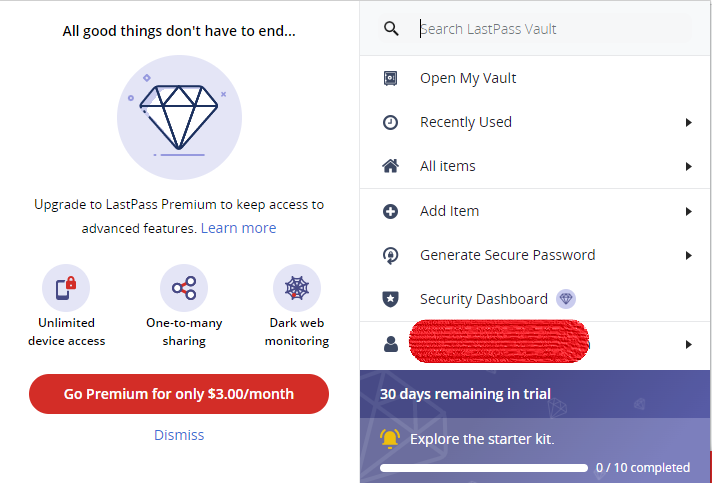
6. Click on the web vault to store passwords and other data.
Setting up a LastPass account via browser extension was surprisingly convenient. However, it’s still essential to download the apps to manage the data and account settings fully.
LastPass’s Security
LastPass is relatively safe; it has security gaps that make people question its security standards. It uses standard AES 256-bit encryption, PBKDF2 SHA-256 key, and salted hashes to protect data in the vault. With such strong security measures, it is nearly impossible for anyone to break in and access the data.
Besides this, LastPass also uses a zero-knowledge policy that ensures that it locally encrypts and decrypts the data on the device. At the same time, the user’s master password is not stored on the company’s servers. Hence LastPass doesn’t have any access to the master password or vault. All the LastPass plans offer the two-factor authentication feature that boosts account security.
LastPass also claims to maintain users’ privacy and informs users about its commitment to privacy. In addition, LastPass is SOC 2 Type 2 compliant, meaning users can trust it to handle customers’ data securely and generate security audit reports available for the new admin console.
However, on the darker side, LastPass’s security often falls under the gray area. It bears a past track record that’s full of security breaching incidents.
In 2015, LastPass suffered a data breach in which attackers accessed and stole the cloud data but failed to access any sensitive information. In 2016 and 2019, vulnerabilities were found in the apps or browser extensions. In March 2020, the University of York published a white paper identifying multiple vulnerabilities within the password manager.
It continued the following year when a researcher noticed different trackers in the Android app. In August 2022, LastPass recently admitted that its developer systems got hacked. But, hackers were not able to compromise any data. However, according to a recent development, in the August 2022 data breach, the malicious actors obtained users’ encrypted password vaults and personal information.
Trusting LastPass’s security is not easy. It must immediately undergo a security audit to prove its security standards and regain users’ lost trust.
Interface and ease of Use
LastPass interface is simple and easy to use. It doesn’t cause any user trouble during the entire navigation process. After logging into the web vault, the main dashboard appears on the screen:
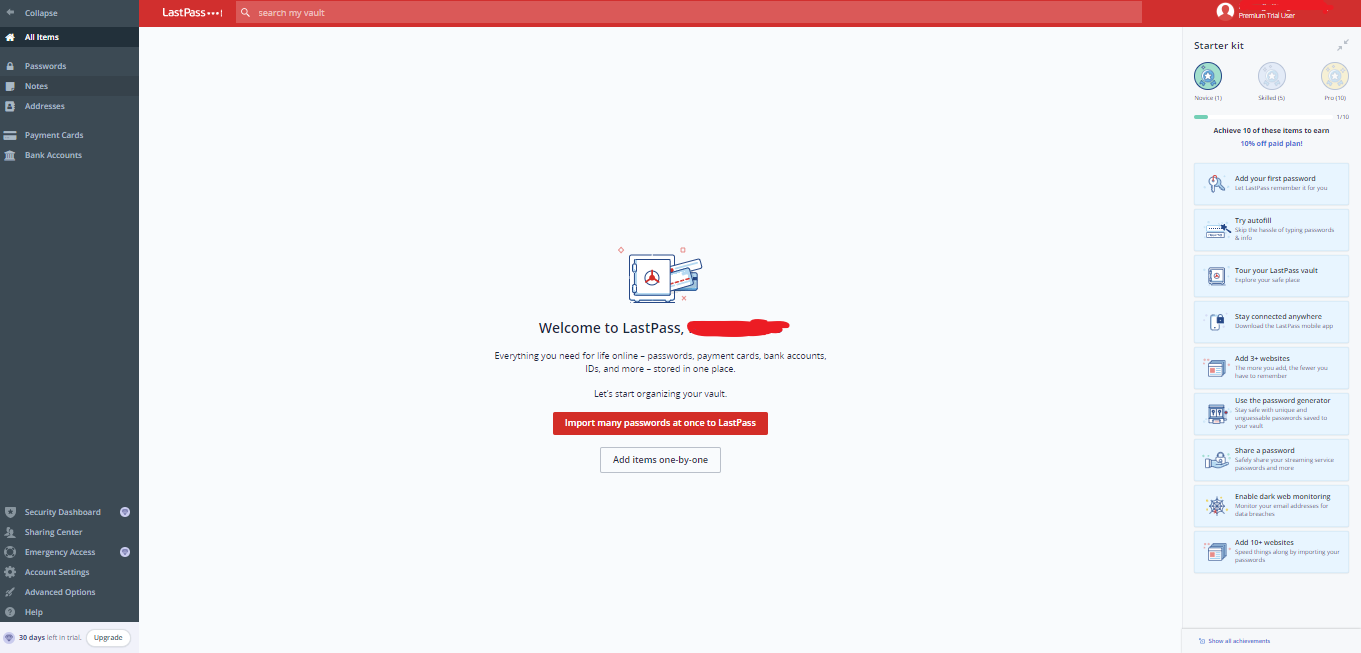
The design and UI are pretty outdated, which doesn’t impress the users. The left side of the menubar includes all the data entry categories, security features, account setting options, and advanced options.
Start importing passwords by tapping on the import password at once option or by navigating into the account settings option and then clicking on the import category.
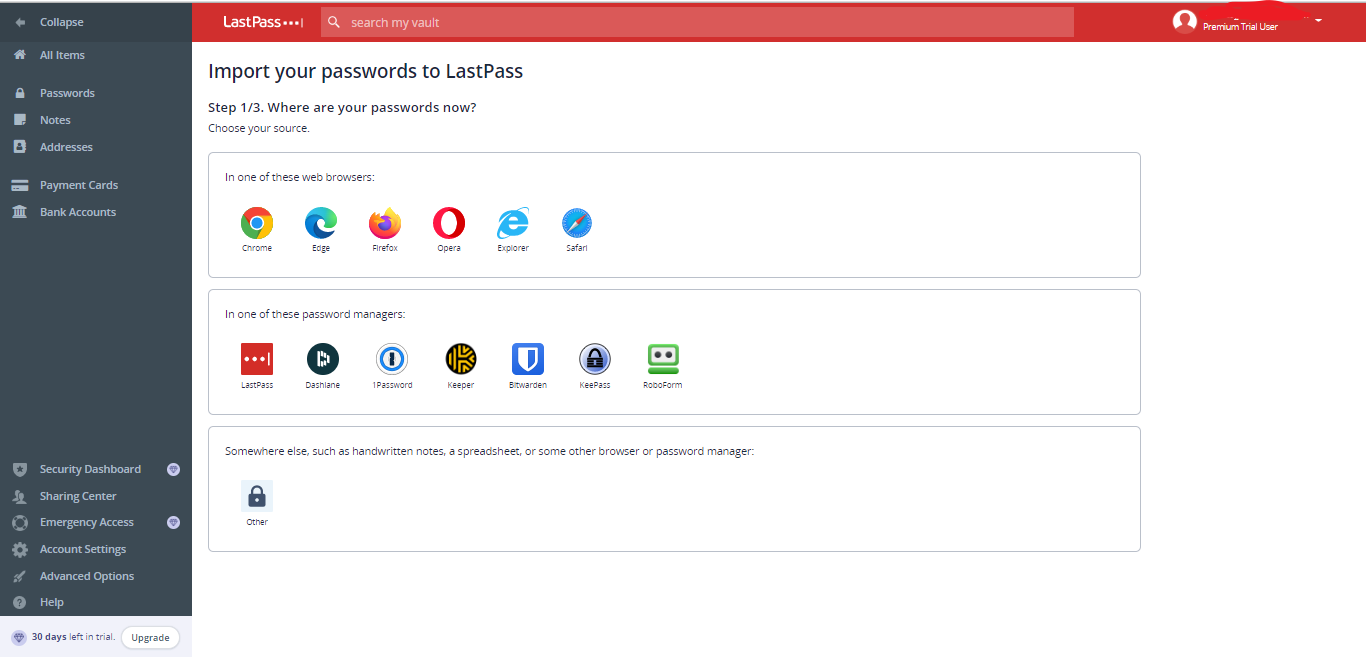
LastPass allows users to import passwords from all popular browsers and password managers and guides the steps to completing the task. Interestingly, you can also import passwords as .CSV files.
With LastPass, you can store logins, payment info, secure notes, and other personal information in the vault by tapping on the add-one-by-one option on the main dashboard. The process is intuitive and allows users to add new customization data entry types. This makes it one of the most preferred choices of users looking for a service that excels more than logging passwords and login details.
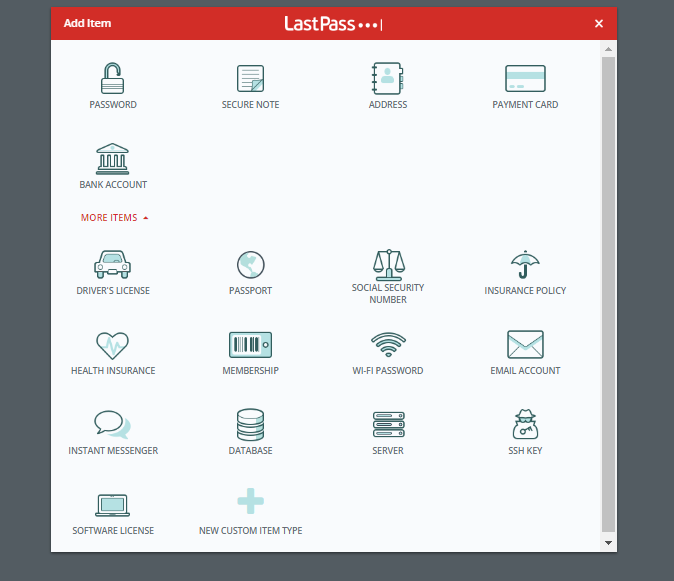
To check the health of your passwords, click on the Security dashboard.
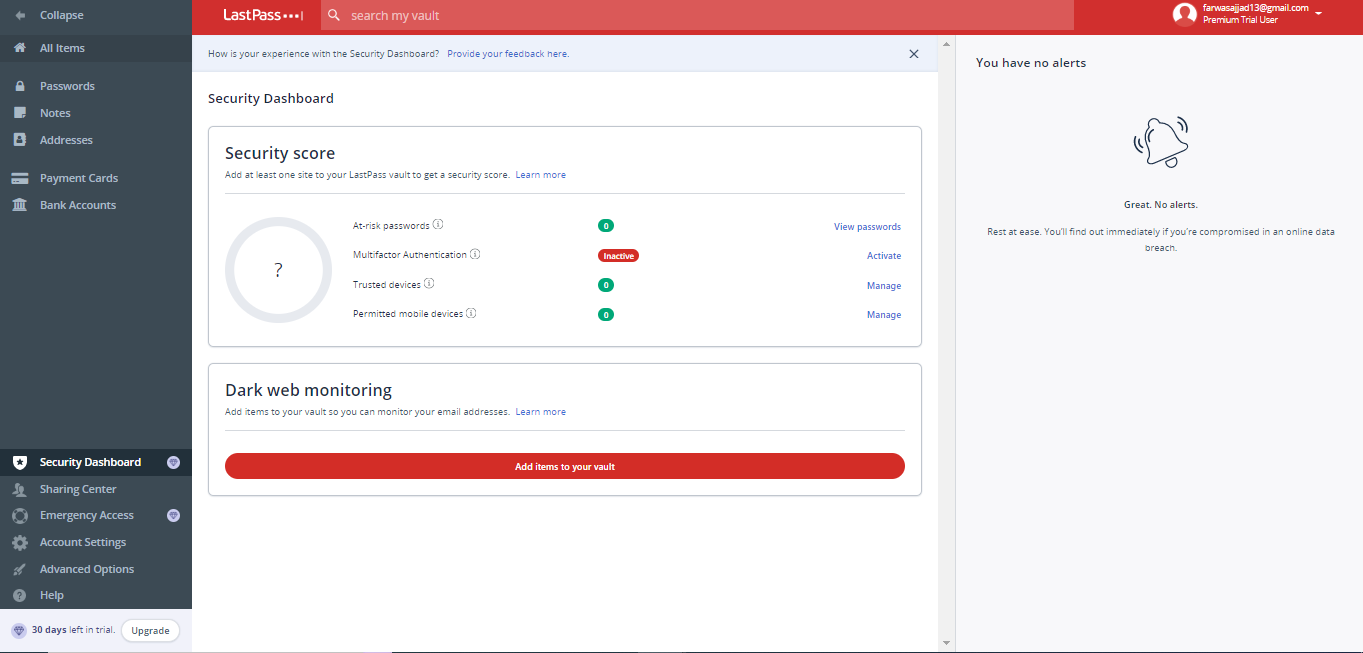
Within the Security Dashboard, the dark web monitoring tool asks you to add items to the vault so a scan can run on the dark web.
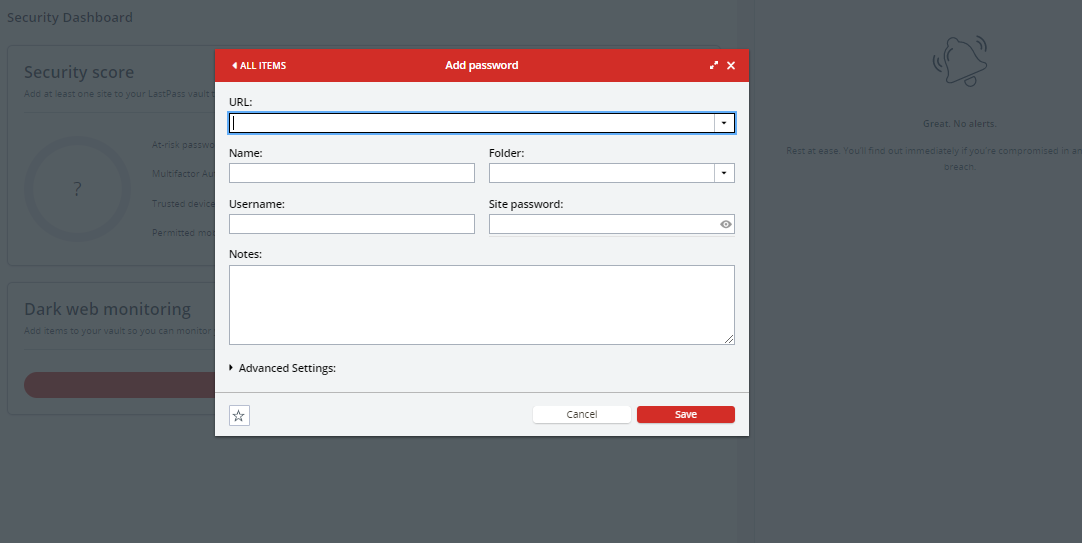
LastPass’s most impressive web vault features were the Sharing Center and the Emergency Access. While the Sharing Center allows one to create multiple folders, manage them, and share them with friends and family, the Emergency Access lets to add contacts of trusted ones that can access the vault immediately or for a few hours, days, or even a month during an emergency.
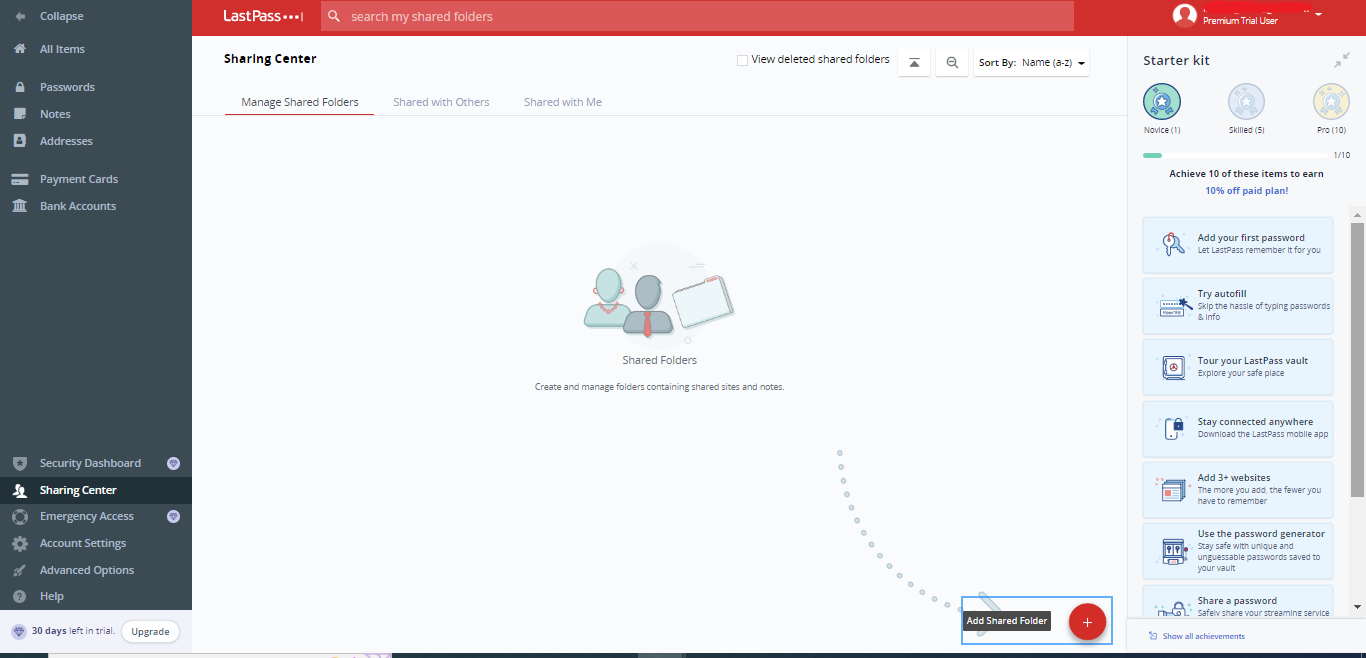
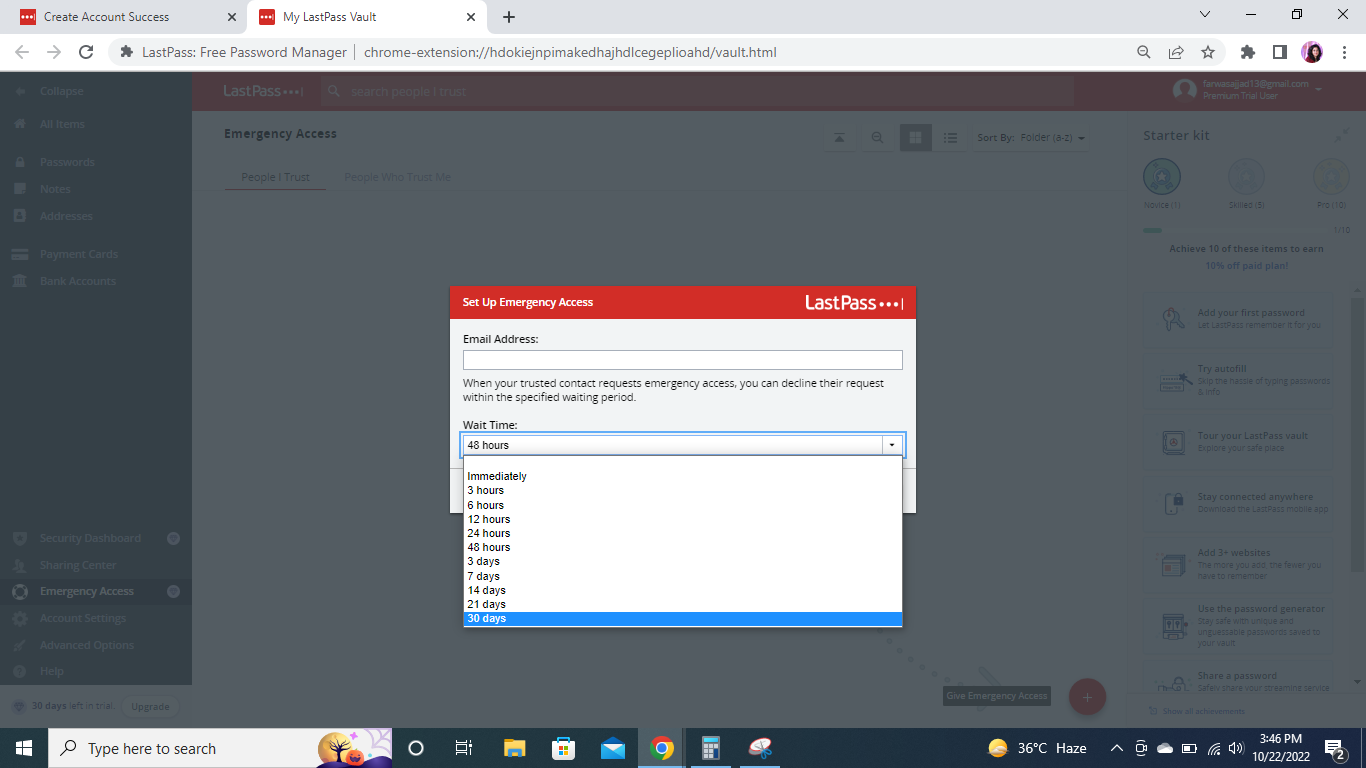
But both features are available only in the premium plan. If you’re using LastPass in the free trial period, you can’t access these features, which might upset users.
LastPass account setting options are quite appreciable. It includes General settings, a 2FA option, and advanced options that are rare in other password managers. Go to the advanced options tab to take advantage of more advanced features like credit monitoring.
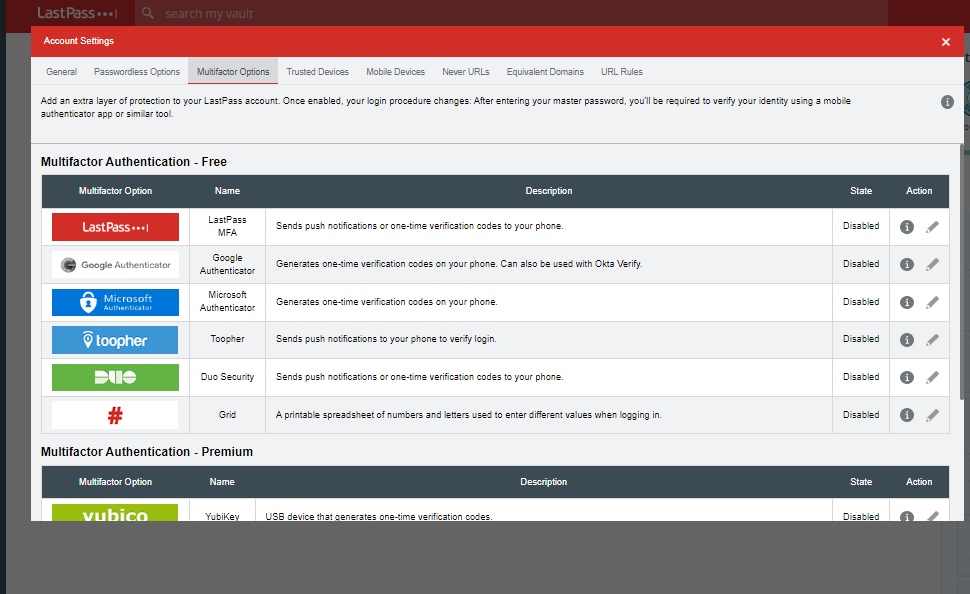
If you want to create passwords, enable the autofill login, or add websites to the vault, consider using the right menu bar.
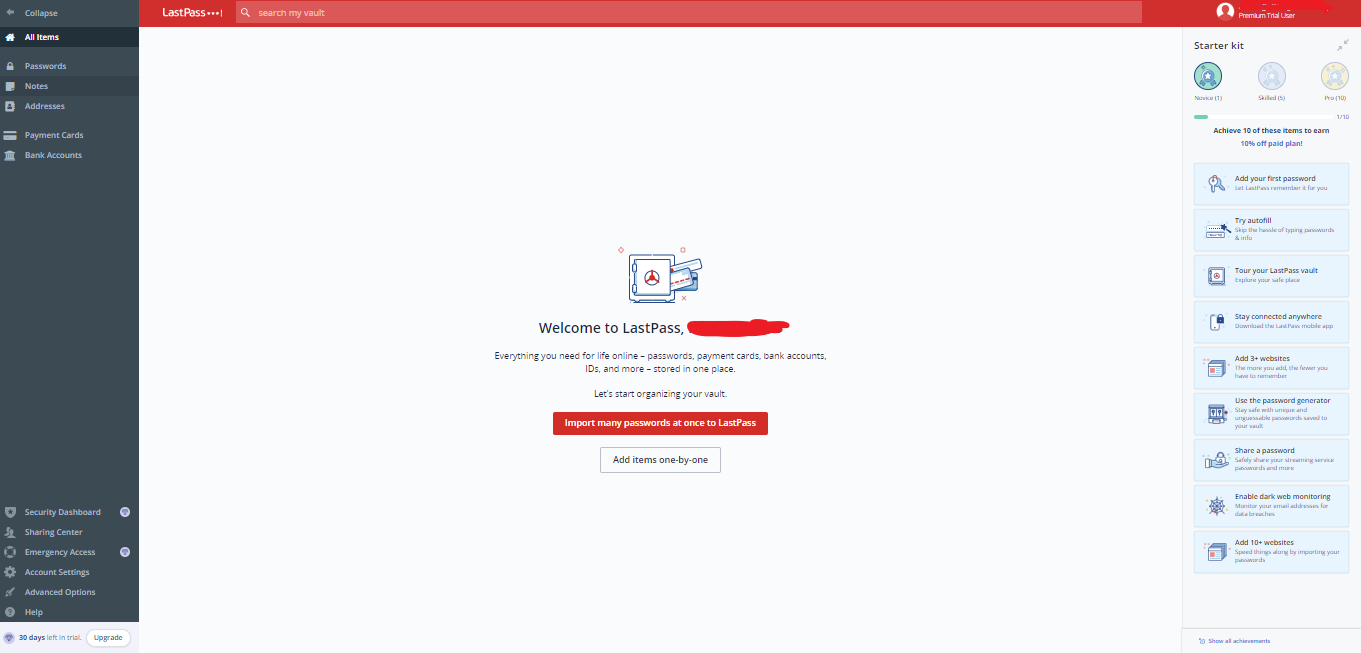
Like the web interface, the mobile app interface is simple and offers great ease of use. But users again are not happy with it, and on Reddit have criticized this thing a lot. It’d be best if LastPass relaunched its app to ensure a highly customizable and user-friendly experience.
Compatible devices and Browser Extensions
LastPass is compatible with all popular devices, browsers, and operating systems. It offers well-designed and intuitive apps for Android and iOS. The apps are easy to use and download and offer similar functionality. After installing the apps from the app store and creating the user account, you can enjoy a hassle-free experience. The apps are super-friendly, so feel free to explore them. It is just a matter of a click, and you’ll find all the features.
The password manager also ensures an incredible user experience on Windows, Linux, and Mac. Since a few password managers offer support for Linux so, it’s a great password manager for Linux users. To use LastPass’s desktop version, no need to install apps; instead, download the browser extensions.
LastPass also offers browser extensions for all mainstream browsers like:
- Google Chrome
- Mozilla Firefox
- Microsoft Edge
- Safari
- Opera
It was utterly shocking to know that in 2020, LastPass removed its extension from Google web store. It means that desktop users who use Chrome browser won’t be able to use LastPass. But the issue got resolved soon, and now the extension is accessible to everyone.
LastPass’s browser extensions seem nothing less than its apps. But after testing, it was evident why the downloading app is crucial. It offers limited functionality, allowing users to generate and save passwords and add data items. There is no autofill or password import option, which was a complete bummer. Also, it only includes one premium feature, the Security Dashboard. However, it redirects you to the web vault upon clicking on it.
The limited functionality and features don’t make the LastPass browser extension worth using.
Features overview
LastPass, like most other password managers, offers basic password management features. But some other notable features make LastPass shines out from its competitor: These extra features include:
- Credit monitoring tool
- Country restriction
- Passwordless logins
- Never URLs
- Equivalent URLs
- One-Time Passwords
These features improve security and add more value to your overall user experience.
Other than this, below is the breakdown of the core LastPass features:
Password Generator
The Password generator is every password manager’s basic and core feature. This feature allows users to generate strong and unique passwords for their online accounts. The best thing about the LastPass password generator is that it’s built-in into the web vault and the browser extensions. Users don’t need to visit LastPass’s website to generate passwords.
Security Dashboard
The security dashboard is the most outstanding LastPass feature. Though it’s included in all other password managers, the unique thing about LastPass Security Dashboard is that it also has a dark web monitoring tool. Users can evaluate their stored passwords’ health and change any weak, reused, or compromised passwords.
But, at the same time, they can also run a dark web scan by adding their email address and other details to know if their passwords or other personal information is leaked. Business plan users can benefit more from this feature and prevent credential-stuffing attacks.
Emergency Access
Emergency Access is another LastPass feature that allows users to add a trusted contact to access their vaults during an emergency. It asks users to add up the email address of the trusted contact and then choose the access period. Users can choose from immediate access to 30-day access. However, this feature is only available for premium users.
Apart from this, LastPass also offers excellent features for business users. All these features play a vital role in protecting passwords and employees’ data and preventing potential online threats.
LastPass Customer Support
If, while using LastPass, users encounter any issues, the customer support team is always there to help them out. The best way to address these issues is the website resources.
LastPass includes comprehensive and knowledgeable resources with blogs, articles, video tutorials, FAQs, and user guides.
It also has an active user community and social media pages on all social networking sites, including Twitter, Instagram, and Facebook. Though it is the fastest way to ask for help, this isn’t the case with LastPass. The Twitter page seems inactive for a long time and isn’t the best choice.
However, joining the user community is a great way to interact with experts and other users who assist you with extensive knowledge and prior experience.
To contact the sales department or request a demo, visit the Contact Us page.
Besides this, LastPass also offers telephonic support and a live chat option. But it was, again wasn’t great to know that the live chat support agents are available from 9 am to 5 pm (EST). If someone needs immediate help, they can’t get it. However, when the live chat feature was tested, it raised skepticism. The virtual assistants were there to offer help, but in reality, they even failed to understand the query, which was another setback.

Overall, LastPass customer support is decent. As getting in touch with the support team representatives is quite challenging, they need to work on it.
LastPass Pricing Plan
LastPass has free and paid versions. The paid version has subscription plans for personal and business use. All the plans are annually billed, which means it doesn’t offer a monthly plan like its competitors and is backed up by a 30-days free-trial period.

The free version of the LastPass password manager is limited to only one user and device. The name implies that the LastPass free version will have a great limitation, leading to a frustrating user experience. But this is not the truth. Users can create and store unlimited passwords and secure notes in the vault and can access the following features:
- MFA
- One-to-one sharing
- Passwordless logins
- Automatic device sync
- LastPass authenticator
The premium plan starts at $3.00 per month and allows one user to access the LastPass account on unlimited devices. It includes all the free plan features with some extra features like:
- One too many sharing
- Unlimited shared folders
- 1GB encrypted file storage
- Access to premium security tools (Security dashboard, dark web monitoring, Emergency Access, MFA, and Advanced MFA)
LastPass family plan is best suited for up to six users and costs $4 per month. It covers all the premium features with unlimited shared folders and a family dashboard manager.
LastPass free version is the perfect plan for an individual looking for basic password protection. In contrast, the premium plan offers great value for money and is the most suitable subscription plan.
Business Plan
LastPass is also the top-most choice of business organizations. The password managers offer two premium subscription plans for teams and medium to large-size businesses.

The Teams plan costs $4 per user/ month and allows access to up to 50 users. This makes it the best password manager for small-size businesses. The plan offers numerous business-specific features like:
- Admin consoles
- Add-ons
- Customization security policies (up to ten)
- All password management features
- MFA and advanced MFA
The business plan includes all the features offered in the Teams plan with a range of other extra features like:
- SSO
- VPN with advanced MFA-add on
- Integrations
- Advanced Reporting
- Advanced adoption
- Customization user management
- Families as a benefit
This plan costs $6 per user/ month and allows unlimited use of it. If you have a limited-member team, choosing the Teams plan is a better option.
Final verdict
LastPass ranks among the top-tier password manager list. It utilizes strong AES 256-bit encryption and zero-knowledge protocol to protect the logins and other data in the vault. Besides this, it offers several advanced features that improve online security and protection from potential threats, besides providing basic password management functions.
It is easy to use and offers a decent interface with a pretty old design that needs an immediate update. There are free and premium versions for all users, including businesses and families.
However, there are some areas where LastPass needs to work. Customer support must have a 24/7 live chat team to provide instant help to the users. There’s an immense need for the company to undergo security audits to prove that they value users’ data. Moreover, it would be best if LastPass had standalone apps for desktop devices for a more smooth and more seamless experience.
FAQs
The post LastPass Review: How Safe And Trustworthy It Is To Use In 2024? appeared first on BeEncrypted.
]]>Deprecated: Using null as an array offset is deprecated, use an empty string instead in /var/www/staging.beencrypted.com/site/web/wp/wp-includes/class-wp-block-type-registry.php on line 168
Deprecated: Using null as an array offset is deprecated, use an empty string instead in /var/www/staging.beencrypted.com/site/web/wp/wp-includes/class-wp-block-type-registry.php on line 168
Deprecated: Using null as an array offset is deprecated, use an empty string instead in /var/www/staging.beencrypted.com/site/web/wp/wp-includes/class-wp-block-type-registry.php on line 168
Deprecated: Using null as an array offset is deprecated, use an empty string instead in /var/www/staging.beencrypted.com/site/web/wp/wp-includes/class-wp-block-type-registry.php on line 168
Deprecated: Using null as an array offset is deprecated, use an empty string instead in /var/www/staging.beencrypted.com/site/web/wp/wp-includes/class-wp-block-type-registry.php on line 168
Deprecated: Using null as an array offset is deprecated, use an empty string instead in /var/www/staging.beencrypted.com/site/web/wp/wp-includes/class-wp-block-type-registry.php on line 168
Deprecated: Using null as an array offset is deprecated, use an empty string instead in /var/www/staging.beencrypted.com/site/web/wp/wp-includes/class-wp-block-type-registry.php on line 168
Deprecated: Using null as an array offset is deprecated, use an empty string instead in /var/www/staging.beencrypted.com/site/web/wp/wp-includes/class-wp-block-type-registry.php on line 168
Deprecated: Using null as an array offset is deprecated, use an empty string instead in /var/www/staging.beencrypted.com/site/web/wp/wp-includes/class-wp-block-type-registry.php on line 168
Deprecated: Using null as an array offset is deprecated, use an empty string instead in /var/www/staging.beencrypted.com/site/web/wp/wp-includes/class-wp-block-type-registry.php on line 168
Deprecated: Using null as an array offset is deprecated, use an empty string instead in /var/www/staging.beencrypted.com/site/web/wp/wp-includes/class-wp-block-type-registry.php on line 168
Deprecated: Using null as an array offset is deprecated, use an empty string instead in /var/www/staging.beencrypted.com/site/web/wp/wp-includes/class-wp-block-type-registry.php on line 168
Deprecated: Using null as an array offset is deprecated, use an empty string instead in /var/www/staging.beencrypted.com/site/web/wp/wp-includes/class-wp-block-type-registry.php on line 168
Deprecated: Using null as an array offset is deprecated, use an empty string instead in /var/www/staging.beencrypted.com/site/web/wp/wp-includes/class-wp-block-type-registry.php on line 168
Deprecated: Using null as an array offset is deprecated, use an empty string instead in /var/www/staging.beencrypted.com/site/web/wp/wp-includes/class-wp-block-type-registry.php on line 168
Deprecated: Using null as an array offset is deprecated, use an empty string instead in /var/www/staging.beencrypted.com/site/web/wp/wp-includes/class-wp-block-type-registry.php on line 168
Deprecated: Using null as an array offset is deprecated, use an empty string instead in /var/www/staging.beencrypted.com/site/web/wp/wp-includes/class-wp-block-type-registry.php on line 168
Deprecated: Using null as an array offset is deprecated, use an empty string instead in /var/www/staging.beencrypted.com/site/web/wp/wp-includes/class-wp-block-type-registry.php on line 168
Deprecated: Using null as an array offset is deprecated, use an empty string instead in /var/www/staging.beencrypted.com/site/web/wp/wp-includes/class-wp-block-type-registry.php on line 168
Deprecated: Using null as an array offset is deprecated, use an empty string instead in /var/www/staging.beencrypted.com/site/web/wp/wp-includes/class-wp-block-type-registry.php on line 168
Deprecated: Using null as an array offset is deprecated, use an empty string instead in /var/www/staging.beencrypted.com/site/web/wp/wp-includes/class-wp-block-type-registry.php on line 168
Deprecated: Using null as an array offset is deprecated, use an empty string instead in /var/www/staging.beencrypted.com/site/web/wp/wp-includes/class-wp-block-type-registry.php on line 168
Deprecated: Using null as an array offset is deprecated, use an empty string instead in /var/www/staging.beencrypted.com/site/web/wp/wp-includes/class-wp-block-type-registry.php on line 168
Deprecated: Using null as an array offset is deprecated, use an empty string instead in /var/www/staging.beencrypted.com/site/web/wp/wp-includes/class-wp-block-type-registry.php on line 168
Deprecated: Using null as an array offset is deprecated, use an empty string instead in /var/www/staging.beencrypted.com/site/web/wp/wp-includes/class-wp-block-type-registry.php on line 168
Deprecated: Using null as an array offset is deprecated, use an empty string instead in /var/www/staging.beencrypted.com/site/web/wp/wp-includes/class-wp-block-type-registry.php on line 168
Deprecated: Using null as an array offset is deprecated, use an empty string instead in /var/www/staging.beencrypted.com/site/web/wp/wp-includes/class-wp-block-type-registry.php on line 168
Deprecated: Using null as an array offset is deprecated, use an empty string instead in /var/www/staging.beencrypted.com/site/web/wp/wp-includes/class-wp-block-type-registry.php on line 168
Deprecated: Using null as an array offset is deprecated, use an empty string instead in /var/www/staging.beencrypted.com/site/web/wp/wp-includes/class-wp-block-type-registry.php on line 168
Deprecated: Using null as an array offset is deprecated, use an empty string instead in /var/www/staging.beencrypted.com/site/web/wp/wp-includes/class-wp-block-type-registry.php on line 168
Deprecated: Using null as an array offset is deprecated, use an empty string instead in /var/www/staging.beencrypted.com/site/web/wp/wp-includes/class-wp-block-type-registry.php on line 168
Deprecated: Using null as an array offset is deprecated, use an empty string instead in /var/www/staging.beencrypted.com/site/web/wp/wp-includes/class-wp-block-type-registry.php on line 168
Deprecated: Using null as an array offset is deprecated, use an empty string instead in /var/www/staging.beencrypted.com/site/web/wp/wp-includes/class-wp-block-type-registry.php on line 168
Deprecated: Using null as an array offset is deprecated, use an empty string instead in /var/www/staging.beencrypted.com/site/web/wp/wp-includes/class-wp-block-type-registry.php on line 168
Deprecated: Using null as an array offset is deprecated, use an empty string instead in /var/www/staging.beencrypted.com/site/web/wp/wp-includes/class-wp-block-type-registry.php on line 168
Deprecated: Using null as an array offset is deprecated, use an empty string instead in /var/www/staging.beencrypted.com/site/web/wp/wp-includes/class-wp-block-type-registry.php on line 168
Deprecated: Using null as an array offset is deprecated, use an empty string instead in /var/www/staging.beencrypted.com/site/web/wp/wp-includes/class-wp-block-type-registry.php on line 168
Deprecated: Using null as an array offset is deprecated, use an empty string instead in /var/www/staging.beencrypted.com/site/web/wp/wp-includes/class-wp-block-type-registry.php on line 168
Deprecated: Using null as an array offset is deprecated, use an empty string instead in /var/www/staging.beencrypted.com/site/web/wp/wp-includes/class-wp-block-type-registry.php on line 168
Deprecated: Using null as an array offset is deprecated, use an empty string instead in /var/www/staging.beencrypted.com/site/web/wp/wp-includes/class-wp-block-type-registry.php on line 168
Deprecated: Using null as an array offset is deprecated, use an empty string instead in /var/www/staging.beencrypted.com/site/web/wp/wp-includes/class-wp-block-type-registry.php on line 168
Deprecated: Using null as an array offset is deprecated, use an empty string instead in /var/www/staging.beencrypted.com/site/web/wp/wp-includes/class-wp-block-type-registry.php on line 168
Deprecated: Using null as an array offset is deprecated, use an empty string instead in /var/www/staging.beencrypted.com/site/web/wp/wp-includes/class-wp-block-type-registry.php on line 168
Deprecated: Using null as an array offset is deprecated, use an empty string instead in /var/www/staging.beencrypted.com/site/web/wp/wp-includes/class-wp-block-type-registry.php on line 168
Deprecated: Using null as an array offset is deprecated, use an empty string instead in /var/www/staging.beencrypted.com/site/web/wp/wp-includes/class-wp-block-type-registry.php on line 168
Deprecated: Using null as an array offset is deprecated, use an empty string instead in /var/www/staging.beencrypted.com/site/web/wp/wp-includes/class-wp-block-type-registry.php on line 168
Deprecated: Using null as an array offset is deprecated, use an empty string instead in /var/www/staging.beencrypted.com/site/web/wp/wp-includes/class-wp-block-type-registry.php on line 168
Deprecated: Using null as an array offset is deprecated, use an empty string instead in /var/www/staging.beencrypted.com/site/web/wp/wp-includes/class-wp-block-type-registry.php on line 168
Deprecated: Using null as an array offset is deprecated, use an empty string instead in /var/www/staging.beencrypted.com/site/web/wp/wp-includes/class-wp-block-type-registry.php on line 168
Deprecated: Using null as an array offset is deprecated, use an empty string instead in /var/www/staging.beencrypted.com/site/web/wp/wp-includes/class-wp-block-type-registry.php on line 168
Deprecated: Using null as an array offset is deprecated, use an empty string instead in /var/www/staging.beencrypted.com/site/web/wp/wp-includes/class-wp-block-type-registry.php on line 168
Deprecated: Using null as an array offset is deprecated, use an empty string instead in /var/www/staging.beencrypted.com/site/web/wp/wp-includes/class-wp-block-type-registry.php on line 168
Deprecated: Using null as an array offset is deprecated, use an empty string instead in /var/www/staging.beencrypted.com/site/web/wp/wp-includes/class-wp-block-type-registry.php on line 168
Deprecated: Using null as an array offset is deprecated, use an empty string instead in /var/www/staging.beencrypted.com/site/web/wp/wp-includes/class-wp-block-type-registry.php on line 168
Deprecated: Using null as an array offset is deprecated, use an empty string instead in /var/www/staging.beencrypted.com/site/web/wp/wp-includes/class-wp-block-type-registry.php on line 168
Deprecated: Using null as an array offset is deprecated, use an empty string instead in /var/www/staging.beencrypted.com/site/web/wp/wp-includes/class-wp-block-type-registry.php on line 168
Deprecated: Using null as an array offset is deprecated, use an empty string instead in /var/www/staging.beencrypted.com/site/web/wp/wp-includes/class-wp-block-type-registry.php on line 168
Deprecated: Using null as an array offset is deprecated, use an empty string instead in /var/www/staging.beencrypted.com/site/web/wp/wp-includes/class-wp-block-type-registry.php on line 168
Deprecated: Using null as an array offset is deprecated, use an empty string instead in /var/www/staging.beencrypted.com/site/web/wp/wp-includes/class-wp-block-type-registry.php on line 168
Deprecated: Using null as an array offset is deprecated, use an empty string instead in /var/www/staging.beencrypted.com/site/web/wp/wp-includes/class-wp-block-type-registry.php on line 168
Deprecated: Using null as an array offset is deprecated, use an empty string instead in /var/www/staging.beencrypted.com/site/web/wp/wp-includes/class-wp-block-type-registry.php on line 168
Deprecated: Using null as an array offset is deprecated, use an empty string instead in /var/www/staging.beencrypted.com/site/web/wp/wp-includes/class-wp-block-type-registry.php on line 168
Deprecated: Using null as an array offset is deprecated, use an empty string instead in /var/www/staging.beencrypted.com/site/web/wp/wp-includes/class-wp-block-type-registry.php on line 168
Deprecated: Using null as an array offset is deprecated, use an empty string instead in /var/www/staging.beencrypted.com/site/web/wp/wp-includes/class-wp-block-type-registry.php on line 168
Deprecated: Using null as an array offset is deprecated, use an empty string instead in /var/www/staging.beencrypted.com/site/web/wp/wp-includes/class-wp-block-type-registry.php on line 168
Deprecated: Using null as an array offset is deprecated, use an empty string instead in /var/www/staging.beencrypted.com/site/web/wp/wp-includes/class-wp-block-type-registry.php on line 168
Deprecated: Using null as an array offset is deprecated, use an empty string instead in /var/www/staging.beencrypted.com/site/web/wp/wp-includes/class-wp-block-type-registry.php on line 168
Deprecated: Using null as an array offset is deprecated, use an empty string instead in /var/www/staging.beencrypted.com/site/web/wp/wp-includes/class-wp-block-type-registry.php on line 168
Deprecated: Using null as an array offset is deprecated, use an empty string instead in /var/www/staging.beencrypted.com/site/web/wp/wp-includes/class-wp-block-type-registry.php on line 168
Deprecated: Using null as an array offset is deprecated, use an empty string instead in /var/www/staging.beencrypted.com/site/web/wp/wp-includes/class-wp-block-type-registry.php on line 168
Deprecated: Using null as an array offset is deprecated, use an empty string instead in /var/www/staging.beencrypted.com/site/web/wp/wp-includes/class-wp-block-type-registry.php on line 168
Deprecated: Using null as an array offset is deprecated, use an empty string instead in /var/www/staging.beencrypted.com/site/web/wp/wp-includes/class-wp-block-type-registry.php on line 168
Deprecated: Using null as an array offset is deprecated, use an empty string instead in /var/www/staging.beencrypted.com/site/web/wp/wp-includes/class-wp-block-type-registry.php on line 168
Deprecated: Using null as an array offset is deprecated, use an empty string instead in /var/www/staging.beencrypted.com/site/web/wp/wp-includes/class-wp-block-type-registry.php on line 168
Deprecated: Using null as an array offset is deprecated, use an empty string instead in /var/www/staging.beencrypted.com/site/web/wp/wp-includes/class-wp-block-type-registry.php on line 168
Deprecated: Using null as an array offset is deprecated, use an empty string instead in /var/www/staging.beencrypted.com/site/web/wp/wp-includes/class-wp-block-type-registry.php on line 168
Deprecated: Using null as an array offset is deprecated, use an empty string instead in /var/www/staging.beencrypted.com/site/web/wp/wp-includes/class-wp-block-type-registry.php on line 168
Deprecated: Using null as an array offset is deprecated, use an empty string instead in /var/www/staging.beencrypted.com/site/web/wp/wp-includes/class-wp-block-type-registry.php on line 168
Deprecated: Using null as an array offset is deprecated, use an empty string instead in /var/www/staging.beencrypted.com/site/web/wp/wp-includes/class-wp-block-type-registry.php on line 168
Deprecated: Using null as an array offset is deprecated, use an empty string instead in /var/www/staging.beencrypted.com/site/web/wp/wp-includes/class-wp-block-type-registry.php on line 168
Deprecated: Using null as an array offset is deprecated, use an empty string instead in /var/www/staging.beencrypted.com/site/web/wp/wp-includes/class-wp-block-type-registry.php on line 168
Deprecated: Using null as an array offset is deprecated, use an empty string instead in /var/www/staging.beencrypted.com/site/web/wp/wp-includes/class-wp-block-type-registry.php on line 168
Deprecated: Using null as an array offset is deprecated, use an empty string instead in /var/www/staging.beencrypted.com/site/web/wp/wp-includes/class-wp-block-type-registry.php on line 168
Deprecated: Using null as an array offset is deprecated, use an empty string instead in /var/www/staging.beencrypted.com/site/web/wp/wp-includes/class-wp-block-type-registry.php on line 168
Deprecated: Using null as an array offset is deprecated, use an empty string instead in /var/www/staging.beencrypted.com/site/web/wp/wp-includes/class-wp-block-type-registry.php on line 168
Deprecated: Using null as an array offset is deprecated, use an empty string instead in /var/www/staging.beencrypted.com/site/web/wp/wp-includes/class-wp-block-type-registry.php on line 168
Deprecated: Using null as an array offset is deprecated, use an empty string instead in /var/www/staging.beencrypted.com/site/web/wp/wp-includes/class-wp-block-type-registry.php on line 168
Deprecated: Using null as an array offset is deprecated, use an empty string instead in /var/www/staging.beencrypted.com/site/web/wp/wp-includes/class-wp-block-type-registry.php on line 168
Deprecated: Using null as an array offset is deprecated, use an empty string instead in /var/www/staging.beencrypted.com/site/web/wp/wp-includes/class-wp-block-type-registry.php on line 168
Deprecated: Using null as an array offset is deprecated, use an empty string instead in /var/www/staging.beencrypted.com/site/web/wp/wp-includes/class-wp-block-type-registry.php on line 168
Deprecated: Using null as an array offset is deprecated, use an empty string instead in /var/www/staging.beencrypted.com/site/web/wp/wp-includes/class-wp-block-type-registry.php on line 168
Deprecated: Using null as an array offset is deprecated, use an empty string instead in /var/www/staging.beencrypted.com/site/web/wp/wp-includes/class-wp-block-type-registry.php on line 168
Deprecated: Using null as an array offset is deprecated, use an empty string instead in /var/www/staging.beencrypted.com/site/web/wp/wp-includes/class-wp-block-type-registry.php on line 168
Deprecated: Using null as an array offset is deprecated, use an empty string instead in /var/www/staging.beencrypted.com/site/web/wp/wp-includes/class-wp-block-type-registry.php on line 168
Deprecated: Using null as an array offset is deprecated, use an empty string instead in /var/www/staging.beencrypted.com/site/web/wp/wp-includes/class-wp-block-type-registry.php on line 168
Deprecated: Using null as an array offset is deprecated, use an empty string instead in /var/www/staging.beencrypted.com/site/web/wp/wp-includes/class-wp-block-type-registry.php on line 168
Deprecated: Using null as an array offset is deprecated, use an empty string instead in /var/www/staging.beencrypted.com/site/web/wp/wp-includes/class-wp-block-type-registry.php on line 168
Deprecated: Using null as an array offset is deprecated, use an empty string instead in /var/www/staging.beencrypted.com/site/web/wp/wp-includes/class-wp-block-type-registry.php on line 168
Deprecated: Using null as an array offset is deprecated, use an empty string instead in /var/www/staging.beencrypted.com/site/web/wp/wp-includes/class-wp-block-type-registry.php on line 168
Deprecated: Using null as an array offset is deprecated, use an empty string instead in /var/www/staging.beencrypted.com/site/web/wp/wp-includes/class-wp-block-type-registry.php on line 168
Deprecated: Using null as an array offset is deprecated, use an empty string instead in /var/www/staging.beencrypted.com/site/web/wp/wp-includes/class-wp-block-type-registry.php on line 168
Deprecated: Using null as an array offset is deprecated, use an empty string instead in /var/www/staging.beencrypted.com/site/web/wp/wp-includes/class-wp-block-type-registry.php on line 168
Deprecated: Using null as an array offset is deprecated, use an empty string instead in /var/www/staging.beencrypted.com/site/web/wp/wp-includes/class-wp-block-type-registry.php on line 168
Deprecated: Using null as an array offset is deprecated, use an empty string instead in /var/www/staging.beencrypted.com/site/web/wp/wp-includes/class-wp-block-type-registry.php on line 168
Deprecated: Using null as an array offset is deprecated, use an empty string instead in /var/www/staging.beencrypted.com/site/web/wp/wp-includes/class-wp-block-type-registry.php on line 168
Deprecated: Using null as an array offset is deprecated, use an empty string instead in /var/www/staging.beencrypted.com/site/web/wp/wp-includes/class-wp-block-type-registry.php on line 168
Deprecated: Using null as an array offset is deprecated, use an empty string instead in /var/www/staging.beencrypted.com/site/web/wp/wp-includes/class-wp-block-type-registry.php on line 168
Deprecated: Using null as an array offset is deprecated, use an empty string instead in /var/www/staging.beencrypted.com/site/web/wp/wp-includes/class-wp-block-type-registry.php on line 168
Deprecated: Using null as an array offset is deprecated, use an empty string instead in /var/www/staging.beencrypted.com/site/web/wp/wp-includes/class-wp-block-type-registry.php on line 168
Deprecated: Using null as an array offset is deprecated, use an empty string instead in /var/www/staging.beencrypted.com/site/web/wp/wp-includes/class-wp-block-type-registry.php on line 168
Deprecated: Using null as an array offset is deprecated, use an empty string instead in /var/www/staging.beencrypted.com/site/web/wp/wp-includes/class-wp-block-type-registry.php on line 168
Deprecated: Using null as an array offset is deprecated, use an empty string instead in /var/www/staging.beencrypted.com/site/web/wp/wp-includes/class-wp-block-type-registry.php on line 168
Deprecated: Using null as an array offset is deprecated, use an empty string instead in /var/www/staging.beencrypted.com/site/web/wp/wp-includes/class-wp-block-type-registry.php on line 168
Deprecated: Using null as an array offset is deprecated, use an empty string instead in /var/www/staging.beencrypted.com/site/web/wp/wp-includes/class-wp-block-type-registry.php on line 168
Deprecated: Using null as an array offset is deprecated, use an empty string instead in /var/www/staging.beencrypted.com/site/web/wp/wp-includes/class-wp-block-type-registry.php on line 168
Deprecated: Using null as an array offset is deprecated, use an empty string instead in /var/www/staging.beencrypted.com/site/web/wp/wp-includes/class-wp-block-type-registry.php on line 168
Deprecated: Using null as an array offset is deprecated, use an empty string instead in /var/www/staging.beencrypted.com/site/web/wp/wp-includes/class-wp-block-type-registry.php on line 168
Deprecated: Using null as an array offset is deprecated, use an empty string instead in /var/www/staging.beencrypted.com/site/web/wp/wp-includes/class-wp-block-type-registry.php on line 168
Deprecated: Using null as an array offset is deprecated, use an empty string instead in /var/www/staging.beencrypted.com/site/web/wp/wp-includes/class-wp-block-type-registry.php on line 168
Deprecated: Using null as an array offset is deprecated, use an empty string instead in /var/www/staging.beencrypted.com/site/web/wp/wp-includes/class-wp-block-type-registry.php on line 168
Deprecated: Using null as an array offset is deprecated, use an empty string instead in /var/www/staging.beencrypted.com/site/web/wp/wp-includes/class-wp-block-type-registry.php on line 168
Deprecated: Using null as an array offset is deprecated, use an empty string instead in /var/www/staging.beencrypted.com/site/web/wp/wp-includes/class-wp-block-type-registry.php on line 168
Deprecated: Using null as an array offset is deprecated, use an empty string instead in /var/www/staging.beencrypted.com/site/web/wp/wp-includes/class-wp-block-type-registry.php on line 168
Deprecated: Using null as an array offset is deprecated, use an empty string instead in /var/www/staging.beencrypted.com/site/web/wp/wp-includes/class-wp-block-type-registry.php on line 168
Deprecated: Using null as an array offset is deprecated, use an empty string instead in /var/www/staging.beencrypted.com/site/web/wp/wp-includes/class-wp-block-type-registry.php on line 168
Deprecated: Using null as an array offset is deprecated, use an empty string instead in /var/www/staging.beencrypted.com/site/web/wp/wp-includes/class-wp-block-type-registry.php on line 168
Deprecated: Using null as an array offset is deprecated, use an empty string instead in /var/www/staging.beencrypted.com/site/web/wp/wp-includes/class-wp-block-type-registry.php on line 168
Deprecated: Using null as an array offset is deprecated, use an empty string instead in /var/www/staging.beencrypted.com/site/web/wp/wp-includes/class-wp-block-type-registry.php on line 168
Deprecated: Using null as an array offset is deprecated, use an empty string instead in /var/www/staging.beencrypted.com/site/web/wp/wp-includes/class-wp-block-type-registry.php on line 168
Deprecated: Using null as an array offset is deprecated, use an empty string instead in /var/www/staging.beencrypted.com/site/web/wp/wp-includes/class-wp-block-type-registry.php on line 168
Deprecated: Using null as an array offset is deprecated, use an empty string instead in /var/www/staging.beencrypted.com/site/web/wp/wp-includes/class-wp-block-type-registry.php on line 168
Deprecated: Using null as an array offset is deprecated, use an empty string instead in /var/www/staging.beencrypted.com/site/web/wp/wp-includes/class-wp-block-type-registry.php on line 168
Deprecated: Using null as an array offset is deprecated, use an empty string instead in /var/www/staging.beencrypted.com/site/web/wp/wp-includes/class-wp-block-type-registry.php on line 168
Deprecated: Using null as an array offset is deprecated, use an empty string instead in /var/www/staging.beencrypted.com/site/web/wp/wp-includes/class-wp-block-type-registry.php on line 168
Deprecated: Using null as an array offset is deprecated, use an empty string instead in /var/www/staging.beencrypted.com/site/web/wp/wp-includes/class-wp-block-type-registry.php on line 168
Deprecated: Using null as an array offset is deprecated, use an empty string instead in /var/www/staging.beencrypted.com/site/web/wp/wp-includes/class-wp-block-type-registry.php on line 168
Deprecated: Using null as an array offset is deprecated, use an empty string instead in /var/www/staging.beencrypted.com/site/web/wp/wp-includes/class-wp-block-type-registry.php on line 168
Deprecated: Using null as an array offset is deprecated, use an empty string instead in /var/www/staging.beencrypted.com/site/web/wp/wp-includes/class-wp-block-type-registry.php on line 168
Deprecated: Using null as an array offset is deprecated, use an empty string instead in /var/www/staging.beencrypted.com/site/web/wp/wp-includes/class-wp-block-type-registry.php on line 168
Deprecated: Using null as an array offset is deprecated, use an empty string instead in /var/www/staging.beencrypted.com/site/web/wp/wp-includes/class-wp-block-type-registry.php on line 168
Deprecated: Using null as an array offset is deprecated, use an empty string instead in /var/www/staging.beencrypted.com/site/web/wp/wp-includes/class-wp-block-type-registry.php on line 168
Deprecated: Using null as an array offset is deprecated, use an empty string instead in /var/www/staging.beencrypted.com/site/web/wp/wp-includes/class-wp-block-type-registry.php on line 168
Deprecated: Using null as an array offset is deprecated, use an empty string instead in /var/www/staging.beencrypted.com/site/web/wp/wp-includes/class-wp-block-type-registry.php on line 168
Deprecated: Using null as an array offset is deprecated, use an empty string instead in /var/www/staging.beencrypted.com/site/web/wp/wp-includes/class-wp-block-type-registry.php on line 168
Deprecated: Using null as an array offset is deprecated, use an empty string instead in /var/www/staging.beencrypted.com/site/web/wp/wp-includes/class-wp-block-type-registry.php on line 168
Deprecated: Using null as an array offset is deprecated, use an empty string instead in /var/www/staging.beencrypted.com/site/web/wp/wp-includes/class-wp-block-type-registry.php on line 168
Deprecated: Using null as an array offset is deprecated, use an empty string instead in /var/www/staging.beencrypted.com/site/web/wp/wp-includes/class-wp-block-type-registry.php on line 168
Deprecated: Using null as an array offset is deprecated, use an empty string instead in /var/www/staging.beencrypted.com/site/web/wp/wp-includes/class-wp-block-type-registry.php on line 168
Deprecated: Using null as an array offset is deprecated, use an empty string instead in /var/www/staging.beencrypted.com/site/web/wp/wp-includes/class-wp-block-type-registry.php on line 168
Deprecated: Using null as an array offset is deprecated, use an empty string instead in /var/www/staging.beencrypted.com/site/web/wp/wp-includes/class-wp-block-type-registry.php on line 168
Deprecated: Using null as an array offset is deprecated, use an empty string instead in /var/www/staging.beencrypted.com/site/web/wp/wp-includes/class-wp-block-type-registry.php on line 168
Deprecated: Using null as an array offset is deprecated, use an empty string instead in /var/www/staging.beencrypted.com/site/web/wp/wp-includes/class-wp-block-type-registry.php on line 168
Deprecated: Using null as an array offset is deprecated, use an empty string instead in /var/www/staging.beencrypted.com/site/web/wp/wp-includes/class-wp-block-type-registry.php on line 168
Deprecated: Using null as an array offset is deprecated, use an empty string instead in /var/www/staging.beencrypted.com/site/web/wp/wp-includes/class-wp-block-type-registry.php on line 168
Deprecated: Using null as an array offset is deprecated, use an empty string instead in /var/www/staging.beencrypted.com/site/web/wp/wp-includes/class-wp-block-type-registry.php on line 168
Deprecated: Using null as an array offset is deprecated, use an empty string instead in /var/www/staging.beencrypted.com/site/web/wp/wp-includes/class-wp-block-type-registry.php on line 168
Deprecated: Using null as an array offset is deprecated, use an empty string instead in /var/www/staging.beencrypted.com/site/web/wp/wp-includes/class-wp-block-type-registry.php on line 168
Deprecated: Using null as an array offset is deprecated, use an empty string instead in /var/www/staging.beencrypted.com/site/web/wp/wp-includes/class-wp-block-type-registry.php on line 168
Deprecated: Using null as an array offset is deprecated, use an empty string instead in /var/www/staging.beencrypted.com/site/web/wp/wp-includes/class-wp-block-type-registry.php on line 168
Deprecated: Using null as an array offset is deprecated, use an empty string instead in /var/www/staging.beencrypted.com/site/web/wp/wp-includes/class-wp-block-type-registry.php on line 168
Deprecated: Using null as an array offset is deprecated, use an empty string instead in /var/www/staging.beencrypted.com/site/web/wp/wp-includes/class-wp-block-type-registry.php on line 168
Deprecated: Using null as an array offset is deprecated, use an empty string instead in /var/www/staging.beencrypted.com/site/web/wp/wp-includes/class-wp-block-type-registry.php on line 168
Deprecated: Using null as an array offset is deprecated, use an empty string instead in /var/www/staging.beencrypted.com/site/web/wp/wp-includes/class-wp-block-type-registry.php on line 168
Deprecated: Using null as an array offset is deprecated, use an empty string instead in /var/www/staging.beencrypted.com/site/web/wp/wp-includes/class-wp-block-type-registry.php on line 168
Deprecated: Using null as an array offset is deprecated, use an empty string instead in /var/www/staging.beencrypted.com/site/web/wp/wp-includes/class-wp-block-type-registry.php on line 168
Deprecated: Using null as an array offset is deprecated, use an empty string instead in /var/www/staging.beencrypted.com/site/web/wp/wp-includes/class-wp-block-type-registry.php on line 168
Deprecated: Using null as an array offset is deprecated, use an empty string instead in /var/www/staging.beencrypted.com/site/web/wp/wp-includes/class-wp-block-type-registry.php on line 168
Deprecated: Using null as an array offset is deprecated, use an empty string instead in /var/www/staging.beencrypted.com/site/web/wp/wp-includes/class-wp-block-type-registry.php on line 168
Deprecated: Using null as an array offset is deprecated, use an empty string instead in /var/www/staging.beencrypted.com/site/web/wp/wp-includes/class-wp-block-type-registry.php on line 168
Deprecated: Using null as an array offset is deprecated, use an empty string instead in /var/www/staging.beencrypted.com/site/web/wp/wp-includes/class-wp-block-type-registry.php on line 168
Deprecated: Using null as an array offset is deprecated, use an empty string instead in /var/www/staging.beencrypted.com/site/web/wp/wp-includes/class-wp-block-type-registry.php on line 168
Deprecated: Using null as an array offset is deprecated, use an empty string instead in /var/www/staging.beencrypted.com/site/web/wp/wp-includes/class-wp-block-type-registry.php on line 168
Deprecated: Using null as an array offset is deprecated, use an empty string instead in /var/www/staging.beencrypted.com/site/web/wp/wp-includes/class-wp-block-type-registry.php on line 168
Deprecated: Using null as an array offset is deprecated, use an empty string instead in /var/www/staging.beencrypted.com/site/web/wp/wp-includes/class-wp-block-type-registry.php on line 168
Deprecated: Using null as an array offset is deprecated, use an empty string instead in /var/www/staging.beencrypted.com/site/web/wp/wp-includes/class-wp-block-type-registry.php on line 168
Deprecated: Using null as an array offset is deprecated, use an empty string instead in /var/www/staging.beencrypted.com/site/web/wp/wp-includes/class-wp-block-type-registry.php on line 168
Deprecated: Using null as an array offset is deprecated, use an empty string instead in /var/www/staging.beencrypted.com/site/web/wp/wp-includes/class-wp-block-type-registry.php on line 168
Deprecated: Using null as an array offset is deprecated, use an empty string instead in /var/www/staging.beencrypted.com/site/web/wp/wp-includes/class-wp-block-type-registry.php on line 168
Deprecated: Using null as an array offset is deprecated, use an empty string instead in /var/www/staging.beencrypted.com/site/web/wp/wp-includes/class-wp-block-type-registry.php on line 168
Deprecated: Using null as an array offset is deprecated, use an empty string instead in /var/www/staging.beencrypted.com/site/web/wp/wp-includes/class-wp-block-type-registry.php on line 168
Deprecated: Using null as an array offset is deprecated, use an empty string instead in /var/www/staging.beencrypted.com/site/web/wp/wp-includes/class-wp-block-type-registry.php on line 168
Deprecated: Using null as an array offset is deprecated, use an empty string instead in /var/www/staging.beencrypted.com/site/web/wp/wp-includes/class-wp-block-type-registry.php on line 168
Deprecated: Using null as an array offset is deprecated, use an empty string instead in /var/www/staging.beencrypted.com/site/web/wp/wp-includes/class-wp-block-type-registry.php on line 168
Deprecated: Using null as an array offset is deprecated, use an empty string instead in /var/www/staging.beencrypted.com/site/web/wp/wp-includes/class-wp-block-type-registry.php on line 168
Deprecated: Using null as an array offset is deprecated, use an empty string instead in /var/www/staging.beencrypted.com/site/web/wp/wp-includes/class-wp-block-type-registry.php on line 168
Deprecated: Using null as an array offset is deprecated, use an empty string instead in /var/www/staging.beencrypted.com/site/web/wp/wp-includes/class-wp-block-type-registry.php on line 168
Deprecated: Using null as an array offset is deprecated, use an empty string instead in /var/www/staging.beencrypted.com/site/web/wp/wp-includes/class-wp-block-type-registry.php on line 168
Deprecated: Using null as an array offset is deprecated, use an empty string instead in /var/www/staging.beencrypted.com/site/web/wp/wp-includes/class-wp-block-type-registry.php on line 168
Deprecated: Using null as an array offset is deprecated, use an empty string instead in /var/www/staging.beencrypted.com/site/web/wp/wp-includes/class-wp-block-type-registry.php on line 168
Deprecated: Using null as an array offset is deprecated, use an empty string instead in /var/www/staging.beencrypted.com/site/web/wp/wp-includes/class-wp-block-type-registry.php on line 168
Deprecated: Using null as an array offset is deprecated, use an empty string instead in /var/www/staging.beencrypted.com/site/web/wp/wp-includes/class-wp-block-type-registry.php on line 168
Deprecated: Using null as an array offset is deprecated, use an empty string instead in /var/www/staging.beencrypted.com/site/web/wp/wp-includes/class-wp-block-type-registry.php on line 168
Deprecated: Using null as an array offset is deprecated, use an empty string instead in /var/www/staging.beencrypted.com/site/web/wp/wp-includes/class-wp-block-type-registry.php on line 168
Deprecated: Using null as an array offset is deprecated, use an empty string instead in /var/www/staging.beencrypted.com/site/web/wp/wp-includes/class-wp-block-type-registry.php on line 168
Deprecated: Using null as an array offset is deprecated, use an empty string instead in /var/www/staging.beencrypted.com/site/web/wp/wp-includes/class-wp-block-type-registry.php on line 168
Deprecated: Using null as an array offset is deprecated, use an empty string instead in /var/www/staging.beencrypted.com/site/web/wp/wp-includes/class-wp-block-type-registry.php on line 168
Deprecated: Using null as an array offset is deprecated, use an empty string instead in /var/www/staging.beencrypted.com/site/web/wp/wp-includes/class-wp-block-type-registry.php on line 168
Deprecated: Using null as an array offset is deprecated, use an empty string instead in /var/www/staging.beencrypted.com/site/web/wp/wp-includes/class-wp-block-type-registry.php on line 168
Deprecated: Using null as an array offset is deprecated, use an empty string instead in /var/www/staging.beencrypted.com/site/web/wp/wp-includes/class-wp-block-type-registry.php on line 168
Deprecated: Using null as an array offset is deprecated, use an empty string instead in /var/www/staging.beencrypted.com/site/web/wp/wp-includes/class-wp-block-type-registry.php on line 168
Deprecated: Using null as an array offset is deprecated, use an empty string instead in /var/www/staging.beencrypted.com/site/web/wp/wp-includes/class-wp-block-type-registry.php on line 168
Deprecated: Using null as an array offset is deprecated, use an empty string instead in /var/www/staging.beencrypted.com/site/web/wp/wp-includes/class-wp-block-type-registry.php on line 168
Deprecated: Using null as an array offset is deprecated, use an empty string instead in /var/www/staging.beencrypted.com/site/web/wp/wp-includes/class-wp-block-type-registry.php on line 168
Deprecated: Using null as an array offset is deprecated, use an empty string instead in /var/www/staging.beencrypted.com/site/web/wp/wp-includes/class-wp-block-type-registry.php on line 168
Deprecated: Using null as an array offset is deprecated, use an empty string instead in /var/www/staging.beencrypted.com/site/web/wp/wp-includes/class-wp-block-type-registry.php on line 168
Deprecated: Using null as an array offset is deprecated, use an empty string instead in /var/www/staging.beencrypted.com/site/web/wp/wp-includes/class-wp-block-type-registry.php on line 168
Deprecated: Using null as an array offset is deprecated, use an empty string instead in /var/www/staging.beencrypted.com/site/web/wp/wp-includes/class-wp-block-type-registry.php on line 168
Deprecated: Using null as an array offset is deprecated, use an empty string instead in /var/www/staging.beencrypted.com/site/web/wp/wp-includes/class-wp-block-type-registry.php on line 168
Deprecated: Using null as an array offset is deprecated, use an empty string instead in /var/www/staging.beencrypted.com/site/web/wp/wp-includes/class-wp-block-type-registry.php on line 168
Deprecated: Using null as an array offset is deprecated, use an empty string instead in /var/www/staging.beencrypted.com/site/web/wp/wp-includes/class-wp-block-type-registry.php on line 168
Deprecated: Using null as an array offset is deprecated, use an empty string instead in /var/www/staging.beencrypted.com/site/web/wp/wp-includes/class-wp-block-type-registry.php on line 168
Deprecated: Using null as an array offset is deprecated, use an empty string instead in /var/www/staging.beencrypted.com/site/web/wp/wp-includes/class-wp-block-type-registry.php on line 168
Deprecated: Using null as an array offset is deprecated, use an empty string instead in /var/www/staging.beencrypted.com/site/web/wp/wp-includes/class-wp-block-type-registry.php on line 168
Deprecated: Using null as an array offset is deprecated, use an empty string instead in /var/www/staging.beencrypted.com/site/web/wp/wp-includes/class-wp-block-type-registry.php on line 168
Deprecated: Using null as an array offset is deprecated, use an empty string instead in /var/www/staging.beencrypted.com/site/web/wp/wp-includes/class-wp-block-type-registry.php on line 168
Deprecated: Using null as an array offset is deprecated, use an empty string instead in /var/www/staging.beencrypted.com/site/web/wp/wp-includes/class-wp-block-type-registry.php on line 168
Deprecated: Using null as an array offset is deprecated, use an empty string instead in /var/www/staging.beencrypted.com/site/web/wp/wp-includes/class-wp-block-type-registry.php on line 168
Deprecated: Using null as an array offset is deprecated, use an empty string instead in /var/www/staging.beencrypted.com/site/web/wp/wp-includes/class-wp-block-type-registry.php on line 168
Deprecated: Using null as an array offset is deprecated, use an empty string instead in /var/www/staging.beencrypted.com/site/web/wp/wp-includes/class-wp-block-type-registry.php on line 168
Deprecated: Using null as an array offset is deprecated, use an empty string instead in /var/www/staging.beencrypted.com/site/web/wp/wp-includes/class-wp-block-type-registry.php on line 168
Deprecated: Using null as an array offset is deprecated, use an empty string instead in /var/www/staging.beencrypted.com/site/web/wp/wp-includes/class-wp-block-type-registry.php on line 168
Deprecated: Using null as an array offset is deprecated, use an empty string instead in /var/www/staging.beencrypted.com/site/web/wp/wp-includes/class-wp-block-type-registry.php on line 168
Deprecated: Using null as an array offset is deprecated, use an empty string instead in /var/www/staging.beencrypted.com/site/web/wp/wp-includes/class-wp-block-type-registry.php on line 168
Deprecated: Using null as an array offset is deprecated, use an empty string instead in /var/www/staging.beencrypted.com/site/web/wp/wp-includes/class-wp-block-type-registry.php on line 168
Deprecated: Using null as an array offset is deprecated, use an empty string instead in /var/www/staging.beencrypted.com/site/web/wp/wp-includes/class-wp-block-type-registry.php on line 168
Deprecated: Using null as an array offset is deprecated, use an empty string instead in /var/www/staging.beencrypted.com/site/web/wp/wp-includes/class-wp-block-type-registry.php on line 168
Deprecated: Using null as an array offset is deprecated, use an empty string instead in /var/www/staging.beencrypted.com/site/web/wp/wp-includes/class-wp-block-type-registry.php on line 168
Deprecated: Using null as an array offset is deprecated, use an empty string instead in /var/www/staging.beencrypted.com/site/web/wp/wp-includes/class-wp-block-type-registry.php on line 168
Deprecated: Using null as an array offset is deprecated, use an empty string instead in /var/www/staging.beencrypted.com/site/web/wp/wp-includes/class-wp-block-type-registry.php on line 168
Deprecated: Using null as an array offset is deprecated, use an empty string instead in /var/www/staging.beencrypted.com/site/web/wp/wp-includes/class-wp-block-type-registry.php on line 168
Deprecated: Using null as an array offset is deprecated, use an empty string instead in /var/www/staging.beencrypted.com/site/web/wp/wp-includes/class-wp-block-type-registry.php on line 168
Deprecated: Using null as an array offset is deprecated, use an empty string instead in /var/www/staging.beencrypted.com/site/web/wp/wp-includes/class-wp-block-type-registry.php on line 168
Deprecated: Using null as an array offset is deprecated, use an empty string instead in /var/www/staging.beencrypted.com/site/web/wp/wp-includes/class-wp-block-type-registry.php on line 168
Deprecated: Using null as an array offset is deprecated, use an empty string instead in /var/www/staging.beencrypted.com/site/web/wp/wp-includes/class-wp-block-type-registry.php on line 168
Deprecated: Using null as an array offset is deprecated, use an empty string instead in /var/www/staging.beencrypted.com/site/web/wp/wp-includes/class-wp-block-type-registry.php on line 168
Deprecated: Using null as an array offset is deprecated, use an empty string instead in /var/www/staging.beencrypted.com/site/web/wp/wp-includes/class-wp-block-type-registry.php on line 168
Deprecated: Using null as an array offset is deprecated, use an empty string instead in /var/www/staging.beencrypted.com/site/web/wp/wp-includes/class-wp-block-type-registry.php on line 168
Deprecated: Using null as an array offset is deprecated, use an empty string instead in /var/www/staging.beencrypted.com/site/web/wp/wp-includes/class-wp-block-type-registry.php on line 168
Deprecated: Using null as an array offset is deprecated, use an empty string instead in /var/www/staging.beencrypted.com/site/web/wp/wp-includes/class-wp-block-type-registry.php on line 168
Deprecated: Using null as an array offset is deprecated, use an empty string instead in /var/www/staging.beencrypted.com/site/web/wp/wp-includes/class-wp-block-type-registry.php on line 168
Deprecated: Using null as an array offset is deprecated, use an empty string instead in /var/www/staging.beencrypted.com/site/web/wp/wp-includes/class-wp-block-type-registry.php on line 168
Deprecated: Using null as an array offset is deprecated, use an empty string instead in /var/www/staging.beencrypted.com/site/web/wp/wp-includes/class-wp-block-type-registry.php on line 168
Deprecated: Using null as an array offset is deprecated, use an empty string instead in /var/www/staging.beencrypted.com/site/web/wp/wp-includes/class-wp-block-type-registry.php on line 168
Deprecated: Using null as an array offset is deprecated, use an empty string instead in /var/www/staging.beencrypted.com/site/web/wp/wp-includes/class-wp-block-type-registry.php on line 168
Deprecated: Using null as an array offset is deprecated, use an empty string instead in /var/www/staging.beencrypted.com/site/web/wp/wp-includes/class-wp-block-type-registry.php on line 168
Deprecated: Using null as an array offset is deprecated, use an empty string instead in /var/www/staging.beencrypted.com/site/web/wp/wp-includes/class-wp-block-type-registry.php on line 168
Deprecated: Using null as an array offset is deprecated, use an empty string instead in /var/www/staging.beencrypted.com/site/web/wp/wp-includes/class-wp-block-type-registry.php on line 168
Deprecated: Using null as an array offset is deprecated, use an empty string instead in /var/www/staging.beencrypted.com/site/web/wp/wp-includes/class-wp-block-type-registry.php on line 168
Deprecated: Using null as an array offset is deprecated, use an empty string instead in /var/www/staging.beencrypted.com/site/web/wp/wp-includes/class-wp-block-type-registry.php on line 168
Deprecated: Using null as an array offset is deprecated, use an empty string instead in /var/www/staging.beencrypted.com/site/web/wp/wp-includes/class-wp-block-type-registry.php on line 168
Deprecated: Using null as an array offset is deprecated, use an empty string instead in /var/www/staging.beencrypted.com/site/web/wp/wp-includes/class-wp-block-type-registry.php on line 168
Deprecated: Using null as an array offset is deprecated, use an empty string instead in /var/www/staging.beencrypted.com/site/web/wp/wp-includes/class-wp-block-type-registry.php on line 168
Deprecated: Using null as an array offset is deprecated, use an empty string instead in /var/www/staging.beencrypted.com/site/web/wp/wp-includes/class-wp-block-type-registry.php on line 168
Deprecated: Using null as an array offset is deprecated, use an empty string instead in /var/www/staging.beencrypted.com/site/web/wp/wp-includes/class-wp-block-type-registry.php on line 168
Deprecated: Using null as an array offset is deprecated, use an empty string instead in /var/www/staging.beencrypted.com/site/web/wp/wp-includes/class-wp-block-type-registry.php on line 168
Deprecated: Using null as an array offset is deprecated, use an empty string instead in /var/www/staging.beencrypted.com/site/web/wp/wp-includes/class-wp-block-type-registry.php on line 168
Deprecated: Using null as an array offset is deprecated, use an empty string instead in /var/www/staging.beencrypted.com/site/web/wp/wp-includes/class-wp-block-type-registry.php on line 168
Deprecated: Using null as an array offset is deprecated, use an empty string instead in /var/www/staging.beencrypted.com/site/web/wp/wp-includes/class-wp-block-type-registry.php on line 168
Deprecated: Using null as an array offset is deprecated, use an empty string instead in /var/www/staging.beencrypted.com/site/web/wp/wp-includes/class-wp-block-type-registry.php on line 168
Deprecated: Using null as an array offset is deprecated, use an empty string instead in /var/www/staging.beencrypted.com/site/web/wp/wp-includes/class-wp-block-type-registry.php on line 168
Deprecated: Using null as an array offset is deprecated, use an empty string instead in /var/www/staging.beencrypted.com/site/web/wp/wp-includes/class-wp-block-type-registry.php on line 168
Deprecated: Using null as an array offset is deprecated, use an empty string instead in /var/www/staging.beencrypted.com/site/web/wp/wp-includes/class-wp-block-type-registry.php on line 168
Deprecated: Using null as an array offset is deprecated, use an empty string instead in /var/www/staging.beencrypted.com/site/web/wp/wp-includes/class-wp-block-type-registry.php on line 168
Deprecated: Using null as an array offset is deprecated, use an empty string instead in /var/www/staging.beencrypted.com/site/web/wp/wp-includes/class-wp-block-type-registry.php on line 168
Deprecated: Using null as an array offset is deprecated, use an empty string instead in /var/www/staging.beencrypted.com/site/web/wp/wp-includes/class-wp-block-type-registry.php on line 168
Deprecated: Using null as an array offset is deprecated, use an empty string instead in /var/www/staging.beencrypted.com/site/web/wp/wp-includes/class-wp-block-type-registry.php on line 168
Deprecated: Using null as an array offset is deprecated, use an empty string instead in /var/www/staging.beencrypted.com/site/web/wp/wp-includes/class-wp-block-type-registry.php on line 168
Deprecated: Using null as an array offset is deprecated, use an empty string instead in /var/www/staging.beencrypted.com/site/web/wp/wp-includes/class-wp-block-type-registry.php on line 168
Deprecated: Using null as an array offset is deprecated, use an empty string instead in /var/www/staging.beencrypted.com/site/web/wp/wp-includes/class-wp-block-type-registry.php on line 168
Deprecated: Using null as an array offset is deprecated, use an empty string instead in /var/www/staging.beencrypted.com/site/web/wp/wp-includes/class-wp-block-type-registry.php on line 168
Deprecated: Using null as an array offset is deprecated, use an empty string instead in /var/www/staging.beencrypted.com/site/web/wp/wp-includes/class-wp-block-type-registry.php on line 168
Deprecated: Using null as an array offset is deprecated, use an empty string instead in /var/www/staging.beencrypted.com/site/web/wp/wp-includes/class-wp-block-type-registry.php on line 168
Deprecated: Using null as an array offset is deprecated, use an empty string instead in /var/www/staging.beencrypted.com/site/web/wp/wp-includes/class-wp-block-type-registry.php on line 168
Deprecated: Using null as an array offset is deprecated, use an empty string instead in /var/www/staging.beencrypted.com/site/web/wp/wp-includes/class-wp-block-type-registry.php on line 168
Deprecated: Using null as an array offset is deprecated, use an empty string instead in /var/www/staging.beencrypted.com/site/web/wp/wp-includes/class-wp-block-type-registry.php on line 168
Deprecated: Using null as an array offset is deprecated, use an empty string instead in /var/www/staging.beencrypted.com/site/web/wp/wp-includes/class-wp-block-type-registry.php on line 168
Deprecated: Using null as an array offset is deprecated, use an empty string instead in /var/www/staging.beencrypted.com/site/web/wp/wp-includes/class-wp-block-type-registry.php on line 168
Deprecated: Using null as an array offset is deprecated, use an empty string instead in /var/www/staging.beencrypted.com/site/web/wp/wp-includes/class-wp-block-type-registry.php on line 168
Deprecated: Using null as an array offset is deprecated, use an empty string instead in /var/www/staging.beencrypted.com/site/web/wp/wp-includes/class-wp-block-type-registry.php on line 168
Deprecated: Using null as an array offset is deprecated, use an empty string instead in /var/www/staging.beencrypted.com/site/web/wp/wp-includes/class-wp-block-type-registry.php on line 168
Deprecated: Using null as an array offset is deprecated, use an empty string instead in /var/www/staging.beencrypted.com/site/web/wp/wp-includes/class-wp-block-type-registry.php on line 168
Deprecated: Using null as an array offset is deprecated, use an empty string instead in /var/www/staging.beencrypted.com/site/web/wp/wp-includes/class-wp-block-type-registry.php on line 168
Deprecated: Using null as an array offset is deprecated, use an empty string instead in /var/www/staging.beencrypted.com/site/web/wp/wp-includes/class-wp-block-type-registry.php on line 168
Deprecated: Using null as an array offset is deprecated, use an empty string instead in /var/www/staging.beencrypted.com/site/web/wp/wp-includes/class-wp-block-type-registry.php on line 168
Deprecated: Using null as an array offset is deprecated, use an empty string instead in /var/www/staging.beencrypted.com/site/web/wp/wp-includes/class-wp-block-type-registry.php on line 168
Deprecated: Using null as an array offset is deprecated, use an empty string instead in /var/www/staging.beencrypted.com/site/web/wp/wp-includes/class-wp-block-type-registry.php on line 168
Deprecated: Using null as an array offset is deprecated, use an empty string instead in /var/www/staging.beencrypted.com/site/web/wp/wp-includes/class-wp-block-type-registry.php on line 168
Deprecated: Using null as an array offset is deprecated, use an empty string instead in /var/www/staging.beencrypted.com/site/web/wp/wp-includes/class-wp-block-type-registry.php on line 168
Deprecated: Using null as an array offset is deprecated, use an empty string instead in /var/www/staging.beencrypted.com/site/web/wp/wp-includes/class-wp-block-type-registry.php on line 168
Deprecated: Using null as an array offset is deprecated, use an empty string instead in /var/www/staging.beencrypted.com/site/web/wp/wp-includes/class-wp-block-type-registry.php on line 168
Deprecated: Using null as an array offset is deprecated, use an empty string instead in /var/www/staging.beencrypted.com/site/web/wp/wp-includes/class-wp-block-type-registry.php on line 168
Deprecated: Using null as an array offset is deprecated, use an empty string instead in /var/www/staging.beencrypted.com/site/web/wp/wp-includes/class-wp-block-type-registry.php on line 168
Deprecated: Using null as an array offset is deprecated, use an empty string instead in /var/www/staging.beencrypted.com/site/web/wp/wp-includes/class-wp-block-type-registry.php on line 168
Deprecated: Using null as an array offset is deprecated, use an empty string instead in /var/www/staging.beencrypted.com/site/web/wp/wp-includes/class-wp-block-type-registry.php on line 168
Deprecated: Using null as an array offset is deprecated, use an empty string instead in /var/www/staging.beencrypted.com/site/web/wp/wp-includes/class-wp-block-type-registry.php on line 168
Deprecated: Using null as an array offset is deprecated, use an empty string instead in /var/www/staging.beencrypted.com/site/web/wp/wp-includes/class-wp-block-type-registry.php on line 168
Deprecated: Using null as an array offset is deprecated, use an empty string instead in /var/www/staging.beencrypted.com/site/web/wp/wp-includes/class-wp-block-type-registry.php on line 168
Deprecated: Using null as an array offset is deprecated, use an empty string instead in /var/www/staging.beencrypted.com/site/web/wp/wp-includes/class-wp-block-type-registry.php on line 168
Deprecated: Using null as an array offset is deprecated, use an empty string instead in /var/www/staging.beencrypted.com/site/web/wp/wp-includes/class-wp-block-type-registry.php on line 168
Deprecated: Using null as an array offset is deprecated, use an empty string instead in /var/www/staging.beencrypted.com/site/web/wp/wp-includes/class-wp-block-type-registry.php on line 168
Deprecated: Using null as an array offset is deprecated, use an empty string instead in /var/www/staging.beencrypted.com/site/web/wp/wp-includes/class-wp-block-type-registry.php on line 168
Deprecated: Using null as an array offset is deprecated, use an empty string instead in /var/www/staging.beencrypted.com/site/web/wp/wp-includes/class-wp-block-type-registry.php on line 168
Deprecated: Using null as an array offset is deprecated, use an empty string instead in /var/www/staging.beencrypted.com/site/web/wp/wp-includes/class-wp-block-type-registry.php on line 168
Deprecated: Using null as an array offset is deprecated, use an empty string instead in /var/www/staging.beencrypted.com/site/web/wp/wp-includes/class-wp-block-type-registry.php on line 168
Deprecated: Using null as an array offset is deprecated, use an empty string instead in /var/www/staging.beencrypted.com/site/web/wp/wp-includes/class-wp-block-type-registry.php on line 168
Deprecated: Using null as an array offset is deprecated, use an empty string instead in /var/www/staging.beencrypted.com/site/web/wp/wp-includes/class-wp-block-type-registry.php on line 168
Deprecated: Using null as an array offset is deprecated, use an empty string instead in /var/www/staging.beencrypted.com/site/web/wp/wp-includes/class-wp-block-type-registry.php on line 168
Deprecated: Using null as an array offset is deprecated, use an empty string instead in /var/www/staging.beencrypted.com/site/web/wp/wp-includes/class-wp-block-type-registry.php on line 168
Deprecated: Using null as an array offset is deprecated, use an empty string instead in /var/www/staging.beencrypted.com/site/web/wp/wp-includes/class-wp-block-type-registry.php on line 168
Deprecated: Using null as an array offset is deprecated, use an empty string instead in /var/www/staging.beencrypted.com/site/web/wp/wp-includes/class-wp-block-type-registry.php on line 168
Deprecated: Using null as an array offset is deprecated, use an empty string instead in /var/www/staging.beencrypted.com/site/web/wp/wp-includes/class-wp-block-type-registry.php on line 168
Deprecated: Using null as an array offset is deprecated, use an empty string instead in /var/www/staging.beencrypted.com/site/web/wp/wp-includes/class-wp-block-type-registry.php on line 168
Deprecated: Using null as an array offset is deprecated, use an empty string instead in /var/www/staging.beencrypted.com/site/web/wp/wp-includes/class-wp-block-type-registry.php on line 168
Deprecated: Using null as an array offset is deprecated, use an empty string instead in /var/www/staging.beencrypted.com/site/web/wp/wp-includes/class-wp-block-type-registry.php on line 168
Deprecated: Using null as an array offset is deprecated, use an empty string instead in /var/www/staging.beencrypted.com/site/web/wp/wp-includes/class-wp-block-type-registry.php on line 168
Deprecated: Using null as an array offset is deprecated, use an empty string instead in /var/www/staging.beencrypted.com/site/web/wp/wp-includes/class-wp-block-type-registry.php on line 168
Deprecated: Using null as an array offset is deprecated, use an empty string instead in /var/www/staging.beencrypted.com/site/web/wp/wp-includes/class-wp-block-type-registry.php on line 168
Deprecated: Using null as an array offset is deprecated, use an empty string instead in /var/www/staging.beencrypted.com/site/web/wp/wp-includes/class-wp-block-type-registry.php on line 168
Deprecated: Using null as an array offset is deprecated, use an empty string instead in /var/www/staging.beencrypted.com/site/web/wp/wp-includes/class-wp-block-type-registry.php on line 168
Deprecated: Using null as an array offset is deprecated, use an empty string instead in /var/www/staging.beencrypted.com/site/web/wp/wp-includes/class-wp-block-type-registry.php on line 168
Deprecated: Using null as an array offset is deprecated, use an empty string instead in /var/www/staging.beencrypted.com/site/web/wp/wp-includes/class-wp-block-type-registry.php on line 168
Deprecated: Using null as an array offset is deprecated, use an empty string instead in /var/www/staging.beencrypted.com/site/web/wp/wp-includes/class-wp-block-type-registry.php on line 168
Deprecated: Using null as an array offset is deprecated, use an empty string instead in /var/www/staging.beencrypted.com/site/web/wp/wp-includes/class-wp-block-type-registry.php on line 168
Deprecated: Using null as an array offset is deprecated, use an empty string instead in /var/www/staging.beencrypted.com/site/web/wp/wp-includes/class-wp-block-type-registry.php on line 168
Deprecated: Using null as an array offset is deprecated, use an empty string instead in /var/www/staging.beencrypted.com/site/web/wp/wp-includes/class-wp-block-type-registry.php on line 168
Deprecated: Using null as an array offset is deprecated, use an empty string instead in /var/www/staging.beencrypted.com/site/web/wp/wp-includes/class-wp-block-type-registry.php on line 168
Deprecated: Using null as an array offset is deprecated, use an empty string instead in /var/www/staging.beencrypted.com/site/web/wp/wp-includes/class-wp-block-type-registry.php on line 168
Deprecated: Using null as an array offset is deprecated, use an empty string instead in /var/www/staging.beencrypted.com/site/web/wp/wp-includes/class-wp-block-type-registry.php on line 168
Deprecated: Using null as an array offset is deprecated, use an empty string instead in /var/www/staging.beencrypted.com/site/web/wp/wp-includes/class-wp-block-type-registry.php on line 168
Deprecated: Using null as an array offset is deprecated, use an empty string instead in /var/www/staging.beencrypted.com/site/web/wp/wp-includes/class-wp-block-type-registry.php on line 168
Deprecated: Using null as an array offset is deprecated, use an empty string instead in /var/www/staging.beencrypted.com/site/web/wp/wp-includes/class-wp-block-type-registry.php on line 168
Deprecated: Using null as an array offset is deprecated, use an empty string instead in /var/www/staging.beencrypted.com/site/web/wp/wp-includes/class-wp-block-type-registry.php on line 168
Deprecated: Using null as an array offset is deprecated, use an empty string instead in /var/www/staging.beencrypted.com/site/web/wp/wp-includes/class-wp-block-type-registry.php on line 168
Deprecated: Using null as an array offset is deprecated, use an empty string instead in /var/www/staging.beencrypted.com/site/web/wp/wp-includes/class-wp-block-type-registry.php on line 168
Deprecated: Using null as an array offset is deprecated, use an empty string instead in /var/www/staging.beencrypted.com/site/web/wp/wp-includes/class-wp-block-type-registry.php on line 168
Deprecated: Using null as an array offset is deprecated, use an empty string instead in /var/www/staging.beencrypted.com/site/web/wp/wp-includes/class-wp-block-type-registry.php on line 168
Deprecated: Using null as an array offset is deprecated, use an empty string instead in /var/www/staging.beencrypted.com/site/web/wp/wp-includes/class-wp-block-type-registry.php on line 168
Deprecated: Using null as an array offset is deprecated, use an empty string instead in /var/www/staging.beencrypted.com/site/web/wp/wp-includes/class-wp-block-type-registry.php on line 168
Deprecated: Using null as an array offset is deprecated, use an empty string instead in /var/www/staging.beencrypted.com/site/web/wp/wp-includes/class-wp-block-type-registry.php on line 168
Deprecated: Using null as an array offset is deprecated, use an empty string instead in /var/www/staging.beencrypted.com/site/web/wp/wp-includes/class-wp-block-type-registry.php on line 168
Deprecated: Using null as an array offset is deprecated, use an empty string instead in /var/www/staging.beencrypted.com/site/web/wp/wp-includes/class-wp-block-type-registry.php on line 168
Deprecated: Using null as an array offset is deprecated, use an empty string instead in /var/www/staging.beencrypted.com/site/web/wp/wp-includes/class-wp-block-type-registry.php on line 168
Deprecated: Using null as an array offset is deprecated, use an empty string instead in /var/www/staging.beencrypted.com/site/web/wp/wp-includes/class-wp-block-type-registry.php on line 168
Deprecated: Using null as an array offset is deprecated, use an empty string instead in /var/www/staging.beencrypted.com/site/web/wp/wp-includes/class-wp-block-type-registry.php on line 168
Deprecated: Using null as an array offset is deprecated, use an empty string instead in /var/www/staging.beencrypted.com/site/web/wp/wp-includes/class-wp-block-type-registry.php on line 168
Deprecated: Using null as an array offset is deprecated, use an empty string instead in /var/www/staging.beencrypted.com/site/web/wp/wp-includes/class-wp-block-type-registry.php on line 168
Deprecated: Using null as an array offset is deprecated, use an empty string instead in /var/www/staging.beencrypted.com/site/web/wp/wp-includes/class-wp-block-type-registry.php on line 168
Deprecated: Using null as an array offset is deprecated, use an empty string instead in /var/www/staging.beencrypted.com/site/web/wp/wp-includes/class-wp-block-type-registry.php on line 168
Deprecated: Using null as an array offset is deprecated, use an empty string instead in /var/www/staging.beencrypted.com/site/web/wp/wp-includes/class-wp-block-type-registry.php on line 168
Deprecated: Using null as an array offset is deprecated, use an empty string instead in /var/www/staging.beencrypted.com/site/web/wp/wp-includes/class-wp-block-type-registry.php on line 168
Deprecated: Using null as an array offset is deprecated, use an empty string instead in /var/www/staging.beencrypted.com/site/web/wp/wp-includes/class-wp-block-type-registry.php on line 168
Deprecated: Using null as an array offset is deprecated, use an empty string instead in /var/www/staging.beencrypted.com/site/web/wp/wp-includes/class-wp-block-type-registry.php on line 168
Deprecated: Using null as an array offset is deprecated, use an empty string instead in /var/www/staging.beencrypted.com/site/web/wp/wp-includes/class-wp-block-type-registry.php on line 168
Deprecated: Using null as an array offset is deprecated, use an empty string instead in /var/www/staging.beencrypted.com/site/web/wp/wp-includes/class-wp-block-type-registry.php on line 168
Deprecated: Using null as an array offset is deprecated, use an empty string instead in /var/www/staging.beencrypted.com/site/web/wp/wp-includes/class-wp-block-type-registry.php on line 168
Deprecated: Using null as an array offset is deprecated, use an empty string instead in /var/www/staging.beencrypted.com/site/web/wp/wp-includes/class-wp-block-type-registry.php on line 168
Deprecated: Using null as an array offset is deprecated, use an empty string instead in /var/www/staging.beencrypted.com/site/web/wp/wp-includes/class-wp-block-type-registry.php on line 168
Deprecated: Using null as an array offset is deprecated, use an empty string instead in /var/www/staging.beencrypted.com/site/web/wp/wp-includes/class-wp-block-type-registry.php on line 168
Deprecated: Using null as an array offset is deprecated, use an empty string instead in /var/www/staging.beencrypted.com/site/web/wp/wp-includes/class-wp-block-type-registry.php on line 168
Deprecated: Using null as an array offset is deprecated, use an empty string instead in /var/www/staging.beencrypted.com/site/web/wp/wp-includes/class-wp-block-type-registry.php on line 168
Deprecated: Using null as an array offset is deprecated, use an empty string instead in /var/www/staging.beencrypted.com/site/web/wp/wp-includes/class-wp-block-type-registry.php on line 168
Deprecated: Using null as an array offset is deprecated, use an empty string instead in /var/www/staging.beencrypted.com/site/web/wp/wp-includes/class-wp-block-type-registry.php on line 168
Deprecated: Using null as an array offset is deprecated, use an empty string instead in /var/www/staging.beencrypted.com/site/web/wp/wp-includes/class-wp-block-type-registry.php on line 168
Deprecated: Using null as an array offset is deprecated, use an empty string instead in /var/www/staging.beencrypted.com/site/web/wp/wp-includes/class-wp-block-type-registry.php on line 168
Deprecated: Using null as an array offset is deprecated, use an empty string instead in /var/www/staging.beencrypted.com/site/web/wp/wp-includes/class-wp-block-type-registry.php on line 168
Deprecated: Using null as an array offset is deprecated, use an empty string instead in /var/www/staging.beencrypted.com/site/web/wp/wp-includes/class-wp-block-type-registry.php on line 168
Deprecated: Using null as an array offset is deprecated, use an empty string instead in /var/www/staging.beencrypted.com/site/web/wp/wp-includes/class-wp-block-type-registry.php on line 168
Deprecated: Using null as an array offset is deprecated, use an empty string instead in /var/www/staging.beencrypted.com/site/web/wp/wp-includes/class-wp-block-type-registry.php on line 168
Deprecated: Using null as an array offset is deprecated, use an empty string instead in /var/www/staging.beencrypted.com/site/web/wp/wp-includes/class-wp-block-type-registry.php on line 168
Deprecated: Using null as an array offset is deprecated, use an empty string instead in /var/www/staging.beencrypted.com/site/web/wp/wp-includes/class-wp-block-type-registry.php on line 168
Deprecated: Using null as an array offset is deprecated, use an empty string instead in /var/www/staging.beencrypted.com/site/web/wp/wp-includes/class-wp-block-type-registry.php on line 168
Deprecated: Using null as an array offset is deprecated, use an empty string instead in /var/www/staging.beencrypted.com/site/web/wp/wp-includes/class-wp-block-type-registry.php on line 168
Deprecated: Using null as an array offset is deprecated, use an empty string instead in /var/www/staging.beencrypted.com/site/web/wp/wp-includes/class-wp-block-type-registry.php on line 168
Deprecated: Using null as an array offset is deprecated, use an empty string instead in /var/www/staging.beencrypted.com/site/web/wp/wp-includes/class-wp-block-type-registry.php on line 168
Deprecated: Using null as an array offset is deprecated, use an empty string instead in /var/www/staging.beencrypted.com/site/web/wp/wp-includes/class-wp-block-type-registry.php on line 168
Deprecated: Using null as an array offset is deprecated, use an empty string instead in /var/www/staging.beencrypted.com/site/web/wp/wp-includes/class-wp-block-type-registry.php on line 168
Deprecated: Using null as an array offset is deprecated, use an empty string instead in /var/www/staging.beencrypted.com/site/web/wp/wp-includes/class-wp-block-type-registry.php on line 168
Deprecated: Using null as an array offset is deprecated, use an empty string instead in /var/www/staging.beencrypted.com/site/web/wp/wp-includes/class-wp-block-type-registry.php on line 168
Deprecated: Using null as an array offset is deprecated, use an empty string instead in /var/www/staging.beencrypted.com/site/web/wp/wp-includes/class-wp-block-type-registry.php on line 168
Deprecated: Using null as an array offset is deprecated, use an empty string instead in /var/www/staging.beencrypted.com/site/web/wp/wp-includes/class-wp-block-type-registry.php on line 168
Deprecated: Using null as an array offset is deprecated, use an empty string instead in /var/www/staging.beencrypted.com/site/web/wp/wp-includes/class-wp-block-type-registry.php on line 168
Deprecated: Using null as an array offset is deprecated, use an empty string instead in /var/www/staging.beencrypted.com/site/web/wp/wp-includes/class-wp-block-type-registry.php on line 168
Deprecated: Using null as an array offset is deprecated, use an empty string instead in /var/www/staging.beencrypted.com/site/web/wp/wp-includes/class-wp-block-type-registry.php on line 168
Deprecated: Using null as an array offset is deprecated, use an empty string instead in /var/www/staging.beencrypted.com/site/web/wp/wp-includes/class-wp-block-type-registry.php on line 168
Deprecated: Using null as an array offset is deprecated, use an empty string instead in /var/www/staging.beencrypted.com/site/web/wp/wp-includes/class-wp-block-type-registry.php on line 168
Deprecated: Using null as an array offset is deprecated, use an empty string instead in /var/www/staging.beencrypted.com/site/web/wp/wp-includes/class-wp-block-type-registry.php on line 168
Deprecated: Using null as an array offset is deprecated, use an empty string instead in /var/www/staging.beencrypted.com/site/web/wp/wp-includes/class-wp-block-type-registry.php on line 168
Deprecated: Using null as an array offset is deprecated, use an empty string instead in /var/www/staging.beencrypted.com/site/web/wp/wp-includes/class-wp-block-type-registry.php on line 168
Deprecated: Using null as an array offset is deprecated, use an empty string instead in /var/www/staging.beencrypted.com/site/web/wp/wp-includes/class-wp-block-type-registry.php on line 168
Deprecated: Using null as an array offset is deprecated, use an empty string instead in /var/www/staging.beencrypted.com/site/web/wp/wp-includes/class-wp-block-type-registry.php on line 168
Deprecated: Using null as an array offset is deprecated, use an empty string instead in /var/www/staging.beencrypted.com/site/web/wp/wp-includes/class-wp-block-type-registry.php on line 168
Deprecated: Using null as an array offset is deprecated, use an empty string instead in /var/www/staging.beencrypted.com/site/web/wp/wp-includes/class-wp-block-type-registry.php on line 168
Deprecated: Using null as an array offset is deprecated, use an empty string instead in /var/www/staging.beencrypted.com/site/web/wp/wp-includes/class-wp-block-type-registry.php on line 168
Deprecated: Using null as an array offset is deprecated, use an empty string instead in /var/www/staging.beencrypted.com/site/web/wp/wp-includes/class-wp-block-type-registry.php on line 168
Deprecated: Using null as an array offset is deprecated, use an empty string instead in /var/www/staging.beencrypted.com/site/web/wp/wp-includes/class-wp-block-type-registry.php on line 168
Deprecated: Using null as an array offset is deprecated, use an empty string instead in /var/www/staging.beencrypted.com/site/web/wp/wp-includes/class-wp-block-type-registry.php on line 168
Deprecated: Using null as an array offset is deprecated, use an empty string instead in /var/www/staging.beencrypted.com/site/web/wp/wp-includes/class-wp-block-type-registry.php on line 168
Deprecated: Using null as an array offset is deprecated, use an empty string instead in /var/www/staging.beencrypted.com/site/web/wp/wp-includes/class-wp-block-type-registry.php on line 168
Deprecated: Using null as an array offset is deprecated, use an empty string instead in /var/www/staging.beencrypted.com/site/web/wp/wp-includes/class-wp-block-type-registry.php on line 168
Deprecated: Using null as an array offset is deprecated, use an empty string instead in /var/www/staging.beencrypted.com/site/web/wp/wp-includes/class-wp-block-type-registry.php on line 168
Deprecated: Using null as an array offset is deprecated, use an empty string instead in /var/www/staging.beencrypted.com/site/web/wp/wp-includes/class-wp-block-type-registry.php on line 168
Deprecated: Using null as an array offset is deprecated, use an empty string instead in /var/www/staging.beencrypted.com/site/web/wp/wp-includes/class-wp-block-type-registry.php on line 168
Deprecated: Using null as an array offset is deprecated, use an empty string instead in /var/www/staging.beencrypted.com/site/web/wp/wp-includes/class-wp-block-type-registry.php on line 168
Deprecated: Using null as an array offset is deprecated, use an empty string instead in /var/www/staging.beencrypted.com/site/web/wp/wp-includes/class-wp-block-type-registry.php on line 168
Deprecated: Using null as an array offset is deprecated, use an empty string instead in /var/www/staging.beencrypted.com/site/web/wp/wp-includes/class-wp-block-type-registry.php on line 168
Deprecated: Using null as an array offset is deprecated, use an empty string instead in /var/www/staging.beencrypted.com/site/web/wp/wp-includes/class-wp-block-type-registry.php on line 168
Deprecated: Using null as an array offset is deprecated, use an empty string instead in /var/www/staging.beencrypted.com/site/web/wp/wp-includes/class-wp-block-type-registry.php on line 168
Deprecated: Using null as an array offset is deprecated, use an empty string instead in /var/www/staging.beencrypted.com/site/web/wp/wp-includes/class-wp-block-type-registry.php on line 168
Deprecated: Using null as an array offset is deprecated, use an empty string instead in /var/www/staging.beencrypted.com/site/web/wp/wp-includes/class-wp-block-type-registry.php on line 168
Deprecated: Using null as an array offset is deprecated, use an empty string instead in /var/www/staging.beencrypted.com/site/web/wp/wp-includes/class-wp-block-type-registry.php on line 168
Deprecated: Using null as an array offset is deprecated, use an empty string instead in /var/www/staging.beencrypted.com/site/web/wp/wp-includes/class-wp-block-type-registry.php on line 168
Deprecated: Using null as an array offset is deprecated, use an empty string instead in /var/www/staging.beencrypted.com/site/web/wp/wp-includes/class-wp-block-type-registry.php on line 168
Deprecated: Using null as an array offset is deprecated, use an empty string instead in /var/www/staging.beencrypted.com/site/web/wp/wp-includes/class-wp-block-type-registry.php on line 168
Deprecated: Using null as an array offset is deprecated, use an empty string instead in /var/www/staging.beencrypted.com/site/web/wp/wp-includes/class-wp-block-type-registry.php on line 168
Deprecated: Using null as an array offset is deprecated, use an empty string instead in /var/www/staging.beencrypted.com/site/web/wp/wp-includes/class-wp-block-type-registry.php on line 168
Deprecated: Using null as an array offset is deprecated, use an empty string instead in /var/www/staging.beencrypted.com/site/web/wp/wp-includes/class-wp-block-type-registry.php on line 168
Deprecated: Using null as an array offset is deprecated, use an empty string instead in /var/www/staging.beencrypted.com/site/web/wp/wp-includes/class-wp-block-type-registry.php on line 168
Deprecated: Using null as an array offset is deprecated, use an empty string instead in /var/www/staging.beencrypted.com/site/web/wp/wp-includes/class-wp-block-type-registry.php on line 168
Deprecated: Using null as an array offset is deprecated, use an empty string instead in /var/www/staging.beencrypted.com/site/web/wp/wp-includes/class-wp-block-type-registry.php on line 168
Deprecated: Using null as an array offset is deprecated, use an empty string instead in /var/www/staging.beencrypted.com/site/web/wp/wp-includes/class-wp-block-type-registry.php on line 168
Deprecated: Using null as an array offset is deprecated, use an empty string instead in /var/www/staging.beencrypted.com/site/web/wp/wp-includes/class-wp-block-type-registry.php on line 168
Deprecated: Using null as an array offset is deprecated, use an empty string instead in /var/www/staging.beencrypted.com/site/web/wp/wp-includes/class-wp-block-type-registry.php on line 168
Deprecated: Using null as an array offset is deprecated, use an empty string instead in /var/www/staging.beencrypted.com/site/web/wp/wp-includes/class-wp-block-type-registry.php on line 168
Deprecated: Using null as an array offset is deprecated, use an empty string instead in /var/www/staging.beencrypted.com/site/web/wp/wp-includes/class-wp-block-type-registry.php on line 168
Deprecated: Using null as an array offset is deprecated, use an empty string instead in /var/www/staging.beencrypted.com/site/web/wp/wp-includes/class-wp-block-type-registry.php on line 168
Deprecated: Using null as an array offset is deprecated, use an empty string instead in /var/www/staging.beencrypted.com/site/web/wp/wp-includes/class-wp-block-type-registry.php on line 168
Deprecated: Using null as an array offset is deprecated, use an empty string instead in /var/www/staging.beencrypted.com/site/web/wp/wp-includes/class-wp-block-type-registry.php on line 168
Deprecated: Using null as an array offset is deprecated, use an empty string instead in /var/www/staging.beencrypted.com/site/web/wp/wp-includes/class-wp-block-type-registry.php on line 168
Deprecated: Using null as an array offset is deprecated, use an empty string instead in /var/www/staging.beencrypted.com/site/web/wp/wp-includes/class-wp-block-type-registry.php on line 168
Deprecated: Using null as an array offset is deprecated, use an empty string instead in /var/www/staging.beencrypted.com/site/web/wp/wp-includes/class-wp-block-type-registry.php on line 168
Deprecated: Using null as an array offset is deprecated, use an empty string instead in /var/www/staging.beencrypted.com/site/web/wp/wp-includes/class-wp-block-type-registry.php on line 168
Deprecated: Using null as an array offset is deprecated, use an empty string instead in /var/www/staging.beencrypted.com/site/web/wp/wp-includes/class-wp-block-type-registry.php on line 168
Deprecated: Using null as an array offset is deprecated, use an empty string instead in /var/www/staging.beencrypted.com/site/web/wp/wp-includes/class-wp-block-type-registry.php on line 168
Deprecated: Using null as an array offset is deprecated, use an empty string instead in /var/www/staging.beencrypted.com/site/web/wp/wp-includes/class-wp-block-type-registry.php on line 168
Deprecated: Using null as an array offset is deprecated, use an empty string instead in /var/www/staging.beencrypted.com/site/web/wp/wp-includes/class-wp-block-type-registry.php on line 168
Deprecated: Using null as an array offset is deprecated, use an empty string instead in /var/www/staging.beencrypted.com/site/web/wp/wp-includes/class-wp-block-type-registry.php on line 168
Deprecated: Using null as an array offset is deprecated, use an empty string instead in /var/www/staging.beencrypted.com/site/web/wp/wp-includes/class-wp-block-type-registry.php on line 168
Deprecated: Using null as an array offset is deprecated, use an empty string instead in /var/www/staging.beencrypted.com/site/web/wp/wp-includes/class-wp-block-type-registry.php on line 168
Deprecated: Using null as an array offset is deprecated, use an empty string instead in /var/www/staging.beencrypted.com/site/web/wp/wp-includes/class-wp-block-type-registry.php on line 168
Deprecated: Using null as an array offset is deprecated, use an empty string instead in /var/www/staging.beencrypted.com/site/web/wp/wp-includes/class-wp-block-type-registry.php on line 168
Deprecated: Using null as an array offset is deprecated, use an empty string instead in /var/www/staging.beencrypted.com/site/web/wp/wp-includes/class-wp-block-type-registry.php on line 168
Deprecated: Using null as an array offset is deprecated, use an empty string instead in /var/www/staging.beencrypted.com/site/web/wp/wp-includes/class-wp-block-type-registry.php on line 168
Deprecated: Using null as an array offset is deprecated, use an empty string instead in /var/www/staging.beencrypted.com/site/web/wp/wp-includes/class-wp-block-type-registry.php on line 168
Deprecated: Using null as an array offset is deprecated, use an empty string instead in /var/www/staging.beencrypted.com/site/web/wp/wp-includes/class-wp-block-type-registry.php on line 168
Deprecated: Using null as an array offset is deprecated, use an empty string instead in /var/www/staging.beencrypted.com/site/web/wp/wp-includes/class-wp-block-type-registry.php on line 168
Deprecated: Using null as an array offset is deprecated, use an empty string instead in /var/www/staging.beencrypted.com/site/web/wp/wp-includes/class-wp-block-type-registry.php on line 168
Deprecated: Using null as an array offset is deprecated, use an empty string instead in /var/www/staging.beencrypted.com/site/web/wp/wp-includes/class-wp-block-type-registry.php on line 168
Deprecated: Using null as an array offset is deprecated, use an empty string instead in /var/www/staging.beencrypted.com/site/web/wp/wp-includes/class-wp-block-type-registry.php on line 168
Deprecated: Using null as an array offset is deprecated, use an empty string instead in /var/www/staging.beencrypted.com/site/web/wp/wp-includes/class-wp-block-type-registry.php on line 168
Deprecated: Using null as an array offset is deprecated, use an empty string instead in /var/www/staging.beencrypted.com/site/web/wp/wp-includes/class-wp-block-type-registry.php on line 168
Deprecated: Using null as an array offset is deprecated, use an empty string instead in /var/www/staging.beencrypted.com/site/web/wp/wp-includes/class-wp-block-type-registry.php on line 168
Deprecated: Using null as an array offset is deprecated, use an empty string instead in /var/www/staging.beencrypted.com/site/web/wp/wp-includes/class-wp-block-type-registry.php on line 168
Deprecated: Using null as an array offset is deprecated, use an empty string instead in /var/www/staging.beencrypted.com/site/web/wp/wp-includes/class-wp-block-type-registry.php on line 168
Deprecated: Using null as an array offset is deprecated, use an empty string instead in /var/www/staging.beencrypted.com/site/web/wp/wp-includes/class-wp-block-type-registry.php on line 168
Deprecated: Using null as an array offset is deprecated, use an empty string instead in /var/www/staging.beencrypted.com/site/web/wp/wp-includes/class-wp-block-type-registry.php on line 168
Deprecated: Using null as an array offset is deprecated, use an empty string instead in /var/www/staging.beencrypted.com/site/web/wp/wp-includes/class-wp-block-type-registry.php on line 168
Deprecated: Using null as an array offset is deprecated, use an empty string instead in /var/www/staging.beencrypted.com/site/web/wp/wp-includes/class-wp-block-type-registry.php on line 168
Deprecated: Using null as an array offset is deprecated, use an empty string instead in /var/www/staging.beencrypted.com/site/web/wp/wp-includes/class-wp-block-type-registry.php on line 168
Deprecated: Using null as an array offset is deprecated, use an empty string instead in /var/www/staging.beencrypted.com/site/web/wp/wp-includes/class-wp-block-type-registry.php on line 168
Deprecated: Using null as an array offset is deprecated, use an empty string instead in /var/www/staging.beencrypted.com/site/web/wp/wp-includes/class-wp-block-type-registry.php on line 168
Deprecated: Using null as an array offset is deprecated, use an empty string instead in /var/www/staging.beencrypted.com/site/web/wp/wp-includes/class-wp-block-type-registry.php on line 168
Deprecated: Using null as an array offset is deprecated, use an empty string instead in /var/www/staging.beencrypted.com/site/web/wp/wp-includes/class-wp-block-type-registry.php on line 168
Deprecated: Using null as an array offset is deprecated, use an empty string instead in /var/www/staging.beencrypted.com/site/web/wp/wp-includes/class-wp-block-type-registry.php on line 168
Deprecated: Using null as an array offset is deprecated, use an empty string instead in /var/www/staging.beencrypted.com/site/web/wp/wp-includes/class-wp-block-type-registry.php on line 168
Deprecated: Using null as an array offset is deprecated, use an empty string instead in /var/www/staging.beencrypted.com/site/web/wp/wp-includes/class-wp-block-type-registry.php on line 168
Deprecated: Using null as an array offset is deprecated, use an empty string instead in /var/www/staging.beencrypted.com/site/web/wp/wp-includes/class-wp-block-type-registry.php on line 168
Deprecated: Using null as an array offset is deprecated, use an empty string instead in /var/www/staging.beencrypted.com/site/web/wp/wp-includes/class-wp-block-type-registry.php on line 168
Deprecated: Using null as an array offset is deprecated, use an empty string instead in /var/www/staging.beencrypted.com/site/web/wp/wp-includes/class-wp-block-type-registry.php on line 168
Deprecated: Using null as an array offset is deprecated, use an empty string instead in /var/www/staging.beencrypted.com/site/web/wp/wp-includes/class-wp-block-type-registry.php on line 168
Deprecated: Using null as an array offset is deprecated, use an empty string instead in /var/www/staging.beencrypted.com/site/web/wp/wp-includes/class-wp-block-type-registry.php on line 168
Deprecated: Using null as an array offset is deprecated, use an empty string instead in /var/www/staging.beencrypted.com/site/web/wp/wp-includes/class-wp-block-type-registry.php on line 168
Deprecated: Using null as an array offset is deprecated, use an empty string instead in /var/www/staging.beencrypted.com/site/web/wp/wp-includes/class-wp-block-type-registry.php on line 168
Deprecated: Using null as an array offset is deprecated, use an empty string instead in /var/www/staging.beencrypted.com/site/web/wp/wp-includes/class-wp-block-type-registry.php on line 168
Deprecated: Using null as an array offset is deprecated, use an empty string instead in /var/www/staging.beencrypted.com/site/web/wp/wp-includes/class-wp-block-type-registry.php on line 168
Deprecated: Using null as an array offset is deprecated, use an empty string instead in /var/www/staging.beencrypted.com/site/web/wp/wp-includes/class-wp-block-type-registry.php on line 168
Deprecated: Using null as an array offset is deprecated, use an empty string instead in /var/www/staging.beencrypted.com/site/web/wp/wp-includes/class-wp-block-type-registry.php on line 168
Deprecated: Using null as an array offset is deprecated, use an empty string instead in /var/www/staging.beencrypted.com/site/web/wp/wp-includes/class-wp-block-type-registry.php on line 168
Deprecated: Using null as an array offset is deprecated, use an empty string instead in /var/www/staging.beencrypted.com/site/web/wp/wp-includes/class-wp-block-type-registry.php on line 168
Deprecated: Using null as an array offset is deprecated, use an empty string instead in /var/www/staging.beencrypted.com/site/web/wp/wp-includes/class-wp-block-type-registry.php on line 168
Deprecated: Using null as an array offset is deprecated, use an empty string instead in /var/www/staging.beencrypted.com/site/web/wp/wp-includes/class-wp-block-type-registry.php on line 168
Deprecated: Using null as an array offset is deprecated, use an empty string instead in /var/www/staging.beencrypted.com/site/web/wp/wp-includes/class-wp-block-type-registry.php on line 168
Deprecated: Using null as an array offset is deprecated, use an empty string instead in /var/www/staging.beencrypted.com/site/web/wp/wp-includes/class-wp-block-type-registry.php on line 168
Deprecated: Using null as an array offset is deprecated, use an empty string instead in /var/www/staging.beencrypted.com/site/web/wp/wp-includes/class-wp-block-type-registry.php on line 168
Deprecated: Using null as an array offset is deprecated, use an empty string instead in /var/www/staging.beencrypted.com/site/web/wp/wp-includes/class-wp-block-type-registry.php on line 168
Deprecated: Using null as an array offset is deprecated, use an empty string instead in /var/www/staging.beencrypted.com/site/web/wp/wp-includes/class-wp-block-type-registry.php on line 168
Deprecated: Using null as an array offset is deprecated, use an empty string instead in /var/www/staging.beencrypted.com/site/web/wp/wp-includes/class-wp-block-type-registry.php on line 168
Deprecated: Using null as an array offset is deprecated, use an empty string instead in /var/www/staging.beencrypted.com/site/web/wp/wp-includes/class-wp-block-type-registry.php on line 168
Deprecated: Using null as an array offset is deprecated, use an empty string instead in /var/www/staging.beencrypted.com/site/web/wp/wp-includes/class-wp-block-type-registry.php on line 168
Deprecated: Using null as an array offset is deprecated, use an empty string instead in /var/www/staging.beencrypted.com/site/web/wp/wp-includes/class-wp-block-type-registry.php on line 168
Deprecated: Using null as an array offset is deprecated, use an empty string instead in /var/www/staging.beencrypted.com/site/web/wp/wp-includes/class-wp-block-type-registry.php on line 168
Deprecated: Using null as an array offset is deprecated, use an empty string instead in /var/www/staging.beencrypted.com/site/web/wp/wp-includes/class-wp-block-type-registry.php on line 168
Deprecated: Using null as an array offset is deprecated, use an empty string instead in /var/www/staging.beencrypted.com/site/web/wp/wp-includes/class-wp-block-type-registry.php on line 168
Deprecated: Using null as an array offset is deprecated, use an empty string instead in /var/www/staging.beencrypted.com/site/web/wp/wp-includes/class-wp-block-type-registry.php on line 168
Deprecated: Using null as an array offset is deprecated, use an empty string instead in /var/www/staging.beencrypted.com/site/web/wp/wp-includes/class-wp-block-type-registry.php on line 168
Deprecated: Using null as an array offset is deprecated, use an empty string instead in /var/www/staging.beencrypted.com/site/web/wp/wp-includes/class-wp-block-type-registry.php on line 168
Deprecated: Using null as an array offset is deprecated, use an empty string instead in /var/www/staging.beencrypted.com/site/web/wp/wp-includes/class-wp-block-type-registry.php on line 168
Deprecated: Using null as an array offset is deprecated, use an empty string instead in /var/www/staging.beencrypted.com/site/web/wp/wp-includes/class-wp-block-type-registry.php on line 168
Deprecated: Using null as an array offset is deprecated, use an empty string instead in /var/www/staging.beencrypted.com/site/web/wp/wp-includes/class-wp-block-type-registry.php on line 168
Deprecated: Using null as an array offset is deprecated, use an empty string instead in /var/www/staging.beencrypted.com/site/web/wp/wp-includes/class-wp-block-type-registry.php on line 168
Deprecated: Using null as an array offset is deprecated, use an empty string instead in /var/www/staging.beencrypted.com/site/web/wp/wp-includes/class-wp-block-type-registry.php on line 168
Deprecated: Using null as an array offset is deprecated, use an empty string instead in /var/www/staging.beencrypted.com/site/web/wp/wp-includes/class-wp-block-type-registry.php on line 168
Deprecated: Using null as an array offset is deprecated, use an empty string instead in /var/www/staging.beencrypted.com/site/web/wp/wp-includes/class-wp-block-type-registry.php on line 168
Deprecated: Using null as an array offset is deprecated, use an empty string instead in /var/www/staging.beencrypted.com/site/web/wp/wp-includes/class-wp-block-type-registry.php on line 168
Deprecated: Using null as an array offset is deprecated, use an empty string instead in /var/www/staging.beencrypted.com/site/web/wp/wp-includes/class-wp-block-type-registry.php on line 168
Deprecated: Using null as an array offset is deprecated, use an empty string instead in /var/www/staging.beencrypted.com/site/web/wp/wp-includes/class-wp-block-type-registry.php on line 168
Deprecated: Using null as an array offset is deprecated, use an empty string instead in /var/www/staging.beencrypted.com/site/web/wp/wp-includes/class-wp-block-type-registry.php on line 168
Deprecated: Using null as an array offset is deprecated, use an empty string instead in /var/www/staging.beencrypted.com/site/web/wp/wp-includes/class-wp-block-type-registry.php on line 168
Deprecated: Using null as an array offset is deprecated, use an empty string instead in /var/www/staging.beencrypted.com/site/web/wp/wp-includes/class-wp-block-type-registry.php on line 168
Deprecated: Using null as an array offset is deprecated, use an empty string instead in /var/www/staging.beencrypted.com/site/web/wp/wp-includes/class-wp-block-type-registry.php on line 168
Deprecated: Using null as an array offset is deprecated, use an empty string instead in /var/www/staging.beencrypted.com/site/web/wp/wp-includes/class-wp-block-type-registry.php on line 168
Deprecated: Using null as an array offset is deprecated, use an empty string instead in /var/www/staging.beencrypted.com/site/web/wp/wp-includes/class-wp-block-type-registry.php on line 168
Deprecated: Using null as an array offset is deprecated, use an empty string instead in /var/www/staging.beencrypted.com/site/web/wp/wp-includes/class-wp-block-type-registry.php on line 168
Deprecated: Using null as an array offset is deprecated, use an empty string instead in /var/www/staging.beencrypted.com/site/web/wp/wp-includes/class-wp-block-type-registry.php on line 168
Deprecated: Using null as an array offset is deprecated, use an empty string instead in /var/www/staging.beencrypted.com/site/web/wp/wp-includes/class-wp-block-type-registry.php on line 168
Deprecated: Using null as an array offset is deprecated, use an empty string instead in /var/www/staging.beencrypted.com/site/web/wp/wp-includes/class-wp-block-type-registry.php on line 168
Deprecated: Using null as an array offset is deprecated, use an empty string instead in /var/www/staging.beencrypted.com/site/web/wp/wp-includes/class-wp-block-type-registry.php on line 168
Deprecated: Using null as an array offset is deprecated, use an empty string instead in /var/www/staging.beencrypted.com/site/web/wp/wp-includes/class-wp-block-type-registry.php on line 168
Deprecated: Using null as an array offset is deprecated, use an empty string instead in /var/www/staging.beencrypted.com/site/web/wp/wp-includes/class-wp-block-type-registry.php on line 168
Deprecated: Using null as an array offset is deprecated, use an empty string instead in /var/www/staging.beencrypted.com/site/web/wp/wp-includes/class-wp-block-type-registry.php on line 168
Deprecated: Using null as an array offset is deprecated, use an empty string instead in /var/www/staging.beencrypted.com/site/web/wp/wp-includes/class-wp-block-type-registry.php on line 168
Deprecated: Using null as an array offset is deprecated, use an empty string instead in /var/www/staging.beencrypted.com/site/web/wp/wp-includes/class-wp-block-type-registry.php on line 168
Deprecated: Using null as an array offset is deprecated, use an empty string instead in /var/www/staging.beencrypted.com/site/web/wp/wp-includes/class-wp-block-type-registry.php on line 168
Deprecated: Using null as an array offset is deprecated, use an empty string instead in /var/www/staging.beencrypted.com/site/web/wp/wp-includes/class-wp-block-type-registry.php on line 168
Deprecated: Using null as an array offset is deprecated, use an empty string instead in /var/www/staging.beencrypted.com/site/web/wp/wp-includes/class-wp-block-type-registry.php on line 168
Deprecated: Using null as an array offset is deprecated, use an empty string instead in /var/www/staging.beencrypted.com/site/web/wp/wp-includes/class-wp-block-type-registry.php on line 168
Deprecated: Using null as an array offset is deprecated, use an empty string instead in /var/www/staging.beencrypted.com/site/web/wp/wp-includes/class-wp-block-type-registry.php on line 168
Deprecated: Using null as an array offset is deprecated, use an empty string instead in /var/www/staging.beencrypted.com/site/web/wp/wp-includes/class-wp-block-type-registry.php on line 168
Deprecated: Using null as an array offset is deprecated, use an empty string instead in /var/www/staging.beencrypted.com/site/web/wp/wp-includes/class-wp-block-type-registry.php on line 168
Deprecated: Using null as an array offset is deprecated, use an empty string instead in /var/www/staging.beencrypted.com/site/web/wp/wp-includes/class-wp-block-type-registry.php on line 168
Deprecated: Using null as an array offset is deprecated, use an empty string instead in /var/www/staging.beencrypted.com/site/web/wp/wp-includes/class-wp-block-type-registry.php on line 168
Deprecated: Using null as an array offset is deprecated, use an empty string instead in /var/www/staging.beencrypted.com/site/web/wp/wp-includes/class-wp-block-type-registry.php on line 168
Deprecated: Using null as an array offset is deprecated, use an empty string instead in /var/www/staging.beencrypted.com/site/web/wp/wp-includes/class-wp-block-type-registry.php on line 168
Deprecated: Using null as an array offset is deprecated, use an empty string instead in /var/www/staging.beencrypted.com/site/web/wp/wp-includes/class-wp-block-type-registry.php on line 168
Deprecated: Using null as an array offset is deprecated, use an empty string instead in /var/www/staging.beencrypted.com/site/web/wp/wp-includes/class-wp-block-type-registry.php on line 168
Deprecated: Using null as an array offset is deprecated, use an empty string instead in /var/www/staging.beencrypted.com/site/web/wp/wp-includes/class-wp-block-type-registry.php on line 168
Deprecated: Using null as an array offset is deprecated, use an empty string instead in /var/www/staging.beencrypted.com/site/web/wp/wp-includes/class-wp-block-type-registry.php on line 168
Deprecated: Using null as an array offset is deprecated, use an empty string instead in /var/www/staging.beencrypted.com/site/web/wp/wp-includes/class-wp-block-type-registry.php on line 168
Deprecated: Using null as an array offset is deprecated, use an empty string instead in /var/www/staging.beencrypted.com/site/web/wp/wp-includes/class-wp-block-type-registry.php on line 168
Deprecated: Using null as an array offset is deprecated, use an empty string instead in /var/www/staging.beencrypted.com/site/web/wp/wp-includes/class-wp-block-type-registry.php on line 168
Deprecated: Using null as an array offset is deprecated, use an empty string instead in /var/www/staging.beencrypted.com/site/web/wp/wp-includes/class-wp-block-type-registry.php on line 168
Deprecated: Using null as an array offset is deprecated, use an empty string instead in /var/www/staging.beencrypted.com/site/web/wp/wp-includes/class-wp-block-type-registry.php on line 168
Deprecated: Using null as an array offset is deprecated, use an empty string instead in /var/www/staging.beencrypted.com/site/web/wp/wp-includes/class-wp-block-type-registry.php on line 168
Deprecated: Using null as an array offset is deprecated, use an empty string instead in /var/www/staging.beencrypted.com/site/web/wp/wp-includes/class-wp-block-type-registry.php on line 168
Deprecated: Using null as an array offset is deprecated, use an empty string instead in /var/www/staging.beencrypted.com/site/web/wp/wp-includes/class-wp-block-type-registry.php on line 168
Deprecated: Using null as an array offset is deprecated, use an empty string instead in /var/www/staging.beencrypted.com/site/web/wp/wp-includes/class-wp-block-type-registry.php on line 168
Deprecated: Using null as an array offset is deprecated, use an empty string instead in /var/www/staging.beencrypted.com/site/web/wp/wp-includes/class-wp-block-type-registry.php on line 168
Deprecated: Using null as an array offset is deprecated, use an empty string instead in /var/www/staging.beencrypted.com/site/web/wp/wp-includes/class-wp-block-type-registry.php on line 168
Deprecated: Using null as an array offset is deprecated, use an empty string instead in /var/www/staging.beencrypted.com/site/web/wp/wp-includes/class-wp-block-type-registry.php on line 168
Deprecated: Using null as an array offset is deprecated, use an empty string instead in /var/www/staging.beencrypted.com/site/web/wp/wp-includes/class-wp-block-type-registry.php on line 168
Deprecated: Using null as an array offset is deprecated, use an empty string instead in /var/www/staging.beencrypted.com/site/web/wp/wp-includes/class-wp-block-type-registry.php on line 168
Deprecated: Using null as an array offset is deprecated, use an empty string instead in /var/www/staging.beencrypted.com/site/web/wp/wp-includes/class-wp-block-type-registry.php on line 168
Deprecated: Using null as an array offset is deprecated, use an empty string instead in /var/www/staging.beencrypted.com/site/web/wp/wp-includes/class-wp-block-type-registry.php on line 168
Deprecated: Using null as an array offset is deprecated, use an empty string instead in /var/www/staging.beencrypted.com/site/web/wp/wp-includes/class-wp-block-type-registry.php on line 168
Deprecated: Using null as an array offset is deprecated, use an empty string instead in /var/www/staging.beencrypted.com/site/web/wp/wp-includes/class-wp-block-type-registry.php on line 168
Deprecated: Using null as an array offset is deprecated, use an empty string instead in /var/www/staging.beencrypted.com/site/web/wp/wp-includes/class-wp-block-type-registry.php on line 168
Deprecated: Using null as an array offset is deprecated, use an empty string instead in /var/www/staging.beencrypted.com/site/web/wp/wp-includes/class-wp-block-type-registry.php on line 168
Deprecated: Using null as an array offset is deprecated, use an empty string instead in /var/www/staging.beencrypted.com/site/web/wp/wp-includes/class-wp-block-type-registry.php on line 168
Deprecated: Using null as an array offset is deprecated, use an empty string instead in /var/www/staging.beencrypted.com/site/web/wp/wp-includes/class-wp-block-type-registry.php on line 168
Deprecated: Using null as an array offset is deprecated, use an empty string instead in /var/www/staging.beencrypted.com/site/web/wp/wp-includes/class-wp-block-type-registry.php on line 168
Deprecated: Using null as an array offset is deprecated, use an empty string instead in /var/www/staging.beencrypted.com/site/web/wp/wp-includes/class-wp-block-type-registry.php on line 168
Deprecated: Using null as an array offset is deprecated, use an empty string instead in /var/www/staging.beencrypted.com/site/web/wp/wp-includes/class-wp-block-type-registry.php on line 168
Deprecated: Using null as an array offset is deprecated, use an empty string instead in /var/www/staging.beencrypted.com/site/web/wp/wp-includes/class-wp-block-type-registry.php on line 168
Deprecated: Using null as an array offset is deprecated, use an empty string instead in /var/www/staging.beencrypted.com/site/web/wp/wp-includes/class-wp-block-type-registry.php on line 168
Deprecated: Using null as an array offset is deprecated, use an empty string instead in /var/www/staging.beencrypted.com/site/web/wp/wp-includes/class-wp-block-type-registry.php on line 168
Deprecated: Using null as an array offset is deprecated, use an empty string instead in /var/www/staging.beencrypted.com/site/web/wp/wp-includes/class-wp-block-type-registry.php on line 168
Deprecated: Using null as an array offset is deprecated, use an empty string instead in /var/www/staging.beencrypted.com/site/web/wp/wp-includes/class-wp-block-type-registry.php on line 168
Deprecated: Using null as an array offset is deprecated, use an empty string instead in /var/www/staging.beencrypted.com/site/web/wp/wp-includes/class-wp-block-type-registry.php on line 168
Deprecated: Using null as an array offset is deprecated, use an empty string instead in /var/www/staging.beencrypted.com/site/web/wp/wp-includes/class-wp-block-type-registry.php on line 168
Deprecated: Using null as an array offset is deprecated, use an empty string instead in /var/www/staging.beencrypted.com/site/web/wp/wp-includes/class-wp-block-type-registry.php on line 168
Deprecated: Using null as an array offset is deprecated, use an empty string instead in /var/www/staging.beencrypted.com/site/web/wp/wp-includes/class-wp-block-type-registry.php on line 168
Deprecated: Using null as an array offset is deprecated, use an empty string instead in /var/www/staging.beencrypted.com/site/web/wp/wp-includes/class-wp-block-type-registry.php on line 168
Deprecated: Using null as an array offset is deprecated, use an empty string instead in /var/www/staging.beencrypted.com/site/web/wp/wp-includes/class-wp-block-type-registry.php on line 168
Deprecated: Using null as an array offset is deprecated, use an empty string instead in /var/www/staging.beencrypted.com/site/web/wp/wp-includes/class-wp-block-type-registry.php on line 168
Deprecated: Using null as an array offset is deprecated, use an empty string instead in /var/www/staging.beencrypted.com/site/web/wp/wp-includes/class-wp-block-type-registry.php on line 168
Deprecated: Using null as an array offset is deprecated, use an empty string instead in /var/www/staging.beencrypted.com/site/web/wp/wp-includes/class-wp-block-type-registry.php on line 168
Deprecated: Using null as an array offset is deprecated, use an empty string instead in /var/www/staging.beencrypted.com/site/web/wp/wp-includes/class-wp-block-type-registry.php on line 168
Deprecated: Using null as an array offset is deprecated, use an empty string instead in /var/www/staging.beencrypted.com/site/web/wp/wp-includes/class-wp-block-type-registry.php on line 168
Deprecated: Using null as an array offset is deprecated, use an empty string instead in /var/www/staging.beencrypted.com/site/web/wp/wp-includes/class-wp-block-type-registry.php on line 168
Deprecated: Using null as an array offset is deprecated, use an empty string instead in /var/www/staging.beencrypted.com/site/web/wp/wp-includes/class-wp-block-type-registry.php on line 168
Deprecated: Using null as an array offset is deprecated, use an empty string instead in /var/www/staging.beencrypted.com/site/web/wp/wp-includes/class-wp-block-type-registry.php on line 168
Deprecated: Using null as an array offset is deprecated, use an empty string instead in /var/www/staging.beencrypted.com/site/web/wp/wp-includes/class-wp-block-type-registry.php on line 168
Deprecated: Using null as an array offset is deprecated, use an empty string instead in /var/www/staging.beencrypted.com/site/web/wp/wp-includes/class-wp-block-type-registry.php on line 168
Deprecated: Using null as an array offset is deprecated, use an empty string instead in /var/www/staging.beencrypted.com/site/web/wp/wp-includes/class-wp-block-type-registry.php on line 168
Deprecated: Using null as an array offset is deprecated, use an empty string instead in /var/www/staging.beencrypted.com/site/web/wp/wp-includes/class-wp-block-type-registry.php on line 168
Deprecated: Using null as an array offset is deprecated, use an empty string instead in /var/www/staging.beencrypted.com/site/web/wp/wp-includes/class-wp-block-type-registry.php on line 168
Deprecated: Using null as an array offset is deprecated, use an empty string instead in /var/www/staging.beencrypted.com/site/web/wp/wp-includes/class-wp-block-type-registry.php on line 168
Deprecated: Using null as an array offset is deprecated, use an empty string instead in /var/www/staging.beencrypted.com/site/web/wp/wp-includes/class-wp-block-type-registry.php on line 168
Deprecated: Using null as an array offset is deprecated, use an empty string instead in /var/www/staging.beencrypted.com/site/web/wp/wp-includes/class-wp-block-type-registry.php on line 168
Deprecated: Using null as an array offset is deprecated, use an empty string instead in /var/www/staging.beencrypted.com/site/web/wp/wp-includes/class-wp-block-type-registry.php on line 168
Deprecated: Using null as an array offset is deprecated, use an empty string instead in /var/www/staging.beencrypted.com/site/web/wp/wp-includes/class-wp-block-type-registry.php on line 168
Deprecated: Using null as an array offset is deprecated, use an empty string instead in /var/www/staging.beencrypted.com/site/web/wp/wp-includes/class-wp-block-type-registry.php on line 168
Deprecated: Using null as an array offset is deprecated, use an empty string instead in /var/www/staging.beencrypted.com/site/web/wp/wp-includes/class-wp-block-type-registry.php on line 168
Deprecated: Using null as an array offset is deprecated, use an empty string instead in /var/www/staging.beencrypted.com/site/web/wp/wp-includes/class-wp-block-type-registry.php on line 168
Deprecated: Using null as an array offset is deprecated, use an empty string instead in /var/www/staging.beencrypted.com/site/web/wp/wp-includes/class-wp-block-type-registry.php on line 168
Deprecated: Using null as an array offset is deprecated, use an empty string instead in /var/www/staging.beencrypted.com/site/web/wp/wp-includes/class-wp-block-type-registry.php on line 168
Deprecated: Using null as an array offset is deprecated, use an empty string instead in /var/www/staging.beencrypted.com/site/web/wp/wp-includes/class-wp-block-type-registry.php on line 168
Deprecated: Using null as an array offset is deprecated, use an empty string instead in /var/www/staging.beencrypted.com/site/web/wp/wp-includes/class-wp-block-type-registry.php on line 168
Deprecated: Using null as an array offset is deprecated, use an empty string instead in /var/www/staging.beencrypted.com/site/web/wp/wp-includes/class-wp-block-type-registry.php on line 168
Deprecated: Using null as an array offset is deprecated, use an empty string instead in /var/www/staging.beencrypted.com/site/web/wp/wp-includes/class-wp-block-type-registry.php on line 168
Deprecated: Using null as an array offset is deprecated, use an empty string instead in /var/www/staging.beencrypted.com/site/web/wp/wp-includes/class-wp-block-type-registry.php on line 168
Deprecated: Using null as an array offset is deprecated, use an empty string instead in /var/www/staging.beencrypted.com/site/web/wp/wp-includes/class-wp-block-type-registry.php on line 168
Deprecated: Using null as an array offset is deprecated, use an empty string instead in /var/www/staging.beencrypted.com/site/web/wp/wp-includes/class-wp-block-type-registry.php on line 168
Deprecated: Using null as an array offset is deprecated, use an empty string instead in /var/www/staging.beencrypted.com/site/web/wp/wp-includes/class-wp-block-type-registry.php on line 168
Deprecated: Using null as an array offset is deprecated, use an empty string instead in /var/www/staging.beencrypted.com/site/web/wp/wp-includes/class-wp-block-type-registry.php on line 168
Deprecated: Using null as an array offset is deprecated, use an empty string instead in /var/www/staging.beencrypted.com/site/web/wp/wp-includes/class-wp-block-type-registry.php on line 168
Deprecated: Using null as an array offset is deprecated, use an empty string instead in /var/www/staging.beencrypted.com/site/web/wp/wp-includes/class-wp-block-type-registry.php on line 168
Deprecated: Using null as an array offset is deprecated, use an empty string instead in /var/www/staging.beencrypted.com/site/web/wp/wp-includes/class-wp-block-type-registry.php on line 168
Deprecated: Using null as an array offset is deprecated, use an empty string instead in /var/www/staging.beencrypted.com/site/web/wp/wp-includes/class-wp-block-type-registry.php on line 168
Deprecated: Using null as an array offset is deprecated, use an empty string instead in /var/www/staging.beencrypted.com/site/web/wp/wp-includes/class-wp-block-type-registry.php on line 168
Deprecated: Using null as an array offset is deprecated, use an empty string instead in /var/www/staging.beencrypted.com/site/web/wp/wp-includes/class-wp-block-type-registry.php on line 168
Deprecated: Using null as an array offset is deprecated, use an empty string instead in /var/www/staging.beencrypted.com/site/web/wp/wp-includes/class-wp-block-type-registry.php on line 168
Deprecated: Using null as an array offset is deprecated, use an empty string instead in /var/www/staging.beencrypted.com/site/web/wp/wp-includes/class-wp-block-type-registry.php on line 168
Deprecated: Using null as an array offset is deprecated, use an empty string instead in /var/www/staging.beencrypted.com/site/web/wp/wp-includes/class-wp-block-type-registry.php on line 168
Deprecated: Using null as an array offset is deprecated, use an empty string instead in /var/www/staging.beencrypted.com/site/web/wp/wp-includes/class-wp-block-type-registry.php on line 168
Deprecated: Using null as an array offset is deprecated, use an empty string instead in /var/www/staging.beencrypted.com/site/web/wp/wp-includes/class-wp-block-type-registry.php on line 168
Deprecated: Using null as an array offset is deprecated, use an empty string instead in /var/www/staging.beencrypted.com/site/web/wp/wp-includes/class-wp-block-type-registry.php on line 168
Deprecated: Using null as an array offset is deprecated, use an empty string instead in /var/www/staging.beencrypted.com/site/web/wp/wp-includes/class-wp-block-type-registry.php on line 168
Deprecated: Using null as an array offset is deprecated, use an empty string instead in /var/www/staging.beencrypted.com/site/web/wp/wp-includes/class-wp-block-type-registry.php on line 168
Deprecated: Using null as an array offset is deprecated, use an empty string instead in /var/www/staging.beencrypted.com/site/web/wp/wp-includes/class-wp-block-type-registry.php on line 168
Deprecated: Using null as an array offset is deprecated, use an empty string instead in /var/www/staging.beencrypted.com/site/web/wp/wp-includes/class-wp-block-type-registry.php on line 168
Deprecated: Using null as an array offset is deprecated, use an empty string instead in /var/www/staging.beencrypted.com/site/web/wp/wp-includes/class-wp-block-type-registry.php on line 168
Deprecated: Using null as an array offset is deprecated, use an empty string instead in /var/www/staging.beencrypted.com/site/web/wp/wp-includes/class-wp-block-type-registry.php on line 168
Deprecated: Using null as an array offset is deprecated, use an empty string instead in /var/www/staging.beencrypted.com/site/web/wp/wp-includes/class-wp-block-type-registry.php on line 168
Deprecated: Using null as an array offset is deprecated, use an empty string instead in /var/www/staging.beencrypted.com/site/web/wp/wp-includes/class-wp-block-type-registry.php on line 168
Deprecated: Using null as an array offset is deprecated, use an empty string instead in /var/www/staging.beencrypted.com/site/web/wp/wp-includes/class-wp-block-type-registry.php on line 168
Deprecated: Using null as an array offset is deprecated, use an empty string instead in /var/www/staging.beencrypted.com/site/web/wp/wp-includes/class-wp-block-type-registry.php on line 168
Deprecated: Using null as an array offset is deprecated, use an empty string instead in /var/www/staging.beencrypted.com/site/web/wp/wp-includes/class-wp-block-type-registry.php on line 168
Deprecated: Using null as an array offset is deprecated, use an empty string instead in /var/www/staging.beencrypted.com/site/web/wp/wp-includes/class-wp-block-type-registry.php on line 168
Deprecated: Using null as an array offset is deprecated, use an empty string instead in /var/www/staging.beencrypted.com/site/web/wp/wp-includes/class-wp-block-type-registry.php on line 168
Deprecated: Using null as an array offset is deprecated, use an empty string instead in /var/www/staging.beencrypted.com/site/web/wp/wp-includes/class-wp-block-type-registry.php on line 168
Deprecated: Using null as an array offset is deprecated, use an empty string instead in /var/www/staging.beencrypted.com/site/web/wp/wp-includes/class-wp-block-type-registry.php on line 168
Deprecated: Using null as an array offset is deprecated, use an empty string instead in /var/www/staging.beencrypted.com/site/web/wp/wp-includes/class-wp-block-type-registry.php on line 168
Deprecated: Using null as an array offset is deprecated, use an empty string instead in /var/www/staging.beencrypted.com/site/web/wp/wp-includes/class-wp-block-type-registry.php on line 168
Deprecated: Using null as an array offset is deprecated, use an empty string instead in /var/www/staging.beencrypted.com/site/web/wp/wp-includes/class-wp-block-type-registry.php on line 168
Deprecated: Using null as an array offset is deprecated, use an empty string instead in /var/www/staging.beencrypted.com/site/web/wp/wp-includes/class-wp-block-type-registry.php on line 168
Deprecated: Using null as an array offset is deprecated, use an empty string instead in /var/www/staging.beencrypted.com/site/web/wp/wp-includes/class-wp-block-type-registry.php on line 168
Deprecated: Using null as an array offset is deprecated, use an empty string instead in /var/www/staging.beencrypted.com/site/web/wp/wp-includes/class-wp-block-type-registry.php on line 168
Deprecated: Using null as an array offset is deprecated, use an empty string instead in /var/www/staging.beencrypted.com/site/web/wp/wp-includes/class-wp-block-type-registry.php on line 168
Deprecated: Using null as an array offset is deprecated, use an empty string instead in /var/www/staging.beencrypted.com/site/web/wp/wp-includes/class-wp-block-type-registry.php on line 168
Deprecated: Using null as an array offset is deprecated, use an empty string instead in /var/www/staging.beencrypted.com/site/web/wp/wp-includes/class-wp-block-type-registry.php on line 168
Deprecated: Using null as an array offset is deprecated, use an empty string instead in /var/www/staging.beencrypted.com/site/web/wp/wp-includes/class-wp-block-type-registry.php on line 168
Deprecated: Using null as an array offset is deprecated, use an empty string instead in /var/www/staging.beencrypted.com/site/web/wp/wp-includes/class-wp-block-type-registry.php on line 168
Deprecated: Using null as an array offset is deprecated, use an empty string instead in /var/www/staging.beencrypted.com/site/web/wp/wp-includes/class-wp-block-type-registry.php on line 168
Deprecated: Using null as an array offset is deprecated, use an empty string instead in /var/www/staging.beencrypted.com/site/web/wp/wp-includes/class-wp-block-type-registry.php on line 168
Deprecated: Using null as an array offset is deprecated, use an empty string instead in /var/www/staging.beencrypted.com/site/web/wp/wp-includes/class-wp-block-type-registry.php on line 168
Deprecated: Using null as an array offset is deprecated, use an empty string instead in /var/www/staging.beencrypted.com/site/web/wp/wp-includes/class-wp-block-type-registry.php on line 168
Deprecated: Using null as an array offset is deprecated, use an empty string instead in /var/www/staging.beencrypted.com/site/web/wp/wp-includes/class-wp-block-type-registry.php on line 168
Deprecated: Using null as an array offset is deprecated, use an empty string instead in /var/www/staging.beencrypted.com/site/web/wp/wp-includes/class-wp-block-type-registry.php on line 168
Deprecated: Using null as an array offset is deprecated, use an empty string instead in /var/www/staging.beencrypted.com/site/web/wp/wp-includes/class-wp-block-type-registry.php on line 168
Deprecated: Using null as an array offset is deprecated, use an empty string instead in /var/www/staging.beencrypted.com/site/web/wp/wp-includes/class-wp-block-type-registry.php on line 168
Deprecated: Using null as an array offset is deprecated, use an empty string instead in /var/www/staging.beencrypted.com/site/web/wp/wp-includes/class-wp-block-type-registry.php on line 168
Deprecated: Using null as an array offset is deprecated, use an empty string instead in /var/www/staging.beencrypted.com/site/web/wp/wp-includes/class-wp-block-type-registry.php on line 168
Deprecated: Using null as an array offset is deprecated, use an empty string instead in /var/www/staging.beencrypted.com/site/web/wp/wp-includes/class-wp-block-type-registry.php on line 168
Deprecated: Using null as an array offset is deprecated, use an empty string instead in /var/www/staging.beencrypted.com/site/web/wp/wp-includes/class-wp-block-type-registry.php on line 168
Deprecated: Using null as an array offset is deprecated, use an empty string instead in /var/www/staging.beencrypted.com/site/web/wp/wp-includes/class-wp-block-type-registry.php on line 168
Deprecated: Using null as an array offset is deprecated, use an empty string instead in /var/www/staging.beencrypted.com/site/web/wp/wp-includes/class-wp-block-type-registry.php on line 168
Deprecated: Using null as an array offset is deprecated, use an empty string instead in /var/www/staging.beencrypted.com/site/web/wp/wp-includes/class-wp-block-type-registry.php on line 168
Deprecated: Using null as an array offset is deprecated, use an empty string instead in /var/www/staging.beencrypted.com/site/web/wp/wp-includes/class-wp-block-type-registry.php on line 168
Deprecated: Using null as an array offset is deprecated, use an empty string instead in /var/www/staging.beencrypted.com/site/web/wp/wp-includes/class-wp-block-type-registry.php on line 168
Deprecated: Using null as an array offset is deprecated, use an empty string instead in /var/www/staging.beencrypted.com/site/web/wp/wp-includes/class-wp-block-type-registry.php on line 168
Deprecated: Using null as an array offset is deprecated, use an empty string instead in /var/www/staging.beencrypted.com/site/web/wp/wp-includes/class-wp-block-type-registry.php on line 168
Deprecated: Using null as an array offset is deprecated, use an empty string instead in /var/www/staging.beencrypted.com/site/web/wp/wp-includes/class-wp-block-type-registry.php on line 168
Deprecated: Using null as an array offset is deprecated, use an empty string instead in /var/www/staging.beencrypted.com/site/web/wp/wp-includes/class-wp-block-type-registry.php on line 168
Deprecated: Using null as an array offset is deprecated, use an empty string instead in /var/www/staging.beencrypted.com/site/web/wp/wp-includes/class-wp-block-type-registry.php on line 168
Deprecated: Using null as an array offset is deprecated, use an empty string instead in /var/www/staging.beencrypted.com/site/web/wp/wp-includes/class-wp-block-type-registry.php on line 168
Deprecated: Using null as an array offset is deprecated, use an empty string instead in /var/www/staging.beencrypted.com/site/web/wp/wp-includes/class-wp-block-type-registry.php on line 168
Deprecated: Using null as an array offset is deprecated, use an empty string instead in /var/www/staging.beencrypted.com/site/web/wp/wp-includes/class-wp-block-type-registry.php on line 168
Deprecated: Using null as an array offset is deprecated, use an empty string instead in /var/www/staging.beencrypted.com/site/web/wp/wp-includes/class-wp-block-type-registry.php on line 168
Deprecated: Using null as an array offset is deprecated, use an empty string instead in /var/www/staging.beencrypted.com/site/web/wp/wp-includes/class-wp-block-type-registry.php on line 168
Deprecated: Using null as an array offset is deprecated, use an empty string instead in /var/www/staging.beencrypted.com/site/web/wp/wp-includes/class-wp-block-type-registry.php on line 168
Deprecated: Using null as an array offset is deprecated, use an empty string instead in /var/www/staging.beencrypted.com/site/web/wp/wp-includes/class-wp-block-type-registry.php on line 168
Deprecated: Using null as an array offset is deprecated, use an empty string instead in /var/www/staging.beencrypted.com/site/web/wp/wp-includes/class-wp-block-type-registry.php on line 168
Deprecated: Using null as an array offset is deprecated, use an empty string instead in /var/www/staging.beencrypted.com/site/web/wp/wp-includes/class-wp-block-type-registry.php on line 168
Deprecated: Using null as an array offset is deprecated, use an empty string instead in /var/www/staging.beencrypted.com/site/web/wp/wp-includes/class-wp-block-type-registry.php on line 168
Deprecated: Using null as an array offset is deprecated, use an empty string instead in /var/www/staging.beencrypted.com/site/web/wp/wp-includes/class-wp-block-type-registry.php on line 168
Deprecated: Using null as an array offset is deprecated, use an empty string instead in /var/www/staging.beencrypted.com/site/web/wp/wp-includes/class-wp-block-type-registry.php on line 168
Deprecated: Using null as an array offset is deprecated, use an empty string instead in /var/www/staging.beencrypted.com/site/web/wp/wp-includes/class-wp-block-type-registry.php on line 168
Deprecated: Using null as an array offset is deprecated, use an empty string instead in /var/www/staging.beencrypted.com/site/web/wp/wp-includes/class-wp-block-type-registry.php on line 168
Deprecated: Using null as an array offset is deprecated, use an empty string instead in /var/www/staging.beencrypted.com/site/web/wp/wp-includes/class-wp-block-type-registry.php on line 168
Deprecated: Using null as an array offset is deprecated, use an empty string instead in /var/www/staging.beencrypted.com/site/web/wp/wp-includes/class-wp-block-type-registry.php on line 168
Deprecated: Using null as an array offset is deprecated, use an empty string instead in /var/www/staging.beencrypted.com/site/web/wp/wp-includes/class-wp-block-type-registry.php on line 168
Deprecated: Using null as an array offset is deprecated, use an empty string instead in /var/www/staging.beencrypted.com/site/web/wp/wp-includes/class-wp-block-type-registry.php on line 168
Deprecated: Using null as an array offset is deprecated, use an empty string instead in /var/www/staging.beencrypted.com/site/web/wp/wp-includes/class-wp-block-type-registry.php on line 168
Deprecated: Using null as an array offset is deprecated, use an empty string instead in /var/www/staging.beencrypted.com/site/web/wp/wp-includes/class-wp-block-type-registry.php on line 168
Deprecated: Using null as an array offset is deprecated, use an empty string instead in /var/www/staging.beencrypted.com/site/web/wp/wp-includes/class-wp-block-type-registry.php on line 168
Deprecated: Using null as an array offset is deprecated, use an empty string instead in /var/www/staging.beencrypted.com/site/web/wp/wp-includes/class-wp-block-type-registry.php on line 168
Deprecated: Using null as an array offset is deprecated, use an empty string instead in /var/www/staging.beencrypted.com/site/web/wp/wp-includes/class-wp-block-type-registry.php on line 168
Deprecated: Using null as an array offset is deprecated, use an empty string instead in /var/www/staging.beencrypted.com/site/web/wp/wp-includes/class-wp-block-type-registry.php on line 168
Deprecated: Using null as an array offset is deprecated, use an empty string instead in /var/www/staging.beencrypted.com/site/web/wp/wp-includes/class-wp-block-type-registry.php on line 168
Deprecated: Using null as an array offset is deprecated, use an empty string instead in /var/www/staging.beencrypted.com/site/web/wp/wp-includes/class-wp-block-type-registry.php on line 168
Deprecated: Using null as an array offset is deprecated, use an empty string instead in /var/www/staging.beencrypted.com/site/web/wp/wp-includes/class-wp-block-type-registry.php on line 168
Deprecated: Using null as an array offset is deprecated, use an empty string instead in /var/www/staging.beencrypted.com/site/web/wp/wp-includes/class-wp-block-type-registry.php on line 168
Deprecated: Using null as an array offset is deprecated, use an empty string instead in /var/www/staging.beencrypted.com/site/web/wp/wp-includes/class-wp-block-type-registry.php on line 168
Deprecated: Using null as an array offset is deprecated, use an empty string instead in /var/www/staging.beencrypted.com/site/web/wp/wp-includes/class-wp-block-type-registry.php on line 168
Deprecated: Using null as an array offset is deprecated, use an empty string instead in /var/www/staging.beencrypted.com/site/web/wp/wp-includes/class-wp-block-type-registry.php on line 168
Deprecated: Using null as an array offset is deprecated, use an empty string instead in /var/www/staging.beencrypted.com/site/web/wp/wp-includes/class-wp-block-type-registry.php on line 168
Deprecated: Using null as an array offset is deprecated, use an empty string instead in /var/www/staging.beencrypted.com/site/web/wp/wp-includes/class-wp-block-type-registry.php on line 168
Deprecated: Using null as an array offset is deprecated, use an empty string instead in /var/www/staging.beencrypted.com/site/web/wp/wp-includes/class-wp-block-type-registry.php on line 168
Deprecated: Using null as an array offset is deprecated, use an empty string instead in /var/www/staging.beencrypted.com/site/web/wp/wp-includes/class-wp-block-type-registry.php on line 168
Deprecated: Using null as an array offset is deprecated, use an empty string instead in /var/www/staging.beencrypted.com/site/web/wp/wp-includes/class-wp-block-type-registry.php on line 168
Deprecated: Using null as an array offset is deprecated, use an empty string instead in /var/www/staging.beencrypted.com/site/web/wp/wp-includes/class-wp-block-type-registry.php on line 168
Deprecated: Using null as an array offset is deprecated, use an empty string instead in /var/www/staging.beencrypted.com/site/web/wp/wp-includes/class-wp-block-type-registry.php on line 168
Deprecated: Using null as an array offset is deprecated, use an empty string instead in /var/www/staging.beencrypted.com/site/web/wp/wp-includes/class-wp-block-type-registry.php on line 168
Deprecated: Using null as an array offset is deprecated, use an empty string instead in /var/www/staging.beencrypted.com/site/web/wp/wp-includes/class-wp-block-type-registry.php on line 168
Deprecated: Using null as an array offset is deprecated, use an empty string instead in /var/www/staging.beencrypted.com/site/web/wp/wp-includes/class-wp-block-type-registry.php on line 168
Deprecated: Using null as an array offset is deprecated, use an empty string instead in /var/www/staging.beencrypted.com/site/web/wp/wp-includes/class-wp-block-type-registry.php on line 168
Deprecated: Using null as an array offset is deprecated, use an empty string instead in /var/www/staging.beencrypted.com/site/web/wp/wp-includes/class-wp-block-type-registry.php on line 168
Deprecated: Using null as an array offset is deprecated, use an empty string instead in /var/www/staging.beencrypted.com/site/web/wp/wp-includes/class-wp-block-type-registry.php on line 168
Deprecated: Using null as an array offset is deprecated, use an empty string instead in /var/www/staging.beencrypted.com/site/web/wp/wp-includes/class-wp-block-type-registry.php on line 168
Deprecated: Using null as an array offset is deprecated, use an empty string instead in /var/www/staging.beencrypted.com/site/web/wp/wp-includes/class-wp-block-type-registry.php on line 168
Deprecated: Using null as an array offset is deprecated, use an empty string instead in /var/www/staging.beencrypted.com/site/web/wp/wp-includes/class-wp-block-type-registry.php on line 168
Deprecated: Using null as an array offset is deprecated, use an empty string instead in /var/www/staging.beencrypted.com/site/web/wp/wp-includes/class-wp-block-type-registry.php on line 168
Deprecated: Using null as an array offset is deprecated, use an empty string instead in /var/www/staging.beencrypted.com/site/web/wp/wp-includes/class-wp-block-type-registry.php on line 168
Deprecated: Using null as an array offset is deprecated, use an empty string instead in /var/www/staging.beencrypted.com/site/web/wp/wp-includes/class-wp-block-type-registry.php on line 168
Deprecated: Using null as an array offset is deprecated, use an empty string instead in /var/www/staging.beencrypted.com/site/web/wp/wp-includes/class-wp-block-type-registry.php on line 168
Deprecated: Using null as an array offset is deprecated, use an empty string instead in /var/www/staging.beencrypted.com/site/web/wp/wp-includes/class-wp-block-type-registry.php on line 168
Deprecated: Using null as an array offset is deprecated, use an empty string instead in /var/www/staging.beencrypted.com/site/web/wp/wp-includes/class-wp-block-type-registry.php on line 168
Deprecated: Using null as an array offset is deprecated, use an empty string instead in /var/www/staging.beencrypted.com/site/web/wp/wp-includes/class-wp-block-type-registry.php on line 168
Deprecated: Using null as an array offset is deprecated, use an empty string instead in /var/www/staging.beencrypted.com/site/web/wp/wp-includes/class-wp-block-type-registry.php on line 168
Deprecated: Using null as an array offset is deprecated, use an empty string instead in /var/www/staging.beencrypted.com/site/web/wp/wp-includes/class-wp-block-type-registry.php on line 168
Deprecated: Using null as an array offset is deprecated, use an empty string instead in /var/www/staging.beencrypted.com/site/web/wp/wp-includes/class-wp-block-type-registry.php on line 168
Deprecated: Using null as an array offset is deprecated, use an empty string instead in /var/www/staging.beencrypted.com/site/web/wp/wp-includes/class-wp-block-type-registry.php on line 168
Deprecated: Using null as an array offset is deprecated, use an empty string instead in /var/www/staging.beencrypted.com/site/web/wp/wp-includes/class-wp-block-type-registry.php on line 168
Deprecated: Using null as an array offset is deprecated, use an empty string instead in /var/www/staging.beencrypted.com/site/web/wp/wp-includes/class-wp-block-type-registry.php on line 168
Deprecated: Using null as an array offset is deprecated, use an empty string instead in /var/www/staging.beencrypted.com/site/web/wp/wp-includes/class-wp-block-type-registry.php on line 168
Deprecated: Using null as an array offset is deprecated, use an empty string instead in /var/www/staging.beencrypted.com/site/web/wp/wp-includes/class-wp-block-type-registry.php on line 168
Deprecated: Using null as an array offset is deprecated, use an empty string instead in /var/www/staging.beencrypted.com/site/web/wp/wp-includes/class-wp-block-type-registry.php on line 168
Dashlane is a top-tier password manager that provides excellent service. It offers top-notch security by using end-to-end encryption, a zero-knowledge protocol, and a two-factor authentication option to protect your passwords and other sensitive information. While it is the most suitable password manager for individuals, families, teams, and businesses, users can still use it for free. […]
The post What Is A Dashlane Password Manager? Full Review 2024 appeared first on BeEncrypted.
]]>Deprecated: Using null as an array offset is deprecated, use an empty string instead in /var/www/staging.beencrypted.com/site/web/wp/wp-includes/class-wp-block-type-registry.php on line 168
Deprecated: Using null as an array offset is deprecated, use an empty string instead in /var/www/staging.beencrypted.com/site/web/wp/wp-includes/class-wp-block-type-registry.php on line 168
Deprecated: Using null as an array offset is deprecated, use an empty string instead in /var/www/staging.beencrypted.com/site/web/wp/wp-includes/class-wp-block-type-registry.php on line 168
Deprecated: Using null as an array offset is deprecated, use an empty string instead in /var/www/staging.beencrypted.com/site/web/wp/wp-includes/class-wp-block-type-registry.php on line 168
Deprecated: Using null as an array offset is deprecated, use an empty string instead in /var/www/staging.beencrypted.com/site/web/wp/wp-includes/class-wp-block-type-registry.php on line 168
Deprecated: Using null as an array offset is deprecated, use an empty string instead in /var/www/staging.beencrypted.com/site/web/wp/wp-includes/class-wp-block-type-registry.php on line 168
Deprecated: Using null as an array offset is deprecated, use an empty string instead in /var/www/staging.beencrypted.com/site/web/wp/wp-includes/class-wp-block-type-registry.php on line 168
Deprecated: Using null as an array offset is deprecated, use an empty string instead in /var/www/staging.beencrypted.com/site/web/wp/wp-includes/class-wp-block-type-registry.php on line 168
Deprecated: Using null as an array offset is deprecated, use an empty string instead in /var/www/staging.beencrypted.com/site/web/wp/wp-includes/class-wp-block-type-registry.php on line 168
Deprecated: Using null as an array offset is deprecated, use an empty string instead in /var/www/staging.beencrypted.com/site/web/wp/wp-includes/class-wp-block-type-registry.php on line 168
Deprecated: Using null as an array offset is deprecated, use an empty string instead in /var/www/staging.beencrypted.com/site/web/wp/wp-includes/class-wp-block-type-registry.php on line 168
Deprecated: Using null as an array offset is deprecated, use an empty string instead in /var/www/staging.beencrypted.com/site/web/wp/wp-includes/class-wp-block-type-registry.php on line 168
Deprecated: Using null as an array offset is deprecated, use an empty string instead in /var/www/staging.beencrypted.com/site/web/wp/wp-includes/class-wp-block-type-registry.php on line 168
Deprecated: Using null as an array offset is deprecated, use an empty string instead in /var/www/staging.beencrypted.com/site/web/wp/wp-includes/class-wp-block-type-registry.php on line 168
Deprecated: Using null as an array offset is deprecated, use an empty string instead in /var/www/staging.beencrypted.com/site/web/wp/wp-includes/class-wp-block-type-registry.php on line 168
Deprecated: Using null as an array offset is deprecated, use an empty string instead in /var/www/staging.beencrypted.com/site/web/wp/wp-includes/class-wp-block-type-registry.php on line 168
Deprecated: Using null as an array offset is deprecated, use an empty string instead in /var/www/staging.beencrypted.com/site/web/wp/wp-includes/class-wp-block-type-registry.php on line 168
Deprecated: Using null as an array offset is deprecated, use an empty string instead in /var/www/staging.beencrypted.com/site/web/wp/wp-includes/class-wp-block-type-registry.php on line 168
Deprecated: Using null as an array offset is deprecated, use an empty string instead in /var/www/staging.beencrypted.com/site/web/wp/wp-includes/class-wp-block-type-registry.php on line 168
Deprecated: Using null as an array offset is deprecated, use an empty string instead in /var/www/staging.beencrypted.com/site/web/wp/wp-includes/class-wp-block-type-registry.php on line 168
Deprecated: Using null as an array offset is deprecated, use an empty string instead in /var/www/staging.beencrypted.com/site/web/wp/wp-includes/class-wp-block-type-registry.php on line 168
Deprecated: Using null as an array offset is deprecated, use an empty string instead in /var/www/staging.beencrypted.com/site/web/wp/wp-includes/class-wp-block-type-registry.php on line 168
Deprecated: Using null as an array offset is deprecated, use an empty string instead in /var/www/staging.beencrypted.com/site/web/wp/wp-includes/class-wp-block-type-registry.php on line 168
Deprecated: Using null as an array offset is deprecated, use an empty string instead in /var/www/staging.beencrypted.com/site/web/wp/wp-includes/class-wp-block-type-registry.php on line 168
Deprecated: Using null as an array offset is deprecated, use an empty string instead in /var/www/staging.beencrypted.com/site/web/wp/wp-includes/class-wp-block-type-registry.php on line 168
Deprecated: Using null as an array offset is deprecated, use an empty string instead in /var/www/staging.beencrypted.com/site/web/wp/wp-includes/class-wp-block-type-registry.php on line 168
Deprecated: Using null as an array offset is deprecated, use an empty string instead in /var/www/staging.beencrypted.com/site/web/wp/wp-includes/class-wp-block-type-registry.php on line 168
Deprecated: Using null as an array offset is deprecated, use an empty string instead in /var/www/staging.beencrypted.com/site/web/wp/wp-includes/class-wp-block-type-registry.php on line 168
Deprecated: Using null as an array offset is deprecated, use an empty string instead in /var/www/staging.beencrypted.com/site/web/wp/wp-includes/class-wp-block-type-registry.php on line 168
Deprecated: Using null as an array offset is deprecated, use an empty string instead in /var/www/staging.beencrypted.com/site/web/wp/wp-includes/class-wp-block-type-registry.php on line 168
Deprecated: Using null as an array offset is deprecated, use an empty string instead in /var/www/staging.beencrypted.com/site/web/wp/wp-includes/class-wp-block-type-registry.php on line 168
Deprecated: Using null as an array offset is deprecated, use an empty string instead in /var/www/staging.beencrypted.com/site/web/wp/wp-includes/class-wp-block-type-registry.php on line 168
Deprecated: Using null as an array offset is deprecated, use an empty string instead in /var/www/staging.beencrypted.com/site/web/wp/wp-includes/class-wp-block-type-registry.php on line 168
Deprecated: Using null as an array offset is deprecated, use an empty string instead in /var/www/staging.beencrypted.com/site/web/wp/wp-includes/class-wp-block-type-registry.php on line 168
Deprecated: Using null as an array offset is deprecated, use an empty string instead in /var/www/staging.beencrypted.com/site/web/wp/wp-includes/class-wp-block-type-registry.php on line 168
Deprecated: Using null as an array offset is deprecated, use an empty string instead in /var/www/staging.beencrypted.com/site/web/wp/wp-includes/class-wp-block-type-registry.php on line 168
Deprecated: Using null as an array offset is deprecated, use an empty string instead in /var/www/staging.beencrypted.com/site/web/wp/wp-includes/class-wp-block-type-registry.php on line 168
Deprecated: Using null as an array offset is deprecated, use an empty string instead in /var/www/staging.beencrypted.com/site/web/wp/wp-includes/class-wp-block-type-registry.php on line 168
Deprecated: Using null as an array offset is deprecated, use an empty string instead in /var/www/staging.beencrypted.com/site/web/wp/wp-includes/class-wp-block-type-registry.php on line 168
Deprecated: Using null as an array offset is deprecated, use an empty string instead in /var/www/staging.beencrypted.com/site/web/wp/wp-includes/class-wp-block-type-registry.php on line 168
Deprecated: Using null as an array offset is deprecated, use an empty string instead in /var/www/staging.beencrypted.com/site/web/wp/wp-includes/class-wp-block-type-registry.php on line 168
Deprecated: Using null as an array offset is deprecated, use an empty string instead in /var/www/staging.beencrypted.com/site/web/wp/wp-includes/class-wp-block-type-registry.php on line 168
Deprecated: Using null as an array offset is deprecated, use an empty string instead in /var/www/staging.beencrypted.com/site/web/wp/wp-includes/class-wp-block-type-registry.php on line 168
Deprecated: Using null as an array offset is deprecated, use an empty string instead in /var/www/staging.beencrypted.com/site/web/wp/wp-includes/class-wp-block-type-registry.php on line 168
Deprecated: Using null as an array offset is deprecated, use an empty string instead in /var/www/staging.beencrypted.com/site/web/wp/wp-includes/class-wp-block-type-registry.php on line 168
Deprecated: Using null as an array offset is deprecated, use an empty string instead in /var/www/staging.beencrypted.com/site/web/wp/wp-includes/class-wp-block-type-registry.php on line 168
Deprecated: Using null as an array offset is deprecated, use an empty string instead in /var/www/staging.beencrypted.com/site/web/wp/wp-includes/class-wp-block-type-registry.php on line 168
Deprecated: Using null as an array offset is deprecated, use an empty string instead in /var/www/staging.beencrypted.com/site/web/wp/wp-includes/class-wp-block-type-registry.php on line 168
Deprecated: Using null as an array offset is deprecated, use an empty string instead in /var/www/staging.beencrypted.com/site/web/wp/wp-includes/class-wp-block-type-registry.php on line 168
Deprecated: Using null as an array offset is deprecated, use an empty string instead in /var/www/staging.beencrypted.com/site/web/wp/wp-includes/class-wp-block-type-registry.php on line 168
Deprecated: Using null as an array offset is deprecated, use an empty string instead in /var/www/staging.beencrypted.com/site/web/wp/wp-includes/class-wp-block-type-registry.php on line 168
Deprecated: Using null as an array offset is deprecated, use an empty string instead in /var/www/staging.beencrypted.com/site/web/wp/wp-includes/class-wp-block-type-registry.php on line 168
Deprecated: Using null as an array offset is deprecated, use an empty string instead in /var/www/staging.beencrypted.com/site/web/wp/wp-includes/class-wp-block-type-registry.php on line 168
Deprecated: Using null as an array offset is deprecated, use an empty string instead in /var/www/staging.beencrypted.com/site/web/wp/wp-includes/class-wp-block-type-registry.php on line 168
Deprecated: Using null as an array offset is deprecated, use an empty string instead in /var/www/staging.beencrypted.com/site/web/wp/wp-includes/class-wp-block-type-registry.php on line 168
Deprecated: Using null as an array offset is deprecated, use an empty string instead in /var/www/staging.beencrypted.com/site/web/wp/wp-includes/class-wp-block-type-registry.php on line 168
Deprecated: Using null as an array offset is deprecated, use an empty string instead in /var/www/staging.beencrypted.com/site/web/wp/wp-includes/class-wp-block-type-registry.php on line 168
Deprecated: Using null as an array offset is deprecated, use an empty string instead in /var/www/staging.beencrypted.com/site/web/wp/wp-includes/class-wp-block-type-registry.php on line 168
Deprecated: Using null as an array offset is deprecated, use an empty string instead in /var/www/staging.beencrypted.com/site/web/wp/wp-includes/class-wp-block-type-registry.php on line 168
Deprecated: Using null as an array offset is deprecated, use an empty string instead in /var/www/staging.beencrypted.com/site/web/wp/wp-includes/class-wp-block-type-registry.php on line 168
Deprecated: Using null as an array offset is deprecated, use an empty string instead in /var/www/staging.beencrypted.com/site/web/wp/wp-includes/class-wp-block-type-registry.php on line 168
Deprecated: Using null as an array offset is deprecated, use an empty string instead in /var/www/staging.beencrypted.com/site/web/wp/wp-includes/class-wp-block-type-registry.php on line 168
Deprecated: Using null as an array offset is deprecated, use an empty string instead in /var/www/staging.beencrypted.com/site/web/wp/wp-includes/class-wp-block-type-registry.php on line 168
Deprecated: Using null as an array offset is deprecated, use an empty string instead in /var/www/staging.beencrypted.com/site/web/wp/wp-includes/class-wp-block-type-registry.php on line 168
Deprecated: Using null as an array offset is deprecated, use an empty string instead in /var/www/staging.beencrypted.com/site/web/wp/wp-includes/class-wp-block-type-registry.php on line 168
Deprecated: Using null as an array offset is deprecated, use an empty string instead in /var/www/staging.beencrypted.com/site/web/wp/wp-includes/class-wp-block-type-registry.php on line 168
Deprecated: Using null as an array offset is deprecated, use an empty string instead in /var/www/staging.beencrypted.com/site/web/wp/wp-includes/class-wp-block-type-registry.php on line 168
Deprecated: Using null as an array offset is deprecated, use an empty string instead in /var/www/staging.beencrypted.com/site/web/wp/wp-includes/class-wp-block-type-registry.php on line 168
Deprecated: Using null as an array offset is deprecated, use an empty string instead in /var/www/staging.beencrypted.com/site/web/wp/wp-includes/class-wp-block-type-registry.php on line 168
Deprecated: Using null as an array offset is deprecated, use an empty string instead in /var/www/staging.beencrypted.com/site/web/wp/wp-includes/class-wp-block-type-registry.php on line 168
Deprecated: Using null as an array offset is deprecated, use an empty string instead in /var/www/staging.beencrypted.com/site/web/wp/wp-includes/class-wp-block-type-registry.php on line 168
Deprecated: Using null as an array offset is deprecated, use an empty string instead in /var/www/staging.beencrypted.com/site/web/wp/wp-includes/class-wp-block-type-registry.php on line 168
Deprecated: Using null as an array offset is deprecated, use an empty string instead in /var/www/staging.beencrypted.com/site/web/wp/wp-includes/class-wp-block-type-registry.php on line 168
Deprecated: Using null as an array offset is deprecated, use an empty string instead in /var/www/staging.beencrypted.com/site/web/wp/wp-includes/class-wp-block-type-registry.php on line 168
Deprecated: Using null as an array offset is deprecated, use an empty string instead in /var/www/staging.beencrypted.com/site/web/wp/wp-includes/class-wp-block-type-registry.php on line 168
Deprecated: Using null as an array offset is deprecated, use an empty string instead in /var/www/staging.beencrypted.com/site/web/wp/wp-includes/class-wp-block-type-registry.php on line 168
Deprecated: Using null as an array offset is deprecated, use an empty string instead in /var/www/staging.beencrypted.com/site/web/wp/wp-includes/class-wp-block-type-registry.php on line 168
Deprecated: Using null as an array offset is deprecated, use an empty string instead in /var/www/staging.beencrypted.com/site/web/wp/wp-includes/class-wp-block-type-registry.php on line 168
Deprecated: Using null as an array offset is deprecated, use an empty string instead in /var/www/staging.beencrypted.com/site/web/wp/wp-includes/class-wp-block-type-registry.php on line 168
Deprecated: Using null as an array offset is deprecated, use an empty string instead in /var/www/staging.beencrypted.com/site/web/wp/wp-includes/class-wp-block-type-registry.php on line 168
Deprecated: Using null as an array offset is deprecated, use an empty string instead in /var/www/staging.beencrypted.com/site/web/wp/wp-includes/class-wp-block-type-registry.php on line 168
Deprecated: Using null as an array offset is deprecated, use an empty string instead in /var/www/staging.beencrypted.com/site/web/wp/wp-includes/class-wp-block-type-registry.php on line 168
Deprecated: Using null as an array offset is deprecated, use an empty string instead in /var/www/staging.beencrypted.com/site/web/wp/wp-includes/class-wp-block-type-registry.php on line 168
Deprecated: Using null as an array offset is deprecated, use an empty string instead in /var/www/staging.beencrypted.com/site/web/wp/wp-includes/class-wp-block-type-registry.php on line 168
Deprecated: Using null as an array offset is deprecated, use an empty string instead in /var/www/staging.beencrypted.com/site/web/wp/wp-includes/class-wp-block-type-registry.php on line 168
Deprecated: Using null as an array offset is deprecated, use an empty string instead in /var/www/staging.beencrypted.com/site/web/wp/wp-includes/class-wp-block-type-registry.php on line 168
Deprecated: Using null as an array offset is deprecated, use an empty string instead in /var/www/staging.beencrypted.com/site/web/wp/wp-includes/class-wp-block-type-registry.php on line 168
Deprecated: Using null as an array offset is deprecated, use an empty string instead in /var/www/staging.beencrypted.com/site/web/wp/wp-includes/class-wp-block-type-registry.php on line 168
Deprecated: Using null as an array offset is deprecated, use an empty string instead in /var/www/staging.beencrypted.com/site/web/wp/wp-includes/class-wp-block-type-registry.php on line 168
Deprecated: Using null as an array offset is deprecated, use an empty string instead in /var/www/staging.beencrypted.com/site/web/wp/wp-includes/class-wp-block-type-registry.php on line 168
Deprecated: Using null as an array offset is deprecated, use an empty string instead in /var/www/staging.beencrypted.com/site/web/wp/wp-includes/class-wp-block-type-registry.php on line 168
Deprecated: Using null as an array offset is deprecated, use an empty string instead in /var/www/staging.beencrypted.com/site/web/wp/wp-includes/class-wp-block-type-registry.php on line 168
Deprecated: Using null as an array offset is deprecated, use an empty string instead in /var/www/staging.beencrypted.com/site/web/wp/wp-includes/class-wp-block-type-registry.php on line 168
Deprecated: Using null as an array offset is deprecated, use an empty string instead in /var/www/staging.beencrypted.com/site/web/wp/wp-includes/class-wp-block-type-registry.php on line 168
Deprecated: Using null as an array offset is deprecated, use an empty string instead in /var/www/staging.beencrypted.com/site/web/wp/wp-includes/class-wp-block-type-registry.php on line 168
Deprecated: Using null as an array offset is deprecated, use an empty string instead in /var/www/staging.beencrypted.com/site/web/wp/wp-includes/class-wp-block-type-registry.php on line 168
Deprecated: Using null as an array offset is deprecated, use an empty string instead in /var/www/staging.beencrypted.com/site/web/wp/wp-includes/class-wp-block-type-registry.php on line 168
Deprecated: Using null as an array offset is deprecated, use an empty string instead in /var/www/staging.beencrypted.com/site/web/wp/wp-includes/class-wp-block-type-registry.php on line 168
Deprecated: Using null as an array offset is deprecated, use an empty string instead in /var/www/staging.beencrypted.com/site/web/wp/wp-includes/class-wp-block-type-registry.php on line 168
Deprecated: Using null as an array offset is deprecated, use an empty string instead in /var/www/staging.beencrypted.com/site/web/wp/wp-includes/class-wp-block-type-registry.php on line 168
Deprecated: Using null as an array offset is deprecated, use an empty string instead in /var/www/staging.beencrypted.com/site/web/wp/wp-includes/class-wp-block-type-registry.php on line 168
Deprecated: Using null as an array offset is deprecated, use an empty string instead in /var/www/staging.beencrypted.com/site/web/wp/wp-includes/class-wp-block-type-registry.php on line 168
Deprecated: Using null as an array offset is deprecated, use an empty string instead in /var/www/staging.beencrypted.com/site/web/wp/wp-includes/class-wp-block-type-registry.php on line 168
Deprecated: Using null as an array offset is deprecated, use an empty string instead in /var/www/staging.beencrypted.com/site/web/wp/wp-includes/class-wp-block-type-registry.php on line 168
Deprecated: Using null as an array offset is deprecated, use an empty string instead in /var/www/staging.beencrypted.com/site/web/wp/wp-includes/class-wp-block-type-registry.php on line 168
Deprecated: Using null as an array offset is deprecated, use an empty string instead in /var/www/staging.beencrypted.com/site/web/wp/wp-includes/class-wp-block-type-registry.php on line 168
Deprecated: Using null as an array offset is deprecated, use an empty string instead in /var/www/staging.beencrypted.com/site/web/wp/wp-includes/class-wp-block-type-registry.php on line 168
Deprecated: Using null as an array offset is deprecated, use an empty string instead in /var/www/staging.beencrypted.com/site/web/wp/wp-includes/class-wp-block-type-registry.php on line 168
Deprecated: Using null as an array offset is deprecated, use an empty string instead in /var/www/staging.beencrypted.com/site/web/wp/wp-includes/class-wp-block-type-registry.php on line 168
Deprecated: Using null as an array offset is deprecated, use an empty string instead in /var/www/staging.beencrypted.com/site/web/wp/wp-includes/class-wp-block-type-registry.php on line 168
Deprecated: Using null as an array offset is deprecated, use an empty string instead in /var/www/staging.beencrypted.com/site/web/wp/wp-includes/class-wp-block-type-registry.php on line 168
Deprecated: Using null as an array offset is deprecated, use an empty string instead in /var/www/staging.beencrypted.com/site/web/wp/wp-includes/class-wp-block-type-registry.php on line 168
Deprecated: Using null as an array offset is deprecated, use an empty string instead in /var/www/staging.beencrypted.com/site/web/wp/wp-includes/class-wp-block-type-registry.php on line 168
Deprecated: Using null as an array offset is deprecated, use an empty string instead in /var/www/staging.beencrypted.com/site/web/wp/wp-includes/class-wp-block-type-registry.php on line 168
Deprecated: Using null as an array offset is deprecated, use an empty string instead in /var/www/staging.beencrypted.com/site/web/wp/wp-includes/class-wp-block-type-registry.php on line 168
Deprecated: Using null as an array offset is deprecated, use an empty string instead in /var/www/staging.beencrypted.com/site/web/wp/wp-includes/class-wp-block-type-registry.php on line 168
Deprecated: Using null as an array offset is deprecated, use an empty string instead in /var/www/staging.beencrypted.com/site/web/wp/wp-includes/class-wp-block-type-registry.php on line 168
Deprecated: Using null as an array offset is deprecated, use an empty string instead in /var/www/staging.beencrypted.com/site/web/wp/wp-includes/class-wp-block-type-registry.php on line 168
Deprecated: Using null as an array offset is deprecated, use an empty string instead in /var/www/staging.beencrypted.com/site/web/wp/wp-includes/class-wp-block-type-registry.php on line 168
Deprecated: Using null as an array offset is deprecated, use an empty string instead in /var/www/staging.beencrypted.com/site/web/wp/wp-includes/class-wp-block-type-registry.php on line 168
Deprecated: Using null as an array offset is deprecated, use an empty string instead in /var/www/staging.beencrypted.com/site/web/wp/wp-includes/class-wp-block-type-registry.php on line 168
Deprecated: Using null as an array offset is deprecated, use an empty string instead in /var/www/staging.beencrypted.com/site/web/wp/wp-includes/class-wp-block-type-registry.php on line 168
Deprecated: Using null as an array offset is deprecated, use an empty string instead in /var/www/staging.beencrypted.com/site/web/wp/wp-includes/class-wp-block-type-registry.php on line 168
Deprecated: Using null as an array offset is deprecated, use an empty string instead in /var/www/staging.beencrypted.com/site/web/wp/wp-includes/class-wp-block-type-registry.php on line 168
Deprecated: Using null as an array offset is deprecated, use an empty string instead in /var/www/staging.beencrypted.com/site/web/wp/wp-includes/class-wp-block-type-registry.php on line 168
Deprecated: Using null as an array offset is deprecated, use an empty string instead in /var/www/staging.beencrypted.com/site/web/wp/wp-includes/class-wp-block-type-registry.php on line 168
Deprecated: Using null as an array offset is deprecated, use an empty string instead in /var/www/staging.beencrypted.com/site/web/wp/wp-includes/class-wp-block-type-registry.php on line 168
Deprecated: Using null as an array offset is deprecated, use an empty string instead in /var/www/staging.beencrypted.com/site/web/wp/wp-includes/class-wp-block-type-registry.php on line 168
Deprecated: Using null as an array offset is deprecated, use an empty string instead in /var/www/staging.beencrypted.com/site/web/wp/wp-includes/class-wp-block-type-registry.php on line 168
Deprecated: Using null as an array offset is deprecated, use an empty string instead in /var/www/staging.beencrypted.com/site/web/wp/wp-includes/class-wp-block-type-registry.php on line 168
Deprecated: Using null as an array offset is deprecated, use an empty string instead in /var/www/staging.beencrypted.com/site/web/wp/wp-includes/class-wp-block-type-registry.php on line 168
Deprecated: Using null as an array offset is deprecated, use an empty string instead in /var/www/staging.beencrypted.com/site/web/wp/wp-includes/class-wp-block-type-registry.php on line 168
Deprecated: Using null as an array offset is deprecated, use an empty string instead in /var/www/staging.beencrypted.com/site/web/wp/wp-includes/class-wp-block-type-registry.php on line 168
Deprecated: Using null as an array offset is deprecated, use an empty string instead in /var/www/staging.beencrypted.com/site/web/wp/wp-includes/class-wp-block-type-registry.php on line 168
Deprecated: Using null as an array offset is deprecated, use an empty string instead in /var/www/staging.beencrypted.com/site/web/wp/wp-includes/class-wp-block-type-registry.php on line 168
Deprecated: Using null as an array offset is deprecated, use an empty string instead in /var/www/staging.beencrypted.com/site/web/wp/wp-includes/class-wp-block-type-registry.php on line 168
Deprecated: Using null as an array offset is deprecated, use an empty string instead in /var/www/staging.beencrypted.com/site/web/wp/wp-includes/class-wp-block-type-registry.php on line 168
Deprecated: Using null as an array offset is deprecated, use an empty string instead in /var/www/staging.beencrypted.com/site/web/wp/wp-includes/class-wp-block-type-registry.php on line 168
Deprecated: Using null as an array offset is deprecated, use an empty string instead in /var/www/staging.beencrypted.com/site/web/wp/wp-includes/class-wp-block-type-registry.php on line 168
Deprecated: Using null as an array offset is deprecated, use an empty string instead in /var/www/staging.beencrypted.com/site/web/wp/wp-includes/class-wp-block-type-registry.php on line 168
Deprecated: Using null as an array offset is deprecated, use an empty string instead in /var/www/staging.beencrypted.com/site/web/wp/wp-includes/class-wp-block-type-registry.php on line 168
Deprecated: Using null as an array offset is deprecated, use an empty string instead in /var/www/staging.beencrypted.com/site/web/wp/wp-includes/class-wp-block-type-registry.php on line 168
Deprecated: Using null as an array offset is deprecated, use an empty string instead in /var/www/staging.beencrypted.com/site/web/wp/wp-includes/class-wp-block-type-registry.php on line 168
Deprecated: Using null as an array offset is deprecated, use an empty string instead in /var/www/staging.beencrypted.com/site/web/wp/wp-includes/class-wp-block-type-registry.php on line 168
Deprecated: Using null as an array offset is deprecated, use an empty string instead in /var/www/staging.beencrypted.com/site/web/wp/wp-includes/class-wp-block-type-registry.php on line 168
Deprecated: Using null as an array offset is deprecated, use an empty string instead in /var/www/staging.beencrypted.com/site/web/wp/wp-includes/class-wp-block-type-registry.php on line 168
Deprecated: Using null as an array offset is deprecated, use an empty string instead in /var/www/staging.beencrypted.com/site/web/wp/wp-includes/class-wp-block-type-registry.php on line 168
Deprecated: Using null as an array offset is deprecated, use an empty string instead in /var/www/staging.beencrypted.com/site/web/wp/wp-includes/class-wp-block-type-registry.php on line 168
Deprecated: Using null as an array offset is deprecated, use an empty string instead in /var/www/staging.beencrypted.com/site/web/wp/wp-includes/class-wp-block-type-registry.php on line 168
Deprecated: Using null as an array offset is deprecated, use an empty string instead in /var/www/staging.beencrypted.com/site/web/wp/wp-includes/class-wp-block-type-registry.php on line 168
Deprecated: Using null as an array offset is deprecated, use an empty string instead in /var/www/staging.beencrypted.com/site/web/wp/wp-includes/class-wp-block-type-registry.php on line 168
Deprecated: Using null as an array offset is deprecated, use an empty string instead in /var/www/staging.beencrypted.com/site/web/wp/wp-includes/class-wp-block-type-registry.php on line 168
Deprecated: Using null as an array offset is deprecated, use an empty string instead in /var/www/staging.beencrypted.com/site/web/wp/wp-includes/class-wp-block-type-registry.php on line 168
Deprecated: Using null as an array offset is deprecated, use an empty string instead in /var/www/staging.beencrypted.com/site/web/wp/wp-includes/class-wp-block-type-registry.php on line 168
Deprecated: Using null as an array offset is deprecated, use an empty string instead in /var/www/staging.beencrypted.com/site/web/wp/wp-includes/class-wp-block-type-registry.php on line 168
Deprecated: Using null as an array offset is deprecated, use an empty string instead in /var/www/staging.beencrypted.com/site/web/wp/wp-includes/class-wp-block-type-registry.php on line 168
Deprecated: Using null as an array offset is deprecated, use an empty string instead in /var/www/staging.beencrypted.com/site/web/wp/wp-includes/class-wp-block-type-registry.php on line 168
Deprecated: Using null as an array offset is deprecated, use an empty string instead in /var/www/staging.beencrypted.com/site/web/wp/wp-includes/class-wp-block-type-registry.php on line 168
Deprecated: Using null as an array offset is deprecated, use an empty string instead in /var/www/staging.beencrypted.com/site/web/wp/wp-includes/class-wp-block-type-registry.php on line 168
Deprecated: Using null as an array offset is deprecated, use an empty string instead in /var/www/staging.beencrypted.com/site/web/wp/wp-includes/class-wp-block-type-registry.php on line 168
Deprecated: Using null as an array offset is deprecated, use an empty string instead in /var/www/staging.beencrypted.com/site/web/wp/wp-includes/class-wp-block-type-registry.php on line 168
Deprecated: Using null as an array offset is deprecated, use an empty string instead in /var/www/staging.beencrypted.com/site/web/wp/wp-includes/class-wp-block-type-registry.php on line 168
Deprecated: Using null as an array offset is deprecated, use an empty string instead in /var/www/staging.beencrypted.com/site/web/wp/wp-includes/class-wp-block-type-registry.php on line 168
Deprecated: Using null as an array offset is deprecated, use an empty string instead in /var/www/staging.beencrypted.com/site/web/wp/wp-includes/class-wp-block-type-registry.php on line 168
Deprecated: Using null as an array offset is deprecated, use an empty string instead in /var/www/staging.beencrypted.com/site/web/wp/wp-includes/class-wp-block-type-registry.php on line 168
Deprecated: Using null as an array offset is deprecated, use an empty string instead in /var/www/staging.beencrypted.com/site/web/wp/wp-includes/class-wp-block-type-registry.php on line 168
Deprecated: Using null as an array offset is deprecated, use an empty string instead in /var/www/staging.beencrypted.com/site/web/wp/wp-includes/class-wp-block-type-registry.php on line 168
Deprecated: Using null as an array offset is deprecated, use an empty string instead in /var/www/staging.beencrypted.com/site/web/wp/wp-includes/class-wp-block-type-registry.php on line 168
Deprecated: Using null as an array offset is deprecated, use an empty string instead in /var/www/staging.beencrypted.com/site/web/wp/wp-includes/class-wp-block-type-registry.php on line 168
Deprecated: Using null as an array offset is deprecated, use an empty string instead in /var/www/staging.beencrypted.com/site/web/wp/wp-includes/class-wp-block-type-registry.php on line 168
Deprecated: Using null as an array offset is deprecated, use an empty string instead in /var/www/staging.beencrypted.com/site/web/wp/wp-includes/class-wp-block-type-registry.php on line 168
Deprecated: Using null as an array offset is deprecated, use an empty string instead in /var/www/staging.beencrypted.com/site/web/wp/wp-includes/class-wp-block-type-registry.php on line 168
Deprecated: Using null as an array offset is deprecated, use an empty string instead in /var/www/staging.beencrypted.com/site/web/wp/wp-includes/class-wp-block-type-registry.php on line 168
Deprecated: Using null as an array offset is deprecated, use an empty string instead in /var/www/staging.beencrypted.com/site/web/wp/wp-includes/class-wp-block-type-registry.php on line 168
Deprecated: Using null as an array offset is deprecated, use an empty string instead in /var/www/staging.beencrypted.com/site/web/wp/wp-includes/class-wp-block-type-registry.php on line 168
Deprecated: Using null as an array offset is deprecated, use an empty string instead in /var/www/staging.beencrypted.com/site/web/wp/wp-includes/class-wp-block-type-registry.php on line 168
Deprecated: Using null as an array offset is deprecated, use an empty string instead in /var/www/staging.beencrypted.com/site/web/wp/wp-includes/class-wp-block-type-registry.php on line 168
Deprecated: Using null as an array offset is deprecated, use an empty string instead in /var/www/staging.beencrypted.com/site/web/wp/wp-includes/class-wp-block-type-registry.php on line 168
Deprecated: Using null as an array offset is deprecated, use an empty string instead in /var/www/staging.beencrypted.com/site/web/wp/wp-includes/class-wp-block-type-registry.php on line 168
Deprecated: Using null as an array offset is deprecated, use an empty string instead in /var/www/staging.beencrypted.com/site/web/wp/wp-includes/class-wp-block-type-registry.php on line 168
Deprecated: Using null as an array offset is deprecated, use an empty string instead in /var/www/staging.beencrypted.com/site/web/wp/wp-includes/class-wp-block-type-registry.php on line 168
Deprecated: Using null as an array offset is deprecated, use an empty string instead in /var/www/staging.beencrypted.com/site/web/wp/wp-includes/class-wp-block-type-registry.php on line 168
Deprecated: Using null as an array offset is deprecated, use an empty string instead in /var/www/staging.beencrypted.com/site/web/wp/wp-includes/class-wp-block-type-registry.php on line 168
Deprecated: Using null as an array offset is deprecated, use an empty string instead in /var/www/staging.beencrypted.com/site/web/wp/wp-includes/class-wp-block-type-registry.php on line 168
Deprecated: Using null as an array offset is deprecated, use an empty string instead in /var/www/staging.beencrypted.com/site/web/wp/wp-includes/class-wp-block-type-registry.php on line 168
Deprecated: Using null as an array offset is deprecated, use an empty string instead in /var/www/staging.beencrypted.com/site/web/wp/wp-includes/class-wp-block-type-registry.php on line 168
Deprecated: Using null as an array offset is deprecated, use an empty string instead in /var/www/staging.beencrypted.com/site/web/wp/wp-includes/class-wp-block-type-registry.php on line 168
Deprecated: Using null as an array offset is deprecated, use an empty string instead in /var/www/staging.beencrypted.com/site/web/wp/wp-includes/class-wp-block-type-registry.php on line 168
Deprecated: Using null as an array offset is deprecated, use an empty string instead in /var/www/staging.beencrypted.com/site/web/wp/wp-includes/class-wp-block-type-registry.php on line 168
Deprecated: Using null as an array offset is deprecated, use an empty string instead in /var/www/staging.beencrypted.com/site/web/wp/wp-includes/class-wp-block-type-registry.php on line 168
Deprecated: Using null as an array offset is deprecated, use an empty string instead in /var/www/staging.beencrypted.com/site/web/wp/wp-includes/class-wp-block-type-registry.php on line 168
Deprecated: Using null as an array offset is deprecated, use an empty string instead in /var/www/staging.beencrypted.com/site/web/wp/wp-includes/class-wp-block-type-registry.php on line 168
Deprecated: Using null as an array offset is deprecated, use an empty string instead in /var/www/staging.beencrypted.com/site/web/wp/wp-includes/class-wp-block-type-registry.php on line 168
Deprecated: Using null as an array offset is deprecated, use an empty string instead in /var/www/staging.beencrypted.com/site/web/wp/wp-includes/class-wp-block-type-registry.php on line 168
Deprecated: Using null as an array offset is deprecated, use an empty string instead in /var/www/staging.beencrypted.com/site/web/wp/wp-includes/class-wp-block-type-registry.php on line 168
Deprecated: Using null as an array offset is deprecated, use an empty string instead in /var/www/staging.beencrypted.com/site/web/wp/wp-includes/class-wp-block-type-registry.php on line 168
Deprecated: Using null as an array offset is deprecated, use an empty string instead in /var/www/staging.beencrypted.com/site/web/wp/wp-includes/class-wp-block-type-registry.php on line 168
Deprecated: Using null as an array offset is deprecated, use an empty string instead in /var/www/staging.beencrypted.com/site/web/wp/wp-includes/class-wp-block-type-registry.php on line 168
Deprecated: Using null as an array offset is deprecated, use an empty string instead in /var/www/staging.beencrypted.com/site/web/wp/wp-includes/class-wp-block-type-registry.php on line 168
Deprecated: Using null as an array offset is deprecated, use an empty string instead in /var/www/staging.beencrypted.com/site/web/wp/wp-includes/class-wp-block-type-registry.php on line 168
Deprecated: Using null as an array offset is deprecated, use an empty string instead in /var/www/staging.beencrypted.com/site/web/wp/wp-includes/class-wp-block-type-registry.php on line 168
Deprecated: Using null as an array offset is deprecated, use an empty string instead in /var/www/staging.beencrypted.com/site/web/wp/wp-includes/class-wp-block-type-registry.php on line 168
Deprecated: Using null as an array offset is deprecated, use an empty string instead in /var/www/staging.beencrypted.com/site/web/wp/wp-includes/class-wp-block-type-registry.php on line 168
Deprecated: Using null as an array offset is deprecated, use an empty string instead in /var/www/staging.beencrypted.com/site/web/wp/wp-includes/class-wp-block-type-registry.php on line 168
Deprecated: Using null as an array offset is deprecated, use an empty string instead in /var/www/staging.beencrypted.com/site/web/wp/wp-includes/class-wp-block-type-registry.php on line 168
Deprecated: Using null as an array offset is deprecated, use an empty string instead in /var/www/staging.beencrypted.com/site/web/wp/wp-includes/class-wp-block-type-registry.php on line 168
Deprecated: Using null as an array offset is deprecated, use an empty string instead in /var/www/staging.beencrypted.com/site/web/wp/wp-includes/class-wp-block-type-registry.php on line 168
Deprecated: Using null as an array offset is deprecated, use an empty string instead in /var/www/staging.beencrypted.com/site/web/wp/wp-includes/class-wp-block-type-registry.php on line 168
Deprecated: Using null as an array offset is deprecated, use an empty string instead in /var/www/staging.beencrypted.com/site/web/wp/wp-includes/class-wp-block-type-registry.php on line 168
Deprecated: Using null as an array offset is deprecated, use an empty string instead in /var/www/staging.beencrypted.com/site/web/wp/wp-includes/class-wp-block-type-registry.php on line 168
Deprecated: Using null as an array offset is deprecated, use an empty string instead in /var/www/staging.beencrypted.com/site/web/wp/wp-includes/class-wp-block-type-registry.php on line 168
Deprecated: Using null as an array offset is deprecated, use an empty string instead in /var/www/staging.beencrypted.com/site/web/wp/wp-includes/class-wp-block-type-registry.php on line 168
Deprecated: Using null as an array offset is deprecated, use an empty string instead in /var/www/staging.beencrypted.com/site/web/wp/wp-includes/class-wp-block-type-registry.php on line 168
Deprecated: Using null as an array offset is deprecated, use an empty string instead in /var/www/staging.beencrypted.com/site/web/wp/wp-includes/class-wp-block-type-registry.php on line 168
Deprecated: Using null as an array offset is deprecated, use an empty string instead in /var/www/staging.beencrypted.com/site/web/wp/wp-includes/class-wp-block-type-registry.php on line 168
Deprecated: Using null as an array offset is deprecated, use an empty string instead in /var/www/staging.beencrypted.com/site/web/wp/wp-includes/class-wp-block-type-registry.php on line 168
Deprecated: Using null as an array offset is deprecated, use an empty string instead in /var/www/staging.beencrypted.com/site/web/wp/wp-includes/class-wp-block-type-registry.php on line 168
Deprecated: Using null as an array offset is deprecated, use an empty string instead in /var/www/staging.beencrypted.com/site/web/wp/wp-includes/class-wp-block-type-registry.php on line 168
Deprecated: Using null as an array offset is deprecated, use an empty string instead in /var/www/staging.beencrypted.com/site/web/wp/wp-includes/class-wp-block-type-registry.php on line 168
Deprecated: Using null as an array offset is deprecated, use an empty string instead in /var/www/staging.beencrypted.com/site/web/wp/wp-includes/class-wp-block-type-registry.php on line 168
Deprecated: Using null as an array offset is deprecated, use an empty string instead in /var/www/staging.beencrypted.com/site/web/wp/wp-includes/class-wp-block-type-registry.php on line 168
Deprecated: Using null as an array offset is deprecated, use an empty string instead in /var/www/staging.beencrypted.com/site/web/wp/wp-includes/class-wp-block-type-registry.php on line 168
Deprecated: Using null as an array offset is deprecated, use an empty string instead in /var/www/staging.beencrypted.com/site/web/wp/wp-includes/class-wp-block-type-registry.php on line 168
Deprecated: Using null as an array offset is deprecated, use an empty string instead in /var/www/staging.beencrypted.com/site/web/wp/wp-includes/class-wp-block-type-registry.php on line 168
Deprecated: Using null as an array offset is deprecated, use an empty string instead in /var/www/staging.beencrypted.com/site/web/wp/wp-includes/class-wp-block-type-registry.php on line 168
Deprecated: Using null as an array offset is deprecated, use an empty string instead in /var/www/staging.beencrypted.com/site/web/wp/wp-includes/class-wp-block-type-registry.php on line 168
Deprecated: Using null as an array offset is deprecated, use an empty string instead in /var/www/staging.beencrypted.com/site/web/wp/wp-includes/class-wp-block-type-registry.php on line 168
Deprecated: Using null as an array offset is deprecated, use an empty string instead in /var/www/staging.beencrypted.com/site/web/wp/wp-includes/class-wp-block-type-registry.php on line 168
Deprecated: Using null as an array offset is deprecated, use an empty string instead in /var/www/staging.beencrypted.com/site/web/wp/wp-includes/class-wp-block-type-registry.php on line 168
Deprecated: Using null as an array offset is deprecated, use an empty string instead in /var/www/staging.beencrypted.com/site/web/wp/wp-includes/class-wp-block-type-registry.php on line 168
Deprecated: Using null as an array offset is deprecated, use an empty string instead in /var/www/staging.beencrypted.com/site/web/wp/wp-includes/class-wp-block-type-registry.php on line 168
Deprecated: Using null as an array offset is deprecated, use an empty string instead in /var/www/staging.beencrypted.com/site/web/wp/wp-includes/class-wp-block-type-registry.php on line 168
Deprecated: Using null as an array offset is deprecated, use an empty string instead in /var/www/staging.beencrypted.com/site/web/wp/wp-includes/class-wp-block-type-registry.php on line 168
Deprecated: Using null as an array offset is deprecated, use an empty string instead in /var/www/staging.beencrypted.com/site/web/wp/wp-includes/class-wp-block-type-registry.php on line 168
Deprecated: Using null as an array offset is deprecated, use an empty string instead in /var/www/staging.beencrypted.com/site/web/wp/wp-includes/class-wp-block-type-registry.php on line 168
Deprecated: Using null as an array offset is deprecated, use an empty string instead in /var/www/staging.beencrypted.com/site/web/wp/wp-includes/class-wp-block-type-registry.php on line 168
Deprecated: Using null as an array offset is deprecated, use an empty string instead in /var/www/staging.beencrypted.com/site/web/wp/wp-includes/class-wp-block-type-registry.php on line 168
Deprecated: Using null as an array offset is deprecated, use an empty string instead in /var/www/staging.beencrypted.com/site/web/wp/wp-includes/class-wp-block-type-registry.php on line 168
Deprecated: Using null as an array offset is deprecated, use an empty string instead in /var/www/staging.beencrypted.com/site/web/wp/wp-includes/class-wp-block-type-registry.php on line 168
Deprecated: Using null as an array offset is deprecated, use an empty string instead in /var/www/staging.beencrypted.com/site/web/wp/wp-includes/class-wp-block-type-registry.php on line 168
Deprecated: Using null as an array offset is deprecated, use an empty string instead in /var/www/staging.beencrypted.com/site/web/wp/wp-includes/class-wp-block-type-registry.php on line 168
Deprecated: Using null as an array offset is deprecated, use an empty string instead in /var/www/staging.beencrypted.com/site/web/wp/wp-includes/class-wp-block-type-registry.php on line 168
Deprecated: Using null as an array offset is deprecated, use an empty string instead in /var/www/staging.beencrypted.com/site/web/wp/wp-includes/class-wp-block-type-registry.php on line 168
Deprecated: Using null as an array offset is deprecated, use an empty string instead in /var/www/staging.beencrypted.com/site/web/wp/wp-includes/class-wp-block-type-registry.php on line 168
Deprecated: Using null as an array offset is deprecated, use an empty string instead in /var/www/staging.beencrypted.com/site/web/wp/wp-includes/class-wp-block-type-registry.php on line 168
Deprecated: Using null as an array offset is deprecated, use an empty string instead in /var/www/staging.beencrypted.com/site/web/wp/wp-includes/class-wp-block-type-registry.php on line 168
Deprecated: Using null as an array offset is deprecated, use an empty string instead in /var/www/staging.beencrypted.com/site/web/wp/wp-includes/class-wp-block-type-registry.php on line 168
Deprecated: Using null as an array offset is deprecated, use an empty string instead in /var/www/staging.beencrypted.com/site/web/wp/wp-includes/class-wp-block-type-registry.php on line 168
Deprecated: Using null as an array offset is deprecated, use an empty string instead in /var/www/staging.beencrypted.com/site/web/wp/wp-includes/class-wp-block-type-registry.php on line 168
Deprecated: Using null as an array offset is deprecated, use an empty string instead in /var/www/staging.beencrypted.com/site/web/wp/wp-includes/class-wp-block-type-registry.php on line 168
Deprecated: Using null as an array offset is deprecated, use an empty string instead in /var/www/staging.beencrypted.com/site/web/wp/wp-includes/class-wp-block-type-registry.php on line 168
Deprecated: Using null as an array offset is deprecated, use an empty string instead in /var/www/staging.beencrypted.com/site/web/wp/wp-includes/class-wp-block-type-registry.php on line 168
Deprecated: Using null as an array offset is deprecated, use an empty string instead in /var/www/staging.beencrypted.com/site/web/wp/wp-includes/class-wp-block-type-registry.php on line 168
Deprecated: Using null as an array offset is deprecated, use an empty string instead in /var/www/staging.beencrypted.com/site/web/wp/wp-includes/class-wp-block-type-registry.php on line 168
Deprecated: Using null as an array offset is deprecated, use an empty string instead in /var/www/staging.beencrypted.com/site/web/wp/wp-includes/class-wp-block-type-registry.php on line 168
Deprecated: Using null as an array offset is deprecated, use an empty string instead in /var/www/staging.beencrypted.com/site/web/wp/wp-includes/class-wp-block-type-registry.php on line 168
Deprecated: Using null as an array offset is deprecated, use an empty string instead in /var/www/staging.beencrypted.com/site/web/wp/wp-includes/class-wp-block-type-registry.php on line 168
Deprecated: Using null as an array offset is deprecated, use an empty string instead in /var/www/staging.beencrypted.com/site/web/wp/wp-includes/class-wp-block-type-registry.php on line 168
Deprecated: Using null as an array offset is deprecated, use an empty string instead in /var/www/staging.beencrypted.com/site/web/wp/wp-includes/class-wp-block-type-registry.php on line 168
Deprecated: Using null as an array offset is deprecated, use an empty string instead in /var/www/staging.beencrypted.com/site/web/wp/wp-includes/class-wp-block-type-registry.php on line 168
Deprecated: Using null as an array offset is deprecated, use an empty string instead in /var/www/staging.beencrypted.com/site/web/wp/wp-includes/class-wp-block-type-registry.php on line 168
Deprecated: Using null as an array offset is deprecated, use an empty string instead in /var/www/staging.beencrypted.com/site/web/wp/wp-includes/class-wp-block-type-registry.php on line 168
Deprecated: Using null as an array offset is deprecated, use an empty string instead in /var/www/staging.beencrypted.com/site/web/wp/wp-includes/class-wp-block-type-registry.php on line 168
Deprecated: Using null as an array offset is deprecated, use an empty string instead in /var/www/staging.beencrypted.com/site/web/wp/wp-includes/class-wp-block-type-registry.php on line 168
Deprecated: Using null as an array offset is deprecated, use an empty string instead in /var/www/staging.beencrypted.com/site/web/wp/wp-includes/class-wp-block-type-registry.php on line 168
Deprecated: Using null as an array offset is deprecated, use an empty string instead in /var/www/staging.beencrypted.com/site/web/wp/wp-includes/class-wp-block-type-registry.php on line 168
Deprecated: Using null as an array offset is deprecated, use an empty string instead in /var/www/staging.beencrypted.com/site/web/wp/wp-includes/class-wp-block-type-registry.php on line 168
Deprecated: Using null as an array offset is deprecated, use an empty string instead in /var/www/staging.beencrypted.com/site/web/wp/wp-includes/class-wp-block-type-registry.php on line 168
Deprecated: Using null as an array offset is deprecated, use an empty string instead in /var/www/staging.beencrypted.com/site/web/wp/wp-includes/class-wp-block-type-registry.php on line 168
Deprecated: Using null as an array offset is deprecated, use an empty string instead in /var/www/staging.beencrypted.com/site/web/wp/wp-includes/class-wp-block-type-registry.php on line 168
Deprecated: Using null as an array offset is deprecated, use an empty string instead in /var/www/staging.beencrypted.com/site/web/wp/wp-includes/class-wp-block-type-registry.php on line 168
Deprecated: Using null as an array offset is deprecated, use an empty string instead in /var/www/staging.beencrypted.com/site/web/wp/wp-includes/class-wp-block-type-registry.php on line 168
Deprecated: Using null as an array offset is deprecated, use an empty string instead in /var/www/staging.beencrypted.com/site/web/wp/wp-includes/class-wp-block-type-registry.php on line 168
Deprecated: Using null as an array offset is deprecated, use an empty string instead in /var/www/staging.beencrypted.com/site/web/wp/wp-includes/class-wp-block-type-registry.php on line 168
Deprecated: Using null as an array offset is deprecated, use an empty string instead in /var/www/staging.beencrypted.com/site/web/wp/wp-includes/class-wp-block-type-registry.php on line 168
Deprecated: Using null as an array offset is deprecated, use an empty string instead in /var/www/staging.beencrypted.com/site/web/wp/wp-includes/class-wp-block-type-registry.php on line 168
Deprecated: Using null as an array offset is deprecated, use an empty string instead in /var/www/staging.beencrypted.com/site/web/wp/wp-includes/class-wp-block-type-registry.php on line 168
Deprecated: Using null as an array offset is deprecated, use an empty string instead in /var/www/staging.beencrypted.com/site/web/wp/wp-includes/class-wp-block-type-registry.php on line 168
Deprecated: Using null as an array offset is deprecated, use an empty string instead in /var/www/staging.beencrypted.com/site/web/wp/wp-includes/class-wp-block-type-registry.php on line 168
Deprecated: Using null as an array offset is deprecated, use an empty string instead in /var/www/staging.beencrypted.com/site/web/wp/wp-includes/class-wp-block-type-registry.php on line 168
Deprecated: Using null as an array offset is deprecated, use an empty string instead in /var/www/staging.beencrypted.com/site/web/wp/wp-includes/class-wp-block-type-registry.php on line 168
Deprecated: Using null as an array offset is deprecated, use an empty string instead in /var/www/staging.beencrypted.com/site/web/wp/wp-includes/class-wp-block-type-registry.php on line 168
Deprecated: Using null as an array offset is deprecated, use an empty string instead in /var/www/staging.beencrypted.com/site/web/wp/wp-includes/class-wp-block-type-registry.php on line 168
Deprecated: Using null as an array offset is deprecated, use an empty string instead in /var/www/staging.beencrypted.com/site/web/wp/wp-includes/class-wp-block-type-registry.php on line 168
Deprecated: Using null as an array offset is deprecated, use an empty string instead in /var/www/staging.beencrypted.com/site/web/wp/wp-includes/class-wp-block-type-registry.php on line 168
Deprecated: Using null as an array offset is deprecated, use an empty string instead in /var/www/staging.beencrypted.com/site/web/wp/wp-includes/class-wp-block-type-registry.php on line 168
Deprecated: Using null as an array offset is deprecated, use an empty string instead in /var/www/staging.beencrypted.com/site/web/wp/wp-includes/class-wp-block-type-registry.php on line 168
Deprecated: Using null as an array offset is deprecated, use an empty string instead in /var/www/staging.beencrypted.com/site/web/wp/wp-includes/class-wp-block-type-registry.php on line 168
Deprecated: Using null as an array offset is deprecated, use an empty string instead in /var/www/staging.beencrypted.com/site/web/wp/wp-includes/class-wp-block-type-registry.php on line 168
Deprecated: Using null as an array offset is deprecated, use an empty string instead in /var/www/staging.beencrypted.com/site/web/wp/wp-includes/class-wp-block-type-registry.php on line 168
Deprecated: Using null as an array offset is deprecated, use an empty string instead in /var/www/staging.beencrypted.com/site/web/wp/wp-includes/class-wp-block-type-registry.php on line 168
Deprecated: Using null as an array offset is deprecated, use an empty string instead in /var/www/staging.beencrypted.com/site/web/wp/wp-includes/class-wp-block-type-registry.php on line 168
Deprecated: Using null as an array offset is deprecated, use an empty string instead in /var/www/staging.beencrypted.com/site/web/wp/wp-includes/class-wp-block-type-registry.php on line 168
Deprecated: Using null as an array offset is deprecated, use an empty string instead in /var/www/staging.beencrypted.com/site/web/wp/wp-includes/class-wp-block-type-registry.php on line 168
Deprecated: Using null as an array offset is deprecated, use an empty string instead in /var/www/staging.beencrypted.com/site/web/wp/wp-includes/class-wp-block-type-registry.php on line 168
Deprecated: Using null as an array offset is deprecated, use an empty string instead in /var/www/staging.beencrypted.com/site/web/wp/wp-includes/class-wp-block-type-registry.php on line 168
Deprecated: Using null as an array offset is deprecated, use an empty string instead in /var/www/staging.beencrypted.com/site/web/wp/wp-includes/class-wp-block-type-registry.php on line 168
Deprecated: Using null as an array offset is deprecated, use an empty string instead in /var/www/staging.beencrypted.com/site/web/wp/wp-includes/class-wp-block-type-registry.php on line 168
Deprecated: Using null as an array offset is deprecated, use an empty string instead in /var/www/staging.beencrypted.com/site/web/wp/wp-includes/class-wp-block-type-registry.php on line 168
Deprecated: Using null as an array offset is deprecated, use an empty string instead in /var/www/staging.beencrypted.com/site/web/wp/wp-includes/class-wp-block-type-registry.php on line 168
Deprecated: Using null as an array offset is deprecated, use an empty string instead in /var/www/staging.beencrypted.com/site/web/wp/wp-includes/class-wp-block-type-registry.php on line 168
Deprecated: Using null as an array offset is deprecated, use an empty string instead in /var/www/staging.beencrypted.com/site/web/wp/wp-includes/class-wp-block-type-registry.php on line 168
Deprecated: Using null as an array offset is deprecated, use an empty string instead in /var/www/staging.beencrypted.com/site/web/wp/wp-includes/class-wp-block-type-registry.php on line 168
Deprecated: Using null as an array offset is deprecated, use an empty string instead in /var/www/staging.beencrypted.com/site/web/wp/wp-includes/class-wp-block-type-registry.php on line 168
Deprecated: Using null as an array offset is deprecated, use an empty string instead in /var/www/staging.beencrypted.com/site/web/wp/wp-includes/class-wp-block-type-registry.php on line 168
Deprecated: Using null as an array offset is deprecated, use an empty string instead in /var/www/staging.beencrypted.com/site/web/wp/wp-includes/class-wp-block-type-registry.php on line 168
Deprecated: Using null as an array offset is deprecated, use an empty string instead in /var/www/staging.beencrypted.com/site/web/wp/wp-includes/class-wp-block-type-registry.php on line 168
Deprecated: Using null as an array offset is deprecated, use an empty string instead in /var/www/staging.beencrypted.com/site/web/wp/wp-includes/class-wp-block-type-registry.php on line 168
Deprecated: Using null as an array offset is deprecated, use an empty string instead in /var/www/staging.beencrypted.com/site/web/wp/wp-includes/class-wp-block-type-registry.php on line 168
Deprecated: Using null as an array offset is deprecated, use an empty string instead in /var/www/staging.beencrypted.com/site/web/wp/wp-includes/class-wp-block-type-registry.php on line 168
Deprecated: Using null as an array offset is deprecated, use an empty string instead in /var/www/staging.beencrypted.com/site/web/wp/wp-includes/class-wp-block-type-registry.php on line 168
Deprecated: Using null as an array offset is deprecated, use an empty string instead in /var/www/staging.beencrypted.com/site/web/wp/wp-includes/class-wp-block-type-registry.php on line 168
Deprecated: Using null as an array offset is deprecated, use an empty string instead in /var/www/staging.beencrypted.com/site/web/wp/wp-includes/class-wp-block-type-registry.php on line 168
Deprecated: Using null as an array offset is deprecated, use an empty string instead in /var/www/staging.beencrypted.com/site/web/wp/wp-includes/class-wp-block-type-registry.php on line 168
Deprecated: Using null as an array offset is deprecated, use an empty string instead in /var/www/staging.beencrypted.com/site/web/wp/wp-includes/class-wp-block-type-registry.php on line 168
Deprecated: Using null as an array offset is deprecated, use an empty string instead in /var/www/staging.beencrypted.com/site/web/wp/wp-includes/class-wp-block-type-registry.php on line 168
Deprecated: Using null as an array offset is deprecated, use an empty string instead in /var/www/staging.beencrypted.com/site/web/wp/wp-includes/class-wp-block-type-registry.php on line 168
Deprecated: Using null as an array offset is deprecated, use an empty string instead in /var/www/staging.beencrypted.com/site/web/wp/wp-includes/class-wp-block-type-registry.php on line 168
Deprecated: Using null as an array offset is deprecated, use an empty string instead in /var/www/staging.beencrypted.com/site/web/wp/wp-includes/class-wp-block-type-registry.php on line 168
Deprecated: Using null as an array offset is deprecated, use an empty string instead in /var/www/staging.beencrypted.com/site/web/wp/wp-includes/class-wp-block-type-registry.php on line 168
Deprecated: Using null as an array offset is deprecated, use an empty string instead in /var/www/staging.beencrypted.com/site/web/wp/wp-includes/class-wp-block-type-registry.php on line 168
Deprecated: Using null as an array offset is deprecated, use an empty string instead in /var/www/staging.beencrypted.com/site/web/wp/wp-includes/class-wp-block-type-registry.php on line 168
Deprecated: Using null as an array offset is deprecated, use an empty string instead in /var/www/staging.beencrypted.com/site/web/wp/wp-includes/class-wp-block-type-registry.php on line 168
Deprecated: Using null as an array offset is deprecated, use an empty string instead in /var/www/staging.beencrypted.com/site/web/wp/wp-includes/class-wp-block-type-registry.php on line 168
Deprecated: Using null as an array offset is deprecated, use an empty string instead in /var/www/staging.beencrypted.com/site/web/wp/wp-includes/class-wp-block-type-registry.php on line 168
Deprecated: Using null as an array offset is deprecated, use an empty string instead in /var/www/staging.beencrypted.com/site/web/wp/wp-includes/class-wp-block-type-registry.php on line 168
Deprecated: Using null as an array offset is deprecated, use an empty string instead in /var/www/staging.beencrypted.com/site/web/wp/wp-includes/class-wp-block-type-registry.php on line 168
Deprecated: Using null as an array offset is deprecated, use an empty string instead in /var/www/staging.beencrypted.com/site/web/wp/wp-includes/class-wp-block-type-registry.php on line 168
Deprecated: Using null as an array offset is deprecated, use an empty string instead in /var/www/staging.beencrypted.com/site/web/wp/wp-includes/class-wp-block-type-registry.php on line 168
Deprecated: Using null as an array offset is deprecated, use an empty string instead in /var/www/staging.beencrypted.com/site/web/wp/wp-includes/class-wp-block-type-registry.php on line 168
Deprecated: Using null as an array offset is deprecated, use an empty string instead in /var/www/staging.beencrypted.com/site/web/wp/wp-includes/class-wp-block-type-registry.php on line 168
Deprecated: Using null as an array offset is deprecated, use an empty string instead in /var/www/staging.beencrypted.com/site/web/wp/wp-includes/class-wp-block-type-registry.php on line 168
Deprecated: Using null as an array offset is deprecated, use an empty string instead in /var/www/staging.beencrypted.com/site/web/wp/wp-includes/class-wp-block-type-registry.php on line 168
Deprecated: Using null as an array offset is deprecated, use an empty string instead in /var/www/staging.beencrypted.com/site/web/wp/wp-includes/class-wp-block-type-registry.php on line 168
Deprecated: Using null as an array offset is deprecated, use an empty string instead in /var/www/staging.beencrypted.com/site/web/wp/wp-includes/class-wp-block-type-registry.php on line 168
Deprecated: Using null as an array offset is deprecated, use an empty string instead in /var/www/staging.beencrypted.com/site/web/wp/wp-includes/class-wp-block-type-registry.php on line 168
Deprecated: Using null as an array offset is deprecated, use an empty string instead in /var/www/staging.beencrypted.com/site/web/wp/wp-includes/class-wp-block-type-registry.php on line 168
Deprecated: Using null as an array offset is deprecated, use an empty string instead in /var/www/staging.beencrypted.com/site/web/wp/wp-includes/class-wp-block-type-registry.php on line 168
Deprecated: Using null as an array offset is deprecated, use an empty string instead in /var/www/staging.beencrypted.com/site/web/wp/wp-includes/class-wp-block-type-registry.php on line 168
Deprecated: Using null as an array offset is deprecated, use an empty string instead in /var/www/staging.beencrypted.com/site/web/wp/wp-includes/class-wp-block-type-registry.php on line 168
Deprecated: Using null as an array offset is deprecated, use an empty string instead in /var/www/staging.beencrypted.com/site/web/wp/wp-includes/class-wp-block-type-registry.php on line 168
Deprecated: Using null as an array offset is deprecated, use an empty string instead in /var/www/staging.beencrypted.com/site/web/wp/wp-includes/class-wp-block-type-registry.php on line 168
Deprecated: Using null as an array offset is deprecated, use an empty string instead in /var/www/staging.beencrypted.com/site/web/wp/wp-includes/class-wp-block-type-registry.php on line 168
Deprecated: Using null as an array offset is deprecated, use an empty string instead in /var/www/staging.beencrypted.com/site/web/wp/wp-includes/class-wp-block-type-registry.php on line 168
Deprecated: Using null as an array offset is deprecated, use an empty string instead in /var/www/staging.beencrypted.com/site/web/wp/wp-includes/class-wp-block-type-registry.php on line 168
Deprecated: Using null as an array offset is deprecated, use an empty string instead in /var/www/staging.beencrypted.com/site/web/wp/wp-includes/class-wp-block-type-registry.php on line 168
Deprecated: Using null as an array offset is deprecated, use an empty string instead in /var/www/staging.beencrypted.com/site/web/wp/wp-includes/class-wp-block-type-registry.php on line 168
Deprecated: Using null as an array offset is deprecated, use an empty string instead in /var/www/staging.beencrypted.com/site/web/wp/wp-includes/class-wp-block-type-registry.php on line 168
Deprecated: Using null as an array offset is deprecated, use an empty string instead in /var/www/staging.beencrypted.com/site/web/wp/wp-includes/class-wp-block-type-registry.php on line 168
Deprecated: Using null as an array offset is deprecated, use an empty string instead in /var/www/staging.beencrypted.com/site/web/wp/wp-includes/class-wp-block-type-registry.php on line 168
Deprecated: Using null as an array offset is deprecated, use an empty string instead in /var/www/staging.beencrypted.com/site/web/wp/wp-includes/class-wp-block-type-registry.php on line 168
Deprecated: Using null as an array offset is deprecated, use an empty string instead in /var/www/staging.beencrypted.com/site/web/wp/wp-includes/class-wp-block-type-registry.php on line 168
Deprecated: Using null as an array offset is deprecated, use an empty string instead in /var/www/staging.beencrypted.com/site/web/wp/wp-includes/class-wp-block-type-registry.php on line 168
Deprecated: Using null as an array offset is deprecated, use an empty string instead in /var/www/staging.beencrypted.com/site/web/wp/wp-includes/class-wp-block-type-registry.php on line 168
Deprecated: Using null as an array offset is deprecated, use an empty string instead in /var/www/staging.beencrypted.com/site/web/wp/wp-includes/class-wp-block-type-registry.php on line 168
Deprecated: Using null as an array offset is deprecated, use an empty string instead in /var/www/staging.beencrypted.com/site/web/wp/wp-includes/class-wp-block-type-registry.php on line 168
Deprecated: Using null as an array offset is deprecated, use an empty string instead in /var/www/staging.beencrypted.com/site/web/wp/wp-includes/class-wp-block-type-registry.php on line 168
Deprecated: Using null as an array offset is deprecated, use an empty string instead in /var/www/staging.beencrypted.com/site/web/wp/wp-includes/class-wp-block-type-registry.php on line 168
Deprecated: Using null as an array offset is deprecated, use an empty string instead in /var/www/staging.beencrypted.com/site/web/wp/wp-includes/class-wp-block-type-registry.php on line 168
Deprecated: Using null as an array offset is deprecated, use an empty string instead in /var/www/staging.beencrypted.com/site/web/wp/wp-includes/class-wp-block-type-registry.php on line 168
Deprecated: Using null as an array offset is deprecated, use an empty string instead in /var/www/staging.beencrypted.com/site/web/wp/wp-includes/class-wp-block-type-registry.php on line 168
Deprecated: Using null as an array offset is deprecated, use an empty string instead in /var/www/staging.beencrypted.com/site/web/wp/wp-includes/class-wp-block-type-registry.php on line 168
Deprecated: Using null as an array offset is deprecated, use an empty string instead in /var/www/staging.beencrypted.com/site/web/wp/wp-includes/class-wp-block-type-registry.php on line 168
Deprecated: Using null as an array offset is deprecated, use an empty string instead in /var/www/staging.beencrypted.com/site/web/wp/wp-includes/class-wp-block-type-registry.php on line 168
Deprecated: Using null as an array offset is deprecated, use an empty string instead in /var/www/staging.beencrypted.com/site/web/wp/wp-includes/class-wp-block-type-registry.php on line 168
Deprecated: Using null as an array offset is deprecated, use an empty string instead in /var/www/staging.beencrypted.com/site/web/wp/wp-includes/class-wp-block-type-registry.php on line 168
Deprecated: Using null as an array offset is deprecated, use an empty string instead in /var/www/staging.beencrypted.com/site/web/wp/wp-includes/class-wp-block-type-registry.php on line 168
Deprecated: Using null as an array offset is deprecated, use an empty string instead in /var/www/staging.beencrypted.com/site/web/wp/wp-includes/class-wp-block-type-registry.php on line 168
Deprecated: Using null as an array offset is deprecated, use an empty string instead in /var/www/staging.beencrypted.com/site/web/wp/wp-includes/class-wp-block-type-registry.php on line 168
Deprecated: Using null as an array offset is deprecated, use an empty string instead in /var/www/staging.beencrypted.com/site/web/wp/wp-includes/class-wp-block-type-registry.php on line 168
Deprecated: Using null as an array offset is deprecated, use an empty string instead in /var/www/staging.beencrypted.com/site/web/wp/wp-includes/class-wp-block-type-registry.php on line 168
Deprecated: Using null as an array offset is deprecated, use an empty string instead in /var/www/staging.beencrypted.com/site/web/wp/wp-includes/class-wp-block-type-registry.php on line 168
Deprecated: Using null as an array offset is deprecated, use an empty string instead in /var/www/staging.beencrypted.com/site/web/wp/wp-includes/class-wp-block-type-registry.php on line 168
Deprecated: Using null as an array offset is deprecated, use an empty string instead in /var/www/staging.beencrypted.com/site/web/wp/wp-includes/class-wp-block-type-registry.php on line 168
Deprecated: Using null as an array offset is deprecated, use an empty string instead in /var/www/staging.beencrypted.com/site/web/wp/wp-includes/class-wp-block-type-registry.php on line 168
Deprecated: Using null as an array offset is deprecated, use an empty string instead in /var/www/staging.beencrypted.com/site/web/wp/wp-includes/class-wp-block-type-registry.php on line 168
Deprecated: Using null as an array offset is deprecated, use an empty string instead in /var/www/staging.beencrypted.com/site/web/wp/wp-includes/class-wp-block-type-registry.php on line 168
Deprecated: Using null as an array offset is deprecated, use an empty string instead in /var/www/staging.beencrypted.com/site/web/wp/wp-includes/class-wp-block-type-registry.php on line 168
Deprecated: Using null as an array offset is deprecated, use an empty string instead in /var/www/staging.beencrypted.com/site/web/wp/wp-includes/class-wp-block-type-registry.php on line 168
Deprecated: Using null as an array offset is deprecated, use an empty string instead in /var/www/staging.beencrypted.com/site/web/wp/wp-includes/class-wp-block-type-registry.php on line 168
Deprecated: Using null as an array offset is deprecated, use an empty string instead in /var/www/staging.beencrypted.com/site/web/wp/wp-includes/class-wp-block-type-registry.php on line 168
Deprecated: Using null as an array offset is deprecated, use an empty string instead in /var/www/staging.beencrypted.com/site/web/wp/wp-includes/class-wp-block-type-registry.php on line 168
Deprecated: Using null as an array offset is deprecated, use an empty string instead in /var/www/staging.beencrypted.com/site/web/wp/wp-includes/class-wp-block-type-registry.php on line 168
Deprecated: Using null as an array offset is deprecated, use an empty string instead in /var/www/staging.beencrypted.com/site/web/wp/wp-includes/class-wp-block-type-registry.php on line 168
Deprecated: Using null as an array offset is deprecated, use an empty string instead in /var/www/staging.beencrypted.com/site/web/wp/wp-includes/class-wp-block-type-registry.php on line 168
Deprecated: Using null as an array offset is deprecated, use an empty string instead in /var/www/staging.beencrypted.com/site/web/wp/wp-includes/class-wp-block-type-registry.php on line 168
Deprecated: Using null as an array offset is deprecated, use an empty string instead in /var/www/staging.beencrypted.com/site/web/wp/wp-includes/class-wp-block-type-registry.php on line 168
Deprecated: Using null as an array offset is deprecated, use an empty string instead in /var/www/staging.beencrypted.com/site/web/wp/wp-includes/class-wp-block-type-registry.php on line 168
Deprecated: Using null as an array offset is deprecated, use an empty string instead in /var/www/staging.beencrypted.com/site/web/wp/wp-includes/class-wp-block-type-registry.php on line 168
Deprecated: Using null as an array offset is deprecated, use an empty string instead in /var/www/staging.beencrypted.com/site/web/wp/wp-includes/class-wp-block-type-registry.php on line 168
Deprecated: Using null as an array offset is deprecated, use an empty string instead in /var/www/staging.beencrypted.com/site/web/wp/wp-includes/class-wp-block-type-registry.php on line 168
Deprecated: Using null as an array offset is deprecated, use an empty string instead in /var/www/staging.beencrypted.com/site/web/wp/wp-includes/class-wp-block-type-registry.php on line 168
Deprecated: Using null as an array offset is deprecated, use an empty string instead in /var/www/staging.beencrypted.com/site/web/wp/wp-includes/class-wp-block-type-registry.php on line 168
Deprecated: Using null as an array offset is deprecated, use an empty string instead in /var/www/staging.beencrypted.com/site/web/wp/wp-includes/class-wp-block-type-registry.php on line 168
Deprecated: Using null as an array offset is deprecated, use an empty string instead in /var/www/staging.beencrypted.com/site/web/wp/wp-includes/class-wp-block-type-registry.php on line 168
Deprecated: Using null as an array offset is deprecated, use an empty string instead in /var/www/staging.beencrypted.com/site/web/wp/wp-includes/class-wp-block-type-registry.php on line 168
Deprecated: Using null as an array offset is deprecated, use an empty string instead in /var/www/staging.beencrypted.com/site/web/wp/wp-includes/class-wp-block-type-registry.php on line 168
Deprecated: Using null as an array offset is deprecated, use an empty string instead in /var/www/staging.beencrypted.com/site/web/wp/wp-includes/class-wp-block-type-registry.php on line 168
Deprecated: Using null as an array offset is deprecated, use an empty string instead in /var/www/staging.beencrypted.com/site/web/wp/wp-includes/class-wp-block-type-registry.php on line 168
Deprecated: Using null as an array offset is deprecated, use an empty string instead in /var/www/staging.beencrypted.com/site/web/wp/wp-includes/class-wp-block-type-registry.php on line 168
Deprecated: Using null as an array offset is deprecated, use an empty string instead in /var/www/staging.beencrypted.com/site/web/wp/wp-includes/class-wp-block-type-registry.php on line 168
Deprecated: Using null as an array offset is deprecated, use an empty string instead in /var/www/staging.beencrypted.com/site/web/wp/wp-includes/class-wp-block-type-registry.php on line 168
Deprecated: Using null as an array offset is deprecated, use an empty string instead in /var/www/staging.beencrypted.com/site/web/wp/wp-includes/class-wp-block-type-registry.php on line 168
Deprecated: Using null as an array offset is deprecated, use an empty string instead in /var/www/staging.beencrypted.com/site/web/wp/wp-includes/class-wp-block-type-registry.php on line 168
Deprecated: Using null as an array offset is deprecated, use an empty string instead in /var/www/staging.beencrypted.com/site/web/wp/wp-includes/class-wp-block-type-registry.php on line 168
Deprecated: Using null as an array offset is deprecated, use an empty string instead in /var/www/staging.beencrypted.com/site/web/wp/wp-includes/class-wp-block-type-registry.php on line 168
Deprecated: Using null as an array offset is deprecated, use an empty string instead in /var/www/staging.beencrypted.com/site/web/wp/wp-includes/class-wp-block-type-registry.php on line 168
Deprecated: Using null as an array offset is deprecated, use an empty string instead in /var/www/staging.beencrypted.com/site/web/wp/wp-includes/class-wp-block-type-registry.php on line 168
Deprecated: Using null as an array offset is deprecated, use an empty string instead in /var/www/staging.beencrypted.com/site/web/wp/wp-includes/class-wp-block-type-registry.php on line 168
Deprecated: Using null as an array offset is deprecated, use an empty string instead in /var/www/staging.beencrypted.com/site/web/wp/wp-includes/class-wp-block-type-registry.php on line 168
Deprecated: Using null as an array offset is deprecated, use an empty string instead in /var/www/staging.beencrypted.com/site/web/wp/wp-includes/class-wp-block-type-registry.php on line 168
Deprecated: Using null as an array offset is deprecated, use an empty string instead in /var/www/staging.beencrypted.com/site/web/wp/wp-includes/class-wp-block-type-registry.php on line 168
Deprecated: Using null as an array offset is deprecated, use an empty string instead in /var/www/staging.beencrypted.com/site/web/wp/wp-includes/class-wp-block-type-registry.php on line 168
Deprecated: Using null as an array offset is deprecated, use an empty string instead in /var/www/staging.beencrypted.com/site/web/wp/wp-includes/class-wp-block-type-registry.php on line 168
Deprecated: Using null as an array offset is deprecated, use an empty string instead in /var/www/staging.beencrypted.com/site/web/wp/wp-includes/class-wp-block-type-registry.php on line 168
Deprecated: Using null as an array offset is deprecated, use an empty string instead in /var/www/staging.beencrypted.com/site/web/wp/wp-includes/class-wp-block-type-registry.php on line 168
Deprecated: Using null as an array offset is deprecated, use an empty string instead in /var/www/staging.beencrypted.com/site/web/wp/wp-includes/class-wp-block-type-registry.php on line 168
Deprecated: Using null as an array offset is deprecated, use an empty string instead in /var/www/staging.beencrypted.com/site/web/wp/wp-includes/class-wp-block-type-registry.php on line 168
Deprecated: Using null as an array offset is deprecated, use an empty string instead in /var/www/staging.beencrypted.com/site/web/wp/wp-includes/class-wp-block-type-registry.php on line 168
Deprecated: Using null as an array offset is deprecated, use an empty string instead in /var/www/staging.beencrypted.com/site/web/wp/wp-includes/class-wp-block-type-registry.php on line 168
Deprecated: Using null as an array offset is deprecated, use an empty string instead in /var/www/staging.beencrypted.com/site/web/wp/wp-includes/class-wp-block-type-registry.php on line 168
Deprecated: Using null as an array offset is deprecated, use an empty string instead in /var/www/staging.beencrypted.com/site/web/wp/wp-includes/class-wp-block-type-registry.php on line 168
Deprecated: Using null as an array offset is deprecated, use an empty string instead in /var/www/staging.beencrypted.com/site/web/wp/wp-includes/class-wp-block-type-registry.php on line 168
Deprecated: Using null as an array offset is deprecated, use an empty string instead in /var/www/staging.beencrypted.com/site/web/wp/wp-includes/class-wp-block-type-registry.php on line 168
Deprecated: Using null as an array offset is deprecated, use an empty string instead in /var/www/staging.beencrypted.com/site/web/wp/wp-includes/class-wp-block-type-registry.php on line 168
Deprecated: Using null as an array offset is deprecated, use an empty string instead in /var/www/staging.beencrypted.com/site/web/wp/wp-includes/class-wp-block-type-registry.php on line 168
Deprecated: Using null as an array offset is deprecated, use an empty string instead in /var/www/staging.beencrypted.com/site/web/wp/wp-includes/class-wp-block-type-registry.php on line 168
Deprecated: Using null as an array offset is deprecated, use an empty string instead in /var/www/staging.beencrypted.com/site/web/wp/wp-includes/class-wp-block-type-registry.php on line 168
Deprecated: Using null as an array offset is deprecated, use an empty string instead in /var/www/staging.beencrypted.com/site/web/wp/wp-includes/class-wp-block-type-registry.php on line 168
Deprecated: Using null as an array offset is deprecated, use an empty string instead in /var/www/staging.beencrypted.com/site/web/wp/wp-includes/class-wp-block-type-registry.php on line 168
Deprecated: Using null as an array offset is deprecated, use an empty string instead in /var/www/staging.beencrypted.com/site/web/wp/wp-includes/class-wp-block-type-registry.php on line 168
Deprecated: Using null as an array offset is deprecated, use an empty string instead in /var/www/staging.beencrypted.com/site/web/wp/wp-includes/class-wp-block-type-registry.php on line 168
Deprecated: Using null as an array offset is deprecated, use an empty string instead in /var/www/staging.beencrypted.com/site/web/wp/wp-includes/class-wp-block-type-registry.php on line 168
Deprecated: Using null as an array offset is deprecated, use an empty string instead in /var/www/staging.beencrypted.com/site/web/wp/wp-includes/class-wp-block-type-registry.php on line 168
Deprecated: Using null as an array offset is deprecated, use an empty string instead in /var/www/staging.beencrypted.com/site/web/wp/wp-includes/class-wp-block-type-registry.php on line 168
Deprecated: Using null as an array offset is deprecated, use an empty string instead in /var/www/staging.beencrypted.com/site/web/wp/wp-includes/class-wp-block-type-registry.php on line 168
Deprecated: Using null as an array offset is deprecated, use an empty string instead in /var/www/staging.beencrypted.com/site/web/wp/wp-includes/class-wp-block-type-registry.php on line 168
Deprecated: Using null as an array offset is deprecated, use an empty string instead in /var/www/staging.beencrypted.com/site/web/wp/wp-includes/class-wp-block-type-registry.php on line 168
Deprecated: Using null as an array offset is deprecated, use an empty string instead in /var/www/staging.beencrypted.com/site/web/wp/wp-includes/class-wp-block-type-registry.php on line 168
Deprecated: Using null as an array offset is deprecated, use an empty string instead in /var/www/staging.beencrypted.com/site/web/wp/wp-includes/class-wp-block-type-registry.php on line 168
Deprecated: Using null as an array offset is deprecated, use an empty string instead in /var/www/staging.beencrypted.com/site/web/wp/wp-includes/class-wp-block-type-registry.php on line 168
Deprecated: Using null as an array offset is deprecated, use an empty string instead in /var/www/staging.beencrypted.com/site/web/wp/wp-includes/class-wp-block-type-registry.php on line 168
Deprecated: Using null as an array offset is deprecated, use an empty string instead in /var/www/staging.beencrypted.com/site/web/wp/wp-includes/class-wp-block-type-registry.php on line 168
Deprecated: Using null as an array offset is deprecated, use an empty string instead in /var/www/staging.beencrypted.com/site/web/wp/wp-includes/class-wp-block-type-registry.php on line 168
Deprecated: Using null as an array offset is deprecated, use an empty string instead in /var/www/staging.beencrypted.com/site/web/wp/wp-includes/class-wp-block-type-registry.php on line 168
Deprecated: Using null as an array offset is deprecated, use an empty string instead in /var/www/staging.beencrypted.com/site/web/wp/wp-includes/class-wp-block-type-registry.php on line 168
Deprecated: Using null as an array offset is deprecated, use an empty string instead in /var/www/staging.beencrypted.com/site/web/wp/wp-includes/class-wp-block-type-registry.php on line 168
Deprecated: Using null as an array offset is deprecated, use an empty string instead in /var/www/staging.beencrypted.com/site/web/wp/wp-includes/class-wp-block-type-registry.php on line 168
Deprecated: Using null as an array offset is deprecated, use an empty string instead in /var/www/staging.beencrypted.com/site/web/wp/wp-includes/class-wp-block-type-registry.php on line 168
Deprecated: Using null as an array offset is deprecated, use an empty string instead in /var/www/staging.beencrypted.com/site/web/wp/wp-includes/class-wp-block-type-registry.php on line 168
Deprecated: Using null as an array offset is deprecated, use an empty string instead in /var/www/staging.beencrypted.com/site/web/wp/wp-includes/class-wp-block-type-registry.php on line 168
Deprecated: Using null as an array offset is deprecated, use an empty string instead in /var/www/staging.beencrypted.com/site/web/wp/wp-includes/class-wp-block-type-registry.php on line 168
Deprecated: Using null as an array offset is deprecated, use an empty string instead in /var/www/staging.beencrypted.com/site/web/wp/wp-includes/class-wp-block-type-registry.php on line 168
Deprecated: Using null as an array offset is deprecated, use an empty string instead in /var/www/staging.beencrypted.com/site/web/wp/wp-includes/class-wp-block-type-registry.php on line 168
Deprecated: Using null as an array offset is deprecated, use an empty string instead in /var/www/staging.beencrypted.com/site/web/wp/wp-includes/class-wp-block-type-registry.php on line 168
Deprecated: Using null as an array offset is deprecated, use an empty string instead in /var/www/staging.beencrypted.com/site/web/wp/wp-includes/class-wp-block-type-registry.php on line 168
Deprecated: Using null as an array offset is deprecated, use an empty string instead in /var/www/staging.beencrypted.com/site/web/wp/wp-includes/class-wp-block-type-registry.php on line 168
Deprecated: Using null as an array offset is deprecated, use an empty string instead in /var/www/staging.beencrypted.com/site/web/wp/wp-includes/class-wp-block-type-registry.php on line 168
Deprecated: Using null as an array offset is deprecated, use an empty string instead in /var/www/staging.beencrypted.com/site/web/wp/wp-includes/class-wp-block-type-registry.php on line 168
Deprecated: Using null as an array offset is deprecated, use an empty string instead in /var/www/staging.beencrypted.com/site/web/wp/wp-includes/class-wp-block-type-registry.php on line 168
Deprecated: Using null as an array offset is deprecated, use an empty string instead in /var/www/staging.beencrypted.com/site/web/wp/wp-includes/class-wp-block-type-registry.php on line 168
Deprecated: Using null as an array offset is deprecated, use an empty string instead in /var/www/staging.beencrypted.com/site/web/wp/wp-includes/class-wp-block-type-registry.php on line 168
Deprecated: Using null as an array offset is deprecated, use an empty string instead in /var/www/staging.beencrypted.com/site/web/wp/wp-includes/class-wp-block-type-registry.php on line 168
Deprecated: Using null as an array offset is deprecated, use an empty string instead in /var/www/staging.beencrypted.com/site/web/wp/wp-includes/class-wp-block-type-registry.php on line 168
Deprecated: Using null as an array offset is deprecated, use an empty string instead in /var/www/staging.beencrypted.com/site/web/wp/wp-includes/class-wp-block-type-registry.php on line 168
Deprecated: Using null as an array offset is deprecated, use an empty string instead in /var/www/staging.beencrypted.com/site/web/wp/wp-includes/class-wp-block-type-registry.php on line 168
Deprecated: Using null as an array offset is deprecated, use an empty string instead in /var/www/staging.beencrypted.com/site/web/wp/wp-includes/class-wp-block-type-registry.php on line 168
Deprecated: Using null as an array offset is deprecated, use an empty string instead in /var/www/staging.beencrypted.com/site/web/wp/wp-includes/class-wp-block-type-registry.php on line 168
Deprecated: Using null as an array offset is deprecated, use an empty string instead in /var/www/staging.beencrypted.com/site/web/wp/wp-includes/class-wp-block-type-registry.php on line 168
Deprecated: Using null as an array offset is deprecated, use an empty string instead in /var/www/staging.beencrypted.com/site/web/wp/wp-includes/class-wp-block-type-registry.php on line 168
Deprecated: Using null as an array offset is deprecated, use an empty string instead in /var/www/staging.beencrypted.com/site/web/wp/wp-includes/class-wp-block-type-registry.php on line 168
Deprecated: Using null as an array offset is deprecated, use an empty string instead in /var/www/staging.beencrypted.com/site/web/wp/wp-includes/class-wp-block-type-registry.php on line 168
Deprecated: Using null as an array offset is deprecated, use an empty string instead in /var/www/staging.beencrypted.com/site/web/wp/wp-includes/class-wp-block-type-registry.php on line 168
Deprecated: Using null as an array offset is deprecated, use an empty string instead in /var/www/staging.beencrypted.com/site/web/wp/wp-includes/class-wp-block-type-registry.php on line 168
Deprecated: Using null as an array offset is deprecated, use an empty string instead in /var/www/staging.beencrypted.com/site/web/wp/wp-includes/class-wp-block-type-registry.php on line 168
Deprecated: Using null as an array offset is deprecated, use an empty string instead in /var/www/staging.beencrypted.com/site/web/wp/wp-includes/class-wp-block-type-registry.php on line 168
Deprecated: Using null as an array offset is deprecated, use an empty string instead in /var/www/staging.beencrypted.com/site/web/wp/wp-includes/class-wp-block-type-registry.php on line 168
Deprecated: Using null as an array offset is deprecated, use an empty string instead in /var/www/staging.beencrypted.com/site/web/wp/wp-includes/class-wp-block-type-registry.php on line 168
Deprecated: Using null as an array offset is deprecated, use an empty string instead in /var/www/staging.beencrypted.com/site/web/wp/wp-includes/class-wp-block-type-registry.php on line 168
Deprecated: Using null as an array offset is deprecated, use an empty string instead in /var/www/staging.beencrypted.com/site/web/wp/wp-includes/class-wp-block-type-registry.php on line 168
Deprecated: Using null as an array offset is deprecated, use an empty string instead in /var/www/staging.beencrypted.com/site/web/wp/wp-includes/class-wp-block-type-registry.php on line 168
Deprecated: Using null as an array offset is deprecated, use an empty string instead in /var/www/staging.beencrypted.com/site/web/wp/wp-includes/class-wp-block-type-registry.php on line 168
Deprecated: Using null as an array offset is deprecated, use an empty string instead in /var/www/staging.beencrypted.com/site/web/wp/wp-includes/class-wp-block-type-registry.php on line 168
Deprecated: Using null as an array offset is deprecated, use an empty string instead in /var/www/staging.beencrypted.com/site/web/wp/wp-includes/class-wp-block-type-registry.php on line 168
Deprecated: Using null as an array offset is deprecated, use an empty string instead in /var/www/staging.beencrypted.com/site/web/wp/wp-includes/class-wp-block-type-registry.php on line 168
Deprecated: Using null as an array offset is deprecated, use an empty string instead in /var/www/staging.beencrypted.com/site/web/wp/wp-includes/class-wp-block-type-registry.php on line 168
Deprecated: Using null as an array offset is deprecated, use an empty string instead in /var/www/staging.beencrypted.com/site/web/wp/wp-includes/class-wp-block-type-registry.php on line 168
Deprecated: Using null as an array offset is deprecated, use an empty string instead in /var/www/staging.beencrypted.com/site/web/wp/wp-includes/class-wp-block-type-registry.php on line 168
Deprecated: Using null as an array offset is deprecated, use an empty string instead in /var/www/staging.beencrypted.com/site/web/wp/wp-includes/class-wp-block-type-registry.php on line 168
Deprecated: Using null as an array offset is deprecated, use an empty string instead in /var/www/staging.beencrypted.com/site/web/wp/wp-includes/class-wp-block-type-registry.php on line 168
Deprecated: Using null as an array offset is deprecated, use an empty string instead in /var/www/staging.beencrypted.com/site/web/wp/wp-includes/class-wp-block-type-registry.php on line 168
Deprecated: Using null as an array offset is deprecated, use an empty string instead in /var/www/staging.beencrypted.com/site/web/wp/wp-includes/class-wp-block-type-registry.php on line 168
Deprecated: Using null as an array offset is deprecated, use an empty string instead in /var/www/staging.beencrypted.com/site/web/wp/wp-includes/class-wp-block-type-registry.php on line 168
Deprecated: Using null as an array offset is deprecated, use an empty string instead in /var/www/staging.beencrypted.com/site/web/wp/wp-includes/class-wp-block-type-registry.php on line 168
Deprecated: Using null as an array offset is deprecated, use an empty string instead in /var/www/staging.beencrypted.com/site/web/wp/wp-includes/class-wp-block-type-registry.php on line 168
Deprecated: Using null as an array offset is deprecated, use an empty string instead in /var/www/staging.beencrypted.com/site/web/wp/wp-includes/class-wp-block-type-registry.php on line 168
Deprecated: Using null as an array offset is deprecated, use an empty string instead in /var/www/staging.beencrypted.com/site/web/wp/wp-includes/class-wp-block-type-registry.php on line 168
Deprecated: Using null as an array offset is deprecated, use an empty string instead in /var/www/staging.beencrypted.com/site/web/wp/wp-includes/class-wp-block-type-registry.php on line 168
Deprecated: Using null as an array offset is deprecated, use an empty string instead in /var/www/staging.beencrypted.com/site/web/wp/wp-includes/class-wp-block-type-registry.php on line 168
Deprecated: Using null as an array offset is deprecated, use an empty string instead in /var/www/staging.beencrypted.com/site/web/wp/wp-includes/class-wp-block-type-registry.php on line 168
Deprecated: Using null as an array offset is deprecated, use an empty string instead in /var/www/staging.beencrypted.com/site/web/wp/wp-includes/class-wp-block-type-registry.php on line 168
Deprecated: Using null as an array offset is deprecated, use an empty string instead in /var/www/staging.beencrypted.com/site/web/wp/wp-includes/class-wp-block-type-registry.php on line 168
Deprecated: Using null as an array offset is deprecated, use an empty string instead in /var/www/staging.beencrypted.com/site/web/wp/wp-includes/class-wp-block-type-registry.php on line 168
Deprecated: Using null as an array offset is deprecated, use an empty string instead in /var/www/staging.beencrypted.com/site/web/wp/wp-includes/class-wp-block-type-registry.php on line 168
Deprecated: Using null as an array offset is deprecated, use an empty string instead in /var/www/staging.beencrypted.com/site/web/wp/wp-includes/class-wp-block-type-registry.php on line 168
Deprecated: Using null as an array offset is deprecated, use an empty string instead in /var/www/staging.beencrypted.com/site/web/wp/wp-includes/class-wp-block-type-registry.php on line 168
Deprecated: Using null as an array offset is deprecated, use an empty string instead in /var/www/staging.beencrypted.com/site/web/wp/wp-includes/class-wp-block-type-registry.php on line 168
Deprecated: Using null as an array offset is deprecated, use an empty string instead in /var/www/staging.beencrypted.com/site/web/wp/wp-includes/class-wp-block-type-registry.php on line 168
Deprecated: Using null as an array offset is deprecated, use an empty string instead in /var/www/staging.beencrypted.com/site/web/wp/wp-includes/class-wp-block-type-registry.php on line 168
Deprecated: Using null as an array offset is deprecated, use an empty string instead in /var/www/staging.beencrypted.com/site/web/wp/wp-includes/class-wp-block-type-registry.php on line 168
Deprecated: Using null as an array offset is deprecated, use an empty string instead in /var/www/staging.beencrypted.com/site/web/wp/wp-includes/class-wp-block-type-registry.php on line 168
Deprecated: Using null as an array offset is deprecated, use an empty string instead in /var/www/staging.beencrypted.com/site/web/wp/wp-includes/class-wp-block-type-registry.php on line 168
Deprecated: Using null as an array offset is deprecated, use an empty string instead in /var/www/staging.beencrypted.com/site/web/wp/wp-includes/class-wp-block-type-registry.php on line 168
Deprecated: Using null as an array offset is deprecated, use an empty string instead in /var/www/staging.beencrypted.com/site/web/wp/wp-includes/class-wp-block-type-registry.php on line 168
Deprecated: Using null as an array offset is deprecated, use an empty string instead in /var/www/staging.beencrypted.com/site/web/wp/wp-includes/class-wp-block-type-registry.php on line 168
Deprecated: Using null as an array offset is deprecated, use an empty string instead in /var/www/staging.beencrypted.com/site/web/wp/wp-includes/class-wp-block-type-registry.php on line 168
Deprecated: Using null as an array offset is deprecated, use an empty string instead in /var/www/staging.beencrypted.com/site/web/wp/wp-includes/class-wp-block-type-registry.php on line 168
Deprecated: Using null as an array offset is deprecated, use an empty string instead in /var/www/staging.beencrypted.com/site/web/wp/wp-includes/class-wp-block-type-registry.php on line 168
Deprecated: Using null as an array offset is deprecated, use an empty string instead in /var/www/staging.beencrypted.com/site/web/wp/wp-includes/class-wp-block-type-registry.php on line 168
Deprecated: Using null as an array offset is deprecated, use an empty string instead in /var/www/staging.beencrypted.com/site/web/wp/wp-includes/class-wp-block-type-registry.php on line 168
Deprecated: Using null as an array offset is deprecated, use an empty string instead in /var/www/staging.beencrypted.com/site/web/wp/wp-includes/class-wp-block-type-registry.php on line 168
Deprecated: Using null as an array offset is deprecated, use an empty string instead in /var/www/staging.beencrypted.com/site/web/wp/wp-includes/class-wp-block-type-registry.php on line 168
Deprecated: Using null as an array offset is deprecated, use an empty string instead in /var/www/staging.beencrypted.com/site/web/wp/wp-includes/class-wp-block-type-registry.php on line 168
Deprecated: Using null as an array offset is deprecated, use an empty string instead in /var/www/staging.beencrypted.com/site/web/wp/wp-includes/class-wp-block-type-registry.php on line 168
Deprecated: Using null as an array offset is deprecated, use an empty string instead in /var/www/staging.beencrypted.com/site/web/wp/wp-includes/class-wp-block-type-registry.php on line 168
Deprecated: Using null as an array offset is deprecated, use an empty string instead in /var/www/staging.beencrypted.com/site/web/wp/wp-includes/class-wp-block-type-registry.php on line 168
Deprecated: Using null as an array offset is deprecated, use an empty string instead in /var/www/staging.beencrypted.com/site/web/wp/wp-includes/class-wp-block-type-registry.php on line 168
Deprecated: Using null as an array offset is deprecated, use an empty string instead in /var/www/staging.beencrypted.com/site/web/wp/wp-includes/class-wp-block-type-registry.php on line 168
Deprecated: Using null as an array offset is deprecated, use an empty string instead in /var/www/staging.beencrypted.com/site/web/wp/wp-includes/class-wp-block-type-registry.php on line 168
Deprecated: Using null as an array offset is deprecated, use an empty string instead in /var/www/staging.beencrypted.com/site/web/wp/wp-includes/class-wp-block-type-registry.php on line 168
Deprecated: Using null as an array offset is deprecated, use an empty string instead in /var/www/staging.beencrypted.com/site/web/wp/wp-includes/class-wp-block-type-registry.php on line 168
Deprecated: Using null as an array offset is deprecated, use an empty string instead in /var/www/staging.beencrypted.com/site/web/wp/wp-includes/class-wp-block-type-registry.php on line 168
Deprecated: Using null as an array offset is deprecated, use an empty string instead in /var/www/staging.beencrypted.com/site/web/wp/wp-includes/class-wp-block-type-registry.php on line 168
Deprecated: Using null as an array offset is deprecated, use an empty string instead in /var/www/staging.beencrypted.com/site/web/wp/wp-includes/class-wp-block-type-registry.php on line 168
Deprecated: Using null as an array offset is deprecated, use an empty string instead in /var/www/staging.beencrypted.com/site/web/wp/wp-includes/class-wp-block-type-registry.php on line 168
Deprecated: Using null as an array offset is deprecated, use an empty string instead in /var/www/staging.beencrypted.com/site/web/wp/wp-includes/class-wp-block-type-registry.php on line 168
Deprecated: Using null as an array offset is deprecated, use an empty string instead in /var/www/staging.beencrypted.com/site/web/wp/wp-includes/class-wp-block-type-registry.php on line 168
Deprecated: Using null as an array offset is deprecated, use an empty string instead in /var/www/staging.beencrypted.com/site/web/wp/wp-includes/class-wp-block-type-registry.php on line 168
Deprecated: Using null as an array offset is deprecated, use an empty string instead in /var/www/staging.beencrypted.com/site/web/wp/wp-includes/class-wp-block-type-registry.php on line 168
Deprecated: Using null as an array offset is deprecated, use an empty string instead in /var/www/staging.beencrypted.com/site/web/wp/wp-includes/class-wp-block-type-registry.php on line 168
Deprecated: Using null as an array offset is deprecated, use an empty string instead in /var/www/staging.beencrypted.com/site/web/wp/wp-includes/class-wp-block-type-registry.php on line 168
Deprecated: Using null as an array offset is deprecated, use an empty string instead in /var/www/staging.beencrypted.com/site/web/wp/wp-includes/class-wp-block-type-registry.php on line 168
Deprecated: Using null as an array offset is deprecated, use an empty string instead in /var/www/staging.beencrypted.com/site/web/wp/wp-includes/class-wp-block-type-registry.php on line 168
Deprecated: Using null as an array offset is deprecated, use an empty string instead in /var/www/staging.beencrypted.com/site/web/wp/wp-includes/class-wp-block-type-registry.php on line 168
Deprecated: Using null as an array offset is deprecated, use an empty string instead in /var/www/staging.beencrypted.com/site/web/wp/wp-includes/class-wp-block-type-registry.php on line 168
Deprecated: Using null as an array offset is deprecated, use an empty string instead in /var/www/staging.beencrypted.com/site/web/wp/wp-includes/class-wp-block-type-registry.php on line 168
Deprecated: Using null as an array offset is deprecated, use an empty string instead in /var/www/staging.beencrypted.com/site/web/wp/wp-includes/class-wp-block-type-registry.php on line 168
Deprecated: Using null as an array offset is deprecated, use an empty string instead in /var/www/staging.beencrypted.com/site/web/wp/wp-includes/class-wp-block-type-registry.php on line 168
Deprecated: Using null as an array offset is deprecated, use an empty string instead in /var/www/staging.beencrypted.com/site/web/wp/wp-includes/class-wp-block-type-registry.php on line 168
Deprecated: Using null as an array offset is deprecated, use an empty string instead in /var/www/staging.beencrypted.com/site/web/wp/wp-includes/class-wp-block-type-registry.php on line 168
Deprecated: Using null as an array offset is deprecated, use an empty string instead in /var/www/staging.beencrypted.com/site/web/wp/wp-includes/class-wp-block-type-registry.php on line 168
Deprecated: Using null as an array offset is deprecated, use an empty string instead in /var/www/staging.beencrypted.com/site/web/wp/wp-includes/class-wp-block-type-registry.php on line 168
Deprecated: Using null as an array offset is deprecated, use an empty string instead in /var/www/staging.beencrypted.com/site/web/wp/wp-includes/class-wp-block-type-registry.php on line 168
Deprecated: Using null as an array offset is deprecated, use an empty string instead in /var/www/staging.beencrypted.com/site/web/wp/wp-includes/class-wp-block-type-registry.php on line 168
Deprecated: Using null as an array offset is deprecated, use an empty string instead in /var/www/staging.beencrypted.com/site/web/wp/wp-includes/class-wp-block-type-registry.php on line 168
Deprecated: Using null as an array offset is deprecated, use an empty string instead in /var/www/staging.beencrypted.com/site/web/wp/wp-includes/class-wp-block-type-registry.php on line 168
Deprecated: Using null as an array offset is deprecated, use an empty string instead in /var/www/staging.beencrypted.com/site/web/wp/wp-includes/class-wp-block-type-registry.php on line 168
Deprecated: Using null as an array offset is deprecated, use an empty string instead in /var/www/staging.beencrypted.com/site/web/wp/wp-includes/class-wp-block-type-registry.php on line 168
Deprecated: Using null as an array offset is deprecated, use an empty string instead in /var/www/staging.beencrypted.com/site/web/wp/wp-includes/class-wp-block-type-registry.php on line 168
Deprecated: Using null as an array offset is deprecated, use an empty string instead in /var/www/staging.beencrypted.com/site/web/wp/wp-includes/class-wp-block-type-registry.php on line 168
Deprecated: Using null as an array offset is deprecated, use an empty string instead in /var/www/staging.beencrypted.com/site/web/wp/wp-includes/class-wp-block-type-registry.php on line 168
Deprecated: Using null as an array offset is deprecated, use an empty string instead in /var/www/staging.beencrypted.com/site/web/wp/wp-includes/class-wp-block-type-registry.php on line 168
Deprecated: Using null as an array offset is deprecated, use an empty string instead in /var/www/staging.beencrypted.com/site/web/wp/wp-includes/class-wp-block-type-registry.php on line 168
Deprecated: Using null as an array offset is deprecated, use an empty string instead in /var/www/staging.beencrypted.com/site/web/wp/wp-includes/class-wp-block-type-registry.php on line 168
Deprecated: Using null as an array offset is deprecated, use an empty string instead in /var/www/staging.beencrypted.com/site/web/wp/wp-includes/class-wp-block-type-registry.php on line 168
Deprecated: Using null as an array offset is deprecated, use an empty string instead in /var/www/staging.beencrypted.com/site/web/wp/wp-includes/class-wp-block-type-registry.php on line 168
Deprecated: Using null as an array offset is deprecated, use an empty string instead in /var/www/staging.beencrypted.com/site/web/wp/wp-includes/class-wp-block-type-registry.php on line 168
Deprecated: Using null as an array offset is deprecated, use an empty string instead in /var/www/staging.beencrypted.com/site/web/wp/wp-includes/class-wp-block-type-registry.php on line 168
Deprecated: Using null as an array offset is deprecated, use an empty string instead in /var/www/staging.beencrypted.com/site/web/wp/wp-includes/class-wp-block-type-registry.php on line 168
Deprecated: Using null as an array offset is deprecated, use an empty string instead in /var/www/staging.beencrypted.com/site/web/wp/wp-includes/class-wp-block-type-registry.php on line 168
Deprecated: Using null as an array offset is deprecated, use an empty string instead in /var/www/staging.beencrypted.com/site/web/wp/wp-includes/class-wp-block-type-registry.php on line 168
Deprecated: Using null as an array offset is deprecated, use an empty string instead in /var/www/staging.beencrypted.com/site/web/wp/wp-includes/class-wp-block-type-registry.php on line 168
Deprecated: Using null as an array offset is deprecated, use an empty string instead in /var/www/staging.beencrypted.com/site/web/wp/wp-includes/class-wp-block-type-registry.php on line 168
Deprecated: Using null as an array offset is deprecated, use an empty string instead in /var/www/staging.beencrypted.com/site/web/wp/wp-includes/class-wp-block-type-registry.php on line 168
Deprecated: Using null as an array offset is deprecated, use an empty string instead in /var/www/staging.beencrypted.com/site/web/wp/wp-includes/class-wp-block-type-registry.php on line 168
Deprecated: Using null as an array offset is deprecated, use an empty string instead in /var/www/staging.beencrypted.com/site/web/wp/wp-includes/class-wp-block-type-registry.php on line 168
Deprecated: Using null as an array offset is deprecated, use an empty string instead in /var/www/staging.beencrypted.com/site/web/wp/wp-includes/class-wp-block-type-registry.php on line 168
Deprecated: Using null as an array offset is deprecated, use an empty string instead in /var/www/staging.beencrypted.com/site/web/wp/wp-includes/class-wp-block-type-registry.php on line 168
Deprecated: Using null as an array offset is deprecated, use an empty string instead in /var/www/staging.beencrypted.com/site/web/wp/wp-includes/class-wp-block-type-registry.php on line 168
Deprecated: Using null as an array offset is deprecated, use an empty string instead in /var/www/staging.beencrypted.com/site/web/wp/wp-includes/class-wp-block-type-registry.php on line 168
Deprecated: Using null as an array offset is deprecated, use an empty string instead in /var/www/staging.beencrypted.com/site/web/wp/wp-includes/class-wp-block-type-registry.php on line 168
Deprecated: Using null as an array offset is deprecated, use an empty string instead in /var/www/staging.beencrypted.com/site/web/wp/wp-includes/class-wp-block-type-registry.php on line 168
Deprecated: Using null as an array offset is deprecated, use an empty string instead in /var/www/staging.beencrypted.com/site/web/wp/wp-includes/class-wp-block-type-registry.php on line 168
Deprecated: Using null as an array offset is deprecated, use an empty string instead in /var/www/staging.beencrypted.com/site/web/wp/wp-includes/class-wp-block-type-registry.php on line 168
Deprecated: Using null as an array offset is deprecated, use an empty string instead in /var/www/staging.beencrypted.com/site/web/wp/wp-includes/class-wp-block-type-registry.php on line 168
Deprecated: Using null as an array offset is deprecated, use an empty string instead in /var/www/staging.beencrypted.com/site/web/wp/wp-includes/class-wp-block-type-registry.php on line 168
Deprecated: Using null as an array offset is deprecated, use an empty string instead in /var/www/staging.beencrypted.com/site/web/wp/wp-includes/class-wp-block-type-registry.php on line 168
Deprecated: Using null as an array offset is deprecated, use an empty string instead in /var/www/staging.beencrypted.com/site/web/wp/wp-includes/class-wp-block-type-registry.php on line 168
Deprecated: Using null as an array offset is deprecated, use an empty string instead in /var/www/staging.beencrypted.com/site/web/wp/wp-includes/class-wp-block-type-registry.php on line 168
Deprecated: Using null as an array offset is deprecated, use an empty string instead in /var/www/staging.beencrypted.com/site/web/wp/wp-includes/class-wp-block-type-registry.php on line 168
Deprecated: Using null as an array offset is deprecated, use an empty string instead in /var/www/staging.beencrypted.com/site/web/wp/wp-includes/class-wp-block-type-registry.php on line 168
Deprecated: Using null as an array offset is deprecated, use an empty string instead in /var/www/staging.beencrypted.com/site/web/wp/wp-includes/class-wp-block-type-registry.php on line 168
Deprecated: Using null as an array offset is deprecated, use an empty string instead in /var/www/staging.beencrypted.com/site/web/wp/wp-includes/class-wp-block-type-registry.php on line 168
Deprecated: Using null as an array offset is deprecated, use an empty string instead in /var/www/staging.beencrypted.com/site/web/wp/wp-includes/class-wp-block-type-registry.php on line 168
Deprecated: Using null as an array offset is deprecated, use an empty string instead in /var/www/staging.beencrypted.com/site/web/wp/wp-includes/class-wp-block-type-registry.php on line 168
Deprecated: Using null as an array offset is deprecated, use an empty string instead in /var/www/staging.beencrypted.com/site/web/wp/wp-includes/class-wp-block-type-registry.php on line 168
Deprecated: Using null as an array offset is deprecated, use an empty string instead in /var/www/staging.beencrypted.com/site/web/wp/wp-includes/class-wp-block-type-registry.php on line 168
Deprecated: Using null as an array offset is deprecated, use an empty string instead in /var/www/staging.beencrypted.com/site/web/wp/wp-includes/class-wp-block-type-registry.php on line 168
Deprecated: Using null as an array offset is deprecated, use an empty string instead in /var/www/staging.beencrypted.com/site/web/wp/wp-includes/class-wp-block-type-registry.php on line 168
Deprecated: Using null as an array offset is deprecated, use an empty string instead in /var/www/staging.beencrypted.com/site/web/wp/wp-includes/class-wp-block-type-registry.php on line 168
Deprecated: Using null as an array offset is deprecated, use an empty string instead in /var/www/staging.beencrypted.com/site/web/wp/wp-includes/class-wp-block-type-registry.php on line 168
Deprecated: Using null as an array offset is deprecated, use an empty string instead in /var/www/staging.beencrypted.com/site/web/wp/wp-includes/class-wp-block-type-registry.php on line 168
Deprecated: Using null as an array offset is deprecated, use an empty string instead in /var/www/staging.beencrypted.com/site/web/wp/wp-includes/class-wp-block-type-registry.php on line 168
Deprecated: Using null as an array offset is deprecated, use an empty string instead in /var/www/staging.beencrypted.com/site/web/wp/wp-includes/class-wp-block-type-registry.php on line 168
Deprecated: Using null as an array offset is deprecated, use an empty string instead in /var/www/staging.beencrypted.com/site/web/wp/wp-includes/class-wp-block-type-registry.php on line 168
Deprecated: Using null as an array offset is deprecated, use an empty string instead in /var/www/staging.beencrypted.com/site/web/wp/wp-includes/class-wp-block-type-registry.php on line 168
Deprecated: Using null as an array offset is deprecated, use an empty string instead in /var/www/staging.beencrypted.com/site/web/wp/wp-includes/class-wp-block-type-registry.php on line 168
Deprecated: Using null as an array offset is deprecated, use an empty string instead in /var/www/staging.beencrypted.com/site/web/wp/wp-includes/class-wp-block-type-registry.php on line 168
Deprecated: Using null as an array offset is deprecated, use an empty string instead in /var/www/staging.beencrypted.com/site/web/wp/wp-includes/class-wp-block-type-registry.php on line 168
Deprecated: Using null as an array offset is deprecated, use an empty string instead in /var/www/staging.beencrypted.com/site/web/wp/wp-includes/class-wp-block-type-registry.php on line 168
Deprecated: Using null as an array offset is deprecated, use an empty string instead in /var/www/staging.beencrypted.com/site/web/wp/wp-includes/class-wp-block-type-registry.php on line 168
Deprecated: Using null as an array offset is deprecated, use an empty string instead in /var/www/staging.beencrypted.com/site/web/wp/wp-includes/class-wp-block-type-registry.php on line 168
Deprecated: Using null as an array offset is deprecated, use an empty string instead in /var/www/staging.beencrypted.com/site/web/wp/wp-includes/class-wp-block-type-registry.php on line 168
Deprecated: Using null as an array offset is deprecated, use an empty string instead in /var/www/staging.beencrypted.com/site/web/wp/wp-includes/class-wp-block-type-registry.php on line 168
Deprecated: Using null as an array offset is deprecated, use an empty string instead in /var/www/staging.beencrypted.com/site/web/wp/wp-includes/class-wp-block-type-registry.php on line 168
Deprecated: Using null as an array offset is deprecated, use an empty string instead in /var/www/staging.beencrypted.com/site/web/wp/wp-includes/class-wp-block-type-registry.php on line 168
Deprecated: Using null as an array offset is deprecated, use an empty string instead in /var/www/staging.beencrypted.com/site/web/wp/wp-includes/class-wp-block-type-registry.php on line 168
Deprecated: Using null as an array offset is deprecated, use an empty string instead in /var/www/staging.beencrypted.com/site/web/wp/wp-includes/class-wp-block-type-registry.php on line 168
Deprecated: Using null as an array offset is deprecated, use an empty string instead in /var/www/staging.beencrypted.com/site/web/wp/wp-includes/class-wp-block-type-registry.php on line 168
Deprecated: Using null as an array offset is deprecated, use an empty string instead in /var/www/staging.beencrypted.com/site/web/wp/wp-includes/class-wp-block-type-registry.php on line 168
Deprecated: Using null as an array offset is deprecated, use an empty string instead in /var/www/staging.beencrypted.com/site/web/wp/wp-includes/class-wp-block-type-registry.php on line 168
Deprecated: Using null as an array offset is deprecated, use an empty string instead in /var/www/staging.beencrypted.com/site/web/wp/wp-includes/class-wp-block-type-registry.php on line 168
Deprecated: Using null as an array offset is deprecated, use an empty string instead in /var/www/staging.beencrypted.com/site/web/wp/wp-includes/class-wp-block-type-registry.php on line 168
Deprecated: Using null as an array offset is deprecated, use an empty string instead in /var/www/staging.beencrypted.com/site/web/wp/wp-includes/class-wp-block-type-registry.php on line 168
Deprecated: Using null as an array offset is deprecated, use an empty string instead in /var/www/staging.beencrypted.com/site/web/wp/wp-includes/class-wp-block-type-registry.php on line 168
Deprecated: Using null as an array offset is deprecated, use an empty string instead in /var/www/staging.beencrypted.com/site/web/wp/wp-includes/class-wp-block-type-registry.php on line 168
Deprecated: Using null as an array offset is deprecated, use an empty string instead in /var/www/staging.beencrypted.com/site/web/wp/wp-includes/class-wp-block-type-registry.php on line 168
Deprecated: Using null as an array offset is deprecated, use an empty string instead in /var/www/staging.beencrypted.com/site/web/wp/wp-includes/class-wp-block-type-registry.php on line 168
Deprecated: Using null as an array offset is deprecated, use an empty string instead in /var/www/staging.beencrypted.com/site/web/wp/wp-includes/class-wp-block-type-registry.php on line 168
Deprecated: Using null as an array offset is deprecated, use an empty string instead in /var/www/staging.beencrypted.com/site/web/wp/wp-includes/class-wp-block-type-registry.php on line 168
Deprecated: Using null as an array offset is deprecated, use an empty string instead in /var/www/staging.beencrypted.com/site/web/wp/wp-includes/class-wp-block-type-registry.php on line 168
Deprecated: Using null as an array offset is deprecated, use an empty string instead in /var/www/staging.beencrypted.com/site/web/wp/wp-includes/class-wp-block-type-registry.php on line 168
Deprecated: Using null as an array offset is deprecated, use an empty string instead in /var/www/staging.beencrypted.com/site/web/wp/wp-includes/class-wp-block-type-registry.php on line 168
Deprecated: Using null as an array offset is deprecated, use an empty string instead in /var/www/staging.beencrypted.com/site/web/wp/wp-includes/class-wp-block-type-registry.php on line 168
Deprecated: Using null as an array offset is deprecated, use an empty string instead in /var/www/staging.beencrypted.com/site/web/wp/wp-includes/class-wp-block-type-registry.php on line 168
Deprecated: Using null as an array offset is deprecated, use an empty string instead in /var/www/staging.beencrypted.com/site/web/wp/wp-includes/class-wp-block-type-registry.php on line 168
Deprecated: Using null as an array offset is deprecated, use an empty string instead in /var/www/staging.beencrypted.com/site/web/wp/wp-includes/class-wp-block-type-registry.php on line 168
Deprecated: Using null as an array offset is deprecated, use an empty string instead in /var/www/staging.beencrypted.com/site/web/wp/wp-includes/class-wp-block-type-registry.php on line 168
Deprecated: Using null as an array offset is deprecated, use an empty string instead in /var/www/staging.beencrypted.com/site/web/wp/wp-includes/class-wp-block-type-registry.php on line 168
Deprecated: Using null as an array offset is deprecated, use an empty string instead in /var/www/staging.beencrypted.com/site/web/wp/wp-includes/class-wp-block-type-registry.php on line 168
Deprecated: Using null as an array offset is deprecated, use an empty string instead in /var/www/staging.beencrypted.com/site/web/wp/wp-includes/class-wp-block-type-registry.php on line 168
Deprecated: Using null as an array offset is deprecated, use an empty string instead in /var/www/staging.beencrypted.com/site/web/wp/wp-includes/class-wp-block-type-registry.php on line 168
Deprecated: Using null as an array offset is deprecated, use an empty string instead in /var/www/staging.beencrypted.com/site/web/wp/wp-includes/class-wp-block-type-registry.php on line 168
Deprecated: Using null as an array offset is deprecated, use an empty string instead in /var/www/staging.beencrypted.com/site/web/wp/wp-includes/class-wp-block-type-registry.php on line 168
Deprecated: Using null as an array offset is deprecated, use an empty string instead in /var/www/staging.beencrypted.com/site/web/wp/wp-includes/class-wp-block-type-registry.php on line 168
Deprecated: Using null as an array offset is deprecated, use an empty string instead in /var/www/staging.beencrypted.com/site/web/wp/wp-includes/class-wp-block-type-registry.php on line 168
Deprecated: Using null as an array offset is deprecated, use an empty string instead in /var/www/staging.beencrypted.com/site/web/wp/wp-includes/class-wp-block-type-registry.php on line 168
Deprecated: Using null as an array offset is deprecated, use an empty string instead in /var/www/staging.beencrypted.com/site/web/wp/wp-includes/class-wp-block-type-registry.php on line 168
Deprecated: Using null as an array offset is deprecated, use an empty string instead in /var/www/staging.beencrypted.com/site/web/wp/wp-includes/class-wp-block-type-registry.php on line 168
Deprecated: Using null as an array offset is deprecated, use an empty string instead in /var/www/staging.beencrypted.com/site/web/wp/wp-includes/class-wp-block-type-registry.php on line 168
Deprecated: Using null as an array offset is deprecated, use an empty string instead in /var/www/staging.beencrypted.com/site/web/wp/wp-includes/class-wp-block-type-registry.php on line 168
Deprecated: Using null as an array offset is deprecated, use an empty string instead in /var/www/staging.beencrypted.com/site/web/wp/wp-includes/class-wp-block-type-registry.php on line 168
Deprecated: Using null as an array offset is deprecated, use an empty string instead in /var/www/staging.beencrypted.com/site/web/wp/wp-includes/class-wp-block-type-registry.php on line 168
Deprecated: Using null as an array offset is deprecated, use an empty string instead in /var/www/staging.beencrypted.com/site/web/wp/wp-includes/class-wp-block-type-registry.php on line 168
Deprecated: Using null as an array offset is deprecated, use an empty string instead in /var/www/staging.beencrypted.com/site/web/wp/wp-includes/class-wp-block-type-registry.php on line 168
Deprecated: Using null as an array offset is deprecated, use an empty string instead in /var/www/staging.beencrypted.com/site/web/wp/wp-includes/class-wp-block-type-registry.php on line 168
Deprecated: Using null as an array offset is deprecated, use an empty string instead in /var/www/staging.beencrypted.com/site/web/wp/wp-includes/class-wp-block-type-registry.php on line 168
Deprecated: Using null as an array offset is deprecated, use an empty string instead in /var/www/staging.beencrypted.com/site/web/wp/wp-includes/class-wp-block-type-registry.php on line 168
Deprecated: Using null as an array offset is deprecated, use an empty string instead in /var/www/staging.beencrypted.com/site/web/wp/wp-includes/class-wp-block-type-registry.php on line 168
Deprecated: Using null as an array offset is deprecated, use an empty string instead in /var/www/staging.beencrypted.com/site/web/wp/wp-includes/class-wp-block-type-registry.php on line 168
Deprecated: Using null as an array offset is deprecated, use an empty string instead in /var/www/staging.beencrypted.com/site/web/wp/wp-includes/class-wp-block-type-registry.php on line 168
Deprecated: Using null as an array offset is deprecated, use an empty string instead in /var/www/staging.beencrypted.com/site/web/wp/wp-includes/class-wp-block-type-registry.php on line 168
Deprecated: Using null as an array offset is deprecated, use an empty string instead in /var/www/staging.beencrypted.com/site/web/wp/wp-includes/class-wp-block-type-registry.php on line 168
Deprecated: Using null as an array offset is deprecated, use an empty string instead in /var/www/staging.beencrypted.com/site/web/wp/wp-includes/class-wp-block-type-registry.php on line 168
Deprecated: Using null as an array offset is deprecated, use an empty string instead in /var/www/staging.beencrypted.com/site/web/wp/wp-includes/class-wp-block-type-registry.php on line 168
Deprecated: Using null as an array offset is deprecated, use an empty string instead in /var/www/staging.beencrypted.com/site/web/wp/wp-includes/class-wp-block-type-registry.php on line 168
Deprecated: Using null as an array offset is deprecated, use an empty string instead in /var/www/staging.beencrypted.com/site/web/wp/wp-includes/class-wp-block-type-registry.php on line 168
Deprecated: Using null as an array offset is deprecated, use an empty string instead in /var/www/staging.beencrypted.com/site/web/wp/wp-includes/class-wp-block-type-registry.php on line 168
Deprecated: Using null as an array offset is deprecated, use an empty string instead in /var/www/staging.beencrypted.com/site/web/wp/wp-includes/class-wp-block-type-registry.php on line 168
Deprecated: Using null as an array offset is deprecated, use an empty string instead in /var/www/staging.beencrypted.com/site/web/wp/wp-includes/class-wp-block-type-registry.php on line 168
Deprecated: Using null as an array offset is deprecated, use an empty string instead in /var/www/staging.beencrypted.com/site/web/wp/wp-includes/class-wp-block-type-registry.php on line 168
Deprecated: Using null as an array offset is deprecated, use an empty string instead in /var/www/staging.beencrypted.com/site/web/wp/wp-includes/class-wp-block-type-registry.php on line 168
Deprecated: Using null as an array offset is deprecated, use an empty string instead in /var/www/staging.beencrypted.com/site/web/wp/wp-includes/class-wp-block-type-registry.php on line 168
Deprecated: Using null as an array offset is deprecated, use an empty string instead in /var/www/staging.beencrypted.com/site/web/wp/wp-includes/class-wp-block-type-registry.php on line 168
Deprecated: Using null as an array offset is deprecated, use an empty string instead in /var/www/staging.beencrypted.com/site/web/wp/wp-includes/class-wp-block-type-registry.php on line 168
Deprecated: Using null as an array offset is deprecated, use an empty string instead in /var/www/staging.beencrypted.com/site/web/wp/wp-includes/class-wp-block-type-registry.php on line 168
Deprecated: Using null as an array offset is deprecated, use an empty string instead in /var/www/staging.beencrypted.com/site/web/wp/wp-includes/class-wp-block-type-registry.php on line 168
Deprecated: Using null as an array offset is deprecated, use an empty string instead in /var/www/staging.beencrypted.com/site/web/wp/wp-includes/class-wp-block-type-registry.php on line 168
Deprecated: Using null as an array offset is deprecated, use an empty string instead in /var/www/staging.beencrypted.com/site/web/wp/wp-includes/class-wp-block-type-registry.php on line 168
Deprecated: Using null as an array offset is deprecated, use an empty string instead in /var/www/staging.beencrypted.com/site/web/wp/wp-includes/class-wp-block-type-registry.php on line 168
Deprecated: Using null as an array offset is deprecated, use an empty string instead in /var/www/staging.beencrypted.com/site/web/wp/wp-includes/class-wp-block-type-registry.php on line 168
Deprecated: Using null as an array offset is deprecated, use an empty string instead in /var/www/staging.beencrypted.com/site/web/wp/wp-includes/class-wp-block-type-registry.php on line 168
Deprecated: Using null as an array offset is deprecated, use an empty string instead in /var/www/staging.beencrypted.com/site/web/wp/wp-includes/class-wp-block-type-registry.php on line 168
Deprecated: Using null as an array offset is deprecated, use an empty string instead in /var/www/staging.beencrypted.com/site/web/wp/wp-includes/class-wp-block-type-registry.php on line 168
Deprecated: Using null as an array offset is deprecated, use an empty string instead in /var/www/staging.beencrypted.com/site/web/wp/wp-includes/class-wp-block-type-registry.php on line 168
Deprecated: Using null as an array offset is deprecated, use an empty string instead in /var/www/staging.beencrypted.com/site/web/wp/wp-includes/class-wp-block-type-registry.php on line 168
Deprecated: Using null as an array offset is deprecated, use an empty string instead in /var/www/staging.beencrypted.com/site/web/wp/wp-includes/class-wp-block-type-registry.php on line 168
Deprecated: Using null as an array offset is deprecated, use an empty string instead in /var/www/staging.beencrypted.com/site/web/wp/wp-includes/class-wp-block-type-registry.php on line 168
Deprecated: Using null as an array offset is deprecated, use an empty string instead in /var/www/staging.beencrypted.com/site/web/wp/wp-includes/class-wp-block-type-registry.php on line 168
Deprecated: Using null as an array offset is deprecated, use an empty string instead in /var/www/staging.beencrypted.com/site/web/wp/wp-includes/class-wp-block-type-registry.php on line 168
Deprecated: Using null as an array offset is deprecated, use an empty string instead in /var/www/staging.beencrypted.com/site/web/wp/wp-includes/class-wp-block-type-registry.php on line 168
Deprecated: Using null as an array offset is deprecated, use an empty string instead in /var/www/staging.beencrypted.com/site/web/wp/wp-includes/class-wp-block-type-registry.php on line 168
Deprecated: Using null as an array offset is deprecated, use an empty string instead in /var/www/staging.beencrypted.com/site/web/wp/wp-includes/class-wp-block-type-registry.php on line 168
Deprecated: Using null as an array offset is deprecated, use an empty string instead in /var/www/staging.beencrypted.com/site/web/wp/wp-includes/class-wp-block-type-registry.php on line 168
Deprecated: Using null as an array offset is deprecated, use an empty string instead in /var/www/staging.beencrypted.com/site/web/wp/wp-includes/class-wp-block-type-registry.php on line 168
Deprecated: Using null as an array offset is deprecated, use an empty string instead in /var/www/staging.beencrypted.com/site/web/wp/wp-includes/class-wp-block-type-registry.php on line 168
Deprecated: Using null as an array offset is deprecated, use an empty string instead in /var/www/staging.beencrypted.com/site/web/wp/wp-includes/class-wp-block-type-registry.php on line 168
Deprecated: Using null as an array offset is deprecated, use an empty string instead in /var/www/staging.beencrypted.com/site/web/wp/wp-includes/class-wp-block-type-registry.php on line 168
Deprecated: Using null as an array offset is deprecated, use an empty string instead in /var/www/staging.beencrypted.com/site/web/wp/wp-includes/class-wp-block-type-registry.php on line 168
Deprecated: Using null as an array offset is deprecated, use an empty string instead in /var/www/staging.beencrypted.com/site/web/wp/wp-includes/class-wp-block-type-registry.php on line 168
Deprecated: Using null as an array offset is deprecated, use an empty string instead in /var/www/staging.beencrypted.com/site/web/wp/wp-includes/class-wp-block-type-registry.php on line 168
Deprecated: Using null as an array offset is deprecated, use an empty string instead in /var/www/staging.beencrypted.com/site/web/wp/wp-includes/class-wp-block-type-registry.php on line 168
Deprecated: Using null as an array offset is deprecated, use an empty string instead in /var/www/staging.beencrypted.com/site/web/wp/wp-includes/class-wp-block-type-registry.php on line 168
Deprecated: Using null as an array offset is deprecated, use an empty string instead in /var/www/staging.beencrypted.com/site/web/wp/wp-includes/class-wp-block-type-registry.php on line 168
Deprecated: Using null as an array offset is deprecated, use an empty string instead in /var/www/staging.beencrypted.com/site/web/wp/wp-includes/class-wp-block-type-registry.php on line 168
Deprecated: Using null as an array offset is deprecated, use an empty string instead in /var/www/staging.beencrypted.com/site/web/wp/wp-includes/class-wp-block-type-registry.php on line 168
Deprecated: Using null as an array offset is deprecated, use an empty string instead in /var/www/staging.beencrypted.com/site/web/wp/wp-includes/class-wp-block-type-registry.php on line 168
Deprecated: Using null as an array offset is deprecated, use an empty string instead in /var/www/staging.beencrypted.com/site/web/wp/wp-includes/class-wp-block-type-registry.php on line 168
Deprecated: Using null as an array offset is deprecated, use an empty string instead in /var/www/staging.beencrypted.com/site/web/wp/wp-includes/class-wp-block-type-registry.php on line 168
Deprecated: Using null as an array offset is deprecated, use an empty string instead in /var/www/staging.beencrypted.com/site/web/wp/wp-includes/class-wp-block-type-registry.php on line 168
Deprecated: Using null as an array offset is deprecated, use an empty string instead in /var/www/staging.beencrypted.com/site/web/wp/wp-includes/class-wp-block-type-registry.php on line 168
Deprecated: Using null as an array offset is deprecated, use an empty string instead in /var/www/staging.beencrypted.com/site/web/wp/wp-includes/class-wp-block-type-registry.php on line 168
Deprecated: Using null as an array offset is deprecated, use an empty string instead in /var/www/staging.beencrypted.com/site/web/wp/wp-includes/class-wp-block-type-registry.php on line 168
Deprecated: Using null as an array offset is deprecated, use an empty string instead in /var/www/staging.beencrypted.com/site/web/wp/wp-includes/class-wp-block-type-registry.php on line 168
Deprecated: Using null as an array offset is deprecated, use an empty string instead in /var/www/staging.beencrypted.com/site/web/wp/wp-includes/class-wp-block-type-registry.php on line 168
Deprecated: Using null as an array offset is deprecated, use an empty string instead in /var/www/staging.beencrypted.com/site/web/wp/wp-includes/class-wp-block-type-registry.php on line 168
Deprecated: Using null as an array offset is deprecated, use an empty string instead in /var/www/staging.beencrypted.com/site/web/wp/wp-includes/class-wp-block-type-registry.php on line 168
Deprecated: Using null as an array offset is deprecated, use an empty string instead in /var/www/staging.beencrypted.com/site/web/wp/wp-includes/class-wp-block-type-registry.php on line 168
Deprecated: Using null as an array offset is deprecated, use an empty string instead in /var/www/staging.beencrypted.com/site/web/wp/wp-includes/class-wp-block-type-registry.php on line 168
Deprecated: Using null as an array offset is deprecated, use an empty string instead in /var/www/staging.beencrypted.com/site/web/wp/wp-includes/class-wp-block-type-registry.php on line 168
Deprecated: Using null as an array offset is deprecated, use an empty string instead in /var/www/staging.beencrypted.com/site/web/wp/wp-includes/class-wp-block-type-registry.php on line 168
Deprecated: Using null as an array offset is deprecated, use an empty string instead in /var/www/staging.beencrypted.com/site/web/wp/wp-includes/class-wp-block-type-registry.php on line 168
Deprecated: Using null as an array offset is deprecated, use an empty string instead in /var/www/staging.beencrypted.com/site/web/wp/wp-includes/class-wp-block-type-registry.php on line 168
Deprecated: Using null as an array offset is deprecated, use an empty string instead in /var/www/staging.beencrypted.com/site/web/wp/wp-includes/class-wp-block-type-registry.php on line 168
Deprecated: Using null as an array offset is deprecated, use an empty string instead in /var/www/staging.beencrypted.com/site/web/wp/wp-includes/class-wp-block-type-registry.php on line 168
Deprecated: Using null as an array offset is deprecated, use an empty string instead in /var/www/staging.beencrypted.com/site/web/wp/wp-includes/class-wp-block-type-registry.php on line 168
Deprecated: Using null as an array offset is deprecated, use an empty string instead in /var/www/staging.beencrypted.com/site/web/wp/wp-includes/class-wp-block-type-registry.php on line 168
Deprecated: Using null as an array offset is deprecated, use an empty string instead in /var/www/staging.beencrypted.com/site/web/wp/wp-includes/class-wp-block-type-registry.php on line 168
Quick Review
Dashlane password manager is a popular password manager in the market that allows users to store and autofill unlimited passwords, personal info, and payment details. It uses AES-256-bit encryption, zero-knowledge, and US-patented security architecture that ensures robust security and privacy. It offers various basic password management features but stands out in the crowd because of its built-in VPN and real-time dark web monitoring feature. Besides this, Dashlane provides a simple interface and plans for individuals, families, and businesses. Before getting into the detailed Dashlane password manager review, let’s first have a quick overview of its strengths and weaknesses.
Dashlane is a top-tier password manager that provides excellent service. It offers top-notch security by using end-to-end encryption, a zero-knowledge protocol, and a two-factor authentication option to protect your passwords and other sensitive information. While it is the most suitable password manager for individuals, families, teams, and businesses, users can still use it for free.
In addition, Dashlane is a feature-riched password manager that offers various useful features that help in valuable functionalities. It performs all the basic and advanced tasks that users always demand from a password manager. It bundles with a VPN, scans the account for weak and compromised passwords, and autofills the stored details. The table below highlights some of dashlane’s distinctive features:
| Features | Description |
|---|---|
| Automatic Password Changer | It enables users to change and save their passwords with a click automatically. (But this feature is now discontinued.) |
| Secure File Storage | It offers 1GB of encrypted file storage to keep files and notes securely. |
| Personalized Security Alerts | Users receive alerts if the data stored in the Dashlane account is affected by a data breach |
| Dashlane VPN | It’s powered by Hotspot Shield VPN, which encrypts the data traffic and ensures online privacy. |
| Dark Web Monitoring | It scans the dark web for users’ email addresses or any other information and informs them if they got leaked in a breach. |
| Audit Logs | It enables businesses to track and monitor group activities and more. |
| Password History | Users also have access to view their password history. |
| Single Sign-On | Business plan users can sign in to their accounts with their SSO credentials and enjoy a seamless experience. |
| Two-Factor Authentication | You can add a 2FA feature for enhanced account security and prevent unauthorized access. |
| Friends and Family Dashboard | It efficiently organizes and manages all users’ dashboards in the friends, family, and business plans. |
| Password Generator | It helps to generate unique and strong passwords across all devices. |
| Password Sharing | Users can securely share encrypted passwords, 2FA tokens, and secure notes with individuals and other group members. |
| Password Health Checker | It audits the passwords and notifies users about weak, compromised, and reused passwords so they can take immediate action. |
| Password Vault | It provides a secure and encrypted vault for storing unlimited passwords, secure notes, payment information and more. |
| Autofill and Autosave | It fills in and saves your password, payment details, and other personal information across the web. |
| Dark Web Insights | It sends alerts and insights about any vulnerability or security breach that an employee or organization might face. |
| Emergency Access | It allows users to add trusted contacts who can access their vault in an emergency. However, this feature is now discontinued. |
The password manager has been in business for over a decade. However, the company has changed its services, and some changes might disappoint the users. Besides this, some users on Reddit also complain about its browser extensions and app functionality, while others praise it. Let’s dive into this Dashlane password manager review to know if users can consider using it or not.
Managing Dashlane’s Settings
Dashlane password manager works across all popular devices and operating systems. From Windows to Mac and from Android to iOS, you can easily use the Dashlane password manager.
Setting up Dashlane isn’t complicated; it’s a simple and easy process, that does not consume too much of your time. The company has discontinued the desktop apps of the password manager. Instead of downloading apps on Windows or Mac, you’d be eligible to use the fully-integrated web version via browser extensions. But not finding the prompt download might confuse the new users, especially if they don’t know about this change.
To get started with Dashlane on a desktop, here are the steps you need to follow:
- Visit the official site and click on the Get Dashlane option.
- The website will redirect you to the browser extension store.
- Click on the Add Extension option and wait for a few minutes till the installation finishes.
- Sign up with a valid email address.
- Create a strong master password and create your account.
- You will automatically be logged into the Dashlane account, and a dashboard like this will appear on your screen.
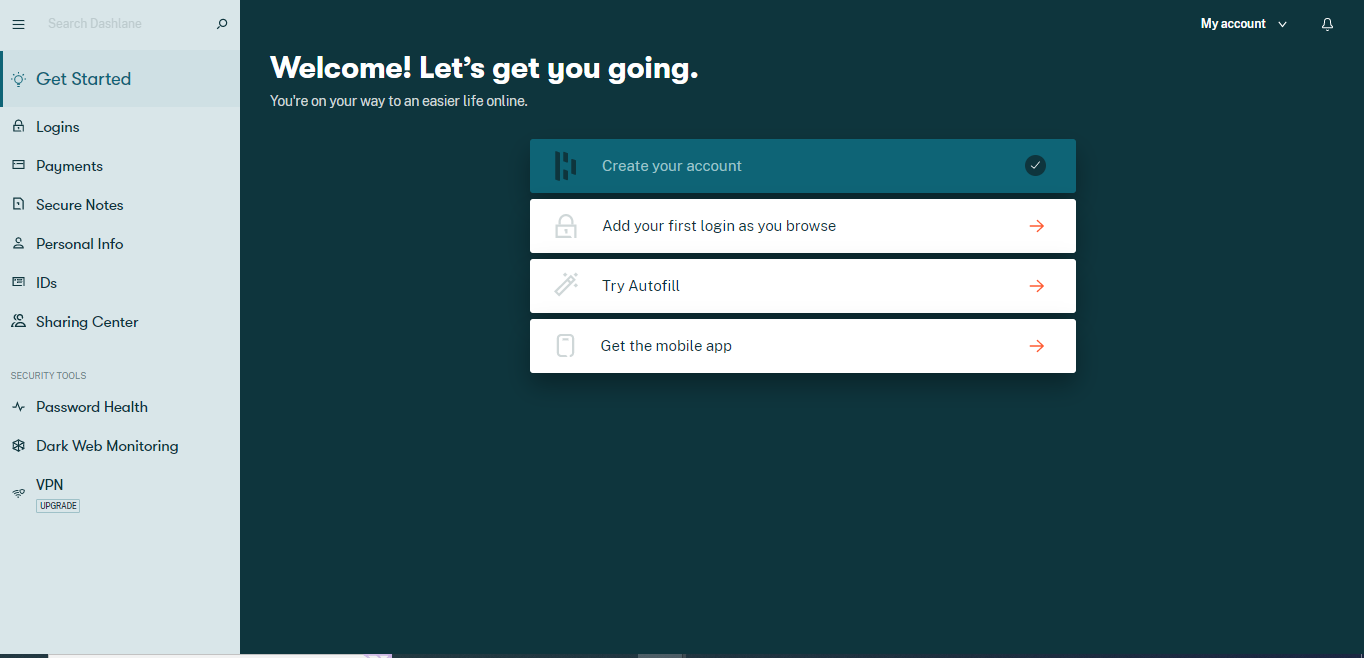
Dashlane does have well-designed apps for Android and iOS. Visit Google PlayStore or Apple App Store and download the app with a click. For account creation, the steps will be the same as described above. One important thing to remember is to enable the biometric login feature, as it’s the only way to reset the account when you lose the master password.
Dashlane Password Manager Security
It seems that Dashlane offers standard security, but it has a solid history of supporting top-notch security standards to secure users’ data.
On the top, Dashlane deploys AES-256-bit encryption to store and manage passwords. It is the industry’s highest encryption level which is uncrackable and guarantees maximum data security. Also, it uses end-to-end encryption to protect passwords, secure notes, and other personal data in the vault. This means Dashlane locally encrypts the data on the device, and users can decrypt it with a master password.
Besides this, Dashlane uses Webcrypto API for browser-based cryptography on Android and iOS. But on Mac and Windows, it uses OpenSSL for encrypting and decrypting users’ data. It uses HTTPS to protect all the communications between the Dashlane apps and servers and prevents hackers from intercepting the data. At the same time, the business version supports additional SSO and SAML 2.0 IDP.
It was good to see that Dashlane allows users to link their accounts to a 2FA app on their mobile devices. Instead of emailing the OTP, it asks users to provide an OTP generated via the 2FA app. This way helps to reset the account on iOS and Android devices. To further boost security, Dashlane uses secure keys like PBKDF2 and Argon2d.
Dashlane’s US-patented security architecture and zero-knowledge policy further guarantee that no one can intercept users’ data. It also complies with CCPA, GDPR, and SOC 2 Type compliance. Dashlane will respect users’ data even under dire circumstances and won’t sell it to anyone.
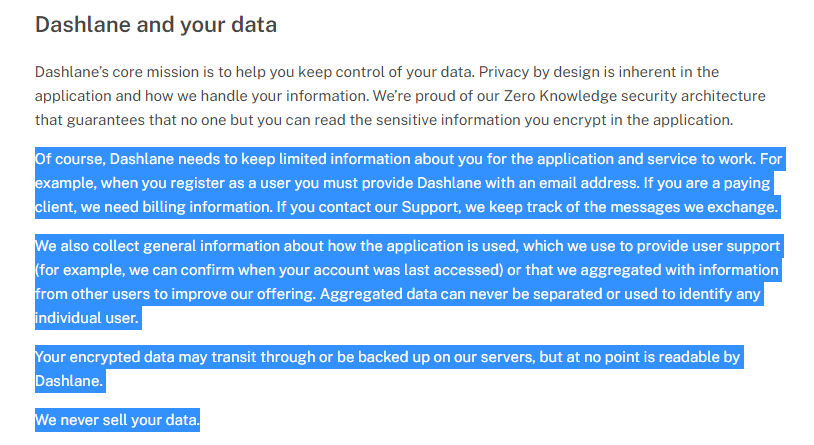
With all these advanced security measures, Dashlane is highly secure and safe. But to shine out among others, it will be best to come with security or privacy audit reports.
Interface and Ease of Use
Dashlane’s interface is sleek and intuitive; the best part is it’s easy to use and navigate. The vault is highly organized and the most appealing thing to the users. You can open the vault by logging into the app or browser extension. The left-side menu includes a search bar, all the item categories, and security tools.
Dashlane lets users store logins, payment info, Secure notes, personal info, and IDs in the main vault. By clicking on any category, you can add items to the vault.

You can also view the password history that informs you about the old versions of your passwords.
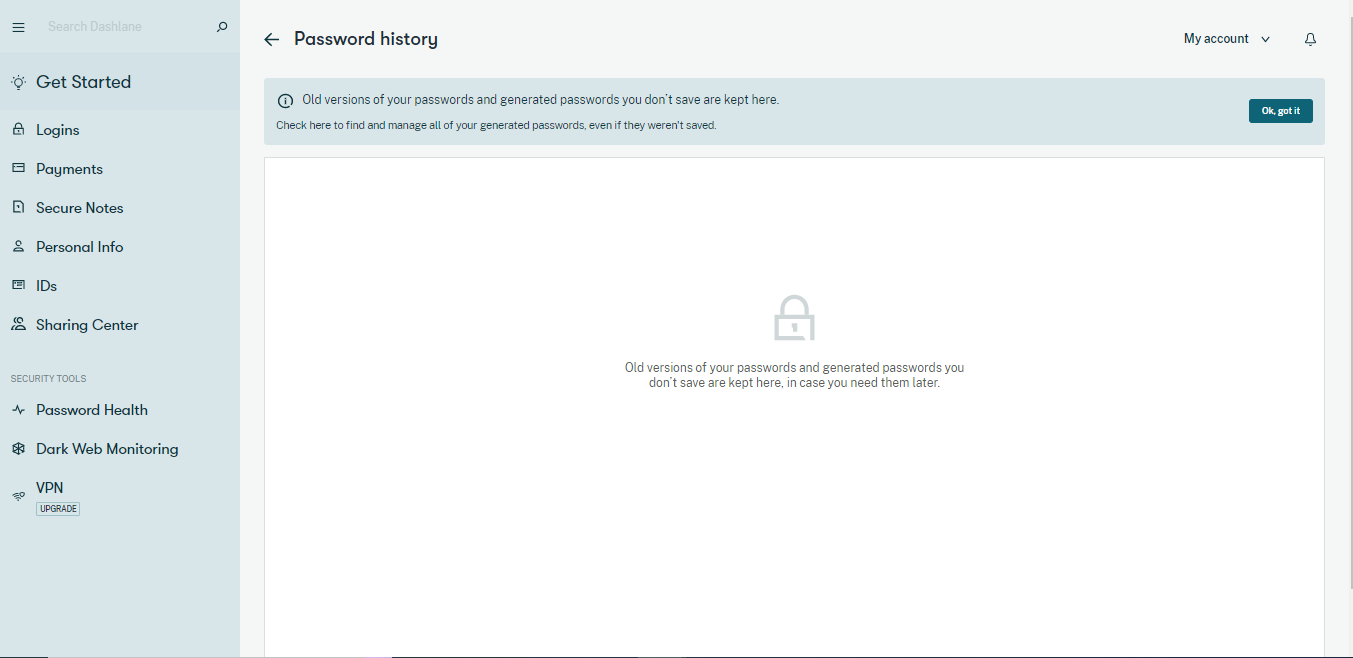
At first, it seems that Dashlane offers limited data entry items. But this is not the truth. If you go into the ID and Personal Info category and tap on the Add New option, it tells you that it has all data entry types. It is great to see but what was more amazing was how the data entry items were organized.
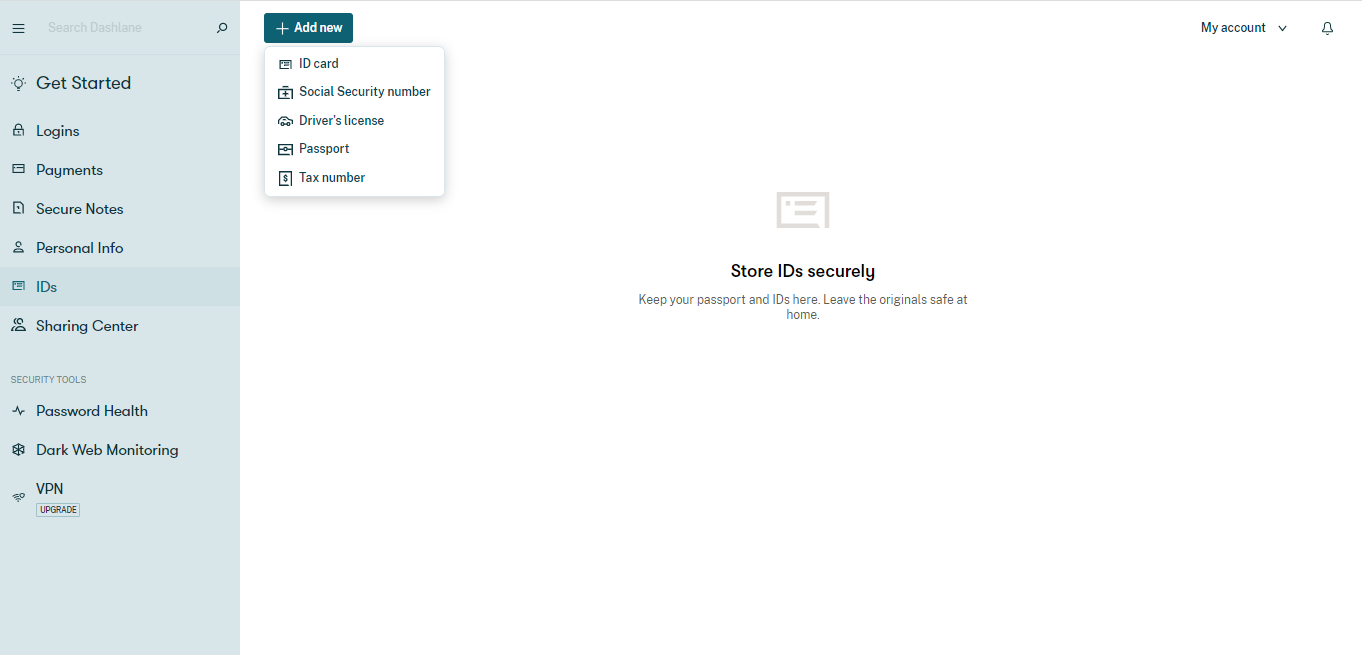
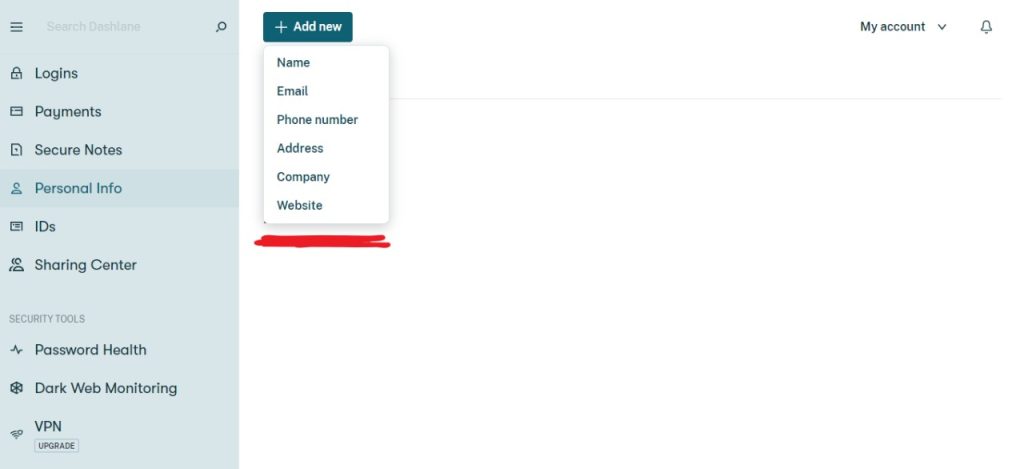
Below the categories, there are security tools. Choose the Password Health option to determine the health of all your passwords.
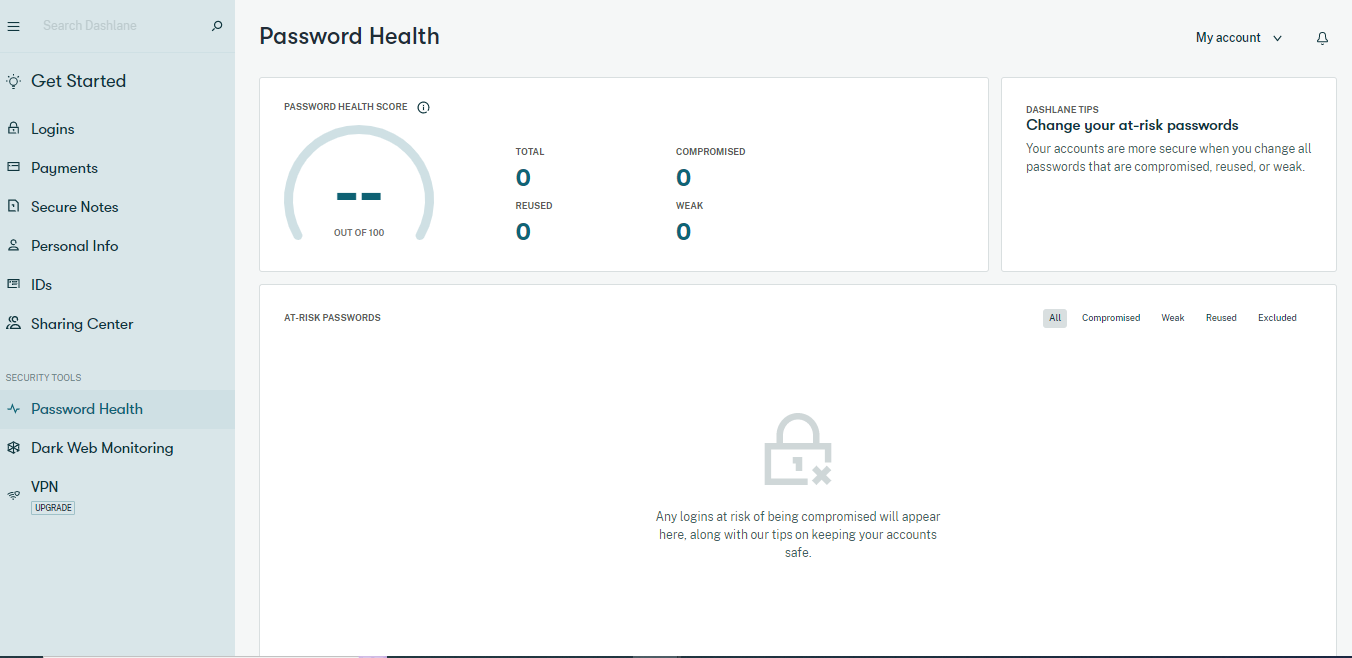
The Dashlane account settings do not look as good as others. Users can sync devices and import and export passwords. But it lacks customization options.
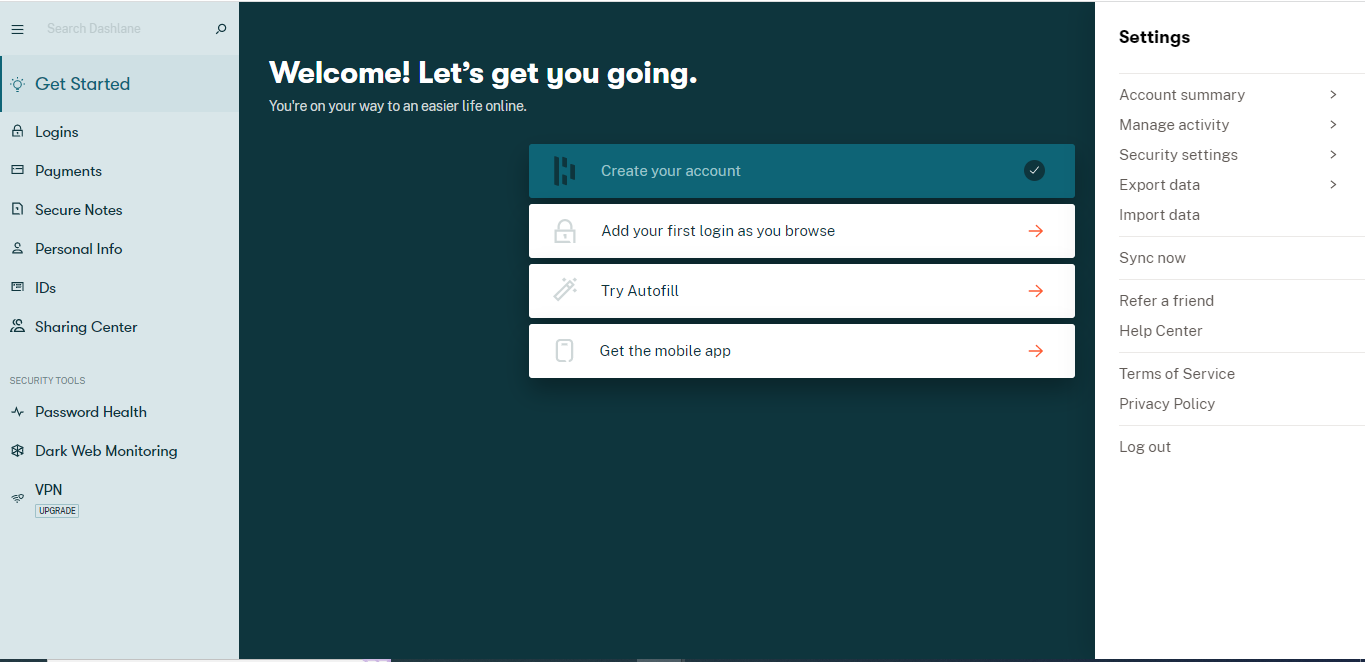
However, the password import options are limited and don’t impress the users.
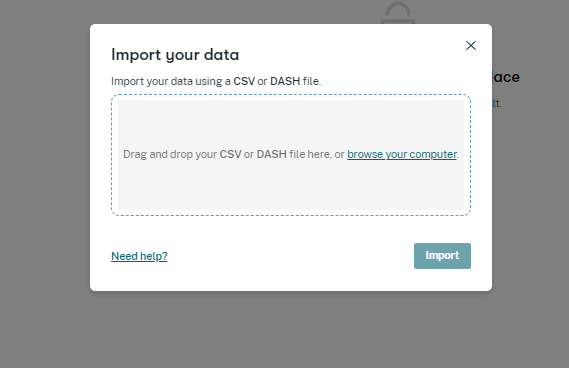
The Security Settings category looks good somehow. It allows users to configure the security settings to enhance account security.
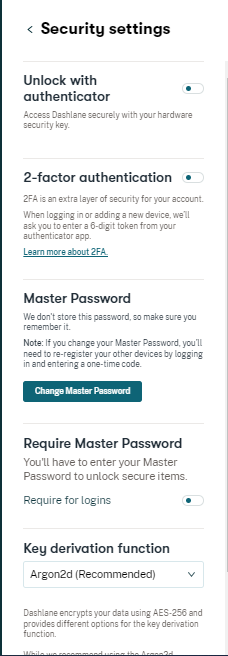
Overall, Dashlane’s interface is amazing and provides excellent ease of use.
Compatible Devices and Browser Extensions
As mentioned above, Dashlane no longer offers dedicated apps for Android and Mac platforms. It now works as a web-based browser; download the browser extension to use the web version. Moreover, there is no Linux support, which is another major drawback.
Dashlane offers browser extensions for Google Chrome, Firefox, Safari, and Microsoft Edge. Dashlane’s browser extensions allow users to generate new passwords, view the stored login details in an encrypted vault, and autofill logins and web forms.
Adding Dashlane’s browser extension is a seamless task. Download and install the extension in your favorite browser. In the browser toolbar, Dashlane ‘D’ icon appears; click on it and log into your account. It was incredible to see that the Dashlane browser extension allows users to stay logged in for 14 days. This is a feature that many of its competitors don’t have
The Chrome browser extension was the best of all. The extension is easy to download and use; it offers almost everything web and mobile apps offer. However, Google removed its extension from the web store over user data issues in February 2020, but it is back again.
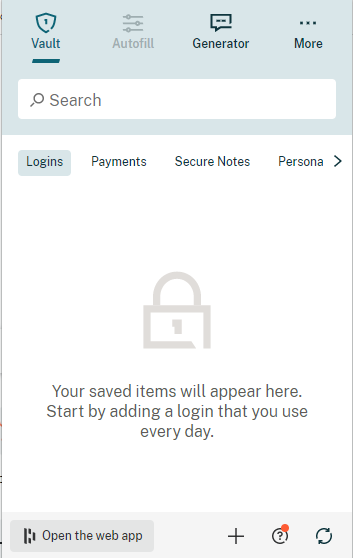
It is great to know that the Dashlane extension helps sync the vault, easily switching to the web app and accessing the support Help Center. But the extension doesn’t have the security tools.
However, Dashlane does offer native mobile apps for Android and iOS phones. These apps are available on the respective app store and work exceptionally well. Both apps provide easy access to all the features and ensure a hassle-free user experience. After downloading the app, you can set up a biometric login for your account so you don’t lose vault access if you lose the master password.
Overall, Dashlane’s apps and browser extensions are probably the best all around, with a slight need to further improve the browser extension functionality.
Features Overview
Dashlane is a feature-packed password manager. Users can create, save, autofill, share, and import their passwords. Other password managers have features like Dashlane, but its premium VPN and dark web monitoring provide the utmost security and privacy and make it the best among all.
Below are the prominent security features that Dashlane offers:
Password Generator
Dashlane’s personal or business password manager offers the easiest way to create strong passwords. It allows users to create and remember unique and strong passwords for every account. Users can resist hackers by generating long, random, unpredictable passwords and adjusting guidelines to fit different websites’ password requirements. This means users can customize the length of the passwords and use letters, symbols, digits, and similar characters to make them stronger.
All the generated passwords are securely saved in the vault. Even if you haven’t saved any password, Dashlane keeps a log of it.
Dark Web Monitoring
The Dark Web Monitoring tool is an outstanding feature that monitors the dark web for any leaked passwords and notifies them. Besides alerting the users, it also encourages them to take quick action.
This feature monitors up to five email addresses. It runs an initial scan for each email address that finds personal information related to that address. Once the initial scan finishes, the results are sent to the users via email, dark web alerts, and pop-up messages.
The dark web monitoring security tool is only available to premium users. But if you’re using the free trial version, you can access this feature. This feature is more valuable to business plan users. It provides real-time insights and alerts regarding online threats and breaches and offers solutions organizations can take to reduce such threats.
Password Health Checker
Password Health checker is yet another useful Dashlane feature. It is a password auditing tool that scans and analyzes all the saved passwords. After evaluating the passwords’ health, it categorizes them as compromised, weak, and reused. Also, it provides an overall password health score and prompts you to change the ones having issues. To check the health score of your passwords, you must have five logins. However, this isn’t a unique feature and is available in all popular password managers.
Dash lane’s VPN
A VPN is the best tool that encrypts the internet traffic and secures the data from all snooping eyes. Dashlane bundles with a dedicated VPN to boost your digital privacy. It partner’s with Hotspot Shield VPN to provide its premium VPN service and 24/7 tech support. To use this feature, click on the VPN option in the dashboard > download and install it > sign in, create a new user account, and start using. But you need to download the HotSpot Shield VPN app on mobile apps.
However, this feature is only available in the premium, friends, and families plans, and all business plans. You can’t even access this feature during the free trial period.
Two-Factor Authentication
Users can also enable two-factor authentication to increase the security of Dashlane accounts. With this feature, hackers can’t access the vault. You need to use 2FA with an authentication app that replaces the email codes, and instead, you enter a six-digit token. Authenticator apps like FreeOTP, Authy, and Google Authenticator are available for Android and iOS devices, while WinAuth is for PC. Mobile users can also use biometric login as a second option to authenticate their identity. It is a great security-boosting tool that also supports Yubikey, and it takes a few seconds to enable this feature.
Knowing that Dashlane discontinued some password management features was a great displeasure. Previously, the password manager allowed users to change passwords automatically with the password changer feature. However, this feature is no longer available after evaluating the beta version. Similarly, in 2015, Dashlane introduced the Emergency Access feature on iPhones and iPads. It was the first ever password manager to offer this feature. However, now this feature is missing. The website page about how to use it is also missing, leaving users disappointed.
Moreover, some features are missing in Dashlane. For instance, there isn’t any option for creating and managing multiple vaults. Also, the password generator feature is missing from the apps; you need to use the website link to use it.
Dashlane’s built-in VPN makes it outclass its competitors. Adding these features will add more functionality to Dashlane and attract users.
Dashlane Password Manager Customer Support
Dashlane’s live customer support is ineffective. It provides English chat support from 9 am to 6 pm (EST), Monday to Friday. Users can contact the support team during these hours by tapping the chat widget in the bottom right corner of the Help Center.
It was disappointing to find out that there was no human agent to assist when a query was sent on Friday at 4 pm (EST). The bots replaced human agents, making the live chat feature less convincing. They provide automated replies and often fail to give the right answer.


It seems the bots have limited information, and they give the same answer no matter what you ask every time.
You can also submit a ticket by clicking the ‘Leave a message option. It will ask for your email address, subject, and the issue that you are facing.
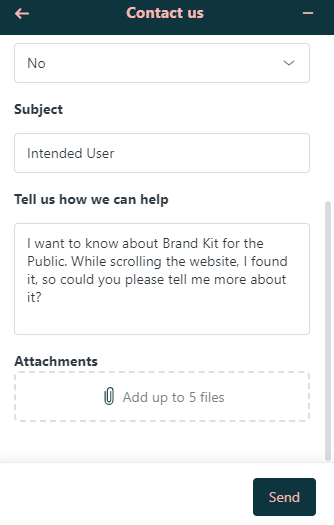
After submitting the ticket, you receive an automated email. But it’s again a setback as it asks to wait 24 hours for a support agent to contact back.
The customer support agent contacted back after more than 30 hours. The support agent addressed the problem and provided an appropriate reply, which gave some relief.
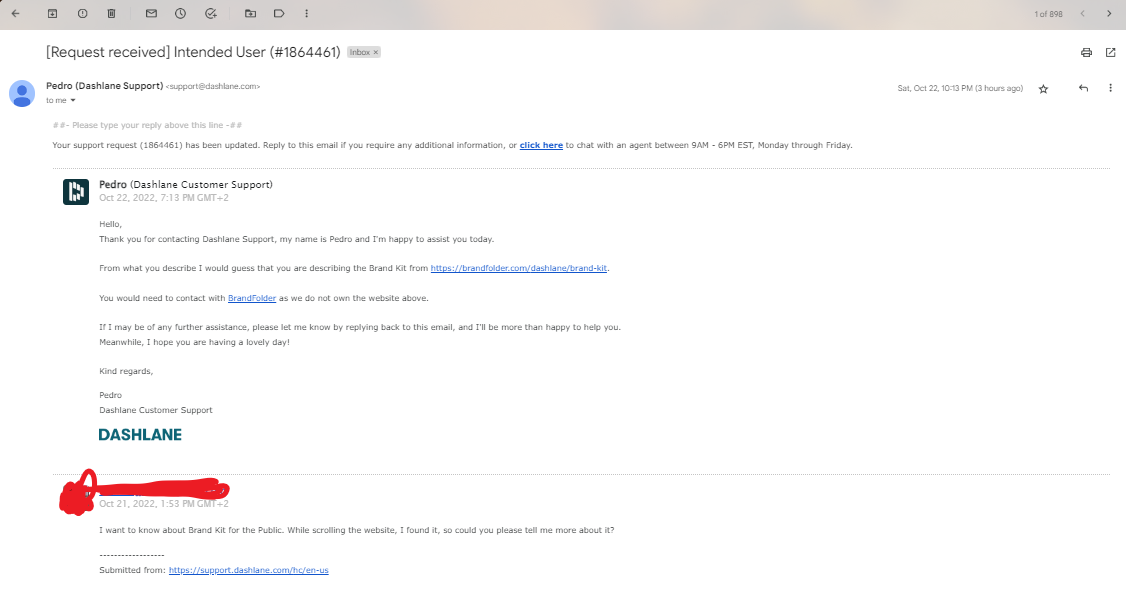
The absence of email and telephonic support also makes users wait long to resolve their issues.
But, Dashlane offers excellent knowledge base online resources. A Help Center page includes featured articles and all the information users might need to know to start with Dashlane.
There’s a Reddit community and Twitter page where experts, team representatives, and other users offer help and share their personal experiences with Dashlane. Besides this, there’s also an extensive resource library that includes:
- User Guides
- Blogs
- Video Tutorials
- Admin Resources
- User Education
- Success Stories
- White Papers
- Migration Resources
A separate section informs about operational Dashlane servers. Dashlane offers good help through its online website resources but needs to improve live support options.
Dashlane Password Manager Pricing Plans
Dashlane costs a little more than traditional password managers but is worth using. It has two basic paid plans for personal and business use but has other sub-categories. The personal use plan offers three different paid subscription plans, namely:
- Advanced
- Premium
- Friends and Families
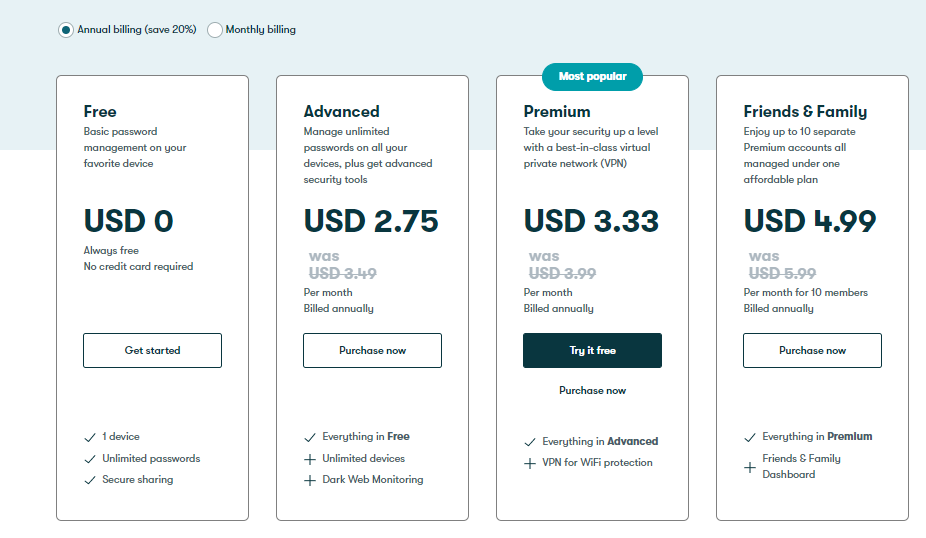
Dashlane offers a free version that is limited to only one user. However, you can even use the free version if you don’t have a budget. Users can create, store, and share unlimited passwords, use 2FA, and store up to 1GB of data while using the free version. Though the free version offers limited features, it’s still a good option for generating and storing passwords.
Dashlane’s premium plans start from $2.75 per month, known as the Advanced plan or the low-cost essential plan introduced upon users’ request. Users can use it on unlimited devices and enjoy all the free plan features with the addition of the dark web monitoring feature.
Besides this, the Premium plan costs $3.33 monthly and has an extra VPN for Wi-Fi protection features. It offers an amazing feature that Dashlane offers, which any other password manager doesn’t.
Interestingly, Dashlane has an amazing offer for friends and families. It includes everything other paid plans offer, but what attracts the users most is that it provides more functionality and allows up to ten members to use it. Also, it enables users to manage dashboards so every user can enjoy a good user experience.
Though the Dashlane prices are slightly higher, the features in the premium plan make it worth the money price.
Business Plan
Dashlane is the perfect solution for businesses, including starters. It protects organizations from security breaches, sends threat alerts, and helps improve employee workflow. Plus, it allows them to keep track of other employees’ activities and create groups for secure password sharing and increased productivity. Here’s the pricing insight into the different business plans that Dashlane offers:
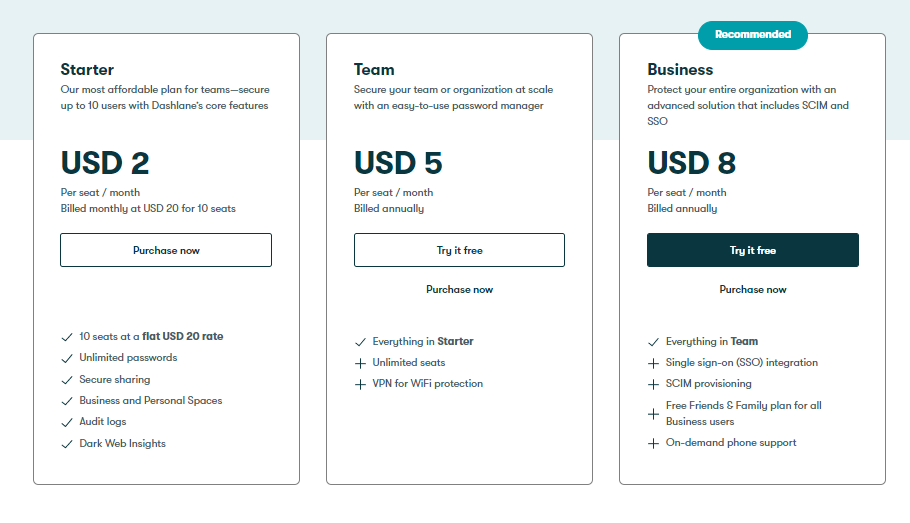
It is easy to use and deploy and ensures a seamless user experience. The Starter plan is best for teams with up to ten users and costs $2 per seat/ month. It offers all Dashlane core features with extra business features like dark web insights, audit logs, secure sharing, and business and personal spaces.
If you want a plan with unlimited seats, you can opt for the Team plan, which costs $5 per seat/month. It includes all the features of the Starter plan with the addition of the built-in VPN feature. The business plan is the most recommended plan for organizations. While it is a bit expensive and costs $8 per seat/month, it includes everything a company might want. It has all the functionality of the Team plan, plus additional features like dashboard management, SSO integration, and SCIM provisioning.
Starter, Team, and business plans can offer email support throughout the week, while business plan users can also ask for telephonic support. All the premium plans come with a free trial and a 30-day money-back guarantee offer, making it an ideal software to test out.
Conclusion
Dashlane is a great password manager to use. It is safe and offers incredible features that boost password and online security. It excels in basic password management functions and offers advanced tools that other password managers lack. The Dashlane dedicated VPN and dark web monitoring features are worth using. Besides this, it also offers 2FA, a password health checker, and other useful features for personal and business use. It provides a web-based version, mobile apps, and browser extensions, enabling users to use Dashlane across all popular devices and platforms.
However, Dashlane needs to improve the dashboard customization feature and customer support. It lacks telephonic support, while the live chat option is not very impressive. Also, business users would be glad to see if it expands its features.
Overall, Dashlane is a great password manager, and it’d be best if users tried out all the premium features during the 30-day free trial period.
FAQs
The post What Is A Dashlane Password Manager? Full Review 2024 appeared first on BeEncrypted.
]]>Deprecated: Using null as an array offset is deprecated, use an empty string instead in /var/www/staging.beencrypted.com/site/web/wp/wp-includes/class-wp-block-type-registry.php on line 168
Deprecated: Using null as an array offset is deprecated, use an empty string instead in /var/www/staging.beencrypted.com/site/web/wp/wp-includes/class-wp-block-type-registry.php on line 168
Deprecated: Using null as an array offset is deprecated, use an empty string instead in /var/www/staging.beencrypted.com/site/web/wp/wp-includes/class-wp-block-type-registry.php on line 168
Deprecated: Using null as an array offset is deprecated, use an empty string instead in /var/www/staging.beencrypted.com/site/web/wp/wp-includes/class-wp-block-type-registry.php on line 168
Deprecated: Using null as an array offset is deprecated, use an empty string instead in /var/www/staging.beencrypted.com/site/web/wp/wp-includes/class-wp-block-type-registry.php on line 168
Deprecated: Using null as an array offset is deprecated, use an empty string instead in /var/www/staging.beencrypted.com/site/web/wp/wp-includes/class-wp-block-type-registry.php on line 168
Deprecated: Using null as an array offset is deprecated, use an empty string instead in /var/www/staging.beencrypted.com/site/web/wp/wp-includes/class-wp-block-type-registry.php on line 168
Deprecated: Using null as an array offset is deprecated, use an empty string instead in /var/www/staging.beencrypted.com/site/web/wp/wp-includes/class-wp-block-type-registry.php on line 168
Deprecated: Using null as an array offset is deprecated, use an empty string instead in /var/www/staging.beencrypted.com/site/web/wp/wp-includes/class-wp-block-type-registry.php on line 168
Deprecated: Using null as an array offset is deprecated, use an empty string instead in /var/www/staging.beencrypted.com/site/web/wp/wp-includes/class-wp-block-type-registry.php on line 168
Deprecated: Using null as an array offset is deprecated, use an empty string instead in /var/www/staging.beencrypted.com/site/web/wp/wp-includes/class-wp-block-type-registry.php on line 168
Deprecated: Using null as an array offset is deprecated, use an empty string instead in /var/www/staging.beencrypted.com/site/web/wp/wp-includes/class-wp-block-type-registry.php on line 168
Deprecated: Using null as an array offset is deprecated, use an empty string instead in /var/www/staging.beencrypted.com/site/web/wp/wp-includes/class-wp-block-type-registry.php on line 168
Deprecated: Using null as an array offset is deprecated, use an empty string instead in /var/www/staging.beencrypted.com/site/web/wp/wp-includes/class-wp-block-type-registry.php on line 168
Deprecated: Using null as an array offset is deprecated, use an empty string instead in /var/www/staging.beencrypted.com/site/web/wp/wp-includes/class-wp-block-type-registry.php on line 168
Deprecated: Using null as an array offset is deprecated, use an empty string instead in /var/www/staging.beencrypted.com/site/web/wp/wp-includes/class-wp-block-type-registry.php on line 168
Deprecated: Using null as an array offset is deprecated, use an empty string instead in /var/www/staging.beencrypted.com/site/web/wp/wp-includes/class-wp-block-type-registry.php on line 168
Deprecated: Using null as an array offset is deprecated, use an empty string instead in /var/www/staging.beencrypted.com/site/web/wp/wp-includes/class-wp-block-type-registry.php on line 168
Deprecated: Using null as an array offset is deprecated, use an empty string instead in /var/www/staging.beencrypted.com/site/web/wp/wp-includes/class-wp-block-type-registry.php on line 168
Deprecated: Using null as an array offset is deprecated, use an empty string instead in /var/www/staging.beencrypted.com/site/web/wp/wp-includes/class-wp-block-type-registry.php on line 168
Deprecated: Using null as an array offset is deprecated, use an empty string instead in /var/www/staging.beencrypted.com/site/web/wp/wp-includes/class-wp-block-type-registry.php on line 168
Deprecated: Using null as an array offset is deprecated, use an empty string instead in /var/www/staging.beencrypted.com/site/web/wp/wp-includes/class-wp-block-type-registry.php on line 168
Deprecated: Using null as an array offset is deprecated, use an empty string instead in /var/www/staging.beencrypted.com/site/web/wp/wp-includes/class-wp-block-type-registry.php on line 168
Deprecated: Using null as an array offset is deprecated, use an empty string instead in /var/www/staging.beencrypted.com/site/web/wp/wp-includes/class-wp-block-type-registry.php on line 168
Deprecated: Using null as an array offset is deprecated, use an empty string instead in /var/www/staging.beencrypted.com/site/web/wp/wp-includes/class-wp-block-type-registry.php on line 168
Deprecated: Using null as an array offset is deprecated, use an empty string instead in /var/www/staging.beencrypted.com/site/web/wp/wp-includes/class-wp-block-type-registry.php on line 168
Deprecated: Using null as an array offset is deprecated, use an empty string instead in /var/www/staging.beencrypted.com/site/web/wp/wp-includes/class-wp-block-type-registry.php on line 168
Deprecated: Using null as an array offset is deprecated, use an empty string instead in /var/www/staging.beencrypted.com/site/web/wp/wp-includes/class-wp-block-type-registry.php on line 168
Deprecated: Using null as an array offset is deprecated, use an empty string instead in /var/www/staging.beencrypted.com/site/web/wp/wp-includes/class-wp-block-type-registry.php on line 168
Deprecated: Using null as an array offset is deprecated, use an empty string instead in /var/www/staging.beencrypted.com/site/web/wp/wp-includes/class-wp-block-type-registry.php on line 168
Deprecated: Using null as an array offset is deprecated, use an empty string instead in /var/www/staging.beencrypted.com/site/web/wp/wp-includes/class-wp-block-type-registry.php on line 168
Deprecated: Using null as an array offset is deprecated, use an empty string instead in /var/www/staging.beencrypted.com/site/web/wp/wp-includes/class-wp-block-type-registry.php on line 168
Deprecated: Using null as an array offset is deprecated, use an empty string instead in /var/www/staging.beencrypted.com/site/web/wp/wp-includes/class-wp-block-type-registry.php on line 168
Deprecated: Using null as an array offset is deprecated, use an empty string instead in /var/www/staging.beencrypted.com/site/web/wp/wp-includes/class-wp-block-type-registry.php on line 168
Deprecated: Using null as an array offset is deprecated, use an empty string instead in /var/www/staging.beencrypted.com/site/web/wp/wp-includes/class-wp-block-type-registry.php on line 168
Deprecated: Using null as an array offset is deprecated, use an empty string instead in /var/www/staging.beencrypted.com/site/web/wp/wp-includes/class-wp-block-type-registry.php on line 168
Deprecated: Using null as an array offset is deprecated, use an empty string instead in /var/www/staging.beencrypted.com/site/web/wp/wp-includes/class-wp-block-type-registry.php on line 168
Deprecated: Using null as an array offset is deprecated, use an empty string instead in /var/www/staging.beencrypted.com/site/web/wp/wp-includes/class-wp-block-type-registry.php on line 168
Deprecated: Using null as an array offset is deprecated, use an empty string instead in /var/www/staging.beencrypted.com/site/web/wp/wp-includes/class-wp-block-type-registry.php on line 168
Deprecated: Using null as an array offset is deprecated, use an empty string instead in /var/www/staging.beencrypted.com/site/web/wp/wp-includes/class-wp-block-type-registry.php on line 168
Deprecated: Using null as an array offset is deprecated, use an empty string instead in /var/www/staging.beencrypted.com/site/web/wp/wp-includes/class-wp-block-type-registry.php on line 168
Deprecated: Using null as an array offset is deprecated, use an empty string instead in /var/www/staging.beencrypted.com/site/web/wp/wp-includes/class-wp-block-type-registry.php on line 168
Deprecated: Using null as an array offset is deprecated, use an empty string instead in /var/www/staging.beencrypted.com/site/web/wp/wp-includes/class-wp-block-type-registry.php on line 168
Deprecated: Using null as an array offset is deprecated, use an empty string instead in /var/www/staging.beencrypted.com/site/web/wp/wp-includes/class-wp-block-type-registry.php on line 168
Deprecated: Using null as an array offset is deprecated, use an empty string instead in /var/www/staging.beencrypted.com/site/web/wp/wp-includes/class-wp-block-type-registry.php on line 168
Deprecated: Using null as an array offset is deprecated, use an empty string instead in /var/www/staging.beencrypted.com/site/web/wp/wp-includes/class-wp-block-type-registry.php on line 168
Deprecated: Using null as an array offset is deprecated, use an empty string instead in /var/www/staging.beencrypted.com/site/web/wp/wp-includes/class-wp-block-type-registry.php on line 168
Deprecated: Using null as an array offset is deprecated, use an empty string instead in /var/www/staging.beencrypted.com/site/web/wp/wp-includes/class-wp-block-type-registry.php on line 168
Deprecated: Using null as an array offset is deprecated, use an empty string instead in /var/www/staging.beencrypted.com/site/web/wp/wp-includes/class-wp-block-type-registry.php on line 168
Deprecated: Using null as an array offset is deprecated, use an empty string instead in /var/www/staging.beencrypted.com/site/web/wp/wp-includes/class-wp-block-type-registry.php on line 168
Deprecated: Using null as an array offset is deprecated, use an empty string instead in /var/www/staging.beencrypted.com/site/web/wp/wp-includes/class-wp-block-type-registry.php on line 168
Deprecated: Using null as an array offset is deprecated, use an empty string instead in /var/www/staging.beencrypted.com/site/web/wp/wp-includes/class-wp-block-type-registry.php on line 168
Deprecated: Using null as an array offset is deprecated, use an empty string instead in /var/www/staging.beencrypted.com/site/web/wp/wp-includes/class-wp-block-type-registry.php on line 168
Deprecated: Using null as an array offset is deprecated, use an empty string instead in /var/www/staging.beencrypted.com/site/web/wp/wp-includes/class-wp-block-type-registry.php on line 168
Deprecated: Using null as an array offset is deprecated, use an empty string instead in /var/www/staging.beencrypted.com/site/web/wp/wp-includes/class-wp-block-type-registry.php on line 168
Deprecated: Using null as an array offset is deprecated, use an empty string instead in /var/www/staging.beencrypted.com/site/web/wp/wp-includes/class-wp-block-type-registry.php on line 168
Deprecated: Using null as an array offset is deprecated, use an empty string instead in /var/www/staging.beencrypted.com/site/web/wp/wp-includes/class-wp-block-type-registry.php on line 168
Deprecated: Using null as an array offset is deprecated, use an empty string instead in /var/www/staging.beencrypted.com/site/web/wp/wp-includes/class-wp-block-type-registry.php on line 168
Deprecated: Using null as an array offset is deprecated, use an empty string instead in /var/www/staging.beencrypted.com/site/web/wp/wp-includes/class-wp-block-type-registry.php on line 168
Deprecated: Using null as an array offset is deprecated, use an empty string instead in /var/www/staging.beencrypted.com/site/web/wp/wp-includes/class-wp-block-type-registry.php on line 168
Deprecated: Using null as an array offset is deprecated, use an empty string instead in /var/www/staging.beencrypted.com/site/web/wp/wp-includes/class-wp-block-type-registry.php on line 168
Deprecated: Using null as an array offset is deprecated, use an empty string instead in /var/www/staging.beencrypted.com/site/web/wp/wp-includes/class-wp-block-type-registry.php on line 168
Deprecated: Using null as an array offset is deprecated, use an empty string instead in /var/www/staging.beencrypted.com/site/web/wp/wp-includes/class-wp-block-type-registry.php on line 168
Deprecated: Using null as an array offset is deprecated, use an empty string instead in /var/www/staging.beencrypted.com/site/web/wp/wp-includes/class-wp-block-type-registry.php on line 168
Deprecated: Using null as an array offset is deprecated, use an empty string instead in /var/www/staging.beencrypted.com/site/web/wp/wp-includes/class-wp-block-type-registry.php on line 168
Deprecated: Using null as an array offset is deprecated, use an empty string instead in /var/www/staging.beencrypted.com/site/web/wp/wp-includes/class-wp-block-type-registry.php on line 168
Deprecated: Using null as an array offset is deprecated, use an empty string instead in /var/www/staging.beencrypted.com/site/web/wp/wp-includes/class-wp-block-type-registry.php on line 168
Deprecated: Using null as an array offset is deprecated, use an empty string instead in /var/www/staging.beencrypted.com/site/web/wp/wp-includes/class-wp-block-type-registry.php on line 168
Deprecated: Using null as an array offset is deprecated, use an empty string instead in /var/www/staging.beencrypted.com/site/web/wp/wp-includes/class-wp-block-type-registry.php on line 168
Deprecated: Using null as an array offset is deprecated, use an empty string instead in /var/www/staging.beencrypted.com/site/web/wp/wp-includes/class-wp-block-type-registry.php on line 168
Deprecated: Using null as an array offset is deprecated, use an empty string instead in /var/www/staging.beencrypted.com/site/web/wp/wp-includes/class-wp-block-type-registry.php on line 168
Deprecated: Using null as an array offset is deprecated, use an empty string instead in /var/www/staging.beencrypted.com/site/web/wp/wp-includes/class-wp-block-type-registry.php on line 168
Deprecated: Using null as an array offset is deprecated, use an empty string instead in /var/www/staging.beencrypted.com/site/web/wp/wp-includes/class-wp-block-type-registry.php on line 168
Deprecated: Using null as an array offset is deprecated, use an empty string instead in /var/www/staging.beencrypted.com/site/web/wp/wp-includes/class-wp-block-type-registry.php on line 168
Deprecated: Using null as an array offset is deprecated, use an empty string instead in /var/www/staging.beencrypted.com/site/web/wp/wp-includes/class-wp-block-type-registry.php on line 168
Deprecated: Using null as an array offset is deprecated, use an empty string instead in /var/www/staging.beencrypted.com/site/web/wp/wp-includes/class-wp-block-type-registry.php on line 168
Deprecated: Using null as an array offset is deprecated, use an empty string instead in /var/www/staging.beencrypted.com/site/web/wp/wp-includes/class-wp-block-type-registry.php on line 168
Deprecated: Using null as an array offset is deprecated, use an empty string instead in /var/www/staging.beencrypted.com/site/web/wp/wp-includes/class-wp-block-type-registry.php on line 168
Deprecated: Using null as an array offset is deprecated, use an empty string instead in /var/www/staging.beencrypted.com/site/web/wp/wp-includes/class-wp-block-type-registry.php on line 168
Deprecated: Using null as an array offset is deprecated, use an empty string instead in /var/www/staging.beencrypted.com/site/web/wp/wp-includes/class-wp-block-type-registry.php on line 168
Deprecated: Using null as an array offset is deprecated, use an empty string instead in /var/www/staging.beencrypted.com/site/web/wp/wp-includes/class-wp-block-type-registry.php on line 168
Deprecated: Using null as an array offset is deprecated, use an empty string instead in /var/www/staging.beencrypted.com/site/web/wp/wp-includes/class-wp-block-type-registry.php on line 168
Deprecated: Using null as an array offset is deprecated, use an empty string instead in /var/www/staging.beencrypted.com/site/web/wp/wp-includes/class-wp-block-type-registry.php on line 168
Deprecated: Using null as an array offset is deprecated, use an empty string instead in /var/www/staging.beencrypted.com/site/web/wp/wp-includes/class-wp-block-type-registry.php on line 168
Deprecated: Using null as an array offset is deprecated, use an empty string instead in /var/www/staging.beencrypted.com/site/web/wp/wp-includes/class-wp-block-type-registry.php on line 168
Deprecated: Using null as an array offset is deprecated, use an empty string instead in /var/www/staging.beencrypted.com/site/web/wp/wp-includes/class-wp-block-type-registry.php on line 168
Deprecated: Using null as an array offset is deprecated, use an empty string instead in /var/www/staging.beencrypted.com/site/web/wp/wp-includes/class-wp-block-type-registry.php on line 168
Deprecated: Using null as an array offset is deprecated, use an empty string instead in /var/www/staging.beencrypted.com/site/web/wp/wp-includes/class-wp-block-type-registry.php on line 168
Deprecated: Using null as an array offset is deprecated, use an empty string instead in /var/www/staging.beencrypted.com/site/web/wp/wp-includes/class-wp-block-type-registry.php on line 168
Deprecated: Using null as an array offset is deprecated, use an empty string instead in /var/www/staging.beencrypted.com/site/web/wp/wp-includes/class-wp-block-type-registry.php on line 168
Deprecated: Using null as an array offset is deprecated, use an empty string instead in /var/www/staging.beencrypted.com/site/web/wp/wp-includes/class-wp-block-type-registry.php on line 168
Deprecated: Using null as an array offset is deprecated, use an empty string instead in /var/www/staging.beencrypted.com/site/web/wp/wp-includes/class-wp-block-type-registry.php on line 168
Deprecated: Using null as an array offset is deprecated, use an empty string instead in /var/www/staging.beencrypted.com/site/web/wp/wp-includes/class-wp-block-type-registry.php on line 168
Deprecated: Using null as an array offset is deprecated, use an empty string instead in /var/www/staging.beencrypted.com/site/web/wp/wp-includes/class-wp-block-type-registry.php on line 168
Deprecated: Using null as an array offset is deprecated, use an empty string instead in /var/www/staging.beencrypted.com/site/web/wp/wp-includes/class-wp-block-type-registry.php on line 168
Deprecated: Using null as an array offset is deprecated, use an empty string instead in /var/www/staging.beencrypted.com/site/web/wp/wp-includes/class-wp-block-type-registry.php on line 168
Deprecated: Using null as an array offset is deprecated, use an empty string instead in /var/www/staging.beencrypted.com/site/web/wp/wp-includes/class-wp-block-type-registry.php on line 168
Deprecated: Using null as an array offset is deprecated, use an empty string instead in /var/www/staging.beencrypted.com/site/web/wp/wp-includes/class-wp-block-type-registry.php on line 168
Deprecated: Using null as an array offset is deprecated, use an empty string instead in /var/www/staging.beencrypted.com/site/web/wp/wp-includes/class-wp-block-type-registry.php on line 168
Deprecated: Using null as an array offset is deprecated, use an empty string instead in /var/www/staging.beencrypted.com/site/web/wp/wp-includes/class-wp-block-type-registry.php on line 168
Deprecated: Using null as an array offset is deprecated, use an empty string instead in /var/www/staging.beencrypted.com/site/web/wp/wp-includes/class-wp-block-type-registry.php on line 168
Deprecated: Using null as an array offset is deprecated, use an empty string instead in /var/www/staging.beencrypted.com/site/web/wp/wp-includes/class-wp-block-type-registry.php on line 168
Deprecated: Using null as an array offset is deprecated, use an empty string instead in /var/www/staging.beencrypted.com/site/web/wp/wp-includes/class-wp-block-type-registry.php on line 168
Deprecated: Using null as an array offset is deprecated, use an empty string instead in /var/www/staging.beencrypted.com/site/web/wp/wp-includes/class-wp-block-type-registry.php on line 168
Deprecated: Using null as an array offset is deprecated, use an empty string instead in /var/www/staging.beencrypted.com/site/web/wp/wp-includes/class-wp-block-type-registry.php on line 168
Deprecated: Using null as an array offset is deprecated, use an empty string instead in /var/www/staging.beencrypted.com/site/web/wp/wp-includes/class-wp-block-type-registry.php on line 168
Deprecated: Using null as an array offset is deprecated, use an empty string instead in /var/www/staging.beencrypted.com/site/web/wp/wp-includes/class-wp-block-type-registry.php on line 168
Deprecated: Using null as an array offset is deprecated, use an empty string instead in /var/www/staging.beencrypted.com/site/web/wp/wp-includes/class-wp-block-type-registry.php on line 168
Deprecated: Using null as an array offset is deprecated, use an empty string instead in /var/www/staging.beencrypted.com/site/web/wp/wp-includes/class-wp-block-type-registry.php on line 168
Deprecated: Using null as an array offset is deprecated, use an empty string instead in /var/www/staging.beencrypted.com/site/web/wp/wp-includes/class-wp-block-type-registry.php on line 168
Deprecated: Using null as an array offset is deprecated, use an empty string instead in /var/www/staging.beencrypted.com/site/web/wp/wp-includes/class-wp-block-type-registry.php on line 168
Deprecated: Using null as an array offset is deprecated, use an empty string instead in /var/www/staging.beencrypted.com/site/web/wp/wp-includes/class-wp-block-type-registry.php on line 168
Deprecated: Using null as an array offset is deprecated, use an empty string instead in /var/www/staging.beencrypted.com/site/web/wp/wp-includes/class-wp-block-type-registry.php on line 168
Deprecated: Using null as an array offset is deprecated, use an empty string instead in /var/www/staging.beencrypted.com/site/web/wp/wp-includes/class-wp-block-type-registry.php on line 168
Deprecated: Using null as an array offset is deprecated, use an empty string instead in /var/www/staging.beencrypted.com/site/web/wp/wp-includes/class-wp-block-type-registry.php on line 168
Deprecated: Using null as an array offset is deprecated, use an empty string instead in /var/www/staging.beencrypted.com/site/web/wp/wp-includes/class-wp-block-type-registry.php on line 168
Deprecated: Using null as an array offset is deprecated, use an empty string instead in /var/www/staging.beencrypted.com/site/web/wp/wp-includes/class-wp-block-type-registry.php on line 168
Deprecated: Using null as an array offset is deprecated, use an empty string instead in /var/www/staging.beencrypted.com/site/web/wp/wp-includes/class-wp-block-type-registry.php on line 168
Deprecated: Using null as an array offset is deprecated, use an empty string instead in /var/www/staging.beencrypted.com/site/web/wp/wp-includes/class-wp-block-type-registry.php on line 168
Deprecated: Using null as an array offset is deprecated, use an empty string instead in /var/www/staging.beencrypted.com/site/web/wp/wp-includes/class-wp-block-type-registry.php on line 168
Deprecated: Using null as an array offset is deprecated, use an empty string instead in /var/www/staging.beencrypted.com/site/web/wp/wp-includes/class-wp-block-type-registry.php on line 168
Deprecated: Using null as an array offset is deprecated, use an empty string instead in /var/www/staging.beencrypted.com/site/web/wp/wp-includes/class-wp-block-type-registry.php on line 168
Deprecated: Using null as an array offset is deprecated, use an empty string instead in /var/www/staging.beencrypted.com/site/web/wp/wp-includes/class-wp-block-type-registry.php on line 168
Deprecated: Using null as an array offset is deprecated, use an empty string instead in /var/www/staging.beencrypted.com/site/web/wp/wp-includes/class-wp-block-type-registry.php on line 168
Deprecated: Using null as an array offset is deprecated, use an empty string instead in /var/www/staging.beencrypted.com/site/web/wp/wp-includes/class-wp-block-type-registry.php on line 168
Deprecated: Using null as an array offset is deprecated, use an empty string instead in /var/www/staging.beencrypted.com/site/web/wp/wp-includes/class-wp-block-type-registry.php on line 168
Deprecated: Using null as an array offset is deprecated, use an empty string instead in /var/www/staging.beencrypted.com/site/web/wp/wp-includes/class-wp-block-type-registry.php on line 168
Deprecated: Using null as an array offset is deprecated, use an empty string instead in /var/www/staging.beencrypted.com/site/web/wp/wp-includes/class-wp-block-type-registry.php on line 168
Deprecated: Using null as an array offset is deprecated, use an empty string instead in /var/www/staging.beencrypted.com/site/web/wp/wp-includes/class-wp-block-type-registry.php on line 168
Deprecated: Using null as an array offset is deprecated, use an empty string instead in /var/www/staging.beencrypted.com/site/web/wp/wp-includes/class-wp-block-type-registry.php on line 168
Deprecated: Using null as an array offset is deprecated, use an empty string instead in /var/www/staging.beencrypted.com/site/web/wp/wp-includes/class-wp-block-type-registry.php on line 168
Deprecated: Using null as an array offset is deprecated, use an empty string instead in /var/www/staging.beencrypted.com/site/web/wp/wp-includes/class-wp-block-type-registry.php on line 168
Deprecated: Using null as an array offset is deprecated, use an empty string instead in /var/www/staging.beencrypted.com/site/web/wp/wp-includes/class-wp-block-type-registry.php on line 168
Deprecated: Using null as an array offset is deprecated, use an empty string instead in /var/www/staging.beencrypted.com/site/web/wp/wp-includes/class-wp-block-type-registry.php on line 168
Deprecated: Using null as an array offset is deprecated, use an empty string instead in /var/www/staging.beencrypted.com/site/web/wp/wp-includes/class-wp-block-type-registry.php on line 168
Deprecated: Using null as an array offset is deprecated, use an empty string instead in /var/www/staging.beencrypted.com/site/web/wp/wp-includes/class-wp-block-type-registry.php on line 168
Deprecated: Using null as an array offset is deprecated, use an empty string instead in /var/www/staging.beencrypted.com/site/web/wp/wp-includes/class-wp-block-type-registry.php on line 168
Deprecated: Using null as an array offset is deprecated, use an empty string instead in /var/www/staging.beencrypted.com/site/web/wp/wp-includes/class-wp-block-type-registry.php on line 168
Deprecated: Using null as an array offset is deprecated, use an empty string instead in /var/www/staging.beencrypted.com/site/web/wp/wp-includes/class-wp-block-type-registry.php on line 168
Deprecated: Using null as an array offset is deprecated, use an empty string instead in /var/www/staging.beencrypted.com/site/web/wp/wp-includes/class-wp-block-type-registry.php on line 168
Deprecated: Using null as an array offset is deprecated, use an empty string instead in /var/www/staging.beencrypted.com/site/web/wp/wp-includes/class-wp-block-type-registry.php on line 168
Deprecated: Using null as an array offset is deprecated, use an empty string instead in /var/www/staging.beencrypted.com/site/web/wp/wp-includes/class-wp-block-type-registry.php on line 168
Deprecated: Using null as an array offset is deprecated, use an empty string instead in /var/www/staging.beencrypted.com/site/web/wp/wp-includes/class-wp-block-type-registry.php on line 168
Deprecated: Using null as an array offset is deprecated, use an empty string instead in /var/www/staging.beencrypted.com/site/web/wp/wp-includes/class-wp-block-type-registry.php on line 168
Deprecated: Using null as an array offset is deprecated, use an empty string instead in /var/www/staging.beencrypted.com/site/web/wp/wp-includes/class-wp-block-type-registry.php on line 168
Deprecated: Using null as an array offset is deprecated, use an empty string instead in /var/www/staging.beencrypted.com/site/web/wp/wp-includes/class-wp-block-type-registry.php on line 168
Deprecated: Using null as an array offset is deprecated, use an empty string instead in /var/www/staging.beencrypted.com/site/web/wp/wp-includes/class-wp-block-type-registry.php on line 168
Deprecated: Using null as an array offset is deprecated, use an empty string instead in /var/www/staging.beencrypted.com/site/web/wp/wp-includes/class-wp-block-type-registry.php on line 168
Deprecated: Using null as an array offset is deprecated, use an empty string instead in /var/www/staging.beencrypted.com/site/web/wp/wp-includes/class-wp-block-type-registry.php on line 168
Deprecated: Using null as an array offset is deprecated, use an empty string instead in /var/www/staging.beencrypted.com/site/web/wp/wp-includes/class-wp-block-type-registry.php on line 168
Deprecated: Using null as an array offset is deprecated, use an empty string instead in /var/www/staging.beencrypted.com/site/web/wp/wp-includes/class-wp-block-type-registry.php on line 168
Deprecated: Using null as an array offset is deprecated, use an empty string instead in /var/www/staging.beencrypted.com/site/web/wp/wp-includes/class-wp-block-type-registry.php on line 168
Deprecated: Using null as an array offset is deprecated, use an empty string instead in /var/www/staging.beencrypted.com/site/web/wp/wp-includes/class-wp-block-type-registry.php on line 168
Deprecated: Using null as an array offset is deprecated, use an empty string instead in /var/www/staging.beencrypted.com/site/web/wp/wp-includes/class-wp-block-type-registry.php on line 168
Deprecated: Using null as an array offset is deprecated, use an empty string instead in /var/www/staging.beencrypted.com/site/web/wp/wp-includes/class-wp-block-type-registry.php on line 168
Deprecated: Using null as an array offset is deprecated, use an empty string instead in /var/www/staging.beencrypted.com/site/web/wp/wp-includes/class-wp-block-type-registry.php on line 168
Deprecated: Using null as an array offset is deprecated, use an empty string instead in /var/www/staging.beencrypted.com/site/web/wp/wp-includes/class-wp-block-type-registry.php on line 168
Deprecated: Using null as an array offset is deprecated, use an empty string instead in /var/www/staging.beencrypted.com/site/web/wp/wp-includes/class-wp-block-type-registry.php on line 168
Deprecated: Using null as an array offset is deprecated, use an empty string instead in /var/www/staging.beencrypted.com/site/web/wp/wp-includes/class-wp-block-type-registry.php on line 168
Deprecated: Using null as an array offset is deprecated, use an empty string instead in /var/www/staging.beencrypted.com/site/web/wp/wp-includes/class-wp-block-type-registry.php on line 168
Deprecated: Using null as an array offset is deprecated, use an empty string instead in /var/www/staging.beencrypted.com/site/web/wp/wp-includes/class-wp-block-type-registry.php on line 168
Deprecated: Using null as an array offset is deprecated, use an empty string instead in /var/www/staging.beencrypted.com/site/web/wp/wp-includes/class-wp-block-type-registry.php on line 168
Deprecated: Using null as an array offset is deprecated, use an empty string instead in /var/www/staging.beencrypted.com/site/web/wp/wp-includes/class-wp-block-type-registry.php on line 168
Deprecated: Using null as an array offset is deprecated, use an empty string instead in /var/www/staging.beencrypted.com/site/web/wp/wp-includes/class-wp-block-type-registry.php on line 168
Deprecated: Using null as an array offset is deprecated, use an empty string instead in /var/www/staging.beencrypted.com/site/web/wp/wp-includes/class-wp-block-type-registry.php on line 168
Deprecated: Using null as an array offset is deprecated, use an empty string instead in /var/www/staging.beencrypted.com/site/web/wp/wp-includes/class-wp-block-type-registry.php on line 168
Deprecated: Using null as an array offset is deprecated, use an empty string instead in /var/www/staging.beencrypted.com/site/web/wp/wp-includes/class-wp-block-type-registry.php on line 168
Deprecated: Using null as an array offset is deprecated, use an empty string instead in /var/www/staging.beencrypted.com/site/web/wp/wp-includes/class-wp-block-type-registry.php on line 168
Deprecated: Using null as an array offset is deprecated, use an empty string instead in /var/www/staging.beencrypted.com/site/web/wp/wp-includes/class-wp-block-type-registry.php on line 168
Deprecated: Using null as an array offset is deprecated, use an empty string instead in /var/www/staging.beencrypted.com/site/web/wp/wp-includes/class-wp-block-type-registry.php on line 168
Deprecated: Using null as an array offset is deprecated, use an empty string instead in /var/www/staging.beencrypted.com/site/web/wp/wp-includes/class-wp-block-type-registry.php on line 168
Deprecated: Using null as an array offset is deprecated, use an empty string instead in /var/www/staging.beencrypted.com/site/web/wp/wp-includes/class-wp-block-type-registry.php on line 168
Deprecated: Using null as an array offset is deprecated, use an empty string instead in /var/www/staging.beencrypted.com/site/web/wp/wp-includes/class-wp-block-type-registry.php on line 168
Deprecated: Using null as an array offset is deprecated, use an empty string instead in /var/www/staging.beencrypted.com/site/web/wp/wp-includes/class-wp-block-type-registry.php on line 168
Deprecated: Using null as an array offset is deprecated, use an empty string instead in /var/www/staging.beencrypted.com/site/web/wp/wp-includes/class-wp-block-type-registry.php on line 168
Deprecated: Using null as an array offset is deprecated, use an empty string instead in /var/www/staging.beencrypted.com/site/web/wp/wp-includes/class-wp-block-type-registry.php on line 168
Deprecated: Using null as an array offset is deprecated, use an empty string instead in /var/www/staging.beencrypted.com/site/web/wp/wp-includes/class-wp-block-type-registry.php on line 168
Deprecated: Using null as an array offset is deprecated, use an empty string instead in /var/www/staging.beencrypted.com/site/web/wp/wp-includes/class-wp-block-type-registry.php on line 168
Deprecated: Using null as an array offset is deprecated, use an empty string instead in /var/www/staging.beencrypted.com/site/web/wp/wp-includes/class-wp-block-type-registry.php on line 168
Deprecated: Using null as an array offset is deprecated, use an empty string instead in /var/www/staging.beencrypted.com/site/web/wp/wp-includes/class-wp-block-type-registry.php on line 168
Deprecated: Using null as an array offset is deprecated, use an empty string instead in /var/www/staging.beencrypted.com/site/web/wp/wp-includes/class-wp-block-type-registry.php on line 168
Deprecated: Using null as an array offset is deprecated, use an empty string instead in /var/www/staging.beencrypted.com/site/web/wp/wp-includes/class-wp-block-type-registry.php on line 168
Deprecated: Using null as an array offset is deprecated, use an empty string instead in /var/www/staging.beencrypted.com/site/web/wp/wp-includes/class-wp-block-type-registry.php on line 168
Deprecated: Using null as an array offset is deprecated, use an empty string instead in /var/www/staging.beencrypted.com/site/web/wp/wp-includes/class-wp-block-type-registry.php on line 168
Deprecated: Using null as an array offset is deprecated, use an empty string instead in /var/www/staging.beencrypted.com/site/web/wp/wp-includes/class-wp-block-type-registry.php on line 168
Deprecated: Using null as an array offset is deprecated, use an empty string instead in /var/www/staging.beencrypted.com/site/web/wp/wp-includes/class-wp-block-type-registry.php on line 168
Deprecated: Using null as an array offset is deprecated, use an empty string instead in /var/www/staging.beencrypted.com/site/web/wp/wp-includes/class-wp-block-type-registry.php on line 168
Deprecated: Using null as an array offset is deprecated, use an empty string instead in /var/www/staging.beencrypted.com/site/web/wp/wp-includes/class-wp-block-type-registry.php on line 168
Deprecated: Using null as an array offset is deprecated, use an empty string instead in /var/www/staging.beencrypted.com/site/web/wp/wp-includes/class-wp-block-type-registry.php on line 168
Deprecated: Using null as an array offset is deprecated, use an empty string instead in /var/www/staging.beencrypted.com/site/web/wp/wp-includes/class-wp-block-type-registry.php on line 168
Deprecated: Using null as an array offset is deprecated, use an empty string instead in /var/www/staging.beencrypted.com/site/web/wp/wp-includes/class-wp-block-type-registry.php on line 168
Deprecated: Using null as an array offset is deprecated, use an empty string instead in /var/www/staging.beencrypted.com/site/web/wp/wp-includes/class-wp-block-type-registry.php on line 168
Deprecated: Using null as an array offset is deprecated, use an empty string instead in /var/www/staging.beencrypted.com/site/web/wp/wp-includes/class-wp-block-type-registry.php on line 168
Deprecated: Using null as an array offset is deprecated, use an empty string instead in /var/www/staging.beencrypted.com/site/web/wp/wp-includes/class-wp-block-type-registry.php on line 168
Deprecated: Using null as an array offset is deprecated, use an empty string instead in /var/www/staging.beencrypted.com/site/web/wp/wp-includes/class-wp-block-type-registry.php on line 168
Deprecated: Using null as an array offset is deprecated, use an empty string instead in /var/www/staging.beencrypted.com/site/web/wp/wp-includes/class-wp-block-type-registry.php on line 168
Deprecated: Using null as an array offset is deprecated, use an empty string instead in /var/www/staging.beencrypted.com/site/web/wp/wp-includes/class-wp-block-type-registry.php on line 168
Deprecated: Using null as an array offset is deprecated, use an empty string instead in /var/www/staging.beencrypted.com/site/web/wp/wp-includes/class-wp-block-type-registry.php on line 168
Deprecated: Using null as an array offset is deprecated, use an empty string instead in /var/www/staging.beencrypted.com/site/web/wp/wp-includes/class-wp-block-type-registry.php on line 168
Deprecated: Using null as an array offset is deprecated, use an empty string instead in /var/www/staging.beencrypted.com/site/web/wp/wp-includes/class-wp-block-type-registry.php on line 168
Deprecated: Using null as an array offset is deprecated, use an empty string instead in /var/www/staging.beencrypted.com/site/web/wp/wp-includes/class-wp-block-type-registry.php on line 168
Deprecated: Using null as an array offset is deprecated, use an empty string instead in /var/www/staging.beencrypted.com/site/web/wp/wp-includes/class-wp-block-type-registry.php on line 168
Deprecated: Using null as an array offset is deprecated, use an empty string instead in /var/www/staging.beencrypted.com/site/web/wp/wp-includes/class-wp-block-type-registry.php on line 168
Deprecated: Using null as an array offset is deprecated, use an empty string instead in /var/www/staging.beencrypted.com/site/web/wp/wp-includes/class-wp-block-type-registry.php on line 168
Deprecated: Using null as an array offset is deprecated, use an empty string instead in /var/www/staging.beencrypted.com/site/web/wp/wp-includes/class-wp-block-type-registry.php on line 168
Deprecated: Using null as an array offset is deprecated, use an empty string instead in /var/www/staging.beencrypted.com/site/web/wp/wp-includes/class-wp-block-type-registry.php on line 168
Deprecated: Using null as an array offset is deprecated, use an empty string instead in /var/www/staging.beencrypted.com/site/web/wp/wp-includes/class-wp-block-type-registry.php on line 168
Deprecated: Using null as an array offset is deprecated, use an empty string instead in /var/www/staging.beencrypted.com/site/web/wp/wp-includes/class-wp-block-type-registry.php on line 168
Deprecated: Using null as an array offset is deprecated, use an empty string instead in /var/www/staging.beencrypted.com/site/web/wp/wp-includes/class-wp-block-type-registry.php on line 168
Deprecated: Using null as an array offset is deprecated, use an empty string instead in /var/www/staging.beencrypted.com/site/web/wp/wp-includes/class-wp-block-type-registry.php on line 168
Deprecated: Using null as an array offset is deprecated, use an empty string instead in /var/www/staging.beencrypted.com/site/web/wp/wp-includes/class-wp-block-type-registry.php on line 168
Deprecated: Using null as an array offset is deprecated, use an empty string instead in /var/www/staging.beencrypted.com/site/web/wp/wp-includes/class-wp-block-type-registry.php on line 168
Deprecated: Using null as an array offset is deprecated, use an empty string instead in /var/www/staging.beencrypted.com/site/web/wp/wp-includes/class-wp-block-type-registry.php on line 168
Deprecated: Using null as an array offset is deprecated, use an empty string instead in /var/www/staging.beencrypted.com/site/web/wp/wp-includes/class-wp-block-type-registry.php on line 168
Deprecated: Using null as an array offset is deprecated, use an empty string instead in /var/www/staging.beencrypted.com/site/web/wp/wp-includes/class-wp-block-type-registry.php on line 168
Deprecated: Using null as an array offset is deprecated, use an empty string instead in /var/www/staging.beencrypted.com/site/web/wp/wp-includes/class-wp-block-type-registry.php on line 168
Deprecated: Using null as an array offset is deprecated, use an empty string instead in /var/www/staging.beencrypted.com/site/web/wp/wp-includes/class-wp-block-type-registry.php on line 168
Deprecated: Using null as an array offset is deprecated, use an empty string instead in /var/www/staging.beencrypted.com/site/web/wp/wp-includes/class-wp-block-type-registry.php on line 168
Deprecated: Using null as an array offset is deprecated, use an empty string instead in /var/www/staging.beencrypted.com/site/web/wp/wp-includes/class-wp-block-type-registry.php on line 168
Deprecated: Using null as an array offset is deprecated, use an empty string instead in /var/www/staging.beencrypted.com/site/web/wp/wp-includes/class-wp-block-type-registry.php on line 168
Deprecated: Using null as an array offset is deprecated, use an empty string instead in /var/www/staging.beencrypted.com/site/web/wp/wp-includes/class-wp-block-type-registry.php on line 168
Deprecated: Using null as an array offset is deprecated, use an empty string instead in /var/www/staging.beencrypted.com/site/web/wp/wp-includes/class-wp-block-type-registry.php on line 168
Deprecated: Using null as an array offset is deprecated, use an empty string instead in /var/www/staging.beencrypted.com/site/web/wp/wp-includes/class-wp-block-type-registry.php on line 168
Deprecated: Using null as an array offset is deprecated, use an empty string instead in /var/www/staging.beencrypted.com/site/web/wp/wp-includes/class-wp-block-type-registry.php on line 168
Deprecated: Using null as an array offset is deprecated, use an empty string instead in /var/www/staging.beencrypted.com/site/web/wp/wp-includes/class-wp-block-type-registry.php on line 168
Deprecated: Using null as an array offset is deprecated, use an empty string instead in /var/www/staging.beencrypted.com/site/web/wp/wp-includes/class-wp-block-type-registry.php on line 168
Deprecated: Using null as an array offset is deprecated, use an empty string instead in /var/www/staging.beencrypted.com/site/web/wp/wp-includes/class-wp-block-type-registry.php on line 168
Deprecated: Using null as an array offset is deprecated, use an empty string instead in /var/www/staging.beencrypted.com/site/web/wp/wp-includes/class-wp-block-type-registry.php on line 168
Deprecated: Using null as an array offset is deprecated, use an empty string instead in /var/www/staging.beencrypted.com/site/web/wp/wp-includes/class-wp-block-type-registry.php on line 168
Deprecated: Using null as an array offset is deprecated, use an empty string instead in /var/www/staging.beencrypted.com/site/web/wp/wp-includes/class-wp-block-type-registry.php on line 168
Deprecated: Using null as an array offset is deprecated, use an empty string instead in /var/www/staging.beencrypted.com/site/web/wp/wp-includes/class-wp-block-type-registry.php on line 168
Deprecated: Using null as an array offset is deprecated, use an empty string instead in /var/www/staging.beencrypted.com/site/web/wp/wp-includes/class-wp-block-type-registry.php on line 168
Deprecated: Using null as an array offset is deprecated, use an empty string instead in /var/www/staging.beencrypted.com/site/web/wp/wp-includes/class-wp-block-type-registry.php on line 168
Deprecated: Using null as an array offset is deprecated, use an empty string instead in /var/www/staging.beencrypted.com/site/web/wp/wp-includes/class-wp-block-type-registry.php on line 168
Deprecated: Using null as an array offset is deprecated, use an empty string instead in /var/www/staging.beencrypted.com/site/web/wp/wp-includes/class-wp-block-type-registry.php on line 168
Deprecated: Using null as an array offset is deprecated, use an empty string instead in /var/www/staging.beencrypted.com/site/web/wp/wp-includes/class-wp-block-type-registry.php on line 168
Deprecated: Using null as an array offset is deprecated, use an empty string instead in /var/www/staging.beencrypted.com/site/web/wp/wp-includes/class-wp-block-type-registry.php on line 168
Deprecated: Using null as an array offset is deprecated, use an empty string instead in /var/www/staging.beencrypted.com/site/web/wp/wp-includes/class-wp-block-type-registry.php on line 168
Deprecated: Using null as an array offset is deprecated, use an empty string instead in /var/www/staging.beencrypted.com/site/web/wp/wp-includes/class-wp-block-type-registry.php on line 168
Deprecated: Using null as an array offset is deprecated, use an empty string instead in /var/www/staging.beencrypted.com/site/web/wp/wp-includes/class-wp-block-type-registry.php on line 168
Deprecated: Using null as an array offset is deprecated, use an empty string instead in /var/www/staging.beencrypted.com/site/web/wp/wp-includes/class-wp-block-type-registry.php on line 168
Deprecated: Using null as an array offset is deprecated, use an empty string instead in /var/www/staging.beencrypted.com/site/web/wp/wp-includes/class-wp-block-type-registry.php on line 168
Deprecated: Using null as an array offset is deprecated, use an empty string instead in /var/www/staging.beencrypted.com/site/web/wp/wp-includes/class-wp-block-type-registry.php on line 168
Deprecated: Using null as an array offset is deprecated, use an empty string instead in /var/www/staging.beencrypted.com/site/web/wp/wp-includes/class-wp-block-type-registry.php on line 168
Deprecated: Using null as an array offset is deprecated, use an empty string instead in /var/www/staging.beencrypted.com/site/web/wp/wp-includes/class-wp-block-type-registry.php on line 168
Deprecated: Using null as an array offset is deprecated, use an empty string instead in /var/www/staging.beencrypted.com/site/web/wp/wp-includes/class-wp-block-type-registry.php on line 168
Deprecated: Using null as an array offset is deprecated, use an empty string instead in /var/www/staging.beencrypted.com/site/web/wp/wp-includes/class-wp-block-type-registry.php on line 168
Deprecated: Using null as an array offset is deprecated, use an empty string instead in /var/www/staging.beencrypted.com/site/web/wp/wp-includes/class-wp-block-type-registry.php on line 168
Deprecated: Using null as an array offset is deprecated, use an empty string instead in /var/www/staging.beencrypted.com/site/web/wp/wp-includes/class-wp-block-type-registry.php on line 168
Deprecated: Using null as an array offset is deprecated, use an empty string instead in /var/www/staging.beencrypted.com/site/web/wp/wp-includes/class-wp-block-type-registry.php on line 168
Deprecated: Using null as an array offset is deprecated, use an empty string instead in /var/www/staging.beencrypted.com/site/web/wp/wp-includes/class-wp-block-type-registry.php on line 168
Deprecated: Using null as an array offset is deprecated, use an empty string instead in /var/www/staging.beencrypted.com/site/web/wp/wp-includes/class-wp-block-type-registry.php on line 168
Deprecated: Using null as an array offset is deprecated, use an empty string instead in /var/www/staging.beencrypted.com/site/web/wp/wp-includes/class-wp-block-type-registry.php on line 168
Deprecated: Using null as an array offset is deprecated, use an empty string instead in /var/www/staging.beencrypted.com/site/web/wp/wp-includes/class-wp-block-type-registry.php on line 168
Deprecated: Using null as an array offset is deprecated, use an empty string instead in /var/www/staging.beencrypted.com/site/web/wp/wp-includes/class-wp-block-type-registry.php on line 168
Deprecated: Using null as an array offset is deprecated, use an empty string instead in /var/www/staging.beencrypted.com/site/web/wp/wp-includes/class-wp-block-type-registry.php on line 168
Deprecated: Using null as an array offset is deprecated, use an empty string instead in /var/www/staging.beencrypted.com/site/web/wp/wp-includes/class-wp-block-type-registry.php on line 168
Deprecated: Using null as an array offset is deprecated, use an empty string instead in /var/www/staging.beencrypted.com/site/web/wp/wp-includes/class-wp-block-type-registry.php on line 168
Deprecated: Using null as an array offset is deprecated, use an empty string instead in /var/www/staging.beencrypted.com/site/web/wp/wp-includes/class-wp-block-type-registry.php on line 168
Deprecated: Using null as an array offset is deprecated, use an empty string instead in /var/www/staging.beencrypted.com/site/web/wp/wp-includes/class-wp-block-type-registry.php on line 168
Deprecated: Using null as an array offset is deprecated, use an empty string instead in /var/www/staging.beencrypted.com/site/web/wp/wp-includes/class-wp-block-type-registry.php on line 168
Deprecated: Using null as an array offset is deprecated, use an empty string instead in /var/www/staging.beencrypted.com/site/web/wp/wp-includes/class-wp-block-type-registry.php on line 168
Deprecated: Using null as an array offset is deprecated, use an empty string instead in /var/www/staging.beencrypted.com/site/web/wp/wp-includes/class-wp-block-type-registry.php on line 168
Deprecated: Using null as an array offset is deprecated, use an empty string instead in /var/www/staging.beencrypted.com/site/web/wp/wp-includes/class-wp-block-type-registry.php on line 168
Deprecated: Using null as an array offset is deprecated, use an empty string instead in /var/www/staging.beencrypted.com/site/web/wp/wp-includes/class-wp-block-type-registry.php on line 168
Deprecated: Using null as an array offset is deprecated, use an empty string instead in /var/www/staging.beencrypted.com/site/web/wp/wp-includes/class-wp-block-type-registry.php on line 168
Deprecated: Using null as an array offset is deprecated, use an empty string instead in /var/www/staging.beencrypted.com/site/web/wp/wp-includes/class-wp-block-type-registry.php on line 168
Deprecated: Using null as an array offset is deprecated, use an empty string instead in /var/www/staging.beencrypted.com/site/web/wp/wp-includes/class-wp-block-type-registry.php on line 168
Deprecated: Using null as an array offset is deprecated, use an empty string instead in /var/www/staging.beencrypted.com/site/web/wp/wp-includes/class-wp-block-type-registry.php on line 168
Deprecated: Using null as an array offset is deprecated, use an empty string instead in /var/www/staging.beencrypted.com/site/web/wp/wp-includes/class-wp-block-type-registry.php on line 168
Deprecated: Using null as an array offset is deprecated, use an empty string instead in /var/www/staging.beencrypted.com/site/web/wp/wp-includes/class-wp-block-type-registry.php on line 168
Deprecated: Using null as an array offset is deprecated, use an empty string instead in /var/www/staging.beencrypted.com/site/web/wp/wp-includes/class-wp-block-type-registry.php on line 168
Deprecated: Using null as an array offset is deprecated, use an empty string instead in /var/www/staging.beencrypted.com/site/web/wp/wp-includes/class-wp-block-type-registry.php on line 168
Deprecated: Using null as an array offset is deprecated, use an empty string instead in /var/www/staging.beencrypted.com/site/web/wp/wp-includes/class-wp-block-type-registry.php on line 168
Deprecated: Using null as an array offset is deprecated, use an empty string instead in /var/www/staging.beencrypted.com/site/web/wp/wp-includes/class-wp-block-type-registry.php on line 168
Deprecated: Using null as an array offset is deprecated, use an empty string instead in /var/www/staging.beencrypted.com/site/web/wp/wp-includes/class-wp-block-type-registry.php on line 168
Deprecated: Using null as an array offset is deprecated, use an empty string instead in /var/www/staging.beencrypted.com/site/web/wp/wp-includes/class-wp-block-type-registry.php on line 168
Deprecated: Using null as an array offset is deprecated, use an empty string instead in /var/www/staging.beencrypted.com/site/web/wp/wp-includes/class-wp-block-type-registry.php on line 168
Deprecated: Using null as an array offset is deprecated, use an empty string instead in /var/www/staging.beencrypted.com/site/web/wp/wp-includes/class-wp-block-type-registry.php on line 168
Deprecated: Using null as an array offset is deprecated, use an empty string instead in /var/www/staging.beencrypted.com/site/web/wp/wp-includes/class-wp-block-type-registry.php on line 168
Deprecated: Using null as an array offset is deprecated, use an empty string instead in /var/www/staging.beencrypted.com/site/web/wp/wp-includes/class-wp-block-type-registry.php on line 168
Deprecated: Using null as an array offset is deprecated, use an empty string instead in /var/www/staging.beencrypted.com/site/web/wp/wp-includes/class-wp-block-type-registry.php on line 168
Deprecated: Using null as an array offset is deprecated, use an empty string instead in /var/www/staging.beencrypted.com/site/web/wp/wp-includes/class-wp-block-type-registry.php on line 168
Deprecated: Using null as an array offset is deprecated, use an empty string instead in /var/www/staging.beencrypted.com/site/web/wp/wp-includes/class-wp-block-type-registry.php on line 168
Deprecated: Using null as an array offset is deprecated, use an empty string instead in /var/www/staging.beencrypted.com/site/web/wp/wp-includes/class-wp-block-type-registry.php on line 168
Deprecated: Using null as an array offset is deprecated, use an empty string instead in /var/www/staging.beencrypted.com/site/web/wp/wp-includes/class-wp-block-type-registry.php on line 168
Deprecated: Using null as an array offset is deprecated, use an empty string instead in /var/www/staging.beencrypted.com/site/web/wp/wp-includes/class-wp-block-type-registry.php on line 168
Deprecated: Using null as an array offset is deprecated, use an empty string instead in /var/www/staging.beencrypted.com/site/web/wp/wp-includes/class-wp-block-type-registry.php on line 168
Deprecated: Using null as an array offset is deprecated, use an empty string instead in /var/www/staging.beencrypted.com/site/web/wp/wp-includes/class-wp-block-type-registry.php on line 168
Deprecated: Using null as an array offset is deprecated, use an empty string instead in /var/www/staging.beencrypted.com/site/web/wp/wp-includes/class-wp-block-type-registry.php on line 168
Deprecated: Using null as an array offset is deprecated, use an empty string instead in /var/www/staging.beencrypted.com/site/web/wp/wp-includes/class-wp-block-type-registry.php on line 168
Deprecated: Using null as an array offset is deprecated, use an empty string instead in /var/www/staging.beencrypted.com/site/web/wp/wp-includes/class-wp-block-type-registry.php on line 168
Deprecated: Using null as an array offset is deprecated, use an empty string instead in /var/www/staging.beencrypted.com/site/web/wp/wp-includes/class-wp-block-type-registry.php on line 168
Deprecated: Using null as an array offset is deprecated, use an empty string instead in /var/www/staging.beencrypted.com/site/web/wp/wp-includes/class-wp-block-type-registry.php on line 168
Deprecated: Using null as an array offset is deprecated, use an empty string instead in /var/www/staging.beencrypted.com/site/web/wp/wp-includes/class-wp-block-type-registry.php on line 168
Deprecated: Using null as an array offset is deprecated, use an empty string instead in /var/www/staging.beencrypted.com/site/web/wp/wp-includes/class-wp-block-type-registry.php on line 168
Deprecated: Using null as an array offset is deprecated, use an empty string instead in /var/www/staging.beencrypted.com/site/web/wp/wp-includes/class-wp-block-type-registry.php on line 168
Deprecated: Using null as an array offset is deprecated, use an empty string instead in /var/www/staging.beencrypted.com/site/web/wp/wp-includes/class-wp-block-type-registry.php on line 168
Deprecated: Using null as an array offset is deprecated, use an empty string instead in /var/www/staging.beencrypted.com/site/web/wp/wp-includes/class-wp-block-type-registry.php on line 168
Deprecated: Using null as an array offset is deprecated, use an empty string instead in /var/www/staging.beencrypted.com/site/web/wp/wp-includes/class-wp-block-type-registry.php on line 168
Deprecated: Using null as an array offset is deprecated, use an empty string instead in /var/www/staging.beencrypted.com/site/web/wp/wp-includes/class-wp-block-type-registry.php on line 168
Deprecated: Using null as an array offset is deprecated, use an empty string instead in /var/www/staging.beencrypted.com/site/web/wp/wp-includes/class-wp-block-type-registry.php on line 168
Deprecated: Using null as an array offset is deprecated, use an empty string instead in /var/www/staging.beencrypted.com/site/web/wp/wp-includes/class-wp-block-type-registry.php on line 168
Deprecated: Using null as an array offset is deprecated, use an empty string instead in /var/www/staging.beencrypted.com/site/web/wp/wp-includes/class-wp-block-type-registry.php on line 168
Deprecated: Using null as an array offset is deprecated, use an empty string instead in /var/www/staging.beencrypted.com/site/web/wp/wp-includes/class-wp-block-type-registry.php on line 168
Deprecated: Using null as an array offset is deprecated, use an empty string instead in /var/www/staging.beencrypted.com/site/web/wp/wp-includes/class-wp-block-type-registry.php on line 168
Deprecated: Using null as an array offset is deprecated, use an empty string instead in /var/www/staging.beencrypted.com/site/web/wp/wp-includes/class-wp-block-type-registry.php on line 168
Deprecated: Using null as an array offset is deprecated, use an empty string instead in /var/www/staging.beencrypted.com/site/web/wp/wp-includes/class-wp-block-type-registry.php on line 168
Deprecated: Using null as an array offset is deprecated, use an empty string instead in /var/www/staging.beencrypted.com/site/web/wp/wp-includes/class-wp-block-type-registry.php on line 168
Deprecated: Using null as an array offset is deprecated, use an empty string instead in /var/www/staging.beencrypted.com/site/web/wp/wp-includes/class-wp-block-type-registry.php on line 168
Deprecated: Using null as an array offset is deprecated, use an empty string instead in /var/www/staging.beencrypted.com/site/web/wp/wp-includes/class-wp-block-type-registry.php on line 168
Deprecated: Using null as an array offset is deprecated, use an empty string instead in /var/www/staging.beencrypted.com/site/web/wp/wp-includes/class-wp-block-type-registry.php on line 168
Deprecated: Using null as an array offset is deprecated, use an empty string instead in /var/www/staging.beencrypted.com/site/web/wp/wp-includes/class-wp-block-type-registry.php on line 168
Deprecated: Using null as an array offset is deprecated, use an empty string instead in /var/www/staging.beencrypted.com/site/web/wp/wp-includes/class-wp-block-type-registry.php on line 168
Deprecated: Using null as an array offset is deprecated, use an empty string instead in /var/www/staging.beencrypted.com/site/web/wp/wp-includes/class-wp-block-type-registry.php on line 168
Deprecated: Using null as an array offset is deprecated, use an empty string instead in /var/www/staging.beencrypted.com/site/web/wp/wp-includes/class-wp-block-type-registry.php on line 168
Deprecated: Using null as an array offset is deprecated, use an empty string instead in /var/www/staging.beencrypted.com/site/web/wp/wp-includes/class-wp-block-type-registry.php on line 168
Deprecated: Using null as an array offset is deprecated, use an empty string instead in /var/www/staging.beencrypted.com/site/web/wp/wp-includes/class-wp-block-type-registry.php on line 168
Deprecated: Using null as an array offset is deprecated, use an empty string instead in /var/www/staging.beencrypted.com/site/web/wp/wp-includes/class-wp-block-type-registry.php on line 168
Deprecated: Using null as an array offset is deprecated, use an empty string instead in /var/www/staging.beencrypted.com/site/web/wp/wp-includes/class-wp-block-type-registry.php on line 168
Deprecated: Using null as an array offset is deprecated, use an empty string instead in /var/www/staging.beencrypted.com/site/web/wp/wp-includes/class-wp-block-type-registry.php on line 168
Deprecated: Using null as an array offset is deprecated, use an empty string instead in /var/www/staging.beencrypted.com/site/web/wp/wp-includes/class-wp-block-type-registry.php on line 168
Deprecated: Using null as an array offset is deprecated, use an empty string instead in /var/www/staging.beencrypted.com/site/web/wp/wp-includes/class-wp-block-type-registry.php on line 168
Deprecated: Using null as an array offset is deprecated, use an empty string instead in /var/www/staging.beencrypted.com/site/web/wp/wp-includes/class-wp-block-type-registry.php on line 168
Deprecated: Using null as an array offset is deprecated, use an empty string instead in /var/www/staging.beencrypted.com/site/web/wp/wp-includes/class-wp-block-type-registry.php on line 168
Deprecated: Using null as an array offset is deprecated, use an empty string instead in /var/www/staging.beencrypted.com/site/web/wp/wp-includes/class-wp-block-type-registry.php on line 168
Deprecated: Using null as an array offset is deprecated, use an empty string instead in /var/www/staging.beencrypted.com/site/web/wp/wp-includes/class-wp-block-type-registry.php on line 168
Deprecated: Using null as an array offset is deprecated, use an empty string instead in /var/www/staging.beencrypted.com/site/web/wp/wp-includes/class-wp-block-type-registry.php on line 168
Deprecated: Using null as an array offset is deprecated, use an empty string instead in /var/www/staging.beencrypted.com/site/web/wp/wp-includes/class-wp-block-type-registry.php on line 168
Deprecated: Using null as an array offset is deprecated, use an empty string instead in /var/www/staging.beencrypted.com/site/web/wp/wp-includes/class-wp-block-type-registry.php on line 168
Deprecated: Using null as an array offset is deprecated, use an empty string instead in /var/www/staging.beencrypted.com/site/web/wp/wp-includes/class-wp-block-type-registry.php on line 168
Deprecated: Using null as an array offset is deprecated, use an empty string instead in /var/www/staging.beencrypted.com/site/web/wp/wp-includes/class-wp-block-type-registry.php on line 168
Deprecated: Using null as an array offset is deprecated, use an empty string instead in /var/www/staging.beencrypted.com/site/web/wp/wp-includes/class-wp-block-type-registry.php on line 168
Deprecated: Using null as an array offset is deprecated, use an empty string instead in /var/www/staging.beencrypted.com/site/web/wp/wp-includes/class-wp-block-type-registry.php on line 168
Deprecated: Using null as an array offset is deprecated, use an empty string instead in /var/www/staging.beencrypted.com/site/web/wp/wp-includes/class-wp-block-type-registry.php on line 168
Deprecated: Using null as an array offset is deprecated, use an empty string instead in /var/www/staging.beencrypted.com/site/web/wp/wp-includes/class-wp-block-type-registry.php on line 168
Deprecated: Using null as an array offset is deprecated, use an empty string instead in /var/www/staging.beencrypted.com/site/web/wp/wp-includes/class-wp-block-type-registry.php on line 168
Deprecated: Using null as an array offset is deprecated, use an empty string instead in /var/www/staging.beencrypted.com/site/web/wp/wp-includes/class-wp-block-type-registry.php on line 168
Deprecated: Using null as an array offset is deprecated, use an empty string instead in /var/www/staging.beencrypted.com/site/web/wp/wp-includes/class-wp-block-type-registry.php on line 168
Deprecated: Using null as an array offset is deprecated, use an empty string instead in /var/www/staging.beencrypted.com/site/web/wp/wp-includes/class-wp-block-type-registry.php on line 168
Deprecated: Using null as an array offset is deprecated, use an empty string instead in /var/www/staging.beencrypted.com/site/web/wp/wp-includes/class-wp-block-type-registry.php on line 168
Deprecated: Using null as an array offset is deprecated, use an empty string instead in /var/www/staging.beencrypted.com/site/web/wp/wp-includes/class-wp-block-type-registry.php on line 168
Deprecated: Using null as an array offset is deprecated, use an empty string instead in /var/www/staging.beencrypted.com/site/web/wp/wp-includes/class-wp-block-type-registry.php on line 168
Deprecated: Using null as an array offset is deprecated, use an empty string instead in /var/www/staging.beencrypted.com/site/web/wp/wp-includes/class-wp-block-type-registry.php on line 168
Deprecated: Using null as an array offset is deprecated, use an empty string instead in /var/www/staging.beencrypted.com/site/web/wp/wp-includes/class-wp-block-type-registry.php on line 168
Deprecated: Using null as an array offset is deprecated, use an empty string instead in /var/www/staging.beencrypted.com/site/web/wp/wp-includes/class-wp-block-type-registry.php on line 168
Deprecated: Using null as an array offset is deprecated, use an empty string instead in /var/www/staging.beencrypted.com/site/web/wp/wp-includes/class-wp-block-type-registry.php on line 168
Deprecated: Using null as an array offset is deprecated, use an empty string instead in /var/www/staging.beencrypted.com/site/web/wp/wp-includes/class-wp-block-type-registry.php on line 168
Deprecated: Using null as an array offset is deprecated, use an empty string instead in /var/www/staging.beencrypted.com/site/web/wp/wp-includes/class-wp-block-type-registry.php on line 168
Deprecated: Using null as an array offset is deprecated, use an empty string instead in /var/www/staging.beencrypted.com/site/web/wp/wp-includes/class-wp-block-type-registry.php on line 168
Deprecated: Using null as an array offset is deprecated, use an empty string instead in /var/www/staging.beencrypted.com/site/web/wp/wp-includes/class-wp-block-type-registry.php on line 168
Deprecated: Using null as an array offset is deprecated, use an empty string instead in /var/www/staging.beencrypted.com/site/web/wp/wp-includes/class-wp-block-type-registry.php on line 168
Deprecated: Using null as an array offset is deprecated, use an empty string instead in /var/www/staging.beencrypted.com/site/web/wp/wp-includes/class-wp-block-type-registry.php on line 168
Deprecated: Using null as an array offset is deprecated, use an empty string instead in /var/www/staging.beencrypted.com/site/web/wp/wp-includes/class-wp-block-type-registry.php on line 168
Deprecated: Using null as an array offset is deprecated, use an empty string instead in /var/www/staging.beencrypted.com/site/web/wp/wp-includes/class-wp-block-type-registry.php on line 168
Deprecated: Using null as an array offset is deprecated, use an empty string instead in /var/www/staging.beencrypted.com/site/web/wp/wp-includes/class-wp-block-type-registry.php on line 168
Deprecated: Using null as an array offset is deprecated, use an empty string instead in /var/www/staging.beencrypted.com/site/web/wp/wp-includes/class-wp-block-type-registry.php on line 168
Deprecated: Using null as an array offset is deprecated, use an empty string instead in /var/www/staging.beencrypted.com/site/web/wp/wp-includes/class-wp-block-type-registry.php on line 168
Deprecated: Using null as an array offset is deprecated, use an empty string instead in /var/www/staging.beencrypted.com/site/web/wp/wp-includes/class-wp-block-type-registry.php on line 168
Deprecated: Using null as an array offset is deprecated, use an empty string instead in /var/www/staging.beencrypted.com/site/web/wp/wp-includes/class-wp-block-type-registry.php on line 168
Deprecated: Using null as an array offset is deprecated, use an empty string instead in /var/www/staging.beencrypted.com/site/web/wp/wp-includes/class-wp-block-type-registry.php on line 168
Deprecated: Using null as an array offset is deprecated, use an empty string instead in /var/www/staging.beencrypted.com/site/web/wp/wp-includes/class-wp-block-type-registry.php on line 168
Deprecated: Using null as an array offset is deprecated, use an empty string instead in /var/www/staging.beencrypted.com/site/web/wp/wp-includes/class-wp-block-type-registry.php on line 168
Deprecated: Using null as an array offset is deprecated, use an empty string instead in /var/www/staging.beencrypted.com/site/web/wp/wp-includes/class-wp-block-type-registry.php on line 168
Deprecated: Using null as an array offset is deprecated, use an empty string instead in /var/www/staging.beencrypted.com/site/web/wp/wp-includes/class-wp-block-type-registry.php on line 168
Deprecated: Using null as an array offset is deprecated, use an empty string instead in /var/www/staging.beencrypted.com/site/web/wp/wp-includes/class-wp-block-type-registry.php on line 168
Deprecated: Using null as an array offset is deprecated, use an empty string instead in /var/www/staging.beencrypted.com/site/web/wp/wp-includes/class-wp-block-type-registry.php on line 168
Deprecated: Using null as an array offset is deprecated, use an empty string instead in /var/www/staging.beencrypted.com/site/web/wp/wp-includes/class-wp-block-type-registry.php on line 168
Deprecated: Using null as an array offset is deprecated, use an empty string instead in /var/www/staging.beencrypted.com/site/web/wp/wp-includes/class-wp-block-type-registry.php on line 168
Deprecated: Using null as an array offset is deprecated, use an empty string instead in /var/www/staging.beencrypted.com/site/web/wp/wp-includes/class-wp-block-type-registry.php on line 168
Deprecated: Using null as an array offset is deprecated, use an empty string instead in /var/www/staging.beencrypted.com/site/web/wp/wp-includes/class-wp-block-type-registry.php on line 168
Deprecated: Using null as an array offset is deprecated, use an empty string instead in /var/www/staging.beencrypted.com/site/web/wp/wp-includes/class-wp-block-type-registry.php on line 168
Deprecated: Using null as an array offset is deprecated, use an empty string instead in /var/www/staging.beencrypted.com/site/web/wp/wp-includes/class-wp-block-type-registry.php on line 168
Deprecated: Using null as an array offset is deprecated, use an empty string instead in /var/www/staging.beencrypted.com/site/web/wp/wp-includes/class-wp-block-type-registry.php on line 168
Deprecated: Using null as an array offset is deprecated, use an empty string instead in /var/www/staging.beencrypted.com/site/web/wp/wp-includes/class-wp-block-type-registry.php on line 168
Deprecated: Using null as an array offset is deprecated, use an empty string instead in /var/www/staging.beencrypted.com/site/web/wp/wp-includes/class-wp-block-type-registry.php on line 168
Deprecated: Using null as an array offset is deprecated, use an empty string instead in /var/www/staging.beencrypted.com/site/web/wp/wp-includes/class-wp-block-type-registry.php on line 168
Deprecated: Using null as an array offset is deprecated, use an empty string instead in /var/www/staging.beencrypted.com/site/web/wp/wp-includes/class-wp-block-type-registry.php on line 168
Deprecated: Using null as an array offset is deprecated, use an empty string instead in /var/www/staging.beencrypted.com/site/web/wp/wp-includes/class-wp-block-type-registry.php on line 168
Deprecated: Using null as an array offset is deprecated, use an empty string instead in /var/www/staging.beencrypted.com/site/web/wp/wp-includes/class-wp-block-type-registry.php on line 168
Deprecated: Using null as an array offset is deprecated, use an empty string instead in /var/www/staging.beencrypted.com/site/web/wp/wp-includes/class-wp-block-type-registry.php on line 168
Deprecated: Using null as an array offset is deprecated, use an empty string instead in /var/www/staging.beencrypted.com/site/web/wp/wp-includes/class-wp-block-type-registry.php on line 168
Deprecated: Using null as an array offset is deprecated, use an empty string instead in /var/www/staging.beencrypted.com/site/web/wp/wp-includes/class-wp-block-type-registry.php on line 168
Deprecated: Using null as an array offset is deprecated, use an empty string instead in /var/www/staging.beencrypted.com/site/web/wp/wp-includes/class-wp-block-type-registry.php on line 168
Deprecated: Using null as an array offset is deprecated, use an empty string instead in /var/www/staging.beencrypted.com/site/web/wp/wp-includes/class-wp-block-type-registry.php on line 168
Deprecated: Using null as an array offset is deprecated, use an empty string instead in /var/www/staging.beencrypted.com/site/web/wp/wp-includes/class-wp-block-type-registry.php on line 168
Deprecated: Using null as an array offset is deprecated, use an empty string instead in /var/www/staging.beencrypted.com/site/web/wp/wp-includes/class-wp-block-type-registry.php on line 168
Deprecated: Using null as an array offset is deprecated, use an empty string instead in /var/www/staging.beencrypted.com/site/web/wp/wp-includes/class-wp-block-type-registry.php on line 168
Deprecated: Using null as an array offset is deprecated, use an empty string instead in /var/www/staging.beencrypted.com/site/web/wp/wp-includes/class-wp-block-type-registry.php on line 168
Deprecated: Using null as an array offset is deprecated, use an empty string instead in /var/www/staging.beencrypted.com/site/web/wp/wp-includes/class-wp-block-type-registry.php on line 168
Deprecated: Using null as an array offset is deprecated, use an empty string instead in /var/www/staging.beencrypted.com/site/web/wp/wp-includes/class-wp-block-type-registry.php on line 168
Deprecated: Using null as an array offset is deprecated, use an empty string instead in /var/www/staging.beencrypted.com/site/web/wp/wp-includes/class-wp-block-type-registry.php on line 168
Deprecated: Using null as an array offset is deprecated, use an empty string instead in /var/www/staging.beencrypted.com/site/web/wp/wp-includes/class-wp-block-type-registry.php on line 168
Deprecated: Using null as an array offset is deprecated, use an empty string instead in /var/www/staging.beencrypted.com/site/web/wp/wp-includes/class-wp-block-type-registry.php on line 168
Deprecated: Using null as an array offset is deprecated, use an empty string instead in /var/www/staging.beencrypted.com/site/web/wp/wp-includes/class-wp-block-type-registry.php on line 168
Deprecated: Using null as an array offset is deprecated, use an empty string instead in /var/www/staging.beencrypted.com/site/web/wp/wp-includes/class-wp-block-type-registry.php on line 168
Deprecated: Using null as an array offset is deprecated, use an empty string instead in /var/www/staging.beencrypted.com/site/web/wp/wp-includes/class-wp-block-type-registry.php on line 168
Deprecated: Using null as an array offset is deprecated, use an empty string instead in /var/www/staging.beencrypted.com/site/web/wp/wp-includes/class-wp-block-type-registry.php on line 168
Deprecated: Using null as an array offset is deprecated, use an empty string instead in /var/www/staging.beencrypted.com/site/web/wp/wp-includes/class-wp-block-type-registry.php on line 168
Deprecated: Using null as an array offset is deprecated, use an empty string instead in /var/www/staging.beencrypted.com/site/web/wp/wp-includes/class-wp-block-type-registry.php on line 168
Deprecated: Using null as an array offset is deprecated, use an empty string instead in /var/www/staging.beencrypted.com/site/web/wp/wp-includes/class-wp-block-type-registry.php on line 168
Deprecated: Using null as an array offset is deprecated, use an empty string instead in /var/www/staging.beencrypted.com/site/web/wp/wp-includes/class-wp-block-type-registry.php on line 168
Deprecated: Using null as an array offset is deprecated, use an empty string instead in /var/www/staging.beencrypted.com/site/web/wp/wp-includes/class-wp-block-type-registry.php on line 168
Deprecated: Using null as an array offset is deprecated, use an empty string instead in /var/www/staging.beencrypted.com/site/web/wp/wp-includes/class-wp-block-type-registry.php on line 168
Deprecated: Using null as an array offset is deprecated, use an empty string instead in /var/www/staging.beencrypted.com/site/web/wp/wp-includes/class-wp-block-type-registry.php on line 168
Deprecated: Using null as an array offset is deprecated, use an empty string instead in /var/www/staging.beencrypted.com/site/web/wp/wp-includes/class-wp-block-type-registry.php on line 168
Deprecated: Using null as an array offset is deprecated, use an empty string instead in /var/www/staging.beencrypted.com/site/web/wp/wp-includes/class-wp-block-type-registry.php on line 168
Deprecated: Using null as an array offset is deprecated, use an empty string instead in /var/www/staging.beencrypted.com/site/web/wp/wp-includes/class-wp-block-type-registry.php on line 168
Deprecated: Using null as an array offset is deprecated, use an empty string instead in /var/www/staging.beencrypted.com/site/web/wp/wp-includes/class-wp-block-type-registry.php on line 168
Deprecated: Using null as an array offset is deprecated, use an empty string instead in /var/www/staging.beencrypted.com/site/web/wp/wp-includes/class-wp-block-type-registry.php on line 168
Deprecated: Using null as an array offset is deprecated, use an empty string instead in /var/www/staging.beencrypted.com/site/web/wp/wp-includes/class-wp-block-type-registry.php on line 168
Deprecated: Using null as an array offset is deprecated, use an empty string instead in /var/www/staging.beencrypted.com/site/web/wp/wp-includes/class-wp-block-type-registry.php on line 168
Deprecated: Using null as an array offset is deprecated, use an empty string instead in /var/www/staging.beencrypted.com/site/web/wp/wp-includes/class-wp-block-type-registry.php on line 168
Deprecated: Using null as an array offset is deprecated, use an empty string instead in /var/www/staging.beencrypted.com/site/web/wp/wp-includes/class-wp-block-type-registry.php on line 168
Deprecated: Using null as an array offset is deprecated, use an empty string instead in /var/www/staging.beencrypted.com/site/web/wp/wp-includes/class-wp-block-type-registry.php on line 168
Deprecated: Using null as an array offset is deprecated, use an empty string instead in /var/www/staging.beencrypted.com/site/web/wp/wp-includes/class-wp-block-type-registry.php on line 168
Deprecated: Using null as an array offset is deprecated, use an empty string instead in /var/www/staging.beencrypted.com/site/web/wp/wp-includes/class-wp-block-type-registry.php on line 168
Deprecated: Using null as an array offset is deprecated, use an empty string instead in /var/www/staging.beencrypted.com/site/web/wp/wp-includes/class-wp-block-type-registry.php on line 168
Deprecated: Using null as an array offset is deprecated, use an empty string instead in /var/www/staging.beencrypted.com/site/web/wp/wp-includes/class-wp-block-type-registry.php on line 168
Deprecated: Using null as an array offset is deprecated, use an empty string instead in /var/www/staging.beencrypted.com/site/web/wp/wp-includes/class-wp-block-type-registry.php on line 168
Deprecated: Using null as an array offset is deprecated, use an empty string instead in /var/www/staging.beencrypted.com/site/web/wp/wp-includes/class-wp-block-type-registry.php on line 168
Deprecated: Using null as an array offset is deprecated, use an empty string instead in /var/www/staging.beencrypted.com/site/web/wp/wp-includes/class-wp-block-type-registry.php on line 168
Deprecated: Using null as an array offset is deprecated, use an empty string instead in /var/www/staging.beencrypted.com/site/web/wp/wp-includes/class-wp-block-type-registry.php on line 168
Deprecated: Using null as an array offset is deprecated, use an empty string instead in /var/www/staging.beencrypted.com/site/web/wp/wp-includes/class-wp-block-type-registry.php on line 168
Deprecated: Using null as an array offset is deprecated, use an empty string instead in /var/www/staging.beencrypted.com/site/web/wp/wp-includes/class-wp-block-type-registry.php on line 168
Deprecated: Using null as an array offset is deprecated, use an empty string instead in /var/www/staging.beencrypted.com/site/web/wp/wp-includes/class-wp-block-type-registry.php on line 168
Deprecated: Using null as an array offset is deprecated, use an empty string instead in /var/www/staging.beencrypted.com/site/web/wp/wp-includes/class-wp-block-type-registry.php on line 168
Deprecated: Using null as an array offset is deprecated, use an empty string instead in /var/www/staging.beencrypted.com/site/web/wp/wp-includes/class-wp-block-type-registry.php on line 168
Deprecated: Using null as an array offset is deprecated, use an empty string instead in /var/www/staging.beencrypted.com/site/web/wp/wp-includes/class-wp-block-type-registry.php on line 168
Deprecated: Using null as an array offset is deprecated, use an empty string instead in /var/www/staging.beencrypted.com/site/web/wp/wp-includes/class-wp-block-type-registry.php on line 168
Deprecated: Using null as an array offset is deprecated, use an empty string instead in /var/www/staging.beencrypted.com/site/web/wp/wp-includes/class-wp-block-type-registry.php on line 168
Deprecated: Using null as an array offset is deprecated, use an empty string instead in /var/www/staging.beencrypted.com/site/web/wp/wp-includes/class-wp-block-type-registry.php on line 168
Deprecated: Using null as an array offset is deprecated, use an empty string instead in /var/www/staging.beencrypted.com/site/web/wp/wp-includes/class-wp-block-type-registry.php on line 168
Deprecated: Using null as an array offset is deprecated, use an empty string instead in /var/www/staging.beencrypted.com/site/web/wp/wp-includes/class-wp-block-type-registry.php on line 168
Deprecated: Using null as an array offset is deprecated, use an empty string instead in /var/www/staging.beencrypted.com/site/web/wp/wp-includes/class-wp-block-type-registry.php on line 168
Deprecated: Using null as an array offset is deprecated, use an empty string instead in /var/www/staging.beencrypted.com/site/web/wp/wp-includes/class-wp-block-type-registry.php on line 168
Deprecated: Using null as an array offset is deprecated, use an empty string instead in /var/www/staging.beencrypted.com/site/web/wp/wp-includes/class-wp-block-type-registry.php on line 168
Deprecated: Using null as an array offset is deprecated, use an empty string instead in /var/www/staging.beencrypted.com/site/web/wp/wp-includes/class-wp-block-type-registry.php on line 168
Deprecated: Using null as an array offset is deprecated, use an empty string instead in /var/www/staging.beencrypted.com/site/web/wp/wp-includes/class-wp-block-type-registry.php on line 168
Deprecated: Using null as an array offset is deprecated, use an empty string instead in /var/www/staging.beencrypted.com/site/web/wp/wp-includes/class-wp-block-type-registry.php on line 168
Deprecated: Using null as an array offset is deprecated, use an empty string instead in /var/www/staging.beencrypted.com/site/web/wp/wp-includes/class-wp-block-type-registry.php on line 168
Deprecated: Using null as an array offset is deprecated, use an empty string instead in /var/www/staging.beencrypted.com/site/web/wp/wp-includes/class-wp-block-type-registry.php on line 168
Deprecated: Using null as an array offset is deprecated, use an empty string instead in /var/www/staging.beencrypted.com/site/web/wp/wp-includes/class-wp-block-type-registry.php on line 168
Deprecated: Using null as an array offset is deprecated, use an empty string instead in /var/www/staging.beencrypted.com/site/web/wp/wp-includes/class-wp-block-type-registry.php on line 168
Deprecated: Using null as an array offset is deprecated, use an empty string instead in /var/www/staging.beencrypted.com/site/web/wp/wp-includes/class-wp-block-type-registry.php on line 168
Deprecated: Using null as an array offset is deprecated, use an empty string instead in /var/www/staging.beencrypted.com/site/web/wp/wp-includes/class-wp-block-type-registry.php on line 168
Deprecated: Using null as an array offset is deprecated, use an empty string instead in /var/www/staging.beencrypted.com/site/web/wp/wp-includes/class-wp-block-type-registry.php on line 168
Deprecated: Using null as an array offset is deprecated, use an empty string instead in /var/www/staging.beencrypted.com/site/web/wp/wp-includes/class-wp-block-type-registry.php on line 168
Deprecated: Using null as an array offset is deprecated, use an empty string instead in /var/www/staging.beencrypted.com/site/web/wp/wp-includes/class-wp-block-type-registry.php on line 168
Deprecated: Using null as an array offset is deprecated, use an empty string instead in /var/www/staging.beencrypted.com/site/web/wp/wp-includes/class-wp-block-type-registry.php on line 168
Deprecated: Using null as an array offset is deprecated, use an empty string instead in /var/www/staging.beencrypted.com/site/web/wp/wp-includes/class-wp-block-type-registry.php on line 168
Deprecated: Using null as an array offset is deprecated, use an empty string instead in /var/www/staging.beencrypted.com/site/web/wp/wp-includes/class-wp-block-type-registry.php on line 168
Deprecated: Using null as an array offset is deprecated, use an empty string instead in /var/www/staging.beencrypted.com/site/web/wp/wp-includes/class-wp-block-type-registry.php on line 168
Deprecated: Using null as an array offset is deprecated, use an empty string instead in /var/www/staging.beencrypted.com/site/web/wp/wp-includes/class-wp-block-type-registry.php on line 168
Deprecated: Using null as an array offset is deprecated, use an empty string instead in /var/www/staging.beencrypted.com/site/web/wp/wp-includes/class-wp-block-type-registry.php on line 168
Deprecated: Using null as an array offset is deprecated, use an empty string instead in /var/www/staging.beencrypted.com/site/web/wp/wp-includes/class-wp-block-type-registry.php on line 168
Deprecated: Using null as an array offset is deprecated, use an empty string instead in /var/www/staging.beencrypted.com/site/web/wp/wp-includes/class-wp-block-type-registry.php on line 168
Deprecated: Using null as an array offset is deprecated, use an empty string instead in /var/www/staging.beencrypted.com/site/web/wp/wp-includes/class-wp-block-type-registry.php on line 168
Deprecated: Using null as an array offset is deprecated, use an empty string instead in /var/www/staging.beencrypted.com/site/web/wp/wp-includes/class-wp-block-type-registry.php on line 168
Deprecated: Using null as an array offset is deprecated, use an empty string instead in /var/www/staging.beencrypted.com/site/web/wp/wp-includes/class-wp-block-type-registry.php on line 168
Deprecated: Using null as an array offset is deprecated, use an empty string instead in /var/www/staging.beencrypted.com/site/web/wp/wp-includes/class-wp-block-type-registry.php on line 168
Deprecated: Using null as an array offset is deprecated, use an empty string instead in /var/www/staging.beencrypted.com/site/web/wp/wp-includes/class-wp-block-type-registry.php on line 168
Deprecated: Using null as an array offset is deprecated, use an empty string instead in /var/www/staging.beencrypted.com/site/web/wp/wp-includes/class-wp-block-type-registry.php on line 168
Deprecated: Using null as an array offset is deprecated, use an empty string instead in /var/www/staging.beencrypted.com/site/web/wp/wp-includes/class-wp-block-type-registry.php on line 168
Deprecated: Using null as an array offset is deprecated, use an empty string instead in /var/www/staging.beencrypted.com/site/web/wp/wp-includes/class-wp-block-type-registry.php on line 168
Deprecated: Using null as an array offset is deprecated, use an empty string instead in /var/www/staging.beencrypted.com/site/web/wp/wp-includes/class-wp-block-type-registry.php on line 168
Deprecated: Using null as an array offset is deprecated, use an empty string instead in /var/www/staging.beencrypted.com/site/web/wp/wp-includes/class-wp-block-type-registry.php on line 168
Deprecated: Using null as an array offset is deprecated, use an empty string instead in /var/www/staging.beencrypted.com/site/web/wp/wp-includes/class-wp-block-type-registry.php on line 168
Deprecated: Using null as an array offset is deprecated, use an empty string instead in /var/www/staging.beencrypted.com/site/web/wp/wp-includes/class-wp-block-type-registry.php on line 168
Deprecated: Using null as an array offset is deprecated, use an empty string instead in /var/www/staging.beencrypted.com/site/web/wp/wp-includes/class-wp-block-type-registry.php on line 168
Deprecated: Using null as an array offset is deprecated, use an empty string instead in /var/www/staging.beencrypted.com/site/web/wp/wp-includes/class-wp-block-type-registry.php on line 168
Deprecated: Using null as an array offset is deprecated, use an empty string instead in /var/www/staging.beencrypted.com/site/web/wp/wp-includes/class-wp-block-type-registry.php on line 168
Deprecated: Using null as an array offset is deprecated, use an empty string instead in /var/www/staging.beencrypted.com/site/web/wp/wp-includes/class-wp-block-type-registry.php on line 168
Deprecated: Using null as an array offset is deprecated, use an empty string instead in /var/www/staging.beencrypted.com/site/web/wp/wp-includes/class-wp-block-type-registry.php on line 168
Deprecated: Using null as an array offset is deprecated, use an empty string instead in /var/www/staging.beencrypted.com/site/web/wp/wp-includes/class-wp-block-type-registry.php on line 168
Deprecated: Using null as an array offset is deprecated, use an empty string instead in /var/www/staging.beencrypted.com/site/web/wp/wp-includes/class-wp-block-type-registry.php on line 168
Deprecated: Using null as an array offset is deprecated, use an empty string instead in /var/www/staging.beencrypted.com/site/web/wp/wp-includes/class-wp-block-type-registry.php on line 168
Deprecated: Using null as an array offset is deprecated, use an empty string instead in /var/www/staging.beencrypted.com/site/web/wp/wp-includes/class-wp-block-type-registry.php on line 168
Deprecated: Using null as an array offset is deprecated, use an empty string instead in /var/www/staging.beencrypted.com/site/web/wp/wp-includes/class-wp-block-type-registry.php on line 168
Deprecated: Using null as an array offset is deprecated, use an empty string instead in /var/www/staging.beencrypted.com/site/web/wp/wp-includes/class-wp-block-type-registry.php on line 168
Deprecated: Using null as an array offset is deprecated, use an empty string instead in /var/www/staging.beencrypted.com/site/web/wp/wp-includes/class-wp-block-type-registry.php on line 168
Deprecated: Using null as an array offset is deprecated, use an empty string instead in /var/www/staging.beencrypted.com/site/web/wp/wp-includes/class-wp-block-type-registry.php on line 168
Deprecated: Using null as an array offset is deprecated, use an empty string instead in /var/www/staging.beencrypted.com/site/web/wp/wp-includes/class-wp-block-type-registry.php on line 168
Deprecated: Using null as an array offset is deprecated, use an empty string instead in /var/www/staging.beencrypted.com/site/web/wp/wp-includes/class-wp-block-type-registry.php on line 168
Deprecated: Using null as an array offset is deprecated, use an empty string instead in /var/www/staging.beencrypted.com/site/web/wp/wp-includes/class-wp-block-type-registry.php on line 168
Deprecated: Using null as an array offset is deprecated, use an empty string instead in /var/www/staging.beencrypted.com/site/web/wp/wp-includes/class-wp-block-type-registry.php on line 168
Deprecated: Using null as an array offset is deprecated, use an empty string instead in /var/www/staging.beencrypted.com/site/web/wp/wp-includes/class-wp-block-type-registry.php on line 168
Deprecated: Using null as an array offset is deprecated, use an empty string instead in /var/www/staging.beencrypted.com/site/web/wp/wp-includes/class-wp-block-type-registry.php on line 168
Deprecated: Using null as an array offset is deprecated, use an empty string instead in /var/www/staging.beencrypted.com/site/web/wp/wp-includes/class-wp-block-type-registry.php on line 168
Deprecated: Using null as an array offset is deprecated, use an empty string instead in /var/www/staging.beencrypted.com/site/web/wp/wp-includes/class-wp-block-type-registry.php on line 168
Deprecated: Using null as an array offset is deprecated, use an empty string instead in /var/www/staging.beencrypted.com/site/web/wp/wp-includes/class-wp-block-type-registry.php on line 168
Deprecated: Using null as an array offset is deprecated, use an empty string instead in /var/www/staging.beencrypted.com/site/web/wp/wp-includes/class-wp-block-type-registry.php on line 168
Deprecated: Using null as an array offset is deprecated, use an empty string instead in /var/www/staging.beencrypted.com/site/web/wp/wp-includes/class-wp-block-type-registry.php on line 168
Deprecated: Using null as an array offset is deprecated, use an empty string instead in /var/www/staging.beencrypted.com/site/web/wp/wp-includes/class-wp-block-type-registry.php on line 168
Deprecated: Using null as an array offset is deprecated, use an empty string instead in /var/www/staging.beencrypted.com/site/web/wp/wp-includes/class-wp-block-type-registry.php on line 168
Deprecated: Using null as an array offset is deprecated, use an empty string instead in /var/www/staging.beencrypted.com/site/web/wp/wp-includes/class-wp-block-type-registry.php on line 168
Deprecated: Using null as an array offset is deprecated, use an empty string instead in /var/www/staging.beencrypted.com/site/web/wp/wp-includes/class-wp-block-type-registry.php on line 168
Deprecated: Using null as an array offset is deprecated, use an empty string instead in /var/www/staging.beencrypted.com/site/web/wp/wp-includes/class-wp-block-type-registry.php on line 168
Deprecated: Using null as an array offset is deprecated, use an empty string instead in /var/www/staging.beencrypted.com/site/web/wp/wp-includes/class-wp-block-type-registry.php on line 168
Deprecated: Using null as an array offset is deprecated, use an empty string instead in /var/www/staging.beencrypted.com/site/web/wp/wp-includes/class-wp-block-type-registry.php on line 168
Deprecated: Using null as an array offset is deprecated, use an empty string instead in /var/www/staging.beencrypted.com/site/web/wp/wp-includes/class-wp-block-type-registry.php on line 168
Deprecated: Using null as an array offset is deprecated, use an empty string instead in /var/www/staging.beencrypted.com/site/web/wp/wp-includes/class-wp-block-type-registry.php on line 168
Deprecated: Using null as an array offset is deprecated, use an empty string instead in /var/www/staging.beencrypted.com/site/web/wp/wp-includes/class-wp-block-type-registry.php on line 168
Deprecated: Using null as an array offset is deprecated, use an empty string instead in /var/www/staging.beencrypted.com/site/web/wp/wp-includes/class-wp-block-type-registry.php on line 168
Deprecated: Using null as an array offset is deprecated, use an empty string instead in /var/www/staging.beencrypted.com/site/web/wp/wp-includes/class-wp-block-type-registry.php on line 168
Deprecated: Using null as an array offset is deprecated, use an empty string instead in /var/www/staging.beencrypted.com/site/web/wp/wp-includes/class-wp-block-type-registry.php on line 168
Deprecated: Using null as an array offset is deprecated, use an empty string instead in /var/www/staging.beencrypted.com/site/web/wp/wp-includes/class-wp-block-type-registry.php on line 168
Deprecated: Using null as an array offset is deprecated, use an empty string instead in /var/www/staging.beencrypted.com/site/web/wp/wp-includes/class-wp-block-type-registry.php on line 168
Deprecated: Using null as an array offset is deprecated, use an empty string instead in /var/www/staging.beencrypted.com/site/web/wp/wp-includes/class-wp-block-type-registry.php on line 168
Deprecated: Using null as an array offset is deprecated, use an empty string instead in /var/www/staging.beencrypted.com/site/web/wp/wp-includes/class-wp-block-type-registry.php on line 168
Deprecated: Using null as an array offset is deprecated, use an empty string instead in /var/www/staging.beencrypted.com/site/web/wp/wp-includes/class-wp-block-type-registry.php on line 168
Deprecated: Using null as an array offset is deprecated, use an empty string instead in /var/www/staging.beencrypted.com/site/web/wp/wp-includes/class-wp-block-type-registry.php on line 168
Deprecated: Using null as an array offset is deprecated, use an empty string instead in /var/www/staging.beencrypted.com/site/web/wp/wp-includes/class-wp-block-type-registry.php on line 168
Deprecated: Using null as an array offset is deprecated, use an empty string instead in /var/www/staging.beencrypted.com/site/web/wp/wp-includes/class-wp-block-type-registry.php on line 168
Deprecated: Using null as an array offset is deprecated, use an empty string instead in /var/www/staging.beencrypted.com/site/web/wp/wp-includes/class-wp-block-type-registry.php on line 168
Deprecated: Using null as an array offset is deprecated, use an empty string instead in /var/www/staging.beencrypted.com/site/web/wp/wp-includes/class-wp-block-type-registry.php on line 168
Deprecated: Using null as an array offset is deprecated, use an empty string instead in /var/www/staging.beencrypted.com/site/web/wp/wp-includes/class-wp-block-type-registry.php on line 168
Deprecated: Using null as an array offset is deprecated, use an empty string instead in /var/www/staging.beencrypted.com/site/web/wp/wp-includes/class-wp-block-type-registry.php on line 168
Deprecated: Using null as an array offset is deprecated, use an empty string instead in /var/www/staging.beencrypted.com/site/web/wp/wp-includes/class-wp-block-type-registry.php on line 168
Deprecated: Using null as an array offset is deprecated, use an empty string instead in /var/www/staging.beencrypted.com/site/web/wp/wp-includes/class-wp-block-type-registry.php on line 168
Deprecated: Using null as an array offset is deprecated, use an empty string instead in /var/www/staging.beencrypted.com/site/web/wp/wp-includes/class-wp-block-type-registry.php on line 168
Deprecated: Using null as an array offset is deprecated, use an empty string instead in /var/www/staging.beencrypted.com/site/web/wp/wp-includes/class-wp-block-type-registry.php on line 168
Deprecated: Using null as an array offset is deprecated, use an empty string instead in /var/www/staging.beencrypted.com/site/web/wp/wp-includes/class-wp-block-type-registry.php on line 168
Deprecated: Using null as an array offset is deprecated, use an empty string instead in /var/www/staging.beencrypted.com/site/web/wp/wp-includes/class-wp-block-type-registry.php on line 168
Deprecated: Using null as an array offset is deprecated, use an empty string instead in /var/www/staging.beencrypted.com/site/web/wp/wp-includes/class-wp-block-type-registry.php on line 168
Deprecated: Using null as an array offset is deprecated, use an empty string instead in /var/www/staging.beencrypted.com/site/web/wp/wp-includes/class-wp-block-type-registry.php on line 168
Deprecated: Using null as an array offset is deprecated, use an empty string instead in /var/www/staging.beencrypted.com/site/web/wp/wp-includes/class-wp-block-type-registry.php on line 168
Deprecated: Using null as an array offset is deprecated, use an empty string instead in /var/www/staging.beencrypted.com/site/web/wp/wp-includes/class-wp-block-type-registry.php on line 168
Deprecated: Using null as an array offset is deprecated, use an empty string instead in /var/www/staging.beencrypted.com/site/web/wp/wp-includes/class-wp-block-type-registry.php on line 168
Deprecated: Using null as an array offset is deprecated, use an empty string instead in /var/www/staging.beencrypted.com/site/web/wp/wp-includes/class-wp-block-type-registry.php on line 168
Deprecated: Using null as an array offset is deprecated, use an empty string instead in /var/www/staging.beencrypted.com/site/web/wp/wp-includes/class-wp-block-type-registry.php on line 168
Deprecated: Using null as an array offset is deprecated, use an empty string instead in /var/www/staging.beencrypted.com/site/web/wp/wp-includes/class-wp-block-type-registry.php on line 168
Deprecated: Using null as an array offset is deprecated, use an empty string instead in /var/www/staging.beencrypted.com/site/web/wp/wp-includes/class-wp-block-type-registry.php on line 168
Deprecated: Using null as an array offset is deprecated, use an empty string instead in /var/www/staging.beencrypted.com/site/web/wp/wp-includes/class-wp-block-type-registry.php on line 168
Deprecated: Using null as an array offset is deprecated, use an empty string instead in /var/www/staging.beencrypted.com/site/web/wp/wp-includes/class-wp-block-type-registry.php on line 168
Deprecated: Using null as an array offset is deprecated, use an empty string instead in /var/www/staging.beencrypted.com/site/web/wp/wp-includes/class-wp-block-type-registry.php on line 168
Deprecated: Using null as an array offset is deprecated, use an empty string instead in /var/www/staging.beencrypted.com/site/web/wp/wp-includes/class-wp-block-type-registry.php on line 168
Deprecated: Using null as an array offset is deprecated, use an empty string instead in /var/www/staging.beencrypted.com/site/web/wp/wp-includes/class-wp-block-type-registry.php on line 168
Deprecated: Using null as an array offset is deprecated, use an empty string instead in /var/www/staging.beencrypted.com/site/web/wp/wp-includes/class-wp-block-type-registry.php on line 168
Deprecated: Using null as an array offset is deprecated, use an empty string instead in /var/www/staging.beencrypted.com/site/web/wp/wp-includes/class-wp-block-type-registry.php on line 168
Deprecated: Using null as an array offset is deprecated, use an empty string instead in /var/www/staging.beencrypted.com/site/web/wp/wp-includes/class-wp-block-type-registry.php on line 168
Deprecated: Using null as an array offset is deprecated, use an empty string instead in /var/www/staging.beencrypted.com/site/web/wp/wp-includes/class-wp-block-type-registry.php on line 168
Deprecated: Using null as an array offset is deprecated, use an empty string instead in /var/www/staging.beencrypted.com/site/web/wp/wp-includes/class-wp-block-type-registry.php on line 168
Deprecated: Using null as an array offset is deprecated, use an empty string instead in /var/www/staging.beencrypted.com/site/web/wp/wp-includes/class-wp-block-type-registry.php on line 168
Deprecated: Using null as an array offset is deprecated, use an empty string instead in /var/www/staging.beencrypted.com/site/web/wp/wp-includes/class-wp-block-type-registry.php on line 168
Deprecated: Using null as an array offset is deprecated, use an empty string instead in /var/www/staging.beencrypted.com/site/web/wp/wp-includes/class-wp-block-type-registry.php on line 168
Deprecated: Using null as an array offset is deprecated, use an empty string instead in /var/www/staging.beencrypted.com/site/web/wp/wp-includes/class-wp-block-type-registry.php on line 168
Deprecated: Using null as an array offset is deprecated, use an empty string instead in /var/www/staging.beencrypted.com/site/web/wp/wp-includes/class-wp-block-type-registry.php on line 168
Deprecated: Using null as an array offset is deprecated, use an empty string instead in /var/www/staging.beencrypted.com/site/web/wp/wp-includes/class-wp-block-type-registry.php on line 168
Deprecated: Using null as an array offset is deprecated, use an empty string instead in /var/www/staging.beencrypted.com/site/web/wp/wp-includes/class-wp-block-type-registry.php on line 168
Deprecated: Using null as an array offset is deprecated, use an empty string instead in /var/www/staging.beencrypted.com/site/web/wp/wp-includes/class-wp-block-type-registry.php on line 168
Deprecated: Using null as an array offset is deprecated, use an empty string instead in /var/www/staging.beencrypted.com/site/web/wp/wp-includes/class-wp-block-type-registry.php on line 168
Deprecated: Using null as an array offset is deprecated, use an empty string instead in /var/www/staging.beencrypted.com/site/web/wp/wp-includes/class-wp-block-type-registry.php on line 168
Deprecated: Using null as an array offset is deprecated, use an empty string instead in /var/www/staging.beencrypted.com/site/web/wp/wp-includes/class-wp-block-type-registry.php on line 168
Deprecated: Using null as an array offset is deprecated, use an empty string instead in /var/www/staging.beencrypted.com/site/web/wp/wp-includes/class-wp-block-type-registry.php on line 168
Deprecated: Using null as an array offset is deprecated, use an empty string instead in /var/www/staging.beencrypted.com/site/web/wp/wp-includes/class-wp-block-type-registry.php on line 168
Deprecated: Using null as an array offset is deprecated, use an empty string instead in /var/www/staging.beencrypted.com/site/web/wp/wp-includes/class-wp-block-type-registry.php on line 168
Deprecated: Using null as an array offset is deprecated, use an empty string instead in /var/www/staging.beencrypted.com/site/web/wp/wp-includes/class-wp-block-type-registry.php on line 168
Deprecated: Using null as an array offset is deprecated, use an empty string instead in /var/www/staging.beencrypted.com/site/web/wp/wp-includes/class-wp-block-type-registry.php on line 168
Deprecated: Using null as an array offset is deprecated, use an empty string instead in /var/www/staging.beencrypted.com/site/web/wp/wp-includes/class-wp-block-type-registry.php on line 168
Deprecated: Using null as an array offset is deprecated, use an empty string instead in /var/www/staging.beencrypted.com/site/web/wp/wp-includes/class-wp-block-type-registry.php on line 168
Deprecated: Using null as an array offset is deprecated, use an empty string instead in /var/www/staging.beencrypted.com/site/web/wp/wp-includes/class-wp-block-type-registry.php on line 168
Deprecated: Using null as an array offset is deprecated, use an empty string instead in /var/www/staging.beencrypted.com/site/web/wp/wp-includes/class-wp-block-type-registry.php on line 168
Deprecated: Using null as an array offset is deprecated, use an empty string instead in /var/www/staging.beencrypted.com/site/web/wp/wp-includes/class-wp-block-type-registry.php on line 168
Deprecated: Using null as an array offset is deprecated, use an empty string instead in /var/www/staging.beencrypted.com/site/web/wp/wp-includes/class-wp-block-type-registry.php on line 168
Deprecated: Using null as an array offset is deprecated, use an empty string instead in /var/www/staging.beencrypted.com/site/web/wp/wp-includes/class-wp-block-type-registry.php on line 168
Deprecated: Using null as an array offset is deprecated, use an empty string instead in /var/www/staging.beencrypted.com/site/web/wp/wp-includes/class-wp-block-type-registry.php on line 168
Deprecated: Using null as an array offset is deprecated, use an empty string instead in /var/www/staging.beencrypted.com/site/web/wp/wp-includes/class-wp-block-type-registry.php on line 168
Deprecated: Using null as an array offset is deprecated, use an empty string instead in /var/www/staging.beencrypted.com/site/web/wp/wp-includes/class-wp-block-type-registry.php on line 168
Deprecated: Using null as an array offset is deprecated, use an empty string instead in /var/www/staging.beencrypted.com/site/web/wp/wp-includes/class-wp-block-type-registry.php on line 168
Deprecated: Using null as an array offset is deprecated, use an empty string instead in /var/www/staging.beencrypted.com/site/web/wp/wp-includes/class-wp-block-type-registry.php on line 168
Deprecated: Using null as an array offset is deprecated, use an empty string instead in /var/www/staging.beencrypted.com/site/web/wp/wp-includes/class-wp-block-type-registry.php on line 168
Deprecated: Using null as an array offset is deprecated, use an empty string instead in /var/www/staging.beencrypted.com/site/web/wp/wp-includes/class-wp-block-type-registry.php on line 168
Deprecated: Using null as an array offset is deprecated, use an empty string instead in /var/www/staging.beencrypted.com/site/web/wp/wp-includes/class-wp-block-type-registry.php on line 168
Deprecated: Using null as an array offset is deprecated, use an empty string instead in /var/www/staging.beencrypted.com/site/web/wp/wp-includes/class-wp-block-type-registry.php on line 168
Deprecated: Using null as an array offset is deprecated, use an empty string instead in /var/www/staging.beencrypted.com/site/web/wp/wp-includes/class-wp-block-type-registry.php on line 168
Deprecated: Using null as an array offset is deprecated, use an empty string instead in /var/www/staging.beencrypted.com/site/web/wp/wp-includes/class-wp-block-type-registry.php on line 168
Deprecated: Using null as an array offset is deprecated, use an empty string instead in /var/www/staging.beencrypted.com/site/web/wp/wp-includes/class-wp-block-type-registry.php on line 168
Deprecated: Using null as an array offset is deprecated, use an empty string instead in /var/www/staging.beencrypted.com/site/web/wp/wp-includes/class-wp-block-type-registry.php on line 168
Deprecated: Using null as an array offset is deprecated, use an empty string instead in /var/www/staging.beencrypted.com/site/web/wp/wp-includes/class-wp-block-type-registry.php on line 168
Deprecated: Using null as an array offset is deprecated, use an empty string instead in /var/www/staging.beencrypted.com/site/web/wp/wp-includes/class-wp-block-type-registry.php on line 168
Deprecated: Using null as an array offset is deprecated, use an empty string instead in /var/www/staging.beencrypted.com/site/web/wp/wp-includes/class-wp-block-type-registry.php on line 168
Deprecated: Using null as an array offset is deprecated, use an empty string instead in /var/www/staging.beencrypted.com/site/web/wp/wp-includes/class-wp-block-type-registry.php on line 168
Deprecated: Using null as an array offset is deprecated, use an empty string instead in /var/www/staging.beencrypted.com/site/web/wp/wp-includes/class-wp-block-type-registry.php on line 168
Deprecated: Using null as an array offset is deprecated, use an empty string instead in /var/www/staging.beencrypted.com/site/web/wp/wp-includes/class-wp-block-type-registry.php on line 168
Deprecated: Using null as an array offset is deprecated, use an empty string instead in /var/www/staging.beencrypted.com/site/web/wp/wp-includes/class-wp-block-type-registry.php on line 168
Deprecated: Using null as an array offset is deprecated, use an empty string instead in /var/www/staging.beencrypted.com/site/web/wp/wp-includes/class-wp-block-type-registry.php on line 168
Deprecated: Using null as an array offset is deprecated, use an empty string instead in /var/www/staging.beencrypted.com/site/web/wp/wp-includes/class-wp-block-type-registry.php on line 168
Deprecated: Using null as an array offset is deprecated, use an empty string instead in /var/www/staging.beencrypted.com/site/web/wp/wp-includes/class-wp-block-type-registry.php on line 168
Deprecated: Using null as an array offset is deprecated, use an empty string instead in /var/www/staging.beencrypted.com/site/web/wp/wp-includes/class-wp-block-type-registry.php on line 168
Deprecated: Using null as an array offset is deprecated, use an empty string instead in /var/www/staging.beencrypted.com/site/web/wp/wp-includes/class-wp-block-type-registry.php on line 168
Deprecated: Using null as an array offset is deprecated, use an empty string instead in /var/www/staging.beencrypted.com/site/web/wp/wp-includes/class-wp-block-type-registry.php on line 168
Deprecated: Using null as an array offset is deprecated, use an empty string instead in /var/www/staging.beencrypted.com/site/web/wp/wp-includes/class-wp-block-type-registry.php on line 168
Deprecated: Using null as an array offset is deprecated, use an empty string instead in /var/www/staging.beencrypted.com/site/web/wp/wp-includes/class-wp-block-type-registry.php on line 168
Deprecated: Using null as an array offset is deprecated, use an empty string instead in /var/www/staging.beencrypted.com/site/web/wp/wp-includes/class-wp-block-type-registry.php on line 168
Deprecated: Using null as an array offset is deprecated, use an empty string instead in /var/www/staging.beencrypted.com/site/web/wp/wp-includes/class-wp-block-type-registry.php on line 168
Deprecated: Using null as an array offset is deprecated, use an empty string instead in /var/www/staging.beencrypted.com/site/web/wp/wp-includes/class-wp-block-type-registry.php on line 168
Deprecated: Using null as an array offset is deprecated, use an empty string instead in /var/www/staging.beencrypted.com/site/web/wp/wp-includes/class-wp-block-type-registry.php on line 168
Deprecated: Using null as an array offset is deprecated, use an empty string instead in /var/www/staging.beencrypted.com/site/web/wp/wp-includes/class-wp-block-type-registry.php on line 168
Deprecated: Using null as an array offset is deprecated, use an empty string instead in /var/www/staging.beencrypted.com/site/web/wp/wp-includes/class-wp-block-type-registry.php on line 168
Deprecated: Using null as an array offset is deprecated, use an empty string instead in /var/www/staging.beencrypted.com/site/web/wp/wp-includes/class-wp-block-type-registry.php on line 168
Kaspersky is an established brand offering an advanced security solutions and services portfolio. Millions of people around the globe trust its antivirus and total security solution. But, with time, Kaspersky is working on expanding its product line. Among their several products, the Kaspersky password manager is quite famous. The password manager is easy to use […]
The post Kaspersky Password Manager Review In 2024 appeared first on BeEncrypted.
]]>Deprecated: Using null as an array offset is deprecated, use an empty string instead in /var/www/staging.beencrypted.com/site/web/wp/wp-includes/class-wp-block-type-registry.php on line 168
Deprecated: Using null as an array offset is deprecated, use an empty string instead in /var/www/staging.beencrypted.com/site/web/wp/wp-includes/class-wp-block-type-registry.php on line 168
Deprecated: Using null as an array offset is deprecated, use an empty string instead in /var/www/staging.beencrypted.com/site/web/wp/wp-includes/class-wp-block-type-registry.php on line 168
Deprecated: Using null as an array offset is deprecated, use an empty string instead in /var/www/staging.beencrypted.com/site/web/wp/wp-includes/class-wp-block-type-registry.php on line 168
Deprecated: Using null as an array offset is deprecated, use an empty string instead in /var/www/staging.beencrypted.com/site/web/wp/wp-includes/class-wp-block-type-registry.php on line 168
Deprecated: Using null as an array offset is deprecated, use an empty string instead in /var/www/staging.beencrypted.com/site/web/wp/wp-includes/class-wp-block-type-registry.php on line 168
Deprecated: Using null as an array offset is deprecated, use an empty string instead in /var/www/staging.beencrypted.com/site/web/wp/wp-includes/class-wp-block-type-registry.php on line 168
Deprecated: Using null as an array offset is deprecated, use an empty string instead in /var/www/staging.beencrypted.com/site/web/wp/wp-includes/class-wp-block-type-registry.php on line 168
Deprecated: Using null as an array offset is deprecated, use an empty string instead in /var/www/staging.beencrypted.com/site/web/wp/wp-includes/class-wp-block-type-registry.php on line 168
Deprecated: Using null as an array offset is deprecated, use an empty string instead in /var/www/staging.beencrypted.com/site/web/wp/wp-includes/class-wp-block-type-registry.php on line 168
Deprecated: Using null as an array offset is deprecated, use an empty string instead in /var/www/staging.beencrypted.com/site/web/wp/wp-includes/class-wp-block-type-registry.php on line 168
Deprecated: Using null as an array offset is deprecated, use an empty string instead in /var/www/staging.beencrypted.com/site/web/wp/wp-includes/class-wp-block-type-registry.php on line 168
Deprecated: Using null as an array offset is deprecated, use an empty string instead in /var/www/staging.beencrypted.com/site/web/wp/wp-includes/class-wp-block-type-registry.php on line 168
Deprecated: Using null as an array offset is deprecated, use an empty string instead in /var/www/staging.beencrypted.com/site/web/wp/wp-includes/class-wp-block-type-registry.php on line 168
Deprecated: Using null as an array offset is deprecated, use an empty string instead in /var/www/staging.beencrypted.com/site/web/wp/wp-includes/class-wp-block-type-registry.php on line 168
Deprecated: Using null as an array offset is deprecated, use an empty string instead in /var/www/staging.beencrypted.com/site/web/wp/wp-includes/class-wp-block-type-registry.php on line 168
Deprecated: Using null as an array offset is deprecated, use an empty string instead in /var/www/staging.beencrypted.com/site/web/wp/wp-includes/class-wp-block-type-registry.php on line 168
Deprecated: Using null as an array offset is deprecated, use an empty string instead in /var/www/staging.beencrypted.com/site/web/wp/wp-includes/class-wp-block-type-registry.php on line 168
Deprecated: Using null as an array offset is deprecated, use an empty string instead in /var/www/staging.beencrypted.com/site/web/wp/wp-includes/class-wp-block-type-registry.php on line 168
Deprecated: Using null as an array offset is deprecated, use an empty string instead in /var/www/staging.beencrypted.com/site/web/wp/wp-includes/class-wp-block-type-registry.php on line 168
Deprecated: Using null as an array offset is deprecated, use an empty string instead in /var/www/staging.beencrypted.com/site/web/wp/wp-includes/class-wp-block-type-registry.php on line 168
Deprecated: Using null as an array offset is deprecated, use an empty string instead in /var/www/staging.beencrypted.com/site/web/wp/wp-includes/class-wp-block-type-registry.php on line 168
Deprecated: Using null as an array offset is deprecated, use an empty string instead in /var/www/staging.beencrypted.com/site/web/wp/wp-includes/class-wp-block-type-registry.php on line 168
Deprecated: Using null as an array offset is deprecated, use an empty string instead in /var/www/staging.beencrypted.com/site/web/wp/wp-includes/class-wp-block-type-registry.php on line 168
Deprecated: Using null as an array offset is deprecated, use an empty string instead in /var/www/staging.beencrypted.com/site/web/wp/wp-includes/class-wp-block-type-registry.php on line 168
Deprecated: Using null as an array offset is deprecated, use an empty string instead in /var/www/staging.beencrypted.com/site/web/wp/wp-includes/class-wp-block-type-registry.php on line 168
Deprecated: Using null as an array offset is deprecated, use an empty string instead in /var/www/staging.beencrypted.com/site/web/wp/wp-includes/class-wp-block-type-registry.php on line 168
Deprecated: Using null as an array offset is deprecated, use an empty string instead in /var/www/staging.beencrypted.com/site/web/wp/wp-includes/class-wp-block-type-registry.php on line 168
Deprecated: Using null as an array offset is deprecated, use an empty string instead in /var/www/staging.beencrypted.com/site/web/wp/wp-includes/class-wp-block-type-registry.php on line 168
Deprecated: Using null as an array offset is deprecated, use an empty string instead in /var/www/staging.beencrypted.com/site/web/wp/wp-includes/class-wp-block-type-registry.php on line 168
Deprecated: Using null as an array offset is deprecated, use an empty string instead in /var/www/staging.beencrypted.com/site/web/wp/wp-includes/class-wp-block-type-registry.php on line 168
Deprecated: Using null as an array offset is deprecated, use an empty string instead in /var/www/staging.beencrypted.com/site/web/wp/wp-includes/class-wp-block-type-registry.php on line 168
Deprecated: Using null as an array offset is deprecated, use an empty string instead in /var/www/staging.beencrypted.com/site/web/wp/wp-includes/class-wp-block-type-registry.php on line 168
Deprecated: Using null as an array offset is deprecated, use an empty string instead in /var/www/staging.beencrypted.com/site/web/wp/wp-includes/class-wp-block-type-registry.php on line 168
Deprecated: Using null as an array offset is deprecated, use an empty string instead in /var/www/staging.beencrypted.com/site/web/wp/wp-includes/class-wp-block-type-registry.php on line 168
Deprecated: Using null as an array offset is deprecated, use an empty string instead in /var/www/staging.beencrypted.com/site/web/wp/wp-includes/class-wp-block-type-registry.php on line 168
Deprecated: Using null as an array offset is deprecated, use an empty string instead in /var/www/staging.beencrypted.com/site/web/wp/wp-includes/class-wp-block-type-registry.php on line 168
Deprecated: Using null as an array offset is deprecated, use an empty string instead in /var/www/staging.beencrypted.com/site/web/wp/wp-includes/class-wp-block-type-registry.php on line 168
Deprecated: Using null as an array offset is deprecated, use an empty string instead in /var/www/staging.beencrypted.com/site/web/wp/wp-includes/class-wp-block-type-registry.php on line 168
Deprecated: Using null as an array offset is deprecated, use an empty string instead in /var/www/staging.beencrypted.com/site/web/wp/wp-includes/class-wp-block-type-registry.php on line 168
Deprecated: Using null as an array offset is deprecated, use an empty string instead in /var/www/staging.beencrypted.com/site/web/wp/wp-includes/class-wp-block-type-registry.php on line 168
Deprecated: Using null as an array offset is deprecated, use an empty string instead in /var/www/staging.beencrypted.com/site/web/wp/wp-includes/class-wp-block-type-registry.php on line 168
Deprecated: Using null as an array offset is deprecated, use an empty string instead in /var/www/staging.beencrypted.com/site/web/wp/wp-includes/class-wp-block-type-registry.php on line 168
Deprecated: Using null as an array offset is deprecated, use an empty string instead in /var/www/staging.beencrypted.com/site/web/wp/wp-includes/class-wp-block-type-registry.php on line 168
Deprecated: Using null as an array offset is deprecated, use an empty string instead in /var/www/staging.beencrypted.com/site/web/wp/wp-includes/class-wp-block-type-registry.php on line 168
Deprecated: Using null as an array offset is deprecated, use an empty string instead in /var/www/staging.beencrypted.com/site/web/wp/wp-includes/class-wp-block-type-registry.php on line 168
Deprecated: Using null as an array offset is deprecated, use an empty string instead in /var/www/staging.beencrypted.com/site/web/wp/wp-includes/class-wp-block-type-registry.php on line 168
Deprecated: Using null as an array offset is deprecated, use an empty string instead in /var/www/staging.beencrypted.com/site/web/wp/wp-includes/class-wp-block-type-registry.php on line 168
Deprecated: Using null as an array offset is deprecated, use an empty string instead in /var/www/staging.beencrypted.com/site/web/wp/wp-includes/class-wp-block-type-registry.php on line 168
Deprecated: Using null as an array offset is deprecated, use an empty string instead in /var/www/staging.beencrypted.com/site/web/wp/wp-includes/class-wp-block-type-registry.php on line 168
Deprecated: Using null as an array offset is deprecated, use an empty string instead in /var/www/staging.beencrypted.com/site/web/wp/wp-includes/class-wp-block-type-registry.php on line 168
Deprecated: Using null as an array offset is deprecated, use an empty string instead in /var/www/staging.beencrypted.com/site/web/wp/wp-includes/class-wp-block-type-registry.php on line 168
Deprecated: Using null as an array offset is deprecated, use an empty string instead in /var/www/staging.beencrypted.com/site/web/wp/wp-includes/class-wp-block-type-registry.php on line 168
Deprecated: Using null as an array offset is deprecated, use an empty string instead in /var/www/staging.beencrypted.com/site/web/wp/wp-includes/class-wp-block-type-registry.php on line 168
Deprecated: Using null as an array offset is deprecated, use an empty string instead in /var/www/staging.beencrypted.com/site/web/wp/wp-includes/class-wp-block-type-registry.php on line 168
Deprecated: Using null as an array offset is deprecated, use an empty string instead in /var/www/staging.beencrypted.com/site/web/wp/wp-includes/class-wp-block-type-registry.php on line 168
Deprecated: Using null as an array offset is deprecated, use an empty string instead in /var/www/staging.beencrypted.com/site/web/wp/wp-includes/class-wp-block-type-registry.php on line 168
Deprecated: Using null as an array offset is deprecated, use an empty string instead in /var/www/staging.beencrypted.com/site/web/wp/wp-includes/class-wp-block-type-registry.php on line 168
Deprecated: Using null as an array offset is deprecated, use an empty string instead in /var/www/staging.beencrypted.com/site/web/wp/wp-includes/class-wp-block-type-registry.php on line 168
Deprecated: Using null as an array offset is deprecated, use an empty string instead in /var/www/staging.beencrypted.com/site/web/wp/wp-includes/class-wp-block-type-registry.php on line 168
Deprecated: Using null as an array offset is deprecated, use an empty string instead in /var/www/staging.beencrypted.com/site/web/wp/wp-includes/class-wp-block-type-registry.php on line 168
Deprecated: Using null as an array offset is deprecated, use an empty string instead in /var/www/staging.beencrypted.com/site/web/wp/wp-includes/class-wp-block-type-registry.php on line 168
Deprecated: Using null as an array offset is deprecated, use an empty string instead in /var/www/staging.beencrypted.com/site/web/wp/wp-includes/class-wp-block-type-registry.php on line 168
Deprecated: Using null as an array offset is deprecated, use an empty string instead in /var/www/staging.beencrypted.com/site/web/wp/wp-includes/class-wp-block-type-registry.php on line 168
Deprecated: Using null as an array offset is deprecated, use an empty string instead in /var/www/staging.beencrypted.com/site/web/wp/wp-includes/class-wp-block-type-registry.php on line 168
Deprecated: Using null as an array offset is deprecated, use an empty string instead in /var/www/staging.beencrypted.com/site/web/wp/wp-includes/class-wp-block-type-registry.php on line 168
Deprecated: Using null as an array offset is deprecated, use an empty string instead in /var/www/staging.beencrypted.com/site/web/wp/wp-includes/class-wp-block-type-registry.php on line 168
Deprecated: Using null as an array offset is deprecated, use an empty string instead in /var/www/staging.beencrypted.com/site/web/wp/wp-includes/class-wp-block-type-registry.php on line 168
Deprecated: Using null as an array offset is deprecated, use an empty string instead in /var/www/staging.beencrypted.com/site/web/wp/wp-includes/class-wp-block-type-registry.php on line 168
Deprecated: Using null as an array offset is deprecated, use an empty string instead in /var/www/staging.beencrypted.com/site/web/wp/wp-includes/class-wp-block-type-registry.php on line 168
Deprecated: Using null as an array offset is deprecated, use an empty string instead in /var/www/staging.beencrypted.com/site/web/wp/wp-includes/class-wp-block-type-registry.php on line 168
Deprecated: Using null as an array offset is deprecated, use an empty string instead in /var/www/staging.beencrypted.com/site/web/wp/wp-includes/class-wp-block-type-registry.php on line 168
Deprecated: Using null as an array offset is deprecated, use an empty string instead in /var/www/staging.beencrypted.com/site/web/wp/wp-includes/class-wp-block-type-registry.php on line 168
Deprecated: Using null as an array offset is deprecated, use an empty string instead in /var/www/staging.beencrypted.com/site/web/wp/wp-includes/class-wp-block-type-registry.php on line 168
Deprecated: Using null as an array offset is deprecated, use an empty string instead in /var/www/staging.beencrypted.com/site/web/wp/wp-includes/class-wp-block-type-registry.php on line 168
Deprecated: Using null as an array offset is deprecated, use an empty string instead in /var/www/staging.beencrypted.com/site/web/wp/wp-includes/class-wp-block-type-registry.php on line 168
Deprecated: Using null as an array offset is deprecated, use an empty string instead in /var/www/staging.beencrypted.com/site/web/wp/wp-includes/class-wp-block-type-registry.php on line 168
Deprecated: Using null as an array offset is deprecated, use an empty string instead in /var/www/staging.beencrypted.com/site/web/wp/wp-includes/class-wp-block-type-registry.php on line 168
Deprecated: Using null as an array offset is deprecated, use an empty string instead in /var/www/staging.beencrypted.com/site/web/wp/wp-includes/class-wp-block-type-registry.php on line 168
Deprecated: Using null as an array offset is deprecated, use an empty string instead in /var/www/staging.beencrypted.com/site/web/wp/wp-includes/class-wp-block-type-registry.php on line 168
Deprecated: Using null as an array offset is deprecated, use an empty string instead in /var/www/staging.beencrypted.com/site/web/wp/wp-includes/class-wp-block-type-registry.php on line 168
Deprecated: Using null as an array offset is deprecated, use an empty string instead in /var/www/staging.beencrypted.com/site/web/wp/wp-includes/class-wp-block-type-registry.php on line 168
Deprecated: Using null as an array offset is deprecated, use an empty string instead in /var/www/staging.beencrypted.com/site/web/wp/wp-includes/class-wp-block-type-registry.php on line 168
Deprecated: Using null as an array offset is deprecated, use an empty string instead in /var/www/staging.beencrypted.com/site/web/wp/wp-includes/class-wp-block-type-registry.php on line 168
Deprecated: Using null as an array offset is deprecated, use an empty string instead in /var/www/staging.beencrypted.com/site/web/wp/wp-includes/class-wp-block-type-registry.php on line 168
Deprecated: Using null as an array offset is deprecated, use an empty string instead in /var/www/staging.beencrypted.com/site/web/wp/wp-includes/class-wp-block-type-registry.php on line 168
Deprecated: Using null as an array offset is deprecated, use an empty string instead in /var/www/staging.beencrypted.com/site/web/wp/wp-includes/class-wp-block-type-registry.php on line 168
Deprecated: Using null as an array offset is deprecated, use an empty string instead in /var/www/staging.beencrypted.com/site/web/wp/wp-includes/class-wp-block-type-registry.php on line 168
Deprecated: Using null as an array offset is deprecated, use an empty string instead in /var/www/staging.beencrypted.com/site/web/wp/wp-includes/class-wp-block-type-registry.php on line 168
Deprecated: Using null as an array offset is deprecated, use an empty string instead in /var/www/staging.beencrypted.com/site/web/wp/wp-includes/class-wp-block-type-registry.php on line 168
Deprecated: Using null as an array offset is deprecated, use an empty string instead in /var/www/staging.beencrypted.com/site/web/wp/wp-includes/class-wp-block-type-registry.php on line 168
Deprecated: Using null as an array offset is deprecated, use an empty string instead in /var/www/staging.beencrypted.com/site/web/wp/wp-includes/class-wp-block-type-registry.php on line 168
Deprecated: Using null as an array offset is deprecated, use an empty string instead in /var/www/staging.beencrypted.com/site/web/wp/wp-includes/class-wp-block-type-registry.php on line 168
Deprecated: Using null as an array offset is deprecated, use an empty string instead in /var/www/staging.beencrypted.com/site/web/wp/wp-includes/class-wp-block-type-registry.php on line 168
Deprecated: Using null as an array offset is deprecated, use an empty string instead in /var/www/staging.beencrypted.com/site/web/wp/wp-includes/class-wp-block-type-registry.php on line 168
Deprecated: Using null as an array offset is deprecated, use an empty string instead in /var/www/staging.beencrypted.com/site/web/wp/wp-includes/class-wp-block-type-registry.php on line 168
Deprecated: Using null as an array offset is deprecated, use an empty string instead in /var/www/staging.beencrypted.com/site/web/wp/wp-includes/class-wp-block-type-registry.php on line 168
Deprecated: Using null as an array offset is deprecated, use an empty string instead in /var/www/staging.beencrypted.com/site/web/wp/wp-includes/class-wp-block-type-registry.php on line 168
Deprecated: Using null as an array offset is deprecated, use an empty string instead in /var/www/staging.beencrypted.com/site/web/wp/wp-includes/class-wp-block-type-registry.php on line 168
Deprecated: Using null as an array offset is deprecated, use an empty string instead in /var/www/staging.beencrypted.com/site/web/wp/wp-includes/class-wp-block-type-registry.php on line 168
Deprecated: Using null as an array offset is deprecated, use an empty string instead in /var/www/staging.beencrypted.com/site/web/wp/wp-includes/class-wp-block-type-registry.php on line 168
Deprecated: Using null as an array offset is deprecated, use an empty string instead in /var/www/staging.beencrypted.com/site/web/wp/wp-includes/class-wp-block-type-registry.php on line 168
Deprecated: Using null as an array offset is deprecated, use an empty string instead in /var/www/staging.beencrypted.com/site/web/wp/wp-includes/class-wp-block-type-registry.php on line 168
Deprecated: Using null as an array offset is deprecated, use an empty string instead in /var/www/staging.beencrypted.com/site/web/wp/wp-includes/class-wp-block-type-registry.php on line 168
Deprecated: Using null as an array offset is deprecated, use an empty string instead in /var/www/staging.beencrypted.com/site/web/wp/wp-includes/class-wp-block-type-registry.php on line 168
Deprecated: Using null as an array offset is deprecated, use an empty string instead in /var/www/staging.beencrypted.com/site/web/wp/wp-includes/class-wp-block-type-registry.php on line 168
Deprecated: Using null as an array offset is deprecated, use an empty string instead in /var/www/staging.beencrypted.com/site/web/wp/wp-includes/class-wp-block-type-registry.php on line 168
Deprecated: Using null as an array offset is deprecated, use an empty string instead in /var/www/staging.beencrypted.com/site/web/wp/wp-includes/class-wp-block-type-registry.php on line 168
Deprecated: Using null as an array offset is deprecated, use an empty string instead in /var/www/staging.beencrypted.com/site/web/wp/wp-includes/class-wp-block-type-registry.php on line 168
Deprecated: Using null as an array offset is deprecated, use an empty string instead in /var/www/staging.beencrypted.com/site/web/wp/wp-includes/class-wp-block-type-registry.php on line 168
Deprecated: Using null as an array offset is deprecated, use an empty string instead in /var/www/staging.beencrypted.com/site/web/wp/wp-includes/class-wp-block-type-registry.php on line 168
Deprecated: Using null as an array offset is deprecated, use an empty string instead in /var/www/staging.beencrypted.com/site/web/wp/wp-includes/class-wp-block-type-registry.php on line 168
Deprecated: Using null as an array offset is deprecated, use an empty string instead in /var/www/staging.beencrypted.com/site/web/wp/wp-includes/class-wp-block-type-registry.php on line 168
Deprecated: Using null as an array offset is deprecated, use an empty string instead in /var/www/staging.beencrypted.com/site/web/wp/wp-includes/class-wp-block-type-registry.php on line 168
Deprecated: Using null as an array offset is deprecated, use an empty string instead in /var/www/staging.beencrypted.com/site/web/wp/wp-includes/class-wp-block-type-registry.php on line 168
Deprecated: Using null as an array offset is deprecated, use an empty string instead in /var/www/staging.beencrypted.com/site/web/wp/wp-includes/class-wp-block-type-registry.php on line 168
Deprecated: Using null as an array offset is deprecated, use an empty string instead in /var/www/staging.beencrypted.com/site/web/wp/wp-includes/class-wp-block-type-registry.php on line 168
Deprecated: Using null as an array offset is deprecated, use an empty string instead in /var/www/staging.beencrypted.com/site/web/wp/wp-includes/class-wp-block-type-registry.php on line 168
Deprecated: Using null as an array offset is deprecated, use an empty string instead in /var/www/staging.beencrypted.com/site/web/wp/wp-includes/class-wp-block-type-registry.php on line 168
Deprecated: Using null as an array offset is deprecated, use an empty string instead in /var/www/staging.beencrypted.com/site/web/wp/wp-includes/class-wp-block-type-registry.php on line 168
Deprecated: Using null as an array offset is deprecated, use an empty string instead in /var/www/staging.beencrypted.com/site/web/wp/wp-includes/class-wp-block-type-registry.php on line 168
Deprecated: Using null as an array offset is deprecated, use an empty string instead in /var/www/staging.beencrypted.com/site/web/wp/wp-includes/class-wp-block-type-registry.php on line 168
Deprecated: Using null as an array offset is deprecated, use an empty string instead in /var/www/staging.beencrypted.com/site/web/wp/wp-includes/class-wp-block-type-registry.php on line 168
Deprecated: Using null as an array offset is deprecated, use an empty string instead in /var/www/staging.beencrypted.com/site/web/wp/wp-includes/class-wp-block-type-registry.php on line 168
Deprecated: Using null as an array offset is deprecated, use an empty string instead in /var/www/staging.beencrypted.com/site/web/wp/wp-includes/class-wp-block-type-registry.php on line 168
Deprecated: Using null as an array offset is deprecated, use an empty string instead in /var/www/staging.beencrypted.com/site/web/wp/wp-includes/class-wp-block-type-registry.php on line 168
Deprecated: Using null as an array offset is deprecated, use an empty string instead in /var/www/staging.beencrypted.com/site/web/wp/wp-includes/class-wp-block-type-registry.php on line 168
Deprecated: Using null as an array offset is deprecated, use an empty string instead in /var/www/staging.beencrypted.com/site/web/wp/wp-includes/class-wp-block-type-registry.php on line 168
Deprecated: Using null as an array offset is deprecated, use an empty string instead in /var/www/staging.beencrypted.com/site/web/wp/wp-includes/class-wp-block-type-registry.php on line 168
Deprecated: Using null as an array offset is deprecated, use an empty string instead in /var/www/staging.beencrypted.com/site/web/wp/wp-includes/class-wp-block-type-registry.php on line 168
Deprecated: Using null as an array offset is deprecated, use an empty string instead in /var/www/staging.beencrypted.com/site/web/wp/wp-includes/class-wp-block-type-registry.php on line 168
Deprecated: Using null as an array offset is deprecated, use an empty string instead in /var/www/staging.beencrypted.com/site/web/wp/wp-includes/class-wp-block-type-registry.php on line 168
Deprecated: Using null as an array offset is deprecated, use an empty string instead in /var/www/staging.beencrypted.com/site/web/wp/wp-includes/class-wp-block-type-registry.php on line 168
Deprecated: Using null as an array offset is deprecated, use an empty string instead in /var/www/staging.beencrypted.com/site/web/wp/wp-includes/class-wp-block-type-registry.php on line 168
Deprecated: Using null as an array offset is deprecated, use an empty string instead in /var/www/staging.beencrypted.com/site/web/wp/wp-includes/class-wp-block-type-registry.php on line 168
Deprecated: Using null as an array offset is deprecated, use an empty string instead in /var/www/staging.beencrypted.com/site/web/wp/wp-includes/class-wp-block-type-registry.php on line 168
Deprecated: Using null as an array offset is deprecated, use an empty string instead in /var/www/staging.beencrypted.com/site/web/wp/wp-includes/class-wp-block-type-registry.php on line 168
Deprecated: Using null as an array offset is deprecated, use an empty string instead in /var/www/staging.beencrypted.com/site/web/wp/wp-includes/class-wp-block-type-registry.php on line 168
Deprecated: Using null as an array offset is deprecated, use an empty string instead in /var/www/staging.beencrypted.com/site/web/wp/wp-includes/class-wp-block-type-registry.php on line 168
Deprecated: Using null as an array offset is deprecated, use an empty string instead in /var/www/staging.beencrypted.com/site/web/wp/wp-includes/class-wp-block-type-registry.php on line 168
Deprecated: Using null as an array offset is deprecated, use an empty string instead in /var/www/staging.beencrypted.com/site/web/wp/wp-includes/class-wp-block-type-registry.php on line 168
Deprecated: Using null as an array offset is deprecated, use an empty string instead in /var/www/staging.beencrypted.com/site/web/wp/wp-includes/class-wp-block-type-registry.php on line 168
Deprecated: Using null as an array offset is deprecated, use an empty string instead in /var/www/staging.beencrypted.com/site/web/wp/wp-includes/class-wp-block-type-registry.php on line 168
Deprecated: Using null as an array offset is deprecated, use an empty string instead in /var/www/staging.beencrypted.com/site/web/wp/wp-includes/class-wp-block-type-registry.php on line 168
Deprecated: Using null as an array offset is deprecated, use an empty string instead in /var/www/staging.beencrypted.com/site/web/wp/wp-includes/class-wp-block-type-registry.php on line 168
Deprecated: Using null as an array offset is deprecated, use an empty string instead in /var/www/staging.beencrypted.com/site/web/wp/wp-includes/class-wp-block-type-registry.php on line 168
Deprecated: Using null as an array offset is deprecated, use an empty string instead in /var/www/staging.beencrypted.com/site/web/wp/wp-includes/class-wp-block-type-registry.php on line 168
Deprecated: Using null as an array offset is deprecated, use an empty string instead in /var/www/staging.beencrypted.com/site/web/wp/wp-includes/class-wp-block-type-registry.php on line 168
Deprecated: Using null as an array offset is deprecated, use an empty string instead in /var/www/staging.beencrypted.com/site/web/wp/wp-includes/class-wp-block-type-registry.php on line 168
Deprecated: Using null as an array offset is deprecated, use an empty string instead in /var/www/staging.beencrypted.com/site/web/wp/wp-includes/class-wp-block-type-registry.php on line 168
Deprecated: Using null as an array offset is deprecated, use an empty string instead in /var/www/staging.beencrypted.com/site/web/wp/wp-includes/class-wp-block-type-registry.php on line 168
Deprecated: Using null as an array offset is deprecated, use an empty string instead in /var/www/staging.beencrypted.com/site/web/wp/wp-includes/class-wp-block-type-registry.php on line 168
Deprecated: Using null as an array offset is deprecated, use an empty string instead in /var/www/staging.beencrypted.com/site/web/wp/wp-includes/class-wp-block-type-registry.php on line 168
Deprecated: Using null as an array offset is deprecated, use an empty string instead in /var/www/staging.beencrypted.com/site/web/wp/wp-includes/class-wp-block-type-registry.php on line 168
Deprecated: Using null as an array offset is deprecated, use an empty string instead in /var/www/staging.beencrypted.com/site/web/wp/wp-includes/class-wp-block-type-registry.php on line 168
Deprecated: Using null as an array offset is deprecated, use an empty string instead in /var/www/staging.beencrypted.com/site/web/wp/wp-includes/class-wp-block-type-registry.php on line 168
Deprecated: Using null as an array offset is deprecated, use an empty string instead in /var/www/staging.beencrypted.com/site/web/wp/wp-includes/class-wp-block-type-registry.php on line 168
Deprecated: Using null as an array offset is deprecated, use an empty string instead in /var/www/staging.beencrypted.com/site/web/wp/wp-includes/class-wp-block-type-registry.php on line 168
Deprecated: Using null as an array offset is deprecated, use an empty string instead in /var/www/staging.beencrypted.com/site/web/wp/wp-includes/class-wp-block-type-registry.php on line 168
Deprecated: Using null as an array offset is deprecated, use an empty string instead in /var/www/staging.beencrypted.com/site/web/wp/wp-includes/class-wp-block-type-registry.php on line 168
Deprecated: Using null as an array offset is deprecated, use an empty string instead in /var/www/staging.beencrypted.com/site/web/wp/wp-includes/class-wp-block-type-registry.php on line 168
Deprecated: Using null as an array offset is deprecated, use an empty string instead in /var/www/staging.beencrypted.com/site/web/wp/wp-includes/class-wp-block-type-registry.php on line 168
Deprecated: Using null as an array offset is deprecated, use an empty string instead in /var/www/staging.beencrypted.com/site/web/wp/wp-includes/class-wp-block-type-registry.php on line 168
Deprecated: Using null as an array offset is deprecated, use an empty string instead in /var/www/staging.beencrypted.com/site/web/wp/wp-includes/class-wp-block-type-registry.php on line 168
Deprecated: Using null as an array offset is deprecated, use an empty string instead in /var/www/staging.beencrypted.com/site/web/wp/wp-includes/class-wp-block-type-registry.php on line 168
Deprecated: Using null as an array offset is deprecated, use an empty string instead in /var/www/staging.beencrypted.com/site/web/wp/wp-includes/class-wp-block-type-registry.php on line 168
Deprecated: Using null as an array offset is deprecated, use an empty string instead in /var/www/staging.beencrypted.com/site/web/wp/wp-includes/class-wp-block-type-registry.php on line 168
Deprecated: Using null as an array offset is deprecated, use an empty string instead in /var/www/staging.beencrypted.com/site/web/wp/wp-includes/class-wp-block-type-registry.php on line 168
Deprecated: Using null as an array offset is deprecated, use an empty string instead in /var/www/staging.beencrypted.com/site/web/wp/wp-includes/class-wp-block-type-registry.php on line 168
Deprecated: Using null as an array offset is deprecated, use an empty string instead in /var/www/staging.beencrypted.com/site/web/wp/wp-includes/class-wp-block-type-registry.php on line 168
Deprecated: Using null as an array offset is deprecated, use an empty string instead in /var/www/staging.beencrypted.com/site/web/wp/wp-includes/class-wp-block-type-registry.php on line 168
Deprecated: Using null as an array offset is deprecated, use an empty string instead in /var/www/staging.beencrypted.com/site/web/wp/wp-includes/class-wp-block-type-registry.php on line 168
Deprecated: Using null as an array offset is deprecated, use an empty string instead in /var/www/staging.beencrypted.com/site/web/wp/wp-includes/class-wp-block-type-registry.php on line 168
Deprecated: Using null as an array offset is deprecated, use an empty string instead in /var/www/staging.beencrypted.com/site/web/wp/wp-includes/class-wp-block-type-registry.php on line 168
Deprecated: Using null as an array offset is deprecated, use an empty string instead in /var/www/staging.beencrypted.com/site/web/wp/wp-includes/class-wp-block-type-registry.php on line 168
Deprecated: Using null as an array offset is deprecated, use an empty string instead in /var/www/staging.beencrypted.com/site/web/wp/wp-includes/class-wp-block-type-registry.php on line 168
Deprecated: Using null as an array offset is deprecated, use an empty string instead in /var/www/staging.beencrypted.com/site/web/wp/wp-includes/class-wp-block-type-registry.php on line 168
Deprecated: Using null as an array offset is deprecated, use an empty string instead in /var/www/staging.beencrypted.com/site/web/wp/wp-includes/class-wp-block-type-registry.php on line 168
Deprecated: Using null as an array offset is deprecated, use an empty string instead in /var/www/staging.beencrypted.com/site/web/wp/wp-includes/class-wp-block-type-registry.php on line 168
Deprecated: Using null as an array offset is deprecated, use an empty string instead in /var/www/staging.beencrypted.com/site/web/wp/wp-includes/class-wp-block-type-registry.php on line 168
Deprecated: Using null as an array offset is deprecated, use an empty string instead in /var/www/staging.beencrypted.com/site/web/wp/wp-includes/class-wp-block-type-registry.php on line 168
Deprecated: Using null as an array offset is deprecated, use an empty string instead in /var/www/staging.beencrypted.com/site/web/wp/wp-includes/class-wp-block-type-registry.php on line 168
Deprecated: Using null as an array offset is deprecated, use an empty string instead in /var/www/staging.beencrypted.com/site/web/wp/wp-includes/class-wp-block-type-registry.php on line 168
Deprecated: Using null as an array offset is deprecated, use an empty string instead in /var/www/staging.beencrypted.com/site/web/wp/wp-includes/class-wp-block-type-registry.php on line 168
Deprecated: Using null as an array offset is deprecated, use an empty string instead in /var/www/staging.beencrypted.com/site/web/wp/wp-includes/class-wp-block-type-registry.php on line 168
Deprecated: Using null as an array offset is deprecated, use an empty string instead in /var/www/staging.beencrypted.com/site/web/wp/wp-includes/class-wp-block-type-registry.php on line 168
Deprecated: Using null as an array offset is deprecated, use an empty string instead in /var/www/staging.beencrypted.com/site/web/wp/wp-includes/class-wp-block-type-registry.php on line 168
Deprecated: Using null as an array offset is deprecated, use an empty string instead in /var/www/staging.beencrypted.com/site/web/wp/wp-includes/class-wp-block-type-registry.php on line 168
Deprecated: Using null as an array offset is deprecated, use an empty string instead in /var/www/staging.beencrypted.com/site/web/wp/wp-includes/class-wp-block-type-registry.php on line 168
Deprecated: Using null as an array offset is deprecated, use an empty string instead in /var/www/staging.beencrypted.com/site/web/wp/wp-includes/class-wp-block-type-registry.php on line 168
Deprecated: Using null as an array offset is deprecated, use an empty string instead in /var/www/staging.beencrypted.com/site/web/wp/wp-includes/class-wp-block-type-registry.php on line 168
Deprecated: Using null as an array offset is deprecated, use an empty string instead in /var/www/staging.beencrypted.com/site/web/wp/wp-includes/class-wp-block-type-registry.php on line 168
Deprecated: Using null as an array offset is deprecated, use an empty string instead in /var/www/staging.beencrypted.com/site/web/wp/wp-includes/class-wp-block-type-registry.php on line 168
Deprecated: Using null as an array offset is deprecated, use an empty string instead in /var/www/staging.beencrypted.com/site/web/wp/wp-includes/class-wp-block-type-registry.php on line 168
Deprecated: Using null as an array offset is deprecated, use an empty string instead in /var/www/staging.beencrypted.com/site/web/wp/wp-includes/class-wp-block-type-registry.php on line 168
Deprecated: Using null as an array offset is deprecated, use an empty string instead in /var/www/staging.beencrypted.com/site/web/wp/wp-includes/class-wp-block-type-registry.php on line 168
Deprecated: Using null as an array offset is deprecated, use an empty string instead in /var/www/staging.beencrypted.com/site/web/wp/wp-includes/class-wp-block-type-registry.php on line 168
Deprecated: Using null as an array offset is deprecated, use an empty string instead in /var/www/staging.beencrypted.com/site/web/wp/wp-includes/class-wp-block-type-registry.php on line 168
Deprecated: Using null as an array offset is deprecated, use an empty string instead in /var/www/staging.beencrypted.com/site/web/wp/wp-includes/class-wp-block-type-registry.php on line 168
Deprecated: Using null as an array offset is deprecated, use an empty string instead in /var/www/staging.beencrypted.com/site/web/wp/wp-includes/class-wp-block-type-registry.php on line 168
Deprecated: Using null as an array offset is deprecated, use an empty string instead in /var/www/staging.beencrypted.com/site/web/wp/wp-includes/class-wp-block-type-registry.php on line 168
Deprecated: Using null as an array offset is deprecated, use an empty string instead in /var/www/staging.beencrypted.com/site/web/wp/wp-includes/class-wp-block-type-registry.php on line 168
Deprecated: Using null as an array offset is deprecated, use an empty string instead in /var/www/staging.beencrypted.com/site/web/wp/wp-includes/class-wp-block-type-registry.php on line 168
Deprecated: Using null as an array offset is deprecated, use an empty string instead in /var/www/staging.beencrypted.com/site/web/wp/wp-includes/class-wp-block-type-registry.php on line 168
Deprecated: Using null as an array offset is deprecated, use an empty string instead in /var/www/staging.beencrypted.com/site/web/wp/wp-includes/class-wp-block-type-registry.php on line 168
Deprecated: Using null as an array offset is deprecated, use an empty string instead in /var/www/staging.beencrypted.com/site/web/wp/wp-includes/class-wp-block-type-registry.php on line 168
Deprecated: Using null as an array offset is deprecated, use an empty string instead in /var/www/staging.beencrypted.com/site/web/wp/wp-includes/class-wp-block-type-registry.php on line 168
Deprecated: Using null as an array offset is deprecated, use an empty string instead in /var/www/staging.beencrypted.com/site/web/wp/wp-includes/class-wp-block-type-registry.php on line 168
Deprecated: Using null as an array offset is deprecated, use an empty string instead in /var/www/staging.beencrypted.com/site/web/wp/wp-includes/class-wp-block-type-registry.php on line 168
Deprecated: Using null as an array offset is deprecated, use an empty string instead in /var/www/staging.beencrypted.com/site/web/wp/wp-includes/class-wp-block-type-registry.php on line 168
Deprecated: Using null as an array offset is deprecated, use an empty string instead in /var/www/staging.beencrypted.com/site/web/wp/wp-includes/class-wp-block-type-registry.php on line 168
Deprecated: Using null as an array offset is deprecated, use an empty string instead in /var/www/staging.beencrypted.com/site/web/wp/wp-includes/class-wp-block-type-registry.php on line 168
Deprecated: Using null as an array offset is deprecated, use an empty string instead in /var/www/staging.beencrypted.com/site/web/wp/wp-includes/class-wp-block-type-registry.php on line 168
Deprecated: Using null as an array offset is deprecated, use an empty string instead in /var/www/staging.beencrypted.com/site/web/wp/wp-includes/class-wp-block-type-registry.php on line 168
Deprecated: Using null as an array offset is deprecated, use an empty string instead in /var/www/staging.beencrypted.com/site/web/wp/wp-includes/class-wp-block-type-registry.php on line 168
Deprecated: Using null as an array offset is deprecated, use an empty string instead in /var/www/staging.beencrypted.com/site/web/wp/wp-includes/class-wp-block-type-registry.php on line 168
Deprecated: Using null as an array offset is deprecated, use an empty string instead in /var/www/staging.beencrypted.com/site/web/wp/wp-includes/class-wp-block-type-registry.php on line 168
Deprecated: Using null as an array offset is deprecated, use an empty string instead in /var/www/staging.beencrypted.com/site/web/wp/wp-includes/class-wp-block-type-registry.php on line 168
Deprecated: Using null as an array offset is deprecated, use an empty string instead in /var/www/staging.beencrypted.com/site/web/wp/wp-includes/class-wp-block-type-registry.php on line 168
Deprecated: Using null as an array offset is deprecated, use an empty string instead in /var/www/staging.beencrypted.com/site/web/wp/wp-includes/class-wp-block-type-registry.php on line 168
Deprecated: Using null as an array offset is deprecated, use an empty string instead in /var/www/staging.beencrypted.com/site/web/wp/wp-includes/class-wp-block-type-registry.php on line 168
Deprecated: Using null as an array offset is deprecated, use an empty string instead in /var/www/staging.beencrypted.com/site/web/wp/wp-includes/class-wp-block-type-registry.php on line 168
Deprecated: Using null as an array offset is deprecated, use an empty string instead in /var/www/staging.beencrypted.com/site/web/wp/wp-includes/class-wp-block-type-registry.php on line 168
Deprecated: Using null as an array offset is deprecated, use an empty string instead in /var/www/staging.beencrypted.com/site/web/wp/wp-includes/class-wp-block-type-registry.php on line 168
Deprecated: Using null as an array offset is deprecated, use an empty string instead in /var/www/staging.beencrypted.com/site/web/wp/wp-includes/class-wp-block-type-registry.php on line 168
Deprecated: Using null as an array offset is deprecated, use an empty string instead in /var/www/staging.beencrypted.com/site/web/wp/wp-includes/class-wp-block-type-registry.php on line 168
Deprecated: Using null as an array offset is deprecated, use an empty string instead in /var/www/staging.beencrypted.com/site/web/wp/wp-includes/class-wp-block-type-registry.php on line 168
Deprecated: Using null as an array offset is deprecated, use an empty string instead in /var/www/staging.beencrypted.com/site/web/wp/wp-includes/class-wp-block-type-registry.php on line 168
Deprecated: Using null as an array offset is deprecated, use an empty string instead in /var/www/staging.beencrypted.com/site/web/wp/wp-includes/class-wp-block-type-registry.php on line 168
Deprecated: Using null as an array offset is deprecated, use an empty string instead in /var/www/staging.beencrypted.com/site/web/wp/wp-includes/class-wp-block-type-registry.php on line 168
Deprecated: Using null as an array offset is deprecated, use an empty string instead in /var/www/staging.beencrypted.com/site/web/wp/wp-includes/class-wp-block-type-registry.php on line 168
Deprecated: Using null as an array offset is deprecated, use an empty string instead in /var/www/staging.beencrypted.com/site/web/wp/wp-includes/class-wp-block-type-registry.php on line 168
Deprecated: Using null as an array offset is deprecated, use an empty string instead in /var/www/staging.beencrypted.com/site/web/wp/wp-includes/class-wp-block-type-registry.php on line 168
Deprecated: Using null as an array offset is deprecated, use an empty string instead in /var/www/staging.beencrypted.com/site/web/wp/wp-includes/class-wp-block-type-registry.php on line 168
Deprecated: Using null as an array offset is deprecated, use an empty string instead in /var/www/staging.beencrypted.com/site/web/wp/wp-includes/class-wp-block-type-registry.php on line 168
Deprecated: Using null as an array offset is deprecated, use an empty string instead in /var/www/staging.beencrypted.com/site/web/wp/wp-includes/class-wp-block-type-registry.php on line 168
Deprecated: Using null as an array offset is deprecated, use an empty string instead in /var/www/staging.beencrypted.com/site/web/wp/wp-includes/class-wp-block-type-registry.php on line 168
Deprecated: Using null as an array offset is deprecated, use an empty string instead in /var/www/staging.beencrypted.com/site/web/wp/wp-includes/class-wp-block-type-registry.php on line 168
Deprecated: Using null as an array offset is deprecated, use an empty string instead in /var/www/staging.beencrypted.com/site/web/wp/wp-includes/class-wp-block-type-registry.php on line 168
Deprecated: Using null as an array offset is deprecated, use an empty string instead in /var/www/staging.beencrypted.com/site/web/wp/wp-includes/class-wp-block-type-registry.php on line 168
Deprecated: Using null as an array offset is deprecated, use an empty string instead in /var/www/staging.beencrypted.com/site/web/wp/wp-includes/class-wp-block-type-registry.php on line 168
Deprecated: Using null as an array offset is deprecated, use an empty string instead in /var/www/staging.beencrypted.com/site/web/wp/wp-includes/class-wp-block-type-registry.php on line 168
Deprecated: Using null as an array offset is deprecated, use an empty string instead in /var/www/staging.beencrypted.com/site/web/wp/wp-includes/class-wp-block-type-registry.php on line 168
Deprecated: Using null as an array offset is deprecated, use an empty string instead in /var/www/staging.beencrypted.com/site/web/wp/wp-includes/class-wp-block-type-registry.php on line 168
Deprecated: Using null as an array offset is deprecated, use an empty string instead in /var/www/staging.beencrypted.com/site/web/wp/wp-includes/class-wp-block-type-registry.php on line 168
Deprecated: Using null as an array offset is deprecated, use an empty string instead in /var/www/staging.beencrypted.com/site/web/wp/wp-includes/class-wp-block-type-registry.php on line 168
Deprecated: Using null as an array offset is deprecated, use an empty string instead in /var/www/staging.beencrypted.com/site/web/wp/wp-includes/class-wp-block-type-registry.php on line 168
Deprecated: Using null as an array offset is deprecated, use an empty string instead in /var/www/staging.beencrypted.com/site/web/wp/wp-includes/class-wp-block-type-registry.php on line 168
Deprecated: Using null as an array offset is deprecated, use an empty string instead in /var/www/staging.beencrypted.com/site/web/wp/wp-includes/class-wp-block-type-registry.php on line 168
Deprecated: Using null as an array offset is deprecated, use an empty string instead in /var/www/staging.beencrypted.com/site/web/wp/wp-includes/class-wp-block-type-registry.php on line 168
Deprecated: Using null as an array offset is deprecated, use an empty string instead in /var/www/staging.beencrypted.com/site/web/wp/wp-includes/class-wp-block-type-registry.php on line 168
Deprecated: Using null as an array offset is deprecated, use an empty string instead in /var/www/staging.beencrypted.com/site/web/wp/wp-includes/class-wp-block-type-registry.php on line 168
Deprecated: Using null as an array offset is deprecated, use an empty string instead in /var/www/staging.beencrypted.com/site/web/wp/wp-includes/class-wp-block-type-registry.php on line 168
Deprecated: Using null as an array offset is deprecated, use an empty string instead in /var/www/staging.beencrypted.com/site/web/wp/wp-includes/class-wp-block-type-registry.php on line 168
Deprecated: Using null as an array offset is deprecated, use an empty string instead in /var/www/staging.beencrypted.com/site/web/wp/wp-includes/class-wp-block-type-registry.php on line 168
Deprecated: Using null as an array offset is deprecated, use an empty string instead in /var/www/staging.beencrypted.com/site/web/wp/wp-includes/class-wp-block-type-registry.php on line 168
Deprecated: Using null as an array offset is deprecated, use an empty string instead in /var/www/staging.beencrypted.com/site/web/wp/wp-includes/class-wp-block-type-registry.php on line 168
Deprecated: Using null as an array offset is deprecated, use an empty string instead in /var/www/staging.beencrypted.com/site/web/wp/wp-includes/class-wp-block-type-registry.php on line 168
Deprecated: Using null as an array offset is deprecated, use an empty string instead in /var/www/staging.beencrypted.com/site/web/wp/wp-includes/class-wp-block-type-registry.php on line 168
Deprecated: Using null as an array offset is deprecated, use an empty string instead in /var/www/staging.beencrypted.com/site/web/wp/wp-includes/class-wp-block-type-registry.php on line 168
Deprecated: Using null as an array offset is deprecated, use an empty string instead in /var/www/staging.beencrypted.com/site/web/wp/wp-includes/class-wp-block-type-registry.php on line 168
Deprecated: Using null as an array offset is deprecated, use an empty string instead in /var/www/staging.beencrypted.com/site/web/wp/wp-includes/class-wp-block-type-registry.php on line 168
Deprecated: Using null as an array offset is deprecated, use an empty string instead in /var/www/staging.beencrypted.com/site/web/wp/wp-includes/class-wp-block-type-registry.php on line 168
Deprecated: Using null as an array offset is deprecated, use an empty string instead in /var/www/staging.beencrypted.com/site/web/wp/wp-includes/class-wp-block-type-registry.php on line 168
Deprecated: Using null as an array offset is deprecated, use an empty string instead in /var/www/staging.beencrypted.com/site/web/wp/wp-includes/class-wp-block-type-registry.php on line 168
Deprecated: Using null as an array offset is deprecated, use an empty string instead in /var/www/staging.beencrypted.com/site/web/wp/wp-includes/class-wp-block-type-registry.php on line 168
Deprecated: Using null as an array offset is deprecated, use an empty string instead in /var/www/staging.beencrypted.com/site/web/wp/wp-includes/class-wp-block-type-registry.php on line 168
Deprecated: Using null as an array offset is deprecated, use an empty string instead in /var/www/staging.beencrypted.com/site/web/wp/wp-includes/class-wp-block-type-registry.php on line 168
Deprecated: Using null as an array offset is deprecated, use an empty string instead in /var/www/staging.beencrypted.com/site/web/wp/wp-includes/class-wp-block-type-registry.php on line 168
Deprecated: Using null as an array offset is deprecated, use an empty string instead in /var/www/staging.beencrypted.com/site/web/wp/wp-includes/class-wp-block-type-registry.php on line 168
Deprecated: Using null as an array offset is deprecated, use an empty string instead in /var/www/staging.beencrypted.com/site/web/wp/wp-includes/class-wp-block-type-registry.php on line 168
Deprecated: Using null as an array offset is deprecated, use an empty string instead in /var/www/staging.beencrypted.com/site/web/wp/wp-includes/class-wp-block-type-registry.php on line 168
Deprecated: Using null as an array offset is deprecated, use an empty string instead in /var/www/staging.beencrypted.com/site/web/wp/wp-includes/class-wp-block-type-registry.php on line 168
Deprecated: Using null as an array offset is deprecated, use an empty string instead in /var/www/staging.beencrypted.com/site/web/wp/wp-includes/class-wp-block-type-registry.php on line 168
Deprecated: Using null as an array offset is deprecated, use an empty string instead in /var/www/staging.beencrypted.com/site/web/wp/wp-includes/class-wp-block-type-registry.php on line 168
Deprecated: Using null as an array offset is deprecated, use an empty string instead in /var/www/staging.beencrypted.com/site/web/wp/wp-includes/class-wp-block-type-registry.php on line 168
Deprecated: Using null as an array offset is deprecated, use an empty string instead in /var/www/staging.beencrypted.com/site/web/wp/wp-includes/class-wp-block-type-registry.php on line 168
Deprecated: Using null as an array offset is deprecated, use an empty string instead in /var/www/staging.beencrypted.com/site/web/wp/wp-includes/class-wp-block-type-registry.php on line 168
Deprecated: Using null as an array offset is deprecated, use an empty string instead in /var/www/staging.beencrypted.com/site/web/wp/wp-includes/class-wp-block-type-registry.php on line 168
Deprecated: Using null as an array offset is deprecated, use an empty string instead in /var/www/staging.beencrypted.com/site/web/wp/wp-includes/class-wp-block-type-registry.php on line 168
Deprecated: Using null as an array offset is deprecated, use an empty string instead in /var/www/staging.beencrypted.com/site/web/wp/wp-includes/class-wp-block-type-registry.php on line 168
Deprecated: Using null as an array offset is deprecated, use an empty string instead in /var/www/staging.beencrypted.com/site/web/wp/wp-includes/class-wp-block-type-registry.php on line 168
Deprecated: Using null as an array offset is deprecated, use an empty string instead in /var/www/staging.beencrypted.com/site/web/wp/wp-includes/class-wp-block-type-registry.php on line 168
Deprecated: Using null as an array offset is deprecated, use an empty string instead in /var/www/staging.beencrypted.com/site/web/wp/wp-includes/class-wp-block-type-registry.php on line 168
Deprecated: Using null as an array offset is deprecated, use an empty string instead in /var/www/staging.beencrypted.com/site/web/wp/wp-includes/class-wp-block-type-registry.php on line 168
Deprecated: Using null as an array offset is deprecated, use an empty string instead in /var/www/staging.beencrypted.com/site/web/wp/wp-includes/class-wp-block-type-registry.php on line 168
Deprecated: Using null as an array offset is deprecated, use an empty string instead in /var/www/staging.beencrypted.com/site/web/wp/wp-includes/class-wp-block-type-registry.php on line 168
Deprecated: Using null as an array offset is deprecated, use an empty string instead in /var/www/staging.beencrypted.com/site/web/wp/wp-includes/class-wp-block-type-registry.php on line 168
Deprecated: Using null as an array offset is deprecated, use an empty string instead in /var/www/staging.beencrypted.com/site/web/wp/wp-includes/class-wp-block-type-registry.php on line 168
Deprecated: Using null as an array offset is deprecated, use an empty string instead in /var/www/staging.beencrypted.com/site/web/wp/wp-includes/class-wp-block-type-registry.php on line 168
Deprecated: Using null as an array offset is deprecated, use an empty string instead in /var/www/staging.beencrypted.com/site/web/wp/wp-includes/class-wp-block-type-registry.php on line 168
Deprecated: Using null as an array offset is deprecated, use an empty string instead in /var/www/staging.beencrypted.com/site/web/wp/wp-includes/class-wp-block-type-registry.php on line 168
Deprecated: Using null as an array offset is deprecated, use an empty string instead in /var/www/staging.beencrypted.com/site/web/wp/wp-includes/class-wp-block-type-registry.php on line 168
Deprecated: Using null as an array offset is deprecated, use an empty string instead in /var/www/staging.beencrypted.com/site/web/wp/wp-includes/class-wp-block-type-registry.php on line 168
Deprecated: Using null as an array offset is deprecated, use an empty string instead in /var/www/staging.beencrypted.com/site/web/wp/wp-includes/class-wp-block-type-registry.php on line 168
Deprecated: Using null as an array offset is deprecated, use an empty string instead in /var/www/staging.beencrypted.com/site/web/wp/wp-includes/class-wp-block-type-registry.php on line 168
Deprecated: Using null as an array offset is deprecated, use an empty string instead in /var/www/staging.beencrypted.com/site/web/wp/wp-includes/class-wp-block-type-registry.php on line 168
Deprecated: Using null as an array offset is deprecated, use an empty string instead in /var/www/staging.beencrypted.com/site/web/wp/wp-includes/class-wp-block-type-registry.php on line 168
Deprecated: Using null as an array offset is deprecated, use an empty string instead in /var/www/staging.beencrypted.com/site/web/wp/wp-includes/class-wp-block-type-registry.php on line 168
Deprecated: Using null as an array offset is deprecated, use an empty string instead in /var/www/staging.beencrypted.com/site/web/wp/wp-includes/class-wp-block-type-registry.php on line 168
Deprecated: Using null as an array offset is deprecated, use an empty string instead in /var/www/staging.beencrypted.com/site/web/wp/wp-includes/class-wp-block-type-registry.php on line 168
Deprecated: Using null as an array offset is deprecated, use an empty string instead in /var/www/staging.beencrypted.com/site/web/wp/wp-includes/class-wp-block-type-registry.php on line 168
Deprecated: Using null as an array offset is deprecated, use an empty string instead in /var/www/staging.beencrypted.com/site/web/wp/wp-includes/class-wp-block-type-registry.php on line 168
Deprecated: Using null as an array offset is deprecated, use an empty string instead in /var/www/staging.beencrypted.com/site/web/wp/wp-includes/class-wp-block-type-registry.php on line 168
Deprecated: Using null as an array offset is deprecated, use an empty string instead in /var/www/staging.beencrypted.com/site/web/wp/wp-includes/class-wp-block-type-registry.php on line 168
Deprecated: Using null as an array offset is deprecated, use an empty string instead in /var/www/staging.beencrypted.com/site/web/wp/wp-includes/class-wp-block-type-registry.php on line 168
Deprecated: Using null as an array offset is deprecated, use an empty string instead in /var/www/staging.beencrypted.com/site/web/wp/wp-includes/class-wp-block-type-registry.php on line 168
Deprecated: Using null as an array offset is deprecated, use an empty string instead in /var/www/staging.beencrypted.com/site/web/wp/wp-includes/class-wp-block-type-registry.php on line 168
Deprecated: Using null as an array offset is deprecated, use an empty string instead in /var/www/staging.beencrypted.com/site/web/wp/wp-includes/class-wp-block-type-registry.php on line 168
Deprecated: Using null as an array offset is deprecated, use an empty string instead in /var/www/staging.beencrypted.com/site/web/wp/wp-includes/class-wp-block-type-registry.php on line 168
Deprecated: Using null as an array offset is deprecated, use an empty string instead in /var/www/staging.beencrypted.com/site/web/wp/wp-includes/class-wp-block-type-registry.php on line 168
Deprecated: Using null as an array offset is deprecated, use an empty string instead in /var/www/staging.beencrypted.com/site/web/wp/wp-includes/class-wp-block-type-registry.php on line 168
Deprecated: Using null as an array offset is deprecated, use an empty string instead in /var/www/staging.beencrypted.com/site/web/wp/wp-includes/class-wp-block-type-registry.php on line 168
Deprecated: Using null as an array offset is deprecated, use an empty string instead in /var/www/staging.beencrypted.com/site/web/wp/wp-includes/class-wp-block-type-registry.php on line 168
Deprecated: Using null as an array offset is deprecated, use an empty string instead in /var/www/staging.beencrypted.com/site/web/wp/wp-includes/class-wp-block-type-registry.php on line 168
Deprecated: Using null as an array offset is deprecated, use an empty string instead in /var/www/staging.beencrypted.com/site/web/wp/wp-includes/class-wp-block-type-registry.php on line 168
Deprecated: Using null as an array offset is deprecated, use an empty string instead in /var/www/staging.beencrypted.com/site/web/wp/wp-includes/class-wp-block-type-registry.php on line 168
Deprecated: Using null as an array offset is deprecated, use an empty string instead in /var/www/staging.beencrypted.com/site/web/wp/wp-includes/class-wp-block-type-registry.php on line 168
Deprecated: Using null as an array offset is deprecated, use an empty string instead in /var/www/staging.beencrypted.com/site/web/wp/wp-includes/class-wp-block-type-registry.php on line 168
Deprecated: Using null as an array offset is deprecated, use an empty string instead in /var/www/staging.beencrypted.com/site/web/wp/wp-includes/class-wp-block-type-registry.php on line 168
Deprecated: Using null as an array offset is deprecated, use an empty string instead in /var/www/staging.beencrypted.com/site/web/wp/wp-includes/class-wp-block-type-registry.php on line 168
Deprecated: Using null as an array offset is deprecated, use an empty string instead in /var/www/staging.beencrypted.com/site/web/wp/wp-includes/class-wp-block-type-registry.php on line 168
Deprecated: Using null as an array offset is deprecated, use an empty string instead in /var/www/staging.beencrypted.com/site/web/wp/wp-includes/class-wp-block-type-registry.php on line 168
Deprecated: Using null as an array offset is deprecated, use an empty string instead in /var/www/staging.beencrypted.com/site/web/wp/wp-includes/class-wp-block-type-registry.php on line 168
Deprecated: Using null as an array offset is deprecated, use an empty string instead in /var/www/staging.beencrypted.com/site/web/wp/wp-includes/class-wp-block-type-registry.php on line 168
Deprecated: Using null as an array offset is deprecated, use an empty string instead in /var/www/staging.beencrypted.com/site/web/wp/wp-includes/class-wp-block-type-registry.php on line 168
Deprecated: Using null as an array offset is deprecated, use an empty string instead in /var/www/staging.beencrypted.com/site/web/wp/wp-includes/class-wp-block-type-registry.php on line 168
Deprecated: Using null as an array offset is deprecated, use an empty string instead in /var/www/staging.beencrypted.com/site/web/wp/wp-includes/class-wp-block-type-registry.php on line 168
Deprecated: Using null as an array offset is deprecated, use an empty string instead in /var/www/staging.beencrypted.com/site/web/wp/wp-includes/class-wp-block-type-registry.php on line 168
Deprecated: Using null as an array offset is deprecated, use an empty string instead in /var/www/staging.beencrypted.com/site/web/wp/wp-includes/class-wp-block-type-registry.php on line 168
Deprecated: Using null as an array offset is deprecated, use an empty string instead in /var/www/staging.beencrypted.com/site/web/wp/wp-includes/class-wp-block-type-registry.php on line 168
Deprecated: Using null as an array offset is deprecated, use an empty string instead in /var/www/staging.beencrypted.com/site/web/wp/wp-includes/class-wp-block-type-registry.php on line 168
Deprecated: Using null as an array offset is deprecated, use an empty string instead in /var/www/staging.beencrypted.com/site/web/wp/wp-includes/class-wp-block-type-registry.php on line 168
Deprecated: Using null as an array offset is deprecated, use an empty string instead in /var/www/staging.beencrypted.com/site/web/wp/wp-includes/class-wp-block-type-registry.php on line 168
Deprecated: Using null as an array offset is deprecated, use an empty string instead in /var/www/staging.beencrypted.com/site/web/wp/wp-includes/class-wp-block-type-registry.php on line 168
Deprecated: Using null as an array offset is deprecated, use an empty string instead in /var/www/staging.beencrypted.com/site/web/wp/wp-includes/class-wp-block-type-registry.php on line 168
Deprecated: Using null as an array offset is deprecated, use an empty string instead in /var/www/staging.beencrypted.com/site/web/wp/wp-includes/class-wp-block-type-registry.php on line 168
Deprecated: Using null as an array offset is deprecated, use an empty string instead in /var/www/staging.beencrypted.com/site/web/wp/wp-includes/class-wp-block-type-registry.php on line 168
Deprecated: Using null as an array offset is deprecated, use an empty string instead in /var/www/staging.beencrypted.com/site/web/wp/wp-includes/class-wp-block-type-registry.php on line 168
Deprecated: Using null as an array offset is deprecated, use an empty string instead in /var/www/staging.beencrypted.com/site/web/wp/wp-includes/class-wp-block-type-registry.php on line 168
Deprecated: Using null as an array offset is deprecated, use an empty string instead in /var/www/staging.beencrypted.com/site/web/wp/wp-includes/class-wp-block-type-registry.php on line 168
Deprecated: Using null as an array offset is deprecated, use an empty string instead in /var/www/staging.beencrypted.com/site/web/wp/wp-includes/class-wp-block-type-registry.php on line 168
Deprecated: Using null as an array offset is deprecated, use an empty string instead in /var/www/staging.beencrypted.com/site/web/wp/wp-includes/class-wp-block-type-registry.php on line 168
Deprecated: Using null as an array offset is deprecated, use an empty string instead in /var/www/staging.beencrypted.com/site/web/wp/wp-includes/class-wp-block-type-registry.php on line 168
Deprecated: Using null as an array offset is deprecated, use an empty string instead in /var/www/staging.beencrypted.com/site/web/wp/wp-includes/class-wp-block-type-registry.php on line 168
Deprecated: Using null as an array offset is deprecated, use an empty string instead in /var/www/staging.beencrypted.com/site/web/wp/wp-includes/class-wp-block-type-registry.php on line 168
Deprecated: Using null as an array offset is deprecated, use an empty string instead in /var/www/staging.beencrypted.com/site/web/wp/wp-includes/class-wp-block-type-registry.php on line 168
Deprecated: Using null as an array offset is deprecated, use an empty string instead in /var/www/staging.beencrypted.com/site/web/wp/wp-includes/class-wp-block-type-registry.php on line 168
Deprecated: Using null as an array offset is deprecated, use an empty string instead in /var/www/staging.beencrypted.com/site/web/wp/wp-includes/class-wp-block-type-registry.php on line 168
Deprecated: Using null as an array offset is deprecated, use an empty string instead in /var/www/staging.beencrypted.com/site/web/wp/wp-includes/class-wp-block-type-registry.php on line 168
Deprecated: Using null as an array offset is deprecated, use an empty string instead in /var/www/staging.beencrypted.com/site/web/wp/wp-includes/class-wp-block-type-registry.php on line 168
Deprecated: Using null as an array offset is deprecated, use an empty string instead in /var/www/staging.beencrypted.com/site/web/wp/wp-includes/class-wp-block-type-registry.php on line 168
Deprecated: Using null as an array offset is deprecated, use an empty string instead in /var/www/staging.beencrypted.com/site/web/wp/wp-includes/class-wp-block-type-registry.php on line 168
Deprecated: Using null as an array offset is deprecated, use an empty string instead in /var/www/staging.beencrypted.com/site/web/wp/wp-includes/class-wp-block-type-registry.php on line 168
Deprecated: Using null as an array offset is deprecated, use an empty string instead in /var/www/staging.beencrypted.com/site/web/wp/wp-includes/class-wp-block-type-registry.php on line 168
Deprecated: Using null as an array offset is deprecated, use an empty string instead in /var/www/staging.beencrypted.com/site/web/wp/wp-includes/class-wp-block-type-registry.php on line 168
Deprecated: Using null as an array offset is deprecated, use an empty string instead in /var/www/staging.beencrypted.com/site/web/wp/wp-includes/class-wp-block-type-registry.php on line 168
Deprecated: Using null as an array offset is deprecated, use an empty string instead in /var/www/staging.beencrypted.com/site/web/wp/wp-includes/class-wp-block-type-registry.php on line 168
Deprecated: Using null as an array offset is deprecated, use an empty string instead in /var/www/staging.beencrypted.com/site/web/wp/wp-includes/class-wp-block-type-registry.php on line 168
Deprecated: Using null as an array offset is deprecated, use an empty string instead in /var/www/staging.beencrypted.com/site/web/wp/wp-includes/class-wp-block-type-registry.php on line 168
Deprecated: Using null as an array offset is deprecated, use an empty string instead in /var/www/staging.beencrypted.com/site/web/wp/wp-includes/class-wp-block-type-registry.php on line 168
Deprecated: Using null as an array offset is deprecated, use an empty string instead in /var/www/staging.beencrypted.com/site/web/wp/wp-includes/class-wp-block-type-registry.php on line 168
Deprecated: Using null as an array offset is deprecated, use an empty string instead in /var/www/staging.beencrypted.com/site/web/wp/wp-includes/class-wp-block-type-registry.php on line 168
Deprecated: Using null as an array offset is deprecated, use an empty string instead in /var/www/staging.beencrypted.com/site/web/wp/wp-includes/class-wp-block-type-registry.php on line 168
Deprecated: Using null as an array offset is deprecated, use an empty string instead in /var/www/staging.beencrypted.com/site/web/wp/wp-includes/class-wp-block-type-registry.php on line 168
Deprecated: Using null as an array offset is deprecated, use an empty string instead in /var/www/staging.beencrypted.com/site/web/wp/wp-includes/class-wp-block-type-registry.php on line 168
Deprecated: Using null as an array offset is deprecated, use an empty string instead in /var/www/staging.beencrypted.com/site/web/wp/wp-includes/class-wp-block-type-registry.php on line 168
Deprecated: Using null as an array offset is deprecated, use an empty string instead in /var/www/staging.beencrypted.com/site/web/wp/wp-includes/class-wp-block-type-registry.php on line 168
Deprecated: Using null as an array offset is deprecated, use an empty string instead in /var/www/staging.beencrypted.com/site/web/wp/wp-includes/class-wp-block-type-registry.php on line 168
Deprecated: Using null as an array offset is deprecated, use an empty string instead in /var/www/staging.beencrypted.com/site/web/wp/wp-includes/class-wp-block-type-registry.php on line 168
Deprecated: Using null as an array offset is deprecated, use an empty string instead in /var/www/staging.beencrypted.com/site/web/wp/wp-includes/class-wp-block-type-registry.php on line 168
Deprecated: Using null as an array offset is deprecated, use an empty string instead in /var/www/staging.beencrypted.com/site/web/wp/wp-includes/class-wp-block-type-registry.php on line 168
Deprecated: Using null as an array offset is deprecated, use an empty string instead in /var/www/staging.beencrypted.com/site/web/wp/wp-includes/class-wp-block-type-registry.php on line 168
Deprecated: Using null as an array offset is deprecated, use an empty string instead in /var/www/staging.beencrypted.com/site/web/wp/wp-includes/class-wp-block-type-registry.php on line 168
Deprecated: Using null as an array offset is deprecated, use an empty string instead in /var/www/staging.beencrypted.com/site/web/wp/wp-includes/class-wp-block-type-registry.php on line 168
Deprecated: Using null as an array offset is deprecated, use an empty string instead in /var/www/staging.beencrypted.com/site/web/wp/wp-includes/class-wp-block-type-registry.php on line 168
Deprecated: Using null as an array offset is deprecated, use an empty string instead in /var/www/staging.beencrypted.com/site/web/wp/wp-includes/class-wp-block-type-registry.php on line 168
Deprecated: Using null as an array offset is deprecated, use an empty string instead in /var/www/staging.beencrypted.com/site/web/wp/wp-includes/class-wp-block-type-registry.php on line 168
Deprecated: Using null as an array offset is deprecated, use an empty string instead in /var/www/staging.beencrypted.com/site/web/wp/wp-includes/class-wp-block-type-registry.php on line 168
Deprecated: Using null as an array offset is deprecated, use an empty string instead in /var/www/staging.beencrypted.com/site/web/wp/wp-includes/class-wp-block-type-registry.php on line 168
Deprecated: Using null as an array offset is deprecated, use an empty string instead in /var/www/staging.beencrypted.com/site/web/wp/wp-includes/class-wp-block-type-registry.php on line 168
Deprecated: Using null as an array offset is deprecated, use an empty string instead in /var/www/staging.beencrypted.com/site/web/wp/wp-includes/class-wp-block-type-registry.php on line 168
Deprecated: Using null as an array offset is deprecated, use an empty string instead in /var/www/staging.beencrypted.com/site/web/wp/wp-includes/class-wp-block-type-registry.php on line 168
Deprecated: Using null as an array offset is deprecated, use an empty string instead in /var/www/staging.beencrypted.com/site/web/wp/wp-includes/class-wp-block-type-registry.php on line 168
Deprecated: Using null as an array offset is deprecated, use an empty string instead in /var/www/staging.beencrypted.com/site/web/wp/wp-includes/class-wp-block-type-registry.php on line 168
Deprecated: Using null as an array offset is deprecated, use an empty string instead in /var/www/staging.beencrypted.com/site/web/wp/wp-includes/class-wp-block-type-registry.php on line 168
Deprecated: Using null as an array offset is deprecated, use an empty string instead in /var/www/staging.beencrypted.com/site/web/wp/wp-includes/class-wp-block-type-registry.php on line 168
Deprecated: Using null as an array offset is deprecated, use an empty string instead in /var/www/staging.beencrypted.com/site/web/wp/wp-includes/class-wp-block-type-registry.php on line 168
Deprecated: Using null as an array offset is deprecated, use an empty string instead in /var/www/staging.beencrypted.com/site/web/wp/wp-includes/class-wp-block-type-registry.php on line 168
Deprecated: Using null as an array offset is deprecated, use an empty string instead in /var/www/staging.beencrypted.com/site/web/wp/wp-includes/class-wp-block-type-registry.php on line 168
Deprecated: Using null as an array offset is deprecated, use an empty string instead in /var/www/staging.beencrypted.com/site/web/wp/wp-includes/class-wp-block-type-registry.php on line 168
Deprecated: Using null as an array offset is deprecated, use an empty string instead in /var/www/staging.beencrypted.com/site/web/wp/wp-includes/class-wp-block-type-registry.php on line 168
Deprecated: Using null as an array offset is deprecated, use an empty string instead in /var/www/staging.beencrypted.com/site/web/wp/wp-includes/class-wp-block-type-registry.php on line 168
Deprecated: Using null as an array offset is deprecated, use an empty string instead in /var/www/staging.beencrypted.com/site/web/wp/wp-includes/class-wp-block-type-registry.php on line 168
Deprecated: Using null as an array offset is deprecated, use an empty string instead in /var/www/staging.beencrypted.com/site/web/wp/wp-includes/class-wp-block-type-registry.php on line 168
Deprecated: Using null as an array offset is deprecated, use an empty string instead in /var/www/staging.beencrypted.com/site/web/wp/wp-includes/class-wp-block-type-registry.php on line 168
Deprecated: Using null as an array offset is deprecated, use an empty string instead in /var/www/staging.beencrypted.com/site/web/wp/wp-includes/class-wp-block-type-registry.php on line 168
Deprecated: Using null as an array offset is deprecated, use an empty string instead in /var/www/staging.beencrypted.com/site/web/wp/wp-includes/class-wp-block-type-registry.php on line 168
Deprecated: Using null as an array offset is deprecated, use an empty string instead in /var/www/staging.beencrypted.com/site/web/wp/wp-includes/class-wp-block-type-registry.php on line 168
Deprecated: Using null as an array offset is deprecated, use an empty string instead in /var/www/staging.beencrypted.com/site/web/wp/wp-includes/class-wp-block-type-registry.php on line 168
Deprecated: Using null as an array offset is deprecated, use an empty string instead in /var/www/staging.beencrypted.com/site/web/wp/wp-includes/class-wp-block-type-registry.php on line 168
Deprecated: Using null as an array offset is deprecated, use an empty string instead in /var/www/staging.beencrypted.com/site/web/wp/wp-includes/class-wp-block-type-registry.php on line 168
Deprecated: Using null as an array offset is deprecated, use an empty string instead in /var/www/staging.beencrypted.com/site/web/wp/wp-includes/class-wp-block-type-registry.php on line 168
Deprecated: Using null as an array offset is deprecated, use an empty string instead in /var/www/staging.beencrypted.com/site/web/wp/wp-includes/class-wp-block-type-registry.php on line 168
Deprecated: Using null as an array offset is deprecated, use an empty string instead in /var/www/staging.beencrypted.com/site/web/wp/wp-includes/class-wp-block-type-registry.php on line 168
Deprecated: Using null as an array offset is deprecated, use an empty string instead in /var/www/staging.beencrypted.com/site/web/wp/wp-includes/class-wp-block-type-registry.php on line 168
Deprecated: Using null as an array offset is deprecated, use an empty string instead in /var/www/staging.beencrypted.com/site/web/wp/wp-includes/class-wp-block-type-registry.php on line 168
Deprecated: Using null as an array offset is deprecated, use an empty string instead in /var/www/staging.beencrypted.com/site/web/wp/wp-includes/class-wp-block-type-registry.php on line 168
Deprecated: Using null as an array offset is deprecated, use an empty string instead in /var/www/staging.beencrypted.com/site/web/wp/wp-includes/class-wp-block-type-registry.php on line 168
Deprecated: Using null as an array offset is deprecated, use an empty string instead in /var/www/staging.beencrypted.com/site/web/wp/wp-includes/class-wp-block-type-registry.php on line 168
Deprecated: Using null as an array offset is deprecated, use an empty string instead in /var/www/staging.beencrypted.com/site/web/wp/wp-includes/class-wp-block-type-registry.php on line 168
Deprecated: Using null as an array offset is deprecated, use an empty string instead in /var/www/staging.beencrypted.com/site/web/wp/wp-includes/class-wp-block-type-registry.php on line 168
Deprecated: Using null as an array offset is deprecated, use an empty string instead in /var/www/staging.beencrypted.com/site/web/wp/wp-includes/class-wp-block-type-registry.php on line 168
Deprecated: Using null as an array offset is deprecated, use an empty string instead in /var/www/staging.beencrypted.com/site/web/wp/wp-includes/class-wp-block-type-registry.php on line 168
Deprecated: Using null as an array offset is deprecated, use an empty string instead in /var/www/staging.beencrypted.com/site/web/wp/wp-includes/class-wp-block-type-registry.php on line 168
Deprecated: Using null as an array offset is deprecated, use an empty string instead in /var/www/staging.beencrypted.com/site/web/wp/wp-includes/class-wp-block-type-registry.php on line 168
Deprecated: Using null as an array offset is deprecated, use an empty string instead in /var/www/staging.beencrypted.com/site/web/wp/wp-includes/class-wp-block-type-registry.php on line 168
Deprecated: Using null as an array offset is deprecated, use an empty string instead in /var/www/staging.beencrypted.com/site/web/wp/wp-includes/class-wp-block-type-registry.php on line 168
Deprecated: Using null as an array offset is deprecated, use an empty string instead in /var/www/staging.beencrypted.com/site/web/wp/wp-includes/class-wp-block-type-registry.php on line 168
Deprecated: Using null as an array offset is deprecated, use an empty string instead in /var/www/staging.beencrypted.com/site/web/wp/wp-includes/class-wp-block-type-registry.php on line 168
Deprecated: Using null as an array offset is deprecated, use an empty string instead in /var/www/staging.beencrypted.com/site/web/wp/wp-includes/class-wp-block-type-registry.php on line 168
Deprecated: Using null as an array offset is deprecated, use an empty string instead in /var/www/staging.beencrypted.com/site/web/wp/wp-includes/class-wp-block-type-registry.php on line 168
Deprecated: Using null as an array offset is deprecated, use an empty string instead in /var/www/staging.beencrypted.com/site/web/wp/wp-includes/class-wp-block-type-registry.php on line 168
Deprecated: Using null as an array offset is deprecated, use an empty string instead in /var/www/staging.beencrypted.com/site/web/wp/wp-includes/class-wp-block-type-registry.php on line 168
Deprecated: Using null as an array offset is deprecated, use an empty string instead in /var/www/staging.beencrypted.com/site/web/wp/wp-includes/class-wp-block-type-registry.php on line 168
Deprecated: Using null as an array offset is deprecated, use an empty string instead in /var/www/staging.beencrypted.com/site/web/wp/wp-includes/class-wp-block-type-registry.php on line 168
Deprecated: Using null as an array offset is deprecated, use an empty string instead in /var/www/staging.beencrypted.com/site/web/wp/wp-includes/class-wp-block-type-registry.php on line 168
Deprecated: Using null as an array offset is deprecated, use an empty string instead in /var/www/staging.beencrypted.com/site/web/wp/wp-includes/class-wp-block-type-registry.php on line 168
Deprecated: Using null as an array offset is deprecated, use an empty string instead in /var/www/staging.beencrypted.com/site/web/wp/wp-includes/class-wp-block-type-registry.php on line 168
Deprecated: Using null as an array offset is deprecated, use an empty string instead in /var/www/staging.beencrypted.com/site/web/wp/wp-includes/class-wp-block-type-registry.php on line 168
Deprecated: Using null as an array offset is deprecated, use an empty string instead in /var/www/staging.beencrypted.com/site/web/wp/wp-includes/class-wp-block-type-registry.php on line 168
Deprecated: Using null as an array offset is deprecated, use an empty string instead in /var/www/staging.beencrypted.com/site/web/wp/wp-includes/class-wp-block-type-registry.php on line 168
Deprecated: Using null as an array offset is deprecated, use an empty string instead in /var/www/staging.beencrypted.com/site/web/wp/wp-includes/class-wp-block-type-registry.php on line 168
Deprecated: Using null as an array offset is deprecated, use an empty string instead in /var/www/staging.beencrypted.com/site/web/wp/wp-includes/class-wp-block-type-registry.php on line 168
Deprecated: Using null as an array offset is deprecated, use an empty string instead in /var/www/staging.beencrypted.com/site/web/wp/wp-includes/class-wp-block-type-registry.php on line 168
Deprecated: Using null as an array offset is deprecated, use an empty string instead in /var/www/staging.beencrypted.com/site/web/wp/wp-includes/class-wp-block-type-registry.php on line 168
Deprecated: Using null as an array offset is deprecated, use an empty string instead in /var/www/staging.beencrypted.com/site/web/wp/wp-includes/class-wp-block-type-registry.php on line 168
Deprecated: Using null as an array offset is deprecated, use an empty string instead in /var/www/staging.beencrypted.com/site/web/wp/wp-includes/class-wp-block-type-registry.php on line 168
Deprecated: Using null as an array offset is deprecated, use an empty string instead in /var/www/staging.beencrypted.com/site/web/wp/wp-includes/class-wp-block-type-registry.php on line 168
Deprecated: Using null as an array offset is deprecated, use an empty string instead in /var/www/staging.beencrypted.com/site/web/wp/wp-includes/class-wp-block-type-registry.php on line 168
Deprecated: Using null as an array offset is deprecated, use an empty string instead in /var/www/staging.beencrypted.com/site/web/wp/wp-includes/class-wp-block-type-registry.php on line 168
Deprecated: Using null as an array offset is deprecated, use an empty string instead in /var/www/staging.beencrypted.com/site/web/wp/wp-includes/class-wp-block-type-registry.php on line 168
Deprecated: Using null as an array offset is deprecated, use an empty string instead in /var/www/staging.beencrypted.com/site/web/wp/wp-includes/class-wp-block-type-registry.php on line 168
Deprecated: Using null as an array offset is deprecated, use an empty string instead in /var/www/staging.beencrypted.com/site/web/wp/wp-includes/class-wp-block-type-registry.php on line 168
Deprecated: Using null as an array offset is deprecated, use an empty string instead in /var/www/staging.beencrypted.com/site/web/wp/wp-includes/class-wp-block-type-registry.php on line 168
Deprecated: Using null as an array offset is deprecated, use an empty string instead in /var/www/staging.beencrypted.com/site/web/wp/wp-includes/class-wp-block-type-registry.php on line 168
Deprecated: Using null as an array offset is deprecated, use an empty string instead in /var/www/staging.beencrypted.com/site/web/wp/wp-includes/class-wp-block-type-registry.php on line 168
Deprecated: Using null as an array offset is deprecated, use an empty string instead in /var/www/staging.beencrypted.com/site/web/wp/wp-includes/class-wp-block-type-registry.php on line 168
Deprecated: Using null as an array offset is deprecated, use an empty string instead in /var/www/staging.beencrypted.com/site/web/wp/wp-includes/class-wp-block-type-registry.php on line 168
Deprecated: Using null as an array offset is deprecated, use an empty string instead in /var/www/staging.beencrypted.com/site/web/wp/wp-includes/class-wp-block-type-registry.php on line 168
Deprecated: Using null as an array offset is deprecated, use an empty string instead in /var/www/staging.beencrypted.com/site/web/wp/wp-includes/class-wp-block-type-registry.php on line 168
Deprecated: Using null as an array offset is deprecated, use an empty string instead in /var/www/staging.beencrypted.com/site/web/wp/wp-includes/class-wp-block-type-registry.php on line 168
Deprecated: Using null as an array offset is deprecated, use an empty string instead in /var/www/staging.beencrypted.com/site/web/wp/wp-includes/class-wp-block-type-registry.php on line 168
Deprecated: Using null as an array offset is deprecated, use an empty string instead in /var/www/staging.beencrypted.com/site/web/wp/wp-includes/class-wp-block-type-registry.php on line 168
Deprecated: Using null as an array offset is deprecated, use an empty string instead in /var/www/staging.beencrypted.com/site/web/wp/wp-includes/class-wp-block-type-registry.php on line 168
Deprecated: Using null as an array offset is deprecated, use an empty string instead in /var/www/staging.beencrypted.com/site/web/wp/wp-includes/class-wp-block-type-registry.php on line 168
Deprecated: Using null as an array offset is deprecated, use an empty string instead in /var/www/staging.beencrypted.com/site/web/wp/wp-includes/class-wp-block-type-registry.php on line 168
Deprecated: Using null as an array offset is deprecated, use an empty string instead in /var/www/staging.beencrypted.com/site/web/wp/wp-includes/class-wp-block-type-registry.php on line 168
Deprecated: Using null as an array offset is deprecated, use an empty string instead in /var/www/staging.beencrypted.com/site/web/wp/wp-includes/class-wp-block-type-registry.php on line 168
Deprecated: Using null as an array offset is deprecated, use an empty string instead in /var/www/staging.beencrypted.com/site/web/wp/wp-includes/class-wp-block-type-registry.php on line 168
Deprecated: Using null as an array offset is deprecated, use an empty string instead in /var/www/staging.beencrypted.com/site/web/wp/wp-includes/class-wp-block-type-registry.php on line 168
Deprecated: Using null as an array offset is deprecated, use an empty string instead in /var/www/staging.beencrypted.com/site/web/wp/wp-includes/class-wp-block-type-registry.php on line 168
Deprecated: Using null as an array offset is deprecated, use an empty string instead in /var/www/staging.beencrypted.com/site/web/wp/wp-includes/class-wp-block-type-registry.php on line 168
Deprecated: Using null as an array offset is deprecated, use an empty string instead in /var/www/staging.beencrypted.com/site/web/wp/wp-includes/class-wp-block-type-registry.php on line 168
Deprecated: Using null as an array offset is deprecated, use an empty string instead in /var/www/staging.beencrypted.com/site/web/wp/wp-includes/class-wp-block-type-registry.php on line 168
Deprecated: Using null as an array offset is deprecated, use an empty string instead in /var/www/staging.beencrypted.com/site/web/wp/wp-includes/class-wp-block-type-registry.php on line 168
Deprecated: Using null as an array offset is deprecated, use an empty string instead in /var/www/staging.beencrypted.com/site/web/wp/wp-includes/class-wp-block-type-registry.php on line 168
Deprecated: Using null as an array offset is deprecated, use an empty string instead in /var/www/staging.beencrypted.com/site/web/wp/wp-includes/class-wp-block-type-registry.php on line 168
Deprecated: Using null as an array offset is deprecated, use an empty string instead in /var/www/staging.beencrypted.com/site/web/wp/wp-includes/class-wp-block-type-registry.php on line 168
Deprecated: Using null as an array offset is deprecated, use an empty string instead in /var/www/staging.beencrypted.com/site/web/wp/wp-includes/class-wp-block-type-registry.php on line 168
Deprecated: Using null as an array offset is deprecated, use an empty string instead in /var/www/staging.beencrypted.com/site/web/wp/wp-includes/class-wp-block-type-registry.php on line 168
Deprecated: Using null as an array offset is deprecated, use an empty string instead in /var/www/staging.beencrypted.com/site/web/wp/wp-includes/class-wp-block-type-registry.php on line 168
Deprecated: Using null as an array offset is deprecated, use an empty string instead in /var/www/staging.beencrypted.com/site/web/wp/wp-includes/class-wp-block-type-registry.php on line 168
Deprecated: Using null as an array offset is deprecated, use an empty string instead in /var/www/staging.beencrypted.com/site/web/wp/wp-includes/class-wp-block-type-registry.php on line 168
Deprecated: Using null as an array offset is deprecated, use an empty string instead in /var/www/staging.beencrypted.com/site/web/wp/wp-includes/class-wp-block-type-registry.php on line 168
Deprecated: Using null as an array offset is deprecated, use an empty string instead in /var/www/staging.beencrypted.com/site/web/wp/wp-includes/class-wp-block-type-registry.php on line 168
Deprecated: Using null as an array offset is deprecated, use an empty string instead in /var/www/staging.beencrypted.com/site/web/wp/wp-includes/class-wp-block-type-registry.php on line 168
Deprecated: Using null as an array offset is deprecated, use an empty string instead in /var/www/staging.beencrypted.com/site/web/wp/wp-includes/class-wp-block-type-registry.php on line 168
Deprecated: Using null as an array offset is deprecated, use an empty string instead in /var/www/staging.beencrypted.com/site/web/wp/wp-includes/class-wp-block-type-registry.php on line 168
Deprecated: Using null as an array offset is deprecated, use an empty string instead in /var/www/staging.beencrypted.com/site/web/wp/wp-includes/class-wp-block-type-registry.php on line 168
Deprecated: Using null as an array offset is deprecated, use an empty string instead in /var/www/staging.beencrypted.com/site/web/wp/wp-includes/class-wp-block-type-registry.php on line 168
Deprecated: Using null as an array offset is deprecated, use an empty string instead in /var/www/staging.beencrypted.com/site/web/wp/wp-includes/class-wp-block-type-registry.php on line 168
Deprecated: Using null as an array offset is deprecated, use an empty string instead in /var/www/staging.beencrypted.com/site/web/wp/wp-includes/class-wp-block-type-registry.php on line 168
Deprecated: Using null as an array offset is deprecated, use an empty string instead in /var/www/staging.beencrypted.com/site/web/wp/wp-includes/class-wp-block-type-registry.php on line 168
Deprecated: Using null as an array offset is deprecated, use an empty string instead in /var/www/staging.beencrypted.com/site/web/wp/wp-includes/class-wp-block-type-registry.php on line 168
Deprecated: Using null as an array offset is deprecated, use an empty string instead in /var/www/staging.beencrypted.com/site/web/wp/wp-includes/class-wp-block-type-registry.php on line 168
Deprecated: Using null as an array offset is deprecated, use an empty string instead in /var/www/staging.beencrypted.com/site/web/wp/wp-includes/class-wp-block-type-registry.php on line 168
Deprecated: Using null as an array offset is deprecated, use an empty string instead in /var/www/staging.beencrypted.com/site/web/wp/wp-includes/class-wp-block-type-registry.php on line 168
Deprecated: Using null as an array offset is deprecated, use an empty string instead in /var/www/staging.beencrypted.com/site/web/wp/wp-includes/class-wp-block-type-registry.php on line 168
Deprecated: Using null as an array offset is deprecated, use an empty string instead in /var/www/staging.beencrypted.com/site/web/wp/wp-includes/class-wp-block-type-registry.php on line 168
Deprecated: Using null as an array offset is deprecated, use an empty string instead in /var/www/staging.beencrypted.com/site/web/wp/wp-includes/class-wp-block-type-registry.php on line 168
Deprecated: Using null as an array offset is deprecated, use an empty string instead in /var/www/staging.beencrypted.com/site/web/wp/wp-includes/class-wp-block-type-registry.php on line 168
Deprecated: Using null as an array offset is deprecated, use an empty string instead in /var/www/staging.beencrypted.com/site/web/wp/wp-includes/class-wp-block-type-registry.php on line 168
Deprecated: Using null as an array offset is deprecated, use an empty string instead in /var/www/staging.beencrypted.com/site/web/wp/wp-includes/class-wp-block-type-registry.php on line 168
Deprecated: Using null as an array offset is deprecated, use an empty string instead in /var/www/staging.beencrypted.com/site/web/wp/wp-includes/class-wp-block-type-registry.php on line 168
Deprecated: Using null as an array offset is deprecated, use an empty string instead in /var/www/staging.beencrypted.com/site/web/wp/wp-includes/class-wp-block-type-registry.php on line 168
Deprecated: Using null as an array offset is deprecated, use an empty string instead in /var/www/staging.beencrypted.com/site/web/wp/wp-includes/class-wp-block-type-registry.php on line 168
Deprecated: Using null as an array offset is deprecated, use an empty string instead in /var/www/staging.beencrypted.com/site/web/wp/wp-includes/class-wp-block-type-registry.php on line 168
Deprecated: Using null as an array offset is deprecated, use an empty string instead in /var/www/staging.beencrypted.com/site/web/wp/wp-includes/class-wp-block-type-registry.php on line 168
Deprecated: Using null as an array offset is deprecated, use an empty string instead in /var/www/staging.beencrypted.com/site/web/wp/wp-includes/class-wp-block-type-registry.php on line 168
Deprecated: Using null as an array offset is deprecated, use an empty string instead in /var/www/staging.beencrypted.com/site/web/wp/wp-includes/class-wp-block-type-registry.php on line 168
Deprecated: Using null as an array offset is deprecated, use an empty string instead in /var/www/staging.beencrypted.com/site/web/wp/wp-includes/class-wp-block-type-registry.php on line 168
Deprecated: Using null as an array offset is deprecated, use an empty string instead in /var/www/staging.beencrypted.com/site/web/wp/wp-includes/class-wp-block-type-registry.php on line 168
Deprecated: Using null as an array offset is deprecated, use an empty string instead in /var/www/staging.beencrypted.com/site/web/wp/wp-includes/class-wp-block-type-registry.php on line 168
Deprecated: Using null as an array offset is deprecated, use an empty string instead in /var/www/staging.beencrypted.com/site/web/wp/wp-includes/class-wp-block-type-registry.php on line 168
Deprecated: Using null as an array offset is deprecated, use an empty string instead in /var/www/staging.beencrypted.com/site/web/wp/wp-includes/class-wp-block-type-registry.php on line 168
Deprecated: Using null as an array offset is deprecated, use an empty string instead in /var/www/staging.beencrypted.com/site/web/wp/wp-includes/class-wp-block-type-registry.php on line 168
Deprecated: Using null as an array offset is deprecated, use an empty string instead in /var/www/staging.beencrypted.com/site/web/wp/wp-includes/class-wp-block-type-registry.php on line 168
Deprecated: Using null as an array offset is deprecated, use an empty string instead in /var/www/staging.beencrypted.com/site/web/wp/wp-includes/class-wp-block-type-registry.php on line 168
Deprecated: Using null as an array offset is deprecated, use an empty string instead in /var/www/staging.beencrypted.com/site/web/wp/wp-includes/class-wp-block-type-registry.php on line 168
Deprecated: Using null as an array offset is deprecated, use an empty string instead in /var/www/staging.beencrypted.com/site/web/wp/wp-includes/class-wp-block-type-registry.php on line 168
Deprecated: Using null as an array offset is deprecated, use an empty string instead in /var/www/staging.beencrypted.com/site/web/wp/wp-includes/class-wp-block-type-registry.php on line 168
Deprecated: Using null as an array offset is deprecated, use an empty string instead in /var/www/staging.beencrypted.com/site/web/wp/wp-includes/class-wp-block-type-registry.php on line 168
Deprecated: Using null as an array offset is deprecated, use an empty string instead in /var/www/staging.beencrypted.com/site/web/wp/wp-includes/class-wp-block-type-registry.php on line 168
Deprecated: Using null as an array offset is deprecated, use an empty string instead in /var/www/staging.beencrypted.com/site/web/wp/wp-includes/class-wp-block-type-registry.php on line 168
Deprecated: Using null as an array offset is deprecated, use an empty string instead in /var/www/staging.beencrypted.com/site/web/wp/wp-includes/class-wp-block-type-registry.php on line 168
Deprecated: Using null as an array offset is deprecated, use an empty string instead in /var/www/staging.beencrypted.com/site/web/wp/wp-includes/class-wp-block-type-registry.php on line 168
Deprecated: Using null as an array offset is deprecated, use an empty string instead in /var/www/staging.beencrypted.com/site/web/wp/wp-includes/class-wp-block-type-registry.php on line 168
Deprecated: Using null as an array offset is deprecated, use an empty string instead in /var/www/staging.beencrypted.com/site/web/wp/wp-includes/class-wp-block-type-registry.php on line 168
Deprecated: Using null as an array offset is deprecated, use an empty string instead in /var/www/staging.beencrypted.com/site/web/wp/wp-includes/class-wp-block-type-registry.php on line 168
Deprecated: Using null as an array offset is deprecated, use an empty string instead in /var/www/staging.beencrypted.com/site/web/wp/wp-includes/class-wp-block-type-registry.php on line 168
Deprecated: Using null as an array offset is deprecated, use an empty string instead in /var/www/staging.beencrypted.com/site/web/wp/wp-includes/class-wp-block-type-registry.php on line 168
Deprecated: Using null as an array offset is deprecated, use an empty string instead in /var/www/staging.beencrypted.com/site/web/wp/wp-includes/class-wp-block-type-registry.php on line 168
Deprecated: Using null as an array offset is deprecated, use an empty string instead in /var/www/staging.beencrypted.com/site/web/wp/wp-includes/class-wp-block-type-registry.php on line 168
Deprecated: Using null as an array offset is deprecated, use an empty string instead in /var/www/staging.beencrypted.com/site/web/wp/wp-includes/class-wp-block-type-registry.php on line 168
Deprecated: Using null as an array offset is deprecated, use an empty string instead in /var/www/staging.beencrypted.com/site/web/wp/wp-includes/class-wp-block-type-registry.php on line 168
Deprecated: Using null as an array offset is deprecated, use an empty string instead in /var/www/staging.beencrypted.com/site/web/wp/wp-includes/class-wp-block-type-registry.php on line 168
Deprecated: Using null as an array offset is deprecated, use an empty string instead in /var/www/staging.beencrypted.com/site/web/wp/wp-includes/class-wp-block-type-registry.php on line 168
Deprecated: Using null as an array offset is deprecated, use an empty string instead in /var/www/staging.beencrypted.com/site/web/wp/wp-includes/class-wp-block-type-registry.php on line 168
Deprecated: Using null as an array offset is deprecated, use an empty string instead in /var/www/staging.beencrypted.com/site/web/wp/wp-includes/class-wp-block-type-registry.php on line 168
Deprecated: Using null as an array offset is deprecated, use an empty string instead in /var/www/staging.beencrypted.com/site/web/wp/wp-includes/class-wp-block-type-registry.php on line 168
Deprecated: Using null as an array offset is deprecated, use an empty string instead in /var/www/staging.beencrypted.com/site/web/wp/wp-includes/class-wp-block-type-registry.php on line 168
Deprecated: Using null as an array offset is deprecated, use an empty string instead in /var/www/staging.beencrypted.com/site/web/wp/wp-includes/class-wp-block-type-registry.php on line 168
Deprecated: Using null as an array offset is deprecated, use an empty string instead in /var/www/staging.beencrypted.com/site/web/wp/wp-includes/class-wp-block-type-registry.php on line 168
Deprecated: Using null as an array offset is deprecated, use an empty string instead in /var/www/staging.beencrypted.com/site/web/wp/wp-includes/class-wp-block-type-registry.php on line 168
Deprecated: Using null as an array offset is deprecated, use an empty string instead in /var/www/staging.beencrypted.com/site/web/wp/wp-includes/class-wp-block-type-registry.php on line 168
Deprecated: Using null as an array offset is deprecated, use an empty string instead in /var/www/staging.beencrypted.com/site/web/wp/wp-includes/class-wp-block-type-registry.php on line 168
Deprecated: Using null as an array offset is deprecated, use an empty string instead in /var/www/staging.beencrypted.com/site/web/wp/wp-includes/class-wp-block-type-registry.php on line 168
Deprecated: Using null as an array offset is deprecated, use an empty string instead in /var/www/staging.beencrypted.com/site/web/wp/wp-includes/class-wp-block-type-registry.php on line 168
Deprecated: Using null as an array offset is deprecated, use an empty string instead in /var/www/staging.beencrypted.com/site/web/wp/wp-includes/class-wp-block-type-registry.php on line 168
Deprecated: Using null as an array offset is deprecated, use an empty string instead in /var/www/staging.beencrypted.com/site/web/wp/wp-includes/class-wp-block-type-registry.php on line 168
Deprecated: Using null as an array offset is deprecated, use an empty string instead in /var/www/staging.beencrypted.com/site/web/wp/wp-includes/class-wp-block-type-registry.php on line 168
Deprecated: Using null as an array offset is deprecated, use an empty string instead in /var/www/staging.beencrypted.com/site/web/wp/wp-includes/class-wp-block-type-registry.php on line 168
Deprecated: Using null as an array offset is deprecated, use an empty string instead in /var/www/staging.beencrypted.com/site/web/wp/wp-includes/class-wp-block-type-registry.php on line 168
Deprecated: Using null as an array offset is deprecated, use an empty string instead in /var/www/staging.beencrypted.com/site/web/wp/wp-includes/class-wp-block-type-registry.php on line 168
Deprecated: Using null as an array offset is deprecated, use an empty string instead in /var/www/staging.beencrypted.com/site/web/wp/wp-includes/class-wp-block-type-registry.php on line 168
Deprecated: Using null as an array offset is deprecated, use an empty string instead in /var/www/staging.beencrypted.com/site/web/wp/wp-includes/class-wp-block-type-registry.php on line 168
Deprecated: Using null as an array offset is deprecated, use an empty string instead in /var/www/staging.beencrypted.com/site/web/wp/wp-includes/class-wp-block-type-registry.php on line 168
Deprecated: Using null as an array offset is deprecated, use an empty string instead in /var/www/staging.beencrypted.com/site/web/wp/wp-includes/class-wp-block-type-registry.php on line 168
Deprecated: Using null as an array offset is deprecated, use an empty string instead in /var/www/staging.beencrypted.com/site/web/wp/wp-includes/class-wp-block-type-registry.php on line 168
Deprecated: Using null as an array offset is deprecated, use an empty string instead in /var/www/staging.beencrypted.com/site/web/wp/wp-includes/class-wp-block-type-registry.php on line 168
Deprecated: Using null as an array offset is deprecated, use an empty string instead in /var/www/staging.beencrypted.com/site/web/wp/wp-includes/class-wp-block-type-registry.php on line 168
Deprecated: Using null as an array offset is deprecated, use an empty string instead in /var/www/staging.beencrypted.com/site/web/wp/wp-includes/class-wp-block-type-registry.php on line 168
Deprecated: Using null as an array offset is deprecated, use an empty string instead in /var/www/staging.beencrypted.com/site/web/wp/wp-includes/class-wp-block-type-registry.php on line 168
Deprecated: Using null as an array offset is deprecated, use an empty string instead in /var/www/staging.beencrypted.com/site/web/wp/wp-includes/class-wp-block-type-registry.php on line 168
Deprecated: Using null as an array offset is deprecated, use an empty string instead in /var/www/staging.beencrypted.com/site/web/wp/wp-includes/class-wp-block-type-registry.php on line 168
Deprecated: Using null as an array offset is deprecated, use an empty string instead in /var/www/staging.beencrypted.com/site/web/wp/wp-includes/class-wp-block-type-registry.php on line 168
Deprecated: Using null as an array offset is deprecated, use an empty string instead in /var/www/staging.beencrypted.com/site/web/wp/wp-includes/class-wp-block-type-registry.php on line 168
Deprecated: Using null as an array offset is deprecated, use an empty string instead in /var/www/staging.beencrypted.com/site/web/wp/wp-includes/class-wp-block-type-registry.php on line 168
Deprecated: Using null as an array offset is deprecated, use an empty string instead in /var/www/staging.beencrypted.com/site/web/wp/wp-includes/class-wp-block-type-registry.php on line 168
Deprecated: Using null as an array offset is deprecated, use an empty string instead in /var/www/staging.beencrypted.com/site/web/wp/wp-includes/class-wp-block-type-registry.php on line 168
Deprecated: Using null as an array offset is deprecated, use an empty string instead in /var/www/staging.beencrypted.com/site/web/wp/wp-includes/class-wp-block-type-registry.php on line 168
Deprecated: Using null as an array offset is deprecated, use an empty string instead in /var/www/staging.beencrypted.com/site/web/wp/wp-includes/class-wp-block-type-registry.php on line 168
Deprecated: Using null as an array offset is deprecated, use an empty string instead in /var/www/staging.beencrypted.com/site/web/wp/wp-includes/class-wp-block-type-registry.php on line 168
Deprecated: Using null as an array offset is deprecated, use an empty string instead in /var/www/staging.beencrypted.com/site/web/wp/wp-includes/class-wp-block-type-registry.php on line 168
Deprecated: Using null as an array offset is deprecated, use an empty string instead in /var/www/staging.beencrypted.com/site/web/wp/wp-includes/class-wp-block-type-registry.php on line 168
Deprecated: Using null as an array offset is deprecated, use an empty string instead in /var/www/staging.beencrypted.com/site/web/wp/wp-includes/class-wp-block-type-registry.php on line 168
Deprecated: Using null as an array offset is deprecated, use an empty string instead in /var/www/staging.beencrypted.com/site/web/wp/wp-includes/class-wp-block-type-registry.php on line 168
Deprecated: Using null as an array offset is deprecated, use an empty string instead in /var/www/staging.beencrypted.com/site/web/wp/wp-includes/class-wp-block-type-registry.php on line 168
Deprecated: Using null as an array offset is deprecated, use an empty string instead in /var/www/staging.beencrypted.com/site/web/wp/wp-includes/class-wp-block-type-registry.php on line 168
Deprecated: Using null as an array offset is deprecated, use an empty string instead in /var/www/staging.beencrypted.com/site/web/wp/wp-includes/class-wp-block-type-registry.php on line 168
Deprecated: Using null as an array offset is deprecated, use an empty string instead in /var/www/staging.beencrypted.com/site/web/wp/wp-includes/class-wp-block-type-registry.php on line 168
Deprecated: Using null as an array offset is deprecated, use an empty string instead in /var/www/staging.beencrypted.com/site/web/wp/wp-includes/class-wp-block-type-registry.php on line 168
Deprecated: Using null as an array offset is deprecated, use an empty string instead in /var/www/staging.beencrypted.com/site/web/wp/wp-includes/class-wp-block-type-registry.php on line 168
Deprecated: Using null as an array offset is deprecated, use an empty string instead in /var/www/staging.beencrypted.com/site/web/wp/wp-includes/class-wp-block-type-registry.php on line 168
Deprecated: Using null as an array offset is deprecated, use an empty string instead in /var/www/staging.beencrypted.com/site/web/wp/wp-includes/class-wp-block-type-registry.php on line 168
Deprecated: Using null as an array offset is deprecated, use an empty string instead in /var/www/staging.beencrypted.com/site/web/wp/wp-includes/class-wp-block-type-registry.php on line 168
Deprecated: Using null as an array offset is deprecated, use an empty string instead in /var/www/staging.beencrypted.com/site/web/wp/wp-includes/class-wp-block-type-registry.php on line 168
Deprecated: Using null as an array offset is deprecated, use an empty string instead in /var/www/staging.beencrypted.com/site/web/wp/wp-includes/class-wp-block-type-registry.php on line 168
Deprecated: Using null as an array offset is deprecated, use an empty string instead in /var/www/staging.beencrypted.com/site/web/wp/wp-includes/class-wp-block-type-registry.php on line 168
Deprecated: Using null as an array offset is deprecated, use an empty string instead in /var/www/staging.beencrypted.com/site/web/wp/wp-includes/class-wp-block-type-registry.php on line 168
Deprecated: Using null as an array offset is deprecated, use an empty string instead in /var/www/staging.beencrypted.com/site/web/wp/wp-includes/class-wp-block-type-registry.php on line 168
Deprecated: Using null as an array offset is deprecated, use an empty string instead in /var/www/staging.beencrypted.com/site/web/wp/wp-includes/class-wp-block-type-registry.php on line 168
Deprecated: Using null as an array offset is deprecated, use an empty string instead in /var/www/staging.beencrypted.com/site/web/wp/wp-includes/class-wp-block-type-registry.php on line 168
Deprecated: Using null as an array offset is deprecated, use an empty string instead in /var/www/staging.beencrypted.com/site/web/wp/wp-includes/class-wp-block-type-registry.php on line 168
Deprecated: Using null as an array offset is deprecated, use an empty string instead in /var/www/staging.beencrypted.com/site/web/wp/wp-includes/class-wp-block-type-registry.php on line 168
Deprecated: Using null as an array offset is deprecated, use an empty string instead in /var/www/staging.beencrypted.com/site/web/wp/wp-includes/class-wp-block-type-registry.php on line 168
Deprecated: Using null as an array offset is deprecated, use an empty string instead in /var/www/staging.beencrypted.com/site/web/wp/wp-includes/class-wp-block-type-registry.php on line 168
Deprecated: Using null as an array offset is deprecated, use an empty string instead in /var/www/staging.beencrypted.com/site/web/wp/wp-includes/class-wp-block-type-registry.php on line 168
Deprecated: Using null as an array offset is deprecated, use an empty string instead in /var/www/staging.beencrypted.com/site/web/wp/wp-includes/class-wp-block-type-registry.php on line 168
Deprecated: Using null as an array offset is deprecated, use an empty string instead in /var/www/staging.beencrypted.com/site/web/wp/wp-includes/class-wp-block-type-registry.php on line 168
Deprecated: Using null as an array offset is deprecated, use an empty string instead in /var/www/staging.beencrypted.com/site/web/wp/wp-includes/class-wp-block-type-registry.php on line 168
Deprecated: Using null as an array offset is deprecated, use an empty string instead in /var/www/staging.beencrypted.com/site/web/wp/wp-includes/class-wp-block-type-registry.php on line 168
Deprecated: Using null as an array offset is deprecated, use an empty string instead in /var/www/staging.beencrypted.com/site/web/wp/wp-includes/class-wp-block-type-registry.php on line 168
Deprecated: Using null as an array offset is deprecated, use an empty string instead in /var/www/staging.beencrypted.com/site/web/wp/wp-includes/class-wp-block-type-registry.php on line 168
Deprecated: Using null as an array offset is deprecated, use an empty string instead in /var/www/staging.beencrypted.com/site/web/wp/wp-includes/class-wp-block-type-registry.php on line 168
Deprecated: Using null as an array offset is deprecated, use an empty string instead in /var/www/staging.beencrypted.com/site/web/wp/wp-includes/class-wp-block-type-registry.php on line 168
Deprecated: Using null as an array offset is deprecated, use an empty string instead in /var/www/staging.beencrypted.com/site/web/wp/wp-includes/class-wp-block-type-registry.php on line 168
Deprecated: Using null as an array offset is deprecated, use an empty string instead in /var/www/staging.beencrypted.com/site/web/wp/wp-includes/class-wp-block-type-registry.php on line 168
Deprecated: Using null as an array offset is deprecated, use an empty string instead in /var/www/staging.beencrypted.com/site/web/wp/wp-includes/class-wp-block-type-registry.php on line 168
Deprecated: Using null as an array offset is deprecated, use an empty string instead in /var/www/staging.beencrypted.com/site/web/wp/wp-includes/class-wp-block-type-registry.php on line 168
Deprecated: Using null as an array offset is deprecated, use an empty string instead in /var/www/staging.beencrypted.com/site/web/wp/wp-includes/class-wp-block-type-registry.php on line 168
Quick Review
Kaspersky is a popular brand that markets antivirus, cloud security solutions, VPN, and a password manager. Its password manager protects the passwords and other sensitive information in an encrypted vault. However, the password manager doesn’t offer much more than basic security, an easy-to-use interface, and a vast range of knowledgeable online resources. Before starting the detailed Kaspersky password manager review, here’s a comparison of its strength and weaknesses:
| Features | Description |
|---|---|
| Auto-fill | It automatically fills out the login details and online forms. |
| Document Vault | It stores crucial documents, photos, and medical records in an encrypted vault that the end user only accesses. |
| Management tools | It organizes data, imports passwords, and quickly helps users find documents. |
| Zero-Knowledge | It guarantees that users’ data is not stored on the servers, and nobody knows about it. |
| Password Leak Detection | It reports the current status of existing strong passwords and helps spot passwords vulnerable to online attacks. |
| File Compressor | It compresses image files to a larger size. |
But, the password manager does have some shortcomings. Kaspersky was exposed to brute force attacks. This has somewhat shattered the trust users had in its service.
Additionally, it operates from Russia, where the companies store the users’ private data. Reddit users often worry about how the Russia and Ukraine war might impact the product’s performance. People also question the company’s privacy policy. The company handed users’ data to the Russian government several years ago.
Amidst this, the best way to find out the truth about Kaspersky password manager’s performance and security is to review it. Thus, this detailed Kaspersky password manager review explores all the features and determines if it’s honest with its claims.
Managing Kaspersky Password Manager Settings
The Kaspersky setup process is simple, like any other casual password manager. It’s compatible with Android, Mac, iOS, and Windows. Also, it offers dedicated apps that provide a smooth downloading experience. Download the password manager on any compatible device by visiting its official site.
Here’s how users can set up the Kaspersky password manager on different devices:
On Windows
The Kaspersky password manager stores and protects passwords efficiently on the Windows platform. First, install the Kaspersky Small Office Security to install the password manager. Once done, follow the steps below:
- Open the main window application of Kaspersky Small Office Security.
- Tap on the Password Manager button.
- A pop-up window appears. Click on the option that says Run Kaspersky Password Manager.
After installing the password manager, connect the application to My Kaspersky under the intended user account. And then, you can start using the password manager as per your use.
On Mac
To install Kaspersky Password Manager on a Mac computer, follow the following steps:
- Download the installation package from the My Kaspersky portal.
- Open the package (.dmg file) once the download is complete.
- A pop-up window appears; click on the Install Kaspersky Password Manager button.
- In the next window, tap on the Download and Install button.
- Read the End User Licence Agreement. If you agree with the terms and conditions, click the Accept and Install button.
- A new window prompts that ask for the administrator account credentials. Type in the computer administrator’s name and password. Now, again confirm the installation of the password manager.
- Wait a few minutes to complete the installation, then click the Done button.
- A master password entry window appears. Enter the master password and click on the Continue button.
- A window shows the browsers where you can install the password manager’s extension. Choose the browsers you want to use the extension and tap the Continue button.
Once the extension downloads, click the Continue option and use the password manager.
On iOS
Kaspersky also allows iOS users to download the password manager on iPhones and iPad. Take the following actions to install the password manager on any iOS-supported device:
- Download and install the Kaspersky Password Manager app from the Apple App Store.
- Click on the Open button when the installation is complete.
- A welcome window shows up; click on the Next button.
- Read and Accept the End User License Agreement.
- Tap on the Sign in button in the My Kaspersky window.
- Users must type email addresses and passwords on the My Kaspersky portal, then tap the Sign in button.
- Enter the master password and click on the Continue button.
Now, use the Kaspersky password manager on your iOS devices.
On Android
Android users can also use the Kaspersky password manager and protect their passwords and other sensitive data. Here are the steps to download and install it:
- Download and install the Kaspersky Password Manager app from the Google Play Store.
- A window containing the permission list appears; click on the Accept button.
- Tap on the Open button when the installation is complete.
- A welcome window appears; click on the Next button.
- Read and Accept the End User License Agreement.
- Click on the Sign in option in the My Kaspersky portal window.
- Enter your email address and password, and tap the sign-in button again.
- In the initial configuration window, click on the Continue option.
- Choose a master password for your account.
Users can also use the free password manager version on their Android phones. But remember that it will restrict their access to certain features and services.
Kaspersky Mobile App
Setting up Kaspersky’s mobile app for Android and iOS is straightforward. All you have to do is download the app and input your email address and password. The app offers access to a wide range of Kaspersky’s features, boasts user-friendly navigation, and performs exceptionally well.
When you enter your email address and password, the app will prompt you to set a master password to access your vault. Additionally, you can enable biometric logins, such as fingerprint recognition, to unlock your vault. Once these steps are complete, you’ll be through with the setup process.
The mobile app syncs data with the desktop app, ensuring all entries are conveniently stored in one location. However, it’s worth mentioning that unlike the desktop app and other mobile apps like 1Password and Dashlane, Kaspersky’s mobile app lacks an auto-save function.
The mobile app is designed with a user-friendly interface, making it intuitive and easy to navigate. The auto-fill functionality also performs reliably.
Security of Kaspersky Password Manager
Upfront, Kaspersky is a secure and reliable password manager. It automatically updates the devices’ data and enables users to access it from anywhere via the My Kaspersky portal. It uses the industry’s highest AES-256-bit encryption to protect everything stored in the vault that Reddit users appreciate. With such high encryption standards, the hackers can’t successfully break into the main vault and access the data. The data stored in the vault include passwords, photos, files, documents, credit cards, and secure notes.
The password managers require users to create the primary password while setting up an account. When the user enters the master password, all the data becomes encrypted. Kaspersky doesn’t stores or share the master password anywhere in the cloud or on the device. Hence, if it’s lost, there’s no way to recover it. In other words, it means that users will also lose access to the data if they lose the password.
Kaspersky password manager maintains security by blocking access to the vault after a period of inactivity. It also happens when the screen saver turns on. To access the vault, users need to enter the password again. This way, all sensitive information remains safe; even if someone tries to steal it, they won’t.
Besides this, Kaspersky uses an essential derivation function (PBKDF2) to authenticate users’ accounts. It also uses the zero-knowledge model, which guarantees that the password manager doesn’t store any of the user data.
But, it does lack other helpful features like the two-factor authentication feature, which concerns the users. It might look like an essential security feature but it adds an extra security layer to the main vault. This way, even if hackers have the vault’s password, they won’t be able to access it.
Ease of Use and Interface
Kaspersky password manager is one of the most straightforward password managers to use. It has a clean, intuitive user interface that’s attractive and easy to use. Thus, Kaspersky password managers are the perfect option for newbies.
All the apps are lightweight, fast, and deliver excellent performance. Downloading and installing the password manager on all supported devices is easy. A clean and straightforward interface pops up when users log into their accounts. It includes all the options that the users might need.
If you download the password manager on Windows, then the interface looks like this:
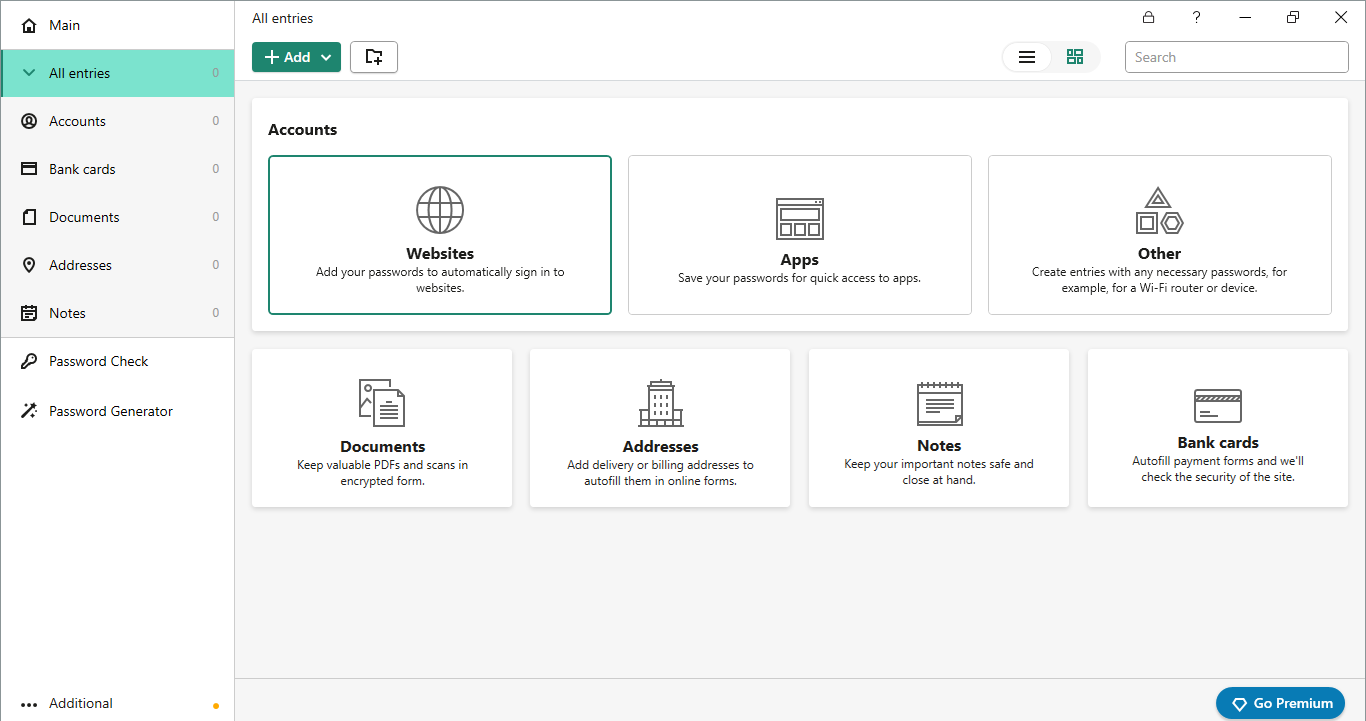
A search bar is also available, making searching a file, image, or document easy if the user is in a hurry. Users can also create a backup copy and import and export the data by navigating the settings menu.
Moreover, there’s a general setting menu bar as well. Users can change their primary vault password and enable the auto-fill and sync feature.
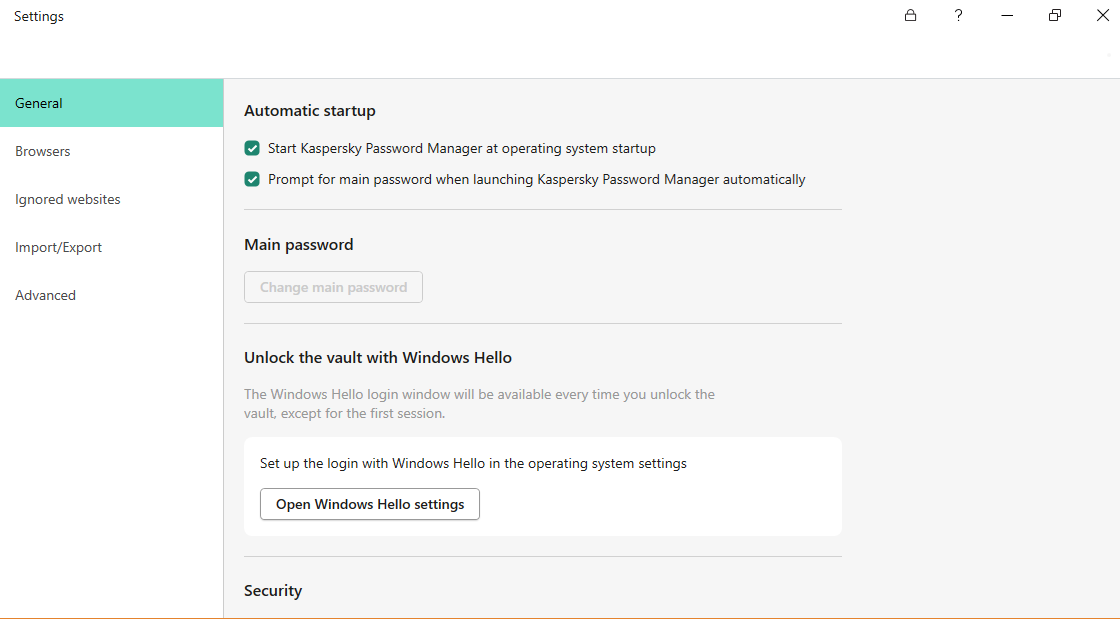
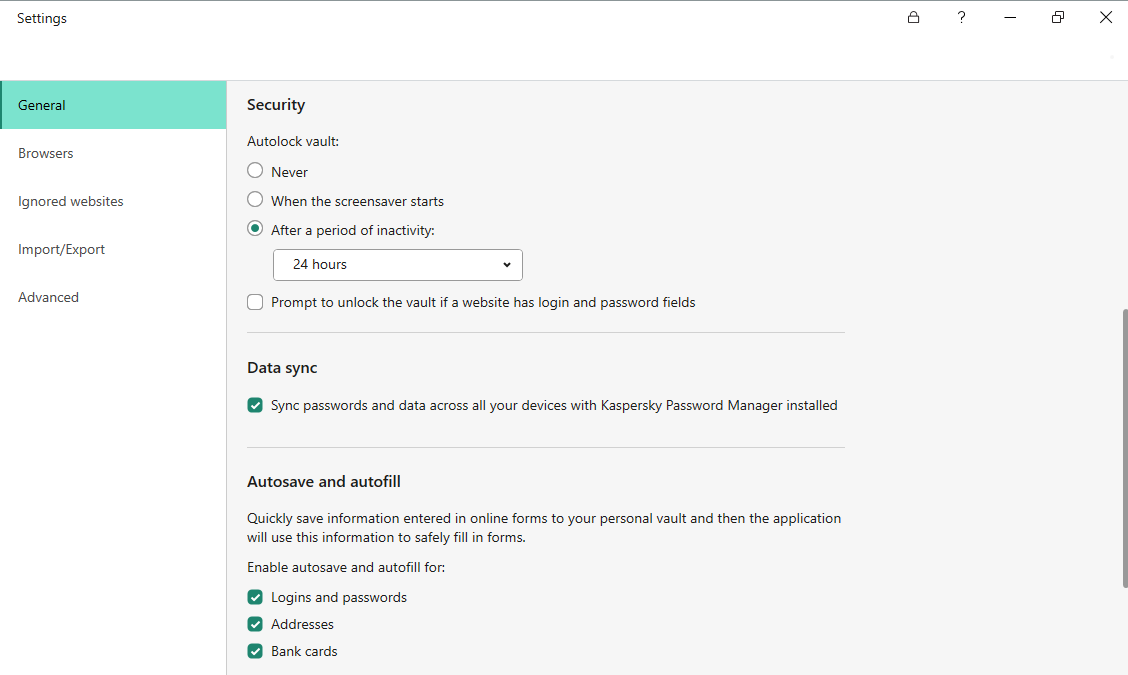
The main homepage allows installing the browser extension to enjoy a more user-friendly experience.
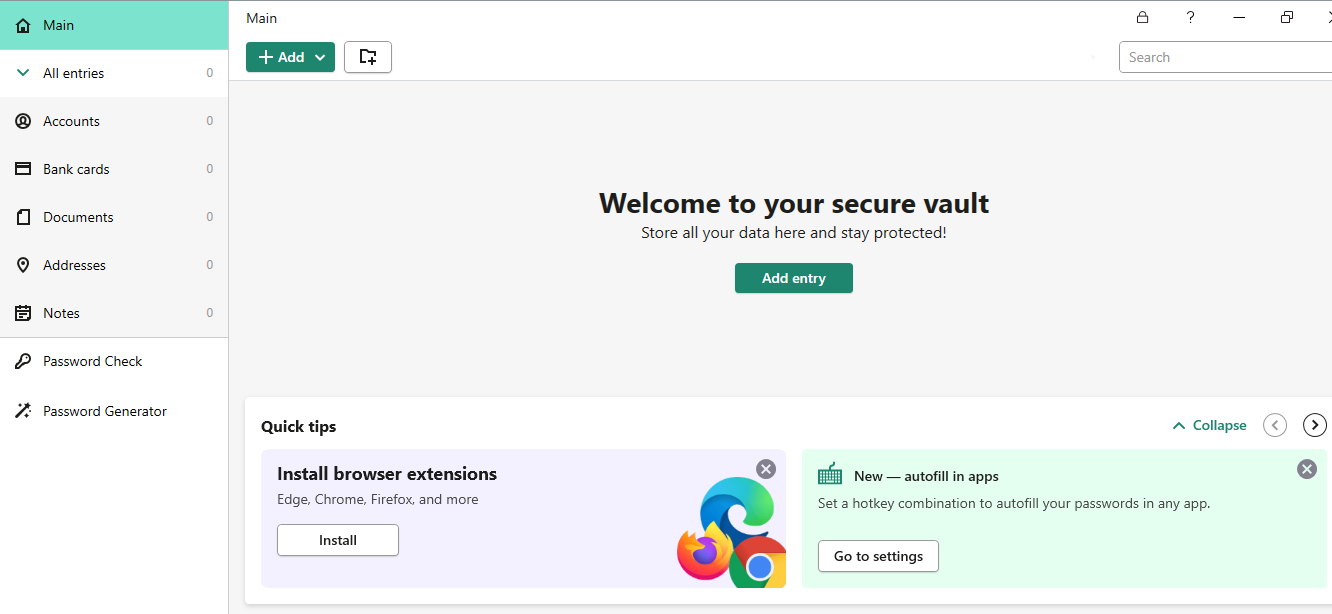
Users can create new entries and passwords and add documents, credit cards, and more with a Click option.
Despite offering a good user experience, Windows’s downloading process was slow. Users must wait at least 10-20 minutes until the download finishes.
Compatible Apps and Extensions
The Kaspersky password manager works on all major devices and operating systems. Users can download and install the password managers on the following devices:
- Android
- Mac
- iOS
- Windows
Users can download the password manager apps from their respective app stores. All the apps are similar in design and usability, but there’s one extra leak protection feature in the Windows app.
Another fantastic feature of Kaspersky is its browser extension. It allows users to install the password manager on their browser with a click. Kaspersky offers easy-to-use extensions for the following mainstream browsers:
- Google Chrome
- Mozilla Firefox
- Edge-based on Chromium
The browser extensions increase convenience as users use the password managers directly in their browsers. Upon prompts, it auto-fills the users’ details. They help in creating a random and strong password. The browser stores and fills out the users’ account names and passwords when they visit websites. Also, as long as they use the same browser, it automatically syncs all the account details.
However, the password managers’ browser extensions are not entirely safe. Hence, don’t rely on them completely. They encrypt the password but can’t analyze whether it needs more strengthening. Besides, they can’t detect whether the passwords are reused or leaked. Hence, it’s better to use the stand–alone password manager.
Features Overview
Kaspersky password manager doesn’t offer any advanced features. But it includes all the basic password management features. These features add more value to your user experience. Here’s a brief overview of these features:
Auto-Fill
Kaspersky’s autofill feature saves information when users fill out an online form. Turn on the autosave and autofill feature for addresses, bank cards, payment info, accounts, and login credentials.
Document Vault
The Kaspersky password manager vault is an encrypted file manager that contains all important documents, notes, photos, and other personal data. It organizes the data and makes it easy to access them.
Password Generator
Password Generator is another impressive Kaspersky feature that allows users to create strong and unique passwords for all their online accounts. Users can assess the strength of the existing user passwords.
Besides this, it lets users replace weaker passwords with new ones. Doing so boosts their account security and prevents password security issues. Also, it alerts users using weak or duplicate passwords and encourages them to generate strong ones.
Leak Detection
The leak detection feature is another excellent password security-boosting feature. It warns users about any leaked passwords so they can take early action. However the password leak detection option is only available on the Windows platform.
Kaspersky Customer Support
One impressive thing about the Kaspersky password manager is its customer support. It offers various means to resolve users’ issues, including community help and online resources.
Kaspersky offers a range of security solutions, so each product shares a central website support center. Contacting the support team directly is a bit difficult. Users can email customer support by submitting a ticket but don’t expect to receive a reply soon, as the waiting time is 24 hours. The password manager doesn’t offer a 24/7 live chat feature. It is a great disappointment and prevents users from getting an instant solution for their problems.
The Kaspersky online forums are an active platform for helping out users. It’s challenging to use, but every page is worth reading, so anyone looking for expert advice must consider using it. Also, a separate support page provides knowledge resources to the users. This includes FAQs, setup guides, how-to-videos, and a knowledge base.
A significant drawback of Kaspersky customer support is that users need an account to request technical support. They might also need an activation code, and it’s only available to paid users. Hence, starters must first go through the FAQs and guide pages.
Kaspersky Pricing Plans
The Kaspersky password manager offers a free and premium version. You can use the free plan if you don’t have a budget. But Kaspersky’s free version won’t allow using most of its features and services. The free plan only allows one user to create an account on unlimited devices. In addition, users can add only fifteen entries, including passwords and other vital documents.
Thus, it’s better to save some bucks every month and subscribe to the premium plan of Kaspersky password manager.
The paid plan is available for personal and business purposes. It costs $14.99 per year for one user account. Users can pay via the traditional credit card or bank/Wire transfer method.

All Kaspersky products come with a 30-day refund policy. Users can request a refund within 30 days of buying the subscription. Hence, if the password manager doesn’t meet the standard after the subscription, there’s a way to get the money back.
Compare Kaspersky alternatives
In a market filled with robust password managers, Kaspersky competes alongside notable contenders like Dashlane, Keeper, Roboform, LastPass, and NordPass. Each of these competitors presents distinct features and varying price ranges.
| Password Manager | Details | Basic Plan Features |
| Kaspersky has an overall rating of 3.7. | Starting price: FreePlatform Compatibility: Android, iOS, Mac, Windows, Web (Chrome, Edge, Firefox, Safari)Security: AES 256-bit encryption, 2FA, leak monitoring (Windows only) | Two-factor authentication (2FA) via an authenticator app or phone number leak monitoring (Windows only)Unlimited password manager |
| 1password has an overall rating of 4.8. If you desire unrestricted password management capabilities at a reasonable cost, you might consider exploring 1Password as a potential solution. | Starting price: $2.99Platform Compatibility: Android, iOS, Linux, Mac, Windows, Web (Brave, Chrome, Edge, Firefox, Safari)Security: AES 256-bit encryption, 2FA | Unlimited passwordsPassword sharing with all plans. 2FA with all plans |
| Dashlane has an overall rating of 4.7. If you are specifically looking for a personal plan, Dashlane could be a suitable choice worth considering. | Starting price: FreePlatform Compatibility: Android, iOS, Linux, Mac, Windows, Web (Chrome, Edge, Firefox, Safari)Security: AES 256-bit encryption, 2FA | Enjoy unlimited password storage and support for multiple devices. Benefit from Single Sign-On (SSO) integration with the Business plan. Take advantage of 2FA across all plans. |
| Keeper has an overall rating of 4.6. If secure biometric logins are your priority, Keeper is a password manager worth considering. | Starting price: $3.75Platform Compatibility: Android, iOS, iPad, Linux, Mac, Windows, Browser extensions (Chrome, Edge, Firefox, Safari, Opera, Internet Explorer)Security: AES 256-bit encryption | Unlimited password storage.A user-friendly interface that offers secure biometric logins, enhancing convenience and security. Safely save and share passwords with confidence, thanks to the robust zero-knowledge security. |
| Roboform has an overall rating of 4.5. If you prioritize password syncing across multiple platforms and are comfortable with RoboForm’s compatibility limitations compared to 1Password, it is worth considering RoboForm as your password manager of choice. | Starting price: $24 per yearPlatform Compatibility: Android, iOS, Mac, Windows, and all major browsers, including Edge.Security: AES 256-bit encryption, 2FA | One-click logins for effortless access to your accounts. Capture passwords directly while browsing the web, streamlining the process of saving new credentials. Enjoy access to your passwords across multiple platforms, anywhere and anytime. Supported on various platforms, ensuring compatibility with your preferred devices. Keep your passwords in sync across all your devices. |
| NordPass has an overall rating of 4.3. If you prefer a password manager that offers unified packages for your family and business needs, NordPass is a suitable option. | Starting price: $2.49 per monthPlatform Compatibility: Android, iOS, Mac, Windows, Browsers (Edge, Chrome, Firefox, Safari, Brave).Security: XChaCha20 encryption algorithm and a zero-knowledge policy | Secure data sharing solution that ensures the confidentiality of your shared information. Safely share login details with trusted individuals, maintaining the integrity of your account credentials. Real-time breach monitoring, receiving timely alerts in case of potential security breaches.Data breach scanner to proactively identify any compromised information and take necessary actions to protect your data. |
Conclusion
Kaspersky is an easy-to-use password manager with an impressive interface and design. It uses AES-256-bit encryption and PBKDF2 to protect the data. Also, it provides basic security features such as built-in password checks, auto-fill, document vaults, and backup features.
The password manager doesn’t record user data and is safe to use. The passwords are only known to the users, who can only access the vault. Users can use the Kaspersky password manager on all popular devices and browsers. But to enjoy a better experience, investing in the paid plan is better.
FAQs
The post Kaspersky Password Manager Review In 2024 appeared first on BeEncrypted.
]]>Deprecated: Using null as an array offset is deprecated, use an empty string instead in /var/www/staging.beencrypted.com/site/web/wp/wp-includes/class-wp-block-type-registry.php on line 168
Deprecated: Using null as an array offset is deprecated, use an empty string instead in /var/www/staging.beencrypted.com/site/web/wp/wp-includes/class-wp-block-type-registry.php on line 168
Deprecated: Using null as an array offset is deprecated, use an empty string instead in /var/www/staging.beencrypted.com/site/web/wp/wp-includes/class-wp-block-type-registry.php on line 168
Deprecated: Using null as an array offset is deprecated, use an empty string instead in /var/www/staging.beencrypted.com/site/web/wp/wp-includes/class-wp-block-type-registry.php on line 168
Deprecated: Using null as an array offset is deprecated, use an empty string instead in /var/www/staging.beencrypted.com/site/web/wp/wp-includes/class-wp-block-type-registry.php on line 168
Deprecated: Using null as an array offset is deprecated, use an empty string instead in /var/www/staging.beencrypted.com/site/web/wp/wp-includes/class-wp-block-type-registry.php on line 168
Deprecated: Using null as an array offset is deprecated, use an empty string instead in /var/www/staging.beencrypted.com/site/web/wp/wp-includes/class-wp-block-type-registry.php on line 168
Deprecated: Using null as an array offset is deprecated, use an empty string instead in /var/www/staging.beencrypted.com/site/web/wp/wp-includes/class-wp-block-type-registry.php on line 168
Deprecated: Using null as an array offset is deprecated, use an empty string instead in /var/www/staging.beencrypted.com/site/web/wp/wp-includes/class-wp-block-type-registry.php on line 168
Deprecated: Using null as an array offset is deprecated, use an empty string instead in /var/www/staging.beencrypted.com/site/web/wp/wp-includes/class-wp-block-type-registry.php on line 168
Deprecated: Using null as an array offset is deprecated, use an empty string instead in /var/www/staging.beencrypted.com/site/web/wp/wp-includes/class-wp-block-type-registry.php on line 168
Deprecated: Using null as an array offset is deprecated, use an empty string instead in /var/www/staging.beencrypted.com/site/web/wp/wp-includes/class-wp-block-type-registry.php on line 168
Deprecated: Using null as an array offset is deprecated, use an empty string instead in /var/www/staging.beencrypted.com/site/web/wp/wp-includes/class-wp-block-type-registry.php on line 168
Deprecated: Using null as an array offset is deprecated, use an empty string instead in /var/www/staging.beencrypted.com/site/web/wp/wp-includes/class-wp-block-type-registry.php on line 168
Deprecated: Using null as an array offset is deprecated, use an empty string instead in /var/www/staging.beencrypted.com/site/web/wp/wp-includes/class-wp-block-type-registry.php on line 168
Deprecated: Using null as an array offset is deprecated, use an empty string instead in /var/www/staging.beencrypted.com/site/web/wp/wp-includes/class-wp-block-type-registry.php on line 168
Deprecated: Using null as an array offset is deprecated, use an empty string instead in /var/www/staging.beencrypted.com/site/web/wp/wp-includes/class-wp-block-type-registry.php on line 168
Deprecated: Using null as an array offset is deprecated, use an empty string instead in /var/www/staging.beencrypted.com/site/web/wp/wp-includes/class-wp-block-type-registry.php on line 168
Deprecated: Using null as an array offset is deprecated, use an empty string instead in /var/www/staging.beencrypted.com/site/web/wp/wp-includes/class-wp-block-type-registry.php on line 168
Deprecated: Using null as an array offset is deprecated, use an empty string instead in /var/www/staging.beencrypted.com/site/web/wp/wp-includes/class-wp-block-type-registry.php on line 168
Deprecated: Using null as an array offset is deprecated, use an empty string instead in /var/www/staging.beencrypted.com/site/web/wp/wp-includes/class-wp-block-type-registry.php on line 168
Deprecated: Using null as an array offset is deprecated, use an empty string instead in /var/www/staging.beencrypted.com/site/web/wp/wp-includes/class-wp-block-type-registry.php on line 168
Deprecated: Using null as an array offset is deprecated, use an empty string instead in /var/www/staging.beencrypted.com/site/web/wp/wp-includes/class-wp-block-type-registry.php on line 168
Deprecated: Using null as an array offset is deprecated, use an empty string instead in /var/www/staging.beencrypted.com/site/web/wp/wp-includes/class-wp-block-type-registry.php on line 168
Deprecated: Using null as an array offset is deprecated, use an empty string instead in /var/www/staging.beencrypted.com/site/web/wp/wp-includes/class-wp-block-type-registry.php on line 168
Deprecated: Using null as an array offset is deprecated, use an empty string instead in /var/www/staging.beencrypted.com/site/web/wp/wp-includes/class-wp-block-type-registry.php on line 168
Deprecated: Using null as an array offset is deprecated, use an empty string instead in /var/www/staging.beencrypted.com/site/web/wp/wp-includes/class-wp-block-type-registry.php on line 168
Deprecated: Using null as an array offset is deprecated, use an empty string instead in /var/www/staging.beencrypted.com/site/web/wp/wp-includes/class-wp-block-type-registry.php on line 168
Deprecated: Using null as an array offset is deprecated, use an empty string instead in /var/www/staging.beencrypted.com/site/web/wp/wp-includes/class-wp-block-type-registry.php on line 168
Deprecated: Using null as an array offset is deprecated, use an empty string instead in /var/www/staging.beencrypted.com/site/web/wp/wp-includes/class-wp-block-type-registry.php on line 168
Deprecated: Using null as an array offset is deprecated, use an empty string instead in /var/www/staging.beencrypted.com/site/web/wp/wp-includes/class-wp-block-type-registry.php on line 168
Deprecated: Using null as an array offset is deprecated, use an empty string instead in /var/www/staging.beencrypted.com/site/web/wp/wp-includes/class-wp-block-type-registry.php on line 168
Deprecated: Using null as an array offset is deprecated, use an empty string instead in /var/www/staging.beencrypted.com/site/web/wp/wp-includes/class-wp-block-type-registry.php on line 168
Deprecated: Using null as an array offset is deprecated, use an empty string instead in /var/www/staging.beencrypted.com/site/web/wp/wp-includes/class-wp-block-type-registry.php on line 168
Deprecated: Using null as an array offset is deprecated, use an empty string instead in /var/www/staging.beencrypted.com/site/web/wp/wp-includes/class-wp-block-type-registry.php on line 168
Deprecated: Using null as an array offset is deprecated, use an empty string instead in /var/www/staging.beencrypted.com/site/web/wp/wp-includes/class-wp-block-type-registry.php on line 168
Deprecated: Using null as an array offset is deprecated, use an empty string instead in /var/www/staging.beencrypted.com/site/web/wp/wp-includes/class-wp-block-type-registry.php on line 168
Deprecated: Using null as an array offset is deprecated, use an empty string instead in /var/www/staging.beencrypted.com/site/web/wp/wp-includes/class-wp-block-type-registry.php on line 168
Deprecated: Using null as an array offset is deprecated, use an empty string instead in /var/www/staging.beencrypted.com/site/web/wp/wp-includes/class-wp-block-type-registry.php on line 168
Deprecated: Using null as an array offset is deprecated, use an empty string instead in /var/www/staging.beencrypted.com/site/web/wp/wp-includes/class-wp-block-type-registry.php on line 168
Deprecated: Using null as an array offset is deprecated, use an empty string instead in /var/www/staging.beencrypted.com/site/web/wp/wp-includes/class-wp-block-type-registry.php on line 168
Deprecated: Using null as an array offset is deprecated, use an empty string instead in /var/www/staging.beencrypted.com/site/web/wp/wp-includes/class-wp-block-type-registry.php on line 168
Deprecated: Using null as an array offset is deprecated, use an empty string instead in /var/www/staging.beencrypted.com/site/web/wp/wp-includes/class-wp-block-type-registry.php on line 168
Deprecated: Using null as an array offset is deprecated, use an empty string instead in /var/www/staging.beencrypted.com/site/web/wp/wp-includes/class-wp-block-type-registry.php on line 168
Deprecated: Using null as an array offset is deprecated, use an empty string instead in /var/www/staging.beencrypted.com/site/web/wp/wp-includes/class-wp-block-type-registry.php on line 168
Deprecated: Using null as an array offset is deprecated, use an empty string instead in /var/www/staging.beencrypted.com/site/web/wp/wp-includes/class-wp-block-type-registry.php on line 168
Deprecated: Using null as an array offset is deprecated, use an empty string instead in /var/www/staging.beencrypted.com/site/web/wp/wp-includes/class-wp-block-type-registry.php on line 168
Deprecated: Using null as an array offset is deprecated, use an empty string instead in /var/www/staging.beencrypted.com/site/web/wp/wp-includes/class-wp-block-type-registry.php on line 168
Deprecated: Using null as an array offset is deprecated, use an empty string instead in /var/www/staging.beencrypted.com/site/web/wp/wp-includes/class-wp-block-type-registry.php on line 168
Deprecated: Using null as an array offset is deprecated, use an empty string instead in /var/www/staging.beencrypted.com/site/web/wp/wp-includes/class-wp-block-type-registry.php on line 168
Deprecated: Using null as an array offset is deprecated, use an empty string instead in /var/www/staging.beencrypted.com/site/web/wp/wp-includes/class-wp-block-type-registry.php on line 168
Deprecated: Using null as an array offset is deprecated, use an empty string instead in /var/www/staging.beencrypted.com/site/web/wp/wp-includes/class-wp-block-type-registry.php on line 168
Deprecated: Using null as an array offset is deprecated, use an empty string instead in /var/www/staging.beencrypted.com/site/web/wp/wp-includes/class-wp-block-type-registry.php on line 168
Deprecated: Using null as an array offset is deprecated, use an empty string instead in /var/www/staging.beencrypted.com/site/web/wp/wp-includes/class-wp-block-type-registry.php on line 168
Deprecated: Using null as an array offset is deprecated, use an empty string instead in /var/www/staging.beencrypted.com/site/web/wp/wp-includes/class-wp-block-type-registry.php on line 168
Deprecated: Using null as an array offset is deprecated, use an empty string instead in /var/www/staging.beencrypted.com/site/web/wp/wp-includes/class-wp-block-type-registry.php on line 168
Deprecated: Using null as an array offset is deprecated, use an empty string instead in /var/www/staging.beencrypted.com/site/web/wp/wp-includes/class-wp-block-type-registry.php on line 168
Deprecated: Using null as an array offset is deprecated, use an empty string instead in /var/www/staging.beencrypted.com/site/web/wp/wp-includes/class-wp-block-type-registry.php on line 168
Deprecated: Using null as an array offset is deprecated, use an empty string instead in /var/www/staging.beencrypted.com/site/web/wp/wp-includes/class-wp-block-type-registry.php on line 168
Deprecated: Using null as an array offset is deprecated, use an empty string instead in /var/www/staging.beencrypted.com/site/web/wp/wp-includes/class-wp-block-type-registry.php on line 168
Deprecated: Using null as an array offset is deprecated, use an empty string instead in /var/www/staging.beencrypted.com/site/web/wp/wp-includes/class-wp-block-type-registry.php on line 168
Deprecated: Using null as an array offset is deprecated, use an empty string instead in /var/www/staging.beencrypted.com/site/web/wp/wp-includes/class-wp-block-type-registry.php on line 168
Deprecated: Using null as an array offset is deprecated, use an empty string instead in /var/www/staging.beencrypted.com/site/web/wp/wp-includes/class-wp-block-type-registry.php on line 168
Deprecated: Using null as an array offset is deprecated, use an empty string instead in /var/www/staging.beencrypted.com/site/web/wp/wp-includes/class-wp-block-type-registry.php on line 168
Deprecated: Using null as an array offset is deprecated, use an empty string instead in /var/www/staging.beencrypted.com/site/web/wp/wp-includes/class-wp-block-type-registry.php on line 168
Deprecated: Using null as an array offset is deprecated, use an empty string instead in /var/www/staging.beencrypted.com/site/web/wp/wp-includes/class-wp-block-type-registry.php on line 168
Deprecated: Using null as an array offset is deprecated, use an empty string instead in /var/www/staging.beencrypted.com/site/web/wp/wp-includes/class-wp-block-type-registry.php on line 168
Deprecated: Using null as an array offset is deprecated, use an empty string instead in /var/www/staging.beencrypted.com/site/web/wp/wp-includes/class-wp-block-type-registry.php on line 168
Deprecated: Using null as an array offset is deprecated, use an empty string instead in /var/www/staging.beencrypted.com/site/web/wp/wp-includes/class-wp-block-type-registry.php on line 168
Deprecated: Using null as an array offset is deprecated, use an empty string instead in /var/www/staging.beencrypted.com/site/web/wp/wp-includes/class-wp-block-type-registry.php on line 168
Deprecated: Using null as an array offset is deprecated, use an empty string instead in /var/www/staging.beencrypted.com/site/web/wp/wp-includes/class-wp-block-type-registry.php on line 168
Deprecated: Using null as an array offset is deprecated, use an empty string instead in /var/www/staging.beencrypted.com/site/web/wp/wp-includes/class-wp-block-type-registry.php on line 168
Deprecated: Using null as an array offset is deprecated, use an empty string instead in /var/www/staging.beencrypted.com/site/web/wp/wp-includes/class-wp-block-type-registry.php on line 168
Deprecated: Using null as an array offset is deprecated, use an empty string instead in /var/www/staging.beencrypted.com/site/web/wp/wp-includes/class-wp-block-type-registry.php on line 168
Deprecated: Using null as an array offset is deprecated, use an empty string instead in /var/www/staging.beencrypted.com/site/web/wp/wp-includes/class-wp-block-type-registry.php on line 168
Deprecated: Using null as an array offset is deprecated, use an empty string instead in /var/www/staging.beencrypted.com/site/web/wp/wp-includes/class-wp-block-type-registry.php on line 168
Deprecated: Using null as an array offset is deprecated, use an empty string instead in /var/www/staging.beencrypted.com/site/web/wp/wp-includes/class-wp-block-type-registry.php on line 168
Deprecated: Using null as an array offset is deprecated, use an empty string instead in /var/www/staging.beencrypted.com/site/web/wp/wp-includes/class-wp-block-type-registry.php on line 168
Deprecated: Using null as an array offset is deprecated, use an empty string instead in /var/www/staging.beencrypted.com/site/web/wp/wp-includes/class-wp-block-type-registry.php on line 168
Deprecated: Using null as an array offset is deprecated, use an empty string instead in /var/www/staging.beencrypted.com/site/web/wp/wp-includes/class-wp-block-type-registry.php on line 168
Deprecated: Using null as an array offset is deprecated, use an empty string instead in /var/www/staging.beencrypted.com/site/web/wp/wp-includes/class-wp-block-type-registry.php on line 168
Deprecated: Using null as an array offset is deprecated, use an empty string instead in /var/www/staging.beencrypted.com/site/web/wp/wp-includes/class-wp-block-type-registry.php on line 168
Deprecated: Using null as an array offset is deprecated, use an empty string instead in /var/www/staging.beencrypted.com/site/web/wp/wp-includes/class-wp-block-type-registry.php on line 168
Deprecated: Using null as an array offset is deprecated, use an empty string instead in /var/www/staging.beencrypted.com/site/web/wp/wp-includes/class-wp-block-type-registry.php on line 168
Deprecated: Using null as an array offset is deprecated, use an empty string instead in /var/www/staging.beencrypted.com/site/web/wp/wp-includes/class-wp-block-type-registry.php on line 168
Deprecated: Using null as an array offset is deprecated, use an empty string instead in /var/www/staging.beencrypted.com/site/web/wp/wp-includes/class-wp-block-type-registry.php on line 168
Deprecated: Using null as an array offset is deprecated, use an empty string instead in /var/www/staging.beencrypted.com/site/web/wp/wp-includes/class-wp-block-type-registry.php on line 168
Deprecated: Using null as an array offset is deprecated, use an empty string instead in /var/www/staging.beencrypted.com/site/web/wp/wp-includes/class-wp-block-type-registry.php on line 168
Deprecated: Using null as an array offset is deprecated, use an empty string instead in /var/www/staging.beencrypted.com/site/web/wp/wp-includes/class-wp-block-type-registry.php on line 168
Deprecated: Using null as an array offset is deprecated, use an empty string instead in /var/www/staging.beencrypted.com/site/web/wp/wp-includes/class-wp-block-type-registry.php on line 168
Deprecated: Using null as an array offset is deprecated, use an empty string instead in /var/www/staging.beencrypted.com/site/web/wp/wp-includes/class-wp-block-type-registry.php on line 168
Deprecated: Using null as an array offset is deprecated, use an empty string instead in /var/www/staging.beencrypted.com/site/web/wp/wp-includes/class-wp-block-type-registry.php on line 168
Deprecated: Using null as an array offset is deprecated, use an empty string instead in /var/www/staging.beencrypted.com/site/web/wp/wp-includes/class-wp-block-type-registry.php on line 168
Deprecated: Using null as an array offset is deprecated, use an empty string instead in /var/www/staging.beencrypted.com/site/web/wp/wp-includes/class-wp-block-type-registry.php on line 168
Deprecated: Using null as an array offset is deprecated, use an empty string instead in /var/www/staging.beencrypted.com/site/web/wp/wp-includes/class-wp-block-type-registry.php on line 168
Deprecated: Using null as an array offset is deprecated, use an empty string instead in /var/www/staging.beencrypted.com/site/web/wp/wp-includes/class-wp-block-type-registry.php on line 168
Deprecated: Using null as an array offset is deprecated, use an empty string instead in /var/www/staging.beencrypted.com/site/web/wp/wp-includes/class-wp-block-type-registry.php on line 168
Deprecated: Using null as an array offset is deprecated, use an empty string instead in /var/www/staging.beencrypted.com/site/web/wp/wp-includes/class-wp-block-type-registry.php on line 168
Deprecated: Using null as an array offset is deprecated, use an empty string instead in /var/www/staging.beencrypted.com/site/web/wp/wp-includes/class-wp-block-type-registry.php on line 168
Deprecated: Using null as an array offset is deprecated, use an empty string instead in /var/www/staging.beencrypted.com/site/web/wp/wp-includes/class-wp-block-type-registry.php on line 168
Deprecated: Using null as an array offset is deprecated, use an empty string instead in /var/www/staging.beencrypted.com/site/web/wp/wp-includes/class-wp-block-type-registry.php on line 168
Deprecated: Using null as an array offset is deprecated, use an empty string instead in /var/www/staging.beencrypted.com/site/web/wp/wp-includes/class-wp-block-type-registry.php on line 168
Deprecated: Using null as an array offset is deprecated, use an empty string instead in /var/www/staging.beencrypted.com/site/web/wp/wp-includes/class-wp-block-type-registry.php on line 168
Deprecated: Using null as an array offset is deprecated, use an empty string instead in /var/www/staging.beencrypted.com/site/web/wp/wp-includes/class-wp-block-type-registry.php on line 168
Deprecated: Using null as an array offset is deprecated, use an empty string instead in /var/www/staging.beencrypted.com/site/web/wp/wp-includes/class-wp-block-type-registry.php on line 168
Deprecated: Using null as an array offset is deprecated, use an empty string instead in /var/www/staging.beencrypted.com/site/web/wp/wp-includes/class-wp-block-type-registry.php on line 168
Deprecated: Using null as an array offset is deprecated, use an empty string instead in /var/www/staging.beencrypted.com/site/web/wp/wp-includes/class-wp-block-type-registry.php on line 168
Deprecated: Using null as an array offset is deprecated, use an empty string instead in /var/www/staging.beencrypted.com/site/web/wp/wp-includes/class-wp-block-type-registry.php on line 168
Deprecated: Using null as an array offset is deprecated, use an empty string instead in /var/www/staging.beencrypted.com/site/web/wp/wp-includes/class-wp-block-type-registry.php on line 168
Deprecated: Using null as an array offset is deprecated, use an empty string instead in /var/www/staging.beencrypted.com/site/web/wp/wp-includes/class-wp-block-type-registry.php on line 168
Deprecated: Using null as an array offset is deprecated, use an empty string instead in /var/www/staging.beencrypted.com/site/web/wp/wp-includes/class-wp-block-type-registry.php on line 168
Deprecated: Using null as an array offset is deprecated, use an empty string instead in /var/www/staging.beencrypted.com/site/web/wp/wp-includes/class-wp-block-type-registry.php on line 168
Deprecated: Using null as an array offset is deprecated, use an empty string instead in /var/www/staging.beencrypted.com/site/web/wp/wp-includes/class-wp-block-type-registry.php on line 168
Deprecated: Using null as an array offset is deprecated, use an empty string instead in /var/www/staging.beencrypted.com/site/web/wp/wp-includes/class-wp-block-type-registry.php on line 168
Deprecated: Using null as an array offset is deprecated, use an empty string instead in /var/www/staging.beencrypted.com/site/web/wp/wp-includes/class-wp-block-type-registry.php on line 168
Deprecated: Using null as an array offset is deprecated, use an empty string instead in /var/www/staging.beencrypted.com/site/web/wp/wp-includes/class-wp-block-type-registry.php on line 168
Deprecated: Using null as an array offset is deprecated, use an empty string instead in /var/www/staging.beencrypted.com/site/web/wp/wp-includes/class-wp-block-type-registry.php on line 168
Deprecated: Using null as an array offset is deprecated, use an empty string instead in /var/www/staging.beencrypted.com/site/web/wp/wp-includes/class-wp-block-type-registry.php on line 168
Deprecated: Using null as an array offset is deprecated, use an empty string instead in /var/www/staging.beencrypted.com/site/web/wp/wp-includes/class-wp-block-type-registry.php on line 168
Deprecated: Using null as an array offset is deprecated, use an empty string instead in /var/www/staging.beencrypted.com/site/web/wp/wp-includes/class-wp-block-type-registry.php on line 168
Deprecated: Using null as an array offset is deprecated, use an empty string instead in /var/www/staging.beencrypted.com/site/web/wp/wp-includes/class-wp-block-type-registry.php on line 168
Deprecated: Using null as an array offset is deprecated, use an empty string instead in /var/www/staging.beencrypted.com/site/web/wp/wp-includes/class-wp-block-type-registry.php on line 168
Deprecated: Using null as an array offset is deprecated, use an empty string instead in /var/www/staging.beencrypted.com/site/web/wp/wp-includes/class-wp-block-type-registry.php on line 168
Deprecated: Using null as an array offset is deprecated, use an empty string instead in /var/www/staging.beencrypted.com/site/web/wp/wp-includes/class-wp-block-type-registry.php on line 168
Deprecated: Using null as an array offset is deprecated, use an empty string instead in /var/www/staging.beencrypted.com/site/web/wp/wp-includes/class-wp-block-type-registry.php on line 168
Deprecated: Using null as an array offset is deprecated, use an empty string instead in /var/www/staging.beencrypted.com/site/web/wp/wp-includes/class-wp-block-type-registry.php on line 168
Deprecated: Using null as an array offset is deprecated, use an empty string instead in /var/www/staging.beencrypted.com/site/web/wp/wp-includes/class-wp-block-type-registry.php on line 168
Deprecated: Using null as an array offset is deprecated, use an empty string instead in /var/www/staging.beencrypted.com/site/web/wp/wp-includes/class-wp-block-type-registry.php on line 168
Deprecated: Using null as an array offset is deprecated, use an empty string instead in /var/www/staging.beencrypted.com/site/web/wp/wp-includes/class-wp-block-type-registry.php on line 168
Deprecated: Using null as an array offset is deprecated, use an empty string instead in /var/www/staging.beencrypted.com/site/web/wp/wp-includes/class-wp-block-type-registry.php on line 168
Deprecated: Using null as an array offset is deprecated, use an empty string instead in /var/www/staging.beencrypted.com/site/web/wp/wp-includes/class-wp-block-type-registry.php on line 168
Deprecated: Using null as an array offset is deprecated, use an empty string instead in /var/www/staging.beencrypted.com/site/web/wp/wp-includes/class-wp-block-type-registry.php on line 168
Deprecated: Using null as an array offset is deprecated, use an empty string instead in /var/www/staging.beencrypted.com/site/web/wp/wp-includes/class-wp-block-type-registry.php on line 168
Deprecated: Using null as an array offset is deprecated, use an empty string instead in /var/www/staging.beencrypted.com/site/web/wp/wp-includes/class-wp-block-type-registry.php on line 168
Deprecated: Using null as an array offset is deprecated, use an empty string instead in /var/www/staging.beencrypted.com/site/web/wp/wp-includes/class-wp-block-type-registry.php on line 168
Deprecated: Using null as an array offset is deprecated, use an empty string instead in /var/www/staging.beencrypted.com/site/web/wp/wp-includes/class-wp-block-type-registry.php on line 168
Deprecated: Using null as an array offset is deprecated, use an empty string instead in /var/www/staging.beencrypted.com/site/web/wp/wp-includes/class-wp-block-type-registry.php on line 168
Deprecated: Using null as an array offset is deprecated, use an empty string instead in /var/www/staging.beencrypted.com/site/web/wp/wp-includes/class-wp-block-type-registry.php on line 168
Deprecated: Using null as an array offset is deprecated, use an empty string instead in /var/www/staging.beencrypted.com/site/web/wp/wp-includes/class-wp-block-type-registry.php on line 168
Deprecated: Using null as an array offset is deprecated, use an empty string instead in /var/www/staging.beencrypted.com/site/web/wp/wp-includes/class-wp-block-type-registry.php on line 168
Deprecated: Using null as an array offset is deprecated, use an empty string instead in /var/www/staging.beencrypted.com/site/web/wp/wp-includes/class-wp-block-type-registry.php on line 168
Deprecated: Using null as an array offset is deprecated, use an empty string instead in /var/www/staging.beencrypted.com/site/web/wp/wp-includes/class-wp-block-type-registry.php on line 168
Deprecated: Using null as an array offset is deprecated, use an empty string instead in /var/www/staging.beencrypted.com/site/web/wp/wp-includes/class-wp-block-type-registry.php on line 168
Deprecated: Using null as an array offset is deprecated, use an empty string instead in /var/www/staging.beencrypted.com/site/web/wp/wp-includes/class-wp-block-type-registry.php on line 168
Deprecated: Using null as an array offset is deprecated, use an empty string instead in /var/www/staging.beencrypted.com/site/web/wp/wp-includes/class-wp-block-type-registry.php on line 168
Deprecated: Using null as an array offset is deprecated, use an empty string instead in /var/www/staging.beencrypted.com/site/web/wp/wp-includes/class-wp-block-type-registry.php on line 168
Deprecated: Using null as an array offset is deprecated, use an empty string instead in /var/www/staging.beencrypted.com/site/web/wp/wp-includes/class-wp-block-type-registry.php on line 168
Deprecated: Using null as an array offset is deprecated, use an empty string instead in /var/www/staging.beencrypted.com/site/web/wp/wp-includes/class-wp-block-type-registry.php on line 168
Deprecated: Using null as an array offset is deprecated, use an empty string instead in /var/www/staging.beencrypted.com/site/web/wp/wp-includes/class-wp-block-type-registry.php on line 168
Deprecated: Using null as an array offset is deprecated, use an empty string instead in /var/www/staging.beencrypted.com/site/web/wp/wp-includes/class-wp-block-type-registry.php on line 168
Deprecated: Using null as an array offset is deprecated, use an empty string instead in /var/www/staging.beencrypted.com/site/web/wp/wp-includes/class-wp-block-type-registry.php on line 168
Deprecated: Using null as an array offset is deprecated, use an empty string instead in /var/www/staging.beencrypted.com/site/web/wp/wp-includes/class-wp-block-type-registry.php on line 168
Deprecated: Using null as an array offset is deprecated, use an empty string instead in /var/www/staging.beencrypted.com/site/web/wp/wp-includes/class-wp-block-type-registry.php on line 168
Deprecated: Using null as an array offset is deprecated, use an empty string instead in /var/www/staging.beencrypted.com/site/web/wp/wp-includes/class-wp-block-type-registry.php on line 168
Deprecated: Using null as an array offset is deprecated, use an empty string instead in /var/www/staging.beencrypted.com/site/web/wp/wp-includes/class-wp-block-type-registry.php on line 168
Deprecated: Using null as an array offset is deprecated, use an empty string instead in /var/www/staging.beencrypted.com/site/web/wp/wp-includes/class-wp-block-type-registry.php on line 168
Deprecated: Using null as an array offset is deprecated, use an empty string instead in /var/www/staging.beencrypted.com/site/web/wp/wp-includes/class-wp-block-type-registry.php on line 168
Deprecated: Using null as an array offset is deprecated, use an empty string instead in /var/www/staging.beencrypted.com/site/web/wp/wp-includes/class-wp-block-type-registry.php on line 168
Deprecated: Using null as an array offset is deprecated, use an empty string instead in /var/www/staging.beencrypted.com/site/web/wp/wp-includes/class-wp-block-type-registry.php on line 168
Deprecated: Using null as an array offset is deprecated, use an empty string instead in /var/www/staging.beencrypted.com/site/web/wp/wp-includes/class-wp-block-type-registry.php on line 168
Deprecated: Using null as an array offset is deprecated, use an empty string instead in /var/www/staging.beencrypted.com/site/web/wp/wp-includes/class-wp-block-type-registry.php on line 168
Deprecated: Using null as an array offset is deprecated, use an empty string instead in /var/www/staging.beencrypted.com/site/web/wp/wp-includes/class-wp-block-type-registry.php on line 168
Deprecated: Using null as an array offset is deprecated, use an empty string instead in /var/www/staging.beencrypted.com/site/web/wp/wp-includes/class-wp-block-type-registry.php on line 168
Deprecated: Using null as an array offset is deprecated, use an empty string instead in /var/www/staging.beencrypted.com/site/web/wp/wp-includes/class-wp-block-type-registry.php on line 168
Deprecated: Using null as an array offset is deprecated, use an empty string instead in /var/www/staging.beencrypted.com/site/web/wp/wp-includes/class-wp-block-type-registry.php on line 168
Deprecated: Using null as an array offset is deprecated, use an empty string instead in /var/www/staging.beencrypted.com/site/web/wp/wp-includes/class-wp-block-type-registry.php on line 168
Deprecated: Using null as an array offset is deprecated, use an empty string instead in /var/www/staging.beencrypted.com/site/web/wp/wp-includes/class-wp-block-type-registry.php on line 168
Deprecated: Using null as an array offset is deprecated, use an empty string instead in /var/www/staging.beencrypted.com/site/web/wp/wp-includes/class-wp-block-type-registry.php on line 168
Deprecated: Using null as an array offset is deprecated, use an empty string instead in /var/www/staging.beencrypted.com/site/web/wp/wp-includes/class-wp-block-type-registry.php on line 168
Deprecated: Using null as an array offset is deprecated, use an empty string instead in /var/www/staging.beencrypted.com/site/web/wp/wp-includes/class-wp-block-type-registry.php on line 168
Deprecated: Using null as an array offset is deprecated, use an empty string instead in /var/www/staging.beencrypted.com/site/web/wp/wp-includes/class-wp-block-type-registry.php on line 168
Deprecated: Using null as an array offset is deprecated, use an empty string instead in /var/www/staging.beencrypted.com/site/web/wp/wp-includes/class-wp-block-type-registry.php on line 168
Deprecated: Using null as an array offset is deprecated, use an empty string instead in /var/www/staging.beencrypted.com/site/web/wp/wp-includes/class-wp-block-type-registry.php on line 168
Deprecated: Using null as an array offset is deprecated, use an empty string instead in /var/www/staging.beencrypted.com/site/web/wp/wp-includes/class-wp-block-type-registry.php on line 168
Deprecated: Using null as an array offset is deprecated, use an empty string instead in /var/www/staging.beencrypted.com/site/web/wp/wp-includes/class-wp-block-type-registry.php on line 168
Deprecated: Using null as an array offset is deprecated, use an empty string instead in /var/www/staging.beencrypted.com/site/web/wp/wp-includes/class-wp-block-type-registry.php on line 168
Deprecated: Using null as an array offset is deprecated, use an empty string instead in /var/www/staging.beencrypted.com/site/web/wp/wp-includes/class-wp-block-type-registry.php on line 168
Deprecated: Using null as an array offset is deprecated, use an empty string instead in /var/www/staging.beencrypted.com/site/web/wp/wp-includes/class-wp-block-type-registry.php on line 168
Deprecated: Using null as an array offset is deprecated, use an empty string instead in /var/www/staging.beencrypted.com/site/web/wp/wp-includes/class-wp-block-type-registry.php on line 168
Deprecated: Using null as an array offset is deprecated, use an empty string instead in /var/www/staging.beencrypted.com/site/web/wp/wp-includes/class-wp-block-type-registry.php on line 168
Deprecated: Using null as an array offset is deprecated, use an empty string instead in /var/www/staging.beencrypted.com/site/web/wp/wp-includes/class-wp-block-type-registry.php on line 168
Deprecated: Using null as an array offset is deprecated, use an empty string instead in /var/www/staging.beencrypted.com/site/web/wp/wp-includes/class-wp-block-type-registry.php on line 168
Deprecated: Using null as an array offset is deprecated, use an empty string instead in /var/www/staging.beencrypted.com/site/web/wp/wp-includes/class-wp-block-type-registry.php on line 168
Deprecated: Using null as an array offset is deprecated, use an empty string instead in /var/www/staging.beencrypted.com/site/web/wp/wp-includes/class-wp-block-type-registry.php on line 168
Deprecated: Using null as an array offset is deprecated, use an empty string instead in /var/www/staging.beencrypted.com/site/web/wp/wp-includes/class-wp-block-type-registry.php on line 168
Deprecated: Using null as an array offset is deprecated, use an empty string instead in /var/www/staging.beencrypted.com/site/web/wp/wp-includes/class-wp-block-type-registry.php on line 168
Deprecated: Using null as an array offset is deprecated, use an empty string instead in /var/www/staging.beencrypted.com/site/web/wp/wp-includes/class-wp-block-type-registry.php on line 168
Deprecated: Using null as an array offset is deprecated, use an empty string instead in /var/www/staging.beencrypted.com/site/web/wp/wp-includes/class-wp-block-type-registry.php on line 168
Deprecated: Using null as an array offset is deprecated, use an empty string instead in /var/www/staging.beencrypted.com/site/web/wp/wp-includes/class-wp-block-type-registry.php on line 168
Deprecated: Using null as an array offset is deprecated, use an empty string instead in /var/www/staging.beencrypted.com/site/web/wp/wp-includes/class-wp-block-type-registry.php on line 168
Deprecated: Using null as an array offset is deprecated, use an empty string instead in /var/www/staging.beencrypted.com/site/web/wp/wp-includes/class-wp-block-type-registry.php on line 168
Deprecated: Using null as an array offset is deprecated, use an empty string instead in /var/www/staging.beencrypted.com/site/web/wp/wp-includes/class-wp-block-type-registry.php on line 168
Deprecated: Using null as an array offset is deprecated, use an empty string instead in /var/www/staging.beencrypted.com/site/web/wp/wp-includes/class-wp-block-type-registry.php on line 168
Deprecated: Using null as an array offset is deprecated, use an empty string instead in /var/www/staging.beencrypted.com/site/web/wp/wp-includes/class-wp-block-type-registry.php on line 168
Deprecated: Using null as an array offset is deprecated, use an empty string instead in /var/www/staging.beencrypted.com/site/web/wp/wp-includes/class-wp-block-type-registry.php on line 168
Deprecated: Using null as an array offset is deprecated, use an empty string instead in /var/www/staging.beencrypted.com/site/web/wp/wp-includes/class-wp-block-type-registry.php on line 168
Deprecated: Using null as an array offset is deprecated, use an empty string instead in /var/www/staging.beencrypted.com/site/web/wp/wp-includes/class-wp-block-type-registry.php on line 168
Deprecated: Using null as an array offset is deprecated, use an empty string instead in /var/www/staging.beencrypted.com/site/web/wp/wp-includes/class-wp-block-type-registry.php on line 168
Deprecated: Using null as an array offset is deprecated, use an empty string instead in /var/www/staging.beencrypted.com/site/web/wp/wp-includes/class-wp-block-type-registry.php on line 168
Deprecated: Using null as an array offset is deprecated, use an empty string instead in /var/www/staging.beencrypted.com/site/web/wp/wp-includes/class-wp-block-type-registry.php on line 168
Deprecated: Using null as an array offset is deprecated, use an empty string instead in /var/www/staging.beencrypted.com/site/web/wp/wp-includes/class-wp-block-type-registry.php on line 168
Deprecated: Using null as an array offset is deprecated, use an empty string instead in /var/www/staging.beencrypted.com/site/web/wp/wp-includes/class-wp-block-type-registry.php on line 168
Deprecated: Using null as an array offset is deprecated, use an empty string instead in /var/www/staging.beencrypted.com/site/web/wp/wp-includes/class-wp-block-type-registry.php on line 168
Deprecated: Using null as an array offset is deprecated, use an empty string instead in /var/www/staging.beencrypted.com/site/web/wp/wp-includes/class-wp-block-type-registry.php on line 168
Deprecated: Using null as an array offset is deprecated, use an empty string instead in /var/www/staging.beencrypted.com/site/web/wp/wp-includes/class-wp-block-type-registry.php on line 168
Deprecated: Using null as an array offset is deprecated, use an empty string instead in /var/www/staging.beencrypted.com/site/web/wp/wp-includes/class-wp-block-type-registry.php on line 168
Deprecated: Using null as an array offset is deprecated, use an empty string instead in /var/www/staging.beencrypted.com/site/web/wp/wp-includes/class-wp-block-type-registry.php on line 168
Deprecated: Using null as an array offset is deprecated, use an empty string instead in /var/www/staging.beencrypted.com/site/web/wp/wp-includes/class-wp-block-type-registry.php on line 168
Deprecated: Using null as an array offset is deprecated, use an empty string instead in /var/www/staging.beencrypted.com/site/web/wp/wp-includes/class-wp-block-type-registry.php on line 168
Deprecated: Using null as an array offset is deprecated, use an empty string instead in /var/www/staging.beencrypted.com/site/web/wp/wp-includes/class-wp-block-type-registry.php on line 168
Deprecated: Using null as an array offset is deprecated, use an empty string instead in /var/www/staging.beencrypted.com/site/web/wp/wp-includes/class-wp-block-type-registry.php on line 168
Deprecated: Using null as an array offset is deprecated, use an empty string instead in /var/www/staging.beencrypted.com/site/web/wp/wp-includes/class-wp-block-type-registry.php on line 168
Deprecated: Using null as an array offset is deprecated, use an empty string instead in /var/www/staging.beencrypted.com/site/web/wp/wp-includes/class-wp-block-type-registry.php on line 168
Deprecated: Using null as an array offset is deprecated, use an empty string instead in /var/www/staging.beencrypted.com/site/web/wp/wp-includes/class-wp-block-type-registry.php on line 168
Deprecated: Using null as an array offset is deprecated, use an empty string instead in /var/www/staging.beencrypted.com/site/web/wp/wp-includes/class-wp-block-type-registry.php on line 168
Deprecated: Using null as an array offset is deprecated, use an empty string instead in /var/www/staging.beencrypted.com/site/web/wp/wp-includes/class-wp-block-type-registry.php on line 168
Deprecated: Using null as an array offset is deprecated, use an empty string instead in /var/www/staging.beencrypted.com/site/web/wp/wp-includes/class-wp-block-type-registry.php on line 168
Deprecated: Using null as an array offset is deprecated, use an empty string instead in /var/www/staging.beencrypted.com/site/web/wp/wp-includes/class-wp-block-type-registry.php on line 168
Deprecated: Using null as an array offset is deprecated, use an empty string instead in /var/www/staging.beencrypted.com/site/web/wp/wp-includes/class-wp-block-type-registry.php on line 168
Deprecated: Using null as an array offset is deprecated, use an empty string instead in /var/www/staging.beencrypted.com/site/web/wp/wp-includes/class-wp-block-type-registry.php on line 168
Deprecated: Using null as an array offset is deprecated, use an empty string instead in /var/www/staging.beencrypted.com/site/web/wp/wp-includes/class-wp-block-type-registry.php on line 168
Deprecated: Using null as an array offset is deprecated, use an empty string instead in /var/www/staging.beencrypted.com/site/web/wp/wp-includes/class-wp-block-type-registry.php on line 168
Deprecated: Using null as an array offset is deprecated, use an empty string instead in /var/www/staging.beencrypted.com/site/web/wp/wp-includes/class-wp-block-type-registry.php on line 168
Deprecated: Using null as an array offset is deprecated, use an empty string instead in /var/www/staging.beencrypted.com/site/web/wp/wp-includes/class-wp-block-type-registry.php on line 168
Deprecated: Using null as an array offset is deprecated, use an empty string instead in /var/www/staging.beencrypted.com/site/web/wp/wp-includes/class-wp-block-type-registry.php on line 168
Deprecated: Using null as an array offset is deprecated, use an empty string instead in /var/www/staging.beencrypted.com/site/web/wp/wp-includes/class-wp-block-type-registry.php on line 168
Deprecated: Using null as an array offset is deprecated, use an empty string instead in /var/www/staging.beencrypted.com/site/web/wp/wp-includes/class-wp-block-type-registry.php on line 168
Deprecated: Using null as an array offset is deprecated, use an empty string instead in /var/www/staging.beencrypted.com/site/web/wp/wp-includes/class-wp-block-type-registry.php on line 168
Deprecated: Using null as an array offset is deprecated, use an empty string instead in /var/www/staging.beencrypted.com/site/web/wp/wp-includes/class-wp-block-type-registry.php on line 168
Deprecated: Using null as an array offset is deprecated, use an empty string instead in /var/www/staging.beencrypted.com/site/web/wp/wp-includes/class-wp-block-type-registry.php on line 168
Deprecated: Using null as an array offset is deprecated, use an empty string instead in /var/www/staging.beencrypted.com/site/web/wp/wp-includes/class-wp-block-type-registry.php on line 168
Deprecated: Using null as an array offset is deprecated, use an empty string instead in /var/www/staging.beencrypted.com/site/web/wp/wp-includes/class-wp-block-type-registry.php on line 168
Deprecated: Using null as an array offset is deprecated, use an empty string instead in /var/www/staging.beencrypted.com/site/web/wp/wp-includes/class-wp-block-type-registry.php on line 168
Deprecated: Using null as an array offset is deprecated, use an empty string instead in /var/www/staging.beencrypted.com/site/web/wp/wp-includes/class-wp-block-type-registry.php on line 168
Deprecated: Using null as an array offset is deprecated, use an empty string instead in /var/www/staging.beencrypted.com/site/web/wp/wp-includes/class-wp-block-type-registry.php on line 168
Deprecated: Using null as an array offset is deprecated, use an empty string instead in /var/www/staging.beencrypted.com/site/web/wp/wp-includes/class-wp-block-type-registry.php on line 168
Deprecated: Using null as an array offset is deprecated, use an empty string instead in /var/www/staging.beencrypted.com/site/web/wp/wp-includes/class-wp-block-type-registry.php on line 168
Deprecated: Using null as an array offset is deprecated, use an empty string instead in /var/www/staging.beencrypted.com/site/web/wp/wp-includes/class-wp-block-type-registry.php on line 168
Deprecated: Using null as an array offset is deprecated, use an empty string instead in /var/www/staging.beencrypted.com/site/web/wp/wp-includes/class-wp-block-type-registry.php on line 168
Deprecated: Using null as an array offset is deprecated, use an empty string instead in /var/www/staging.beencrypted.com/site/web/wp/wp-includes/class-wp-block-type-registry.php on line 168
Deprecated: Using null as an array offset is deprecated, use an empty string instead in /var/www/staging.beencrypted.com/site/web/wp/wp-includes/class-wp-block-type-registry.php on line 168
Deprecated: Using null as an array offset is deprecated, use an empty string instead in /var/www/staging.beencrypted.com/site/web/wp/wp-includes/class-wp-block-type-registry.php on line 168
Deprecated: Using null as an array offset is deprecated, use an empty string instead in /var/www/staging.beencrypted.com/site/web/wp/wp-includes/class-wp-block-type-registry.php on line 168
Deprecated: Using null as an array offset is deprecated, use an empty string instead in /var/www/staging.beencrypted.com/site/web/wp/wp-includes/class-wp-block-type-registry.php on line 168
Deprecated: Using null as an array offset is deprecated, use an empty string instead in /var/www/staging.beencrypted.com/site/web/wp/wp-includes/class-wp-block-type-registry.php on line 168
Deprecated: Using null as an array offset is deprecated, use an empty string instead in /var/www/staging.beencrypted.com/site/web/wp/wp-includes/class-wp-block-type-registry.php on line 168
Deprecated: Using null as an array offset is deprecated, use an empty string instead in /var/www/staging.beencrypted.com/site/web/wp/wp-includes/class-wp-block-type-registry.php on line 168
Deprecated: Using null as an array offset is deprecated, use an empty string instead in /var/www/staging.beencrypted.com/site/web/wp/wp-includes/class-wp-block-type-registry.php on line 168
Deprecated: Using null as an array offset is deprecated, use an empty string instead in /var/www/staging.beencrypted.com/site/web/wp/wp-includes/class-wp-block-type-registry.php on line 168
Deprecated: Using null as an array offset is deprecated, use an empty string instead in /var/www/staging.beencrypted.com/site/web/wp/wp-includes/class-wp-block-type-registry.php on line 168
Deprecated: Using null as an array offset is deprecated, use an empty string instead in /var/www/staging.beencrypted.com/site/web/wp/wp-includes/class-wp-block-type-registry.php on line 168
Deprecated: Using null as an array offset is deprecated, use an empty string instead in /var/www/staging.beencrypted.com/site/web/wp/wp-includes/class-wp-block-type-registry.php on line 168
Deprecated: Using null as an array offset is deprecated, use an empty string instead in /var/www/staging.beencrypted.com/site/web/wp/wp-includes/class-wp-block-type-registry.php on line 168
Deprecated: Using null as an array offset is deprecated, use an empty string instead in /var/www/staging.beencrypted.com/site/web/wp/wp-includes/class-wp-block-type-registry.php on line 168
Deprecated: Using null as an array offset is deprecated, use an empty string instead in /var/www/staging.beencrypted.com/site/web/wp/wp-includes/class-wp-block-type-registry.php on line 168
Deprecated: Using null as an array offset is deprecated, use an empty string instead in /var/www/staging.beencrypted.com/site/web/wp/wp-includes/class-wp-block-type-registry.php on line 168
Deprecated: Using null as an array offset is deprecated, use an empty string instead in /var/www/staging.beencrypted.com/site/web/wp/wp-includes/class-wp-block-type-registry.php on line 168
Deprecated: Using null as an array offset is deprecated, use an empty string instead in /var/www/staging.beencrypted.com/site/web/wp/wp-includes/class-wp-block-type-registry.php on line 168
Deprecated: Using null as an array offset is deprecated, use an empty string instead in /var/www/staging.beencrypted.com/site/web/wp/wp-includes/class-wp-block-type-registry.php on line 168
Deprecated: Using null as an array offset is deprecated, use an empty string instead in /var/www/staging.beencrypted.com/site/web/wp/wp-includes/class-wp-block-type-registry.php on line 168
Deprecated: Using null as an array offset is deprecated, use an empty string instead in /var/www/staging.beencrypted.com/site/web/wp/wp-includes/class-wp-block-type-registry.php on line 168
Deprecated: Using null as an array offset is deprecated, use an empty string instead in /var/www/staging.beencrypted.com/site/web/wp/wp-includes/class-wp-block-type-registry.php on line 168
Deprecated: Using null as an array offset is deprecated, use an empty string instead in /var/www/staging.beencrypted.com/site/web/wp/wp-includes/class-wp-block-type-registry.php on line 168
Deprecated: Using null as an array offset is deprecated, use an empty string instead in /var/www/staging.beencrypted.com/site/web/wp/wp-includes/class-wp-block-type-registry.php on line 168
Deprecated: Using null as an array offset is deprecated, use an empty string instead in /var/www/staging.beencrypted.com/site/web/wp/wp-includes/class-wp-block-type-registry.php on line 168
Deprecated: Using null as an array offset is deprecated, use an empty string instead in /var/www/staging.beencrypted.com/site/web/wp/wp-includes/class-wp-block-type-registry.php on line 168
Deprecated: Using null as an array offset is deprecated, use an empty string instead in /var/www/staging.beencrypted.com/site/web/wp/wp-includes/class-wp-block-type-registry.php on line 168
Deprecated: Using null as an array offset is deprecated, use an empty string instead in /var/www/staging.beencrypted.com/site/web/wp/wp-includes/class-wp-block-type-registry.php on line 168
Deprecated: Using null as an array offset is deprecated, use an empty string instead in /var/www/staging.beencrypted.com/site/web/wp/wp-includes/class-wp-block-type-registry.php on line 168
Deprecated: Using null as an array offset is deprecated, use an empty string instead in /var/www/staging.beencrypted.com/site/web/wp/wp-includes/class-wp-block-type-registry.php on line 168
Deprecated: Using null as an array offset is deprecated, use an empty string instead in /var/www/staging.beencrypted.com/site/web/wp/wp-includes/class-wp-block-type-registry.php on line 168
Deprecated: Using null as an array offset is deprecated, use an empty string instead in /var/www/staging.beencrypted.com/site/web/wp/wp-includes/class-wp-block-type-registry.php on line 168
Deprecated: Using null as an array offset is deprecated, use an empty string instead in /var/www/staging.beencrypted.com/site/web/wp/wp-includes/class-wp-block-type-registry.php on line 168
Deprecated: Using null as an array offset is deprecated, use an empty string instead in /var/www/staging.beencrypted.com/site/web/wp/wp-includes/class-wp-block-type-registry.php on line 168
Deprecated: Using null as an array offset is deprecated, use an empty string instead in /var/www/staging.beencrypted.com/site/web/wp/wp-includes/class-wp-block-type-registry.php on line 168
Deprecated: Using null as an array offset is deprecated, use an empty string instead in /var/www/staging.beencrypted.com/site/web/wp/wp-includes/class-wp-block-type-registry.php on line 168
Deprecated: Using null as an array offset is deprecated, use an empty string instead in /var/www/staging.beencrypted.com/site/web/wp/wp-includes/class-wp-block-type-registry.php on line 168
Deprecated: Using null as an array offset is deprecated, use an empty string instead in /var/www/staging.beencrypted.com/site/web/wp/wp-includes/class-wp-block-type-registry.php on line 168
Deprecated: Using null as an array offset is deprecated, use an empty string instead in /var/www/staging.beencrypted.com/site/web/wp/wp-includes/class-wp-block-type-registry.php on line 168
Deprecated: Using null as an array offset is deprecated, use an empty string instead in /var/www/staging.beencrypted.com/site/web/wp/wp-includes/class-wp-block-type-registry.php on line 168
Deprecated: Using null as an array offset is deprecated, use an empty string instead in /var/www/staging.beencrypted.com/site/web/wp/wp-includes/class-wp-block-type-registry.php on line 168
Deprecated: Using null as an array offset is deprecated, use an empty string instead in /var/www/staging.beencrypted.com/site/web/wp/wp-includes/class-wp-block-type-registry.php on line 168
Deprecated: Using null as an array offset is deprecated, use an empty string instead in /var/www/staging.beencrypted.com/site/web/wp/wp-includes/class-wp-block-type-registry.php on line 168
Deprecated: Using null as an array offset is deprecated, use an empty string instead in /var/www/staging.beencrypted.com/site/web/wp/wp-includes/class-wp-block-type-registry.php on line 168
Deprecated: Using null as an array offset is deprecated, use an empty string instead in /var/www/staging.beencrypted.com/site/web/wp/wp-includes/class-wp-block-type-registry.php on line 168
Deprecated: Using null as an array offset is deprecated, use an empty string instead in /var/www/staging.beencrypted.com/site/web/wp/wp-includes/class-wp-block-type-registry.php on line 168
Deprecated: Using null as an array offset is deprecated, use an empty string instead in /var/www/staging.beencrypted.com/site/web/wp/wp-includes/class-wp-block-type-registry.php on line 168
Deprecated: Using null as an array offset is deprecated, use an empty string instead in /var/www/staging.beencrypted.com/site/web/wp/wp-includes/class-wp-block-type-registry.php on line 168
Deprecated: Using null as an array offset is deprecated, use an empty string instead in /var/www/staging.beencrypted.com/site/web/wp/wp-includes/class-wp-block-type-registry.php on line 168
Deprecated: Using null as an array offset is deprecated, use an empty string instead in /var/www/staging.beencrypted.com/site/web/wp/wp-includes/class-wp-block-type-registry.php on line 168
Deprecated: Using null as an array offset is deprecated, use an empty string instead in /var/www/staging.beencrypted.com/site/web/wp/wp-includes/class-wp-block-type-registry.php on line 168
Deprecated: Using null as an array offset is deprecated, use an empty string instead in /var/www/staging.beencrypted.com/site/web/wp/wp-includes/class-wp-block-type-registry.php on line 168
Deprecated: Using null as an array offset is deprecated, use an empty string instead in /var/www/staging.beencrypted.com/site/web/wp/wp-includes/class-wp-block-type-registry.php on line 168
Deprecated: Using null as an array offset is deprecated, use an empty string instead in /var/www/staging.beencrypted.com/site/web/wp/wp-includes/class-wp-block-type-registry.php on line 168
Deprecated: Using null as an array offset is deprecated, use an empty string instead in /var/www/staging.beencrypted.com/site/web/wp/wp-includes/class-wp-block-type-registry.php on line 168
Deprecated: Using null as an array offset is deprecated, use an empty string instead in /var/www/staging.beencrypted.com/site/web/wp/wp-includes/class-wp-block-type-registry.php on line 168
Deprecated: Using null as an array offset is deprecated, use an empty string instead in /var/www/staging.beencrypted.com/site/web/wp/wp-includes/class-wp-block-type-registry.php on line 168
Deprecated: Using null as an array offset is deprecated, use an empty string instead in /var/www/staging.beencrypted.com/site/web/wp/wp-includes/class-wp-block-type-registry.php on line 168
Deprecated: Using null as an array offset is deprecated, use an empty string instead in /var/www/staging.beencrypted.com/site/web/wp/wp-includes/class-wp-block-type-registry.php on line 168
Deprecated: Using null as an array offset is deprecated, use an empty string instead in /var/www/staging.beencrypted.com/site/web/wp/wp-includes/class-wp-block-type-registry.php on line 168
Deprecated: Using null as an array offset is deprecated, use an empty string instead in /var/www/staging.beencrypted.com/site/web/wp/wp-includes/class-wp-block-type-registry.php on line 168
Deprecated: Using null as an array offset is deprecated, use an empty string instead in /var/www/staging.beencrypted.com/site/web/wp/wp-includes/class-wp-block-type-registry.php on line 168
Deprecated: Using null as an array offset is deprecated, use an empty string instead in /var/www/staging.beencrypted.com/site/web/wp/wp-includes/class-wp-block-type-registry.php on line 168
Deprecated: Using null as an array offset is deprecated, use an empty string instead in /var/www/staging.beencrypted.com/site/web/wp/wp-includes/class-wp-block-type-registry.php on line 168
Deprecated: Using null as an array offset is deprecated, use an empty string instead in /var/www/staging.beencrypted.com/site/web/wp/wp-includes/class-wp-block-type-registry.php on line 168
Deprecated: Using null as an array offset is deprecated, use an empty string instead in /var/www/staging.beencrypted.com/site/web/wp/wp-includes/class-wp-block-type-registry.php on line 168
Deprecated: Using null as an array offset is deprecated, use an empty string instead in /var/www/staging.beencrypted.com/site/web/wp/wp-includes/class-wp-block-type-registry.php on line 168
Deprecated: Using null as an array offset is deprecated, use an empty string instead in /var/www/staging.beencrypted.com/site/web/wp/wp-includes/class-wp-block-type-registry.php on line 168
Deprecated: Using null as an array offset is deprecated, use an empty string instead in /var/www/staging.beencrypted.com/site/web/wp/wp-includes/class-wp-block-type-registry.php on line 168
Deprecated: Using null as an array offset is deprecated, use an empty string instead in /var/www/staging.beencrypted.com/site/web/wp/wp-includes/class-wp-block-type-registry.php on line 168
Deprecated: Using null as an array offset is deprecated, use an empty string instead in /var/www/staging.beencrypted.com/site/web/wp/wp-includes/class-wp-block-type-registry.php on line 168
Deprecated: Using null as an array offset is deprecated, use an empty string instead in /var/www/staging.beencrypted.com/site/web/wp/wp-includes/class-wp-block-type-registry.php on line 168
Deprecated: Using null as an array offset is deprecated, use an empty string instead in /var/www/staging.beencrypted.com/site/web/wp/wp-includes/class-wp-block-type-registry.php on line 168
Deprecated: Using null as an array offset is deprecated, use an empty string instead in /var/www/staging.beencrypted.com/site/web/wp/wp-includes/class-wp-block-type-registry.php on line 168
Deprecated: Using null as an array offset is deprecated, use an empty string instead in /var/www/staging.beencrypted.com/site/web/wp/wp-includes/class-wp-block-type-registry.php on line 168
Deprecated: Using null as an array offset is deprecated, use an empty string instead in /var/www/staging.beencrypted.com/site/web/wp/wp-includes/class-wp-block-type-registry.php on line 168
Deprecated: Using null as an array offset is deprecated, use an empty string instead in /var/www/staging.beencrypted.com/site/web/wp/wp-includes/class-wp-block-type-registry.php on line 168
Deprecated: Using null as an array offset is deprecated, use an empty string instead in /var/www/staging.beencrypted.com/site/web/wp/wp-includes/class-wp-block-type-registry.php on line 168
Deprecated: Using null as an array offset is deprecated, use an empty string instead in /var/www/staging.beencrypted.com/site/web/wp/wp-includes/class-wp-block-type-registry.php on line 168
Deprecated: Using null as an array offset is deprecated, use an empty string instead in /var/www/staging.beencrypted.com/site/web/wp/wp-includes/class-wp-block-type-registry.php on line 168
Deprecated: Using null as an array offset is deprecated, use an empty string instead in /var/www/staging.beencrypted.com/site/web/wp/wp-includes/class-wp-block-type-registry.php on line 168
Deprecated: Using null as an array offset is deprecated, use an empty string instead in /var/www/staging.beencrypted.com/site/web/wp/wp-includes/class-wp-block-type-registry.php on line 168
Deprecated: Using null as an array offset is deprecated, use an empty string instead in /var/www/staging.beencrypted.com/site/web/wp/wp-includes/class-wp-block-type-registry.php on line 168
Deprecated: Using null as an array offset is deprecated, use an empty string instead in /var/www/staging.beencrypted.com/site/web/wp/wp-includes/class-wp-block-type-registry.php on line 168
Deprecated: Using null as an array offset is deprecated, use an empty string instead in /var/www/staging.beencrypted.com/site/web/wp/wp-includes/class-wp-block-type-registry.php on line 168
Deprecated: Using null as an array offset is deprecated, use an empty string instead in /var/www/staging.beencrypted.com/site/web/wp/wp-includes/class-wp-block-type-registry.php on line 168
Deprecated: Using null as an array offset is deprecated, use an empty string instead in /var/www/staging.beencrypted.com/site/web/wp/wp-includes/class-wp-block-type-registry.php on line 168
Deprecated: Using null as an array offset is deprecated, use an empty string instead in /var/www/staging.beencrypted.com/site/web/wp/wp-includes/class-wp-block-type-registry.php on line 168
Deprecated: Using null as an array offset is deprecated, use an empty string instead in /var/www/staging.beencrypted.com/site/web/wp/wp-includes/class-wp-block-type-registry.php on line 168
Deprecated: Using null as an array offset is deprecated, use an empty string instead in /var/www/staging.beencrypted.com/site/web/wp/wp-includes/class-wp-block-type-registry.php on line 168
Deprecated: Using null as an array offset is deprecated, use an empty string instead in /var/www/staging.beencrypted.com/site/web/wp/wp-includes/class-wp-block-type-registry.php on line 168
Deprecated: Using null as an array offset is deprecated, use an empty string instead in /var/www/staging.beencrypted.com/site/web/wp/wp-includes/class-wp-block-type-registry.php on line 168
Deprecated: Using null as an array offset is deprecated, use an empty string instead in /var/www/staging.beencrypted.com/site/web/wp/wp-includes/class-wp-block-type-registry.php on line 168
Deprecated: Using null as an array offset is deprecated, use an empty string instead in /var/www/staging.beencrypted.com/site/web/wp/wp-includes/class-wp-block-type-registry.php on line 168
Deprecated: Using null as an array offset is deprecated, use an empty string instead in /var/www/staging.beencrypted.com/site/web/wp/wp-includes/class-wp-block-type-registry.php on line 168
Deprecated: Using null as an array offset is deprecated, use an empty string instead in /var/www/staging.beencrypted.com/site/web/wp/wp-includes/class-wp-block-type-registry.php on line 168
Deprecated: Using null as an array offset is deprecated, use an empty string instead in /var/www/staging.beencrypted.com/site/web/wp/wp-includes/class-wp-block-type-registry.php on line 168
Deprecated: Using null as an array offset is deprecated, use an empty string instead in /var/www/staging.beencrypted.com/site/web/wp/wp-includes/class-wp-block-type-registry.php on line 168
Deprecated: Using null as an array offset is deprecated, use an empty string instead in /var/www/staging.beencrypted.com/site/web/wp/wp-includes/class-wp-block-type-registry.php on line 168
Deprecated: Using null as an array offset is deprecated, use an empty string instead in /var/www/staging.beencrypted.com/site/web/wp/wp-includes/class-wp-block-type-registry.php on line 168
Deprecated: Using null as an array offset is deprecated, use an empty string instead in /var/www/staging.beencrypted.com/site/web/wp/wp-includes/class-wp-block-type-registry.php on line 168
Deprecated: Using null as an array offset is deprecated, use an empty string instead in /var/www/staging.beencrypted.com/site/web/wp/wp-includes/class-wp-block-type-registry.php on line 168
Deprecated: Using null as an array offset is deprecated, use an empty string instead in /var/www/staging.beencrypted.com/site/web/wp/wp-includes/class-wp-block-type-registry.php on line 168
Deprecated: Using null as an array offset is deprecated, use an empty string instead in /var/www/staging.beencrypted.com/site/web/wp/wp-includes/class-wp-block-type-registry.php on line 168
Deprecated: Using null as an array offset is deprecated, use an empty string instead in /var/www/staging.beencrypted.com/site/web/wp/wp-includes/class-wp-block-type-registry.php on line 168
Deprecated: Using null as an array offset is deprecated, use an empty string instead in /var/www/staging.beencrypted.com/site/web/wp/wp-includes/class-wp-block-type-registry.php on line 168
Deprecated: Using null as an array offset is deprecated, use an empty string instead in /var/www/staging.beencrypted.com/site/web/wp/wp-includes/class-wp-block-type-registry.php on line 168
Deprecated: Using null as an array offset is deprecated, use an empty string instead in /var/www/staging.beencrypted.com/site/web/wp/wp-includes/class-wp-block-type-registry.php on line 168
Deprecated: Using null as an array offset is deprecated, use an empty string instead in /var/www/staging.beencrypted.com/site/web/wp/wp-includes/class-wp-block-type-registry.php on line 168
Deprecated: Using null as an array offset is deprecated, use an empty string instead in /var/www/staging.beencrypted.com/site/web/wp/wp-includes/class-wp-block-type-registry.php on line 168
Deprecated: Using null as an array offset is deprecated, use an empty string instead in /var/www/staging.beencrypted.com/site/web/wp/wp-includes/class-wp-block-type-registry.php on line 168
Deprecated: Using null as an array offset is deprecated, use an empty string instead in /var/www/staging.beencrypted.com/site/web/wp/wp-includes/class-wp-block-type-registry.php on line 168
Deprecated: Using null as an array offset is deprecated, use an empty string instead in /var/www/staging.beencrypted.com/site/web/wp/wp-includes/class-wp-block-type-registry.php on line 168
Deprecated: Using null as an array offset is deprecated, use an empty string instead in /var/www/staging.beencrypted.com/site/web/wp/wp-includes/class-wp-block-type-registry.php on line 168
Deprecated: Using null as an array offset is deprecated, use an empty string instead in /var/www/staging.beencrypted.com/site/web/wp/wp-includes/class-wp-block-type-registry.php on line 168
Deprecated: Using null as an array offset is deprecated, use an empty string instead in /var/www/staging.beencrypted.com/site/web/wp/wp-includes/class-wp-block-type-registry.php on line 168
Deprecated: Using null as an array offset is deprecated, use an empty string instead in /var/www/staging.beencrypted.com/site/web/wp/wp-includes/class-wp-block-type-registry.php on line 168
Deprecated: Using null as an array offset is deprecated, use an empty string instead in /var/www/staging.beencrypted.com/site/web/wp/wp-includes/class-wp-block-type-registry.php on line 168
Deprecated: Using null as an array offset is deprecated, use an empty string instead in /var/www/staging.beencrypted.com/site/web/wp/wp-includes/class-wp-block-type-registry.php on line 168
Deprecated: Using null as an array offset is deprecated, use an empty string instead in /var/www/staging.beencrypted.com/site/web/wp/wp-includes/class-wp-block-type-registry.php on line 168
Deprecated: Using null as an array offset is deprecated, use an empty string instead in /var/www/staging.beencrypted.com/site/web/wp/wp-includes/class-wp-block-type-registry.php on line 168
Deprecated: Using null as an array offset is deprecated, use an empty string instead in /var/www/staging.beencrypted.com/site/web/wp/wp-includes/class-wp-block-type-registry.php on line 168
Deprecated: Using null as an array offset is deprecated, use an empty string instead in /var/www/staging.beencrypted.com/site/web/wp/wp-includes/class-wp-block-type-registry.php on line 168
Deprecated: Using null as an array offset is deprecated, use an empty string instead in /var/www/staging.beencrypted.com/site/web/wp/wp-includes/class-wp-block-type-registry.php on line 168
Deprecated: Using null as an array offset is deprecated, use an empty string instead in /var/www/staging.beencrypted.com/site/web/wp/wp-includes/class-wp-block-type-registry.php on line 168
Deprecated: Using null as an array offset is deprecated, use an empty string instead in /var/www/staging.beencrypted.com/site/web/wp/wp-includes/class-wp-block-type-registry.php on line 168
Deprecated: Using null as an array offset is deprecated, use an empty string instead in /var/www/staging.beencrypted.com/site/web/wp/wp-includes/class-wp-block-type-registry.php on line 168
Deprecated: Using null as an array offset is deprecated, use an empty string instead in /var/www/staging.beencrypted.com/site/web/wp/wp-includes/class-wp-block-type-registry.php on line 168
Deprecated: Using null as an array offset is deprecated, use an empty string instead in /var/www/staging.beencrypted.com/site/web/wp/wp-includes/class-wp-block-type-registry.php on line 168
Deprecated: Using null as an array offset is deprecated, use an empty string instead in /var/www/staging.beencrypted.com/site/web/wp/wp-includes/class-wp-block-type-registry.php on line 168
Deprecated: Using null as an array offset is deprecated, use an empty string instead in /var/www/staging.beencrypted.com/site/web/wp/wp-includes/class-wp-block-type-registry.php on line 168
Deprecated: Using null as an array offset is deprecated, use an empty string instead in /var/www/staging.beencrypted.com/site/web/wp/wp-includes/class-wp-block-type-registry.php on line 168
Deprecated: Using null as an array offset is deprecated, use an empty string instead in /var/www/staging.beencrypted.com/site/web/wp/wp-includes/class-wp-block-type-registry.php on line 168
Deprecated: Using null as an array offset is deprecated, use an empty string instead in /var/www/staging.beencrypted.com/site/web/wp/wp-includes/class-wp-block-type-registry.php on line 168
Deprecated: Using null as an array offset is deprecated, use an empty string instead in /var/www/staging.beencrypted.com/site/web/wp/wp-includes/class-wp-block-type-registry.php on line 168
Deprecated: Using null as an array offset is deprecated, use an empty string instead in /var/www/staging.beencrypted.com/site/web/wp/wp-includes/class-wp-block-type-registry.php on line 168
Deprecated: Using null as an array offset is deprecated, use an empty string instead in /var/www/staging.beencrypted.com/site/web/wp/wp-includes/class-wp-block-type-registry.php on line 168
Deprecated: Using null as an array offset is deprecated, use an empty string instead in /var/www/staging.beencrypted.com/site/web/wp/wp-includes/class-wp-block-type-registry.php on line 168
Deprecated: Using null as an array offset is deprecated, use an empty string instead in /var/www/staging.beencrypted.com/site/web/wp/wp-includes/class-wp-block-type-registry.php on line 168
Deprecated: Using null as an array offset is deprecated, use an empty string instead in /var/www/staging.beencrypted.com/site/web/wp/wp-includes/class-wp-block-type-registry.php on line 168
Deprecated: Using null as an array offset is deprecated, use an empty string instead in /var/www/staging.beencrypted.com/site/web/wp/wp-includes/class-wp-block-type-registry.php on line 168
Deprecated: Using null as an array offset is deprecated, use an empty string instead in /var/www/staging.beencrypted.com/site/web/wp/wp-includes/class-wp-block-type-registry.php on line 168
Deprecated: Using null as an array offset is deprecated, use an empty string instead in /var/www/staging.beencrypted.com/site/web/wp/wp-includes/class-wp-block-type-registry.php on line 168
Deprecated: Using null as an array offset is deprecated, use an empty string instead in /var/www/staging.beencrypted.com/site/web/wp/wp-includes/class-wp-block-type-registry.php on line 168
Deprecated: Using null as an array offset is deprecated, use an empty string instead in /var/www/staging.beencrypted.com/site/web/wp/wp-includes/class-wp-block-type-registry.php on line 168
Deprecated: Using null as an array offset is deprecated, use an empty string instead in /var/www/staging.beencrypted.com/site/web/wp/wp-includes/class-wp-block-type-registry.php on line 168
Deprecated: Using null as an array offset is deprecated, use an empty string instead in /var/www/staging.beencrypted.com/site/web/wp/wp-includes/class-wp-block-type-registry.php on line 168
Deprecated: Using null as an array offset is deprecated, use an empty string instead in /var/www/staging.beencrypted.com/site/web/wp/wp-includes/class-wp-block-type-registry.php on line 168
Deprecated: Using null as an array offset is deprecated, use an empty string instead in /var/www/staging.beencrypted.com/site/web/wp/wp-includes/class-wp-block-type-registry.php on line 168
Deprecated: Using null as an array offset is deprecated, use an empty string instead in /var/www/staging.beencrypted.com/site/web/wp/wp-includes/class-wp-block-type-registry.php on line 168
Deprecated: Using null as an array offset is deprecated, use an empty string instead in /var/www/staging.beencrypted.com/site/web/wp/wp-includes/class-wp-block-type-registry.php on line 168
Deprecated: Using null as an array offset is deprecated, use an empty string instead in /var/www/staging.beencrypted.com/site/web/wp/wp-includes/class-wp-block-type-registry.php on line 168
Deprecated: Using null as an array offset is deprecated, use an empty string instead in /var/www/staging.beencrypted.com/site/web/wp/wp-includes/class-wp-block-type-registry.php on line 168
Deprecated: Using null as an array offset is deprecated, use an empty string instead in /var/www/staging.beencrypted.com/site/web/wp/wp-includes/class-wp-block-type-registry.php on line 168
Deprecated: Using null as an array offset is deprecated, use an empty string instead in /var/www/staging.beencrypted.com/site/web/wp/wp-includes/class-wp-block-type-registry.php on line 168
Deprecated: Using null as an array offset is deprecated, use an empty string instead in /var/www/staging.beencrypted.com/site/web/wp/wp-includes/class-wp-block-type-registry.php on line 168
Deprecated: Using null as an array offset is deprecated, use an empty string instead in /var/www/staging.beencrypted.com/site/web/wp/wp-includes/class-wp-block-type-registry.php on line 168
Deprecated: Using null as an array offset is deprecated, use an empty string instead in /var/www/staging.beencrypted.com/site/web/wp/wp-includes/class-wp-block-type-registry.php on line 168
Deprecated: Using null as an array offset is deprecated, use an empty string instead in /var/www/staging.beencrypted.com/site/web/wp/wp-includes/class-wp-block-type-registry.php on line 168
Deprecated: Using null as an array offset is deprecated, use an empty string instead in /var/www/staging.beencrypted.com/site/web/wp/wp-includes/class-wp-block-type-registry.php on line 168
Deprecated: Using null as an array offset is deprecated, use an empty string instead in /var/www/staging.beencrypted.com/site/web/wp/wp-includes/class-wp-block-type-registry.php on line 168
Deprecated: Using null as an array offset is deprecated, use an empty string instead in /var/www/staging.beencrypted.com/site/web/wp/wp-includes/class-wp-block-type-registry.php on line 168
Deprecated: Using null as an array offset is deprecated, use an empty string instead in /var/www/staging.beencrypted.com/site/web/wp/wp-includes/class-wp-block-type-registry.php on line 168
Deprecated: Using null as an array offset is deprecated, use an empty string instead in /var/www/staging.beencrypted.com/site/web/wp/wp-includes/class-wp-block-type-registry.php on line 168
Deprecated: Using null as an array offset is deprecated, use an empty string instead in /var/www/staging.beencrypted.com/site/web/wp/wp-includes/class-wp-block-type-registry.php on line 168
Deprecated: Using null as an array offset is deprecated, use an empty string instead in /var/www/staging.beencrypted.com/site/web/wp/wp-includes/class-wp-block-type-registry.php on line 168
Deprecated: Using null as an array offset is deprecated, use an empty string instead in /var/www/staging.beencrypted.com/site/web/wp/wp-includes/class-wp-block-type-registry.php on line 168
Deprecated: Using null as an array offset is deprecated, use an empty string instead in /var/www/staging.beencrypted.com/site/web/wp/wp-includes/class-wp-block-type-registry.php on line 168
Deprecated: Using null as an array offset is deprecated, use an empty string instead in /var/www/staging.beencrypted.com/site/web/wp/wp-includes/class-wp-block-type-registry.php on line 168
Deprecated: Using null as an array offset is deprecated, use an empty string instead in /var/www/staging.beencrypted.com/site/web/wp/wp-includes/class-wp-block-type-registry.php on line 168
Deprecated: Using null as an array offset is deprecated, use an empty string instead in /var/www/staging.beencrypted.com/site/web/wp/wp-includes/class-wp-block-type-registry.php on line 168
Deprecated: Using null as an array offset is deprecated, use an empty string instead in /var/www/staging.beencrypted.com/site/web/wp/wp-includes/class-wp-block-type-registry.php on line 168
Deprecated: Using null as an array offset is deprecated, use an empty string instead in /var/www/staging.beencrypted.com/site/web/wp/wp-includes/class-wp-block-type-registry.php on line 168
Deprecated: Using null as an array offset is deprecated, use an empty string instead in /var/www/staging.beencrypted.com/site/web/wp/wp-includes/class-wp-block-type-registry.php on line 168
Deprecated: Using null as an array offset is deprecated, use an empty string instead in /var/www/staging.beencrypted.com/site/web/wp/wp-includes/class-wp-block-type-registry.php on line 168
Deprecated: Using null as an array offset is deprecated, use an empty string instead in /var/www/staging.beencrypted.com/site/web/wp/wp-includes/class-wp-block-type-registry.php on line 168
Deprecated: Using null as an array offset is deprecated, use an empty string instead in /var/www/staging.beencrypted.com/site/web/wp/wp-includes/class-wp-block-type-registry.php on line 168
Deprecated: Using null as an array offset is deprecated, use an empty string instead in /var/www/staging.beencrypted.com/site/web/wp/wp-includes/class-wp-block-type-registry.php on line 168
Deprecated: Using null as an array offset is deprecated, use an empty string instead in /var/www/staging.beencrypted.com/site/web/wp/wp-includes/class-wp-block-type-registry.php on line 168
Deprecated: Using null as an array offset is deprecated, use an empty string instead in /var/www/staging.beencrypted.com/site/web/wp/wp-includes/class-wp-block-type-registry.php on line 168
Deprecated: Using null as an array offset is deprecated, use an empty string instead in /var/www/staging.beencrypted.com/site/web/wp/wp-includes/class-wp-block-type-registry.php on line 168
Deprecated: Using null as an array offset is deprecated, use an empty string instead in /var/www/staging.beencrypted.com/site/web/wp/wp-includes/class-wp-block-type-registry.php on line 168
Deprecated: Using null as an array offset is deprecated, use an empty string instead in /var/www/staging.beencrypted.com/site/web/wp/wp-includes/class-wp-block-type-registry.php on line 168
Deprecated: Using null as an array offset is deprecated, use an empty string instead in /var/www/staging.beencrypted.com/site/web/wp/wp-includes/class-wp-block-type-registry.php on line 168
Deprecated: Using null as an array offset is deprecated, use an empty string instead in /var/www/staging.beencrypted.com/site/web/wp/wp-includes/class-wp-block-type-registry.php on line 168
Deprecated: Using null as an array offset is deprecated, use an empty string instead in /var/www/staging.beencrypted.com/site/web/wp/wp-includes/class-wp-block-type-registry.php on line 168
Deprecated: Using null as an array offset is deprecated, use an empty string instead in /var/www/staging.beencrypted.com/site/web/wp/wp-includes/class-wp-block-type-registry.php on line 168
Deprecated: Using null as an array offset is deprecated, use an empty string instead in /var/www/staging.beencrypted.com/site/web/wp/wp-includes/class-wp-block-type-registry.php on line 168
Deprecated: Using null as an array offset is deprecated, use an empty string instead in /var/www/staging.beencrypted.com/site/web/wp/wp-includes/class-wp-block-type-registry.php on line 168
Deprecated: Using null as an array offset is deprecated, use an empty string instead in /var/www/staging.beencrypted.com/site/web/wp/wp-includes/class-wp-block-type-registry.php on line 168
Deprecated: Using null as an array offset is deprecated, use an empty string instead in /var/www/staging.beencrypted.com/site/web/wp/wp-includes/class-wp-block-type-registry.php on line 168
Deprecated: Using null as an array offset is deprecated, use an empty string instead in /var/www/staging.beencrypted.com/site/web/wp/wp-includes/class-wp-block-type-registry.php on line 168
Deprecated: Using null as an array offset is deprecated, use an empty string instead in /var/www/staging.beencrypted.com/site/web/wp/wp-includes/class-wp-block-type-registry.php on line 168
Deprecated: Using null as an array offset is deprecated, use an empty string instead in /var/www/staging.beencrypted.com/site/web/wp/wp-includes/class-wp-block-type-registry.php on line 168
Deprecated: Using null as an array offset is deprecated, use an empty string instead in /var/www/staging.beencrypted.com/site/web/wp/wp-includes/class-wp-block-type-registry.php on line 168
Deprecated: Using null as an array offset is deprecated, use an empty string instead in /var/www/staging.beencrypted.com/site/web/wp/wp-includes/class-wp-block-type-registry.php on line 168
Deprecated: Using null as an array offset is deprecated, use an empty string instead in /var/www/staging.beencrypted.com/site/web/wp/wp-includes/class-wp-block-type-registry.php on line 168
Deprecated: Using null as an array offset is deprecated, use an empty string instead in /var/www/staging.beencrypted.com/site/web/wp/wp-includes/class-wp-block-type-registry.php on line 168
Deprecated: Using null as an array offset is deprecated, use an empty string instead in /var/www/staging.beencrypted.com/site/web/wp/wp-includes/class-wp-block-type-registry.php on line 168
Deprecated: Using null as an array offset is deprecated, use an empty string instead in /var/www/staging.beencrypted.com/site/web/wp/wp-includes/class-wp-block-type-registry.php on line 168
Deprecated: Using null as an array offset is deprecated, use an empty string instead in /var/www/staging.beencrypted.com/site/web/wp/wp-includes/class-wp-block-type-registry.php on line 168
Deprecated: Using null as an array offset is deprecated, use an empty string instead in /var/www/staging.beencrypted.com/site/web/wp/wp-includes/class-wp-block-type-registry.php on line 168
Deprecated: Using null as an array offset is deprecated, use an empty string instead in /var/www/staging.beencrypted.com/site/web/wp/wp-includes/class-wp-block-type-registry.php on line 168
Deprecated: Using null as an array offset is deprecated, use an empty string instead in /var/www/staging.beencrypted.com/site/web/wp/wp-includes/class-wp-block-type-registry.php on line 168
Deprecated: Using null as an array offset is deprecated, use an empty string instead in /var/www/staging.beencrypted.com/site/web/wp/wp-includes/class-wp-block-type-registry.php on line 168
Deprecated: Using null as an array offset is deprecated, use an empty string instead in /var/www/staging.beencrypted.com/site/web/wp/wp-includes/class-wp-block-type-registry.php on line 168
Deprecated: Using null as an array offset is deprecated, use an empty string instead in /var/www/staging.beencrypted.com/site/web/wp/wp-includes/class-wp-block-type-registry.php on line 168
Deprecated: Using null as an array offset is deprecated, use an empty string instead in /var/www/staging.beencrypted.com/site/web/wp/wp-includes/class-wp-block-type-registry.php on line 168
Deprecated: Using null as an array offset is deprecated, use an empty string instead in /var/www/staging.beencrypted.com/site/web/wp/wp-includes/class-wp-block-type-registry.php on line 168
Deprecated: Using null as an array offset is deprecated, use an empty string instead in /var/www/staging.beencrypted.com/site/web/wp/wp-includes/class-wp-block-type-registry.php on line 168
Deprecated: Using null as an array offset is deprecated, use an empty string instead in /var/www/staging.beencrypted.com/site/web/wp/wp-includes/class-wp-block-type-registry.php on line 168
Deprecated: Using null as an array offset is deprecated, use an empty string instead in /var/www/staging.beencrypted.com/site/web/wp/wp-includes/class-wp-block-type-registry.php on line 168
Deprecated: Using null as an array offset is deprecated, use an empty string instead in /var/www/staging.beencrypted.com/site/web/wp/wp-includes/class-wp-block-type-registry.php on line 168
Deprecated: Using null as an array offset is deprecated, use an empty string instead in /var/www/staging.beencrypted.com/site/web/wp/wp-includes/class-wp-block-type-registry.php on line 168
Deprecated: Using null as an array offset is deprecated, use an empty string instead in /var/www/staging.beencrypted.com/site/web/wp/wp-includes/class-wp-block-type-registry.php on line 168
Deprecated: Using null as an array offset is deprecated, use an empty string instead in /var/www/staging.beencrypted.com/site/web/wp/wp-includes/class-wp-block-type-registry.php on line 168
Deprecated: Using null as an array offset is deprecated, use an empty string instead in /var/www/staging.beencrypted.com/site/web/wp/wp-includes/class-wp-block-type-registry.php on line 168
Deprecated: Using null as an array offset is deprecated, use an empty string instead in /var/www/staging.beencrypted.com/site/web/wp/wp-includes/class-wp-block-type-registry.php on line 168
Deprecated: Using null as an array offset is deprecated, use an empty string instead in /var/www/staging.beencrypted.com/site/web/wp/wp-includes/class-wp-block-type-registry.php on line 168
Deprecated: Using null as an array offset is deprecated, use an empty string instead in /var/www/staging.beencrypted.com/site/web/wp/wp-includes/class-wp-block-type-registry.php on line 168
Deprecated: Using null as an array offset is deprecated, use an empty string instead in /var/www/staging.beencrypted.com/site/web/wp/wp-includes/class-wp-block-type-registry.php on line 168
Deprecated: Using null as an array offset is deprecated, use an empty string instead in /var/www/staging.beencrypted.com/site/web/wp/wp-includes/class-wp-block-type-registry.php on line 168
Deprecated: Using null as an array offset is deprecated, use an empty string instead in /var/www/staging.beencrypted.com/site/web/wp/wp-includes/class-wp-block-type-registry.php on line 168
Deprecated: Using null as an array offset is deprecated, use an empty string instead in /var/www/staging.beencrypted.com/site/web/wp/wp-includes/class-wp-block-type-registry.php on line 168
Deprecated: Using null as an array offset is deprecated, use an empty string instead in /var/www/staging.beencrypted.com/site/web/wp/wp-includes/class-wp-block-type-registry.php on line 168
Deprecated: Using null as an array offset is deprecated, use an empty string instead in /var/www/staging.beencrypted.com/site/web/wp/wp-includes/class-wp-block-type-registry.php on line 168
Deprecated: Using null as an array offset is deprecated, use an empty string instead in /var/www/staging.beencrypted.com/site/web/wp/wp-includes/class-wp-block-type-registry.php on line 168
Deprecated: Using null as an array offset is deprecated, use an empty string instead in /var/www/staging.beencrypted.com/site/web/wp/wp-includes/class-wp-block-type-registry.php on line 168
Deprecated: Using null as an array offset is deprecated, use an empty string instead in /var/www/staging.beencrypted.com/site/web/wp/wp-includes/class-wp-block-type-registry.php on line 168
Deprecated: Using null as an array offset is deprecated, use an empty string instead in /var/www/staging.beencrypted.com/site/web/wp/wp-includes/class-wp-block-type-registry.php on line 168
Deprecated: Using null as an array offset is deprecated, use an empty string instead in /var/www/staging.beencrypted.com/site/web/wp/wp-includes/class-wp-block-type-registry.php on line 168
Deprecated: Using null as an array offset is deprecated, use an empty string instead in /var/www/staging.beencrypted.com/site/web/wp/wp-includes/class-wp-block-type-registry.php on line 168
Deprecated: Using null as an array offset is deprecated, use an empty string instead in /var/www/staging.beencrypted.com/site/web/wp/wp-includes/class-wp-block-type-registry.php on line 168
Deprecated: Using null as an array offset is deprecated, use an empty string instead in /var/www/staging.beencrypted.com/site/web/wp/wp-includes/class-wp-block-type-registry.php on line 168
Deprecated: Using null as an array offset is deprecated, use an empty string instead in /var/www/staging.beencrypted.com/site/web/wp/wp-includes/class-wp-block-type-registry.php on line 168
Deprecated: Using null as an array offset is deprecated, use an empty string instead in /var/www/staging.beencrypted.com/site/web/wp/wp-includes/class-wp-block-type-registry.php on line 168
Deprecated: Using null as an array offset is deprecated, use an empty string instead in /var/www/staging.beencrypted.com/site/web/wp/wp-includes/class-wp-block-type-registry.php on line 168
Deprecated: Using null as an array offset is deprecated, use an empty string instead in /var/www/staging.beencrypted.com/site/web/wp/wp-includes/class-wp-block-type-registry.php on line 168
Deprecated: Using null as an array offset is deprecated, use an empty string instead in /var/www/staging.beencrypted.com/site/web/wp/wp-includes/class-wp-block-type-registry.php on line 168
Deprecated: Using null as an array offset is deprecated, use an empty string instead in /var/www/staging.beencrypted.com/site/web/wp/wp-includes/class-wp-block-type-registry.php on line 168
Deprecated: Using null as an array offset is deprecated, use an empty string instead in /var/www/staging.beencrypted.com/site/web/wp/wp-includes/class-wp-block-type-registry.php on line 168
Deprecated: Using null as an array offset is deprecated, use an empty string instead in /var/www/staging.beencrypted.com/site/web/wp/wp-includes/class-wp-block-type-registry.php on line 168
Deprecated: Using null as an array offset is deprecated, use an empty string instead in /var/www/staging.beencrypted.com/site/web/wp/wp-includes/class-wp-block-type-registry.php on line 168
Deprecated: Using null as an array offset is deprecated, use an empty string instead in /var/www/staging.beencrypted.com/site/web/wp/wp-includes/class-wp-block-type-registry.php on line 168
Deprecated: Using null as an array offset is deprecated, use an empty string instead in /var/www/staging.beencrypted.com/site/web/wp/wp-includes/class-wp-block-type-registry.php on line 168
Deprecated: Using null as an array offset is deprecated, use an empty string instead in /var/www/staging.beencrypted.com/site/web/wp/wp-includes/class-wp-block-type-registry.php on line 168
Deprecated: Using null as an array offset is deprecated, use an empty string instead in /var/www/staging.beencrypted.com/site/web/wp/wp-includes/class-wp-block-type-registry.php on line 168
Deprecated: Using null as an array offset is deprecated, use an empty string instead in /var/www/staging.beencrypted.com/site/web/wp/wp-includes/class-wp-block-type-registry.php on line 168
Deprecated: Using null as an array offset is deprecated, use an empty string instead in /var/www/staging.beencrypted.com/site/web/wp/wp-includes/class-wp-block-type-registry.php on line 168
Deprecated: Using null as an array offset is deprecated, use an empty string instead in /var/www/staging.beencrypted.com/site/web/wp/wp-includes/class-wp-block-type-registry.php on line 168
Deprecated: Using null as an array offset is deprecated, use an empty string instead in /var/www/staging.beencrypted.com/site/web/wp/wp-includes/class-wp-block-type-registry.php on line 168
Deprecated: Using null as an array offset is deprecated, use an empty string instead in /var/www/staging.beencrypted.com/site/web/wp/wp-includes/class-wp-block-type-registry.php on line 168
Deprecated: Using null as an array offset is deprecated, use an empty string instead in /var/www/staging.beencrypted.com/site/web/wp/wp-includes/class-wp-block-type-registry.php on line 168
Deprecated: Using null as an array offset is deprecated, use an empty string instead in /var/www/staging.beencrypted.com/site/web/wp/wp-includes/class-wp-block-type-registry.php on line 168
Deprecated: Using null as an array offset is deprecated, use an empty string instead in /var/www/staging.beencrypted.com/site/web/wp/wp-includes/class-wp-block-type-registry.php on line 168
Deprecated: Using null as an array offset is deprecated, use an empty string instead in /var/www/staging.beencrypted.com/site/web/wp/wp-includes/class-wp-block-type-registry.php on line 168
Deprecated: Using null as an array offset is deprecated, use an empty string instead in /var/www/staging.beencrypted.com/site/web/wp/wp-includes/class-wp-block-type-registry.php on line 168
Deprecated: Using null as an array offset is deprecated, use an empty string instead in /var/www/staging.beencrypted.com/site/web/wp/wp-includes/class-wp-block-type-registry.php on line 168
Deprecated: Using null as an array offset is deprecated, use an empty string instead in /var/www/staging.beencrypted.com/site/web/wp/wp-includes/class-wp-block-type-registry.php on line 168
Deprecated: Using null as an array offset is deprecated, use an empty string instead in /var/www/staging.beencrypted.com/site/web/wp/wp-includes/class-wp-block-type-registry.php on line 168
Deprecated: Using null as an array offset is deprecated, use an empty string instead in /var/www/staging.beencrypted.com/site/web/wp/wp-includes/class-wp-block-type-registry.php on line 168
Deprecated: Using null as an array offset is deprecated, use an empty string instead in /var/www/staging.beencrypted.com/site/web/wp/wp-includes/class-wp-block-type-registry.php on line 168
Deprecated: Using null as an array offset is deprecated, use an empty string instead in /var/www/staging.beencrypted.com/site/web/wp/wp-includes/class-wp-block-type-registry.php on line 168
Deprecated: Using null as an array offset is deprecated, use an empty string instead in /var/www/staging.beencrypted.com/site/web/wp/wp-includes/class-wp-block-type-registry.php on line 168
Deprecated: Using null as an array offset is deprecated, use an empty string instead in /var/www/staging.beencrypted.com/site/web/wp/wp-includes/class-wp-block-type-registry.php on line 168
Deprecated: Using null as an array offset is deprecated, use an empty string instead in /var/www/staging.beencrypted.com/site/web/wp/wp-includes/class-wp-block-type-registry.php on line 168
Deprecated: Using null as an array offset is deprecated, use an empty string instead in /var/www/staging.beencrypted.com/site/web/wp/wp-includes/class-wp-block-type-registry.php on line 168
Deprecated: Using null as an array offset is deprecated, use an empty string instead in /var/www/staging.beencrypted.com/site/web/wp/wp-includes/class-wp-block-type-registry.php on line 168
Deprecated: Using null as an array offset is deprecated, use an empty string instead in /var/www/staging.beencrypted.com/site/web/wp/wp-includes/class-wp-block-type-registry.php on line 168
Deprecated: Using null as an array offset is deprecated, use an empty string instead in /var/www/staging.beencrypted.com/site/web/wp/wp-includes/class-wp-block-type-registry.php on line 168
Deprecated: Using null as an array offset is deprecated, use an empty string instead in /var/www/staging.beencrypted.com/site/web/wp/wp-includes/class-wp-block-type-registry.php on line 168
Deprecated: Using null as an array offset is deprecated, use an empty string instead in /var/www/staging.beencrypted.com/site/web/wp/wp-includes/class-wp-block-type-registry.php on line 168
Deprecated: Using null as an array offset is deprecated, use an empty string instead in /var/www/staging.beencrypted.com/site/web/wp/wp-includes/class-wp-block-type-registry.php on line 168
Deprecated: Using null as an array offset is deprecated, use an empty string instead in /var/www/staging.beencrypted.com/site/web/wp/wp-includes/class-wp-block-type-registry.php on line 168
Deprecated: Using null as an array offset is deprecated, use an empty string instead in /var/www/staging.beencrypted.com/site/web/wp/wp-includes/class-wp-block-type-registry.php on line 168
Deprecated: Using null as an array offset is deprecated, use an empty string instead in /var/www/staging.beencrypted.com/site/web/wp/wp-includes/class-wp-block-type-registry.php on line 168
Deprecated: Using null as an array offset is deprecated, use an empty string instead in /var/www/staging.beencrypted.com/site/web/wp/wp-includes/class-wp-block-type-registry.php on line 168
Deprecated: Using null as an array offset is deprecated, use an empty string instead in /var/www/staging.beencrypted.com/site/web/wp/wp-includes/class-wp-block-type-registry.php on line 168
Deprecated: Using null as an array offset is deprecated, use an empty string instead in /var/www/staging.beencrypted.com/site/web/wp/wp-includes/class-wp-block-type-registry.php on line 168
Deprecated: Using null as an array offset is deprecated, use an empty string instead in /var/www/staging.beencrypted.com/site/web/wp/wp-includes/class-wp-block-type-registry.php on line 168
Deprecated: Using null as an array offset is deprecated, use an empty string instead in /var/www/staging.beencrypted.com/site/web/wp/wp-includes/class-wp-block-type-registry.php on line 168
Deprecated: Using null as an array offset is deprecated, use an empty string instead in /var/www/staging.beencrypted.com/site/web/wp/wp-includes/class-wp-block-type-registry.php on line 168
Deprecated: Using null as an array offset is deprecated, use an empty string instead in /var/www/staging.beencrypted.com/site/web/wp/wp-includes/class-wp-block-type-registry.php on line 168
Deprecated: Using null as an array offset is deprecated, use an empty string instead in /var/www/staging.beencrypted.com/site/web/wp/wp-includes/class-wp-block-type-registry.php on line 168
Deprecated: Using null as an array offset is deprecated, use an empty string instead in /var/www/staging.beencrypted.com/site/web/wp/wp-includes/class-wp-block-type-registry.php on line 168
Deprecated: Using null as an array offset is deprecated, use an empty string instead in /var/www/staging.beencrypted.com/site/web/wp/wp-includes/class-wp-block-type-registry.php on line 168
Deprecated: Using null as an array offset is deprecated, use an empty string instead in /var/www/staging.beencrypted.com/site/web/wp/wp-includes/class-wp-block-type-registry.php on line 168
Deprecated: Using null as an array offset is deprecated, use an empty string instead in /var/www/staging.beencrypted.com/site/web/wp/wp-includes/class-wp-block-type-registry.php on line 168
Deprecated: Using null as an array offset is deprecated, use an empty string instead in /var/www/staging.beencrypted.com/site/web/wp/wp-includes/class-wp-block-type-registry.php on line 168
Deprecated: Using null as an array offset is deprecated, use an empty string instead in /var/www/staging.beencrypted.com/site/web/wp/wp-includes/class-wp-block-type-registry.php on line 168
Deprecated: Using null as an array offset is deprecated, use an empty string instead in /var/www/staging.beencrypted.com/site/web/wp/wp-includes/class-wp-block-type-registry.php on line 168
Deprecated: Using null as an array offset is deprecated, use an empty string instead in /var/www/staging.beencrypted.com/site/web/wp/wp-includes/class-wp-block-type-registry.php on line 168
Deprecated: Using null as an array offset is deprecated, use an empty string instead in /var/www/staging.beencrypted.com/site/web/wp/wp-includes/class-wp-block-type-registry.php on line 168
Deprecated: Using null as an array offset is deprecated, use an empty string instead in /var/www/staging.beencrypted.com/site/web/wp/wp-includes/class-wp-block-type-registry.php on line 168
Deprecated: Using null as an array offset is deprecated, use an empty string instead in /var/www/staging.beencrypted.com/site/web/wp/wp-includes/class-wp-block-type-registry.php on line 168
Deprecated: Using null as an array offset is deprecated, use an empty string instead in /var/www/staging.beencrypted.com/site/web/wp/wp-includes/class-wp-block-type-registry.php on line 168
Deprecated: Using null as an array offset is deprecated, use an empty string instead in /var/www/staging.beencrypted.com/site/web/wp/wp-includes/class-wp-block-type-registry.php on line 168
Deprecated: Using null as an array offset is deprecated, use an empty string instead in /var/www/staging.beencrypted.com/site/web/wp/wp-includes/class-wp-block-type-registry.php on line 168
Deprecated: Using null as an array offset is deprecated, use an empty string instead in /var/www/staging.beencrypted.com/site/web/wp/wp-includes/class-wp-block-type-registry.php on line 168
Deprecated: Using null as an array offset is deprecated, use an empty string instead in /var/www/staging.beencrypted.com/site/web/wp/wp-includes/class-wp-block-type-registry.php on line 168
Deprecated: Using null as an array offset is deprecated, use an empty string instead in /var/www/staging.beencrypted.com/site/web/wp/wp-includes/class-wp-block-type-registry.php on line 168
Deprecated: Using null as an array offset is deprecated, use an empty string instead in /var/www/staging.beencrypted.com/site/web/wp/wp-includes/class-wp-block-type-registry.php on line 168
Deprecated: Using null as an array offset is deprecated, use an empty string instead in /var/www/staging.beencrypted.com/site/web/wp/wp-includes/class-wp-block-type-registry.php on line 168
Deprecated: Using null as an array offset is deprecated, use an empty string instead in /var/www/staging.beencrypted.com/site/web/wp/wp-includes/class-wp-block-type-registry.php on line 168
Deprecated: Using null as an array offset is deprecated, use an empty string instead in /var/www/staging.beencrypted.com/site/web/wp/wp-includes/class-wp-block-type-registry.php on line 168
Deprecated: Using null as an array offset is deprecated, use an empty string instead in /var/www/staging.beencrypted.com/site/web/wp/wp-includes/class-wp-block-type-registry.php on line 168
Deprecated: Using null as an array offset is deprecated, use an empty string instead in /var/www/staging.beencrypted.com/site/web/wp/wp-includes/class-wp-block-type-registry.php on line 168
Deprecated: Using null as an array offset is deprecated, use an empty string instead in /var/www/staging.beencrypted.com/site/web/wp/wp-includes/class-wp-block-type-registry.php on line 168
Deprecated: Using null as an array offset is deprecated, use an empty string instead in /var/www/staging.beencrypted.com/site/web/wp/wp-includes/class-wp-block-type-registry.php on line 168
Deprecated: Using null as an array offset is deprecated, use an empty string instead in /var/www/staging.beencrypted.com/site/web/wp/wp-includes/class-wp-block-type-registry.php on line 168
Deprecated: Using null as an array offset is deprecated, use an empty string instead in /var/www/staging.beencrypted.com/site/web/wp/wp-includes/class-wp-block-type-registry.php on line 168
Deprecated: Using null as an array offset is deprecated, use an empty string instead in /var/www/staging.beencrypted.com/site/web/wp/wp-includes/class-wp-block-type-registry.php on line 168
Deprecated: Using null as an array offset is deprecated, use an empty string instead in /var/www/staging.beencrypted.com/site/web/wp/wp-includes/class-wp-block-type-registry.php on line 168
Deprecated: Using null as an array offset is deprecated, use an empty string instead in /var/www/staging.beencrypted.com/site/web/wp/wp-includes/class-wp-block-type-registry.php on line 168
Deprecated: Using null as an array offset is deprecated, use an empty string instead in /var/www/staging.beencrypted.com/site/web/wp/wp-includes/class-wp-block-type-registry.php on line 168
Deprecated: Using null as an array offset is deprecated, use an empty string instead in /var/www/staging.beencrypted.com/site/web/wp/wp-includes/class-wp-block-type-registry.php on line 168
Deprecated: Using null as an array offset is deprecated, use an empty string instead in /var/www/staging.beencrypted.com/site/web/wp/wp-includes/class-wp-block-type-registry.php on line 168
Deprecated: Using null as an array offset is deprecated, use an empty string instead in /var/www/staging.beencrypted.com/site/web/wp/wp-includes/class-wp-block-type-registry.php on line 168
Deprecated: Using null as an array offset is deprecated, use an empty string instead in /var/www/staging.beencrypted.com/site/web/wp/wp-includes/class-wp-block-type-registry.php on line 168
Deprecated: Using null as an array offset is deprecated, use an empty string instead in /var/www/staging.beencrypted.com/site/web/wp/wp-includes/class-wp-block-type-registry.php on line 168
Deprecated: Using null as an array offset is deprecated, use an empty string instead in /var/www/staging.beencrypted.com/site/web/wp/wp-includes/class-wp-block-type-registry.php on line 168
Deprecated: Using null as an array offset is deprecated, use an empty string instead in /var/www/staging.beencrypted.com/site/web/wp/wp-includes/class-wp-block-type-registry.php on line 168
Deprecated: Using null as an array offset is deprecated, use an empty string instead in /var/www/staging.beencrypted.com/site/web/wp/wp-includes/class-wp-block-type-registry.php on line 168
Deprecated: Using null as an array offset is deprecated, use an empty string instead in /var/www/staging.beencrypted.com/site/web/wp/wp-includes/class-wp-block-type-registry.php on line 168
Deprecated: Using null as an array offset is deprecated, use an empty string instead in /var/www/staging.beencrypted.com/site/web/wp/wp-includes/class-wp-block-type-registry.php on line 168
Deprecated: Using null as an array offset is deprecated, use an empty string instead in /var/www/staging.beencrypted.com/site/web/wp/wp-includes/class-wp-block-type-registry.php on line 168
Deprecated: Using null as an array offset is deprecated, use an empty string instead in /var/www/staging.beencrypted.com/site/web/wp/wp-includes/class-wp-block-type-registry.php on line 168
Deprecated: Using null as an array offset is deprecated, use an empty string instead in /var/www/staging.beencrypted.com/site/web/wp/wp-includes/class-wp-block-type-registry.php on line 168
Deprecated: Using null as an array offset is deprecated, use an empty string instead in /var/www/staging.beencrypted.com/site/web/wp/wp-includes/class-wp-block-type-registry.php on line 168
Deprecated: Using null as an array offset is deprecated, use an empty string instead in /var/www/staging.beencrypted.com/site/web/wp/wp-includes/class-wp-block-type-registry.php on line 168
Deprecated: Using null as an array offset is deprecated, use an empty string instead in /var/www/staging.beencrypted.com/site/web/wp/wp-includes/class-wp-block-type-registry.php on line 168
Deprecated: Using null as an array offset is deprecated, use an empty string instead in /var/www/staging.beencrypted.com/site/web/wp/wp-includes/class-wp-block-type-registry.php on line 168
Deprecated: Using null as an array offset is deprecated, use an empty string instead in /var/www/staging.beencrypted.com/site/web/wp/wp-includes/class-wp-block-type-registry.php on line 168
Deprecated: Using null as an array offset is deprecated, use an empty string instead in /var/www/staging.beencrypted.com/site/web/wp/wp-includes/class-wp-block-type-registry.php on line 168
Deprecated: Using null as an array offset is deprecated, use an empty string instead in /var/www/staging.beencrypted.com/site/web/wp/wp-includes/class-wp-block-type-registry.php on line 168
Deprecated: Using null as an array offset is deprecated, use an empty string instead in /var/www/staging.beencrypted.com/site/web/wp/wp-includes/class-wp-block-type-registry.php on line 168
Deprecated: Using null as an array offset is deprecated, use an empty string instead in /var/www/staging.beencrypted.com/site/web/wp/wp-includes/class-wp-block-type-registry.php on line 168
Deprecated: Using null as an array offset is deprecated, use an empty string instead in /var/www/staging.beencrypted.com/site/web/wp/wp-includes/class-wp-block-type-registry.php on line 168
Deprecated: Using null as an array offset is deprecated, use an empty string instead in /var/www/staging.beencrypted.com/site/web/wp/wp-includes/class-wp-block-type-registry.php on line 168
Deprecated: Using null as an array offset is deprecated, use an empty string instead in /var/www/staging.beencrypted.com/site/web/wp/wp-includes/class-wp-block-type-registry.php on line 168
Deprecated: Using null as an array offset is deprecated, use an empty string instead in /var/www/staging.beencrypted.com/site/web/wp/wp-includes/class-wp-block-type-registry.php on line 168
Deprecated: Using null as an array offset is deprecated, use an empty string instead in /var/www/staging.beencrypted.com/site/web/wp/wp-includes/class-wp-block-type-registry.php on line 168
Deprecated: Using null as an array offset is deprecated, use an empty string instead in /var/www/staging.beencrypted.com/site/web/wp/wp-includes/class-wp-block-type-registry.php on line 168
Deprecated: Using null as an array offset is deprecated, use an empty string instead in /var/www/staging.beencrypted.com/site/web/wp/wp-includes/class-wp-block-type-registry.php on line 168
Deprecated: Using null as an array offset is deprecated, use an empty string instead in /var/www/staging.beencrypted.com/site/web/wp/wp-includes/class-wp-block-type-registry.php on line 168
Deprecated: Using null as an array offset is deprecated, use an empty string instead in /var/www/staging.beencrypted.com/site/web/wp/wp-includes/class-wp-block-type-registry.php on line 168
Deprecated: Using null as an array offset is deprecated, use an empty string instead in /var/www/staging.beencrypted.com/site/web/wp/wp-includes/class-wp-block-type-registry.php on line 168
Deprecated: Using null as an array offset is deprecated, use an empty string instead in /var/www/staging.beencrypted.com/site/web/wp/wp-includes/class-wp-block-type-registry.php on line 168
Deprecated: Using null as an array offset is deprecated, use an empty string instead in /var/www/staging.beencrypted.com/site/web/wp/wp-includes/class-wp-block-type-registry.php on line 168
Deprecated: Using null as an array offset is deprecated, use an empty string instead in /var/www/staging.beencrypted.com/site/web/wp/wp-includes/class-wp-block-type-registry.php on line 168
Deprecated: Using null as an array offset is deprecated, use an empty string instead in /var/www/staging.beencrypted.com/site/web/wp/wp-includes/class-wp-block-type-registry.php on line 168
Deprecated: Using null as an array offset is deprecated, use an empty string instead in /var/www/staging.beencrypted.com/site/web/wp/wp-includes/class-wp-block-type-registry.php on line 168
Deprecated: Using null as an array offset is deprecated, use an empty string instead in /var/www/staging.beencrypted.com/site/web/wp/wp-includes/class-wp-block-type-registry.php on line 168
Deprecated: Using null as an array offset is deprecated, use an empty string instead in /var/www/staging.beencrypted.com/site/web/wp/wp-includes/class-wp-block-type-registry.php on line 168
Deprecated: Using null as an array offset is deprecated, use an empty string instead in /var/www/staging.beencrypted.com/site/web/wp/wp-includes/class-wp-block-type-registry.php on line 168
Deprecated: Using null as an array offset is deprecated, use an empty string instead in /var/www/staging.beencrypted.com/site/web/wp/wp-includes/class-wp-block-type-registry.php on line 168
Deprecated: Using null as an array offset is deprecated, use an empty string instead in /var/www/staging.beencrypted.com/site/web/wp/wp-includes/class-wp-block-type-registry.php on line 168
Deprecated: Using null as an array offset is deprecated, use an empty string instead in /var/www/staging.beencrypted.com/site/web/wp/wp-includes/class-wp-block-type-registry.php on line 168
Deprecated: Using null as an array offset is deprecated, use an empty string instead in /var/www/staging.beencrypted.com/site/web/wp/wp-includes/class-wp-block-type-registry.php on line 168
Deprecated: Using null as an array offset is deprecated, use an empty string instead in /var/www/staging.beencrypted.com/site/web/wp/wp-includes/class-wp-block-type-registry.php on line 168
Deprecated: Using null as an array offset is deprecated, use an empty string instead in /var/www/staging.beencrypted.com/site/web/wp/wp-includes/class-wp-block-type-registry.php on line 168
Deprecated: Using null as an array offset is deprecated, use an empty string instead in /var/www/staging.beencrypted.com/site/web/wp/wp-includes/class-wp-block-type-registry.php on line 168
Deprecated: Using null as an array offset is deprecated, use an empty string instead in /var/www/staging.beencrypted.com/site/web/wp/wp-includes/class-wp-block-type-registry.php on line 168
Deprecated: Using null as an array offset is deprecated, use an empty string instead in /var/www/staging.beencrypted.com/site/web/wp/wp-includes/class-wp-block-type-registry.php on line 168
Deprecated: Using null as an array offset is deprecated, use an empty string instead in /var/www/staging.beencrypted.com/site/web/wp/wp-includes/class-wp-block-type-registry.php on line 168
Deprecated: Using null as an array offset is deprecated, use an empty string instead in /var/www/staging.beencrypted.com/site/web/wp/wp-includes/class-wp-block-type-registry.php on line 168
Deprecated: Using null as an array offset is deprecated, use an empty string instead in /var/www/staging.beencrypted.com/site/web/wp/wp-includes/class-wp-block-type-registry.php on line 168
Deprecated: Using null as an array offset is deprecated, use an empty string instead in /var/www/staging.beencrypted.com/site/web/wp/wp-includes/class-wp-block-type-registry.php on line 168
Deprecated: Using null as an array offset is deprecated, use an empty string instead in /var/www/staging.beencrypted.com/site/web/wp/wp-includes/class-wp-block-type-registry.php on line 168
Deprecated: Using null as an array offset is deprecated, use an empty string instead in /var/www/staging.beencrypted.com/site/web/wp/wp-includes/class-wp-block-type-registry.php on line 168
Deprecated: Using null as an array offset is deprecated, use an empty string instead in /var/www/staging.beencrypted.com/site/web/wp/wp-includes/class-wp-block-type-registry.php on line 168
Deprecated: Using null as an array offset is deprecated, use an empty string instead in /var/www/staging.beencrypted.com/site/web/wp/wp-includes/class-wp-block-type-registry.php on line 168
Deprecated: Using null as an array offset is deprecated, use an empty string instead in /var/www/staging.beencrypted.com/site/web/wp/wp-includes/class-wp-block-type-registry.php on line 168
Deprecated: Using null as an array offset is deprecated, use an empty string instead in /var/www/staging.beencrypted.com/site/web/wp/wp-includes/class-wp-block-type-registry.php on line 168
Deprecated: Using null as an array offset is deprecated, use an empty string instead in /var/www/staging.beencrypted.com/site/web/wp/wp-includes/class-wp-block-type-registry.php on line 168
Deprecated: Using null as an array offset is deprecated, use an empty string instead in /var/www/staging.beencrypted.com/site/web/wp/wp-includes/class-wp-block-type-registry.php on line 168
Deprecated: Using null as an array offset is deprecated, use an empty string instead in /var/www/staging.beencrypted.com/site/web/wp/wp-includes/class-wp-block-type-registry.php on line 168
Deprecated: Using null as an array offset is deprecated, use an empty string instead in /var/www/staging.beencrypted.com/site/web/wp/wp-includes/class-wp-block-type-registry.php on line 168
Deprecated: Using null as an array offset is deprecated, use an empty string instead in /var/www/staging.beencrypted.com/site/web/wp/wp-includes/class-wp-block-type-registry.php on line 168
Deprecated: Using null as an array offset is deprecated, use an empty string instead in /var/www/staging.beencrypted.com/site/web/wp/wp-includes/class-wp-block-type-registry.php on line 168
Deprecated: Using null as an array offset is deprecated, use an empty string instead in /var/www/staging.beencrypted.com/site/web/wp/wp-includes/class-wp-block-type-registry.php on line 168
Deprecated: Using null as an array offset is deprecated, use an empty string instead in /var/www/staging.beencrypted.com/site/web/wp/wp-includes/class-wp-block-type-registry.php on line 168
Deprecated: Using null as an array offset is deprecated, use an empty string instead in /var/www/staging.beencrypted.com/site/web/wp/wp-includes/class-wp-block-type-registry.php on line 168
Deprecated: Using null as an array offset is deprecated, use an empty string instead in /var/www/staging.beencrypted.com/site/web/wp/wp-includes/class-wp-block-type-registry.php on line 168
Deprecated: Using null as an array offset is deprecated, use an empty string instead in /var/www/staging.beencrypted.com/site/web/wp/wp-includes/class-wp-block-type-registry.php on line 168
Deprecated: Using null as an array offset is deprecated, use an empty string instead in /var/www/staging.beencrypted.com/site/web/wp/wp-includes/class-wp-block-type-registry.php on line 168
Deprecated: Using null as an array offset is deprecated, use an empty string instead in /var/www/staging.beencrypted.com/site/web/wp/wp-includes/class-wp-block-type-registry.php on line 168
Deprecated: Using null as an array offset is deprecated, use an empty string instead in /var/www/staging.beencrypted.com/site/web/wp/wp-includes/class-wp-block-type-registry.php on line 168
Deprecated: Using null as an array offset is deprecated, use an empty string instead in /var/www/staging.beencrypted.com/site/web/wp/wp-includes/class-wp-block-type-registry.php on line 168
Deprecated: Using null as an array offset is deprecated, use an empty string instead in /var/www/staging.beencrypted.com/site/web/wp/wp-includes/class-wp-block-type-registry.php on line 168
Deprecated: Using null as an array offset is deprecated, use an empty string instead in /var/www/staging.beencrypted.com/site/web/wp/wp-includes/class-wp-block-type-registry.php on line 168
Deprecated: Using null as an array offset is deprecated, use an empty string instead in /var/www/staging.beencrypted.com/site/web/wp/wp-includes/class-wp-block-type-registry.php on line 168
Deprecated: Using null as an array offset is deprecated, use an empty string instead in /var/www/staging.beencrypted.com/site/web/wp/wp-includes/class-wp-block-type-registry.php on line 168
Deprecated: Using null as an array offset is deprecated, use an empty string instead in /var/www/staging.beencrypted.com/site/web/wp/wp-includes/class-wp-block-type-registry.php on line 168
Deprecated: Using null as an array offset is deprecated, use an empty string instead in /var/www/staging.beencrypted.com/site/web/wp/wp-includes/class-wp-block-type-registry.php on line 168
Deprecated: Using null as an array offset is deprecated, use an empty string instead in /var/www/staging.beencrypted.com/site/web/wp/wp-includes/class-wp-block-type-registry.php on line 168
Deprecated: Using null as an array offset is deprecated, use an empty string instead in /var/www/staging.beencrypted.com/site/web/wp/wp-includes/class-wp-block-type-registry.php on line 168
Deprecated: Using null as an array offset is deprecated, use an empty string instead in /var/www/staging.beencrypted.com/site/web/wp/wp-includes/class-wp-block-type-registry.php on line 168
Deprecated: Using null as an array offset is deprecated, use an empty string instead in /var/www/staging.beencrypted.com/site/web/wp/wp-includes/class-wp-block-type-registry.php on line 168
Deprecated: Using null as an array offset is deprecated, use an empty string instead in /var/www/staging.beencrypted.com/site/web/wp/wp-includes/class-wp-block-type-registry.php on line 168
Deprecated: Using null as an array offset is deprecated, use an empty string instead in /var/www/staging.beencrypted.com/site/web/wp/wp-includes/class-wp-block-type-registry.php on line 168
Deprecated: Using null as an array offset is deprecated, use an empty string instead in /var/www/staging.beencrypted.com/site/web/wp/wp-includes/class-wp-block-type-registry.php on line 168
Deprecated: Using null as an array offset is deprecated, use an empty string instead in /var/www/staging.beencrypted.com/site/web/wp/wp-includes/class-wp-block-type-registry.php on line 168
Deprecated: Using null as an array offset is deprecated, use an empty string instead in /var/www/staging.beencrypted.com/site/web/wp/wp-includes/class-wp-block-type-registry.php on line 168
Deprecated: Using null as an array offset is deprecated, use an empty string instead in /var/www/staging.beencrypted.com/site/web/wp/wp-includes/class-wp-block-type-registry.php on line 168
Deprecated: Using null as an array offset is deprecated, use an empty string instead in /var/www/staging.beencrypted.com/site/web/wp/wp-includes/class-wp-block-type-registry.php on line 168
Deprecated: Using null as an array offset is deprecated, use an empty string instead in /var/www/staging.beencrypted.com/site/web/wp/wp-includes/class-wp-block-type-registry.php on line 168
Deprecated: Using null as an array offset is deprecated, use an empty string instead in /var/www/staging.beencrypted.com/site/web/wp/wp-includes/class-wp-block-type-registry.php on line 168
Deprecated: Using null as an array offset is deprecated, use an empty string instead in /var/www/staging.beencrypted.com/site/web/wp/wp-includes/class-wp-block-type-registry.php on line 168
Deprecated: Using null as an array offset is deprecated, use an empty string instead in /var/www/staging.beencrypted.com/site/web/wp/wp-includes/class-wp-block-type-registry.php on line 168
Deprecated: Using null as an array offset is deprecated, use an empty string instead in /var/www/staging.beencrypted.com/site/web/wp/wp-includes/class-wp-block-type-registry.php on line 168
Deprecated: Using null as an array offset is deprecated, use an empty string instead in /var/www/staging.beencrypted.com/site/web/wp/wp-includes/class-wp-block-type-registry.php on line 168
Deprecated: Using null as an array offset is deprecated, use an empty string instead in /var/www/staging.beencrypted.com/site/web/wp/wp-includes/class-wp-block-type-registry.php on line 168
Deprecated: Using null as an array offset is deprecated, use an empty string instead in /var/www/staging.beencrypted.com/site/web/wp/wp-includes/class-wp-block-type-registry.php on line 168
Deprecated: Using null as an array offset is deprecated, use an empty string instead in /var/www/staging.beencrypted.com/site/web/wp/wp-includes/class-wp-block-type-registry.php on line 168
Deprecated: Using null as an array offset is deprecated, use an empty string instead in /var/www/staging.beencrypted.com/site/web/wp/wp-includes/class-wp-block-type-registry.php on line 168
Deprecated: Using null as an array offset is deprecated, use an empty string instead in /var/www/staging.beencrypted.com/site/web/wp/wp-includes/class-wp-block-type-registry.php on line 168
Deprecated: Using null as an array offset is deprecated, use an empty string instead in /var/www/staging.beencrypted.com/site/web/wp/wp-includes/class-wp-block-type-registry.php on line 168
Deprecated: Using null as an array offset is deprecated, use an empty string instead in /var/www/staging.beencrypted.com/site/web/wp/wp-includes/class-wp-block-type-registry.php on line 168
Deprecated: Using null as an array offset is deprecated, use an empty string instead in /var/www/staging.beencrypted.com/site/web/wp/wp-includes/class-wp-block-type-registry.php on line 168
Deprecated: Using null as an array offset is deprecated, use an empty string instead in /var/www/staging.beencrypted.com/site/web/wp/wp-includes/class-wp-block-type-registry.php on line 168
Deprecated: Using null as an array offset is deprecated, use an empty string instead in /var/www/staging.beencrypted.com/site/web/wp/wp-includes/class-wp-block-type-registry.php on line 168
Deprecated: Using null as an array offset is deprecated, use an empty string instead in /var/www/staging.beencrypted.com/site/web/wp/wp-includes/class-wp-block-type-registry.php on line 168
Deprecated: Using null as an array offset is deprecated, use an empty string instead in /var/www/staging.beencrypted.com/site/web/wp/wp-includes/class-wp-block-type-registry.php on line 168
Deprecated: Using null as an array offset is deprecated, use an empty string instead in /var/www/staging.beencrypted.com/site/web/wp/wp-includes/class-wp-block-type-registry.php on line 168
Deprecated: Using null as an array offset is deprecated, use an empty string instead in /var/www/staging.beencrypted.com/site/web/wp/wp-includes/class-wp-block-type-registry.php on line 168
Deprecated: Using null as an array offset is deprecated, use an empty string instead in /var/www/staging.beencrypted.com/site/web/wp/wp-includes/class-wp-block-type-registry.php on line 168
Deprecated: Using null as an array offset is deprecated, use an empty string instead in /var/www/staging.beencrypted.com/site/web/wp/wp-includes/class-wp-block-type-registry.php on line 168
Deprecated: Using null as an array offset is deprecated, use an empty string instead in /var/www/staging.beencrypted.com/site/web/wp/wp-includes/class-wp-block-type-registry.php on line 168
Deprecated: Using null as an array offset is deprecated, use an empty string instead in /var/www/staging.beencrypted.com/site/web/wp/wp-includes/class-wp-block-type-registry.php on line 168
Deprecated: Using null as an array offset is deprecated, use an empty string instead in /var/www/staging.beencrypted.com/site/web/wp/wp-includes/class-wp-block-type-registry.php on line 168
Deprecated: Using null as an array offset is deprecated, use an empty string instead in /var/www/staging.beencrypted.com/site/web/wp/wp-includes/class-wp-block-type-registry.php on line 168
Deprecated: Using null as an array offset is deprecated, use an empty string instead in /var/www/staging.beencrypted.com/site/web/wp/wp-includes/class-wp-block-type-registry.php on line 168
Deprecated: Using null as an array offset is deprecated, use an empty string instead in /var/www/staging.beencrypted.com/site/web/wp/wp-includes/class-wp-block-type-registry.php on line 168
Deprecated: Using null as an array offset is deprecated, use an empty string instead in /var/www/staging.beencrypted.com/site/web/wp/wp-includes/class-wp-block-type-registry.php on line 168
Deprecated: Using null as an array offset is deprecated, use an empty string instead in /var/www/staging.beencrypted.com/site/web/wp/wp-includes/class-wp-block-type-registry.php on line 168
Deprecated: Using null as an array offset is deprecated, use an empty string instead in /var/www/staging.beencrypted.com/site/web/wp/wp-includes/class-wp-block-type-registry.php on line 168
Deprecated: Using null as an array offset is deprecated, use an empty string instead in /var/www/staging.beencrypted.com/site/web/wp/wp-includes/class-wp-block-type-registry.php on line 168
Norton password manager is a reliable password manager with the Norton 360 Internet Security Plan. You can also use it for free on Android and iOS apps. It doesn’t offer desktop apps, but you can use them on desktop devices via browser extensions. The password manager uses secure AES-256-bit encryption and a zero-knowledge policy that […]
The post How Safe is Norton Password Manager? Full Review In 2024 appeared first on BeEncrypted.
]]>Deprecated: Using null as an array offset is deprecated, use an empty string instead in /var/www/staging.beencrypted.com/site/web/wp/wp-includes/class-wp-block-type-registry.php on line 168
Deprecated: Using null as an array offset is deprecated, use an empty string instead in /var/www/staging.beencrypted.com/site/web/wp/wp-includes/class-wp-block-type-registry.php on line 168
Deprecated: Using null as an array offset is deprecated, use an empty string instead in /var/www/staging.beencrypted.com/site/web/wp/wp-includes/class-wp-block-type-registry.php on line 168
Deprecated: Using null as an array offset is deprecated, use an empty string instead in /var/www/staging.beencrypted.com/site/web/wp/wp-includes/class-wp-block-type-registry.php on line 168
Deprecated: Using null as an array offset is deprecated, use an empty string instead in /var/www/staging.beencrypted.com/site/web/wp/wp-includes/class-wp-block-type-registry.php on line 168
Deprecated: Using null as an array offset is deprecated, use an empty string instead in /var/www/staging.beencrypted.com/site/web/wp/wp-includes/class-wp-block-type-registry.php on line 168
Deprecated: Using null as an array offset is deprecated, use an empty string instead in /var/www/staging.beencrypted.com/site/web/wp/wp-includes/class-wp-block-type-registry.php on line 168
Deprecated: Using null as an array offset is deprecated, use an empty string instead in /var/www/staging.beencrypted.com/site/web/wp/wp-includes/class-wp-block-type-registry.php on line 168
Deprecated: Using null as an array offset is deprecated, use an empty string instead in /var/www/staging.beencrypted.com/site/web/wp/wp-includes/class-wp-block-type-registry.php on line 168
Deprecated: Using null as an array offset is deprecated, use an empty string instead in /var/www/staging.beencrypted.com/site/web/wp/wp-includes/class-wp-block-type-registry.php on line 168
Deprecated: Using null as an array offset is deprecated, use an empty string instead in /var/www/staging.beencrypted.com/site/web/wp/wp-includes/class-wp-block-type-registry.php on line 168
Deprecated: Using null as an array offset is deprecated, use an empty string instead in /var/www/staging.beencrypted.com/site/web/wp/wp-includes/class-wp-block-type-registry.php on line 168
Deprecated: Using null as an array offset is deprecated, use an empty string instead in /var/www/staging.beencrypted.com/site/web/wp/wp-includes/class-wp-block-type-registry.php on line 168
Deprecated: Using null as an array offset is deprecated, use an empty string instead in /var/www/staging.beencrypted.com/site/web/wp/wp-includes/class-wp-block-type-registry.php on line 168
Deprecated: Using null as an array offset is deprecated, use an empty string instead in /var/www/staging.beencrypted.com/site/web/wp/wp-includes/class-wp-block-type-registry.php on line 168
Deprecated: Using null as an array offset is deprecated, use an empty string instead in /var/www/staging.beencrypted.com/site/web/wp/wp-includes/class-wp-block-type-registry.php on line 168
Deprecated: Using null as an array offset is deprecated, use an empty string instead in /var/www/staging.beencrypted.com/site/web/wp/wp-includes/class-wp-block-type-registry.php on line 168
Deprecated: Using null as an array offset is deprecated, use an empty string instead in /var/www/staging.beencrypted.com/site/web/wp/wp-includes/class-wp-block-type-registry.php on line 168
Deprecated: Using null as an array offset is deprecated, use an empty string instead in /var/www/staging.beencrypted.com/site/web/wp/wp-includes/class-wp-block-type-registry.php on line 168
Deprecated: Using null as an array offset is deprecated, use an empty string instead in /var/www/staging.beencrypted.com/site/web/wp/wp-includes/class-wp-block-type-registry.php on line 168
Deprecated: Using null as an array offset is deprecated, use an empty string instead in /var/www/staging.beencrypted.com/site/web/wp/wp-includes/class-wp-block-type-registry.php on line 168
Deprecated: Using null as an array offset is deprecated, use an empty string instead in /var/www/staging.beencrypted.com/site/web/wp/wp-includes/class-wp-block-type-registry.php on line 168
Deprecated: Using null as an array offset is deprecated, use an empty string instead in /var/www/staging.beencrypted.com/site/web/wp/wp-includes/class-wp-block-type-registry.php on line 168
Deprecated: Using null as an array offset is deprecated, use an empty string instead in /var/www/staging.beencrypted.com/site/web/wp/wp-includes/class-wp-block-type-registry.php on line 168
Deprecated: Using null as an array offset is deprecated, use an empty string instead in /var/www/staging.beencrypted.com/site/web/wp/wp-includes/class-wp-block-type-registry.php on line 168
Deprecated: Using null as an array offset is deprecated, use an empty string instead in /var/www/staging.beencrypted.com/site/web/wp/wp-includes/class-wp-block-type-registry.php on line 168
Deprecated: Using null as an array offset is deprecated, use an empty string instead in /var/www/staging.beencrypted.com/site/web/wp/wp-includes/class-wp-block-type-registry.php on line 168
Deprecated: Using null as an array offset is deprecated, use an empty string instead in /var/www/staging.beencrypted.com/site/web/wp/wp-includes/class-wp-block-type-registry.php on line 168
Deprecated: Using null as an array offset is deprecated, use an empty string instead in /var/www/staging.beencrypted.com/site/web/wp/wp-includes/class-wp-block-type-registry.php on line 168
Deprecated: Using null as an array offset is deprecated, use an empty string instead in /var/www/staging.beencrypted.com/site/web/wp/wp-includes/class-wp-block-type-registry.php on line 168
Deprecated: Using null as an array offset is deprecated, use an empty string instead in /var/www/staging.beencrypted.com/site/web/wp/wp-includes/class-wp-block-type-registry.php on line 168
Deprecated: Using null as an array offset is deprecated, use an empty string instead in /var/www/staging.beencrypted.com/site/web/wp/wp-includes/class-wp-block-type-registry.php on line 168
Deprecated: Using null as an array offset is deprecated, use an empty string instead in /var/www/staging.beencrypted.com/site/web/wp/wp-includes/class-wp-block-type-registry.php on line 168
Deprecated: Using null as an array offset is deprecated, use an empty string instead in /var/www/staging.beencrypted.com/site/web/wp/wp-includes/class-wp-block-type-registry.php on line 168
Deprecated: Using null as an array offset is deprecated, use an empty string instead in /var/www/staging.beencrypted.com/site/web/wp/wp-includes/class-wp-block-type-registry.php on line 168
Deprecated: Using null as an array offset is deprecated, use an empty string instead in /var/www/staging.beencrypted.com/site/web/wp/wp-includes/class-wp-block-type-registry.php on line 168
Deprecated: Using null as an array offset is deprecated, use an empty string instead in /var/www/staging.beencrypted.com/site/web/wp/wp-includes/class-wp-block-type-registry.php on line 168
Deprecated: Using null as an array offset is deprecated, use an empty string instead in /var/www/staging.beencrypted.com/site/web/wp/wp-includes/class-wp-block-type-registry.php on line 168
Deprecated: Using null as an array offset is deprecated, use an empty string instead in /var/www/staging.beencrypted.com/site/web/wp/wp-includes/class-wp-block-type-registry.php on line 168
Deprecated: Using null as an array offset is deprecated, use an empty string instead in /var/www/staging.beencrypted.com/site/web/wp/wp-includes/class-wp-block-type-registry.php on line 168
Deprecated: Using null as an array offset is deprecated, use an empty string instead in /var/www/staging.beencrypted.com/site/web/wp/wp-includes/class-wp-block-type-registry.php on line 168
Deprecated: Using null as an array offset is deprecated, use an empty string instead in /var/www/staging.beencrypted.com/site/web/wp/wp-includes/class-wp-block-type-registry.php on line 168
Deprecated: Using null as an array offset is deprecated, use an empty string instead in /var/www/staging.beencrypted.com/site/web/wp/wp-includes/class-wp-block-type-registry.php on line 168
Deprecated: Using null as an array offset is deprecated, use an empty string instead in /var/www/staging.beencrypted.com/site/web/wp/wp-includes/class-wp-block-type-registry.php on line 168
Deprecated: Using null as an array offset is deprecated, use an empty string instead in /var/www/staging.beencrypted.com/site/web/wp/wp-includes/class-wp-block-type-registry.php on line 168
Deprecated: Using null as an array offset is deprecated, use an empty string instead in /var/www/staging.beencrypted.com/site/web/wp/wp-includes/class-wp-block-type-registry.php on line 168
Deprecated: Using null as an array offset is deprecated, use an empty string instead in /var/www/staging.beencrypted.com/site/web/wp/wp-includes/class-wp-block-type-registry.php on line 168
Deprecated: Using null as an array offset is deprecated, use an empty string instead in /var/www/staging.beencrypted.com/site/web/wp/wp-includes/class-wp-block-type-registry.php on line 168
Deprecated: Using null as an array offset is deprecated, use an empty string instead in /var/www/staging.beencrypted.com/site/web/wp/wp-includes/class-wp-block-type-registry.php on line 168
Deprecated: Using null as an array offset is deprecated, use an empty string instead in /var/www/staging.beencrypted.com/site/web/wp/wp-includes/class-wp-block-type-registry.php on line 168
Deprecated: Using null as an array offset is deprecated, use an empty string instead in /var/www/staging.beencrypted.com/site/web/wp/wp-includes/class-wp-block-type-registry.php on line 168
Deprecated: Using null as an array offset is deprecated, use an empty string instead in /var/www/staging.beencrypted.com/site/web/wp/wp-includes/class-wp-block-type-registry.php on line 168
Deprecated: Using null as an array offset is deprecated, use an empty string instead in /var/www/staging.beencrypted.com/site/web/wp/wp-includes/class-wp-block-type-registry.php on line 168
Deprecated: Using null as an array offset is deprecated, use an empty string instead in /var/www/staging.beencrypted.com/site/web/wp/wp-includes/class-wp-block-type-registry.php on line 168
Deprecated: Using null as an array offset is deprecated, use an empty string instead in /var/www/staging.beencrypted.com/site/web/wp/wp-includes/class-wp-block-type-registry.php on line 168
Deprecated: Using null as an array offset is deprecated, use an empty string instead in /var/www/staging.beencrypted.com/site/web/wp/wp-includes/class-wp-block-type-registry.php on line 168
Deprecated: Using null as an array offset is deprecated, use an empty string instead in /var/www/staging.beencrypted.com/site/web/wp/wp-includes/class-wp-block-type-registry.php on line 168
Deprecated: Using null as an array offset is deprecated, use an empty string instead in /var/www/staging.beencrypted.com/site/web/wp/wp-includes/class-wp-block-type-registry.php on line 168
Deprecated: Using null as an array offset is deprecated, use an empty string instead in /var/www/staging.beencrypted.com/site/web/wp/wp-includes/class-wp-block-type-registry.php on line 168
Deprecated: Using null as an array offset is deprecated, use an empty string instead in /var/www/staging.beencrypted.com/site/web/wp/wp-includes/class-wp-block-type-registry.php on line 168
Deprecated: Using null as an array offset is deprecated, use an empty string instead in /var/www/staging.beencrypted.com/site/web/wp/wp-includes/class-wp-block-type-registry.php on line 168
Deprecated: Using null as an array offset is deprecated, use an empty string instead in /var/www/staging.beencrypted.com/site/web/wp/wp-includes/class-wp-block-type-registry.php on line 168
Deprecated: Using null as an array offset is deprecated, use an empty string instead in /var/www/staging.beencrypted.com/site/web/wp/wp-includes/class-wp-block-type-registry.php on line 168
Deprecated: Using null as an array offset is deprecated, use an empty string instead in /var/www/staging.beencrypted.com/site/web/wp/wp-includes/class-wp-block-type-registry.php on line 168
Deprecated: Using null as an array offset is deprecated, use an empty string instead in /var/www/staging.beencrypted.com/site/web/wp/wp-includes/class-wp-block-type-registry.php on line 168
Deprecated: Using null as an array offset is deprecated, use an empty string instead in /var/www/staging.beencrypted.com/site/web/wp/wp-includes/class-wp-block-type-registry.php on line 168
Deprecated: Using null as an array offset is deprecated, use an empty string instead in /var/www/staging.beencrypted.com/site/web/wp/wp-includes/class-wp-block-type-registry.php on line 168
Deprecated: Using null as an array offset is deprecated, use an empty string instead in /var/www/staging.beencrypted.com/site/web/wp/wp-includes/class-wp-block-type-registry.php on line 168
Deprecated: Using null as an array offset is deprecated, use an empty string instead in /var/www/staging.beencrypted.com/site/web/wp/wp-includes/class-wp-block-type-registry.php on line 168
Deprecated: Using null as an array offset is deprecated, use an empty string instead in /var/www/staging.beencrypted.com/site/web/wp/wp-includes/class-wp-block-type-registry.php on line 168
Deprecated: Using null as an array offset is deprecated, use an empty string instead in /var/www/staging.beencrypted.com/site/web/wp/wp-includes/class-wp-block-type-registry.php on line 168
Deprecated: Using null as an array offset is deprecated, use an empty string instead in /var/www/staging.beencrypted.com/site/web/wp/wp-includes/class-wp-block-type-registry.php on line 168
Deprecated: Using null as an array offset is deprecated, use an empty string instead in /var/www/staging.beencrypted.com/site/web/wp/wp-includes/class-wp-block-type-registry.php on line 168
Deprecated: Using null as an array offset is deprecated, use an empty string instead in /var/www/staging.beencrypted.com/site/web/wp/wp-includes/class-wp-block-type-registry.php on line 168
Deprecated: Using null as an array offset is deprecated, use an empty string instead in /var/www/staging.beencrypted.com/site/web/wp/wp-includes/class-wp-block-type-registry.php on line 168
Deprecated: Using null as an array offset is deprecated, use an empty string instead in /var/www/staging.beencrypted.com/site/web/wp/wp-includes/class-wp-block-type-registry.php on line 168
Deprecated: Using null as an array offset is deprecated, use an empty string instead in /var/www/staging.beencrypted.com/site/web/wp/wp-includes/class-wp-block-type-registry.php on line 168
Deprecated: Using null as an array offset is deprecated, use an empty string instead in /var/www/staging.beencrypted.com/site/web/wp/wp-includes/class-wp-block-type-registry.php on line 168
Deprecated: Using null as an array offset is deprecated, use an empty string instead in /var/www/staging.beencrypted.com/site/web/wp/wp-includes/class-wp-block-type-registry.php on line 168
Deprecated: Using null as an array offset is deprecated, use an empty string instead in /var/www/staging.beencrypted.com/site/web/wp/wp-includes/class-wp-block-type-registry.php on line 168
Deprecated: Using null as an array offset is deprecated, use an empty string instead in /var/www/staging.beencrypted.com/site/web/wp/wp-includes/class-wp-block-type-registry.php on line 168
Deprecated: Using null as an array offset is deprecated, use an empty string instead in /var/www/staging.beencrypted.com/site/web/wp/wp-includes/class-wp-block-type-registry.php on line 168
Deprecated: Using null as an array offset is deprecated, use an empty string instead in /var/www/staging.beencrypted.com/site/web/wp/wp-includes/class-wp-block-type-registry.php on line 168
Deprecated: Using null as an array offset is deprecated, use an empty string instead in /var/www/staging.beencrypted.com/site/web/wp/wp-includes/class-wp-block-type-registry.php on line 168
Deprecated: Using null as an array offset is deprecated, use an empty string instead in /var/www/staging.beencrypted.com/site/web/wp/wp-includes/class-wp-block-type-registry.php on line 168
Deprecated: Using null as an array offset is deprecated, use an empty string instead in /var/www/staging.beencrypted.com/site/web/wp/wp-includes/class-wp-block-type-registry.php on line 168
Deprecated: Using null as an array offset is deprecated, use an empty string instead in /var/www/staging.beencrypted.com/site/web/wp/wp-includes/class-wp-block-type-registry.php on line 168
Deprecated: Using null as an array offset is deprecated, use an empty string instead in /var/www/staging.beencrypted.com/site/web/wp/wp-includes/class-wp-block-type-registry.php on line 168
Deprecated: Using null as an array offset is deprecated, use an empty string instead in /var/www/staging.beencrypted.com/site/web/wp/wp-includes/class-wp-block-type-registry.php on line 168
Deprecated: Using null as an array offset is deprecated, use an empty string instead in /var/www/staging.beencrypted.com/site/web/wp/wp-includes/class-wp-block-type-registry.php on line 168
Deprecated: Using null as an array offset is deprecated, use an empty string instead in /var/www/staging.beencrypted.com/site/web/wp/wp-includes/class-wp-block-type-registry.php on line 168
Deprecated: Using null as an array offset is deprecated, use an empty string instead in /var/www/staging.beencrypted.com/site/web/wp/wp-includes/class-wp-block-type-registry.php on line 168
Deprecated: Using null as an array offset is deprecated, use an empty string instead in /var/www/staging.beencrypted.com/site/web/wp/wp-includes/class-wp-block-type-registry.php on line 168
Deprecated: Using null as an array offset is deprecated, use an empty string instead in /var/www/staging.beencrypted.com/site/web/wp/wp-includes/class-wp-block-type-registry.php on line 168
Deprecated: Using null as an array offset is deprecated, use an empty string instead in /var/www/staging.beencrypted.com/site/web/wp/wp-includes/class-wp-block-type-registry.php on line 168
Deprecated: Using null as an array offset is deprecated, use an empty string instead in /var/www/staging.beencrypted.com/site/web/wp/wp-includes/class-wp-block-type-registry.php on line 168
Deprecated: Using null as an array offset is deprecated, use an empty string instead in /var/www/staging.beencrypted.com/site/web/wp/wp-includes/class-wp-block-type-registry.php on line 168
Deprecated: Using null as an array offset is deprecated, use an empty string instead in /var/www/staging.beencrypted.com/site/web/wp/wp-includes/class-wp-block-type-registry.php on line 168
Deprecated: Using null as an array offset is deprecated, use an empty string instead in /var/www/staging.beencrypted.com/site/web/wp/wp-includes/class-wp-block-type-registry.php on line 168
Deprecated: Using null as an array offset is deprecated, use an empty string instead in /var/www/staging.beencrypted.com/site/web/wp/wp-includes/class-wp-block-type-registry.php on line 168
Deprecated: Using null as an array offset is deprecated, use an empty string instead in /var/www/staging.beencrypted.com/site/web/wp/wp-includes/class-wp-block-type-registry.php on line 168
Deprecated: Using null as an array offset is deprecated, use an empty string instead in /var/www/staging.beencrypted.com/site/web/wp/wp-includes/class-wp-block-type-registry.php on line 168
Deprecated: Using null as an array offset is deprecated, use an empty string instead in /var/www/staging.beencrypted.com/site/web/wp/wp-includes/class-wp-block-type-registry.php on line 168
Deprecated: Using null as an array offset is deprecated, use an empty string instead in /var/www/staging.beencrypted.com/site/web/wp/wp-includes/class-wp-block-type-registry.php on line 168
Deprecated: Using null as an array offset is deprecated, use an empty string instead in /var/www/staging.beencrypted.com/site/web/wp/wp-includes/class-wp-block-type-registry.php on line 168
Deprecated: Using null as an array offset is deprecated, use an empty string instead in /var/www/staging.beencrypted.com/site/web/wp/wp-includes/class-wp-block-type-registry.php on line 168
Deprecated: Using null as an array offset is deprecated, use an empty string instead in /var/www/staging.beencrypted.com/site/web/wp/wp-includes/class-wp-block-type-registry.php on line 168
Deprecated: Using null as an array offset is deprecated, use an empty string instead in /var/www/staging.beencrypted.com/site/web/wp/wp-includes/class-wp-block-type-registry.php on line 168
Deprecated: Using null as an array offset is deprecated, use an empty string instead in /var/www/staging.beencrypted.com/site/web/wp/wp-includes/class-wp-block-type-registry.php on line 168
Deprecated: Using null as an array offset is deprecated, use an empty string instead in /var/www/staging.beencrypted.com/site/web/wp/wp-includes/class-wp-block-type-registry.php on line 168
Deprecated: Using null as an array offset is deprecated, use an empty string instead in /var/www/staging.beencrypted.com/site/web/wp/wp-includes/class-wp-block-type-registry.php on line 168
Deprecated: Using null as an array offset is deprecated, use an empty string instead in /var/www/staging.beencrypted.com/site/web/wp/wp-includes/class-wp-block-type-registry.php on line 168
Deprecated: Using null as an array offset is deprecated, use an empty string instead in /var/www/staging.beencrypted.com/site/web/wp/wp-includes/class-wp-block-type-registry.php on line 168
Deprecated: Using null as an array offset is deprecated, use an empty string instead in /var/www/staging.beencrypted.com/site/web/wp/wp-includes/class-wp-block-type-registry.php on line 168
Deprecated: Using null as an array offset is deprecated, use an empty string instead in /var/www/staging.beencrypted.com/site/web/wp/wp-includes/class-wp-block-type-registry.php on line 168
Deprecated: Using null as an array offset is deprecated, use an empty string instead in /var/www/staging.beencrypted.com/site/web/wp/wp-includes/class-wp-block-type-registry.php on line 168
Deprecated: Using null as an array offset is deprecated, use an empty string instead in /var/www/staging.beencrypted.com/site/web/wp/wp-includes/class-wp-block-type-registry.php on line 168
Deprecated: Using null as an array offset is deprecated, use an empty string instead in /var/www/staging.beencrypted.com/site/web/wp/wp-includes/class-wp-block-type-registry.php on line 168
Deprecated: Using null as an array offset is deprecated, use an empty string instead in /var/www/staging.beencrypted.com/site/web/wp/wp-includes/class-wp-block-type-registry.php on line 168
Deprecated: Using null as an array offset is deprecated, use an empty string instead in /var/www/staging.beencrypted.com/site/web/wp/wp-includes/class-wp-block-type-registry.php on line 168
Deprecated: Using null as an array offset is deprecated, use an empty string instead in /var/www/staging.beencrypted.com/site/web/wp/wp-includes/class-wp-block-type-registry.php on line 168
Deprecated: Using null as an array offset is deprecated, use an empty string instead in /var/www/staging.beencrypted.com/site/web/wp/wp-includes/class-wp-block-type-registry.php on line 168
Deprecated: Using null as an array offset is deprecated, use an empty string instead in /var/www/staging.beencrypted.com/site/web/wp/wp-includes/class-wp-block-type-registry.php on line 168
Deprecated: Using null as an array offset is deprecated, use an empty string instead in /var/www/staging.beencrypted.com/site/web/wp/wp-includes/class-wp-block-type-registry.php on line 168
Deprecated: Using null as an array offset is deprecated, use an empty string instead in /var/www/staging.beencrypted.com/site/web/wp/wp-includes/class-wp-block-type-registry.php on line 168
Deprecated: Using null as an array offset is deprecated, use an empty string instead in /var/www/staging.beencrypted.com/site/web/wp/wp-includes/class-wp-block-type-registry.php on line 168
Deprecated: Using null as an array offset is deprecated, use an empty string instead in /var/www/staging.beencrypted.com/site/web/wp/wp-includes/class-wp-block-type-registry.php on line 168
Deprecated: Using null as an array offset is deprecated, use an empty string instead in /var/www/staging.beencrypted.com/site/web/wp/wp-includes/class-wp-block-type-registry.php on line 168
Deprecated: Using null as an array offset is deprecated, use an empty string instead in /var/www/staging.beencrypted.com/site/web/wp/wp-includes/class-wp-block-type-registry.php on line 168
Deprecated: Using null as an array offset is deprecated, use an empty string instead in /var/www/staging.beencrypted.com/site/web/wp/wp-includes/class-wp-block-type-registry.php on line 168
Deprecated: Using null as an array offset is deprecated, use an empty string instead in /var/www/staging.beencrypted.com/site/web/wp/wp-includes/class-wp-block-type-registry.php on line 168
Deprecated: Using null as an array offset is deprecated, use an empty string instead in /var/www/staging.beencrypted.com/site/web/wp/wp-includes/class-wp-block-type-registry.php on line 168
Deprecated: Using null as an array offset is deprecated, use an empty string instead in /var/www/staging.beencrypted.com/site/web/wp/wp-includes/class-wp-block-type-registry.php on line 168
Deprecated: Using null as an array offset is deprecated, use an empty string instead in /var/www/staging.beencrypted.com/site/web/wp/wp-includes/class-wp-block-type-registry.php on line 168
Deprecated: Using null as an array offset is deprecated, use an empty string instead in /var/www/staging.beencrypted.com/site/web/wp/wp-includes/class-wp-block-type-registry.php on line 168
Deprecated: Using null as an array offset is deprecated, use an empty string instead in /var/www/staging.beencrypted.com/site/web/wp/wp-includes/class-wp-block-type-registry.php on line 168
Deprecated: Using null as an array offset is deprecated, use an empty string instead in /var/www/staging.beencrypted.com/site/web/wp/wp-includes/class-wp-block-type-registry.php on line 168
Deprecated: Using null as an array offset is deprecated, use an empty string instead in /var/www/staging.beencrypted.com/site/web/wp/wp-includes/class-wp-block-type-registry.php on line 168
Deprecated: Using null as an array offset is deprecated, use an empty string instead in /var/www/staging.beencrypted.com/site/web/wp/wp-includes/class-wp-block-type-registry.php on line 168
Deprecated: Using null as an array offset is deprecated, use an empty string instead in /var/www/staging.beencrypted.com/site/web/wp/wp-includes/class-wp-block-type-registry.php on line 168
Deprecated: Using null as an array offset is deprecated, use an empty string instead in /var/www/staging.beencrypted.com/site/web/wp/wp-includes/class-wp-block-type-registry.php on line 168
Deprecated: Using null as an array offset is deprecated, use an empty string instead in /var/www/staging.beencrypted.com/site/web/wp/wp-includes/class-wp-block-type-registry.php on line 168
Deprecated: Using null as an array offset is deprecated, use an empty string instead in /var/www/staging.beencrypted.com/site/web/wp/wp-includes/class-wp-block-type-registry.php on line 168
Deprecated: Using null as an array offset is deprecated, use an empty string instead in /var/www/staging.beencrypted.com/site/web/wp/wp-includes/class-wp-block-type-registry.php on line 168
Deprecated: Using null as an array offset is deprecated, use an empty string instead in /var/www/staging.beencrypted.com/site/web/wp/wp-includes/class-wp-block-type-registry.php on line 168
Deprecated: Using null as an array offset is deprecated, use an empty string instead in /var/www/staging.beencrypted.com/site/web/wp/wp-includes/class-wp-block-type-registry.php on line 168
Deprecated: Using null as an array offset is deprecated, use an empty string instead in /var/www/staging.beencrypted.com/site/web/wp/wp-includes/class-wp-block-type-registry.php on line 168
Deprecated: Using null as an array offset is deprecated, use an empty string instead in /var/www/staging.beencrypted.com/site/web/wp/wp-includes/class-wp-block-type-registry.php on line 168
Deprecated: Using null as an array offset is deprecated, use an empty string instead in /var/www/staging.beencrypted.com/site/web/wp/wp-includes/class-wp-block-type-registry.php on line 168
Deprecated: Using null as an array offset is deprecated, use an empty string instead in /var/www/staging.beencrypted.com/site/web/wp/wp-includes/class-wp-block-type-registry.php on line 168
Deprecated: Using null as an array offset is deprecated, use an empty string instead in /var/www/staging.beencrypted.com/site/web/wp/wp-includes/class-wp-block-type-registry.php on line 168
Deprecated: Using null as an array offset is deprecated, use an empty string instead in /var/www/staging.beencrypted.com/site/web/wp/wp-includes/class-wp-block-type-registry.php on line 168
Deprecated: Using null as an array offset is deprecated, use an empty string instead in /var/www/staging.beencrypted.com/site/web/wp/wp-includes/class-wp-block-type-registry.php on line 168
Deprecated: Using null as an array offset is deprecated, use an empty string instead in /var/www/staging.beencrypted.com/site/web/wp/wp-includes/class-wp-block-type-registry.php on line 168
Deprecated: Using null as an array offset is deprecated, use an empty string instead in /var/www/staging.beencrypted.com/site/web/wp/wp-includes/class-wp-block-type-registry.php on line 168
Deprecated: Using null as an array offset is deprecated, use an empty string instead in /var/www/staging.beencrypted.com/site/web/wp/wp-includes/class-wp-block-type-registry.php on line 168
Deprecated: Using null as an array offset is deprecated, use an empty string instead in /var/www/staging.beencrypted.com/site/web/wp/wp-includes/class-wp-block-type-registry.php on line 168
Deprecated: Using null as an array offset is deprecated, use an empty string instead in /var/www/staging.beencrypted.com/site/web/wp/wp-includes/class-wp-block-type-registry.php on line 168
Deprecated: Using null as an array offset is deprecated, use an empty string instead in /var/www/staging.beencrypted.com/site/web/wp/wp-includes/class-wp-block-type-registry.php on line 168
Deprecated: Using null as an array offset is deprecated, use an empty string instead in /var/www/staging.beencrypted.com/site/web/wp/wp-includes/class-wp-block-type-registry.php on line 168
Deprecated: Using null as an array offset is deprecated, use an empty string instead in /var/www/staging.beencrypted.com/site/web/wp/wp-includes/class-wp-block-type-registry.php on line 168
Deprecated: Using null as an array offset is deprecated, use an empty string instead in /var/www/staging.beencrypted.com/site/web/wp/wp-includes/class-wp-block-type-registry.php on line 168
Deprecated: Using null as an array offset is deprecated, use an empty string instead in /var/www/staging.beencrypted.com/site/web/wp/wp-includes/class-wp-block-type-registry.php on line 168
Deprecated: Using null as an array offset is deprecated, use an empty string instead in /var/www/staging.beencrypted.com/site/web/wp/wp-includes/class-wp-block-type-registry.php on line 168
Deprecated: Using null as an array offset is deprecated, use an empty string instead in /var/www/staging.beencrypted.com/site/web/wp/wp-includes/class-wp-block-type-registry.php on line 168
Deprecated: Using null as an array offset is deprecated, use an empty string instead in /var/www/staging.beencrypted.com/site/web/wp/wp-includes/class-wp-block-type-registry.php on line 168
Deprecated: Using null as an array offset is deprecated, use an empty string instead in /var/www/staging.beencrypted.com/site/web/wp/wp-includes/class-wp-block-type-registry.php on line 168
Deprecated: Using null as an array offset is deprecated, use an empty string instead in /var/www/staging.beencrypted.com/site/web/wp/wp-includes/class-wp-block-type-registry.php on line 168
Deprecated: Using null as an array offset is deprecated, use an empty string instead in /var/www/staging.beencrypted.com/site/web/wp/wp-includes/class-wp-block-type-registry.php on line 168
Deprecated: Using null as an array offset is deprecated, use an empty string instead in /var/www/staging.beencrypted.com/site/web/wp/wp-includes/class-wp-block-type-registry.php on line 168
Deprecated: Using null as an array offset is deprecated, use an empty string instead in /var/www/staging.beencrypted.com/site/web/wp/wp-includes/class-wp-block-type-registry.php on line 168
Deprecated: Using null as an array offset is deprecated, use an empty string instead in /var/www/staging.beencrypted.com/site/web/wp/wp-includes/class-wp-block-type-registry.php on line 168
Deprecated: Using null as an array offset is deprecated, use an empty string instead in /var/www/staging.beencrypted.com/site/web/wp/wp-includes/class-wp-block-type-registry.php on line 168
Deprecated: Using null as an array offset is deprecated, use an empty string instead in /var/www/staging.beencrypted.com/site/web/wp/wp-includes/class-wp-block-type-registry.php on line 168
Deprecated: Using null as an array offset is deprecated, use an empty string instead in /var/www/staging.beencrypted.com/site/web/wp/wp-includes/class-wp-block-type-registry.php on line 168
Deprecated: Using null as an array offset is deprecated, use an empty string instead in /var/www/staging.beencrypted.com/site/web/wp/wp-includes/class-wp-block-type-registry.php on line 168
Deprecated: Using null as an array offset is deprecated, use an empty string instead in /var/www/staging.beencrypted.com/site/web/wp/wp-includes/class-wp-block-type-registry.php on line 168
Deprecated: Using null as an array offset is deprecated, use an empty string instead in /var/www/staging.beencrypted.com/site/web/wp/wp-includes/class-wp-block-type-registry.php on line 168
Deprecated: Using null as an array offset is deprecated, use an empty string instead in /var/www/staging.beencrypted.com/site/web/wp/wp-includes/class-wp-block-type-registry.php on line 168
Deprecated: Using null as an array offset is deprecated, use an empty string instead in /var/www/staging.beencrypted.com/site/web/wp/wp-includes/class-wp-block-type-registry.php on line 168
Deprecated: Using null as an array offset is deprecated, use an empty string instead in /var/www/staging.beencrypted.com/site/web/wp/wp-includes/class-wp-block-type-registry.php on line 168
Deprecated: Using null as an array offset is deprecated, use an empty string instead in /var/www/staging.beencrypted.com/site/web/wp/wp-includes/class-wp-block-type-registry.php on line 168
Deprecated: Using null as an array offset is deprecated, use an empty string instead in /var/www/staging.beencrypted.com/site/web/wp/wp-includes/class-wp-block-type-registry.php on line 168
Deprecated: Using null as an array offset is deprecated, use an empty string instead in /var/www/staging.beencrypted.com/site/web/wp/wp-includes/class-wp-block-type-registry.php on line 168
Deprecated: Using null as an array offset is deprecated, use an empty string instead in /var/www/staging.beencrypted.com/site/web/wp/wp-includes/class-wp-block-type-registry.php on line 168
Deprecated: Using null as an array offset is deprecated, use an empty string instead in /var/www/staging.beencrypted.com/site/web/wp/wp-includes/class-wp-block-type-registry.php on line 168
Deprecated: Using null as an array offset is deprecated, use an empty string instead in /var/www/staging.beencrypted.com/site/web/wp/wp-includes/class-wp-block-type-registry.php on line 168
Deprecated: Using null as an array offset is deprecated, use an empty string instead in /var/www/staging.beencrypted.com/site/web/wp/wp-includes/class-wp-block-type-registry.php on line 168
Deprecated: Using null as an array offset is deprecated, use an empty string instead in /var/www/staging.beencrypted.com/site/web/wp/wp-includes/class-wp-block-type-registry.php on line 168
Deprecated: Using null as an array offset is deprecated, use an empty string instead in /var/www/staging.beencrypted.com/site/web/wp/wp-includes/class-wp-block-type-registry.php on line 168
Deprecated: Using null as an array offset is deprecated, use an empty string instead in /var/www/staging.beencrypted.com/site/web/wp/wp-includes/class-wp-block-type-registry.php on line 168
Deprecated: Using null as an array offset is deprecated, use an empty string instead in /var/www/staging.beencrypted.com/site/web/wp/wp-includes/class-wp-block-type-registry.php on line 168
Deprecated: Using null as an array offset is deprecated, use an empty string instead in /var/www/staging.beencrypted.com/site/web/wp/wp-includes/class-wp-block-type-registry.php on line 168
Deprecated: Using null as an array offset is deprecated, use an empty string instead in /var/www/staging.beencrypted.com/site/web/wp/wp-includes/class-wp-block-type-registry.php on line 168
Deprecated: Using null as an array offset is deprecated, use an empty string instead in /var/www/staging.beencrypted.com/site/web/wp/wp-includes/class-wp-block-type-registry.php on line 168
Deprecated: Using null as an array offset is deprecated, use an empty string instead in /var/www/staging.beencrypted.com/site/web/wp/wp-includes/class-wp-block-type-registry.php on line 168
Deprecated: Using null as an array offset is deprecated, use an empty string instead in /var/www/staging.beencrypted.com/site/web/wp/wp-includes/class-wp-block-type-registry.php on line 168
Deprecated: Using null as an array offset is deprecated, use an empty string instead in /var/www/staging.beencrypted.com/site/web/wp/wp-includes/class-wp-block-type-registry.php on line 168
Deprecated: Using null as an array offset is deprecated, use an empty string instead in /var/www/staging.beencrypted.com/site/web/wp/wp-includes/class-wp-block-type-registry.php on line 168
Deprecated: Using null as an array offset is deprecated, use an empty string instead in /var/www/staging.beencrypted.com/site/web/wp/wp-includes/class-wp-block-type-registry.php on line 168
Deprecated: Using null as an array offset is deprecated, use an empty string instead in /var/www/staging.beencrypted.com/site/web/wp/wp-includes/class-wp-block-type-registry.php on line 168
Deprecated: Using null as an array offset is deprecated, use an empty string instead in /var/www/staging.beencrypted.com/site/web/wp/wp-includes/class-wp-block-type-registry.php on line 168
Deprecated: Using null as an array offset is deprecated, use an empty string instead in /var/www/staging.beencrypted.com/site/web/wp/wp-includes/class-wp-block-type-registry.php on line 168
Deprecated: Using null as an array offset is deprecated, use an empty string instead in /var/www/staging.beencrypted.com/site/web/wp/wp-includes/class-wp-block-type-registry.php on line 168
Deprecated: Using null as an array offset is deprecated, use an empty string instead in /var/www/staging.beencrypted.com/site/web/wp/wp-includes/class-wp-block-type-registry.php on line 168
Deprecated: Using null as an array offset is deprecated, use an empty string instead in /var/www/staging.beencrypted.com/site/web/wp/wp-includes/class-wp-block-type-registry.php on line 168
Deprecated: Using null as an array offset is deprecated, use an empty string instead in /var/www/staging.beencrypted.com/site/web/wp/wp-includes/class-wp-block-type-registry.php on line 168
Deprecated: Using null as an array offset is deprecated, use an empty string instead in /var/www/staging.beencrypted.com/site/web/wp/wp-includes/class-wp-block-type-registry.php on line 168
Deprecated: Using null as an array offset is deprecated, use an empty string instead in /var/www/staging.beencrypted.com/site/web/wp/wp-includes/class-wp-block-type-registry.php on line 168
Deprecated: Using null as an array offset is deprecated, use an empty string instead in /var/www/staging.beencrypted.com/site/web/wp/wp-includes/class-wp-block-type-registry.php on line 168
Deprecated: Using null as an array offset is deprecated, use an empty string instead in /var/www/staging.beencrypted.com/site/web/wp/wp-includes/class-wp-block-type-registry.php on line 168
Deprecated: Using null as an array offset is deprecated, use an empty string instead in /var/www/staging.beencrypted.com/site/web/wp/wp-includes/class-wp-block-type-registry.php on line 168
Deprecated: Using null as an array offset is deprecated, use an empty string instead in /var/www/staging.beencrypted.com/site/web/wp/wp-includes/class-wp-block-type-registry.php on line 168
Deprecated: Using null as an array offset is deprecated, use an empty string instead in /var/www/staging.beencrypted.com/site/web/wp/wp-includes/class-wp-block-type-registry.php on line 168
Deprecated: Using null as an array offset is deprecated, use an empty string instead in /var/www/staging.beencrypted.com/site/web/wp/wp-includes/class-wp-block-type-registry.php on line 168
Deprecated: Using null as an array offset is deprecated, use an empty string instead in /var/www/staging.beencrypted.com/site/web/wp/wp-includes/class-wp-block-type-registry.php on line 168
Deprecated: Using null as an array offset is deprecated, use an empty string instead in /var/www/staging.beencrypted.com/site/web/wp/wp-includes/class-wp-block-type-registry.php on line 168
Deprecated: Using null as an array offset is deprecated, use an empty string instead in /var/www/staging.beencrypted.com/site/web/wp/wp-includes/class-wp-block-type-registry.php on line 168
Deprecated: Using null as an array offset is deprecated, use an empty string instead in /var/www/staging.beencrypted.com/site/web/wp/wp-includes/class-wp-block-type-registry.php on line 168
Deprecated: Using null as an array offset is deprecated, use an empty string instead in /var/www/staging.beencrypted.com/site/web/wp/wp-includes/class-wp-block-type-registry.php on line 168
Deprecated: Using null as an array offset is deprecated, use an empty string instead in /var/www/staging.beencrypted.com/site/web/wp/wp-includes/class-wp-block-type-registry.php on line 168
Deprecated: Using null as an array offset is deprecated, use an empty string instead in /var/www/staging.beencrypted.com/site/web/wp/wp-includes/class-wp-block-type-registry.php on line 168
Deprecated: Using null as an array offset is deprecated, use an empty string instead in /var/www/staging.beencrypted.com/site/web/wp/wp-includes/class-wp-block-type-registry.php on line 168
Deprecated: Using null as an array offset is deprecated, use an empty string instead in /var/www/staging.beencrypted.com/site/web/wp/wp-includes/class-wp-block-type-registry.php on line 168
Deprecated: Using null as an array offset is deprecated, use an empty string instead in /var/www/staging.beencrypted.com/site/web/wp/wp-includes/class-wp-block-type-registry.php on line 168
Deprecated: Using null as an array offset is deprecated, use an empty string instead in /var/www/staging.beencrypted.com/site/web/wp/wp-includes/class-wp-block-type-registry.php on line 168
Deprecated: Using null as an array offset is deprecated, use an empty string instead in /var/www/staging.beencrypted.com/site/web/wp/wp-includes/class-wp-block-type-registry.php on line 168
Deprecated: Using null as an array offset is deprecated, use an empty string instead in /var/www/staging.beencrypted.com/site/web/wp/wp-includes/class-wp-block-type-registry.php on line 168
Deprecated: Using null as an array offset is deprecated, use an empty string instead in /var/www/staging.beencrypted.com/site/web/wp/wp-includes/class-wp-block-type-registry.php on line 168
Deprecated: Using null as an array offset is deprecated, use an empty string instead in /var/www/staging.beencrypted.com/site/web/wp/wp-includes/class-wp-block-type-registry.php on line 168
Deprecated: Using null as an array offset is deprecated, use an empty string instead in /var/www/staging.beencrypted.com/site/web/wp/wp-includes/class-wp-block-type-registry.php on line 168
Deprecated: Using null as an array offset is deprecated, use an empty string instead in /var/www/staging.beencrypted.com/site/web/wp/wp-includes/class-wp-block-type-registry.php on line 168
Deprecated: Using null as an array offset is deprecated, use an empty string instead in /var/www/staging.beencrypted.com/site/web/wp/wp-includes/class-wp-block-type-registry.php on line 168
Deprecated: Using null as an array offset is deprecated, use an empty string instead in /var/www/staging.beencrypted.com/site/web/wp/wp-includes/class-wp-block-type-registry.php on line 168
Deprecated: Using null as an array offset is deprecated, use an empty string instead in /var/www/staging.beencrypted.com/site/web/wp/wp-includes/class-wp-block-type-registry.php on line 168
Deprecated: Using null as an array offset is deprecated, use an empty string instead in /var/www/staging.beencrypted.com/site/web/wp/wp-includes/class-wp-block-type-registry.php on line 168
Deprecated: Using null as an array offset is deprecated, use an empty string instead in /var/www/staging.beencrypted.com/site/web/wp/wp-includes/class-wp-block-type-registry.php on line 168
Deprecated: Using null as an array offset is deprecated, use an empty string instead in /var/www/staging.beencrypted.com/site/web/wp/wp-includes/class-wp-block-type-registry.php on line 168
Deprecated: Using null as an array offset is deprecated, use an empty string instead in /var/www/staging.beencrypted.com/site/web/wp/wp-includes/class-wp-block-type-registry.php on line 168
Deprecated: Using null as an array offset is deprecated, use an empty string instead in /var/www/staging.beencrypted.com/site/web/wp/wp-includes/class-wp-block-type-registry.php on line 168
Deprecated: Using null as an array offset is deprecated, use an empty string instead in /var/www/staging.beencrypted.com/site/web/wp/wp-includes/class-wp-block-type-registry.php on line 168
Deprecated: Using null as an array offset is deprecated, use an empty string instead in /var/www/staging.beencrypted.com/site/web/wp/wp-includes/class-wp-block-type-registry.php on line 168
Deprecated: Using null as an array offset is deprecated, use an empty string instead in /var/www/staging.beencrypted.com/site/web/wp/wp-includes/class-wp-block-type-registry.php on line 168
Deprecated: Using null as an array offset is deprecated, use an empty string instead in /var/www/staging.beencrypted.com/site/web/wp/wp-includes/class-wp-block-type-registry.php on line 168
Deprecated: Using null as an array offset is deprecated, use an empty string instead in /var/www/staging.beencrypted.com/site/web/wp/wp-includes/class-wp-block-type-registry.php on line 168
Deprecated: Using null as an array offset is deprecated, use an empty string instead in /var/www/staging.beencrypted.com/site/web/wp/wp-includes/class-wp-block-type-registry.php on line 168
Deprecated: Using null as an array offset is deprecated, use an empty string instead in /var/www/staging.beencrypted.com/site/web/wp/wp-includes/class-wp-block-type-registry.php on line 168
Deprecated: Using null as an array offset is deprecated, use an empty string instead in /var/www/staging.beencrypted.com/site/web/wp/wp-includes/class-wp-block-type-registry.php on line 168
Deprecated: Using null as an array offset is deprecated, use an empty string instead in /var/www/staging.beencrypted.com/site/web/wp/wp-includes/class-wp-block-type-registry.php on line 168
Deprecated: Using null as an array offset is deprecated, use an empty string instead in /var/www/staging.beencrypted.com/site/web/wp/wp-includes/class-wp-block-type-registry.php on line 168
Deprecated: Using null as an array offset is deprecated, use an empty string instead in /var/www/staging.beencrypted.com/site/web/wp/wp-includes/class-wp-block-type-registry.php on line 168
Deprecated: Using null as an array offset is deprecated, use an empty string instead in /var/www/staging.beencrypted.com/site/web/wp/wp-includes/class-wp-block-type-registry.php on line 168
Deprecated: Using null as an array offset is deprecated, use an empty string instead in /var/www/staging.beencrypted.com/site/web/wp/wp-includes/class-wp-block-type-registry.php on line 168
Deprecated: Using null as an array offset is deprecated, use an empty string instead in /var/www/staging.beencrypted.com/site/web/wp/wp-includes/class-wp-block-type-registry.php on line 168
Deprecated: Using null as an array offset is deprecated, use an empty string instead in /var/www/staging.beencrypted.com/site/web/wp/wp-includes/class-wp-block-type-registry.php on line 168
Deprecated: Using null as an array offset is deprecated, use an empty string instead in /var/www/staging.beencrypted.com/site/web/wp/wp-includes/class-wp-block-type-registry.php on line 168
Deprecated: Using null as an array offset is deprecated, use an empty string instead in /var/www/staging.beencrypted.com/site/web/wp/wp-includes/class-wp-block-type-registry.php on line 168
Deprecated: Using null as an array offset is deprecated, use an empty string instead in /var/www/staging.beencrypted.com/site/web/wp/wp-includes/class-wp-block-type-registry.php on line 168
Deprecated: Using null as an array offset is deprecated, use an empty string instead in /var/www/staging.beencrypted.com/site/web/wp/wp-includes/class-wp-block-type-registry.php on line 168
Deprecated: Using null as an array offset is deprecated, use an empty string instead in /var/www/staging.beencrypted.com/site/web/wp/wp-includes/class-wp-block-type-registry.php on line 168
Deprecated: Using null as an array offset is deprecated, use an empty string instead in /var/www/staging.beencrypted.com/site/web/wp/wp-includes/class-wp-block-type-registry.php on line 168
Deprecated: Using null as an array offset is deprecated, use an empty string instead in /var/www/staging.beencrypted.com/site/web/wp/wp-includes/class-wp-block-type-registry.php on line 168
Deprecated: Using null as an array offset is deprecated, use an empty string instead in /var/www/staging.beencrypted.com/site/web/wp/wp-includes/class-wp-block-type-registry.php on line 168
Deprecated: Using null as an array offset is deprecated, use an empty string instead in /var/www/staging.beencrypted.com/site/web/wp/wp-includes/class-wp-block-type-registry.php on line 168
Deprecated: Using null as an array offset is deprecated, use an empty string instead in /var/www/staging.beencrypted.com/site/web/wp/wp-includes/class-wp-block-type-registry.php on line 168
Deprecated: Using null as an array offset is deprecated, use an empty string instead in /var/www/staging.beencrypted.com/site/web/wp/wp-includes/class-wp-block-type-registry.php on line 168
Deprecated: Using null as an array offset is deprecated, use an empty string instead in /var/www/staging.beencrypted.com/site/web/wp/wp-includes/class-wp-block-type-registry.php on line 168
Deprecated: Using null as an array offset is deprecated, use an empty string instead in /var/www/staging.beencrypted.com/site/web/wp/wp-includes/class-wp-block-type-registry.php on line 168
Deprecated: Using null as an array offset is deprecated, use an empty string instead in /var/www/staging.beencrypted.com/site/web/wp/wp-includes/class-wp-block-type-registry.php on line 168
Deprecated: Using null as an array offset is deprecated, use an empty string instead in /var/www/staging.beencrypted.com/site/web/wp/wp-includes/class-wp-block-type-registry.php on line 168
Deprecated: Using null as an array offset is deprecated, use an empty string instead in /var/www/staging.beencrypted.com/site/web/wp/wp-includes/class-wp-block-type-registry.php on line 168
Deprecated: Using null as an array offset is deprecated, use an empty string instead in /var/www/staging.beencrypted.com/site/web/wp/wp-includes/class-wp-block-type-registry.php on line 168
Deprecated: Using null as an array offset is deprecated, use an empty string instead in /var/www/staging.beencrypted.com/site/web/wp/wp-includes/class-wp-block-type-registry.php on line 168
Deprecated: Using null as an array offset is deprecated, use an empty string instead in /var/www/staging.beencrypted.com/site/web/wp/wp-includes/class-wp-block-type-registry.php on line 168
Deprecated: Using null as an array offset is deprecated, use an empty string instead in /var/www/staging.beencrypted.com/site/web/wp/wp-includes/class-wp-block-type-registry.php on line 168
Deprecated: Using null as an array offset is deprecated, use an empty string instead in /var/www/staging.beencrypted.com/site/web/wp/wp-includes/class-wp-block-type-registry.php on line 168
Deprecated: Using null as an array offset is deprecated, use an empty string instead in /var/www/staging.beencrypted.com/site/web/wp/wp-includes/class-wp-block-type-registry.php on line 168
Deprecated: Using null as an array offset is deprecated, use an empty string instead in /var/www/staging.beencrypted.com/site/web/wp/wp-includes/class-wp-block-type-registry.php on line 168
Deprecated: Using null as an array offset is deprecated, use an empty string instead in /var/www/staging.beencrypted.com/site/web/wp/wp-includes/class-wp-block-type-registry.php on line 168
Deprecated: Using null as an array offset is deprecated, use an empty string instead in /var/www/staging.beencrypted.com/site/web/wp/wp-includes/class-wp-block-type-registry.php on line 168
Deprecated: Using null as an array offset is deprecated, use an empty string instead in /var/www/staging.beencrypted.com/site/web/wp/wp-includes/class-wp-block-type-registry.php on line 168
Deprecated: Using null as an array offset is deprecated, use an empty string instead in /var/www/staging.beencrypted.com/site/web/wp/wp-includes/class-wp-block-type-registry.php on line 168
Deprecated: Using null as an array offset is deprecated, use an empty string instead in /var/www/staging.beencrypted.com/site/web/wp/wp-includes/class-wp-block-type-registry.php on line 168
Deprecated: Using null as an array offset is deprecated, use an empty string instead in /var/www/staging.beencrypted.com/site/web/wp/wp-includes/class-wp-block-type-registry.php on line 168
Deprecated: Using null as an array offset is deprecated, use an empty string instead in /var/www/staging.beencrypted.com/site/web/wp/wp-includes/class-wp-block-type-registry.php on line 168
Deprecated: Using null as an array offset is deprecated, use an empty string instead in /var/www/staging.beencrypted.com/site/web/wp/wp-includes/class-wp-block-type-registry.php on line 168
Deprecated: Using null as an array offset is deprecated, use an empty string instead in /var/www/staging.beencrypted.com/site/web/wp/wp-includes/class-wp-block-type-registry.php on line 168
Deprecated: Using null as an array offset is deprecated, use an empty string instead in /var/www/staging.beencrypted.com/site/web/wp/wp-includes/class-wp-block-type-registry.php on line 168
Deprecated: Using null as an array offset is deprecated, use an empty string instead in /var/www/staging.beencrypted.com/site/web/wp/wp-includes/class-wp-block-type-registry.php on line 168
Deprecated: Using null as an array offset is deprecated, use an empty string instead in /var/www/staging.beencrypted.com/site/web/wp/wp-includes/class-wp-block-type-registry.php on line 168
Deprecated: Using null as an array offset is deprecated, use an empty string instead in /var/www/staging.beencrypted.com/site/web/wp/wp-includes/class-wp-block-type-registry.php on line 168
Deprecated: Using null as an array offset is deprecated, use an empty string instead in /var/www/staging.beencrypted.com/site/web/wp/wp-includes/class-wp-block-type-registry.php on line 168
Deprecated: Using null as an array offset is deprecated, use an empty string instead in /var/www/staging.beencrypted.com/site/web/wp/wp-includes/class-wp-block-type-registry.php on line 168
Deprecated: Using null as an array offset is deprecated, use an empty string instead in /var/www/staging.beencrypted.com/site/web/wp/wp-includes/class-wp-block-type-registry.php on line 168
Deprecated: Using null as an array offset is deprecated, use an empty string instead in /var/www/staging.beencrypted.com/site/web/wp/wp-includes/class-wp-block-type-registry.php on line 168
Deprecated: Using null as an array offset is deprecated, use an empty string instead in /var/www/staging.beencrypted.com/site/web/wp/wp-includes/class-wp-block-type-registry.php on line 168
Deprecated: Using null as an array offset is deprecated, use an empty string instead in /var/www/staging.beencrypted.com/site/web/wp/wp-includes/class-wp-block-type-registry.php on line 168
Deprecated: Using null as an array offset is deprecated, use an empty string instead in /var/www/staging.beencrypted.com/site/web/wp/wp-includes/class-wp-block-type-registry.php on line 168
Deprecated: Using null as an array offset is deprecated, use an empty string instead in /var/www/staging.beencrypted.com/site/web/wp/wp-includes/class-wp-block-type-registry.php on line 168
Deprecated: Using null as an array offset is deprecated, use an empty string instead in /var/www/staging.beencrypted.com/site/web/wp/wp-includes/class-wp-block-type-registry.php on line 168
Deprecated: Using null as an array offset is deprecated, use an empty string instead in /var/www/staging.beencrypted.com/site/web/wp/wp-includes/class-wp-block-type-registry.php on line 168
Deprecated: Using null as an array offset is deprecated, use an empty string instead in /var/www/staging.beencrypted.com/site/web/wp/wp-includes/class-wp-block-type-registry.php on line 168
Deprecated: Using null as an array offset is deprecated, use an empty string instead in /var/www/staging.beencrypted.com/site/web/wp/wp-includes/class-wp-block-type-registry.php on line 168
Deprecated: Using null as an array offset is deprecated, use an empty string instead in /var/www/staging.beencrypted.com/site/web/wp/wp-includes/class-wp-block-type-registry.php on line 168
Deprecated: Using null as an array offset is deprecated, use an empty string instead in /var/www/staging.beencrypted.com/site/web/wp/wp-includes/class-wp-block-type-registry.php on line 168
Deprecated: Using null as an array offset is deprecated, use an empty string instead in /var/www/staging.beencrypted.com/site/web/wp/wp-includes/class-wp-block-type-registry.php on line 168
Deprecated: Using null as an array offset is deprecated, use an empty string instead in /var/www/staging.beencrypted.com/site/web/wp/wp-includes/class-wp-block-type-registry.php on line 168
Deprecated: Using null as an array offset is deprecated, use an empty string instead in /var/www/staging.beencrypted.com/site/web/wp/wp-includes/class-wp-block-type-registry.php on line 168
Deprecated: Using null as an array offset is deprecated, use an empty string instead in /var/www/staging.beencrypted.com/site/web/wp/wp-includes/class-wp-block-type-registry.php on line 168
Deprecated: Using null as an array offset is deprecated, use an empty string instead in /var/www/staging.beencrypted.com/site/web/wp/wp-includes/class-wp-block-type-registry.php on line 168
Deprecated: Using null as an array offset is deprecated, use an empty string instead in /var/www/staging.beencrypted.com/site/web/wp/wp-includes/class-wp-block-type-registry.php on line 168
Deprecated: Using null as an array offset is deprecated, use an empty string instead in /var/www/staging.beencrypted.com/site/web/wp/wp-includes/class-wp-block-type-registry.php on line 168
Deprecated: Using null as an array offset is deprecated, use an empty string instead in /var/www/staging.beencrypted.com/site/web/wp/wp-includes/class-wp-block-type-registry.php on line 168
Deprecated: Using null as an array offset is deprecated, use an empty string instead in /var/www/staging.beencrypted.com/site/web/wp/wp-includes/class-wp-block-type-registry.php on line 168
Deprecated: Using null as an array offset is deprecated, use an empty string instead in /var/www/staging.beencrypted.com/site/web/wp/wp-includes/class-wp-block-type-registry.php on line 168
Deprecated: Using null as an array offset is deprecated, use an empty string instead in /var/www/staging.beencrypted.com/site/web/wp/wp-includes/class-wp-block-type-registry.php on line 168
Deprecated: Using null as an array offset is deprecated, use an empty string instead in /var/www/staging.beencrypted.com/site/web/wp/wp-includes/class-wp-block-type-registry.php on line 168
Deprecated: Using null as an array offset is deprecated, use an empty string instead in /var/www/staging.beencrypted.com/site/web/wp/wp-includes/class-wp-block-type-registry.php on line 168
Deprecated: Using null as an array offset is deprecated, use an empty string instead in /var/www/staging.beencrypted.com/site/web/wp/wp-includes/class-wp-block-type-registry.php on line 168
Deprecated: Using null as an array offset is deprecated, use an empty string instead in /var/www/staging.beencrypted.com/site/web/wp/wp-includes/class-wp-block-type-registry.php on line 168
Deprecated: Using null as an array offset is deprecated, use an empty string instead in /var/www/staging.beencrypted.com/site/web/wp/wp-includes/class-wp-block-type-registry.php on line 168
Deprecated: Using null as an array offset is deprecated, use an empty string instead in /var/www/staging.beencrypted.com/site/web/wp/wp-includes/class-wp-block-type-registry.php on line 168
Deprecated: Using null as an array offset is deprecated, use an empty string instead in /var/www/staging.beencrypted.com/site/web/wp/wp-includes/class-wp-block-type-registry.php on line 168
Deprecated: Using null as an array offset is deprecated, use an empty string instead in /var/www/staging.beencrypted.com/site/web/wp/wp-includes/class-wp-block-type-registry.php on line 168
Deprecated: Using null as an array offset is deprecated, use an empty string instead in /var/www/staging.beencrypted.com/site/web/wp/wp-includes/class-wp-block-type-registry.php on line 168
Deprecated: Using null as an array offset is deprecated, use an empty string instead in /var/www/staging.beencrypted.com/site/web/wp/wp-includes/class-wp-block-type-registry.php on line 168
Deprecated: Using null as an array offset is deprecated, use an empty string instead in /var/www/staging.beencrypted.com/site/web/wp/wp-includes/class-wp-block-type-registry.php on line 168
Deprecated: Using null as an array offset is deprecated, use an empty string instead in /var/www/staging.beencrypted.com/site/web/wp/wp-includes/class-wp-block-type-registry.php on line 168
Deprecated: Using null as an array offset is deprecated, use an empty string instead in /var/www/staging.beencrypted.com/site/web/wp/wp-includes/class-wp-block-type-registry.php on line 168
Deprecated: Using null as an array offset is deprecated, use an empty string instead in /var/www/staging.beencrypted.com/site/web/wp/wp-includes/class-wp-block-type-registry.php on line 168
Deprecated: Using null as an array offset is deprecated, use an empty string instead in /var/www/staging.beencrypted.com/site/web/wp/wp-includes/class-wp-block-type-registry.php on line 168
Deprecated: Using null as an array offset is deprecated, use an empty string instead in /var/www/staging.beencrypted.com/site/web/wp/wp-includes/class-wp-block-type-registry.php on line 168
Deprecated: Using null as an array offset is deprecated, use an empty string instead in /var/www/staging.beencrypted.com/site/web/wp/wp-includes/class-wp-block-type-registry.php on line 168
Deprecated: Using null as an array offset is deprecated, use an empty string instead in /var/www/staging.beencrypted.com/site/web/wp/wp-includes/class-wp-block-type-registry.php on line 168
Deprecated: Using null as an array offset is deprecated, use an empty string instead in /var/www/staging.beencrypted.com/site/web/wp/wp-includes/class-wp-block-type-registry.php on line 168
Deprecated: Using null as an array offset is deprecated, use an empty string instead in /var/www/staging.beencrypted.com/site/web/wp/wp-includes/class-wp-block-type-registry.php on line 168
Deprecated: Using null as an array offset is deprecated, use an empty string instead in /var/www/staging.beencrypted.com/site/web/wp/wp-includes/class-wp-block-type-registry.php on line 168
Deprecated: Using null as an array offset is deprecated, use an empty string instead in /var/www/staging.beencrypted.com/site/web/wp/wp-includes/class-wp-block-type-registry.php on line 168
Deprecated: Using null as an array offset is deprecated, use an empty string instead in /var/www/staging.beencrypted.com/site/web/wp/wp-includes/class-wp-block-type-registry.php on line 168
Deprecated: Using null as an array offset is deprecated, use an empty string instead in /var/www/staging.beencrypted.com/site/web/wp/wp-includes/class-wp-block-type-registry.php on line 168
Deprecated: Using null as an array offset is deprecated, use an empty string instead in /var/www/staging.beencrypted.com/site/web/wp/wp-includes/class-wp-block-type-registry.php on line 168
Deprecated: Using null as an array offset is deprecated, use an empty string instead in /var/www/staging.beencrypted.com/site/web/wp/wp-includes/class-wp-block-type-registry.php on line 168
Deprecated: Using null as an array offset is deprecated, use an empty string instead in /var/www/staging.beencrypted.com/site/web/wp/wp-includes/class-wp-block-type-registry.php on line 168
Deprecated: Using null as an array offset is deprecated, use an empty string instead in /var/www/staging.beencrypted.com/site/web/wp/wp-includes/class-wp-block-type-registry.php on line 168
Deprecated: Using null as an array offset is deprecated, use an empty string instead in /var/www/staging.beencrypted.com/site/web/wp/wp-includes/class-wp-block-type-registry.php on line 168
Deprecated: Using null as an array offset is deprecated, use an empty string instead in /var/www/staging.beencrypted.com/site/web/wp/wp-includes/class-wp-block-type-registry.php on line 168
Deprecated: Using null as an array offset is deprecated, use an empty string instead in /var/www/staging.beencrypted.com/site/web/wp/wp-includes/class-wp-block-type-registry.php on line 168
Deprecated: Using null as an array offset is deprecated, use an empty string instead in /var/www/staging.beencrypted.com/site/web/wp/wp-includes/class-wp-block-type-registry.php on line 168
Deprecated: Using null as an array offset is deprecated, use an empty string instead in /var/www/staging.beencrypted.com/site/web/wp/wp-includes/class-wp-block-type-registry.php on line 168
Deprecated: Using null as an array offset is deprecated, use an empty string instead in /var/www/staging.beencrypted.com/site/web/wp/wp-includes/class-wp-block-type-registry.php on line 168
Deprecated: Using null as an array offset is deprecated, use an empty string instead in /var/www/staging.beencrypted.com/site/web/wp/wp-includes/class-wp-block-type-registry.php on line 168
Deprecated: Using null as an array offset is deprecated, use an empty string instead in /var/www/staging.beencrypted.com/site/web/wp/wp-includes/class-wp-block-type-registry.php on line 168
Deprecated: Using null as an array offset is deprecated, use an empty string instead in /var/www/staging.beencrypted.com/site/web/wp/wp-includes/class-wp-block-type-registry.php on line 168
Deprecated: Using null as an array offset is deprecated, use an empty string instead in /var/www/staging.beencrypted.com/site/web/wp/wp-includes/class-wp-block-type-registry.php on line 168
Deprecated: Using null as an array offset is deprecated, use an empty string instead in /var/www/staging.beencrypted.com/site/web/wp/wp-includes/class-wp-block-type-registry.php on line 168
Deprecated: Using null as an array offset is deprecated, use an empty string instead in /var/www/staging.beencrypted.com/site/web/wp/wp-includes/class-wp-block-type-registry.php on line 168
Deprecated: Using null as an array offset is deprecated, use an empty string instead in /var/www/staging.beencrypted.com/site/web/wp/wp-includes/class-wp-block-type-registry.php on line 168
Deprecated: Using null as an array offset is deprecated, use an empty string instead in /var/www/staging.beencrypted.com/site/web/wp/wp-includes/class-wp-block-type-registry.php on line 168
Deprecated: Using null as an array offset is deprecated, use an empty string instead in /var/www/staging.beencrypted.com/site/web/wp/wp-includes/class-wp-block-type-registry.php on line 168
Deprecated: Using null as an array offset is deprecated, use an empty string instead in /var/www/staging.beencrypted.com/site/web/wp/wp-includes/class-wp-block-type-registry.php on line 168
Deprecated: Using null as an array offset is deprecated, use an empty string instead in /var/www/staging.beencrypted.com/site/web/wp/wp-includes/class-wp-block-type-registry.php on line 168
Deprecated: Using null as an array offset is deprecated, use an empty string instead in /var/www/staging.beencrypted.com/site/web/wp/wp-includes/class-wp-block-type-registry.php on line 168
Deprecated: Using null as an array offset is deprecated, use an empty string instead in /var/www/staging.beencrypted.com/site/web/wp/wp-includes/class-wp-block-type-registry.php on line 168
Deprecated: Using null as an array offset is deprecated, use an empty string instead in /var/www/staging.beencrypted.com/site/web/wp/wp-includes/class-wp-block-type-registry.php on line 168
Deprecated: Using null as an array offset is deprecated, use an empty string instead in /var/www/staging.beencrypted.com/site/web/wp/wp-includes/class-wp-block-type-registry.php on line 168
Deprecated: Using null as an array offset is deprecated, use an empty string instead in /var/www/staging.beencrypted.com/site/web/wp/wp-includes/class-wp-block-type-registry.php on line 168
Deprecated: Using null as an array offset is deprecated, use an empty string instead in /var/www/staging.beencrypted.com/site/web/wp/wp-includes/class-wp-block-type-registry.php on line 168
Deprecated: Using null as an array offset is deprecated, use an empty string instead in /var/www/staging.beencrypted.com/site/web/wp/wp-includes/class-wp-block-type-registry.php on line 168
Deprecated: Using null as an array offset is deprecated, use an empty string instead in /var/www/staging.beencrypted.com/site/web/wp/wp-includes/class-wp-block-type-registry.php on line 168
Deprecated: Using null as an array offset is deprecated, use an empty string instead in /var/www/staging.beencrypted.com/site/web/wp/wp-includes/class-wp-block-type-registry.php on line 168
Deprecated: Using null as an array offset is deprecated, use an empty string instead in /var/www/staging.beencrypted.com/site/web/wp/wp-includes/class-wp-block-type-registry.php on line 168
Deprecated: Using null as an array offset is deprecated, use an empty string instead in /var/www/staging.beencrypted.com/site/web/wp/wp-includes/class-wp-block-type-registry.php on line 168
Deprecated: Using null as an array offset is deprecated, use an empty string instead in /var/www/staging.beencrypted.com/site/web/wp/wp-includes/class-wp-block-type-registry.php on line 168
Deprecated: Using null as an array offset is deprecated, use an empty string instead in /var/www/staging.beencrypted.com/site/web/wp/wp-includes/class-wp-block-type-registry.php on line 168
Deprecated: Using null as an array offset is deprecated, use an empty string instead in /var/www/staging.beencrypted.com/site/web/wp/wp-includes/class-wp-block-type-registry.php on line 168
Deprecated: Using null as an array offset is deprecated, use an empty string instead in /var/www/staging.beencrypted.com/site/web/wp/wp-includes/class-wp-block-type-registry.php on line 168
Deprecated: Using null as an array offset is deprecated, use an empty string instead in /var/www/staging.beencrypted.com/site/web/wp/wp-includes/class-wp-block-type-registry.php on line 168
Deprecated: Using null as an array offset is deprecated, use an empty string instead in /var/www/staging.beencrypted.com/site/web/wp/wp-includes/class-wp-block-type-registry.php on line 168
Deprecated: Using null as an array offset is deprecated, use an empty string instead in /var/www/staging.beencrypted.com/site/web/wp/wp-includes/class-wp-block-type-registry.php on line 168
Deprecated: Using null as an array offset is deprecated, use an empty string instead in /var/www/staging.beencrypted.com/site/web/wp/wp-includes/class-wp-block-type-registry.php on line 168
Deprecated: Using null as an array offset is deprecated, use an empty string instead in /var/www/staging.beencrypted.com/site/web/wp/wp-includes/class-wp-block-type-registry.php on line 168
Deprecated: Using null as an array offset is deprecated, use an empty string instead in /var/www/staging.beencrypted.com/site/web/wp/wp-includes/class-wp-block-type-registry.php on line 168
Deprecated: Using null as an array offset is deprecated, use an empty string instead in /var/www/staging.beencrypted.com/site/web/wp/wp-includes/class-wp-block-type-registry.php on line 168
Deprecated: Using null as an array offset is deprecated, use an empty string instead in /var/www/staging.beencrypted.com/site/web/wp/wp-includes/class-wp-block-type-registry.php on line 168
Deprecated: Using null as an array offset is deprecated, use an empty string instead in /var/www/staging.beencrypted.com/site/web/wp/wp-includes/class-wp-block-type-registry.php on line 168
Deprecated: Using null as an array offset is deprecated, use an empty string instead in /var/www/staging.beencrypted.com/site/web/wp/wp-includes/class-wp-block-type-registry.php on line 168
Deprecated: Using null as an array offset is deprecated, use an empty string instead in /var/www/staging.beencrypted.com/site/web/wp/wp-includes/class-wp-block-type-registry.php on line 168
Deprecated: Using null as an array offset is deprecated, use an empty string instead in /var/www/staging.beencrypted.com/site/web/wp/wp-includes/class-wp-block-type-registry.php on line 168
Deprecated: Using null as an array offset is deprecated, use an empty string instead in /var/www/staging.beencrypted.com/site/web/wp/wp-includes/class-wp-block-type-registry.php on line 168
Deprecated: Using null as an array offset is deprecated, use an empty string instead in /var/www/staging.beencrypted.com/site/web/wp/wp-includes/class-wp-block-type-registry.php on line 168
Deprecated: Using null as an array offset is deprecated, use an empty string instead in /var/www/staging.beencrypted.com/site/web/wp/wp-includes/class-wp-block-type-registry.php on line 168
Deprecated: Using null as an array offset is deprecated, use an empty string instead in /var/www/staging.beencrypted.com/site/web/wp/wp-includes/class-wp-block-type-registry.php on line 168
Deprecated: Using null as an array offset is deprecated, use an empty string instead in /var/www/staging.beencrypted.com/site/web/wp/wp-includes/class-wp-block-type-registry.php on line 168
Deprecated: Using null as an array offset is deprecated, use an empty string instead in /var/www/staging.beencrypted.com/site/web/wp/wp-includes/class-wp-block-type-registry.php on line 168
Deprecated: Using null as an array offset is deprecated, use an empty string instead in /var/www/staging.beencrypted.com/site/web/wp/wp-includes/class-wp-block-type-registry.php on line 168
Deprecated: Using null as an array offset is deprecated, use an empty string instead in /var/www/staging.beencrypted.com/site/web/wp/wp-includes/class-wp-block-type-registry.php on line 168
Deprecated: Using null as an array offset is deprecated, use an empty string instead in /var/www/staging.beencrypted.com/site/web/wp/wp-includes/class-wp-block-type-registry.php on line 168
Deprecated: Using null as an array offset is deprecated, use an empty string instead in /var/www/staging.beencrypted.com/site/web/wp/wp-includes/class-wp-block-type-registry.php on line 168
Deprecated: Using null as an array offset is deprecated, use an empty string instead in /var/www/staging.beencrypted.com/site/web/wp/wp-includes/class-wp-block-type-registry.php on line 168
Deprecated: Using null as an array offset is deprecated, use an empty string instead in /var/www/staging.beencrypted.com/site/web/wp/wp-includes/class-wp-block-type-registry.php on line 168
Deprecated: Using null as an array offset is deprecated, use an empty string instead in /var/www/staging.beencrypted.com/site/web/wp/wp-includes/class-wp-block-type-registry.php on line 168
Deprecated: Using null as an array offset is deprecated, use an empty string instead in /var/www/staging.beencrypted.com/site/web/wp/wp-includes/class-wp-block-type-registry.php on line 168
Deprecated: Using null as an array offset is deprecated, use an empty string instead in /var/www/staging.beencrypted.com/site/web/wp/wp-includes/class-wp-block-type-registry.php on line 168
Deprecated: Using null as an array offset is deprecated, use an empty string instead in /var/www/staging.beencrypted.com/site/web/wp/wp-includes/class-wp-block-type-registry.php on line 168
Deprecated: Using null as an array offset is deprecated, use an empty string instead in /var/www/staging.beencrypted.com/site/web/wp/wp-includes/class-wp-block-type-registry.php on line 168
Deprecated: Using null as an array offset is deprecated, use an empty string instead in /var/www/staging.beencrypted.com/site/web/wp/wp-includes/class-wp-block-type-registry.php on line 168
Deprecated: Using null as an array offset is deprecated, use an empty string instead in /var/www/staging.beencrypted.com/site/web/wp/wp-includes/class-wp-block-type-registry.php on line 168
Deprecated: Using null as an array offset is deprecated, use an empty string instead in /var/www/staging.beencrypted.com/site/web/wp/wp-includes/class-wp-block-type-registry.php on line 168
Deprecated: Using null as an array offset is deprecated, use an empty string instead in /var/www/staging.beencrypted.com/site/web/wp/wp-includes/class-wp-block-type-registry.php on line 168
Deprecated: Using null as an array offset is deprecated, use an empty string instead in /var/www/staging.beencrypted.com/site/web/wp/wp-includes/class-wp-block-type-registry.php on line 168
Deprecated: Using null as an array offset is deprecated, use an empty string instead in /var/www/staging.beencrypted.com/site/web/wp/wp-includes/class-wp-block-type-registry.php on line 168
Deprecated: Using null as an array offset is deprecated, use an empty string instead in /var/www/staging.beencrypted.com/site/web/wp/wp-includes/class-wp-block-type-registry.php on line 168
Deprecated: Using null as an array offset is deprecated, use an empty string instead in /var/www/staging.beencrypted.com/site/web/wp/wp-includes/class-wp-block-type-registry.php on line 168
Deprecated: Using null as an array offset is deprecated, use an empty string instead in /var/www/staging.beencrypted.com/site/web/wp/wp-includes/class-wp-block-type-registry.php on line 168
Deprecated: Using null as an array offset is deprecated, use an empty string instead in /var/www/staging.beencrypted.com/site/web/wp/wp-includes/class-wp-block-type-registry.php on line 168
Deprecated: Using null as an array offset is deprecated, use an empty string instead in /var/www/staging.beencrypted.com/site/web/wp/wp-includes/class-wp-block-type-registry.php on line 168
Deprecated: Using null as an array offset is deprecated, use an empty string instead in /var/www/staging.beencrypted.com/site/web/wp/wp-includes/class-wp-block-type-registry.php on line 168
Deprecated: Using null as an array offset is deprecated, use an empty string instead in /var/www/staging.beencrypted.com/site/web/wp/wp-includes/class-wp-block-type-registry.php on line 168
Deprecated: Using null as an array offset is deprecated, use an empty string instead in /var/www/staging.beencrypted.com/site/web/wp/wp-includes/class-wp-block-type-registry.php on line 168
Deprecated: Using null as an array offset is deprecated, use an empty string instead in /var/www/staging.beencrypted.com/site/web/wp/wp-includes/class-wp-block-type-registry.php on line 168
Deprecated: Using null as an array offset is deprecated, use an empty string instead in /var/www/staging.beencrypted.com/site/web/wp/wp-includes/class-wp-block-type-registry.php on line 168
Deprecated: Using null as an array offset is deprecated, use an empty string instead in /var/www/staging.beencrypted.com/site/web/wp/wp-includes/class-wp-block-type-registry.php on line 168
Deprecated: Using null as an array offset is deprecated, use an empty string instead in /var/www/staging.beencrypted.com/site/web/wp/wp-includes/class-wp-block-type-registry.php on line 168
Deprecated: Using null as an array offset is deprecated, use an empty string instead in /var/www/staging.beencrypted.com/site/web/wp/wp-includes/class-wp-block-type-registry.php on line 168
Deprecated: Using null as an array offset is deprecated, use an empty string instead in /var/www/staging.beencrypted.com/site/web/wp/wp-includes/class-wp-block-type-registry.php on line 168
Deprecated: Using null as an array offset is deprecated, use an empty string instead in /var/www/staging.beencrypted.com/site/web/wp/wp-includes/class-wp-block-type-registry.php on line 168
Deprecated: Using null as an array offset is deprecated, use an empty string instead in /var/www/staging.beencrypted.com/site/web/wp/wp-includes/class-wp-block-type-registry.php on line 168
Deprecated: Using null as an array offset is deprecated, use an empty string instead in /var/www/staging.beencrypted.com/site/web/wp/wp-includes/class-wp-block-type-registry.php on line 168
Deprecated: Using null as an array offset is deprecated, use an empty string instead in /var/www/staging.beencrypted.com/site/web/wp/wp-includes/class-wp-block-type-registry.php on line 168
Deprecated: Using null as an array offset is deprecated, use an empty string instead in /var/www/staging.beencrypted.com/site/web/wp/wp-includes/class-wp-block-type-registry.php on line 168
Deprecated: Using null as an array offset is deprecated, use an empty string instead in /var/www/staging.beencrypted.com/site/web/wp/wp-includes/class-wp-block-type-registry.php on line 168
Deprecated: Using null as an array offset is deprecated, use an empty string instead in /var/www/staging.beencrypted.com/site/web/wp/wp-includes/class-wp-block-type-registry.php on line 168
Deprecated: Using null as an array offset is deprecated, use an empty string instead in /var/www/staging.beencrypted.com/site/web/wp/wp-includes/class-wp-block-type-registry.php on line 168
Deprecated: Using null as an array offset is deprecated, use an empty string instead in /var/www/staging.beencrypted.com/site/web/wp/wp-includes/class-wp-block-type-registry.php on line 168
Deprecated: Using null as an array offset is deprecated, use an empty string instead in /var/www/staging.beencrypted.com/site/web/wp/wp-includes/class-wp-block-type-registry.php on line 168
Deprecated: Using null as an array offset is deprecated, use an empty string instead in /var/www/staging.beencrypted.com/site/web/wp/wp-includes/class-wp-block-type-registry.php on line 168
Deprecated: Using null as an array offset is deprecated, use an empty string instead in /var/www/staging.beencrypted.com/site/web/wp/wp-includes/class-wp-block-type-registry.php on line 168
Deprecated: Using null as an array offset is deprecated, use an empty string instead in /var/www/staging.beencrypted.com/site/web/wp/wp-includes/class-wp-block-type-registry.php on line 168
Deprecated: Using null as an array offset is deprecated, use an empty string instead in /var/www/staging.beencrypted.com/site/web/wp/wp-includes/class-wp-block-type-registry.php on line 168
Deprecated: Using null as an array offset is deprecated, use an empty string instead in /var/www/staging.beencrypted.com/site/web/wp/wp-includes/class-wp-block-type-registry.php on line 168
Deprecated: Using null as an array offset is deprecated, use an empty string instead in /var/www/staging.beencrypted.com/site/web/wp/wp-includes/class-wp-block-type-registry.php on line 168
Deprecated: Using null as an array offset is deprecated, use an empty string instead in /var/www/staging.beencrypted.com/site/web/wp/wp-includes/class-wp-block-type-registry.php on line 168
Deprecated: Using null as an array offset is deprecated, use an empty string instead in /var/www/staging.beencrypted.com/site/web/wp/wp-includes/class-wp-block-type-registry.php on line 168
Deprecated: Using null as an array offset is deprecated, use an empty string instead in /var/www/staging.beencrypted.com/site/web/wp/wp-includes/class-wp-block-type-registry.php on line 168
Deprecated: Using null as an array offset is deprecated, use an empty string instead in /var/www/staging.beencrypted.com/site/web/wp/wp-includes/class-wp-block-type-registry.php on line 168
Deprecated: Using null as an array offset is deprecated, use an empty string instead in /var/www/staging.beencrypted.com/site/web/wp/wp-includes/class-wp-block-type-registry.php on line 168
Deprecated: Using null as an array offset is deprecated, use an empty string instead in /var/www/staging.beencrypted.com/site/web/wp/wp-includes/class-wp-block-type-registry.php on line 168
Deprecated: Using null as an array offset is deprecated, use an empty string instead in /var/www/staging.beencrypted.com/site/web/wp/wp-includes/class-wp-block-type-registry.php on line 168
Deprecated: Using null as an array offset is deprecated, use an empty string instead in /var/www/staging.beencrypted.com/site/web/wp/wp-includes/class-wp-block-type-registry.php on line 168
Deprecated: Using null as an array offset is deprecated, use an empty string instead in /var/www/staging.beencrypted.com/site/web/wp/wp-includes/class-wp-block-type-registry.php on line 168
Deprecated: Using null as an array offset is deprecated, use an empty string instead in /var/www/staging.beencrypted.com/site/web/wp/wp-includes/class-wp-block-type-registry.php on line 168
Deprecated: Using null as an array offset is deprecated, use an empty string instead in /var/www/staging.beencrypted.com/site/web/wp/wp-includes/class-wp-block-type-registry.php on line 168
Deprecated: Using null as an array offset is deprecated, use an empty string instead in /var/www/staging.beencrypted.com/site/web/wp/wp-includes/class-wp-block-type-registry.php on line 168
Deprecated: Using null as an array offset is deprecated, use an empty string instead in /var/www/staging.beencrypted.com/site/web/wp/wp-includes/class-wp-block-type-registry.php on line 168
Deprecated: Using null as an array offset is deprecated, use an empty string instead in /var/www/staging.beencrypted.com/site/web/wp/wp-includes/class-wp-block-type-registry.php on line 168
Deprecated: Using null as an array offset is deprecated, use an empty string instead in /var/www/staging.beencrypted.com/site/web/wp/wp-includes/class-wp-block-type-registry.php on line 168
Deprecated: Using null as an array offset is deprecated, use an empty string instead in /var/www/staging.beencrypted.com/site/web/wp/wp-includes/class-wp-block-type-registry.php on line 168
Deprecated: Using null as an array offset is deprecated, use an empty string instead in /var/www/staging.beencrypted.com/site/web/wp/wp-includes/class-wp-block-type-registry.php on line 168
Deprecated: Using null as an array offset is deprecated, use an empty string instead in /var/www/staging.beencrypted.com/site/web/wp/wp-includes/class-wp-block-type-registry.php on line 168
Deprecated: Using null as an array offset is deprecated, use an empty string instead in /var/www/staging.beencrypted.com/site/web/wp/wp-includes/class-wp-block-type-registry.php on line 168
Deprecated: Using null as an array offset is deprecated, use an empty string instead in /var/www/staging.beencrypted.com/site/web/wp/wp-includes/class-wp-block-type-registry.php on line 168
Deprecated: Using null as an array offset is deprecated, use an empty string instead in /var/www/staging.beencrypted.com/site/web/wp/wp-includes/class-wp-block-type-registry.php on line 168
Deprecated: Using null as an array offset is deprecated, use an empty string instead in /var/www/staging.beencrypted.com/site/web/wp/wp-includes/class-wp-block-type-registry.php on line 168
Deprecated: Using null as an array offset is deprecated, use an empty string instead in /var/www/staging.beencrypted.com/site/web/wp/wp-includes/class-wp-block-type-registry.php on line 168
Deprecated: Using null as an array offset is deprecated, use an empty string instead in /var/www/staging.beencrypted.com/site/web/wp/wp-includes/class-wp-block-type-registry.php on line 168
Deprecated: Using null as an array offset is deprecated, use an empty string instead in /var/www/staging.beencrypted.com/site/web/wp/wp-includes/class-wp-block-type-registry.php on line 168
Deprecated: Using null as an array offset is deprecated, use an empty string instead in /var/www/staging.beencrypted.com/site/web/wp/wp-includes/class-wp-block-type-registry.php on line 168
Deprecated: Using null as an array offset is deprecated, use an empty string instead in /var/www/staging.beencrypted.com/site/web/wp/wp-includes/class-wp-block-type-registry.php on line 168
Deprecated: Using null as an array offset is deprecated, use an empty string instead in /var/www/staging.beencrypted.com/site/web/wp/wp-includes/class-wp-block-type-registry.php on line 168
Deprecated: Using null as an array offset is deprecated, use an empty string instead in /var/www/staging.beencrypted.com/site/web/wp/wp-includes/class-wp-block-type-registry.php on line 168
Deprecated: Using null as an array offset is deprecated, use an empty string instead in /var/www/staging.beencrypted.com/site/web/wp/wp-includes/class-wp-block-type-registry.php on line 168
Deprecated: Using null as an array offset is deprecated, use an empty string instead in /var/www/staging.beencrypted.com/site/web/wp/wp-includes/class-wp-block-type-registry.php on line 168
Deprecated: Using null as an array offset is deprecated, use an empty string instead in /var/www/staging.beencrypted.com/site/web/wp/wp-includes/class-wp-block-type-registry.php on line 168
Deprecated: Using null as an array offset is deprecated, use an empty string instead in /var/www/staging.beencrypted.com/site/web/wp/wp-includes/class-wp-block-type-registry.php on line 168
Deprecated: Using null as an array offset is deprecated, use an empty string instead in /var/www/staging.beencrypted.com/site/web/wp/wp-includes/class-wp-block-type-registry.php on line 168
Deprecated: Using null as an array offset is deprecated, use an empty string instead in /var/www/staging.beencrypted.com/site/web/wp/wp-includes/class-wp-block-type-registry.php on line 168
Deprecated: Using null as an array offset is deprecated, use an empty string instead in /var/www/staging.beencrypted.com/site/web/wp/wp-includes/class-wp-block-type-registry.php on line 168
Deprecated: Using null as an array offset is deprecated, use an empty string instead in /var/www/staging.beencrypted.com/site/web/wp/wp-includes/class-wp-block-type-registry.php on line 168
Deprecated: Using null as an array offset is deprecated, use an empty string instead in /var/www/staging.beencrypted.com/site/web/wp/wp-includes/class-wp-block-type-registry.php on line 168
Deprecated: Using null as an array offset is deprecated, use an empty string instead in /var/www/staging.beencrypted.com/site/web/wp/wp-includes/class-wp-block-type-registry.php on line 168
Deprecated: Using null as an array offset is deprecated, use an empty string instead in /var/www/staging.beencrypted.com/site/web/wp/wp-includes/class-wp-block-type-registry.php on line 168
Deprecated: Using null as an array offset is deprecated, use an empty string instead in /var/www/staging.beencrypted.com/site/web/wp/wp-includes/class-wp-block-type-registry.php on line 168
Deprecated: Using null as an array offset is deprecated, use an empty string instead in /var/www/staging.beencrypted.com/site/web/wp/wp-includes/class-wp-block-type-registry.php on line 168
Deprecated: Using null as an array offset is deprecated, use an empty string instead in /var/www/staging.beencrypted.com/site/web/wp/wp-includes/class-wp-block-type-registry.php on line 168
Deprecated: Using null as an array offset is deprecated, use an empty string instead in /var/www/staging.beencrypted.com/site/web/wp/wp-includes/class-wp-block-type-registry.php on line 168
Deprecated: Using null as an array offset is deprecated, use an empty string instead in /var/www/staging.beencrypted.com/site/web/wp/wp-includes/class-wp-block-type-registry.php on line 168
Deprecated: Using null as an array offset is deprecated, use an empty string instead in /var/www/staging.beencrypted.com/site/web/wp/wp-includes/class-wp-block-type-registry.php on line 168
Deprecated: Using null as an array offset is deprecated, use an empty string instead in /var/www/staging.beencrypted.com/site/web/wp/wp-includes/class-wp-block-type-registry.php on line 168
Deprecated: Using null as an array offset is deprecated, use an empty string instead in /var/www/staging.beencrypted.com/site/web/wp/wp-includes/class-wp-block-type-registry.php on line 168
Deprecated: Using null as an array offset is deprecated, use an empty string instead in /var/www/staging.beencrypted.com/site/web/wp/wp-includes/class-wp-block-type-registry.php on line 168
Deprecated: Using null as an array offset is deprecated, use an empty string instead in /var/www/staging.beencrypted.com/site/web/wp/wp-includes/class-wp-block-type-registry.php on line 168
Deprecated: Using null as an array offset is deprecated, use an empty string instead in /var/www/staging.beencrypted.com/site/web/wp/wp-includes/class-wp-block-type-registry.php on line 168
Deprecated: Using null as an array offset is deprecated, use an empty string instead in /var/www/staging.beencrypted.com/site/web/wp/wp-includes/class-wp-block-type-registry.php on line 168
Deprecated: Using null as an array offset is deprecated, use an empty string instead in /var/www/staging.beencrypted.com/site/web/wp/wp-includes/class-wp-block-type-registry.php on line 168
Deprecated: Using null as an array offset is deprecated, use an empty string instead in /var/www/staging.beencrypted.com/site/web/wp/wp-includes/class-wp-block-type-registry.php on line 168
Deprecated: Using null as an array offset is deprecated, use an empty string instead in /var/www/staging.beencrypted.com/site/web/wp/wp-includes/class-wp-block-type-registry.php on line 168
Deprecated: Using null as an array offset is deprecated, use an empty string instead in /var/www/staging.beencrypted.com/site/web/wp/wp-includes/class-wp-block-type-registry.php on line 168
Deprecated: Using null as an array offset is deprecated, use an empty string instead in /var/www/staging.beencrypted.com/site/web/wp/wp-includes/class-wp-block-type-registry.php on line 168
Deprecated: Using null as an array offset is deprecated, use an empty string instead in /var/www/staging.beencrypted.com/site/web/wp/wp-includes/class-wp-block-type-registry.php on line 168
Deprecated: Using null as an array offset is deprecated, use an empty string instead in /var/www/staging.beencrypted.com/site/web/wp/wp-includes/class-wp-block-type-registry.php on line 168
Deprecated: Using null as an array offset is deprecated, use an empty string instead in /var/www/staging.beencrypted.com/site/web/wp/wp-includes/class-wp-block-type-registry.php on line 168
Deprecated: Using null as an array offset is deprecated, use an empty string instead in /var/www/staging.beencrypted.com/site/web/wp/wp-includes/class-wp-block-type-registry.php on line 168
Deprecated: Using null as an array offset is deprecated, use an empty string instead in /var/www/staging.beencrypted.com/site/web/wp/wp-includes/class-wp-block-type-registry.php on line 168
Deprecated: Using null as an array offset is deprecated, use an empty string instead in /var/www/staging.beencrypted.com/site/web/wp/wp-includes/class-wp-block-type-registry.php on line 168
Deprecated: Using null as an array offset is deprecated, use an empty string instead in /var/www/staging.beencrypted.com/site/web/wp/wp-includes/class-wp-block-type-registry.php on line 168
Deprecated: Using null as an array offset is deprecated, use an empty string instead in /var/www/staging.beencrypted.com/site/web/wp/wp-includes/class-wp-block-type-registry.php on line 168
Deprecated: Using null as an array offset is deprecated, use an empty string instead in /var/www/staging.beencrypted.com/site/web/wp/wp-includes/class-wp-block-type-registry.php on line 168
Deprecated: Using null as an array offset is deprecated, use an empty string instead in /var/www/staging.beencrypted.com/site/web/wp/wp-includes/class-wp-block-type-registry.php on line 168
Deprecated: Using null as an array offset is deprecated, use an empty string instead in /var/www/staging.beencrypted.com/site/web/wp/wp-includes/class-wp-block-type-registry.php on line 168
Deprecated: Using null as an array offset is deprecated, use an empty string instead in /var/www/staging.beencrypted.com/site/web/wp/wp-includes/class-wp-block-type-registry.php on line 168
Deprecated: Using null as an array offset is deprecated, use an empty string instead in /var/www/staging.beencrypted.com/site/web/wp/wp-includes/class-wp-block-type-registry.php on line 168
Deprecated: Using null as an array offset is deprecated, use an empty string instead in /var/www/staging.beencrypted.com/site/web/wp/wp-includes/class-wp-block-type-registry.php on line 168
Deprecated: Using null as an array offset is deprecated, use an empty string instead in /var/www/staging.beencrypted.com/site/web/wp/wp-includes/class-wp-block-type-registry.php on line 168
Deprecated: Using null as an array offset is deprecated, use an empty string instead in /var/www/staging.beencrypted.com/site/web/wp/wp-includes/class-wp-block-type-registry.php on line 168
Deprecated: Using null as an array offset is deprecated, use an empty string instead in /var/www/staging.beencrypted.com/site/web/wp/wp-includes/class-wp-block-type-registry.php on line 168
Deprecated: Using null as an array offset is deprecated, use an empty string instead in /var/www/staging.beencrypted.com/site/web/wp/wp-includes/class-wp-block-type-registry.php on line 168
Deprecated: Using null as an array offset is deprecated, use an empty string instead in /var/www/staging.beencrypted.com/site/web/wp/wp-includes/class-wp-block-type-registry.php on line 168
Deprecated: Using null as an array offset is deprecated, use an empty string instead in /var/www/staging.beencrypted.com/site/web/wp/wp-includes/class-wp-block-type-registry.php on line 168
Deprecated: Using null as an array offset is deprecated, use an empty string instead in /var/www/staging.beencrypted.com/site/web/wp/wp-includes/class-wp-block-type-registry.php on line 168
Deprecated: Using null as an array offset is deprecated, use an empty string instead in /var/www/staging.beencrypted.com/site/web/wp/wp-includes/class-wp-block-type-registry.php on line 168
Deprecated: Using null as an array offset is deprecated, use an empty string instead in /var/www/staging.beencrypted.com/site/web/wp/wp-includes/class-wp-block-type-registry.php on line 168
Deprecated: Using null as an array offset is deprecated, use an empty string instead in /var/www/staging.beencrypted.com/site/web/wp/wp-includes/class-wp-block-type-registry.php on line 168
Deprecated: Using null as an array offset is deprecated, use an empty string instead in /var/www/staging.beencrypted.com/site/web/wp/wp-includes/class-wp-block-type-registry.php on line 168
Deprecated: Using null as an array offset is deprecated, use an empty string instead in /var/www/staging.beencrypted.com/site/web/wp/wp-includes/class-wp-block-type-registry.php on line 168
Deprecated: Using null as an array offset is deprecated, use an empty string instead in /var/www/staging.beencrypted.com/site/web/wp/wp-includes/class-wp-block-type-registry.php on line 168
Deprecated: Using null as an array offset is deprecated, use an empty string instead in /var/www/staging.beencrypted.com/site/web/wp/wp-includes/class-wp-block-type-registry.php on line 168
Deprecated: Using null as an array offset is deprecated, use an empty string instead in /var/www/staging.beencrypted.com/site/web/wp/wp-includes/class-wp-block-type-registry.php on line 168
Deprecated: Using null as an array offset is deprecated, use an empty string instead in /var/www/staging.beencrypted.com/site/web/wp/wp-includes/class-wp-block-type-registry.php on line 168
Deprecated: Using null as an array offset is deprecated, use an empty string instead in /var/www/staging.beencrypted.com/site/web/wp/wp-includes/class-wp-block-type-registry.php on line 168
Deprecated: Using null as an array offset is deprecated, use an empty string instead in /var/www/staging.beencrypted.com/site/web/wp/wp-includes/class-wp-block-type-registry.php on line 168
Deprecated: Using null as an array offset is deprecated, use an empty string instead in /var/www/staging.beencrypted.com/site/web/wp/wp-includes/class-wp-block-type-registry.php on line 168
Deprecated: Using null as an array offset is deprecated, use an empty string instead in /var/www/staging.beencrypted.com/site/web/wp/wp-includes/class-wp-block-type-registry.php on line 168
Deprecated: Using null as an array offset is deprecated, use an empty string instead in /var/www/staging.beencrypted.com/site/web/wp/wp-includes/class-wp-block-type-registry.php on line 168
Deprecated: Using null as an array offset is deprecated, use an empty string instead in /var/www/staging.beencrypted.com/site/web/wp/wp-includes/class-wp-block-type-registry.php on line 168
Deprecated: Using null as an array offset is deprecated, use an empty string instead in /var/www/staging.beencrypted.com/site/web/wp/wp-includes/class-wp-block-type-registry.php on line 168
Deprecated: Using null as an array offset is deprecated, use an empty string instead in /var/www/staging.beencrypted.com/site/web/wp/wp-includes/class-wp-block-type-registry.php on line 168
Deprecated: Using null as an array offset is deprecated, use an empty string instead in /var/www/staging.beencrypted.com/site/web/wp/wp-includes/class-wp-block-type-registry.php on line 168
Deprecated: Using null as an array offset is deprecated, use an empty string instead in /var/www/staging.beencrypted.com/site/web/wp/wp-includes/class-wp-block-type-registry.php on line 168
Deprecated: Using null as an array offset is deprecated, use an empty string instead in /var/www/staging.beencrypted.com/site/web/wp/wp-includes/class-wp-block-type-registry.php on line 168
Deprecated: Using null as an array offset is deprecated, use an empty string instead in /var/www/staging.beencrypted.com/site/web/wp/wp-includes/class-wp-block-type-registry.php on line 168
Deprecated: Using null as an array offset is deprecated, use an empty string instead in /var/www/staging.beencrypted.com/site/web/wp/wp-includes/class-wp-block-type-registry.php on line 168
Deprecated: Using null as an array offset is deprecated, use an empty string instead in /var/www/staging.beencrypted.com/site/web/wp/wp-includes/class-wp-block-type-registry.php on line 168
Deprecated: Using null as an array offset is deprecated, use an empty string instead in /var/www/staging.beencrypted.com/site/web/wp/wp-includes/class-wp-block-type-registry.php on line 168
Deprecated: Using null as an array offset is deprecated, use an empty string instead in /var/www/staging.beencrypted.com/site/web/wp/wp-includes/class-wp-block-type-registry.php on line 168
Deprecated: Using null as an array offset is deprecated, use an empty string instead in /var/www/staging.beencrypted.com/site/web/wp/wp-includes/class-wp-block-type-registry.php on line 168
Deprecated: Using null as an array offset is deprecated, use an empty string instead in /var/www/staging.beencrypted.com/site/web/wp/wp-includes/class-wp-block-type-registry.php on line 168
Deprecated: Using null as an array offset is deprecated, use an empty string instead in /var/www/staging.beencrypted.com/site/web/wp/wp-includes/class-wp-block-type-registry.php on line 168
Deprecated: Using null as an array offset is deprecated, use an empty string instead in /var/www/staging.beencrypted.com/site/web/wp/wp-includes/class-wp-block-type-registry.php on line 168
Deprecated: Using null as an array offset is deprecated, use an empty string instead in /var/www/staging.beencrypted.com/site/web/wp/wp-includes/class-wp-block-type-registry.php on line 168
Deprecated: Using null as an array offset is deprecated, use an empty string instead in /var/www/staging.beencrypted.com/site/web/wp/wp-includes/class-wp-block-type-registry.php on line 168
Deprecated: Using null as an array offset is deprecated, use an empty string instead in /var/www/staging.beencrypted.com/site/web/wp/wp-includes/class-wp-block-type-registry.php on line 168
Deprecated: Using null as an array offset is deprecated, use an empty string instead in /var/www/staging.beencrypted.com/site/web/wp/wp-includes/class-wp-block-type-registry.php on line 168
Deprecated: Using null as an array offset is deprecated, use an empty string instead in /var/www/staging.beencrypted.com/site/web/wp/wp-includes/class-wp-block-type-registry.php on line 168
Deprecated: Using null as an array offset is deprecated, use an empty string instead in /var/www/staging.beencrypted.com/site/web/wp/wp-includes/class-wp-block-type-registry.php on line 168
Deprecated: Using null as an array offset is deprecated, use an empty string instead in /var/www/staging.beencrypted.com/site/web/wp/wp-includes/class-wp-block-type-registry.php on line 168
Deprecated: Using null as an array offset is deprecated, use an empty string instead in /var/www/staging.beencrypted.com/site/web/wp/wp-includes/class-wp-block-type-registry.php on line 168
Deprecated: Using null as an array offset is deprecated, use an empty string instead in /var/www/staging.beencrypted.com/site/web/wp/wp-includes/class-wp-block-type-registry.php on line 168
Deprecated: Using null as an array offset is deprecated, use an empty string instead in /var/www/staging.beencrypted.com/site/web/wp/wp-includes/class-wp-block-type-registry.php on line 168
Deprecated: Using null as an array offset is deprecated, use an empty string instead in /var/www/staging.beencrypted.com/site/web/wp/wp-includes/class-wp-block-type-registry.php on line 168
Deprecated: Using null as an array offset is deprecated, use an empty string instead in /var/www/staging.beencrypted.com/site/web/wp/wp-includes/class-wp-block-type-registry.php on line 168
Deprecated: Using null as an array offset is deprecated, use an empty string instead in /var/www/staging.beencrypted.com/site/web/wp/wp-includes/class-wp-block-type-registry.php on line 168
Deprecated: Using null as an array offset is deprecated, use an empty string instead in /var/www/staging.beencrypted.com/site/web/wp/wp-includes/class-wp-block-type-registry.php on line 168
Deprecated: Using null as an array offset is deprecated, use an empty string instead in /var/www/staging.beencrypted.com/site/web/wp/wp-includes/class-wp-block-type-registry.php on line 168
Deprecated: Using null as an array offset is deprecated, use an empty string instead in /var/www/staging.beencrypted.com/site/web/wp/wp-includes/class-wp-block-type-registry.php on line 168
Deprecated: Using null as an array offset is deprecated, use an empty string instead in /var/www/staging.beencrypted.com/site/web/wp/wp-includes/class-wp-block-type-registry.php on line 168
Deprecated: Using null as an array offset is deprecated, use an empty string instead in /var/www/staging.beencrypted.com/site/web/wp/wp-includes/class-wp-block-type-registry.php on line 168
Deprecated: Using null as an array offset is deprecated, use an empty string instead in /var/www/staging.beencrypted.com/site/web/wp/wp-includes/class-wp-block-type-registry.php on line 168
Deprecated: Using null as an array offset is deprecated, use an empty string instead in /var/www/staging.beencrypted.com/site/web/wp/wp-includes/class-wp-block-type-registry.php on line 168
Deprecated: Using null as an array offset is deprecated, use an empty string instead in /var/www/staging.beencrypted.com/site/web/wp/wp-includes/class-wp-block-type-registry.php on line 168
Deprecated: Using null as an array offset is deprecated, use an empty string instead in /var/www/staging.beencrypted.com/site/web/wp/wp-includes/class-wp-block-type-registry.php on line 168
Deprecated: Using null as an array offset is deprecated, use an empty string instead in /var/www/staging.beencrypted.com/site/web/wp/wp-includes/class-wp-block-type-registry.php on line 168
Deprecated: Using null as an array offset is deprecated, use an empty string instead in /var/www/staging.beencrypted.com/site/web/wp/wp-includes/class-wp-block-type-registry.php on line 168
Deprecated: Using null as an array offset is deprecated, use an empty string instead in /var/www/staging.beencrypted.com/site/web/wp/wp-includes/class-wp-block-type-registry.php on line 168
Deprecated: Using null as an array offset is deprecated, use an empty string instead in /var/www/staging.beencrypted.com/site/web/wp/wp-includes/class-wp-block-type-registry.php on line 168
Deprecated: Using null as an array offset is deprecated, use an empty string instead in /var/www/staging.beencrypted.com/site/web/wp/wp-includes/class-wp-block-type-registry.php on line 168
Deprecated: Using null as an array offset is deprecated, use an empty string instead in /var/www/staging.beencrypted.com/site/web/wp/wp-includes/class-wp-block-type-registry.php on line 168
Deprecated: Using null as an array offset is deprecated, use an empty string instead in /var/www/staging.beencrypted.com/site/web/wp/wp-includes/class-wp-block-type-registry.php on line 168
Deprecated: Using null as an array offset is deprecated, use an empty string instead in /var/www/staging.beencrypted.com/site/web/wp/wp-includes/class-wp-block-type-registry.php on line 168
Deprecated: Using null as an array offset is deprecated, use an empty string instead in /var/www/staging.beencrypted.com/site/web/wp/wp-includes/class-wp-block-type-registry.php on line 168
Deprecated: Using null as an array offset is deprecated, use an empty string instead in /var/www/staging.beencrypted.com/site/web/wp/wp-includes/class-wp-block-type-registry.php on line 168
Deprecated: Using null as an array offset is deprecated, use an empty string instead in /var/www/staging.beencrypted.com/site/web/wp/wp-includes/class-wp-block-type-registry.php on line 168
Deprecated: Using null as an array offset is deprecated, use an empty string instead in /var/www/staging.beencrypted.com/site/web/wp/wp-includes/class-wp-block-type-registry.php on line 168
Deprecated: Using null as an array offset is deprecated, use an empty string instead in /var/www/staging.beencrypted.com/site/web/wp/wp-includes/class-wp-block-type-registry.php on line 168
Deprecated: Using null as an array offset is deprecated, use an empty string instead in /var/www/staging.beencrypted.com/site/web/wp/wp-includes/class-wp-block-type-registry.php on line 168
Deprecated: Using null as an array offset is deprecated, use an empty string instead in /var/www/staging.beencrypted.com/site/web/wp/wp-includes/class-wp-block-type-registry.php on line 168
Deprecated: Using null as an array offset is deprecated, use an empty string instead in /var/www/staging.beencrypted.com/site/web/wp/wp-includes/class-wp-block-type-registry.php on line 168
Deprecated: Using null as an array offset is deprecated, use an empty string instead in /var/www/staging.beencrypted.com/site/web/wp/wp-includes/class-wp-block-type-registry.php on line 168
Deprecated: Using null as an array offset is deprecated, use an empty string instead in /var/www/staging.beencrypted.com/site/web/wp/wp-includes/class-wp-block-type-registry.php on line 168
Deprecated: Using null as an array offset is deprecated, use an empty string instead in /var/www/staging.beencrypted.com/site/web/wp/wp-includes/class-wp-block-type-registry.php on line 168
Deprecated: Using null as an array offset is deprecated, use an empty string instead in /var/www/staging.beencrypted.com/site/web/wp/wp-includes/class-wp-block-type-registry.php on line 168
Deprecated: Using null as an array offset is deprecated, use an empty string instead in /var/www/staging.beencrypted.com/site/web/wp/wp-includes/class-wp-block-type-registry.php on line 168
Deprecated: Using null as an array offset is deprecated, use an empty string instead in /var/www/staging.beencrypted.com/site/web/wp/wp-includes/class-wp-block-type-registry.php on line 168
Deprecated: Using null as an array offset is deprecated, use an empty string instead in /var/www/staging.beencrypted.com/site/web/wp/wp-includes/class-wp-block-type-registry.php on line 168
Deprecated: Using null as an array offset is deprecated, use an empty string instead in /var/www/staging.beencrypted.com/site/web/wp/wp-includes/class-wp-block-type-registry.php on line 168
Deprecated: Using null as an array offset is deprecated, use an empty string instead in /var/www/staging.beencrypted.com/site/web/wp/wp-includes/class-wp-block-type-registry.php on line 168
Deprecated: Using null as an array offset is deprecated, use an empty string instead in /var/www/staging.beencrypted.com/site/web/wp/wp-includes/class-wp-block-type-registry.php on line 168
Deprecated: Using null as an array offset is deprecated, use an empty string instead in /var/www/staging.beencrypted.com/site/web/wp/wp-includes/class-wp-block-type-registry.php on line 168
Deprecated: Using null as an array offset is deprecated, use an empty string instead in /var/www/staging.beencrypted.com/site/web/wp/wp-includes/class-wp-block-type-registry.php on line 168
Deprecated: Using null as an array offset is deprecated, use an empty string instead in /var/www/staging.beencrypted.com/site/web/wp/wp-includes/class-wp-block-type-registry.php on line 168
Deprecated: Using null as an array offset is deprecated, use an empty string instead in /var/www/staging.beencrypted.com/site/web/wp/wp-includes/class-wp-block-type-registry.php on line 168
Deprecated: Using null as an array offset is deprecated, use an empty string instead in /var/www/staging.beencrypted.com/site/web/wp/wp-includes/class-wp-block-type-registry.php on line 168
Deprecated: Using null as an array offset is deprecated, use an empty string instead in /var/www/staging.beencrypted.com/site/web/wp/wp-includes/class-wp-block-type-registry.php on line 168
Deprecated: Using null as an array offset is deprecated, use an empty string instead in /var/www/staging.beencrypted.com/site/web/wp/wp-includes/class-wp-block-type-registry.php on line 168
Deprecated: Using null as an array offset is deprecated, use an empty string instead in /var/www/staging.beencrypted.com/site/web/wp/wp-includes/class-wp-block-type-registry.php on line 168
Deprecated: Using null as an array offset is deprecated, use an empty string instead in /var/www/staging.beencrypted.com/site/web/wp/wp-includes/class-wp-block-type-registry.php on line 168
Deprecated: Using null as an array offset is deprecated, use an empty string instead in /var/www/staging.beencrypted.com/site/web/wp/wp-includes/class-wp-block-type-registry.php on line 168
Deprecated: Using null as an array offset is deprecated, use an empty string instead in /var/www/staging.beencrypted.com/site/web/wp/wp-includes/class-wp-block-type-registry.php on line 168
Deprecated: Using null as an array offset is deprecated, use an empty string instead in /var/www/staging.beencrypted.com/site/web/wp/wp-includes/class-wp-block-type-registry.php on line 168
Deprecated: Using null as an array offset is deprecated, use an empty string instead in /var/www/staging.beencrypted.com/site/web/wp/wp-includes/class-wp-block-type-registry.php on line 168
Deprecated: Using null as an array offset is deprecated, use an empty string instead in /var/www/staging.beencrypted.com/site/web/wp/wp-includes/class-wp-block-type-registry.php on line 168
Deprecated: Using null as an array offset is deprecated, use an empty string instead in /var/www/staging.beencrypted.com/site/web/wp/wp-includes/class-wp-block-type-registry.php on line 168
Deprecated: Using null as an array offset is deprecated, use an empty string instead in /var/www/staging.beencrypted.com/site/web/wp/wp-includes/class-wp-block-type-registry.php on line 168
Deprecated: Using null as an array offset is deprecated, use an empty string instead in /var/www/staging.beencrypted.com/site/web/wp/wp-includes/class-wp-block-type-registry.php on line 168
Deprecated: Using null as an array offset is deprecated, use an empty string instead in /var/www/staging.beencrypted.com/site/web/wp/wp-includes/class-wp-block-type-registry.php on line 168
Deprecated: Using null as an array offset is deprecated, use an empty string instead in /var/www/staging.beencrypted.com/site/web/wp/wp-includes/class-wp-block-type-registry.php on line 168
Deprecated: Using null as an array offset is deprecated, use an empty string instead in /var/www/staging.beencrypted.com/site/web/wp/wp-includes/class-wp-block-type-registry.php on line 168
Deprecated: Using null as an array offset is deprecated, use an empty string instead in /var/www/staging.beencrypted.com/site/web/wp/wp-includes/class-wp-block-type-registry.php on line 168
Deprecated: Using null as an array offset is deprecated, use an empty string instead in /var/www/staging.beencrypted.com/site/web/wp/wp-includes/class-wp-block-type-registry.php on line 168
Deprecated: Using null as an array offset is deprecated, use an empty string instead in /var/www/staging.beencrypted.com/site/web/wp/wp-includes/class-wp-block-type-registry.php on line 168
Deprecated: Using null as an array offset is deprecated, use an empty string instead in /var/www/staging.beencrypted.com/site/web/wp/wp-includes/class-wp-block-type-registry.php on line 168
Deprecated: Using null as an array offset is deprecated, use an empty string instead in /var/www/staging.beencrypted.com/site/web/wp/wp-includes/class-wp-block-type-registry.php on line 168
Deprecated: Using null as an array offset is deprecated, use an empty string instead in /var/www/staging.beencrypted.com/site/web/wp/wp-includes/class-wp-block-type-registry.php on line 168
Deprecated: Using null as an array offset is deprecated, use an empty string instead in /var/www/staging.beencrypted.com/site/web/wp/wp-includes/class-wp-block-type-registry.php on line 168
Deprecated: Using null as an array offset is deprecated, use an empty string instead in /var/www/staging.beencrypted.com/site/web/wp/wp-includes/class-wp-block-type-registry.php on line 168
Deprecated: Using null as an array offset is deprecated, use an empty string instead in /var/www/staging.beencrypted.com/site/web/wp/wp-includes/class-wp-block-type-registry.php on line 168
Deprecated: Using null as an array offset is deprecated, use an empty string instead in /var/www/staging.beencrypted.com/site/web/wp/wp-includes/class-wp-block-type-registry.php on line 168
Deprecated: Using null as an array offset is deprecated, use an empty string instead in /var/www/staging.beencrypted.com/site/web/wp/wp-includes/class-wp-block-type-registry.php on line 168
Deprecated: Using null as an array offset is deprecated, use an empty string instead in /var/www/staging.beencrypted.com/site/web/wp/wp-includes/class-wp-block-type-registry.php on line 168
Deprecated: Using null as an array offset is deprecated, use an empty string instead in /var/www/staging.beencrypted.com/site/web/wp/wp-includes/class-wp-block-type-registry.php on line 168
Deprecated: Using null as an array offset is deprecated, use an empty string instead in /var/www/staging.beencrypted.com/site/web/wp/wp-includes/class-wp-block-type-registry.php on line 168
Deprecated: Using null as an array offset is deprecated, use an empty string instead in /var/www/staging.beencrypted.com/site/web/wp/wp-includes/class-wp-block-type-registry.php on line 168
Deprecated: Using null as an array offset is deprecated, use an empty string instead in /var/www/staging.beencrypted.com/site/web/wp/wp-includes/class-wp-block-type-registry.php on line 168
Deprecated: Using null as an array offset is deprecated, use an empty string instead in /var/www/staging.beencrypted.com/site/web/wp/wp-includes/class-wp-block-type-registry.php on line 168
Deprecated: Using null as an array offset is deprecated, use an empty string instead in /var/www/staging.beencrypted.com/site/web/wp/wp-includes/class-wp-block-type-registry.php on line 168
Deprecated: Using null as an array offset is deprecated, use an empty string instead in /var/www/staging.beencrypted.com/site/web/wp/wp-includes/class-wp-block-type-registry.php on line 168
Deprecated: Using null as an array offset is deprecated, use an empty string instead in /var/www/staging.beencrypted.com/site/web/wp/wp-includes/class-wp-block-type-registry.php on line 168
Deprecated: Using null as an array offset is deprecated, use an empty string instead in /var/www/staging.beencrypted.com/site/web/wp/wp-includes/class-wp-block-type-registry.php on line 168
Deprecated: Using null as an array offset is deprecated, use an empty string instead in /var/www/staging.beencrypted.com/site/web/wp/wp-includes/class-wp-block-type-registry.php on line 168
Deprecated: Using null as an array offset is deprecated, use an empty string instead in /var/www/staging.beencrypted.com/site/web/wp/wp-includes/class-wp-block-type-registry.php on line 168
Deprecated: Using null as an array offset is deprecated, use an empty string instead in /var/www/staging.beencrypted.com/site/web/wp/wp-includes/class-wp-block-type-registry.php on line 168
Deprecated: Using null as an array offset is deprecated, use an empty string instead in /var/www/staging.beencrypted.com/site/web/wp/wp-includes/class-wp-block-type-registry.php on line 168
Deprecated: Using null as an array offset is deprecated, use an empty string instead in /var/www/staging.beencrypted.com/site/web/wp/wp-includes/class-wp-block-type-registry.php on line 168
Deprecated: Using null as an array offset is deprecated, use an empty string instead in /var/www/staging.beencrypted.com/site/web/wp/wp-includes/class-wp-block-type-registry.php on line 168
Deprecated: Using null as an array offset is deprecated, use an empty string instead in /var/www/staging.beencrypted.com/site/web/wp/wp-includes/class-wp-block-type-registry.php on line 168
Deprecated: Using null as an array offset is deprecated, use an empty string instead in /var/www/staging.beencrypted.com/site/web/wp/wp-includes/class-wp-block-type-registry.php on line 168
Deprecated: Using null as an array offset is deprecated, use an empty string instead in /var/www/staging.beencrypted.com/site/web/wp/wp-includes/class-wp-block-type-registry.php on line 168
Deprecated: Using null as an array offset is deprecated, use an empty string instead in /var/www/staging.beencrypted.com/site/web/wp/wp-includes/class-wp-block-type-registry.php on line 168
Deprecated: Using null as an array offset is deprecated, use an empty string instead in /var/www/staging.beencrypted.com/site/web/wp/wp-includes/class-wp-block-type-registry.php on line 168
Deprecated: Using null as an array offset is deprecated, use an empty string instead in /var/www/staging.beencrypted.com/site/web/wp/wp-includes/class-wp-block-type-registry.php on line 168
Deprecated: Using null as an array offset is deprecated, use an empty string instead in /var/www/staging.beencrypted.com/site/web/wp/wp-includes/class-wp-block-type-registry.php on line 168
Deprecated: Using null as an array offset is deprecated, use an empty string instead in /var/www/staging.beencrypted.com/site/web/wp/wp-includes/class-wp-block-type-registry.php on line 168
Deprecated: Using null as an array offset is deprecated, use an empty string instead in /var/www/staging.beencrypted.com/site/web/wp/wp-includes/class-wp-block-type-registry.php on line 168
Deprecated: Using null as an array offset is deprecated, use an empty string instead in /var/www/staging.beencrypted.com/site/web/wp/wp-includes/class-wp-block-type-registry.php on line 168
Deprecated: Using null as an array offset is deprecated, use an empty string instead in /var/www/staging.beencrypted.com/site/web/wp/wp-includes/class-wp-block-type-registry.php on line 168
Deprecated: Using null as an array offset is deprecated, use an empty string instead in /var/www/staging.beencrypted.com/site/web/wp/wp-includes/class-wp-block-type-registry.php on line 168
Deprecated: Using null as an array offset is deprecated, use an empty string instead in /var/www/staging.beencrypted.com/site/web/wp/wp-includes/class-wp-block-type-registry.php on line 168
Deprecated: Using null as an array offset is deprecated, use an empty string instead in /var/www/staging.beencrypted.com/site/web/wp/wp-includes/class-wp-block-type-registry.php on line 168
Deprecated: Using null as an array offset is deprecated, use an empty string instead in /var/www/staging.beencrypted.com/site/web/wp/wp-includes/class-wp-block-type-registry.php on line 168
Deprecated: Using null as an array offset is deprecated, use an empty string instead in /var/www/staging.beencrypted.com/site/web/wp/wp-includes/class-wp-block-type-registry.php on line 168
Deprecated: Using null as an array offset is deprecated, use an empty string instead in /var/www/staging.beencrypted.com/site/web/wp/wp-includes/class-wp-block-type-registry.php on line 168
Deprecated: Using null as an array offset is deprecated, use an empty string instead in /var/www/staging.beencrypted.com/site/web/wp/wp-includes/class-wp-block-type-registry.php on line 168
Deprecated: Using null as an array offset is deprecated, use an empty string instead in /var/www/staging.beencrypted.com/site/web/wp/wp-includes/class-wp-block-type-registry.php on line 168
Deprecated: Using null as an array offset is deprecated, use an empty string instead in /var/www/staging.beencrypted.com/site/web/wp/wp-includes/class-wp-block-type-registry.php on line 168
Deprecated: Using null as an array offset is deprecated, use an empty string instead in /var/www/staging.beencrypted.com/site/web/wp/wp-includes/class-wp-block-type-registry.php on line 168
Deprecated: Using null as an array offset is deprecated, use an empty string instead in /var/www/staging.beencrypted.com/site/web/wp/wp-includes/class-wp-block-type-registry.php on line 168
Deprecated: Using null as an array offset is deprecated, use an empty string instead in /var/www/staging.beencrypted.com/site/web/wp/wp-includes/class-wp-block-type-registry.php on line 168
Deprecated: Using null as an array offset is deprecated, use an empty string instead in /var/www/staging.beencrypted.com/site/web/wp/wp-includes/class-wp-block-type-registry.php on line 168
Deprecated: Using null as an array offset is deprecated, use an empty string instead in /var/www/staging.beencrypted.com/site/web/wp/wp-includes/class-wp-block-type-registry.php on line 168
Deprecated: Using null as an array offset is deprecated, use an empty string instead in /var/www/staging.beencrypted.com/site/web/wp/wp-includes/class-wp-block-type-registry.php on line 168
Deprecated: Using null as an array offset is deprecated, use an empty string instead in /var/www/staging.beencrypted.com/site/web/wp/wp-includes/class-wp-block-type-registry.php on line 168
Deprecated: Using null as an array offset is deprecated, use an empty string instead in /var/www/staging.beencrypted.com/site/web/wp/wp-includes/class-wp-block-type-registry.php on line 168
Deprecated: Using null as an array offset is deprecated, use an empty string instead in /var/www/staging.beencrypted.com/site/web/wp/wp-includes/class-wp-block-type-registry.php on line 168
Deprecated: Using null as an array offset is deprecated, use an empty string instead in /var/www/staging.beencrypted.com/site/web/wp/wp-includes/class-wp-block-type-registry.php on line 168
Deprecated: Using null as an array offset is deprecated, use an empty string instead in /var/www/staging.beencrypted.com/site/web/wp/wp-includes/class-wp-block-type-registry.php on line 168
Deprecated: Using null as an array offset is deprecated, use an empty string instead in /var/www/staging.beencrypted.com/site/web/wp/wp-includes/class-wp-block-type-registry.php on line 168
Deprecated: Using null as an array offset is deprecated, use an empty string instead in /var/www/staging.beencrypted.com/site/web/wp/wp-includes/class-wp-block-type-registry.php on line 168
Deprecated: Using null as an array offset is deprecated, use an empty string instead in /var/www/staging.beencrypted.com/site/web/wp/wp-includes/class-wp-block-type-registry.php on line 168
Deprecated: Using null as an array offset is deprecated, use an empty string instead in /var/www/staging.beencrypted.com/site/web/wp/wp-includes/class-wp-block-type-registry.php on line 168
Deprecated: Using null as an array offset is deprecated, use an empty string instead in /var/www/staging.beencrypted.com/site/web/wp/wp-includes/class-wp-block-type-registry.php on line 168
Quick review
Norton password manager is a free-to-use password manager that offers basic password management features. It uses AES-256-bit encryption and a zero-knowledge policy that ensures passwords are securely stored. Also, it provides some pretty useful features like a password generator, auto-filling, and basic 2FA login. However, Norton doesn’t offer additional features that may impress the users. Therefore, many people consider it an average online security tool. To know what Norton password managers offer to the users, let’s overview its strengths and weaknesses.
Norton password manager is a reliable password manager with the Norton 360 Internet Security Plan. You can also use it for free on Android and iOS apps. It doesn’t offer desktop apps, but you can use them on desktop devices via browser extensions.
The password manager uses secure AES-256-bit encryption and a zero-knowledge policy that ensures the highest level of data security. While it offers no advanced or fancy features, it still covers the essential password manager qualities and protects your passwords. It includes some fantastic core features necessary in a password manager; here’s an overview of these features:
| Features | Description |
|---|---|
| Password Generator | It allows users to generate unique and strong passwords for their accounts. |
| Password Vault | The encrypted vault lets users store login credentials, addresses, accounts, notes, and credit card info. |
| Secure Safe Browser | It protects users from online threats and suspicious sites. |
| Autofill | It enables users to save their usernames and passwords and fills out the online forms and website credentials automatically when they visit them next time. |
| Safety Dashboard | It provides insights about weak, old, duplicated, and archived passwords. |
| Biometric Login | Mobile users, instead of entering the master password, can authenticate their identity via fingerprint/face scanning. |
| Account Recovery | Mobile device users can reset and recover lost or forgotten passwords. |
| Browser Extensions | It offers simple and easy-to-use browser extensions for Chrome, Edge, Firefox, and Safari |
| Import and Export Passwords | It allows a single click to export or import passwords and other sensitive information. |
It is a great free tool for anyone not looking to invest in a paid password manager. However, it’s always hard to trust a free product’s credibility. A Reddit user shares their bad experience of how their passwords were emailed when they tried resetting them. At the same time, others complain about the poor website and app functionality. Thus, let’s dive into this detailed Norton password manager review and explore its reliability.
Managing Norton Password Manager Settings
Norton’s password manager is a standalone client on Android and iOS devices. Like other password managers, Norton’s setup process is simple and quick. So, here are the steps to download it on Android and iOS devices:
- Visit the app store, search Norton’s app, and click the Install button.
- The downloading and installing process might take a few minutes.
- Open the app and click on the launch tap when the installation finishes.
- Click on the ‘create a new account option.
- Check your email address; you’ll receive a verification code, enter it, and proceed.
- Create a master password for your vault. It is the primary password, so it must be strong and stored safely after creating it.
- You can now access your main vault.
The app will ask you to enable the autofill and autosave options. Also, it will allow you to download the browser extension on your browser. You can skip it and later add it while using your Norton account.
Norton Password Manager Security
Norton password manager is a free password manager that secures all sensitive data in an encrypted vault. Like most password managers, Norton also utilizes AES 256-bit encryption to safeguard user data stored in the vault. Since it is the industry’s highest encryption standard, which is so far virtually unbreakable and used by government officials and banks, it guarantees robust data privacy and security.
In addition, Norton also deploys a zero-knowledge policy that ensures that every bit of users’ data is dealt with with the utmost confidentiality. The Norton servers don’t store users’ data; only users can access their main vault and the stored data.
However, the password manager fails to prove their security and privacy claims with a security audit report. It has become the industry’s requirement, and Norton would best provide one.
Overall, Norton offers primary encryption and security standards that people look for in a free password manager. Therefore, in light of that, Norton Password Manager’s security is relatively good.
Interface and Ease of Use
After creating a master password, you can access the main vault of Norton’s password manager. Mobile users can also access their main vault via the biometric login feature. This is exceptional as it relieves users from having to enter the master password whenever they want to access the vault.
The vault is super-friendly and easy to use. It automatically syncs the passwords across your devices when you sign into the vault, making accessing the information from any device easy.
Browse through the options on the left and add items in the specific category. The password manager allows users to store wallets, notes, passwords, addresses, cards, and accounts.
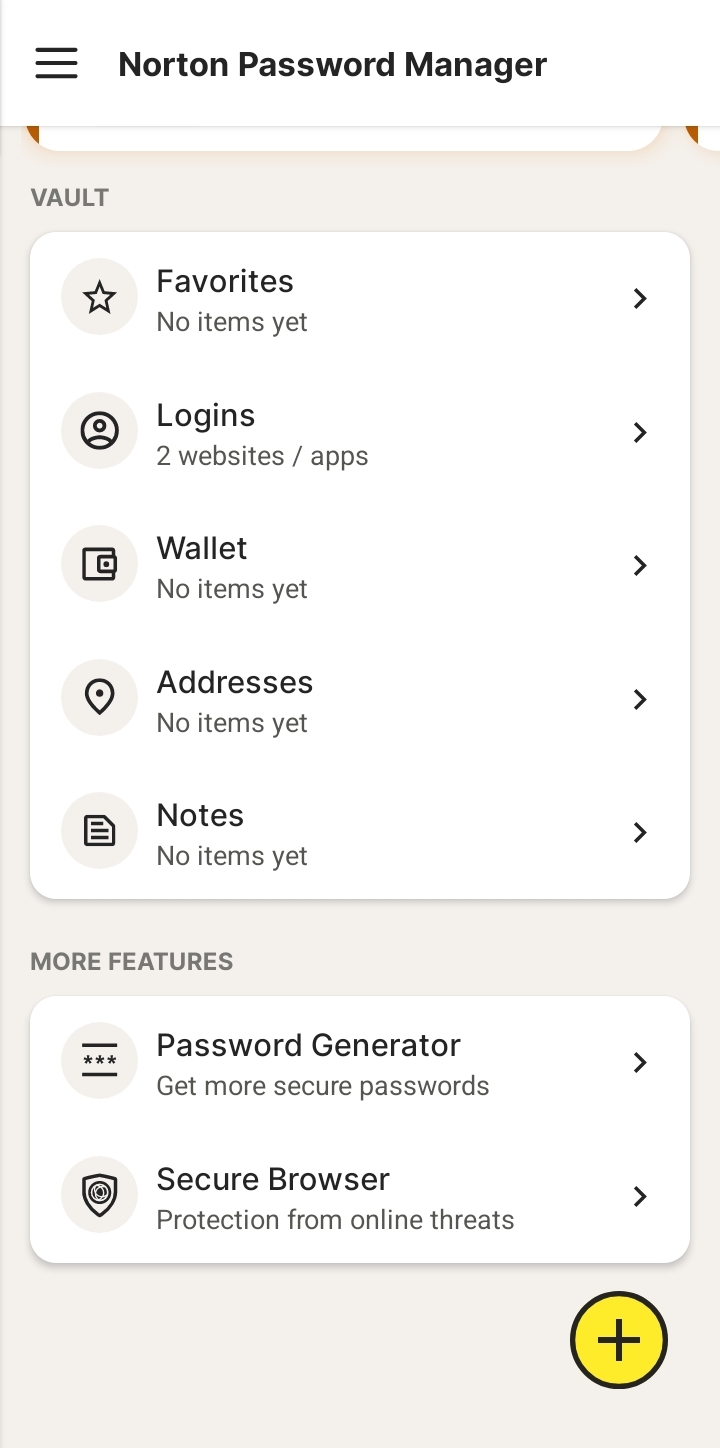
Below the items list, you can find the password generator and secure web browser options. These are the only prominent security-focused features that Norton Password Manager offers. However, it doesn’t offer any customized data entry fields that other password managers offer, which is disappointing.
Users can also add their logins and other information by clicking the yellow ”+” sign. The mobile app manually asks to add passwords into the vault; it is more time-consuming and frustrating than importing them.
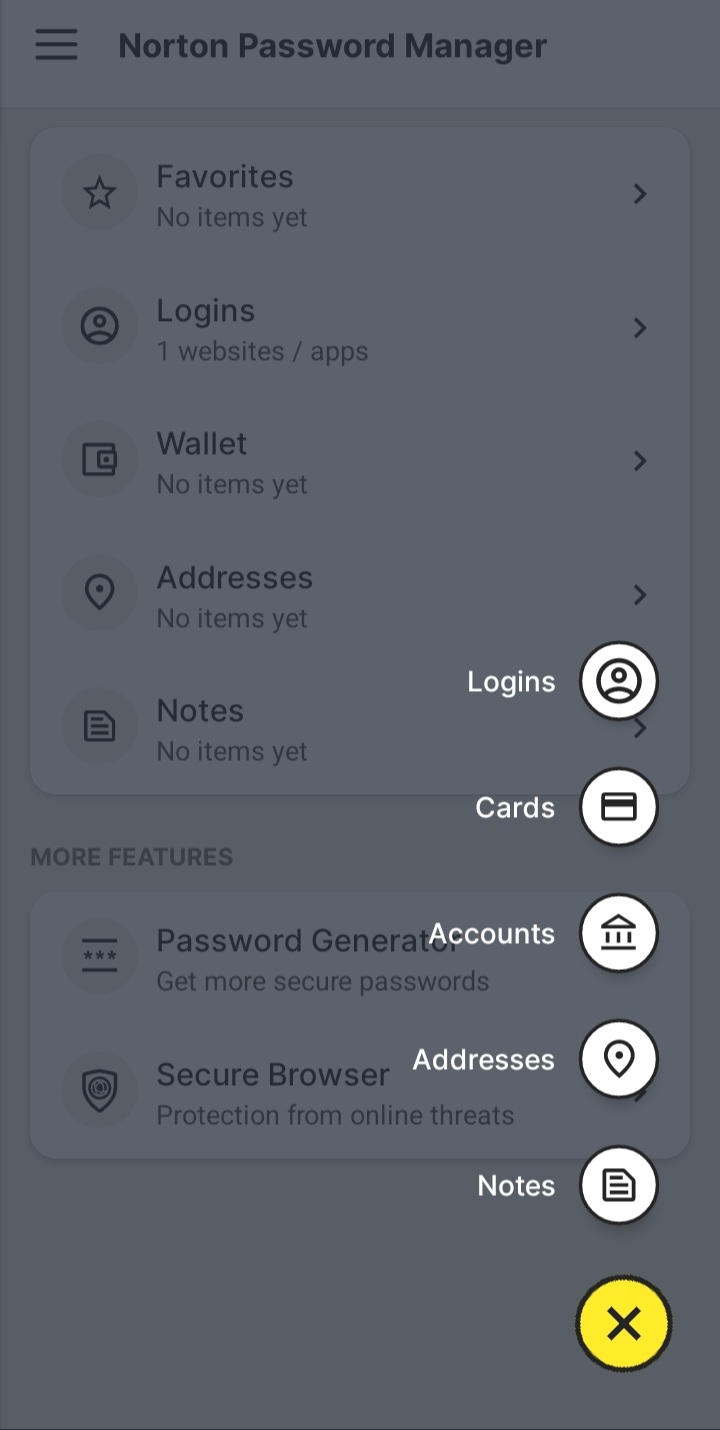
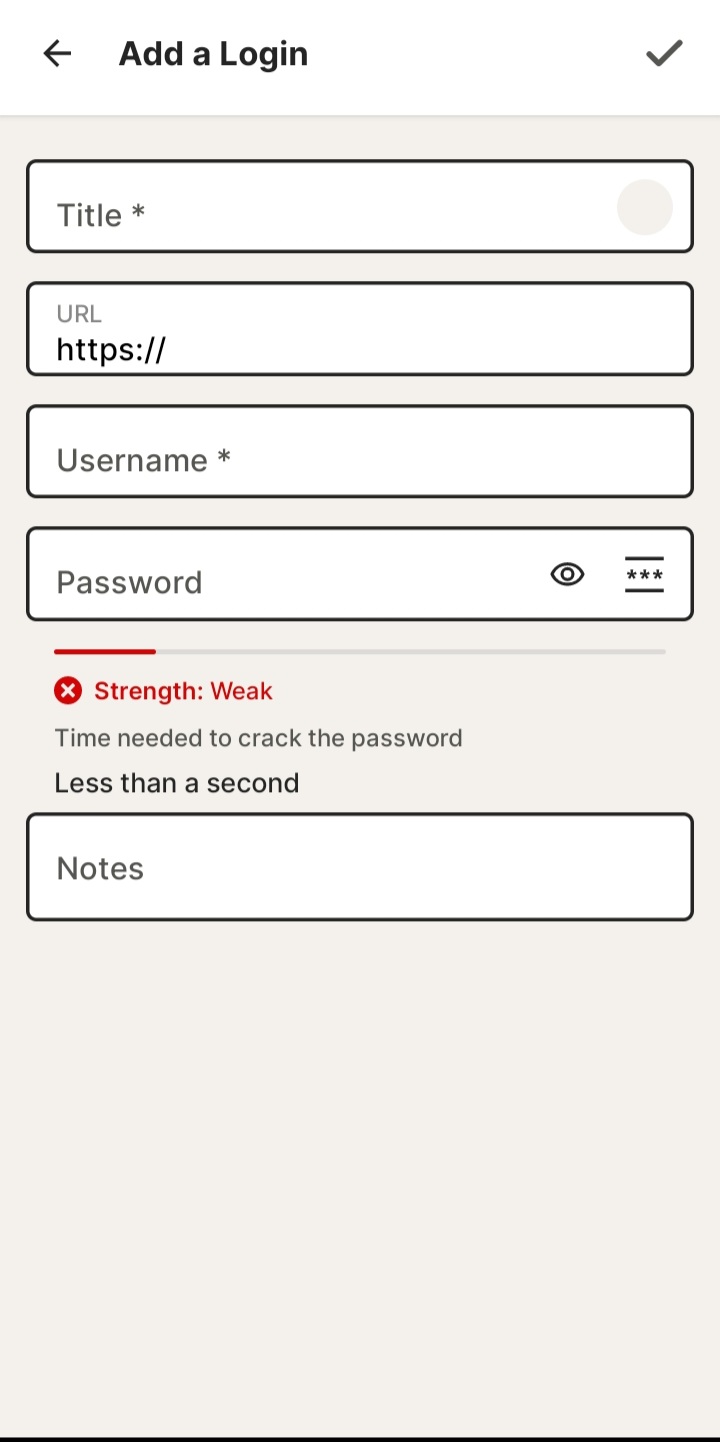
Norton password manager offers limited setting options, which makes it less than other free products available in the market. You’ll find the autofill and autosave login options by navigating the Settings menu. In addition, users can enable the auto-lock feature to increase the security of their accounts and reset the vault password.
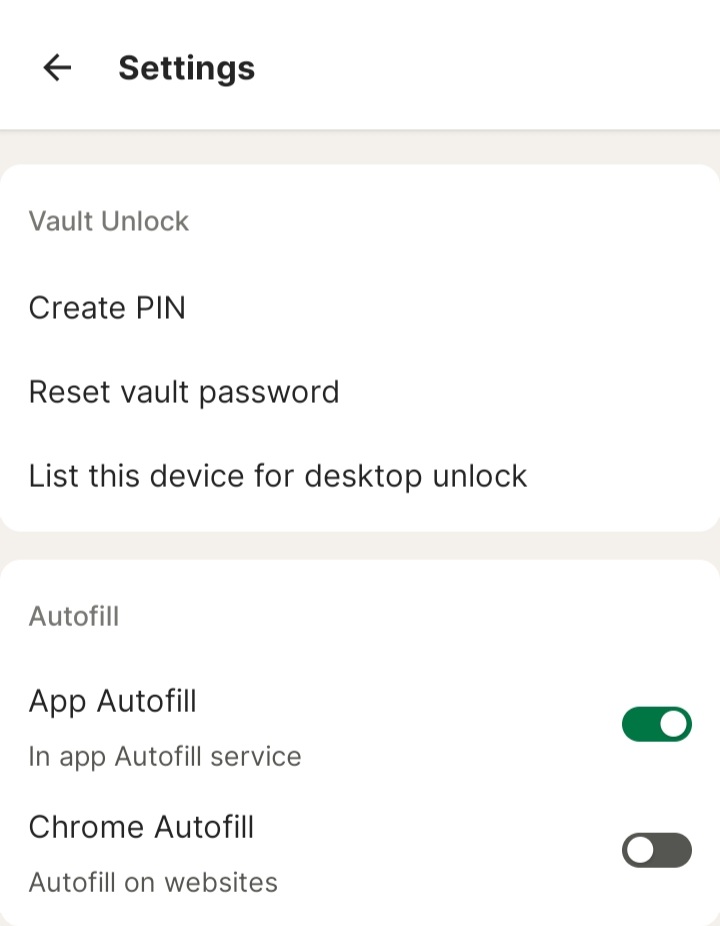
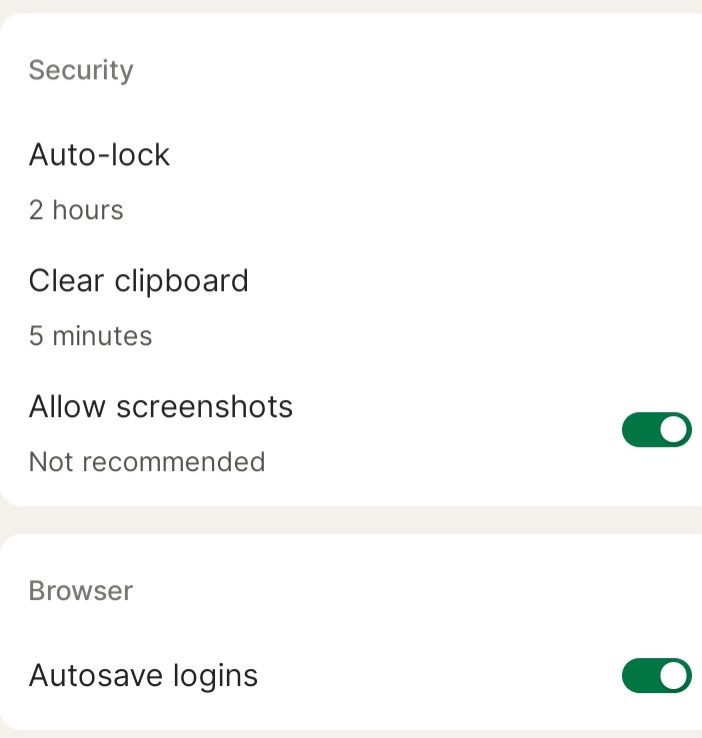
Surprisingly, there aren’t any theme or dashboard customization options or toolbar that attract users.
The desktop version of Norton password manager offers a well-organized minimalistic interface with separate categories for each item to store.
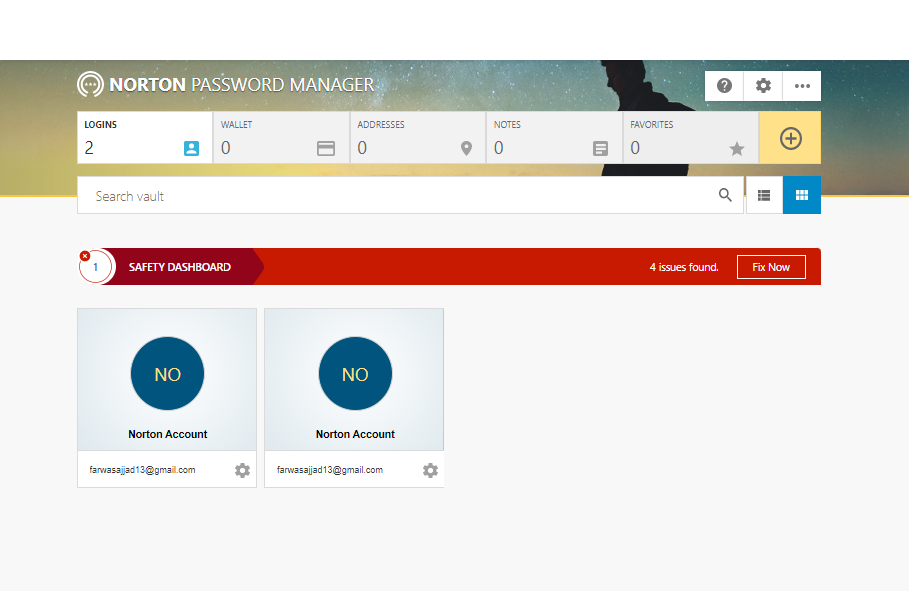
There’s a password generator, safety dashboard, sync vault, and export and import vault options.
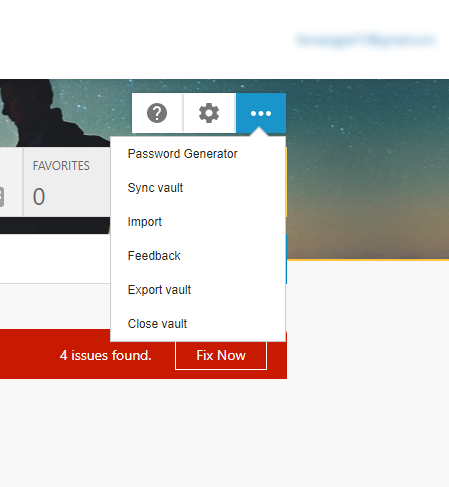
Importing items to Norton’s vault is frustrating because it offers limited options. You can’t import. CSV or PDF files. It also limits importing passwords from only four other password managers and two browsers, i.eChrome and Firefox.
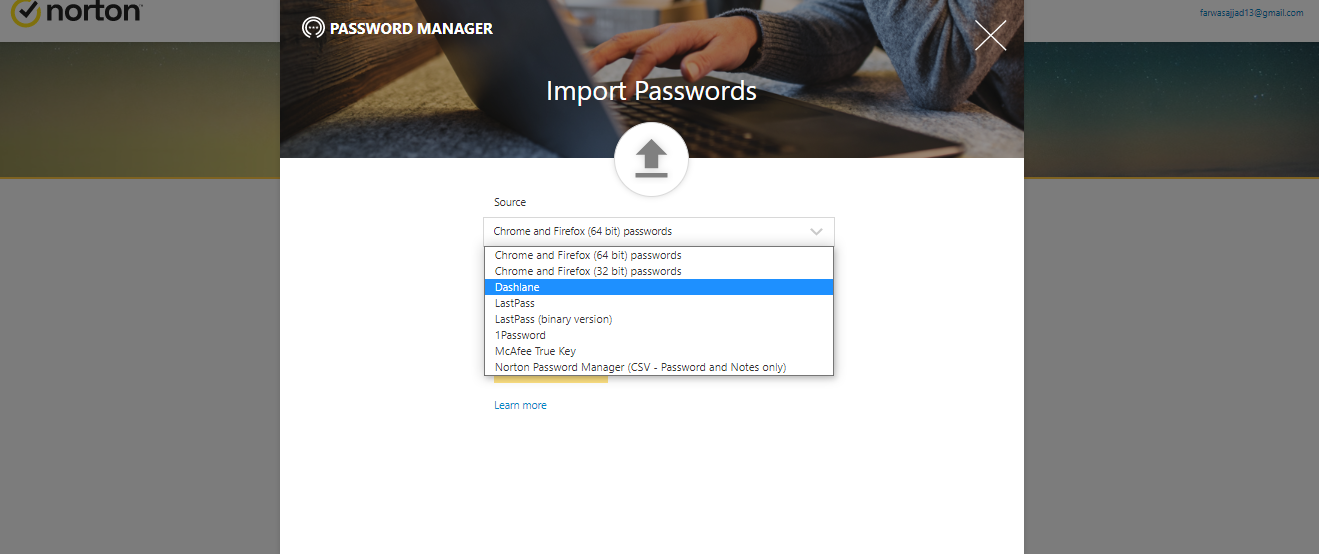
The users easily understand Norton’s interface, making it the best choice for fulfilling basic password management needs.
Compatible devices and Browser Extensions
Norton offers modern and easy-to-use apps for Android and iOS platforms. These apps are available on Google and Apple App Store, and you can download them on your devices within a few minutes.
Both apps have an intuitive and user-friendly interface. Switching between the tabs and accessing any option is easy, ensuring a fantastic user experience. The app has a password generator option to create and store unlimited passwords. It also allows users to use auto-filling, multi-device sync, and secure web browser features. All this makes Norton a streamlined password manager for Android and iOS devices.
Moreover, Norton offers browser extensions that are compatible with the following browsers:
- Google Chrome
- Mozilla Firefox
- Microsoft Edge
- Safari
You can directly add it to your browser by logging into the Norton account or adding it while setting up the account. You receive a notification when you try to access the password manager on your desktop. However, it asks you to enter your master password before allowing access to the main vault.
On the main page of the vault, while using the password manager via browser extension, there are separate categories to store items like notes, addresses, and wallets. You can also add items to your favorite list. There’s a safety dashboard feature that evaluates the passwords.
Using Norton’s browser extensions, you can store your credentials in an encrypted vault that only you can access. Also, you can create passwords, sync between the devices, and import or export passwords safely.
Features Overview
Norton password manager offers quite limited features, but they are enough to provide the basic security that people demand in a free password manager. Here’s a brief overview of the features offered by Norton Password Manager:
Safety Dashboard
The Safety Dashboard is an impressive Norton password manager feature you can use via the browser extension. It shows the health of the logins and passwords stored within the vault.
This feature also determines the strength of the passwords and categorizes them as weak, old, archived, and duplicated. It enables users to improve their password score by opting for the auto change feature that automatically changes the passwords and stores them in the vault. In this way, it helps in reducing password security issues.
Password Generator
A password generator is the most fundamental feature of any password manager. Norton allows users to create unlimited passwords for their accounts like every other password manager.
Users can create weak to solid passwords and customize them by deciding their length, letters, numbers, and characters used. By sliding to the password length, they can create a short password of four symbols or as long as 64. If unsatisfied, you can regenerate the password and later copy it or save it in the vault.
Account Recovery
Norton’s account recovery feature is also an incredible feature that other password managers often lack. Users can reset the password manager account only on their mobile devices.
To reset your account, you need to follow the steps below on the Android and iOS apps:
- Log into your account using the chosen biometric method.
- Go to the Menu options
- Click on the Settings option
- Tap on the Reset Password option.
It will ask for your chosen biometric authentication method. Follow the pop-up steps on your screen and click the Save button.
Desktop users can’t reset their accounts because of the biometric login options. This is another setback that might disappoint Norton password manager users.
Norton password manager doesn’t offer additional features like the 2FA, emergency access, or dark web scanner. Norton must introduce more features and expand its functionality to remain in the race for the best free password managers list.
Norton Password Manager Customer Support
Norton provides excellent customer support service to all its users. There are multiple options through which Norton assists its customers, including:
- Live chat option
- Community forum
- Support Center
- Online website resources
- Phone support
The 24/7 live chat feature allows users to speak directly to the support team and resolve their issues regardless of the time. Anyone who wants to contact the representative of the support team directly and wants an instant reply can use the live chat option. Norton’s live chat team wasn’t very professional, as they failed to give a direct answer to the users’ queries. Have a look:
The support team gives automated replies, which many users do not appreciate. Also, sometimes it isn’t enough to address the issue.
You can also use the phone support option to get expert help from the Norton agent. It’s open 24 hours a week, which is amazing and rare. A separate support section includes options like join the community, contact support, or My Norton account.

The Norton community has separate pages for all its products and services. Browse through the options and select the one you want to join. The password manager community is quite helpful. If you encounter any issue regarding downloading, installing, or using any feature, you can post it here and wait for the experts to address it.
One must have a Norton account to use the contact support and Norton account help option. If not, you’ll see the website and community articles as the proposed solutions.
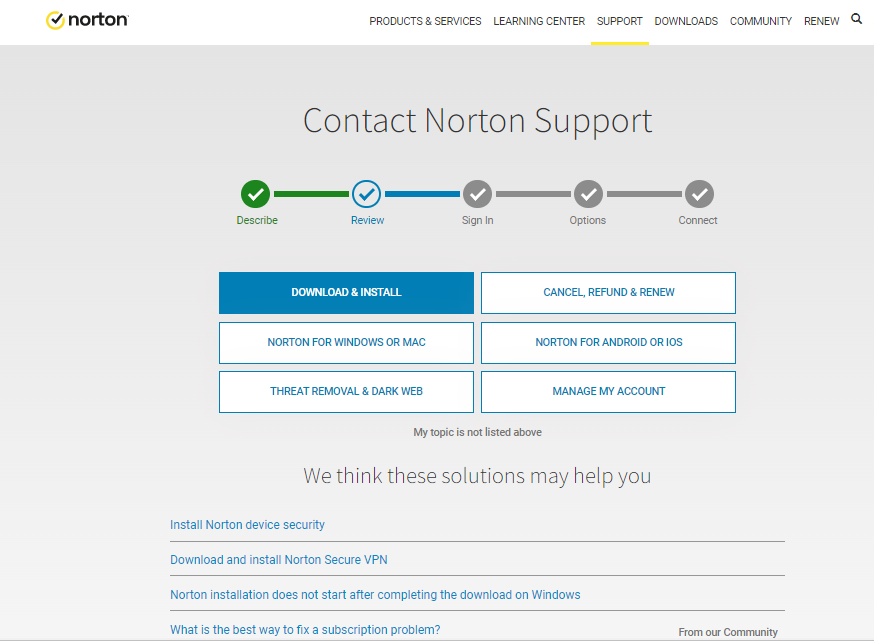
The Norton password manager mobile app also has a Help center. But it’s limited and allows users to report an issue or redirect to the website resources.
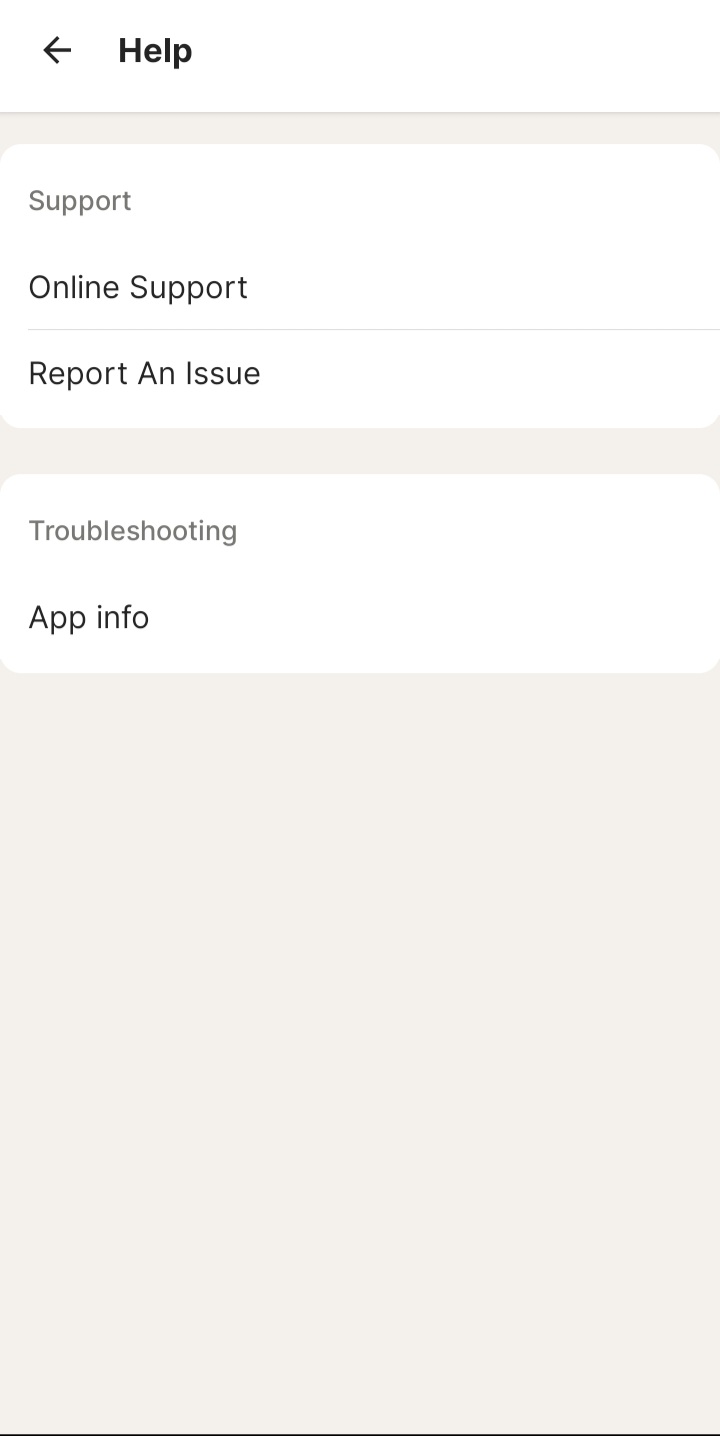
Norton’s website resources are also of great help. The website has blogs, setup guides, video tutorials, FAQs, and featured articles that help users enhance their knowledge. Overall, Norton offers decent yet helpful customer support service with room for improvement in the live chat feature.
Norton Password Manager Pricing Plan
Norton Password Manager is a free product with the Norton 360 Internet Security Plan. If you’re willing to use a password manager along with the security suite, then you can choose a pricing plan according to your preferences:

The password manager is free to use in all the plans. But if you don’t want to invest in the security suite plan, you can download the Android or iOS app and use the free password manager. In addition, Norton offers browser extensions for all mainstream browsers. Get the browser extension and use the free password manager on Mac and Windows devices.
Norton password manager mobile app
Key Features:
- Biometric login
- Advanced 2FA
- Mobile unlock
- Secure Browser
- Password generator
Norton has a robust password manager for mobile devices, which is secure and easy to use. The application is available for both Android and iOS devices. When set as the preferred password manager, it auto-fills the login forms of pages with passwords in the password vault. You only have to authenticate the Norton Password Manager login with a biometric scan, and you are good to go.
The Norton Password Manager also allows unlimited password synchronization across multiple devices. Once you add a password to the password manager, it automatically exports it to Norton’s cloud server so you can use it on different devices.
Norton’s Secure Browser is an advanced feature that detects malicious websites and phishing links. Also, it combines Norton’s Safe Search and Safe Web tools to classify sites as safe or unsafe. While it may mark some fake positives, it can be a helpful tool to stay safe when browsing.
The biometric login feature allows you to access the passwords saved in the vault with a face or fingerprint scan. When you combine the biometric login feature with the mobile unlock feature for desktop users, a single biometric scan allows you to access the password vault on both your mobile and desktop devices.
Generally, Norton’s password manager for mobile devices is a decent addition to your security utilities. Its automatic cross-device synchronization and flawless auto-filling features are excellent, so Android and iOS users should try it out.
Best Norton password manager alternatives
While Norton Password Manager is popular, you might want to try the following alternatives. They may even have more features that make your life easier.
LastPass
LastPass has continuously improved in the recent past to become a force in the competitive industry. It uses several authentication options like biometric authentication, multi-factor authentication, hardware authentication devices, and home authentication.
Moreover, the password manager allows you to export and import your credentials easily and has an auto-fill feature that works perfectly. In addition, it has a password generator tool that generates strong passwords for the websites you frequently visit.
LastPass has a free and premium version that costs $3.00 per month. However, remember that the free version does not support cross-device features.
NordPass
NordPass is another safe alternative to Norton Password Manager. It is privacy-based and uses the zero-knowledge architecture to protect your privacy. The password manager is easy to use and less prone to misconfigurations. Its notable features include a password generator, data breach scanner, auto-fill, and auto-save. It also has a sharing feature that allows you to share items with trusted contacts. However, some features may only be available on selected devices. NordPass has a free and paid version, but the free plan only supports one active session.
Conclusion
Norton password manager is an excellent option if you’re looking for a free password manager. It uses robust encryption and zero-knowledge protocol to protect your passwords and other information stored in the vault. Though it doesn’t provide wide and extra features, it still comes with the ones that are enough to offer a basic security level.
Norton has a good reputation and name in the industry. It needs to expand its functionality and features so more people and business organizations can use the password manager software.
FAQs
The post How Safe is Norton Password Manager? Full Review In 2024 appeared first on BeEncrypted.
]]>Deprecated: Using null as an array offset is deprecated, use an empty string instead in /var/www/staging.beencrypted.com/site/web/wp/wp-includes/class-wp-block-type-registry.php on line 168
Deprecated: Using null as an array offset is deprecated, use an empty string instead in /var/www/staging.beencrypted.com/site/web/wp/wp-includes/class-wp-block-type-registry.php on line 168
Deprecated: Using null as an array offset is deprecated, use an empty string instead in /var/www/staging.beencrypted.com/site/web/wp/wp-includes/class-wp-block-type-registry.php on line 168
Deprecated: Using null as an array offset is deprecated, use an empty string instead in /var/www/staging.beencrypted.com/site/web/wp/wp-includes/class-wp-block-type-registry.php on line 168
Deprecated: Using null as an array offset is deprecated, use an empty string instead in /var/www/staging.beencrypted.com/site/web/wp/wp-includes/class-wp-block-type-registry.php on line 168
Deprecated: Using null as an array offset is deprecated, use an empty string instead in /var/www/staging.beencrypted.com/site/web/wp/wp-includes/class-wp-block-type-registry.php on line 168
Deprecated: Using null as an array offset is deprecated, use an empty string instead in /var/www/staging.beencrypted.com/site/web/wp/wp-includes/class-wp-block-type-registry.php on line 168
Deprecated: Using null as an array offset is deprecated, use an empty string instead in /var/www/staging.beencrypted.com/site/web/wp/wp-includes/class-wp-block-type-registry.php on line 168
Deprecated: Using null as an array offset is deprecated, use an empty string instead in /var/www/staging.beencrypted.com/site/web/wp/wp-includes/class-wp-block-type-registry.php on line 168
Deprecated: Using null as an array offset is deprecated, use an empty string instead in /var/www/staging.beencrypted.com/site/web/wp/wp-includes/class-wp-block-type-registry.php on line 168
Deprecated: Using null as an array offset is deprecated, use an empty string instead in /var/www/staging.beencrypted.com/site/web/wp/wp-includes/class-wp-block-type-registry.php on line 168
Deprecated: Using null as an array offset is deprecated, use an empty string instead in /var/www/staging.beencrypted.com/site/web/wp/wp-includes/class-wp-block-type-registry.php on line 168
Deprecated: Using null as an array offset is deprecated, use an empty string instead in /var/www/staging.beencrypted.com/site/web/wp/wp-includes/class-wp-block-type-registry.php on line 168
Deprecated: Using null as an array offset is deprecated, use an empty string instead in /var/www/staging.beencrypted.com/site/web/wp/wp-includes/class-wp-block-type-registry.php on line 168
Deprecated: Using null as an array offset is deprecated, use an empty string instead in /var/www/staging.beencrypted.com/site/web/wp/wp-includes/class-wp-block-type-registry.php on line 168
Deprecated: Using null as an array offset is deprecated, use an empty string instead in /var/www/staging.beencrypted.com/site/web/wp/wp-includes/class-wp-block-type-registry.php on line 168
Deprecated: Using null as an array offset is deprecated, use an empty string instead in /var/www/staging.beencrypted.com/site/web/wp/wp-includes/class-wp-block-type-registry.php on line 168
Deprecated: Using null as an array offset is deprecated, use an empty string instead in /var/www/staging.beencrypted.com/site/web/wp/wp-includes/class-wp-block-type-registry.php on line 168
Deprecated: Using null as an array offset is deprecated, use an empty string instead in /var/www/staging.beencrypted.com/site/web/wp/wp-includes/class-wp-block-type-registry.php on line 168
Deprecated: Using null as an array offset is deprecated, use an empty string instead in /var/www/staging.beencrypted.com/site/web/wp/wp-includes/class-wp-block-type-registry.php on line 168
Deprecated: Using null as an array offset is deprecated, use an empty string instead in /var/www/staging.beencrypted.com/site/web/wp/wp-includes/class-wp-block-type-registry.php on line 168
Deprecated: Using null as an array offset is deprecated, use an empty string instead in /var/www/staging.beencrypted.com/site/web/wp/wp-includes/class-wp-block-type-registry.php on line 168
Deprecated: Using null as an array offset is deprecated, use an empty string instead in /var/www/staging.beencrypted.com/site/web/wp/wp-includes/class-wp-block-type-registry.php on line 168
Deprecated: Using null as an array offset is deprecated, use an empty string instead in /var/www/staging.beencrypted.com/site/web/wp/wp-includes/class-wp-block-type-registry.php on line 168
Deprecated: Using null as an array offset is deprecated, use an empty string instead in /var/www/staging.beencrypted.com/site/web/wp/wp-includes/class-wp-block-type-registry.php on line 168
Deprecated: Using null as an array offset is deprecated, use an empty string instead in /var/www/staging.beencrypted.com/site/web/wp/wp-includes/class-wp-block-type-registry.php on line 168
Deprecated: Using null as an array offset is deprecated, use an empty string instead in /var/www/staging.beencrypted.com/site/web/wp/wp-includes/class-wp-block-type-registry.php on line 168
Deprecated: Using null as an array offset is deprecated, use an empty string instead in /var/www/staging.beencrypted.com/site/web/wp/wp-includes/class-wp-block-type-registry.php on line 168
Deprecated: Using null as an array offset is deprecated, use an empty string instead in /var/www/staging.beencrypted.com/site/web/wp/wp-includes/class-wp-block-type-registry.php on line 168
Deprecated: Using null as an array offset is deprecated, use an empty string instead in /var/www/staging.beencrypted.com/site/web/wp/wp-includes/class-wp-block-type-registry.php on line 168
Deprecated: Using null as an array offset is deprecated, use an empty string instead in /var/www/staging.beencrypted.com/site/web/wp/wp-includes/class-wp-block-type-registry.php on line 168
Deprecated: Using null as an array offset is deprecated, use an empty string instead in /var/www/staging.beencrypted.com/site/web/wp/wp-includes/class-wp-block-type-registry.php on line 168
Deprecated: Using null as an array offset is deprecated, use an empty string instead in /var/www/staging.beencrypted.com/site/web/wp/wp-includes/class-wp-block-type-registry.php on line 168
Deprecated: Using null as an array offset is deprecated, use an empty string instead in /var/www/staging.beencrypted.com/site/web/wp/wp-includes/class-wp-block-type-registry.php on line 168
Deprecated: Using null as an array offset is deprecated, use an empty string instead in /var/www/staging.beencrypted.com/site/web/wp/wp-includes/class-wp-block-type-registry.php on line 168
Deprecated: Using null as an array offset is deprecated, use an empty string instead in /var/www/staging.beencrypted.com/site/web/wp/wp-includes/class-wp-block-type-registry.php on line 168
Deprecated: Using null as an array offset is deprecated, use an empty string instead in /var/www/staging.beencrypted.com/site/web/wp/wp-includes/class-wp-block-type-registry.php on line 168
Deprecated: Using null as an array offset is deprecated, use an empty string instead in /var/www/staging.beencrypted.com/site/web/wp/wp-includes/class-wp-block-type-registry.php on line 168
Deprecated: Using null as an array offset is deprecated, use an empty string instead in /var/www/staging.beencrypted.com/site/web/wp/wp-includes/class-wp-block-type-registry.php on line 168
Deprecated: Using null as an array offset is deprecated, use an empty string instead in /var/www/staging.beencrypted.com/site/web/wp/wp-includes/class-wp-block-type-registry.php on line 168
Deprecated: Using null as an array offset is deprecated, use an empty string instead in /var/www/staging.beencrypted.com/site/web/wp/wp-includes/class-wp-block-type-registry.php on line 168
Deprecated: Using null as an array offset is deprecated, use an empty string instead in /var/www/staging.beencrypted.com/site/web/wp/wp-includes/class-wp-block-type-registry.php on line 168
Deprecated: Using null as an array offset is deprecated, use an empty string instead in /var/www/staging.beencrypted.com/site/web/wp/wp-includes/class-wp-block-type-registry.php on line 168
Deprecated: Using null as an array offset is deprecated, use an empty string instead in /var/www/staging.beencrypted.com/site/web/wp/wp-includes/class-wp-block-type-registry.php on line 168
Deprecated: Using null as an array offset is deprecated, use an empty string instead in /var/www/staging.beencrypted.com/site/web/wp/wp-includes/class-wp-block-type-registry.php on line 168
Deprecated: Using null as an array offset is deprecated, use an empty string instead in /var/www/staging.beencrypted.com/site/web/wp/wp-includes/class-wp-block-type-registry.php on line 168
Deprecated: Using null as an array offset is deprecated, use an empty string instead in /var/www/staging.beencrypted.com/site/web/wp/wp-includes/class-wp-block-type-registry.php on line 168
Deprecated: Using null as an array offset is deprecated, use an empty string instead in /var/www/staging.beencrypted.com/site/web/wp/wp-includes/class-wp-block-type-registry.php on line 168
Deprecated: Using null as an array offset is deprecated, use an empty string instead in /var/www/staging.beencrypted.com/site/web/wp/wp-includes/class-wp-block-type-registry.php on line 168
Deprecated: Using null as an array offset is deprecated, use an empty string instead in /var/www/staging.beencrypted.com/site/web/wp/wp-includes/class-wp-block-type-registry.php on line 168
Deprecated: Using null as an array offset is deprecated, use an empty string instead in /var/www/staging.beencrypted.com/site/web/wp/wp-includes/class-wp-block-type-registry.php on line 168
Deprecated: Using null as an array offset is deprecated, use an empty string instead in /var/www/staging.beencrypted.com/site/web/wp/wp-includes/class-wp-block-type-registry.php on line 168
Deprecated: Using null as an array offset is deprecated, use an empty string instead in /var/www/staging.beencrypted.com/site/web/wp/wp-includes/class-wp-block-type-registry.php on line 168
Deprecated: Using null as an array offset is deprecated, use an empty string instead in /var/www/staging.beencrypted.com/site/web/wp/wp-includes/class-wp-block-type-registry.php on line 168
Deprecated: Using null as an array offset is deprecated, use an empty string instead in /var/www/staging.beencrypted.com/site/web/wp/wp-includes/class-wp-block-type-registry.php on line 168
Deprecated: Using null as an array offset is deprecated, use an empty string instead in /var/www/staging.beencrypted.com/site/web/wp/wp-includes/class-wp-block-type-registry.php on line 168
Deprecated: Using null as an array offset is deprecated, use an empty string instead in /var/www/staging.beencrypted.com/site/web/wp/wp-includes/class-wp-block-type-registry.php on line 168
Deprecated: Using null as an array offset is deprecated, use an empty string instead in /var/www/staging.beencrypted.com/site/web/wp/wp-includes/class-wp-block-type-registry.php on line 168
Deprecated: Using null as an array offset is deprecated, use an empty string instead in /var/www/staging.beencrypted.com/site/web/wp/wp-includes/class-wp-block-type-registry.php on line 168
Deprecated: Using null as an array offset is deprecated, use an empty string instead in /var/www/staging.beencrypted.com/site/web/wp/wp-includes/class-wp-block-type-registry.php on line 168
Deprecated: Using null as an array offset is deprecated, use an empty string instead in /var/www/staging.beencrypted.com/site/web/wp/wp-includes/class-wp-block-type-registry.php on line 168
Deprecated: Using null as an array offset is deprecated, use an empty string instead in /var/www/staging.beencrypted.com/site/web/wp/wp-includes/class-wp-block-type-registry.php on line 168
Deprecated: Using null as an array offset is deprecated, use an empty string instead in /var/www/staging.beencrypted.com/site/web/wp/wp-includes/class-wp-block-type-registry.php on line 168
Deprecated: Using null as an array offset is deprecated, use an empty string instead in /var/www/staging.beencrypted.com/site/web/wp/wp-includes/class-wp-block-type-registry.php on line 168
Deprecated: Using null as an array offset is deprecated, use an empty string instead in /var/www/staging.beencrypted.com/site/web/wp/wp-includes/class-wp-block-type-registry.php on line 168
Deprecated: Using null as an array offset is deprecated, use an empty string instead in /var/www/staging.beencrypted.com/site/web/wp/wp-includes/class-wp-block-type-registry.php on line 168
Deprecated: Using null as an array offset is deprecated, use an empty string instead in /var/www/staging.beencrypted.com/site/web/wp/wp-includes/class-wp-block-type-registry.php on line 168
Deprecated: Using null as an array offset is deprecated, use an empty string instead in /var/www/staging.beencrypted.com/site/web/wp/wp-includes/class-wp-block-type-registry.php on line 168
Deprecated: Using null as an array offset is deprecated, use an empty string instead in /var/www/staging.beencrypted.com/site/web/wp/wp-includes/class-wp-block-type-registry.php on line 168
Deprecated: Using null as an array offset is deprecated, use an empty string instead in /var/www/staging.beencrypted.com/site/web/wp/wp-includes/class-wp-block-type-registry.php on line 168
Deprecated: Using null as an array offset is deprecated, use an empty string instead in /var/www/staging.beencrypted.com/site/web/wp/wp-includes/class-wp-block-type-registry.php on line 168
Deprecated: Using null as an array offset is deprecated, use an empty string instead in /var/www/staging.beencrypted.com/site/web/wp/wp-includes/class-wp-block-type-registry.php on line 168
Deprecated: Using null as an array offset is deprecated, use an empty string instead in /var/www/staging.beencrypted.com/site/web/wp/wp-includes/class-wp-block-type-registry.php on line 168
Deprecated: Using null as an array offset is deprecated, use an empty string instead in /var/www/staging.beencrypted.com/site/web/wp/wp-includes/class-wp-block-type-registry.php on line 168
Deprecated: Using null as an array offset is deprecated, use an empty string instead in /var/www/staging.beencrypted.com/site/web/wp/wp-includes/class-wp-block-type-registry.php on line 168
Deprecated: Using null as an array offset is deprecated, use an empty string instead in /var/www/staging.beencrypted.com/site/web/wp/wp-includes/class-wp-block-type-registry.php on line 168
Deprecated: Using null as an array offset is deprecated, use an empty string instead in /var/www/staging.beencrypted.com/site/web/wp/wp-includes/class-wp-block-type-registry.php on line 168
Deprecated: Using null as an array offset is deprecated, use an empty string instead in /var/www/staging.beencrypted.com/site/web/wp/wp-includes/class-wp-block-type-registry.php on line 168
Deprecated: Using null as an array offset is deprecated, use an empty string instead in /var/www/staging.beencrypted.com/site/web/wp/wp-includes/class-wp-block-type-registry.php on line 168
Deprecated: Using null as an array offset is deprecated, use an empty string instead in /var/www/staging.beencrypted.com/site/web/wp/wp-includes/class-wp-block-type-registry.php on line 168
Deprecated: Using null as an array offset is deprecated, use an empty string instead in /var/www/staging.beencrypted.com/site/web/wp/wp-includes/class-wp-block-type-registry.php on line 168
Deprecated: Using null as an array offset is deprecated, use an empty string instead in /var/www/staging.beencrypted.com/site/web/wp/wp-includes/class-wp-block-type-registry.php on line 168
Deprecated: Using null as an array offset is deprecated, use an empty string instead in /var/www/staging.beencrypted.com/site/web/wp/wp-includes/class-wp-block-type-registry.php on line 168
Deprecated: Using null as an array offset is deprecated, use an empty string instead in /var/www/staging.beencrypted.com/site/web/wp/wp-includes/class-wp-block-type-registry.php on line 168
Deprecated: Using null as an array offset is deprecated, use an empty string instead in /var/www/staging.beencrypted.com/site/web/wp/wp-includes/class-wp-block-type-registry.php on line 168
Deprecated: Using null as an array offset is deprecated, use an empty string instead in /var/www/staging.beencrypted.com/site/web/wp/wp-includes/class-wp-block-type-registry.php on line 168
Deprecated: Using null as an array offset is deprecated, use an empty string instead in /var/www/staging.beencrypted.com/site/web/wp/wp-includes/class-wp-block-type-registry.php on line 168
Deprecated: Using null as an array offset is deprecated, use an empty string instead in /var/www/staging.beencrypted.com/site/web/wp/wp-includes/class-wp-block-type-registry.php on line 168
Deprecated: Using null as an array offset is deprecated, use an empty string instead in /var/www/staging.beencrypted.com/site/web/wp/wp-includes/class-wp-block-type-registry.php on line 168
Deprecated: Using null as an array offset is deprecated, use an empty string instead in /var/www/staging.beencrypted.com/site/web/wp/wp-includes/class-wp-block-type-registry.php on line 168
Deprecated: Using null as an array offset is deprecated, use an empty string instead in /var/www/staging.beencrypted.com/site/web/wp/wp-includes/class-wp-block-type-registry.php on line 168
Deprecated: Using null as an array offset is deprecated, use an empty string instead in /var/www/staging.beencrypted.com/site/web/wp/wp-includes/class-wp-block-type-registry.php on line 168
Deprecated: Using null as an array offset is deprecated, use an empty string instead in /var/www/staging.beencrypted.com/site/web/wp/wp-includes/class-wp-block-type-registry.php on line 168
Deprecated: Using null as an array offset is deprecated, use an empty string instead in /var/www/staging.beencrypted.com/site/web/wp/wp-includes/class-wp-block-type-registry.php on line 168
Deprecated: Using null as an array offset is deprecated, use an empty string instead in /var/www/staging.beencrypted.com/site/web/wp/wp-includes/class-wp-block-type-registry.php on line 168
Deprecated: Using null as an array offset is deprecated, use an empty string instead in /var/www/staging.beencrypted.com/site/web/wp/wp-includes/class-wp-block-type-registry.php on line 168
Deprecated: Using null as an array offset is deprecated, use an empty string instead in /var/www/staging.beencrypted.com/site/web/wp/wp-includes/class-wp-block-type-registry.php on line 168
Deprecated: Using null as an array offset is deprecated, use an empty string instead in /var/www/staging.beencrypted.com/site/web/wp/wp-includes/class-wp-block-type-registry.php on line 168
Deprecated: Using null as an array offset is deprecated, use an empty string instead in /var/www/staging.beencrypted.com/site/web/wp/wp-includes/class-wp-block-type-registry.php on line 168
Deprecated: Using null as an array offset is deprecated, use an empty string instead in /var/www/staging.beencrypted.com/site/web/wp/wp-includes/class-wp-block-type-registry.php on line 168
Deprecated: Using null as an array offset is deprecated, use an empty string instead in /var/www/staging.beencrypted.com/site/web/wp/wp-includes/class-wp-block-type-registry.php on line 168
Deprecated: Using null as an array offset is deprecated, use an empty string instead in /var/www/staging.beencrypted.com/site/web/wp/wp-includes/class-wp-block-type-registry.php on line 168
Deprecated: Using null as an array offset is deprecated, use an empty string instead in /var/www/staging.beencrypted.com/site/web/wp/wp-includes/class-wp-block-type-registry.php on line 168
Deprecated: Using null as an array offset is deprecated, use an empty string instead in /var/www/staging.beencrypted.com/site/web/wp/wp-includes/class-wp-block-type-registry.php on line 168
Deprecated: Using null as an array offset is deprecated, use an empty string instead in /var/www/staging.beencrypted.com/site/web/wp/wp-includes/class-wp-block-type-registry.php on line 168
Deprecated: Using null as an array offset is deprecated, use an empty string instead in /var/www/staging.beencrypted.com/site/web/wp/wp-includes/class-wp-block-type-registry.php on line 168
Deprecated: Using null as an array offset is deprecated, use an empty string instead in /var/www/staging.beencrypted.com/site/web/wp/wp-includes/class-wp-block-type-registry.php on line 168
Deprecated: Using null as an array offset is deprecated, use an empty string instead in /var/www/staging.beencrypted.com/site/web/wp/wp-includes/class-wp-block-type-registry.php on line 168
Deprecated: Using null as an array offset is deprecated, use an empty string instead in /var/www/staging.beencrypted.com/site/web/wp/wp-includes/class-wp-block-type-registry.php on line 168
Deprecated: Using null as an array offset is deprecated, use an empty string instead in /var/www/staging.beencrypted.com/site/web/wp/wp-includes/class-wp-block-type-registry.php on line 168
Deprecated: Using null as an array offset is deprecated, use an empty string instead in /var/www/staging.beencrypted.com/site/web/wp/wp-includes/class-wp-block-type-registry.php on line 168
Deprecated: Using null as an array offset is deprecated, use an empty string instead in /var/www/staging.beencrypted.com/site/web/wp/wp-includes/class-wp-block-type-registry.php on line 168
Deprecated: Using null as an array offset is deprecated, use an empty string instead in /var/www/staging.beencrypted.com/site/web/wp/wp-includes/class-wp-block-type-registry.php on line 168
Deprecated: Using null as an array offset is deprecated, use an empty string instead in /var/www/staging.beencrypted.com/site/web/wp/wp-includes/class-wp-block-type-registry.php on line 168
Deprecated: Using null as an array offset is deprecated, use an empty string instead in /var/www/staging.beencrypted.com/site/web/wp/wp-includes/class-wp-block-type-registry.php on line 168
Deprecated: Using null as an array offset is deprecated, use an empty string instead in /var/www/staging.beencrypted.com/site/web/wp/wp-includes/class-wp-block-type-registry.php on line 168
Deprecated: Using null as an array offset is deprecated, use an empty string instead in /var/www/staging.beencrypted.com/site/web/wp/wp-includes/class-wp-block-type-registry.php on line 168
Deprecated: Using null as an array offset is deprecated, use an empty string instead in /var/www/staging.beencrypted.com/site/web/wp/wp-includes/class-wp-block-type-registry.php on line 168
Deprecated: Using null as an array offset is deprecated, use an empty string instead in /var/www/staging.beencrypted.com/site/web/wp/wp-includes/class-wp-block-type-registry.php on line 168
Deprecated: Using null as an array offset is deprecated, use an empty string instead in /var/www/staging.beencrypted.com/site/web/wp/wp-includes/class-wp-block-type-registry.php on line 168
Deprecated: Using null as an array offset is deprecated, use an empty string instead in /var/www/staging.beencrypted.com/site/web/wp/wp-includes/class-wp-block-type-registry.php on line 168
Deprecated: Using null as an array offset is deprecated, use an empty string instead in /var/www/staging.beencrypted.com/site/web/wp/wp-includes/class-wp-block-type-registry.php on line 168
Deprecated: Using null as an array offset is deprecated, use an empty string instead in /var/www/staging.beencrypted.com/site/web/wp/wp-includes/class-wp-block-type-registry.php on line 168
Deprecated: Using null as an array offset is deprecated, use an empty string instead in /var/www/staging.beencrypted.com/site/web/wp/wp-includes/class-wp-block-type-registry.php on line 168
Deprecated: Using null as an array offset is deprecated, use an empty string instead in /var/www/staging.beencrypted.com/site/web/wp/wp-includes/class-wp-block-type-registry.php on line 168
Deprecated: Using null as an array offset is deprecated, use an empty string instead in /var/www/staging.beencrypted.com/site/web/wp/wp-includes/class-wp-block-type-registry.php on line 168
Deprecated: Using null as an array offset is deprecated, use an empty string instead in /var/www/staging.beencrypted.com/site/web/wp/wp-includes/class-wp-block-type-registry.php on line 168
Deprecated: Using null as an array offset is deprecated, use an empty string instead in /var/www/staging.beencrypted.com/site/web/wp/wp-includes/class-wp-block-type-registry.php on line 168
Deprecated: Using null as an array offset is deprecated, use an empty string instead in /var/www/staging.beencrypted.com/site/web/wp/wp-includes/class-wp-block-type-registry.php on line 168
Deprecated: Using null as an array offset is deprecated, use an empty string instead in /var/www/staging.beencrypted.com/site/web/wp/wp-includes/class-wp-block-type-registry.php on line 168
Deprecated: Using null as an array offset is deprecated, use an empty string instead in /var/www/staging.beencrypted.com/site/web/wp/wp-includes/class-wp-block-type-registry.php on line 168
Deprecated: Using null as an array offset is deprecated, use an empty string instead in /var/www/staging.beencrypted.com/site/web/wp/wp-includes/class-wp-block-type-registry.php on line 168
Deprecated: Using null as an array offset is deprecated, use an empty string instead in /var/www/staging.beencrypted.com/site/web/wp/wp-includes/class-wp-block-type-registry.php on line 168
Deprecated: Using null as an array offset is deprecated, use an empty string instead in /var/www/staging.beencrypted.com/site/web/wp/wp-includes/class-wp-block-type-registry.php on line 168
Deprecated: Using null as an array offset is deprecated, use an empty string instead in /var/www/staging.beencrypted.com/site/web/wp/wp-includes/class-wp-block-type-registry.php on line 168
Deprecated: Using null as an array offset is deprecated, use an empty string instead in /var/www/staging.beencrypted.com/site/web/wp/wp-includes/class-wp-block-type-registry.php on line 168
Deprecated: Using null as an array offset is deprecated, use an empty string instead in /var/www/staging.beencrypted.com/site/web/wp/wp-includes/class-wp-block-type-registry.php on line 168
Deprecated: Using null as an array offset is deprecated, use an empty string instead in /var/www/staging.beencrypted.com/site/web/wp/wp-includes/class-wp-block-type-registry.php on line 168
Deprecated: Using null as an array offset is deprecated, use an empty string instead in /var/www/staging.beencrypted.com/site/web/wp/wp-includes/class-wp-block-type-registry.php on line 168
Deprecated: Using null as an array offset is deprecated, use an empty string instead in /var/www/staging.beencrypted.com/site/web/wp/wp-includes/class-wp-block-type-registry.php on line 168
Deprecated: Using null as an array offset is deprecated, use an empty string instead in /var/www/staging.beencrypted.com/site/web/wp/wp-includes/class-wp-block-type-registry.php on line 168
Deprecated: Using null as an array offset is deprecated, use an empty string instead in /var/www/staging.beencrypted.com/site/web/wp/wp-includes/class-wp-block-type-registry.php on line 168
Deprecated: Using null as an array offset is deprecated, use an empty string instead in /var/www/staging.beencrypted.com/site/web/wp/wp-includes/class-wp-block-type-registry.php on line 168
Deprecated: Using null as an array offset is deprecated, use an empty string instead in /var/www/staging.beencrypted.com/site/web/wp/wp-includes/class-wp-block-type-registry.php on line 168
Deprecated: Using null as an array offset is deprecated, use an empty string instead in /var/www/staging.beencrypted.com/site/web/wp/wp-includes/class-wp-block-type-registry.php on line 168
Deprecated: Using null as an array offset is deprecated, use an empty string instead in /var/www/staging.beencrypted.com/site/web/wp/wp-includes/class-wp-block-type-registry.php on line 168
Deprecated: Using null as an array offset is deprecated, use an empty string instead in /var/www/staging.beencrypted.com/site/web/wp/wp-includes/class-wp-block-type-registry.php on line 168
Deprecated: Using null as an array offset is deprecated, use an empty string instead in /var/www/staging.beencrypted.com/site/web/wp/wp-includes/class-wp-block-type-registry.php on line 168
Deprecated: Using null as an array offset is deprecated, use an empty string instead in /var/www/staging.beencrypted.com/site/web/wp/wp-includes/class-wp-block-type-registry.php on line 168
Deprecated: Using null as an array offset is deprecated, use an empty string instead in /var/www/staging.beencrypted.com/site/web/wp/wp-includes/class-wp-block-type-registry.php on line 168
Deprecated: Using null as an array offset is deprecated, use an empty string instead in /var/www/staging.beencrypted.com/site/web/wp/wp-includes/class-wp-block-type-registry.php on line 168
Deprecated: Using null as an array offset is deprecated, use an empty string instead in /var/www/staging.beencrypted.com/site/web/wp/wp-includes/class-wp-block-type-registry.php on line 168
Deprecated: Using null as an array offset is deprecated, use an empty string instead in /var/www/staging.beencrypted.com/site/web/wp/wp-includes/class-wp-block-type-registry.php on line 168
Deprecated: Using null as an array offset is deprecated, use an empty string instead in /var/www/staging.beencrypted.com/site/web/wp/wp-includes/class-wp-block-type-registry.php on line 168
Deprecated: Using null as an array offset is deprecated, use an empty string instead in /var/www/staging.beencrypted.com/site/web/wp/wp-includes/class-wp-block-type-registry.php on line 168
Deprecated: Using null as an array offset is deprecated, use an empty string instead in /var/www/staging.beencrypted.com/site/web/wp/wp-includes/class-wp-block-type-registry.php on line 168
Deprecated: Using null as an array offset is deprecated, use an empty string instead in /var/www/staging.beencrypted.com/site/web/wp/wp-includes/class-wp-block-type-registry.php on line 168
Deprecated: Using null as an array offset is deprecated, use an empty string instead in /var/www/staging.beencrypted.com/site/web/wp/wp-includes/class-wp-block-type-registry.php on line 168
Deprecated: Using null as an array offset is deprecated, use an empty string instead in /var/www/staging.beencrypted.com/site/web/wp/wp-includes/class-wp-block-type-registry.php on line 168
Deprecated: Using null as an array offset is deprecated, use an empty string instead in /var/www/staging.beencrypted.com/site/web/wp/wp-includes/class-wp-block-type-registry.php on line 168
Deprecated: Using null as an array offset is deprecated, use an empty string instead in /var/www/staging.beencrypted.com/site/web/wp/wp-includes/class-wp-block-type-registry.php on line 168
Deprecated: Using null as an array offset is deprecated, use an empty string instead in /var/www/staging.beencrypted.com/site/web/wp/wp-includes/class-wp-block-type-registry.php on line 168
Deprecated: Using null as an array offset is deprecated, use an empty string instead in /var/www/staging.beencrypted.com/site/web/wp/wp-includes/class-wp-block-type-registry.php on line 168
Deprecated: Using null as an array offset is deprecated, use an empty string instead in /var/www/staging.beencrypted.com/site/web/wp/wp-includes/class-wp-block-type-registry.php on line 168
Deprecated: Using null as an array offset is deprecated, use an empty string instead in /var/www/staging.beencrypted.com/site/web/wp/wp-includes/class-wp-block-type-registry.php on line 168
Deprecated: Using null as an array offset is deprecated, use an empty string instead in /var/www/staging.beencrypted.com/site/web/wp/wp-includes/class-wp-block-type-registry.php on line 168
Deprecated: Using null as an array offset is deprecated, use an empty string instead in /var/www/staging.beencrypted.com/site/web/wp/wp-includes/class-wp-block-type-registry.php on line 168
Deprecated: Using null as an array offset is deprecated, use an empty string instead in /var/www/staging.beencrypted.com/site/web/wp/wp-includes/class-wp-block-type-registry.php on line 168
Deprecated: Using null as an array offset is deprecated, use an empty string instead in /var/www/staging.beencrypted.com/site/web/wp/wp-includes/class-wp-block-type-registry.php on line 168
Deprecated: Using null as an array offset is deprecated, use an empty string instead in /var/www/staging.beencrypted.com/site/web/wp/wp-includes/class-wp-block-type-registry.php on line 168
Deprecated: Using null as an array offset is deprecated, use an empty string instead in /var/www/staging.beencrypted.com/site/web/wp/wp-includes/class-wp-block-type-registry.php on line 168
Deprecated: Using null as an array offset is deprecated, use an empty string instead in /var/www/staging.beencrypted.com/site/web/wp/wp-includes/class-wp-block-type-registry.php on line 168
Deprecated: Using null as an array offset is deprecated, use an empty string instead in /var/www/staging.beencrypted.com/site/web/wp/wp-includes/class-wp-block-type-registry.php on line 168
Deprecated: Using null as an array offset is deprecated, use an empty string instead in /var/www/staging.beencrypted.com/site/web/wp/wp-includes/class-wp-block-type-registry.php on line 168
Deprecated: Using null as an array offset is deprecated, use an empty string instead in /var/www/staging.beencrypted.com/site/web/wp/wp-includes/class-wp-block-type-registry.php on line 168
Deprecated: Using null as an array offset is deprecated, use an empty string instead in /var/www/staging.beencrypted.com/site/web/wp/wp-includes/class-wp-block-type-registry.php on line 168
Deprecated: Using null as an array offset is deprecated, use an empty string instead in /var/www/staging.beencrypted.com/site/web/wp/wp-includes/class-wp-block-type-registry.php on line 168
Deprecated: Using null as an array offset is deprecated, use an empty string instead in /var/www/staging.beencrypted.com/site/web/wp/wp-includes/class-wp-block-type-registry.php on line 168
Deprecated: Using null as an array offset is deprecated, use an empty string instead in /var/www/staging.beencrypted.com/site/web/wp/wp-includes/class-wp-block-type-registry.php on line 168
Deprecated: Using null as an array offset is deprecated, use an empty string instead in /var/www/staging.beencrypted.com/site/web/wp/wp-includes/class-wp-block-type-registry.php on line 168
Deprecated: Using null as an array offset is deprecated, use an empty string instead in /var/www/staging.beencrypted.com/site/web/wp/wp-includes/class-wp-block-type-registry.php on line 168
Deprecated: Using null as an array offset is deprecated, use an empty string instead in /var/www/staging.beencrypted.com/site/web/wp/wp-includes/class-wp-block-type-registry.php on line 168
Deprecated: Using null as an array offset is deprecated, use an empty string instead in /var/www/staging.beencrypted.com/site/web/wp/wp-includes/class-wp-block-type-registry.php on line 168
Deprecated: Using null as an array offset is deprecated, use an empty string instead in /var/www/staging.beencrypted.com/site/web/wp/wp-includes/class-wp-block-type-registry.php on line 168
Deprecated: Using null as an array offset is deprecated, use an empty string instead in /var/www/staging.beencrypted.com/site/web/wp/wp-includes/class-wp-block-type-registry.php on line 168
Deprecated: Using null as an array offset is deprecated, use an empty string instead in /var/www/staging.beencrypted.com/site/web/wp/wp-includes/class-wp-block-type-registry.php on line 168
Deprecated: Using null as an array offset is deprecated, use an empty string instead in /var/www/staging.beencrypted.com/site/web/wp/wp-includes/class-wp-block-type-registry.php on line 168
Deprecated: Using null as an array offset is deprecated, use an empty string instead in /var/www/staging.beencrypted.com/site/web/wp/wp-includes/class-wp-block-type-registry.php on line 168
Deprecated: Using null as an array offset is deprecated, use an empty string instead in /var/www/staging.beencrypted.com/site/web/wp/wp-includes/class-wp-block-type-registry.php on line 168
Deprecated: Using null as an array offset is deprecated, use an empty string instead in /var/www/staging.beencrypted.com/site/web/wp/wp-includes/class-wp-block-type-registry.php on line 168
Deprecated: Using null as an array offset is deprecated, use an empty string instead in /var/www/staging.beencrypted.com/site/web/wp/wp-includes/class-wp-block-type-registry.php on line 168
Deprecated: Using null as an array offset is deprecated, use an empty string instead in /var/www/staging.beencrypted.com/site/web/wp/wp-includes/class-wp-block-type-registry.php on line 168
Deprecated: Using null as an array offset is deprecated, use an empty string instead in /var/www/staging.beencrypted.com/site/web/wp/wp-includes/class-wp-block-type-registry.php on line 168
Deprecated: Using null as an array offset is deprecated, use an empty string instead in /var/www/staging.beencrypted.com/site/web/wp/wp-includes/class-wp-block-type-registry.php on line 168
Deprecated: Using null as an array offset is deprecated, use an empty string instead in /var/www/staging.beencrypted.com/site/web/wp/wp-includes/class-wp-block-type-registry.php on line 168
Deprecated: Using null as an array offset is deprecated, use an empty string instead in /var/www/staging.beencrypted.com/site/web/wp/wp-includes/class-wp-block-type-registry.php on line 168
Deprecated: Using null as an array offset is deprecated, use an empty string instead in /var/www/staging.beencrypted.com/site/web/wp/wp-includes/class-wp-block-type-registry.php on line 168
Deprecated: Using null as an array offset is deprecated, use an empty string instead in /var/www/staging.beencrypted.com/site/web/wp/wp-includes/class-wp-block-type-registry.php on line 168
Deprecated: Using null as an array offset is deprecated, use an empty string instead in /var/www/staging.beencrypted.com/site/web/wp/wp-includes/class-wp-block-type-registry.php on line 168
Deprecated: Using null as an array offset is deprecated, use an empty string instead in /var/www/staging.beencrypted.com/site/web/wp/wp-includes/class-wp-block-type-registry.php on line 168
Deprecated: Using null as an array offset is deprecated, use an empty string instead in /var/www/staging.beencrypted.com/site/web/wp/wp-includes/class-wp-block-type-registry.php on line 168
Deprecated: Using null as an array offset is deprecated, use an empty string instead in /var/www/staging.beencrypted.com/site/web/wp/wp-includes/class-wp-block-type-registry.php on line 168
Deprecated: Using null as an array offset is deprecated, use an empty string instead in /var/www/staging.beencrypted.com/site/web/wp/wp-includes/class-wp-block-type-registry.php on line 168
Deprecated: Using null as an array offset is deprecated, use an empty string instead in /var/www/staging.beencrypted.com/site/web/wp/wp-includes/class-wp-block-type-registry.php on line 168
Deprecated: Using null as an array offset is deprecated, use an empty string instead in /var/www/staging.beencrypted.com/site/web/wp/wp-includes/class-wp-block-type-registry.php on line 168
Deprecated: Using null as an array offset is deprecated, use an empty string instead in /var/www/staging.beencrypted.com/site/web/wp/wp-includes/class-wp-block-type-registry.php on line 168
Deprecated: Using null as an array offset is deprecated, use an empty string instead in /var/www/staging.beencrypted.com/site/web/wp/wp-includes/class-wp-block-type-registry.php on line 168
Deprecated: Using null as an array offset is deprecated, use an empty string instead in /var/www/staging.beencrypted.com/site/web/wp/wp-includes/class-wp-block-type-registry.php on line 168
Deprecated: Using null as an array offset is deprecated, use an empty string instead in /var/www/staging.beencrypted.com/site/web/wp/wp-includes/class-wp-block-type-registry.php on line 168
Deprecated: Using null as an array offset is deprecated, use an empty string instead in /var/www/staging.beencrypted.com/site/web/wp/wp-includes/class-wp-block-type-registry.php on line 168
Deprecated: Using null as an array offset is deprecated, use an empty string instead in /var/www/staging.beencrypted.com/site/web/wp/wp-includes/class-wp-block-type-registry.php on line 168
Deprecated: Using null as an array offset is deprecated, use an empty string instead in /var/www/staging.beencrypted.com/site/web/wp/wp-includes/class-wp-block-type-registry.php on line 168
Deprecated: Using null as an array offset is deprecated, use an empty string instead in /var/www/staging.beencrypted.com/site/web/wp/wp-includes/class-wp-block-type-registry.php on line 168
Deprecated: Using null as an array offset is deprecated, use an empty string instead in /var/www/staging.beencrypted.com/site/web/wp/wp-includes/class-wp-block-type-registry.php on line 168
Deprecated: Using null as an array offset is deprecated, use an empty string instead in /var/www/staging.beencrypted.com/site/web/wp/wp-includes/class-wp-block-type-registry.php on line 168
Deprecated: Using null as an array offset is deprecated, use an empty string instead in /var/www/staging.beencrypted.com/site/web/wp/wp-includes/class-wp-block-type-registry.php on line 168
Deprecated: Using null as an array offset is deprecated, use an empty string instead in /var/www/staging.beencrypted.com/site/web/wp/wp-includes/class-wp-block-type-registry.php on line 168
Deprecated: Using null as an array offset is deprecated, use an empty string instead in /var/www/staging.beencrypted.com/site/web/wp/wp-includes/class-wp-block-type-registry.php on line 168
Deprecated: Using null as an array offset is deprecated, use an empty string instead in /var/www/staging.beencrypted.com/site/web/wp/wp-includes/class-wp-block-type-registry.php on line 168
Deprecated: Using null as an array offset is deprecated, use an empty string instead in /var/www/staging.beencrypted.com/site/web/wp/wp-includes/class-wp-block-type-registry.php on line 168
Deprecated: Using null as an array offset is deprecated, use an empty string instead in /var/www/staging.beencrypted.com/site/web/wp/wp-includes/class-wp-block-type-registry.php on line 168
Deprecated: Using null as an array offset is deprecated, use an empty string instead in /var/www/staging.beencrypted.com/site/web/wp/wp-includes/class-wp-block-type-registry.php on line 168
Deprecated: Using null as an array offset is deprecated, use an empty string instead in /var/www/staging.beencrypted.com/site/web/wp/wp-includes/class-wp-block-type-registry.php on line 168
Deprecated: Using null as an array offset is deprecated, use an empty string instead in /var/www/staging.beencrypted.com/site/web/wp/wp-includes/class-wp-block-type-registry.php on line 168
Deprecated: Using null as an array offset is deprecated, use an empty string instead in /var/www/staging.beencrypted.com/site/web/wp/wp-includes/class-wp-block-type-registry.php on line 168
Deprecated: Using null as an array offset is deprecated, use an empty string instead in /var/www/staging.beencrypted.com/site/web/wp/wp-includes/class-wp-block-type-registry.php on line 168
Deprecated: Using null as an array offset is deprecated, use an empty string instead in /var/www/staging.beencrypted.com/site/web/wp/wp-includes/class-wp-block-type-registry.php on line 168
Deprecated: Using null as an array offset is deprecated, use an empty string instead in /var/www/staging.beencrypted.com/site/web/wp/wp-includes/class-wp-block-type-registry.php on line 168
Deprecated: Using null as an array offset is deprecated, use an empty string instead in /var/www/staging.beencrypted.com/site/web/wp/wp-includes/class-wp-block-type-registry.php on line 168
Deprecated: Using null as an array offset is deprecated, use an empty string instead in /var/www/staging.beencrypted.com/site/web/wp/wp-includes/class-wp-block-type-registry.php on line 168
Deprecated: Using null as an array offset is deprecated, use an empty string instead in /var/www/staging.beencrypted.com/site/web/wp/wp-includes/class-wp-block-type-registry.php on line 168
Deprecated: Using null as an array offset is deprecated, use an empty string instead in /var/www/staging.beencrypted.com/site/web/wp/wp-includes/class-wp-block-type-registry.php on line 168
Deprecated: Using null as an array offset is deprecated, use an empty string instead in /var/www/staging.beencrypted.com/site/web/wp/wp-includes/class-wp-block-type-registry.php on line 168
Deprecated: Using null as an array offset is deprecated, use an empty string instead in /var/www/staging.beencrypted.com/site/web/wp/wp-includes/class-wp-block-type-registry.php on line 168
Deprecated: Using null as an array offset is deprecated, use an empty string instead in /var/www/staging.beencrypted.com/site/web/wp/wp-includes/class-wp-block-type-registry.php on line 168
Deprecated: Using null as an array offset is deprecated, use an empty string instead in /var/www/staging.beencrypted.com/site/web/wp/wp-includes/class-wp-block-type-registry.php on line 168
Deprecated: Using null as an array offset is deprecated, use an empty string instead in /var/www/staging.beencrypted.com/site/web/wp/wp-includes/class-wp-block-type-registry.php on line 168
Deprecated: Using null as an array offset is deprecated, use an empty string instead in /var/www/staging.beencrypted.com/site/web/wp/wp-includes/class-wp-block-type-registry.php on line 168
Deprecated: Using null as an array offset is deprecated, use an empty string instead in /var/www/staging.beencrypted.com/site/web/wp/wp-includes/class-wp-block-type-registry.php on line 168
Deprecated: Using null as an array offset is deprecated, use an empty string instead in /var/www/staging.beencrypted.com/site/web/wp/wp-includes/class-wp-block-type-registry.php on line 168
Deprecated: Using null as an array offset is deprecated, use an empty string instead in /var/www/staging.beencrypted.com/site/web/wp/wp-includes/class-wp-block-type-registry.php on line 168
Deprecated: Using null as an array offset is deprecated, use an empty string instead in /var/www/staging.beencrypted.com/site/web/wp/wp-includes/class-wp-block-type-registry.php on line 168
Deprecated: Using null as an array offset is deprecated, use an empty string instead in /var/www/staging.beencrypted.com/site/web/wp/wp-includes/class-wp-block-type-registry.php on line 168
Deprecated: Using null as an array offset is deprecated, use an empty string instead in /var/www/staging.beencrypted.com/site/web/wp/wp-includes/class-wp-block-type-registry.php on line 168
Deprecated: Using null as an array offset is deprecated, use an empty string instead in /var/www/staging.beencrypted.com/site/web/wp/wp-includes/class-wp-block-type-registry.php on line 168
Deprecated: Using null as an array offset is deprecated, use an empty string instead in /var/www/staging.beencrypted.com/site/web/wp/wp-includes/class-wp-block-type-registry.php on line 168
Deprecated: Using null as an array offset is deprecated, use an empty string instead in /var/www/staging.beencrypted.com/site/web/wp/wp-includes/class-wp-block-type-registry.php on line 168
Deprecated: Using null as an array offset is deprecated, use an empty string instead in /var/www/staging.beencrypted.com/site/web/wp/wp-includes/class-wp-block-type-registry.php on line 168
Deprecated: Using null as an array offset is deprecated, use an empty string instead in /var/www/staging.beencrypted.com/site/web/wp/wp-includes/class-wp-block-type-registry.php on line 168
Deprecated: Using null as an array offset is deprecated, use an empty string instead in /var/www/staging.beencrypted.com/site/web/wp/wp-includes/class-wp-block-type-registry.php on line 168
Deprecated: Using null as an array offset is deprecated, use an empty string instead in /var/www/staging.beencrypted.com/site/web/wp/wp-includes/class-wp-block-type-registry.php on line 168
Deprecated: Using null as an array offset is deprecated, use an empty string instead in /var/www/staging.beencrypted.com/site/web/wp/wp-includes/class-wp-block-type-registry.php on line 168
Deprecated: Using null as an array offset is deprecated, use an empty string instead in /var/www/staging.beencrypted.com/site/web/wp/wp-includes/class-wp-block-type-registry.php on line 168
Deprecated: Using null as an array offset is deprecated, use an empty string instead in /var/www/staging.beencrypted.com/site/web/wp/wp-includes/class-wp-block-type-registry.php on line 168
Deprecated: Using null as an array offset is deprecated, use an empty string instead in /var/www/staging.beencrypted.com/site/web/wp/wp-includes/class-wp-block-type-registry.php on line 168
Deprecated: Using null as an array offset is deprecated, use an empty string instead in /var/www/staging.beencrypted.com/site/web/wp/wp-includes/class-wp-block-type-registry.php on line 168
Deprecated: Using null as an array offset is deprecated, use an empty string instead in /var/www/staging.beencrypted.com/site/web/wp/wp-includes/class-wp-block-type-registry.php on line 168
Deprecated: Using null as an array offset is deprecated, use an empty string instead in /var/www/staging.beencrypted.com/site/web/wp/wp-includes/class-wp-block-type-registry.php on line 168
Deprecated: Using null as an array offset is deprecated, use an empty string instead in /var/www/staging.beencrypted.com/site/web/wp/wp-includes/class-wp-block-type-registry.php on line 168
Deprecated: Using null as an array offset is deprecated, use an empty string instead in /var/www/staging.beencrypted.com/site/web/wp/wp-includes/class-wp-block-type-registry.php on line 168
Deprecated: Using null as an array offset is deprecated, use an empty string instead in /var/www/staging.beencrypted.com/site/web/wp/wp-includes/class-wp-block-type-registry.php on line 168
Deprecated: Using null as an array offset is deprecated, use an empty string instead in /var/www/staging.beencrypted.com/site/web/wp/wp-includes/class-wp-block-type-registry.php on line 168
Deprecated: Using null as an array offset is deprecated, use an empty string instead in /var/www/staging.beencrypted.com/site/web/wp/wp-includes/class-wp-block-type-registry.php on line 168
Deprecated: Using null as an array offset is deprecated, use an empty string instead in /var/www/staging.beencrypted.com/site/web/wp/wp-includes/class-wp-block-type-registry.php on line 168
Deprecated: Using null as an array offset is deprecated, use an empty string instead in /var/www/staging.beencrypted.com/site/web/wp/wp-includes/class-wp-block-type-registry.php on line 168
Deprecated: Using null as an array offset is deprecated, use an empty string instead in /var/www/staging.beencrypted.com/site/web/wp/wp-includes/class-wp-block-type-registry.php on line 168
Deprecated: Using null as an array offset is deprecated, use an empty string instead in /var/www/staging.beencrypted.com/site/web/wp/wp-includes/class-wp-block-type-registry.php on line 168
Deprecated: Using null as an array offset is deprecated, use an empty string instead in /var/www/staging.beencrypted.com/site/web/wp/wp-includes/class-wp-block-type-registry.php on line 168
Deprecated: Using null as an array offset is deprecated, use an empty string instead in /var/www/staging.beencrypted.com/site/web/wp/wp-includes/class-wp-block-type-registry.php on line 168
Deprecated: Using null as an array offset is deprecated, use an empty string instead in /var/www/staging.beencrypted.com/site/web/wp/wp-includes/class-wp-block-type-registry.php on line 168
Deprecated: Using null as an array offset is deprecated, use an empty string instead in /var/www/staging.beencrypted.com/site/web/wp/wp-includes/class-wp-block-type-registry.php on line 168
Deprecated: Using null as an array offset is deprecated, use an empty string instead in /var/www/staging.beencrypted.com/site/web/wp/wp-includes/class-wp-block-type-registry.php on line 168
Deprecated: Using null as an array offset is deprecated, use an empty string instead in /var/www/staging.beencrypted.com/site/web/wp/wp-includes/class-wp-block-type-registry.php on line 168
Deprecated: Using null as an array offset is deprecated, use an empty string instead in /var/www/staging.beencrypted.com/site/web/wp/wp-includes/class-wp-block-type-registry.php on line 168
Deprecated: Using null as an array offset is deprecated, use an empty string instead in /var/www/staging.beencrypted.com/site/web/wp/wp-includes/class-wp-block-type-registry.php on line 168
Deprecated: Using null as an array offset is deprecated, use an empty string instead in /var/www/staging.beencrypted.com/site/web/wp/wp-includes/class-wp-block-type-registry.php on line 168
Deprecated: Using null as an array offset is deprecated, use an empty string instead in /var/www/staging.beencrypted.com/site/web/wp/wp-includes/class-wp-block-type-registry.php on line 168
Deprecated: Using null as an array offset is deprecated, use an empty string instead in /var/www/staging.beencrypted.com/site/web/wp/wp-includes/class-wp-block-type-registry.php on line 168
Deprecated: Using null as an array offset is deprecated, use an empty string instead in /var/www/staging.beencrypted.com/site/web/wp/wp-includes/class-wp-block-type-registry.php on line 168
Deprecated: Using null as an array offset is deprecated, use an empty string instead in /var/www/staging.beencrypted.com/site/web/wp/wp-includes/class-wp-block-type-registry.php on line 168
Deprecated: Using null as an array offset is deprecated, use an empty string instead in /var/www/staging.beencrypted.com/site/web/wp/wp-includes/class-wp-block-type-registry.php on line 168
Deprecated: Using null as an array offset is deprecated, use an empty string instead in /var/www/staging.beencrypted.com/site/web/wp/wp-includes/class-wp-block-type-registry.php on line 168
Deprecated: Using null as an array offset is deprecated, use an empty string instead in /var/www/staging.beencrypted.com/site/web/wp/wp-includes/class-wp-block-type-registry.php on line 168
Deprecated: Using null as an array offset is deprecated, use an empty string instead in /var/www/staging.beencrypted.com/site/web/wp/wp-includes/class-wp-block-type-registry.php on line 168
Deprecated: Using null as an array offset is deprecated, use an empty string instead in /var/www/staging.beencrypted.com/site/web/wp/wp-includes/class-wp-block-type-registry.php on line 168
Deprecated: Using null as an array offset is deprecated, use an empty string instead in /var/www/staging.beencrypted.com/site/web/wp/wp-includes/class-wp-block-type-registry.php on line 168
Deprecated: Using null as an array offset is deprecated, use an empty string instead in /var/www/staging.beencrypted.com/site/web/wp/wp-includes/class-wp-block-type-registry.php on line 168
Deprecated: Using null as an array offset is deprecated, use an empty string instead in /var/www/staging.beencrypted.com/site/web/wp/wp-includes/class-wp-block-type-registry.php on line 168
Deprecated: Using null as an array offset is deprecated, use an empty string instead in /var/www/staging.beencrypted.com/site/web/wp/wp-includes/class-wp-block-type-registry.php on line 168
Deprecated: Using null as an array offset is deprecated, use an empty string instead in /var/www/staging.beencrypted.com/site/web/wp/wp-includes/class-wp-block-type-registry.php on line 168
Deprecated: Using null as an array offset is deprecated, use an empty string instead in /var/www/staging.beencrypted.com/site/web/wp/wp-includes/class-wp-block-type-registry.php on line 168
Deprecated: Using null as an array offset is deprecated, use an empty string instead in /var/www/staging.beencrypted.com/site/web/wp/wp-includes/class-wp-block-type-registry.php on line 168
Deprecated: Using null as an array offset is deprecated, use an empty string instead in /var/www/staging.beencrypted.com/site/web/wp/wp-includes/class-wp-block-type-registry.php on line 168
Deprecated: Using null as an array offset is deprecated, use an empty string instead in /var/www/staging.beencrypted.com/site/web/wp/wp-includes/class-wp-block-type-registry.php on line 168
Deprecated: Using null as an array offset is deprecated, use an empty string instead in /var/www/staging.beencrypted.com/site/web/wp/wp-includes/class-wp-block-type-registry.php on line 168
Deprecated: Using null as an array offset is deprecated, use an empty string instead in /var/www/staging.beencrypted.com/site/web/wp/wp-includes/class-wp-block-type-registry.php on line 168
Deprecated: Using null as an array offset is deprecated, use an empty string instead in /var/www/staging.beencrypted.com/site/web/wp/wp-includes/class-wp-block-type-registry.php on line 168
Deprecated: Using null as an array offset is deprecated, use an empty string instead in /var/www/staging.beencrypted.com/site/web/wp/wp-includes/class-wp-block-type-registry.php on line 168
Deprecated: Using null as an array offset is deprecated, use an empty string instead in /var/www/staging.beencrypted.com/site/web/wp/wp-includes/class-wp-block-type-registry.php on line 168
Deprecated: Using null as an array offset is deprecated, use an empty string instead in /var/www/staging.beencrypted.com/site/web/wp/wp-includes/class-wp-block-type-registry.php on line 168
Deprecated: Using null as an array offset is deprecated, use an empty string instead in /var/www/staging.beencrypted.com/site/web/wp/wp-includes/class-wp-block-type-registry.php on line 168
Deprecated: Using null as an array offset is deprecated, use an empty string instead in /var/www/staging.beencrypted.com/site/web/wp/wp-includes/class-wp-block-type-registry.php on line 168
Deprecated: Using null as an array offset is deprecated, use an empty string instead in /var/www/staging.beencrypted.com/site/web/wp/wp-includes/class-wp-block-type-registry.php on line 168
Deprecated: Using null as an array offset is deprecated, use an empty string instead in /var/www/staging.beencrypted.com/site/web/wp/wp-includes/class-wp-block-type-registry.php on line 168
Deprecated: Using null as an array offset is deprecated, use an empty string instead in /var/www/staging.beencrypted.com/site/web/wp/wp-includes/class-wp-block-type-registry.php on line 168
Deprecated: Using null as an array offset is deprecated, use an empty string instead in /var/www/staging.beencrypted.com/site/web/wp/wp-includes/class-wp-block-type-registry.php on line 168
Deprecated: Using null as an array offset is deprecated, use an empty string instead in /var/www/staging.beencrypted.com/site/web/wp/wp-includes/class-wp-block-type-registry.php on line 168
Deprecated: Using null as an array offset is deprecated, use an empty string instead in /var/www/staging.beencrypted.com/site/web/wp/wp-includes/class-wp-block-type-registry.php on line 168
Deprecated: Using null as an array offset is deprecated, use an empty string instead in /var/www/staging.beencrypted.com/site/web/wp/wp-includes/class-wp-block-type-registry.php on line 168
Deprecated: Using null as an array offset is deprecated, use an empty string instead in /var/www/staging.beencrypted.com/site/web/wp/wp-includes/class-wp-block-type-registry.php on line 168
Deprecated: Using null as an array offset is deprecated, use an empty string instead in /var/www/staging.beencrypted.com/site/web/wp/wp-includes/class-wp-block-type-registry.php on line 168
Deprecated: Using null as an array offset is deprecated, use an empty string instead in /var/www/staging.beencrypted.com/site/web/wp/wp-includes/class-wp-block-type-registry.php on line 168
Deprecated: Using null as an array offset is deprecated, use an empty string instead in /var/www/staging.beencrypted.com/site/web/wp/wp-includes/class-wp-block-type-registry.php on line 168
Deprecated: Using null as an array offset is deprecated, use an empty string instead in /var/www/staging.beencrypted.com/site/web/wp/wp-includes/class-wp-block-type-registry.php on line 168
Deprecated: Using null as an array offset is deprecated, use an empty string instead in /var/www/staging.beencrypted.com/site/web/wp/wp-includes/class-wp-block-type-registry.php on line 168
Deprecated: Using null as an array offset is deprecated, use an empty string instead in /var/www/staging.beencrypted.com/site/web/wp/wp-includes/class-wp-block-type-registry.php on line 168
Deprecated: Using null as an array offset is deprecated, use an empty string instead in /var/www/staging.beencrypted.com/site/web/wp/wp-includes/class-wp-block-type-registry.php on line 168
Deprecated: Using null as an array offset is deprecated, use an empty string instead in /var/www/staging.beencrypted.com/site/web/wp/wp-includes/class-wp-block-type-registry.php on line 168
Deprecated: Using null as an array offset is deprecated, use an empty string instead in /var/www/staging.beencrypted.com/site/web/wp/wp-includes/class-wp-block-type-registry.php on line 168
Deprecated: Using null as an array offset is deprecated, use an empty string instead in /var/www/staging.beencrypted.com/site/web/wp/wp-includes/class-wp-block-type-registry.php on line 168
Deprecated: Using null as an array offset is deprecated, use an empty string instead in /var/www/staging.beencrypted.com/site/web/wp/wp-includes/class-wp-block-type-registry.php on line 168
Deprecated: Using null as an array offset is deprecated, use an empty string instead in /var/www/staging.beencrypted.com/site/web/wp/wp-includes/class-wp-block-type-registry.php on line 168
Deprecated: Using null as an array offset is deprecated, use an empty string instead in /var/www/staging.beencrypted.com/site/web/wp/wp-includes/class-wp-block-type-registry.php on line 168
Deprecated: Using null as an array offset is deprecated, use an empty string instead in /var/www/staging.beencrypted.com/site/web/wp/wp-includes/class-wp-block-type-registry.php on line 168
Deprecated: Using null as an array offset is deprecated, use an empty string instead in /var/www/staging.beencrypted.com/site/web/wp/wp-includes/class-wp-block-type-registry.php on line 168
Deprecated: Using null as an array offset is deprecated, use an empty string instead in /var/www/staging.beencrypted.com/site/web/wp/wp-includes/class-wp-block-type-registry.php on line 168
Deprecated: Using null as an array offset is deprecated, use an empty string instead in /var/www/staging.beencrypted.com/site/web/wp/wp-includes/class-wp-block-type-registry.php on line 168
Deprecated: Using null as an array offset is deprecated, use an empty string instead in /var/www/staging.beencrypted.com/site/web/wp/wp-includes/class-wp-block-type-registry.php on line 168
Deprecated: Using null as an array offset is deprecated, use an empty string instead in /var/www/staging.beencrypted.com/site/web/wp/wp-includes/class-wp-block-type-registry.php on line 168
Deprecated: Using null as an array offset is deprecated, use an empty string instead in /var/www/staging.beencrypted.com/site/web/wp/wp-includes/class-wp-block-type-registry.php on line 168
Deprecated: Using null as an array offset is deprecated, use an empty string instead in /var/www/staging.beencrypted.com/site/web/wp/wp-includes/class-wp-block-type-registry.php on line 168
Deprecated: Using null as an array offset is deprecated, use an empty string instead in /var/www/staging.beencrypted.com/site/web/wp/wp-includes/class-wp-block-type-registry.php on line 168
Deprecated: Using null as an array offset is deprecated, use an empty string instead in /var/www/staging.beencrypted.com/site/web/wp/wp-includes/class-wp-block-type-registry.php on line 168
Deprecated: Using null as an array offset is deprecated, use an empty string instead in /var/www/staging.beencrypted.com/site/web/wp/wp-includes/class-wp-block-type-registry.php on line 168
Deprecated: Using null as an array offset is deprecated, use an empty string instead in /var/www/staging.beencrypted.com/site/web/wp/wp-includes/class-wp-block-type-registry.php on line 168
Deprecated: Using null as an array offset is deprecated, use an empty string instead in /var/www/staging.beencrypted.com/site/web/wp/wp-includes/class-wp-block-type-registry.php on line 168
Deprecated: Using null as an array offset is deprecated, use an empty string instead in /var/www/staging.beencrypted.com/site/web/wp/wp-includes/class-wp-block-type-registry.php on line 168
Deprecated: Using null as an array offset is deprecated, use an empty string instead in /var/www/staging.beencrypted.com/site/web/wp/wp-includes/class-wp-block-type-registry.php on line 168
Deprecated: Using null as an array offset is deprecated, use an empty string instead in /var/www/staging.beencrypted.com/site/web/wp/wp-includes/class-wp-block-type-registry.php on line 168
Deprecated: Using null as an array offset is deprecated, use an empty string instead in /var/www/staging.beencrypted.com/site/web/wp/wp-includes/class-wp-block-type-registry.php on line 168
Deprecated: Using null as an array offset is deprecated, use an empty string instead in /var/www/staging.beencrypted.com/site/web/wp/wp-includes/class-wp-block-type-registry.php on line 168
Deprecated: Using null as an array offset is deprecated, use an empty string instead in /var/www/staging.beencrypted.com/site/web/wp/wp-includes/class-wp-block-type-registry.php on line 168
Deprecated: Using null as an array offset is deprecated, use an empty string instead in /var/www/staging.beencrypted.com/site/web/wp/wp-includes/class-wp-block-type-registry.php on line 168
Deprecated: Using null as an array offset is deprecated, use an empty string instead in /var/www/staging.beencrypted.com/site/web/wp/wp-includes/class-wp-block-type-registry.php on line 168
Deprecated: Using null as an array offset is deprecated, use an empty string instead in /var/www/staging.beencrypted.com/site/web/wp/wp-includes/class-wp-block-type-registry.php on line 168
Deprecated: Using null as an array offset is deprecated, use an empty string instead in /var/www/staging.beencrypted.com/site/web/wp/wp-includes/class-wp-block-type-registry.php on line 168
Deprecated: Using null as an array offset is deprecated, use an empty string instead in /var/www/staging.beencrypted.com/site/web/wp/wp-includes/class-wp-block-type-registry.php on line 168
Deprecated: Using null as an array offset is deprecated, use an empty string instead in /var/www/staging.beencrypted.com/site/web/wp/wp-includes/class-wp-block-type-registry.php on line 168
Deprecated: Using null as an array offset is deprecated, use an empty string instead in /var/www/staging.beencrypted.com/site/web/wp/wp-includes/class-wp-block-type-registry.php on line 168
Deprecated: Using null as an array offset is deprecated, use an empty string instead in /var/www/staging.beencrypted.com/site/web/wp/wp-includes/class-wp-block-type-registry.php on line 168
Deprecated: Using null as an array offset is deprecated, use an empty string instead in /var/www/staging.beencrypted.com/site/web/wp/wp-includes/class-wp-block-type-registry.php on line 168
Deprecated: Using null as an array offset is deprecated, use an empty string instead in /var/www/staging.beencrypted.com/site/web/wp/wp-includes/class-wp-block-type-registry.php on line 168
Deprecated: Using null as an array offset is deprecated, use an empty string instead in /var/www/staging.beencrypted.com/site/web/wp/wp-includes/class-wp-block-type-registry.php on line 168
Deprecated: Using null as an array offset is deprecated, use an empty string instead in /var/www/staging.beencrypted.com/site/web/wp/wp-includes/class-wp-block-type-registry.php on line 168
Deprecated: Using null as an array offset is deprecated, use an empty string instead in /var/www/staging.beencrypted.com/site/web/wp/wp-includes/class-wp-block-type-registry.php on line 168
Deprecated: Using null as an array offset is deprecated, use an empty string instead in /var/www/staging.beencrypted.com/site/web/wp/wp-includes/class-wp-block-type-registry.php on line 168
Deprecated: Using null as an array offset is deprecated, use an empty string instead in /var/www/staging.beencrypted.com/site/web/wp/wp-includes/class-wp-block-type-registry.php on line 168
Deprecated: Using null as an array offset is deprecated, use an empty string instead in /var/www/staging.beencrypted.com/site/web/wp/wp-includes/class-wp-block-type-registry.php on line 168
Deprecated: Using null as an array offset is deprecated, use an empty string instead in /var/www/staging.beencrypted.com/site/web/wp/wp-includes/class-wp-block-type-registry.php on line 168
Deprecated: Using null as an array offset is deprecated, use an empty string instead in /var/www/staging.beencrypted.com/site/web/wp/wp-includes/class-wp-block-type-registry.php on line 168
Deprecated: Using null as an array offset is deprecated, use an empty string instead in /var/www/staging.beencrypted.com/site/web/wp/wp-includes/class-wp-block-type-registry.php on line 168
Deprecated: Using null as an array offset is deprecated, use an empty string instead in /var/www/staging.beencrypted.com/site/web/wp/wp-includes/class-wp-block-type-registry.php on line 168
Deprecated: Using null as an array offset is deprecated, use an empty string instead in /var/www/staging.beencrypted.com/site/web/wp/wp-includes/class-wp-block-type-registry.php on line 168
Deprecated: Using null as an array offset is deprecated, use an empty string instead in /var/www/staging.beencrypted.com/site/web/wp/wp-includes/class-wp-block-type-registry.php on line 168
Deprecated: Using null as an array offset is deprecated, use an empty string instead in /var/www/staging.beencrypted.com/site/web/wp/wp-includes/class-wp-block-type-registry.php on line 168
Deprecated: Using null as an array offset is deprecated, use an empty string instead in /var/www/staging.beencrypted.com/site/web/wp/wp-includes/class-wp-block-type-registry.php on line 168
Deprecated: Using null as an array offset is deprecated, use an empty string instead in /var/www/staging.beencrypted.com/site/web/wp/wp-includes/class-wp-block-type-registry.php on line 168
Deprecated: Using null as an array offset is deprecated, use an empty string instead in /var/www/staging.beencrypted.com/site/web/wp/wp-includes/class-wp-block-type-registry.php on line 168
Deprecated: Using null as an array offset is deprecated, use an empty string instead in /var/www/staging.beencrypted.com/site/web/wp/wp-includes/class-wp-block-type-registry.php on line 168
Deprecated: Using null as an array offset is deprecated, use an empty string instead in /var/www/staging.beencrypted.com/site/web/wp/wp-includes/class-wp-block-type-registry.php on line 168
Deprecated: Using null as an array offset is deprecated, use an empty string instead in /var/www/staging.beencrypted.com/site/web/wp/wp-includes/class-wp-block-type-registry.php on line 168
Deprecated: Using null as an array offset is deprecated, use an empty string instead in /var/www/staging.beencrypted.com/site/web/wp/wp-includes/class-wp-block-type-registry.php on line 168
Deprecated: Using null as an array offset is deprecated, use an empty string instead in /var/www/staging.beencrypted.com/site/web/wp/wp-includes/class-wp-block-type-registry.php on line 168
Deprecated: Using null as an array offset is deprecated, use an empty string instead in /var/www/staging.beencrypted.com/site/web/wp/wp-includes/class-wp-block-type-registry.php on line 168
Deprecated: Using null as an array offset is deprecated, use an empty string instead in /var/www/staging.beencrypted.com/site/web/wp/wp-includes/class-wp-block-type-registry.php on line 168
Deprecated: Using null as an array offset is deprecated, use an empty string instead in /var/www/staging.beencrypted.com/site/web/wp/wp-includes/class-wp-block-type-registry.php on line 168
Deprecated: Using null as an array offset is deprecated, use an empty string instead in /var/www/staging.beencrypted.com/site/web/wp/wp-includes/class-wp-block-type-registry.php on line 168
Deprecated: Using null as an array offset is deprecated, use an empty string instead in /var/www/staging.beencrypted.com/site/web/wp/wp-includes/class-wp-block-type-registry.php on line 168
Deprecated: Using null as an array offset is deprecated, use an empty string instead in /var/www/staging.beencrypted.com/site/web/wp/wp-includes/class-wp-block-type-registry.php on line 168
Deprecated: Using null as an array offset is deprecated, use an empty string instead in /var/www/staging.beencrypted.com/site/web/wp/wp-includes/class-wp-block-type-registry.php on line 168
Deprecated: Using null as an array offset is deprecated, use an empty string instead in /var/www/staging.beencrypted.com/site/web/wp/wp-includes/class-wp-block-type-registry.php on line 168
Deprecated: Using null as an array offset is deprecated, use an empty string instead in /var/www/staging.beencrypted.com/site/web/wp/wp-includes/class-wp-block-type-registry.php on line 168
Deprecated: Using null as an array offset is deprecated, use an empty string instead in /var/www/staging.beencrypted.com/site/web/wp/wp-includes/class-wp-block-type-registry.php on line 168
Deprecated: Using null as an array offset is deprecated, use an empty string instead in /var/www/staging.beencrypted.com/site/web/wp/wp-includes/class-wp-block-type-registry.php on line 168
Deprecated: Using null as an array offset is deprecated, use an empty string instead in /var/www/staging.beencrypted.com/site/web/wp/wp-includes/class-wp-block-type-registry.php on line 168
Deprecated: Using null as an array offset is deprecated, use an empty string instead in /var/www/staging.beencrypted.com/site/web/wp/wp-includes/class-wp-block-type-registry.php on line 168
Deprecated: Using null as an array offset is deprecated, use an empty string instead in /var/www/staging.beencrypted.com/site/web/wp/wp-includes/class-wp-block-type-registry.php on line 168
Deprecated: Using null as an array offset is deprecated, use an empty string instead in /var/www/staging.beencrypted.com/site/web/wp/wp-includes/class-wp-block-type-registry.php on line 168
Deprecated: Using null as an array offset is deprecated, use an empty string instead in /var/www/staging.beencrypted.com/site/web/wp/wp-includes/class-wp-block-type-registry.php on line 168
Deprecated: Using null as an array offset is deprecated, use an empty string instead in /var/www/staging.beencrypted.com/site/web/wp/wp-includes/class-wp-block-type-registry.php on line 168
Deprecated: Using null as an array offset is deprecated, use an empty string instead in /var/www/staging.beencrypted.com/site/web/wp/wp-includes/class-wp-block-type-registry.php on line 168
Deprecated: Using null as an array offset is deprecated, use an empty string instead in /var/www/staging.beencrypted.com/site/web/wp/wp-includes/class-wp-block-type-registry.php on line 168
Deprecated: Using null as an array offset is deprecated, use an empty string instead in /var/www/staging.beencrypted.com/site/web/wp/wp-includes/class-wp-block-type-registry.php on line 168
Deprecated: Using null as an array offset is deprecated, use an empty string instead in /var/www/staging.beencrypted.com/site/web/wp/wp-includes/class-wp-block-type-registry.php on line 168
Deprecated: Using null as an array offset is deprecated, use an empty string instead in /var/www/staging.beencrypted.com/site/web/wp/wp-includes/class-wp-block-type-registry.php on line 168
Deprecated: Using null as an array offset is deprecated, use an empty string instead in /var/www/staging.beencrypted.com/site/web/wp/wp-includes/class-wp-block-type-registry.php on line 168
Deprecated: Using null as an array offset is deprecated, use an empty string instead in /var/www/staging.beencrypted.com/site/web/wp/wp-includes/class-wp-block-type-registry.php on line 168
Deprecated: Using null as an array offset is deprecated, use an empty string instead in /var/www/staging.beencrypted.com/site/web/wp/wp-includes/class-wp-block-type-registry.php on line 168
Deprecated: Using null as an array offset is deprecated, use an empty string instead in /var/www/staging.beencrypted.com/site/web/wp/wp-includes/class-wp-block-type-registry.php on line 168
Deprecated: Using null as an array offset is deprecated, use an empty string instead in /var/www/staging.beencrypted.com/site/web/wp/wp-includes/class-wp-block-type-registry.php on line 168
Deprecated: Using null as an array offset is deprecated, use an empty string instead in /var/www/staging.beencrypted.com/site/web/wp/wp-includes/class-wp-block-type-registry.php on line 168
Deprecated: Using null as an array offset is deprecated, use an empty string instead in /var/www/staging.beencrypted.com/site/web/wp/wp-includes/class-wp-block-type-registry.php on line 168
Deprecated: Using null as an array offset is deprecated, use an empty string instead in /var/www/staging.beencrypted.com/site/web/wp/wp-includes/class-wp-block-type-registry.php on line 168
Deprecated: Using null as an array offset is deprecated, use an empty string instead in /var/www/staging.beencrypted.com/site/web/wp/wp-includes/class-wp-block-type-registry.php on line 168
Deprecated: Using null as an array offset is deprecated, use an empty string instead in /var/www/staging.beencrypted.com/site/web/wp/wp-includes/class-wp-block-type-registry.php on line 168
Deprecated: Using null as an array offset is deprecated, use an empty string instead in /var/www/staging.beencrypted.com/site/web/wp/wp-includes/class-wp-block-type-registry.php on line 168
Deprecated: Using null as an array offset is deprecated, use an empty string instead in /var/www/staging.beencrypted.com/site/web/wp/wp-includes/class-wp-block-type-registry.php on line 168
Deprecated: Using null as an array offset is deprecated, use an empty string instead in /var/www/staging.beencrypted.com/site/web/wp/wp-includes/class-wp-block-type-registry.php on line 168
Deprecated: Using null as an array offset is deprecated, use an empty string instead in /var/www/staging.beencrypted.com/site/web/wp/wp-includes/class-wp-block-type-registry.php on line 168
Deprecated: Using null as an array offset is deprecated, use an empty string instead in /var/www/staging.beencrypted.com/site/web/wp/wp-includes/class-wp-block-type-registry.php on line 168
Deprecated: Using null as an array offset is deprecated, use an empty string instead in /var/www/staging.beencrypted.com/site/web/wp/wp-includes/class-wp-block-type-registry.php on line 168
Deprecated: Using null as an array offset is deprecated, use an empty string instead in /var/www/staging.beencrypted.com/site/web/wp/wp-includes/class-wp-block-type-registry.php on line 168
Deprecated: Using null as an array offset is deprecated, use an empty string instead in /var/www/staging.beencrypted.com/site/web/wp/wp-includes/class-wp-block-type-registry.php on line 168
Deprecated: Using null as an array offset is deprecated, use an empty string instead in /var/www/staging.beencrypted.com/site/web/wp/wp-includes/class-wp-block-type-registry.php on line 168
Deprecated: Using null as an array offset is deprecated, use an empty string instead in /var/www/staging.beencrypted.com/site/web/wp/wp-includes/class-wp-block-type-registry.php on line 168
Deprecated: Using null as an array offset is deprecated, use an empty string instead in /var/www/staging.beencrypted.com/site/web/wp/wp-includes/class-wp-block-type-registry.php on line 168
Deprecated: Using null as an array offset is deprecated, use an empty string instead in /var/www/staging.beencrypted.com/site/web/wp/wp-includes/class-wp-block-type-registry.php on line 168
Deprecated: Using null as an array offset is deprecated, use an empty string instead in /var/www/staging.beencrypted.com/site/web/wp/wp-includes/class-wp-block-type-registry.php on line 168
Deprecated: Using null as an array offset is deprecated, use an empty string instead in /var/www/staging.beencrypted.com/site/web/wp/wp-includes/class-wp-block-type-registry.php on line 168
Deprecated: Using null as an array offset is deprecated, use an empty string instead in /var/www/staging.beencrypted.com/site/web/wp/wp-includes/class-wp-block-type-registry.php on line 168
Deprecated: Using null as an array offset is deprecated, use an empty string instead in /var/www/staging.beencrypted.com/site/web/wp/wp-includes/class-wp-block-type-registry.php on line 168
Deprecated: Using null as an array offset is deprecated, use an empty string instead in /var/www/staging.beencrypted.com/site/web/wp/wp-includes/class-wp-block-type-registry.php on line 168
Deprecated: Using null as an array offset is deprecated, use an empty string instead in /var/www/staging.beencrypted.com/site/web/wp/wp-includes/class-wp-block-type-registry.php on line 168
Deprecated: Using null as an array offset is deprecated, use an empty string instead in /var/www/staging.beencrypted.com/site/web/wp/wp-includes/class-wp-block-type-registry.php on line 168
Deprecated: Using null as an array offset is deprecated, use an empty string instead in /var/www/staging.beencrypted.com/site/web/wp/wp-includes/class-wp-block-type-registry.php on line 168
Deprecated: Using null as an array offset is deprecated, use an empty string instead in /var/www/staging.beencrypted.com/site/web/wp/wp-includes/class-wp-block-type-registry.php on line 168
Deprecated: Using null as an array offset is deprecated, use an empty string instead in /var/www/staging.beencrypted.com/site/web/wp/wp-includes/class-wp-block-type-registry.php on line 168
Deprecated: Using null as an array offset is deprecated, use an empty string instead in /var/www/staging.beencrypted.com/site/web/wp/wp-includes/class-wp-block-type-registry.php on line 168
Deprecated: Using null as an array offset is deprecated, use an empty string instead in /var/www/staging.beencrypted.com/site/web/wp/wp-includes/class-wp-block-type-registry.php on line 168
Deprecated: Using null as an array offset is deprecated, use an empty string instead in /var/www/staging.beencrypted.com/site/web/wp/wp-includes/class-wp-block-type-registry.php on line 168
Deprecated: Using null as an array offset is deprecated, use an empty string instead in /var/www/staging.beencrypted.com/site/web/wp/wp-includes/class-wp-block-type-registry.php on line 168
Deprecated: Using null as an array offset is deprecated, use an empty string instead in /var/www/staging.beencrypted.com/site/web/wp/wp-includes/class-wp-block-type-registry.php on line 168
Deprecated: Using null as an array offset is deprecated, use an empty string instead in /var/www/staging.beencrypted.com/site/web/wp/wp-includes/class-wp-block-type-registry.php on line 168
Deprecated: Using null as an array offset is deprecated, use an empty string instead in /var/www/staging.beencrypted.com/site/web/wp/wp-includes/class-wp-block-type-registry.php on line 168
Deprecated: Using null as an array offset is deprecated, use an empty string instead in /var/www/staging.beencrypted.com/site/web/wp/wp-includes/class-wp-block-type-registry.php on line 168
Deprecated: Using null as an array offset is deprecated, use an empty string instead in /var/www/staging.beencrypted.com/site/web/wp/wp-includes/class-wp-block-type-registry.php on line 168
Deprecated: Using null as an array offset is deprecated, use an empty string instead in /var/www/staging.beencrypted.com/site/web/wp/wp-includes/class-wp-block-type-registry.php on line 168
Deprecated: Using null as an array offset is deprecated, use an empty string instead in /var/www/staging.beencrypted.com/site/web/wp/wp-includes/class-wp-block-type-registry.php on line 168
Deprecated: Using null as an array offset is deprecated, use an empty string instead in /var/www/staging.beencrypted.com/site/web/wp/wp-includes/class-wp-block-type-registry.php on line 168
Deprecated: Using null as an array offset is deprecated, use an empty string instead in /var/www/staging.beencrypted.com/site/web/wp/wp-includes/class-wp-block-type-registry.php on line 168
Deprecated: Using null as an array offset is deprecated, use an empty string instead in /var/www/staging.beencrypted.com/site/web/wp/wp-includes/class-wp-block-type-registry.php on line 168
Deprecated: Using null as an array offset is deprecated, use an empty string instead in /var/www/staging.beencrypted.com/site/web/wp/wp-includes/class-wp-block-type-registry.php on line 168
Deprecated: Using null as an array offset is deprecated, use an empty string instead in /var/www/staging.beencrypted.com/site/web/wp/wp-includes/class-wp-block-type-registry.php on line 168
Deprecated: Using null as an array offset is deprecated, use an empty string instead in /var/www/staging.beencrypted.com/site/web/wp/wp-includes/class-wp-block-type-registry.php on line 168
Deprecated: Using null as an array offset is deprecated, use an empty string instead in /var/www/staging.beencrypted.com/site/web/wp/wp-includes/class-wp-block-type-registry.php on line 168
Deprecated: Using null as an array offset is deprecated, use an empty string instead in /var/www/staging.beencrypted.com/site/web/wp/wp-includes/class-wp-block-type-registry.php on line 168
Deprecated: Using null as an array offset is deprecated, use an empty string instead in /var/www/staging.beencrypted.com/site/web/wp/wp-includes/class-wp-block-type-registry.php on line 168
Deprecated: Using null as an array offset is deprecated, use an empty string instead in /var/www/staging.beencrypted.com/site/web/wp/wp-includes/class-wp-block-type-registry.php on line 168
Deprecated: Using null as an array offset is deprecated, use an empty string instead in /var/www/staging.beencrypted.com/site/web/wp/wp-includes/class-wp-block-type-registry.php on line 168
Deprecated: Using null as an array offset is deprecated, use an empty string instead in /var/www/staging.beencrypted.com/site/web/wp/wp-includes/class-wp-block-type-registry.php on line 168
Deprecated: Using null as an array offset is deprecated, use an empty string instead in /var/www/staging.beencrypted.com/site/web/wp/wp-includes/class-wp-block-type-registry.php on line 168
Deprecated: Using null as an array offset is deprecated, use an empty string instead in /var/www/staging.beencrypted.com/site/web/wp/wp-includes/class-wp-block-type-registry.php on line 168
Deprecated: Using null as an array offset is deprecated, use an empty string instead in /var/www/staging.beencrypted.com/site/web/wp/wp-includes/class-wp-block-type-registry.php on line 168
Deprecated: Using null as an array offset is deprecated, use an empty string instead in /var/www/staging.beencrypted.com/site/web/wp/wp-includes/class-wp-block-type-registry.php on line 168
Deprecated: Using null as an array offset is deprecated, use an empty string instead in /var/www/staging.beencrypted.com/site/web/wp/wp-includes/class-wp-block-type-registry.php on line 168
Deprecated: Using null as an array offset is deprecated, use an empty string instead in /var/www/staging.beencrypted.com/site/web/wp/wp-includes/class-wp-block-type-registry.php on line 168
Deprecated: Using null as an array offset is deprecated, use an empty string instead in /var/www/staging.beencrypted.com/site/web/wp/wp-includes/class-wp-block-type-registry.php on line 168
Deprecated: Using null as an array offset is deprecated, use an empty string instead in /var/www/staging.beencrypted.com/site/web/wp/wp-includes/class-wp-block-type-registry.php on line 168
Deprecated: Using null as an array offset is deprecated, use an empty string instead in /var/www/staging.beencrypted.com/site/web/wp/wp-includes/class-wp-block-type-registry.php on line 168
Deprecated: Using null as an array offset is deprecated, use an empty string instead in /var/www/staging.beencrypted.com/site/web/wp/wp-includes/class-wp-block-type-registry.php on line 168
Deprecated: Using null as an array offset is deprecated, use an empty string instead in /var/www/staging.beencrypted.com/site/web/wp/wp-includes/class-wp-block-type-registry.php on line 168
Deprecated: Using null as an array offset is deprecated, use an empty string instead in /var/www/staging.beencrypted.com/site/web/wp/wp-includes/class-wp-block-type-registry.php on line 168
Deprecated: Using null as an array offset is deprecated, use an empty string instead in /var/www/staging.beencrypted.com/site/web/wp/wp-includes/class-wp-block-type-registry.php on line 168
Deprecated: Using null as an array offset is deprecated, use an empty string instead in /var/www/staging.beencrypted.com/site/web/wp/wp-includes/class-wp-block-type-registry.php on line 168
Deprecated: Using null as an array offset is deprecated, use an empty string instead in /var/www/staging.beencrypted.com/site/web/wp/wp-includes/class-wp-block-type-registry.php on line 168
Deprecated: Using null as an array offset is deprecated, use an empty string instead in /var/www/staging.beencrypted.com/site/web/wp/wp-includes/class-wp-block-type-registry.php on line 168
Deprecated: Using null as an array offset is deprecated, use an empty string instead in /var/www/staging.beencrypted.com/site/web/wp/wp-includes/class-wp-block-type-registry.php on line 168
Deprecated: Using null as an array offset is deprecated, use an empty string instead in /var/www/staging.beencrypted.com/site/web/wp/wp-includes/class-wp-block-type-registry.php on line 168
Deprecated: Using null as an array offset is deprecated, use an empty string instead in /var/www/staging.beencrypted.com/site/web/wp/wp-includes/class-wp-block-type-registry.php on line 168
Deprecated: Using null as an array offset is deprecated, use an empty string instead in /var/www/staging.beencrypted.com/site/web/wp/wp-includes/class-wp-block-type-registry.php on line 168
Deprecated: Using null as an array offset is deprecated, use an empty string instead in /var/www/staging.beencrypted.com/site/web/wp/wp-includes/class-wp-block-type-registry.php on line 168
Deprecated: Using null as an array offset is deprecated, use an empty string instead in /var/www/staging.beencrypted.com/site/web/wp/wp-includes/class-wp-block-type-registry.php on line 168
Deprecated: Using null as an array offset is deprecated, use an empty string instead in /var/www/staging.beencrypted.com/site/web/wp/wp-includes/class-wp-block-type-registry.php on line 168
Deprecated: Using null as an array offset is deprecated, use an empty string instead in /var/www/staging.beencrypted.com/site/web/wp/wp-includes/class-wp-block-type-registry.php on line 168
Deprecated: Using null as an array offset is deprecated, use an empty string instead in /var/www/staging.beencrypted.com/site/web/wp/wp-includes/class-wp-block-type-registry.php on line 168
Deprecated: Using null as an array offset is deprecated, use an empty string instead in /var/www/staging.beencrypted.com/site/web/wp/wp-includes/class-wp-block-type-registry.php on line 168
Deprecated: Using null as an array offset is deprecated, use an empty string instead in /var/www/staging.beencrypted.com/site/web/wp/wp-includes/class-wp-block-type-registry.php on line 168
Deprecated: Using null as an array offset is deprecated, use an empty string instead in /var/www/staging.beencrypted.com/site/web/wp/wp-includes/class-wp-block-type-registry.php on line 168
Deprecated: Using null as an array offset is deprecated, use an empty string instead in /var/www/staging.beencrypted.com/site/web/wp/wp-includes/class-wp-block-type-registry.php on line 168
Deprecated: Using null as an array offset is deprecated, use an empty string instead in /var/www/staging.beencrypted.com/site/web/wp/wp-includes/class-wp-block-type-registry.php on line 168
Deprecated: Using null as an array offset is deprecated, use an empty string instead in /var/www/staging.beencrypted.com/site/web/wp/wp-includes/class-wp-block-type-registry.php on line 168
Deprecated: Using null as an array offset is deprecated, use an empty string instead in /var/www/staging.beencrypted.com/site/web/wp/wp-includes/class-wp-block-type-registry.php on line 168
Deprecated: Using null as an array offset is deprecated, use an empty string instead in /var/www/staging.beencrypted.com/site/web/wp/wp-includes/class-wp-block-type-registry.php on line 168
Deprecated: Using null as an array offset is deprecated, use an empty string instead in /var/www/staging.beencrypted.com/site/web/wp/wp-includes/class-wp-block-type-registry.php on line 168
Deprecated: Using null as an array offset is deprecated, use an empty string instead in /var/www/staging.beencrypted.com/site/web/wp/wp-includes/class-wp-block-type-registry.php on line 168
Deprecated: Using null as an array offset is deprecated, use an empty string instead in /var/www/staging.beencrypted.com/site/web/wp/wp-includes/class-wp-block-type-registry.php on line 168
Deprecated: Using null as an array offset is deprecated, use an empty string instead in /var/www/staging.beencrypted.com/site/web/wp/wp-includes/class-wp-block-type-registry.php on line 168
Deprecated: Using null as an array offset is deprecated, use an empty string instead in /var/www/staging.beencrypted.com/site/web/wp/wp-includes/class-wp-block-type-registry.php on line 168
Deprecated: Using null as an array offset is deprecated, use an empty string instead in /var/www/staging.beencrypted.com/site/web/wp/wp-includes/class-wp-block-type-registry.php on line 168
Deprecated: Using null as an array offset is deprecated, use an empty string instead in /var/www/staging.beencrypted.com/site/web/wp/wp-includes/class-wp-block-type-registry.php on line 168
Deprecated: Using null as an array offset is deprecated, use an empty string instead in /var/www/staging.beencrypted.com/site/web/wp/wp-includes/class-wp-block-type-registry.php on line 168
Deprecated: Using null as an array offset is deprecated, use an empty string instead in /var/www/staging.beencrypted.com/site/web/wp/wp-includes/class-wp-block-type-registry.php on line 168
Deprecated: Using null as an array offset is deprecated, use an empty string instead in /var/www/staging.beencrypted.com/site/web/wp/wp-includes/class-wp-block-type-registry.php on line 168
Deprecated: Using null as an array offset is deprecated, use an empty string instead in /var/www/staging.beencrypted.com/site/web/wp/wp-includes/class-wp-block-type-registry.php on line 168
Deprecated: Using null as an array offset is deprecated, use an empty string instead in /var/www/staging.beencrypted.com/site/web/wp/wp-includes/class-wp-block-type-registry.php on line 168
Deprecated: Using null as an array offset is deprecated, use an empty string instead in /var/www/staging.beencrypted.com/site/web/wp/wp-includes/class-wp-block-type-registry.php on line 168
Deprecated: Using null as an array offset is deprecated, use an empty string instead in /var/www/staging.beencrypted.com/site/web/wp/wp-includes/class-wp-block-type-registry.php on line 168
Deprecated: Using null as an array offset is deprecated, use an empty string instead in /var/www/staging.beencrypted.com/site/web/wp/wp-includes/class-wp-block-type-registry.php on line 168
Deprecated: Using null as an array offset is deprecated, use an empty string instead in /var/www/staging.beencrypted.com/site/web/wp/wp-includes/class-wp-block-type-registry.php on line 168
Deprecated: Using null as an array offset is deprecated, use an empty string instead in /var/www/staging.beencrypted.com/site/web/wp/wp-includes/class-wp-block-type-registry.php on line 168
Deprecated: Using null as an array offset is deprecated, use an empty string instead in /var/www/staging.beencrypted.com/site/web/wp/wp-includes/class-wp-block-type-registry.php on line 168
Deprecated: Using null as an array offset is deprecated, use an empty string instead in /var/www/staging.beencrypted.com/site/web/wp/wp-includes/class-wp-block-type-registry.php on line 168
Deprecated: Using null as an array offset is deprecated, use an empty string instead in /var/www/staging.beencrypted.com/site/web/wp/wp-includes/class-wp-block-type-registry.php on line 168
Deprecated: Using null as an array offset is deprecated, use an empty string instead in /var/www/staging.beencrypted.com/site/web/wp/wp-includes/class-wp-block-type-registry.php on line 168
Deprecated: Using null as an array offset is deprecated, use an empty string instead in /var/www/staging.beencrypted.com/site/web/wp/wp-includes/class-wp-block-type-registry.php on line 168
Deprecated: Using null as an array offset is deprecated, use an empty string instead in /var/www/staging.beencrypted.com/site/web/wp/wp-includes/class-wp-block-type-registry.php on line 168
Deprecated: Using null as an array offset is deprecated, use an empty string instead in /var/www/staging.beencrypted.com/site/web/wp/wp-includes/class-wp-block-type-registry.php on line 168
Deprecated: Using null as an array offset is deprecated, use an empty string instead in /var/www/staging.beencrypted.com/site/web/wp/wp-includes/class-wp-block-type-registry.php on line 168
Deprecated: Using null as an array offset is deprecated, use an empty string instead in /var/www/staging.beencrypted.com/site/web/wp/wp-includes/class-wp-block-type-registry.php on line 168
Deprecated: Using null as an array offset is deprecated, use an empty string instead in /var/www/staging.beencrypted.com/site/web/wp/wp-includes/class-wp-block-type-registry.php on line 168
Deprecated: Using null as an array offset is deprecated, use an empty string instead in /var/www/staging.beencrypted.com/site/web/wp/wp-includes/class-wp-block-type-registry.php on line 168
Deprecated: Using null as an array offset is deprecated, use an empty string instead in /var/www/staging.beencrypted.com/site/web/wp/wp-includes/class-wp-block-type-registry.php on line 168
Deprecated: Using null as an array offset is deprecated, use an empty string instead in /var/www/staging.beencrypted.com/site/web/wp/wp-includes/class-wp-block-type-registry.php on line 168
Deprecated: Using null as an array offset is deprecated, use an empty string instead in /var/www/staging.beencrypted.com/site/web/wp/wp-includes/class-wp-block-type-registry.php on line 168
Deprecated: Using null as an array offset is deprecated, use an empty string instead in /var/www/staging.beencrypted.com/site/web/wp/wp-includes/class-wp-block-type-registry.php on line 168
Deprecated: Using null as an array offset is deprecated, use an empty string instead in /var/www/staging.beencrypted.com/site/web/wp/wp-includes/class-wp-block-type-registry.php on line 168
Deprecated: Using null as an array offset is deprecated, use an empty string instead in /var/www/staging.beencrypted.com/site/web/wp/wp-includes/class-wp-block-type-registry.php on line 168
Deprecated: Using null as an array offset is deprecated, use an empty string instead in /var/www/staging.beencrypted.com/site/web/wp/wp-includes/class-wp-block-type-registry.php on line 168
Deprecated: Using null as an array offset is deprecated, use an empty string instead in /var/www/staging.beencrypted.com/site/web/wp/wp-includes/class-wp-block-type-registry.php on line 168
Deprecated: Using null as an array offset is deprecated, use an empty string instead in /var/www/staging.beencrypted.com/site/web/wp/wp-includes/class-wp-block-type-registry.php on line 168
Deprecated: Using null as an array offset is deprecated, use an empty string instead in /var/www/staging.beencrypted.com/site/web/wp/wp-includes/class-wp-block-type-registry.php on line 168
Deprecated: Using null as an array offset is deprecated, use an empty string instead in /var/www/staging.beencrypted.com/site/web/wp/wp-includes/class-wp-block-type-registry.php on line 168
Deprecated: Using null as an array offset is deprecated, use an empty string instead in /var/www/staging.beencrypted.com/site/web/wp/wp-includes/class-wp-block-type-registry.php on line 168
Deprecated: Using null as an array offset is deprecated, use an empty string instead in /var/www/staging.beencrypted.com/site/web/wp/wp-includes/class-wp-block-type-registry.php on line 168
Deprecated: Using null as an array offset is deprecated, use an empty string instead in /var/www/staging.beencrypted.com/site/web/wp/wp-includes/class-wp-block-type-registry.php on line 168
Deprecated: Using null as an array offset is deprecated, use an empty string instead in /var/www/staging.beencrypted.com/site/web/wp/wp-includes/class-wp-block-type-registry.php on line 168
Deprecated: Using null as an array offset is deprecated, use an empty string instead in /var/www/staging.beencrypted.com/site/web/wp/wp-includes/class-wp-block-type-registry.php on line 168
Deprecated: Using null as an array offset is deprecated, use an empty string instead in /var/www/staging.beencrypted.com/site/web/wp/wp-includes/class-wp-block-type-registry.php on line 168
Deprecated: Using null as an array offset is deprecated, use an empty string instead in /var/www/staging.beencrypted.com/site/web/wp/wp-includes/class-wp-block-type-registry.php on line 168
Deprecated: Using null as an array offset is deprecated, use an empty string instead in /var/www/staging.beencrypted.com/site/web/wp/wp-includes/class-wp-block-type-registry.php on line 168
Deprecated: Using null as an array offset is deprecated, use an empty string instead in /var/www/staging.beencrypted.com/site/web/wp/wp-includes/class-wp-block-type-registry.php on line 168
Deprecated: Using null as an array offset is deprecated, use an empty string instead in /var/www/staging.beencrypted.com/site/web/wp/wp-includes/class-wp-block-type-registry.php on line 168
Deprecated: Using null as an array offset is deprecated, use an empty string instead in /var/www/staging.beencrypted.com/site/web/wp/wp-includes/class-wp-block-type-registry.php on line 168
Deprecated: Using null as an array offset is deprecated, use an empty string instead in /var/www/staging.beencrypted.com/site/web/wp/wp-includes/class-wp-block-type-registry.php on line 168
Deprecated: Using null as an array offset is deprecated, use an empty string instead in /var/www/staging.beencrypted.com/site/web/wp/wp-includes/class-wp-block-type-registry.php on line 168
Deprecated: Using null as an array offset is deprecated, use an empty string instead in /var/www/staging.beencrypted.com/site/web/wp/wp-includes/class-wp-block-type-registry.php on line 168
Deprecated: Using null as an array offset is deprecated, use an empty string instead in /var/www/staging.beencrypted.com/site/web/wp/wp-includes/class-wp-block-type-registry.php on line 168
Deprecated: Using null as an array offset is deprecated, use an empty string instead in /var/www/staging.beencrypted.com/site/web/wp/wp-includes/class-wp-block-type-registry.php on line 168
Deprecated: Using null as an array offset is deprecated, use an empty string instead in /var/www/staging.beencrypted.com/site/web/wp/wp-includes/class-wp-block-type-registry.php on line 168
Deprecated: Using null as an array offset is deprecated, use an empty string instead in /var/www/staging.beencrypted.com/site/web/wp/wp-includes/class-wp-block-type-registry.php on line 168
Deprecated: Using null as an array offset is deprecated, use an empty string instead in /var/www/staging.beencrypted.com/site/web/wp/wp-includes/class-wp-block-type-registry.php on line 168
Deprecated: Using null as an array offset is deprecated, use an empty string instead in /var/www/staging.beencrypted.com/site/web/wp/wp-includes/class-wp-block-type-registry.php on line 168
Deprecated: Using null as an array offset is deprecated, use an empty string instead in /var/www/staging.beencrypted.com/site/web/wp/wp-includes/class-wp-block-type-registry.php on line 168
Deprecated: Using null as an array offset is deprecated, use an empty string instead in /var/www/staging.beencrypted.com/site/web/wp/wp-includes/class-wp-block-type-registry.php on line 168
Deprecated: Using null as an array offset is deprecated, use an empty string instead in /var/www/staging.beencrypted.com/site/web/wp/wp-includes/class-wp-block-type-registry.php on line 168
Deprecated: Using null as an array offset is deprecated, use an empty string instead in /var/www/staging.beencrypted.com/site/web/wp/wp-includes/class-wp-block-type-registry.php on line 168
Deprecated: Using null as an array offset is deprecated, use an empty string instead in /var/www/staging.beencrypted.com/site/web/wp/wp-includes/class-wp-block-type-registry.php on line 168
Deprecated: Using null as an array offset is deprecated, use an empty string instead in /var/www/staging.beencrypted.com/site/web/wp/wp-includes/class-wp-block-type-registry.php on line 168
Deprecated: Using null as an array offset is deprecated, use an empty string instead in /var/www/staging.beencrypted.com/site/web/wp/wp-includes/class-wp-block-type-registry.php on line 168
Deprecated: Using null as an array offset is deprecated, use an empty string instead in /var/www/staging.beencrypted.com/site/web/wp/wp-includes/class-wp-block-type-registry.php on line 168
Deprecated: Using null as an array offset is deprecated, use an empty string instead in /var/www/staging.beencrypted.com/site/web/wp/wp-includes/class-wp-block-type-registry.php on line 168
Deprecated: Using null as an array offset is deprecated, use an empty string instead in /var/www/staging.beencrypted.com/site/web/wp/wp-includes/class-wp-block-type-registry.php on line 168
Deprecated: Using null as an array offset is deprecated, use an empty string instead in /var/www/staging.beencrypted.com/site/web/wp/wp-includes/class-wp-block-type-registry.php on line 168
Deprecated: Using null as an array offset is deprecated, use an empty string instead in /var/www/staging.beencrypted.com/site/web/wp/wp-includes/class-wp-block-type-registry.php on line 168
Deprecated: Using null as an array offset is deprecated, use an empty string instead in /var/www/staging.beencrypted.com/site/web/wp/wp-includes/class-wp-block-type-registry.php on line 168
Deprecated: Using null as an array offset is deprecated, use an empty string instead in /var/www/staging.beencrypted.com/site/web/wp/wp-includes/class-wp-block-type-registry.php on line 168
Deprecated: Using null as an array offset is deprecated, use an empty string instead in /var/www/staging.beencrypted.com/site/web/wp/wp-includes/class-wp-block-type-registry.php on line 168
Deprecated: Using null as an array offset is deprecated, use an empty string instead in /var/www/staging.beencrypted.com/site/web/wp/wp-includes/class-wp-block-type-registry.php on line 168
Deprecated: Using null as an array offset is deprecated, use an empty string instead in /var/www/staging.beencrypted.com/site/web/wp/wp-includes/class-wp-block-type-registry.php on line 168
Deprecated: Using null as an array offset is deprecated, use an empty string instead in /var/www/staging.beencrypted.com/site/web/wp/wp-includes/class-wp-block-type-registry.php on line 168
Deprecated: Using null as an array offset is deprecated, use an empty string instead in /var/www/staging.beencrypted.com/site/web/wp/wp-includes/class-wp-block-type-registry.php on line 168
Deprecated: Using null as an array offset is deprecated, use an empty string instead in /var/www/staging.beencrypted.com/site/web/wp/wp-includes/class-wp-block-type-registry.php on line 168
Deprecated: Using null as an array offset is deprecated, use an empty string instead in /var/www/staging.beencrypted.com/site/web/wp/wp-includes/class-wp-block-type-registry.php on line 168
Deprecated: Using null as an array offset is deprecated, use an empty string instead in /var/www/staging.beencrypted.com/site/web/wp/wp-includes/class-wp-block-type-registry.php on line 168
Deprecated: Using null as an array offset is deprecated, use an empty string instead in /var/www/staging.beencrypted.com/site/web/wp/wp-includes/class-wp-block-type-registry.php on line 168
Deprecated: Using null as an array offset is deprecated, use an empty string instead in /var/www/staging.beencrypted.com/site/web/wp/wp-includes/class-wp-block-type-registry.php on line 168
Deprecated: Using null as an array offset is deprecated, use an empty string instead in /var/www/staging.beencrypted.com/site/web/wp/wp-includes/class-wp-block-type-registry.php on line 168
Deprecated: Using null as an array offset is deprecated, use an empty string instead in /var/www/staging.beencrypted.com/site/web/wp/wp-includes/class-wp-block-type-registry.php on line 168
Deprecated: Using null as an array offset is deprecated, use an empty string instead in /var/www/staging.beencrypted.com/site/web/wp/wp-includes/class-wp-block-type-registry.php on line 168
Deprecated: Using null as an array offset is deprecated, use an empty string instead in /var/www/staging.beencrypted.com/site/web/wp/wp-includes/class-wp-block-type-registry.php on line 168
Deprecated: Using null as an array offset is deprecated, use an empty string instead in /var/www/staging.beencrypted.com/site/web/wp/wp-includes/class-wp-block-type-registry.php on line 168
Deprecated: Using null as an array offset is deprecated, use an empty string instead in /var/www/staging.beencrypted.com/site/web/wp/wp-includes/class-wp-block-type-registry.php on line 168
Deprecated: Using null as an array offset is deprecated, use an empty string instead in /var/www/staging.beencrypted.com/site/web/wp/wp-includes/class-wp-block-type-registry.php on line 168
Deprecated: Using null as an array offset is deprecated, use an empty string instead in /var/www/staging.beencrypted.com/site/web/wp/wp-includes/class-wp-block-type-registry.php on line 168
Deprecated: Using null as an array offset is deprecated, use an empty string instead in /var/www/staging.beencrypted.com/site/web/wp/wp-includes/class-wp-block-type-registry.php on line 168
Deprecated: Using null as an array offset is deprecated, use an empty string instead in /var/www/staging.beencrypted.com/site/web/wp/wp-includes/class-wp-block-type-registry.php on line 168
Deprecated: Using null as an array offset is deprecated, use an empty string instead in /var/www/staging.beencrypted.com/site/web/wp/wp-includes/class-wp-block-type-registry.php on line 168
Deprecated: Using null as an array offset is deprecated, use an empty string instead in /var/www/staging.beencrypted.com/site/web/wp/wp-includes/class-wp-block-type-registry.php on line 168
Deprecated: Using null as an array offset is deprecated, use an empty string instead in /var/www/staging.beencrypted.com/site/web/wp/wp-includes/class-wp-block-type-registry.php on line 168
Deprecated: Using null as an array offset is deprecated, use an empty string instead in /var/www/staging.beencrypted.com/site/web/wp/wp-includes/class-wp-block-type-registry.php on line 168
Deprecated: Using null as an array offset is deprecated, use an empty string instead in /var/www/staging.beencrypted.com/site/web/wp/wp-includes/class-wp-block-type-registry.php on line 168
Deprecated: Using null as an array offset is deprecated, use an empty string instead in /var/www/staging.beencrypted.com/site/web/wp/wp-includes/class-wp-block-type-registry.php on line 168
Deprecated: Using null as an array offset is deprecated, use an empty string instead in /var/www/staging.beencrypted.com/site/web/wp/wp-includes/class-wp-block-type-registry.php on line 168
Deprecated: Using null as an array offset is deprecated, use an empty string instead in /var/www/staging.beencrypted.com/site/web/wp/wp-includes/class-wp-block-type-registry.php on line 168
Deprecated: Using null as an array offset is deprecated, use an empty string instead in /var/www/staging.beencrypted.com/site/web/wp/wp-includes/class-wp-block-type-registry.php on line 168
Deprecated: Using null as an array offset is deprecated, use an empty string instead in /var/www/staging.beencrypted.com/site/web/wp/wp-includes/class-wp-block-type-registry.php on line 168
Deprecated: Using null as an array offset is deprecated, use an empty string instead in /var/www/staging.beencrypted.com/site/web/wp/wp-includes/class-wp-block-type-registry.php on line 168
Deprecated: Using null as an array offset is deprecated, use an empty string instead in /var/www/staging.beencrypted.com/site/web/wp/wp-includes/class-wp-block-type-registry.php on line 168
Deprecated: Using null as an array offset is deprecated, use an empty string instead in /var/www/staging.beencrypted.com/site/web/wp/wp-includes/class-wp-block-type-registry.php on line 168
Deprecated: Using null as an array offset is deprecated, use an empty string instead in /var/www/staging.beencrypted.com/site/web/wp/wp-includes/class-wp-block-type-registry.php on line 168
Deprecated: Using null as an array offset is deprecated, use an empty string instead in /var/www/staging.beencrypted.com/site/web/wp/wp-includes/class-wp-block-type-registry.php on line 168
Deprecated: Using null as an array offset is deprecated, use an empty string instead in /var/www/staging.beencrypted.com/site/web/wp/wp-includes/class-wp-block-type-registry.php on line 168
Deprecated: Using null as an array offset is deprecated, use an empty string instead in /var/www/staging.beencrypted.com/site/web/wp/wp-includes/class-wp-block-type-registry.php on line 168
Deprecated: Using null as an array offset is deprecated, use an empty string instead in /var/www/staging.beencrypted.com/site/web/wp/wp-includes/class-wp-block-type-registry.php on line 168
Keeper is another established brand that belongs to Keeper Security and has specialized in password management and digital vaults since 2011. The Keeper password manager is a standalone password manager that generates and stores passwords efficiently. It’s the best password manager for all businesses that appreciate Keeper’s user interface, robust security level, and the pool […]
The post Does Keeper Password Manager Keep Passwords safe and secure? appeared first on BeEncrypted.
]]>Deprecated: Using null as an array offset is deprecated, use an empty string instead in /var/www/staging.beencrypted.com/site/web/wp/wp-includes/class-wp-block-type-registry.php on line 168
Deprecated: Using null as an array offset is deprecated, use an empty string instead in /var/www/staging.beencrypted.com/site/web/wp/wp-includes/class-wp-block-type-registry.php on line 168
Deprecated: Using null as an array offset is deprecated, use an empty string instead in /var/www/staging.beencrypted.com/site/web/wp/wp-includes/class-wp-block-type-registry.php on line 168
Deprecated: Using null as an array offset is deprecated, use an empty string instead in /var/www/staging.beencrypted.com/site/web/wp/wp-includes/class-wp-block-type-registry.php on line 168
Deprecated: Using null as an array offset is deprecated, use an empty string instead in /var/www/staging.beencrypted.com/site/web/wp/wp-includes/class-wp-block-type-registry.php on line 168
Deprecated: Using null as an array offset is deprecated, use an empty string instead in /var/www/staging.beencrypted.com/site/web/wp/wp-includes/class-wp-block-type-registry.php on line 168
Deprecated: Using null as an array offset is deprecated, use an empty string instead in /var/www/staging.beencrypted.com/site/web/wp/wp-includes/class-wp-block-type-registry.php on line 168
Deprecated: Using null as an array offset is deprecated, use an empty string instead in /var/www/staging.beencrypted.com/site/web/wp/wp-includes/class-wp-block-type-registry.php on line 168
Deprecated: Using null as an array offset is deprecated, use an empty string instead in /var/www/staging.beencrypted.com/site/web/wp/wp-includes/class-wp-block-type-registry.php on line 168
Deprecated: Using null as an array offset is deprecated, use an empty string instead in /var/www/staging.beencrypted.com/site/web/wp/wp-includes/class-wp-block-type-registry.php on line 168
Deprecated: Using null as an array offset is deprecated, use an empty string instead in /var/www/staging.beencrypted.com/site/web/wp/wp-includes/class-wp-block-type-registry.php on line 168
Deprecated: Using null as an array offset is deprecated, use an empty string instead in /var/www/staging.beencrypted.com/site/web/wp/wp-includes/class-wp-block-type-registry.php on line 168
Deprecated: Using null as an array offset is deprecated, use an empty string instead in /var/www/staging.beencrypted.com/site/web/wp/wp-includes/class-wp-block-type-registry.php on line 168
Deprecated: Using null as an array offset is deprecated, use an empty string instead in /var/www/staging.beencrypted.com/site/web/wp/wp-includes/class-wp-block-type-registry.php on line 168
Deprecated: Using null as an array offset is deprecated, use an empty string instead in /var/www/staging.beencrypted.com/site/web/wp/wp-includes/class-wp-block-type-registry.php on line 168
Deprecated: Using null as an array offset is deprecated, use an empty string instead in /var/www/staging.beencrypted.com/site/web/wp/wp-includes/class-wp-block-type-registry.php on line 168
Deprecated: Using null as an array offset is deprecated, use an empty string instead in /var/www/staging.beencrypted.com/site/web/wp/wp-includes/class-wp-block-type-registry.php on line 168
Deprecated: Using null as an array offset is deprecated, use an empty string instead in /var/www/staging.beencrypted.com/site/web/wp/wp-includes/class-wp-block-type-registry.php on line 168
Deprecated: Using null as an array offset is deprecated, use an empty string instead in /var/www/staging.beencrypted.com/site/web/wp/wp-includes/class-wp-block-type-registry.php on line 168
Deprecated: Using null as an array offset is deprecated, use an empty string instead in /var/www/staging.beencrypted.com/site/web/wp/wp-includes/class-wp-block-type-registry.php on line 168
Deprecated: Using null as an array offset is deprecated, use an empty string instead in /var/www/staging.beencrypted.com/site/web/wp/wp-includes/class-wp-block-type-registry.php on line 168
Deprecated: Using null as an array offset is deprecated, use an empty string instead in /var/www/staging.beencrypted.com/site/web/wp/wp-includes/class-wp-block-type-registry.php on line 168
Deprecated: Using null as an array offset is deprecated, use an empty string instead in /var/www/staging.beencrypted.com/site/web/wp/wp-includes/class-wp-block-type-registry.php on line 168
Deprecated: Using null as an array offset is deprecated, use an empty string instead in /var/www/staging.beencrypted.com/site/web/wp/wp-includes/class-wp-block-type-registry.php on line 168
Deprecated: Using null as an array offset is deprecated, use an empty string instead in /var/www/staging.beencrypted.com/site/web/wp/wp-includes/class-wp-block-type-registry.php on line 168
Deprecated: Using null as an array offset is deprecated, use an empty string instead in /var/www/staging.beencrypted.com/site/web/wp/wp-includes/class-wp-block-type-registry.php on line 168
Deprecated: Using null as an array offset is deprecated, use an empty string instead in /var/www/staging.beencrypted.com/site/web/wp/wp-includes/class-wp-block-type-registry.php on line 168
Deprecated: Using null as an array offset is deprecated, use an empty string instead in /var/www/staging.beencrypted.com/site/web/wp/wp-includes/class-wp-block-type-registry.php on line 168
Deprecated: Using null as an array offset is deprecated, use an empty string instead in /var/www/staging.beencrypted.com/site/web/wp/wp-includes/class-wp-block-type-registry.php on line 168
Deprecated: Using null as an array offset is deprecated, use an empty string instead in /var/www/staging.beencrypted.com/site/web/wp/wp-includes/class-wp-block-type-registry.php on line 168
Deprecated: Using null as an array offset is deprecated, use an empty string instead in /var/www/staging.beencrypted.com/site/web/wp/wp-includes/class-wp-block-type-registry.php on line 168
Deprecated: Using null as an array offset is deprecated, use an empty string instead in /var/www/staging.beencrypted.com/site/web/wp/wp-includes/class-wp-block-type-registry.php on line 168
Deprecated: Using null as an array offset is deprecated, use an empty string instead in /var/www/staging.beencrypted.com/site/web/wp/wp-includes/class-wp-block-type-registry.php on line 168
Deprecated: Using null as an array offset is deprecated, use an empty string instead in /var/www/staging.beencrypted.com/site/web/wp/wp-includes/class-wp-block-type-registry.php on line 168
Deprecated: Using null as an array offset is deprecated, use an empty string instead in /var/www/staging.beencrypted.com/site/web/wp/wp-includes/class-wp-block-type-registry.php on line 168
Deprecated: Using null as an array offset is deprecated, use an empty string instead in /var/www/staging.beencrypted.com/site/web/wp/wp-includes/class-wp-block-type-registry.php on line 168
Deprecated: Using null as an array offset is deprecated, use an empty string instead in /var/www/staging.beencrypted.com/site/web/wp/wp-includes/class-wp-block-type-registry.php on line 168
Deprecated: Using null as an array offset is deprecated, use an empty string instead in /var/www/staging.beencrypted.com/site/web/wp/wp-includes/class-wp-block-type-registry.php on line 168
Deprecated: Using null as an array offset is deprecated, use an empty string instead in /var/www/staging.beencrypted.com/site/web/wp/wp-includes/class-wp-block-type-registry.php on line 168
Deprecated: Using null as an array offset is deprecated, use an empty string instead in /var/www/staging.beencrypted.com/site/web/wp/wp-includes/class-wp-block-type-registry.php on line 168
Deprecated: Using null as an array offset is deprecated, use an empty string instead in /var/www/staging.beencrypted.com/site/web/wp/wp-includes/class-wp-block-type-registry.php on line 168
Deprecated: Using null as an array offset is deprecated, use an empty string instead in /var/www/staging.beencrypted.com/site/web/wp/wp-includes/class-wp-block-type-registry.php on line 168
Deprecated: Using null as an array offset is deprecated, use an empty string instead in /var/www/staging.beencrypted.com/site/web/wp/wp-includes/class-wp-block-type-registry.php on line 168
Deprecated: Using null as an array offset is deprecated, use an empty string instead in /var/www/staging.beencrypted.com/site/web/wp/wp-includes/class-wp-block-type-registry.php on line 168
Deprecated: Using null as an array offset is deprecated, use an empty string instead in /var/www/staging.beencrypted.com/site/web/wp/wp-includes/class-wp-block-type-registry.php on line 168
Deprecated: Using null as an array offset is deprecated, use an empty string instead in /var/www/staging.beencrypted.com/site/web/wp/wp-includes/class-wp-block-type-registry.php on line 168
Deprecated: Using null as an array offset is deprecated, use an empty string instead in /var/www/staging.beencrypted.com/site/web/wp/wp-includes/class-wp-block-type-registry.php on line 168
Deprecated: Using null as an array offset is deprecated, use an empty string instead in /var/www/staging.beencrypted.com/site/web/wp/wp-includes/class-wp-block-type-registry.php on line 168
Deprecated: Using null as an array offset is deprecated, use an empty string instead in /var/www/staging.beencrypted.com/site/web/wp/wp-includes/class-wp-block-type-registry.php on line 168
Deprecated: Using null as an array offset is deprecated, use an empty string instead in /var/www/staging.beencrypted.com/site/web/wp/wp-includes/class-wp-block-type-registry.php on line 168
Deprecated: Using null as an array offset is deprecated, use an empty string instead in /var/www/staging.beencrypted.com/site/web/wp/wp-includes/class-wp-block-type-registry.php on line 168
Deprecated: Using null as an array offset is deprecated, use an empty string instead in /var/www/staging.beencrypted.com/site/web/wp/wp-includes/class-wp-block-type-registry.php on line 168
Deprecated: Using null as an array offset is deprecated, use an empty string instead in /var/www/staging.beencrypted.com/site/web/wp/wp-includes/class-wp-block-type-registry.php on line 168
Deprecated: Using null as an array offset is deprecated, use an empty string instead in /var/www/staging.beencrypted.com/site/web/wp/wp-includes/class-wp-block-type-registry.php on line 168
Deprecated: Using null as an array offset is deprecated, use an empty string instead in /var/www/staging.beencrypted.com/site/web/wp/wp-includes/class-wp-block-type-registry.php on line 168
Deprecated: Using null as an array offset is deprecated, use an empty string instead in /var/www/staging.beencrypted.com/site/web/wp/wp-includes/class-wp-block-type-registry.php on line 168
Deprecated: Using null as an array offset is deprecated, use an empty string instead in /var/www/staging.beencrypted.com/site/web/wp/wp-includes/class-wp-block-type-registry.php on line 168
Deprecated: Using null as an array offset is deprecated, use an empty string instead in /var/www/staging.beencrypted.com/site/web/wp/wp-includes/class-wp-block-type-registry.php on line 168
Deprecated: Using null as an array offset is deprecated, use an empty string instead in /var/www/staging.beencrypted.com/site/web/wp/wp-includes/class-wp-block-type-registry.php on line 168
Deprecated: Using null as an array offset is deprecated, use an empty string instead in /var/www/staging.beencrypted.com/site/web/wp/wp-includes/class-wp-block-type-registry.php on line 168
Deprecated: Using null as an array offset is deprecated, use an empty string instead in /var/www/staging.beencrypted.com/site/web/wp/wp-includes/class-wp-block-type-registry.php on line 168
Deprecated: Using null as an array offset is deprecated, use an empty string instead in /var/www/staging.beencrypted.com/site/web/wp/wp-includes/class-wp-block-type-registry.php on line 168
Deprecated: Using null as an array offset is deprecated, use an empty string instead in /var/www/staging.beencrypted.com/site/web/wp/wp-includes/class-wp-block-type-registry.php on line 168
Deprecated: Using null as an array offset is deprecated, use an empty string instead in /var/www/staging.beencrypted.com/site/web/wp/wp-includes/class-wp-block-type-registry.php on line 168
Deprecated: Using null as an array offset is deprecated, use an empty string instead in /var/www/staging.beencrypted.com/site/web/wp/wp-includes/class-wp-block-type-registry.php on line 168
Deprecated: Using null as an array offset is deprecated, use an empty string instead in /var/www/staging.beencrypted.com/site/web/wp/wp-includes/class-wp-block-type-registry.php on line 168
Deprecated: Using null as an array offset is deprecated, use an empty string instead in /var/www/staging.beencrypted.com/site/web/wp/wp-includes/class-wp-block-type-registry.php on line 168
Deprecated: Using null as an array offset is deprecated, use an empty string instead in /var/www/staging.beencrypted.com/site/web/wp/wp-includes/class-wp-block-type-registry.php on line 168
Deprecated: Using null as an array offset is deprecated, use an empty string instead in /var/www/staging.beencrypted.com/site/web/wp/wp-includes/class-wp-block-type-registry.php on line 168
Deprecated: Using null as an array offset is deprecated, use an empty string instead in /var/www/staging.beencrypted.com/site/web/wp/wp-includes/class-wp-block-type-registry.php on line 168
Deprecated: Using null as an array offset is deprecated, use an empty string instead in /var/www/staging.beencrypted.com/site/web/wp/wp-includes/class-wp-block-type-registry.php on line 168
Deprecated: Using null as an array offset is deprecated, use an empty string instead in /var/www/staging.beencrypted.com/site/web/wp/wp-includes/class-wp-block-type-registry.php on line 168
Deprecated: Using null as an array offset is deprecated, use an empty string instead in /var/www/staging.beencrypted.com/site/web/wp/wp-includes/class-wp-block-type-registry.php on line 168
Deprecated: Using null as an array offset is deprecated, use an empty string instead in /var/www/staging.beencrypted.com/site/web/wp/wp-includes/class-wp-block-type-registry.php on line 168
Deprecated: Using null as an array offset is deprecated, use an empty string instead in /var/www/staging.beencrypted.com/site/web/wp/wp-includes/class-wp-block-type-registry.php on line 168
Deprecated: Using null as an array offset is deprecated, use an empty string instead in /var/www/staging.beencrypted.com/site/web/wp/wp-includes/class-wp-block-type-registry.php on line 168
Deprecated: Using null as an array offset is deprecated, use an empty string instead in /var/www/staging.beencrypted.com/site/web/wp/wp-includes/class-wp-block-type-registry.php on line 168
Deprecated: Using null as an array offset is deprecated, use an empty string instead in /var/www/staging.beencrypted.com/site/web/wp/wp-includes/class-wp-block-type-registry.php on line 168
Deprecated: Using null as an array offset is deprecated, use an empty string instead in /var/www/staging.beencrypted.com/site/web/wp/wp-includes/class-wp-block-type-registry.php on line 168
Deprecated: Using null as an array offset is deprecated, use an empty string instead in /var/www/staging.beencrypted.com/site/web/wp/wp-includes/class-wp-block-type-registry.php on line 168
Deprecated: Using null as an array offset is deprecated, use an empty string instead in /var/www/staging.beencrypted.com/site/web/wp/wp-includes/class-wp-block-type-registry.php on line 168
Deprecated: Using null as an array offset is deprecated, use an empty string instead in /var/www/staging.beencrypted.com/site/web/wp/wp-includes/class-wp-block-type-registry.php on line 168
Deprecated: Using null as an array offset is deprecated, use an empty string instead in /var/www/staging.beencrypted.com/site/web/wp/wp-includes/class-wp-block-type-registry.php on line 168
Deprecated: Using null as an array offset is deprecated, use an empty string instead in /var/www/staging.beencrypted.com/site/web/wp/wp-includes/class-wp-block-type-registry.php on line 168
Deprecated: Using null as an array offset is deprecated, use an empty string instead in /var/www/staging.beencrypted.com/site/web/wp/wp-includes/class-wp-block-type-registry.php on line 168
Deprecated: Using null as an array offset is deprecated, use an empty string instead in /var/www/staging.beencrypted.com/site/web/wp/wp-includes/class-wp-block-type-registry.php on line 168
Deprecated: Using null as an array offset is deprecated, use an empty string instead in /var/www/staging.beencrypted.com/site/web/wp/wp-includes/class-wp-block-type-registry.php on line 168
Deprecated: Using null as an array offset is deprecated, use an empty string instead in /var/www/staging.beencrypted.com/site/web/wp/wp-includes/class-wp-block-type-registry.php on line 168
Deprecated: Using null as an array offset is deprecated, use an empty string instead in /var/www/staging.beencrypted.com/site/web/wp/wp-includes/class-wp-block-type-registry.php on line 168
Deprecated: Using null as an array offset is deprecated, use an empty string instead in /var/www/staging.beencrypted.com/site/web/wp/wp-includes/class-wp-block-type-registry.php on line 168
Deprecated: Using null as an array offset is deprecated, use an empty string instead in /var/www/staging.beencrypted.com/site/web/wp/wp-includes/class-wp-block-type-registry.php on line 168
Deprecated: Using null as an array offset is deprecated, use an empty string instead in /var/www/staging.beencrypted.com/site/web/wp/wp-includes/class-wp-block-type-registry.php on line 168
Deprecated: Using null as an array offset is deprecated, use an empty string instead in /var/www/staging.beencrypted.com/site/web/wp/wp-includes/class-wp-block-type-registry.php on line 168
Deprecated: Using null as an array offset is deprecated, use an empty string instead in /var/www/staging.beencrypted.com/site/web/wp/wp-includes/class-wp-block-type-registry.php on line 168
Deprecated: Using null as an array offset is deprecated, use an empty string instead in /var/www/staging.beencrypted.com/site/web/wp/wp-includes/class-wp-block-type-registry.php on line 168
Deprecated: Using null as an array offset is deprecated, use an empty string instead in /var/www/staging.beencrypted.com/site/web/wp/wp-includes/class-wp-block-type-registry.php on line 168
Deprecated: Using null as an array offset is deprecated, use an empty string instead in /var/www/staging.beencrypted.com/site/web/wp/wp-includes/class-wp-block-type-registry.php on line 168
Deprecated: Using null as an array offset is deprecated, use an empty string instead in /var/www/staging.beencrypted.com/site/web/wp/wp-includes/class-wp-block-type-registry.php on line 168
Deprecated: Using null as an array offset is deprecated, use an empty string instead in /var/www/staging.beencrypted.com/site/web/wp/wp-includes/class-wp-block-type-registry.php on line 168
Deprecated: Using null as an array offset is deprecated, use an empty string instead in /var/www/staging.beencrypted.com/site/web/wp/wp-includes/class-wp-block-type-registry.php on line 168
Deprecated: Using null as an array offset is deprecated, use an empty string instead in /var/www/staging.beencrypted.com/site/web/wp/wp-includes/class-wp-block-type-registry.php on line 168
Deprecated: Using null as an array offset is deprecated, use an empty string instead in /var/www/staging.beencrypted.com/site/web/wp/wp-includes/class-wp-block-type-registry.php on line 168
Deprecated: Using null as an array offset is deprecated, use an empty string instead in /var/www/staging.beencrypted.com/site/web/wp/wp-includes/class-wp-block-type-registry.php on line 168
Deprecated: Using null as an array offset is deprecated, use an empty string instead in /var/www/staging.beencrypted.com/site/web/wp/wp-includes/class-wp-block-type-registry.php on line 168
Deprecated: Using null as an array offset is deprecated, use an empty string instead in /var/www/staging.beencrypted.com/site/web/wp/wp-includes/class-wp-block-type-registry.php on line 168
Deprecated: Using null as an array offset is deprecated, use an empty string instead in /var/www/staging.beencrypted.com/site/web/wp/wp-includes/class-wp-block-type-registry.php on line 168
Deprecated: Using null as an array offset is deprecated, use an empty string instead in /var/www/staging.beencrypted.com/site/web/wp/wp-includes/class-wp-block-type-registry.php on line 168
Deprecated: Using null as an array offset is deprecated, use an empty string instead in /var/www/staging.beencrypted.com/site/web/wp/wp-includes/class-wp-block-type-registry.php on line 168
Deprecated: Using null as an array offset is deprecated, use an empty string instead in /var/www/staging.beencrypted.com/site/web/wp/wp-includes/class-wp-block-type-registry.php on line 168
Deprecated: Using null as an array offset is deprecated, use an empty string instead in /var/www/staging.beencrypted.com/site/web/wp/wp-includes/class-wp-block-type-registry.php on line 168
Deprecated: Using null as an array offset is deprecated, use an empty string instead in /var/www/staging.beencrypted.com/site/web/wp/wp-includes/class-wp-block-type-registry.php on line 168
Deprecated: Using null as an array offset is deprecated, use an empty string instead in /var/www/staging.beencrypted.com/site/web/wp/wp-includes/class-wp-block-type-registry.php on line 168
Deprecated: Using null as an array offset is deprecated, use an empty string instead in /var/www/staging.beencrypted.com/site/web/wp/wp-includes/class-wp-block-type-registry.php on line 168
Deprecated: Using null as an array offset is deprecated, use an empty string instead in /var/www/staging.beencrypted.com/site/web/wp/wp-includes/class-wp-block-type-registry.php on line 168
Deprecated: Using null as an array offset is deprecated, use an empty string instead in /var/www/staging.beencrypted.com/site/web/wp/wp-includes/class-wp-block-type-registry.php on line 168
Deprecated: Using null as an array offset is deprecated, use an empty string instead in /var/www/staging.beencrypted.com/site/web/wp/wp-includes/class-wp-block-type-registry.php on line 168
Deprecated: Using null as an array offset is deprecated, use an empty string instead in /var/www/staging.beencrypted.com/site/web/wp/wp-includes/class-wp-block-type-registry.php on line 168
Deprecated: Using null as an array offset is deprecated, use an empty string instead in /var/www/staging.beencrypted.com/site/web/wp/wp-includes/class-wp-block-type-registry.php on line 168
Deprecated: Using null as an array offset is deprecated, use an empty string instead in /var/www/staging.beencrypted.com/site/web/wp/wp-includes/class-wp-block-type-registry.php on line 168
Deprecated: Using null as an array offset is deprecated, use an empty string instead in /var/www/staging.beencrypted.com/site/web/wp/wp-includes/class-wp-block-type-registry.php on line 168
Deprecated: Using null as an array offset is deprecated, use an empty string instead in /var/www/staging.beencrypted.com/site/web/wp/wp-includes/class-wp-block-type-registry.php on line 168
Deprecated: Using null as an array offset is deprecated, use an empty string instead in /var/www/staging.beencrypted.com/site/web/wp/wp-includes/class-wp-block-type-registry.php on line 168
Deprecated: Using null as an array offset is deprecated, use an empty string instead in /var/www/staging.beencrypted.com/site/web/wp/wp-includes/class-wp-block-type-registry.php on line 168
Deprecated: Using null as an array offset is deprecated, use an empty string instead in /var/www/staging.beencrypted.com/site/web/wp/wp-includes/class-wp-block-type-registry.php on line 168
Deprecated: Using null as an array offset is deprecated, use an empty string instead in /var/www/staging.beencrypted.com/site/web/wp/wp-includes/class-wp-block-type-registry.php on line 168
Deprecated: Using null as an array offset is deprecated, use an empty string instead in /var/www/staging.beencrypted.com/site/web/wp/wp-includes/class-wp-block-type-registry.php on line 168
Deprecated: Using null as an array offset is deprecated, use an empty string instead in /var/www/staging.beencrypted.com/site/web/wp/wp-includes/class-wp-block-type-registry.php on line 168
Deprecated: Using null as an array offset is deprecated, use an empty string instead in /var/www/staging.beencrypted.com/site/web/wp/wp-includes/class-wp-block-type-registry.php on line 168
Deprecated: Using null as an array offset is deprecated, use an empty string instead in /var/www/staging.beencrypted.com/site/web/wp/wp-includes/class-wp-block-type-registry.php on line 168
Deprecated: Using null as an array offset is deprecated, use an empty string instead in /var/www/staging.beencrypted.com/site/web/wp/wp-includes/class-wp-block-type-registry.php on line 168
Deprecated: Using null as an array offset is deprecated, use an empty string instead in /var/www/staging.beencrypted.com/site/web/wp/wp-includes/class-wp-block-type-registry.php on line 168
Deprecated: Using null as an array offset is deprecated, use an empty string instead in /var/www/staging.beencrypted.com/site/web/wp/wp-includes/class-wp-block-type-registry.php on line 168
Deprecated: Using null as an array offset is deprecated, use an empty string instead in /var/www/staging.beencrypted.com/site/web/wp/wp-includes/class-wp-block-type-registry.php on line 168
Deprecated: Using null as an array offset is deprecated, use an empty string instead in /var/www/staging.beencrypted.com/site/web/wp/wp-includes/class-wp-block-type-registry.php on line 168
Deprecated: Using null as an array offset is deprecated, use an empty string instead in /var/www/staging.beencrypted.com/site/web/wp/wp-includes/class-wp-block-type-registry.php on line 168
Deprecated: Using null as an array offset is deprecated, use an empty string instead in /var/www/staging.beencrypted.com/site/web/wp/wp-includes/class-wp-block-type-registry.php on line 168
Deprecated: Using null as an array offset is deprecated, use an empty string instead in /var/www/staging.beencrypted.com/site/web/wp/wp-includes/class-wp-block-type-registry.php on line 168
Deprecated: Using null as an array offset is deprecated, use an empty string instead in /var/www/staging.beencrypted.com/site/web/wp/wp-includes/class-wp-block-type-registry.php on line 168
Deprecated: Using null as an array offset is deprecated, use an empty string instead in /var/www/staging.beencrypted.com/site/web/wp/wp-includes/class-wp-block-type-registry.php on line 168
Deprecated: Using null as an array offset is deprecated, use an empty string instead in /var/www/staging.beencrypted.com/site/web/wp/wp-includes/class-wp-block-type-registry.php on line 168
Deprecated: Using null as an array offset is deprecated, use an empty string instead in /var/www/staging.beencrypted.com/site/web/wp/wp-includes/class-wp-block-type-registry.php on line 168
Deprecated: Using null as an array offset is deprecated, use an empty string instead in /var/www/staging.beencrypted.com/site/web/wp/wp-includes/class-wp-block-type-registry.php on line 168
Deprecated: Using null as an array offset is deprecated, use an empty string instead in /var/www/staging.beencrypted.com/site/web/wp/wp-includes/class-wp-block-type-registry.php on line 168
Deprecated: Using null as an array offset is deprecated, use an empty string instead in /var/www/staging.beencrypted.com/site/web/wp/wp-includes/class-wp-block-type-registry.php on line 168
Deprecated: Using null as an array offset is deprecated, use an empty string instead in /var/www/staging.beencrypted.com/site/web/wp/wp-includes/class-wp-block-type-registry.php on line 168
Deprecated: Using null as an array offset is deprecated, use an empty string instead in /var/www/staging.beencrypted.com/site/web/wp/wp-includes/class-wp-block-type-registry.php on line 168
Deprecated: Using null as an array offset is deprecated, use an empty string instead in /var/www/staging.beencrypted.com/site/web/wp/wp-includes/class-wp-block-type-registry.php on line 168
Deprecated: Using null as an array offset is deprecated, use an empty string instead in /var/www/staging.beencrypted.com/site/web/wp/wp-includes/class-wp-block-type-registry.php on line 168
Deprecated: Using null as an array offset is deprecated, use an empty string instead in /var/www/staging.beencrypted.com/site/web/wp/wp-includes/class-wp-block-type-registry.php on line 168
Deprecated: Using null as an array offset is deprecated, use an empty string instead in /var/www/staging.beencrypted.com/site/web/wp/wp-includes/class-wp-block-type-registry.php on line 168
Deprecated: Using null as an array offset is deprecated, use an empty string instead in /var/www/staging.beencrypted.com/site/web/wp/wp-includes/class-wp-block-type-registry.php on line 168
Deprecated: Using null as an array offset is deprecated, use an empty string instead in /var/www/staging.beencrypted.com/site/web/wp/wp-includes/class-wp-block-type-registry.php on line 168
Deprecated: Using null as an array offset is deprecated, use an empty string instead in /var/www/staging.beencrypted.com/site/web/wp/wp-includes/class-wp-block-type-registry.php on line 168
Deprecated: Using null as an array offset is deprecated, use an empty string instead in /var/www/staging.beencrypted.com/site/web/wp/wp-includes/class-wp-block-type-registry.php on line 168
Deprecated: Using null as an array offset is deprecated, use an empty string instead in /var/www/staging.beencrypted.com/site/web/wp/wp-includes/class-wp-block-type-registry.php on line 168
Deprecated: Using null as an array offset is deprecated, use an empty string instead in /var/www/staging.beencrypted.com/site/web/wp/wp-includes/class-wp-block-type-registry.php on line 168
Deprecated: Using null as an array offset is deprecated, use an empty string instead in /var/www/staging.beencrypted.com/site/web/wp/wp-includes/class-wp-block-type-registry.php on line 168
Deprecated: Using null as an array offset is deprecated, use an empty string instead in /var/www/staging.beencrypted.com/site/web/wp/wp-includes/class-wp-block-type-registry.php on line 168
Deprecated: Using null as an array offset is deprecated, use an empty string instead in /var/www/staging.beencrypted.com/site/web/wp/wp-includes/class-wp-block-type-registry.php on line 168
Deprecated: Using null as an array offset is deprecated, use an empty string instead in /var/www/staging.beencrypted.com/site/web/wp/wp-includes/class-wp-block-type-registry.php on line 168
Deprecated: Using null as an array offset is deprecated, use an empty string instead in /var/www/staging.beencrypted.com/site/web/wp/wp-includes/class-wp-block-type-registry.php on line 168
Deprecated: Using null as an array offset is deprecated, use an empty string instead in /var/www/staging.beencrypted.com/site/web/wp/wp-includes/class-wp-block-type-registry.php on line 168
Deprecated: Using null as an array offset is deprecated, use an empty string instead in /var/www/staging.beencrypted.com/site/web/wp/wp-includes/class-wp-block-type-registry.php on line 168
Deprecated: Using null as an array offset is deprecated, use an empty string instead in /var/www/staging.beencrypted.com/site/web/wp/wp-includes/class-wp-block-type-registry.php on line 168
Deprecated: Using null as an array offset is deprecated, use an empty string instead in /var/www/staging.beencrypted.com/site/web/wp/wp-includes/class-wp-block-type-registry.php on line 168
Deprecated: Using null as an array offset is deprecated, use an empty string instead in /var/www/staging.beencrypted.com/site/web/wp/wp-includes/class-wp-block-type-registry.php on line 168
Deprecated: Using null as an array offset is deprecated, use an empty string instead in /var/www/staging.beencrypted.com/site/web/wp/wp-includes/class-wp-block-type-registry.php on line 168
Deprecated: Using null as an array offset is deprecated, use an empty string instead in /var/www/staging.beencrypted.com/site/web/wp/wp-includes/class-wp-block-type-registry.php on line 168
Deprecated: Using null as an array offset is deprecated, use an empty string instead in /var/www/staging.beencrypted.com/site/web/wp/wp-includes/class-wp-block-type-registry.php on line 168
Deprecated: Using null as an array offset is deprecated, use an empty string instead in /var/www/staging.beencrypted.com/site/web/wp/wp-includes/class-wp-block-type-registry.php on line 168
Deprecated: Using null as an array offset is deprecated, use an empty string instead in /var/www/staging.beencrypted.com/site/web/wp/wp-includes/class-wp-block-type-registry.php on line 168
Deprecated: Using null as an array offset is deprecated, use an empty string instead in /var/www/staging.beencrypted.com/site/web/wp/wp-includes/class-wp-block-type-registry.php on line 168
Deprecated: Using null as an array offset is deprecated, use an empty string instead in /var/www/staging.beencrypted.com/site/web/wp/wp-includes/class-wp-block-type-registry.php on line 168
Deprecated: Using null as an array offset is deprecated, use an empty string instead in /var/www/staging.beencrypted.com/site/web/wp/wp-includes/class-wp-block-type-registry.php on line 168
Deprecated: Using null as an array offset is deprecated, use an empty string instead in /var/www/staging.beencrypted.com/site/web/wp/wp-includes/class-wp-block-type-registry.php on line 168
Deprecated: Using null as an array offset is deprecated, use an empty string instead in /var/www/staging.beencrypted.com/site/web/wp/wp-includes/class-wp-block-type-registry.php on line 168
Deprecated: Using null as an array offset is deprecated, use an empty string instead in /var/www/staging.beencrypted.com/site/web/wp/wp-includes/class-wp-block-type-registry.php on line 168
Deprecated: Using null as an array offset is deprecated, use an empty string instead in /var/www/staging.beencrypted.com/site/web/wp/wp-includes/class-wp-block-type-registry.php on line 168
Deprecated: Using null as an array offset is deprecated, use an empty string instead in /var/www/staging.beencrypted.com/site/web/wp/wp-includes/class-wp-block-type-registry.php on line 168
Deprecated: Using null as an array offset is deprecated, use an empty string instead in /var/www/staging.beencrypted.com/site/web/wp/wp-includes/class-wp-block-type-registry.php on line 168
Deprecated: Using null as an array offset is deprecated, use an empty string instead in /var/www/staging.beencrypted.com/site/web/wp/wp-includes/class-wp-block-type-registry.php on line 168
Deprecated: Using null as an array offset is deprecated, use an empty string instead in /var/www/staging.beencrypted.com/site/web/wp/wp-includes/class-wp-block-type-registry.php on line 168
Deprecated: Using null as an array offset is deprecated, use an empty string instead in /var/www/staging.beencrypted.com/site/web/wp/wp-includes/class-wp-block-type-registry.php on line 168
Deprecated: Using null as an array offset is deprecated, use an empty string instead in /var/www/staging.beencrypted.com/site/web/wp/wp-includes/class-wp-block-type-registry.php on line 168
Deprecated: Using null as an array offset is deprecated, use an empty string instead in /var/www/staging.beencrypted.com/site/web/wp/wp-includes/class-wp-block-type-registry.php on line 168
Deprecated: Using null as an array offset is deprecated, use an empty string instead in /var/www/staging.beencrypted.com/site/web/wp/wp-includes/class-wp-block-type-registry.php on line 168
Deprecated: Using null as an array offset is deprecated, use an empty string instead in /var/www/staging.beencrypted.com/site/web/wp/wp-includes/class-wp-block-type-registry.php on line 168
Deprecated: Using null as an array offset is deprecated, use an empty string instead in /var/www/staging.beencrypted.com/site/web/wp/wp-includes/class-wp-block-type-registry.php on line 168
Deprecated: Using null as an array offset is deprecated, use an empty string instead in /var/www/staging.beencrypted.com/site/web/wp/wp-includes/class-wp-block-type-registry.php on line 168
Deprecated: Using null as an array offset is deprecated, use an empty string instead in /var/www/staging.beencrypted.com/site/web/wp/wp-includes/class-wp-block-type-registry.php on line 168
Deprecated: Using null as an array offset is deprecated, use an empty string instead in /var/www/staging.beencrypted.com/site/web/wp/wp-includes/class-wp-block-type-registry.php on line 168
Deprecated: Using null as an array offset is deprecated, use an empty string instead in /var/www/staging.beencrypted.com/site/web/wp/wp-includes/class-wp-block-type-registry.php on line 168
Deprecated: Using null as an array offset is deprecated, use an empty string instead in /var/www/staging.beencrypted.com/site/web/wp/wp-includes/class-wp-block-type-registry.php on line 168
Deprecated: Using null as an array offset is deprecated, use an empty string instead in /var/www/staging.beencrypted.com/site/web/wp/wp-includes/class-wp-block-type-registry.php on line 168
Deprecated: Using null as an array offset is deprecated, use an empty string instead in /var/www/staging.beencrypted.com/site/web/wp/wp-includes/class-wp-block-type-registry.php on line 168
Deprecated: Using null as an array offset is deprecated, use an empty string instead in /var/www/staging.beencrypted.com/site/web/wp/wp-includes/class-wp-block-type-registry.php on line 168
Deprecated: Using null as an array offset is deprecated, use an empty string instead in /var/www/staging.beencrypted.com/site/web/wp/wp-includes/class-wp-block-type-registry.php on line 168
Deprecated: Using null as an array offset is deprecated, use an empty string instead in /var/www/staging.beencrypted.com/site/web/wp/wp-includes/class-wp-block-type-registry.php on line 168
Deprecated: Using null as an array offset is deprecated, use an empty string instead in /var/www/staging.beencrypted.com/site/web/wp/wp-includes/class-wp-block-type-registry.php on line 168
Deprecated: Using null as an array offset is deprecated, use an empty string instead in /var/www/staging.beencrypted.com/site/web/wp/wp-includes/class-wp-block-type-registry.php on line 168
Deprecated: Using null as an array offset is deprecated, use an empty string instead in /var/www/staging.beencrypted.com/site/web/wp/wp-includes/class-wp-block-type-registry.php on line 168
Deprecated: Using null as an array offset is deprecated, use an empty string instead in /var/www/staging.beencrypted.com/site/web/wp/wp-includes/class-wp-block-type-registry.php on line 168
Deprecated: Using null as an array offset is deprecated, use an empty string instead in /var/www/staging.beencrypted.com/site/web/wp/wp-includes/class-wp-block-type-registry.php on line 168
Deprecated: Using null as an array offset is deprecated, use an empty string instead in /var/www/staging.beencrypted.com/site/web/wp/wp-includes/class-wp-block-type-registry.php on line 168
Deprecated: Using null as an array offset is deprecated, use an empty string instead in /var/www/staging.beencrypted.com/site/web/wp/wp-includes/class-wp-block-type-registry.php on line 168
Deprecated: Using null as an array offset is deprecated, use an empty string instead in /var/www/staging.beencrypted.com/site/web/wp/wp-includes/class-wp-block-type-registry.php on line 168
Deprecated: Using null as an array offset is deprecated, use an empty string instead in /var/www/staging.beencrypted.com/site/web/wp/wp-includes/class-wp-block-type-registry.php on line 168
Deprecated: Using null as an array offset is deprecated, use an empty string instead in /var/www/staging.beencrypted.com/site/web/wp/wp-includes/class-wp-block-type-registry.php on line 168
Deprecated: Using null as an array offset is deprecated, use an empty string instead in /var/www/staging.beencrypted.com/site/web/wp/wp-includes/class-wp-block-type-registry.php on line 168
Deprecated: Using null as an array offset is deprecated, use an empty string instead in /var/www/staging.beencrypted.com/site/web/wp/wp-includes/class-wp-block-type-registry.php on line 168
Deprecated: Using null as an array offset is deprecated, use an empty string instead in /var/www/staging.beencrypted.com/site/web/wp/wp-includes/class-wp-block-type-registry.php on line 168
Deprecated: Using null as an array offset is deprecated, use an empty string instead in /var/www/staging.beencrypted.com/site/web/wp/wp-includes/class-wp-block-type-registry.php on line 168
Deprecated: Using null as an array offset is deprecated, use an empty string instead in /var/www/staging.beencrypted.com/site/web/wp/wp-includes/class-wp-block-type-registry.php on line 168
Deprecated: Using null as an array offset is deprecated, use an empty string instead in /var/www/staging.beencrypted.com/site/web/wp/wp-includes/class-wp-block-type-registry.php on line 168
Deprecated: Using null as an array offset is deprecated, use an empty string instead in /var/www/staging.beencrypted.com/site/web/wp/wp-includes/class-wp-block-type-registry.php on line 168
Deprecated: Using null as an array offset is deprecated, use an empty string instead in /var/www/staging.beencrypted.com/site/web/wp/wp-includes/class-wp-block-type-registry.php on line 168
Deprecated: Using null as an array offset is deprecated, use an empty string instead in /var/www/staging.beencrypted.com/site/web/wp/wp-includes/class-wp-block-type-registry.php on line 168
Deprecated: Using null as an array offset is deprecated, use an empty string instead in /var/www/staging.beencrypted.com/site/web/wp/wp-includes/class-wp-block-type-registry.php on line 168
Deprecated: Using null as an array offset is deprecated, use an empty string instead in /var/www/staging.beencrypted.com/site/web/wp/wp-includes/class-wp-block-type-registry.php on line 168
Deprecated: Using null as an array offset is deprecated, use an empty string instead in /var/www/staging.beencrypted.com/site/web/wp/wp-includes/class-wp-block-type-registry.php on line 168
Deprecated: Using null as an array offset is deprecated, use an empty string instead in /var/www/staging.beencrypted.com/site/web/wp/wp-includes/class-wp-block-type-registry.php on line 168
Deprecated: Using null as an array offset is deprecated, use an empty string instead in /var/www/staging.beencrypted.com/site/web/wp/wp-includes/class-wp-block-type-registry.php on line 168
Deprecated: Using null as an array offset is deprecated, use an empty string instead in /var/www/staging.beencrypted.com/site/web/wp/wp-includes/class-wp-block-type-registry.php on line 168
Deprecated: Using null as an array offset is deprecated, use an empty string instead in /var/www/staging.beencrypted.com/site/web/wp/wp-includes/class-wp-block-type-registry.php on line 168
Deprecated: Using null as an array offset is deprecated, use an empty string instead in /var/www/staging.beencrypted.com/site/web/wp/wp-includes/class-wp-block-type-registry.php on line 168
Deprecated: Using null as an array offset is deprecated, use an empty string instead in /var/www/staging.beencrypted.com/site/web/wp/wp-includes/class-wp-block-type-registry.php on line 168
Deprecated: Using null as an array offset is deprecated, use an empty string instead in /var/www/staging.beencrypted.com/site/web/wp/wp-includes/class-wp-block-type-registry.php on line 168
Deprecated: Using null as an array offset is deprecated, use an empty string instead in /var/www/staging.beencrypted.com/site/web/wp/wp-includes/class-wp-block-type-registry.php on line 168
Deprecated: Using null as an array offset is deprecated, use an empty string instead in /var/www/staging.beencrypted.com/site/web/wp/wp-includes/class-wp-block-type-registry.php on line 168
Deprecated: Using null as an array offset is deprecated, use an empty string instead in /var/www/staging.beencrypted.com/site/web/wp/wp-includes/class-wp-block-type-registry.php on line 168
Deprecated: Using null as an array offset is deprecated, use an empty string instead in /var/www/staging.beencrypted.com/site/web/wp/wp-includes/class-wp-block-type-registry.php on line 168
Deprecated: Using null as an array offset is deprecated, use an empty string instead in /var/www/staging.beencrypted.com/site/web/wp/wp-includes/class-wp-block-type-registry.php on line 168
Deprecated: Using null as an array offset is deprecated, use an empty string instead in /var/www/staging.beencrypted.com/site/web/wp/wp-includes/class-wp-block-type-registry.php on line 168
Deprecated: Using null as an array offset is deprecated, use an empty string instead in /var/www/staging.beencrypted.com/site/web/wp/wp-includes/class-wp-block-type-registry.php on line 168
Deprecated: Using null as an array offset is deprecated, use an empty string instead in /var/www/staging.beencrypted.com/site/web/wp/wp-includes/class-wp-block-type-registry.php on line 168
Deprecated: Using null as an array offset is deprecated, use an empty string instead in /var/www/staging.beencrypted.com/site/web/wp/wp-includes/class-wp-block-type-registry.php on line 168
Deprecated: Using null as an array offset is deprecated, use an empty string instead in /var/www/staging.beencrypted.com/site/web/wp/wp-includes/class-wp-block-type-registry.php on line 168
Deprecated: Using null as an array offset is deprecated, use an empty string instead in /var/www/staging.beencrypted.com/site/web/wp/wp-includes/class-wp-block-type-registry.php on line 168
Deprecated: Using null as an array offset is deprecated, use an empty string instead in /var/www/staging.beencrypted.com/site/web/wp/wp-includes/class-wp-block-type-registry.php on line 168
Deprecated: Using null as an array offset is deprecated, use an empty string instead in /var/www/staging.beencrypted.com/site/web/wp/wp-includes/class-wp-block-type-registry.php on line 168
Deprecated: Using null as an array offset is deprecated, use an empty string instead in /var/www/staging.beencrypted.com/site/web/wp/wp-includes/class-wp-block-type-registry.php on line 168
Deprecated: Using null as an array offset is deprecated, use an empty string instead in /var/www/staging.beencrypted.com/site/web/wp/wp-includes/class-wp-block-type-registry.php on line 168
Deprecated: Using null as an array offset is deprecated, use an empty string instead in /var/www/staging.beencrypted.com/site/web/wp/wp-includes/class-wp-block-type-registry.php on line 168
Deprecated: Using null as an array offset is deprecated, use an empty string instead in /var/www/staging.beencrypted.com/site/web/wp/wp-includes/class-wp-block-type-registry.php on line 168
Deprecated: Using null as an array offset is deprecated, use an empty string instead in /var/www/staging.beencrypted.com/site/web/wp/wp-includes/class-wp-block-type-registry.php on line 168
Deprecated: Using null as an array offset is deprecated, use an empty string instead in /var/www/staging.beencrypted.com/site/web/wp/wp-includes/class-wp-block-type-registry.php on line 168
Deprecated: Using null as an array offset is deprecated, use an empty string instead in /var/www/staging.beencrypted.com/site/web/wp/wp-includes/class-wp-block-type-registry.php on line 168
Deprecated: Using null as an array offset is deprecated, use an empty string instead in /var/www/staging.beencrypted.com/site/web/wp/wp-includes/class-wp-block-type-registry.php on line 168
Deprecated: Using null as an array offset is deprecated, use an empty string instead in /var/www/staging.beencrypted.com/site/web/wp/wp-includes/class-wp-block-type-registry.php on line 168
Deprecated: Using null as an array offset is deprecated, use an empty string instead in /var/www/staging.beencrypted.com/site/web/wp/wp-includes/class-wp-block-type-registry.php on line 168
Deprecated: Using null as an array offset is deprecated, use an empty string instead in /var/www/staging.beencrypted.com/site/web/wp/wp-includes/class-wp-block-type-registry.php on line 168
Deprecated: Using null as an array offset is deprecated, use an empty string instead in /var/www/staging.beencrypted.com/site/web/wp/wp-includes/class-wp-block-type-registry.php on line 168
Deprecated: Using null as an array offset is deprecated, use an empty string instead in /var/www/staging.beencrypted.com/site/web/wp/wp-includes/class-wp-block-type-registry.php on line 168
Deprecated: Using null as an array offset is deprecated, use an empty string instead in /var/www/staging.beencrypted.com/site/web/wp/wp-includes/class-wp-block-type-registry.php on line 168
Deprecated: Using null as an array offset is deprecated, use an empty string instead in /var/www/staging.beencrypted.com/site/web/wp/wp-includes/class-wp-block-type-registry.php on line 168
Deprecated: Using null as an array offset is deprecated, use an empty string instead in /var/www/staging.beencrypted.com/site/web/wp/wp-includes/class-wp-block-type-registry.php on line 168
Deprecated: Using null as an array offset is deprecated, use an empty string instead in /var/www/staging.beencrypted.com/site/web/wp/wp-includes/class-wp-block-type-registry.php on line 168
Deprecated: Using null as an array offset is deprecated, use an empty string instead in /var/www/staging.beencrypted.com/site/web/wp/wp-includes/class-wp-block-type-registry.php on line 168
Deprecated: Using null as an array offset is deprecated, use an empty string instead in /var/www/staging.beencrypted.com/site/web/wp/wp-includes/class-wp-block-type-registry.php on line 168
Deprecated: Using null as an array offset is deprecated, use an empty string instead in /var/www/staging.beencrypted.com/site/web/wp/wp-includes/class-wp-block-type-registry.php on line 168
Deprecated: Using null as an array offset is deprecated, use an empty string instead in /var/www/staging.beencrypted.com/site/web/wp/wp-includes/class-wp-block-type-registry.php on line 168
Deprecated: Using null as an array offset is deprecated, use an empty string instead in /var/www/staging.beencrypted.com/site/web/wp/wp-includes/class-wp-block-type-registry.php on line 168
Deprecated: Using null as an array offset is deprecated, use an empty string instead in /var/www/staging.beencrypted.com/site/web/wp/wp-includes/class-wp-block-type-registry.php on line 168
Deprecated: Using null as an array offset is deprecated, use an empty string instead in /var/www/staging.beencrypted.com/site/web/wp/wp-includes/class-wp-block-type-registry.php on line 168
Deprecated: Using null as an array offset is deprecated, use an empty string instead in /var/www/staging.beencrypted.com/site/web/wp/wp-includes/class-wp-block-type-registry.php on line 168
Deprecated: Using null as an array offset is deprecated, use an empty string instead in /var/www/staging.beencrypted.com/site/web/wp/wp-includes/class-wp-block-type-registry.php on line 168
Deprecated: Using null as an array offset is deprecated, use an empty string instead in /var/www/staging.beencrypted.com/site/web/wp/wp-includes/class-wp-block-type-registry.php on line 168
Deprecated: Using null as an array offset is deprecated, use an empty string instead in /var/www/staging.beencrypted.com/site/web/wp/wp-includes/class-wp-block-type-registry.php on line 168
Deprecated: Using null as an array offset is deprecated, use an empty string instead in /var/www/staging.beencrypted.com/site/web/wp/wp-includes/class-wp-block-type-registry.php on line 168
Deprecated: Using null as an array offset is deprecated, use an empty string instead in /var/www/staging.beencrypted.com/site/web/wp/wp-includes/class-wp-block-type-registry.php on line 168
Deprecated: Using null as an array offset is deprecated, use an empty string instead in /var/www/staging.beencrypted.com/site/web/wp/wp-includes/class-wp-block-type-registry.php on line 168
Deprecated: Using null as an array offset is deprecated, use an empty string instead in /var/www/staging.beencrypted.com/site/web/wp/wp-includes/class-wp-block-type-registry.php on line 168
Deprecated: Using null as an array offset is deprecated, use an empty string instead in /var/www/staging.beencrypted.com/site/web/wp/wp-includes/class-wp-block-type-registry.php on line 168
Deprecated: Using null as an array offset is deprecated, use an empty string instead in /var/www/staging.beencrypted.com/site/web/wp/wp-includes/class-wp-block-type-registry.php on line 168
Deprecated: Using null as an array offset is deprecated, use an empty string instead in /var/www/staging.beencrypted.com/site/web/wp/wp-includes/class-wp-block-type-registry.php on line 168
Deprecated: Using null as an array offset is deprecated, use an empty string instead in /var/www/staging.beencrypted.com/site/web/wp/wp-includes/class-wp-block-type-registry.php on line 168
Deprecated: Using null as an array offset is deprecated, use an empty string instead in /var/www/staging.beencrypted.com/site/web/wp/wp-includes/class-wp-block-type-registry.php on line 168
Deprecated: Using null as an array offset is deprecated, use an empty string instead in /var/www/staging.beencrypted.com/site/web/wp/wp-includes/class-wp-block-type-registry.php on line 168
Deprecated: Using null as an array offset is deprecated, use an empty string instead in /var/www/staging.beencrypted.com/site/web/wp/wp-includes/class-wp-block-type-registry.php on line 168
Deprecated: Using null as an array offset is deprecated, use an empty string instead in /var/www/staging.beencrypted.com/site/web/wp/wp-includes/class-wp-block-type-registry.php on line 168
Deprecated: Using null as an array offset is deprecated, use an empty string instead in /var/www/staging.beencrypted.com/site/web/wp/wp-includes/class-wp-block-type-registry.php on line 168
Deprecated: Using null as an array offset is deprecated, use an empty string instead in /var/www/staging.beencrypted.com/site/web/wp/wp-includes/class-wp-block-type-registry.php on line 168
Deprecated: Using null as an array offset is deprecated, use an empty string instead in /var/www/staging.beencrypted.com/site/web/wp/wp-includes/class-wp-block-type-registry.php on line 168
Deprecated: Using null as an array offset is deprecated, use an empty string instead in /var/www/staging.beencrypted.com/site/web/wp/wp-includes/class-wp-block-type-registry.php on line 168
Deprecated: Using null as an array offset is deprecated, use an empty string instead in /var/www/staging.beencrypted.com/site/web/wp/wp-includes/class-wp-block-type-registry.php on line 168
Deprecated: Using null as an array offset is deprecated, use an empty string instead in /var/www/staging.beencrypted.com/site/web/wp/wp-includes/class-wp-block-type-registry.php on line 168
Deprecated: Using null as an array offset is deprecated, use an empty string instead in /var/www/staging.beencrypted.com/site/web/wp/wp-includes/class-wp-block-type-registry.php on line 168
Deprecated: Using null as an array offset is deprecated, use an empty string instead in /var/www/staging.beencrypted.com/site/web/wp/wp-includes/class-wp-block-type-registry.php on line 168
Deprecated: Using null as an array offset is deprecated, use an empty string instead in /var/www/staging.beencrypted.com/site/web/wp/wp-includes/class-wp-block-type-registry.php on line 168
Deprecated: Using null as an array offset is deprecated, use an empty string instead in /var/www/staging.beencrypted.com/site/web/wp/wp-includes/class-wp-block-type-registry.php on line 168
Deprecated: Using null as an array offset is deprecated, use an empty string instead in /var/www/staging.beencrypted.com/site/web/wp/wp-includes/class-wp-block-type-registry.php on line 168
Deprecated: Using null as an array offset is deprecated, use an empty string instead in /var/www/staging.beencrypted.com/site/web/wp/wp-includes/class-wp-block-type-registry.php on line 168
Deprecated: Using null as an array offset is deprecated, use an empty string instead in /var/www/staging.beencrypted.com/site/web/wp/wp-includes/class-wp-block-type-registry.php on line 168
Deprecated: Using null as an array offset is deprecated, use an empty string instead in /var/www/staging.beencrypted.com/site/web/wp/wp-includes/class-wp-block-type-registry.php on line 168
Deprecated: Using null as an array offset is deprecated, use an empty string instead in /var/www/staging.beencrypted.com/site/web/wp/wp-includes/class-wp-block-type-registry.php on line 168
Deprecated: Using null as an array offset is deprecated, use an empty string instead in /var/www/staging.beencrypted.com/site/web/wp/wp-includes/class-wp-block-type-registry.php on line 168
Deprecated: Using null as an array offset is deprecated, use an empty string instead in /var/www/staging.beencrypted.com/site/web/wp/wp-includes/class-wp-block-type-registry.php on line 168
Deprecated: Using null as an array offset is deprecated, use an empty string instead in /var/www/staging.beencrypted.com/site/web/wp/wp-includes/class-wp-block-type-registry.php on line 168
Deprecated: Using null as an array offset is deprecated, use an empty string instead in /var/www/staging.beencrypted.com/site/web/wp/wp-includes/class-wp-block-type-registry.php on line 168
Deprecated: Using null as an array offset is deprecated, use an empty string instead in /var/www/staging.beencrypted.com/site/web/wp/wp-includes/class-wp-block-type-registry.php on line 168
Deprecated: Using null as an array offset is deprecated, use an empty string instead in /var/www/staging.beencrypted.com/site/web/wp/wp-includes/class-wp-block-type-registry.php on line 168
Deprecated: Using null as an array offset is deprecated, use an empty string instead in /var/www/staging.beencrypted.com/site/web/wp/wp-includes/class-wp-block-type-registry.php on line 168
Deprecated: Using null as an array offset is deprecated, use an empty string instead in /var/www/staging.beencrypted.com/site/web/wp/wp-includes/class-wp-block-type-registry.php on line 168
Deprecated: Using null as an array offset is deprecated, use an empty string instead in /var/www/staging.beencrypted.com/site/web/wp/wp-includes/class-wp-block-type-registry.php on line 168
Deprecated: Using null as an array offset is deprecated, use an empty string instead in /var/www/staging.beencrypted.com/site/web/wp/wp-includes/class-wp-block-type-registry.php on line 168
Deprecated: Using null as an array offset is deprecated, use an empty string instead in /var/www/staging.beencrypted.com/site/web/wp/wp-includes/class-wp-block-type-registry.php on line 168
Deprecated: Using null as an array offset is deprecated, use an empty string instead in /var/www/staging.beencrypted.com/site/web/wp/wp-includes/class-wp-block-type-registry.php on line 168
Deprecated: Using null as an array offset is deprecated, use an empty string instead in /var/www/staging.beencrypted.com/site/web/wp/wp-includes/class-wp-block-type-registry.php on line 168
Deprecated: Using null as an array offset is deprecated, use an empty string instead in /var/www/staging.beencrypted.com/site/web/wp/wp-includes/class-wp-block-type-registry.php on line 168
Deprecated: Using null as an array offset is deprecated, use an empty string instead in /var/www/staging.beencrypted.com/site/web/wp/wp-includes/class-wp-block-type-registry.php on line 168
Deprecated: Using null as an array offset is deprecated, use an empty string instead in /var/www/staging.beencrypted.com/site/web/wp/wp-includes/class-wp-block-type-registry.php on line 168
Deprecated: Using null as an array offset is deprecated, use an empty string instead in /var/www/staging.beencrypted.com/site/web/wp/wp-includes/class-wp-block-type-registry.php on line 168
Deprecated: Using null as an array offset is deprecated, use an empty string instead in /var/www/staging.beencrypted.com/site/web/wp/wp-includes/class-wp-block-type-registry.php on line 168
Deprecated: Using null as an array offset is deprecated, use an empty string instead in /var/www/staging.beencrypted.com/site/web/wp/wp-includes/class-wp-block-type-registry.php on line 168
Deprecated: Using null as an array offset is deprecated, use an empty string instead in /var/www/staging.beencrypted.com/site/web/wp/wp-includes/class-wp-block-type-registry.php on line 168
Deprecated: Using null as an array offset is deprecated, use an empty string instead in /var/www/staging.beencrypted.com/site/web/wp/wp-includes/class-wp-block-type-registry.php on line 168
Deprecated: Using null as an array offset is deprecated, use an empty string instead in /var/www/staging.beencrypted.com/site/web/wp/wp-includes/class-wp-block-type-registry.php on line 168
Deprecated: Using null as an array offset is deprecated, use an empty string instead in /var/www/staging.beencrypted.com/site/web/wp/wp-includes/class-wp-block-type-registry.php on line 168
Deprecated: Using null as an array offset is deprecated, use an empty string instead in /var/www/staging.beencrypted.com/site/web/wp/wp-includes/class-wp-block-type-registry.php on line 168
Deprecated: Using null as an array offset is deprecated, use an empty string instead in /var/www/staging.beencrypted.com/site/web/wp/wp-includes/class-wp-block-type-registry.php on line 168
Deprecated: Using null as an array offset is deprecated, use an empty string instead in /var/www/staging.beencrypted.com/site/web/wp/wp-includes/class-wp-block-type-registry.php on line 168
Deprecated: Using null as an array offset is deprecated, use an empty string instead in /var/www/staging.beencrypted.com/site/web/wp/wp-includes/class-wp-block-type-registry.php on line 168
Deprecated: Using null as an array offset is deprecated, use an empty string instead in /var/www/staging.beencrypted.com/site/web/wp/wp-includes/class-wp-block-type-registry.php on line 168
Deprecated: Using null as an array offset is deprecated, use an empty string instead in /var/www/staging.beencrypted.com/site/web/wp/wp-includes/class-wp-block-type-registry.php on line 168
Deprecated: Using null as an array offset is deprecated, use an empty string instead in /var/www/staging.beencrypted.com/site/web/wp/wp-includes/class-wp-block-type-registry.php on line 168
Deprecated: Using null as an array offset is deprecated, use an empty string instead in /var/www/staging.beencrypted.com/site/web/wp/wp-includes/class-wp-block-type-registry.php on line 168
Deprecated: Using null as an array offset is deprecated, use an empty string instead in /var/www/staging.beencrypted.com/site/web/wp/wp-includes/class-wp-block-type-registry.php on line 168
Deprecated: Using null as an array offset is deprecated, use an empty string instead in /var/www/staging.beencrypted.com/site/web/wp/wp-includes/class-wp-block-type-registry.php on line 168
Deprecated: Using null as an array offset is deprecated, use an empty string instead in /var/www/staging.beencrypted.com/site/web/wp/wp-includes/class-wp-block-type-registry.php on line 168
Deprecated: Using null as an array offset is deprecated, use an empty string instead in /var/www/staging.beencrypted.com/site/web/wp/wp-includes/class-wp-block-type-registry.php on line 168
Deprecated: Using null as an array offset is deprecated, use an empty string instead in /var/www/staging.beencrypted.com/site/web/wp/wp-includes/class-wp-block-type-registry.php on line 168
Deprecated: Using null as an array offset is deprecated, use an empty string instead in /var/www/staging.beencrypted.com/site/web/wp/wp-includes/class-wp-block-type-registry.php on line 168
Deprecated: Using null as an array offset is deprecated, use an empty string instead in /var/www/staging.beencrypted.com/site/web/wp/wp-includes/class-wp-block-type-registry.php on line 168
Deprecated: Using null as an array offset is deprecated, use an empty string instead in /var/www/staging.beencrypted.com/site/web/wp/wp-includes/class-wp-block-type-registry.php on line 168
Deprecated: Using null as an array offset is deprecated, use an empty string instead in /var/www/staging.beencrypted.com/site/web/wp/wp-includes/class-wp-block-type-registry.php on line 168
Deprecated: Using null as an array offset is deprecated, use an empty string instead in /var/www/staging.beencrypted.com/site/web/wp/wp-includes/class-wp-block-type-registry.php on line 168
Deprecated: Using null as an array offset is deprecated, use an empty string instead in /var/www/staging.beencrypted.com/site/web/wp/wp-includes/class-wp-block-type-registry.php on line 168
Deprecated: Using null as an array offset is deprecated, use an empty string instead in /var/www/staging.beencrypted.com/site/web/wp/wp-includes/class-wp-block-type-registry.php on line 168
Deprecated: Using null as an array offset is deprecated, use an empty string instead in /var/www/staging.beencrypted.com/site/web/wp/wp-includes/class-wp-block-type-registry.php on line 168
Deprecated: Using null as an array offset is deprecated, use an empty string instead in /var/www/staging.beencrypted.com/site/web/wp/wp-includes/class-wp-block-type-registry.php on line 168
Deprecated: Using null as an array offset is deprecated, use an empty string instead in /var/www/staging.beencrypted.com/site/web/wp/wp-includes/class-wp-block-type-registry.php on line 168
Deprecated: Using null as an array offset is deprecated, use an empty string instead in /var/www/staging.beencrypted.com/site/web/wp/wp-includes/class-wp-block-type-registry.php on line 168
Deprecated: Using null as an array offset is deprecated, use an empty string instead in /var/www/staging.beencrypted.com/site/web/wp/wp-includes/class-wp-block-type-registry.php on line 168
Deprecated: Using null as an array offset is deprecated, use an empty string instead in /var/www/staging.beencrypted.com/site/web/wp/wp-includes/class-wp-block-type-registry.php on line 168
Deprecated: Using null as an array offset is deprecated, use an empty string instead in /var/www/staging.beencrypted.com/site/web/wp/wp-includes/class-wp-block-type-registry.php on line 168
Deprecated: Using null as an array offset is deprecated, use an empty string instead in /var/www/staging.beencrypted.com/site/web/wp/wp-includes/class-wp-block-type-registry.php on line 168
Deprecated: Using null as an array offset is deprecated, use an empty string instead in /var/www/staging.beencrypted.com/site/web/wp/wp-includes/class-wp-block-type-registry.php on line 168
Deprecated: Using null as an array offset is deprecated, use an empty string instead in /var/www/staging.beencrypted.com/site/web/wp/wp-includes/class-wp-block-type-registry.php on line 168
Deprecated: Using null as an array offset is deprecated, use an empty string instead in /var/www/staging.beencrypted.com/site/web/wp/wp-includes/class-wp-block-type-registry.php on line 168
Deprecated: Using null as an array offset is deprecated, use an empty string instead in /var/www/staging.beencrypted.com/site/web/wp/wp-includes/class-wp-block-type-registry.php on line 168
Deprecated: Using null as an array offset is deprecated, use an empty string instead in /var/www/staging.beencrypted.com/site/web/wp/wp-includes/class-wp-block-type-registry.php on line 168
Deprecated: Using null as an array offset is deprecated, use an empty string instead in /var/www/staging.beencrypted.com/site/web/wp/wp-includes/class-wp-block-type-registry.php on line 168
Deprecated: Using null as an array offset is deprecated, use an empty string instead in /var/www/staging.beencrypted.com/site/web/wp/wp-includes/class-wp-block-type-registry.php on line 168
Deprecated: Using null as an array offset is deprecated, use an empty string instead in /var/www/staging.beencrypted.com/site/web/wp/wp-includes/class-wp-block-type-registry.php on line 168
Deprecated: Using null as an array offset is deprecated, use an empty string instead in /var/www/staging.beencrypted.com/site/web/wp/wp-includes/class-wp-block-type-registry.php on line 168
Deprecated: Using null as an array offset is deprecated, use an empty string instead in /var/www/staging.beencrypted.com/site/web/wp/wp-includes/class-wp-block-type-registry.php on line 168
Deprecated: Using null as an array offset is deprecated, use an empty string instead in /var/www/staging.beencrypted.com/site/web/wp/wp-includes/class-wp-block-type-registry.php on line 168
Deprecated: Using null as an array offset is deprecated, use an empty string instead in /var/www/staging.beencrypted.com/site/web/wp/wp-includes/class-wp-block-type-registry.php on line 168
Deprecated: Using null as an array offset is deprecated, use an empty string instead in /var/www/staging.beencrypted.com/site/web/wp/wp-includes/class-wp-block-type-registry.php on line 168
Deprecated: Using null as an array offset is deprecated, use an empty string instead in /var/www/staging.beencrypted.com/site/web/wp/wp-includes/class-wp-block-type-registry.php on line 168
Deprecated: Using null as an array offset is deprecated, use an empty string instead in /var/www/staging.beencrypted.com/site/web/wp/wp-includes/class-wp-block-type-registry.php on line 168
Deprecated: Using null as an array offset is deprecated, use an empty string instead in /var/www/staging.beencrypted.com/site/web/wp/wp-includes/class-wp-block-type-registry.php on line 168
Deprecated: Using null as an array offset is deprecated, use an empty string instead in /var/www/staging.beencrypted.com/site/web/wp/wp-includes/class-wp-block-type-registry.php on line 168
Deprecated: Using null as an array offset is deprecated, use an empty string instead in /var/www/staging.beencrypted.com/site/web/wp/wp-includes/class-wp-block-type-registry.php on line 168
Deprecated: Using null as an array offset is deprecated, use an empty string instead in /var/www/staging.beencrypted.com/site/web/wp/wp-includes/class-wp-block-type-registry.php on line 168
Deprecated: Using null as an array offset is deprecated, use an empty string instead in /var/www/staging.beencrypted.com/site/web/wp/wp-includes/class-wp-block-type-registry.php on line 168
Deprecated: Using null as an array offset is deprecated, use an empty string instead in /var/www/staging.beencrypted.com/site/web/wp/wp-includes/class-wp-block-type-registry.php on line 168
Deprecated: Using null as an array offset is deprecated, use an empty string instead in /var/www/staging.beencrypted.com/site/web/wp/wp-includes/class-wp-block-type-registry.php on line 168
Deprecated: Using null as an array offset is deprecated, use an empty string instead in /var/www/staging.beencrypted.com/site/web/wp/wp-includes/class-wp-block-type-registry.php on line 168
Deprecated: Using null as an array offset is deprecated, use an empty string instead in /var/www/staging.beencrypted.com/site/web/wp/wp-includes/class-wp-block-type-registry.php on line 168
Deprecated: Using null as an array offset is deprecated, use an empty string instead in /var/www/staging.beencrypted.com/site/web/wp/wp-includes/class-wp-block-type-registry.php on line 168
Deprecated: Using null as an array offset is deprecated, use an empty string instead in /var/www/staging.beencrypted.com/site/web/wp/wp-includes/class-wp-block-type-registry.php on line 168
Deprecated: Using null as an array offset is deprecated, use an empty string instead in /var/www/staging.beencrypted.com/site/web/wp/wp-includes/class-wp-block-type-registry.php on line 168
Deprecated: Using null as an array offset is deprecated, use an empty string instead in /var/www/staging.beencrypted.com/site/web/wp/wp-includes/class-wp-block-type-registry.php on line 168
Deprecated: Using null as an array offset is deprecated, use an empty string instead in /var/www/staging.beencrypted.com/site/web/wp/wp-includes/class-wp-block-type-registry.php on line 168
Deprecated: Using null as an array offset is deprecated, use an empty string instead in /var/www/staging.beencrypted.com/site/web/wp/wp-includes/class-wp-block-type-registry.php on line 168
Deprecated: Using null as an array offset is deprecated, use an empty string instead in /var/www/staging.beencrypted.com/site/web/wp/wp-includes/class-wp-block-type-registry.php on line 168
Deprecated: Using null as an array offset is deprecated, use an empty string instead in /var/www/staging.beencrypted.com/site/web/wp/wp-includes/class-wp-block-type-registry.php on line 168
Deprecated: Using null as an array offset is deprecated, use an empty string instead in /var/www/staging.beencrypted.com/site/web/wp/wp-includes/class-wp-block-type-registry.php on line 168
Deprecated: Using null as an array offset is deprecated, use an empty string instead in /var/www/staging.beencrypted.com/site/web/wp/wp-includes/class-wp-block-type-registry.php on line 168
Deprecated: Using null as an array offset is deprecated, use an empty string instead in /var/www/staging.beencrypted.com/site/web/wp/wp-includes/class-wp-block-type-registry.php on line 168
Deprecated: Using null as an array offset is deprecated, use an empty string instead in /var/www/staging.beencrypted.com/site/web/wp/wp-includes/class-wp-block-type-registry.php on line 168
Deprecated: Using null as an array offset is deprecated, use an empty string instead in /var/www/staging.beencrypted.com/site/web/wp/wp-includes/class-wp-block-type-registry.php on line 168
Deprecated: Using null as an array offset is deprecated, use an empty string instead in /var/www/staging.beencrypted.com/site/web/wp/wp-includes/class-wp-block-type-registry.php on line 168
Deprecated: Using null as an array offset is deprecated, use an empty string instead in /var/www/staging.beencrypted.com/site/web/wp/wp-includes/class-wp-block-type-registry.php on line 168
Deprecated: Using null as an array offset is deprecated, use an empty string instead in /var/www/staging.beencrypted.com/site/web/wp/wp-includes/class-wp-block-type-registry.php on line 168
Deprecated: Using null as an array offset is deprecated, use an empty string instead in /var/www/staging.beencrypted.com/site/web/wp/wp-includes/class-wp-block-type-registry.php on line 168
Deprecated: Using null as an array offset is deprecated, use an empty string instead in /var/www/staging.beencrypted.com/site/web/wp/wp-includes/class-wp-block-type-registry.php on line 168
Deprecated: Using null as an array offset is deprecated, use an empty string instead in /var/www/staging.beencrypted.com/site/web/wp/wp-includes/class-wp-block-type-registry.php on line 168
Deprecated: Using null as an array offset is deprecated, use an empty string instead in /var/www/staging.beencrypted.com/site/web/wp/wp-includes/class-wp-block-type-registry.php on line 168
Deprecated: Using null as an array offset is deprecated, use an empty string instead in /var/www/staging.beencrypted.com/site/web/wp/wp-includes/class-wp-block-type-registry.php on line 168
Deprecated: Using null as an array offset is deprecated, use an empty string instead in /var/www/staging.beencrypted.com/site/web/wp/wp-includes/class-wp-block-type-registry.php on line 168
Deprecated: Using null as an array offset is deprecated, use an empty string instead in /var/www/staging.beencrypted.com/site/web/wp/wp-includes/class-wp-block-type-registry.php on line 168
Deprecated: Using null as an array offset is deprecated, use an empty string instead in /var/www/staging.beencrypted.com/site/web/wp/wp-includes/class-wp-block-type-registry.php on line 168
Deprecated: Using null as an array offset is deprecated, use an empty string instead in /var/www/staging.beencrypted.com/site/web/wp/wp-includes/class-wp-block-type-registry.php on line 168
Deprecated: Using null as an array offset is deprecated, use an empty string instead in /var/www/staging.beencrypted.com/site/web/wp/wp-includes/class-wp-block-type-registry.php on line 168
Deprecated: Using null as an array offset is deprecated, use an empty string instead in /var/www/staging.beencrypted.com/site/web/wp/wp-includes/class-wp-block-type-registry.php on line 168
Deprecated: Using null as an array offset is deprecated, use an empty string instead in /var/www/staging.beencrypted.com/site/web/wp/wp-includes/class-wp-block-type-registry.php on line 168
Deprecated: Using null as an array offset is deprecated, use an empty string instead in /var/www/staging.beencrypted.com/site/web/wp/wp-includes/class-wp-block-type-registry.php on line 168
Deprecated: Using null as an array offset is deprecated, use an empty string instead in /var/www/staging.beencrypted.com/site/web/wp/wp-includes/class-wp-block-type-registry.php on line 168
Deprecated: Using null as an array offset is deprecated, use an empty string instead in /var/www/staging.beencrypted.com/site/web/wp/wp-includes/class-wp-block-type-registry.php on line 168
Deprecated: Using null as an array offset is deprecated, use an empty string instead in /var/www/staging.beencrypted.com/site/web/wp/wp-includes/class-wp-block-type-registry.php on line 168
Deprecated: Using null as an array offset is deprecated, use an empty string instead in /var/www/staging.beencrypted.com/site/web/wp/wp-includes/class-wp-block-type-registry.php on line 168
Deprecated: Using null as an array offset is deprecated, use an empty string instead in /var/www/staging.beencrypted.com/site/web/wp/wp-includes/class-wp-block-type-registry.php on line 168
Deprecated: Using null as an array offset is deprecated, use an empty string instead in /var/www/staging.beencrypted.com/site/web/wp/wp-includes/class-wp-block-type-registry.php on line 168
Deprecated: Using null as an array offset is deprecated, use an empty string instead in /var/www/staging.beencrypted.com/site/web/wp/wp-includes/class-wp-block-type-registry.php on line 168
Deprecated: Using null as an array offset is deprecated, use an empty string instead in /var/www/staging.beencrypted.com/site/web/wp/wp-includes/class-wp-block-type-registry.php on line 168
Deprecated: Using null as an array offset is deprecated, use an empty string instead in /var/www/staging.beencrypted.com/site/web/wp/wp-includes/class-wp-block-type-registry.php on line 168
Deprecated: Using null as an array offset is deprecated, use an empty string instead in /var/www/staging.beencrypted.com/site/web/wp/wp-includes/class-wp-block-type-registry.php on line 168
Deprecated: Using null as an array offset is deprecated, use an empty string instead in /var/www/staging.beencrypted.com/site/web/wp/wp-includes/class-wp-block-type-registry.php on line 168
Deprecated: Using null as an array offset is deprecated, use an empty string instead in /var/www/staging.beencrypted.com/site/web/wp/wp-includes/class-wp-block-type-registry.php on line 168
Deprecated: Using null as an array offset is deprecated, use an empty string instead in /var/www/staging.beencrypted.com/site/web/wp/wp-includes/class-wp-block-type-registry.php on line 168
Deprecated: Using null as an array offset is deprecated, use an empty string instead in /var/www/staging.beencrypted.com/site/web/wp/wp-includes/class-wp-block-type-registry.php on line 168
Deprecated: Using null as an array offset is deprecated, use an empty string instead in /var/www/staging.beencrypted.com/site/web/wp/wp-includes/class-wp-block-type-registry.php on line 168
Deprecated: Using null as an array offset is deprecated, use an empty string instead in /var/www/staging.beencrypted.com/site/web/wp/wp-includes/class-wp-block-type-registry.php on line 168
Deprecated: Using null as an array offset is deprecated, use an empty string instead in /var/www/staging.beencrypted.com/site/web/wp/wp-includes/class-wp-block-type-registry.php on line 168
Deprecated: Using null as an array offset is deprecated, use an empty string instead in /var/www/staging.beencrypted.com/site/web/wp/wp-includes/class-wp-block-type-registry.php on line 168
Deprecated: Using null as an array offset is deprecated, use an empty string instead in /var/www/staging.beencrypted.com/site/web/wp/wp-includes/class-wp-block-type-registry.php on line 168
Deprecated: Using null as an array offset is deprecated, use an empty string instead in /var/www/staging.beencrypted.com/site/web/wp/wp-includes/class-wp-block-type-registry.php on line 168
Deprecated: Using null as an array offset is deprecated, use an empty string instead in /var/www/staging.beencrypted.com/site/web/wp/wp-includes/class-wp-block-type-registry.php on line 168
Deprecated: Using null as an array offset is deprecated, use an empty string instead in /var/www/staging.beencrypted.com/site/web/wp/wp-includes/class-wp-block-type-registry.php on line 168
Deprecated: Using null as an array offset is deprecated, use an empty string instead in /var/www/staging.beencrypted.com/site/web/wp/wp-includes/class-wp-block-type-registry.php on line 168
Deprecated: Using null as an array offset is deprecated, use an empty string instead in /var/www/staging.beencrypted.com/site/web/wp/wp-includes/class-wp-block-type-registry.php on line 168
Deprecated: Using null as an array offset is deprecated, use an empty string instead in /var/www/staging.beencrypted.com/site/web/wp/wp-includes/class-wp-block-type-registry.php on line 168
Deprecated: Using null as an array offset is deprecated, use an empty string instead in /var/www/staging.beencrypted.com/site/web/wp/wp-includes/class-wp-block-type-registry.php on line 168
Deprecated: Using null as an array offset is deprecated, use an empty string instead in /var/www/staging.beencrypted.com/site/web/wp/wp-includes/class-wp-block-type-registry.php on line 168
Deprecated: Using null as an array offset is deprecated, use an empty string instead in /var/www/staging.beencrypted.com/site/web/wp/wp-includes/class-wp-block-type-registry.php on line 168
Deprecated: Using null as an array offset is deprecated, use an empty string instead in /var/www/staging.beencrypted.com/site/web/wp/wp-includes/class-wp-block-type-registry.php on line 168
Deprecated: Using null as an array offset is deprecated, use an empty string instead in /var/www/staging.beencrypted.com/site/web/wp/wp-includes/class-wp-block-type-registry.php on line 168
Deprecated: Using null as an array offset is deprecated, use an empty string instead in /var/www/staging.beencrypted.com/site/web/wp/wp-includes/class-wp-block-type-registry.php on line 168
Deprecated: Using null as an array offset is deprecated, use an empty string instead in /var/www/staging.beencrypted.com/site/web/wp/wp-includes/class-wp-block-type-registry.php on line 168
Deprecated: Using null as an array offset is deprecated, use an empty string instead in /var/www/staging.beencrypted.com/site/web/wp/wp-includes/class-wp-block-type-registry.php on line 168
Deprecated: Using null as an array offset is deprecated, use an empty string instead in /var/www/staging.beencrypted.com/site/web/wp/wp-includes/class-wp-block-type-registry.php on line 168
Deprecated: Using null as an array offset is deprecated, use an empty string instead in /var/www/staging.beencrypted.com/site/web/wp/wp-includes/class-wp-block-type-registry.php on line 168
Deprecated: Using null as an array offset is deprecated, use an empty string instead in /var/www/staging.beencrypted.com/site/web/wp/wp-includes/class-wp-block-type-registry.php on line 168
Deprecated: Using null as an array offset is deprecated, use an empty string instead in /var/www/staging.beencrypted.com/site/web/wp/wp-includes/class-wp-block-type-registry.php on line 168
Deprecated: Using null as an array offset is deprecated, use an empty string instead in /var/www/staging.beencrypted.com/site/web/wp/wp-includes/class-wp-block-type-registry.php on line 168
Deprecated: Using null as an array offset is deprecated, use an empty string instead in /var/www/staging.beencrypted.com/site/web/wp/wp-includes/class-wp-block-type-registry.php on line 168
Deprecated: Using null as an array offset is deprecated, use an empty string instead in /var/www/staging.beencrypted.com/site/web/wp/wp-includes/class-wp-block-type-registry.php on line 168
Deprecated: Using null as an array offset is deprecated, use an empty string instead in /var/www/staging.beencrypted.com/site/web/wp/wp-includes/class-wp-block-type-registry.php on line 168
Deprecated: Using null as an array offset is deprecated, use an empty string instead in /var/www/staging.beencrypted.com/site/web/wp/wp-includes/class-wp-block-type-registry.php on line 168
Deprecated: Using null as an array offset is deprecated, use an empty string instead in /var/www/staging.beencrypted.com/site/web/wp/wp-includes/class-wp-block-type-registry.php on line 168
Deprecated: Using null as an array offset is deprecated, use an empty string instead in /var/www/staging.beencrypted.com/site/web/wp/wp-includes/class-wp-block-type-registry.php on line 168
Deprecated: Using null as an array offset is deprecated, use an empty string instead in /var/www/staging.beencrypted.com/site/web/wp/wp-includes/class-wp-block-type-registry.php on line 168
Deprecated: Using null as an array offset is deprecated, use an empty string instead in /var/www/staging.beencrypted.com/site/web/wp/wp-includes/class-wp-block-type-registry.php on line 168
Deprecated: Using null as an array offset is deprecated, use an empty string instead in /var/www/staging.beencrypted.com/site/web/wp/wp-includes/class-wp-block-type-registry.php on line 168
Deprecated: Using null as an array offset is deprecated, use an empty string instead in /var/www/staging.beencrypted.com/site/web/wp/wp-includes/class-wp-block-type-registry.php on line 168
Deprecated: Using null as an array offset is deprecated, use an empty string instead in /var/www/staging.beencrypted.com/site/web/wp/wp-includes/class-wp-block-type-registry.php on line 168
Deprecated: Using null as an array offset is deprecated, use an empty string instead in /var/www/staging.beencrypted.com/site/web/wp/wp-includes/class-wp-block-type-registry.php on line 168
Deprecated: Using null as an array offset is deprecated, use an empty string instead in /var/www/staging.beencrypted.com/site/web/wp/wp-includes/class-wp-block-type-registry.php on line 168
Deprecated: Using null as an array offset is deprecated, use an empty string instead in /var/www/staging.beencrypted.com/site/web/wp/wp-includes/class-wp-block-type-registry.php on line 168
Deprecated: Using null as an array offset is deprecated, use an empty string instead in /var/www/staging.beencrypted.com/site/web/wp/wp-includes/class-wp-block-type-registry.php on line 168
Deprecated: Using null as an array offset is deprecated, use an empty string instead in /var/www/staging.beencrypted.com/site/web/wp/wp-includes/class-wp-block-type-registry.php on line 168
Deprecated: Using null as an array offset is deprecated, use an empty string instead in /var/www/staging.beencrypted.com/site/web/wp/wp-includes/class-wp-block-type-registry.php on line 168
Deprecated: Using null as an array offset is deprecated, use an empty string instead in /var/www/staging.beencrypted.com/site/web/wp/wp-includes/class-wp-block-type-registry.php on line 168
Deprecated: Using null as an array offset is deprecated, use an empty string instead in /var/www/staging.beencrypted.com/site/web/wp/wp-includes/class-wp-block-type-registry.php on line 168
Deprecated: Using null as an array offset is deprecated, use an empty string instead in /var/www/staging.beencrypted.com/site/web/wp/wp-includes/class-wp-block-type-registry.php on line 168
Deprecated: Using null as an array offset is deprecated, use an empty string instead in /var/www/staging.beencrypted.com/site/web/wp/wp-includes/class-wp-block-type-registry.php on line 168
Deprecated: Using null as an array offset is deprecated, use an empty string instead in /var/www/staging.beencrypted.com/site/web/wp/wp-includes/class-wp-block-type-registry.php on line 168
Deprecated: Using null as an array offset is deprecated, use an empty string instead in /var/www/staging.beencrypted.com/site/web/wp/wp-includes/class-wp-block-type-registry.php on line 168
Deprecated: Using null as an array offset is deprecated, use an empty string instead in /var/www/staging.beencrypted.com/site/web/wp/wp-includes/class-wp-block-type-registry.php on line 168
Deprecated: Using null as an array offset is deprecated, use an empty string instead in /var/www/staging.beencrypted.com/site/web/wp/wp-includes/class-wp-block-type-registry.php on line 168
Deprecated: Using null as an array offset is deprecated, use an empty string instead in /var/www/staging.beencrypted.com/site/web/wp/wp-includes/class-wp-block-type-registry.php on line 168
Deprecated: Using null as an array offset is deprecated, use an empty string instead in /var/www/staging.beencrypted.com/site/web/wp/wp-includes/class-wp-block-type-registry.php on line 168
Deprecated: Using null as an array offset is deprecated, use an empty string instead in /var/www/staging.beencrypted.com/site/web/wp/wp-includes/class-wp-block-type-registry.php on line 168
Deprecated: Using null as an array offset is deprecated, use an empty string instead in /var/www/staging.beencrypted.com/site/web/wp/wp-includes/class-wp-block-type-registry.php on line 168
Deprecated: Using null as an array offset is deprecated, use an empty string instead in /var/www/staging.beencrypted.com/site/web/wp/wp-includes/class-wp-block-type-registry.php on line 168
Deprecated: Using null as an array offset is deprecated, use an empty string instead in /var/www/staging.beencrypted.com/site/web/wp/wp-includes/class-wp-block-type-registry.php on line 168
Deprecated: Using null as an array offset is deprecated, use an empty string instead in /var/www/staging.beencrypted.com/site/web/wp/wp-includes/class-wp-block-type-registry.php on line 168
Deprecated: Using null as an array offset is deprecated, use an empty string instead in /var/www/staging.beencrypted.com/site/web/wp/wp-includes/class-wp-block-type-registry.php on line 168
Deprecated: Using null as an array offset is deprecated, use an empty string instead in /var/www/staging.beencrypted.com/site/web/wp/wp-includes/class-wp-block-type-registry.php on line 168
Deprecated: Using null as an array offset is deprecated, use an empty string instead in /var/www/staging.beencrypted.com/site/web/wp/wp-includes/class-wp-block-type-registry.php on line 168
Deprecated: Using null as an array offset is deprecated, use an empty string instead in /var/www/staging.beencrypted.com/site/web/wp/wp-includes/class-wp-block-type-registry.php on line 168
Deprecated: Using null as an array offset is deprecated, use an empty string instead in /var/www/staging.beencrypted.com/site/web/wp/wp-includes/class-wp-block-type-registry.php on line 168
Deprecated: Using null as an array offset is deprecated, use an empty string instead in /var/www/staging.beencrypted.com/site/web/wp/wp-includes/class-wp-block-type-registry.php on line 168
Deprecated: Using null as an array offset is deprecated, use an empty string instead in /var/www/staging.beencrypted.com/site/web/wp/wp-includes/class-wp-block-type-registry.php on line 168
Deprecated: Using null as an array offset is deprecated, use an empty string instead in /var/www/staging.beencrypted.com/site/web/wp/wp-includes/class-wp-block-type-registry.php on line 168
Deprecated: Using null as an array offset is deprecated, use an empty string instead in /var/www/staging.beencrypted.com/site/web/wp/wp-includes/class-wp-block-type-registry.php on line 168
Deprecated: Using null as an array offset is deprecated, use an empty string instead in /var/www/staging.beencrypted.com/site/web/wp/wp-includes/class-wp-block-type-registry.php on line 168
Deprecated: Using null as an array offset is deprecated, use an empty string instead in /var/www/staging.beencrypted.com/site/web/wp/wp-includes/class-wp-block-type-registry.php on line 168
Deprecated: Using null as an array offset is deprecated, use an empty string instead in /var/www/staging.beencrypted.com/site/web/wp/wp-includes/class-wp-block-type-registry.php on line 168
Deprecated: Using null as an array offset is deprecated, use an empty string instead in /var/www/staging.beencrypted.com/site/web/wp/wp-includes/class-wp-block-type-registry.php on line 168
Deprecated: Using null as an array offset is deprecated, use an empty string instead in /var/www/staging.beencrypted.com/site/web/wp/wp-includes/class-wp-block-type-registry.php on line 168
Deprecated: Using null as an array offset is deprecated, use an empty string instead in /var/www/staging.beencrypted.com/site/web/wp/wp-includes/class-wp-block-type-registry.php on line 168
Deprecated: Using null as an array offset is deprecated, use an empty string instead in /var/www/staging.beencrypted.com/site/web/wp/wp-includes/class-wp-block-type-registry.php on line 168
Deprecated: Using null as an array offset is deprecated, use an empty string instead in /var/www/staging.beencrypted.com/site/web/wp/wp-includes/class-wp-block-type-registry.php on line 168
Deprecated: Using null as an array offset is deprecated, use an empty string instead in /var/www/staging.beencrypted.com/site/web/wp/wp-includes/class-wp-block-type-registry.php on line 168
Deprecated: Using null as an array offset is deprecated, use an empty string instead in /var/www/staging.beencrypted.com/site/web/wp/wp-includes/class-wp-block-type-registry.php on line 168
Deprecated: Using null as an array offset is deprecated, use an empty string instead in /var/www/staging.beencrypted.com/site/web/wp/wp-includes/class-wp-block-type-registry.php on line 168
Deprecated: Using null as an array offset is deprecated, use an empty string instead in /var/www/staging.beencrypted.com/site/web/wp/wp-includes/class-wp-block-type-registry.php on line 168
Deprecated: Using null as an array offset is deprecated, use an empty string instead in /var/www/staging.beencrypted.com/site/web/wp/wp-includes/class-wp-block-type-registry.php on line 168
Deprecated: Using null as an array offset is deprecated, use an empty string instead in /var/www/staging.beencrypted.com/site/web/wp/wp-includes/class-wp-block-type-registry.php on line 168
Deprecated: Using null as an array offset is deprecated, use an empty string instead in /var/www/staging.beencrypted.com/site/web/wp/wp-includes/class-wp-block-type-registry.php on line 168
Deprecated: Using null as an array offset is deprecated, use an empty string instead in /var/www/staging.beencrypted.com/site/web/wp/wp-includes/class-wp-block-type-registry.php on line 168
Deprecated: Using null as an array offset is deprecated, use an empty string instead in /var/www/staging.beencrypted.com/site/web/wp/wp-includes/class-wp-block-type-registry.php on line 168
Deprecated: Using null as an array offset is deprecated, use an empty string instead in /var/www/staging.beencrypted.com/site/web/wp/wp-includes/class-wp-block-type-registry.php on line 168
Deprecated: Using null as an array offset is deprecated, use an empty string instead in /var/www/staging.beencrypted.com/site/web/wp/wp-includes/class-wp-block-type-registry.php on line 168
Deprecated: Using null as an array offset is deprecated, use an empty string instead in /var/www/staging.beencrypted.com/site/web/wp/wp-includes/class-wp-block-type-registry.php on line 168
Deprecated: Using null as an array offset is deprecated, use an empty string instead in /var/www/staging.beencrypted.com/site/web/wp/wp-includes/class-wp-block-type-registry.php on line 168
Deprecated: Using null as an array offset is deprecated, use an empty string instead in /var/www/staging.beencrypted.com/site/web/wp/wp-includes/class-wp-block-type-registry.php on line 168
Deprecated: Using null as an array offset is deprecated, use an empty string instead in /var/www/staging.beencrypted.com/site/web/wp/wp-includes/class-wp-block-type-registry.php on line 168
Deprecated: Using null as an array offset is deprecated, use an empty string instead in /var/www/staging.beencrypted.com/site/web/wp/wp-includes/class-wp-block-type-registry.php on line 168
Deprecated: Using null as an array offset is deprecated, use an empty string instead in /var/www/staging.beencrypted.com/site/web/wp/wp-includes/class-wp-block-type-registry.php on line 168
Deprecated: Using null as an array offset is deprecated, use an empty string instead in /var/www/staging.beencrypted.com/site/web/wp/wp-includes/class-wp-block-type-registry.php on line 168
Deprecated: Using null as an array offset is deprecated, use an empty string instead in /var/www/staging.beencrypted.com/site/web/wp/wp-includes/class-wp-block-type-registry.php on line 168
Deprecated: Using null as an array offset is deprecated, use an empty string instead in /var/www/staging.beencrypted.com/site/web/wp/wp-includes/class-wp-block-type-registry.php on line 168
Deprecated: Using null as an array offset is deprecated, use an empty string instead in /var/www/staging.beencrypted.com/site/web/wp/wp-includes/class-wp-block-type-registry.php on line 168
Deprecated: Using null as an array offset is deprecated, use an empty string instead in /var/www/staging.beencrypted.com/site/web/wp/wp-includes/class-wp-block-type-registry.php on line 168
Deprecated: Using null as an array offset is deprecated, use an empty string instead in /var/www/staging.beencrypted.com/site/web/wp/wp-includes/class-wp-block-type-registry.php on line 168
Deprecated: Using null as an array offset is deprecated, use an empty string instead in /var/www/staging.beencrypted.com/site/web/wp/wp-includes/class-wp-block-type-registry.php on line 168
Deprecated: Using null as an array offset is deprecated, use an empty string instead in /var/www/staging.beencrypted.com/site/web/wp/wp-includes/class-wp-block-type-registry.php on line 168
Deprecated: Using null as an array offset is deprecated, use an empty string instead in /var/www/staging.beencrypted.com/site/web/wp/wp-includes/class-wp-block-type-registry.php on line 168
Deprecated: Using null as an array offset is deprecated, use an empty string instead in /var/www/staging.beencrypted.com/site/web/wp/wp-includes/class-wp-block-type-registry.php on line 168
Deprecated: Using null as an array offset is deprecated, use an empty string instead in /var/www/staging.beencrypted.com/site/web/wp/wp-includes/class-wp-block-type-registry.php on line 168
Deprecated: Using null as an array offset is deprecated, use an empty string instead in /var/www/staging.beencrypted.com/site/web/wp/wp-includes/class-wp-block-type-registry.php on line 168
Deprecated: Using null as an array offset is deprecated, use an empty string instead in /var/www/staging.beencrypted.com/site/web/wp/wp-includes/class-wp-block-type-registry.php on line 168
Deprecated: Using null as an array offset is deprecated, use an empty string instead in /var/www/staging.beencrypted.com/site/web/wp/wp-includes/class-wp-block-type-registry.php on line 168
Deprecated: Using null as an array offset is deprecated, use an empty string instead in /var/www/staging.beencrypted.com/site/web/wp/wp-includes/class-wp-block-type-registry.php on line 168
Deprecated: Using null as an array offset is deprecated, use an empty string instead in /var/www/staging.beencrypted.com/site/web/wp/wp-includes/class-wp-block-type-registry.php on line 168
Deprecated: Using null as an array offset is deprecated, use an empty string instead in /var/www/staging.beencrypted.com/site/web/wp/wp-includes/class-wp-block-type-registry.php on line 168
Deprecated: Using null as an array offset is deprecated, use an empty string instead in /var/www/staging.beencrypted.com/site/web/wp/wp-includes/class-wp-block-type-registry.php on line 168
Deprecated: Using null as an array offset is deprecated, use an empty string instead in /var/www/staging.beencrypted.com/site/web/wp/wp-includes/class-wp-block-type-registry.php on line 168
Deprecated: Using null as an array offset is deprecated, use an empty string instead in /var/www/staging.beencrypted.com/site/web/wp/wp-includes/class-wp-block-type-registry.php on line 168
Deprecated: Using null as an array offset is deprecated, use an empty string instead in /var/www/staging.beencrypted.com/site/web/wp/wp-includes/class-wp-block-type-registry.php on line 168
Deprecated: Using null as an array offset is deprecated, use an empty string instead in /var/www/staging.beencrypted.com/site/web/wp/wp-includes/class-wp-block-type-registry.php on line 168
Deprecated: Using null as an array offset is deprecated, use an empty string instead in /var/www/staging.beencrypted.com/site/web/wp/wp-includes/class-wp-block-type-registry.php on line 168
Deprecated: Using null as an array offset is deprecated, use an empty string instead in /var/www/staging.beencrypted.com/site/web/wp/wp-includes/class-wp-block-type-registry.php on line 168
Deprecated: Using null as an array offset is deprecated, use an empty string instead in /var/www/staging.beencrypted.com/site/web/wp/wp-includes/class-wp-block-type-registry.php on line 168
Deprecated: Using null as an array offset is deprecated, use an empty string instead in /var/www/staging.beencrypted.com/site/web/wp/wp-includes/class-wp-block-type-registry.php on line 168
Deprecated: Using null as an array offset is deprecated, use an empty string instead in /var/www/staging.beencrypted.com/site/web/wp/wp-includes/class-wp-block-type-registry.php on line 168
Deprecated: Using null as an array offset is deprecated, use an empty string instead in /var/www/staging.beencrypted.com/site/web/wp/wp-includes/class-wp-block-type-registry.php on line 168
Deprecated: Using null as an array offset is deprecated, use an empty string instead in /var/www/staging.beencrypted.com/site/web/wp/wp-includes/class-wp-block-type-registry.php on line 168
Deprecated: Using null as an array offset is deprecated, use an empty string instead in /var/www/staging.beencrypted.com/site/web/wp/wp-includes/class-wp-block-type-registry.php on line 168
Deprecated: Using null as an array offset is deprecated, use an empty string instead in /var/www/staging.beencrypted.com/site/web/wp/wp-includes/class-wp-block-type-registry.php on line 168
Deprecated: Using null as an array offset is deprecated, use an empty string instead in /var/www/staging.beencrypted.com/site/web/wp/wp-includes/class-wp-block-type-registry.php on line 168
Deprecated: Using null as an array offset is deprecated, use an empty string instead in /var/www/staging.beencrypted.com/site/web/wp/wp-includes/class-wp-block-type-registry.php on line 168
Deprecated: Using null as an array offset is deprecated, use an empty string instead in /var/www/staging.beencrypted.com/site/web/wp/wp-includes/class-wp-block-type-registry.php on line 168
Deprecated: Using null as an array offset is deprecated, use an empty string instead in /var/www/staging.beencrypted.com/site/web/wp/wp-includes/class-wp-block-type-registry.php on line 168
Deprecated: Using null as an array offset is deprecated, use an empty string instead in /var/www/staging.beencrypted.com/site/web/wp/wp-includes/class-wp-block-type-registry.php on line 168
Deprecated: Using null as an array offset is deprecated, use an empty string instead in /var/www/staging.beencrypted.com/site/web/wp/wp-includes/class-wp-block-type-registry.php on line 168
Deprecated: Using null as an array offset is deprecated, use an empty string instead in /var/www/staging.beencrypted.com/site/web/wp/wp-includes/class-wp-block-type-registry.php on line 168
Deprecated: Using null as an array offset is deprecated, use an empty string instead in /var/www/staging.beencrypted.com/site/web/wp/wp-includes/class-wp-block-type-registry.php on line 168
Deprecated: Using null as an array offset is deprecated, use an empty string instead in /var/www/staging.beencrypted.com/site/web/wp/wp-includes/class-wp-block-type-registry.php on line 168
Deprecated: Using null as an array offset is deprecated, use an empty string instead in /var/www/staging.beencrypted.com/site/web/wp/wp-includes/class-wp-block-type-registry.php on line 168
Deprecated: Using null as an array offset is deprecated, use an empty string instead in /var/www/staging.beencrypted.com/site/web/wp/wp-includes/class-wp-block-type-registry.php on line 168
Deprecated: Using null as an array offset is deprecated, use an empty string instead in /var/www/staging.beencrypted.com/site/web/wp/wp-includes/class-wp-block-type-registry.php on line 168
Deprecated: Using null as an array offset is deprecated, use an empty string instead in /var/www/staging.beencrypted.com/site/web/wp/wp-includes/class-wp-block-type-registry.php on line 168
Deprecated: Using null as an array offset is deprecated, use an empty string instead in /var/www/staging.beencrypted.com/site/web/wp/wp-includes/class-wp-block-type-registry.php on line 168
Deprecated: Using null as an array offset is deprecated, use an empty string instead in /var/www/staging.beencrypted.com/site/web/wp/wp-includes/class-wp-block-type-registry.php on line 168
Deprecated: Using null as an array offset is deprecated, use an empty string instead in /var/www/staging.beencrypted.com/site/web/wp/wp-includes/class-wp-block-type-registry.php on line 168
Deprecated: Using null as an array offset is deprecated, use an empty string instead in /var/www/staging.beencrypted.com/site/web/wp/wp-includes/class-wp-block-type-registry.php on line 168
Deprecated: Using null as an array offset is deprecated, use an empty string instead in /var/www/staging.beencrypted.com/site/web/wp/wp-includes/class-wp-block-type-registry.php on line 168
Deprecated: Using null as an array offset is deprecated, use an empty string instead in /var/www/staging.beencrypted.com/site/web/wp/wp-includes/class-wp-block-type-registry.php on line 168
Deprecated: Using null as an array offset is deprecated, use an empty string instead in /var/www/staging.beencrypted.com/site/web/wp/wp-includes/class-wp-block-type-registry.php on line 168
Deprecated: Using null as an array offset is deprecated, use an empty string instead in /var/www/staging.beencrypted.com/site/web/wp/wp-includes/class-wp-block-type-registry.php on line 168
Deprecated: Using null as an array offset is deprecated, use an empty string instead in /var/www/staging.beencrypted.com/site/web/wp/wp-includes/class-wp-block-type-registry.php on line 168
Deprecated: Using null as an array offset is deprecated, use an empty string instead in /var/www/staging.beencrypted.com/site/web/wp/wp-includes/class-wp-block-type-registry.php on line 168
Deprecated: Using null as an array offset is deprecated, use an empty string instead in /var/www/staging.beencrypted.com/site/web/wp/wp-includes/class-wp-block-type-registry.php on line 168
Deprecated: Using null as an array offset is deprecated, use an empty string instead in /var/www/staging.beencrypted.com/site/web/wp/wp-includes/class-wp-block-type-registry.php on line 168
Deprecated: Using null as an array offset is deprecated, use an empty string instead in /var/www/staging.beencrypted.com/site/web/wp/wp-includes/class-wp-block-type-registry.php on line 168
Deprecated: Using null as an array offset is deprecated, use an empty string instead in /var/www/staging.beencrypted.com/site/web/wp/wp-includes/class-wp-block-type-registry.php on line 168
Deprecated: Using null as an array offset is deprecated, use an empty string instead in /var/www/staging.beencrypted.com/site/web/wp/wp-includes/class-wp-block-type-registry.php on line 168
Deprecated: Using null as an array offset is deprecated, use an empty string instead in /var/www/staging.beencrypted.com/site/web/wp/wp-includes/class-wp-block-type-registry.php on line 168
Deprecated: Using null as an array offset is deprecated, use an empty string instead in /var/www/staging.beencrypted.com/site/web/wp/wp-includes/class-wp-block-type-registry.php on line 168
Deprecated: Using null as an array offset is deprecated, use an empty string instead in /var/www/staging.beencrypted.com/site/web/wp/wp-includes/class-wp-block-type-registry.php on line 168
Deprecated: Using null as an array offset is deprecated, use an empty string instead in /var/www/staging.beencrypted.com/site/web/wp/wp-includes/class-wp-block-type-registry.php on line 168
Deprecated: Using null as an array offset is deprecated, use an empty string instead in /var/www/staging.beencrypted.com/site/web/wp/wp-includes/class-wp-block-type-registry.php on line 168
Deprecated: Using null as an array offset is deprecated, use an empty string instead in /var/www/staging.beencrypted.com/site/web/wp/wp-includes/class-wp-block-type-registry.php on line 168
Deprecated: Using null as an array offset is deprecated, use an empty string instead in /var/www/staging.beencrypted.com/site/web/wp/wp-includes/class-wp-block-type-registry.php on line 168
Deprecated: Using null as an array offset is deprecated, use an empty string instead in /var/www/staging.beencrypted.com/site/web/wp/wp-includes/class-wp-block-type-registry.php on line 168
Deprecated: Using null as an array offset is deprecated, use an empty string instead in /var/www/staging.beencrypted.com/site/web/wp/wp-includes/class-wp-block-type-registry.php on line 168
Deprecated: Using null as an array offset is deprecated, use an empty string instead in /var/www/staging.beencrypted.com/site/web/wp/wp-includes/class-wp-block-type-registry.php on line 168
Deprecated: Using null as an array offset is deprecated, use an empty string instead in /var/www/staging.beencrypted.com/site/web/wp/wp-includes/class-wp-block-type-registry.php on line 168
Deprecated: Using null as an array offset is deprecated, use an empty string instead in /var/www/staging.beencrypted.com/site/web/wp/wp-includes/class-wp-block-type-registry.php on line 168
Deprecated: Using null as an array offset is deprecated, use an empty string instead in /var/www/staging.beencrypted.com/site/web/wp/wp-includes/class-wp-block-type-registry.php on line 168
Deprecated: Using null as an array offset is deprecated, use an empty string instead in /var/www/staging.beencrypted.com/site/web/wp/wp-includes/class-wp-block-type-registry.php on line 168
Deprecated: Using null as an array offset is deprecated, use an empty string instead in /var/www/staging.beencrypted.com/site/web/wp/wp-includes/class-wp-block-type-registry.php on line 168
Deprecated: Using null as an array offset is deprecated, use an empty string instead in /var/www/staging.beencrypted.com/site/web/wp/wp-includes/class-wp-block-type-registry.php on line 168
Deprecated: Using null as an array offset is deprecated, use an empty string instead in /var/www/staging.beencrypted.com/site/web/wp/wp-includes/class-wp-block-type-registry.php on line 168
Deprecated: Using null as an array offset is deprecated, use an empty string instead in /var/www/staging.beencrypted.com/site/web/wp/wp-includes/class-wp-block-type-registry.php on line 168
Deprecated: Using null as an array offset is deprecated, use an empty string instead in /var/www/staging.beencrypted.com/site/web/wp/wp-includes/class-wp-block-type-registry.php on line 168
Deprecated: Using null as an array offset is deprecated, use an empty string instead in /var/www/staging.beencrypted.com/site/web/wp/wp-includes/class-wp-block-type-registry.php on line 168
Deprecated: Using null as an array offset is deprecated, use an empty string instead in /var/www/staging.beencrypted.com/site/web/wp/wp-includes/class-wp-block-type-registry.php on line 168
Deprecated: Using null as an array offset is deprecated, use an empty string instead in /var/www/staging.beencrypted.com/site/web/wp/wp-includes/class-wp-block-type-registry.php on line 168
Deprecated: Using null as an array offset is deprecated, use an empty string instead in /var/www/staging.beencrypted.com/site/web/wp/wp-includes/class-wp-block-type-registry.php on line 168
Deprecated: Using null as an array offset is deprecated, use an empty string instead in /var/www/staging.beencrypted.com/site/web/wp/wp-includes/class-wp-block-type-registry.php on line 168
Deprecated: Using null as an array offset is deprecated, use an empty string instead in /var/www/staging.beencrypted.com/site/web/wp/wp-includes/class-wp-block-type-registry.php on line 168
Deprecated: Using null as an array offset is deprecated, use an empty string instead in /var/www/staging.beencrypted.com/site/web/wp/wp-includes/class-wp-block-type-registry.php on line 168
Deprecated: Using null as an array offset is deprecated, use an empty string instead in /var/www/staging.beencrypted.com/site/web/wp/wp-includes/class-wp-block-type-registry.php on line 168
Deprecated: Using null as an array offset is deprecated, use an empty string instead in /var/www/staging.beencrypted.com/site/web/wp/wp-includes/class-wp-block-type-registry.php on line 168
Deprecated: Using null as an array offset is deprecated, use an empty string instead in /var/www/staging.beencrypted.com/site/web/wp/wp-includes/class-wp-block-type-registry.php on line 168
Deprecated: Using null as an array offset is deprecated, use an empty string instead in /var/www/staging.beencrypted.com/site/web/wp/wp-includes/class-wp-block-type-registry.php on line 168
Deprecated: Using null as an array offset is deprecated, use an empty string instead in /var/www/staging.beencrypted.com/site/web/wp/wp-includes/class-wp-block-type-registry.php on line 168
Deprecated: Using null as an array offset is deprecated, use an empty string instead in /var/www/staging.beencrypted.com/site/web/wp/wp-includes/class-wp-block-type-registry.php on line 168
Deprecated: Using null as an array offset is deprecated, use an empty string instead in /var/www/staging.beencrypted.com/site/web/wp/wp-includes/class-wp-block-type-registry.php on line 168
Quick Review
Keeper is a secure password manager that protects users’ passwords and personal information. It is an easy-to-use platform that offers multilayered security features to protect passwords and other sensitive information. Also, it informs users if their credentials are leaked on the dark web. It’s a featured-packed password manager that offers plans for individuals, families, and the business sector. To know if the Keeper password manager is the best choice for you, first compare its strength and weaknesses:
Keeper is another established brand that belongs to Keeper Security and has specialized in password management and digital vaults since 2011.
The Keeper password manager is a standalone password manager that generates and stores passwords efficiently. It’s the best password manager for all businesses that appreciate Keeper’s user interface, robust security level, and the pool of advanced features it offers. Besides this, it offers all the generic features a user would expect from a password manager for personal use. Here’s a quick overview of the Keeper Password Manager’s distinctive features:
| Features | Description |
|---|---|
| Autofill passwords | It auto-fills login details while accessing apps or websites |
| Secure file storage | It encrypts all uploaded files in the cloud and uses a zero-knowledge policy so only the end users can access them. |
| Two-Factor Authentication | It supports various 2FA methods to protect users’ accounts from unauthorized access. |
| Custom fields | It organizes and secures all the data using personalized fields. |
| Identity and payment Info | It scans and securely saves the user’s payment cards for easy checkouts during online shopping. |
| Breach Watch | A premium feature that scans and receives alerts on any duplicate or leaked passwords on the dark web. |
| Digital vaults | It stores and manages all the passwords and other sensitive information in a secure and encrypted digital vault. |
| Zero Knowledge Encryption | A security model that ensures that all stored in the Keeper password manager is only accessible to the end users. |
| Version History | It allows users to save and restore all previous versions of users’ records at any time. |
| Emergency access | Users can add up to five emergency contacts to grant the vault access in case of any emergency |
Apart from advanced features, Keeper has a few downsides that might have upset users. It is not about Keeper’s interface or apps but privacy. In 2017, the Keeper browser plugin was hacked, allowing hackers to compromise the vault’s passwords. The company soon fixed the bug, but users are still keen to know if they are maintaining the same security standard as they claim. This Keeper password manager review takes a deep dive into these speculations to decide whether using the password manager is worth it or not.
Managing keeper Password Manager Settings
The Keeper password manager is an easy-to-use software. The website includes online video tutorials and user guides to help starters download and set up the password manager across all compatible devices.
To get started with the Keeper password manager, users must create an account using a real email address, as it sends a verification code to the registered email address after downloading and installing. The entire downloading and installation process can take several minutes, and sometimes it’s an extremely frustrating experience. Once the user account is created, choose a strong master password. It’s the main password to access the vault, so make sure it’s complex and can’t easily be cracked by anyone.
After selecting the master password, security questions window pop-ups on the user screen. Security questions are crucial for account recovery, so make sure to add one later if skipped at the setup time. Users can also reset the question by navigating into the account settings menu.
The step-by-step pop-ups guide the users quite well throughout the process. It includes creating logins, enabling the two-factor authentication feature, and installing the browser extensions. Users can skip these steps and can make changes later.
Keeper Password Manager security
The Keeper password manager security is what makes it the best password manager. It uses the industry’s highest AES-256-bit encryption combined with PBKDF2 to protect users’ passwords.
It locally encrypts the data on the device, meaning the data is not stored on the servers. In addition, Keeper utilizes a zero-knowledge policy, meaning that no one except for the end user can view or access the data.
The password manager offers a two-factor authentication feature that prevents any unauthorized person from accessing the user’s account. It supports various 2FA methods that users can choose according to their preferences, including RSA SecurID, text message, and Google Authenticator. Users can also add fingerprint authentication and U2F security keys on compatible devices.
Besides this, users can take advantage of the self-destruct sequence feature. After five unsuccessful login attempts, it wipes out all the locally stored passwords.
As mentioned above, in the past, Keeper’s browser extension experienced a serious vulnerability. This event puts users in doubt, and they start questioning Keeper’s credibility. To prove its credibility, the company underwent a security audit process. The service is now compliant with ISO 27001 standards and has also passed the SOC2 audit.
Moreover, the password manager complies with the Privacy Shield framework. This framework ensures compliance with data protection requirements for US and EU users.
Keeper’s security is the best among most other password managers, and users can trust it without any doubt.
Ease of Use and Interface
Keeper is one of the most user-friendly password managers available. It has a simple, clean, and organized dashboard that ensures a smooth and hassle-free experience. The dashboard looks like this:
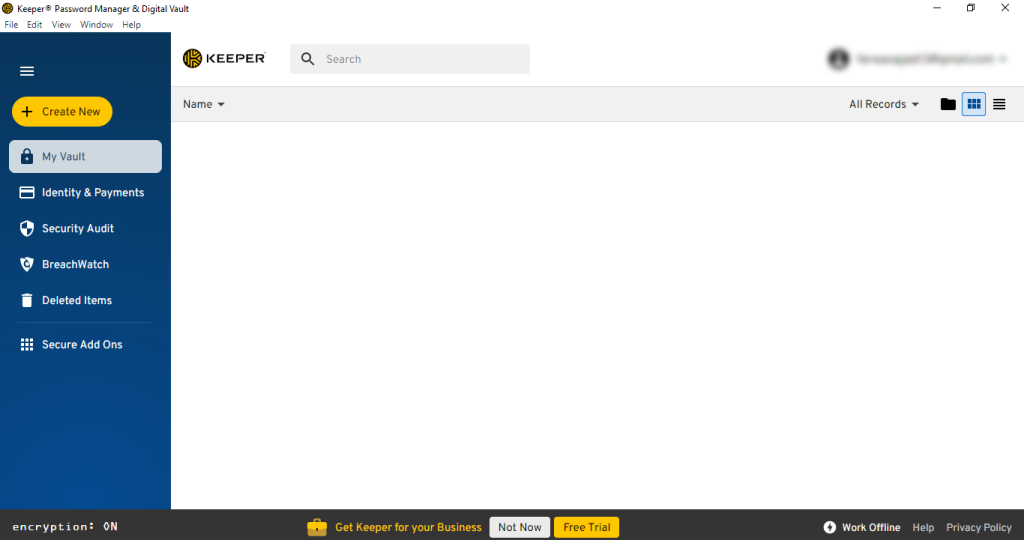
Users generate random passwords and save them securely in the vault with a single click on the Yellow tab. In addition, they can also store payment card info, and records, and create and share folders.
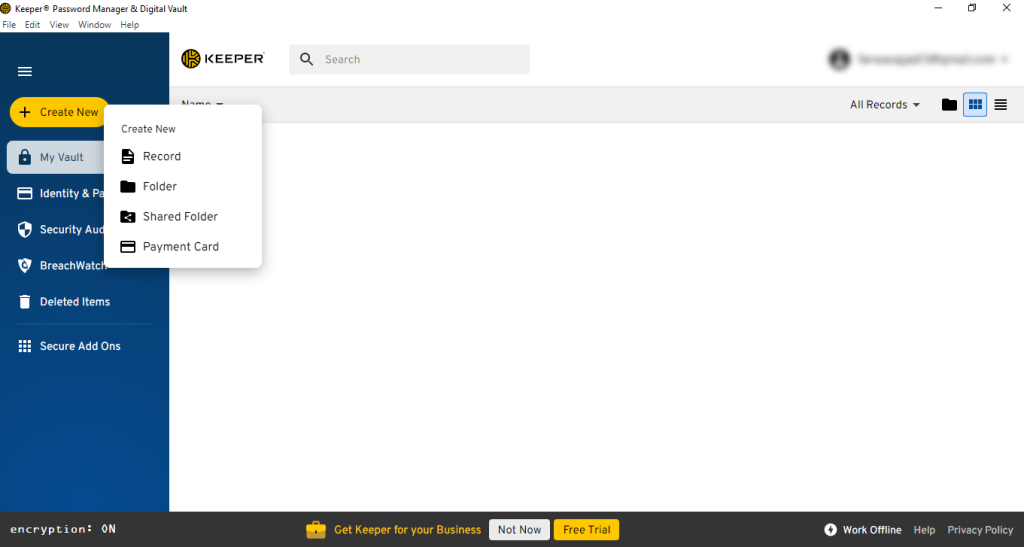
The password manager offers a search bar that increases convenience and makes it easy to search for a file or other important document. All the advanced features, such as My vault, security audit, BreachWatch, and Identity and Payment Info options, are listed on the left. Users can navigate to the secure add-ons to add any extra feature to enhance security and user experience.
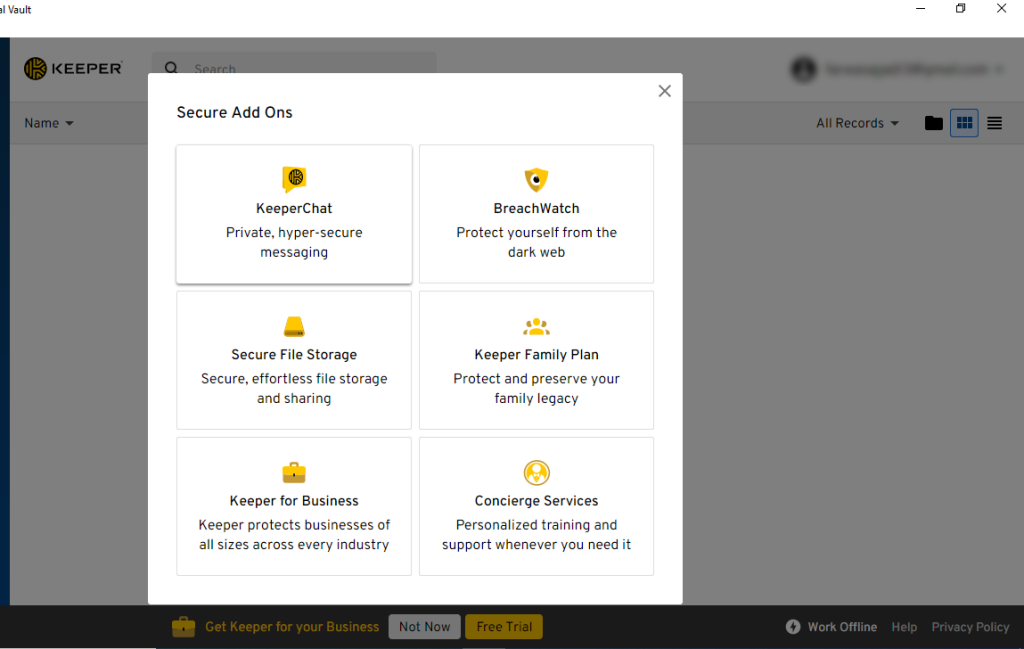
On the top right side, there’s an All Records option where users can find all the custom fields that allow adding unlimited entries. Keeper offers a range of customized items to store in the vault, an amazing yet rare feature of a password manager. It can be a driving license, photos, files, contacts, secure notes, logins, passwords, etc.
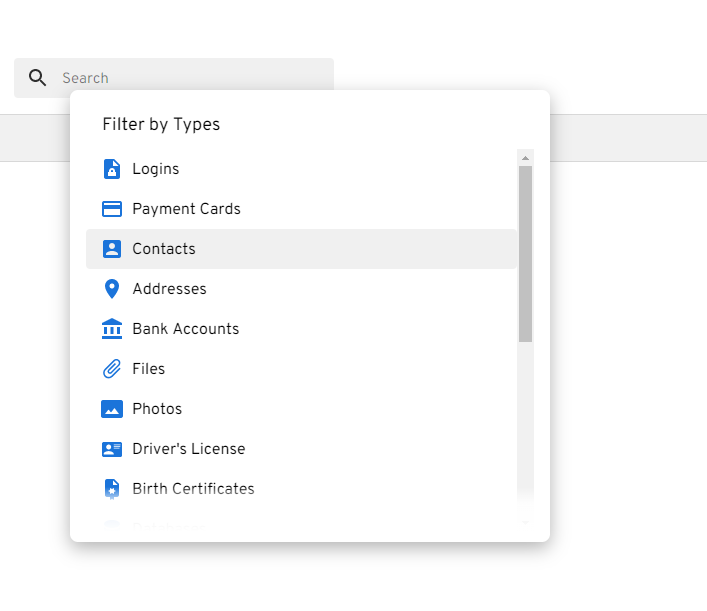
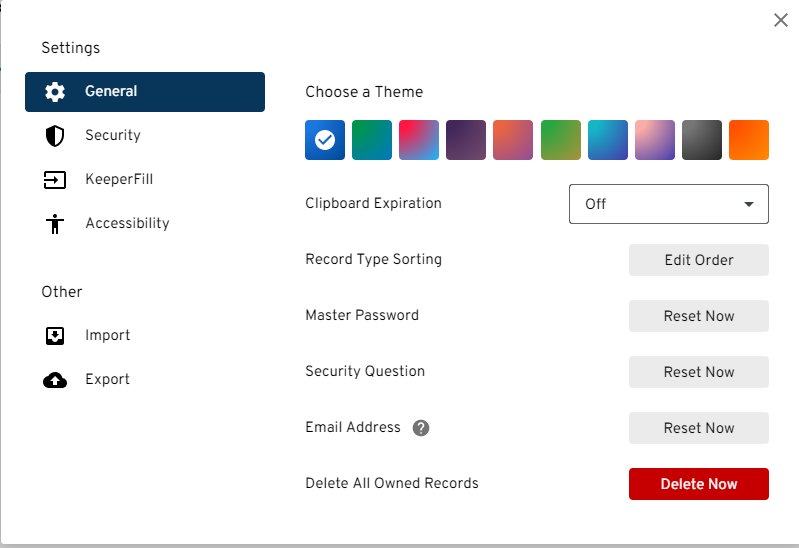
In addition, there are options to reset the master password, reset the security question, and delete previous records.
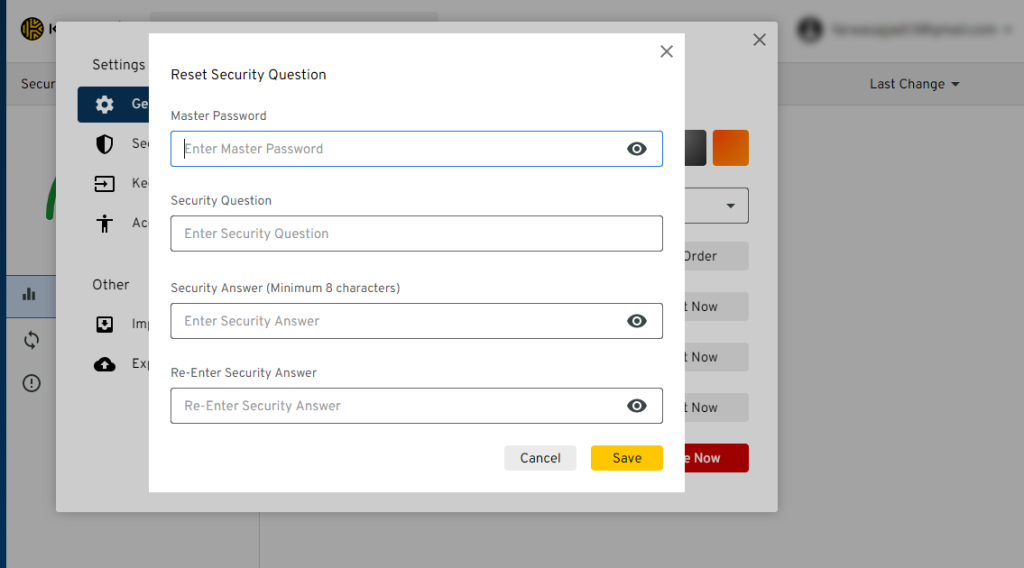
The security tab includes different options to maintain account security. For instance, users can enable the self-destruct and 2FA features. Also, automatic logout is an amazing feature that stops any third person from accessing your vault. Activate the automatic logout feature that makes the user log out of their account after a period of inactivity.
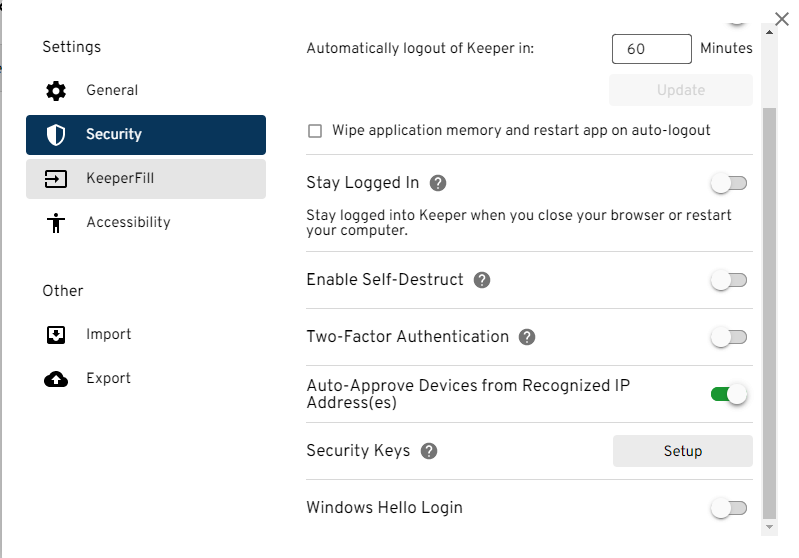
The KeeperFill tab allows users to install browser extensions and adds auto-fills for apps and websites. Apart from this, you can export data in various forms such as PDF. Also, importing data via a browser extensions and other password managers is another handy option that Keeper password manager comes along with.
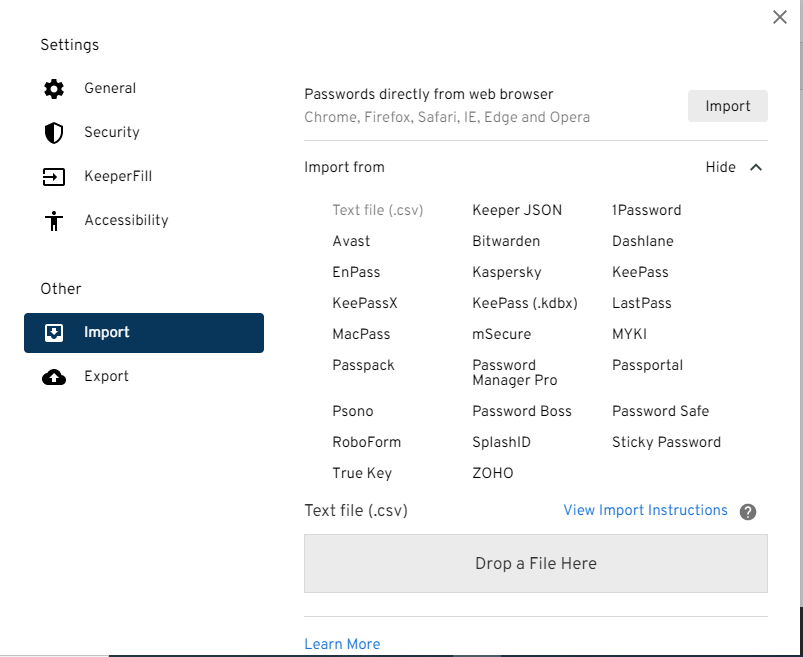
Users can add emergency contacts and know about their subscription status and recent activity by navigating through the account setting options. The recent activity tab is the most interesting as it tells about the IP address, location, and platform used. Thus, it’s easy to know about and take the appropriate actions against any suspicious activity.
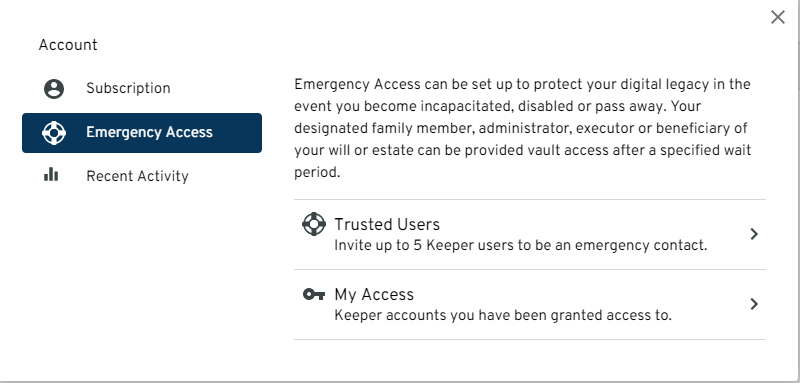
All in all, the Keeper password manager offers excellent ease of use. The interface is simple yet impressive and provides various customizable settings options making it one of the best password managers.
Compatible Apps and Extensions
The Keeper password manager is compatible with a range of devices. It offers dedicated apps for the following platforms:
- Android
- iOS
- Mac
- Linux
- Windows
All the desktop apps are similar and offer a complete package to the users. It classifies all the items into specific categories. It’s just a matter of a single click that users can create and store passwords in their vault.
Windows users have the best app of all. It is incredibly intuitive and user-friendly. Users won’t have difficulty setting up the account or using any feature. But when compared to other password managers apps, Keeper apps have significant room for improvement, particularly in their functionality.
Furthermore, Keeper password manager also offers browser extensions for the following browsers:
- Google Chrome
- Mozilla Firefox
- Microsoft Edge
- Opera
- Internet Explorer
These browser extensions make it easy to manage and store passwords. Users can access their passwords via browser extensions by entering their master password. It seeks permission before saving any unsaved or new credentials and ensures the user’s experience isn’t ruined.
Features Overview
Besides security and privacy, the password manager’s outstanding features make it withstand its competitors. The Keeper password managers provide various advanced features that increase the security level and improve user experience.
Users can access all the advanced features in the free trial except for a few. This gives users a great platform to test them and decide if purchasing Keeper is the right decision. Some add-on features are only for businesses and are of no use to individual users. Here’s a brief overview of Keeper password manager features:
Security Audit
A security audit is an impressive Keeper password manager feature that evaluates passwords when users export them from anywhere. The tool scans all the passwords and informs about the weak and reused passwords. The audit report also highlights the password strength and when last time the user modified it. This feature is, therefore, remarkable in helping users ensure robust password security.
Dark Web Monitoring (BreachWatch)
Hackers, after stealing passwords, often sell them on the dark web while users remain unaware of it. Fortunately, Keeper offers a unique BreachWatch feature that warns users when a password is leaked on the dark web. It performs unlimited scans on the users’ devices and alerts them timely before any damage is done. This feature is available in individual and business plans, but it’s more helpful to organizations. This feature allows companies to prevent credential-stuffing attacks and maintain data integrity easily.
Record Types
Record Types allow users to digitize any of their important documents. This includes passports, passwords, driving licenses, and payment information. In other words, users can save anything in the vault to prevent any hassle in the future.
Secure File Storage
The Keeper password manager usually allocates 1GB of storage to store passwords. But if any user wants to keep some more data like images, files, and documents, they can purchase extra storage of up to 10 GB by paying additional charges of $0.83/m. Similarly, businesses can also benefit from this feature and buy 100GB extra file storage at the starting price of $125 per year.
Robust Compliance and Reporting
The Keeper password manager also allows the administrators to monitor and report the access permission of all privileged accounts across the company. This ensures that the password manager follows the zero-trust security model and is a perfect fit for business organizations to maintain data security.
Keeper Chat
KeeperChat is Keeper’s secure messaging app that users can download on Android, iOS, Mac, and Windows devices. It uses end-to-end encryption to secure the messages and deploys a zero-knowledge policy to prevent unauthorized access to view the users’ messages. Besides this, it provides an initial 50 GB of storage, which can increase to 1 TB, and allows users to save their photos and videos in a private Keeper Gallery. They can also share it with others without leaving any tracebacks. But the biggest drawback of KeeperChat is that only users who have subscribed to the premium version can benefit from it.
Besides this, business users can also benefit from the secret and connection manager feature that manages and secures the environment by removing hard-coded credentials.
Keeper Password Manager Customer Support
The Keeper password manager offers effective customer support to its users. It includes a wide range of options for customer support, such as:
- 24/7 live chat feature
- Users and enterprise guides
- Blogs
- Case studies
- Infographics
- Content Library
- Research reports
- White papers
- Video Tutorial
Starters can take great help from the in-depth knowledgeable base available on the website. It has the most extensive online resources for both personal and enterprise users. The video content category is the most impressive. It provides step-by-step guides regarding installation or how to use any particular feature. Anyone facing issues with Keeper’s service can check the server status on the help page. It informs about service outages on a daily basis.
Besides this, there’s a help center for any user who’s ready to use the Keeper’s service but has some confusion. Such users can register for a free Q/A support webinar and clear all their doubts.
Keeper also offers live support to the users. A 24/7 live chat feature is available, which is Keeper’s plus point, as most other popular password managers lack it. Click on the blue icon at the bottom right and start talking with the support team. It’s good to see real humans assisting people instead of AI bots. They reply instantly, but most of the responses are automated. The chat representative suggests website resources links and doesn’t chat directly, making live chat option less effective.

Moreover, users can submit live tickets regarding billing, general queries, and CCPA. Free and premium users can use any customer support method to fix their issues. But, despite the website claims, there’s no direct email or telephonic support address provided.
Keeper Password Manager Pricing Plans
Like most other password managers, the Keeper password manager is available in free and premium versions. The free version allows one mobile device user to try out all the basic features. The accessible features during the free version include:
- Random password generator
- Unlimited password storage
- Identity and payment info
- Two-factor authentication
- Export passwords
- Live chat support
When users subscribe to the Keeper password manager, it offers a 30-day free trial period. During this time, users can access all advanced features on all devices. If they don’t intend to purchase it, they are eligible to use the free version on a mobile device after the trial period ends.
Keeper offers various paid subscription plans for individuals, families, enterprises, and military and medical professionals. Individuals can use the password manager at the lowest price of $2.92/month. Whereas families can use it for $6.25/m and secure their passwords and access advanced features like dark web monitoring and secure file storage.

Small and mid-size business organizations can use Keeper password manager to protect their data from hackers and competitors for $3.75/month. Large-size enterprises can customize a plan according to their number of employees, and the price will be according to it.

The best thing about a Keeper password manager is that it encourages medical and military professionals to secure their data. The prices may sound a bit expensive, but they are not more than the worth of their sensitive data. The individual pricing plan starts from $24.49 per user and, for families, $52.49 for five users.
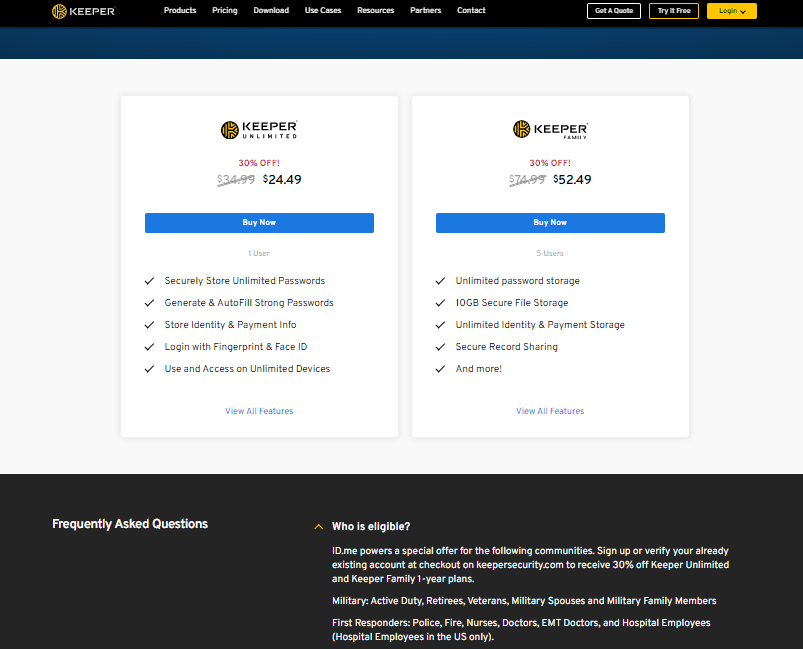
The business plans are backed up with a 14-days trial offer, while all the plans also come with a 30-days trial period. But there is no refund policy which is a significant setback for many users.
Final thoughts
Users who have a budget and are willing to invest in a good password manager must consider Keeper. It is among the best premium password managers that is safe for personal and professional use. It has a simple and easy-to-use interface across all devices and platforms.
The password manager employs top-notch security and policies to maintain their service standards. Also, it offers advanced security features that ensure passwords and other sensitive data remain safe and private. Some features require an extra amount, so not every user can use them.
As a whole, Keeper is a safe, feature-enriched, and user-friendly password manager. Users can take advantage of the free trial option to see if it’s a perfect choice.
FAQs
The post Does Keeper Password Manager Keep Passwords safe and secure? appeared first on BeEncrypted.
]]>Deprecated: Using null as an array offset is deprecated, use an empty string instead in /var/www/staging.beencrypted.com/site/web/wp/wp-includes/class-wp-block-type-registry.php on line 168
Deprecated: Using null as an array offset is deprecated, use an empty string instead in /var/www/staging.beencrypted.com/site/web/wp/wp-includes/class-wp-block-type-registry.php on line 168
Deprecated: Using null as an array offset is deprecated, use an empty string instead in /var/www/staging.beencrypted.com/site/web/wp/wp-includes/class-wp-block-type-registry.php on line 168
Deprecated: Using null as an array offset is deprecated, use an empty string instead in /var/www/staging.beencrypted.com/site/web/wp/wp-includes/class-wp-block-type-registry.php on line 168
Deprecated: Using null as an array offset is deprecated, use an empty string instead in /var/www/staging.beencrypted.com/site/web/wp/wp-includes/class-wp-block-type-registry.php on line 168
Deprecated: Using null as an array offset is deprecated, use an empty string instead in /var/www/staging.beencrypted.com/site/web/wp/wp-includes/class-wp-block-type-registry.php on line 168
Deprecated: Using null as an array offset is deprecated, use an empty string instead in /var/www/staging.beencrypted.com/site/web/wp/wp-includes/class-wp-block-type-registry.php on line 168
Deprecated: Using null as an array offset is deprecated, use an empty string instead in /var/www/staging.beencrypted.com/site/web/wp/wp-includes/class-wp-block-type-registry.php on line 168
Deprecated: Using null as an array offset is deprecated, use an empty string instead in /var/www/staging.beencrypted.com/site/web/wp/wp-includes/class-wp-block-type-registry.php on line 168
Deprecated: Using null as an array offset is deprecated, use an empty string instead in /var/www/staging.beencrypted.com/site/web/wp/wp-includes/class-wp-block-type-registry.php on line 168
Deprecated: Using null as an array offset is deprecated, use an empty string instead in /var/www/staging.beencrypted.com/site/web/wp/wp-includes/class-wp-block-type-registry.php on line 168
Deprecated: Using null as an array offset is deprecated, use an empty string instead in /var/www/staging.beencrypted.com/site/web/wp/wp-includes/class-wp-block-type-registry.php on line 168
Deprecated: Using null as an array offset is deprecated, use an empty string instead in /var/www/staging.beencrypted.com/site/web/wp/wp-includes/class-wp-block-type-registry.php on line 168
Deprecated: Using null as an array offset is deprecated, use an empty string instead in /var/www/staging.beencrypted.com/site/web/wp/wp-includes/class-wp-block-type-registry.php on line 168
Deprecated: Using null as an array offset is deprecated, use an empty string instead in /var/www/staging.beencrypted.com/site/web/wp/wp-includes/class-wp-block-type-registry.php on line 168
Deprecated: Using null as an array offset is deprecated, use an empty string instead in /var/www/staging.beencrypted.com/site/web/wp/wp-includes/class-wp-block-type-registry.php on line 168
Deprecated: Using null as an array offset is deprecated, use an empty string instead in /var/www/staging.beencrypted.com/site/web/wp/wp-includes/class-wp-block-type-registry.php on line 168
Deprecated: Using null as an array offset is deprecated, use an empty string instead in /var/www/staging.beencrypted.com/site/web/wp/wp-includes/class-wp-block-type-registry.php on line 168
Deprecated: Using null as an array offset is deprecated, use an empty string instead in /var/www/staging.beencrypted.com/site/web/wp/wp-includes/class-wp-block-type-registry.php on line 168
Deprecated: Using null as an array offset is deprecated, use an empty string instead in /var/www/staging.beencrypted.com/site/web/wp/wp-includes/class-wp-block-type-registry.php on line 168
Deprecated: Using null as an array offset is deprecated, use an empty string instead in /var/www/staging.beencrypted.com/site/web/wp/wp-includes/class-wp-block-type-registry.php on line 168
Deprecated: Using null as an array offset is deprecated, use an empty string instead in /var/www/staging.beencrypted.com/site/web/wp/wp-includes/class-wp-block-type-registry.php on line 168
Deprecated: Using null as an array offset is deprecated, use an empty string instead in /var/www/staging.beencrypted.com/site/web/wp/wp-includes/class-wp-block-type-registry.php on line 168
Deprecated: Using null as an array offset is deprecated, use an empty string instead in /var/www/staging.beencrypted.com/site/web/wp/wp-includes/class-wp-block-type-registry.php on line 168
Deprecated: Using null as an array offset is deprecated, use an empty string instead in /var/www/staging.beencrypted.com/site/web/wp/wp-includes/class-wp-block-type-registry.php on line 168
Deprecated: Using null as an array offset is deprecated, use an empty string instead in /var/www/staging.beencrypted.com/site/web/wp/wp-includes/class-wp-block-type-registry.php on line 168
Deprecated: Using null as an array offset is deprecated, use an empty string instead in /var/www/staging.beencrypted.com/site/web/wp/wp-includes/class-wp-block-type-registry.php on line 168
Deprecated: Using null as an array offset is deprecated, use an empty string instead in /var/www/staging.beencrypted.com/site/web/wp/wp-includes/class-wp-block-type-registry.php on line 168
Deprecated: Using null as an array offset is deprecated, use an empty string instead in /var/www/staging.beencrypted.com/site/web/wp/wp-includes/class-wp-block-type-registry.php on line 168
Deprecated: Using null as an array offset is deprecated, use an empty string instead in /var/www/staging.beencrypted.com/site/web/wp/wp-includes/class-wp-block-type-registry.php on line 168
Deprecated: Using null as an array offset is deprecated, use an empty string instead in /var/www/staging.beencrypted.com/site/web/wp/wp-includes/class-wp-block-type-registry.php on line 168
Deprecated: Using null as an array offset is deprecated, use an empty string instead in /var/www/staging.beencrypted.com/site/web/wp/wp-includes/class-wp-block-type-registry.php on line 168
Deprecated: Using null as an array offset is deprecated, use an empty string instead in /var/www/staging.beencrypted.com/site/web/wp/wp-includes/class-wp-block-type-registry.php on line 168
Deprecated: Using null as an array offset is deprecated, use an empty string instead in /var/www/staging.beencrypted.com/site/web/wp/wp-includes/class-wp-block-type-registry.php on line 168
Deprecated: Using null as an array offset is deprecated, use an empty string instead in /var/www/staging.beencrypted.com/site/web/wp/wp-includes/class-wp-block-type-registry.php on line 168
Deprecated: Using null as an array offset is deprecated, use an empty string instead in /var/www/staging.beencrypted.com/site/web/wp/wp-includes/class-wp-block-type-registry.php on line 168
Deprecated: Using null as an array offset is deprecated, use an empty string instead in /var/www/staging.beencrypted.com/site/web/wp/wp-includes/class-wp-block-type-registry.php on line 168
Deprecated: Using null as an array offset is deprecated, use an empty string instead in /var/www/staging.beencrypted.com/site/web/wp/wp-includes/class-wp-block-type-registry.php on line 168
Deprecated: Using null as an array offset is deprecated, use an empty string instead in /var/www/staging.beencrypted.com/site/web/wp/wp-includes/class-wp-block-type-registry.php on line 168
Deprecated: Using null as an array offset is deprecated, use an empty string instead in /var/www/staging.beencrypted.com/site/web/wp/wp-includes/class-wp-block-type-registry.php on line 168
Deprecated: Using null as an array offset is deprecated, use an empty string instead in /var/www/staging.beencrypted.com/site/web/wp/wp-includes/class-wp-block-type-registry.php on line 168
Deprecated: Using null as an array offset is deprecated, use an empty string instead in /var/www/staging.beencrypted.com/site/web/wp/wp-includes/class-wp-block-type-registry.php on line 168
Deprecated: Using null as an array offset is deprecated, use an empty string instead in /var/www/staging.beencrypted.com/site/web/wp/wp-includes/class-wp-block-type-registry.php on line 168
Deprecated: Using null as an array offset is deprecated, use an empty string instead in /var/www/staging.beencrypted.com/site/web/wp/wp-includes/class-wp-block-type-registry.php on line 168
Deprecated: Using null as an array offset is deprecated, use an empty string instead in /var/www/staging.beencrypted.com/site/web/wp/wp-includes/class-wp-block-type-registry.php on line 168
Deprecated: Using null as an array offset is deprecated, use an empty string instead in /var/www/staging.beencrypted.com/site/web/wp/wp-includes/class-wp-block-type-registry.php on line 168
Deprecated: Using null as an array offset is deprecated, use an empty string instead in /var/www/staging.beencrypted.com/site/web/wp/wp-includes/class-wp-block-type-registry.php on line 168
Deprecated: Using null as an array offset is deprecated, use an empty string instead in /var/www/staging.beencrypted.com/site/web/wp/wp-includes/class-wp-block-type-registry.php on line 168
Deprecated: Using null as an array offset is deprecated, use an empty string instead in /var/www/staging.beencrypted.com/site/web/wp/wp-includes/class-wp-block-type-registry.php on line 168
Deprecated: Using null as an array offset is deprecated, use an empty string instead in /var/www/staging.beencrypted.com/site/web/wp/wp-includes/class-wp-block-type-registry.php on line 168
Deprecated: Using null as an array offset is deprecated, use an empty string instead in /var/www/staging.beencrypted.com/site/web/wp/wp-includes/class-wp-block-type-registry.php on line 168
Deprecated: Using null as an array offset is deprecated, use an empty string instead in /var/www/staging.beencrypted.com/site/web/wp/wp-includes/class-wp-block-type-registry.php on line 168
Deprecated: Using null as an array offset is deprecated, use an empty string instead in /var/www/staging.beencrypted.com/site/web/wp/wp-includes/class-wp-block-type-registry.php on line 168
Deprecated: Using null as an array offset is deprecated, use an empty string instead in /var/www/staging.beencrypted.com/site/web/wp/wp-includes/class-wp-block-type-registry.php on line 168
Deprecated: Using null as an array offset is deprecated, use an empty string instead in /var/www/staging.beencrypted.com/site/web/wp/wp-includes/class-wp-block-type-registry.php on line 168
Deprecated: Using null as an array offset is deprecated, use an empty string instead in /var/www/staging.beencrypted.com/site/web/wp/wp-includes/class-wp-block-type-registry.php on line 168
Deprecated: Using null as an array offset is deprecated, use an empty string instead in /var/www/staging.beencrypted.com/site/web/wp/wp-includes/class-wp-block-type-registry.php on line 168
Deprecated: Using null as an array offset is deprecated, use an empty string instead in /var/www/staging.beencrypted.com/site/web/wp/wp-includes/class-wp-block-type-registry.php on line 168
Deprecated: Using null as an array offset is deprecated, use an empty string instead in /var/www/staging.beencrypted.com/site/web/wp/wp-includes/class-wp-block-type-registry.php on line 168
Deprecated: Using null as an array offset is deprecated, use an empty string instead in /var/www/staging.beencrypted.com/site/web/wp/wp-includes/class-wp-block-type-registry.php on line 168
Deprecated: Using null as an array offset is deprecated, use an empty string instead in /var/www/staging.beencrypted.com/site/web/wp/wp-includes/class-wp-block-type-registry.php on line 168
Deprecated: Using null as an array offset is deprecated, use an empty string instead in /var/www/staging.beencrypted.com/site/web/wp/wp-includes/class-wp-block-type-registry.php on line 168
Deprecated: Using null as an array offset is deprecated, use an empty string instead in /var/www/staging.beencrypted.com/site/web/wp/wp-includes/class-wp-block-type-registry.php on line 168
Deprecated: Using null as an array offset is deprecated, use an empty string instead in /var/www/staging.beencrypted.com/site/web/wp/wp-includes/class-wp-block-type-registry.php on line 168
Deprecated: Using null as an array offset is deprecated, use an empty string instead in /var/www/staging.beencrypted.com/site/web/wp/wp-includes/class-wp-block-type-registry.php on line 168
Deprecated: Using null as an array offset is deprecated, use an empty string instead in /var/www/staging.beencrypted.com/site/web/wp/wp-includes/class-wp-block-type-registry.php on line 168
Deprecated: Using null as an array offset is deprecated, use an empty string instead in /var/www/staging.beencrypted.com/site/web/wp/wp-includes/class-wp-block-type-registry.php on line 168
Deprecated: Using null as an array offset is deprecated, use an empty string instead in /var/www/staging.beencrypted.com/site/web/wp/wp-includes/class-wp-block-type-registry.php on line 168
Deprecated: Using null as an array offset is deprecated, use an empty string instead in /var/www/staging.beencrypted.com/site/web/wp/wp-includes/class-wp-block-type-registry.php on line 168
Deprecated: Using null as an array offset is deprecated, use an empty string instead in /var/www/staging.beencrypted.com/site/web/wp/wp-includes/class-wp-block-type-registry.php on line 168
Deprecated: Using null as an array offset is deprecated, use an empty string instead in /var/www/staging.beencrypted.com/site/web/wp/wp-includes/class-wp-block-type-registry.php on line 168
Deprecated: Using null as an array offset is deprecated, use an empty string instead in /var/www/staging.beencrypted.com/site/web/wp/wp-includes/class-wp-block-type-registry.php on line 168
Deprecated: Using null as an array offset is deprecated, use an empty string instead in /var/www/staging.beencrypted.com/site/web/wp/wp-includes/class-wp-block-type-registry.php on line 168
Deprecated: Using null as an array offset is deprecated, use an empty string instead in /var/www/staging.beencrypted.com/site/web/wp/wp-includes/class-wp-block-type-registry.php on line 168
Deprecated: Using null as an array offset is deprecated, use an empty string instead in /var/www/staging.beencrypted.com/site/web/wp/wp-includes/class-wp-block-type-registry.php on line 168
Deprecated: Using null as an array offset is deprecated, use an empty string instead in /var/www/staging.beencrypted.com/site/web/wp/wp-includes/class-wp-block-type-registry.php on line 168
Deprecated: Using null as an array offset is deprecated, use an empty string instead in /var/www/staging.beencrypted.com/site/web/wp/wp-includes/class-wp-block-type-registry.php on line 168
Deprecated: Using null as an array offset is deprecated, use an empty string instead in /var/www/staging.beencrypted.com/site/web/wp/wp-includes/class-wp-block-type-registry.php on line 168
Deprecated: Using null as an array offset is deprecated, use an empty string instead in /var/www/staging.beencrypted.com/site/web/wp/wp-includes/class-wp-block-type-registry.php on line 168
Deprecated: Using null as an array offset is deprecated, use an empty string instead in /var/www/staging.beencrypted.com/site/web/wp/wp-includes/class-wp-block-type-registry.php on line 168
Deprecated: Using null as an array offset is deprecated, use an empty string instead in /var/www/staging.beencrypted.com/site/web/wp/wp-includes/class-wp-block-type-registry.php on line 168
Deprecated: Using null as an array offset is deprecated, use an empty string instead in /var/www/staging.beencrypted.com/site/web/wp/wp-includes/class-wp-block-type-registry.php on line 168
Deprecated: Using null as an array offset is deprecated, use an empty string instead in /var/www/staging.beencrypted.com/site/web/wp/wp-includes/class-wp-block-type-registry.php on line 168
Deprecated: Using null as an array offset is deprecated, use an empty string instead in /var/www/staging.beencrypted.com/site/web/wp/wp-includes/class-wp-block-type-registry.php on line 168
Deprecated: Using null as an array offset is deprecated, use an empty string instead in /var/www/staging.beencrypted.com/site/web/wp/wp-includes/class-wp-block-type-registry.php on line 168
Deprecated: Using null as an array offset is deprecated, use an empty string instead in /var/www/staging.beencrypted.com/site/web/wp/wp-includes/class-wp-block-type-registry.php on line 168
Deprecated: Using null as an array offset is deprecated, use an empty string instead in /var/www/staging.beencrypted.com/site/web/wp/wp-includes/class-wp-block-type-registry.php on line 168
Deprecated: Using null as an array offset is deprecated, use an empty string instead in /var/www/staging.beencrypted.com/site/web/wp/wp-includes/class-wp-block-type-registry.php on line 168
Deprecated: Using null as an array offset is deprecated, use an empty string instead in /var/www/staging.beencrypted.com/site/web/wp/wp-includes/class-wp-block-type-registry.php on line 168
Deprecated: Using null as an array offset is deprecated, use an empty string instead in /var/www/staging.beencrypted.com/site/web/wp/wp-includes/class-wp-block-type-registry.php on line 168
Deprecated: Using null as an array offset is deprecated, use an empty string instead in /var/www/staging.beencrypted.com/site/web/wp/wp-includes/class-wp-block-type-registry.php on line 168
Deprecated: Using null as an array offset is deprecated, use an empty string instead in /var/www/staging.beencrypted.com/site/web/wp/wp-includes/class-wp-block-type-registry.php on line 168
Deprecated: Using null as an array offset is deprecated, use an empty string instead in /var/www/staging.beencrypted.com/site/web/wp/wp-includes/class-wp-block-type-registry.php on line 168
Deprecated: Using null as an array offset is deprecated, use an empty string instead in /var/www/staging.beencrypted.com/site/web/wp/wp-includes/class-wp-block-type-registry.php on line 168
Deprecated: Using null as an array offset is deprecated, use an empty string instead in /var/www/staging.beencrypted.com/site/web/wp/wp-includes/class-wp-block-type-registry.php on line 168
Deprecated: Using null as an array offset is deprecated, use an empty string instead in /var/www/staging.beencrypted.com/site/web/wp/wp-includes/class-wp-block-type-registry.php on line 168
Deprecated: Using null as an array offset is deprecated, use an empty string instead in /var/www/staging.beencrypted.com/site/web/wp/wp-includes/class-wp-block-type-registry.php on line 168
Deprecated: Using null as an array offset is deprecated, use an empty string instead in /var/www/staging.beencrypted.com/site/web/wp/wp-includes/class-wp-block-type-registry.php on line 168
Deprecated: Using null as an array offset is deprecated, use an empty string instead in /var/www/staging.beencrypted.com/site/web/wp/wp-includes/class-wp-block-type-registry.php on line 168
Deprecated: Using null as an array offset is deprecated, use an empty string instead in /var/www/staging.beencrypted.com/site/web/wp/wp-includes/class-wp-block-type-registry.php on line 168
Deprecated: Using null as an array offset is deprecated, use an empty string instead in /var/www/staging.beencrypted.com/site/web/wp/wp-includes/class-wp-block-type-registry.php on line 168
Deprecated: Using null as an array offset is deprecated, use an empty string instead in /var/www/staging.beencrypted.com/site/web/wp/wp-includes/class-wp-block-type-registry.php on line 168
Deprecated: Using null as an array offset is deprecated, use an empty string instead in /var/www/staging.beencrypted.com/site/web/wp/wp-includes/class-wp-block-type-registry.php on line 168
Deprecated: Using null as an array offset is deprecated, use an empty string instead in /var/www/staging.beencrypted.com/site/web/wp/wp-includes/class-wp-block-type-registry.php on line 168
Deprecated: Using null as an array offset is deprecated, use an empty string instead in /var/www/staging.beencrypted.com/site/web/wp/wp-includes/class-wp-block-type-registry.php on line 168
Deprecated: Using null as an array offset is deprecated, use an empty string instead in /var/www/staging.beencrypted.com/site/web/wp/wp-includes/class-wp-block-type-registry.php on line 168
Deprecated: Using null as an array offset is deprecated, use an empty string instead in /var/www/staging.beencrypted.com/site/web/wp/wp-includes/class-wp-block-type-registry.php on line 168
Deprecated: Using null as an array offset is deprecated, use an empty string instead in /var/www/staging.beencrypted.com/site/web/wp/wp-includes/class-wp-block-type-registry.php on line 168
Deprecated: Using null as an array offset is deprecated, use an empty string instead in /var/www/staging.beencrypted.com/site/web/wp/wp-includes/class-wp-block-type-registry.php on line 168
Deprecated: Using null as an array offset is deprecated, use an empty string instead in /var/www/staging.beencrypted.com/site/web/wp/wp-includes/class-wp-block-type-registry.php on line 168
Deprecated: Using null as an array offset is deprecated, use an empty string instead in /var/www/staging.beencrypted.com/site/web/wp/wp-includes/class-wp-block-type-registry.php on line 168
Deprecated: Using null as an array offset is deprecated, use an empty string instead in /var/www/staging.beencrypted.com/site/web/wp/wp-includes/class-wp-block-type-registry.php on line 168
Deprecated: Using null as an array offset is deprecated, use an empty string instead in /var/www/staging.beencrypted.com/site/web/wp/wp-includes/class-wp-block-type-registry.php on line 168
Deprecated: Using null as an array offset is deprecated, use an empty string instead in /var/www/staging.beencrypted.com/site/web/wp/wp-includes/class-wp-block-type-registry.php on line 168
Deprecated: Using null as an array offset is deprecated, use an empty string instead in /var/www/staging.beencrypted.com/site/web/wp/wp-includes/class-wp-block-type-registry.php on line 168
Deprecated: Using null as an array offset is deprecated, use an empty string instead in /var/www/staging.beencrypted.com/site/web/wp/wp-includes/class-wp-block-type-registry.php on line 168
Deprecated: Using null as an array offset is deprecated, use an empty string instead in /var/www/staging.beencrypted.com/site/web/wp/wp-includes/class-wp-block-type-registry.php on line 168
Deprecated: Using null as an array offset is deprecated, use an empty string instead in /var/www/staging.beencrypted.com/site/web/wp/wp-includes/class-wp-block-type-registry.php on line 168
Deprecated: Using null as an array offset is deprecated, use an empty string instead in /var/www/staging.beencrypted.com/site/web/wp/wp-includes/class-wp-block-type-registry.php on line 168
Deprecated: Using null as an array offset is deprecated, use an empty string instead in /var/www/staging.beencrypted.com/site/web/wp/wp-includes/class-wp-block-type-registry.php on line 168
Deprecated: Using null as an array offset is deprecated, use an empty string instead in /var/www/staging.beencrypted.com/site/web/wp/wp-includes/class-wp-block-type-registry.php on line 168
Deprecated: Using null as an array offset is deprecated, use an empty string instead in /var/www/staging.beencrypted.com/site/web/wp/wp-includes/class-wp-block-type-registry.php on line 168
Deprecated: Using null as an array offset is deprecated, use an empty string instead in /var/www/staging.beencrypted.com/site/web/wp/wp-includes/class-wp-block-type-registry.php on line 168
Deprecated: Using null as an array offset is deprecated, use an empty string instead in /var/www/staging.beencrypted.com/site/web/wp/wp-includes/class-wp-block-type-registry.php on line 168
Deprecated: Using null as an array offset is deprecated, use an empty string instead in /var/www/staging.beencrypted.com/site/web/wp/wp-includes/class-wp-block-type-registry.php on line 168
Deprecated: Using null as an array offset is deprecated, use an empty string instead in /var/www/staging.beencrypted.com/site/web/wp/wp-includes/class-wp-block-type-registry.php on line 168
Deprecated: Using null as an array offset is deprecated, use an empty string instead in /var/www/staging.beencrypted.com/site/web/wp/wp-includes/class-wp-block-type-registry.php on line 168
Deprecated: Using null as an array offset is deprecated, use an empty string instead in /var/www/staging.beencrypted.com/site/web/wp/wp-includes/class-wp-block-type-registry.php on line 168
Deprecated: Using null as an array offset is deprecated, use an empty string instead in /var/www/staging.beencrypted.com/site/web/wp/wp-includes/class-wp-block-type-registry.php on line 168
Deprecated: Using null as an array offset is deprecated, use an empty string instead in /var/www/staging.beencrypted.com/site/web/wp/wp-includes/class-wp-block-type-registry.php on line 168
Deprecated: Using null as an array offset is deprecated, use an empty string instead in /var/www/staging.beencrypted.com/site/web/wp/wp-includes/class-wp-block-type-registry.php on line 168
Deprecated: Using null as an array offset is deprecated, use an empty string instead in /var/www/staging.beencrypted.com/site/web/wp/wp-includes/class-wp-block-type-registry.php on line 168
Deprecated: Using null as an array offset is deprecated, use an empty string instead in /var/www/staging.beencrypted.com/site/web/wp/wp-includes/class-wp-block-type-registry.php on line 168
Deprecated: Using null as an array offset is deprecated, use an empty string instead in /var/www/staging.beencrypted.com/site/web/wp/wp-includes/class-wp-block-type-registry.php on line 168
Deprecated: Using null as an array offset is deprecated, use an empty string instead in /var/www/staging.beencrypted.com/site/web/wp/wp-includes/class-wp-block-type-registry.php on line 168
Deprecated: Using null as an array offset is deprecated, use an empty string instead in /var/www/staging.beencrypted.com/site/web/wp/wp-includes/class-wp-block-type-registry.php on line 168
Deprecated: Using null as an array offset is deprecated, use an empty string instead in /var/www/staging.beencrypted.com/site/web/wp/wp-includes/class-wp-block-type-registry.php on line 168
Deprecated: Using null as an array offset is deprecated, use an empty string instead in /var/www/staging.beencrypted.com/site/web/wp/wp-includes/class-wp-block-type-registry.php on line 168
Deprecated: Using null as an array offset is deprecated, use an empty string instead in /var/www/staging.beencrypted.com/site/web/wp/wp-includes/class-wp-block-type-registry.php on line 168
Deprecated: Using null as an array offset is deprecated, use an empty string instead in /var/www/staging.beencrypted.com/site/web/wp/wp-includes/class-wp-block-type-registry.php on line 168
Deprecated: Using null as an array offset is deprecated, use an empty string instead in /var/www/staging.beencrypted.com/site/web/wp/wp-includes/class-wp-block-type-registry.php on line 168
Deprecated: Using null as an array offset is deprecated, use an empty string instead in /var/www/staging.beencrypted.com/site/web/wp/wp-includes/class-wp-block-type-registry.php on line 168
Deprecated: Using null as an array offset is deprecated, use an empty string instead in /var/www/staging.beencrypted.com/site/web/wp/wp-includes/class-wp-block-type-registry.php on line 168
Deprecated: Using null as an array offset is deprecated, use an empty string instead in /var/www/staging.beencrypted.com/site/web/wp/wp-includes/class-wp-block-type-registry.php on line 168
Deprecated: Using null as an array offset is deprecated, use an empty string instead in /var/www/staging.beencrypted.com/site/web/wp/wp-includes/class-wp-block-type-registry.php on line 168
Deprecated: Using null as an array offset is deprecated, use an empty string instead in /var/www/staging.beencrypted.com/site/web/wp/wp-includes/class-wp-block-type-registry.php on line 168
Deprecated: Using null as an array offset is deprecated, use an empty string instead in /var/www/staging.beencrypted.com/site/web/wp/wp-includes/class-wp-block-type-registry.php on line 168
Deprecated: Using null as an array offset is deprecated, use an empty string instead in /var/www/staging.beencrypted.com/site/web/wp/wp-includes/class-wp-block-type-registry.php on line 168
Deprecated: Using null as an array offset is deprecated, use an empty string instead in /var/www/staging.beencrypted.com/site/web/wp/wp-includes/class-wp-block-type-registry.php on line 168
Deprecated: Using null as an array offset is deprecated, use an empty string instead in /var/www/staging.beencrypted.com/site/web/wp/wp-includes/class-wp-block-type-registry.php on line 168
Deprecated: Using null as an array offset is deprecated, use an empty string instead in /var/www/staging.beencrypted.com/site/web/wp/wp-includes/class-wp-block-type-registry.php on line 168
Deprecated: Using null as an array offset is deprecated, use an empty string instead in /var/www/staging.beencrypted.com/site/web/wp/wp-includes/class-wp-block-type-registry.php on line 168
Deprecated: Using null as an array offset is deprecated, use an empty string instead in /var/www/staging.beencrypted.com/site/web/wp/wp-includes/class-wp-block-type-registry.php on line 168
Deprecated: Using null as an array offset is deprecated, use an empty string instead in /var/www/staging.beencrypted.com/site/web/wp/wp-includes/class-wp-block-type-registry.php on line 168
Deprecated: Using null as an array offset is deprecated, use an empty string instead in /var/www/staging.beencrypted.com/site/web/wp/wp-includes/class-wp-block-type-registry.php on line 168
Deprecated: Using null as an array offset is deprecated, use an empty string instead in /var/www/staging.beencrypted.com/site/web/wp/wp-includes/class-wp-block-type-registry.php on line 168
Deprecated: Using null as an array offset is deprecated, use an empty string instead in /var/www/staging.beencrypted.com/site/web/wp/wp-includes/class-wp-block-type-registry.php on line 168
Deprecated: Using null as an array offset is deprecated, use an empty string instead in /var/www/staging.beencrypted.com/site/web/wp/wp-includes/class-wp-block-type-registry.php on line 168
Deprecated: Using null as an array offset is deprecated, use an empty string instead in /var/www/staging.beencrypted.com/site/web/wp/wp-includes/class-wp-block-type-registry.php on line 168
Deprecated: Using null as an array offset is deprecated, use an empty string instead in /var/www/staging.beencrypted.com/site/web/wp/wp-includes/class-wp-block-type-registry.php on line 168
Deprecated: Using null as an array offset is deprecated, use an empty string instead in /var/www/staging.beencrypted.com/site/web/wp/wp-includes/class-wp-block-type-registry.php on line 168
Deprecated: Using null as an array offset is deprecated, use an empty string instead in /var/www/staging.beencrypted.com/site/web/wp/wp-includes/class-wp-block-type-registry.php on line 168
Deprecated: Using null as an array offset is deprecated, use an empty string instead in /var/www/staging.beencrypted.com/site/web/wp/wp-includes/class-wp-block-type-registry.php on line 168
Deprecated: Using null as an array offset is deprecated, use an empty string instead in /var/www/staging.beencrypted.com/site/web/wp/wp-includes/class-wp-block-type-registry.php on line 168
Deprecated: Using null as an array offset is deprecated, use an empty string instead in /var/www/staging.beencrypted.com/site/web/wp/wp-includes/class-wp-block-type-registry.php on line 168
Deprecated: Using null as an array offset is deprecated, use an empty string instead in /var/www/staging.beencrypted.com/site/web/wp/wp-includes/class-wp-block-type-registry.php on line 168
Deprecated: Using null as an array offset is deprecated, use an empty string instead in /var/www/staging.beencrypted.com/site/web/wp/wp-includes/class-wp-block-type-registry.php on line 168
Deprecated: Using null as an array offset is deprecated, use an empty string instead in /var/www/staging.beencrypted.com/site/web/wp/wp-includes/class-wp-block-type-registry.php on line 168
Deprecated: Using null as an array offset is deprecated, use an empty string instead in /var/www/staging.beencrypted.com/site/web/wp/wp-includes/class-wp-block-type-registry.php on line 168
Deprecated: Using null as an array offset is deprecated, use an empty string instead in /var/www/staging.beencrypted.com/site/web/wp/wp-includes/class-wp-block-type-registry.php on line 168
Deprecated: Using null as an array offset is deprecated, use an empty string instead in /var/www/staging.beencrypted.com/site/web/wp/wp-includes/class-wp-block-type-registry.php on line 168
Deprecated: Using null as an array offset is deprecated, use an empty string instead in /var/www/staging.beencrypted.com/site/web/wp/wp-includes/class-wp-block-type-registry.php on line 168
Deprecated: Using null as an array offset is deprecated, use an empty string instead in /var/www/staging.beencrypted.com/site/web/wp/wp-includes/class-wp-block-type-registry.php on line 168
Deprecated: Using null as an array offset is deprecated, use an empty string instead in /var/www/staging.beencrypted.com/site/web/wp/wp-includes/class-wp-block-type-registry.php on line 168
Deprecated: Using null as an array offset is deprecated, use an empty string instead in /var/www/staging.beencrypted.com/site/web/wp/wp-includes/class-wp-block-type-registry.php on line 168
Deprecated: Using null as an array offset is deprecated, use an empty string instead in /var/www/staging.beencrypted.com/site/web/wp/wp-includes/class-wp-block-type-registry.php on line 168
Deprecated: Using null as an array offset is deprecated, use an empty string instead in /var/www/staging.beencrypted.com/site/web/wp/wp-includes/class-wp-block-type-registry.php on line 168
Deprecated: Using null as an array offset is deprecated, use an empty string instead in /var/www/staging.beencrypted.com/site/web/wp/wp-includes/class-wp-block-type-registry.php on line 168
Deprecated: Using null as an array offset is deprecated, use an empty string instead in /var/www/staging.beencrypted.com/site/web/wp/wp-includes/class-wp-block-type-registry.php on line 168
Deprecated: Using null as an array offset is deprecated, use an empty string instead in /var/www/staging.beencrypted.com/site/web/wp/wp-includes/class-wp-block-type-registry.php on line 168
Deprecated: Using null as an array offset is deprecated, use an empty string instead in /var/www/staging.beencrypted.com/site/web/wp/wp-includes/class-wp-block-type-registry.php on line 168
Deprecated: Using null as an array offset is deprecated, use an empty string instead in /var/www/staging.beencrypted.com/site/web/wp/wp-includes/class-wp-block-type-registry.php on line 168
Deprecated: Using null as an array offset is deprecated, use an empty string instead in /var/www/staging.beencrypted.com/site/web/wp/wp-includes/class-wp-block-type-registry.php on line 168
Deprecated: Using null as an array offset is deprecated, use an empty string instead in /var/www/staging.beencrypted.com/site/web/wp/wp-includes/class-wp-block-type-registry.php on line 168
Deprecated: Using null as an array offset is deprecated, use an empty string instead in /var/www/staging.beencrypted.com/site/web/wp/wp-includes/class-wp-block-type-registry.php on line 168
Deprecated: Using null as an array offset is deprecated, use an empty string instead in /var/www/staging.beencrypted.com/site/web/wp/wp-includes/class-wp-block-type-registry.php on line 168
Deprecated: Using null as an array offset is deprecated, use an empty string instead in /var/www/staging.beencrypted.com/site/web/wp/wp-includes/class-wp-block-type-registry.php on line 168
Deprecated: Using null as an array offset is deprecated, use an empty string instead in /var/www/staging.beencrypted.com/site/web/wp/wp-includes/class-wp-block-type-registry.php on line 168
Deprecated: Using null as an array offset is deprecated, use an empty string instead in /var/www/staging.beencrypted.com/site/web/wp/wp-includes/class-wp-block-type-registry.php on line 168
Deprecated: Using null as an array offset is deprecated, use an empty string instead in /var/www/staging.beencrypted.com/site/web/wp/wp-includes/class-wp-block-type-registry.php on line 168
Deprecated: Using null as an array offset is deprecated, use an empty string instead in /var/www/staging.beencrypted.com/site/web/wp/wp-includes/class-wp-block-type-registry.php on line 168
Deprecated: Using null as an array offset is deprecated, use an empty string instead in /var/www/staging.beencrypted.com/site/web/wp/wp-includes/class-wp-block-type-registry.php on line 168
Deprecated: Using null as an array offset is deprecated, use an empty string instead in /var/www/staging.beencrypted.com/site/web/wp/wp-includes/class-wp-block-type-registry.php on line 168
Deprecated: Using null as an array offset is deprecated, use an empty string instead in /var/www/staging.beencrypted.com/site/web/wp/wp-includes/class-wp-block-type-registry.php on line 168
Deprecated: Using null as an array offset is deprecated, use an empty string instead in /var/www/staging.beencrypted.com/site/web/wp/wp-includes/class-wp-block-type-registry.php on line 168
Deprecated: Using null as an array offset is deprecated, use an empty string instead in /var/www/staging.beencrypted.com/site/web/wp/wp-includes/class-wp-block-type-registry.php on line 168
Deprecated: Using null as an array offset is deprecated, use an empty string instead in /var/www/staging.beencrypted.com/site/web/wp/wp-includes/class-wp-block-type-registry.php on line 168
Deprecated: Using null as an array offset is deprecated, use an empty string instead in /var/www/staging.beencrypted.com/site/web/wp/wp-includes/class-wp-block-type-registry.php on line 168
Deprecated: Using null as an array offset is deprecated, use an empty string instead in /var/www/staging.beencrypted.com/site/web/wp/wp-includes/class-wp-block-type-registry.php on line 168
Deprecated: Using null as an array offset is deprecated, use an empty string instead in /var/www/staging.beencrypted.com/site/web/wp/wp-includes/class-wp-block-type-registry.php on line 168
Deprecated: Using null as an array offset is deprecated, use an empty string instead in /var/www/staging.beencrypted.com/site/web/wp/wp-includes/class-wp-block-type-registry.php on line 168
Deprecated: Using null as an array offset is deprecated, use an empty string instead in /var/www/staging.beencrypted.com/site/web/wp/wp-includes/class-wp-block-type-registry.php on line 168
Deprecated: Using null as an array offset is deprecated, use an empty string instead in /var/www/staging.beencrypted.com/site/web/wp/wp-includes/class-wp-block-type-registry.php on line 168
Deprecated: Using null as an array offset is deprecated, use an empty string instead in /var/www/staging.beencrypted.com/site/web/wp/wp-includes/class-wp-block-type-registry.php on line 168
Deprecated: Using null as an array offset is deprecated, use an empty string instead in /var/www/staging.beencrypted.com/site/web/wp/wp-includes/class-wp-block-type-registry.php on line 168
Deprecated: Using null as an array offset is deprecated, use an empty string instead in /var/www/staging.beencrypted.com/site/web/wp/wp-includes/class-wp-block-type-registry.php on line 168
Deprecated: Using null as an array offset is deprecated, use an empty string instead in /var/www/staging.beencrypted.com/site/web/wp/wp-includes/class-wp-block-type-registry.php on line 168
Deprecated: Using null as an array offset is deprecated, use an empty string instead in /var/www/staging.beencrypted.com/site/web/wp/wp-includes/class-wp-block-type-registry.php on line 168
Deprecated: Using null as an array offset is deprecated, use an empty string instead in /var/www/staging.beencrypted.com/site/web/wp/wp-includes/class-wp-block-type-registry.php on line 168
Deprecated: Using null as an array offset is deprecated, use an empty string instead in /var/www/staging.beencrypted.com/site/web/wp/wp-includes/class-wp-block-type-registry.php on line 168
Deprecated: Using null as an array offset is deprecated, use an empty string instead in /var/www/staging.beencrypted.com/site/web/wp/wp-includes/class-wp-block-type-registry.php on line 168
Deprecated: Using null as an array offset is deprecated, use an empty string instead in /var/www/staging.beencrypted.com/site/web/wp/wp-includes/class-wp-block-type-registry.php on line 168
Deprecated: Using null as an array offset is deprecated, use an empty string instead in /var/www/staging.beencrypted.com/site/web/wp/wp-includes/class-wp-block-type-registry.php on line 168
Deprecated: Using null as an array offset is deprecated, use an empty string instead in /var/www/staging.beencrypted.com/site/web/wp/wp-includes/class-wp-block-type-registry.php on line 168
Deprecated: Using null as an array offset is deprecated, use an empty string instead in /var/www/staging.beencrypted.com/site/web/wp/wp-includes/class-wp-block-type-registry.php on line 168
Deprecated: Using null as an array offset is deprecated, use an empty string instead in /var/www/staging.beencrypted.com/site/web/wp/wp-includes/class-wp-block-type-registry.php on line 168
Deprecated: Using null as an array offset is deprecated, use an empty string instead in /var/www/staging.beencrypted.com/site/web/wp/wp-includes/class-wp-block-type-registry.php on line 168
Deprecated: Using null as an array offset is deprecated, use an empty string instead in /var/www/staging.beencrypted.com/site/web/wp/wp-includes/class-wp-block-type-registry.php on line 168
Deprecated: Using null as an array offset is deprecated, use an empty string instead in /var/www/staging.beencrypted.com/site/web/wp/wp-includes/class-wp-block-type-registry.php on line 168
Deprecated: Using null as an array offset is deprecated, use an empty string instead in /var/www/staging.beencrypted.com/site/web/wp/wp-includes/class-wp-block-type-registry.php on line 168
Deprecated: Using null as an array offset is deprecated, use an empty string instead in /var/www/staging.beencrypted.com/site/web/wp/wp-includes/class-wp-block-type-registry.php on line 168
Deprecated: Using null as an array offset is deprecated, use an empty string instead in /var/www/staging.beencrypted.com/site/web/wp/wp-includes/class-wp-block-type-registry.php on line 168
Deprecated: Using null as an array offset is deprecated, use an empty string instead in /var/www/staging.beencrypted.com/site/web/wp/wp-includes/class-wp-block-type-registry.php on line 168
Deprecated: Using null as an array offset is deprecated, use an empty string instead in /var/www/staging.beencrypted.com/site/web/wp/wp-includes/class-wp-block-type-registry.php on line 168
Deprecated: Using null as an array offset is deprecated, use an empty string instead in /var/www/staging.beencrypted.com/site/web/wp/wp-includes/class-wp-block-type-registry.php on line 168
Deprecated: Using null as an array offset is deprecated, use an empty string instead in /var/www/staging.beencrypted.com/site/web/wp/wp-includes/class-wp-block-type-registry.php on line 168
Deprecated: Using null as an array offset is deprecated, use an empty string instead in /var/www/staging.beencrypted.com/site/web/wp/wp-includes/class-wp-block-type-registry.php on line 168
Deprecated: Using null as an array offset is deprecated, use an empty string instead in /var/www/staging.beencrypted.com/site/web/wp/wp-includes/class-wp-block-type-registry.php on line 168
Deprecated: Using null as an array offset is deprecated, use an empty string instead in /var/www/staging.beencrypted.com/site/web/wp/wp-includes/class-wp-block-type-registry.php on line 168
Deprecated: Using null as an array offset is deprecated, use an empty string instead in /var/www/staging.beencrypted.com/site/web/wp/wp-includes/class-wp-block-type-registry.php on line 168
Deprecated: Using null as an array offset is deprecated, use an empty string instead in /var/www/staging.beencrypted.com/site/web/wp/wp-includes/class-wp-block-type-registry.php on line 168
Deprecated: Using null as an array offset is deprecated, use an empty string instead in /var/www/staging.beencrypted.com/site/web/wp/wp-includes/class-wp-block-type-registry.php on line 168
Deprecated: Using null as an array offset is deprecated, use an empty string instead in /var/www/staging.beencrypted.com/site/web/wp/wp-includes/class-wp-block-type-registry.php on line 168
Deprecated: Using null as an array offset is deprecated, use an empty string instead in /var/www/staging.beencrypted.com/site/web/wp/wp-includes/class-wp-block-type-registry.php on line 168
Deprecated: Using null as an array offset is deprecated, use an empty string instead in /var/www/staging.beencrypted.com/site/web/wp/wp-includes/class-wp-block-type-registry.php on line 168
Deprecated: Using null as an array offset is deprecated, use an empty string instead in /var/www/staging.beencrypted.com/site/web/wp/wp-includes/class-wp-block-type-registry.php on line 168
Deprecated: Using null as an array offset is deprecated, use an empty string instead in /var/www/staging.beencrypted.com/site/web/wp/wp-includes/class-wp-block-type-registry.php on line 168
Deprecated: Using null as an array offset is deprecated, use an empty string instead in /var/www/staging.beencrypted.com/site/web/wp/wp-includes/class-wp-block-type-registry.php on line 168
Deprecated: Using null as an array offset is deprecated, use an empty string instead in /var/www/staging.beencrypted.com/site/web/wp/wp-includes/class-wp-block-type-registry.php on line 168
Deprecated: Using null as an array offset is deprecated, use an empty string instead in /var/www/staging.beencrypted.com/site/web/wp/wp-includes/class-wp-block-type-registry.php on line 168
Deprecated: Using null as an array offset is deprecated, use an empty string instead in /var/www/staging.beencrypted.com/site/web/wp/wp-includes/class-wp-block-type-registry.php on line 168
Deprecated: Using null as an array offset is deprecated, use an empty string instead in /var/www/staging.beencrypted.com/site/web/wp/wp-includes/class-wp-block-type-registry.php on line 168
Deprecated: Using null as an array offset is deprecated, use an empty string instead in /var/www/staging.beencrypted.com/site/web/wp/wp-includes/class-wp-block-type-registry.php on line 168
Deprecated: Using null as an array offset is deprecated, use an empty string instead in /var/www/staging.beencrypted.com/site/web/wp/wp-includes/class-wp-block-type-registry.php on line 168
Deprecated: Using null as an array offset is deprecated, use an empty string instead in /var/www/staging.beencrypted.com/site/web/wp/wp-includes/class-wp-block-type-registry.php on line 168
Deprecated: Using null as an array offset is deprecated, use an empty string instead in /var/www/staging.beencrypted.com/site/web/wp/wp-includes/class-wp-block-type-registry.php on line 168
Deprecated: Using null as an array offset is deprecated, use an empty string instead in /var/www/staging.beencrypted.com/site/web/wp/wp-includes/class-wp-block-type-registry.php on line 168
Deprecated: Using null as an array offset is deprecated, use an empty string instead in /var/www/staging.beencrypted.com/site/web/wp/wp-includes/class-wp-block-type-registry.php on line 168
Deprecated: Using null as an array offset is deprecated, use an empty string instead in /var/www/staging.beencrypted.com/site/web/wp/wp-includes/class-wp-block-type-registry.php on line 168
Deprecated: Using null as an array offset is deprecated, use an empty string instead in /var/www/staging.beencrypted.com/site/web/wp/wp-includes/class-wp-block-type-registry.php on line 168
Deprecated: Using null as an array offset is deprecated, use an empty string instead in /var/www/staging.beencrypted.com/site/web/wp/wp-includes/class-wp-block-type-registry.php on line 168
Deprecated: Using null as an array offset is deprecated, use an empty string instead in /var/www/staging.beencrypted.com/site/web/wp/wp-includes/class-wp-block-type-registry.php on line 168
Deprecated: Using null as an array offset is deprecated, use an empty string instead in /var/www/staging.beencrypted.com/site/web/wp/wp-includes/class-wp-block-type-registry.php on line 168
Deprecated: Using null as an array offset is deprecated, use an empty string instead in /var/www/staging.beencrypted.com/site/web/wp/wp-includes/class-wp-block-type-registry.php on line 168
Deprecated: Using null as an array offset is deprecated, use an empty string instead in /var/www/staging.beencrypted.com/site/web/wp/wp-includes/class-wp-block-type-registry.php on line 168
Deprecated: Using null as an array offset is deprecated, use an empty string instead in /var/www/staging.beencrypted.com/site/web/wp/wp-includes/class-wp-block-type-registry.php on line 168
Deprecated: Using null as an array offset is deprecated, use an empty string instead in /var/www/staging.beencrypted.com/site/web/wp/wp-includes/class-wp-block-type-registry.php on line 168
Deprecated: Using null as an array offset is deprecated, use an empty string instead in /var/www/staging.beencrypted.com/site/web/wp/wp-includes/class-wp-block-type-registry.php on line 168
Deprecated: Using null as an array offset is deprecated, use an empty string instead in /var/www/staging.beencrypted.com/site/web/wp/wp-includes/class-wp-block-type-registry.php on line 168
Deprecated: Using null as an array offset is deprecated, use an empty string instead in /var/www/staging.beencrypted.com/site/web/wp/wp-includes/class-wp-block-type-registry.php on line 168
Deprecated: Using null as an array offset is deprecated, use an empty string instead in /var/www/staging.beencrypted.com/site/web/wp/wp-includes/class-wp-block-type-registry.php on line 168
Deprecated: Using null as an array offset is deprecated, use an empty string instead in /var/www/staging.beencrypted.com/site/web/wp/wp-includes/class-wp-block-type-registry.php on line 168
Deprecated: Using null as an array offset is deprecated, use an empty string instead in /var/www/staging.beencrypted.com/site/web/wp/wp-includes/class-wp-block-type-registry.php on line 168
Deprecated: Using null as an array offset is deprecated, use an empty string instead in /var/www/staging.beencrypted.com/site/web/wp/wp-includes/class-wp-block-type-registry.php on line 168
Deprecated: Using null as an array offset is deprecated, use an empty string instead in /var/www/staging.beencrypted.com/site/web/wp/wp-includes/class-wp-block-type-registry.php on line 168
Deprecated: Using null as an array offset is deprecated, use an empty string instead in /var/www/staging.beencrypted.com/site/web/wp/wp-includes/class-wp-block-type-registry.php on line 168
Deprecated: Using null as an array offset is deprecated, use an empty string instead in /var/www/staging.beencrypted.com/site/web/wp/wp-includes/class-wp-block-type-registry.php on line 168
Deprecated: Using null as an array offset is deprecated, use an empty string instead in /var/www/staging.beencrypted.com/site/web/wp/wp-includes/class-wp-block-type-registry.php on line 168
Deprecated: Using null as an array offset is deprecated, use an empty string instead in /var/www/staging.beencrypted.com/site/web/wp/wp-includes/class-wp-block-type-registry.php on line 168
Deprecated: Using null as an array offset is deprecated, use an empty string instead in /var/www/staging.beencrypted.com/site/web/wp/wp-includes/class-wp-block-type-registry.php on line 168
Deprecated: Using null as an array offset is deprecated, use an empty string instead in /var/www/staging.beencrypted.com/site/web/wp/wp-includes/class-wp-block-type-registry.php on line 168
Deprecated: Using null as an array offset is deprecated, use an empty string instead in /var/www/staging.beencrypted.com/site/web/wp/wp-includes/class-wp-block-type-registry.php on line 168
Deprecated: Using null as an array offset is deprecated, use an empty string instead in /var/www/staging.beencrypted.com/site/web/wp/wp-includes/class-wp-block-type-registry.php on line 168
Deprecated: Using null as an array offset is deprecated, use an empty string instead in /var/www/staging.beencrypted.com/site/web/wp/wp-includes/class-wp-block-type-registry.php on line 168
Deprecated: Using null as an array offset is deprecated, use an empty string instead in /var/www/staging.beencrypted.com/site/web/wp/wp-includes/class-wp-block-type-registry.php on line 168
Deprecated: Using null as an array offset is deprecated, use an empty string instead in /var/www/staging.beencrypted.com/site/web/wp/wp-includes/class-wp-block-type-registry.php on line 168
Deprecated: Using null as an array offset is deprecated, use an empty string instead in /var/www/staging.beencrypted.com/site/web/wp/wp-includes/class-wp-block-type-registry.php on line 168
Deprecated: Using null as an array offset is deprecated, use an empty string instead in /var/www/staging.beencrypted.com/site/web/wp/wp-includes/class-wp-block-type-registry.php on line 168
Deprecated: Using null as an array offset is deprecated, use an empty string instead in /var/www/staging.beencrypted.com/site/web/wp/wp-includes/class-wp-block-type-registry.php on line 168
Deprecated: Using null as an array offset is deprecated, use an empty string instead in /var/www/staging.beencrypted.com/site/web/wp/wp-includes/class-wp-block-type-registry.php on line 168
Deprecated: Using null as an array offset is deprecated, use an empty string instead in /var/www/staging.beencrypted.com/site/web/wp/wp-includes/class-wp-block-type-registry.php on line 168
Deprecated: Using null as an array offset is deprecated, use an empty string instead in /var/www/staging.beencrypted.com/site/web/wp/wp-includes/class-wp-block-type-registry.php on line 168
Deprecated: Using null as an array offset is deprecated, use an empty string instead in /var/www/staging.beencrypted.com/site/web/wp/wp-includes/class-wp-block-type-registry.php on line 168
Deprecated: Using null as an array offset is deprecated, use an empty string instead in /var/www/staging.beencrypted.com/site/web/wp/wp-includes/class-wp-block-type-registry.php on line 168
Deprecated: Using null as an array offset is deprecated, use an empty string instead in /var/www/staging.beencrypted.com/site/web/wp/wp-includes/class-wp-block-type-registry.php on line 168
Deprecated: Using null as an array offset is deprecated, use an empty string instead in /var/www/staging.beencrypted.com/site/web/wp/wp-includes/class-wp-block-type-registry.php on line 168
Deprecated: Using null as an array offset is deprecated, use an empty string instead in /var/www/staging.beencrypted.com/site/web/wp/wp-includes/class-wp-block-type-registry.php on line 168
Deprecated: Using null as an array offset is deprecated, use an empty string instead in /var/www/staging.beencrypted.com/site/web/wp/wp-includes/class-wp-block-type-registry.php on line 168
Deprecated: Using null as an array offset is deprecated, use an empty string instead in /var/www/staging.beencrypted.com/site/web/wp/wp-includes/class-wp-block-type-registry.php on line 168
Deprecated: Using null as an array offset is deprecated, use an empty string instead in /var/www/staging.beencrypted.com/site/web/wp/wp-includes/class-wp-block-type-registry.php on line 168
Deprecated: Using null as an array offset is deprecated, use an empty string instead in /var/www/staging.beencrypted.com/site/web/wp/wp-includes/class-wp-block-type-registry.php on line 168
Deprecated: Using null as an array offset is deprecated, use an empty string instead in /var/www/staging.beencrypted.com/site/web/wp/wp-includes/class-wp-block-type-registry.php on line 168
Deprecated: Using null as an array offset is deprecated, use an empty string instead in /var/www/staging.beencrypted.com/site/web/wp/wp-includes/class-wp-block-type-registry.php on line 168
Deprecated: Using null as an array offset is deprecated, use an empty string instead in /var/www/staging.beencrypted.com/site/web/wp/wp-includes/class-wp-block-type-registry.php on line 168
Deprecated: Using null as an array offset is deprecated, use an empty string instead in /var/www/staging.beencrypted.com/site/web/wp/wp-includes/class-wp-block-type-registry.php on line 168
Deprecated: Using null as an array offset is deprecated, use an empty string instead in /var/www/staging.beencrypted.com/site/web/wp/wp-includes/class-wp-block-type-registry.php on line 168
Deprecated: Using null as an array offset is deprecated, use an empty string instead in /var/www/staging.beencrypted.com/site/web/wp/wp-includes/class-wp-block-type-registry.php on line 168
Deprecated: Using null as an array offset is deprecated, use an empty string instead in /var/www/staging.beencrypted.com/site/web/wp/wp-includes/class-wp-block-type-registry.php on line 168
Deprecated: Using null as an array offset is deprecated, use an empty string instead in /var/www/staging.beencrypted.com/site/web/wp/wp-includes/class-wp-block-type-registry.php on line 168
Deprecated: Using null as an array offset is deprecated, use an empty string instead in /var/www/staging.beencrypted.com/site/web/wp/wp-includes/class-wp-block-type-registry.php on line 168
Deprecated: Using null as an array offset is deprecated, use an empty string instead in /var/www/staging.beencrypted.com/site/web/wp/wp-includes/class-wp-block-type-registry.php on line 168
Deprecated: Using null as an array offset is deprecated, use an empty string instead in /var/www/staging.beencrypted.com/site/web/wp/wp-includes/class-wp-block-type-registry.php on line 168
Deprecated: Using null as an array offset is deprecated, use an empty string instead in /var/www/staging.beencrypted.com/site/web/wp/wp-includes/class-wp-block-type-registry.php on line 168
Deprecated: Using null as an array offset is deprecated, use an empty string instead in /var/www/staging.beencrypted.com/site/web/wp/wp-includes/class-wp-block-type-registry.php on line 168
Deprecated: Using null as an array offset is deprecated, use an empty string instead in /var/www/staging.beencrypted.com/site/web/wp/wp-includes/class-wp-block-type-registry.php on line 168
Deprecated: Using null as an array offset is deprecated, use an empty string instead in /var/www/staging.beencrypted.com/site/web/wp/wp-includes/class-wp-block-type-registry.php on line 168
Deprecated: Using null as an array offset is deprecated, use an empty string instead in /var/www/staging.beencrypted.com/site/web/wp/wp-includes/class-wp-block-type-registry.php on line 168
Deprecated: Using null as an array offset is deprecated, use an empty string instead in /var/www/staging.beencrypted.com/site/web/wp/wp-includes/class-wp-block-type-registry.php on line 168
Deprecated: Using null as an array offset is deprecated, use an empty string instead in /var/www/staging.beencrypted.com/site/web/wp/wp-includes/class-wp-block-type-registry.php on line 168
Deprecated: Using null as an array offset is deprecated, use an empty string instead in /var/www/staging.beencrypted.com/site/web/wp/wp-includes/class-wp-block-type-registry.php on line 168
Deprecated: Using null as an array offset is deprecated, use an empty string instead in /var/www/staging.beencrypted.com/site/web/wp/wp-includes/class-wp-block-type-registry.php on line 168
Deprecated: Using null as an array offset is deprecated, use an empty string instead in /var/www/staging.beencrypted.com/site/web/wp/wp-includes/class-wp-block-type-registry.php on line 168
Deprecated: Using null as an array offset is deprecated, use an empty string instead in /var/www/staging.beencrypted.com/site/web/wp/wp-includes/class-wp-block-type-registry.php on line 168
Deprecated: Using null as an array offset is deprecated, use an empty string instead in /var/www/staging.beencrypted.com/site/web/wp/wp-includes/class-wp-block-type-registry.php on line 168
Deprecated: Using null as an array offset is deprecated, use an empty string instead in /var/www/staging.beencrypted.com/site/web/wp/wp-includes/class-wp-block-type-registry.php on line 168
Deprecated: Using null as an array offset is deprecated, use an empty string instead in /var/www/staging.beencrypted.com/site/web/wp/wp-includes/class-wp-block-type-registry.php on line 168
Deprecated: Using null as an array offset is deprecated, use an empty string instead in /var/www/staging.beencrypted.com/site/web/wp/wp-includes/class-wp-block-type-registry.php on line 168
Deprecated: Using null as an array offset is deprecated, use an empty string instead in /var/www/staging.beencrypted.com/site/web/wp/wp-includes/class-wp-block-type-registry.php on line 168
Deprecated: Using null as an array offset is deprecated, use an empty string instead in /var/www/staging.beencrypted.com/site/web/wp/wp-includes/class-wp-block-type-registry.php on line 168
Deprecated: Using null as an array offset is deprecated, use an empty string instead in /var/www/staging.beencrypted.com/site/web/wp/wp-includes/class-wp-block-type-registry.php on line 168
Deprecated: Using null as an array offset is deprecated, use an empty string instead in /var/www/staging.beencrypted.com/site/web/wp/wp-includes/class-wp-block-type-registry.php on line 168
Deprecated: Using null as an array offset is deprecated, use an empty string instead in /var/www/staging.beencrypted.com/site/web/wp/wp-includes/class-wp-block-type-registry.php on line 168
Deprecated: Using null as an array offset is deprecated, use an empty string instead in /var/www/staging.beencrypted.com/site/web/wp/wp-includes/class-wp-block-type-registry.php on line 168
Deprecated: Using null as an array offset is deprecated, use an empty string instead in /var/www/staging.beencrypted.com/site/web/wp/wp-includes/class-wp-block-type-registry.php on line 168
Deprecated: Using null as an array offset is deprecated, use an empty string instead in /var/www/staging.beencrypted.com/site/web/wp/wp-includes/class-wp-block-type-registry.php on line 168
Deprecated: Using null as an array offset is deprecated, use an empty string instead in /var/www/staging.beencrypted.com/site/web/wp/wp-includes/class-wp-block-type-registry.php on line 168
Deprecated: Using null as an array offset is deprecated, use an empty string instead in /var/www/staging.beencrypted.com/site/web/wp/wp-includes/class-wp-block-type-registry.php on line 168
Deprecated: Using null as an array offset is deprecated, use an empty string instead in /var/www/staging.beencrypted.com/site/web/wp/wp-includes/class-wp-block-type-registry.php on line 168
Deprecated: Using null as an array offset is deprecated, use an empty string instead in /var/www/staging.beencrypted.com/site/web/wp/wp-includes/class-wp-block-type-registry.php on line 168
Deprecated: Using null as an array offset is deprecated, use an empty string instead in /var/www/staging.beencrypted.com/site/web/wp/wp-includes/class-wp-block-type-registry.php on line 168
Deprecated: Using null as an array offset is deprecated, use an empty string instead in /var/www/staging.beencrypted.com/site/web/wp/wp-includes/class-wp-block-type-registry.php on line 168
Deprecated: Using null as an array offset is deprecated, use an empty string instead in /var/www/staging.beencrypted.com/site/web/wp/wp-includes/class-wp-block-type-registry.php on line 168
Deprecated: Using null as an array offset is deprecated, use an empty string instead in /var/www/staging.beencrypted.com/site/web/wp/wp-includes/class-wp-block-type-registry.php on line 168
Deprecated: Using null as an array offset is deprecated, use an empty string instead in /var/www/staging.beencrypted.com/site/web/wp/wp-includes/class-wp-block-type-registry.php on line 168
Deprecated: Using null as an array offset is deprecated, use an empty string instead in /var/www/staging.beencrypted.com/site/web/wp/wp-includes/class-wp-block-type-registry.php on line 168
Deprecated: Using null as an array offset is deprecated, use an empty string instead in /var/www/staging.beencrypted.com/site/web/wp/wp-includes/class-wp-block-type-registry.php on line 168
Deprecated: Using null as an array offset is deprecated, use an empty string instead in /var/www/staging.beencrypted.com/site/web/wp/wp-includes/class-wp-block-type-registry.php on line 168
Deprecated: Using null as an array offset is deprecated, use an empty string instead in /var/www/staging.beencrypted.com/site/web/wp/wp-includes/class-wp-block-type-registry.php on line 168
Deprecated: Using null as an array offset is deprecated, use an empty string instead in /var/www/staging.beencrypted.com/site/web/wp/wp-includes/class-wp-block-type-registry.php on line 168
Deprecated: Using null as an array offset is deprecated, use an empty string instead in /var/www/staging.beencrypted.com/site/web/wp/wp-includes/class-wp-block-type-registry.php on line 168
Deprecated: Using null as an array offset is deprecated, use an empty string instead in /var/www/staging.beencrypted.com/site/web/wp/wp-includes/class-wp-block-type-registry.php on line 168
Deprecated: Using null as an array offset is deprecated, use an empty string instead in /var/www/staging.beencrypted.com/site/web/wp/wp-includes/class-wp-block-type-registry.php on line 168
Deprecated: Using null as an array offset is deprecated, use an empty string instead in /var/www/staging.beencrypted.com/site/web/wp/wp-includes/class-wp-block-type-registry.php on line 168
Deprecated: Using null as an array offset is deprecated, use an empty string instead in /var/www/staging.beencrypted.com/site/web/wp/wp-includes/class-wp-block-type-registry.php on line 168
Deprecated: Using null as an array offset is deprecated, use an empty string instead in /var/www/staging.beencrypted.com/site/web/wp/wp-includes/class-wp-block-type-registry.php on line 168
Deprecated: Using null as an array offset is deprecated, use an empty string instead in /var/www/staging.beencrypted.com/site/web/wp/wp-includes/class-wp-block-type-registry.php on line 168
Deprecated: Using null as an array offset is deprecated, use an empty string instead in /var/www/staging.beencrypted.com/site/web/wp/wp-includes/class-wp-block-type-registry.php on line 168
Deprecated: Using null as an array offset is deprecated, use an empty string instead in /var/www/staging.beencrypted.com/site/web/wp/wp-includes/class-wp-block-type-registry.php on line 168
Deprecated: Using null as an array offset is deprecated, use an empty string instead in /var/www/staging.beencrypted.com/site/web/wp/wp-includes/class-wp-block-type-registry.php on line 168
Deprecated: Using null as an array offset is deprecated, use an empty string instead in /var/www/staging.beencrypted.com/site/web/wp/wp-includes/class-wp-block-type-registry.php on line 168
Deprecated: Using null as an array offset is deprecated, use an empty string instead in /var/www/staging.beencrypted.com/site/web/wp/wp-includes/class-wp-block-type-registry.php on line 168
Deprecated: Using null as an array offset is deprecated, use an empty string instead in /var/www/staging.beencrypted.com/site/web/wp/wp-includes/class-wp-block-type-registry.php on line 168
Deprecated: Using null as an array offset is deprecated, use an empty string instead in /var/www/staging.beencrypted.com/site/web/wp/wp-includes/class-wp-block-type-registry.php on line 168
Deprecated: Using null as an array offset is deprecated, use an empty string instead in /var/www/staging.beencrypted.com/site/web/wp/wp-includes/class-wp-block-type-registry.php on line 168
Deprecated: Using null as an array offset is deprecated, use an empty string instead in /var/www/staging.beencrypted.com/site/web/wp/wp-includes/class-wp-block-type-registry.php on line 168
Deprecated: Using null as an array offset is deprecated, use an empty string instead in /var/www/staging.beencrypted.com/site/web/wp/wp-includes/class-wp-block-type-registry.php on line 168
Deprecated: Using null as an array offset is deprecated, use an empty string instead in /var/www/staging.beencrypted.com/site/web/wp/wp-includes/class-wp-block-type-registry.php on line 168
Deprecated: Using null as an array offset is deprecated, use an empty string instead in /var/www/staging.beencrypted.com/site/web/wp/wp-includes/class-wp-block-type-registry.php on line 168
Deprecated: Using null as an array offset is deprecated, use an empty string instead in /var/www/staging.beencrypted.com/site/web/wp/wp-includes/class-wp-block-type-registry.php on line 168
Deprecated: Using null as an array offset is deprecated, use an empty string instead in /var/www/staging.beencrypted.com/site/web/wp/wp-includes/class-wp-block-type-registry.php on line 168
Deprecated: Using null as an array offset is deprecated, use an empty string instead in /var/www/staging.beencrypted.com/site/web/wp/wp-includes/class-wp-block-type-registry.php on line 168
Deprecated: Using null as an array offset is deprecated, use an empty string instead in /var/www/staging.beencrypted.com/site/web/wp/wp-includes/class-wp-block-type-registry.php on line 168
Deprecated: Using null as an array offset is deprecated, use an empty string instead in /var/www/staging.beencrypted.com/site/web/wp/wp-includes/class-wp-block-type-registry.php on line 168
Deprecated: Using null as an array offset is deprecated, use an empty string instead in /var/www/staging.beencrypted.com/site/web/wp/wp-includes/class-wp-block-type-registry.php on line 168
Deprecated: Using null as an array offset is deprecated, use an empty string instead in /var/www/staging.beencrypted.com/site/web/wp/wp-includes/class-wp-block-type-registry.php on line 168
Deprecated: Using null as an array offset is deprecated, use an empty string instead in /var/www/staging.beencrypted.com/site/web/wp/wp-includes/class-wp-block-type-registry.php on line 168
Deprecated: Using null as an array offset is deprecated, use an empty string instead in /var/www/staging.beencrypted.com/site/web/wp/wp-includes/class-wp-block-type-registry.php on line 168
Deprecated: Using null as an array offset is deprecated, use an empty string instead in /var/www/staging.beencrypted.com/site/web/wp/wp-includes/class-wp-block-type-registry.php on line 168
Deprecated: Using null as an array offset is deprecated, use an empty string instead in /var/www/staging.beencrypted.com/site/web/wp/wp-includes/class-wp-block-type-registry.php on line 168
Deprecated: Using null as an array offset is deprecated, use an empty string instead in /var/www/staging.beencrypted.com/site/web/wp/wp-includes/class-wp-block-type-registry.php on line 168
Deprecated: Using null as an array offset is deprecated, use an empty string instead in /var/www/staging.beencrypted.com/site/web/wp/wp-includes/class-wp-block-type-registry.php on line 168
Deprecated: Using null as an array offset is deprecated, use an empty string instead in /var/www/staging.beencrypted.com/site/web/wp/wp-includes/class-wp-block-type-registry.php on line 168
Deprecated: Using null as an array offset is deprecated, use an empty string instead in /var/www/staging.beencrypted.com/site/web/wp/wp-includes/class-wp-block-type-registry.php on line 168
Deprecated: Using null as an array offset is deprecated, use an empty string instead in /var/www/staging.beencrypted.com/site/web/wp/wp-includes/class-wp-block-type-registry.php on line 168
Deprecated: Using null as an array offset is deprecated, use an empty string instead in /var/www/staging.beencrypted.com/site/web/wp/wp-includes/class-wp-block-type-registry.php on line 168
Deprecated: Using null as an array offset is deprecated, use an empty string instead in /var/www/staging.beencrypted.com/site/web/wp/wp-includes/class-wp-block-type-registry.php on line 168
Deprecated: Using null as an array offset is deprecated, use an empty string instead in /var/www/staging.beencrypted.com/site/web/wp/wp-includes/class-wp-block-type-registry.php on line 168
Deprecated: Using null as an array offset is deprecated, use an empty string instead in /var/www/staging.beencrypted.com/site/web/wp/wp-includes/class-wp-block-type-registry.php on line 168
Deprecated: Using null as an array offset is deprecated, use an empty string instead in /var/www/staging.beencrypted.com/site/web/wp/wp-includes/class-wp-block-type-registry.php on line 168
Deprecated: Using null as an array offset is deprecated, use an empty string instead in /var/www/staging.beencrypted.com/site/web/wp/wp-includes/class-wp-block-type-registry.php on line 168
Deprecated: Using null as an array offset is deprecated, use an empty string instead in /var/www/staging.beencrypted.com/site/web/wp/wp-includes/class-wp-block-type-registry.php on line 168
Deprecated: Using null as an array offset is deprecated, use an empty string instead in /var/www/staging.beencrypted.com/site/web/wp/wp-includes/class-wp-block-type-registry.php on line 168
Deprecated: Using null as an array offset is deprecated, use an empty string instead in /var/www/staging.beencrypted.com/site/web/wp/wp-includes/class-wp-block-type-registry.php on line 168
Deprecated: Using null as an array offset is deprecated, use an empty string instead in /var/www/staging.beencrypted.com/site/web/wp/wp-includes/class-wp-block-type-registry.php on line 168
Deprecated: Using null as an array offset is deprecated, use an empty string instead in /var/www/staging.beencrypted.com/site/web/wp/wp-includes/class-wp-block-type-registry.php on line 168
Deprecated: Using null as an array offset is deprecated, use an empty string instead in /var/www/staging.beencrypted.com/site/web/wp/wp-includes/class-wp-block-type-registry.php on line 168
Deprecated: Using null as an array offset is deprecated, use an empty string instead in /var/www/staging.beencrypted.com/site/web/wp/wp-includes/class-wp-block-type-registry.php on line 168
Deprecated: Using null as an array offset is deprecated, use an empty string instead in /var/www/staging.beencrypted.com/site/web/wp/wp-includes/class-wp-block-type-registry.php on line 168
Deprecated: Using null as an array offset is deprecated, use an empty string instead in /var/www/staging.beencrypted.com/site/web/wp/wp-includes/class-wp-block-type-registry.php on line 168
Deprecated: Using null as an array offset is deprecated, use an empty string instead in /var/www/staging.beencrypted.com/site/web/wp/wp-includes/class-wp-block-type-registry.php on line 168
Deprecated: Using null as an array offset is deprecated, use an empty string instead in /var/www/staging.beencrypted.com/site/web/wp/wp-includes/class-wp-block-type-registry.php on line 168
Deprecated: Using null as an array offset is deprecated, use an empty string instead in /var/www/staging.beencrypted.com/site/web/wp/wp-includes/class-wp-block-type-registry.php on line 168
Deprecated: Using null as an array offset is deprecated, use an empty string instead in /var/www/staging.beencrypted.com/site/web/wp/wp-includes/class-wp-block-type-registry.php on line 168
Deprecated: Using null as an array offset is deprecated, use an empty string instead in /var/www/staging.beencrypted.com/site/web/wp/wp-includes/class-wp-block-type-registry.php on line 168
Deprecated: Using null as an array offset is deprecated, use an empty string instead in /var/www/staging.beencrypted.com/site/web/wp/wp-includes/class-wp-block-type-registry.php on line 168
Deprecated: Using null as an array offset is deprecated, use an empty string instead in /var/www/staging.beencrypted.com/site/web/wp/wp-includes/class-wp-block-type-registry.php on line 168
Deprecated: Using null as an array offset is deprecated, use an empty string instead in /var/www/staging.beencrypted.com/site/web/wp/wp-includes/class-wp-block-type-registry.php on line 168
Deprecated: Using null as an array offset is deprecated, use an empty string instead in /var/www/staging.beencrypted.com/site/web/wp/wp-includes/class-wp-block-type-registry.php on line 168
Deprecated: Using null as an array offset is deprecated, use an empty string instead in /var/www/staging.beencrypted.com/site/web/wp/wp-includes/class-wp-block-type-registry.php on line 168
Deprecated: Using null as an array offset is deprecated, use an empty string instead in /var/www/staging.beencrypted.com/site/web/wp/wp-includes/class-wp-block-type-registry.php on line 168
Deprecated: Using null as an array offset is deprecated, use an empty string instead in /var/www/staging.beencrypted.com/site/web/wp/wp-includes/class-wp-block-type-registry.php on line 168
Deprecated: Using null as an array offset is deprecated, use an empty string instead in /var/www/staging.beencrypted.com/site/web/wp/wp-includes/class-wp-block-type-registry.php on line 168
Deprecated: Using null as an array offset is deprecated, use an empty string instead in /var/www/staging.beencrypted.com/site/web/wp/wp-includes/class-wp-block-type-registry.php on line 168
Deprecated: Using null as an array offset is deprecated, use an empty string instead in /var/www/staging.beencrypted.com/site/web/wp/wp-includes/class-wp-block-type-registry.php on line 168
Deprecated: Using null as an array offset is deprecated, use an empty string instead in /var/www/staging.beencrypted.com/site/web/wp/wp-includes/class-wp-block-type-registry.php on line 168
Deprecated: Using null as an array offset is deprecated, use an empty string instead in /var/www/staging.beencrypted.com/site/web/wp/wp-includes/class-wp-block-type-registry.php on line 168
Deprecated: Using null as an array offset is deprecated, use an empty string instead in /var/www/staging.beencrypted.com/site/web/wp/wp-includes/class-wp-block-type-registry.php on line 168
Deprecated: Using null as an array offset is deprecated, use an empty string instead in /var/www/staging.beencrypted.com/site/web/wp/wp-includes/class-wp-block-type-registry.php on line 168
Deprecated: Using null as an array offset is deprecated, use an empty string instead in /var/www/staging.beencrypted.com/site/web/wp/wp-includes/class-wp-block-type-registry.php on line 168
Deprecated: Using null as an array offset is deprecated, use an empty string instead in /var/www/staging.beencrypted.com/site/web/wp/wp-includes/class-wp-block-type-registry.php on line 168
Deprecated: Using null as an array offset is deprecated, use an empty string instead in /var/www/staging.beencrypted.com/site/web/wp/wp-includes/class-wp-block-type-registry.php on line 168
Deprecated: Using null as an array offset is deprecated, use an empty string instead in /var/www/staging.beencrypted.com/site/web/wp/wp-includes/class-wp-block-type-registry.php on line 168
Deprecated: Using null as an array offset is deprecated, use an empty string instead in /var/www/staging.beencrypted.com/site/web/wp/wp-includes/class-wp-block-type-registry.php on line 168
Deprecated: Using null as an array offset is deprecated, use an empty string instead in /var/www/staging.beencrypted.com/site/web/wp/wp-includes/class-wp-block-type-registry.php on line 168
Deprecated: Using null as an array offset is deprecated, use an empty string instead in /var/www/staging.beencrypted.com/site/web/wp/wp-includes/class-wp-block-type-registry.php on line 168
Deprecated: Using null as an array offset is deprecated, use an empty string instead in /var/www/staging.beencrypted.com/site/web/wp/wp-includes/class-wp-block-type-registry.php on line 168
Deprecated: Using null as an array offset is deprecated, use an empty string instead in /var/www/staging.beencrypted.com/site/web/wp/wp-includes/class-wp-block-type-registry.php on line 168
Deprecated: Using null as an array offset is deprecated, use an empty string instead in /var/www/staging.beencrypted.com/site/web/wp/wp-includes/class-wp-block-type-registry.php on line 168
Deprecated: Using null as an array offset is deprecated, use an empty string instead in /var/www/staging.beencrypted.com/site/web/wp/wp-includes/class-wp-block-type-registry.php on line 168
Deprecated: Using null as an array offset is deprecated, use an empty string instead in /var/www/staging.beencrypted.com/site/web/wp/wp-includes/class-wp-block-type-registry.php on line 168
Deprecated: Using null as an array offset is deprecated, use an empty string instead in /var/www/staging.beencrypted.com/site/web/wp/wp-includes/class-wp-block-type-registry.php on line 168
Deprecated: Using null as an array offset is deprecated, use an empty string instead in /var/www/staging.beencrypted.com/site/web/wp/wp-includes/class-wp-block-type-registry.php on line 168
Deprecated: Using null as an array offset is deprecated, use an empty string instead in /var/www/staging.beencrypted.com/site/web/wp/wp-includes/class-wp-block-type-registry.php on line 168
Deprecated: Using null as an array offset is deprecated, use an empty string instead in /var/www/staging.beencrypted.com/site/web/wp/wp-includes/class-wp-block-type-registry.php on line 168
Deprecated: Using null as an array offset is deprecated, use an empty string instead in /var/www/staging.beencrypted.com/site/web/wp/wp-includes/class-wp-block-type-registry.php on line 168
Deprecated: Using null as an array offset is deprecated, use an empty string instead in /var/www/staging.beencrypted.com/site/web/wp/wp-includes/class-wp-block-type-registry.php on line 168
Deprecated: Using null as an array offset is deprecated, use an empty string instead in /var/www/staging.beencrypted.com/site/web/wp/wp-includes/class-wp-block-type-registry.php on line 168
Deprecated: Using null as an array offset is deprecated, use an empty string instead in /var/www/staging.beencrypted.com/site/web/wp/wp-includes/class-wp-block-type-registry.php on line 168
Deprecated: Using null as an array offset is deprecated, use an empty string instead in /var/www/staging.beencrypted.com/site/web/wp/wp-includes/class-wp-block-type-registry.php on line 168
Deprecated: Using null as an array offset is deprecated, use an empty string instead in /var/www/staging.beencrypted.com/site/web/wp/wp-includes/class-wp-block-type-registry.php on line 168
Deprecated: Using null as an array offset is deprecated, use an empty string instead in /var/www/staging.beencrypted.com/site/web/wp/wp-includes/class-wp-block-type-registry.php on line 168
Deprecated: Using null as an array offset is deprecated, use an empty string instead in /var/www/staging.beencrypted.com/site/web/wp/wp-includes/class-wp-block-type-registry.php on line 168
Deprecated: Using null as an array offset is deprecated, use an empty string instead in /var/www/staging.beencrypted.com/site/web/wp/wp-includes/class-wp-block-type-registry.php on line 168
Deprecated: Using null as an array offset is deprecated, use an empty string instead in /var/www/staging.beencrypted.com/site/web/wp/wp-includes/class-wp-block-type-registry.php on line 168
Deprecated: Using null as an array offset is deprecated, use an empty string instead in /var/www/staging.beencrypted.com/site/web/wp/wp-includes/class-wp-block-type-registry.php on line 168
Deprecated: Using null as an array offset is deprecated, use an empty string instead in /var/www/staging.beencrypted.com/site/web/wp/wp-includes/class-wp-block-type-registry.php on line 168
Deprecated: Using null as an array offset is deprecated, use an empty string instead in /var/www/staging.beencrypted.com/site/web/wp/wp-includes/class-wp-block-type-registry.php on line 168
Deprecated: Using null as an array offset is deprecated, use an empty string instead in /var/www/staging.beencrypted.com/site/web/wp/wp-includes/class-wp-block-type-registry.php on line 168
Deprecated: Using null as an array offset is deprecated, use an empty string instead in /var/www/staging.beencrypted.com/site/web/wp/wp-includes/class-wp-block-type-registry.php on line 168
Deprecated: Using null as an array offset is deprecated, use an empty string instead in /var/www/staging.beencrypted.com/site/web/wp/wp-includes/class-wp-block-type-registry.php on line 168
Deprecated: Using null as an array offset is deprecated, use an empty string instead in /var/www/staging.beencrypted.com/site/web/wp/wp-includes/class-wp-block-type-registry.php on line 168
Deprecated: Using null as an array offset is deprecated, use an empty string instead in /var/www/staging.beencrypted.com/site/web/wp/wp-includes/class-wp-block-type-registry.php on line 168
Deprecated: Using null as an array offset is deprecated, use an empty string instead in /var/www/staging.beencrypted.com/site/web/wp/wp-includes/class-wp-block-type-registry.php on line 168
Deprecated: Using null as an array offset is deprecated, use an empty string instead in /var/www/staging.beencrypted.com/site/web/wp/wp-includes/class-wp-block-type-registry.php on line 168
Deprecated: Using null as an array offset is deprecated, use an empty string instead in /var/www/staging.beencrypted.com/site/web/wp/wp-includes/class-wp-block-type-registry.php on line 168
Deprecated: Using null as an array offset is deprecated, use an empty string instead in /var/www/staging.beencrypted.com/site/web/wp/wp-includes/class-wp-block-type-registry.php on line 168
Deprecated: Using null as an array offset is deprecated, use an empty string instead in /var/www/staging.beencrypted.com/site/web/wp/wp-includes/class-wp-block-type-registry.php on line 168
Deprecated: Using null as an array offset is deprecated, use an empty string instead in /var/www/staging.beencrypted.com/site/web/wp/wp-includes/class-wp-block-type-registry.php on line 168
Deprecated: Using null as an array offset is deprecated, use an empty string instead in /var/www/staging.beencrypted.com/site/web/wp/wp-includes/class-wp-block-type-registry.php on line 168
Deprecated: Using null as an array offset is deprecated, use an empty string instead in /var/www/staging.beencrypted.com/site/web/wp/wp-includes/class-wp-block-type-registry.php on line 168
Deprecated: Using null as an array offset is deprecated, use an empty string instead in /var/www/staging.beencrypted.com/site/web/wp/wp-includes/class-wp-block-type-registry.php on line 168
Deprecated: Using null as an array offset is deprecated, use an empty string instead in /var/www/staging.beencrypted.com/site/web/wp/wp-includes/class-wp-block-type-registry.php on line 168
Deprecated: Using null as an array offset is deprecated, use an empty string instead in /var/www/staging.beencrypted.com/site/web/wp/wp-includes/class-wp-block-type-registry.php on line 168
Deprecated: Using null as an array offset is deprecated, use an empty string instead in /var/www/staging.beencrypted.com/site/web/wp/wp-includes/class-wp-block-type-registry.php on line 168
Deprecated: Using null as an array offset is deprecated, use an empty string instead in /var/www/staging.beencrypted.com/site/web/wp/wp-includes/class-wp-block-type-registry.php on line 168
Deprecated: Using null as an array offset is deprecated, use an empty string instead in /var/www/staging.beencrypted.com/site/web/wp/wp-includes/class-wp-block-type-registry.php on line 168
Deprecated: Using null as an array offset is deprecated, use an empty string instead in /var/www/staging.beencrypted.com/site/web/wp/wp-includes/class-wp-block-type-registry.php on line 168
Deprecated: Using null as an array offset is deprecated, use an empty string instead in /var/www/staging.beencrypted.com/site/web/wp/wp-includes/class-wp-block-type-registry.php on line 168
Deprecated: Using null as an array offset is deprecated, use an empty string instead in /var/www/staging.beencrypted.com/site/web/wp/wp-includes/class-wp-block-type-registry.php on line 168
Deprecated: Using null as an array offset is deprecated, use an empty string instead in /var/www/staging.beencrypted.com/site/web/wp/wp-includes/class-wp-block-type-registry.php on line 168
Deprecated: Using null as an array offset is deprecated, use an empty string instead in /var/www/staging.beencrypted.com/site/web/wp/wp-includes/class-wp-block-type-registry.php on line 168
Deprecated: Using null as an array offset is deprecated, use an empty string instead in /var/www/staging.beencrypted.com/site/web/wp/wp-includes/class-wp-block-type-registry.php on line 168
Deprecated: Using null as an array offset is deprecated, use an empty string instead in /var/www/staging.beencrypted.com/site/web/wp/wp-includes/class-wp-block-type-registry.php on line 168
Deprecated: Using null as an array offset is deprecated, use an empty string instead in /var/www/staging.beencrypted.com/site/web/wp/wp-includes/class-wp-block-type-registry.php on line 168
Deprecated: Using null as an array offset is deprecated, use an empty string instead in /var/www/staging.beencrypted.com/site/web/wp/wp-includes/class-wp-block-type-registry.php on line 168
Deprecated: Using null as an array offset is deprecated, use an empty string instead in /var/www/staging.beencrypted.com/site/web/wp/wp-includes/class-wp-block-type-registry.php on line 168
Deprecated: Using null as an array offset is deprecated, use an empty string instead in /var/www/staging.beencrypted.com/site/web/wp/wp-includes/class-wp-block-type-registry.php on line 168
Deprecated: Using null as an array offset is deprecated, use an empty string instead in /var/www/staging.beencrypted.com/site/web/wp/wp-includes/class-wp-block-type-registry.php on line 168
Deprecated: Using null as an array offset is deprecated, use an empty string instead in /var/www/staging.beencrypted.com/site/web/wp/wp-includes/class-wp-block-type-registry.php on line 168
Deprecated: Using null as an array offset is deprecated, use an empty string instead in /var/www/staging.beencrypted.com/site/web/wp/wp-includes/class-wp-block-type-registry.php on line 168
Deprecated: Using null as an array offset is deprecated, use an empty string instead in /var/www/staging.beencrypted.com/site/web/wp/wp-includes/class-wp-block-type-registry.php on line 168
Deprecated: Using null as an array offset is deprecated, use an empty string instead in /var/www/staging.beencrypted.com/site/web/wp/wp-includes/class-wp-block-type-registry.php on line 168
Deprecated: Using null as an array offset is deprecated, use an empty string instead in /var/www/staging.beencrypted.com/site/web/wp/wp-includes/class-wp-block-type-registry.php on line 168
Deprecated: Using null as an array offset is deprecated, use an empty string instead in /var/www/staging.beencrypted.com/site/web/wp/wp-includes/class-wp-block-type-registry.php on line 168
Deprecated: Using null as an array offset is deprecated, use an empty string instead in /var/www/staging.beencrypted.com/site/web/wp/wp-includes/class-wp-block-type-registry.php on line 168
Deprecated: Using null as an array offset is deprecated, use an empty string instead in /var/www/staging.beencrypted.com/site/web/wp/wp-includes/class-wp-block-type-registry.php on line 168
Deprecated: Using null as an array offset is deprecated, use an empty string instead in /var/www/staging.beencrypted.com/site/web/wp/wp-includes/class-wp-block-type-registry.php on line 168
Deprecated: Using null as an array offset is deprecated, use an empty string instead in /var/www/staging.beencrypted.com/site/web/wp/wp-includes/class-wp-block-type-registry.php on line 168
Deprecated: Using null as an array offset is deprecated, use an empty string instead in /var/www/staging.beencrypted.com/site/web/wp/wp-includes/class-wp-block-type-registry.php on line 168
Deprecated: Using null as an array offset is deprecated, use an empty string instead in /var/www/staging.beencrypted.com/site/web/wp/wp-includes/class-wp-block-type-registry.php on line 168
Deprecated: Using null as an array offset is deprecated, use an empty string instead in /var/www/staging.beencrypted.com/site/web/wp/wp-includes/class-wp-block-type-registry.php on line 168
Deprecated: Using null as an array offset is deprecated, use an empty string instead in /var/www/staging.beencrypted.com/site/web/wp/wp-includes/class-wp-block-type-registry.php on line 168
Deprecated: Using null as an array offset is deprecated, use an empty string instead in /var/www/staging.beencrypted.com/site/web/wp/wp-includes/class-wp-block-type-registry.php on line 168
Deprecated: Using null as an array offset is deprecated, use an empty string instead in /var/www/staging.beencrypted.com/site/web/wp/wp-includes/class-wp-block-type-registry.php on line 168
Deprecated: Using null as an array offset is deprecated, use an empty string instead in /var/www/staging.beencrypted.com/site/web/wp/wp-includes/class-wp-block-type-registry.php on line 168
Deprecated: Using null as an array offset is deprecated, use an empty string instead in /var/www/staging.beencrypted.com/site/web/wp/wp-includes/class-wp-block-type-registry.php on line 168
Deprecated: Using null as an array offset is deprecated, use an empty string instead in /var/www/staging.beencrypted.com/site/web/wp/wp-includes/class-wp-block-type-registry.php on line 168
Deprecated: Using null as an array offset is deprecated, use an empty string instead in /var/www/staging.beencrypted.com/site/web/wp/wp-includes/class-wp-block-type-registry.php on line 168
Deprecated: Using null as an array offset is deprecated, use an empty string instead in /var/www/staging.beencrypted.com/site/web/wp/wp-includes/class-wp-block-type-registry.php on line 168
Deprecated: Using null as an array offset is deprecated, use an empty string instead in /var/www/staging.beencrypted.com/site/web/wp/wp-includes/class-wp-block-type-registry.php on line 168
Deprecated: Using null as an array offset is deprecated, use an empty string instead in /var/www/staging.beencrypted.com/site/web/wp/wp-includes/class-wp-block-type-registry.php on line 168
Deprecated: Using null as an array offset is deprecated, use an empty string instead in /var/www/staging.beencrypted.com/site/web/wp/wp-includes/class-wp-block-type-registry.php on line 168
Deprecated: Using null as an array offset is deprecated, use an empty string instead in /var/www/staging.beencrypted.com/site/web/wp/wp-includes/class-wp-block-type-registry.php on line 168
Deprecated: Using null as an array offset is deprecated, use an empty string instead in /var/www/staging.beencrypted.com/site/web/wp/wp-includes/class-wp-block-type-registry.php on line 168
Deprecated: Using null as an array offset is deprecated, use an empty string instead in /var/www/staging.beencrypted.com/site/web/wp/wp-includes/class-wp-block-type-registry.php on line 168
Deprecated: Using null as an array offset is deprecated, use an empty string instead in /var/www/staging.beencrypted.com/site/web/wp/wp-includes/class-wp-block-type-registry.php on line 168
Deprecated: Using null as an array offset is deprecated, use an empty string instead in /var/www/staging.beencrypted.com/site/web/wp/wp-includes/class-wp-block-type-registry.php on line 168
Deprecated: Using null as an array offset is deprecated, use an empty string instead in /var/www/staging.beencrypted.com/site/web/wp/wp-includes/class-wp-block-type-registry.php on line 168
Deprecated: Using null as an array offset is deprecated, use an empty string instead in /var/www/staging.beencrypted.com/site/web/wp/wp-includes/class-wp-block-type-registry.php on line 168
Deprecated: Using null as an array offset is deprecated, use an empty string instead in /var/www/staging.beencrypted.com/site/web/wp/wp-includes/class-wp-block-type-registry.php on line 168
Deprecated: Using null as an array offset is deprecated, use an empty string instead in /var/www/staging.beencrypted.com/site/web/wp/wp-includes/class-wp-block-type-registry.php on line 168
Deprecated: Using null as an array offset is deprecated, use an empty string instead in /var/www/staging.beencrypted.com/site/web/wp/wp-includes/class-wp-block-type-registry.php on line 168
Deprecated: Using null as an array offset is deprecated, use an empty string instead in /var/www/staging.beencrypted.com/site/web/wp/wp-includes/class-wp-block-type-registry.php on line 168
Deprecated: Using null as an array offset is deprecated, use an empty string instead in /var/www/staging.beencrypted.com/site/web/wp/wp-includes/class-wp-block-type-registry.php on line 168
Deprecated: Using null as an array offset is deprecated, use an empty string instead in /var/www/staging.beencrypted.com/site/web/wp/wp-includes/class-wp-block-type-registry.php on line 168
Deprecated: Using null as an array offset is deprecated, use an empty string instead in /var/www/staging.beencrypted.com/site/web/wp/wp-includes/class-wp-block-type-registry.php on line 168
Deprecated: Using null as an array offset is deprecated, use an empty string instead in /var/www/staging.beencrypted.com/site/web/wp/wp-includes/class-wp-block-type-registry.php on line 168
Deprecated: Using null as an array offset is deprecated, use an empty string instead in /var/www/staging.beencrypted.com/site/web/wp/wp-includes/class-wp-block-type-registry.php on line 168
Deprecated: Using null as an array offset is deprecated, use an empty string instead in /var/www/staging.beencrypted.com/site/web/wp/wp-includes/class-wp-block-type-registry.php on line 168
Deprecated: Using null as an array offset is deprecated, use an empty string instead in /var/www/staging.beencrypted.com/site/web/wp/wp-includes/class-wp-block-type-registry.php on line 168
Deprecated: Using null as an array offset is deprecated, use an empty string instead in /var/www/staging.beencrypted.com/site/web/wp/wp-includes/class-wp-block-type-registry.php on line 168
Deprecated: Using null as an array offset is deprecated, use an empty string instead in /var/www/staging.beencrypted.com/site/web/wp/wp-includes/class-wp-block-type-registry.php on line 168
Deprecated: Using null as an array offset is deprecated, use an empty string instead in /var/www/staging.beencrypted.com/site/web/wp/wp-includes/class-wp-block-type-registry.php on line 168
Deprecated: Using null as an array offset is deprecated, use an empty string instead in /var/www/staging.beencrypted.com/site/web/wp/wp-includes/class-wp-block-type-registry.php on line 168
Deprecated: Using null as an array offset is deprecated, use an empty string instead in /var/www/staging.beencrypted.com/site/web/wp/wp-includes/class-wp-block-type-registry.php on line 168
Deprecated: Using null as an array offset is deprecated, use an empty string instead in /var/www/staging.beencrypted.com/site/web/wp/wp-includes/class-wp-block-type-registry.php on line 168
Deprecated: Using null as an array offset is deprecated, use an empty string instead in /var/www/staging.beencrypted.com/site/web/wp/wp-includes/class-wp-block-type-registry.php on line 168
Deprecated: Using null as an array offset is deprecated, use an empty string instead in /var/www/staging.beencrypted.com/site/web/wp/wp-includes/class-wp-block-type-registry.php on line 168
Deprecated: Using null as an array offset is deprecated, use an empty string instead in /var/www/staging.beencrypted.com/site/web/wp/wp-includes/class-wp-block-type-registry.php on line 168
Deprecated: Using null as an array offset is deprecated, use an empty string instead in /var/www/staging.beencrypted.com/site/web/wp/wp-includes/class-wp-block-type-registry.php on line 168
Deprecated: Using null as an array offset is deprecated, use an empty string instead in /var/www/staging.beencrypted.com/site/web/wp/wp-includes/class-wp-block-type-registry.php on line 168
Deprecated: Using null as an array offset is deprecated, use an empty string instead in /var/www/staging.beencrypted.com/site/web/wp/wp-includes/class-wp-block-type-registry.php on line 168
Deprecated: Using null as an array offset is deprecated, use an empty string instead in /var/www/staging.beencrypted.com/site/web/wp/wp-includes/class-wp-block-type-registry.php on line 168
Deprecated: Using null as an array offset is deprecated, use an empty string instead in /var/www/staging.beencrypted.com/site/web/wp/wp-includes/class-wp-block-type-registry.php on line 168
Deprecated: Using null as an array offset is deprecated, use an empty string instead in /var/www/staging.beencrypted.com/site/web/wp/wp-includes/class-wp-block-type-registry.php on line 168
Deprecated: Using null as an array offset is deprecated, use an empty string instead in /var/www/staging.beencrypted.com/site/web/wp/wp-includes/class-wp-block-type-registry.php on line 168
Deprecated: Using null as an array offset is deprecated, use an empty string instead in /var/www/staging.beencrypted.com/site/web/wp/wp-includes/class-wp-block-type-registry.php on line 168
Deprecated: Using null as an array offset is deprecated, use an empty string instead in /var/www/staging.beencrypted.com/site/web/wp/wp-includes/class-wp-block-type-registry.php on line 168
Deprecated: Using null as an array offset is deprecated, use an empty string instead in /var/www/staging.beencrypted.com/site/web/wp/wp-includes/class-wp-block-type-registry.php on line 168
Deprecated: Using null as an array offset is deprecated, use an empty string instead in /var/www/staging.beencrypted.com/site/web/wp/wp-includes/class-wp-block-type-registry.php on line 168
Deprecated: Using null as an array offset is deprecated, use an empty string instead in /var/www/staging.beencrypted.com/site/web/wp/wp-includes/class-wp-block-type-registry.php on line 168
Deprecated: Using null as an array offset is deprecated, use an empty string instead in /var/www/staging.beencrypted.com/site/web/wp/wp-includes/class-wp-block-type-registry.php on line 168
Deprecated: Using null as an array offset is deprecated, use an empty string instead in /var/www/staging.beencrypted.com/site/web/wp/wp-includes/class-wp-block-type-registry.php on line 168
Deprecated: Using null as an array offset is deprecated, use an empty string instead in /var/www/staging.beencrypted.com/site/web/wp/wp-includes/class-wp-block-type-registry.php on line 168
Deprecated: Using null as an array offset is deprecated, use an empty string instead in /var/www/staging.beencrypted.com/site/web/wp/wp-includes/class-wp-block-type-registry.php on line 168
Deprecated: Using null as an array offset is deprecated, use an empty string instead in /var/www/staging.beencrypted.com/site/web/wp/wp-includes/class-wp-block-type-registry.php on line 168
Deprecated: Using null as an array offset is deprecated, use an empty string instead in /var/www/staging.beencrypted.com/site/web/wp/wp-includes/class-wp-block-type-registry.php on line 168
Deprecated: Using null as an array offset is deprecated, use an empty string instead in /var/www/staging.beencrypted.com/site/web/wp/wp-includes/class-wp-block-type-registry.php on line 168
Deprecated: Using null as an array offset is deprecated, use an empty string instead in /var/www/staging.beencrypted.com/site/web/wp/wp-includes/class-wp-block-type-registry.php on line 168
Deprecated: Using null as an array offset is deprecated, use an empty string instead in /var/www/staging.beencrypted.com/site/web/wp/wp-includes/class-wp-block-type-registry.php on line 168
Deprecated: Using null as an array offset is deprecated, use an empty string instead in /var/www/staging.beencrypted.com/site/web/wp/wp-includes/class-wp-block-type-registry.php on line 168
Deprecated: Using null as an array offset is deprecated, use an empty string instead in /var/www/staging.beencrypted.com/site/web/wp/wp-includes/class-wp-block-type-registry.php on line 168
Deprecated: Using null as an array offset is deprecated, use an empty string instead in /var/www/staging.beencrypted.com/site/web/wp/wp-includes/class-wp-block-type-registry.php on line 168
Deprecated: Using null as an array offset is deprecated, use an empty string instead in /var/www/staging.beencrypted.com/site/web/wp/wp-includes/class-wp-block-type-registry.php on line 168
Deprecated: Using null as an array offset is deprecated, use an empty string instead in /var/www/staging.beencrypted.com/site/web/wp/wp-includes/class-wp-block-type-registry.php on line 168
Deprecated: Using null as an array offset is deprecated, use an empty string instead in /var/www/staging.beencrypted.com/site/web/wp/wp-includes/class-wp-block-type-registry.php on line 168
Deprecated: Using null as an array offset is deprecated, use an empty string instead in /var/www/staging.beencrypted.com/site/web/wp/wp-includes/class-wp-block-type-registry.php on line 168
Deprecated: Using null as an array offset is deprecated, use an empty string instead in /var/www/staging.beencrypted.com/site/web/wp/wp-includes/class-wp-block-type-registry.php on line 168
Deprecated: Using null as an array offset is deprecated, use an empty string instead in /var/www/staging.beencrypted.com/site/web/wp/wp-includes/class-wp-block-type-registry.php on line 168
Deprecated: Using null as an array offset is deprecated, use an empty string instead in /var/www/staging.beencrypted.com/site/web/wp/wp-includes/class-wp-block-type-registry.php on line 168
Deprecated: Using null as an array offset is deprecated, use an empty string instead in /var/www/staging.beencrypted.com/site/web/wp/wp-includes/class-wp-block-type-registry.php on line 168
Deprecated: Using null as an array offset is deprecated, use an empty string instead in /var/www/staging.beencrypted.com/site/web/wp/wp-includes/class-wp-block-type-registry.php on line 168
Deprecated: Using null as an array offset is deprecated, use an empty string instead in /var/www/staging.beencrypted.com/site/web/wp/wp-includes/class-wp-block-type-registry.php on line 168
Deprecated: Using null as an array offset is deprecated, use an empty string instead in /var/www/staging.beencrypted.com/site/web/wp/wp-includes/class-wp-block-type-registry.php on line 168
Deprecated: Using null as an array offset is deprecated, use an empty string instead in /var/www/staging.beencrypted.com/site/web/wp/wp-includes/class-wp-block-type-registry.php on line 168
Deprecated: Using null as an array offset is deprecated, use an empty string instead in /var/www/staging.beencrypted.com/site/web/wp/wp-includes/class-wp-block-type-registry.php on line 168
Deprecated: Using null as an array offset is deprecated, use an empty string instead in /var/www/staging.beencrypted.com/site/web/wp/wp-includes/class-wp-block-type-registry.php on line 168
Deprecated: Using null as an array offset is deprecated, use an empty string instead in /var/www/staging.beencrypted.com/site/web/wp/wp-includes/class-wp-block-type-registry.php on line 168
Deprecated: Using null as an array offset is deprecated, use an empty string instead in /var/www/staging.beencrypted.com/site/web/wp/wp-includes/class-wp-block-type-registry.php on line 168
Deprecated: Using null as an array offset is deprecated, use an empty string instead in /var/www/staging.beencrypted.com/site/web/wp/wp-includes/class-wp-block-type-registry.php on line 168
Deprecated: Using null as an array offset is deprecated, use an empty string instead in /var/www/staging.beencrypted.com/site/web/wp/wp-includes/class-wp-block-type-registry.php on line 168
Deprecated: Using null as an array offset is deprecated, use an empty string instead in /var/www/staging.beencrypted.com/site/web/wp/wp-includes/class-wp-block-type-registry.php on line 168
Deprecated: Using null as an array offset is deprecated, use an empty string instead in /var/www/staging.beencrypted.com/site/web/wp/wp-includes/class-wp-block-type-registry.php on line 168
Deprecated: Using null as an array offset is deprecated, use an empty string instead in /var/www/staging.beencrypted.com/site/web/wp/wp-includes/class-wp-block-type-registry.php on line 168
Deprecated: Using null as an array offset is deprecated, use an empty string instead in /var/www/staging.beencrypted.com/site/web/wp/wp-includes/class-wp-block-type-registry.php on line 168
Deprecated: Using null as an array offset is deprecated, use an empty string instead in /var/www/staging.beencrypted.com/site/web/wp/wp-includes/class-wp-block-type-registry.php on line 168
Deprecated: Using null as an array offset is deprecated, use an empty string instead in /var/www/staging.beencrypted.com/site/web/wp/wp-includes/class-wp-block-type-registry.php on line 168
Deprecated: Using null as an array offset is deprecated, use an empty string instead in /var/www/staging.beencrypted.com/site/web/wp/wp-includes/class-wp-block-type-registry.php on line 168
Deprecated: Using null as an array offset is deprecated, use an empty string instead in /var/www/staging.beencrypted.com/site/web/wp/wp-includes/class-wp-block-type-registry.php on line 168
Deprecated: Using null as an array offset is deprecated, use an empty string instead in /var/www/staging.beencrypted.com/site/web/wp/wp-includes/class-wp-block-type-registry.php on line 168
Deprecated: Using null as an array offset is deprecated, use an empty string instead in /var/www/staging.beencrypted.com/site/web/wp/wp-includes/class-wp-block-type-registry.php on line 168
Deprecated: Using null as an array offset is deprecated, use an empty string instead in /var/www/staging.beencrypted.com/site/web/wp/wp-includes/class-wp-block-type-registry.php on line 168
Deprecated: Using null as an array offset is deprecated, use an empty string instead in /var/www/staging.beencrypted.com/site/web/wp/wp-includes/class-wp-block-type-registry.php on line 168
Deprecated: Using null as an array offset is deprecated, use an empty string instead in /var/www/staging.beencrypted.com/site/web/wp/wp-includes/class-wp-block-type-registry.php on line 168
Deprecated: Using null as an array offset is deprecated, use an empty string instead in /var/www/staging.beencrypted.com/site/web/wp/wp-includes/class-wp-block-type-registry.php on line 168
Deprecated: Using null as an array offset is deprecated, use an empty string instead in /var/www/staging.beencrypted.com/site/web/wp/wp-includes/class-wp-block-type-registry.php on line 168
Deprecated: Using null as an array offset is deprecated, use an empty string instead in /var/www/staging.beencrypted.com/site/web/wp/wp-includes/class-wp-block-type-registry.php on line 168
Deprecated: Using null as an array offset is deprecated, use an empty string instead in /var/www/staging.beencrypted.com/site/web/wp/wp-includes/class-wp-block-type-registry.php on line 168
Deprecated: Using null as an array offset is deprecated, use an empty string instead in /var/www/staging.beencrypted.com/site/web/wp/wp-includes/class-wp-block-type-registry.php on line 168
Deprecated: Using null as an array offset is deprecated, use an empty string instead in /var/www/staging.beencrypted.com/site/web/wp/wp-includes/class-wp-block-type-registry.php on line 168
Deprecated: Using null as an array offset is deprecated, use an empty string instead in /var/www/staging.beencrypted.com/site/web/wp/wp-includes/class-wp-block-type-registry.php on line 168
Deprecated: Using null as an array offset is deprecated, use an empty string instead in /var/www/staging.beencrypted.com/site/web/wp/wp-includes/class-wp-block-type-registry.php on line 168
Deprecated: Using null as an array offset is deprecated, use an empty string instead in /var/www/staging.beencrypted.com/site/web/wp/wp-includes/class-wp-block-type-registry.php on line 168
Deprecated: Using null as an array offset is deprecated, use an empty string instead in /var/www/staging.beencrypted.com/site/web/wp/wp-includes/class-wp-block-type-registry.php on line 168
Deprecated: Using null as an array offset is deprecated, use an empty string instead in /var/www/staging.beencrypted.com/site/web/wp/wp-includes/class-wp-block-type-registry.php on line 168
Deprecated: Using null as an array offset is deprecated, use an empty string instead in /var/www/staging.beencrypted.com/site/web/wp/wp-includes/class-wp-block-type-registry.php on line 168
Deprecated: Using null as an array offset is deprecated, use an empty string instead in /var/www/staging.beencrypted.com/site/web/wp/wp-includes/class-wp-block-type-registry.php on line 168
Deprecated: Using null as an array offset is deprecated, use an empty string instead in /var/www/staging.beencrypted.com/site/web/wp/wp-includes/class-wp-block-type-registry.php on line 168
Deprecated: Using null as an array offset is deprecated, use an empty string instead in /var/www/staging.beencrypted.com/site/web/wp/wp-includes/class-wp-block-type-registry.php on line 168
Deprecated: Using null as an array offset is deprecated, use an empty string instead in /var/www/staging.beencrypted.com/site/web/wp/wp-includes/class-wp-block-type-registry.php on line 168
Deprecated: Using null as an array offset is deprecated, use an empty string instead in /var/www/staging.beencrypted.com/site/web/wp/wp-includes/class-wp-block-type-registry.php on line 168
Deprecated: Using null as an array offset is deprecated, use an empty string instead in /var/www/staging.beencrypted.com/site/web/wp/wp-includes/class-wp-block-type-registry.php on line 168
Deprecated: Using null as an array offset is deprecated, use an empty string instead in /var/www/staging.beencrypted.com/site/web/wp/wp-includes/class-wp-block-type-registry.php on line 168
Deprecated: Using null as an array offset is deprecated, use an empty string instead in /var/www/staging.beencrypted.com/site/web/wp/wp-includes/class-wp-block-type-registry.php on line 168
1Password is one of the best password managers available. It is an easy-to-use password manager that lets users create and store unlimited passwords, secure notes, and credit card information. While 1Password can manage multiple password vaults, it also enables users to share it with friends, families, and work colleagues. It is safe and uses top-notch […]
The post How safe is 1Password manager? Detailed and Complete Review appeared first on BeEncrypted.
]]>Deprecated: Using null as an array offset is deprecated, use an empty string instead in /var/www/staging.beencrypted.com/site/web/wp/wp-includes/class-wp-block-type-registry.php on line 168
Deprecated: Using null as an array offset is deprecated, use an empty string instead in /var/www/staging.beencrypted.com/site/web/wp/wp-includes/class-wp-block-type-registry.php on line 168
Deprecated: Using null as an array offset is deprecated, use an empty string instead in /var/www/staging.beencrypted.com/site/web/wp/wp-includes/class-wp-block-type-registry.php on line 168
Deprecated: Using null as an array offset is deprecated, use an empty string instead in /var/www/staging.beencrypted.com/site/web/wp/wp-includes/class-wp-block-type-registry.php on line 168
Deprecated: Using null as an array offset is deprecated, use an empty string instead in /var/www/staging.beencrypted.com/site/web/wp/wp-includes/class-wp-block-type-registry.php on line 168
Deprecated: Using null as an array offset is deprecated, use an empty string instead in /var/www/staging.beencrypted.com/site/web/wp/wp-includes/class-wp-block-type-registry.php on line 168
Deprecated: Using null as an array offset is deprecated, use an empty string instead in /var/www/staging.beencrypted.com/site/web/wp/wp-includes/class-wp-block-type-registry.php on line 168
Deprecated: Using null as an array offset is deprecated, use an empty string instead in /var/www/staging.beencrypted.com/site/web/wp/wp-includes/class-wp-block-type-registry.php on line 168
Deprecated: Using null as an array offset is deprecated, use an empty string instead in /var/www/staging.beencrypted.com/site/web/wp/wp-includes/class-wp-block-type-registry.php on line 168
Deprecated: Using null as an array offset is deprecated, use an empty string instead in /var/www/staging.beencrypted.com/site/web/wp/wp-includes/class-wp-block-type-registry.php on line 168
Deprecated: Using null as an array offset is deprecated, use an empty string instead in /var/www/staging.beencrypted.com/site/web/wp/wp-includes/class-wp-block-type-registry.php on line 168
Deprecated: Using null as an array offset is deprecated, use an empty string instead in /var/www/staging.beencrypted.com/site/web/wp/wp-includes/class-wp-block-type-registry.php on line 168
Deprecated: Using null as an array offset is deprecated, use an empty string instead in /var/www/staging.beencrypted.com/site/web/wp/wp-includes/class-wp-block-type-registry.php on line 168
Deprecated: Using null as an array offset is deprecated, use an empty string instead in /var/www/staging.beencrypted.com/site/web/wp/wp-includes/class-wp-block-type-registry.php on line 168
Deprecated: Using null as an array offset is deprecated, use an empty string instead in /var/www/staging.beencrypted.com/site/web/wp/wp-includes/class-wp-block-type-registry.php on line 168
Deprecated: Using null as an array offset is deprecated, use an empty string instead in /var/www/staging.beencrypted.com/site/web/wp/wp-includes/class-wp-block-type-registry.php on line 168
Deprecated: Using null as an array offset is deprecated, use an empty string instead in /var/www/staging.beencrypted.com/site/web/wp/wp-includes/class-wp-block-type-registry.php on line 168
Deprecated: Using null as an array offset is deprecated, use an empty string instead in /var/www/staging.beencrypted.com/site/web/wp/wp-includes/class-wp-block-type-registry.php on line 168
Deprecated: Using null as an array offset is deprecated, use an empty string instead in /var/www/staging.beencrypted.com/site/web/wp/wp-includes/class-wp-block-type-registry.php on line 168
Deprecated: Using null as an array offset is deprecated, use an empty string instead in /var/www/staging.beencrypted.com/site/web/wp/wp-includes/class-wp-block-type-registry.php on line 168
Deprecated: Using null as an array offset is deprecated, use an empty string instead in /var/www/staging.beencrypted.com/site/web/wp/wp-includes/class-wp-block-type-registry.php on line 168
Deprecated: Using null as an array offset is deprecated, use an empty string instead in /var/www/staging.beencrypted.com/site/web/wp/wp-includes/class-wp-block-type-registry.php on line 168
Deprecated: Using null as an array offset is deprecated, use an empty string instead in /var/www/staging.beencrypted.com/site/web/wp/wp-includes/class-wp-block-type-registry.php on line 168
Deprecated: Using null as an array offset is deprecated, use an empty string instead in /var/www/staging.beencrypted.com/site/web/wp/wp-includes/class-wp-block-type-registry.php on line 168
Deprecated: Using null as an array offset is deprecated, use an empty string instead in /var/www/staging.beencrypted.com/site/web/wp/wp-includes/class-wp-block-type-registry.php on line 168
Deprecated: Using null as an array offset is deprecated, use an empty string instead in /var/www/staging.beencrypted.com/site/web/wp/wp-includes/class-wp-block-type-registry.php on line 168
Deprecated: Using null as an array offset is deprecated, use an empty string instead in /var/www/staging.beencrypted.com/site/web/wp/wp-includes/class-wp-block-type-registry.php on line 168
Deprecated: Using null as an array offset is deprecated, use an empty string instead in /var/www/staging.beencrypted.com/site/web/wp/wp-includes/class-wp-block-type-registry.php on line 168
Deprecated: Using null as an array offset is deprecated, use an empty string instead in /var/www/staging.beencrypted.com/site/web/wp/wp-includes/class-wp-block-type-registry.php on line 168
Deprecated: Using null as an array offset is deprecated, use an empty string instead in /var/www/staging.beencrypted.com/site/web/wp/wp-includes/class-wp-block-type-registry.php on line 168
Deprecated: Using null as an array offset is deprecated, use an empty string instead in /var/www/staging.beencrypted.com/site/web/wp/wp-includes/class-wp-block-type-registry.php on line 168
Deprecated: Using null as an array offset is deprecated, use an empty string instead in /var/www/staging.beencrypted.com/site/web/wp/wp-includes/class-wp-block-type-registry.php on line 168
Deprecated: Using null as an array offset is deprecated, use an empty string instead in /var/www/staging.beencrypted.com/site/web/wp/wp-includes/class-wp-block-type-registry.php on line 168
Deprecated: Using null as an array offset is deprecated, use an empty string instead in /var/www/staging.beencrypted.com/site/web/wp/wp-includes/class-wp-block-type-registry.php on line 168
Deprecated: Using null as an array offset is deprecated, use an empty string instead in /var/www/staging.beencrypted.com/site/web/wp/wp-includes/class-wp-block-type-registry.php on line 168
Deprecated: Using null as an array offset is deprecated, use an empty string instead in /var/www/staging.beencrypted.com/site/web/wp/wp-includes/class-wp-block-type-registry.php on line 168
Deprecated: Using null as an array offset is deprecated, use an empty string instead in /var/www/staging.beencrypted.com/site/web/wp/wp-includes/class-wp-block-type-registry.php on line 168
Deprecated: Using null as an array offset is deprecated, use an empty string instead in /var/www/staging.beencrypted.com/site/web/wp/wp-includes/class-wp-block-type-registry.php on line 168
Deprecated: Using null as an array offset is deprecated, use an empty string instead in /var/www/staging.beencrypted.com/site/web/wp/wp-includes/class-wp-block-type-registry.php on line 168
Deprecated: Using null as an array offset is deprecated, use an empty string instead in /var/www/staging.beencrypted.com/site/web/wp/wp-includes/class-wp-block-type-registry.php on line 168
Deprecated: Using null as an array offset is deprecated, use an empty string instead in /var/www/staging.beencrypted.com/site/web/wp/wp-includes/class-wp-block-type-registry.php on line 168
Deprecated: Using null as an array offset is deprecated, use an empty string instead in /var/www/staging.beencrypted.com/site/web/wp/wp-includes/class-wp-block-type-registry.php on line 168
Deprecated: Using null as an array offset is deprecated, use an empty string instead in /var/www/staging.beencrypted.com/site/web/wp/wp-includes/class-wp-block-type-registry.php on line 168
Deprecated: Using null as an array offset is deprecated, use an empty string instead in /var/www/staging.beencrypted.com/site/web/wp/wp-includes/class-wp-block-type-registry.php on line 168
Deprecated: Using null as an array offset is deprecated, use an empty string instead in /var/www/staging.beencrypted.com/site/web/wp/wp-includes/class-wp-block-type-registry.php on line 168
Deprecated: Using null as an array offset is deprecated, use an empty string instead in /var/www/staging.beencrypted.com/site/web/wp/wp-includes/class-wp-block-type-registry.php on line 168
Deprecated: Using null as an array offset is deprecated, use an empty string instead in /var/www/staging.beencrypted.com/site/web/wp/wp-includes/class-wp-block-type-registry.php on line 168
Deprecated: Using null as an array offset is deprecated, use an empty string instead in /var/www/staging.beencrypted.com/site/web/wp/wp-includes/class-wp-block-type-registry.php on line 168
Deprecated: Using null as an array offset is deprecated, use an empty string instead in /var/www/staging.beencrypted.com/site/web/wp/wp-includes/class-wp-block-type-registry.php on line 168
Deprecated: Using null as an array offset is deprecated, use an empty string instead in /var/www/staging.beencrypted.com/site/web/wp/wp-includes/class-wp-block-type-registry.php on line 168
Deprecated: Using null as an array offset is deprecated, use an empty string instead in /var/www/staging.beencrypted.com/site/web/wp/wp-includes/class-wp-block-type-registry.php on line 168
Deprecated: Using null as an array offset is deprecated, use an empty string instead in /var/www/staging.beencrypted.com/site/web/wp/wp-includes/class-wp-block-type-registry.php on line 168
Deprecated: Using null as an array offset is deprecated, use an empty string instead in /var/www/staging.beencrypted.com/site/web/wp/wp-includes/class-wp-block-type-registry.php on line 168
Deprecated: Using null as an array offset is deprecated, use an empty string instead in /var/www/staging.beencrypted.com/site/web/wp/wp-includes/class-wp-block-type-registry.php on line 168
Deprecated: Using null as an array offset is deprecated, use an empty string instead in /var/www/staging.beencrypted.com/site/web/wp/wp-includes/class-wp-block-type-registry.php on line 168
Deprecated: Using null as an array offset is deprecated, use an empty string instead in /var/www/staging.beencrypted.com/site/web/wp/wp-includes/class-wp-block-type-registry.php on line 168
Deprecated: Using null as an array offset is deprecated, use an empty string instead in /var/www/staging.beencrypted.com/site/web/wp/wp-includes/class-wp-block-type-registry.php on line 168
Deprecated: Using null as an array offset is deprecated, use an empty string instead in /var/www/staging.beencrypted.com/site/web/wp/wp-includes/class-wp-block-type-registry.php on line 168
Deprecated: Using null as an array offset is deprecated, use an empty string instead in /var/www/staging.beencrypted.com/site/web/wp/wp-includes/class-wp-block-type-registry.php on line 168
Deprecated: Using null as an array offset is deprecated, use an empty string instead in /var/www/staging.beencrypted.com/site/web/wp/wp-includes/class-wp-block-type-registry.php on line 168
Deprecated: Using null as an array offset is deprecated, use an empty string instead in /var/www/staging.beencrypted.com/site/web/wp/wp-includes/class-wp-block-type-registry.php on line 168
Deprecated: Using null as an array offset is deprecated, use an empty string instead in /var/www/staging.beencrypted.com/site/web/wp/wp-includes/class-wp-block-type-registry.php on line 168
Deprecated: Using null as an array offset is deprecated, use an empty string instead in /var/www/staging.beencrypted.com/site/web/wp/wp-includes/class-wp-block-type-registry.php on line 168
Deprecated: Using null as an array offset is deprecated, use an empty string instead in /var/www/staging.beencrypted.com/site/web/wp/wp-includes/class-wp-block-type-registry.php on line 168
Deprecated: Using null as an array offset is deprecated, use an empty string instead in /var/www/staging.beencrypted.com/site/web/wp/wp-includes/class-wp-block-type-registry.php on line 168
Deprecated: Using null as an array offset is deprecated, use an empty string instead in /var/www/staging.beencrypted.com/site/web/wp/wp-includes/class-wp-block-type-registry.php on line 168
Deprecated: Using null as an array offset is deprecated, use an empty string instead in /var/www/staging.beencrypted.com/site/web/wp/wp-includes/class-wp-block-type-registry.php on line 168
Deprecated: Using null as an array offset is deprecated, use an empty string instead in /var/www/staging.beencrypted.com/site/web/wp/wp-includes/class-wp-block-type-registry.php on line 168
Deprecated: Using null as an array offset is deprecated, use an empty string instead in /var/www/staging.beencrypted.com/site/web/wp/wp-includes/class-wp-block-type-registry.php on line 168
Deprecated: Using null as an array offset is deprecated, use an empty string instead in /var/www/staging.beencrypted.com/site/web/wp/wp-includes/class-wp-block-type-registry.php on line 168
Deprecated: Using null as an array offset is deprecated, use an empty string instead in /var/www/staging.beencrypted.com/site/web/wp/wp-includes/class-wp-block-type-registry.php on line 168
Deprecated: Using null as an array offset is deprecated, use an empty string instead in /var/www/staging.beencrypted.com/site/web/wp/wp-includes/class-wp-block-type-registry.php on line 168
Deprecated: Using null as an array offset is deprecated, use an empty string instead in /var/www/staging.beencrypted.com/site/web/wp/wp-includes/class-wp-block-type-registry.php on line 168
Deprecated: Using null as an array offset is deprecated, use an empty string instead in /var/www/staging.beencrypted.com/site/web/wp/wp-includes/class-wp-block-type-registry.php on line 168
Deprecated: Using null as an array offset is deprecated, use an empty string instead in /var/www/staging.beencrypted.com/site/web/wp/wp-includes/class-wp-block-type-registry.php on line 168
Deprecated: Using null as an array offset is deprecated, use an empty string instead in /var/www/staging.beencrypted.com/site/web/wp/wp-includes/class-wp-block-type-registry.php on line 168
Deprecated: Using null as an array offset is deprecated, use an empty string instead in /var/www/staging.beencrypted.com/site/web/wp/wp-includes/class-wp-block-type-registry.php on line 168
Deprecated: Using null as an array offset is deprecated, use an empty string instead in /var/www/staging.beencrypted.com/site/web/wp/wp-includes/class-wp-block-type-registry.php on line 168
Deprecated: Using null as an array offset is deprecated, use an empty string instead in /var/www/staging.beencrypted.com/site/web/wp/wp-includes/class-wp-block-type-registry.php on line 168
Deprecated: Using null as an array offset is deprecated, use an empty string instead in /var/www/staging.beencrypted.com/site/web/wp/wp-includes/class-wp-block-type-registry.php on line 168
Deprecated: Using null as an array offset is deprecated, use an empty string instead in /var/www/staging.beencrypted.com/site/web/wp/wp-includes/class-wp-block-type-registry.php on line 168
Deprecated: Using null as an array offset is deprecated, use an empty string instead in /var/www/staging.beencrypted.com/site/web/wp/wp-includes/class-wp-block-type-registry.php on line 168
Deprecated: Using null as an array offset is deprecated, use an empty string instead in /var/www/staging.beencrypted.com/site/web/wp/wp-includes/class-wp-block-type-registry.php on line 168
Deprecated: Using null as an array offset is deprecated, use an empty string instead in /var/www/staging.beencrypted.com/site/web/wp/wp-includes/class-wp-block-type-registry.php on line 168
Deprecated: Using null as an array offset is deprecated, use an empty string instead in /var/www/staging.beencrypted.com/site/web/wp/wp-includes/class-wp-block-type-registry.php on line 168
Deprecated: Using null as an array offset is deprecated, use an empty string instead in /var/www/staging.beencrypted.com/site/web/wp/wp-includes/class-wp-block-type-registry.php on line 168
Deprecated: Using null as an array offset is deprecated, use an empty string instead in /var/www/staging.beencrypted.com/site/web/wp/wp-includes/class-wp-block-type-registry.php on line 168
Deprecated: Using null as an array offset is deprecated, use an empty string instead in /var/www/staging.beencrypted.com/site/web/wp/wp-includes/class-wp-block-type-registry.php on line 168
Deprecated: Using null as an array offset is deprecated, use an empty string instead in /var/www/staging.beencrypted.com/site/web/wp/wp-includes/class-wp-block-type-registry.php on line 168
Deprecated: Using null as an array offset is deprecated, use an empty string instead in /var/www/staging.beencrypted.com/site/web/wp/wp-includes/class-wp-block-type-registry.php on line 168
Deprecated: Using null as an array offset is deprecated, use an empty string instead in /var/www/staging.beencrypted.com/site/web/wp/wp-includes/class-wp-block-type-registry.php on line 168
Deprecated: Using null as an array offset is deprecated, use an empty string instead in /var/www/staging.beencrypted.com/site/web/wp/wp-includes/class-wp-block-type-registry.php on line 168
Deprecated: Using null as an array offset is deprecated, use an empty string instead in /var/www/staging.beencrypted.com/site/web/wp/wp-includes/class-wp-block-type-registry.php on line 168
Deprecated: Using null as an array offset is deprecated, use an empty string instead in /var/www/staging.beencrypted.com/site/web/wp/wp-includes/class-wp-block-type-registry.php on line 168
Deprecated: Using null as an array offset is deprecated, use an empty string instead in /var/www/staging.beencrypted.com/site/web/wp/wp-includes/class-wp-block-type-registry.php on line 168
Deprecated: Using null as an array offset is deprecated, use an empty string instead in /var/www/staging.beencrypted.com/site/web/wp/wp-includes/class-wp-block-type-registry.php on line 168
Deprecated: Using null as an array offset is deprecated, use an empty string instead in /var/www/staging.beencrypted.com/site/web/wp/wp-includes/class-wp-block-type-registry.php on line 168
Deprecated: Using null as an array offset is deprecated, use an empty string instead in /var/www/staging.beencrypted.com/site/web/wp/wp-includes/class-wp-block-type-registry.php on line 168
Deprecated: Using null as an array offset is deprecated, use an empty string instead in /var/www/staging.beencrypted.com/site/web/wp/wp-includes/class-wp-block-type-registry.php on line 168
Deprecated: Using null as an array offset is deprecated, use an empty string instead in /var/www/staging.beencrypted.com/site/web/wp/wp-includes/class-wp-block-type-registry.php on line 168
Deprecated: Using null as an array offset is deprecated, use an empty string instead in /var/www/staging.beencrypted.com/site/web/wp/wp-includes/class-wp-block-type-registry.php on line 168
Deprecated: Using null as an array offset is deprecated, use an empty string instead in /var/www/staging.beencrypted.com/site/web/wp/wp-includes/class-wp-block-type-registry.php on line 168
Deprecated: Using null as an array offset is deprecated, use an empty string instead in /var/www/staging.beencrypted.com/site/web/wp/wp-includes/class-wp-block-type-registry.php on line 168
Deprecated: Using null as an array offset is deprecated, use an empty string instead in /var/www/staging.beencrypted.com/site/web/wp/wp-includes/class-wp-block-type-registry.php on line 168
Deprecated: Using null as an array offset is deprecated, use an empty string instead in /var/www/staging.beencrypted.com/site/web/wp/wp-includes/class-wp-block-type-registry.php on line 168
Deprecated: Using null as an array offset is deprecated, use an empty string instead in /var/www/staging.beencrypted.com/site/web/wp/wp-includes/class-wp-block-type-registry.php on line 168
Deprecated: Using null as an array offset is deprecated, use an empty string instead in /var/www/staging.beencrypted.com/site/web/wp/wp-includes/class-wp-block-type-registry.php on line 168
Deprecated: Using null as an array offset is deprecated, use an empty string instead in /var/www/staging.beencrypted.com/site/web/wp/wp-includes/class-wp-block-type-registry.php on line 168
Deprecated: Using null as an array offset is deprecated, use an empty string instead in /var/www/staging.beencrypted.com/site/web/wp/wp-includes/class-wp-block-type-registry.php on line 168
Deprecated: Using null as an array offset is deprecated, use an empty string instead in /var/www/staging.beencrypted.com/site/web/wp/wp-includes/class-wp-block-type-registry.php on line 168
Deprecated: Using null as an array offset is deprecated, use an empty string instead in /var/www/staging.beencrypted.com/site/web/wp/wp-includes/class-wp-block-type-registry.php on line 168
Deprecated: Using null as an array offset is deprecated, use an empty string instead in /var/www/staging.beencrypted.com/site/web/wp/wp-includes/class-wp-block-type-registry.php on line 168
Deprecated: Using null as an array offset is deprecated, use an empty string instead in /var/www/staging.beencrypted.com/site/web/wp/wp-includes/class-wp-block-type-registry.php on line 168
Deprecated: Using null as an array offset is deprecated, use an empty string instead in /var/www/staging.beencrypted.com/site/web/wp/wp-includes/class-wp-block-type-registry.php on line 168
Deprecated: Using null as an array offset is deprecated, use an empty string instead in /var/www/staging.beencrypted.com/site/web/wp/wp-includes/class-wp-block-type-registry.php on line 168
Deprecated: Using null as an array offset is deprecated, use an empty string instead in /var/www/staging.beencrypted.com/site/web/wp/wp-includes/class-wp-block-type-registry.php on line 168
Deprecated: Using null as an array offset is deprecated, use an empty string instead in /var/www/staging.beencrypted.com/site/web/wp/wp-includes/class-wp-block-type-registry.php on line 168
Deprecated: Using null as an array offset is deprecated, use an empty string instead in /var/www/staging.beencrypted.com/site/web/wp/wp-includes/class-wp-block-type-registry.php on line 168
Deprecated: Using null as an array offset is deprecated, use an empty string instead in /var/www/staging.beencrypted.com/site/web/wp/wp-includes/class-wp-block-type-registry.php on line 168
Deprecated: Using null as an array offset is deprecated, use an empty string instead in /var/www/staging.beencrypted.com/site/web/wp/wp-includes/class-wp-block-type-registry.php on line 168
Deprecated: Using null as an array offset is deprecated, use an empty string instead in /var/www/staging.beencrypted.com/site/web/wp/wp-includes/class-wp-block-type-registry.php on line 168
Deprecated: Using null as an array offset is deprecated, use an empty string instead in /var/www/staging.beencrypted.com/site/web/wp/wp-includes/class-wp-block-type-registry.php on line 168
Deprecated: Using null as an array offset is deprecated, use an empty string instead in /var/www/staging.beencrypted.com/site/web/wp/wp-includes/class-wp-block-type-registry.php on line 168
Deprecated: Using null as an array offset is deprecated, use an empty string instead in /var/www/staging.beencrypted.com/site/web/wp/wp-includes/class-wp-block-type-registry.php on line 168
Deprecated: Using null as an array offset is deprecated, use an empty string instead in /var/www/staging.beencrypted.com/site/web/wp/wp-includes/class-wp-block-type-registry.php on line 168
Deprecated: Using null as an array offset is deprecated, use an empty string instead in /var/www/staging.beencrypted.com/site/web/wp/wp-includes/class-wp-block-type-registry.php on line 168
Deprecated: Using null as an array offset is deprecated, use an empty string instead in /var/www/staging.beencrypted.com/site/web/wp/wp-includes/class-wp-block-type-registry.php on line 168
Deprecated: Using null as an array offset is deprecated, use an empty string instead in /var/www/staging.beencrypted.com/site/web/wp/wp-includes/class-wp-block-type-registry.php on line 168
Deprecated: Using null as an array offset is deprecated, use an empty string instead in /var/www/staging.beencrypted.com/site/web/wp/wp-includes/class-wp-block-type-registry.php on line 168
Deprecated: Using null as an array offset is deprecated, use an empty string instead in /var/www/staging.beencrypted.com/site/web/wp/wp-includes/class-wp-block-type-registry.php on line 168
Deprecated: Using null as an array offset is deprecated, use an empty string instead in /var/www/staging.beencrypted.com/site/web/wp/wp-includes/class-wp-block-type-registry.php on line 168
Deprecated: Using null as an array offset is deprecated, use an empty string instead in /var/www/staging.beencrypted.com/site/web/wp/wp-includes/class-wp-block-type-registry.php on line 168
Deprecated: Using null as an array offset is deprecated, use an empty string instead in /var/www/staging.beencrypted.com/site/web/wp/wp-includes/class-wp-block-type-registry.php on line 168
Deprecated: Using null as an array offset is deprecated, use an empty string instead in /var/www/staging.beencrypted.com/site/web/wp/wp-includes/class-wp-block-type-registry.php on line 168
Deprecated: Using null as an array offset is deprecated, use an empty string instead in /var/www/staging.beencrypted.com/site/web/wp/wp-includes/class-wp-block-type-registry.php on line 168
Deprecated: Using null as an array offset is deprecated, use an empty string instead in /var/www/staging.beencrypted.com/site/web/wp/wp-includes/class-wp-block-type-registry.php on line 168
Deprecated: Using null as an array offset is deprecated, use an empty string instead in /var/www/staging.beencrypted.com/site/web/wp/wp-includes/class-wp-block-type-registry.php on line 168
Deprecated: Using null as an array offset is deprecated, use an empty string instead in /var/www/staging.beencrypted.com/site/web/wp/wp-includes/class-wp-block-type-registry.php on line 168
Deprecated: Using null as an array offset is deprecated, use an empty string instead in /var/www/staging.beencrypted.com/site/web/wp/wp-includes/class-wp-block-type-registry.php on line 168
Deprecated: Using null as an array offset is deprecated, use an empty string instead in /var/www/staging.beencrypted.com/site/web/wp/wp-includes/class-wp-block-type-registry.php on line 168
Deprecated: Using null as an array offset is deprecated, use an empty string instead in /var/www/staging.beencrypted.com/site/web/wp/wp-includes/class-wp-block-type-registry.php on line 168
Deprecated: Using null as an array offset is deprecated, use an empty string instead in /var/www/staging.beencrypted.com/site/web/wp/wp-includes/class-wp-block-type-registry.php on line 168
Deprecated: Using null as an array offset is deprecated, use an empty string instead in /var/www/staging.beencrypted.com/site/web/wp/wp-includes/class-wp-block-type-registry.php on line 168
Deprecated: Using null as an array offset is deprecated, use an empty string instead in /var/www/staging.beencrypted.com/site/web/wp/wp-includes/class-wp-block-type-registry.php on line 168
Deprecated: Using null as an array offset is deprecated, use an empty string instead in /var/www/staging.beencrypted.com/site/web/wp/wp-includes/class-wp-block-type-registry.php on line 168
Deprecated: Using null as an array offset is deprecated, use an empty string instead in /var/www/staging.beencrypted.com/site/web/wp/wp-includes/class-wp-block-type-registry.php on line 168
Deprecated: Using null as an array offset is deprecated, use an empty string instead in /var/www/staging.beencrypted.com/site/web/wp/wp-includes/class-wp-block-type-registry.php on line 168
Deprecated: Using null as an array offset is deprecated, use an empty string instead in /var/www/staging.beencrypted.com/site/web/wp/wp-includes/class-wp-block-type-registry.php on line 168
Deprecated: Using null as an array offset is deprecated, use an empty string instead in /var/www/staging.beencrypted.com/site/web/wp/wp-includes/class-wp-block-type-registry.php on line 168
Deprecated: Using null as an array offset is deprecated, use an empty string instead in /var/www/staging.beencrypted.com/site/web/wp/wp-includes/class-wp-block-type-registry.php on line 168
Deprecated: Using null as an array offset is deprecated, use an empty string instead in /var/www/staging.beencrypted.com/site/web/wp/wp-includes/class-wp-block-type-registry.php on line 168
Deprecated: Using null as an array offset is deprecated, use an empty string instead in /var/www/staging.beencrypted.com/site/web/wp/wp-includes/class-wp-block-type-registry.php on line 168
Deprecated: Using null as an array offset is deprecated, use an empty string instead in /var/www/staging.beencrypted.com/site/web/wp/wp-includes/class-wp-block-type-registry.php on line 168
Deprecated: Using null as an array offset is deprecated, use an empty string instead in /var/www/staging.beencrypted.com/site/web/wp/wp-includes/class-wp-block-type-registry.php on line 168
Deprecated: Using null as an array offset is deprecated, use an empty string instead in /var/www/staging.beencrypted.com/site/web/wp/wp-includes/class-wp-block-type-registry.php on line 168
Deprecated: Using null as an array offset is deprecated, use an empty string instead in /var/www/staging.beencrypted.com/site/web/wp/wp-includes/class-wp-block-type-registry.php on line 168
Deprecated: Using null as an array offset is deprecated, use an empty string instead in /var/www/staging.beencrypted.com/site/web/wp/wp-includes/class-wp-block-type-registry.php on line 168
Deprecated: Using null as an array offset is deprecated, use an empty string instead in /var/www/staging.beencrypted.com/site/web/wp/wp-includes/class-wp-block-type-registry.php on line 168
Deprecated: Using null as an array offset is deprecated, use an empty string instead in /var/www/staging.beencrypted.com/site/web/wp/wp-includes/class-wp-block-type-registry.php on line 168
Deprecated: Using null as an array offset is deprecated, use an empty string instead in /var/www/staging.beencrypted.com/site/web/wp/wp-includes/class-wp-block-type-registry.php on line 168
Deprecated: Using null as an array offset is deprecated, use an empty string instead in /var/www/staging.beencrypted.com/site/web/wp/wp-includes/class-wp-block-type-registry.php on line 168
Deprecated: Using null as an array offset is deprecated, use an empty string instead in /var/www/staging.beencrypted.com/site/web/wp/wp-includes/class-wp-block-type-registry.php on line 168
Deprecated: Using null as an array offset is deprecated, use an empty string instead in /var/www/staging.beencrypted.com/site/web/wp/wp-includes/class-wp-block-type-registry.php on line 168
Deprecated: Using null as an array offset is deprecated, use an empty string instead in /var/www/staging.beencrypted.com/site/web/wp/wp-includes/class-wp-block-type-registry.php on line 168
Deprecated: Using null as an array offset is deprecated, use an empty string instead in /var/www/staging.beencrypted.com/site/web/wp/wp-includes/class-wp-block-type-registry.php on line 168
Deprecated: Using null as an array offset is deprecated, use an empty string instead in /var/www/staging.beencrypted.com/site/web/wp/wp-includes/class-wp-block-type-registry.php on line 168
Deprecated: Using null as an array offset is deprecated, use an empty string instead in /var/www/staging.beencrypted.com/site/web/wp/wp-includes/class-wp-block-type-registry.php on line 168
Deprecated: Using null as an array offset is deprecated, use an empty string instead in /var/www/staging.beencrypted.com/site/web/wp/wp-includes/class-wp-block-type-registry.php on line 168
Deprecated: Using null as an array offset is deprecated, use an empty string instead in /var/www/staging.beencrypted.com/site/web/wp/wp-includes/class-wp-block-type-registry.php on line 168
Deprecated: Using null as an array offset is deprecated, use an empty string instead in /var/www/staging.beencrypted.com/site/web/wp/wp-includes/class-wp-block-type-registry.php on line 168
Deprecated: Using null as an array offset is deprecated, use an empty string instead in /var/www/staging.beencrypted.com/site/web/wp/wp-includes/class-wp-block-type-registry.php on line 168
Deprecated: Using null as an array offset is deprecated, use an empty string instead in /var/www/staging.beencrypted.com/site/web/wp/wp-includes/class-wp-block-type-registry.php on line 168
Deprecated: Using null as an array offset is deprecated, use an empty string instead in /var/www/staging.beencrypted.com/site/web/wp/wp-includes/class-wp-block-type-registry.php on line 168
Deprecated: Using null as an array offset is deprecated, use an empty string instead in /var/www/staging.beencrypted.com/site/web/wp/wp-includes/class-wp-block-type-registry.php on line 168
Deprecated: Using null as an array offset is deprecated, use an empty string instead in /var/www/staging.beencrypted.com/site/web/wp/wp-includes/class-wp-block-type-registry.php on line 168
Deprecated: Using null as an array offset is deprecated, use an empty string instead in /var/www/staging.beencrypted.com/site/web/wp/wp-includes/class-wp-block-type-registry.php on line 168
Deprecated: Using null as an array offset is deprecated, use an empty string instead in /var/www/staging.beencrypted.com/site/web/wp/wp-includes/class-wp-block-type-registry.php on line 168
Deprecated: Using null as an array offset is deprecated, use an empty string instead in /var/www/staging.beencrypted.com/site/web/wp/wp-includes/class-wp-block-type-registry.php on line 168
Deprecated: Using null as an array offset is deprecated, use an empty string instead in /var/www/staging.beencrypted.com/site/web/wp/wp-includes/class-wp-block-type-registry.php on line 168
Deprecated: Using null as an array offset is deprecated, use an empty string instead in /var/www/staging.beencrypted.com/site/web/wp/wp-includes/class-wp-block-type-registry.php on line 168
Deprecated: Using null as an array offset is deprecated, use an empty string instead in /var/www/staging.beencrypted.com/site/web/wp/wp-includes/class-wp-block-type-registry.php on line 168
Deprecated: Using null as an array offset is deprecated, use an empty string instead in /var/www/staging.beencrypted.com/site/web/wp/wp-includes/class-wp-block-type-registry.php on line 168
Deprecated: Using null as an array offset is deprecated, use an empty string instead in /var/www/staging.beencrypted.com/site/web/wp/wp-includes/class-wp-block-type-registry.php on line 168
Deprecated: Using null as an array offset is deprecated, use an empty string instead in /var/www/staging.beencrypted.com/site/web/wp/wp-includes/class-wp-block-type-registry.php on line 168
Deprecated: Using null as an array offset is deprecated, use an empty string instead in /var/www/staging.beencrypted.com/site/web/wp/wp-includes/class-wp-block-type-registry.php on line 168
Deprecated: Using null as an array offset is deprecated, use an empty string instead in /var/www/staging.beencrypted.com/site/web/wp/wp-includes/class-wp-block-type-registry.php on line 168
Deprecated: Using null as an array offset is deprecated, use an empty string instead in /var/www/staging.beencrypted.com/site/web/wp/wp-includes/class-wp-block-type-registry.php on line 168
Deprecated: Using null as an array offset is deprecated, use an empty string instead in /var/www/staging.beencrypted.com/site/web/wp/wp-includes/class-wp-block-type-registry.php on line 168
Deprecated: Using null as an array offset is deprecated, use an empty string instead in /var/www/staging.beencrypted.com/site/web/wp/wp-includes/class-wp-block-type-registry.php on line 168
Deprecated: Using null as an array offset is deprecated, use an empty string instead in /var/www/staging.beencrypted.com/site/web/wp/wp-includes/class-wp-block-type-registry.php on line 168
Deprecated: Using null as an array offset is deprecated, use an empty string instead in /var/www/staging.beencrypted.com/site/web/wp/wp-includes/class-wp-block-type-registry.php on line 168
Deprecated: Using null as an array offset is deprecated, use an empty string instead in /var/www/staging.beencrypted.com/site/web/wp/wp-includes/class-wp-block-type-registry.php on line 168
Deprecated: Using null as an array offset is deprecated, use an empty string instead in /var/www/staging.beencrypted.com/site/web/wp/wp-includes/class-wp-block-type-registry.php on line 168
Deprecated: Using null as an array offset is deprecated, use an empty string instead in /var/www/staging.beencrypted.com/site/web/wp/wp-includes/class-wp-block-type-registry.php on line 168
Deprecated: Using null as an array offset is deprecated, use an empty string instead in /var/www/staging.beencrypted.com/site/web/wp/wp-includes/class-wp-block-type-registry.php on line 168
Deprecated: Using null as an array offset is deprecated, use an empty string instead in /var/www/staging.beencrypted.com/site/web/wp/wp-includes/class-wp-block-type-registry.php on line 168
Deprecated: Using null as an array offset is deprecated, use an empty string instead in /var/www/staging.beencrypted.com/site/web/wp/wp-includes/class-wp-block-type-registry.php on line 168
Deprecated: Using null as an array offset is deprecated, use an empty string instead in /var/www/staging.beencrypted.com/site/web/wp/wp-includes/class-wp-block-type-registry.php on line 168
Deprecated: Using null as an array offset is deprecated, use an empty string instead in /var/www/staging.beencrypted.com/site/web/wp/wp-includes/class-wp-block-type-registry.php on line 168
Deprecated: Using null as an array offset is deprecated, use an empty string instead in /var/www/staging.beencrypted.com/site/web/wp/wp-includes/class-wp-block-type-registry.php on line 168
Deprecated: Using null as an array offset is deprecated, use an empty string instead in /var/www/staging.beencrypted.com/site/web/wp/wp-includes/class-wp-block-type-registry.php on line 168
Deprecated: Using null as an array offset is deprecated, use an empty string instead in /var/www/staging.beencrypted.com/site/web/wp/wp-includes/class-wp-block-type-registry.php on line 168
Deprecated: Using null as an array offset is deprecated, use an empty string instead in /var/www/staging.beencrypted.com/site/web/wp/wp-includes/class-wp-block-type-registry.php on line 168
Deprecated: Using null as an array offset is deprecated, use an empty string instead in /var/www/staging.beencrypted.com/site/web/wp/wp-includes/class-wp-block-type-registry.php on line 168
Deprecated: Using null as an array offset is deprecated, use an empty string instead in /var/www/staging.beencrypted.com/site/web/wp/wp-includes/class-wp-block-type-registry.php on line 168
Deprecated: Using null as an array offset is deprecated, use an empty string instead in /var/www/staging.beencrypted.com/site/web/wp/wp-includes/class-wp-block-type-registry.php on line 168
Deprecated: Using null as an array offset is deprecated, use an empty string instead in /var/www/staging.beencrypted.com/site/web/wp/wp-includes/class-wp-block-type-registry.php on line 168
Deprecated: Using null as an array offset is deprecated, use an empty string instead in /var/www/staging.beencrypted.com/site/web/wp/wp-includes/class-wp-block-type-registry.php on line 168
Deprecated: Using null as an array offset is deprecated, use an empty string instead in /var/www/staging.beencrypted.com/site/web/wp/wp-includes/class-wp-block-type-registry.php on line 168
Deprecated: Using null as an array offset is deprecated, use an empty string instead in /var/www/staging.beencrypted.com/site/web/wp/wp-includes/class-wp-block-type-registry.php on line 168
Deprecated: Using null as an array offset is deprecated, use an empty string instead in /var/www/staging.beencrypted.com/site/web/wp/wp-includes/class-wp-block-type-registry.php on line 168
Deprecated: Using null as an array offset is deprecated, use an empty string instead in /var/www/staging.beencrypted.com/site/web/wp/wp-includes/class-wp-block-type-registry.php on line 168
Deprecated: Using null as an array offset is deprecated, use an empty string instead in /var/www/staging.beencrypted.com/site/web/wp/wp-includes/class-wp-block-type-registry.php on line 168
Deprecated: Using null as an array offset is deprecated, use an empty string instead in /var/www/staging.beencrypted.com/site/web/wp/wp-includes/class-wp-block-type-registry.php on line 168
Deprecated: Using null as an array offset is deprecated, use an empty string instead in /var/www/staging.beencrypted.com/site/web/wp/wp-includes/class-wp-block-type-registry.php on line 168
Deprecated: Using null as an array offset is deprecated, use an empty string instead in /var/www/staging.beencrypted.com/site/web/wp/wp-includes/class-wp-block-type-registry.php on line 168
Deprecated: Using null as an array offset is deprecated, use an empty string instead in /var/www/staging.beencrypted.com/site/web/wp/wp-includes/class-wp-block-type-registry.php on line 168
Deprecated: Using null as an array offset is deprecated, use an empty string instead in /var/www/staging.beencrypted.com/site/web/wp/wp-includes/class-wp-block-type-registry.php on line 168
Deprecated: Using null as an array offset is deprecated, use an empty string instead in /var/www/staging.beencrypted.com/site/web/wp/wp-includes/class-wp-block-type-registry.php on line 168
Deprecated: Using null as an array offset is deprecated, use an empty string instead in /var/www/staging.beencrypted.com/site/web/wp/wp-includes/class-wp-block-type-registry.php on line 168
Deprecated: Using null as an array offset is deprecated, use an empty string instead in /var/www/staging.beencrypted.com/site/web/wp/wp-includes/class-wp-block-type-registry.php on line 168
Deprecated: Using null as an array offset is deprecated, use an empty string instead in /var/www/staging.beencrypted.com/site/web/wp/wp-includes/class-wp-block-type-registry.php on line 168
Deprecated: Using null as an array offset is deprecated, use an empty string instead in /var/www/staging.beencrypted.com/site/web/wp/wp-includes/class-wp-block-type-registry.php on line 168
Deprecated: Using null as an array offset is deprecated, use an empty string instead in /var/www/staging.beencrypted.com/site/web/wp/wp-includes/class-wp-block-type-registry.php on line 168
Deprecated: Using null as an array offset is deprecated, use an empty string instead in /var/www/staging.beencrypted.com/site/web/wp/wp-includes/class-wp-block-type-registry.php on line 168
Deprecated: Using null as an array offset is deprecated, use an empty string instead in /var/www/staging.beencrypted.com/site/web/wp/wp-includes/class-wp-block-type-registry.php on line 168
Deprecated: Using null as an array offset is deprecated, use an empty string instead in /var/www/staging.beencrypted.com/site/web/wp/wp-includes/class-wp-block-type-registry.php on line 168
Deprecated: Using null as an array offset is deprecated, use an empty string instead in /var/www/staging.beencrypted.com/site/web/wp/wp-includes/class-wp-block-type-registry.php on line 168
Deprecated: Using null as an array offset is deprecated, use an empty string instead in /var/www/staging.beencrypted.com/site/web/wp/wp-includes/class-wp-block-type-registry.php on line 168
Deprecated: Using null as an array offset is deprecated, use an empty string instead in /var/www/staging.beencrypted.com/site/web/wp/wp-includes/class-wp-block-type-registry.php on line 168
Deprecated: Using null as an array offset is deprecated, use an empty string instead in /var/www/staging.beencrypted.com/site/web/wp/wp-includes/class-wp-block-type-registry.php on line 168
Deprecated: Using null as an array offset is deprecated, use an empty string instead in /var/www/staging.beencrypted.com/site/web/wp/wp-includes/class-wp-block-type-registry.php on line 168
Deprecated: Using null as an array offset is deprecated, use an empty string instead in /var/www/staging.beencrypted.com/site/web/wp/wp-includes/class-wp-block-type-registry.php on line 168
Deprecated: Using null as an array offset is deprecated, use an empty string instead in /var/www/staging.beencrypted.com/site/web/wp/wp-includes/class-wp-block-type-registry.php on line 168
Deprecated: Using null as an array offset is deprecated, use an empty string instead in /var/www/staging.beencrypted.com/site/web/wp/wp-includes/class-wp-block-type-registry.php on line 168
Deprecated: Using null as an array offset is deprecated, use an empty string instead in /var/www/staging.beencrypted.com/site/web/wp/wp-includes/class-wp-block-type-registry.php on line 168
Deprecated: Using null as an array offset is deprecated, use an empty string instead in /var/www/staging.beencrypted.com/site/web/wp/wp-includes/class-wp-block-type-registry.php on line 168
Deprecated: Using null as an array offset is deprecated, use an empty string instead in /var/www/staging.beencrypted.com/site/web/wp/wp-includes/class-wp-block-type-registry.php on line 168
Deprecated: Using null as an array offset is deprecated, use an empty string instead in /var/www/staging.beencrypted.com/site/web/wp/wp-includes/class-wp-block-type-registry.php on line 168
Deprecated: Using null as an array offset is deprecated, use an empty string instead in /var/www/staging.beencrypted.com/site/web/wp/wp-includes/class-wp-block-type-registry.php on line 168
Deprecated: Using null as an array offset is deprecated, use an empty string instead in /var/www/staging.beencrypted.com/site/web/wp/wp-includes/class-wp-block-type-registry.php on line 168
Deprecated: Using null as an array offset is deprecated, use an empty string instead in /var/www/staging.beencrypted.com/site/web/wp/wp-includes/class-wp-block-type-registry.php on line 168
Deprecated: Using null as an array offset is deprecated, use an empty string instead in /var/www/staging.beencrypted.com/site/web/wp/wp-includes/class-wp-block-type-registry.php on line 168
Deprecated: Using null as an array offset is deprecated, use an empty string instead in /var/www/staging.beencrypted.com/site/web/wp/wp-includes/class-wp-block-type-registry.php on line 168
Deprecated: Using null as an array offset is deprecated, use an empty string instead in /var/www/staging.beencrypted.com/site/web/wp/wp-includes/class-wp-block-type-registry.php on line 168
Deprecated: Using null as an array offset is deprecated, use an empty string instead in /var/www/staging.beencrypted.com/site/web/wp/wp-includes/class-wp-block-type-registry.php on line 168
Deprecated: Using null as an array offset is deprecated, use an empty string instead in /var/www/staging.beencrypted.com/site/web/wp/wp-includes/class-wp-block-type-registry.php on line 168
Deprecated: Using null as an array offset is deprecated, use an empty string instead in /var/www/staging.beencrypted.com/site/web/wp/wp-includes/class-wp-block-type-registry.php on line 168
Deprecated: Using null as an array offset is deprecated, use an empty string instead in /var/www/staging.beencrypted.com/site/web/wp/wp-includes/class-wp-block-type-registry.php on line 168
Deprecated: Using null as an array offset is deprecated, use an empty string instead in /var/www/staging.beencrypted.com/site/web/wp/wp-includes/class-wp-block-type-registry.php on line 168
Deprecated: Using null as an array offset is deprecated, use an empty string instead in /var/www/staging.beencrypted.com/site/web/wp/wp-includes/class-wp-block-type-registry.php on line 168
Deprecated: Using null as an array offset is deprecated, use an empty string instead in /var/www/staging.beencrypted.com/site/web/wp/wp-includes/class-wp-block-type-registry.php on line 168
Deprecated: Using null as an array offset is deprecated, use an empty string instead in /var/www/staging.beencrypted.com/site/web/wp/wp-includes/class-wp-block-type-registry.php on line 168
Deprecated: Using null as an array offset is deprecated, use an empty string instead in /var/www/staging.beencrypted.com/site/web/wp/wp-includes/class-wp-block-type-registry.php on line 168
Deprecated: Using null as an array offset is deprecated, use an empty string instead in /var/www/staging.beencrypted.com/site/web/wp/wp-includes/class-wp-block-type-registry.php on line 168
Deprecated: Using null as an array offset is deprecated, use an empty string instead in /var/www/staging.beencrypted.com/site/web/wp/wp-includes/class-wp-block-type-registry.php on line 168
Deprecated: Using null as an array offset is deprecated, use an empty string instead in /var/www/staging.beencrypted.com/site/web/wp/wp-includes/class-wp-block-type-registry.php on line 168
Deprecated: Using null as an array offset is deprecated, use an empty string instead in /var/www/staging.beencrypted.com/site/web/wp/wp-includes/class-wp-block-type-registry.php on line 168
Deprecated: Using null as an array offset is deprecated, use an empty string instead in /var/www/staging.beencrypted.com/site/web/wp/wp-includes/class-wp-block-type-registry.php on line 168
Deprecated: Using null as an array offset is deprecated, use an empty string instead in /var/www/staging.beencrypted.com/site/web/wp/wp-includes/class-wp-block-type-registry.php on line 168
Deprecated: Using null as an array offset is deprecated, use an empty string instead in /var/www/staging.beencrypted.com/site/web/wp/wp-includes/class-wp-block-type-registry.php on line 168
Deprecated: Using null as an array offset is deprecated, use an empty string instead in /var/www/staging.beencrypted.com/site/web/wp/wp-includes/class-wp-block-type-registry.php on line 168
Deprecated: Using null as an array offset is deprecated, use an empty string instead in /var/www/staging.beencrypted.com/site/web/wp/wp-includes/class-wp-block-type-registry.php on line 168
Deprecated: Using null as an array offset is deprecated, use an empty string instead in /var/www/staging.beencrypted.com/site/web/wp/wp-includes/class-wp-block-type-registry.php on line 168
Deprecated: Using null as an array offset is deprecated, use an empty string instead in /var/www/staging.beencrypted.com/site/web/wp/wp-includes/class-wp-block-type-registry.php on line 168
Deprecated: Using null as an array offset is deprecated, use an empty string instead in /var/www/staging.beencrypted.com/site/web/wp/wp-includes/class-wp-block-type-registry.php on line 168
Deprecated: Using null as an array offset is deprecated, use an empty string instead in /var/www/staging.beencrypted.com/site/web/wp/wp-includes/class-wp-block-type-registry.php on line 168
Deprecated: Using null as an array offset is deprecated, use an empty string instead in /var/www/staging.beencrypted.com/site/web/wp/wp-includes/class-wp-block-type-registry.php on line 168
Deprecated: Using null as an array offset is deprecated, use an empty string instead in /var/www/staging.beencrypted.com/site/web/wp/wp-includes/class-wp-block-type-registry.php on line 168
Deprecated: Using null as an array offset is deprecated, use an empty string instead in /var/www/staging.beencrypted.com/site/web/wp/wp-includes/class-wp-block-type-registry.php on line 168
Deprecated: Using null as an array offset is deprecated, use an empty string instead in /var/www/staging.beencrypted.com/site/web/wp/wp-includes/class-wp-block-type-registry.php on line 168
Deprecated: Using null as an array offset is deprecated, use an empty string instead in /var/www/staging.beencrypted.com/site/web/wp/wp-includes/class-wp-block-type-registry.php on line 168
Deprecated: Using null as an array offset is deprecated, use an empty string instead in /var/www/staging.beencrypted.com/site/web/wp/wp-includes/class-wp-block-type-registry.php on line 168
Deprecated: Using null as an array offset is deprecated, use an empty string instead in /var/www/staging.beencrypted.com/site/web/wp/wp-includes/class-wp-block-type-registry.php on line 168
Deprecated: Using null as an array offset is deprecated, use an empty string instead in /var/www/staging.beencrypted.com/site/web/wp/wp-includes/class-wp-block-type-registry.php on line 168
Deprecated: Using null as an array offset is deprecated, use an empty string instead in /var/www/staging.beencrypted.com/site/web/wp/wp-includes/class-wp-block-type-registry.php on line 168
Deprecated: Using null as an array offset is deprecated, use an empty string instead in /var/www/staging.beencrypted.com/site/web/wp/wp-includes/class-wp-block-type-registry.php on line 168
Deprecated: Using null as an array offset is deprecated, use an empty string instead in /var/www/staging.beencrypted.com/site/web/wp/wp-includes/class-wp-block-type-registry.php on line 168
Deprecated: Using null as an array offset is deprecated, use an empty string instead in /var/www/staging.beencrypted.com/site/web/wp/wp-includes/class-wp-block-type-registry.php on line 168
Deprecated: Using null as an array offset is deprecated, use an empty string instead in /var/www/staging.beencrypted.com/site/web/wp/wp-includes/class-wp-block-type-registry.php on line 168
Deprecated: Using null as an array offset is deprecated, use an empty string instead in /var/www/staging.beencrypted.com/site/web/wp/wp-includes/class-wp-block-type-registry.php on line 168
Deprecated: Using null as an array offset is deprecated, use an empty string instead in /var/www/staging.beencrypted.com/site/web/wp/wp-includes/class-wp-block-type-registry.php on line 168
Deprecated: Using null as an array offset is deprecated, use an empty string instead in /var/www/staging.beencrypted.com/site/web/wp/wp-includes/class-wp-block-type-registry.php on line 168
Deprecated: Using null as an array offset is deprecated, use an empty string instead in /var/www/staging.beencrypted.com/site/web/wp/wp-includes/class-wp-block-type-registry.php on line 168
Deprecated: Using null as an array offset is deprecated, use an empty string instead in /var/www/staging.beencrypted.com/site/web/wp/wp-includes/class-wp-block-type-registry.php on line 168
Deprecated: Using null as an array offset is deprecated, use an empty string instead in /var/www/staging.beencrypted.com/site/web/wp/wp-includes/class-wp-block-type-registry.php on line 168
Deprecated: Using null as an array offset is deprecated, use an empty string instead in /var/www/staging.beencrypted.com/site/web/wp/wp-includes/class-wp-block-type-registry.php on line 168
Deprecated: Using null as an array offset is deprecated, use an empty string instead in /var/www/staging.beencrypted.com/site/web/wp/wp-includes/class-wp-block-type-registry.php on line 168
Deprecated: Using null as an array offset is deprecated, use an empty string instead in /var/www/staging.beencrypted.com/site/web/wp/wp-includes/class-wp-block-type-registry.php on line 168
Deprecated: Using null as an array offset is deprecated, use an empty string instead in /var/www/staging.beencrypted.com/site/web/wp/wp-includes/class-wp-block-type-registry.php on line 168
Deprecated: Using null as an array offset is deprecated, use an empty string instead in /var/www/staging.beencrypted.com/site/web/wp/wp-includes/class-wp-block-type-registry.php on line 168
Deprecated: Using null as an array offset is deprecated, use an empty string instead in /var/www/staging.beencrypted.com/site/web/wp/wp-includes/class-wp-block-type-registry.php on line 168
Deprecated: Using null as an array offset is deprecated, use an empty string instead in /var/www/staging.beencrypted.com/site/web/wp/wp-includes/class-wp-block-type-registry.php on line 168
Deprecated: Using null as an array offset is deprecated, use an empty string instead in /var/www/staging.beencrypted.com/site/web/wp/wp-includes/class-wp-block-type-registry.php on line 168
Deprecated: Using null as an array offset is deprecated, use an empty string instead in /var/www/staging.beencrypted.com/site/web/wp/wp-includes/class-wp-block-type-registry.php on line 168
Deprecated: Using null as an array offset is deprecated, use an empty string instead in /var/www/staging.beencrypted.com/site/web/wp/wp-includes/class-wp-block-type-registry.php on line 168
Deprecated: Using null as an array offset is deprecated, use an empty string instead in /var/www/staging.beencrypted.com/site/web/wp/wp-includes/class-wp-block-type-registry.php on line 168
Deprecated: Using null as an array offset is deprecated, use an empty string instead in /var/www/staging.beencrypted.com/site/web/wp/wp-includes/class-wp-block-type-registry.php on line 168
Deprecated: Using null as an array offset is deprecated, use an empty string instead in /var/www/staging.beencrypted.com/site/web/wp/wp-includes/class-wp-block-type-registry.php on line 168
Deprecated: Using null as an array offset is deprecated, use an empty string instead in /var/www/staging.beencrypted.com/site/web/wp/wp-includes/class-wp-block-type-registry.php on line 168
Deprecated: Using null as an array offset is deprecated, use an empty string instead in /var/www/staging.beencrypted.com/site/web/wp/wp-includes/class-wp-block-type-registry.php on line 168
Deprecated: Using null as an array offset is deprecated, use an empty string instead in /var/www/staging.beencrypted.com/site/web/wp/wp-includes/class-wp-block-type-registry.php on line 168
Deprecated: Using null as an array offset is deprecated, use an empty string instead in /var/www/staging.beencrypted.com/site/web/wp/wp-includes/class-wp-block-type-registry.php on line 168
Deprecated: Using null as an array offset is deprecated, use an empty string instead in /var/www/staging.beencrypted.com/site/web/wp/wp-includes/class-wp-block-type-registry.php on line 168
Deprecated: Using null as an array offset is deprecated, use an empty string instead in /var/www/staging.beencrypted.com/site/web/wp/wp-includes/class-wp-block-type-registry.php on line 168
Deprecated: Using null as an array offset is deprecated, use an empty string instead in /var/www/staging.beencrypted.com/site/web/wp/wp-includes/class-wp-block-type-registry.php on line 168
Deprecated: Using null as an array offset is deprecated, use an empty string instead in /var/www/staging.beencrypted.com/site/web/wp/wp-includes/class-wp-block-type-registry.php on line 168
Deprecated: Using null as an array offset is deprecated, use an empty string instead in /var/www/staging.beencrypted.com/site/web/wp/wp-includes/class-wp-block-type-registry.php on line 168
Deprecated: Using null as an array offset is deprecated, use an empty string instead in /var/www/staging.beencrypted.com/site/web/wp/wp-includes/class-wp-block-type-registry.php on line 168
Deprecated: Using null as an array offset is deprecated, use an empty string instead in /var/www/staging.beencrypted.com/site/web/wp/wp-includes/class-wp-block-type-registry.php on line 168
Deprecated: Using null as an array offset is deprecated, use an empty string instead in /var/www/staging.beencrypted.com/site/web/wp/wp-includes/class-wp-block-type-registry.php on line 168
Deprecated: Using null as an array offset is deprecated, use an empty string instead in /var/www/staging.beencrypted.com/site/web/wp/wp-includes/class-wp-block-type-registry.php on line 168
Deprecated: Using null as an array offset is deprecated, use an empty string instead in /var/www/staging.beencrypted.com/site/web/wp/wp-includes/class-wp-block-type-registry.php on line 168
Deprecated: Using null as an array offset is deprecated, use an empty string instead in /var/www/staging.beencrypted.com/site/web/wp/wp-includes/class-wp-block-type-registry.php on line 168
Deprecated: Using null as an array offset is deprecated, use an empty string instead in /var/www/staging.beencrypted.com/site/web/wp/wp-includes/class-wp-block-type-registry.php on line 168
Deprecated: Using null as an array offset is deprecated, use an empty string instead in /var/www/staging.beencrypted.com/site/web/wp/wp-includes/class-wp-block-type-registry.php on line 168
Deprecated: Using null as an array offset is deprecated, use an empty string instead in /var/www/staging.beencrypted.com/site/web/wp/wp-includes/class-wp-block-type-registry.php on line 168
Deprecated: Using null as an array offset is deprecated, use an empty string instead in /var/www/staging.beencrypted.com/site/web/wp/wp-includes/class-wp-block-type-registry.php on line 168
Deprecated: Using null as an array offset is deprecated, use an empty string instead in /var/www/staging.beencrypted.com/site/web/wp/wp-includes/class-wp-block-type-registry.php on line 168
Deprecated: Using null as an array offset is deprecated, use an empty string instead in /var/www/staging.beencrypted.com/site/web/wp/wp-includes/class-wp-block-type-registry.php on line 168
Deprecated: Using null as an array offset is deprecated, use an empty string instead in /var/www/staging.beencrypted.com/site/web/wp/wp-includes/class-wp-block-type-registry.php on line 168
Deprecated: Using null as an array offset is deprecated, use an empty string instead in /var/www/staging.beencrypted.com/site/web/wp/wp-includes/class-wp-block-type-registry.php on line 168
Deprecated: Using null as an array offset is deprecated, use an empty string instead in /var/www/staging.beencrypted.com/site/web/wp/wp-includes/class-wp-block-type-registry.php on line 168
Deprecated: Using null as an array offset is deprecated, use an empty string instead in /var/www/staging.beencrypted.com/site/web/wp/wp-includes/class-wp-block-type-registry.php on line 168
Deprecated: Using null as an array offset is deprecated, use an empty string instead in /var/www/staging.beencrypted.com/site/web/wp/wp-includes/class-wp-block-type-registry.php on line 168
Deprecated: Using null as an array offset is deprecated, use an empty string instead in /var/www/staging.beencrypted.com/site/web/wp/wp-includes/class-wp-block-type-registry.php on line 168
Deprecated: Using null as an array offset is deprecated, use an empty string instead in /var/www/staging.beencrypted.com/site/web/wp/wp-includes/class-wp-block-type-registry.php on line 168
Deprecated: Using null as an array offset is deprecated, use an empty string instead in /var/www/staging.beencrypted.com/site/web/wp/wp-includes/class-wp-block-type-registry.php on line 168
Deprecated: Using null as an array offset is deprecated, use an empty string instead in /var/www/staging.beencrypted.com/site/web/wp/wp-includes/class-wp-block-type-registry.php on line 168
Deprecated: Using null as an array offset is deprecated, use an empty string instead in /var/www/staging.beencrypted.com/site/web/wp/wp-includes/class-wp-block-type-registry.php on line 168
Deprecated: Using null as an array offset is deprecated, use an empty string instead in /var/www/staging.beencrypted.com/site/web/wp/wp-includes/class-wp-block-type-registry.php on line 168
Deprecated: Using null as an array offset is deprecated, use an empty string instead in /var/www/staging.beencrypted.com/site/web/wp/wp-includes/class-wp-block-type-registry.php on line 168
Deprecated: Using null as an array offset is deprecated, use an empty string instead in /var/www/staging.beencrypted.com/site/web/wp/wp-includes/class-wp-block-type-registry.php on line 168
Deprecated: Using null as an array offset is deprecated, use an empty string instead in /var/www/staging.beencrypted.com/site/web/wp/wp-includes/class-wp-block-type-registry.php on line 168
Deprecated: Using null as an array offset is deprecated, use an empty string instead in /var/www/staging.beencrypted.com/site/web/wp/wp-includes/class-wp-block-type-registry.php on line 168
Deprecated: Using null as an array offset is deprecated, use an empty string instead in /var/www/staging.beencrypted.com/site/web/wp/wp-includes/class-wp-block-type-registry.php on line 168
Deprecated: Using null as an array offset is deprecated, use an empty string instead in /var/www/staging.beencrypted.com/site/web/wp/wp-includes/class-wp-block-type-registry.php on line 168
Deprecated: Using null as an array offset is deprecated, use an empty string instead in /var/www/staging.beencrypted.com/site/web/wp/wp-includes/class-wp-block-type-registry.php on line 168
Deprecated: Using null as an array offset is deprecated, use an empty string instead in /var/www/staging.beencrypted.com/site/web/wp/wp-includes/class-wp-block-type-registry.php on line 168
Deprecated: Using null as an array offset is deprecated, use an empty string instead in /var/www/staging.beencrypted.com/site/web/wp/wp-includes/class-wp-block-type-registry.php on line 168
Deprecated: Using null as an array offset is deprecated, use an empty string instead in /var/www/staging.beencrypted.com/site/web/wp/wp-includes/class-wp-block-type-registry.php on line 168
Deprecated: Using null as an array offset is deprecated, use an empty string instead in /var/www/staging.beencrypted.com/site/web/wp/wp-includes/class-wp-block-type-registry.php on line 168
Deprecated: Using null as an array offset is deprecated, use an empty string instead in /var/www/staging.beencrypted.com/site/web/wp/wp-includes/class-wp-block-type-registry.php on line 168
Deprecated: Using null as an array offset is deprecated, use an empty string instead in /var/www/staging.beencrypted.com/site/web/wp/wp-includes/class-wp-block-type-registry.php on line 168
Deprecated: Using null as an array offset is deprecated, use an empty string instead in /var/www/staging.beencrypted.com/site/web/wp/wp-includes/class-wp-block-type-registry.php on line 168
Deprecated: Using null as an array offset is deprecated, use an empty string instead in /var/www/staging.beencrypted.com/site/web/wp/wp-includes/class-wp-block-type-registry.php on line 168
Deprecated: Using null as an array offset is deprecated, use an empty string instead in /var/www/staging.beencrypted.com/site/web/wp/wp-includes/class-wp-block-type-registry.php on line 168
Deprecated: Using null as an array offset is deprecated, use an empty string instead in /var/www/staging.beencrypted.com/site/web/wp/wp-includes/class-wp-block-type-registry.php on line 168
Deprecated: Using null as an array offset is deprecated, use an empty string instead in /var/www/staging.beencrypted.com/site/web/wp/wp-includes/class-wp-block-type-registry.php on line 168
Deprecated: Using null as an array offset is deprecated, use an empty string instead in /var/www/staging.beencrypted.com/site/web/wp/wp-includes/class-wp-block-type-registry.php on line 168
Deprecated: Using null as an array offset is deprecated, use an empty string instead in /var/www/staging.beencrypted.com/site/web/wp/wp-includes/class-wp-block-type-registry.php on line 168
Deprecated: Using null as an array offset is deprecated, use an empty string instead in /var/www/staging.beencrypted.com/site/web/wp/wp-includes/class-wp-block-type-registry.php on line 168
Deprecated: Using null as an array offset is deprecated, use an empty string instead in /var/www/staging.beencrypted.com/site/web/wp/wp-includes/class-wp-block-type-registry.php on line 168
Deprecated: Using null as an array offset is deprecated, use an empty string instead in /var/www/staging.beencrypted.com/site/web/wp/wp-includes/class-wp-block-type-registry.php on line 168
Deprecated: Using null as an array offset is deprecated, use an empty string instead in /var/www/staging.beencrypted.com/site/web/wp/wp-includes/class-wp-block-type-registry.php on line 168
Deprecated: Using null as an array offset is deprecated, use an empty string instead in /var/www/staging.beencrypted.com/site/web/wp/wp-includes/class-wp-block-type-registry.php on line 168
Deprecated: Using null as an array offset is deprecated, use an empty string instead in /var/www/staging.beencrypted.com/site/web/wp/wp-includes/class-wp-block-type-registry.php on line 168
Deprecated: Using null as an array offset is deprecated, use an empty string instead in /var/www/staging.beencrypted.com/site/web/wp/wp-includes/class-wp-block-type-registry.php on line 168
Deprecated: Using null as an array offset is deprecated, use an empty string instead in /var/www/staging.beencrypted.com/site/web/wp/wp-includes/class-wp-block-type-registry.php on line 168
Deprecated: Using null as an array offset is deprecated, use an empty string instead in /var/www/staging.beencrypted.com/site/web/wp/wp-includes/class-wp-block-type-registry.php on line 168
Deprecated: Using null as an array offset is deprecated, use an empty string instead in /var/www/staging.beencrypted.com/site/web/wp/wp-includes/class-wp-block-type-registry.php on line 168
Deprecated: Using null as an array offset is deprecated, use an empty string instead in /var/www/staging.beencrypted.com/site/web/wp/wp-includes/class-wp-block-type-registry.php on line 168
Deprecated: Using null as an array offset is deprecated, use an empty string instead in /var/www/staging.beencrypted.com/site/web/wp/wp-includes/class-wp-block-type-registry.php on line 168
Deprecated: Using null as an array offset is deprecated, use an empty string instead in /var/www/staging.beencrypted.com/site/web/wp/wp-includes/class-wp-block-type-registry.php on line 168
Deprecated: Using null as an array offset is deprecated, use an empty string instead in /var/www/staging.beencrypted.com/site/web/wp/wp-includes/class-wp-block-type-registry.php on line 168
Deprecated: Using null as an array offset is deprecated, use an empty string instead in /var/www/staging.beencrypted.com/site/web/wp/wp-includes/class-wp-block-type-registry.php on line 168
Deprecated: Using null as an array offset is deprecated, use an empty string instead in /var/www/staging.beencrypted.com/site/web/wp/wp-includes/class-wp-block-type-registry.php on line 168
Deprecated: Using null as an array offset is deprecated, use an empty string instead in /var/www/staging.beencrypted.com/site/web/wp/wp-includes/class-wp-block-type-registry.php on line 168
Deprecated: Using null as an array offset is deprecated, use an empty string instead in /var/www/staging.beencrypted.com/site/web/wp/wp-includes/class-wp-block-type-registry.php on line 168
Deprecated: Using null as an array offset is deprecated, use an empty string instead in /var/www/staging.beencrypted.com/site/web/wp/wp-includes/class-wp-block-type-registry.php on line 168
Deprecated: Using null as an array offset is deprecated, use an empty string instead in /var/www/staging.beencrypted.com/site/web/wp/wp-includes/class-wp-block-type-registry.php on line 168
Deprecated: Using null as an array offset is deprecated, use an empty string instead in /var/www/staging.beencrypted.com/site/web/wp/wp-includes/class-wp-block-type-registry.php on line 168
Deprecated: Using null as an array offset is deprecated, use an empty string instead in /var/www/staging.beencrypted.com/site/web/wp/wp-includes/class-wp-block-type-registry.php on line 168
Deprecated: Using null as an array offset is deprecated, use an empty string instead in /var/www/staging.beencrypted.com/site/web/wp/wp-includes/class-wp-block-type-registry.php on line 168
Deprecated: Using null as an array offset is deprecated, use an empty string instead in /var/www/staging.beencrypted.com/site/web/wp/wp-includes/class-wp-block-type-registry.php on line 168
Deprecated: Using null as an array offset is deprecated, use an empty string instead in /var/www/staging.beencrypted.com/site/web/wp/wp-includes/class-wp-block-type-registry.php on line 168
Deprecated: Using null as an array offset is deprecated, use an empty string instead in /var/www/staging.beencrypted.com/site/web/wp/wp-includes/class-wp-block-type-registry.php on line 168
Deprecated: Using null as an array offset is deprecated, use an empty string instead in /var/www/staging.beencrypted.com/site/web/wp/wp-includes/class-wp-block-type-registry.php on line 168
Deprecated: Using null as an array offset is deprecated, use an empty string instead in /var/www/staging.beencrypted.com/site/web/wp/wp-includes/class-wp-block-type-registry.php on line 168
Deprecated: Using null as an array offset is deprecated, use an empty string instead in /var/www/staging.beencrypted.com/site/web/wp/wp-includes/class-wp-block-type-registry.php on line 168
Deprecated: Using null as an array offset is deprecated, use an empty string instead in /var/www/staging.beencrypted.com/site/web/wp/wp-includes/class-wp-block-type-registry.php on line 168
Deprecated: Using null as an array offset is deprecated, use an empty string instead in /var/www/staging.beencrypted.com/site/web/wp/wp-includes/class-wp-block-type-registry.php on line 168
Deprecated: Using null as an array offset is deprecated, use an empty string instead in /var/www/staging.beencrypted.com/site/web/wp/wp-includes/class-wp-block-type-registry.php on line 168
Deprecated: Using null as an array offset is deprecated, use an empty string instead in /var/www/staging.beencrypted.com/site/web/wp/wp-includes/class-wp-block-type-registry.php on line 168
Deprecated: Using null as an array offset is deprecated, use an empty string instead in /var/www/staging.beencrypted.com/site/web/wp/wp-includes/class-wp-block-type-registry.php on line 168
Deprecated: Using null as an array offset is deprecated, use an empty string instead in /var/www/staging.beencrypted.com/site/web/wp/wp-includes/class-wp-block-type-registry.php on line 168
Deprecated: Using null as an array offset is deprecated, use an empty string instead in /var/www/staging.beencrypted.com/site/web/wp/wp-includes/class-wp-block-type-registry.php on line 168
Deprecated: Using null as an array offset is deprecated, use an empty string instead in /var/www/staging.beencrypted.com/site/web/wp/wp-includes/class-wp-block-type-registry.php on line 168
Deprecated: Using null as an array offset is deprecated, use an empty string instead in /var/www/staging.beencrypted.com/site/web/wp/wp-includes/class-wp-block-type-registry.php on line 168
Deprecated: Using null as an array offset is deprecated, use an empty string instead in /var/www/staging.beencrypted.com/site/web/wp/wp-includes/class-wp-block-type-registry.php on line 168
Deprecated: Using null as an array offset is deprecated, use an empty string instead in /var/www/staging.beencrypted.com/site/web/wp/wp-includes/class-wp-block-type-registry.php on line 168
Deprecated: Using null as an array offset is deprecated, use an empty string instead in /var/www/staging.beencrypted.com/site/web/wp/wp-includes/class-wp-block-type-registry.php on line 168
Deprecated: Using null as an array offset is deprecated, use an empty string instead in /var/www/staging.beencrypted.com/site/web/wp/wp-includes/class-wp-block-type-registry.php on line 168
Deprecated: Using null as an array offset is deprecated, use an empty string instead in /var/www/staging.beencrypted.com/site/web/wp/wp-includes/class-wp-block-type-registry.php on line 168
Deprecated: Using null as an array offset is deprecated, use an empty string instead in /var/www/staging.beencrypted.com/site/web/wp/wp-includes/class-wp-block-type-registry.php on line 168
Deprecated: Using null as an array offset is deprecated, use an empty string instead in /var/www/staging.beencrypted.com/site/web/wp/wp-includes/class-wp-block-type-registry.php on line 168
Deprecated: Using null as an array offset is deprecated, use an empty string instead in /var/www/staging.beencrypted.com/site/web/wp/wp-includes/class-wp-block-type-registry.php on line 168
Deprecated: Using null as an array offset is deprecated, use an empty string instead in /var/www/staging.beencrypted.com/site/web/wp/wp-includes/class-wp-block-type-registry.php on line 168
Deprecated: Using null as an array offset is deprecated, use an empty string instead in /var/www/staging.beencrypted.com/site/web/wp/wp-includes/class-wp-block-type-registry.php on line 168
Deprecated: Using null as an array offset is deprecated, use an empty string instead in /var/www/staging.beencrypted.com/site/web/wp/wp-includes/class-wp-block-type-registry.php on line 168
Deprecated: Using null as an array offset is deprecated, use an empty string instead in /var/www/staging.beencrypted.com/site/web/wp/wp-includes/class-wp-block-type-registry.php on line 168
Deprecated: Using null as an array offset is deprecated, use an empty string instead in /var/www/staging.beencrypted.com/site/web/wp/wp-includes/class-wp-block-type-registry.php on line 168
Deprecated: Using null as an array offset is deprecated, use an empty string instead in /var/www/staging.beencrypted.com/site/web/wp/wp-includes/class-wp-block-type-registry.php on line 168
Deprecated: Using null as an array offset is deprecated, use an empty string instead in /var/www/staging.beencrypted.com/site/web/wp/wp-includes/class-wp-block-type-registry.php on line 168
Deprecated: Using null as an array offset is deprecated, use an empty string instead in /var/www/staging.beencrypted.com/site/web/wp/wp-includes/class-wp-block-type-registry.php on line 168
Deprecated: Using null as an array offset is deprecated, use an empty string instead in /var/www/staging.beencrypted.com/site/web/wp/wp-includes/class-wp-block-type-registry.php on line 168
Deprecated: Using null as an array offset is deprecated, use an empty string instead in /var/www/staging.beencrypted.com/site/web/wp/wp-includes/class-wp-block-type-registry.php on line 168
Deprecated: Using null as an array offset is deprecated, use an empty string instead in /var/www/staging.beencrypted.com/site/web/wp/wp-includes/class-wp-block-type-registry.php on line 168
Deprecated: Using null as an array offset is deprecated, use an empty string instead in /var/www/staging.beencrypted.com/site/web/wp/wp-includes/class-wp-block-type-registry.php on line 168
Deprecated: Using null as an array offset is deprecated, use an empty string instead in /var/www/staging.beencrypted.com/site/web/wp/wp-includes/class-wp-block-type-registry.php on line 168
Deprecated: Using null as an array offset is deprecated, use an empty string instead in /var/www/staging.beencrypted.com/site/web/wp/wp-includes/class-wp-block-type-registry.php on line 168
Deprecated: Using null as an array offset is deprecated, use an empty string instead in /var/www/staging.beencrypted.com/site/web/wp/wp-includes/class-wp-block-type-registry.php on line 168
Deprecated: Using null as an array offset is deprecated, use an empty string instead in /var/www/staging.beencrypted.com/site/web/wp/wp-includes/class-wp-block-type-registry.php on line 168
Deprecated: Using null as an array offset is deprecated, use an empty string instead in /var/www/staging.beencrypted.com/site/web/wp/wp-includes/class-wp-block-type-registry.php on line 168
Deprecated: Using null as an array offset is deprecated, use an empty string instead in /var/www/staging.beencrypted.com/site/web/wp/wp-includes/class-wp-block-type-registry.php on line 168
Deprecated: Using null as an array offset is deprecated, use an empty string instead in /var/www/staging.beencrypted.com/site/web/wp/wp-includes/class-wp-block-type-registry.php on line 168
Deprecated: Using null as an array offset is deprecated, use an empty string instead in /var/www/staging.beencrypted.com/site/web/wp/wp-includes/class-wp-block-type-registry.php on line 168
Deprecated: Using null as an array offset is deprecated, use an empty string instead in /var/www/staging.beencrypted.com/site/web/wp/wp-includes/class-wp-block-type-registry.php on line 168
Deprecated: Using null as an array offset is deprecated, use an empty string instead in /var/www/staging.beencrypted.com/site/web/wp/wp-includes/class-wp-block-type-registry.php on line 168
Deprecated: Using null as an array offset is deprecated, use an empty string instead in /var/www/staging.beencrypted.com/site/web/wp/wp-includes/class-wp-block-type-registry.php on line 168
Deprecated: Using null as an array offset is deprecated, use an empty string instead in /var/www/staging.beencrypted.com/site/web/wp/wp-includes/class-wp-block-type-registry.php on line 168
Deprecated: Using null as an array offset is deprecated, use an empty string instead in /var/www/staging.beencrypted.com/site/web/wp/wp-includes/class-wp-block-type-registry.php on line 168
Deprecated: Using null as an array offset is deprecated, use an empty string instead in /var/www/staging.beencrypted.com/site/web/wp/wp-includes/class-wp-block-type-registry.php on line 168
Deprecated: Using null as an array offset is deprecated, use an empty string instead in /var/www/staging.beencrypted.com/site/web/wp/wp-includes/class-wp-block-type-registry.php on line 168
Deprecated: Using null as an array offset is deprecated, use an empty string instead in /var/www/staging.beencrypted.com/site/web/wp/wp-includes/class-wp-block-type-registry.php on line 168
Deprecated: Using null as an array offset is deprecated, use an empty string instead in /var/www/staging.beencrypted.com/site/web/wp/wp-includes/class-wp-block-type-registry.php on line 168
Deprecated: Using null as an array offset is deprecated, use an empty string instead in /var/www/staging.beencrypted.com/site/web/wp/wp-includes/class-wp-block-type-registry.php on line 168
Deprecated: Using null as an array offset is deprecated, use an empty string instead in /var/www/staging.beencrypted.com/site/web/wp/wp-includes/class-wp-block-type-registry.php on line 168
Deprecated: Using null as an array offset is deprecated, use an empty string instead in /var/www/staging.beencrypted.com/site/web/wp/wp-includes/class-wp-block-type-registry.php on line 168
Deprecated: Using null as an array offset is deprecated, use an empty string instead in /var/www/staging.beencrypted.com/site/web/wp/wp-includes/class-wp-block-type-registry.php on line 168
Deprecated: Using null as an array offset is deprecated, use an empty string instead in /var/www/staging.beencrypted.com/site/web/wp/wp-includes/class-wp-block-type-registry.php on line 168
Deprecated: Using null as an array offset is deprecated, use an empty string instead in /var/www/staging.beencrypted.com/site/web/wp/wp-includes/class-wp-block-type-registry.php on line 168
Deprecated: Using null as an array offset is deprecated, use an empty string instead in /var/www/staging.beencrypted.com/site/web/wp/wp-includes/class-wp-block-type-registry.php on line 168
Deprecated: Using null as an array offset is deprecated, use an empty string instead in /var/www/staging.beencrypted.com/site/web/wp/wp-includes/class-wp-block-type-registry.php on line 168
Deprecated: Using null as an array offset is deprecated, use an empty string instead in /var/www/staging.beencrypted.com/site/web/wp/wp-includes/class-wp-block-type-registry.php on line 168
Deprecated: Using null as an array offset is deprecated, use an empty string instead in /var/www/staging.beencrypted.com/site/web/wp/wp-includes/class-wp-block-type-registry.php on line 168
Deprecated: Using null as an array offset is deprecated, use an empty string instead in /var/www/staging.beencrypted.com/site/web/wp/wp-includes/class-wp-block-type-registry.php on line 168
Deprecated: Using null as an array offset is deprecated, use an empty string instead in /var/www/staging.beencrypted.com/site/web/wp/wp-includes/class-wp-block-type-registry.php on line 168
Deprecated: Using null as an array offset is deprecated, use an empty string instead in /var/www/staging.beencrypted.com/site/web/wp/wp-includes/class-wp-block-type-registry.php on line 168
Deprecated: Using null as an array offset is deprecated, use an empty string instead in /var/www/staging.beencrypted.com/site/web/wp/wp-includes/class-wp-block-type-registry.php on line 168
Deprecated: Using null as an array offset is deprecated, use an empty string instead in /var/www/staging.beencrypted.com/site/web/wp/wp-includes/class-wp-block-type-registry.php on line 168
Deprecated: Using null as an array offset is deprecated, use an empty string instead in /var/www/staging.beencrypted.com/site/web/wp/wp-includes/class-wp-block-type-registry.php on line 168
Deprecated: Using null as an array offset is deprecated, use an empty string instead in /var/www/staging.beencrypted.com/site/web/wp/wp-includes/class-wp-block-type-registry.php on line 168
Deprecated: Using null as an array offset is deprecated, use an empty string instead in /var/www/staging.beencrypted.com/site/web/wp/wp-includes/class-wp-block-type-registry.php on line 168
Deprecated: Using null as an array offset is deprecated, use an empty string instead in /var/www/staging.beencrypted.com/site/web/wp/wp-includes/class-wp-block-type-registry.php on line 168
Deprecated: Using null as an array offset is deprecated, use an empty string instead in /var/www/staging.beencrypted.com/site/web/wp/wp-includes/class-wp-block-type-registry.php on line 168
Deprecated: Using null as an array offset is deprecated, use an empty string instead in /var/www/staging.beencrypted.com/site/web/wp/wp-includes/class-wp-block-type-registry.php on line 168
Deprecated: Using null as an array offset is deprecated, use an empty string instead in /var/www/staging.beencrypted.com/site/web/wp/wp-includes/class-wp-block-type-registry.php on line 168
Deprecated: Using null as an array offset is deprecated, use an empty string instead in /var/www/staging.beencrypted.com/site/web/wp/wp-includes/class-wp-block-type-registry.php on line 168
Deprecated: Using null as an array offset is deprecated, use an empty string instead in /var/www/staging.beencrypted.com/site/web/wp/wp-includes/class-wp-block-type-registry.php on line 168
Deprecated: Using null as an array offset is deprecated, use an empty string instead in /var/www/staging.beencrypted.com/site/web/wp/wp-includes/class-wp-block-type-registry.php on line 168
Deprecated: Using null as an array offset is deprecated, use an empty string instead in /var/www/staging.beencrypted.com/site/web/wp/wp-includes/class-wp-block-type-registry.php on line 168
Deprecated: Using null as an array offset is deprecated, use an empty string instead in /var/www/staging.beencrypted.com/site/web/wp/wp-includes/class-wp-block-type-registry.php on line 168
Deprecated: Using null as an array offset is deprecated, use an empty string instead in /var/www/staging.beencrypted.com/site/web/wp/wp-includes/class-wp-block-type-registry.php on line 168
Deprecated: Using null as an array offset is deprecated, use an empty string instead in /var/www/staging.beencrypted.com/site/web/wp/wp-includes/class-wp-block-type-registry.php on line 168
Deprecated: Using null as an array offset is deprecated, use an empty string instead in /var/www/staging.beencrypted.com/site/web/wp/wp-includes/class-wp-block-type-registry.php on line 168
Deprecated: Using null as an array offset is deprecated, use an empty string instead in /var/www/staging.beencrypted.com/site/web/wp/wp-includes/class-wp-block-type-registry.php on line 168
Deprecated: Using null as an array offset is deprecated, use an empty string instead in /var/www/staging.beencrypted.com/site/web/wp/wp-includes/class-wp-block-type-registry.php on line 168
Deprecated: Using null as an array offset is deprecated, use an empty string instead in /var/www/staging.beencrypted.com/site/web/wp/wp-includes/class-wp-block-type-registry.php on line 168
Deprecated: Using null as an array offset is deprecated, use an empty string instead in /var/www/staging.beencrypted.com/site/web/wp/wp-includes/class-wp-block-type-registry.php on line 168
Deprecated: Using null as an array offset is deprecated, use an empty string instead in /var/www/staging.beencrypted.com/site/web/wp/wp-includes/class-wp-block-type-registry.php on line 168
Deprecated: Using null as an array offset is deprecated, use an empty string instead in /var/www/staging.beencrypted.com/site/web/wp/wp-includes/class-wp-block-type-registry.php on line 168
Deprecated: Using null as an array offset is deprecated, use an empty string instead in /var/www/staging.beencrypted.com/site/web/wp/wp-includes/class-wp-block-type-registry.php on line 168
Deprecated: Using null as an array offset is deprecated, use an empty string instead in /var/www/staging.beencrypted.com/site/web/wp/wp-includes/class-wp-block-type-registry.php on line 168
Deprecated: Using null as an array offset is deprecated, use an empty string instead in /var/www/staging.beencrypted.com/site/web/wp/wp-includes/class-wp-block-type-registry.php on line 168
Deprecated: Using null as an array offset is deprecated, use an empty string instead in /var/www/staging.beencrypted.com/site/web/wp/wp-includes/class-wp-block-type-registry.php on line 168
Deprecated: Using null as an array offset is deprecated, use an empty string instead in /var/www/staging.beencrypted.com/site/web/wp/wp-includes/class-wp-block-type-registry.php on line 168
Deprecated: Using null as an array offset is deprecated, use an empty string instead in /var/www/staging.beencrypted.com/site/web/wp/wp-includes/class-wp-block-type-registry.php on line 168
Deprecated: Using null as an array offset is deprecated, use an empty string instead in /var/www/staging.beencrypted.com/site/web/wp/wp-includes/class-wp-block-type-registry.php on line 168
Deprecated: Using null as an array offset is deprecated, use an empty string instead in /var/www/staging.beencrypted.com/site/web/wp/wp-includes/class-wp-block-type-registry.php on line 168
Deprecated: Using null as an array offset is deprecated, use an empty string instead in /var/www/staging.beencrypted.com/site/web/wp/wp-includes/class-wp-block-type-registry.php on line 168
Deprecated: Using null as an array offset is deprecated, use an empty string instead in /var/www/staging.beencrypted.com/site/web/wp/wp-includes/class-wp-block-type-registry.php on line 168
Deprecated: Using null as an array offset is deprecated, use an empty string instead in /var/www/staging.beencrypted.com/site/web/wp/wp-includes/class-wp-block-type-registry.php on line 168
Deprecated: Using null as an array offset is deprecated, use an empty string instead in /var/www/staging.beencrypted.com/site/web/wp/wp-includes/class-wp-block-type-registry.php on line 168
Deprecated: Using null as an array offset is deprecated, use an empty string instead in /var/www/staging.beencrypted.com/site/web/wp/wp-includes/class-wp-block-type-registry.php on line 168
Deprecated: Using null as an array offset is deprecated, use an empty string instead in /var/www/staging.beencrypted.com/site/web/wp/wp-includes/class-wp-block-type-registry.php on line 168
Deprecated: Using null as an array offset is deprecated, use an empty string instead in /var/www/staging.beencrypted.com/site/web/wp/wp-includes/class-wp-block-type-registry.php on line 168
Deprecated: Using null as an array offset is deprecated, use an empty string instead in /var/www/staging.beencrypted.com/site/web/wp/wp-includes/class-wp-block-type-registry.php on line 168
Deprecated: Using null as an array offset is deprecated, use an empty string instead in /var/www/staging.beencrypted.com/site/web/wp/wp-includes/class-wp-block-type-registry.php on line 168
Deprecated: Using null as an array offset is deprecated, use an empty string instead in /var/www/staging.beencrypted.com/site/web/wp/wp-includes/class-wp-block-type-registry.php on line 168
Deprecated: Using null as an array offset is deprecated, use an empty string instead in /var/www/staging.beencrypted.com/site/web/wp/wp-includes/class-wp-block-type-registry.php on line 168
Deprecated: Using null as an array offset is deprecated, use an empty string instead in /var/www/staging.beencrypted.com/site/web/wp/wp-includes/class-wp-block-type-registry.php on line 168
Deprecated: Using null as an array offset is deprecated, use an empty string instead in /var/www/staging.beencrypted.com/site/web/wp/wp-includes/class-wp-block-type-registry.php on line 168
Deprecated: Using null as an array offset is deprecated, use an empty string instead in /var/www/staging.beencrypted.com/site/web/wp/wp-includes/class-wp-block-type-registry.php on line 168
Deprecated: Using null as an array offset is deprecated, use an empty string instead in /var/www/staging.beencrypted.com/site/web/wp/wp-includes/class-wp-block-type-registry.php on line 168
Deprecated: Using null as an array offset is deprecated, use an empty string instead in /var/www/staging.beencrypted.com/site/web/wp/wp-includes/class-wp-block-type-registry.php on line 168
Deprecated: Using null as an array offset is deprecated, use an empty string instead in /var/www/staging.beencrypted.com/site/web/wp/wp-includes/class-wp-block-type-registry.php on line 168
Deprecated: Using null as an array offset is deprecated, use an empty string instead in /var/www/staging.beencrypted.com/site/web/wp/wp-includes/class-wp-block-type-registry.php on line 168
Deprecated: Using null as an array offset is deprecated, use an empty string instead in /var/www/staging.beencrypted.com/site/web/wp/wp-includes/class-wp-block-type-registry.php on line 168
Deprecated: Using null as an array offset is deprecated, use an empty string instead in /var/www/staging.beencrypted.com/site/web/wp/wp-includes/class-wp-block-type-registry.php on line 168
Deprecated: Using null as an array offset is deprecated, use an empty string instead in /var/www/staging.beencrypted.com/site/web/wp/wp-includes/class-wp-block-type-registry.php on line 168
Deprecated: Using null as an array offset is deprecated, use an empty string instead in /var/www/staging.beencrypted.com/site/web/wp/wp-includes/class-wp-block-type-registry.php on line 168
Deprecated: Using null as an array offset is deprecated, use an empty string instead in /var/www/staging.beencrypted.com/site/web/wp/wp-includes/class-wp-block-type-registry.php on line 168
Deprecated: Using null as an array offset is deprecated, use an empty string instead in /var/www/staging.beencrypted.com/site/web/wp/wp-includes/class-wp-block-type-registry.php on line 168
Deprecated: Using null as an array offset is deprecated, use an empty string instead in /var/www/staging.beencrypted.com/site/web/wp/wp-includes/class-wp-block-type-registry.php on line 168
Deprecated: Using null as an array offset is deprecated, use an empty string instead in /var/www/staging.beencrypted.com/site/web/wp/wp-includes/class-wp-block-type-registry.php on line 168
Deprecated: Using null as an array offset is deprecated, use an empty string instead in /var/www/staging.beencrypted.com/site/web/wp/wp-includes/class-wp-block-type-registry.php on line 168
Deprecated: Using null as an array offset is deprecated, use an empty string instead in /var/www/staging.beencrypted.com/site/web/wp/wp-includes/class-wp-block-type-registry.php on line 168
Deprecated: Using null as an array offset is deprecated, use an empty string instead in /var/www/staging.beencrypted.com/site/web/wp/wp-includes/class-wp-block-type-registry.php on line 168
Deprecated: Using null as an array offset is deprecated, use an empty string instead in /var/www/staging.beencrypted.com/site/web/wp/wp-includes/class-wp-block-type-registry.php on line 168
Deprecated: Using null as an array offset is deprecated, use an empty string instead in /var/www/staging.beencrypted.com/site/web/wp/wp-includes/class-wp-block-type-registry.php on line 168
Deprecated: Using null as an array offset is deprecated, use an empty string instead in /var/www/staging.beencrypted.com/site/web/wp/wp-includes/class-wp-block-type-registry.php on line 168
Deprecated: Using null as an array offset is deprecated, use an empty string instead in /var/www/staging.beencrypted.com/site/web/wp/wp-includes/class-wp-block-type-registry.php on line 168
Deprecated: Using null as an array offset is deprecated, use an empty string instead in /var/www/staging.beencrypted.com/site/web/wp/wp-includes/class-wp-block-type-registry.php on line 168
Deprecated: Using null as an array offset is deprecated, use an empty string instead in /var/www/staging.beencrypted.com/site/web/wp/wp-includes/class-wp-block-type-registry.php on line 168
Deprecated: Using null as an array offset is deprecated, use an empty string instead in /var/www/staging.beencrypted.com/site/web/wp/wp-includes/class-wp-block-type-registry.php on line 168
Deprecated: Using null as an array offset is deprecated, use an empty string instead in /var/www/staging.beencrypted.com/site/web/wp/wp-includes/class-wp-block-type-registry.php on line 168
Deprecated: Using null as an array offset is deprecated, use an empty string instead in /var/www/staging.beencrypted.com/site/web/wp/wp-includes/class-wp-block-type-registry.php on line 168
Deprecated: Using null as an array offset is deprecated, use an empty string instead in /var/www/staging.beencrypted.com/site/web/wp/wp-includes/class-wp-block-type-registry.php on line 168
Deprecated: Using null as an array offset is deprecated, use an empty string instead in /var/www/staging.beencrypted.com/site/web/wp/wp-includes/class-wp-block-type-registry.php on line 168
Deprecated: Using null as an array offset is deprecated, use an empty string instead in /var/www/staging.beencrypted.com/site/web/wp/wp-includes/class-wp-block-type-registry.php on line 168
Deprecated: Using null as an array offset is deprecated, use an empty string instead in /var/www/staging.beencrypted.com/site/web/wp/wp-includes/class-wp-block-type-registry.php on line 168
Deprecated: Using null as an array offset is deprecated, use an empty string instead in /var/www/staging.beencrypted.com/site/web/wp/wp-includes/class-wp-block-type-registry.php on line 168
Deprecated: Using null as an array offset is deprecated, use an empty string instead in /var/www/staging.beencrypted.com/site/web/wp/wp-includes/class-wp-block-type-registry.php on line 168
Deprecated: Using null as an array offset is deprecated, use an empty string instead in /var/www/staging.beencrypted.com/site/web/wp/wp-includes/class-wp-block-type-registry.php on line 168
Deprecated: Using null as an array offset is deprecated, use an empty string instead in /var/www/staging.beencrypted.com/site/web/wp/wp-includes/class-wp-block-type-registry.php on line 168
Deprecated: Using null as an array offset is deprecated, use an empty string instead in /var/www/staging.beencrypted.com/site/web/wp/wp-includes/class-wp-block-type-registry.php on line 168
Deprecated: Using null as an array offset is deprecated, use an empty string instead in /var/www/staging.beencrypted.com/site/web/wp/wp-includes/class-wp-block-type-registry.php on line 168
Deprecated: Using null as an array offset is deprecated, use an empty string instead in /var/www/staging.beencrypted.com/site/web/wp/wp-includes/class-wp-block-type-registry.php on line 168
Deprecated: Using null as an array offset is deprecated, use an empty string instead in /var/www/staging.beencrypted.com/site/web/wp/wp-includes/class-wp-block-type-registry.php on line 168
Deprecated: Using null as an array offset is deprecated, use an empty string instead in /var/www/staging.beencrypted.com/site/web/wp/wp-includes/class-wp-block-type-registry.php on line 168
Deprecated: Using null as an array offset is deprecated, use an empty string instead in /var/www/staging.beencrypted.com/site/web/wp/wp-includes/class-wp-block-type-registry.php on line 168
Deprecated: Using null as an array offset is deprecated, use an empty string instead in /var/www/staging.beencrypted.com/site/web/wp/wp-includes/class-wp-block-type-registry.php on line 168
Deprecated: Using null as an array offset is deprecated, use an empty string instead in /var/www/staging.beencrypted.com/site/web/wp/wp-includes/class-wp-block-type-registry.php on line 168
Deprecated: Using null as an array offset is deprecated, use an empty string instead in /var/www/staging.beencrypted.com/site/web/wp/wp-includes/class-wp-block-type-registry.php on line 168
Deprecated: Using null as an array offset is deprecated, use an empty string instead in /var/www/staging.beencrypted.com/site/web/wp/wp-includes/class-wp-block-type-registry.php on line 168
Deprecated: Using null as an array offset is deprecated, use an empty string instead in /var/www/staging.beencrypted.com/site/web/wp/wp-includes/class-wp-block-type-registry.php on line 168
Deprecated: Using null as an array offset is deprecated, use an empty string instead in /var/www/staging.beencrypted.com/site/web/wp/wp-includes/class-wp-block-type-registry.php on line 168
Deprecated: Using null as an array offset is deprecated, use an empty string instead in /var/www/staging.beencrypted.com/site/web/wp/wp-includes/class-wp-block-type-registry.php on line 168
Deprecated: Using null as an array offset is deprecated, use an empty string instead in /var/www/staging.beencrypted.com/site/web/wp/wp-includes/class-wp-block-type-registry.php on line 168
Deprecated: Using null as an array offset is deprecated, use an empty string instead in /var/www/staging.beencrypted.com/site/web/wp/wp-includes/class-wp-block-type-registry.php on line 168
Deprecated: Using null as an array offset is deprecated, use an empty string instead in /var/www/staging.beencrypted.com/site/web/wp/wp-includes/class-wp-block-type-registry.php on line 168
Deprecated: Using null as an array offset is deprecated, use an empty string instead in /var/www/staging.beencrypted.com/site/web/wp/wp-includes/class-wp-block-type-registry.php on line 168
Deprecated: Using null as an array offset is deprecated, use an empty string instead in /var/www/staging.beencrypted.com/site/web/wp/wp-includes/class-wp-block-type-registry.php on line 168
Deprecated: Using null as an array offset is deprecated, use an empty string instead in /var/www/staging.beencrypted.com/site/web/wp/wp-includes/class-wp-block-type-registry.php on line 168
Deprecated: Using null as an array offset is deprecated, use an empty string instead in /var/www/staging.beencrypted.com/site/web/wp/wp-includes/class-wp-block-type-registry.php on line 168
Deprecated: Using null as an array offset is deprecated, use an empty string instead in /var/www/staging.beencrypted.com/site/web/wp/wp-includes/class-wp-block-type-registry.php on line 168
Deprecated: Using null as an array offset is deprecated, use an empty string instead in /var/www/staging.beencrypted.com/site/web/wp/wp-includes/class-wp-block-type-registry.php on line 168
Deprecated: Using null as an array offset is deprecated, use an empty string instead in /var/www/staging.beencrypted.com/site/web/wp/wp-includes/class-wp-block-type-registry.php on line 168
Deprecated: Using null as an array offset is deprecated, use an empty string instead in /var/www/staging.beencrypted.com/site/web/wp/wp-includes/class-wp-block-type-registry.php on line 168
Deprecated: Using null as an array offset is deprecated, use an empty string instead in /var/www/staging.beencrypted.com/site/web/wp/wp-includes/class-wp-block-type-registry.php on line 168
Deprecated: Using null as an array offset is deprecated, use an empty string instead in /var/www/staging.beencrypted.com/site/web/wp/wp-includes/class-wp-block-type-registry.php on line 168
Deprecated: Using null as an array offset is deprecated, use an empty string instead in /var/www/staging.beencrypted.com/site/web/wp/wp-includes/class-wp-block-type-registry.php on line 168
Deprecated: Using null as an array offset is deprecated, use an empty string instead in /var/www/staging.beencrypted.com/site/web/wp/wp-includes/class-wp-block-type-registry.php on line 168
Deprecated: Using null as an array offset is deprecated, use an empty string instead in /var/www/staging.beencrypted.com/site/web/wp/wp-includes/class-wp-block-type-registry.php on line 168
Deprecated: Using null as an array offset is deprecated, use an empty string instead in /var/www/staging.beencrypted.com/site/web/wp/wp-includes/class-wp-block-type-registry.php on line 168
Deprecated: Using null as an array offset is deprecated, use an empty string instead in /var/www/staging.beencrypted.com/site/web/wp/wp-includes/class-wp-block-type-registry.php on line 168
Deprecated: Using null as an array offset is deprecated, use an empty string instead in /var/www/staging.beencrypted.com/site/web/wp/wp-includes/class-wp-block-type-registry.php on line 168
Deprecated: Using null as an array offset is deprecated, use an empty string instead in /var/www/staging.beencrypted.com/site/web/wp/wp-includes/class-wp-block-type-registry.php on line 168
Deprecated: Using null as an array offset is deprecated, use an empty string instead in /var/www/staging.beencrypted.com/site/web/wp/wp-includes/class-wp-block-type-registry.php on line 168
Deprecated: Using null as an array offset is deprecated, use an empty string instead in /var/www/staging.beencrypted.com/site/web/wp/wp-includes/class-wp-block-type-registry.php on line 168
Deprecated: Using null as an array offset is deprecated, use an empty string instead in /var/www/staging.beencrypted.com/site/web/wp/wp-includes/class-wp-block-type-registry.php on line 168
Deprecated: Using null as an array offset is deprecated, use an empty string instead in /var/www/staging.beencrypted.com/site/web/wp/wp-includes/class-wp-block-type-registry.php on line 168
Deprecated: Using null as an array offset is deprecated, use an empty string instead in /var/www/staging.beencrypted.com/site/web/wp/wp-includes/class-wp-block-type-registry.php on line 168
Deprecated: Using null as an array offset is deprecated, use an empty string instead in /var/www/staging.beencrypted.com/site/web/wp/wp-includes/class-wp-block-type-registry.php on line 168
Deprecated: Using null as an array offset is deprecated, use an empty string instead in /var/www/staging.beencrypted.com/site/web/wp/wp-includes/class-wp-block-type-registry.php on line 168
Deprecated: Using null as an array offset is deprecated, use an empty string instead in /var/www/staging.beencrypted.com/site/web/wp/wp-includes/class-wp-block-type-registry.php on line 168
Deprecated: Using null as an array offset is deprecated, use an empty string instead in /var/www/staging.beencrypted.com/site/web/wp/wp-includes/class-wp-block-type-registry.php on line 168
Deprecated: Using null as an array offset is deprecated, use an empty string instead in /var/www/staging.beencrypted.com/site/web/wp/wp-includes/class-wp-block-type-registry.php on line 168
Deprecated: Using null as an array offset is deprecated, use an empty string instead in /var/www/staging.beencrypted.com/site/web/wp/wp-includes/class-wp-block-type-registry.php on line 168
Deprecated: Using null as an array offset is deprecated, use an empty string instead in /var/www/staging.beencrypted.com/site/web/wp/wp-includes/class-wp-block-type-registry.php on line 168
Deprecated: Using null as an array offset is deprecated, use an empty string instead in /var/www/staging.beencrypted.com/site/web/wp/wp-includes/class-wp-block-type-registry.php on line 168
Deprecated: Using null as an array offset is deprecated, use an empty string instead in /var/www/staging.beencrypted.com/site/web/wp/wp-includes/class-wp-block-type-registry.php on line 168
Deprecated: Using null as an array offset is deprecated, use an empty string instead in /var/www/staging.beencrypted.com/site/web/wp/wp-includes/class-wp-block-type-registry.php on line 168
Deprecated: Using null as an array offset is deprecated, use an empty string instead in /var/www/staging.beencrypted.com/site/web/wp/wp-includes/class-wp-block-type-registry.php on line 168
Deprecated: Using null as an array offset is deprecated, use an empty string instead in /var/www/staging.beencrypted.com/site/web/wp/wp-includes/class-wp-block-type-registry.php on line 168
Deprecated: Using null as an array offset is deprecated, use an empty string instead in /var/www/staging.beencrypted.com/site/web/wp/wp-includes/class-wp-block-type-registry.php on line 168
Deprecated: Using null as an array offset is deprecated, use an empty string instead in /var/www/staging.beencrypted.com/site/web/wp/wp-includes/class-wp-block-type-registry.php on line 168
Deprecated: Using null as an array offset is deprecated, use an empty string instead in /var/www/staging.beencrypted.com/site/web/wp/wp-includes/class-wp-block-type-registry.php on line 168
Deprecated: Using null as an array offset is deprecated, use an empty string instead in /var/www/staging.beencrypted.com/site/web/wp/wp-includes/class-wp-block-type-registry.php on line 168
Deprecated: Using null as an array offset is deprecated, use an empty string instead in /var/www/staging.beencrypted.com/site/web/wp/wp-includes/class-wp-block-type-registry.php on line 168
Deprecated: Using null as an array offset is deprecated, use an empty string instead in /var/www/staging.beencrypted.com/site/web/wp/wp-includes/class-wp-block-type-registry.php on line 168
Deprecated: Using null as an array offset is deprecated, use an empty string instead in /var/www/staging.beencrypted.com/site/web/wp/wp-includes/class-wp-block-type-registry.php on line 168
Deprecated: Using null as an array offset is deprecated, use an empty string instead in /var/www/staging.beencrypted.com/site/web/wp/wp-includes/class-wp-block-type-registry.php on line 168
Deprecated: Using null as an array offset is deprecated, use an empty string instead in /var/www/staging.beencrypted.com/site/web/wp/wp-includes/class-wp-block-type-registry.php on line 168
Deprecated: Using null as an array offset is deprecated, use an empty string instead in /var/www/staging.beencrypted.com/site/web/wp/wp-includes/class-wp-block-type-registry.php on line 168
Deprecated: Using null as an array offset is deprecated, use an empty string instead in /var/www/staging.beencrypted.com/site/web/wp/wp-includes/class-wp-block-type-registry.php on line 168
Deprecated: Using null as an array offset is deprecated, use an empty string instead in /var/www/staging.beencrypted.com/site/web/wp/wp-includes/class-wp-block-type-registry.php on line 168
Deprecated: Using null as an array offset is deprecated, use an empty string instead in /var/www/staging.beencrypted.com/site/web/wp/wp-includes/class-wp-block-type-registry.php on line 168
Deprecated: Using null as an array offset is deprecated, use an empty string instead in /var/www/staging.beencrypted.com/site/web/wp/wp-includes/class-wp-block-type-registry.php on line 168
Deprecated: Using null as an array offset is deprecated, use an empty string instead in /var/www/staging.beencrypted.com/site/web/wp/wp-includes/class-wp-block-type-registry.php on line 168
Deprecated: Using null as an array offset is deprecated, use an empty string instead in /var/www/staging.beencrypted.com/site/web/wp/wp-includes/class-wp-block-type-registry.php on line 168
Deprecated: Using null as an array offset is deprecated, use an empty string instead in /var/www/staging.beencrypted.com/site/web/wp/wp-includes/class-wp-block-type-registry.php on line 168
Deprecated: Using null as an array offset is deprecated, use an empty string instead in /var/www/staging.beencrypted.com/site/web/wp/wp-includes/class-wp-block-type-registry.php on line 168
Deprecated: Using null as an array offset is deprecated, use an empty string instead in /var/www/staging.beencrypted.com/site/web/wp/wp-includes/class-wp-block-type-registry.php on line 168
Deprecated: Using null as an array offset is deprecated, use an empty string instead in /var/www/staging.beencrypted.com/site/web/wp/wp-includes/class-wp-block-type-registry.php on line 168
Deprecated: Using null as an array offset is deprecated, use an empty string instead in /var/www/staging.beencrypted.com/site/web/wp/wp-includes/class-wp-block-type-registry.php on line 168
Deprecated: Using null as an array offset is deprecated, use an empty string instead in /var/www/staging.beencrypted.com/site/web/wp/wp-includes/class-wp-block-type-registry.php on line 168
Deprecated: Using null as an array offset is deprecated, use an empty string instead in /var/www/staging.beencrypted.com/site/web/wp/wp-includes/class-wp-block-type-registry.php on line 168
Deprecated: Using null as an array offset is deprecated, use an empty string instead in /var/www/staging.beencrypted.com/site/web/wp/wp-includes/class-wp-block-type-registry.php on line 168
Deprecated: Using null as an array offset is deprecated, use an empty string instead in /var/www/staging.beencrypted.com/site/web/wp/wp-includes/class-wp-block-type-registry.php on line 168
Deprecated: Using null as an array offset is deprecated, use an empty string instead in /var/www/staging.beencrypted.com/site/web/wp/wp-includes/class-wp-block-type-registry.php on line 168
Deprecated: Using null as an array offset is deprecated, use an empty string instead in /var/www/staging.beencrypted.com/site/web/wp/wp-includes/class-wp-block-type-registry.php on line 168
Deprecated: Using null as an array offset is deprecated, use an empty string instead in /var/www/staging.beencrypted.com/site/web/wp/wp-includes/class-wp-block-type-registry.php on line 168
Deprecated: Using null as an array offset is deprecated, use an empty string instead in /var/www/staging.beencrypted.com/site/web/wp/wp-includes/class-wp-block-type-registry.php on line 168
Quick Review
1Password is one of the most secure password managers available for individuals, families, and businesses. It uses end-to-end encryption and a zero-knowledge policy, guaranteeing that only you can access your data. Moreover, it’s among the few password managers to have passed multiple security audits and pen tests to prove their claims.
Besides basic password management features, 1Passwords also offers outstanding features like Travel Mode and Watch Tower that protect users from breaches and other online threats. However, on the downside, 1Password doesn’t offer any free version or refund policy.
But it’s backed with a 14-day free trial period. Let’s first compare its strengths and weaknesses to help you decide if 1Password is the best password manager for you.
1Password is one of the best password managers available. It is an easy-to-use password manager that lets users create and store unlimited passwords, secure notes, and credit card information. While 1Password can manage multiple password vaults, it also enables users to share it with friends, families, and work colleagues.
It is safe and uses top-notch security standards to protect the data. The password manager stores all passwords in a secure vault that uses AES-256-bit encryption and complies with a zero-knowledge policy that assures total privacy. Also, it has an attractive display and UI that causes no navigation trouble.
It offers various features that cover basic to advanced password manager functions. In other words, it has everything to boost password security and management. Here’s a brief overview of its features:
| Features | Description |
|---|---|
| Password Generator | Create strong and unique passwords and log into any app or website quickly. |
| Clipboard Management | It can automatically remove passwords from the clipboard and prevents privacy abusers from accessing it. |
| Auto-Lock | It automatically locks the vault when you’re away or not using the password manager app. |
| Code Signature Validation | Before filling out your sensitive information, it verifies that an authentic person has signed into the browser. |
| Watch Tower | It sends alerts about any hacked website and vulnerable passwords so you can take immediate action. |
| Multiple Vaults | It provides an organized way to manage the data in multiple vaults. |
| Privacy Cards | You can create privacy cards to save your debit card information securely. |
| Phishing Protection | It only fills out and saves your login details on trusted websites, ensuring no one can steal your passwords. |
| Biometric Access | You can unlock the password manager with your Touch ID on Android, iPhone, and iOS and fingerprints on your Mac computers. |
| Secure Remote Passwords | It uses the SRP protocol to authenticate your login details so no one can steal them. |
| Autosave and Autofill | It saves and fills out the credentials directly into the websites and prevents you from the fuss of entering your passwords every time. |
| Digital Wallet | It enables users to securely store credit/debit card info, banking details, or PayPal logins so they can fill it in from any device. |
| Secure Sharing | It allows sharing passwords and other stored data with a few trusted people. |
| Travel Mode | While traveling, you can remove sensitive data from your device and restore it later. |
However, there are a few drawbacks that come along with 1Password. It doesn’t include a free version, a money-back guarantee offer, live chat, or telephonic support. To figure out if 1Password is worth trusting or not, let’s dive into this detailed 1Password review.
Managing 1Password Settings
Setting up 1Password might differ from other password managers, but it is simple and easy for all types of users. Unlike other password managers, you don’t have to download or install any app on the Windows platform. The process starts by visiting the official website and selecting a suitable subscription plan. You can also click on the blue tab that says “Try 1Password for Free.”
Enter a valid email address because you receive a six-digit authentication code to continue with the account setup process. Copy and paste the code in the respective field to authenticate the email address. Once done, create a master password of ten characters with a combination of upper and lowercase letters, symbols, and numbers.
If you avail of the free trial period, it will ask to add your credit card details, but you can skip adding them later. Nevertheless, you are now eligible to use the 14-day free trial period.
Afterward, the 1Password Emergency kit appears on the screen. It is a one-page PDF with your email address, secret key, and QR code that you can scan from the 1Password apps to set up an account quickly. Make sure to store it in a secure place, as it will help you access your 1Password account when you cannot sign in.

The setup steps may vary slightly if you use the 1Password mobile app. On Android or iOS apps, you need to download the 1Password mobile app from the app store and then continue with the above-described steps.
1Password Security
1Password provides excellent security while taking various measures to protect your passwords and other sensitive data. Everything within your 1Password account is end-to-end encrypted using AES-GCM-256 encryption. It is the most secure and the highest encryption standard used by government officials and banks, so hackers can’t intercept or compromise the data.
The password manager also utilizes the secure PBKDF2-HMAC-SHA256 for key derivation and account authentication. Its presence makes it difficult for privacy invaders to recognize the users’ account passwords. In addition, the 128-bit Secret key also protects the data within the 1Password account, which is a rare feature and mostly unavailable in other password managers.
It is a 38-digit security code stored with the downloadable Emergency kit on the device that adds an extra security layer to your accounts. Make sure to store it securely so it remains out of the reach of any prying eyes. The Secure Remote Password (SRP) protocol also stops hackers from stealing the master password and Secret key, thus ensuring the highest level of security.
Besides guaranteeing maximum security, 1Password also provides the utmost privacy to the users. It deploys a zero-knowledge policy that promises that all the sensitive information remains available to the end users. It also passes SOC 2 Type 2 certification, which shows it is safe to use for data management. Moreover, the company is also keen on proving its reliability through various means. The company hired ISE to perform penetration tests and Onica to conduct security audits, while AppSec Consulting, CloudNative, and nVisium performed the pen tests and security assessments in the past.
1Password maintains a private bug bounty program that includes several researchers to look for bugs and fix them at the earliest. Users can also examine the two open data formats to see if they are honest with their claims.
Overall, 1Password is safe and uses top-notch security and privacy standards to safeguard users’ data.
Interface and Ease of Use
After setting up the 1Password free trial account, you can use it to store passwords, payment info, secure notes, and other types of sensitive data. The main dashboard has a sleek and simple design, while the overall interface is intuitive and easy to use.
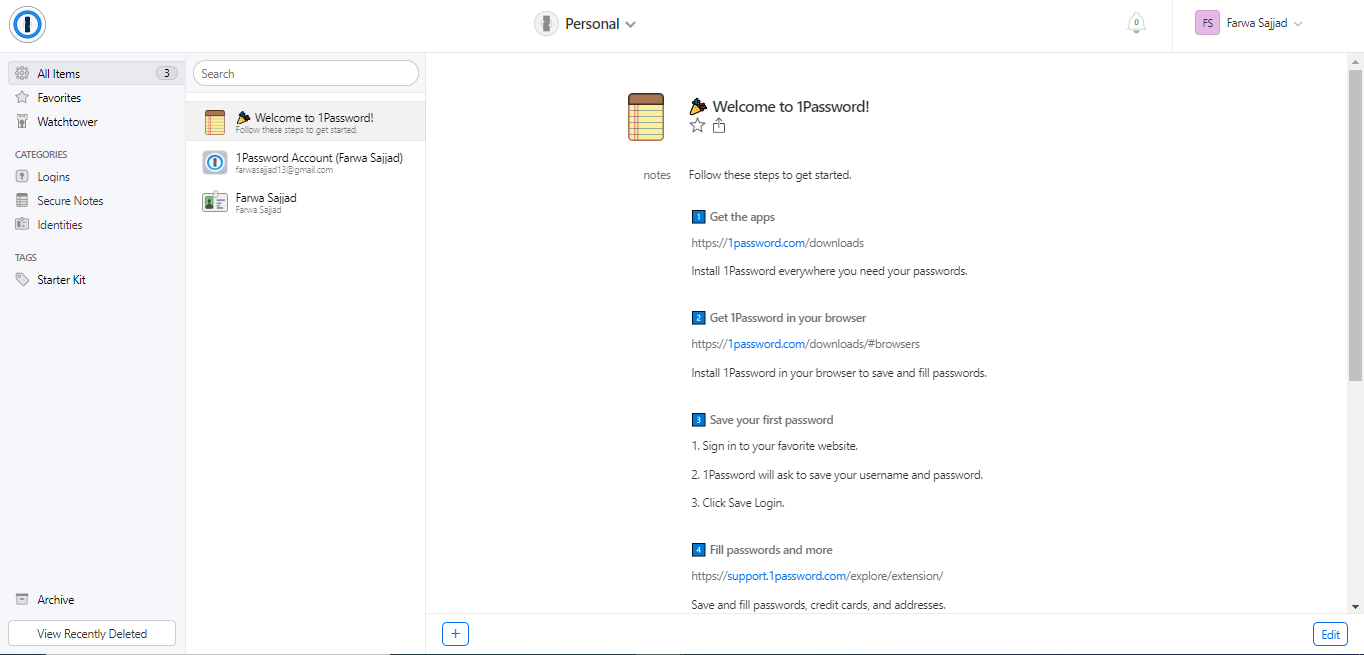
Compared to other password managers, 1Password is extremely user-friendly and caters to the needs of individual users, families, and businesses. The main dashboard is well-organized and has three separate sections. When you navigate into the “All Items category,” upon clicking on the Welcome to 1Password option, you can further complete the setup of your account.
It gives various options like installing browser extensions, downloading the 1Password app, saving passwords, and login information. The next two categories include your 1Password account information.
One impressive thing about 1Password is that it allows users to add their favorite items separately for quick access. Also, users can even view the archive and recently deleted data.
The Watch Tower feature lets users stay informed and track potential password-related threats.
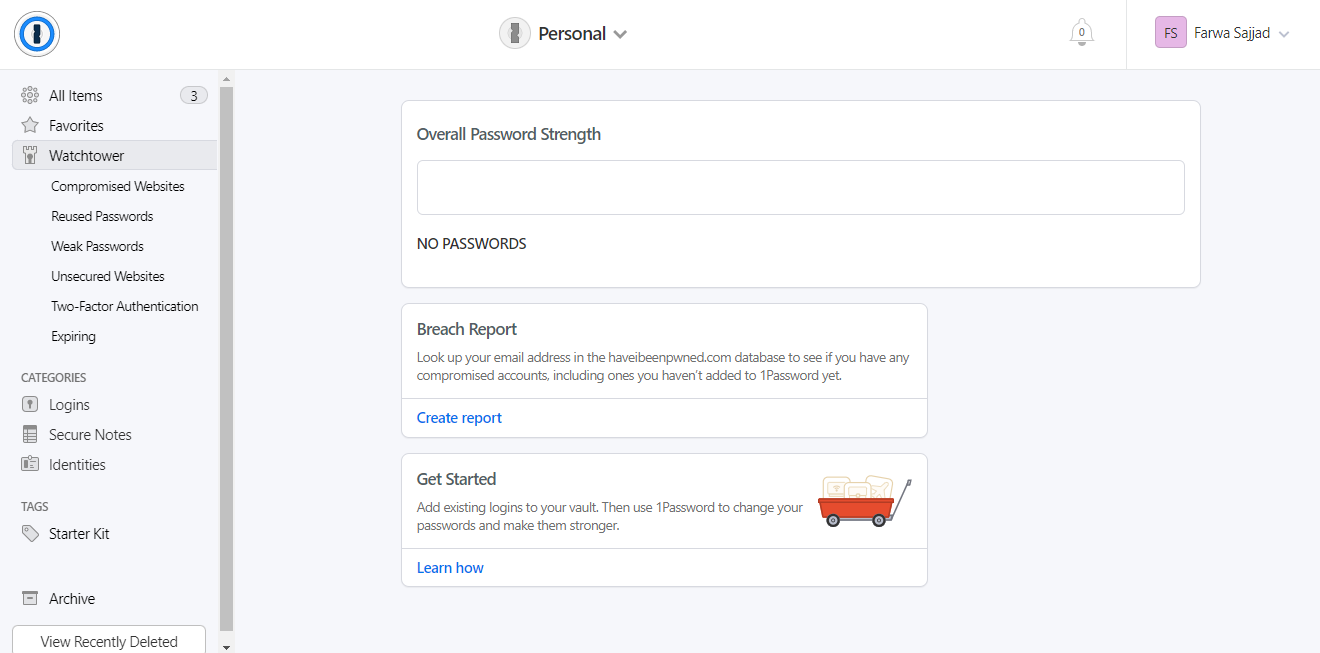
1Password doesn’t put limits on data entry type and allows users to store various types of sensitive data in a customized category. To store passwords, secure notes, or identities, navigate the data categories window. Click on the ‘+’ sign present at the bottom left and select the data category type you want to store data.
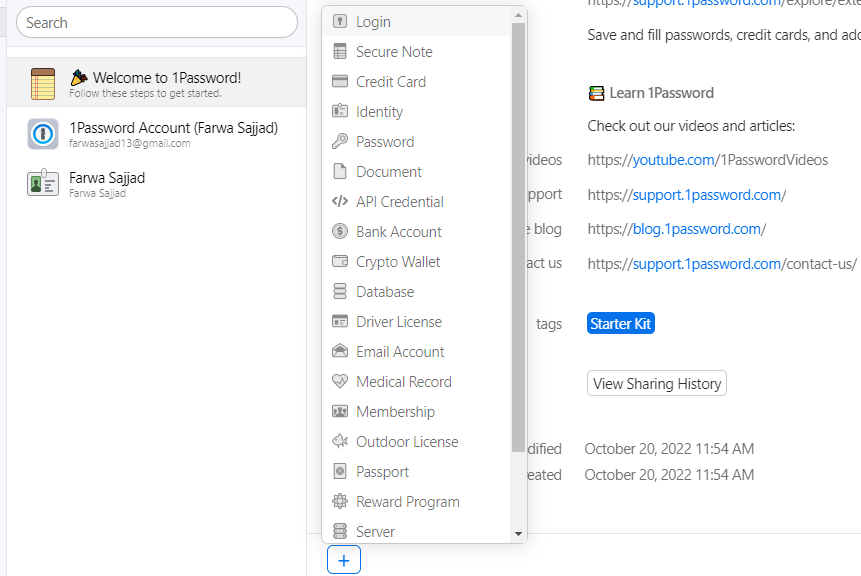
1Password also allows you to enter and store medical records, databases, driving licenses, passports, and a lot more which is very impressive and makes the user experience amazing.
All the passwords and other data are kept secured in the encrypted vault. Click on the blue circle icon on the left to access the 1Password vault.
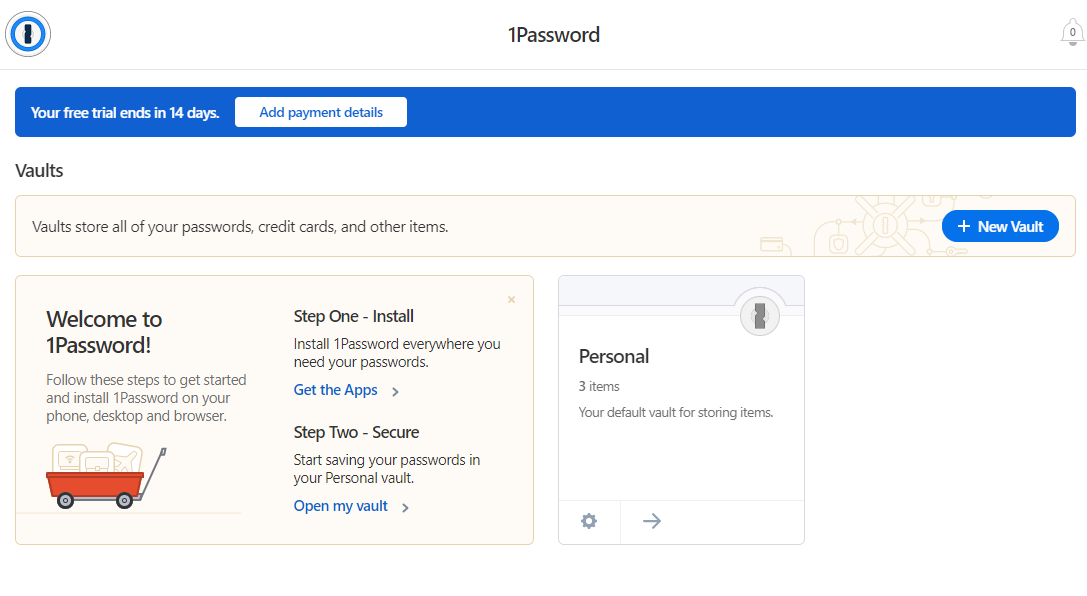
If you want to edit your existing vault or view the details, click on the small settings icon. You can edit the vault, import data, or turn on the Safe Travel mode if you are traveling across borders.
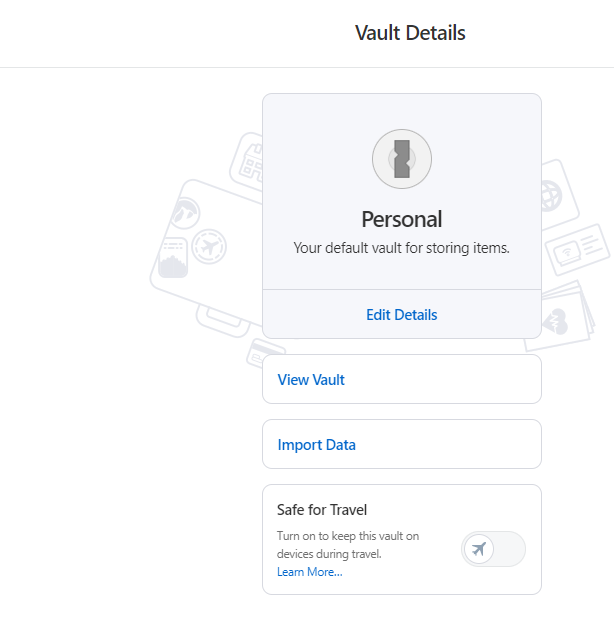
You can create a new vault by tapping on the New Vault option. The best part is that you can use various customized logos to manage multiple vaults. 1Password offers limited dashboard customization, and it’d be best if it also introduced a dashboard theme customization feature to make the user experience more attractive.
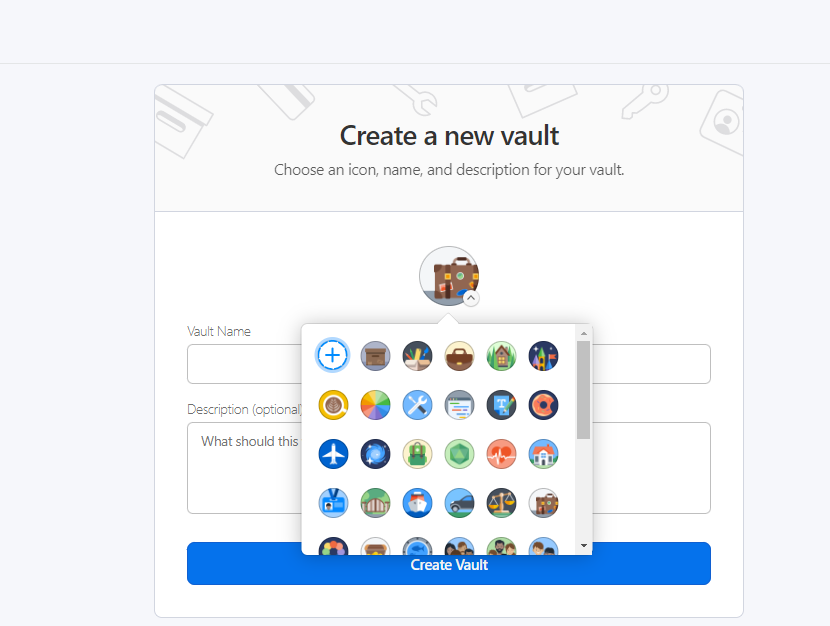
1Password allows users to import login credentials and other data from browsers and other password managers. Back on the main dashboard page, by clicking under your name, you can navigate to the import option and easily import passwords. However, 1Password data import options are limited, which is somewhat disappointing.
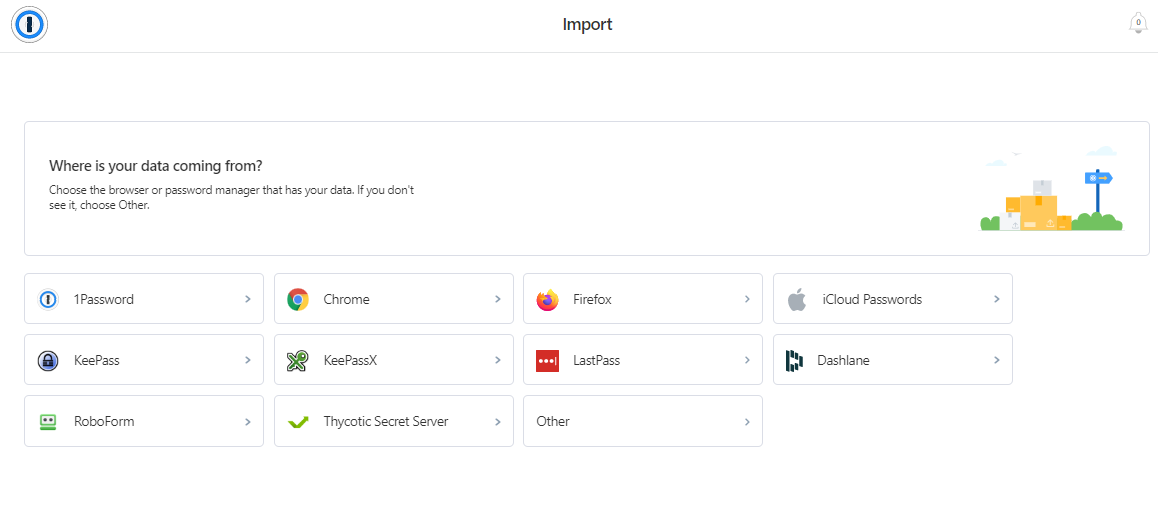
In addition, by clicking on the other option, you can drag CSV files and import data.
Moreover, by navigating into the Integration category, users can create privacy cards, mask emails, or set up Secrets Automation.
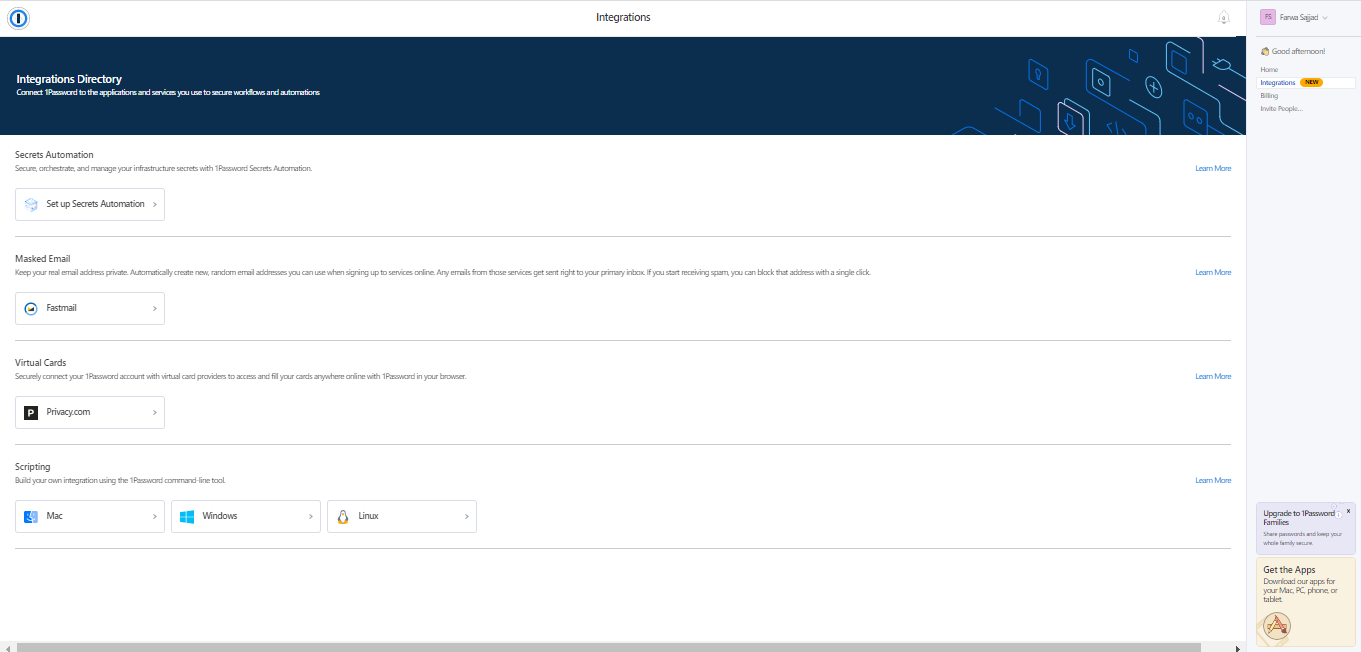
Overall, 1Password has a simple and easy-to-use interface that won’t be suitable for beginners to advanced users.
Features Overview
1Password offers basic security features with a few advanced features you won’t find in any other password manager. Here’s the breakdown of features that 1Password offers:
Watch Tower
The WatchTower feature determines the overall strength of all your passwords stored in the vault. It also generates a data breach report informing you if your passwords are leaked online. This is an absolutely impressive feature because it tells about the passwords that were breached a long time ago, and users won’t have any idea about it.
Travel Mode
The Travel Mode is an excellent feature for those traveling and worried about their passwords and other sensitive data. By enabling these features, users can hide all their information, and the device shows a Safe for Travel display. When they are back, users can turn off this feature and get access to all their data.
Username Generator
The username generator is another excellent feature that 1Password offers. It enables users to create unique usernames to protect the privacy of their online accounts. They can customize the length of the username up to 10 characters and secure their login credentials. Use this feature with the 1Password generator and enjoy maximum online protection.
Password Generator
Having strong and unique passwords has become vital for all your online accounts. However, it isn’t an easy task. To avoid the hassle of creating and remembering strong passwords, 1Password offers a password generator feature. It enables users to create unique and robust passwords and can customize their length and characters. After creating a password for your account, copy and save it into the vault and access apps and websites easily.
Compatible Devices and Browser Extension
Like all popular password managers, 1Password is compatible with all popular devices and platforms. You can use 1Password for storing your passwords and other sensitive data on the following devices:
- Android
- Chrome OS
- iOS
- Mac
- Linux
- Windows
Seeing Linux and Chrome OS in the list is exceptional, as most password managers don’t offer support for these platforms. The web browser version is good and won’t cause trouble for the users.
The mobile apps for Android and iOS are also easy to use and download. Visit the Apple or Google PlayStore and download the 1Password app within a few minutes. Both apps are similar in design and functionality. All the options are easy to find; the apps work at an optimal speed and create no fuss for the users. The Windows app is best among all other apps because of its ease of use and interface.
Apart from this, 1Password also offers browser extensions for:
- Google Chrome
- Mozilla Firefox
- Microsoft Edge
- Brave
The browser extension is a convenient yet powerful feature that comes as 1Password X. But it is not separate from the desktop version and works in conjunction with it.
Adding browser extensions is easy and includes everything in the desktop app. You can generate strong passwords, store them, and organize them. It also makes auto-saving and auto-filling easy, but it lacks features that other password manager browser extensions offer, like the one-click-sign-in option.
However, 1Password doesn’t offer a browser extension for Safari, which is a great setback and disappoints Mac users.
1Password Customer Support
1Password provides decent customer support service to its users. Scrolling the website to the bottom, you can find the Support category, from where you can choose how to get help. The password manager assists users in the following ways:
- Email support
- Bot assistance
- Website resources
- Community forums
There are tons of user guides and blogs available that provide excellent help to confused users. A support page includes many articles and videos on how to use 1Password. Also, you can choose any topic you want to read about.
While 1Password doesn’t offer live customer support facilities like telephonic support and the live chat feature, it does include bot chat. The bots provide automated replies to user queries which are not very effective.
Click on the bot option located at the bottom and try to resolve your queries. If any issue isn’t resolved, they repeatedly send the same computerized replies that users don’t appreciate.
1Password offers limited options to connect directly with the support team. You can send an email query and connect on Twitter. Also, you can join the live community forum, which is the best way to seek advice from experts and top fans. You can post your query and read what others have posted to get more insights about 1Password.
All in all, 1Password customer support has room for improvement. To make customer support more effective, 1Password must introduce a 24/7 live chat option that includes real-human assistance to provide instant help.
1Password Pricing Plans
1Password is among the few standalone password managers that don’t offer a free version. It is available as a paid password manager and offers different subscription plans for:
- Individuals
- Families
- Teams
- Businesses
- Enterprises
The password manager offers great value for money. All the 1Password subscription packages include unlimited passwords and devices, a digital wallet, WatchTower, and a Travel mode feature.
The personal and family plan also includes 1GB of document storage. The individual plan costs $2.99 monthly, while the family plan costs $4.99/m. There’s a slight difference in both the plan, and that is the number of users. Users who opt for the family plan can use the 1Password account with five other users and can avail of a few handful features like multiple vaults, an account recovery option, managing what other family members can see, and inviting up to five people.
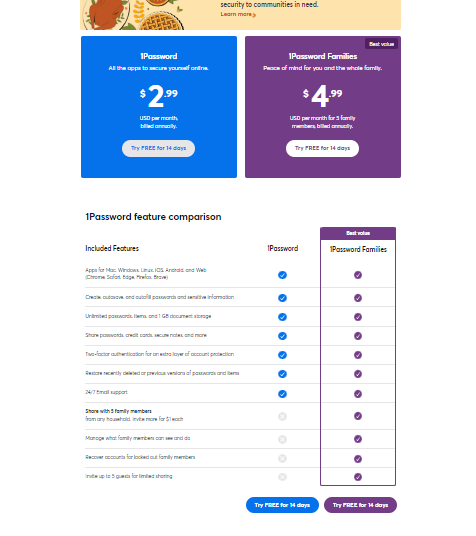
The individual plan is the most cost-effective and recommended to use.
If a group of more than 5 users wants to use 1Password, they can opt for the team’s plan, which costs $19.5 per month and allows up to ten people to use a single account. Under this plan, up to 20 users can share the account and enjoy a 20GB data storage limit. This is the perfect plan for small businesses. Medium-size businesses can buy the business plan for $7.99 per user monthly. However, large enterprises can contact the sales department to design a customized plan according to their preferences.

The business plan includes various business-specific features like advanced protection, security monitoring, and audit trails. All the 1Password subscription plans come with a free 14-day trial period. But since there’s no money-back guarantee offer, this doesn’t sound good to some users.
Final verdict
1Password is an overall secure and all-rounder password manager suitable for all users. Whether an individual, family, team, or business, it caters to everyone’s needs. Using this password manager, you get robust encryption, a 2FA option, and other useful features. It also allows users to create multiple vaults and secure their data during vacations.
The password manager is available for all devices and a few browsers. The browser extension feature is pretty good and adds more value to the overall experience. However, 1Password must improve its customer support and add more customization features to outstand all other password managers.
FAQs
The post How safe is 1Password manager? Detailed and Complete Review appeared first on BeEncrypted.
]]>Deprecated: Using null as an array offset is deprecated, use an empty string instead in /var/www/staging.beencrypted.com/site/web/wp/wp-includes/class-wp-block-type-registry.php on line 168
Deprecated: Using null as an array offset is deprecated, use an empty string instead in /var/www/staging.beencrypted.com/site/web/wp/wp-includes/class-wp-block-type-registry.php on line 168
Deprecated: Using null as an array offset is deprecated, use an empty string instead in /var/www/staging.beencrypted.com/site/web/wp/wp-includes/class-wp-block-type-registry.php on line 168
Deprecated: Using null as an array offset is deprecated, use an empty string instead in /var/www/staging.beencrypted.com/site/web/wp/wp-includes/class-wp-block-type-registry.php on line 168
Deprecated: Using null as an array offset is deprecated, use an empty string instead in /var/www/staging.beencrypted.com/site/web/wp/wp-includes/class-wp-block-type-registry.php on line 168
Deprecated: Using null as an array offset is deprecated, use an empty string instead in /var/www/staging.beencrypted.com/site/web/wp/wp-includes/class-wp-block-type-registry.php on line 168
Deprecated: Using null as an array offset is deprecated, use an empty string instead in /var/www/staging.beencrypted.com/site/web/wp/wp-includes/class-wp-block-type-registry.php on line 168
Deprecated: Using null as an array offset is deprecated, use an empty string instead in /var/www/staging.beencrypted.com/site/web/wp/wp-includes/class-wp-block-type-registry.php on line 168
Deprecated: Using null as an array offset is deprecated, use an empty string instead in /var/www/staging.beencrypted.com/site/web/wp/wp-includes/class-wp-block-type-registry.php on line 168
Deprecated: Using null as an array offset is deprecated, use an empty string instead in /var/www/staging.beencrypted.com/site/web/wp/wp-includes/class-wp-block-type-registry.php on line 168
Deprecated: Using null as an array offset is deprecated, use an empty string instead in /var/www/staging.beencrypted.com/site/web/wp/wp-includes/class-wp-block-type-registry.php on line 168
Deprecated: Using null as an array offset is deprecated, use an empty string instead in /var/www/staging.beencrypted.com/site/web/wp/wp-includes/class-wp-block-type-registry.php on line 168
Deprecated: Using null as an array offset is deprecated, use an empty string instead in /var/www/staging.beencrypted.com/site/web/wp/wp-includes/class-wp-block-type-registry.php on line 168
Deprecated: Using null as an array offset is deprecated, use an empty string instead in /var/www/staging.beencrypted.com/site/web/wp/wp-includes/class-wp-block-type-registry.php on line 168
Deprecated: Using null as an array offset is deprecated, use an empty string instead in /var/www/staging.beencrypted.com/site/web/wp/wp-includes/class-wp-block-type-registry.php on line 168
Deprecated: Using null as an array offset is deprecated, use an empty string instead in /var/www/staging.beencrypted.com/site/web/wp/wp-includes/class-wp-block-type-registry.php on line 168
Deprecated: Using null as an array offset is deprecated, use an empty string instead in /var/www/staging.beencrypted.com/site/web/wp/wp-includes/class-wp-block-type-registry.php on line 168
Deprecated: Using null as an array offset is deprecated, use an empty string instead in /var/www/staging.beencrypted.com/site/web/wp/wp-includes/class-wp-block-type-registry.php on line 168
Deprecated: Using null as an array offset is deprecated, use an empty string instead in /var/www/staging.beencrypted.com/site/web/wp/wp-includes/class-wp-block-type-registry.php on line 168
Deprecated: Using null as an array offset is deprecated, use an empty string instead in /var/www/staging.beencrypted.com/site/web/wp/wp-includes/class-wp-block-type-registry.php on line 168
Deprecated: Using null as an array offset is deprecated, use an empty string instead in /var/www/staging.beencrypted.com/site/web/wp/wp-includes/class-wp-block-type-registry.php on line 168
Deprecated: Using null as an array offset is deprecated, use an empty string instead in /var/www/staging.beencrypted.com/site/web/wp/wp-includes/class-wp-block-type-registry.php on line 168
Deprecated: Using null as an array offset is deprecated, use an empty string instead in /var/www/staging.beencrypted.com/site/web/wp/wp-includes/class-wp-block-type-registry.php on line 168
Deprecated: Using null as an array offset is deprecated, use an empty string instead in /var/www/staging.beencrypted.com/site/web/wp/wp-includes/class-wp-block-type-registry.php on line 168
Deprecated: Using null as an array offset is deprecated, use an empty string instead in /var/www/staging.beencrypted.com/site/web/wp/wp-includes/class-wp-block-type-registry.php on line 168
Deprecated: Using null as an array offset is deprecated, use an empty string instead in /var/www/staging.beencrypted.com/site/web/wp/wp-includes/class-wp-block-type-registry.php on line 168
Deprecated: Using null as an array offset is deprecated, use an empty string instead in /var/www/staging.beencrypted.com/site/web/wp/wp-includes/class-wp-block-type-registry.php on line 168
Deprecated: Using null as an array offset is deprecated, use an empty string instead in /var/www/staging.beencrypted.com/site/web/wp/wp-includes/class-wp-block-type-registry.php on line 168
Deprecated: Using null as an array offset is deprecated, use an empty string instead in /var/www/staging.beencrypted.com/site/web/wp/wp-includes/class-wp-block-type-registry.php on line 168
Deprecated: Using null as an array offset is deprecated, use an empty string instead in /var/www/staging.beencrypted.com/site/web/wp/wp-includes/class-wp-block-type-registry.php on line 168
Deprecated: Using null as an array offset is deprecated, use an empty string instead in /var/www/staging.beencrypted.com/site/web/wp/wp-includes/class-wp-block-type-registry.php on line 168
Deprecated: Using null as an array offset is deprecated, use an empty string instead in /var/www/staging.beencrypted.com/site/web/wp/wp-includes/class-wp-block-type-registry.php on line 168
Deprecated: Using null as an array offset is deprecated, use an empty string instead in /var/www/staging.beencrypted.com/site/web/wp/wp-includes/class-wp-block-type-registry.php on line 168
Deprecated: Using null as an array offset is deprecated, use an empty string instead in /var/www/staging.beencrypted.com/site/web/wp/wp-includes/class-wp-block-type-registry.php on line 168
Deprecated: Using null as an array offset is deprecated, use an empty string instead in /var/www/staging.beencrypted.com/site/web/wp/wp-includes/class-wp-block-type-registry.php on line 168
Deprecated: Using null as an array offset is deprecated, use an empty string instead in /var/www/staging.beencrypted.com/site/web/wp/wp-includes/class-wp-block-type-registry.php on line 168
Deprecated: Using null as an array offset is deprecated, use an empty string instead in /var/www/staging.beencrypted.com/site/web/wp/wp-includes/class-wp-block-type-registry.php on line 168
Deprecated: Using null as an array offset is deprecated, use an empty string instead in /var/www/staging.beencrypted.com/site/web/wp/wp-includes/class-wp-block-type-registry.php on line 168
Deprecated: Using null as an array offset is deprecated, use an empty string instead in /var/www/staging.beencrypted.com/site/web/wp/wp-includes/class-wp-block-type-registry.php on line 168
Deprecated: Using null as an array offset is deprecated, use an empty string instead in /var/www/staging.beencrypted.com/site/web/wp/wp-includes/class-wp-block-type-registry.php on line 168
Deprecated: Using null as an array offset is deprecated, use an empty string instead in /var/www/staging.beencrypted.com/site/web/wp/wp-includes/class-wp-block-type-registry.php on line 168
Deprecated: Using null as an array offset is deprecated, use an empty string instead in /var/www/staging.beencrypted.com/site/web/wp/wp-includes/class-wp-block-type-registry.php on line 168
Deprecated: Using null as an array offset is deprecated, use an empty string instead in /var/www/staging.beencrypted.com/site/web/wp/wp-includes/class-wp-block-type-registry.php on line 168
Deprecated: Using null as an array offset is deprecated, use an empty string instead in /var/www/staging.beencrypted.com/site/web/wp/wp-includes/class-wp-block-type-registry.php on line 168
Deprecated: Using null as an array offset is deprecated, use an empty string instead in /var/www/staging.beencrypted.com/site/web/wp/wp-includes/class-wp-block-type-registry.php on line 168
Deprecated: Using null as an array offset is deprecated, use an empty string instead in /var/www/staging.beencrypted.com/site/web/wp/wp-includes/class-wp-block-type-registry.php on line 168
Deprecated: Using null as an array offset is deprecated, use an empty string instead in /var/www/staging.beencrypted.com/site/web/wp/wp-includes/class-wp-block-type-registry.php on line 168
Deprecated: Using null as an array offset is deprecated, use an empty string instead in /var/www/staging.beencrypted.com/site/web/wp/wp-includes/class-wp-block-type-registry.php on line 168
Deprecated: Using null as an array offset is deprecated, use an empty string instead in /var/www/staging.beencrypted.com/site/web/wp/wp-includes/class-wp-block-type-registry.php on line 168
Deprecated: Using null as an array offset is deprecated, use an empty string instead in /var/www/staging.beencrypted.com/site/web/wp/wp-includes/class-wp-block-type-registry.php on line 168
Deprecated: Using null as an array offset is deprecated, use an empty string instead in /var/www/staging.beencrypted.com/site/web/wp/wp-includes/class-wp-block-type-registry.php on line 168
Deprecated: Using null as an array offset is deprecated, use an empty string instead in /var/www/staging.beencrypted.com/site/web/wp/wp-includes/class-wp-block-type-registry.php on line 168
Deprecated: Using null as an array offset is deprecated, use an empty string instead in /var/www/staging.beencrypted.com/site/web/wp/wp-includes/class-wp-block-type-registry.php on line 168
Deprecated: Using null as an array offset is deprecated, use an empty string instead in /var/www/staging.beencrypted.com/site/web/wp/wp-includes/class-wp-block-type-registry.php on line 168
Deprecated: Using null as an array offset is deprecated, use an empty string instead in /var/www/staging.beencrypted.com/site/web/wp/wp-includes/class-wp-block-type-registry.php on line 168
Deprecated: Using null as an array offset is deprecated, use an empty string instead in /var/www/staging.beencrypted.com/site/web/wp/wp-includes/class-wp-block-type-registry.php on line 168
Deprecated: Using null as an array offset is deprecated, use an empty string instead in /var/www/staging.beencrypted.com/site/web/wp/wp-includes/class-wp-block-type-registry.php on line 168
Deprecated: Using null as an array offset is deprecated, use an empty string instead in /var/www/staging.beencrypted.com/site/web/wp/wp-includes/class-wp-block-type-registry.php on line 168
Deprecated: Using null as an array offset is deprecated, use an empty string instead in /var/www/staging.beencrypted.com/site/web/wp/wp-includes/class-wp-block-type-registry.php on line 168
Deprecated: Using null as an array offset is deprecated, use an empty string instead in /var/www/staging.beencrypted.com/site/web/wp/wp-includes/class-wp-block-type-registry.php on line 168
Deprecated: Using null as an array offset is deprecated, use an empty string instead in /var/www/staging.beencrypted.com/site/web/wp/wp-includes/class-wp-block-type-registry.php on line 168
Deprecated: Using null as an array offset is deprecated, use an empty string instead in /var/www/staging.beencrypted.com/site/web/wp/wp-includes/class-wp-block-type-registry.php on line 168
Deprecated: Using null as an array offset is deprecated, use an empty string instead in /var/www/staging.beencrypted.com/site/web/wp/wp-includes/class-wp-block-type-registry.php on line 168
Deprecated: Using null as an array offset is deprecated, use an empty string instead in /var/www/staging.beencrypted.com/site/web/wp/wp-includes/class-wp-block-type-registry.php on line 168
Deprecated: Using null as an array offset is deprecated, use an empty string instead in /var/www/staging.beencrypted.com/site/web/wp/wp-includes/class-wp-block-type-registry.php on line 168
Deprecated: Using null as an array offset is deprecated, use an empty string instead in /var/www/staging.beencrypted.com/site/web/wp/wp-includes/class-wp-block-type-registry.php on line 168
Deprecated: Using null as an array offset is deprecated, use an empty string instead in /var/www/staging.beencrypted.com/site/web/wp/wp-includes/class-wp-block-type-registry.php on line 168
Deprecated: Using null as an array offset is deprecated, use an empty string instead in /var/www/staging.beencrypted.com/site/web/wp/wp-includes/class-wp-block-type-registry.php on line 168
Deprecated: Using null as an array offset is deprecated, use an empty string instead in /var/www/staging.beencrypted.com/site/web/wp/wp-includes/class-wp-block-type-registry.php on line 168
Deprecated: Using null as an array offset is deprecated, use an empty string instead in /var/www/staging.beencrypted.com/site/web/wp/wp-includes/class-wp-block-type-registry.php on line 168
Deprecated: Using null as an array offset is deprecated, use an empty string instead in /var/www/staging.beencrypted.com/site/web/wp/wp-includes/class-wp-block-type-registry.php on line 168
Deprecated: Using null as an array offset is deprecated, use an empty string instead in /var/www/staging.beencrypted.com/site/web/wp/wp-includes/class-wp-block-type-registry.php on line 168
Deprecated: Using null as an array offset is deprecated, use an empty string instead in /var/www/staging.beencrypted.com/site/web/wp/wp-includes/class-wp-block-type-registry.php on line 168
Deprecated: Using null as an array offset is deprecated, use an empty string instead in /var/www/staging.beencrypted.com/site/web/wp/wp-includes/class-wp-block-type-registry.php on line 168
Deprecated: Using null as an array offset is deprecated, use an empty string instead in /var/www/staging.beencrypted.com/site/web/wp/wp-includes/class-wp-block-type-registry.php on line 168
Deprecated: Using null as an array offset is deprecated, use an empty string instead in /var/www/staging.beencrypted.com/site/web/wp/wp-includes/class-wp-block-type-registry.php on line 168
Deprecated: Using null as an array offset is deprecated, use an empty string instead in /var/www/staging.beencrypted.com/site/web/wp/wp-includes/class-wp-block-type-registry.php on line 168
Deprecated: Using null as an array offset is deprecated, use an empty string instead in /var/www/staging.beencrypted.com/site/web/wp/wp-includes/class-wp-block-type-registry.php on line 168
Deprecated: Using null as an array offset is deprecated, use an empty string instead in /var/www/staging.beencrypted.com/site/web/wp/wp-includes/class-wp-block-type-registry.php on line 168
Deprecated: Using null as an array offset is deprecated, use an empty string instead in /var/www/staging.beencrypted.com/site/web/wp/wp-includes/class-wp-block-type-registry.php on line 168
Deprecated: Using null as an array offset is deprecated, use an empty string instead in /var/www/staging.beencrypted.com/site/web/wp/wp-includes/class-wp-block-type-registry.php on line 168
Deprecated: Using null as an array offset is deprecated, use an empty string instead in /var/www/staging.beencrypted.com/site/web/wp/wp-includes/class-wp-block-type-registry.php on line 168
Deprecated: Using null as an array offset is deprecated, use an empty string instead in /var/www/staging.beencrypted.com/site/web/wp/wp-includes/class-wp-block-type-registry.php on line 168
Deprecated: Using null as an array offset is deprecated, use an empty string instead in /var/www/staging.beencrypted.com/site/web/wp/wp-includes/class-wp-block-type-registry.php on line 168
Deprecated: Using null as an array offset is deprecated, use an empty string instead in /var/www/staging.beencrypted.com/site/web/wp/wp-includes/class-wp-block-type-registry.php on line 168
Deprecated: Using null as an array offset is deprecated, use an empty string instead in /var/www/staging.beencrypted.com/site/web/wp/wp-includes/class-wp-block-type-registry.php on line 168
Deprecated: Using null as an array offset is deprecated, use an empty string instead in /var/www/staging.beencrypted.com/site/web/wp/wp-includes/class-wp-block-type-registry.php on line 168
Deprecated: Using null as an array offset is deprecated, use an empty string instead in /var/www/staging.beencrypted.com/site/web/wp/wp-includes/class-wp-block-type-registry.php on line 168
Deprecated: Using null as an array offset is deprecated, use an empty string instead in /var/www/staging.beencrypted.com/site/web/wp/wp-includes/class-wp-block-type-registry.php on line 168
Deprecated: Using null as an array offset is deprecated, use an empty string instead in /var/www/staging.beencrypted.com/site/web/wp/wp-includes/class-wp-block-type-registry.php on line 168
Deprecated: Using null as an array offset is deprecated, use an empty string instead in /var/www/staging.beencrypted.com/site/web/wp/wp-includes/class-wp-block-type-registry.php on line 168
Deprecated: Using null as an array offset is deprecated, use an empty string instead in /var/www/staging.beencrypted.com/site/web/wp/wp-includes/class-wp-block-type-registry.php on line 168
Deprecated: Using null as an array offset is deprecated, use an empty string instead in /var/www/staging.beencrypted.com/site/web/wp/wp-includes/class-wp-block-type-registry.php on line 168
Deprecated: Using null as an array offset is deprecated, use an empty string instead in /var/www/staging.beencrypted.com/site/web/wp/wp-includes/class-wp-block-type-registry.php on line 168
Deprecated: Using null as an array offset is deprecated, use an empty string instead in /var/www/staging.beencrypted.com/site/web/wp/wp-includes/class-wp-block-type-registry.php on line 168
Deprecated: Using null as an array offset is deprecated, use an empty string instead in /var/www/staging.beencrypted.com/site/web/wp/wp-includes/class-wp-block-type-registry.php on line 168
Deprecated: Using null as an array offset is deprecated, use an empty string instead in /var/www/staging.beencrypted.com/site/web/wp/wp-includes/class-wp-block-type-registry.php on line 168
Deprecated: Using null as an array offset is deprecated, use an empty string instead in /var/www/staging.beencrypted.com/site/web/wp/wp-includes/class-wp-block-type-registry.php on line 168
Deprecated: Using null as an array offset is deprecated, use an empty string instead in /var/www/staging.beencrypted.com/site/web/wp/wp-includes/class-wp-block-type-registry.php on line 168
Deprecated: Using null as an array offset is deprecated, use an empty string instead in /var/www/staging.beencrypted.com/site/web/wp/wp-includes/class-wp-block-type-registry.php on line 168
Deprecated: Using null as an array offset is deprecated, use an empty string instead in /var/www/staging.beencrypted.com/site/web/wp/wp-includes/class-wp-block-type-registry.php on line 168
Deprecated: Using null as an array offset is deprecated, use an empty string instead in /var/www/staging.beencrypted.com/site/web/wp/wp-includes/class-wp-block-type-registry.php on line 168
Deprecated: Using null as an array offset is deprecated, use an empty string instead in /var/www/staging.beencrypted.com/site/web/wp/wp-includes/class-wp-block-type-registry.php on line 168
Deprecated: Using null as an array offset is deprecated, use an empty string instead in /var/www/staging.beencrypted.com/site/web/wp/wp-includes/class-wp-block-type-registry.php on line 168
Deprecated: Using null as an array offset is deprecated, use an empty string instead in /var/www/staging.beencrypted.com/site/web/wp/wp-includes/class-wp-block-type-registry.php on line 168
Deprecated: Using null as an array offset is deprecated, use an empty string instead in /var/www/staging.beencrypted.com/site/web/wp/wp-includes/class-wp-block-type-registry.php on line 168
Deprecated: Using null as an array offset is deprecated, use an empty string instead in /var/www/staging.beencrypted.com/site/web/wp/wp-includes/class-wp-block-type-registry.php on line 168
Deprecated: Using null as an array offset is deprecated, use an empty string instead in /var/www/staging.beencrypted.com/site/web/wp/wp-includes/class-wp-block-type-registry.php on line 168
Deprecated: Using null as an array offset is deprecated, use an empty string instead in /var/www/staging.beencrypted.com/site/web/wp/wp-includes/class-wp-block-type-registry.php on line 168
Deprecated: Using null as an array offset is deprecated, use an empty string instead in /var/www/staging.beencrypted.com/site/web/wp/wp-includes/class-wp-block-type-registry.php on line 168
Deprecated: Using null as an array offset is deprecated, use an empty string instead in /var/www/staging.beencrypted.com/site/web/wp/wp-includes/class-wp-block-type-registry.php on line 168
Deprecated: Using null as an array offset is deprecated, use an empty string instead in /var/www/staging.beencrypted.com/site/web/wp/wp-includes/class-wp-block-type-registry.php on line 168
Deprecated: Using null as an array offset is deprecated, use an empty string instead in /var/www/staging.beencrypted.com/site/web/wp/wp-includes/class-wp-block-type-registry.php on line 168
Deprecated: Using null as an array offset is deprecated, use an empty string instead in /var/www/staging.beencrypted.com/site/web/wp/wp-includes/class-wp-block-type-registry.php on line 168
Deprecated: Using null as an array offset is deprecated, use an empty string instead in /var/www/staging.beencrypted.com/site/web/wp/wp-includes/class-wp-block-type-registry.php on line 168
Deprecated: Using null as an array offset is deprecated, use an empty string instead in /var/www/staging.beencrypted.com/site/web/wp/wp-includes/class-wp-block-type-registry.php on line 168
Deprecated: Using null as an array offset is deprecated, use an empty string instead in /var/www/staging.beencrypted.com/site/web/wp/wp-includes/class-wp-block-type-registry.php on line 168
Deprecated: Using null as an array offset is deprecated, use an empty string instead in /var/www/staging.beencrypted.com/site/web/wp/wp-includes/class-wp-block-type-registry.php on line 168
Deprecated: Using null as an array offset is deprecated, use an empty string instead in /var/www/staging.beencrypted.com/site/web/wp/wp-includes/class-wp-block-type-registry.php on line 168
Deprecated: Using null as an array offset is deprecated, use an empty string instead in /var/www/staging.beencrypted.com/site/web/wp/wp-includes/class-wp-block-type-registry.php on line 168
Deprecated: Using null as an array offset is deprecated, use an empty string instead in /var/www/staging.beencrypted.com/site/web/wp/wp-includes/class-wp-block-type-registry.php on line 168
Deprecated: Using null as an array offset is deprecated, use an empty string instead in /var/www/staging.beencrypted.com/site/web/wp/wp-includes/class-wp-block-type-registry.php on line 168
Deprecated: Using null as an array offset is deprecated, use an empty string instead in /var/www/staging.beencrypted.com/site/web/wp/wp-includes/class-wp-block-type-registry.php on line 168
Deprecated: Using null as an array offset is deprecated, use an empty string instead in /var/www/staging.beencrypted.com/site/web/wp/wp-includes/class-wp-block-type-registry.php on line 168
Deprecated: Using null as an array offset is deprecated, use an empty string instead in /var/www/staging.beencrypted.com/site/web/wp/wp-includes/class-wp-block-type-registry.php on line 168
Deprecated: Using null as an array offset is deprecated, use an empty string instead in /var/www/staging.beencrypted.com/site/web/wp/wp-includes/class-wp-block-type-registry.php on line 168
Deprecated: Using null as an array offset is deprecated, use an empty string instead in /var/www/staging.beencrypted.com/site/web/wp/wp-includes/class-wp-block-type-registry.php on line 168
Deprecated: Using null as an array offset is deprecated, use an empty string instead in /var/www/staging.beencrypted.com/site/web/wp/wp-includes/class-wp-block-type-registry.php on line 168
Deprecated: Using null as an array offset is deprecated, use an empty string instead in /var/www/staging.beencrypted.com/site/web/wp/wp-includes/class-wp-block-type-registry.php on line 168
Deprecated: Using null as an array offset is deprecated, use an empty string instead in /var/www/staging.beencrypted.com/site/web/wp/wp-includes/class-wp-block-type-registry.php on line 168
Deprecated: Using null as an array offset is deprecated, use an empty string instead in /var/www/staging.beencrypted.com/site/web/wp/wp-includes/class-wp-block-type-registry.php on line 168
Deprecated: Using null as an array offset is deprecated, use an empty string instead in /var/www/staging.beencrypted.com/site/web/wp/wp-includes/class-wp-block-type-registry.php on line 168
Deprecated: Using null as an array offset is deprecated, use an empty string instead in /var/www/staging.beencrypted.com/site/web/wp/wp-includes/class-wp-block-type-registry.php on line 168
Deprecated: Using null as an array offset is deprecated, use an empty string instead in /var/www/staging.beencrypted.com/site/web/wp/wp-includes/class-wp-block-type-registry.php on line 168
Deprecated: Using null as an array offset is deprecated, use an empty string instead in /var/www/staging.beencrypted.com/site/web/wp/wp-includes/class-wp-block-type-registry.php on line 168
Deprecated: Using null as an array offset is deprecated, use an empty string instead in /var/www/staging.beencrypted.com/site/web/wp/wp-includes/class-wp-block-type-registry.php on line 168
Deprecated: Using null as an array offset is deprecated, use an empty string instead in /var/www/staging.beencrypted.com/site/web/wp/wp-includes/class-wp-block-type-registry.php on line 168
Deprecated: Using null as an array offset is deprecated, use an empty string instead in /var/www/staging.beencrypted.com/site/web/wp/wp-includes/class-wp-block-type-registry.php on line 168
Deprecated: Using null as an array offset is deprecated, use an empty string instead in /var/www/staging.beencrypted.com/site/web/wp/wp-includes/class-wp-block-type-registry.php on line 168
Deprecated: Using null as an array offset is deprecated, use an empty string instead in /var/www/staging.beencrypted.com/site/web/wp/wp-includes/class-wp-block-type-registry.php on line 168
Deprecated: Using null as an array offset is deprecated, use an empty string instead in /var/www/staging.beencrypted.com/site/web/wp/wp-includes/class-wp-block-type-registry.php on line 168
Deprecated: Using null as an array offset is deprecated, use an empty string instead in /var/www/staging.beencrypted.com/site/web/wp/wp-includes/class-wp-block-type-registry.php on line 168
Deprecated: Using null as an array offset is deprecated, use an empty string instead in /var/www/staging.beencrypted.com/site/web/wp/wp-includes/class-wp-block-type-registry.php on line 168
Deprecated: Using null as an array offset is deprecated, use an empty string instead in /var/www/staging.beencrypted.com/site/web/wp/wp-includes/class-wp-block-type-registry.php on line 168
Deprecated: Using null as an array offset is deprecated, use an empty string instead in /var/www/staging.beencrypted.com/site/web/wp/wp-includes/class-wp-block-type-registry.php on line 168
Deprecated: Using null as an array offset is deprecated, use an empty string instead in /var/www/staging.beencrypted.com/site/web/wp/wp-includes/class-wp-block-type-registry.php on line 168
Deprecated: Using null as an array offset is deprecated, use an empty string instead in /var/www/staging.beencrypted.com/site/web/wp/wp-includes/class-wp-block-type-registry.php on line 168
Deprecated: Using null as an array offset is deprecated, use an empty string instead in /var/www/staging.beencrypted.com/site/web/wp/wp-includes/class-wp-block-type-registry.php on line 168
Deprecated: Using null as an array offset is deprecated, use an empty string instead in /var/www/staging.beencrypted.com/site/web/wp/wp-includes/class-wp-block-type-registry.php on line 168
Deprecated: Using null as an array offset is deprecated, use an empty string instead in /var/www/staging.beencrypted.com/site/web/wp/wp-includes/class-wp-block-type-registry.php on line 168
Deprecated: Using null as an array offset is deprecated, use an empty string instead in /var/www/staging.beencrypted.com/site/web/wp/wp-includes/class-wp-block-type-registry.php on line 168
Deprecated: Using null as an array offset is deprecated, use an empty string instead in /var/www/staging.beencrypted.com/site/web/wp/wp-includes/class-wp-block-type-registry.php on line 168
Deprecated: Using null as an array offset is deprecated, use an empty string instead in /var/www/staging.beencrypted.com/site/web/wp/wp-includes/class-wp-block-type-registry.php on line 168
Deprecated: Using null as an array offset is deprecated, use an empty string instead in /var/www/staging.beencrypted.com/site/web/wp/wp-includes/class-wp-block-type-registry.php on line 168
Deprecated: Using null as an array offset is deprecated, use an empty string instead in /var/www/staging.beencrypted.com/site/web/wp/wp-includes/class-wp-block-type-registry.php on line 168
Deprecated: Using null as an array offset is deprecated, use an empty string instead in /var/www/staging.beencrypted.com/site/web/wp/wp-includes/class-wp-block-type-registry.php on line 168
Deprecated: Using null as an array offset is deprecated, use an empty string instead in /var/www/staging.beencrypted.com/site/web/wp/wp-includes/class-wp-block-type-registry.php on line 168
Deprecated: Using null as an array offset is deprecated, use an empty string instead in /var/www/staging.beencrypted.com/site/web/wp/wp-includes/class-wp-block-type-registry.php on line 168
Deprecated: Using null as an array offset is deprecated, use an empty string instead in /var/www/staging.beencrypted.com/site/web/wp/wp-includes/class-wp-block-type-registry.php on line 168
Deprecated: Using null as an array offset is deprecated, use an empty string instead in /var/www/staging.beencrypted.com/site/web/wp/wp-includes/class-wp-block-type-registry.php on line 168
Deprecated: Using null as an array offset is deprecated, use an empty string instead in /var/www/staging.beencrypted.com/site/web/wp/wp-includes/class-wp-block-type-registry.php on line 168
Deprecated: Using null as an array offset is deprecated, use an empty string instead in /var/www/staging.beencrypted.com/site/web/wp/wp-includes/class-wp-block-type-registry.php on line 168
Deprecated: Using null as an array offset is deprecated, use an empty string instead in /var/www/staging.beencrypted.com/site/web/wp/wp-includes/class-wp-block-type-registry.php on line 168
Deprecated: Using null as an array offset is deprecated, use an empty string instead in /var/www/staging.beencrypted.com/site/web/wp/wp-includes/class-wp-block-type-registry.php on line 168
Deprecated: Using null as an array offset is deprecated, use an empty string instead in /var/www/staging.beencrypted.com/site/web/wp/wp-includes/class-wp-block-type-registry.php on line 168
Deprecated: Using null as an array offset is deprecated, use an empty string instead in /var/www/staging.beencrypted.com/site/web/wp/wp-includes/class-wp-block-type-registry.php on line 168
Deprecated: Using null as an array offset is deprecated, use an empty string instead in /var/www/staging.beencrypted.com/site/web/wp/wp-includes/class-wp-block-type-registry.php on line 168
Deprecated: Using null as an array offset is deprecated, use an empty string instead in /var/www/staging.beencrypted.com/site/web/wp/wp-includes/class-wp-block-type-registry.php on line 168
Deprecated: Using null as an array offset is deprecated, use an empty string instead in /var/www/staging.beencrypted.com/site/web/wp/wp-includes/class-wp-block-type-registry.php on line 168
Deprecated: Using null as an array offset is deprecated, use an empty string instead in /var/www/staging.beencrypted.com/site/web/wp/wp-includes/class-wp-block-type-registry.php on line 168
Deprecated: Using null as an array offset is deprecated, use an empty string instead in /var/www/staging.beencrypted.com/site/web/wp/wp-includes/class-wp-block-type-registry.php on line 168
Deprecated: Using null as an array offset is deprecated, use an empty string instead in /var/www/staging.beencrypted.com/site/web/wp/wp-includes/class-wp-block-type-registry.php on line 168
Deprecated: Using null as an array offset is deprecated, use an empty string instead in /var/www/staging.beencrypted.com/site/web/wp/wp-includes/class-wp-block-type-registry.php on line 168
Deprecated: Using null as an array offset is deprecated, use an empty string instead in /var/www/staging.beencrypted.com/site/web/wp/wp-includes/class-wp-block-type-registry.php on line 168
Deprecated: Using null as an array offset is deprecated, use an empty string instead in /var/www/staging.beencrypted.com/site/web/wp/wp-includes/class-wp-block-type-registry.php on line 168
Deprecated: Using null as an array offset is deprecated, use an empty string instead in /var/www/staging.beencrypted.com/site/web/wp/wp-includes/class-wp-block-type-registry.php on line 168
Deprecated: Using null as an array offset is deprecated, use an empty string instead in /var/www/staging.beencrypted.com/site/web/wp/wp-includes/class-wp-block-type-registry.php on line 168
Deprecated: Using null as an array offset is deprecated, use an empty string instead in /var/www/staging.beencrypted.com/site/web/wp/wp-includes/class-wp-block-type-registry.php on line 168
Deprecated: Using null as an array offset is deprecated, use an empty string instead in /var/www/staging.beencrypted.com/site/web/wp/wp-includes/class-wp-block-type-registry.php on line 168
Deprecated: Using null as an array offset is deprecated, use an empty string instead in /var/www/staging.beencrypted.com/site/web/wp/wp-includes/class-wp-block-type-registry.php on line 168
Deprecated: Using null as an array offset is deprecated, use an empty string instead in /var/www/staging.beencrypted.com/site/web/wp/wp-includes/class-wp-block-type-registry.php on line 168
Deprecated: Using null as an array offset is deprecated, use an empty string instead in /var/www/staging.beencrypted.com/site/web/wp/wp-includes/class-wp-block-type-registry.php on line 168
Deprecated: Using null as an array offset is deprecated, use an empty string instead in /var/www/staging.beencrypted.com/site/web/wp/wp-includes/class-wp-block-type-registry.php on line 168
Deprecated: Using null as an array offset is deprecated, use an empty string instead in /var/www/staging.beencrypted.com/site/web/wp/wp-includes/class-wp-block-type-registry.php on line 168
Deprecated: Using null as an array offset is deprecated, use an empty string instead in /var/www/staging.beencrypted.com/site/web/wp/wp-includes/class-wp-block-type-registry.php on line 168
Deprecated: Using null as an array offset is deprecated, use an empty string instead in /var/www/staging.beencrypted.com/site/web/wp/wp-includes/class-wp-block-type-registry.php on line 168
Deprecated: Using null as an array offset is deprecated, use an empty string instead in /var/www/staging.beencrypted.com/site/web/wp/wp-includes/class-wp-block-type-registry.php on line 168
Deprecated: Using null as an array offset is deprecated, use an empty string instead in /var/www/staging.beencrypted.com/site/web/wp/wp-includes/class-wp-block-type-registry.php on line 168
Deprecated: Using null as an array offset is deprecated, use an empty string instead in /var/www/staging.beencrypted.com/site/web/wp/wp-includes/class-wp-block-type-registry.php on line 168
Deprecated: Using null as an array offset is deprecated, use an empty string instead in /var/www/staging.beencrypted.com/site/web/wp/wp-includes/class-wp-block-type-registry.php on line 168
Deprecated: Using null as an array offset is deprecated, use an empty string instead in /var/www/staging.beencrypted.com/site/web/wp/wp-includes/class-wp-block-type-registry.php on line 168
Deprecated: Using null as an array offset is deprecated, use an empty string instead in /var/www/staging.beencrypted.com/site/web/wp/wp-includes/class-wp-block-type-registry.php on line 168
Deprecated: Using null as an array offset is deprecated, use an empty string instead in /var/www/staging.beencrypted.com/site/web/wp/wp-includes/class-wp-block-type-registry.php on line 168
Deprecated: Using null as an array offset is deprecated, use an empty string instead in /var/www/staging.beencrypted.com/site/web/wp/wp-includes/class-wp-block-type-registry.php on line 168
Deprecated: Using null as an array offset is deprecated, use an empty string instead in /var/www/staging.beencrypted.com/site/web/wp/wp-includes/class-wp-block-type-registry.php on line 168
Deprecated: Using null as an array offset is deprecated, use an empty string instead in /var/www/staging.beencrypted.com/site/web/wp/wp-includes/class-wp-block-type-registry.php on line 168
Deprecated: Using null as an array offset is deprecated, use an empty string instead in /var/www/staging.beencrypted.com/site/web/wp/wp-includes/class-wp-block-type-registry.php on line 168
Deprecated: Using null as an array offset is deprecated, use an empty string instead in /var/www/staging.beencrypted.com/site/web/wp/wp-includes/class-wp-block-type-registry.php on line 168
Deprecated: Using null as an array offset is deprecated, use an empty string instead in /var/www/staging.beencrypted.com/site/web/wp/wp-includes/class-wp-block-type-registry.php on line 168
Deprecated: Using null as an array offset is deprecated, use an empty string instead in /var/www/staging.beencrypted.com/site/web/wp/wp-includes/class-wp-block-type-registry.php on line 168
Deprecated: Using null as an array offset is deprecated, use an empty string instead in /var/www/staging.beencrypted.com/site/web/wp/wp-includes/class-wp-block-type-registry.php on line 168
Deprecated: Using null as an array offset is deprecated, use an empty string instead in /var/www/staging.beencrypted.com/site/web/wp/wp-includes/class-wp-block-type-registry.php on line 168
Deprecated: Using null as an array offset is deprecated, use an empty string instead in /var/www/staging.beencrypted.com/site/web/wp/wp-includes/class-wp-block-type-registry.php on line 168
Deprecated: Using null as an array offset is deprecated, use an empty string instead in /var/www/staging.beencrypted.com/site/web/wp/wp-includes/class-wp-block-type-registry.php on line 168
Deprecated: Using null as an array offset is deprecated, use an empty string instead in /var/www/staging.beencrypted.com/site/web/wp/wp-includes/class-wp-block-type-registry.php on line 168
Deprecated: Using null as an array offset is deprecated, use an empty string instead in /var/www/staging.beencrypted.com/site/web/wp/wp-includes/class-wp-block-type-registry.php on line 168
Deprecated: Using null as an array offset is deprecated, use an empty string instead in /var/www/staging.beencrypted.com/site/web/wp/wp-includes/class-wp-block-type-registry.php on line 168
Deprecated: Using null as an array offset is deprecated, use an empty string instead in /var/www/staging.beencrypted.com/site/web/wp/wp-includes/class-wp-block-type-registry.php on line 168
Deprecated: Using null as an array offset is deprecated, use an empty string instead in /var/www/staging.beencrypted.com/site/web/wp/wp-includes/class-wp-block-type-registry.php on line 168
Deprecated: Using null as an array offset is deprecated, use an empty string instead in /var/www/staging.beencrypted.com/site/web/wp/wp-includes/class-wp-block-type-registry.php on line 168
Deprecated: Using null as an array offset is deprecated, use an empty string instead in /var/www/staging.beencrypted.com/site/web/wp/wp-includes/class-wp-block-type-registry.php on line 168
Deprecated: Using null as an array offset is deprecated, use an empty string instead in /var/www/staging.beencrypted.com/site/web/wp/wp-includes/class-wp-block-type-registry.php on line 168
Deprecated: Using null as an array offset is deprecated, use an empty string instead in /var/www/staging.beencrypted.com/site/web/wp/wp-includes/class-wp-block-type-registry.php on line 168
Deprecated: Using null as an array offset is deprecated, use an empty string instead in /var/www/staging.beencrypted.com/site/web/wp/wp-includes/class-wp-block-type-registry.php on line 168
Deprecated: Using null as an array offset is deprecated, use an empty string instead in /var/www/staging.beencrypted.com/site/web/wp/wp-includes/class-wp-block-type-registry.php on line 168
Deprecated: Using null as an array offset is deprecated, use an empty string instead in /var/www/staging.beencrypted.com/site/web/wp/wp-includes/class-wp-block-type-registry.php on line 168
Deprecated: Using null as an array offset is deprecated, use an empty string instead in /var/www/staging.beencrypted.com/site/web/wp/wp-includes/class-wp-block-type-registry.php on line 168
Deprecated: Using null as an array offset is deprecated, use an empty string instead in /var/www/staging.beencrypted.com/site/web/wp/wp-includes/class-wp-block-type-registry.php on line 168
Deprecated: Using null as an array offset is deprecated, use an empty string instead in /var/www/staging.beencrypted.com/site/web/wp/wp-includes/class-wp-block-type-registry.php on line 168
Deprecated: Using null as an array offset is deprecated, use an empty string instead in /var/www/staging.beencrypted.com/site/web/wp/wp-includes/class-wp-block-type-registry.php on line 168
Deprecated: Using null as an array offset is deprecated, use an empty string instead in /var/www/staging.beencrypted.com/site/web/wp/wp-includes/class-wp-block-type-registry.php on line 168
Deprecated: Using null as an array offset is deprecated, use an empty string instead in /var/www/staging.beencrypted.com/site/web/wp/wp-includes/class-wp-block-type-registry.php on line 168
Deprecated: Using null as an array offset is deprecated, use an empty string instead in /var/www/staging.beencrypted.com/site/web/wp/wp-includes/class-wp-block-type-registry.php on line 168
Deprecated: Using null as an array offset is deprecated, use an empty string instead in /var/www/staging.beencrypted.com/site/web/wp/wp-includes/class-wp-block-type-registry.php on line 168
Deprecated: Using null as an array offset is deprecated, use an empty string instead in /var/www/staging.beencrypted.com/site/web/wp/wp-includes/class-wp-block-type-registry.php on line 168
Deprecated: Using null as an array offset is deprecated, use an empty string instead in /var/www/staging.beencrypted.com/site/web/wp/wp-includes/class-wp-block-type-registry.php on line 168
Deprecated: Using null as an array offset is deprecated, use an empty string instead in /var/www/staging.beencrypted.com/site/web/wp/wp-includes/class-wp-block-type-registry.php on line 168
Deprecated: Using null as an array offset is deprecated, use an empty string instead in /var/www/staging.beencrypted.com/site/web/wp/wp-includes/class-wp-block-type-registry.php on line 168
Deprecated: Using null as an array offset is deprecated, use an empty string instead in /var/www/staging.beencrypted.com/site/web/wp/wp-includes/class-wp-block-type-registry.php on line 168
Deprecated: Using null as an array offset is deprecated, use an empty string instead in /var/www/staging.beencrypted.com/site/web/wp/wp-includes/class-wp-block-type-registry.php on line 168
Deprecated: Using null as an array offset is deprecated, use an empty string instead in /var/www/staging.beencrypted.com/site/web/wp/wp-includes/class-wp-block-type-registry.php on line 168
Deprecated: Using null as an array offset is deprecated, use an empty string instead in /var/www/staging.beencrypted.com/site/web/wp/wp-includes/class-wp-block-type-registry.php on line 168
Deprecated: Using null as an array offset is deprecated, use an empty string instead in /var/www/staging.beencrypted.com/site/web/wp/wp-includes/class-wp-block-type-registry.php on line 168
Deprecated: Using null as an array offset is deprecated, use an empty string instead in /var/www/staging.beencrypted.com/site/web/wp/wp-includes/class-wp-block-type-registry.php on line 168
Deprecated: Using null as an array offset is deprecated, use an empty string instead in /var/www/staging.beencrypted.com/site/web/wp/wp-includes/class-wp-block-type-registry.php on line 168
Deprecated: Using null as an array offset is deprecated, use an empty string instead in /var/www/staging.beencrypted.com/site/web/wp/wp-includes/class-wp-block-type-registry.php on line 168
Deprecated: Using null as an array offset is deprecated, use an empty string instead in /var/www/staging.beencrypted.com/site/web/wp/wp-includes/class-wp-block-type-registry.php on line 168
Deprecated: Using null as an array offset is deprecated, use an empty string instead in /var/www/staging.beencrypted.com/site/web/wp/wp-includes/class-wp-block-type-registry.php on line 168
Deprecated: Using null as an array offset is deprecated, use an empty string instead in /var/www/staging.beencrypted.com/site/web/wp/wp-includes/class-wp-block-type-registry.php on line 168
Deprecated: Using null as an array offset is deprecated, use an empty string instead in /var/www/staging.beencrypted.com/site/web/wp/wp-includes/class-wp-block-type-registry.php on line 168
Deprecated: Using null as an array offset is deprecated, use an empty string instead in /var/www/staging.beencrypted.com/site/web/wp/wp-includes/class-wp-block-type-registry.php on line 168
Deprecated: Using null as an array offset is deprecated, use an empty string instead in /var/www/staging.beencrypted.com/site/web/wp/wp-includes/class-wp-block-type-registry.php on line 168
Deprecated: Using null as an array offset is deprecated, use an empty string instead in /var/www/staging.beencrypted.com/site/web/wp/wp-includes/class-wp-block-type-registry.php on line 168
Deprecated: Using null as an array offset is deprecated, use an empty string instead in /var/www/staging.beencrypted.com/site/web/wp/wp-includes/class-wp-block-type-registry.php on line 168
Deprecated: Using null as an array offset is deprecated, use an empty string instead in /var/www/staging.beencrypted.com/site/web/wp/wp-includes/class-wp-block-type-registry.php on line 168
Deprecated: Using null as an array offset is deprecated, use an empty string instead in /var/www/staging.beencrypted.com/site/web/wp/wp-includes/class-wp-block-type-registry.php on line 168
Deprecated: Using null as an array offset is deprecated, use an empty string instead in /var/www/staging.beencrypted.com/site/web/wp/wp-includes/class-wp-block-type-registry.php on line 168
Deprecated: Using null as an array offset is deprecated, use an empty string instead in /var/www/staging.beencrypted.com/site/web/wp/wp-includes/class-wp-block-type-registry.php on line 168
Deprecated: Using null as an array offset is deprecated, use an empty string instead in /var/www/staging.beencrypted.com/site/web/wp/wp-includes/class-wp-block-type-registry.php on line 168
Deprecated: Using null as an array offset is deprecated, use an empty string instead in /var/www/staging.beencrypted.com/site/web/wp/wp-includes/class-wp-block-type-registry.php on line 168
Deprecated: Using null as an array offset is deprecated, use an empty string instead in /var/www/staging.beencrypted.com/site/web/wp/wp-includes/class-wp-block-type-registry.php on line 168
Deprecated: Using null as an array offset is deprecated, use an empty string instead in /var/www/staging.beencrypted.com/site/web/wp/wp-includes/class-wp-block-type-registry.php on line 168
Deprecated: Using null as an array offset is deprecated, use an empty string instead in /var/www/staging.beencrypted.com/site/web/wp/wp-includes/class-wp-block-type-registry.php on line 168
Deprecated: Using null as an array offset is deprecated, use an empty string instead in /var/www/staging.beencrypted.com/site/web/wp/wp-includes/class-wp-block-type-registry.php on line 168
Deprecated: Using null as an array offset is deprecated, use an empty string instead in /var/www/staging.beencrypted.com/site/web/wp/wp-includes/class-wp-block-type-registry.php on line 168
Deprecated: Using null as an array offset is deprecated, use an empty string instead in /var/www/staging.beencrypted.com/site/web/wp/wp-includes/class-wp-block-type-registry.php on line 168
Deprecated: Using null as an array offset is deprecated, use an empty string instead in /var/www/staging.beencrypted.com/site/web/wp/wp-includes/class-wp-block-type-registry.php on line 168
Deprecated: Using null as an array offset is deprecated, use an empty string instead in /var/www/staging.beencrypted.com/site/web/wp/wp-includes/class-wp-block-type-registry.php on line 168
Deprecated: Using null as an array offset is deprecated, use an empty string instead in /var/www/staging.beencrypted.com/site/web/wp/wp-includes/class-wp-block-type-registry.php on line 168
Deprecated: Using null as an array offset is deprecated, use an empty string instead in /var/www/staging.beencrypted.com/site/web/wp/wp-includes/class-wp-block-type-registry.php on line 168
Deprecated: Using null as an array offset is deprecated, use an empty string instead in /var/www/staging.beencrypted.com/site/web/wp/wp-includes/class-wp-block-type-registry.php on line 168
Deprecated: Using null as an array offset is deprecated, use an empty string instead in /var/www/staging.beencrypted.com/site/web/wp/wp-includes/class-wp-block-type-registry.php on line 168
Deprecated: Using null as an array offset is deprecated, use an empty string instead in /var/www/staging.beencrypted.com/site/web/wp/wp-includes/class-wp-block-type-registry.php on line 168
Deprecated: Using null as an array offset is deprecated, use an empty string instead in /var/www/staging.beencrypted.com/site/web/wp/wp-includes/class-wp-block-type-registry.php on line 168
Deprecated: Using null as an array offset is deprecated, use an empty string instead in /var/www/staging.beencrypted.com/site/web/wp/wp-includes/class-wp-block-type-registry.php on line 168
Deprecated: Using null as an array offset is deprecated, use an empty string instead in /var/www/staging.beencrypted.com/site/web/wp/wp-includes/class-wp-block-type-registry.php on line 168
Deprecated: Using null as an array offset is deprecated, use an empty string instead in /var/www/staging.beencrypted.com/site/web/wp/wp-includes/class-wp-block-type-registry.php on line 168
Deprecated: Using null as an array offset is deprecated, use an empty string instead in /var/www/staging.beencrypted.com/site/web/wp/wp-includes/class-wp-block-type-registry.php on line 168
Deprecated: Using null as an array offset is deprecated, use an empty string instead in /var/www/staging.beencrypted.com/site/web/wp/wp-includes/class-wp-block-type-registry.php on line 168
Deprecated: Using null as an array offset is deprecated, use an empty string instead in /var/www/staging.beencrypted.com/site/web/wp/wp-includes/class-wp-block-type-registry.php on line 168
Deprecated: Using null as an array offset is deprecated, use an empty string instead in /var/www/staging.beencrypted.com/site/web/wp/wp-includes/class-wp-block-type-registry.php on line 168
Deprecated: Using null as an array offset is deprecated, use an empty string instead in /var/www/staging.beencrypted.com/site/web/wp/wp-includes/class-wp-block-type-registry.php on line 168
Deprecated: Using null as an array offset is deprecated, use an empty string instead in /var/www/staging.beencrypted.com/site/web/wp/wp-includes/class-wp-block-type-registry.php on line 168
Deprecated: Using null as an array offset is deprecated, use an empty string instead in /var/www/staging.beencrypted.com/site/web/wp/wp-includes/class-wp-block-type-registry.php on line 168
Deprecated: Using null as an array offset is deprecated, use an empty string instead in /var/www/staging.beencrypted.com/site/web/wp/wp-includes/class-wp-block-type-registry.php on line 168
Deprecated: Using null as an array offset is deprecated, use an empty string instead in /var/www/staging.beencrypted.com/site/web/wp/wp-includes/class-wp-block-type-registry.php on line 168
Deprecated: Using null as an array offset is deprecated, use an empty string instead in /var/www/staging.beencrypted.com/site/web/wp/wp-includes/class-wp-block-type-registry.php on line 168
Deprecated: Using null as an array offset is deprecated, use an empty string instead in /var/www/staging.beencrypted.com/site/web/wp/wp-includes/class-wp-block-type-registry.php on line 168
Deprecated: Using null as an array offset is deprecated, use an empty string instead in /var/www/staging.beencrypted.com/site/web/wp/wp-includes/class-wp-block-type-registry.php on line 168
Deprecated: Using null as an array offset is deprecated, use an empty string instead in /var/www/staging.beencrypted.com/site/web/wp/wp-includes/class-wp-block-type-registry.php on line 168
Deprecated: Using null as an array offset is deprecated, use an empty string instead in /var/www/staging.beencrypted.com/site/web/wp/wp-includes/class-wp-block-type-registry.php on line 168
Deprecated: Using null as an array offset is deprecated, use an empty string instead in /var/www/staging.beencrypted.com/site/web/wp/wp-includes/class-wp-block-type-registry.php on line 168
Deprecated: Using null as an array offset is deprecated, use an empty string instead in /var/www/staging.beencrypted.com/site/web/wp/wp-includes/class-wp-block-type-registry.php on line 168
Deprecated: Using null as an array offset is deprecated, use an empty string instead in /var/www/staging.beencrypted.com/site/web/wp/wp-includes/class-wp-block-type-registry.php on line 168
Deprecated: Using null as an array offset is deprecated, use an empty string instead in /var/www/staging.beencrypted.com/site/web/wp/wp-includes/class-wp-block-type-registry.php on line 168
Deprecated: Using null as an array offset is deprecated, use an empty string instead in /var/www/staging.beencrypted.com/site/web/wp/wp-includes/class-wp-block-type-registry.php on line 168
Deprecated: Using null as an array offset is deprecated, use an empty string instead in /var/www/staging.beencrypted.com/site/web/wp/wp-includes/class-wp-block-type-registry.php on line 168
Deprecated: Using null as an array offset is deprecated, use an empty string instead in /var/www/staging.beencrypted.com/site/web/wp/wp-includes/class-wp-block-type-registry.php on line 168
Deprecated: Using null as an array offset is deprecated, use an empty string instead in /var/www/staging.beencrypted.com/site/web/wp/wp-includes/class-wp-block-type-registry.php on line 168
Deprecated: Using null as an array offset is deprecated, use an empty string instead in /var/www/staging.beencrypted.com/site/web/wp/wp-includes/class-wp-block-type-registry.php on line 168
Deprecated: Using null as an array offset is deprecated, use an empty string instead in /var/www/staging.beencrypted.com/site/web/wp/wp-includes/class-wp-block-type-registry.php on line 168
Deprecated: Using null as an array offset is deprecated, use an empty string instead in /var/www/staging.beencrypted.com/site/web/wp/wp-includes/class-wp-block-type-registry.php on line 168
Deprecated: Using null as an array offset is deprecated, use an empty string instead in /var/www/staging.beencrypted.com/site/web/wp/wp-includes/class-wp-block-type-registry.php on line 168
Deprecated: Using null as an array offset is deprecated, use an empty string instead in /var/www/staging.beencrypted.com/site/web/wp/wp-includes/class-wp-block-type-registry.php on line 168
Deprecated: Using null as an array offset is deprecated, use an empty string instead in /var/www/staging.beencrypted.com/site/web/wp/wp-includes/class-wp-block-type-registry.php on line 168
Deprecated: Using null as an array offset is deprecated, use an empty string instead in /var/www/staging.beencrypted.com/site/web/wp/wp-includes/class-wp-block-type-registry.php on line 168
Deprecated: Using null as an array offset is deprecated, use an empty string instead in /var/www/staging.beencrypted.com/site/web/wp/wp-includes/class-wp-block-type-registry.php on line 168
Deprecated: Using null as an array offset is deprecated, use an empty string instead in /var/www/staging.beencrypted.com/site/web/wp/wp-includes/class-wp-block-type-registry.php on line 168
Deprecated: Using null as an array offset is deprecated, use an empty string instead in /var/www/staging.beencrypted.com/site/web/wp/wp-includes/class-wp-block-type-registry.php on line 168
Deprecated: Using null as an array offset is deprecated, use an empty string instead in /var/www/staging.beencrypted.com/site/web/wp/wp-includes/class-wp-block-type-registry.php on line 168
Deprecated: Using null as an array offset is deprecated, use an empty string instead in /var/www/staging.beencrypted.com/site/web/wp/wp-includes/class-wp-block-type-registry.php on line 168
Deprecated: Using null as an array offset is deprecated, use an empty string instead in /var/www/staging.beencrypted.com/site/web/wp/wp-includes/class-wp-block-type-registry.php on line 168
Deprecated: Using null as an array offset is deprecated, use an empty string instead in /var/www/staging.beencrypted.com/site/web/wp/wp-includes/class-wp-block-type-registry.php on line 168
Deprecated: Using null as an array offset is deprecated, use an empty string instead in /var/www/staging.beencrypted.com/site/web/wp/wp-includes/class-wp-block-type-registry.php on line 168
Deprecated: Using null as an array offset is deprecated, use an empty string instead in /var/www/staging.beencrypted.com/site/web/wp/wp-includes/class-wp-block-type-registry.php on line 168
Deprecated: Using null as an array offset is deprecated, use an empty string instead in /var/www/staging.beencrypted.com/site/web/wp/wp-includes/class-wp-block-type-registry.php on line 168
Deprecated: Using null as an array offset is deprecated, use an empty string instead in /var/www/staging.beencrypted.com/site/web/wp/wp-includes/class-wp-block-type-registry.php on line 168
Deprecated: Using null as an array offset is deprecated, use an empty string instead in /var/www/staging.beencrypted.com/site/web/wp/wp-includes/class-wp-block-type-registry.php on line 168
Deprecated: Using null as an array offset is deprecated, use an empty string instead in /var/www/staging.beencrypted.com/site/web/wp/wp-includes/class-wp-block-type-registry.php on line 168
Deprecated: Using null as an array offset is deprecated, use an empty string instead in /var/www/staging.beencrypted.com/site/web/wp/wp-includes/class-wp-block-type-registry.php on line 168
Deprecated: Using null as an array offset is deprecated, use an empty string instead in /var/www/staging.beencrypted.com/site/web/wp/wp-includes/class-wp-block-type-registry.php on line 168
Deprecated: Using null as an array offset is deprecated, use an empty string instead in /var/www/staging.beencrypted.com/site/web/wp/wp-includes/class-wp-block-type-registry.php on line 168
Deprecated: Using null as an array offset is deprecated, use an empty string instead in /var/www/staging.beencrypted.com/site/web/wp/wp-includes/class-wp-block-type-registry.php on line 168
Deprecated: Using null as an array offset is deprecated, use an empty string instead in /var/www/staging.beencrypted.com/site/web/wp/wp-includes/class-wp-block-type-registry.php on line 168
Deprecated: Using null as an array offset is deprecated, use an empty string instead in /var/www/staging.beencrypted.com/site/web/wp/wp-includes/class-wp-block-type-registry.php on line 168
Deprecated: Using null as an array offset is deprecated, use an empty string instead in /var/www/staging.beencrypted.com/site/web/wp/wp-includes/class-wp-block-type-registry.php on line 168
Deprecated: Using null as an array offset is deprecated, use an empty string instead in /var/www/staging.beencrypted.com/site/web/wp/wp-includes/class-wp-block-type-registry.php on line 168
Deprecated: Using null as an array offset is deprecated, use an empty string instead in /var/www/staging.beencrypted.com/site/web/wp/wp-includes/class-wp-block-type-registry.php on line 168
Deprecated: Using null as an array offset is deprecated, use an empty string instead in /var/www/staging.beencrypted.com/site/web/wp/wp-includes/class-wp-block-type-registry.php on line 168
Deprecated: Using null as an array offset is deprecated, use an empty string instead in /var/www/staging.beencrypted.com/site/web/wp/wp-includes/class-wp-block-type-registry.php on line 168
Deprecated: Using null as an array offset is deprecated, use an empty string instead in /var/www/staging.beencrypted.com/site/web/wp/wp-includes/class-wp-block-type-registry.php on line 168
Deprecated: Using null as an array offset is deprecated, use an empty string instead in /var/www/staging.beencrypted.com/site/web/wp/wp-includes/class-wp-block-type-registry.php on line 168
Deprecated: Using null as an array offset is deprecated, use an empty string instead in /var/www/staging.beencrypted.com/site/web/wp/wp-includes/class-wp-block-type-registry.php on line 168
Deprecated: Using null as an array offset is deprecated, use an empty string instead in /var/www/staging.beencrypted.com/site/web/wp/wp-includes/class-wp-block-type-registry.php on line 168
Deprecated: Using null as an array offset is deprecated, use an empty string instead in /var/www/staging.beencrypted.com/site/web/wp/wp-includes/class-wp-block-type-registry.php on line 168
Deprecated: Using null as an array offset is deprecated, use an empty string instead in /var/www/staging.beencrypted.com/site/web/wp/wp-includes/class-wp-block-type-registry.php on line 168
Deprecated: Using null as an array offset is deprecated, use an empty string instead in /var/www/staging.beencrypted.com/site/web/wp/wp-includes/class-wp-block-type-registry.php on line 168
Deprecated: Using null as an array offset is deprecated, use an empty string instead in /var/www/staging.beencrypted.com/site/web/wp/wp-includes/class-wp-block-type-registry.php on line 168
Deprecated: Using null as an array offset is deprecated, use an empty string instead in /var/www/staging.beencrypted.com/site/web/wp/wp-includes/class-wp-block-type-registry.php on line 168
Deprecated: Using null as an array offset is deprecated, use an empty string instead in /var/www/staging.beencrypted.com/site/web/wp/wp-includes/class-wp-block-type-registry.php on line 168
Deprecated: Using null as an array offset is deprecated, use an empty string instead in /var/www/staging.beencrypted.com/site/web/wp/wp-includes/class-wp-block-type-registry.php on line 168
Deprecated: Using null as an array offset is deprecated, use an empty string instead in /var/www/staging.beencrypted.com/site/web/wp/wp-includes/class-wp-block-type-registry.php on line 168
Deprecated: Using null as an array offset is deprecated, use an empty string instead in /var/www/staging.beencrypted.com/site/web/wp/wp-includes/class-wp-block-type-registry.php on line 168
Deprecated: Using null as an array offset is deprecated, use an empty string instead in /var/www/staging.beencrypted.com/site/web/wp/wp-includes/class-wp-block-type-registry.php on line 168
Deprecated: Using null as an array offset is deprecated, use an empty string instead in /var/www/staging.beencrypted.com/site/web/wp/wp-includes/class-wp-block-type-registry.php on line 168
Deprecated: Using null as an array offset is deprecated, use an empty string instead in /var/www/staging.beencrypted.com/site/web/wp/wp-includes/class-wp-block-type-registry.php on line 168
Deprecated: Using null as an array offset is deprecated, use an empty string instead in /var/www/staging.beencrypted.com/site/web/wp/wp-includes/class-wp-block-type-registry.php on line 168
Deprecated: Using null as an array offset is deprecated, use an empty string instead in /var/www/staging.beencrypted.com/site/web/wp/wp-includes/class-wp-block-type-registry.php on line 168
Deprecated: Using null as an array offset is deprecated, use an empty string instead in /var/www/staging.beencrypted.com/site/web/wp/wp-includes/class-wp-block-type-registry.php on line 168
Deprecated: Using null as an array offset is deprecated, use an empty string instead in /var/www/staging.beencrypted.com/site/web/wp/wp-includes/class-wp-block-type-registry.php on line 168
Deprecated: Using null as an array offset is deprecated, use an empty string instead in /var/www/staging.beencrypted.com/site/web/wp/wp-includes/class-wp-block-type-registry.php on line 168
Deprecated: Using null as an array offset is deprecated, use an empty string instead in /var/www/staging.beencrypted.com/site/web/wp/wp-includes/class-wp-block-type-registry.php on line 168
Deprecated: Using null as an array offset is deprecated, use an empty string instead in /var/www/staging.beencrypted.com/site/web/wp/wp-includes/class-wp-block-type-registry.php on line 168
Deprecated: Using null as an array offset is deprecated, use an empty string instead in /var/www/staging.beencrypted.com/site/web/wp/wp-includes/class-wp-block-type-registry.php on line 168
Deprecated: Using null as an array offset is deprecated, use an empty string instead in /var/www/staging.beencrypted.com/site/web/wp/wp-includes/class-wp-block-type-registry.php on line 168
Deprecated: Using null as an array offset is deprecated, use an empty string instead in /var/www/staging.beencrypted.com/site/web/wp/wp-includes/class-wp-block-type-registry.php on line 168
Deprecated: Using null as an array offset is deprecated, use an empty string instead in /var/www/staging.beencrypted.com/site/web/wp/wp-includes/class-wp-block-type-registry.php on line 168
Deprecated: Using null as an array offset is deprecated, use an empty string instead in /var/www/staging.beencrypted.com/site/web/wp/wp-includes/class-wp-block-type-registry.php on line 168
Deprecated: Using null as an array offset is deprecated, use an empty string instead in /var/www/staging.beencrypted.com/site/web/wp/wp-includes/class-wp-block-type-registry.php on line 168
Samsung Pass is a built-in password manager part of the Samsung ecosystem software. It saves your website and app login information to log into the same services without manually entering the details. The app stores your data in a Trust Zone, which is encrypted and follows the Knox security framework, which ensures that it is […]
The post Is Samsung Password manager worth trusting for password security? Review In 202 appeared first on BeEncrypted.
]]>Deprecated: Using null as an array offset is deprecated, use an empty string instead in /var/www/staging.beencrypted.com/site/web/wp/wp-includes/class-wp-block-type-registry.php on line 168
Deprecated: Using null as an array offset is deprecated, use an empty string instead in /var/www/staging.beencrypted.com/site/web/wp/wp-includes/class-wp-block-type-registry.php on line 168
Deprecated: Using null as an array offset is deprecated, use an empty string instead in /var/www/staging.beencrypted.com/site/web/wp/wp-includes/class-wp-block-type-registry.php on line 168
Deprecated: Using null as an array offset is deprecated, use an empty string instead in /var/www/staging.beencrypted.com/site/web/wp/wp-includes/class-wp-block-type-registry.php on line 168
Deprecated: Using null as an array offset is deprecated, use an empty string instead in /var/www/staging.beencrypted.com/site/web/wp/wp-includes/class-wp-block-type-registry.php on line 168
Deprecated: Using null as an array offset is deprecated, use an empty string instead in /var/www/staging.beencrypted.com/site/web/wp/wp-includes/class-wp-block-type-registry.php on line 168
Deprecated: Using null as an array offset is deprecated, use an empty string instead in /var/www/staging.beencrypted.com/site/web/wp/wp-includes/class-wp-block-type-registry.php on line 168
Deprecated: Using null as an array offset is deprecated, use an empty string instead in /var/www/staging.beencrypted.com/site/web/wp/wp-includes/class-wp-block-type-registry.php on line 168
Deprecated: Using null as an array offset is deprecated, use an empty string instead in /var/www/staging.beencrypted.com/site/web/wp/wp-includes/class-wp-block-type-registry.php on line 168
Deprecated: Using null as an array offset is deprecated, use an empty string instead in /var/www/staging.beencrypted.com/site/web/wp/wp-includes/class-wp-block-type-registry.php on line 168
Deprecated: Using null as an array offset is deprecated, use an empty string instead in /var/www/staging.beencrypted.com/site/web/wp/wp-includes/class-wp-block-type-registry.php on line 168
Deprecated: Using null as an array offset is deprecated, use an empty string instead in /var/www/staging.beencrypted.com/site/web/wp/wp-includes/class-wp-block-type-registry.php on line 168
Deprecated: Using null as an array offset is deprecated, use an empty string instead in /var/www/staging.beencrypted.com/site/web/wp/wp-includes/class-wp-block-type-registry.php on line 168
Deprecated: Using null as an array offset is deprecated, use an empty string instead in /var/www/staging.beencrypted.com/site/web/wp/wp-includes/class-wp-block-type-registry.php on line 168
Deprecated: Using null as an array offset is deprecated, use an empty string instead in /var/www/staging.beencrypted.com/site/web/wp/wp-includes/class-wp-block-type-registry.php on line 168
Deprecated: Using null as an array offset is deprecated, use an empty string instead in /var/www/staging.beencrypted.com/site/web/wp/wp-includes/class-wp-block-type-registry.php on line 168
Deprecated: Using null as an array offset is deprecated, use an empty string instead in /var/www/staging.beencrypted.com/site/web/wp/wp-includes/class-wp-block-type-registry.php on line 168
Deprecated: Using null as an array offset is deprecated, use an empty string instead in /var/www/staging.beencrypted.com/site/web/wp/wp-includes/class-wp-block-type-registry.php on line 168
Deprecated: Using null as an array offset is deprecated, use an empty string instead in /var/www/staging.beencrypted.com/site/web/wp/wp-includes/class-wp-block-type-registry.php on line 168
Deprecated: Using null as an array offset is deprecated, use an empty string instead in /var/www/staging.beencrypted.com/site/web/wp/wp-includes/class-wp-block-type-registry.php on line 168
Deprecated: Using null as an array offset is deprecated, use an empty string instead in /var/www/staging.beencrypted.com/site/web/wp/wp-includes/class-wp-block-type-registry.php on line 168
Deprecated: Using null as an array offset is deprecated, use an empty string instead in /var/www/staging.beencrypted.com/site/web/wp/wp-includes/class-wp-block-type-registry.php on line 168
Deprecated: Using null as an array offset is deprecated, use an empty string instead in /var/www/staging.beencrypted.com/site/web/wp/wp-includes/class-wp-block-type-registry.php on line 168
Deprecated: Using null as an array offset is deprecated, use an empty string instead in /var/www/staging.beencrypted.com/site/web/wp/wp-includes/class-wp-block-type-registry.php on line 168
Deprecated: Using null as an array offset is deprecated, use an empty string instead in /var/www/staging.beencrypted.com/site/web/wp/wp-includes/class-wp-block-type-registry.php on line 168
Deprecated: Using null as an array offset is deprecated, use an empty string instead in /var/www/staging.beencrypted.com/site/web/wp/wp-includes/class-wp-block-type-registry.php on line 168
Deprecated: Using null as an array offset is deprecated, use an empty string instead in /var/www/staging.beencrypted.com/site/web/wp/wp-includes/class-wp-block-type-registry.php on line 168
Deprecated: Using null as an array offset is deprecated, use an empty string instead in /var/www/staging.beencrypted.com/site/web/wp/wp-includes/class-wp-block-type-registry.php on line 168
Deprecated: Using null as an array offset is deprecated, use an empty string instead in /var/www/staging.beencrypted.com/site/web/wp/wp-includes/class-wp-block-type-registry.php on line 168
Deprecated: Using null as an array offset is deprecated, use an empty string instead in /var/www/staging.beencrypted.com/site/web/wp/wp-includes/class-wp-block-type-registry.php on line 168
Deprecated: Using null as an array offset is deprecated, use an empty string instead in /var/www/staging.beencrypted.com/site/web/wp/wp-includes/class-wp-block-type-registry.php on line 168
Deprecated: Using null as an array offset is deprecated, use an empty string instead in /var/www/staging.beencrypted.com/site/web/wp/wp-includes/class-wp-block-type-registry.php on line 168
Deprecated: Using null as an array offset is deprecated, use an empty string instead in /var/www/staging.beencrypted.com/site/web/wp/wp-includes/class-wp-block-type-registry.php on line 168
Deprecated: Using null as an array offset is deprecated, use an empty string instead in /var/www/staging.beencrypted.com/site/web/wp/wp-includes/class-wp-block-type-registry.php on line 168
Deprecated: Using null as an array offset is deprecated, use an empty string instead in /var/www/staging.beencrypted.com/site/web/wp/wp-includes/class-wp-block-type-registry.php on line 168
Deprecated: Using null as an array offset is deprecated, use an empty string instead in /var/www/staging.beencrypted.com/site/web/wp/wp-includes/class-wp-block-type-registry.php on line 168
Deprecated: Using null as an array offset is deprecated, use an empty string instead in /var/www/staging.beencrypted.com/site/web/wp/wp-includes/class-wp-block-type-registry.php on line 168
Deprecated: Using null as an array offset is deprecated, use an empty string instead in /var/www/staging.beencrypted.com/site/web/wp/wp-includes/class-wp-block-type-registry.php on line 168
Deprecated: Using null as an array offset is deprecated, use an empty string instead in /var/www/staging.beencrypted.com/site/web/wp/wp-includes/class-wp-block-type-registry.php on line 168
Deprecated: Using null as an array offset is deprecated, use an empty string instead in /var/www/staging.beencrypted.com/site/web/wp/wp-includes/class-wp-block-type-registry.php on line 168
Deprecated: Using null as an array offset is deprecated, use an empty string instead in /var/www/staging.beencrypted.com/site/web/wp/wp-includes/class-wp-block-type-registry.php on line 168
Deprecated: Using null as an array offset is deprecated, use an empty string instead in /var/www/staging.beencrypted.com/site/web/wp/wp-includes/class-wp-block-type-registry.php on line 168
Deprecated: Using null as an array offset is deprecated, use an empty string instead in /var/www/staging.beencrypted.com/site/web/wp/wp-includes/class-wp-block-type-registry.php on line 168
Deprecated: Using null as an array offset is deprecated, use an empty string instead in /var/www/staging.beencrypted.com/site/web/wp/wp-includes/class-wp-block-type-registry.php on line 168
Deprecated: Using null as an array offset is deprecated, use an empty string instead in /var/www/staging.beencrypted.com/site/web/wp/wp-includes/class-wp-block-type-registry.php on line 168
Deprecated: Using null as an array offset is deprecated, use an empty string instead in /var/www/staging.beencrypted.com/site/web/wp/wp-includes/class-wp-block-type-registry.php on line 168
Deprecated: Using null as an array offset is deprecated, use an empty string instead in /var/www/staging.beencrypted.com/site/web/wp/wp-includes/class-wp-block-type-registry.php on line 168
Deprecated: Using null as an array offset is deprecated, use an empty string instead in /var/www/staging.beencrypted.com/site/web/wp/wp-includes/class-wp-block-type-registry.php on line 168
Deprecated: Using null as an array offset is deprecated, use an empty string instead in /var/www/staging.beencrypted.com/site/web/wp/wp-includes/class-wp-block-type-registry.php on line 168
Deprecated: Using null as an array offset is deprecated, use an empty string instead in /var/www/staging.beencrypted.com/site/web/wp/wp-includes/class-wp-block-type-registry.php on line 168
Deprecated: Using null as an array offset is deprecated, use an empty string instead in /var/www/staging.beencrypted.com/site/web/wp/wp-includes/class-wp-block-type-registry.php on line 168
Deprecated: Using null as an array offset is deprecated, use an empty string instead in /var/www/staging.beencrypted.com/site/web/wp/wp-includes/class-wp-block-type-registry.php on line 168
Deprecated: Using null as an array offset is deprecated, use an empty string instead in /var/www/staging.beencrypted.com/site/web/wp/wp-includes/class-wp-block-type-registry.php on line 168
Deprecated: Using null as an array offset is deprecated, use an empty string instead in /var/www/staging.beencrypted.com/site/web/wp/wp-includes/class-wp-block-type-registry.php on line 168
Deprecated: Using null as an array offset is deprecated, use an empty string instead in /var/www/staging.beencrypted.com/site/web/wp/wp-includes/class-wp-block-type-registry.php on line 168
Deprecated: Using null as an array offset is deprecated, use an empty string instead in /var/www/staging.beencrypted.com/site/web/wp/wp-includes/class-wp-block-type-registry.php on line 168
Deprecated: Using null as an array offset is deprecated, use an empty string instead in /var/www/staging.beencrypted.com/site/web/wp/wp-includes/class-wp-block-type-registry.php on line 168
Deprecated: Using null as an array offset is deprecated, use an empty string instead in /var/www/staging.beencrypted.com/site/web/wp/wp-includes/class-wp-block-type-registry.php on line 168
Deprecated: Using null as an array offset is deprecated, use an empty string instead in /var/www/staging.beencrypted.com/site/web/wp/wp-includes/class-wp-block-type-registry.php on line 168
Deprecated: Using null as an array offset is deprecated, use an empty string instead in /var/www/staging.beencrypted.com/site/web/wp/wp-includes/class-wp-block-type-registry.php on line 168
Deprecated: Using null as an array offset is deprecated, use an empty string instead in /var/www/staging.beencrypted.com/site/web/wp/wp-includes/class-wp-block-type-registry.php on line 168
Deprecated: Using null as an array offset is deprecated, use an empty string instead in /var/www/staging.beencrypted.com/site/web/wp/wp-includes/class-wp-block-type-registry.php on line 168
Deprecated: Using null as an array offset is deprecated, use an empty string instead in /var/www/staging.beencrypted.com/site/web/wp/wp-includes/class-wp-block-type-registry.php on line 168
Deprecated: Using null as an array offset is deprecated, use an empty string instead in /var/www/staging.beencrypted.com/site/web/wp/wp-includes/class-wp-block-type-registry.php on line 168
Deprecated: Using null as an array offset is deprecated, use an empty string instead in /var/www/staging.beencrypted.com/site/web/wp/wp-includes/class-wp-block-type-registry.php on line 168
Deprecated: Using null as an array offset is deprecated, use an empty string instead in /var/www/staging.beencrypted.com/site/web/wp/wp-includes/class-wp-block-type-registry.php on line 168
Deprecated: Using null as an array offset is deprecated, use an empty string instead in /var/www/staging.beencrypted.com/site/web/wp/wp-includes/class-wp-block-type-registry.php on line 168
Deprecated: Using null as an array offset is deprecated, use an empty string instead in /var/www/staging.beencrypted.com/site/web/wp/wp-includes/class-wp-block-type-registry.php on line 168
Deprecated: Using null as an array offset is deprecated, use an empty string instead in /var/www/staging.beencrypted.com/site/web/wp/wp-includes/class-wp-block-type-registry.php on line 168
Deprecated: Using null as an array offset is deprecated, use an empty string instead in /var/www/staging.beencrypted.com/site/web/wp/wp-includes/class-wp-block-type-registry.php on line 168
Deprecated: Using null as an array offset is deprecated, use an empty string instead in /var/www/staging.beencrypted.com/site/web/wp/wp-includes/class-wp-block-type-registry.php on line 168
Deprecated: Using null as an array offset is deprecated, use an empty string instead in /var/www/staging.beencrypted.com/site/web/wp/wp-includes/class-wp-block-type-registry.php on line 168
Deprecated: Using null as an array offset is deprecated, use an empty string instead in /var/www/staging.beencrypted.com/site/web/wp/wp-includes/class-wp-block-type-registry.php on line 168
Deprecated: Using null as an array offset is deprecated, use an empty string instead in /var/www/staging.beencrypted.com/site/web/wp/wp-includes/class-wp-block-type-registry.php on line 168
Deprecated: Using null as an array offset is deprecated, use an empty string instead in /var/www/staging.beencrypted.com/site/web/wp/wp-includes/class-wp-block-type-registry.php on line 168
Deprecated: Using null as an array offset is deprecated, use an empty string instead in /var/www/staging.beencrypted.com/site/web/wp/wp-includes/class-wp-block-type-registry.php on line 168
Deprecated: Using null as an array offset is deprecated, use an empty string instead in /var/www/staging.beencrypted.com/site/web/wp/wp-includes/class-wp-block-type-registry.php on line 168
Deprecated: Using null as an array offset is deprecated, use an empty string instead in /var/www/staging.beencrypted.com/site/web/wp/wp-includes/class-wp-block-type-registry.php on line 168
Deprecated: Using null as an array offset is deprecated, use an empty string instead in /var/www/staging.beencrypted.com/site/web/wp/wp-includes/class-wp-block-type-registry.php on line 168
Deprecated: Using null as an array offset is deprecated, use an empty string instead in /var/www/staging.beencrypted.com/site/web/wp/wp-includes/class-wp-block-type-registry.php on line 168
Deprecated: Using null as an array offset is deprecated, use an empty string instead in /var/www/staging.beencrypted.com/site/web/wp/wp-includes/class-wp-block-type-registry.php on line 168
Deprecated: Using null as an array offset is deprecated, use an empty string instead in /var/www/staging.beencrypted.com/site/web/wp/wp-includes/class-wp-block-type-registry.php on line 168
Deprecated: Using null as an array offset is deprecated, use an empty string instead in /var/www/staging.beencrypted.com/site/web/wp/wp-includes/class-wp-block-type-registry.php on line 168
Deprecated: Using null as an array offset is deprecated, use an empty string instead in /var/www/staging.beencrypted.com/site/web/wp/wp-includes/class-wp-block-type-registry.php on line 168
Deprecated: Using null as an array offset is deprecated, use an empty string instead in /var/www/staging.beencrypted.com/site/web/wp/wp-includes/class-wp-block-type-registry.php on line 168
Deprecated: Using null as an array offset is deprecated, use an empty string instead in /var/www/staging.beencrypted.com/site/web/wp/wp-includes/class-wp-block-type-registry.php on line 168
Deprecated: Using null as an array offset is deprecated, use an empty string instead in /var/www/staging.beencrypted.com/site/web/wp/wp-includes/class-wp-block-type-registry.php on line 168
Deprecated: Using null as an array offset is deprecated, use an empty string instead in /var/www/staging.beencrypted.com/site/web/wp/wp-includes/class-wp-block-type-registry.php on line 168
Deprecated: Using null as an array offset is deprecated, use an empty string instead in /var/www/staging.beencrypted.com/site/web/wp/wp-includes/class-wp-block-type-registry.php on line 168
Deprecated: Using null as an array offset is deprecated, use an empty string instead in /var/www/staging.beencrypted.com/site/web/wp/wp-includes/class-wp-block-type-registry.php on line 168
Deprecated: Using null as an array offset is deprecated, use an empty string instead in /var/www/staging.beencrypted.com/site/web/wp/wp-includes/class-wp-block-type-registry.php on line 168
Deprecated: Using null as an array offset is deprecated, use an empty string instead in /var/www/staging.beencrypted.com/site/web/wp/wp-includes/class-wp-block-type-registry.php on line 168
Deprecated: Using null as an array offset is deprecated, use an empty string instead in /var/www/staging.beencrypted.com/site/web/wp/wp-includes/class-wp-block-type-registry.php on line 168
Deprecated: Using null as an array offset is deprecated, use an empty string instead in /var/www/staging.beencrypted.com/site/web/wp/wp-includes/class-wp-block-type-registry.php on line 168
Deprecated: Using null as an array offset is deprecated, use an empty string instead in /var/www/staging.beencrypted.com/site/web/wp/wp-includes/class-wp-block-type-registry.php on line 168
Deprecated: Using null as an array offset is deprecated, use an empty string instead in /var/www/staging.beencrypted.com/site/web/wp/wp-includes/class-wp-block-type-registry.php on line 168
Deprecated: Using null as an array offset is deprecated, use an empty string instead in /var/www/staging.beencrypted.com/site/web/wp/wp-includes/class-wp-block-type-registry.php on line 168
Deprecated: Using null as an array offset is deprecated, use an empty string instead in /var/www/staging.beencrypted.com/site/web/wp/wp-includes/class-wp-block-type-registry.php on line 168
Deprecated: Using null as an array offset is deprecated, use an empty string instead in /var/www/staging.beencrypted.com/site/web/wp/wp-includes/class-wp-block-type-registry.php on line 168
Deprecated: Using null as an array offset is deprecated, use an empty string instead in /var/www/staging.beencrypted.com/site/web/wp/wp-includes/class-wp-block-type-registry.php on line 168
Deprecated: Using null as an array offset is deprecated, use an empty string instead in /var/www/staging.beencrypted.com/site/web/wp/wp-includes/class-wp-block-type-registry.php on line 168
Deprecated: Using null as an array offset is deprecated, use an empty string instead in /var/www/staging.beencrypted.com/site/web/wp/wp-includes/class-wp-block-type-registry.php on line 168
Deprecated: Using null as an array offset is deprecated, use an empty string instead in /var/www/staging.beencrypted.com/site/web/wp/wp-includes/class-wp-block-type-registry.php on line 168
Deprecated: Using null as an array offset is deprecated, use an empty string instead in /var/www/staging.beencrypted.com/site/web/wp/wp-includes/class-wp-block-type-registry.php on line 168
Deprecated: Using null as an array offset is deprecated, use an empty string instead in /var/www/staging.beencrypted.com/site/web/wp/wp-includes/class-wp-block-type-registry.php on line 168
Deprecated: Using null as an array offset is deprecated, use an empty string instead in /var/www/staging.beencrypted.com/site/web/wp/wp-includes/class-wp-block-type-registry.php on line 168
Deprecated: Using null as an array offset is deprecated, use an empty string instead in /var/www/staging.beencrypted.com/site/web/wp/wp-includes/class-wp-block-type-registry.php on line 168
Deprecated: Using null as an array offset is deprecated, use an empty string instead in /var/www/staging.beencrypted.com/site/web/wp/wp-includes/class-wp-block-type-registry.php on line 168
Deprecated: Using null as an array offset is deprecated, use an empty string instead in /var/www/staging.beencrypted.com/site/web/wp/wp-includes/class-wp-block-type-registry.php on line 168
Deprecated: Using null as an array offset is deprecated, use an empty string instead in /var/www/staging.beencrypted.com/site/web/wp/wp-includes/class-wp-block-type-registry.php on line 168
Deprecated: Using null as an array offset is deprecated, use an empty string instead in /var/www/staging.beencrypted.com/site/web/wp/wp-includes/class-wp-block-type-registry.php on line 168
Deprecated: Using null as an array offset is deprecated, use an empty string instead in /var/www/staging.beencrypted.com/site/web/wp/wp-includes/class-wp-block-type-registry.php on line 168
Deprecated: Using null as an array offset is deprecated, use an empty string instead in /var/www/staging.beencrypted.com/site/web/wp/wp-includes/class-wp-block-type-registry.php on line 168
Deprecated: Using null as an array offset is deprecated, use an empty string instead in /var/www/staging.beencrypted.com/site/web/wp/wp-includes/class-wp-block-type-registry.php on line 168
Deprecated: Using null as an array offset is deprecated, use an empty string instead in /var/www/staging.beencrypted.com/site/web/wp/wp-includes/class-wp-block-type-registry.php on line 168
Deprecated: Using null as an array offset is deprecated, use an empty string instead in /var/www/staging.beencrypted.com/site/web/wp/wp-includes/class-wp-block-type-registry.php on line 168
Deprecated: Using null as an array offset is deprecated, use an empty string instead in /var/www/staging.beencrypted.com/site/web/wp/wp-includes/class-wp-block-type-registry.php on line 168
Deprecated: Using null as an array offset is deprecated, use an empty string instead in /var/www/staging.beencrypted.com/site/web/wp/wp-includes/class-wp-block-type-registry.php on line 168
Deprecated: Using null as an array offset is deprecated, use an empty string instead in /var/www/staging.beencrypted.com/site/web/wp/wp-includes/class-wp-block-type-registry.php on line 168
Deprecated: Using null as an array offset is deprecated, use an empty string instead in /var/www/staging.beencrypted.com/site/web/wp/wp-includes/class-wp-block-type-registry.php on line 168
Deprecated: Using null as an array offset is deprecated, use an empty string instead in /var/www/staging.beencrypted.com/site/web/wp/wp-includes/class-wp-block-type-registry.php on line 168
Deprecated: Using null as an array offset is deprecated, use an empty string instead in /var/www/staging.beencrypted.com/site/web/wp/wp-includes/class-wp-block-type-registry.php on line 168
Deprecated: Using null as an array offset is deprecated, use an empty string instead in /var/www/staging.beencrypted.com/site/web/wp/wp-includes/class-wp-block-type-registry.php on line 168
Deprecated: Using null as an array offset is deprecated, use an empty string instead in /var/www/staging.beencrypted.com/site/web/wp/wp-includes/class-wp-block-type-registry.php on line 168
Deprecated: Using null as an array offset is deprecated, use an empty string instead in /var/www/staging.beencrypted.com/site/web/wp/wp-includes/class-wp-block-type-registry.php on line 168
Deprecated: Using null as an array offset is deprecated, use an empty string instead in /var/www/staging.beencrypted.com/site/web/wp/wp-includes/class-wp-block-type-registry.php on line 168
Deprecated: Using null as an array offset is deprecated, use an empty string instead in /var/www/staging.beencrypted.com/site/web/wp/wp-includes/class-wp-block-type-registry.php on line 168
Deprecated: Using null as an array offset is deprecated, use an empty string instead in /var/www/staging.beencrypted.com/site/web/wp/wp-includes/class-wp-block-type-registry.php on line 168
Deprecated: Using null as an array offset is deprecated, use an empty string instead in /var/www/staging.beencrypted.com/site/web/wp/wp-includes/class-wp-block-type-registry.php on line 168
Deprecated: Using null as an array offset is deprecated, use an empty string instead in /var/www/staging.beencrypted.com/site/web/wp/wp-includes/class-wp-block-type-registry.php on line 168
Deprecated: Using null as an array offset is deprecated, use an empty string instead in /var/www/staging.beencrypted.com/site/web/wp/wp-includes/class-wp-block-type-registry.php on line 168
Deprecated: Using null as an array offset is deprecated, use an empty string instead in /var/www/staging.beencrypted.com/site/web/wp/wp-includes/class-wp-block-type-registry.php on line 168
Deprecated: Using null as an array offset is deprecated, use an empty string instead in /var/www/staging.beencrypted.com/site/web/wp/wp-includes/class-wp-block-type-registry.php on line 168
Deprecated: Using null as an array offset is deprecated, use an empty string instead in /var/www/staging.beencrypted.com/site/web/wp/wp-includes/class-wp-block-type-registry.php on line 168
Deprecated: Using null as an array offset is deprecated, use an empty string instead in /var/www/staging.beencrypted.com/site/web/wp/wp-includes/class-wp-block-type-registry.php on line 168
Deprecated: Using null as an array offset is deprecated, use an empty string instead in /var/www/staging.beencrypted.com/site/web/wp/wp-includes/class-wp-block-type-registry.php on line 168
Deprecated: Using null as an array offset is deprecated, use an empty string instead in /var/www/staging.beencrypted.com/site/web/wp/wp-includes/class-wp-block-type-registry.php on line 168
Deprecated: Using null as an array offset is deprecated, use an empty string instead in /var/www/staging.beencrypted.com/site/web/wp/wp-includes/class-wp-block-type-registry.php on line 168
Deprecated: Using null as an array offset is deprecated, use an empty string instead in /var/www/staging.beencrypted.com/site/web/wp/wp-includes/class-wp-block-type-registry.php on line 168
Deprecated: Using null as an array offset is deprecated, use an empty string instead in /var/www/staging.beencrypted.com/site/web/wp/wp-includes/class-wp-block-type-registry.php on line 168
Deprecated: Using null as an array offset is deprecated, use an empty string instead in /var/www/staging.beencrypted.com/site/web/wp/wp-includes/class-wp-block-type-registry.php on line 168
Deprecated: Using null as an array offset is deprecated, use an empty string instead in /var/www/staging.beencrypted.com/site/web/wp/wp-includes/class-wp-block-type-registry.php on line 168
Deprecated: Using null as an array offset is deprecated, use an empty string instead in /var/www/staging.beencrypted.com/site/web/wp/wp-includes/class-wp-block-type-registry.php on line 168
Deprecated: Using null as an array offset is deprecated, use an empty string instead in /var/www/staging.beencrypted.com/site/web/wp/wp-includes/class-wp-block-type-registry.php on line 168
Deprecated: Using null as an array offset is deprecated, use an empty string instead in /var/www/staging.beencrypted.com/site/web/wp/wp-includes/class-wp-block-type-registry.php on line 168
Deprecated: Using null as an array offset is deprecated, use an empty string instead in /var/www/staging.beencrypted.com/site/web/wp/wp-includes/class-wp-block-type-registry.php on line 168
Deprecated: Using null as an array offset is deprecated, use an empty string instead in /var/www/staging.beencrypted.com/site/web/wp/wp-includes/class-wp-block-type-registry.php on line 168
Deprecated: Using null as an array offset is deprecated, use an empty string instead in /var/www/staging.beencrypted.com/site/web/wp/wp-includes/class-wp-block-type-registry.php on line 168
Deprecated: Using null as an array offset is deprecated, use an empty string instead in /var/www/staging.beencrypted.com/site/web/wp/wp-includes/class-wp-block-type-registry.php on line 168
Deprecated: Using null as an array offset is deprecated, use an empty string instead in /var/www/staging.beencrypted.com/site/web/wp/wp-includes/class-wp-block-type-registry.php on line 168
Deprecated: Using null as an array offset is deprecated, use an empty string instead in /var/www/staging.beencrypted.com/site/web/wp/wp-includes/class-wp-block-type-registry.php on line 168
Deprecated: Using null as an array offset is deprecated, use an empty string instead in /var/www/staging.beencrypted.com/site/web/wp/wp-includes/class-wp-block-type-registry.php on line 168
Deprecated: Using null as an array offset is deprecated, use an empty string instead in /var/www/staging.beencrypted.com/site/web/wp/wp-includes/class-wp-block-type-registry.php on line 168
Deprecated: Using null as an array offset is deprecated, use an empty string instead in /var/www/staging.beencrypted.com/site/web/wp/wp-includes/class-wp-block-type-registry.php on line 168
Deprecated: Using null as an array offset is deprecated, use an empty string instead in /var/www/staging.beencrypted.com/site/web/wp/wp-includes/class-wp-block-type-registry.php on line 168
Deprecated: Using null as an array offset is deprecated, use an empty string instead in /var/www/staging.beencrypted.com/site/web/wp/wp-includes/class-wp-block-type-registry.php on line 168
Deprecated: Using null as an array offset is deprecated, use an empty string instead in /var/www/staging.beencrypted.com/site/web/wp/wp-includes/class-wp-block-type-registry.php on line 168
Deprecated: Using null as an array offset is deprecated, use an empty string instead in /var/www/staging.beencrypted.com/site/web/wp/wp-includes/class-wp-block-type-registry.php on line 168
Deprecated: Using null as an array offset is deprecated, use an empty string instead in /var/www/staging.beencrypted.com/site/web/wp/wp-includes/class-wp-block-type-registry.php on line 168
Deprecated: Using null as an array offset is deprecated, use an empty string instead in /var/www/staging.beencrypted.com/site/web/wp/wp-includes/class-wp-block-type-registry.php on line 168
Deprecated: Using null as an array offset is deprecated, use an empty string instead in /var/www/staging.beencrypted.com/site/web/wp/wp-includes/class-wp-block-type-registry.php on line 168
Deprecated: Using null as an array offset is deprecated, use an empty string instead in /var/www/staging.beencrypted.com/site/web/wp/wp-includes/class-wp-block-type-registry.php on line 168
Deprecated: Using null as an array offset is deprecated, use an empty string instead in /var/www/staging.beencrypted.com/site/web/wp/wp-includes/class-wp-block-type-registry.php on line 168
Deprecated: Using null as an array offset is deprecated, use an empty string instead in /var/www/staging.beencrypted.com/site/web/wp/wp-includes/class-wp-block-type-registry.php on line 168
Deprecated: Using null as an array offset is deprecated, use an empty string instead in /var/www/staging.beencrypted.com/site/web/wp/wp-includes/class-wp-block-type-registry.php on line 168
Deprecated: Using null as an array offset is deprecated, use an empty string instead in /var/www/staging.beencrypted.com/site/web/wp/wp-includes/class-wp-block-type-registry.php on line 168
Deprecated: Using null as an array offset is deprecated, use an empty string instead in /var/www/staging.beencrypted.com/site/web/wp/wp-includes/class-wp-block-type-registry.php on line 168
Deprecated: Using null as an array offset is deprecated, use an empty string instead in /var/www/staging.beencrypted.com/site/web/wp/wp-includes/class-wp-block-type-registry.php on line 168
Deprecated: Using null as an array offset is deprecated, use an empty string instead in /var/www/staging.beencrypted.com/site/web/wp/wp-includes/class-wp-block-type-registry.php on line 168
Deprecated: Using null as an array offset is deprecated, use an empty string instead in /var/www/staging.beencrypted.com/site/web/wp/wp-includes/class-wp-block-type-registry.php on line 168
Deprecated: Using null as an array offset is deprecated, use an empty string instead in /var/www/staging.beencrypted.com/site/web/wp/wp-includes/class-wp-block-type-registry.php on line 168
Deprecated: Using null as an array offset is deprecated, use an empty string instead in /var/www/staging.beencrypted.com/site/web/wp/wp-includes/class-wp-block-type-registry.php on line 168
Deprecated: Using null as an array offset is deprecated, use an empty string instead in /var/www/staging.beencrypted.com/site/web/wp/wp-includes/class-wp-block-type-registry.php on line 168
Deprecated: Using null as an array offset is deprecated, use an empty string instead in /var/www/staging.beencrypted.com/site/web/wp/wp-includes/class-wp-block-type-registry.php on line 168
Deprecated: Using null as an array offset is deprecated, use an empty string instead in /var/www/staging.beencrypted.com/site/web/wp/wp-includes/class-wp-block-type-registry.php on line 168
Deprecated: Using null as an array offset is deprecated, use an empty string instead in /var/www/staging.beencrypted.com/site/web/wp/wp-includes/class-wp-block-type-registry.php on line 168
Deprecated: Using null as an array offset is deprecated, use an empty string instead in /var/www/staging.beencrypted.com/site/web/wp/wp-includes/class-wp-block-type-registry.php on line 168
Deprecated: Using null as an array offset is deprecated, use an empty string instead in /var/www/staging.beencrypted.com/site/web/wp/wp-includes/class-wp-block-type-registry.php on line 168
Deprecated: Using null as an array offset is deprecated, use an empty string instead in /var/www/staging.beencrypted.com/site/web/wp/wp-includes/class-wp-block-type-registry.php on line 168
Deprecated: Using null as an array offset is deprecated, use an empty string instead in /var/www/staging.beencrypted.com/site/web/wp/wp-includes/class-wp-block-type-registry.php on line 168
Deprecated: Using null as an array offset is deprecated, use an empty string instead in /var/www/staging.beencrypted.com/site/web/wp/wp-includes/class-wp-block-type-registry.php on line 168
Deprecated: Using null as an array offset is deprecated, use an empty string instead in /var/www/staging.beencrypted.com/site/web/wp/wp-includes/class-wp-block-type-registry.php on line 168
Deprecated: Using null as an array offset is deprecated, use an empty string instead in /var/www/staging.beencrypted.com/site/web/wp/wp-includes/class-wp-block-type-registry.php on line 168
Deprecated: Using null as an array offset is deprecated, use an empty string instead in /var/www/staging.beencrypted.com/site/web/wp/wp-includes/class-wp-block-type-registry.php on line 168
Deprecated: Using null as an array offset is deprecated, use an empty string instead in /var/www/staging.beencrypted.com/site/web/wp/wp-includes/class-wp-block-type-registry.php on line 168
Deprecated: Using null as an array offset is deprecated, use an empty string instead in /var/www/staging.beencrypted.com/site/web/wp/wp-includes/class-wp-block-type-registry.php on line 168
Deprecated: Using null as an array offset is deprecated, use an empty string instead in /var/www/staging.beencrypted.com/site/web/wp/wp-includes/class-wp-block-type-registry.php on line 168
Deprecated: Using null as an array offset is deprecated, use an empty string instead in /var/www/staging.beencrypted.com/site/web/wp/wp-includes/class-wp-block-type-registry.php on line 168
Deprecated: Using null as an array offset is deprecated, use an empty string instead in /var/www/staging.beencrypted.com/site/web/wp/wp-includes/class-wp-block-type-registry.php on line 168
Deprecated: Using null as an array offset is deprecated, use an empty string instead in /var/www/staging.beencrypted.com/site/web/wp/wp-includes/class-wp-block-type-registry.php on line 168
Deprecated: Using null as an array offset is deprecated, use an empty string instead in /var/www/staging.beencrypted.com/site/web/wp/wp-includes/class-wp-block-type-registry.php on line 168
Deprecated: Using null as an array offset is deprecated, use an empty string instead in /var/www/staging.beencrypted.com/site/web/wp/wp-includes/class-wp-block-type-registry.php on line 168
Deprecated: Using null as an array offset is deprecated, use an empty string instead in /var/www/staging.beencrypted.com/site/web/wp/wp-includes/class-wp-block-type-registry.php on line 168
Deprecated: Using null as an array offset is deprecated, use an empty string instead in /var/www/staging.beencrypted.com/site/web/wp/wp-includes/class-wp-block-type-registry.php on line 168
Deprecated: Using null as an array offset is deprecated, use an empty string instead in /var/www/staging.beencrypted.com/site/web/wp/wp-includes/class-wp-block-type-registry.php on line 168
Deprecated: Using null as an array offset is deprecated, use an empty string instead in /var/www/staging.beencrypted.com/site/web/wp/wp-includes/class-wp-block-type-registry.php on line 168
Deprecated: Using null as an array offset is deprecated, use an empty string instead in /var/www/staging.beencrypted.com/site/web/wp/wp-includes/class-wp-block-type-registry.php on line 168
Deprecated: Using null as an array offset is deprecated, use an empty string instead in /var/www/staging.beencrypted.com/site/web/wp/wp-includes/class-wp-block-type-registry.php on line 168
Deprecated: Using null as an array offset is deprecated, use an empty string instead in /var/www/staging.beencrypted.com/site/web/wp/wp-includes/class-wp-block-type-registry.php on line 168
Deprecated: Using null as an array offset is deprecated, use an empty string instead in /var/www/staging.beencrypted.com/site/web/wp/wp-includes/class-wp-block-type-registry.php on line 168
Deprecated: Using null as an array offset is deprecated, use an empty string instead in /var/www/staging.beencrypted.com/site/web/wp/wp-includes/class-wp-block-type-registry.php on line 168
Deprecated: Using null as an array offset is deprecated, use an empty string instead in /var/www/staging.beencrypted.com/site/web/wp/wp-includes/class-wp-block-type-registry.php on line 168
Deprecated: Using null as an array offset is deprecated, use an empty string instead in /var/www/staging.beencrypted.com/site/web/wp/wp-includes/class-wp-block-type-registry.php on line 168
Deprecated: Using null as an array offset is deprecated, use an empty string instead in /var/www/staging.beencrypted.com/site/web/wp/wp-includes/class-wp-block-type-registry.php on line 168
Deprecated: Using null as an array offset is deprecated, use an empty string instead in /var/www/staging.beencrypted.com/site/web/wp/wp-includes/class-wp-block-type-registry.php on line 168
Deprecated: Using null as an array offset is deprecated, use an empty string instead in /var/www/staging.beencrypted.com/site/web/wp/wp-includes/class-wp-block-type-registry.php on line 168
Deprecated: Using null as an array offset is deprecated, use an empty string instead in /var/www/staging.beencrypted.com/site/web/wp/wp-includes/class-wp-block-type-registry.php on line 168
Deprecated: Using null as an array offset is deprecated, use an empty string instead in /var/www/staging.beencrypted.com/site/web/wp/wp-includes/class-wp-block-type-registry.php on line 168
Deprecated: Using null as an array offset is deprecated, use an empty string instead in /var/www/staging.beencrypted.com/site/web/wp/wp-includes/class-wp-block-type-registry.php on line 168
Deprecated: Using null as an array offset is deprecated, use an empty string instead in /var/www/staging.beencrypted.com/site/web/wp/wp-includes/class-wp-block-type-registry.php on line 168
Deprecated: Using null as an array offset is deprecated, use an empty string instead in /var/www/staging.beencrypted.com/site/web/wp/wp-includes/class-wp-block-type-registry.php on line 168
Deprecated: Using null as an array offset is deprecated, use an empty string instead in /var/www/staging.beencrypted.com/site/web/wp/wp-includes/class-wp-block-type-registry.php on line 168
Deprecated: Using null as an array offset is deprecated, use an empty string instead in /var/www/staging.beencrypted.com/site/web/wp/wp-includes/class-wp-block-type-registry.php on line 168
Deprecated: Using null as an array offset is deprecated, use an empty string instead in /var/www/staging.beencrypted.com/site/web/wp/wp-includes/class-wp-block-type-registry.php on line 168
Deprecated: Using null as an array offset is deprecated, use an empty string instead in /var/www/staging.beencrypted.com/site/web/wp/wp-includes/class-wp-block-type-registry.php on line 168
Deprecated: Using null as an array offset is deprecated, use an empty string instead in /var/www/staging.beencrypted.com/site/web/wp/wp-includes/class-wp-block-type-registry.php on line 168
Deprecated: Using null as an array offset is deprecated, use an empty string instead in /var/www/staging.beencrypted.com/site/web/wp/wp-includes/class-wp-block-type-registry.php on line 168
Deprecated: Using null as an array offset is deprecated, use an empty string instead in /var/www/staging.beencrypted.com/site/web/wp/wp-includes/class-wp-block-type-registry.php on line 168
Deprecated: Using null as an array offset is deprecated, use an empty string instead in /var/www/staging.beencrypted.com/site/web/wp/wp-includes/class-wp-block-type-registry.php on line 168
Deprecated: Using null as an array offset is deprecated, use an empty string instead in /var/www/staging.beencrypted.com/site/web/wp/wp-includes/class-wp-block-type-registry.php on line 168
Deprecated: Using null as an array offset is deprecated, use an empty string instead in /var/www/staging.beencrypted.com/site/web/wp/wp-includes/class-wp-block-type-registry.php on line 168
Deprecated: Using null as an array offset is deprecated, use an empty string instead in /var/www/staging.beencrypted.com/site/web/wp/wp-includes/class-wp-block-type-registry.php on line 168
Deprecated: Using null as an array offset is deprecated, use an empty string instead in /var/www/staging.beencrypted.com/site/web/wp/wp-includes/class-wp-block-type-registry.php on line 168
Deprecated: Using null as an array offset is deprecated, use an empty string instead in /var/www/staging.beencrypted.com/site/web/wp/wp-includes/class-wp-block-type-registry.php on line 168
Deprecated: Using null as an array offset is deprecated, use an empty string instead in /var/www/staging.beencrypted.com/site/web/wp/wp-includes/class-wp-block-type-registry.php on line 168
Deprecated: Using null as an array offset is deprecated, use an empty string instead in /var/www/staging.beencrypted.com/site/web/wp/wp-includes/class-wp-block-type-registry.php on line 168
Deprecated: Using null as an array offset is deprecated, use an empty string instead in /var/www/staging.beencrypted.com/site/web/wp/wp-includes/class-wp-block-type-registry.php on line 168
Deprecated: Using null as an array offset is deprecated, use an empty string instead in /var/www/staging.beencrypted.com/site/web/wp/wp-includes/class-wp-block-type-registry.php on line 168
Deprecated: Using null as an array offset is deprecated, use an empty string instead in /var/www/staging.beencrypted.com/site/web/wp/wp-includes/class-wp-block-type-registry.php on line 168
Deprecated: Using null as an array offset is deprecated, use an empty string instead in /var/www/staging.beencrypted.com/site/web/wp/wp-includes/class-wp-block-type-registry.php on line 168
Deprecated: Using null as an array offset is deprecated, use an empty string instead in /var/www/staging.beencrypted.com/site/web/wp/wp-includes/class-wp-block-type-registry.php on line 168
Deprecated: Using null as an array offset is deprecated, use an empty string instead in /var/www/staging.beencrypted.com/site/web/wp/wp-includes/class-wp-block-type-registry.php on line 168
Deprecated: Using null as an array offset is deprecated, use an empty string instead in /var/www/staging.beencrypted.com/site/web/wp/wp-includes/class-wp-block-type-registry.php on line 168
Deprecated: Using null as an array offset is deprecated, use an empty string instead in /var/www/staging.beencrypted.com/site/web/wp/wp-includes/class-wp-block-type-registry.php on line 168
Deprecated: Using null as an array offset is deprecated, use an empty string instead in /var/www/staging.beencrypted.com/site/web/wp/wp-includes/class-wp-block-type-registry.php on line 168
Deprecated: Using null as an array offset is deprecated, use an empty string instead in /var/www/staging.beencrypted.com/site/web/wp/wp-includes/class-wp-block-type-registry.php on line 168
Deprecated: Using null as an array offset is deprecated, use an empty string instead in /var/www/staging.beencrypted.com/site/web/wp/wp-includes/class-wp-block-type-registry.php on line 168
Deprecated: Using null as an array offset is deprecated, use an empty string instead in /var/www/staging.beencrypted.com/site/web/wp/wp-includes/class-wp-block-type-registry.php on line 168
Deprecated: Using null as an array offset is deprecated, use an empty string instead in /var/www/staging.beencrypted.com/site/web/wp/wp-includes/class-wp-block-type-registry.php on line 168
Deprecated: Using null as an array offset is deprecated, use an empty string instead in /var/www/staging.beencrypted.com/site/web/wp/wp-includes/class-wp-block-type-registry.php on line 168
Deprecated: Using null as an array offset is deprecated, use an empty string instead in /var/www/staging.beencrypted.com/site/web/wp/wp-includes/class-wp-block-type-registry.php on line 168
Deprecated: Using null as an array offset is deprecated, use an empty string instead in /var/www/staging.beencrypted.com/site/web/wp/wp-includes/class-wp-block-type-registry.php on line 168
Deprecated: Using null as an array offset is deprecated, use an empty string instead in /var/www/staging.beencrypted.com/site/web/wp/wp-includes/class-wp-block-type-registry.php on line 168
Deprecated: Using null as an array offset is deprecated, use an empty string instead in /var/www/staging.beencrypted.com/site/web/wp/wp-includes/class-wp-block-type-registry.php on line 168
Deprecated: Using null as an array offset is deprecated, use an empty string instead in /var/www/staging.beencrypted.com/site/web/wp/wp-includes/class-wp-block-type-registry.php on line 168
Deprecated: Using null as an array offset is deprecated, use an empty string instead in /var/www/staging.beencrypted.com/site/web/wp/wp-includes/class-wp-block-type-registry.php on line 168
Deprecated: Using null as an array offset is deprecated, use an empty string instead in /var/www/staging.beencrypted.com/site/web/wp/wp-includes/class-wp-block-type-registry.php on line 168
Deprecated: Using null as an array offset is deprecated, use an empty string instead in /var/www/staging.beencrypted.com/site/web/wp/wp-includes/class-wp-block-type-registry.php on line 168
Deprecated: Using null as an array offset is deprecated, use an empty string instead in /var/www/staging.beencrypted.com/site/web/wp/wp-includes/class-wp-block-type-registry.php on line 168
Deprecated: Using null as an array offset is deprecated, use an empty string instead in /var/www/staging.beencrypted.com/site/web/wp/wp-includes/class-wp-block-type-registry.php on line 168
Deprecated: Using null as an array offset is deprecated, use an empty string instead in /var/www/staging.beencrypted.com/site/web/wp/wp-includes/class-wp-block-type-registry.php on line 168
Deprecated: Using null as an array offset is deprecated, use an empty string instead in /var/www/staging.beencrypted.com/site/web/wp/wp-includes/class-wp-block-type-registry.php on line 168
Deprecated: Using null as an array offset is deprecated, use an empty string instead in /var/www/staging.beencrypted.com/site/web/wp/wp-includes/class-wp-block-type-registry.php on line 168
Deprecated: Using null as an array offset is deprecated, use an empty string instead in /var/www/staging.beencrypted.com/site/web/wp/wp-includes/class-wp-block-type-registry.php on line 168
Deprecated: Using null as an array offset is deprecated, use an empty string instead in /var/www/staging.beencrypted.com/site/web/wp/wp-includes/class-wp-block-type-registry.php on line 168
Deprecated: Using null as an array offset is deprecated, use an empty string instead in /var/www/staging.beencrypted.com/site/web/wp/wp-includes/class-wp-block-type-registry.php on line 168
Deprecated: Using null as an array offset is deprecated, use an empty string instead in /var/www/staging.beencrypted.com/site/web/wp/wp-includes/class-wp-block-type-registry.php on line 168
Deprecated: Using null as an array offset is deprecated, use an empty string instead in /var/www/staging.beencrypted.com/site/web/wp/wp-includes/class-wp-block-type-registry.php on line 168
Deprecated: Using null as an array offset is deprecated, use an empty string instead in /var/www/staging.beencrypted.com/site/web/wp/wp-includes/class-wp-block-type-registry.php on line 168
Deprecated: Using null as an array offset is deprecated, use an empty string instead in /var/www/staging.beencrypted.com/site/web/wp/wp-includes/class-wp-block-type-registry.php on line 168
Deprecated: Using null as an array offset is deprecated, use an empty string instead in /var/www/staging.beencrypted.com/site/web/wp/wp-includes/class-wp-block-type-registry.php on line 168
Deprecated: Using null as an array offset is deprecated, use an empty string instead in /var/www/staging.beencrypted.com/site/web/wp/wp-includes/class-wp-block-type-registry.php on line 168
Deprecated: Using null as an array offset is deprecated, use an empty string instead in /var/www/staging.beencrypted.com/site/web/wp/wp-includes/class-wp-block-type-registry.php on line 168
Deprecated: Using null as an array offset is deprecated, use an empty string instead in /var/www/staging.beencrypted.com/site/web/wp/wp-includes/class-wp-block-type-registry.php on line 168
Deprecated: Using null as an array offset is deprecated, use an empty string instead in /var/www/staging.beencrypted.com/site/web/wp/wp-includes/class-wp-block-type-registry.php on line 168
Deprecated: Using null as an array offset is deprecated, use an empty string instead in /var/www/staging.beencrypted.com/site/web/wp/wp-includes/class-wp-block-type-registry.php on line 168
Deprecated: Using null as an array offset is deprecated, use an empty string instead in /var/www/staging.beencrypted.com/site/web/wp/wp-includes/class-wp-block-type-registry.php on line 168
Deprecated: Using null as an array offset is deprecated, use an empty string instead in /var/www/staging.beencrypted.com/site/web/wp/wp-includes/class-wp-block-type-registry.php on line 168
Deprecated: Using null as an array offset is deprecated, use an empty string instead in /var/www/staging.beencrypted.com/site/web/wp/wp-includes/class-wp-block-type-registry.php on line 168
Deprecated: Using null as an array offset is deprecated, use an empty string instead in /var/www/staging.beencrypted.com/site/web/wp/wp-includes/class-wp-block-type-registry.php on line 168
Deprecated: Using null as an array offset is deprecated, use an empty string instead in /var/www/staging.beencrypted.com/site/web/wp/wp-includes/class-wp-block-type-registry.php on line 168
Deprecated: Using null as an array offset is deprecated, use an empty string instead in /var/www/staging.beencrypted.com/site/web/wp/wp-includes/class-wp-block-type-registry.php on line 168
Deprecated: Using null as an array offset is deprecated, use an empty string instead in /var/www/staging.beencrypted.com/site/web/wp/wp-includes/class-wp-block-type-registry.php on line 168
Deprecated: Using null as an array offset is deprecated, use an empty string instead in /var/www/staging.beencrypted.com/site/web/wp/wp-includes/class-wp-block-type-registry.php on line 168
Deprecated: Using null as an array offset is deprecated, use an empty string instead in /var/www/staging.beencrypted.com/site/web/wp/wp-includes/class-wp-block-type-registry.php on line 168
Deprecated: Using null as an array offset is deprecated, use an empty string instead in /var/www/staging.beencrypted.com/site/web/wp/wp-includes/class-wp-block-type-registry.php on line 168
Deprecated: Using null as an array offset is deprecated, use an empty string instead in /var/www/staging.beencrypted.com/site/web/wp/wp-includes/class-wp-block-type-registry.php on line 168
Deprecated: Using null as an array offset is deprecated, use an empty string instead in /var/www/staging.beencrypted.com/site/web/wp/wp-includes/class-wp-block-type-registry.php on line 168
Deprecated: Using null as an array offset is deprecated, use an empty string instead in /var/www/staging.beencrypted.com/site/web/wp/wp-includes/class-wp-block-type-registry.php on line 168
Deprecated: Using null as an array offset is deprecated, use an empty string instead in /var/www/staging.beencrypted.com/site/web/wp/wp-includes/class-wp-block-type-registry.php on line 168
Deprecated: Using null as an array offset is deprecated, use an empty string instead in /var/www/staging.beencrypted.com/site/web/wp/wp-includes/class-wp-block-type-registry.php on line 168
Deprecated: Using null as an array offset is deprecated, use an empty string instead in /var/www/staging.beencrypted.com/site/web/wp/wp-includes/class-wp-block-type-registry.php on line 168
Deprecated: Using null as an array offset is deprecated, use an empty string instead in /var/www/staging.beencrypted.com/site/web/wp/wp-includes/class-wp-block-type-registry.php on line 168
Deprecated: Using null as an array offset is deprecated, use an empty string instead in /var/www/staging.beencrypted.com/site/web/wp/wp-includes/class-wp-block-type-registry.php on line 168
Deprecated: Using null as an array offset is deprecated, use an empty string instead in /var/www/staging.beencrypted.com/site/web/wp/wp-includes/class-wp-block-type-registry.php on line 168
Deprecated: Using null as an array offset is deprecated, use an empty string instead in /var/www/staging.beencrypted.com/site/web/wp/wp-includes/class-wp-block-type-registry.php on line 168
Deprecated: Using null as an array offset is deprecated, use an empty string instead in /var/www/staging.beencrypted.com/site/web/wp/wp-includes/class-wp-block-type-registry.php on line 168
Deprecated: Using null as an array offset is deprecated, use an empty string instead in /var/www/staging.beencrypted.com/site/web/wp/wp-includes/class-wp-block-type-registry.php on line 168
Deprecated: Using null as an array offset is deprecated, use an empty string instead in /var/www/staging.beencrypted.com/site/web/wp/wp-includes/class-wp-block-type-registry.php on line 168
Deprecated: Using null as an array offset is deprecated, use an empty string instead in /var/www/staging.beencrypted.com/site/web/wp/wp-includes/class-wp-block-type-registry.php on line 168
Deprecated: Using null as an array offset is deprecated, use an empty string instead in /var/www/staging.beencrypted.com/site/web/wp/wp-includes/class-wp-block-type-registry.php on line 168
Deprecated: Using null as an array offset is deprecated, use an empty string instead in /var/www/staging.beencrypted.com/site/web/wp/wp-includes/class-wp-block-type-registry.php on line 168
Deprecated: Using null as an array offset is deprecated, use an empty string instead in /var/www/staging.beencrypted.com/site/web/wp/wp-includes/class-wp-block-type-registry.php on line 168
Deprecated: Using null as an array offset is deprecated, use an empty string instead in /var/www/staging.beencrypted.com/site/web/wp/wp-includes/class-wp-block-type-registry.php on line 168
Deprecated: Using null as an array offset is deprecated, use an empty string instead in /var/www/staging.beencrypted.com/site/web/wp/wp-includes/class-wp-block-type-registry.php on line 168
Deprecated: Using null as an array offset is deprecated, use an empty string instead in /var/www/staging.beencrypted.com/site/web/wp/wp-includes/class-wp-block-type-registry.php on line 168
Deprecated: Using null as an array offset is deprecated, use an empty string instead in /var/www/staging.beencrypted.com/site/web/wp/wp-includes/class-wp-block-type-registry.php on line 168
Deprecated: Using null as an array offset is deprecated, use an empty string instead in /var/www/staging.beencrypted.com/site/web/wp/wp-includes/class-wp-block-type-registry.php on line 168
Deprecated: Using null as an array offset is deprecated, use an empty string instead in /var/www/staging.beencrypted.com/site/web/wp/wp-includes/class-wp-block-type-registry.php on line 168
Deprecated: Using null as an array offset is deprecated, use an empty string instead in /var/www/staging.beencrypted.com/site/web/wp/wp-includes/class-wp-block-type-registry.php on line 168
Deprecated: Using null as an array offset is deprecated, use an empty string instead in /var/www/staging.beencrypted.com/site/web/wp/wp-includes/class-wp-block-type-registry.php on line 168
Deprecated: Using null as an array offset is deprecated, use an empty string instead in /var/www/staging.beencrypted.com/site/web/wp/wp-includes/class-wp-block-type-registry.php on line 168
Deprecated: Using null as an array offset is deprecated, use an empty string instead in /var/www/staging.beencrypted.com/site/web/wp/wp-includes/class-wp-block-type-registry.php on line 168
Deprecated: Using null as an array offset is deprecated, use an empty string instead in /var/www/staging.beencrypted.com/site/web/wp/wp-includes/class-wp-block-type-registry.php on line 168
Deprecated: Using null as an array offset is deprecated, use an empty string instead in /var/www/staging.beencrypted.com/site/web/wp/wp-includes/class-wp-block-type-registry.php on line 168
Deprecated: Using null as an array offset is deprecated, use an empty string instead in /var/www/staging.beencrypted.com/site/web/wp/wp-includes/class-wp-block-type-registry.php on line 168
Deprecated: Using null as an array offset is deprecated, use an empty string instead in /var/www/staging.beencrypted.com/site/web/wp/wp-includes/class-wp-block-type-registry.php on line 168
Deprecated: Using null as an array offset is deprecated, use an empty string instead in /var/www/staging.beencrypted.com/site/web/wp/wp-includes/class-wp-block-type-registry.php on line 168
Deprecated: Using null as an array offset is deprecated, use an empty string instead in /var/www/staging.beencrypted.com/site/web/wp/wp-includes/class-wp-block-type-registry.php on line 168
Deprecated: Using null as an array offset is deprecated, use an empty string instead in /var/www/staging.beencrypted.com/site/web/wp/wp-includes/class-wp-block-type-registry.php on line 168
Deprecated: Using null as an array offset is deprecated, use an empty string instead in /var/www/staging.beencrypted.com/site/web/wp/wp-includes/class-wp-block-type-registry.php on line 168
Deprecated: Using null as an array offset is deprecated, use an empty string instead in /var/www/staging.beencrypted.com/site/web/wp/wp-includes/class-wp-block-type-registry.php on line 168
Deprecated: Using null as an array offset is deprecated, use an empty string instead in /var/www/staging.beencrypted.com/site/web/wp/wp-includes/class-wp-block-type-registry.php on line 168
Deprecated: Using null as an array offset is deprecated, use an empty string instead in /var/www/staging.beencrypted.com/site/web/wp/wp-includes/class-wp-block-type-registry.php on line 168
Deprecated: Using null as an array offset is deprecated, use an empty string instead in /var/www/staging.beencrypted.com/site/web/wp/wp-includes/class-wp-block-type-registry.php on line 168
Deprecated: Using null as an array offset is deprecated, use an empty string instead in /var/www/staging.beencrypted.com/site/web/wp/wp-includes/class-wp-block-type-registry.php on line 168
Deprecated: Using null as an array offset is deprecated, use an empty string instead in /var/www/staging.beencrypted.com/site/web/wp/wp-includes/class-wp-block-type-registry.php on line 168
Deprecated: Using null as an array offset is deprecated, use an empty string instead in /var/www/staging.beencrypted.com/site/web/wp/wp-includes/class-wp-block-type-registry.php on line 168
Deprecated: Using null as an array offset is deprecated, use an empty string instead in /var/www/staging.beencrypted.com/site/web/wp/wp-includes/class-wp-block-type-registry.php on line 168
Deprecated: Using null as an array offset is deprecated, use an empty string instead in /var/www/staging.beencrypted.com/site/web/wp/wp-includes/class-wp-block-type-registry.php on line 168
Deprecated: Using null as an array offset is deprecated, use an empty string instead in /var/www/staging.beencrypted.com/site/web/wp/wp-includes/class-wp-block-type-registry.php on line 168
Deprecated: Using null as an array offset is deprecated, use an empty string instead in /var/www/staging.beencrypted.com/site/web/wp/wp-includes/class-wp-block-type-registry.php on line 168
Deprecated: Using null as an array offset is deprecated, use an empty string instead in /var/www/staging.beencrypted.com/site/web/wp/wp-includes/class-wp-block-type-registry.php on line 168
Deprecated: Using null as an array offset is deprecated, use an empty string instead in /var/www/staging.beencrypted.com/site/web/wp/wp-includes/class-wp-block-type-registry.php on line 168
Deprecated: Using null as an array offset is deprecated, use an empty string instead in /var/www/staging.beencrypted.com/site/web/wp/wp-includes/class-wp-block-type-registry.php on line 168
Deprecated: Using null as an array offset is deprecated, use an empty string instead in /var/www/staging.beencrypted.com/site/web/wp/wp-includes/class-wp-block-type-registry.php on line 168
Deprecated: Using null as an array offset is deprecated, use an empty string instead in /var/www/staging.beencrypted.com/site/web/wp/wp-includes/class-wp-block-type-registry.php on line 168
Deprecated: Using null as an array offset is deprecated, use an empty string instead in /var/www/staging.beencrypted.com/site/web/wp/wp-includes/class-wp-block-type-registry.php on line 168
Deprecated: Using null as an array offset is deprecated, use an empty string instead in /var/www/staging.beencrypted.com/site/web/wp/wp-includes/class-wp-block-type-registry.php on line 168
Deprecated: Using null as an array offset is deprecated, use an empty string instead in /var/www/staging.beencrypted.com/site/web/wp/wp-includes/class-wp-block-type-registry.php on line 168
Deprecated: Using null as an array offset is deprecated, use an empty string instead in /var/www/staging.beencrypted.com/site/web/wp/wp-includes/class-wp-block-type-registry.php on line 168
Deprecated: Using null as an array offset is deprecated, use an empty string instead in /var/www/staging.beencrypted.com/site/web/wp/wp-includes/class-wp-block-type-registry.php on line 168
Deprecated: Using null as an array offset is deprecated, use an empty string instead in /var/www/staging.beencrypted.com/site/web/wp/wp-includes/class-wp-block-type-registry.php on line 168
Deprecated: Using null as an array offset is deprecated, use an empty string instead in /var/www/staging.beencrypted.com/site/web/wp/wp-includes/class-wp-block-type-registry.php on line 168
Deprecated: Using null as an array offset is deprecated, use an empty string instead in /var/www/staging.beencrypted.com/site/web/wp/wp-includes/class-wp-block-type-registry.php on line 168
Deprecated: Using null as an array offset is deprecated, use an empty string instead in /var/www/staging.beencrypted.com/site/web/wp/wp-includes/class-wp-block-type-registry.php on line 168
Deprecated: Using null as an array offset is deprecated, use an empty string instead in /var/www/staging.beencrypted.com/site/web/wp/wp-includes/class-wp-block-type-registry.php on line 168
Deprecated: Using null as an array offset is deprecated, use an empty string instead in /var/www/staging.beencrypted.com/site/web/wp/wp-includes/class-wp-block-type-registry.php on line 168
Deprecated: Using null as an array offset is deprecated, use an empty string instead in /var/www/staging.beencrypted.com/site/web/wp/wp-includes/class-wp-block-type-registry.php on line 168
Deprecated: Using null as an array offset is deprecated, use an empty string instead in /var/www/staging.beencrypted.com/site/web/wp/wp-includes/class-wp-block-type-registry.php on line 168
Deprecated: Using null as an array offset is deprecated, use an empty string instead in /var/www/staging.beencrypted.com/site/web/wp/wp-includes/class-wp-block-type-registry.php on line 168
Deprecated: Using null as an array offset is deprecated, use an empty string instead in /var/www/staging.beencrypted.com/site/web/wp/wp-includes/class-wp-block-type-registry.php on line 168
Deprecated: Using null as an array offset is deprecated, use an empty string instead in /var/www/staging.beencrypted.com/site/web/wp/wp-includes/class-wp-block-type-registry.php on line 168
Deprecated: Using null as an array offset is deprecated, use an empty string instead in /var/www/staging.beencrypted.com/site/web/wp/wp-includes/class-wp-block-type-registry.php on line 168
Deprecated: Using null as an array offset is deprecated, use an empty string instead in /var/www/staging.beencrypted.com/site/web/wp/wp-includes/class-wp-block-type-registry.php on line 168
Deprecated: Using null as an array offset is deprecated, use an empty string instead in /var/www/staging.beencrypted.com/site/web/wp/wp-includes/class-wp-block-type-registry.php on line 168
Deprecated: Using null as an array offset is deprecated, use an empty string instead in /var/www/staging.beencrypted.com/site/web/wp/wp-includes/class-wp-block-type-registry.php on line 168
Deprecated: Using null as an array offset is deprecated, use an empty string instead in /var/www/staging.beencrypted.com/site/web/wp/wp-includes/class-wp-block-type-registry.php on line 168
Deprecated: Using null as an array offset is deprecated, use an empty string instead in /var/www/staging.beencrypted.com/site/web/wp/wp-includes/class-wp-block-type-registry.php on line 168
Deprecated: Using null as an array offset is deprecated, use an empty string instead in /var/www/staging.beencrypted.com/site/web/wp/wp-includes/class-wp-block-type-registry.php on line 168
Quick Review
Samsung Pass is a free password manager that allows users to save their login credentials for apps and websites. It stores your login credentials and other sensitive data and uses biometric authentication to let you access your account. This online security tool is only available for Android Galaxy devices and has significant room for improvement. Thus, to know if it’s the best choice, let’s compare its strengths and weaknesses.
Samsung Pass is a built-in password manager part of the Samsung ecosystem software. It saves your website and app login information to log into the same services without manually entering the details. The app stores your data in a Trust Zone, which is encrypted and follows the Knox security framework, which ensures that it is safe to use.
The most impressive thing about this app is that it is entirely free. You need to have a Samsung account to use this service. However, if you don’t use the latest Samsung phone or device, you won’t be able to use it. Also, it doesn’t offer any prominent features except the Samsung Wallet.
In addition, there are various other shortcomings with the Samsung password manager app, like it doesn’t do the fundamental job of creating passwords. But what’s most concerning is that Samsung suffered two data breaches in 2022, making users question the brand’s credibility. Thus, this Samsung Pass review explores how this free tool helps users store confidential data and whether it is worth using.
Who can use Samsung Pass?
Anyone with a Samsung account, a Galaxy phone or tablet operating on Android 8 or higher, a compatible authentication feature, and a stable internet connection can utilize Samsung Pass. In addition, the Samsung Pass app is compatible with any software that supports Android’s autofill design. This implies that most apps from big developers, such as Snapchat, Instagram, TikTok, Facebook, forums like Reddit, and online banking systems, will work with Samsung Pass. Unfortunately, Samsung Pass is not compatible with non-Galaxy gadgets. This is because Samsung Pass is safeguarded by Knox, a built-in tool in the gadget’s hardware. Furthermore, unlike other password managers compatible with standard web browsers, Samsung Pass can only save your website credentials if used with the Samsung web app.
Managing Samsung Pass Settings
To use Samsung Pass, you need to sign up for your Samsung account. This is a mandatory step before setting up the Samsung Pass.
Follow the step-by-step instructions to enjoy a smooth and hassle-free setup process:
- Go to Settings > tap on Biometrics and Security option > Samsung Pass.
- Click on the Continue option and sign in using the Samsung account credentials.
- Again, tap on Continue and set up your biometric data. You’ll be given three options;
- Password, PIN, and Pattern.
- Continue to follow the prompts.
- Register for your fingerprints and follow the instructions on your screen.
- Tap on Done when the process finishes.
- You can now sign in to your Samsung Pass using biometric authentication.
You can now use Samsung Pass to sign into apps and websites. Open the Samsung Internet web browser and search for all the websites you need to sign in to with your account. Once you’ve signed into the account, it will seek permission if you want to save the information or not. Click on Remember, and the next time you sign into the website, just scan your biometrics rather than fill out the account information.
Samsung Pass Security
Most leading password managers in the industry deploy AES 256-bit encryption and a zero-knowledge policy to keep users’ data secure and private. But when it comes to Samsung Pass, things are quite different. It encrypts the users’ sensitive data but doesn’t reveal which type of encryption it uses. This leaves users in doubt if Samsung stores their confidential information or not.
But, the company does have shared a few pieces of information that informs users about the security standards of Samsung Pass. It uses its proprietary defense-grade mobile security system ”Knox” that guarantees the security of users’ data. It’s built into Galaxy devices and protects and stores data in the Safe Trust Zone, such as passwords, PIN codes, and biometric data.
Anyone who wants to access the Samsung Pass account must bypass biometric authentication, which is near impossible for hackers, so it’s safe to use. In addition, it also protects the Samsung device against malicious apps and other online cybersecurity threats.
While there’s no mention of the zero-knowledge policy, Samsung’s privacy policy mentions that they don’t store any user’s sensitive data.
However, it was shocking to learn that Samsung experienced two data breaches in 2022. In July 2022, some unauthorized party accessed information from Samsung’s US systems. In a statement on August 4th, the company informed that some of the users’ information was affected and action has been taken to secure the affected systems.
In September 2022, Samsung again suffered from a breach in which some customers’ names, demographic information, DOB, name, contact, and product registration were affected. This might also impact the password manager users. Thus, Samsung needs to undergo security audits to prove that securing users’ data is its utmost priority.
Interface and Ease of Use
Once the Samsung Pass is set up, it’s easy to use. It has a minimalistic interface that’s extremely user-friendly and doesn’t trouble the users. Logging into your account will prompt you to use your biometric data. Once done, you can use the autofill service, and here are the steps for doing it:
- Open Settings > General Management tab.
- Now, click on Passwords and autofill.
- Tap on Autofill with Samsung Pass, and ensure that you select Autofill with Samsung Pass.
- You can select Google, but it’d be great to choose Samsung Pass because it’s powered by Samsung Knox, Samsung’s built-in defense-grade mobile security platform.
Besides enabling the autofill feature, users can also add items to their digital wallets. It’s a simple process that allows users to add logins, digital keys, gift cards, addresses, and payment card info and secure them. But, besides this, there aren’t any customization options or other features that might enhance user experience. Hence, advanced users will prefer to consider using other standalone password managers.
Compatible devices and Browser Extensions
Samsung Pass is an Android identity authentication app that works on the latest version of Samsung Galaxy phones. Usually, all those Samsung smartphones that use 7.0 software or up are eligible to use Samsung Pass. Other devices on which Samsung Pass works efficiently include:
- Galaxy Fold
- Z Fold series
- Z Flip series
- S series (S21, S22, S20, S20+, S20 Ultra, S10, S10e, S10+, S9, S9+, S8, S8+, S7, S7 Edge, Note 5, S6, Edge, S6 Edge Plus)
- A series (A52, A42, A32)
One of the most significant drawbacks of Samsung Pass is that it only works on a handful of Samsung apps and the Samsung Cloud. There isn’t any cross-device option through which you can access the backup.
Furthermore, Samsung Pass doesn’t offer any browser-supported extensions. It isn’t compatible with mainstream browsers, so you can’t use Samsung Pass on browsers or desktop PCs. Like all password managers, it is another area where Samsung Pass offers a browser extension feature that improves user experience and convenience.
Features Overview
The most significant drawback of using Samsung Pass is that it offers no password management features. It only supports the autofill feature and nothing else. Even Samsung Pass lacks a built-in password generator. It won’t allow users to create passwords for their accounts nor inform them about their existing passwords’ strength. In other words, Samsung Pass is only suitable for storing existing passwords and general information.
Recently, Samsung Pass has introduced a digital wallet feature with more value to the user experience.
Samsung Wallet
Samsung Wallet is an incredible feature that combines with Samsung Pay and Samsung Pass, allowing users to store boarding passes, digital keys, and payment card info in one place. It also includes Samsung Pass functionality that stores your passwords and verifies the users’ identities with biometric data to log into various apps and services. This gives users quick access to their personal and payment information.
Plus, it also integrates with Samsung Blockchain wallet so users can monitor their digital asset portfolio by checking the value of cryptocurrencies.
Besides this, it lacks other basic core security features. This includes a password health checker, a dark web scanning tool, or emergency access. It is a significant setback that disappoints the users.
Samsung Pass Customer Support
Samsung offers one of the best customer support services. It offers a range of options to assist its customers like:
- 24/7 live chat feature
- Product support
- Order Support
- Online Community
- Phone stimulators
- Email service
- Online website resources
- Mobile help center
Samsung allows users to speak to customer support representatives directly. They can email them, use the phone support option, or initiate a live chat. The live chat feature is always applaudable; however, using the Samsung live chat feature differs slightly from others.
You can drop a message after clicking on the live chat icon, but the real-human agents will not soon join to help you. Instead, it gives you three options, i.e., order help, Samsung promotion, and call us. You can select the option according to your preference, but it won’t affect the chat room. It provides you with different online resource materials and again offers the Contact Us option, which asks you to submit a ticket, which isn’t impressive.
Users can join the online Samsung community to explore more about Samsung products. It includes experts, fans, and other community members who share tips on using a particular feature. Besides this, featured posts, recent topics, most liked, and unanswered questions expand users’ knowledge. But to join the community, you must sign into your Samsung account. There is also a mobile Help Center, but you can’t use this option if you haven’t created a Samsung account.
Samsung’s website contains comprehensive resources that help users. It includes FAQs, blogs, user guides, and product-related information that proves extremely useful to the users.
Samsung Pass Pricing Plan
Samsung Pass is a pre-installed password manager in Galaxy smartphones that runs Android 7.0 or higher versions. Navigate into the Settings menu. You can use Samsung Pass.
It is a completely free password manager app to use that has no hidden charges or costs. It is a massive benefit for anyone not inclined to invest in a paid password manager.
Samsung Pass Alternatives
You can consider the following superb password managers if the Samsung Pass drawbacks are too much for you to overlook:
- NordPass: It is an easy-to-use and efficient password manager with a free version. This password manager has a password health tool and a data breach scanner, employs XChacha20 protocol, and other features that make it a viable alternative to Samsung Pass.
- LastPass: It is a reputable password manager on the market. This service includes advanced security features and an excellent free version. Furthermore, it has a progressive two-factor authentication (2FA) feature.
- Kaspersky Password Manager: This service is budget-friendly and offers a free version. It includes an additional feature of scanning your files and documents. Kaspersky also scans your passwords and warns you promptly to take precautions if they are weak or have been compromised by cybercriminals.
Conclusion
Samsung Pass is a great storage option for login credentials and other sensitive information to access apps and websites via biometric authentication. It works as an identity authentication app that comes pre-installed on Galaxy devices, so it is free to use. Also, it uses the Knox security framework to maintain the security of the stored data. However, Samsung Pass also comes with significant drawbacks.
You can’t use it on any other app or browser. It doesn’t support any browser extensions except for the Samsung Internet browser. Besides, it offers no basic or advanced password management features except for the Samsung wallet. Thus, you can consider using it if you’re a Samsung device user. Otherwise, there are other better options available in the market.
FAQs
The post Is Samsung Password manager worth trusting for password security? Review In 202 appeared first on BeEncrypted.
]]>Deprecated: Using null as an array offset is deprecated, use an empty string instead in /var/www/staging.beencrypted.com/site/web/wp/wp-includes/class-wp-block-type-registry.php on line 168
Deprecated: Using null as an array offset is deprecated, use an empty string instead in /var/www/staging.beencrypted.com/site/web/wp/wp-includes/class-wp-block-type-registry.php on line 168
Deprecated: Using null as an array offset is deprecated, use an empty string instead in /var/www/staging.beencrypted.com/site/web/wp/wp-includes/class-wp-block-type-registry.php on line 168
Deprecated: Using null as an array offset is deprecated, use an empty string instead in /var/www/staging.beencrypted.com/site/web/wp/wp-includes/class-wp-block-type-registry.php on line 168
Deprecated: Using null as an array offset is deprecated, use an empty string instead in /var/www/staging.beencrypted.com/site/web/wp/wp-includes/class-wp-block-type-registry.php on line 168
Deprecated: Using null as an array offset is deprecated, use an empty string instead in /var/www/staging.beencrypted.com/site/web/wp/wp-includes/class-wp-block-type-registry.php on line 168
Deprecated: Using null as an array offset is deprecated, use an empty string instead in /var/www/staging.beencrypted.com/site/web/wp/wp-includes/class-wp-block-type-registry.php on line 168
Deprecated: Using null as an array offset is deprecated, use an empty string instead in /var/www/staging.beencrypted.com/site/web/wp/wp-includes/class-wp-block-type-registry.php on line 168
Deprecated: Using null as an array offset is deprecated, use an empty string instead in /var/www/staging.beencrypted.com/site/web/wp/wp-includes/class-wp-block-type-registry.php on line 168
Deprecated: Using null as an array offset is deprecated, use an empty string instead in /var/www/staging.beencrypted.com/site/web/wp/wp-includes/class-wp-block-type-registry.php on line 168
Deprecated: Using null as an array offset is deprecated, use an empty string instead in /var/www/staging.beencrypted.com/site/web/wp/wp-includes/class-wp-block-type-registry.php on line 168
Deprecated: Using null as an array offset is deprecated, use an empty string instead in /var/www/staging.beencrypted.com/site/web/wp/wp-includes/class-wp-block-type-registry.php on line 168
Deprecated: Using null as an array offset is deprecated, use an empty string instead in /var/www/staging.beencrypted.com/site/web/wp/wp-includes/class-wp-block-type-registry.php on line 168
Deprecated: Using null as an array offset is deprecated, use an empty string instead in /var/www/staging.beencrypted.com/site/web/wp/wp-includes/class-wp-block-type-registry.php on line 168
Deprecated: Using null as an array offset is deprecated, use an empty string instead in /var/www/staging.beencrypted.com/site/web/wp/wp-includes/class-wp-block-type-registry.php on line 168
Deprecated: Using null as an array offset is deprecated, use an empty string instead in /var/www/staging.beencrypted.com/site/web/wp/wp-includes/class-wp-block-type-registry.php on line 168
Deprecated: Using null as an array offset is deprecated, use an empty string instead in /var/www/staging.beencrypted.com/site/web/wp/wp-includes/class-wp-block-type-registry.php on line 168
Deprecated: Using null as an array offset is deprecated, use an empty string instead in /var/www/staging.beencrypted.com/site/web/wp/wp-includes/class-wp-block-type-registry.php on line 168
Deprecated: Using null as an array offset is deprecated, use an empty string instead in /var/www/staging.beencrypted.com/site/web/wp/wp-includes/class-wp-block-type-registry.php on line 168
Deprecated: Using null as an array offset is deprecated, use an empty string instead in /var/www/staging.beencrypted.com/site/web/wp/wp-includes/class-wp-block-type-registry.php on line 168
Deprecated: Using null as an array offset is deprecated, use an empty string instead in /var/www/staging.beencrypted.com/site/web/wp/wp-includes/class-wp-block-type-registry.php on line 168
Deprecated: Using null as an array offset is deprecated, use an empty string instead in /var/www/staging.beencrypted.com/site/web/wp/wp-includes/class-wp-block-type-registry.php on line 168
Deprecated: Using null as an array offset is deprecated, use an empty string instead in /var/www/staging.beencrypted.com/site/web/wp/wp-includes/class-wp-block-type-registry.php on line 168
Deprecated: Using null as an array offset is deprecated, use an empty string instead in /var/www/staging.beencrypted.com/site/web/wp/wp-includes/class-wp-block-type-registry.php on line 168
Deprecated: Using null as an array offset is deprecated, use an empty string instead in /var/www/staging.beencrypted.com/site/web/wp/wp-includes/class-wp-block-type-registry.php on line 168
Deprecated: Using null as an array offset is deprecated, use an empty string instead in /var/www/staging.beencrypted.com/site/web/wp/wp-includes/class-wp-block-type-registry.php on line 168
Deprecated: Using null as an array offset is deprecated, use an empty string instead in /var/www/staging.beencrypted.com/site/web/wp/wp-includes/class-wp-block-type-registry.php on line 168
Deprecated: Using null as an array offset is deprecated, use an empty string instead in /var/www/staging.beencrypted.com/site/web/wp/wp-includes/class-wp-block-type-registry.php on line 168
Deprecated: Using null as an array offset is deprecated, use an empty string instead in /var/www/staging.beencrypted.com/site/web/wp/wp-includes/class-wp-block-type-registry.php on line 168
Deprecated: Using null as an array offset is deprecated, use an empty string instead in /var/www/staging.beencrypted.com/site/web/wp/wp-includes/class-wp-block-type-registry.php on line 168
Deprecated: Using null as an array offset is deprecated, use an empty string instead in /var/www/staging.beencrypted.com/site/web/wp/wp-includes/class-wp-block-type-registry.php on line 168
Deprecated: Using null as an array offset is deprecated, use an empty string instead in /var/www/staging.beencrypted.com/site/web/wp/wp-includes/class-wp-block-type-registry.php on line 168
Deprecated: Using null as an array offset is deprecated, use an empty string instead in /var/www/staging.beencrypted.com/site/web/wp/wp-includes/class-wp-block-type-registry.php on line 168
Deprecated: Using null as an array offset is deprecated, use an empty string instead in /var/www/staging.beencrypted.com/site/web/wp/wp-includes/class-wp-block-type-registry.php on line 168
Deprecated: Using null as an array offset is deprecated, use an empty string instead in /var/www/staging.beencrypted.com/site/web/wp/wp-includes/class-wp-block-type-registry.php on line 168
Deprecated: Using null as an array offset is deprecated, use an empty string instead in /var/www/staging.beencrypted.com/site/web/wp/wp-includes/class-wp-block-type-registry.php on line 168
Deprecated: Using null as an array offset is deprecated, use an empty string instead in /var/www/staging.beencrypted.com/site/web/wp/wp-includes/class-wp-block-type-registry.php on line 168
Deprecated: Using null as an array offset is deprecated, use an empty string instead in /var/www/staging.beencrypted.com/site/web/wp/wp-includes/class-wp-block-type-registry.php on line 168
Deprecated: Using null as an array offset is deprecated, use an empty string instead in /var/www/staging.beencrypted.com/site/web/wp/wp-includes/class-wp-block-type-registry.php on line 168
Deprecated: Using null as an array offset is deprecated, use an empty string instead in /var/www/staging.beencrypted.com/site/web/wp/wp-includes/class-wp-block-type-registry.php on line 168
Deprecated: Using null as an array offset is deprecated, use an empty string instead in /var/www/staging.beencrypted.com/site/web/wp/wp-includes/class-wp-block-type-registry.php on line 168
Deprecated: Using null as an array offset is deprecated, use an empty string instead in /var/www/staging.beencrypted.com/site/web/wp/wp-includes/class-wp-block-type-registry.php on line 168
Deprecated: Using null as an array offset is deprecated, use an empty string instead in /var/www/staging.beencrypted.com/site/web/wp/wp-includes/class-wp-block-type-registry.php on line 168
Deprecated: Using null as an array offset is deprecated, use an empty string instead in /var/www/staging.beencrypted.com/site/web/wp/wp-includes/class-wp-block-type-registry.php on line 168
Deprecated: Using null as an array offset is deprecated, use an empty string instead in /var/www/staging.beencrypted.com/site/web/wp/wp-includes/class-wp-block-type-registry.php on line 168
Deprecated: Using null as an array offset is deprecated, use an empty string instead in /var/www/staging.beencrypted.com/site/web/wp/wp-includes/class-wp-block-type-registry.php on line 168
Deprecated: Using null as an array offset is deprecated, use an empty string instead in /var/www/staging.beencrypted.com/site/web/wp/wp-includes/class-wp-block-type-registry.php on line 168
Deprecated: Using null as an array offset is deprecated, use an empty string instead in /var/www/staging.beencrypted.com/site/web/wp/wp-includes/class-wp-block-type-registry.php on line 168
Deprecated: Using null as an array offset is deprecated, use an empty string instead in /var/www/staging.beencrypted.com/site/web/wp/wp-includes/class-wp-block-type-registry.php on line 168
Deprecated: Using null as an array offset is deprecated, use an empty string instead in /var/www/staging.beencrypted.com/site/web/wp/wp-includes/class-wp-block-type-registry.php on line 168
Deprecated: Using null as an array offset is deprecated, use an empty string instead in /var/www/staging.beencrypted.com/site/web/wp/wp-includes/class-wp-block-type-registry.php on line 168
Deprecated: Using null as an array offset is deprecated, use an empty string instead in /var/www/staging.beencrypted.com/site/web/wp/wp-includes/class-wp-block-type-registry.php on line 168
Deprecated: Using null as an array offset is deprecated, use an empty string instead in /var/www/staging.beencrypted.com/site/web/wp/wp-includes/class-wp-block-type-registry.php on line 168
Deprecated: Using null as an array offset is deprecated, use an empty string instead in /var/www/staging.beencrypted.com/site/web/wp/wp-includes/class-wp-block-type-registry.php on line 168
Deprecated: Using null as an array offset is deprecated, use an empty string instead in /var/www/staging.beencrypted.com/site/web/wp/wp-includes/class-wp-block-type-registry.php on line 168
Deprecated: Using null as an array offset is deprecated, use an empty string instead in /var/www/staging.beencrypted.com/site/web/wp/wp-includes/class-wp-block-type-registry.php on line 168
Deprecated: Using null as an array offset is deprecated, use an empty string instead in /var/www/staging.beencrypted.com/site/web/wp/wp-includes/class-wp-block-type-registry.php on line 168
Deprecated: Using null as an array offset is deprecated, use an empty string instead in /var/www/staging.beencrypted.com/site/web/wp/wp-includes/class-wp-block-type-registry.php on line 168
Deprecated: Using null as an array offset is deprecated, use an empty string instead in /var/www/staging.beencrypted.com/site/web/wp/wp-includes/class-wp-block-type-registry.php on line 168
Deprecated: Using null as an array offset is deprecated, use an empty string instead in /var/www/staging.beencrypted.com/site/web/wp/wp-includes/class-wp-block-type-registry.php on line 168
Deprecated: Using null as an array offset is deprecated, use an empty string instead in /var/www/staging.beencrypted.com/site/web/wp/wp-includes/class-wp-block-type-registry.php on line 168
Deprecated: Using null as an array offset is deprecated, use an empty string instead in /var/www/staging.beencrypted.com/site/web/wp/wp-includes/class-wp-block-type-registry.php on line 168
Deprecated: Using null as an array offset is deprecated, use an empty string instead in /var/www/staging.beencrypted.com/site/web/wp/wp-includes/class-wp-block-type-registry.php on line 168
Deprecated: Using null as an array offset is deprecated, use an empty string instead in /var/www/staging.beencrypted.com/site/web/wp/wp-includes/class-wp-block-type-registry.php on line 168
Deprecated: Using null as an array offset is deprecated, use an empty string instead in /var/www/staging.beencrypted.com/site/web/wp/wp-includes/class-wp-block-type-registry.php on line 168
Deprecated: Using null as an array offset is deprecated, use an empty string instead in /var/www/staging.beencrypted.com/site/web/wp/wp-includes/class-wp-block-type-registry.php on line 168
Deprecated: Using null as an array offset is deprecated, use an empty string instead in /var/www/staging.beencrypted.com/site/web/wp/wp-includes/class-wp-block-type-registry.php on line 168
Deprecated: Using null as an array offset is deprecated, use an empty string instead in /var/www/staging.beencrypted.com/site/web/wp/wp-includes/class-wp-block-type-registry.php on line 168
Deprecated: Using null as an array offset is deprecated, use an empty string instead in /var/www/staging.beencrypted.com/site/web/wp/wp-includes/class-wp-block-type-registry.php on line 168
Deprecated: Using null as an array offset is deprecated, use an empty string instead in /var/www/staging.beencrypted.com/site/web/wp/wp-includes/class-wp-block-type-registry.php on line 168
Deprecated: Using null as an array offset is deprecated, use an empty string instead in /var/www/staging.beencrypted.com/site/web/wp/wp-includes/class-wp-block-type-registry.php on line 168
Deprecated: Using null as an array offset is deprecated, use an empty string instead in /var/www/staging.beencrypted.com/site/web/wp/wp-includes/class-wp-block-type-registry.php on line 168
Deprecated: Using null as an array offset is deprecated, use an empty string instead in /var/www/staging.beencrypted.com/site/web/wp/wp-includes/class-wp-block-type-registry.php on line 168
Deprecated: Using null as an array offset is deprecated, use an empty string instead in /var/www/staging.beencrypted.com/site/web/wp/wp-includes/class-wp-block-type-registry.php on line 168
Deprecated: Using null as an array offset is deprecated, use an empty string instead in /var/www/staging.beencrypted.com/site/web/wp/wp-includes/class-wp-block-type-registry.php on line 168
Deprecated: Using null as an array offset is deprecated, use an empty string instead in /var/www/staging.beencrypted.com/site/web/wp/wp-includes/class-wp-block-type-registry.php on line 168
Deprecated: Using null as an array offset is deprecated, use an empty string instead in /var/www/staging.beencrypted.com/site/web/wp/wp-includes/class-wp-block-type-registry.php on line 168
Deprecated: Using null as an array offset is deprecated, use an empty string instead in /var/www/staging.beencrypted.com/site/web/wp/wp-includes/class-wp-block-type-registry.php on line 168
Deprecated: Using null as an array offset is deprecated, use an empty string instead in /var/www/staging.beencrypted.com/site/web/wp/wp-includes/class-wp-block-type-registry.php on line 168
Deprecated: Using null as an array offset is deprecated, use an empty string instead in /var/www/staging.beencrypted.com/site/web/wp/wp-includes/class-wp-block-type-registry.php on line 168
Deprecated: Using null as an array offset is deprecated, use an empty string instead in /var/www/staging.beencrypted.com/site/web/wp/wp-includes/class-wp-block-type-registry.php on line 168
Deprecated: Using null as an array offset is deprecated, use an empty string instead in /var/www/staging.beencrypted.com/site/web/wp/wp-includes/class-wp-block-type-registry.php on line 168
Deprecated: Using null as an array offset is deprecated, use an empty string instead in /var/www/staging.beencrypted.com/site/web/wp/wp-includes/class-wp-block-type-registry.php on line 168
Deprecated: Using null as an array offset is deprecated, use an empty string instead in /var/www/staging.beencrypted.com/site/web/wp/wp-includes/class-wp-block-type-registry.php on line 168
Deprecated: Using null as an array offset is deprecated, use an empty string instead in /var/www/staging.beencrypted.com/site/web/wp/wp-includes/class-wp-block-type-registry.php on line 168
Deprecated: Using null as an array offset is deprecated, use an empty string instead in /var/www/staging.beencrypted.com/site/web/wp/wp-includes/class-wp-block-type-registry.php on line 168
Deprecated: Using null as an array offset is deprecated, use an empty string instead in /var/www/staging.beencrypted.com/site/web/wp/wp-includes/class-wp-block-type-registry.php on line 168
Deprecated: Using null as an array offset is deprecated, use an empty string instead in /var/www/staging.beencrypted.com/site/web/wp/wp-includes/class-wp-block-type-registry.php on line 168
Deprecated: Using null as an array offset is deprecated, use an empty string instead in /var/www/staging.beencrypted.com/site/web/wp/wp-includes/class-wp-block-type-registry.php on line 168
Deprecated: Using null as an array offset is deprecated, use an empty string instead in /var/www/staging.beencrypted.com/site/web/wp/wp-includes/class-wp-block-type-registry.php on line 168
Deprecated: Using null as an array offset is deprecated, use an empty string instead in /var/www/staging.beencrypted.com/site/web/wp/wp-includes/class-wp-block-type-registry.php on line 168
Deprecated: Using null as an array offset is deprecated, use an empty string instead in /var/www/staging.beencrypted.com/site/web/wp/wp-includes/class-wp-block-type-registry.php on line 168
Deprecated: Using null as an array offset is deprecated, use an empty string instead in /var/www/staging.beencrypted.com/site/web/wp/wp-includes/class-wp-block-type-registry.php on line 168
Deprecated: Using null as an array offset is deprecated, use an empty string instead in /var/www/staging.beencrypted.com/site/web/wp/wp-includes/class-wp-block-type-registry.php on line 168
Deprecated: Using null as an array offset is deprecated, use an empty string instead in /var/www/staging.beencrypted.com/site/web/wp/wp-includes/class-wp-block-type-registry.php on line 168
Deprecated: Using null as an array offset is deprecated, use an empty string instead in /var/www/staging.beencrypted.com/site/web/wp/wp-includes/class-wp-block-type-registry.php on line 168
Deprecated: Using null as an array offset is deprecated, use an empty string instead in /var/www/staging.beencrypted.com/site/web/wp/wp-includes/class-wp-block-type-registry.php on line 168
Deprecated: Using null as an array offset is deprecated, use an empty string instead in /var/www/staging.beencrypted.com/site/web/wp/wp-includes/class-wp-block-type-registry.php on line 168
Deprecated: Using null as an array offset is deprecated, use an empty string instead in /var/www/staging.beencrypted.com/site/web/wp/wp-includes/class-wp-block-type-registry.php on line 168
Deprecated: Using null as an array offset is deprecated, use an empty string instead in /var/www/staging.beencrypted.com/site/web/wp/wp-includes/class-wp-block-type-registry.php on line 168
Deprecated: Using null as an array offset is deprecated, use an empty string instead in /var/www/staging.beencrypted.com/site/web/wp/wp-includes/class-wp-block-type-registry.php on line 168
Deprecated: Using null as an array offset is deprecated, use an empty string instead in /var/www/staging.beencrypted.com/site/web/wp/wp-includes/class-wp-block-type-registry.php on line 168
Deprecated: Using null as an array offset is deprecated, use an empty string instead in /var/www/staging.beencrypted.com/site/web/wp/wp-includes/class-wp-block-type-registry.php on line 168
Deprecated: Using null as an array offset is deprecated, use an empty string instead in /var/www/staging.beencrypted.com/site/web/wp/wp-includes/class-wp-block-type-registry.php on line 168
Deprecated: Using null as an array offset is deprecated, use an empty string instead in /var/www/staging.beencrypted.com/site/web/wp/wp-includes/class-wp-block-type-registry.php on line 168
Deprecated: Using null as an array offset is deprecated, use an empty string instead in /var/www/staging.beencrypted.com/site/web/wp/wp-includes/class-wp-block-type-registry.php on line 168
Deprecated: Using null as an array offset is deprecated, use an empty string instead in /var/www/staging.beencrypted.com/site/web/wp/wp-includes/class-wp-block-type-registry.php on line 168
Deprecated: Using null as an array offset is deprecated, use an empty string instead in /var/www/staging.beencrypted.com/site/web/wp/wp-includes/class-wp-block-type-registry.php on line 168
Deprecated: Using null as an array offset is deprecated, use an empty string instead in /var/www/staging.beencrypted.com/site/web/wp/wp-includes/class-wp-block-type-registry.php on line 168
Deprecated: Using null as an array offset is deprecated, use an empty string instead in /var/www/staging.beencrypted.com/site/web/wp/wp-includes/class-wp-block-type-registry.php on line 168
Deprecated: Using null as an array offset is deprecated, use an empty string instead in /var/www/staging.beencrypted.com/site/web/wp/wp-includes/class-wp-block-type-registry.php on line 168
Deprecated: Using null as an array offset is deprecated, use an empty string instead in /var/www/staging.beencrypted.com/site/web/wp/wp-includes/class-wp-block-type-registry.php on line 168
Deprecated: Using null as an array offset is deprecated, use an empty string instead in /var/www/staging.beencrypted.com/site/web/wp/wp-includes/class-wp-block-type-registry.php on line 168
Deprecated: Using null as an array offset is deprecated, use an empty string instead in /var/www/staging.beencrypted.com/site/web/wp/wp-includes/class-wp-block-type-registry.php on line 168
Deprecated: Using null as an array offset is deprecated, use an empty string instead in /var/www/staging.beencrypted.com/site/web/wp/wp-includes/class-wp-block-type-registry.php on line 168
Deprecated: Using null as an array offset is deprecated, use an empty string instead in /var/www/staging.beencrypted.com/site/web/wp/wp-includes/class-wp-block-type-registry.php on line 168
Deprecated: Using null as an array offset is deprecated, use an empty string instead in /var/www/staging.beencrypted.com/site/web/wp/wp-includes/class-wp-block-type-registry.php on line 168
Deprecated: Using null as an array offset is deprecated, use an empty string instead in /var/www/staging.beencrypted.com/site/web/wp/wp-includes/class-wp-block-type-registry.php on line 168
Deprecated: Using null as an array offset is deprecated, use an empty string instead in /var/www/staging.beencrypted.com/site/web/wp/wp-includes/class-wp-block-type-registry.php on line 168
Deprecated: Using null as an array offset is deprecated, use an empty string instead in /var/www/staging.beencrypted.com/site/web/wp/wp-includes/class-wp-block-type-registry.php on line 168
Deprecated: Using null as an array offset is deprecated, use an empty string instead in /var/www/staging.beencrypted.com/site/web/wp/wp-includes/class-wp-block-type-registry.php on line 168
Deprecated: Using null as an array offset is deprecated, use an empty string instead in /var/www/staging.beencrypted.com/site/web/wp/wp-includes/class-wp-block-type-registry.php on line 168
Deprecated: Using null as an array offset is deprecated, use an empty string instead in /var/www/staging.beencrypted.com/site/web/wp/wp-includes/class-wp-block-type-registry.php on line 168
Deprecated: Using null as an array offset is deprecated, use an empty string instead in /var/www/staging.beencrypted.com/site/web/wp/wp-includes/class-wp-block-type-registry.php on line 168
Deprecated: Using null as an array offset is deprecated, use an empty string instead in /var/www/staging.beencrypted.com/site/web/wp/wp-includes/class-wp-block-type-registry.php on line 168
Deprecated: Using null as an array offset is deprecated, use an empty string instead in /var/www/staging.beencrypted.com/site/web/wp/wp-includes/class-wp-block-type-registry.php on line 168
Deprecated: Using null as an array offset is deprecated, use an empty string instead in /var/www/staging.beencrypted.com/site/web/wp/wp-includes/class-wp-block-type-registry.php on line 168
Deprecated: Using null as an array offset is deprecated, use an empty string instead in /var/www/staging.beencrypted.com/site/web/wp/wp-includes/class-wp-block-type-registry.php on line 168
Deprecated: Using null as an array offset is deprecated, use an empty string instead in /var/www/staging.beencrypted.com/site/web/wp/wp-includes/class-wp-block-type-registry.php on line 168
Deprecated: Using null as an array offset is deprecated, use an empty string instead in /var/www/staging.beencrypted.com/site/web/wp/wp-includes/class-wp-block-type-registry.php on line 168
Deprecated: Using null as an array offset is deprecated, use an empty string instead in /var/www/staging.beencrypted.com/site/web/wp/wp-includes/class-wp-block-type-registry.php on line 168
Deprecated: Using null as an array offset is deprecated, use an empty string instead in /var/www/staging.beencrypted.com/site/web/wp/wp-includes/class-wp-block-type-registry.php on line 168
Deprecated: Using null as an array offset is deprecated, use an empty string instead in /var/www/staging.beencrypted.com/site/web/wp/wp-includes/class-wp-block-type-registry.php on line 168
Deprecated: Using null as an array offset is deprecated, use an empty string instead in /var/www/staging.beencrypted.com/site/web/wp/wp-includes/class-wp-block-type-registry.php on line 168
Deprecated: Using null as an array offset is deprecated, use an empty string instead in /var/www/staging.beencrypted.com/site/web/wp/wp-includes/class-wp-block-type-registry.php on line 168
Deprecated: Using null as an array offset is deprecated, use an empty string instead in /var/www/staging.beencrypted.com/site/web/wp/wp-includes/class-wp-block-type-registry.php on line 168
Deprecated: Using null as an array offset is deprecated, use an empty string instead in /var/www/staging.beencrypted.com/site/web/wp/wp-includes/class-wp-block-type-registry.php on line 168
Deprecated: Using null as an array offset is deprecated, use an empty string instead in /var/www/staging.beencrypted.com/site/web/wp/wp-includes/class-wp-block-type-registry.php on line 168
Deprecated: Using null as an array offset is deprecated, use an empty string instead in /var/www/staging.beencrypted.com/site/web/wp/wp-includes/class-wp-block-type-registry.php on line 168
Deprecated: Using null as an array offset is deprecated, use an empty string instead in /var/www/staging.beencrypted.com/site/web/wp/wp-includes/class-wp-block-type-registry.php on line 168
Deprecated: Using null as an array offset is deprecated, use an empty string instead in /var/www/staging.beencrypted.com/site/web/wp/wp-includes/class-wp-block-type-registry.php on line 168
Deprecated: Using null as an array offset is deprecated, use an empty string instead in /var/www/staging.beencrypted.com/site/web/wp/wp-includes/class-wp-block-type-registry.php on line 168
Deprecated: Using null as an array offset is deprecated, use an empty string instead in /var/www/staging.beencrypted.com/site/web/wp/wp-includes/class-wp-block-type-registry.php on line 168
Deprecated: Using null as an array offset is deprecated, use an empty string instead in /var/www/staging.beencrypted.com/site/web/wp/wp-includes/class-wp-block-type-registry.php on line 168
Deprecated: Using null as an array offset is deprecated, use an empty string instead in /var/www/staging.beencrypted.com/site/web/wp/wp-includes/class-wp-block-type-registry.php on line 168
Deprecated: Using null as an array offset is deprecated, use an empty string instead in /var/www/staging.beencrypted.com/site/web/wp/wp-includes/class-wp-block-type-registry.php on line 168
Deprecated: Using null as an array offset is deprecated, use an empty string instead in /var/www/staging.beencrypted.com/site/web/wp/wp-includes/class-wp-block-type-registry.php on line 168
Deprecated: Using null as an array offset is deprecated, use an empty string instead in /var/www/staging.beencrypted.com/site/web/wp/wp-includes/class-wp-block-type-registry.php on line 168
Deprecated: Using null as an array offset is deprecated, use an empty string instead in /var/www/staging.beencrypted.com/site/web/wp/wp-includes/class-wp-block-type-registry.php on line 168
Deprecated: Using null as an array offset is deprecated, use an empty string instead in /var/www/staging.beencrypted.com/site/web/wp/wp-includes/class-wp-block-type-registry.php on line 168
Deprecated: Using null as an array offset is deprecated, use an empty string instead in /var/www/staging.beencrypted.com/site/web/wp/wp-includes/class-wp-block-type-registry.php on line 168
Deprecated: Using null as an array offset is deprecated, use an empty string instead in /var/www/staging.beencrypted.com/site/web/wp/wp-includes/class-wp-block-type-registry.php on line 168
Deprecated: Using null as an array offset is deprecated, use an empty string instead in /var/www/staging.beencrypted.com/site/web/wp/wp-includes/class-wp-block-type-registry.php on line 168
Deprecated: Using null as an array offset is deprecated, use an empty string instead in /var/www/staging.beencrypted.com/site/web/wp/wp-includes/class-wp-block-type-registry.php on line 168
Deprecated: Using null as an array offset is deprecated, use an empty string instead in /var/www/staging.beencrypted.com/site/web/wp/wp-includes/class-wp-block-type-registry.php on line 168
Deprecated: Using null as an array offset is deprecated, use an empty string instead in /var/www/staging.beencrypted.com/site/web/wp/wp-includes/class-wp-block-type-registry.php on line 168
Deprecated: Using null as an array offset is deprecated, use an empty string instead in /var/www/staging.beencrypted.com/site/web/wp/wp-includes/class-wp-block-type-registry.php on line 168
Deprecated: Using null as an array offset is deprecated, use an empty string instead in /var/www/staging.beencrypted.com/site/web/wp/wp-includes/class-wp-block-type-registry.php on line 168
Deprecated: Using null as an array offset is deprecated, use an empty string instead in /var/www/staging.beencrypted.com/site/web/wp/wp-includes/class-wp-block-type-registry.php on line 168
Deprecated: Using null as an array offset is deprecated, use an empty string instead in /var/www/staging.beencrypted.com/site/web/wp/wp-includes/class-wp-block-type-registry.php on line 168
Deprecated: Using null as an array offset is deprecated, use an empty string instead in /var/www/staging.beencrypted.com/site/web/wp/wp-includes/class-wp-block-type-registry.php on line 168
Deprecated: Using null as an array offset is deprecated, use an empty string instead in /var/www/staging.beencrypted.com/site/web/wp/wp-includes/class-wp-block-type-registry.php on line 168
Deprecated: Using null as an array offset is deprecated, use an empty string instead in /var/www/staging.beencrypted.com/site/web/wp/wp-includes/class-wp-block-type-registry.php on line 168
Deprecated: Using null as an array offset is deprecated, use an empty string instead in /var/www/staging.beencrypted.com/site/web/wp/wp-includes/class-wp-block-type-registry.php on line 168
Deprecated: Using null as an array offset is deprecated, use an empty string instead in /var/www/staging.beencrypted.com/site/web/wp/wp-includes/class-wp-block-type-registry.php on line 168
Deprecated: Using null as an array offset is deprecated, use an empty string instead in /var/www/staging.beencrypted.com/site/web/wp/wp-includes/class-wp-block-type-registry.php on line 168
Deprecated: Using null as an array offset is deprecated, use an empty string instead in /var/www/staging.beencrypted.com/site/web/wp/wp-includes/class-wp-block-type-registry.php on line 168
Deprecated: Using null as an array offset is deprecated, use an empty string instead in /var/www/staging.beencrypted.com/site/web/wp/wp-includes/class-wp-block-type-registry.php on line 168
Deprecated: Using null as an array offset is deprecated, use an empty string instead in /var/www/staging.beencrypted.com/site/web/wp/wp-includes/class-wp-block-type-registry.php on line 168
Deprecated: Using null as an array offset is deprecated, use an empty string instead in /var/www/staging.beencrypted.com/site/web/wp/wp-includes/class-wp-block-type-registry.php on line 168
Deprecated: Using null as an array offset is deprecated, use an empty string instead in /var/www/staging.beencrypted.com/site/web/wp/wp-includes/class-wp-block-type-registry.php on line 168
Deprecated: Using null as an array offset is deprecated, use an empty string instead in /var/www/staging.beencrypted.com/site/web/wp/wp-includes/class-wp-block-type-registry.php on line 168
Deprecated: Using null as an array offset is deprecated, use an empty string instead in /var/www/staging.beencrypted.com/site/web/wp/wp-includes/class-wp-block-type-registry.php on line 168
Deprecated: Using null as an array offset is deprecated, use an empty string instead in /var/www/staging.beencrypted.com/site/web/wp/wp-includes/class-wp-block-type-registry.php on line 168
Deprecated: Using null as an array offset is deprecated, use an empty string instead in /var/www/staging.beencrypted.com/site/web/wp/wp-includes/class-wp-block-type-registry.php on line 168
Deprecated: Using null as an array offset is deprecated, use an empty string instead in /var/www/staging.beencrypted.com/site/web/wp/wp-includes/class-wp-block-type-registry.php on line 168
Deprecated: Using null as an array offset is deprecated, use an empty string instead in /var/www/staging.beencrypted.com/site/web/wp/wp-includes/class-wp-block-type-registry.php on line 168
Deprecated: Using null as an array offset is deprecated, use an empty string instead in /var/www/staging.beencrypted.com/site/web/wp/wp-includes/class-wp-block-type-registry.php on line 168
Deprecated: Using null as an array offset is deprecated, use an empty string instead in /var/www/staging.beencrypted.com/site/web/wp/wp-includes/class-wp-block-type-registry.php on line 168
Deprecated: Using null as an array offset is deprecated, use an empty string instead in /var/www/staging.beencrypted.com/site/web/wp/wp-includes/class-wp-block-type-registry.php on line 168
Deprecated: Using null as an array offset is deprecated, use an empty string instead in /var/www/staging.beencrypted.com/site/web/wp/wp-includes/class-wp-block-type-registry.php on line 168
Deprecated: Using null as an array offset is deprecated, use an empty string instead in /var/www/staging.beencrypted.com/site/web/wp/wp-includes/class-wp-block-type-registry.php on line 168
Deprecated: Using null as an array offset is deprecated, use an empty string instead in /var/www/staging.beencrypted.com/site/web/wp/wp-includes/class-wp-block-type-registry.php on line 168
Deprecated: Using null as an array offset is deprecated, use an empty string instead in /var/www/staging.beencrypted.com/site/web/wp/wp-includes/class-wp-block-type-registry.php on line 168
Deprecated: Using null as an array offset is deprecated, use an empty string instead in /var/www/staging.beencrypted.com/site/web/wp/wp-includes/class-wp-block-type-registry.php on line 168
Deprecated: Using null as an array offset is deprecated, use an empty string instead in /var/www/staging.beencrypted.com/site/web/wp/wp-includes/class-wp-block-type-registry.php on line 168
Deprecated: Using null as an array offset is deprecated, use an empty string instead in /var/www/staging.beencrypted.com/site/web/wp/wp-includes/class-wp-block-type-registry.php on line 168
Deprecated: Using null as an array offset is deprecated, use an empty string instead in /var/www/staging.beencrypted.com/site/web/wp/wp-includes/class-wp-block-type-registry.php on line 168
Deprecated: Using null as an array offset is deprecated, use an empty string instead in /var/www/staging.beencrypted.com/site/web/wp/wp-includes/class-wp-block-type-registry.php on line 168
Deprecated: Using null as an array offset is deprecated, use an empty string instead in /var/www/staging.beencrypted.com/site/web/wp/wp-includes/class-wp-block-type-registry.php on line 168
Deprecated: Using null as an array offset is deprecated, use an empty string instead in /var/www/staging.beencrypted.com/site/web/wp/wp-includes/class-wp-block-type-registry.php on line 168
Deprecated: Using null as an array offset is deprecated, use an empty string instead in /var/www/staging.beencrypted.com/site/web/wp/wp-includes/class-wp-block-type-registry.php on line 168
Deprecated: Using null as an array offset is deprecated, use an empty string instead in /var/www/staging.beencrypted.com/site/web/wp/wp-includes/class-wp-block-type-registry.php on line 168
Deprecated: Using null as an array offset is deprecated, use an empty string instead in /var/www/staging.beencrypted.com/site/web/wp/wp-includes/class-wp-block-type-registry.php on line 168
Deprecated: Using null as an array offset is deprecated, use an empty string instead in /var/www/staging.beencrypted.com/site/web/wp/wp-includes/class-wp-block-type-registry.php on line 168
Deprecated: Using null as an array offset is deprecated, use an empty string instead in /var/www/staging.beencrypted.com/site/web/wp/wp-includes/class-wp-block-type-registry.php on line 168
Deprecated: Using null as an array offset is deprecated, use an empty string instead in /var/www/staging.beencrypted.com/site/web/wp/wp-includes/class-wp-block-type-registry.php on line 168
Deprecated: Using null as an array offset is deprecated, use an empty string instead in /var/www/staging.beencrypted.com/site/web/wp/wp-includes/class-wp-block-type-registry.php on line 168
Deprecated: Using null as an array offset is deprecated, use an empty string instead in /var/www/staging.beencrypted.com/site/web/wp/wp-includes/class-wp-block-type-registry.php on line 168
Deprecated: Using null as an array offset is deprecated, use an empty string instead in /var/www/staging.beencrypted.com/site/web/wp/wp-includes/class-wp-block-type-registry.php on line 168
Deprecated: Using null as an array offset is deprecated, use an empty string instead in /var/www/staging.beencrypted.com/site/web/wp/wp-includes/class-wp-block-type-registry.php on line 168
Deprecated: Using null as an array offset is deprecated, use an empty string instead in /var/www/staging.beencrypted.com/site/web/wp/wp-includes/class-wp-block-type-registry.php on line 168
Deprecated: Using null as an array offset is deprecated, use an empty string instead in /var/www/staging.beencrypted.com/site/web/wp/wp-includes/class-wp-block-type-registry.php on line 168
Deprecated: Using null as an array offset is deprecated, use an empty string instead in /var/www/staging.beencrypted.com/site/web/wp/wp-includes/class-wp-block-type-registry.php on line 168
Deprecated: Using null as an array offset is deprecated, use an empty string instead in /var/www/staging.beencrypted.com/site/web/wp/wp-includes/class-wp-block-type-registry.php on line 168
Deprecated: Using null as an array offset is deprecated, use an empty string instead in /var/www/staging.beencrypted.com/site/web/wp/wp-includes/class-wp-block-type-registry.php on line 168
Deprecated: Using null as an array offset is deprecated, use an empty string instead in /var/www/staging.beencrypted.com/site/web/wp/wp-includes/class-wp-block-type-registry.php on line 168
Deprecated: Using null as an array offset is deprecated, use an empty string instead in /var/www/staging.beencrypted.com/site/web/wp/wp-includes/class-wp-block-type-registry.php on line 168
Deprecated: Using null as an array offset is deprecated, use an empty string instead in /var/www/staging.beencrypted.com/site/web/wp/wp-includes/class-wp-block-type-registry.php on line 168
Deprecated: Using null as an array offset is deprecated, use an empty string instead in /var/www/staging.beencrypted.com/site/web/wp/wp-includes/class-wp-block-type-registry.php on line 168
Deprecated: Using null as an array offset is deprecated, use an empty string instead in /var/www/staging.beencrypted.com/site/web/wp/wp-includes/class-wp-block-type-registry.php on line 168
Deprecated: Using null as an array offset is deprecated, use an empty string instead in /var/www/staging.beencrypted.com/site/web/wp/wp-includes/class-wp-block-type-registry.php on line 168
Deprecated: Using null as an array offset is deprecated, use an empty string instead in /var/www/staging.beencrypted.com/site/web/wp/wp-includes/class-wp-block-type-registry.php on line 168
Deprecated: Using null as an array offset is deprecated, use an empty string instead in /var/www/staging.beencrypted.com/site/web/wp/wp-includes/class-wp-block-type-registry.php on line 168
Deprecated: Using null as an array offset is deprecated, use an empty string instead in /var/www/staging.beencrypted.com/site/web/wp/wp-includes/class-wp-block-type-registry.php on line 168
Deprecated: Using null as an array offset is deprecated, use an empty string instead in /var/www/staging.beencrypted.com/site/web/wp/wp-includes/class-wp-block-type-registry.php on line 168
Deprecated: Using null as an array offset is deprecated, use an empty string instead in /var/www/staging.beencrypted.com/site/web/wp/wp-includes/class-wp-block-type-registry.php on line 168
Deprecated: Using null as an array offset is deprecated, use an empty string instead in /var/www/staging.beencrypted.com/site/web/wp/wp-includes/class-wp-block-type-registry.php on line 168
Deprecated: Using null as an array offset is deprecated, use an empty string instead in /var/www/staging.beencrypted.com/site/web/wp/wp-includes/class-wp-block-type-registry.php on line 168
Deprecated: Using null as an array offset is deprecated, use an empty string instead in /var/www/staging.beencrypted.com/site/web/wp/wp-includes/class-wp-block-type-registry.php on line 168
Deprecated: Using null as an array offset is deprecated, use an empty string instead in /var/www/staging.beencrypted.com/site/web/wp/wp-includes/class-wp-block-type-registry.php on line 168
Deprecated: Using null as an array offset is deprecated, use an empty string instead in /var/www/staging.beencrypted.com/site/web/wp/wp-includes/class-wp-block-type-registry.php on line 168
Deprecated: Using null as an array offset is deprecated, use an empty string instead in /var/www/staging.beencrypted.com/site/web/wp/wp-includes/class-wp-block-type-registry.php on line 168
Deprecated: Using null as an array offset is deprecated, use an empty string instead in /var/www/staging.beencrypted.com/site/web/wp/wp-includes/class-wp-block-type-registry.php on line 168
Deprecated: Using null as an array offset is deprecated, use an empty string instead in /var/www/staging.beencrypted.com/site/web/wp/wp-includes/class-wp-block-type-registry.php on line 168
Deprecated: Using null as an array offset is deprecated, use an empty string instead in /var/www/staging.beencrypted.com/site/web/wp/wp-includes/class-wp-block-type-registry.php on line 168
Deprecated: Using null as an array offset is deprecated, use an empty string instead in /var/www/staging.beencrypted.com/site/web/wp/wp-includes/class-wp-block-type-registry.php on line 168
Deprecated: Using null as an array offset is deprecated, use an empty string instead in /var/www/staging.beencrypted.com/site/web/wp/wp-includes/class-wp-block-type-registry.php on line 168
Deprecated: Using null as an array offset is deprecated, use an empty string instead in /var/www/staging.beencrypted.com/site/web/wp/wp-includes/class-wp-block-type-registry.php on line 168
Deprecated: Using null as an array offset is deprecated, use an empty string instead in /var/www/staging.beencrypted.com/site/web/wp/wp-includes/class-wp-block-type-registry.php on line 168
Deprecated: Using null as an array offset is deprecated, use an empty string instead in /var/www/staging.beencrypted.com/site/web/wp/wp-includes/class-wp-block-type-registry.php on line 168
Deprecated: Using null as an array offset is deprecated, use an empty string instead in /var/www/staging.beencrypted.com/site/web/wp/wp-includes/class-wp-block-type-registry.php on line 168
Deprecated: Using null as an array offset is deprecated, use an empty string instead in /var/www/staging.beencrypted.com/site/web/wp/wp-includes/class-wp-block-type-registry.php on line 168
Deprecated: Using null as an array offset is deprecated, use an empty string instead in /var/www/staging.beencrypted.com/site/web/wp/wp-includes/class-wp-block-type-registry.php on line 168
Deprecated: Using null as an array offset is deprecated, use an empty string instead in /var/www/staging.beencrypted.com/site/web/wp/wp-includes/class-wp-block-type-registry.php on line 168
Deprecated: Using null as an array offset is deprecated, use an empty string instead in /var/www/staging.beencrypted.com/site/web/wp/wp-includes/class-wp-block-type-registry.php on line 168
Deprecated: Using null as an array offset is deprecated, use an empty string instead in /var/www/staging.beencrypted.com/site/web/wp/wp-includes/class-wp-block-type-registry.php on line 168
Deprecated: Using null as an array offset is deprecated, use an empty string instead in /var/www/staging.beencrypted.com/site/web/wp/wp-includes/class-wp-block-type-registry.php on line 168
Deprecated: Using null as an array offset is deprecated, use an empty string instead in /var/www/staging.beencrypted.com/site/web/wp/wp-includes/class-wp-block-type-registry.php on line 168
Deprecated: Using null as an array offset is deprecated, use an empty string instead in /var/www/staging.beencrypted.com/site/web/wp/wp-includes/class-wp-block-type-registry.php on line 168
Deprecated: Using null as an array offset is deprecated, use an empty string instead in /var/www/staging.beencrypted.com/site/web/wp/wp-includes/class-wp-block-type-registry.php on line 168
Deprecated: Using null as an array offset is deprecated, use an empty string instead in /var/www/staging.beencrypted.com/site/web/wp/wp-includes/class-wp-block-type-registry.php on line 168
Deprecated: Using null as an array offset is deprecated, use an empty string instead in /var/www/staging.beencrypted.com/site/web/wp/wp-includes/class-wp-block-type-registry.php on line 168
Deprecated: Using null as an array offset is deprecated, use an empty string instead in /var/www/staging.beencrypted.com/site/web/wp/wp-includes/class-wp-block-type-registry.php on line 168
Deprecated: Using null as an array offset is deprecated, use an empty string instead in /var/www/staging.beencrypted.com/site/web/wp/wp-includes/class-wp-block-type-registry.php on line 168
Deprecated: Using null as an array offset is deprecated, use an empty string instead in /var/www/staging.beencrypted.com/site/web/wp/wp-includes/class-wp-block-type-registry.php on line 168
Deprecated: Using null as an array offset is deprecated, use an empty string instead in /var/www/staging.beencrypted.com/site/web/wp/wp-includes/class-wp-block-type-registry.php on line 168
Deprecated: Using null as an array offset is deprecated, use an empty string instead in /var/www/staging.beencrypted.com/site/web/wp/wp-includes/class-wp-block-type-registry.php on line 168
Deprecated: Using null as an array offset is deprecated, use an empty string instead in /var/www/staging.beencrypted.com/site/web/wp/wp-includes/class-wp-block-type-registry.php on line 168
Deprecated: Using null as an array offset is deprecated, use an empty string instead in /var/www/staging.beencrypted.com/site/web/wp/wp-includes/class-wp-block-type-registry.php on line 168
Deprecated: Using null as an array offset is deprecated, use an empty string instead in /var/www/staging.beencrypted.com/site/web/wp/wp-includes/class-wp-block-type-registry.php on line 168
Deprecated: Using null as an array offset is deprecated, use an empty string instead in /var/www/staging.beencrypted.com/site/web/wp/wp-includes/class-wp-block-type-registry.php on line 168
Deprecated: Using null as an array offset is deprecated, use an empty string instead in /var/www/staging.beencrypted.com/site/web/wp/wp-includes/class-wp-block-type-registry.php on line 168
Deprecated: Using null as an array offset is deprecated, use an empty string instead in /var/www/staging.beencrypted.com/site/web/wp/wp-includes/class-wp-block-type-registry.php on line 168
Deprecated: Using null as an array offset is deprecated, use an empty string instead in /var/www/staging.beencrypted.com/site/web/wp/wp-includes/class-wp-block-type-registry.php on line 168
Deprecated: Using null as an array offset is deprecated, use an empty string instead in /var/www/staging.beencrypted.com/site/web/wp/wp-includes/class-wp-block-type-registry.php on line 168
Deprecated: Using null as an array offset is deprecated, use an empty string instead in /var/www/staging.beencrypted.com/site/web/wp/wp-includes/class-wp-block-type-registry.php on line 168
Deprecated: Using null as an array offset is deprecated, use an empty string instead in /var/www/staging.beencrypted.com/site/web/wp/wp-includes/class-wp-block-type-registry.php on line 168
Deprecated: Using null as an array offset is deprecated, use an empty string instead in /var/www/staging.beencrypted.com/site/web/wp/wp-includes/class-wp-block-type-registry.php on line 168
Deprecated: Using null as an array offset is deprecated, use an empty string instead in /var/www/staging.beencrypted.com/site/web/wp/wp-includes/class-wp-block-type-registry.php on line 168
Deprecated: Using null as an array offset is deprecated, use an empty string instead in /var/www/staging.beencrypted.com/site/web/wp/wp-includes/class-wp-block-type-registry.php on line 168
Deprecated: Using null as an array offset is deprecated, use an empty string instead in /var/www/staging.beencrypted.com/site/web/wp/wp-includes/class-wp-block-type-registry.php on line 168
Deprecated: Using null as an array offset is deprecated, use an empty string instead in /var/www/staging.beencrypted.com/site/web/wp/wp-includes/class-wp-block-type-registry.php on line 168
Deprecated: Using null as an array offset is deprecated, use an empty string instead in /var/www/staging.beencrypted.com/site/web/wp/wp-includes/class-wp-block-type-registry.php on line 168
Deprecated: Using null as an array offset is deprecated, use an empty string instead in /var/www/staging.beencrypted.com/site/web/wp/wp-includes/class-wp-block-type-registry.php on line 168
Deprecated: Using null as an array offset is deprecated, use an empty string instead in /var/www/staging.beencrypted.com/site/web/wp/wp-includes/class-wp-block-type-registry.php on line 168
Deprecated: Using null as an array offset is deprecated, use an empty string instead in /var/www/staging.beencrypted.com/site/web/wp/wp-includes/class-wp-block-type-registry.php on line 168
Deprecated: Using null as an array offset is deprecated, use an empty string instead in /var/www/staging.beencrypted.com/site/web/wp/wp-includes/class-wp-block-type-registry.php on line 168
Deprecated: Using null as an array offset is deprecated, use an empty string instead in /var/www/staging.beencrypted.com/site/web/wp/wp-includes/class-wp-block-type-registry.php on line 168
Deprecated: Using null as an array offset is deprecated, use an empty string instead in /var/www/staging.beencrypted.com/site/web/wp/wp-includes/class-wp-block-type-registry.php on line 168
Deprecated: Using null as an array offset is deprecated, use an empty string instead in /var/www/staging.beencrypted.com/site/web/wp/wp-includes/class-wp-block-type-registry.php on line 168
Deprecated: Using null as an array offset is deprecated, use an empty string instead in /var/www/staging.beencrypted.com/site/web/wp/wp-includes/class-wp-block-type-registry.php on line 168
Deprecated: Using null as an array offset is deprecated, use an empty string instead in /var/www/staging.beencrypted.com/site/web/wp/wp-includes/class-wp-block-type-registry.php on line 168
Deprecated: Using null as an array offset is deprecated, use an empty string instead in /var/www/staging.beencrypted.com/site/web/wp/wp-includes/class-wp-block-type-registry.php on line 168
Deprecated: Using null as an array offset is deprecated, use an empty string instead in /var/www/staging.beencrypted.com/site/web/wp/wp-includes/class-wp-block-type-registry.php on line 168
Deprecated: Using null as an array offset is deprecated, use an empty string instead in /var/www/staging.beencrypted.com/site/web/wp/wp-includes/class-wp-block-type-registry.php on line 168
Deprecated: Using null as an array offset is deprecated, use an empty string instead in /var/www/staging.beencrypted.com/site/web/wp/wp-includes/class-wp-block-type-registry.php on line 168
Deprecated: Using null as an array offset is deprecated, use an empty string instead in /var/www/staging.beencrypted.com/site/web/wp/wp-includes/class-wp-block-type-registry.php on line 168
Deprecated: Using null as an array offset is deprecated, use an empty string instead in /var/www/staging.beencrypted.com/site/web/wp/wp-includes/class-wp-block-type-registry.php on line 168
Deprecated: Using null as an array offset is deprecated, use an empty string instead in /var/www/staging.beencrypted.com/site/web/wp/wp-includes/class-wp-block-type-registry.php on line 168
Deprecated: Using null as an array offset is deprecated, use an empty string instead in /var/www/staging.beencrypted.com/site/web/wp/wp-includes/class-wp-block-type-registry.php on line 168
Deprecated: Using null as an array offset is deprecated, use an empty string instead in /var/www/staging.beencrypted.com/site/web/wp/wp-includes/class-wp-block-type-registry.php on line 168
Deprecated: Using null as an array offset is deprecated, use an empty string instead in /var/www/staging.beencrypted.com/site/web/wp/wp-includes/class-wp-block-type-registry.php on line 168
Deprecated: Using null as an array offset is deprecated, use an empty string instead in /var/www/staging.beencrypted.com/site/web/wp/wp-includes/class-wp-block-type-registry.php on line 168
Deprecated: Using null as an array offset is deprecated, use an empty string instead in /var/www/staging.beencrypted.com/site/web/wp/wp-includes/class-wp-block-type-registry.php on line 168
Deprecated: Using null as an array offset is deprecated, use an empty string instead in /var/www/staging.beencrypted.com/site/web/wp/wp-includes/class-wp-block-type-registry.php on line 168
Deprecated: Using null as an array offset is deprecated, use an empty string instead in /var/www/staging.beencrypted.com/site/web/wp/wp-includes/class-wp-block-type-registry.php on line 168
Deprecated: Using null as an array offset is deprecated, use an empty string instead in /var/www/staging.beencrypted.com/site/web/wp/wp-includes/class-wp-block-type-registry.php on line 168
Deprecated: Using null as an array offset is deprecated, use an empty string instead in /var/www/staging.beencrypted.com/site/web/wp/wp-includes/class-wp-block-type-registry.php on line 168
Deprecated: Using null as an array offset is deprecated, use an empty string instead in /var/www/staging.beencrypted.com/site/web/wp/wp-includes/class-wp-block-type-registry.php on line 168
Deprecated: Using null as an array offset is deprecated, use an empty string instead in /var/www/staging.beencrypted.com/site/web/wp/wp-includes/class-wp-block-type-registry.php on line 168
Deprecated: Using null as an array offset is deprecated, use an empty string instead in /var/www/staging.beencrypted.com/site/web/wp/wp-includes/class-wp-block-type-registry.php on line 168
Deprecated: Using null as an array offset is deprecated, use an empty string instead in /var/www/staging.beencrypted.com/site/web/wp/wp-includes/class-wp-block-type-registry.php on line 168
Deprecated: Using null as an array offset is deprecated, use an empty string instead in /var/www/staging.beencrypted.com/site/web/wp/wp-includes/class-wp-block-type-registry.php on line 168
Deprecated: Using null as an array offset is deprecated, use an empty string instead in /var/www/staging.beencrypted.com/site/web/wp/wp-includes/class-wp-block-type-registry.php on line 168
Deprecated: Using null as an array offset is deprecated, use an empty string instead in /var/www/staging.beencrypted.com/site/web/wp/wp-includes/class-wp-block-type-registry.php on line 168
Deprecated: Using null as an array offset is deprecated, use an empty string instead in /var/www/staging.beencrypted.com/site/web/wp/wp-includes/class-wp-block-type-registry.php on line 168
Deprecated: Using null as an array offset is deprecated, use an empty string instead in /var/www/staging.beencrypted.com/site/web/wp/wp-includes/class-wp-block-type-registry.php on line 168
Deprecated: Using null as an array offset is deprecated, use an empty string instead in /var/www/staging.beencrypted.com/site/web/wp/wp-includes/class-wp-block-type-registry.php on line 168
Deprecated: Using null as an array offset is deprecated, use an empty string instead in /var/www/staging.beencrypted.com/site/web/wp/wp-includes/class-wp-block-type-registry.php on line 168
Deprecated: Using null as an array offset is deprecated, use an empty string instead in /var/www/staging.beencrypted.com/site/web/wp/wp-includes/class-wp-block-type-registry.php on line 168
Deprecated: Using null as an array offset is deprecated, use an empty string instead in /var/www/staging.beencrypted.com/site/web/wp/wp-includes/class-wp-block-type-registry.php on line 168
Deprecated: Using null as an array offset is deprecated, use an empty string instead in /var/www/staging.beencrypted.com/site/web/wp/wp-includes/class-wp-block-type-registry.php on line 168
Deprecated: Using null as an array offset is deprecated, use an empty string instead in /var/www/staging.beencrypted.com/site/web/wp/wp-includes/class-wp-block-type-registry.php on line 168
Deprecated: Using null as an array offset is deprecated, use an empty string instead in /var/www/staging.beencrypted.com/site/web/wp/wp-includes/class-wp-block-type-registry.php on line 168
Deprecated: Using null as an array offset is deprecated, use an empty string instead in /var/www/staging.beencrypted.com/site/web/wp/wp-includes/class-wp-block-type-registry.php on line 168
Deprecated: Using null as an array offset is deprecated, use an empty string instead in /var/www/staging.beencrypted.com/site/web/wp/wp-includes/class-wp-block-type-registry.php on line 168
Deprecated: Using null as an array offset is deprecated, use an empty string instead in /var/www/staging.beencrypted.com/site/web/wp/wp-includes/class-wp-block-type-registry.php on line 168
Deprecated: Using null as an array offset is deprecated, use an empty string instead in /var/www/staging.beencrypted.com/site/web/wp/wp-includes/class-wp-block-type-registry.php on line 168
Deprecated: Using null as an array offset is deprecated, use an empty string instead in /var/www/staging.beencrypted.com/site/web/wp/wp-includes/class-wp-block-type-registry.php on line 168
Deprecated: Using null as an array offset is deprecated, use an empty string instead in /var/www/staging.beencrypted.com/site/web/wp/wp-includes/class-wp-block-type-registry.php on line 168
Deprecated: Using null as an array offset is deprecated, use an empty string instead in /var/www/staging.beencrypted.com/site/web/wp/wp-includes/class-wp-block-type-registry.php on line 168
Deprecated: Using null as an array offset is deprecated, use an empty string instead in /var/www/staging.beencrypted.com/site/web/wp/wp-includes/class-wp-block-type-registry.php on line 168
Deprecated: Using null as an array offset is deprecated, use an empty string instead in /var/www/staging.beencrypted.com/site/web/wp/wp-includes/class-wp-block-type-registry.php on line 168
Deprecated: Using null as an array offset is deprecated, use an empty string instead in /var/www/staging.beencrypted.com/site/web/wp/wp-includes/class-wp-block-type-registry.php on line 168
Deprecated: Using null as an array offset is deprecated, use an empty string instead in /var/www/staging.beencrypted.com/site/web/wp/wp-includes/class-wp-block-type-registry.php on line 168
Deprecated: Using null as an array offset is deprecated, use an empty string instead in /var/www/staging.beencrypted.com/site/web/wp/wp-includes/class-wp-block-type-registry.php on line 168
Deprecated: Using null as an array offset is deprecated, use an empty string instead in /var/www/staging.beencrypted.com/site/web/wp/wp-includes/class-wp-block-type-registry.php on line 168
Deprecated: Using null as an array offset is deprecated, use an empty string instead in /var/www/staging.beencrypted.com/site/web/wp/wp-includes/class-wp-block-type-registry.php on line 168
Deprecated: Using null as an array offset is deprecated, use an empty string instead in /var/www/staging.beencrypted.com/site/web/wp/wp-includes/class-wp-block-type-registry.php on line 168
Deprecated: Using null as an array offset is deprecated, use an empty string instead in /var/www/staging.beencrypted.com/site/web/wp/wp-includes/class-wp-block-type-registry.php on line 168
Deprecated: Using null as an array offset is deprecated, use an empty string instead in /var/www/staging.beencrypted.com/site/web/wp/wp-includes/class-wp-block-type-registry.php on line 168
Deprecated: Using null as an array offset is deprecated, use an empty string instead in /var/www/staging.beencrypted.com/site/web/wp/wp-includes/class-wp-block-type-registry.php on line 168
Deprecated: Using null as an array offset is deprecated, use an empty string instead in /var/www/staging.beencrypted.com/site/web/wp/wp-includes/class-wp-block-type-registry.php on line 168
Deprecated: Using null as an array offset is deprecated, use an empty string instead in /var/www/staging.beencrypted.com/site/web/wp/wp-includes/class-wp-block-type-registry.php on line 168
Deprecated: Using null as an array offset is deprecated, use an empty string instead in /var/www/staging.beencrypted.com/site/web/wp/wp-includes/class-wp-block-type-registry.php on line 168
Deprecated: Using null as an array offset is deprecated, use an empty string instead in /var/www/staging.beencrypted.com/site/web/wp/wp-includes/class-wp-block-type-registry.php on line 168
Deprecated: Using null as an array offset is deprecated, use an empty string instead in /var/www/staging.beencrypted.com/site/web/wp/wp-includes/class-wp-block-type-registry.php on line 168
Deprecated: Using null as an array offset is deprecated, use an empty string instead in /var/www/staging.beencrypted.com/site/web/wp/wp-includes/class-wp-block-type-registry.php on line 168
Deprecated: Using null as an array offset is deprecated, use an empty string instead in /var/www/staging.beencrypted.com/site/web/wp/wp-includes/class-wp-block-type-registry.php on line 168
Deprecated: Using null as an array offset is deprecated, use an empty string instead in /var/www/staging.beencrypted.com/site/web/wp/wp-includes/class-wp-block-type-registry.php on line 168
Deprecated: Using null as an array offset is deprecated, use an empty string instead in /var/www/staging.beencrypted.com/site/web/wp/wp-includes/class-wp-block-type-registry.php on line 168
Deprecated: Using null as an array offset is deprecated, use an empty string instead in /var/www/staging.beencrypted.com/site/web/wp/wp-includes/class-wp-block-type-registry.php on line 168
Deprecated: Using null as an array offset is deprecated, use an empty string instead in /var/www/staging.beencrypted.com/site/web/wp/wp-includes/class-wp-block-type-registry.php on line 168
Deprecated: Using null as an array offset is deprecated, use an empty string instead in /var/www/staging.beencrypted.com/site/web/wp/wp-includes/class-wp-block-type-registry.php on line 168
Deprecated: Using null as an array offset is deprecated, use an empty string instead in /var/www/staging.beencrypted.com/site/web/wp/wp-includes/class-wp-block-type-registry.php on line 168
Deprecated: Using null as an array offset is deprecated, use an empty string instead in /var/www/staging.beencrypted.com/site/web/wp/wp-includes/class-wp-block-type-registry.php on line 168
Deprecated: Using null as an array offset is deprecated, use an empty string instead in /var/www/staging.beencrypted.com/site/web/wp/wp-includes/class-wp-block-type-registry.php on line 168
Deprecated: Using null as an array offset is deprecated, use an empty string instead in /var/www/staging.beencrypted.com/site/web/wp/wp-includes/class-wp-block-type-registry.php on line 168
Deprecated: Using null as an array offset is deprecated, use an empty string instead in /var/www/staging.beencrypted.com/site/web/wp/wp-includes/class-wp-block-type-registry.php on line 168
Deprecated: Using null as an array offset is deprecated, use an empty string instead in /var/www/staging.beencrypted.com/site/web/wp/wp-includes/class-wp-block-type-registry.php on line 168
Deprecated: Using null as an array offset is deprecated, use an empty string instead in /var/www/staging.beencrypted.com/site/web/wp/wp-includes/class-wp-block-type-registry.php on line 168
Deprecated: Using null as an array offset is deprecated, use an empty string instead in /var/www/staging.beencrypted.com/site/web/wp/wp-includes/class-wp-block-type-registry.php on line 168
Deprecated: Using null as an array offset is deprecated, use an empty string instead in /var/www/staging.beencrypted.com/site/web/wp/wp-includes/class-wp-block-type-registry.php on line 168
Deprecated: Using null as an array offset is deprecated, use an empty string instead in /var/www/staging.beencrypted.com/site/web/wp/wp-includes/class-wp-block-type-registry.php on line 168
Deprecated: Using null as an array offset is deprecated, use an empty string instead in /var/www/staging.beencrypted.com/site/web/wp/wp-includes/class-wp-block-type-registry.php on line 168
Deprecated: Using null as an array offset is deprecated, use an empty string instead in /var/www/staging.beencrypted.com/site/web/wp/wp-includes/class-wp-block-type-registry.php on line 168
Deprecated: Using null as an array offset is deprecated, use an empty string instead in /var/www/staging.beencrypted.com/site/web/wp/wp-includes/class-wp-block-type-registry.php on line 168
Deprecated: Using null as an array offset is deprecated, use an empty string instead in /var/www/staging.beencrypted.com/site/web/wp/wp-includes/class-wp-block-type-registry.php on line 168
Deprecated: Using null as an array offset is deprecated, use an empty string instead in /var/www/staging.beencrypted.com/site/web/wp/wp-includes/class-wp-block-type-registry.php on line 168
Deprecated: Using null as an array offset is deprecated, use an empty string instead in /var/www/staging.beencrypted.com/site/web/wp/wp-includes/class-wp-block-type-registry.php on line 168
Deprecated: Using null as an array offset is deprecated, use an empty string instead in /var/www/staging.beencrypted.com/site/web/wp/wp-includes/class-wp-block-type-registry.php on line 168
Deprecated: Using null as an array offset is deprecated, use an empty string instead in /var/www/staging.beencrypted.com/site/web/wp/wp-includes/class-wp-block-type-registry.php on line 168
Deprecated: Using null as an array offset is deprecated, use an empty string instead in /var/www/staging.beencrypted.com/site/web/wp/wp-includes/class-wp-block-type-registry.php on line 168
Deprecated: Using null as an array offset is deprecated, use an empty string instead in /var/www/staging.beencrypted.com/site/web/wp/wp-includes/class-wp-block-type-registry.php on line 168
Deprecated: Using null as an array offset is deprecated, use an empty string instead in /var/www/staging.beencrypted.com/site/web/wp/wp-includes/class-wp-block-type-registry.php on line 168
Deprecated: Using null as an array offset is deprecated, use an empty string instead in /var/www/staging.beencrypted.com/site/web/wp/wp-includes/class-wp-block-type-registry.php on line 168
Deprecated: Using null as an array offset is deprecated, use an empty string instead in /var/www/staging.beencrypted.com/site/web/wp/wp-includes/class-wp-block-type-registry.php on line 168
Deprecated: Using null as an array offset is deprecated, use an empty string instead in /var/www/staging.beencrypted.com/site/web/wp/wp-includes/class-wp-block-type-registry.php on line 168
Deprecated: Using null as an array offset is deprecated, use an empty string instead in /var/www/staging.beencrypted.com/site/web/wp/wp-includes/class-wp-block-type-registry.php on line 168
Deprecated: Using null as an array offset is deprecated, use an empty string instead in /var/www/staging.beencrypted.com/site/web/wp/wp-includes/class-wp-block-type-registry.php on line 168
Deprecated: Using null as an array offset is deprecated, use an empty string instead in /var/www/staging.beencrypted.com/site/web/wp/wp-includes/class-wp-block-type-registry.php on line 168
Deprecated: Using null as an array offset is deprecated, use an empty string instead in /var/www/staging.beencrypted.com/site/web/wp/wp-includes/class-wp-block-type-registry.php on line 168
Deprecated: Using null as an array offset is deprecated, use an empty string instead in /var/www/staging.beencrypted.com/site/web/wp/wp-includes/class-wp-block-type-registry.php on line 168
Deprecated: Using null as an array offset is deprecated, use an empty string instead in /var/www/staging.beencrypted.com/site/web/wp/wp-includes/class-wp-block-type-registry.php on line 168
Deprecated: Using null as an array offset is deprecated, use an empty string instead in /var/www/staging.beencrypted.com/site/web/wp/wp-includes/class-wp-block-type-registry.php on line 168
Deprecated: Using null as an array offset is deprecated, use an empty string instead in /var/www/staging.beencrypted.com/site/web/wp/wp-includes/class-wp-block-type-registry.php on line 168
Deprecated: Using null as an array offset is deprecated, use an empty string instead in /var/www/staging.beencrypted.com/site/web/wp/wp-includes/class-wp-block-type-registry.php on line 168
Deprecated: Using null as an array offset is deprecated, use an empty string instead in /var/www/staging.beencrypted.com/site/web/wp/wp-includes/class-wp-block-type-registry.php on line 168
Deprecated: Using null as an array offset is deprecated, use an empty string instead in /var/www/staging.beencrypted.com/site/web/wp/wp-includes/class-wp-block-type-registry.php on line 168
Deprecated: Using null as an array offset is deprecated, use an empty string instead in /var/www/staging.beencrypted.com/site/web/wp/wp-includes/class-wp-block-type-registry.php on line 168
Deprecated: Using null as an array offset is deprecated, use an empty string instead in /var/www/staging.beencrypted.com/site/web/wp/wp-includes/class-wp-block-type-registry.php on line 168
Deprecated: Using null as an array offset is deprecated, use an empty string instead in /var/www/staging.beencrypted.com/site/web/wp/wp-includes/class-wp-block-type-registry.php on line 168
Deprecated: Using null as an array offset is deprecated, use an empty string instead in /var/www/staging.beencrypted.com/site/web/wp/wp-includes/class-wp-block-type-registry.php on line 168
Deprecated: Using null as an array offset is deprecated, use an empty string instead in /var/www/staging.beencrypted.com/site/web/wp/wp-includes/class-wp-block-type-registry.php on line 168
Deprecated: Using null as an array offset is deprecated, use an empty string instead in /var/www/staging.beencrypted.com/site/web/wp/wp-includes/class-wp-block-type-registry.php on line 168
Deprecated: Using null as an array offset is deprecated, use an empty string instead in /var/www/staging.beencrypted.com/site/web/wp/wp-includes/class-wp-block-type-registry.php on line 168
Deprecated: Using null as an array offset is deprecated, use an empty string instead in /var/www/staging.beencrypted.com/site/web/wp/wp-includes/class-wp-block-type-registry.php on line 168
Deprecated: Using null as an array offset is deprecated, use an empty string instead in /var/www/staging.beencrypted.com/site/web/wp/wp-includes/class-wp-block-type-registry.php on line 168
Deprecated: Using null as an array offset is deprecated, use an empty string instead in /var/www/staging.beencrypted.com/site/web/wp/wp-includes/class-wp-block-type-registry.php on line 168
Deprecated: Using null as an array offset is deprecated, use an empty string instead in /var/www/staging.beencrypted.com/site/web/wp/wp-includes/class-wp-block-type-registry.php on line 168
Deprecated: Using null as an array offset is deprecated, use an empty string instead in /var/www/staging.beencrypted.com/site/web/wp/wp-includes/class-wp-block-type-registry.php on line 168
Deprecated: Using null as an array offset is deprecated, use an empty string instead in /var/www/staging.beencrypted.com/site/web/wp/wp-includes/class-wp-block-type-registry.php on line 168
Deprecated: Using null as an array offset is deprecated, use an empty string instead in /var/www/staging.beencrypted.com/site/web/wp/wp-includes/class-wp-block-type-registry.php on line 168
Deprecated: Using null as an array offset is deprecated, use an empty string instead in /var/www/staging.beencrypted.com/site/web/wp/wp-includes/class-wp-block-type-registry.php on line 168
Deprecated: Using null as an array offset is deprecated, use an empty string instead in /var/www/staging.beencrypted.com/site/web/wp/wp-includes/class-wp-block-type-registry.php on line 168
Deprecated: Using null as an array offset is deprecated, use an empty string instead in /var/www/staging.beencrypted.com/site/web/wp/wp-includes/class-wp-block-type-registry.php on line 168
Deprecated: Using null as an array offset is deprecated, use an empty string instead in /var/www/staging.beencrypted.com/site/web/wp/wp-includes/class-wp-block-type-registry.php on line 168
Deprecated: Using null as an array offset is deprecated, use an empty string instead in /var/www/staging.beencrypted.com/site/web/wp/wp-includes/class-wp-block-type-registry.php on line 168
Deprecated: Using null as an array offset is deprecated, use an empty string instead in /var/www/staging.beencrypted.com/site/web/wp/wp-includes/class-wp-block-type-registry.php on line 168
Deprecated: Using null as an array offset is deprecated, use an empty string instead in /var/www/staging.beencrypted.com/site/web/wp/wp-includes/class-wp-block-type-registry.php on line 168
Deprecated: Using null as an array offset is deprecated, use an empty string instead in /var/www/staging.beencrypted.com/site/web/wp/wp-includes/class-wp-block-type-registry.php on line 168
Deprecated: Using null as an array offset is deprecated, use an empty string instead in /var/www/staging.beencrypted.com/site/web/wp/wp-includes/class-wp-block-type-registry.php on line 168
Deprecated: Using null as an array offset is deprecated, use an empty string instead in /var/www/staging.beencrypted.com/site/web/wp/wp-includes/class-wp-block-type-registry.php on line 168
Deprecated: Using null as an array offset is deprecated, use an empty string instead in /var/www/staging.beencrypted.com/site/web/wp/wp-includes/class-wp-block-type-registry.php on line 168
Deprecated: Using null as an array offset is deprecated, use an empty string instead in /var/www/staging.beencrypted.com/site/web/wp/wp-includes/class-wp-block-type-registry.php on line 168
Deprecated: Using null as an array offset is deprecated, use an empty string instead in /var/www/staging.beencrypted.com/site/web/wp/wp-includes/class-wp-block-type-registry.php on line 168
Deprecated: Using null as an array offset is deprecated, use an empty string instead in /var/www/staging.beencrypted.com/site/web/wp/wp-includes/class-wp-block-type-registry.php on line 168
Deprecated: Using null as an array offset is deprecated, use an empty string instead in /var/www/staging.beencrypted.com/site/web/wp/wp-includes/class-wp-block-type-registry.php on line 168
Deprecated: Using null as an array offset is deprecated, use an empty string instead in /var/www/staging.beencrypted.com/site/web/wp/wp-includes/class-wp-block-type-registry.php on line 168
Deprecated: Using null as an array offset is deprecated, use an empty string instead in /var/www/staging.beencrypted.com/site/web/wp/wp-includes/class-wp-block-type-registry.php on line 168
Deprecated: Using null as an array offset is deprecated, use an empty string instead in /var/www/staging.beencrypted.com/site/web/wp/wp-includes/class-wp-block-type-registry.php on line 168
Deprecated: Using null as an array offset is deprecated, use an empty string instead in /var/www/staging.beencrypted.com/site/web/wp/wp-includes/class-wp-block-type-registry.php on line 168
Deprecated: Using null as an array offset is deprecated, use an empty string instead in /var/www/staging.beencrypted.com/site/web/wp/wp-includes/class-wp-block-type-registry.php on line 168
Deprecated: Using null as an array offset is deprecated, use an empty string instead in /var/www/staging.beencrypted.com/site/web/wp/wp-includes/class-wp-block-type-registry.php on line 168
Deprecated: Using null as an array offset is deprecated, use an empty string instead in /var/www/staging.beencrypted.com/site/web/wp/wp-includes/class-wp-block-type-registry.php on line 168
Deprecated: Using null as an array offset is deprecated, use an empty string instead in /var/www/staging.beencrypted.com/site/web/wp/wp-includes/class-wp-block-type-registry.php on line 168
Deprecated: Using null as an array offset is deprecated, use an empty string instead in /var/www/staging.beencrypted.com/site/web/wp/wp-includes/class-wp-block-type-registry.php on line 168
Deprecated: Using null as an array offset is deprecated, use an empty string instead in /var/www/staging.beencrypted.com/site/web/wp/wp-includes/class-wp-block-type-registry.php on line 168
Deprecated: Using null as an array offset is deprecated, use an empty string instead in /var/www/staging.beencrypted.com/site/web/wp/wp-includes/class-wp-block-type-registry.php on line 168
Deprecated: Using null as an array offset is deprecated, use an empty string instead in /var/www/staging.beencrypted.com/site/web/wp/wp-includes/class-wp-block-type-registry.php on line 168
Deprecated: Using null as an array offset is deprecated, use an empty string instead in /var/www/staging.beencrypted.com/site/web/wp/wp-includes/class-wp-block-type-registry.php on line 168
Deprecated: Using null as an array offset is deprecated, use an empty string instead in /var/www/staging.beencrypted.com/site/web/wp/wp-includes/class-wp-block-type-registry.php on line 168
Deprecated: Using null as an array offset is deprecated, use an empty string instead in /var/www/staging.beencrypted.com/site/web/wp/wp-includes/class-wp-block-type-registry.php on line 168
Deprecated: Using null as an array offset is deprecated, use an empty string instead in /var/www/staging.beencrypted.com/site/web/wp/wp-includes/class-wp-block-type-registry.php on line 168
Deprecated: Using null as an array offset is deprecated, use an empty string instead in /var/www/staging.beencrypted.com/site/web/wp/wp-includes/class-wp-block-type-registry.php on line 168
Deprecated: Using null as an array offset is deprecated, use an empty string instead in /var/www/staging.beencrypted.com/site/web/wp/wp-includes/class-wp-block-type-registry.php on line 168
Deprecated: Using null as an array offset is deprecated, use an empty string instead in /var/www/staging.beencrypted.com/site/web/wp/wp-includes/class-wp-block-type-registry.php on line 168
Deprecated: Using null as an array offset is deprecated, use an empty string instead in /var/www/staging.beencrypted.com/site/web/wp/wp-includes/class-wp-block-type-registry.php on line 168
Deprecated: Using null as an array offset is deprecated, use an empty string instead in /var/www/staging.beencrypted.com/site/web/wp/wp-includes/class-wp-block-type-registry.php on line 168
Deprecated: Using null as an array offset is deprecated, use an empty string instead in /var/www/staging.beencrypted.com/site/web/wp/wp-includes/class-wp-block-type-registry.php on line 168
Deprecated: Using null as an array offset is deprecated, use an empty string instead in /var/www/staging.beencrypted.com/site/web/wp/wp-includes/class-wp-block-type-registry.php on line 168
Deprecated: Using null as an array offset is deprecated, use an empty string instead in /var/www/staging.beencrypted.com/site/web/wp/wp-includes/class-wp-block-type-registry.php on line 168
Deprecated: Using null as an array offset is deprecated, use an empty string instead in /var/www/staging.beencrypted.com/site/web/wp/wp-includes/class-wp-block-type-registry.php on line 168
Deprecated: Using null as an array offset is deprecated, use an empty string instead in /var/www/staging.beencrypted.com/site/web/wp/wp-includes/class-wp-block-type-registry.php on line 168
Deprecated: Using null as an array offset is deprecated, use an empty string instead in /var/www/staging.beencrypted.com/site/web/wp/wp-includes/class-wp-block-type-registry.php on line 168
Deprecated: Using null as an array offset is deprecated, use an empty string instead in /var/www/staging.beencrypted.com/site/web/wp/wp-includes/class-wp-block-type-registry.php on line 168
Deprecated: Using null as an array offset is deprecated, use an empty string instead in /var/www/staging.beencrypted.com/site/web/wp/wp-includes/class-wp-block-type-registry.php on line 168
Deprecated: Using null as an array offset is deprecated, use an empty string instead in /var/www/staging.beencrypted.com/site/web/wp/wp-includes/class-wp-block-type-registry.php on line 168
Deprecated: Using null as an array offset is deprecated, use an empty string instead in /var/www/staging.beencrypted.com/site/web/wp/wp-includes/class-wp-block-type-registry.php on line 168
Deprecated: Using null as an array offset is deprecated, use an empty string instead in /var/www/staging.beencrypted.com/site/web/wp/wp-includes/class-wp-block-type-registry.php on line 168
Deprecated: Using null as an array offset is deprecated, use an empty string instead in /var/www/staging.beencrypted.com/site/web/wp/wp-includes/class-wp-block-type-registry.php on line 168
Deprecated: Using null as an array offset is deprecated, use an empty string instead in /var/www/staging.beencrypted.com/site/web/wp/wp-includes/class-wp-block-type-registry.php on line 168
Deprecated: Using null as an array offset is deprecated, use an empty string instead in /var/www/staging.beencrypted.com/site/web/wp/wp-includes/class-wp-block-type-registry.php on line 168
Deprecated: Using null as an array offset is deprecated, use an empty string instead in /var/www/staging.beencrypted.com/site/web/wp/wp-includes/class-wp-block-type-registry.php on line 168
Deprecated: Using null as an array offset is deprecated, use an empty string instead in /var/www/staging.beencrypted.com/site/web/wp/wp-includes/class-wp-block-type-registry.php on line 168
Deprecated: Using null as an array offset is deprecated, use an empty string instead in /var/www/staging.beencrypted.com/site/web/wp/wp-includes/class-wp-block-type-registry.php on line 168
Deprecated: Using null as an array offset is deprecated, use an empty string instead in /var/www/staging.beencrypted.com/site/web/wp/wp-includes/class-wp-block-type-registry.php on line 168
Deprecated: Using null as an array offset is deprecated, use an empty string instead in /var/www/staging.beencrypted.com/site/web/wp/wp-includes/class-wp-block-type-registry.php on line 168
Deprecated: Using null as an array offset is deprecated, use an empty string instead in /var/www/staging.beencrypted.com/site/web/wp/wp-includes/class-wp-block-type-registry.php on line 168
Deprecated: Using null as an array offset is deprecated, use an empty string instead in /var/www/staging.beencrypted.com/site/web/wp/wp-includes/class-wp-block-type-registry.php on line 168
Deprecated: Using null as an array offset is deprecated, use an empty string instead in /var/www/staging.beencrypted.com/site/web/wp/wp-includes/class-wp-block-type-registry.php on line 168
Deprecated: Using null as an array offset is deprecated, use an empty string instead in /var/www/staging.beencrypted.com/site/web/wp/wp-includes/class-wp-block-type-registry.php on line 168
Deprecated: Using null as an array offset is deprecated, use an empty string instead in /var/www/staging.beencrypted.com/site/web/wp/wp-includes/class-wp-block-type-registry.php on line 168
Deprecated: Using null as an array offset is deprecated, use an empty string instead in /var/www/staging.beencrypted.com/site/web/wp/wp-includes/class-wp-block-type-registry.php on line 168
Deprecated: Using null as an array offset is deprecated, use an empty string instead in /var/www/staging.beencrypted.com/site/web/wp/wp-includes/class-wp-block-type-registry.php on line 168
Deprecated: Using null as an array offset is deprecated, use an empty string instead in /var/www/staging.beencrypted.com/site/web/wp/wp-includes/class-wp-block-type-registry.php on line 168
Deprecated: Using null as an array offset is deprecated, use an empty string instead in /var/www/staging.beencrypted.com/site/web/wp/wp-includes/class-wp-block-type-registry.php on line 168
Deprecated: Using null as an array offset is deprecated, use an empty string instead in /var/www/staging.beencrypted.com/site/web/wp/wp-includes/class-wp-block-type-registry.php on line 168
Deprecated: Using null as an array offset is deprecated, use an empty string instead in /var/www/staging.beencrypted.com/site/web/wp/wp-includes/class-wp-block-type-registry.php on line 168
Deprecated: Using null as an array offset is deprecated, use an empty string instead in /var/www/staging.beencrypted.com/site/web/wp/wp-includes/class-wp-block-type-registry.php on line 168
Deprecated: Using null as an array offset is deprecated, use an empty string instead in /var/www/staging.beencrypted.com/site/web/wp/wp-includes/class-wp-block-type-registry.php on line 168
Deprecated: Using null as an array offset is deprecated, use an empty string instead in /var/www/staging.beencrypted.com/site/web/wp/wp-includes/class-wp-block-type-registry.php on line 168
Deprecated: Using null as an array offset is deprecated, use an empty string instead in /var/www/staging.beencrypted.com/site/web/wp/wp-includes/class-wp-block-type-registry.php on line 168
Deprecated: Using null as an array offset is deprecated, use an empty string instead in /var/www/staging.beencrypted.com/site/web/wp/wp-includes/class-wp-block-type-registry.php on line 168
Deprecated: Using null as an array offset is deprecated, use an empty string instead in /var/www/staging.beencrypted.com/site/web/wp/wp-includes/class-wp-block-type-registry.php on line 168
Deprecated: Using null as an array offset is deprecated, use an empty string instead in /var/www/staging.beencrypted.com/site/web/wp/wp-includes/class-wp-block-type-registry.php on line 168
Deprecated: Using null as an array offset is deprecated, use an empty string instead in /var/www/staging.beencrypted.com/site/web/wp/wp-includes/class-wp-block-type-registry.php on line 168
Deprecated: Using null as an array offset is deprecated, use an empty string instead in /var/www/staging.beencrypted.com/site/web/wp/wp-includes/class-wp-block-type-registry.php on line 168
Deprecated: Using null as an array offset is deprecated, use an empty string instead in /var/www/staging.beencrypted.com/site/web/wp/wp-includes/class-wp-block-type-registry.php on line 168
Deprecated: Using null as an array offset is deprecated, use an empty string instead in /var/www/staging.beencrypted.com/site/web/wp/wp-includes/class-wp-block-type-registry.php on line 168
Deprecated: Using null as an array offset is deprecated, use an empty string instead in /var/www/staging.beencrypted.com/site/web/wp/wp-includes/class-wp-block-type-registry.php on line 168
Deprecated: Using null as an array offset is deprecated, use an empty string instead in /var/www/staging.beencrypted.com/site/web/wp/wp-includes/class-wp-block-type-registry.php on line 168
Deprecated: Using null as an array offset is deprecated, use an empty string instead in /var/www/staging.beencrypted.com/site/web/wp/wp-includes/class-wp-block-type-registry.php on line 168
Deprecated: Using null as an array offset is deprecated, use an empty string instead in /var/www/staging.beencrypted.com/site/web/wp/wp-includes/class-wp-block-type-registry.php on line 168
Deprecated: Using null as an array offset is deprecated, use an empty string instead in /var/www/staging.beencrypted.com/site/web/wp/wp-includes/class-wp-block-type-registry.php on line 168
Deprecated: Using null as an array offset is deprecated, use an empty string instead in /var/www/staging.beencrypted.com/site/web/wp/wp-includes/class-wp-block-type-registry.php on line 168
Deprecated: Using null as an array offset is deprecated, use an empty string instead in /var/www/staging.beencrypted.com/site/web/wp/wp-includes/class-wp-block-type-registry.php on line 168
Deprecated: Using null as an array offset is deprecated, use an empty string instead in /var/www/staging.beencrypted.com/site/web/wp/wp-includes/class-wp-block-type-registry.php on line 168
Deprecated: Using null as an array offset is deprecated, use an empty string instead in /var/www/staging.beencrypted.com/site/web/wp/wp-includes/class-wp-block-type-registry.php on line 168
Deprecated: Using null as an array offset is deprecated, use an empty string instead in /var/www/staging.beencrypted.com/site/web/wp/wp-includes/class-wp-block-type-registry.php on line 168
Deprecated: Using null as an array offset is deprecated, use an empty string instead in /var/www/staging.beencrypted.com/site/web/wp/wp-includes/class-wp-block-type-registry.php on line 168
Deprecated: Using null as an array offset is deprecated, use an empty string instead in /var/www/staging.beencrypted.com/site/web/wp/wp-includes/class-wp-block-type-registry.php on line 168
Deprecated: Using null as an array offset is deprecated, use an empty string instead in /var/www/staging.beencrypted.com/site/web/wp/wp-includes/class-wp-block-type-registry.php on line 168
Deprecated: Using null as an array offset is deprecated, use an empty string instead in /var/www/staging.beencrypted.com/site/web/wp/wp-includes/class-wp-block-type-registry.php on line 168
Deprecated: Using null as an array offset is deprecated, use an empty string instead in /var/www/staging.beencrypted.com/site/web/wp/wp-includes/class-wp-block-type-registry.php on line 168
Deprecated: Using null as an array offset is deprecated, use an empty string instead in /var/www/staging.beencrypted.com/site/web/wp/wp-includes/class-wp-block-type-registry.php on line 168
Deprecated: Using null as an array offset is deprecated, use an empty string instead in /var/www/staging.beencrypted.com/site/web/wp/wp-includes/class-wp-block-type-registry.php on line 168
Deprecated: Using null as an array offset is deprecated, use an empty string instead in /var/www/staging.beencrypted.com/site/web/wp/wp-includes/class-wp-block-type-registry.php on line 168
Deprecated: Using null as an array offset is deprecated, use an empty string instead in /var/www/staging.beencrypted.com/site/web/wp/wp-includes/class-wp-block-type-registry.php on line 168
Deprecated: Using null as an array offset is deprecated, use an empty string instead in /var/www/staging.beencrypted.com/site/web/wp/wp-includes/class-wp-block-type-registry.php on line 168
Deprecated: Using null as an array offset is deprecated, use an empty string instead in /var/www/staging.beencrypted.com/site/web/wp/wp-includes/class-wp-block-type-registry.php on line 168
Most people use Google Chrome password manager, but not everyone is well aware of it. The Google password manager integrates with Google services and requires no downloading or installation. You can start using it soon after installing the Chrome browser on your device and registering for an account. It efficiently manages all your saved passwords […]
The post How Safe and Secure Is Google Chrome Password Manager In 2024 appeared first on BeEncrypted.
]]>Deprecated: Using null as an array offset is deprecated, use an empty string instead in /var/www/staging.beencrypted.com/site/web/wp/wp-includes/class-wp-block-type-registry.php on line 168
Deprecated: Using null as an array offset is deprecated, use an empty string instead in /var/www/staging.beencrypted.com/site/web/wp/wp-includes/class-wp-block-type-registry.php on line 168
Deprecated: Using null as an array offset is deprecated, use an empty string instead in /var/www/staging.beencrypted.com/site/web/wp/wp-includes/class-wp-block-type-registry.php on line 168
Deprecated: Using null as an array offset is deprecated, use an empty string instead in /var/www/staging.beencrypted.com/site/web/wp/wp-includes/class-wp-block-type-registry.php on line 168
Deprecated: Using null as an array offset is deprecated, use an empty string instead in /var/www/staging.beencrypted.com/site/web/wp/wp-includes/class-wp-block-type-registry.php on line 168
Deprecated: Using null as an array offset is deprecated, use an empty string instead in /var/www/staging.beencrypted.com/site/web/wp/wp-includes/class-wp-block-type-registry.php on line 168
Deprecated: Using null as an array offset is deprecated, use an empty string instead in /var/www/staging.beencrypted.com/site/web/wp/wp-includes/class-wp-block-type-registry.php on line 168
Deprecated: Using null as an array offset is deprecated, use an empty string instead in /var/www/staging.beencrypted.com/site/web/wp/wp-includes/class-wp-block-type-registry.php on line 168
Deprecated: Using null as an array offset is deprecated, use an empty string instead in /var/www/staging.beencrypted.com/site/web/wp/wp-includes/class-wp-block-type-registry.php on line 168
Deprecated: Using null as an array offset is deprecated, use an empty string instead in /var/www/staging.beencrypted.com/site/web/wp/wp-includes/class-wp-block-type-registry.php on line 168
Deprecated: Using null as an array offset is deprecated, use an empty string instead in /var/www/staging.beencrypted.com/site/web/wp/wp-includes/class-wp-block-type-registry.php on line 168
Deprecated: Using null as an array offset is deprecated, use an empty string instead in /var/www/staging.beencrypted.com/site/web/wp/wp-includes/class-wp-block-type-registry.php on line 168
Deprecated: Using null as an array offset is deprecated, use an empty string instead in /var/www/staging.beencrypted.com/site/web/wp/wp-includes/class-wp-block-type-registry.php on line 168
Deprecated: Using null as an array offset is deprecated, use an empty string instead in /var/www/staging.beencrypted.com/site/web/wp/wp-includes/class-wp-block-type-registry.php on line 168
Deprecated: Using null as an array offset is deprecated, use an empty string instead in /var/www/staging.beencrypted.com/site/web/wp/wp-includes/class-wp-block-type-registry.php on line 168
Deprecated: Using null as an array offset is deprecated, use an empty string instead in /var/www/staging.beencrypted.com/site/web/wp/wp-includes/class-wp-block-type-registry.php on line 168
Deprecated: Using null as an array offset is deprecated, use an empty string instead in /var/www/staging.beencrypted.com/site/web/wp/wp-includes/class-wp-block-type-registry.php on line 168
Deprecated: Using null as an array offset is deprecated, use an empty string instead in /var/www/staging.beencrypted.com/site/web/wp/wp-includes/class-wp-block-type-registry.php on line 168
Deprecated: Using null as an array offset is deprecated, use an empty string instead in /var/www/staging.beencrypted.com/site/web/wp/wp-includes/class-wp-block-type-registry.php on line 168
Deprecated: Using null as an array offset is deprecated, use an empty string instead in /var/www/staging.beencrypted.com/site/web/wp/wp-includes/class-wp-block-type-registry.php on line 168
Deprecated: Using null as an array offset is deprecated, use an empty string instead in /var/www/staging.beencrypted.com/site/web/wp/wp-includes/class-wp-block-type-registry.php on line 168
Deprecated: Using null as an array offset is deprecated, use an empty string instead in /var/www/staging.beencrypted.com/site/web/wp/wp-includes/class-wp-block-type-registry.php on line 168
Deprecated: Using null as an array offset is deprecated, use an empty string instead in /var/www/staging.beencrypted.com/site/web/wp/wp-includes/class-wp-block-type-registry.php on line 168
Deprecated: Using null as an array offset is deprecated, use an empty string instead in /var/www/staging.beencrypted.com/site/web/wp/wp-includes/class-wp-block-type-registry.php on line 168
Deprecated: Using null as an array offset is deprecated, use an empty string instead in /var/www/staging.beencrypted.com/site/web/wp/wp-includes/class-wp-block-type-registry.php on line 168
Deprecated: Using null as an array offset is deprecated, use an empty string instead in /var/www/staging.beencrypted.com/site/web/wp/wp-includes/class-wp-block-type-registry.php on line 168
Deprecated: Using null as an array offset is deprecated, use an empty string instead in /var/www/staging.beencrypted.com/site/web/wp/wp-includes/class-wp-block-type-registry.php on line 168
Deprecated: Using null as an array offset is deprecated, use an empty string instead in /var/www/staging.beencrypted.com/site/web/wp/wp-includes/class-wp-block-type-registry.php on line 168
Deprecated: Using null as an array offset is deprecated, use an empty string instead in /var/www/staging.beencrypted.com/site/web/wp/wp-includes/class-wp-block-type-registry.php on line 168
Deprecated: Using null as an array offset is deprecated, use an empty string instead in /var/www/staging.beencrypted.com/site/web/wp/wp-includes/class-wp-block-type-registry.php on line 168
Deprecated: Using null as an array offset is deprecated, use an empty string instead in /var/www/staging.beencrypted.com/site/web/wp/wp-includes/class-wp-block-type-registry.php on line 168
Deprecated: Using null as an array offset is deprecated, use an empty string instead in /var/www/staging.beencrypted.com/site/web/wp/wp-includes/class-wp-block-type-registry.php on line 168
Deprecated: Using null as an array offset is deprecated, use an empty string instead in /var/www/staging.beencrypted.com/site/web/wp/wp-includes/class-wp-block-type-registry.php on line 168
Deprecated: Using null as an array offset is deprecated, use an empty string instead in /var/www/staging.beencrypted.com/site/web/wp/wp-includes/class-wp-block-type-registry.php on line 168
Deprecated: Using null as an array offset is deprecated, use an empty string instead in /var/www/staging.beencrypted.com/site/web/wp/wp-includes/class-wp-block-type-registry.php on line 168
Deprecated: Using null as an array offset is deprecated, use an empty string instead in /var/www/staging.beencrypted.com/site/web/wp/wp-includes/class-wp-block-type-registry.php on line 168
Deprecated: Using null as an array offset is deprecated, use an empty string instead in /var/www/staging.beencrypted.com/site/web/wp/wp-includes/class-wp-block-type-registry.php on line 168
Deprecated: Using null as an array offset is deprecated, use an empty string instead in /var/www/staging.beencrypted.com/site/web/wp/wp-includes/class-wp-block-type-registry.php on line 168
Deprecated: Using null as an array offset is deprecated, use an empty string instead in /var/www/staging.beencrypted.com/site/web/wp/wp-includes/class-wp-block-type-registry.php on line 168
Deprecated: Using null as an array offset is deprecated, use an empty string instead in /var/www/staging.beencrypted.com/site/web/wp/wp-includes/class-wp-block-type-registry.php on line 168
Deprecated: Using null as an array offset is deprecated, use an empty string instead in /var/www/staging.beencrypted.com/site/web/wp/wp-includes/class-wp-block-type-registry.php on line 168
Deprecated: Using null as an array offset is deprecated, use an empty string instead in /var/www/staging.beencrypted.com/site/web/wp/wp-includes/class-wp-block-type-registry.php on line 168
Deprecated: Using null as an array offset is deprecated, use an empty string instead in /var/www/staging.beencrypted.com/site/web/wp/wp-includes/class-wp-block-type-registry.php on line 168
Deprecated: Using null as an array offset is deprecated, use an empty string instead in /var/www/staging.beencrypted.com/site/web/wp/wp-includes/class-wp-block-type-registry.php on line 168
Deprecated: Using null as an array offset is deprecated, use an empty string instead in /var/www/staging.beencrypted.com/site/web/wp/wp-includes/class-wp-block-type-registry.php on line 168
Deprecated: Using null as an array offset is deprecated, use an empty string instead in /var/www/staging.beencrypted.com/site/web/wp/wp-includes/class-wp-block-type-registry.php on line 168
Deprecated: Using null as an array offset is deprecated, use an empty string instead in /var/www/staging.beencrypted.com/site/web/wp/wp-includes/class-wp-block-type-registry.php on line 168
Deprecated: Using null as an array offset is deprecated, use an empty string instead in /var/www/staging.beencrypted.com/site/web/wp/wp-includes/class-wp-block-type-registry.php on line 168
Deprecated: Using null as an array offset is deprecated, use an empty string instead in /var/www/staging.beencrypted.com/site/web/wp/wp-includes/class-wp-block-type-registry.php on line 168
Deprecated: Using null as an array offset is deprecated, use an empty string instead in /var/www/staging.beencrypted.com/site/web/wp/wp-includes/class-wp-block-type-registry.php on line 168
Deprecated: Using null as an array offset is deprecated, use an empty string instead in /var/www/staging.beencrypted.com/site/web/wp/wp-includes/class-wp-block-type-registry.php on line 168
Deprecated: Using null as an array offset is deprecated, use an empty string instead in /var/www/staging.beencrypted.com/site/web/wp/wp-includes/class-wp-block-type-registry.php on line 168
Deprecated: Using null as an array offset is deprecated, use an empty string instead in /var/www/staging.beencrypted.com/site/web/wp/wp-includes/class-wp-block-type-registry.php on line 168
Deprecated: Using null as an array offset is deprecated, use an empty string instead in /var/www/staging.beencrypted.com/site/web/wp/wp-includes/class-wp-block-type-registry.php on line 168
Deprecated: Using null as an array offset is deprecated, use an empty string instead in /var/www/staging.beencrypted.com/site/web/wp/wp-includes/class-wp-block-type-registry.php on line 168
Deprecated: Using null as an array offset is deprecated, use an empty string instead in /var/www/staging.beencrypted.com/site/web/wp/wp-includes/class-wp-block-type-registry.php on line 168
Deprecated: Using null as an array offset is deprecated, use an empty string instead in /var/www/staging.beencrypted.com/site/web/wp/wp-includes/class-wp-block-type-registry.php on line 168
Deprecated: Using null as an array offset is deprecated, use an empty string instead in /var/www/staging.beencrypted.com/site/web/wp/wp-includes/class-wp-block-type-registry.php on line 168
Deprecated: Using null as an array offset is deprecated, use an empty string instead in /var/www/staging.beencrypted.com/site/web/wp/wp-includes/class-wp-block-type-registry.php on line 168
Deprecated: Using null as an array offset is deprecated, use an empty string instead in /var/www/staging.beencrypted.com/site/web/wp/wp-includes/class-wp-block-type-registry.php on line 168
Deprecated: Using null as an array offset is deprecated, use an empty string instead in /var/www/staging.beencrypted.com/site/web/wp/wp-includes/class-wp-block-type-registry.php on line 168
Deprecated: Using null as an array offset is deprecated, use an empty string instead in /var/www/staging.beencrypted.com/site/web/wp/wp-includes/class-wp-block-type-registry.php on line 168
Deprecated: Using null as an array offset is deprecated, use an empty string instead in /var/www/staging.beencrypted.com/site/web/wp/wp-includes/class-wp-block-type-registry.php on line 168
Deprecated: Using null as an array offset is deprecated, use an empty string instead in /var/www/staging.beencrypted.com/site/web/wp/wp-includes/class-wp-block-type-registry.php on line 168
Deprecated: Using null as an array offset is deprecated, use an empty string instead in /var/www/staging.beencrypted.com/site/web/wp/wp-includes/class-wp-block-type-registry.php on line 168
Deprecated: Using null as an array offset is deprecated, use an empty string instead in /var/www/staging.beencrypted.com/site/web/wp/wp-includes/class-wp-block-type-registry.php on line 168
Deprecated: Using null as an array offset is deprecated, use an empty string instead in /var/www/staging.beencrypted.com/site/web/wp/wp-includes/class-wp-block-type-registry.php on line 168
Deprecated: Using null as an array offset is deprecated, use an empty string instead in /var/www/staging.beencrypted.com/site/web/wp/wp-includes/class-wp-block-type-registry.php on line 168
Deprecated: Using null as an array offset is deprecated, use an empty string instead in /var/www/staging.beencrypted.com/site/web/wp/wp-includes/class-wp-block-type-registry.php on line 168
Deprecated: Using null as an array offset is deprecated, use an empty string instead in /var/www/staging.beencrypted.com/site/web/wp/wp-includes/class-wp-block-type-registry.php on line 168
Deprecated: Using null as an array offset is deprecated, use an empty string instead in /var/www/staging.beencrypted.com/site/web/wp/wp-includes/class-wp-block-type-registry.php on line 168
Deprecated: Using null as an array offset is deprecated, use an empty string instead in /var/www/staging.beencrypted.com/site/web/wp/wp-includes/class-wp-block-type-registry.php on line 168
Deprecated: Using null as an array offset is deprecated, use an empty string instead in /var/www/staging.beencrypted.com/site/web/wp/wp-includes/class-wp-block-type-registry.php on line 168
Deprecated: Using null as an array offset is deprecated, use an empty string instead in /var/www/staging.beencrypted.com/site/web/wp/wp-includes/class-wp-block-type-registry.php on line 168
Deprecated: Using null as an array offset is deprecated, use an empty string instead in /var/www/staging.beencrypted.com/site/web/wp/wp-includes/class-wp-block-type-registry.php on line 168
Deprecated: Using null as an array offset is deprecated, use an empty string instead in /var/www/staging.beencrypted.com/site/web/wp/wp-includes/class-wp-block-type-registry.php on line 168
Deprecated: Using null as an array offset is deprecated, use an empty string instead in /var/www/staging.beencrypted.com/site/web/wp/wp-includes/class-wp-block-type-registry.php on line 168
Deprecated: Using null as an array offset is deprecated, use an empty string instead in /var/www/staging.beencrypted.com/site/web/wp/wp-includes/class-wp-block-type-registry.php on line 168
Deprecated: Using null as an array offset is deprecated, use an empty string instead in /var/www/staging.beencrypted.com/site/web/wp/wp-includes/class-wp-block-type-registry.php on line 168
Deprecated: Using null as an array offset is deprecated, use an empty string instead in /var/www/staging.beencrypted.com/site/web/wp/wp-includes/class-wp-block-type-registry.php on line 168
Deprecated: Using null as an array offset is deprecated, use an empty string instead in /var/www/staging.beencrypted.com/site/web/wp/wp-includes/class-wp-block-type-registry.php on line 168
Deprecated: Using null as an array offset is deprecated, use an empty string instead in /var/www/staging.beencrypted.com/site/web/wp/wp-includes/class-wp-block-type-registry.php on line 168
Deprecated: Using null as an array offset is deprecated, use an empty string instead in /var/www/staging.beencrypted.com/site/web/wp/wp-includes/class-wp-block-type-registry.php on line 168
Deprecated: Using null as an array offset is deprecated, use an empty string instead in /var/www/staging.beencrypted.com/site/web/wp/wp-includes/class-wp-block-type-registry.php on line 168
Deprecated: Using null as an array offset is deprecated, use an empty string instead in /var/www/staging.beencrypted.com/site/web/wp/wp-includes/class-wp-block-type-registry.php on line 168
Deprecated: Using null as an array offset is deprecated, use an empty string instead in /var/www/staging.beencrypted.com/site/web/wp/wp-includes/class-wp-block-type-registry.php on line 168
Deprecated: Using null as an array offset is deprecated, use an empty string instead in /var/www/staging.beencrypted.com/site/web/wp/wp-includes/class-wp-block-type-registry.php on line 168
Deprecated: Using null as an array offset is deprecated, use an empty string instead in /var/www/staging.beencrypted.com/site/web/wp/wp-includes/class-wp-block-type-registry.php on line 168
Deprecated: Using null as an array offset is deprecated, use an empty string instead in /var/www/staging.beencrypted.com/site/web/wp/wp-includes/class-wp-block-type-registry.php on line 168
Deprecated: Using null as an array offset is deprecated, use an empty string instead in /var/www/staging.beencrypted.com/site/web/wp/wp-includes/class-wp-block-type-registry.php on line 168
Deprecated: Using null as an array offset is deprecated, use an empty string instead in /var/www/staging.beencrypted.com/site/web/wp/wp-includes/class-wp-block-type-registry.php on line 168
Deprecated: Using null as an array offset is deprecated, use an empty string instead in /var/www/staging.beencrypted.com/site/web/wp/wp-includes/class-wp-block-type-registry.php on line 168
Deprecated: Using null as an array offset is deprecated, use an empty string instead in /var/www/staging.beencrypted.com/site/web/wp/wp-includes/class-wp-block-type-registry.php on line 168
Deprecated: Using null as an array offset is deprecated, use an empty string instead in /var/www/staging.beencrypted.com/site/web/wp/wp-includes/class-wp-block-type-registry.php on line 168
Deprecated: Using null as an array offset is deprecated, use an empty string instead in /var/www/staging.beencrypted.com/site/web/wp/wp-includes/class-wp-block-type-registry.php on line 168
Deprecated: Using null as an array offset is deprecated, use an empty string instead in /var/www/staging.beencrypted.com/site/web/wp/wp-includes/class-wp-block-type-registry.php on line 168
Deprecated: Using null as an array offset is deprecated, use an empty string instead in /var/www/staging.beencrypted.com/site/web/wp/wp-includes/class-wp-block-type-registry.php on line 168
Deprecated: Using null as an array offset is deprecated, use an empty string instead in /var/www/staging.beencrypted.com/site/web/wp/wp-includes/class-wp-block-type-registry.php on line 168
Deprecated: Using null as an array offset is deprecated, use an empty string instead in /var/www/staging.beencrypted.com/site/web/wp/wp-includes/class-wp-block-type-registry.php on line 168
Deprecated: Using null as an array offset is deprecated, use an empty string instead in /var/www/staging.beencrypted.com/site/web/wp/wp-includes/class-wp-block-type-registry.php on line 168
Deprecated: Using null as an array offset is deprecated, use an empty string instead in /var/www/staging.beencrypted.com/site/web/wp/wp-includes/class-wp-block-type-registry.php on line 168
Deprecated: Using null as an array offset is deprecated, use an empty string instead in /var/www/staging.beencrypted.com/site/web/wp/wp-includes/class-wp-block-type-registry.php on line 168
Deprecated: Using null as an array offset is deprecated, use an empty string instead in /var/www/staging.beencrypted.com/site/web/wp/wp-includes/class-wp-block-type-registry.php on line 168
Deprecated: Using null as an array offset is deprecated, use an empty string instead in /var/www/staging.beencrypted.com/site/web/wp/wp-includes/class-wp-block-type-registry.php on line 168
Deprecated: Using null as an array offset is deprecated, use an empty string instead in /var/www/staging.beencrypted.com/site/web/wp/wp-includes/class-wp-block-type-registry.php on line 168
Deprecated: Using null as an array offset is deprecated, use an empty string instead in /var/www/staging.beencrypted.com/site/web/wp/wp-includes/class-wp-block-type-registry.php on line 168
Deprecated: Using null as an array offset is deprecated, use an empty string instead in /var/www/staging.beencrypted.com/site/web/wp/wp-includes/class-wp-block-type-registry.php on line 168
Deprecated: Using null as an array offset is deprecated, use an empty string instead in /var/www/staging.beencrypted.com/site/web/wp/wp-includes/class-wp-block-type-registry.php on line 168
Deprecated: Using null as an array offset is deprecated, use an empty string instead in /var/www/staging.beencrypted.com/site/web/wp/wp-includes/class-wp-block-type-registry.php on line 168
Deprecated: Using null as an array offset is deprecated, use an empty string instead in /var/www/staging.beencrypted.com/site/web/wp/wp-includes/class-wp-block-type-registry.php on line 168
Deprecated: Using null as an array offset is deprecated, use an empty string instead in /var/www/staging.beencrypted.com/site/web/wp/wp-includes/class-wp-block-type-registry.php on line 168
Deprecated: Using null as an array offset is deprecated, use an empty string instead in /var/www/staging.beencrypted.com/site/web/wp/wp-includes/class-wp-block-type-registry.php on line 168
Deprecated: Using null as an array offset is deprecated, use an empty string instead in /var/www/staging.beencrypted.com/site/web/wp/wp-includes/class-wp-block-type-registry.php on line 168
Deprecated: Using null as an array offset is deprecated, use an empty string instead in /var/www/staging.beencrypted.com/site/web/wp/wp-includes/class-wp-block-type-registry.php on line 168
Deprecated: Using null as an array offset is deprecated, use an empty string instead in /var/www/staging.beencrypted.com/site/web/wp/wp-includes/class-wp-block-type-registry.php on line 168
Deprecated: Using null as an array offset is deprecated, use an empty string instead in /var/www/staging.beencrypted.com/site/web/wp/wp-includes/class-wp-block-type-registry.php on line 168
Deprecated: Using null as an array offset is deprecated, use an empty string instead in /var/www/staging.beencrypted.com/site/web/wp/wp-includes/class-wp-block-type-registry.php on line 168
Deprecated: Using null as an array offset is deprecated, use an empty string instead in /var/www/staging.beencrypted.com/site/web/wp/wp-includes/class-wp-block-type-registry.php on line 168
Deprecated: Using null as an array offset is deprecated, use an empty string instead in /var/www/staging.beencrypted.com/site/web/wp/wp-includes/class-wp-block-type-registry.php on line 168
Deprecated: Using null as an array offset is deprecated, use an empty string instead in /var/www/staging.beencrypted.com/site/web/wp/wp-includes/class-wp-block-type-registry.php on line 168
Deprecated: Using null as an array offset is deprecated, use an empty string instead in /var/www/staging.beencrypted.com/site/web/wp/wp-includes/class-wp-block-type-registry.php on line 168
Deprecated: Using null as an array offset is deprecated, use an empty string instead in /var/www/staging.beencrypted.com/site/web/wp/wp-includes/class-wp-block-type-registry.php on line 168
Deprecated: Using null as an array offset is deprecated, use an empty string instead in /var/www/staging.beencrypted.com/site/web/wp/wp-includes/class-wp-block-type-registry.php on line 168
Deprecated: Using null as an array offset is deprecated, use an empty string instead in /var/www/staging.beencrypted.com/site/web/wp/wp-includes/class-wp-block-type-registry.php on line 168
Deprecated: Using null as an array offset is deprecated, use an empty string instead in /var/www/staging.beencrypted.com/site/web/wp/wp-includes/class-wp-block-type-registry.php on line 168
Deprecated: Using null as an array offset is deprecated, use an empty string instead in /var/www/staging.beencrypted.com/site/web/wp/wp-includes/class-wp-block-type-registry.php on line 168
Deprecated: Using null as an array offset is deprecated, use an empty string instead in /var/www/staging.beencrypted.com/site/web/wp/wp-includes/class-wp-block-type-registry.php on line 168
Deprecated: Using null as an array offset is deprecated, use an empty string instead in /var/www/staging.beencrypted.com/site/web/wp/wp-includes/class-wp-block-type-registry.php on line 168
Deprecated: Using null as an array offset is deprecated, use an empty string instead in /var/www/staging.beencrypted.com/site/web/wp/wp-includes/class-wp-block-type-registry.php on line 168
Deprecated: Using null as an array offset is deprecated, use an empty string instead in /var/www/staging.beencrypted.com/site/web/wp/wp-includes/class-wp-block-type-registry.php on line 168
Deprecated: Using null as an array offset is deprecated, use an empty string instead in /var/www/staging.beencrypted.com/site/web/wp/wp-includes/class-wp-block-type-registry.php on line 168
Deprecated: Using null as an array offset is deprecated, use an empty string instead in /var/www/staging.beencrypted.com/site/web/wp/wp-includes/class-wp-block-type-registry.php on line 168
Deprecated: Using null as an array offset is deprecated, use an empty string instead in /var/www/staging.beencrypted.com/site/web/wp/wp-includes/class-wp-block-type-registry.php on line 168
Deprecated: Using null as an array offset is deprecated, use an empty string instead in /var/www/staging.beencrypted.com/site/web/wp/wp-includes/class-wp-block-type-registry.php on line 168
Deprecated: Using null as an array offset is deprecated, use an empty string instead in /var/www/staging.beencrypted.com/site/web/wp/wp-includes/class-wp-block-type-registry.php on line 168
Deprecated: Using null as an array offset is deprecated, use an empty string instead in /var/www/staging.beencrypted.com/site/web/wp/wp-includes/class-wp-block-type-registry.php on line 168
Deprecated: Using null as an array offset is deprecated, use an empty string instead in /var/www/staging.beencrypted.com/site/web/wp/wp-includes/class-wp-block-type-registry.php on line 168
Deprecated: Using null as an array offset is deprecated, use an empty string instead in /var/www/staging.beencrypted.com/site/web/wp/wp-includes/class-wp-block-type-registry.php on line 168
Deprecated: Using null as an array offset is deprecated, use an empty string instead in /var/www/staging.beencrypted.com/site/web/wp/wp-includes/class-wp-block-type-registry.php on line 168
Deprecated: Using null as an array offset is deprecated, use an empty string instead in /var/www/staging.beencrypted.com/site/web/wp/wp-includes/class-wp-block-type-registry.php on line 168
Deprecated: Using null as an array offset is deprecated, use an empty string instead in /var/www/staging.beencrypted.com/site/web/wp/wp-includes/class-wp-block-type-registry.php on line 168
Deprecated: Using null as an array offset is deprecated, use an empty string instead in /var/www/staging.beencrypted.com/site/web/wp/wp-includes/class-wp-block-type-registry.php on line 168
Deprecated: Using null as an array offset is deprecated, use an empty string instead in /var/www/staging.beencrypted.com/site/web/wp/wp-includes/class-wp-block-type-registry.php on line 168
Deprecated: Using null as an array offset is deprecated, use an empty string instead in /var/www/staging.beencrypted.com/site/web/wp/wp-includes/class-wp-block-type-registry.php on line 168
Deprecated: Using null as an array offset is deprecated, use an empty string instead in /var/www/staging.beencrypted.com/site/web/wp/wp-includes/class-wp-block-type-registry.php on line 168
Deprecated: Using null as an array offset is deprecated, use an empty string instead in /var/www/staging.beencrypted.com/site/web/wp/wp-includes/class-wp-block-type-registry.php on line 168
Deprecated: Using null as an array offset is deprecated, use an empty string instead in /var/www/staging.beencrypted.com/site/web/wp/wp-includes/class-wp-block-type-registry.php on line 168
Deprecated: Using null as an array offset is deprecated, use an empty string instead in /var/www/staging.beencrypted.com/site/web/wp/wp-includes/class-wp-block-type-registry.php on line 168
Deprecated: Using null as an array offset is deprecated, use an empty string instead in /var/www/staging.beencrypted.com/site/web/wp/wp-includes/class-wp-block-type-registry.php on line 168
Deprecated: Using null as an array offset is deprecated, use an empty string instead in /var/www/staging.beencrypted.com/site/web/wp/wp-includes/class-wp-block-type-registry.php on line 168
Deprecated: Using null as an array offset is deprecated, use an empty string instead in /var/www/staging.beencrypted.com/site/web/wp/wp-includes/class-wp-block-type-registry.php on line 168
Deprecated: Using null as an array offset is deprecated, use an empty string instead in /var/www/staging.beencrypted.com/site/web/wp/wp-includes/class-wp-block-type-registry.php on line 168
Deprecated: Using null as an array offset is deprecated, use an empty string instead in /var/www/staging.beencrypted.com/site/web/wp/wp-includes/class-wp-block-type-registry.php on line 168
Deprecated: Using null as an array offset is deprecated, use an empty string instead in /var/www/staging.beencrypted.com/site/web/wp/wp-includes/class-wp-block-type-registry.php on line 168
Deprecated: Using null as an array offset is deprecated, use an empty string instead in /var/www/staging.beencrypted.com/site/web/wp/wp-includes/class-wp-block-type-registry.php on line 168
Deprecated: Using null as an array offset is deprecated, use an empty string instead in /var/www/staging.beencrypted.com/site/web/wp/wp-includes/class-wp-block-type-registry.php on line 168
Deprecated: Using null as an array offset is deprecated, use an empty string instead in /var/www/staging.beencrypted.com/site/web/wp/wp-includes/class-wp-block-type-registry.php on line 168
Deprecated: Using null as an array offset is deprecated, use an empty string instead in /var/www/staging.beencrypted.com/site/web/wp/wp-includes/class-wp-block-type-registry.php on line 168
Deprecated: Using null as an array offset is deprecated, use an empty string instead in /var/www/staging.beencrypted.com/site/web/wp/wp-includes/class-wp-block-type-registry.php on line 168
Deprecated: Using null as an array offset is deprecated, use an empty string instead in /var/www/staging.beencrypted.com/site/web/wp/wp-includes/class-wp-block-type-registry.php on line 168
Deprecated: Using null as an array offset is deprecated, use an empty string instead in /var/www/staging.beencrypted.com/site/web/wp/wp-includes/class-wp-block-type-registry.php on line 168
Deprecated: Using null as an array offset is deprecated, use an empty string instead in /var/www/staging.beencrypted.com/site/web/wp/wp-includes/class-wp-block-type-registry.php on line 168
Deprecated: Using null as an array offset is deprecated, use an empty string instead in /var/www/staging.beencrypted.com/site/web/wp/wp-includes/class-wp-block-type-registry.php on line 168
Deprecated: Using null as an array offset is deprecated, use an empty string instead in /var/www/staging.beencrypted.com/site/web/wp/wp-includes/class-wp-block-type-registry.php on line 168
Deprecated: Using null as an array offset is deprecated, use an empty string instead in /var/www/staging.beencrypted.com/site/web/wp/wp-includes/class-wp-block-type-registry.php on line 168
Deprecated: Using null as an array offset is deprecated, use an empty string instead in /var/www/staging.beencrypted.com/site/web/wp/wp-includes/class-wp-block-type-registry.php on line 168
Deprecated: Using null as an array offset is deprecated, use an empty string instead in /var/www/staging.beencrypted.com/site/web/wp/wp-includes/class-wp-block-type-registry.php on line 168
Deprecated: Using null as an array offset is deprecated, use an empty string instead in /var/www/staging.beencrypted.com/site/web/wp/wp-includes/class-wp-block-type-registry.php on line 168
Deprecated: Using null as an array offset is deprecated, use an empty string instead in /var/www/staging.beencrypted.com/site/web/wp/wp-includes/class-wp-block-type-registry.php on line 168
Deprecated: Using null as an array offset is deprecated, use an empty string instead in /var/www/staging.beencrypted.com/site/web/wp/wp-includes/class-wp-block-type-registry.php on line 168
Deprecated: Using null as an array offset is deprecated, use an empty string instead in /var/www/staging.beencrypted.com/site/web/wp/wp-includes/class-wp-block-type-registry.php on line 168
Deprecated: Using null as an array offset is deprecated, use an empty string instead in /var/www/staging.beencrypted.com/site/web/wp/wp-includes/class-wp-block-type-registry.php on line 168
Deprecated: Using null as an array offset is deprecated, use an empty string instead in /var/www/staging.beencrypted.com/site/web/wp/wp-includes/class-wp-block-type-registry.php on line 168
Deprecated: Using null as an array offset is deprecated, use an empty string instead in /var/www/staging.beencrypted.com/site/web/wp/wp-includes/class-wp-block-type-registry.php on line 168
Deprecated: Using null as an array offset is deprecated, use an empty string instead in /var/www/staging.beencrypted.com/site/web/wp/wp-includes/class-wp-block-type-registry.php on line 168
Deprecated: Using null as an array offset is deprecated, use an empty string instead in /var/www/staging.beencrypted.com/site/web/wp/wp-includes/class-wp-block-type-registry.php on line 168
Deprecated: Using null as an array offset is deprecated, use an empty string instead in /var/www/staging.beencrypted.com/site/web/wp/wp-includes/class-wp-block-type-registry.php on line 168
Deprecated: Using null as an array offset is deprecated, use an empty string instead in /var/www/staging.beencrypted.com/site/web/wp/wp-includes/class-wp-block-type-registry.php on line 168
Deprecated: Using null as an array offset is deprecated, use an empty string instead in /var/www/staging.beencrypted.com/site/web/wp/wp-includes/class-wp-block-type-registry.php on line 168
Deprecated: Using null as an array offset is deprecated, use an empty string instead in /var/www/staging.beencrypted.com/site/web/wp/wp-includes/class-wp-block-type-registry.php on line 168
Deprecated: Using null as an array offset is deprecated, use an empty string instead in /var/www/staging.beencrypted.com/site/web/wp/wp-includes/class-wp-block-type-registry.php on line 168
Deprecated: Using null as an array offset is deprecated, use an empty string instead in /var/www/staging.beencrypted.com/site/web/wp/wp-includes/class-wp-block-type-registry.php on line 168
Deprecated: Using null as an array offset is deprecated, use an empty string instead in /var/www/staging.beencrypted.com/site/web/wp/wp-includes/class-wp-block-type-registry.php on line 168
Deprecated: Using null as an array offset is deprecated, use an empty string instead in /var/www/staging.beencrypted.com/site/web/wp/wp-includes/class-wp-block-type-registry.php on line 168
Deprecated: Using null as an array offset is deprecated, use an empty string instead in /var/www/staging.beencrypted.com/site/web/wp/wp-includes/class-wp-block-type-registry.php on line 168
Deprecated: Using null as an array offset is deprecated, use an empty string instead in /var/www/staging.beencrypted.com/site/web/wp/wp-includes/class-wp-block-type-registry.php on line 168
Deprecated: Using null as an array offset is deprecated, use an empty string instead in /var/www/staging.beencrypted.com/site/web/wp/wp-includes/class-wp-block-type-registry.php on line 168
Deprecated: Using null as an array offset is deprecated, use an empty string instead in /var/www/staging.beencrypted.com/site/web/wp/wp-includes/class-wp-block-type-registry.php on line 168
Deprecated: Using null as an array offset is deprecated, use an empty string instead in /var/www/staging.beencrypted.com/site/web/wp/wp-includes/class-wp-block-type-registry.php on line 168
Deprecated: Using null as an array offset is deprecated, use an empty string instead in /var/www/staging.beencrypted.com/site/web/wp/wp-includes/class-wp-block-type-registry.php on line 168
Deprecated: Using null as an array offset is deprecated, use an empty string instead in /var/www/staging.beencrypted.com/site/web/wp/wp-includes/class-wp-block-type-registry.php on line 168
Deprecated: Using null as an array offset is deprecated, use an empty string instead in /var/www/staging.beencrypted.com/site/web/wp/wp-includes/class-wp-block-type-registry.php on line 168
Deprecated: Using null as an array offset is deprecated, use an empty string instead in /var/www/staging.beencrypted.com/site/web/wp/wp-includes/class-wp-block-type-registry.php on line 168
Deprecated: Using null as an array offset is deprecated, use an empty string instead in /var/www/staging.beencrypted.com/site/web/wp/wp-includes/class-wp-block-type-registry.php on line 168
Deprecated: Using null as an array offset is deprecated, use an empty string instead in /var/www/staging.beencrypted.com/site/web/wp/wp-includes/class-wp-block-type-registry.php on line 168
Deprecated: Using null as an array offset is deprecated, use an empty string instead in /var/www/staging.beencrypted.com/site/web/wp/wp-includes/class-wp-block-type-registry.php on line 168
Deprecated: Using null as an array offset is deprecated, use an empty string instead in /var/www/staging.beencrypted.com/site/web/wp/wp-includes/class-wp-block-type-registry.php on line 168
Deprecated: Using null as an array offset is deprecated, use an empty string instead in /var/www/staging.beencrypted.com/site/web/wp/wp-includes/class-wp-block-type-registry.php on line 168
Deprecated: Using null as an array offset is deprecated, use an empty string instead in /var/www/staging.beencrypted.com/site/web/wp/wp-includes/class-wp-block-type-registry.php on line 168
Deprecated: Using null as an array offset is deprecated, use an empty string instead in /var/www/staging.beencrypted.com/site/web/wp/wp-includes/class-wp-block-type-registry.php on line 168
Deprecated: Using null as an array offset is deprecated, use an empty string instead in /var/www/staging.beencrypted.com/site/web/wp/wp-includes/class-wp-block-type-registry.php on line 168
Deprecated: Using null as an array offset is deprecated, use an empty string instead in /var/www/staging.beencrypted.com/site/web/wp/wp-includes/class-wp-block-type-registry.php on line 168
Deprecated: Using null as an array offset is deprecated, use an empty string instead in /var/www/staging.beencrypted.com/site/web/wp/wp-includes/class-wp-block-type-registry.php on line 168
Deprecated: Using null as an array offset is deprecated, use an empty string instead in /var/www/staging.beencrypted.com/site/web/wp/wp-includes/class-wp-block-type-registry.php on line 168
Deprecated: Using null as an array offset is deprecated, use an empty string instead in /var/www/staging.beencrypted.com/site/web/wp/wp-includes/class-wp-block-type-registry.php on line 168
Deprecated: Using null as an array offset is deprecated, use an empty string instead in /var/www/staging.beencrypted.com/site/web/wp/wp-includes/class-wp-block-type-registry.php on line 168
Deprecated: Using null as an array offset is deprecated, use an empty string instead in /var/www/staging.beencrypted.com/site/web/wp/wp-includes/class-wp-block-type-registry.php on line 168
Deprecated: Using null as an array offset is deprecated, use an empty string instead in /var/www/staging.beencrypted.com/site/web/wp/wp-includes/class-wp-block-type-registry.php on line 168
Deprecated: Using null as an array offset is deprecated, use an empty string instead in /var/www/staging.beencrypted.com/site/web/wp/wp-includes/class-wp-block-type-registry.php on line 168
Deprecated: Using null as an array offset is deprecated, use an empty string instead in /var/www/staging.beencrypted.com/site/web/wp/wp-includes/class-wp-block-type-registry.php on line 168
Deprecated: Using null as an array offset is deprecated, use an empty string instead in /var/www/staging.beencrypted.com/site/web/wp/wp-includes/class-wp-block-type-registry.php on line 168
Deprecated: Using null as an array offset is deprecated, use an empty string instead in /var/www/staging.beencrypted.com/site/web/wp/wp-includes/class-wp-block-type-registry.php on line 168
Deprecated: Using null as an array offset is deprecated, use an empty string instead in /var/www/staging.beencrypted.com/site/web/wp/wp-includes/class-wp-block-type-registry.php on line 168
Deprecated: Using null as an array offset is deprecated, use an empty string instead in /var/www/staging.beencrypted.com/site/web/wp/wp-includes/class-wp-block-type-registry.php on line 168
Deprecated: Using null as an array offset is deprecated, use an empty string instead in /var/www/staging.beencrypted.com/site/web/wp/wp-includes/class-wp-block-type-registry.php on line 168
Deprecated: Using null as an array offset is deprecated, use an empty string instead in /var/www/staging.beencrypted.com/site/web/wp/wp-includes/class-wp-block-type-registry.php on line 168
Deprecated: Using null as an array offset is deprecated, use an empty string instead in /var/www/staging.beencrypted.com/site/web/wp/wp-includes/class-wp-block-type-registry.php on line 168
Deprecated: Using null as an array offset is deprecated, use an empty string instead in /var/www/staging.beencrypted.com/site/web/wp/wp-includes/class-wp-block-type-registry.php on line 168
Deprecated: Using null as an array offset is deprecated, use an empty string instead in /var/www/staging.beencrypted.com/site/web/wp/wp-includes/class-wp-block-type-registry.php on line 168
Deprecated: Using null as an array offset is deprecated, use an empty string instead in /var/www/staging.beencrypted.com/site/web/wp/wp-includes/class-wp-block-type-registry.php on line 168
Deprecated: Using null as an array offset is deprecated, use an empty string instead in /var/www/staging.beencrypted.com/site/web/wp/wp-includes/class-wp-block-type-registry.php on line 168
Deprecated: Using null as an array offset is deprecated, use an empty string instead in /var/www/staging.beencrypted.com/site/web/wp/wp-includes/class-wp-block-type-registry.php on line 168
Deprecated: Using null as an array offset is deprecated, use an empty string instead in /var/www/staging.beencrypted.com/site/web/wp/wp-includes/class-wp-block-type-registry.php on line 168
Deprecated: Using null as an array offset is deprecated, use an empty string instead in /var/www/staging.beencrypted.com/site/web/wp/wp-includes/class-wp-block-type-registry.php on line 168
Deprecated: Using null as an array offset is deprecated, use an empty string instead in /var/www/staging.beencrypted.com/site/web/wp/wp-includes/class-wp-block-type-registry.php on line 168
Deprecated: Using null as an array offset is deprecated, use an empty string instead in /var/www/staging.beencrypted.com/site/web/wp/wp-includes/class-wp-block-type-registry.php on line 168
Deprecated: Using null as an array offset is deprecated, use an empty string instead in /var/www/staging.beencrypted.com/site/web/wp/wp-includes/class-wp-block-type-registry.php on line 168
Deprecated: Using null as an array offset is deprecated, use an empty string instead in /var/www/staging.beencrypted.com/site/web/wp/wp-includes/class-wp-block-type-registry.php on line 168
Deprecated: Using null as an array offset is deprecated, use an empty string instead in /var/www/staging.beencrypted.com/site/web/wp/wp-includes/class-wp-block-type-registry.php on line 168
Deprecated: Using null as an array offset is deprecated, use an empty string instead in /var/www/staging.beencrypted.com/site/web/wp/wp-includes/class-wp-block-type-registry.php on line 168
Deprecated: Using null as an array offset is deprecated, use an empty string instead in /var/www/staging.beencrypted.com/site/web/wp/wp-includes/class-wp-block-type-registry.php on line 168
Deprecated: Using null as an array offset is deprecated, use an empty string instead in /var/www/staging.beencrypted.com/site/web/wp/wp-includes/class-wp-block-type-registry.php on line 168
Deprecated: Using null as an array offset is deprecated, use an empty string instead in /var/www/staging.beencrypted.com/site/web/wp/wp-includes/class-wp-block-type-registry.php on line 168
Deprecated: Using null as an array offset is deprecated, use an empty string instead in /var/www/staging.beencrypted.com/site/web/wp/wp-includes/class-wp-block-type-registry.php on line 168
Deprecated: Using null as an array offset is deprecated, use an empty string instead in /var/www/staging.beencrypted.com/site/web/wp/wp-includes/class-wp-block-type-registry.php on line 168
Deprecated: Using null as an array offset is deprecated, use an empty string instead in /var/www/staging.beencrypted.com/site/web/wp/wp-includes/class-wp-block-type-registry.php on line 168
Deprecated: Using null as an array offset is deprecated, use an empty string instead in /var/www/staging.beencrypted.com/site/web/wp/wp-includes/class-wp-block-type-registry.php on line 168
Deprecated: Using null as an array offset is deprecated, use an empty string instead in /var/www/staging.beencrypted.com/site/web/wp/wp-includes/class-wp-block-type-registry.php on line 168
Deprecated: Using null as an array offset is deprecated, use an empty string instead in /var/www/staging.beencrypted.com/site/web/wp/wp-includes/class-wp-block-type-registry.php on line 168
Deprecated: Using null as an array offset is deprecated, use an empty string instead in /var/www/staging.beencrypted.com/site/web/wp/wp-includes/class-wp-block-type-registry.php on line 168
Deprecated: Using null as an array offset is deprecated, use an empty string instead in /var/www/staging.beencrypted.com/site/web/wp/wp-includes/class-wp-block-type-registry.php on line 168
Deprecated: Using null as an array offset is deprecated, use an empty string instead in /var/www/staging.beencrypted.com/site/web/wp/wp-includes/class-wp-block-type-registry.php on line 168
Deprecated: Using null as an array offset is deprecated, use an empty string instead in /var/www/staging.beencrypted.com/site/web/wp/wp-includes/class-wp-block-type-registry.php on line 168
Deprecated: Using null as an array offset is deprecated, use an empty string instead in /var/www/staging.beencrypted.com/site/web/wp/wp-includes/class-wp-block-type-registry.php on line 168
Deprecated: Using null as an array offset is deprecated, use an empty string instead in /var/www/staging.beencrypted.com/site/web/wp/wp-includes/class-wp-block-type-registry.php on line 168
Deprecated: Using null as an array offset is deprecated, use an empty string instead in /var/www/staging.beencrypted.com/site/web/wp/wp-includes/class-wp-block-type-registry.php on line 168
Deprecated: Using null as an array offset is deprecated, use an empty string instead in /var/www/staging.beencrypted.com/site/web/wp/wp-includes/class-wp-block-type-registry.php on line 168
Deprecated: Using null as an array offset is deprecated, use an empty string instead in /var/www/staging.beencrypted.com/site/web/wp/wp-includes/class-wp-block-type-registry.php on line 168
Deprecated: Using null as an array offset is deprecated, use an empty string instead in /var/www/staging.beencrypted.com/site/web/wp/wp-includes/class-wp-block-type-registry.php on line 168
Deprecated: Using null as an array offset is deprecated, use an empty string instead in /var/www/staging.beencrypted.com/site/web/wp/wp-includes/class-wp-block-type-registry.php on line 168
Deprecated: Using null as an array offset is deprecated, use an empty string instead in /var/www/staging.beencrypted.com/site/web/wp/wp-includes/class-wp-block-type-registry.php on line 168
Deprecated: Using null as an array offset is deprecated, use an empty string instead in /var/www/staging.beencrypted.com/site/web/wp/wp-includes/class-wp-block-type-registry.php on line 168
Deprecated: Using null as an array offset is deprecated, use an empty string instead in /var/www/staging.beencrypted.com/site/web/wp/wp-includes/class-wp-block-type-registry.php on line 168
Deprecated: Using null as an array offset is deprecated, use an empty string instead in /var/www/staging.beencrypted.com/site/web/wp/wp-includes/class-wp-block-type-registry.php on line 168
Deprecated: Using null as an array offset is deprecated, use an empty string instead in /var/www/staging.beencrypted.com/site/web/wp/wp-includes/class-wp-block-type-registry.php on line 168
Deprecated: Using null as an array offset is deprecated, use an empty string instead in /var/www/staging.beencrypted.com/site/web/wp/wp-includes/class-wp-block-type-registry.php on line 168
Deprecated: Using null as an array offset is deprecated, use an empty string instead in /var/www/staging.beencrypted.com/site/web/wp/wp-includes/class-wp-block-type-registry.php on line 168
Deprecated: Using null as an array offset is deprecated, use an empty string instead in /var/www/staging.beencrypted.com/site/web/wp/wp-includes/class-wp-block-type-registry.php on line 168
Deprecated: Using null as an array offset is deprecated, use an empty string instead in /var/www/staging.beencrypted.com/site/web/wp/wp-includes/class-wp-block-type-registry.php on line 168
Deprecated: Using null as an array offset is deprecated, use an empty string instead in /var/www/staging.beencrypted.com/site/web/wp/wp-includes/class-wp-block-type-registry.php on line 168
Deprecated: Using null as an array offset is deprecated, use an empty string instead in /var/www/staging.beencrypted.com/site/web/wp/wp-includes/class-wp-block-type-registry.php on line 168
Deprecated: Using null as an array offset is deprecated, use an empty string instead in /var/www/staging.beencrypted.com/site/web/wp/wp-includes/class-wp-block-type-registry.php on line 168
Deprecated: Using null as an array offset is deprecated, use an empty string instead in /var/www/staging.beencrypted.com/site/web/wp/wp-includes/class-wp-block-type-registry.php on line 168
Deprecated: Using null as an array offset is deprecated, use an empty string instead in /var/www/staging.beencrypted.com/site/web/wp/wp-includes/class-wp-block-type-registry.php on line 168
Deprecated: Using null as an array offset is deprecated, use an empty string instead in /var/www/staging.beencrypted.com/site/web/wp/wp-includes/class-wp-block-type-registry.php on line 168
Deprecated: Using null as an array offset is deprecated, use an empty string instead in /var/www/staging.beencrypted.com/site/web/wp/wp-includes/class-wp-block-type-registry.php on line 168
Deprecated: Using null as an array offset is deprecated, use an empty string instead in /var/www/staging.beencrypted.com/site/web/wp/wp-includes/class-wp-block-type-registry.php on line 168
Deprecated: Using null as an array offset is deprecated, use an empty string instead in /var/www/staging.beencrypted.com/site/web/wp/wp-includes/class-wp-block-type-registry.php on line 168
Deprecated: Using null as an array offset is deprecated, use an empty string instead in /var/www/staging.beencrypted.com/site/web/wp/wp-includes/class-wp-block-type-registry.php on line 168
Deprecated: Using null as an array offset is deprecated, use an empty string instead in /var/www/staging.beencrypted.com/site/web/wp/wp-includes/class-wp-block-type-registry.php on line 168
Deprecated: Using null as an array offset is deprecated, use an empty string instead in /var/www/staging.beencrypted.com/site/web/wp/wp-includes/class-wp-block-type-registry.php on line 168
Deprecated: Using null as an array offset is deprecated, use an empty string instead in /var/www/staging.beencrypted.com/site/web/wp/wp-includes/class-wp-block-type-registry.php on line 168
Deprecated: Using null as an array offset is deprecated, use an empty string instead in /var/www/staging.beencrypted.com/site/web/wp/wp-includes/class-wp-block-type-registry.php on line 168
Deprecated: Using null as an array offset is deprecated, use an empty string instead in /var/www/staging.beencrypted.com/site/web/wp/wp-includes/class-wp-block-type-registry.php on line 168
Deprecated: Using null as an array offset is deprecated, use an empty string instead in /var/www/staging.beencrypted.com/site/web/wp/wp-includes/class-wp-block-type-registry.php on line 168
Deprecated: Using null as an array offset is deprecated, use an empty string instead in /var/www/staging.beencrypted.com/site/web/wp/wp-includes/class-wp-block-type-registry.php on line 168
Deprecated: Using null as an array offset is deprecated, use an empty string instead in /var/www/staging.beencrypted.com/site/web/wp/wp-includes/class-wp-block-type-registry.php on line 168
Deprecated: Using null as an array offset is deprecated, use an empty string instead in /var/www/staging.beencrypted.com/site/web/wp/wp-includes/class-wp-block-type-registry.php on line 168
Deprecated: Using null as an array offset is deprecated, use an empty string instead in /var/www/staging.beencrypted.com/site/web/wp/wp-includes/class-wp-block-type-registry.php on line 168
Deprecated: Using null as an array offset is deprecated, use an empty string instead in /var/www/staging.beencrypted.com/site/web/wp/wp-includes/class-wp-block-type-registry.php on line 168
Deprecated: Using null as an array offset is deprecated, use an empty string instead in /var/www/staging.beencrypted.com/site/web/wp/wp-includes/class-wp-block-type-registry.php on line 168
Deprecated: Using null as an array offset is deprecated, use an empty string instead in /var/www/staging.beencrypted.com/site/web/wp/wp-includes/class-wp-block-type-registry.php on line 168
Deprecated: Using null as an array offset is deprecated, use an empty string instead in /var/www/staging.beencrypted.com/site/web/wp/wp-includes/class-wp-block-type-registry.php on line 168
Deprecated: Using null as an array offset is deprecated, use an empty string instead in /var/www/staging.beencrypted.com/site/web/wp/wp-includes/class-wp-block-type-registry.php on line 168
Deprecated: Using null as an array offset is deprecated, use an empty string instead in /var/www/staging.beencrypted.com/site/web/wp/wp-includes/class-wp-block-type-registry.php on line 168
Deprecated: Using null as an array offset is deprecated, use an empty string instead in /var/www/staging.beencrypted.com/site/web/wp/wp-includes/class-wp-block-type-registry.php on line 168
Deprecated: Using null as an array offset is deprecated, use an empty string instead in /var/www/staging.beencrypted.com/site/web/wp/wp-includes/class-wp-block-type-registry.php on line 168
Deprecated: Using null as an array offset is deprecated, use an empty string instead in /var/www/staging.beencrypted.com/site/web/wp/wp-includes/class-wp-block-type-registry.php on line 168
Deprecated: Using null as an array offset is deprecated, use an empty string instead in /var/www/staging.beencrypted.com/site/web/wp/wp-includes/class-wp-block-type-registry.php on line 168
Deprecated: Using null as an array offset is deprecated, use an empty string instead in /var/www/staging.beencrypted.com/site/web/wp/wp-includes/class-wp-block-type-registry.php on line 168
Deprecated: Using null as an array offset is deprecated, use an empty string instead in /var/www/staging.beencrypted.com/site/web/wp/wp-includes/class-wp-block-type-registry.php on line 168
Deprecated: Using null as an array offset is deprecated, use an empty string instead in /var/www/staging.beencrypted.com/site/web/wp/wp-includes/class-wp-block-type-registry.php on line 168
Deprecated: Using null as an array offset is deprecated, use an empty string instead in /var/www/staging.beencrypted.com/site/web/wp/wp-includes/class-wp-block-type-registry.php on line 168
Deprecated: Using null as an array offset is deprecated, use an empty string instead in /var/www/staging.beencrypted.com/site/web/wp/wp-includes/class-wp-block-type-registry.php on line 168
Deprecated: Using null as an array offset is deprecated, use an empty string instead in /var/www/staging.beencrypted.com/site/web/wp/wp-includes/class-wp-block-type-registry.php on line 168
Deprecated: Using null as an array offset is deprecated, use an empty string instead in /var/www/staging.beencrypted.com/site/web/wp/wp-includes/class-wp-block-type-registry.php on line 168
Deprecated: Using null as an array offset is deprecated, use an empty string instead in /var/www/staging.beencrypted.com/site/web/wp/wp-includes/class-wp-block-type-registry.php on line 168
Deprecated: Using null as an array offset is deprecated, use an empty string instead in /var/www/staging.beencrypted.com/site/web/wp/wp-includes/class-wp-block-type-registry.php on line 168
Deprecated: Using null as an array offset is deprecated, use an empty string instead in /var/www/staging.beencrypted.com/site/web/wp/wp-includes/class-wp-block-type-registry.php on line 168
Deprecated: Using null as an array offset is deprecated, use an empty string instead in /var/www/staging.beencrypted.com/site/web/wp/wp-includes/class-wp-block-type-registry.php on line 168
Deprecated: Using null as an array offset is deprecated, use an empty string instead in /var/www/staging.beencrypted.com/site/web/wp/wp-includes/class-wp-block-type-registry.php on line 168
Deprecated: Using null as an array offset is deprecated, use an empty string instead in /var/www/staging.beencrypted.com/site/web/wp/wp-includes/class-wp-block-type-registry.php on line 168
Deprecated: Using null as an array offset is deprecated, use an empty string instead in /var/www/staging.beencrypted.com/site/web/wp/wp-includes/class-wp-block-type-registry.php on line 168
Deprecated: Using null as an array offset is deprecated, use an empty string instead in /var/www/staging.beencrypted.com/site/web/wp/wp-includes/class-wp-block-type-registry.php on line 168
Deprecated: Using null as an array offset is deprecated, use an empty string instead in /var/www/staging.beencrypted.com/site/web/wp/wp-includes/class-wp-block-type-registry.php on line 168
Deprecated: Using null as an array offset is deprecated, use an empty string instead in /var/www/staging.beencrypted.com/site/web/wp/wp-includes/class-wp-block-type-registry.php on line 168
Deprecated: Using null as an array offset is deprecated, use an empty string instead in /var/www/staging.beencrypted.com/site/web/wp/wp-includes/class-wp-block-type-registry.php on line 168
Deprecated: Using null as an array offset is deprecated, use an empty string instead in /var/www/staging.beencrypted.com/site/web/wp/wp-includes/class-wp-block-type-registry.php on line 168
Deprecated: Using null as an array offset is deprecated, use an empty string instead in /var/www/staging.beencrypted.com/site/web/wp/wp-includes/class-wp-block-type-registry.php on line 168
Deprecated: Using null as an array offset is deprecated, use an empty string instead in /var/www/staging.beencrypted.com/site/web/wp/wp-includes/class-wp-block-type-registry.php on line 168
Deprecated: Using null as an array offset is deprecated, use an empty string instead in /var/www/staging.beencrypted.com/site/web/wp/wp-includes/class-wp-block-type-registry.php on line 168
Deprecated: Using null as an array offset is deprecated, use an empty string instead in /var/www/staging.beencrypted.com/site/web/wp/wp-includes/class-wp-block-type-registry.php on line 168
Deprecated: Using null as an array offset is deprecated, use an empty string instead in /var/www/staging.beencrypted.com/site/web/wp/wp-includes/class-wp-block-type-registry.php on line 168
Deprecated: Using null as an array offset is deprecated, use an empty string instead in /var/www/staging.beencrypted.com/site/web/wp/wp-includes/class-wp-block-type-registry.php on line 168
Deprecated: Using null as an array offset is deprecated, use an empty string instead in /var/www/staging.beencrypted.com/site/web/wp/wp-includes/class-wp-block-type-registry.php on line 168
Deprecated: Using null as an array offset is deprecated, use an empty string instead in /var/www/staging.beencrypted.com/site/web/wp/wp-includes/class-wp-block-type-registry.php on line 168
Deprecated: Using null as an array offset is deprecated, use an empty string instead in /var/www/staging.beencrypted.com/site/web/wp/wp-includes/class-wp-block-type-registry.php on line 168
Deprecated: Using null as an array offset is deprecated, use an empty string instead in /var/www/staging.beencrypted.com/site/web/wp/wp-includes/class-wp-block-type-registry.php on line 168
Deprecated: Using null as an array offset is deprecated, use an empty string instead in /var/www/staging.beencrypted.com/site/web/wp/wp-includes/class-wp-block-type-registry.php on line 168
Deprecated: Using null as an array offset is deprecated, use an empty string instead in /var/www/staging.beencrypted.com/site/web/wp/wp-includes/class-wp-block-type-registry.php on line 168
Deprecated: Using null as an array offset is deprecated, use an empty string instead in /var/www/staging.beencrypted.com/site/web/wp/wp-includes/class-wp-block-type-registry.php on line 168
Deprecated: Using null as an array offset is deprecated, use an empty string instead in /var/www/staging.beencrypted.com/site/web/wp/wp-includes/class-wp-block-type-registry.php on line 168
Deprecated: Using null as an array offset is deprecated, use an empty string instead in /var/www/staging.beencrypted.com/site/web/wp/wp-includes/class-wp-block-type-registry.php on line 168
Deprecated: Using null as an array offset is deprecated, use an empty string instead in /var/www/staging.beencrypted.com/site/web/wp/wp-includes/class-wp-block-type-registry.php on line 168
Deprecated: Using null as an array offset is deprecated, use an empty string instead in /var/www/staging.beencrypted.com/site/web/wp/wp-includes/class-wp-block-type-registry.php on line 168
Deprecated: Using null as an array offset is deprecated, use an empty string instead in /var/www/staging.beencrypted.com/site/web/wp/wp-includes/class-wp-block-type-registry.php on line 168
Deprecated: Using null as an array offset is deprecated, use an empty string instead in /var/www/staging.beencrypted.com/site/web/wp/wp-includes/class-wp-block-type-registry.php on line 168
Deprecated: Using null as an array offset is deprecated, use an empty string instead in /var/www/staging.beencrypted.com/site/web/wp/wp-includes/class-wp-block-type-registry.php on line 168
Deprecated: Using null as an array offset is deprecated, use an empty string instead in /var/www/staging.beencrypted.com/site/web/wp/wp-includes/class-wp-block-type-registry.php on line 168
Deprecated: Using null as an array offset is deprecated, use an empty string instead in /var/www/staging.beencrypted.com/site/web/wp/wp-includes/class-wp-block-type-registry.php on line 168
Deprecated: Using null as an array offset is deprecated, use an empty string instead in /var/www/staging.beencrypted.com/site/web/wp/wp-includes/class-wp-block-type-registry.php on line 168
Deprecated: Using null as an array offset is deprecated, use an empty string instead in /var/www/staging.beencrypted.com/site/web/wp/wp-includes/class-wp-block-type-registry.php on line 168
Deprecated: Using null as an array offset is deprecated, use an empty string instead in /var/www/staging.beencrypted.com/site/web/wp/wp-includes/class-wp-block-type-registry.php on line 168
Deprecated: Using null as an array offset is deprecated, use an empty string instead in /var/www/staging.beencrypted.com/site/web/wp/wp-includes/class-wp-block-type-registry.php on line 168
Deprecated: Using null as an array offset is deprecated, use an empty string instead in /var/www/staging.beencrypted.com/site/web/wp/wp-includes/class-wp-block-type-registry.php on line 168
Deprecated: Using null as an array offset is deprecated, use an empty string instead in /var/www/staging.beencrypted.com/site/web/wp/wp-includes/class-wp-block-type-registry.php on line 168
Deprecated: Using null as an array offset is deprecated, use an empty string instead in /var/www/staging.beencrypted.com/site/web/wp/wp-includes/class-wp-block-type-registry.php on line 168
Deprecated: Using null as an array offset is deprecated, use an empty string instead in /var/www/staging.beencrypted.com/site/web/wp/wp-includes/class-wp-block-type-registry.php on line 168
Deprecated: Using null as an array offset is deprecated, use an empty string instead in /var/www/staging.beencrypted.com/site/web/wp/wp-includes/class-wp-block-type-registry.php on line 168
Deprecated: Using null as an array offset is deprecated, use an empty string instead in /var/www/staging.beencrypted.com/site/web/wp/wp-includes/class-wp-block-type-registry.php on line 168
Deprecated: Using null as an array offset is deprecated, use an empty string instead in /var/www/staging.beencrypted.com/site/web/wp/wp-includes/class-wp-block-type-registry.php on line 168
Deprecated: Using null as an array offset is deprecated, use an empty string instead in /var/www/staging.beencrypted.com/site/web/wp/wp-includes/class-wp-block-type-registry.php on line 168
Deprecated: Using null as an array offset is deprecated, use an empty string instead in /var/www/staging.beencrypted.com/site/web/wp/wp-includes/class-wp-block-type-registry.php on line 168
Deprecated: Using null as an array offset is deprecated, use an empty string instead in /var/www/staging.beencrypted.com/site/web/wp/wp-includes/class-wp-block-type-registry.php on line 168
Deprecated: Using null as an array offset is deprecated, use an empty string instead in /var/www/staging.beencrypted.com/site/web/wp/wp-includes/class-wp-block-type-registry.php on line 168
Deprecated: Using null as an array offset is deprecated, use an empty string instead in /var/www/staging.beencrypted.com/site/web/wp/wp-includes/class-wp-block-type-registry.php on line 168
Deprecated: Using null as an array offset is deprecated, use an empty string instead in /var/www/staging.beencrypted.com/site/web/wp/wp-includes/class-wp-block-type-registry.php on line 168
Deprecated: Using null as an array offset is deprecated, use an empty string instead in /var/www/staging.beencrypted.com/site/web/wp/wp-includes/class-wp-block-type-registry.php on line 168
Deprecated: Using null as an array offset is deprecated, use an empty string instead in /var/www/staging.beencrypted.com/site/web/wp/wp-includes/class-wp-block-type-registry.php on line 168
Deprecated: Using null as an array offset is deprecated, use an empty string instead in /var/www/staging.beencrypted.com/site/web/wp/wp-includes/class-wp-block-type-registry.php on line 168
Deprecated: Using null as an array offset is deprecated, use an empty string instead in /var/www/staging.beencrypted.com/site/web/wp/wp-includes/class-wp-block-type-registry.php on line 168
Deprecated: Using null as an array offset is deprecated, use an empty string instead in /var/www/staging.beencrypted.com/site/web/wp/wp-includes/class-wp-block-type-registry.php on line 168
Deprecated: Using null as an array offset is deprecated, use an empty string instead in /var/www/staging.beencrypted.com/site/web/wp/wp-includes/class-wp-block-type-registry.php on line 168
Deprecated: Using null as an array offset is deprecated, use an empty string instead in /var/www/staging.beencrypted.com/site/web/wp/wp-includes/class-wp-block-type-registry.php on line 168
Deprecated: Using null as an array offset is deprecated, use an empty string instead in /var/www/staging.beencrypted.com/site/web/wp/wp-includes/class-wp-block-type-registry.php on line 168
Deprecated: Using null as an array offset is deprecated, use an empty string instead in /var/www/staging.beencrypted.com/site/web/wp/wp-includes/class-wp-block-type-registry.php on line 168
Deprecated: Using null as an array offset is deprecated, use an empty string instead in /var/www/staging.beencrypted.com/site/web/wp/wp-includes/class-wp-block-type-registry.php on line 168
Deprecated: Using null as an array offset is deprecated, use an empty string instead in /var/www/staging.beencrypted.com/site/web/wp/wp-includes/class-wp-block-type-registry.php on line 168
Deprecated: Using null as an array offset is deprecated, use an empty string instead in /var/www/staging.beencrypted.com/site/web/wp/wp-includes/class-wp-block-type-registry.php on line 168
Deprecated: Using null as an array offset is deprecated, use an empty string instead in /var/www/staging.beencrypted.com/site/web/wp/wp-includes/class-wp-block-type-registry.php on line 168
Deprecated: Using null as an array offset is deprecated, use an empty string instead in /var/www/staging.beencrypted.com/site/web/wp/wp-includes/class-wp-block-type-registry.php on line 168
Deprecated: Using null as an array offset is deprecated, use an empty string instead in /var/www/staging.beencrypted.com/site/web/wp/wp-includes/class-wp-block-type-registry.php on line 168
Deprecated: Using null as an array offset is deprecated, use an empty string instead in /var/www/staging.beencrypted.com/site/web/wp/wp-includes/class-wp-block-type-registry.php on line 168
Deprecated: Using null as an array offset is deprecated, use an empty string instead in /var/www/staging.beencrypted.com/site/web/wp/wp-includes/class-wp-block-type-registry.php on line 168
Deprecated: Using null as an array offset is deprecated, use an empty string instead in /var/www/staging.beencrypted.com/site/web/wp/wp-includes/class-wp-block-type-registry.php on line 168
Deprecated: Using null as an array offset is deprecated, use an empty string instead in /var/www/staging.beencrypted.com/site/web/wp/wp-includes/class-wp-block-type-registry.php on line 168
Deprecated: Using null as an array offset is deprecated, use an empty string instead in /var/www/staging.beencrypted.com/site/web/wp/wp-includes/class-wp-block-type-registry.php on line 168
Deprecated: Using null as an array offset is deprecated, use an empty string instead in /var/www/staging.beencrypted.com/site/web/wp/wp-includes/class-wp-block-type-registry.php on line 168
Deprecated: Using null as an array offset is deprecated, use an empty string instead in /var/www/staging.beencrypted.com/site/web/wp/wp-includes/class-wp-block-type-registry.php on line 168
Deprecated: Using null as an array offset is deprecated, use an empty string instead in /var/www/staging.beencrypted.com/site/web/wp/wp-includes/class-wp-block-type-registry.php on line 168
Deprecated: Using null as an array offset is deprecated, use an empty string instead in /var/www/staging.beencrypted.com/site/web/wp/wp-includes/class-wp-block-type-registry.php on line 168
Deprecated: Using null as an array offset is deprecated, use an empty string instead in /var/www/staging.beencrypted.com/site/web/wp/wp-includes/class-wp-block-type-registry.php on line 168
Deprecated: Using null as an array offset is deprecated, use an empty string instead in /var/www/staging.beencrypted.com/site/web/wp/wp-includes/class-wp-block-type-registry.php on line 168
Deprecated: Using null as an array offset is deprecated, use an empty string instead in /var/www/staging.beencrypted.com/site/web/wp/wp-includes/class-wp-block-type-registry.php on line 168
Deprecated: Using null as an array offset is deprecated, use an empty string instead in /var/www/staging.beencrypted.com/site/web/wp/wp-includes/class-wp-block-type-registry.php on line 168
Deprecated: Using null as an array offset is deprecated, use an empty string instead in /var/www/staging.beencrypted.com/site/web/wp/wp-includes/class-wp-block-type-registry.php on line 168
Deprecated: Using null as an array offset is deprecated, use an empty string instead in /var/www/staging.beencrypted.com/site/web/wp/wp-includes/class-wp-block-type-registry.php on line 168
Deprecated: Using null as an array offset is deprecated, use an empty string instead in /var/www/staging.beencrypted.com/site/web/wp/wp-includes/class-wp-block-type-registry.php on line 168
Deprecated: Using null as an array offset is deprecated, use an empty string instead in /var/www/staging.beencrypted.com/site/web/wp/wp-includes/class-wp-block-type-registry.php on line 168
Deprecated: Using null as an array offset is deprecated, use an empty string instead in /var/www/staging.beencrypted.com/site/web/wp/wp-includes/class-wp-block-type-registry.php on line 168
Deprecated: Using null as an array offset is deprecated, use an empty string instead in /var/www/staging.beencrypted.com/site/web/wp/wp-includes/class-wp-block-type-registry.php on line 168
Deprecated: Using null as an array offset is deprecated, use an empty string instead in /var/www/staging.beencrypted.com/site/web/wp/wp-includes/class-wp-block-type-registry.php on line 168
Deprecated: Using null as an array offset is deprecated, use an empty string instead in /var/www/staging.beencrypted.com/site/web/wp/wp-includes/class-wp-block-type-registry.php on line 168
Deprecated: Using null as an array offset is deprecated, use an empty string instead in /var/www/staging.beencrypted.com/site/web/wp/wp-includes/class-wp-block-type-registry.php on line 168
Deprecated: Using null as an array offset is deprecated, use an empty string instead in /var/www/staging.beencrypted.com/site/web/wp/wp-includes/class-wp-block-type-registry.php on line 168
Deprecated: Using null as an array offset is deprecated, use an empty string instead in /var/www/staging.beencrypted.com/site/web/wp/wp-includes/class-wp-block-type-registry.php on line 168
Deprecated: Using null as an array offset is deprecated, use an empty string instead in /var/www/staging.beencrypted.com/site/web/wp/wp-includes/class-wp-block-type-registry.php on line 168
Deprecated: Using null as an array offset is deprecated, use an empty string instead in /var/www/staging.beencrypted.com/site/web/wp/wp-includes/class-wp-block-type-registry.php on line 168
Deprecated: Using null as an array offset is deprecated, use an empty string instead in /var/www/staging.beencrypted.com/site/web/wp/wp-includes/class-wp-block-type-registry.php on line 168
Deprecated: Using null as an array offset is deprecated, use an empty string instead in /var/www/staging.beencrypted.com/site/web/wp/wp-includes/class-wp-block-type-registry.php on line 168
Deprecated: Using null as an array offset is deprecated, use an empty string instead in /var/www/staging.beencrypted.com/site/web/wp/wp-includes/class-wp-block-type-registry.php on line 168
Deprecated: Using null as an array offset is deprecated, use an empty string instead in /var/www/staging.beencrypted.com/site/web/wp/wp-includes/class-wp-block-type-registry.php on line 168
Deprecated: Using null as an array offset is deprecated, use an empty string instead in /var/www/staging.beencrypted.com/site/web/wp/wp-includes/class-wp-block-type-registry.php on line 168
Deprecated: Using null as an array offset is deprecated, use an empty string instead in /var/www/staging.beencrypted.com/site/web/wp/wp-includes/class-wp-block-type-registry.php on line 168
Deprecated: Using null as an array offset is deprecated, use an empty string instead in /var/www/staging.beencrypted.com/site/web/wp/wp-includes/class-wp-block-type-registry.php on line 168
Deprecated: Using null as an array offset is deprecated, use an empty string instead in /var/www/staging.beencrypted.com/site/web/wp/wp-includes/class-wp-block-type-registry.php on line 168
Deprecated: Using null as an array offset is deprecated, use an empty string instead in /var/www/staging.beencrypted.com/site/web/wp/wp-includes/class-wp-block-type-registry.php on line 168
Deprecated: Using null as an array offset is deprecated, use an empty string instead in /var/www/staging.beencrypted.com/site/web/wp/wp-includes/class-wp-block-type-registry.php on line 168
Deprecated: Using null as an array offset is deprecated, use an empty string instead in /var/www/staging.beencrypted.com/site/web/wp/wp-includes/class-wp-block-type-registry.php on line 168
Deprecated: Using null as an array offset is deprecated, use an empty string instead in /var/www/staging.beencrypted.com/site/web/wp/wp-includes/class-wp-block-type-registry.php on line 168
Deprecated: Using null as an array offset is deprecated, use an empty string instead in /var/www/staging.beencrypted.com/site/web/wp/wp-includes/class-wp-block-type-registry.php on line 168
Deprecated: Using null as an array offset is deprecated, use an empty string instead in /var/www/staging.beencrypted.com/site/web/wp/wp-includes/class-wp-block-type-registry.php on line 168
Deprecated: Using null as an array offset is deprecated, use an empty string instead in /var/www/staging.beencrypted.com/site/web/wp/wp-includes/class-wp-block-type-registry.php on line 168
Deprecated: Using null as an array offset is deprecated, use an empty string instead in /var/www/staging.beencrypted.com/site/web/wp/wp-includes/class-wp-block-type-registry.php on line 168
Deprecated: Using null as an array offset is deprecated, use an empty string instead in /var/www/staging.beencrypted.com/site/web/wp/wp-includes/class-wp-block-type-registry.php on line 168
Deprecated: Using null as an array offset is deprecated, use an empty string instead in /var/www/staging.beencrypted.com/site/web/wp/wp-includes/class-wp-block-type-registry.php on line 168
Deprecated: Using null as an array offset is deprecated, use an empty string instead in /var/www/staging.beencrypted.com/site/web/wp/wp-includes/class-wp-block-type-registry.php on line 168
Deprecated: Using null as an array offset is deprecated, use an empty string instead in /var/www/staging.beencrypted.com/site/web/wp/wp-includes/class-wp-block-type-registry.php on line 168
Deprecated: Using null as an array offset is deprecated, use an empty string instead in /var/www/staging.beencrypted.com/site/web/wp/wp-includes/class-wp-block-type-registry.php on line 168
Deprecated: Using null as an array offset is deprecated, use an empty string instead in /var/www/staging.beencrypted.com/site/web/wp/wp-includes/class-wp-block-type-registry.php on line 168
Deprecated: Using null as an array offset is deprecated, use an empty string instead in /var/www/staging.beencrypted.com/site/web/wp/wp-includes/class-wp-block-type-registry.php on line 168
Deprecated: Using null as an array offset is deprecated, use an empty string instead in /var/www/staging.beencrypted.com/site/web/wp/wp-includes/class-wp-block-type-registry.php on line 168
Deprecated: Using null as an array offset is deprecated, use an empty string instead in /var/www/staging.beencrypted.com/site/web/wp/wp-includes/class-wp-block-type-registry.php on line 168
Deprecated: Using null as an array offset is deprecated, use an empty string instead in /var/www/staging.beencrypted.com/site/web/wp/wp-includes/class-wp-block-type-registry.php on line 168
Deprecated: Using null as an array offset is deprecated, use an empty string instead in /var/www/staging.beencrypted.com/site/web/wp/wp-includes/class-wp-block-type-registry.php on line 168
Deprecated: Using null as an array offset is deprecated, use an empty string instead in /var/www/staging.beencrypted.com/site/web/wp/wp-includes/class-wp-block-type-registry.php on line 168
Deprecated: Using null as an array offset is deprecated, use an empty string instead in /var/www/staging.beencrypted.com/site/web/wp/wp-includes/class-wp-block-type-registry.php on line 168
Deprecated: Using null as an array offset is deprecated, use an empty string instead in /var/www/staging.beencrypted.com/site/web/wp/wp-includes/class-wp-block-type-registry.php on line 168
Deprecated: Using null as an array offset is deprecated, use an empty string instead in /var/www/staging.beencrypted.com/site/web/wp/wp-includes/class-wp-block-type-registry.php on line 168
Deprecated: Using null as an array offset is deprecated, use an empty string instead in /var/www/staging.beencrypted.com/site/web/wp/wp-includes/class-wp-block-type-registry.php on line 168
Deprecated: Using null as an array offset is deprecated, use an empty string instead in /var/www/staging.beencrypted.com/site/web/wp/wp-includes/class-wp-block-type-registry.php on line 168
Deprecated: Using null as an array offset is deprecated, use an empty string instead in /var/www/staging.beencrypted.com/site/web/wp/wp-includes/class-wp-block-type-registry.php on line 168
Deprecated: Using null as an array offset is deprecated, use an empty string instead in /var/www/staging.beencrypted.com/site/web/wp/wp-includes/class-wp-block-type-registry.php on line 168
Deprecated: Using null as an array offset is deprecated, use an empty string instead in /var/www/staging.beencrypted.com/site/web/wp/wp-includes/class-wp-block-type-registry.php on line 168
Deprecated: Using null as an array offset is deprecated, use an empty string instead in /var/www/staging.beencrypted.com/site/web/wp/wp-includes/class-wp-block-type-registry.php on line 168
Deprecated: Using null as an array offset is deprecated, use an empty string instead in /var/www/staging.beencrypted.com/site/web/wp/wp-includes/class-wp-block-type-registry.php on line 168
Deprecated: Using null as an array offset is deprecated, use an empty string instead in /var/www/staging.beencrypted.com/site/web/wp/wp-includes/class-wp-block-type-registry.php on line 168
Deprecated: Using null as an array offset is deprecated, use an empty string instead in /var/www/staging.beencrypted.com/site/web/wp/wp-includes/class-wp-block-type-registry.php on line 168
Deprecated: Using null as an array offset is deprecated, use an empty string instead in /var/www/staging.beencrypted.com/site/web/wp/wp-includes/class-wp-block-type-registry.php on line 168
Deprecated: Using null as an array offset is deprecated, use an empty string instead in /var/www/staging.beencrypted.com/site/web/wp/wp-includes/class-wp-block-type-registry.php on line 168
Deprecated: Using null as an array offset is deprecated, use an empty string instead in /var/www/staging.beencrypted.com/site/web/wp/wp-includes/class-wp-block-type-registry.php on line 168
Deprecated: Using null as an array offset is deprecated, use an empty string instead in /var/www/staging.beencrypted.com/site/web/wp/wp-includes/class-wp-block-type-registry.php on line 168
Deprecated: Using null as an array offset is deprecated, use an empty string instead in /var/www/staging.beencrypted.com/site/web/wp/wp-includes/class-wp-block-type-registry.php on line 168
Deprecated: Using null as an array offset is deprecated, use an empty string instead in /var/www/staging.beencrypted.com/site/web/wp/wp-includes/class-wp-block-type-registry.php on line 168
Deprecated: Using null as an array offset is deprecated, use an empty string instead in /var/www/staging.beencrypted.com/site/web/wp/wp-includes/class-wp-block-type-registry.php on line 168
Deprecated: Using null as an array offset is deprecated, use an empty string instead in /var/www/staging.beencrypted.com/site/web/wp/wp-includes/class-wp-block-type-registry.php on line 168
Deprecated: Using null as an array offset is deprecated, use an empty string instead in /var/www/staging.beencrypted.com/site/web/wp/wp-includes/class-wp-block-type-registry.php on line 168
Deprecated: Using null as an array offset is deprecated, use an empty string instead in /var/www/staging.beencrypted.com/site/web/wp/wp-includes/class-wp-block-type-registry.php on line 168
Deprecated: Using null as an array offset is deprecated, use an empty string instead in /var/www/staging.beencrypted.com/site/web/wp/wp-includes/class-wp-block-type-registry.php on line 168
Deprecated: Using null as an array offset is deprecated, use an empty string instead in /var/www/staging.beencrypted.com/site/web/wp/wp-includes/class-wp-block-type-registry.php on line 168
Deprecated: Using null as an array offset is deprecated, use an empty string instead in /var/www/staging.beencrypted.com/site/web/wp/wp-includes/class-wp-block-type-registry.php on line 168
Deprecated: Using null as an array offset is deprecated, use an empty string instead in /var/www/staging.beencrypted.com/site/web/wp/wp-includes/class-wp-block-type-registry.php on line 168
Deprecated: Using null as an array offset is deprecated, use an empty string instead in /var/www/staging.beencrypted.com/site/web/wp/wp-includes/class-wp-block-type-registry.php on line 168
Deprecated: Using null as an array offset is deprecated, use an empty string instead in /var/www/staging.beencrypted.com/site/web/wp/wp-includes/class-wp-block-type-registry.php on line 168
Deprecated: Using null as an array offset is deprecated, use an empty string instead in /var/www/staging.beencrypted.com/site/web/wp/wp-includes/class-wp-block-type-registry.php on line 168
Deprecated: Using null as an array offset is deprecated, use an empty string instead in /var/www/staging.beencrypted.com/site/web/wp/wp-includes/class-wp-block-type-registry.php on line 168
Deprecated: Using null as an array offset is deprecated, use an empty string instead in /var/www/staging.beencrypted.com/site/web/wp/wp-includes/class-wp-block-type-registry.php on line 168
Deprecated: Using null as an array offset is deprecated, use an empty string instead in /var/www/staging.beencrypted.com/site/web/wp/wp-includes/class-wp-block-type-registry.php on line 168
Deprecated: Using null as an array offset is deprecated, use an empty string instead in /var/www/staging.beencrypted.com/site/web/wp/wp-includes/class-wp-block-type-registry.php on line 168
Deprecated: Using null as an array offset is deprecated, use an empty string instead in /var/www/staging.beencrypted.com/site/web/wp/wp-includes/class-wp-block-type-registry.php on line 168
Deprecated: Using null as an array offset is deprecated, use an empty string instead in /var/www/staging.beencrypted.com/site/web/wp/wp-includes/class-wp-block-type-registry.php on line 168
Deprecated: Using null as an array offset is deprecated, use an empty string instead in /var/www/staging.beencrypted.com/site/web/wp/wp-includes/class-wp-block-type-registry.php on line 168
Deprecated: Using null as an array offset is deprecated, use an empty string instead in /var/www/staging.beencrypted.com/site/web/wp/wp-includes/class-wp-block-type-registry.php on line 168
Deprecated: Using null as an array offset is deprecated, use an empty string instead in /var/www/staging.beencrypted.com/site/web/wp/wp-includes/class-wp-block-type-registry.php on line 168
Deprecated: Using null as an array offset is deprecated, use an empty string instead in /var/www/staging.beencrypted.com/site/web/wp/wp-includes/class-wp-block-type-registry.php on line 168
Deprecated: Using null as an array offset is deprecated, use an empty string instead in /var/www/staging.beencrypted.com/site/web/wp/wp-includes/class-wp-block-type-registry.php on line 168
Deprecated: Using null as an array offset is deprecated, use an empty string instead in /var/www/staging.beencrypted.com/site/web/wp/wp-includes/class-wp-block-type-registry.php on line 168
Deprecated: Using null as an array offset is deprecated, use an empty string instead in /var/www/staging.beencrypted.com/site/web/wp/wp-includes/class-wp-block-type-registry.php on line 168
Deprecated: Using null as an array offset is deprecated, use an empty string instead in /var/www/staging.beencrypted.com/site/web/wp/wp-includes/class-wp-block-type-registry.php on line 168
Deprecated: Using null as an array offset is deprecated, use an empty string instead in /var/www/staging.beencrypted.com/site/web/wp/wp-includes/class-wp-block-type-registry.php on line 168
Deprecated: Using null as an array offset is deprecated, use an empty string instead in /var/www/staging.beencrypted.com/site/web/wp/wp-includes/class-wp-block-type-registry.php on line 168
Deprecated: Using null as an array offset is deprecated, use an empty string instead in /var/www/staging.beencrypted.com/site/web/wp/wp-includes/class-wp-block-type-registry.php on line 168
Deprecated: Using null as an array offset is deprecated, use an empty string instead in /var/www/staging.beencrypted.com/site/web/wp/wp-includes/class-wp-block-type-registry.php on line 168
Deprecated: Using null as an array offset is deprecated, use an empty string instead in /var/www/staging.beencrypted.com/site/web/wp/wp-includes/class-wp-block-type-registry.php on line 168
Deprecated: Using null as an array offset is deprecated, use an empty string instead in /var/www/staging.beencrypted.com/site/web/wp/wp-includes/class-wp-block-type-registry.php on line 168
Deprecated: Using null as an array offset is deprecated, use an empty string instead in /var/www/staging.beencrypted.com/site/web/wp/wp-includes/class-wp-block-type-registry.php on line 168
Deprecated: Using null as an array offset is deprecated, use an empty string instead in /var/www/staging.beencrypted.com/site/web/wp/wp-includes/class-wp-block-type-registry.php on line 168
Deprecated: Using null as an array offset is deprecated, use an empty string instead in /var/www/staging.beencrypted.com/site/web/wp/wp-includes/class-wp-block-type-registry.php on line 168
Deprecated: Using null as an array offset is deprecated, use an empty string instead in /var/www/staging.beencrypted.com/site/web/wp/wp-includes/class-wp-block-type-registry.php on line 168
Deprecated: Using null as an array offset is deprecated, use an empty string instead in /var/www/staging.beencrypted.com/site/web/wp/wp-includes/class-wp-block-type-registry.php on line 168
Deprecated: Using null as an array offset is deprecated, use an empty string instead in /var/www/staging.beencrypted.com/site/web/wp/wp-includes/class-wp-block-type-registry.php on line 168
Deprecated: Using null as an array offset is deprecated, use an empty string instead in /var/www/staging.beencrypted.com/site/web/wp/wp-includes/class-wp-block-type-registry.php on line 168
Deprecated: Using null as an array offset is deprecated, use an empty string instead in /var/www/staging.beencrypted.com/site/web/wp/wp-includes/class-wp-block-type-registry.php on line 168
Deprecated: Using null as an array offset is deprecated, use an empty string instead in /var/www/staging.beencrypted.com/site/web/wp/wp-includes/class-wp-block-type-registry.php on line 168
Deprecated: Using null as an array offset is deprecated, use an empty string instead in /var/www/staging.beencrypted.com/site/web/wp/wp-includes/class-wp-block-type-registry.php on line 168
Deprecated: Using null as an array offset is deprecated, use an empty string instead in /var/www/staging.beencrypted.com/site/web/wp/wp-includes/class-wp-block-type-registry.php on line 168
Deprecated: Using null as an array offset is deprecated, use an empty string instead in /var/www/staging.beencrypted.com/site/web/wp/wp-includes/class-wp-block-type-registry.php on line 168
Deprecated: Using null as an array offset is deprecated, use an empty string instead in /var/www/staging.beencrypted.com/site/web/wp/wp-includes/class-wp-block-type-registry.php on line 168
Deprecated: Using null as an array offset is deprecated, use an empty string instead in /var/www/staging.beencrypted.com/site/web/wp/wp-includes/class-wp-block-type-registry.php on line 168
Deprecated: Using null as an array offset is deprecated, use an empty string instead in /var/www/staging.beencrypted.com/site/web/wp/wp-includes/class-wp-block-type-registry.php on line 168
Deprecated: Using null as an array offset is deprecated, use an empty string instead in /var/www/staging.beencrypted.com/site/web/wp/wp-includes/class-wp-block-type-registry.php on line 168
Deprecated: Using null as an array offset is deprecated, use an empty string instead in /var/www/staging.beencrypted.com/site/web/wp/wp-includes/class-wp-block-type-registry.php on line 168
Deprecated: Using null as an array offset is deprecated, use an empty string instead in /var/www/staging.beencrypted.com/site/web/wp/wp-includes/class-wp-block-type-registry.php on line 168
Quick Review
Google Chrome password manager is a built-in manager that allows you to store login credentials, addresses, and payment card info. The password manager is free to use and does not require any installation. It is a basic password manager that protects all your saved passwords, creates and saves strong passwords, and automatically fills in passwords from your Google account.
Moreover, the Chrome password manager improves password security by suggesting strong passwords and notifying about unsafe passwords. However, it has some significant shortcomings, which puts users in doubt if it’s the best option to use or not. To know if Chrome password manager is the perfect fit, let’s first overview its strengths and weaknesses:
Most people use Google Chrome password manager, but not everyone is well aware of it. The Google password manager integrates with Google services and requires no downloading or installation. You can start using it soon after installing the Chrome browser on your device and registering for an account. It efficiently manages all your saved passwords in a secure place, creates new ones, and autofills the saved passwords while accessing any website.
The best part of a Chrome password manager is it is open-source and free to use. It has a simple interface and works on major devices and platforms using Google Chrome as a default browser. Also, it offers basic password management features, such as:
| Features | Description |
|---|---|
| Password Generator | Allows creating new passwords by choosing the suggested password options to generate unique and complex passwords for your accounts. |
| Password Checkup | helps evaluate the strength and weaknesses of your existing passwords. |
| Edit, Delete, and Export Passwords | Allows users to edit passwords, delete the ones that are no longer in use, and export them as CSV files, by navigating to Google’s password settings, |
| Google Password Alerts | Google notifies the users if their saved passwords are found online anywhere on the web. |
| Add Passwords Manually | A recently launched feature enables users to add passwords while using the password manager manually. |
| Autofill | It asks for permission at first time logins and then saves the credentials so, users don’t have to enter your details again |
| Sync PassPhrase | It is an extra security-enhancing feature that encrypts data stored on Google servers. |
| Central Password Management | It organizes all saved data, i.e., usernames and passwords, in a single place. |
Google Chrome Password manager provides all the entry-level functionality but has some disadvantages. For instance, it lacks a master password feature, covers only Android and Chrome devices, and has limited data type support. Besides this, Chrome’s password manager carries security risks, like it doesn’t use a dedicated encryption system, and Google has been criticized for keeping users’ data logs. Thus, whether or not users continue using a Chrome password manager is a big concern.
This Google Chrome password manager review explores the password manager’s authenticity so you can determine if it’s worth your time or not.
Managing Chrome Password Manager Settings
Unlike all other traditional password managers, the Chrome password manager doesn’t require you to undergo any downloading and installation process. It’s already integrated into the Chrome browser, making it easy to access and store passwords on the device or browser.
In other words, Chrome’s password manager is Google-specific. You can use it on any device, such as Android, iOS, Mac, and Windows, if you use Google Chrome. To access the password manager, you must sign into your Google account. If you’re a new user, then create a new account.
After creating or signing into your account, here are the steps to set up Chrome’s password manager:
- Open the Google Chrome browser on your desktop or mobile device.
- Tap on the Settings option and then click on Manage your Google accounts.
- On the left, scroll down to the Security option and tap on it.
- Scroll down to the section that says Signing into other sites.
- Click on the Password Manager option and then on the Settings icon.
- Tap on the Offer to save the passwords to on or off password saving.
These steps might vary from the device you use. Just make sure to always head to the browser settings menu of your Android and iOS device and look for the autofill service to access the password manager service.
Whenever you enter a password, like while accessing any app or website or changing your password, the Google Password Manager shows a pop-up dialog box. It asks your permission if you want to save/update the passwords. Click on the save or update option.
After the browser saves all the passwords, it asks you to re-authenticate with the website, and for this, you’ve to sign in again. But this time, the username and passwords will be entered automatically.
Chrome Password Manager Security
Traditional password managers like Keeper, Kaspersky, and NordPass take various security measures to protect your logins and other sensitive data. They mostly use the industry’s highest AES-256-bit or advanced XChaCha20 encryption to maintain the highest level of security. Besides this, it employs a zero-knowledge policy, so users’ data remain inaccessible to any third party.
According to Google, Chrome password manager encrypts usernames and passwords with a secret key when you log into a website. After encrypting the data, the secret key sends an obscured copy to Google. As encryption occurs before the Google servers get the information, all your data remains private and secure.
However, Google provides no proof that can make people believe this claim. The password manager hasn’t undergone any log audit process, nor is it well-known for its transparency, making it quite unimpressive regarding security and privacy.
Google Chrome’s latest update somehow proves how users’ passwords remain private. It uses standard password encryption (on-device encryption) to protect passwords from unauthorized access. Now, it stores the encryption keys on your Google account, and only users can unlock it with their Google account password or biometric verification via fingerprint scanning. This reassures users regarding Google password manager security, which they can trust for storing their passwords.
Apart from this, Google password manager lacks multi-factor authentication, which makes it easy for bad actors to view and access your passwords once accessing your web browser.
Interface and Ease of Use
The Google Chrome password manager is simple and easy to use. After signing into the Google account and navigating to the password manager option, a web page appears on the screen like this:
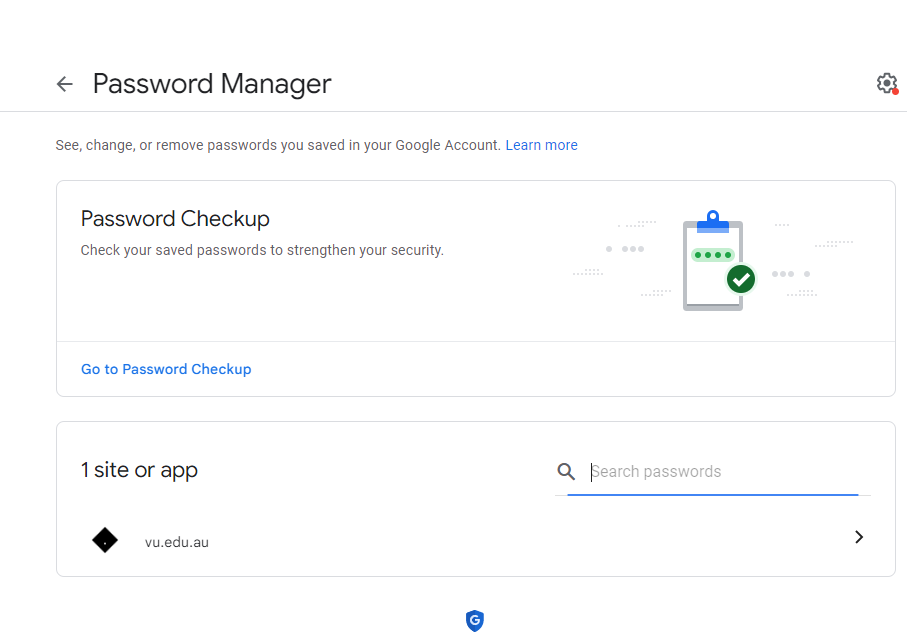
If you want to check the strength of your passwords, you can click on the Go to Password Checkup option and determine your passwords’ security.
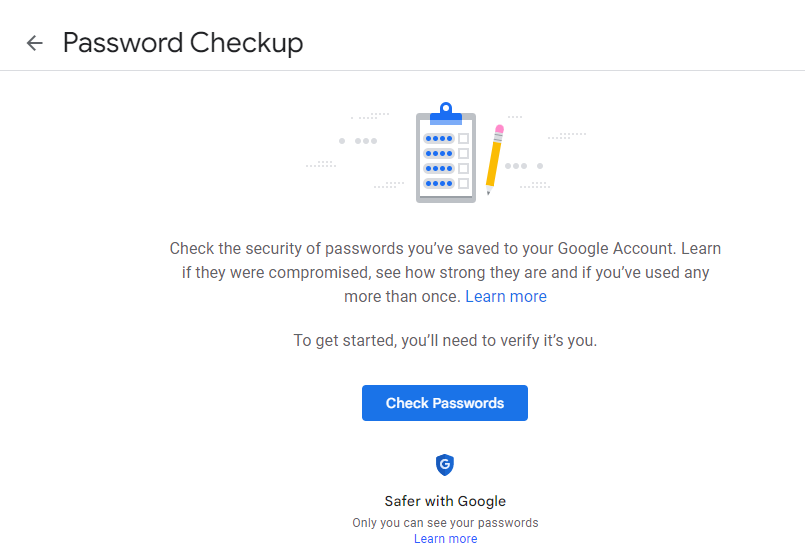
However, if you’re using the Google password manager for the first time, click on the small icon on the right side. This sort of web page will appear on your screen.
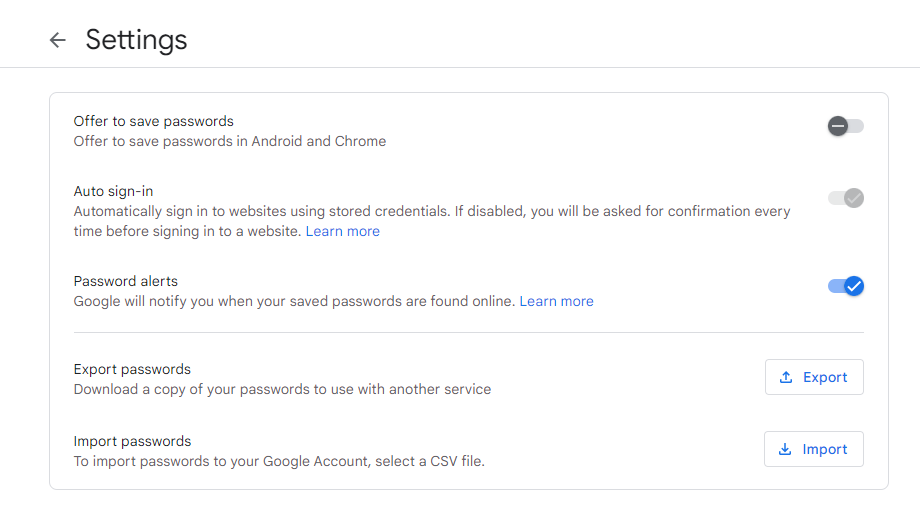
These are the options that Google password managers offer to its users. To allow Google to store your passwords on Chrome and Android devices, click on the Offer to save passwords. In addition, by enabling the auto-signing feature, Google can automatically log you in on certain apps and websites, which ensures a hassle-free experience. Don’t forget to toggle on the password alerts option, as it will alert you if your saved passwords are leaked online.
While Google lets users download copies of their saved passwords, it also lets them import passwords to their Google account as CSV files.
However, the Chrome password manager’s dashboard is basic and plain. There aren’t any dashboard customization options which make the user experience a bit dull. Though it claims to organize all the passwords, when compared to other password managers, the management was quite mediocre. If you don’t find a password, you can use the search bar, making it more convenient to access the right information.
Furthermore, the Chrome password manager vault doesn’t have a master password that’s the core feature found in all standalone password managers. All the passwords are stored in one place but aren’t protected with a master password. Also, the password manager has limited data type support. You can store login credentials, addresses, and payment card info but not other sensitive data like driving licenses, images, and files within the password manager vault. This is again another area where Chrome password manager lacks.
Features Overview
Google Chrome password manager has a limited pool of features that all other password managers offer. So, there’s nothing new. But if you’re a newbie, then you need to know about the features that Chrome password manager offers. Below is a brief overview of these features:
Password Checkup
Google Chrome offers an advanced and impressive Password Checkup feature. This feature lets you see the list of all compromised passwords that got leaked in a data breach or weak passwords that need to be upgraded. Besides this, it also informs about reused passwords and encourages you to change them.
Sync PassPhrase
Google Chrome comes with an extra built-in feature called Sync PassPhrase. This fully encrypts all the data on Google servers and stops third-party apps from accessing your Google account information. Though this feature adds an additional layer of encryption, it does have a significant drawback. If you forgot the PassPhrase, it’s unrecoverable. You need to reset the Chrome sync to recourse it again.
To enable this feature, go to Settings > You and Google > Sync and Google Services > Encryption Options.
Password Generator
The Chrome password manager doesn’t offer a built-in password generator like other password managers. When you’re creating a new password, it gives the option to set a strong password. You can create unique and complex passwords for your accounts by clicking on that option.
On-Device Encryption
According to the latest Google update, Google implements its passkeys version using various methods. One such method that Google uses is on-device encryption.
It is a good initiative that Google has taken to enhance the security of data stored in the Chrome password manager. When Google Chrome saves passwords, it saves the encryption key in your Google account. To unlock your passwords on the device once, you must enter the Google account password. Your device is the key to unlocking passwords; only you can access or see them.
To enable this feature, go to Manage your account > Security > Password Managers > Settings > Tap to enable the on-device encryption feature.
Once enabled, you can’t remove on-device encryption. However, if you can’t find this feature in the settings category, then don’t worry. It’s rolled out only on the Chrome beta 103 version.
Apart from that, In June 2022, Google rolled out a few amazing features for its password managers. These features focused more on providing a unified user experience. The password manager will automatically group multiple passwords for the same apps and sites. In addition, it enables users to manually add passwords that were lacking before.
Android users can also enjoy the new features. It provides a shortcut option on the Android home screen to access the passwords easily.
Furthermore, Google password manager introduces more powerful password protection features. The password manager can flag vulnerable and reused passwords on Android devices and automatically update them. The iOS platform allows users to create strong passwords when they set the autofill option. Chrome users can also see the compromised password warnings and change them before the damage is done.
The company is also planning to bring the Touch-to-Login feature to Chrome and Android platforms. This makes logging apps and sites more convenient as users can log in with a click.
Compatible devices and Browser Extensions
The Google Chrome password manager is designed for the Google ecosystem. As long as you are using the Google Chrome browser, you can use the Chrome password manager on all major devices and platforms, like:
- Android
- iOS
- Mac
- Linux
- Windows
Plus, it allows you to sync data across devices and create a secure backup in Google Drive.
However, the Chrome password manager isn’t the perfect match for people who want to use private browsers instead of Google Chrome. This is because the password manager doesn’t provide any browser extensions. This is where the traditional password managers come off as a better option. They are compatible with all mainstream browsers and offer a browser extension feature that securely scans the passwords across the browsers and makes password management a seamless task.
Therefore, if your main purpose for using a password manager is storing the login credentials to get rid of having to remember them, then Chrome’s password manager is a decent choice.
Chrome Password Manager Customer Support
Standalone password managers offer various methods to assist their customers. They have live customer support options, including email, live chat, and telephonic support. Users are looking for an instant reply while communicating with the customer support representative by clicking on the live chat button regardless of the time to resolve their issues.
In addition, the website resources also play a vital role in assisting the users. They contain an extensive range of user guides, blogs, video content, and FAQs that greatly value users.
But you won’t get any such help while using the Chrome password manager. Google password manager doesn’t include any live customer support option. It offers minimal customer support options that disappoint users at times. These options include:
- Help Center
- Setup Guides
- Send Feedback
- Ask community expert
The help center includes various help articles that might clear your doubts and confusion. You can also consider seeing the setup guides that offer step-by-step instructions for changing your privacy or security settings.
Moreover, you can also report an issue or suggest how Google can further improve its services. Also, by visiting the Google community, you can get advice from experts on using any particular Google account features or settings.
Overall, Google password manager customer support is not very impressive. Users find it helpful.
Chrome Password Manager Pricing Plans
Google password manager is free to use. It’s integrated within the Chrome browser, so you can use it by signing into the Google account and navigating the settings.
Unlike other best password managers, you can’t upgrade to a better version of the Chrome password manager. This might sound fantastic to those who want to use a free password manager that provides basic protection.
Final thoughts
Google Chrome password manager is free for everyone using the Chrome browser. It is easy to use and doesn’t need any downloading or installation. It offers a basic password manager function, making it a good option for people who only want to use a password manager for saving credentials. Besides this, you can also take advantage of the password checkup feature to analyze the security of your passwords.
But to be honest, it’s not the best free service. There are many areas where Google’s password manager needs to improve. Hence, if you don’t want to invest in a premium password manager, then there are still other better free password manager options that you can consider using.
FAQs
The post How Safe and Secure Is Google Chrome Password Manager In 2024 appeared first on BeEncrypted.
]]>Deprecated: Using null as an array offset is deprecated, use an empty string instead in /var/www/staging.beencrypted.com/site/web/wp/wp-includes/class-wp-block-type-registry.php on line 168
Deprecated: Using null as an array offset is deprecated, use an empty string instead in /var/www/staging.beencrypted.com/site/web/wp/wp-includes/class-wp-block-type-registry.php on line 168
Deprecated: Using null as an array offset is deprecated, use an empty string instead in /var/www/staging.beencrypted.com/site/web/wp/wp-includes/class-wp-block-type-registry.php on line 168
Deprecated: Using null as an array offset is deprecated, use an empty string instead in /var/www/staging.beencrypted.com/site/web/wp/wp-includes/class-wp-block-type-registry.php on line 168
Deprecated: Using null as an array offset is deprecated, use an empty string instead in /var/www/staging.beencrypted.com/site/web/wp/wp-includes/class-wp-block-type-registry.php on line 168
Deprecated: Using null as an array offset is deprecated, use an empty string instead in /var/www/staging.beencrypted.com/site/web/wp/wp-includes/class-wp-block-type-registry.php on line 168
Deprecated: Using null as an array offset is deprecated, use an empty string instead in /var/www/staging.beencrypted.com/site/web/wp/wp-includes/class-wp-block-type-registry.php on line 168
Deprecated: Using null as an array offset is deprecated, use an empty string instead in /var/www/staging.beencrypted.com/site/web/wp/wp-includes/class-wp-block-type-registry.php on line 168
Deprecated: Using null as an array offset is deprecated, use an empty string instead in /var/www/staging.beencrypted.com/site/web/wp/wp-includes/class-wp-block-type-registry.php on line 168
Deprecated: Using null as an array offset is deprecated, use an empty string instead in /var/www/staging.beencrypted.com/site/web/wp/wp-includes/class-wp-block-type-registry.php on line 168
Deprecated: Using null as an array offset is deprecated, use an empty string instead in /var/www/staging.beencrypted.com/site/web/wp/wp-includes/class-wp-block-type-registry.php on line 168
Deprecated: Using null as an array offset is deprecated, use an empty string instead in /var/www/staging.beencrypted.com/site/web/wp/wp-includes/class-wp-block-type-registry.php on line 168
Deprecated: Using null as an array offset is deprecated, use an empty string instead in /var/www/staging.beencrypted.com/site/web/wp/wp-includes/class-wp-block-type-registry.php on line 168
Deprecated: Using null as an array offset is deprecated, use an empty string instead in /var/www/staging.beencrypted.com/site/web/wp/wp-includes/class-wp-block-type-registry.php on line 168
Deprecated: Using null as an array offset is deprecated, use an empty string instead in /var/www/staging.beencrypted.com/site/web/wp/wp-includes/class-wp-block-type-registry.php on line 168
Deprecated: Using null as an array offset is deprecated, use an empty string instead in /var/www/staging.beencrypted.com/site/web/wp/wp-includes/class-wp-block-type-registry.php on line 168
Deprecated: Using null as an array offset is deprecated, use an empty string instead in /var/www/staging.beencrypted.com/site/web/wp/wp-includes/class-wp-block-type-registry.php on line 168
Deprecated: Using null as an array offset is deprecated, use an empty string instead in /var/www/staging.beencrypted.com/site/web/wp/wp-includes/class-wp-block-type-registry.php on line 168
Deprecated: Using null as an array offset is deprecated, use an empty string instead in /var/www/staging.beencrypted.com/site/web/wp/wp-includes/class-wp-block-type-registry.php on line 168
Deprecated: Using null as an array offset is deprecated, use an empty string instead in /var/www/staging.beencrypted.com/site/web/wp/wp-includes/class-wp-block-type-registry.php on line 168
Deprecated: Using null as an array offset is deprecated, use an empty string instead in /var/www/staging.beencrypted.com/site/web/wp/wp-includes/class-wp-block-type-registry.php on line 168
Deprecated: Using null as an array offset is deprecated, use an empty string instead in /var/www/staging.beencrypted.com/site/web/wp/wp-includes/class-wp-block-type-registry.php on line 168
Deprecated: Using null as an array offset is deprecated, use an empty string instead in /var/www/staging.beencrypted.com/site/web/wp/wp-includes/class-wp-block-type-registry.php on line 168
Deprecated: Using null as an array offset is deprecated, use an empty string instead in /var/www/staging.beencrypted.com/site/web/wp/wp-includes/class-wp-block-type-registry.php on line 168
Deprecated: Using null as an array offset is deprecated, use an empty string instead in /var/www/staging.beencrypted.com/site/web/wp/wp-includes/class-wp-block-type-registry.php on line 168
Deprecated: Using null as an array offset is deprecated, use an empty string instead in /var/www/staging.beencrypted.com/site/web/wp/wp-includes/class-wp-block-type-registry.php on line 168
Deprecated: Using null as an array offset is deprecated, use an empty string instead in /var/www/staging.beencrypted.com/site/web/wp/wp-includes/class-wp-block-type-registry.php on line 168
Deprecated: Using null as an array offset is deprecated, use an empty string instead in /var/www/staging.beencrypted.com/site/web/wp/wp-includes/class-wp-block-type-registry.php on line 168
Deprecated: Using null as an array offset is deprecated, use an empty string instead in /var/www/staging.beencrypted.com/site/web/wp/wp-includes/class-wp-block-type-registry.php on line 168
Deprecated: Using null as an array offset is deprecated, use an empty string instead in /var/www/staging.beencrypted.com/site/web/wp/wp-includes/class-wp-block-type-registry.php on line 168
Deprecated: Using null as an array offset is deprecated, use an empty string instead in /var/www/staging.beencrypted.com/site/web/wp/wp-includes/class-wp-block-type-registry.php on line 168
Deprecated: Using null as an array offset is deprecated, use an empty string instead in /var/www/staging.beencrypted.com/site/web/wp/wp-includes/class-wp-block-type-registry.php on line 168
Deprecated: Using null as an array offset is deprecated, use an empty string instead in /var/www/staging.beencrypted.com/site/web/wp/wp-includes/class-wp-block-type-registry.php on line 168
Deprecated: Using null as an array offset is deprecated, use an empty string instead in /var/www/staging.beencrypted.com/site/web/wp/wp-includes/class-wp-block-type-registry.php on line 168
Deprecated: Using null as an array offset is deprecated, use an empty string instead in /var/www/staging.beencrypted.com/site/web/wp/wp-includes/class-wp-block-type-registry.php on line 168
Deprecated: Using null as an array offset is deprecated, use an empty string instead in /var/www/staging.beencrypted.com/site/web/wp/wp-includes/class-wp-block-type-registry.php on line 168
Deprecated: Using null as an array offset is deprecated, use an empty string instead in /var/www/staging.beencrypted.com/site/web/wp/wp-includes/class-wp-block-type-registry.php on line 168
Deprecated: Using null as an array offset is deprecated, use an empty string instead in /var/www/staging.beencrypted.com/site/web/wp/wp-includes/class-wp-block-type-registry.php on line 168
Deprecated: Using null as an array offset is deprecated, use an empty string instead in /var/www/staging.beencrypted.com/site/web/wp/wp-includes/class-wp-block-type-registry.php on line 168
Deprecated: Using null as an array offset is deprecated, use an empty string instead in /var/www/staging.beencrypted.com/site/web/wp/wp-includes/class-wp-block-type-registry.php on line 168
Deprecated: Using null as an array offset is deprecated, use an empty string instead in /var/www/staging.beencrypted.com/site/web/wp/wp-includes/class-wp-block-type-registry.php on line 168
Deprecated: Using null as an array offset is deprecated, use an empty string instead in /var/www/staging.beencrypted.com/site/web/wp/wp-includes/class-wp-block-type-registry.php on line 168
Deprecated: Using null as an array offset is deprecated, use an empty string instead in /var/www/staging.beencrypted.com/site/web/wp/wp-includes/class-wp-block-type-registry.php on line 168
Deprecated: Using null as an array offset is deprecated, use an empty string instead in /var/www/staging.beencrypted.com/site/web/wp/wp-includes/class-wp-block-type-registry.php on line 168
Deprecated: Using null as an array offset is deprecated, use an empty string instead in /var/www/staging.beencrypted.com/site/web/wp/wp-includes/class-wp-block-type-registry.php on line 168
Deprecated: Using null as an array offset is deprecated, use an empty string instead in /var/www/staging.beencrypted.com/site/web/wp/wp-includes/class-wp-block-type-registry.php on line 168
Deprecated: Using null as an array offset is deprecated, use an empty string instead in /var/www/staging.beencrypted.com/site/web/wp/wp-includes/class-wp-block-type-registry.php on line 168
Deprecated: Using null as an array offset is deprecated, use an empty string instead in /var/www/staging.beencrypted.com/site/web/wp/wp-includes/class-wp-block-type-registry.php on line 168
Deprecated: Using null as an array offset is deprecated, use an empty string instead in /var/www/staging.beencrypted.com/site/web/wp/wp-includes/class-wp-block-type-registry.php on line 168
Deprecated: Using null as an array offset is deprecated, use an empty string instead in /var/www/staging.beencrypted.com/site/web/wp/wp-includes/class-wp-block-type-registry.php on line 168
Deprecated: Using null as an array offset is deprecated, use an empty string instead in /var/www/staging.beencrypted.com/site/web/wp/wp-includes/class-wp-block-type-registry.php on line 168
Deprecated: Using null as an array offset is deprecated, use an empty string instead in /var/www/staging.beencrypted.com/site/web/wp/wp-includes/class-wp-block-type-registry.php on line 168
Deprecated: Using null as an array offset is deprecated, use an empty string instead in /var/www/staging.beencrypted.com/site/web/wp/wp-includes/class-wp-block-type-registry.php on line 168
Deprecated: Using null as an array offset is deprecated, use an empty string instead in /var/www/staging.beencrypted.com/site/web/wp/wp-includes/class-wp-block-type-registry.php on line 168
Deprecated: Using null as an array offset is deprecated, use an empty string instead in /var/www/staging.beencrypted.com/site/web/wp/wp-includes/class-wp-block-type-registry.php on line 168
Deprecated: Using null as an array offset is deprecated, use an empty string instead in /var/www/staging.beencrypted.com/site/web/wp/wp-includes/class-wp-block-type-registry.php on line 168
Deprecated: Using null as an array offset is deprecated, use an empty string instead in /var/www/staging.beencrypted.com/site/web/wp/wp-includes/class-wp-block-type-registry.php on line 168
Deprecated: Using null as an array offset is deprecated, use an empty string instead in /var/www/staging.beencrypted.com/site/web/wp/wp-includes/class-wp-block-type-registry.php on line 168
Deprecated: Using null as an array offset is deprecated, use an empty string instead in /var/www/staging.beencrypted.com/site/web/wp/wp-includes/class-wp-block-type-registry.php on line 168
Deprecated: Using null as an array offset is deprecated, use an empty string instead in /var/www/staging.beencrypted.com/site/web/wp/wp-includes/class-wp-block-type-registry.php on line 168
Deprecated: Using null as an array offset is deprecated, use an empty string instead in /var/www/staging.beencrypted.com/site/web/wp/wp-includes/class-wp-block-type-registry.php on line 168
Deprecated: Using null as an array offset is deprecated, use an empty string instead in /var/www/staging.beencrypted.com/site/web/wp/wp-includes/class-wp-block-type-registry.php on line 168
Deprecated: Using null as an array offset is deprecated, use an empty string instead in /var/www/staging.beencrypted.com/site/web/wp/wp-includes/class-wp-block-type-registry.php on line 168
Deprecated: Using null as an array offset is deprecated, use an empty string instead in /var/www/staging.beencrypted.com/site/web/wp/wp-includes/class-wp-block-type-registry.php on line 168
Deprecated: Using null as an array offset is deprecated, use an empty string instead in /var/www/staging.beencrypted.com/site/web/wp/wp-includes/class-wp-block-type-registry.php on line 168
Deprecated: Using null as an array offset is deprecated, use an empty string instead in /var/www/staging.beencrypted.com/site/web/wp/wp-includes/class-wp-block-type-registry.php on line 168
Deprecated: Using null as an array offset is deprecated, use an empty string instead in /var/www/staging.beencrypted.com/site/web/wp/wp-includes/class-wp-block-type-registry.php on line 168
Deprecated: Using null as an array offset is deprecated, use an empty string instead in /var/www/staging.beencrypted.com/site/web/wp/wp-includes/class-wp-block-type-registry.php on line 168
Deprecated: Using null as an array offset is deprecated, use an empty string instead in /var/www/staging.beencrypted.com/site/web/wp/wp-includes/class-wp-block-type-registry.php on line 168
Deprecated: Using null as an array offset is deprecated, use an empty string instead in /var/www/staging.beencrypted.com/site/web/wp/wp-includes/class-wp-block-type-registry.php on line 168
Deprecated: Using null as an array offset is deprecated, use an empty string instead in /var/www/staging.beencrypted.com/site/web/wp/wp-includes/class-wp-block-type-registry.php on line 168
Deprecated: Using null as an array offset is deprecated, use an empty string instead in /var/www/staging.beencrypted.com/site/web/wp/wp-includes/class-wp-block-type-registry.php on line 168
Deprecated: Using null as an array offset is deprecated, use an empty string instead in /var/www/staging.beencrypted.com/site/web/wp/wp-includes/class-wp-block-type-registry.php on line 168
Deprecated: Using null as an array offset is deprecated, use an empty string instead in /var/www/staging.beencrypted.com/site/web/wp/wp-includes/class-wp-block-type-registry.php on line 168
Deprecated: Using null as an array offset is deprecated, use an empty string instead in /var/www/staging.beencrypted.com/site/web/wp/wp-includes/class-wp-block-type-registry.php on line 168
Deprecated: Using null as an array offset is deprecated, use an empty string instead in /var/www/staging.beencrypted.com/site/web/wp/wp-includes/class-wp-block-type-registry.php on line 168
Deprecated: Using null as an array offset is deprecated, use an empty string instead in /var/www/staging.beencrypted.com/site/web/wp/wp-includes/class-wp-block-type-registry.php on line 168
Deprecated: Using null as an array offset is deprecated, use an empty string instead in /var/www/staging.beencrypted.com/site/web/wp/wp-includes/class-wp-block-type-registry.php on line 168
Deprecated: Using null as an array offset is deprecated, use an empty string instead in /var/www/staging.beencrypted.com/site/web/wp/wp-includes/class-wp-block-type-registry.php on line 168
Deprecated: Using null as an array offset is deprecated, use an empty string instead in /var/www/staging.beencrypted.com/site/web/wp/wp-includes/class-wp-block-type-registry.php on line 168
Deprecated: Using null as an array offset is deprecated, use an empty string instead in /var/www/staging.beencrypted.com/site/web/wp/wp-includes/class-wp-block-type-registry.php on line 168
Deprecated: Using null as an array offset is deprecated, use an empty string instead in /var/www/staging.beencrypted.com/site/web/wp/wp-includes/class-wp-block-type-registry.php on line 168
Deprecated: Using null as an array offset is deprecated, use an empty string instead in /var/www/staging.beencrypted.com/site/web/wp/wp-includes/class-wp-block-type-registry.php on line 168
Deprecated: Using null as an array offset is deprecated, use an empty string instead in /var/www/staging.beencrypted.com/site/web/wp/wp-includes/class-wp-block-type-registry.php on line 168
Deprecated: Using null as an array offset is deprecated, use an empty string instead in /var/www/staging.beencrypted.com/site/web/wp/wp-includes/class-wp-block-type-registry.php on line 168
Deprecated: Using null as an array offset is deprecated, use an empty string instead in /var/www/staging.beencrypted.com/site/web/wp/wp-includes/class-wp-block-type-registry.php on line 168
Deprecated: Using null as an array offset is deprecated, use an empty string instead in /var/www/staging.beencrypted.com/site/web/wp/wp-includes/class-wp-block-type-registry.php on line 168
Deprecated: Using null as an array offset is deprecated, use an empty string instead in /var/www/staging.beencrypted.com/site/web/wp/wp-includes/class-wp-block-type-registry.php on line 168
Deprecated: Using null as an array offset is deprecated, use an empty string instead in /var/www/staging.beencrypted.com/site/web/wp/wp-includes/class-wp-block-type-registry.php on line 168
Deprecated: Using null as an array offset is deprecated, use an empty string instead in /var/www/staging.beencrypted.com/site/web/wp/wp-includes/class-wp-block-type-registry.php on line 168
Deprecated: Using null as an array offset is deprecated, use an empty string instead in /var/www/staging.beencrypted.com/site/web/wp/wp-includes/class-wp-block-type-registry.php on line 168
Deprecated: Using null as an array offset is deprecated, use an empty string instead in /var/www/staging.beencrypted.com/site/web/wp/wp-includes/class-wp-block-type-registry.php on line 168
Deprecated: Using null as an array offset is deprecated, use an empty string instead in /var/www/staging.beencrypted.com/site/web/wp/wp-includes/class-wp-block-type-registry.php on line 168
Deprecated: Using null as an array offset is deprecated, use an empty string instead in /var/www/staging.beencrypted.com/site/web/wp/wp-includes/class-wp-block-type-registry.php on line 168
Deprecated: Using null as an array offset is deprecated, use an empty string instead in /var/www/staging.beencrypted.com/site/web/wp/wp-includes/class-wp-block-type-registry.php on line 168
Deprecated: Using null as an array offset is deprecated, use an empty string instead in /var/www/staging.beencrypted.com/site/web/wp/wp-includes/class-wp-block-type-registry.php on line 168
Deprecated: Using null as an array offset is deprecated, use an empty string instead in /var/www/staging.beencrypted.com/site/web/wp/wp-includes/class-wp-block-type-registry.php on line 168
Deprecated: Using null as an array offset is deprecated, use an empty string instead in /var/www/staging.beencrypted.com/site/web/wp/wp-includes/class-wp-block-type-registry.php on line 168
Deprecated: Using null as an array offset is deprecated, use an empty string instead in /var/www/staging.beencrypted.com/site/web/wp/wp-includes/class-wp-block-type-registry.php on line 168
Deprecated: Using null as an array offset is deprecated, use an empty string instead in /var/www/staging.beencrypted.com/site/web/wp/wp-includes/class-wp-block-type-registry.php on line 168
Deprecated: Using null as an array offset is deprecated, use an empty string instead in /var/www/staging.beencrypted.com/site/web/wp/wp-includes/class-wp-block-type-registry.php on line 168
Deprecated: Using null as an array offset is deprecated, use an empty string instead in /var/www/staging.beencrypted.com/site/web/wp/wp-includes/class-wp-block-type-registry.php on line 168
Deprecated: Using null as an array offset is deprecated, use an empty string instead in /var/www/staging.beencrypted.com/site/web/wp/wp-includes/class-wp-block-type-registry.php on line 168
Deprecated: Using null as an array offset is deprecated, use an empty string instead in /var/www/staging.beencrypted.com/site/web/wp/wp-includes/class-wp-block-type-registry.php on line 168
Deprecated: Using null as an array offset is deprecated, use an empty string instead in /var/www/staging.beencrypted.com/site/web/wp/wp-includes/class-wp-block-type-registry.php on line 168
Deprecated: Using null as an array offset is deprecated, use an empty string instead in /var/www/staging.beencrypted.com/site/web/wp/wp-includes/class-wp-block-type-registry.php on line 168
Deprecated: Using null as an array offset is deprecated, use an empty string instead in /var/www/staging.beencrypted.com/site/web/wp/wp-includes/class-wp-block-type-registry.php on line 168
Deprecated: Using null as an array offset is deprecated, use an empty string instead in /var/www/staging.beencrypted.com/site/web/wp/wp-includes/class-wp-block-type-registry.php on line 168
Deprecated: Using null as an array offset is deprecated, use an empty string instead in /var/www/staging.beencrypted.com/site/web/wp/wp-includes/class-wp-block-type-registry.php on line 168
Deprecated: Using null as an array offset is deprecated, use an empty string instead in /var/www/staging.beencrypted.com/site/web/wp/wp-includes/class-wp-block-type-registry.php on line 168
Deprecated: Using null as an array offset is deprecated, use an empty string instead in /var/www/staging.beencrypted.com/site/web/wp/wp-includes/class-wp-block-type-registry.php on line 168
Deprecated: Using null as an array offset is deprecated, use an empty string instead in /var/www/staging.beencrypted.com/site/web/wp/wp-includes/class-wp-block-type-registry.php on line 168
Deprecated: Using null as an array offset is deprecated, use an empty string instead in /var/www/staging.beencrypted.com/site/web/wp/wp-includes/class-wp-block-type-registry.php on line 168
Deprecated: Using null as an array offset is deprecated, use an empty string instead in /var/www/staging.beencrypted.com/site/web/wp/wp-includes/class-wp-block-type-registry.php on line 168
Deprecated: Using null as an array offset is deprecated, use an empty string instead in /var/www/staging.beencrypted.com/site/web/wp/wp-includes/class-wp-block-type-registry.php on line 168
Deprecated: Using null as an array offset is deprecated, use an empty string instead in /var/www/staging.beencrypted.com/site/web/wp/wp-includes/class-wp-block-type-registry.php on line 168
Deprecated: Using null as an array offset is deprecated, use an empty string instead in /var/www/staging.beencrypted.com/site/web/wp/wp-includes/class-wp-block-type-registry.php on line 168
Deprecated: Using null as an array offset is deprecated, use an empty string instead in /var/www/staging.beencrypted.com/site/web/wp/wp-includes/class-wp-block-type-registry.php on line 168
Deprecated: Using null as an array offset is deprecated, use an empty string instead in /var/www/staging.beencrypted.com/site/web/wp/wp-includes/class-wp-block-type-registry.php on line 168
Deprecated: Using null as an array offset is deprecated, use an empty string instead in /var/www/staging.beencrypted.com/site/web/wp/wp-includes/class-wp-block-type-registry.php on line 168
Deprecated: Using null as an array offset is deprecated, use an empty string instead in /var/www/staging.beencrypted.com/site/web/wp/wp-includes/class-wp-block-type-registry.php on line 168
Deprecated: Using null as an array offset is deprecated, use an empty string instead in /var/www/staging.beencrypted.com/site/web/wp/wp-includes/class-wp-block-type-registry.php on line 168
Deprecated: Using null as an array offset is deprecated, use an empty string instead in /var/www/staging.beencrypted.com/site/web/wp/wp-includes/class-wp-block-type-registry.php on line 168
Deprecated: Using null as an array offset is deprecated, use an empty string instead in /var/www/staging.beencrypted.com/site/web/wp/wp-includes/class-wp-block-type-registry.php on line 168
Deprecated: Using null as an array offset is deprecated, use an empty string instead in /var/www/staging.beencrypted.com/site/web/wp/wp-includes/class-wp-block-type-registry.php on line 168
Deprecated: Using null as an array offset is deprecated, use an empty string instead in /var/www/staging.beencrypted.com/site/web/wp/wp-includes/class-wp-block-type-registry.php on line 168
Deprecated: Using null as an array offset is deprecated, use an empty string instead in /var/www/staging.beencrypted.com/site/web/wp/wp-includes/class-wp-block-type-registry.php on line 168
Deprecated: Using null as an array offset is deprecated, use an empty string instead in /var/www/staging.beencrypted.com/site/web/wp/wp-includes/class-wp-block-type-registry.php on line 168
Deprecated: Using null as an array offset is deprecated, use an empty string instead in /var/www/staging.beencrypted.com/site/web/wp/wp-includes/class-wp-block-type-registry.php on line 168
Deprecated: Using null as an array offset is deprecated, use an empty string instead in /var/www/staging.beencrypted.com/site/web/wp/wp-includes/class-wp-block-type-registry.php on line 168
Deprecated: Using null as an array offset is deprecated, use an empty string instead in /var/www/staging.beencrypted.com/site/web/wp/wp-includes/class-wp-block-type-registry.php on line 168
Deprecated: Using null as an array offset is deprecated, use an empty string instead in /var/www/staging.beencrypted.com/site/web/wp/wp-includes/class-wp-block-type-registry.php on line 168
Deprecated: Using null as an array offset is deprecated, use an empty string instead in /var/www/staging.beencrypted.com/site/web/wp/wp-includes/class-wp-block-type-registry.php on line 168
Deprecated: Using null as an array offset is deprecated, use an empty string instead in /var/www/staging.beencrypted.com/site/web/wp/wp-includes/class-wp-block-type-registry.php on line 168
Deprecated: Using null as an array offset is deprecated, use an empty string instead in /var/www/staging.beencrypted.com/site/web/wp/wp-includes/class-wp-block-type-registry.php on line 168
Deprecated: Using null as an array offset is deprecated, use an empty string instead in /var/www/staging.beencrypted.com/site/web/wp/wp-includes/class-wp-block-type-registry.php on line 168
Deprecated: Using null as an array offset is deprecated, use an empty string instead in /var/www/staging.beencrypted.com/site/web/wp/wp-includes/class-wp-block-type-registry.php on line 168
Deprecated: Using null as an array offset is deprecated, use an empty string instead in /var/www/staging.beencrypted.com/site/web/wp/wp-includes/class-wp-block-type-registry.php on line 168
Deprecated: Using null as an array offset is deprecated, use an empty string instead in /var/www/staging.beencrypted.com/site/web/wp/wp-includes/class-wp-block-type-registry.php on line 168
Deprecated: Using null as an array offset is deprecated, use an empty string instead in /var/www/staging.beencrypted.com/site/web/wp/wp-includes/class-wp-block-type-registry.php on line 168
Deprecated: Using null as an array offset is deprecated, use an empty string instead in /var/www/staging.beencrypted.com/site/web/wp/wp-includes/class-wp-block-type-registry.php on line 168
Deprecated: Using null as an array offset is deprecated, use an empty string instead in /var/www/staging.beencrypted.com/site/web/wp/wp-includes/class-wp-block-type-registry.php on line 168
Deprecated: Using null as an array offset is deprecated, use an empty string instead in /var/www/staging.beencrypted.com/site/web/wp/wp-includes/class-wp-block-type-registry.php on line 168
Deprecated: Using null as an array offset is deprecated, use an empty string instead in /var/www/staging.beencrypted.com/site/web/wp/wp-includes/class-wp-block-type-registry.php on line 168
Deprecated: Using null as an array offset is deprecated, use an empty string instead in /var/www/staging.beencrypted.com/site/web/wp/wp-includes/class-wp-block-type-registry.php on line 168
Deprecated: Using null as an array offset is deprecated, use an empty string instead in /var/www/staging.beencrypted.com/site/web/wp/wp-includes/class-wp-block-type-registry.php on line 168
Deprecated: Using null as an array offset is deprecated, use an empty string instead in /var/www/staging.beencrypted.com/site/web/wp/wp-includes/class-wp-block-type-registry.php on line 168
Deprecated: Using null as an array offset is deprecated, use an empty string instead in /var/www/staging.beencrypted.com/site/web/wp/wp-includes/class-wp-block-type-registry.php on line 168
Deprecated: Using null as an array offset is deprecated, use an empty string instead in /var/www/staging.beencrypted.com/site/web/wp/wp-includes/class-wp-block-type-registry.php on line 168
Deprecated: Using null as an array offset is deprecated, use an empty string instead in /var/www/staging.beencrypted.com/site/web/wp/wp-includes/class-wp-block-type-registry.php on line 168
Deprecated: Using null as an array offset is deprecated, use an empty string instead in /var/www/staging.beencrypted.com/site/web/wp/wp-includes/class-wp-block-type-registry.php on line 168
Deprecated: Using null as an array offset is deprecated, use an empty string instead in /var/www/staging.beencrypted.com/site/web/wp/wp-includes/class-wp-block-type-registry.php on line 168
Deprecated: Using null as an array offset is deprecated, use an empty string instead in /var/www/staging.beencrypted.com/site/web/wp/wp-includes/class-wp-block-type-registry.php on line 168
Deprecated: Using null as an array offset is deprecated, use an empty string instead in /var/www/staging.beencrypted.com/site/web/wp/wp-includes/class-wp-block-type-registry.php on line 168
Deprecated: Using null as an array offset is deprecated, use an empty string instead in /var/www/staging.beencrypted.com/site/web/wp/wp-includes/class-wp-block-type-registry.php on line 168
Deprecated: Using null as an array offset is deprecated, use an empty string instead in /var/www/staging.beencrypted.com/site/web/wp/wp-includes/class-wp-block-type-registry.php on line 168
Deprecated: Using null as an array offset is deprecated, use an empty string instead in /var/www/staging.beencrypted.com/site/web/wp/wp-includes/class-wp-block-type-registry.php on line 168
Deprecated: Using null as an array offset is deprecated, use an empty string instead in /var/www/staging.beencrypted.com/site/web/wp/wp-includes/class-wp-block-type-registry.php on line 168
Deprecated: Using null as an array offset is deprecated, use an empty string instead in /var/www/staging.beencrypted.com/site/web/wp/wp-includes/class-wp-block-type-registry.php on line 168
Deprecated: Using null as an array offset is deprecated, use an empty string instead in /var/www/staging.beencrypted.com/site/web/wp/wp-includes/class-wp-block-type-registry.php on line 168
Deprecated: Using null as an array offset is deprecated, use an empty string instead in /var/www/staging.beencrypted.com/site/web/wp/wp-includes/class-wp-block-type-registry.php on line 168
Deprecated: Using null as an array offset is deprecated, use an empty string instead in /var/www/staging.beencrypted.com/site/web/wp/wp-includes/class-wp-block-type-registry.php on line 168
Deprecated: Using null as an array offset is deprecated, use an empty string instead in /var/www/staging.beencrypted.com/site/web/wp/wp-includes/class-wp-block-type-registry.php on line 168
Deprecated: Using null as an array offset is deprecated, use an empty string instead in /var/www/staging.beencrypted.com/site/web/wp/wp-includes/class-wp-block-type-registry.php on line 168
Deprecated: Using null as an array offset is deprecated, use an empty string instead in /var/www/staging.beencrypted.com/site/web/wp/wp-includes/class-wp-block-type-registry.php on line 168
Deprecated: Using null as an array offset is deprecated, use an empty string instead in /var/www/staging.beencrypted.com/site/web/wp/wp-includes/class-wp-block-type-registry.php on line 168
Deprecated: Using null as an array offset is deprecated, use an empty string instead in /var/www/staging.beencrypted.com/site/web/wp/wp-includes/class-wp-block-type-registry.php on line 168
Deprecated: Using null as an array offset is deprecated, use an empty string instead in /var/www/staging.beencrypted.com/site/web/wp/wp-includes/class-wp-block-type-registry.php on line 168
Deprecated: Using null as an array offset is deprecated, use an empty string instead in /var/www/staging.beencrypted.com/site/web/wp/wp-includes/class-wp-block-type-registry.php on line 168
Deprecated: Using null as an array offset is deprecated, use an empty string instead in /var/www/staging.beencrypted.com/site/web/wp/wp-includes/class-wp-block-type-registry.php on line 168
Deprecated: Using null as an array offset is deprecated, use an empty string instead in /var/www/staging.beencrypted.com/site/web/wp/wp-includes/class-wp-block-type-registry.php on line 168
Deprecated: Using null as an array offset is deprecated, use an empty string instead in /var/www/staging.beencrypted.com/site/web/wp/wp-includes/class-wp-block-type-registry.php on line 168
Deprecated: Using null as an array offset is deprecated, use an empty string instead in /var/www/staging.beencrypted.com/site/web/wp/wp-includes/class-wp-block-type-registry.php on line 168
Deprecated: Using null as an array offset is deprecated, use an empty string instead in /var/www/staging.beencrypted.com/site/web/wp/wp-includes/class-wp-block-type-registry.php on line 168
Deprecated: Using null as an array offset is deprecated, use an empty string instead in /var/www/staging.beencrypted.com/site/web/wp/wp-includes/class-wp-block-type-registry.php on line 168
Deprecated: Using null as an array offset is deprecated, use an empty string instead in /var/www/staging.beencrypted.com/site/web/wp/wp-includes/class-wp-block-type-registry.php on line 168
Deprecated: Using null as an array offset is deprecated, use an empty string instead in /var/www/staging.beencrypted.com/site/web/wp/wp-includes/class-wp-block-type-registry.php on line 168
Deprecated: Using null as an array offset is deprecated, use an empty string instead in /var/www/staging.beencrypted.com/site/web/wp/wp-includes/class-wp-block-type-registry.php on line 168
Deprecated: Using null as an array offset is deprecated, use an empty string instead in /var/www/staging.beencrypted.com/site/web/wp/wp-includes/class-wp-block-type-registry.php on line 168
Deprecated: Using null as an array offset is deprecated, use an empty string instead in /var/www/staging.beencrypted.com/site/web/wp/wp-includes/class-wp-block-type-registry.php on line 168
Deprecated: Using null as an array offset is deprecated, use an empty string instead in /var/www/staging.beencrypted.com/site/web/wp/wp-includes/class-wp-block-type-registry.php on line 168
Deprecated: Using null as an array offset is deprecated, use an empty string instead in /var/www/staging.beencrypted.com/site/web/wp/wp-includes/class-wp-block-type-registry.php on line 168
Deprecated: Using null as an array offset is deprecated, use an empty string instead in /var/www/staging.beencrypted.com/site/web/wp/wp-includes/class-wp-block-type-registry.php on line 168
Deprecated: Using null as an array offset is deprecated, use an empty string instead in /var/www/staging.beencrypted.com/site/web/wp/wp-includes/class-wp-block-type-registry.php on line 168
Deprecated: Using null as an array offset is deprecated, use an empty string instead in /var/www/staging.beencrypted.com/site/web/wp/wp-includes/class-wp-block-type-registry.php on line 168
Deprecated: Using null as an array offset is deprecated, use an empty string instead in /var/www/staging.beencrypted.com/site/web/wp/wp-includes/class-wp-block-type-registry.php on line 168
Deprecated: Using null as an array offset is deprecated, use an empty string instead in /var/www/staging.beencrypted.com/site/web/wp/wp-includes/class-wp-block-type-registry.php on line 168
Deprecated: Using null as an array offset is deprecated, use an empty string instead in /var/www/staging.beencrypted.com/site/web/wp/wp-includes/class-wp-block-type-registry.php on line 168
Deprecated: Using null as an array offset is deprecated, use an empty string instead in /var/www/staging.beencrypted.com/site/web/wp/wp-includes/class-wp-block-type-registry.php on line 168
Deprecated: Using null as an array offset is deprecated, use an empty string instead in /var/www/staging.beencrypted.com/site/web/wp/wp-includes/class-wp-block-type-registry.php on line 168
Deprecated: Using null as an array offset is deprecated, use an empty string instead in /var/www/staging.beencrypted.com/site/web/wp/wp-includes/class-wp-block-type-registry.php on line 168
Deprecated: Using null as an array offset is deprecated, use an empty string instead in /var/www/staging.beencrypted.com/site/web/wp/wp-includes/class-wp-block-type-registry.php on line 168
Deprecated: Using null as an array offset is deprecated, use an empty string instead in /var/www/staging.beencrypted.com/site/web/wp/wp-includes/class-wp-block-type-registry.php on line 168
Deprecated: Using null as an array offset is deprecated, use an empty string instead in /var/www/staging.beencrypted.com/site/web/wp/wp-includes/class-wp-block-type-registry.php on line 168
Deprecated: Using null as an array offset is deprecated, use an empty string instead in /var/www/staging.beencrypted.com/site/web/wp/wp-includes/class-wp-block-type-registry.php on line 168
Deprecated: Using null as an array offset is deprecated, use an empty string instead in /var/www/staging.beencrypted.com/site/web/wp/wp-includes/class-wp-block-type-registry.php on line 168
Deprecated: Using null as an array offset is deprecated, use an empty string instead in /var/www/staging.beencrypted.com/site/web/wp/wp-includes/class-wp-block-type-registry.php on line 168
Deprecated: Using null as an array offset is deprecated, use an empty string instead in /var/www/staging.beencrypted.com/site/web/wp/wp-includes/class-wp-block-type-registry.php on line 168
Deprecated: Using null as an array offset is deprecated, use an empty string instead in /var/www/staging.beencrypted.com/site/web/wp/wp-includes/class-wp-block-type-registry.php on line 168
Deprecated: Using null as an array offset is deprecated, use an empty string instead in /var/www/staging.beencrypted.com/site/web/wp/wp-includes/class-wp-block-type-registry.php on line 168
Deprecated: Using null as an array offset is deprecated, use an empty string instead in /var/www/staging.beencrypted.com/site/web/wp/wp-includes/class-wp-block-type-registry.php on line 168
Deprecated: Using null as an array offset is deprecated, use an empty string instead in /var/www/staging.beencrypted.com/site/web/wp/wp-includes/class-wp-block-type-registry.php on line 168
Deprecated: Using null as an array offset is deprecated, use an empty string instead in /var/www/staging.beencrypted.com/site/web/wp/wp-includes/class-wp-block-type-registry.php on line 168
Deprecated: Using null as an array offset is deprecated, use an empty string instead in /var/www/staging.beencrypted.com/site/web/wp/wp-includes/class-wp-block-type-registry.php on line 168
Deprecated: Using null as an array offset is deprecated, use an empty string instead in /var/www/staging.beencrypted.com/site/web/wp/wp-includes/class-wp-block-type-registry.php on line 168
Deprecated: Using null as an array offset is deprecated, use an empty string instead in /var/www/staging.beencrypted.com/site/web/wp/wp-includes/class-wp-block-type-registry.php on line 168
Deprecated: Using null as an array offset is deprecated, use an empty string instead in /var/www/staging.beencrypted.com/site/web/wp/wp-includes/class-wp-block-type-registry.php on line 168
Deprecated: Using null as an array offset is deprecated, use an empty string instead in /var/www/staging.beencrypted.com/site/web/wp/wp-includes/class-wp-block-type-registry.php on line 168
Deprecated: Using null as an array offset is deprecated, use an empty string instead in /var/www/staging.beencrypted.com/site/web/wp/wp-includes/class-wp-block-type-registry.php on line 168
Deprecated: Using null as an array offset is deprecated, use an empty string instead in /var/www/staging.beencrypted.com/site/web/wp/wp-includes/class-wp-block-type-registry.php on line 168
Deprecated: Using null as an array offset is deprecated, use an empty string instead in /var/www/staging.beencrypted.com/site/web/wp/wp-includes/class-wp-block-type-registry.php on line 168
Deprecated: Using null as an array offset is deprecated, use an empty string instead in /var/www/staging.beencrypted.com/site/web/wp/wp-includes/class-wp-block-type-registry.php on line 168
Deprecated: Using null as an array offset is deprecated, use an empty string instead in /var/www/staging.beencrypted.com/site/web/wp/wp-includes/class-wp-block-type-registry.php on line 168
Deprecated: Using null as an array offset is deprecated, use an empty string instead in /var/www/staging.beencrypted.com/site/web/wp/wp-includes/class-wp-block-type-registry.php on line 168
Deprecated: Using null as an array offset is deprecated, use an empty string instead in /var/www/staging.beencrypted.com/site/web/wp/wp-includes/class-wp-block-type-registry.php on line 168
Deprecated: Using null as an array offset is deprecated, use an empty string instead in /var/www/staging.beencrypted.com/site/web/wp/wp-includes/class-wp-block-type-registry.php on line 168
Deprecated: Using null as an array offset is deprecated, use an empty string instead in /var/www/staging.beencrypted.com/site/web/wp/wp-includes/class-wp-block-type-registry.php on line 168
Deprecated: Using null as an array offset is deprecated, use an empty string instead in /var/www/staging.beencrypted.com/site/web/wp/wp-includes/class-wp-block-type-registry.php on line 168
Deprecated: Using null as an array offset is deprecated, use an empty string instead in /var/www/staging.beencrypted.com/site/web/wp/wp-includes/class-wp-block-type-registry.php on line 168
Deprecated: Using null as an array offset is deprecated, use an empty string instead in /var/www/staging.beencrypted.com/site/web/wp/wp-includes/class-wp-block-type-registry.php on line 168
Deprecated: Using null as an array offset is deprecated, use an empty string instead in /var/www/staging.beencrypted.com/site/web/wp/wp-includes/class-wp-block-type-registry.php on line 168
Deprecated: Using null as an array offset is deprecated, use an empty string instead in /var/www/staging.beencrypted.com/site/web/wp/wp-includes/class-wp-block-type-registry.php on line 168
Deprecated: Using null as an array offset is deprecated, use an empty string instead in /var/www/staging.beencrypted.com/site/web/wp/wp-includes/class-wp-block-type-registry.php on line 168
Deprecated: Using null as an array offset is deprecated, use an empty string instead in /var/www/staging.beencrypted.com/site/web/wp/wp-includes/class-wp-block-type-registry.php on line 168
Deprecated: Using null as an array offset is deprecated, use an empty string instead in /var/www/staging.beencrypted.com/site/web/wp/wp-includes/class-wp-block-type-registry.php on line 168
Deprecated: Using null as an array offset is deprecated, use an empty string instead in /var/www/staging.beencrypted.com/site/web/wp/wp-includes/class-wp-block-type-registry.php on line 168
Deprecated: Using null as an array offset is deprecated, use an empty string instead in /var/www/staging.beencrypted.com/site/web/wp/wp-includes/class-wp-block-type-registry.php on line 168
Deprecated: Using null as an array offset is deprecated, use an empty string instead in /var/www/staging.beencrypted.com/site/web/wp/wp-includes/class-wp-block-type-registry.php on line 168
Deprecated: Using null as an array offset is deprecated, use an empty string instead in /var/www/staging.beencrypted.com/site/web/wp/wp-includes/class-wp-block-type-registry.php on line 168
Deprecated: Using null as an array offset is deprecated, use an empty string instead in /var/www/staging.beencrypted.com/site/web/wp/wp-includes/class-wp-block-type-registry.php on line 168
Deprecated: Using null as an array offset is deprecated, use an empty string instead in /var/www/staging.beencrypted.com/site/web/wp/wp-includes/class-wp-block-type-registry.php on line 168
Deprecated: Using null as an array offset is deprecated, use an empty string instead in /var/www/staging.beencrypted.com/site/web/wp/wp-includes/class-wp-block-type-registry.php on line 168
Deprecated: Using null as an array offset is deprecated, use an empty string instead in /var/www/staging.beencrypted.com/site/web/wp/wp-includes/class-wp-block-type-registry.php on line 168
Deprecated: Using null as an array offset is deprecated, use an empty string instead in /var/www/staging.beencrypted.com/site/web/wp/wp-includes/class-wp-block-type-registry.php on line 168
Deprecated: Using null as an array offset is deprecated, use an empty string instead in /var/www/staging.beencrypted.com/site/web/wp/wp-includes/class-wp-block-type-registry.php on line 168
Deprecated: Using null as an array offset is deprecated, use an empty string instead in /var/www/staging.beencrypted.com/site/web/wp/wp-includes/class-wp-block-type-registry.php on line 168
Deprecated: Using null as an array offset is deprecated, use an empty string instead in /var/www/staging.beencrypted.com/site/web/wp/wp-includes/class-wp-block-type-registry.php on line 168
Deprecated: Using null as an array offset is deprecated, use an empty string instead in /var/www/staging.beencrypted.com/site/web/wp/wp-includes/class-wp-block-type-registry.php on line 168
Deprecated: Using null as an array offset is deprecated, use an empty string instead in /var/www/staging.beencrypted.com/site/web/wp/wp-includes/class-wp-block-type-registry.php on line 168
Deprecated: Using null as an array offset is deprecated, use an empty string instead in /var/www/staging.beencrypted.com/site/web/wp/wp-includes/class-wp-block-type-registry.php on line 168
Deprecated: Using null as an array offset is deprecated, use an empty string instead in /var/www/staging.beencrypted.com/site/web/wp/wp-includes/class-wp-block-type-registry.php on line 168
Deprecated: Using null as an array offset is deprecated, use an empty string instead in /var/www/staging.beencrypted.com/site/web/wp/wp-includes/class-wp-block-type-registry.php on line 168
Deprecated: Using null as an array offset is deprecated, use an empty string instead in /var/www/staging.beencrypted.com/site/web/wp/wp-includes/class-wp-block-type-registry.php on line 168
Deprecated: Using null as an array offset is deprecated, use an empty string instead in /var/www/staging.beencrypted.com/site/web/wp/wp-includes/class-wp-block-type-registry.php on line 168
Deprecated: Using null as an array offset is deprecated, use an empty string instead in /var/www/staging.beencrypted.com/site/web/wp/wp-includes/class-wp-block-type-registry.php on line 168
Deprecated: Using null as an array offset is deprecated, use an empty string instead in /var/www/staging.beencrypted.com/site/web/wp/wp-includes/class-wp-block-type-registry.php on line 168
Deprecated: Using null as an array offset is deprecated, use an empty string instead in /var/www/staging.beencrypted.com/site/web/wp/wp-includes/class-wp-block-type-registry.php on line 168
Deprecated: Using null as an array offset is deprecated, use an empty string instead in /var/www/staging.beencrypted.com/site/web/wp/wp-includes/class-wp-block-type-registry.php on line 168
Deprecated: Using null as an array offset is deprecated, use an empty string instead in /var/www/staging.beencrypted.com/site/web/wp/wp-includes/class-wp-block-type-registry.php on line 168
Deprecated: Using null as an array offset is deprecated, use an empty string instead in /var/www/staging.beencrypted.com/site/web/wp/wp-includes/class-wp-block-type-registry.php on line 168
Deprecated: Using null as an array offset is deprecated, use an empty string instead in /var/www/staging.beencrypted.com/site/web/wp/wp-includes/class-wp-block-type-registry.php on line 168
Deprecated: Using null as an array offset is deprecated, use an empty string instead in /var/www/staging.beencrypted.com/site/web/wp/wp-includes/class-wp-block-type-registry.php on line 168
Deprecated: Using null as an array offset is deprecated, use an empty string instead in /var/www/staging.beencrypted.com/site/web/wp/wp-includes/class-wp-block-type-registry.php on line 168
Deprecated: Using null as an array offset is deprecated, use an empty string instead in /var/www/staging.beencrypted.com/site/web/wp/wp-includes/class-wp-block-type-registry.php on line 168
Deprecated: Using null as an array offset is deprecated, use an empty string instead in /var/www/staging.beencrypted.com/site/web/wp/wp-includes/class-wp-block-type-registry.php on line 168
Deprecated: Using null as an array offset is deprecated, use an empty string instead in /var/www/staging.beencrypted.com/site/web/wp/wp-includes/class-wp-block-type-registry.php on line 168
Deprecated: Using null as an array offset is deprecated, use an empty string instead in /var/www/staging.beencrypted.com/site/web/wp/wp-includes/class-wp-block-type-registry.php on line 168
Deprecated: Using null as an array offset is deprecated, use an empty string instead in /var/www/staging.beencrypted.com/site/web/wp/wp-includes/class-wp-block-type-registry.php on line 168
Deprecated: Using null as an array offset is deprecated, use an empty string instead in /var/www/staging.beencrypted.com/site/web/wp/wp-includes/class-wp-block-type-registry.php on line 168
Deprecated: Using null as an array offset is deprecated, use an empty string instead in /var/www/staging.beencrypted.com/site/web/wp/wp-includes/class-wp-block-type-registry.php on line 168
Deprecated: Using null as an array offset is deprecated, use an empty string instead in /var/www/staging.beencrypted.com/site/web/wp/wp-includes/class-wp-block-type-registry.php on line 168
Deprecated: Using null as an array offset is deprecated, use an empty string instead in /var/www/staging.beencrypted.com/site/web/wp/wp-includes/class-wp-block-type-registry.php on line 168
Deprecated: Using null as an array offset is deprecated, use an empty string instead in /var/www/staging.beencrypted.com/site/web/wp/wp-includes/class-wp-block-type-registry.php on line 168
Deprecated: Using null as an array offset is deprecated, use an empty string instead in /var/www/staging.beencrypted.com/site/web/wp/wp-includes/class-wp-block-type-registry.php on line 168
Deprecated: Using null as an array offset is deprecated, use an empty string instead in /var/www/staging.beencrypted.com/site/web/wp/wp-includes/class-wp-block-type-registry.php on line 168
Deprecated: Using null as an array offset is deprecated, use an empty string instead in /var/www/staging.beencrypted.com/site/web/wp/wp-includes/class-wp-block-type-registry.php on line 168
Deprecated: Using null as an array offset is deprecated, use an empty string instead in /var/www/staging.beencrypted.com/site/web/wp/wp-includes/class-wp-block-type-registry.php on line 168
Deprecated: Using null as an array offset is deprecated, use an empty string instead in /var/www/staging.beencrypted.com/site/web/wp/wp-includes/class-wp-block-type-registry.php on line 168
Deprecated: Using null as an array offset is deprecated, use an empty string instead in /var/www/staging.beencrypted.com/site/web/wp/wp-includes/class-wp-block-type-registry.php on line 168
Deprecated: Using null as an array offset is deprecated, use an empty string instead in /var/www/staging.beencrypted.com/site/web/wp/wp-includes/class-wp-block-type-registry.php on line 168
Deprecated: Using null as an array offset is deprecated, use an empty string instead in /var/www/staging.beencrypted.com/site/web/wp/wp-includes/class-wp-block-type-registry.php on line 168
Deprecated: Using null as an array offset is deprecated, use an empty string instead in /var/www/staging.beencrypted.com/site/web/wp/wp-includes/class-wp-block-type-registry.php on line 168
Deprecated: Using null as an array offset is deprecated, use an empty string instead in /var/www/staging.beencrypted.com/site/web/wp/wp-includes/class-wp-block-type-registry.php on line 168
Deprecated: Using null as an array offset is deprecated, use an empty string instead in /var/www/staging.beencrypted.com/site/web/wp/wp-includes/class-wp-block-type-registry.php on line 168
Deprecated: Using null as an array offset is deprecated, use an empty string instead in /var/www/staging.beencrypted.com/site/web/wp/wp-includes/class-wp-block-type-registry.php on line 168
Deprecated: Using null as an array offset is deprecated, use an empty string instead in /var/www/staging.beencrypted.com/site/web/wp/wp-includes/class-wp-block-type-registry.php on line 168
Deprecated: Using null as an array offset is deprecated, use an empty string instead in /var/www/staging.beencrypted.com/site/web/wp/wp-includes/class-wp-block-type-registry.php on line 168
Deprecated: Using null as an array offset is deprecated, use an empty string instead in /var/www/staging.beencrypted.com/site/web/wp/wp-includes/class-wp-block-type-registry.php on line 168
Deprecated: Using null as an array offset is deprecated, use an empty string instead in /var/www/staging.beencrypted.com/site/web/wp/wp-includes/class-wp-block-type-registry.php on line 168
Deprecated: Using null as an array offset is deprecated, use an empty string instead in /var/www/staging.beencrypted.com/site/web/wp/wp-includes/class-wp-block-type-registry.php on line 168
Deprecated: Using null as an array offset is deprecated, use an empty string instead in /var/www/staging.beencrypted.com/site/web/wp/wp-includes/class-wp-block-type-registry.php on line 168
Deprecated: Using null as an array offset is deprecated, use an empty string instead in /var/www/staging.beencrypted.com/site/web/wp/wp-includes/class-wp-block-type-registry.php on line 168
Deprecated: Using null as an array offset is deprecated, use an empty string instead in /var/www/staging.beencrypted.com/site/web/wp/wp-includes/class-wp-block-type-registry.php on line 168
Deprecated: Using null as an array offset is deprecated, use an empty string instead in /var/www/staging.beencrypted.com/site/web/wp/wp-includes/class-wp-block-type-registry.php on line 168
Deprecated: Using null as an array offset is deprecated, use an empty string instead in /var/www/staging.beencrypted.com/site/web/wp/wp-includes/class-wp-block-type-registry.php on line 168
Deprecated: Using null as an array offset is deprecated, use an empty string instead in /var/www/staging.beencrypted.com/site/web/wp/wp-includes/class-wp-block-type-registry.php on line 168
Deprecated: Using null as an array offset is deprecated, use an empty string instead in /var/www/staging.beencrypted.com/site/web/wp/wp-includes/class-wp-block-type-registry.php on line 168
Deprecated: Using null as an array offset is deprecated, use an empty string instead in /var/www/staging.beencrypted.com/site/web/wp/wp-includes/class-wp-block-type-registry.php on line 168
Deprecated: Using null as an array offset is deprecated, use an empty string instead in /var/www/staging.beencrypted.com/site/web/wp/wp-includes/class-wp-block-type-registry.php on line 168
Deprecated: Using null as an array offset is deprecated, use an empty string instead in /var/www/staging.beencrypted.com/site/web/wp/wp-includes/class-wp-block-type-registry.php on line 168
Deprecated: Using null as an array offset is deprecated, use an empty string instead in /var/www/staging.beencrypted.com/site/web/wp/wp-includes/class-wp-block-type-registry.php on line 168
Deprecated: Using null as an array offset is deprecated, use an empty string instead in /var/www/staging.beencrypted.com/site/web/wp/wp-includes/class-wp-block-type-registry.php on line 168
Deprecated: Using null as an array offset is deprecated, use an empty string instead in /var/www/staging.beencrypted.com/site/web/wp/wp-includes/class-wp-block-type-registry.php on line 168
Deprecated: Using null as an array offset is deprecated, use an empty string instead in /var/www/staging.beencrypted.com/site/web/wp/wp-includes/class-wp-block-type-registry.php on line 168
Deprecated: Using null as an array offset is deprecated, use an empty string instead in /var/www/staging.beencrypted.com/site/web/wp/wp-includes/class-wp-block-type-registry.php on line 168
Deprecated: Using null as an array offset is deprecated, use an empty string instead in /var/www/staging.beencrypted.com/site/web/wp/wp-includes/class-wp-block-type-registry.php on line 168
Deprecated: Using null as an array offset is deprecated, use an empty string instead in /var/www/staging.beencrypted.com/site/web/wp/wp-includes/class-wp-block-type-registry.php on line 168
Deprecated: Using null as an array offset is deprecated, use an empty string instead in /var/www/staging.beencrypted.com/site/web/wp/wp-includes/class-wp-block-type-registry.php on line 168
Deprecated: Using null as an array offset is deprecated, use an empty string instead in /var/www/staging.beencrypted.com/site/web/wp/wp-includes/class-wp-block-type-registry.php on line 168
Deprecated: Using null as an array offset is deprecated, use an empty string instead in /var/www/staging.beencrypted.com/site/web/wp/wp-includes/class-wp-block-type-registry.php on line 168
Deprecated: Using null as an array offset is deprecated, use an empty string instead in /var/www/staging.beencrypted.com/site/web/wp/wp-includes/class-wp-block-type-registry.php on line 168
Deprecated: Using null as an array offset is deprecated, use an empty string instead in /var/www/staging.beencrypted.com/site/web/wp/wp-includes/class-wp-block-type-registry.php on line 168
Deprecated: Using null as an array offset is deprecated, use an empty string instead in /var/www/staging.beencrypted.com/site/web/wp/wp-includes/class-wp-block-type-registry.php on line 168
Deprecated: Using null as an array offset is deprecated, use an empty string instead in /var/www/staging.beencrypted.com/site/web/wp/wp-includes/class-wp-block-type-registry.php on line 168
Deprecated: Using null as an array offset is deprecated, use an empty string instead in /var/www/staging.beencrypted.com/site/web/wp/wp-includes/class-wp-block-type-registry.php on line 168
Deprecated: Using null as an array offset is deprecated, use an empty string instead in /var/www/staging.beencrypted.com/site/web/wp/wp-includes/class-wp-block-type-registry.php on line 168
Deprecated: Using null as an array offset is deprecated, use an empty string instead in /var/www/staging.beencrypted.com/site/web/wp/wp-includes/class-wp-block-type-registry.php on line 168
Deprecated: Using null as an array offset is deprecated, use an empty string instead in /var/www/staging.beencrypted.com/site/web/wp/wp-includes/class-wp-block-type-registry.php on line 168
Deprecated: Using null as an array offset is deprecated, use an empty string instead in /var/www/staging.beencrypted.com/site/web/wp/wp-includes/class-wp-block-type-registry.php on line 168
Deprecated: Using null as an array offset is deprecated, use an empty string instead in /var/www/staging.beencrypted.com/site/web/wp/wp-includes/class-wp-block-type-registry.php on line 168
Deprecated: Using null as an array offset is deprecated, use an empty string instead in /var/www/staging.beencrypted.com/site/web/wp/wp-includes/class-wp-block-type-registry.php on line 168
Deprecated: Using null as an array offset is deprecated, use an empty string instead in /var/www/staging.beencrypted.com/site/web/wp/wp-includes/class-wp-block-type-registry.php on line 168
Deprecated: Using null as an array offset is deprecated, use an empty string instead in /var/www/staging.beencrypted.com/site/web/wp/wp-includes/class-wp-block-type-registry.php on line 168
Deprecated: Using null as an array offset is deprecated, use an empty string instead in /var/www/staging.beencrypted.com/site/web/wp/wp-includes/class-wp-block-type-registry.php on line 168
Deprecated: Using null as an array offset is deprecated, use an empty string instead in /var/www/staging.beencrypted.com/site/web/wp/wp-includes/class-wp-block-type-registry.php on line 168
Deprecated: Using null as an array offset is deprecated, use an empty string instead in /var/www/staging.beencrypted.com/site/web/wp/wp-includes/class-wp-block-type-registry.php on line 168
Deprecated: Using null as an array offset is deprecated, use an empty string instead in /var/www/staging.beencrypted.com/site/web/wp/wp-includes/class-wp-block-type-registry.php on line 168
Deprecated: Using null as an array offset is deprecated, use an empty string instead in /var/www/staging.beencrypted.com/site/web/wp/wp-includes/class-wp-block-type-registry.php on line 168
Deprecated: Using null as an array offset is deprecated, use an empty string instead in /var/www/staging.beencrypted.com/site/web/wp/wp-includes/class-wp-block-type-registry.php on line 168
Deprecated: Using null as an array offset is deprecated, use an empty string instead in /var/www/staging.beencrypted.com/site/web/wp/wp-includes/class-wp-block-type-registry.php on line 168
Deprecated: Using null as an array offset is deprecated, use an empty string instead in /var/www/staging.beencrypted.com/site/web/wp/wp-includes/class-wp-block-type-registry.php on line 168
Deprecated: Using null as an array offset is deprecated, use an empty string instead in /var/www/staging.beencrypted.com/site/web/wp/wp-includes/class-wp-block-type-registry.php on line 168
Deprecated: Using null as an array offset is deprecated, use an empty string instead in /var/www/staging.beencrypted.com/site/web/wp/wp-includes/class-wp-block-type-registry.php on line 168
Deprecated: Using null as an array offset is deprecated, use an empty string instead in /var/www/staging.beencrypted.com/site/web/wp/wp-includes/class-wp-block-type-registry.php on line 168
Deprecated: Using null as an array offset is deprecated, use an empty string instead in /var/www/staging.beencrypted.com/site/web/wp/wp-includes/class-wp-block-type-registry.php on line 168
Deprecated: Using null as an array offset is deprecated, use an empty string instead in /var/www/staging.beencrypted.com/site/web/wp/wp-includes/class-wp-block-type-registry.php on line 168
Deprecated: Using null as an array offset is deprecated, use an empty string instead in /var/www/staging.beencrypted.com/site/web/wp/wp-includes/class-wp-block-type-registry.php on line 168
Deprecated: Using null as an array offset is deprecated, use an empty string instead in /var/www/staging.beencrypted.com/site/web/wp/wp-includes/class-wp-block-type-registry.php on line 168
Deprecated: Using null as an array offset is deprecated, use an empty string instead in /var/www/staging.beencrypted.com/site/web/wp/wp-includes/class-wp-block-type-registry.php on line 168
Deprecated: Using null as an array offset is deprecated, use an empty string instead in /var/www/staging.beencrypted.com/site/web/wp/wp-includes/class-wp-block-type-registry.php on line 168
Deprecated: Using null as an array offset is deprecated, use an empty string instead in /var/www/staging.beencrypted.com/site/web/wp/wp-includes/class-wp-block-type-registry.php on line 168
Deprecated: Using null as an array offset is deprecated, use an empty string instead in /var/www/staging.beencrypted.com/site/web/wp/wp-includes/class-wp-block-type-registry.php on line 168
Deprecated: Using null as an array offset is deprecated, use an empty string instead in /var/www/staging.beencrypted.com/site/web/wp/wp-includes/class-wp-block-type-registry.php on line 168
Deprecated: Using null as an array offset is deprecated, use an empty string instead in /var/www/staging.beencrypted.com/site/web/wp/wp-includes/class-wp-block-type-registry.php on line 168
Deprecated: Using null as an array offset is deprecated, use an empty string instead in /var/www/staging.beencrypted.com/site/web/wp/wp-includes/class-wp-block-type-registry.php on line 168
Deprecated: Using null as an array offset is deprecated, use an empty string instead in /var/www/staging.beencrypted.com/site/web/wp/wp-includes/class-wp-block-type-registry.php on line 168
Deprecated: Using null as an array offset is deprecated, use an empty string instead in /var/www/staging.beencrypted.com/site/web/wp/wp-includes/class-wp-block-type-registry.php on line 168
Deprecated: Using null as an array offset is deprecated, use an empty string instead in /var/www/staging.beencrypted.com/site/web/wp/wp-includes/class-wp-block-type-registry.php on line 168
Deprecated: Using null as an array offset is deprecated, use an empty string instead in /var/www/staging.beencrypted.com/site/web/wp/wp-includes/class-wp-block-type-registry.php on line 168
Deprecated: Using null as an array offset is deprecated, use an empty string instead in /var/www/staging.beencrypted.com/site/web/wp/wp-includes/class-wp-block-type-registry.php on line 168
Deprecated: Using null as an array offset is deprecated, use an empty string instead in /var/www/staging.beencrypted.com/site/web/wp/wp-includes/class-wp-block-type-registry.php on line 168
Deprecated: Using null as an array offset is deprecated, use an empty string instead in /var/www/staging.beencrypted.com/site/web/wp/wp-includes/class-wp-block-type-registry.php on line 168
Deprecated: Using null as an array offset is deprecated, use an empty string instead in /var/www/staging.beencrypted.com/site/web/wp/wp-includes/class-wp-block-type-registry.php on line 168
Deprecated: Using null as an array offset is deprecated, use an empty string instead in /var/www/staging.beencrypted.com/site/web/wp/wp-includes/class-wp-block-type-registry.php on line 168
Deprecated: Using null as an array offset is deprecated, use an empty string instead in /var/www/staging.beencrypted.com/site/web/wp/wp-includes/class-wp-block-type-registry.php on line 168
Deprecated: Using null as an array offset is deprecated, use an empty string instead in /var/www/staging.beencrypted.com/site/web/wp/wp-includes/class-wp-block-type-registry.php on line 168
Deprecated: Using null as an array offset is deprecated, use an empty string instead in /var/www/staging.beencrypted.com/site/web/wp/wp-includes/class-wp-block-type-registry.php on line 168
Deprecated: Using null as an array offset is deprecated, use an empty string instead in /var/www/staging.beencrypted.com/site/web/wp/wp-includes/class-wp-block-type-registry.php on line 168
Deprecated: Using null as an array offset is deprecated, use an empty string instead in /var/www/staging.beencrypted.com/site/web/wp/wp-includes/class-wp-block-type-registry.php on line 168
Deprecated: Using null as an array offset is deprecated, use an empty string instead in /var/www/staging.beencrypted.com/site/web/wp/wp-includes/class-wp-block-type-registry.php on line 168
Deprecated: Using null as an array offset is deprecated, use an empty string instead in /var/www/staging.beencrypted.com/site/web/wp/wp-includes/class-wp-block-type-registry.php on line 168
Deprecated: Using null as an array offset is deprecated, use an empty string instead in /var/www/staging.beencrypted.com/site/web/wp/wp-includes/class-wp-block-type-registry.php on line 168
Deprecated: Using null as an array offset is deprecated, use an empty string instead in /var/www/staging.beencrypted.com/site/web/wp/wp-includes/class-wp-block-type-registry.php on line 168
Deprecated: Using null as an array offset is deprecated, use an empty string instead in /var/www/staging.beencrypted.com/site/web/wp/wp-includes/class-wp-block-type-registry.php on line 168
Deprecated: Using null as an array offset is deprecated, use an empty string instead in /var/www/staging.beencrypted.com/site/web/wp/wp-includes/class-wp-block-type-registry.php on line 168
Deprecated: Using null as an array offset is deprecated, use an empty string instead in /var/www/staging.beencrypted.com/site/web/wp/wp-includes/class-wp-block-type-registry.php on line 168
Deprecated: Using null as an array offset is deprecated, use an empty string instead in /var/www/staging.beencrypted.com/site/web/wp/wp-includes/class-wp-block-type-registry.php on line 168
Deprecated: Using null as an array offset is deprecated, use an empty string instead in /var/www/staging.beencrypted.com/site/web/wp/wp-includes/class-wp-block-type-registry.php on line 168
Deprecated: Using null as an array offset is deprecated, use an empty string instead in /var/www/staging.beencrypted.com/site/web/wp/wp-includes/class-wp-block-type-registry.php on line 168
Deprecated: Using null as an array offset is deprecated, use an empty string instead in /var/www/staging.beencrypted.com/site/web/wp/wp-includes/class-wp-block-type-registry.php on line 168
Deprecated: Using null as an array offset is deprecated, use an empty string instead in /var/www/staging.beencrypted.com/site/web/wp/wp-includes/class-wp-block-type-registry.php on line 168
Deprecated: Using null as an array offset is deprecated, use an empty string instead in /var/www/staging.beencrypted.com/site/web/wp/wp-includes/class-wp-block-type-registry.php on line 168
Deprecated: Using null as an array offset is deprecated, use an empty string instead in /var/www/staging.beencrypted.com/site/web/wp/wp-includes/class-wp-block-type-registry.php on line 168
Deprecated: Using null as an array offset is deprecated, use an empty string instead in /var/www/staging.beencrypted.com/site/web/wp/wp-includes/class-wp-block-type-registry.php on line 168
Deprecated: Using null as an array offset is deprecated, use an empty string instead in /var/www/staging.beencrypted.com/site/web/wp/wp-includes/class-wp-block-type-registry.php on line 168
Deprecated: Using null as an array offset is deprecated, use an empty string instead in /var/www/staging.beencrypted.com/site/web/wp/wp-includes/class-wp-block-type-registry.php on line 168
Deprecated: Using null as an array offset is deprecated, use an empty string instead in /var/www/staging.beencrypted.com/site/web/wp/wp-includes/class-wp-block-type-registry.php on line 168
Deprecated: Using null as an array offset is deprecated, use an empty string instead in /var/www/staging.beencrypted.com/site/web/wp/wp-includes/class-wp-block-type-registry.php on line 168
Deprecated: Using null as an array offset is deprecated, use an empty string instead in /var/www/staging.beencrypted.com/site/web/wp/wp-includes/class-wp-block-type-registry.php on line 168
Deprecated: Using null as an array offset is deprecated, use an empty string instead in /var/www/staging.beencrypted.com/site/web/wp/wp-includes/class-wp-block-type-registry.php on line 168
Deprecated: Using null as an array offset is deprecated, use an empty string instead in /var/www/staging.beencrypted.com/site/web/wp/wp-includes/class-wp-block-type-registry.php on line 168
Deprecated: Using null as an array offset is deprecated, use an empty string instead in /var/www/staging.beencrypted.com/site/web/wp/wp-includes/class-wp-block-type-registry.php on line 168
Deprecated: Using null as an array offset is deprecated, use an empty string instead in /var/www/staging.beencrypted.com/site/web/wp/wp-includes/class-wp-block-type-registry.php on line 168
Deprecated: Using null as an array offset is deprecated, use an empty string instead in /var/www/staging.beencrypted.com/site/web/wp/wp-includes/class-wp-block-type-registry.php on line 168
Deprecated: Using null as an array offset is deprecated, use an empty string instead in /var/www/staging.beencrypted.com/site/web/wp/wp-includes/class-wp-block-type-registry.php on line 168
Deprecated: Using null as an array offset is deprecated, use an empty string instead in /var/www/staging.beencrypted.com/site/web/wp/wp-includes/class-wp-block-type-registry.php on line 168
Deprecated: Using null as an array offset is deprecated, use an empty string instead in /var/www/staging.beencrypted.com/site/web/wp/wp-includes/class-wp-block-type-registry.php on line 168
Deprecated: Using null as an array offset is deprecated, use an empty string instead in /var/www/staging.beencrypted.com/site/web/wp/wp-includes/class-wp-block-type-registry.php on line 168
Deprecated: Using null as an array offset is deprecated, use an empty string instead in /var/www/staging.beencrypted.com/site/web/wp/wp-includes/class-wp-block-type-registry.php on line 168
Deprecated: Using null as an array offset is deprecated, use an empty string instead in /var/www/staging.beencrypted.com/site/web/wp/wp-includes/class-wp-block-type-registry.php on line 168
Deprecated: Using null as an array offset is deprecated, use an empty string instead in /var/www/staging.beencrypted.com/site/web/wp/wp-includes/class-wp-block-type-registry.php on line 168
Deprecated: Using null as an array offset is deprecated, use an empty string instead in /var/www/staging.beencrypted.com/site/web/wp/wp-includes/class-wp-block-type-registry.php on line 168
Deprecated: Using null as an array offset is deprecated, use an empty string instead in /var/www/staging.beencrypted.com/site/web/wp/wp-includes/class-wp-block-type-registry.php on line 168
Deprecated: Using null as an array offset is deprecated, use an empty string instead in /var/www/staging.beencrypted.com/site/web/wp/wp-includes/class-wp-block-type-registry.php on line 168
Deprecated: Using null as an array offset is deprecated, use an empty string instead in /var/www/staging.beencrypted.com/site/web/wp/wp-includes/class-wp-block-type-registry.php on line 168
Deprecated: Using null as an array offset is deprecated, use an empty string instead in /var/www/staging.beencrypted.com/site/web/wp/wp-includes/class-wp-block-type-registry.php on line 168
Deprecated: Using null as an array offset is deprecated, use an empty string instead in /var/www/staging.beencrypted.com/site/web/wp/wp-includes/class-wp-block-type-registry.php on line 168
Deprecated: Using null as an array offset is deprecated, use an empty string instead in /var/www/staging.beencrypted.com/site/web/wp/wp-includes/class-wp-block-type-registry.php on line 168
Deprecated: Using null as an array offset is deprecated, use an empty string instead in /var/www/staging.beencrypted.com/site/web/wp/wp-includes/class-wp-block-type-registry.php on line 168
Deprecated: Using null as an array offset is deprecated, use an empty string instead in /var/www/staging.beencrypted.com/site/web/wp/wp-includes/class-wp-block-type-registry.php on line 168
Deprecated: Using null as an array offset is deprecated, use an empty string instead in /var/www/staging.beencrypted.com/site/web/wp/wp-includes/class-wp-block-type-registry.php on line 168
Deprecated: Using null as an array offset is deprecated, use an empty string instead in /var/www/staging.beencrypted.com/site/web/wp/wp-includes/class-wp-block-type-registry.php on line 168
Deprecated: Using null as an array offset is deprecated, use an empty string instead in /var/www/staging.beencrypted.com/site/web/wp/wp-includes/class-wp-block-type-registry.php on line 168
Deprecated: Using null as an array offset is deprecated, use an empty string instead in /var/www/staging.beencrypted.com/site/web/wp/wp-includes/class-wp-block-type-registry.php on line 168
Deprecated: Using null as an array offset is deprecated, use an empty string instead in /var/www/staging.beencrypted.com/site/web/wp/wp-includes/class-wp-block-type-registry.php on line 168
Deprecated: Using null as an array offset is deprecated, use an empty string instead in /var/www/staging.beencrypted.com/site/web/wp/wp-includes/class-wp-block-type-registry.php on line 168
Deprecated: Using null as an array offset is deprecated, use an empty string instead in /var/www/staging.beencrypted.com/site/web/wp/wp-includes/class-wp-block-type-registry.php on line 168
Deprecated: Using null as an array offset is deprecated, use an empty string instead in /var/www/staging.beencrypted.com/site/web/wp/wp-includes/class-wp-block-type-registry.php on line 168
Deprecated: Using null as an array offset is deprecated, use an empty string instead in /var/www/staging.beencrypted.com/site/web/wp/wp-includes/class-wp-block-type-registry.php on line 168
Deprecated: Using null as an array offset is deprecated, use an empty string instead in /var/www/staging.beencrypted.com/site/web/wp/wp-includes/class-wp-block-type-registry.php on line 168
Deprecated: Using null as an array offset is deprecated, use an empty string instead in /var/www/staging.beencrypted.com/site/web/wp/wp-includes/class-wp-block-type-registry.php on line 168
Deprecated: Using null as an array offset is deprecated, use an empty string instead in /var/www/staging.beencrypted.com/site/web/wp/wp-includes/class-wp-block-type-registry.php on line 168
Deprecated: Using null as an array offset is deprecated, use an empty string instead in /var/www/staging.beencrypted.com/site/web/wp/wp-includes/class-wp-block-type-registry.php on line 168
Deprecated: Using null as an array offset is deprecated, use an empty string instead in /var/www/staging.beencrypted.com/site/web/wp/wp-includes/class-wp-block-type-registry.php on line 168
Deprecated: Using null as an array offset is deprecated, use an empty string instead in /var/www/staging.beencrypted.com/site/web/wp/wp-includes/class-wp-block-type-registry.php on line 168
Deprecated: Using null as an array offset is deprecated, use an empty string instead in /var/www/staging.beencrypted.com/site/web/wp/wp-includes/class-wp-block-type-registry.php on line 168
Deprecated: Using null as an array offset is deprecated, use an empty string instead in /var/www/staging.beencrypted.com/site/web/wp/wp-includes/class-wp-block-type-registry.php on line 168
Deprecated: Using null as an array offset is deprecated, use an empty string instead in /var/www/staging.beencrypted.com/site/web/wp/wp-includes/class-wp-block-type-registry.php on line 168
Deprecated: Using null as an array offset is deprecated, use an empty string instead in /var/www/staging.beencrypted.com/site/web/wp/wp-includes/class-wp-block-type-registry.php on line 168
Deprecated: Using null as an array offset is deprecated, use an empty string instead in /var/www/staging.beencrypted.com/site/web/wp/wp-includes/class-wp-block-type-registry.php on line 168
Deprecated: Using null as an array offset is deprecated, use an empty string instead in /var/www/staging.beencrypted.com/site/web/wp/wp-includes/class-wp-block-type-registry.php on line 168
Deprecated: Using null as an array offset is deprecated, use an empty string instead in /var/www/staging.beencrypted.com/site/web/wp/wp-includes/class-wp-block-type-registry.php on line 168
Deprecated: Using null as an array offset is deprecated, use an empty string instead in /var/www/staging.beencrypted.com/site/web/wp/wp-includes/class-wp-block-type-registry.php on line 168
Deprecated: Using null as an array offset is deprecated, use an empty string instead in /var/www/staging.beencrypted.com/site/web/wp/wp-includes/class-wp-block-type-registry.php on line 168
Deprecated: Using null as an array offset is deprecated, use an empty string instead in /var/www/staging.beencrypted.com/site/web/wp/wp-includes/class-wp-block-type-registry.php on line 168
Deprecated: Using null as an array offset is deprecated, use an empty string instead in /var/www/staging.beencrypted.com/site/web/wp/wp-includes/class-wp-block-type-registry.php on line 168
Deprecated: Using null as an array offset is deprecated, use an empty string instead in /var/www/staging.beencrypted.com/site/web/wp/wp-includes/class-wp-block-type-registry.php on line 168
Deprecated: Using null as an array offset is deprecated, use an empty string instead in /var/www/staging.beencrypted.com/site/web/wp/wp-includes/class-wp-block-type-registry.php on line 168
Deprecated: Using null as an array offset is deprecated, use an empty string instead in /var/www/staging.beencrypted.com/site/web/wp/wp-includes/class-wp-block-type-registry.php on line 168
Deprecated: Using null as an array offset is deprecated, use an empty string instead in /var/www/staging.beencrypted.com/site/web/wp/wp-includes/class-wp-block-type-registry.php on line 168
Deprecated: Using null as an array offset is deprecated, use an empty string instead in /var/www/staging.beencrypted.com/site/web/wp/wp-includes/class-wp-block-type-registry.php on line 168
Deprecated: Using null as an array offset is deprecated, use an empty string instead in /var/www/staging.beencrypted.com/site/web/wp/wp-includes/class-wp-block-type-registry.php on line 168
Deprecated: Using null as an array offset is deprecated, use an empty string instead in /var/www/staging.beencrypted.com/site/web/wp/wp-includes/class-wp-block-type-registry.php on line 168
Deprecated: Using null as an array offset is deprecated, use an empty string instead in /var/www/staging.beencrypted.com/site/web/wp/wp-includes/class-wp-block-type-registry.php on line 168
Deprecated: Using null as an array offset is deprecated, use an empty string instead in /var/www/staging.beencrypted.com/site/web/wp/wp-includes/class-wp-block-type-registry.php on line 168
Deprecated: Using null as an array offset is deprecated, use an empty string instead in /var/www/staging.beencrypted.com/site/web/wp/wp-includes/class-wp-block-type-registry.php on line 168
Deprecated: Using null as an array offset is deprecated, use an empty string instead in /var/www/staging.beencrypted.com/site/web/wp/wp-includes/class-wp-block-type-registry.php on line 168
Deprecated: Using null as an array offset is deprecated, use an empty string instead in /var/www/staging.beencrypted.com/site/web/wp/wp-includes/class-wp-block-type-registry.php on line 168
Deprecated: Using null as an array offset is deprecated, use an empty string instead in /var/www/staging.beencrypted.com/site/web/wp/wp-includes/class-wp-block-type-registry.php on line 168
Deprecated: Using null as an array offset is deprecated, use an empty string instead in /var/www/staging.beencrypted.com/site/web/wp/wp-includes/class-wp-block-type-registry.php on line 168
Deprecated: Using null as an array offset is deprecated, use an empty string instead in /var/www/staging.beencrypted.com/site/web/wp/wp-includes/class-wp-block-type-registry.php on line 168
Deprecated: Using null as an array offset is deprecated, use an empty string instead in /var/www/staging.beencrypted.com/site/web/wp/wp-includes/class-wp-block-type-registry.php on line 168
Deprecated: Using null as an array offset is deprecated, use an empty string instead in /var/www/staging.beencrypted.com/site/web/wp/wp-includes/class-wp-block-type-registry.php on line 168
Deprecated: Using null as an array offset is deprecated, use an empty string instead in /var/www/staging.beencrypted.com/site/web/wp/wp-includes/class-wp-block-type-registry.php on line 168
Deprecated: Using null as an array offset is deprecated, use an empty string instead in /var/www/staging.beencrypted.com/site/web/wp/wp-includes/class-wp-block-type-registry.php on line 168
Deprecated: Using null as an array offset is deprecated, use an empty string instead in /var/www/staging.beencrypted.com/site/web/wp/wp-includes/class-wp-block-type-registry.php on line 168
Deprecated: Using null as an array offset is deprecated, use an empty string instead in /var/www/staging.beencrypted.com/site/web/wp/wp-includes/class-wp-block-type-registry.php on line 168
Deprecated: Using null as an array offset is deprecated, use an empty string instead in /var/www/staging.beencrypted.com/site/web/wp/wp-includes/class-wp-block-type-registry.php on line 168
Deprecated: Using null as an array offset is deprecated, use an empty string instead in /var/www/staging.beencrypted.com/site/web/wp/wp-includes/class-wp-block-type-registry.php on line 168
Deprecated: Using null as an array offset is deprecated, use an empty string instead in /var/www/staging.beencrypted.com/site/web/wp/wp-includes/class-wp-block-type-registry.php on line 168
Deprecated: Using null as an array offset is deprecated, use an empty string instead in /var/www/staging.beencrypted.com/site/web/wp/wp-includes/class-wp-block-type-registry.php on line 168
Deprecated: Using null as an array offset is deprecated, use an empty string instead in /var/www/staging.beencrypted.com/site/web/wp/wp-includes/class-wp-block-type-registry.php on line 168
Deprecated: Using null as an array offset is deprecated, use an empty string instead in /var/www/staging.beencrypted.com/site/web/wp/wp-includes/class-wp-block-type-registry.php on line 168
Deprecated: Using null as an array offset is deprecated, use an empty string instead in /var/www/staging.beencrypted.com/site/web/wp/wp-includes/class-wp-block-type-registry.php on line 168
Deprecated: Using null as an array offset is deprecated, use an empty string instead in /var/www/staging.beencrypted.com/site/web/wp/wp-includes/class-wp-block-type-registry.php on line 168
Deprecated: Using null as an array offset is deprecated, use an empty string instead in /var/www/staging.beencrypted.com/site/web/wp/wp-includes/class-wp-block-type-registry.php on line 168
Deprecated: Using null as an array offset is deprecated, use an empty string instead in /var/www/staging.beencrypted.com/site/web/wp/wp-includes/class-wp-block-type-registry.php on line 168
Deprecated: Using null as an array offset is deprecated, use an empty string instead in /var/www/staging.beencrypted.com/site/web/wp/wp-includes/class-wp-block-type-registry.php on line 168
Deprecated: Using null as an array offset is deprecated, use an empty string instead in /var/www/staging.beencrypted.com/site/web/wp/wp-includes/class-wp-block-type-registry.php on line 168
Deprecated: Using null as an array offset is deprecated, use an empty string instead in /var/www/staging.beencrypted.com/site/web/wp/wp-includes/class-wp-block-type-registry.php on line 168
Deprecated: Using null as an array offset is deprecated, use an empty string instead in /var/www/staging.beencrypted.com/site/web/wp/wp-includes/class-wp-block-type-registry.php on line 168
Deprecated: Using null as an array offset is deprecated, use an empty string instead in /var/www/staging.beencrypted.com/site/web/wp/wp-includes/class-wp-block-type-registry.php on line 168
Deprecated: Using null as an array offset is deprecated, use an empty string instead in /var/www/staging.beencrypted.com/site/web/wp/wp-includes/class-wp-block-type-registry.php on line 168
Deprecated: Using null as an array offset is deprecated, use an empty string instead in /var/www/staging.beencrypted.com/site/web/wp/wp-includes/class-wp-block-type-registry.php on line 168
Deprecated: Using null as an array offset is deprecated, use an empty string instead in /var/www/staging.beencrypted.com/site/web/wp/wp-includes/class-wp-block-type-registry.php on line 168
Deprecated: Using null as an array offset is deprecated, use an empty string instead in /var/www/staging.beencrypted.com/site/web/wp/wp-includes/class-wp-block-type-registry.php on line 168
Deprecated: Using null as an array offset is deprecated, use an empty string instead in /var/www/staging.beencrypted.com/site/web/wp/wp-includes/class-wp-block-type-registry.php on line 168
Deprecated: Using null as an array offset is deprecated, use an empty string instead in /var/www/staging.beencrypted.com/site/web/wp/wp-includes/class-wp-block-type-registry.php on line 168
Deprecated: Using null as an array offset is deprecated, use an empty string instead in /var/www/staging.beencrypted.com/site/web/wp/wp-includes/class-wp-block-type-registry.php on line 168
Deprecated: Using null as an array offset is deprecated, use an empty string instead in /var/www/staging.beencrypted.com/site/web/wp/wp-includes/class-wp-block-type-registry.php on line 168
Deprecated: Using null as an array offset is deprecated, use an empty string instead in /var/www/staging.beencrypted.com/site/web/wp/wp-includes/class-wp-block-type-registry.php on line 168
Deprecated: Using null as an array offset is deprecated, use an empty string instead in /var/www/staging.beencrypted.com/site/web/wp/wp-includes/class-wp-block-type-registry.php on line 168
Deprecated: Using null as an array offset is deprecated, use an empty string instead in /var/www/staging.beencrypted.com/site/web/wp/wp-includes/class-wp-block-type-registry.php on line 168
Deprecated: Using null as an array offset is deprecated, use an empty string instead in /var/www/staging.beencrypted.com/site/web/wp/wp-includes/class-wp-block-type-registry.php on line 168
Deprecated: Using null as an array offset is deprecated, use an empty string instead in /var/www/staging.beencrypted.com/site/web/wp/wp-includes/class-wp-block-type-registry.php on line 168
Deprecated: Using null as an array offset is deprecated, use an empty string instead in /var/www/staging.beencrypted.com/site/web/wp/wp-includes/class-wp-block-type-registry.php on line 168
Deprecated: Using null as an array offset is deprecated, use an empty string instead in /var/www/staging.beencrypted.com/site/web/wp/wp-includes/class-wp-block-type-registry.php on line 168
Deprecated: Using null as an array offset is deprecated, use an empty string instead in /var/www/staging.beencrypted.com/site/web/wp/wp-includes/class-wp-block-type-registry.php on line 168
Deprecated: Using null as an array offset is deprecated, use an empty string instead in /var/www/staging.beencrypted.com/site/web/wp/wp-includes/class-wp-block-type-registry.php on line 168
Deprecated: Using null as an array offset is deprecated, use an empty string instead in /var/www/staging.beencrypted.com/site/web/wp/wp-includes/class-wp-block-type-registry.php on line 168
Deprecated: Using null as an array offset is deprecated, use an empty string instead in /var/www/staging.beencrypted.com/site/web/wp/wp-includes/class-wp-block-type-registry.php on line 168
Deprecated: Using null as an array offset is deprecated, use an empty string instead in /var/www/staging.beencrypted.com/site/web/wp/wp-includes/class-wp-block-type-registry.php on line 168
Deprecated: Using null as an array offset is deprecated, use an empty string instead in /var/www/staging.beencrypted.com/site/web/wp/wp-includes/class-wp-block-type-registry.php on line 168
Deprecated: Using null as an array offset is deprecated, use an empty string instead in /var/www/staging.beencrypted.com/site/web/wp/wp-includes/class-wp-block-type-registry.php on line 168
Deprecated: Using null as an array offset is deprecated, use an empty string instead in /var/www/staging.beencrypted.com/site/web/wp/wp-includes/class-wp-block-type-registry.php on line 168
Deprecated: Using null as an array offset is deprecated, use an empty string instead in /var/www/staging.beencrypted.com/site/web/wp/wp-includes/class-wp-block-type-registry.php on line 168
Deprecated: Using null as an array offset is deprecated, use an empty string instead in /var/www/staging.beencrypted.com/site/web/wp/wp-includes/class-wp-block-type-registry.php on line 168
Deprecated: Using null as an array offset is deprecated, use an empty string instead in /var/www/staging.beencrypted.com/site/web/wp/wp-includes/class-wp-block-type-registry.php on line 168
Deprecated: Using null as an array offset is deprecated, use an empty string instead in /var/www/staging.beencrypted.com/site/web/wp/wp-includes/class-wp-block-type-registry.php on line 168
Deprecated: Using null as an array offset is deprecated, use an empty string instead in /var/www/staging.beencrypted.com/site/web/wp/wp-includes/class-wp-block-type-registry.php on line 168
Deprecated: Using null as an array offset is deprecated, use an empty string instead in /var/www/staging.beencrypted.com/site/web/wp/wp-includes/class-wp-block-type-registry.php on line 168
Deprecated: Using null as an array offset is deprecated, use an empty string instead in /var/www/staging.beencrypted.com/site/web/wp/wp-includes/class-wp-block-type-registry.php on line 168
Deprecated: Using null as an array offset is deprecated, use an empty string instead in /var/www/staging.beencrypted.com/site/web/wp/wp-includes/class-wp-block-type-registry.php on line 168
Deprecated: Using null as an array offset is deprecated, use an empty string instead in /var/www/staging.beencrypted.com/site/web/wp/wp-includes/class-wp-block-type-registry.php on line 168
Deprecated: Using null as an array offset is deprecated, use an empty string instead in /var/www/staging.beencrypted.com/site/web/wp/wp-includes/class-wp-block-type-registry.php on line 168
Deprecated: Using null as an array offset is deprecated, use an empty string instead in /var/www/staging.beencrypted.com/site/web/wp/wp-includes/class-wp-block-type-registry.php on line 168
Deprecated: Using null as an array offset is deprecated, use an empty string instead in /var/www/staging.beencrypted.com/site/web/wp/wp-includes/class-wp-block-type-registry.php on line 168
Deprecated: Using null as an array offset is deprecated, use an empty string instead in /var/www/staging.beencrypted.com/site/web/wp/wp-includes/class-wp-block-type-registry.php on line 168
Deprecated: Using null as an array offset is deprecated, use an empty string instead in /var/www/staging.beencrypted.com/site/web/wp/wp-includes/class-wp-block-type-registry.php on line 168
Deprecated: Using null as an array offset is deprecated, use an empty string instead in /var/www/staging.beencrypted.com/site/web/wp/wp-includes/class-wp-block-type-registry.php on line 168
Deprecated: Using null as an array offset is deprecated, use an empty string instead in /var/www/staging.beencrypted.com/site/web/wp/wp-includes/class-wp-block-type-registry.php on line 168
Deprecated: Using null as an array offset is deprecated, use an empty string instead in /var/www/staging.beencrypted.com/site/web/wp/wp-includes/class-wp-block-type-registry.php on line 168
Deprecated: Using null as an array offset is deprecated, use an empty string instead in /var/www/staging.beencrypted.com/site/web/wp/wp-includes/class-wp-block-type-registry.php on line 168
Deprecated: Using null as an array offset is deprecated, use an empty string instead in /var/www/staging.beencrypted.com/site/web/wp/wp-includes/class-wp-block-type-registry.php on line 168
Deprecated: Using null as an array offset is deprecated, use an empty string instead in /var/www/staging.beencrypted.com/site/web/wp/wp-includes/class-wp-block-type-registry.php on line 168
Deprecated: Using null as an array offset is deprecated, use an empty string instead in /var/www/staging.beencrypted.com/site/web/wp/wp-includes/class-wp-block-type-registry.php on line 168
Deprecated: Using null as an array offset is deprecated, use an empty string instead in /var/www/staging.beencrypted.com/site/web/wp/wp-includes/class-wp-block-type-registry.php on line 168
Deprecated: Using null as an array offset is deprecated, use an empty string instead in /var/www/staging.beencrypted.com/site/web/wp/wp-includes/class-wp-block-type-registry.php on line 168
Deprecated: Using null as an array offset is deprecated, use an empty string instead in /var/www/staging.beencrypted.com/site/web/wp/wp-includes/class-wp-block-type-registry.php on line 168
Deprecated: Using null as an array offset is deprecated, use an empty string instead in /var/www/staging.beencrypted.com/site/web/wp/wp-includes/class-wp-block-type-registry.php on line 168
Deprecated: Using null as an array offset is deprecated, use an empty string instead in /var/www/staging.beencrypted.com/site/web/wp/wp-includes/class-wp-block-type-registry.php on line 168
Deprecated: Using null as an array offset is deprecated, use an empty string instead in /var/www/staging.beencrypted.com/site/web/wp/wp-includes/class-wp-block-type-registry.php on line 168
Deprecated: Using null as an array offset is deprecated, use an empty string instead in /var/www/staging.beencrypted.com/site/web/wp/wp-includes/class-wp-block-type-registry.php on line 168
Deprecated: Using null as an array offset is deprecated, use an empty string instead in /var/www/staging.beencrypted.com/site/web/wp/wp-includes/class-wp-block-type-registry.php on line 168
Deprecated: Using null as an array offset is deprecated, use an empty string instead in /var/www/staging.beencrypted.com/site/web/wp/wp-includes/class-wp-block-type-registry.php on line 168
Deprecated: Using null as an array offset is deprecated, use an empty string instead in /var/www/staging.beencrypted.com/site/web/wp/wp-includes/class-wp-block-type-registry.php on line 168
Deprecated: Using null as an array offset is deprecated, use an empty string instead in /var/www/staging.beencrypted.com/site/web/wp/wp-includes/class-wp-block-type-registry.php on line 168
Deprecated: Using null as an array offset is deprecated, use an empty string instead in /var/www/staging.beencrypted.com/site/web/wp/wp-includes/class-wp-block-type-registry.php on line 168
Deprecated: Using null as an array offset is deprecated, use an empty string instead in /var/www/staging.beencrypted.com/site/web/wp/wp-includes/class-wp-block-type-registry.php on line 168
Deprecated: Using null as an array offset is deprecated, use an empty string instead in /var/www/staging.beencrypted.com/site/web/wp/wp-includes/class-wp-block-type-registry.php on line 168
Deprecated: Using null as an array offset is deprecated, use an empty string instead in /var/www/staging.beencrypted.com/site/web/wp/wp-includes/class-wp-block-type-registry.php on line 168
Deprecated: Using null as an array offset is deprecated, use an empty string instead in /var/www/staging.beencrypted.com/site/web/wp/wp-includes/class-wp-block-type-registry.php on line 168
Deprecated: Using null as an array offset is deprecated, use an empty string instead in /var/www/staging.beencrypted.com/site/web/wp/wp-includes/class-wp-block-type-registry.php on line 168
Deprecated: Using null as an array offset is deprecated, use an empty string instead in /var/www/staging.beencrypted.com/site/web/wp/wp-includes/class-wp-block-type-registry.php on line 168
Deprecated: Using null as an array offset is deprecated, use an empty string instead in /var/www/staging.beencrypted.com/site/web/wp/wp-includes/class-wp-block-type-registry.php on line 168
Deprecated: Using null as an array offset is deprecated, use an empty string instead in /var/www/staging.beencrypted.com/site/web/wp/wp-includes/class-wp-block-type-registry.php on line 168
Deprecated: Using null as an array offset is deprecated, use an empty string instead in /var/www/staging.beencrypted.com/site/web/wp/wp-includes/class-wp-block-type-registry.php on line 168
Deprecated: Using null as an array offset is deprecated, use an empty string instead in /var/www/staging.beencrypted.com/site/web/wp/wp-includes/class-wp-block-type-registry.php on line 168
Deprecated: Using null as an array offset is deprecated, use an empty string instead in /var/www/staging.beencrypted.com/site/web/wp/wp-includes/class-wp-block-type-registry.php on line 168
Deprecated: Using null as an array offset is deprecated, use an empty string instead in /var/www/staging.beencrypted.com/site/web/wp/wp-includes/class-wp-block-type-registry.php on line 168
Deprecated: Using null as an array offset is deprecated, use an empty string instead in /var/www/staging.beencrypted.com/site/web/wp/wp-includes/class-wp-block-type-registry.php on line 168
Deprecated: Using null as an array offset is deprecated, use an empty string instead in /var/www/staging.beencrypted.com/site/web/wp/wp-includes/class-wp-block-type-registry.php on line 168
Deprecated: Using null as an array offset is deprecated, use an empty string instead in /var/www/staging.beencrypted.com/site/web/wp/wp-includes/class-wp-block-type-registry.php on line 168
Deprecated: Using null as an array offset is deprecated, use an empty string instead in /var/www/staging.beencrypted.com/site/web/wp/wp-includes/class-wp-block-type-registry.php on line 168
Deprecated: Using null as an array offset is deprecated, use an empty string instead in /var/www/staging.beencrypted.com/site/web/wp/wp-includes/class-wp-block-type-registry.php on line 168
Deprecated: Using null as an array offset is deprecated, use an empty string instead in /var/www/staging.beencrypted.com/site/web/wp/wp-includes/class-wp-block-type-registry.php on line 168
Deprecated: Using null as an array offset is deprecated, use an empty string instead in /var/www/staging.beencrypted.com/site/web/wp/wp-includes/class-wp-block-type-registry.php on line 168
Deprecated: Using null as an array offset is deprecated, use an empty string instead in /var/www/staging.beencrypted.com/site/web/wp/wp-includes/class-wp-block-type-registry.php on line 168
Deprecated: Using null as an array offset is deprecated, use an empty string instead in /var/www/staging.beencrypted.com/site/web/wp/wp-includes/class-wp-block-type-registry.php on line 168
Deprecated: Using null as an array offset is deprecated, use an empty string instead in /var/www/staging.beencrypted.com/site/web/wp/wp-includes/class-wp-block-type-registry.php on line 168
Deprecated: Using null as an array offset is deprecated, use an empty string instead in /var/www/staging.beencrypted.com/site/web/wp/wp-includes/class-wp-block-type-registry.php on line 168
Deprecated: Using null as an array offset is deprecated, use an empty string instead in /var/www/staging.beencrypted.com/site/web/wp/wp-includes/class-wp-block-type-registry.php on line 168
Deprecated: Using null as an array offset is deprecated, use an empty string instead in /var/www/staging.beencrypted.com/site/web/wp/wp-includes/class-wp-block-type-registry.php on line 168
Deprecated: Using null as an array offset is deprecated, use an empty string instead in /var/www/staging.beencrypted.com/site/web/wp/wp-includes/class-wp-block-type-registry.php on line 168
Deprecated: Using null as an array offset is deprecated, use an empty string instead in /var/www/staging.beencrypted.com/site/web/wp/wp-includes/class-wp-block-type-registry.php on line 168
Deprecated: Using null as an array offset is deprecated, use an empty string instead in /var/www/staging.beencrypted.com/site/web/wp/wp-includes/class-wp-block-type-registry.php on line 168
Deprecated: Using null as an array offset is deprecated, use an empty string instead in /var/www/staging.beencrypted.com/site/web/wp/wp-includes/class-wp-block-type-registry.php on line 168
Deprecated: Using null as an array offset is deprecated, use an empty string instead in /var/www/staging.beencrypted.com/site/web/wp/wp-includes/class-wp-block-type-registry.php on line 168
Deprecated: Using null as an array offset is deprecated, use an empty string instead in /var/www/staging.beencrypted.com/site/web/wp/wp-includes/class-wp-block-type-registry.php on line 168
Deprecated: Using null as an array offset is deprecated, use an empty string instead in /var/www/staging.beencrypted.com/site/web/wp/wp-includes/class-wp-block-type-registry.php on line 168
Deprecated: Using null as an array offset is deprecated, use an empty string instead in /var/www/staging.beencrypted.com/site/web/wp/wp-includes/class-wp-block-type-registry.php on line 168
Deprecated: Using null as an array offset is deprecated, use an empty string instead in /var/www/staging.beencrypted.com/site/web/wp/wp-includes/class-wp-block-type-registry.php on line 168
Deprecated: Using null as an array offset is deprecated, use an empty string instead in /var/www/staging.beencrypted.com/site/web/wp/wp-includes/class-wp-block-type-registry.php on line 168
Deprecated: Using null as an array offset is deprecated, use an empty string instead in /var/www/staging.beencrypted.com/site/web/wp/wp-includes/class-wp-block-type-registry.php on line 168
Deprecated: Using null as an array offset is deprecated, use an empty string instead in /var/www/staging.beencrypted.com/site/web/wp/wp-includes/class-wp-block-type-registry.php on line 168
Deprecated: Using null as an array offset is deprecated, use an empty string instead in /var/www/staging.beencrypted.com/site/web/wp/wp-includes/class-wp-block-type-registry.php on line 168
Deprecated: Using null as an array offset is deprecated, use an empty string instead in /var/www/staging.beencrypted.com/site/web/wp/wp-includes/class-wp-block-type-registry.php on line 168
Deprecated: Using null as an array offset is deprecated, use an empty string instead in /var/www/staging.beencrypted.com/site/web/wp/wp-includes/class-wp-block-type-registry.php on line 168
Deprecated: Using null as an array offset is deprecated, use an empty string instead in /var/www/staging.beencrypted.com/site/web/wp/wp-includes/class-wp-block-type-registry.php on line 168
Deprecated: Using null as an array offset is deprecated, use an empty string instead in /var/www/staging.beencrypted.com/site/web/wp/wp-includes/class-wp-block-type-registry.php on line 168
Deprecated: Using null as an array offset is deprecated, use an empty string instead in /var/www/staging.beencrypted.com/site/web/wp/wp-includes/class-wp-block-type-registry.php on line 168
Deprecated: Using null as an array offset is deprecated, use an empty string instead in /var/www/staging.beencrypted.com/site/web/wp/wp-includes/class-wp-block-type-registry.php on line 168
Deprecated: Using null as an array offset is deprecated, use an empty string instead in /var/www/staging.beencrypted.com/site/web/wp/wp-includes/class-wp-block-type-registry.php on line 168
Deprecated: Using null as an array offset is deprecated, use an empty string instead in /var/www/staging.beencrypted.com/site/web/wp/wp-includes/class-wp-block-type-registry.php on line 168
Deprecated: Using null as an array offset is deprecated, use an empty string instead in /var/www/staging.beencrypted.com/site/web/wp/wp-includes/class-wp-block-type-registry.php on line 168
Deprecated: Using null as an array offset is deprecated, use an empty string instead in /var/www/staging.beencrypted.com/site/web/wp/wp-includes/class-wp-block-type-registry.php on line 168
Deprecated: Using null as an array offset is deprecated, use an empty string instead in /var/www/staging.beencrypted.com/site/web/wp/wp-includes/class-wp-block-type-registry.php on line 168
Deprecated: Using null as an array offset is deprecated, use an empty string instead in /var/www/staging.beencrypted.com/site/web/wp/wp-includes/class-wp-block-type-registry.php on line 168
Deprecated: Using null as an array offset is deprecated, use an empty string instead in /var/www/staging.beencrypted.com/site/web/wp/wp-includes/class-wp-block-type-registry.php on line 168
Deprecated: Using null as an array offset is deprecated, use an empty string instead in /var/www/staging.beencrypted.com/site/web/wp/wp-includes/class-wp-block-type-registry.php on line 168
Deprecated: Using null as an array offset is deprecated, use an empty string instead in /var/www/staging.beencrypted.com/site/web/wp/wp-includes/class-wp-block-type-registry.php on line 168
Deprecated: Using null as an array offset is deprecated, use an empty string instead in /var/www/staging.beencrypted.com/site/web/wp/wp-includes/class-wp-block-type-registry.php on line 168
Deprecated: Using null as an array offset is deprecated, use an empty string instead in /var/www/staging.beencrypted.com/site/web/wp/wp-includes/class-wp-block-type-registry.php on line 168
Deprecated: Using null as an array offset is deprecated, use an empty string instead in /var/www/staging.beencrypted.com/site/web/wp/wp-includes/class-wp-block-type-registry.php on line 168
Deprecated: Using null as an array offset is deprecated, use an empty string instead in /var/www/staging.beencrypted.com/site/web/wp/wp-includes/class-wp-block-type-registry.php on line 168
Deprecated: Using null as an array offset is deprecated, use an empty string instead in /var/www/staging.beencrypted.com/site/web/wp/wp-includes/class-wp-block-type-registry.php on line 168
Deprecated: Using null as an array offset is deprecated, use an empty string instead in /var/www/staging.beencrypted.com/site/web/wp/wp-includes/class-wp-block-type-registry.php on line 168
Deprecated: Using null as an array offset is deprecated, use an empty string instead in /var/www/staging.beencrypted.com/site/web/wp/wp-includes/class-wp-block-type-registry.php on line 168
Deprecated: Using null as an array offset is deprecated, use an empty string instead in /var/www/staging.beencrypted.com/site/web/wp/wp-includes/class-wp-block-type-registry.php on line 168
Deprecated: Using null as an array offset is deprecated, use an empty string instead in /var/www/staging.beencrypted.com/site/web/wp/wp-includes/class-wp-block-type-registry.php on line 168
Deprecated: Using null as an array offset is deprecated, use an empty string instead in /var/www/staging.beencrypted.com/site/web/wp/wp-includes/class-wp-block-type-registry.php on line 168
Deprecated: Using null as an array offset is deprecated, use an empty string instead in /var/www/staging.beencrypted.com/site/web/wp/wp-includes/class-wp-block-type-registry.php on line 168
Deprecated: Using null as an array offset is deprecated, use an empty string instead in /var/www/staging.beencrypted.com/site/web/wp/wp-includes/class-wp-block-type-registry.php on line 168
Deprecated: Using null as an array offset is deprecated, use an empty string instead in /var/www/staging.beencrypted.com/site/web/wp/wp-includes/class-wp-block-type-registry.php on line 168
Deprecated: Using null as an array offset is deprecated, use an empty string instead in /var/www/staging.beencrypted.com/site/web/wp/wp-includes/class-wp-block-type-registry.php on line 168
Deprecated: Using null as an array offset is deprecated, use an empty string instead in /var/www/staging.beencrypted.com/site/web/wp/wp-includes/class-wp-block-type-registry.php on line 168
Deprecated: Using null as an array offset is deprecated, use an empty string instead in /var/www/staging.beencrypted.com/site/web/wp/wp-includes/class-wp-block-type-registry.php on line 168
Deprecated: Using null as an array offset is deprecated, use an empty string instead in /var/www/staging.beencrypted.com/site/web/wp/wp-includes/class-wp-block-type-registry.php on line 168
Deprecated: Using null as an array offset is deprecated, use an empty string instead in /var/www/staging.beencrypted.com/site/web/wp/wp-includes/class-wp-block-type-registry.php on line 168
Deprecated: Using null as an array offset is deprecated, use an empty string instead in /var/www/staging.beencrypted.com/site/web/wp/wp-includes/class-wp-block-type-registry.php on line 168
Deprecated: Using null as an array offset is deprecated, use an empty string instead in /var/www/staging.beencrypted.com/site/web/wp/wp-includes/class-wp-block-type-registry.php on line 168
Deprecated: Using null as an array offset is deprecated, use an empty string instead in /var/www/staging.beencrypted.com/site/web/wp/wp-includes/class-wp-block-type-registry.php on line 168
Deprecated: Using null as an array offset is deprecated, use an empty string instead in /var/www/staging.beencrypted.com/site/web/wp/wp-includes/class-wp-block-type-registry.php on line 168
Deprecated: Using null as an array offset is deprecated, use an empty string instead in /var/www/staging.beencrypted.com/site/web/wp/wp-includes/class-wp-block-type-registry.php on line 168
Deprecated: Using null as an array offset is deprecated, use an empty string instead in /var/www/staging.beencrypted.com/site/web/wp/wp-includes/class-wp-block-type-registry.php on line 168
Deprecated: Using null as an array offset is deprecated, use an empty string instead in /var/www/staging.beencrypted.com/site/web/wp/wp-includes/class-wp-block-type-registry.php on line 168
Deprecated: Using null as an array offset is deprecated, use an empty string instead in /var/www/staging.beencrypted.com/site/web/wp/wp-includes/class-wp-block-type-registry.php on line 168
Deprecated: Using null as an array offset is deprecated, use an empty string instead in /var/www/staging.beencrypted.com/site/web/wp/wp-includes/class-wp-block-type-registry.php on line 168
Deprecated: Using null as an array offset is deprecated, use an empty string instead in /var/www/staging.beencrypted.com/site/web/wp/wp-includes/class-wp-block-type-registry.php on line 168
Deprecated: Using null as an array offset is deprecated, use an empty string instead in /var/www/staging.beencrypted.com/site/web/wp/wp-includes/class-wp-block-type-registry.php on line 168
Deprecated: Using null as an array offset is deprecated, use an empty string instead in /var/www/staging.beencrypted.com/site/web/wp/wp-includes/class-wp-block-type-registry.php on line 168
Deprecated: Using null as an array offset is deprecated, use an empty string instead in /var/www/staging.beencrypted.com/site/web/wp/wp-includes/class-wp-block-type-registry.php on line 168
Deprecated: Using null as an array offset is deprecated, use an empty string instead in /var/www/staging.beencrypted.com/site/web/wp/wp-includes/class-wp-block-type-registry.php on line 168
Deprecated: Using null as an array offset is deprecated, use an empty string instead in /var/www/staging.beencrypted.com/site/web/wp/wp-includes/class-wp-block-type-registry.php on line 168
Deprecated: Using null as an array offset is deprecated, use an empty string instead in /var/www/staging.beencrypted.com/site/web/wp/wp-includes/class-wp-block-type-registry.php on line 168
Deprecated: Using null as an array offset is deprecated, use an empty string instead in /var/www/staging.beencrypted.com/site/web/wp/wp-includes/class-wp-block-type-registry.php on line 168
Deprecated: Using null as an array offset is deprecated, use an empty string instead in /var/www/staging.beencrypted.com/site/web/wp/wp-includes/class-wp-block-type-registry.php on line 168
Deprecated: Using null as an array offset is deprecated, use an empty string instead in /var/www/staging.beencrypted.com/site/web/wp/wp-includes/class-wp-block-type-registry.php on line 168
Deprecated: Using null as an array offset is deprecated, use an empty string instead in /var/www/staging.beencrypted.com/site/web/wp/wp-includes/class-wp-block-type-registry.php on line 168
Deprecated: Using null as an array offset is deprecated, use an empty string instead in /var/www/staging.beencrypted.com/site/web/wp/wp-includes/class-wp-block-type-registry.php on line 168
Deprecated: Using null as an array offset is deprecated, use an empty string instead in /var/www/staging.beencrypted.com/site/web/wp/wp-includes/class-wp-block-type-registry.php on line 168
Deprecated: Using null as an array offset is deprecated, use an empty string instead in /var/www/staging.beencrypted.com/site/web/wp/wp-includes/class-wp-block-type-registry.php on line 168
Deprecated: Using null as an array offset is deprecated, use an empty string instead in /var/www/staging.beencrypted.com/site/web/wp/wp-includes/class-wp-block-type-registry.php on line 168
Deprecated: Using null as an array offset is deprecated, use an empty string instead in /var/www/staging.beencrypted.com/site/web/wp/wp-includes/class-wp-block-type-registry.php on line 168
Deprecated: Using null as an array offset is deprecated, use an empty string instead in /var/www/staging.beencrypted.com/site/web/wp/wp-includes/class-wp-block-type-registry.php on line 168
Deprecated: Using null as an array offset is deprecated, use an empty string instead in /var/www/staging.beencrypted.com/site/web/wp/wp-includes/class-wp-block-type-registry.php on line 168
Deprecated: Using null as an array offset is deprecated, use an empty string instead in /var/www/staging.beencrypted.com/site/web/wp/wp-includes/class-wp-block-type-registry.php on line 168
Deprecated: Using null as an array offset is deprecated, use an empty string instead in /var/www/staging.beencrypted.com/site/web/wp/wp-includes/class-wp-block-type-registry.php on line 168
Nord Security, in 2019, released its password manager named ”NordPass”. The team behind NordPass is the same as behind the popular NordVPN, NordLayer, and NordLocker. NordPass is becoming a well-known password manager on the market that has improved since its launch. It is a polished and comprehensive password manager for individuals, families, and businesses, available […]
The post NordPass Review- Is NordPass Safe To Use? In 2024 Edition appeared first on BeEncrypted.
]]>Deprecated: Using null as an array offset is deprecated, use an empty string instead in /var/www/staging.beencrypted.com/site/web/wp/wp-includes/class-wp-block-type-registry.php on line 168
Deprecated: Using null as an array offset is deprecated, use an empty string instead in /var/www/staging.beencrypted.com/site/web/wp/wp-includes/class-wp-block-type-registry.php on line 168
Deprecated: Using null as an array offset is deprecated, use an empty string instead in /var/www/staging.beencrypted.com/site/web/wp/wp-includes/class-wp-block-type-registry.php on line 168
Deprecated: Using null as an array offset is deprecated, use an empty string instead in /var/www/staging.beencrypted.com/site/web/wp/wp-includes/class-wp-block-type-registry.php on line 168
Deprecated: Using null as an array offset is deprecated, use an empty string instead in /var/www/staging.beencrypted.com/site/web/wp/wp-includes/class-wp-block-type-registry.php on line 168
Deprecated: Using null as an array offset is deprecated, use an empty string instead in /var/www/staging.beencrypted.com/site/web/wp/wp-includes/class-wp-block-type-registry.php on line 168
Deprecated: Using null as an array offset is deprecated, use an empty string instead in /var/www/staging.beencrypted.com/site/web/wp/wp-includes/class-wp-block-type-registry.php on line 168
Deprecated: Using null as an array offset is deprecated, use an empty string instead in /var/www/staging.beencrypted.com/site/web/wp/wp-includes/class-wp-block-type-registry.php on line 168
Deprecated: Using null as an array offset is deprecated, use an empty string instead in /var/www/staging.beencrypted.com/site/web/wp/wp-includes/class-wp-block-type-registry.php on line 168
Deprecated: Using null as an array offset is deprecated, use an empty string instead in /var/www/staging.beencrypted.com/site/web/wp/wp-includes/class-wp-block-type-registry.php on line 168
Deprecated: Using null as an array offset is deprecated, use an empty string instead in /var/www/staging.beencrypted.com/site/web/wp/wp-includes/class-wp-block-type-registry.php on line 168
Deprecated: Using null as an array offset is deprecated, use an empty string instead in /var/www/staging.beencrypted.com/site/web/wp/wp-includes/class-wp-block-type-registry.php on line 168
Deprecated: Using null as an array offset is deprecated, use an empty string instead in /var/www/staging.beencrypted.com/site/web/wp/wp-includes/class-wp-block-type-registry.php on line 168
Deprecated: Using null as an array offset is deprecated, use an empty string instead in /var/www/staging.beencrypted.com/site/web/wp/wp-includes/class-wp-block-type-registry.php on line 168
Deprecated: Using null as an array offset is deprecated, use an empty string instead in /var/www/staging.beencrypted.com/site/web/wp/wp-includes/class-wp-block-type-registry.php on line 168
Deprecated: Using null as an array offset is deprecated, use an empty string instead in /var/www/staging.beencrypted.com/site/web/wp/wp-includes/class-wp-block-type-registry.php on line 168
Deprecated: Using null as an array offset is deprecated, use an empty string instead in /var/www/staging.beencrypted.com/site/web/wp/wp-includes/class-wp-block-type-registry.php on line 168
Deprecated: Using null as an array offset is deprecated, use an empty string instead in /var/www/staging.beencrypted.com/site/web/wp/wp-includes/class-wp-block-type-registry.php on line 168
Deprecated: Using null as an array offset is deprecated, use an empty string instead in /var/www/staging.beencrypted.com/site/web/wp/wp-includes/class-wp-block-type-registry.php on line 168
Deprecated: Using null as an array offset is deprecated, use an empty string instead in /var/www/staging.beencrypted.com/site/web/wp/wp-includes/class-wp-block-type-registry.php on line 168
Deprecated: Using null as an array offset is deprecated, use an empty string instead in /var/www/staging.beencrypted.com/site/web/wp/wp-includes/class-wp-block-type-registry.php on line 168
Deprecated: Using null as an array offset is deprecated, use an empty string instead in /var/www/staging.beencrypted.com/site/web/wp/wp-includes/class-wp-block-type-registry.php on line 168
Deprecated: Using null as an array offset is deprecated, use an empty string instead in /var/www/staging.beencrypted.com/site/web/wp/wp-includes/class-wp-block-type-registry.php on line 168
Deprecated: Using null as an array offset is deprecated, use an empty string instead in /var/www/staging.beencrypted.com/site/web/wp/wp-includes/class-wp-block-type-registry.php on line 168
Deprecated: Using null as an array offset is deprecated, use an empty string instead in /var/www/staging.beencrypted.com/site/web/wp/wp-includes/class-wp-block-type-registry.php on line 168
Deprecated: Using null as an array offset is deprecated, use an empty string instead in /var/www/staging.beencrypted.com/site/web/wp/wp-includes/class-wp-block-type-registry.php on line 168
Deprecated: Using null as an array offset is deprecated, use an empty string instead in /var/www/staging.beencrypted.com/site/web/wp/wp-includes/class-wp-block-type-registry.php on line 168
Deprecated: Using null as an array offset is deprecated, use an empty string instead in /var/www/staging.beencrypted.com/site/web/wp/wp-includes/class-wp-block-type-registry.php on line 168
Deprecated: Using null as an array offset is deprecated, use an empty string instead in /var/www/staging.beencrypted.com/site/web/wp/wp-includes/class-wp-block-type-registry.php on line 168
Deprecated: Using null as an array offset is deprecated, use an empty string instead in /var/www/staging.beencrypted.com/site/web/wp/wp-includes/class-wp-block-type-registry.php on line 168
Deprecated: Using null as an array offset is deprecated, use an empty string instead in /var/www/staging.beencrypted.com/site/web/wp/wp-includes/class-wp-block-type-registry.php on line 168
Deprecated: Using null as an array offset is deprecated, use an empty string instead in /var/www/staging.beencrypted.com/site/web/wp/wp-includes/class-wp-block-type-registry.php on line 168
Deprecated: Using null as an array offset is deprecated, use an empty string instead in /var/www/staging.beencrypted.com/site/web/wp/wp-includes/class-wp-block-type-registry.php on line 168
Deprecated: Using null as an array offset is deprecated, use an empty string instead in /var/www/staging.beencrypted.com/site/web/wp/wp-includes/class-wp-block-type-registry.php on line 168
Deprecated: Using null as an array offset is deprecated, use an empty string instead in /var/www/staging.beencrypted.com/site/web/wp/wp-includes/class-wp-block-type-registry.php on line 168
Deprecated: Using null as an array offset is deprecated, use an empty string instead in /var/www/staging.beencrypted.com/site/web/wp/wp-includes/class-wp-block-type-registry.php on line 168
Deprecated: Using null as an array offset is deprecated, use an empty string instead in /var/www/staging.beencrypted.com/site/web/wp/wp-includes/class-wp-block-type-registry.php on line 168
Deprecated: Using null as an array offset is deprecated, use an empty string instead in /var/www/staging.beencrypted.com/site/web/wp/wp-includes/class-wp-block-type-registry.php on line 168
Deprecated: Using null as an array offset is deprecated, use an empty string instead in /var/www/staging.beencrypted.com/site/web/wp/wp-includes/class-wp-block-type-registry.php on line 168
Deprecated: Using null as an array offset is deprecated, use an empty string instead in /var/www/staging.beencrypted.com/site/web/wp/wp-includes/class-wp-block-type-registry.php on line 168
Deprecated: Using null as an array offset is deprecated, use an empty string instead in /var/www/staging.beencrypted.com/site/web/wp/wp-includes/class-wp-block-type-registry.php on line 168
Deprecated: Using null as an array offset is deprecated, use an empty string instead in /var/www/staging.beencrypted.com/site/web/wp/wp-includes/class-wp-block-type-registry.php on line 168
Deprecated: Using null as an array offset is deprecated, use an empty string instead in /var/www/staging.beencrypted.com/site/web/wp/wp-includes/class-wp-block-type-registry.php on line 168
Deprecated: Using null as an array offset is deprecated, use an empty string instead in /var/www/staging.beencrypted.com/site/web/wp/wp-includes/class-wp-block-type-registry.php on line 168
Deprecated: Using null as an array offset is deprecated, use an empty string instead in /var/www/staging.beencrypted.com/site/web/wp/wp-includes/class-wp-block-type-registry.php on line 168
Deprecated: Using null as an array offset is deprecated, use an empty string instead in /var/www/staging.beencrypted.com/site/web/wp/wp-includes/class-wp-block-type-registry.php on line 168
Deprecated: Using null as an array offset is deprecated, use an empty string instead in /var/www/staging.beencrypted.com/site/web/wp/wp-includes/class-wp-block-type-registry.php on line 168
Deprecated: Using null as an array offset is deprecated, use an empty string instead in /var/www/staging.beencrypted.com/site/web/wp/wp-includes/class-wp-block-type-registry.php on line 168
Deprecated: Using null as an array offset is deprecated, use an empty string instead in /var/www/staging.beencrypted.com/site/web/wp/wp-includes/class-wp-block-type-registry.php on line 168
Deprecated: Using null as an array offset is deprecated, use an empty string instead in /var/www/staging.beencrypted.com/site/web/wp/wp-includes/class-wp-block-type-registry.php on line 168
Deprecated: Using null as an array offset is deprecated, use an empty string instead in /var/www/staging.beencrypted.com/site/web/wp/wp-includes/class-wp-block-type-registry.php on line 168
Deprecated: Using null as an array offset is deprecated, use an empty string instead in /var/www/staging.beencrypted.com/site/web/wp/wp-includes/class-wp-block-type-registry.php on line 168
Deprecated: Using null as an array offset is deprecated, use an empty string instead in /var/www/staging.beencrypted.com/site/web/wp/wp-includes/class-wp-block-type-registry.php on line 168
Deprecated: Using null as an array offset is deprecated, use an empty string instead in /var/www/staging.beencrypted.com/site/web/wp/wp-includes/class-wp-block-type-registry.php on line 168
Deprecated: Using null as an array offset is deprecated, use an empty string instead in /var/www/staging.beencrypted.com/site/web/wp/wp-includes/class-wp-block-type-registry.php on line 168
Deprecated: Using null as an array offset is deprecated, use an empty string instead in /var/www/staging.beencrypted.com/site/web/wp/wp-includes/class-wp-block-type-registry.php on line 168
Deprecated: Using null as an array offset is deprecated, use an empty string instead in /var/www/staging.beencrypted.com/site/web/wp/wp-includes/class-wp-block-type-registry.php on line 168
Deprecated: Using null as an array offset is deprecated, use an empty string instead in /var/www/staging.beencrypted.com/site/web/wp/wp-includes/class-wp-block-type-registry.php on line 168
Deprecated: Using null as an array offset is deprecated, use an empty string instead in /var/www/staging.beencrypted.com/site/web/wp/wp-includes/class-wp-block-type-registry.php on line 168
Deprecated: Using null as an array offset is deprecated, use an empty string instead in /var/www/staging.beencrypted.com/site/web/wp/wp-includes/class-wp-block-type-registry.php on line 168
Deprecated: Using null as an array offset is deprecated, use an empty string instead in /var/www/staging.beencrypted.com/site/web/wp/wp-includes/class-wp-block-type-registry.php on line 168
Deprecated: Using null as an array offset is deprecated, use an empty string instead in /var/www/staging.beencrypted.com/site/web/wp/wp-includes/class-wp-block-type-registry.php on line 168
Deprecated: Using null as an array offset is deprecated, use an empty string instead in /var/www/staging.beencrypted.com/site/web/wp/wp-includes/class-wp-block-type-registry.php on line 168
Deprecated: Using null as an array offset is deprecated, use an empty string instead in /var/www/staging.beencrypted.com/site/web/wp/wp-includes/class-wp-block-type-registry.php on line 168
Deprecated: Using null as an array offset is deprecated, use an empty string instead in /var/www/staging.beencrypted.com/site/web/wp/wp-includes/class-wp-block-type-registry.php on line 168
Deprecated: Using null as an array offset is deprecated, use an empty string instead in /var/www/staging.beencrypted.com/site/web/wp/wp-includes/class-wp-block-type-registry.php on line 168
Deprecated: Using null as an array offset is deprecated, use an empty string instead in /var/www/staging.beencrypted.com/site/web/wp/wp-includes/class-wp-block-type-registry.php on line 168
Deprecated: Using null as an array offset is deprecated, use an empty string instead in /var/www/staging.beencrypted.com/site/web/wp/wp-includes/class-wp-block-type-registry.php on line 168
Deprecated: Using null as an array offset is deprecated, use an empty string instead in /var/www/staging.beencrypted.com/site/web/wp/wp-includes/class-wp-block-type-registry.php on line 168
Deprecated: Using null as an array offset is deprecated, use an empty string instead in /var/www/staging.beencrypted.com/site/web/wp/wp-includes/class-wp-block-type-registry.php on line 168
Deprecated: Using null as an array offset is deprecated, use an empty string instead in /var/www/staging.beencrypted.com/site/web/wp/wp-includes/class-wp-block-type-registry.php on line 168
Deprecated: Using null as an array offset is deprecated, use an empty string instead in /var/www/staging.beencrypted.com/site/web/wp/wp-includes/class-wp-block-type-registry.php on line 168
Deprecated: Using null as an array offset is deprecated, use an empty string instead in /var/www/staging.beencrypted.com/site/web/wp/wp-includes/class-wp-block-type-registry.php on line 168
Deprecated: Using null as an array offset is deprecated, use an empty string instead in /var/www/staging.beencrypted.com/site/web/wp/wp-includes/class-wp-block-type-registry.php on line 168
Deprecated: Using null as an array offset is deprecated, use an empty string instead in /var/www/staging.beencrypted.com/site/web/wp/wp-includes/class-wp-block-type-registry.php on line 168
Deprecated: Using null as an array offset is deprecated, use an empty string instead in /var/www/staging.beencrypted.com/site/web/wp/wp-includes/class-wp-block-type-registry.php on line 168
Deprecated: Using null as an array offset is deprecated, use an empty string instead in /var/www/staging.beencrypted.com/site/web/wp/wp-includes/class-wp-block-type-registry.php on line 168
Deprecated: Using null as an array offset is deprecated, use an empty string instead in /var/www/staging.beencrypted.com/site/web/wp/wp-includes/class-wp-block-type-registry.php on line 168
Deprecated: Using null as an array offset is deprecated, use an empty string instead in /var/www/staging.beencrypted.com/site/web/wp/wp-includes/class-wp-block-type-registry.php on line 168
Deprecated: Using null as an array offset is deprecated, use an empty string instead in /var/www/staging.beencrypted.com/site/web/wp/wp-includes/class-wp-block-type-registry.php on line 168
Deprecated: Using null as an array offset is deprecated, use an empty string instead in /var/www/staging.beencrypted.com/site/web/wp/wp-includes/class-wp-block-type-registry.php on line 168
Deprecated: Using null as an array offset is deprecated, use an empty string instead in /var/www/staging.beencrypted.com/site/web/wp/wp-includes/class-wp-block-type-registry.php on line 168
Deprecated: Using null as an array offset is deprecated, use an empty string instead in /var/www/staging.beencrypted.com/site/web/wp/wp-includes/class-wp-block-type-registry.php on line 168
Deprecated: Using null as an array offset is deprecated, use an empty string instead in /var/www/staging.beencrypted.com/site/web/wp/wp-includes/class-wp-block-type-registry.php on line 168
Deprecated: Using null as an array offset is deprecated, use an empty string instead in /var/www/staging.beencrypted.com/site/web/wp/wp-includes/class-wp-block-type-registry.php on line 168
Deprecated: Using null as an array offset is deprecated, use an empty string instead in /var/www/staging.beencrypted.com/site/web/wp/wp-includes/class-wp-block-type-registry.php on line 168
Deprecated: Using null as an array offset is deprecated, use an empty string instead in /var/www/staging.beencrypted.com/site/web/wp/wp-includes/class-wp-block-type-registry.php on line 168
Deprecated: Using null as an array offset is deprecated, use an empty string instead in /var/www/staging.beencrypted.com/site/web/wp/wp-includes/class-wp-block-type-registry.php on line 168
Deprecated: Using null as an array offset is deprecated, use an empty string instead in /var/www/staging.beencrypted.com/site/web/wp/wp-includes/class-wp-block-type-registry.php on line 168
Deprecated: Using null as an array offset is deprecated, use an empty string instead in /var/www/staging.beencrypted.com/site/web/wp/wp-includes/class-wp-block-type-registry.php on line 168
Deprecated: Using null as an array offset is deprecated, use an empty string instead in /var/www/staging.beencrypted.com/site/web/wp/wp-includes/class-wp-block-type-registry.php on line 168
Deprecated: Using null as an array offset is deprecated, use an empty string instead in /var/www/staging.beencrypted.com/site/web/wp/wp-includes/class-wp-block-type-registry.php on line 168
Deprecated: Using null as an array offset is deprecated, use an empty string instead in /var/www/staging.beencrypted.com/site/web/wp/wp-includes/class-wp-block-type-registry.php on line 168
Deprecated: Using null as an array offset is deprecated, use an empty string instead in /var/www/staging.beencrypted.com/site/web/wp/wp-includes/class-wp-block-type-registry.php on line 168
Deprecated: Using null as an array offset is deprecated, use an empty string instead in /var/www/staging.beencrypted.com/site/web/wp/wp-includes/class-wp-block-type-registry.php on line 168
Deprecated: Using null as an array offset is deprecated, use an empty string instead in /var/www/staging.beencrypted.com/site/web/wp/wp-includes/class-wp-block-type-registry.php on line 168
Deprecated: Using null as an array offset is deprecated, use an empty string instead in /var/www/staging.beencrypted.com/site/web/wp/wp-includes/class-wp-block-type-registry.php on line 168
Deprecated: Using null as an array offset is deprecated, use an empty string instead in /var/www/staging.beencrypted.com/site/web/wp/wp-includes/class-wp-block-type-registry.php on line 168
Deprecated: Using null as an array offset is deprecated, use an empty string instead in /var/www/staging.beencrypted.com/site/web/wp/wp-includes/class-wp-block-type-registry.php on line 168
Deprecated: Using null as an array offset is deprecated, use an empty string instead in /var/www/staging.beencrypted.com/site/web/wp/wp-includes/class-wp-block-type-registry.php on line 168
Deprecated: Using null as an array offset is deprecated, use an empty string instead in /var/www/staging.beencrypted.com/site/web/wp/wp-includes/class-wp-block-type-registry.php on line 168
Deprecated: Using null as an array offset is deprecated, use an empty string instead in /var/www/staging.beencrypted.com/site/web/wp/wp-includes/class-wp-block-type-registry.php on line 168
Deprecated: Using null as an array offset is deprecated, use an empty string instead in /var/www/staging.beencrypted.com/site/web/wp/wp-includes/class-wp-block-type-registry.php on line 168
Deprecated: Using null as an array offset is deprecated, use an empty string instead in /var/www/staging.beencrypted.com/site/web/wp/wp-includes/class-wp-block-type-registry.php on line 168
Deprecated: Using null as an array offset is deprecated, use an empty string instead in /var/www/staging.beencrypted.com/site/web/wp/wp-includes/class-wp-block-type-registry.php on line 168
Deprecated: Using null as an array offset is deprecated, use an empty string instead in /var/www/staging.beencrypted.com/site/web/wp/wp-includes/class-wp-block-type-registry.php on line 168
Deprecated: Using null as an array offset is deprecated, use an empty string instead in /var/www/staging.beencrypted.com/site/web/wp/wp-includes/class-wp-block-type-registry.php on line 168
Deprecated: Using null as an array offset is deprecated, use an empty string instead in /var/www/staging.beencrypted.com/site/web/wp/wp-includes/class-wp-block-type-registry.php on line 168
Deprecated: Using null as an array offset is deprecated, use an empty string instead in /var/www/staging.beencrypted.com/site/web/wp/wp-includes/class-wp-block-type-registry.php on line 168
Deprecated: Using null as an array offset is deprecated, use an empty string instead in /var/www/staging.beencrypted.com/site/web/wp/wp-includes/class-wp-block-type-registry.php on line 168
Deprecated: Using null as an array offset is deprecated, use an empty string instead in /var/www/staging.beencrypted.com/site/web/wp/wp-includes/class-wp-block-type-registry.php on line 168
Deprecated: Using null as an array offset is deprecated, use an empty string instead in /var/www/staging.beencrypted.com/site/web/wp/wp-includes/class-wp-block-type-registry.php on line 168
Deprecated: Using null as an array offset is deprecated, use an empty string instead in /var/www/staging.beencrypted.com/site/web/wp/wp-includes/class-wp-block-type-registry.php on line 168
Deprecated: Using null as an array offset is deprecated, use an empty string instead in /var/www/staging.beencrypted.com/site/web/wp/wp-includes/class-wp-block-type-registry.php on line 168
Deprecated: Using null as an array offset is deprecated, use an empty string instead in /var/www/staging.beencrypted.com/site/web/wp/wp-includes/class-wp-block-type-registry.php on line 168
Deprecated: Using null as an array offset is deprecated, use an empty string instead in /var/www/staging.beencrypted.com/site/web/wp/wp-includes/class-wp-block-type-registry.php on line 168
Deprecated: Using null as an array offset is deprecated, use an empty string instead in /var/www/staging.beencrypted.com/site/web/wp/wp-includes/class-wp-block-type-registry.php on line 168
Deprecated: Using null as an array offset is deprecated, use an empty string instead in /var/www/staging.beencrypted.com/site/web/wp/wp-includes/class-wp-block-type-registry.php on line 168
Deprecated: Using null as an array offset is deprecated, use an empty string instead in /var/www/staging.beencrypted.com/site/web/wp/wp-includes/class-wp-block-type-registry.php on line 168
Deprecated: Using null as an array offset is deprecated, use an empty string instead in /var/www/staging.beencrypted.com/site/web/wp/wp-includes/class-wp-block-type-registry.php on line 168
Deprecated: Using null as an array offset is deprecated, use an empty string instead in /var/www/staging.beencrypted.com/site/web/wp/wp-includes/class-wp-block-type-registry.php on line 168
Deprecated: Using null as an array offset is deprecated, use an empty string instead in /var/www/staging.beencrypted.com/site/web/wp/wp-includes/class-wp-block-type-registry.php on line 168
Deprecated: Using null as an array offset is deprecated, use an empty string instead in /var/www/staging.beencrypted.com/site/web/wp/wp-includes/class-wp-block-type-registry.php on line 168
Deprecated: Using null as an array offset is deprecated, use an empty string instead in /var/www/staging.beencrypted.com/site/web/wp/wp-includes/class-wp-block-type-registry.php on line 168
Deprecated: Using null as an array offset is deprecated, use an empty string instead in /var/www/staging.beencrypted.com/site/web/wp/wp-includes/class-wp-block-type-registry.php on line 168
Deprecated: Using null as an array offset is deprecated, use an empty string instead in /var/www/staging.beencrypted.com/site/web/wp/wp-includes/class-wp-block-type-registry.php on line 168
Deprecated: Using null as an array offset is deprecated, use an empty string instead in /var/www/staging.beencrypted.com/site/web/wp/wp-includes/class-wp-block-type-registry.php on line 168
Deprecated: Using null as an array offset is deprecated, use an empty string instead in /var/www/staging.beencrypted.com/site/web/wp/wp-includes/class-wp-block-type-registry.php on line 168
Deprecated: Using null as an array offset is deprecated, use an empty string instead in /var/www/staging.beencrypted.com/site/web/wp/wp-includes/class-wp-block-type-registry.php on line 168
Deprecated: Using null as an array offset is deprecated, use an empty string instead in /var/www/staging.beencrypted.com/site/web/wp/wp-includes/class-wp-block-type-registry.php on line 168
Deprecated: Using null as an array offset is deprecated, use an empty string instead in /var/www/staging.beencrypted.com/site/web/wp/wp-includes/class-wp-block-type-registry.php on line 168
Deprecated: Using null as an array offset is deprecated, use an empty string instead in /var/www/staging.beencrypted.com/site/web/wp/wp-includes/class-wp-block-type-registry.php on line 168
Deprecated: Using null as an array offset is deprecated, use an empty string instead in /var/www/staging.beencrypted.com/site/web/wp/wp-includes/class-wp-block-type-registry.php on line 168
Deprecated: Using null as an array offset is deprecated, use an empty string instead in /var/www/staging.beencrypted.com/site/web/wp/wp-includes/class-wp-block-type-registry.php on line 168
Deprecated: Using null as an array offset is deprecated, use an empty string instead in /var/www/staging.beencrypted.com/site/web/wp/wp-includes/class-wp-block-type-registry.php on line 168
Deprecated: Using null as an array offset is deprecated, use an empty string instead in /var/www/staging.beencrypted.com/site/web/wp/wp-includes/class-wp-block-type-registry.php on line 168
Deprecated: Using null as an array offset is deprecated, use an empty string instead in /var/www/staging.beencrypted.com/site/web/wp/wp-includes/class-wp-block-type-registry.php on line 168
Deprecated: Using null as an array offset is deprecated, use an empty string instead in /var/www/staging.beencrypted.com/site/web/wp/wp-includes/class-wp-block-type-registry.php on line 168
Deprecated: Using null as an array offset is deprecated, use an empty string instead in /var/www/staging.beencrypted.com/site/web/wp/wp-includes/class-wp-block-type-registry.php on line 168
Deprecated: Using null as an array offset is deprecated, use an empty string instead in /var/www/staging.beencrypted.com/site/web/wp/wp-includes/class-wp-block-type-registry.php on line 168
Deprecated: Using null as an array offset is deprecated, use an empty string instead in /var/www/staging.beencrypted.com/site/web/wp/wp-includes/class-wp-block-type-registry.php on line 168
Deprecated: Using null as an array offset is deprecated, use an empty string instead in /var/www/staging.beencrypted.com/site/web/wp/wp-includes/class-wp-block-type-registry.php on line 168
Deprecated: Using null as an array offset is deprecated, use an empty string instead in /var/www/staging.beencrypted.com/site/web/wp/wp-includes/class-wp-block-type-registry.php on line 168
Deprecated: Using null as an array offset is deprecated, use an empty string instead in /var/www/staging.beencrypted.com/site/web/wp/wp-includes/class-wp-block-type-registry.php on line 168
Deprecated: Using null as an array offset is deprecated, use an empty string instead in /var/www/staging.beencrypted.com/site/web/wp/wp-includes/class-wp-block-type-registry.php on line 168
Deprecated: Using null as an array offset is deprecated, use an empty string instead in /var/www/staging.beencrypted.com/site/web/wp/wp-includes/class-wp-block-type-registry.php on line 168
Deprecated: Using null as an array offset is deprecated, use an empty string instead in /var/www/staging.beencrypted.com/site/web/wp/wp-includes/class-wp-block-type-registry.php on line 168
Deprecated: Using null as an array offset is deprecated, use an empty string instead in /var/www/staging.beencrypted.com/site/web/wp/wp-includes/class-wp-block-type-registry.php on line 168
Deprecated: Using null as an array offset is deprecated, use an empty string instead in /var/www/staging.beencrypted.com/site/web/wp/wp-includes/class-wp-block-type-registry.php on line 168
Deprecated: Using null as an array offset is deprecated, use an empty string instead in /var/www/staging.beencrypted.com/site/web/wp/wp-includes/class-wp-block-type-registry.php on line 168
Deprecated: Using null as an array offset is deprecated, use an empty string instead in /var/www/staging.beencrypted.com/site/web/wp/wp-includes/class-wp-block-type-registry.php on line 168
Deprecated: Using null as an array offset is deprecated, use an empty string instead in /var/www/staging.beencrypted.com/site/web/wp/wp-includes/class-wp-block-type-registry.php on line 168
Deprecated: Using null as an array offset is deprecated, use an empty string instead in /var/www/staging.beencrypted.com/site/web/wp/wp-includes/class-wp-block-type-registry.php on line 168
Deprecated: Using null as an array offset is deprecated, use an empty string instead in /var/www/staging.beencrypted.com/site/web/wp/wp-includes/class-wp-block-type-registry.php on line 168
Deprecated: Using null as an array offset is deprecated, use an empty string instead in /var/www/staging.beencrypted.com/site/web/wp/wp-includes/class-wp-block-type-registry.php on line 168
Deprecated: Using null as an array offset is deprecated, use an empty string instead in /var/www/staging.beencrypted.com/site/web/wp/wp-includes/class-wp-block-type-registry.php on line 168
Deprecated: Using null as an array offset is deprecated, use an empty string instead in /var/www/staging.beencrypted.com/site/web/wp/wp-includes/class-wp-block-type-registry.php on line 168
Deprecated: Using null as an array offset is deprecated, use an empty string instead in /var/www/staging.beencrypted.com/site/web/wp/wp-includes/class-wp-block-type-registry.php on line 168
Deprecated: Using null as an array offset is deprecated, use an empty string instead in /var/www/staging.beencrypted.com/site/web/wp/wp-includes/class-wp-block-type-registry.php on line 168
Deprecated: Using null as an array offset is deprecated, use an empty string instead in /var/www/staging.beencrypted.com/site/web/wp/wp-includes/class-wp-block-type-registry.php on line 168
Deprecated: Using null as an array offset is deprecated, use an empty string instead in /var/www/staging.beencrypted.com/site/web/wp/wp-includes/class-wp-block-type-registry.php on line 168
Deprecated: Using null as an array offset is deprecated, use an empty string instead in /var/www/staging.beencrypted.com/site/web/wp/wp-includes/class-wp-block-type-registry.php on line 168
Deprecated: Using null as an array offset is deprecated, use an empty string instead in /var/www/staging.beencrypted.com/site/web/wp/wp-includes/class-wp-block-type-registry.php on line 168
Deprecated: Using null as an array offset is deprecated, use an empty string instead in /var/www/staging.beencrypted.com/site/web/wp/wp-includes/class-wp-block-type-registry.php on line 168
Deprecated: Using null as an array offset is deprecated, use an empty string instead in /var/www/staging.beencrypted.com/site/web/wp/wp-includes/class-wp-block-type-registry.php on line 168
Deprecated: Using null as an array offset is deprecated, use an empty string instead in /var/www/staging.beencrypted.com/site/web/wp/wp-includes/class-wp-block-type-registry.php on line 168
Deprecated: Using null as an array offset is deprecated, use an empty string instead in /var/www/staging.beencrypted.com/site/web/wp/wp-includes/class-wp-block-type-registry.php on line 168
Deprecated: Using null as an array offset is deprecated, use an empty string instead in /var/www/staging.beencrypted.com/site/web/wp/wp-includes/class-wp-block-type-registry.php on line 168
Deprecated: Using null as an array offset is deprecated, use an empty string instead in /var/www/staging.beencrypted.com/site/web/wp/wp-includes/class-wp-block-type-registry.php on line 168
Deprecated: Using null as an array offset is deprecated, use an empty string instead in /var/www/staging.beencrypted.com/site/web/wp/wp-includes/class-wp-block-type-registry.php on line 168
Deprecated: Using null as an array offset is deprecated, use an empty string instead in /var/www/staging.beencrypted.com/site/web/wp/wp-includes/class-wp-block-type-registry.php on line 168
Deprecated: Using null as an array offset is deprecated, use an empty string instead in /var/www/staging.beencrypted.com/site/web/wp/wp-includes/class-wp-block-type-registry.php on line 168
Deprecated: Using null as an array offset is deprecated, use an empty string instead in /var/www/staging.beencrypted.com/site/web/wp/wp-includes/class-wp-block-type-registry.php on line 168
Deprecated: Using null as an array offset is deprecated, use an empty string instead in /var/www/staging.beencrypted.com/site/web/wp/wp-includes/class-wp-block-type-registry.php on line 168
Deprecated: Using null as an array offset is deprecated, use an empty string instead in /var/www/staging.beencrypted.com/site/web/wp/wp-includes/class-wp-block-type-registry.php on line 168
Deprecated: Using null as an array offset is deprecated, use an empty string instead in /var/www/staging.beencrypted.com/site/web/wp/wp-includes/class-wp-block-type-registry.php on line 168
Deprecated: Using null as an array offset is deprecated, use an empty string instead in /var/www/staging.beencrypted.com/site/web/wp/wp-includes/class-wp-block-type-registry.php on line 168
Deprecated: Using null as an array offset is deprecated, use an empty string instead in /var/www/staging.beencrypted.com/site/web/wp/wp-includes/class-wp-block-type-registry.php on line 168
Deprecated: Using null as an array offset is deprecated, use an empty string instead in /var/www/staging.beencrypted.com/site/web/wp/wp-includes/class-wp-block-type-registry.php on line 168
Deprecated: Using null as an array offset is deprecated, use an empty string instead in /var/www/staging.beencrypted.com/site/web/wp/wp-includes/class-wp-block-type-registry.php on line 168
Deprecated: Using null as an array offset is deprecated, use an empty string instead in /var/www/staging.beencrypted.com/site/web/wp/wp-includes/class-wp-block-type-registry.php on line 168
Deprecated: Using null as an array offset is deprecated, use an empty string instead in /var/www/staging.beencrypted.com/site/web/wp/wp-includes/class-wp-block-type-registry.php on line 168
Deprecated: Using null as an array offset is deprecated, use an empty string instead in /var/www/staging.beencrypted.com/site/web/wp/wp-includes/class-wp-block-type-registry.php on line 168
Deprecated: Using null as an array offset is deprecated, use an empty string instead in /var/www/staging.beencrypted.com/site/web/wp/wp-includes/class-wp-block-type-registry.php on line 168
Deprecated: Using null as an array offset is deprecated, use an empty string instead in /var/www/staging.beencrypted.com/site/web/wp/wp-includes/class-wp-block-type-registry.php on line 168
Deprecated: Using null as an array offset is deprecated, use an empty string instead in /var/www/staging.beencrypted.com/site/web/wp/wp-includes/class-wp-block-type-registry.php on line 168
Deprecated: Using null as an array offset is deprecated, use an empty string instead in /var/www/staging.beencrypted.com/site/web/wp/wp-includes/class-wp-block-type-registry.php on line 168
Deprecated: Using null as an array offset is deprecated, use an empty string instead in /var/www/staging.beencrypted.com/site/web/wp/wp-includes/class-wp-block-type-registry.php on line 168
Deprecated: Using null as an array offset is deprecated, use an empty string instead in /var/www/staging.beencrypted.com/site/web/wp/wp-includes/class-wp-block-type-registry.php on line 168
Deprecated: Using null as an array offset is deprecated, use an empty string instead in /var/www/staging.beencrypted.com/site/web/wp/wp-includes/class-wp-block-type-registry.php on line 168
Deprecated: Using null as an array offset is deprecated, use an empty string instead in /var/www/staging.beencrypted.com/site/web/wp/wp-includes/class-wp-block-type-registry.php on line 168
Deprecated: Using null as an array offset is deprecated, use an empty string instead in /var/www/staging.beencrypted.com/site/web/wp/wp-includes/class-wp-block-type-registry.php on line 168
Deprecated: Using null as an array offset is deprecated, use an empty string instead in /var/www/staging.beencrypted.com/site/web/wp/wp-includes/class-wp-block-type-registry.php on line 168
Deprecated: Using null as an array offset is deprecated, use an empty string instead in /var/www/staging.beencrypted.com/site/web/wp/wp-includes/class-wp-block-type-registry.php on line 168
Deprecated: Using null as an array offset is deprecated, use an empty string instead in /var/www/staging.beencrypted.com/site/web/wp/wp-includes/class-wp-block-type-registry.php on line 168
Deprecated: Using null as an array offset is deprecated, use an empty string instead in /var/www/staging.beencrypted.com/site/web/wp/wp-includes/class-wp-block-type-registry.php on line 168
Deprecated: Using null as an array offset is deprecated, use an empty string instead in /var/www/staging.beencrypted.com/site/web/wp/wp-includes/class-wp-block-type-registry.php on line 168
Deprecated: Using null as an array offset is deprecated, use an empty string instead in /var/www/staging.beencrypted.com/site/web/wp/wp-includes/class-wp-block-type-registry.php on line 168
Deprecated: Using null as an array offset is deprecated, use an empty string instead in /var/www/staging.beencrypted.com/site/web/wp/wp-includes/class-wp-block-type-registry.php on line 168
Deprecated: Using null as an array offset is deprecated, use an empty string instead in /var/www/staging.beencrypted.com/site/web/wp/wp-includes/class-wp-block-type-registry.php on line 168
Deprecated: Using null as an array offset is deprecated, use an empty string instead in /var/www/staging.beencrypted.com/site/web/wp/wp-includes/class-wp-block-type-registry.php on line 168
Deprecated: Using null as an array offset is deprecated, use an empty string instead in /var/www/staging.beencrypted.com/site/web/wp/wp-includes/class-wp-block-type-registry.php on line 168
Deprecated: Using null as an array offset is deprecated, use an empty string instead in /var/www/staging.beencrypted.com/site/web/wp/wp-includes/class-wp-block-type-registry.php on line 168
Deprecated: Using null as an array offset is deprecated, use an empty string instead in /var/www/staging.beencrypted.com/site/web/wp/wp-includes/class-wp-block-type-registry.php on line 168
Deprecated: Using null as an array offset is deprecated, use an empty string instead in /var/www/staging.beencrypted.com/site/web/wp/wp-includes/class-wp-block-type-registry.php on line 168
Deprecated: Using null as an array offset is deprecated, use an empty string instead in /var/www/staging.beencrypted.com/site/web/wp/wp-includes/class-wp-block-type-registry.php on line 168
Deprecated: Using null as an array offset is deprecated, use an empty string instead in /var/www/staging.beencrypted.com/site/web/wp/wp-includes/class-wp-block-type-registry.php on line 168
Deprecated: Using null as an array offset is deprecated, use an empty string instead in /var/www/staging.beencrypted.com/site/web/wp/wp-includes/class-wp-block-type-registry.php on line 168
Deprecated: Using null as an array offset is deprecated, use an empty string instead in /var/www/staging.beencrypted.com/site/web/wp/wp-includes/class-wp-block-type-registry.php on line 168
Deprecated: Using null as an array offset is deprecated, use an empty string instead in /var/www/staging.beencrypted.com/site/web/wp/wp-includes/class-wp-block-type-registry.php on line 168
Deprecated: Using null as an array offset is deprecated, use an empty string instead in /var/www/staging.beencrypted.com/site/web/wp/wp-includes/class-wp-block-type-registry.php on line 168
Deprecated: Using null as an array offset is deprecated, use an empty string instead in /var/www/staging.beencrypted.com/site/web/wp/wp-includes/class-wp-block-type-registry.php on line 168
Deprecated: Using null as an array offset is deprecated, use an empty string instead in /var/www/staging.beencrypted.com/site/web/wp/wp-includes/class-wp-block-type-registry.php on line 168
Deprecated: Using null as an array offset is deprecated, use an empty string instead in /var/www/staging.beencrypted.com/site/web/wp/wp-includes/class-wp-block-type-registry.php on line 168
Deprecated: Using null as an array offset is deprecated, use an empty string instead in /var/www/staging.beencrypted.com/site/web/wp/wp-includes/class-wp-block-type-registry.php on line 168
Deprecated: Using null as an array offset is deprecated, use an empty string instead in /var/www/staging.beencrypted.com/site/web/wp/wp-includes/class-wp-block-type-registry.php on line 168
Deprecated: Using null as an array offset is deprecated, use an empty string instead in /var/www/staging.beencrypted.com/site/web/wp/wp-includes/class-wp-block-type-registry.php on line 168
Deprecated: Using null as an array offset is deprecated, use an empty string instead in /var/www/staging.beencrypted.com/site/web/wp/wp-includes/class-wp-block-type-registry.php on line 168
Deprecated: Using null as an array offset is deprecated, use an empty string instead in /var/www/staging.beencrypted.com/site/web/wp/wp-includes/class-wp-block-type-registry.php on line 168
Deprecated: Using null as an array offset is deprecated, use an empty string instead in /var/www/staging.beencrypted.com/site/web/wp/wp-includes/class-wp-block-type-registry.php on line 168
Deprecated: Using null as an array offset is deprecated, use an empty string instead in /var/www/staging.beencrypted.com/site/web/wp/wp-includes/class-wp-block-type-registry.php on line 168
Deprecated: Using null as an array offset is deprecated, use an empty string instead in /var/www/staging.beencrypted.com/site/web/wp/wp-includes/class-wp-block-type-registry.php on line 168
Deprecated: Using null as an array offset is deprecated, use an empty string instead in /var/www/staging.beencrypted.com/site/web/wp/wp-includes/class-wp-block-type-registry.php on line 168
Deprecated: Using null as an array offset is deprecated, use an empty string instead in /var/www/staging.beencrypted.com/site/web/wp/wp-includes/class-wp-block-type-registry.php on line 168
Deprecated: Using null as an array offset is deprecated, use an empty string instead in /var/www/staging.beencrypted.com/site/web/wp/wp-includes/class-wp-block-type-registry.php on line 168
Deprecated: Using null as an array offset is deprecated, use an empty string instead in /var/www/staging.beencrypted.com/site/web/wp/wp-includes/class-wp-block-type-registry.php on line 168
Deprecated: Using null as an array offset is deprecated, use an empty string instead in /var/www/staging.beencrypted.com/site/web/wp/wp-includes/class-wp-block-type-registry.php on line 168
Deprecated: Using null as an array offset is deprecated, use an empty string instead in /var/www/staging.beencrypted.com/site/web/wp/wp-includes/class-wp-block-type-registry.php on line 168
Deprecated: Using null as an array offset is deprecated, use an empty string instead in /var/www/staging.beencrypted.com/site/web/wp/wp-includes/class-wp-block-type-registry.php on line 168
Deprecated: Using null as an array offset is deprecated, use an empty string instead in /var/www/staging.beencrypted.com/site/web/wp/wp-includes/class-wp-block-type-registry.php on line 168
Deprecated: Using null as an array offset is deprecated, use an empty string instead in /var/www/staging.beencrypted.com/site/web/wp/wp-includes/class-wp-block-type-registry.php on line 168
Deprecated: Using null as an array offset is deprecated, use an empty string instead in /var/www/staging.beencrypted.com/site/web/wp/wp-includes/class-wp-block-type-registry.php on line 168
Deprecated: Using null as an array offset is deprecated, use an empty string instead in /var/www/staging.beencrypted.com/site/web/wp/wp-includes/class-wp-block-type-registry.php on line 168
Deprecated: Using null as an array offset is deprecated, use an empty string instead in /var/www/staging.beencrypted.com/site/web/wp/wp-includes/class-wp-block-type-registry.php on line 168
Deprecated: Using null as an array offset is deprecated, use an empty string instead in /var/www/staging.beencrypted.com/site/web/wp/wp-includes/class-wp-block-type-registry.php on line 168
Deprecated: Using null as an array offset is deprecated, use an empty string instead in /var/www/staging.beencrypted.com/site/web/wp/wp-includes/class-wp-block-type-registry.php on line 168
Deprecated: Using null as an array offset is deprecated, use an empty string instead in /var/www/staging.beencrypted.com/site/web/wp/wp-includes/class-wp-block-type-registry.php on line 168
Deprecated: Using null as an array offset is deprecated, use an empty string instead in /var/www/staging.beencrypted.com/site/web/wp/wp-includes/class-wp-block-type-registry.php on line 168
Deprecated: Using null as an array offset is deprecated, use an empty string instead in /var/www/staging.beencrypted.com/site/web/wp/wp-includes/class-wp-block-type-registry.php on line 168
Deprecated: Using null as an array offset is deprecated, use an empty string instead in /var/www/staging.beencrypted.com/site/web/wp/wp-includes/class-wp-block-type-registry.php on line 168
Deprecated: Using null as an array offset is deprecated, use an empty string instead in /var/www/staging.beencrypted.com/site/web/wp/wp-includes/class-wp-block-type-registry.php on line 168
Deprecated: Using null as an array offset is deprecated, use an empty string instead in /var/www/staging.beencrypted.com/site/web/wp/wp-includes/class-wp-block-type-registry.php on line 168
Deprecated: Using null as an array offset is deprecated, use an empty string instead in /var/www/staging.beencrypted.com/site/web/wp/wp-includes/class-wp-block-type-registry.php on line 168
Deprecated: Using null as an array offset is deprecated, use an empty string instead in /var/www/staging.beencrypted.com/site/web/wp/wp-includes/class-wp-block-type-registry.php on line 168
Deprecated: Using null as an array offset is deprecated, use an empty string instead in /var/www/staging.beencrypted.com/site/web/wp/wp-includes/class-wp-block-type-registry.php on line 168
Deprecated: Using null as an array offset is deprecated, use an empty string instead in /var/www/staging.beencrypted.com/site/web/wp/wp-includes/class-wp-block-type-registry.php on line 168
Deprecated: Using null as an array offset is deprecated, use an empty string instead in /var/www/staging.beencrypted.com/site/web/wp/wp-includes/class-wp-block-type-registry.php on line 168
Deprecated: Using null as an array offset is deprecated, use an empty string instead in /var/www/staging.beencrypted.com/site/web/wp/wp-includes/class-wp-block-type-registry.php on line 168
Deprecated: Using null as an array offset is deprecated, use an empty string instead in /var/www/staging.beencrypted.com/site/web/wp/wp-includes/class-wp-block-type-registry.php on line 168
Deprecated: Using null as an array offset is deprecated, use an empty string instead in /var/www/staging.beencrypted.com/site/web/wp/wp-includes/class-wp-block-type-registry.php on line 168
Deprecated: Using null as an array offset is deprecated, use an empty string instead in /var/www/staging.beencrypted.com/site/web/wp/wp-includes/class-wp-block-type-registry.php on line 168
Deprecated: Using null as an array offset is deprecated, use an empty string instead in /var/www/staging.beencrypted.com/site/web/wp/wp-includes/class-wp-block-type-registry.php on line 168
Deprecated: Using null as an array offset is deprecated, use an empty string instead in /var/www/staging.beencrypted.com/site/web/wp/wp-includes/class-wp-block-type-registry.php on line 168
Deprecated: Using null as an array offset is deprecated, use an empty string instead in /var/www/staging.beencrypted.com/site/web/wp/wp-includes/class-wp-block-type-registry.php on line 168
Deprecated: Using null as an array offset is deprecated, use an empty string instead in /var/www/staging.beencrypted.com/site/web/wp/wp-includes/class-wp-block-type-registry.php on line 168
Deprecated: Using null as an array offset is deprecated, use an empty string instead in /var/www/staging.beencrypted.com/site/web/wp/wp-includes/class-wp-block-type-registry.php on line 168
Deprecated: Using null as an array offset is deprecated, use an empty string instead in /var/www/staging.beencrypted.com/site/web/wp/wp-includes/class-wp-block-type-registry.php on line 168
Deprecated: Using null as an array offset is deprecated, use an empty string instead in /var/www/staging.beencrypted.com/site/web/wp/wp-includes/class-wp-block-type-registry.php on line 168
Deprecated: Using null as an array offset is deprecated, use an empty string instead in /var/www/staging.beencrypted.com/site/web/wp/wp-includes/class-wp-block-type-registry.php on line 168
Deprecated: Using null as an array offset is deprecated, use an empty string instead in /var/www/staging.beencrypted.com/site/web/wp/wp-includes/class-wp-block-type-registry.php on line 168
Deprecated: Using null as an array offset is deprecated, use an empty string instead in /var/www/staging.beencrypted.com/site/web/wp/wp-includes/class-wp-block-type-registry.php on line 168
Deprecated: Using null as an array offset is deprecated, use an empty string instead in /var/www/staging.beencrypted.com/site/web/wp/wp-includes/class-wp-block-type-registry.php on line 168
Deprecated: Using null as an array offset is deprecated, use an empty string instead in /var/www/staging.beencrypted.com/site/web/wp/wp-includes/class-wp-block-type-registry.php on line 168
Deprecated: Using null as an array offset is deprecated, use an empty string instead in /var/www/staging.beencrypted.com/site/web/wp/wp-includes/class-wp-block-type-registry.php on line 168
Deprecated: Using null as an array offset is deprecated, use an empty string instead in /var/www/staging.beencrypted.com/site/web/wp/wp-includes/class-wp-block-type-registry.php on line 168
Deprecated: Using null as an array offset is deprecated, use an empty string instead in /var/www/staging.beencrypted.com/site/web/wp/wp-includes/class-wp-block-type-registry.php on line 168
Deprecated: Using null as an array offset is deprecated, use an empty string instead in /var/www/staging.beencrypted.com/site/web/wp/wp-includes/class-wp-block-type-registry.php on line 168
Deprecated: Using null as an array offset is deprecated, use an empty string instead in /var/www/staging.beencrypted.com/site/web/wp/wp-includes/class-wp-block-type-registry.php on line 168
Deprecated: Using null as an array offset is deprecated, use an empty string instead in /var/www/staging.beencrypted.com/site/web/wp/wp-includes/class-wp-block-type-registry.php on line 168
Deprecated: Using null as an array offset is deprecated, use an empty string instead in /var/www/staging.beencrypted.com/site/web/wp/wp-includes/class-wp-block-type-registry.php on line 168
Deprecated: Using null as an array offset is deprecated, use an empty string instead in /var/www/staging.beencrypted.com/site/web/wp/wp-includes/class-wp-block-type-registry.php on line 168
Deprecated: Using null as an array offset is deprecated, use an empty string instead in /var/www/staging.beencrypted.com/site/web/wp/wp-includes/class-wp-block-type-registry.php on line 168
Deprecated: Using null as an array offset is deprecated, use an empty string instead in /var/www/staging.beencrypted.com/site/web/wp/wp-includes/class-wp-block-type-registry.php on line 168
Deprecated: Using null as an array offset is deprecated, use an empty string instead in /var/www/staging.beencrypted.com/site/web/wp/wp-includes/class-wp-block-type-registry.php on line 168
Deprecated: Using null as an array offset is deprecated, use an empty string instead in /var/www/staging.beencrypted.com/site/web/wp/wp-includes/class-wp-block-type-registry.php on line 168
Deprecated: Using null as an array offset is deprecated, use an empty string instead in /var/www/staging.beencrypted.com/site/web/wp/wp-includes/class-wp-block-type-registry.php on line 168
Deprecated: Using null as an array offset is deprecated, use an empty string instead in /var/www/staging.beencrypted.com/site/web/wp/wp-includes/class-wp-block-type-registry.php on line 168
Deprecated: Using null as an array offset is deprecated, use an empty string instead in /var/www/staging.beencrypted.com/site/web/wp/wp-includes/class-wp-block-type-registry.php on line 168
Deprecated: Using null as an array offset is deprecated, use an empty string instead in /var/www/staging.beencrypted.com/site/web/wp/wp-includes/class-wp-block-type-registry.php on line 168
Deprecated: Using null as an array offset is deprecated, use an empty string instead in /var/www/staging.beencrypted.com/site/web/wp/wp-includes/class-wp-block-type-registry.php on line 168
Deprecated: Using null as an array offset is deprecated, use an empty string instead in /var/www/staging.beencrypted.com/site/web/wp/wp-includes/class-wp-block-type-registry.php on line 168
Deprecated: Using null as an array offset is deprecated, use an empty string instead in /var/www/staging.beencrypted.com/site/web/wp/wp-includes/class-wp-block-type-registry.php on line 168
Deprecated: Using null as an array offset is deprecated, use an empty string instead in /var/www/staging.beencrypted.com/site/web/wp/wp-includes/class-wp-block-type-registry.php on line 168
Deprecated: Using null as an array offset is deprecated, use an empty string instead in /var/www/staging.beencrypted.com/site/web/wp/wp-includes/class-wp-block-type-registry.php on line 168
Deprecated: Using null as an array offset is deprecated, use an empty string instead in /var/www/staging.beencrypted.com/site/web/wp/wp-includes/class-wp-block-type-registry.php on line 168
Deprecated: Using null as an array offset is deprecated, use an empty string instead in /var/www/staging.beencrypted.com/site/web/wp/wp-includes/class-wp-block-type-registry.php on line 168
Deprecated: Using null as an array offset is deprecated, use an empty string instead in /var/www/staging.beencrypted.com/site/web/wp/wp-includes/class-wp-block-type-registry.php on line 168
Deprecated: Using null as an array offset is deprecated, use an empty string instead in /var/www/staging.beencrypted.com/site/web/wp/wp-includes/class-wp-block-type-registry.php on line 168
Deprecated: Using null as an array offset is deprecated, use an empty string instead in /var/www/staging.beencrypted.com/site/web/wp/wp-includes/class-wp-block-type-registry.php on line 168
Deprecated: Using null as an array offset is deprecated, use an empty string instead in /var/www/staging.beencrypted.com/site/web/wp/wp-includes/class-wp-block-type-registry.php on line 168
Deprecated: Using null as an array offset is deprecated, use an empty string instead in /var/www/staging.beencrypted.com/site/web/wp/wp-includes/class-wp-block-type-registry.php on line 168
Deprecated: Using null as an array offset is deprecated, use an empty string instead in /var/www/staging.beencrypted.com/site/web/wp/wp-includes/class-wp-block-type-registry.php on line 168
Deprecated: Using null as an array offset is deprecated, use an empty string instead in /var/www/staging.beencrypted.com/site/web/wp/wp-includes/class-wp-block-type-registry.php on line 168
Deprecated: Using null as an array offset is deprecated, use an empty string instead in /var/www/staging.beencrypted.com/site/web/wp/wp-includes/class-wp-block-type-registry.php on line 168
Deprecated: Using null as an array offset is deprecated, use an empty string instead in /var/www/staging.beencrypted.com/site/web/wp/wp-includes/class-wp-block-type-registry.php on line 168
Deprecated: Using null as an array offset is deprecated, use an empty string instead in /var/www/staging.beencrypted.com/site/web/wp/wp-includes/class-wp-block-type-registry.php on line 168
Deprecated: Using null as an array offset is deprecated, use an empty string instead in /var/www/staging.beencrypted.com/site/web/wp/wp-includes/class-wp-block-type-registry.php on line 168
Deprecated: Using null as an array offset is deprecated, use an empty string instead in /var/www/staging.beencrypted.com/site/web/wp/wp-includes/class-wp-block-type-registry.php on line 168
Deprecated: Using null as an array offset is deprecated, use an empty string instead in /var/www/staging.beencrypted.com/site/web/wp/wp-includes/class-wp-block-type-registry.php on line 168
Deprecated: Using null as an array offset is deprecated, use an empty string instead in /var/www/staging.beencrypted.com/site/web/wp/wp-includes/class-wp-block-type-registry.php on line 168
Deprecated: Using null as an array offset is deprecated, use an empty string instead in /var/www/staging.beencrypted.com/site/web/wp/wp-includes/class-wp-block-type-registry.php on line 168
Deprecated: Using null as an array offset is deprecated, use an empty string instead in /var/www/staging.beencrypted.com/site/web/wp/wp-includes/class-wp-block-type-registry.php on line 168
Deprecated: Using null as an array offset is deprecated, use an empty string instead in /var/www/staging.beencrypted.com/site/web/wp/wp-includes/class-wp-block-type-registry.php on line 168
Deprecated: Using null as an array offset is deprecated, use an empty string instead in /var/www/staging.beencrypted.com/site/web/wp/wp-includes/class-wp-block-type-registry.php on line 168
Deprecated: Using null as an array offset is deprecated, use an empty string instead in /var/www/staging.beencrypted.com/site/web/wp/wp-includes/class-wp-block-type-registry.php on line 168
Deprecated: Using null as an array offset is deprecated, use an empty string instead in /var/www/staging.beencrypted.com/site/web/wp/wp-includes/class-wp-block-type-registry.php on line 168
Deprecated: Using null as an array offset is deprecated, use an empty string instead in /var/www/staging.beencrypted.com/site/web/wp/wp-includes/class-wp-block-type-registry.php on line 168
Deprecated: Using null as an array offset is deprecated, use an empty string instead in /var/www/staging.beencrypted.com/site/web/wp/wp-includes/class-wp-block-type-registry.php on line 168
Deprecated: Using null as an array offset is deprecated, use an empty string instead in /var/www/staging.beencrypted.com/site/web/wp/wp-includes/class-wp-block-type-registry.php on line 168
Deprecated: Using null as an array offset is deprecated, use an empty string instead in /var/www/staging.beencrypted.com/site/web/wp/wp-includes/class-wp-block-type-registry.php on line 168
Deprecated: Using null as an array offset is deprecated, use an empty string instead in /var/www/staging.beencrypted.com/site/web/wp/wp-includes/class-wp-block-type-registry.php on line 168
Deprecated: Using null as an array offset is deprecated, use an empty string instead in /var/www/staging.beencrypted.com/site/web/wp/wp-includes/class-wp-block-type-registry.php on line 168
Deprecated: Using null as an array offset is deprecated, use an empty string instead in /var/www/staging.beencrypted.com/site/web/wp/wp-includes/class-wp-block-type-registry.php on line 168
Deprecated: Using null as an array offset is deprecated, use an empty string instead in /var/www/staging.beencrypted.com/site/web/wp/wp-includes/class-wp-block-type-registry.php on line 168
Deprecated: Using null as an array offset is deprecated, use an empty string instead in /var/www/staging.beencrypted.com/site/web/wp/wp-includes/class-wp-block-type-registry.php on line 168
Deprecated: Using null as an array offset is deprecated, use an empty string instead in /var/www/staging.beencrypted.com/site/web/wp/wp-includes/class-wp-block-type-registry.php on line 168
Deprecated: Using null as an array offset is deprecated, use an empty string instead in /var/www/staging.beencrypted.com/site/web/wp/wp-includes/class-wp-block-type-registry.php on line 168
Deprecated: Using null as an array offset is deprecated, use an empty string instead in /var/www/staging.beencrypted.com/site/web/wp/wp-includes/class-wp-block-type-registry.php on line 168
Deprecated: Using null as an array offset is deprecated, use an empty string instead in /var/www/staging.beencrypted.com/site/web/wp/wp-includes/class-wp-block-type-registry.php on line 168
Deprecated: Using null as an array offset is deprecated, use an empty string instead in /var/www/staging.beencrypted.com/site/web/wp/wp-includes/class-wp-block-type-registry.php on line 168
Deprecated: Using null as an array offset is deprecated, use an empty string instead in /var/www/staging.beencrypted.com/site/web/wp/wp-includes/class-wp-block-type-registry.php on line 168
Deprecated: Using null as an array offset is deprecated, use an empty string instead in /var/www/staging.beencrypted.com/site/web/wp/wp-includes/class-wp-block-type-registry.php on line 168
Deprecated: Using null as an array offset is deprecated, use an empty string instead in /var/www/staging.beencrypted.com/site/web/wp/wp-includes/class-wp-block-type-registry.php on line 168
Deprecated: Using null as an array offset is deprecated, use an empty string instead in /var/www/staging.beencrypted.com/site/web/wp/wp-includes/class-wp-block-type-registry.php on line 168
Deprecated: Using null as an array offset is deprecated, use an empty string instead in /var/www/staging.beencrypted.com/site/web/wp/wp-includes/class-wp-block-type-registry.php on line 168
Deprecated: Using null as an array offset is deprecated, use an empty string instead in /var/www/staging.beencrypted.com/site/web/wp/wp-includes/class-wp-block-type-registry.php on line 168
Deprecated: Using null as an array offset is deprecated, use an empty string instead in /var/www/staging.beencrypted.com/site/web/wp/wp-includes/class-wp-block-type-registry.php on line 168
Deprecated: Using null as an array offset is deprecated, use an empty string instead in /var/www/staging.beencrypted.com/site/web/wp/wp-includes/class-wp-block-type-registry.php on line 168
Deprecated: Using null as an array offset is deprecated, use an empty string instead in /var/www/staging.beencrypted.com/site/web/wp/wp-includes/class-wp-block-type-registry.php on line 168
Deprecated: Using null as an array offset is deprecated, use an empty string instead in /var/www/staging.beencrypted.com/site/web/wp/wp-includes/class-wp-block-type-registry.php on line 168
Deprecated: Using null as an array offset is deprecated, use an empty string instead in /var/www/staging.beencrypted.com/site/web/wp/wp-includes/class-wp-block-type-registry.php on line 168
Deprecated: Using null as an array offset is deprecated, use an empty string instead in /var/www/staging.beencrypted.com/site/web/wp/wp-includes/class-wp-block-type-registry.php on line 168
Deprecated: Using null as an array offset is deprecated, use an empty string instead in /var/www/staging.beencrypted.com/site/web/wp/wp-includes/class-wp-block-type-registry.php on line 168
Deprecated: Using null as an array offset is deprecated, use an empty string instead in /var/www/staging.beencrypted.com/site/web/wp/wp-includes/class-wp-block-type-registry.php on line 168
Deprecated: Using null as an array offset is deprecated, use an empty string instead in /var/www/staging.beencrypted.com/site/web/wp/wp-includes/class-wp-block-type-registry.php on line 168
Deprecated: Using null as an array offset is deprecated, use an empty string instead in /var/www/staging.beencrypted.com/site/web/wp/wp-includes/class-wp-block-type-registry.php on line 168
Deprecated: Using null as an array offset is deprecated, use an empty string instead in /var/www/staging.beencrypted.com/site/web/wp/wp-includes/class-wp-block-type-registry.php on line 168
Deprecated: Using null as an array offset is deprecated, use an empty string instead in /var/www/staging.beencrypted.com/site/web/wp/wp-includes/class-wp-block-type-registry.php on line 168
Deprecated: Using null as an array offset is deprecated, use an empty string instead in /var/www/staging.beencrypted.com/site/web/wp/wp-includes/class-wp-block-type-registry.php on line 168
Deprecated: Using null as an array offset is deprecated, use an empty string instead in /var/www/staging.beencrypted.com/site/web/wp/wp-includes/class-wp-block-type-registry.php on line 168
Deprecated: Using null as an array offset is deprecated, use an empty string instead in /var/www/staging.beencrypted.com/site/web/wp/wp-includes/class-wp-block-type-registry.php on line 168
Deprecated: Using null as an array offset is deprecated, use an empty string instead in /var/www/staging.beencrypted.com/site/web/wp/wp-includes/class-wp-block-type-registry.php on line 168
Deprecated: Using null as an array offset is deprecated, use an empty string instead in /var/www/staging.beencrypted.com/site/web/wp/wp-includes/class-wp-block-type-registry.php on line 168
Deprecated: Using null as an array offset is deprecated, use an empty string instead in /var/www/staging.beencrypted.com/site/web/wp/wp-includes/class-wp-block-type-registry.php on line 168
Deprecated: Using null as an array offset is deprecated, use an empty string instead in /var/www/staging.beencrypted.com/site/web/wp/wp-includes/class-wp-block-type-registry.php on line 168
Deprecated: Using null as an array offset is deprecated, use an empty string instead in /var/www/staging.beencrypted.com/site/web/wp/wp-includes/class-wp-block-type-registry.php on line 168
Deprecated: Using null as an array offset is deprecated, use an empty string instead in /var/www/staging.beencrypted.com/site/web/wp/wp-includes/class-wp-block-type-registry.php on line 168
Deprecated: Using null as an array offset is deprecated, use an empty string instead in /var/www/staging.beencrypted.com/site/web/wp/wp-includes/class-wp-block-type-registry.php on line 168
Deprecated: Using null as an array offset is deprecated, use an empty string instead in /var/www/staging.beencrypted.com/site/web/wp/wp-includes/class-wp-block-type-registry.php on line 168
Deprecated: Using null as an array offset is deprecated, use an empty string instead in /var/www/staging.beencrypted.com/site/web/wp/wp-includes/class-wp-block-type-registry.php on line 168
Deprecated: Using null as an array offset is deprecated, use an empty string instead in /var/www/staging.beencrypted.com/site/web/wp/wp-includes/class-wp-block-type-registry.php on line 168
Deprecated: Using null as an array offset is deprecated, use an empty string instead in /var/www/staging.beencrypted.com/site/web/wp/wp-includes/class-wp-block-type-registry.php on line 168
Deprecated: Using null as an array offset is deprecated, use an empty string instead in /var/www/staging.beencrypted.com/site/web/wp/wp-includes/class-wp-block-type-registry.php on line 168
Deprecated: Using null as an array offset is deprecated, use an empty string instead in /var/www/staging.beencrypted.com/site/web/wp/wp-includes/class-wp-block-type-registry.php on line 168
Deprecated: Using null as an array offset is deprecated, use an empty string instead in /var/www/staging.beencrypted.com/site/web/wp/wp-includes/class-wp-block-type-registry.php on line 168
Deprecated: Using null as an array offset is deprecated, use an empty string instead in /var/www/staging.beencrypted.com/site/web/wp/wp-includes/class-wp-block-type-registry.php on line 168
Deprecated: Using null as an array offset is deprecated, use an empty string instead in /var/www/staging.beencrypted.com/site/web/wp/wp-includes/class-wp-block-type-registry.php on line 168
Deprecated: Using null as an array offset is deprecated, use an empty string instead in /var/www/staging.beencrypted.com/site/web/wp/wp-includes/class-wp-block-type-registry.php on line 168
Deprecated: Using null as an array offset is deprecated, use an empty string instead in /var/www/staging.beencrypted.com/site/web/wp/wp-includes/class-wp-block-type-registry.php on line 168
Deprecated: Using null as an array offset is deprecated, use an empty string instead in /var/www/staging.beencrypted.com/site/web/wp/wp-includes/class-wp-block-type-registry.php on line 168
Deprecated: Using null as an array offset is deprecated, use an empty string instead in /var/www/staging.beencrypted.com/site/web/wp/wp-includes/class-wp-block-type-registry.php on line 168
Deprecated: Using null as an array offset is deprecated, use an empty string instead in /var/www/staging.beencrypted.com/site/web/wp/wp-includes/class-wp-block-type-registry.php on line 168
Deprecated: Using null as an array offset is deprecated, use an empty string instead in /var/www/staging.beencrypted.com/site/web/wp/wp-includes/class-wp-block-type-registry.php on line 168
Deprecated: Using null as an array offset is deprecated, use an empty string instead in /var/www/staging.beencrypted.com/site/web/wp/wp-includes/class-wp-block-type-registry.php on line 168
Deprecated: Using null as an array offset is deprecated, use an empty string instead in /var/www/staging.beencrypted.com/site/web/wp/wp-includes/class-wp-block-type-registry.php on line 168
Deprecated: Using null as an array offset is deprecated, use an empty string instead in /var/www/staging.beencrypted.com/site/web/wp/wp-includes/class-wp-block-type-registry.php on line 168
Deprecated: Using null as an array offset is deprecated, use an empty string instead in /var/www/staging.beencrypted.com/site/web/wp/wp-includes/class-wp-block-type-registry.php on line 168
Deprecated: Using null as an array offset is deprecated, use an empty string instead in /var/www/staging.beencrypted.com/site/web/wp/wp-includes/class-wp-block-type-registry.php on line 168
Deprecated: Using null as an array offset is deprecated, use an empty string instead in /var/www/staging.beencrypted.com/site/web/wp/wp-includes/class-wp-block-type-registry.php on line 168
Deprecated: Using null as an array offset is deprecated, use an empty string instead in /var/www/staging.beencrypted.com/site/web/wp/wp-includes/class-wp-block-type-registry.php on line 168
Deprecated: Using null as an array offset is deprecated, use an empty string instead in /var/www/staging.beencrypted.com/site/web/wp/wp-includes/class-wp-block-type-registry.php on line 168
Deprecated: Using null as an array offset is deprecated, use an empty string instead in /var/www/staging.beencrypted.com/site/web/wp/wp-includes/class-wp-block-type-registry.php on line 168
Deprecated: Using null as an array offset is deprecated, use an empty string instead in /var/www/staging.beencrypted.com/site/web/wp/wp-includes/class-wp-block-type-registry.php on line 168
Deprecated: Using null as an array offset is deprecated, use an empty string instead in /var/www/staging.beencrypted.com/site/web/wp/wp-includes/class-wp-block-type-registry.php on line 168
Deprecated: Using null as an array offset is deprecated, use an empty string instead in /var/www/staging.beencrypted.com/site/web/wp/wp-includes/class-wp-block-type-registry.php on line 168
Deprecated: Using null as an array offset is deprecated, use an empty string instead in /var/www/staging.beencrypted.com/site/web/wp/wp-includes/class-wp-block-type-registry.php on line 168
Deprecated: Using null as an array offset is deprecated, use an empty string instead in /var/www/staging.beencrypted.com/site/web/wp/wp-includes/class-wp-block-type-registry.php on line 168
Deprecated: Using null as an array offset is deprecated, use an empty string instead in /var/www/staging.beencrypted.com/site/web/wp/wp-includes/class-wp-block-type-registry.php on line 168
Deprecated: Using null as an array offset is deprecated, use an empty string instead in /var/www/staging.beencrypted.com/site/web/wp/wp-includes/class-wp-block-type-registry.php on line 168
Deprecated: Using null as an array offset is deprecated, use an empty string instead in /var/www/staging.beencrypted.com/site/web/wp/wp-includes/class-wp-block-type-registry.php on line 168
Deprecated: Using null as an array offset is deprecated, use an empty string instead in /var/www/staging.beencrypted.com/site/web/wp/wp-includes/class-wp-block-type-registry.php on line 168
Deprecated: Using null as an array offset is deprecated, use an empty string instead in /var/www/staging.beencrypted.com/site/web/wp/wp-includes/class-wp-block-type-registry.php on line 168
Deprecated: Using null as an array offset is deprecated, use an empty string instead in /var/www/staging.beencrypted.com/site/web/wp/wp-includes/class-wp-block-type-registry.php on line 168
Deprecated: Using null as an array offset is deprecated, use an empty string instead in /var/www/staging.beencrypted.com/site/web/wp/wp-includes/class-wp-block-type-registry.php on line 168
Deprecated: Using null as an array offset is deprecated, use an empty string instead in /var/www/staging.beencrypted.com/site/web/wp/wp-includes/class-wp-block-type-registry.php on line 168
Deprecated: Using null as an array offset is deprecated, use an empty string instead in /var/www/staging.beencrypted.com/site/web/wp/wp-includes/class-wp-block-type-registry.php on line 168
Deprecated: Using null as an array offset is deprecated, use an empty string instead in /var/www/staging.beencrypted.com/site/web/wp/wp-includes/class-wp-block-type-registry.php on line 168
Deprecated: Using null as an array offset is deprecated, use an empty string instead in /var/www/staging.beencrypted.com/site/web/wp/wp-includes/class-wp-block-type-registry.php on line 168
Deprecated: Using null as an array offset is deprecated, use an empty string instead in /var/www/staging.beencrypted.com/site/web/wp/wp-includes/class-wp-block-type-registry.php on line 168
Deprecated: Using null as an array offset is deprecated, use an empty string instead in /var/www/staging.beencrypted.com/site/web/wp/wp-includes/class-wp-block-type-registry.php on line 168
Deprecated: Using null as an array offset is deprecated, use an empty string instead in /var/www/staging.beencrypted.com/site/web/wp/wp-includes/class-wp-block-type-registry.php on line 168
Deprecated: Using null as an array offset is deprecated, use an empty string instead in /var/www/staging.beencrypted.com/site/web/wp/wp-includes/class-wp-block-type-registry.php on line 168
Deprecated: Using null as an array offset is deprecated, use an empty string instead in /var/www/staging.beencrypted.com/site/web/wp/wp-includes/class-wp-block-type-registry.php on line 168
Deprecated: Using null as an array offset is deprecated, use an empty string instead in /var/www/staging.beencrypted.com/site/web/wp/wp-includes/class-wp-block-type-registry.php on line 168
Deprecated: Using null as an array offset is deprecated, use an empty string instead in /var/www/staging.beencrypted.com/site/web/wp/wp-includes/class-wp-block-type-registry.php on line 168
Deprecated: Using null as an array offset is deprecated, use an empty string instead in /var/www/staging.beencrypted.com/site/web/wp/wp-includes/class-wp-block-type-registry.php on line 168
Deprecated: Using null as an array offset is deprecated, use an empty string instead in /var/www/staging.beencrypted.com/site/web/wp/wp-includes/class-wp-block-type-registry.php on line 168
Deprecated: Using null as an array offset is deprecated, use an empty string instead in /var/www/staging.beencrypted.com/site/web/wp/wp-includes/class-wp-block-type-registry.php on line 168
Deprecated: Using null as an array offset is deprecated, use an empty string instead in /var/www/staging.beencrypted.com/site/web/wp/wp-includes/class-wp-block-type-registry.php on line 168
Deprecated: Using null as an array offset is deprecated, use an empty string instead in /var/www/staging.beencrypted.com/site/web/wp/wp-includes/class-wp-block-type-registry.php on line 168
Deprecated: Using null as an array offset is deprecated, use an empty string instead in /var/www/staging.beencrypted.com/site/web/wp/wp-includes/class-wp-block-type-registry.php on line 168
Deprecated: Using null as an array offset is deprecated, use an empty string instead in /var/www/staging.beencrypted.com/site/web/wp/wp-includes/class-wp-block-type-registry.php on line 168
Deprecated: Using null as an array offset is deprecated, use an empty string instead in /var/www/staging.beencrypted.com/site/web/wp/wp-includes/class-wp-block-type-registry.php on line 168
Deprecated: Using null as an array offset is deprecated, use an empty string instead in /var/www/staging.beencrypted.com/site/web/wp/wp-includes/class-wp-block-type-registry.php on line 168
Deprecated: Using null as an array offset is deprecated, use an empty string instead in /var/www/staging.beencrypted.com/site/web/wp/wp-includes/class-wp-block-type-registry.php on line 168
Deprecated: Using null as an array offset is deprecated, use an empty string instead in /var/www/staging.beencrypted.com/site/web/wp/wp-includes/class-wp-block-type-registry.php on line 168
Deprecated: Using null as an array offset is deprecated, use an empty string instead in /var/www/staging.beencrypted.com/site/web/wp/wp-includes/class-wp-block-type-registry.php on line 168
Deprecated: Using null as an array offset is deprecated, use an empty string instead in /var/www/staging.beencrypted.com/site/web/wp/wp-includes/class-wp-block-type-registry.php on line 168
Deprecated: Using null as an array offset is deprecated, use an empty string instead in /var/www/staging.beencrypted.com/site/web/wp/wp-includes/class-wp-block-type-registry.php on line 168
Deprecated: Using null as an array offset is deprecated, use an empty string instead in /var/www/staging.beencrypted.com/site/web/wp/wp-includes/class-wp-block-type-registry.php on line 168
Deprecated: Using null as an array offset is deprecated, use an empty string instead in /var/www/staging.beencrypted.com/site/web/wp/wp-includes/class-wp-block-type-registry.php on line 168
Deprecated: Using null as an array offset is deprecated, use an empty string instead in /var/www/staging.beencrypted.com/site/web/wp/wp-includes/class-wp-block-type-registry.php on line 168
Deprecated: Using null as an array offset is deprecated, use an empty string instead in /var/www/staging.beencrypted.com/site/web/wp/wp-includes/class-wp-block-type-registry.php on line 168
Deprecated: Using null as an array offset is deprecated, use an empty string instead in /var/www/staging.beencrypted.com/site/web/wp/wp-includes/class-wp-block-type-registry.php on line 168
Deprecated: Using null as an array offset is deprecated, use an empty string instead in /var/www/staging.beencrypted.com/site/web/wp/wp-includes/class-wp-block-type-registry.php on line 168
Deprecated: Using null as an array offset is deprecated, use an empty string instead in /var/www/staging.beencrypted.com/site/web/wp/wp-includes/class-wp-block-type-registry.php on line 168
Deprecated: Using null as an array offset is deprecated, use an empty string instead in /var/www/staging.beencrypted.com/site/web/wp/wp-includes/class-wp-block-type-registry.php on line 168
Deprecated: Using null as an array offset is deprecated, use an empty string instead in /var/www/staging.beencrypted.com/site/web/wp/wp-includes/class-wp-block-type-registry.php on line 168
Deprecated: Using null as an array offset is deprecated, use an empty string instead in /var/www/staging.beencrypted.com/site/web/wp/wp-includes/class-wp-block-type-registry.php on line 168
Deprecated: Using null as an array offset is deprecated, use an empty string instead in /var/www/staging.beencrypted.com/site/web/wp/wp-includes/class-wp-block-type-registry.php on line 168
Deprecated: Using null as an array offset is deprecated, use an empty string instead in /var/www/staging.beencrypted.com/site/web/wp/wp-includes/class-wp-block-type-registry.php on line 168
Deprecated: Using null as an array offset is deprecated, use an empty string instead in /var/www/staging.beencrypted.com/site/web/wp/wp-includes/class-wp-block-type-registry.php on line 168
Deprecated: Using null as an array offset is deprecated, use an empty string instead in /var/www/staging.beencrypted.com/site/web/wp/wp-includes/class-wp-block-type-registry.php on line 168
Deprecated: Using null as an array offset is deprecated, use an empty string instead in /var/www/staging.beencrypted.com/site/web/wp/wp-includes/class-wp-block-type-registry.php on line 168
Deprecated: Using null as an array offset is deprecated, use an empty string instead in /var/www/staging.beencrypted.com/site/web/wp/wp-includes/class-wp-block-type-registry.php on line 168
Deprecated: Using null as an array offset is deprecated, use an empty string instead in /var/www/staging.beencrypted.com/site/web/wp/wp-includes/class-wp-block-type-registry.php on line 168
Deprecated: Using null as an array offset is deprecated, use an empty string instead in /var/www/staging.beencrypted.com/site/web/wp/wp-includes/class-wp-block-type-registry.php on line 168
Deprecated: Using null as an array offset is deprecated, use an empty string instead in /var/www/staging.beencrypted.com/site/web/wp/wp-includes/class-wp-block-type-registry.php on line 168
Deprecated: Using null as an array offset is deprecated, use an empty string instead in /var/www/staging.beencrypted.com/site/web/wp/wp-includes/class-wp-block-type-registry.php on line 168
Deprecated: Using null as an array offset is deprecated, use an empty string instead in /var/www/staging.beencrypted.com/site/web/wp/wp-includes/class-wp-block-type-registry.php on line 168
Deprecated: Using null as an array offset is deprecated, use an empty string instead in /var/www/staging.beencrypted.com/site/web/wp/wp-includes/class-wp-block-type-registry.php on line 168
Deprecated: Using null as an array offset is deprecated, use an empty string instead in /var/www/staging.beencrypted.com/site/web/wp/wp-includes/class-wp-block-type-registry.php on line 168
Deprecated: Using null as an array offset is deprecated, use an empty string instead in /var/www/staging.beencrypted.com/site/web/wp/wp-includes/class-wp-block-type-registry.php on line 168
Deprecated: Using null as an array offset is deprecated, use an empty string instead in /var/www/staging.beencrypted.com/site/web/wp/wp-includes/class-wp-block-type-registry.php on line 168
Deprecated: Using null as an array offset is deprecated, use an empty string instead in /var/www/staging.beencrypted.com/site/web/wp/wp-includes/class-wp-block-type-registry.php on line 168
Deprecated: Using null as an array offset is deprecated, use an empty string instead in /var/www/staging.beencrypted.com/site/web/wp/wp-includes/class-wp-block-type-registry.php on line 168
Deprecated: Using null as an array offset is deprecated, use an empty string instead in /var/www/staging.beencrypted.com/site/web/wp/wp-includes/class-wp-block-type-registry.php on line 168
Deprecated: Using null as an array offset is deprecated, use an empty string instead in /var/www/staging.beencrypted.com/site/web/wp/wp-includes/class-wp-block-type-registry.php on line 168
Deprecated: Using null as an array offset is deprecated, use an empty string instead in /var/www/staging.beencrypted.com/site/web/wp/wp-includes/class-wp-block-type-registry.php on line 168
Deprecated: Using null as an array offset is deprecated, use an empty string instead in /var/www/staging.beencrypted.com/site/web/wp/wp-includes/class-wp-block-type-registry.php on line 168
Deprecated: Using null as an array offset is deprecated, use an empty string instead in /var/www/staging.beencrypted.com/site/web/wp/wp-includes/class-wp-block-type-registry.php on line 168
Deprecated: Using null as an array offset is deprecated, use an empty string instead in /var/www/staging.beencrypted.com/site/web/wp/wp-includes/class-wp-block-type-registry.php on line 168
Deprecated: Using null as an array offset is deprecated, use an empty string instead in /var/www/staging.beencrypted.com/site/web/wp/wp-includes/class-wp-block-type-registry.php on line 168
Deprecated: Using null as an array offset is deprecated, use an empty string instead in /var/www/staging.beencrypted.com/site/web/wp/wp-includes/class-wp-block-type-registry.php on line 168
Deprecated: Using null as an array offset is deprecated, use an empty string instead in /var/www/staging.beencrypted.com/site/web/wp/wp-includes/class-wp-block-type-registry.php on line 168
Deprecated: Using null as an array offset is deprecated, use an empty string instead in /var/www/staging.beencrypted.com/site/web/wp/wp-includes/class-wp-block-type-registry.php on line 168
Deprecated: Using null as an array offset is deprecated, use an empty string instead in /var/www/staging.beencrypted.com/site/web/wp/wp-includes/class-wp-block-type-registry.php on line 168
Deprecated: Using null as an array offset is deprecated, use an empty string instead in /var/www/staging.beencrypted.com/site/web/wp/wp-includes/class-wp-block-type-registry.php on line 168
Deprecated: Using null as an array offset is deprecated, use an empty string instead in /var/www/staging.beencrypted.com/site/web/wp/wp-includes/class-wp-block-type-registry.php on line 168
Deprecated: Using null as an array offset is deprecated, use an empty string instead in /var/www/staging.beencrypted.com/site/web/wp/wp-includes/class-wp-block-type-registry.php on line 168
Deprecated: Using null as an array offset is deprecated, use an empty string instead in /var/www/staging.beencrypted.com/site/web/wp/wp-includes/class-wp-block-type-registry.php on line 168
Deprecated: Using null as an array offset is deprecated, use an empty string instead in /var/www/staging.beencrypted.com/site/web/wp/wp-includes/class-wp-block-type-registry.php on line 168
Deprecated: Using null as an array offset is deprecated, use an empty string instead in /var/www/staging.beencrypted.com/site/web/wp/wp-includes/class-wp-block-type-registry.php on line 168
Deprecated: Using null as an array offset is deprecated, use an empty string instead in /var/www/staging.beencrypted.com/site/web/wp/wp-includes/class-wp-block-type-registry.php on line 168
Deprecated: Using null as an array offset is deprecated, use an empty string instead in /var/www/staging.beencrypted.com/site/web/wp/wp-includes/class-wp-block-type-registry.php on line 168
Deprecated: Using null as an array offset is deprecated, use an empty string instead in /var/www/staging.beencrypted.com/site/web/wp/wp-includes/class-wp-block-type-registry.php on line 168
Deprecated: Using null as an array offset is deprecated, use an empty string instead in /var/www/staging.beencrypted.com/site/web/wp/wp-includes/class-wp-block-type-registry.php on line 168
Deprecated: Using null as an array offset is deprecated, use an empty string instead in /var/www/staging.beencrypted.com/site/web/wp/wp-includes/class-wp-block-type-registry.php on line 168
Deprecated: Using null as an array offset is deprecated, use an empty string instead in /var/www/staging.beencrypted.com/site/web/wp/wp-includes/class-wp-block-type-registry.php on line 168
Deprecated: Using null as an array offset is deprecated, use an empty string instead in /var/www/staging.beencrypted.com/site/web/wp/wp-includes/class-wp-block-type-registry.php on line 168
Deprecated: Using null as an array offset is deprecated, use an empty string instead in /var/www/staging.beencrypted.com/site/web/wp/wp-includes/class-wp-block-type-registry.php on line 168
Deprecated: Using null as an array offset is deprecated, use an empty string instead in /var/www/staging.beencrypted.com/site/web/wp/wp-includes/class-wp-block-type-registry.php on line 168
Deprecated: Using null as an array offset is deprecated, use an empty string instead in /var/www/staging.beencrypted.com/site/web/wp/wp-includes/class-wp-block-type-registry.php on line 168
Deprecated: Using null as an array offset is deprecated, use an empty string instead in /var/www/staging.beencrypted.com/site/web/wp/wp-includes/class-wp-block-type-registry.php on line 168
Deprecated: Using null as an array offset is deprecated, use an empty string instead in /var/www/staging.beencrypted.com/site/web/wp/wp-includes/class-wp-block-type-registry.php on line 168
Deprecated: Using null as an array offset is deprecated, use an empty string instead in /var/www/staging.beencrypted.com/site/web/wp/wp-includes/class-wp-block-type-registry.php on line 168
Deprecated: Using null as an array offset is deprecated, use an empty string instead in /var/www/staging.beencrypted.com/site/web/wp/wp-includes/class-wp-block-type-registry.php on line 168
Deprecated: Using null as an array offset is deprecated, use an empty string instead in /var/www/staging.beencrypted.com/site/web/wp/wp-includes/class-wp-block-type-registry.php on line 168
Deprecated: Using null as an array offset is deprecated, use an empty string instead in /var/www/staging.beencrypted.com/site/web/wp/wp-includes/class-wp-block-type-registry.php on line 168
Deprecated: Using null as an array offset is deprecated, use an empty string instead in /var/www/staging.beencrypted.com/site/web/wp/wp-includes/class-wp-block-type-registry.php on line 168
Deprecated: Using null as an array offset is deprecated, use an empty string instead in /var/www/staging.beencrypted.com/site/web/wp/wp-includes/class-wp-block-type-registry.php on line 168
Deprecated: Using null as an array offset is deprecated, use an empty string instead in /var/www/staging.beencrypted.com/site/web/wp/wp-includes/class-wp-block-type-registry.php on line 168
Deprecated: Using null as an array offset is deprecated, use an empty string instead in /var/www/staging.beencrypted.com/site/web/wp/wp-includes/class-wp-block-type-registry.php on line 168
Deprecated: Using null as an array offset is deprecated, use an empty string instead in /var/www/staging.beencrypted.com/site/web/wp/wp-includes/class-wp-block-type-registry.php on line 168
Deprecated: Using null as an array offset is deprecated, use an empty string instead in /var/www/staging.beencrypted.com/site/web/wp/wp-includes/class-wp-block-type-registry.php on line 168
Deprecated: Using null as an array offset is deprecated, use an empty string instead in /var/www/staging.beencrypted.com/site/web/wp/wp-includes/class-wp-block-type-registry.php on line 168
Deprecated: Using null as an array offset is deprecated, use an empty string instead in /var/www/staging.beencrypted.com/site/web/wp/wp-includes/class-wp-block-type-registry.php on line 168
Deprecated: Using null as an array offset is deprecated, use an empty string instead in /var/www/staging.beencrypted.com/site/web/wp/wp-includes/class-wp-block-type-registry.php on line 168
Deprecated: Using null as an array offset is deprecated, use an empty string instead in /var/www/staging.beencrypted.com/site/web/wp/wp-includes/class-wp-block-type-registry.php on line 168
Deprecated: Using null as an array offset is deprecated, use an empty string instead in /var/www/staging.beencrypted.com/site/web/wp/wp-includes/class-wp-block-type-registry.php on line 168
Deprecated: Using null as an array offset is deprecated, use an empty string instead in /var/www/staging.beencrypted.com/site/web/wp/wp-includes/class-wp-block-type-registry.php on line 168
Deprecated: Using null as an array offset is deprecated, use an empty string instead in /var/www/staging.beencrypted.com/site/web/wp/wp-includes/class-wp-block-type-registry.php on line 168
Deprecated: Using null as an array offset is deprecated, use an empty string instead in /var/www/staging.beencrypted.com/site/web/wp/wp-includes/class-wp-block-type-registry.php on line 168
Deprecated: Using null as an array offset is deprecated, use an empty string instead in /var/www/staging.beencrypted.com/site/web/wp/wp-includes/class-wp-block-type-registry.php on line 168
Deprecated: Using null as an array offset is deprecated, use an empty string instead in /var/www/staging.beencrypted.com/site/web/wp/wp-includes/class-wp-block-type-registry.php on line 168
Deprecated: Using null as an array offset is deprecated, use an empty string instead in /var/www/staging.beencrypted.com/site/web/wp/wp-includes/class-wp-block-type-registry.php on line 168
Deprecated: Using null as an array offset is deprecated, use an empty string instead in /var/www/staging.beencrypted.com/site/web/wp/wp-includes/class-wp-block-type-registry.php on line 168
Deprecated: Using null as an array offset is deprecated, use an empty string instead in /var/www/staging.beencrypted.com/site/web/wp/wp-includes/class-wp-block-type-registry.php on line 168
Deprecated: Using null as an array offset is deprecated, use an empty string instead in /var/www/staging.beencrypted.com/site/web/wp/wp-includes/class-wp-block-type-registry.php on line 168
Deprecated: Using null as an array offset is deprecated, use an empty string instead in /var/www/staging.beencrypted.com/site/web/wp/wp-includes/class-wp-block-type-registry.php on line 168
Deprecated: Using null as an array offset is deprecated, use an empty string instead in /var/www/staging.beencrypted.com/site/web/wp/wp-includes/class-wp-block-type-registry.php on line 168
Deprecated: Using null as an array offset is deprecated, use an empty string instead in /var/www/staging.beencrypted.com/site/web/wp/wp-includes/class-wp-block-type-registry.php on line 168
Deprecated: Using null as an array offset is deprecated, use an empty string instead in /var/www/staging.beencrypted.com/site/web/wp/wp-includes/class-wp-block-type-registry.php on line 168
Deprecated: Using null as an array offset is deprecated, use an empty string instead in /var/www/staging.beencrypted.com/site/web/wp/wp-includes/class-wp-block-type-registry.php on line 168
Deprecated: Using null as an array offset is deprecated, use an empty string instead in /var/www/staging.beencrypted.com/site/web/wp/wp-includes/class-wp-block-type-registry.php on line 168
Deprecated: Using null as an array offset is deprecated, use an empty string instead in /var/www/staging.beencrypted.com/site/web/wp/wp-includes/class-wp-block-type-registry.php on line 168
Deprecated: Using null as an array offset is deprecated, use an empty string instead in /var/www/staging.beencrypted.com/site/web/wp/wp-includes/class-wp-block-type-registry.php on line 168
Deprecated: Using null as an array offset is deprecated, use an empty string instead in /var/www/staging.beencrypted.com/site/web/wp/wp-includes/class-wp-block-type-registry.php on line 168
Deprecated: Using null as an array offset is deprecated, use an empty string instead in /var/www/staging.beencrypted.com/site/web/wp/wp-includes/class-wp-block-type-registry.php on line 168
Deprecated: Using null as an array offset is deprecated, use an empty string instead in /var/www/staging.beencrypted.com/site/web/wp/wp-includes/class-wp-block-type-registry.php on line 168
Deprecated: Using null as an array offset is deprecated, use an empty string instead in /var/www/staging.beencrypted.com/site/web/wp/wp-includes/class-wp-block-type-registry.php on line 168
Deprecated: Using null as an array offset is deprecated, use an empty string instead in /var/www/staging.beencrypted.com/site/web/wp/wp-includes/class-wp-block-type-registry.php on line 168
Deprecated: Using null as an array offset is deprecated, use an empty string instead in /var/www/staging.beencrypted.com/site/web/wp/wp-includes/class-wp-block-type-registry.php on line 168
Deprecated: Using null as an array offset is deprecated, use an empty string instead in /var/www/staging.beencrypted.com/site/web/wp/wp-includes/class-wp-block-type-registry.php on line 168
Deprecated: Using null as an array offset is deprecated, use an empty string instead in /var/www/staging.beencrypted.com/site/web/wp/wp-includes/class-wp-block-type-registry.php on line 168
Deprecated: Using null as an array offset is deprecated, use an empty string instead in /var/www/staging.beencrypted.com/site/web/wp/wp-includes/class-wp-block-type-registry.php on line 168
Deprecated: Using null as an array offset is deprecated, use an empty string instead in /var/www/staging.beencrypted.com/site/web/wp/wp-includes/class-wp-block-type-registry.php on line 168
Deprecated: Using null as an array offset is deprecated, use an empty string instead in /var/www/staging.beencrypted.com/site/web/wp/wp-includes/class-wp-block-type-registry.php on line 168
Deprecated: Using null as an array offset is deprecated, use an empty string instead in /var/www/staging.beencrypted.com/site/web/wp/wp-includes/class-wp-block-type-registry.php on line 168
Deprecated: Using null as an array offset is deprecated, use an empty string instead in /var/www/staging.beencrypted.com/site/web/wp/wp-includes/class-wp-block-type-registry.php on line 168
Deprecated: Using null as an array offset is deprecated, use an empty string instead in /var/www/staging.beencrypted.com/site/web/wp/wp-includes/class-wp-block-type-registry.php on line 168
Deprecated: Using null as an array offset is deprecated, use an empty string instead in /var/www/staging.beencrypted.com/site/web/wp/wp-includes/class-wp-block-type-registry.php on line 168
Deprecated: Using null as an array offset is deprecated, use an empty string instead in /var/www/staging.beencrypted.com/site/web/wp/wp-includes/class-wp-block-type-registry.php on line 168
Deprecated: Using null as an array offset is deprecated, use an empty string instead in /var/www/staging.beencrypted.com/site/web/wp/wp-includes/class-wp-block-type-registry.php on line 168
Deprecated: Using null as an array offset is deprecated, use an empty string instead in /var/www/staging.beencrypted.com/site/web/wp/wp-includes/class-wp-block-type-registry.php on line 168
Deprecated: Using null as an array offset is deprecated, use an empty string instead in /var/www/staging.beencrypted.com/site/web/wp/wp-includes/class-wp-block-type-registry.php on line 168
Deprecated: Using null as an array offset is deprecated, use an empty string instead in /var/www/staging.beencrypted.com/site/web/wp/wp-includes/class-wp-block-type-registry.php on line 168
Deprecated: Using null as an array offset is deprecated, use an empty string instead in /var/www/staging.beencrypted.com/site/web/wp/wp-includes/class-wp-block-type-registry.php on line 168
Deprecated: Using null as an array offset is deprecated, use an empty string instead in /var/www/staging.beencrypted.com/site/web/wp/wp-includes/class-wp-block-type-registry.php on line 168
Deprecated: Using null as an array offset is deprecated, use an empty string instead in /var/www/staging.beencrypted.com/site/web/wp/wp-includes/class-wp-block-type-registry.php on line 168
Deprecated: Using null as an array offset is deprecated, use an empty string instead in /var/www/staging.beencrypted.com/site/web/wp/wp-includes/class-wp-block-type-registry.php on line 168
Deprecated: Using null as an array offset is deprecated, use an empty string instead in /var/www/staging.beencrypted.com/site/web/wp/wp-includes/class-wp-block-type-registry.php on line 168
Deprecated: Using null as an array offset is deprecated, use an empty string instead in /var/www/staging.beencrypted.com/site/web/wp/wp-includes/class-wp-block-type-registry.php on line 168
Deprecated: Using null as an array offset is deprecated, use an empty string instead in /var/www/staging.beencrypted.com/site/web/wp/wp-includes/class-wp-block-type-registry.php on line 168
Deprecated: Using null as an array offset is deprecated, use an empty string instead in /var/www/staging.beencrypted.com/site/web/wp/wp-includes/class-wp-block-type-registry.php on line 168
Deprecated: Using null as an array offset is deprecated, use an empty string instead in /var/www/staging.beencrypted.com/site/web/wp/wp-includes/class-wp-block-type-registry.php on line 168
Deprecated: Using null as an array offset is deprecated, use an empty string instead in /var/www/staging.beencrypted.com/site/web/wp/wp-includes/class-wp-block-type-registry.php on line 168
Deprecated: Using null as an array offset is deprecated, use an empty string instead in /var/www/staging.beencrypted.com/site/web/wp/wp-includes/class-wp-block-type-registry.php on line 168
Deprecated: Using null as an array offset is deprecated, use an empty string instead in /var/www/staging.beencrypted.com/site/web/wp/wp-includes/class-wp-block-type-registry.php on line 168
Deprecated: Using null as an array offset is deprecated, use an empty string instead in /var/www/staging.beencrypted.com/site/web/wp/wp-includes/class-wp-block-type-registry.php on line 168
Deprecated: Using null as an array offset is deprecated, use an empty string instead in /var/www/staging.beencrypted.com/site/web/wp/wp-includes/class-wp-block-type-registry.php on line 168
Deprecated: Using null as an array offset is deprecated, use an empty string instead in /var/www/staging.beencrypted.com/site/web/wp/wp-includes/class-wp-block-type-registry.php on line 168
Deprecated: Using null as an array offset is deprecated, use an empty string instead in /var/www/staging.beencrypted.com/site/web/wp/wp-includes/class-wp-block-type-registry.php on line 168
Deprecated: Using null as an array offset is deprecated, use an empty string instead in /var/www/staging.beencrypted.com/site/web/wp/wp-includes/class-wp-block-type-registry.php on line 168
Deprecated: Using null as an array offset is deprecated, use an empty string instead in /var/www/staging.beencrypted.com/site/web/wp/wp-includes/class-wp-block-type-registry.php on line 168
Deprecated: Using null as an array offset is deprecated, use an empty string instead in /var/www/staging.beencrypted.com/site/web/wp/wp-includes/class-wp-block-type-registry.php on line 168
Deprecated: Using null as an array offset is deprecated, use an empty string instead in /var/www/staging.beencrypted.com/site/web/wp/wp-includes/class-wp-block-type-registry.php on line 168
Deprecated: Using null as an array offset is deprecated, use an empty string instead in /var/www/staging.beencrypted.com/site/web/wp/wp-includes/class-wp-block-type-registry.php on line 168
Deprecated: Using null as an array offset is deprecated, use an empty string instead in /var/www/staging.beencrypted.com/site/web/wp/wp-includes/class-wp-block-type-registry.php on line 168
Deprecated: Using null as an array offset is deprecated, use an empty string instead in /var/www/staging.beencrypted.com/site/web/wp/wp-includes/class-wp-block-type-registry.php on line 168
Deprecated: Using null as an array offset is deprecated, use an empty string instead in /var/www/staging.beencrypted.com/site/web/wp/wp-includes/class-wp-block-type-registry.php on line 168
Deprecated: Using null as an array offset is deprecated, use an empty string instead in /var/www/staging.beencrypted.com/site/web/wp/wp-includes/class-wp-block-type-registry.php on line 168
Deprecated: Using null as an array offset is deprecated, use an empty string instead in /var/www/staging.beencrypted.com/site/web/wp/wp-includes/class-wp-block-type-registry.php on line 168
Deprecated: Using null as an array offset is deprecated, use an empty string instead in /var/www/staging.beencrypted.com/site/web/wp/wp-includes/class-wp-block-type-registry.php on line 168
Deprecated: Using null as an array offset is deprecated, use an empty string instead in /var/www/staging.beencrypted.com/site/web/wp/wp-includes/class-wp-block-type-registry.php on line 168
Deprecated: Using null as an array offset is deprecated, use an empty string instead in /var/www/staging.beencrypted.com/site/web/wp/wp-includes/class-wp-block-type-registry.php on line 168
Deprecated: Using null as an array offset is deprecated, use an empty string instead in /var/www/staging.beencrypted.com/site/web/wp/wp-includes/class-wp-block-type-registry.php on line 168
Deprecated: Using null as an array offset is deprecated, use an empty string instead in /var/www/staging.beencrypted.com/site/web/wp/wp-includes/class-wp-block-type-registry.php on line 168
Deprecated: Using null as an array offset is deprecated, use an empty string instead in /var/www/staging.beencrypted.com/site/web/wp/wp-includes/class-wp-block-type-registry.php on line 168
Deprecated: Using null as an array offset is deprecated, use an empty string instead in /var/www/staging.beencrypted.com/site/web/wp/wp-includes/class-wp-block-type-registry.php on line 168
Deprecated: Using null as an array offset is deprecated, use an empty string instead in /var/www/staging.beencrypted.com/site/web/wp/wp-includes/class-wp-block-type-registry.php on line 168
Deprecated: Using null as an array offset is deprecated, use an empty string instead in /var/www/staging.beencrypted.com/site/web/wp/wp-includes/class-wp-block-type-registry.php on line 168
Deprecated: Using null as an array offset is deprecated, use an empty string instead in /var/www/staging.beencrypted.com/site/web/wp/wp-includes/class-wp-block-type-registry.php on line 168
Deprecated: Using null as an array offset is deprecated, use an empty string instead in /var/www/staging.beencrypted.com/site/web/wp/wp-includes/class-wp-block-type-registry.php on line 168
Deprecated: Using null as an array offset is deprecated, use an empty string instead in /var/www/staging.beencrypted.com/site/web/wp/wp-includes/class-wp-block-type-registry.php on line 168
Deprecated: Using null as an array offset is deprecated, use an empty string instead in /var/www/staging.beencrypted.com/site/web/wp/wp-includes/class-wp-block-type-registry.php on line 168
Deprecated: Using null as an array offset is deprecated, use an empty string instead in /var/www/staging.beencrypted.com/site/web/wp/wp-includes/class-wp-block-type-registry.php on line 168
Deprecated: Using null as an array offset is deprecated, use an empty string instead in /var/www/staging.beencrypted.com/site/web/wp/wp-includes/class-wp-block-type-registry.php on line 168
Deprecated: Using null as an array offset is deprecated, use an empty string instead in /var/www/staging.beencrypted.com/site/web/wp/wp-includes/class-wp-block-type-registry.php on line 168
Deprecated: Using null as an array offset is deprecated, use an empty string instead in /var/www/staging.beencrypted.com/site/web/wp/wp-includes/class-wp-block-type-registry.php on line 168
Deprecated: Using null as an array offset is deprecated, use an empty string instead in /var/www/staging.beencrypted.com/site/web/wp/wp-includes/class-wp-block-type-registry.php on line 168
Deprecated: Using null as an array offset is deprecated, use an empty string instead in /var/www/staging.beencrypted.com/site/web/wp/wp-includes/class-wp-block-type-registry.php on line 168
Deprecated: Using null as an array offset is deprecated, use an empty string instead in /var/www/staging.beencrypted.com/site/web/wp/wp-includes/class-wp-block-type-registry.php on line 168
Deprecated: Using null as an array offset is deprecated, use an empty string instead in /var/www/staging.beencrypted.com/site/web/wp/wp-includes/class-wp-block-type-registry.php on line 168
Deprecated: Using null as an array offset is deprecated, use an empty string instead in /var/www/staging.beencrypted.com/site/web/wp/wp-includes/class-wp-block-type-registry.php on line 168
Deprecated: Using null as an array offset is deprecated, use an empty string instead in /var/www/staging.beencrypted.com/site/web/wp/wp-includes/class-wp-block-type-registry.php on line 168
Deprecated: Using null as an array offset is deprecated, use an empty string instead in /var/www/staging.beencrypted.com/site/web/wp/wp-includes/class-wp-block-type-registry.php on line 168
Deprecated: Using null as an array offset is deprecated, use an empty string instead in /var/www/staging.beencrypted.com/site/web/wp/wp-includes/class-wp-block-type-registry.php on line 168
Deprecated: Using null as an array offset is deprecated, use an empty string instead in /var/www/staging.beencrypted.com/site/web/wp/wp-includes/class-wp-block-type-registry.php on line 168
Deprecated: Using null as an array offset is deprecated, use an empty string instead in /var/www/staging.beencrypted.com/site/web/wp/wp-includes/class-wp-block-type-registry.php on line 168
Deprecated: Using null as an array offset is deprecated, use an empty string instead in /var/www/staging.beencrypted.com/site/web/wp/wp-includes/class-wp-block-type-registry.php on line 168
Deprecated: Using null as an array offset is deprecated, use an empty string instead in /var/www/staging.beencrypted.com/site/web/wp/wp-includes/class-wp-block-type-registry.php on line 168
Deprecated: Using null as an array offset is deprecated, use an empty string instead in /var/www/staging.beencrypted.com/site/web/wp/wp-includes/class-wp-block-type-registry.php on line 168
Deprecated: Using null as an array offset is deprecated, use an empty string instead in /var/www/staging.beencrypted.com/site/web/wp/wp-includes/class-wp-block-type-registry.php on line 168
Deprecated: Using null as an array offset is deprecated, use an empty string instead in /var/www/staging.beencrypted.com/site/web/wp/wp-includes/class-wp-block-type-registry.php on line 168
Deprecated: Using null as an array offset is deprecated, use an empty string instead in /var/www/staging.beencrypted.com/site/web/wp/wp-includes/class-wp-block-type-registry.php on line 168
Deprecated: Using null as an array offset is deprecated, use an empty string instead in /var/www/staging.beencrypted.com/site/web/wp/wp-includes/class-wp-block-type-registry.php on line 168
Deprecated: Using null as an array offset is deprecated, use an empty string instead in /var/www/staging.beencrypted.com/site/web/wp/wp-includes/class-wp-block-type-registry.php on line 168
Deprecated: Using null as an array offset is deprecated, use an empty string instead in /var/www/staging.beencrypted.com/site/web/wp/wp-includes/class-wp-block-type-registry.php on line 168
Deprecated: Using null as an array offset is deprecated, use an empty string instead in /var/www/staging.beencrypted.com/site/web/wp/wp-includes/class-wp-block-type-registry.php on line 168
Deprecated: Using null as an array offset is deprecated, use an empty string instead in /var/www/staging.beencrypted.com/site/web/wp/wp-includes/class-wp-block-type-registry.php on line 168
Deprecated: Using null as an array offset is deprecated, use an empty string instead in /var/www/staging.beencrypted.com/site/web/wp/wp-includes/class-wp-block-type-registry.php on line 168
Deprecated: Using null as an array offset is deprecated, use an empty string instead in /var/www/staging.beencrypted.com/site/web/wp/wp-includes/class-wp-block-type-registry.php on line 168
Deprecated: Using null as an array offset is deprecated, use an empty string instead in /var/www/staging.beencrypted.com/site/web/wp/wp-includes/class-wp-block-type-registry.php on line 168
Deprecated: Using null as an array offset is deprecated, use an empty string instead in /var/www/staging.beencrypted.com/site/web/wp/wp-includes/class-wp-block-type-registry.php on line 168
Deprecated: Using null as an array offset is deprecated, use an empty string instead in /var/www/staging.beencrypted.com/site/web/wp/wp-includes/class-wp-block-type-registry.php on line 168
Deprecated: Using null as an array offset is deprecated, use an empty string instead in /var/www/staging.beencrypted.com/site/web/wp/wp-includes/class-wp-block-type-registry.php on line 168
Deprecated: Using null as an array offset is deprecated, use an empty string instead in /var/www/staging.beencrypted.com/site/web/wp/wp-includes/class-wp-block-type-registry.php on line 168
Deprecated: Using null as an array offset is deprecated, use an empty string instead in /var/www/staging.beencrypted.com/site/web/wp/wp-includes/class-wp-block-type-registry.php on line 168
Deprecated: Using null as an array offset is deprecated, use an empty string instead in /var/www/staging.beencrypted.com/site/web/wp/wp-includes/class-wp-block-type-registry.php on line 168
Deprecated: Using null as an array offset is deprecated, use an empty string instead in /var/www/staging.beencrypted.com/site/web/wp/wp-includes/class-wp-block-type-registry.php on line 168
Deprecated: Using null as an array offset is deprecated, use an empty string instead in /var/www/staging.beencrypted.com/site/web/wp/wp-includes/class-wp-block-type-registry.php on line 168
Deprecated: Using null as an array offset is deprecated, use an empty string instead in /var/www/staging.beencrypted.com/site/web/wp/wp-includes/class-wp-block-type-registry.php on line 168
Deprecated: Using null as an array offset is deprecated, use an empty string instead in /var/www/staging.beencrypted.com/site/web/wp/wp-includes/class-wp-block-type-registry.php on line 168
Deprecated: Using null as an array offset is deprecated, use an empty string instead in /var/www/staging.beencrypted.com/site/web/wp/wp-includes/class-wp-block-type-registry.php on line 168
Deprecated: Using null as an array offset is deprecated, use an empty string instead in /var/www/staging.beencrypted.com/site/web/wp/wp-includes/class-wp-block-type-registry.php on line 168
Deprecated: Using null as an array offset is deprecated, use an empty string instead in /var/www/staging.beencrypted.com/site/web/wp/wp-includes/class-wp-block-type-registry.php on line 168
Deprecated: Using null as an array offset is deprecated, use an empty string instead in /var/www/staging.beencrypted.com/site/web/wp/wp-includes/class-wp-block-type-registry.php on line 168
Deprecated: Using null as an array offset is deprecated, use an empty string instead in /var/www/staging.beencrypted.com/site/web/wp/wp-includes/class-wp-block-type-registry.php on line 168
Deprecated: Using null as an array offset is deprecated, use an empty string instead in /var/www/staging.beencrypted.com/site/web/wp/wp-includes/class-wp-block-type-registry.php on line 168
Deprecated: Using null as an array offset is deprecated, use an empty string instead in /var/www/staging.beencrypted.com/site/web/wp/wp-includes/class-wp-block-type-registry.php on line 168
Deprecated: Using null as an array offset is deprecated, use an empty string instead in /var/www/staging.beencrypted.com/site/web/wp/wp-includes/class-wp-block-type-registry.php on line 168
Deprecated: Using null as an array offset is deprecated, use an empty string instead in /var/www/staging.beencrypted.com/site/web/wp/wp-includes/class-wp-block-type-registry.php on line 168
Deprecated: Using null as an array offset is deprecated, use an empty string instead in /var/www/staging.beencrypted.com/site/web/wp/wp-includes/class-wp-block-type-registry.php on line 168
Deprecated: Using null as an array offset is deprecated, use an empty string instead in /var/www/staging.beencrypted.com/site/web/wp/wp-includes/class-wp-block-type-registry.php on line 168
Deprecated: Using null as an array offset is deprecated, use an empty string instead in /var/www/staging.beencrypted.com/site/web/wp/wp-includes/class-wp-block-type-registry.php on line 168
Deprecated: Using null as an array offset is deprecated, use an empty string instead in /var/www/staging.beencrypted.com/site/web/wp/wp-includes/class-wp-block-type-registry.php on line 168
Deprecated: Using null as an array offset is deprecated, use an empty string instead in /var/www/staging.beencrypted.com/site/web/wp/wp-includes/class-wp-block-type-registry.php on line 168
Deprecated: Using null as an array offset is deprecated, use an empty string instead in /var/www/staging.beencrypted.com/site/web/wp/wp-includes/class-wp-block-type-registry.php on line 168
Quick Review
NordPass is a versatile password manager that belongs to the Nord Security family and offers free and paid versions. It is a secure password manager that provides all basic security features. The password manager has a lot of impressive things to offer. Here are some of the main strengths and weaknesses that you need to know about NordPass:
Nord Security, in 2019, released its password manager named ”NordPass”. The team behind NordPass is the same as behind the popular NordVPN, NordLayer, and NordLocker.
NordPass is becoming a well-known password manager on the market that has improved since its launch. It is a polished and comprehensive password manager for individuals, families, and businesses, available in free and paid versions. Besides this, it uses advanced encryption and a zero-knowledge policy that safely stores your passwords, secure notes, credit cards, and other personal data. In addition, the product has undergone an independent security audit that proves that the software provides the highest level of privacy to the end users.
NordPass includes all the basic features for securing and managing passwords and other sensitive information. Here’s an overview of NordPass’s features:
| Features | Description |
|---|---|
| Import passwords | It automatically imports all the saved credentials via the browser extension or other password managers into the NordPass vault. |
| Password Sync and Backup | All your credentials and files are automatically backed up and stored in the encrypted vault. |
| Autosave and Autofill | With this feature, you can access all your accounts or fill out web forms without typing the details. |
| Web vault access | It stores personal logins, secure notes, credit cards, and other information on any desktop device. |
| Secure sharing | It ensures that any sensitive data shared with anyone else remains secure and in encrypted form. |
| Emergency access | It asks you to provide the contacts of any friend or family member to access the vault in case of any emergency. |
| Two-factor authentication | It is a mandatory feature in free and premium plans that adds an extra layer of security and protection to your account. |
| Data breach scanner | It is a premium feature that provides real-time alerts about sensitive data leaked in a breach. |
| Password recovery | It provides a recovery code option for account recovery if you have lost the master password. But remember, if the recovery code is also lost, there’s no way to recover the account. |
| Password health check | It scans all the passwords stored in the vault and analyzes how vulnerable they can be. |
However, NordPass also has some drawbacks, making it less popular than other password managers. To know if NordPass is really a secure password and how much it’s living up to its claims, let’s dig out more from this detailed NordPass review.
Managing NordPass Setup
NordPass is an easy-to-use password manager across all supported devices. Setting up the NordPass password manager account is a quick and straightforward process.
To download and install the NordPass password manager on your device, follow the steps below:
- Visit NordPass’s official website and click on the red button that says Grab the deal.
- Choose a plan you want to use. If you’re selecting the premium plan, fill out the necessary information.
- Download the NordPass setup file.
- Launch the file and wait up for a few minutes until the installation process finishes.
- Open the app and sign up for an account if you’re a new user.
After downloading the NordPass app, create a master password and log into your main vault. The dashboard will appear on the screen and gives more setup options, such as:
- Add up a browser extension
- Save recovery code
- Create passwords
- Get the NordPass mobile app
The overall setup process takes almost 7-10 minutes and doesn’t cause any trouble to beginners and advanced users.
NordPass Security
NordPass security makes it stand out among other password managers in the market. It is safe and uses high-quality encryption to protect passwords and other sensitive data.
Unlike others, NordPass deploys advanced XChaCha20 encryption, making it the most secure password manager among its competitors. It is uncrackable and more secure than traditional AES-256-bit encryption. Popular companies like Google and Cloudflare use this modern encryption standard to protect users’ data, so users can rest assured, as NordPass uses a top-notch encryption level. Hence, it’s difficult to break into such strong encryption and access passwords and other data.
In addition, NordPass is based on the zero-knowledge architecture to increase the security of users’ data. Under this security model, NordPass locally encrypts the data on its servers. By doing so, no one, including the developers, can view or access your password and other data. Also, it will protect your data in a hacking or breaching incident.
To further prove its data and password security practices, NordPass has undergone various security audits. In 2020, Cure53 audited the password manager’s apps and browser extensions; in 2021, NordPass’s Business underwent a security audit. Both times, the audit firm found no severe security risks.
Besides this, NordPass has also successfully passed the independent SOC 2 Type 1 audit in June 2022. This audit report ensures that the NordPass Business fulfills and provides all the security controls needed to manage and control customers’ data.
As a whole, NordPass uses secure technologies to ensure the highest level of data security.
Interface and Ease of Use
NordPass possesses a modern, sleek, and intuitive interface that’s easy to use.
After signing into the account, create a master password. NordPass determines the strength of the password; if it’s weak, it asks users to generate a password containing a mixture of random characters, numbers, letters, and symbols. The main dashboard of the desktop apps looks like this:
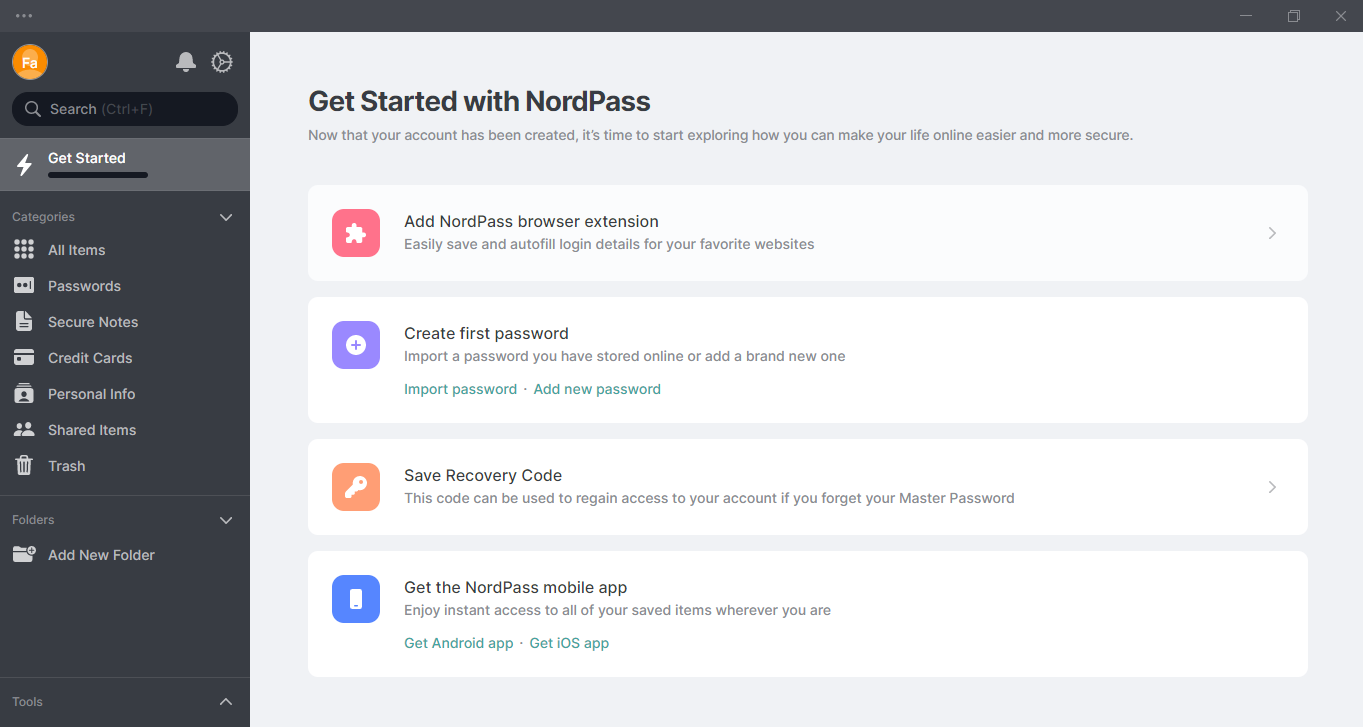
Make sure to save the recovery code, as it’s the only way to recover the account once you lose the master password.
You can store passwords, secure notes, credit cards, and payment info in the encrypted NordPass vault. All item categories, folders, and tools are listed on the left. However, NordPass offers limited item categories. Unlike several other password managers, users can’t store files, important documents, images, and other personal data like passports or driving licenses.
NordPass allows you to import and export passwords. Upon clicking on the import option, it asks you to select browsers and password managers to import passwords from. NordPass includes 11 other password manager options, which are quite impressive and rare to find in other password managers. Plus, it includes five browsers and allows adding more browsers.
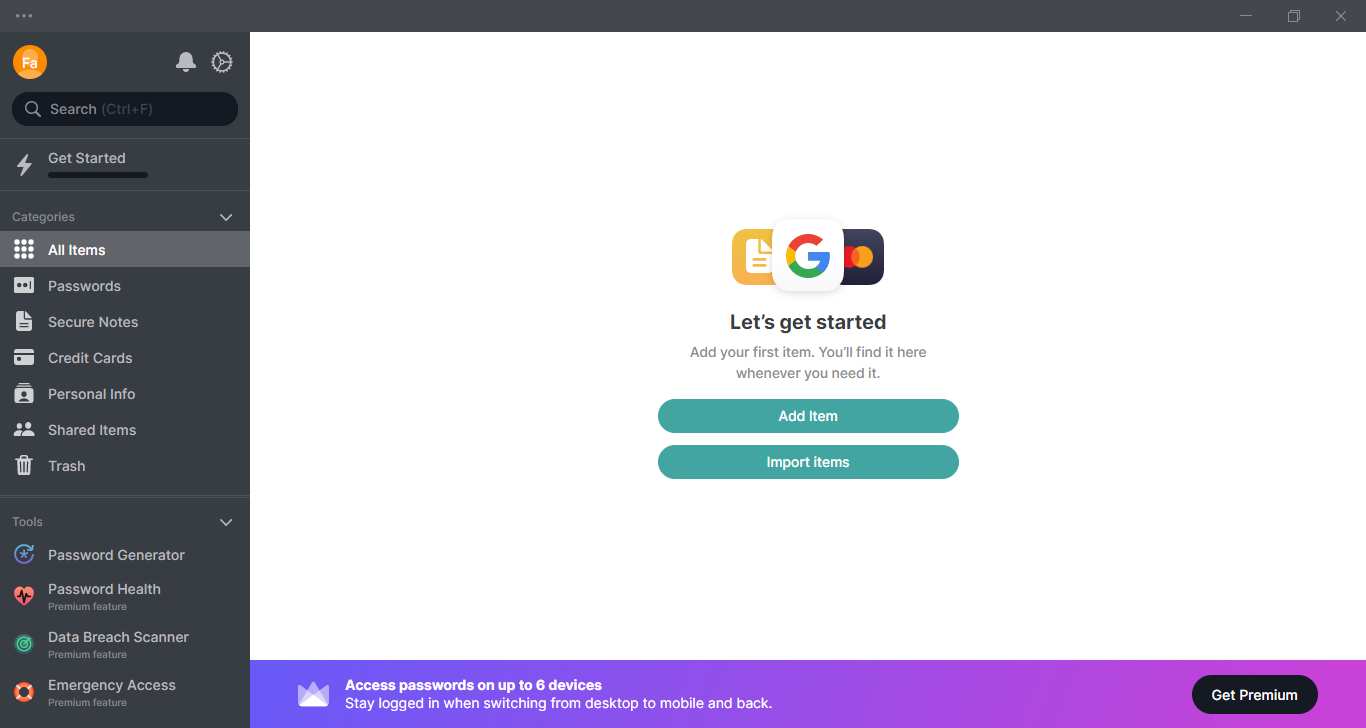
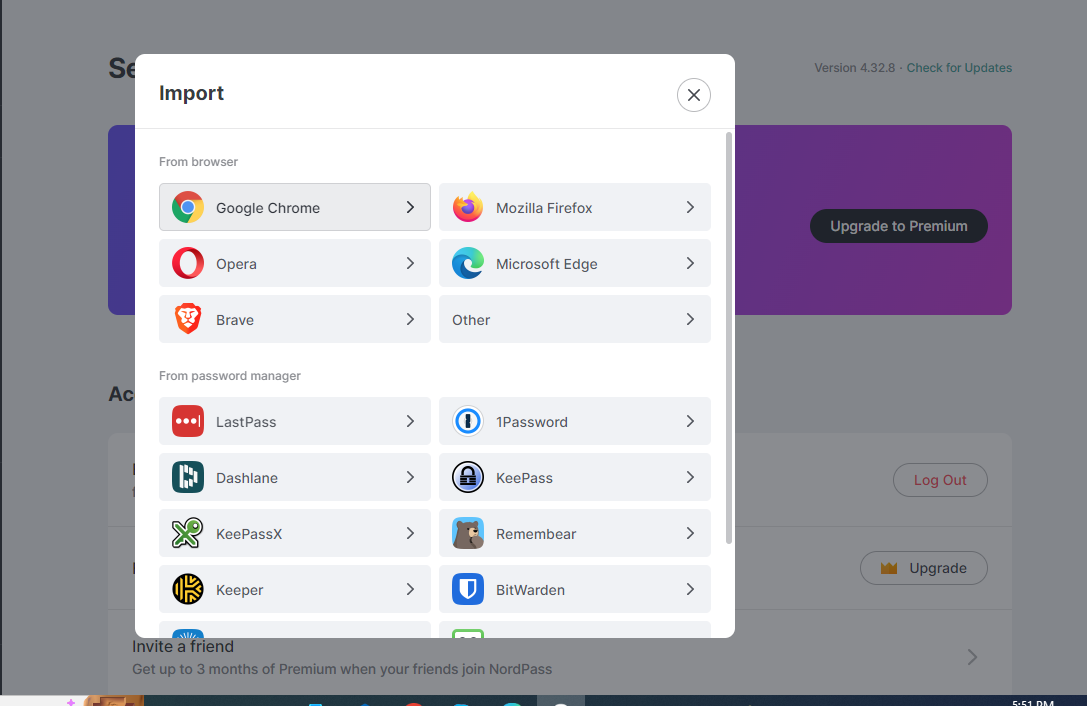
By clicking on each category, you can manually add sensitive details. Besides this, you can create separate folders and securely share them with other users.
By navigating into the tools section, you can take advantage of the following core NordPass security features:
- Password generator
- Password health
- Data breach scanner
- Emergency access
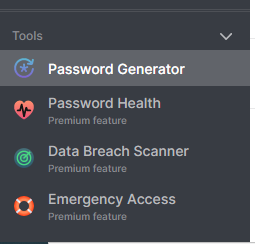
The best thing about NordPass’s interface is that you can customize it. Navigate into the Settings menu, and you will find various options:
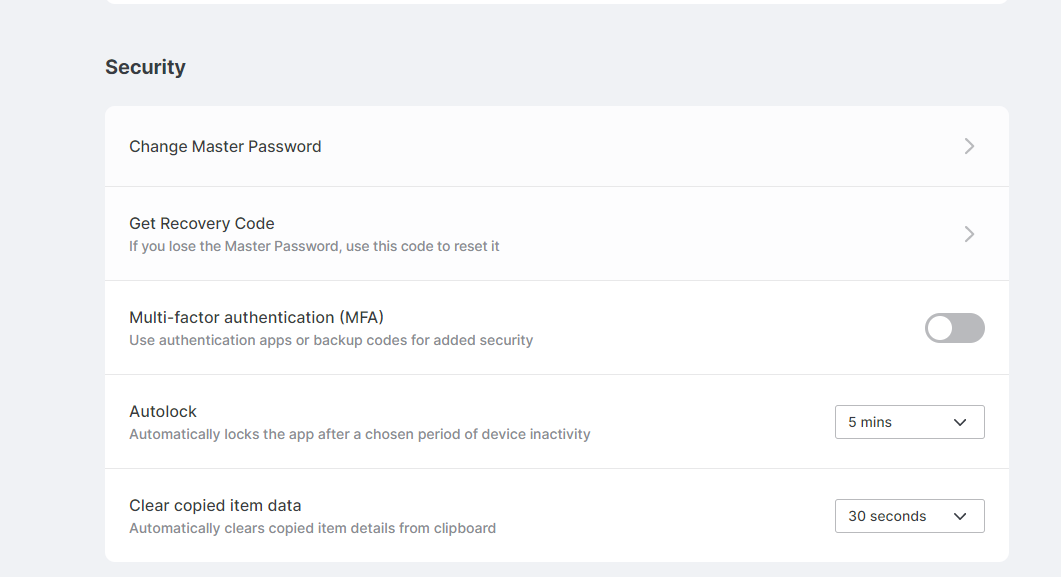
Users can enable various security-enhancing features like 2FA, delete data, and enable the auto lock mode to prevent any third party from accessing the main vault. In addition, you can also change the master password and get a recovery code to avoid unwanted circumstances.
Apart from this, you can change the theme of your dashboard to have a more user-friendly experience.
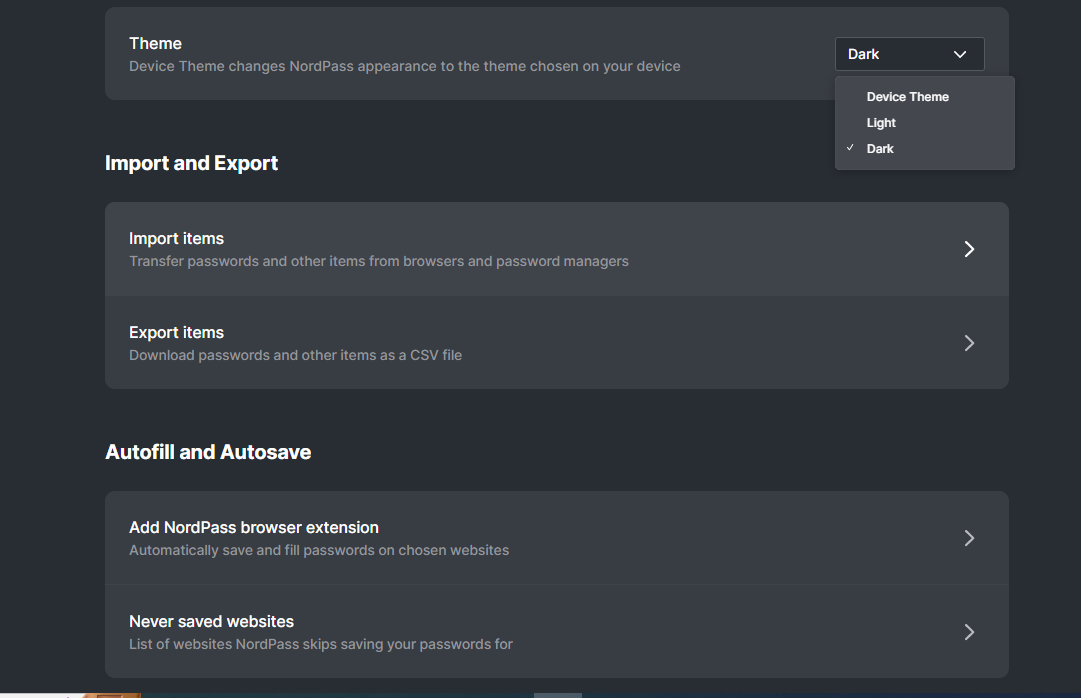
If you’re using the free version, you won’t find premium tools like the data breach monitor on the dashboard. All in all, NordPass is easy to install and use. The interface is decent, but developers can further make efforts to improve it.
Compatible Apps and Browser Extensions
NordPass offers excellent multiple-device compatibility features. It provides native and easy-to-use apps for all major platforms like
- Android
- iOS
- Mac
- Linux
- Windows
Download the apps from the NordPass official site or the respective app store. The Windows app is overall very intuitive and user-friendly. From downloading to setting up an account, users won’t experience any trouble.
Similarly, Android and Linux apps offer the same functionality and user experience as the Windows app. However, the Mac and iOS app needs to improve. The apps are not only buggy; the auto-fill option also barely loads. The Redditors are very disappointed over this issue, which might cause NordPass to lose Apple users.
Besides this, NordPass also offers browser extensions for:
- Google Chrome
- Opera
- Microsoft Edge
- Mozilla Firefox
- Safari
The NordPass browser extension is a smart feature that improves users’ convenience. It offers an easy way to enter and save information for different apps and websites automatically. Users can also benefit from the built-in password manager and generate complex passwords. But what’s unimpressive about NordPass’s browser extension is that users have to enter their account information manually, while it saves passwords automatically.
Features Overview
NordPass includes all the main yet basic features that you might look for in a reliable password manager. Here’s the breakdown of the security features that NordPass offers:
Password Health Checker
NordPass Password Health Checker feature allows users to check for insecure and vulnerable passwords. The tool categorizes the passwords into three categories i.e., Old, Weak, and Reused. Clicking on any insecure entry, the edit screen pop-ups and asks you to change or update the password within the vault. However, this feature is only accessible to premium users.
Data Breach Scanner
The NordPass data breach scanner is a built-in premium feature that checks if your password or credit card details have been leaked online anywhere. Also, it gives you real-time alerts if your data appears in a leak.
To enable this feature, tap on the data breach scanner tool in the main vault > select it > add an optional email address > verify the email address > the tool will run regular scans for data breaches.
Emergency Access
NordPass allows users to permit a few trusted contacts to access their main vault during any emergency. You can provide contacts of your close family members and friends that can access your passwords, payment info, and secure notes within the NordPass vault.
Password Generator
The password generator is the core feature of NordPass, available in free and premium plans. Most users struggle to create complex and unique passwords. If you’re also among them, NordPass will create a password for your accounts.
The online password generator tool lets the users customize their password length. Also, it asks the type of password you want to create and whether to include symbols, numbers, or uppercase and lowercase letters. Once the tool generates the password, you can either copy it or save it in the vault.
Two-Factor Authentication
Another impressive feature that NordPass offers is two-factor authentication. It supports several 2FA methods in free and paid plans that add an additional layer of security to the NordPass encrypted vault. The users can use Google or Microsoft Authenticator and biometric logins as common authentication methods. This feature will prevent hackers from accessing the main vault even if they have successfully stolen your credentials.
Trusted Contacts
Trusted Contacts is a security option that makes the password exchange process even safer. It enables users to share passwords or other sensitive information with other trusted NordPass users by establishing a secure and encrypted connection. While using this feature, users have to manually exchange keys with the other party if they want to share the data. This reduces the chance of anyone stealing your keys and breaking the encryption.
NordPass Customer Support
NordPass provides a good customer support facility to all its users. You can directly connect with the customer support team via email or by initiating the live chat. Click on the chat box button at the bottom right corner of the web page and start talking. You will first have to provide the name, email address, password manager category you use, and the query.
Soon a representative from the customer team will get in touch with you. Having real people in the team instead of AI bots is appreciable. The support team representative immediately joined the chat when a query was sent. He addressed the query quite well which was impressive.
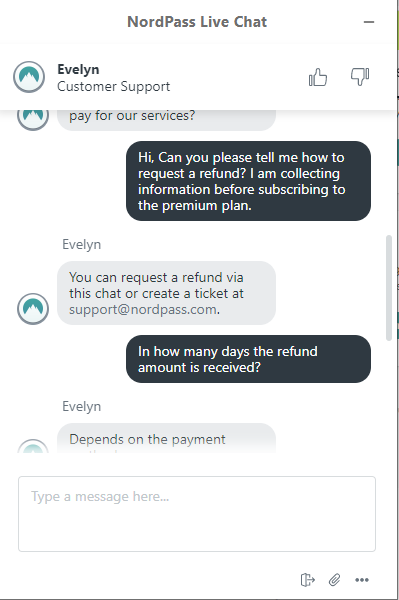
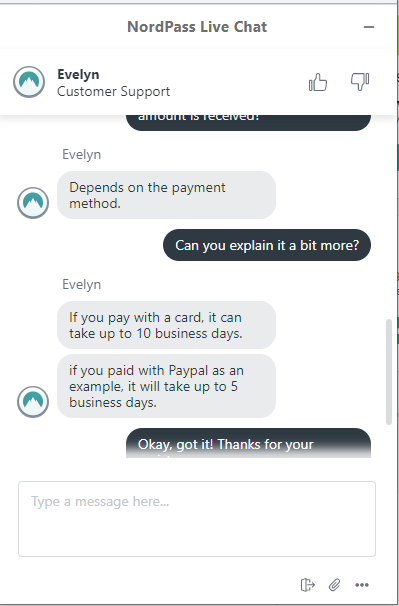
The support team representative was able to provide in-depth answers which showed that he was well-trained and had sufficient knowledge about the product.
Users can also send direct emails. But email support is also slow, and users must wait at least 6-8 hours to hear back from the representative.
Unlike live customer support, NordPass online resources are valuable. A separate Help section page includes dozens of articles, user guides, billing information, account setup, and any information related to NordPass Business, Enterprises, and MSPs. You can also find FAQs and blog sections that leave no room to help the confused users.

NordPass’s extensive website library offers great help to the users but also needs to work to make their live customer support services better.
NordPass Pricing Plan
NordPass offers three subscription plans for individuals, families, and business organizations. Like all other password managers, NordPass also offers a free version but only for personal use.
Users can instantly use it after completing the downloading and installing process. It won’t ask for credit card information; sign up with your email address and start using. But, the free version offers limited features and functionality. It allows only one user account and provides access to the following features:
- Autosave and autofill
- Save unlimited passwords
- Export and import passwords
- Securely store notes and credit cards
- Automatic device sync
- Two-factor authentication
NordPass premium personal and family plan starts at the lowest price of $1.99/m. It includes one premium account user with all the features included in the free plan and some extra features like the data breach scanner, password health checker, emergency access, and trust contacts.
However, if a group of users wants to use NordPass, they can subscribe to the family plan. It costs $4.99 monthly and provides all the features of the individual premium plan. The only difference is that it allows up to six user accounts simultaneously. All the premium plans come with a 30-day money-back guarantee offer, so you can try out the premium features by availing this offer.

NordPass password manager is also a great choice for business organizations. The business plan starts at $3.95 user/m, which allows 250 users to use it. Large enterprises can also contact the sales department to create a customized plan.

The business plan doesn’t offer a money-back guarantee, but it comes with a 30-day free trial period.
Final thoughts
NordPass has added much value to its services since its inception. It has now become a secure password manager that offers free and paid plans for personal and business use. It relies on an advanced XChaCha20 encryption algorithm. Besides this, it also uses zero-knowledge architecture, 2FA, a data breach scanner, and a password health checker.
It is easy to use and download. The interface is also clean and intuitive, which doesn’t trouble users. The apps are also well-designed for all major platforms. But the developers need to enhance the Mac and iOS apps.
However, NordPass needs to add more customization options and advanced tools to its features list. All the features it offers are also present in other password managers. Therefore, to be in the race of competition, adding more features is quite essential for NordPass.
FAQs
The post NordPass Review- Is NordPass Safe To Use? In 2024 Edition appeared first on BeEncrypted.
]]>Deprecated: Using null as an array offset is deprecated, use an empty string instead in /var/www/staging.beencrypted.com/site/web/wp/wp-includes/class-wp-block-type-registry.php on line 168
Deprecated: Using null as an array offset is deprecated, use an empty string instead in /var/www/staging.beencrypted.com/site/web/wp/wp-includes/class-wp-block-type-registry.php on line 168
Deprecated: Using null as an array offset is deprecated, use an empty string instead in /var/www/staging.beencrypted.com/site/web/wp/wp-includes/class-wp-block-type-registry.php on line 168
Deprecated: Using null as an array offset is deprecated, use an empty string instead in /var/www/staging.beencrypted.com/site/web/wp/wp-includes/class-wp-block-type-registry.php on line 168
Deprecated: Using null as an array offset is deprecated, use an empty string instead in /var/www/staging.beencrypted.com/site/web/wp/wp-includes/class-wp-block-type-registry.php on line 168
Deprecated: Using null as an array offset is deprecated, use an empty string instead in /var/www/staging.beencrypted.com/site/web/wp/wp-includes/class-wp-block-type-registry.php on line 168
Deprecated: Using null as an array offset is deprecated, use an empty string instead in /var/www/staging.beencrypted.com/site/web/wp/wp-includes/class-wp-block-type-registry.php on line 168
Deprecated: Using null as an array offset is deprecated, use an empty string instead in /var/www/staging.beencrypted.com/site/web/wp/wp-includes/class-wp-block-type-registry.php on line 168
Deprecated: Using null as an array offset is deprecated, use an empty string instead in /var/www/staging.beencrypted.com/site/web/wp/wp-includes/class-wp-block-type-registry.php on line 168
Deprecated: Using null as an array offset is deprecated, use an empty string instead in /var/www/staging.beencrypted.com/site/web/wp/wp-includes/class-wp-block-type-registry.php on line 168
Deprecated: Using null as an array offset is deprecated, use an empty string instead in /var/www/staging.beencrypted.com/site/web/wp/wp-includes/class-wp-block-type-registry.php on line 168
Deprecated: Using null as an array offset is deprecated, use an empty string instead in /var/www/staging.beencrypted.com/site/web/wp/wp-includes/class-wp-block-type-registry.php on line 168
Deprecated: Using null as an array offset is deprecated, use an empty string instead in /var/www/staging.beencrypted.com/site/web/wp/wp-includes/class-wp-block-type-registry.php on line 168
Deprecated: Using null as an array offset is deprecated, use an empty string instead in /var/www/staging.beencrypted.com/site/web/wp/wp-includes/class-wp-block-type-registry.php on line 168
Deprecated: Using null as an array offset is deprecated, use an empty string instead in /var/www/staging.beencrypted.com/site/web/wp/wp-includes/class-wp-block-type-registry.php on line 168
Deprecated: Using null as an array offset is deprecated, use an empty string instead in /var/www/staging.beencrypted.com/site/web/wp/wp-includes/class-wp-block-type-registry.php on line 168
Deprecated: Using null as an array offset is deprecated, use an empty string instead in /var/www/staging.beencrypted.com/site/web/wp/wp-includes/class-wp-block-type-registry.php on line 168
Deprecated: Using null as an array offset is deprecated, use an empty string instead in /var/www/staging.beencrypted.com/site/web/wp/wp-includes/class-wp-block-type-registry.php on line 168
Deprecated: Using null as an array offset is deprecated, use an empty string instead in /var/www/staging.beencrypted.com/site/web/wp/wp-includes/class-wp-block-type-registry.php on line 168
Deprecated: Using null as an array offset is deprecated, use an empty string instead in /var/www/staging.beencrypted.com/site/web/wp/wp-includes/class-wp-block-type-registry.php on line 168
Deprecated: Using null as an array offset is deprecated, use an empty string instead in /var/www/staging.beencrypted.com/site/web/wp/wp-includes/class-wp-block-type-registry.php on line 168
Deprecated: Using null as an array offset is deprecated, use an empty string instead in /var/www/staging.beencrypted.com/site/web/wp/wp-includes/class-wp-block-type-registry.php on line 168
Deprecated: Using null as an array offset is deprecated, use an empty string instead in /var/www/staging.beencrypted.com/site/web/wp/wp-includes/class-wp-block-type-registry.php on line 168
Deprecated: Using null as an array offset is deprecated, use an empty string instead in /var/www/staging.beencrypted.com/site/web/wp/wp-includes/class-wp-block-type-registry.php on line 168
Deprecated: Using null as an array offset is deprecated, use an empty string instead in /var/www/staging.beencrypted.com/site/web/wp/wp-includes/class-wp-block-type-registry.php on line 168
Deprecated: Using null as an array offset is deprecated, use an empty string instead in /var/www/staging.beencrypted.com/site/web/wp/wp-includes/class-wp-block-type-registry.php on line 168
Deprecated: Using null as an array offset is deprecated, use an empty string instead in /var/www/staging.beencrypted.com/site/web/wp/wp-includes/class-wp-block-type-registry.php on line 168
Deprecated: Using null as an array offset is deprecated, use an empty string instead in /var/www/staging.beencrypted.com/site/web/wp/wp-includes/class-wp-block-type-registry.php on line 168
Deprecated: Using null as an array offset is deprecated, use an empty string instead in /var/www/staging.beencrypted.com/site/web/wp/wp-includes/class-wp-block-type-registry.php on line 168
Deprecated: Using null as an array offset is deprecated, use an empty string instead in /var/www/staging.beencrypted.com/site/web/wp/wp-includes/class-wp-block-type-registry.php on line 168
Deprecated: Using null as an array offset is deprecated, use an empty string instead in /var/www/staging.beencrypted.com/site/web/wp/wp-includes/class-wp-block-type-registry.php on line 168
Deprecated: Using null as an array offset is deprecated, use an empty string instead in /var/www/staging.beencrypted.com/site/web/wp/wp-includes/class-wp-block-type-registry.php on line 168
Deprecated: Using null as an array offset is deprecated, use an empty string instead in /var/www/staging.beencrypted.com/site/web/wp/wp-includes/class-wp-block-type-registry.php on line 168
Deprecated: Using null as an array offset is deprecated, use an empty string instead in /var/www/staging.beencrypted.com/site/web/wp/wp-includes/class-wp-block-type-registry.php on line 168
Deprecated: Using null as an array offset is deprecated, use an empty string instead in /var/www/staging.beencrypted.com/site/web/wp/wp-includes/class-wp-block-type-registry.php on line 168
Deprecated: Using null as an array offset is deprecated, use an empty string instead in /var/www/staging.beencrypted.com/site/web/wp/wp-includes/class-wp-block-type-registry.php on line 168
Deprecated: Using null as an array offset is deprecated, use an empty string instead in /var/www/staging.beencrypted.com/site/web/wp/wp-includes/class-wp-block-type-registry.php on line 168
Deprecated: Using null as an array offset is deprecated, use an empty string instead in /var/www/staging.beencrypted.com/site/web/wp/wp-includes/class-wp-block-type-registry.php on line 168
Deprecated: Using null as an array offset is deprecated, use an empty string instead in /var/www/staging.beencrypted.com/site/web/wp/wp-includes/class-wp-block-type-registry.php on line 168
Deprecated: Using null as an array offset is deprecated, use an empty string instead in /var/www/staging.beencrypted.com/site/web/wp/wp-includes/class-wp-block-type-registry.php on line 168
Deprecated: Using null as an array offset is deprecated, use an empty string instead in /var/www/staging.beencrypted.com/site/web/wp/wp-includes/class-wp-block-type-registry.php on line 168
Deprecated: Using null as an array offset is deprecated, use an empty string instead in /var/www/staging.beencrypted.com/site/web/wp/wp-includes/class-wp-block-type-registry.php on line 168
Deprecated: Using null as an array offset is deprecated, use an empty string instead in /var/www/staging.beencrypted.com/site/web/wp/wp-includes/class-wp-block-type-registry.php on line 168
Deprecated: Using null as an array offset is deprecated, use an empty string instead in /var/www/staging.beencrypted.com/site/web/wp/wp-includes/class-wp-block-type-registry.php on line 168
Deprecated: Using null as an array offset is deprecated, use an empty string instead in /var/www/staging.beencrypted.com/site/web/wp/wp-includes/class-wp-block-type-registry.php on line 168
Deprecated: Using null as an array offset is deprecated, use an empty string instead in /var/www/staging.beencrypted.com/site/web/wp/wp-includes/class-wp-block-type-registry.php on line 168
Deprecated: Using null as an array offset is deprecated, use an empty string instead in /var/www/staging.beencrypted.com/site/web/wp/wp-includes/class-wp-block-type-registry.php on line 168
Deprecated: Using null as an array offset is deprecated, use an empty string instead in /var/www/staging.beencrypted.com/site/web/wp/wp-includes/class-wp-block-type-registry.php on line 168
Deprecated: Using null as an array offset is deprecated, use an empty string instead in /var/www/staging.beencrypted.com/site/web/wp/wp-includes/class-wp-block-type-registry.php on line 168
Deprecated: Using null as an array offset is deprecated, use an empty string instead in /var/www/staging.beencrypted.com/site/web/wp/wp-includes/class-wp-block-type-registry.php on line 168
Deprecated: Using null as an array offset is deprecated, use an empty string instead in /var/www/staging.beencrypted.com/site/web/wp/wp-includes/class-wp-block-type-registry.php on line 168
Deprecated: Using null as an array offset is deprecated, use an empty string instead in /var/www/staging.beencrypted.com/site/web/wp/wp-includes/class-wp-block-type-registry.php on line 168
Deprecated: Using null as an array offset is deprecated, use an empty string instead in /var/www/staging.beencrypted.com/site/web/wp/wp-includes/class-wp-block-type-registry.php on line 168
Deprecated: Using null as an array offset is deprecated, use an empty string instead in /var/www/staging.beencrypted.com/site/web/wp/wp-includes/class-wp-block-type-registry.php on line 168
Deprecated: Using null as an array offset is deprecated, use an empty string instead in /var/www/staging.beencrypted.com/site/web/wp/wp-includes/class-wp-block-type-registry.php on line 168
Deprecated: Using null as an array offset is deprecated, use an empty string instead in /var/www/staging.beencrypted.com/site/web/wp/wp-includes/class-wp-block-type-registry.php on line 168
Deprecated: Using null as an array offset is deprecated, use an empty string instead in /var/www/staging.beencrypted.com/site/web/wp/wp-includes/class-wp-block-type-registry.php on line 168
Deprecated: Using null as an array offset is deprecated, use an empty string instead in /var/www/staging.beencrypted.com/site/web/wp/wp-includes/class-wp-block-type-registry.php on line 168
Deprecated: Using null as an array offset is deprecated, use an empty string instead in /var/www/staging.beencrypted.com/site/web/wp/wp-includes/class-wp-block-type-registry.php on line 168
Deprecated: Using null as an array offset is deprecated, use an empty string instead in /var/www/staging.beencrypted.com/site/web/wp/wp-includes/class-wp-block-type-registry.php on line 168
Deprecated: Using null as an array offset is deprecated, use an empty string instead in /var/www/staging.beencrypted.com/site/web/wp/wp-includes/class-wp-block-type-registry.php on line 168
Deprecated: Using null as an array offset is deprecated, use an empty string instead in /var/www/staging.beencrypted.com/site/web/wp/wp-includes/class-wp-block-type-registry.php on line 168
Deprecated: Using null as an array offset is deprecated, use an empty string instead in /var/www/staging.beencrypted.com/site/web/wp/wp-includes/class-wp-block-type-registry.php on line 168
Deprecated: Using null as an array offset is deprecated, use an empty string instead in /var/www/staging.beencrypted.com/site/web/wp/wp-includes/class-wp-block-type-registry.php on line 168
Deprecated: Using null as an array offset is deprecated, use an empty string instead in /var/www/staging.beencrypted.com/site/web/wp/wp-includes/class-wp-block-type-registry.php on line 168
Deprecated: Using null as an array offset is deprecated, use an empty string instead in /var/www/staging.beencrypted.com/site/web/wp/wp-includes/class-wp-block-type-registry.php on line 168
Deprecated: Using null as an array offset is deprecated, use an empty string instead in /var/www/staging.beencrypted.com/site/web/wp/wp-includes/class-wp-block-type-registry.php on line 168
Deprecated: Using null as an array offset is deprecated, use an empty string instead in /var/www/staging.beencrypted.com/site/web/wp/wp-includes/class-wp-block-type-registry.php on line 168
Deprecated: Using null as an array offset is deprecated, use an empty string instead in /var/www/staging.beencrypted.com/site/web/wp/wp-includes/class-wp-block-type-registry.php on line 168
Deprecated: Using null as an array offset is deprecated, use an empty string instead in /var/www/staging.beencrypted.com/site/web/wp/wp-includes/class-wp-block-type-registry.php on line 168
Deprecated: Using null as an array offset is deprecated, use an empty string instead in /var/www/staging.beencrypted.com/site/web/wp/wp-includes/class-wp-block-type-registry.php on line 168
Deprecated: Using null as an array offset is deprecated, use an empty string instead in /var/www/staging.beencrypted.com/site/web/wp/wp-includes/class-wp-block-type-registry.php on line 168
Deprecated: Using null as an array offset is deprecated, use an empty string instead in /var/www/staging.beencrypted.com/site/web/wp/wp-includes/class-wp-block-type-registry.php on line 168
Deprecated: Using null as an array offset is deprecated, use an empty string instead in /var/www/staging.beencrypted.com/site/web/wp/wp-includes/class-wp-block-type-registry.php on line 168
Deprecated: Using null as an array offset is deprecated, use an empty string instead in /var/www/staging.beencrypted.com/site/web/wp/wp-includes/class-wp-block-type-registry.php on line 168
Deprecated: Using null as an array offset is deprecated, use an empty string instead in /var/www/staging.beencrypted.com/site/web/wp/wp-includes/class-wp-block-type-registry.php on line 168
Deprecated: Using null as an array offset is deprecated, use an empty string instead in /var/www/staging.beencrypted.com/site/web/wp/wp-includes/class-wp-block-type-registry.php on line 168
Deprecated: Using null as an array offset is deprecated, use an empty string instead in /var/www/staging.beencrypted.com/site/web/wp/wp-includes/class-wp-block-type-registry.php on line 168
Deprecated: Using null as an array offset is deprecated, use an empty string instead in /var/www/staging.beencrypted.com/site/web/wp/wp-includes/class-wp-block-type-registry.php on line 168
Deprecated: Using null as an array offset is deprecated, use an empty string instead in /var/www/staging.beencrypted.com/site/web/wp/wp-includes/class-wp-block-type-registry.php on line 168
Deprecated: Using null as an array offset is deprecated, use an empty string instead in /var/www/staging.beencrypted.com/site/web/wp/wp-includes/class-wp-block-type-registry.php on line 168
Deprecated: Using null as an array offset is deprecated, use an empty string instead in /var/www/staging.beencrypted.com/site/web/wp/wp-includes/class-wp-block-type-registry.php on line 168
Deprecated: Using null as an array offset is deprecated, use an empty string instead in /var/www/staging.beencrypted.com/site/web/wp/wp-includes/class-wp-block-type-registry.php on line 168
Deprecated: Using null as an array offset is deprecated, use an empty string instead in /var/www/staging.beencrypted.com/site/web/wp/wp-includes/class-wp-block-type-registry.php on line 168
Deprecated: Using null as an array offset is deprecated, use an empty string instead in /var/www/staging.beencrypted.com/site/web/wp/wp-includes/class-wp-block-type-registry.php on line 168
Deprecated: Using null as an array offset is deprecated, use an empty string instead in /var/www/staging.beencrypted.com/site/web/wp/wp-includes/class-wp-block-type-registry.php on line 168
Deprecated: Using null as an array offset is deprecated, use an empty string instead in /var/www/staging.beencrypted.com/site/web/wp/wp-includes/class-wp-block-type-registry.php on line 168
Deprecated: Using null as an array offset is deprecated, use an empty string instead in /var/www/staging.beencrypted.com/site/web/wp/wp-includes/class-wp-block-type-registry.php on line 168
Deprecated: Using null as an array offset is deprecated, use an empty string instead in /var/www/staging.beencrypted.com/site/web/wp/wp-includes/class-wp-block-type-registry.php on line 168
Deprecated: Using null as an array offset is deprecated, use an empty string instead in /var/www/staging.beencrypted.com/site/web/wp/wp-includes/class-wp-block-type-registry.php on line 168
Deprecated: Using null as an array offset is deprecated, use an empty string instead in /var/www/staging.beencrypted.com/site/web/wp/wp-includes/class-wp-block-type-registry.php on line 168
Deprecated: Using null as an array offset is deprecated, use an empty string instead in /var/www/staging.beencrypted.com/site/web/wp/wp-includes/class-wp-block-type-registry.php on line 168
Deprecated: Using null as an array offset is deprecated, use an empty string instead in /var/www/staging.beencrypted.com/site/web/wp/wp-includes/class-wp-block-type-registry.php on line 168
Deprecated: Using null as an array offset is deprecated, use an empty string instead in /var/www/staging.beencrypted.com/site/web/wp/wp-includes/class-wp-block-type-registry.php on line 168
Deprecated: Using null as an array offset is deprecated, use an empty string instead in /var/www/staging.beencrypted.com/site/web/wp/wp-includes/class-wp-block-type-registry.php on line 168
Deprecated: Using null as an array offset is deprecated, use an empty string instead in /var/www/staging.beencrypted.com/site/web/wp/wp-includes/class-wp-block-type-registry.php on line 168
Deprecated: Using null as an array offset is deprecated, use an empty string instead in /var/www/staging.beencrypted.com/site/web/wp/wp-includes/class-wp-block-type-registry.php on line 168
Deprecated: Using null as an array offset is deprecated, use an empty string instead in /var/www/staging.beencrypted.com/site/web/wp/wp-includes/class-wp-block-type-registry.php on line 168
Deprecated: Using null as an array offset is deprecated, use an empty string instead in /var/www/staging.beencrypted.com/site/web/wp/wp-includes/class-wp-block-type-registry.php on line 168
Deprecated: Using null as an array offset is deprecated, use an empty string instead in /var/www/staging.beencrypted.com/site/web/wp/wp-includes/class-wp-block-type-registry.php on line 168
Deprecated: Using null as an array offset is deprecated, use an empty string instead in /var/www/staging.beencrypted.com/site/web/wp/wp-includes/class-wp-block-type-registry.php on line 168
Deprecated: Using null as an array offset is deprecated, use an empty string instead in /var/www/staging.beencrypted.com/site/web/wp/wp-includes/class-wp-block-type-registry.php on line 168
Deprecated: Using null as an array offset is deprecated, use an empty string instead in /var/www/staging.beencrypted.com/site/web/wp/wp-includes/class-wp-block-type-registry.php on line 168
Deprecated: Using null as an array offset is deprecated, use an empty string instead in /var/www/staging.beencrypted.com/site/web/wp/wp-includes/class-wp-block-type-registry.php on line 168
Deprecated: Using null as an array offset is deprecated, use an empty string instead in /var/www/staging.beencrypted.com/site/web/wp/wp-includes/class-wp-block-type-registry.php on line 168
Deprecated: Using null as an array offset is deprecated, use an empty string instead in /var/www/staging.beencrypted.com/site/web/wp/wp-includes/class-wp-block-type-registry.php on line 168
Deprecated: Using null as an array offset is deprecated, use an empty string instead in /var/www/staging.beencrypted.com/site/web/wp/wp-includes/class-wp-block-type-registry.php on line 168
Deprecated: Using null as an array offset is deprecated, use an empty string instead in /var/www/staging.beencrypted.com/site/web/wp/wp-includes/class-wp-block-type-registry.php on line 168
Deprecated: Using null as an array offset is deprecated, use an empty string instead in /var/www/staging.beencrypted.com/site/web/wp/wp-includes/class-wp-block-type-registry.php on line 168
Deprecated: Using null as an array offset is deprecated, use an empty string instead in /var/www/staging.beencrypted.com/site/web/wp/wp-includes/class-wp-block-type-registry.php on line 168
Deprecated: Using null as an array offset is deprecated, use an empty string instead in /var/www/staging.beencrypted.com/site/web/wp/wp-includes/class-wp-block-type-registry.php on line 168
Deprecated: Using null as an array offset is deprecated, use an empty string instead in /var/www/staging.beencrypted.com/site/web/wp/wp-includes/class-wp-block-type-registry.php on line 168
Deprecated: Using null as an array offset is deprecated, use an empty string instead in /var/www/staging.beencrypted.com/site/web/wp/wp-includes/class-wp-block-type-registry.php on line 168
Deprecated: Using null as an array offset is deprecated, use an empty string instead in /var/www/staging.beencrypted.com/site/web/wp/wp-includes/class-wp-block-type-registry.php on line 168
Deprecated: Using null as an array offset is deprecated, use an empty string instead in /var/www/staging.beencrypted.com/site/web/wp/wp-includes/class-wp-block-type-registry.php on line 168
Deprecated: Using null as an array offset is deprecated, use an empty string instead in /var/www/staging.beencrypted.com/site/web/wp/wp-includes/class-wp-block-type-registry.php on line 168
Deprecated: Using null as an array offset is deprecated, use an empty string instead in /var/www/staging.beencrypted.com/site/web/wp/wp-includes/class-wp-block-type-registry.php on line 168
Deprecated: Using null as an array offset is deprecated, use an empty string instead in /var/www/staging.beencrypted.com/site/web/wp/wp-includes/class-wp-block-type-registry.php on line 168
Deprecated: Using null as an array offset is deprecated, use an empty string instead in /var/www/staging.beencrypted.com/site/web/wp/wp-includes/class-wp-block-type-registry.php on line 168
Deprecated: Using null as an array offset is deprecated, use an empty string instead in /var/www/staging.beencrypted.com/site/web/wp/wp-includes/class-wp-block-type-registry.php on line 168
Deprecated: Using null as an array offset is deprecated, use an empty string instead in /var/www/staging.beencrypted.com/site/web/wp/wp-includes/class-wp-block-type-registry.php on line 168
Deprecated: Using null as an array offset is deprecated, use an empty string instead in /var/www/staging.beencrypted.com/site/web/wp/wp-includes/class-wp-block-type-registry.php on line 168
Deprecated: Using null as an array offset is deprecated, use an empty string instead in /var/www/staging.beencrypted.com/site/web/wp/wp-includes/class-wp-block-type-registry.php on line 168
Deprecated: Using null as an array offset is deprecated, use an empty string instead in /var/www/staging.beencrypted.com/site/web/wp/wp-includes/class-wp-block-type-registry.php on line 168
Deprecated: Using null as an array offset is deprecated, use an empty string instead in /var/www/staging.beencrypted.com/site/web/wp/wp-includes/class-wp-block-type-registry.php on line 168
Deprecated: Using null as an array offset is deprecated, use an empty string instead in /var/www/staging.beencrypted.com/site/web/wp/wp-includes/class-wp-block-type-registry.php on line 168
Deprecated: Using null as an array offset is deprecated, use an empty string instead in /var/www/staging.beencrypted.com/site/web/wp/wp-includes/class-wp-block-type-registry.php on line 168
Deprecated: Using null as an array offset is deprecated, use an empty string instead in /var/www/staging.beencrypted.com/site/web/wp/wp-includes/class-wp-block-type-registry.php on line 168
Deprecated: Using null as an array offset is deprecated, use an empty string instead in /var/www/staging.beencrypted.com/site/web/wp/wp-includes/class-wp-block-type-registry.php on line 168
Deprecated: Using null as an array offset is deprecated, use an empty string instead in /var/www/staging.beencrypted.com/site/web/wp/wp-includes/class-wp-block-type-registry.php on line 168
Deprecated: Using null as an array offset is deprecated, use an empty string instead in /var/www/staging.beencrypted.com/site/web/wp/wp-includes/class-wp-block-type-registry.php on line 168
Deprecated: Using null as an array offset is deprecated, use an empty string instead in /var/www/staging.beencrypted.com/site/web/wp/wp-includes/class-wp-block-type-registry.php on line 168
Deprecated: Using null as an array offset is deprecated, use an empty string instead in /var/www/staging.beencrypted.com/site/web/wp/wp-includes/class-wp-block-type-registry.php on line 168
Deprecated: Using null as an array offset is deprecated, use an empty string instead in /var/www/staging.beencrypted.com/site/web/wp/wp-includes/class-wp-block-type-registry.php on line 168
Deprecated: Using null as an array offset is deprecated, use an empty string instead in /var/www/staging.beencrypted.com/site/web/wp/wp-includes/class-wp-block-type-registry.php on line 168
Deprecated: Using null as an array offset is deprecated, use an empty string instead in /var/www/staging.beencrypted.com/site/web/wp/wp-includes/class-wp-block-type-registry.php on line 168
Deprecated: Using null as an array offset is deprecated, use an empty string instead in /var/www/staging.beencrypted.com/site/web/wp/wp-includes/class-wp-block-type-registry.php on line 168
Deprecated: Using null as an array offset is deprecated, use an empty string instead in /var/www/staging.beencrypted.com/site/web/wp/wp-includes/class-wp-block-type-registry.php on line 168
Deprecated: Using null as an array offset is deprecated, use an empty string instead in /var/www/staging.beencrypted.com/site/web/wp/wp-includes/class-wp-block-type-registry.php on line 168
Deprecated: Using null as an array offset is deprecated, use an empty string instead in /var/www/staging.beencrypted.com/site/web/wp/wp-includes/class-wp-block-type-registry.php on line 168
Deprecated: Using null as an array offset is deprecated, use an empty string instead in /var/www/staging.beencrypted.com/site/web/wp/wp-includes/class-wp-block-type-registry.php on line 168
Deprecated: Using null as an array offset is deprecated, use an empty string instead in /var/www/staging.beencrypted.com/site/web/wp/wp-includes/class-wp-block-type-registry.php on line 168
Deprecated: Using null as an array offset is deprecated, use an empty string instead in /var/www/staging.beencrypted.com/site/web/wp/wp-includes/class-wp-block-type-registry.php on line 168
Deprecated: Using null as an array offset is deprecated, use an empty string instead in /var/www/staging.beencrypted.com/site/web/wp/wp-includes/class-wp-block-type-registry.php on line 168
Deprecated: Using null as an array offset is deprecated, use an empty string instead in /var/www/staging.beencrypted.com/site/web/wp/wp-includes/class-wp-block-type-registry.php on line 168
Deprecated: Using null as an array offset is deprecated, use an empty string instead in /var/www/staging.beencrypted.com/site/web/wp/wp-includes/class-wp-block-type-registry.php on line 168
Deprecated: Using null as an array offset is deprecated, use an empty string instead in /var/www/staging.beencrypted.com/site/web/wp/wp-includes/class-wp-block-type-registry.php on line 168
Deprecated: Using null as an array offset is deprecated, use an empty string instead in /var/www/staging.beencrypted.com/site/web/wp/wp-includes/class-wp-block-type-registry.php on line 168
Deprecated: Using null as an array offset is deprecated, use an empty string instead in /var/www/staging.beencrypted.com/site/web/wp/wp-includes/class-wp-block-type-registry.php on line 168
Deprecated: Using null as an array offset is deprecated, use an empty string instead in /var/www/staging.beencrypted.com/site/web/wp/wp-includes/class-wp-block-type-registry.php on line 168
Deprecated: Using null as an array offset is deprecated, use an empty string instead in /var/www/staging.beencrypted.com/site/web/wp/wp-includes/class-wp-block-type-registry.php on line 168
Deprecated: Using null as an array offset is deprecated, use an empty string instead in /var/www/staging.beencrypted.com/site/web/wp/wp-includes/class-wp-block-type-registry.php on line 168
Deprecated: Using null as an array offset is deprecated, use an empty string instead in /var/www/staging.beencrypted.com/site/web/wp/wp-includes/class-wp-block-type-registry.php on line 168
Deprecated: Using null as an array offset is deprecated, use an empty string instead in /var/www/staging.beencrypted.com/site/web/wp/wp-includes/class-wp-block-type-registry.php on line 168
Deprecated: Using null as an array offset is deprecated, use an empty string instead in /var/www/staging.beencrypted.com/site/web/wp/wp-includes/class-wp-block-type-registry.php on line 168
Deprecated: Using null as an array offset is deprecated, use an empty string instead in /var/www/staging.beencrypted.com/site/web/wp/wp-includes/class-wp-block-type-registry.php on line 168
Deprecated: Using null as an array offset is deprecated, use an empty string instead in /var/www/staging.beencrypted.com/site/web/wp/wp-includes/class-wp-block-type-registry.php on line 168
Deprecated: Using null as an array offset is deprecated, use an empty string instead in /var/www/staging.beencrypted.com/site/web/wp/wp-includes/class-wp-block-type-registry.php on line 168
Deprecated: Using null as an array offset is deprecated, use an empty string instead in /var/www/staging.beencrypted.com/site/web/wp/wp-includes/class-wp-block-type-registry.php on line 168
Deprecated: Using null as an array offset is deprecated, use an empty string instead in /var/www/staging.beencrypted.com/site/web/wp/wp-includes/class-wp-block-type-registry.php on line 168
Deprecated: Using null as an array offset is deprecated, use an empty string instead in /var/www/staging.beencrypted.com/site/web/wp/wp-includes/class-wp-block-type-registry.php on line 168
Deprecated: Using null as an array offset is deprecated, use an empty string instead in /var/www/staging.beencrypted.com/site/web/wp/wp-includes/class-wp-block-type-registry.php on line 168
Deprecated: Using null as an array offset is deprecated, use an empty string instead in /var/www/staging.beencrypted.com/site/web/wp/wp-includes/class-wp-block-type-registry.php on line 168
Deprecated: Using null as an array offset is deprecated, use an empty string instead in /var/www/staging.beencrypted.com/site/web/wp/wp-includes/class-wp-block-type-registry.php on line 168
Deprecated: Using null as an array offset is deprecated, use an empty string instead in /var/www/staging.beencrypted.com/site/web/wp/wp-includes/class-wp-block-type-registry.php on line 168
Deprecated: Using null as an array offset is deprecated, use an empty string instead in /var/www/staging.beencrypted.com/site/web/wp/wp-includes/class-wp-block-type-registry.php on line 168
Deprecated: Using null as an array offset is deprecated, use an empty string instead in /var/www/staging.beencrypted.com/site/web/wp/wp-includes/class-wp-block-type-registry.php on line 168
Deprecated: Using null as an array offset is deprecated, use an empty string instead in /var/www/staging.beencrypted.com/site/web/wp/wp-includes/class-wp-block-type-registry.php on line 168
Deprecated: Using null as an array offset is deprecated, use an empty string instead in /var/www/staging.beencrypted.com/site/web/wp/wp-includes/class-wp-block-type-registry.php on line 168
Deprecated: Using null as an array offset is deprecated, use an empty string instead in /var/www/staging.beencrypted.com/site/web/wp/wp-includes/class-wp-block-type-registry.php on line 168
Deprecated: Using null as an array offset is deprecated, use an empty string instead in /var/www/staging.beencrypted.com/site/web/wp/wp-includes/class-wp-block-type-registry.php on line 168
Deprecated: Using null as an array offset is deprecated, use an empty string instead in /var/www/staging.beencrypted.com/site/web/wp/wp-includes/class-wp-block-type-registry.php on line 168
Deprecated: Using null as an array offset is deprecated, use an empty string instead in /var/www/staging.beencrypted.com/site/web/wp/wp-includes/class-wp-block-type-registry.php on line 168
Deprecated: Using null as an array offset is deprecated, use an empty string instead in /var/www/staging.beencrypted.com/site/web/wp/wp-includes/class-wp-block-type-registry.php on line 168
Deprecated: Using null as an array offset is deprecated, use an empty string instead in /var/www/staging.beencrypted.com/site/web/wp/wp-includes/class-wp-block-type-registry.php on line 168
Deprecated: Using null as an array offset is deprecated, use an empty string instead in /var/www/staging.beencrypted.com/site/web/wp/wp-includes/class-wp-block-type-registry.php on line 168
Deprecated: Using null as an array offset is deprecated, use an empty string instead in /var/www/staging.beencrypted.com/site/web/wp/wp-includes/class-wp-block-type-registry.php on line 168
Deprecated: Using null as an array offset is deprecated, use an empty string instead in /var/www/staging.beencrypted.com/site/web/wp/wp-includes/class-wp-block-type-registry.php on line 168
Deprecated: Using null as an array offset is deprecated, use an empty string instead in /var/www/staging.beencrypted.com/site/web/wp/wp-includes/class-wp-block-type-registry.php on line 168
Deprecated: Using null as an array offset is deprecated, use an empty string instead in /var/www/staging.beencrypted.com/site/web/wp/wp-includes/class-wp-block-type-registry.php on line 168
Deprecated: Using null as an array offset is deprecated, use an empty string instead in /var/www/staging.beencrypted.com/site/web/wp/wp-includes/class-wp-block-type-registry.php on line 168
Deprecated: Using null as an array offset is deprecated, use an empty string instead in /var/www/staging.beencrypted.com/site/web/wp/wp-includes/class-wp-block-type-registry.php on line 168
Deprecated: Using null as an array offset is deprecated, use an empty string instead in /var/www/staging.beencrypted.com/site/web/wp/wp-includes/class-wp-block-type-registry.php on line 168
Deprecated: Using null as an array offset is deprecated, use an empty string instead in /var/www/staging.beencrypted.com/site/web/wp/wp-includes/class-wp-block-type-registry.php on line 168
Deprecated: Using null as an array offset is deprecated, use an empty string instead in /var/www/staging.beencrypted.com/site/web/wp/wp-includes/class-wp-block-type-registry.php on line 168
Deprecated: Using null as an array offset is deprecated, use an empty string instead in /var/www/staging.beencrypted.com/site/web/wp/wp-includes/class-wp-block-type-registry.php on line 168
Deprecated: Using null as an array offset is deprecated, use an empty string instead in /var/www/staging.beencrypted.com/site/web/wp/wp-includes/class-wp-block-type-registry.php on line 168
Deprecated: Using null as an array offset is deprecated, use an empty string instead in /var/www/staging.beencrypted.com/site/web/wp/wp-includes/class-wp-block-type-registry.php on line 168
Deprecated: Using null as an array offset is deprecated, use an empty string instead in /var/www/staging.beencrypted.com/site/web/wp/wp-includes/class-wp-block-type-registry.php on line 168
Deprecated: Using null as an array offset is deprecated, use an empty string instead in /var/www/staging.beencrypted.com/site/web/wp/wp-includes/class-wp-block-type-registry.php on line 168
Deprecated: Using null as an array offset is deprecated, use an empty string instead in /var/www/staging.beencrypted.com/site/web/wp/wp-includes/class-wp-block-type-registry.php on line 168
Deprecated: Using null as an array offset is deprecated, use an empty string instead in /var/www/staging.beencrypted.com/site/web/wp/wp-includes/class-wp-block-type-registry.php on line 168
Deprecated: Using null as an array offset is deprecated, use an empty string instead in /var/www/staging.beencrypted.com/site/web/wp/wp-includes/class-wp-block-type-registry.php on line 168
Deprecated: Using null as an array offset is deprecated, use an empty string instead in /var/www/staging.beencrypted.com/site/web/wp/wp-includes/class-wp-block-type-registry.php on line 168
Deprecated: Using null as an array offset is deprecated, use an empty string instead in /var/www/staging.beencrypted.com/site/web/wp/wp-includes/class-wp-block-type-registry.php on line 168
Deprecated: Using null as an array offset is deprecated, use an empty string instead in /var/www/staging.beencrypted.com/site/web/wp/wp-includes/class-wp-block-type-registry.php on line 168
Deprecated: Using null as an array offset is deprecated, use an empty string instead in /var/www/staging.beencrypted.com/site/web/wp/wp-includes/class-wp-block-type-registry.php on line 168
Deprecated: Using null as an array offset is deprecated, use an empty string instead in /var/www/staging.beencrypted.com/site/web/wp/wp-includes/class-wp-block-type-registry.php on line 168
Deprecated: Using null as an array offset is deprecated, use an empty string instead in /var/www/staging.beencrypted.com/site/web/wp/wp-includes/class-wp-block-type-registry.php on line 168
Deprecated: Using null as an array offset is deprecated, use an empty string instead in /var/www/staging.beencrypted.com/site/web/wp/wp-includes/class-wp-block-type-registry.php on line 168
Deprecated: Using null as an array offset is deprecated, use an empty string instead in /var/www/staging.beencrypted.com/site/web/wp/wp-includes/class-wp-block-type-registry.php on line 168
Deprecated: Using null as an array offset is deprecated, use an empty string instead in /var/www/staging.beencrypted.com/site/web/wp/wp-includes/class-wp-block-type-registry.php on line 168
Deprecated: Using null as an array offset is deprecated, use an empty string instead in /var/www/staging.beencrypted.com/site/web/wp/wp-includes/class-wp-block-type-registry.php on line 168
Deprecated: Using null as an array offset is deprecated, use an empty string instead in /var/www/staging.beencrypted.com/site/web/wp/wp-includes/class-wp-block-type-registry.php on line 168
Deprecated: Using null as an array offset is deprecated, use an empty string instead in /var/www/staging.beencrypted.com/site/web/wp/wp-includes/class-wp-block-type-registry.php on line 168
Deprecated: Using null as an array offset is deprecated, use an empty string instead in /var/www/staging.beencrypted.com/site/web/wp/wp-includes/class-wp-block-type-registry.php on line 168
Deprecated: Using null as an array offset is deprecated, use an empty string instead in /var/www/staging.beencrypted.com/site/web/wp/wp-includes/class-wp-block-type-registry.php on line 168
Deprecated: Using null as an array offset is deprecated, use an empty string instead in /var/www/staging.beencrypted.com/site/web/wp/wp-includes/class-wp-block-type-registry.php on line 168
Deprecated: Using null as an array offset is deprecated, use an empty string instead in /var/www/staging.beencrypted.com/site/web/wp/wp-includes/class-wp-block-type-registry.php on line 168
Deprecated: Using null as an array offset is deprecated, use an empty string instead in /var/www/staging.beencrypted.com/site/web/wp/wp-includes/class-wp-block-type-registry.php on line 168
Deprecated: Using null as an array offset is deprecated, use an empty string instead in /var/www/staging.beencrypted.com/site/web/wp/wp-includes/class-wp-block-type-registry.php on line 168
Deprecated: Using null as an array offset is deprecated, use an empty string instead in /var/www/staging.beencrypted.com/site/web/wp/wp-includes/class-wp-block-type-registry.php on line 168
Deprecated: Using null as an array offset is deprecated, use an empty string instead in /var/www/staging.beencrypted.com/site/web/wp/wp-includes/class-wp-block-type-registry.php on line 168
Deprecated: Using null as an array offset is deprecated, use an empty string instead in /var/www/staging.beencrypted.com/site/web/wp/wp-includes/class-wp-block-type-registry.php on line 168
Deprecated: Using null as an array offset is deprecated, use an empty string instead in /var/www/staging.beencrypted.com/site/web/wp/wp-includes/class-wp-block-type-registry.php on line 168
Deprecated: Using null as an array offset is deprecated, use an empty string instead in /var/www/staging.beencrypted.com/site/web/wp/wp-includes/class-wp-block-type-registry.php on line 168
Deprecated: Using null as an array offset is deprecated, use an empty string instead in /var/www/staging.beencrypted.com/site/web/wp/wp-includes/class-wp-block-type-registry.php on line 168
Deprecated: Using null as an array offset is deprecated, use an empty string instead in /var/www/staging.beencrypted.com/site/web/wp/wp-includes/class-wp-block-type-registry.php on line 168
Deprecated: Using null as an array offset is deprecated, use an empty string instead in /var/www/staging.beencrypted.com/site/web/wp/wp-includes/class-wp-block-type-registry.php on line 168
Deprecated: Using null as an array offset is deprecated, use an empty string instead in /var/www/staging.beencrypted.com/site/web/wp/wp-includes/class-wp-block-type-registry.php on line 168
Deprecated: Using null as an array offset is deprecated, use an empty string instead in /var/www/staging.beencrypted.com/site/web/wp/wp-includes/class-wp-block-type-registry.php on line 168
Deprecated: Using null as an array offset is deprecated, use an empty string instead in /var/www/staging.beencrypted.com/site/web/wp/wp-includes/class-wp-block-type-registry.php on line 168
Deprecated: Using null as an array offset is deprecated, use an empty string instead in /var/www/staging.beencrypted.com/site/web/wp/wp-includes/class-wp-block-type-registry.php on line 168
Deprecated: Using null as an array offset is deprecated, use an empty string instead in /var/www/staging.beencrypted.com/site/web/wp/wp-includes/class-wp-block-type-registry.php on line 168
Deprecated: Using null as an array offset is deprecated, use an empty string instead in /var/www/staging.beencrypted.com/site/web/wp/wp-includes/class-wp-block-type-registry.php on line 168
Deprecated: Using null as an array offset is deprecated, use an empty string instead in /var/www/staging.beencrypted.com/site/web/wp/wp-includes/class-wp-block-type-registry.php on line 168
Deprecated: Using null as an array offset is deprecated, use an empty string instead in /var/www/staging.beencrypted.com/site/web/wp/wp-includes/class-wp-block-type-registry.php on line 168
Deprecated: Using null as an array offset is deprecated, use an empty string instead in /var/www/staging.beencrypted.com/site/web/wp/wp-includes/class-wp-block-type-registry.php on line 168
Deprecated: Using null as an array offset is deprecated, use an empty string instead in /var/www/staging.beencrypted.com/site/web/wp/wp-includes/class-wp-block-type-registry.php on line 168
Deprecated: Using null as an array offset is deprecated, use an empty string instead in /var/www/staging.beencrypted.com/site/web/wp/wp-includes/class-wp-block-type-registry.php on line 168
Deprecated: Using null as an array offset is deprecated, use an empty string instead in /var/www/staging.beencrypted.com/site/web/wp/wp-includes/class-wp-block-type-registry.php on line 168
Deprecated: Using null as an array offset is deprecated, use an empty string instead in /var/www/staging.beencrypted.com/site/web/wp/wp-includes/class-wp-block-type-registry.php on line 168
Deprecated: Using null as an array offset is deprecated, use an empty string instead in /var/www/staging.beencrypted.com/site/web/wp/wp-includes/class-wp-block-type-registry.php on line 168
Deprecated: Using null as an array offset is deprecated, use an empty string instead in /var/www/staging.beencrypted.com/site/web/wp/wp-includes/class-wp-block-type-registry.php on line 168
Deprecated: Using null as an array offset is deprecated, use an empty string instead in /var/www/staging.beencrypted.com/site/web/wp/wp-includes/class-wp-block-type-registry.php on line 168
Deprecated: Using null as an array offset is deprecated, use an empty string instead in /var/www/staging.beencrypted.com/site/web/wp/wp-includes/class-wp-block-type-registry.php on line 168
Deprecated: Using null as an array offset is deprecated, use an empty string instead in /var/www/staging.beencrypted.com/site/web/wp/wp-includes/class-wp-block-type-registry.php on line 168
Deprecated: Using null as an array offset is deprecated, use an empty string instead in /var/www/staging.beencrypted.com/site/web/wp/wp-includes/class-wp-block-type-registry.php on line 168
Deprecated: Using null as an array offset is deprecated, use an empty string instead in /var/www/staging.beencrypted.com/site/web/wp/wp-includes/class-wp-block-type-registry.php on line 168
Deprecated: Using null as an array offset is deprecated, use an empty string instead in /var/www/staging.beencrypted.com/site/web/wp/wp-includes/class-wp-block-type-registry.php on line 168
Deprecated: Using null as an array offset is deprecated, use an empty string instead in /var/www/staging.beencrypted.com/site/web/wp/wp-includes/class-wp-block-type-registry.php on line 168
Deprecated: Using null as an array offset is deprecated, use an empty string instead in /var/www/staging.beencrypted.com/site/web/wp/wp-includes/class-wp-block-type-registry.php on line 168
Deprecated: Using null as an array offset is deprecated, use an empty string instead in /var/www/staging.beencrypted.com/site/web/wp/wp-includes/class-wp-block-type-registry.php on line 168
Deprecated: Using null as an array offset is deprecated, use an empty string instead in /var/www/staging.beencrypted.com/site/web/wp/wp-includes/class-wp-block-type-registry.php on line 168
Deprecated: Using null as an array offset is deprecated, use an empty string instead in /var/www/staging.beencrypted.com/site/web/wp/wp-includes/class-wp-block-type-registry.php on line 168
Deprecated: Using null as an array offset is deprecated, use an empty string instead in /var/www/staging.beencrypted.com/site/web/wp/wp-includes/class-wp-block-type-registry.php on line 168
Deprecated: Using null as an array offset is deprecated, use an empty string instead in /var/www/staging.beencrypted.com/site/web/wp/wp-includes/class-wp-block-type-registry.php on line 168
Deprecated: Using null as an array offset is deprecated, use an empty string instead in /var/www/staging.beencrypted.com/site/web/wp/wp-includes/class-wp-block-type-registry.php on line 168
Deprecated: Using null as an array offset is deprecated, use an empty string instead in /var/www/staging.beencrypted.com/site/web/wp/wp-includes/class-wp-block-type-registry.php on line 168
Deprecated: Using null as an array offset is deprecated, use an empty string instead in /var/www/staging.beencrypted.com/site/web/wp/wp-includes/class-wp-block-type-registry.php on line 168
Deprecated: Using null as an array offset is deprecated, use an empty string instead in /var/www/staging.beencrypted.com/site/web/wp/wp-includes/class-wp-block-type-registry.php on line 168
Deprecated: Using null as an array offset is deprecated, use an empty string instead in /var/www/staging.beencrypted.com/site/web/wp/wp-includes/class-wp-block-type-registry.php on line 168
Deprecated: Using null as an array offset is deprecated, use an empty string instead in /var/www/staging.beencrypted.com/site/web/wp/wp-includes/class-wp-block-type-registry.php on line 168
Deprecated: Using null as an array offset is deprecated, use an empty string instead in /var/www/staging.beencrypted.com/site/web/wp/wp-includes/class-wp-block-type-registry.php on line 168
Deprecated: Using null as an array offset is deprecated, use an empty string instead in /var/www/staging.beencrypted.com/site/web/wp/wp-includes/class-wp-block-type-registry.php on line 168
Deprecated: Using null as an array offset is deprecated, use an empty string instead in /var/www/staging.beencrypted.com/site/web/wp/wp-includes/class-wp-block-type-registry.php on line 168
Deprecated: Using null as an array offset is deprecated, use an empty string instead in /var/www/staging.beencrypted.com/site/web/wp/wp-includes/class-wp-block-type-registry.php on line 168
Deprecated: Using null as an array offset is deprecated, use an empty string instead in /var/www/staging.beencrypted.com/site/web/wp/wp-includes/class-wp-block-type-registry.php on line 168
Deprecated: Using null as an array offset is deprecated, use an empty string instead in /var/www/staging.beencrypted.com/site/web/wp/wp-includes/class-wp-block-type-registry.php on line 168
Deprecated: Using null as an array offset is deprecated, use an empty string instead in /var/www/staging.beencrypted.com/site/web/wp/wp-includes/class-wp-block-type-registry.php on line 168
Deprecated: Using null as an array offset is deprecated, use an empty string instead in /var/www/staging.beencrypted.com/site/web/wp/wp-includes/class-wp-block-type-registry.php on line 168
Deprecated: Using null as an array offset is deprecated, use an empty string instead in /var/www/staging.beencrypted.com/site/web/wp/wp-includes/class-wp-block-type-registry.php on line 168
Deprecated: Using null as an array offset is deprecated, use an empty string instead in /var/www/staging.beencrypted.com/site/web/wp/wp-includes/class-wp-block-type-registry.php on line 168
Deprecated: Using null as an array offset is deprecated, use an empty string instead in /var/www/staging.beencrypted.com/site/web/wp/wp-includes/class-wp-block-type-registry.php on line 168
Deprecated: Using null as an array offset is deprecated, use an empty string instead in /var/www/staging.beencrypted.com/site/web/wp/wp-includes/class-wp-block-type-registry.php on line 168
Deprecated: Using null as an array offset is deprecated, use an empty string instead in /var/www/staging.beencrypted.com/site/web/wp/wp-includes/class-wp-block-type-registry.php on line 168
Deprecated: Using null as an array offset is deprecated, use an empty string instead in /var/www/staging.beencrypted.com/site/web/wp/wp-includes/class-wp-block-type-registry.php on line 168
Deprecated: Using null as an array offset is deprecated, use an empty string instead in /var/www/staging.beencrypted.com/site/web/wp/wp-includes/class-wp-block-type-registry.php on line 168
Deprecated: Using null as an array offset is deprecated, use an empty string instead in /var/www/staging.beencrypted.com/site/web/wp/wp-includes/class-wp-block-type-registry.php on line 168
Deprecated: Using null as an array offset is deprecated, use an empty string instead in /var/www/staging.beencrypted.com/site/web/wp/wp-includes/class-wp-block-type-registry.php on line 168
Deprecated: Using null as an array offset is deprecated, use an empty string instead in /var/www/staging.beencrypted.com/site/web/wp/wp-includes/class-wp-block-type-registry.php on line 168
Deprecated: Using null as an array offset is deprecated, use an empty string instead in /var/www/staging.beencrypted.com/site/web/wp/wp-includes/class-wp-block-type-registry.php on line 168
Deprecated: Using null as an array offset is deprecated, use an empty string instead in /var/www/staging.beencrypted.com/site/web/wp/wp-includes/class-wp-block-type-registry.php on line 168
Deprecated: Using null as an array offset is deprecated, use an empty string instead in /var/www/staging.beencrypted.com/site/web/wp/wp-includes/class-wp-block-type-registry.php on line 168
Deprecated: Using null as an array offset is deprecated, use an empty string instead in /var/www/staging.beencrypted.com/site/web/wp/wp-includes/class-wp-block-type-registry.php on line 168
Deprecated: Using null as an array offset is deprecated, use an empty string instead in /var/www/staging.beencrypted.com/site/web/wp/wp-includes/class-wp-block-type-registry.php on line 168
Deprecated: Using null as an array offset is deprecated, use an empty string instead in /var/www/staging.beencrypted.com/site/web/wp/wp-includes/class-wp-block-type-registry.php on line 168
Deprecated: Using null as an array offset is deprecated, use an empty string instead in /var/www/staging.beencrypted.com/site/web/wp/wp-includes/class-wp-block-type-registry.php on line 168
Deprecated: Using null as an array offset is deprecated, use an empty string instead in /var/www/staging.beencrypted.com/site/web/wp/wp-includes/class-wp-block-type-registry.php on line 168
Deprecated: Using null as an array offset is deprecated, use an empty string instead in /var/www/staging.beencrypted.com/site/web/wp/wp-includes/class-wp-block-type-registry.php on line 168
Deprecated: Using null as an array offset is deprecated, use an empty string instead in /var/www/staging.beencrypted.com/site/web/wp/wp-includes/class-wp-block-type-registry.php on line 168
Deprecated: Using null as an array offset is deprecated, use an empty string instead in /var/www/staging.beencrypted.com/site/web/wp/wp-includes/class-wp-block-type-registry.php on line 168
Deprecated: Using null as an array offset is deprecated, use an empty string instead in /var/www/staging.beencrypted.com/site/web/wp/wp-includes/class-wp-block-type-registry.php on line 168
Deprecated: Using null as an array offset is deprecated, use an empty string instead in /var/www/staging.beencrypted.com/site/web/wp/wp-includes/class-wp-block-type-registry.php on line 168
Deprecated: Using null as an array offset is deprecated, use an empty string instead in /var/www/staging.beencrypted.com/site/web/wp/wp-includes/class-wp-block-type-registry.php on line 168
Deprecated: Using null as an array offset is deprecated, use an empty string instead in /var/www/staging.beencrypted.com/site/web/wp/wp-includes/class-wp-block-type-registry.php on line 168
Deprecated: Using null as an array offset is deprecated, use an empty string instead in /var/www/staging.beencrypted.com/site/web/wp/wp-includes/class-wp-block-type-registry.php on line 168
Deprecated: Using null as an array offset is deprecated, use an empty string instead in /var/www/staging.beencrypted.com/site/web/wp/wp-includes/class-wp-block-type-registry.php on line 168
Deprecated: Using null as an array offset is deprecated, use an empty string instead in /var/www/staging.beencrypted.com/site/web/wp/wp-includes/class-wp-block-type-registry.php on line 168
Deprecated: Using null as an array offset is deprecated, use an empty string instead in /var/www/staging.beencrypted.com/site/web/wp/wp-includes/class-wp-block-type-registry.php on line 168
Deprecated: Using null as an array offset is deprecated, use an empty string instead in /var/www/staging.beencrypted.com/site/web/wp/wp-includes/class-wp-block-type-registry.php on line 168
Deprecated: Using null as an array offset is deprecated, use an empty string instead in /var/www/staging.beencrypted.com/site/web/wp/wp-includes/class-wp-block-type-registry.php on line 168
Deprecated: Using null as an array offset is deprecated, use an empty string instead in /var/www/staging.beencrypted.com/site/web/wp/wp-includes/class-wp-block-type-registry.php on line 168
Deprecated: Using null as an array offset is deprecated, use an empty string instead in /var/www/staging.beencrypted.com/site/web/wp/wp-includes/class-wp-block-type-registry.php on line 168
Deprecated: Using null as an array offset is deprecated, use an empty string instead in /var/www/staging.beencrypted.com/site/web/wp/wp-includes/class-wp-block-type-registry.php on line 168
Deprecated: Using null as an array offset is deprecated, use an empty string instead in /var/www/staging.beencrypted.com/site/web/wp/wp-includes/class-wp-block-type-registry.php on line 168
Deprecated: Using null as an array offset is deprecated, use an empty string instead in /var/www/staging.beencrypted.com/site/web/wp/wp-includes/class-wp-block-type-registry.php on line 168
Deprecated: Using null as an array offset is deprecated, use an empty string instead in /var/www/staging.beencrypted.com/site/web/wp/wp-includes/class-wp-block-type-registry.php on line 168
Deprecated: Using null as an array offset is deprecated, use an empty string instead in /var/www/staging.beencrypted.com/site/web/wp/wp-includes/class-wp-block-type-registry.php on line 168
Deprecated: Using null as an array offset is deprecated, use an empty string instead in /var/www/staging.beencrypted.com/site/web/wp/wp-includes/class-wp-block-type-registry.php on line 168
Deprecated: Using null as an array offset is deprecated, use an empty string instead in /var/www/staging.beencrypted.com/site/web/wp/wp-includes/class-wp-block-type-registry.php on line 168
Deprecated: Using null as an array offset is deprecated, use an empty string instead in /var/www/staging.beencrypted.com/site/web/wp/wp-includes/class-wp-block-type-registry.php on line 168
Deprecated: Using null as an array offset is deprecated, use an empty string instead in /var/www/staging.beencrypted.com/site/web/wp/wp-includes/class-wp-block-type-registry.php on line 168
Deprecated: Using null as an array offset is deprecated, use an empty string instead in /var/www/staging.beencrypted.com/site/web/wp/wp-includes/class-wp-block-type-registry.php on line 168
Deprecated: Using null as an array offset is deprecated, use an empty string instead in /var/www/staging.beencrypted.com/site/web/wp/wp-includes/class-wp-block-type-registry.php on line 168
Deprecated: Using null as an array offset is deprecated, use an empty string instead in /var/www/staging.beencrypted.com/site/web/wp/wp-includes/class-wp-block-type-registry.php on line 168
Deprecated: Using null as an array offset is deprecated, use an empty string instead in /var/www/staging.beencrypted.com/site/web/wp/wp-includes/class-wp-block-type-registry.php on line 168
Deprecated: Using null as an array offset is deprecated, use an empty string instead in /var/www/staging.beencrypted.com/site/web/wp/wp-includes/class-wp-block-type-registry.php on line 168
Deprecated: Using null as an array offset is deprecated, use an empty string instead in /var/www/staging.beencrypted.com/site/web/wp/wp-includes/class-wp-block-type-registry.php on line 168
Deprecated: Using null as an array offset is deprecated, use an empty string instead in /var/www/staging.beencrypted.com/site/web/wp/wp-includes/class-wp-block-type-registry.php on line 168
Deprecated: Using null as an array offset is deprecated, use an empty string instead in /var/www/staging.beencrypted.com/site/web/wp/wp-includes/class-wp-block-type-registry.php on line 168
Deprecated: Using null as an array offset is deprecated, use an empty string instead in /var/www/staging.beencrypted.com/site/web/wp/wp-includes/class-wp-block-type-registry.php on line 168
Deprecated: Using null as an array offset is deprecated, use an empty string instead in /var/www/staging.beencrypted.com/site/web/wp/wp-includes/class-wp-block-type-registry.php on line 168
Deprecated: Using null as an array offset is deprecated, use an empty string instead in /var/www/staging.beencrypted.com/site/web/wp/wp-includes/class-wp-block-type-registry.php on line 168
Deprecated: Using null as an array offset is deprecated, use an empty string instead in /var/www/staging.beencrypted.com/site/web/wp/wp-includes/class-wp-block-type-registry.php on line 168
Deprecated: Using null as an array offset is deprecated, use an empty string instead in /var/www/staging.beencrypted.com/site/web/wp/wp-includes/class-wp-block-type-registry.php on line 168
Deprecated: Using null as an array offset is deprecated, use an empty string instead in /var/www/staging.beencrypted.com/site/web/wp/wp-includes/class-wp-block-type-registry.php on line 168
Deprecated: Using null as an array offset is deprecated, use an empty string instead in /var/www/staging.beencrypted.com/site/web/wp/wp-includes/class-wp-block-type-registry.php on line 168
Deprecated: Using null as an array offset is deprecated, use an empty string instead in /var/www/staging.beencrypted.com/site/web/wp/wp-includes/class-wp-block-type-registry.php on line 168
Deprecated: Using null as an array offset is deprecated, use an empty string instead in /var/www/staging.beencrypted.com/site/web/wp/wp-includes/class-wp-block-type-registry.php on line 168
Deprecated: Using null as an array offset is deprecated, use an empty string instead in /var/www/staging.beencrypted.com/site/web/wp/wp-includes/class-wp-block-type-registry.php on line 168
Deprecated: Using null as an array offset is deprecated, use an empty string instead in /var/www/staging.beencrypted.com/site/web/wp/wp-includes/class-wp-block-type-registry.php on line 168
Deprecated: Using null as an array offset is deprecated, use an empty string instead in /var/www/staging.beencrypted.com/site/web/wp/wp-includes/class-wp-block-type-registry.php on line 168
Deprecated: Using null as an array offset is deprecated, use an empty string instead in /var/www/staging.beencrypted.com/site/web/wp/wp-includes/class-wp-block-type-registry.php on line 168
Deprecated: Using null as an array offset is deprecated, use an empty string instead in /var/www/staging.beencrypted.com/site/web/wp/wp-includes/class-wp-block-type-registry.php on line 168
Deprecated: Using null as an array offset is deprecated, use an empty string instead in /var/www/staging.beencrypted.com/site/web/wp/wp-includes/class-wp-block-type-registry.php on line 168
Deprecated: Using null as an array offset is deprecated, use an empty string instead in /var/www/staging.beencrypted.com/site/web/wp/wp-includes/class-wp-block-type-registry.php on line 168
Deprecated: Using null as an array offset is deprecated, use an empty string instead in /var/www/staging.beencrypted.com/site/web/wp/wp-includes/class-wp-block-type-registry.php on line 168
Deprecated: Using null as an array offset is deprecated, use an empty string instead in /var/www/staging.beencrypted.com/site/web/wp/wp-includes/class-wp-block-type-registry.php on line 168
Deprecated: Using null as an array offset is deprecated, use an empty string instead in /var/www/staging.beencrypted.com/site/web/wp/wp-includes/class-wp-block-type-registry.php on line 168
Deprecated: Using null as an array offset is deprecated, use an empty string instead in /var/www/staging.beencrypted.com/site/web/wp/wp-includes/class-wp-block-type-registry.php on line 168
Deprecated: Using null as an array offset is deprecated, use an empty string instead in /var/www/staging.beencrypted.com/site/web/wp/wp-includes/class-wp-block-type-registry.php on line 168
Deprecated: Using null as an array offset is deprecated, use an empty string instead in /var/www/staging.beencrypted.com/site/web/wp/wp-includes/class-wp-block-type-registry.php on line 168
Deprecated: Using null as an array offset is deprecated, use an empty string instead in /var/www/staging.beencrypted.com/site/web/wp/wp-includes/class-wp-block-type-registry.php on line 168
Deprecated: Using null as an array offset is deprecated, use an empty string instead in /var/www/staging.beencrypted.com/site/web/wp/wp-includes/class-wp-block-type-registry.php on line 168
Deprecated: Using null as an array offset is deprecated, use an empty string instead in /var/www/staging.beencrypted.com/site/web/wp/wp-includes/class-wp-block-type-registry.php on line 168
Deprecated: Using null as an array offset is deprecated, use an empty string instead in /var/www/staging.beencrypted.com/site/web/wp/wp-includes/class-wp-block-type-registry.php on line 168
Deprecated: Using null as an array offset is deprecated, use an empty string instead in /var/www/staging.beencrypted.com/site/web/wp/wp-includes/class-wp-block-type-registry.php on line 168
Deprecated: Using null as an array offset is deprecated, use an empty string instead in /var/www/staging.beencrypted.com/site/web/wp/wp-includes/class-wp-block-type-registry.php on line 168
Deprecated: Using null as an array offset is deprecated, use an empty string instead in /var/www/staging.beencrypted.com/site/web/wp/wp-includes/class-wp-block-type-registry.php on line 168
Deprecated: Using null as an array offset is deprecated, use an empty string instead in /var/www/staging.beencrypted.com/site/web/wp/wp-includes/class-wp-block-type-registry.php on line 168
Deprecated: Using null as an array offset is deprecated, use an empty string instead in /var/www/staging.beencrypted.com/site/web/wp/wp-includes/class-wp-block-type-registry.php on line 168
Deprecated: Using null as an array offset is deprecated, use an empty string instead in /var/www/staging.beencrypted.com/site/web/wp/wp-includes/class-wp-block-type-registry.php on line 168
Deprecated: Using null as an array offset is deprecated, use an empty string instead in /var/www/staging.beencrypted.com/site/web/wp/wp-includes/class-wp-block-type-registry.php on line 168
Deprecated: Using null as an array offset is deprecated, use an empty string instead in /var/www/staging.beencrypted.com/site/web/wp/wp-includes/class-wp-block-type-registry.php on line 168
Deprecated: Using null as an array offset is deprecated, use an empty string instead in /var/www/staging.beencrypted.com/site/web/wp/wp-includes/class-wp-block-type-registry.php on line 168
Deprecated: Using null as an array offset is deprecated, use an empty string instead in /var/www/staging.beencrypted.com/site/web/wp/wp-includes/class-wp-block-type-registry.php on line 168
Deprecated: Using null as an array offset is deprecated, use an empty string instead in /var/www/staging.beencrypted.com/site/web/wp/wp-includes/class-wp-block-type-registry.php on line 168
Deprecated: Using null as an array offset is deprecated, use an empty string instead in /var/www/staging.beencrypted.com/site/web/wp/wp-includes/class-wp-block-type-registry.php on line 168
Deprecated: Using null as an array offset is deprecated, use an empty string instead in /var/www/staging.beencrypted.com/site/web/wp/wp-includes/class-wp-block-type-registry.php on line 168
Deprecated: Using null as an array offset is deprecated, use an empty string instead in /var/www/staging.beencrypted.com/site/web/wp/wp-includes/class-wp-block-type-registry.php on line 168
Deprecated: Using null as an array offset is deprecated, use an empty string instead in /var/www/staging.beencrypted.com/site/web/wp/wp-includes/class-wp-block-type-registry.php on line 168
Deprecated: Using null as an array offset is deprecated, use an empty string instead in /var/www/staging.beencrypted.com/site/web/wp/wp-includes/class-wp-block-type-registry.php on line 168
Deprecated: Using null as an array offset is deprecated, use an empty string instead in /var/www/staging.beencrypted.com/site/web/wp/wp-includes/class-wp-block-type-registry.php on line 168
Deprecated: Using null as an array offset is deprecated, use an empty string instead in /var/www/staging.beencrypted.com/site/web/wp/wp-includes/class-wp-block-type-registry.php on line 168
Deprecated: Using null as an array offset is deprecated, use an empty string instead in /var/www/staging.beencrypted.com/site/web/wp/wp-includes/class-wp-block-type-registry.php on line 168
Deprecated: Using null as an array offset is deprecated, use an empty string instead in /var/www/staging.beencrypted.com/site/web/wp/wp-includes/class-wp-block-type-registry.php on line 168
Deprecated: Using null as an array offset is deprecated, use an empty string instead in /var/www/staging.beencrypted.com/site/web/wp/wp-includes/class-wp-block-type-registry.php on line 168
Deprecated: Using null as an array offset is deprecated, use an empty string instead in /var/www/staging.beencrypted.com/site/web/wp/wp-includes/class-wp-block-type-registry.php on line 168
Deprecated: Using null as an array offset is deprecated, use an empty string instead in /var/www/staging.beencrypted.com/site/web/wp/wp-includes/class-wp-block-type-registry.php on line 168
Deprecated: Using null as an array offset is deprecated, use an empty string instead in /var/www/staging.beencrypted.com/site/web/wp/wp-includes/class-wp-block-type-registry.php on line 168
Deprecated: Using null as an array offset is deprecated, use an empty string instead in /var/www/staging.beencrypted.com/site/web/wp/wp-includes/class-wp-block-type-registry.php on line 168
Deprecated: Using null as an array offset is deprecated, use an empty string instead in /var/www/staging.beencrypted.com/site/web/wp/wp-includes/class-wp-block-type-registry.php on line 168
Deprecated: Using null as an array offset is deprecated, use an empty string instead in /var/www/staging.beencrypted.com/site/web/wp/wp-includes/class-wp-block-type-registry.php on line 168
Deprecated: Using null as an array offset is deprecated, use an empty string instead in /var/www/staging.beencrypted.com/site/web/wp/wp-includes/class-wp-block-type-registry.php on line 168
Deprecated: Using null as an array offset is deprecated, use an empty string instead in /var/www/staging.beencrypted.com/site/web/wp/wp-includes/class-wp-block-type-registry.php on line 168
Deprecated: Using null as an array offset is deprecated, use an empty string instead in /var/www/staging.beencrypted.com/site/web/wp/wp-includes/class-wp-block-type-registry.php on line 168
Deprecated: Using null as an array offset is deprecated, use an empty string instead in /var/www/staging.beencrypted.com/site/web/wp/wp-includes/class-wp-block-type-registry.php on line 168
Deprecated: Using null as an array offset is deprecated, use an empty string instead in /var/www/staging.beencrypted.com/site/web/wp/wp-includes/class-wp-block-type-registry.php on line 168
Deprecated: Using null as an array offset is deprecated, use an empty string instead in /var/www/staging.beencrypted.com/site/web/wp/wp-includes/class-wp-block-type-registry.php on line 168
Deprecated: Using null as an array offset is deprecated, use an empty string instead in /var/www/staging.beencrypted.com/site/web/wp/wp-includes/class-wp-block-type-registry.php on line 168
Deprecated: Using null as an array offset is deprecated, use an empty string instead in /var/www/staging.beencrypted.com/site/web/wp/wp-includes/class-wp-block-type-registry.php on line 168
Deprecated: Using null as an array offset is deprecated, use an empty string instead in /var/www/staging.beencrypted.com/site/web/wp/wp-includes/class-wp-block-type-registry.php on line 168
Deprecated: Using null as an array offset is deprecated, use an empty string instead in /var/www/staging.beencrypted.com/site/web/wp/wp-includes/class-wp-block-type-registry.php on line 168
Deprecated: Using null as an array offset is deprecated, use an empty string instead in /var/www/staging.beencrypted.com/site/web/wp/wp-includes/class-wp-block-type-registry.php on line 168
Deprecated: Using null as an array offset is deprecated, use an empty string instead in /var/www/staging.beencrypted.com/site/web/wp/wp-includes/class-wp-block-type-registry.php on line 168
Deprecated: Using null as an array offset is deprecated, use an empty string instead in /var/www/staging.beencrypted.com/site/web/wp/wp-includes/class-wp-block-type-registry.php on line 168
Deprecated: Using null as an array offset is deprecated, use an empty string instead in /var/www/staging.beencrypted.com/site/web/wp/wp-includes/class-wp-block-type-registry.php on line 168
Deprecated: Using null as an array offset is deprecated, use an empty string instead in /var/www/staging.beencrypted.com/site/web/wp/wp-includes/class-wp-block-type-registry.php on line 168
Deprecated: Using null as an array offset is deprecated, use an empty string instead in /var/www/staging.beencrypted.com/site/web/wp/wp-includes/class-wp-block-type-registry.php on line 168
Deprecated: Using null as an array offset is deprecated, use an empty string instead in /var/www/staging.beencrypted.com/site/web/wp/wp-includes/class-wp-block-type-registry.php on line 168
Deprecated: Using null as an array offset is deprecated, use an empty string instead in /var/www/staging.beencrypted.com/site/web/wp/wp-includes/class-wp-block-type-registry.php on line 168
Deprecated: Using null as an array offset is deprecated, use an empty string instead in /var/www/staging.beencrypted.com/site/web/wp/wp-includes/class-wp-block-type-registry.php on line 168
Deprecated: Using null as an array offset is deprecated, use an empty string instead in /var/www/staging.beencrypted.com/site/web/wp/wp-includes/class-wp-block-type-registry.php on line 168
Deprecated: Using null as an array offset is deprecated, use an empty string instead in /var/www/staging.beencrypted.com/site/web/wp/wp-includes/class-wp-block-type-registry.php on line 168
Deprecated: Using null as an array offset is deprecated, use an empty string instead in /var/www/staging.beencrypted.com/site/web/wp/wp-includes/class-wp-block-type-registry.php on line 168
Deprecated: Using null as an array offset is deprecated, use an empty string instead in /var/www/staging.beencrypted.com/site/web/wp/wp-includes/class-wp-block-type-registry.php on line 168
Deprecated: Using null as an array offset is deprecated, use an empty string instead in /var/www/staging.beencrypted.com/site/web/wp/wp-includes/class-wp-block-type-registry.php on line 168
Deprecated: Using null as an array offset is deprecated, use an empty string instead in /var/www/staging.beencrypted.com/site/web/wp/wp-includes/class-wp-block-type-registry.php on line 168
Deprecated: Using null as an array offset is deprecated, use an empty string instead in /var/www/staging.beencrypted.com/site/web/wp/wp-includes/class-wp-block-type-registry.php on line 168
Deprecated: Using null as an array offset is deprecated, use an empty string instead in /var/www/staging.beencrypted.com/site/web/wp/wp-includes/class-wp-block-type-registry.php on line 168
Deprecated: Using null as an array offset is deprecated, use an empty string instead in /var/www/staging.beencrypted.com/site/web/wp/wp-includes/class-wp-block-type-registry.php on line 168
Deprecated: Using null as an array offset is deprecated, use an empty string instead in /var/www/staging.beencrypted.com/site/web/wp/wp-includes/class-wp-block-type-registry.php on line 168
Deprecated: Using null as an array offset is deprecated, use an empty string instead in /var/www/staging.beencrypted.com/site/web/wp/wp-includes/class-wp-block-type-registry.php on line 168
Deprecated: Using null as an array offset is deprecated, use an empty string instead in /var/www/staging.beencrypted.com/site/web/wp/wp-includes/class-wp-block-type-registry.php on line 168
Deprecated: Using null as an array offset is deprecated, use an empty string instead in /var/www/staging.beencrypted.com/site/web/wp/wp-includes/class-wp-block-type-registry.php on line 168
Deprecated: Using null as an array offset is deprecated, use an empty string instead in /var/www/staging.beencrypted.com/site/web/wp/wp-includes/class-wp-block-type-registry.php on line 168
Deprecated: Using null as an array offset is deprecated, use an empty string instead in /var/www/staging.beencrypted.com/site/web/wp/wp-includes/class-wp-block-type-registry.php on line 168
Deprecated: Using null as an array offset is deprecated, use an empty string instead in /var/www/staging.beencrypted.com/site/web/wp/wp-includes/class-wp-block-type-registry.php on line 168
Deprecated: Using null as an array offset is deprecated, use an empty string instead in /var/www/staging.beencrypted.com/site/web/wp/wp-includes/class-wp-block-type-registry.php on line 168
Deprecated: Using null as an array offset is deprecated, use an empty string instead in /var/www/staging.beencrypted.com/site/web/wp/wp-includes/class-wp-block-type-registry.php on line 168
Deprecated: Using null as an array offset is deprecated, use an empty string instead in /var/www/staging.beencrypted.com/site/web/wp/wp-includes/class-wp-block-type-registry.php on line 168
Deprecated: Using null as an array offset is deprecated, use an empty string instead in /var/www/staging.beencrypted.com/site/web/wp/wp-includes/class-wp-block-type-registry.php on line 168
Deprecated: Using null as an array offset is deprecated, use an empty string instead in /var/www/staging.beencrypted.com/site/web/wp/wp-includes/class-wp-block-type-registry.php on line 168
Deprecated: Using null as an array offset is deprecated, use an empty string instead in /var/www/staging.beencrypted.com/site/web/wp/wp-includes/class-wp-block-type-registry.php on line 168
Deprecated: Using null as an array offset is deprecated, use an empty string instead in /var/www/staging.beencrypted.com/site/web/wp/wp-includes/class-wp-block-type-registry.php on line 168
Deprecated: Using null as an array offset is deprecated, use an empty string instead in /var/www/staging.beencrypted.com/site/web/wp/wp-includes/class-wp-block-type-registry.php on line 168
Deprecated: Using null as an array offset is deprecated, use an empty string instead in /var/www/staging.beencrypted.com/site/web/wp/wp-includes/class-wp-block-type-registry.php on line 168
Deprecated: Using null as an array offset is deprecated, use an empty string instead in /var/www/staging.beencrypted.com/site/web/wp/wp-includes/class-wp-block-type-registry.php on line 168
Deprecated: Using null as an array offset is deprecated, use an empty string instead in /var/www/staging.beencrypted.com/site/web/wp/wp-includes/class-wp-block-type-registry.php on line 168
Deprecated: Using null as an array offset is deprecated, use an empty string instead in /var/www/staging.beencrypted.com/site/web/wp/wp-includes/class-wp-block-type-registry.php on line 168
Deprecated: Using null as an array offset is deprecated, use an empty string instead in /var/www/staging.beencrypted.com/site/web/wp/wp-includes/class-wp-block-type-registry.php on line 168
Deprecated: Using null as an array offset is deprecated, use an empty string instead in /var/www/staging.beencrypted.com/site/web/wp/wp-includes/class-wp-block-type-registry.php on line 168
Deprecated: Using null as an array offset is deprecated, use an empty string instead in /var/www/staging.beencrypted.com/site/web/wp/wp-includes/class-wp-block-type-registry.php on line 168
Deprecated: Using null as an array offset is deprecated, use an empty string instead in /var/www/staging.beencrypted.com/site/web/wp/wp-includes/class-wp-block-type-registry.php on line 168
Deprecated: Using null as an array offset is deprecated, use an empty string instead in /var/www/staging.beencrypted.com/site/web/wp/wp-includes/class-wp-block-type-registry.php on line 168
Deprecated: Using null as an array offset is deprecated, use an empty string instead in /var/www/staging.beencrypted.com/site/web/wp/wp-includes/class-wp-block-type-registry.php on line 168
Deprecated: Using null as an array offset is deprecated, use an empty string instead in /var/www/staging.beencrypted.com/site/web/wp/wp-includes/class-wp-block-type-registry.php on line 168
Deprecated: Using null as an array offset is deprecated, use an empty string instead in /var/www/staging.beencrypted.com/site/web/wp/wp-includes/class-wp-block-type-registry.php on line 168
Deprecated: Using null as an array offset is deprecated, use an empty string instead in /var/www/staging.beencrypted.com/site/web/wp/wp-includes/class-wp-block-type-registry.php on line 168
Deprecated: Using null as an array offset is deprecated, use an empty string instead in /var/www/staging.beencrypted.com/site/web/wp/wp-includes/class-wp-block-type-registry.php on line 168
Deprecated: Using null as an array offset is deprecated, use an empty string instead in /var/www/staging.beencrypted.com/site/web/wp/wp-includes/class-wp-block-type-registry.php on line 168
Deprecated: Using null as an array offset is deprecated, use an empty string instead in /var/www/staging.beencrypted.com/site/web/wp/wp-includes/class-wp-block-type-registry.php on line 168
Deprecated: Using null as an array offset is deprecated, use an empty string instead in /var/www/staging.beencrypted.com/site/web/wp/wp-includes/class-wp-block-type-registry.php on line 168
Deprecated: Using null as an array offset is deprecated, use an empty string instead in /var/www/staging.beencrypted.com/site/web/wp/wp-includes/class-wp-block-type-registry.php on line 168
Deprecated: Using null as an array offset is deprecated, use an empty string instead in /var/www/staging.beencrypted.com/site/web/wp/wp-includes/class-wp-block-type-registry.php on line 168
Deprecated: Using null as an array offset is deprecated, use an empty string instead in /var/www/staging.beencrypted.com/site/web/wp/wp-includes/class-wp-block-type-registry.php on line 168
Deprecated: Using null as an array offset is deprecated, use an empty string instead in /var/www/staging.beencrypted.com/site/web/wp/wp-includes/class-wp-block-type-registry.php on line 168
Deprecated: Using null as an array offset is deprecated, use an empty string instead in /var/www/staging.beencrypted.com/site/web/wp/wp-includes/class-wp-block-type-registry.php on line 168
Deprecated: Using null as an array offset is deprecated, use an empty string instead in /var/www/staging.beencrypted.com/site/web/wp/wp-includes/class-wp-block-type-registry.php on line 168
Deprecated: Using null as an array offset is deprecated, use an empty string instead in /var/www/staging.beencrypted.com/site/web/wp/wp-includes/class-wp-block-type-registry.php on line 168
Deprecated: Using null as an array offset is deprecated, use an empty string instead in /var/www/staging.beencrypted.com/site/web/wp/wp-includes/class-wp-block-type-registry.php on line 168
Deprecated: Using null as an array offset is deprecated, use an empty string instead in /var/www/staging.beencrypted.com/site/web/wp/wp-includes/class-wp-block-type-registry.php on line 168
Deprecated: Using null as an array offset is deprecated, use an empty string instead in /var/www/staging.beencrypted.com/site/web/wp/wp-includes/class-wp-block-type-registry.php on line 168
Deprecated: Using null as an array offset is deprecated, use an empty string instead in /var/www/staging.beencrypted.com/site/web/wp/wp-includes/class-wp-block-type-registry.php on line 168
Deprecated: Using null as an array offset is deprecated, use an empty string instead in /var/www/staging.beencrypted.com/site/web/wp/wp-includes/class-wp-block-type-registry.php on line 168
Deprecated: Using null as an array offset is deprecated, use an empty string instead in /var/www/staging.beencrypted.com/site/web/wp/wp-includes/class-wp-block-type-registry.php on line 168
Deprecated: Using null as an array offset is deprecated, use an empty string instead in /var/www/staging.beencrypted.com/site/web/wp/wp-includes/class-wp-block-type-registry.php on line 168
Deprecated: Using null as an array offset is deprecated, use an empty string instead in /var/www/staging.beencrypted.com/site/web/wp/wp-includes/class-wp-block-type-registry.php on line 168
Deprecated: Using null as an array offset is deprecated, use an empty string instead in /var/www/staging.beencrypted.com/site/web/wp/wp-includes/class-wp-block-type-registry.php on line 168
Deprecated: Using null as an array offset is deprecated, use an empty string instead in /var/www/staging.beencrypted.com/site/web/wp/wp-includes/class-wp-block-type-registry.php on line 168
Deprecated: Using null as an array offset is deprecated, use an empty string instead in /var/www/staging.beencrypted.com/site/web/wp/wp-includes/class-wp-block-type-registry.php on line 168
Deprecated: Using null as an array offset is deprecated, use an empty string instead in /var/www/staging.beencrypted.com/site/web/wp/wp-includes/class-wp-block-type-registry.php on line 168
Deprecated: Using null as an array offset is deprecated, use an empty string instead in /var/www/staging.beencrypted.com/site/web/wp/wp-includes/class-wp-block-type-registry.php on line 168
Deprecated: Using null as an array offset is deprecated, use an empty string instead in /var/www/staging.beencrypted.com/site/web/wp/wp-includes/class-wp-block-type-registry.php on line 168
Deprecated: Using null as an array offset is deprecated, use an empty string instead in /var/www/staging.beencrypted.com/site/web/wp/wp-includes/class-wp-block-type-registry.php on line 168
Deprecated: Using null as an array offset is deprecated, use an empty string instead in /var/www/staging.beencrypted.com/site/web/wp/wp-includes/class-wp-block-type-registry.php on line 168
Deprecated: Using null as an array offset is deprecated, use an empty string instead in /var/www/staging.beencrypted.com/site/web/wp/wp-includes/class-wp-block-type-registry.php on line 168
Deprecated: Using null as an array offset is deprecated, use an empty string instead in /var/www/staging.beencrypted.com/site/web/wp/wp-includes/class-wp-block-type-registry.php on line 168
Deprecated: Using null as an array offset is deprecated, use an empty string instead in /var/www/staging.beencrypted.com/site/web/wp/wp-includes/class-wp-block-type-registry.php on line 168
Deprecated: Using null as an array offset is deprecated, use an empty string instead in /var/www/staging.beencrypted.com/site/web/wp/wp-includes/class-wp-block-type-registry.php on line 168
Deprecated: Using null as an array offset is deprecated, use an empty string instead in /var/www/staging.beencrypted.com/site/web/wp/wp-includes/class-wp-block-type-registry.php on line 168
Deprecated: Using null as an array offset is deprecated, use an empty string instead in /var/www/staging.beencrypted.com/site/web/wp/wp-includes/class-wp-block-type-registry.php on line 168
Deprecated: Using null as an array offset is deprecated, use an empty string instead in /var/www/staging.beencrypted.com/site/web/wp/wp-includes/class-wp-block-type-registry.php on line 168
Deprecated: Using null as an array offset is deprecated, use an empty string instead in /var/www/staging.beencrypted.com/site/web/wp/wp-includes/class-wp-block-type-registry.php on line 168
Deprecated: Using null as an array offset is deprecated, use an empty string instead in /var/www/staging.beencrypted.com/site/web/wp/wp-includes/class-wp-block-type-registry.php on line 168
Deprecated: Using null as an array offset is deprecated, use an empty string instead in /var/www/staging.beencrypted.com/site/web/wp/wp-includes/class-wp-block-type-registry.php on line 168
Deprecated: Using null as an array offset is deprecated, use an empty string instead in /var/www/staging.beencrypted.com/site/web/wp/wp-includes/class-wp-block-type-registry.php on line 168
Deprecated: Using null as an array offset is deprecated, use an empty string instead in /var/www/staging.beencrypted.com/site/web/wp/wp-includes/class-wp-block-type-registry.php on line 168
Deprecated: Using null as an array offset is deprecated, use an empty string instead in /var/www/staging.beencrypted.com/site/web/wp/wp-includes/class-wp-block-type-registry.php on line 168
Deprecated: Using null as an array offset is deprecated, use an empty string instead in /var/www/staging.beencrypted.com/site/web/wp/wp-includes/class-wp-block-type-registry.php on line 168
Deprecated: Using null as an array offset is deprecated, use an empty string instead in /var/www/staging.beencrypted.com/site/web/wp/wp-includes/class-wp-block-type-registry.php on line 168
Deprecated: Using null as an array offset is deprecated, use an empty string instead in /var/www/staging.beencrypted.com/site/web/wp/wp-includes/class-wp-block-type-registry.php on line 168
Deprecated: Using null as an array offset is deprecated, use an empty string instead in /var/www/staging.beencrypted.com/site/web/wp/wp-includes/class-wp-block-type-registry.php on line 168
Deprecated: Using null as an array offset is deprecated, use an empty string instead in /var/www/staging.beencrypted.com/site/web/wp/wp-includes/class-wp-block-type-registry.php on line 168
Deprecated: Using null as an array offset is deprecated, use an empty string instead in /var/www/staging.beencrypted.com/site/web/wp/wp-includes/class-wp-block-type-registry.php on line 168
Deprecated: Using null as an array offset is deprecated, use an empty string instead in /var/www/staging.beencrypted.com/site/web/wp/wp-includes/class-wp-block-type-registry.php on line 168
Deprecated: Using null as an array offset is deprecated, use an empty string instead in /var/www/staging.beencrypted.com/site/web/wp/wp-includes/class-wp-block-type-registry.php on line 168
Deprecated: Using null as an array offset is deprecated, use an empty string instead in /var/www/staging.beencrypted.com/site/web/wp/wp-includes/class-wp-block-type-registry.php on line 168
Deprecated: Using null as an array offset is deprecated, use an empty string instead in /var/www/staging.beencrypted.com/site/web/wp/wp-includes/class-wp-block-type-registry.php on line 168
Deprecated: Using null as an array offset is deprecated, use an empty string instead in /var/www/staging.beencrypted.com/site/web/wp/wp-includes/class-wp-block-type-registry.php on line 168
Deprecated: Using null as an array offset is deprecated, use an empty string instead in /var/www/staging.beencrypted.com/site/web/wp/wp-includes/class-wp-block-type-registry.php on line 168
Deprecated: Using null as an array offset is deprecated, use an empty string instead in /var/www/staging.beencrypted.com/site/web/wp/wp-includes/class-wp-block-type-registry.php on line 168
Deprecated: Using null as an array offset is deprecated, use an empty string instead in /var/www/staging.beencrypted.com/site/web/wp/wp-includes/class-wp-block-type-registry.php on line 168
Deprecated: Using null as an array offset is deprecated, use an empty string instead in /var/www/staging.beencrypted.com/site/web/wp/wp-includes/class-wp-block-type-registry.php on line 168
Deprecated: Using null as an array offset is deprecated, use an empty string instead in /var/www/staging.beencrypted.com/site/web/wp/wp-includes/class-wp-block-type-registry.php on line 168
Deprecated: Using null as an array offset is deprecated, use an empty string instead in /var/www/staging.beencrypted.com/site/web/wp/wp-includes/class-wp-block-type-registry.php on line 168
Deprecated: Using null as an array offset is deprecated, use an empty string instead in /var/www/staging.beencrypted.com/site/web/wp/wp-includes/class-wp-block-type-registry.php on line 168
Deprecated: Using null as an array offset is deprecated, use an empty string instead in /var/www/staging.beencrypted.com/site/web/wp/wp-includes/class-wp-block-type-registry.php on line 168
Deprecated: Using null as an array offset is deprecated, use an empty string instead in /var/www/staging.beencrypted.com/site/web/wp/wp-includes/class-wp-block-type-registry.php on line 168
Deprecated: Using null as an array offset is deprecated, use an empty string instead in /var/www/staging.beencrypted.com/site/web/wp/wp-includes/class-wp-block-type-registry.php on line 168
Deprecated: Using null as an array offset is deprecated, use an empty string instead in /var/www/staging.beencrypted.com/site/web/wp/wp-includes/class-wp-block-type-registry.php on line 168
Deprecated: Using null as an array offset is deprecated, use an empty string instead in /var/www/staging.beencrypted.com/site/web/wp/wp-includes/class-wp-block-type-registry.php on line 168
Deprecated: Using null as an array offset is deprecated, use an empty string instead in /var/www/staging.beencrypted.com/site/web/wp/wp-includes/class-wp-block-type-registry.php on line 168
Deprecated: Using null as an array offset is deprecated, use an empty string instead in /var/www/staging.beencrypted.com/site/web/wp/wp-includes/class-wp-block-type-registry.php on line 168
Deprecated: Using null as an array offset is deprecated, use an empty string instead in /var/www/staging.beencrypted.com/site/web/wp/wp-includes/class-wp-block-type-registry.php on line 168
Deprecated: Using null as an array offset is deprecated, use an empty string instead in /var/www/staging.beencrypted.com/site/web/wp/wp-includes/class-wp-block-type-registry.php on line 168
Deprecated: Using null as an array offset is deprecated, use an empty string instead in /var/www/staging.beencrypted.com/site/web/wp/wp-includes/class-wp-block-type-registry.php on line 168
Deprecated: Using null as an array offset is deprecated, use an empty string instead in /var/www/staging.beencrypted.com/site/web/wp/wp-includes/class-wp-block-type-registry.php on line 168
Deprecated: Using null as an array offset is deprecated, use an empty string instead in /var/www/staging.beencrypted.com/site/web/wp/wp-includes/class-wp-block-type-registry.php on line 168
Deprecated: Using null as an array offset is deprecated, use an empty string instead in /var/www/staging.beencrypted.com/site/web/wp/wp-includes/class-wp-block-type-registry.php on line 168
Deprecated: Using null as an array offset is deprecated, use an empty string instead in /var/www/staging.beencrypted.com/site/web/wp/wp-includes/class-wp-block-type-registry.php on line 168
Deprecated: Using null as an array offset is deprecated, use an empty string instead in /var/www/staging.beencrypted.com/site/web/wp/wp-includes/class-wp-block-type-registry.php on line 168
Deprecated: Using null as an array offset is deprecated, use an empty string instead in /var/www/staging.beencrypted.com/site/web/wp/wp-includes/class-wp-block-type-registry.php on line 168
Deprecated: Using null as an array offset is deprecated, use an empty string instead in /var/www/staging.beencrypted.com/site/web/wp/wp-includes/class-wp-block-type-registry.php on line 168
Deprecated: Using null as an array offset is deprecated, use an empty string instead in /var/www/staging.beencrypted.com/site/web/wp/wp-includes/class-wp-block-type-registry.php on line 168
Deprecated: Using null as an array offset is deprecated, use an empty string instead in /var/www/staging.beencrypted.com/site/web/wp/wp-includes/class-wp-block-type-registry.php on line 168
Deprecated: Using null as an array offset is deprecated, use an empty string instead in /var/www/staging.beencrypted.com/site/web/wp/wp-includes/class-wp-block-type-registry.php on line 168
Deprecated: Using null as an array offset is deprecated, use an empty string instead in /var/www/staging.beencrypted.com/site/web/wp/wp-includes/class-wp-block-type-registry.php on line 168
Deprecated: Using null as an array offset is deprecated, use an empty string instead in /var/www/staging.beencrypted.com/site/web/wp/wp-includes/class-wp-block-type-registry.php on line 168
Deprecated: Using null as an array offset is deprecated, use an empty string instead in /var/www/staging.beencrypted.com/site/web/wp/wp-includes/class-wp-block-type-registry.php on line 168
Deprecated: Using null as an array offset is deprecated, use an empty string instead in /var/www/staging.beencrypted.com/site/web/wp/wp-includes/class-wp-block-type-registry.php on line 168
Deprecated: Using null as an array offset is deprecated, use an empty string instead in /var/www/staging.beencrypted.com/site/web/wp/wp-includes/class-wp-block-type-registry.php on line 168
Deprecated: Using null as an array offset is deprecated, use an empty string instead in /var/www/staging.beencrypted.com/site/web/wp/wp-includes/class-wp-block-type-registry.php on line 168
Deprecated: Using null as an array offset is deprecated, use an empty string instead in /var/www/staging.beencrypted.com/site/web/wp/wp-includes/class-wp-block-type-registry.php on line 168
Deprecated: Using null as an array offset is deprecated, use an empty string instead in /var/www/staging.beencrypted.com/site/web/wp/wp-includes/class-wp-block-type-registry.php on line 168
Deprecated: Using null as an array offset is deprecated, use an empty string instead in /var/www/staging.beencrypted.com/site/web/wp/wp-includes/class-wp-block-type-registry.php on line 168
Deprecated: Using null as an array offset is deprecated, use an empty string instead in /var/www/staging.beencrypted.com/site/web/wp/wp-includes/class-wp-block-type-registry.php on line 168
Deprecated: Using null as an array offset is deprecated, use an empty string instead in /var/www/staging.beencrypted.com/site/web/wp/wp-includes/class-wp-block-type-registry.php on line 168
Deprecated: Using null as an array offset is deprecated, use an empty string instead in /var/www/staging.beencrypted.com/site/web/wp/wp-includes/class-wp-block-type-registry.php on line 168
Deprecated: Using null as an array offset is deprecated, use an empty string instead in /var/www/staging.beencrypted.com/site/web/wp/wp-includes/class-wp-block-type-registry.php on line 168
Deprecated: Using null as an array offset is deprecated, use an empty string instead in /var/www/staging.beencrypted.com/site/web/wp/wp-includes/class-wp-block-type-registry.php on line 168
Deprecated: Using null as an array offset is deprecated, use an empty string instead in /var/www/staging.beencrypted.com/site/web/wp/wp-includes/class-wp-block-type-registry.php on line 168
Deprecated: Using null as an array offset is deprecated, use an empty string instead in /var/www/staging.beencrypted.com/site/web/wp/wp-includes/class-wp-block-type-registry.php on line 168
Deprecated: Using null as an array offset is deprecated, use an empty string instead in /var/www/staging.beencrypted.com/site/web/wp/wp-includes/class-wp-block-type-registry.php on line 168
Deprecated: Using null as an array offset is deprecated, use an empty string instead in /var/www/staging.beencrypted.com/site/web/wp/wp-includes/class-wp-block-type-registry.php on line 168
Deprecated: Using null as an array offset is deprecated, use an empty string instead in /var/www/staging.beencrypted.com/site/web/wp/wp-includes/class-wp-block-type-registry.php on line 168
Deprecated: Using null as an array offset is deprecated, use an empty string instead in /var/www/staging.beencrypted.com/site/web/wp/wp-includes/class-wp-block-type-registry.php on line 168
Deprecated: Using null as an array offset is deprecated, use an empty string instead in /var/www/staging.beencrypted.com/site/web/wp/wp-includes/class-wp-block-type-registry.php on line 168
Deprecated: Using null as an array offset is deprecated, use an empty string instead in /var/www/staging.beencrypted.com/site/web/wp/wp-includes/class-wp-block-type-registry.php on line 168
Deprecated: Using null as an array offset is deprecated, use an empty string instead in /var/www/staging.beencrypted.com/site/web/wp/wp-includes/class-wp-block-type-registry.php on line 168
Deprecated: Using null as an array offset is deprecated, use an empty string instead in /var/www/staging.beencrypted.com/site/web/wp/wp-includes/class-wp-block-type-registry.php on line 168
Deprecated: Using null as an array offset is deprecated, use an empty string instead in /var/www/staging.beencrypted.com/site/web/wp/wp-includes/class-wp-block-type-registry.php on line 168
Deprecated: Using null as an array offset is deprecated, use an empty string instead in /var/www/staging.beencrypted.com/site/web/wp/wp-includes/class-wp-block-type-registry.php on line 168
Deprecated: Using null as an array offset is deprecated, use an empty string instead in /var/www/staging.beencrypted.com/site/web/wp/wp-includes/class-wp-block-type-registry.php on line 168
Deprecated: Using null as an array offset is deprecated, use an empty string instead in /var/www/staging.beencrypted.com/site/web/wp/wp-includes/class-wp-block-type-registry.php on line 168
Deprecated: Using null as an array offset is deprecated, use an empty string instead in /var/www/staging.beencrypted.com/site/web/wp/wp-includes/class-wp-block-type-registry.php on line 168
Deprecated: Using null as an array offset is deprecated, use an empty string instead in /var/www/staging.beencrypted.com/site/web/wp/wp-includes/class-wp-block-type-registry.php on line 168
Deprecated: Using null as an array offset is deprecated, use an empty string instead in /var/www/staging.beencrypted.com/site/web/wp/wp-includes/class-wp-block-type-registry.php on line 168
Deprecated: Using null as an array offset is deprecated, use an empty string instead in /var/www/staging.beencrypted.com/site/web/wp/wp-includes/class-wp-block-type-registry.php on line 168
Deprecated: Using null as an array offset is deprecated, use an empty string instead in /var/www/staging.beencrypted.com/site/web/wp/wp-includes/class-wp-block-type-registry.php on line 168
Deprecated: Using null as an array offset is deprecated, use an empty string instead in /var/www/staging.beencrypted.com/site/web/wp/wp-includes/class-wp-block-type-registry.php on line 168
Deprecated: Using null as an array offset is deprecated, use an empty string instead in /var/www/staging.beencrypted.com/site/web/wp/wp-includes/class-wp-block-type-registry.php on line 168
Deprecated: Using null as an array offset is deprecated, use an empty string instead in /var/www/staging.beencrypted.com/site/web/wp/wp-includes/class-wp-block-type-registry.php on line 168
Deprecated: Using null as an array offset is deprecated, use an empty string instead in /var/www/staging.beencrypted.com/site/web/wp/wp-includes/class-wp-block-type-registry.php on line 168
Deprecated: Using null as an array offset is deprecated, use an empty string instead in /var/www/staging.beencrypted.com/site/web/wp/wp-includes/class-wp-block-type-registry.php on line 168
Deprecated: Using null as an array offset is deprecated, use an empty string instead in /var/www/staging.beencrypted.com/site/web/wp/wp-includes/class-wp-block-type-registry.php on line 168
Deprecated: Using null as an array offset is deprecated, use an empty string instead in /var/www/staging.beencrypted.com/site/web/wp/wp-includes/class-wp-block-type-registry.php on line 168
Deprecated: Using null as an array offset is deprecated, use an empty string instead in /var/www/staging.beencrypted.com/site/web/wp/wp-includes/class-wp-block-type-registry.php on line 168
Deprecated: Using null as an array offset is deprecated, use an empty string instead in /var/www/staging.beencrypted.com/site/web/wp/wp-includes/class-wp-block-type-registry.php on line 168
Deprecated: Using null as an array offset is deprecated, use an empty string instead in /var/www/staging.beencrypted.com/site/web/wp/wp-includes/class-wp-block-type-registry.php on line 168
Deprecated: Using null as an array offset is deprecated, use an empty string instead in /var/www/staging.beencrypted.com/site/web/wp/wp-includes/class-wp-block-type-registry.php on line 168
Deprecated: Using null as an array offset is deprecated, use an empty string instead in /var/www/staging.beencrypted.com/site/web/wp/wp-includes/class-wp-block-type-registry.php on line 168
Deprecated: Using null as an array offset is deprecated, use an empty string instead in /var/www/staging.beencrypted.com/site/web/wp/wp-includes/class-wp-block-type-registry.php on line 168
Deprecated: Using null as an array offset is deprecated, use an empty string instead in /var/www/staging.beencrypted.com/site/web/wp/wp-includes/class-wp-block-type-registry.php on line 168
Deprecated: Using null as an array offset is deprecated, use an empty string instead in /var/www/staging.beencrypted.com/site/web/wp/wp-includes/class-wp-block-type-registry.php on line 168
Deprecated: Using null as an array offset is deprecated, use an empty string instead in /var/www/staging.beencrypted.com/site/web/wp/wp-includes/class-wp-block-type-registry.php on line 168
Deprecated: Using null as an array offset is deprecated, use an empty string instead in /var/www/staging.beencrypted.com/site/web/wp/wp-includes/class-wp-block-type-registry.php on line 168
Deprecated: Using null as an array offset is deprecated, use an empty string instead in /var/www/staging.beencrypted.com/site/web/wp/wp-includes/class-wp-block-type-registry.php on line 168
Deprecated: Using null as an array offset is deprecated, use an empty string instead in /var/www/staging.beencrypted.com/site/web/wp/wp-includes/class-wp-block-type-registry.php on line 168
Deprecated: Using null as an array offset is deprecated, use an empty string instead in /var/www/staging.beencrypted.com/site/web/wp/wp-includes/class-wp-block-type-registry.php on line 168
Deprecated: Using null as an array offset is deprecated, use an empty string instead in /var/www/staging.beencrypted.com/site/web/wp/wp-includes/class-wp-block-type-registry.php on line 168
Deprecated: Using null as an array offset is deprecated, use an empty string instead in /var/www/staging.beencrypted.com/site/web/wp/wp-includes/class-wp-block-type-registry.php on line 168
Deprecated: Using null as an array offset is deprecated, use an empty string instead in /var/www/staging.beencrypted.com/site/web/wp/wp-includes/class-wp-block-type-registry.php on line 168
Deprecated: Using null as an array offset is deprecated, use an empty string instead in /var/www/staging.beencrypted.com/site/web/wp/wp-includes/class-wp-block-type-registry.php on line 168
Deprecated: Using null as an array offset is deprecated, use an empty string instead in /var/www/staging.beencrypted.com/site/web/wp/wp-includes/class-wp-block-type-registry.php on line 168
Deprecated: Using null as an array offset is deprecated, use an empty string instead in /var/www/staging.beencrypted.com/site/web/wp/wp-includes/class-wp-block-type-registry.php on line 168
Deprecated: Using null as an array offset is deprecated, use an empty string instead in /var/www/staging.beencrypted.com/site/web/wp/wp-includes/class-wp-block-type-registry.php on line 168
Deprecated: Using null as an array offset is deprecated, use an empty string instead in /var/www/staging.beencrypted.com/site/web/wp/wp-includes/class-wp-block-type-registry.php on line 168
Deprecated: Using null as an array offset is deprecated, use an empty string instead in /var/www/staging.beencrypted.com/site/web/wp/wp-includes/class-wp-block-type-registry.php on line 168
Deprecated: Using null as an array offset is deprecated, use an empty string instead in /var/www/staging.beencrypted.com/site/web/wp/wp-includes/class-wp-block-type-registry.php on line 168
Deprecated: Using null as an array offset is deprecated, use an empty string instead in /var/www/staging.beencrypted.com/site/web/wp/wp-includes/class-wp-block-type-registry.php on line 168
Deprecated: Using null as an array offset is deprecated, use an empty string instead in /var/www/staging.beencrypted.com/site/web/wp/wp-includes/class-wp-block-type-registry.php on line 168
Deprecated: Using null as an array offset is deprecated, use an empty string instead in /var/www/staging.beencrypted.com/site/web/wp/wp-includes/class-wp-block-type-registry.php on line 168
Deprecated: Using null as an array offset is deprecated, use an empty string instead in /var/www/staging.beencrypted.com/site/web/wp/wp-includes/class-wp-block-type-registry.php on line 168
Deprecated: Using null as an array offset is deprecated, use an empty string instead in /var/www/staging.beencrypted.com/site/web/wp/wp-includes/class-wp-block-type-registry.php on line 168
Deprecated: Using null as an array offset is deprecated, use an empty string instead in /var/www/staging.beencrypted.com/site/web/wp/wp-includes/class-wp-block-type-registry.php on line 168
Deprecated: Using null as an array offset is deprecated, use an empty string instead in /var/www/staging.beencrypted.com/site/web/wp/wp-includes/class-wp-block-type-registry.php on line 168
Deprecated: Using null as an array offset is deprecated, use an empty string instead in /var/www/staging.beencrypted.com/site/web/wp/wp-includes/class-wp-block-type-registry.php on line 168
Deprecated: Using null as an array offset is deprecated, use an empty string instead in /var/www/staging.beencrypted.com/site/web/wp/wp-includes/class-wp-block-type-registry.php on line 168
Deprecated: Using null as an array offset is deprecated, use an empty string instead in /var/www/staging.beencrypted.com/site/web/wp/wp-includes/class-wp-block-type-registry.php on line 168
Deprecated: Using null as an array offset is deprecated, use an empty string instead in /var/www/staging.beencrypted.com/site/web/wp/wp-includes/class-wp-block-type-registry.php on line 168
Deprecated: Using null as an array offset is deprecated, use an empty string instead in /var/www/staging.beencrypted.com/site/web/wp/wp-includes/class-wp-block-type-registry.php on line 168
Deprecated: Using null as an array offset is deprecated, use an empty string instead in /var/www/staging.beencrypted.com/site/web/wp/wp-includes/class-wp-block-type-registry.php on line 168
Deprecated: Using null as an array offset is deprecated, use an empty string instead in /var/www/staging.beencrypted.com/site/web/wp/wp-includes/class-wp-block-type-registry.php on line 168
Deprecated: Using null as an array offset is deprecated, use an empty string instead in /var/www/staging.beencrypted.com/site/web/wp/wp-includes/class-wp-block-type-registry.php on line 168
Deprecated: Using null as an array offset is deprecated, use an empty string instead in /var/www/staging.beencrypted.com/site/web/wp/wp-includes/class-wp-block-type-registry.php on line 168
Deprecated: Using null as an array offset is deprecated, use an empty string instead in /var/www/staging.beencrypted.com/site/web/wp/wp-includes/class-wp-block-type-registry.php on line 168
Deprecated: Using null as an array offset is deprecated, use an empty string instead in /var/www/staging.beencrypted.com/site/web/wp/wp-includes/class-wp-block-type-registry.php on line 168
Deprecated: Using null as an array offset is deprecated, use an empty string instead in /var/www/staging.beencrypted.com/site/web/wp/wp-includes/class-wp-block-type-registry.php on line 168
Deprecated: Using null as an array offset is deprecated, use an empty string instead in /var/www/staging.beencrypted.com/site/web/wp/wp-includes/class-wp-block-type-registry.php on line 168
Deprecated: Using null as an array offset is deprecated, use an empty string instead in /var/www/staging.beencrypted.com/site/web/wp/wp-includes/class-wp-block-type-registry.php on line 168
Deprecated: Using null as an array offset is deprecated, use an empty string instead in /var/www/staging.beencrypted.com/site/web/wp/wp-includes/class-wp-block-type-registry.php on line 168
Deprecated: Using null as an array offset is deprecated, use an empty string instead in /var/www/staging.beencrypted.com/site/web/wp/wp-includes/class-wp-block-type-registry.php on line 168
Deprecated: Using null as an array offset is deprecated, use an empty string instead in /var/www/staging.beencrypted.com/site/web/wp/wp-includes/class-wp-block-type-registry.php on line 168
Deprecated: Using null as an array offset is deprecated, use an empty string instead in /var/www/staging.beencrypted.com/site/web/wp/wp-includes/class-wp-block-type-registry.php on line 168
Deprecated: Using null as an array offset is deprecated, use an empty string instead in /var/www/staging.beencrypted.com/site/web/wp/wp-includes/class-wp-block-type-registry.php on line 168
Deprecated: Using null as an array offset is deprecated, use an empty string instead in /var/www/staging.beencrypted.com/site/web/wp/wp-includes/class-wp-block-type-registry.php on line 168
Deprecated: Using null as an array offset is deprecated, use an empty string instead in /var/www/staging.beencrypted.com/site/web/wp/wp-includes/class-wp-block-type-registry.php on line 168
Deprecated: Using null as an array offset is deprecated, use an empty string instead in /var/www/staging.beencrypted.com/site/web/wp/wp-includes/class-wp-block-type-registry.php on line 168
Deprecated: Using null as an array offset is deprecated, use an empty string instead in /var/www/staging.beencrypted.com/site/web/wp/wp-includes/class-wp-block-type-registry.php on line 168
Deprecated: Using null as an array offset is deprecated, use an empty string instead in /var/www/staging.beencrypted.com/site/web/wp/wp-includes/class-wp-block-type-registry.php on line 168
Deprecated: Using null as an array offset is deprecated, use an empty string instead in /var/www/staging.beencrypted.com/site/web/wp/wp-includes/class-wp-block-type-registry.php on line 168
Deprecated: Using null as an array offset is deprecated, use an empty string instead in /var/www/staging.beencrypted.com/site/web/wp/wp-includes/class-wp-block-type-registry.php on line 168
Deprecated: Using null as an array offset is deprecated, use an empty string instead in /var/www/staging.beencrypted.com/site/web/wp/wp-includes/class-wp-block-type-registry.php on line 168
Deprecated: Using null as an array offset is deprecated, use an empty string instead in /var/www/staging.beencrypted.com/site/web/wp/wp-includes/class-wp-block-type-registry.php on line 168
Deprecated: Using null as an array offset is deprecated, use an empty string instead in /var/www/staging.beencrypted.com/site/web/wp/wp-includes/class-wp-block-type-registry.php on line 168
Deprecated: Using null as an array offset is deprecated, use an empty string instead in /var/www/staging.beencrypted.com/site/web/wp/wp-includes/class-wp-block-type-registry.php on line 168
Deprecated: Using null as an array offset is deprecated, use an empty string instead in /var/www/staging.beencrypted.com/site/web/wp/wp-includes/class-wp-block-type-registry.php on line 168
Deprecated: Using null as an array offset is deprecated, use an empty string instead in /var/www/staging.beencrypted.com/site/web/wp/wp-includes/class-wp-block-type-registry.php on line 168
Deprecated: Using null as an array offset is deprecated, use an empty string instead in /var/www/staging.beencrypted.com/site/web/wp/wp-includes/class-wp-block-type-registry.php on line 168
Deprecated: Using null as an array offset is deprecated, use an empty string instead in /var/www/staging.beencrypted.com/site/web/wp/wp-includes/class-wp-block-type-registry.php on line 168
Deprecated: Using null as an array offset is deprecated, use an empty string instead in /var/www/staging.beencrypted.com/site/web/wp/wp-includes/class-wp-block-type-registry.php on line 168
Deprecated: Using null as an array offset is deprecated, use an empty string instead in /var/www/staging.beencrypted.com/site/web/wp/wp-includes/class-wp-block-type-registry.php on line 168
Deprecated: Using null as an array offset is deprecated, use an empty string instead in /var/www/staging.beencrypted.com/site/web/wp/wp-includes/class-wp-block-type-registry.php on line 168
Deprecated: Using null as an array offset is deprecated, use an empty string instead in /var/www/staging.beencrypted.com/site/web/wp/wp-includes/class-wp-block-type-registry.php on line 168
Deprecated: Using null as an array offset is deprecated, use an empty string instead in /var/www/staging.beencrypted.com/site/web/wp/wp-includes/class-wp-block-type-registry.php on line 168
Deprecated: Using null as an array offset is deprecated, use an empty string instead in /var/www/staging.beencrypted.com/site/web/wp/wp-includes/class-wp-block-type-registry.php on line 168
Deprecated: Using null as an array offset is deprecated, use an empty string instead in /var/www/staging.beencrypted.com/site/web/wp/wp-includes/class-wp-block-type-registry.php on line 168
Deprecated: Using null as an array offset is deprecated, use an empty string instead in /var/www/staging.beencrypted.com/site/web/wp/wp-includes/class-wp-block-type-registry.php on line 168
Deprecated: Using null as an array offset is deprecated, use an empty string instead in /var/www/staging.beencrypted.com/site/web/wp/wp-includes/class-wp-block-type-registry.php on line 168
Deprecated: Using null as an array offset is deprecated, use an empty string instead in /var/www/staging.beencrypted.com/site/web/wp/wp-includes/class-wp-block-type-registry.php on line 168
Deprecated: Using null as an array offset is deprecated, use an empty string instead in /var/www/staging.beencrypted.com/site/web/wp/wp-includes/class-wp-block-type-registry.php on line 168
Deprecated: Using null as an array offset is deprecated, use an empty string instead in /var/www/staging.beencrypted.com/site/web/wp/wp-includes/class-wp-block-type-registry.php on line 168
Deprecated: Using null as an array offset is deprecated, use an empty string instead in /var/www/staging.beencrypted.com/site/web/wp/wp-includes/class-wp-block-type-registry.php on line 168
Deprecated: Using null as an array offset is deprecated, use an empty string instead in /var/www/staging.beencrypted.com/site/web/wp/wp-includes/class-wp-block-type-registry.php on line 168
Deprecated: Using null as an array offset is deprecated, use an empty string instead in /var/www/staging.beencrypted.com/site/web/wp/wp-includes/class-wp-block-type-registry.php on line 168
Deprecated: Using null as an array offset is deprecated, use an empty string instead in /var/www/staging.beencrypted.com/site/web/wp/wp-includes/class-wp-block-type-registry.php on line 168
Deprecated: Using null as an array offset is deprecated, use an empty string instead in /var/www/staging.beencrypted.com/site/web/wp/wp-includes/class-wp-block-type-registry.php on line 168
Deprecated: Using null as an array offset is deprecated, use an empty string instead in /var/www/staging.beencrypted.com/site/web/wp/wp-includes/class-wp-block-type-registry.php on line 168
Deprecated: Using null as an array offset is deprecated, use an empty string instead in /var/www/staging.beencrypted.com/site/web/wp/wp-includes/class-wp-block-type-registry.php on line 168
Deprecated: Using null as an array offset is deprecated, use an empty string instead in /var/www/staging.beencrypted.com/site/web/wp/wp-includes/class-wp-block-type-registry.php on line 168
Deprecated: Using null as an array offset is deprecated, use an empty string instead in /var/www/staging.beencrypted.com/site/web/wp/wp-includes/class-wp-block-type-registry.php on line 168
Deprecated: Using null as an array offset is deprecated, use an empty string instead in /var/www/staging.beencrypted.com/site/web/wp/wp-includes/class-wp-block-type-registry.php on line 168
Deprecated: Using null as an array offset is deprecated, use an empty string instead in /var/www/staging.beencrypted.com/site/web/wp/wp-includes/class-wp-block-type-registry.php on line 168
Deprecated: Using null as an array offset is deprecated, use an empty string instead in /var/www/staging.beencrypted.com/site/web/wp/wp-includes/class-wp-block-type-registry.php on line 168
Deprecated: Using null as an array offset is deprecated, use an empty string instead in /var/www/staging.beencrypted.com/site/web/wp/wp-includes/class-wp-block-type-registry.php on line 168
Deprecated: Using null as an array offset is deprecated, use an empty string instead in /var/www/staging.beencrypted.com/site/web/wp/wp-includes/class-wp-block-type-registry.php on line 168
Deprecated: Using null as an array offset is deprecated, use an empty string instead in /var/www/staging.beencrypted.com/site/web/wp/wp-includes/class-wp-block-type-registry.php on line 168
Deprecated: Using null as an array offset is deprecated, use an empty string instead in /var/www/staging.beencrypted.com/site/web/wp/wp-includes/class-wp-block-type-registry.php on line 168
Deprecated: Using null as an array offset is deprecated, use an empty string instead in /var/www/staging.beencrypted.com/site/web/wp/wp-includes/class-wp-block-type-registry.php on line 168
Deprecated: Using null as an array offset is deprecated, use an empty string instead in /var/www/staging.beencrypted.com/site/web/wp/wp-includes/class-wp-block-type-registry.php on line 168
Deprecated: Using null as an array offset is deprecated, use an empty string instead in /var/www/staging.beencrypted.com/site/web/wp/wp-includes/class-wp-block-type-registry.php on line 168
Deprecated: Using null as an array offset is deprecated, use an empty string instead in /var/www/staging.beencrypted.com/site/web/wp/wp-includes/class-wp-block-type-registry.php on line 168
Deprecated: Using null as an array offset is deprecated, use an empty string instead in /var/www/staging.beencrypted.com/site/web/wp/wp-includes/class-wp-block-type-registry.php on line 168
Deprecated: Using null as an array offset is deprecated, use an empty string instead in /var/www/staging.beencrypted.com/site/web/wp/wp-includes/class-wp-block-type-registry.php on line 168
Deprecated: Using null as an array offset is deprecated, use an empty string instead in /var/www/staging.beencrypted.com/site/web/wp/wp-includes/class-wp-block-type-registry.php on line 168
Deprecated: Using null as an array offset is deprecated, use an empty string instead in /var/www/staging.beencrypted.com/site/web/wp/wp-includes/class-wp-block-type-registry.php on line 168
Deprecated: Using null as an array offset is deprecated, use an empty string instead in /var/www/staging.beencrypted.com/site/web/wp/wp-includes/class-wp-block-type-registry.php on line 168
Deprecated: Using null as an array offset is deprecated, use an empty string instead in /var/www/staging.beencrypted.com/site/web/wp/wp-includes/class-wp-block-type-registry.php on line 168
Deprecated: Using null as an array offset is deprecated, use an empty string instead in /var/www/staging.beencrypted.com/site/web/wp/wp-includes/class-wp-block-type-registry.php on line 168
Deprecated: Using null as an array offset is deprecated, use an empty string instead in /var/www/staging.beencrypted.com/site/web/wp/wp-includes/class-wp-block-type-registry.php on line 168
Deprecated: Using null as an array offset is deprecated, use an empty string instead in /var/www/staging.beencrypted.com/site/web/wp/wp-includes/class-wp-block-type-registry.php on line 168
Deprecated: Using null as an array offset is deprecated, use an empty string instead in /var/www/staging.beencrypted.com/site/web/wp/wp-includes/class-wp-block-type-registry.php on line 168
Deprecated: Using null as an array offset is deprecated, use an empty string instead in /var/www/staging.beencrypted.com/site/web/wp/wp-includes/class-wp-block-type-registry.php on line 168
Deprecated: Using null as an array offset is deprecated, use an empty string instead in /var/www/staging.beencrypted.com/site/web/wp/wp-includes/class-wp-block-type-registry.php on line 168
Deprecated: Using null as an array offset is deprecated, use an empty string instead in /var/www/staging.beencrypted.com/site/web/wp/wp-includes/class-wp-block-type-registry.php on line 168
Deprecated: Using null as an array offset is deprecated, use an empty string instead in /var/www/staging.beencrypted.com/site/web/wp/wp-includes/class-wp-block-type-registry.php on line 168
Deprecated: Using null as an array offset is deprecated, use an empty string instead in /var/www/staging.beencrypted.com/site/web/wp/wp-includes/class-wp-block-type-registry.php on line 168
Deprecated: Using null as an array offset is deprecated, use an empty string instead in /var/www/staging.beencrypted.com/site/web/wp/wp-includes/class-wp-block-type-registry.php on line 168
Avast markets its password manager under the name “Avast Passwords.” The password manager offers a secure and reliable option for protecting credentials and storing sensitive information within an encrypted vault. Additionally, it provides relatively decent security features such as: Features Description Random Password Generator It allows users to randomly create long, strong, unique, and hack-proof […]
The post How Secure Is Avast Password Manager – Review In 2024 appeared first on BeEncrypted.
]]>Deprecated: Using null as an array offset is deprecated, use an empty string instead in /var/www/staging.beencrypted.com/site/web/wp/wp-includes/class-wp-block-type-registry.php on line 168
Deprecated: Using null as an array offset is deprecated, use an empty string instead in /var/www/staging.beencrypted.com/site/web/wp/wp-includes/class-wp-block-type-registry.php on line 168
Deprecated: Using null as an array offset is deprecated, use an empty string instead in /var/www/staging.beencrypted.com/site/web/wp/wp-includes/class-wp-block-type-registry.php on line 168
Deprecated: Using null as an array offset is deprecated, use an empty string instead in /var/www/staging.beencrypted.com/site/web/wp/wp-includes/class-wp-block-type-registry.php on line 168
Deprecated: Using null as an array offset is deprecated, use an empty string instead in /var/www/staging.beencrypted.com/site/web/wp/wp-includes/class-wp-block-type-registry.php on line 168
Deprecated: Using null as an array offset is deprecated, use an empty string instead in /var/www/staging.beencrypted.com/site/web/wp/wp-includes/class-wp-block-type-registry.php on line 168
Deprecated: Using null as an array offset is deprecated, use an empty string instead in /var/www/staging.beencrypted.com/site/web/wp/wp-includes/class-wp-block-type-registry.php on line 168
Deprecated: Using null as an array offset is deprecated, use an empty string instead in /var/www/staging.beencrypted.com/site/web/wp/wp-includes/class-wp-block-type-registry.php on line 168
Deprecated: Using null as an array offset is deprecated, use an empty string instead in /var/www/staging.beencrypted.com/site/web/wp/wp-includes/class-wp-block-type-registry.php on line 168
Deprecated: Using null as an array offset is deprecated, use an empty string instead in /var/www/staging.beencrypted.com/site/web/wp/wp-includes/class-wp-block-type-registry.php on line 168
Deprecated: Using null as an array offset is deprecated, use an empty string instead in /var/www/staging.beencrypted.com/site/web/wp/wp-includes/class-wp-block-type-registry.php on line 168
Deprecated: Using null as an array offset is deprecated, use an empty string instead in /var/www/staging.beencrypted.com/site/web/wp/wp-includes/class-wp-block-type-registry.php on line 168
Deprecated: Using null as an array offset is deprecated, use an empty string instead in /var/www/staging.beencrypted.com/site/web/wp/wp-includes/class-wp-block-type-registry.php on line 168
Deprecated: Using null as an array offset is deprecated, use an empty string instead in /var/www/staging.beencrypted.com/site/web/wp/wp-includes/class-wp-block-type-registry.php on line 168
Deprecated: Using null as an array offset is deprecated, use an empty string instead in /var/www/staging.beencrypted.com/site/web/wp/wp-includes/class-wp-block-type-registry.php on line 168
Deprecated: Using null as an array offset is deprecated, use an empty string instead in /var/www/staging.beencrypted.com/site/web/wp/wp-includes/class-wp-block-type-registry.php on line 168
Deprecated: Using null as an array offset is deprecated, use an empty string instead in /var/www/staging.beencrypted.com/site/web/wp/wp-includes/class-wp-block-type-registry.php on line 168
Deprecated: Using null as an array offset is deprecated, use an empty string instead in /var/www/staging.beencrypted.com/site/web/wp/wp-includes/class-wp-block-type-registry.php on line 168
Deprecated: Using null as an array offset is deprecated, use an empty string instead in /var/www/staging.beencrypted.com/site/web/wp/wp-includes/class-wp-block-type-registry.php on line 168
Deprecated: Using null as an array offset is deprecated, use an empty string instead in /var/www/staging.beencrypted.com/site/web/wp/wp-includes/class-wp-block-type-registry.php on line 168
Deprecated: Using null as an array offset is deprecated, use an empty string instead in /var/www/staging.beencrypted.com/site/web/wp/wp-includes/class-wp-block-type-registry.php on line 168
Deprecated: Using null as an array offset is deprecated, use an empty string instead in /var/www/staging.beencrypted.com/site/web/wp/wp-includes/class-wp-block-type-registry.php on line 168
Deprecated: Using null as an array offset is deprecated, use an empty string instead in /var/www/staging.beencrypted.com/site/web/wp/wp-includes/class-wp-block-type-registry.php on line 168
Deprecated: Using null as an array offset is deprecated, use an empty string instead in /var/www/staging.beencrypted.com/site/web/wp/wp-includes/class-wp-block-type-registry.php on line 168
Deprecated: Using null as an array offset is deprecated, use an empty string instead in /var/www/staging.beencrypted.com/site/web/wp/wp-includes/class-wp-block-type-registry.php on line 168
Deprecated: Using null as an array offset is deprecated, use an empty string instead in /var/www/staging.beencrypted.com/site/web/wp/wp-includes/class-wp-block-type-registry.php on line 168
Deprecated: Using null as an array offset is deprecated, use an empty string instead in /var/www/staging.beencrypted.com/site/web/wp/wp-includes/class-wp-block-type-registry.php on line 168
Deprecated: Using null as an array offset is deprecated, use an empty string instead in /var/www/staging.beencrypted.com/site/web/wp/wp-includes/class-wp-block-type-registry.php on line 168
Deprecated: Using null as an array offset is deprecated, use an empty string instead in /var/www/staging.beencrypted.com/site/web/wp/wp-includes/class-wp-block-type-registry.php on line 168
Deprecated: Using null as an array offset is deprecated, use an empty string instead in /var/www/staging.beencrypted.com/site/web/wp/wp-includes/class-wp-block-type-registry.php on line 168
Deprecated: Using null as an array offset is deprecated, use an empty string instead in /var/www/staging.beencrypted.com/site/web/wp/wp-includes/class-wp-block-type-registry.php on line 168
Deprecated: Using null as an array offset is deprecated, use an empty string instead in /var/www/staging.beencrypted.com/site/web/wp/wp-includes/class-wp-block-type-registry.php on line 168
Deprecated: Using null as an array offset is deprecated, use an empty string instead in /var/www/staging.beencrypted.com/site/web/wp/wp-includes/class-wp-block-type-registry.php on line 168
Deprecated: Using null as an array offset is deprecated, use an empty string instead in /var/www/staging.beencrypted.com/site/web/wp/wp-includes/class-wp-block-type-registry.php on line 168
Deprecated: Using null as an array offset is deprecated, use an empty string instead in /var/www/staging.beencrypted.com/site/web/wp/wp-includes/class-wp-block-type-registry.php on line 168
Deprecated: Using null as an array offset is deprecated, use an empty string instead in /var/www/staging.beencrypted.com/site/web/wp/wp-includes/class-wp-block-type-registry.php on line 168
Deprecated: Using null as an array offset is deprecated, use an empty string instead in /var/www/staging.beencrypted.com/site/web/wp/wp-includes/class-wp-block-type-registry.php on line 168
Deprecated: Using null as an array offset is deprecated, use an empty string instead in /var/www/staging.beencrypted.com/site/web/wp/wp-includes/class-wp-block-type-registry.php on line 168
Deprecated: Using null as an array offset is deprecated, use an empty string instead in /var/www/staging.beencrypted.com/site/web/wp/wp-includes/class-wp-block-type-registry.php on line 168
Deprecated: Using null as an array offset is deprecated, use an empty string instead in /var/www/staging.beencrypted.com/site/web/wp/wp-includes/class-wp-block-type-registry.php on line 168
Deprecated: Using null as an array offset is deprecated, use an empty string instead in /var/www/staging.beencrypted.com/site/web/wp/wp-includes/class-wp-block-type-registry.php on line 168
Deprecated: Using null as an array offset is deprecated, use an empty string instead in /var/www/staging.beencrypted.com/site/web/wp/wp-includes/class-wp-block-type-registry.php on line 168
Deprecated: Using null as an array offset is deprecated, use an empty string instead in /var/www/staging.beencrypted.com/site/web/wp/wp-includes/class-wp-block-type-registry.php on line 168
Deprecated: Using null as an array offset is deprecated, use an empty string instead in /var/www/staging.beencrypted.com/site/web/wp/wp-includes/class-wp-block-type-registry.php on line 168
Deprecated: Using null as an array offset is deprecated, use an empty string instead in /var/www/staging.beencrypted.com/site/web/wp/wp-includes/class-wp-block-type-registry.php on line 168
Deprecated: Using null as an array offset is deprecated, use an empty string instead in /var/www/staging.beencrypted.com/site/web/wp/wp-includes/class-wp-block-type-registry.php on line 168
Deprecated: Using null as an array offset is deprecated, use an empty string instead in /var/www/staging.beencrypted.com/site/web/wp/wp-includes/class-wp-block-type-registry.php on line 168
Deprecated: Using null as an array offset is deprecated, use an empty string instead in /var/www/staging.beencrypted.com/site/web/wp/wp-includes/class-wp-block-type-registry.php on line 168
Deprecated: Using null as an array offset is deprecated, use an empty string instead in /var/www/staging.beencrypted.com/site/web/wp/wp-includes/class-wp-block-type-registry.php on line 168
Deprecated: Using null as an array offset is deprecated, use an empty string instead in /var/www/staging.beencrypted.com/site/web/wp/wp-includes/class-wp-block-type-registry.php on line 168
Deprecated: Using null as an array offset is deprecated, use an empty string instead in /var/www/staging.beencrypted.com/site/web/wp/wp-includes/class-wp-block-type-registry.php on line 168
Deprecated: Using null as an array offset is deprecated, use an empty string instead in /var/www/staging.beencrypted.com/site/web/wp/wp-includes/class-wp-block-type-registry.php on line 168
Deprecated: Using null as an array offset is deprecated, use an empty string instead in /var/www/staging.beencrypted.com/site/web/wp/wp-includes/class-wp-block-type-registry.php on line 168
Deprecated: Using null as an array offset is deprecated, use an empty string instead in /var/www/staging.beencrypted.com/site/web/wp/wp-includes/class-wp-block-type-registry.php on line 168
Deprecated: Using null as an array offset is deprecated, use an empty string instead in /var/www/staging.beencrypted.com/site/web/wp/wp-includes/class-wp-block-type-registry.php on line 168
Deprecated: Using null as an array offset is deprecated, use an empty string instead in /var/www/staging.beencrypted.com/site/web/wp/wp-includes/class-wp-block-type-registry.php on line 168
Deprecated: Using null as an array offset is deprecated, use an empty string instead in /var/www/staging.beencrypted.com/site/web/wp/wp-includes/class-wp-block-type-registry.php on line 168
Deprecated: Using null as an array offset is deprecated, use an empty string instead in /var/www/staging.beencrypted.com/site/web/wp/wp-includes/class-wp-block-type-registry.php on line 168
Deprecated: Using null as an array offset is deprecated, use an empty string instead in /var/www/staging.beencrypted.com/site/web/wp/wp-includes/class-wp-block-type-registry.php on line 168
Deprecated: Using null as an array offset is deprecated, use an empty string instead in /var/www/staging.beencrypted.com/site/web/wp/wp-includes/class-wp-block-type-registry.php on line 168
Deprecated: Using null as an array offset is deprecated, use an empty string instead in /var/www/staging.beencrypted.com/site/web/wp/wp-includes/class-wp-block-type-registry.php on line 168
Deprecated: Using null as an array offset is deprecated, use an empty string instead in /var/www/staging.beencrypted.com/site/web/wp/wp-includes/class-wp-block-type-registry.php on line 168
Deprecated: Using null as an array offset is deprecated, use an empty string instead in /var/www/staging.beencrypted.com/site/web/wp/wp-includes/class-wp-block-type-registry.php on line 168
Deprecated: Using null as an array offset is deprecated, use an empty string instead in /var/www/staging.beencrypted.com/site/web/wp/wp-includes/class-wp-block-type-registry.php on line 168
Deprecated: Using null as an array offset is deprecated, use an empty string instead in /var/www/staging.beencrypted.com/site/web/wp/wp-includes/class-wp-block-type-registry.php on line 168
Deprecated: Using null as an array offset is deprecated, use an empty string instead in /var/www/staging.beencrypted.com/site/web/wp/wp-includes/class-wp-block-type-registry.php on line 168
Deprecated: Using null as an array offset is deprecated, use an empty string instead in /var/www/staging.beencrypted.com/site/web/wp/wp-includes/class-wp-block-type-registry.php on line 168
Deprecated: Using null as an array offset is deprecated, use an empty string instead in /var/www/staging.beencrypted.com/site/web/wp/wp-includes/class-wp-block-type-registry.php on line 168
Deprecated: Using null as an array offset is deprecated, use an empty string instead in /var/www/staging.beencrypted.com/site/web/wp/wp-includes/class-wp-block-type-registry.php on line 168
Deprecated: Using null as an array offset is deprecated, use an empty string instead in /var/www/staging.beencrypted.com/site/web/wp/wp-includes/class-wp-block-type-registry.php on line 168
Deprecated: Using null as an array offset is deprecated, use an empty string instead in /var/www/staging.beencrypted.com/site/web/wp/wp-includes/class-wp-block-type-registry.php on line 168
Deprecated: Using null as an array offset is deprecated, use an empty string instead in /var/www/staging.beencrypted.com/site/web/wp/wp-includes/class-wp-block-type-registry.php on line 168
Deprecated: Using null as an array offset is deprecated, use an empty string instead in /var/www/staging.beencrypted.com/site/web/wp/wp-includes/class-wp-block-type-registry.php on line 168
Deprecated: Using null as an array offset is deprecated, use an empty string instead in /var/www/staging.beencrypted.com/site/web/wp/wp-includes/class-wp-block-type-registry.php on line 168
Deprecated: Using null as an array offset is deprecated, use an empty string instead in /var/www/staging.beencrypted.com/site/web/wp/wp-includes/class-wp-block-type-registry.php on line 168
Deprecated: Using null as an array offset is deprecated, use an empty string instead in /var/www/staging.beencrypted.com/site/web/wp/wp-includes/class-wp-block-type-registry.php on line 168
Deprecated: Using null as an array offset is deprecated, use an empty string instead in /var/www/staging.beencrypted.com/site/web/wp/wp-includes/class-wp-block-type-registry.php on line 168
Deprecated: Using null as an array offset is deprecated, use an empty string instead in /var/www/staging.beencrypted.com/site/web/wp/wp-includes/class-wp-block-type-registry.php on line 168
Deprecated: Using null as an array offset is deprecated, use an empty string instead in /var/www/staging.beencrypted.com/site/web/wp/wp-includes/class-wp-block-type-registry.php on line 168
Deprecated: Using null as an array offset is deprecated, use an empty string instead in /var/www/staging.beencrypted.com/site/web/wp/wp-includes/class-wp-block-type-registry.php on line 168
Deprecated: Using null as an array offset is deprecated, use an empty string instead in /var/www/staging.beencrypted.com/site/web/wp/wp-includes/class-wp-block-type-registry.php on line 168
Deprecated: Using null as an array offset is deprecated, use an empty string instead in /var/www/staging.beencrypted.com/site/web/wp/wp-includes/class-wp-block-type-registry.php on line 168
Deprecated: Using null as an array offset is deprecated, use an empty string instead in /var/www/staging.beencrypted.com/site/web/wp/wp-includes/class-wp-block-type-registry.php on line 168
Deprecated: Using null as an array offset is deprecated, use an empty string instead in /var/www/staging.beencrypted.com/site/web/wp/wp-includes/class-wp-block-type-registry.php on line 168
Deprecated: Using null as an array offset is deprecated, use an empty string instead in /var/www/staging.beencrypted.com/site/web/wp/wp-includes/class-wp-block-type-registry.php on line 168
Deprecated: Using null as an array offset is deprecated, use an empty string instead in /var/www/staging.beencrypted.com/site/web/wp/wp-includes/class-wp-block-type-registry.php on line 168
Deprecated: Using null as an array offset is deprecated, use an empty string instead in /var/www/staging.beencrypted.com/site/web/wp/wp-includes/class-wp-block-type-registry.php on line 168
Deprecated: Using null as an array offset is deprecated, use an empty string instead in /var/www/staging.beencrypted.com/site/web/wp/wp-includes/class-wp-block-type-registry.php on line 168
Deprecated: Using null as an array offset is deprecated, use an empty string instead in /var/www/staging.beencrypted.com/site/web/wp/wp-includes/class-wp-block-type-registry.php on line 168
Deprecated: Using null as an array offset is deprecated, use an empty string instead in /var/www/staging.beencrypted.com/site/web/wp/wp-includes/class-wp-block-type-registry.php on line 168
Deprecated: Using null as an array offset is deprecated, use an empty string instead in /var/www/staging.beencrypted.com/site/web/wp/wp-includes/class-wp-block-type-registry.php on line 168
Deprecated: Using null as an array offset is deprecated, use an empty string instead in /var/www/staging.beencrypted.com/site/web/wp/wp-includes/class-wp-block-type-registry.php on line 168
Deprecated: Using null as an array offset is deprecated, use an empty string instead in /var/www/staging.beencrypted.com/site/web/wp/wp-includes/class-wp-block-type-registry.php on line 168
Deprecated: Using null as an array offset is deprecated, use an empty string instead in /var/www/staging.beencrypted.com/site/web/wp/wp-includes/class-wp-block-type-registry.php on line 168
Deprecated: Using null as an array offset is deprecated, use an empty string instead in /var/www/staging.beencrypted.com/site/web/wp/wp-includes/class-wp-block-type-registry.php on line 168
Deprecated: Using null as an array offset is deprecated, use an empty string instead in /var/www/staging.beencrypted.com/site/web/wp/wp-includes/class-wp-block-type-registry.php on line 168
Deprecated: Using null as an array offset is deprecated, use an empty string instead in /var/www/staging.beencrypted.com/site/web/wp/wp-includes/class-wp-block-type-registry.php on line 168
Deprecated: Using null as an array offset is deprecated, use an empty string instead in /var/www/staging.beencrypted.com/site/web/wp/wp-includes/class-wp-block-type-registry.php on line 168
Deprecated: Using null as an array offset is deprecated, use an empty string instead in /var/www/staging.beencrypted.com/site/web/wp/wp-includes/class-wp-block-type-registry.php on line 168
Deprecated: Using null as an array offset is deprecated, use an empty string instead in /var/www/staging.beencrypted.com/site/web/wp/wp-includes/class-wp-block-type-registry.php on line 168
Deprecated: Using null as an array offset is deprecated, use an empty string instead in /var/www/staging.beencrypted.com/site/web/wp/wp-includes/class-wp-block-type-registry.php on line 168
Deprecated: Using null as an array offset is deprecated, use an empty string instead in /var/www/staging.beencrypted.com/site/web/wp/wp-includes/class-wp-block-type-registry.php on line 168
Deprecated: Using null as an array offset is deprecated, use an empty string instead in /var/www/staging.beencrypted.com/site/web/wp/wp-includes/class-wp-block-type-registry.php on line 168
Deprecated: Using null as an array offset is deprecated, use an empty string instead in /var/www/staging.beencrypted.com/site/web/wp/wp-includes/class-wp-block-type-registry.php on line 168
Deprecated: Using null as an array offset is deprecated, use an empty string instead in /var/www/staging.beencrypted.com/site/web/wp/wp-includes/class-wp-block-type-registry.php on line 168
Deprecated: Using null as an array offset is deprecated, use an empty string instead in /var/www/staging.beencrypted.com/site/web/wp/wp-includes/class-wp-block-type-registry.php on line 168
Deprecated: Using null as an array offset is deprecated, use an empty string instead in /var/www/staging.beencrypted.com/site/web/wp/wp-includes/class-wp-block-type-registry.php on line 168
Deprecated: Using null as an array offset is deprecated, use an empty string instead in /var/www/staging.beencrypted.com/site/web/wp/wp-includes/class-wp-block-type-registry.php on line 168
Deprecated: Using null as an array offset is deprecated, use an empty string instead in /var/www/staging.beencrypted.com/site/web/wp/wp-includes/class-wp-block-type-registry.php on line 168
Deprecated: Using null as an array offset is deprecated, use an empty string instead in /var/www/staging.beencrypted.com/site/web/wp/wp-includes/class-wp-block-type-registry.php on line 168
Deprecated: Using null as an array offset is deprecated, use an empty string instead in /var/www/staging.beencrypted.com/site/web/wp/wp-includes/class-wp-block-type-registry.php on line 168
Deprecated: Using null as an array offset is deprecated, use an empty string instead in /var/www/staging.beencrypted.com/site/web/wp/wp-includes/class-wp-block-type-registry.php on line 168
Deprecated: Using null as an array offset is deprecated, use an empty string instead in /var/www/staging.beencrypted.com/site/web/wp/wp-includes/class-wp-block-type-registry.php on line 168
Deprecated: Using null as an array offset is deprecated, use an empty string instead in /var/www/staging.beencrypted.com/site/web/wp/wp-includes/class-wp-block-type-registry.php on line 168
Deprecated: Using null as an array offset is deprecated, use an empty string instead in /var/www/staging.beencrypted.com/site/web/wp/wp-includes/class-wp-block-type-registry.php on line 168
Deprecated: Using null as an array offset is deprecated, use an empty string instead in /var/www/staging.beencrypted.com/site/web/wp/wp-includes/class-wp-block-type-registry.php on line 168
Deprecated: Using null as an array offset is deprecated, use an empty string instead in /var/www/staging.beencrypted.com/site/web/wp/wp-includes/class-wp-block-type-registry.php on line 168
Deprecated: Using null as an array offset is deprecated, use an empty string instead in /var/www/staging.beencrypted.com/site/web/wp/wp-includes/class-wp-block-type-registry.php on line 168
Deprecated: Using null as an array offset is deprecated, use an empty string instead in /var/www/staging.beencrypted.com/site/web/wp/wp-includes/class-wp-block-type-registry.php on line 168
Deprecated: Using null as an array offset is deprecated, use an empty string instead in /var/www/staging.beencrypted.com/site/web/wp/wp-includes/class-wp-block-type-registry.php on line 168
Deprecated: Using null as an array offset is deprecated, use an empty string instead in /var/www/staging.beencrypted.com/site/web/wp/wp-includes/class-wp-block-type-registry.php on line 168
Deprecated: Using null as an array offset is deprecated, use an empty string instead in /var/www/staging.beencrypted.com/site/web/wp/wp-includes/class-wp-block-type-registry.php on line 168
Deprecated: Using null as an array offset is deprecated, use an empty string instead in /var/www/staging.beencrypted.com/site/web/wp/wp-includes/class-wp-block-type-registry.php on line 168
Deprecated: Using null as an array offset is deprecated, use an empty string instead in /var/www/staging.beencrypted.com/site/web/wp/wp-includes/class-wp-block-type-registry.php on line 168
Deprecated: Using null as an array offset is deprecated, use an empty string instead in /var/www/staging.beencrypted.com/site/web/wp/wp-includes/class-wp-block-type-registry.php on line 168
Deprecated: Using null as an array offset is deprecated, use an empty string instead in /var/www/staging.beencrypted.com/site/web/wp/wp-includes/class-wp-block-type-registry.php on line 168
Deprecated: Using null as an array offset is deprecated, use an empty string instead in /var/www/staging.beencrypted.com/site/web/wp/wp-includes/class-wp-block-type-registry.php on line 168
Deprecated: Using null as an array offset is deprecated, use an empty string instead in /var/www/staging.beencrypted.com/site/web/wp/wp-includes/class-wp-block-type-registry.php on line 168
Deprecated: Using null as an array offset is deprecated, use an empty string instead in /var/www/staging.beencrypted.com/site/web/wp/wp-includes/class-wp-block-type-registry.php on line 168
Deprecated: Using null as an array offset is deprecated, use an empty string instead in /var/www/staging.beencrypted.com/site/web/wp/wp-includes/class-wp-block-type-registry.php on line 168
Deprecated: Using null as an array offset is deprecated, use an empty string instead in /var/www/staging.beencrypted.com/site/web/wp/wp-includes/class-wp-block-type-registry.php on line 168
Deprecated: Using null as an array offset is deprecated, use an empty string instead in /var/www/staging.beencrypted.com/site/web/wp/wp-includes/class-wp-block-type-registry.php on line 168
Deprecated: Using null as an array offset is deprecated, use an empty string instead in /var/www/staging.beencrypted.com/site/web/wp/wp-includes/class-wp-block-type-registry.php on line 168
Deprecated: Using null as an array offset is deprecated, use an empty string instead in /var/www/staging.beencrypted.com/site/web/wp/wp-includes/class-wp-block-type-registry.php on line 168
Deprecated: Using null as an array offset is deprecated, use an empty string instead in /var/www/staging.beencrypted.com/site/web/wp/wp-includes/class-wp-block-type-registry.php on line 168
Deprecated: Using null as an array offset is deprecated, use an empty string instead in /var/www/staging.beencrypted.com/site/web/wp/wp-includes/class-wp-block-type-registry.php on line 168
Deprecated: Using null as an array offset is deprecated, use an empty string instead in /var/www/staging.beencrypted.com/site/web/wp/wp-includes/class-wp-block-type-registry.php on line 168
Deprecated: Using null as an array offset is deprecated, use an empty string instead in /var/www/staging.beencrypted.com/site/web/wp/wp-includes/class-wp-block-type-registry.php on line 168
Deprecated: Using null as an array offset is deprecated, use an empty string instead in /var/www/staging.beencrypted.com/site/web/wp/wp-includes/class-wp-block-type-registry.php on line 168
Deprecated: Using null as an array offset is deprecated, use an empty string instead in /var/www/staging.beencrypted.com/site/web/wp/wp-includes/class-wp-block-type-registry.php on line 168
Deprecated: Using null as an array offset is deprecated, use an empty string instead in /var/www/staging.beencrypted.com/site/web/wp/wp-includes/class-wp-block-type-registry.php on line 168
Deprecated: Using null as an array offset is deprecated, use an empty string instead in /var/www/staging.beencrypted.com/site/web/wp/wp-includes/class-wp-block-type-registry.php on line 168
Deprecated: Using null as an array offset is deprecated, use an empty string instead in /var/www/staging.beencrypted.com/site/web/wp/wp-includes/class-wp-block-type-registry.php on line 168
Deprecated: Using null as an array offset is deprecated, use an empty string instead in /var/www/staging.beencrypted.com/site/web/wp/wp-includes/class-wp-block-type-registry.php on line 168
Deprecated: Using null as an array offset is deprecated, use an empty string instead in /var/www/staging.beencrypted.com/site/web/wp/wp-includes/class-wp-block-type-registry.php on line 168
Deprecated: Using null as an array offset is deprecated, use an empty string instead in /var/www/staging.beencrypted.com/site/web/wp/wp-includes/class-wp-block-type-registry.php on line 168
Deprecated: Using null as an array offset is deprecated, use an empty string instead in /var/www/staging.beencrypted.com/site/web/wp/wp-includes/class-wp-block-type-registry.php on line 168
Deprecated: Using null as an array offset is deprecated, use an empty string instead in /var/www/staging.beencrypted.com/site/web/wp/wp-includes/class-wp-block-type-registry.php on line 168
Deprecated: Using null as an array offset is deprecated, use an empty string instead in /var/www/staging.beencrypted.com/site/web/wp/wp-includes/class-wp-block-type-registry.php on line 168
Deprecated: Using null as an array offset is deprecated, use an empty string instead in /var/www/staging.beencrypted.com/site/web/wp/wp-includes/class-wp-block-type-registry.php on line 168
Deprecated: Using null as an array offset is deprecated, use an empty string instead in /var/www/staging.beencrypted.com/site/web/wp/wp-includes/class-wp-block-type-registry.php on line 168
Deprecated: Using null as an array offset is deprecated, use an empty string instead in /var/www/staging.beencrypted.com/site/web/wp/wp-includes/class-wp-block-type-registry.php on line 168
Deprecated: Using null as an array offset is deprecated, use an empty string instead in /var/www/staging.beencrypted.com/site/web/wp/wp-includes/class-wp-block-type-registry.php on line 168
Deprecated: Using null as an array offset is deprecated, use an empty string instead in /var/www/staging.beencrypted.com/site/web/wp/wp-includes/class-wp-block-type-registry.php on line 168
Deprecated: Using null as an array offset is deprecated, use an empty string instead in /var/www/staging.beencrypted.com/site/web/wp/wp-includes/class-wp-block-type-registry.php on line 168
Deprecated: Using null as an array offset is deprecated, use an empty string instead in /var/www/staging.beencrypted.com/site/web/wp/wp-includes/class-wp-block-type-registry.php on line 168
Deprecated: Using null as an array offset is deprecated, use an empty string instead in /var/www/staging.beencrypted.com/site/web/wp/wp-includes/class-wp-block-type-registry.php on line 168
Deprecated: Using null as an array offset is deprecated, use an empty string instead in /var/www/staging.beencrypted.com/site/web/wp/wp-includes/class-wp-block-type-registry.php on line 168
Deprecated: Using null as an array offset is deprecated, use an empty string instead in /var/www/staging.beencrypted.com/site/web/wp/wp-includes/class-wp-block-type-registry.php on line 168
Deprecated: Using null as an array offset is deprecated, use an empty string instead in /var/www/staging.beencrypted.com/site/web/wp/wp-includes/class-wp-block-type-registry.php on line 168
Deprecated: Using null as an array offset is deprecated, use an empty string instead in /var/www/staging.beencrypted.com/site/web/wp/wp-includes/class-wp-block-type-registry.php on line 168
Deprecated: Using null as an array offset is deprecated, use an empty string instead in /var/www/staging.beencrypted.com/site/web/wp/wp-includes/class-wp-block-type-registry.php on line 168
Deprecated: Using null as an array offset is deprecated, use an empty string instead in /var/www/staging.beencrypted.com/site/web/wp/wp-includes/class-wp-block-type-registry.php on line 168
Deprecated: Using null as an array offset is deprecated, use an empty string instead in /var/www/staging.beencrypted.com/site/web/wp/wp-includes/class-wp-block-type-registry.php on line 168
Deprecated: Using null as an array offset is deprecated, use an empty string instead in /var/www/staging.beencrypted.com/site/web/wp/wp-includes/class-wp-block-type-registry.php on line 168
Deprecated: Using null as an array offset is deprecated, use an empty string instead in /var/www/staging.beencrypted.com/site/web/wp/wp-includes/class-wp-block-type-registry.php on line 168
Deprecated: Using null as an array offset is deprecated, use an empty string instead in /var/www/staging.beencrypted.com/site/web/wp/wp-includes/class-wp-block-type-registry.php on line 168
Deprecated: Using null as an array offset is deprecated, use an empty string instead in /var/www/staging.beencrypted.com/site/web/wp/wp-includes/class-wp-block-type-registry.php on line 168
Deprecated: Using null as an array offset is deprecated, use an empty string instead in /var/www/staging.beencrypted.com/site/web/wp/wp-includes/class-wp-block-type-registry.php on line 168
Deprecated: Using null as an array offset is deprecated, use an empty string instead in /var/www/staging.beencrypted.com/site/web/wp/wp-includes/class-wp-block-type-registry.php on line 168
Deprecated: Using null as an array offset is deprecated, use an empty string instead in /var/www/staging.beencrypted.com/site/web/wp/wp-includes/class-wp-block-type-registry.php on line 168
Deprecated: Using null as an array offset is deprecated, use an empty string instead in /var/www/staging.beencrypted.com/site/web/wp/wp-includes/class-wp-block-type-registry.php on line 168
Deprecated: Using null as an array offset is deprecated, use an empty string instead in /var/www/staging.beencrypted.com/site/web/wp/wp-includes/class-wp-block-type-registry.php on line 168
Deprecated: Using null as an array offset is deprecated, use an empty string instead in /var/www/staging.beencrypted.com/site/web/wp/wp-includes/class-wp-block-type-registry.php on line 168
Deprecated: Using null as an array offset is deprecated, use an empty string instead in /var/www/staging.beencrypted.com/site/web/wp/wp-includes/class-wp-block-type-registry.php on line 168
Deprecated: Using null as an array offset is deprecated, use an empty string instead in /var/www/staging.beencrypted.com/site/web/wp/wp-includes/class-wp-block-type-registry.php on line 168
Deprecated: Using null as an array offset is deprecated, use an empty string instead in /var/www/staging.beencrypted.com/site/web/wp/wp-includes/class-wp-block-type-registry.php on line 168
Deprecated: Using null as an array offset is deprecated, use an empty string instead in /var/www/staging.beencrypted.com/site/web/wp/wp-includes/class-wp-block-type-registry.php on line 168
Deprecated: Using null as an array offset is deprecated, use an empty string instead in /var/www/staging.beencrypted.com/site/web/wp/wp-includes/class-wp-block-type-registry.php on line 168
Deprecated: Using null as an array offset is deprecated, use an empty string instead in /var/www/staging.beencrypted.com/site/web/wp/wp-includes/class-wp-block-type-registry.php on line 168
Deprecated: Using null as an array offset is deprecated, use an empty string instead in /var/www/staging.beencrypted.com/site/web/wp/wp-includes/class-wp-block-type-registry.php on line 168
Deprecated: Using null as an array offset is deprecated, use an empty string instead in /var/www/staging.beencrypted.com/site/web/wp/wp-includes/class-wp-block-type-registry.php on line 168
Deprecated: Using null as an array offset is deprecated, use an empty string instead in /var/www/staging.beencrypted.com/site/web/wp/wp-includes/class-wp-block-type-registry.php on line 168
Deprecated: Using null as an array offset is deprecated, use an empty string instead in /var/www/staging.beencrypted.com/site/web/wp/wp-includes/class-wp-block-type-registry.php on line 168
Deprecated: Using null as an array offset is deprecated, use an empty string instead in /var/www/staging.beencrypted.com/site/web/wp/wp-includes/class-wp-block-type-registry.php on line 168
Deprecated: Using null as an array offset is deprecated, use an empty string instead in /var/www/staging.beencrypted.com/site/web/wp/wp-includes/class-wp-block-type-registry.php on line 168
Deprecated: Using null as an array offset is deprecated, use an empty string instead in /var/www/staging.beencrypted.com/site/web/wp/wp-includes/class-wp-block-type-registry.php on line 168
Deprecated: Using null as an array offset is deprecated, use an empty string instead in /var/www/staging.beencrypted.com/site/web/wp/wp-includes/class-wp-block-type-registry.php on line 168
Deprecated: Using null as an array offset is deprecated, use an empty string instead in /var/www/staging.beencrypted.com/site/web/wp/wp-includes/class-wp-block-type-registry.php on line 168
Deprecated: Using null as an array offset is deprecated, use an empty string instead in /var/www/staging.beencrypted.com/site/web/wp/wp-includes/class-wp-block-type-registry.php on line 168
Deprecated: Using null as an array offset is deprecated, use an empty string instead in /var/www/staging.beencrypted.com/site/web/wp/wp-includes/class-wp-block-type-registry.php on line 168
Deprecated: Using null as an array offset is deprecated, use an empty string instead in /var/www/staging.beencrypted.com/site/web/wp/wp-includes/class-wp-block-type-registry.php on line 168
Deprecated: Using null as an array offset is deprecated, use an empty string instead in /var/www/staging.beencrypted.com/site/web/wp/wp-includes/class-wp-block-type-registry.php on line 168
Deprecated: Using null as an array offset is deprecated, use an empty string instead in /var/www/staging.beencrypted.com/site/web/wp/wp-includes/class-wp-block-type-registry.php on line 168
Deprecated: Using null as an array offset is deprecated, use an empty string instead in /var/www/staging.beencrypted.com/site/web/wp/wp-includes/class-wp-block-type-registry.php on line 168
Deprecated: Using null as an array offset is deprecated, use an empty string instead in /var/www/staging.beencrypted.com/site/web/wp/wp-includes/class-wp-block-type-registry.php on line 168
Deprecated: Using null as an array offset is deprecated, use an empty string instead in /var/www/staging.beencrypted.com/site/web/wp/wp-includes/class-wp-block-type-registry.php on line 168
Deprecated: Using null as an array offset is deprecated, use an empty string instead in /var/www/staging.beencrypted.com/site/web/wp/wp-includes/class-wp-block-type-registry.php on line 168
Deprecated: Using null as an array offset is deprecated, use an empty string instead in /var/www/staging.beencrypted.com/site/web/wp/wp-includes/class-wp-block-type-registry.php on line 168
Deprecated: Using null as an array offset is deprecated, use an empty string instead in /var/www/staging.beencrypted.com/site/web/wp/wp-includes/class-wp-block-type-registry.php on line 168
Deprecated: Using null as an array offset is deprecated, use an empty string instead in /var/www/staging.beencrypted.com/site/web/wp/wp-includes/class-wp-block-type-registry.php on line 168
Deprecated: Using null as an array offset is deprecated, use an empty string instead in /var/www/staging.beencrypted.com/site/web/wp/wp-includes/class-wp-block-type-registry.php on line 168
Deprecated: Using null as an array offset is deprecated, use an empty string instead in /var/www/staging.beencrypted.com/site/web/wp/wp-includes/class-wp-block-type-registry.php on line 168
Deprecated: Using null as an array offset is deprecated, use an empty string instead in /var/www/staging.beencrypted.com/site/web/wp/wp-includes/class-wp-block-type-registry.php on line 168
Deprecated: Using null as an array offset is deprecated, use an empty string instead in /var/www/staging.beencrypted.com/site/web/wp/wp-includes/class-wp-block-type-registry.php on line 168
Deprecated: Using null as an array offset is deprecated, use an empty string instead in /var/www/staging.beencrypted.com/site/web/wp/wp-includes/class-wp-block-type-registry.php on line 168
Deprecated: Using null as an array offset is deprecated, use an empty string instead in /var/www/staging.beencrypted.com/site/web/wp/wp-includes/class-wp-block-type-registry.php on line 168
Deprecated: Using null as an array offset is deprecated, use an empty string instead in /var/www/staging.beencrypted.com/site/web/wp/wp-includes/class-wp-block-type-registry.php on line 168
Deprecated: Using null as an array offset is deprecated, use an empty string instead in /var/www/staging.beencrypted.com/site/web/wp/wp-includes/class-wp-block-type-registry.php on line 168
Deprecated: Using null as an array offset is deprecated, use an empty string instead in /var/www/staging.beencrypted.com/site/web/wp/wp-includes/class-wp-block-type-registry.php on line 168
Deprecated: Using null as an array offset is deprecated, use an empty string instead in /var/www/staging.beencrypted.com/site/web/wp/wp-includes/class-wp-block-type-registry.php on line 168
Deprecated: Using null as an array offset is deprecated, use an empty string instead in /var/www/staging.beencrypted.com/site/web/wp/wp-includes/class-wp-block-type-registry.php on line 168
Deprecated: Using null as an array offset is deprecated, use an empty string instead in /var/www/staging.beencrypted.com/site/web/wp/wp-includes/class-wp-block-type-registry.php on line 168
Deprecated: Using null as an array offset is deprecated, use an empty string instead in /var/www/staging.beencrypted.com/site/web/wp/wp-includes/class-wp-block-type-registry.php on line 168
Deprecated: Using null as an array offset is deprecated, use an empty string instead in /var/www/staging.beencrypted.com/site/web/wp/wp-includes/class-wp-block-type-registry.php on line 168
Deprecated: Using null as an array offset is deprecated, use an empty string instead in /var/www/staging.beencrypted.com/site/web/wp/wp-includes/class-wp-block-type-registry.php on line 168
Deprecated: Using null as an array offset is deprecated, use an empty string instead in /var/www/staging.beencrypted.com/site/web/wp/wp-includes/class-wp-block-type-registry.php on line 168
Deprecated: Using null as an array offset is deprecated, use an empty string instead in /var/www/staging.beencrypted.com/site/web/wp/wp-includes/class-wp-block-type-registry.php on line 168
Deprecated: Using null as an array offset is deprecated, use an empty string instead in /var/www/staging.beencrypted.com/site/web/wp/wp-includes/class-wp-block-type-registry.php on line 168
Deprecated: Using null as an array offset is deprecated, use an empty string instead in /var/www/staging.beencrypted.com/site/web/wp/wp-includes/class-wp-block-type-registry.php on line 168
Deprecated: Using null as an array offset is deprecated, use an empty string instead in /var/www/staging.beencrypted.com/site/web/wp/wp-includes/class-wp-block-type-registry.php on line 168
Deprecated: Using null as an array offset is deprecated, use an empty string instead in /var/www/staging.beencrypted.com/site/web/wp/wp-includes/class-wp-block-type-registry.php on line 168
Deprecated: Using null as an array offset is deprecated, use an empty string instead in /var/www/staging.beencrypted.com/site/web/wp/wp-includes/class-wp-block-type-registry.php on line 168
Deprecated: Using null as an array offset is deprecated, use an empty string instead in /var/www/staging.beencrypted.com/site/web/wp/wp-includes/class-wp-block-type-registry.php on line 168
Deprecated: Using null as an array offset is deprecated, use an empty string instead in /var/www/staging.beencrypted.com/site/web/wp/wp-includes/class-wp-block-type-registry.php on line 168
Deprecated: Using null as an array offset is deprecated, use an empty string instead in /var/www/staging.beencrypted.com/site/web/wp/wp-includes/class-wp-block-type-registry.php on line 168
Deprecated: Using null as an array offset is deprecated, use an empty string instead in /var/www/staging.beencrypted.com/site/web/wp/wp-includes/class-wp-block-type-registry.php on line 168
Deprecated: Using null as an array offset is deprecated, use an empty string instead in /var/www/staging.beencrypted.com/site/web/wp/wp-includes/class-wp-block-type-registry.php on line 168
Deprecated: Using null as an array offset is deprecated, use an empty string instead in /var/www/staging.beencrypted.com/site/web/wp/wp-includes/class-wp-block-type-registry.php on line 168
Deprecated: Using null as an array offset is deprecated, use an empty string instead in /var/www/staging.beencrypted.com/site/web/wp/wp-includes/class-wp-block-type-registry.php on line 168
Deprecated: Using null as an array offset is deprecated, use an empty string instead in /var/www/staging.beencrypted.com/site/web/wp/wp-includes/class-wp-block-type-registry.php on line 168
Deprecated: Using null as an array offset is deprecated, use an empty string instead in /var/www/staging.beencrypted.com/site/web/wp/wp-includes/class-wp-block-type-registry.php on line 168
Deprecated: Using null as an array offset is deprecated, use an empty string instead in /var/www/staging.beencrypted.com/site/web/wp/wp-includes/class-wp-block-type-registry.php on line 168
Deprecated: Using null as an array offset is deprecated, use an empty string instead in /var/www/staging.beencrypted.com/site/web/wp/wp-includes/class-wp-block-type-registry.php on line 168
Deprecated: Using null as an array offset is deprecated, use an empty string instead in /var/www/staging.beencrypted.com/site/web/wp/wp-includes/class-wp-block-type-registry.php on line 168
Deprecated: Using null as an array offset is deprecated, use an empty string instead in /var/www/staging.beencrypted.com/site/web/wp/wp-includes/class-wp-block-type-registry.php on line 168
Deprecated: Using null as an array offset is deprecated, use an empty string instead in /var/www/staging.beencrypted.com/site/web/wp/wp-includes/class-wp-block-type-registry.php on line 168
Deprecated: Using null as an array offset is deprecated, use an empty string instead in /var/www/staging.beencrypted.com/site/web/wp/wp-includes/class-wp-block-type-registry.php on line 168
Deprecated: Using null as an array offset is deprecated, use an empty string instead in /var/www/staging.beencrypted.com/site/web/wp/wp-includes/class-wp-block-type-registry.php on line 168
Deprecated: Using null as an array offset is deprecated, use an empty string instead in /var/www/staging.beencrypted.com/site/web/wp/wp-includes/class-wp-block-type-registry.php on line 168
Deprecated: Using null as an array offset is deprecated, use an empty string instead in /var/www/staging.beencrypted.com/site/web/wp/wp-includes/class-wp-block-type-registry.php on line 168
Deprecated: Using null as an array offset is deprecated, use an empty string instead in /var/www/staging.beencrypted.com/site/web/wp/wp-includes/class-wp-block-type-registry.php on line 168
Deprecated: Using null as an array offset is deprecated, use an empty string instead in /var/www/staging.beencrypted.com/site/web/wp/wp-includes/class-wp-block-type-registry.php on line 168
Deprecated: Using null as an array offset is deprecated, use an empty string instead in /var/www/staging.beencrypted.com/site/web/wp/wp-includes/class-wp-block-type-registry.php on line 168
Deprecated: Using null as an array offset is deprecated, use an empty string instead in /var/www/staging.beencrypted.com/site/web/wp/wp-includes/class-wp-block-type-registry.php on line 168
Deprecated: Using null as an array offset is deprecated, use an empty string instead in /var/www/staging.beencrypted.com/site/web/wp/wp-includes/class-wp-block-type-registry.php on line 168
Deprecated: Using null as an array offset is deprecated, use an empty string instead in /var/www/staging.beencrypted.com/site/web/wp/wp-includes/class-wp-block-type-registry.php on line 168
Deprecated: Using null as an array offset is deprecated, use an empty string instead in /var/www/staging.beencrypted.com/site/web/wp/wp-includes/class-wp-block-type-registry.php on line 168
Deprecated: Using null as an array offset is deprecated, use an empty string instead in /var/www/staging.beencrypted.com/site/web/wp/wp-includes/class-wp-block-type-registry.php on line 168
Deprecated: Using null as an array offset is deprecated, use an empty string instead in /var/www/staging.beencrypted.com/site/web/wp/wp-includes/class-wp-block-type-registry.php on line 168
Deprecated: Using null as an array offset is deprecated, use an empty string instead in /var/www/staging.beencrypted.com/site/web/wp/wp-includes/class-wp-block-type-registry.php on line 168
Deprecated: Using null as an array offset is deprecated, use an empty string instead in /var/www/staging.beencrypted.com/site/web/wp/wp-includes/class-wp-block-type-registry.php on line 168
Deprecated: Using null as an array offset is deprecated, use an empty string instead in /var/www/staging.beencrypted.com/site/web/wp/wp-includes/class-wp-block-type-registry.php on line 168
Deprecated: Using null as an array offset is deprecated, use an empty string instead in /var/www/staging.beencrypted.com/site/web/wp/wp-includes/class-wp-block-type-registry.php on line 168
Deprecated: Using null as an array offset is deprecated, use an empty string instead in /var/www/staging.beencrypted.com/site/web/wp/wp-includes/class-wp-block-type-registry.php on line 168
Deprecated: Using null as an array offset is deprecated, use an empty string instead in /var/www/staging.beencrypted.com/site/web/wp/wp-includes/class-wp-block-type-registry.php on line 168
Deprecated: Using null as an array offset is deprecated, use an empty string instead in /var/www/staging.beencrypted.com/site/web/wp/wp-includes/class-wp-block-type-registry.php on line 168
Deprecated: Using null as an array offset is deprecated, use an empty string instead in /var/www/staging.beencrypted.com/site/web/wp/wp-includes/class-wp-block-type-registry.php on line 168
Deprecated: Using null as an array offset is deprecated, use an empty string instead in /var/www/staging.beencrypted.com/site/web/wp/wp-includes/class-wp-block-type-registry.php on line 168
Deprecated: Using null as an array offset is deprecated, use an empty string instead in /var/www/staging.beencrypted.com/site/web/wp/wp-includes/class-wp-block-type-registry.php on line 168
Deprecated: Using null as an array offset is deprecated, use an empty string instead in /var/www/staging.beencrypted.com/site/web/wp/wp-includes/class-wp-block-type-registry.php on line 168
Deprecated: Using null as an array offset is deprecated, use an empty string instead in /var/www/staging.beencrypted.com/site/web/wp/wp-includes/class-wp-block-type-registry.php on line 168
Deprecated: Using null as an array offset is deprecated, use an empty string instead in /var/www/staging.beencrypted.com/site/web/wp/wp-includes/class-wp-block-type-registry.php on line 168
Deprecated: Using null as an array offset is deprecated, use an empty string instead in /var/www/staging.beencrypted.com/site/web/wp/wp-includes/class-wp-block-type-registry.php on line 168
Deprecated: Using null as an array offset is deprecated, use an empty string instead in /var/www/staging.beencrypted.com/site/web/wp/wp-includes/class-wp-block-type-registry.php on line 168
Deprecated: Using null as an array offset is deprecated, use an empty string instead in /var/www/staging.beencrypted.com/site/web/wp/wp-includes/class-wp-block-type-registry.php on line 168
Deprecated: Using null as an array offset is deprecated, use an empty string instead in /var/www/staging.beencrypted.com/site/web/wp/wp-includes/class-wp-block-type-registry.php on line 168
Deprecated: Using null as an array offset is deprecated, use an empty string instead in /var/www/staging.beencrypted.com/site/web/wp/wp-includes/class-wp-block-type-registry.php on line 168
Deprecated: Using null as an array offset is deprecated, use an empty string instead in /var/www/staging.beencrypted.com/site/web/wp/wp-includes/class-wp-block-type-registry.php on line 168
Deprecated: Using null as an array offset is deprecated, use an empty string instead in /var/www/staging.beencrypted.com/site/web/wp/wp-includes/class-wp-block-type-registry.php on line 168
Deprecated: Using null as an array offset is deprecated, use an empty string instead in /var/www/staging.beencrypted.com/site/web/wp/wp-includes/class-wp-block-type-registry.php on line 168
Deprecated: Using null as an array offset is deprecated, use an empty string instead in /var/www/staging.beencrypted.com/site/web/wp/wp-includes/class-wp-block-type-registry.php on line 168
Deprecated: Using null as an array offset is deprecated, use an empty string instead in /var/www/staging.beencrypted.com/site/web/wp/wp-includes/class-wp-block-type-registry.php on line 168
Deprecated: Using null as an array offset is deprecated, use an empty string instead in /var/www/staging.beencrypted.com/site/web/wp/wp-includes/class-wp-block-type-registry.php on line 168
Deprecated: Using null as an array offset is deprecated, use an empty string instead in /var/www/staging.beencrypted.com/site/web/wp/wp-includes/class-wp-block-type-registry.php on line 168
Deprecated: Using null as an array offset is deprecated, use an empty string instead in /var/www/staging.beencrypted.com/site/web/wp/wp-includes/class-wp-block-type-registry.php on line 168
Deprecated: Using null as an array offset is deprecated, use an empty string instead in /var/www/staging.beencrypted.com/site/web/wp/wp-includes/class-wp-block-type-registry.php on line 168
Deprecated: Using null as an array offset is deprecated, use an empty string instead in /var/www/staging.beencrypted.com/site/web/wp/wp-includes/class-wp-block-type-registry.php on line 168
Deprecated: Using null as an array offset is deprecated, use an empty string instead in /var/www/staging.beencrypted.com/site/web/wp/wp-includes/class-wp-block-type-registry.php on line 168
Deprecated: Using null as an array offset is deprecated, use an empty string instead in /var/www/staging.beencrypted.com/site/web/wp/wp-includes/class-wp-block-type-registry.php on line 168
Deprecated: Using null as an array offset is deprecated, use an empty string instead in /var/www/staging.beencrypted.com/site/web/wp/wp-includes/class-wp-block-type-registry.php on line 168
Deprecated: Using null as an array offset is deprecated, use an empty string instead in /var/www/staging.beencrypted.com/site/web/wp/wp-includes/class-wp-block-type-registry.php on line 168
Deprecated: Using null as an array offset is deprecated, use an empty string instead in /var/www/staging.beencrypted.com/site/web/wp/wp-includes/class-wp-block-type-registry.php on line 168
Deprecated: Using null as an array offset is deprecated, use an empty string instead in /var/www/staging.beencrypted.com/site/web/wp/wp-includes/class-wp-block-type-registry.php on line 168
Deprecated: Using null as an array offset is deprecated, use an empty string instead in /var/www/staging.beencrypted.com/site/web/wp/wp-includes/class-wp-block-type-registry.php on line 168
Deprecated: Using null as an array offset is deprecated, use an empty string instead in /var/www/staging.beencrypted.com/site/web/wp/wp-includes/class-wp-block-type-registry.php on line 168
Deprecated: Using null as an array offset is deprecated, use an empty string instead in /var/www/staging.beencrypted.com/site/web/wp/wp-includes/class-wp-block-type-registry.php on line 168
Deprecated: Using null as an array offset is deprecated, use an empty string instead in /var/www/staging.beencrypted.com/site/web/wp/wp-includes/class-wp-block-type-registry.php on line 168
Deprecated: Using null as an array offset is deprecated, use an empty string instead in /var/www/staging.beencrypted.com/site/web/wp/wp-includes/class-wp-block-type-registry.php on line 168
Deprecated: Using null as an array offset is deprecated, use an empty string instead in /var/www/staging.beencrypted.com/site/web/wp/wp-includes/class-wp-block-type-registry.php on line 168
Deprecated: Using null as an array offset is deprecated, use an empty string instead in /var/www/staging.beencrypted.com/site/web/wp/wp-includes/class-wp-block-type-registry.php on line 168
Deprecated: Using null as an array offset is deprecated, use an empty string instead in /var/www/staging.beencrypted.com/site/web/wp/wp-includes/class-wp-block-type-registry.php on line 168
Deprecated: Using null as an array offset is deprecated, use an empty string instead in /var/www/staging.beencrypted.com/site/web/wp/wp-includes/class-wp-block-type-registry.php on line 168
Deprecated: Using null as an array offset is deprecated, use an empty string instead in /var/www/staging.beencrypted.com/site/web/wp/wp-includes/class-wp-block-type-registry.php on line 168
Deprecated: Using null as an array offset is deprecated, use an empty string instead in /var/www/staging.beencrypted.com/site/web/wp/wp-includes/class-wp-block-type-registry.php on line 168
Deprecated: Using null as an array offset is deprecated, use an empty string instead in /var/www/staging.beencrypted.com/site/web/wp/wp-includes/class-wp-block-type-registry.php on line 168
Deprecated: Using null as an array offset is deprecated, use an empty string instead in /var/www/staging.beencrypted.com/site/web/wp/wp-includes/class-wp-block-type-registry.php on line 168
Deprecated: Using null as an array offset is deprecated, use an empty string instead in /var/www/staging.beencrypted.com/site/web/wp/wp-includes/class-wp-block-type-registry.php on line 168
Deprecated: Using null as an array offset is deprecated, use an empty string instead in /var/www/staging.beencrypted.com/site/web/wp/wp-includes/class-wp-block-type-registry.php on line 168
Deprecated: Using null as an array offset is deprecated, use an empty string instead in /var/www/staging.beencrypted.com/site/web/wp/wp-includes/class-wp-block-type-registry.php on line 168
Deprecated: Using null as an array offset is deprecated, use an empty string instead in /var/www/staging.beencrypted.com/site/web/wp/wp-includes/class-wp-block-type-registry.php on line 168
Deprecated: Using null as an array offset is deprecated, use an empty string instead in /var/www/staging.beencrypted.com/site/web/wp/wp-includes/class-wp-block-type-registry.php on line 168
Deprecated: Using null as an array offset is deprecated, use an empty string instead in /var/www/staging.beencrypted.com/site/web/wp/wp-includes/class-wp-block-type-registry.php on line 168
Deprecated: Using null as an array offset is deprecated, use an empty string instead in /var/www/staging.beencrypted.com/site/web/wp/wp-includes/class-wp-block-type-registry.php on line 168
Deprecated: Using null as an array offset is deprecated, use an empty string instead in /var/www/staging.beencrypted.com/site/web/wp/wp-includes/class-wp-block-type-registry.php on line 168
Deprecated: Using null as an array offset is deprecated, use an empty string instead in /var/www/staging.beencrypted.com/site/web/wp/wp-includes/class-wp-block-type-registry.php on line 168
Deprecated: Using null as an array offset is deprecated, use an empty string instead in /var/www/staging.beencrypted.com/site/web/wp/wp-includes/class-wp-block-type-registry.php on line 168
Deprecated: Using null as an array offset is deprecated, use an empty string instead in /var/www/staging.beencrypted.com/site/web/wp/wp-includes/class-wp-block-type-registry.php on line 168
Deprecated: Using null as an array offset is deprecated, use an empty string instead in /var/www/staging.beencrypted.com/site/web/wp/wp-includes/class-wp-block-type-registry.php on line 168
Deprecated: Using null as an array offset is deprecated, use an empty string instead in /var/www/staging.beencrypted.com/site/web/wp/wp-includes/class-wp-block-type-registry.php on line 168
Deprecated: Using null as an array offset is deprecated, use an empty string instead in /var/www/staging.beencrypted.com/site/web/wp/wp-includes/class-wp-block-type-registry.php on line 168
Deprecated: Using null as an array offset is deprecated, use an empty string instead in /var/www/staging.beencrypted.com/site/web/wp/wp-includes/class-wp-block-type-registry.php on line 168
Deprecated: Using null as an array offset is deprecated, use an empty string instead in /var/www/staging.beencrypted.com/site/web/wp/wp-includes/class-wp-block-type-registry.php on line 168
Deprecated: Using null as an array offset is deprecated, use an empty string instead in /var/www/staging.beencrypted.com/site/web/wp/wp-includes/class-wp-block-type-registry.php on line 168
Deprecated: Using null as an array offset is deprecated, use an empty string instead in /var/www/staging.beencrypted.com/site/web/wp/wp-includes/class-wp-block-type-registry.php on line 168
Deprecated: Using null as an array offset is deprecated, use an empty string instead in /var/www/staging.beencrypted.com/site/web/wp/wp-includes/class-wp-block-type-registry.php on line 168
Deprecated: Using null as an array offset is deprecated, use an empty string instead in /var/www/staging.beencrypted.com/site/web/wp/wp-includes/class-wp-block-type-registry.php on line 168
Deprecated: Using null as an array offset is deprecated, use an empty string instead in /var/www/staging.beencrypted.com/site/web/wp/wp-includes/class-wp-block-type-registry.php on line 168
Deprecated: Using null as an array offset is deprecated, use an empty string instead in /var/www/staging.beencrypted.com/site/web/wp/wp-includes/class-wp-block-type-registry.php on line 168
Deprecated: Using null as an array offset is deprecated, use an empty string instead in /var/www/staging.beencrypted.com/site/web/wp/wp-includes/class-wp-block-type-registry.php on line 168
Deprecated: Using null as an array offset is deprecated, use an empty string instead in /var/www/staging.beencrypted.com/site/web/wp/wp-includes/class-wp-block-type-registry.php on line 168
Deprecated: Using null as an array offset is deprecated, use an empty string instead in /var/www/staging.beencrypted.com/site/web/wp/wp-includes/class-wp-block-type-registry.php on line 168
Deprecated: Using null as an array offset is deprecated, use an empty string instead in /var/www/staging.beencrypted.com/site/web/wp/wp-includes/class-wp-block-type-registry.php on line 168
Deprecated: Using null as an array offset is deprecated, use an empty string instead in /var/www/staging.beencrypted.com/site/web/wp/wp-includes/class-wp-block-type-registry.php on line 168
Deprecated: Using null as an array offset is deprecated, use an empty string instead in /var/www/staging.beencrypted.com/site/web/wp/wp-includes/class-wp-block-type-registry.php on line 168
Deprecated: Using null as an array offset is deprecated, use an empty string instead in /var/www/staging.beencrypted.com/site/web/wp/wp-includes/class-wp-block-type-registry.php on line 168
Deprecated: Using null as an array offset is deprecated, use an empty string instead in /var/www/staging.beencrypted.com/site/web/wp/wp-includes/class-wp-block-type-registry.php on line 168
Deprecated: Using null as an array offset is deprecated, use an empty string instead in /var/www/staging.beencrypted.com/site/web/wp/wp-includes/class-wp-block-type-registry.php on line 168
Deprecated: Using null as an array offset is deprecated, use an empty string instead in /var/www/staging.beencrypted.com/site/web/wp/wp-includes/class-wp-block-type-registry.php on line 168
Deprecated: Using null as an array offset is deprecated, use an empty string instead in /var/www/staging.beencrypted.com/site/web/wp/wp-includes/class-wp-block-type-registry.php on line 168
Deprecated: Using null as an array offset is deprecated, use an empty string instead in /var/www/staging.beencrypted.com/site/web/wp/wp-includes/class-wp-block-type-registry.php on line 168
Deprecated: Using null as an array offset is deprecated, use an empty string instead in /var/www/staging.beencrypted.com/site/web/wp/wp-includes/class-wp-block-type-registry.php on line 168
Deprecated: Using null as an array offset is deprecated, use an empty string instead in /var/www/staging.beencrypted.com/site/web/wp/wp-includes/class-wp-block-type-registry.php on line 168
Deprecated: Using null as an array offset is deprecated, use an empty string instead in /var/www/staging.beencrypted.com/site/web/wp/wp-includes/class-wp-block-type-registry.php on line 168
Deprecated: Using null as an array offset is deprecated, use an empty string instead in /var/www/staging.beencrypted.com/site/web/wp/wp-includes/class-wp-block-type-registry.php on line 168
Deprecated: Using null as an array offset is deprecated, use an empty string instead in /var/www/staging.beencrypted.com/site/web/wp/wp-includes/class-wp-block-type-registry.php on line 168
Deprecated: Using null as an array offset is deprecated, use an empty string instead in /var/www/staging.beencrypted.com/site/web/wp/wp-includes/class-wp-block-type-registry.php on line 168
Deprecated: Using null as an array offset is deprecated, use an empty string instead in /var/www/staging.beencrypted.com/site/web/wp/wp-includes/class-wp-block-type-registry.php on line 168
Deprecated: Using null as an array offset is deprecated, use an empty string instead in /var/www/staging.beencrypted.com/site/web/wp/wp-includes/class-wp-block-type-registry.php on line 168
Deprecated: Using null as an array offset is deprecated, use an empty string instead in /var/www/staging.beencrypted.com/site/web/wp/wp-includes/class-wp-block-type-registry.php on line 168
Deprecated: Using null as an array offset is deprecated, use an empty string instead in /var/www/staging.beencrypted.com/site/web/wp/wp-includes/class-wp-block-type-registry.php on line 168
Deprecated: Using null as an array offset is deprecated, use an empty string instead in /var/www/staging.beencrypted.com/site/web/wp/wp-includes/class-wp-block-type-registry.php on line 168
Deprecated: Using null as an array offset is deprecated, use an empty string instead in /var/www/staging.beencrypted.com/site/web/wp/wp-includes/class-wp-block-type-registry.php on line 168
Deprecated: Using null as an array offset is deprecated, use an empty string instead in /var/www/staging.beencrypted.com/site/web/wp/wp-includes/class-wp-block-type-registry.php on line 168
Deprecated: Using null as an array offset is deprecated, use an empty string instead in /var/www/staging.beencrypted.com/site/web/wp/wp-includes/class-wp-block-type-registry.php on line 168
Deprecated: Using null as an array offset is deprecated, use an empty string instead in /var/www/staging.beencrypted.com/site/web/wp/wp-includes/class-wp-block-type-registry.php on line 168
Deprecated: Using null as an array offset is deprecated, use an empty string instead in /var/www/staging.beencrypted.com/site/web/wp/wp-includes/class-wp-block-type-registry.php on line 168
Deprecated: Using null as an array offset is deprecated, use an empty string instead in /var/www/staging.beencrypted.com/site/web/wp/wp-includes/class-wp-block-type-registry.php on line 168
Deprecated: Using null as an array offset is deprecated, use an empty string instead in /var/www/staging.beencrypted.com/site/web/wp/wp-includes/class-wp-block-type-registry.php on line 168
Deprecated: Using null as an array offset is deprecated, use an empty string instead in /var/www/staging.beencrypted.com/site/web/wp/wp-includes/class-wp-block-type-registry.php on line 168
Deprecated: Using null as an array offset is deprecated, use an empty string instead in /var/www/staging.beencrypted.com/site/web/wp/wp-includes/class-wp-block-type-registry.php on line 168
Deprecated: Using null as an array offset is deprecated, use an empty string instead in /var/www/staging.beencrypted.com/site/web/wp/wp-includes/class-wp-block-type-registry.php on line 168
Deprecated: Using null as an array offset is deprecated, use an empty string instead in /var/www/staging.beencrypted.com/site/web/wp/wp-includes/class-wp-block-type-registry.php on line 168
Deprecated: Using null as an array offset is deprecated, use an empty string instead in /var/www/staging.beencrypted.com/site/web/wp/wp-includes/class-wp-block-type-registry.php on line 168
Deprecated: Using null as an array offset is deprecated, use an empty string instead in /var/www/staging.beencrypted.com/site/web/wp/wp-includes/class-wp-block-type-registry.php on line 168
Deprecated: Using null as an array offset is deprecated, use an empty string instead in /var/www/staging.beencrypted.com/site/web/wp/wp-includes/class-wp-block-type-registry.php on line 168
Deprecated: Using null as an array offset is deprecated, use an empty string instead in /var/www/staging.beencrypted.com/site/web/wp/wp-includes/class-wp-block-type-registry.php on line 168
Deprecated: Using null as an array offset is deprecated, use an empty string instead in /var/www/staging.beencrypted.com/site/web/wp/wp-includes/class-wp-block-type-registry.php on line 168
Deprecated: Using null as an array offset is deprecated, use an empty string instead in /var/www/staging.beencrypted.com/site/web/wp/wp-includes/class-wp-block-type-registry.php on line 168
Deprecated: Using null as an array offset is deprecated, use an empty string instead in /var/www/staging.beencrypted.com/site/web/wp/wp-includes/class-wp-block-type-registry.php on line 168
Deprecated: Using null as an array offset is deprecated, use an empty string instead in /var/www/staging.beencrypted.com/site/web/wp/wp-includes/class-wp-block-type-registry.php on line 168
Deprecated: Using null as an array offset is deprecated, use an empty string instead in /var/www/staging.beencrypted.com/site/web/wp/wp-includes/class-wp-block-type-registry.php on line 168
Deprecated: Using null as an array offset is deprecated, use an empty string instead in /var/www/staging.beencrypted.com/site/web/wp/wp-includes/class-wp-block-type-registry.php on line 168
Deprecated: Using null as an array offset is deprecated, use an empty string instead in /var/www/staging.beencrypted.com/site/web/wp/wp-includes/class-wp-block-type-registry.php on line 168
Deprecated: Using null as an array offset is deprecated, use an empty string instead in /var/www/staging.beencrypted.com/site/web/wp/wp-includes/class-wp-block-type-registry.php on line 168
Deprecated: Using null as an array offset is deprecated, use an empty string instead in /var/www/staging.beencrypted.com/site/web/wp/wp-includes/class-wp-block-type-registry.php on line 168
Deprecated: Using null as an array offset is deprecated, use an empty string instead in /var/www/staging.beencrypted.com/site/web/wp/wp-includes/class-wp-block-type-registry.php on line 168
Deprecated: Using null as an array offset is deprecated, use an empty string instead in /var/www/staging.beencrypted.com/site/web/wp/wp-includes/class-wp-block-type-registry.php on line 168
Deprecated: Using null as an array offset is deprecated, use an empty string instead in /var/www/staging.beencrypted.com/site/web/wp/wp-includes/class-wp-block-type-registry.php on line 168
Deprecated: Using null as an array offset is deprecated, use an empty string instead in /var/www/staging.beencrypted.com/site/web/wp/wp-includes/class-wp-block-type-registry.php on line 168
Deprecated: Using null as an array offset is deprecated, use an empty string instead in /var/www/staging.beencrypted.com/site/web/wp/wp-includes/class-wp-block-type-registry.php on line 168
Deprecated: Using null as an array offset is deprecated, use an empty string instead in /var/www/staging.beencrypted.com/site/web/wp/wp-includes/class-wp-block-type-registry.php on line 168
Deprecated: Using null as an array offset is deprecated, use an empty string instead in /var/www/staging.beencrypted.com/site/web/wp/wp-includes/class-wp-block-type-registry.php on line 168
Deprecated: Using null as an array offset is deprecated, use an empty string instead in /var/www/staging.beencrypted.com/site/web/wp/wp-includes/class-wp-block-type-registry.php on line 168
Deprecated: Using null as an array offset is deprecated, use an empty string instead in /var/www/staging.beencrypted.com/site/web/wp/wp-includes/class-wp-block-type-registry.php on line 168
Deprecated: Using null as an array offset is deprecated, use an empty string instead in /var/www/staging.beencrypted.com/site/web/wp/wp-includes/class-wp-block-type-registry.php on line 168
Deprecated: Using null as an array offset is deprecated, use an empty string instead in /var/www/staging.beencrypted.com/site/web/wp/wp-includes/class-wp-block-type-registry.php on line 168
Deprecated: Using null as an array offset is deprecated, use an empty string instead in /var/www/staging.beencrypted.com/site/web/wp/wp-includes/class-wp-block-type-registry.php on line 168
Deprecated: Using null as an array offset is deprecated, use an empty string instead in /var/www/staging.beencrypted.com/site/web/wp/wp-includes/class-wp-block-type-registry.php on line 168
Deprecated: Using null as an array offset is deprecated, use an empty string instead in /var/www/staging.beencrypted.com/site/web/wp/wp-includes/class-wp-block-type-registry.php on line 168
Deprecated: Using null as an array offset is deprecated, use an empty string instead in /var/www/staging.beencrypted.com/site/web/wp/wp-includes/class-wp-block-type-registry.php on line 168
Deprecated: Using null as an array offset is deprecated, use an empty string instead in /var/www/staging.beencrypted.com/site/web/wp/wp-includes/class-wp-block-type-registry.php on line 168
Deprecated: Using null as an array offset is deprecated, use an empty string instead in /var/www/staging.beencrypted.com/site/web/wp/wp-includes/class-wp-block-type-registry.php on line 168
Deprecated: Using null as an array offset is deprecated, use an empty string instead in /var/www/staging.beencrypted.com/site/web/wp/wp-includes/class-wp-block-type-registry.php on line 168
Deprecated: Using null as an array offset is deprecated, use an empty string instead in /var/www/staging.beencrypted.com/site/web/wp/wp-includes/class-wp-block-type-registry.php on line 168
Deprecated: Using null as an array offset is deprecated, use an empty string instead in /var/www/staging.beencrypted.com/site/web/wp/wp-includes/class-wp-block-type-registry.php on line 168
Deprecated: Using null as an array offset is deprecated, use an empty string instead in /var/www/staging.beencrypted.com/site/web/wp/wp-includes/class-wp-block-type-registry.php on line 168
Deprecated: Using null as an array offset is deprecated, use an empty string instead in /var/www/staging.beencrypted.com/site/web/wp/wp-includes/class-wp-block-type-registry.php on line 168
Deprecated: Using null as an array offset is deprecated, use an empty string instead in /var/www/staging.beencrypted.com/site/web/wp/wp-includes/class-wp-block-type-registry.php on line 168
Deprecated: Using null as an array offset is deprecated, use an empty string instead in /var/www/staging.beencrypted.com/site/web/wp/wp-includes/class-wp-block-type-registry.php on line 168
Deprecated: Using null as an array offset is deprecated, use an empty string instead in /var/www/staging.beencrypted.com/site/web/wp/wp-includes/class-wp-block-type-registry.php on line 168
Deprecated: Using null as an array offset is deprecated, use an empty string instead in /var/www/staging.beencrypted.com/site/web/wp/wp-includes/class-wp-block-type-registry.php on line 168
Deprecated: Using null as an array offset is deprecated, use an empty string instead in /var/www/staging.beencrypted.com/site/web/wp/wp-includes/class-wp-block-type-registry.php on line 168
Deprecated: Using null as an array offset is deprecated, use an empty string instead in /var/www/staging.beencrypted.com/site/web/wp/wp-includes/class-wp-block-type-registry.php on line 168
Deprecated: Using null as an array offset is deprecated, use an empty string instead in /var/www/staging.beencrypted.com/site/web/wp/wp-includes/class-wp-block-type-registry.php on line 168
Deprecated: Using null as an array offset is deprecated, use an empty string instead in /var/www/staging.beencrypted.com/site/web/wp/wp-includes/class-wp-block-type-registry.php on line 168
Deprecated: Using null as an array offset is deprecated, use an empty string instead in /var/www/staging.beencrypted.com/site/web/wp/wp-includes/class-wp-block-type-registry.php on line 168
Deprecated: Using null as an array offset is deprecated, use an empty string instead in /var/www/staging.beencrypted.com/site/web/wp/wp-includes/class-wp-block-type-registry.php on line 168
Deprecated: Using null as an array offset is deprecated, use an empty string instead in /var/www/staging.beencrypted.com/site/web/wp/wp-includes/class-wp-block-type-registry.php on line 168
Deprecated: Using null as an array offset is deprecated, use an empty string instead in /var/www/staging.beencrypted.com/site/web/wp/wp-includes/class-wp-block-type-registry.php on line 168
Deprecated: Using null as an array offset is deprecated, use an empty string instead in /var/www/staging.beencrypted.com/site/web/wp/wp-includes/class-wp-block-type-registry.php on line 168
Deprecated: Using null as an array offset is deprecated, use an empty string instead in /var/www/staging.beencrypted.com/site/web/wp/wp-includes/class-wp-block-type-registry.php on line 168
Deprecated: Using null as an array offset is deprecated, use an empty string instead in /var/www/staging.beencrypted.com/site/web/wp/wp-includes/class-wp-block-type-registry.php on line 168
Deprecated: Using null as an array offset is deprecated, use an empty string instead in /var/www/staging.beencrypted.com/site/web/wp/wp-includes/class-wp-block-type-registry.php on line 168
Deprecated: Using null as an array offset is deprecated, use an empty string instead in /var/www/staging.beencrypted.com/site/web/wp/wp-includes/class-wp-block-type-registry.php on line 168
Deprecated: Using null as an array offset is deprecated, use an empty string instead in /var/www/staging.beencrypted.com/site/web/wp/wp-includes/class-wp-block-type-registry.php on line 168
Deprecated: Using null as an array offset is deprecated, use an empty string instead in /var/www/staging.beencrypted.com/site/web/wp/wp-includes/class-wp-block-type-registry.php on line 168
Deprecated: Using null as an array offset is deprecated, use an empty string instead in /var/www/staging.beencrypted.com/site/web/wp/wp-includes/class-wp-block-type-registry.php on line 168
Deprecated: Using null as an array offset is deprecated, use an empty string instead in /var/www/staging.beencrypted.com/site/web/wp/wp-includes/class-wp-block-type-registry.php on line 168
Deprecated: Using null as an array offset is deprecated, use an empty string instead in /var/www/staging.beencrypted.com/site/web/wp/wp-includes/class-wp-block-type-registry.php on line 168
Deprecated: Using null as an array offset is deprecated, use an empty string instead in /var/www/staging.beencrypted.com/site/web/wp/wp-includes/class-wp-block-type-registry.php on line 168
Deprecated: Using null as an array offset is deprecated, use an empty string instead in /var/www/staging.beencrypted.com/site/web/wp/wp-includes/class-wp-block-type-registry.php on line 168
Deprecated: Using null as an array offset is deprecated, use an empty string instead in /var/www/staging.beencrypted.com/site/web/wp/wp-includes/class-wp-block-type-registry.php on line 168
Deprecated: Using null as an array offset is deprecated, use an empty string instead in /var/www/staging.beencrypted.com/site/web/wp/wp-includes/class-wp-block-type-registry.php on line 168
Deprecated: Using null as an array offset is deprecated, use an empty string instead in /var/www/staging.beencrypted.com/site/web/wp/wp-includes/class-wp-block-type-registry.php on line 168
Deprecated: Using null as an array offset is deprecated, use an empty string instead in /var/www/staging.beencrypted.com/site/web/wp/wp-includes/class-wp-block-type-registry.php on line 168
Deprecated: Using null as an array offset is deprecated, use an empty string instead in /var/www/staging.beencrypted.com/site/web/wp/wp-includes/class-wp-block-type-registry.php on line 168
Deprecated: Using null as an array offset is deprecated, use an empty string instead in /var/www/staging.beencrypted.com/site/web/wp/wp-includes/class-wp-block-type-registry.php on line 168
Deprecated: Using null as an array offset is deprecated, use an empty string instead in /var/www/staging.beencrypted.com/site/web/wp/wp-includes/class-wp-block-type-registry.php on line 168
Deprecated: Using null as an array offset is deprecated, use an empty string instead in /var/www/staging.beencrypted.com/site/web/wp/wp-includes/class-wp-block-type-registry.php on line 168
Deprecated: Using null as an array offset is deprecated, use an empty string instead in /var/www/staging.beencrypted.com/site/web/wp/wp-includes/class-wp-block-type-registry.php on line 168
Deprecated: Using null as an array offset is deprecated, use an empty string instead in /var/www/staging.beencrypted.com/site/web/wp/wp-includes/class-wp-block-type-registry.php on line 168
Deprecated: Using null as an array offset is deprecated, use an empty string instead in /var/www/staging.beencrypted.com/site/web/wp/wp-includes/class-wp-block-type-registry.php on line 168
Deprecated: Using null as an array offset is deprecated, use an empty string instead in /var/www/staging.beencrypted.com/site/web/wp/wp-includes/class-wp-block-type-registry.php on line 168
Deprecated: Using null as an array offset is deprecated, use an empty string instead in /var/www/staging.beencrypted.com/site/web/wp/wp-includes/class-wp-block-type-registry.php on line 168
Deprecated: Using null as an array offset is deprecated, use an empty string instead in /var/www/staging.beencrypted.com/site/web/wp/wp-includes/class-wp-block-type-registry.php on line 168
Deprecated: Using null as an array offset is deprecated, use an empty string instead in /var/www/staging.beencrypted.com/site/web/wp/wp-includes/class-wp-block-type-registry.php on line 168
Deprecated: Using null as an array offset is deprecated, use an empty string instead in /var/www/staging.beencrypted.com/site/web/wp/wp-includes/class-wp-block-type-registry.php on line 168
Deprecated: Using null as an array offset is deprecated, use an empty string instead in /var/www/staging.beencrypted.com/site/web/wp/wp-includes/class-wp-block-type-registry.php on line 168
Deprecated: Using null as an array offset is deprecated, use an empty string instead in /var/www/staging.beencrypted.com/site/web/wp/wp-includes/class-wp-block-type-registry.php on line 168
Deprecated: Using null as an array offset is deprecated, use an empty string instead in /var/www/staging.beencrypted.com/site/web/wp/wp-includes/class-wp-block-type-registry.php on line 168
Deprecated: Using null as an array offset is deprecated, use an empty string instead in /var/www/staging.beencrypted.com/site/web/wp/wp-includes/class-wp-block-type-registry.php on line 168
Deprecated: Using null as an array offset is deprecated, use an empty string instead in /var/www/staging.beencrypted.com/site/web/wp/wp-includes/class-wp-block-type-registry.php on line 168
Deprecated: Using null as an array offset is deprecated, use an empty string instead in /var/www/staging.beencrypted.com/site/web/wp/wp-includes/class-wp-block-type-registry.php on line 168
Deprecated: Using null as an array offset is deprecated, use an empty string instead in /var/www/staging.beencrypted.com/site/web/wp/wp-includes/class-wp-block-type-registry.php on line 168
Deprecated: Using null as an array offset is deprecated, use an empty string instead in /var/www/staging.beencrypted.com/site/web/wp/wp-includes/class-wp-block-type-registry.php on line 168
Deprecated: Using null as an array offset is deprecated, use an empty string instead in /var/www/staging.beencrypted.com/site/web/wp/wp-includes/class-wp-block-type-registry.php on line 168
Deprecated: Using null as an array offset is deprecated, use an empty string instead in /var/www/staging.beencrypted.com/site/web/wp/wp-includes/class-wp-block-type-registry.php on line 168
Deprecated: Using null as an array offset is deprecated, use an empty string instead in /var/www/staging.beencrypted.com/site/web/wp/wp-includes/class-wp-block-type-registry.php on line 168
Deprecated: Using null as an array offset is deprecated, use an empty string instead in /var/www/staging.beencrypted.com/site/web/wp/wp-includes/class-wp-block-type-registry.php on line 168
Deprecated: Using null as an array offset is deprecated, use an empty string instead in /var/www/staging.beencrypted.com/site/web/wp/wp-includes/class-wp-block-type-registry.php on line 168
Deprecated: Using null as an array offset is deprecated, use an empty string instead in /var/www/staging.beencrypted.com/site/web/wp/wp-includes/class-wp-block-type-registry.php on line 168
Deprecated: Using null as an array offset is deprecated, use an empty string instead in /var/www/staging.beencrypted.com/site/web/wp/wp-includes/class-wp-block-type-registry.php on line 168
Deprecated: Using null as an array offset is deprecated, use an empty string instead in /var/www/staging.beencrypted.com/site/web/wp/wp-includes/class-wp-block-type-registry.php on line 168
Deprecated: Using null as an array offset is deprecated, use an empty string instead in /var/www/staging.beencrypted.com/site/web/wp/wp-includes/class-wp-block-type-registry.php on line 168
Deprecated: Using null as an array offset is deprecated, use an empty string instead in /var/www/staging.beencrypted.com/site/web/wp/wp-includes/class-wp-block-type-registry.php on line 168
Deprecated: Using null as an array offset is deprecated, use an empty string instead in /var/www/staging.beencrypted.com/site/web/wp/wp-includes/class-wp-block-type-registry.php on line 168
Deprecated: Using null as an array offset is deprecated, use an empty string instead in /var/www/staging.beencrypted.com/site/web/wp/wp-includes/class-wp-block-type-registry.php on line 168
Deprecated: Using null as an array offset is deprecated, use an empty string instead in /var/www/staging.beencrypted.com/site/web/wp/wp-includes/class-wp-block-type-registry.php on line 168
Deprecated: Using null as an array offset is deprecated, use an empty string instead in /var/www/staging.beencrypted.com/site/web/wp/wp-includes/class-wp-block-type-registry.php on line 168
Deprecated: Using null as an array offset is deprecated, use an empty string instead in /var/www/staging.beencrypted.com/site/web/wp/wp-includes/class-wp-block-type-registry.php on line 168
Deprecated: Using null as an array offset is deprecated, use an empty string instead in /var/www/staging.beencrypted.com/site/web/wp/wp-includes/class-wp-block-type-registry.php on line 168
Deprecated: Using null as an array offset is deprecated, use an empty string instead in /var/www/staging.beencrypted.com/site/web/wp/wp-includes/class-wp-block-type-registry.php on line 168
Deprecated: Using null as an array offset is deprecated, use an empty string instead in /var/www/staging.beencrypted.com/site/web/wp/wp-includes/class-wp-block-type-registry.php on line 168
Deprecated: Using null as an array offset is deprecated, use an empty string instead in /var/www/staging.beencrypted.com/site/web/wp/wp-includes/class-wp-block-type-registry.php on line 168
Deprecated: Using null as an array offset is deprecated, use an empty string instead in /var/www/staging.beencrypted.com/site/web/wp/wp-includes/class-wp-block-type-registry.php on line 168
Deprecated: Using null as an array offset is deprecated, use an empty string instead in /var/www/staging.beencrypted.com/site/web/wp/wp-includes/class-wp-block-type-registry.php on line 168
Deprecated: Using null as an array offset is deprecated, use an empty string instead in /var/www/staging.beencrypted.com/site/web/wp/wp-includes/class-wp-block-type-registry.php on line 168
Deprecated: Using null as an array offset is deprecated, use an empty string instead in /var/www/staging.beencrypted.com/site/web/wp/wp-includes/class-wp-block-type-registry.php on line 168
Deprecated: Using null as an array offset is deprecated, use an empty string instead in /var/www/staging.beencrypted.com/site/web/wp/wp-includes/class-wp-block-type-registry.php on line 168
Deprecated: Using null as an array offset is deprecated, use an empty string instead in /var/www/staging.beencrypted.com/site/web/wp/wp-includes/class-wp-block-type-registry.php on line 168
Deprecated: Using null as an array offset is deprecated, use an empty string instead in /var/www/staging.beencrypted.com/site/web/wp/wp-includes/class-wp-block-type-registry.php on line 168
Deprecated: Using null as an array offset is deprecated, use an empty string instead in /var/www/staging.beencrypted.com/site/web/wp/wp-includes/class-wp-block-type-registry.php on line 168
Deprecated: Using null as an array offset is deprecated, use an empty string instead in /var/www/staging.beencrypted.com/site/web/wp/wp-includes/class-wp-block-type-registry.php on line 168
Deprecated: Using null as an array offset is deprecated, use an empty string instead in /var/www/staging.beencrypted.com/site/web/wp/wp-includes/class-wp-block-type-registry.php on line 168
Deprecated: Using null as an array offset is deprecated, use an empty string instead in /var/www/staging.beencrypted.com/site/web/wp/wp-includes/class-wp-block-type-registry.php on line 168
Deprecated: Using null as an array offset is deprecated, use an empty string instead in /var/www/staging.beencrypted.com/site/web/wp/wp-includes/class-wp-block-type-registry.php on line 168
Deprecated: Using null as an array offset is deprecated, use an empty string instead in /var/www/staging.beencrypted.com/site/web/wp/wp-includes/class-wp-block-type-registry.php on line 168
Deprecated: Using null as an array offset is deprecated, use an empty string instead in /var/www/staging.beencrypted.com/site/web/wp/wp-includes/class-wp-block-type-registry.php on line 168
Deprecated: Using null as an array offset is deprecated, use an empty string instead in /var/www/staging.beencrypted.com/site/web/wp/wp-includes/class-wp-block-type-registry.php on line 168
Deprecated: Using null as an array offset is deprecated, use an empty string instead in /var/www/staging.beencrypted.com/site/web/wp/wp-includes/class-wp-block-type-registry.php on line 168
Deprecated: Using null as an array offset is deprecated, use an empty string instead in /var/www/staging.beencrypted.com/site/web/wp/wp-includes/class-wp-block-type-registry.php on line 168
Deprecated: Using null as an array offset is deprecated, use an empty string instead in /var/www/staging.beencrypted.com/site/web/wp/wp-includes/class-wp-block-type-registry.php on line 168
Deprecated: Using null as an array offset is deprecated, use an empty string instead in /var/www/staging.beencrypted.com/site/web/wp/wp-includes/class-wp-block-type-registry.php on line 168
Deprecated: Using null as an array offset is deprecated, use an empty string instead in /var/www/staging.beencrypted.com/site/web/wp/wp-includes/class-wp-block-type-registry.php on line 168
Deprecated: Using null as an array offset is deprecated, use an empty string instead in /var/www/staging.beencrypted.com/site/web/wp/wp-includes/class-wp-block-type-registry.php on line 168
Deprecated: Using null as an array offset is deprecated, use an empty string instead in /var/www/staging.beencrypted.com/site/web/wp/wp-includes/class-wp-block-type-registry.php on line 168
Deprecated: Using null as an array offset is deprecated, use an empty string instead in /var/www/staging.beencrypted.com/site/web/wp/wp-includes/class-wp-block-type-registry.php on line 168
Deprecated: Using null as an array offset is deprecated, use an empty string instead in /var/www/staging.beencrypted.com/site/web/wp/wp-includes/class-wp-block-type-registry.php on line 168
Deprecated: Using null as an array offset is deprecated, use an empty string instead in /var/www/staging.beencrypted.com/site/web/wp/wp-includes/class-wp-block-type-registry.php on line 168
Deprecated: Using null as an array offset is deprecated, use an empty string instead in /var/www/staging.beencrypted.com/site/web/wp/wp-includes/class-wp-block-type-registry.php on line 168
Deprecated: Using null as an array offset is deprecated, use an empty string instead in /var/www/staging.beencrypted.com/site/web/wp/wp-includes/class-wp-block-type-registry.php on line 168
Deprecated: Using null as an array offset is deprecated, use an empty string instead in /var/www/staging.beencrypted.com/site/web/wp/wp-includes/class-wp-block-type-registry.php on line 168
Deprecated: Using null as an array offset is deprecated, use an empty string instead in /var/www/staging.beencrypted.com/site/web/wp/wp-includes/class-wp-block-type-registry.php on line 168
Deprecated: Using null as an array offset is deprecated, use an empty string instead in /var/www/staging.beencrypted.com/site/web/wp/wp-includes/class-wp-block-type-registry.php on line 168
Deprecated: Using null as an array offset is deprecated, use an empty string instead in /var/www/staging.beencrypted.com/site/web/wp/wp-includes/class-wp-block-type-registry.php on line 168
Deprecated: Using null as an array offset is deprecated, use an empty string instead in /var/www/staging.beencrypted.com/site/web/wp/wp-includes/class-wp-block-type-registry.php on line 168
Deprecated: Using null as an array offset is deprecated, use an empty string instead in /var/www/staging.beencrypted.com/site/web/wp/wp-includes/class-wp-block-type-registry.php on line 168
Deprecated: Using null as an array offset is deprecated, use an empty string instead in /var/www/staging.beencrypted.com/site/web/wp/wp-includes/class-wp-block-type-registry.php on line 168
Deprecated: Using null as an array offset is deprecated, use an empty string instead in /var/www/staging.beencrypted.com/site/web/wp/wp-includes/class-wp-block-type-registry.php on line 168
Deprecated: Using null as an array offset is deprecated, use an empty string instead in /var/www/staging.beencrypted.com/site/web/wp/wp-includes/class-wp-block-type-registry.php on line 168
Deprecated: Using null as an array offset is deprecated, use an empty string instead in /var/www/staging.beencrypted.com/site/web/wp/wp-includes/class-wp-block-type-registry.php on line 168
Deprecated: Using null as an array offset is deprecated, use an empty string instead in /var/www/staging.beencrypted.com/site/web/wp/wp-includes/class-wp-block-type-registry.php on line 168
Deprecated: Using null as an array offset is deprecated, use an empty string instead in /var/www/staging.beencrypted.com/site/web/wp/wp-includes/class-wp-block-type-registry.php on line 168
Deprecated: Using null as an array offset is deprecated, use an empty string instead in /var/www/staging.beencrypted.com/site/web/wp/wp-includes/class-wp-block-type-registry.php on line 168
Deprecated: Using null as an array offset is deprecated, use an empty string instead in /var/www/staging.beencrypted.com/site/web/wp/wp-includes/class-wp-block-type-registry.php on line 168
Deprecated: Using null as an array offset is deprecated, use an empty string instead in /var/www/staging.beencrypted.com/site/web/wp/wp-includes/class-wp-block-type-registry.php on line 168
Deprecated: Using null as an array offset is deprecated, use an empty string instead in /var/www/staging.beencrypted.com/site/web/wp/wp-includes/class-wp-block-type-registry.php on line 168
Deprecated: Using null as an array offset is deprecated, use an empty string instead in /var/www/staging.beencrypted.com/site/web/wp/wp-includes/class-wp-block-type-registry.php on line 168
Deprecated: Using null as an array offset is deprecated, use an empty string instead in /var/www/staging.beencrypted.com/site/web/wp/wp-includes/class-wp-block-type-registry.php on line 168
Deprecated: Using null as an array offset is deprecated, use an empty string instead in /var/www/staging.beencrypted.com/site/web/wp/wp-includes/class-wp-block-type-registry.php on line 168
Deprecated: Using null as an array offset is deprecated, use an empty string instead in /var/www/staging.beencrypted.com/site/web/wp/wp-includes/class-wp-block-type-registry.php on line 168
Deprecated: Using null as an array offset is deprecated, use an empty string instead in /var/www/staging.beencrypted.com/site/web/wp/wp-includes/class-wp-block-type-registry.php on line 168
Deprecated: Using null as an array offset is deprecated, use an empty string instead in /var/www/staging.beencrypted.com/site/web/wp/wp-includes/class-wp-block-type-registry.php on line 168
Deprecated: Using null as an array offset is deprecated, use an empty string instead in /var/www/staging.beencrypted.com/site/web/wp/wp-includes/class-wp-block-type-registry.php on line 168
Deprecated: Using null as an array offset is deprecated, use an empty string instead in /var/www/staging.beencrypted.com/site/web/wp/wp-includes/class-wp-block-type-registry.php on line 168
Deprecated: Using null as an array offset is deprecated, use an empty string instead in /var/www/staging.beencrypted.com/site/web/wp/wp-includes/class-wp-block-type-registry.php on line 168
Deprecated: Using null as an array offset is deprecated, use an empty string instead in /var/www/staging.beencrypted.com/site/web/wp/wp-includes/class-wp-block-type-registry.php on line 168
Deprecated: Using null as an array offset is deprecated, use an empty string instead in /var/www/staging.beencrypted.com/site/web/wp/wp-includes/class-wp-block-type-registry.php on line 168
Deprecated: Using null as an array offset is deprecated, use an empty string instead in /var/www/staging.beencrypted.com/site/web/wp/wp-includes/class-wp-block-type-registry.php on line 168
Deprecated: Using null as an array offset is deprecated, use an empty string instead in /var/www/staging.beencrypted.com/site/web/wp/wp-includes/class-wp-block-type-registry.php on line 168
Deprecated: Using null as an array offset is deprecated, use an empty string instead in /var/www/staging.beencrypted.com/site/web/wp/wp-includes/class-wp-block-type-registry.php on line 168
Deprecated: Using null as an array offset is deprecated, use an empty string instead in /var/www/staging.beencrypted.com/site/web/wp/wp-includes/class-wp-block-type-registry.php on line 168
Deprecated: Using null as an array offset is deprecated, use an empty string instead in /var/www/staging.beencrypted.com/site/web/wp/wp-includes/class-wp-block-type-registry.php on line 168
Deprecated: Using null as an array offset is deprecated, use an empty string instead in /var/www/staging.beencrypted.com/site/web/wp/wp-includes/class-wp-block-type-registry.php on line 168
Deprecated: Using null as an array offset is deprecated, use an empty string instead in /var/www/staging.beencrypted.com/site/web/wp/wp-includes/class-wp-block-type-registry.php on line 168
Deprecated: Using null as an array offset is deprecated, use an empty string instead in /var/www/staging.beencrypted.com/site/web/wp/wp-includes/class-wp-block-type-registry.php on line 168
Deprecated: Using null as an array offset is deprecated, use an empty string instead in /var/www/staging.beencrypted.com/site/web/wp/wp-includes/class-wp-block-type-registry.php on line 168
Deprecated: Using null as an array offset is deprecated, use an empty string instead in /var/www/staging.beencrypted.com/site/web/wp/wp-includes/class-wp-block-type-registry.php on line 168
Deprecated: Using null as an array offset is deprecated, use an empty string instead in /var/www/staging.beencrypted.com/site/web/wp/wp-includes/class-wp-block-type-registry.php on line 168
Deprecated: Using null as an array offset is deprecated, use an empty string instead in /var/www/staging.beencrypted.com/site/web/wp/wp-includes/class-wp-block-type-registry.php on line 168
Deprecated: Using null as an array offset is deprecated, use an empty string instead in /var/www/staging.beencrypted.com/site/web/wp/wp-includes/class-wp-block-type-registry.php on line 168
Deprecated: Using null as an array offset is deprecated, use an empty string instead in /var/www/staging.beencrypted.com/site/web/wp/wp-includes/class-wp-block-type-registry.php on line 168
Deprecated: Using null as an array offset is deprecated, use an empty string instead in /var/www/staging.beencrypted.com/site/web/wp/wp-includes/class-wp-block-type-registry.php on line 168
Deprecated: Using null as an array offset is deprecated, use an empty string instead in /var/www/staging.beencrypted.com/site/web/wp/wp-includes/class-wp-block-type-registry.php on line 168
Deprecated: Using null as an array offset is deprecated, use an empty string instead in /var/www/staging.beencrypted.com/site/web/wp/wp-includes/class-wp-block-type-registry.php on line 168
Deprecated: Using null as an array offset is deprecated, use an empty string instead in /var/www/staging.beencrypted.com/site/web/wp/wp-includes/class-wp-block-type-registry.php on line 168
Deprecated: Using null as an array offset is deprecated, use an empty string instead in /var/www/staging.beencrypted.com/site/web/wp/wp-includes/class-wp-block-type-registry.php on line 168
Deprecated: Using null as an array offset is deprecated, use an empty string instead in /var/www/staging.beencrypted.com/site/web/wp/wp-includes/class-wp-block-type-registry.php on line 168
Deprecated: Using null as an array offset is deprecated, use an empty string instead in /var/www/staging.beencrypted.com/site/web/wp/wp-includes/class-wp-block-type-registry.php on line 168
Deprecated: Using null as an array offset is deprecated, use an empty string instead in /var/www/staging.beencrypted.com/site/web/wp/wp-includes/class-wp-block-type-registry.php on line 168
Deprecated: Using null as an array offset is deprecated, use an empty string instead in /var/www/staging.beencrypted.com/site/web/wp/wp-includes/class-wp-block-type-registry.php on line 168
Deprecated: Using null as an array offset is deprecated, use an empty string instead in /var/www/staging.beencrypted.com/site/web/wp/wp-includes/class-wp-block-type-registry.php on line 168
Deprecated: Using null as an array offset is deprecated, use an empty string instead in /var/www/staging.beencrypted.com/site/web/wp/wp-includes/class-wp-block-type-registry.php on line 168
Deprecated: Using null as an array offset is deprecated, use an empty string instead in /var/www/staging.beencrypted.com/site/web/wp/wp-includes/class-wp-block-type-registry.php on line 168
Deprecated: Using null as an array offset is deprecated, use an empty string instead in /var/www/staging.beencrypted.com/site/web/wp/wp-includes/class-wp-block-type-registry.php on line 168
Deprecated: Using null as an array offset is deprecated, use an empty string instead in /var/www/staging.beencrypted.com/site/web/wp/wp-includes/class-wp-block-type-registry.php on line 168
Deprecated: Using null as an array offset is deprecated, use an empty string instead in /var/www/staging.beencrypted.com/site/web/wp/wp-includes/class-wp-block-type-registry.php on line 168
Deprecated: Using null as an array offset is deprecated, use an empty string instead in /var/www/staging.beencrypted.com/site/web/wp/wp-includes/class-wp-block-type-registry.php on line 168
Deprecated: Using null as an array offset is deprecated, use an empty string instead in /var/www/staging.beencrypted.com/site/web/wp/wp-includes/class-wp-block-type-registry.php on line 168
Deprecated: Using null as an array offset is deprecated, use an empty string instead in /var/www/staging.beencrypted.com/site/web/wp/wp-includes/class-wp-block-type-registry.php on line 168
Deprecated: Using null as an array offset is deprecated, use an empty string instead in /var/www/staging.beencrypted.com/site/web/wp/wp-includes/class-wp-block-type-registry.php on line 168
Deprecated: Using null as an array offset is deprecated, use an empty string instead in /var/www/staging.beencrypted.com/site/web/wp/wp-includes/class-wp-block-type-registry.php on line 168
Deprecated: Using null as an array offset is deprecated, use an empty string instead in /var/www/staging.beencrypted.com/site/web/wp/wp-includes/class-wp-block-type-registry.php on line 168
Deprecated: Using null as an array offset is deprecated, use an empty string instead in /var/www/staging.beencrypted.com/site/web/wp/wp-includes/class-wp-block-type-registry.php on line 168
Deprecated: Using null as an array offset is deprecated, use an empty string instead in /var/www/staging.beencrypted.com/site/web/wp/wp-includes/class-wp-block-type-registry.php on line 168
Deprecated: Using null as an array offset is deprecated, use an empty string instead in /var/www/staging.beencrypted.com/site/web/wp/wp-includes/class-wp-block-type-registry.php on line 168
Deprecated: Using null as an array offset is deprecated, use an empty string instead in /var/www/staging.beencrypted.com/site/web/wp/wp-includes/class-wp-block-type-registry.php on line 168
Deprecated: Using null as an array offset is deprecated, use an empty string instead in /var/www/staging.beencrypted.com/site/web/wp/wp-includes/class-wp-block-type-registry.php on line 168
Deprecated: Using null as an array offset is deprecated, use an empty string instead in /var/www/staging.beencrypted.com/site/web/wp/wp-includes/class-wp-block-type-registry.php on line 168
Deprecated: Using null as an array offset is deprecated, use an empty string instead in /var/www/staging.beencrypted.com/site/web/wp/wp-includes/class-wp-block-type-registry.php on line 168
Deprecated: Using null as an array offset is deprecated, use an empty string instead in /var/www/staging.beencrypted.com/site/web/wp/wp-includes/class-wp-block-type-registry.php on line 168
Deprecated: Using null as an array offset is deprecated, use an empty string instead in /var/www/staging.beencrypted.com/site/web/wp/wp-includes/class-wp-block-type-registry.php on line 168
Deprecated: Using null as an array offset is deprecated, use an empty string instead in /var/www/staging.beencrypted.com/site/web/wp/wp-includes/class-wp-block-type-registry.php on line 168
Deprecated: Using null as an array offset is deprecated, use an empty string instead in /var/www/staging.beencrypted.com/site/web/wp/wp-includes/class-wp-block-type-registry.php on line 168
Deprecated: Using null as an array offset is deprecated, use an empty string instead in /var/www/staging.beencrypted.com/site/web/wp/wp-includes/class-wp-block-type-registry.php on line 168
Deprecated: Using null as an array offset is deprecated, use an empty string instead in /var/www/staging.beencrypted.com/site/web/wp/wp-includes/class-wp-block-type-registry.php on line 168
Deprecated: Using null as an array offset is deprecated, use an empty string instead in /var/www/staging.beencrypted.com/site/web/wp/wp-includes/class-wp-block-type-registry.php on line 168
Deprecated: Using null as an array offset is deprecated, use an empty string instead in /var/www/staging.beencrypted.com/site/web/wp/wp-includes/class-wp-block-type-registry.php on line 168
Deprecated: Using null as an array offset is deprecated, use an empty string instead in /var/www/staging.beencrypted.com/site/web/wp/wp-includes/class-wp-block-type-registry.php on line 168
Deprecated: Using null as an array offset is deprecated, use an empty string instead in /var/www/staging.beencrypted.com/site/web/wp/wp-includes/class-wp-block-type-registry.php on line 168
Deprecated: Using null as an array offset is deprecated, use an empty string instead in /var/www/staging.beencrypted.com/site/web/wp/wp-includes/class-wp-block-type-registry.php on line 168
Deprecated: Using null as an array offset is deprecated, use an empty string instead in /var/www/staging.beencrypted.com/site/web/wp/wp-includes/class-wp-block-type-registry.php on line 168
Deprecated: Using null as an array offset is deprecated, use an empty string instead in /var/www/staging.beencrypted.com/site/web/wp/wp-includes/class-wp-block-type-registry.php on line 168
Deprecated: Using null as an array offset is deprecated, use an empty string instead in /var/www/staging.beencrypted.com/site/web/wp/wp-includes/class-wp-block-type-registry.php on line 168
Deprecated: Using null as an array offset is deprecated, use an empty string instead in /var/www/staging.beencrypted.com/site/web/wp/wp-includes/class-wp-block-type-registry.php on line 168
Deprecated: Using null as an array offset is deprecated, use an empty string instead in /var/www/staging.beencrypted.com/site/web/wp/wp-includes/class-wp-block-type-registry.php on line 168
Deprecated: Using null as an array offset is deprecated, use an empty string instead in /var/www/staging.beencrypted.com/site/web/wp/wp-includes/class-wp-block-type-registry.php on line 168
Deprecated: Using null as an array offset is deprecated, use an empty string instead in /var/www/staging.beencrypted.com/site/web/wp/wp-includes/class-wp-block-type-registry.php on line 168
Deprecated: Using null as an array offset is deprecated, use an empty string instead in /var/www/staging.beencrypted.com/site/web/wp/wp-includes/class-wp-block-type-registry.php on line 168
Deprecated: Using null as an array offset is deprecated, use an empty string instead in /var/www/staging.beencrypted.com/site/web/wp/wp-includes/class-wp-block-type-registry.php on line 168
Deprecated: Using null as an array offset is deprecated, use an empty string instead in /var/www/staging.beencrypted.com/site/web/wp/wp-includes/class-wp-block-type-registry.php on line 168
Deprecated: Using null as an array offset is deprecated, use an empty string instead in /var/www/staging.beencrypted.com/site/web/wp/wp-includes/class-wp-block-type-registry.php on line 168
Deprecated: Using null as an array offset is deprecated, use an empty string instead in /var/www/staging.beencrypted.com/site/web/wp/wp-includes/class-wp-block-type-registry.php on line 168
Deprecated: Using null as an array offset is deprecated, use an empty string instead in /var/www/staging.beencrypted.com/site/web/wp/wp-includes/class-wp-block-type-registry.php on line 168
Deprecated: Using null as an array offset is deprecated, use an empty string instead in /var/www/staging.beencrypted.com/site/web/wp/wp-includes/class-wp-block-type-registry.php on line 168
Deprecated: Using null as an array offset is deprecated, use an empty string instead in /var/www/staging.beencrypted.com/site/web/wp/wp-includes/class-wp-block-type-registry.php on line 168
Deprecated: Using null as an array offset is deprecated, use an empty string instead in /var/www/staging.beencrypted.com/site/web/wp/wp-includes/class-wp-block-type-registry.php on line 168
Deprecated: Using null as an array offset is deprecated, use an empty string instead in /var/www/staging.beencrypted.com/site/web/wp/wp-includes/class-wp-block-type-registry.php on line 168
Deprecated: Using null as an array offset is deprecated, use an empty string instead in /var/www/staging.beencrypted.com/site/web/wp/wp-includes/class-wp-block-type-registry.php on line 168
Deprecated: Using null as an array offset is deprecated, use an empty string instead in /var/www/staging.beencrypted.com/site/web/wp/wp-includes/class-wp-block-type-registry.php on line 168
Deprecated: Using null as an array offset is deprecated, use an empty string instead in /var/www/staging.beencrypted.com/site/web/wp/wp-includes/class-wp-block-type-registry.php on line 168
Deprecated: Using null as an array offset is deprecated, use an empty string instead in /var/www/staging.beencrypted.com/site/web/wp/wp-includes/class-wp-block-type-registry.php on line 168
Deprecated: Using null as an array offset is deprecated, use an empty string instead in /var/www/staging.beencrypted.com/site/web/wp/wp-includes/class-wp-block-type-registry.php on line 168
Deprecated: Using null as an array offset is deprecated, use an empty string instead in /var/www/staging.beencrypted.com/site/web/wp/wp-includes/class-wp-block-type-registry.php on line 168
Deprecated: Using null as an array offset is deprecated, use an empty string instead in /var/www/staging.beencrypted.com/site/web/wp/wp-includes/class-wp-block-type-registry.php on line 168
Deprecated: Using null as an array offset is deprecated, use an empty string instead in /var/www/staging.beencrypted.com/site/web/wp/wp-includes/class-wp-block-type-registry.php on line 168
Deprecated: Using null as an array offset is deprecated, use an empty string instead in /var/www/staging.beencrypted.com/site/web/wp/wp-includes/class-wp-block-type-registry.php on line 168
Deprecated: Using null as an array offset is deprecated, use an empty string instead in /var/www/staging.beencrypted.com/site/web/wp/wp-includes/class-wp-block-type-registry.php on line 168
Deprecated: Using null as an array offset is deprecated, use an empty string instead in /var/www/staging.beencrypted.com/site/web/wp/wp-includes/class-wp-block-type-registry.php on line 168
Deprecated: Using null as an array offset is deprecated, use an empty string instead in /var/www/staging.beencrypted.com/site/web/wp/wp-includes/class-wp-block-type-registry.php on line 168
Deprecated: Using null as an array offset is deprecated, use an empty string instead in /var/www/staging.beencrypted.com/site/web/wp/wp-includes/class-wp-block-type-registry.php on line 168
Deprecated: Using null as an array offset is deprecated, use an empty string instead in /var/www/staging.beencrypted.com/site/web/wp/wp-includes/class-wp-block-type-registry.php on line 168
Deprecated: Using null as an array offset is deprecated, use an empty string instead in /var/www/staging.beencrypted.com/site/web/wp/wp-includes/class-wp-block-type-registry.php on line 168
Deprecated: Using null as an array offset is deprecated, use an empty string instead in /var/www/staging.beencrypted.com/site/web/wp/wp-includes/class-wp-block-type-registry.php on line 168
Deprecated: Using null as an array offset is deprecated, use an empty string instead in /var/www/staging.beencrypted.com/site/web/wp/wp-includes/class-wp-block-type-registry.php on line 168
Deprecated: Using null as an array offset is deprecated, use an empty string instead in /var/www/staging.beencrypted.com/site/web/wp/wp-includes/class-wp-block-type-registry.php on line 168
Deprecated: Using null as an array offset is deprecated, use an empty string instead in /var/www/staging.beencrypted.com/site/web/wp/wp-includes/class-wp-block-type-registry.php on line 168
Deprecated: Using null as an array offset is deprecated, use an empty string instead in /var/www/staging.beencrypted.com/site/web/wp/wp-includes/class-wp-block-type-registry.php on line 168
Deprecated: Using null as an array offset is deprecated, use an empty string instead in /var/www/staging.beencrypted.com/site/web/wp/wp-includes/class-wp-block-type-registry.php on line 168
Deprecated: Using null as an array offset is deprecated, use an empty string instead in /var/www/staging.beencrypted.com/site/web/wp/wp-includes/class-wp-block-type-registry.php on line 168
Deprecated: Using null as an array offset is deprecated, use an empty string instead in /var/www/staging.beencrypted.com/site/web/wp/wp-includes/class-wp-block-type-registry.php on line 168
Deprecated: Using null as an array offset is deprecated, use an empty string instead in /var/www/staging.beencrypted.com/site/web/wp/wp-includes/class-wp-block-type-registry.php on line 168
Deprecated: Using null as an array offset is deprecated, use an empty string instead in /var/www/staging.beencrypted.com/site/web/wp/wp-includes/class-wp-block-type-registry.php on line 168
Deprecated: Using null as an array offset is deprecated, use an empty string instead in /var/www/staging.beencrypted.com/site/web/wp/wp-includes/class-wp-block-type-registry.php on line 168
Deprecated: Using null as an array offset is deprecated, use an empty string instead in /var/www/staging.beencrypted.com/site/web/wp/wp-includes/class-wp-block-type-registry.php on line 168
Deprecated: Using null as an array offset is deprecated, use an empty string instead in /var/www/staging.beencrypted.com/site/web/wp/wp-includes/class-wp-block-type-registry.php on line 168
Deprecated: Using null as an array offset is deprecated, use an empty string instead in /var/www/staging.beencrypted.com/site/web/wp/wp-includes/class-wp-block-type-registry.php on line 168
Deprecated: Using null as an array offset is deprecated, use an empty string instead in /var/www/staging.beencrypted.com/site/web/wp/wp-includes/class-wp-block-type-registry.php on line 168
Deprecated: Using null as an array offset is deprecated, use an empty string instead in /var/www/staging.beencrypted.com/site/web/wp/wp-includes/class-wp-block-type-registry.php on line 168
Deprecated: Using null as an array offset is deprecated, use an empty string instead in /var/www/staging.beencrypted.com/site/web/wp/wp-includes/class-wp-block-type-registry.php on line 168
Deprecated: Using null as an array offset is deprecated, use an empty string instead in /var/www/staging.beencrypted.com/site/web/wp/wp-includes/class-wp-block-type-registry.php on line 168
Deprecated: Using null as an array offset is deprecated, use an empty string instead in /var/www/staging.beencrypted.com/site/web/wp/wp-includes/class-wp-block-type-registry.php on line 168
Deprecated: Using null as an array offset is deprecated, use an empty string instead in /var/www/staging.beencrypted.com/site/web/wp/wp-includes/class-wp-block-type-registry.php on line 168
Deprecated: Using null as an array offset is deprecated, use an empty string instead in /var/www/staging.beencrypted.com/site/web/wp/wp-includes/class-wp-block-type-registry.php on line 168
Deprecated: Using null as an array offset is deprecated, use an empty string instead in /var/www/staging.beencrypted.com/site/web/wp/wp-includes/class-wp-block-type-registry.php on line 168
Deprecated: Using null as an array offset is deprecated, use an empty string instead in /var/www/staging.beencrypted.com/site/web/wp/wp-includes/class-wp-block-type-registry.php on line 168
Deprecated: Using null as an array offset is deprecated, use an empty string instead in /var/www/staging.beencrypted.com/site/web/wp/wp-includes/class-wp-block-type-registry.php on line 168
Deprecated: Using null as an array offset is deprecated, use an empty string instead in /var/www/staging.beencrypted.com/site/web/wp/wp-includes/class-wp-block-type-registry.php on line 168
Deprecated: Using null as an array offset is deprecated, use an empty string instead in /var/www/staging.beencrypted.com/site/web/wp/wp-includes/class-wp-block-type-registry.php on line 168
Deprecated: Using null as an array offset is deprecated, use an empty string instead in /var/www/staging.beencrypted.com/site/web/wp/wp-includes/class-wp-block-type-registry.php on line 168
Deprecated: Using null as an array offset is deprecated, use an empty string instead in /var/www/staging.beencrypted.com/site/web/wp/wp-includes/class-wp-block-type-registry.php on line 168
Deprecated: Using null as an array offset is deprecated, use an empty string instead in /var/www/staging.beencrypted.com/site/web/wp/wp-includes/class-wp-block-type-registry.php on line 168
Deprecated: Using null as an array offset is deprecated, use an empty string instead in /var/www/staging.beencrypted.com/site/web/wp/wp-includes/class-wp-block-type-registry.php on line 168
Deprecated: Using null as an array offset is deprecated, use an empty string instead in /var/www/staging.beencrypted.com/site/web/wp/wp-includes/class-wp-block-type-registry.php on line 168
Deprecated: Using null as an array offset is deprecated, use an empty string instead in /var/www/staging.beencrypted.com/site/web/wp/wp-includes/class-wp-block-type-registry.php on line 168
Deprecated: Using null as an array offset is deprecated, use an empty string instead in /var/www/staging.beencrypted.com/site/web/wp/wp-includes/class-wp-block-type-registry.php on line 168
Deprecated: Using null as an array offset is deprecated, use an empty string instead in /var/www/staging.beencrypted.com/site/web/wp/wp-includes/class-wp-block-type-registry.php on line 168
Deprecated: Using null as an array offset is deprecated, use an empty string instead in /var/www/staging.beencrypted.com/site/web/wp/wp-includes/class-wp-block-type-registry.php on line 168
Deprecated: Using null as an array offset is deprecated, use an empty string instead in /var/www/staging.beencrypted.com/site/web/wp/wp-includes/class-wp-block-type-registry.php on line 168
Deprecated: Using null as an array offset is deprecated, use an empty string instead in /var/www/staging.beencrypted.com/site/web/wp/wp-includes/class-wp-block-type-registry.php on line 168
Deprecated: Using null as an array offset is deprecated, use an empty string instead in /var/www/staging.beencrypted.com/site/web/wp/wp-includes/class-wp-block-type-registry.php on line 168
Deprecated: Using null as an array offset is deprecated, use an empty string instead in /var/www/staging.beencrypted.com/site/web/wp/wp-includes/class-wp-block-type-registry.php on line 168
Deprecated: Using null as an array offset is deprecated, use an empty string instead in /var/www/staging.beencrypted.com/site/web/wp/wp-includes/class-wp-block-type-registry.php on line 168
Deprecated: Using null as an array offset is deprecated, use an empty string instead in /var/www/staging.beencrypted.com/site/web/wp/wp-includes/class-wp-block-type-registry.php on line 168
Deprecated: Using null as an array offset is deprecated, use an empty string instead in /var/www/staging.beencrypted.com/site/web/wp/wp-includes/class-wp-block-type-registry.php on line 168
Deprecated: Using null as an array offset is deprecated, use an empty string instead in /var/www/staging.beencrypted.com/site/web/wp/wp-includes/class-wp-block-type-registry.php on line 168
Deprecated: Using null as an array offset is deprecated, use an empty string instead in /var/www/staging.beencrypted.com/site/web/wp/wp-includes/class-wp-block-type-registry.php on line 168
Deprecated: Using null as an array offset is deprecated, use an empty string instead in /var/www/staging.beencrypted.com/site/web/wp/wp-includes/class-wp-block-type-registry.php on line 168
Deprecated: Using null as an array offset is deprecated, use an empty string instead in /var/www/staging.beencrypted.com/site/web/wp/wp-includes/class-wp-block-type-registry.php on line 168
Deprecated: Using null as an array offset is deprecated, use an empty string instead in /var/www/staging.beencrypted.com/site/web/wp/wp-includes/class-wp-block-type-registry.php on line 168
Deprecated: Using null as an array offset is deprecated, use an empty string instead in /var/www/staging.beencrypted.com/site/web/wp/wp-includes/class-wp-block-type-registry.php on line 168
Deprecated: Using null as an array offset is deprecated, use an empty string instead in /var/www/staging.beencrypted.com/site/web/wp/wp-includes/class-wp-block-type-registry.php on line 168
Deprecated: Using null as an array offset is deprecated, use an empty string instead in /var/www/staging.beencrypted.com/site/web/wp/wp-includes/class-wp-block-type-registry.php on line 168
Deprecated: Using null as an array offset is deprecated, use an empty string instead in /var/www/staging.beencrypted.com/site/web/wp/wp-includes/class-wp-block-type-registry.php on line 168
Deprecated: Using null as an array offset is deprecated, use an empty string instead in /var/www/staging.beencrypted.com/site/web/wp/wp-includes/class-wp-block-type-registry.php on line 168
Deprecated: Using null as an array offset is deprecated, use an empty string instead in /var/www/staging.beencrypted.com/site/web/wp/wp-includes/class-wp-block-type-registry.php on line 168
Deprecated: Using null as an array offset is deprecated, use an empty string instead in /var/www/staging.beencrypted.com/site/web/wp/wp-includes/class-wp-block-type-registry.php on line 168
Deprecated: Using null as an array offset is deprecated, use an empty string instead in /var/www/staging.beencrypted.com/site/web/wp/wp-includes/class-wp-block-type-registry.php on line 168
Deprecated: Using null as an array offset is deprecated, use an empty string instead in /var/www/staging.beencrypted.com/site/web/wp/wp-includes/class-wp-block-type-registry.php on line 168
Deprecated: Using null as an array offset is deprecated, use an empty string instead in /var/www/staging.beencrypted.com/site/web/wp/wp-includes/class-wp-block-type-registry.php on line 168
Quick Review
Avast has long since been recognized for its antivirus. However, it also offers a password manager that users can use in the free and premium versions. The password manager provides good usability, is easy to use, and has a basic password validation feature. But, it lacks in other areas and fails to provide a service matching its competitors. Here’s a comparison of both its strengths and weaknesses.
Avast markets its password manager under the name “Avast Passwords.” The password manager offers a secure and reliable option for protecting credentials and storing sensitive information within an encrypted vault. Additionally, it provides relatively decent security features such as:
| Features | Description |
| Random Password Generator | It allows users to randomly create long, strong, unique, and hack-proof passwords for their accounts. |
| One-Touch Login | It enables mobile users to access the password manager installed on Windows. |
| Password Guardian | It warns the users of any weak, compromised, or leaked passwords. |
| Automatic Autofill | It stores users’ login credentials and other information and auto-fills the web forms and access accounts. |
| Zero-Knowledge Model | It guarantees that all the users’ data remains private and is not accessed by anyone else. |
| Censoring Details | It censors users’ sensitive data like credit card numbers and CVC/CVV. |
| Credential Editing | Users can edit their credentials at entry or while importing from a browser or another password manager. |
| Export Data | It easily exports data to the accounts that users want to sign in to. |
| Import Browser Data | Users can import all their browsing data with a single click and avoid the hassle of manually saving it. |
| Basic Password Validation | The password manager doesn’t provide a detailed password report but gives basic color indicators within the form capture feature when a website is added. |
While Avast has now discontinued its sale of new password manager subscriptions, it still offers subscription renewals and customer support to those who have it. However, the password manager is known to have a few significant drawbacks. For instance, it lacks a 2FA, fine-grained sharing, password leak checker, and audit report feature. But since its use is still somewhat widespread, it is best to dive deep into its review to determine whether it’s secure and worth maintaining the subscription.
How do Avast passwords work
The way the Avast password works is relatively easy. To start using the Avast Password, you will begin syncing the password stored within Chrome, Firefox, and the other available password managers.
This tool will allow you to install an Avast Password extension to speed up the process, as you will not have to visit the actual app. Additionally, the software will give you safe passwords that have been auto-generated whenever you want to create a new one. If you want to use a different password other than the offered one, Avast will help you maintain security.
The Avast password manager also allows you to store your credit card details. These details will be kept secure and made available when shopping online. This gives you convenience when buying things online. The software also allows you to create notes with sensitive information. These notes, like your password, will also be protected to prevent unauthorized access.
You can sync the data if you have the Avast passwords across different devices. To maintain utmost security, you can configure a Master Password to keep off hackers. The data stored in this password manager can also be deleted in one click to protect your information if a device is lost or stolen.
Are Avast Passwords secure enough?
Avast Passwords is reliable and secure because of its AES-265 encryption. The data stored is encrypted locally on the device and during syncing. The password manager has protected cloud storage that will sync user information and back it up if the user wants to restore it.
The security settings in the app also offer extra security. You can easily configure the Master Password or lock the vault on each logout after exiting the browser. Avast Passwords also comes with a Premium version that gives you a Password Guardian to monitor the web when accessing online content to warn about potential threats.
Avast Passwords also works on mobile devices through a One Touch Login feature within the Premium version. The feature will transform your gadget into another security key to unlock a Windows app.
One of the cons of this software is that it can be locked automatically two times a day. It will also be locked when you exit the browser or lock it manually. However, it is still a downside that hackers can exploit.
Managing Avast Password Manager Settings
Downloading and installing Avast Passwords is simple and easy on all compatible devices. However, the Windows and Mac apps are almost similar regarding features. But the downloading and installation method is different. Windows users need first to download the Avast Antivirus Suite, while Mac users don’t have to maneuver in such a tedious task.
Here are the step-by-step instructions for setting up Avast Passwords on different supported devices.
On Windows PC
Windows users using Avast’s antivirus on their PC don’t have to activate or download anything. They have to follow the steps below to start using the password manager:
- Open the Avast Antivirus app > Go to the menu > Settings.
- Click on Privacy and then on the Password Manager option.
- Check out the box that says Show Avast Passwords.
- Click on General > Troubleshooting.
- Click on Add or Modify Components.
- Tick the box next to Password (old) and tap on Change.
- Click on Yes to confirm the Change.
- Tap on Done and close the red cross window that appears.
The Avast Passwords have been installed on your Windows device. Start using it and secure passwords and other sensitive data.
On Mac
Mac users need to download a separate client for Avast Passwords. The installation process is easy and includes the following steps:
- Click on this link to download the Avast Passwords setup file. By default, all the downloaded files are saved in the Downloads folder.
- Now, double-click on the downloaded setup file.
- Click on the Continue button and then on Install.
- Enter the Mac device password and tap on the Install software option.
- Wait for a few minutes until Avast Passwords installs on Mac.
- When the installation finishes, Click on Close.
- A pop-up window asks to move the Avast Passwords Installer to the trash. Click on the Move to Trash option.
Users of the free version can start using the password manager instantly. However, the paid users need to activate the code.
On Android
The Avast Passwords app is no longer available on the Google PlayStore. To reinstall the app, Android users can follow the steps below:
- Open the Google Play Store on Android.
- Tap on your profile image and select Manage Apps and Devices.
- Click on the Manage Tab.
- Click on the Installed option and tap Uninstalled in the drop-down menu.
- Click on the Avast Passwords option to open the main product page in Google Play Store.
- Tap on Install to download and install the password manager.
For a smooth downloading process, ensure the Android version is 5.0 or higher and has a proper internet connection.
On iPhone/iPad
Like Android, the Avast Password Manager app is unavailable on the Apple Store. Users can reinstall the password manager by following these instructions:
- Open the Apple App Store.
- Click on your profile picture.
- Tap on the option that says ‘Purchased.’
- Click on the cloud icon next to the Avast Passwords.
That’s it. You can continue using the Avast Passwords on iPhone or iPad by utilizing these steps.
Security of Avast Password Manager
Avast Passwords offers enough security features to make it relatively secure. It uses the best-in-class AES-256-bit encryption, which is the strongest and uncrackable. All the credentials and documents are encrypted locally on the device. Also, it applies the same top-notch level of encryption to passwords synced between the device and cloud storage.
It uses an online encrypted vault to store the passwords and updates it automatically for sync. In addition, the master password protects all the data and adds an extra layer of authentication. This primary Password isn’t stored locally or on any server, meaning no one can know your password.
Windows users don’t like one thing about Avast Password’s security: the vault. Users can’t lock the vault more than twice a day. The browsing session needs to end first to seal the vault. It is an alarming and prominent drawback that needs to be fixed.
Nevertheless, Avast Passwords uses the industry’s highest encryption standard, which is the hardest to crack. It keeps all the data secure It keeps all the data secure. But Avast needs to add security-enhancing features like 2FA and fix the vault issue.
Ease Of Use And Interface
Like most password managers, Avast Passwords is simple, making it the best choice for starters. Installing and downloading is a mandatory step for all users. But it’s pretty frustrating as the download can take several minutes. Windows users must wait for more to download the Avast Antivirus first. After the tedious downloading process, users must create an Avast user account, as it helps to sync the vaults of all connected devices.
A clean, organized, intuitive interface appears when users log in to their Avast Account. The password manager uses a dark color theme, which suits it well. All the options are visible, and there is no need to look around. It also offers a search bar that allows users to search for things quickly. Users can customize the vault according to their preferences. There are colorful icons that offer better orientation within the software. Users can choose one color for each credential to avoid confusion later.
Windows users can scan the device for vulnerabilities before using the password manager. But this is optional that’s not available to the other device users.
When the software is easy to set up, users must create a master password. Avast evaluates the strength of the master password, helping users create a strong password. Once the password is created, manually add the passwords or import them via the browser extensions. You can add passwords, login details, credit card details, and notes. But, like Kaspersky, it won’t allow adding documents and images.
Compatible Apps and Extensions
Avast Passwords offers multiple device compatibility. Users can download and install the password manager on all major devices and operating systems. The software works across the following devices:
- Android
- iPhone
- Mac
- Windows
The password manager offers browser extensions for Chrome and Firefox. While having a separate browser extension feature is applaudable, these extensions are not too good to use. They only do the work of auto-filling, saving and generating passwords, and opening and closing the vault. Since Avast still provides the password manager to old users and is renewing subscriptions, it should expand the browser extension functionality. It might add more value and convenience to the users’ experience.
Features Overview
The best way to judge if a password manager is reliable is often by looking into its features. When choosing the right password manager, focusing on features is essential. Here’s the breakdown of the features that Avast Passwords has:
One-Time Touch
One Touch Login is a unique Avast Password feature. It enables users to pair the Android or iOS device with Avast Passwords installed on their Windows device. In other words, it allows users to unlock the Avast Passwords on a PC by clicking on the notifications on the paired mobile device. By doing so, users don’t have to enter the passwords manually. Unfortunately, this feature is available only to premium users.
Password Guardian
The Password Guardian is a premium Avast Password feature that strengthens password security. This feature warns the users if they’re using compromised or weak credentials so they can change it promptly. Also, it tells if the user passwords are duplicated or leaked anywhere online.
Random Password Generator
Avast Passwords also offers a random password generator feature for all online accounts. It enables users to generate long, robust, complex passwords of their own choice. The users can customize the password length and the characters used. After generating the password, copy and save it at a secure place that’s not accessible by anyone else.
Basic Password Validation
Avast Passwords lacks the security audit report option, unlike other best password managers.
But in contrast, it does validate the users’ passwords. When users save a password, it gives fundamental color indicators to show the strength level. For instance, green means the password is strong, orange means moderate, and red means a weak password.
Apart from this, Avast Passwords don’t offer security audit reports, secure syncing, and a two-factor authentication feature. Due to the lack of a 2FA feature, users won’t prevent their accounts from unauthorized access. Also, spotting a password breach is impossible, as most password managers do. Premium users can use the password guardian feature, but the situation remains alarming for free users.
Avast Passwords Customer Support
Regarding customer support, Avast Passwords goes beyond its competitors. It offers various ways for users to contact a customer support representative and resolve issues directly. The website contains extensive knowledgeable resources, including FAQs, setup guides, and blog posts that cover various topics and help out puzzled users. The users can browse through the Avast support page to fix their issues.
Besides this, Avast provides live support for all users. It offers phone, live chat, email, and Avast account support. Here’s a look at how users can contact the support team.
Users can also join the live community forum. They can post their queries here, and the advanced users and security experts are always happy to answer them. All in all, Avast Passwords offers effective customer support services to users. The website includes excellent resources, so users won’t need to contact the support team if they only consider them.
Avast Passwords Pricing Plan
Avast Passwords is available in free and premium plans. Users can enjoy using a free password manager on all popular platforms. The free version offers a backup account, multi-device sync, and support for browser password imports. Also, Windows users often get a free Avast Antivirus software package, which can eliminate malware and other threats. But there aren’t any more features to benefit from, and that’s pretty disappointing.
The password manager offers a single-paid plan for their users. It provides all the features available in the free plan with two more features. Anyone using the premium version can access the One-touch login and Password Guardian feature.
The Avast Passwords premium plan costs $19.99/ year, meaning $1.66 monthly. But you can further reduce this price to $1.53 by choosing a three-year subscription plan. Payments are accepted through PayPal only, and no money-back guarantee is offered. But if you opt for an extended subscription plan, you can avail yourself of the 30-day money-back guarantee offer.
Avast Password Manager Not Working -Troubleshooting Tips
Below are some tips to follow when the Avast Password manager is not working:
Check the internet connection
The Avast Passwords Manager might not work correctly when you are offline. As such, you should ensure you have an active internet connection. You should also test if your internet connection is working.
If you do not have an active connection, try restarting your router or modem or report the issue to your ISP. You should also try restarting your device if it has connectivity issues.
Disable private/incognito mode
Most browsers disable extensions and add-ons when the private or incognito mode is enabled. As such, the Avast Passwords extension might not work unless the private/incognito mode is disabled.
Enable the Avast Password Manager feature
The Avast Passwords component is integrated within the Avast antivirus software within the Windows systems. Updates might lead to the secure passwords component disappearing. Follow these steps to enable the component:
- Open Avast antivirus, click on Menu, and go to Settings
- Go to the General tab, open Troubleshooting, and select Add/Modify Components
- On the subsequent screen, click Passwords(old) and then Change
- Choose Yes and select Done
- Go to the Privacy tab and choose Password Manager; click the Show Avast Passwords option
Re-enable Avast Passwords Browser extensions
The next step is to enable the Avast Password extensions. To solve this issue, you must manually enable the Avast Passwords extension on your browser. Go to your browser settings, select the add-ons/extension option, and then select disabled add-ons or extensions to re-enable Avast Passwords.
Re-add Avast Passwords Browser Extensions
The Avast Passwords browser extensions might sometimes fail to communicate with the antivirus. In this case, an error reading “something is not right might appear.” You will have to re-add the Avast Passwords extension to clear the issue.
To re-add this extension, follow the below steps:
- Open the Avast antivirus and choose the Privacy tab. Click the Passwords tile. If you have set up a Master Password, you have to use it to access the password tile
- On the Passwords tab, go to Settings and then Browser Integration
- Select the re-add extension option next to the browser-installed extension
Clear Error 0x8009000BU
This error might appear when accessing the Avast Passwords feature on the Avast antivirus. The error is a bug where the Passwords component conflicts with the Microsoft account.
This error might appear when you have changed the Windows password or signed in using your local account. To address it, return to the old Windows Password or login with a Microsoft account. Go ahead and solve the error using these steps:
- Go to Windows, open the Settings app, and click the Accounts option
- Go to Your Info and choose Sign in with your Microsoft account
Uninstall and then reinstall the Avast Password Manager
For Mac users, you can also solve the issue by uninstalling and then reinstalling Avast Passwords. However, before taking this step, you should contact Avast Support before commencing the process. If you are using Windows, uninstall and reinstall the Avast antivirus if these above solutions fail to work.
Conclusion
Avast Passwords won’t be the best option for many users because they no longer sell their services. Existing users can continue using the password manager on Android, Apple, and Android devices. It uses standard encryption and a zero-knowledge policy to secure the data. Also, the random password generator feature enables users to generate unique and complex passwords.
However, Avast must start its service again and introduce more features to compete with its competitors and attract more users.
FAQs
The post How Secure Is Avast Password Manager – Review In 2024 appeared first on BeEncrypted.
]]>